On the lookout for a new gaming laptop? Best Buy is offering $850 off the list price of the Lenovo Legion 5i 16-inch Gaming Laptop, bringing the price to $1799.99. The full list price of this laptop mentioned on the Best Buy store page is $2649.99, which is a hefty sting to anyone's bank account. This Legion 5i packs a high-res 16-inch display and a powerful laptop graphics card, and comes in a very well-constructed Lenovo Legion chassis.
The Lenovo Legion 5i in this deal features a 16-inch IPS screen with a sharp 3K display (2560 x 1600-pixel) resolution, a blistering 240Hz refresh rate, and 500 nits of brightness. This Legion 5i model sports an Intel Core Ultra 7 255HX processor with an Nvidia mobile RTX 5070 graphics card with 8GB of GDDR7 VRAM, 16GB of memory, and a 1TB SSD for storage, which completes the main hardware specifications of this powerful gaming laptop.
Legion 5i 16-inch Gaming Laptop: was $2649.99 now $1799.99 The Lenovo Legion 5i uses an Intel Core Ultra 7 255HX processor with Nvidia's mobile RTX 5070 graphics with 8GB of VRAM. There's also 16GB of memory and a 1TB SSD installed. The laptop features a 16-inch screen with a sharp resolution of 2560 x 1600 pixels and a 240Hz refresh rate. View Deal
The Legion 5i also offers video connectivity via USB-C DisplayPort 1.2 and HDMI 2.1. Other ports onboard the Legion 5i include Thunderbolt 4 and 3x USB-A ports. Speedy Wi-Fi 7 connects you wirelessly for gaming, with helpful RGB backlighting on the keyboard for gaming in darker environments.
The battery life for the Legion 5i is rated for around 4.7 hours of use, but, as is the issue with all gaming laptops that use a powerful graphics solution for gaming, the battery can drain very quickly. So, for the full gaming potential of this laptop, you will need to be connected to mains power.
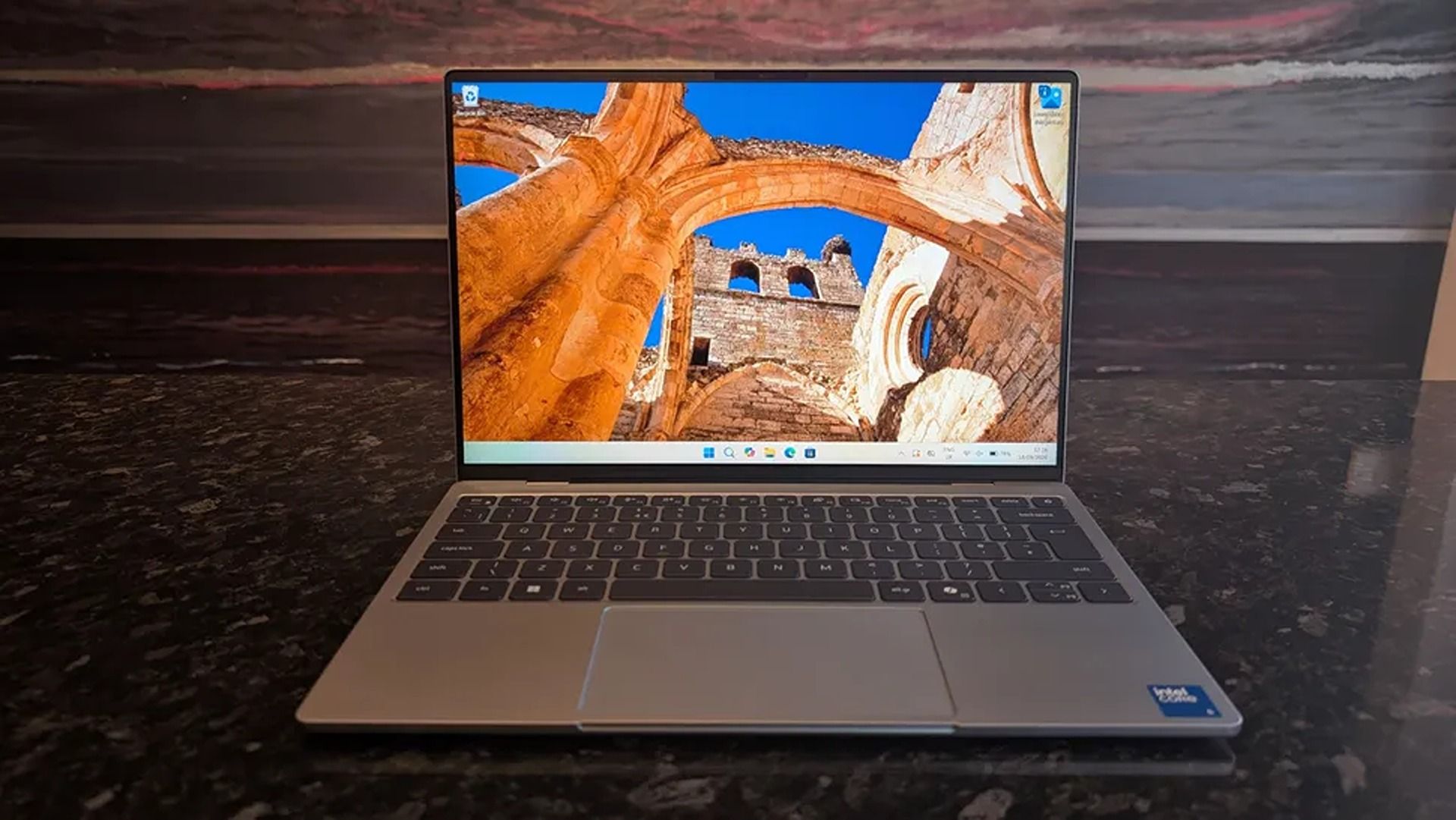
2026 saw the release of the familiar Dell XPS 13, a 'new' laptop designed to be the ultimate, affordable gateway for first-time PC users thanks to its respectable performance, long-lasting battery life, high-quality build, and general reliability.
"The Dell XPS 13 returns as an excellent Windows-based answer to the MacBook Neo. It’s an excellent option for students or mainstream users who don’t need more CPU or GPU muscle." — Matt Safford, Managing Editor, Tom's Hardware
They don't make those comments lightly because the Dell XPS 13 has plenty of features to help it live up to the hype and make it an easy recommendation for beginner PC users, students, and workers.
These include a strong battery life of nearly 15 hours per charge, a 13.4" 3K Touchscreen with 2560x1600 resolution and a 120Hz refresh rate to provide crisp and detailed images and videos, and a solid, thin 0.5 inches thick chassis weighing in at 2.2lb for easy portability.
On top of that, the Dell XPS 13 has a solid and responsive keyboard, a pair of Thunderbolt 4 ports to plug in useful accessories, an IR sensor for facial recognition, great-sounding speakers, Wi-Fi 7 support for faster and more stable internet connections, and decent performance for casual use and mid-level intensive workflows thanks to its Intel Core 5 Series 3 320 CPU and 16GB of RAM.
Can it's RAM and SSD be swapped with different ones?
The Dell XPS 13 laptop's RAM can't be removed and swapped for a different one due to being soldered, so you will need to decide how much RAM it gets during checkout.
Its SSD, however, can be swapped out with a different one, and the Dell XPS 13 supports up to 4TB of storage.
Is it worth waiting until Black Friday?
In the past, we'd recommend waiting until Black Friday for a chance at a better discount, as laptops are usually discounted to their lowest by then.
However, with the ongoing RAM crisis hiking the prices of laptops further and further, who's to say that the Dell XPS 13 won't have a good price by then, even with a Black Friday discount?
With that in mind, it's still worth using Best Buy's 26% discount for the Dell XPS 13 now in case things get worse, especially if you're in a hurry for a high-quality, beginner-friendly laptop.
Join us on Reddit at r/WindowsCentral to share your insights and discuss our latest news, reviews, and more.
There have been few laptops that have completely blown us away with exceptional design, long battery life, and a smooth Windows experience quite like ASUS' Zenbook A14, and it saw a massive upgrade this year with a refresh outfitted with Qualcomm's Snapdragon X2 Elite processor.
Normally, the ASUS Zenbook A14 with its $1,349.99 price tag can seem like a hard sell compared to its cheaper (yet very capable) Snapdragon X Plus predecessor (usually $939.00 — $969.99), and its premium-grade Zenbook A16 sibling with its powerful X2 Elite Extreme CPU ($1,599.99 — $1,899.99).
Thankfully, with this 26% discount, the Zenbook A14 with Snapdragon X2 Elite is now at a smarter price of $999.99 at Best Buy, compared its siblings.
"At a glance, it might feel like the Zenbook A14 didn't change at all, but upgrading to the Snapdragon X2 Elite gave it a massive CPU performance bump." — Ben Wilson, Senior Editor
The Snapdragon X2 Elite logo on the ASUS Zenbook A14. (Image credit: Ben Wilson | Windows Central)
For starters, ASUS' Zenbook A14 laptop with Snapdragon X2 Eliteoffers vastly superior performance for casual use and heavy workloads compared to its 2025 Snapdragon X Plus predecessor, while also outperforming Apple's M5 chip.
Additionally, this laptop also earned high praise from us for its exceptional battery life of 17 hours per charge, crisp 14-inch OLED display that runs at 1920x1200 resolution with a max refresh rate of 60Hz, and vast selection of USB4, HDMI 2.1, and USB-A ports.
Plus, this version of the ASUS Zenbook A14 laptop also has Wi-Fi 7 support for faster and more stable wireless internet connections.
So, if you're looking for a lightweight, compact Windows laptop that will make mincemeat out of CPU-heavy apps and workflows, then the ASUS Zenbook A14 laptop with the Snapdragon X2 Elite CPU will serve you well in the office or school.
Will my everyday apps and old devices work with it?
Most everyday apps will function on the ASUS Zenbook A14, but older devices like legacy printers or scanners may have compatibility issues with the laptop's Qualcomm Snapdragon ARM-based processor. So make sure you check these older devices before using them on the ASUS Zenbook A14.
Is the RAM and SSD upgradeable?
The ASUS Zenbook A14's 16GB RAM is soldered, so it can't be removed and swapped with a larger one. You will need to select how much RAM it will have during checkout (16GB or 32GB). Its 512GB SSD, on the other hand, can be swapped out with a larger one up to 4TB of space.
Is it worth waiting until Black Friday for a better deal on this laptop?
It depends on your situation and wants. If you can hold out for a few weeks for a chance at a better discount, I'd recommend waiting until Black Friday.
However, if you're in a hurry for a new premium-level laptop for work and are afraid the ongoing RAM crisis will drive the price of this laptop to unaffordable levels in the future, then I'd say take the Asus Zenbook A14 now while its 26% discount is hot (and making its price slightly more on par with the 2025 model).
Join us on Reddit at r/WindowsCentral to share your insights and discuss our latest news, reviews, and more.
Xbox turns 25 this year, and if you're going to commemorate a quarter-century of one of gaming's most recognizable brands, slapping a green logo onto some existing hardware isn't going to cut it.
Thankfully, Razer didn't phone it in.
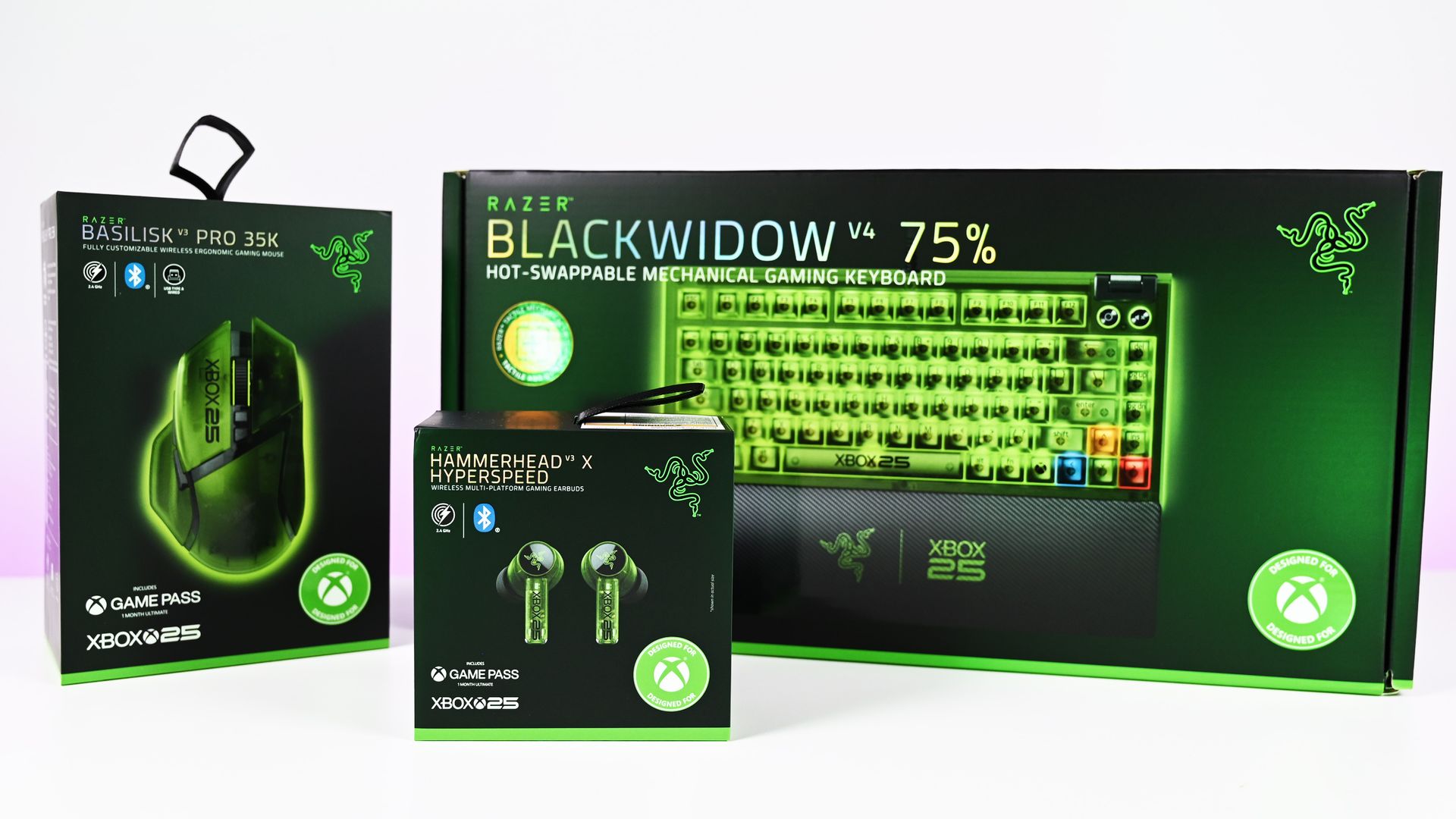
The new Razer | XBOX 25 Anniversary Collection (now available) takes three existing Razer products, the BlackWidow V4 75%, Basilisk V3 Pro 35K, and Hammerhead V3 X HyperSpeed, and transforms them with translucent green shells, Xbox detailing, and some fantastic use of RGB lighting. Razer officially announced the limited-edition collection in August, describing it as a collaboration with Xbox celebrating 25 years of the brand.
I've now spent some time with all three, and there's one product that immediately stands above the rest.
The keyboard is ridiculously good.
The BlackWidow V4 75% is the star of the show
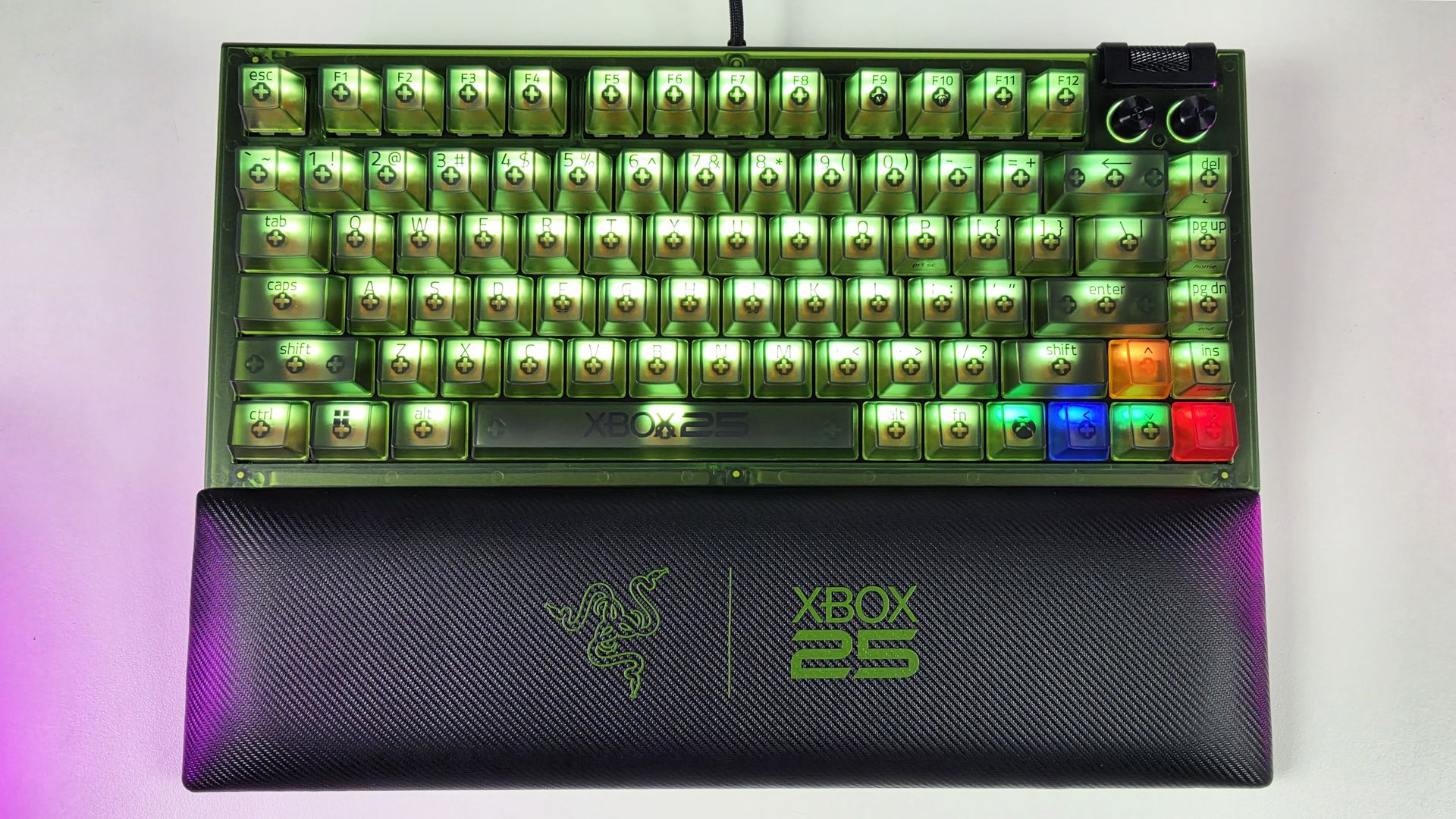
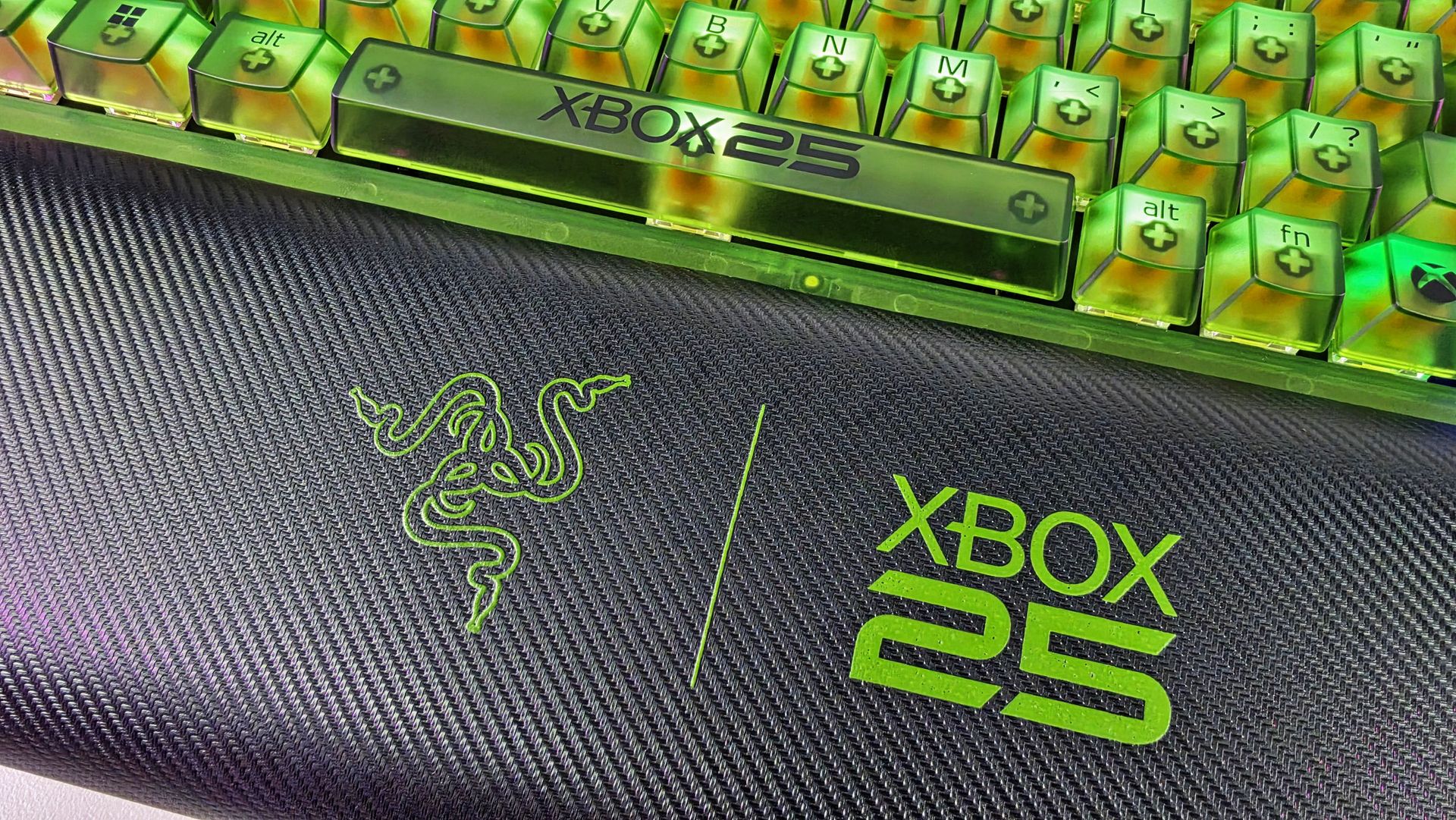
Top-down view of the Razer BlackWidow V4 75% Xbox 25th Anniversary keyboard and wrist rest. (Image credit: Daniel Rubino)
If I could only buy one thing from this collection, it would unquestionably be the BlackWidow V4 75%.
It's absolutely awesome-looking in person.
The translucent green chassis and keycaps make exceptionally good use of Razer's Chroma lighting because you're not simply seeing RGB through the legends. The light spills through the translucent structure of the keyboard itself, illuminating the switches and keys and giving the whole thing this glowing, almost radioactive Xbox-green appearance.
My photos don't really do it justice. I've generally kept mine predominantly green for obvious reasons, but you aren't locked into the Xbox color scheme. Razer Chroma gives you full RGB customization, including per-key lighting, while the keyboard also has two-sided underglow.
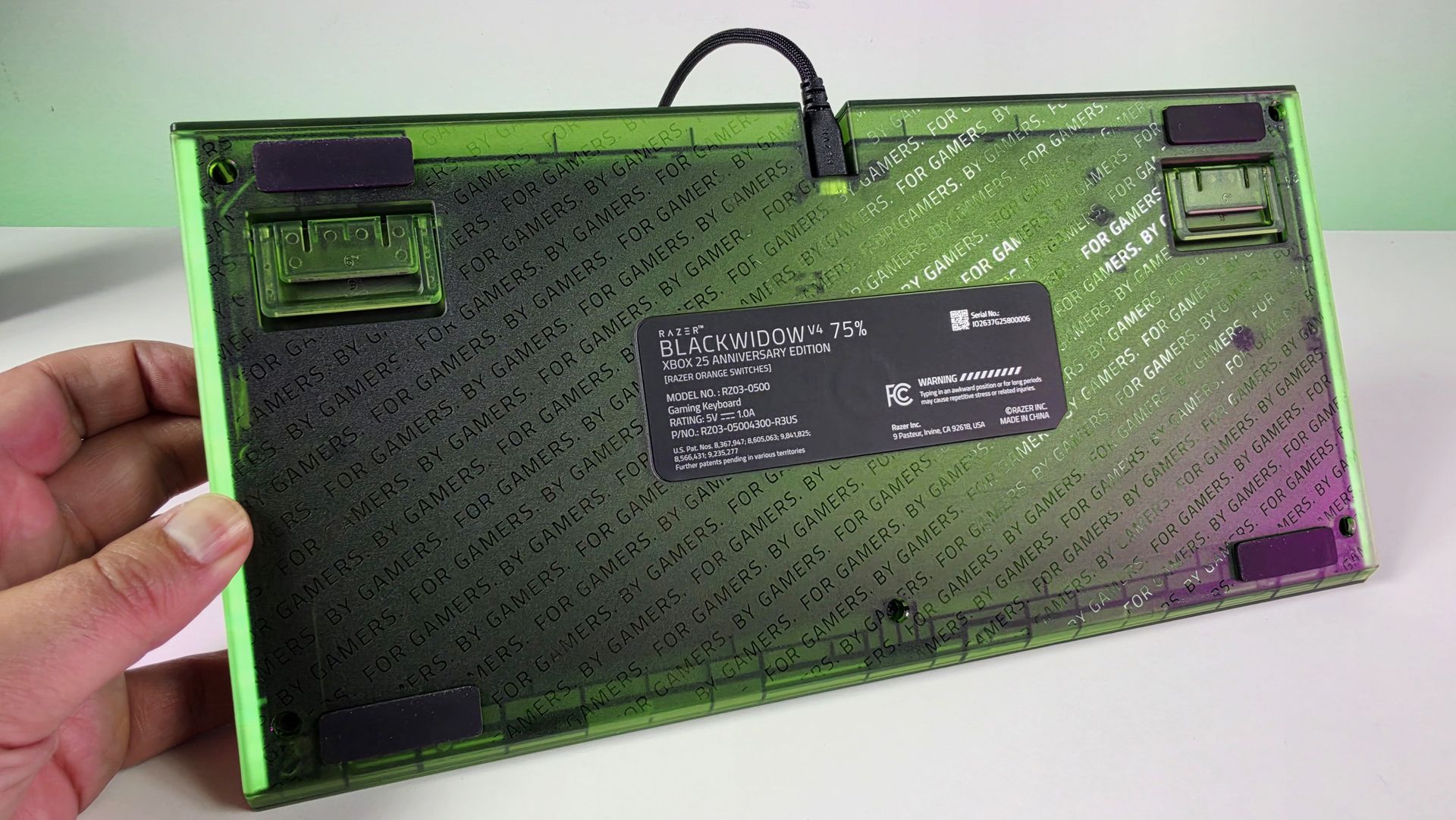
Even the bottom of this keyboard looks great. (Image credit: Daniel Rubino)
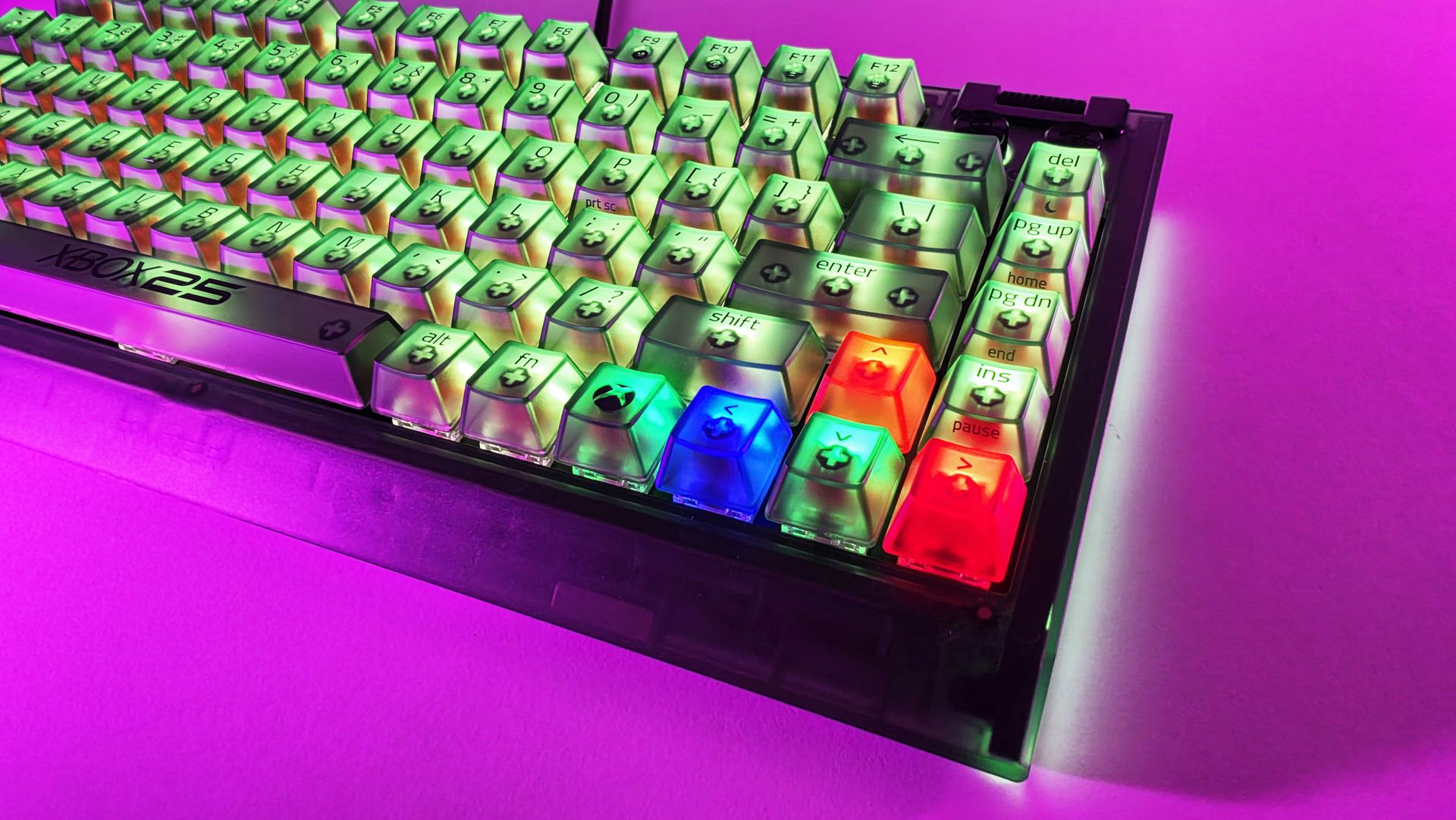
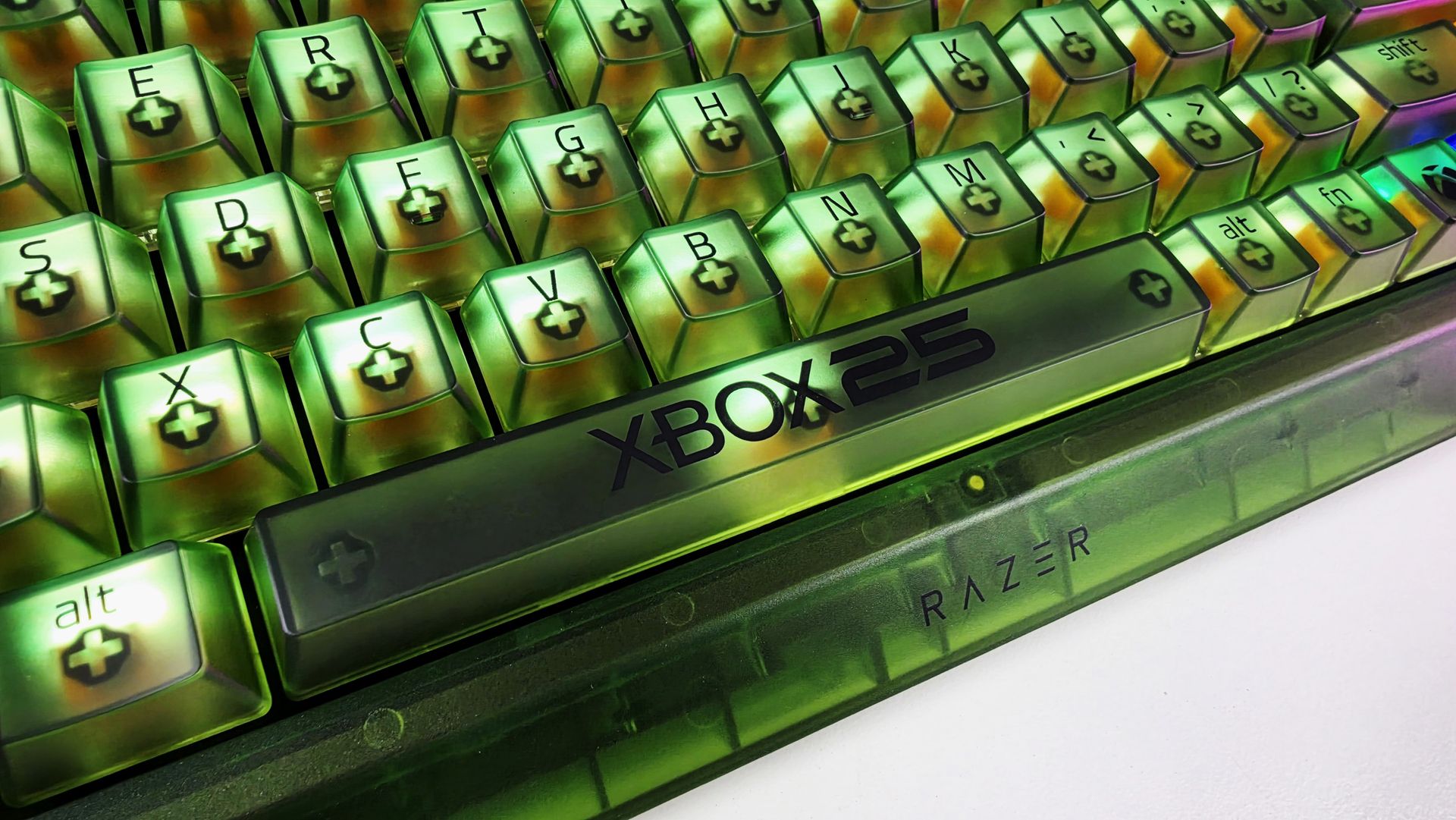
There are some lovely smaller touches, too. The spacebar carries the XBOX 25 branding; there are Xbox-inspired symbols scattered across the keycaps, and the familiar ABXY colors appear around the arrow cluster. Razer has even included a dedicated Xbox key for opening Game Bar.
But perhaps my favorite finishing touch is sitting in front of the keyboard.
Sure, you can customize the RGB using Synapse, but out of the box, I love the default color profile. (Image credit: Daniel Rubino)
The included magnetic wrist rest has Razer and XBOX 25 branding prominently printed on it in green, and that's the type of detail that pushes this beyond feeling like a basic special-edition colorway. It completes the look.
Even the wrist rest gets some branding love. (Image credit: Daniel Rubino)
Razer uses its Orange Tactile Switches Gen-3 here, while retaining the BlackWidow V4 75%'s hot-swappable design.
At $209.99 on Razer.com, it's admittedly not cheap. But if I'm buying something specifically because it's a limited Xbox 25th-anniversary edition, I want it to actually feel special. This does.
BLACKWIDOW V4 75%: $209.99 If you’re looking for more customization and immersion, meet your XBOX enthusiast needs with a compact, hot-swappable mechanical keyboard featuring Razer Chroma RGB and Razer Orange Tactile Mechanical Switches Gen‑3.View Deal
The Basilisk V3 Pro 35K completes the look
Arguably one of the best combo gaming and ergo mice around, the Basilisk V3 Pro 35K in translucent green looks superb. (Image credit: Daniel Rubino)
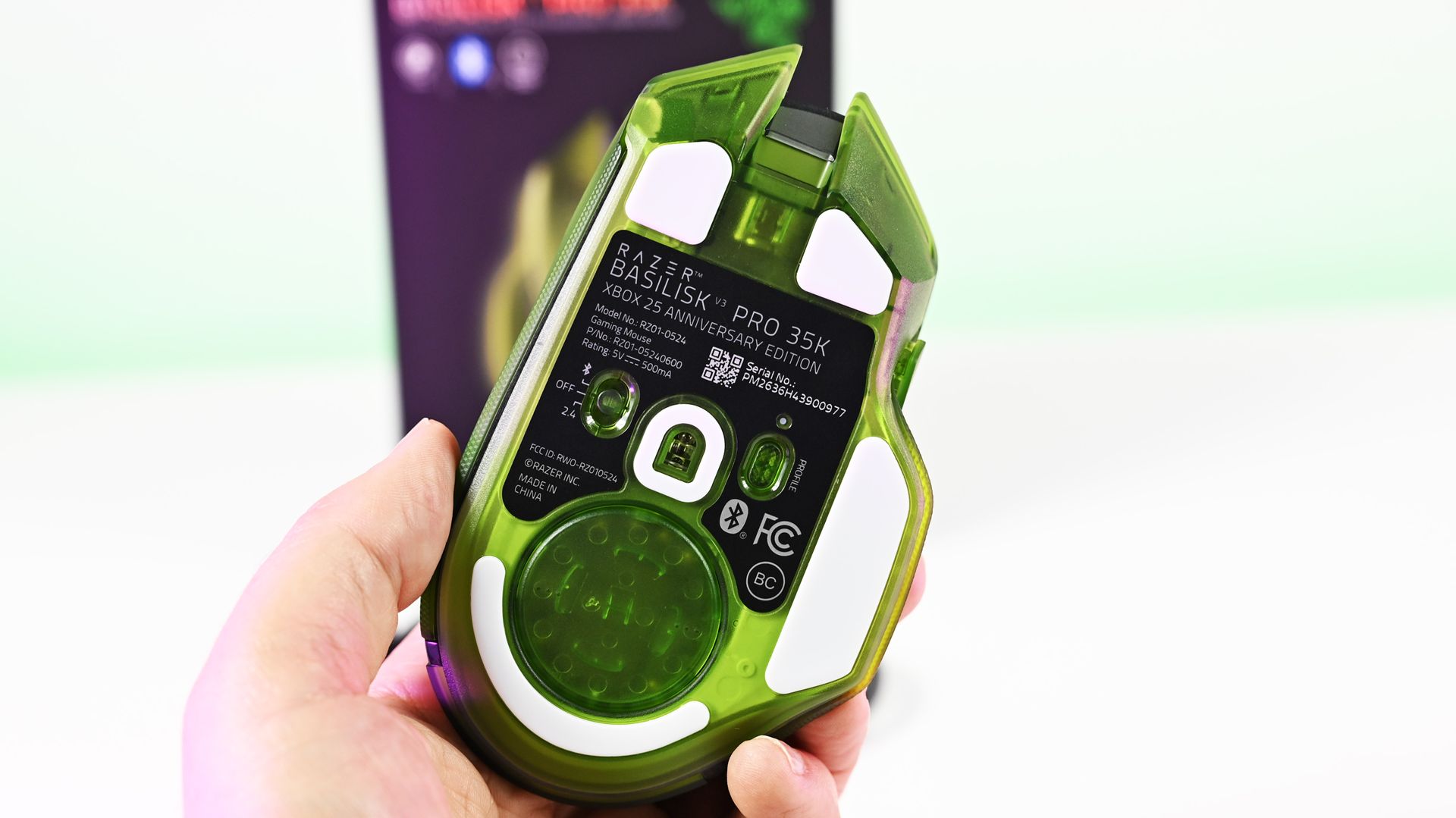
I'm already a fan of the Basilisk line, and underneath the translucent green makeover, this remains a very capable wireless gaming mouse. You get Razer's Focus Pro 35K Optical Sensor Gen-2, HyperScroll Tilt Wheel, 13 customizable controls, HyperSpeed Wireless connectivity, and Chroma RGB.
Razer lists up to 140 hours of battery life over HyperSpeed Wireless as well.
However, once again, it's the execution of the anniversary design that makes the difference.
(Image credit: Future)
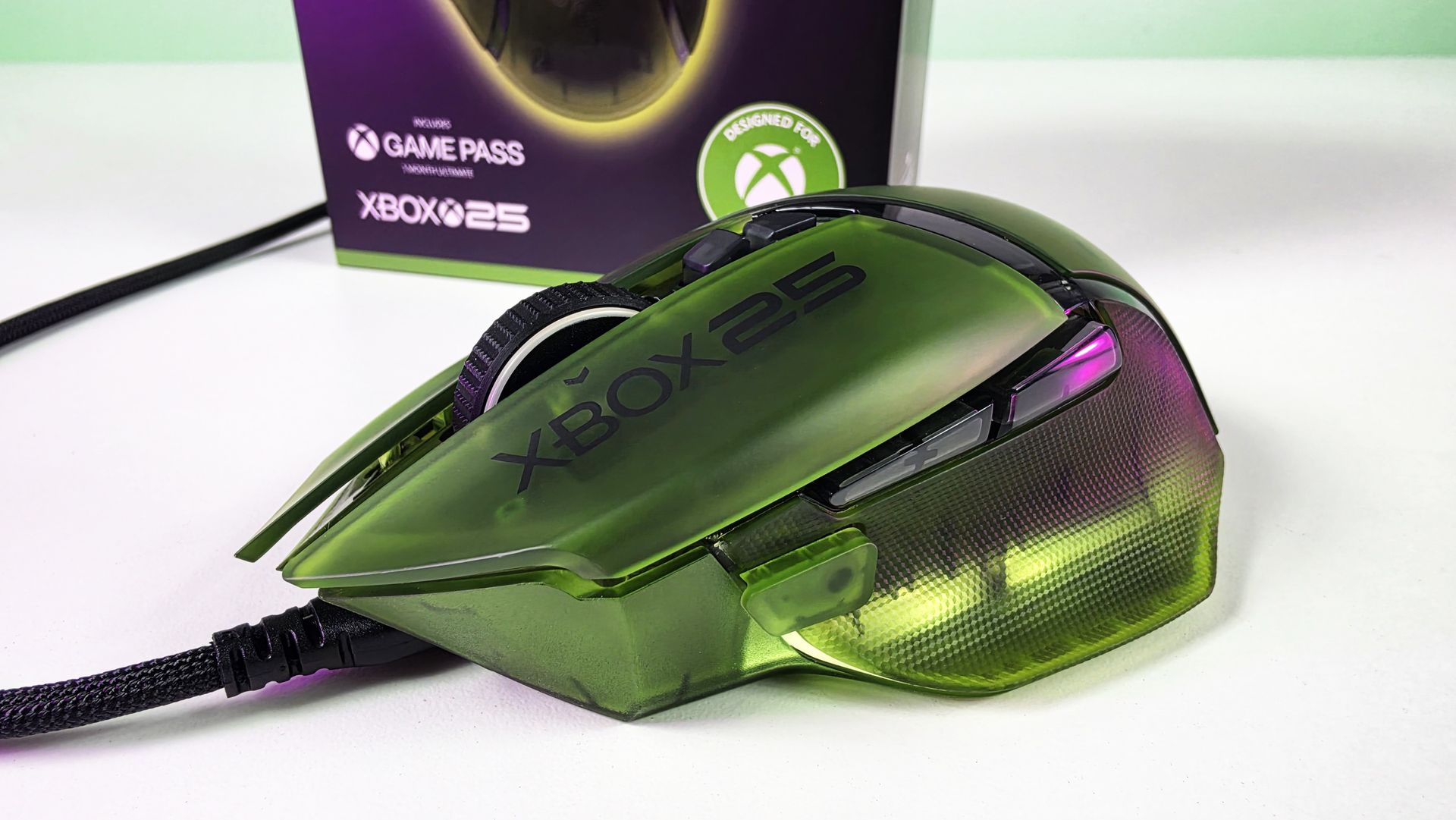
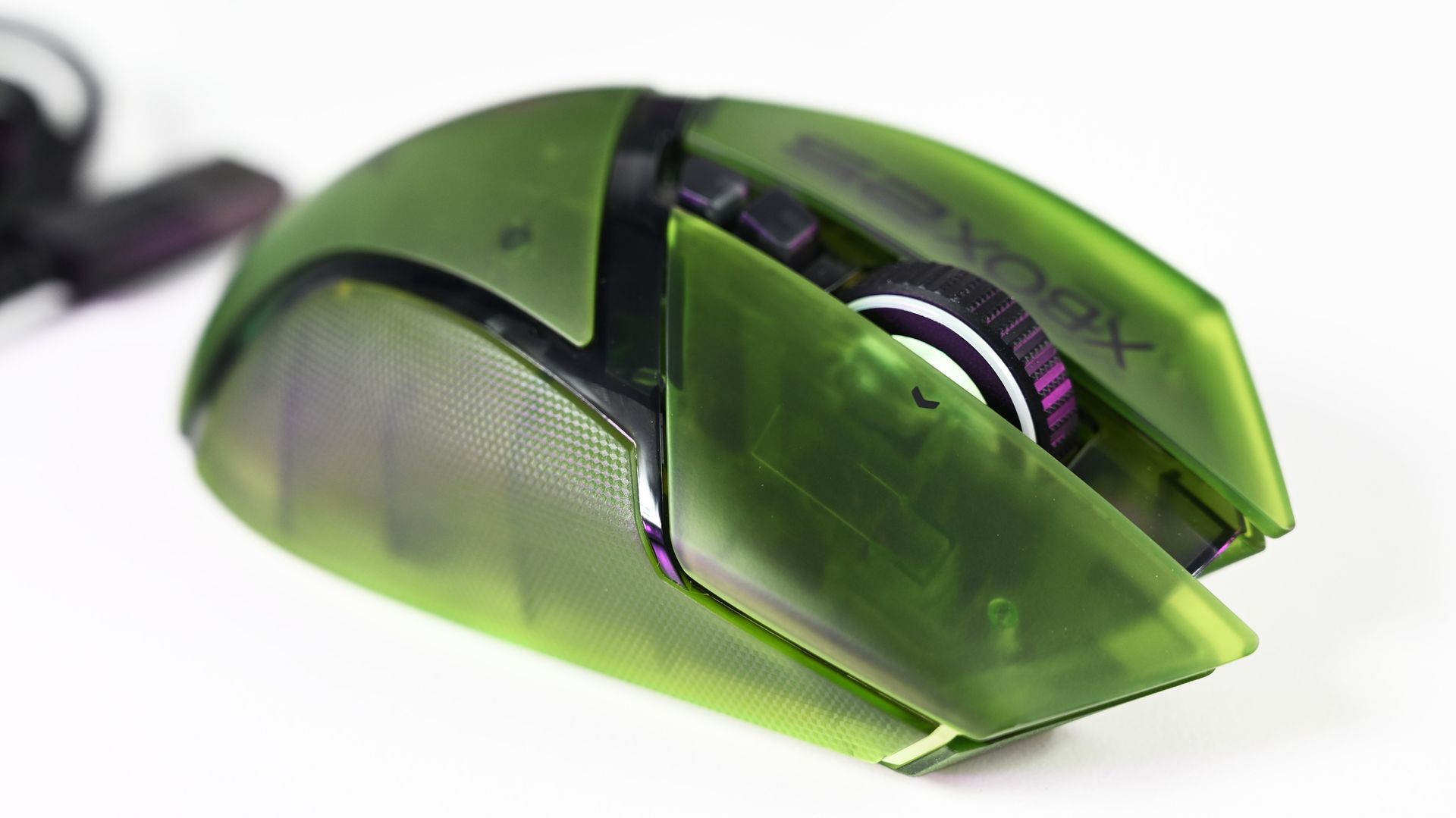
The translucent green upper shell lets you see hints of the mouse's internal structure, while XBOX 25 branding runs down the side. RGB lighting beneath the mouse creates a bright green glow that makes it look fantastic beside the BlackWidow.
Honestly, if you're getting the keyboard, you really should just get the mouse too (sorry about your wallet).
Close-up top view of the Razer Basilisk V3 Pro 35K Xbox 25th Anniversary gaming mouse featuring a translucent green shell and Xbox 25 branding. (Image credit: Future)
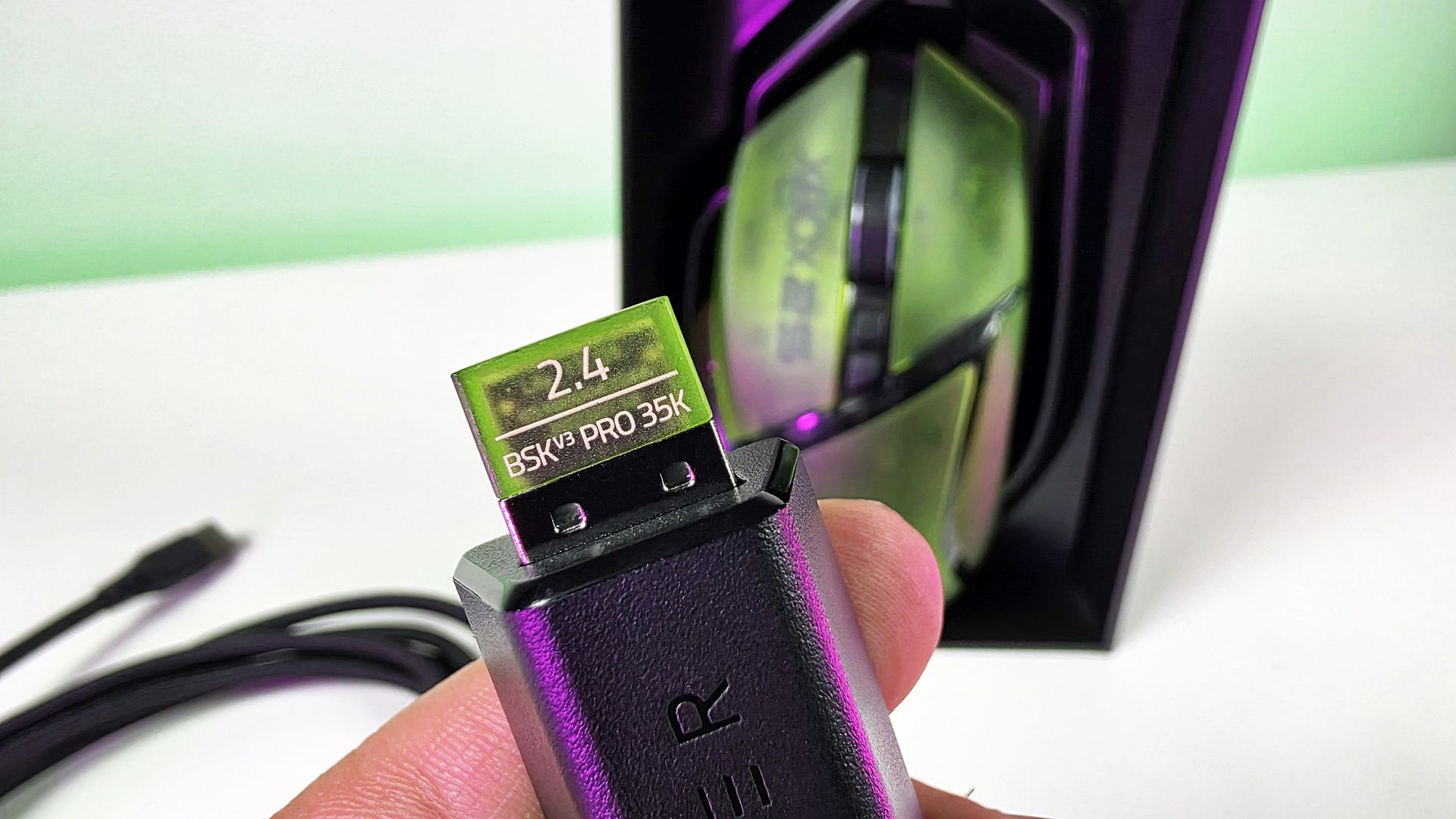
There's even a translucent green 2.4GHz wireless dongle! Nobody needed to do that. Razer did it anyway, and that's precisely my point about this collection. Everywhere I look, there's another little bit of attention to detail.
This was completely unecessary, but Razer really went all out for the theme here🫡. (Image credit: Daniel Rubino)
The Basilisk costs $179.99 on Razer.com. Yes, Razer has subsequently moved the Basilisk family forward, so you're not buying the newest generation simply because this is a new Xbox edition. But considering what you're really paying for here, namely an excellent mouse transformed into a collectible anniversary design, I'm not going to complain too much.
BASILISK V3 PRO 35K: $179.99 Packed with cutting-edge technology, unleash your full potential with an XBOX-themed RGB gaming mouse that redefines the boundaries of performance, customization, connectivity, and control.View Deal
The Hammerhead V3 X HyperSpeed does exactly what it needs to
(Image credit: Daniel Rubino)
Finally, there are the Hammerhead V3 X HyperSpeed earbuds.
I've been using these with my ASUS Xbox Ally X, where they've made a great little companion for handheld gaming. They sound great, and the transparent green design is wonderfully nostalgic without looking cheap.
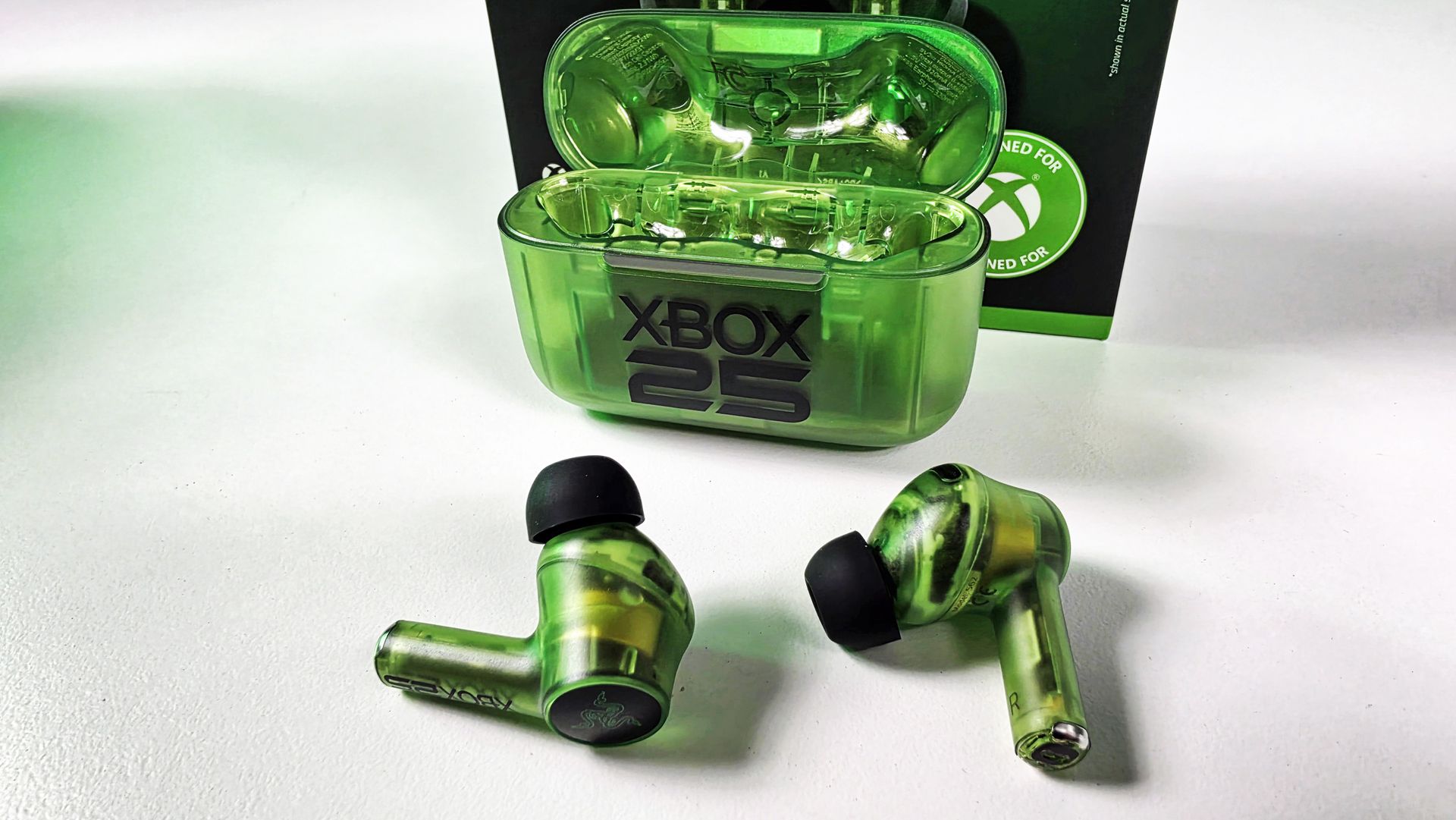
The earbuds themselves are translucent right down through the stems, while the charging case gets the same treatment with a large XBOX 25 logo across the front. It's distinctive without Razer needing to reinvent the product underneath.
(Image credit: Daniel Rubino)
To be clear, I'm not sure what else Razer could have done here.
These support both Razer HyperSpeed Wireless over 2.4GHz and Bluetooth 5.3, including Razer SmartSwitch, alongside up to 35 hours of total battery life. They're also IPX4-rated, and Razer lists surround-sound support across Xbox and PC.
At$119.99 on Razer.com, they're also the least expensive route into the collection.
HAMMERHEAD V3 X HYPERSPEED: $119.99 Experience seamless audio with the ultimate wireless gaming earbuds. Equipped with Razer HyperSpeed Wireless, Razer SmartSwitch Dual Wireless, and THX Spatial Audio, stay connected, competitive, and fully immersed on Xbox and beyond.View Deal
This is how you do an anniversary collection
(Image credit: Future)
The three anniversary models carry roughly a $10 to $20 premium over their standard counterparts, depending on the product. That's the sort of "special edition tax" I can live with when I'm actually getting something special in return.
And, in my opinion, Razer really went over the top here.
There's a consistency across all three products that makes them feel like an actual collection, rather than three unrelated products that happen to share a logo and color. Put the BlackWidow and Basilisk together on a desk, and they look fantastic.
The translucent green plastic immediately evokes Xbox, while the XBOX 25 logos, custom keycaps, ABXY colors, wrist-rest embroidery, RGB implementation, and even that ridiculous little green wireless dongle demonstrate that somebody cared about sweating the details.
🤌It's so cool looking! (Image credit: Daniel Rubino)
And that's ultimately why I like these so much.
Razer started with some of its best hardware rather than using Xbox's anniversary to dress up cheaper peripherals, and then went far enough with the aesthetic changes that they feel genuinely unique.
The Razer | XBOX 25 Anniversary Collection is available to order from October 20, with the BlackWidow V4 75% at $209.99, Basilisk V3 Pro 35K at $179.99, and Hammerhead V3 X HyperSpeed at $119.99.
These are limited edition, so don't be shocked if they sell out.
If I were choosing only one, I'd take the BlackWidow without hesitation. (But let's be honest: the keyboard and mouse belong together.)
A+ from me, Razer. This is how you do anniversary hardware.
Hit me up in the comments if you have any questions while I still have these on hand! And you can follow the rest of our XBOX 25 coverage as we round out 2026.
Join us on Reddit at r/WindowsCentral to share your insights and discuss our latest news, reviews, and more.
That document outlines how long each Surface device will receive driver and firmware updates.
The support window for the Surface Laptop Ultra is not surprising. In fact, it's perfectly in line with other Surface devices. Microsoft splits its driver and firmware lifecycle into two different categories: devices released before January 1, 2021 and devices released on or after January 1, 2021.
Devices that shipped before 2021 receive at least four years of driver and firmware updates. All Surface PCs in that category have already reached the end of the driver and firmware lifecycle.
The Surface Laptop Ultra will continue to receive driver and firmware updates until October 16, 2032. Microsoft is quite specific about its lifecycles. For context, the newly launched Surface Pro 12-inch and Surface Laptop 13-inch will only receive driver and firmware updates until October 13, 2032.
Surface Laptop Ultra owners will need to make sure their PC is running a version of Windows 11 from the prior 30 months to continue to receive driver and firmware updates.
Even when a device reaches the end of its driver and firmware lifecycle, it will continue to receive Windows 11 updates.
Firmware is low-level software built into hardware components, while drivers allow Windows to communicate with those parts. Driver and firmware updates keep everything running smoothly. They can fix hardware bugs, battery drain, and security flaws behind the scenes.
Six years is a fair time for a PC to receive driver and firmware updates. Generally, the biggest bugs and issues should be sorted by the end of the Surface Laptop Ultra's driver and firmware lifecycle.
Built around the NVIDIA RTX Spark platform with an N1X CPU, RTX GPU, and up to 128GB of unified memory, the Surface Laptop Ultra hits new performance heights for power users. It's all contained in a gorgeous chassis with a mini-LED display and tons of ports.
Join us on Reddit at r/WindowsCentral to share your insights and discuss our latest news, reviews, and more.
In a weird way, I’ve been thinking about the idea of a Googlebook for well over a decade now — despite the fact that such a product has only officially existed for a matter of months.
I’m relatively unusual in the world of tech journalism, y’see, in that I’ve been both writing about Android and ChromeOS since the platforms’ earliest days and actively using devices from both ends of those ecosystems in my own day-to-day life that entire time. Most tech writers tend to be iPhone owners and Chromebook skeptics who see this part of the digital world from an outside view — once a year or so, when significant new devices come along for assessment — without having the perspective of someone who’s truly immersed in it day in and day out.
That distinction is always painfully apparent when you read a review that waxes on endlessly with out-of-touch iPhone comparisons and comments about the limiting nature of Google’s ChromeOS concept — positions that simply aren’t accurate for those of us who live in these ecosystems and embrace the philosophies they offer.
This won’t be one of those reviews, and I perhaps more than anyone have been champing at the bit to get my hands on one of Google’s new Android-ChromeOS-combining Googlebooks since the vaguest concept of these devices first appeared on the horizon earlier this year.
So keep that in mind when I tell you, coming from the perspective of someone who very much wanted to love this: Using a Googlebook is an extraordinarily strange experience — especially when you’re treating it like a regular laptop, as it’s being positioned by Google, and relying on it to get real work done.
But amidst all the oddness, there are some true high points along with plenty of intriguing, if unfinished-feeling, potential.
Here’s what it’s been like trying to actually work on a Googlebook — specifically, the Lenovo Googlebook, which sells for $1,149 (and was provided to me as a short-term loaner from Lenovo for the purposes of this article).
The Googlebook groundwork
First things first, let’s back up a minute and set the stage for what we’re even talking about here.
It’s meant to represent an evolution of sorts from the Chromebook, the initially simple laptop Google launched in 2012 and slowly morphed from a barebones web portal into an “everything OS” — a system that runs web apps, Android apps, Linux apps, and even sometimes Windows apps, for businesses that have specific needs that can’t be addressed in any other way.
But while ChromeOS and Android grew closer and more connected over time, Googlebook OS — the awkwardly clunky name of the operating system at the heart of every Googlebook — sets all of that aside to aim for a fresh start. The software here sports Android at its core alongside a variety of optimizations designed to bring in bits of ChromeOS-like elements and make everything seem more suited to a laptop setting.
With that in mind, starting to use a Googlebook is both immediately familiar and vexingly confusing. The interface feels a lot like Android, which is nice, but it also doesn’t quite feel in line with how you expect to work on a desktop computer. It’s a jarring sort of mashup, and it’s tough to wrap your head around to get comfortable working.
That’s true for relatively small touches like having the clock in the upper-left corner of the screen instead of in the lower-right corner, where’d you expect it on most non-Apple-made computers. It’s a little thing, but it keeps throwing me whenever I try to glance at the time during the day. That approach is similar to Android, yes, but it just doesn’t feel right in this environment or with what pretty much all of us who’d be considering this kind of device have been trained for ages to expect with a desktop computer experience.
The Googlebook’s desktop is similar to Android — but that doesn’t immediately feel natural in a desktop computing environment.
JR Raphael / Foundry
It’s true, too, for keyboard shortcuts, which don’t work the same as they did on ChromeOS — even just basic, common things like opening items on the taskbar. (Googlebook OS does have an impressive array of customizable keyboard shortcuts, if you find ’em, but there’s a ton of new combinations and muscle memory to be learned.)
The confusion is probably most prominent, though, on the app front, where Google is really leaning hard into the Play Store and the idea of Android apps being the primary way to get stuff done, despite the fact that Android apps often aren’t ideal — or even available, in some instances — in a productivity-oriented, desktop computing scenario.
The Googlebook app experience revolves primarily around the Play Store — which can be a pro or a con, depending on the moment.
JR Raphael / Foundry
At least one of Google’s own apps addresses this elegantly. Installing Google Calendar from the Play Store basically just gives you an app-like shell around the Calendar website, and you can use the Android app’s widget alongside that, if you want. (The downside is that you can’t use the equivalent Android app in full even if you want to, as there’s no straightforward path to install it — and, strangely, the same web-widget combo is not available with other Google apps, like Gmail or Drive, which give you only the web version and no option to use any associated Android widgets.)
The Google Calendar app on a Googlebook is basically just the Calendar website, though you can still use the Android app’s widget alongside that.
JR Raphael / Foundry
And since the version of Chrome on a Googlebook looks and feels like the full desktop version of the browser — like what you’d expect on a Chromebook or any other desktop computer — relying on this unusual mix of web and Android interfaces for productivity is mostly OK. Mostly.
Working in Docs, with as few as five or six tabs open, I continue encountering an occasional issue where the tab just blanks out for a second or two and then comes back — which, suffice it to say, isn’t exactly optimal for working.
The email app I use, Superhuman, appears to be completely incompatible here. The web version (which is powered by a Chrome extension) errors out anytime I open it, and the Android app is clearly not meant for large-screen, keyboard-and-mouse use and presents an incredibly awkward experience as a result.
The productivity tool Notion, meanwhile, came up for me as one of the Googlebook’s suggested tools that’s optimized for desktop use, so I followed that direction and installed the Notion Android app — only to find that the app is much more awkward and limited on a laptop than the regular Notion web experience, where all the functions are available and the keyboard shortcuts work as expected. So I decided to try to install the Notion web app for easy ongoing access to that, and I encountered a mysterious error.
Trying to install certain common web apps results in a frustrating error.
JR Raphael / Foundry
D’oh.
Then there’s something like Slack, which you can install from the Play Store but with an accurate warning that it’s “better on the website.” So, OK: You go to the website, try to sign in and install the web app version of it from there, and…there’s that blasted “cannot be installed” error again. (Google says it rolled out an update last week that allows any web page to be installed as a web app, but as of this writing — even with that update present on my device — the same error-encountering pattern persists.)
Other apps appear to work fine but then behave in odd and unexpected ways. I tried to install the Android version of Vivaldi, for instance, and it installs and opens without issue — but then returns an error anytime I try to actually open a website within it. That definitely doesn’t happen on a Chromebook, nor do the other aforementioned issues.
There’s just a lot of weird stuff like that, where it feels like a typical Google not-quite-fully-baked product. To be fair, that may be at least in part because of third-party app developers not yet supporting what needs to be supported for full optimization in this new environment — but either way, that’s the experience you get on a Googlebook right now, and it’s an all-too-familiar chicken-and-egg challenge that there’s no telling how long might take to see resolved.
On a somewhat related note: While the ability to install Linux apps is technically present on a Googlebook, it isn’t at all a user-friendly experience. Linux app installation is available only in a limited manner within the confines of a command-line terminal, and any such programs consequently don’t integrate into the launcher or the main Googlebook interface. That means there’s no real way to use them as a part of the standard Googlebook experience — which is a shame, as having those more traditional desktop apps available on ChromeOS went a long way in filling in pertinent function gaps for a lot of people and businesses. (Google says better Linux app support is vaguely “on the roadmap.”)
The various layers Google created to make Windows apps available for businesses in ChromeOS aren’t present in this environment, either. The official line, as relayed to me by a Google spokesperson, is that “Googlebook takes a fundamentally different architectural path than previous platforms” and they “aren’t attempting to patch together legacy PC software layers or rely on Windows emulation to make a laptop functional”:
Instead, Googlebook OS is built directly on the Android tech stack with the desktop foundations of ChromeOS, pairing the world’s largest native app ecosystem with an uncompromised, full desktop Chrome browser.
This makes it easier than ever for developers to build a true desktop-class app experience.
That’s all noble enough in theory — but as a prospective Googlebook owner right now, what good does any of that do when most developers haven’t yet built those “true desktop-class app experiences” for this environment? Or when you’re a business user whose company has the very same sort of “legacy” software requirements that led Google to work so hard on Windows app support for Chromebooks and maintain that option in that arena?
Pros, cons, and more Googlebook confusion
Let’s break from the strange stuff for a minute to focus on some positives — because, again, there is something undeniably cool about experiencing Android in a laptop form and seeing all the ways a Googlebook works hand in hand with an Android phone to make life easier.
First and foremost, Googlebooks stray from the longstanding minimalist Chromebook standard to give you a fully customizable desktop — with the ability to create any arrangement of shortcuts and widgets, just like you can on an Android home screen. That is absolutely a welcome progression from the more limiting ChromeOS approach and something I’d long hoped to see in that domain, and having those familiar forms of interactive info right in front of you while working is an incredibly helpful addition.
Having a fully customizable desktop, with regular Android widgets available, is a significant leap forward for the Googlebook.
JR Raphael / Foundry
Being able to easily access the files on your phone without any extra hoop-jumping is also a nifty touch, for the moments when such a need arises. Once your Googlebook is paired with your Android phone, you simply open the Files app on the laptop, and you can see and interact with any files on your phone right then and there. (That said, the Files app is otherwise much more barebones and limited than its ChromeOS equivalent, unfortunately — so you can’t, for instance, drag and drop directly from the phone to any specific folder on your local or Google Drive storage.)
The Googlebook makes accessing files on your Android phone delightfully easy.
JR Raphael / Foundry
As far as hardware is concerned, Lenovo did a bang-up job with its inaugural Googlebook device. This is one seriously nice laptop — a pleasure to hold, with an almost silky-feeling smooth texture on the top and a thoughtfully ridged bottom for extra grippiness when you carry it. The system has a beautiful (and big!) 15.3″ display, an excellent keyboard and trackpad, and surprisingly great speakers. Those boxes are all checked off.
The Lenovo Googlebook is a sleek and premium laptop with all the right elements in place, as far as hardware is concerned.
Lenovo
But it’s the experience inside the hardware that means the most, here in particular — so, back to that:
Native app installation aside, one key selling point of the Googlebook is how it’s able to stream apps from a connected Android phone — letting you run an app from your phone on the computer, in other words, without having the app installed locally on the Googlebook itself.
It’s a slightly confusing concept to wrap your head around, especially since you can also install most of the same apps from your phone directly onto the Googlebook if you want (and, given that this is a native Android device, installing and running Android apps on it is absolutely smoother and snappier than what you typically experience on a Chromebook). Because of that — just like with the equivalent streaming option that had been available on ChromeOS in recent years — it seems like something that’s bound to be more befuddling than beneficial for most people, most of the time.
Android app streaming presents some perplexing overlap by allowing you to remotely run many of the same apps you could also install directly on the Googlebook.
JR Raphael / Foundry
That being said, I have had a couple of situations come up where it seemed like the feature might be handy. First, I needed to get a two-factor authentication code out of Authy, which is available only as a mobile app. A perfect use-case, right?
Well, not exactly: The Googlebook wouldn’t let me stream the Authy app from my phone and instead gave me an error: “Can’t cast content. This content is restricted.” So then I thought maybe I’d just install Authy directly onto the Googlebook instead, but alas: The app “isn’t available on Google Play on this device.” Bah.
Another time, I tried to open Google Wallet from my phone to get some info off my insurance card, which I have stored in that service. That worked, at first — but then the app kept hanging on a loading screen anytime I tried to open anything.
The one scenario where the app streaming has been helpful is with notifications: Anytime you get a new notification on your connected Android phone, it shows up as a pop-up in the upper-right corner of the Googlebook display. The same actions that’d be present on the notification on your phone, such as marking something as read or replying in-line, are also present on the computer, and you can click on the notification to open the associated app in full on your laptop — just like you would on your phone, only everything happens within a window on the Googlebook.
That’s a clever little sleeper feature and arguably the best part of the app streaming capability, even if you don’t necessarily think about the fact that you’re using app streaming when it happens.
Another key selling point is the addition of AI-oriented features into the Googlebook operating system. This includes a Magic Pointer feature that lets you wiggle your cursor to summon Gemini and ask it about any specific area of text or visual on your screen — which is fine but not something I find myself actually using often. Its most useful-seeming promise is being able to act on information, like creating a calendar event based on a specific area of an email or text message on your screen, but its accuracy in getting the details right in such scenarios has been pretty hit and miss in my experience.
Then there’s the integrated Rambler system for conversational voice-to-text conversion (as seen on Google’s recent Pixel phones). It works well, but by design it isn’t a direct dictation tool; instead, it adjusts and rewrites your rambling speech (hence the name) to make it better, in its view. That makes a lot of sense when you’re spouting off a quick text message while walking or driving, but unless you don’t mind losing your own specific style, intentions, and voice with longer computer-crafted communications, it doesn’t seem like something you’d be using much in a business capacity — though it can certainly be handy to have available on occasion.
As is often the case with Google products and AI features in particular, some of the smaller, less headline-making touches on the Googlebook are much more interesting than the flashy marquee features.
All in all, it’s a perplexing picture.
The Googlebook productivity puzzle
More than anything, the question that keeps coming to my mind — again, as someone who fully embraces Android and frequently works on a Chromebook — is simply: Who is this meant to serve? And, in its current state, for whom will it be a meaningful upgrade and enticement over other existing options?
I keep thinking how this exact setup would make for an absolutely brilliant souped-up Android tablet interface, with the right kind of hardware around it. You’d have the familiar Android-like environment, optimized for a larger screen, and the ability to pair that with a more desktop-like experience in the core Google apps — including Chrome, for a less limiting active web experience when you connect a keyboard (or flip around a convertible device to have one present).
As the Googlebook stands now, though, I just don’t know that it’s a great replacement yet for a Chromebook — or any other laptop — particularly when it comes to getting actual work done. At best, it feels like a fairly linear progression with some awkward adjustments and asterisks. At worst, it’s gonna be a real challenge for some people to use in the way they need a laptop to work. And I’m just not sure what’s being added, from a practical perspective, that makes it all worthwhile.
What we can say is that Google has a history of launching products that are still rough around with the edges, and sometimes, those products evolve over time — sometimes quite quickly! — and end up becoming incredible. Heck, think how much ChromeOS changed from its earliest form to the way it is today.
At the same time, Google also has a pesky habit of pivoting, giving up, and failing to follow through on once-heavily-hyped products. A fair amount of the Googlebook’s early shortcomings come down to convincing third-party developers to buy into the platform and invest the resources in making their apps work well on it, too — which is the exact same chicken-and-egg challenge that’s kept promising Google concepts from blossoming before.
For now, the Googlebook is an awkward start with plenty of potential. Where it goes next is anyone’s guess — and something that, to some degree, may depend on how many people are willing to take the leap with it early and wait for it to evolve.
Black Friday is right around the corner, but that doesn't mean you have to wait for a discount on laptops if you need one to clear last-minute deadlines at work or get caught up before heading to school.
For example, the HP Omnibook X Flip 2-in-1, with its crisp 16-inch display, all-day battery, and next-gen performance, is currently on sale with a 25% discount for $1,199.99 at Best Buy.
"The OmniBook X Flip 16 is a great all-rounder. It's well built, lovely to use, and the balance of power and stamina make for a laptop that's as happy sitting on a desk as it is coming on your travels. And whether it's work or play, the OLED touchscreen is a delight." ~ Sashua Muller, freelance journalist,
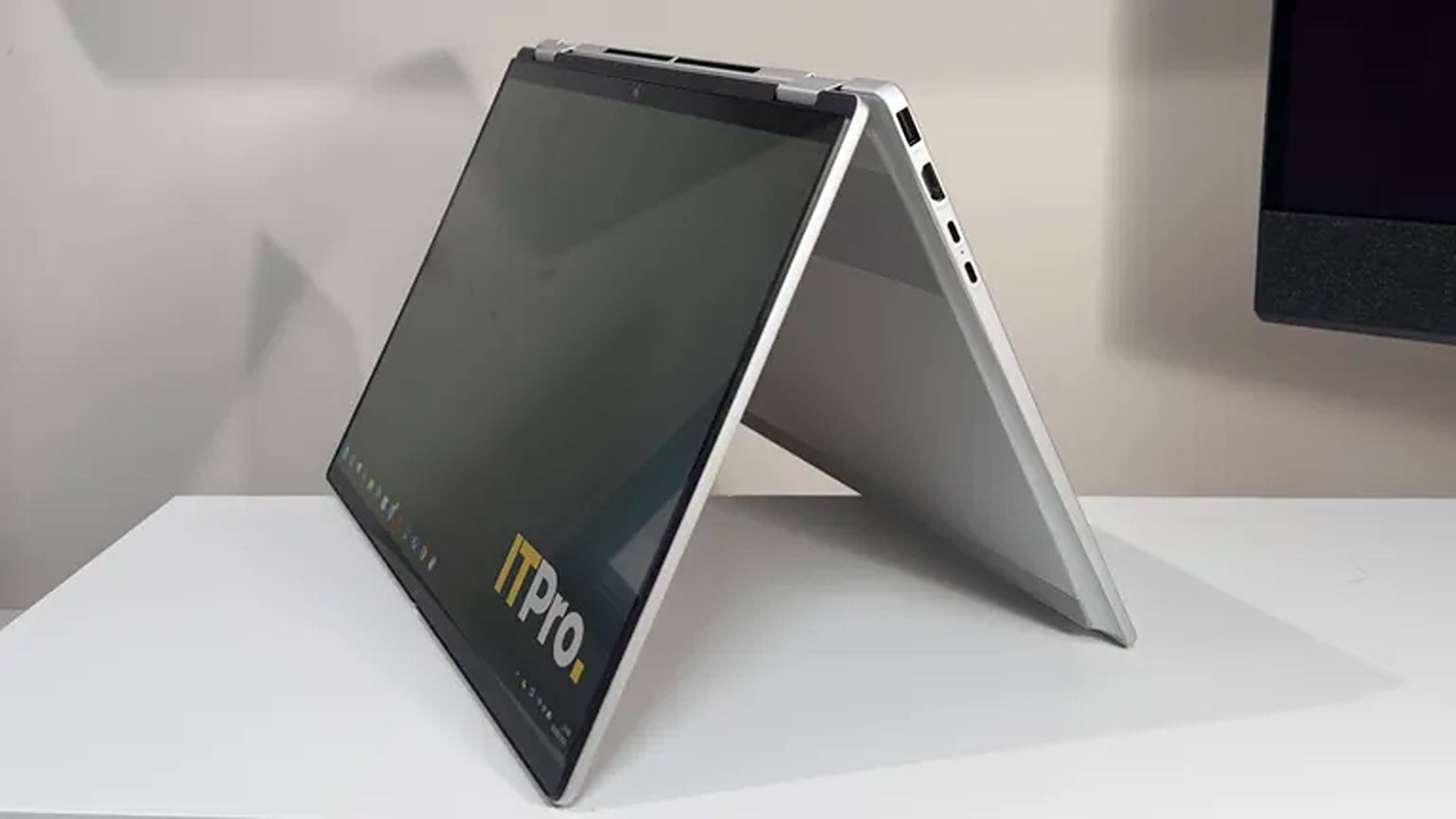
The HP Omnibook X Flip's Tent Mode (Image credit: ITPRO (Sashua Muller) | HP)
This configuration of the HP Omnibook X Flip 2-in-1 is the total package when it comes to casual use and productivity efficiency thanks to its AMD Ryzen AI 7 445 CPU, 16GB RAM, and 1TB SSD, offering fast performance when running programs, transferring files, or simply booting up.
It also features a 16" 2K OLED Touchscreen that delivers vibrant colors with 100% DCI-P3 coverage for accurate colors and 120Hz adaptive refresh rates to deliver smooth visuals.
On top of that, the HP Omnibook X Flip features an NPU with 50 TOPS to help perform local AI tasks, a smart hybrid build that can swap between laptop, tent, reverse, and tablet modes, and a massive battery life of 15 hours before needing a recharge.
Is it good for AAA gaming?
No, the HP Omnibook X Flip 2-in-1 laptop struggles to run intensive AAA games like Cyberpunk 2077 due to its limited integrated graphics card that was meant for workflow tasks rather than gaming. This isn't a gaming laptop.
Can I upgrade it's RAM?
No, the RAM is soldered into the HP Omnibook X Flip 2-in-1 laptop's motherboard so it can't be upgraded with a different one.
Should I wait until Black Friday for a better deal?
Often, I would suggest waiting until Black Friday for a chance at a bigger discount on laptops. However, with the RAM crisis constantly raising the prices of all things tech-related, there's a chance the HP Omnibook X Flip 2-in-1 laptop's price will rise so high that not even Black Friday discounts will make it affordable. With that in mind, it may be a good idea to take advantage of this discount while it lasts, if it suits your budget.
Join us on Reddit at r/WindowsCentral to share your insights and discuss our latest news, reviews, and more.
Great hardware let down by software flaws on these pricey machines that combine ChromeOS with Android
Google’s attempt to create a new type of laptop to compete with Windows and macOS machines is finally here, combining the best of ChromeOS and Android into the new Googlebook. With advanced links to Android phones and the best of Google built in, can these Googlebooks really compete with a MacBook Air or Surface Laptop? I took two for a spin to find out.
For years, Chromebooks have been the boss of budget laptops, but Googlebooks take a different, far more premium approach. Made by a range of traditional PC makers, including Acer, Asus, Dell, HP and Lenovo, they start at £999 (€1,099/$899/A$2,299) – a far cry from the £160 Chromebooks.
NVIDIA officially entered the Windows PC race this week, and its arrival brings a formidable new competitor to the premium AI PC market. With its RTX Spark platform, NVIDIA is bringing its Grace Arm CPU architecture, Blackwell GPU technology and extensive software ecosystem together in a new generation of Windows laptops. Microsoft’s Surface Laptop Ultra is among the first systems to showcase this collaboration, leveraging NVIDIA’s tech and putting it squarely in competition with Intel, AMD, Qualcomm and even Apple for high-performance local AI and creation-optimized laptops.
For Microsoft, the partnership expands the capabilities of Windows on Arm considerably, particularly for local AI development, content creation and other demanding professional workloads. Starting at $2,599.99, Surface Laptop Ultra is clearly a premium offering, but its combination of processing horsepower, large, unified memory capacity, and premium industrial design gives it an interesting position in the market.
My personal testing suggests NVIDIA and Microsoft have delivered a compelling platform with strong AI throughput, graphics performance and competitive CPU compute. Just as importantly, the Surface Laptop Ultra offers a glimpse of how AI development and local AI agent workflows could become more practical on a portable Windows PC.
NVIDIA RTX Spark brings Grace Blackwell to Windows on Arm
At the heart of Surface Laptop Ultra is NVIDIA’s RTX Spark N1X SoC, combining up to 20 Grace Arm CPU cores with a Blackwell GPU featuring up to 6,144 CUDA cores. Configurations support up to 128GB of unified memory, shared between CPU and GPU. The Surface Laptop Ultra model I tested has this full-fat configuration with an eye-watering $5,899.99 price tag (thanks, memory crunch), though there are lower-cost base configs as noted previously, offering an 18-core CPU with a 5,120-core GPU and 24GB of unified memory.
NVIDIA and Microsoft
Regardless, this architecture is particularly powerful for running on-device AI. Rather than being constrained by the dedicated graphics memory found in conventional laptops with discrete GPUs, RTX Spark can make a much larger pool of memory available to GPU-accelerated applications. This allows larger language models, longer context windows and demanding inference workloads to run locally. It’s similar in design to AMD’s Ryzen AI Max series, aka Strix Halo, in that regard, but with a more potent GPU engine on board.
NVIDIA’s CUDA ecosystem is another important advantage. Developers can leverage familiar tools including TensorRT, PyTorch and llama.cpp, with a base software foundation that also extends into NVIDIA-powered workstations and data center infrastructure.
For organizations building AI applications, this offers a solid development path. Models and workflows can be prototyped locally before moving to larger systems, reducing cloud compute and token expense while allowing sensitive data to remain on-device. (See: Around the corner: Agentic AI PCs that cut token costs.)
Microsoft has also optimized Windows 11 for RTX Spark, with improvements to workload scheduling, power management, memory allocation and application compatibility. These platform-level investments were essential to making NVIDIA’s Arm architecture practical for everyday Windows computing, and I was able to put some of them to the test in the few days I’ve had the machine on hand.
Surface Laptop Ultra: Premium design meets practical function
Microsoft has given RTX Spark an appropriately premium home with this machine. The Surface Laptop Ultra features a 15-inch PixelSense Ultra mini-LED touch display with up to 2,000 nits of claimed peak HDR brightness, a 120Hz refresh rate and excellent potential for creative work requiring high accuracy and wide gamut coverage.
Dave Altavilla
The machine’s aluminum chassis is less than 18 mm thick, and it weighs in at under 4.5 pounds. It’s not an ultraportable per se, but considering the horsepower on board, Microsoft has struck a reasonable balance between portability and performance.
The design is refreshingly understated, with clean lines and rigid aluminum construction. My initial hands-on impressions have been particularly positive, thanks to the keyboard’s tactile response, smooth and responsive haptic touchpad, and bright, high-contrast display.
The larger touchpad should be especially welcome for users navigating complex applications, while the touchscreen adds flexibility for reviewing documents, annotating designs, and interacting directly with creative content.
Connectivity options are also very good, relative to other premium laptops. Microsoft includes three USB-C ports, HDMI, USB-A, an SD card reader and a headphone jack. One USB-C connection features Microsoft’s new magnetic charging mechanism, combining the convenience and safety of a breakaway power connector with the versatility of a standard USB-C port.
Microsoft has also designed the cooling system with large fans and significant thermal capacity, while making the machine’s internal SSD removable and offering good internal serviceability in general. These are practical considerations for professional users and IT departments concerned with reliability, maintenance and long-term ownership.
Battery life and sustained performance under prolonged workloads are important aspects Microsoft focused on for the overall experience, particularly for a machine designed to deliver workstation-class capabilities away from a desk. More on this shortly.
Local AI agents: Moving from inference to action
RTX Spark also supports locally running autonomous AI agents, including one that I tested out called Hermes, which can execute multi-step workflows, access files and interact with applications. Its potential impact spans software development, research, document analysis, business automation and many other disciplines. Hermes provides the agent framework, while supported models leverage RTX Spark’s CUDA-accelerated inference and unified memory.
For businesses, local agents can keep sensitive data on-device and reduce cloud inference costs, provided they’re configured appropriately. However, granting agents access to files, code execution and corporate systems introduces security risks. Microsoft’s Execution Containers and NVIDIA’s OpenShell aim to provide isolation and access controls, though their effectiveness depends on proper enterprise policy implementation.
Hermes running Qwen3.8-27B locally on Surface Laptop Ultra, generating a benchmark report.
Dave Altavilla
To test this capability, I ran Hermes with the Qwen3.8-27B language model locally on the Surface Laptop Ultra. I asked it to extract benchmark charts from an Excel spreadsheet and create a formatted Word report with performance commentary. Hermes autonomously generated and executed Python scripts, processed the spreadsheet and assembled the document in approximately five minutes. Color me impressed.
That’s a respectable turnaround for a task requiring several manual steps. My results demonstrate how local AI agents can streamline reporting and analysis without cloud-hosted model inference. Human review remains essential, but this was a promising demonstration of practical, real-world agentic AI on a Windows laptop.
AI performance: Strong results as expected
My team’s preliminary AI benchmarks highlight the advantages of NVIDIA’s RTX Spark architecture. However, we’re still digging deeper into AI-enabled use cases and performance.
In UL Procyon’s AI Text Generation benchmark using Phi 3.5, a family of lightweight, open-source small language models (SLMs) released by Microsoft, the Surface Laptop Ultra scored 2,703, compared with 2,027 for Lenovo’s Intel Core Ultra X9 388H-powered IdeaPad Pro 5, an advantage of approximately 33%.
Dave Altavilla
The difference was even more substantial in MLPerf’s Flux 2 Klein 4B image generation workload, where the Surface Laptop Ultra delivered 26.97 images per minute versus 9.96 for the Lenovo machine, or roughly 2.7 times the throughput.
These results demonstrate the platform’s potential for accelerating local inference, image generation, agentic workflows and other AI workloads. Actual application performance will depend on model selection, software optimization and available system memory, though NVIDIA does provide a nice memory partitioning tool in the NVIDIA App for Windows.
Content creation, gaming and battery life: Blackwell’s versatility
RTX Spark’s Blackwell GPU delivers impressive graphics performance, extending the Surface Laptop Ultra’s capabilities beyond AI development and everyday creation or productivity tasks.
Dave Altavilla
In 3DMark Steel Nomad Lite, the Surface Laptop Ultra achieved 98.29 FPS, more than double the 46.07 FPS of Lenovo’s Core Ultra X9-powered IdeaPad Pro 5. In the ray-tracing-focused 3DMark Speed Way test, it delivered 30.31 FPS versus 19.72 FPS for the ASUS ROG Flow Z13, powered by AMD’s Ryzen AI Max+ 395 and Radeon 8060S graphics.
Dave Altavilla
Actual gaming performance was similarly strong. In Cyberpunk 2077, the Surface Laptop Ultra averaged 71.05 FPS, ahead of the ROG Flow Z13’s 63.76 FPS. However, the AMD system narrowly led in The Talos Principle 2, delivering 89.5 FPS versus the Surface’s 84.5 FPS at 1080p medium settings.
CPU performance for tasks like 3D rendering also holds up well. In Cinebench 2026, the Surface scored 6,787 in the multi-threaded test, edging out the AMD-powered ROG Flow Z13’s 6,546. Notably, the Surface retained 99% of its multi-threaded performance on battery power as well.
For creative professionals, native Arm applications including Blender, DaVinci Resolve and Adobe Photoshop offer opportunities to leverage RTX Spark’s potent GPU. However, Windows on Arm compatibility remains a consideration. Microsoft’s Prism translation supports many x86 applications, but specialized software, drivers and certain games (like EA anti-cheat-supported titles currently) may still encounter limitations.
Dave Altavilla
Battery endurance was respectable for the Surface Laptop Ultra, at 14 hours and 35 minutes in my PCMark video playback testing, though competing mainstream thin-and-light laptops lasted considerably longer. The Surface Laptop Ultra and RTX Spark operate within a different power envelope, however, more akin to a beefier gaming laptop, rather than a svelte 2 – 3-lb business machine.
Final thoughts: A serious new AI Windows PC competitor
The Surface Laptop Ultra marks an important milestone for NVIDIA’s expansion into Windows PCs and Microsoft’s ambitions for high-performance Arm-based computing.
My initial testing shows the RTX Spark-powered Surface Laptop Ultra delivers exceptionally strong AI acceleration, competitive multi-threaded CPU performance and impressive graphics horsepower. Combined with Microsoft’s premium industrial design, extensive connectivity and I/O options, and Windows platform integration, RTX Spark makes a convincing first impression.
Starting at $2,600, this is a specialized, premium system, and mainstream business users will find more economical alternatives to be sure. However, for developers (even vibe coders), creative professionals and organizations evaluating local AI workflows, the Surface Laptop Ultra offers a compelling combination of performance, beautiful industrial design, portability and local AI capability, especially with its higher-tier memory configurations.
NVIDIA has arrived in the Windows PC market with serious technology, and Microsoft’s Surface Laptop Ultra is an impressive first showcase of what this new partnership can deliver.
Android was designed for phones, but that hasn't stopped Google from trying to adapt the OS and its apps to larger machines over the years. Googlebooks are just the latest attempt after tablets, Chromebooks, and foldables induced little change in how people interact with Android software. These new Android-powered laptops are designed to pick up where the web-focused ChromeOS left off, offering premium hardware and native support for Android apps.
Google sees Googlebooks as an alternative to Windows and macOS, but these platforms are entrenched with decades of software and UI conventions that keep users locked in. Googlebooks have to offer something very special to steal users away from either of the dominant operating systems.
For devoted Android phone users, there are some cool things in Googlebook OS, but the Android roots of these machines are impossible to miss. Sometimes it feels like using a Chromebook, and sometimes it feels like using a giant phone. It almost never feels like using a premium laptop, and that's the problem.
PC shipments saw a steep drop of about 20 percent in Q3 2026, analysts reported this week.
The industry saw its “sharpest decline since “Q1 2023," Omdia said in an announcement toady. Global shipments of laptops, desktops, and workstations fell 21.2 percent year over year (YoY) to 58.1 million devices, the analyst said.
Desktop PC shipments (including desktop workstations) decreased 23.5 percent to 11.7 million units, and laptop shipments (including laptop workstations) declined 20.6 percent to 46.4 million, per Omdia.
NVIDIA's RTX Spark has arrived, and tons of laptops are quickly equipping themselves with this superchip to take advantage of its NVIDIA AI, RTX graphics, and unified memory to improve their productivity and gaming performance.
Antonline is getting in on the launch-day action by offering Microsoft Surface and Lenovo laptops packed with the RTX Spark, and we've rounded up Antonline's available RTX Spark offers for your perusal.
Do note that some of Antonline's RTX Spark laptop offers are only up for pre-order, while others are not in stock yet, so check back on its website frequently for stock updates.
This 15-inch PixelSense Touchscreen laptop comes with an NVIDIA RTX Spark N1X with a 5120-core GPU and 18-core CPU, an NVIDIA Blackwell RTX 5120-core Graphics card, 32GB of Unified Memory, and 1TB Storage.View Deal
This advanced Lenovo Pro 9n Notebook features a 15.3 WQXGA Touchscreen, 64GB RAM, 2TB Storage, and an NVIDIA RTX Spark N1X with a 6144-core GPU and 20-core CPU for improved productivity and gaming.View Deal
This configuration of the Lenovo Pro 9n laptop features its display with an OLED Touchscreen, 32GB RAM, 1TB Storage, and an NVIDIA RTX Spark with a 5120-core CPU and 18-Core CPU to help you master its Copilot+ features when conducting research, meetings, or content creation.View Deal
What is the RTX Spark?
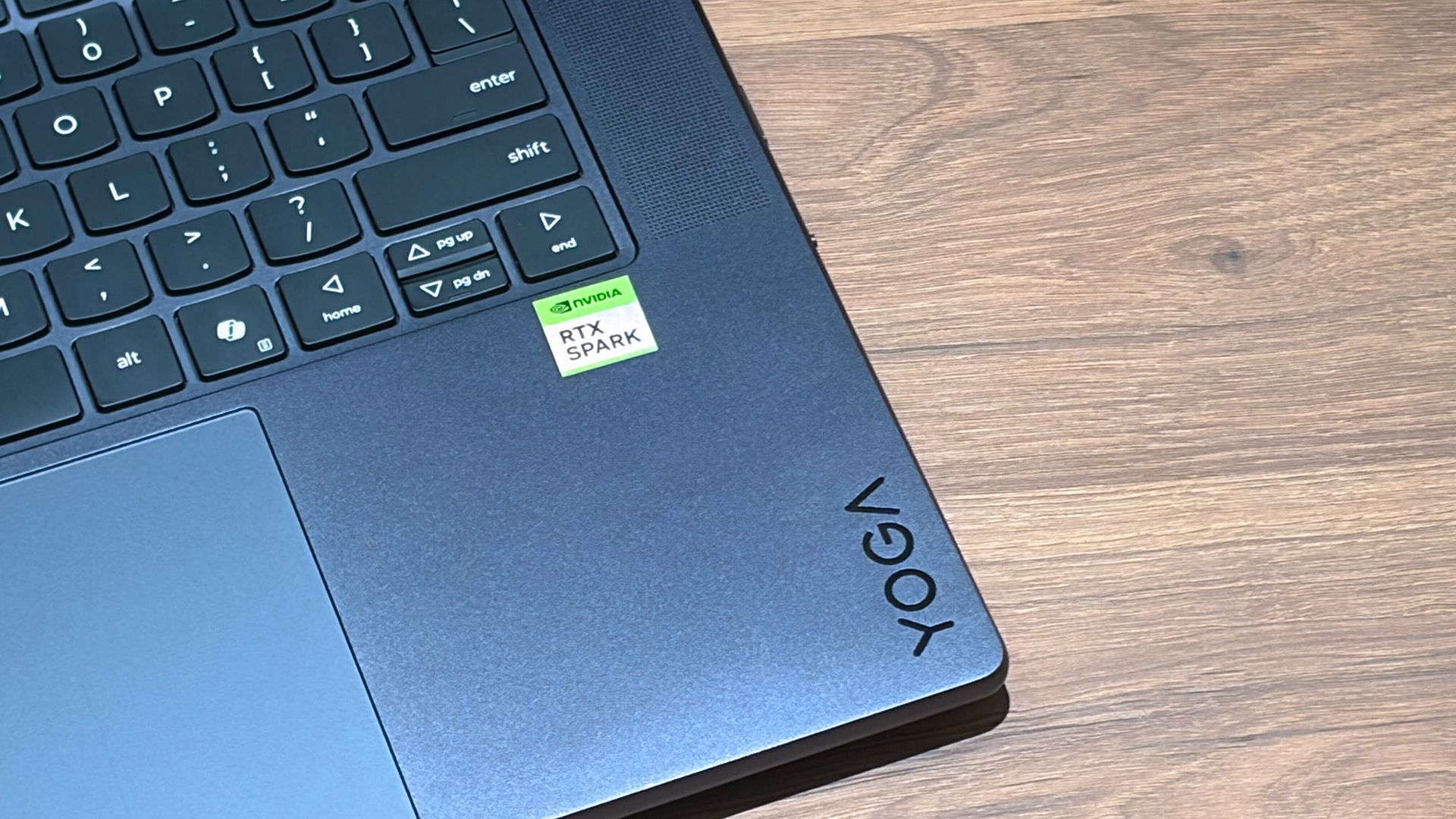
A Lenovo Yoga laptop equipped with the RTX Spark chip. (Image credit: Cale Hunt | Windows Central)
The RTX Spark is a brand-new ARM-based superchip platform designed by NVIDIA to make a PC more efficient when running high-end PC games and local AI-workflow tasks securely without compromising its performance.
The RTX Spark has an NVIDIA Grace CPU that can support up to 20 cores for boosted performance efficiency, and its Blackwell-generation RTX GPU has gaming performance rates on par with the RTX 5070 graphics card,
Additionally, the RTX Spark can support up to 128GB of unified RAM between its CPU and GPU, and it can generate up to 1,000 TOPS to boost its power when running local AI workflows.
RTX Spark selling points. (Image credit: NVIDIA)
One of our tech experts, Zac Bowden, recently benchmark-tested the RTX Spark and concluded that, and I quote, "RTX Spark is a super interesting chipset. It's forward leaning in a lot of ways, built on the Arm64 architecture that delivers serious performance and great efficiency. While its N1X CPU is just okay, its Blackwell RTX GPU really shines.
This is the first time we've seen RTX 4070-5070 level performance in an SoC that is this small and efficient. It's optimized for AI workloads, which is its strongest workflow by far. Quantized AI models run great, and with up to 128GB of unified memory, most mainstream models will fit entirely on the GPU without a hitch."
Zac also mentions that while it's great for content creators and gamers, the RTX Spark is best recommended for workers who run AI models locally all day, develop software, crunch complex data, and manage source code using thin laptops.
So, If you're one of those hard-working data crunchers in need of a powerful productivity laptop, then laptops built with the RTX Spark are for you.
Join us on Reddit at r/WindowsCentral to share your insights and discuss our latest news, reviews, and more.
Microsoft is finally ready to take on the MacBook Pro with the new Surface Laptop Ultra. From pricing to specs and design, Surface Laptop Ultra was inspired by MacBook Pro, and that's not necessarily a bad thing.
Unlike most Surface PCs we see ship these days, the Surface Laptop Ultra is a lot of firsts for Microsoft. It's the first ultra-class Surface Laptop, designed from the ground up to compete squarely with high-end professional creator or developer mobile workstations.
What I find fascinating about Surface Laptop Ultra however is that it exists because Microsoft's own developers and engineers wanted it. They built this laptop for themselves. It feels like the company got tired of looking over the fence at the MacBook Pro, and decided "why don't we just make our own version of that?"
It really is Microsoft's most powerful and most capable Surface PC ever, and a great stage for Windows. But that doesn't necessarily mean it's the best Surface PC for everyone. I've been testing the laptop over the last 8 days, and here are my thoughts on Microsoft's new flagship computer.
This review was made possible thanks to a review unit supplied by NVIDIA & Microsoft. Neither company had editorial input and did not see the contents of this review prior to publication.
Price & Availability
Microsoft
Surface Laptop Ultra
Surface Laptop Ultra is Microsoft's flagship and most powerful Windows PC. It can be configured with up to 128GB RAM, and ships with NVIDIA's new RTX Spark SoC. It's great for creative workflows and software development, and those who want to run local AI and LLMs directly on their device.
Surface Laptop Ultra is Microsoft's most expensive Surface Laptop to date. It starts at an eyewatering $2,599 for the entry-level configuration with 24GB of RAM, 512GB SSD storage, and an 18-core RTX Spark with 5,120 GPU cores. That's an expensive laptop, and it only gets worse the higher you climb up the specs ladder.
The model I've reviewed is the very top end configuration, with a crazy 128GB RAM, 1TB SSD, and a 20-core RTX Spark with 6,144 GPU cores. That model will set you back $5,899, which at these prices basically makes this a $6,000 laptop. That's an insane amount of money to spend on a laptop, but this configuration only really exists for professionals who need the extra power to run local agents and data crunching.
For video creators, gamers, and prosumers, you'll be more than well served with the lower tier models with 24-32GB RAM. All models come with the same mini LED screen, speaker setup, ports, keyboard, and trackpad. It's also available in Platinum or Nightfall colorways (aka, silver and black.)
Brightness: SDR up to 1,000 nits (typical), HDR up to 2,000 nits peak luminance
Optimised for touch interaction
Operating System
Windows 11 Home (24 GB unified memory models)
Windows 11 Pro (32 GB, 64 GB, and 128 GB models)
Ports & Connectivity
2 × USB-C® / USB4®
1 × USB-C® / USB4® with Magnetic Connect
1 × HDMI 2.1b
1 × USB-A 3.1
1 × Full-size SD card reader
1 × 3.5 mm headphone jack
Wireless
Wi-Fi 7, Bluetooth 5.4
Camera & Audio
1080p Full HD front-facing camera
Battery Life
Up to 15 hours of local video playback
Up to 12 hours of active web usage
Power Supply
Requires USB PD 115W–140W charging
Weight & Dimensions
Weight: 2.0 kg (4.41 lbs)
Chassis: Sub-18 mm thickness
Colours
Platinum, Nightfall
Base Price
Starting at $2,599
Design & Ports
MacBook Pro? (Image credit: Zac Bowden / Windows Central)
We have to start with how this thing looks, and we do need to address the fruit-shaped elephant in the room. Yes, Surface Laptop Ultra looks an awful lot like a MacBook Pro. I wouldn't blame the layman for even thinking it was a MacBook Pro from a distance. The square edges, large trackpad, and minimalist design echo the MacBook Pro from pretty much every angle.
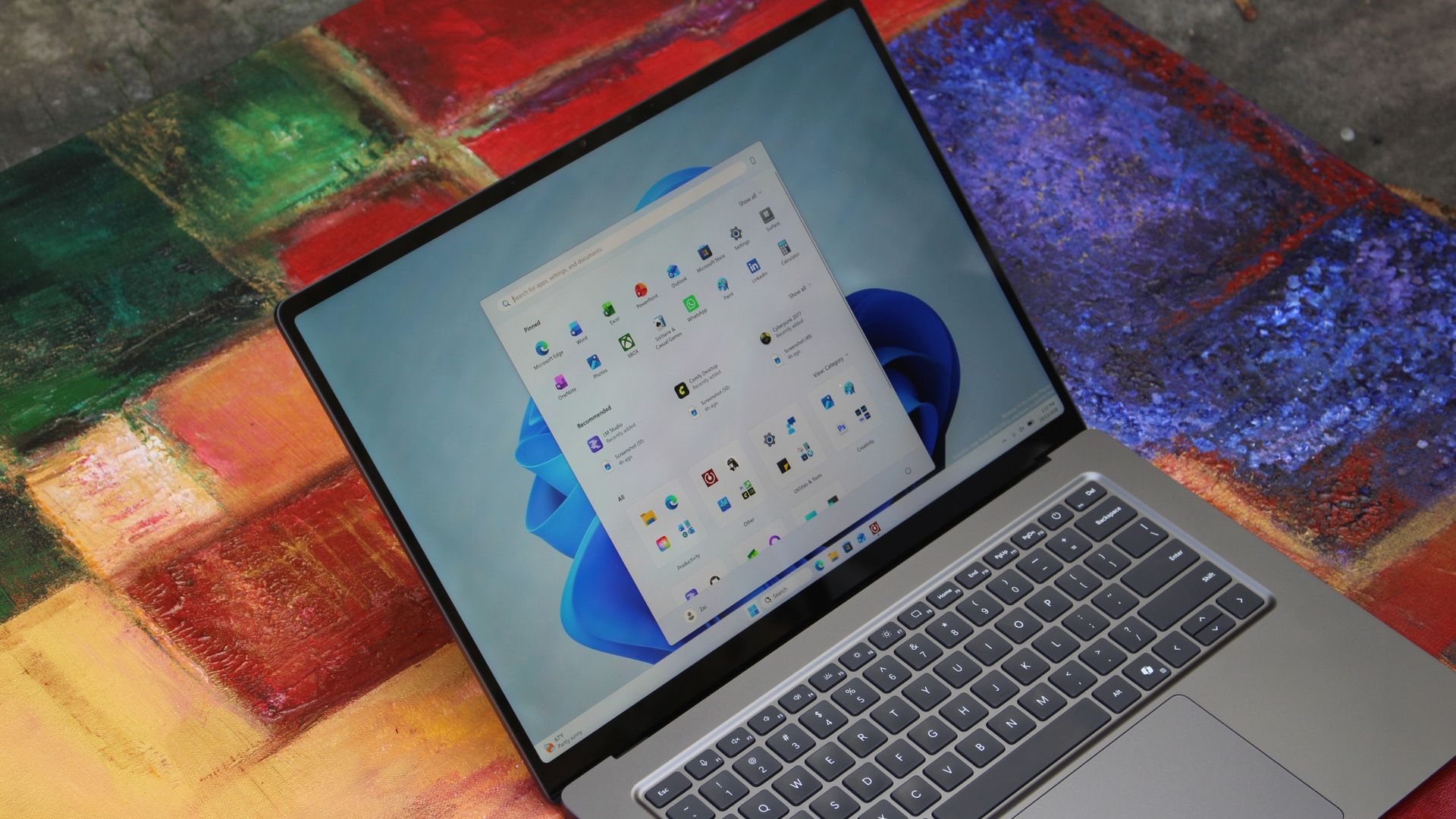
But I'm not here to tell you that's a bad thing. The MacBook Pro is a beautiful device, which is to say Surface Laptop Ultra is also very beautiful. In fact, I think it even improves upon the MacBook Pro's design in subtle ways. The keyboard deck isn't surrounded by a plastic bezel like on MacBook Pro, instead it's softly indented into the metal keyboard deck which looks lush and seamless.
The corners on Surface Laptop Ultra are also a little rounder than the MacBook Pro, a design choice that trickles down from the corners of the chassis to the keys on the keyboard, and corners on the trackpad. It's an entirely consistent and well thought out design, which I highly appreciate.
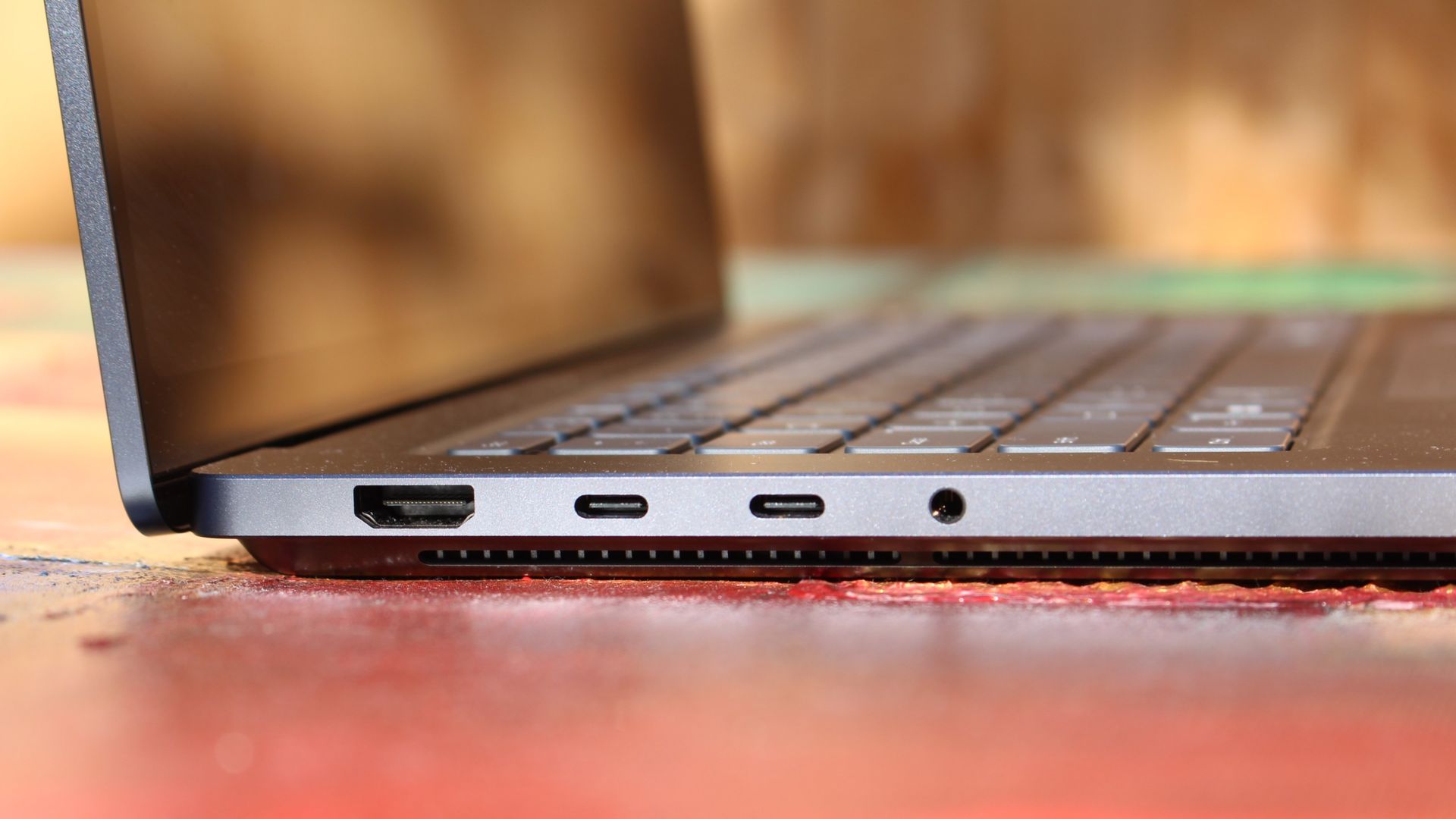
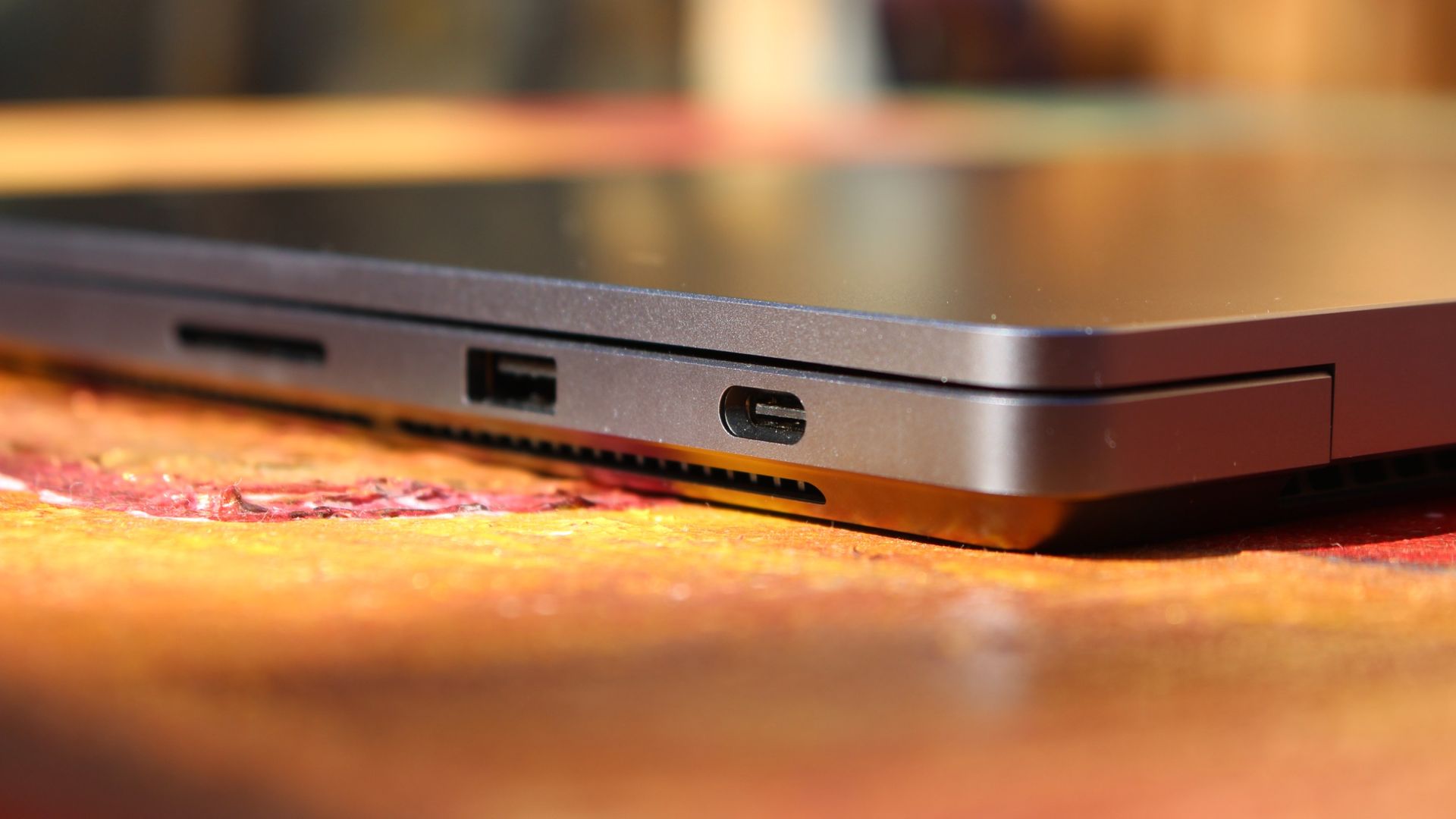
The left-side ports are good enough. (Image credit: Zac Bowden / Windows Central)
Microsoft also doesn't suffer from the godawful notch that you'll find on a MacBook Pro. Surface Laptop Ultra's display bezels are uniform along the left and right, and slightly thicker on the top to accommodate the Windows Hello IR face unlock sensors, which are much better than a fingerprint reader.
I should also mention that the display hinge on this laptop is perfectly tuned. It opens with one finger, and is perfectly balanced to provide a satisfying level of friction as you open and close it. It's also rock solid when typing, meaning it doesn't wobble around at all when on a desk.
The port selection is good enough. It features three USB-C ports, a USB-A port, a 3.5mm audio jack, HDMI 2.1, and a full-sized SD card reader. Of course, the star of the show in the ports department is Microsoft's clever magnetic USB-C port, which replaces the proprietary Surface Connect charge port found on older Surface Laptops.
The special USB-C port is truly great. (Image credit: Zac Bowden / Windows Central)
It's great to see a laptop manufacturer attempting to innovate and improve on the universal USB-C standard. Here, we have a USB-C port that is compatible with all your USB-C peripherals, but it's also magnetized, and with the included charging cable, magnetically snaps to the device just like Apple MagSafe, while using the same universal USB-C port.
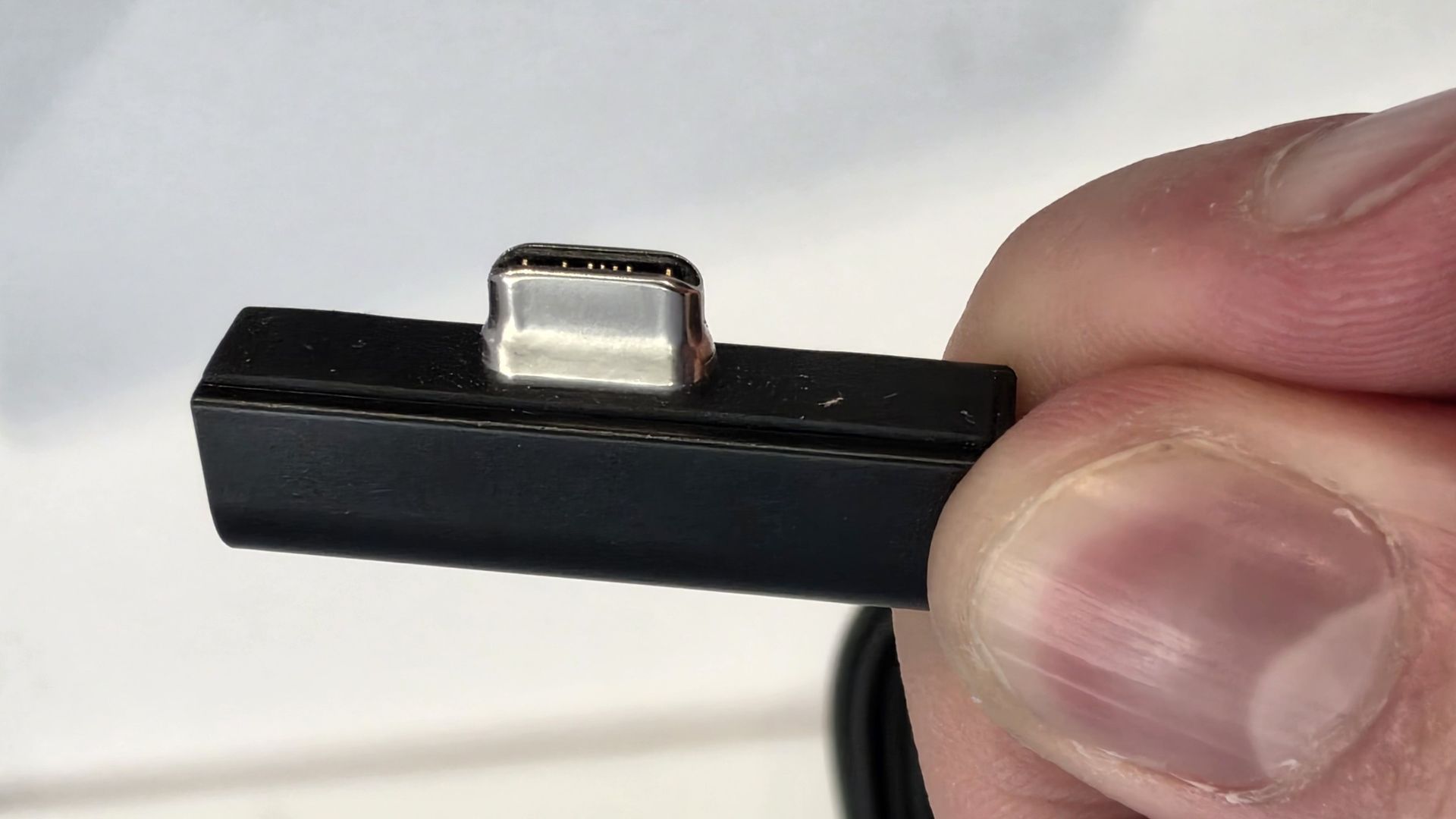
How did Microsoft do this? Well, most of the innovation is actually on the cable side. On the laptop itself, the only real change is that the USB-C port is slightly wider at its opening, but the rest of the USB-C port itself is typical in its design. Microsoft placed magnets on either side of the port, and redesigned the USB-C connector that's attached to the cable to allow for the magnetic connection to be seamless.
The cable's male USB-C end is shallower than a normal USB-C connection. This allows for it to connect to the USB-C port without clicking in, which is what locks a cable to a USB-C port normally. Instead, the magnets hold it in place, which enables the breakaway design that differentiates this USB-C port from the rest.
The USB-C connector is unique. (Image credit: Zac Bowden / Windows Central)
That does mean the USB-C cable that comes included only works with Surface Laptop Ultra, and only in this particular port. Microsoft realized this would be a problem, and designed the power brick that comes with Surface Laptop Ultra in a way that allows the magnetic cable to attach to the brick instead. The other end of the charging cable is a normal male USB-C end, which connects to any USB-C port you want.
So you can still use the Surface Laptop Ultra's power brick and cable on any device or any port you like, you just have to plug the magnetic end into the power brick first. It's a genius design, and proves that Microsoft really thought of everything when it comes to this unique magnetic USB-C experience. I love it, and I hope to see it on more laptops in the future.
Surface Laptop Ultra is available in just two colorways: Platinum and Nightfall. To me, I think the Platinum version looks the nicest, but the Nightfall version looks clean too. The good news is the dark color does a relatively good job at fending off fingerprints thanks to an anti-fingerprint coating that has been applied to the chassis.
Display & Features
The Mini LED display in all its glory. (Image credit: Zac Bowden / Windows Central)
Surface Laptop Ultra ships with Microsoft's first ever mini-LED display, which delivers better contrast and brighter peak brightness over your standard LCD that has been found in all other Surface Laptops to date. Unlike an LCD, the Surface Laptop Ultra's mini-LED screen packs 1,344 local dimming zones, which allows the laptop to dim darker areas of the screen that don't need as much light.
This number is not as high as the mini-LED screen on the MacBook Pro, and this results in a bit of blooming around bright elements on a dark background. If you use Windows in light mode, this will almost never bother you. But in dark mode, in a dimly lit environment, it becomes quite a bit more apparent.
The backlight also takes a fraction of a second to keep up with what's going on on your screen. If you move a bright window around on a dark background, you'll notice the backlight brightening and dimming around the edges of the window. This gives off a slight ghosting effect which degrades the 120Hz refresh rate somewhat. It isn't noticeable at all in light mode, however.
This all leads me to say I wish Microsoft had opted for an OLED panel on the Surface Laptop Ultra. I've been daily driving OLED displays for the better part of a year now, and a mini-LED panel just isn't a vibrant or contrasty as an OLED display can be. The mini LED display is good, but not the best on the market, and it's certainly no OLED.
Microsoft tells me it opted for mini LED over OLED primarily for the brightness and efficiency gains. At 2,000 nits peak brightness, it is the brightest screen ever put on a Surface. But Tandem OLED displays are also very capable of reaching similar peak brightness levels these days, and so I feel the benefits of a mini LED screen don't carry much weight here.
If you're coming from a standard LCD, the mini LED screen will be nothing but an upgrade to you. It's color accurate, very bright, and its high resolution and 120Hz make reading text and scrolling webpages look and feel great. But if you're coming from a MacBook Pro mini LED screen, or an OLED display, you will notice the downgrade in contrast and more noticeable blooming.
The display is also a touch screen, which is the case on pretty much all Surface PCs since the line began in 2012. Microsoft truly believes that touch has a place on the laptop form factor, and I agree with it. Being able to reach out to tap on a notification or hit OK on a window prompt is really nice, even if I don't use it all the time.
For pen lovers, sadly the Surface Laptop Ultra does not support pen input. Microsoft dropped pen input from the Surface Laptop with Surface Laptop 7, and the Surface Laptop Ultra has not restored it. This makes sense however, as the screen does not lay flat so drawing on it would be uncomfortable.
I also want to mention the fact that Surface Laptop Ultra features a user upgradeable SSD drive. That means you don't have to splash out on the most storage at the checkout screen. You can opt for a lower amount, and when you finally fill it, upgrade the SSD to something larger later down the line. You can't say that about the MacBook Pro.
That large trackpad is something else... (Image credit: Zac Bowden / Windows Central)
Unfortunately, Surface Laptop Ultra is missing a key quality of life feature that I have come to enjoy on other flagship Windows laptops over the last year: presence sensing capabilities. My daily driver is able to wake up and go to sleep whenever I approach it or walk away, and Surface Laptop Ultra is missing this functionality entirely. A crying shame.
It's also missing all Copilot+ PC features currently. Microsoft tells me that RTX Spark is a Copilot+ PC capable chip, but that the suite of Copilot+ PC features aren't yet ready for the platform, and to expect them to show up in the coming months. The RTX Spark has a 50 TOPS NPU that will power these experiences when they finally do arrive.
Keyboard & Trackpad
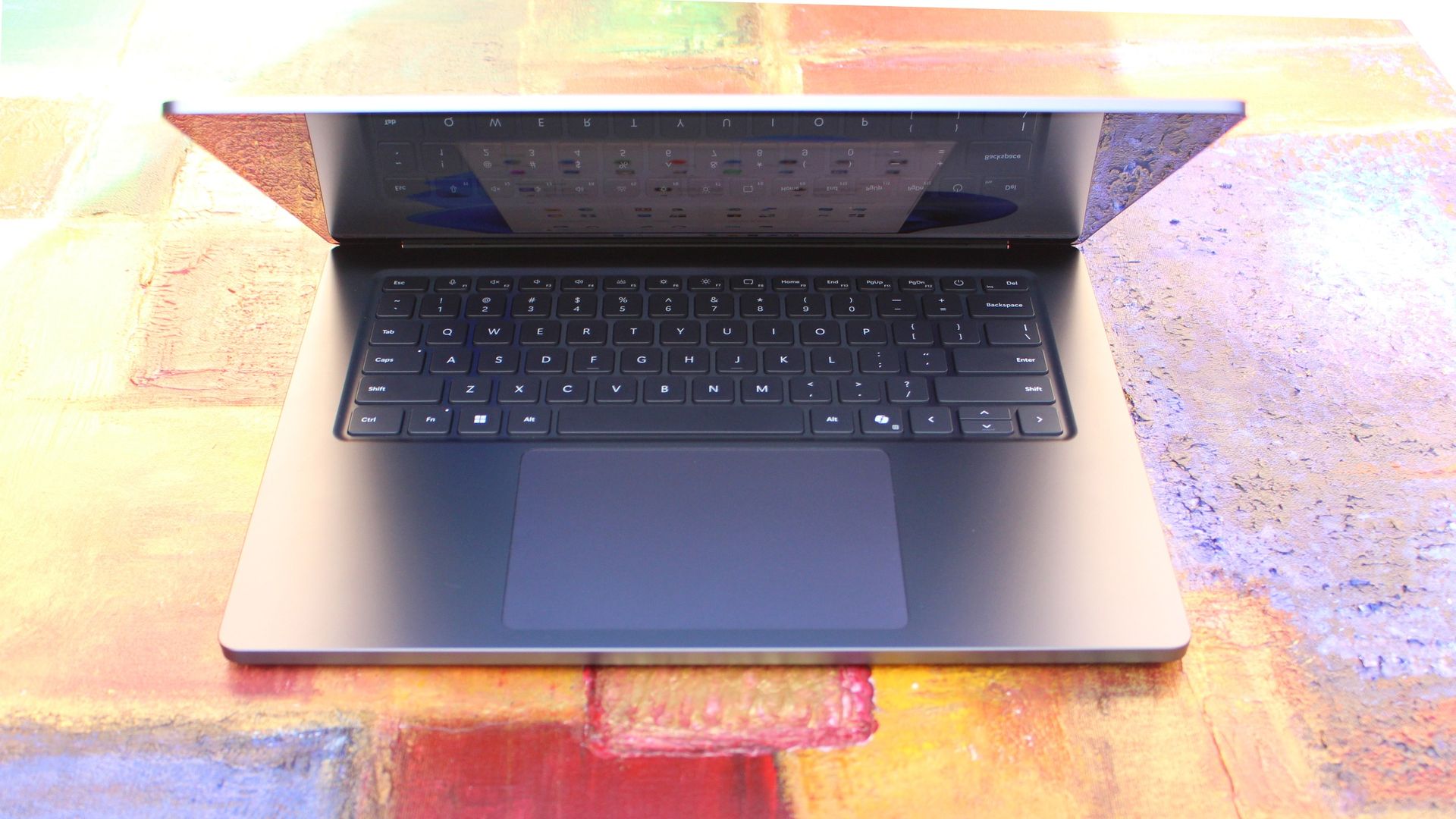
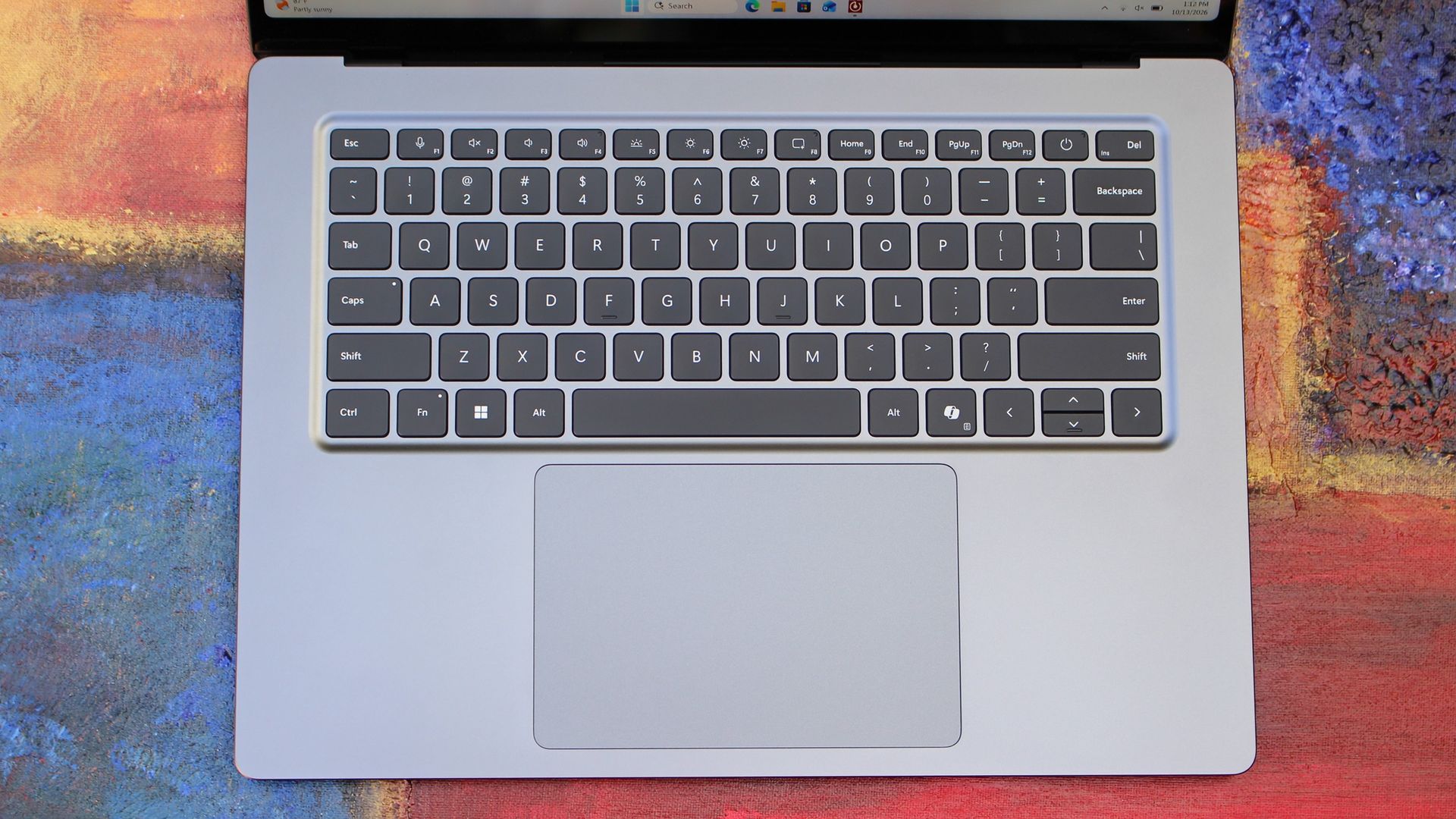
The best keyboard and trackpad I've ever used. (Image credit: Zac Bowden / Windows Central)
Surface has always delivered excellent keyboard and trackpad experiences, but Surface Laptop Ultra might be on a whole other level. This is probably the best keyboard and trackpad experience I've ever had on a Windows laptop to date. The keyboard is comfortable, tactile, and quiet, with 1.4mm key travel which is incredibly satisfying and not at all fatiguing.
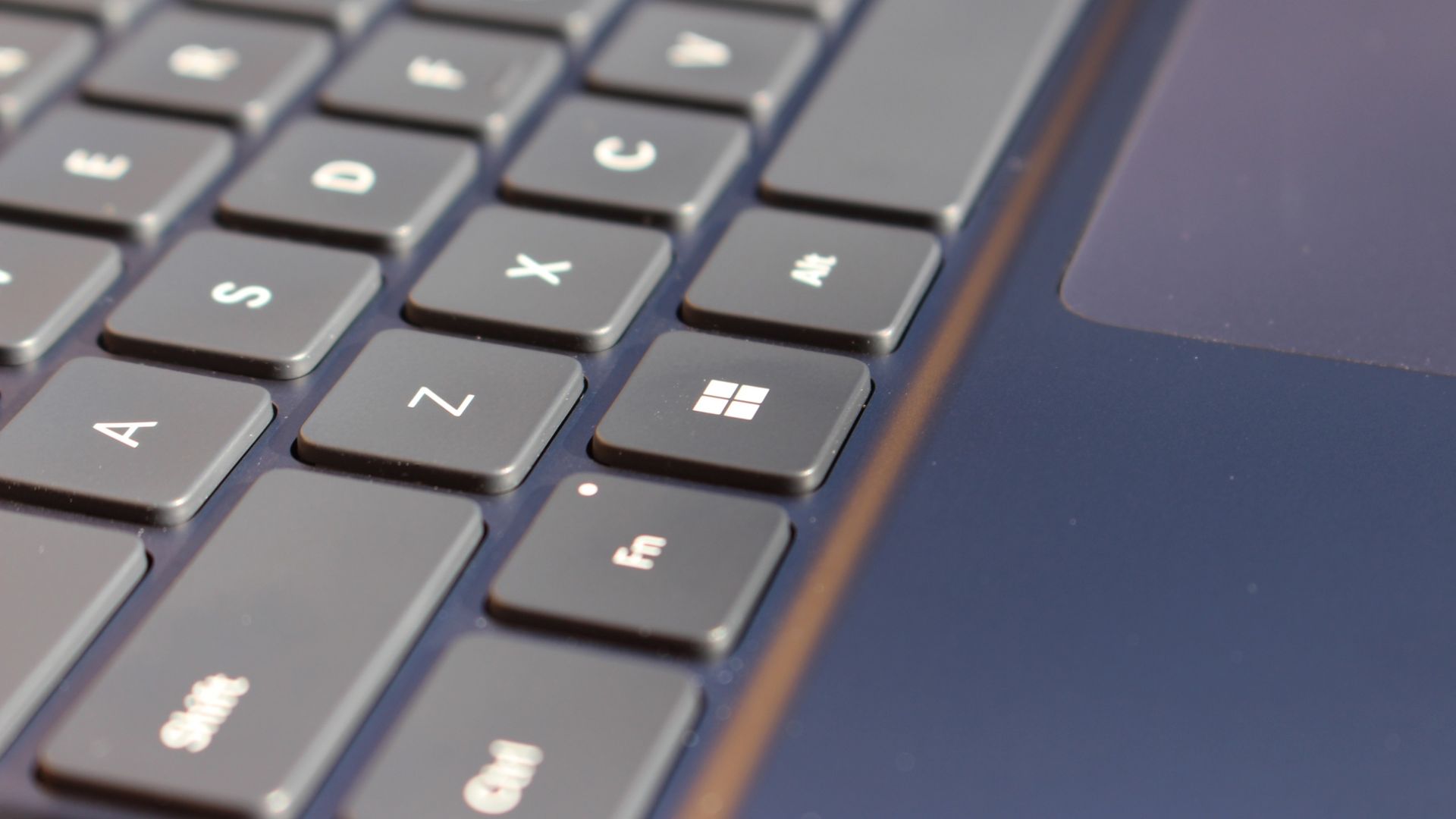
The keys themselves are slightly rounder than the keys found on Surface Laptop 8, which I think is more comfortable and looks nicer as a result. It features a three-stage backlight, a Copilot key (which can be changed,) and a dedicated microphone mute key. It's pretty much perfect in every way.
But what I really want to talk about is the trackpad. It's the largest trackpad ever fitted to a Surface, and that makes a huge difference in how easy it is to use. There's so much room for activities, and you'll never find yourself at the edge of the trackpad because you needed to drag a file and ran out of room.
The keys are so nice to type on. (Image credit: Zac Bowden / Windows Central)
Palm rejection is also very good. I never once had an issue with the trackpad being in the way when typing, which means Microsoft has done a good job at ensuring the trackpad's side isn't impeding the typing experience. The trackpad itself is haptic, and feels great to click on, with strength adjustability in Windows Settings so you can really dial in just how strong that haptic feedback is.
But the new trackpad also supports Windows 11's new haptic system, which introduces subtle haptic feedback when interacting with different UI elements across Windows. When you snap an app window, or drag files across folders, you'll feel haptic bumps under your finger in the trackpad that are different from the usual click down sensation it provides. It's genuinely great.
Camera & Audio
It's a Surface, so you can and should expect great cameras and microphones on Surface Laptop Ultra. The webcam is a 1080p shooter that looks more than fine for video calls, Teams meetings, and recorded presentations. In low light, the image does get a little noisy, but not any more than any other high-end webcams on the market.
The shining star in this department are the built-in studio mics, which are very very good. They sound studio quality, with rich bass and far-field mics that do a very good job at tuning out background noise to ensure the things that you are saying are captured clearly and well.
I also need to take a moment to talk about the built-in speakers on this laptop. They are superb. Again, probably the best I've tried in a Windows laptop to date, and give the MacBook Pro 14-inch a run for its money. There's a clear sound stage, highs are crisp and bass is rich.
Performance & Battery
It's a looker for sure. (Image credit: Zac Bowden / Windows Central)
I've already published an in-depth look at the performance of RTX Spark on Surface Laptop Ultra, which you can read here if you're interested, so there won't be raw performance benchmark numbers in this review.
The TL:DR for that however is that the RTX Spark is a powerful chip, with okay CPU performance but great GPU performance. It's capable of playing most games at 1440p high settings above 60fps, and top end configs can fit large AI models directly onto the GPU for faster processing. But it trails behind the latest high-end Apple Silicon, and is more in-line with current-gen Snapdragon X2 Elite or last-gen Apple M4 Pro in overall performance.
By default, the 128GB Surface Laptop Ultra ships with its unified memory in a 50/50 split configuration. Users are free to adjust this in the NVIDIA app, which is good for when you need to give either the system or your GPU more RAM for whatever task it is you're completing. It requires a restart to apply, which frustratingly takes a long time on the Surface Laptop Ultra.
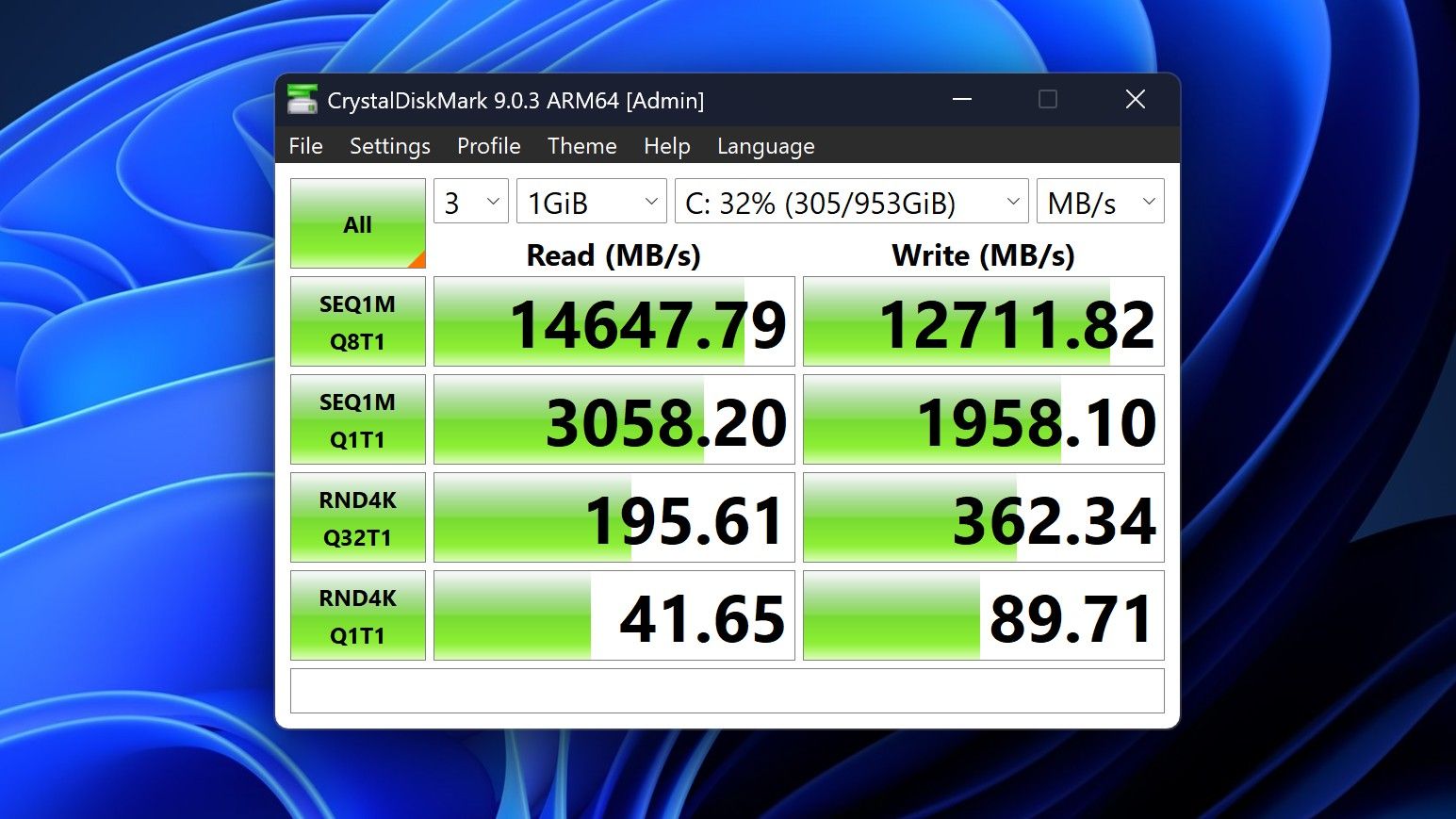
You can expect very fast read and write speeds on 1TB models. (Image credit: Zac Bowden / Windows Central)
Performance is great for the most part. In day to day usage, it's blazing fast and is able to crunch through pretty much any workload I'd want to throw at a mobile workstation such as this. With that said, there are a couple of oddities related to performance that I feel I should mention.
Compared to other devices I have on hand, the Surface Laptop Ultra sometimes takes twice as long to restart. I'm talking over 2 minutes from hitting restart to being back on the lock screen, which is about double the amount of time it takes all the other laptops in my possession. Microsoft says they are investigating.
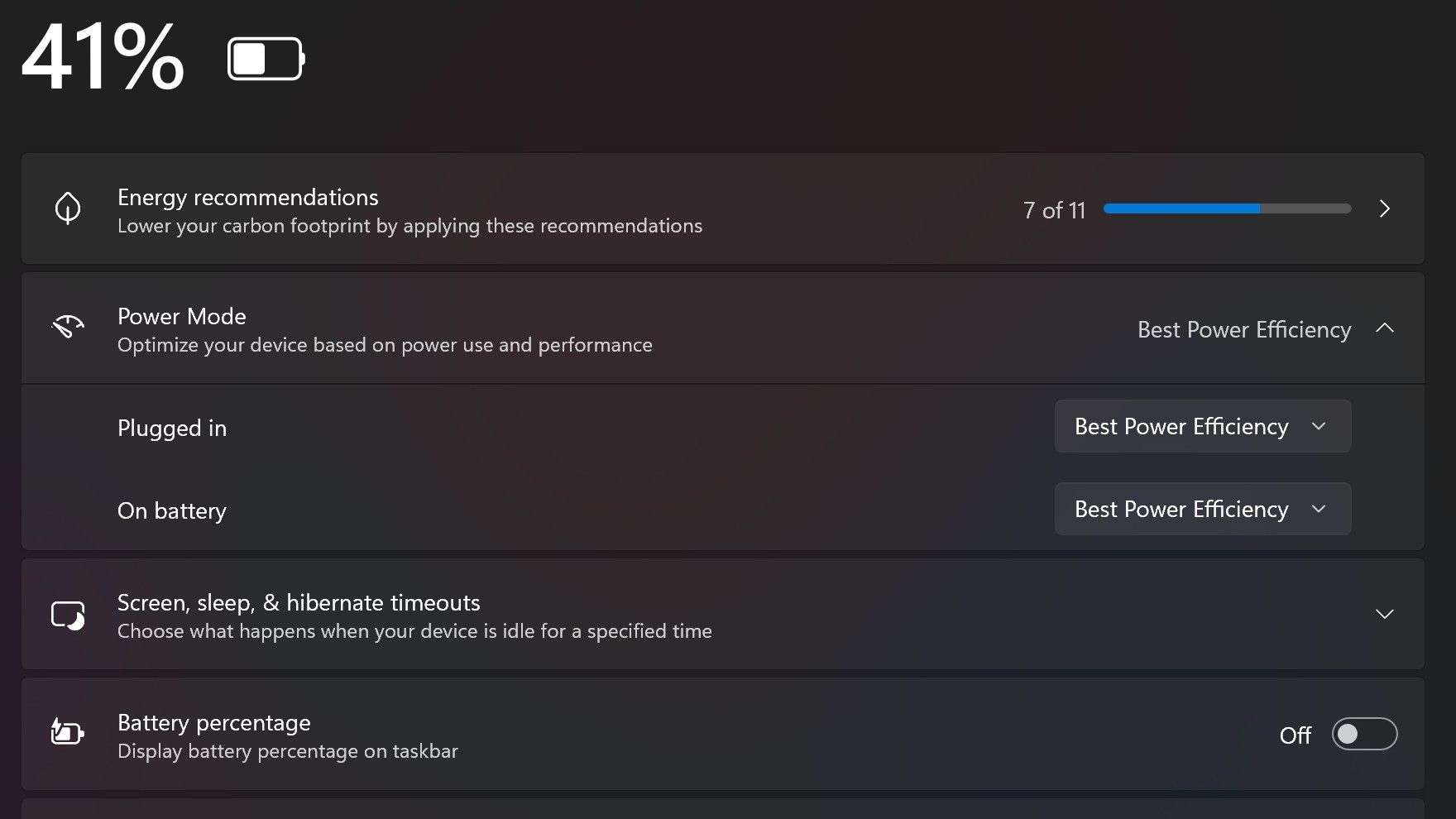
Surface Laptop Ultra also ships with the "Best Power Efficiency" profile set by default. This is unusual, as most Surface PCs ship with their power profile set to balanced. Microsoft says it does this to maximize battery life, but that does come at the cost of performance.
Make sure you change these to Best Performance for plugged in, and Balanced for battery life. (Image credit: Zac Bowden / Windows Central)
I've found that overall performance can be slashed by up to a quarter or even half when in this default mode. So if you want to make the most of your RTX Spark PC, be sure to change the power mode in Windows Settings to either Balanced or Best Performance. I usually set the on-battery mode to Balanced, and the plugged in state to Best Performance.
On the subject of battery life, the Surface Laptop Ultra's endurance is just fine. It's not class leading by any stretch, but I can definitely get through the work day without much fuss, though this will depend on your workload. Our Procyon battery life benchmark test lasted around 14 hours, and in real world use I was getting close to about 10.
But if your workload heavily leans on the GPU, you can expect to halve that number. The GPU is quite efficient for the power it outputs, but it's still a GPU and it's still hungry. So if you know you'll be using the GPU a lot throughout the day, you'll want to bring the charger with you.
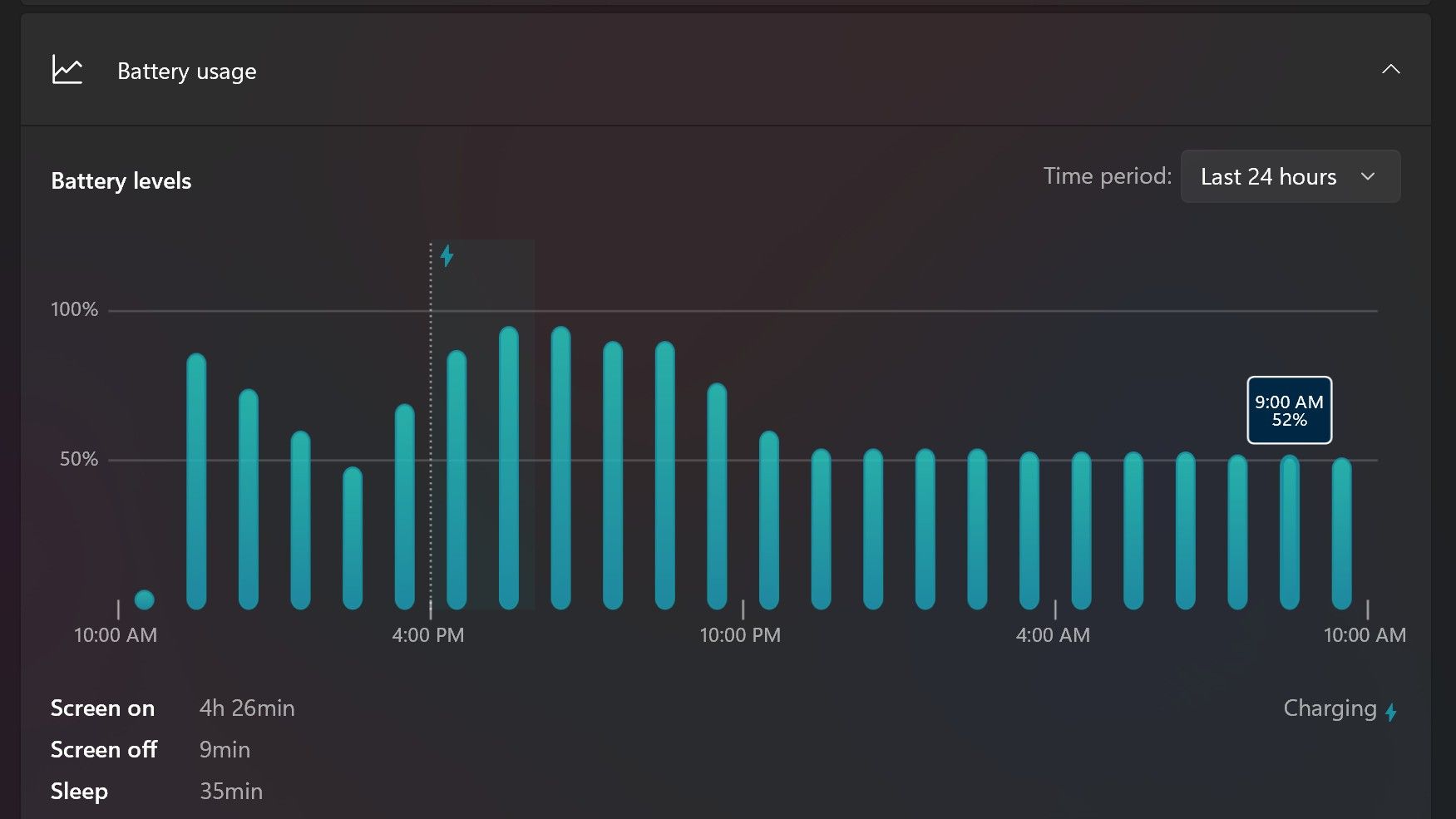
Surface Laptop Ultra only sipped power during sleep between midnight and 9AM. (Image credit: Zac Bowden / Windows Central)
With that said, sleep endurance is very good for the level of power this laptop outputs. I put the laptop to sleep at about midnight, and open the lid 10 hours later, and it's only drained one, maybe two percent from the battery. Very good on that front!
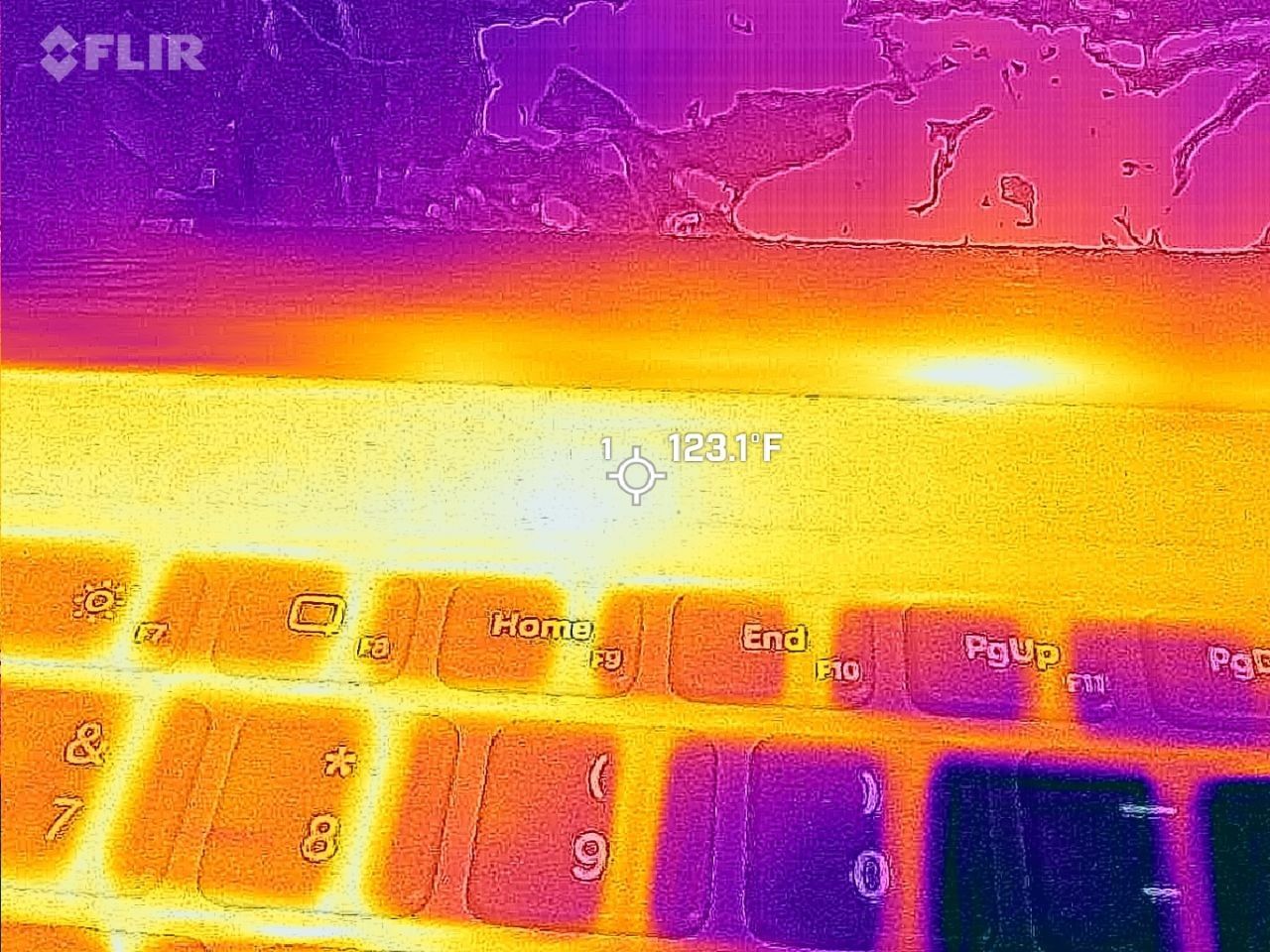
Under max load, the Surface Laptop Ultra gets quite warm. While the keys themselves remain at an okay temperature, the top part of the keyboard deck gets very toasty. I measured 123 F at its hottest under max load, which is approaching "oh that's hot" territory.
Surface Laptop Ultra gets toasty, but doesn't seem to thermal throttle. (Image credit: Zac Bowden / Windows Central)
I also noticed quite audible coil whine when under max load on my Surface Laptop Ultra. This isn't a problem in day to day use, but whenever the GPU is being used, I can hear buzzing coming from inside the keyboard chassis. If you're sensitive to that kind of thing, it will annoy you.
Fan noise is acceptable even at max load. I measure around 42 decibels at its loudest, and that was after running a benchmark for 10 minutes. In normal use, the fans rarely come on, though it does run slightly warm on your lap as a result.
Conclusion
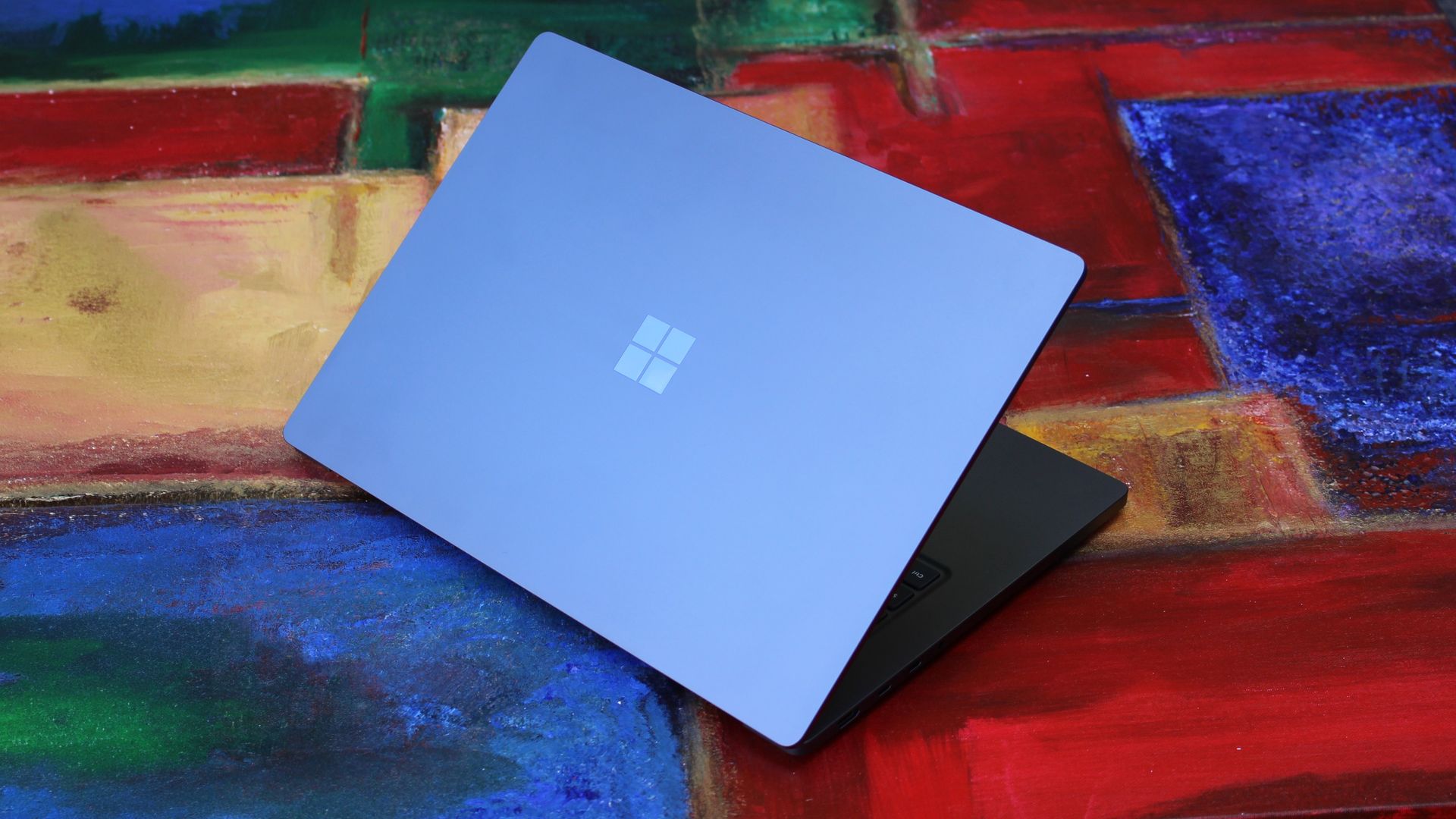
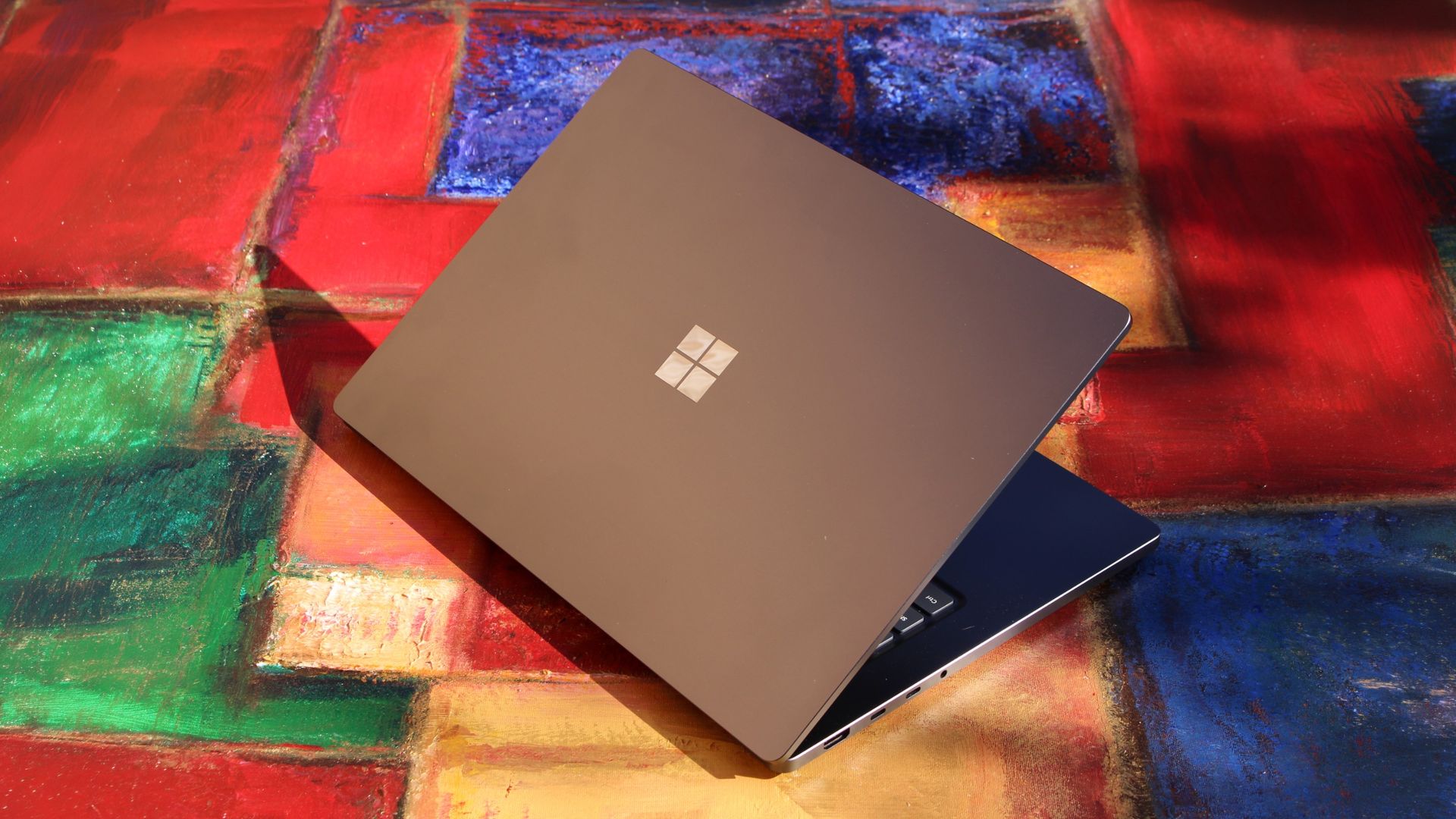
Surface Laptop Ultra is ultra-premium. (Image credit: Zac Bowden / Windows Central)
✅ You should buy this if ...
You are a software developer utilizing on-device AI
You live and breathe large language models and agentic workflows
You need a beefy GPU in a portable and efficient package
You need lots of RAM
❎ You should not buy this if ...
You aren't interested in AI or agentic workflows
You only need a PC for standard productivity tasks
You occasionally game or edit video (get something cheaper)
You want something thin and light
Surface Laptop Ultra is great, but it's not something I can comfortably recommend everyone go out and buy, especially at these high prices. At the base level, it doesn't offer enough to justify the added cost over a Surface Laptop 8 with 24GB RAM. You do get the more beefy GPU and "better" display, but that comes at the cost of portability and battery life.
The Mini LED screen isn't the upgrade I was hoping it would be. For those who have only ever used a standard LCD their whole life, I'm sure you will appreciate the added brightness. But the ghosting issue is annoying and I think most people will notice it. I would have much preferred an OLED on a laptop this expensive.
Battery life is also just okay, which, again, for a laptop of this size and weight, leaves something to be desired. You can get longer day to day use out of a thinner and lighter Surface Laptop 8, which I think most people would prefer over the raw power that Surface Laptop Ultra offers.
And that brings me back to my original point. This isn't a laptop for everyone. It's a laptop for those who know they need it, and it's mainly for AI developers and high-end content creators. If you find yourself leaning on local agents to complete tasks for you, or enjoy generating images and videos using AI models, this is the laptop for you.
If you're someone who just needs a laptop for productivity tasks that includes a little bit of photo and video editing, and sometimes some gaming, there are cheaper laptops out there that will do that job very well.
Is this the MacBook Pro for Windows? I think it is. But it's not the perfect MacBook Pro alternative just yet. RTX Spark isn't at the same level as high-end MacBook Pro silicon, the Mini LED screen isn't best in class, and battery life could use some improvement.
Microsoft
Surface Laptop Ultra
Surface Laptop Ultra is Microsoft's flagship and most powerful Windows PC. It can be configured with up to 128GB RAM, and ships with NVIDIA's new RTX Spark SoC. It's great for creative workflows and software development, and those who want to run local AI and LLMs directly on their device.
Those tablets aren't really direct competition to the Surface Pro, but they do have a feature I'm envious of. The nanomatte screen on one of those Amazon Alexa tablets would be perfect on a Surface Pro.
Matte displays reduce glare by diffusing light. Because the screens bounce light in different directions, the image can appear grainy. An extreme example of this is if you get a cheap matte screen protector for your phone, but even a premium PC with a matte finish can look a bit grainy.
The nanomatte display Amazon uses in its new tablets etches the screen in a way that aligns with the pixels of the display. Amazon praises the displays for providing "a first-of-its-kind cinematic viewing experience, with incredible contrast retention in bright conditions and text that feels like it’s sitting on top of the glass."
I'm not sure I agree with the claim that it's a world first. Apple's nano-texture technology is similar to what Amazon unveiled. But even if Amazon is not a pioneer in the space, it has a device with a screen I'm envious of.
Many Surface devices, including the Surface Pro 8, are glossy, making them hard to use in well-lit environments. (Image credit: Future)
Microsoft has been oddly resistant to anti-glare displays. Surface was late to the party on adding them to any device and has been selective with where it offers the screens.
Microsoft has yet to fully embrace anti-glare screens and it holds back Surface hardware.
The anti-glare display of the Amazon Alexa Tablet 12 Pro also has a texture that makes pen usage feel more natural. The screen is meant to make it feel like you're writing on paper, not a perfectly smooth piece of glass.
It's not surprising that a device made by Panay has features that would fit perfectly on a Surface. He shaped the Surface brand as much as anyone, and he took his expertise over to Amazon.
But as I mentioned earlier, the Alexa tablets are not competitors to the Surface Pro, so they can't serve as replacements either. The Alexa tablets run on Android and have access to the Google Play Store. That's a welcome change to the locked-down Fire Tablets of the past, but it's a far cry from a Windows-powered 2-in-1.
I'd love to see Microsoft replicate the nanomatte finish of the Amazon Alexa Tablet 12 Pro on a Surface Pro in the future. The finish would help those using the Surface Pro in bright settings and also improve the feel of using a stylus.
The Amazon Alexa Tablet 12 Pro features a Nanomatte anti-glare display designed to reduce reflections while maintaining detail and color accuracy. It runs Android and can access the Google Play Store.View Deal
Join us on Reddit at r/WindowsCentral to share your insights and discuss our latest news, reviews, and more.
Google says certain Googlebooks won't feature full Android app support.
In a statement, the company warns Googlebooks with Intel processors (Acer, ASUS, and Lenovo) may struggle to support certain apps from the Play Store, but Qualcomm processors (HP and Dell) are fine.
Googlebook pre-orders opened September 21 and fully launched October 4 (U.S.) and 5 (U.K., etc.)
The Googlebook is available for consumers to start the week, but the company behind it revealed something important — they won't run all Android apps.
Earlier this morning (Oct. 5), the folks at Android Authority reached out to Google concerning the Googlebooks' app support capabilities. The company revealed something crucial: Not every Googlebook is made equal. According to the company, Googlebooks with Intel processors might struggle to support all Android apps that are available via the Play Store, because the majority of Android apps were made to suit ARM chips in phones.
"A small handful of complex apps or games need some developer tuning to run their best on Intel-based platforms," Google told the publication. While the company says it is working with devs, Intel, and Qualcomm to rectify this issue, consumers might not have to worry. "The vast majority of Android apps run smoothly," no matter if you're using an Intel Googlebook or one from Qualcomm, the company advised.
Poor support could mean a myriad of things in today's age. Would these apps not work completely, or would users encounter glitches and frequent error codes? Moreover, are we certain that Intel's chips are capable of running major apps (we'd assume so)?
For the record, the Acer, ASUS, and Lenovo Googlebooks all utilize the Intel Core Ultra 5 processor. Everything else (HP and Dell) relies on Qualcomm's Snapdragon X Elite.
Googlebooks are here
(Image credit: Derrek Lee / Android Central)
Android Central's Take
I've seen a couple of publications' takes on this, and I have to agree: This should've been stated from the jump. Imagine buying a Googlebook nad running home excited, only to find that, oh, this app's not working. Weird. Google said the full Play Store would be available, and yet ... The good thing is the company knows and is working with the right people to fix it. The bad thing is ... we didn't know until now.
Googlebook pre-orders officially opened on September 21. It was a momentous occasion following Google's earlier laptop reveal during The Android Show. This first wave includes laptops from companies previously mentioned, with prices starting at $899. A few major features include touchscreens, haptic glass trackpads, backlit keyboards, and strong Android phone pairing.
In particular, Magic Pointer is a standout feature for the Googlebook. It brings Gemini directly to your mouse pointer, so you can call on the AI for help whenever you need it. If you don't feel like putting money down for a Googlebook, don't worry. Google started rolling Magic Pointer out in Chrome for Windows and Mac computers.
Consumers can find the Googlebook at the Google Store, Best Buy, and other retailers. There is a motley of included goodies—free trials and the like.
It's time for TechRadar's annual tech awards, and this year we're doing it differently. For the first time, we have a complete set of categories where the winners are chosen 100% by you, the TechRadar readers.
The TechRadar Readers' Choice Awards 2026 comprises nearly 100 categories, but we know that not everyone is interested in voting in every one, so on this page you can vote in just our Computing and Gaming categories.
These include laptops, PC gaming peripherals, console accessories, monitors, gaming services and more. You can vote in the survey just below — or follow the links to see other specific categories, or to vote on the full list instead.
The shortlists were chosen by TechRadar's editors based on the best products we've tested or the most popular products of the year. You'll need to vote before 00:01am PST / 03:01am EST / 08:01am BST on Wednesday October 7th 2026 for it to be counted.
Once the deadline has passed at 00:01am PST / 03:01am EST / 08:01am BST on Wednesday October 7th 2026, we'll tally your votes to find the winners in each category.
We'll announce the winners in our big TechRadar Awards 2026 Week, starting Monday October 19th. We'll reveal the winners of the Reader's Choice Awards, as well as the winners of our TechRadar Product of the Year Awards, which are chosen solely by our expert judges.
How many products will do the double? We'll be curious to see — but right now, all you can do is vote for what you think should win, so vote away!
Laptops have long been a more expensive way to game, especially compared to a desktop gaming PC, for comparable components. But with the ever-rising costs of PC hardware in the current economic climate, it's a lot easier and now often cheaper to get a powerful prebuilt gaming PC or ready-made gaming laptop. Today's deal is on a large, 18-inch Asus ROG Strix G18 gaming laptop powered by an RTX 5080, now reduced by $600 to $2,699.99. It's still an expensive piece of kit, but you are getting a somewhat portable form factor and a good amount of memory and storage included in the specs for this large gaming laptop.
Asus's ROG Strix G18 is a large 18-inch laptop with a big screen. The 18-inch display sports an IPS panel with a 240Hz refresh rate and 500-nit brightness. Powering the display and your gaming performance is an NVIDIA RTX 5080 laptop GPU that includes 16GB of fast GDDR7 VRAM, along with the 24-core Core Ultra 9 275HX processor from Intel. Importantly, there's also a good amount of memory: 32GB of DDR5 RAM and a large 2TB PCIe Gen4 SSD for storage.
ROG Strix G18: was $3299.99 now $2699.99 A mighty 18-inch gaming laptop that uses a very powerful Nvidia RTX 5080 laptop GPU with 16GB of VRAM. The onboard processor is a 24-core Intel Core Ultra 9 275HX, sporting boost clock frequencies of up to 5.1 GHz, with an ample 32GB of DDR5 memory. There's also plenty of room for your game collection on the included 2TB SSD.
For any future upgrades, there's easy tool-less access to the SSD and RAM slots, which is a nice feature on a laptop. The keyboard features plenty of RGB backlit lighting that is configurable through Asus's Armory Crate software, along with an RGB light bar along the bottom of the laptop chassis, casting a distinctive glow on your desk that can sync with your keyboard and peripheral lighting.
For video connectivity, there's 1 x HDMI 2.1 port and 2 x Thunderbolt 5 ports, plus an Ethernet port for wired network access, with wireless options including Bluetooth and WiFi 7.
So if you want a ready-to-go gaming setup that's powerful enough to play all the latest game titles on a sharp 2.5K screen at high settings and frame rates, then the Asus ROG Strix G18 with RTX 5080 is a great choice, especially when you can save a hefty $600 off the price tag.
Googlebook pre-orders will officially open on September 21 at 9 a.m. ET, Google has confirmed.
The first Googlebooks are expected from brands including Acer, ASUS, Dell, HP, and Lenovo.
Googlebooks will focus heavily on Gemini, with features like Magic Pointer and AI-generated custom widgets.
Google has revealed that you'll finally be able to pre-order the first Googlebooks starting next week.
At The Android Show earlier this year, Google had its "one more thing" moment when it teased its next category of premium laptops called Googlebooks. Google says these are a new category of laptops built for the "intelligence system" era, but at the time, the company didn't reveal much about the devices or when you'd actually be able to buy one.
Now, Google has started emailing users confirming that Googlebook pre-orders will open on September 21 at 9 a.m. ET. The company hasn't revealed exactly which models will be available to pre-order next week, but we're expecting devices from Acer, ASUS, Dell, HP, Lenovo, and other partners. It's also unclear when the first Googlebooks will actually start shipping.
Google has also set up a new website that currently shows the Googlebook branding, a few teasers, and the September 21 pre-order date.
(Image credit: Future)
The company is highlighting some of the key Googlebook features on the page as well, with a heavy focus on Gemini. One of those is Magic Pointer, which lets you access Gemini directly through the pointer on your Googlebook. You'll also be able to create your own widgets simply by describing what you want.
Google is also positioning Googlebooks as the perfect companion for Android phones. Users will be able to open apps from their Android phone directly on a Googlebook, as well as access files stored on their phone from the laptop.
Googlebooks will be the first laptops built on Google's new Android-based technology stack rather than ChromeOS. Interestingly, Google still hasn't revealed the official marketing name for the operating system that will power Googlebooks, but we expect to learn much more as pre-orders open.
It'll also be interesting to see how Googlebooks fare in an increasingly crowded laptop market, especially with new RTX Spark-powered laptops on the way and RAM prices continuing to rise.
Want a powerful new OLED gaming laptop with a $1,000 discount on top? This HyperX Omen Max 16 gaming laptop from HP is down to $3,699.99 right now and features, among other top specs, an Nvidia GeForce RTX 5090 mobile GPU. You'll struggle to find a better spec'd laptop at this price point, and it's much cheaper than buying or building a top spec desktop gaming PC, too.
The mobile version of the RTX 5090 isn't quite as beefy as its desktop counterpart, but it's still the best GPU for a laptop that you can buy. Specs wise, it has 10,496 CUDA cores as its disposal, with 24GB of GDDR7 VRAM, operating on a 256-bit memory bus. A peak 175W TDP is much less than the desktop's 575W rating, but laptops are designed to be portable.
What's interesting is the pricing here. This laptop costs $3,699.99, and that's for an entire working system. If you wanted to buy the desktop version of the RTX 5090 alone from a retailer that has it in stock, it'd set you back at least $5,899. You could argue that they're totally different beasts, but PC gaming is getting really expensive. Buying a new desktop PC will set cost you thousands of dollars more than it would have last year. A top-spec laptop this like HyperX Omen Max 16 is the better of the two options from a financial point of view right now, especially as it'll still be able to handle modern games with the best settings for years to come.
An OLED gaming laptop with a huge $1,000 discount. This HP-made, 16-inch HyperX Omen Max 16 laptop features a 16-inch OLED panel with a 240Hz refresh rate, capable of outputting at 1600p.
It ships with the mobile version of the Nvidia GeForce RTX 5090, along with the 24-core Intel Core Ultra 9 290HX Plus, 32GB of DDR5-6400 RAM, and a 2TB SSD for storage. View Deal
As for this laptop, our HyperX Omen Max 16 review made clear that its original launch pricing didn't quite work, with better performance from rival laptops. The $1,000 drop makes it a much more attractive system, with a gorgeous build quality that's "solid as a rock." It's built with aluminum, with no flashy styling gimmicks, just a matte black finish and RGB lighting for the keyboard. It's weighty, too, measuring 14.04 x 10.59 x 1.03 inches and weighing 6.56 pounds.
This HyperX laptop has a 16-inch OLED display, will give you perfect blacks and infinite contrast compared to a cheaper LCD, with an ultra-fast 240Hz refresh rate for smooth, blur-free motion. The top resolution on this laptop's display is 2,500 x 1,600, and coupled with the RTX 5090, you won't struggle to hit the highest frame rates with Ultra graphics presets applied at 1600p, with the option to hook up to an external display using the supplied HDMI port if you prefer.
Games, movies and more are going to look incredible on this OLED panel, as it'll produce rich colors with plenty of depth, with 500-nit rated brightness, along with a max 1,100 for HDR content, to keep things vivid on-screen. Our review found it performed extremely well against the competition, with 131.2 percent of the DCI-P3 color space and 185.2 percent of sRGB. It also beat the MSI Raider 16 Max HX for panel brightness in our tests, with 464.6 nits vs 455.6.
(Image credit: Tom's Hardware)
The RTX 5090 is the centerpiece of this laptop, but you're also the Intel Core Ultra 9 290HX Plus as your CPU. It ships with 24 cores, eight of which are performance cores, which are good for gaming, along with 16 efficient cores for multi-threaded work. You're getting 32GB of DDR5-6400 RAM included, so no need to worry about the RAMpocalypse with this rig, along with a 2TB SSD offering Gen 5 speeds.
Wi-Fi 7 and Bluetooth 5.4 support ensures the fastest wireless connectivity, and you've got plenty of I/O too, including 2.5Gb Ethernet, the already-mentioned HDMI, a headphone jack, and two Type-C ports.
The $3,699.99 sale price for this HyperX Omen Max 16 OLED gaming laptop makes it a much more appealing option for buyers. In a market where an equivalent high spec desktop PC can set you back over $6,000, this price for a high spec laptop with an RTX 5090 is a good one in the current market. Grab it while you can, because HP aren't likely to keep it this cheap for long.

 Login
Login