❌

Reading view

How to downgrade macOS 27: Roll back Golden Gate to Tahoe

Macworld

Upgrading macOS doesn’t always go as planned. A new release might slow down your Mac, break essential apps, introduce bugs, or simply change features you rely on. If you’re wishing you could go back to the version you had before, the good news is that you can downgrade macOS.

While reverting a macOS update is generally easier than downgrading an iOS update, it’s not as simple as installing macOS. It is a multi-step process that typically requires wiping your Mac’s internal drive, as Apple does not allow installing an older version of the operating system directly over a newer one.

Because you need to erase your Mac’s internal drive before you can reinstall an older version of the operating system, your data must be backed up first. The exact process depends on whether you created a backup before upgrading macOS.

In this guide, we run through the safest way to revert to an earlier version of macOS, explain what works (and what doesn’t), and help you choose the best method for your situation.

Note: macOS 27 Golden Gate runs only on Macs with Apple silicon, so the main Golden Gate-to-Tahoe instructions in this article are for Apple-silicon Macs. We cover older Intel Macs separately below for readers using this guide to downgrade an earlier version of macOS.

Can I downgrade from macOS Golden Gate to Tahoe?

Yes, it is possible to downgrade from macOS Golden Gate (macOS 27) to macOS Tahoe (macOS 26), but the process is complex and requires you to completely wipe your Mac’s data and install the older version of macOS.

Before you begin, confirm that your Mac can run Tahoe. A Mac cannot install a version of macOS older than the version it originally shipped with. A Mac introduced with Golden Gate may therefore be unable to run Tahoe, even if another Mac with a similar processor can. Check Apple’s compatibility information before erasing anything.

You need the following:

  • A backup: You will have to wipe your Mac, so you need to have a backup of your data.
  • The correct macOS version: You need to download the full installer for the version of macOS you want to install.
  • An external drive: You need to create a bootable installer of macOS. Apple says a 32GB USB drive has more than enough space for any macOS installer; 16GB is sufficient for most older versions.
  • A reliable internet connection: The installer may need to download firmware and other information specific to your Mac.

Follow these steps, which we explain in more detail below:

  1. Back up your Mac.
  2. Check that your Mac can run macOS Tahoe.
  3. Get the Tahoe installer.
  4. Create a bootable installer.
  5. Shut down your Mac and start it from the bootable installer.
  6. Erase the internal startup volume using Disk Utility.
  7. Install macOS Tahoe.
  8. Set up the Mac and recover compatible files from your backup.

Can I downgrade macOS 27.1 to iOS 27.0 (or macOS 26.7 to 26.6)?
sad mac tahoe

Foundry

Apple issues multiple point updates throughout the year. If something breaks following an update, you may want to return to the previous release—for example, by downgrading from macOS 27.1 to macOS 27.0. The same principle applies to subsequent Golden Gate updates.

Rolling back a point update can be more difficult than downgrading from Golden Gate to Tahoe because you need the full installer for the exact earlier release. Apple generally offers only the latest installer for each major version of macOS, so the macOS 27.0 installer may no longer be available after macOS 27.1 has been released.

However, you may be able to obtain the required version of macOS using Terminal. We detail how to do this below (see step 2). As of September 2026 there were various version installers of Tahoe and Sequoia available using this method.

A Time Machine backup cannot provide the missing installer or reinstall the earlier operating system. If you have access to the appropriate full installer, you can create bootable installation media and follow the erase-and-install process described below. If Apple no longer offers that release and you did not retain its installer, an ordinary downgrade may not be possible.

Downgrading macOS to an earlier version: Step-by-step guide

The steps below will help you revert to macOS Tahoe. Before you start, remember that you must wipe your Mac and perform a clean installation of Tahoe.

Reminder: This will erase your Mac, so make sure you have a backup of important files before continuing.

Before you begin: Back up your Mac

Backing up your Mac is the most critical step before a downgrade because the process requires erasing your startup drive, which removes all locally stored data. If you don’t already have a backup, you will need to make one.

Time Machine is the standard backup method for most Mac users, but restoring data from a newer version of macOS to an older one can present problems. A Time Machine backup made under Golden Gate may contain Photos libraries, Mail databases, settings, application data, and versions of apps that are not compatible with Tahoe.

A backup made while the Mac was still running Tahoe is therefore the safest one to use. However, it won’t contain files created or changed after the upgrade to Golden Gate. If Golden Gate is still working, make a separate copy of every irreplaceable document you have created or modified since upgrading.

Before recovering data from a Time Machine backup, you must install Tahoe on the Mac. You can then use Setup Assistant or Migration Assistant to transfer compatible accounts, apps, settings, and files from the backup.

If you store documents in iCloud Drive or use iCloud Photos, fully synchronized items should become available again when you sign in to the same Apple Account after reinstalling macOS. Before erasing the Mac, check iCloud.com or another Apple device to confirm that important documents, photos, and videos have uploaded successfully. Remember that iCloud is a synchronization service rather than a separate backup, so keep an independent copy of irreplaceable files where possible.

To ensure your data remains accessible after you return to an older version of macOS, consider these backup strategies:

  • Manual file copying: Copy your most important files, folders, photos, and music to an external storage drive.
  • Third-party backup software: Tools for backing up a Mac, such as ChronoSync, Get Backup Pro, SuperDuper, or Carbon Copy Cloner can create a separate copy of your data. Do not assume that a clone created under Golden Gate will be bootable on your Mac or that it can replace the Tahoe installer.
  • Cloud synchronization: Make sure cloud storage services such as iCloud, Dropbox, OneDrive, or Google Drive have finished synchronizing. Do not assume that every app’s data is stored in the cloud, as some applications store data only locally.
  • Time Machine: If you have a Time Machine backup from before you upgraded to Golden Gate, you can use it to transfer compatible data after reinstalling Tahoe.

For more help read: How to back up a Mac.

1.

Check that your Mac can run Tahoe

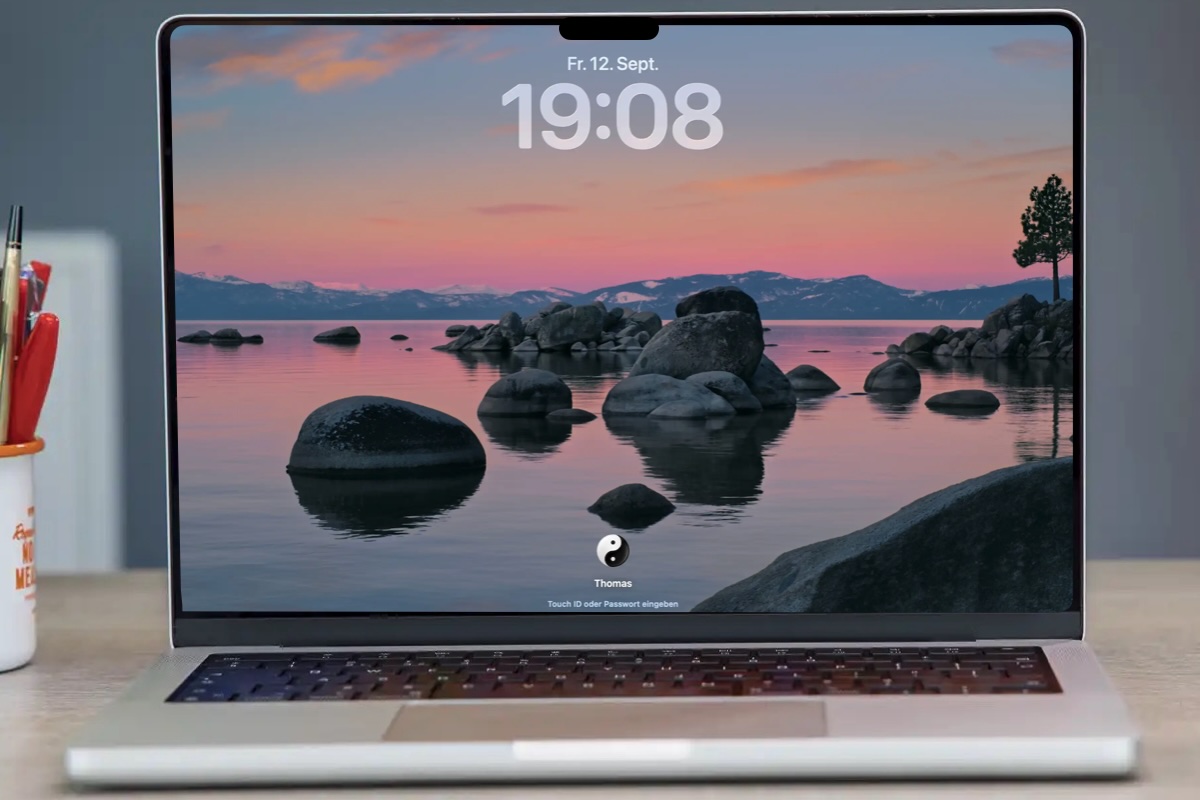
Schreibtisch macOS Tahoe

Step back to Tahoe, if your Mac can run it.


Thomas Armbrüster

The version of macOS you install must be compatible with your Mac. A Mac that was upgraded to Golden Gate can be returned to Tahoe only if that model supports Tahoe. A model that first shipped with Golden Gate cannot be downgraded to Tahoe.

For example, Apple announced the M6 Mac mini before Golden Gate was released, but the Mac did not ship until afterward and requires macOS 27. Always check that your model supports the older operating system before erasing the Mac.

Check our lists of Macs compatible with Golden Gate and Tahoe.

2.

Get the macOS Tahoe installer

Using Terminal to get macOS versions

You can download old versions of macOS from Terminal, if they aren’t on the Mac App Store.


Foundry

The next stage is to get the full installer for the version of macOS you require. In most cases, the Mac used to download the installer must itself be compatible with the version of macOS you require.

For this downgrade you need the Tahoe installer, not the Golden Gate installer. For Tahoe and earlier installers, see our guide to downloading older versions of macOS.

Normally Apple makes older versions of macOS available to download from the Mac App Store. For example, you can get Sequoia, Sonoma and Ventura this way. However, as of September 2026, Apple’s hasn’t made Tahoe available from the Mac App Store. We expect that it eventually will do so, but in the meantime the best way to get the Tahoe installer it to use Terminal.

Terminal method

Open Terminal.

Type in the following:

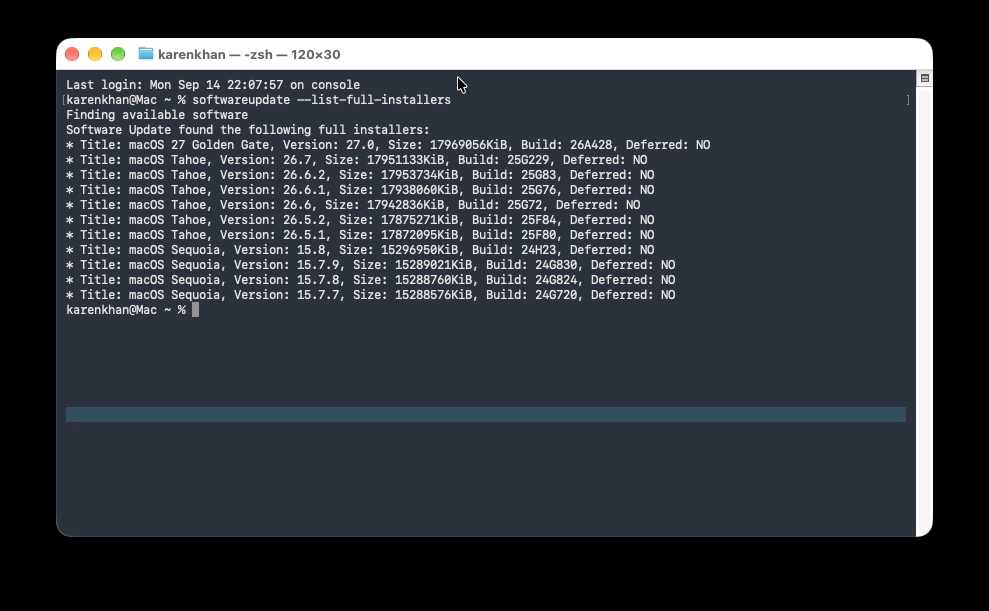
softwareupdate --fetch-full-installer --full-installer-version [number]

You need to include the relevant version number. For example softwareupdate –fetch-full-installer –full-installer-version 26.6.2.

To see which installers Apple currently offers for that Mac, run:

softwareupdate --list-full-installers

If Terminal reports that the update was not found, Apple may no longer offer that exact release, or it may not be compatible with your Mac.

When the download finishes, the full installer will appear in the Applications folder. Quit it if it opens automatically—you need to retain it to create the bootable installer.

In each case of the above screenshot the macOS installer is listed as Deferred: No, which means the installer is still available.

Mac App Store method

  1. Open the Tahoe download link on a compatible Mac. If the Mac App Store does not open, close it if it is already running and try the link again in Safari.
  2. Click Get.
  3. Software Update should open and offer to download Tahoe. Click Download and confirm that you want to download the older operating system.
  4. If the installer opens automatically after downloading, quit it. You do not want to run it directly over Golden Gate.

The installer will appear as an app named Install macOS Tahoe in the Applications folder.

As noted above, downgrading from one Golden Gate point release to another requires the full installer for the exact earlier release. Because Apple generally offers only the latest installer for each major version of macOS, the version you need may no longer be available unless you previously downloaded and retained it. A Time Machine backup cannot provide the missing installer or reinstall the earlier operating system.

3.

Create a bootable Tahoe installer

Createinstallmedia

Once you have it, you can use the bootable installer of Tahoe to downgrade your Mac.


Foundry

You cannot install Tahoe directly over Golden Gate. To install an older version of macOS, you need to create a bootable installer containing the Tahoe installation files.

You will need a USB flash drive or other external volume. A 32GB drive is recommended, although 16GB is sufficient for many older macOS installers. The drive will be erased during the process.

Follow our complete guide to creating a bootable macOS USB installer, selecting the instructions and
createinstallmedia Terminal command for macOS Tahoe.

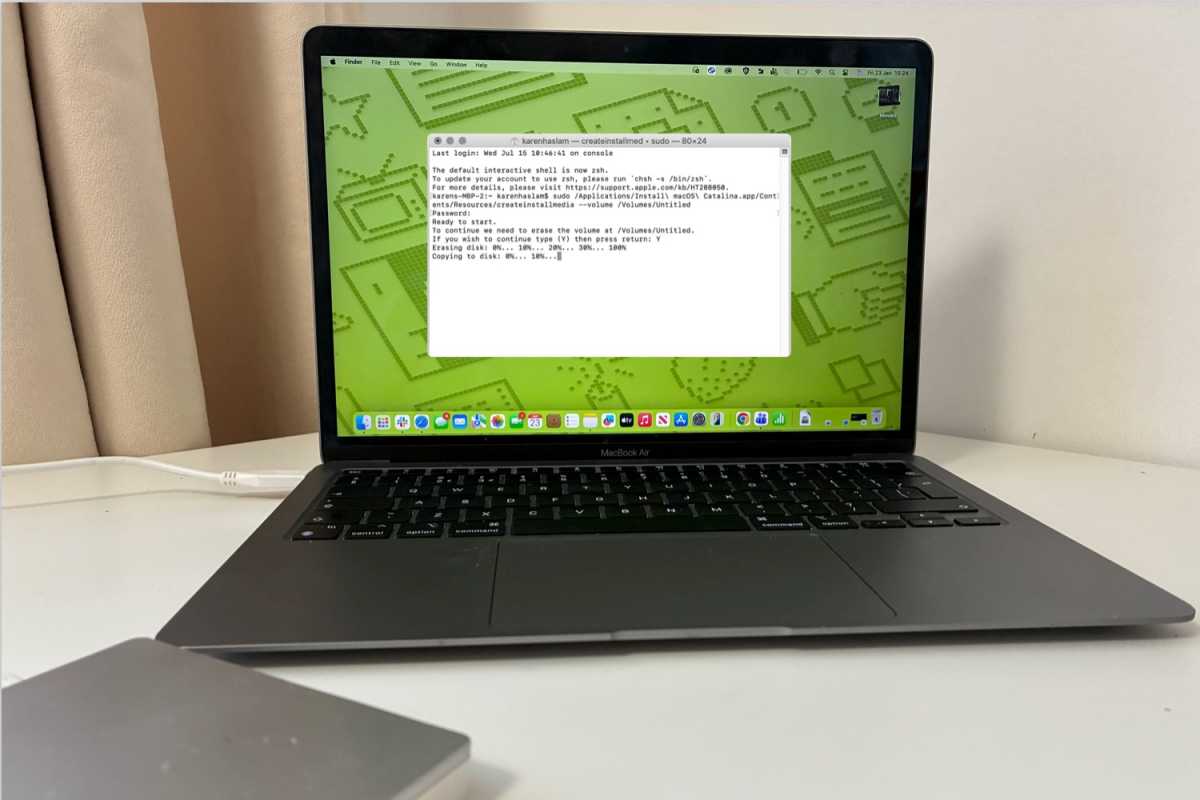
The Tahoe command is:

sudo /Applications/Install\ macOS\ Tahoe.app/Contents/Resources/createinstallmedia --volume /Volumes/MyVolume

Replace MyVolume if your external drive has a different name. Make sure --volume contains two ordinary hyphens, not an en dash or em dash. The linked guide explains how to prepare the drive, run the command and troubleshoot the creation process.

4.

Start your Mac from the bootable installer
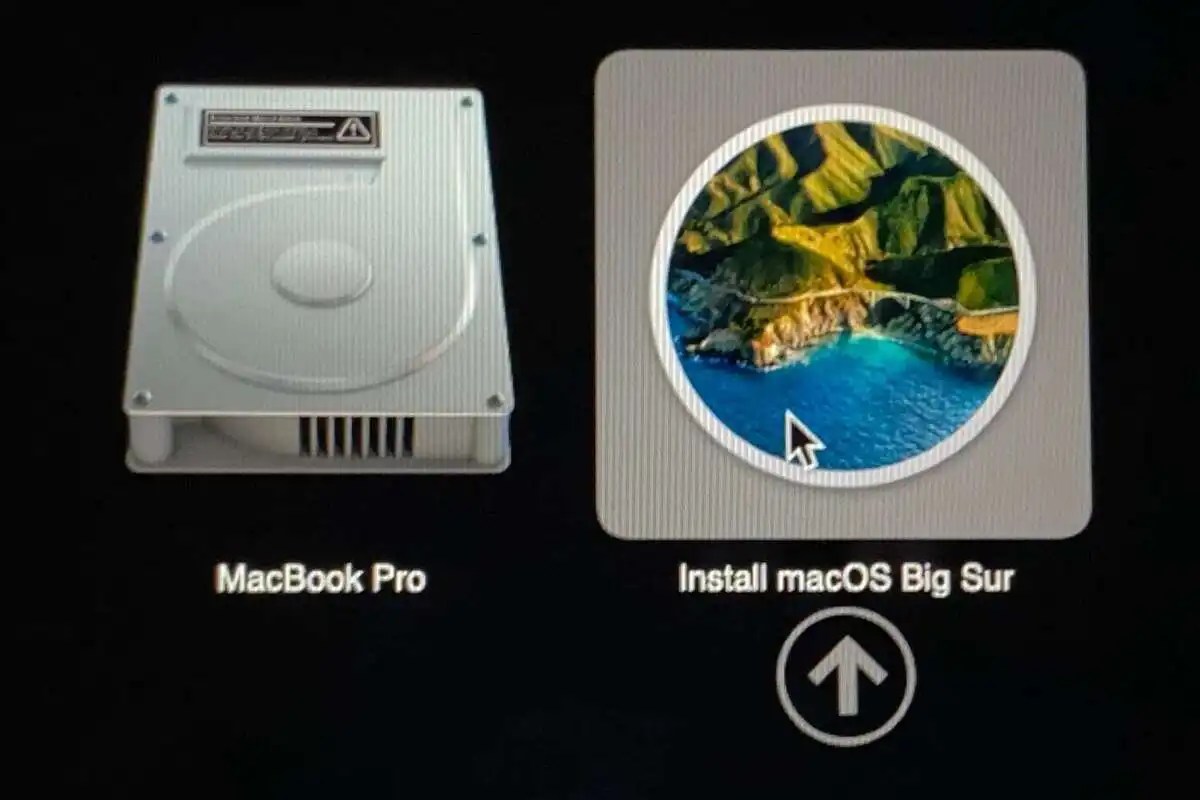
Install from your Bootable Drive
You want to choose the Install macOS Tahoe option, similar to what’s shown.

Foundry

With the bootable Tahoe installer ready, the next step is to start your Mac from it rather than from the internal drive currently running Golden Gate.

  1. Shut down the Mac.
  2. Connect the bootable Tahoe installer directly to the Mac.
  3. Press and hold the power button. Continue holding it until the startup options screen appears.
  4. Select the bootable installer, then click Continue.
  5. Connect to Wi-Fi if prompted.
5.

Erase the internal startup volume

Erasing a Mac

Foundry

Warning: This step will permanently remove the local accounts, applications, settings and files stored on the Mac.

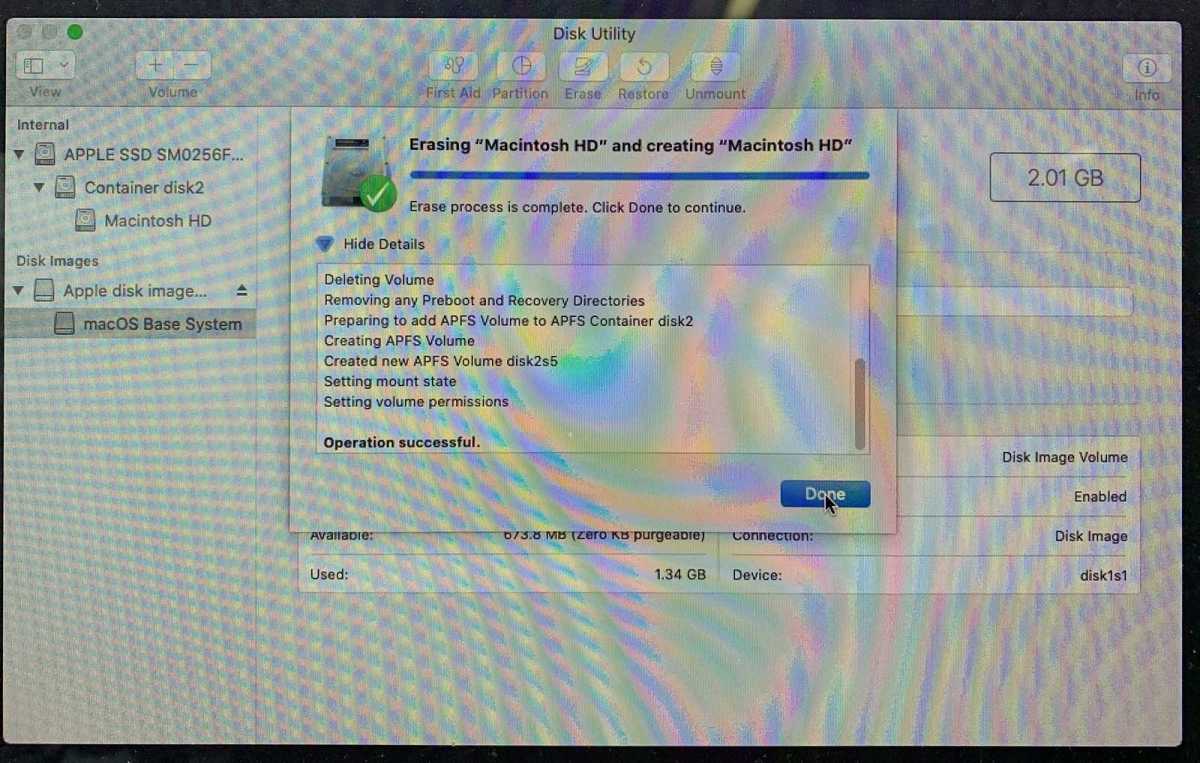
  1. When the Utilities window appears, select Disk Utility and click Continue.
  2. In Disk Utility, choose View > Show All Devices if the internal volumes are not visible.
  3. Select the internal macOS startup volume, usually named Macintosh HD.
  4. Click Erase or Erase Volume Group, as offered.
  5. Use Macintosh HD as the name and APFS as the format.
  6. Confirm the erase and wait for it to finish.
  7. Quit Disk Utility to return to the Utilities window.

Erase All Content and Settings is not, by itself, a downgrade tool. It removes data and settings while retaining the installed operating system. To replace Golden Gate with Tahoe, you need to erase the startup volume from the bootable installer environment and then install Tahoe.

6.

Install macOS Tahoe

macOS Tahoe on a Mac

Finally, you can get Tahoe back on your Mac.


Foundry

With the internal startup volume erased, you can now install Tahoe from the bootable installer.

  1. In the Utilities window, select Install macOS Tahoe and click Continue.
  2. Follow the onscreen instructions.
  3. When asked to choose a destination, select the newly erased internal volume, normally Macintosh HD.
  4. Keep the Mac connected to power and the internet while installation completes. It may restart several times.
7.

Set up your Mac

Setting up Mac

Foundry

After Tahoe is installed, the Mac will start in Setup Assistant.

If you have a Time Machine backup from before the Golden Gate upgrade, you can connect the backup disk and transfer your information during setup. Time Machine can transfer your accounts, apps, settings, and files after Tahoe has been installed, but it does not perform the operating-system downgrade, you need to do that first (as per the steps above).

If your only backup was made under Golden Gate, setting up the Mac as new and copying your documents back manually is the safest approach. This reduces the risk of importing an app, database, or setting that requires macOS 27. You can then reinstall Tahoe-compatible versions of your apps individually.

8.

Transfer data from your Time Machine backup
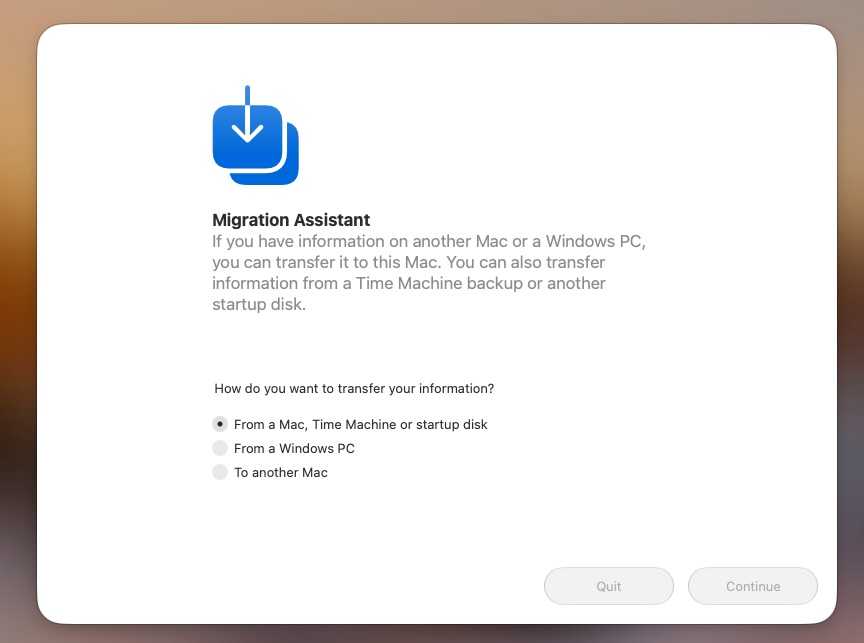
Use Migration Assistant to transfer your Time Machine Back Up

Once your Mac is set up you can copy your data from your backup.


Foundry

A backup made while the Mac was still running Tahoe is the best one to use. To transfer its contents during Setup Assistant, choose the option to transfer information From a Mac, Time Machine backup, or startup disk. Connect the backup disk, select the appropriate backup, and choose the accounts, apps, settings, and files you want to transfer.

If you have already completed setup:

  • Connect the Time Machine backup disk.
  • Open Migration Assistant from the Utilities folder in Applications.
  • Choose to transfer information From a Mac, Time Machine backup, or startup disk.
  • Select the Time Machine disk and then the appropriate backup.
  • Choose the categories you want to transfer and click Continue.

The selected backup will not contain anything created or changed after it was made. Copy those newer documents back from the separate backup you created before erasing the Mac.

What to do if the older macOS won’t install

Check the following:

  • Confirm that the Mac model supports the version you are installing.
  • Confirm that the full installer is in the Applications folder and is named correctly before creating the USB installer.
  • Connect the installer directly rather than through a hub or dock.
  • Make sure the Mac is connected to the internet.
  • Re-create the installer if Terminal says it is invalid or the installation fails repeatedly.
  • Confirm that the internal startup volume was erased as APFS.

Installing macOS 27 may also update the Mac’s firmware. Installing Tahoe later does not necessarily roll that firmware back; a macOS downgrade and a firmware downgrade are not the same operation.

Tips to avoid problems and data loss when you downgrade macOS

Reversing an upgrade carries a number of wrinkles and pitfalls. Many are caused by changes in file formats and settings between versions of the operating system. If you create a document or work on a file in a newer version of macOS and then try to open it in an older version, it may not work.

Where possible, export important documents in standard or widely compatible formats before erasing the Mac. For example, you could export a document as RTF or PDF in addition to retaining its native version.

Take screenshots of preferences and settings

Whenever you perform a clean installation of macOS, it’s a good idea to take screenshots of custom settings in apps and System Settings. That makes it easier to re-create them later.

Make a note of account details for anything you set up while running the newer operating system. Export bookmarks if they are not synchronized, and make sure you have access to application installers, subscriptions and license codes.

Synchronize cloud services

If you use Dropbox, OneDrive, Google Drive or another cloud storage service, make sure synchronization has completed before starting the downgrade. Files visible in a synchronized folder may not have finished uploading.

If you use Gmail, iCloud Mail or another IMAP service, make sure recent mail and drafts have synchronized. If you use a POP3 account, manually back up locally stored mail before erasing the Mac.

Finally, keep the Golden Gate backup intact until you have confirmed that Tahoe starts correctly and that all essential documents have been recovered. Do not erase or repurpose the backup drive merely because the downgrade appears to have completed.

Downgrading an older Intel Mac

Golden Gate does not support Intel Macs. These instructions are for if you want to downgrade an earlier macOS release on an Intel Mac.

Intel Macs start from a bootable installer by holding Option (Alt) at startup. Macs with the Apple T2 Security Chip may also need Startup Security Utility configured to allow booting from external or removable media. See our bootable macOS installer guide for the complete Apple-silicon, Intel and T2 instructions.

An Intel Mac may also be able to use Internet Recovery. Start it while holding:

  • Shift-Option-Command-R to offer the macOS that came with the Mac, or the closest version still available.
  • Option-Command-R to offer the latest macOS compatible with the Mac.
  • Command-R to reinstall the current version.

Internet Recovery cannot install a version older than the one the Mac supports, and the exact version offered can vary.

  •  

Como impedir que o Mac entre em repouso ao usar o Gemini

O Mac se tornou um importante aliado de quem usa a máquina para rodar modelos de inteligência artificial locais — não é à toa que os Macs mini estão sendo muito visados nesse período de boom no mercado.

Caso use o Gemini (um dos principais nomes de chatbots, ao lado do ChatGPT e do Claude), é possível habilitar um ajuste que mantém o computador ativo enquanto o app do Gemini estiver aberto, impedindo que ele entre em repouso.

Veja como fazer isso! 👨‍💻

  1. Comece abrindo o app do Gemini na sua máquina. Em seguida, acesse as configurações dele. É possível fazer isso usando um dos seguintes métodos:
  • Vá até Gemini » Configurações…, na barra de menus;
  • Use o atalho de teclado ⌘ command ,;
  • Clique na sua foto (no canto inferior esquerdo) e em “Configurações”.
  1. Na barra lateral esquerda, clique em “Atalhos”.
  1. Por fim, marque a chave ao lado de “Manter este Mac ativo para executar tarefas”.

  •  

How to ask Siri AI from Spotlight on your Mac in macOS 27

To ask Siri AI a question on a Mac running macOS 27, press Command-Space bar to open Spotlight, type your question or request, and press Return. Once Siri AI (Beta) is turned on, Apple’s Mac User Guide says Spotlight “becomes the place where you start a conversation with Siri.” From that one window, Apple says, […]

The post How to ask Siri AI from Spotlight on your Mac in macOS 27 appeared first on The Mac Observer.

  •  

Mais apps são atualizados com suporte ao iOS 27, à Siri AI e mais

Falamos aqui ontem sobre um punhado de aplicativos que foram atualizados com suporte às novidades do iOS 27, incluindo (e especialmente) o suporte à Siri AI.

Fato é que alguns outros apps também receberam atualizações com essa mesma proposta — além, é claro, de incluir outras novidades. Vamos conferi-los a seguir.

Tripsy

Além de suporte ao iOS 27, o Tripsy — que apareceu na keynote da Apple, diga-se — foi atualizado com algumas outras novidades e melhorias que estão disponíveis como parte dos recursos do Tripsy Pro, entre elas:

  • Smart Import: importe atividades, locais e reservas de qualquer URL ou documento usando o analisador baseado em IA.
  • Smart Insights: utilizando os Apple Foundation Models, o aplicativo analisa e compreende o conteúdo de documentos, anexos e emails relacionados às atividades, extraindo apenas as informações relevantes e úteis para apresentá-las aos usuários.

Falando de melhorias, agora é possível encontrar todos os hotéis da sua viagem nas sugestões de localização e dispensar sugestões de partida de aeroportos de que não precisa mais. Ademais, foram aprimoradas as estatísticas de viagem, a estabilidade do mapa e os layouts de importação no Mac.

Por fim, também foi adicionado suporte ao widget extragrande no iPhone para uma melhor visualização do itinerário.

Loop

O player de podcasts Loop ganhou, na sua atualização mais recente, suporte à Siri e aos Atalhos, bem como ao recurso gestos de cabeça dos AirPods compatíveis para pular capítulos de episódios mesmo com o app em segundo plano.

Outras novidades incluem:

  • Personalidades do Loop: nas configurações (em “Sobre mim”), agora é possível definir as personalidades que o Loop usará ao gerar o texto da seção “Para você”.
  • Métricas e estatísticas de escuta: três anéis para você acompanhar seus objetivos de escuta diários e mensais, acompanhando quantos episódios foram finalizados no mês, tempo de escuta diário e variedade de podcasts escutados.
  • Novos widgets: agora é possível ver o texto da seção “Para você” na Tela de Início em dois tamanhos de widgets (pequeno e médio) além de também ser possível ver seus anéis das métricas de escuta nas Telas de Início e Bloqueada.
  • O que ouvir em seguida: seção onde novos episódios dos podcasts que você marcou como favoritos e fixados são mostrados para fácil acesso.

O app também recebeu diversas melhorias em áreas como reprodutor de podcasts, busca e episódios baixados, além de uma melhor performance com o app em segundo plano, consumindo muito menos processamento e bateria.

FitWoody

Mais do que o suporte à Siri AI, que possibilita registrar dados por voz com ajuda da assistente, o app de saúde FitWoody agora também permite encontrar informações facilmente com o Spotlight e conta com suporte ampliado ao Handoff. O app também ganhou uma versão nativa para o macOS.

Integração do FitWoody com a Siri
FitWoody no Mac
Divulgação/FitWoody

Quanto às melhorias, agora o FitWoody abre diretamente na própria tela, bem como sua pontuação do sono responde a cada noite à medida que ela acontece, de modo que a tela inicial já está completa logo pela manhã.

Steady

O aplicativo de treino Steady chegou à versão 3.0, que tem como destaque o recurso Importação Mágica — de modo que uma foto da ficha da academia, um PDF ou uma mensagem vira um programa de treino editável. Esse recurso usa os novos modelos de IA da Apple em iPhones compatíveis com Apple Intelligence e iOS 27, sem exigir o Steady Pro.

Além disso, o app ganhou planejamento de programas mais inteligente, navegador de programas, recuperação do treino, entre outros recursos.

Update do Steady
Divulgação/Steady

A atualização também traz drop sets e deixa o app do Apple Watch mais completo, com lista de exercícios, registro de esforço pela Digital Crown e resumo do treino, reduzindo a necessidade de pegar o iPhone enquanto ele permanece por perto.

Ulysses

Já o popular aplicativo de escrita Ulysses ganhou, graças às capacidades da Siri AI, reconhecimento de contexto na tela e um botão dedicado na barra de ferramentas do macOS que abre a nova interface da assistente para escrever, reescrever, revisar e realizar outras tarefas com texto.

Ainda com relação à barra de ferramentas do aplicativo, agora é possível que os usuários a personalizem totalmente com botões de navegação, blocos, espaços, sugestões e muito mais.

We just released a very nice update across all platforms. The new version is ready for OS 27, features support for Siri AI, and introduces a fully customizable toolbar on macOS.

The update is available now. You can find the release notes on our website.https://t.co/TO7PFbVjGt

— Ulysses Help (@ulyssesapp) September 15, 2026

A atualização também inclui novos ícones de grupo com pictogramas e aprimora o suporte à acessibilidade “ao editar condições de filtro e ícones de grupo”. Por fim, o app recebeu ajustes visuais para melhor alinhar ao visual do iOS 27 e do macOS Golden Gate 27.

  •  

Apple Details How Reference Image Proves a Photo is Real

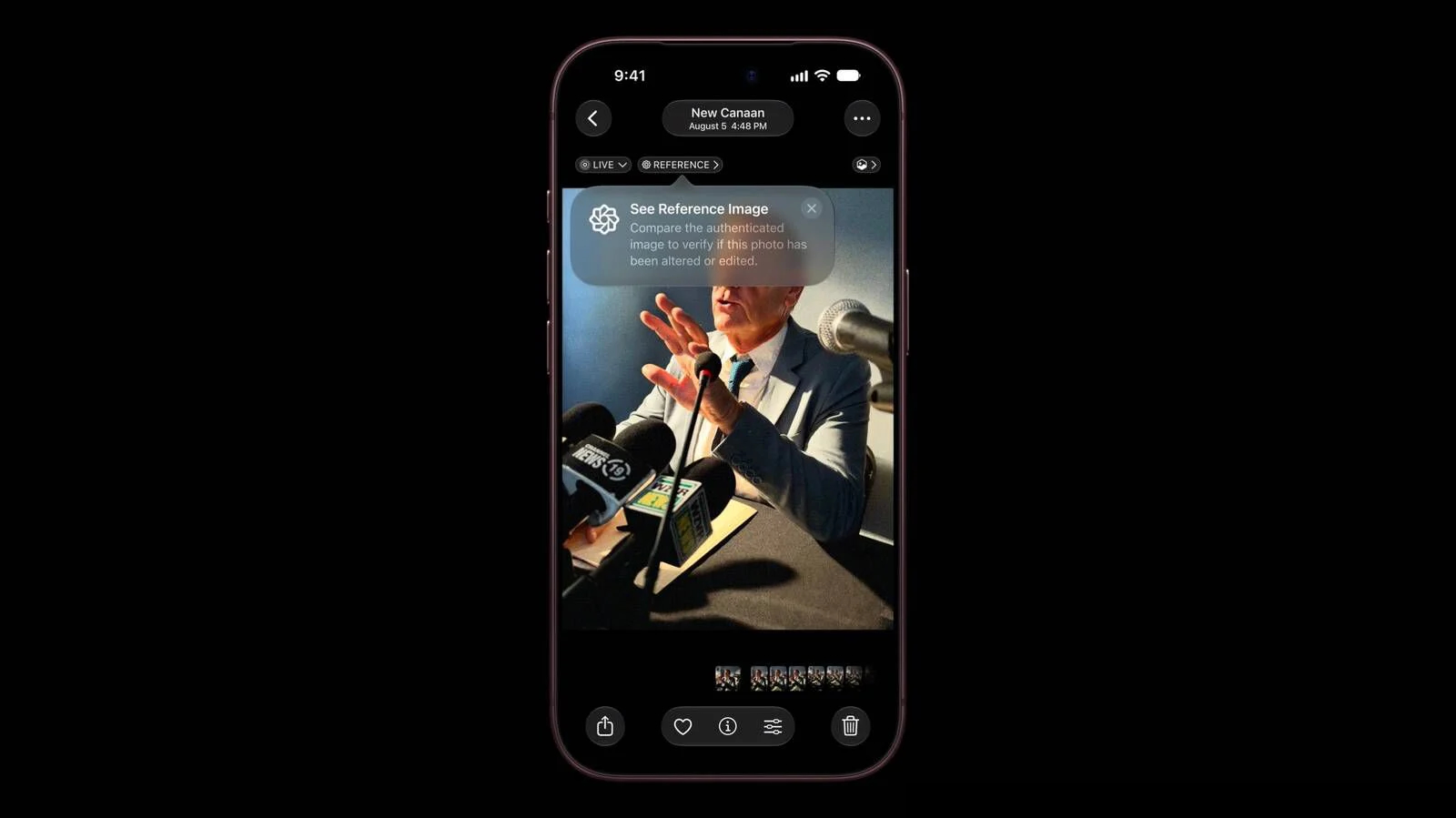
The iPhone 18 Pro models support Apple Reference Image, a way to verify that a photo was taken with an iPhone and hasn't been edited. Apple says it's a method to prove that something actually happened and wasn't AI-generated, likening the feature to a digital film negative.


Apple Reference Image offers a trustworthy, scalable guarantee that a reference image is what it claims to be: a real photograph, captured by a real sensor in an iPhone camera, at a specific time. It sets a new standard for verifiable digital photography.

Apple introduced Apple Reference Image when debuting the ‌iPhone 18 Pro‌ and Pro Max, and today the company shared more information on how the feature works on its Security Research blog.

Apple Reference Image boots the camera sensor into a specialized reference mode. The mode instructs the sensor to cryptographically sign pixel data immediately after capture, and the sensor firmware is prevented from modifying the data. Other authentication systems don't sign images until the end of the software processing pipeline, which Apple says leaves images vulnerable to tampering attacks.

Apple Reference Image creates a "secure digital negative" protected from software compromise alongside a standard editable photo. The negative is stored on-device and includes pixel data, sensor metadata, and cryptographic timestamps with lower and upper bounds. When a user decides to "develop" the negative for verification, it is sent unprocessed to Private Cloud Compute. Private Cloud Compute runs the steps needed to render the image in a secure, private, and verifiable environment.

Apple says the feature resists data injection attacks, compromised operating systems, hardware attacks, and cryptographic attacks. Apple believes Apple Reference Image is the only image provenance system with quantum-secure defenses. In case the system is breached, there is a revocation option. Private Cloud Compute calculates a confidence score for each image, and Apple can revoke individual photos or an entire sensor if fraud is detected.

To safeguard photographers, Apple Reference Image avoids using an explicit, public credential for photographers, and it prevents public association between different photos taken by the same sensor. The confidentiality of the image is protected, including from Apple.

Apple Reference Image is opt-in and is limited to the Main camera sensor.

More information on the ins and outs of Apple Reference Image can be found in Apple's full blog post.
This article, "Apple Details How Reference Image Proves a Photo is Real" first appeared on MacRumors.com

Discuss this article in our forums

  •  

DuoHinge leva a animação de dobra do iPhone Duo para os MacBooks

Algo que não passou despercebido durante a apresentação do iPhone Duo, primeiro smartphone dobrável da Apple, foi a animação ao abrir e fechar o aparelho — uma cortesia da versão adaptada do iOS especialmente para o modelo.

Como quase nada é impossível no mundo dos desenvolvedores, essa animação já foi transportada para o macOS graças ao DuoHinge, que adiciona uma ilusão de ótica interativa de dobra à tela física do seu MacBook.

Ao acessar diretamente o sensor de ângulo da tampa integrado ao Apple Silicon, o DuoHinge projeta sua área de trabalho em tempo real em um plano 3D virtual vertical, aplicando perspectiva realista via raycasting, dispersão gaussiana de vidro em duas passagens e dispersão cromática nas bordas conforme você fecha a tela.

An iPhone Duo–style hinge animation, but on a MacBook. Sometimes it’s fun to build things just because. pic.twitter.com/grYKra4X91

— João Franco (@JoaoFranco_03) September 10, 2026
Uma animação de dobradiça no estilo do iPhone Duo, mas em um MacBook. Às vezes, é divertido criar coisas simplesmente pelo prazer de fazê-lo.

O processamento da área de trabalho ocorre localmente no dispositivo, utilizando a taxa de atualização da tela integrada (até 120Hz em telas compatíveis) por meio do ScreenCaptureKit e shaders Metal personalizados, tudo encapsulado em uma camada transparente que permite cliques através dela, sem interromper seu fluxo de trabalho.

O aplicativo lê o sensor de ângulo da tampa e suaviza o movimento de acordo com a cadência de renderização. Um ícone vetorial do MacBook, no estilo da Apple, gira e espelha o ângulo real da sua tela nas barras de menu do macOS (no modo claro ou escuro).

O DuoHinge é gratuito, não contém assinaturas, nem rastreia quantas vezes você abre o seu MacBook. Ele exige pelo menos o macOS Sonoma 14 e pode ser baixado diretamente pela página no GitHub — ao iniciar o aplicativo pela primeira vez, abra-o na barra de menus e conceda permissão de Gravação de Tela e Áudio do Sistema quando o macOS solicitar.

  •  

Where’s Siri AI in iOS 27 / MacOS 27? Here’s How to Enable It, If You Can

If you recently installed iOS 27 on iPhone, iPadOS 27 on iPad, or MacOS 27 Golden Gate, you might be wondering where the widely hyped new Siri AI set of features are on your device; a dedicated Siri app, a much smarter Siri AI with chatbot like experience, custom voices, and more. These are all ... Read More

The post Where’s Siri AI in iOS 27 / MacOS 27? Here’s How to Enable It, If You Can appeared first on OS X Daily.

  •  

Opting Into Training Siri AI and Apple Foundation Models

Amber Neely:

A new section in the iOS 27 privacy policy shows that Apple has reversed its stance on using customers’ data to train its AI models. Previously, the company assured customers that it had no need for customer data, and would figure out how to make Siri AI work well without it.

Apple maintains that it “takes steps to ensure that personal data is not stored or used by Apple.” But as Heise points out, and Apple has said in the terms of service for a few years now, the audio material may be listened to by Apple employees after anonymization.

[…]

It also admits that data collected may be reviewed by “review personnel.” It is unclear if “review personnel” are Apple employees or a third-party company contracted to read conversation transcripts, as it has historically been.

Chance Miller:

Starting today, when a user enables Siri AI, they will see a setup screen asking whether they want to opt in to “improve Siri and Apple Intelligence,” with two options: “Share Audio and Text” or “Not Now.”

[…]

What’s important to note here is that nothing is changing about the type of data Apple collects if you opt in to this setting. What’s changing is that Apple will now use the data to train and refine its Foundation Models, as well as Siri and Dictation like before.

nunez:

iOS 26 had a toggle you could select to disable all Apple Intelligence features.

That toggle was removed for iOS 27. Every AI feature has to be turned off individually.

Previously:

  •  

Xcode 27

Apple (xip, downloads):

Xcode 27 includes Swift 6.4 and SDKs for iOS 27, iPadOS 27, tvOS 27, watchOS 27, macOS 27, and visionOS 27. Xcode 27 supports on-device debugging in iOS 17 and later, tvOS 17 and later, watchOS 10 and later, and visionOS. Xcode 27 requires a Mac running macOS Tahoe 26.6 or later.

Peter Witham:

Is this new in Xcode 27? Pretty sure it as and I approve whole heartedly! I really hate setting up Xcode settings more than once.

Christian Beer:

Building with Xcode 27 doesn’t work because of some intransparent XCStrings error… and I even can’t check with Xcode 26 anymore because Apple decided to not let me run it on macOS 27…

Steven Woolgar:

After all these years Apple has finally broken cmd-e in Xcode 27.

Previously:

  •  

macOS 26.7 and macOS 15.8

Apple (security, no enterprise, no developer, full installer):

This update provides important security fixes and is recommended for all users.

Apple (security, full installer):

This update provides important security fixes and is recommended for all users.

See also: MacRumors, Mr. Macintosh, and Howard Oakley.

Previously:

  •  

Apple's Last Intel 21.5-Inch iMac is Now Vintage

Apple today added the 2019 4K iMac to its list of vintage products, which means repairs can only be done if Apple has the parts available.


Products are added to the vintage list five years after they were last distributed for sale, and they're moved to the obsolete list at the seven-year mark. Vintage products can be repaired at Apple Stores and by Apple Authorized Service Providers if the parts are available, but that's not guaranteed. Devices that are obsolete are not eligible for repair and Apple no longer makes repair components.

The 2019 iMac preceded the colorful, redesigned M1 ‌iMac‌ that came out in 2021. The machine featured a 21.5-inch Retina 4K display and the standard silver ‌iMac‌ design. The base model was equipped with an Intel Core i3 processor, 8GB RAM, and a 1TB hard drive. Pricing in 2019 started at $1,299.

The 2019 27-inch ‌iMac‌ that was sold alongside the 21.5-inch model was added to the vintage list in July 2025, but Apple sold the smaller model for a longer so it didn't previously qualify as vintage.
Related Roundup: iMac
Buyer's Guide: iMac (Don't Buy)
Related Forum: iMac

This article, "Apple's Last Intel 21.5-Inch iMac is Now Vintage" first appeared on MacRumors.com

Discuss this article in our forums

  •  

Benchmarks preliminares dos chips M6 e M5 Ultra revelam avanços de até 35% em CPU

Previstos para serem lançados na semana que vem (pelo menos nos Estados Unidos e em Portugal), os novos Mac mini e Mac Studio são alimentados com os chips M6 e M5 Ultra, respectivamente — lembrando que o mini pode ser configurado também com o M5 Pro, enquanto que o Studio de entrada vem com o chip M5 Max.

Pois os primeiros resultados de benchmarks dos dois novos processadores apresentados recentemente pela Apple surgiram hoje no banco de dados do Geekbench 7, oferecendo uma visão dos ganhos de desempenho de cada um deles.

Em ambos os casos, os resultados vistos até agora tratam apenas dos testes de CPU 1Central processing unit, ou unidade central de processamento. — os de GPU 2Graphics processing unit, ou unidade de processamento gráfico. ainda não foram divulgados.

Confira abaixo a pontuação do chip M6 e as pontuações médias do chip M5 para efeito de comparação:

Benchmark de CPUM6M5
Single-core4.071 pontos3.641 pontos
Multi-core22.783 pontos17.948 pontos

Se o resultado acima for preciso, o chip M6 apresenta um desempenho single-core cerca de 12% mais rápido e uma performance multi-core cerca de 27% mais rápida em comparação com o chip M5. Vale notar que o chip M6 está no novo Mac mini, enquanto as pontuações do chip M5 baseiam-se no MacBook Pro de 14 polegadas — mas o desempenho deve ser semelhante.

Na tabela abaixo está a pontuação do chip M5 Ultra de ponta, com CPU de 36 núcleos, bem como as pontuações médias do chip M3 Ultra de ponta, com CPU de 32 núcleos (já que a Apple nunca lançou um chip “M4 Ultra”).

Benchmark de CPUM5 UltraM3 Ultra
Single-core3.774 pontos2.920 pontos
Multi-core52.516 pontos39.059 pontos

Se os resultados acima procederem, o chip M5 Ultra oferece um desempenho de CPU single-core cerca de 30% mais rápido e um desempenho multi-core cerca de 35% mais rápido em comparação com o M3 Ultra.

Nada mau, hein!

Mac Studio

Chip: M4 Max ou M3 Ultra
Memória: 36GB, 48GB, 64GB, 96GB, 128GB, 256GB ou 512GB
Armazenamento: 512GB, 1TB, 2TB, 4TB, 8TB ou 16TB
R$ 25.999,00

Mac mini

Chip: M4 ou M4 Pro
Memória: 16GB, 24GB, 32GB, 48GB ou 64GB
Armazenamento: 256GB, 512GB, 1TB, 2TB, 4TB ou 8TB
Conectividade: Ethernet ou Gigabit Ethernet 10
R$ 12.299,00
R$ 16.999,00

NOTA DE TRANSPARÊNCIA: O MacMagazine recebe uma pequena comissão sobre vendas concluídas por meio de links deste post, mas você, como consumidor, não paga nada mais pelos produtos/serviços usando os nossos links de afiliado.

via MacRumors [1, 2]

Notas de rodapé

  • 1
    Central processing unit, ou unidade central de processamento.
  • 2
    Graphics processing unit, ou unidade de processamento gráfico.

  •  

WebsiteArchiver é um utilitário para macOS que salva páginas da web com praticidade

Salvar uma página da web pode ter diversas finalidades — seja para lembrar de algum detalhe textual ou visual, guardar informações de uma certa data ou apenas manter um registro cronológico de algum endereço. Há vezes, porém, que não dá para depender totalmente de bases de arquivos públicos, seja porque o conteúdo pode ter sido alterado ou não é exibido corretamente, entre outros motivos.

Para evitar possíveis problemas do tipo, vale a pena conferir o WebsiteArchiver, um utilitário para macOS que salva e arquiva páginas da web completas, sendo possível separá-las em pastas e categorias. Segundo o desenvolvedor, uma versão para iPhone/iPad será lançada em breve.

Com ele, as páginas da web são salvas localmente como arquivos HTML — com exportação em .html, .warc, .webarchive, .pdf e Markdown — disponíveis permanentemente e independentes de serviços externos.

O app exibe as páginas salvas de três formas diferentes: a opção “Salvo” mostra a cópia offline, enquanto “Leitor” exibe apenas o texto sem distrações e o modo “Ao vivo” mostra a página atual na web. É possível alternar entre eles quando quiser.

Além disso, a captura usa um motor que possibilita que páginas cheias de JavaScript sejam registradas exatamente como aparecem na tela. Também é possível remover imagens inteiras de páginas.

O WebsiteArchiver está disponível gratuitamente na Mac App Store, sendo possível salvar até dez páginas sem custo. Para desbloquear a versão completa, sem limites de registros, é necessário obter a licença vitalícia, disponível por R$120.

Leitores do MacMagazine, porém, podem aproveitar uma oferta especial para adquirir a versão completa diretamente pelo site do WebsiteArchiver: basta digitar MACMAGAZINE30 na área de código promocional para obter 30% de desconto! Saiba, porém, que o cupom é válido somente para os 50 primeiros usos.

  •  

Desinstalador AppZapper é reformulado com novo design, funções atualizadas e mais

O AppZapper, popular desinstalador que oferece uma maneira rápida de excluir aplicativos e seus arquivos associados do macOS, foi reformulado após anos e ganhou um novo design, funcionalidades atualizadas, além de um novo nome: AppZapper 3000.

Lançado originalmente em 2006, o AppZapper 3000 chega justamente no seu 20º aniversário. Entre as novidades, a versão atualizada do aplicativo foi adaptada aos requisitos de segurança do macOS e é mais eficiente na localização de arquivos relacionados aos softwares que serão apagados.

O funcionamento do app é um show à parte: após a instalação, basta arrastar e soltar um aplicativo no AppZapper e clicar no botão “Zap All” para remover o aplicativo e os arquivos relacionados, acompanhado de uma animação de arma a laser e efeitos sonoros. Ele localiza e exclui todos os arquivos de um aplicativo em poucos segundos, e os usuários podem escolher entre quatro temas diferentes.

O software pode ser baixado gratuitamente, sendo possível realizar três “zapeadas” gratuitas. A licença custa US$18 para um único usuário e US$29 para um pacote familiar, que permite o uso do aplicativo em até cinco Macs. Há, ainda, um plano corporativo que permite o uso em até 25 Macs, o qual está disponível por US$99.

via MacRumors

  •  

Promoções na App Store: Planet of Lana, Little Nightmares, Smart Calculator: All In One e mais!

Nesta terça-feira, confira, aproveite e economize com a nossa seleção de promoções na App Store!

Planet of Lana é uma bela aventura, desenvolvida pelo Wishfully Studios e publicada nas plataformas móveis pela Playdigious, e nosso destaque do dia.

O jogo nos conquista primeiro pelos olhos: cada cenário parece uma pintura em movimento, com cores vibrantes, que transforma o planeta alienígena em algo ao mesmo tempo acolhedor e misterioso.

A jornada de Lana e seu companheiro Mui se destaca pela atmosfera contemplativa, criando uma experiência com um tom esperançoso. O design dos puzzles é intuitivo e nos incentiva a observar o ambiente e experimentar soluções criativas.

Confira um vídeo:

Um jogo cuja história passeia pelo equilíbrio, natureza e conexão. Uma oferta imperdível! 🥹


Abaixo outros jogos/apps que, juntos, somam quase R$130 em descontos:

Jogos

Jogo de aventura.

Jogo de cartas.

Diversão matemática.

Aplicativos

Calculadora.

Utilitário para códigos QR.

Fotos panorâmicas.


Aproveite as ofertas e até amanhã! Lembrando que elas são sempre por tempo limitado, então é bom correr. ✈️

  •  

Should You Update to MacOS 27 Golden Gate from MacOS Tahoe or Sequoia?

Mac users are faced with the annual classic computing question again; should I upgrade to the latest major new system software that is available? In this case, MacOS 27 Golden Gate is available to download and widely considered to be a solid system software version, so if your Mac is currently running MacOS Tahoe 26, ... Read More

The post Should You Update to MacOS 27 Golden Gate from MacOS Tahoe or Sequoia? appeared first on OS X Daily.

  •  

Apple’s next wave: touch-screen MacBooks, a smart-home hub, and 14 more products

Apple Logo

Apple has barely finished unveiling the iPhone Duo, iPhone 18 Pro lineup, AirPods 5, and new Apple Watches, but the company already has a much larger pipeline queued up for late 2026 and the first half of 2027, according to Bloomberg News‘ Mark Gurman.

The coming products are part of what new CEO John Ternus has internally described as Apple’s most ambitious product road map yet. Many of the devices are designed to spread Siri AI more widely across the lineup and close some of the gap with rivals in artificial intelligence. As always, dates can slip and products can be delayed or canceled.

Later this yearGurman reports that Apple is preparing several updates before year-end:

• HomePod mini with Siri AI — Same familiar design as the 2020 model, but with a new chip to power the overhauled assistant.

• Apple TV with Siri AI — Another look-alike refresh, this time with a faster chip for navigation and the new Siri experience.

• Smart-home hub — A square display that can sit on a speaker base or mount on a wall. It will run a new operating system, support video calls, and use facial recognition to personalize what it shows. Apple had considered showing it at last week’s event and is now aiming as early as October, though the timeline remains fluid after repeated delays.

• Touch-screen MacBooks — The biggest MacBook Pro change since 2021, adding OLED panels and touch screens for the first time, with M5 Pro and M5 Max chips.

• Entry-level 14-inch MacBook Pro — Current design, updated with the M6 chip.

• iMac — New colors and an M6 processor.

• iPad mini — One of the line’s biggest upgrades, adding an OLED display.

The HomePod mini and Apple TV are already being tested with iOS 27. The new Macs are running macOS 27.1 internally, and the iPad mini is on iPadOS 27.1. Both of those software updates are expected late next month.

First half of 2027

The spring and early summer slate is heavier on refresh cycles than radical redesigns:

• MacBook Air — Same 13-inch and 15-inch designs, moving to the M6 chip.

• MacBook Neo — Follow-up model with an A19 Pro chip and more memory.

• Entry-level iPad — Faster chip so the cheaper tablet can run Apple Intelligence and Siri AI.

• iPad Pro — Chip upgrade plus vapor-chamber cooling similar to the iPhone 18 Pro.

• iPad Air — First OLED screens in that line, plus a new chip.

• iPhone 18 — Largely an A20 chip upgrade, with the notable change that the standard model is shifting from fall to spring.

• iPhone 18e — Another chip-focused update; Apple will need to make clear how it differs from the regular iPhone 18.

• iPhone Air 2 — More substantial: a 2-nanometer A20 Pro chip, better battery life, and a second rear camera for ultrawide shots.

• Apple Pencils — New Pencil Pro and USB-C models timed with the iPads; the iPhone Duo will support the stylus as well.

Looking further ahead

The second half of 2027 is expected to get more ambitious still, Gurman writes, with M7 updates to MacBooks, smart glasses, camera-equipped AirPods, a home security system, a redesigned Apple Watch, Twentieth Anniversary iPhones, and a second-generation foldable iPhone Duo.
‎
MacDailyNews Take: Taken together, the road map suggests Apple is trying to do two things at once: push Siri AI onto more affordable and living-room devices, and finally refresh categories that have languished for years. Whether October brings a full event or quieter waves of launches, the next 12 months look unusually crowded with product launces!


‎
Please help support MacDailyNews — and enjoy subscriber-only articles, comments, chat, and more — by subscribing to our Substack: macdailynews.substack.com. Thank you!

Support MacDailyNews at no extra cost to you by using this link to shop at Amazon.

The post Apple’s next wave: touch-screen MacBooks, a smart-home hub, and 14 more products appeared first on MacDailyNews.

  •  
  •  

macOS versions in order: Complete Mac OS X and macOS history

Macworld

Since the debut of Mac OS X in 2001, Apple has released dozens of versions of its Mac operating system, introducing new features, design updates, performance improvements, and more. From early big-cat releases such as Panther and Leopard to more recent California-inspired versions like Sonoma, Sequoia, Tahoe and Golden Gate, each release marked a new chapter in the Mac’s evolution.

Whether you’re trying to identify the version running on your Mac, check compatibility before upgrading, or find out which releases are still supported, this guide covers every Mac OS X and macOS version in chronological order – from the original Mac OS X Cheetah to macOS 27 Golden Gate.

Discover the major features introduced with each release, including Spotlight in Tiger, Time Machine in Leopard, Siri in Sierra and and the enhanced Spotlight search introduced in macOS 27 Golden Gate.

Below, you’ll find a complete list of macOS versions in order, along with release dates, codenames, key details and support information.

What is the latest macOS version?

The latest version of macOS is macOS 27 Golden Gate, released on September 14, 2026. Apple is expected to update Golden Gate throughout 2026 and 2027, beginning with macOS 27.1.

For details of the latest macOS 27 release, new features, beta updates and compatibility, see our complete macOS 27 Golden Gate Guide.

macOS version history: Every macOS and Mac OS X version and the features it brought

macOS is Apple’s operating system for the Mac, in the same way iOS runs on the iPhone and iPadOS runs on the iPad. It provides the user interface and acts as the link between a Mac’s hardware and its software.

All Macs have run macOS – formerly known as Mac OS X – since its debut in 2001. Before that, Apple computers used Mac OS 9. macOS is based on Unix technology developed at NeXT, the company Steve Jobs founded before returning to Apple.

Since its launch on March 24, 2001, macOS has evolved significantly, gaining tighter integration with iOS devices, cloud services, and productivity features such as Time Machine, Quick Look, Exposé, Spaces, and Desktop Stacks.

Below is a complete overview of macOS versions, showing how Apple’s desktop operating system has developed over time, along with the official names and internal codenames used for each release.

mac os x beta picture

Foundry

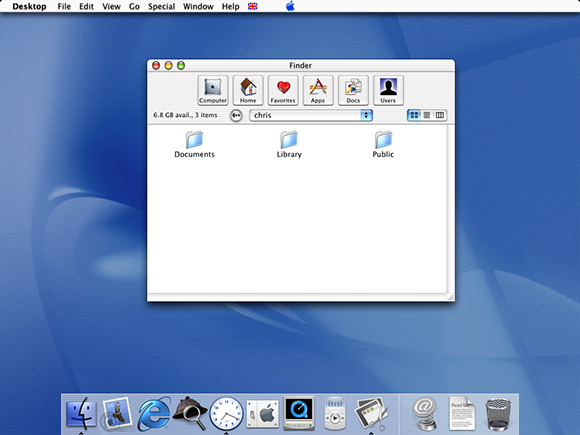
OS X 10 beta: Released in September 13, 2000, this preview version of OS X was codenamed Kodiak. It was based on technology from NeXT Computer, which was another company founded by Apple founder Steve Jobs and it introduced the Aqua user interface as well as protected memory and preemptive multitasking to stop crashes. This beta cost $29.95.

OS X 10.0: Code named Cheetah, this was the first major release of Mac OS X, arriving on March 14, 2001. It was Apple’s first OS built on a Unix-based foundation. Unfortunately it was slow and rough around the edges.

OS X 10.1: Just a few months ofter the first version of Mac OS X launched, Apple introduced the Puma update on September 15, 2001. This time is was stable and ready for everyday use, hardware support was better, and other issues with the fist version were addressed.

OS X 10.2: Jaguar arrived on August 14, 2002, significantly improving performance and usability, introducing Quartz Extreme for smoother graphics, a faster Finder, and better networking. iChat was one of the new features.

OS X 10.3: In October 2003 Apple introduced Panther which focused on speed, stability, and polish, delivering noticeably faster performance and a more responsive system. New features included: Exposé for managing windows, Fast User Switching, and FileVault disk encryption. Safari arrived as the default web browser.

OS X 10.4: Tiger arrived in April 2005 with new features like Spotlight search and Dashboard widgets.

OS X 10.5: In October 2007 Leopard arrived and added features like Time Machine for automated backups, Spaces for virtual desktops, and a redesigned Finder with Cover Flow. Time Machine also arrived as a simple way to back up a Mac.

OS X 10.6: Released in 2009, Snow Leopard focused on performance, stability, and efficiency rather than flashy new features.

OS X 10.7 Lion: Arriving in July 2011, Lion brought iPad-inspired features to the Mac, like Launchpad, full-screen apps, and multi-touch gestures. It also introduced system-wide Auto Save, Resume, and Versions so that users didn’t need to worry about manual saving.

OS X 10.8: A year later, in 2012 Mountain Lion brought more iOS features to the Mac including Messages, Reminders, Notes, Notification Center, and iCloud integration. Gatekeeper security was also emphasised.

Mavericks Notification Centre
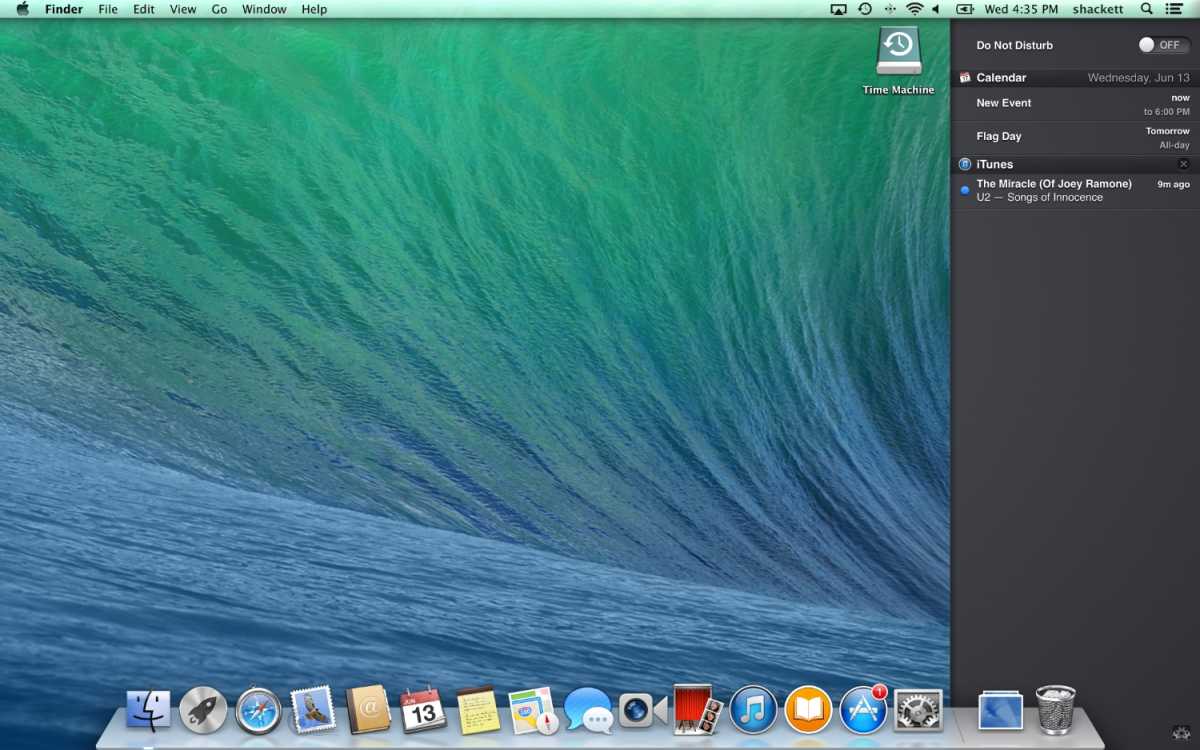
The Notification Center made its debut in OS X Mavericks.

Foundry

OS X 10.9: In October 2013 Apple stopped naming Mac OS X versions after big cats and switched to Californian landmarks, starting with Mavericks. It introduced features like Finder Tabs, Tags, and memory compression, making Macs faster and more responsive. It was also the first time Apple offered the Max OS X update for free.

OS X 10.10: Introduced in October 2014, Yosemite brought a major visual redesign with a cleaner, flatter interface, translucent elements, and a more modern look inspired by iOS (iOS 7 with its big redesign had been introduced in 2013). Continuity features from the iPhone and iPad included Handoff, iCloud Drive, and the ability to make and receive calls and texts from a Mac.

OS X 10.11: El Capitan arrived in September 2015 and, like Snow Leopard in 2007, focused more on refinement and stability. It brought improvements like better window management (Split View), smoother graphics, and performance boosts.

macOS 10.12: In September 2016 macOS Sierra was the first version to be referred to as macOS rather than Mac OS X, better aligning it with iOS, watchOS and tvOS. It brought Siri to the Mac and improved integration with iPhone and iPad with features like Universal Clipboard.

macOS 10.13: This was another update where the focus was on performance rather than flashy new features. High Sierra in September 2017 brought updates to core apps like Photos and Safari but mostly focused on security and efficiency updates.

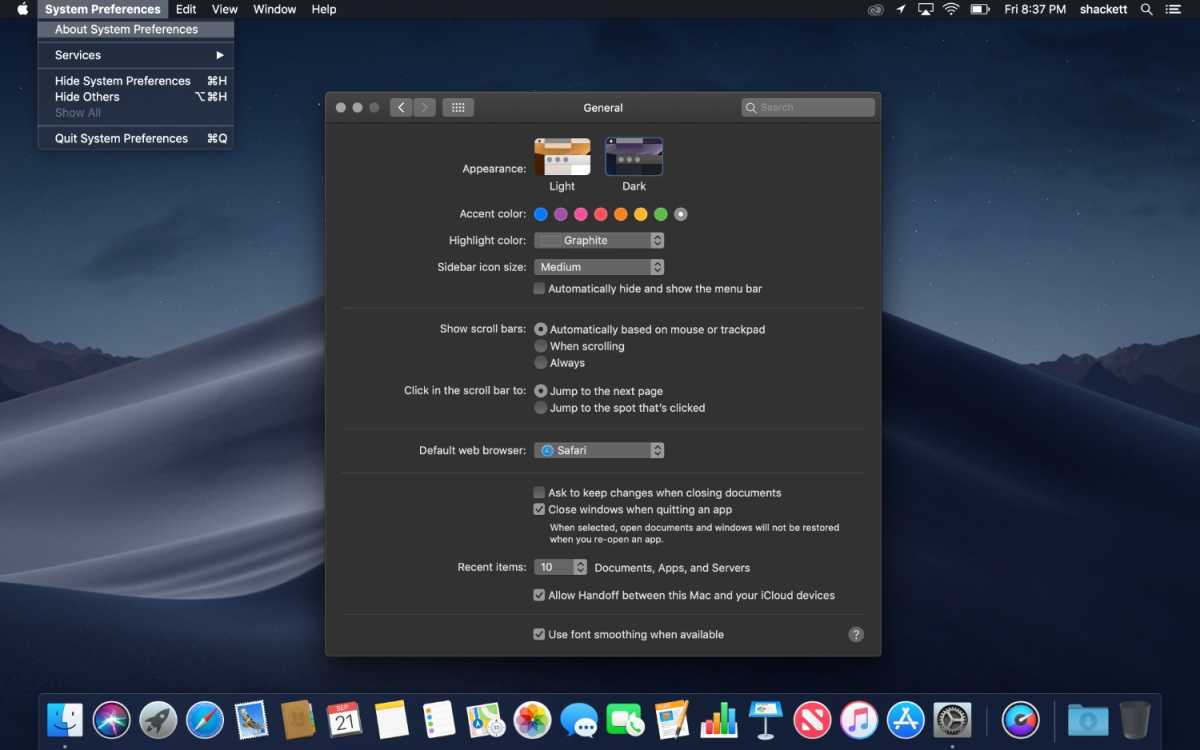
macOS 10.14: In September 2018, Mojave introduced a system-wide Dark Mode and introduced Desktop Stacks for better file organization.

Mojave Night Mode
Dark Mode debuted in Mojave.

Foundry

macOS 10.15: Arriving in October 2019, Catalina replaced iTunes with separate Music, TV, and Podcasts apps and introduced Sidecar so an iPad could be used as a second display for a Mac. It also ended support for 32-bit apps.

macOS 11: Big Sur was the first version to drop the ten, from Mac OS X, and start again at 11. Launched in November 2020 it was a major redesign of Apple’s Mac operating system, with a cleaner, more modern interface, updated icons, a refined Control Center, and closer visual alignment with iOS.

macOS 12: Arriving in October 2021, Monterey introduced Universal Control (one mouse/keyboard across Mac and iPad) and improved FaceTime.

macOS 13: macOS Ventura arrived in October 2022 and introduced Stage Manager for better multitasking, improved Continuity features (including using an iPhone as a webcam, and brought major updates to Mail, Safari, and Spotlight. Read: How Ventura and Monterey compare.

macOS 14: In September 2023 Sonoma made the desktop more immersive with animated wallpapers and desktop widgets you can interact with. There were game-focused improvements in Game Mode and video conferencing features like Presenter Overlay were added. Here’s how Sonoma compares to Ventura.

macOS 15: A year later in September 2024, Sequoia brought iPhone Mirroring and added Apple Intelligence features. Here’s how Sequoia compares to Sonoma.

macOS 26: Tahoe arrived in September 2025 with a bold new Liquid Glass design with transparent, customizable interface elements and tighter integration with iPhone and iPad. As with iPhone and iPad, Apple unified version numbering, so the macOS jumped from macOS 15 to 26. Apple also expanded Apple Intelligence, improved Spotlight, improved the Phone related features, and added a new Games app. This was the final macOS version to support Intel-based Macs. See how macOS 26 Tahoe compares to macOS 15 Sequoia.

macOS 27: macOS 27 Golden Gate was released on September 14, 2026, bringing Siri AI, Visual Intelligence, enhanced Spotlight search, performance improvements, and refinements to the Liquid Glass interface introduced with macOS Tahoe. Golden Gate is also the first major macOS release to require Apple silicon, ending support for Intel-powered Macs. See how macOS 27 Golden Gate compares to macOS 26 Tahoe.

List of macOS versions and latest versions

Here’s an overview of every version of macOS and Mac OS X Apple has released. You’ll find a complete list of each version of OS X and macOS, along version code names, internal code names (if available) and the most recent version and when it was released.

macOS Tahoe on a Mac

macOS Tahoe.


Foundry

Product versionCode nameDate of launchDate of launchLast update date
OS X 10 betaKodiakSeptember 13, 2000——
OS X 10.0CheetahMarch 14, 200110.0.4June 22, 2001
OS X 10.1PumaSeptember 15, 200110.1.5June 6, 2002
OS X 10.2JaguarAugust 14, 200210.2.8October 3, 2003
OS X 10.3Panther (Pinot)October 24, 200310.3.9April 15, 2005
OS X 10.4Tiger (Merlot)April 29, 200510.4.11November 14, 2007
OS X 10.5Leopard (Chablis)October 26, 200710.5.8August 13, 2009
OS X 10.6Snow LeopardAugust 28, 200910.6.8July 25, 2011
OS X 10.7Lion (Barolo)July 20, 201110.7.5October 4, 2012
OS X 10.8Mountain Lion (Zinfandel)July 25, 201210.8.5August 13, 2015
OS X 10.9Mavericks (Cabernet)October 22, 201310.9.5July 18, 2016
OS X 10.10Yosemite (Syrah)October 16, 201410.10.5July 19, 2017
OS X 10.11El Capitan (Gala)September 30, 201510.11.6July 9, 2018
macOS 10.12Sierra (Fuji)September 20, 201610.12.6September 26, 2019
macOS 10.13High Sierra (Lobo)September 25, 201710.13.6November 12, 2020
macOS 10.14Mojave (Liberty)September 24, 201810.14.6July 21, 2021
macOS 10.15Catalina (Jazz)October 7, 201910.15.8February 2, 2026
macOS 11Big Sur (GoldenGate)November 12, 202011.7.11February 2, 2026
macOS 12Monterey (Star)October 25, 202112.7.6July 29, 2024
macOS 13Ventura (Rome)October 24, 202213.7.8August 20, 2025
macOS 14Sonoma (Sunburst)September 26, 202314.8.9August 6, 2026
macOS 15Sequoia (Glow)September 18, 202415.8September 14, 2026
macOS 26Tahoe (Cheer)September 15, 202526.7September 14, 2026
macOS 27Golden Gate (Honeycrisp & Fizz)September 14, 202627September 14, 2026

FAQ


1.

Which macOS versions are still supported?

Apple provides regular feature and security updates for the current version of macOS and generally continues to issue security updates for the previous two major versions.

As of September 2026, macOS 27 Golden Gate is the current version. Apple also released security updates for macOS 26 Tahoe and macOS 15 Sequoia alongside Golden Gate on September 14, 2026.

With the arrival of Golden Gate, macOS Sonoma appears to have dropped out of Apple’s regular support cycle, with its most recent update released in August 2026.

Occasionally Apple releases updates for much older versions of macOS to address specific problems. For example, in February 2026 it issued updates for Big Sur and Catalina to address a certificate issue affecting FaceTime and Messages.

See: How long do Macs and MacBooks last? We also have a full list of which Macs run which versions of macOS here.

2.

How does Apple choose Mac OS X and macOS names?

As you can see from the list above, with the exception of the first OS X beta, all versions of the Mac operating system from 2001 to 2012 were named after big cats, from Cheetah to Panther to the final release, Mountain Lion. But while the public-facing builds were named after big cats, internally, they were named after wines (aside from OS X 10.6 which had no codename).

Even after Apple switched public-facing code names to places in California back in 2013, it carried on naming them after wines internally until 2014. In 2015, Apple decided to change the theme of internal code names from wines to types of apples.

In 2016, Apple took the plunge to unify the branding of its operating systems by rebranding Mac OS X to macOS, which sits nicely alongside iOS, tvOS, and watchOS and paved the way for macOS 11, the successor to Mac OS X, which arrived twenty years after the first beta of Mac OS X.

In 2025, Apple decided to sync up the numbering system between all its operating systems, moving from macOS 14 to macOS 26 to better reflect the year. macOS 26 Tahoe lived most its lifetime as the most recent version in the year 2026 before being replaced with macOS 27 in September 2026.

3.

How do I check my macOS version?

You can tell which version of macOS you are running by clicking on the Apple logo in the top left and choosing About This Mac.

It will clearly show which version of macOS you are running along with the most recent version that your Mac has installed.

If you are looking for help installing macOS read: How to update macOS and Fixes for Macs that won’t update. We can also help with How to install macOS on an unsupported Mac.

4.

Can I run the macOS beta?

You can install a beta version of macOS and test new features that haven’t yet launched. If you want to install the latest beta of macOS read about joining Apple’s beta program.

5.

How can I install the latest version of macOS?

Some Macs will be set to update macOS automatically. If you want your Mac to update automatically follow these steps:

  1. Open System Settings.
  2. Click on General.
  3. Click on Software Update.
  4. Click on the “i” beside Automatic Updates and make sure that Check for updates, Download new updates when available, and Install macOS updates are selected. This way your Mac will automatically update to the latest version. If you would prefer not to have your Mac do this automatically you can deselect these options.

Read all about how to update your Mac here.

We also have a list of every version of iOS where you can see the latest versions and how long Apple supports iPhones for.

  •  
❌