❌

Reading view

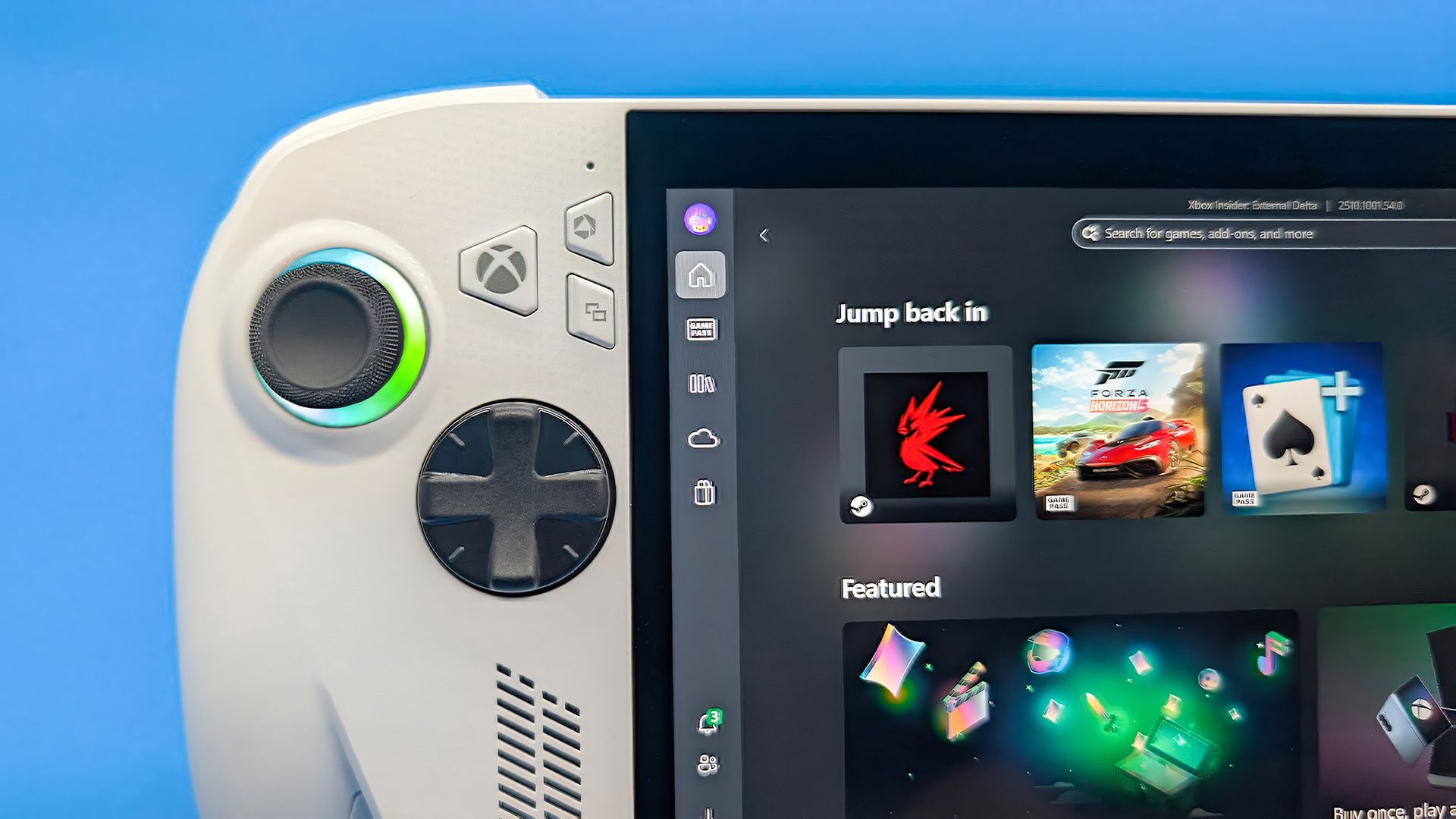
Microsoft gives XBOX mode a more handheld-friendly Gaming Task View

Windows 11 has a new Gaming Task View for XBOX mode that helps users hop back to the desktop or adjust power options for a device. That feature is now in testing among Windows Insiders.

Microsoft released builds in every Windows Insider channel to wrap up the week. I've listed all the changes below except those exclusive to the Release Preview channel since those features have largely been in testing before today.

While the update to XBOX mode is the headline feature of these builds, there are several other welcome changes. For example, Windows Hello can now temporarily brighten your screen to help you sign in when in a dark room.

Gaming (Beta, Experimental)
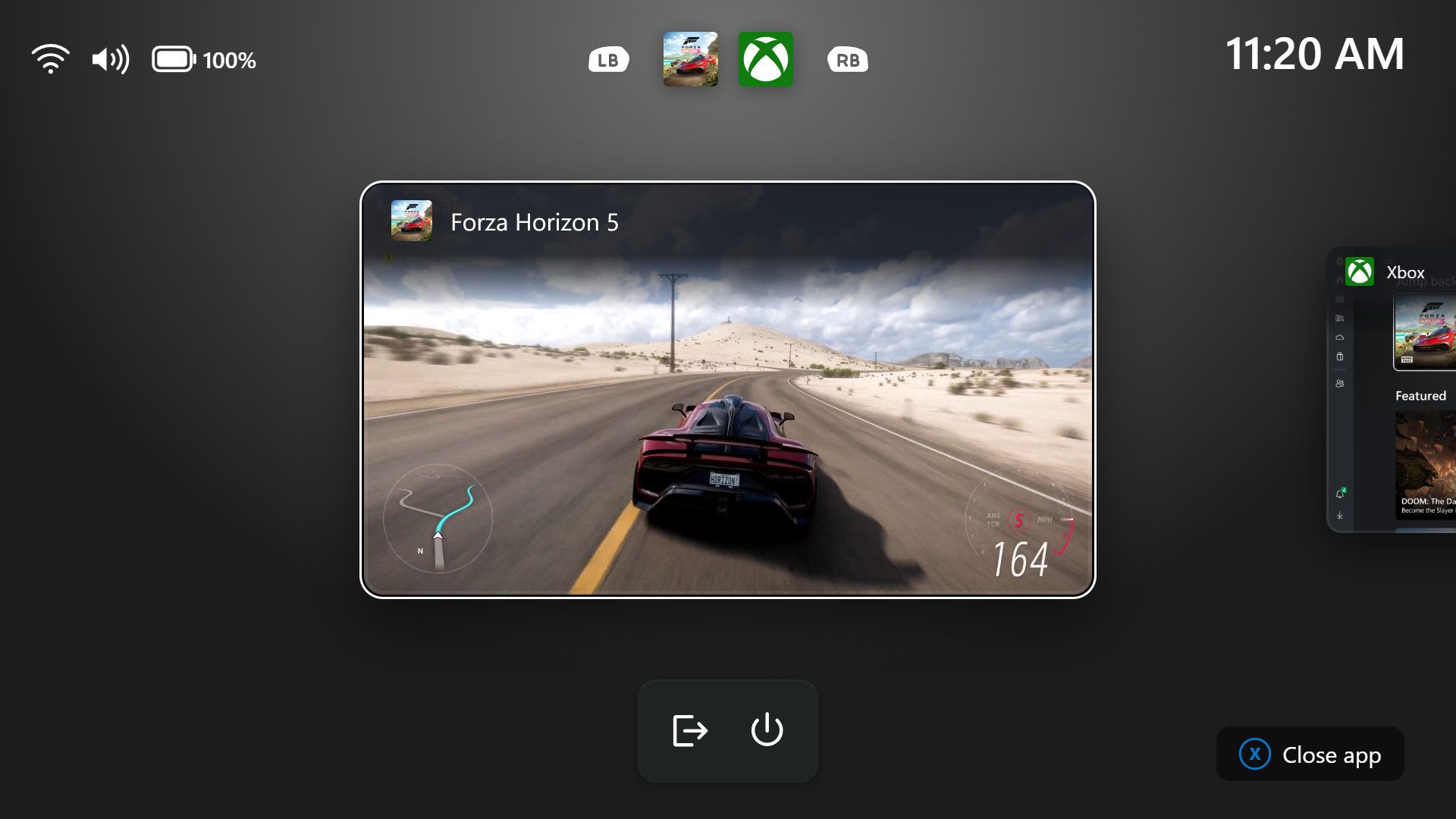
The gaming task view in XBOX mode on Windows 11 displays Forza Horizon 5 in the foreground, recent apps across the top, system status indicators, and controls for closing the current app.

Gaming Task View has a new navigation bar that makes it easier to exit to desktop and edit power options. (Image credit: Microsoft)
  • We're introducing a refreshed Gaming Task View experience in XBOX mode, featuring a new navigation bar that provides quick access to Exit to Desktop and Power Options. This update makes key system actions easier to access while gaming.

Magnifier (Beta)

Magnifier now understands each of your displays

  • More and more of the work people do happens across more than one screen. You draft on one display and keep source material open on another. You fill in a form while a reference document sits beside it. Those extra displays can be more helpful when each one can do its own job, and now Magnifier supports exactly that.
  • To use this update, set your monitors to Extend in System > Display, not Duplicate, so Windows treats each screen as its own space.
  • Every screen keeps its own view at its own zoom. In earlier versions of Magnifier, zooming in stretched a single magnified view across all of your displays, so one screen's zoom followed you everywhere and screen edges blurred together. With this update, each monitor's boundary is respected, and each monitor can have its own zoom percentage. Your writing screen can be at 300% while your reference screen stays at 150%, and the magnified view no longer spills from one display into the next. This behavior matters because different tasks and screen resolutions often require different levels of magnification to remain comfortable to read.

Setting the zoom on each screen is easy. Choose whichever method feels natural:

  • Move your mouse pointer onto the screen you want to adjust, then press Windows key + Plus (+) or Windows key + Minus (-), or hold Ctrl + Alt and rotate your mouse wheel.
  • Set the percentages directly in Accessibility > Magnifier.
  • Drag the Magnifier toolbar onto a specific screen to adjust that screen from its on-screen controls.
  • Per-monitor zoom is turned on by default. If you prefer the classic behavior where a single zoom spans all of your displays, you can turn per-monitor zoom off at any time from either the Magnifier toolbar or Accessibility > Magnifier. You can turn it back on whenever you like.

Keep the view that matters, right where you need it

  • As you move your mouse from screen to screen, the magnified view naturally follows your pointer. Sometimes this might cause you to lose sight of the content that you're actively working on.
  • Viewport locking keeps that view in place. For example, you might be drafting an email based on a section of a document open on another display. Position that display so the paragraph you need is in view, press Ctrl + Windows key + K, and the screen holds its view steady while you move your cursor over to write. The locked screen stays fully live and interactive, so you can glance back, click, or copy from it whenever you need to, and its view stays put until you release it.
  • A message appears on the screen when it's locked, so you always know what's being held. To lock or unlock a screen, point your mouse at that screen and press Ctrl + Windows key + K again. To release everything at once, press Windows key + Esc to dismiss all locks. You can change the lock shortcut to Ctrl + Alt + P in Accessibility > Magnifier.

Settings - Home (Beta)

  • We're beginning to expand the new Device Info Card experience for Settings Home to additional markets globally. Available for Windows Insiders signed in with their Microsoft account, the Device Info Card provides a quick snapshot of your PC's key specifications and usage. From the card, you can go directly to Settings > System > About to see more detailed information about your PC.

Settings - Privacy & security (Experimental (26H1))

  • The improved Privacy & security page in Windows Settings helps you find the Camera, Microphone, and Location privacy controls more easily. It groups similar controls across the page and brings usage information from deeper linked pages onto this page.

File Explorer (Beta)

  • Key file information, such as name, location, and date, now appears in a consistent layout on the File Explorer search results page, making search results easier to scan.

File Explorer (Experimental)

  • Improved responsiveness of folder views so they update and sort correctly when files and folders are added or renamed.

Family Safety (Beta, Beta (26H1), Experimental (26H1))

  • Improved family safety messaging when applications are blocked because of age-restricted parental controls.

Other (Beta, Experimental)

  • Improved shutdown reliability, reducing the chance of a hang on shutdown in certain cases.
  • The dialog for certain system messages, like low battery and permissions, should use the expected modern design again.

Other (Beta (26H1), Experimental (26H1))

  • Fixed an issue with msmpeg2ac3dec.dll which was leading to some apps and games crashing recently.

Web sign-in (Experimental)

  • Web sign-in now works on Microsoft Entra hybrid joined devices. Before this update, it was only available on Microsoft Entra joined devices. You can sign in to Windows at the lock screen with a passwordless credential: a FIDO2 security key, a passkey on your phone, or a Temporary Access Pass (TAP). You don't need a password. Once you're signed in, Windows gets a Kerberos ticket, so on-premises file shares and internal sites keep working. For more information, see Use web sign-in to enable passwordless sign-in in Windows.

Windows Hello (Experimental)

  • Windows Hello facial recognition can temporarily brighten your screen to help you sign in when you're in a dark or dimly lit room.
  • To turn on this feature, go to Settings > Accounts > Sign-in options > Facial recognition (Windows Hello) and turn on Automatically adjust screen brightness during face recognition.

Windows Search (Experimental)

  • Addressed underlying issues that could cause search to appear missing or stop working after the previous update, including if you rapidly clicked the search icon repeatedly.

Search (Experimental (26H1))

  • Search home has been simplified to reduce visual clutter and make it easier to get back to recent searches quickly.
  • Search does a better job showing where a result comes from, whether it's an app, setting, file, web result, or Store suggestion, so it's easier to tell what you're looking at and where you'll go before you click.
  • A new setting in Settings > Privacy & security > Search lets you choose whether web and Microsoft Store suggestions appear alongside local results.

Run (Experimental)

  • Improved the window position when using an Arabic or Hebrew display language.
  • Improved performance of the Run dialog when navigating to very large folders.
  • Fixed an issue where your text might unexpectedly disappear if you started typing too quickly after opening Run.
  • Made a few other small visual fixes and refinements.

Pointer Indicator (Experimental (26H1))

  • We're introducing the Pointer Indicator accessibility setting. This feature enables Windows users with low vision to easily locate and use their cursor to increase productivity and efficiency when using a Windows device.
  • To enable this experience, go to Settings > Accessibility > Mouse pointer and touch, and enable the Pointer indicator setting. You can also search for the setting by name. When the setting is enabled, you can toggle it on or off with the keyboard shortcut, Windows logo key + Ctrl + Shift + X.

Live Captions (Experimental (26H1))

  • We're improving Live Captions with a new Include Screen Reader audio setting, which is off by default. With the setting off, Live Captions won't transcribe audio from screen readers such as Narrator, JAWS, and NVDA, keeping captions focused on microphone and system audio.

Taskbar

  • New! This update improves animations of app window previews when you move the mouse across app icons in the taskbar.
  • This update improves the underlying state persistence of taskbar settings related to multiple monitors across monitor connections and disconnections.

Since revamping the Windows Insider Program earlier this year, Microsoft has sped up its release schedule for builds. As a result, we often end the week with a batch of five or six new builds to check out.

Click to join us on r/WindowsCentral

Join us on Reddit at r/WindowsCentral to share your insights and discuss our latest news, reviews, and more.
  •  

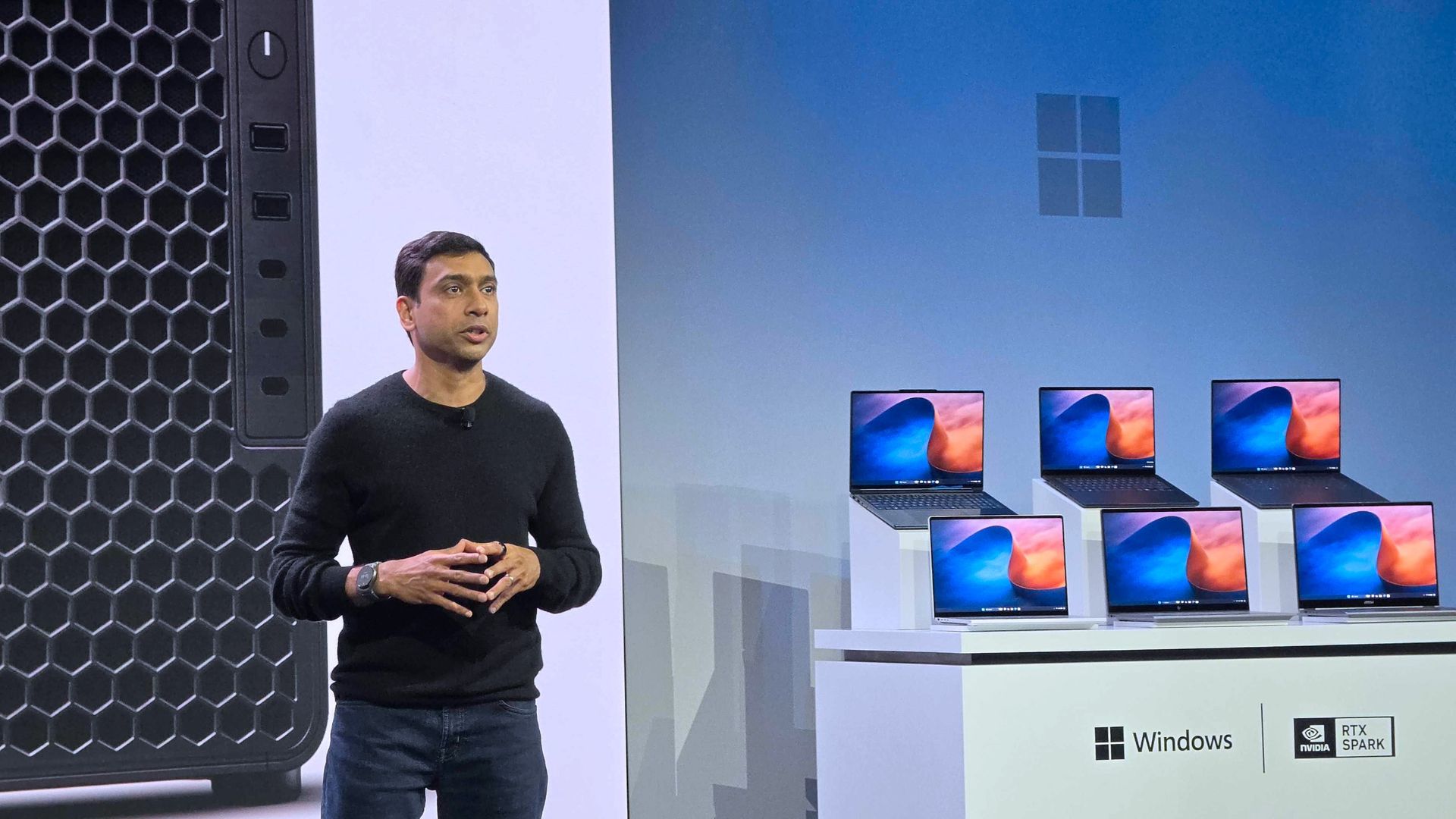
Review roundup: RTX Spark's biggest surprise isn't performance

NVIDIA's RTX Spark is almost here. Laptops powered by the chip launch on October 16, 2026, but reviews of the chip are already out.

Reviews of the first wave of RTX Spark laptops work a bit differently than some other product launches. Today, those who were given access to RTX Spark laptops can share their experience with the chip itself, but thoughts on specific RTX Spark laptops cannot be shared until October 16, 2026.

While that is different than what we normally see, it's not that surprising. RTX Spark is not just a new chip akin to a new processor from AMD, Intel, or Qualcomm. It is a new platform for NVIDIA, a major addition to Windows on Arm computing, and the mark of a new silicon partner for Windows.

Note that reviewers of the RTX Spark were limited to sharing details about the performance and benchmarks of the processor. Dedicated GPU performance varies based on the laptop it's paired with, so some reviewer experiences may differ depending on the hardware used to test RTX Spark.

RTX Spark: Reviews

  • Windows Central: "The RTX Spark GPU is very performant and is capable of pretty much handling anything you'd want to throw at it on a mobile workstation. Where it really shines, however, is running local AI models directly on it. It's the reason NVIDIA built this platform to begin with, and it does this very well."
  • Tom's Hardware: "Still, for a first-generation mobile platform that joins complex silicon IP from multiple design teams onto one chip and relies on several OEM partners to bring it to life in highly integrated notebook form factors, the maturity of the RTX Spark platform is an impressive achievement. (Take it from someone who has seen a couple of rough product launches from the inside.)"
  • Tom's Guide: "Judging RTX Spark purely by its single-core CPU speeds is like judging a Ferrari by its cup holders. And after a week of stress-testing the Microsoft Surface Laptop Ultra with Spark — running every synthetic and real-world test we can throw at it — it's clear that this is so much more."
  • HotHardware: "In its most potent form, which is what we’ve tested here, the RTX Spark N1X is a powerful SoC that offers competitive multi-threaded CPU performance versus today’s top mobile platforms, with class-leading GPU performance. The RTX Spark N1X’s AI performance and capabilities are also unmatched, not only because of the powerful hardware on tap and unified memory architecture, but because NVIDIA’s AI software stack is so pervasive and mature."
  • Lowyat: "For NVIDIA? They basically took multiple pages out of Qualcomm’s book of trial and errors, added their gaming DNA, made damn sure that the majority of compatibility issues between the x86 and ARM architectures were resolved, and what you have is something I’d never thought I’d see: playing AAA titles on an SoC, along with all the accoutrements that comes with an NVIDIA chipset."

NVIDIA RTX Spark shows promise, but you have to understand who it is for

Early impressions of RTX Spark are largely positive. Across multiple reviews, experts praised the processor's strong GPU performance, AI capabilities, and surprisingly polished first-generation experience.

At the same time, several reviewers cautioned against viewing RTX Spark through the lens of traditional gaming benchmarks, reminding readers that the platform is designed for AI workloads, creators, and developers.

The RTX Spark is not meant to power gaming laptops. It is aimed at developers and high-end creators. The processor is especially focused on local AI performance, an area many expect to be the next major shift in personal computing.

That being said, the RTX Spark is capable of gaming. It may show the future of Windows on Arm gaming, but that's yet to be seen. Over the coming weeks I am sure we will see countless reviewers test games on RTX Spark laptops. I think they'll be surprised by how well the processor does, but gaming-focused reviews still won't be the best way to judge those PCs.

The first wave of RTX Spark laptops are already available for preorder and hit shelves tomorrow. Our Cale Hunt rounded up all the RTX Spark laptops you can buy, which you can also find below.


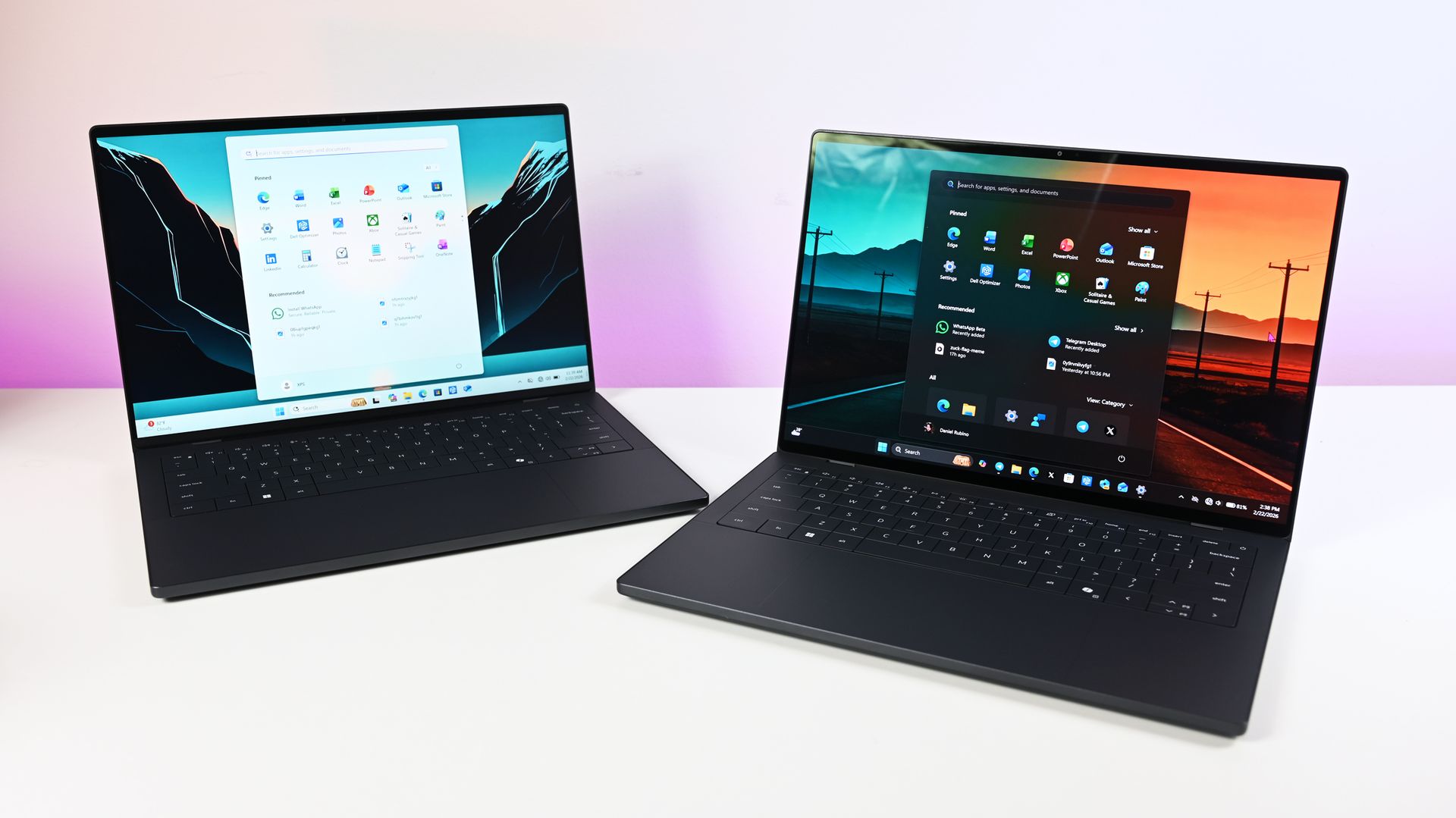
Built around the NVIDIA RTX Spark platform with an N1X CPU, RTX GPU, and up to 128GB of unified memory, the Surface Laptop Ultra hits new performance heights for power users. It's all contained in a gorgeous chassis with a mini-LED display and tons of ports. Prices start at $2,599.99, and units will begin shipping on October 16, 2026.

👉 Preorder at BestBuy.com

👉 Preorder at Microsoft.com

ProArt P14/P16:

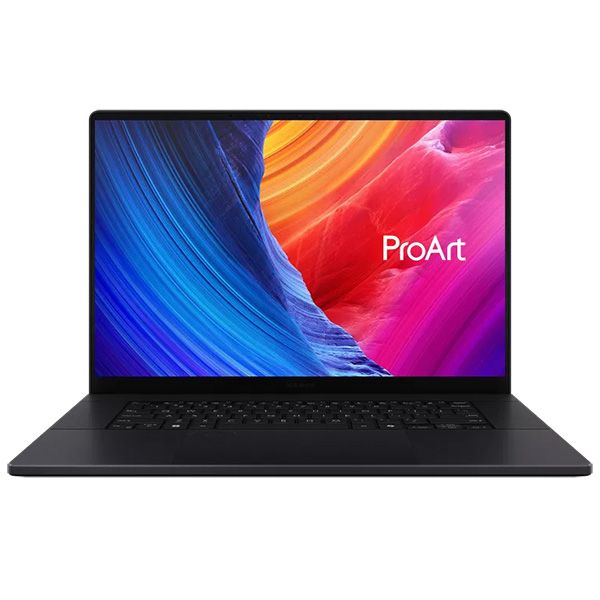
The new ASUS ProArt P14 and P16 duo gives users more size options while retaining the same great RTX Spark performance. The P14 is the lightest ProArt laptop ever, while the P16 is the way to go for a larger OLED display. Prices start at $2,599.99 for the P14 and $2,799.99 for the P16. They're expected to begin shipping on October 16, 2026.

👉 Preorder ProArt P14 at BestBuy.com

👉 Preorder ProArt P16 at BestBuy.com


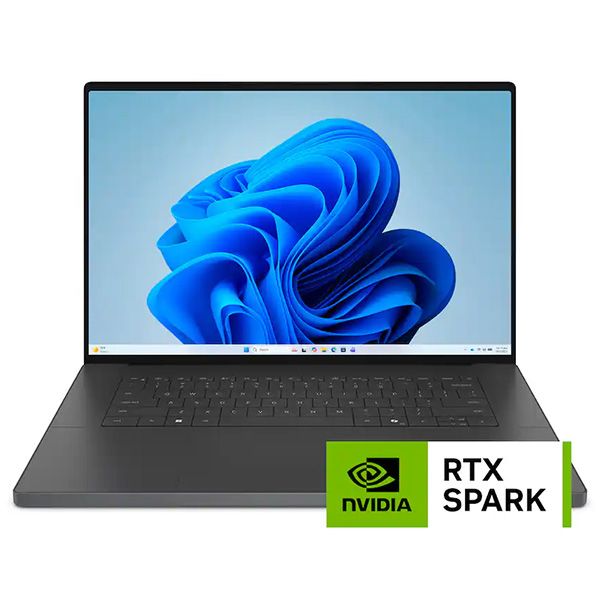
Dell's new XPS 16 with RTX Spark features a 3.2K OLED display, lattice-free keyboard, and the usual premium XPS styling. Prices start at $3,799.99 and units are expected to begin shipping on October 16, 2026.

👉 Preorder Dell XPS 16 at BestBuy.com


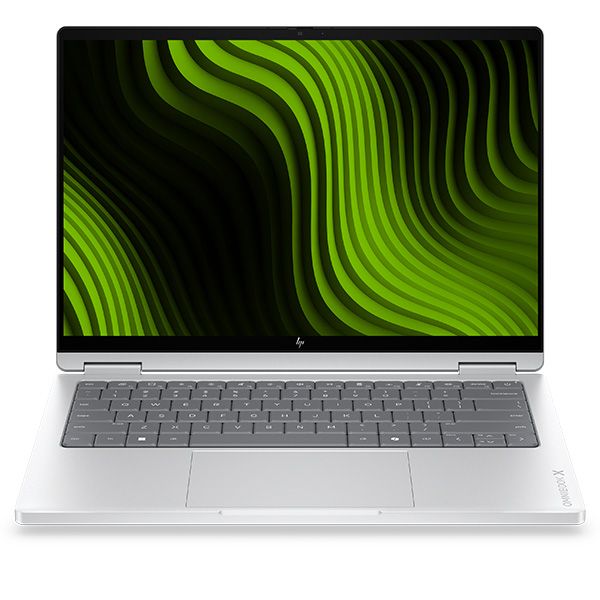
The OmniBook X 14 is the smaller of the two new PCs, but it features the same RTX Spark options for maximum performance. Models start at $2,999.99 and are expected to ship beginning November 4, 2026.

👉 Preorder HP OmniBook X 14 at HP.com

OmniBook Ultra 16":

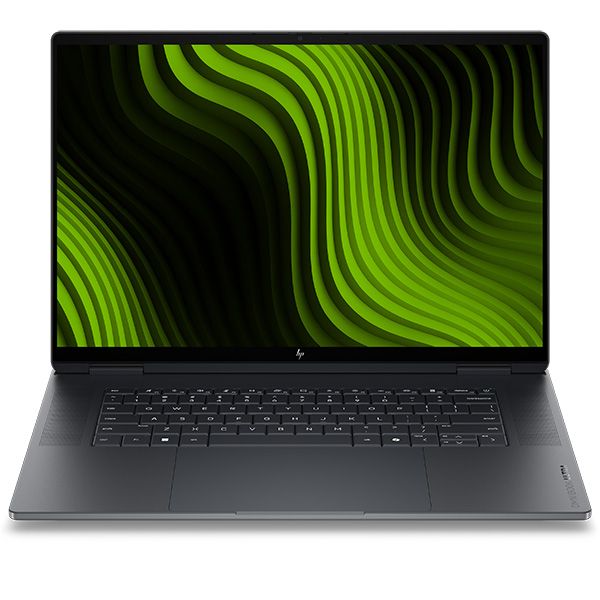
The larger of the two new HP RTX Spark laptops delivers a gorgeous 16-inch OLED display with 3K resolution and, of course, your choice of RTX Spark chips. Prices start at $3,199.99, and shipments are expected to begin on November 4, 2026.

👉 Preorder HP OmniBook Ultra 16 at HP.com


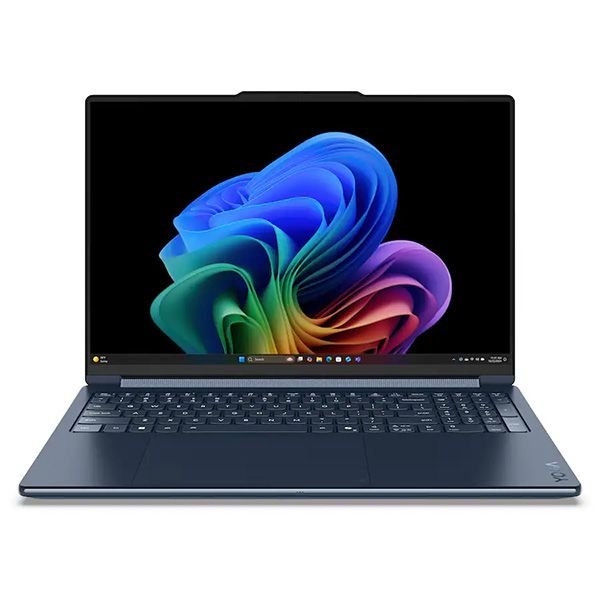
Lenovo's Yoga 9n should be the right choice for those who value a versatile convertible design and premium build quality. Prices start at $3,099.99, and models are expected to begin shipping on October 16, 2026.

👉 Preorder Lenovo Yoga 9n at BestBuy.com


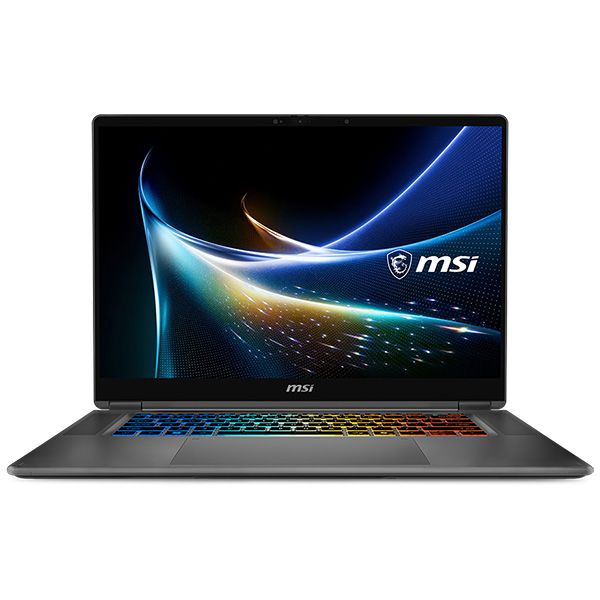
MSI's Prestige N16 Flip AI+ is another versatile convertible featuring the RTX Spark platform and a Tandem OLED display. It appears that preorders might kick off on October 8 for this laptop, with prices starting at $3,299.99.

👉 Preorder MSI Prestige N16 Flip AI+ at MSI.com

Click to join us on r/WindowsCentral

Join us on Reddit at r/WindowsCentral to share your insights and discuss our latest news, reviews, and more.
  •  

Microsoft's new Windows 11 pitch isn't AI. It's a faster, less annoying PC

Microsoft just shared a massive blog post recapping major Windows 11 changes, including new Photos app features, an improved Search experience, expanded phone integration, and gaming improvements.

Many of the changes highlighted by Microsoft have already been announced, or even fully detailed elsewhere. But with Windows 11 in the middle of a significant refresh, gathering them all in one place is useful.

While much of the post focuses on previously known improvements, Microsoft also used it to introduce a few genuinely new additions, including the redesigned Photos app and an Xbox anniversary game bundle for eligible PC buyers.

Here's a quick rundown of the features Microsoft highlighted:

  • New Photos app
  • Advanced Shader Delivery (ASD)
  • Windows 11 performance improvements
    • Faster Start menu
    • Faster File Explorer
    • Faster Search
    • Faster Snipping Tool
    • Faster Settings
    • Memory optimizations
    • Reduced Widgets memory usage
    • Reduced update times
  • Bluetooth and AirPods improvements
  • Windows Hello improvements
  • A push to improve driver quality
  • Expanded Phone Link features
  • Microsoft Ink Canvas
  • Advanced Haptics
  • Improved accessibility

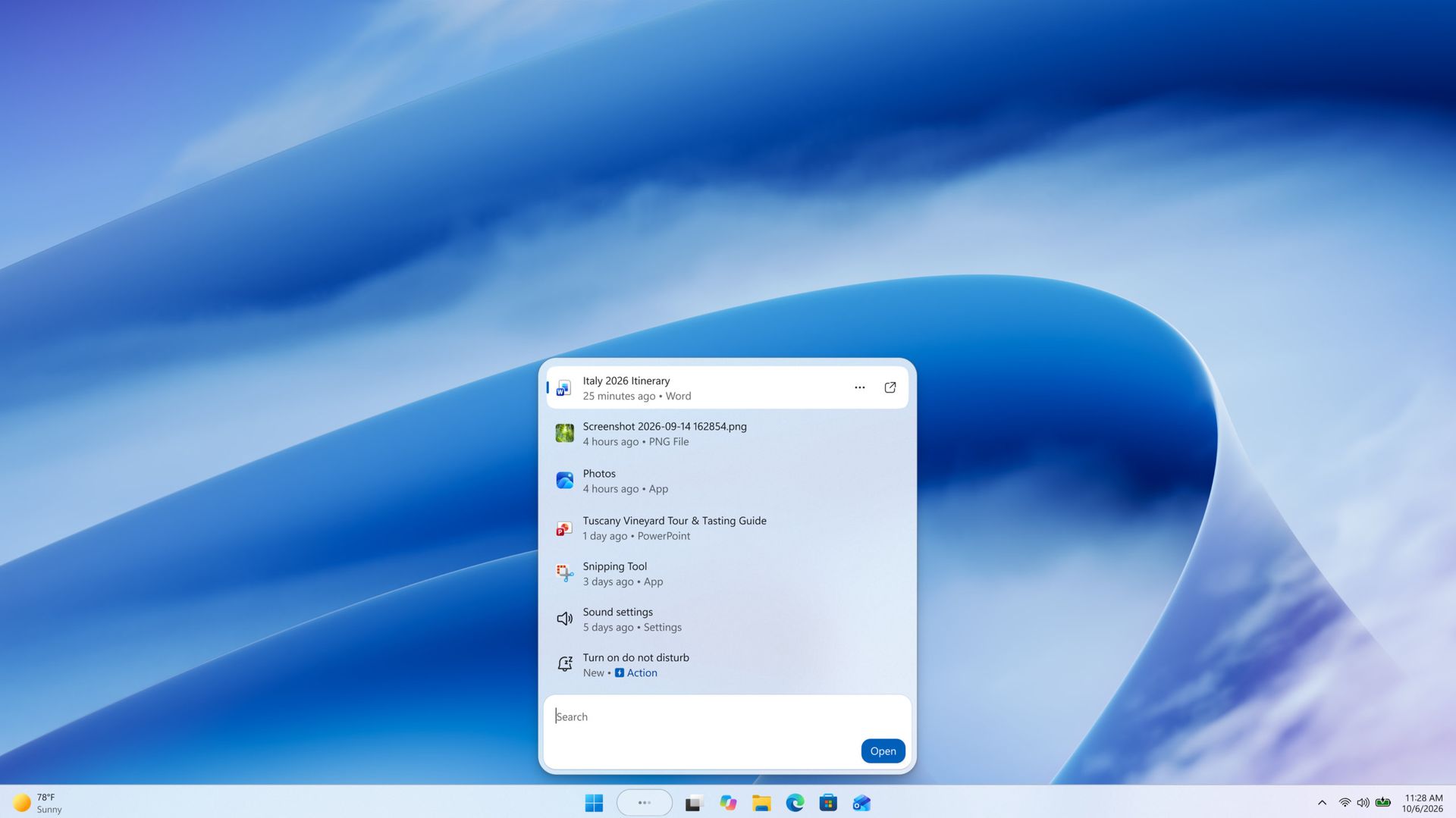
One of the biggest changes is the new Search experience that allows you to perform actions from the taskbar. The new Search is faster, supports inline actions, and lets you perform tasks without opening related apps or settings menus. The new Search is already in testing among Windows Insiders.

Microsoft explains that improvements to Windows 11 results in an experience that feels up to 20 percent more responsive. That improvement comes as the result of several efforts from Microsoft, such as optimizing memory management and streamlining in-box apps.

The company also highlights that Windows 11 is more reliable and customizable than before. Over the past year the Widgets Panel has been cleaned, the taskbar has gained the option to be placed on other parts of your screen, and Windows Update has been improved.

Microsoft specifically highlighted Bluetooth improvements, including AirPods pairing that it says is up to 15 seconds faster.

Windows 11 desktop showing Microsoft's new Search experience with recent files, apps, settings controls, and quick actions available from a Taskbar search panel.

The new Windows Search is faster, more efficient, and supports inline actions. (Image credit: Microsoft)

On the gaming side of things, Advanced Shader Delivery (ASD) reduces the initial load time of games by delivering precompiled shaders. Forza Horizon 6 and Gears of War: E-Day are supported now and more titles should gain support in the future.

The improvements to Windows 11 will help anyone with an up-to-date PC, but it's clear Microsoft is taking the opportunity to suggest people buy a new PC. As part of that effort, the company has an Xbox 25th Anniversary bundle that includes over $500 worth of games. The collection includes several major titles, including Skyrim Special Edition, Halo: Combat Evolved Anniversary, Age of Empires II Definitive Edition, Minecraft Dungeons, and Gears of War: Reloaded.

"A new PC is a meaningful purchase, and the value should show up in more than a spec sheet," says Microsoft. "The reason to upgrade is not just one feature; it is how [experiences] work together to make more of your day feel effortless."

Another Microsoft blog post highlights deals as we head into the holidays.

Microsoft shared a commitment to listen to feedback earlier this year. The company followed up with several improvements as part of its Windows K2 initiative. It's taken time for those promises to move from feedback and Insider testing to broader availability, but Windows 11 is now seeing some of its most significant changes in years.

The real question is whether these improvements change buying behavior. Microsoft clearly believes a faster, more reliable Windows experience can help convince people to upgrade.

Click to join us on r/WindowsCentral

Join us on Reddit at r/WindowsCentral to share your insights and discuss our latest news, reviews, and more.
  •  

Microsoft Edge may ditch Favorites for Bookmarks

Microsoft Edge may not have a Favorites bar after a future update. The browser may instead feature a collection of bookmarks instead. The change would bring Edge more in line with Chrome, which could help people transitioning from Google's browser to Microsoft's.

The change appears now in the Canary version of Microsoft Edge, which suggests it will make its way to the stable version of the browser at some point in the future. Leo Varela, who tracks changes to Edge and Chrome, spotted the change and highlighted it on X.

Varela also noted that the switch could be made to make Edge appear more like Chrome.

Microsoft might rename "Favorites" to "Bookmarks" in Edge. I suppose this aims to make the browser feel more familiar to users switching from Chrome to Edge. This change is already being tested in Canary: https://t.co/DmBSVj4IQPOctober 15, 2026

I'm curious if people are even aware that Edge has Favorites rather than bookmarks. Even if you click the star icon in Edge to add a site as a favorite and then place that site in the Favorites bar, the user interface looks almost identical to bookmarks in Chrome or other Chromium browsers.

Edge still has a poor reputation

In this photo illustration a Microsoft Edge logo of a web browser developed by Microsoft is seen on a smartphone and a pc screen.

Many people assume Microsoft Edge is a worse browser than Chrome and do not try Edge themselves. (Image credit: Getty Images | SOPA)

This week I was speaking with a friend about Microsoft Edge and was somewhat surprised to hear them say it was a bad browser. I was actually more surprised that they had an opinion of the browser at all.

If you hop into our comment section or into subreddits full of tech enthusiasts, you'll often see people say something to the effect of "Edge is a fine browser; it's basically Chrome with a Microsoft paintjob."

But in my experience, that opinion is not held by non-techy users. In the rare instances that browser preferences come up in my everyday conversations, most people I speak with still connect Edge to Internet Explorer or just assume Edge is worse than Chrome.

I know Chrome gets a lot of hate around these parts, but the reality is that it's the world's most-used browser. Statcounter shows Chrome at a 66.36% market share right now. That tramples second-place Safari, which sits at 18.27%. Edge is in third place with a 6.04% market share.

That picture changes when exclusively looking at mobile devices. Chrome is even more dominant and Edge has essentially no mobile market share.

With Chrome being the de-facto standard for browsing, it's wise to make Edge look similar to Chrome. Microsoft needs to differentiate Edge in some ways, but Favorites versus Bookmarks is not one of them.

Click to join us on r/WindowsCentral

Join us on Reddit at r/WindowsCentral to share your insights and discuss our latest news, reviews, and more.
  •  

The best AR glasses you can buy just got a major display upgrade

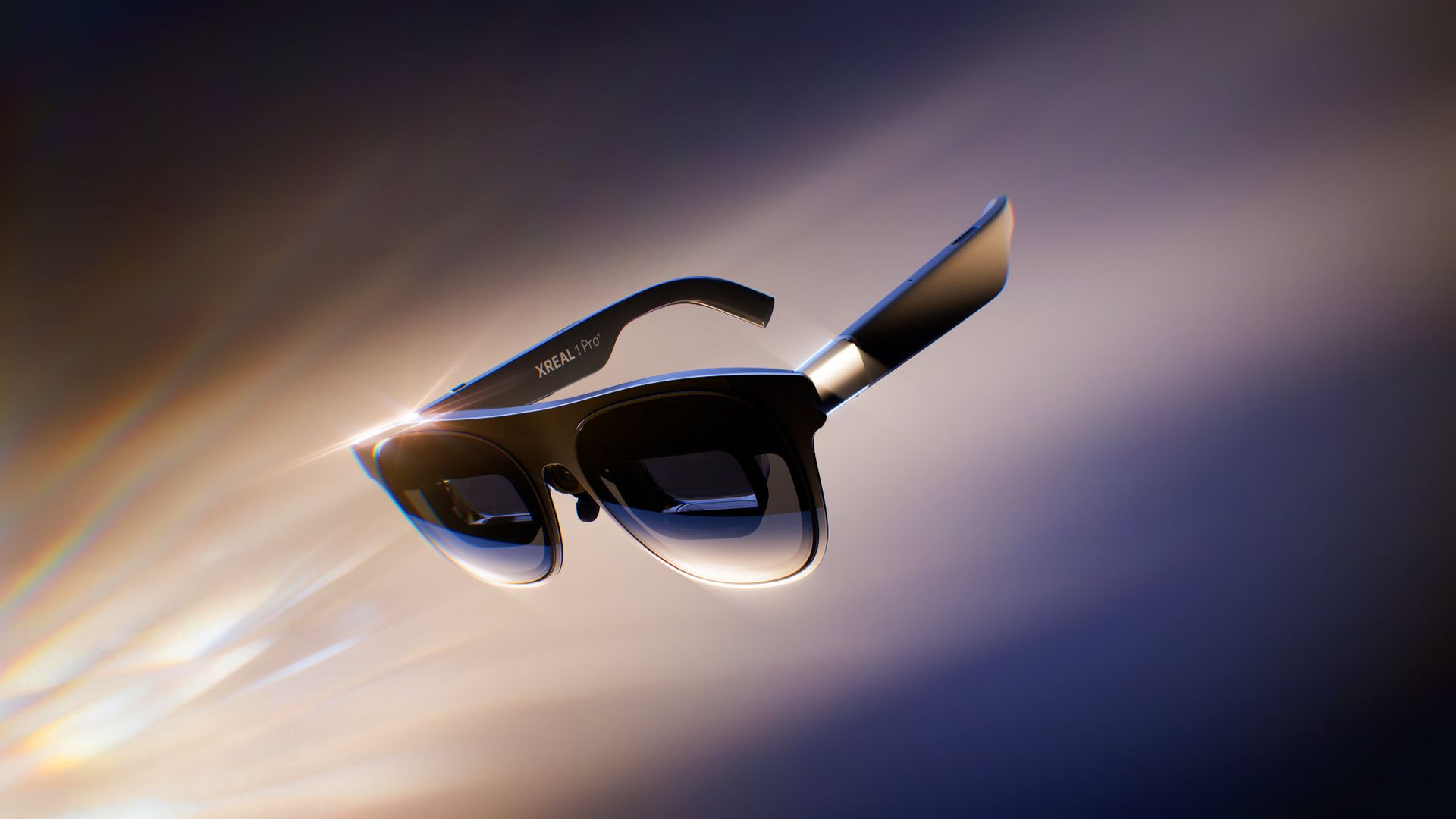
XREAL just announced a refresh to the best AR glasses on the market. The newly announced XREAL 1 Pro+ is brighter than last year's model and features enhancements to improve image quality.

XREAL carved a niche in the wearable space with its glasses that let you enjoy content on a massive digital screen that you can take anywhere. We've covered XREAL products for years, including the XREAL Air 2 Pro, XREAL One Pro, and XREAL Beam Pro, which enhances XREAL AR glasses by adding support for Android apps.

The XREAL 1 Pro+ builds on the XREAL One Pro, retaining a 57-degree field of view and support for 3DoF (three degrees of freedom) spatial viewing. The new AR glasses are much brighter than their predecessor.

The biggest upgrade on paper is the jump from 700 nits to 1,200 nits of brightness. We've found display quality to be one of the most important factors when evaluating AR glasses.

In our XREAL One Pro review, we said you should buy a pair if you want a "bright, beautiful, and private display for all your devices." We'll have to test the XREAL 1 Pro+ but the official specifications suggest it's brighter and more beautiful than its predecessor.

XREAL added support for AI HDR to improve perceived image quality, though that feature is limited to certain types of content.

The 2D-to-3D conversion of the glasses, which adds depth to normal 2D content, has had its refresh rate improved from 30Hz to 60Hz.

The XREAL 1 Pro+ also has a new ergonomic nose pad that is supposed to make the glasses more comfortable during extended sessions.

You can order the XREAL 1 Pro+ starting today for $599. The launch is through XREAL's website, but XREAL glasses have become available through Amazon and Best Buy in the past, so it's reasonable to expect the XREAL 1 Pro+ to appear at other retailers.

At the time of publication, the XREAL 1 Pro+ glasses had not appeared on the XREAL website. I will update this piece once they are available for purchase.

Click to join us on r/WindowsCentral

Join us on Reddit at r/WindowsCentral to share your insights and discuss our latest news, reviews, and more.
  •  

Amazon’s Nanomatte display is so good it makes me want a whole new Surface Pro

Microsoft held a Windows and Surface event last week that focused heavily on the Surface Laptop Ultra. Coincidentally, Panos Panay announced a new device on the same day. Panay, who led Microsoft's hardware division for years, now works for Amazon and unveiled a new range of Amazon Alexa tablets.

Those tablets aren't really direct competition to the Surface Pro, but they do have a feature I'm envious of. The nanomatte screen on one of those Amazon Alexa tablets would be perfect on a Surface Pro.

Matte displays reduce glare by diffusing light. Because the screens bounce light in different directions, the image can appear grainy. An extreme example of this is if you get a cheap matte screen protector for your phone, but even a premium PC with a matte finish can look a bit grainy.

The nanomatte display Amazon uses in its new tablets etches the screen in a way that aligns with the pixels of the display. Amazon praises the displays for providing "a first-of-its-kind cinematic viewing experience, with incredible contrast retention in bright conditions and text that feels like it’s sitting on top of the glass."

I'm not sure I agree with the claim that it's a world first. Apple's nano-texture technology is similar to what Amazon unveiled. But even if Amazon is not a pioneer in the space, it has a device with a screen I'm envious of.

Surface Pro 8 Glossy

Many Surface devices, including the Surface Pro 8, are glossy, making them hard to use in well-lit environments. (Image credit: Future)

Microsoft has been oddly resistant to anti-glare displays. Surface was late to the party on adding them to any device and has been selective with where it offers the screens.

Even as recently as this year, Surface Laptop 8 shoppers needed to choose between an anti-glare display or 5G connectivity.

Our Editor-in-Chief Daniel Rubino argued back in 2020 that Microsoft needed to use anti-reflective displays in Surface PCs. Anti-reflective screens are different from anti-glare displays, but both aim to improve visibility in bright environments.

Microsoft has yet to fully embrace anti-glare screens and it holds back Surface hardware.

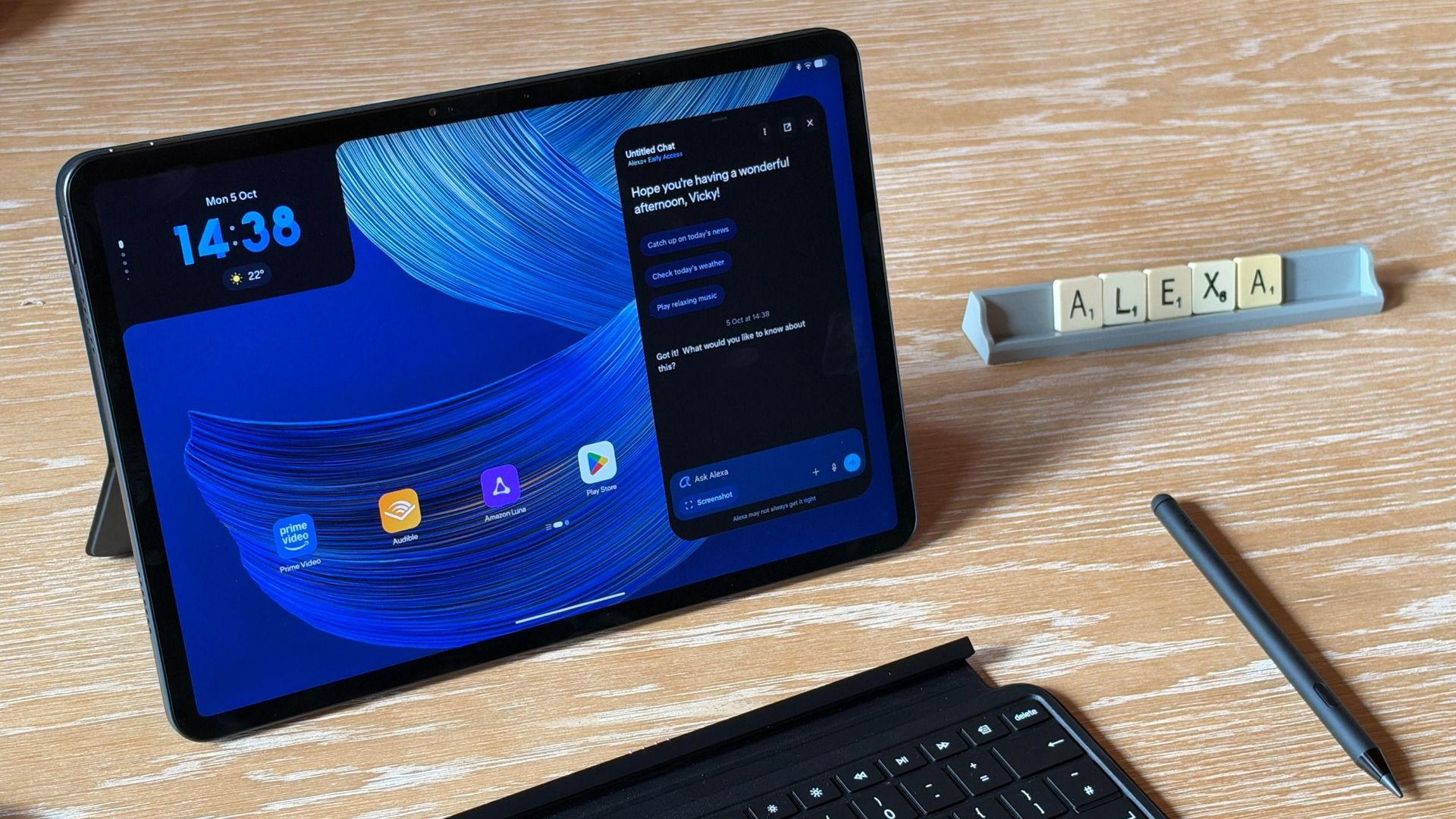
The anti-glare display of the Amazon Alexa Tablet 12 Pro also has a texture that makes pen usage feel more natural. The screen is meant to make it feel like you're writing on paper, not a perfectly smooth piece of glass.

It's not surprising that a device made by Panay has features that would fit perfectly on a Surface. He shaped the Surface brand as much as anyone, and he took his expertise over to Amazon.

But as I mentioned earlier, the Alexa tablets are not competitors to the Surface Pro, so they can't serve as replacements either. The Alexa tablets run on Android and have access to the Google Play Store. That's a welcome change to the locked-down Fire Tablets of the past, but it's a far cry from a Windows-powered 2-in-1.

I'd love to see Microsoft replicate the nanomatte finish of the Amazon Alexa Tablet 12 Pro on a Surface Pro in the future. The finish would help those using the Surface Pro in bright settings and also improve the feel of using a stylus.

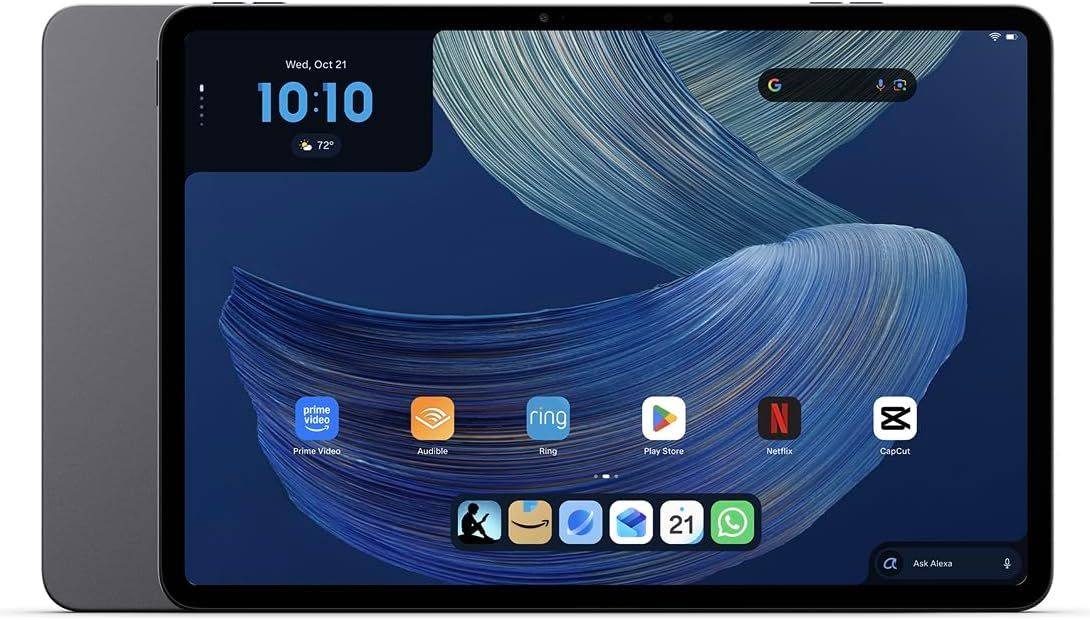
The Amazon Alexa Tablet 12 Pro features a Nanomatte anti-glare display designed to reduce reflections while maintaining detail and color accuracy. It runs Android and can access the Google Play Store.View Deal

Click to join us on r/WindowsCentral

Join us on Reddit at r/WindowsCentral to share your insights and discuss our latest news, reviews, and more.
  •  

I asked for this Teams feature years ago, and Microsoft finally delivered

Microsoft Teams will soon have a new feature that will deliver high-quality video to event attendees. An upcoming update to Teams will add the option to share videos directly from OneDrive.

At the moment, sharing video during Teams events often requires screen sharing or embedding videos in PowerPoint. The first solution lowers quality and the second requires extra work. Being able to share a video directly from OneDrive will provide a smoother experience while also improving quality.

Microsoft detailed through the Microsoft 365 Message Center (archived here):

"Microsoft Teams will soon support sharing video directly from OneDrive during Teams events. Organizers and producers using Manage what attendees see can load videos from OneDrive and present them on stage without screen sharing a local media player or embedding videos in PowerPoint. This improvement provides smoother, higher-quality video playback for attendees and simplifies event production through built-in video playback controls."

The feature is expected to start rolling out in early November and should be available to all users by the end of December.

I run an American football team and we study film from games and practices. But because we are not attached to a specific school or building, our players and coaches are spread across the area. That makes film study events easier to schedule, but there are limits to presenting remotely. One of the biggest drawbacks is video quality.

In the past I've had to share my screen and play videos on my desktop, which is both awkward for me and a poor viewing experience for attendees. Videos shared this way can appear laggy and have lower resolution than videos played natively on a device.

I switched away from Microsoft Teams for film study a few years ago due to other changes made to Teams, but support for sharing videos directly from OneDrive will make me try Teams again.

Click to join us on r/WindowsCentral

Join us on Reddit at r/WindowsCentral to share your insights and discuss our latest news, reviews, and more.
  •  

An AI magic wand could be on the way to fix Microsoft Edge

Microsoft Edge appears to have an AI tool on the way that will fix common issues within the browser. A page within the browser's settings app was spotted recently, though only for those using Edge Canary (a preview version of the app).

The feature was first spotted by Leo Varela, who keeps track of changes to Edge and Chrome. Varela noted that the icon for "Fix an issue" is a magic wand, which suggests it could be an AI tool. Microsoft often uses a similar icon to denote AI features.

Early hints of the feature appeared back in May. The latest version of Edge Canary shows a basic interface for the tool, but the feature is not functional yet.

The interface has a text box for describing an issue and also shows a list of four suggestions, such as "Fix videos that won't play" and "Help me sign in."

Edge's new "Fix an issue" settings page now displays a prompt box where you can type what you need help with. There are also four suggestion chips at the top that automatically fill the text field with prewritten prompts. Currently, clicking "Get help" throws an error: https://t.co/DUunhc4FZpSeptember 12, 2026

Earlier this year, Varela discovered the same feature in a different section of Edge's settings. That listing noted that the feature would use AI to analyze relevant diagnostic data to identify an issue and suggest a solution.

It's normal to see features like this bump along through various preview channels, but it's a bit odd that "Fix an issue" does not appear in the AI at Work Roadmap (previously known as the Microsoft 365 Roadmap).

For example, watermarking protection is on the way to Edge and is not expected to ship to the browser for months, but it is already on the AI at Work Roadmap.

Hopefully the new feature ships to Edge eventually. The latest Edge stories have included a bug freezing web apps and Microsoft removing Edge Drop and real-time video translation with an update. It would be nice to cover an addition next time.

Click to join us on r/WindowsCentral

Join us on Reddit at r/WindowsCentral to share your insights and discuss our latest news, reviews, and more.
  •  

The AI clone wars have officially reached Microsoft 365

Microsoft has a new competitor, and it's not a big name like Google or Apple. A developer named Brandon Thomas has created open-source replications of Microsoft Word, Excel, and PowerPoint using AI. Thomas made headlines recently for using AI to replicate the Adobe suite, and he has now pointed his AI agents at Microsoft 365.

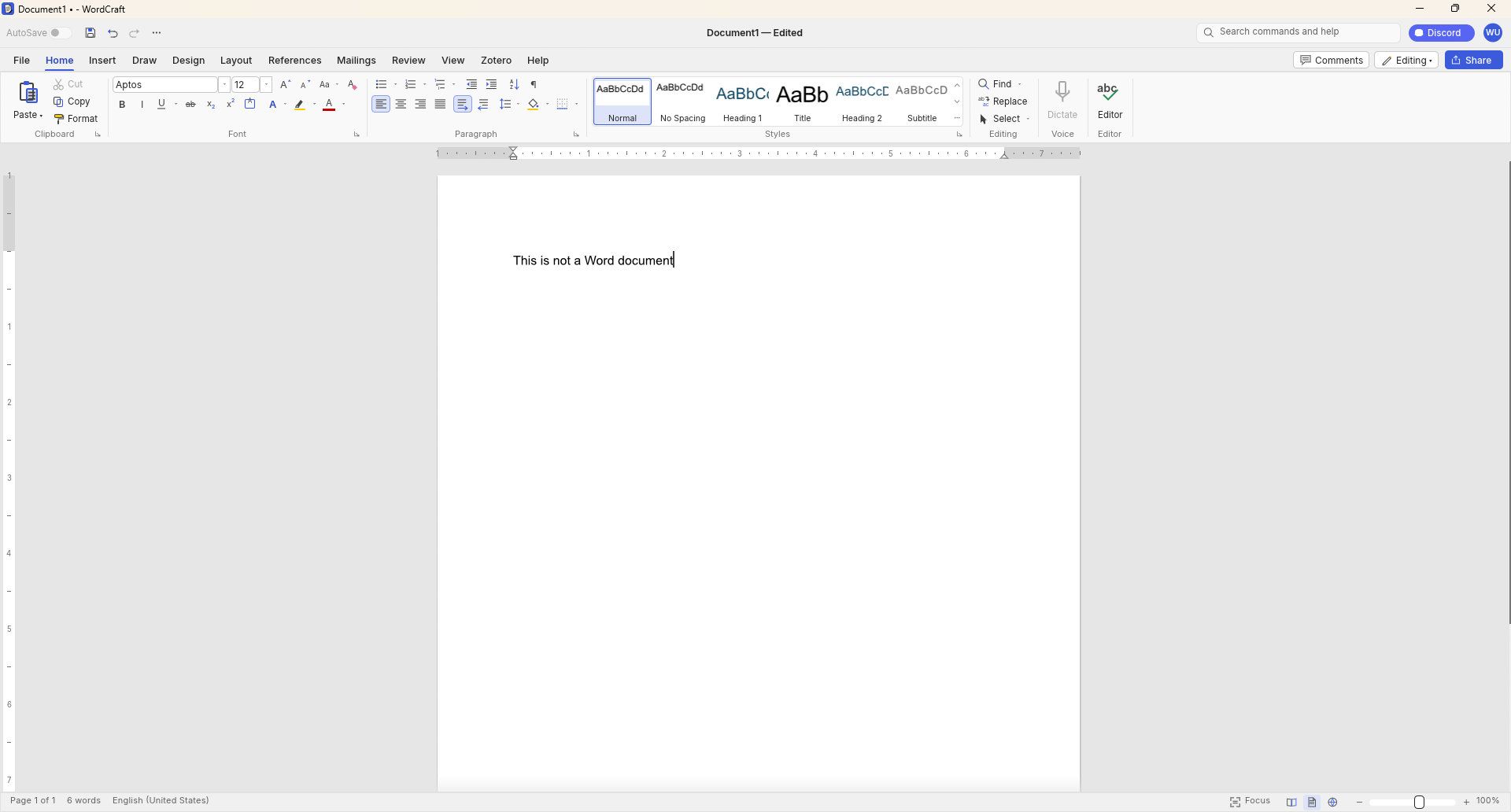
GridCraft (Excel clone), DeckCraft (PowerPoint clone), and WordCraft (Word clone) are made using Claude. They're free to download and you can read more about their development through the ArtCraft GitHub page.

WordCraft document editor running on Windows, showing a blank document with the text

WordCraft uses a familiar ribbon interface and document layout that closely resembles Microsoft Word. (Image credit: Future)

Thomas now has a growing suite of app clones that aim to replicate the functionality and design of the popular suites from Adobe and Microsoft. The situation was summed up brilliantly by Reddit user "EngFL92" who said, "Begun, the clone wars have."

Windows Central take: Proving a point

The concept of replicating apps is nothing new. LibreOffice has been available for years and there are a plethora of apps similar to Word, PowerPoint, Excel, and other Microsoft 365 applications.

WordCraft and other applications made by Thomas are important because they ask the question, "Can AI be used to replace paid industry-leading software suites."

At the moment, I'd say the answer to that question is "no." But the replica Office apps are in the alpha stage of development. We could see the feature gap close and bugs get squashed before general release, assuming Thomas decides to continue the project.

Shut your yap.Open Office / Libre Office sucks.It ate my 40 page essay during finals week.I'm paying back a grudge that has been years in the making.Stop dragging along shitty OSS software and venerating it like it's some holy relic. Let it die.October 13, 2026

Projects like this often gain notoriety quickly as they get shared online. Microsoft and Adobe are tech giants that charge a lot of money to access software. They're easy targets and I believe some of the passion against the companies is justified.

Thomas said on X that they're "paying back a grudge that has been years in the making," so there seems to be some history there.

Quite the media frenzy has formed around these apps. I suppose I'm a part of that, but I think some outlets have gone too far and argued that the AI-coded clones of the Adobe and Microsoft 365 suites are further along than they really are.

I appreciate the dedication to create apps that compete with some of the best-known software around. Projects like this can demonstrate that some people don't need to pay monthly subscriptions for their entire lives to get work done. But I'd suggest pumping the brakes on narratives along the lines of "vibe coding takes down tech giants in a month."

Click to join us on r/WindowsCentral

Join us on Reddit at r/WindowsCentral to share your insights and discuss our latest news, reviews, and more.
  •  

Microsoft is changing how developers build Windows 11 apps

Microsoft's blueprint for making Windows 11 apps has received an update that allows developers to try more experimental features. WinUI Gallery just received a bump to version 3.0, and with that update comes a new approach to experimental features.

WinUI Gallery is Microsoft's sample app for developers, showing how Windows UI components work and helping app makers build software that looks and behaves like a native Windows 11 application. It's available through the Microsoft Store.

WinUI Gallery used to receive new controls after those controls had reached a stable Windows App SDK release. Because of that, Microsoft was limited in how much it could change those controls based on feedback. WinUI Gallery now includes the experimental Windows App SDK so developers can play with new controls earlier and provide feedback to Microsoft in time to drive changes.

🚀 WinUI Gallery 3.0 is here!Starting with this release, we're embracing Experimental versions of the Windows App SDK, giving you earlier access to new control/API samples so you can try them out more easily, share feedback, and help shape what's next!And this release is packed with new controls! 🚀✒️ Inking in WinUI!!📑 TableView📊 Charts🔢 Pagination control🪟 Simpler windowing APIs🎁 WrapPanel and StackLayout✨ And much more!Learn more👇:https://t.co/srgiSPUI29October 13, 2026

WinUI Gallery 3.0 also adds some quality of life changes that are outlined by Niels Laute, a Senior Product Manager at Microsoft:

  • Mouse back and forward buttons now navigate through the Gallery, just like in your browser (#2195), thanks @hoshiizumiya!
  • Search finds more. Every control page now has search tags, so searching for terms like “context menu”, “carousel”, or “WCAG” finds the right page even when the query doesn’t match the control’s name (#2185).
  • No more dead ends. When a search has no results, you now see your query, a few search tips, and a button to view all samples (#2255), thanks @Zakariathr22!

Since experimental controls are now in WinUI Gallery 3.0, there are several new samples available in the app, including TableView, Charts, and Wrap Panel and LayoutPanel. Those controls allow apps to present data in a way that's easier to digest.

WinUI Gallery is an app that everyday PC users will likely never download or even see. But it's an important tool for developers who want to create modern applications. The latest update should lead to more quality apps being available on Windows 11.

What is WinUI Gallery?

WinUI Gallery is a developer tool that acts as a digital showroom for Windows app development. Developers can see what UI elements look like on a PC by using the app and see relevant code samples to help create applications that align with Microsoft's design framework and guidelines.

Microsoft has had some form of a digital showroom since 2018, but the app has gone through a few name changes. Its current name is a bit confusing because of similar terms being used in different settings.

The latest update to WinUI Gallery brings that app to version 3.0, so it's referred to as WinUI Gallery 3.0. But despite the similar name, that is different than WinUI 3, which is the framework developers currently use.

Regardless of its slightly confusing name, WinUI Gallery is a useful tool for app development and helps push developers toward making apps that perform well and appear natural on Windows 11 PCs.

Click to join us on r/WindowsCentral

Join us on Reddit at r/WindowsCentral to share your insights and discuss our latest news, reviews, and more.
  •  
❌