❌

Reading view

I nearly melted my laptop so you don’t have to — after testing cooling pads for chilling your laptop during a heatwave, I’ve got serious data to drop on the coolest and quietest products you can buy

Boy, sure is a hot one today, huh? Okay, I get the irony: that's a take so cold you could use it to replace your freezing Wim Hof showers. But when the metaphorical mercury creeps this high, you've got to keep your cool. The same goes for your laptop, which is why you might want to grab a laptop cooling pad this summer.

Fortunately for you, I've spent this week testing every laptop cooling pad I can get my hands on to see which offers the superior AC for your computer. Not only that, but I've brought receipts — this piece has more graphics and graphs than election night coverage. So if you want objective numbers about which pad is genuinely gusty and which is all bluster, I've got the data you need.

I get that it can be tempting to overlook cooling your laptop during warm weather — I've been more worried this summer about tracking down a fan to keep myself cool than my laptops. But you overlook the best laptop cooling pads at your peril.

I still have vivid memories of the summer I redlined my laptop during a heatwave. While the video skittering should have been a hint, it was only when it stopped booting up and started bleeping SOS in Morse code that I began questioning my life choices. Turns out I'd burnt out the memory — quite literally: there were scorch marks on the inside of the case.

So at this time of year, it's worth considering whether a laptop cooling pad can help you out. And I can definitely help out there.

Laptop cooling pads: cooling

Temperature Rise Using Laptop Cooling Pad

The temperature rise during a stress test while using the laptop cooling pad on max settings

Baseline
31.9
TopMate C12 Laptop Cooling Pad
22.8
Klim Mistral
20.4
Klim Wind
19.5
Almiuzi F2 Plus Laptop Cooling Pad
18.4
TECKNET Laptop Cooling Pad
17.9
Klim Ultimate
15.5
Liangstar Laptop Cooling Pad
15.3
Llano V10 Gaming Laptop Cooling Pad
12
Llano RGB Laptop Cooling Pad
8
010203040
Temperature difference (°C) Data
ProductValue
Baseline31.9
TopMate C12 Laptop Cooling Pad22.8
Klim Mistral20.4
Klim Wind19.5
Almiuzi F2 Plus Laptop Cooling Pad18.4
TECKNET Laptop Cooling Pad17.9
Klim Ultimate15.5
Liangstar Laptop Cooling Pad15.3
Llano V10 Gaming Laptop Cooling Pad12
Llano RGB Laptop Cooling Pad8
Baseline
57.4
TopMate C12 Laptop Cooling Pad
41
Klim Mistral
36.7
Klim Wind
35.1
Almiuzi F2 Plus Laptop Cooling Pad
33.1
TECKNET Laptop Cooling Pad
32.2
Klim Ultimate
27.9
Liangstar Laptop Cooling Pad
27.5
Llano V10 Gaming Laptop Cooling Pad
21.6
Llano RGB Laptop Cooling Pad
14.4
015304560
Temperature difference (°F) Data
ProductValue
Baseline57.4
TopMate C12 Laptop Cooling Pad41
Klim Mistral36.7
Klim Wind35.1
Almiuzi F2 Plus Laptop Cooling Pad33.1
TECKNET Laptop Cooling Pad32.2
Klim Ultimate27.9
Liangstar Laptop Cooling Pad27.5
Llano V10 Gaming Laptop Cooling Pad21.6
Llano RGB Laptop Cooling Pad14.4
Lower values indicate better cooling.
TechRadar Logo
How I tested

To test each laptop cooling pad's performance, I ran a 3DMark Steel Nomad stress test on an Acer Predator Helios 300 gaming laptop with an Nvidia GeForce RTX 3080 GPU. The test ran for 15 minutes, with each cooling pad set to maximum. Using a thermal camera, I clocked the hottest point before and after the test, then calculated the temperature differential between the two to determine how much warming each cooling pad allowed.

Assessing which laptop cooling pad is a breezy wonder and which is a wheezy blunder ultimately comes down to how frosty each model's cooling is. That's why I went through every pad I could get my hands on to see how much each one prevented our gaming laptop from heating up during a 3DMark stress test.

As you can see, by far the weakest cooling offered by any laptop cooling pad I tested was from the TopMate C12 Laptop Cooling Pad. Compared to the 57.4°F / 31.9°C baseline rise of our gaming laptop alone, the C12 was only able to limit it to a 41°F / 22.8°C rise — that might be better than frantically waving a dish towel in its general direction, but only barely.

Probably the biggest disappointment of these tests was how the Klim Mistral performed. Not only did it seem to perform worse than the more affordable Klim Wind — resulting in 36.7°F / 20.4°C warming compared to the Wind's 35.1°F / 19.5°C — but it was pretty inconsistent to boot, achieving even worse results on a retest.

Skipping ahead a little, the laptop cooling pad I was most surprised by was the TECKNET. Although it's cheaper than quite a few of the pads I tested here, setting me back just $21.59 / £21.99, the 32.2°F / 17.6°C warming it presided over put it firmly in the top half of the pack. It's the little laptop cooling pad that could.
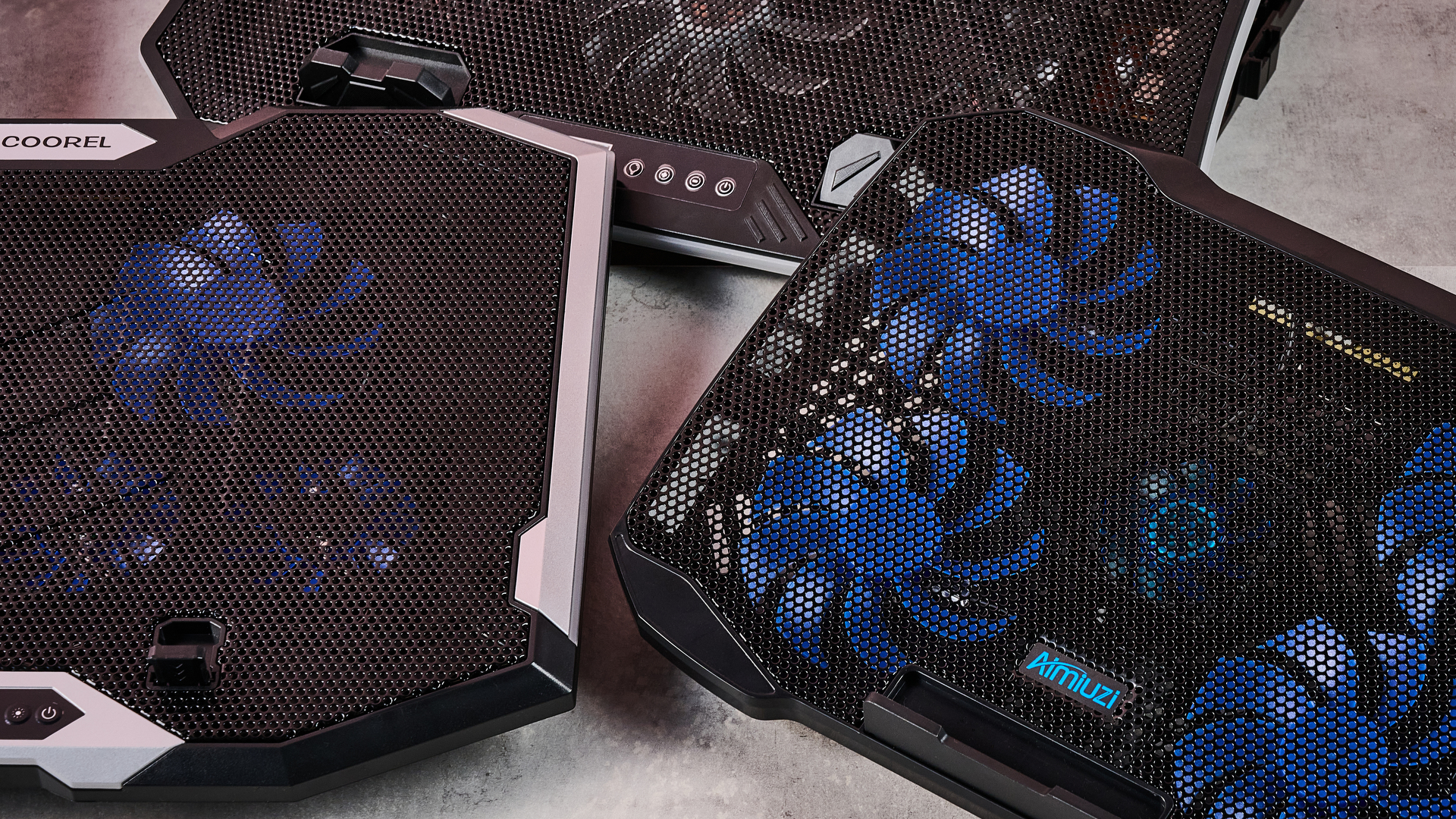
A close up of the TopMate C12, Aimiuzi F2 Plus and ICE COOREL RGB Laptop Cooling Pad on a gray marbled desktop in front of a pink background.

(Image credit: Future)

Given that the Liangstar Laptop Cooling Pad and Klim Ultimate both achieved an almost photo finish, it would be easy to assume there's not much daylight between them. However, like a bottle of wine, you really need to weigh up what you're spending here to calculate its true value. And as the Liangstar costs $20.99 / £23.59 versus the Klim Ultimate's $44.97 / £44.97 price tag, that definitely takes the edge here.

But, frankly, there's a reason Llano is the absolute GOAT in my eyes. As you can see, it took both first and second place on my cooling pad podium. While the Llano V10 Gaming Laptop Cooling Pad stopped our gaming laptop from warming up more than 21.6°F / 12°C, the Llano RGB Laptop Cooling Pad kept it down to just 14.4°F / 8°C of warming. This boi makes liquid nitrogen look positively toasty.

Laptop cooling pads: noise levels

1 / 2

Noise Level — cooling pad alone

Noise level of the cooling pad or laptop alone taken at head height and from 3 inches away

Llano RGB Laptop Cooling Pad
71
Llano V10 Gaming Laptop Cooling Pad
64.5
Klim Mistral
52.6
Liangstar Laptop Cooling Pad
45
TopMate C12 Laptop Cooling Pad
43.5
Laptop alone
42
Almiuzi F2 Plus Laptop Cooling Pad
37.4
Klim Wind
36.2
TECKNET Laptop Cooling Pad
36
Klim Ultimate
36
020406080
dB
Head height Data
ProductValue
Llano RGB Laptop Cooling Pad71
Llano V10 Gaming Laptop Cooling Pad64.5
Klim Mistral52.6
Liangstar Laptop Cooling Pad45
TopMate C12 Laptop Cooling Pad43.5
Laptop alone42
Almiuzi F2 Plus Laptop Cooling Pad37.4
Klim Wind36.2
TECKNET Laptop Cooling Pad36
Klim Ultimate36
Llano RGB Laptop Cooling Pad
85
Llano V10 Gaming Laptop Cooling Pad
77
Klim Mistral
62.6
Liangstar Laptop Cooling Pad
59
TopMate C12 Laptop Cooling Pad
58
Laptop alone
60
Almiuzi F2 Plus Laptop Cooling Pad
50.2
Klim Wind
48.8
TECKNET Laptop Cooling Pad
60
Klim Ultimate
46
0255075100
dB
Near Data
ProductValue
Llano RGB Laptop Cooling Pad85
Llano V10 Gaming Laptop Cooling Pad77
Klim Mistral62.6
Liangstar Laptop Cooling Pad59
TopMate C12 Laptop Cooling Pad58
Laptop alone60
Almiuzi F2 Plus Laptop Cooling Pad50.2
Klim Wind48.8
TECKNET Laptop Cooling Pad60
Klim Ultimate46
TechRadar Logo

Noise Level — cooling pad & laptop

Combined noise level of the cooling pad and laptop taken at head height and from 3 inches away

Llano RGB Laptop Cooling Pad
64
Llano V10 Gaming Laptop Cooling Pad
57.5
Klim Mistral
51.5
TopMate C12 Laptop Cooling Pad
45
TECKNET Laptop Cooling Pad
45
Liangstar Laptop Cooling Pad
45
Klim Ultimate
44.4
Klim Wind
44
Almiuzi F2 Plus Laptop Cooling Pad
44
020406080
dB Head height Data
ProductValue
Llano RGB Laptop Cooling Pad64
Llano V10 Gaming Laptop Cooling Pad57.5
Klim Mistral51.5
TopMate C12 Laptop Cooling Pad45
TECKNET Laptop Cooling Pad45
Liangstar Laptop Cooling Pad45
Klim Ultimate44.4
Klim Wind44
Almiuzi F2 Plus Laptop Cooling Pad44
Llano RGB Laptop Cooling Pad
79
Llano V10 Gaming Laptop Cooling Pad
69
Klim Mistral
61.5
TopMate C12 Laptop Cooling Pad
58.5
TECKNET Laptop Cooling Pad
58
Liangstar Laptop Cooling Pad
59
Klim Ultimate
55.2
Klim Wind
58.5
Almiuzi F2 Plus Laptop Cooling Pad
61
020406080
dB Near Data
ProductValue
Llano RGB Laptop Cooling Pad79
Llano V10 Gaming Laptop Cooling Pad69
Klim Mistral61.5
TopMate C12 Laptop Cooling Pad58.5
TECKNET Laptop Cooling Pad58
Liangstar Laptop Cooling Pad59
Klim Ultimate55.2
Klim Wind58.5
Almiuzi F2 Plus Laptop Cooling Pad61
TechRadar Logo
How I tested

When it came to noise levels, I measured the noise of each cooling pad from 3 inches away and from my head height when sitting in front of it. I also recorded the combined noise of each cooling pad and the testing laptop's fans 10 minutes into each stress test from the same distances.

You may think that your gaming laptop makes a lot of noise. But believe me: that's scarcely more than a murmur compared to some cooling pads. Given they're essentially just an LED-adorned box with a whopping great fan inside, they can get pretty shouty. That's why I grabbed the sound level meter from my utility belt and started measuring like the world's nerdiest superhero.

Perhaps predictably, the pad that blows coolest blows loudest. While I love the Llano RGB Laptop Cooling Pad's glacial chilling, I can't get away from the fact that it's pretty noisy. I'm 5 foot 11 inches tall, and from my head height, I clocked it at 71dB — according to the Center for Hearing and Communication, that's roughly as loud as a coffee grinder or freeway traffic. In my book, that's a worthy price to pay for keeping your laptop cool, but it might not be ideal if you're planning to use it in the office.

In fact, you might assume there's an inverse relationship between cooling and fan noise. And while that does hold true for the most part, there are some interesting exceptions. For example, while I found the Liangstar Laptop Cooling Pad offered the third best cooling in my tests overall, it was substantially quieter than either of the Llanos, clocking in at a much less brash 45dB.

Conversely, the Klim Mistral manages to buck the trend in the other direction, running surprisingly loud compared to some of the other competitors here. At 52dB, it kicks out a similar level of noise as a fridge — which is pretty ironic given it offered some of the worst cooling in my testing.
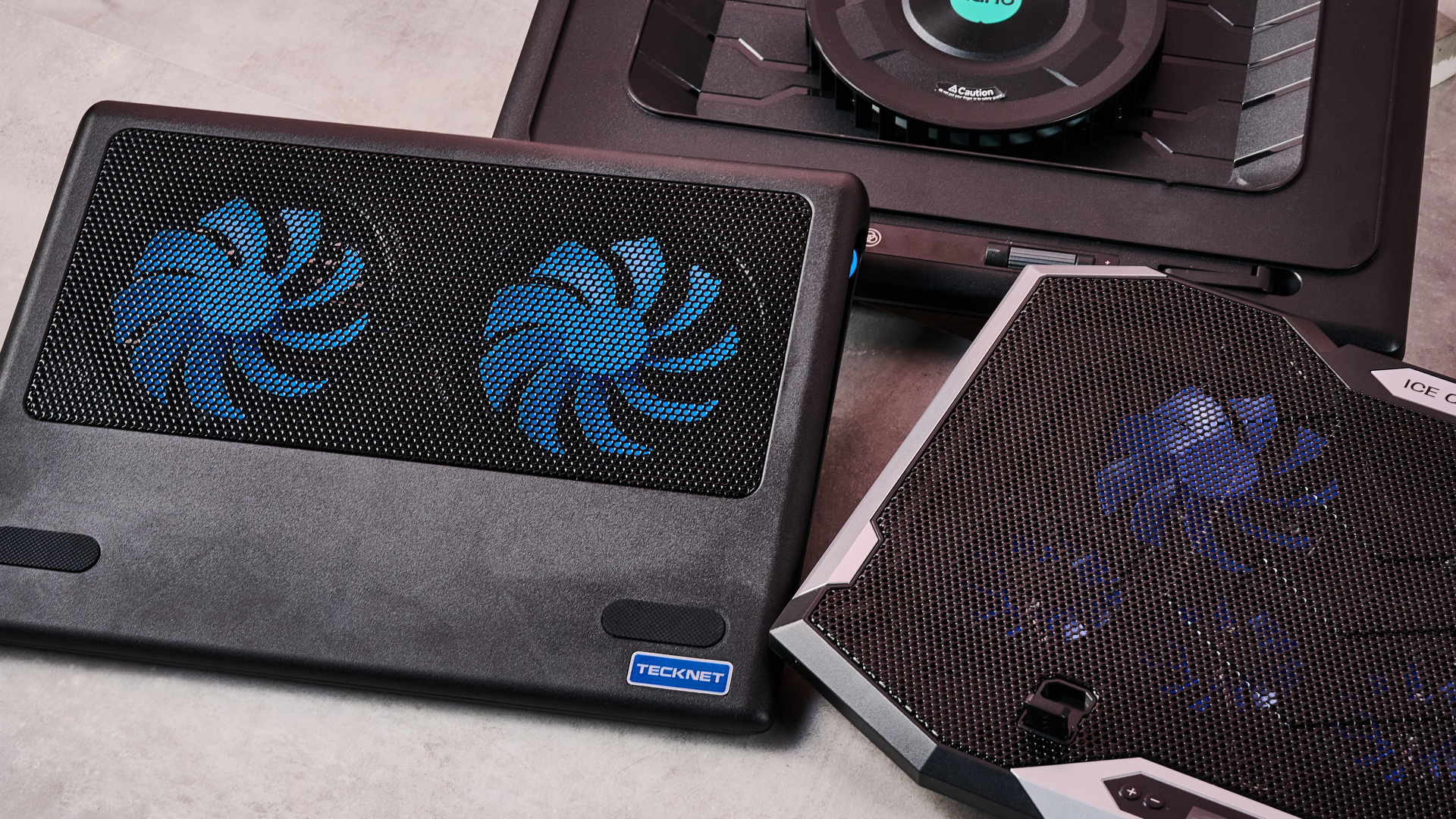
A closeup of the Llano RGB Laptop Cooling Pad, ICE COOREL RGB Laptop Cooling Pad and Tecknet N8 on a gray marbled desktop in front of a pink background.

(Image credit: Future)

And there are some surprising candidates for the winner's podium when it comes to sound levels. The TECKNET offers far from the worst cooling, and yet it ties for first place as the quietest pad on test here at 36dB — again, not at all bad given its super affordable price tag.

Honestly, though, if you want whisper-quiet running without sacrificing performance, my pro tip would be to check out the Klim Ultimate. Unlike Klim's two cheaper cooling pads, it offers very credible chilling while also measuring noise levels of 36dB from head height — that's apparently quieter than a library, which isn't known for being a raucous place.

Fundamentally, noise levels probably shouldn't be the deciding factor when picking your perfect laptop cooling pad. Both cooling power and budget come higher up the pecking order in terms of my personal preferences. But that doesn't mean you should ignore it completely — depending on where and how you use your laptop, you could find strapping a jet engine to the bottom of it to be a bit of a deal breaker.

Do I even need a laptop cooling pad?

1 / 2

MacBook Air M5 encode test

Performance after an hour during a standard encode test both with and without cooling

Versus Comparison Data
AttributeBenchmark — MacBook Air M5Klim Ultimate — MacBook Air M5
Average FPS2.522.77
Estimated encode time122114
VS
Average FPS (fps)
2.52
2.77+10%
Estimated encode time (minutes)
+7%122
114
Re-encoding a 4K stereo .mov file at highest quality, the MacBook Air M5 showed a modest reduction in throttling in terms of average FPS and encode time when using the Klim Ultimate laptop cooling pad.
TechRadar Logo

Acer Predator Helios 300 encode test

Performance after an hour during a standard encode test both with and without cooling

Versus Comparison Data
AttributeBenchmark — Acer Predator Helios 300Klim Ultimate — Acer Predator Helios 300
Average FPS2.82.8
Estimated encode time115113
VS
Average FPS (fps)
2.8
2.8
Estimated encode time (minutes)
+2%115
113
Re-encoding a 4K stereo .mov file at highest quality, the Acer Predator Helios 300 showed essentially no reduction in either average FPS or estimated encode time, suggesting limited heat-related throttling took place.
TechRadar Logo
How I tested

Here I used a standard encoding test. I re-encoded the 4K stereo version of the Creative Commons animated movie Big Buck Bunny at 4K 120fps at the slowest encode speed, then ran it for an hour to allow throttling to take place and recorded the total estimated encode time and average encode rate. I ran this on both my MacBook Air M5 and our testing Acer Predator Helios 300, uncooled and cooled with the Klim Ultimate, to see the impact it had on performance.

So it's pretty clear which cooling pads offer ice-cold AC and which sound like a tumble dryer breaking the sound barrier. But I've left the biggest question until last — do you actually need one at all?

Aiming to prove my theorem that 'cold CPU = good', I whipped up a quick encode test designed to stress out the CPU of several laptops over a longer period. In theory, after an hour, their core temperature should have risen, their CPUs throttled, and the length of the encode spiked and the encode rate dropped. Running the same test with one of our top cooling pads, the Klim Ultimate, would then show how much it could reduce this throttling.

On my MacBook Air M5, after an hour of using its passive cooling alone, the total estimated encode time had crept up to 122 minutes, and the average encode rate was sitting at 2.52 FPS. When I reran the test with the Klim Ultimate running on max cooling, that total encode time was trimmed to 114 minutes, and the encode rate had increased to 2.77 FPS. That's not a huge difference, but it shows the Klim Ultimate was able to trim back some of that temperature-related throttling.

Running the same test on our Acer Predator Helios 300 was a much more ambiguous experience. During my first run, the encode crashed within minutes, and during the second it crashed moments after the test concluded. So it was honestly far from stable.

I was able to eventually get some results, however, and they showed... nothing. Whether I was using the Klim Ultimate or not, the test results were essentially identical, with Handbrake clocking an estimated encode time of 115 minutes uncooled and 113 with the Klim's help. Meanwhile, the encode rate remained steady, sitting at a reasonable 2.8 FPS.
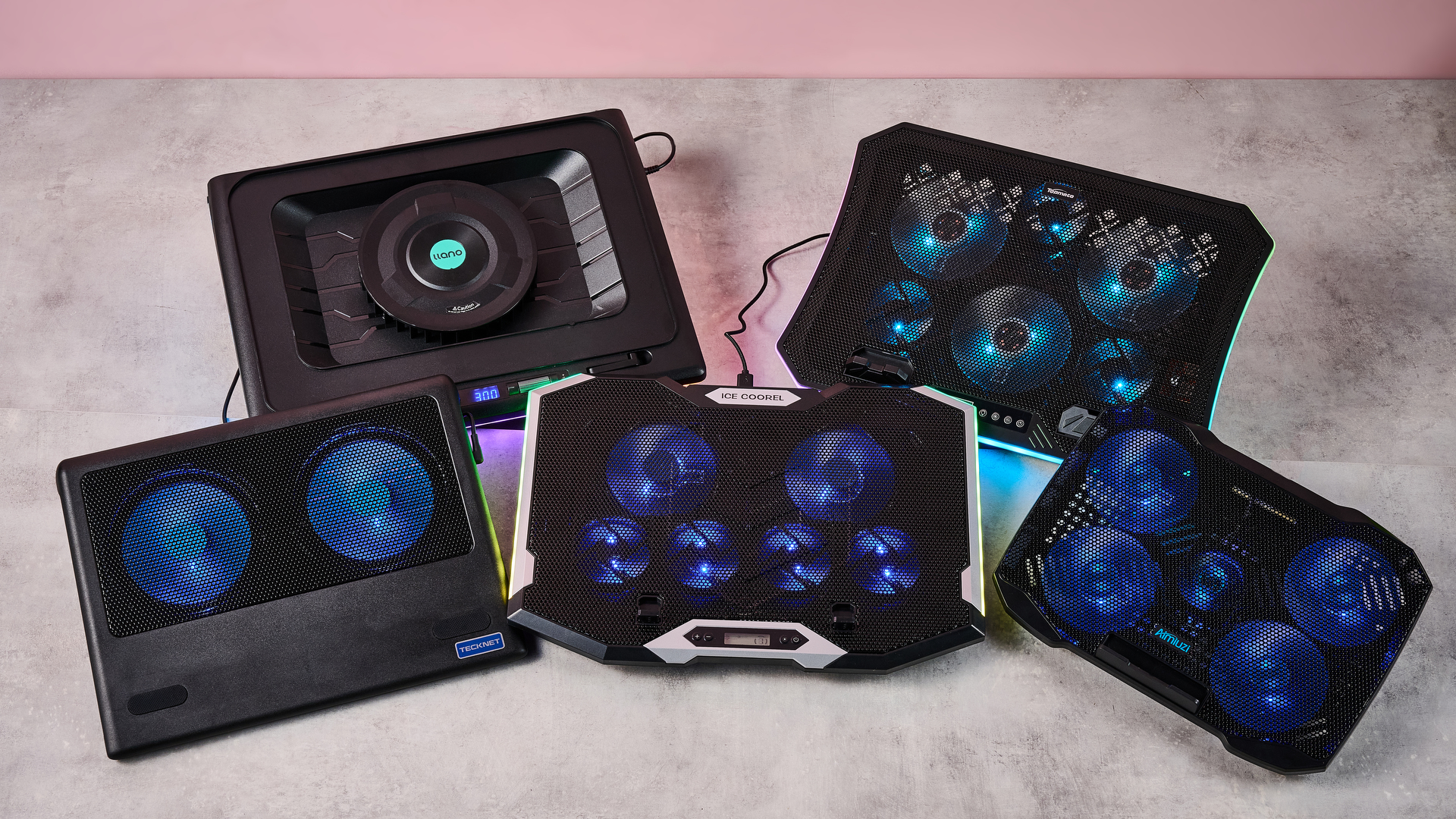
Clockwise: the Llano RGB Laptop Cooling Pad, TopMate C12, Aimuzi F2 Plus, ICE COOREL RGB Laptop Cooling Pad and Tecknet N8 on a gray marbled desktop in front of a pink background.

(Image credit: Future)

What does that mean? That I've wasted several hours of my life? Not quite. There are a couple of key conclusions to take away from this. One is that a performance laptop with whacking great fans built in is already pretty good at keeping itself cool. Shocking revelation, I know.

But probably the more critical takeaway is that the mileage you get out of a laptop cooling pad is going to vary depending on how well optimized it is for handling heat, as well as the kind of tasks you're doing. Had I tried to run Cyberpunk 2077 on max graphics settings with ray-tracing switched on, the Predator Helios 300 would likely have caused it to melt into the earth's core.

There's also another caveat. While it's definitely been warm the last week or so in the TechRadar testing lab, it hasn't reached the kind of desiccating highs that have hit both the US and UK in recent months. Past a certain point, any laptop will struggle in the heat. Forget CPU throttling — in that heat, I'd be more worried about your components liquefying like a chocolate bunny on the launch pad at Cape Canaveral.

In light of that, I'd say a laptop cooling pad is still worth exploring, especially if you tend to do a lot of resource-intensive tasks like 3D work, Photoshopping or gaming.

Any thoughts or personal experiences you'd like to share? Please feel free to chime in down in the comments!
  •  

As a human D&D Dungeon Master, AI will never replace me — but I wanted to see whether ChatGPT or Gemini were getting close

One of my favorite hobbies is Dungeons & Dragons. I love nothing more than sitting around a table with friends and playing out a fantastical adventure, in which the dice are the difference between success and failure.

It's a fun game, and all the more fun because real-life people make dumb, suboptimal decisions and the dice cause the game to change in unpredictable ways. But I really love it because the concept of people sitting around a table or hearth and telling stories is as old as the campfire, and it's a fun modern-day way to keep that experience alive.

You might think such a robust framework for an analog hobby (friends, a table, dice, pen and paper) might be tech-proof, but even in the Dungeons & Dragons world, AI is coming for my job as a Dungeon Master — the person who runs and guides the game world. Deep in the corpus of most popular generative AI models designed for general use are the rules to D&D 5e (and likely every other edition before it) and plenty of people report playing with their chatbots online.

Many of these players can't, or simply don't want to, get round a table with real people. For them, having a chatbot write them a story while the user prompts the continuation of the story with their character's actions, must seem like the perfect solution — even if it's more like a solo choose-your-own-adventure than a 'proper' group D&D game.

Gemini and ChatGPT both have a strong grasp of the rules for D&D's popular 5th Edition; they are certainly strong enough to make them an accessible choice for a player without a group. Maybe one day, the fire will die, and instead of sitting around a table with friends, we'll all be sitting at separate desks playing our own separate D&D adventures with our AI companions.

I wanted to test whether this dark future would be an adequate replacement for my usual game night, and which chatbot will be the best one to choose if so. I fired up Gemini 3.6 Flash and ChatGPT 5.5, and asked them for the same game.

The parameters

Dungeons and Dragons book and players

(Image credit: Wizards of the Coast)

I gave both chatbots the same prompt: "Can you be my D&D 5e DM?" and following up with another message:

"Let's do a classic high fantasy dungeon crawl. Please use a strict RNG for all rolls to ensure fairness - you can roll dice for me. My character is a 10th-level conjuration wizard. See all information about him below:"

I then copy-pasted a character sheet of a 10th-level wizard — a powerful spellcaster with a variety of magical abilities at his disposal. It's easy to DM a game for a level 1 thief — I wanted to see how the AIs could handle a character who could do fantastical things, such as teleport and summon creatures to fight for him.

Interestingly, both Gemini and ChatGPT created a similar adventure, at least at first: an abandoned dwarven stronghold bristling with magical traps, ready to be explored. However, that's where the similarities ended.

Gemini 3.6 Flash

The Google Gemini logo is seen displayed on a smartphone screen.

(Image credit: Getty Images / SOPA Images)

Gemini's adventure was what any D&D player could expect from the "classic high-fantasy dungeon crawl." I avoided a pressure-plate trap that would have shot darts at me, and in one memorable sequence, defeated a bunch of skeletons by casting a Grease spell on a stone staircase and freezing them in place with my Ray of Frost cantrip while they slipped and stumbled at the bottom of the steps.

Gemini was offering me suggested actions, and I did find myself choosing a few of those suggestions — but as time wore on, this began to feel lazy, like my brain wasn't firing in the same way it did when I played with my friends. I was skim-reading the AI's descriptions of the scene and responding with a single click. I asked it to remove suggested options and as a result, I had to think more carefully about each move, typing out requests and thinking about my actions rather than clicking on a predetermined response.

The memorable finale occurred when I unlocked a secret passage and defeated a Naga, a giant snake monster, by teleporting away and blasting it with a powerful Cone of Cold. The snake ended up frozen solid, and I checked the monster's HP against the official book, and it was accurate. When asked to generate a picture of our adventure, Gemini came up with this moment:

Picture generated from a recent Dungeons & Dragons game

(Image credit: Future, edited by Gemini)

I asked Gemini a few questions at the end, such as whether it nudged the dice in my favor, as all my rolls were successful. This happened in my previous experiment with ChatGPT. Gemini said it used a 'pseudorandom number generator', not a true RNG, but the model doesn't 'fudge dice, pad rolls, or tweak numbers behind the scenes to keep players happy or prolong the game'.

Gemini's language was natural and even evocative in places, although it's still not a patch on a good creative human. Overall, a decent enough effort at simulating a D&D game.

ChatGPT 5.5

ChatGPT app on an iPhone

(Image credit: NurPhoto / Getty Images)

Despite the similar setting, ChatGPT's adventure with the same character was very different. There was little to no combat throughout the entirety of the game, and ChatGPT didn't tell me when it was rolling 'behind the scenes', preferring to keep me in the moment.

When I asked it about the lack of rolling, the grovelling chatbot began its apologetic essay with "That is a fair critique. The short answer is: I leaned too heavily into narrative pacing and not enough into D&D mechanics. The adventure became closer to a collaborative fantasy novel than a 5e dungeon crawl", while suggesting fixes if I wanted to continue. I hadn't even said anything negative — but it certainly picked up on my tone, and the choose-your-own adventure I got was a far cry from a classic dungeon crawl.

Instead of combat, ChatGPT came up with a rambling mystery about a dimensional prison beneath the mountain, a sphere suspended in a cavern. Its guardians spoke ominous (and to be honest, quite confusing) portents such as "The archive does not open for authority. It opens for judgement."

Mysteries work best when they're developed with skill by a writer who can work backwards to seed clues throughout the game or text. ChatGPT does not do this: instead, it's arranging tokens on the fly to generate a facsimile of a mystery, and although it got the trappings of the genre right, the execution fell very flat. I (or at least, my character) underwent trials to seek obsidian objects such as keys and seals to reveal more about the prison, themselves accompanied by more foreboding, sometimes nonsensical portents.

Very little 'action' was taken by my character in a classical sense: it was all about investigating the origins of the being contained in this prison, and by the time I had spent 40 minutes on this, I had seen enough. It didn't help that ChatGPT also spoke in the peculiar sentence structure pattern that AI users are likely very familiar with now: "This isn't just X. It's Y." Examples include:

"Unlike the rest of Khaz Varek, this room has remained untouched.

No dust. No decay."

Or the following, when I met one of the prison's guardians:

"Ser Kaelen immediately looks toward the sphere. 'You hear it too.'

Not a question. A confirmation."

Any user of ChatGPT (or those who look at AI-generated posts on LinkedIn or Reddit) will immediately recognise this sort of language, and know what I'm talking about. By the end, it was quite painful to have every other sentence be treated as a grand revelation. Not a statement. An omen.

When asked to generate a picture of our adventure, ChatGPT came up with this moment:

Picture generated from a recent Dungeons & Dragons game

(Image credit: Future, edited by Gemini)

The winner

Out of these two? Gemini 3.6 Flash, by a mile. It was at least a mildly enjoyable experience conveyed in natural language, and something I'd consider revisiting.

ChatGPT's efforts, on the other hand, were unenjoyable, and I wouldn't return to it. In fact, it's gotten worse since the last time I tried it.

Both, however, were a far cry from an in-person session. While they have a good grasp of the rules, and you can create your perfect world and character, the chatbots are ultimately missing the 'human and hearth' element that keep me returning to the game. For people who can't get round a table with friends, I'd pick Gemini over ChatGPT.

For those who can? While AI is busy taking as many creative jobs as it can, I feel safe in the knowledge that the role of Dungeon Master is AI-proof for a long time yet.

  •  

Lamtto Car Infotainment System im Test: Carplay mit Bonus für uralte Autos

Auf den ersten Blick

Unsere Wertung

Pro

  • Heller 11-Zoll-Bildschirm
  • Vorinstallierte Apps
  • Vier Optionen zur Soundausgabe
  • Zwei unterschiedliche Methoden zur Montage zur Auswahl
  • Rückfahrkamera inklusive
  • Carplay und Android Auto
  • Kurze Responsezeiten
  • Vorinstallierte Entertainment-Apps
  • Fairer Preis

Kontra

  • Findet nicht in jedem Cockpit ausreichend Platz
  • Kamerainstallation erfordert Basteleien
  • Vorinstallierte Entertainment-Apps könnten den Fahrer unnötig ablenken
  • Touchbedienung auch während der Fahrt möglich

Fazit

Wer ein älteres Fahrzeug mit Carplay nachrüsten will und ausreichend Platz im Cockpit hat, findet im Lamtto Car Infotainment System eine Lösung mit einem großen Bildschirm, flexibler Audioausgabe und als Bonus einer Rückfahrkamera. Entertainment im Auto ist aber immer mit Vorsicht zu genießen, ob es nun vom iPhone oder einem größeren Bildschirm kommt. Der Hersteller gibt auf seiner Website einen Rabatt von 20 Prozent mit dem Code vipcar.

Price When Reviewed

This value will show the geolocated pricing text for product undefined

Best Pricing Today

Aktuell bester Preis: Car Infotainment System

Shop
Preis
Preisvergleich (über 24.000 Shops weltweit)
Produkt
Preis
Preisvergleich von Backmarket

Von Carplay war ich anfänglich nur wenig überzeugt, auch wegen der schlechten Verfügbarkeit, nur in neueren Autos hierzulande exotischer Marken. Wenigstens das hat sich geändert, kaum ein Neuwagen rollt noch ohne Carplay-Anschlussmöglichkeiten vom Band.

Seitdem ich Carplay im in der Werkstatt nachgerüsteten Zweitwagen ausprobiert habe, sehe ich Carplay mit mehr Wohlwollen, im Gegenteil, ich möchte es kaum noch missen. Bisher hatte ich in meinem Renault Kangoo aus dem Jahr 2008 aber allenfalls eine Halterung montiert, an der ich das iPhone magnetisch anheften kann.

Ist nicht das Gleiche, dient aber der Orientierung in unbekanntem Gelände oder der Information, wie lange denn der Stau noch ist. Seitdem wir das Autoradio mit einem Bluetooth-Empfänger nachgerüstet haben, der die nicht benutzte Schnittstelle des CD-Wechslers nutzt (das Auto ist wirklich alt!), kann ich über die klanglich überzeugende Anlage im Auto auch Musik von meinem iPhone hören.

Und hier kommt nun das Lamtto-System zum Zuge: Denn anders als andere Nachrüstsysteme verbindet es sich mit der Autostereoanlage nicht nur über Aux oder UKW, sondern auch via Bluetooth. Einen 3,5-mm-Klinkeneingang hat mein Auto nicht und FM-Transmitter funktionieren allenfalls nur lokal, wo man an den Rändern der Bänder immer noch eine freie Frequenz findet. Unterwegs sind FM-Transmitter meist nutzlos, für jedes Sendegebiet müsste man die Frequenz nachjustieren, was man während der Fahrt tunlichst unterlassen soll.

Mehr als nur ein Carplay-Bildschirm

Drei weitere interessante Features bringt das Lamtto mit: Da sind zum einen eine Rückfahrkamera (von der mein altes Auto nicht einmal zu träumen wagte), der hochauflösende 11-Zoll-Bildschirm und die vorinstallierten Entertainment-Apps.

Letztere will ich hier nur erwähnen, ohne sie näher auszuprobieren. Denn während der Fahrt sind sie für den Fahrer tabu, und selbst wenn nur der Beifahrer oder die Beifahrerin sich durch Tiktok wischt, in Youtube vorbeischaut oder Netflix glotzt, stört das vorn ungemein und erhöht das Unfallrisiko.

Anders ist es natürlich auf dem Parkplatz, aber auch nur für die Kraftfahrer interessant, die länger pausieren wollen oder müssen und deren Autobatterie ausreichend Ladung zur Verfügung stellt. Für einen fast 20 Jahre alten Verbrenner der unteren Mittelklasse also nicht besonders nützlich, für Elektrofahrzeuge oder LKWs natürlich schon.

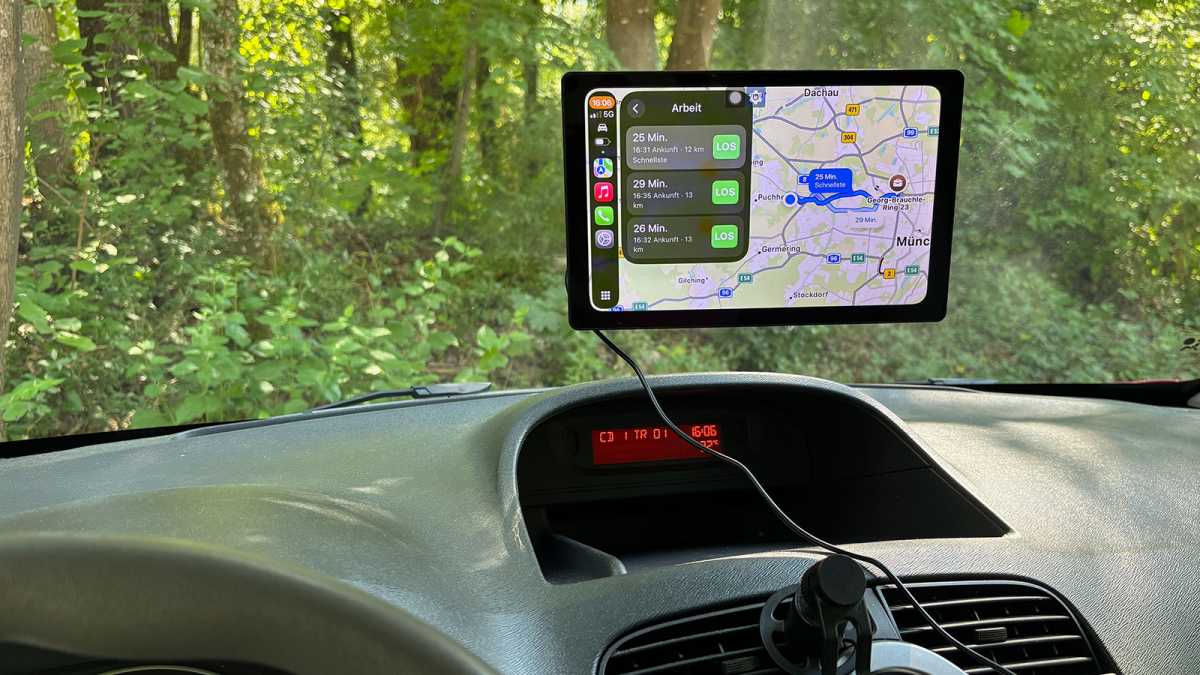
Lamtto lässt der Nutzerschaft die Wahl, ob sie das 11-Zoll-Display auf das Armaturenbrett kleben oder mit einem Saugnapf in die Windschutzscheibe hängen. Ich entscheide mich für den Saugnapf – was die Lösung zwar flexibler, weil wieder entfernbar macht, mir aber das Sichtfeld ein wenig einschränkt. Man könnte darüber streiten, ob die Sichtbehinderung hier relevant ist oder man im wahrsten Sinne des Wortes darüber hinwegsehen kann. Auf Dauer sollte ich mir aber einen besseren Platz suchen.

Schwenke ich den Bildschirm deutlich tiefer oder montiere ich ihn auf die Ablagefläche vor dem Radio, verliere ich den Blick darauf. Mit dem Standfuß auf die Beifahrerseite zu kleben, wäre wegen des Airbags eine eher schlechte Idee. Ich finde schon noch den richtigen Platz.

Lamtto im Renault Kangoo

Der Bildschirm ist schön groß, kann aber im Sichtfeld ein wenig stören.

Macwelt

Die Einrichtung ist völlig unkompliziert: einschalten, mit dem iPhone verbinden, Carplay starten, fertig. Leichte Zweifel, ob die ledigliche drahtlose Verbindung wirklich eine so kluge Idee ist, weil das iPhone unterwegs ja nicht lädt, erstickt der in den Zigarettenanzünder passende Stecker des Car-Entertainment-Systems sofort. In diesen ist noch eine USB-A-Buchse eingelassen, über die auch das iPhone während der Fahrt Strom bekommt – zur Not hätte ich noch eine zweite Autosteckdose mittig vor der Rückbank gehabt.

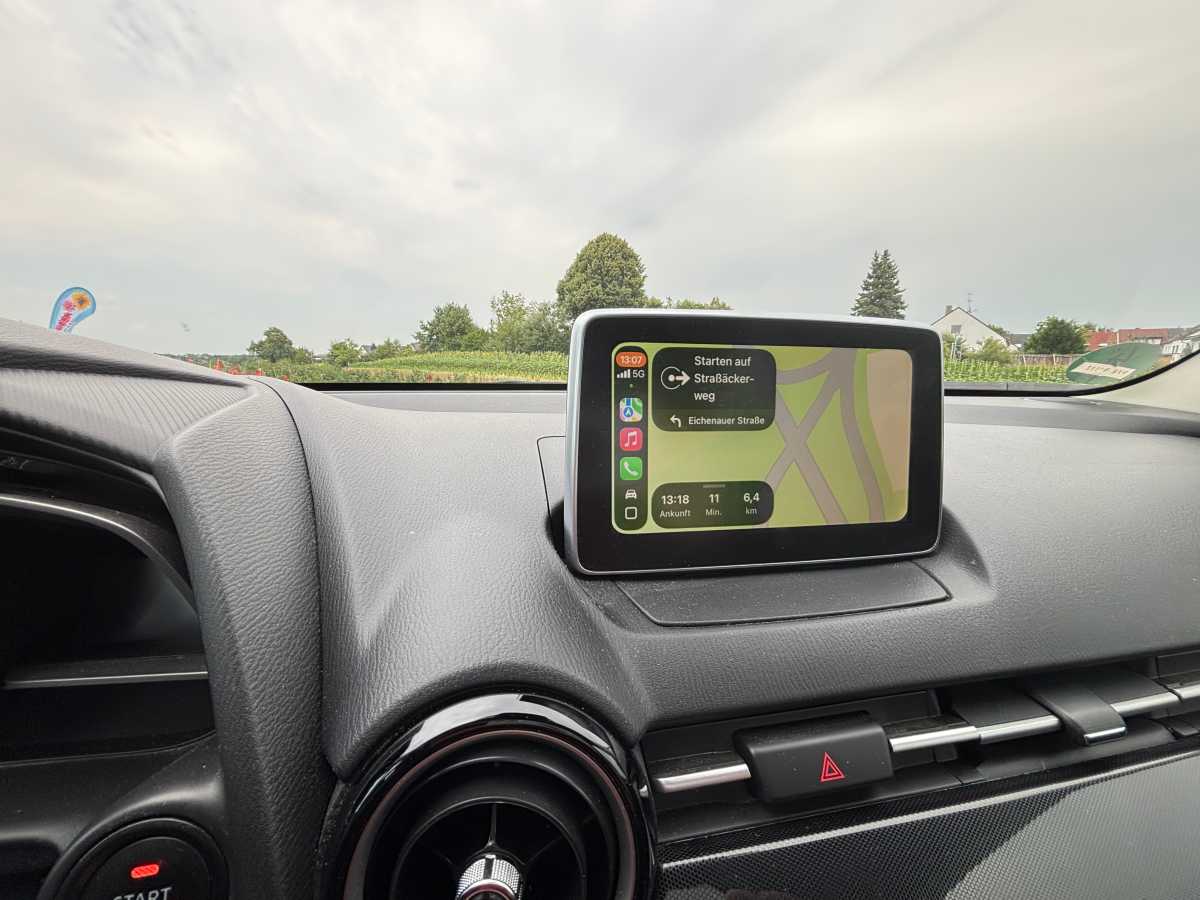
Carplay Mazda 2

Zum Vergleich: weniger Platz auf dem Bildschirm im Mazda 2, aber weniger Sichteinschränkungen.

Macwelt

Bei der Bedienung des Touchscreens – der auch während der Fahrt auf Eingaben reagiert, anders als integrierte Carplay-Systeme – stelle ich fest, dass die Befestigung per Saugnapf nur suboptimal ist, zu weit gibt der Bildschirm bei Berührung immer nach. Der Standfuß wäre die bessere Lösung, aber wohin damit? Das ist aber ein Problem des Fahrzeugs und nicht des Nachrüstkits. Immerhin ist dank der Bluetooth-Anbindung die Lautstärkenregelung vom Lenkrad aus möglich. Und natürlich hört das angeschlossene iPhone auf Siri.

Für freien Blick nach hinten Fummelei vonnöten

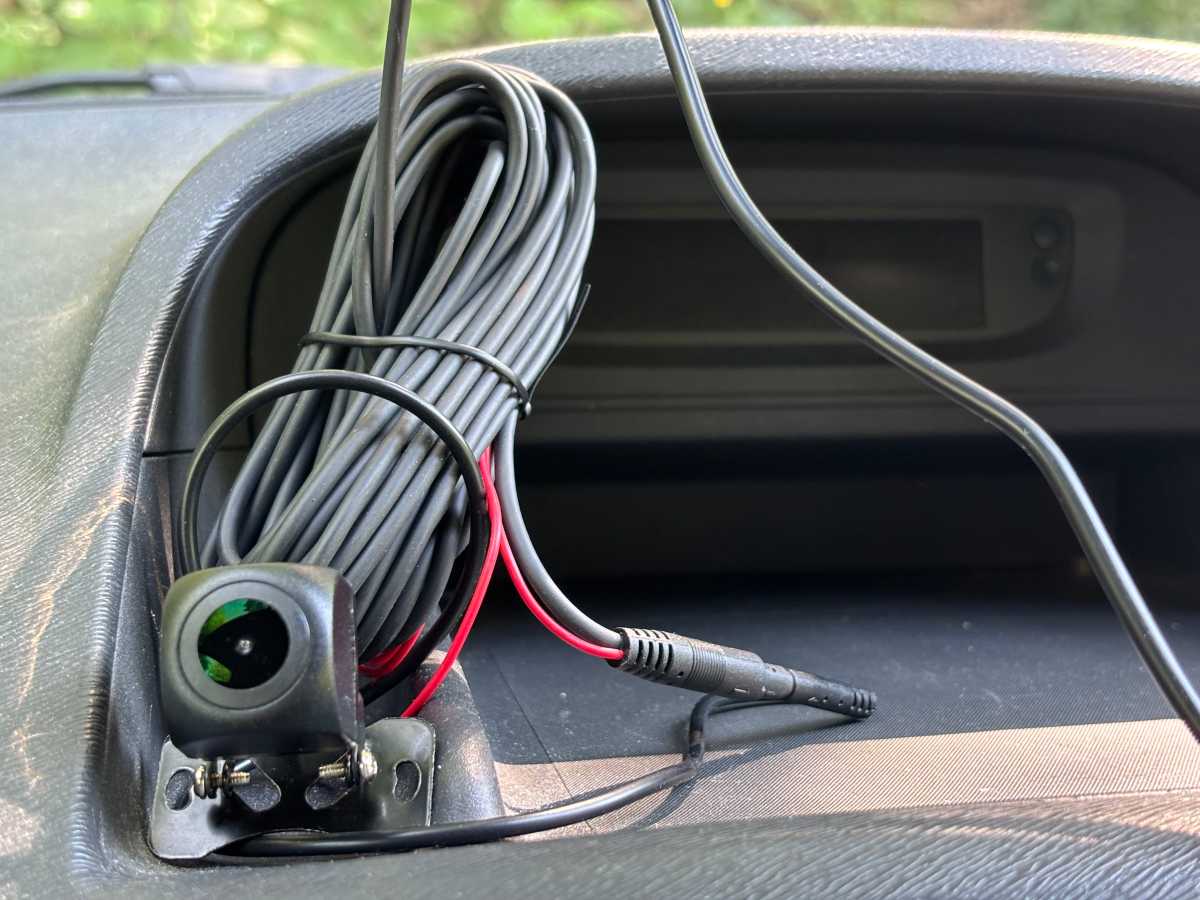
Kommen wir aber zu einem weiteren Vorteil neben der Bluetooth-Anbindung, die mein Fahrzeug auf ein neues Niveau heben würde: der Rückfahrkamera. Diese verbindet man vernünftigerweise nicht drahtlos, sondern per Kabel mit dem Lamtto-Display. Der Hersteller empfiehlt, die Kamera an oder besser über dem Nummernschild zu montieren, meint damit vor allem eine zentrale Ausrichtung am Heck, in Bodennähe. Die Verkabelung soll über die Regenrinne auf der Beifahrerseite geschehen. Das in das Display eingesteckte dreipolige Aux-Kabel verläuft dann durch das Seitenfenster, das man somit nicht wieder vollständig hochfahren könnte, ohne dass das Kabel auf Dauer Schaden nimmt.

Was ich mich hinsichtlich der Rückfahrkamera gefragt habe: Deren Clou ist bekanntlich, automatisch anzuspringen, wenn das Auto zurücksetzt. Das ist hier mit einem weiteren Kabel gelöst, das man mit dem Pluspol der Rückleuchte verbinden soll. Wenn diese aufleuchtet, bekommt das Display ein Signal und zeigt das Bild der Kamera.

Das ist mir für’s Erste ein wenig zu viel Fummelei, lasse ich lieber einen Profi erledigen – der wird mir dann auch bei der korrekten Platzierung des Displays im Auto helfen.

Die Rückfahrkamera probiere ich dennoch aus, sie bringt ihr Bild über eine vorinstallierte App auf den Schirm – funktioniert wunderbar.

Lamtto Rückfahrkamera
Hier ist die Kamera natürlich falsch platziert und würde allenfalls den rückwärts fahrenden Fahrer abbilden. Das rote Kabel wird mit der Rückleuchte verbunden.

Macwelt

In unseren Zweitwagen, einen Mazda 2, Baujahr 2016, habe ich Carplay nachrüsten lassen. Vorteile: Ein 7-Zoll-Bildschirm war schon an der richtigen Stelle eingebaut und das per Kabel angeschlossene iPhone bekommt während der Fahrt Energie. Nachteil: In einigen Fällen klappte die Verbindung erst beim zweiten oder dritten Versuch, was manches Mal auch an den von mir gewählten Sicherheitseinstellungen lag: Ich muss auf meinem iPhone jedes Mal die Nutzung eines externen USB-C-Geräts explizit freigeben.

Das Problem habe ich beim Lamtto nicht: In nur sehr kurzer Zeit nach dem Starten der Zündung ist das Gerät betriebsbereit, hat Carplay gestartet, das iPhone gefunden und die Musik an der zuletzt gehörten Stelle wieder aufgenommen – so muss es sein.

Fazit

Das Lamtto Car Entertainment System rüstet ältere Fahrzeuge mit Carplay nach und bietet noch zusätzlich eine Rückfahrkamera an. Einer der großen Vorteile, das helle 11-Zoll-Display kann im Betrieb auch ein Nachteil sein, wenn man nicht die richtige Stelle zur Montage findet. Wenn Sie ein 11-Zoll-iPad haben, können Sie in Ihrem Auto (im Stehen!) damit herumexperimentieren, ob das Display passen würde und an welcher Stelle es nicht stört.

Die vorinstallierten Entertainment-Apps wie Youtube, Netflix, Tiktok und Youtube Music sind für diejenigen interessant, die längere Pausen (etwa über Nacht) auf dem Parkplatz einlegen. Selbst im Stau und nur auf den Beifahrer oder die Passagiere auf den Rücksitzen gerichtet, ist vom Videoschauen im Auto streng abzuraten.

Die Montage im Auto und die Einrichtung des Geräts sind gänzlich unproblematisch, wenn man den richtigen Platz auserkoren hat. Die Installation der Rückfahrkamera verlangt nach geschickten Händen, wie sie Kfz-Mechatroniker haben.

Lamtto Car Infotainment System bei Amazon ansehen (Rabatt von 10 Prozent mit Code CZH26OSV)

  •  

I’m a die-hard Apple user. Here’s the travel tech I refuse to leave at home

Macworld

One of the things I enjoy doing most with my family is traveling. Annually, we go on two or three domestic trips (at least one of them to Hawaii to visit relatives). We try to go on an international trip every 18 months or so. Our most recent trip abroad was to South Africa in 2024, and we’re heading to Iceland this August. Then there are weekends away a few times a year.

Every great trip requires planning, whether it’s an overnight stay an hour away from home or a grand vacation in a country I’ve never visited before. Besides all the travel logistics (that my wife handles), there’s the tech you need to bring, which is my responsibility in my household.

Over the years, I’ve figured out what tech I absolutely need to take with me. There’s an art to figuring out what to bring. You don’t want to overdo it, because you’ll end up lugging around stuff you aren’t using. But you don’t want to be left without that thing you absolutely need and don’t really have a means of obtaining that item where you are.

While I now rely on my iPhone for all the photos and videos I shoot, I need other items to ensure a successful and enjoyable trip. Here’s a list of the gear I bring with me on my trips. This is the stuff I almost always bring no matter where I’m going. Hopefully, you can use this list to help you figure out what you need to bring on your next trip. If you have suggestions, drop me a line at rloyola@macworld.com. (Note: Prices stated here are MSRPs, but Amazon often runs sales and discounts on many of them.)

iPhone 17 Pro Max

Apple iPhone 17 Pro Max 3

Britta O’Boyle

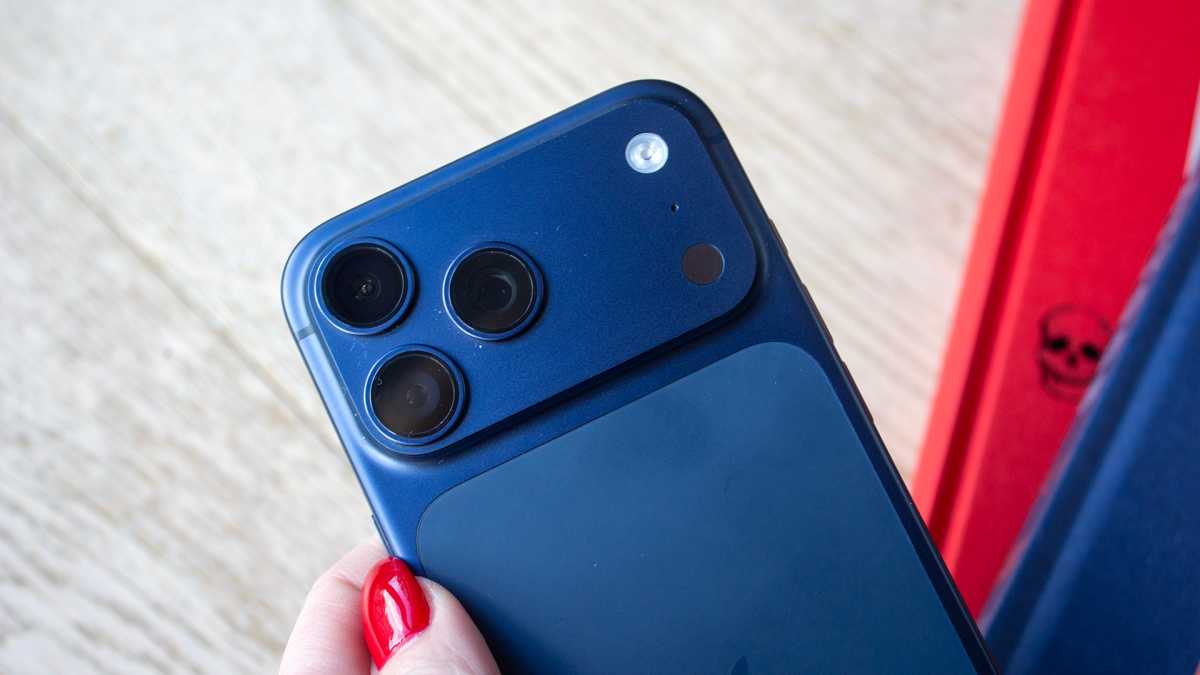
There was a time when I would bring separate video and still cameras on every trip, but the iPhone has gotten so good, I don’t need any other camera. With some practice and knowledge of iOS’s features and settings, or with third-party camera apps, you can replicate the capabilities of cameras that cost hundreds more. Before the iPhone 17 Pro Max, I used an iPhone 16 Plus, but I really prefer to the Pro’s telephoto lens.

We recommend: Apple iPhone 17 Pro Max

Apple iPhone 17 Pro Max

MacBook Neo

macbook neo 2026 indigo review 2

Eugen Wegmann

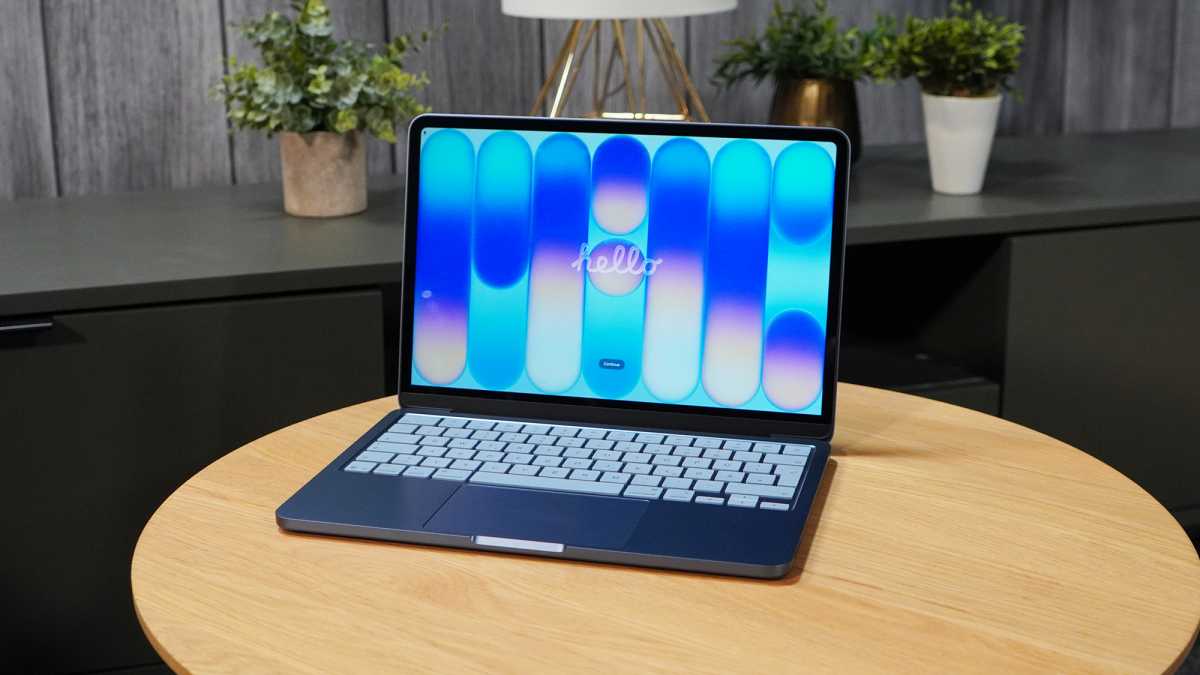
On longer trips where I’ll shoot a lot of photos and video, I bring a MacBook so I can browse and manage my shots after each day is done. I used to bring an extremely old MacBook Pro instead of the MacBook Pro that I use daily, so if it was lost, stolen, or damaged on the trip, I wouldn’t sweat it that much. But it’s also extremely slow and heavy. Even with a recent $100 price hike, the MacBook Neo is such a delight–lightweight, fast, and durable. And as I point out in my review, it doesn’t need to be a secondary machine—the Neo is extremely capable of being a daily-use Mac.

We recommend: Apple MacBook Neo

Apple MacBook Neo

Saily for international eSIMs

Saily iphone 17 2026

Foundry

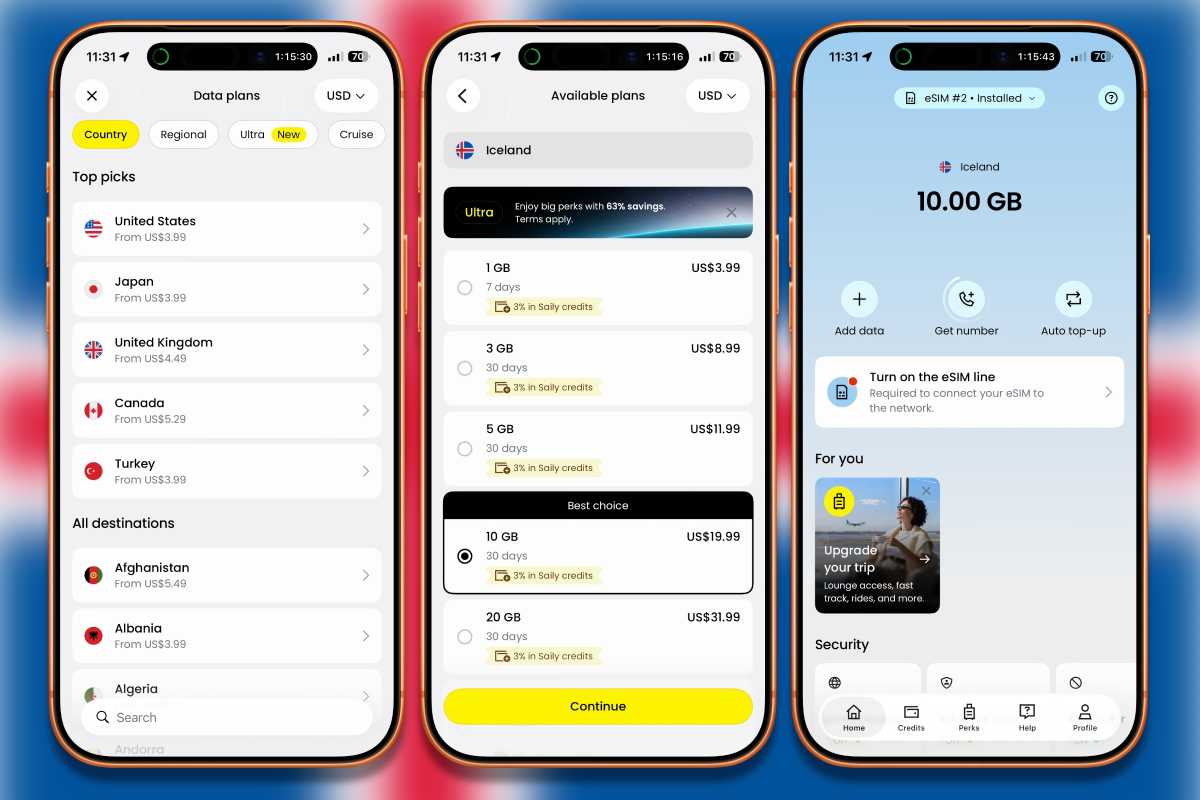
My carrier offers international connectivity by partnering with carriers in other countries. I’ve mostly had success with it, but sometimes there are gaps in coverage or the speeds are slow. On my last trip abroad, I tried a different approach: I took advantage of the iPhone’s dual eSIM and used Saily to get a second eSIM for the country I was visiting. With a second eSIM, I switched between it and my carrier’s offering to get the best possible connection. Overseas eSIMs are affordable–sometimes they’re really cheap, making it worth a try. Learn more about using an eSIM when traveling and about using two eSIMs in an iPhone.

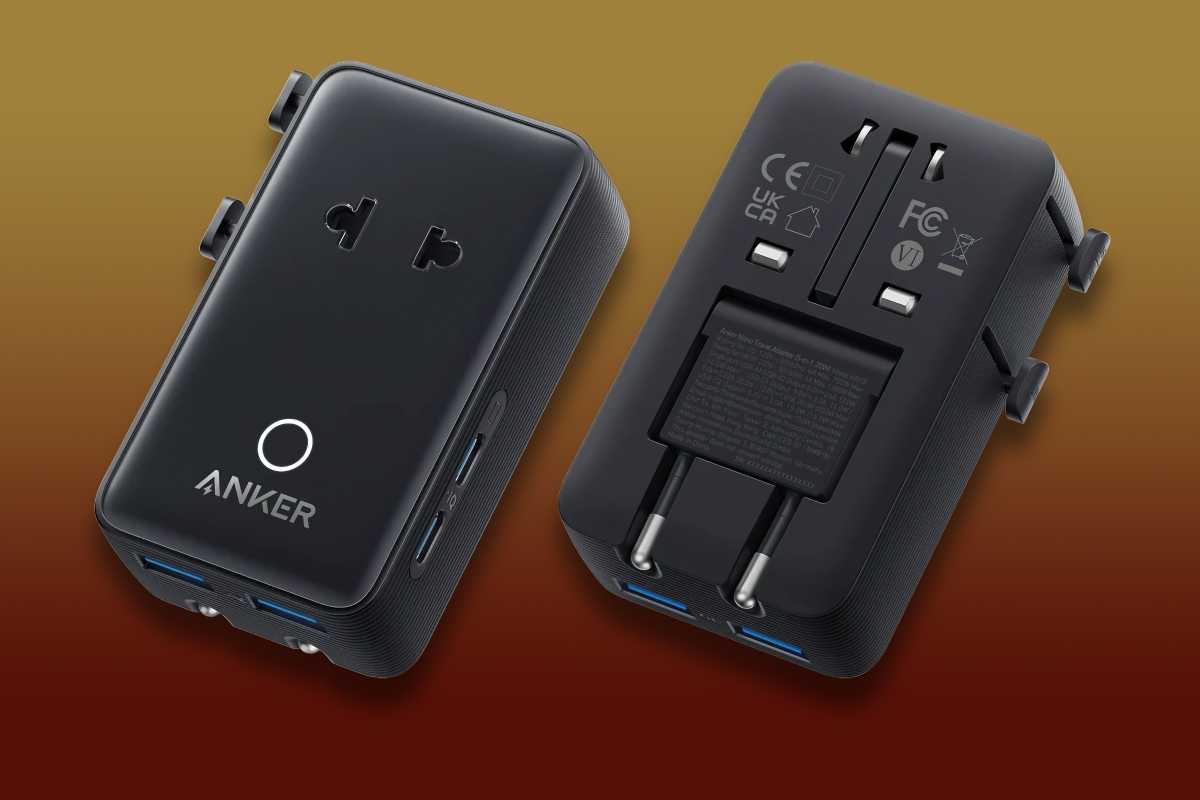
Anker Nano Travel Adapter

Anker Nano Travel Adapter

Foundry

More and more hotels, especially those that cater to international clientele, are starting to install wall outlets that can be used with the different types of power plugs. Hotels are also starting to have USB charging ports next to those wall outlets. But they’re not everywhere, so when you travel outside of the country, it’s good to have a power outlet adapter. The $26 Anker Nano Travel Adapter works in over 200 countries (it is not a voltage converter), and it can charge five devices at once.

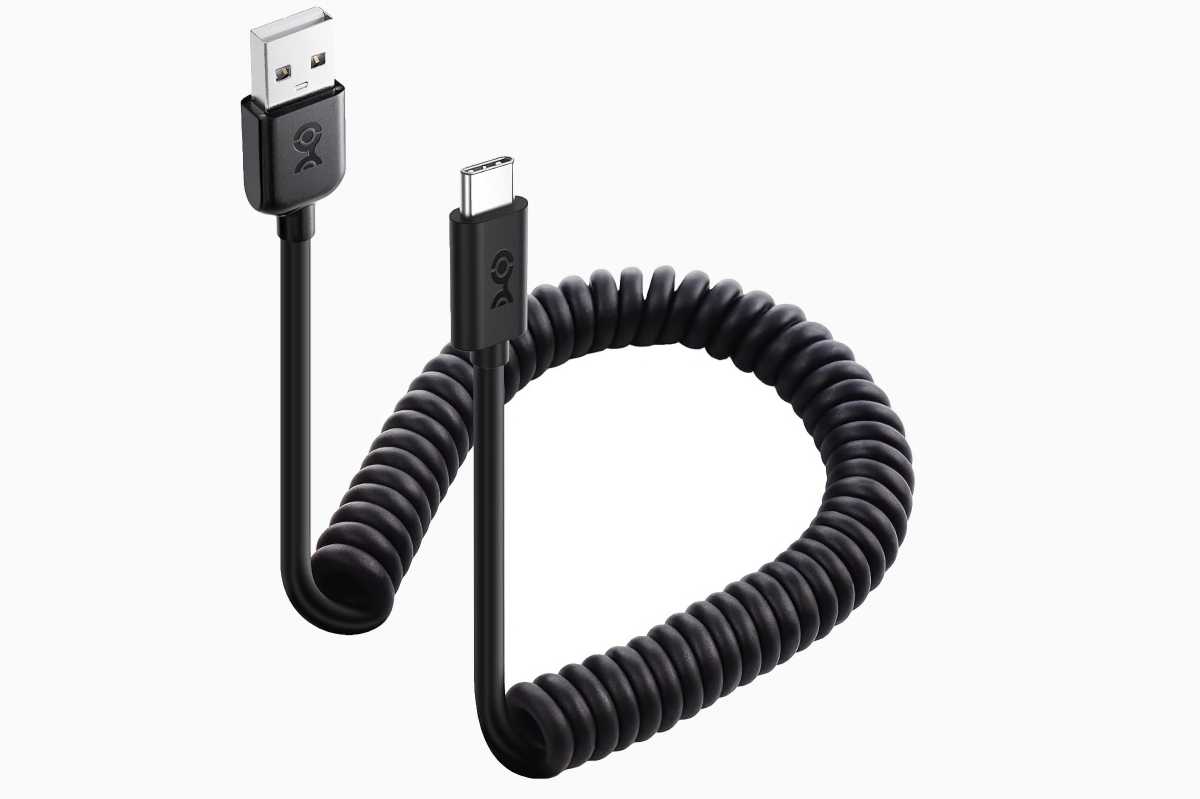
Coiled USB Charging Cables

Cable Matters coiled USB-C USB-A cable

Cable Matters

I try to rely on wireless connectivity/charging when I travel, but at some point, a cable is needed. I like bringing coiled cables because I find them easier to manage, especially when I have to connect a few phones for several people in my travel party who need to charge. I have a USB-C cable ($14.99 two-pack), but I also pack a USB-A to USB-C cable ($14.99 two-pack) because I’ve yet to be on a plane with USB-C ports. And I pack a USB-A to Lightning cable ($16 two-pack), because people I travel with have older iPhones.

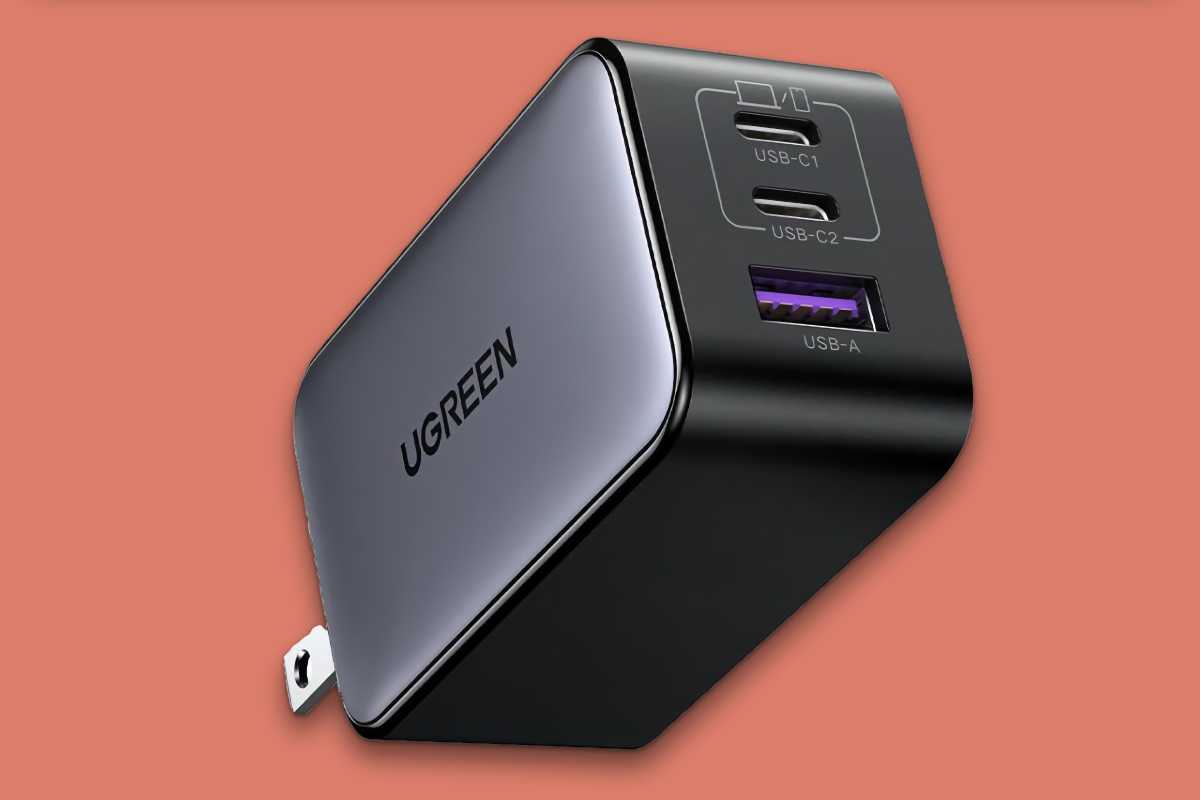
UGreen Nexode 65W GaN USB C Wall Charger

UGreen Nexode 65W GaN USB C Wall Charger

Foundry

It’s not difficult to find smaller, more capable chargers than the ones Apple sells. The $40 UGreen Nexode 65W GaN USB-C Wall Charger can charge three devices at once. See more chargers in our USB-C charger guide.

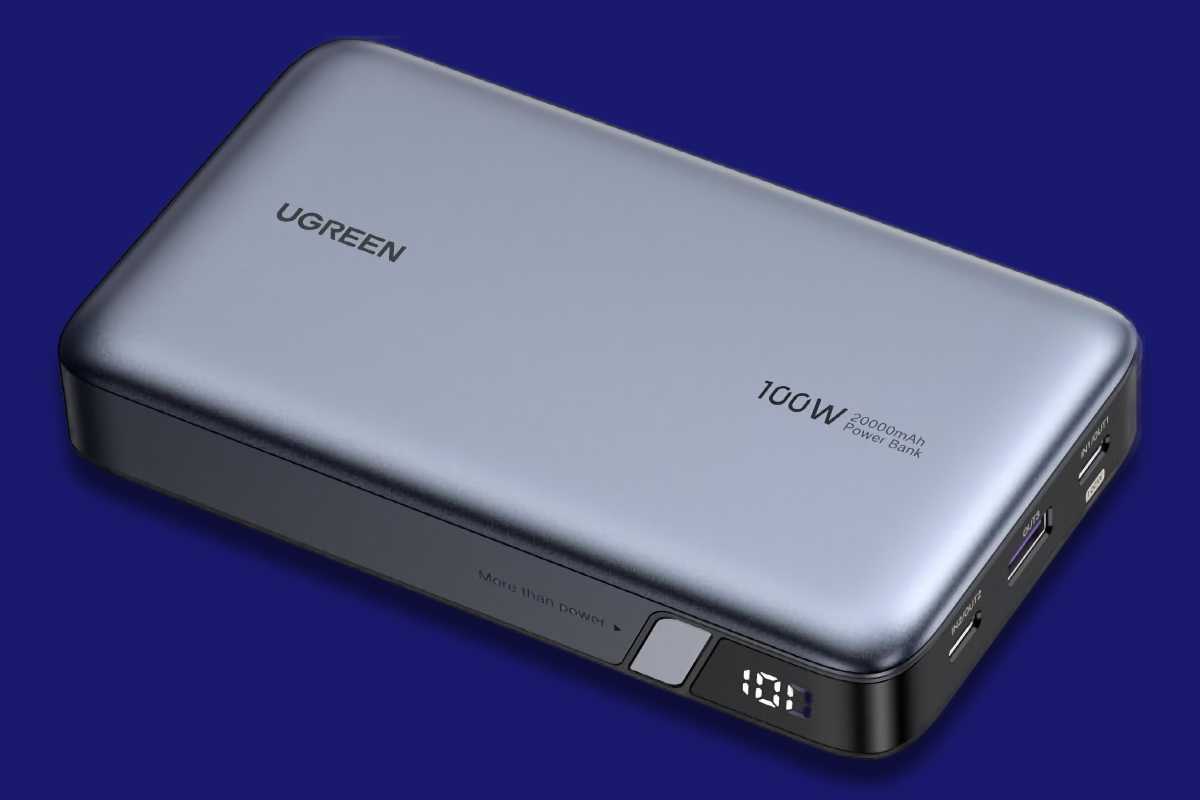
UGreen Nexode Power Bank 20000mAh 100W

UGREEN 20000mAh 100W Power Bank

Foundry

You know what sucks? When you’re on a transcontinental flight and the outlets near your seat don’t work. That’s one of the reasons why I got the UGreen Nexode Power Bank 20000mAh 100W power bank. I’ve used it countless times when I couldn’t find a working outlet. It has enough juice to charge a laptop, and its 72-watt-hour capacity falls under the airline limits, so you can take it on a plane. Check out Macworld’s best laptop power banks for MacBooks for more options.

UGreen Magnetic Power Bank

Ugreen Magnetic Power Bank

Ugreen

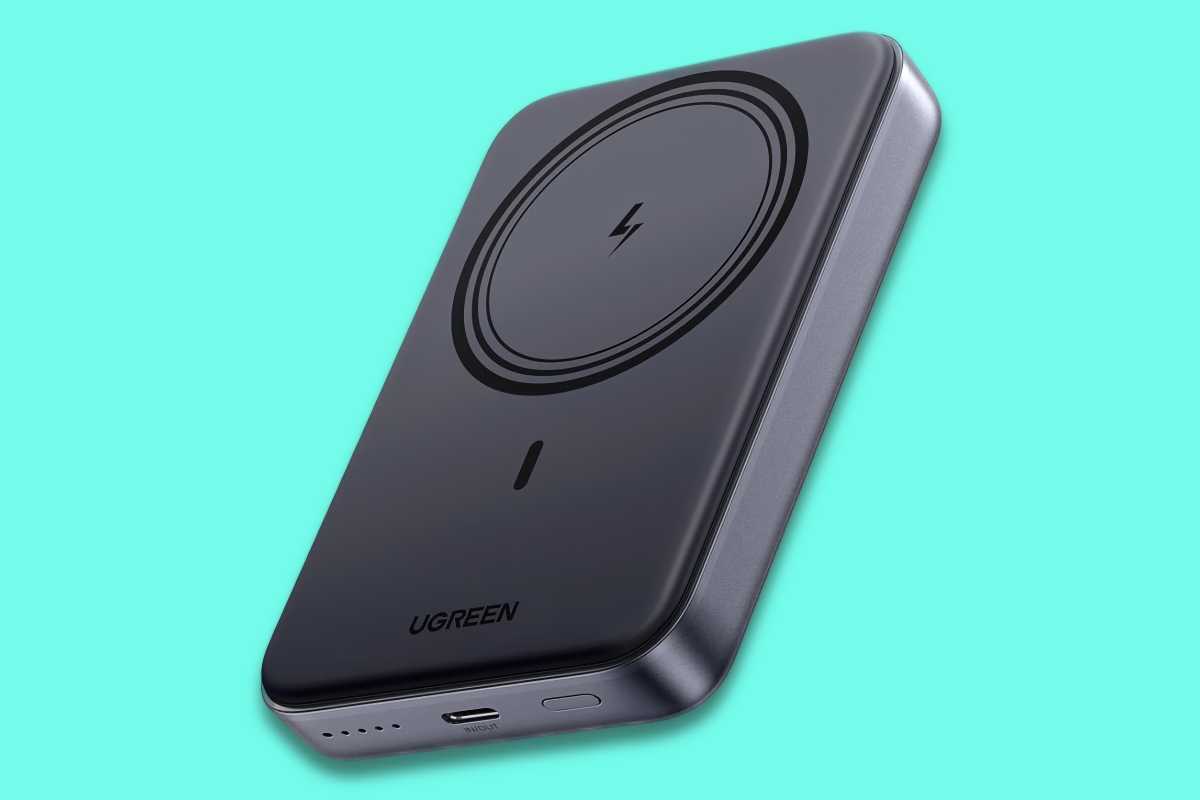
I keep a MagSafe battery with me when I’m out exploring, just in case. This Ugreen model (I’m a fan, if you haven’t noticed) supports MagSafe and USB-C 20W charging, but I mostly stick it to the back of my iPhone with MagSafe. Read Macworld’s best picks for magnetic power banks and MagSafe portable chargers for iPhone if you want something with more juice.

Apple AirPods Pro

Apple AirPods Pro 3:

Andreas Bergsman

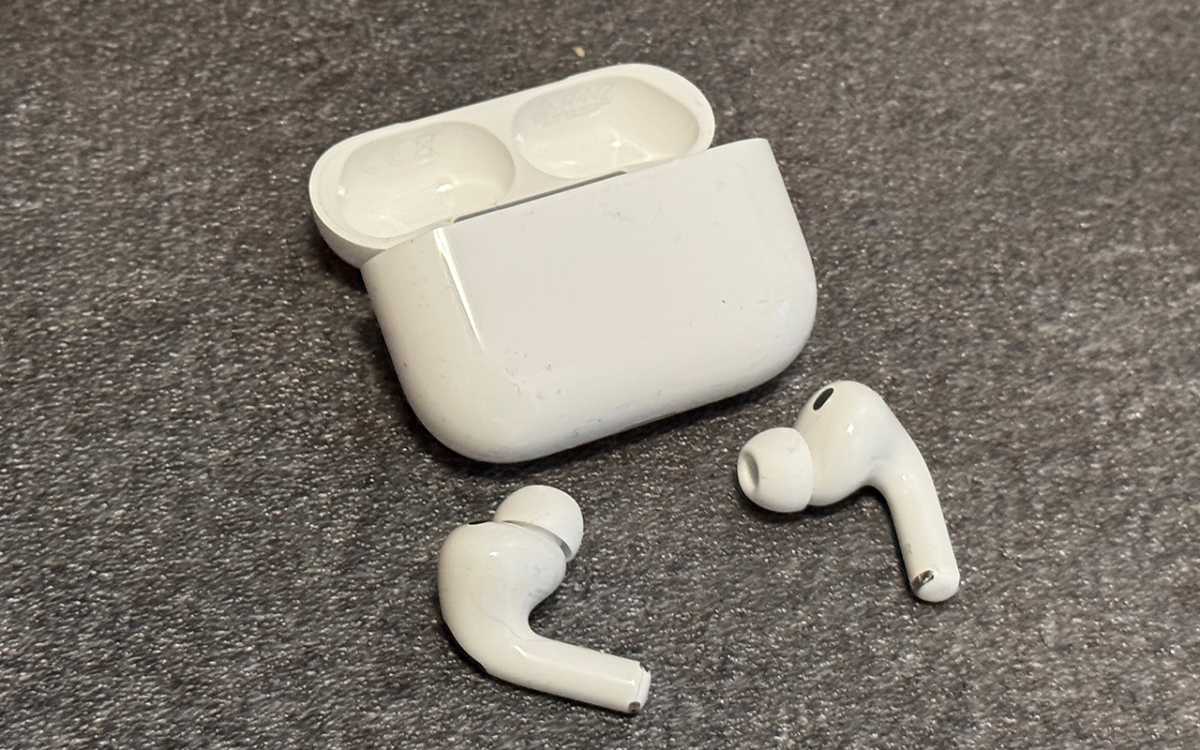
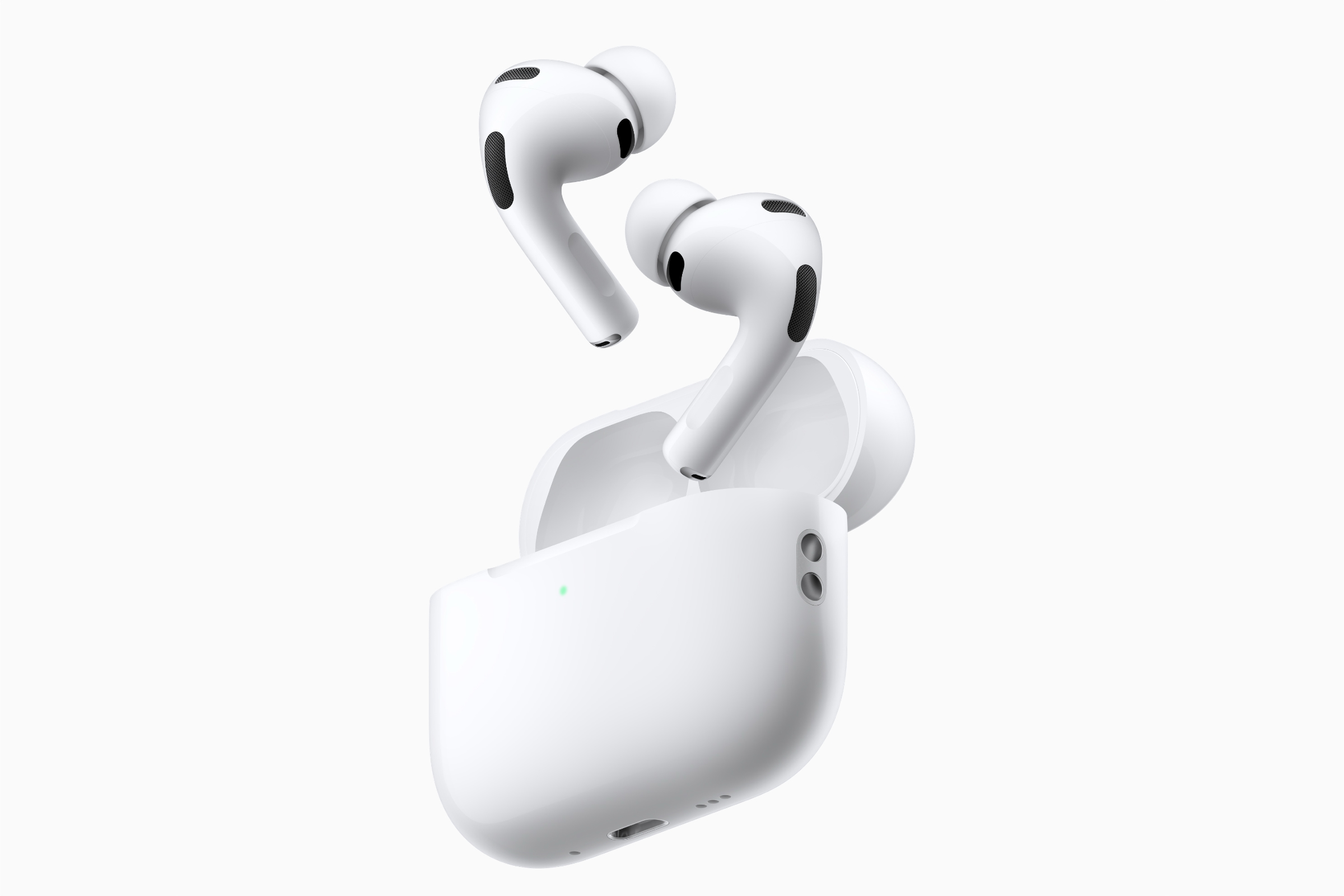
I prefer the $249 AirPods Pro 3 over the $179 AirPods 4 with ANC because the Pro’s in-ear fit seals out more noise and makes for a more comfortable trip on an airplane. AirPods go on sale often on Amazon, so look out for discounted prices. You can check out our AirPods Pro 3 review for in-depth testing, but you already know how great they are.

We recommend: Apple AirPods Pro 3

Apple AirPods Pro 3

Sony MDR-EX15LP wired earphones

Sony MDR-EX15LP

Sony

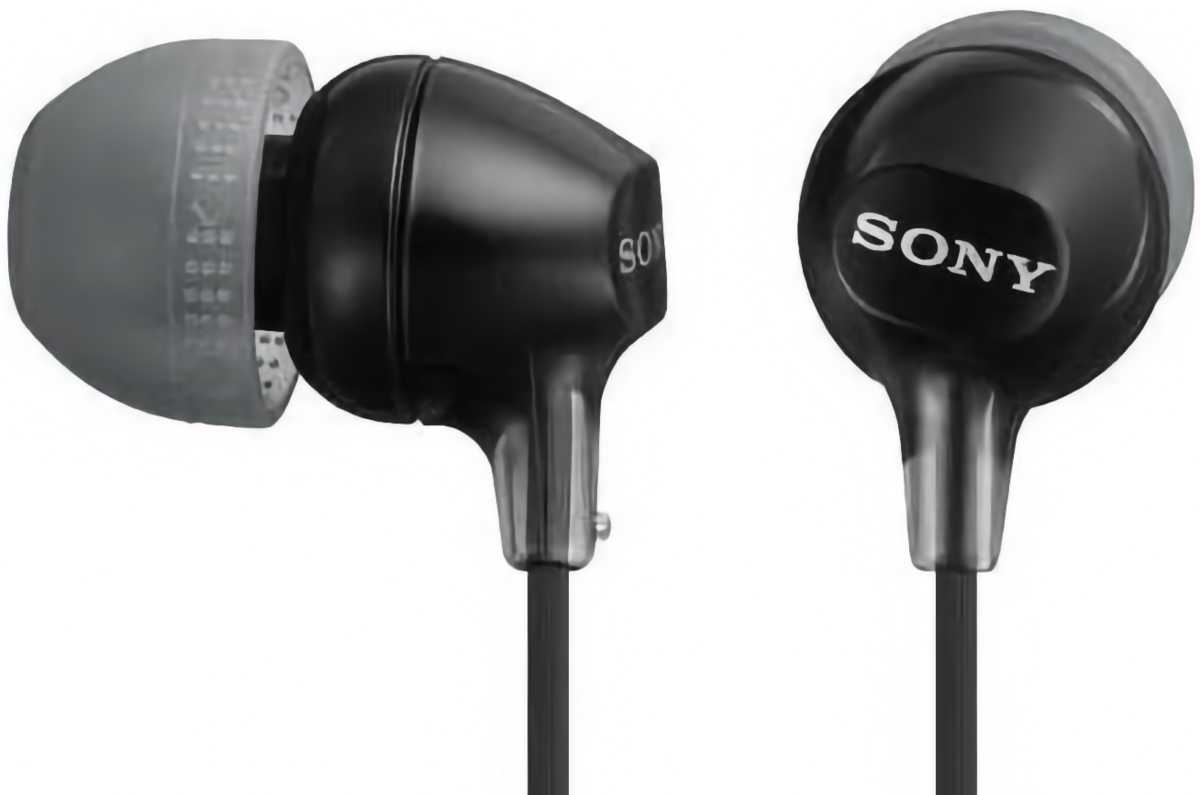
I usually watch something on my iPhone during long flights, but sometimes the in-flight entertainment has something good. When I can, I plug in my own wired earphones to the airplane’s jack–I only use the ones the airline provides if the plane uses a two-prong audio jack. These Sony earphones with a 3.5mm connector are decent for the price ($10 on Amazon), and if I lose them, it’s not a big deal.

Moft Trackable Snap-on Phone Stand & Wallet

Moft Trackable Snap-on Phone Stand & Wallet

Moft

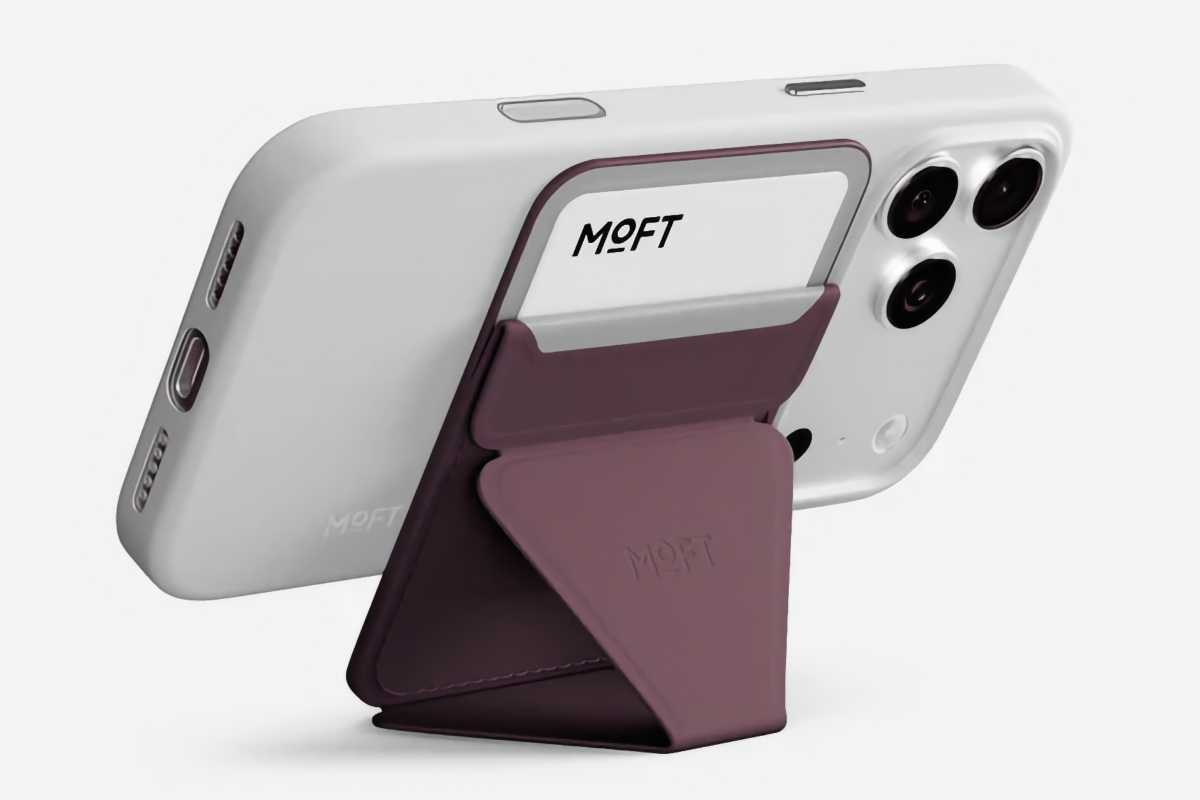
This $50 wallet doubles as a stand–one item to carry instead of two? Say less. It is also trackable with the Find My app, which I haven’t had to resort to, thankfully, but is very nice to have and props up the iPhone at a perfect angle for watching videos. Plus, this wallet holds two cards, just enough for an ID and a hotel room key.

Scosche WatchIt Keychain

Scosche WatchIt Keychain

Scosche

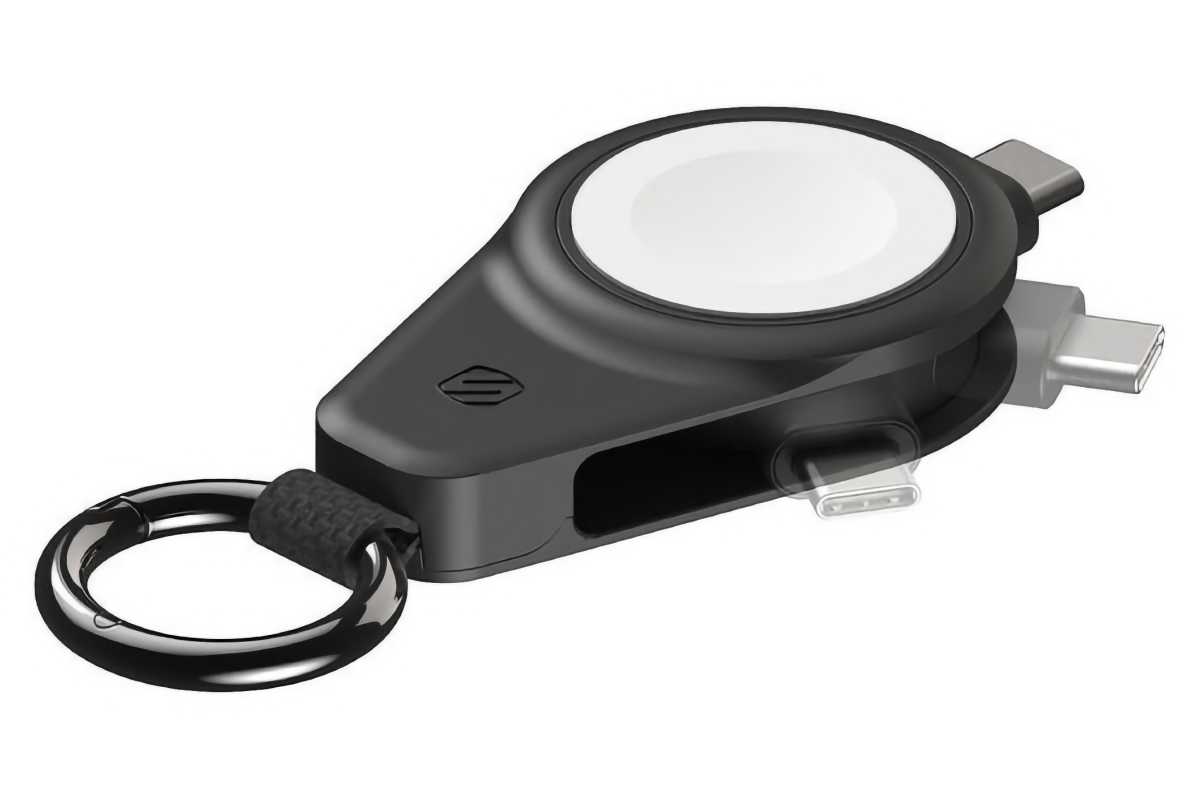
I’m not good about remembering to wear my Apple Watch every day, but I always take it when I travel, mostly because I use its remote trigger for the iPhone camera. I like this $35 Apple Watch charger because it’s small, even though the built-in USB-C port makes connecting it to a charger kind of tricky. But you can easily connect it to an iPhone or MacBook for a quick fill-up. See our other best Apple Watch Charger recommendations.

Pelican PX18 Aegis Backpack

Pelican Aegis Backpack 18 Liter

Pelican

I actually use an older Pelican backpack–it’s been with me for over 10 years now, and it’s the most durable backpack I’ve ever owned. But Pelican no longer makes it, and I’m eyeing the $200 Aegis to eventually replace it (if it ever wears out). It’s also available in a bigger 25-liter model. See Macworld’s best picks for MacBook backpacks, bags, cases and sleeves.

Lee Men’s Extreme Motion Canvas Cargo Pant

Lee Men's Performance Series Extreme Comfort Twill Straight Fit Cargo Pant

Lee

Before you write to me that Macworld isn’t in a position to give fashion advice, let me be clear: These pants are practical, not fashionable. Cargo pants are ideal for carrying the things I need while seeing the sites. No, I’m not wearing them to a formal dinner. I’m not that gauche. These $42 Lee cargo pants are comfortable, and they don’t have the cargo pocket flaps that I find get in the way.

  •  

HomePod Room Temperature Automations in the Home App

HomePod room temperature automations turn Apple’s smart speaker into more than a source of music and Siri responses. Its built-in climate sensor can trigger fans, thermostats, smart plugs, shades and other compatible accessories when a room becomes warmer or cooler than a selected temperature.

The automation runs through Apple’s Home app. Once configured, it does not require someone to ask Siri for the current reading or leave an iPhone inside the room. HomePod measures the local conditions while the home hub evaluates the rule and controls the selected accessories.

A bedroom fan could start when the room rises above 24°C, for example. A compatible thermostat could activate heating when an office falls below 18°C, while motorized shades could close before afternoon heat makes a living room uncomfortable.

The same system works with humidity. HomePod can trigger a compatible humidifier, dehumidifier or ventilation accessory when relative humidity crosses a chosen level.

Which HomePod Models Measure Room Temperature

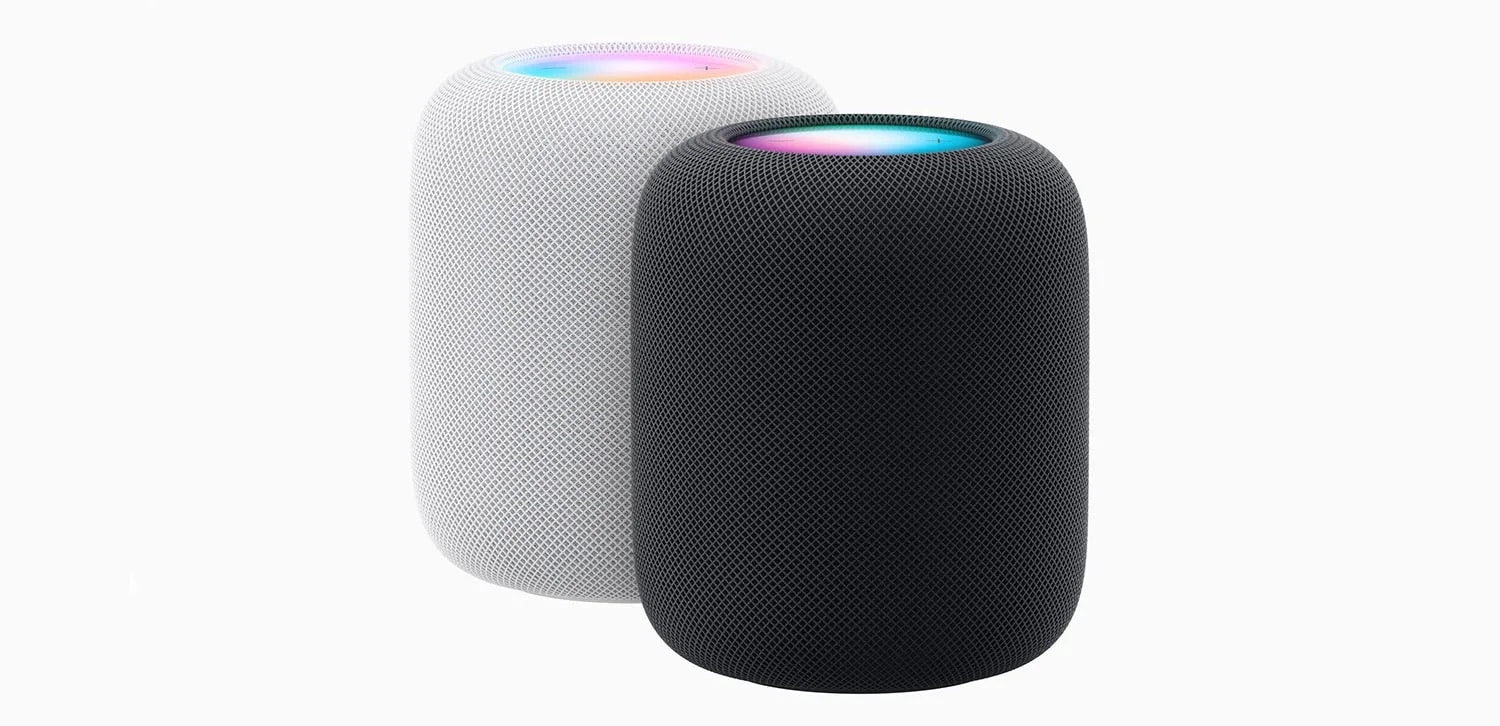
Temperature and humidity sensing is available on HomePod mini and HomePod (2nd generation).

The original full-size HomePod does not contain the supported climate sensor. It can act as a home hub and participate in scenes, but it cannot supply the temperature reading used to start this type of automation.

HomePod mini is sometimes overlooked because Apple did not activate its temperature and humidity sensor when the speaker originally launched in 2020. A later software update enabled the component, allowing existing HomePod mini units to report climate information without a hardware upgrade.

Both supported models should run the latest available HomePod software. The iPhone or iPad used to configure the home should also be updated because older software may not display every sensor or automation option correctly.

HomePod normally updates automatically. Its version can be checked in the Home app by opening the HomePod, selecting its settings and scrolling to the software information.

Close-up of a white mesh Apple HomePod smart speaker with its colorful touch surface glowing, and a smaller black HomePod mini speaker—perfect for those considering an Apple HomePod mini upgrade—placed on top.
Image Credit: AppleMagazine

The Speaker Must Be Assigned to the Correct Room

The room assigned to HomePod determines how its readings appear in the Home app and how Siri interprets questions about local conditions.

A HomePod physically located in the bedroom but assigned to Living Room will report its sensor as part of the living-room climate group. This becomes especially confusing when several HomePods are installed throughout the home.

To verify the room, open the Home app, touch and hold the HomePod tile, open Accessory Settings and check the Room field. Assign a descriptive name to the HomePod as well, particularly when two supported speakers occupy nearby spaces.

The sensor does not measure an entire home. It reports conditions near the HomePod, so the assigned room should correspond to its physical location.

How to Check the HomePod Temperature

The current reading is available through Siri or the Home app.

A person can ask Siri, “What is the temperature in here?” when speaking to the HomePod inside that room. Questions can also identify a different room, such as “What is the temperature in the bedroom?” or “What is the humidity in the basement?”

In the Home app, open the Home tab and select Climate near the top of the screen. Choose Temperature to see readings from available climate sensors. Opening an individual room can make it easier to identify the relevant HomePod when several sensors are installed.

The Home app may display a range rather than one number when multiple temperature sensors belong to the same room or home. Opening the temperature category reveals the individual readings behind that range.

A newly restarted or updated HomePod may not show a result immediately. Apple says the sensor requires time to calibrate after startup.

How to Create a HomePod Room Temperature Automation

The temperature sensor appears as an automation trigger rather than an accessory that can be turned on or off. The user defines a threshold and then selects what another compatible accessory should do when the reading crosses it.

To create the automation:

  1. Open the Home app on an iPhone or iPad
  2. Select the Automation tab or tap the Add button and choose Add Automation
  3. Choose A Sensor Detects Something
  4. Select the temperature sensor assigned to the appropriate HomePod and room
  5. Choose Rises Above or Drops Below
  6. Set the desired temperature threshold
  7. Add optional time and occupancy conditions
  8. Select the accessories or scene that should run
  9. Configure the desired state of each accessory
  10. Test the automation and tap Done

The selected action could turn on a fan, change a compatible thermostat, close shades or activate an existing scene containing several accessories.

HomePod does not produce cool or warm air itself. It supplies the measurement and functions as a home hub, while the automation controls other equipment connected to Apple Home.

Apple-HomePod-2

Choosing Rises Above or Drops Below

The direction of the trigger is important.

Rises Above starts the automation when the measured temperature moves from below the selected value to above it. This is the usual option for starting a fan, lowering compatible shades or changing a thermostat to a cooler setting.

Drops Below works in the opposite direction. It can start heating, turn off a fan or activate another accessory when the room becomes colder than the selected level.

These are threshold-crossing events, not continuous questions asking whether the room is currently above or below a value. If the room is already warmer than 24°C when a new Rises Above 24°C automation is saved, the rule may not run immediately. The reading generally needs to fall below the threshold and then rise across it again.

This behavior also explains why an automation may not repeatedly react while the room remains on the same side of the threshold. Another transition must occur before the trigger fires again.

Use Time and Occupancy Conditions

The Home app can restrict a temperature automation to particular times or household conditions.

A bedroom fan may only need to run overnight. Heating in a home office could remain inactive on weekends. A cooling automation might operate only when someone is home, while another rule protects temperature-sensitive equipment regardless of occupancy.

The People condition can limit an automation to when somebody is home, when nobody is home or when selected household members are present or absent. These conditions depend on location access and the devices associated with members of the Apple Home.

Time restrictions should match the behavior of the controlled accessory. Closing shades during the hottest afternoon hours may be useful, but the same action would provide little benefit after sunset.

An automation can also activate a scene instead of controlling one product. A Hot Afternoon scene could close the west-facing shades, start a fan and turn off heat-producing decorative lights with one sensor trigger.

Useful HomePod Temperature Automations

A smart fan is one of the simplest accessories to control. When the temperature rises above a comfortable level, the Home app can turn on a HomeKit or Matter-compatible fan. A second automation can stop it after the room cools.

A thermostat offers more direct climate control, but the available actions depend on the thermostat manufacturer. Apple Home may expose power, heating, cooling and target-temperature controls, while more advanced scheduling remains inside the manufacturer’s app.

Motorized shades can reduce solar heating before an air conditioner needs to work harder. A temperature trigger can close selected shades when a sun-facing room becomes warm, particularly when the automation is limited to daytime hours.

A ceiling fan or portable fan connected through a smart switch or smart plug can also respond to the HomePod sensor. The connected controller must be rated for the appliance, and the appliance must safely resume operation when power is restored. Products with electronic controls may remain off after a smart plug turns them back on.

Portable heaters and air conditioners require greater caution. Many smart plugs are not designed for their electrical load, and some appliance manufacturers prohibit external switching. A compatible thermostat or manufacturer-supported controller is safer than treating high-power climate equipment like a lamp.

HomePod room temperature - Concept render of the Apple HomePod 2025 with a 6-7 inch screen displaying a smart home control interface, featuring an A18 chip-powered design on a modern kitchen counter.
Image Credit: Apple Inc.

Humidity Can Use the Same Automation System

HomePod exposes temperature and relative humidity as separate sensors.

A bathroom or laundry-room HomePod could trigger ventilation when humidity rises above a chosen level. A dehumidifier with a compatible control could operate in a damp basement, while a humidifier could respond when heated winter air becomes too dry.

The setup process is almost identical to a temperature automation. Select A Sensor Detects Something, choose the HomePod’s humidity sensor, set Rises Above or Drops Below and assign the action.

Humidity automations also benefit from separate starting and stopping thresholds. Turning a dehumidifier on above 65 percent and off below 55 percent creates a useful operating range instead of responding repeatedly around one value.

HomePod Sensor Placement Affects the Reading

HomePod measures the conditions around the speaker, not at the center of the room or inside an air-conditioning return.

Placing it beside a sunny window, heater, fireplace, kitchen appliance or air vent can produce readings that do not represent the space where people spend time. An enclosed shelf may also trap warmer air around the device.

The speaker needs airflow and a stable surface. It should not be covered or placed where condensation, cooking steam or direct moisture can reach it.

Extended audio playback at high volume can reduce sensor accuracy because heat generated by the speaker may influence the local reading. This matters when an automation uses a narrow threshold and the HomePod frequently plays loud music.

Apple says temperature sensing is optimized for indoor domestic environments between approximately 15°C and 30°C. Humidity sensing is optimized between about 30 and 70 percent relative humidity. Readings outside those ranges may be less accurate.

HomePod is therefore useful for comfort-oriented home automation, but it should not replace specialized monitoring required for medicine, food storage, animals, greenhouses or other temperature-sensitive environments.

Why a Temperature Automation May Not Work

Begin by confirming that the temperature reading itself appears in the Home app. If it is missing, verify the HomePod model, install current software and allow time for calibration after restarting.

Check that the correct temperature sensor was selected. Homes containing multiple HomePods may present several sensors with similar names, particularly when the speakers were never given descriptive room assignments.

Open the automation and confirm that it is enabled. Review its time and People conditions, because a functioning temperature trigger will still do nothing when an additional condition is not satisfied.

Use the Test This Automation control to confirm that the destination accessory responds. If the test fails, the problem is more likely to involve the accessory, its network connection or the selected action than the HomePod sensor.

If the test succeeds but the rule does not run naturally, remember that the temperature must cross the threshold in the selected direction. Temporarily choosing a value closer to the current room temperature can make testing easier.

Home hubs and accessories should remain connected to the same Apple Home. Thread-based accessories also need a supported Thread-enabled home hub or border router, such as HomePod mini, HomePod (2nd generation) or a compatible Apple TV 4K.

Build Two Automations for Stable Climate Control

A single automation can start a device but may not provide the best way to stop it.

Using the same threshold in opposite directions can cause frequent switching when the measured temperature fluctuates around that value. A room hovering near 24°C, for example, could repeatedly move just above and below the boundary.

A more stable arrangement uses two thresholds. One automation turns the fan on when the temperature rises above 24°C. A separate automation turns it off when the temperature drops below 22°C.

The gap creates a controlled operating range. Once the fan starts, it can continue working until the room has cooled meaningfully rather than stopping after a minor change.

Heating can follow the reverse pattern. One automation activates heat below 18°C, while another stops it above 20°C. Humidifiers and dehumidifiers can use the same paired-rule structure.

This separation also makes troubleshooting easier because every automation performs one clear action in response to one specific sensor transition. Instead of asking one complicated rule to manage the complete climate cycle, HomePod supplies the measurements while two predictable Home app automations define when the connected equipment starts and stops.

The post HomePod Room Temperature Automations in the Home App appeared first on AppleMagazine.

  •  

Journey Nova 3-in-1 Wireless Charging Station review: Simply gorgeous

Macworld

Editors' Choice

At a glance

Expert's Rating

Pros

  • Style magazine looks
  • Charges iPhone, Watch, AirPods
  • 15W Qi2 iPhone charging
  • Fast charge Apple Watch
  • Guiding light
  • Now in white and black

Our Verdict

If you value your home décor and don’t want an out-of-place ugly charger sitting by your bed or on your minimalist desk, the Journey Nova offers style-magazine looks alongside the fastest wireless charging speeds.

Price When Reviewed

This value will show the geolocated pricing text for product undefined

Best Pricing Today

Best Prices Today: Journey NOVA 3-in-1 Wireless Charging Station

Retailer
Price
Price comparison from over 24,000 stores worldwide
Product
Price
Price comparison from Backmarket

We have reviewed a lot of MagSafe and compatible magnetic chargers ever since the first wireless iPhone 8 and later magnetic wireless iPhone 12. Check them out in our best MagSafe chargers roundup. Some have been useful as phone stands, some have folded into pocketable travel companions, while others have included built-in power banks to save you on the road.

But few have been able to grace a bedroom nightstand or designer desk without incongruously looking exactly like something there do charge your devices. That’s where the Journey Nova stands out, and a new black model adds a touch of sultry class.

Design

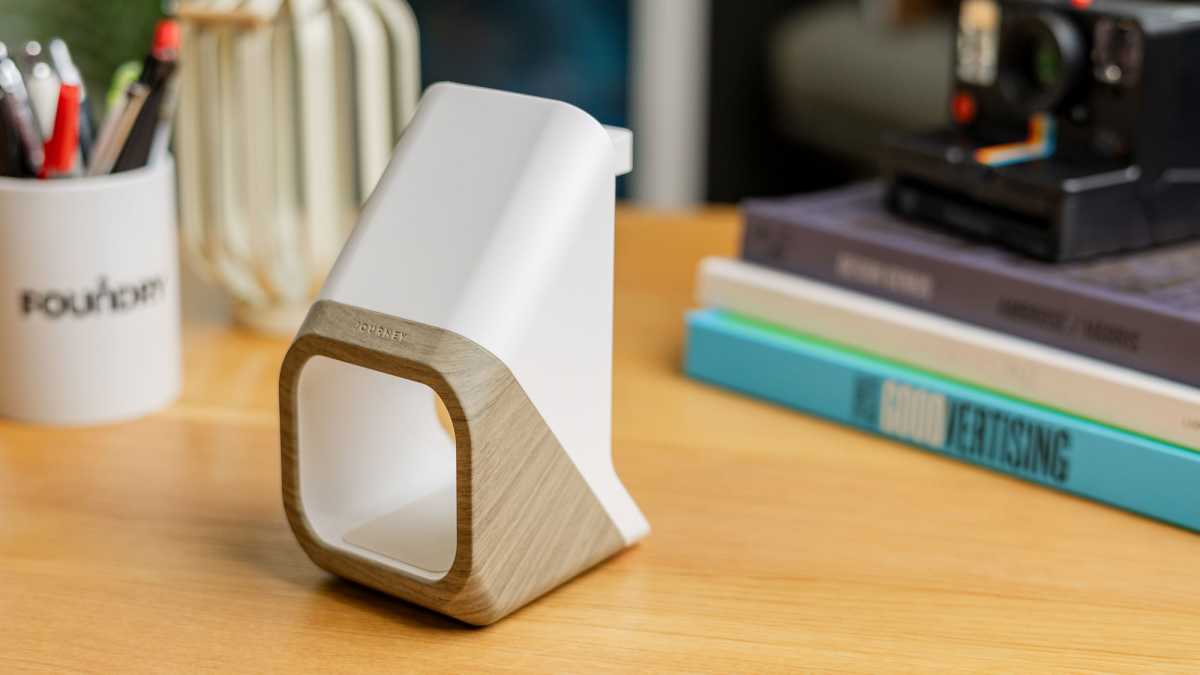
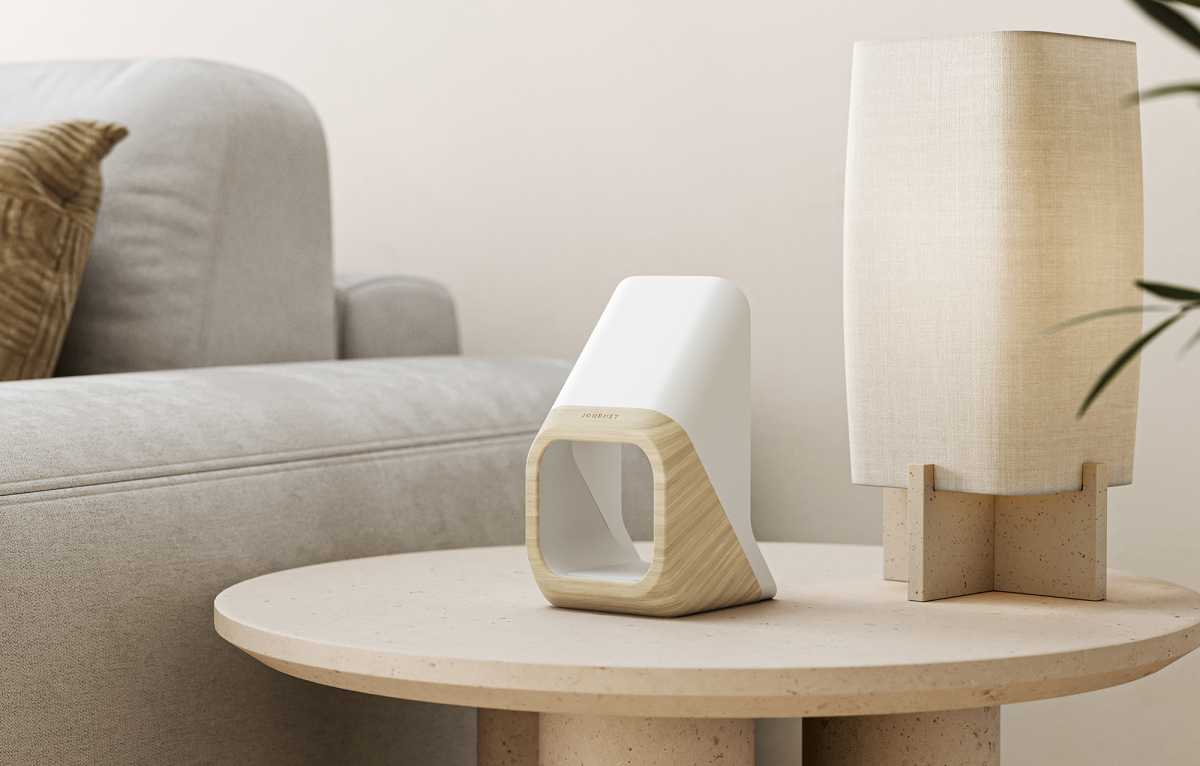
The Journey Nova looks like no other wireless charger and is sure to grace the pages of your favorite home-style magazine. Journey has directly tried to find an “anti-tech aesthetic” that it believes will complement decors “much like a vase, chair, or pot plant might”.

Journey Nova 3 in 1 Wireless Charging Station back no cable

Dominik Tomaszewski / Foundry

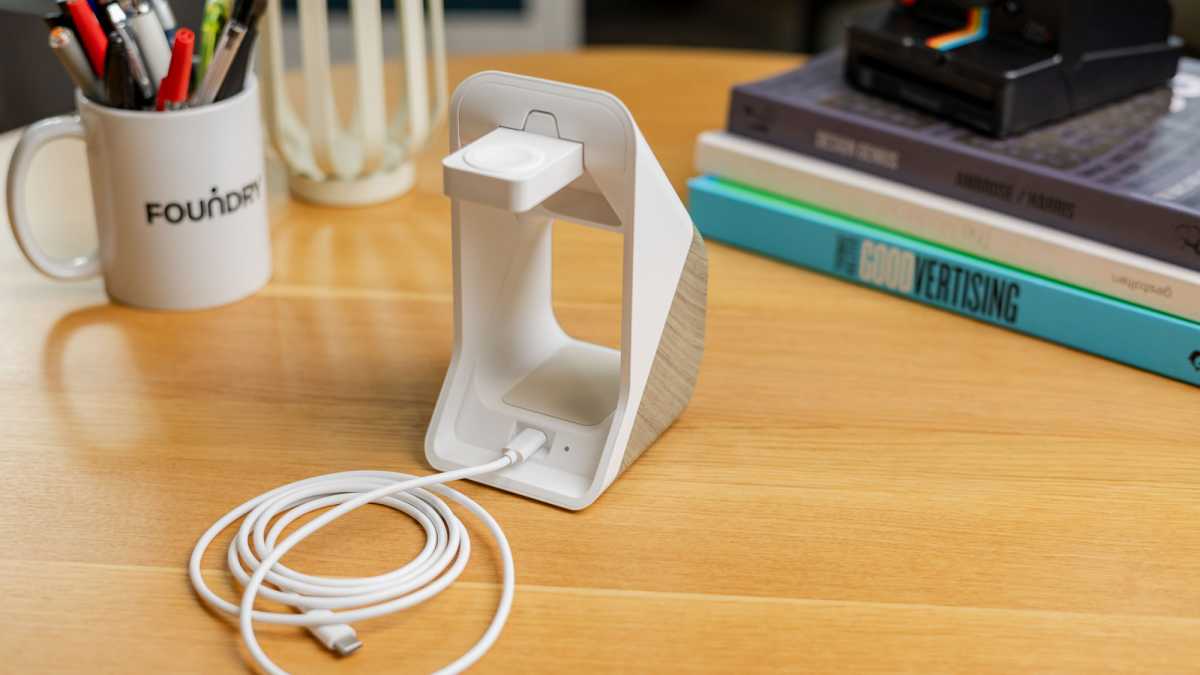
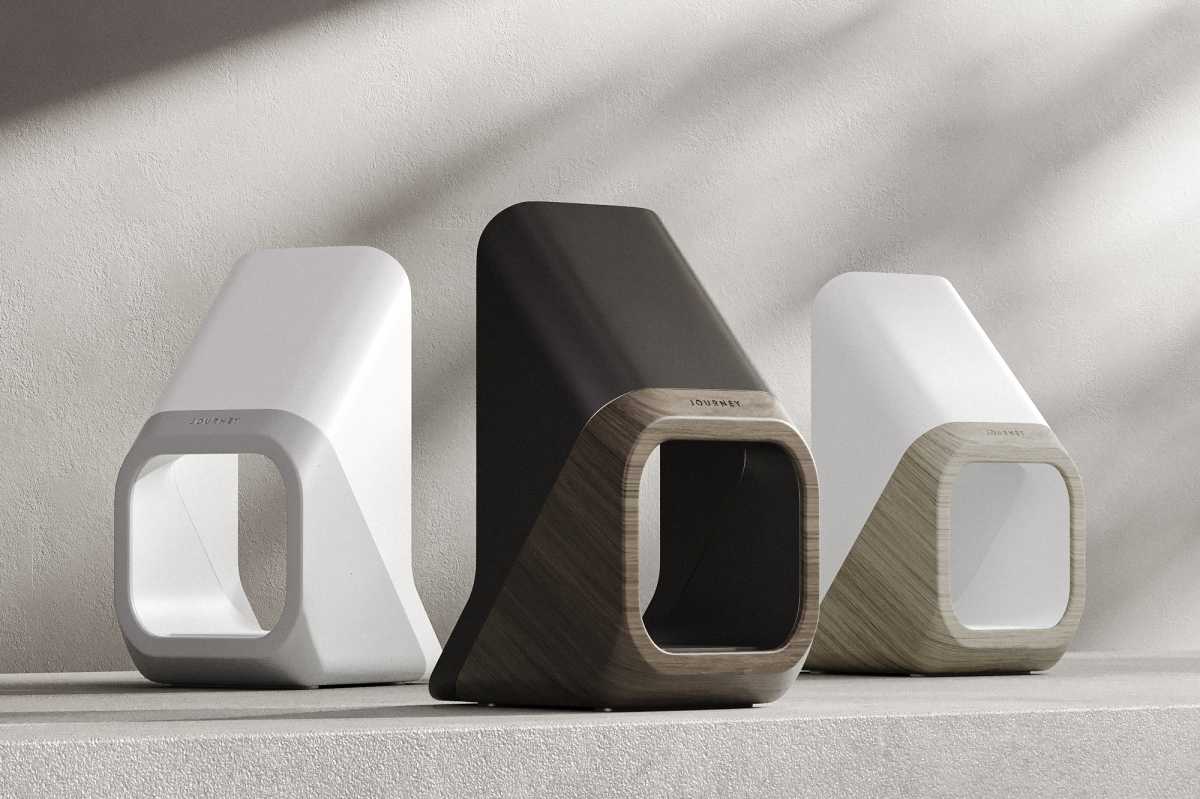
Its 6-inch vertical hollow block gives it a feeling of both weight and lightness while taking up little space with its small footprint: 3.2 x 3.6 inches (8 x 9.2cm). The split-material—with either wood grain or what Journey calls “Sparkle Gray” below a matte Corian-like white and now black—look gives it a Skandi design identity. The look won’t be for everyone, but there’s no denying the striking pose it cuts on a desk or table.

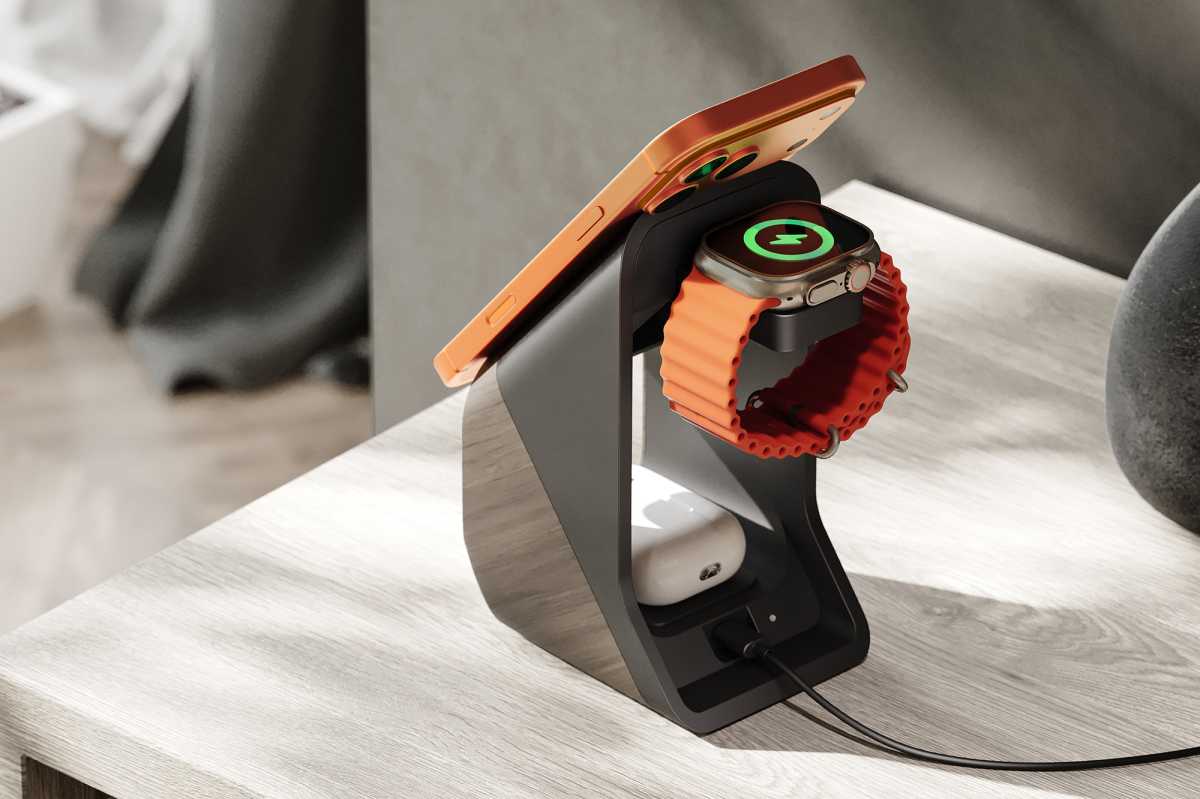
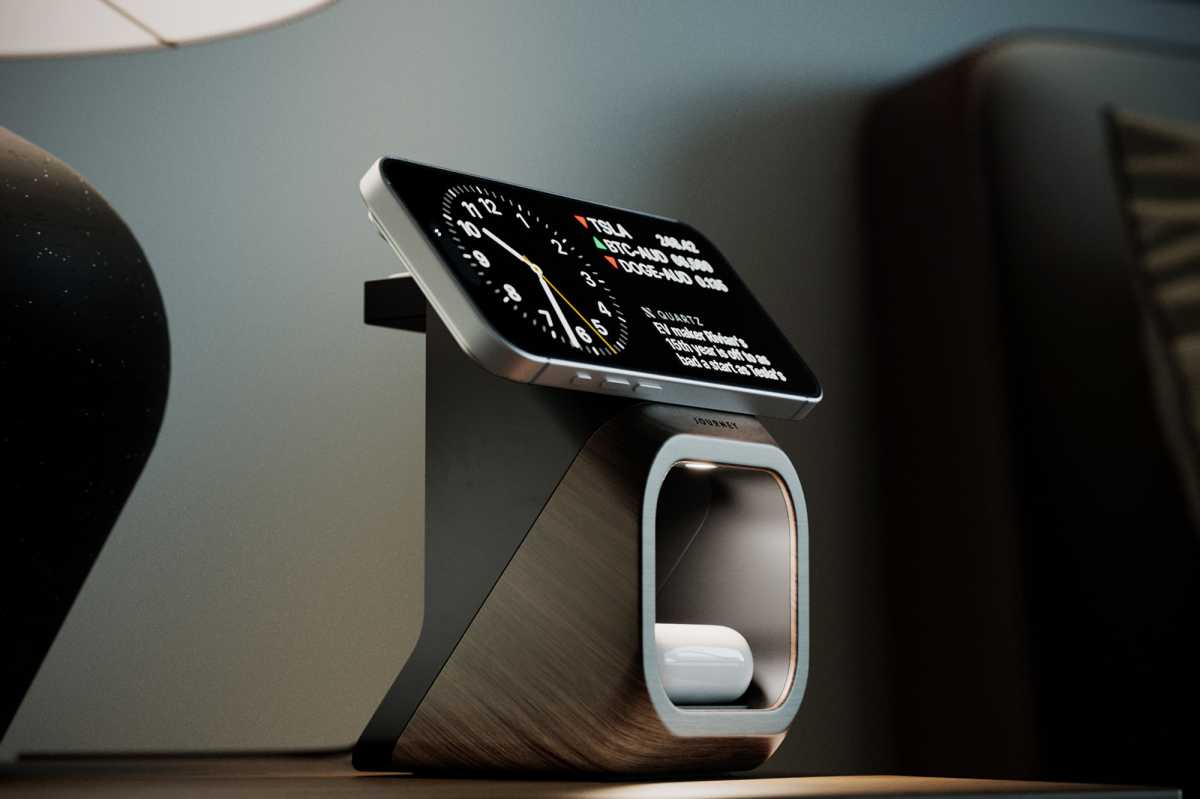
The iPhone magnetically connects to the 15W Qi2 wireless charging space above the hollow 5W Qi pad for AirPods charging. Inside that hollow is a guiding night light that can be switched on or off with a light touch under the roof.

Journey Nova 3 in 1 Wireless Charging Station back

Dominik Tomaszewski / Foundry

At the back you can flip out the 5W Apple Watch charger module, keeping it both hidden and protected when not in use. That means each device gets as fast a wireless charge as can be got outside of Apple’s unique (iPhone 16-only) 25W MagSafe Charger. Additionally, the Apple Watch module is certified by Apple for fast Watch charging, and 5W is plenty for a swift AirPods power-up.

Journey Nova wireless charger black
A new black model has joined the white Nova.

Journey

If there anyone out there who owns an Apple Watch and AirPods but an Android phone (unlikely given the Watch doesn’t play well with Android and AirPods work best with an iPhone), Journey includes a magnetic ring to update non-MagSafe smartphones to work with Qi2.

Journey Nova Night light black1

Journey

Price

The Journey Nova costs $139.99 / £119.99 / AU$189.99. This is not a huge extra expense on some of our favorite 3-in-1 wireless chargers such as the Twelve South HiRise 3 Deluxe, which is more flexible but looks utilitarian in comparison to Nova.

The Mophie StealthCharge 4-in-1 Wireless Charge Stand (also available as a 3-in-1) is a speedier 25W charger with a spare retractable USB-C cable for your MacBook, but it doesn’t have the interior design chic of the Nova.

There are certainly cheaper 3-in-1 chargers but none would grace the style section of the Sunday newspapers with the possible exception of the squatter but still lovely Belkin BoostCharge Pro 2-in-1 Dock.

Journey Nova Wireless Charger colors

Journey

What you get is a bold, décor-friendly look allied with top-end charging tech that features just one cable to power all your mobile and wearable gadgets in a style sympathetic to the smartest homes.

Journey Nova table lamp

Journey

Verdict

If you value your home décor and don’t want an out-of-place ugly charger sitting by your bed or on your minimalist desk, the Journey Nova offers style-magazine looks alongside the fastest wireless charging speeds, and now a new black model if you prefer your chargers dark and moody.

  •  

ESR Flicklock: 22 Euro investiert – und die Airpods sind nicht mehr für die Katz’

Wo sind die Airpods (Pro) am besten aufgehoben, wenn nicht in den Ohren? Natürlich im Ladecase, das die Ohrhörer mit frischer Energie versorgt, wenn man es aufgeladen hatte. Wo ist das Ladecase am besten aufgehoben, wenn Airpods drinstecken? Überall dort, wo die Katze nicht hinkommt. 

Ist mir vor einiger Zeit mal passiert: Die Airpods lagen in ihrer Ladeschachtel auf einem Sideboard, auf das der Kater mit einem Sprung leicht heraufkam. Und sich darüber freute, dass Herrchen etwas zum Spielen hingelegt hatte, was man mit der Pfote von der Kommode herunterfegen konnte und das sich auf dem Boden dann auch noch in drei Teile aufspaltete: zwei Ohrhörer und ein Case.

Flicklock Case von ESR

Nach ein wenig Herumgeschubse über den Holzboden verlor das Tier dann aber bald das Interesse – und ich die „Wo ist?“- Verbindung ausgerechnet zu dem Hörer, der außer Sichtweite geraten war. Anscheinend war er nicht ausreichend geladen, um sich mit einem Piepton bemerkbar zu machen. Gut, dann eben mit dem Besen unter dem Tisch und der Sitzbank gekehrt, da tauchte er wieder auf, der rechte Ohrhörer.

Das Problem mit der Ladeschachtel der Airpods: Sie geht beim Sturz auf den Boden immer auf, der Impuls schleudert die Ohrhörer auch ohne feline Mithilfe munter durch die Gegend. Was im Wohnzimmer nicht wirklich ein Problem sein sollte, ist natürlich eines im öffentlichen Raum. Nicht auszudenken, wenn der Airpod auf die Straße kullert oder in den Gully.

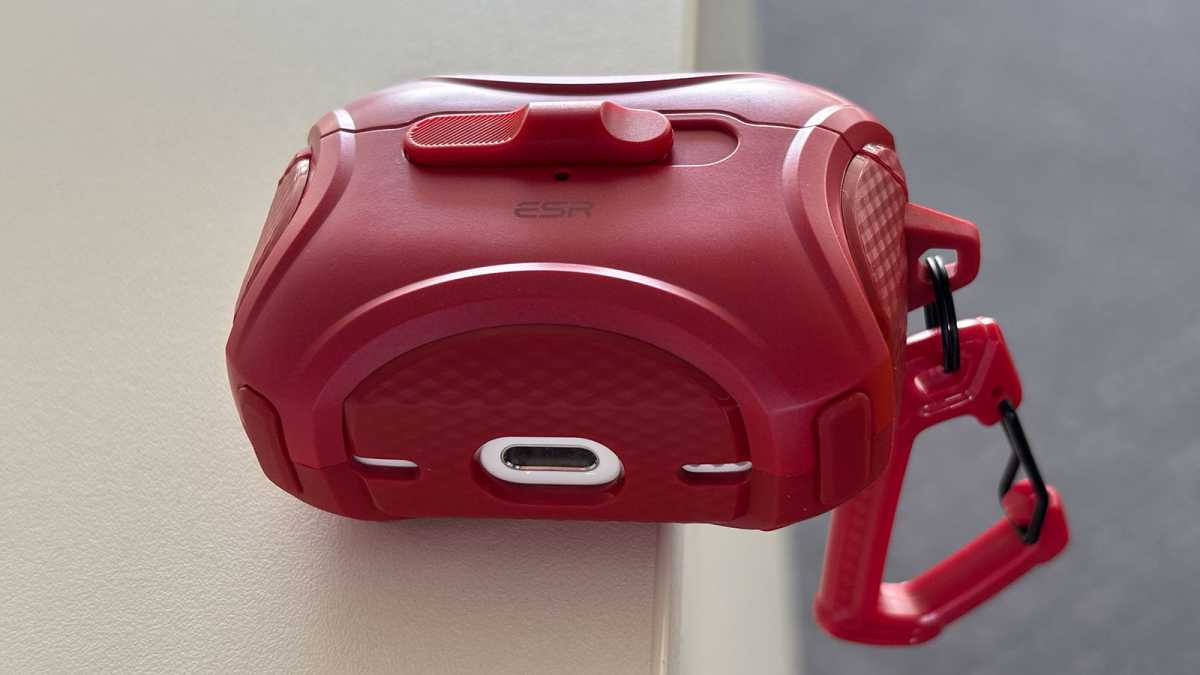
Das Flicklock-Case von ESR löst mir jetzt dieses Problem, für gerade einmal 22 Euro – weit günstiger, als ein Ersatzhörer kommen würde. Klingt erst einmal absurd, warum sollte man für eine Hülle noch eine weitere Schutzhülle benötigen? Eben exakt aus dem Grund: Die Flicklock von ESR bleibt beim Aufprall auf dem Boden geschlossen.

Möglich machen das Magnete, die sich mit dem Verschieben eines Riegels lösen und die in die Flicklock-Hülle eingepasste Airpods-Ladeschachtel aufschnappen lassen. Eine 100-prozentige Sicherheit bekommt man damit zwar nicht, aber wenn man die Überhülle gut zudrückt und darauf achtet, dass der Riegel eingerastet ist, hält sie den meisten Stürzen stand. 

So ergibt auch das Zubehör Sinn: ein Karabinerhaken, den man etwa in eine Gürtelschlaufe einhängen könnte. Wenn dann beim Lösen des Hakens die Hülle aus Hüfte zu Boden fällt, passiert nicht viel. Und selbst in die Hülle gepackt, kann die Ladeschachtel der Airpods noch per Magsafe aufgeladen werden.

Die Flicklocks gibt es für alle Airpods und Airpods Pro, in bis zu acht verschiedenen Farben. Das ist noch so eine Einschränkung der Airpods-Schachtel, welche das Flicklock gewissermaßen im Vorbeigehen löst: Es muss ja nicht immer alles weiß sein.

ESR Flicklock auf Kommode
Katzen können einer solchen versuchsanordnung nicht widerstehen. Ein gut verschlossenes Flicklock übersteht jedoch den Sturz.

Macwelt

  •  
❌