Se você acompanha os stories das contas que segue no Instagram, já deve conhecer o botão de reação, representado por um coração. Com ele, é possível reagir a uma postagem sem precisar escrever um comentário — como se estivesse curtindo o conteúdo do story.
Caso assine o Instagram Plus, você pode enviar supercorações (Super Hearts), que deixam os stories dos seus amigos mais especiais, com animações de corações vibrantes que explodem na tela.
Com o app aberto, abra uma publicação dos stories (no topo da aba do seu feed). Ou, se preferir, localize um perfil e abra a bolinha para ver esses posts.
Mantenha o ícone de coração pressionado para ver a animação de supercoração na tela.
Com a disponibilização do Instagram Plus, é possível tirar proveito de alguns recursos extras na rede social da Meta.
Um deles é a possibilidade de alterar o ícone do aplicativo, que aparece na Tela de Início do seu iPhone ou iPad. Dentre as opções disponíveis, está o ícone original do Instagram!
Quem estiver em Portugal nesta quarta-feira, 12 de agosto, terá a oportunidade de testemunhar o primeiro eclipse solar total desde 1912, com previsão de repetição do feito somente daqui a 118 anos, em 2144.
A sua raridade, além da sazonalidade, está especialmente no percentual de visibilidade do fenômeno em todo o país, que varia de 92% a 100%. Para quem quiser ver o eclipse em sua totalidade, será necessário visitar o Parque Natural de Montesinho, no concelho de Bragança.
Caso também seja do seu interesse registrar esse momento histórico, existem algumas coisas importantes a se observar e algumas alternativas, a depender do que você pretende fotografar exatamente.
Antes de qualquer dica tecnológica, é importante se certificar de que a sua visão estará protegida: recomenda-se o uso de óculos de eclipse com certificação ISO 12312-2, que serão distribuídos gratuitamente pela ZEISS em parceria com a rede de óticas Club da Visão, mediante cadastro e enquanto durarem os estoques (que, aparentemente, já esgotaram-se).
Depois, vale observar as janelas de horário do eclipse:
Início: entre 18h30 e 18h40;
Pico: entre 19h30 e 19h40;
Fim: entre 20h20 e 20h30.
Fotografia: câmera DSLR/mirrorless ou iPhone?
Caso você opte por fotografar o evento, existem duas opções de mais fácil acesso: uma câmera digital ou o seu iPhone. Em ambos os casos, há uma série de poréns.
Sobre DSLRs e mirrorless, vale adquirir um filtro solar para a sua lente, considerando a sensibilidade do sensor à exposição ao sol, que pode acarretar uma danificação irreversível — dada a quantidade de entrada de luz. Recomenda-se fixar a abertura entre ƒ/8 e ƒ/16, com a velocidade do obturador ajustada entre 1/1000 e 1/4, de acordo com as especificações da sua câmera.
Já o iPhone, dado o tamanho do seu sensor e outras limitações técnicas, terá dificuldade de registrar o eclipse naturalmente. Claro, ainda é possível obter muitos resultados legais em relação à sombra e aos seus efeitos, ou até mesmo capturar a atmosfera do momento com um time-lapse utilizando um tripé ou outro equipamento estabilizador.
No entanto, para quem quiser de fato registrar o sol de maneira direta, será necessário adquirir acessórios:
Lente de zoom com ampliação entre 12x e 18x — das mais amadoras até as mais sofisticadas, com preços flutuando entre dezenas e centenas de dólares;
Filtro solar para o iPhone;
Tripé, visando não comprometer o resultado final das fotos borrando-as com um movimento sutil.
Quanto ao software, embora existam boas opções de apps de terceiros, como o Project Indigo ou o Halide, o próprio aplicativo Câmera (Camera) nativo do iPhone deverá dar conta.
Cada escolha (ou ausência) poderá impactar o registro do fenômeno, mas nada será tão determinante quanto a prática de quem fotografa. Independentemente da escolha, vale conhecer o equipamento que você tem em mãos antes do tão esperado dia, testar o comportamento da câmera sob o sol e pensar qual será o enquadramento do registro no dia do eclipse.
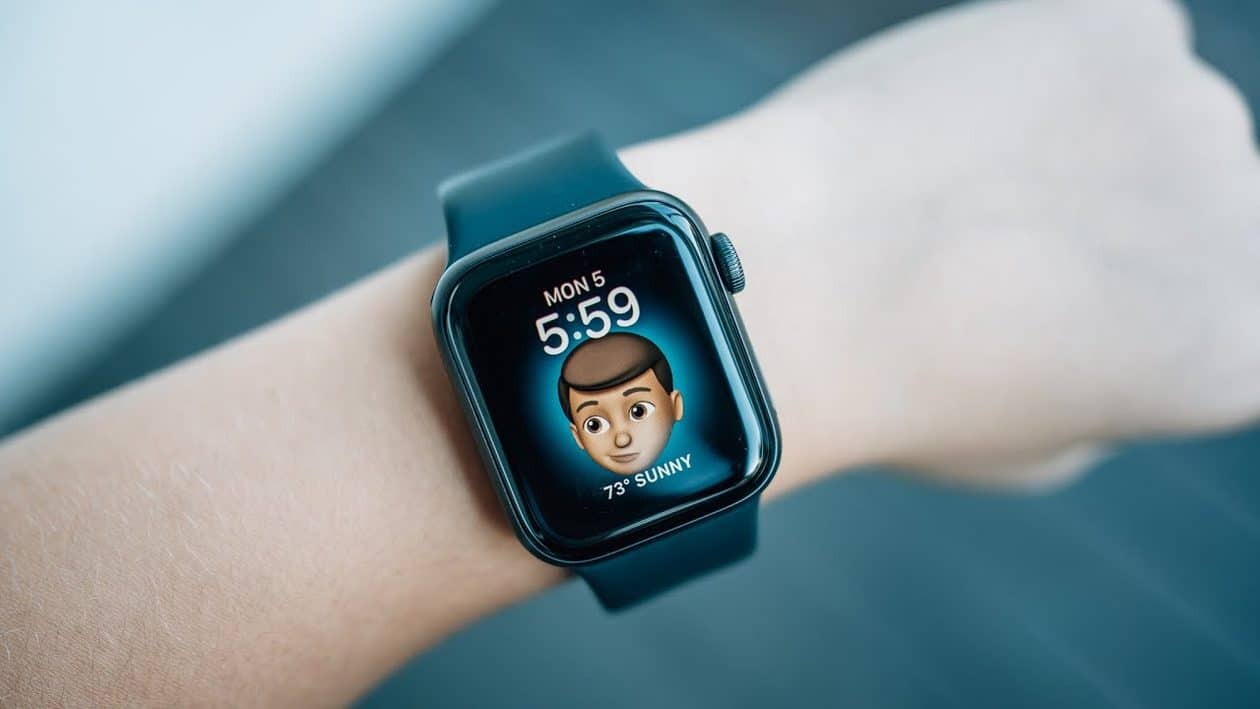
O Apple Watch já está no mercado há mais de uma década. De lá para cá, a Maçã lançou inúmeras variações do smartwatch, com tamanhos, cores, materiais e coleções diferentes.
Justamente por isso, muita gente enfrenta dificuldades em identificar exatamente qual modelo de relógio possui. Felizmente, um truque muito simples permite conferir isso no iPhone ou no próprio Apple Watch.
Material: alumínio ou titânio Cores: cinza-espacial, prateado, ouro rosa, preto brilhante, natural, dourado ou ardósia Tamanho: 42mm ou 46mm Conectividade: GPS ou GPS + Cellular Pulseiras: esportiva ou estilo milanês
NOTA DE TRANSPARÊNCIA: O MacMagazine recebe uma pequena comissão sobre vendas concluídas por meio de links deste post, mas você, como consumidor, não paga nada mais pelos produtos/serviços usando os nossos links de afiliado.
Com inúmeros modelos e variações de Macs já fabricados, a Apple consegue abranger diferentes públicos-alvo. Desta forma, seja você uma pessoa que usa computador apenas para navegar na web ou um profissional que precisa de máquinas parrudas para dar conta do recado, pode usufruir de notebooks ou desktops da empresa.
Para ter certeza de qual modelo de computador da Apple você tem no momento, é possível conferir exatamente essa informação pelo sistema.
Cores: preto-espacial ou prateado Tela: padrão ou nano-texture Chips: M5 Pro ou M5 Max Memória: 24GB, 36GB, 48GB, 64GB ou 128GB Armazenamento: 1TB, 2TB, 4TB ou 8TB
Cores: preto-espacial ou prateado Tela: padrão ou nano-texture Chips: M5, M5 Pro ou M5 Max Memória: 24GB, 36GB, 48GB, 64GB ou 128GB Armazenamento: 1TB, 2TB, 4TB ou 8TB Adaptador de energia: USB-C de 70W ou 96W
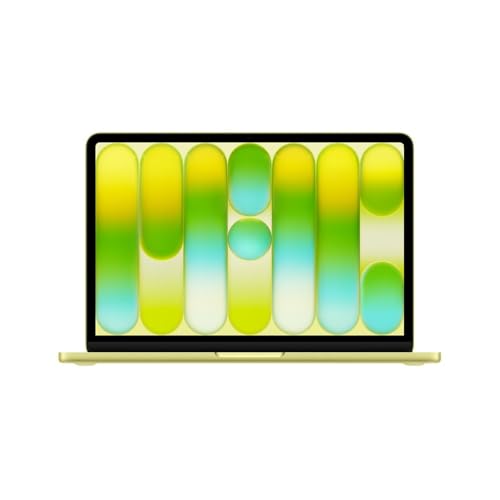
Cores: azul-céu, prateado, estelar ou meia-noite Chip: M5 Memória: 16GB, 24GB ou 32GB Armazenamento: 512GB, 1TB, 2TB ou 4TB Adaptador de energia: USB‑C de 30W, 35W com duas portas ou 70W
Cores: azul-céu, prateado, estelar ou meia-noite Chip: M5 Memória: 16GB, 24GB ou 32GB Armazenamento: 512GB, 1TB, 2TB ou 4TB Adaptador de energia: USB‑C de 30W, 35W com duas portas ou 70W
NOTA DE TRANSPARÊNCIA: O MacMagazine recebe uma pequena comissão sobre vendas concluídas por meio de links deste post, mas você, como consumidor, não paga nada mais pelos produtos/serviços usando os nossos links de afiliado.
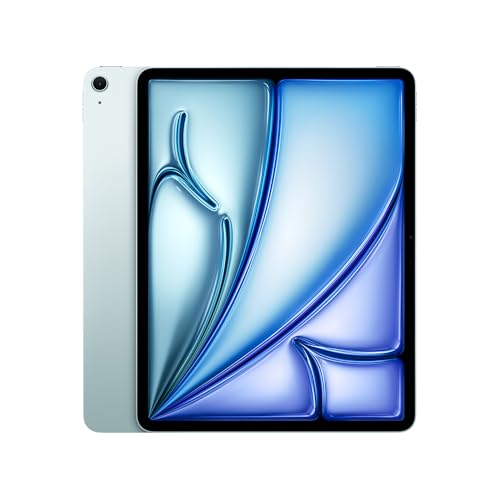
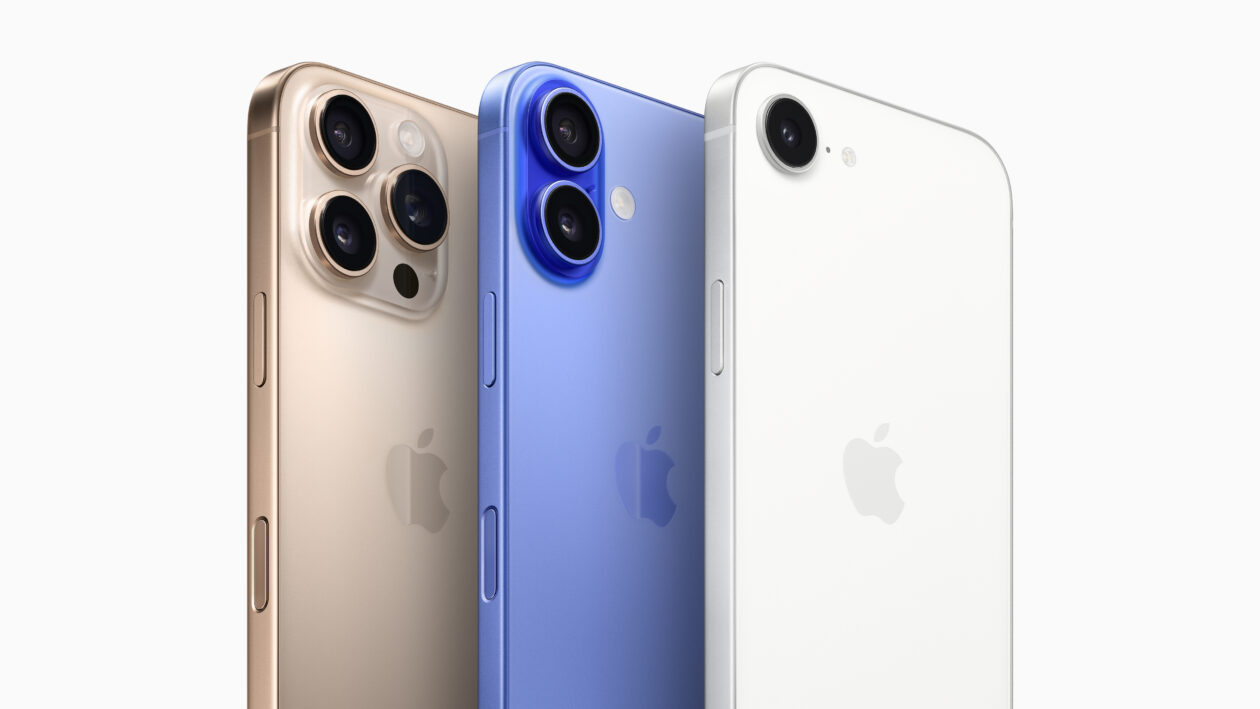
Com tantos modelos de iPhones e iPads lançados pela Apple desde 2007 e 2010, respectivamente, fica difícil pra muita gente saber qual aparelho de fato possui — principalmente quem não é muito ligado em tecnologia.
A boa notícia é que você pode conferir essa informação de uma maneira supersimples, nas configurações dos próprios dispositivos. Veja como identificar o seu modelo! 📱
NOTA DE TRANSPARÊNCIA: O MacMagazine recebe uma pequena comissão sobre vendas concluídas por meio de links deste post, mas você, como consumidor, não paga nada mais pelos produtos/serviços usando os nossos links de afiliado.
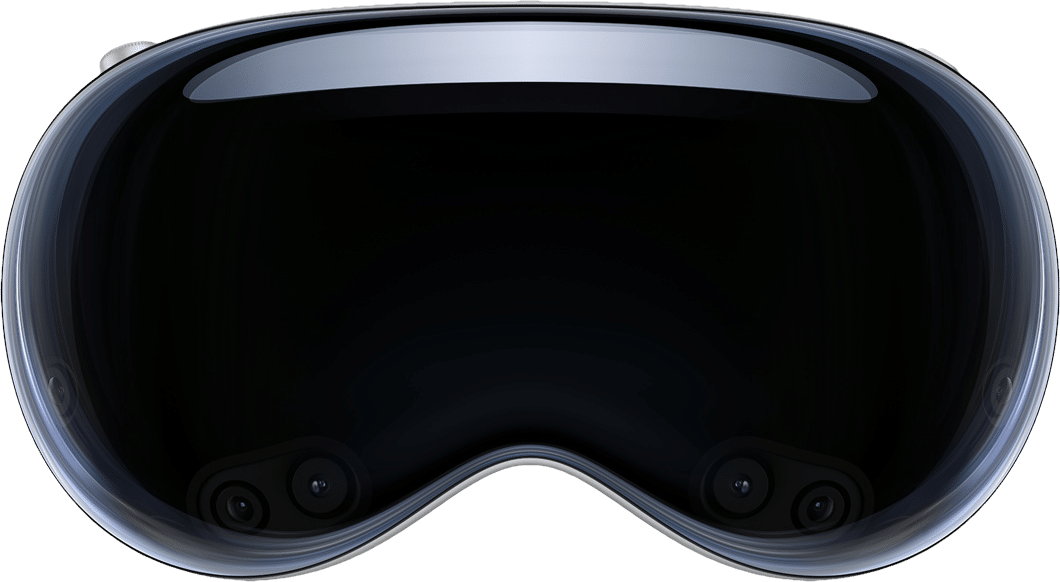
O visionOS é o sistema operacional do Apple Vision Pro, headset de realidade virtual/aumentada da Maçã.
Caso queira utilizar algum recurso específico desse dispositivo — e que exija minimamente uma versão de software —, você pode conferir qual delas está rodando atualmente no aparelho.
Em seguida, selecione “About” para conferir qual versão do visionOS seu Apple Vision Pro está rodando.
ComprarApple Vision Prode Apple 🇺🇸Preço: a partir de US$3.699 Armazenamento: 256GB, 512GB ou 1TB
NOTA DE TRANSPARÊNCIA: O MacMagazine recebe uma pequena comissão sobre vendas concluídas por meio de links deste post, mas você, como consumidor, não paga nada mais pelos produtos/serviços usando os nossos links de afiliado.
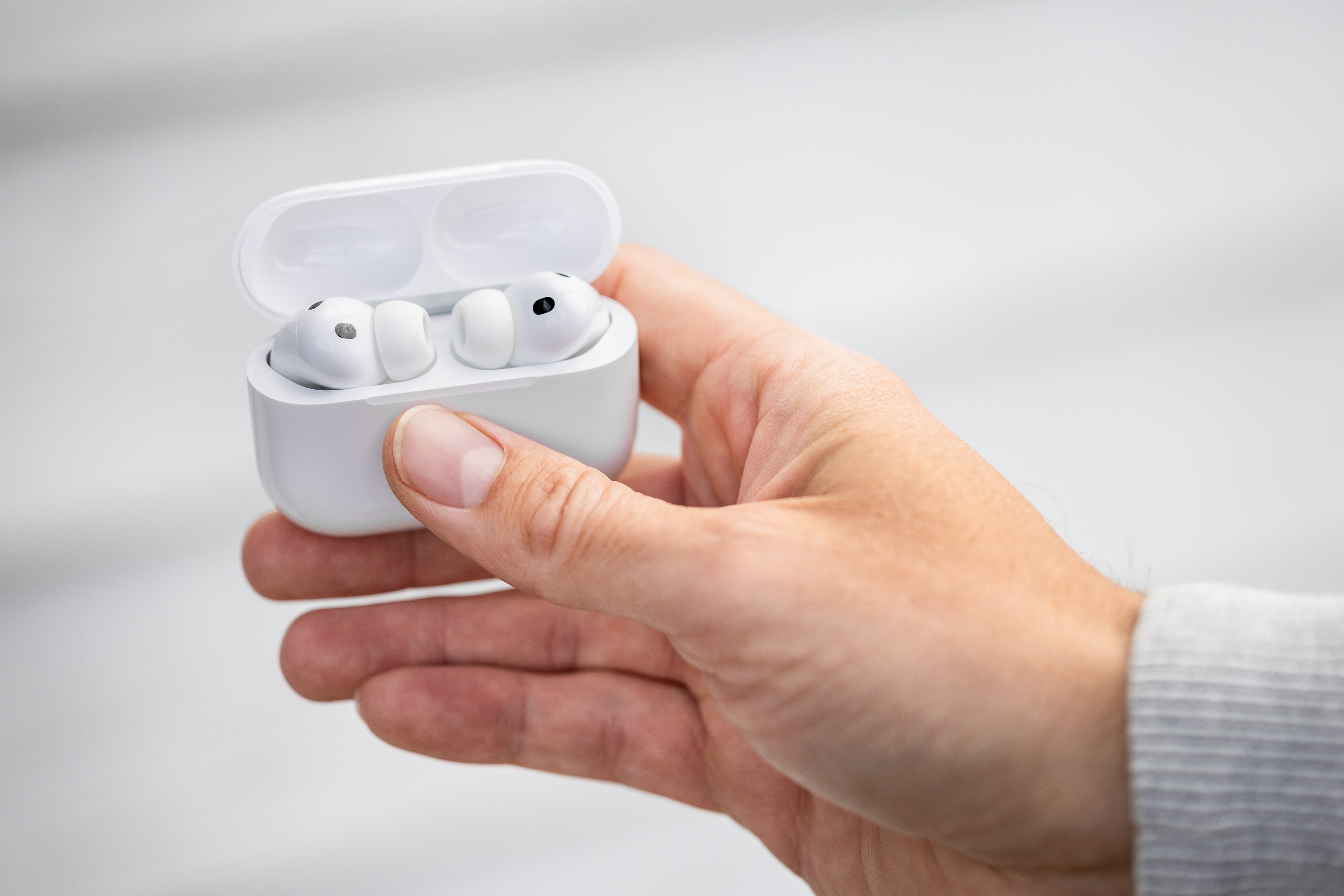
Para que os AirPods, AirPods Pro e AirPods Max recebam novos recursos e correções de segurança, é necessário atualizar a versão de firmware dos fones de ouvido da Apple.
Isso é feito de forma completamente automática e você não precisa se preocupar com nada. Porém, você pode querer saber exatamente qual versão está rodando (para ver se está na última disponível, por exemplo).
NOTA DE TRANSPARÊNCIA: O MacMagazine recebe uma pequena comissão sobre vendas concluídas por meio de links deste post, mas você, como consumidor, não paga nada mais pelos produtos/serviços usando os nossos links de afiliado.
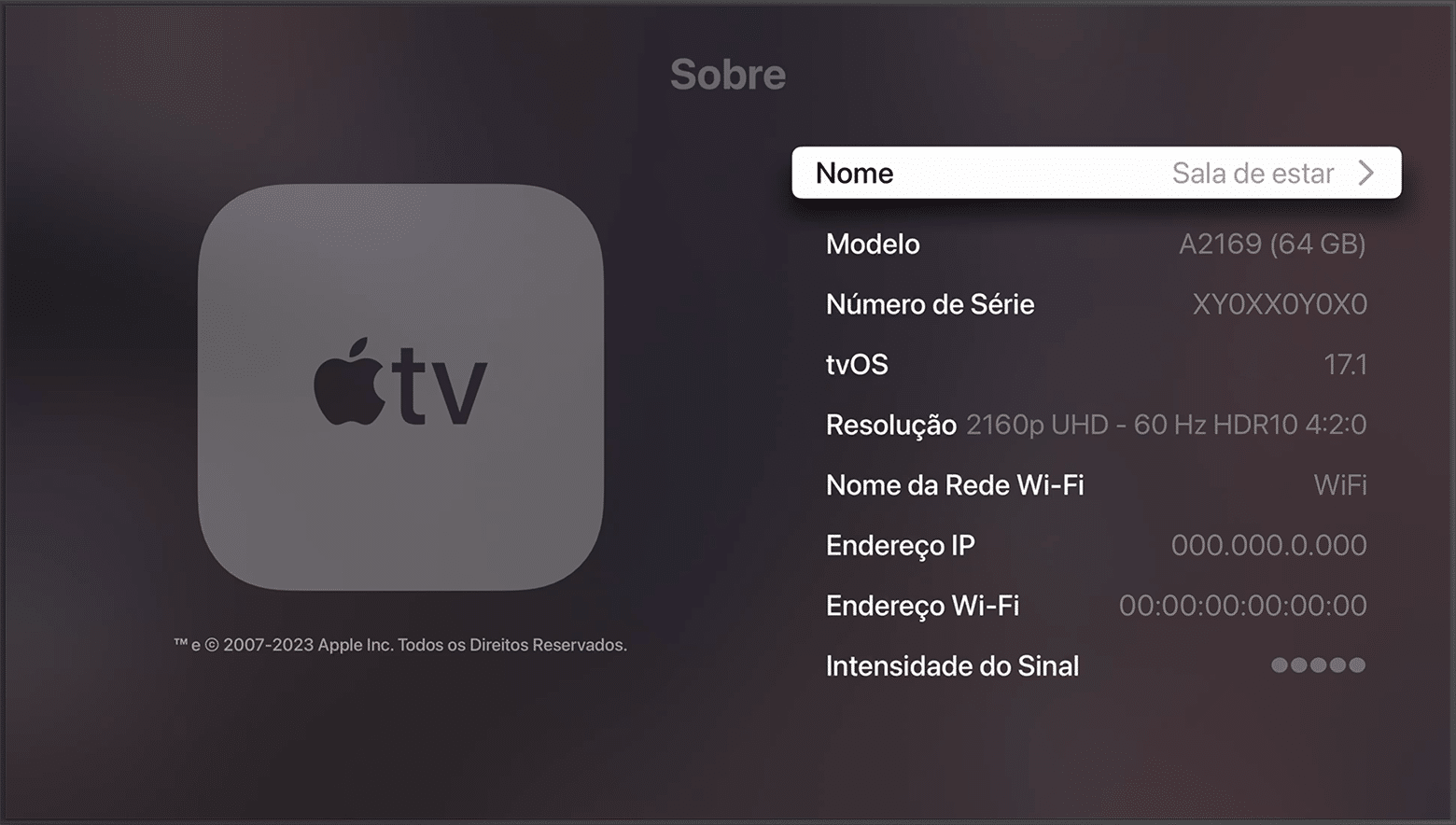
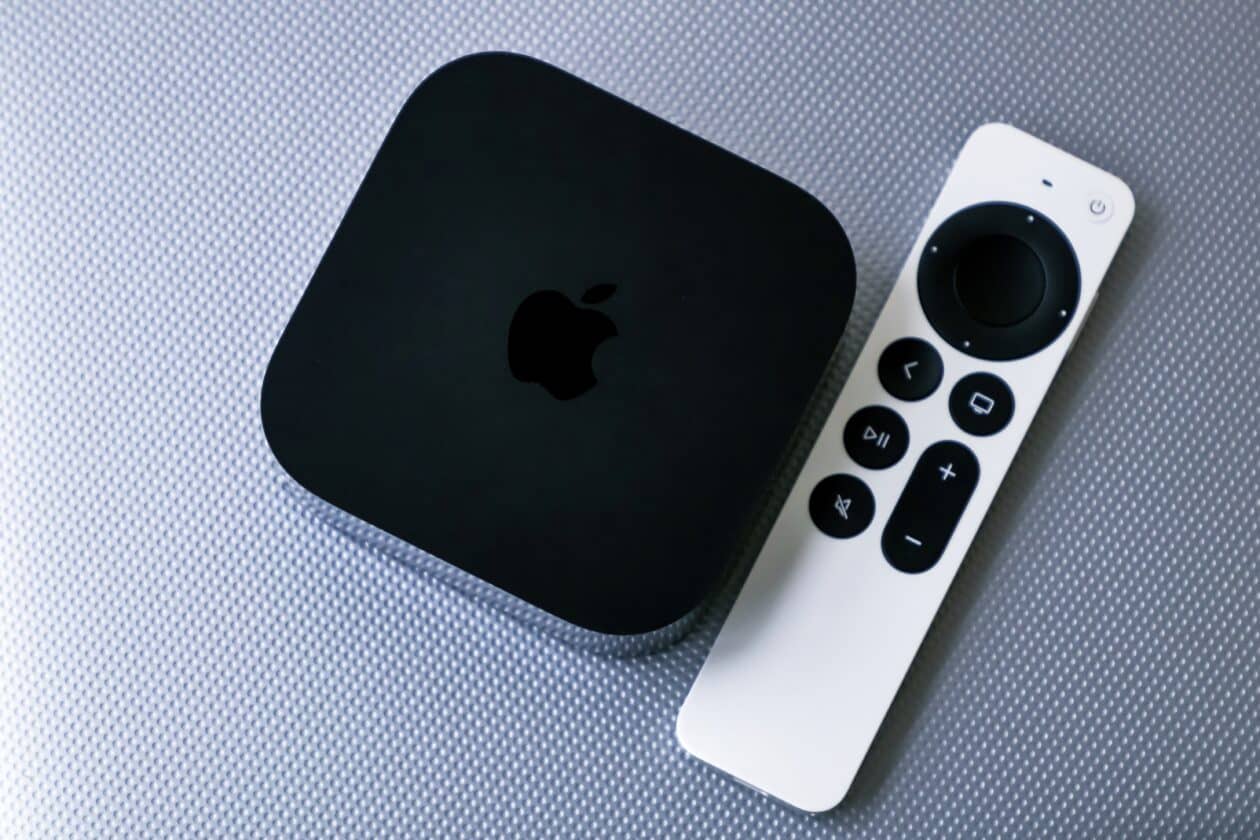
A Apple TV 4K é a melhor opção de set-top box para quem quer aproveitar ao máximo todos os serviços e recursos disponibilizados pela empresa.
O que torna essa experiência tão mágica é o sistema operacional tvOS, feito especialmente para esse produto. Para garantir todos os recursos mais recentes e também as correções de erros, é imprescindível manter o OS sempre atualizado.
Veja como conferir qual versão do tvOS sua Apple TV está rodando!
NOTA DE TRANSPARÊNCIA: O MacMagazine recebe uma pequena comissão sobre vendas concluídas por meio de links deste post, mas você, como consumidor, não paga nada mais pelos produtos/serviços usando os nossos links de afiliado.
Como ocorre com os outros sistemas operacionais da Apple, o watchOS é frequentemente atualizado. Com isso, o seu Apple Watch recebe não só novos recursos, como também correções de segurança importantes.
Neste artigo, mostraremos como é possível conferir qual versão do sistema o seu smartwatch está rodando no momento, veja só! ⌚️
Material: alumínio ou titânio Cores: cinza-espacial, prateado, ouro rosa, preto brilhante, natural, dourado ou ardósia Tamanho: 42mm ou 46mm Conectividade: GPS ou GPS + Cellular Pulseiras: esportiva ou estilo milanês
NOTA DE TRANSPARÊNCIA: O MacMagazine recebe uma pequena comissão sobre vendas concluídas por meio de links deste post, mas você, como consumidor, não paga nada mais pelos produtos/serviços usando os nossos links de afiliado.
O macOS é o sistema operacional que equipa os computadores da Apple, os Macs.
Para receber os novos recursos e estar sempre protegido contra ataques ou brechas de segurança, é recomendável manter o seu dispositivo atualizado para a última versão disponível.
Veja como conferir qual versão do sistema seu Mac está usando! 👨💻
Cores: preto-espacial ou prateado Tela: padrão ou nano-texture Chips: M5 Pro ou M5 Max Memória: 24GB, 36GB, 48GB, 64GB ou 128GB Armazenamento: 1TB, 2TB, 4TB ou 8TB
Cores: preto-espacial ou prateado Tela: padrão ou nano-texture Chips: M5, M5 Pro ou M5 Max Memória: 24GB, 36GB, 48GB, 64GB ou 128GB Armazenamento: 1TB, 2TB, 4TB ou 8TB Adaptador de energia: USB-C de 70W ou 96W
Cores: azul-céu, prateado, estelar ou meia-noite Chip: M5 Memória: 16GB, 24GB ou 32GB Armazenamento: 512GB, 1TB, 2TB ou 4TB Adaptador de energia: USB‑C de 30W, 35W com duas portas ou 70W
Cores: azul-céu, prateado, estelar ou meia-noite Chip: M5 Memória: 16GB, 24GB ou 32GB Armazenamento: 512GB, 1TB, 2TB ou 4TB Adaptador de energia: USB‑C de 30W, 35W com duas portas ou 70W
NOTA DE TRANSPARÊNCIA: O MacMagazine recebe uma pequena comissão sobre vendas concluídas por meio de links deste post, mas você, como consumidor, não paga nada mais pelos produtos/serviços usando os nossos links de afiliado.
Saber a versão do sistema operacional que o seu dispositivo da Apple está rodando atualmente é muito importante — seja para buscar alguma ajuda com o suporte ou para saber se é a mais recente disponibilizada pela empresa.
Esse processo pode ser feito de um jeito supersimples no seu iPhone ou iPad, como mostraremos em detalhes nos parágrafos a seguir. Veja só! 🙂
NOTA DE TRANSPARÊNCIA: O MacMagazine recebe uma pequena comissão sobre vendas concluídas por meio de links deste post, mas você, como consumidor, não paga nada mais pelos produtos/serviços usando os nossos links de afiliado.
Apple Health data can now move between the Health app and Google Health on an iPhone. The connection lets Google Health import supported information recorded by an iPhone, Apple Watch, and compatible apps. The latest Google Health update can also send supported Fitbit information to Apple Health.
This two-way connection is useful for people who wear a Fitbit but prefer Apple’s Health app as the central place for viewing activity, sleep, steps, and other wellness information. It also reduces the need for third-party synchronization apps.
The feature requires a recent version of Google Health. Google began introducing support for sending data back to Apple Health with Google Health version 5.05. Because app updates can roll out gradually, the new sharing options may not appear until the latest version reaches your account.
Update Google Health Before Starting
The Fitbit app became Google Health in 2026. Existing Fitbit users should find that the installed app has changed its name and design after updating. Fitbit accounts must also be moved to an adult Google Account to use the redesigned service.
Google says the Apple Health connection requires iOS 16.4 or later. The iPhone must have internet access while the connection is being created.
To check the iOS version installed on your iPhone:
Settings > General > About > iOS Version
Install the latest compatible iOS update if the phone is running an older release.
To look for an available iPhone software update:
Settings > General > Software Update
Next, confirm that Google Health is current. Version 5.05 or later is required for the newer option that sends supported Google Health and Fitbit information to Apple Health.
To update Google Health from the App Store:
App Store > Profile Picture > Available Updates > Google Health > Update
If Google Health does not appear under Available Updates, search for the app manually. The App Store page may show an Update button if a newer release is available.
To find the app directly:
App Store > Search > Enter Google Health > Google Health (Fitbit)
People who previously used Fitbit should sign in with the Google Account connected to their Fitbit information. Creating a different account may produce an empty Google Health profile.
Image Credit: Google
Connect Apple Health Data to Google Health
Connecting the apps allows Google Health to read supported information from Apple Health. This can include data collected by the iPhone, Apple Watch, and other apps that already share information with Apple Health.
To start the Apple Health connection:
Google Health > Connections > Apps and Services > Apple Health > Get Started
Depending on the Google Health version and interface shown on the iPhone, Connections may appear behind the profile icon.
To find Apple Health through the alternative menu:
Google Health > Profile Icon > Partner Apps > Apple Health
Google Health will display a consent screen explaining the connection. Read the information before continuing.
To approve the initial connection:
Sync Google Health With Apple Health > Agree
The iPhone will then display Apple’s health permission screen. This screen lets you decide which information Google Health can read.
To give Google Health access to every supported category:
Apple Health Permission Screen > Turn All Categories On > Allow
You do not have to share every available category. Selecting individual permissions provides more control over sensitive health information.
To share only selected categories:
Apple Health Permission Screen > Select Each Health Category > Allow
Google Health can import supported information such as steps, distance, active energy, exercise records, routes, sleep sessions, sleep stages, heart rate, resting heart rate, heart rate variability, blood oxygen, respiratory rate, body temperature, weight, body fat percentage, water, nutrition information, and some cycle-tracking data.
Available categories depend on the devices and apps connected to Apple Health. An iPhone may provide steps and walking information, while an Apple Watch can contribute heart rate, workouts, sleep, and other measurements supported by the model.
After the permissions are approved, Google Health should confirm that the connection is complete.
To finish the connection:
Google Health Confirmation Screen > Done
New Apple Health information should begin appearing automatically in Google Health. Google has said that imported data can be used across relevant Google Health metrics, although not every external data type is used for every calculation.
To find imported health information:
Google Health > Health > Select a Metric
Google Health may display information from several connected sources together. Its value for a metric can differ slightly from the number shown by Apple Health because the apps may process available data differently.
Send Fitbit Data to Apple Health
Google Health version 5.05 adds the reverse direction that many iPhone and Fitbit users previously lacked. Supported information recorded through Fitbit can now be written into Apple Health.
Before enabling this option, make sure the Fitbit is properly connected to Google Health. Fitbit devices normally synchronize automatically throughout the day when Bluetooth is available and the wearable is near the iPhone.
To check the connected Fitbit:
Google Health > Profile Icon > Devices > Select Your Fitbit
The device page should show the wearable, its battery level, and its most recent synchronization time. Opening Google Health can also prompt a nearby Fitbit to transfer recently collected information.
Once the wearable is updating Google Health correctly, open the Apple Health connection settings.
To open the sharing controls for Apple Health:
Google Health > Profile Icon > Partner Apps > Apple Health
The interface may use Apps and Services instead of Partner Apps on some versions.
To reach the same connection through Apps and Services:
Google Health > Connections > Apps and Services > Apple Health
Follow the prompts for sharing Google Health information with Apple Health. The iPhone may display separate permissions for data that Google Health can read and data that it can write.
To allow supported Fitbit information to appear in Apple Health:
Apple Health Permission Screen > Allow Google Health to Write > Select Health Categories > Allow
Google says supported information can include exercise records, steps, sleep, vitals, and other health data. The exact selection can vary according to the Fitbit model, region, Google Health version, and information stored in the account.
Selecting every category is convenient, but it can create overlapping sources when an iPhone, Apple Watch, and Fitbit record the same type of activity. Choose only the categories you want Google Health to add.
A person who uses a Fitbit mainly for sleep, for example, can allow sleep information while leaving steps disabled. Someone who wears a Fitbit instead of an Apple Watch may prefer to enable steps, workouts, heart rate, sleep, and other supported categories.
Image Credit: AppleMagazine
Check Google Health Permissions
Apple Health keeps permission controls on the iPhone. You can change them after the first connection without deleting either app.
To review Google Health access from Apple Health:
Health > Profile Picture > Privacy > Apps > Google Health
The page shows the categories Google Health is permitted to read or update. Turn off any category you no longer want to share.
Some iOS versions provide the same controls through the Sharing tab.
To find Google Health through the Sharing tab:
Health > Sharing > Apps and Services > Google Health
Turning off a permission stops future sharing for that category. It does not necessarily remove information that has already been written to Google Health or Apple Health.
The Google Health app also provides controls for the connection.
To review Apple Health inside Google Health:
Google Health > Connections > Apps and Services > Connected > Apple Health
If Google Health displays a message that new data types are available, open the connection and approve the additional categories you want to use. Newly supported information is not automatically shared without permission.
Manage Duplicate Health Information
An iPhone, Apple Watch, and Fitbit can record similar information at the same time. Apple Health keeps each source attached to its data and uses a priority order when presenting combined measurements.
You can inspect the sources contributing to a category and choose which one Apple Health should prefer.
To review the sources used for step information:
Health > Search > Activity > Steps > Data Sources and Access
The screen shows the apps and devices that provide step records. If Google Health, an Apple Watch, and the iPhone all appear, you can adjust their priority.
To change the order of step sources:
Health > Search > Activity > Steps > Data Sources and Access > Edit > Drag Sources Into the Preferred Order > Done
Move the source you trust most toward the top. Apple Health generally gives higher priority to sources placed above others when similar records overlap.
Repeat the same process for other categories if their totals do not look right. Exercise, sleep, active energy, and distance can each have their own sources and permissions.
Image Credit: Google
Fix Missing or Delayed Data
Synchronization is not always immediate. A Fitbit first sends its information to Google Health, and Google Health then writes supported records to Apple Health. Bluetooth availability, Background App Refresh, internet access, and battery-saving behavior can affect this process.
Begin by opening Google Health with the Fitbit close to the iPhone. Wait for the device to complete its normal synchronization before checking Apple Health.
If Apple Health information is missing from Google Health, confirm that the connection remains active.
To check the connection status:
Google Health > Connections > Apps and Services > Apple Health
If Google Health displays an error or a request for new permissions, follow the message shown on the screen.
Background App Refresh can help Google Health update when the app is not open.
To allow Google Health to refresh in the background:
Settings > General > Background App Refresh > Google Health > On
Bluetooth must remain available for a Fitbit to communicate with the iPhone.
To confirm that Bluetooth is enabled:
Settings > Bluetooth > Bluetooth On
If the connection continues to fail, disconnecting and reconnecting Apple Health may restore the permission request.
To disconnect Apple Health from Google Health:
Google Health > Connections > Apps and Services > Apple Health > Disconnect > Confirm Disconnect
Disconnecting the service does not automatically remove every permission already stored by Apple Health. Review the Google Health entry in the Health app if you want to remove those permissions as well.
To remove the remaining Apple Health permissions:
Health > Profile Picture > Privacy > Apps > Google Health > Turn Off All
After reconnecting the apps, allow time for new records to appear. Previously stored information may not transfer in exactly the same way as activity recorded after the connection was enabled.
You can inspect an individual entry to confirm whether it came from Google Health, a Fitbit, an Apple Watch, or the iPhone.
To check the source and time of a synced record:
Health > Search > Select a Health Category > Show All Data > Select the Latest Entry
You can show hidden files on Mac with a simple keyboard shortcut. You do not need Terminal, an administrator password, or advanced technical knowledge for the most common method.
macOS hides some files because they contain settings, app information, or system resources that people do not normally need to open. These items remain on the Mac, but Finder does not display them during regular use.
You may need to see them when following troubleshooting instructions, opening the hidden Library folder, managing website files, checking app settings, or finding data left behind by an uninstalled application. Once the files are visible, you should avoid deleting anything unless you understand its purpose.
Show Hidden Files Without Terminal
Finder has a built-in shortcut that reveals hidden files and folders instantly. It is the fastest method when you only need temporary access.
To show hidden files in the current Finder folder:
Finder > Open Any Folder > Command + Shift + Period (.)
The period is the regular full-stop key on the keyboard. You must press Command, Shift, and Period at the same time.
The folder will update immediately. Hidden items normally appear lighter or more transparent than regular files. This visual difference helps you recognize files that macOS does not usually display.
The shortcut works in most Finder locations, including the user’s Home folder and some folders on external drives. It can also work inside the Open and Save windows presented by Mac applications.
If you do not see any changes, try the shortcut inside your Home folder. The available hidden items depend on the apps and services used on the Mac.
To open your Home folder:
Finder > Go > Home
After the Home folder opens, use the hidden-file shortcut again. You may see items with names that begin with a period, including configuration folders created by applications.
Files beginning with a period are commonly called dot files. macOS and Unix-based applications use them to store settings and other information without filling normal folders with technical data.
The Finder shortcut acts as a visibility switch. Using it a second time conceals the files again.
To hide the files after you finish:
Finder > Open Any Folder > Command + Shift + Period (.)
Hiding the files does not delete them. Finder simply returns to its normal view.
Image Credit: AppleMagazine
Open the Hidden Library Folder
The user Library is one of the most frequently accessed hidden folders on a Mac. It stores app preferences, browser information, caches, containers, saved states, Mail resources, and other data connected to the signed-in account.
You can open the Library directly without making every hidden file visible.
To open your personal Library folder:
Finder > Go > Press and Hold Option > Library
The Library option appears in the Go menu while you hold the Option key. Select Library before releasing the key.
This method opens the Library belonging to the current user. Its path is ~/Library, where the tilde represents the user’s Home folder.
The user Library is different from the Library folder located at the top level of the startup disk. The top-level folder contains resources that can be shared by different accounts, while ~/Library primarily contains information for the current account.
Deleting content from the Library can reset an app or remove locally stored information. If troubleshooting instructions tell you to remove a file, confirm its name and location before making any changes.
Open a Specific Hidden Folder
Finder includes a Go to Folder feature for opening locations that are difficult to find manually. It is useful when you know the folder’s exact path and do not want to reveal every hidden item.
To open the Go to Folder field:
Finder > Go > Go to Folder
You can also reach the same field with a keyboard shortcut.
To open Go to Folder from the keyboard:
Finder > Shift + Command + G
A small field will appear. Type or paste the path of the location you want to open, then press Return.
To open your personal Library:
Go to Folder > Enter ~/Library > Press Return
To open the hidden SSH folder in your Home folder:
Go to Folder > Enter ~/.ssh > Press Return
The .ssh folder stores information used by Secure Shell tools. It may not exist if SSH software has never created it on the Mac. Finder displaying an error for this path does not necessarily indicate a problem.
To open the Library shared by all users:
Go to Folder > Enter /Library > Press Return
Pay attention to the beginning of each path. ~/Library opens the Library inside the current user’s Home folder. /Library opens the shared Library at the top level of the startup disk.
You can also paste a longer path supplied by an app developer or support technician. Check the spelling carefully because similarly named folders may contain completely different data.
Image Credit: AppleMagazine
Show Hidden Files With Terminal
Terminal can change Finder’s hidden-file preference so concealed items remain visible until you change the setting again. This option is helpful during longer troubleshooting or development sessions.
Terminal is included with macOS and can be opened from the Utilities folder.
To open Terminal:
Finder > Applications > Utilities > Terminal
A Terminal window will appear with a text prompt. Enter the command exactly as presented and press Return.
To keep hidden files visible in Finder:
defaults write com.apple.finder AppleShowAllFiles -bool true && killall Finder
Finder will close briefly and reopen. This restart allows the new visibility preference to take effect.
The command does not change the files themselves. It tells Finder to display items that macOS normally conceals.
You can reverse the change at any time.
To hide the files in Finder again:
defaults write com.apple.finder AppleShowAllFiles -bool false && killall Finder
Finder will restart once more and return to its regular view.
If Finder does not behave as expected after changing the preference, you can remove the custom value. macOS will then use its default behavior.
To remove the custom hidden-file preference:
defaults delete com.apple.finder AppleShowAllFiles && killall Finder
Terminal may say that the preference does not exist if no custom value is stored. That message simply means there is no setting to remove.
See Hidden Files Only in Terminal
Terminal can list hidden files without making them appear in Finder. This can be helpful when checking whether a file exists while leaving Finder unchanged.
The ls command displays the contents of a folder. Adding -a includes hidden items, while -l displays details such as permissions, ownership, file size, and modification date.
To list visible and hidden items in your Home folder:
ls -la ~
The results appear inside Terminal. Names beginning with a period are hidden during normal Finder use.
To list the contents of the folder currently open in Terminal:
ls -la
These commands only display information. They do not delete or modify the files shown in the results.
Work Safely With Hidden Mac Files
A hidden file is not automatically unnecessary, suspicious, or safe to delete. macOS and installed applications conceal many items to protect settings and reduce clutter.
The .DS_Store file, for example, can store Finder display information for a folder. External drives may include folders such as .Trashes and .Spotlight-V100, which macOS uses for Trash and Spotlight features.
Removing the wrong item can reset an application, delete local information, interrupt syncing, or cause macOS to rebuild a database. Copy an item to a safe location before changing it when troubleshooting instructions require manual file work.
Some system folders remain protected even when Finder displays them. Showing hidden files does not bypass administrator permissions or System Integrity Protection. There is no need to disable Mac security features simply to view a hidden folder.
Applications can also contain internal resources. These files are stored inside an app bundle and are different from standard hidden files.
To view the internal contents of an application:
Finder > Applications > Control-click the App > Show Package Contents
Changing files inside an app bundle can prevent the application from opening. If you need one of its resources, copy that file elsewhere instead of editing the original.
When you finish working, return Finder to its regular view to reduce the chance of accidentally moving or deleting a configuration file.
To hide all revealed files with the Finder shortcut:
Finder > Open Any Folder > Command + Shift + Period (.)

 Login
Login