❌

Reading view

How to protect Windows 10 and 11 PCs from ransomware

CryptoLocker. WannaCry. DarkSide. Conti. MedusaLocker. Qilin. The ransomware threat has exploded over the past decade, and it isn’t going away anytime soon; the news brings constant reports of new waves of this pernicious type of malware washing across the world.

Ransomware gained in popularity in large part because of the immediate financial payoff for attackers: It works by encrypting the files on your hard disk, then demanding that you pay a ransom, frequently in Bitcoin or other cryptocurrency, to decrypt them. Now many ransomware gangs are switching tactics, stealthily infiltrating enterprise systems, collecting sensitive corporate data over time, and later threatening to expose that data if the organization doesn’t pay up.

Nevertheless, individuals and businesses are still at risk from traditional ransomware attacks. In this article, I’ll show you how to keep yourself safe in Windows 11 — and Windows 10 too, for those who haven’t yet moved to Windows 11 — including how to use an anti-ransomware tool built into both versions of Windows.

(Administrators, see “What IT needs to know about ransomware and Windows” at the end of this article.)

This article assumes that you’re already taking the basic precautions against malware in general, including running anti-malware software and never downloading attachments or clicking links in email from unknown senders and suspicious-looking email. Also note that this article has been updated for Windows 11 25H2 and Windows 10 22H2. If you have an earlier Windows release, some things may be different.

Use controlled folder access

Microsoft is concerned enough about ransomware that it built an easy-to-configure anti-ransomware tool directly into Windows 10 and 11. Called controlled folder access, it protects you by letting only safe and fully vetted applications access your files. Unknown applications or known malware threats aren’t allowed through.

By default, the feature is not turned on, so if you want to protect yourself against ransomware, you’ll have to tell it to get to work. And you can customize exactly how it works by adding new applications to its whitelist of programs that can access files, and adding new folders in addition to the ones that it protects by default.

To switch it on, you’ll need to access Windows Security. To get to it in Windows 11, click Start > Settings to open the Settings app, then select Privacy & Security > Windows Security.  

In Windows 10, click Start > Settings to open the Settings app, then select Update & Security > Windows Security.

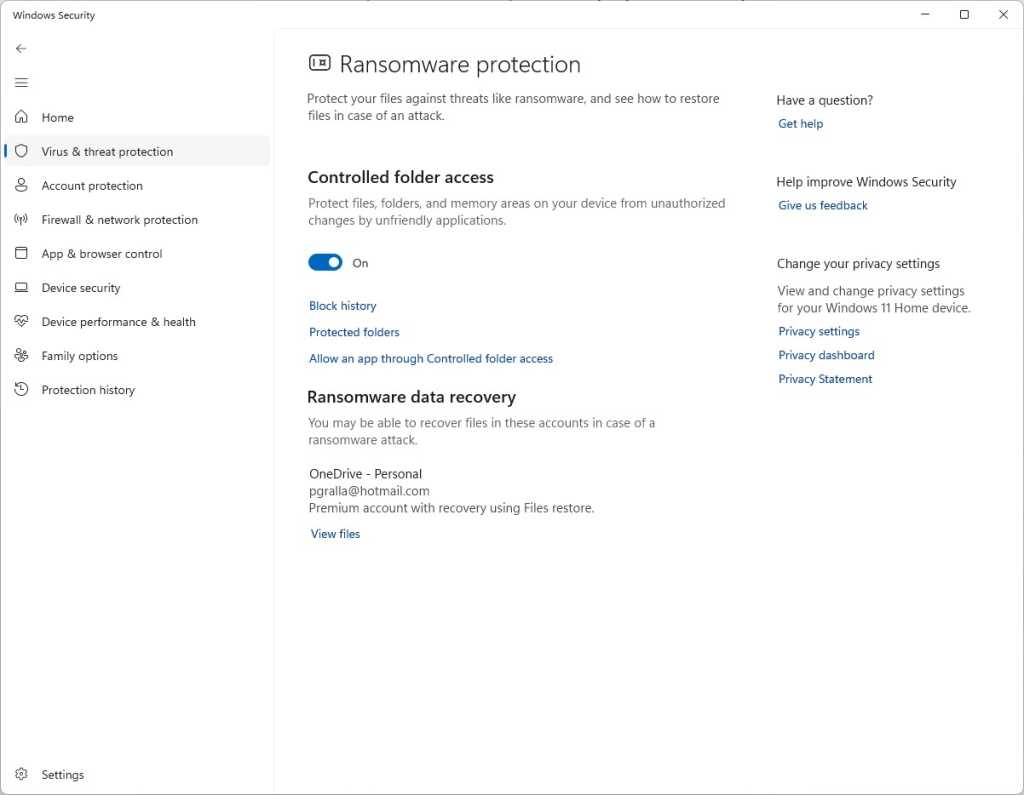
In Windows Security, select Virus & threat protection. On the screen that appears, scroll down to the “Ransomware protection” section and click Manage ransomware protection. On the next screen, under “Controlled folder access,” toggle the switch to On. You’ll get a prompt asking if you want to make the change. Click Yes.

ransomware protection screen in windows 11 settings with controlled folder access toggle turned on

Switch the toggle to On to turn on controlled folder access.

Preston Gralla / Foundry

You shouldn’t leave it at that and feel safe yet, because there’s a chance that you have folders you’d like to protect that the feature ignores. By default, it protects Windows system folders (and folders underneath them) like C:\Users\UserName\Documents, where UserName is your Windows user name. In addition to Documents, Windows system folders include Desktop, Music, Pictures, and Videos.

But all your other folders are fair game for any ransomware that makes its way onto your PC.

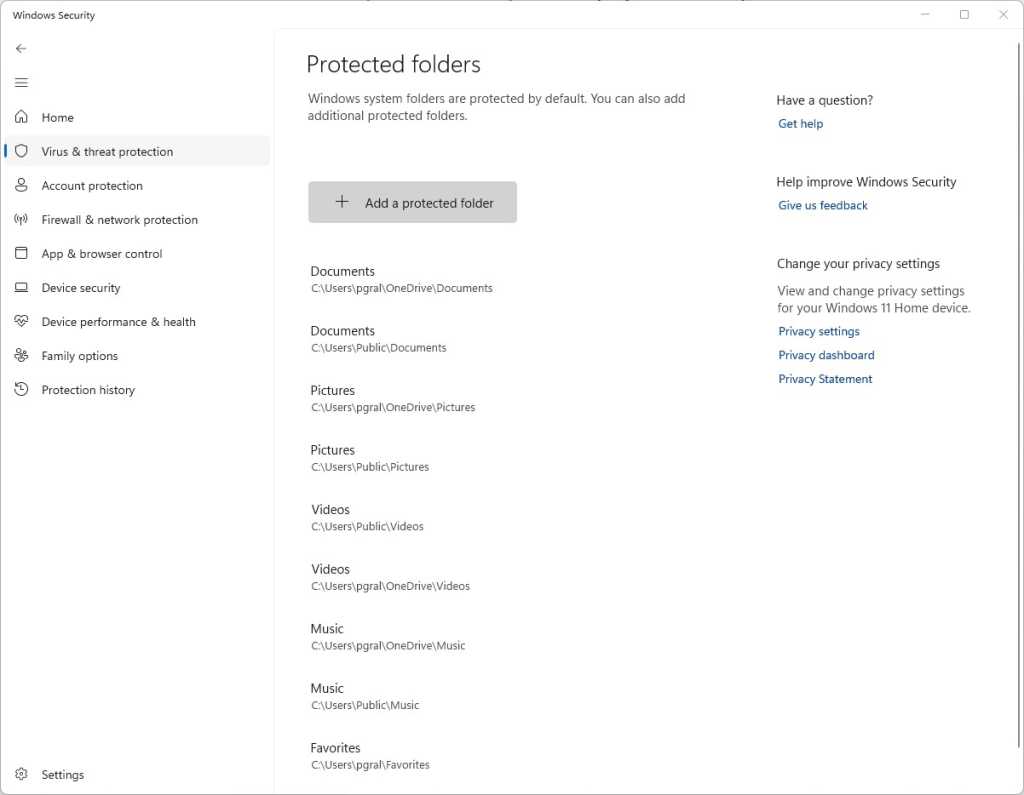
To add folders you want protected, click the Protected folders link that appears after you switch on controlled folder access. A prompt appears asking if you want to make the change. Click Yes. Click the Add a protected folder button that is on top of the list of protected folders that appears, then navigate from the screen that appears to the folder you want to protect and click Select Folder.

protected folders list in windows 11 security settings

Click Add a protected folder to protect more of your folders with controlled folder access.

Preston Gralla / Foundry

Continue to add folders in this way. Remember that when you add a folder, all folders underneath it are protected as well.

If you decide at any point to remove a folder, get back to the “Protected folders” screen, click the folder you want to remove, and then click Remove. Note that you won’t be able to remove any of the Windows system folders that are protected when you turn the feature on. You can only remove the ones that you’ve added.

Microsoft determines which applications should be allowed access to protected folders, and unsurprisingly, among them are its own Microsoft Office apps. Microsoft hasn’t published a list of which apps are allowed, though, so consider taking action to let apps you trust access your files.

To do it, go back to the screen where you turned on controlled folder access and click Allow an app through Controlled folder access. A prompt appears asking if you want to make the change. Click Yes. From the screen that appears, click Add an allowed app, navigate to the executable file of the program you want to add, click Open, and then confirm you want to add the file. As with adding folders to the list of protected folders, you can remove the app by getting back to this screen, clicking the application you want to remove, then clicking Remove.

Hint: If you’re not sure where executable files are located for programs you want to add to the allow list, look for the folder name with the program’s name in the “WindowsProgram Files” or “WindowsProgram Files (x86)” folders, then look for an executable file in that folder.

Note: In Windows 11, OneDrive folders are automatically protected by controlled folder access when you turn it on. However, they may not necessarily be protected in Windows 10. In Windows 10, on the “Ransomware protection” page, you’ll be notified in the Ransomware data recovery section whether your OneDrive files are protected. If they’re not protected, click the Set up OneDrive button there.

Back up… but do it properly

The whole point of ransomware is to hold your files hostage until you pay to unlock them. So one of the best protections from ransomware is to back up your files. That way, there’s no need to pay the ransom, because you can easily restore your files from the backup.

It’s a good idea to not just back up to a local drive but additionally use a reputable cloud-based storage and backup service. If you back up to a drive attached to your PC, when your PC gets infected with ransomware, the backup drive will likely be encrypted along with any other disks inside or attached to your PC. Cloud backups are generally less vulnerable but not wholly immune to ransomware attacks.

Make sure that your backup service uses versioning — that is, it keeps not just the current version of each of your files, but previous ones as well. That way, if the most current version of your files gets infected, you can restore from previous versions. Most popular backup and storage services, including Microsoft OneDrive, Google Drive, Carbonite, Dropbox, and many others, use versioning. It’s a good idea to get familiar with the versioning feature of whichever service you use now, so you can easily restore files in a pinch.

Some services, including OneDrive and Google Drive, now offer ransomware detection. Users are notified of suspicious activity and can use the vendors’ tools to remove infected files and restore older versions.

Stay patched

Microsoft regularly releases Windows 10 and Windows 11 security patches, and they’re automatically applied via Windows Update. But if you hear about a ransomware outbreak, you shouldn’t wait for Windows Update to work — you should immediately get the update yourself so that you’re protected as soon as possible. And it’s not just Windows updates you want to get. You also want to make sure Windows Security, Microsoft’s built-in anti-malware tool, has the latest anti-malware definitions.

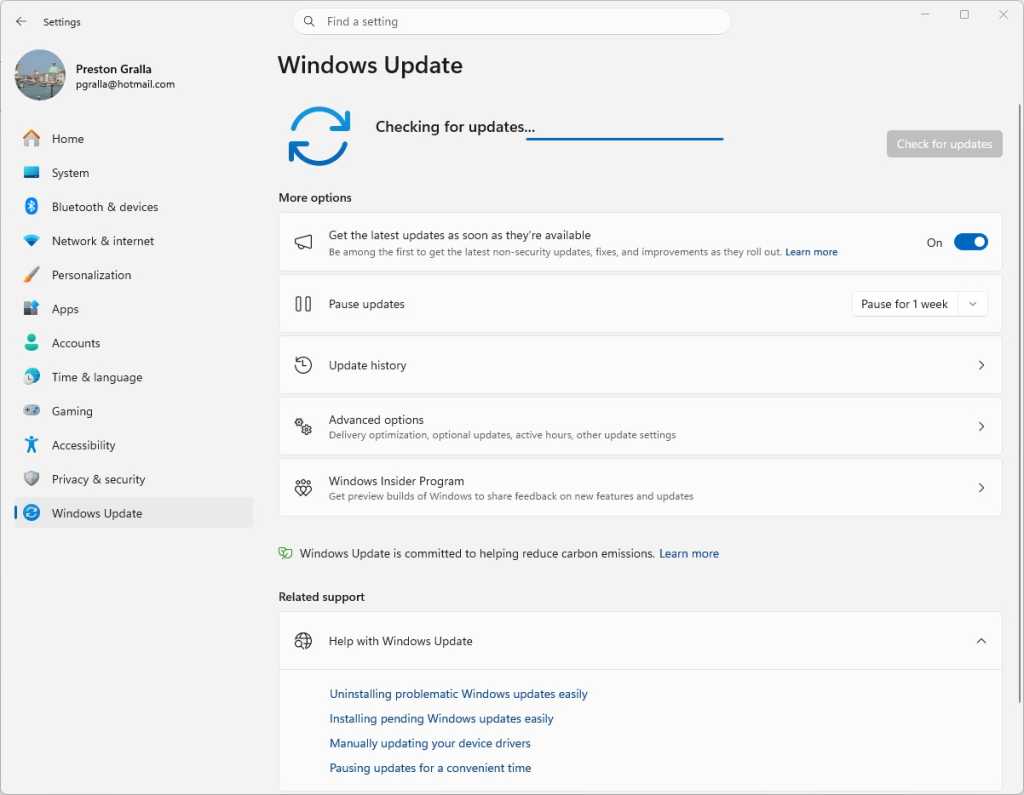
To do both in Windows 10, go to Settings > Update & Security > Windows Update and click the Check for updates button. In Windows 11, go to Settings > Windows Update and click the Check for updates button. (If updates are already waiting for you, you’ll see them listed instead of the Check for updates button.) If Windows finds updates, it installs them. If it requires a reboot, it will tell you.

windows update screen in windows 11 showing checking for updates progress bar

Checking for Windows 11 updates.

Preston Gralla / Foundry

You need to worry not just about Windows staying patched, but other software as well. If you use an anti-malware program other than Windows Security, make sure it and its malware definitions are up to date.

And the other software on your PC should be kept up to date as well. So check how each piece of software gets updated and make sure to update each one regularly. For help keeping all your apps up to date, consider setting up an automated tool like Patch My PC Updater or Software Update Monitor (see our tutorial “How to keep your apps up to date in Windows 10 and 11”) — or, if you’re comfortable using the command line, try the WinGet command (see “WinGet: The best way to keep Windows apps updated”).

Disable macros in Microsoft Office

Ransomware can be spread via macros in Office files, so to be safe you should turn them off. Microsoft now disables macros from the internet by default, but that doesn’t necessarily mean that they’re turned off in your version of Office, depending on when you installed it and whether you’ve updated it.

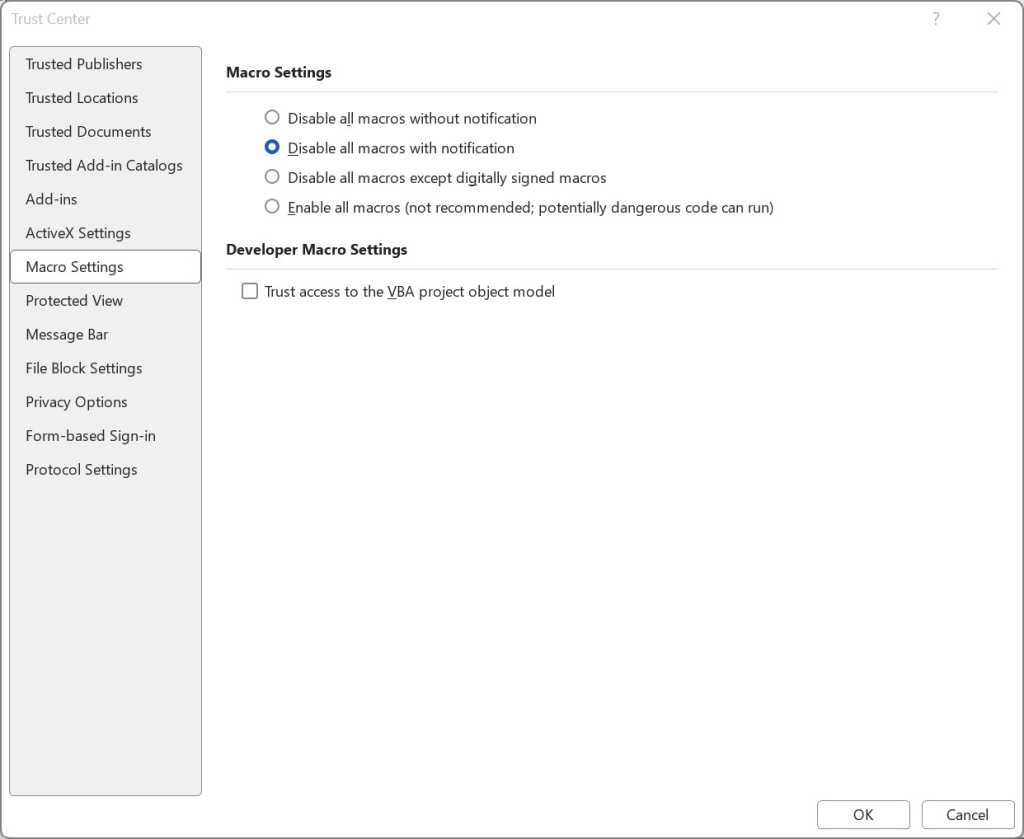
To turn them off, when you’re in an Office application, select File > Options > Trust Center > Trust Center Settings and select either Disable all macros with notification or Disable all macros without notification. If you disable them with notification, when you open the file you’ll get a message warning that the macros were disabled and letting you turn them on. Only turn them on if you’re absolutely sure they’re from a safe, trusted source.

macro settings screen in microsoft word with disable all macros with notification selected

Here’s how to disable macros in Office.

Preston Gralla / Foundry

Get ransomware protection and/or mitigation tools

Just about any anti-malware program includes built-in anti-ransomware protections, but there are several programs that promise to specifically target ransomware. Most are paid, but there are also some free options.

Bitdefender offers free decryption tools that can unlock your data if you’ve been attacked by ransomware and it’s being held ransom. They can only decrypt data that’s been encrypted with certain specific pieces or families of ransomware, including REvil/Sodinokibi, DarkSide, MaMoCrypt, WannaRen, and several others. Avast offers its own set of free decryption tools.

What IT needs to know about ransomware and Windows

Many Microsoft 365 and Windows commercial plans, especially at the enterprise level, include ransomware detection and protection tools. Advanced products such as Microsoft Defender XDR are also available under separate licenses.

Even without those tools, there’s plenty that admins can do to protect Windows systems from ransomware. The most obvious: Apply the latest security patches to not just all PCs in an organization, but all servers and any other enterprise-level hardware. Also lock down application permissions, train users to spot phishing attempts, and, of course, securely back up all corporate data.

IT also needs to make sure the notoriously insecure SMB1 Windows networking protocol is disabled in all devices. Multiple ransomware attacks have spread through the 30-year-old protocol; even Microsoft says it should be used by no one, ever.

The good news is that Windows 10 version 1709, released in October 2017, finally did away with SMB1. (It’s not in Windows 11, either.) But that’s only for PCs with clean installs of version 1709 or later. Older PCs that were updated from earlier versions of Windows still have the protocol built in.

The Microsoft support article “Detect, enable and disable SMBv1, SMBv2, and SMBv3 in Windows” offers details about how to turn off the protocol. It recommends killing SMB1 but keeping SMB2 and SMB3 active, and only deactivating them for temporary troubleshooting.

Administrators can use the controlled folder access feature (covered earlier in this article) to stop ransomware from encrypting files and folders of PCs running Windows 11 or Windows 10 version 1709 or later. They can use the Group Policy Management Console, the Windows Security Center, or PowerShell to turn on controlled folder access for users on a network, customize which folders should be protected, and let additional applications access the folders beyond the Microsoft defaults, as detailed  in the Microsoft articles “Enable controlled folder access” and “Customize controlled folder access.”

One potential issue with controlled folder access is that it might block apps that users typically use from accessing folders. So Microsoft recommends using audit mode first, to see what will happen when controlled folder access is turned on. For information about how to do it, go to Microsoft’s “Evaluate exploit protection” documentation.

As noted above, Office macros can spread ransomware. Microsoft is now blocking macros downloaded from the internet by default, but to be safe, IT should use Group Policy to block them. For advice on how to do it, go to the “Block macros from running in Office files from the Internet” section on Microsoft’s “Macros from the internet will be blocked by default in Office” documentation.

This article was originally published in January 2018 and most recently updated in May 2026.

  •  

Apple’s iPhone satellite ambition goes beyond rescuing hikers

Apple has spent billions of dollars to develop satellite connectivity for iPhone; I very much doubt it did so solely to rescue stranded hikers. The company will most certainly have had a bigger prize in its sights when it first began working with GlobalStar (now owned by Amazon).

The most logical reason to invest in satellite coverage for its devices is the most obvious — to provide network infrastructure for new breeds of device and new service models. You don’t acquire access to massive amounts of bandwidth for nothing. And Apple’s steady introduction of new satellite-supported services shows it is interested in introducing these services, even though the offer isn’t extensive enough yet to require iPhone users to pay for access, yet.

The decision not to charge for those satellite services suggests they’re just the thin end of the company’s plans for satellite deployment.

It’s possible the company’s ambitions were limited by GlobalStar’s ability to put satellite constellations in orbit. That work was ongoing last time I looked, and I fully expect existing Apple satellite services will be extended to new nations, even under Amazon’s watch.

Amazon enters the room

Amazon’s recent $11.6 billion acquisition of GlobalStar is interesting. You can see that Apple is now forced to work with its old frenemy, even as both partners already profit from strong, steady Apple hardware sales via the online retailer. So they know they can make money together.

“Apple and Amazon have a long and proven track record of working together through Amazon’s core infrastructure services, and we look forward to building on that collaboration with Amazon Leo,” Greg Joswiak, Apple’s senior vice president of worldwide product marketing, said when the deal was announced. (The transaction isn’t expected to close until next year.)

Making money together is often seen as a strength in business relationships and Amazon has agreed to continue supporting Apple products and to collaborate with Apple on future satellite services.

When it comes to mobile telecoms, Amazon isn’t the only game in town, and neither is Starlink. Cellular operators are inking deals with satellite providers all over the world, all with the intention of bringing network access to those who otherwise can’t get a decent connection.

Just today in the UK, Virgin Media O2 announced plans to switch on the O2 Satellite service for iPhone users tomorrow, enabling customers — particularly in rural areas — to get a satellite connection where traditional cellular coverage is unavailable. It could simply identify new ways to enhance the Find My service.

Orange last year offered its own satellite comms to French customers, while Deutsche Telekom partners with others to provide SMS via satellite in Europe and the US. You’ll find similar alliances in most key territories, including Australia and Japan. The direction of travel exposes an industry embracing satellite as a way to widen existing cellular infrastructure, which makes sense given the relative cost of installing conventional masts in some regions. 

Many ways to crack it

There’s speculation Apple could become a satellite carrier, a move that would put it in competition with carrier partners. But Apple doesn’t need to do to provide satellite communication services to iPhone users, nor would it want to relinquish the symbiotically profitable relationships it’s developed with carriers.

It could, for example provide satellite calling as a hardware feature available with every iPhone across all supported carriers, possibly as an additional service that guarantees customers can get a connection, even in the countryside. It could evangelize the service as being “Private by Design,” and supplement this with data over satellite to support apps, particularly agentic AI apps. 

Combined with the next wave of AI enhancements Apple is expected to deliver for its systems, the combination of an always-on, resilient, private data connection and AI could prove invaluable to many customers. That’s particularly true for enterprise customers seeking global solutions that respect sovereign data, privacy, data retention policy and managed AI services – especially as terrestrial infrastructure becomes an attack target. Such scenarios will only become more widely understood as 6G emerges, with its built-in support for satellite infrastructure.

What will Apple do?

Will Apple move in that direction, or maintain its focus on the consumer markets? Will it decide that rather than deploying its own part-owned satellite constellations as it was with GlobalStar, it is better to work with carrier partners? Will it wait for 6G with its enhanced, standards-based support for satellite communications? 

Those are answers we don’t yet have. But it is quite clear that as satellite communications truly enter the mass market, Apple has put together many of the technical, hardware, software and infrastructure pieces it will need to ensure the iPhone is a peer player in whatever use cases emerge. 

You can follow me on social media! Join me on BlueSky,  LinkedIn, and Mastodon.

  •  

Total Android recall: Never lose an important notification again

Google’s shiny new Android 17 update may be on the brink of making its way out into world, but one of the most consequential Android notification upgrades I’ve seen in ages is actually available for anyone, on any device, this instant.

It’s one of those things you don’t even realize is missing — and awkwardly has been, all this time — until you have it in front of you and see just how helpful and at times even invaluable it is.

And that’s the ability to have any or all of your notifications saved and restored whenever you restart whatever Android device you’re using — so that nothing important gets awkwardly tossed aside, lost, and forgotten, likely without your ever even noticing or being aware of what you’ve missed.

How many potentially important pending alerts have you lost as a result of that reboot trash chute? I couldn’t even begin to count, myself, and am slightly terrified to think of the answer. But with this easy new improvement in place, it’ll never happen again.

And best of all? It’ll take you roughly two minutes, once, to set up and then forget about and just know it’s working on your behalf from that moment forward.

Lemme show ya how.

[Keep the off-the-beaten-path knowledge coming with my free Android Intelligence newsletter — three new things to try every Friday and my Android Notification Power-Pack as a special welcome bonus!]   

Your new Android notification safety net

The secret sauce that makes this sorcery possible comes not from Google itself but from a crafty independent developer who’s been expanding our Android notification smarts for many a moon now.

His app is called BuzzKill. You’ve probably heard me rave about it before, with other noteworthy features and additions it’s introduced over time.

Whether you already have BuzzKill on your device or this is your first time encountering it, though, it’s well worth your while to take note of this new capability that snuck into the app not long ago.

First, a quick primer/refresher on what BuzzKill is, in case you aren’t already familiar: BuzzKill is essentially a way to create Gmail-like filters for your Android notifications. You use it to create simple custom rules for what happens when different types of notifications arrive — in an intuitive “if this, then that”-style form — with all kinds of interesting and advanced options for making your alerts more effective.

The latest addition to the app is an experimental option called, appropriately enough, “Restore after reboot.” And it does exactly what you’d expect: Anytime your device restarts, it automatically swoops in to save any active notifications that fit the parameters you select and then instantly restores ’em back into active status once your phone is back up and running.

Without such a system in place, any notifications that you either hadn’t yet looked at or maybe had glanced at and left pending as a reminder to deal with later would more often than not just vanish entirely — and you’d have no easily visible record of their presence or any real indication that they’d been there at all. That’s a dangerous recipe for forgetting something important, whether it’s an email you intended to engage with, a Slack message you needed to acknowledge, or even a task of some sort that had popped up for you to ponder.

The beauty of the BuzzKill approach to fixing this is that it really is a “set it and forget it” sort of system: You just create whatever rule you want now, get it up and running, and then rest easy knowing it’ll always find and restore any active notifications anytime your device restarts — as Android itself should but for whatever reason does not.

2 minutes to auto-restored Android notifications

All right — here are the specific steps to getting your new notification safety net in place:

  • First, go download BuzzKill from the Play Store, if you don’t already have it.
    • The app costs four bucks as a one-time purchase, which — believe me — is nothing compared to the ongoing value it’ll give you with this and its many other notification-enhancing possibilities.
    • It doesn’t require any unusual permissions, doesn’t collect any form of data from your phone, and doesn’t have any manner of access to the internet — meaning it’d have no way of sharing your information even if it wanted to. 
  • Once you’ve gone through the app’s initial setup and made your way to its main screen, tap on the circular button in the lower-right corner of the screen to create a new rule.
  • On the screen that comes up next, consider which specific sorts of notifications you want to have restored whenever your device restarts.
    • You could always start with any and all notifications and then go back in to refine and limit the rule more once you see how it works. You might eventually want to ask it to avoid restoring alerts from certain low-priority apps — like, say, Google Photos — so that it doesn’t bother bringing back stuff that you don’t actually need.
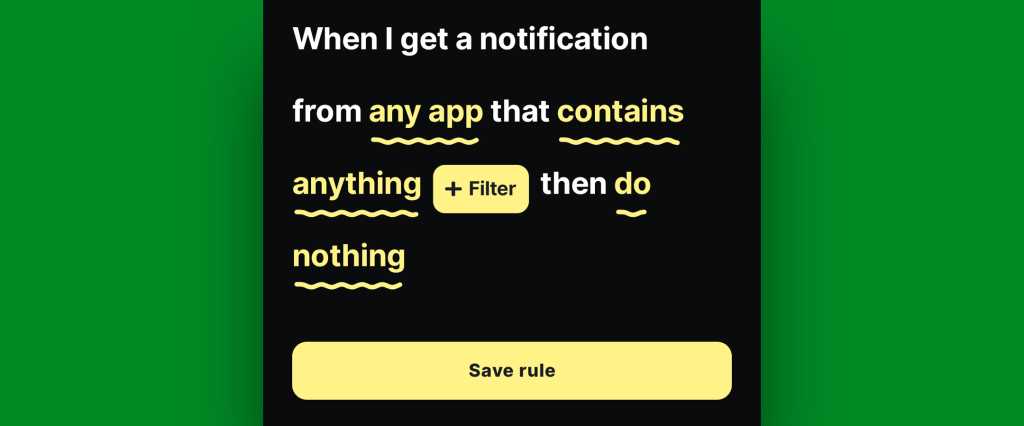
    • If/when you want to create any such restrictions, tap the text that says “any app” to change which apps will be included and/or tap the text that says “contains anything” if you want to restrict based on what specific text a notification does or doesn’t include.
    • If you don’t want to create any limitations and just want all of your active notifications to be restored, at least to start, leave those lines alone and mosey on down to our next step.
Android notification restore: BuzzKill rule
BuzzKill’s simple “if this, then that” formatting gives you lots of flexibility with how and when your rule works.

JR Raphael, Foundry

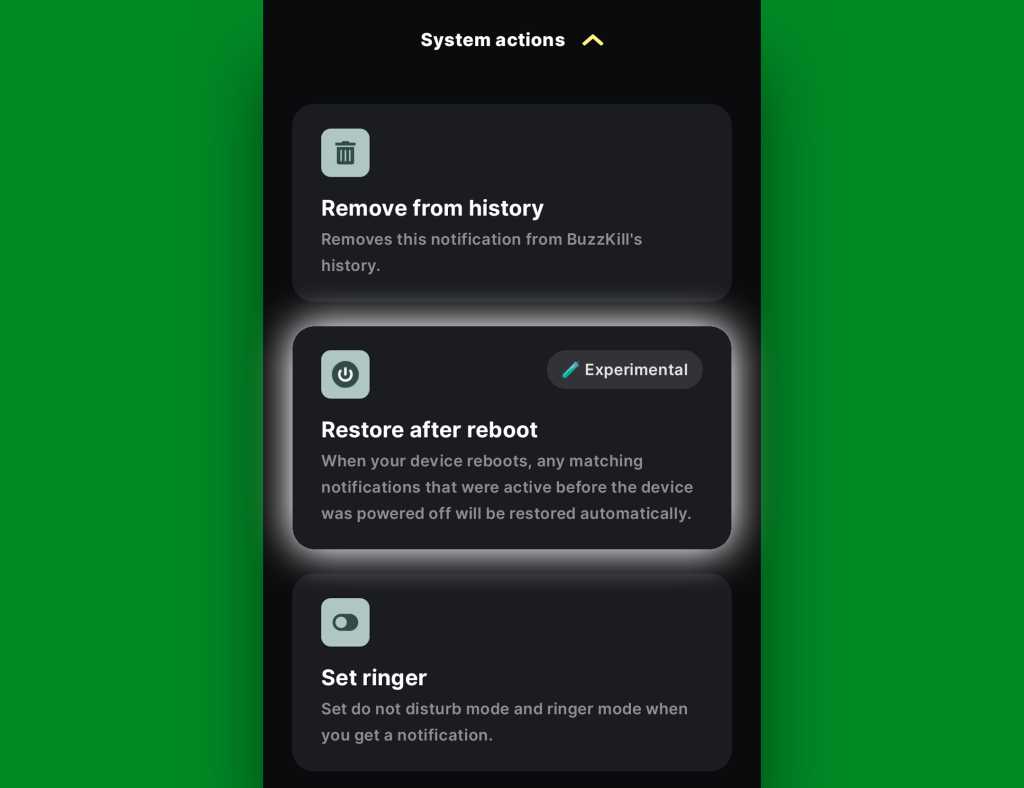
  • Tap the line that says “do nothing” and scroll down to find the “Restore after reboot” option. It’ll be toward the bottom of the list, within the “System actions” section.
Android notification restore: BuzzKill rule active
The “Restore after reboot” action is described as experimental, but it seems to work quite well in my experience so far.

JR Raphael, Foundry

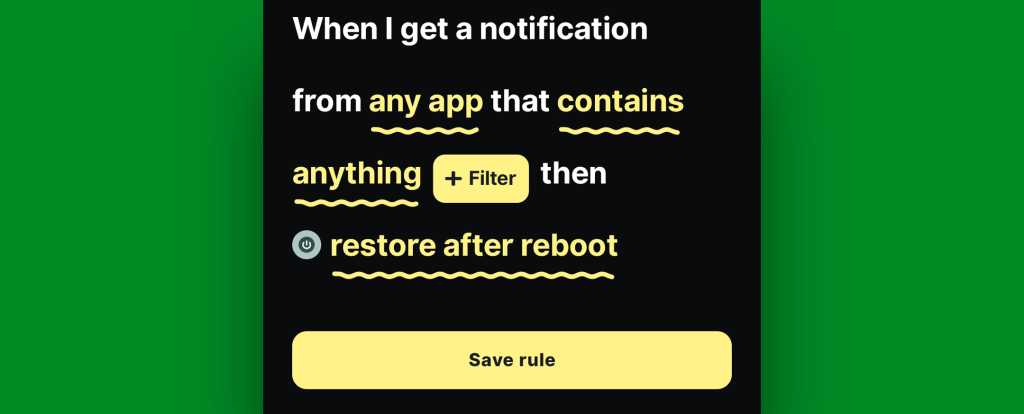
  • Tap that, then tap “Pick action” to confirm.
  • And last but not least, tap “Save rule” to, y’know, save your rule and set it into action.
Android notification restore: BuzzKill rule complete
The BuzzKill notification restoration equation, in its simplest possible form.

JR Raphael, Foundry

You should then see the rule showing up as active and running on the main BuzzKill screen.

Android notification restore: BuzzKill action
Notification restoration — active and ready to spring into action whenever your phone restarts.

JR Raphael, Foundry

And that really is all there is to it: Whenever your phone next restarts, any notifications that were visible and active at the time of the restart should just show back up via BuzzKill as soon as things boot back up. If you want to get fancy, you could even make certain especially important notifications “sticky” in general, so that if you inadvertently swipe ’em away while your phone is running normally, they’ll automatically come right back even in that scenario.

It’s not the flashiest feature you’ll see this year, and it doesn’t have any whizbang AI shenanigans to make it seem headline-worthy by current-day standards. But it will work and quite possibly be one of the most practical, actually helpful additions you make to your phone all year — even if and arguably especially if you only think about it once in a great while, when you notice it working its magic and saving you from losing something significant.

Discover even more life-enhancing Android treasures with my free Android Intelligence newsletter — three new things to try every Friday and my free Android Notification Power-Pack today.

  •  

Windows 11: A guide to the updates

A Windows launch isn’t the end a process — it’s really just the beginning. Microsoft continually works on improving Windows 11 by fixing bugs, releasing security patches, and occasionally adding new features.

In this story we summarize what you need to know about each update released to the public for the most recent version of Windows 11 — currently version 25H2 — over the past year. For each build, we’ve included the date of its release and a link to Microsoft’s announcement about it. The most recent updates appear first.

The easiest way to install updates is via Windows Update. Not sure how? See “How to handle Windows 10 and 11 updates” for full instructions. Note that Windows 11 version 25H2 is being released as a phased rollout and may not be available to you in Windows Update yet.

If you’re still using Windows 10, see “Windows 10: A guide to the updates.” And if you’re looking for information about Insider Program previews for upcoming feature releases of Windows 11, see “Windows 11 Insider Previews: What’s in the latest build?”

Updates for Windows 11 25H2 and 24H2

KB5089573 (OS Builds 26200.8524 and 26100.8524) Preview

Release date: May 26, 2026

With this update, Windows quality updates include additional high-confidence device targeting data, making more devices eligible to receive new Secure Boot certificates. The old certificates expire at the end of June: see Computerworld’s FAQ for details. The build also adds Group Policy and MDM settings that IT admins can enable to limit the Secure Boot service data sent to Microsoft. (See Microsoft documentation.)

This update also includes a wide variety of new features being rolled out gradually, including Shared Audio, which enables two Bluetooth audio devices to connect to a single Windows 11 PC at the same time; Multi-App Camera, which allows multiple applications to access the camera stream simultaneously; improved visibility into NPU usage in Task Manager; and several performance and behavior improvements for Windows Hello.

There is one known issue in the update, in which after you install update KB5089549, some devices might fail to complete installation with error code 0x800f0922. This issue occurs on devices that have limited free space on the EFI System Partition (ESP), especially if it has 10MB or less available.

(Get more info about KB5089573 Preview, including workarounds for the issue described above.)

KB5089549 (OS Builds 26200.8457 and 26100.8457)

Release date: May 12, 2026

This build enables dynamic status reporting for Secure Boot states in the Windows Security app. It also fixes a bug in which the Remote Desktop Connection security warning dialog sometimes rendered incorrectly in multi-monitor configurations with different display scaling settings.

It also includes a wide variety of security updates. For details, see Microsoft’s Security Update Guide and May 2026 Security Updates.

The build has one known issue: devices with an unrecommended BitLocker Group Policy configuration might be required to enter their BitLocker recovery key.

What IT needs to know: Because this is a security update, it should be applied relatively soon. Over the next few weeks, check for reports about problematic issues, and if all seems well, apply the update.

(Get more info about KB5089549.)

KB5083631 (OS Builds 26200.8328 and 26100.8328) Preview

Release date: April 30, 2026

This update includes a large number of new features being rolled out gradually, including File Explorer’s ability to handle new archive formats including uu, cpio, xar, and NuGet Packages (nupkg). Windows also gets a new way to monitor agents from the taskbar. It supports agents across first- and third-party apps, with Researcher in the Microsoft 365 Copilot app as the first adopter. 

Also being rolled out gradually is a security improvement that changes how the Windows kernel trusts third‑party drivers. Default trust for cross‑signed drivers is removed, while drivers from the Windows Hardware Compatibility Program (WHCP) and an allow list of trusted legacy drivers remain allowed. 

The update also includes several changes available immediately, including one that increases coverage of devices eligible to automatically receive new Secure Boot certificates. Devices receive the new certificates only after demonstrating sufficient successful update signals, maintaining a controlled and phased rollout. For more information, see Windows Secure Boot certificate expiration and CA updates.

A bug in the Remote Desktop Connection security warning dialog is being fixed immediately. Previously, the dialog could have rendered incorrectly in a multi-monitor scenario when the monitors had different scaling settings.

(Get more info about KB5083631 Preview.)

KB5083769 (OS Builds 26200.8246 and 26100.8246)

Release date: April 14, 2026

This update fixes several bugs, including one that caused device reset to fail when using the “Keep my files” or “Remove everything” options. It also improves protection against phishing attacks that use Remote Desktop (.rdp) files. For more information, see Understanding security warnings when opening Remote Desktop (RDP) files.

It also enables dynamic status reporting for Secure Boot states in Settings > Update & Security > Windows Security, with a green, yellow, or red badge indicating your current Secure Boot status. See Secure Boot certificate update status in the Windows Security app for more information.

The build also has a wide variety of security updates. For details, see Microsoft’s Security Update Guide and April 2026 Security Updates.

What IT needs to know: Because this is a security update, it should be applied relatively soon. Over the next few weeks, check for reports about problematic issues, and if all seems well, apply the update.

Update, April 15: Microsoft has confirmed an issue with this release: “Devices with an unrecommended BitLocker Group Policy configuration might be required to enter their BitLocker recovery key.” See Microsoft’s KB5083769 information page for details and workarounds.

(Get more info about KB5083769.)

KB5086672 (OS Builds 26200.8117 and 26100.8117) Out-of-band

Release date: March 31, 2026

This update fixes a bug in which some devices running Windows 11 version 25H2 or 24H2 encountered the following error while installing the Windows preview update KB5079391 (listed below): “Some update files are missing or have problems. We’ll try to download the update again later. Error code: (0x80073712).”

(Get more info about Windows 11 KB5086672 Out-of-band.)

KB5079391 (OS Builds 26200.8116 and 26100.8116) Preview

Release date: March 26, 2026

This update includes a variety of new features being rolled out gradually, including one that allows you to turn Smart App Control (SAC) on or off without needing a clean install. To make changes, go to Settings > Windows Security > App & Browser Control > Smart App Control settings. When turned on, SAC helps block untrusted or potentially harmful apps. To learn more, see App & Browser Control in the Windows Security App.

The build also includes several improvements and bug fixes, including one that improves Application ID tagging in Application Control for Business policies. With this update, the system identifies which apps should receive tags more accurately and behaves more reliably, Microsoft says.

(Get more info about Windows 11 KB5079391 Preview.)

KB5085516 (OS Builds 26200.8039 and 26100.8039) Out-of-band

Release date: March 21, 2026

This update fixes a bug some users experienced when signing in to apps with a Microsoft account. Even when the device had a working internet connection, a “no Internet” error appeared during sign-in and prevented access to Microsoft services and apps such as Microsoft Teams Free and OneDrive.

(Get more info about KB5085516 Out-of-band.)

KB5079473 (OS Builds 26200.8037 and 26100.8037)

Release date: March 10, 2026

This build improves how Windows Defender Application Control (WDAC) handles COM objects allowlisting policies. COM objects were blocked when the endpoint security policy was set higher than the allowlisting policy. With this update, COM objects are allowed as expected.​ The build also introduces additional high confidence device targeting data to Windows quality updates, increasing coverage of devices eligible to automatically receive new Secure Boot certificates.

It also has a wide variety of security updates. For details, see Microsoft’s Security Update Guide and March 2026 Security Updates.

What IT needs to know: Because this is a security update, it should be applied relatively soon. Over the next few weeks, check for reports about problematic issues, and if all seems well, apply the update.

(Get more info about KB5079473.)

KB5077241 (OS Builds 26200.7922 and 26100.7922) Preview

Release date: February 24, 2026

This update includes a variety of new features being rolled out gradually, including one in which Quick Machine Recovery (QMR) turns on automatically for Windows Professional devices that are not domain‑joined and not enrolled in enterprise endpoint management. For domain‑joined or enterprise managed devices, QMR stays off unless it is enabled by the organization.

It also includes several features available immediately, including one in which Windows quality updates include additional high-confidence device-targeting data, increasing coverage of devices eligible to automatically receive new Secure Boot certificates. Devices receive the new certificates only after demonstrating sufficient successful update signals, maintaining a controlled and phased rollout.

(Get more info about KB5077241 Preview.)

KB5077181 (OS Builds 26200.7840 and 26100.7840)

Release date: February 10, 2025

This Patch Tuesday build fixes several bugs, including one that prevented some devices from connecting to certain WPA3‑Personal Wi‑Fi networks. It also includes a broad set of targeting data that identifies devices and their ability to receive new Secure Boot certificates. Devices will receive the new certificates only after they show sufficient successful update signals, which helps ensure a safe and phased rollout.

It also has a wide variety of security updates. For details, see Microsoft’s Security Update Guide and February 2026 Security Updates.

What IT needs to know: Because this is a security update, it should be applied relatively soon. Over the next few weeks, check for reports about problematic issues, and if all seems well, apply the update.

(Get more info about KB5077181.)

KB5074105 (OS Builds 26200.7705 and 26100.7705) Preview

Release date: January 29, 2025

In this build, several new features are immediately available, including one for Data Protection Application Programming Interface (DPAPI) domain backup key management. Administrators can now set how often keys rotate automatically. This strengthens cryptographic security and reduces reliance on older encryption algorithms.

One new feature is being gradually rolled out: The Settings Agent now supports more languages, with expanded support for German, Portuguese, Spanish, Korean, Japanese, Hindi, Italian, and Chinese (Simplified).

A variety of bugs have been fixed, including one that caused some systems to stop responding during startup when Windows Boot Manager debugging was enabled.

Get more info about KB5074105 Preview.)

KB5078127 (OS Builds 26200.7628 and 26100.7628) Out-of-band

Release date: January 24, 2026

This update fixes a bug in which some applications were unresponsive or encountered unexpected errors when opening files from or saving files to cloud-based storage, such as OneDrive or Dropbox. In certain Outlook configurations that store PST files on OneDrive, Outlook sometimes hung and failed to reopen unless the process was terminated or the system was restarted. Users may have also experienced missing sent items or previously downloaded emails.

(Get more info about KB5078127 Out-of-band.)

KB5077744 (OS Builds 26200.7627 and 26100.7627) Out-of-band

Release date: January 17, 2026

This update fixes a bug in which some users experienced sign-in failures during Remote Desktop connections. This issue affected authentication steps for different Remote Desktop applications on Windows such as the Windows App.

There is one known issue in this build, in which the password icon might be missing or invisible in the lock screen sign-in options.

Get more info about KB5077744 Out-of-band.)

KB5074109 (OS Builds 26200.7623 and 26100.7623)

Release date: January 13, 2026

This build fixes several bugs, including one in which you might experience RemoteApp ​​​​​​​connection failures in Azure Virtual Desktop (AVD) environments. This might occur after installing KB5070311. It also updates the Windows core component, WinSqlite3.dll. Previously, some security software might have detected this component as vulnerable. 

It also has a wide variety of security updates. For details, see Microsoft’s Security Update Guide and January 2026 Security Updates.

It has one known issue, in which you might notice that the password icon is not visible in the sign-in options on the lock screen. If you hover over the space where the icon should appear, you’ll see that the password button is still available. Select this placeholder to open the password text box and enter your password. After entering your password, you can sign in normally. People using Windows Home or Pro editions on personal devices are very unlikely to experience this issue. This issue primarily affects enterprise or managed IT environments.

What IT needs to know: Because this is a security update, it should be applied relatively soon. Over the next few weeks, check for reports about problematic issues, and if all seems well, apply the update.

(Get more info about KB5074109.)

KB5072033 (OS Builds 26200.7462 and 26100.7462)

Release date: December 9, 2025

This build fixes several bugs, including one in which File Explorer briefly flashed white when you navigated between pages.

It also has a wide variety of security updates. For details, see Microsoft’s Security Update Guide and December 2025 Security Updates.

It has one known issue, in which the password icon might not be visible in the sign-in options on the lock screen. If you hover over the space where the icon should appear, you’ll see that the password button is still available. Select this placeholder to open the password text box and enter your password. After entering your password, you can sign in normally. People using Windows Home or Pro editions on personal devices are very unlikely to experience this issue — it primarily affects enterprise or managed IT environments.

What IT needs to know: Because this is a security update, it should be applied relatively soon. Over the next few weeks, check for reports about problematic issues, and if all seems well, apply the update.

(Get more info about KB5072033.)

KB5070311 (OS Builds 26200.7309 and 26100.7309) Preview

Release date: December 1, 2025

A variety of new features are being gradually rolled out in this build, including several for Copilot+ PCs. The Click to Do context menu in Copilot+ PCs now has a streamlined design that makes it easier to access frequently used actions such as Copy, Save, Share, and Open. In Copilot+ PCs you can now also use Windows Studio Effects, which provide AI-powered camera enhancements, on an additional camera such as a USB webcam or your laptop’s built-in rear camera.

New features being rolled out gradually to all Windows 11 PCs include a simplified File Explorer context menu for easier navigation. Common actions like Share, Copy, and Move now appear in a single organized menu.

A variety of bugs have been fixed for all PCs, including one in which the Local Security Authority Subsystem Service (LSASS) could become unstable due to an access violation.

There are two known issues in this build, one in which when opening File Explorer in dark mode, the window might briefly display a blank white screen before loading files and folders. In addition, the password icon is missing or invisible in the lockscreen sign-in options on some PCs. (Here’s a workaround for the latter bug.)

Get more info about KB5070311 Preview.)

KB5068861 (OS Builds 26200.7171 and 26100.7171)

Release date: November 11, 2025

This Patch Tuesday build fixes several bugs, including one in which closing Task Manager with the Close button didn’t fully end the process, leaving background instances that could slow performance over time.

It also has a wide variety of security updates. For details, see Microsoft’s Security Update Guide and November 2025 Security Updates.

What IT needs to know: Because this is a security update, it should be applied relatively soon. Over the next few weeks, check for reports about problematic issues, and if all seems well, apply the update.

(Get more info about KB5068861.)

KB5067036 (OS Builds 26200.7019 and 26100.7019) Preview

Release date: October 28, 2025

A variety of new features are being gradually rolled out in this build, including several for Click to Do on Copilot+ PCs — notably a streamlined interaction between Click to Do and Copilot. You can now type a custom prompt directly into the text box, which sends your prompt and selected on-screen content to Copilot. Suggested prompts appear below the text box and are available for text selections in English, Spanish, and French. 

New features are being gradually rolled out for all Windows 11 PCs as well, including a redesigned Start menu, which includes scrollable “All” section and category and grid views. The menu now adapts to your screen size.

A variety of bugs have been fixed, including one in which text sometimes didn’t render correctly when editing content within a multiline text box in certain apps.

Get more info about KB5067036 Preview.)

KB5070773 (OS Builds 26200.6901 and 26100.6901) Out-of-band

Release date: October 20, 2025

This build fixes one bug, in which USB devices, such as keyboards and mice, did not function in the Windows Recovery Environment (WinRE). This issue prevented navigation of any of the recovery options within WinRE.

This build has one known issue: some digital TV and Blu-ray/DVD apps might not play protected content as expected after installing the August 29, 2025, Windows non-security preview update (KB5064081) or later updates. Apps that use Enhanced Video Renderer with HDCP enforcement or Digital Rights Management (DRM) for digital audio might show copyright protection errors, frequent playback interruptions, unexpected stops, or black screens. Streaming services are not affected. 

(Get more info about KB5070773 Out-of-band.)

KB5066791 (OS Builds 19044.6456 and 19045.6456)

Release date: October 14, 2025

This build fixes several bugs, including one that caused the print preview screen to stop responding in Chromium-based browsers.

It also has a wide variety of security updates. For details, see Microsoft’s Security Update Guide and October 2025 Security Updates.

What IT needs to know: Because this is a security update, it should be applied relatively soon. Over the next few weeks, check for reports about problematic issues, and if all seems well, apply the update.

(Get more info about KB5066791.)

KB5065789 (OS Builds 26200.6725 and 26100.6725) Preview

Release date: September 29, 2025

This build gradually rolls out a wide variety of new features, including one in which you can use AI actions in File Explorer to edit images or summarize documents. To do it, right-click (or press Shift + F10 on the keyboard) on the file and select AI actions. 

Several bugs have also been fixed, including one in which you might not have been able to connect to shared files and folders if you were using the Server Message Block (SMB) v1 protocol on NetBIOS over TCP/IP NetBIOS (NetBT).

(Get more info about KB5065789 Preview.)

Windows 11 25H2

At the end of September, Microsoft upgraded Windows 11 from version 24H2 to 25H2, in a slow rollout that could take months to complete. Typically in the past, Microsoft would introduce new features in a once-a-year update like this. That’s not the case with 25H2, though.

Microsoft has been introducing new features in smaller updates all year round, so 25H2 doesn’t include any major new features. Rather, it includes all the new features that have accumulated in all those smaller updates.

As the company explains, “While this update doesn’t introduce major new features, it activates enhancements that have been gradually rolled out over the past year ensuring your device is up to date with the latest refinements.”

Here are some of the most important features in 25H2 that have been introduced for end users and IT pros since 24H2 was released last fall:

New features for users:

  • File Explorer has several useful new features, notably AI actions, which can edit images or summarize documents. AI options such as Blur background, Erase objects, and Remove background are all now displayed in the context menu.
  • Task Manager gets a number of minor tweaks, including performance improvements when changing the sort order of processes.
  • You can now display the apps that have recently used on-device generative AI models provided by Windows. You can also choose which apps are permitted to use the generative AI technologies. To do that and more, go to Settings > Privacy & security > Text and Image Generation.

New features for IT:

  • IT admins can use policy-based tools to easily remove preinstalled Microsoft Store apps from Enterprise and Education editions of Windows 11, version 25H2 and later. This can streamline device provisioning and prevent removed apps such as Microsoft Clipchamp, Media Player, and Microsoft Teams from being reinstalled. For more information, see Policy-based removal of preinstalled Microsoft Store apps and RemoveDefaultMicrosoftStorePackages in the ApplicationManagement Policy CSP.
  • Enterprise access points now support Wi-Fi 7, which enables increased speeds, greater throughput, improved reliability, and enhanced security. For details, see https://aka.ms/WiFi7forEnterprise.
  • Windows Backup for Organizations is now generally available.
  • A new feature called Quick Machine Recovery can recover Windows devices when they encounter critical errors that prevent them from booting. Quick machine recovery searches for remediations in the cloud and recovers from widespread boot failures, reducing the burden on IT admins on cases when multiple devices are affected. For more information, see Computerworld’s Quick Machine Recovery explainer.

Updates for Windows 11 24H2

KB5068221 (OS Build 26100.6588) Out-of-band

Release date: September 22, 2025

This update fixes a bug that affected Microsoft Office applications running in Microsoft Application Virtualization (App-V) environments. The failure occurred due to a double handle closure in the AppVEntSubsystems32 or AppVEntSubsystems64 system component.

There is one issue in this build: you might fail to connect to shared files and folders using the Server Message Block (SMB) v1 protocol on NetBIOS over TCP/IP (NetBT). This issue can occur if either the SMB client or the SMB server has the September 2025 security update installed.

(Get more info about KB5068221 (OS Build 26100.6588) Out-of-band).

KB5065426 (OS Build 26100.6584)

Release date: September 9, 2025

This build fixes several bugs, including one that caused non-admin users to receive unexpected User Account Control (UAC) prompts when MSI installers performed certain custom actions, such as configuration or repair operations in the foreground or background during the initial installation of an application.

The build also has a wide variety of security updates. For details, see Microsoft’s Security Update Guide and September 2025 Security Updates.

What IT needs to know: Because this is a security update, it should be applied relatively soon. Over the next few weeks, check for reports about problematic issues, and if all seems well, apply the update.

(Get more info about KB5065426.)

KB5064081 (OS Build 26100.5074) Preview

Release date: August 29, 2025

A wide variety of new features are being gradually rolled out in this build, including a new personalized homepage in Windows Recall that displays your recent activity and top-used apps and websites (available only in Copilot+ PCs). Among the changes rolling out to all users is a new grid view for Search from the Windows taskbar that helps you more quickly and accurately identify the desired image within your search.

Several bugs have also been fixed, including one in which some system recovery features did not work properly due to a temporary file sharing conflict. This affected certain device management tools and disrupted key functions on some devices.

(Get more info about KB5064081 Preview.)

KB5063878 (OS Build 26100.4946)

Release date: August 12, 2025

This build fixes a bug that caused delays during sign-in on new devices. The delay was due to certain preinstalled packages. It also has a wide variety of security updates. For details, see Microsoft’s Security Update Guide and August 2025 Security Updates.

What IT needs to know: Because this is a security update, it should be applied relatively soon. Over the next few weeks, check for reports about problematic issues, and if all seems well, apply the update.

(Get more info about KB5063878.)

KB5062660 (OS Build 26100.4770) Preview

Release date: July 22, 2025

A wide variety of new features are being gradually rolled out in this build, including a new agent in Copilot+ PCs that is designed to help you find and change settings on your PC. You can describe what you need help with, such as “how to control my PC by voice” or “my mouse pointer is too small,” and the agent will suggest steps to resolve the issue. The agent uses AI on your PC to understand your request and, with your permission, can automate and complete tasks for you. It is rolling out to Snapdragon-powered Copilot+ PCs now, with support for AMD and Intel PCs coming soon. 

Several bugs have also been fixed, including one in which If you have an app pinned to your desktop and it updates, the app icon might not display correctly and instead show a white page.

(Get more info about KB5062660 Preview.)

KB5064489 (OS Build 26100.4656) Out-of-band

Release date: July 13, 2025

This update fixes a bug that prevented some virtual machines (VMs) from starting when Virtualization-Based Security (VBS) was enabled. It affected VMs using version 8.0 (a non-default version) where VBS was offered by the host. In Azure, this applies to standard (non–Trusted Launch) General Enterprise (GE) VMs running on older VM SKUs. The problem was caused by a secure kernel initialization issue.

(Get more info about KB5064489 Out-of-band.)

KB5062553 (OS Build 26100.4652)

Release date: July 8, 2025

The build fixes several bugs, including one in which notification sounds didn’t play. Affected sounds included those for on-screen alerts, volume adjustments, and sign-in. It also has a wide variety of security updates. For details, see Microsoft’s Security Update Guide and July 2025 Security Updates.

What IT needs to know: Because this is a security update, it should be applied relatively soon. Over the next few weeks, check for reports about problematic issues, and if all seems well, apply the update.

(Get more info about KB5062553.)

KB5060829 (OS Build 26100.4484) Preview

Release date: June 26, 2025

A wide variety of new features are being gradually rolled out in this build, including a new Settings home page that includes enterprise-specific device info cards for commercial customers on PCs managed by an IT administrator. The taskbar also now resizes icons to fit more apps when space runs low.

Users in the European Economic Area will see several small changes related to default browsers, such as mapping additional file and link types to the default browser and pinning it to the taskbar and Start menu.

A variety of bugs have also been fixed, including one that prevented the automatic renewal of expiring certificates in Windows Hello for Business.

There is one known issue in this build, in which blurry or unclear CJK (Chinese, Japanese, Korean) text appears when displayed at 96 DPI (100% scaling) in Chromium-based browsers such as Microsoft Edge and Google Chrome. 

(Get more info about KB5060829 Preview.)

KB5063060 (OS Build 26100.4351) Out-of-band

Release date: June 11, 2025

This out-of-band update replaces the KB5060842 Patch Tuesday release, fixing a bug in which Windows sometimes restarted unexpectedly when users opened games that use the Easy Anti-Cheat service. Easy Anti-Cheat automatically installs with certain games to enhance security and prevent cheating in multiplayer online PC games. 

Note: In this build there are reports of blurry or unclear CJK (Chinese, Japanese, Korean) text when displayed at 96 DPI (100% scaling) in Chromium-based browsers such as Microsoft Edge and Google Chrome. The issue is due to limited pixel density at 96 DPI, which can reduce the clarity and alignment of CJK characters. Increasing the display scaling improves clarity by enhancing text rendering.

(Get more info about KB5063060 Out-of-band.)

KB5060842 (OS Build 26100.4349)

Release date: June 10, 2025

After installing this update, Windows will retain system restore points for 60 days only. Restore points older than 60 days are not available. This 60-day limit will also apply to future versions of Windows 11, version 24H2.

The build fixes a bug that prevented users from signing in with self-signed certificates when using Windows Hello for Business with the Key Trust model.​​​​​​​ It also has a wide variety of security updates. For details, see Microsoft’s Security Update Guide and June 2025 Security Updates.

Note: In this build there are reports of blurry or unclear CJK (Chinese, Japanese, Korean) text when displayed at 96 DPI (100% scaling) in Chromium-based browsers such as Microsoft Edge and Google Chrome. The issue is due to limited pixel density at 96 DPI, which can reduce the clarity and alignment of CJK characters. Increasing the display scaling improves clarity by enhancing text rendering.

What IT needs to know: Because this is a security update, it should be applied relatively soon. Over the next few weeks, check for reports about problematic issues, and if all seems well, apply the update.

(Get more info about KB5060842.)

KB5058499 (OS Build 26100.4202) Preview

Release date: May 27, 2025

A wide variety of new features are being gradually rolled out in this build, including one in which Click to Do gets the new Ask Copilot action. When you highlight text or an image, Click to Do offers the Ask Copilot option. Selecting it opens Microsoft Copilot with your content in the prompt box. You can send the selected text or image directly to the Copilot app to complete your prompt.

A variety of bugs have also been fixed, including one in which devices with BitLocker on removable drives could encounter a blue screen error after resuming from sleep or hybrid-booting.

(Get more info about KB5058499 Preview.)

KB5061977 (OS Build 26100.4066) 

Release date: May 27, 2025

This out-of-band update fixes a bug in the direct send path for a guest physical address (GPA). This issue caused confidential virtual machines running on Hyper-V with Windows Server 2022 to intermittently stop responding or restart unexpectedly. As a result, service availability was affected, and manual intervention was required. This problem primarily impacted Azure confidential VMs.

(Get more info about KB5061977.)

KB5058411 (OS Build 26100.4061)

Release date: May 13, 2025

This update fixes two bugs, one in which your microphone might have muted unexpectedly, and the other in which the eye controller app didn’t launch. It also has a wide variety of security updates. For details, see Microsoft’s Security Update Guide and May 2025 Security Updates.

What IT needs to know: Because this is a security update, it should be applied relatively soon. Over the next few weeks, check for reports about problematic issues, and if all seems well, apply the update.

(Get more info about KB5058411.)

KB5055627 (OS Build 26100.3915) Preview

Release date: April 25, 2025

This build gradually rolls out several new features for Copilot+ PCs, including a preview of Windows Recall. When you opt in, Recall takes snapshots of your activity so you can quickly find and go back to what you have seen before on your PC. With it, you can use a timeline to find the content you remember seeing.

Copilot+ PCs also get a new natural-language Windows search in which you can search for anything on your PC without having to remember specific file names, exact words in file content, or settings names. Just describe what you’re looking for. On Copilot+ PCs, you can also more easily find photos stored and saved in the cloud by typing your own words (like “summer picnics”) in the search box at the upper-right corner of File Explorer. 

All PCs get a number of new features, including speech recap, in which you can keep track of what Narrator has spoken and access it for quick reference. With speech recap, you can quickly access spoken content, follow along with live transcription, and copy what Narrator last said using keyboard shortcuts.

A variety of bugs are being fixed, including one in which some devices experienced intermittent internet connections when resuming from sleep mode. Several AI components have also been updated.

There are two known issues in this build, including one in which players on Arm devices are unable to download and play Roblox from the Microsoft Store on Windows.

(Get more info about KB5055627 Preview.)

KB5055523 (OS Build 26100.3775)

Release date: April 8, 2025

This update includes a wide variety of security updates. For details, see Microsoft’s Security Update Guide and April 2025 Security Updates. 

What IT needs to know: Because this is a security update, it should be applied relatively soon. Over the next few weeks, check for reports about problematic issues, and if all seems well, apply the update.

There are two known issues in this build, including one in which players on Arm devices are unable to download and play Roblox via the Microsoft Store on Windows. 

(Get more info about KB5055523.)

  •  

On its 40th anniversary, we reassess 1986's SpaceCamp

Forty years ago, the future seemed just around the corner—and the vehicle that was going to take us there was NASA's Space Shuttle. Originally envisioned as part of a larger integrated space transportation system, the shuttle was billed as a fully reusable vehicle, totally unlike the one-and-done capsules of the fading Apollo era, capable of making monthly (and perhaps even weekly) ferry flights to low Earth orbit.

The shuttle, it was hoped, would transform human space flight from extraordinary to mundane. Brands like Coke and Pepsi were quick to hop aboard and expand the Cola Wars into space, and there were even plans to blast Sesame Street's Big Bird into orbit.

The loss of Challenger in January 1986—carrying educator Christa McAuliffe, who would have been the first private citizen in space—put the kibosh on all of that. The shuttle, while fantastically advanced, would never be the vehicle to help humankind slip all of our surly bonds, so to speak. Even operating at its most frantic peak in 1985 just before Challenger's loss, the shuttle hardware managed a maximum of nine flights in one calendar year; for most of the 1990s, it performed at five or six flights per year. Civilians in space—to say nothing of Big Bird—would have to wait.

Read full article

Comments

© 20th Century Fox

  •  

Rocket Report: A dark day for Blue Origin; Pentagon eyes new launch site

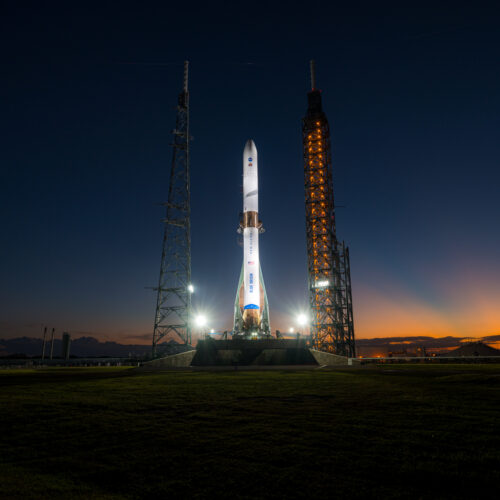
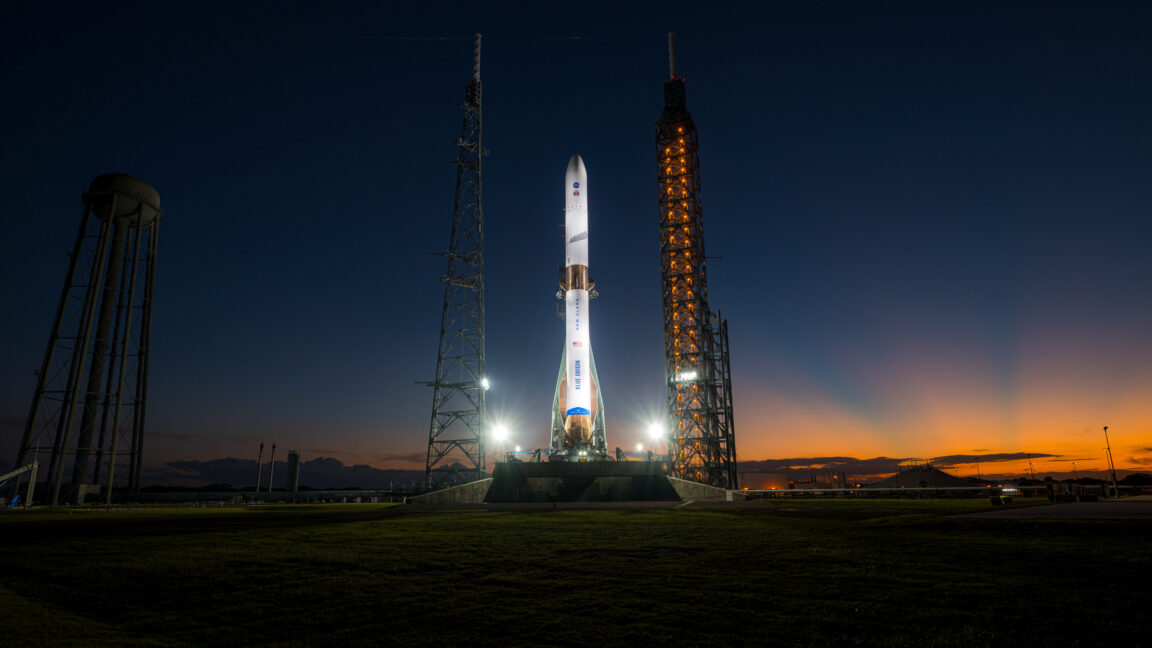
Welcome to Edition 8.43 of the Rocket Report! A disclaimer: No one yet fully appreciates the ramifications of Blue Origin's New Glenn rocket explosion Thursday night on its launch pad at Cape Canaveral, Florida. What we know as of this writing is that much of Blue's sole orbital-class launch pad has been destroyed, and the New Glenn rocket will be grounded for an extended period of time. It is too soon for any hot takes, at least until the Sun rises at the Cape on Friday morning. One thing I am sure of is that we will be writing about this event for weeks, months, and years to come.

As always, we welcome reader submissions. If you don't want to miss an issue, please subscribe using the box below (the form will not appear on AMP-enabled versions of the site). Each report will include information on small-, medium-, and heavy-lift rockets, as well as a quick look ahead at the next three launches on the calendar.

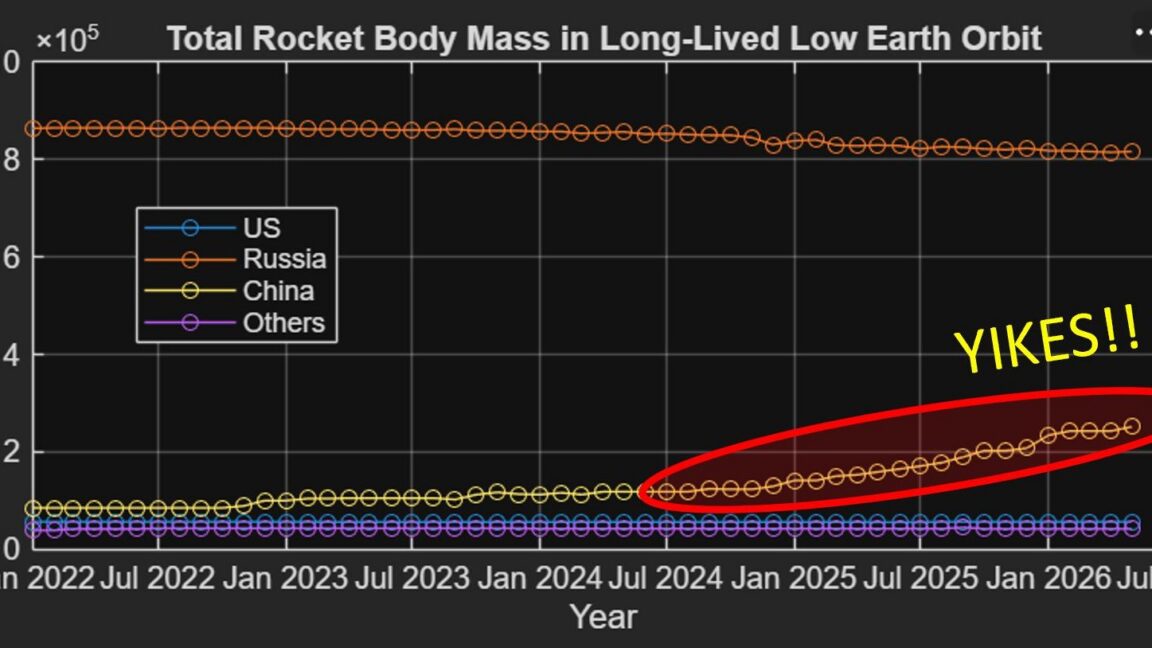
Charting China's contribution to space junk. There's a problem with the drastic uptick in Chinese space launches over the last decade. China appears to be ignoring long-established norms about disposing of the upper stages of rockets, Ars reports. These are the parts of the vehicle that separate from the first stage of a rocket and push a satellite or spacecraft into orbit. In the early decades of spaceflight, launch operators routinely left upper stages in orbit after they released their payloads. But most launch companies today reserve enough propellant in their rockets to remove them from orbit to avoid the risk of spent upper stages becoming a source of space debris. But China is not following this trend. There has been striking growth in China’s rocket body mass. In the past five years, the mass of Chinese rocket bodies in long-lived orbits has risen from less than 100 metric tons to 252, according to a new analysis by Space Domain Awareness expert Jim Shell.

Read full article

Comments

© VCG/VCG via Getty Images

  •  

Here's why the failure of Blue Origin's New Glenn rocket is so catastrophic

Thursday night's detonation of Blue Origin's New Glenn rocket during a static-fire test produced a spectacular fireball over Florida, sending shards of the rocket flying far and wide, into the sea and across the coastal scrubland nearby.

With sunrise on Friday teams from Blue Origin, the US Space Force, and NASA will be able to begin more thoroughly assessing the damage to Blue Origin's facilities and begin picking up pieces of the rocket.


pic.twitter.com/EfYn4QWW9M

— Nick Johnson (@NickJohnson315) May 29, 2026

Read full article

Comments

© Blue Origin

  •  

The most spectacular rocket explosion since N1 just happened in Florida

On Thursday evening, Blue Origin attempted to test fire its massive New Glenn rocket at its Florida launch site, but something went very wrong after engine ignition. The super heavy lift rocket exploded in spectacular and disastrous fashion.

The static fire test was being filmed by NASASpaceflight.com on its Space Coast Live feed, which captured video of the conflagration that followed the destruction of the booster. The first stage of New Glenn, fueled with methane, produced a massive fireball above the launch site along the Florida coast, LC-36A. It is possibly the most dramatic and powerful rocket explosion since the Soviet Union's N1 rocket was destroyed during a launch attempt in 1969.

Blue Origin's New Glenn just blew up at LC-36 while attempting to Static Fire ahead of NG-4.https://t.co/tANS0dWyIH pic.twitter.com/PztxFoBqIw

— NSF - NASASpaceflight.com (@NASASpaceflight) May 29, 2026

Read full article

Comments

© Blue Origin

  •  

Amazon turns to Jeff Bezos' other company to do some heavy lifting

It was less than two months ago that the third flight of Blue Origin's heavy-lift New Glenn rocket left a customer's payload in an unusable orbit. Investigators have now identified the cause of the failure, and Blue Origin is preparing to launch the next New Glenn mission as soon as next week.

The Federal Aviation Administration and Blue Origin announced the closure of the failure investigation May 22. Yesterday, officials confirmed Blue Origin's next launch will loft a payload of 48 commercial satellites for Amazon's broadband network in low-Earth orbit. This will be the most satellites Amazon has launched on a single rocket, surpassing previous flights on United Launch Alliance's Atlas V, SpaceX's Falcon 9, and Europe's Ariane 6.

Blue Origin and Amazon, each founded by Jeff Bezos, have not officially revealed a target launch date, but public notices of airspace and maritime closures suggest the mission is set to lift off from Cape Canaveral Space Force Station, Florida, as soon as next Thursday, June 4. Blue Origin is expected to roll the New Glenn rocket to its launch pad in the coming days for a test-firing of its seven main engines, fueled by liquified natural gas and liquid oxygen.

Read full article

Comments

© Blue Origin

  •  

Mystery GPS jammer in Iran becomes test for NASA satellites’ capabilities

NASA satellites designed to observe cyclone wind speeds and collapsing ice sheets have also proven capable of identifying the approximate locations of GPS jammers. That could help monitor high-risk areas for aircraft and ships navigating the growing prevalence of GPS interference worldwide.

Two different NASA satellite systems showed how they could locate a known but mysterious GPS jammer within several kilometers of its position in Iran, according to an experiment by Sean Gorman, CEO and cofounder of the location-based technology company Zephr.xyz that was detailed in the magazine GPS World. Such jammers use strong signals to overpower the weaker radio signals coming from US-operated GPS satellites and other global navigation satellite systems.

Such NASA satellites cannot perform “near-real time monitoring” or pinpoint the exact location of GPS jammers, said Clara Chew, principal scientist and lead of the GNSS systems and data team at the California-based satellite manufacturer Muon Space, who was not involved in the study. But Chew told Ars that identifying the approximate locations of GPS jammers “could potentially be helpful for flight planning” or for “indicating high risk areas for maritime shipping.”

Read full article

Comments

© NASA/JPL-Caltech

  •  

US Space Force confirms SpaceX will build sensor-to-shooter targeting network

SpaceX has won a lucrative contract to provide the US military with a means of distributing space-based sensing and targeting data, forming the "backbone" of a rearchitected network after separate Pentagon initiatives stalled, officials announced Tuesday.

Space Systems Command, the Space Force's primary procurement and acquisition center, announced the $2.29 billion firm-fixed-price agreement, confirming long-simmering reports that the Pentagon was likely to tap SpaceX for a new communications network in low-Earth orbit. SpaceX's selection for the Space Data Network (SDN) Backbone contract "accelerates the delivery of a resilient, high-speed communications network in space," Space Systems Command said in a statement.

The network will be based on technology originally developed for SpaceX's Starlink global Internet constellation. SpaceX already builds and launches specially designed satellites, called Starshield, for military applications. The SDN Backbone network in low-Earth orbit (LEO) will presumably use the Starshield platform.

Read full article

Comments

© US Space Force/Gwendolyn Kurzen

  •  

NASA takes steps toward building Moon Base, including discussing a "perimeter"

NASA officials announced contract awards for the initial elements of a lunar base on Tuesday, including two rovers that will provide mobility to astronauts.

With the series of announcements, NASA Administrator Jared Isaacman sought to maintain momentum around a Moon Base initiative revealed two months ago as part of the space agency's return to the Moon. "For those waiting patiently, the grand return is close at hand, and we will not slow down," he said.

The manager for the lunar base, Carlos Garcia-Galan, said the space agency had selected two companies, Astrolab and Lunar Outpost, to build approximately 1-ton rovers that would be ready for delivery to the Moon in 2028. Astrolab will receive $219 million for its "CLV-1" rover, and Lunar Outpost $220 million for its "Pegasus" rover, building upon initial contracts awarded two years ago. Each rover is expected to have a range of 200 km and be capable of driving autonomously, with guidance from operators on Earth, in addition to being driven by astronauts.

Read full article

Comments

© NASA

  •  

Analyst on China's spent rocket stages: "Things only continue to get worse"

Up until a decade ago, China had never launched as many as 20 orbital rockets a year. But beginning in 2022, the Asian country launched 64 rockets and last year reached a record total of 93, marking it as the second-most productive space power in the world.

Further growth is anticipated from both the company's state-owned enterprises as well as a rapidly expanding number of private launch companies. There is nothing wrong with this, as China's rapid growth in launch has been mirrored by the United States and, in particular, SpaceX.

However there is an issue with these launches, as China appears to be ignoring long-established norms about disposing of the upper stages of rockets. These are the parts of the vehicle that separate from the first stage of a rocket and push a satellite or spacecraft into orbit.

Read full article

Comments

© Jim Shell

  •  

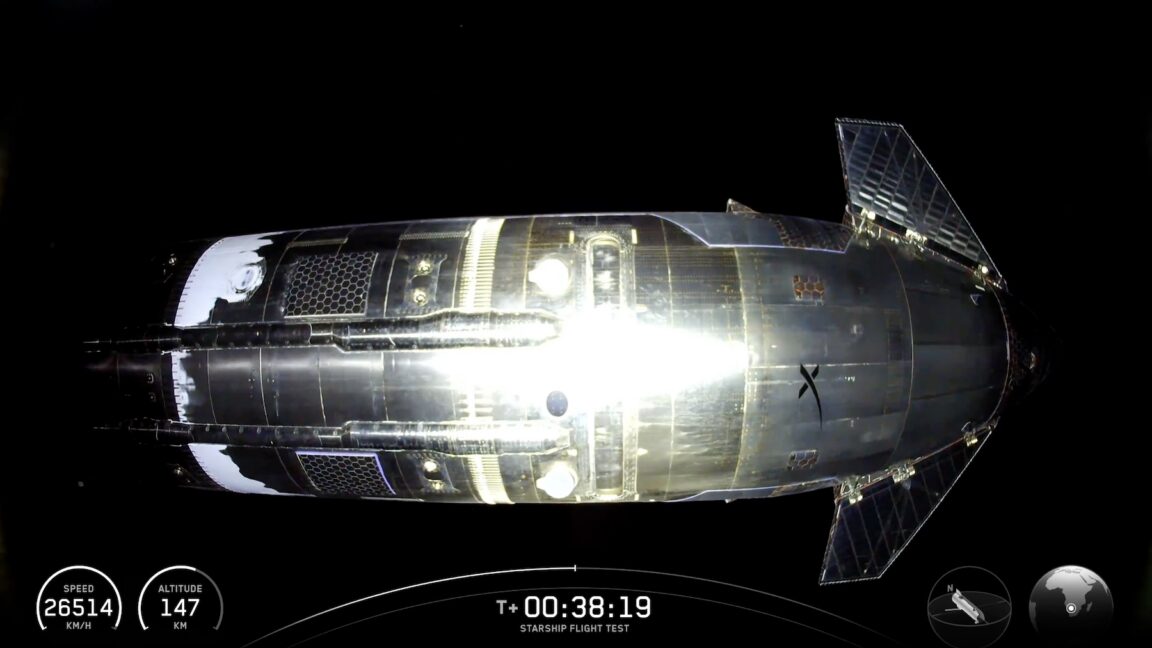
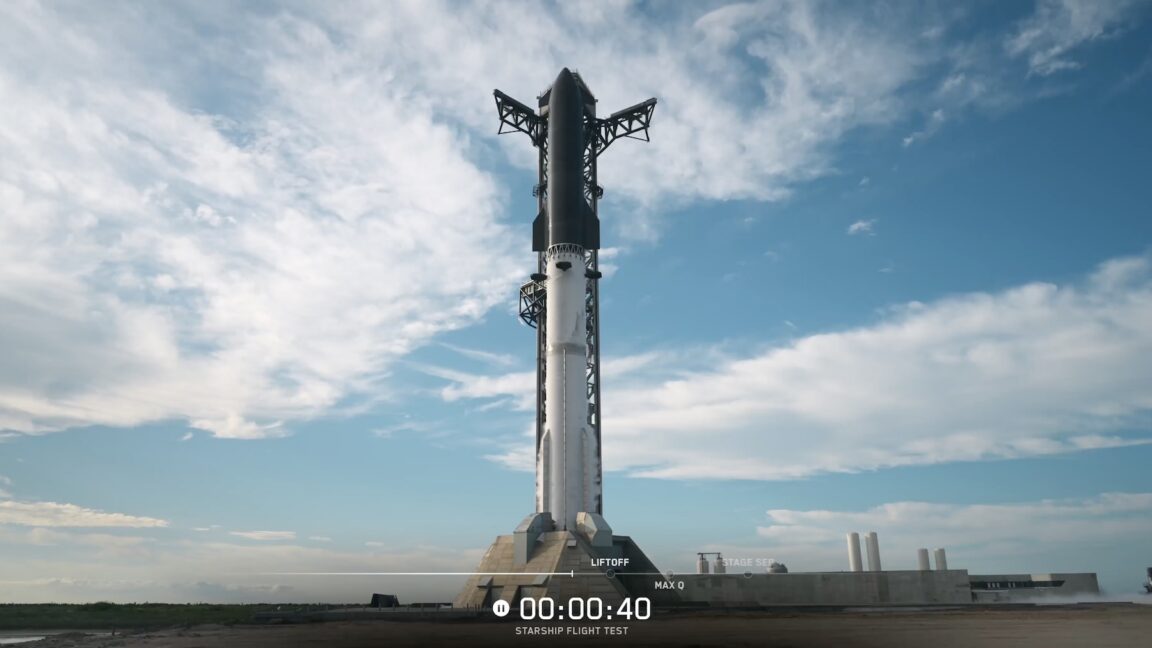
SpaceX's Starship V3—still a work in progress—mostly successful on first flight

SpaceX launched the first test flight of its upgraded Starship rocket and Super Heavy booster Friday, with mostly positive results.

The powerful rocket, propelled by 33 methane-fueled main engines, climbed away from SpaceX's Starbase launch facility in South Texas at 5:30 pm CDT (6:30 pm EDT; 22:30 UTC) Friday. Within a few seconds, the 408-foot-tall (124-meter) rocket, the largest ever built, cleared the launch tower and turned onto an eastward heading over the Gulf of Mexico.

Starship splashed down on target in the Indian Ocean a little more than an hour later to conclude the first flight of the latest version of SpaceX's stainless-steel mega-rocket. Starship V3 fared better on its debut than the first flights of Starship V1 and V2 in 2023 and 2025. Both past versions of Starship broke apart during launch on their inaugural flights.

Read full article

Comments

© SpaceX

  •  

Two space shuttle-era spacewalkers enter Astronaut Hall of Fame

Tom Akers and Joe Tanner are finally in the same class.

The two veteran space shuttle crew members were inducted into the US Astronaut Hall of Fame together on May 16. They could also have been in the same NASA astronaut selection group, too, had history played out a little differently.

In 1984, Tanner reported to the Johnson Space Center (JSC) to fly as an instructor pilot and then applied for the next class of astronaut candidates.

Read full article

Comments

© Kennedy Space Center Visitor Complex

  •  

Four Russian satellites are now within striking distance of an ICEYE radarsat

At least four Russian military satellites changed their orbits to match that of a Finnish-American radar surveillance satellite in the last week, raising questions about Russia's intentions amid an ever-expanding standoff high above Earth.

The maneuvers were identified through open source orbital tracking data. Greg Gillinger, a retired Air Force space intelligence officer, revealed the orbit changes Friday in a special edition of his Integrity Flash newsletter, published by Integrity ISR, a private business that provides "combat-proven operational support and elite training that enhances mission success across ISR (Intelligence, Surveillance, and Reconnaissance), cyber, space, and targeting domains."

The Russian satellites in question, designated Kosmos 2610 through 2613, launched together on April 16 on a Soyuz-2.1b rocket from Plesetsk Cosmodrome in northern Russia. Over the last week or so, the four satellites adjusted their inclinations—the angles of their orbits to the equator—by less than a degree.

Read full article

Comments

© ICEYE

  •  

Before it comes down, what should be saved from the International Space Station?

Humans do not just visit space; they live there, but a major part of that is coming to an end. The platform that made the longest continuous human presence in space possible is becoming history.

With NASA and its partners beginning preparations for the destructive end of the International Space Station (ISS) as soon as 2030, those who collect, curate, and study the station are now asking how to preserve the historic and culturally significant artifact, given that it is far too large and complex to keep intact.

The Smithsonian National Air and Space Museum on Thursday hosted a three-part panel discussion, bringing together space program officials, museum curators, an archeologist, and an astronaut to begin answering the why, what, and how the ISS might be saved. The sessions were part of the American Institute of Aeronautics and Astronautics' (AIAA) ASCEND conference in Washington, DC.

Read full article

Comments

© AIAA/David Becker/PWHL

  •  

NASA undertakes major reorganization to reduce bureaucracy and move faster

NASA Administrator Jared Isaacman sent a long email to employees on Friday morning outlining several structural changes that are intended to make the sprawling agency more efficient and allow it to better accomplish major goals, such as returning to the Moon and building a base there.

"I believe it is imperative to concentrate resources towards the highest priority objectives in the National Space Policy and liberate the best and brightest from needless bureaucracy and obstacles that impede progress," Isaacman wrote in his 3,000-word letter.

Isaacman's message stressed that no one at NASA will lose their jobs, and no field centers will be closed as part of these changes. Rather, the overall intent is to improve operational efficiency and focus on the agency's core missions. Isaacman laid these out as: execute on the Artemis Program to return humans to the Moon; build an enduring Moon Base; develop a "Space Reactor Office" to get America underway on nuclear power in space; ignite an economy in low-Earth orbit; and build more X-planes and launch more science missions.

Read full article

Comments

© Kevin Carter/Getty Images

  •  

Rocket Report: Starship launch delayed, German launch company may aid Canada

Welcome to Edition 8.42 of the Rocket Report! SpaceX nearly launched its Starship rocket on Thursday amid much pomp and circumstance in South Texas, only to be foiled by a ground system issue. Such delays are to be expected, with almost entirely new hardware on both the rocket and the ground side of things. The company will try again as soon as Friday evening, and as we discuss in this week's report, the stakes are quite high for SpaceX and much of the rest of the US spaceflight enterprise.

As always, we welcome reader submissions, and if you don't want to miss an issue, please subscribe using the box below (the form will not appear on AMP-enabled versions of the site). Each report will include information on small-, medium-, and heavy-lift rockets as well as a quick look ahead at the next three launches on the calendar.

Firefly expands Central Texas footprint. Firefly Aerospace on Tuesday announced that it has moved into a new headquarters, expanded its cleanroom space, and added an innovation lab to support its growing workforce and accelerate spacecraft production. The expansion includes two new buildings adjacent to Firefly’s existing spacecraft facility in Cedar Park, Texas, enabling a single campus with 144,000 total square feet for spacecraft assembly and testing, mission control, avionics and component production, engineering, and business operations.

Read full article

Comments

© SpaceX

  •  

Ground system issue scrubs first launch of SpaceX's Starship V3 rocket

SpaceX got within 40 seconds of launching the first flight of a taller, more powerful version of its Starship rocket Thursday, but a pesky problem with the launch tower kept the vehicle bound to Earth for at least one more day.

Clouds and rain showers cleared the area around SpaceX's launch site in South Texas, leaving mostly sunny skies over the Starship launch pad Thursday afternoon. SpaceX pushed back the launch time by one hour, but the countdown appeared to proceed smoothly once propellants began loading into the rocket.

That was true, at least, until the countdown clock paused 40 seconds before liftoff. The launch team repeatedly attempted to resume the countdown, only for the computer controlling the launch sequence to stop the clock again. There were five holds in all before SpaceX called off the launch attempt.

Read full article

Comments

© SpaceX

  •  
❌