❌

Normal view

Surface Laptop Ultra review: So close to the perfect MacBook Pro alternative

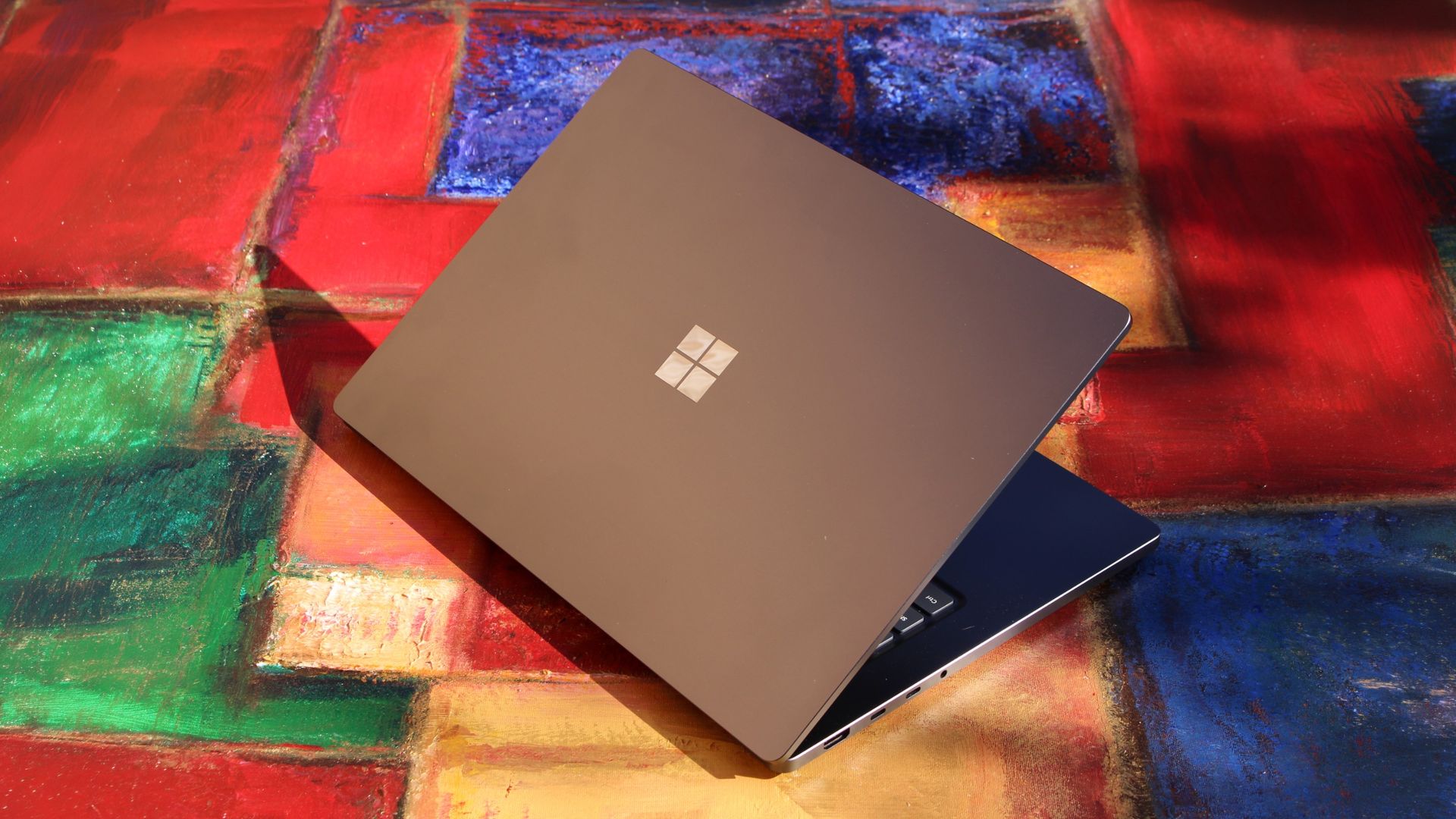
Microsoft is finally ready to take on the MacBook Pro with the new Surface Laptop Ultra. From pricing to specs and design, Surface Laptop Ultra was inspired by MacBook Pro, and that's not necessarily a bad thing.

Unlike most Surface PCs we see ship these days, the Surface Laptop Ultra is a lot of firsts for Microsoft. It's the first ultra-class Surface Laptop, designed from the ground up to compete squarely with high-end professional creator or developer mobile workstations.

It's also the first Surface to ship with a new silicon partner in the way of NVIDIA and the RTX Spark, which the entire ecosystem is rallying around to give Windows on Arm a shot in the arm. It's also Microsoft's first ever Mini LED screen, and the world's first laptop to ship with magnetic USB-C charging.

What I find fascinating about Surface Laptop Ultra however is that it exists because Microsoft's own developers and engineers wanted it. They built this laptop for themselves. It feels like the company got tired of looking over the fence at the MacBook Pro, and decided "why don't we just make our own version of that?"

It really is Microsoft's most powerful and most capable Surface PC ever, and a great stage for Windows. But that doesn't necessarily mean it's the best Surface PC for everyone. I've been testing the laptop over the last 8 days, and here are my thoughts on Microsoft's new flagship computer.

This review was made possible thanks to a review unit supplied by NVIDIA & Microsoft. Neither company had editorial input and did not see the contents of this review prior to publication.

Price & Availability

Microsoft - Surface Laptop Ultra - 15

Microsoft
Surface Laptop Ultra

Surface Laptop Ultra is Microsoft's flagship and most powerful Windows PC. It can be configured with up to 128GB RAM, and ships with NVIDIA's new RTX Spark SoC. It's great for creative workflows and software development, and those who want to run local AI and LLMs directly on their device.

Surface Laptop Ultra is Microsoft's most expensive Surface Laptop to date. It starts at an eyewatering $2,599 for the entry-level configuration with 24GB of RAM, 512GB SSD storage, and an 18-core RTX Spark with 5,120 GPU cores. That's an expensive laptop, and it only gets worse the higher you climb up the specs ladder.

The model I've reviewed is the very top end configuration, with a crazy 128GB RAM, 1TB SSD, and a 20-core RTX Spark with 6,144 GPU cores. That model will set you back $5,899, which at these prices basically makes this a $6,000 laptop. That's an insane amount of money to spend on a laptop, but this configuration only really exists for professionals who need the extra power to run local agents and data crunching.

For video creators, gamers, and prosumers, you'll be more than well served with the lower tier models with 24-32GB RAM. All models come with the same mini LED screen, speaker setup, ports, keyboard, and trackpad. It's also available in Platinum or Nightfall colorways (aka, silver and black.)

Category

Specs

Processor

NVIDIA RTX Spark™ N1X (18-core CPU, 5,120-core GPU)

NVIDIA RTX Spark™ N1X (20-core CPU, 6,144-core GPU)

Graphics & AI

NVIDIA Blackwell RTX GPU (5,120 cores or 6,144 cores)

NVIDIA NPU (up to 1 petaflop of FP4 AI compute; runs up to 120B parameter models locally)

Unified Memory

24 GB, 32 GB, 64 GB, or 128 GB LPDDR5x unified memory

Storage

512 GB removable PCIe Gen 4 SSD

1 TB or 2 TB removable PCIe Gen 5 SSD

Display

Size: 15-inch PixelSense™ Ultra touchscreen display

Brightness: SDR up to 1,000 nits (typical), HDR up to 2,000 nits peak luminance

Optimised for touch interaction

Operating System

Windows 11 Home (24 GB unified memory models)

Windows 11 Pro (32 GB, 64 GB, and 128 GB models)

Ports & Connectivity

2 × USB-C® / USB4®

1 × USB-C® / USB4® with Magnetic Connect

1 × HDMI 2.1b

1 × USB-A 3.1

1 × Full-size SD card reader

1 × 3.5 mm headphone jack

Wireless

Wi-Fi 7, Bluetooth 5.4

Camera & Audio

1080p Full HD front-facing camera

Battery Life

Up to 15 hours of local video playback

Up to 12 hours of active web usage

Power Supply

Requires USB PD 115W–140W charging

Weight & Dimensions

Weight: 2.0 kg (4.41 lbs)

Chassis: Sub-18 mm thickness

Colours

Platinum, Nightfall

Base Price

Starting at $2,599

Design & Ports

Surface Laptop Ultra

MacBook Pro? (Image credit: Zac Bowden / Windows Central)

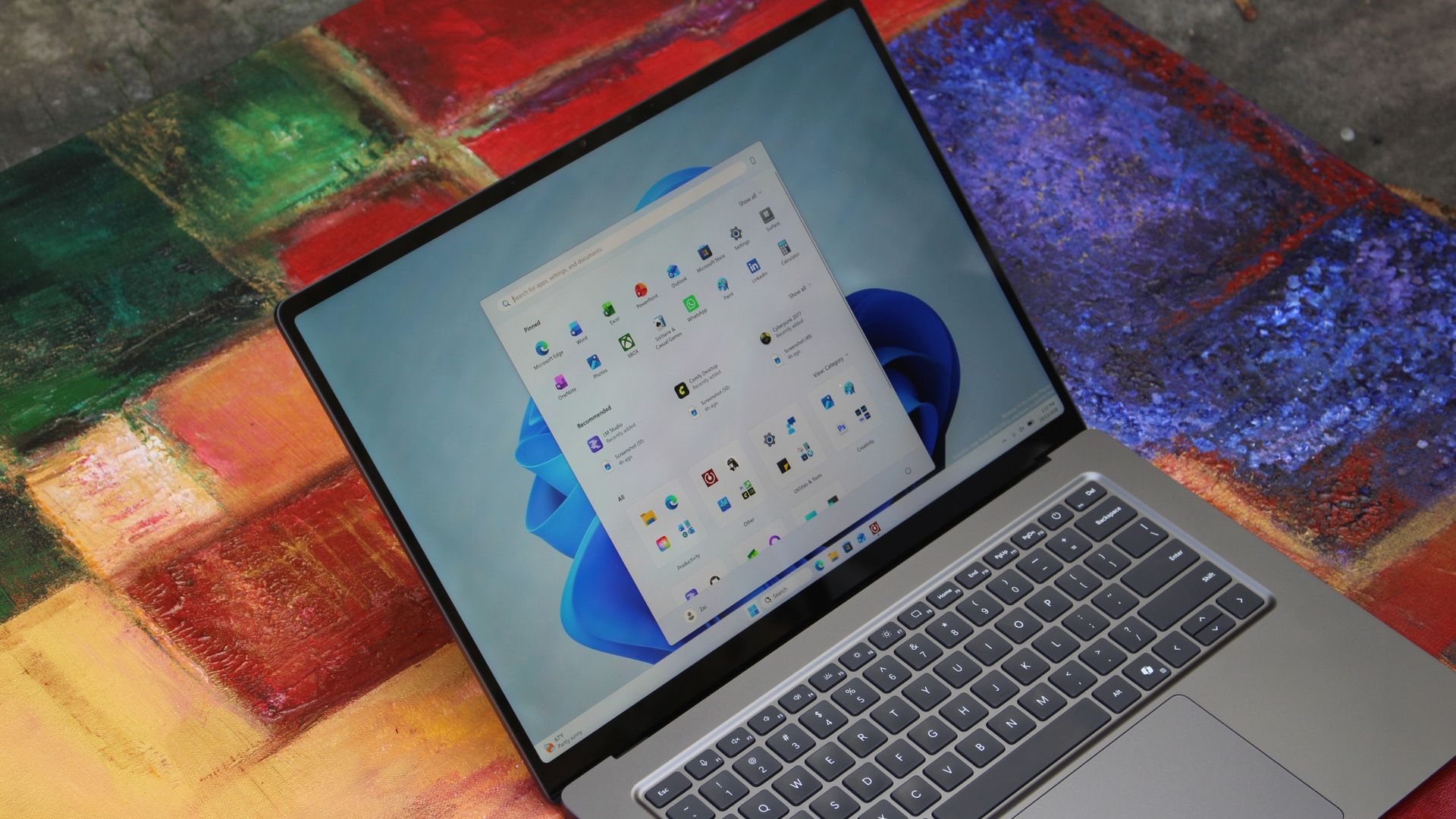
We have to start with how this thing looks, and we do need to address the fruit-shaped elephant in the room. Yes, Surface Laptop Ultra looks an awful lot like a MacBook Pro. I wouldn't blame the layman for even thinking it was a MacBook Pro from a distance. The square edges, large trackpad, and minimalist design echo the MacBook Pro from pretty much every angle.

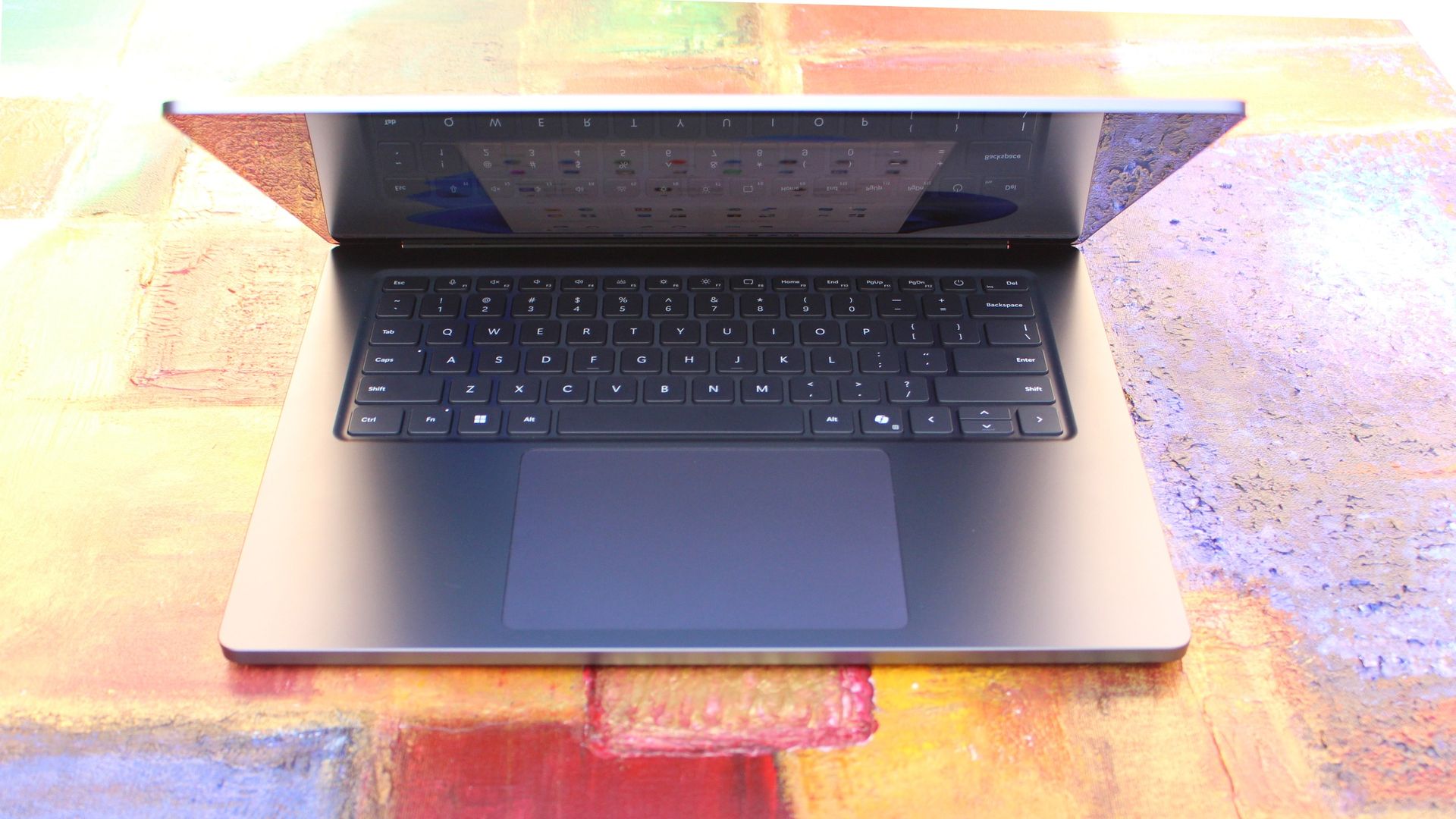
But I'm not here to tell you that's a bad thing. The MacBook Pro is a beautiful device, which is to say Surface Laptop Ultra is also very beautiful. In fact, I think it even improves upon the MacBook Pro's design in subtle ways. The keyboard deck isn't surrounded by a plastic bezel like on MacBook Pro, instead it's softly indented into the metal keyboard deck which looks lush and seamless.

The corners on Surface Laptop Ultra are also a little rounder than the MacBook Pro, a design choice that trickles down from the corners of the chassis to the keys on the keyboard, and corners on the trackpad. It's an entirely consistent and well thought out design, which I highly appreciate.

Surface Laptop Ultra

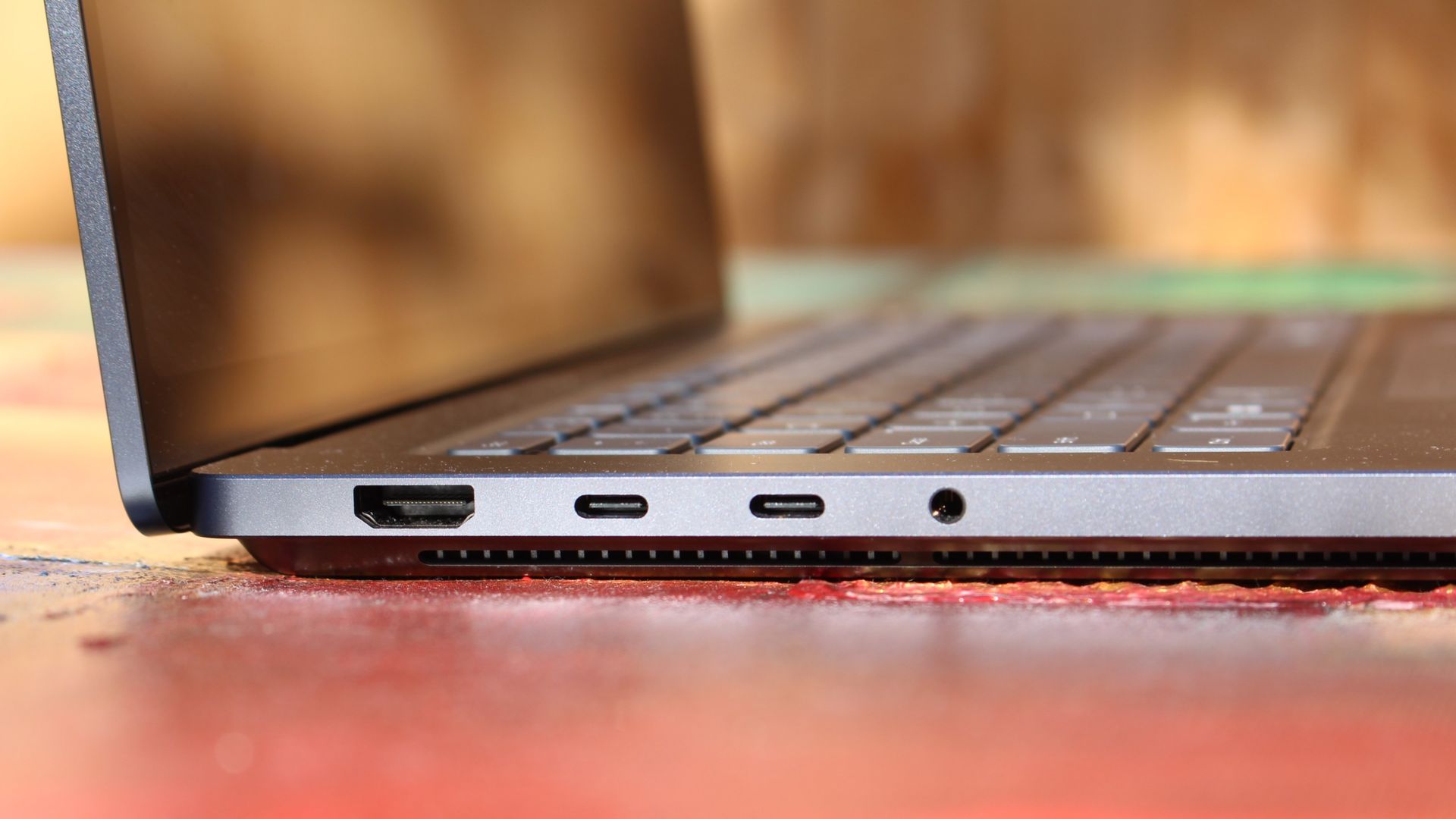
The left-side ports are good enough. (Image credit: Zac Bowden / Windows Central)

Microsoft also doesn't suffer from the godawful notch that you'll find on a MacBook Pro. Surface Laptop Ultra's display bezels are uniform along the left and right, and slightly thicker on the top to accommodate the Windows Hello IR face unlock sensors, which are much better than a fingerprint reader.

I should also mention that the display hinge on this laptop is perfectly tuned. It opens with one finger, and is perfectly balanced to provide a satisfying level of friction as you open and close it. It's also rock solid when typing, meaning it doesn't wobble around at all when on a desk.

The port selection is good enough. It features three USB-C ports, a USB-A port, a 3.5mm audio jack, HDMI 2.1, and a full-sized SD card reader. Of course, the star of the show in the ports department is Microsoft's clever magnetic USB-C port, which replaces the proprietary Surface Connect charge port found on older Surface Laptops.

Surface Laptop Ultra

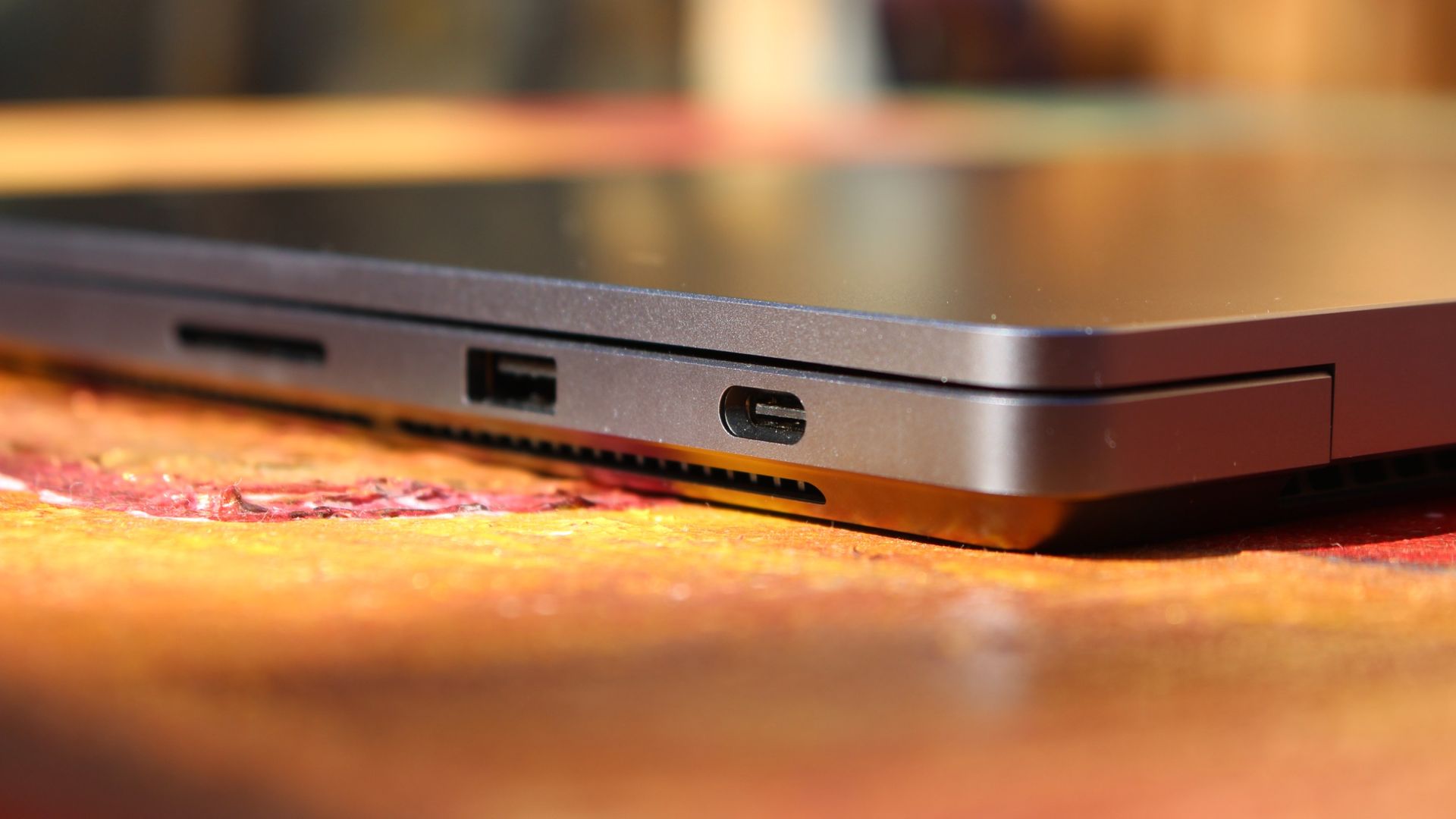
The special USB-C port is truly great. (Image credit: Zac Bowden / Windows Central)

It's great to see a laptop manufacturer attempting to innovate and improve on the universal USB-C standard. Here, we have a USB-C port that is compatible with all your USB-C peripherals, but it's also magnetized, and with the included charging cable, magnetically snaps to the device just like Apple MagSafe, while using the same universal USB-C port.

How did Microsoft do this? Well, most of the innovation is actually on the cable side. On the laptop itself, the only real change is that the USB-C port is slightly wider at its opening, but the rest of the USB-C port itself is typical in its design. Microsoft placed magnets on either side of the port, and redesigned the USB-C connector that's attached to the cable to allow for the magnetic connection to be seamless.

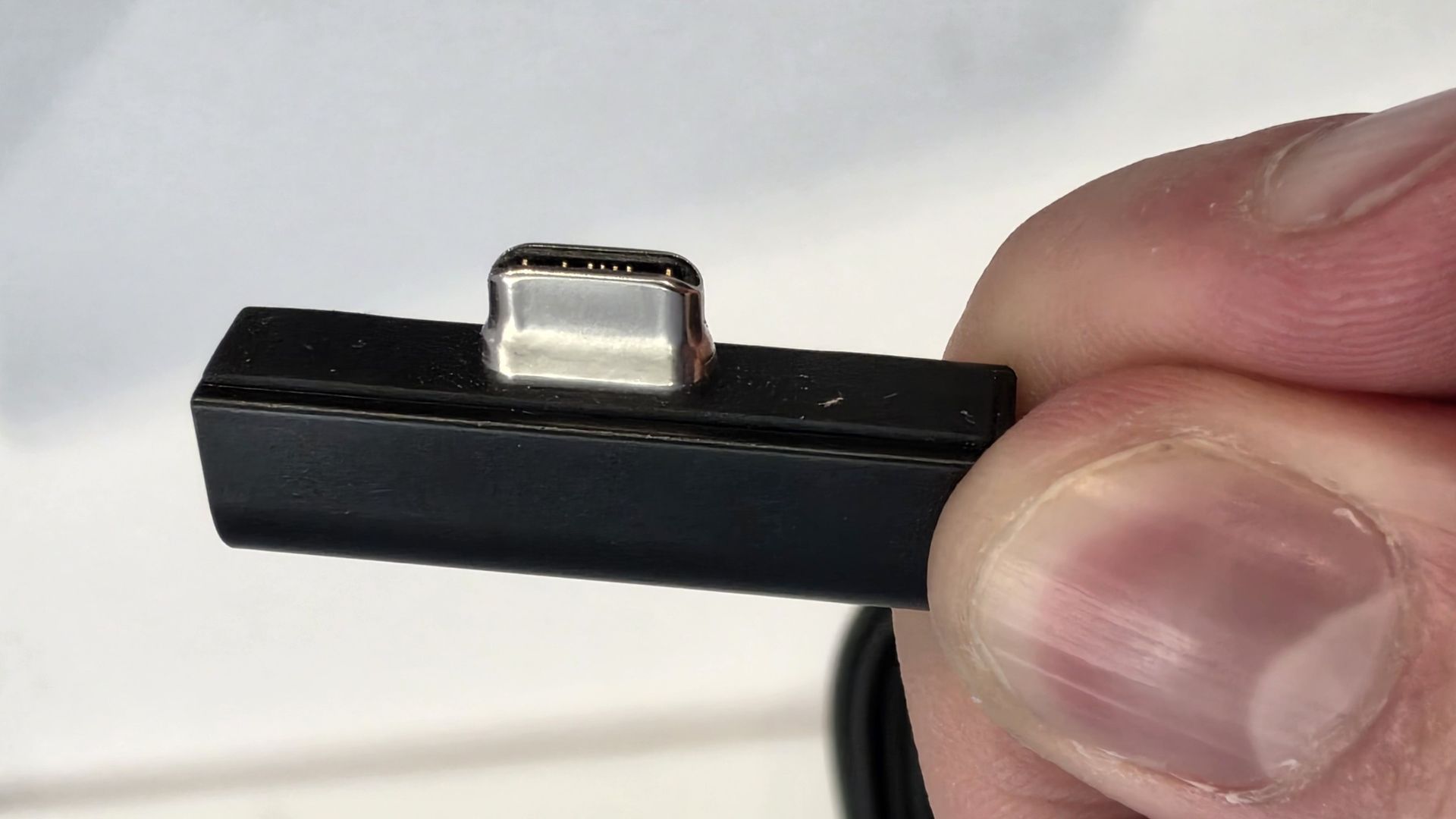
The cable's male USB-C end is shallower than a normal USB-C connection. This allows for it to connect to the USB-C port without clicking in, which is what locks a cable to a USB-C port normally. Instead, the magnets hold it in place, which enables the breakaway design that differentiates this USB-C port from the rest.

Surface Laptop Ultra magnetic charging cable

The USB-C connector is unique. (Image credit: Zac Bowden / Windows Central)

That does mean the USB-C cable that comes included only works with Surface Laptop Ultra, and only in this particular port. Microsoft realized this would be a problem, and designed the power brick that comes with Surface Laptop Ultra in a way that allows the magnetic cable to attach to the brick instead. The other end of the charging cable is a normal male USB-C end, which connects to any USB-C port you want.

So you can still use the Surface Laptop Ultra's power brick and cable on any device or any port you like, you just have to plug the magnetic end into the power brick first. It's a genius design, and proves that Microsoft really thought of everything when it comes to this unique magnetic USB-C experience. I love it, and I hope to see it on more laptops in the future.

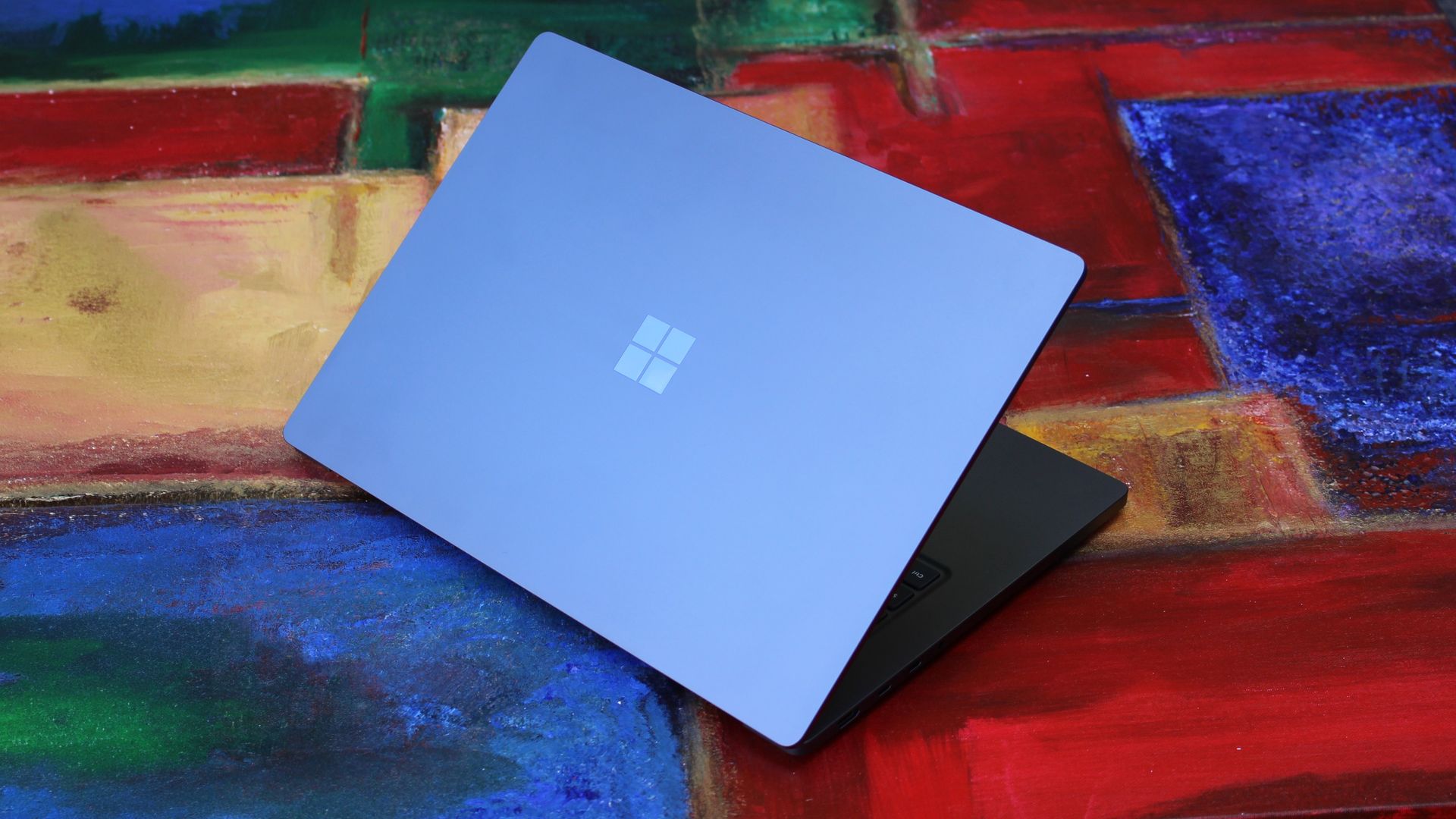
Surface Laptop Ultra is available in just two colorways: Platinum and Nightfall. To me, I think the Platinum version looks the nicest, but the Nightfall version looks clean too. The good news is the dark color does a relatively good job at fending off fingerprints thanks to an anti-fingerprint coating that has been applied to the chassis.

Display & Features

Surface Laptop Ultra

The Mini LED display in all its glory. (Image credit: Zac Bowden / Windows Central)

Surface Laptop Ultra ships with Microsoft's first ever mini-LED display, which delivers better contrast and brighter peak brightness over your standard LCD that has been found in all other Surface Laptops to date. Unlike an LCD, the Surface Laptop Ultra's mini-LED screen packs 1,344 local dimming zones, which allows the laptop to dim darker areas of the screen that don't need as much light.

This number is not as high as the mini-LED screen on the MacBook Pro, and this results in a bit of blooming around bright elements on a dark background. If you use Windows in light mode, this will almost never bother you. But in dark mode, in a dimly lit environment, it becomes quite a bit more apparent.

The backlight also takes a fraction of a second to keep up with what's going on on your screen. If you move a bright window around on a dark background, you'll notice the backlight brightening and dimming around the edges of the window. This gives off a slight ghosting effect which degrades the 120Hz refresh rate somewhat. It isn't noticeable at all in light mode, however.

This all leads me to say I wish Microsoft had opted for an OLED panel on the Surface Laptop Ultra. I've been daily driving OLED displays for the better part of a year now, and a mini-LED panel just isn't a vibrant or contrasty as an OLED display can be. The mini LED display is good, but not the best on the market, and it's certainly no OLED.

Microsoft tells me it opted for mini LED over OLED primarily for the brightness and efficiency gains. At 2,000 nits peak brightness, it is the brightest screen ever put on a Surface. But Tandem OLED displays are also very capable of reaching similar peak brightness levels these days, and so I feel the benefits of a mini LED screen don't carry much weight here.

If you're coming from a standard LCD, the mini LED screen will be nothing but an upgrade to you. It's color accurate, very bright, and its high resolution and 120Hz make reading text and scrolling webpages look and feel great. But if you're coming from a MacBook Pro mini LED screen, or an OLED display, you will notice the downgrade in contrast and more noticeable blooming.

The display is also a touch screen, which is the case on pretty much all Surface PCs since the line began in 2012. Microsoft truly believes that touch has a place on the laptop form factor, and I agree with it. Being able to reach out to tap on a notification or hit OK on a window prompt is really nice, even if I don't use it all the time.

For pen lovers, sadly the Surface Laptop Ultra does not support pen input. Microsoft dropped pen input from the Surface Laptop with Surface Laptop 7, and the Surface Laptop Ultra has not restored it. This makes sense however, as the screen does not lay flat so drawing on it would be uncomfortable.

I also want to mention the fact that Surface Laptop Ultra features a user upgradeable SSD drive. That means you don't have to splash out on the most storage at the checkout screen. You can opt for a lower amount, and when you finally fill it, upgrade the SSD to something larger later down the line. You can't say that about the MacBook Pro.

Surface Laptop Ultra keyboard with sunlight on

That large trackpad is something else... (Image credit: Zac Bowden / Windows Central)

Unfortunately, Surface Laptop Ultra is missing a key quality of life feature that I have come to enjoy on other flagship Windows laptops over the last year: presence sensing capabilities. My daily driver is able to wake up and go to sleep whenever I approach it or walk away, and Surface Laptop Ultra is missing this functionality entirely. A crying shame.

It's also missing all Copilot+ PC features currently. Microsoft tells me that RTX Spark is a Copilot+ PC capable chip, but that the suite of Copilot+ PC features aren't yet ready for the platform, and to expect them to show up in the coming months. The RTX Spark has a 50 TOPS NPU that will power these experiences when they finally do arrive.

Keyboard & Trackpad

Surface Laptop Ultra

The best keyboard and trackpad I've ever used. (Image credit: Zac Bowden / Windows Central)

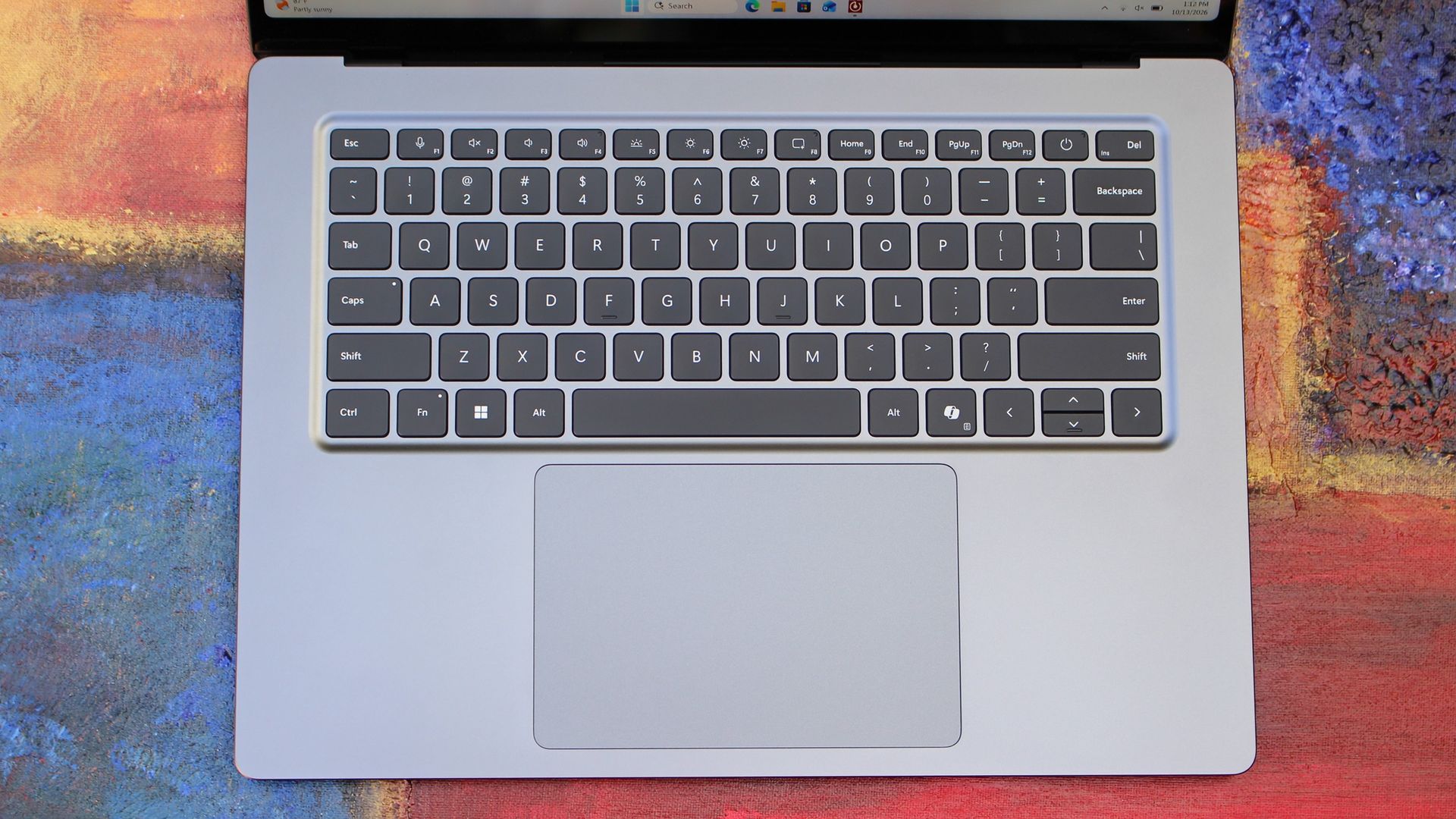
Surface has always delivered excellent keyboard and trackpad experiences, but Surface Laptop Ultra might be on a whole other level. This is probably the best keyboard and trackpad experience I've ever had on a Windows laptop to date. The keyboard is comfortable, tactile, and quiet, with 1.4mm key travel which is incredibly satisfying and not at all fatiguing.

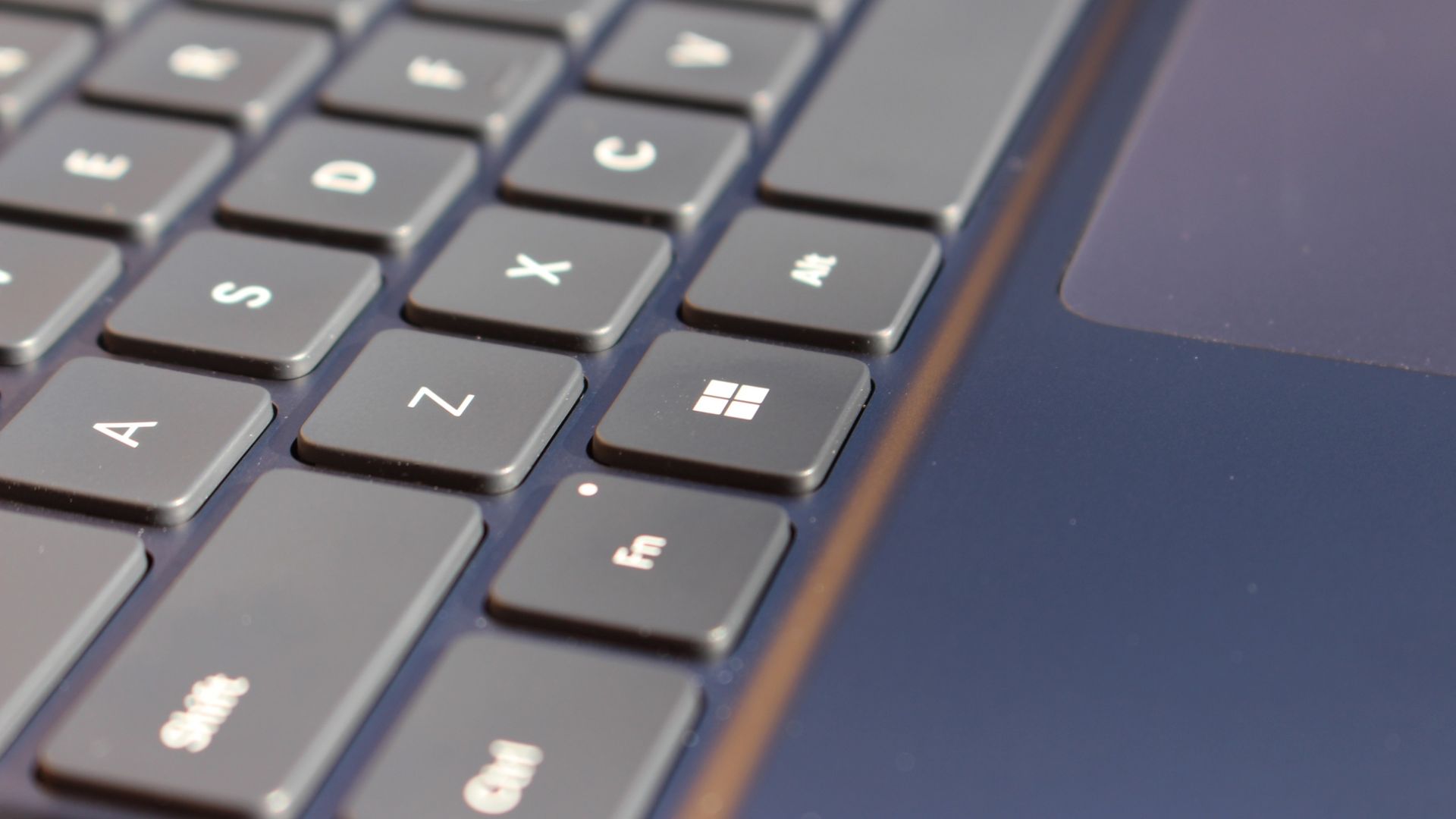
The keys themselves are slightly rounder than the keys found on Surface Laptop 8, which I think is more comfortable and looks nicer as a result. It features a three-stage backlight, a Copilot key (which can be changed,) and a dedicated microphone mute key. It's pretty much perfect in every way.

But what I really want to talk about is the trackpad. It's the largest trackpad ever fitted to a Surface, and that makes a huge difference in how easy it is to use. There's so much room for activities, and you'll never find yourself at the edge of the trackpad because you needed to drag a file and ran out of room.

Surface Laptop Ultra

The keys are so nice to type on. (Image credit: Zac Bowden / Windows Central)

Palm rejection is also very good. I never once had an issue with the trackpad being in the way when typing, which means Microsoft has done a good job at ensuring the trackpad's side isn't impeding the typing experience. The trackpad itself is haptic, and feels great to click on, with strength adjustability in Windows Settings so you can really dial in just how strong that haptic feedback is.

But the new trackpad also supports Windows 11's new haptic system, which introduces subtle haptic feedback when interacting with different UI elements across Windows. When you snap an app window, or drag files across folders, you'll feel haptic bumps under your finger in the trackpad that are different from the usual click down sensation it provides. It's genuinely great.

Camera & Audio

It's a Surface, so you can and should expect great cameras and microphones on Surface Laptop Ultra. The webcam is a 1080p shooter that looks more than fine for video calls, Teams meetings, and recorded presentations. In low light, the image does get a little noisy, but not any more than any other high-end webcams on the market.

The shining star in this department are the built-in studio mics, which are very very good. They sound studio quality, with rich bass and far-field mics that do a very good job at tuning out background noise to ensure the things that you are saying are captured clearly and well.

I also need to take a moment to talk about the built-in speakers on this laptop. They are superb. Again, probably the best I've tried in a Windows laptop to date, and give the MacBook Pro 14-inch a run for its money. There's a clear sound stage, highs are crisp and bass is rich.

Performance & Battery

Surface Laptop Ultra

It's a looker for sure. (Image credit: Zac Bowden / Windows Central)

I've already published an in-depth look at the performance of RTX Spark on Surface Laptop Ultra, which you can read here if you're interested, so there won't be raw performance benchmark numbers in this review.

The TL:DR for that however is that the RTX Spark is a powerful chip, with okay CPU performance but great GPU performance. It's capable of playing most games at 1440p high settings above 60fps, and top end configs can fit large AI models directly onto the GPU for faster processing. But it trails behind the latest high-end Apple Silicon, and is more in-line with current-gen Snapdragon X2 Elite or last-gen Apple M4 Pro in overall performance.

By default, the 128GB Surface Laptop Ultra ships with its unified memory in a 50/50 split configuration. Users are free to adjust this in the NVIDIA app, which is good for when you need to give either the system or your GPU more RAM for whatever task it is you're completing. It requires a restart to apply, which frustratingly takes a long time on the Surface Laptop Ultra.

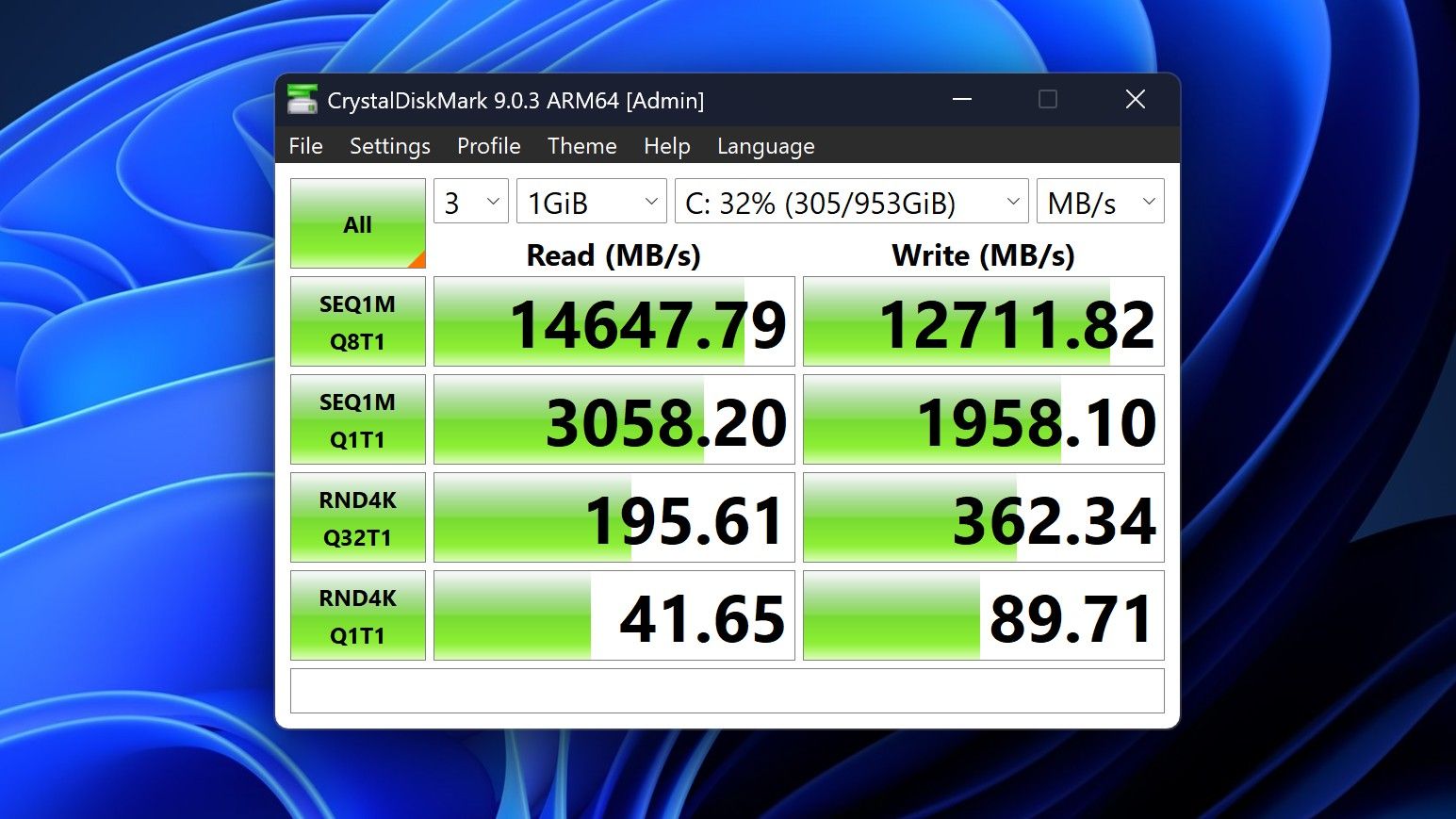
Surface Laptop Ultra disk speeds

You can expect very fast read and write speeds on 1TB models. (Image credit: Zac Bowden / Windows Central)

Performance is great for the most part. In day to day usage, it's blazing fast and is able to crunch through pretty much any workload I'd want to throw at a mobile workstation such as this. With that said, there are a couple of oddities related to performance that I feel I should mention.

Compared to other devices I have on hand, the Surface Laptop Ultra sometimes takes twice as long to restart. I'm talking over 2 minutes from hitting restart to being back on the lock screen, which is about double the amount of time it takes all the other laptops in my possession. Microsoft says they are investigating.

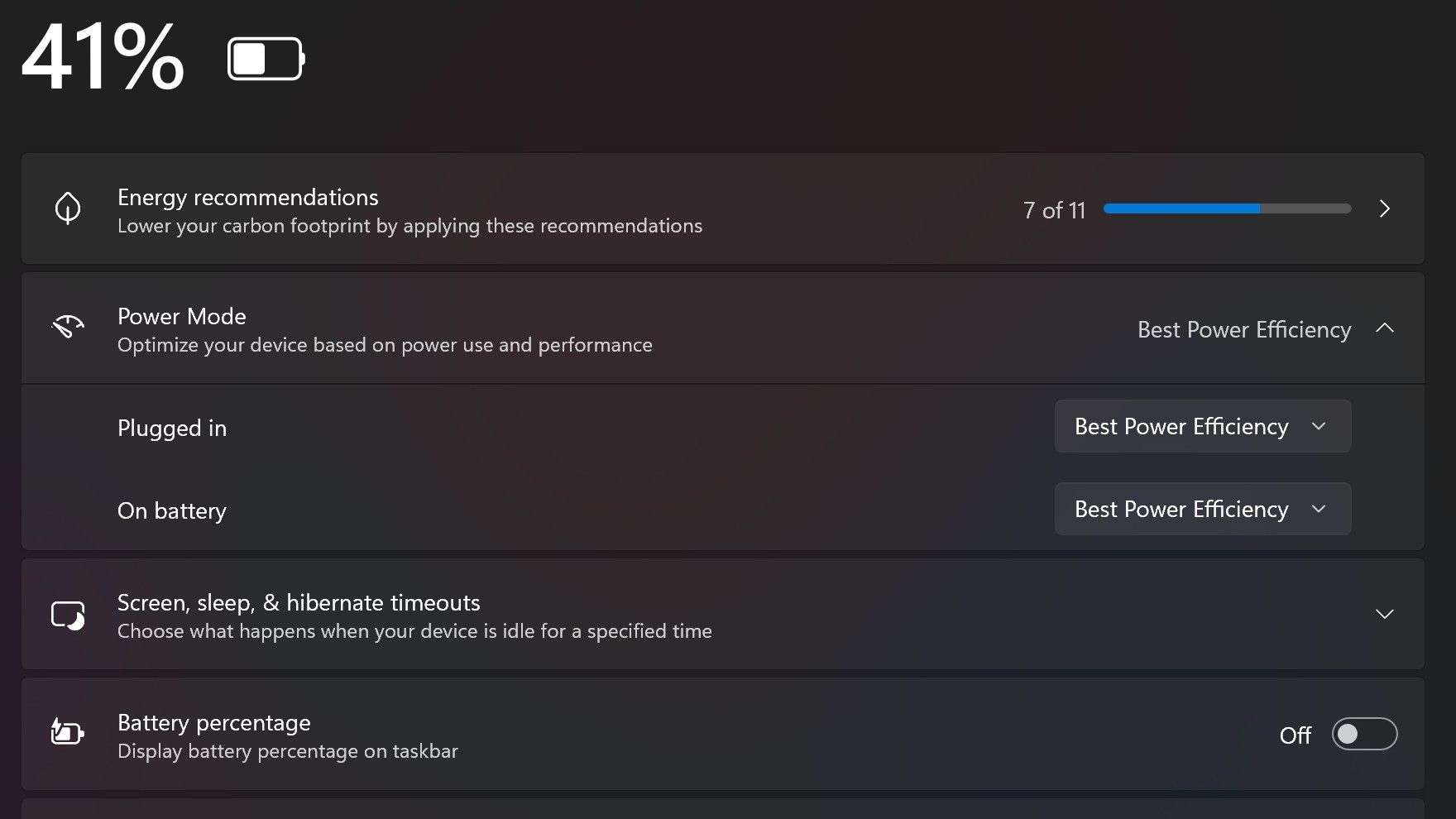
Surface Laptop Ultra also ships with the "Best Power Efficiency" profile set by default. This is unusual, as most Surface PCs ship with their power profile set to balanced. Microsoft says it does this to maximize battery life, but that does come at the cost of performance.

Surface Laptop Ultra power endurance

Make sure you change these to Best Performance for plugged in, and Balanced for battery life. (Image credit: Zac Bowden / Windows Central)

I've found that overall performance can be slashed by up to a quarter or even half when in this default mode. So if you want to make the most of your RTX Spark PC, be sure to change the power mode in Windows Settings to either Balanced or Best Performance. I usually set the on-battery mode to Balanced, and the plugged in state to Best Performance.

On the subject of battery life, the Surface Laptop Ultra's endurance is just fine. It's not class leading by any stretch, but I can definitely get through the work day without much fuss, though this will depend on your workload. Our Procyon battery life benchmark test lasted around 14 hours, and in real world use I was getting close to about 10.

But if your workload heavily leans on the GPU, you can expect to halve that number. The GPU is quite efficient for the power it outputs, but it's still a GPU and it's still hungry. So if you know you'll be using the GPU a lot throughout the day, you'll want to bring the charger with you.

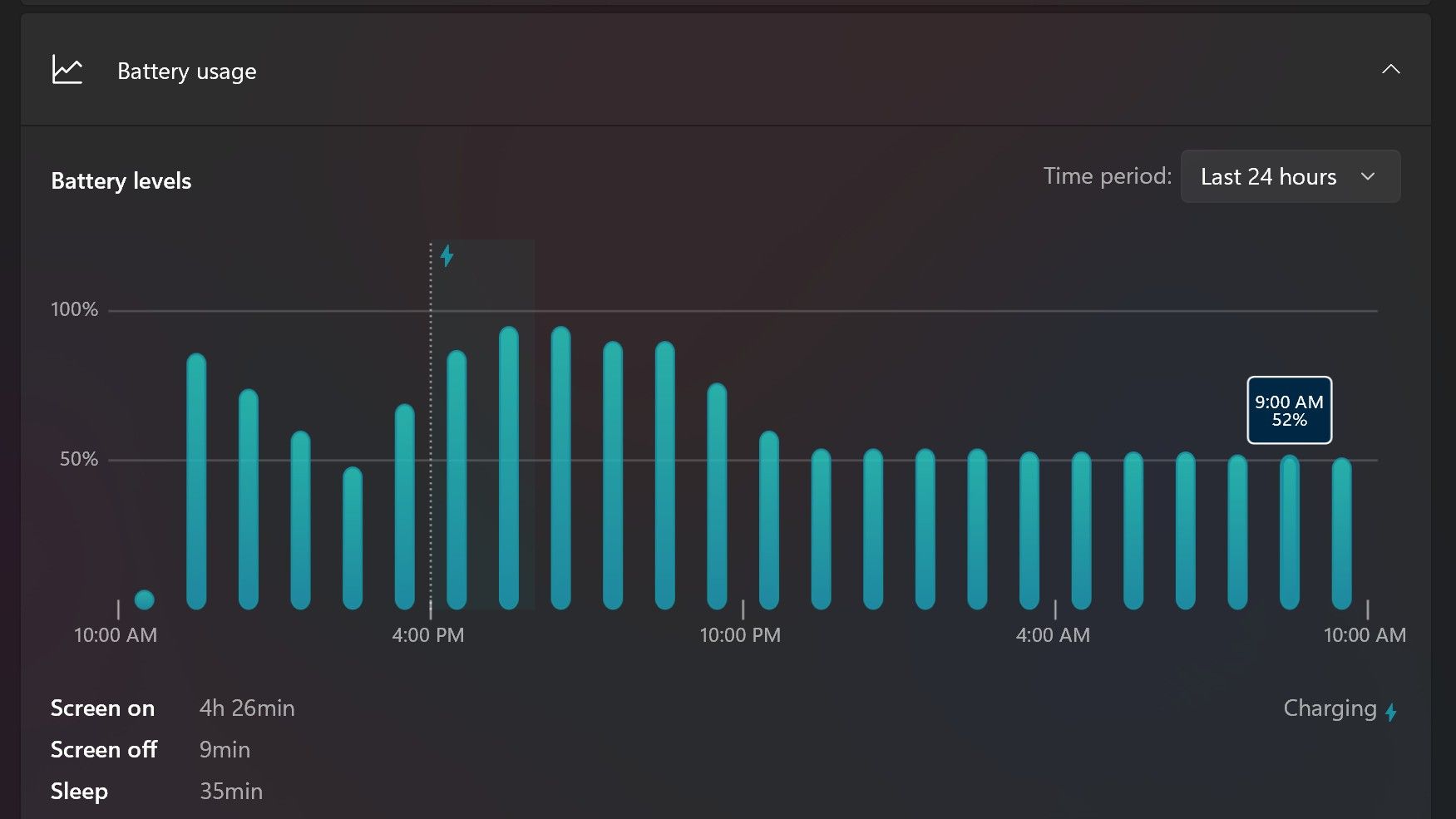
Surface Laptop Ultra power endurance

Surface Laptop Ultra only sipped power during sleep between midnight and 9AM. (Image credit: Zac Bowden / Windows Central)

With that said, sleep endurance is very good for the level of power this laptop outputs. I put the laptop to sleep at about midnight, and open the lid 10 hours later, and it's only drained one, maybe two percent from the battery. Very good on that front!

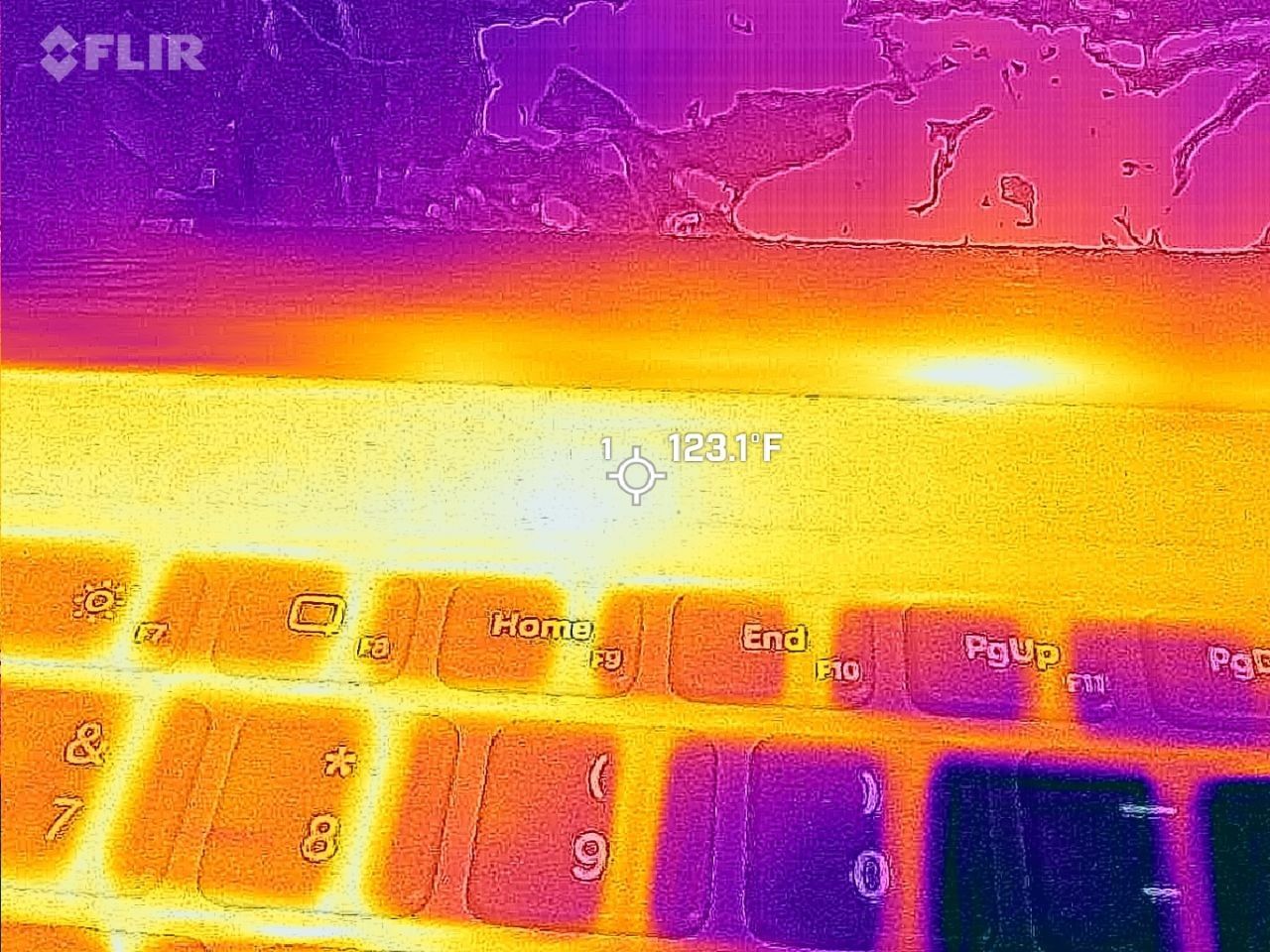
Under max load, the Surface Laptop Ultra gets quite warm. While the keys themselves remain at an okay temperature, the top part of the keyboard deck gets very toasty. I measured 123 F at its hottest under max load, which is approaching "oh that's hot" territory.

Surface Laptop Ultra heat

Surface Laptop Ultra gets toasty, but doesn't seem to thermal throttle. (Image credit: Zac Bowden / Windows Central)

I also noticed quite audible coil whine when under max load on my Surface Laptop Ultra. This isn't a problem in day to day use, but whenever the GPU is being used, I can hear buzzing coming from inside the keyboard chassis. If you're sensitive to that kind of thing, it will annoy you.

Fan noise is acceptable even at max load. I measure around 42 decibels at its loudest, and that was after running a benchmark for 10 minutes. In normal use, the fans rarely come on, though it does run slightly warm on your lap as a result.

Conclusion

Surface Laptop Ultra

Surface Laptop Ultra is ultra-premium. (Image credit: Zac Bowden / Windows Central)

✅ You should buy this if ...

  • You are a software developer utilizing on-device AI
  • You live and breathe large language models and agentic workflows
  • You need a beefy GPU in a portable and efficient package
  • You need lots of RAM

❎ You should not buy this if ...

  • You aren't interested in AI or agentic workflows
  • You only need a PC for standard productivity tasks
  • You occasionally game or edit video (get something cheaper)
  • You want something thin and light

Surface Laptop Ultra is great, but it's not something I can comfortably recommend everyone go out and buy, especially at these high prices. At the base level, it doesn't offer enough to justify the added cost over a Surface Laptop 8 with 24GB RAM. You do get the more beefy GPU and "better" display, but that comes at the cost of portability and battery life.

The Mini LED screen isn't the upgrade I was hoping it would be. For those who have only ever used a standard LCD their whole life, I'm sure you will appreciate the added brightness. But the ghosting issue is annoying and I think most people will notice it. I would have much preferred an OLED on a laptop this expensive.

Battery life is also just okay, which, again, for a laptop of this size and weight, leaves something to be desired. You can get longer day to day use out of a thinner and lighter Surface Laptop 8, which I think most people would prefer over the raw power that Surface Laptop Ultra offers.

And that brings me back to my original point. This isn't a laptop for everyone. It's a laptop for those who know they need it, and it's mainly for AI developers and high-end content creators. If you find yourself leaning on local agents to complete tasks for you, or enjoy generating images and videos using AI models, this is the laptop for you.

If you're someone who just needs a laptop for productivity tasks that includes a little bit of photo and video editing, and sometimes some gaming, there are cheaper laptops out there that will do that job very well.

Is this the MacBook Pro for Windows? I think it is. But it's not the perfect MacBook Pro alternative just yet. RTX Spark isn't at the same level as high-end MacBook Pro silicon, the Mini LED screen isn't best in class, and battery life could use some improvement.

Microsoft - Surface Laptop Ultra - 15

Microsoft
Surface Laptop Ultra

Surface Laptop Ultra is Microsoft's flagship and most powerful Windows PC. It can be configured with up to 128GB RAM, and ships with NVIDIA's new RTX Spark SoC. It's great for creative workflows and software development, and those who want to run local AI and LLMs directly on their device.

Pros

  • Premium build quality
  • High-resolution screen
  • Excellent keyboard
  • Haptic trackpad is amazing
  • Good sound quality
  • Useful ports selection

Cons

  • Mini LED not best-in-class
  • No presence sensing features
  • Okay battery life
  • Currently missing all Copilot+ features

RTX Spark tested: Strong GPU, just okay CPU

RTX Spark is finally here. After years of rumors, NVIDIA has re-entered the Windows silicon game with the MediaTek N1X, a tailor-made 18/20-core SoC with 5,120 or 6,144 GPU cores, up to 128GB of unified memory, and a heck of a lot of power for apps, games, and AI experiences under the hood.

It's not every day that Windows gains a new silicon partner, which is why everyone seems to be involved with ensuring this launch goes as smoothly as possible. Microsoft has worked closely with NVIDIA on optimizing the Windows platform, especially for RTX Spark, and third-party app vendors like Adobe, Blender, anti-cheat software, and more have mobilized to optimize their products and frameworks for the new chipset.

But the big play with RTX Spark is on-device AI. LLMs and agentic workflows have become all the craze over the last year, and NVIDIA believes the RTX Spark is the first chipset for Windows that has been designed from the ground up for running local AI experiences locally and securely, without sacrificing performance.

NVIDIA has 6 hardware partners lined up to ship RTX Spark hardware starting this week, and all of them are aimed at the high-end content creator or developer crowd. NVIDIA has set its sights on competing head-to-head with the MacBook Pro, and is eager to win over AI developers who flocked to that platform thanks to Apple Silicon.

I've been testing out the top configuration of RTX Spark over the last week on a Surface Laptop Ultra, and here's what I discovered it's good at, and what it's not so good at. FYI, today's embargo only allows us to detail the RTX Spark's performance and benchmarks, not the Surface Laptop Ultra itself. So battery life, thermal performance, and laptop-specific variables are not included in this piece. That information will be shared in the full laptop review, coming soon.

NVIDIA RTX Spark Overview

NVIDIA RTX Spark

(Image credit: NVIDIA)

If you're looking for a quick rundown of what RTX Spark is and how it compares, here's what you need to know:

RTX Spark is a powerful SoC with good CPU performance and great GPU performance. Its CPU is comparable to the Apple M4 Pro and Qualcomm's Snapdragon X2 Elite, with multi-thread performance being its stronger asset in the CPU department, though it trails behind the Apple M4 Max and Snapdragon X2 Elite Extreme.

The GPU is the star of the show, with great performance thanks to its 6,144 GPU cores that deliver smooth framerates (with help from DLSS and framegen), faster rendering times, and very capable AI performance. Its quantized INT8 tensor execution, unified memory sharing, and computer vision acceleration easily leapfrog mobile discrete GPUs in its power class for AI workflows, which it excels at.

I don't believe RTX Spark is for everyone. It's very good at key things, and shines primarily for those who are knee-deep in local AI workflows and experiences. If you're not a mobile content creator, software developer, or utilize local LLMs often, RTX Spark probably isn't for you.

Mobile efficiency varies depending on power profile. The GPU is hungry and will drain power fast when at full pelt, but in day-to-day usage that only occasionally leans on the GPU, it should last the workday. The good news is, you should see the same performance regardless of plugged-in state.

Compared with most integrated Snapdragon, Intel, and AMD systems, RTX Spark is substantially faster in AI image generation and local inference, while matching or approaching dedicated RTX 4070/5060/5070 class GPU performance in most workloads outside of AI.

The latest generation of high-end Apple Silicon retains an advantage in peak single-thread CPU performance, but RTX Spark’s strength is its GPU, with TensorRT execution and high-speed memory providing advantages in diffusion, quantized models, and sequential data access.

RTX Spark configurations

Specification

RTX Spark N1X (5120-core GPU)

RTX Spark N1X (6144-core GPU)

CPU Configuration

18 cores (9x Cortex-X925 + 9x Cortex-A725)

20 cores (10x Cortex-X925 + 10x Cortex-A725)

Max Performance Core Clock

3.9 GHz

4.0–4.1 GHz

Max Efficiency Core Clock

2.8 GHz

2.8 GHz

GPU Architecture

Blackwell RTX

Blackwell RTX

CUDA Cores

5,120

6,144

Streaming Multiprocessors (SMs)

40

48

RT Cores

4th Generation

4th Generation

Tensor Cores

5th Generation

5th Generation

Unified Memory Type

LPDDR5X

LPDDR5X

Memory Interface

256-bit / 16-channel

256-bit / 16-channel

Memory Speed

Up to 9,400 Mbps

Up to 9,400 Mbps

Peak Memory Bandwidth

Up to 300 GB/s

Up to 300 GB/s

NVLink-C2C Bandwidth

600 GB/s bidirectional

600 GB/s bidirectional

Display Support

HDMI 2.1a, DisplayPort 2.0 over USB4

HDMI 2.1a, DisplayPort 2.0 over USB4

Process Technology

TSMC 3nm (CPU & GPU dies)

TSMC 3nm (CPU & GPU dies)

Configurable SoC TDP

45–80W

45–140W

NVIDIA RTX Spark CPU Performance

NVIDIA Spark processor render highlighting a computer chip

(Image credit: NVIDIA)

The RTX Spark CPU was co-designed by NVIDIA and MediaTek. The N1X, as it's known, comes in either 18- or 20-core configurations and is relatively efficient while delivering good performance. With that said, it's not leading in its class, leaving something to be desired when it comes to raw benchmarks.

In Cinebench 2026, the 20-core N1X achieved a single-core score of 558 and a multi-core score of 6,885. To put that into perspective, its single-core score beats the first-gen Snapdragon X Elite X1E-80-100 at 519, but falls short compared to Qualcomm's Snapdragon X2 Elite Extreme, which achieves a score of 662 for single-core. Multi-core fares better, with a score of 6,885, which is only just behind the X2 Elite Extreme and Apple M4 Max.

Cinebench Scores (Best Performance)

Cinebench 2026 Test

Plugged In Result

Unplugged Result

CPU (Multi Core)

6,885 pts

6,844 pts

CPU (Single Core)

558 pts

554 pts

MP Ratio

12.33 x

12.35 x

These scores do place it ahead of Intel's and AMD's latest flagship mobile workstation chips, but the chipset simply doesn't compete with Apple's latest Max chips, consistently trailing behind the Apple M4 Max and the M3 Ultra. This is a little disappointing given that the RTX Spark is directly targeting Apple Silicon.

It's a similar story with our Geekbench 7 results, achieving a single-core score of 2,718 and a multi-core score of 23,571. It's clear that multi-core performance is the N1X's stronger asset, competing with the likes of the Apple M4 Pro or Intel Core Ultra 9 285K, and is well ahead of the last-gen Snapdragon X Elite and Intel Lunar Lake, as it should be.

Geekbench Scores (Best Performance)

Geekbench 7.1

Plugged In Result

Unplugged Result

CPU (Multi Core)

23,571

23,879

CPU (Single Core)

2,710

2024

Outside of benchmarks, in day-to-day use the N1X feels fine. This isn't a slow CPU by any means, and will chew through even complex workflows with no sweat. Most day-to -day apps are Arm native these days, but for the few that do require Microsoft's Prism emulation layer, you won't even notice it. RTX Spark makes it so emulated apps feel just like native ones.

All our benchmarks were run with the Best Performance setting enabled, and in our tests we ran them a number of times in both plugged-in and unplugged states to see if there's any performance drop when away from a wall outlet. The good news is the RTX Spark delivers pretty much the same power regardless of plugged-in state, which mimics Apple Silicon.

NVIDIA RTX Spark GPU Performance

RTX Spark running Gears of War E Day

Gears of War E-Day running on RTX Spark (Image credit: Zac Bowden / Windows Central)

The star of the show with RTX Spark is the Blackwell RTX GPU with either 5,120 or 6,144 cores. We benchmarked the top-end, 6,144-core configuration for these benchmarks, and it does impress, outputting performance in workflows like video editing, model rendering, and gaming similar to an RTX 4070 or 5060, but in an efficient package with all-day battery life.

For what is essentially an integrated GPU, it outputs dedicated GPU performance in pretty much all workflows. But it really excels at AI workflows, especially when optimized for tensor and CUDA.

The 128GB configuration is set to split that memory evenly between system RAM and the GPU, meaning in our default configuration and for how we ran most of our benchmarks, the GPU had 64GB of video RAM to make use of. In this configuration, it's more than capable for most tasks, with the only exception being running AI models that surpass this size. In that situation, you can allocate more memory to the GPU so that it will fit.

In our 3DMark tests, we found that the RTX Spark performs similarly to an RTX 4070. It's very capable at 1440p gaming with high settings in most titles, though more demanding games will need to lean on DLSS and frame generation for smooth 60+ FPS gaming. In most titles we benchmarked, games ran without a hitch and looked great.

Benchmark

Target Resolution & API

Overall Score

Graphics Score

CPU Score

Test Framerates

3DMark Time Spy

1440p (DirectX 12)

12,771

12,368

15,669

GT1: 81.68 FPS, GT2: 70.11 FPS, CPU: 52.64 FPS

3DMark Time Spy Extreme

4K UHD (DirectX 12)

5,857

5,972

5,281

GT1: 37.77 FPS, GT2: 35.19 FPS, CPU: 66.30 FPS

3DMark Steel Nomad

4K UHD (DirectX 12 Heavy)

3,064

3,064

N/A

Graphics Test: 30.65 FPS

3DMark Speed Way (Run 1)

1440p (DirectX 12 Ultimate / DXR)

3,011

3,011

N/A

Graphics Test: 30.12 FPS

3DMark Speed Way (Run 2)

1440p (DirectX 12 Ultimate / DXR)

2,985

2,985

N/A

Graphics Test: 29.85 FPS

Gaming is not the main reason to buy an RTX Spark laptop, but it is an additional benefit. It's the first Windows on Arm platform that does gaming relatively well, supporting the usual breadth of gaming technologies and frameworks such as:

  • Ray tracing
  • DLSS 5
  • Multi Frame Generation
  • Neural Rendering
  • Reflex
  • G-SYNC
  • RTX Remix

Most games run under emulation on RTX Spark, as the platform is Arm64, and most games are compiled for x86. However, in most titles, this isn't a problem. Most mainstream anti-cheat software is now compatible with Windows on Arm, and the Prism emulation layer has been tuned specifically for RTX Spark to ensure most games run without a hitch, though there are exceptions.

Some games, such as Red Dead Redemption 2, will require you to change settings to get them to run successfully. For example, by default Red Dead Redemption 2 was set to run with Vulkan, which caused it to crash at launch. Switching it to DirectX12 fixed this for me. Most games run without needing to change any settings first, however.

Cyberpunk 2077 benchmark
Zac Bowden / Windows Central
Game running on at high settings on RTX Spark
Zac Bowden / Windows Central
Game running on at high settings on RTX Spark
Zac Bowden / Windows Central
Game running on at high settings on RTX Spark
Zac Bowden / Windows Central

I tried Cyberpunk 2077, which runs pretty well right out of the box. The game analyzed my system and decided that Ray Traced Ultra settings were a perfect fit for the RTX Spark. Running at 1440p with frame gen enabled, the game was easily able to maintain 60fps while looking good doing it with these graphics settings enabled.

Shadow of the Tomb Raider also works great, but it takes quite a while to actually load up. But once the game is running and you're in-game, it looks great and runs well above 60fps at high settings at 1440p. Marvel's Spider-Man 2 and The Witcher 3 Remastered ran without a hitch, reaching close to 90fps in high settings at 1440p.

For content creators, RTX Spark is a great choice. Whether you are editing photos or rendering videos using apps like Adobe Photoshop and Premiere Pro, or rendering 3D environments in Blender, the RTX Spark is well suited for those tasks.

RTX Spark

Photoshop supports on-device AI models on RTX Spark (Image credit: Zac Bowden / Windows Central)

Adobe and NVIDIA say the Adobe Creative Cloud Suite has been optimized specifically for RTX Spark. These optimizations include:

  • Photoshop on-device AI object removal
  • Premiere Pro TensorRT acceleration
  • Blender support for DLSS 4.5 Ray Reconstruction

When it comes to video rendering times, the RTX Spark trails the current-gen RTX 50 series GPUs. We benchmarked it against three other laptops with an RTX 5060, 5070 Ti, and 5080, in which it trailed the RTX 5060 in video rendering performance, finishing a few seconds later in most instances. In this benchmark, we ran Premiere Pro Beta, as that version includes necessary optimizations for RTX Spark.

Premiere Pro Export Times

Export Profile (Seconds ↓)

Surface Laptop Ultra
(RTX Spark)

Lenovo Yoga Pro 9
(RTX 5060 8GB)

ASUS Zephyrus G14
(RTX 5070 Ti 12GB)

Lenovo LEGION 9
(RTX 5080 16GB)

H.264 Export (1 GPU)

42.002 s

32.111 s

39.403 s

20.218 s

H.264 Export (Pass 2)

34.415 s

26.003 s

33.532 s

18.401 s

H.264 UHD Export (1 GPU)

81.419 s

64.140 s

71.918 s

40.235 s

H.264 UHD Export (Pass 2)

66.496 s

52.301 s

59.536 s

34.253 s

Dedicated GPU performance can vary depending on laptop chassis size, cooling solution, and thermal envelope, which is why the 5070 Ti frequently trailed the 5060 in our testing.

The RTX Spark GPU is very performant and is capable of pretty much handling anything you'd want to throw at it on a mobile workstation. Where it really shines, however, is running local AI models directly on it. It's the reason NVIDIA built this platform to begin with, and it does this very well.

We ran several Procyon AI benchmarks to see how well the GPU performs when running on-device AI workflows. Text generation LLMs ran very fast, with Spark delivering responsive time-to-first-token results, including 0.27 seconds on Phi and 0.39 seconds on LLaMA3, but its sustained decoding rates trail higher-wattage discrete GPUs.

On-device text generation benchmarks

Model

Overall Score

Tokens / Second

Time to First Token (s)

Model Load Time (s)

Phi-3.5-mini

2,615

72.21

0.27

0.66

Mistral 7B

2,276

53.07]

0.47

0.96

Llama 3.1 8B

2,251

49.44

0.40

1.50

Llama 2 13B

2,108

27.44

0.84

1.69

But quantized AI performance is where RTX Spark truly leads. In Stable Diffusion 1.5 INT8, the RTX Spark scored 11,294 and generated images in 2.77 seconds, substantially outperforming the tested RTX 5080, RTX 5070 Ti, and RTX 5060, on which we ran the same tests.

Stable Diffusion Benchmarks

Model Profile & Metric

Surface Laptop Ultra
(RTX Spark)

Lenovo Yoga Pro 9
(RTX 5060 8GB)

ASUS Zephyrus G14
(RTX 5070 Ti 12GB)

Lenovo LEGION 9
(RTX 5080 16GB)

SD 1.5 FP16 - Total Duration

67.55 s

69.70 s

107.73 s

44.59 s

SD 1.5 FP16 - Speed

4.222 img/s

4.356 img/s

6.733 img/s

2.787 img/s

SD 1.5 FP16 - Average UNet

23.986 it/s

23.265 it/s

15.070 it/s

36.426 it/s

SD 1.5 INT8 - Total Duration

22.14 s

138.74 s

101.83 s

440.19 s

SD 1.5 INT8 - Speed

2.767 img/s

17.342 s/img

12.729 img/s

55.024 s/img

SD 1.5 INT8 - Average UNet

19.158 it/s

2.949 it/s

4.043 it/s

0.927 it/s

SDXL FP16 - Total Duration

400.82 s

499.37 s

735.47 s

303.68 s

SDXL FP16 - Speed

25.051 s/img

31.211 s/img

45.967 s/img

18.980 s/img

SDXL FP16 - Average UNet

4.028 it/s

3.331 it/s

2.196 it/s

5.321 it/s

AI Workflows

The GPU is best suited for running large on-device AI models such as Qwen 3.8 27B, Gemma 4 31B, or even 120B-parameter models such as Nemotron or GPT-OSS.

NVIDIA is touting local agentic capabilities with this GPU, leaning on apps like Hermes Agent and OpenClaw to achieve this. We tested Hermes Agent, as OpenClaw failed to connect to the gateway once setup was complete.

The selling point of running LLMs and agents locally is that you are no longer constrained by usage limits or the amount of tokens you have available. When the AI runs locally, it's yours. You can run it for as long and as hard as you like.

RTX Spark

120B parameter models can fit entirely on the RTX Spark's GPU, significantly speeding up LLM performance. (Image credit: Zac Bowden / Windows Central)

It's also good for security and privacy reasons. You may have confidential documents, audio recordings, intellectual property that you need summarized or explained to you, and feeding that data to a cloud-based LLM or agent is giving that data away to the host.

With RTX Spark, you can feed whatever data or task you want to your local AI running off the GPU, and that data will never leave the device. You can build up your own personal agent that is capable of managing your local files, creating documents, making edits, and in some cases even controlling your PC.

Hermes Agent is a great tool for beginners, as it offers local AI compute experiences and makes setting it up a breeze. You open the app, choose to run AI locally, and it recommends the best model for the specs you have. Once downloaded, you're good to start chatting with your own AI locally.

RTX Spark

Instead of using up tokens in the cloud, local AI leans on the GPU for processing. Unlimited power! (Image credit: Zac Bowden / Windows Central)

Hermes Agent is particularly good at automating tasks. The first thing I did was tell it to clean up and organize my large, cluttered downloads folder. It moved images to my photos library, deleting any old executables, and organizing and categorizing PDFs and Word documents appropriately. It did all this without sending any of my data to the cloud, all processed by the GPU.

I also asked it to build me a basic website that included all my benchmark results so that I could refer back to them more easily. It ran that process entirely off my GPU, and came up with a pretty nice looking webpage design in the process. Zero cloud-based tokens used:

Webpage generated on RTX Spark

The webpage that the Qwen 3.8 27B parameter model created using Hermes Agent. (Image credit: Zac Bowden / Windows Central)

NVIDIA has even built MCP support into NVIDIA Broadcast and NVIDIA Control Panel, allowing you to hook it up to your local LLM and issue commands that allow it to configure your NVIDIA PC's settings.

Windows and RTX Spark

Get Started app offering AI agent apps

The Get Started app on RTX Spark includes a step to automate installing agent apps. (Image credit: Microsoft)

In addition to raw CPU and GPU performance, Microsoft has worked closely with NVIDIA to optimize RTX Spark for Windows 11. This partnership runs deep, and there are a lot of things going on behind the scenes that will aid the performance of Windows and support for apps on RTX Spark over the coming months and years.

For those unboxing a new RTX Spark laptop this fall, the Get Started app on Windows 11 will present a step that makes downloading and installing apps that can handle AI agents super easy. Hermes Agent will even go a step further and recommend a suitable model to download once up and running, meaning the user has to do zero research to get started.

With that said, I still find these recommended apps quite complex and convoluted. Many beginners will feel overwhelmed by these apps, especially OpenClaw, which I could not get working properly after it failed to open a gateway to allow the AI model to communicate with the OpenClaw chat interface.

Hermes Agent does automate setting up your first local agent.

Hermes Agent does automate setting up your first local agent. (Image credit: Zac Bowden / Windows Central)

Microsoft has optimized the system scheduler specifically for RTX Spark to squeeze out as much performance across Windows, menu flyouts, app launches, and more as possible. It has also made changes and enhancements to how Windows handles unified memory so that it's faster and more reliable at feeding that memory to where you need it.

TensorRT is now supported by Windows ML, and DirectX 12 has neural rendering support. The Prism emulation layer has also been tuned for RTX Spark, which results in emulated apps that simply do not feel like they are being emulated.

Microsoft is also keen to position Windows as the platform for local AI and agentic workflows. It has built safeguards and security into the Windows platform to ensure the local agents you run on Windows aren't capable of making severe changes or causing damage to your files, apps, and more.

This is a direct attempt at combating the sudden rise in local AI developers flocking to the Mac. Apple has made little optimizations to macOS to adopt and safeguard local AI and agentic workflows on that platform, whereas Microsoft is moving to make agents a native extension of the Windows platform.

RTX Spark is a Copilot+ PC certified chip, but you won't find any Copilot+ PC features at launch. Microsoft says it's working with NVIDIA to bring features like Windows Recall, Click To Do, and on-device Semantic Search to the RTX Spark platform in the coming months, which will run off the RTX Spark's 50 TOPS NPU.

Conclusion

NVIDIA RTX Spark

(Image credit: NVIDIA)

RTX Spark is a super interesting chipset. It's forward leaning in a lot of ways, built on the Arm64 architecture that delivers serious performance and great efficiency. While its N1X CPU is just okay, its Blackwell RTX GPU really shines.

This is the first time we've seen RTX 4070-5070 level performance in an SoC that is this small and efficient. It's optimized for AI workloads, which is its strongest workflow by far. Quantized AI models run great, and with up to 128GB of unified memory, most mainstream models will fit entirely on the GPU without a hitch.

It's also great for content creators, and is very capable at gaming also. But at the prices that these devices are launching at, I think most people would be better served getting an Intel or AMD laptop with a dedicated NVIDIA GPU instead, as these often cost less than the cheapest RTX Spark laptops right now.

But if your workflow involves running AI models locally all day, software development, or complex data crunching and source code management, the RTX Spark is one of the better choices in the Windows space right now, especially for laptops that are thin-ish and (relatively) lightweight.

These RTX Spark laptops are more efficient and portable than typical laptops with a dedicated NVIDIA GPU, which is one of the key benefits of an SoC like this. The power this GPU outputs, for what is essentially integrated graphics, should not be understated.

Of course, just how efficient RTX Spark is will depend entirely on the hardware you choose to buy, as OEMs are free to feed the GPU more or less power depending on the chassis and thermal envelope. Keep that in mind.

Benchmarks

All benchmarks ran on RTX Spark 20-core CPU configuration with 128GB RAM and 6,144 GPU cores. All tests ran connected to power with Best Performance profile enabled, unless stated otherwise. We are still running benchmarks and new tests, and will update accordingly.

Geekbench 7 CPU

Geekbench 7.1.0 Pro (AArch64) Workload

Surface Laptop Ultra Score

ASUS ProArt P16

Single-Core Score

2,710

2,717

Multi-Core Score

23,571

23,833

Geekbench 7 GPU

Geekbench 7.1 GPU

CUDA Score

Surface Laptop Ultra

186098

ASUS ProArt P16

187547

Cinebench 2026

Cinebench 2026 Test

Surface Laptop Ultra

ASUS ProArt P16

CPU (Multi Core)

6,885 pts

6,742 pts

CPU (Single Core)

558 pts

554 pts

Procyon Office

Procyon Office Productivity Application

Score

Office Productivity Overall Score

7,024

Microsoft Word Score

7,160

Microsoft Excel Score

7,440

Microsoft PowerPoint Score

7,904

Microsoft Outlook Score

4,761

Procyon Essentials

Procyon Essentials Workload

Score

Essentials Overall Score

4,863

App Startup Score

5,382

Web Browsing Score

4,346

Browser Tabs Score

6,130

File Operations Score

5,013

Video Conferencing Score

5,015

Procyon Photo Editing

Procyon Photo Editing Subtest

Score

Photo Editing Overall Score

6,801

Image Retouching Score

9,398

Batch Processing Score

4,922

Procyon Video Rendering

Procyon Video Editing v1.5 Export Test

Time / Score

Video Editing Overall Score

29,595

Export H.264 Full HD (Test 1 - GPU Effects)

42.00 s

Export H.264 Full HD (Test 2)

34.42 s

Export H.264 UHD 4K (Test 1 - GPU Effects)

81.42 s

Export H.264 UHD 4K (Test 2)

66.50 s

Procyon Text Generation

Model

Overall Score

Tokens / Second

Time to First Token (s)

Model Load Time (s)

Phi-3.5-mini

2,615

72.21

0.27

0.66

Mistral 7B

2,276

53.07

0.47

0.96

Llama 3.1 8B

2,251

49.44

0.40

1.50

Llama 2 13B

2,108

27.44

0.84

1.69

Procyon Image Generation

Model & Precision

Score

Speed (s / image)

Total Time Taken (s)

Stable Diffusion 1.5 (FP16)

1,480

4.22

67.55

Stable Diffusion 1.5 (INT8)

11,294

2.77

22.14

Stable Diffusion XL (FP16)

1,496

25.05

400.82

Procyon Vision Benchmark

Vision Model Workload

Throughput / Inferences per Second

Overall Score

3,997

ConvNeXt Overall Throughput

1,901.71 inf/s

Segment Anything 2.1 Decoder

806.86 inf/s

Segment Anything 2.1 Encoder

58.90 inf/s

BLIP Encoder

421.58 inf/s

BLIP Decoder

409.50 inf/s

DETR

225.04 inf/s

Real-ESRGAN

16.58 inf/s

Procyon Benchmark Compiarons

Benchmark Suite / Test

Surface Laptop Ultra
(RTX Spark)

Lenovo Yoga Pro 9
(RTX 5060)

ASUS Zephyrus G14
(RTX 5070 Ti)

Lenovo LEGION 9
(RTX 5080)

Video Editing (v15 Score)

29,595

38,262

32,096

58,497

AI Computer Vision 2 Overall

3,997

2,690

2,578

4,946

AI Image Gen: SD 1.5 FP16

1,480

1,434

928

2,242

AI Image Gen: SD 1.5 INT8

11,294

1,801

2,454

567

AI Image Gen: SDXL FP16

1,496

1,201

815

1,975

AI Text Gen: Phi

2,615

2,759

1,783

4,005

AI Text Gen: Mistral

2,276

2,482

1,516

3,498

AI Text Gen: LLaMA 3

2,251

2,407

1,457

3,472

AI Text Gen: LLaMA 2

2,108

249

1,350

3,360

Essentials (Overall Score)

4,863

4,931

4,128

4,754

❌