We all know that prices of memory, storage, and graphics cards have all shot up in price this year due to the insane AI-boom sucking up all the production resources, and the outlook for PC component upgrades is pretty grim, but luckily there are still a few ways to nab a gaming computer without emptying your bank account. Gigabyte's Aero X16 gaming laptop is down to $ 1,099.99 at Walmart, a $600 discount off the $1,699.99 list price. A gaming laptop or a pre-built gaming desktop is turning out to be the best value-for-money way to keep playing in the current climate.
The Gigabyte Aero X16 features an AMD Ryzen AI 7 350, an 8-core, 16-thread processor that can boost up to 5 GHz, paired with an Nvidia RTX 5060 with 8GB of VRAM, 16GB of DDR5 RAM, and a 1TB PCIe Gen 4.0 SSD for storage.
The Aero X16 laptop sports a 16-inch IPS screen with a resolution of 2560 x 1600 pixels, offering 100% sRGB color gamut coverage and up to 400 nits of brightness. The IPS panel supports a refresh rate of 165Hz with a 3ms gray-to-gray response time for a smooth gaming experience.
There's no unified soldered RAM or storage in this laptop either. There are dual memory and M.2 slots for upgrades, so that when the prices of RAM or SSDs hopefully subside a little, you can add some more capacity.
Featuring an AMD Ryzen AI 7 350 processor, Nvidia RTX 5060 graphics with 8GB of VRAM, 16GB of DDR5 RAM, a 165 Hz 16-inch IPS panel, and dual storage expansion support, the Gigabyte Aero X16 stands out as a versatile gaming and productivity machine at an affordable price.View Deal
Other features of the Aero X16 include a single-zone RGB-backlit keyboard, a 1080p webcam with Windows Hello support, Wi-Fi 6E, and Bluetooth 5.2. For connectivity to peripherals and external displays, there are two USB 3.2 Gen 1 Type A ports, a USB 4.0 Type-C port, a USB 2.0 Type-A port, and a 3.5mm headphone and mic combo jack, plus a network Ethernet port.
We’re so used to testing cutting-edge, top-end laptops with high price tags that a decently equipped portable that isn’t priced around $2,000 can feel refreshing. And with price increases happening seemingly everywhere, the average laptop buyer probably feels the same.
Enter Acer’s Swift Go 16 AI, a 16-inch portable with an IPS touchscreen, a premium-ish metal shell, AMD Ryzen AI 7 445 processor, and 16GB of RAM paired with 1TB of storage, plus a 7-inch (diagonal) touchpad. It won’t break any performance ground, but it was a solid deal when it was on sale for $799. At its current MSRP price of $1,149, it’s a lot harder to argue for – especially when the silver-shelled Intel-based model (which halves the storage to 512GB but ups the screen tech to OLED) was on sale for just $699 at Best Buy when I wrote this.
Design of the Acer Swift Go 16 AI (Gorgon Point)
The design of Acer’s Swift Go 16 AI packs more positives than negatives, but it is still a mixed bag. Perhaps due to its size, it feels lighter than its 3.53-pound weight, and its aluminum shell (black with zig-zagging slim lines on the lid) puts it head and shoulders above budget offerings. It’s also fairly svelte for a big-screen laptop, at 14 x 9.9 x 0.63 inches.
Port selection is also good, with a pair of USB-C ports, a USB-A port, and HDMI on the left edge.
(Image credit: Tom's Hardware)
The right edge houses a Kensington lock slot, another USB-A port, a headset jack, and a microSD card slot.
(Image credit: Tom's Hardware)
Also here is the charging indicator light, which is an odd choice since the charging ports are on the other side of the laptop. After plugging the laptop into the charger on my test bench, I had to lean across the laptop just to see if it was charging.
(Image credit: Tom's Hardware)
The hinge also lets the screen recline all the way down to 180 degrees, although doing this makes viewing angle issues pretty apparent, as you lose most of the visible brightness.
(Image credit: Tom's Hardware)
The metal shell also has more than a little flex, both on the lid and the keyboard, though I noticed it more on the lid every time I closed the laptop. The lid also developed smudges that I couldn’t wipe away, even with a damp cloth and some elbow grease, during my time with it – and for a good chunk of that time it was just sitting untouched on my coffee table. Note, though, that the smudges are a lot less visible when the laptop isn’t sitting under photography lights.
Acer Swift Go 16 AI (the SFG16-A71T-R5UY) Specifications
CPU
AMD Ryzen AI 7 445
Graphics
AMD Radeon 840M (integrated)
Memory
16GB LPDDR5X
Storage
1TB PCIe Gen 4 SSD
Dipslay
16-inch, 1920 x 1200, IPS, 120 Hz
Networking
Wi-Fi 7, Bluetooth 5.4
Ports
2xUSB4 (Type-C), 2x USB 3.2 Gen 1 (Type-A), HDMI 2.1, MicroSD, headset jack
Camera
5MP IR
Battery
65 WHr
Power Adapter
100 W (USB-C)
Operating System
Windows 11 Home
Dimensions (WxDxH)
14 x 9.89 0.63 inches (WDH)
Weight
3.53 pounds
Price (as configured)
$1,149 MSRP
A warning about magnetic watch bands
Before jumping into the test results, a quick note about a unique (at least to me) issue I had when using the laptop: About half the time when I moved my hands toward the keyboard to type or launch a program, the screen would briefly dim, and then I would be kicked out to the Windows 11 login screen. This eventually happened so frequently that I thought the laptop had some sort of electrical defect, and asked Acer about the problem.
However, as I was demonstrating the issue to a colleague in the office, he wondered aloud whether my watch band might be causing it. I hadn’t thought of that, as I’ve been testing laptops for well over a decade, much of that time while wearing a watch, and have never experienced this issue before. I’ve also had the current band for my Samsung Galaxy Watch 7 for about 14 months, during which time I’ve used countless laptops to a greater or lesser degree. But the band does have a magnetic clasp on the bottom, and sure enough, as soon as I took the band off, or even put it on my left wrist instead of my right, the issue where the screen went black and kicked me out to the login screen went away.
I tried replicating the issue with my watch band and several other laptops, but could not. So the Acer Swift Go 16 AI’s lid sensor does seem particularly sensitive to magnets (I was also able to replicate the issue on the Acer using other magnets and the magnetic band from someone else’s Apple Watch). But it’s a quirk that will mostly plague left-handed people who have magnetic watch clasps – or the odd people like me who wear their watch also on their right wrist.
Productivity Performance on the Acer Swift Go 16 AI
We tested Acer’s Swift Go 16 AI in its sole AMD-based Best Buy configuration, sporting a Ryzen AI 7 445 (Gorgon Point) CPU and integrated Radeon 840M graphics, as well as 16GB of LPDDR5X RAM and a 1TB SSD.
The Ryzen AI 7 445 is a mid-range chip in AMD’s refreshed lineup, with six cores, 12 threads, and an NPU capable of 50 TOPS for all your Copilot+ and other local AI needs.
Most of the systems we’ve looked at this year are pricier than the Acer, which could make the laptop look bad in our charts. But our comparison systems also cost more. There’s Apple’s 13-inch MacBook Air ($1,299) using a 10-core M5, followed by two 14-inch laptops: Dell’s XPS 14 ($2,199) leverages a Core Ultra X7 358H while Lenovo’s Yoga Slim 7i Aura Edition ($1,629) uses a Core Ultra 7 355.
(Image credit: Tom's Hardware)
On Geekbench 6, the Swift 16 AI was able to hang with Dell’s XPS 14, falling a bit behind in single-core, but landing ahead on the multi-core portion of the test. But the Arm-based laptops from Apple and Lenovo both easily outpaced the x86 competition.
(Image credit: Tom's Hardware)
Things looked worse for the Acer laptop in our 25GB file transfer test. Despite the company calling the laptop’s storage out as being PCIe 4, the tested speed of 847.88 MBps is less than half that of the drives in the competing laptops. Still, the Acer drive is fast enough that you won’t likely notice the difference in most common tasks.
(Image credit: Tom's Hardware)
On Handbrake, the Acer managed to best the XPS 14 once again (thanks largely to its extra threads). But again, the Arm-based competition, and particularly Lenovo’s Qualcomm-based Yoga Slim 7x, destroys the Acer, converting our 4K video to 1080p in roughly a third of the time it took the Swift Go 16 AI.
(Image credit: Tom's Hardware)
The Swift Go 16 AI’s average transfer speed in our 25GB file transfer test was a slow (ish) 847.88 MBps. That’s less than half the speed of any of its laptop competition here, but these are also all pricier laptops. Faster would certainly be better, but the drive in the Acer is plenty fast enough for typical mainstream tasks.
To stress test the CPU in laptops, we run 10 loops of Cinebench 2026. The system started with a score of 2,315, ramped as high as 2487 by the fourth run, and held fairly steady, dropping back to 2468 on the penultimate run, before recovering and finishing at 2,480. During the test, the laptop’s Ryzen AI 7 445 CPU ran at an average frequency of 3.47 GHz.
Graphics on the Acer Swift Go 16 AI
The laptop’s 840M graphics are integrated. But thanks to being paired with an X86 CPU, they can certainly run more games than the Arm-based Apple and Lenovo laptop competition. But on paper, the competition has a clear edge.
(Image credit: Tom's Hardware)
In 3DMark Steel Nomad, the Acer Swift Go 16 AI turned in a score of 234, which is slightly less than half that of the Dell XPS 14 (with its four Xe3 cores) more than doubled that, while both the MacBook Air and Lenovo Yoga Slim 7x quadrupled the Swift Go’s showing. Again, though, keep in mind that the Acer, while not as powerful on the graphics front, will run more PC games than either the MacBook or Qualcomm-powered Lenovo.
Display on the Acer Swift Go 16 AI
Acer sells the Swift Go 16 AI with a single panel in the AMD-based configuration, a 1,920 x 1,200-resolution IPS panel with a 120 Hz refresh rate. The Intel-based version ups the ante with an OLED display, which sounds like an upgrade, but Best Buy lists that screen at just 250 nits. The IPS screen on our AMD model at least gets brighter than that.
When I watched the story trailer for Marvel’s Wolverine for the PS5, the dress Jean Gray wore in one scene was a vivid green, while the aura of her telekinesis popped in a hue somewhere between magenta and purple, while the often gore-speckled yellow of Logan’s suit looked a bit subdued. In general, colors looked good, and brightness was sufficient. But I did miss the inky blacks of the OLED screens on my Lenovo X9 laptop and my LG TV. That said, if this laptop panel was what I used for work every day, I don’t think I would have any serious complaints. It looks great unless you have something better to compare it to side-by-side.
(Image credit: Tom's Hardware)
Our display testing pegged the Acer’s screen at 336 nits, which edged out the Lenovo, but both the XPS 14 and Apple were significantly brighter. Still, the IPS Acer screen delivered more colors than the Dell or Apple laptops, with 121.8% of the sRGB gamut and 86.3% of the larger DCI-P3. In short, this is quite a good screen for a laptop that isn’t a flagship machine. It’s not the brightest of panels, and I did keep it mostly at 100% brightness while using it, it never once felt dimmer than I would have liked.
Keyboard and touchpad on the Acer Swift Go 16 AI
(Image credit: Tom's Hardware)
I found typing on the Acer Swift Go 16 AI to be largely fine, with no major complaints. The flat keys don’t offer the best feel or the most generous key travel. And the left and right arrow keys look comically large compared to their up / down counterparts.
The real oddity here is the inclusion of a squished number pad. There clearly isn’t room for anything larger, and I am sure those who find a number pad a necessity would rather have narrow numbers on the right side rather than no numbers. But the layout here makes the keyboard look and – to some extent – feel cramped. Considering this is a pretty large, 16-inch laptop, that’s a somewhat impressive design achievement.
The large, 7-inch touchpad is one of the Swift Go 16 AI’s stand-out features, and while nothing particularly ground-breaking, there are more features to cover than are typical in a laptop.
The touchpad isn’t haptic, but it is covered in Corning Gorilla Glass, and feels fairly premium. It worked well for basic and multi-finger gesture tasks during my time with it. And for tasks like media control and meetings, there are backlit touch buttons that appear when you, say, go to YouTube or launch Teams, letting you control media, volume, and switch to full-screen playback.
(Image credit: Tom's Hardware)
We’ve seen similar ideas from Acer and others. I’m not generally a fan of the general idea, but the touch features worked well enough to serve as controls while I watched YouTube. And Acer makes the buttons appear and disappear when you open compatible apps and websites, so it’s not something you have to think about much. You can also turn it off by hitting the X on the bottom-right corner of the touchpad when the lighting appears.
Audio on the Acer Swift Go 16 AI
The pair of downward-firing speakers on the Swift Go 16 AI are fine for meetings and casually watching video or listening to music at a desk, but don’t expect much in the way of bass or impressive volume. When I listened to my favorite test track, Buck-Tick’s “Muma - The Nightmare,” cranking the volume to 100% filled my home office space, but the sound was a little harsh at that volume. Dropping down to 80% or below resulted in better sound, but of course less volume.
If you’re the type that likes to fiddle with audio details, the DTS:X Ultra software is included. It lets you adjust the EQ and select from seven presets, but the Music setting was already enabled by default, so at least for listening, the Swift Go 16 AI’s speakers sound about as good as they can out of the box.
In short, the speakers are OK for basic audio tasks, and are easily loud enough for watching video clips. But if you want to enjoy your audio, especially at higher volumes, consider pairing a decent Bluetooth speaker.
Upgradability of the Acer Swift Go 16 AI
Getting insideSwift Go 16 AI isn’t difficult, provided you have a Torx screwdriver set. Remove ten screws (the ones on the front edge are shorter, so be sure to keep them separate), and you should be able to pry off the bottom. I found a small plastic spudger helpful for getting started, but once I worked a few clips free, the metal bottom lifted right off.
(Image credit: Tom's Hardware)
There’s little to do while you’re in there, though. You could swap the standard 2280 M.2 boot drive, or replace the MediaTek wireless card. But as is standard for anything that isn’t a gaming laptop / workstation or a Framework these days, the RAM is soldered down.
Battery life on the Acer Swift Go 16 AI
Unplugged longevity isn’t exactly a strong suit of this Acer, but it still manages a respectable 9.5 hours in our battery test, which consists of web browsing, running OpenGL tests, and streaming videos with the screen at 150 nits while connected to Wi-Fi. That was enough to beat the more powerful Lenovo by 46 minutes, but the Dell and Apple laptops did significantly better. Keep in mind, though, that the Acer has a larger, 16-inch screen than the competition here, which are 13- and 14-inchers, and there’s not much to complain about. Battery life is solid, just like many aspects of the Swift Go 16 AI.
(Image credit: Tom's Hardware)
Heat on the Acer Swift Go 16 AI
During our 10-loop Cinebench 2026 stress test, the Swift Go 16 AI’s surface temperatures remained relatively tepid for a slim laptop. We measured a peak of 87 degrees Celsius on the touchpad, 100.5 between the G and H keys, and 114 C on the underside, near the back center. Internally, the Ryzen AI 7 445’s average temperature was 66.9 C across all cores.
Webcam on the Acer Swift Go 16 AI
The webcam on the Swift Go AI is a step above mainstream options, at least on paper. It has an IR sensor for Windows Hello login, and Acer says the sensor supports IR and is capable of recording video up to 1800p at 30 FPS. The Camera app limited me to 2560 x 1600, which is still good for a mainstream laptop. Colors were generally accurate, and I did notice more detail in my beard than most 1080p models. But the camera still struggles with blown-out light from nearby windows.
Acer claims there is Temporal Noise Reduction at play here to keep pixels from looking grainy. Generally, I didn’t see any graininess, but the process also results in images and video that look soft when viewed at full size. In all, webcam performance feels like more than an afterthought, but isn’t the best I’ve seen. At this price, that’s perfectly fine.
Software on the Acer Swift Go 16 AI
There is a significant amount of adware and software bloat pre-baked into this Acer’s operating system. On the taskbar alone, you’ll find pins for Forge of Empires, Dropbox, and Booking.com. The start menu includes a couple more games: Elvenar and Amazing Block Blast, as well as WhatsApp, LinkedIn, and AcerSense.I also found ExpressVPN in the installed apps folder.
Oddly, AcerSense, the company’s own app for checking the status and health of the laptop’s various components, and changing power modes, wasn’t actually installed. When I clicked on it, a launcher started downloading. I would just delete it, like most of the cruft here. If you’re an absolute novice at recent versions of Windows, it might be a little helpful, but most of what it does and shows you is also available within Windows itself.
(Image credit: Tom's Hardware)
While I wouldn’t quite call this a serious excess of unnecessary and unhelpful software (in other words, I have seen worse), there is quite a lot here. When the laptop is on sale for hundreds off its MSRP, it feels like a necessary evil in these days of higher prices. But if you’re paying close to the $1,149 MSRP, you shouldn’t have to deal with this much bloat.
Acer Swift Go 16 AI Configurations
Acer sells AMD and Intel versions of the Swift Go 16 AI at Best Buy. Our black AMD-based model ships with a Ryzen AI 7 445 CPU, 16GB of RAM, and a 1TB SSD. Its price ranged significantly from $799 to the $1,149 MSRP while I worked on this review. A higher-end AMD model ups the RAM to 32GB, the CPU to a Ryzen 9 465, for $1,499.
On the Intel side, there’s an Intel Core Ultra 5 version that halves the storage (512GB) but opts for an OLED screen with the same 1,920 x 1,200 resolution. That was selling for an enticing $699 ($300 off) as I wrote this. If you can get it at that price, this model is the clear bargain of the bunch. But a beefier Intel option with a Core Ultra 7 355 and 32GB of RAM at $1,169 ($1,549 MSRP) also isn’t bad if you need more power and memory.
Bottom Line
If you’re after a larger-screen laptop that doesn’t feel like a budget machine, there’s a lot to like with the Swift Go 16 AI – especially when it’s on sale. The AMD-based model we tested delivered solid performance and a good IPS screen. The SSD is slower than its pricier competition, but it wasn’t so slow that you’re likely to notice during typical tasks.
There is also more bloatware than is typical in laptops around the $1,000 price point, but it’s easy enough to uninstall. Just keep an eye on the pricing, which swung significantly between $799, $999, and $1,049 in the weeks when I was working on this review. And don’t discount the silver Intel Core Ultra 5 322-based model, which drops the storage down to 512GB, but includes an OLED screen. That model dipped as low as $699 in recent weeks, but has now jumped back up to $999. Either model is worth considering, and both are great values when priced below $800.
Razer's gaming keyboards rank among the best on the market, whether you're looking to crush the competition in games or type up school reports. However, if you've ever shopped around, you've probably noticed how many are on the higher end of the affordability scale.
Fortunately, one of Razer's top-rated wired gaming keyboards, the Huntsman V3 Pro 60%, has managed to evade lofty pricing for a limited time, thanks to a 28% discount bringing it to $129.99 at Best Buy, giving you a chance to get a leg up on multiplayer and get a head start on your studies for less.
"Your hands are certainly going to fall in love with the textured keycaps, robust switch feel, and fantastic analog features." — Tabitha Baker, Managing Editor (Hardware) at our sister site, GamesRadar+
A top view of the Razer Huntsman V3 Pro 60% keyboard. (Image credit: GamesRadar (Tabitha Baker) | Razer)
For starters, this keyboard features Razer'sAnalog Optical Gen-2 switches, which grant it extremely precise and responsive input detection speeds, which can be enhanced further with a Rapid Trigger mode and adjustable actuation that ranges between 0.1 mm and 4.0 mm.
The Huntsman V3 Pro 60% also features textured double-shot PBT keycaps with a keystroke lifespan of 100-million clicks to help it endure many years of intense button mashing.
Other notable features include a sleek and compact 60% form factor that makes it very portable-friendly while saving tons of vital desk space, buttons that double as arrow keys, and a Razer Snap Tap feature, which prioritizes the latest input between two selected keys without letting go of the previous one for near-instant directional movements in action games.
The only noticeable drawbacks of this keyboard are the somewhat noisy switches with no sound dampening (as noted in GamesRadar's review), the lack of wireless connectivity, and its usually steep listing price of $179.99.
So, it's a blessing to see its high price taken down to somewhat more affordable levels thanks to Best Buy's 28% discount, especially during this general RAM crisis where almost everything else in tech has become so insanely expensive.
If you're looking for a high-quality wired gaming keyboard that doubles as a high-speed workhorse keyboard for helping you ace exams or assignments, you can't go wrong with the Razer Huntsman V3 Pro 60%.
Frequently Asked Questions
Is it wireless?
No, this keyboard connects to devices purely through wired connections via a detachable USB-C to USB-A cable.
Is compatible with consoles?
While it can connect other devices via USB connections, the Razer Huntsman V3 Pro Mini 60% keyboard's configuration software is only operable on Windows PCs.
What is it a 60% keyboard?
60% keyboards are 60 percent the size of a standard, full-sized keyboard that removes the numpad, top row function keys (F1-F12), arrow keys (although the Razer Huntsman V3 Pro 60% keys that double as arrow keys), and the navigation cluster, leaving only the main typing key area intact to save desk space and make it more portable-friendly.
Join us on Reddit at r/WindowsCentral to share your insights and discuss our latest news, reviews, and more.
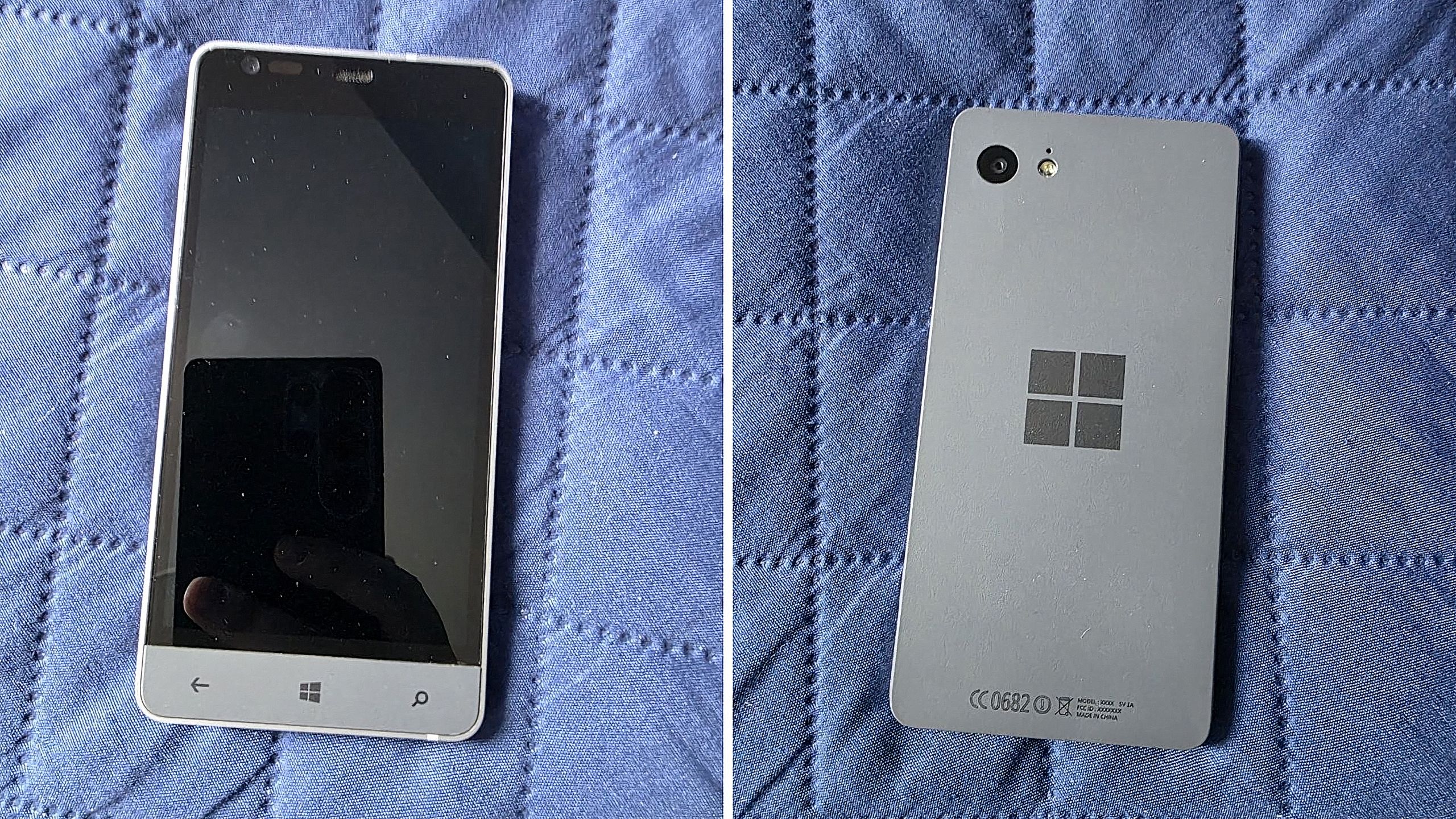
Before Microsoft acquired Nokia, the company was heavily rumoured to be working on its own in-house Windows Phone device that was expected to ship in 2014 under the Surface moniker alongside its Surface Pro device. Unfortunately for Windows Phone fans, such a device never saw the light of day, but newly published images of a mysterious prototype might have just given us our first and only look at what Microsoft was exploring internally.
Possibly codenamed Raven, there isn't much information available about this prototype, other than the fact that it’s from the 2013-2014 time frame and is running an early pre-release build of Windows Phone 8.1. It’s powered by an unknown Qualcomm chip, has a 720p screen, features a Microsoft logo on the back, and a silver metal frame that matches the colour of the Surface 2 that released that same year.
We can see in the photos that it has dedicated hardware keys for navigation, which are also coated in the same silver color as the chassis. The build of Windows Phone that it’s running appears to be from September 2013, and is from an internal development branch building towards what eventually became Windows Phone 8.1.
Real images of this mysterious Windows Phone prototype. (Image credit: Telegram/Discord)
While not viewable in the images, I understand the device features individual up and down volume buttons and a camera button on the right-hand side of the device, and a power button on the top of the device. It also features a micro-USB port and headphone jack on the bottom side, and a SIM card slot on the left side.
This is likely one of dozens of prototype designs that Microsoft’s hardware teams cooked up during this era, but it’s certainly a fascinating look at what could have been, and it does look so clean. Development on this device was likely paused once Microsoft moved to acquire Nokia in 2014.
Back in 2013, I remember hearing from sources that Microsoft was experimenting with the concept of a "Skype Phone," a Windows Phone device with mobile data that utilized Skype for calls and messaging instead of traditional carrier networks. Perhaps this device was going to be that? Who knows.
The Surface Phone we eventually got arrived as the Surface Duo, which started development in 2016 and launched to the public in 2020. In that time, Microsoft shipped Nokia designs in the form of the Lumia 640, 650, 950, and 550 running Windows Phone, before abandoning the platform in 2017.
Join us on Reddit at r/WindowsCentral to share your insights and discuss our latest news, reviews, and more.
Dell's XPS 13, starting at $599 for students and $699 for everyone else, kicked off a new market sector of affordable-but-premium Windows 11 PCs. It's not likely to be usurped by the new Acer Swift Air 14 unless you need more ports, a larger display, or more expressive color options.
Pros
Beautiful aluminum design that's more compact
2.5K display with plenty of brightness; 30Hz-120Hz variable refresh rate
IR camera for Windows Hello
Starts at $599 for students
Cons
No USB-A or 3.5mm audio
Thunderbolt 4 is only available with more expensive models
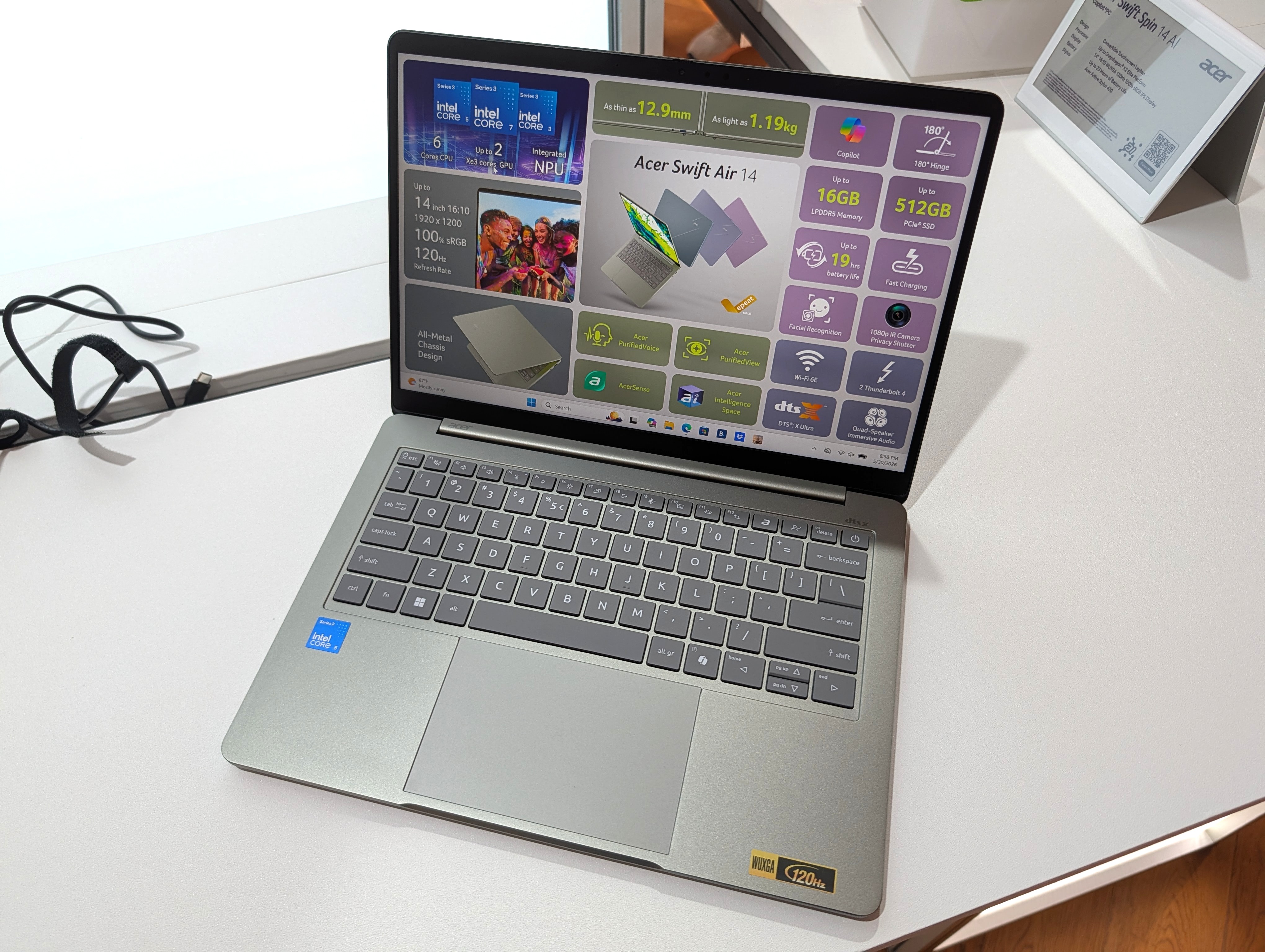
Acer's Swift Air 14 arrives to challenge the $699 affordable-but-premium PC market, and it should be the right choice for those who want a larger 14-inch display, more color options, and a more generous selection of ports.
Pros
Thunderbolt 4 ports come standard, includes USB-A and 3.5mm audio
Four color options, beautiful aluminum design
Larger 14-inch display hits 120Hz
Could have slightly better battery life compared to XPS 13
IR camera for Windows Hello
Cons
Slightly larger and heavier (though you get a larger display)
No Dolby Vision, lower-res display
No Panther Lake option for power users
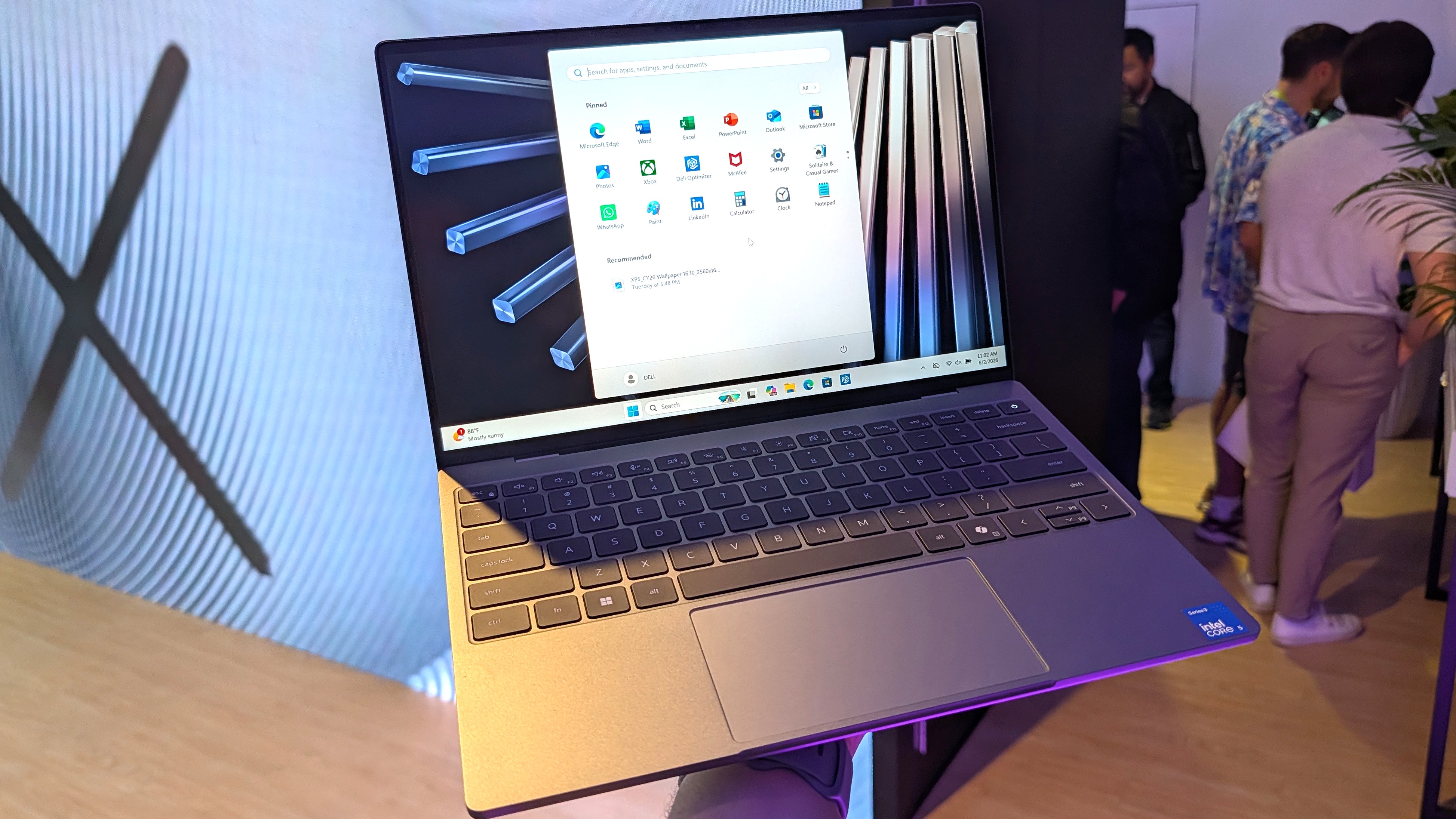
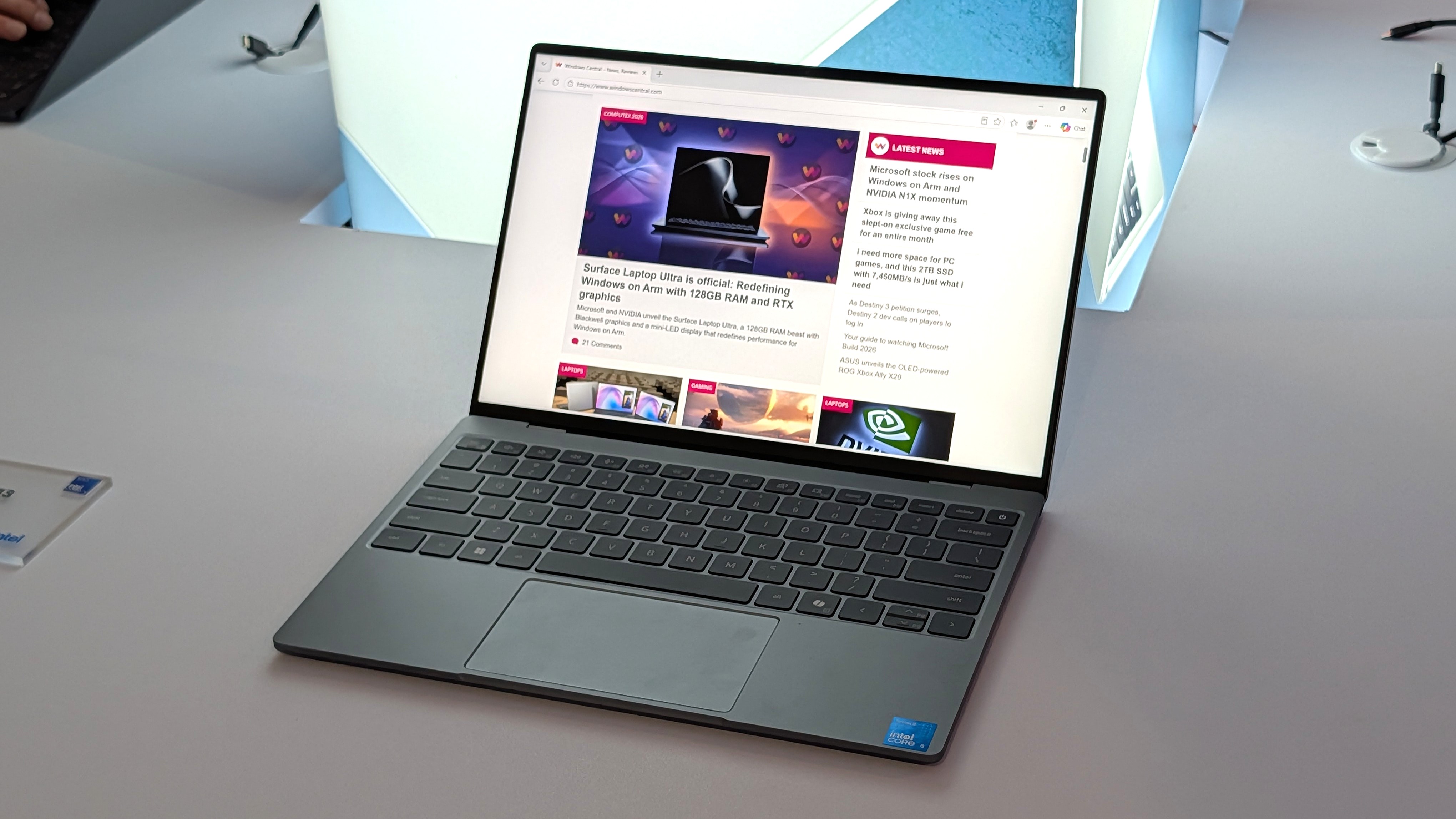
Dell's latest XPS 13 (DX13260) was unveiled at Computex 2026 and launched in June, starting at $599 for students and $699 for everyone else.
Not to be outdone, Acer also unveiled a new budget $699 Windows 11 laptop at Computex; the Acer Swift Air 14 is expected to launch in North America in August ... basically any day now.
Considering how closely matched these two PCs are in price, I thought it was best to put together a comparison to help you make the right decision.
Dell XPS 13 vs. Acer Swift Air 14: Specifications
Here's a breakdown of the specs that go into each of these laptops to give you a better idea of what you're buying.
TL;DR? Acer's Swift Air 14 is a larger laptop with a much larger battery capacity, and both PCs run on the same Intel Wildcat Lake chips. I break down the differences in some detail below this table.
These budget laptops feel like they should cost a lot more than $699
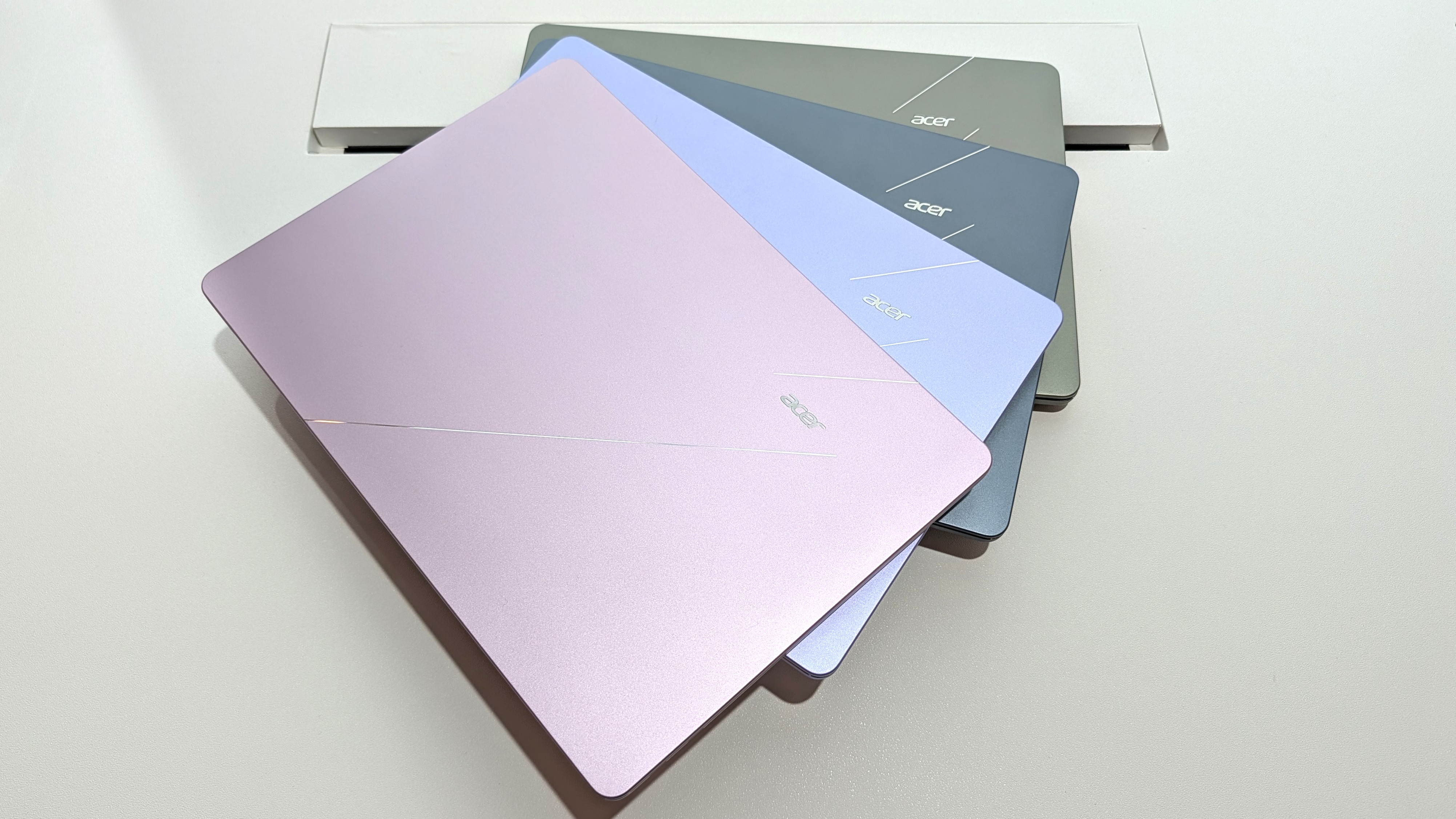
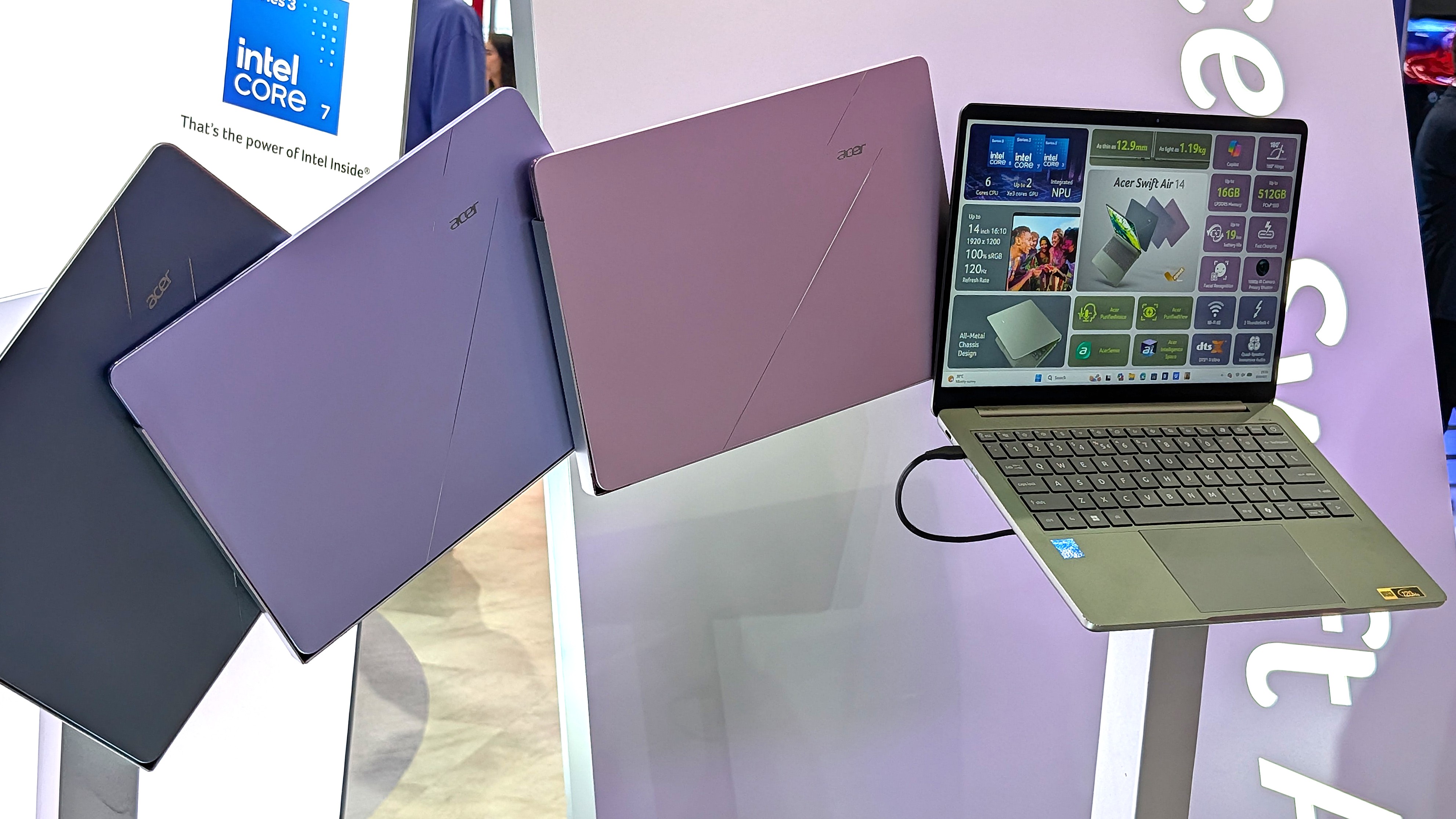
Showing off the Acer Swift Air 14's color options. (Image credit: Windows Central / Zac Bowden)
One major feature that sets these budget laptops apart from other PCs in the same price range is their aluminum frames. These are laptops with a truly premium feel despite their budget pricing.
It's a beautiful laptop, complete with a metal enclosure that feels premium to touch, and a large trackpad and excellent keyboard that make using the device feel great.
Zac Bowden
Dell offers two colors — Storm or Sky — for its XPS 13, while Acer offers Sage Green, Frost Blue, Blossom Pink, and Lilac Purple colors for a bit of extra expression.
The Swift Air 14 is the larger of the two laptops due to its 14-inch screen. It's still only about 12.36 inches wide (basically the size that 13-inch laptops used to be), and it weighs in at just 2.75 pounds (1.25kg).
The XPS 13 has a width of 11.69 inches and weighs in at 2.2 pounds (1kg), which is considerably lighter. I'd say that both of these laptops are extremely portable, and there's a difference of just 0.1 inches when it comes to thickness.
The laptops feel premium, and that's really what matters with such affordable devices. Bowden, too, went hands-on with the new XPS 13, stating:
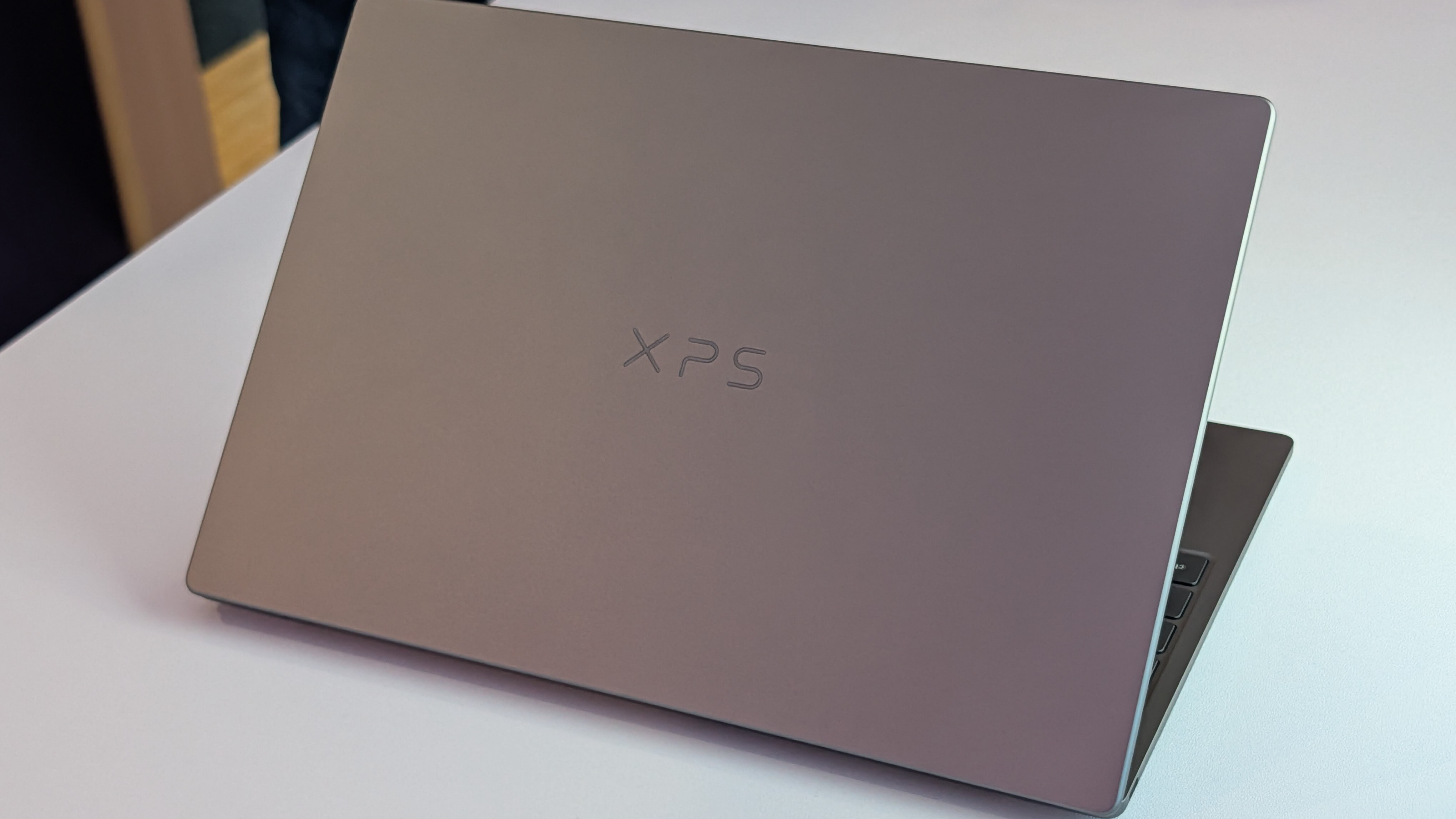
The new XPS 13 doesn't cut any obvious corners to reach its new $699 price point. It still feels every bit as premium and nice to use as the $1,000 XPS 13 before it. This would be like if Apple made the MacBook Air a $699 laptop, instead of building a cheaper MacBook Neo.
Zac Bowden
TL;DR: Both laptops have a premium design and build quality, and they're both relatively thin and light. Stick with the XPS 13 if you want to be as mobile as possible, though the Swift Air 14 isn't far behind.
Touchpads and keyboards don't suffer from budget pricing
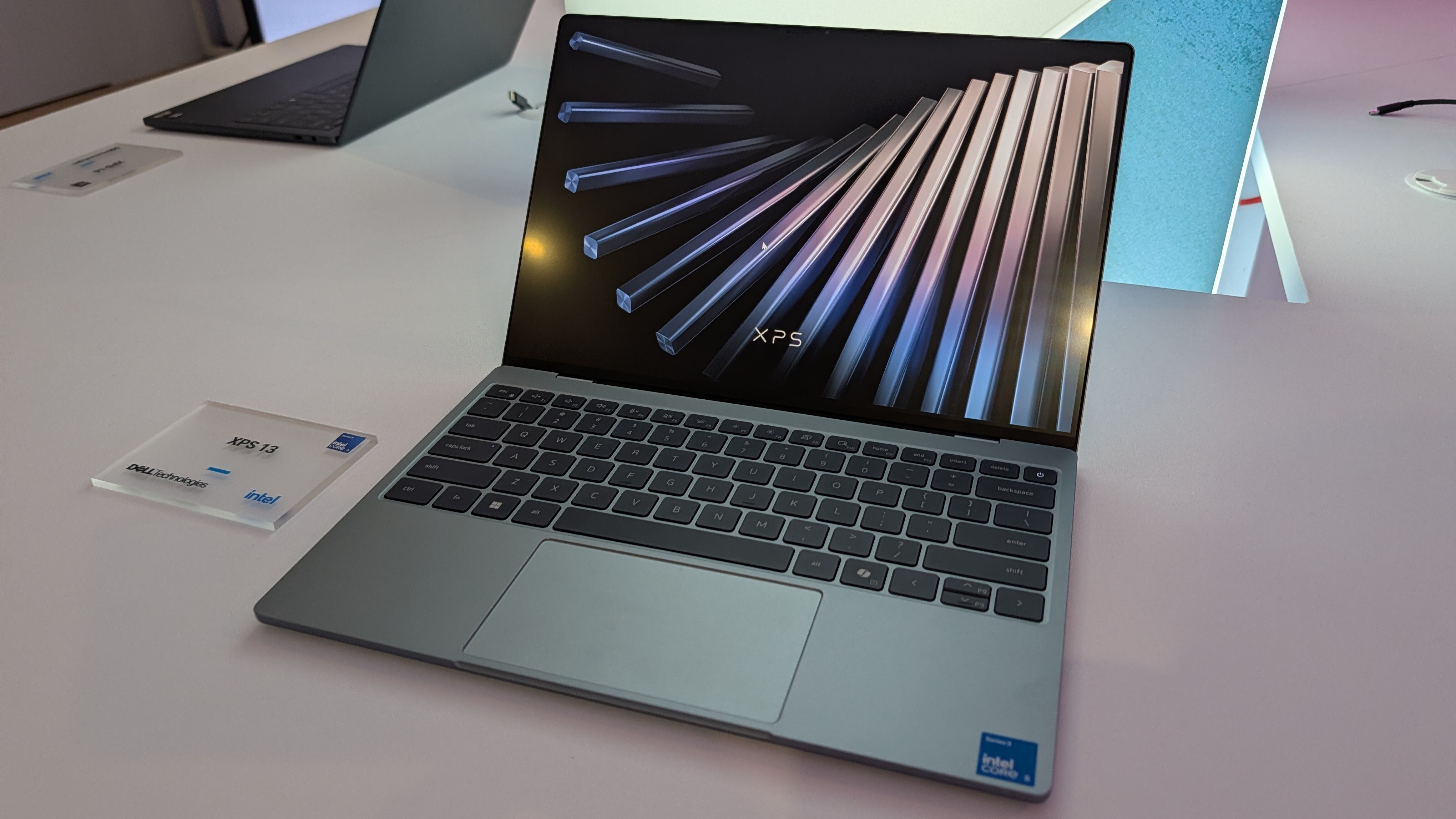
A closer look at the XPS 13's backlit keyboard and mechanical touchpad. (Image credit: Future)
As I mentioned, these laptops don't feel like they cost $699. Zac Bowden and I tested them both while we were at Computex, and it's clear that both brands put a lot of work into their keyboards and touchpads.
Dell skipped its lattice-free keyboard design on the new XPS 13 for a more traditional feel, and its mechanical touchpad (no haptics, unfortunately) is large and has a satisfying click.
In the same vein, the Swift Air 14's keyboard has decent travel and a comfy feel. The touchpad, again without haptics, is large and tracks well. You'll ultimately have to decide for yourself which setup you like more, but I can say that neither laptop skimps on the backlit keyboard and mechanical touchpad.
TL;DR: Your final decision will likely come down to personal preference, but I can say after testing both laptops that neither is likely to disappoint in terms of touchpad and keyboard.
Port selection might be the weak spot for some users
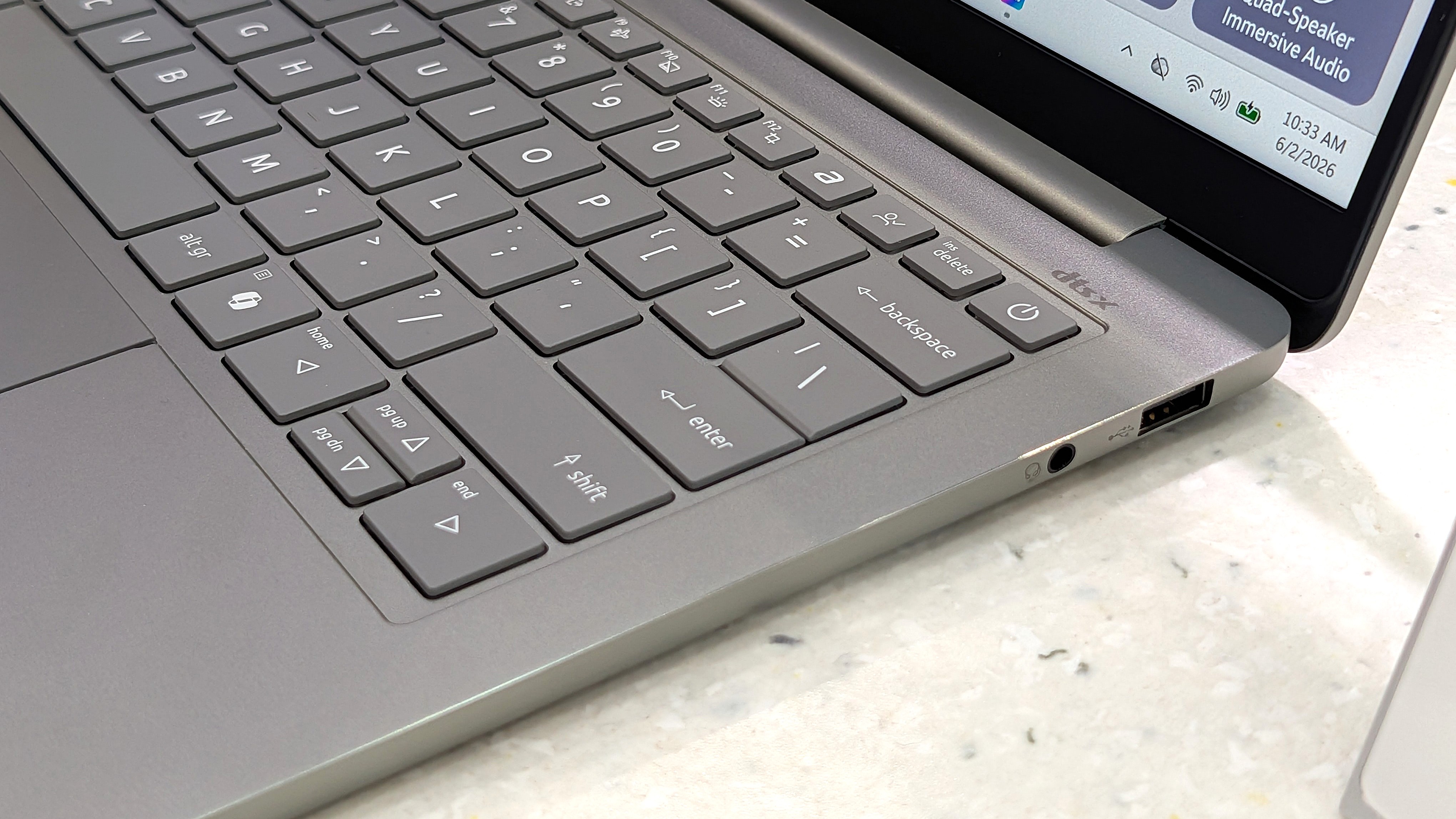
A look at the Swift Air 14's USB-A port and 3.5mm audio jack. (Image credit: Zac Bowden / Windows Central)
The XPS 13 with Intel's Wildcat Lake chips features dual USB-C 3.2 (Gen 2) ports. If you spend more on a model with an Intel Panther Lake CPU, you'll get two Thunderbolt 4 ports instead.
The Swift Air 14 is a lot better on ports, with dual Thunderbolt 4, one USB-A 3.2, and a 3.5mm audio jack.
As for wireless connectivity, the XPS 13 has more modern Wi-Fi 7 connectivity paired with Bluetooth 6.0. The Acer Swift Air 14 falls back to Wi-Fi 6E and Bluetooth 5.3. Is this a difference an average user will notice in day-to-day computing? Absolutely not.
TL;DR: Dell's most affordable XPS 13 models don't come with Thunderbolt 4, and there's no 3.5mm audio jack. Acer's Swift Air 14 comes with dual Thunderbolt 4 by default, plus it adds USB-A and an audio jack.
Both PCs have IR cameras for Windows Hello
The bezel above the Swift Air 14's display houses a 1080p webcam with IR capabilities for Windows Hello. (Image credit: Windows Central / Zac Bowden)
Something you don't see very often in budget laptops is an IR camera for Windows Hello. This additional hardware built into the above-display cameras unlocks facial recognition for Windows 11, adding an invaluable layer of security for any type of user.
Both laptops have a regular 1080p camera for video conferencing and stills. We had limited time to test cameras during our hands-on, but each seemed to do a good job of handling varying lighting conditions.
TL;DR: There's not much difference here between the 1080p webcams with IR sensors for Windows Hello facial recognition.
Dell's XPS 13 has a superior display compared to the Swift Air 14
A bright display with a 2.5K resolution comes standard in the XPS 13.
Measuring 13.4 inches with a 2560x1600 (2.5K) resolution, the XPS 13's display doesn't fail to impress. It's crisp, it has plenty of brightness at a 500-nit maximum, and an anti-glare finish makes it easier to see in bright conditions.
It features Dolby Vision certification for HDR content, it has a 30Hz to 120Hz variable refresh rate, and Dell clocks it at 100% DCI-P3 color gamut coverage.
The only aspect I can see Acer winning with the Swift Air 14's display is sizing. It measures 14 inches, giving some users a much-needed boost for multitasking. It also hits 100% sRGB color.
Another shot of the XPS 13's 2.5K display. (Image credit: Zac Bowden / Windows Central)
It does, however, have a lower 1920x1200 resolution and less brightness at 350 nits. It's unclear if the Swift Air 14's display has a variable refresh rate: it's listed as 120Hz only. That's a nice smooth picture, though the variable aspect can help conserve battery life.
TL;DR: The XPS 13's higher resolution, variable refresh rate, and Dolby Vision certification make it an attractive option, though some users will prefer a full 14 inches from the Swift Air 14 for easier multitasking.
Intel Wildcat Lake CPUs help keep prices down
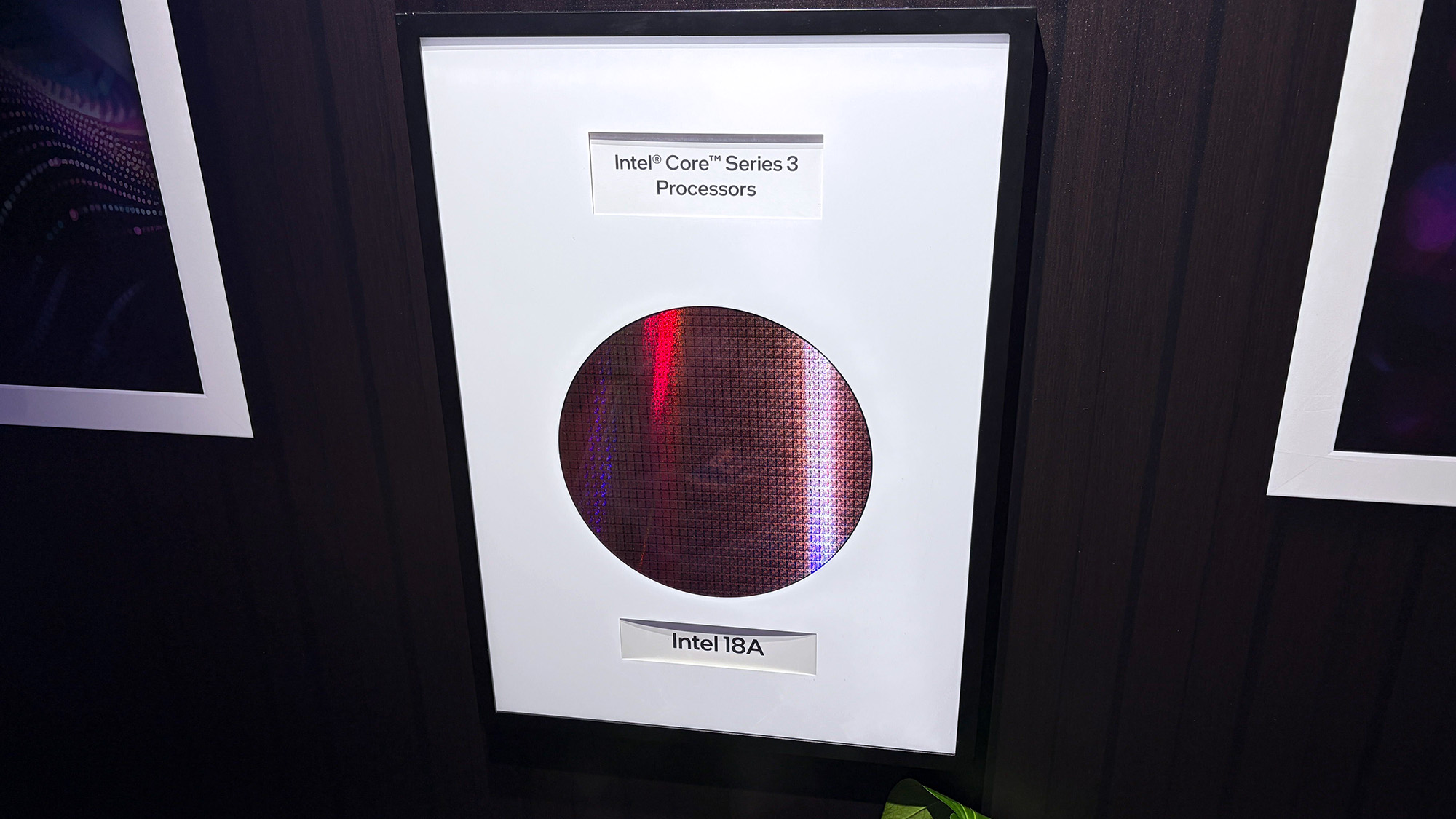
The Intel Core Series 3 wafer used to make the Wildcat Lake chips in the XPS 13 and Swift Air 14. (Image credit: Cale Hunt | Windows Central)
Dell's Wildcat Lake Core Series 3 processors are driving both of these $699 laptops, so I don't expect there to be much difference in performance. However, there is some nuance.
The XPS 13 is currently only available with a Core 5 320 chip; a Core Ultra 7 355 chip from the more powerful Panther Lake series is expected to arrive at some point in the future. If you want the most power possible and don't mind spending more, this is the configuration I'd hold out for.
I'm expecting the Swift Air 14 to launch with the same Core 5 320 CPU in its $699 model, but Acer also lists a Core 7 350 for those with a bit more to spend. Both laptops come with 8GB or 16GB of LPDDR5 RAM, and only Dell plans to release a 32GB config for its upcoming Intel Core Ultra model.
TL;DR: The use of Intel Wildcat Lake CPUs in both laptops means performance should be close. If you want more power, only the XPS 13 is expected to offer an Intel Panther Lake alternative.
Acer's Swift Air 14 has a much larger battery capacity, but Dell has a secret weapon
The Swift Air 14 hides a sizable 70Wh battery in its slim chassis. (Image credit: Zac Bowden / Windows Central)
The Intel Wildcat Lake chips used in these laptops are geared to offer exceptional battery life.
Dell says its XPS 13 with a 52Wh battery can go for up to 17 hours when streaming video, and that's boosted by the use of 800ED battery cells that hold more power while taking up less physical space.
Acer's Swift Air 14 has a larger 70Wh battery, though it doesn't have Dell's extra-dense cells. This results in an estimated 19 hours of video playback, or 16 hours of web browsing, according to Acer.
We'll have to perform our own tests on these laptops to discover the true battery life, but I can say that both PCs should be able to get through a day of work or study without needing a charge.
TL;DR: The Swift Air 14's larger battery capacity is offset by Dell's use of denser battery cells. Both PCs should be able to go for most of a day without needing a charge.
Dell XPS 13 vs. Acer Swift Air 14: Which should you buy?
Dell's new XPS 13 is available starting at $599 for students, $699 for everyone else. (Image credit: Future)
Which laptop you ultimately choose should come down to several personal preferences. Want a larger display even with a lower resolution? Acer's laptop is the way to go. Want a larger battery capacity? The same goes.
But Dell's XPS 13 drops its price to $599 if you're a student, which makes it a particularly spectacular deal. Combine that with a higher-res 2.5K display, snappy performance, and long battery life, and you have a PC that's tough to beat.
The incumbent
Dell
XPS 13 (DX13260)
Dell's XPS 13, starting at $599 for students and $699 for everyone else, kicked off a new market sector of affordable-but-premium Windows 11 PCs. It's not likely to be usurped by the new Acer Swift Air 14 unless you need more ports, a larger display, or more expressive color options.
The Challenger
Acer
Swift Air 14 (SFA14)
Acer's Swift Air 14 arrives to challenge the $699 affordable-but-premium PC market, and it should be the right choice for those who want a larger 14-inch display, more color options, and a more generous selection of ports.
Join us on Reddit at r/WindowsCentral to share your insights and discuss our latest news, reviews, and more.
I highlighted Dell's discount on the XPS 14 recently, and the deal has since gotten even better. I didn't think I'd see a laptop with these specs at this price in 2026. 32GB of RAM, 1TB of storage, and 3.2K OLED touch display for $1,549.99 is, quite frankly, ludicrous.
My only concern is that the laptop dropping in price quickly suggests Dell is almost out of stock and wants to clear out 2025 models to push the newer XPS 14 laptops from this year.
This premium laptop has a 3.2K OLED touch display, 32GB of RAM, and a gorgeous design that takes advantage of every millimeter available. It's one year old, but it's still an excellent laptop in 2026.
Note that the review of this laptop was from before the Dell 14 Premium was rebranded to the Dell XPS 14.
The XPS 14 is a pretty laptop built for productivity. At one time, there were a bunch of variations for this PC, but the options have been trimmed down as stock dips. The 3.2K OLED touch display in this model stands out, especially at this price.
The XPS 14 has a zero-lattice keyboard that packs large keys into a relatively small laptop body. The haptic touchpad of the XPS 14 is invisible, creating a clean look when the laptop is open.
That touchpad can take some time to get used to, but it was praised by Tom's Guide in their review:
"The keys have good travel distance and just the right amount of resistance when pressed. Once you get used to how tightly packed they are, typing is a breeze. And now that I’m used to it, the invisible touchpad doesn’t bother me. As before, I like the haptic feedback the touchpad produces, which also helps me know its location."
While I love the design of the XPS 14, it has battery life that's just OK. Our colleagues at Tom's Guide got 8 hours and 16 minutes in their testing. For context, 10 hours of battery life is considered "pretty good" in that same test.
The discounted XPS 14 model I highlighted retails for $2,899.99, but it is from last year. Many laptops from this year with 32GB of RAM and 1TB of storage cost well over $2,000. The new XPS 14 with those specs is $2,119.99 right now, and that's after a $630 discount. That version also has a 2K non-touch screen rather than the 3.2K OLED touch screen seen in the XPS 14 (2025) highlighted here.
FAQ
Is the Dell XPS 14 (2025) still worth buying in 2026?
Yes. While it is a year old, the XPS 14 featuring 32GB of RAM, a 1TB SSD, and a 3.2K OLED display is more than capable of handling heavy multitasking, content creation, and everyday workloads. At $1,549.99, it outperforms similarly priced 2026 mid-range laptops in both build quality and display specs.
What is the difference between the XPS 14 and the Dell 14 Premium?
They are the exact same laptop! Dell briefly adopted the "Dell 14 Premium" naming convention for its 2025 lineup before reverting to the "XPS" branding and retroactively updating model names.
Can I upgrade the RAM or storage later on?
The 32GB of RAM is soldered to the motherboard and cannot be upgraded after purchase, which makes the current deal a great way to future proof your laptop.
Join us on Reddit at r/WindowsCentral to share your insights and discuss our latest news, reviews, and more.
Razer's gaming keyboards have consistently ranked as some of the best you could buy, and, of course, they double up as generally excellent options for work and studies. Because let's be honest, if a keyboard doesn't feel good for actual typing, then is it even doing its job?
We already praised the Huntsman V3 Pro as "the world's most advanced gaming keyboard", and for now, the downside of its high price has been solved as the tenkeyless (TKL) model drops to $124.99 at Best Buy. Compared to its original MSRP of $219.99, it's instantly a much more tempting pick.
That $95 price drop stands alongside a discount on the full-size variant that we tested, bringing that to $180.74 with a much more specific $69.25 discount. Either way, you'll gain access to Snap Tap, Razer's solution for perfect counter-strafing in FPS games that prioritizes the most recently pressed button.
Personally, I prefer to ditch the numberpad for more desk space, so the TKL is perfect for me. It's also enjoying a bigger discount right now, making it even better value.View Deal
No compromises for larger desks; this gives you everything. "The Huntsman V3 Pro is one of the best keyboards I've ever used." — Zachary Boddy, Former Staff Writer — Windows Central review: ⭐⭐⭐⭐View Deal
What makes the Huntsman V3 Pro so good?
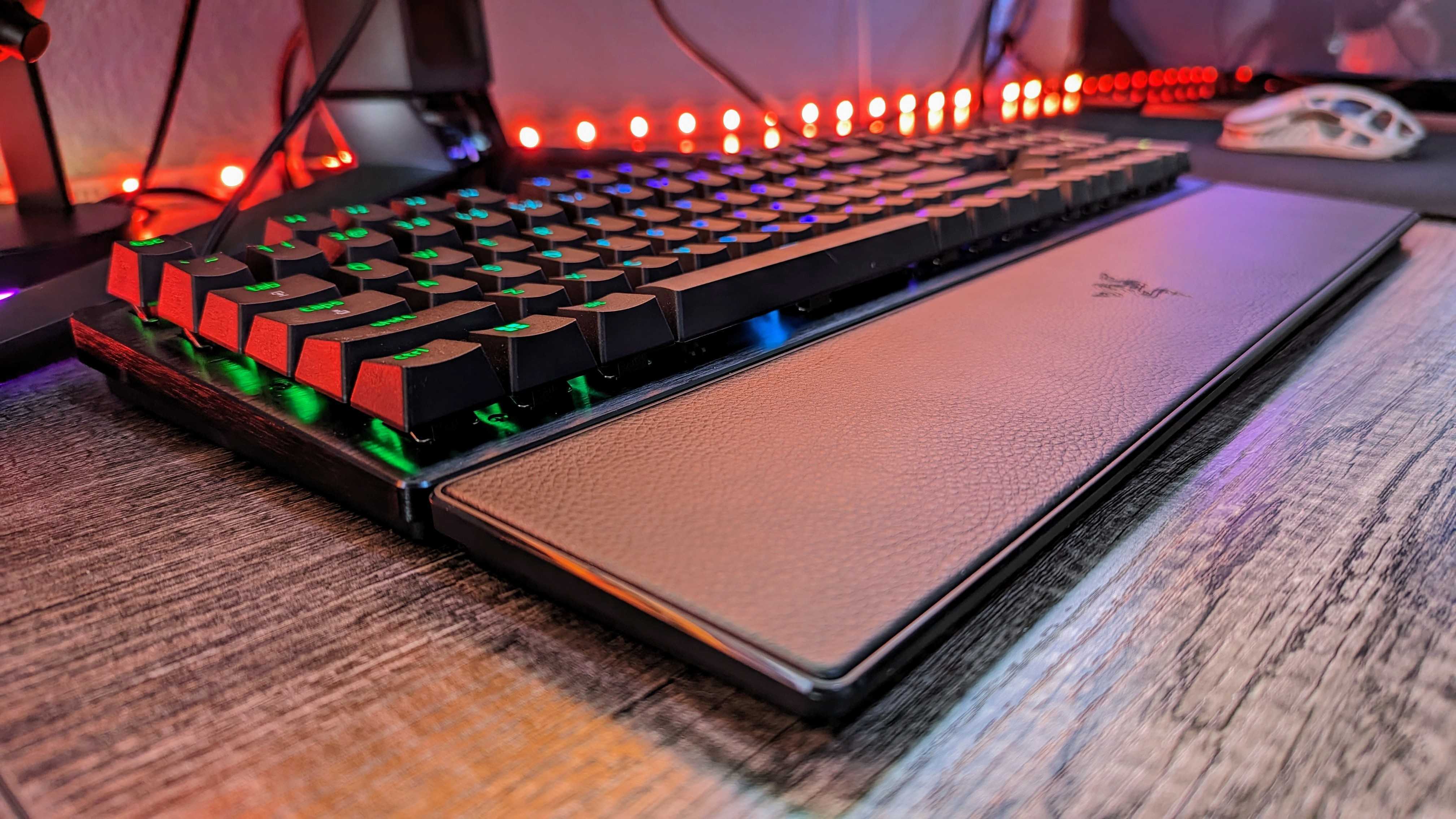
Razer throws in a wrist rest alongside its wealth of extra keys. (Image credit: Windows Central | Zachary Boddy)
Adjustable actuation is one of those phrases that crops up around keyboards, and it's a feature that shines when you have the time to dig into it. Essentially, you can change the depth at which the optical switches underneath the keys detect a valid press, usually opting for shallow pushes during gaming and more deliberate, deeper pushes for typing.
If you're into tweaking and personalization, you'll get a lot out of it by fine-tuning the actuation and saving it to one of the on-board memory profile slots. That, paired with its brushed aluminum chassis and double-shot PBT textured keys for more durable lettering, makes for a comfortable typing experience.
On the flip side, we noted in our (full-size) Razer Huntsman V3 Pro review that the leatherette wrist rest isn't perfect, but it is magnetic, so if you'd rather use it only for typing and remove it for a night of gaming, it's easy to detach. I'd recommend giving it a fair try, as it's generally better to use something to support your wrists than nothing at all, but your mileage may vary.
Overall, this discount makes the Huntsman V3 Pro, whether TKL or full-size, an absolute bargain. Even if you don't make use of all the extra dials at first, diving into customization would help you assign them to your most-used features soon after. It's a quality wired keyboard that works just as hard for daily typing, so you could probably argue it's a back-to-school expense if you tried.
Frequently Asked Questions
Is the Huntsman V3 Pro wired or wireless?
This is a wired gaming keyboard with a braided USB Type-C to USB Type-A cable. It can be detached and replaced with a longer variant, but the keyboard will not operate wirelessly.
What's the difference between full-size and TKL?
A full-size keyboard includes a number pad and is what you might think of as a "standard" model. TKL stands for tenkeyless, and it drops the numeric keypad to save space while retaining the arrow keys and the home/end keys.
Is this a mechanical keyboard?
The Huntsman V3 Pro does not use mechanical switches; instead, it features optical key switches that operate like magnetic Hall-Effect sensors found in popular joypads to support its adjustable actuation.
Join us on Reddit at r/WindowsCentral to share your insights and discuss our latest news, reviews, and more.
In an age where the best laptops are being price-gauged for everything they're worth thanks to AI eating all our RAM and memory, sometimes laptops we never took a shine to can end up being smarter financial alternatives, provided they have redeeming qualities and discounts to back them up.
One such flawed but capable laptop is the 16-inch, 2-in-1 Lenovo Yoga 7i, a laptop that doesn't quite get the "2-in-1" part right but makes up for it with all-day battery life, a strong SSD for fast boot-up times and decent storage space, and more enticing features that are now 20% off for $799.99 at Best Buy (was $999.99).
"Lenovo's 16-inch Yoga 7i 2-in-1 has strong positives for travelers who refuse to compromise on screen size and would benefit from a transforming screen." ~ Ben Wilson, Senior Editor
Side view of the Lenovo Yoga 7i 16-inch 2-in-1 laptop. (Image credit: Ben Wilson | Windows Central)
Now, the Lenovo Yoga 7i 2-in-1 16-inch isn't the greatest laptop in the world. When our laptop expert, Ben Wilson reviewed it, he remarked that its "sub-par IPS panel prevents its tablet mode from appealing to creatives who demand accurate color reproduction."
Plus, no bundled-in stylus pen combined with a stiff screen hinge makes the laptop's tablet mode not as useful or enjoyable compared to its competition.
However, that doesn't mean the Lenovo Yoga 7i 2-in-1 is worthless, as it has plenty of redeeming qualities.
It features above-average performance rates for crushing productivity tasks thanks to its Intel Core Ultra 5 Processor (2024) and 16GB RAM, a 512GB SSD to help store vital data files and boot its systems quickly, a 70Wh battery that will last over thirteen hours, and solid Wi-Fi 7 connectivity to ensure you never lose connection with the internet and never wait forever for web pages to load.
It's also got a built-in fingerprint scanner that acts as a secondary security measure for your precious work files, a 2K touchscreen with 60Hz refresh rates and 1080p resolution so you can view documents and spreadsheets with clear clarity, and competent performance rates for tackling AI-related tasks thanks to its integrated Copilot+ feature and a Neural Processing Unit capable of 40 TOPS.
So if you're looking for a reliable mid-range laptop that won't cost you over $1,000 to tackle work reports or school exams while travelling, the Lenovo Yoga 7i 2-in-1 that's now 20% off at Best could be the best unlikely weapon you didn't know you needed for slaying productivity backlogs.
FAQ
Is its RAM and SSD upgradeable?
The Lenovo Yoga 7i 2-in-1 16-inch laptop's pre-installed 16GB RAM can't be upgraded, as it's soldered into the motherboard. Its 512GB SSD, on the other hand, can be replaced and upgraded with a larger one via its M.2 2242 4.0 x4 slot.
Can it play video games?
It can play extremely light video games like Minecraft or Roblox, but don't expect the Lenovo Yoga 7i 2-in-1 16-inch laptop to run intensive AAA PC games like Cyberpunk 2077, as it wasn't built for that purpose.
What ports does it include?
The Lenovo Yoga 7i 2-in-1 16-inch laptop features two Thunderbolt 4 USB-C ports, a USB-A 3.2 Gen 1 port, a HDMI-out 1.4b port, a microSD card reader slot, and a combo audio jack port.
Join us on Reddit at r/WindowsCentral to share your insights and discuss our latest news, reviews, and more.
Back to school season is upon us again, and if you're in the market for a new laptop, there are plenty of student-friendly Chromebooks worth considering in 2026. We test these devices every year to ensure that they still meet Android Central's rigorous standards, and I was pleased to see that my personal favorite for students on a budget, the Lenovo IdeaPad Slim 3, is currently chilling with an impressive $220 discount at Best Buy.
The class-ready Lenovo IdeaPad Slim 3 just scored an epic discount at Best Buy
The IdeaPad Slim 3 by Lenovo is a versatile laptop with a gorgeous touchscreen display, great battery life, and a MediaTek processor that's powerful enough for both work and play. Grab the campus-ready device from Best Buy today and you'll score a straight $220 off your purchase, no strings attached. View Deal
Whether you're studying, drawing, or streaming your favorite series after class, the Lenovo IdeaPad Slim 3 is one of the best Chromebooks for students because of its overall versatility and bang for the buck.
Straight out of the box, you get a vibrant 14-inch 1080p display with a touchscreen and a durable enough build that you can easily throw the laptop into a backpack or briefcase. The Chromebook will also last up to 18 hours on a single charge, so you don't have to worry about juicing up mid-class or during those long study sessions.
The IdeaPad Slim 3's MediaTek Kompanio 520 processor with 4GB of RAM is capable enough for studying, streaming, and browsing the web, plus you get plenty of ports (including a microSD card slot) for all of your devices and storage needs.
So what's the catch? Well, as the saying goes: you get what you pay for. The IdeaPad Slim 3 is a basic laptop that's built for basic tasks, and as it's a 2023 device, you shouldn't expect the latest software features as soon as you boot it up.
If you want a cheap laptop that's reliable and durable enough to bring with you wherever you go, the Slim 3 is a great pick. But if you want something with a bit more power and innovation under the hood (and you don't mind paying for it), there are plenty of other outstanding Chromebooks to consider this semester.
Cute name, especially if it were a wookiee. | Photo: Antonio G. Di Benedetto / The Verge
Finding a good laptop under $500 was hard enough before RAMageddon. They nearly always had cheap hardware and underpowered, often outdated chips. That's what made the MacBook Neo so disruptive: It offered great build quality and good-enough performance starting at $599. Windows laptops couldn't touch it. Even though it's gone up to $699, it's still the laptop to beat.
So when little-known Chinese brand Chuwi announced a $450 Windows laptop with an aluminum build and a brand-new Intel Wildcat Lake processor, it sounded too good to be true.
It is.
Chuwi UniBook
Score: 3
Pros
Cons
It's $450
Tons of ports for a small laptop (though none are very …
If you’re looking for the absolute best performance in a gaming laptop, then you’ll likely want to consider a desktop replacement. If you’re in the market, the HyperX Omen Max 16 makes a strong case with a 16-inch form factor and a thick chassis that accommodates some beefy hardware.
Our review unit carries a sticker price of $4,699, packs a Core Ultra 9 290HX Plus processor, and includes an RTX 5090 GPU. It also tips the scales at 6.56 pounds, making it a more suitable companion for your desk than for lugging around while traveling.
Despite its imposing dimensions and beefy hardware, the Omen Max 16 doesn’t quite pass muster in performance against its slimmer competitors among the best gaming laptops.
Design of the HyperX Omen Max 16
“Solid, solid as a rock,” is the phrase that comes to mind when describing the Omen Max 16. The laptop feels like it was forged from a solid piece of granite, but in actuality, it’s aluminum. It’s also thick, measuring 1.13 inches at its thickest point (at the rear).
To my eyes, the Omen Max 16 is attractively designed with no outrageous styling gimmicks. The aluminum is coated in a matte black finish, and design flourishes (like the O16 printed vertically along the deck and the HyperX logo on the lid) are subdued and don't draw significant attention. There’s also a laser-etched grille that runs nearly the width of the chassis that sits above the keyboard.
Tom's HardwareTom's HardwareTom's Hardware
The only thing that really clues you into the gaming nature of the laptop (other than its sheer size) is the per-key RGB lighting for the keyboard, and a single LED strip on the bottom front edge of the chassis that you can configure with the Omen software.
When it comes to external ports, the Omen Max 16 has a USB-A (10 Gbps) port, two Thunderbolt 4 ports, and a 3.5 mm audio jack on the left. On the right side of the chassis, you'll find another USB-A port. The back panel of the laptop is home to an HDMI 2.1 port, a 2.5 GbE port, and a proprietary power port (a 460W GaN power adapter is included).
The Omen Max 16 measures 14.04 x 10.59 x 1.03 inches and weighs 6.56 pounds. For comparison's sake, the Razer Blade 16 is 13.98 x 9.86 x 0.69 inches and weighs 4.71 pounds. The MSI Raider 16 HX comes in at 14.29 x 10.62 x 1.14 inches and weighs 5.73 pounds. The Alienware 16 Area-51 weighs 7.49 pounds and measures 14.37 x 11.41 x 1.12 inches.
HyperX Omen Max 16 Specifications
CPU
Intel Core Ultra 9 290HX Plus
Graphics
Nvidia GeForce RTX 5090 Laptop GPU (24GB GDDR7, 1,597 MHz Boost Clock, 175 W Max TGP)
Memory
32GB DDR5-6400 (2x 16GB)
Storage
2TB PCIe 5.0 NVMe M.2 SSD
Display
16-inch, 2560x1600, 240 Hz, 16:10, OLED
Networking
Wi-Fi 7, Bluetooth 5.4
Ports
2x Thunderbolt 4, 2x USB 3.2 Type-A Gen 2, 1x HDMI 2.1, 3.5 mm headphone jack, 2.5 GbE
Camera
1080p IR webcam
Battery
83 Whr
Power Adapter
460 W
Operating System
Windows 11 Home
Dimensions (WxDxH)
14.04 x 10.59 x 1.03 inches
Weight
6.56 pounds
Price (as configured)
$4,699.99
Gaming and Graphics on the HyperX Omen Max 16
The Omen Max 16 is equipped with an Intel Core Ultra 9 290HX Plus processor, 32GB of RAM, and an RTX 5090 GPU (175W TGP). Given these specs and a sizable chassis to aid cooling (300W total system power), I was expecting strong numbers from the Omen 16 Max. Instead, the laptop was relegated to the back of the pack, except for one game benchmark: Far Cry 6.
My game of choice these days is Battlefield 6, running at native resolution in Overkill detail mode, with DLSS Quality and frame generation enabled. Using these settings, I was able to average between 100 and 110 frames per second.
For the competitive set, we have the Blade 16 (Core Ultra 9 386H at 25W, RTX 5090 at 175W TGP), MSI Raider 16 Max HX (Core Ultra 9 290HX Plus at 55W, RTX 5090 at 175W TGP), and the Alienware 16 Area-51 (Core Ultra 9 290HX Plus at 55W, RTX 5080 at 175W TGP). It should be noted that the Omen Max 16 uses slower DDR5-6400, whereas systems like the Blade 16 use faster LPDDR5X-9600.
We started our benchmarking spree with Shadow of the Tomb Raider (Highest setting), and here the Omen Max 16 achieved 171 FPS at 1080p, putting it in last place behind the Razer Blade 16 (182 FPS). At 1600p, it landed in a comfortable third place (114 FPS) behind the Alienware 16 Area-51.
Cyberpunk 2077 (Ray Tracing Ultra settings) wasn't a strong showing for the Omen Max 16, either. It brought up last place at 1080p (59 FPS) and 1600p (37 FPS).
Far Cry 6 (Ultra settings) was the lone bright spot for the Omen Max 16, as it garnered 144 FPS at 1080p and 125 FPS at 1600p, easily putting it in first place. Both of these results far outpaced the rest of the field, with the next closest competitor being the MSI Raider 16 Max HX at 119 FPS and 114 FPS, respectively.
Moving to the Red Dead Redemption 2 (Medium settings) benchmark, the Omen Max 16 again wound up in last place, hitting 93 FPS at 1080p and 65 FPS at 1600p. However, in this instance, the margin between the Omen Max 16 and The Blade 16 at 1080p was just 1 FPS.
The Omen Max 16 again had trouble during the Borderlands 3 (Badass settings) benchmark, falling well off the pace set by its three competitors. The laptop hit 146 FPS at 1080p, nearly 20 FPS off the pace of the third-place Alienware 16 Area-51. At 1600p, it mustered just 113 FPS.
Metro Exodus is our go-to benchmark for laptop stress testing. Our review unit averaged 141.62 FPS at 1080p across 15 loops using the RTX benchmark preset. The CPU performance cores averaged 4.91 GHz, and the efficiency cores averaged 3.95 GHz. The RTX 5090 GPU ran at 1.81 GHz.
Productivity Performance on HyperX Omen Max 16
With its Core Ultra 9 290HX Plus processor, 32GB of RAM, and 2TB PCIe 5.0 SSD, the Omen Max 16 fared better in the productivity tests than it did with gaming.
On Geekbench 6, the Omen Max 16 with the Core Ultra 9 290HX was able to muscle past the Blade 16 with its Core Ultra 9 386H on both the single-core (3,182) and multi-core (17,989) benchmarks. However, the Alienware 16 Area-51 and Raider 16 Max HX, which use the same Core Ultra 9 290HX processor, achieved much higher multi-core numbers (each surpassed 20,000).
Tom's HardwareTom's HardwareTom's Hardware
The PCIe 5.0 SSD used in the Omen Max 16 performed quite well in our 25GB file transfer test, coming in second place at 2,439.22 MBps. The Alienware 16 Area-51 was a few ticks ahead at 2,738.90 MBps.
The soft performance of the Omen Max 16 continued with our Handbrake test, which involves transcoding a 4K video file to 1080p. Here the laptop performed the task in 2 minutes and 59 seconds. However, at least one other laptop with the same Core Ultra 9 290HX did the deed in less than two minutes.
Display on the HyperX Omen Max 16
The Omen Max 16 uses a 16-inch 2560 x 1600 OLED panel with a 240 Hz refresh rate. As is the case with most OLED displays that we test, this one had a glossy finish.
Instrumented testing on the OLED panel showed it excelling against the competition, covering 131.2 percent of the DCI-P3 color space and 185.2 percent of sRGB. Even better, the Omen Max 16 nudged past the Raider 16 Max HX to also take the crown for panel brightness (464.6 nits versus 455.6 nits).
(Image credit: Tom's Hardware)
OLED panels rarely disappoint, and I was more than impressed with the overall quality and brightness. The brightness was high enough that I was able to game while on my back porch during a partly cloudy day with minimal interference from reflections on the glossy panel.
I also viewed the first Avengers: Doomsday trailer using the display, and besides getting a tiny bit emotional while watching it, was delighted with the color reproduction, particularly in the short battle between Gambit and Shang-Chi, with flashes of purple playing cards and orange rings.
Keyboard and Touchpad on the HyperX Omen Max 16
The Omen Max 16 features a full-size RGB backlit keyboard (with per-key lighting) and NKRO anti-ghosting technology. RGB effects are customizable using HP's Omen app or directly from within Windows 11.
The keys felt quite springy when typing, and I found it incredibly comfortable to rest my fingers and click away. And while some keyboards audibly make their presence known as you type at a furious pace, the key actuation on the Omen Max 16 was whisper-quiet.
(Image credit: Tom's Hardware)
Turning my attention to the Keyhero.com typing test, I plugged away at 95 words per minute with 97% accuracy, which is definitely on the high side for me (I’m usually in the mid-80s realm).
Given the Omen Max 16 price tag of over $4,500, I was disappointed that HP didn’t go with a haptic touchpad. Instead, we get a top-hinged trackpad that is just OK. It gets the job done, but for this much money, I’d prefer to be able to click anywhere on the touchpad surface without hitting a dead zone. At least while gaming, you probably use a mouse or controller.
Audio on the HyperX Omen Max 16
Audio quality is another area where I think HP missed the mark. To beat a dead horse, but this is a laptop that retails for $4,699, and it only comes with stereo speakers. Would it have killed HP to add another pair of speakers in this tank of a chassis?
While the speakers had good overall volume levels, I felt the sound lacked some depth compared to similarly priced laptops with four (Raider 16 Max HX) or even six speakers (Blade 16). While I was more than happy listening to Keane’s “Fly to Me” from the album Hopes and Fears, I was disappointed in the sound while playing Battlefield 6.
When it came to gunfire, vehicle sounds, and background explosions while gaming, I wasn't impressed. I prefer throwing on a pair of the best gaming headsets, but there’s still no excuse to drop the ball at this price point.
Upgradeability of the HyperX Omen Max 16
Six screws need to be extracted to remove the bottom aluminum panel. While that was easy enough, it’s only half the battle. All of the serviceable components (save for the readily accessible battery) are underneath an extensive metal shield. That shield is held in place by roughly a dozen screws, making upgrades a bit tedious.
Once the shield is removed, you’ll find access to the M.2 slot for the Wi-Fi/Bluetooth module, two SO-DIMM slots (both of which were filled on our review unit), and an additional M.2 slot for a second SSD. Yet another metal shield covers the first M.2 SSD slot, although I didn’t go through the process of removing another dozen screws to uncover it.
Battery Life on the HyperX Omen Max 16
Despite its considerable girth, the Omen Max 16 is equipped with just an 83 WHr battery. For comparison, the thinner and lighter Blade 16 manages to squeeze in a 90 WHr battery.
(Image credit: Tom's Hardware)
The Omen Max 16 lasted 5 hours and 7 minutes on our battery test, which consists of web browsing, video streaming over Wi-Fi, and OpenGL testing with the screen brightness set at 150 nits. This was over three hours shorter than the Raider 16 Max HX, while the Blade 16 lasted over twice as long on a charge (12:46).
Heat on the HyperX Omen Max 16
During the Metro Exodus stress test, we measured the Omen Max 16's keyboard at 106 degrees Fahrenheit (F) between the G and H keys, while the touchpad was 84.9 F.
The hottest part of the laptop was near the rear center of the bottom of the chassis, which measured 114 F.
Tom's HardwareTom's Hardware
While running the Metro Exodus stress test, the CPU measured 87 degrees Celsius (C). Meanwhile, the RTX 5090 was cooler at 75 C.
Webcam on the HyperX Omen Max 16
Another area where it feels like HP skimped is with the webcam. Rather than going with a higher resolution unit, the Omen Max 16 features a bog-standard 1080p unit that looks about as good as one you’d find in a $1,000 entry-level gaming laptop.
The camera didn’t do particularly well with a nearby window where light was shining through, and there were a lot of noise artifacts in less-than-ideal light conditions. In addition, the camera didn’t really pick up fine details well, which is disappointing considering the price.
Software and Warranty on the HyperX Omen Max 16
Like many HP laptops, the HyperX Omen Max 16 comes loaded with additional software bloat that you can mostly ignore or simply delete. Scrolling down the list of “H” apps in the Start Menu, HP basically set up camp with no less than eight apps/shortcuts—everything from HP Documentation to HP Privacy Settings to HP TV+. In addition, you’ll find the usual third-party add-ons like McAfee and promotional links for Dropbox, Adobe, and Booking.com.
Tom's HardwareTom's HardwareTom's Hardware
The only really useful preinstalled app is the Omen Gaming Hub. It gives you control over power modes, lets you see CPU/GPU/RAM utilization, and provides plenty of configuration options for the onboard RGB lighting.
The Omen Max 16 comes with a one-year manufacturer warranty.
HyperX Omen Max 16 Configurations
Our Omen Max 16 came configured with an Intel Core Ultra 9 290HX Plus processor, 32GB of DDR5-6400 memory, a 2TB PCIe 5.0 SSD, RTX 5090 GPU, and a 16-inch 1600p 240 Hz OLED display. The MSRP on our review unit was a staggering $4,699.99.
There are also several less expensive options, with the cheapest being a $2,699 SKU with a Core Ultra 7 270HX processor, 32GB of RAM, a 1TB SSD, and an RTX 5080. For $3,099, you can swap the Core Ultra 7 270HX for an AMD Ryzen AI 9 HX 475 and double the SSD capacity to 2TB.
Bottom Line
The HyperX Omen Max 16 represents a swing and a miss. When I first saw the enormity of the chassis, I was looking forward to some impressive gaming performance given the 55W processor and 175W RTX 5090 onboard. Instead, what I was left with was a $4,699 gaming laptop that lingered in last place for most of the gaming benchmarks, and often by a large margin. Even the Razer Blade 16 with its 25W processor managed to get the upper hand in most benchmarks.
But the gaming wasn’t the only disappointment. Given the price tag, I would have expected a better-equipped machine. Where’s the haptic trackpad, and why do we only get two speakers? And on a minor annoyance angle, while I appreciate the two M.2 slots for storage and replaceable memory, why do I need to remove another dozen screws just to access those components?
In the end, the Omen Max 16 could have been so much more. Quite frankly, it would make sense to spend the extra $200 and grab a Razer Blade 16. Not only is it thinner and lighter (by two pounds), but it offers double the battery life.
MacBook Neo sales have given Apple something the Mac rarely achieved through its premium models: immediate access to the enormous market for affordable everyday notebooks.
The new line arrived in March 2026 with a launch price of $599, or $499 through education pricing. That placed a current MacBook within reach of buyers who previously depended on discounted older models, inexpensive Windows laptops or Chromebooks.
Price opened the door, but appearance helped people walk through it. MacBook Neo entered the market in blush, indigo, silver and citrus, avoiding the visual compromises commonly associated with entry-level computers. The aluminum enclosure, color-matched keyboard and 13-inch Liquid Retina display made it look like a deliberate new Mac rather than a reduced MacBook Air.
Those choices changed the conversation around an affordable Apple notebook. Buyers could select a computer according to personality and style before considering processor benchmarks. Students could carry something visibly different from institutional gray and black laptops. Families could distinguish multiple computers by color, while first-time Mac owners received a product with its own identity.
Early shipment estimates suggest that strategy worked. IDC data shared with TechCrunch placed MacBook Neo shipments at approximately 1.1 million units during the March quarter, even though the computer had been available for only about three weeks. Apple does not disclose sales by individual Mac model, so the figure remains an independent market estimate rather than an official unit count.
The pace was nevertheless substantial enough to make MacBook Neo one of the strongest recent Mac introductions. It also pushed the story beyond one successful product launch. Apple had entered a price segment responsible for tens of millions of notebook purchases each year and found customers who had never seriously considered macOS.
Image Credit: Apple Inc.
MacBook Neo Sales Started With a Missing Price Tier
Apple spent years concentrating the MacBook line above the mainstream notebook market. MacBook Air became the accessible model, but its price still placed it beyond many students, families and buyers in countries where local income and currency conversion make Apple hardware especially expensive.
Discounted older MacBook Air generations partially filled that gap. Retailers could keep M1, M2 or M3 models available after newer versions arrived, offering buyers lower prices without Apple designing a dedicated entry-level computer.
That approach had limitations. Availability depended on remaining inventory, configurations varied among retailers and the product still looked like a previous generation being cleared from the channel. It could attract value-conscious buyers, but it did not establish a permanent starting point for the Mac.
MacBook Neo created that starting point. Apple designed the model around an A18 Pro chip rather than the M-series processors used by MacBook Air and MacBook Pro. The base configuration included 8GB of unified memory and 256GB of storage, enough for browsing, school assignments, communication, streaming and everyday productivity without competing directly with higher-performance Macs.
The model retained features that buyers encounter every day: an aluminum body, a 13-inch high-resolution display, a Magic Keyboard, a large Multi-Touch trackpad, a 1080p FaceTime HD camera and a fanless design. Apple rated its battery for as long as 16 hours under its testing conditions.
Performance headroom, memory capacity and external-display support remain more limited than on a MacBook Air. Those compromises are easier to accept when the computer is purchased for writing, research, web applications, video calls and media consumption rather than professional video production or complex development work.
IDC estimated that the sub-$700 segment represented about 75 million annual notebook shipments, close to 40% of global notebook volume. Windows and ChromeOS historically controlled more than 95% of that tier. Apple had been competing for a small premium section of the market while a far larger pool of buyers purchased elsewhere.
MacBook Neo sales gave the company a way into that pool without placing an old design or plastic enclosure at the entrance to the Mac line. A buyer comparing computers at similar prices could now choose macOS without first accepting a major premium.
Color Gave the Affordable MacBook an Identity
Low-cost laptops are frequently designed to disappear. Dark plastic, conservative finishes and generic bodies keep manufacturing simple and reduce the risk that one color will remain unsold. MacBook Neo took the opposite approach by making color one of the most recognizable parts of the product.
Silver preserves a familiar Mac appearance, while indigo offers a darker alternative without returning to standard black. Blush gives the line a softer finish, and citrus creates the visual signature that separates Neo from every other MacBook on a table.
The colors do more than decorate an inexpensive computer. They prevent the model from being defined entirely by what it lacks. Instead of asking why it has an A18 Pro rather than an M5, buyers can begin with which finish they want.
That distinction is valuable among younger customers. IDC described reactions from teenagers who focused on the display, weight and appearance rather than memory specifications or processor architecture. Their interest centered on how the computer would look at school compared with the Windows laptops and Chromebooks already around them.
Apple used a similar strategy when color helped turn the original iMac into a cultural object. Later iBook models carried bright finishes into portable computing, while colorful iMac and MacBook designs made personal computers feel less institutional. MacBook Neo revisits that idea for a generation accustomed to selecting colors for phones, headphones, cases and watches.
The approach also avoids making affordability look like punishment. A lower price does not force the buyer into an anonymous product with a visibly cheaper exterior. Neo has limitations, but its design gives owners something exclusive to the line instead of presenting the computer as a substitute for the MacBook they could not afford.
Color alone did not produce MacBook Neo sales. The launch price, battery life, macOS integration and recognizable MacBook construction carried more purchasing weight. Color made those advantages easier to notice and gave stores a product that could attract attention before a salesperson explained its specifications.
First-Time Buyers Changed the Mac Equation
Apple said customer response exceeded its expectations and connected the launch with record participation from people buying their first Mac. That audience may prove more valuable than existing owners choosing a less expensive replacement.
A first Mac purchase can introduce a customer to applications and services that become part of daily work. People who already use an iPhone can access Messages, FaceTime, Photos, iCloud, AirDrop and iPhone Mirroring from the computer without rebuilding their digital routines.
That familiarity lowers one of the barriers to changing computer platforms. A person may have used Windows throughout school or work while carrying an iPhone for years. MacBook Neo makes the switch less financially demanding, while the connected features reduce the amount of relearning required after purchase.
MacBook Neo sales also challenge the assumption that low-cost notebook buyers care only about the lowest available price. Many customers are willing to spend more than the cost of an entry Chromebook when the difference provides a better display, metal construction, longer useful life or closer integration with a phone.
The line is therefore competing on perceived value rather than absolute cheapness. A $599 launch price remains expensive beside the least costly education laptops, but it enters the same purchasing discussion as many mainstream Windows models. It no longer requires a buyer to stretch directly toward MacBook Air pricing.
Education represents a particularly large opportunity. Schools and families make purchases around durability, battery life, software management, support requirements and the number of years a computer can remain useful. A lower acquisition price gives the Mac a better chance of surviving the first stage of that calculation.
Small businesses face similar decisions. A company that previously reserved Macs for designers or executives can consider Neo for administrative work, communication and browser-based services. Wider Mac deployment then becomes possible without assigning a premium notebook to every employee.
MacBook Neo sales may also protect Apple from depending entirely on upgrades. Mature computer owners can keep a capable Mac for many years, extending replacement cycles. Bringing new people onto the platform creates additional demand without waiting for an existing MacBook Air or MacBook Pro to become obsolete.
Worldwide Adoption Is the Larger Story
The geographic distribution of the first units shows both progress and unfinished work. IDC estimated that 44% of March-quarter shipments went to the United States. That concentration is unsurprising for an Apple launch, but the larger opportunity sits in markets where Mac adoption has remained limited by price.
India offers an early example. Approximately 18,000 units reportedly shipped there during the short March launch period, while retailers later experienced difficulty obtaining enough inventory. The local starting price of ₹69,900 remained above the direct currency conversion of the U.S. price, yet it sat far below the ₹119,900 entry point reported for MacBook Air at the time.
Older MacBook Air generations had previously generated Indian sales when retailers offered substantial discounts. Neo gives Apple and its partners a current model to promote throughout the year rather than depending on irregular clearance inventory.
Availability timing will influence adoption elsewhere. The computer reached some markets later than the initial launch, including Indonesia in May. Local taxes, currency movements, distribution capacity and supply allocation can produce a very different value proposition from one country to another.
Independent forecasts remain optimistic despite severe pressure across the PC industry. TrendForce projected Apple notebook shipments could grow 7.7% during 2026 and estimated that MacBook Neo could reach between 4 million and 5 million units. IDC later said stronger-than-expected demand from the model contributed to an upward revision of its notebook forecast.
Those gains are occurring while memory shortages and rising component costs are pushing much of the computer industry toward higher prices. IDC expects worldwide PC shipments to contract during 2026, making Apple expansion unusual in a market where many manufacturers are reducing configurations and protecting margins.
Supply control helped Apple enter the lower tier at a difficult moment. The company already designs the A18 Pro, uses a highly standardized configuration and purchases components at enormous scale. That structure gave it more room to assemble a focused notebook without relying on a separate processor vendor for the central chip.
Recent Mac price increases caused by rising memory costs may test how much of the early advantage Apple can preserve. Neo depends on remaining close enough to mainstream notebooks that first-time buyers continue placing it on the same shortlist. A widening price gap would return the Mac to the premium territory the new line was created to escape.
The next evidence will arrive through education purchasing cycles and expansion in price-sensitive countries. A personal citrus or blush MacBook can win attention in a store, but deployments across schools and small businesses will depend on supply, local pricing, management costs and useful life. The first semester filled classrooms with individual Neo buyers; the coming academic year will reveal whether entire institutions are ready to replace rows of gray laptops with macOS.
Boy, sure is a hot one today, huh? Okay, I get the irony: that's a take so cold you could use it to replace your freezing Wim Hof showers. But when the metaphorical mercury creeps this high, you've got to keep your cool. The same goes for your laptop, which is why you might want to grab a laptop cooling pad this summer.
Fortunately for you, I've spent this week testing every laptop cooling pad I can get my hands on to see which offers the superior AC for your computer. Not only that, but I've brought receipts — this piece has more graphics and graphs than election night coverage. So if you want objective numbers about which pad is genuinely gusty and which is all bluster, I've got the data you need.
I get that it can be tempting to overlook cooling your laptop during warm weather — I've been more worried this summer about tracking down a fan to keep myself cool than my laptops. But you overlook the best laptop cooling pads at your peril.
I still have vivid memories of the summer I redlined my laptop during a heatwave. While the video skittering should have been a hint, it was only when it stopped booting up and started bleeping SOS in Morse code that I began questioning my life choices. Turns out I'd burnt out the memory — quite literally: there were scorch marks on the inside of the case.
So at this time of year, it's worth considering whether a laptop cooling pad can help you out. And I can definitely help out there.
Laptop cooling pads: cooling
Temperature Rise Using Laptop Cooling Pad
The temperature rise during a stress test while using the laptop cooling pad on max settings
Baseline
31.9
TopMate C12 Laptop Cooling Pad
22.8
Klim Mistral
20.4
Klim Wind
19.5
Almiuzi F2 Plus Laptop Cooling Pad
18.4
TECKNET Laptop Cooling Pad
17.9
Klim Ultimate
15.5
Liangstar Laptop Cooling Pad
15.3
Llano V10 Gaming Laptop Cooling Pad
12
Llano RGB Laptop Cooling Pad
8
010203040
Temperature difference (°C) Data
Product
Value
Baseline
31.9
TopMate C12 Laptop Cooling Pad
22.8
Klim Mistral
20.4
Klim Wind
19.5
Almiuzi F2 Plus Laptop Cooling Pad
18.4
TECKNET Laptop Cooling Pad
17.9
Klim Ultimate
15.5
Liangstar Laptop Cooling Pad
15.3
Llano V10 Gaming Laptop Cooling Pad
12
Llano RGB Laptop Cooling Pad
8
Baseline
57.4
TopMate C12 Laptop Cooling Pad
41
Klim Mistral
36.7
Klim Wind
35.1
Almiuzi F2 Plus Laptop Cooling Pad
33.1
TECKNET Laptop Cooling Pad
32.2
Klim Ultimate
27.9
Liangstar Laptop Cooling Pad
27.5
Llano V10 Gaming Laptop Cooling Pad
21.6
Llano RGB Laptop Cooling Pad
14.4
015304560
Temperature difference (°F) Data
Product
Value
Baseline
57.4
TopMate C12 Laptop Cooling Pad
41
Klim Mistral
36.7
Klim Wind
35.1
Almiuzi F2 Plus Laptop Cooling Pad
33.1
TECKNET Laptop Cooling Pad
32.2
Klim Ultimate
27.9
Liangstar Laptop Cooling Pad
27.5
Llano V10 Gaming Laptop Cooling Pad
21.6
Llano RGB Laptop Cooling Pad
14.4
Lower values indicate better cooling.
How I tested
To test each laptop cooling pad's performance, I ran a 3DMark Steel Nomad stress test on an Acer Predator Helios 300 gaming laptop with an Nvidia GeForce RTX 3080 GPU. The test ran for 15 minutes, with each cooling pad set to maximum. Using a thermal camera, I clocked the hottest point before and after the test, then calculated the temperature differential between the two to determine how much warming each cooling pad allowed.
Assessing which laptop cooling pad is a breezy wonder and which is a wheezy blunder ultimately comes down to how frosty each model's cooling is. That's why I went through every pad I could get my hands on to see how much each one prevented our gaming laptop from heating up during a 3DMark stress test.
As you can see, by far the weakest cooling offered by any laptop cooling pad I tested was from the TopMate C12 Laptop Cooling Pad. Compared to the 57.4°F / 31.9°C baseline rise of our gaming laptop alone, the C12 was only able to limit it to a 41°F / 22.8°C rise — that might be better than frantically waving a dish towel in its general direction, but only barely.
Probably the biggest disappointment of these tests was how the Klim Mistral performed. Not only did it seem to perform worse than the more affordable Klim Wind — resulting in 36.7°F / 20.4°C warming compared to the Wind's 35.1°F / 19.5°C — but it was pretty inconsistent to boot, achieving even worse results on a retest.
Skipping ahead a little, the laptop cooling pad I was most surprised by was the TECKNET. Although it's cheaper than quite a few of the pads I tested here, setting me back just $21.59 / £21.99, the 32.2°F / 17.6°C warming it presided over put it firmly in the top half of the pack. It's the little laptop cooling pad that could.
(Image credit: Future)
Given that the Liangstar Laptop Cooling Pad and Klim Ultimate both achieved an almost photo finish, it would be easy to assume there's not much daylight between them. However, like a bottle of wine, you really need to weigh up what you're spending here to calculate its true value. And as the Liangstar costs $20.99 / £23.59 versus the Klim Ultimate's $44.97 / £44.97 price tag, that definitely takes the edge here.
But, frankly, there's a reason Llano is the absolute GOAT in my eyes. As you can see, it took both first and second place on my cooling pad podium. While the Llano V10 Gaming Laptop Cooling Pad stopped our gaming laptop from warming up more than 21.6°F / 12°C, the Llano RGB Laptop Cooling Pad kept it down to just 14.4°F / 8°C of warming. This boi makes liquid nitrogen look positively toasty.
Laptop cooling pads: noise levels
1 / 2
Noise Level — cooling pad alone
Noise level of the cooling pad or laptop alone taken at head height and from 3 inches away
Llano RGB Laptop Cooling Pad
71
Llano V10 Gaming Laptop Cooling Pad
64.5
Klim Mistral
52.6
Liangstar Laptop Cooling Pad
45
TopMate C12 Laptop Cooling Pad
43.5
Laptop alone
42
Almiuzi F2 Plus Laptop Cooling Pad
37.4
Klim Wind
36.2
TECKNET Laptop Cooling Pad
36
Klim Ultimate
36
020406080
dB
Head height Data
Product
Value
Llano RGB Laptop Cooling Pad
71
Llano V10 Gaming Laptop Cooling Pad
64.5
Klim Mistral
52.6
Liangstar Laptop Cooling Pad
45
TopMate C12 Laptop Cooling Pad
43.5
Laptop alone
42
Almiuzi F2 Plus Laptop Cooling Pad
37.4
Klim Wind
36.2
TECKNET Laptop Cooling Pad
36
Klim Ultimate
36
Llano RGB Laptop Cooling Pad
85
Llano V10 Gaming Laptop Cooling Pad
77
Klim Mistral
62.6
Liangstar Laptop Cooling Pad
59
TopMate C12 Laptop Cooling Pad
58
Laptop alone
60
Almiuzi F2 Plus Laptop Cooling Pad
50.2
Klim Wind
48.8
TECKNET Laptop Cooling Pad
60
Klim Ultimate
46
0255075100
dB
Near Data
Product
Value
Llano RGB Laptop Cooling Pad
85
Llano V10 Gaming Laptop Cooling Pad
77
Klim Mistral
62.6
Liangstar Laptop Cooling Pad
59
TopMate C12 Laptop Cooling Pad
58
Laptop alone
60
Almiuzi F2 Plus Laptop Cooling Pad
50.2
Klim Wind
48.8
TECKNET Laptop Cooling Pad
60
Klim Ultimate
46
Noise Level — cooling pad & laptop
Combined noise level of the cooling pad and laptop taken at head height and from 3 inches away
Llano RGB Laptop Cooling Pad
64
Llano V10 Gaming Laptop Cooling Pad
57.5
Klim Mistral
51.5
TopMate C12 Laptop Cooling Pad
45
TECKNET Laptop Cooling Pad
45
Liangstar Laptop Cooling Pad
45
Klim Ultimate
44.4
Klim Wind
44
Almiuzi F2 Plus Laptop Cooling Pad
44
020406080
dB Head height Data
Product
Value
Llano RGB Laptop Cooling Pad
64
Llano V10 Gaming Laptop Cooling Pad
57.5
Klim Mistral
51.5
TopMate C12 Laptop Cooling Pad
45
TECKNET Laptop Cooling Pad
45
Liangstar Laptop Cooling Pad
45
Klim Ultimate
44.4
Klim Wind
44
Almiuzi F2 Plus Laptop Cooling Pad
44
Llano RGB Laptop Cooling Pad
79
Llano V10 Gaming Laptop Cooling Pad
69
Klim Mistral
61.5
TopMate C12 Laptop Cooling Pad
58.5
TECKNET Laptop Cooling Pad
58
Liangstar Laptop Cooling Pad
59
Klim Ultimate
55.2
Klim Wind
58.5
Almiuzi F2 Plus Laptop Cooling Pad
61
020406080
dB Near Data
Product
Value
Llano RGB Laptop Cooling Pad
79
Llano V10 Gaming Laptop Cooling Pad
69
Klim Mistral
61.5
TopMate C12 Laptop Cooling Pad
58.5
TECKNET Laptop Cooling Pad
58
Liangstar Laptop Cooling Pad
59
Klim Ultimate
55.2
Klim Wind
58.5
Almiuzi F2 Plus Laptop Cooling Pad
61
How I tested
When it came to noise levels, I measured the noise of each cooling pad from 3 inches away and from my head height when sitting in front of it. I also recorded the combined noise of each cooling pad and the testing laptop's fans 10 minutes into each stress test from the same distances.
You may think that your gaming laptop makes a lot of noise. But believe me: that's scarcely more than a murmur compared to some cooling pads. Given they're essentially just an LED-adorned box with a whopping great fan inside, they can get pretty shouty. That's why I grabbed the sound level meter from my utility belt and started measuring like the world's nerdiest superhero.
Perhaps predictably, the pad that blows coolest blows loudest. While I love the Llano RGB Laptop Cooling Pad's glacial chilling, I can't get away from the fact that it's pretty noisy. I'm 5 foot 11 inches tall, and from my head height, I clocked it at 71dB — according to the Center for Hearing and Communication, that's roughly as loud as a coffee grinder or freeway traffic. In my book, that's a worthy price to pay for keeping your laptop cool, but it might not be ideal if you're planning to use it in the office.
In fact, you might assume there's an inverse relationship between cooling and fan noise. And while that does hold true for the most part, there are some interesting exceptions. For example, while I found the Liangstar Laptop Cooling Pad offered the third best cooling in my tests overall, it was substantially quieter than either of the Llanos, clocking in at a much less brash 45dB.
Conversely, the Klim Mistral manages to buck the trend in the other direction, running surprisingly loud compared to some of the other competitors here. At 52dB, it kicks out a similar level of noise as a fridge — which is pretty ironic given it offered some of the worst cooling in my testing.
(Image credit: Future)
And there are some surprising candidates for the winner's podium when it comes to sound levels. The TECKNET offers far from the worst cooling, and yet it ties for first place as the quietest pad on test here at 36dB — again, not at all bad given its super affordable price tag.
Honestly, though, if you want whisper-quiet running without sacrificing performance, my pro tip would be to check out the Klim Ultimate. Unlike Klim's two cheaper cooling pads, it offers very credible chilling while also measuring noise levels of 36dB from head height — that's apparently quieter than a library, which isn't known for being a raucous place.
Fundamentally, noise levels probably shouldn't be the deciding factor when picking your perfect laptop cooling pad. Both cooling power and budget come higher up the pecking order in terms of my personal preferences. But that doesn't mean you should ignore it completely — depending on where and how you use your laptop, you could find strapping a jet engine to the bottom of it to be a bit of a deal breaker.
Do I even need a laptop cooling pad?
1 / 2
MacBook Air M5 encode test
Performance after an hour during a standard encode test both with and without cooling
Versus Comparison Data
Attribute
Benchmark — MacBook Air M5
Klim Ultimate — MacBook Air M5
Average FPS
2.52
2.77
Estimated encode time
122
114
VS
Average FPS (fps)
2.52
2.77+10%
Estimated encode time (minutes)
+7%122
114
Re-encoding a 4K stereo .mov file at highest quality, the MacBook Air M5 showed a modest reduction in throttling in terms of average FPS and encode time when using the Klim Ultimate laptop cooling pad.
Acer Predator Helios 300 encode test
Performance after an hour during a standard encode test both with and without cooling
Versus Comparison Data
Attribute
Benchmark — Acer Predator Helios 300
Klim Ultimate — Acer Predator Helios 300
Average FPS
2.8
2.8
Estimated encode time
115
113
VS
Average FPS (fps)
2.8
2.8
Estimated encode time (minutes)
+2%115
113
Re-encoding a 4K stereo .mov file at highest quality, the Acer Predator Helios 300 showed essentially no reduction in either average FPS or estimated encode time, suggesting limited heat-related throttling took place.
How I tested
Here I used a standard encoding test. I re-encoded the 4K stereo version of the Creative Commons animated movie Big Buck Bunny at 4K 120fps at the slowest encode speed, then ran it for an hour to allow throttling to take place and recorded the total estimated encode time and average encode rate. I ran this on both my MacBook Air M5 and our testing Acer Predator Helios 300, uncooled and cooled with the Klim Ultimate, to see the impact it had on performance.
So it's pretty clear which cooling pads offer ice-cold AC and which sound like a tumble dryer breaking the sound barrier. But I've left the biggest question until last — do you actually need one at all?
Aiming to prove my theorem that 'cold CPU = good', I whipped up a quick encode test designed to stress out the CPU of several laptops over a longer period. In theory, after an hour, their core temperature should have risen, their CPUs throttled, and the length of the encode spiked and the encode rate dropped. Running the same test with one of our top cooling pads, the Klim Ultimate, would then show how much it could reduce this throttling.
On my MacBook Air M5, after an hour of using its passive cooling alone, the total estimated encode time had crept up to 122 minutes, and the average encode rate was sitting at 2.52 FPS. When I reran the test with the Klim Ultimate running on max cooling, that total encode time was trimmed to 114 minutes, and the encode rate had increased to 2.77 FPS. That's not a huge difference, but it shows the Klim Ultimate was able to trim back some of that temperature-related throttling.
Running the same test on our Acer Predator Helios 300 was a much more ambiguous experience. During my first run, the encode crashed within minutes, and during the second it crashed moments after the test concluded. So it was honestly far from stable.
I was able to eventually get some results, however, and they showed... nothing. Whether I was using the Klim Ultimate or not, the test results were essentially identical, with Handbrake clocking an estimated encode time of 115 minutes uncooled and 113 with the Klim's help. Meanwhile, the encode rate remained steady, sitting at a reasonable 2.8 FPS.
(Image credit: Future)
What does that mean? That I've wasted several hours of my life? Not quite. There are a couple of key conclusions to take away from this. One is that a performance laptop with whacking great fans built in is already pretty good at keeping itself cool. Shocking revelation, I know.
But probably the more critical takeaway is that the mileage you get out of a laptop cooling pad is going to vary depending on how well optimized it is for handling heat, as well as the kind of tasks you're doing. Had I tried to run Cyberpunk 2077 on max graphics settings with ray-tracing switched on, the Predator Helios 300 would likely have caused it to melt into the earth's core.
There's also another caveat. While it's definitely been warm the last week or so in the TechRadar testing lab, it hasn't reached the kind of desiccating highs that have hit both the US and UK in recent months. Past a certain point, any laptop will struggle in the heat. Forget CPU throttling — in that heat, I'd be more worried about your components liquefying like a chocolate bunny on the launch pad at Cape Canaveral.
In light of that, I'd say a laptop cooling pad is still worth exploring, especially if you tend to do a lot of resource-intensive tasks like 3D work, Photoshopping or gaming.
Any thoughts or personal experiences you'd like to share? Please feel free to chime in down in the comments!
Tough sell. | Photo: Antonio G. Di Benedetto / The Verge
The HP HyperX Omen 15, which I first saw at CES, replaces the HP Victus 15, a longtime bestselling budget gaming laptop. The Victus cost just $800, or less when on sale, and was a good entry point to decent laptop gaming.
The Omen 15 has nice little upgrades over the Victus. Its RTX 5050 Laptop GPU can play 2026's latest games, albeit on low-ish settings. But it's also got a brighter 16:10 aspect ratio display with higher refresh rate, and a 1080p webcam to make it a little better for non-gaming stuff.
I'd call it a working-class gaming laptop, but thanks to RAMageddon, the Omen 15 starts at $1,200 - a far cry from the $800 that made its …
I’ve used thousands of laptops over the years, between testing and trade shows, so it isn’t often that an issue pops up that I haven’t encountered before. But that’s exactly what happened recently while working with Acer’s Swift Go 16 AI (review coming soon). This unassuming mid-range portable packs AMD’s Gorgon Point silicon, alongside a large IPS screen and a roomy 7-inch touchpad – nothing groundbreaking, but a solid, svelte system with a metal shell and an affordable price (at least when it’s on sale).
But pretty quickly, when I started setting it up and photographing it, I noticed that the screen would often go black, briefly, when I tried typing, and I would then get kicked out to the Windows lock screen. Since I was using a local account with no password to type in, this was only a minor annoyance at first. But it kept happening – not every time I tried to use the laptop, but often enough that I pretty quickly decided that the review unit must be faulty. Eventually, I reached out to Acer to explain and show them the problem.
Company engineers thought it might be a software conflict, and suggested I reset the system, which I did, to no avail. The screen was still flashing black and kicking me out to the lock screen. In fact, after some experimenting, I could sometimes make the issue occur when I was barely even touching the touchpad. I discussed it with colleagues, sent them the same video I had sent to Acer, and became convinced it was some kind of strange electrical fault with the touchpad. I eventually got a second review unit of the laptop, but by that time I was onto other priorities, so it sat for a week or so, until I decided to at least bring the original “faulty” laptop back to the office so I could box it up and return it to Acer.
Before I boxed it up to send back to Acer for their evaluation, though, I decided to show another colleague, Tom’s Guide’s lab tester Arif Bacchus, in our New York office. He watched me demonstrate the problem for about ten seconds before casually suggesting, “I think it might be your watch.”
This hadn’t even occurred to me, but as soon as he said it, everything started to fall into place in my mind. I had been wearing my Galaxy Watch 7 this and every time I had the issue, because I wear my watch pretty much whenever it isn’t charging. And my watch band (which Amazon tells me I’ve had since May of last year) has a magnetic clasp on the bottom, which sits a few inches behind my right wrist when I’m wearing it. And as I moved my wrist across the lower-right edge of the laptop, the screen went black for a second, and I was once again kicked back to the Windows lock screen.
The touchpad was never the issue, and the laptop isn’t faulty – although it does have a lid sensor that is triggered by a magnet embedded in the upper-right bezel, which can also be triggered by most other magnets if they get close to the bottom-right of the deck. I was able to duplicate the issue with a fridge magnet, a magnetic Qi 2 accessory, and a borrowed Apple Watch, which also had a band with a magnetic clasp.
Using a piece of magnetic field paper, it’s easy to see the magnets embedded in the Swift Go 16 AI’s bezel. The corresponding sensors in the laptop’s deck tell the system when it’s closed. A magnet attached to your wrist can easily fool the sensor and kick you to the lock screen. (Image credit: Tom's Hardware)
While perhaps not the greatest of design choices, this is, to be clear, an issue that probably won’t affect a large portion of people. To run into the problem I had with this laptop specifically, you’d need to have a magnetic watch band and either be left-handed or the odd right-hander like me who also likes wearing their watch on their right wrist.
I wasn’t able to replicate this issue on any of the four other laptops (Dell, Apple, Lenovo, and Framework models) around my desk area. And the issue must be quite rare as, again, I have been wearing this watch band every day for 14 months or so, at CES in Las Vegas and two Computexes in Taiwan, where I put my fingers on dozens of laptops, and have never encountered screens that dim or turn off as my hands land on the keyboard deck.
There are definitely other documented instances of this happening, though. Once I knew what to look for, it was easy to find a few (but not particularly a lot) of discussions about this and related issues, on Reddit, Apple, Dell, and Acer forums, and a Medium article about Chromebooks confusing Apple watches. Some older mentions also note that magnetic bracelets can cause the same issue (somewhat obviously).
Clearly, this isn’t a new problem, but it isn’t well known. It was confusing enough that I was convinced the laptop was faulty and asked for a replacement. If I owned this Acer, it probably would have led me to return it and deal with an RMA process, only to eventually get another laptop that, even more frustratingly, would have the same issue. And yes, the replacement Swift Go 16 AI that Acer sent was also fooled by my watch band.
So what do you do if you have a laptop with a lid sensor that is triggered by your watch band? Your options should be pretty obvious.
You could get a new, non-magnetic band. I do love the convenience and easy removal of my current band, but this is probably the simplest solution.
You could learn to love wearing your watch on your opposite arm. For most people, this might be tough, but I do switch up watch arms now and then when my right wrist gets irritated by the fact that I track nearly every waking and sleeping moment of my life with my smartwatch. And if you aren’t using your PC during most of your waking hours like me, switching your watch to your other arm or taking it off just while working or gaming might be easy enough.
Also, if you just bought a laptop that is triggered by your favorite watch band, and you don’t want to give that up, you could return the laptop for something else.
The good news is that it’s unlikely any other random model you choose will have the same problem. Perhaps this magnetic sensor issue is more common on Chromebooks (which I tend to avoid), but none of the dozens of other laptop models I’ve put my wrists on since May of 2025 have been triggered by my watch strap. So if you’re unlucky enough to be struck by the curious watch strap laptop curse once, it probably won’t happen with the next laptop you choose. Still, it’s always good to check out a laptop in a store, if you can, for this and several other reasons.
MacBook Neo helped Apple move against the global PC market in the second quarter of 2026, delivering double-digit Mac shipment growth while most leading computer manufacturers sold fewer units than a year earlier.
Preliminary data from IDC estimates that Apple shipped 6.7 million Macs during the quarter, up 10.1% from 6.1 million in Q2 2025. Its worldwide market share rose from 8.5% to 9.9%, placing the company within a fraction of the 10% threshold.
The rest of the industry moved in the opposite direction. Global shipments fell 4.9% year over year to 68.2 million units, ending nine consecutive quarters of growth. A separate Omdia estimate placed the decline at 3.6% and Apple growth at 15.9%, but both research groups identified the same pattern: the Mac gained ground while established Windows PC vendors contracted or remained flat.
IDC directly connected the Apple increase with the arrival of its lowest-priced notebook. MacBook Neo began shipping in March, giving the model its first complete quarter of retail availability between April and June.
MacBook Neo Drives Mac Shipment Growth
MacBook Neo entered the market as an alternative for buyers previously priced out of the Mac lineup.
The 13-inch notebook launched at $599 with an A18 Pro chip, 8GB of unified memory, a Liquid Retina display and up to 16 hours of video playback. It also brought macOS, Apple Intelligence and integration with the iPhone ecosystem into a price range commonly occupied by mainstream Windows laptops and Chromebooks.
That positioning attracted students, families and first-time Mac customers who did not need the performance or display technology of a MacBook Air or MacBook Pro. The four-color aluminum design also gave the entry model a more recognizable identity than the older Mac notebooks that frequently remained on sale through discounts.
IDC had already identified the computer as an unusual source of strength when it revised its notebook forecast earlier in 2026. Demand exceeded initial expectations in several markets, and reported inventory shortages appeared shortly after the March launch.
The effect became much more visible in Q2. MacBook Neo was available for the entire three-month period, allowing Apple to increase production, expand retail distribution and serve customers who could not obtain the computer during its first weeks.
The entry model also widened the Mac lineup without replacing the MacBook Air. Buyers seeking more memory, faster ports, longer wireless web use or additional external-display support could continue moving toward the M5-powered Air, while the less expensive machine handled education, office work, web browsing and communication.
That separation allowed Apple to reach lower price points without reducing the value of its premium notebooks.
Image Credit: Apple Inc.
Lenovo, HP and Dell Lose Shipments
Apple remained the fourth-largest traditional PC vendor, but its performance contrasted sharply with the companies above it.
Lenovo retained first place with 16.6 million units and 24.4% market share. Its shipments declined 2.1% from the previous year.
HP experienced the steepest drop among the top five, falling 9% to 13 million units. Dell shipped 9.3 million computers, representing a 5% decline. Asus remained nearly flat at 5 million units, up only 0.2%.
Manufacturers outside the five largest brands collectively suffered a 10.5% contraction, indicating that weaker demand and component inflation placed even more pressure on smaller companies.
The figures measure shipments into distribution channels or directly to end users, not confirmed retail purchases by individual consumers. A manufacturer can therefore record shipment growth while some inventory remains unsold in stores or warehouses.
MacBook Neo demand appears to have been strong enough to support Apple production increases rather than simply filling channels. The company reportedly doubled its annual production target after the initial response, although later quarters will reveal how much of Q2 reflected lasting demand rather than launch-period enthusiasm.
Apple also benefits from operating at a scale that provides leverage with memory, storage and semiconductor suppliers. Smaller PC brands face greater difficulty securing components at competitive prices when shortages intensify.
Memory Costs Reverse the PC Recovery
The Q2 contraction arrived after manufacturers and commercial customers accelerated purchases during late 2025 and early 2026.
Buyers expected memory and storage prices to rise, encouraging some businesses to replace computers earlier than planned. Vendors also increased inventories while components remained available.
That activity supported nine quarters of market growth but borrowed demand from later periods. Once the early purchases were completed, the industry faced a more difficult combination of expensive components, cautious consumers and elevated retail prices.
The memory shortage is closely connected to the AI infrastructure boom. Chipmakers are dedicating more production capacity to high-bandwidth memory used by data center accelerators, limiting the supply of conventional DRAM needed for personal computers.
IDC expects little relief before the end of 2027 or early 2028. The research company forecasts an 11.3% decline in worldwide PC shipments across 2026, with the fourth quarter potentially falling 20% from the previous year.
Computer revenue may not decline at the same pace. Manufacturers have raised prices faster than shipments have fallen, allowing them to collect more money from fewer units.
That strategy creates another problem. Retailers and distributors can become trapped with expensive inventory if customers refuse the new prices, forcing promotions or production reductions later.
MacBook Neo initially softened that pressure by giving Apple a new product near the bottom of the notebook market. Its original $599 price made the Mac competitive with midrange Windows machines at the moment many rivals were becoming more expensive.
Image Credit: Freepik
The Price Increase Creates the Next Test
The strongest Q2 MacBook Neo shipments were recorded while most customers could still buy the computer at its introductory price.
Apple raised the U.S. starting price to $699 in late June as memory and storage costs affected the Mac and iPad lineups. The education price remained at $599, preserving the original offer for eligible students and educators.
A $100 increase changes the comparison with discounted Windows notebooks and places the entry model closer to older MacBook Air configurations available through third-party retailers.
Apple must now determine whether the appeal came primarily from the low launch price or from the combination of macOS, battery life, design and iPhone integration.
The company remains better positioned than many rivals to absorb supply disruption, negotiate long-term component agreements and promote several notebooks at different prices. MacBook Neo also uses an iPhone-class A18 Pro processor rather than an M-series chip, providing another way to manage silicon costs and production capacity.
IDC expects the full PC market to deteriorate during the second half of 2026. Apple will enter that period with almost 10% worldwide share, but the September quarter will be the first to measure MacBook Neo demand almost entirely at the higher $699 retail price.

 Login
Login