From a massive DOGE data breach and the hacking of critical energy and water systems to the hack of an FBI surveillance system, here are the most damaging security incidents and data breaches of 2026.
Available for Android 12 and later, the anti-scam feature is baked into Google Dialer, which sends a silent “confirmation signal” to ensure whoever’s calling you is who they appear to be.
Available for Android 12 and later, the anti-scam feature is baked into Google Dialer, which sends a silent “confirmation signal” to ensure whoever’s calling you is who they appear to be.
Google Maps has been helping us get from A to B since 2005. In that time, it’s amassed a huge amount of data about the world—from business opening times to national boundaries. And alongside the map itself, there’s satellite imagery and imagery at ground level, courtesy of Street View.
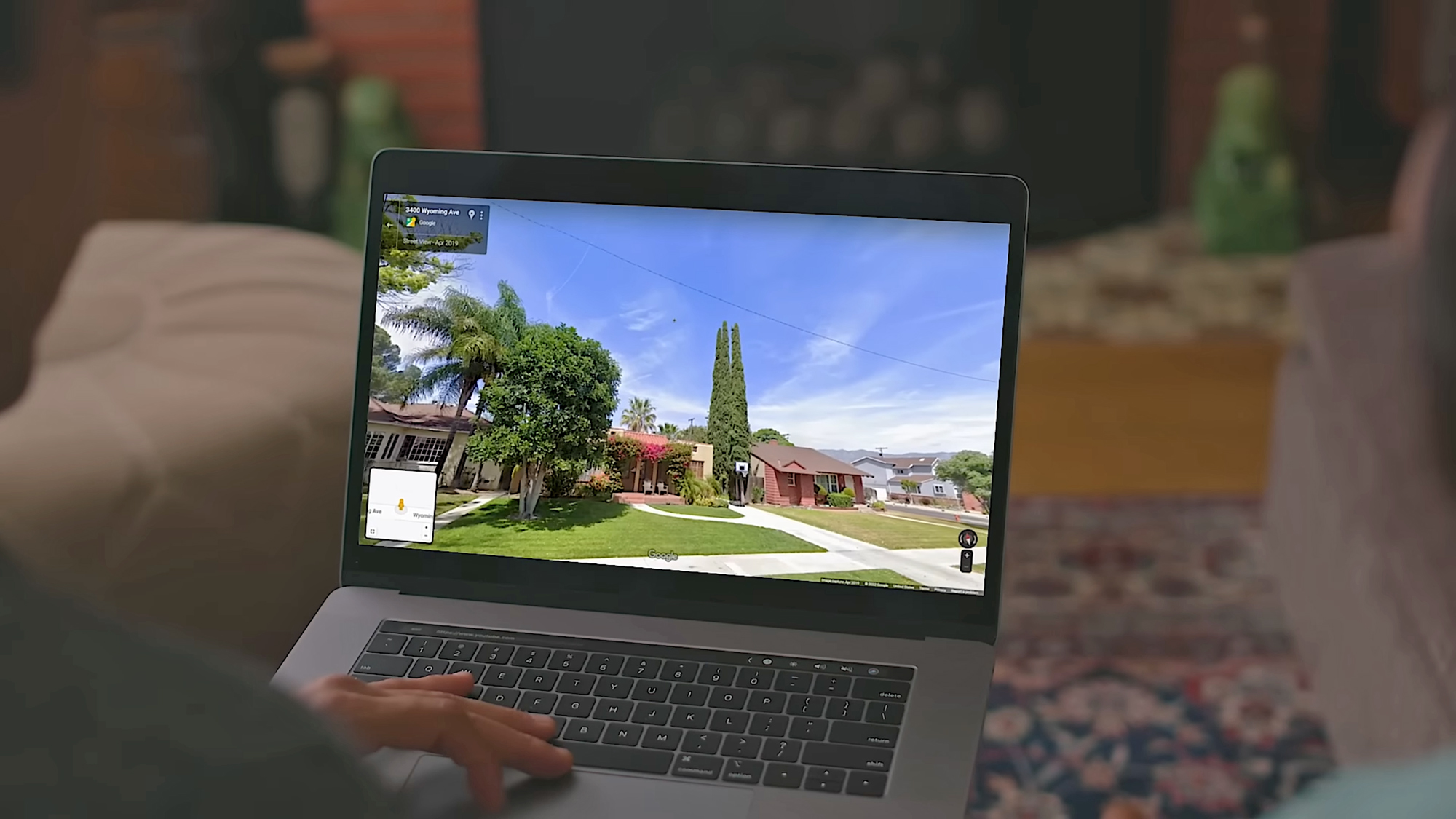
You may well have used Street View before, dropping a little pegman onto a road in Google Maps to see what it looks like if you’re actually stood on the sidewalk. What you might not be aware of is that you can go back in time in Street View—back to 2007 in the first places that were mapped with this technology.
It means you can check out your neighborhood (or someone else’s neighborhood) as far back as twenty years ago. You can see what’s changed and what hasn’t. It works for the most iconic streets and locations in the world too, from Times Square to the Arc de Triomphe. Here’s how to use the feature.
How to find Street View time travel
See how iconic spots have changed over time. Screenshot: Google
The feature is a little easier to use through Google Maps on the web, not least because there’s more screen real estate to work with. Scroll and pan to the part of the world that you want to take a look at, or use the search box up in the top left corner to jump to somewhere specific.
You can find the little Street View pegman icon down in the bottom left corner (yes, pegman is his official name). Click and drag the pegman over to the map, and you’ll see all the roads, paths, lanes, and freeways that support Street View highlighted in blue. Drop the pegman on the spot you want to take a look at.
You’ll go straight into the immersive Street View mode, with ground-level imagery. Use the mouse or the arrow keys on your keyboard to take a look around. You can also start moving up and down the street using the up and down arrow keys, or by clicking the arrow icons overlaid on the ground.
Here’s the time travel bit: Click the See more dates link up in the top left corner, and along the bottom of the screen you’ll see thumbnails of older imagery, together with dates—scroll to the right to see the oldest available pictures.
Bear in mind that the total number of different date options, and the years they cover, are going to vary depending on how long Google’s Street View cars have been covering a particular area, and how regularly they’ve been back. You’ll find there’s quite a substantial difference in how far you can go back, depending on where you are in the world.
Exploring neighborhoods of the past
Historical imagery can be accessed through the Google Maps mobile apps too. Screenshot: Google
As soon as you select one of the image thumbnails representing an earlier year, you’ll be taken back in time in Street View. You can still look around and explore as before—the views you see will be from the same year you’ve selected, until you choose a different month and date from the carousel at the bottom.
It lets you check out how businesses and houses have changed over time, and in some locations you’ll even be able to see roads or buildings being built (or being leveled) as the years go by. For busy areas, you get an interesting peek into the changing fashions for both people and vehicles.
It’s possible to check out famous landmarks in this way too, though if they’re iconic then they don’t tend to be modified much over time. When you’re ready to return to the present day, click the See latest date link in the top left corner.
You can time travel through Street View through the Google Maps apps for Android and iOS as well. To get to Street View, long-press on a road on the map, then tap the Street View thumbnail that pops up in the lower left corner. You can then tap the date label (top left) to find other dates.
It’s also worth noting that historical imagery is available in Google Earth too, for both Street View images and satellite maps. Either drag the pegman in from the bottom right corner and then choose See more dates, or click the historical imagery button in the top toolbar (it looks like a globe with an arrow around it).
When you search Google for something topical, you might see a cluster of headlines from news outlets, reporting breaking stories related to your search query. If you want to focus on those results, you can click to see More news, or navigate to the News tab at the top of the screen.
How these news sources are chosen depends on a variety of signals and factors—just the same as any other Google results—but you now have the ability to set “preferred” sources that will always show up first.
Maybe you want more New York Times and less CNN, or vice versa—Google will let you pick your favorites (which hopefully include Popular Science). This can also help you surface content from news sources you wouldn’t otherwise see in Google, like a local website covering your area.
How to set preferred sources
Setting preferred sources on Google. Screenshot: Google
If you run a Google search on the web for something in the news, topical enough that the Top stories box comes up in your results, you can then click the small icon next to the Top Stories heading to pick your sources. The icon looks like a couple of rectangles with a plus symbol on top.
This brings up a new dialog, where you can pick specific sources. Just start typing the name of the website you want to read more often, and select it when it appears. You can’t add any website on the internet though, only those that are regularly updated (and therefore qualify as news sites).
While there’s no specific set of rules about how often preferred sources show up, Google says you’ll see them “more often” than other outlets. As you add more sources, you’ll see the option to Reload results based on your last search. This should now include your selected sources, as long as they’ve published something related to your search recently.
You can head back to this dialog via the Top stories box whenever you want, and add new preferred sources or remove existing ones—there’s actually no limit to the number of sources you can add, so you’re able to cover a full gamut of perspectives and topics. You can also head to google.com/preferences/source directly in your web browser.
Many news websites have now started adding Add as a preferred source on Google badges on their articles, which you can click directly to jump to the preferred sources dialog. In our articles, you’ll find it’s labeled Add Popular Science, just under the headline and sub-heading—click the link to add us.
Preferred sources and Google News
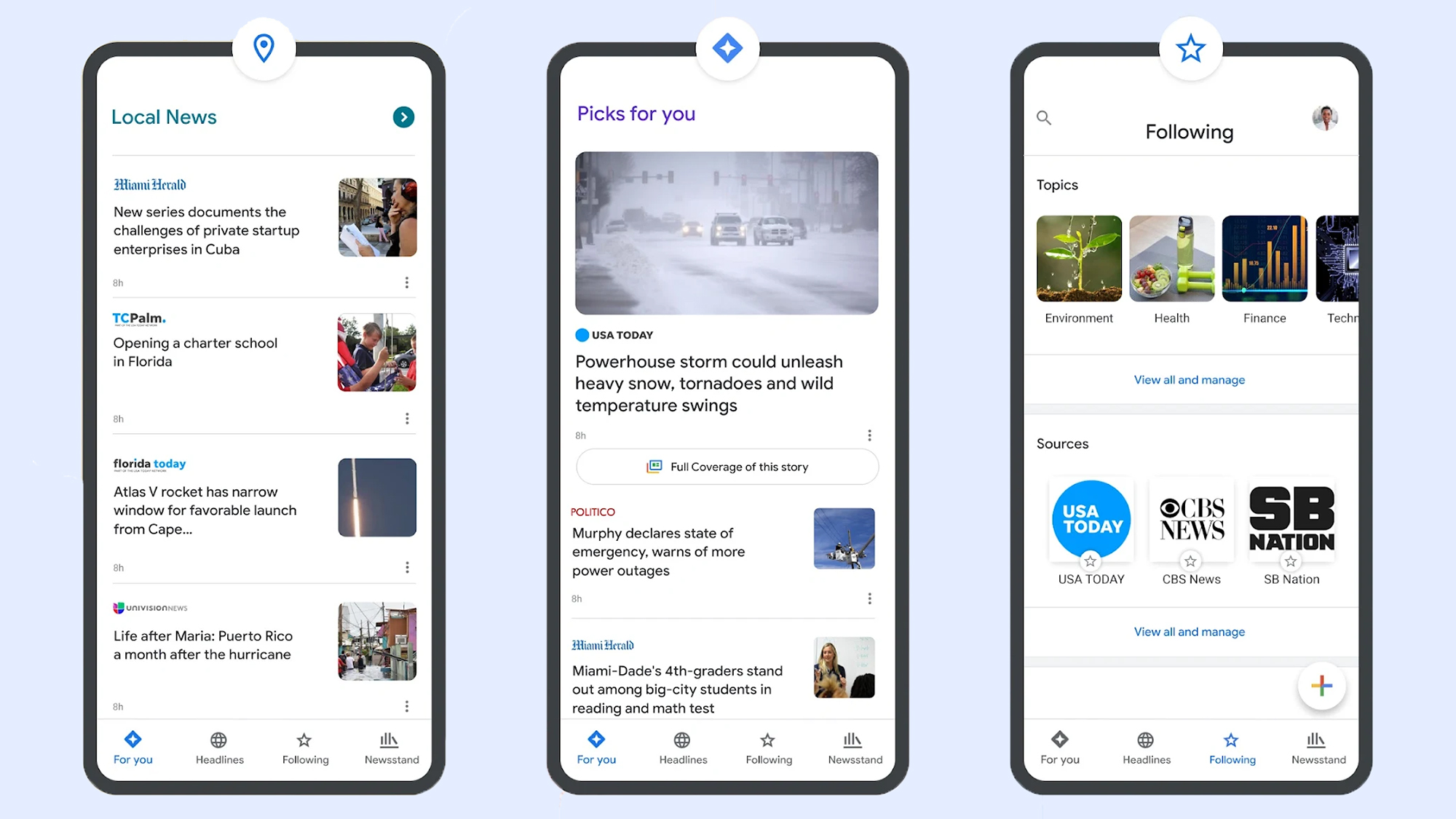
Google News also lets you select your favorite topics. Screenshot: Google
Google hasn’t officially said anything about how preferred sources in Google search relates to the dedicated Google News website and apps for Android and iOS, but there is some overlap here.
If you head to Google News on the web and then open the Following tab, you’ll see that the preferred sources you’ve selected via search are also listed under Sources. However, there’s no way (at the moment) to add new sources from Google News—you need to go through Google search.
On the dedicated Google News portal, if you click the three dots next to any story, you can opt to see more stories or fewer stories like it—but you can’t specifically request to see more of a particular publisher. You can block an outlet though, by choosing Hide all stories from… on the same menu.
There are other factors that affect your Google News selection as well, and if you scroll down the front page of Google News to the Your topics section, there’s a Customize button to the right. Click on this, and you can tell Google News which topics you want to see more of (like sports, entertainment, and business, for example).
We may well see a closer connection between preferred sources and Google News in the future, but for now there are a variety of ways to customize the stories you get served up inside Google’s portals. If you’re spending a lot of time reading news, it’s worth making sure your favorite publishers appear first.
These minor updates don’t often include big changes that will significantly affect how you use your devices, but they regularly feature small improvements and tweaks that are well worth knowing about.
Listed below you’ll find all the notable upgrades included in iOS 26.3 and iOS 26.4, the two most recent updates pushed out by Apple, besides the usual slew of tweaks and bug fixes. To check for new updates on your iPhone, head to Settings, then select General > Software Update.
iOS 26.3
Switch over to Android more easily. Screenshot: Apple
Limit precise location: iOS 26.3 lets you limit how closely your carrier can track your location, though the carriers themselves also need to add support for the feature. Apple says it’s like the difference between knowing which neighborhood you’re in, and which address you’re at: Choose Mobile Service > Mobile Data Options from Settings to find it.
Transfer to Android: Apple is lending Google a hand and making it a little more convenient for you to switch over to Android, if you’ve had enough of Apple phones. When an iPhone is in a transfer state, an Android handset can move data over from it, and you can find this from iOS Settings by selecting General and then Transfer or Reset iPhone.
Weather and Astronomy wallpaper: Wallpaper options get a refresh in this update as well, with Weather and Astronomy breaking out into their own categories so you can get to these types of backdrop more quickly. Open Settings, then select Wallpaper to make changes—you can either customize the existing iOS theme, or work on a new one.
iOS 26.4
Apple Podcasts is fully embracing video. Screenshot: Apple
Average Bedtime: iOS 26.4 comes with a small tweak to the Health app, in the form of a new Average Bedtime metric in the Sleep section. It gives you another stat to check against your sleep quality, and to use for goal setting, if you’re using a connected Apple Watch (or another device that plugs into the Health app) to monitor your slumber overnight.
CarPlay AI: Third-party AI assistants such as Claude and ChatGPT can be accessed through the CarPlay interface for the first time with this software update, though you’re still relatively limited in terms of what you can do. You can only interact with them via voice, and you can’t use them to control any of the settings in CarPlay or your vehicle.
Concerts Near You: One of the new additions to Apple Music with this update is a Concerts Near You feature, and you can probably guess how it works from the name. Once you’ve granted Apple Music permission to use your location, on the Home tab you’ll find a new section for upcoming gigs in your area, matching the artists that you regularly listen to.
Look out for local concerts in the Apple Music app. Screenshot: Apple
New emoji: Updates to iOS regularly come with new emoji included—after they’ve been approved by The Unicode Consortium—and that’s the case with this update too. Among the new graphics you can look forward to using in your messages are symbols for a trombone, a Bigfoot-style creature, a treasure chest, and a distorted (eyes bulging) face.
Offline music recognition: You can now use your iPhone to identify a song that’s playing in your vicinity without an internet connection… kind of. If you tap on the Recognize Music button in Control Center when you’re offline, iOS will record a snippet of audio data to use for reference, and then look up the song title whenever your device gets back online.
Playlist Playground: Back to Apple Music upgrades, and another new feature you’ll spot in the app is Playlist Playground. This is a new way of generating a playlist from an AI prompt box. So if you enter something like “the essential indie music hits of the 90s,” you’ll get back an appropriate selection of songs. Try it with moods, genres, and feelings.
The Recognize Music tool can now save requests when you’re offline. Screenshot: Apple
Purchase sharing: File this under changes that seem to be relatively minor, but which can make a significant difference for certain people. If you’re an adult in a Family Sharing group, it’s now possible to use separate payments for purchases—so you don’t have to use the same bank account or credit card for everything that goes through iOS and its apps.
Urgent reminders: Another Apple app getting an improvement with this software update is Reminders. While the option to categorize reminders as ‘urgent’ isn’t new, there is now a smart list of these urgent items, so you can more easily find them. There are also a couple of extra ways to mark something as urgent, via a long press or from the floating toolbar.
Video podcasts: Many a podcast is adding video these days, and while Apple Podcasts has technically supported video before now, the latest software update brings some big improvements. You can switch between audio and video more easily, you can download videos for offline playback, and you can adjust the playback speed for videos as well.

 Login
Login