❌

Reading view

How to downgrade macOS 27: Roll back Golden Gate to Tahoe

Macworld

Upgrading macOS doesn’t always go as planned. A new release might slow down your Mac, break essential apps, introduce bugs, or simply change features you rely on. If you’re wishing you could go back to the version you had before, the good news is that you can downgrade macOS.

While reverting a macOS update is generally easier than downgrading an iOS update, it’s not as simple as installing macOS. It is a multi-step process that typically requires wiping your Mac’s internal drive, as Apple does not allow installing an older version of the operating system directly over a newer one.

Because you need to erase your Mac’s internal drive before you can reinstall an older version of the operating system, your data must be backed up first. The exact process depends on whether you created a backup before upgrading macOS.

In this guide, we run through the safest way to revert to an earlier version of macOS, explain what works (and what doesn’t), and help you choose the best method for your situation.

Note: macOS 27 Golden Gate runs only on Macs with Apple silicon, so the main Golden Gate-to-Tahoe instructions in this article are for Apple-silicon Macs. We cover older Intel Macs separately below for readers using this guide to downgrade an earlier version of macOS.

Can I downgrade from macOS Golden Gate to Tahoe?

Yes, it is possible to downgrade from macOS Golden Gate (macOS 27) to macOS Tahoe (macOS 26), but the process is complex and requires you to completely wipe your Mac’s data and install the older version of macOS.

Before you begin, confirm that your Mac can run Tahoe. A Mac cannot install a version of macOS older than the version it originally shipped with. A Mac introduced with Golden Gate may therefore be unable to run Tahoe, even if another Mac with a similar processor can. Check Apple’s compatibility information before erasing anything.

You need the following:

  • A backup: You will have to wipe your Mac, so you need to have a backup of your data.
  • The correct macOS version: You need to download the full installer for the version of macOS you want to install.
  • An external drive: You need to create a bootable installer of macOS. Apple says a 32GB USB drive has more than enough space for any macOS installer; 16GB is sufficient for most older versions.
  • A reliable internet connection: The installer may need to download firmware and other information specific to your Mac.

Follow these steps, which we explain in more detail below:

  1. Back up your Mac.
  2. Check that your Mac can run macOS Tahoe.
  3. Get the Tahoe installer.
  4. Create a bootable installer.
  5. Shut down your Mac and start it from the bootable installer.
  6. Erase the internal startup volume using Disk Utility.
  7. Install macOS Tahoe.
  8. Set up the Mac and recover compatible files from your backup.

Can I downgrade macOS 27.1 to iOS 27.0 (or macOS 26.7 to 26.6)?
sad mac tahoe

Foundry

Apple issues multiple point updates throughout the year. If something breaks following an update, you may want to return to the previous release—for example, by downgrading from macOS 27.1 to macOS 27.0. The same principle applies to subsequent Golden Gate updates.

Rolling back a point update can be more difficult than downgrading from Golden Gate to Tahoe because you need the full installer for the exact earlier release. Apple generally offers only the latest installer for each major version of macOS, so the macOS 27.0 installer may no longer be available after macOS 27.1 has been released.

However, you may be able to obtain the required version of macOS using Terminal. We detail how to do this below (see step 2). As of September 2026 there were various version installers of Tahoe and Sequoia available using this method.

A Time Machine backup cannot provide the missing installer or reinstall the earlier operating system. If you have access to the appropriate full installer, you can create bootable installation media and follow the erase-and-install process described below. If Apple no longer offers that release and you did not retain its installer, an ordinary downgrade may not be possible.

Downgrading macOS to an earlier version: Step-by-step guide

The steps below will help you revert to macOS Tahoe. Before you start, remember that you must wipe your Mac and perform a clean installation of Tahoe.

Reminder: This will erase your Mac, so make sure you have a backup of important files before continuing.

Before you begin: Back up your Mac

Backing up your Mac is the most critical step before a downgrade because the process requires erasing your startup drive, which removes all locally stored data. If you don’t already have a backup, you will need to make one.

Time Machine is the standard backup method for most Mac users, but restoring data from a newer version of macOS to an older one can present problems. A Time Machine backup made under Golden Gate may contain Photos libraries, Mail databases, settings, application data, and versions of apps that are not compatible with Tahoe.

A backup made while the Mac was still running Tahoe is therefore the safest one to use. However, it won’t contain files created or changed after the upgrade to Golden Gate. If Golden Gate is still working, make a separate copy of every irreplaceable document you have created or modified since upgrading.

Before recovering data from a Time Machine backup, you must install Tahoe on the Mac. You can then use Setup Assistant or Migration Assistant to transfer compatible accounts, apps, settings, and files from the backup.

If you store documents in iCloud Drive or use iCloud Photos, fully synchronized items should become available again when you sign in to the same Apple Account after reinstalling macOS. Before erasing the Mac, check iCloud.com or another Apple device to confirm that important documents, photos, and videos have uploaded successfully. Remember that iCloud is a synchronization service rather than a separate backup, so keep an independent copy of irreplaceable files where possible.

To ensure your data remains accessible after you return to an older version of macOS, consider these backup strategies:

  • Manual file copying: Copy your most important files, folders, photos, and music to an external storage drive.
  • Third-party backup software: Tools for backing up a Mac, such as ChronoSync, Get Backup Pro, SuperDuper, or Carbon Copy Cloner can create a separate copy of your data. Do not assume that a clone created under Golden Gate will be bootable on your Mac or that it can replace the Tahoe installer.
  • Cloud synchronization: Make sure cloud storage services such as iCloud, Dropbox, OneDrive, or Google Drive have finished synchronizing. Do not assume that every app’s data is stored in the cloud, as some applications store data only locally.
  • Time Machine: If you have a Time Machine backup from before you upgraded to Golden Gate, you can use it to transfer compatible data after reinstalling Tahoe.

For more help read: How to back up a Mac.

1.

Check that your Mac can run Tahoe

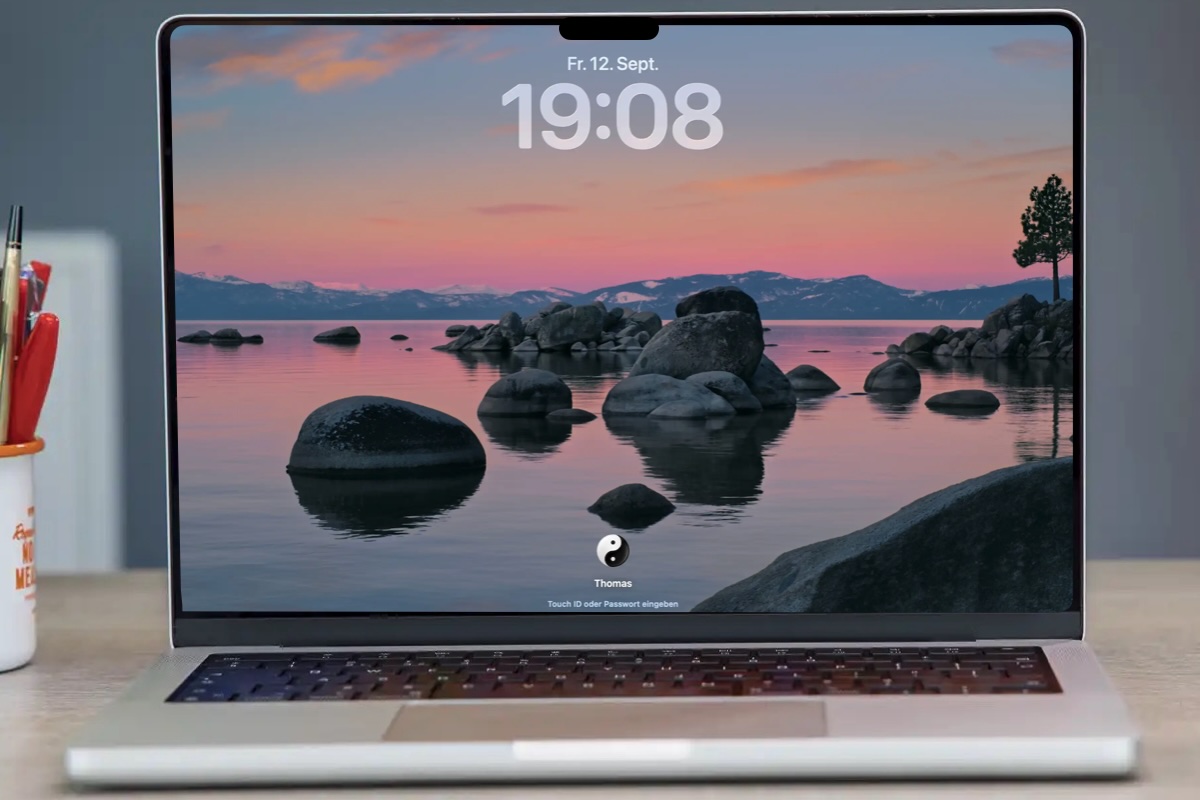
Schreibtisch macOS Tahoe

Step back to Tahoe, if your Mac can run it.


Thomas Armbrüster

The version of macOS you install must be compatible with your Mac. A Mac that was upgraded to Golden Gate can be returned to Tahoe only if that model supports Tahoe. A model that first shipped with Golden Gate cannot be downgraded to Tahoe.

For example, Apple announced the M6 Mac mini before Golden Gate was released, but the Mac did not ship until afterward and requires macOS 27. Always check that your model supports the older operating system before erasing the Mac.

Check our lists of Macs compatible with Golden Gate and Tahoe.

2.

Get the macOS Tahoe installer

Using Terminal to get macOS versions

You can download old versions of macOS from Terminal, if they aren’t on the Mac App Store.


Foundry

The next stage is to get the full installer for the version of macOS you require. In most cases, the Mac used to download the installer must itself be compatible with the version of macOS you require.

For this downgrade you need the Tahoe installer, not the Golden Gate installer. For Tahoe and earlier installers, see our guide to downloading older versions of macOS.

Normally Apple makes older versions of macOS available to download from the Mac App Store. For example, you can get Sequoia, Sonoma and Ventura this way. However, as of September 2026, Apple’s hasn’t made Tahoe available from the Mac App Store. We expect that it eventually will do so, but in the meantime the best way to get the Tahoe installer it to use Terminal.

Terminal method

Open Terminal.

Type in the following:

softwareupdate --fetch-full-installer --full-installer-version [number]

You need to include the relevant version number. For example softwareupdate –fetch-full-installer –full-installer-version 26.6.2.

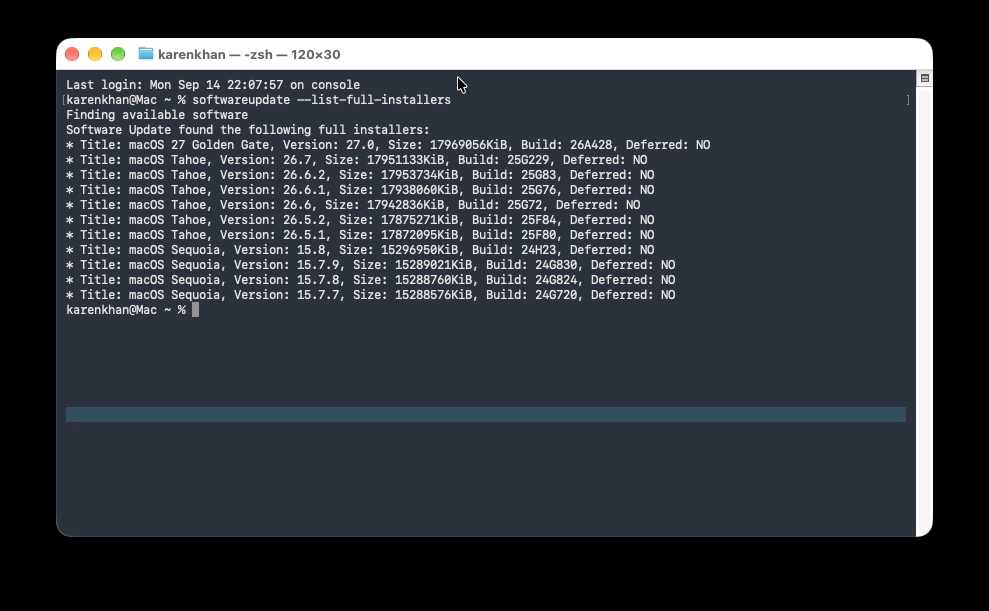
To see which installers Apple currently offers for that Mac, run:

softwareupdate --list-full-installers

If Terminal reports that the update was not found, Apple may no longer offer that exact release, or it may not be compatible with your Mac.

When the download finishes, the full installer will appear in the Applications folder. Quit it if it opens automatically—you need to retain it to create the bootable installer.

In each case of the above screenshot the macOS installer is listed as Deferred: No, which means the installer is still available.

Mac App Store method

  1. Open the Tahoe download link on a compatible Mac. If the Mac App Store does not open, close it if it is already running and try the link again in Safari.
  2. Click Get.
  3. Software Update should open and offer to download Tahoe. Click Download and confirm that you want to download the older operating system.
  4. If the installer opens automatically after downloading, quit it. You do not want to run it directly over Golden Gate.

The installer will appear as an app named Install macOS Tahoe in the Applications folder.

As noted above, downgrading from one Golden Gate point release to another requires the full installer for the exact earlier release. Because Apple generally offers only the latest installer for each major version of macOS, the version you need may no longer be available unless you previously downloaded and retained it. A Time Machine backup cannot provide the missing installer or reinstall the earlier operating system.

3.

Create a bootable Tahoe installer

Createinstallmedia

Once you have it, you can use the bootable installer of Tahoe to downgrade your Mac.


Foundry

You cannot install Tahoe directly over Golden Gate. To install an older version of macOS, you need to create a bootable installer containing the Tahoe installation files.

You will need a USB flash drive or other external volume. A 32GB drive is recommended, although 16GB is sufficient for many older macOS installers. The drive will be erased during the process.

Follow our complete guide to creating a bootable macOS USB installer, selecting the instructions and
createinstallmedia Terminal command for macOS Tahoe.

The Tahoe command is:

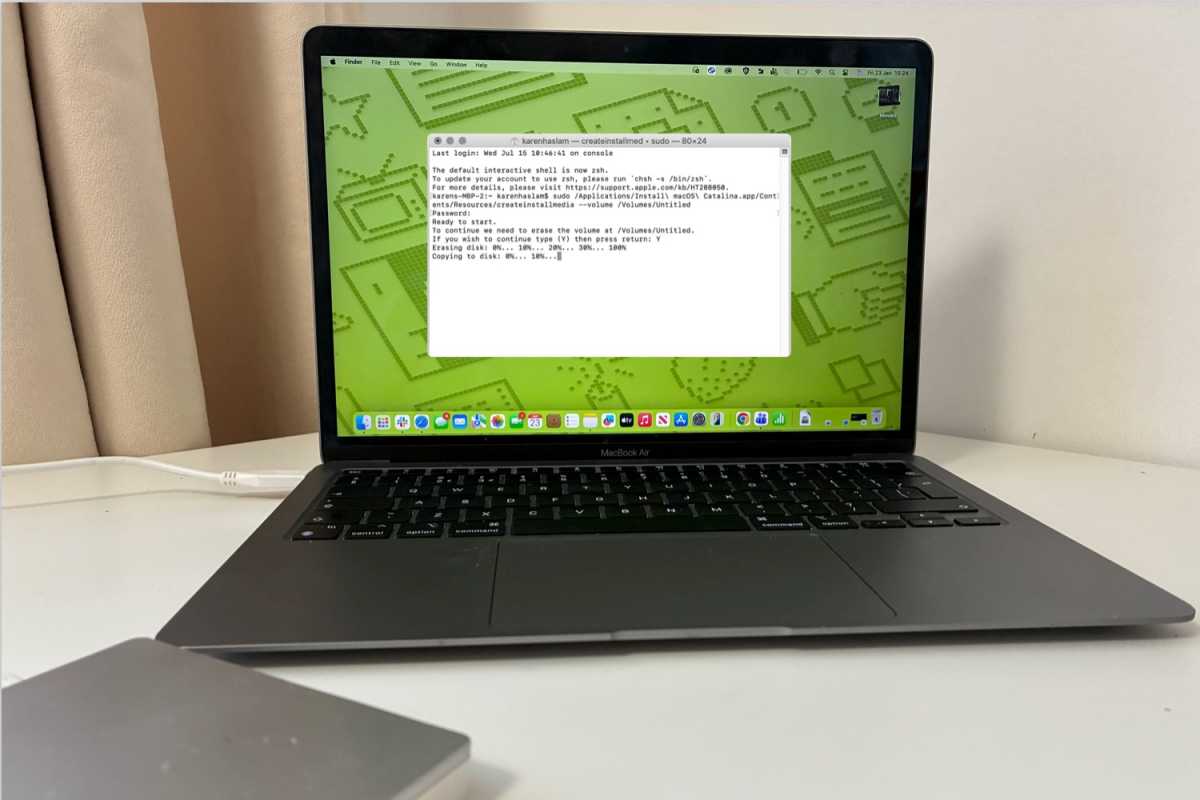
sudo /Applications/Install\ macOS\ Tahoe.app/Contents/Resources/createinstallmedia --volume /Volumes/MyVolume

Replace MyVolume if your external drive has a different name. Make sure --volume contains two ordinary hyphens, not an en dash or em dash. The linked guide explains how to prepare the drive, run the command and troubleshoot the creation process.

4.

Start your Mac from the bootable installer
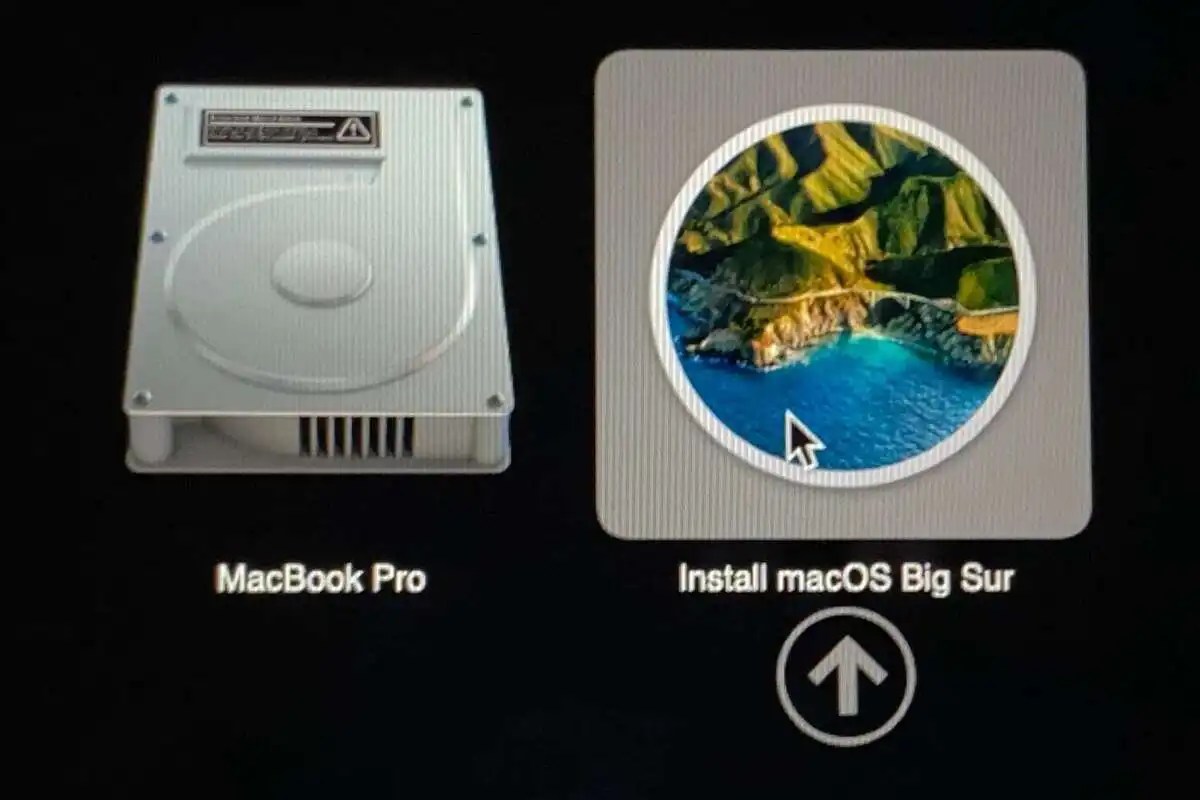
Install from your Bootable Drive
You want to choose the Install macOS Tahoe option, similar to what’s shown.

Foundry

With the bootable Tahoe installer ready, the next step is to start your Mac from it rather than from the internal drive currently running Golden Gate.

  1. Shut down the Mac.
  2. Connect the bootable Tahoe installer directly to the Mac.
  3. Press and hold the power button. Continue holding it until the startup options screen appears.
  4. Select the bootable installer, then click Continue.
  5. Connect to Wi-Fi if prompted.
5.

Erase the internal startup volume

Erasing a Mac

Foundry

Warning: This step will permanently remove the local accounts, applications, settings and files stored on the Mac.

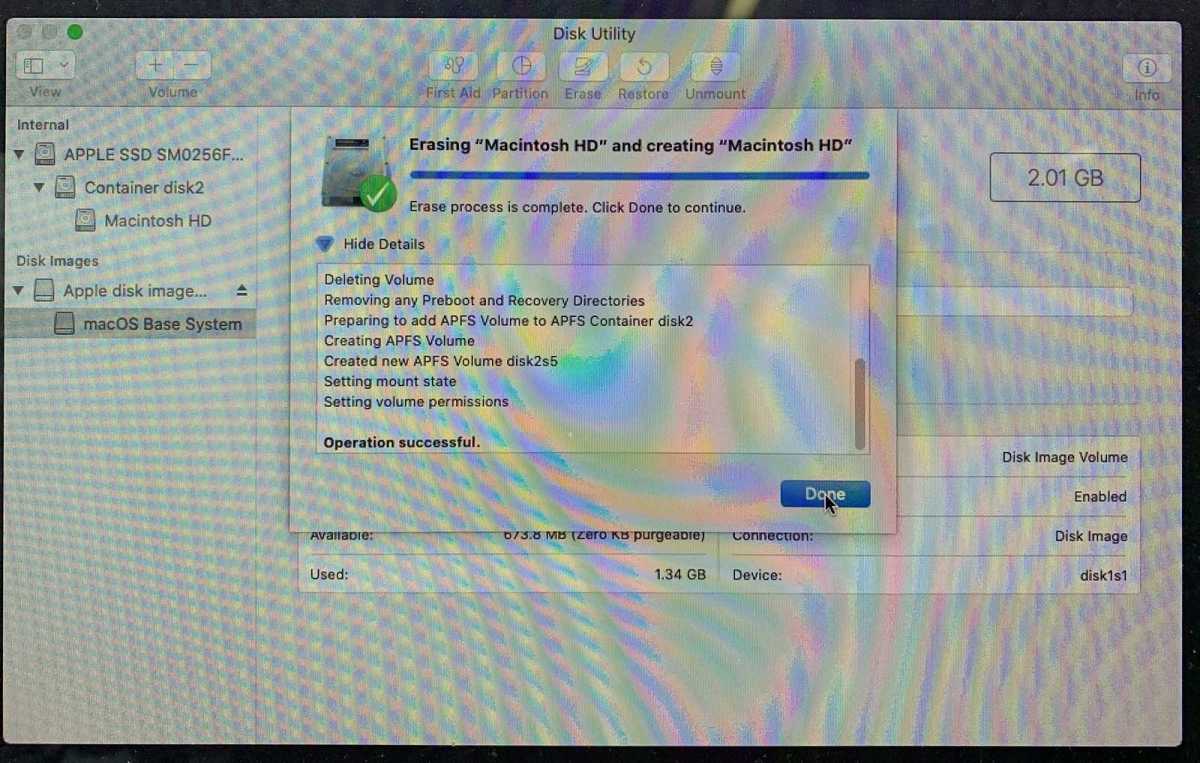
  1. When the Utilities window appears, select Disk Utility and click Continue.
  2. In Disk Utility, choose View > Show All Devices if the internal volumes are not visible.
  3. Select the internal macOS startup volume, usually named Macintosh HD.
  4. Click Erase or Erase Volume Group, as offered.
  5. Use Macintosh HD as the name and APFS as the format.
  6. Confirm the erase and wait for it to finish.
  7. Quit Disk Utility to return to the Utilities window.

Erase All Content and Settings is not, by itself, a downgrade tool. It removes data and settings while retaining the installed operating system. To replace Golden Gate with Tahoe, you need to erase the startup volume from the bootable installer environment and then install Tahoe.

6.

Install macOS Tahoe

macOS Tahoe on a Mac

Finally, you can get Tahoe back on your Mac.


Foundry

With the internal startup volume erased, you can now install Tahoe from the bootable installer.

  1. In the Utilities window, select Install macOS Tahoe and click Continue.
  2. Follow the onscreen instructions.
  3. When asked to choose a destination, select the newly erased internal volume, normally Macintosh HD.
  4. Keep the Mac connected to power and the internet while installation completes. It may restart several times.
7.

Set up your Mac

Setting up Mac

Foundry

After Tahoe is installed, the Mac will start in Setup Assistant.

If you have a Time Machine backup from before the Golden Gate upgrade, you can connect the backup disk and transfer your information during setup. Time Machine can transfer your accounts, apps, settings, and files after Tahoe has been installed, but it does not perform the operating-system downgrade, you need to do that first (as per the steps above).

If your only backup was made under Golden Gate, setting up the Mac as new and copying your documents back manually is the safest approach. This reduces the risk of importing an app, database, or setting that requires macOS 27. You can then reinstall Tahoe-compatible versions of your apps individually.

8.

Transfer data from your Time Machine backup
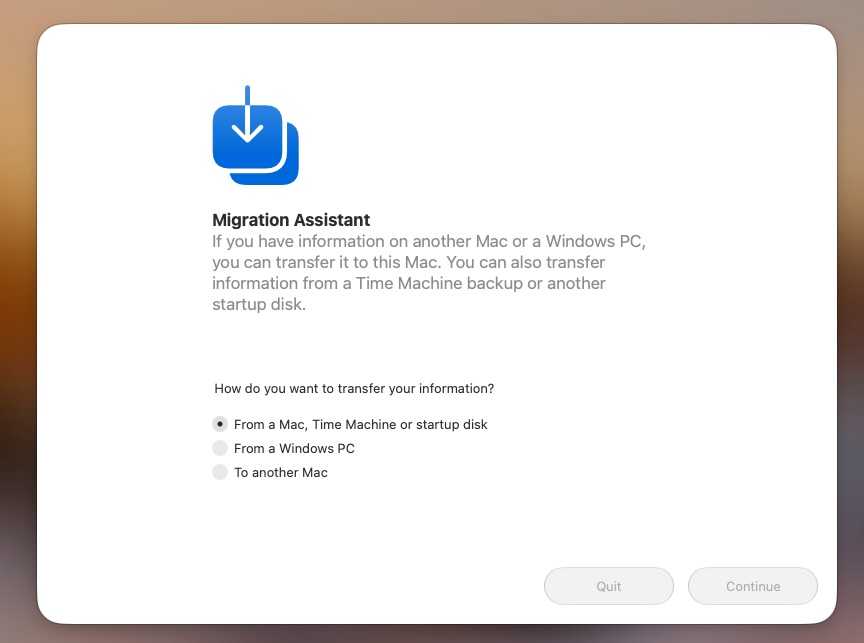
Use Migration Assistant to transfer your Time Machine Back Up

Once your Mac is set up you can copy your data from your backup.


Foundry

A backup made while the Mac was still running Tahoe is the best one to use. To transfer its contents during Setup Assistant, choose the option to transfer information From a Mac, Time Machine backup, or startup disk. Connect the backup disk, select the appropriate backup, and choose the accounts, apps, settings, and files you want to transfer.

If you have already completed setup:

  • Connect the Time Machine backup disk.
  • Open Migration Assistant from the Utilities folder in Applications.
  • Choose to transfer information From a Mac, Time Machine backup, or startup disk.
  • Select the Time Machine disk and then the appropriate backup.
  • Choose the categories you want to transfer and click Continue.

The selected backup will not contain anything created or changed after it was made. Copy those newer documents back from the separate backup you created before erasing the Mac.

What to do if the older macOS won’t install

Check the following:

  • Confirm that the Mac model supports the version you are installing.
  • Confirm that the full installer is in the Applications folder and is named correctly before creating the USB installer.
  • Connect the installer directly rather than through a hub or dock.
  • Make sure the Mac is connected to the internet.
  • Re-create the installer if Terminal says it is invalid or the installation fails repeatedly.
  • Confirm that the internal startup volume was erased as APFS.

Installing macOS 27 may also update the Mac’s firmware. Installing Tahoe later does not necessarily roll that firmware back; a macOS downgrade and a firmware downgrade are not the same operation.

Tips to avoid problems and data loss when you downgrade macOS

Reversing an upgrade carries a number of wrinkles and pitfalls. Many are caused by changes in file formats and settings between versions of the operating system. If you create a document or work on a file in a newer version of macOS and then try to open it in an older version, it may not work.

Where possible, export important documents in standard or widely compatible formats before erasing the Mac. For example, you could export a document as RTF or PDF in addition to retaining its native version.

Take screenshots of preferences and settings

Whenever you perform a clean installation of macOS, it’s a good idea to take screenshots of custom settings in apps and System Settings. That makes it easier to re-create them later.

Make a note of account details for anything you set up while running the newer operating system. Export bookmarks if they are not synchronized, and make sure you have access to application installers, subscriptions and license codes.

Synchronize cloud services

If you use Dropbox, OneDrive, Google Drive or another cloud storage service, make sure synchronization has completed before starting the downgrade. Files visible in a synchronized folder may not have finished uploading.

If you use Gmail, iCloud Mail or another IMAP service, make sure recent mail and drafts have synchronized. If you use a POP3 account, manually back up locally stored mail before erasing the Mac.

Finally, keep the Golden Gate backup intact until you have confirmed that Tahoe starts correctly and that all essential documents have been recovered. Do not erase or repurpose the backup drive merely because the downgrade appears to have completed.

Downgrading an older Intel Mac

Golden Gate does not support Intel Macs. These instructions are for if you want to downgrade an earlier macOS release on an Intel Mac.

Intel Macs start from a bootable installer by holding Option (Alt) at startup. Macs with the Apple T2 Security Chip may also need Startup Security Utility configured to allow booting from external or removable media. See our bootable macOS installer guide for the complete Apple-silicon, Intel and T2 instructions.

An Intel Mac may also be able to use Internet Recovery. Start it while holding:

  • Shift-Option-Command-R to offer the macOS that came with the Mac, or the closest version still available.
  • Option-Command-R to offer the latest macOS compatible with the Mac.
  • Command-R to reinstall the current version.

Internet Recovery cannot install a version older than the one the Mac supports, and the exact version offered can vary.

  •  

Está à procura da Inteligência Artificial no iOS 27? Siri AI não é para todos

Ausente no lançamento na Europa por incompatibilidade regulatória, a nova Siri AI continua a confundir os utilizadores que fizeram o upgrade para o iOS 27, fora do território europeu.

The post Está à procura da Inteligência Artificial no iOS 27? Siri AI não é para todos appeared first on Tek Notícias.

  •  

Roman Is on Its Way to L2. Why Are Its First Days in Space So Carefully Choreographed?

Roman’s antenna, sunshade and visor are deployed. Here is why the telescope’s three-month commissioning journey matters before its first images arrive.

The post Roman Is on Its Way to L2. Why Are Its First Days in Space So Carefully Choreographed? appeared first on Curiosmos.

  •  

WhatsApp testa suporte a três contas e sincronização do papel de parede no iOS

O WhatsApp está avaliando (na versão beta 26.37.10.15) a implementação do suporte ao acesso de até três contas simultâneas no mesmo dispositivo.

A opção de adicionar uma terceira conta é bem semelhante ao que já foi implementado pela Meta ao adicionar o suporte a uma segunda conta no mensageiro, exibindo a foto de perfil e o número de telefone para facilitar a identificação na hora de alternar entre os perfis.

Três contas no WhatsApp
Imagem: WABetaInfo

Sincronização do papel de parede

Outro recurso que a Meta avalia implementar (na versão beta 26.37.10.16) é a possibilidade de sincronizar para todos os participantes da conversa determinadas informações, como o papel de parede (ou os temas oferecidos pelo próprio WhatsApp) importado a partir da biblioteca de fotos do aparelho, além da cor dos balões de conversa.

A definição dessa configuração para todos os participantes da conversa permite que todos os usuários visualizem as interações de um jeito semelhante, tanto para conversas individuais do WhatsApp quanto para conversas em grupo (os usuários são alertados caso qualquer alteração nesse sentido seja feita).

Sincronização de temas, papéis de parede e cor de balão de conversa no WhatsApp
Imagem: WABetaInfo

A sincronização desses elementos também conta com a criptografia de ponta a ponta oferecida em outros recursos do aplicativo.


No momento, ambos os recursos estão sendo testados pelo WhatsApp e estão indisponíveis inclusive para quem utiliza a versão beta do app via TestFlight.

via WABetaInfo [1, 2]

  •  

★ Amazon Music Unlimited oferece 4 meses de graça para novos assinantes!

A Amazon lançou no Brasil uma oferta de quatro meses grátis para novos usuários do Amazon Music Unlimited, seu serviço de streaming musical completo que oferece acesso a mais de 100 milhões de músicas em alta qualidade, offline e sem anúncios.

Com o Music Unlimited, você tem acesso a milhões de faixas em qualidade Ultra HD e em Áudio Espacial com Dolby Atmos, além de poder desfrutar de uma integração perfeita com dispositivos e plataformas da Amazon (como a Alexa, os alto-falantes Echo e o Fire TV).

Mas ele também se integra a dispositivos e plataformas de terceiros (inclusive com os da Apple), como tablets, computadores, smart TVs e alto-falantes inteligentes (para além dos da Amazon), com direito a sincronização entre dispositivos e opção para ouvir offline.

Com algoritmos avançados que aprendem o gosto musical do usuário para sugerir playlists, artistas, músicas e estações de rádio temáticas, o serviço conta ainda com um catálogo enorme de podcasts sem custo adicional — ideal para quem não quer usar dois apps!

Amazon Music Unlimited

O Unlimited também tem letras sincronizadas em tempo real, além de conteúdos e experiências especiais para assinantes (como acesso a lançamentos antecipados, conteúdos exclusivos de artistas parceiros e shows/eventos transmitidos ao vivo pela plataforma).

O Amazon Music Unlimited não requer uma assinatura Prime (embora assinantes tenham desconto) e pode ser contratado com opções de assinaturas Individual (R$25,90/mês), Familiar (até seis contas, por R$44,90/mês) e para um dispositivo Echo ou Fire TV (R$13,90/mês).

O valor da assinatura, é claro, só passará a ser cobrado após o período de teste gratuito de quatro meses que a Amazon está oferecendo. Então, caso você se interesse, corra, pois a oferta é por tempo limitado!

NOTA DE TRANSPARÊNCIA: Este é um artigo fruto de um acordo comercial com um anunciante, que não influenciou a nossa opinião. O MacMagazine recebe uma pequena comissão sobre vendas concluídas por meio de links deste post, mas você, como consumidor, não paga nada mais pelos produtos comprando pelos nossos links de afiliado.

  •  

Estreia do dia no Apple TV: 6ª temporada de “Slow Horses”, com Gary Oldman

Assinantes do Apple TV já podem conferir o primeiro episódio da aguardada sexta temporada de “Slow Horses”, série de espionagem estrelada por Gary Oldman, que retorna hoje.

Aos que nunca deram uma chance para a série, “Slow Horses” acompanha uma equipe de agentes da inteligência britânica, os quais servem em um departamento do MI5 conhecido como Slough House. Oldman assume o papel de Lamb, o brilhante (mas rabugento) líder dos espiões, que acabam indo para a Slough House devido a erros que acabaram com suas carreiras.

Reveja o trailer da sexta temporada a seguir:

A nova parte da produção acompanhará a fuga dessa equipe, enquanto Diana Taverner (interpretada por Kristin Scott Thomas) os envolve em um jogo de retaliação e vingança com riscos e consequências fatais.

Mesmo que a sexta temporada só esteja chegando agora ao Apple TV, já sabemos que “Slow Horses” terá pelo menos mais duas temporadas, já que a Maçã anunciou mais uma renovação adiantada da produção — que tem sido, há anos, uma das mais premiadas do serviço. Nesta semana, inclusive, a série faturou o prêmio de Melhor Direção de Série de Drama (recebido por Saul Metzstein) nos Primetime Emmy Awards 2026.

Além de Scott Thomas e Oldman, o elenco inclui Jack Lowden, Saskia Reeves, Christopher Chung, Rosalind Eleazar, Joanna Scanlan, Samuel West, Ruth Bradley, Hugo Weaving, Lenny Rush, Aimee-Ffion Edwards, James Callis, Tom Brooke, Jonathan Pryce e Olivia Cooke. Oldman também assina a produção executiva, ao lado de Jamie Laurenson, Hakan Kousetta, Julian Stevens, Iain Canning, Emile Sherman, Gail Mutrux, Douglas Urbanski, Gaby Chiappe e Adam Randall, que retorna também à direção.

Alguns desses nomes, vale notar, marcaram presença na première da sexta temporada, organizada pelo Apple TV na última sexta-feira (11/9) no TIFF Lightbox Theater, em Toronto (Canadá):

Como dito, apenas o primeiro dos seis episódios da sexta temporada foi liberado hoje. Os capítulos remanescentes serão disponibilizados semanalmente, às quartas-feiras, até 21 de outubro.

O Apple TV está disponível no aplicativo Apple TV em mais de 100 países e regiões, seja em iPhones, iPads, Apple TVs, Macs, dispositivos Android, smart TVs ou online — além de estar em aparelhos como Roku, Amazon Fire TV, Chromecast com Google TV, consoles PlayStation e Xbox. O serviço custa R$34,90 por mês, com um período de teste gratuito de 7 dias. Por tempo limitado, quem comprar e ativar um novo iPhone, iPad, Apple TV ou Mac ganha 3 meses do Apple TV. Ele também faz parte do pacote de assinaturas da empresa, o Apple One.

NOTA DE TRANSPARÊNCIA: O MacMagazine recebe uma pequena comissão sobre vendas concluídas por meio de links deste post, mas você, como consumidor, não paga nada mais pelos produtos/serviços usando os nossos links de afiliado.

  •  

The Sun’s Ancient Journey Through the Galaxy May Have Changed Earth’s Climate

Two NASA-funded studies trace how the Sun’s changing galactic surroundings may have altered Earth’s climate and helped warm the young planet.

The post The Sun’s Ancient Journey Through the Galaxy May Have Changed Earth’s Climate appeared first on Curiosmos.

  •  

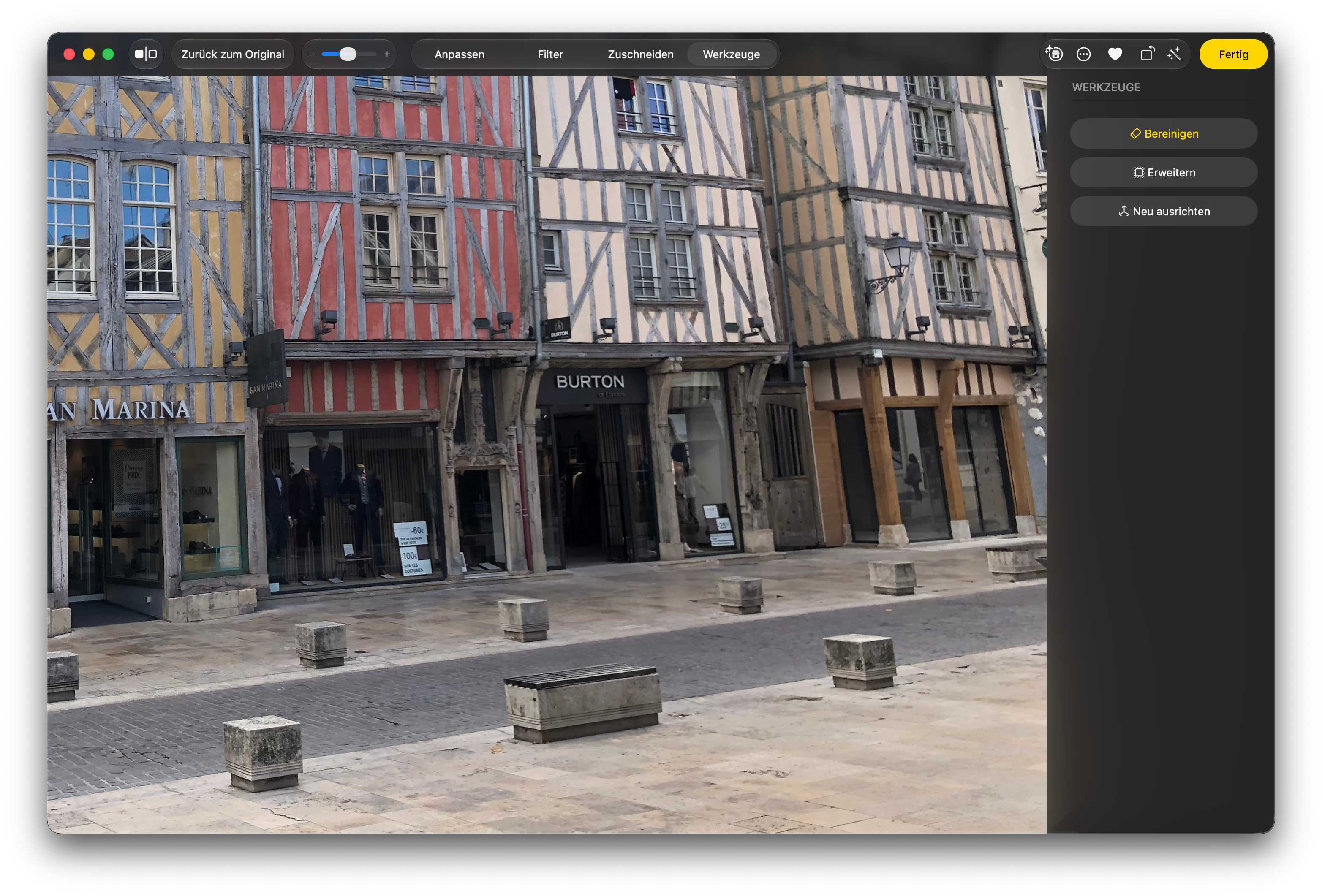
Das bewirkt Apple Intelligence in Fotos unter macOS 27 Golden Gate

Die Funktion „Bereinigen“ in Fotos, mit der sich störende Objekte bisher aus einem Bild entfernen ließen, war nur begrenzt nützlich. Bei kleineren und nicht zu komplexen Objekten konnte das Ergebnis zwar brauchbar sein, primär in den Fällen, in denen der zuvor von dem Objekt verdeckte Hintergrund einfache Strukturen hatte. Aber für aufwendigere Retuschen mussten Sie andere Werkzeuge verwenden.

Apple Intelligence

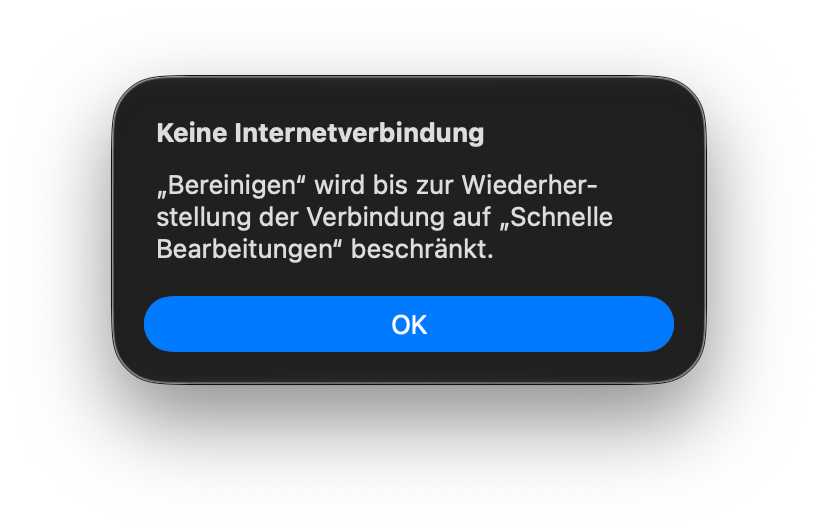
In macOS 27 Golden Gate bekommt Fotos jetzt Zugriff auf Apple Intelligence, um unerwünschte Objekte mithilfe von KI zu entfernen. Mit der KI können Sie aber nicht nur besser retuschieren. Bilder lassen sich nun auch erweitern, und Sie können die Bildperspektive ändern. Für alle diese Funktionen ist der Zugriff auf Apples Server notwendig. Ohne Internetverbindung geht es also nicht.

Die neuen Funktionen verlassen sich dabei auf Private Cloud Compute, also auf größere Modelle auf Servern mit Apple-Chip. Diese können komplexere Anfragen bearbeiten als lokale Modelle, sollen aber laut Apple die Privatsphäre der Anwender schützen. 

Fotos macOS Golden Gate Internet
Für die Funktionen von Apple Intelligence in Fotos ist eine Internetverbindung zu Apples Servern erforderlich.

Thomas Armbrüster

Fotos besser bereinigen

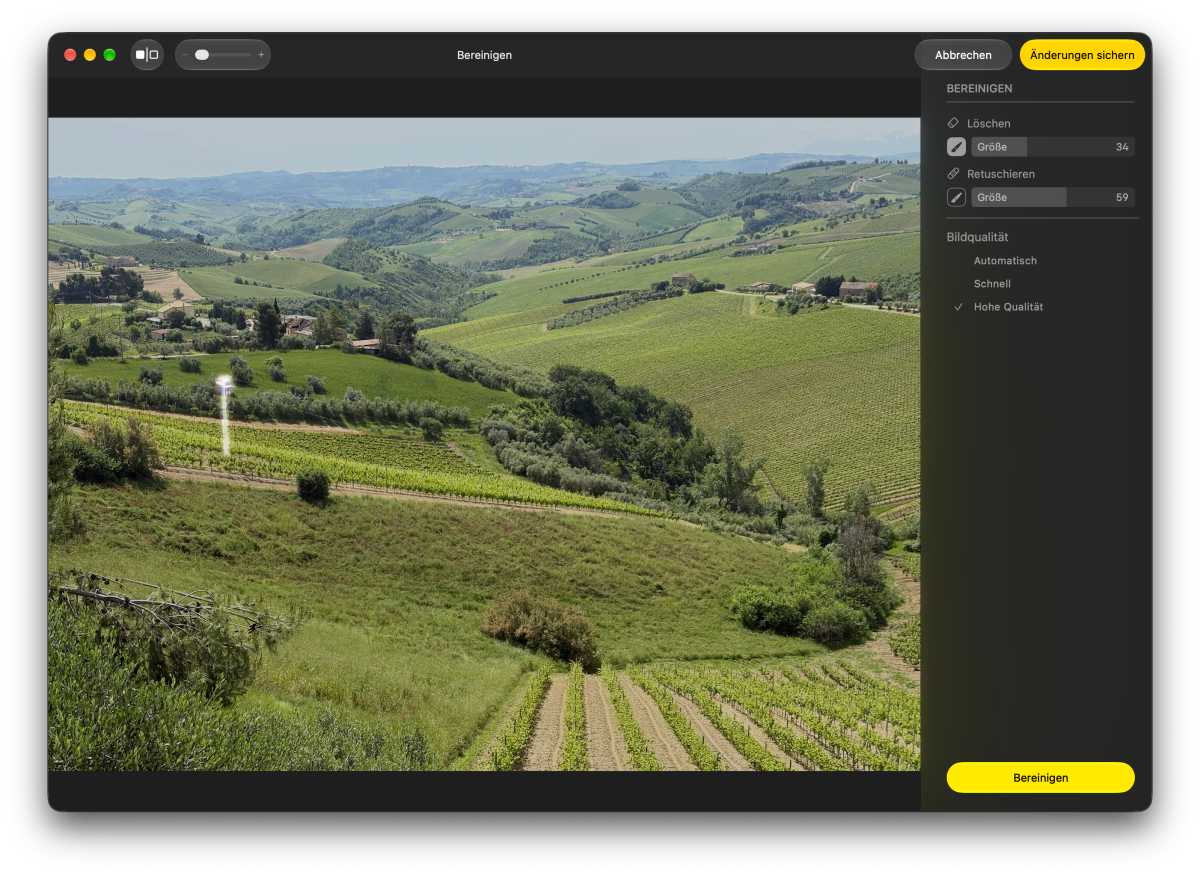
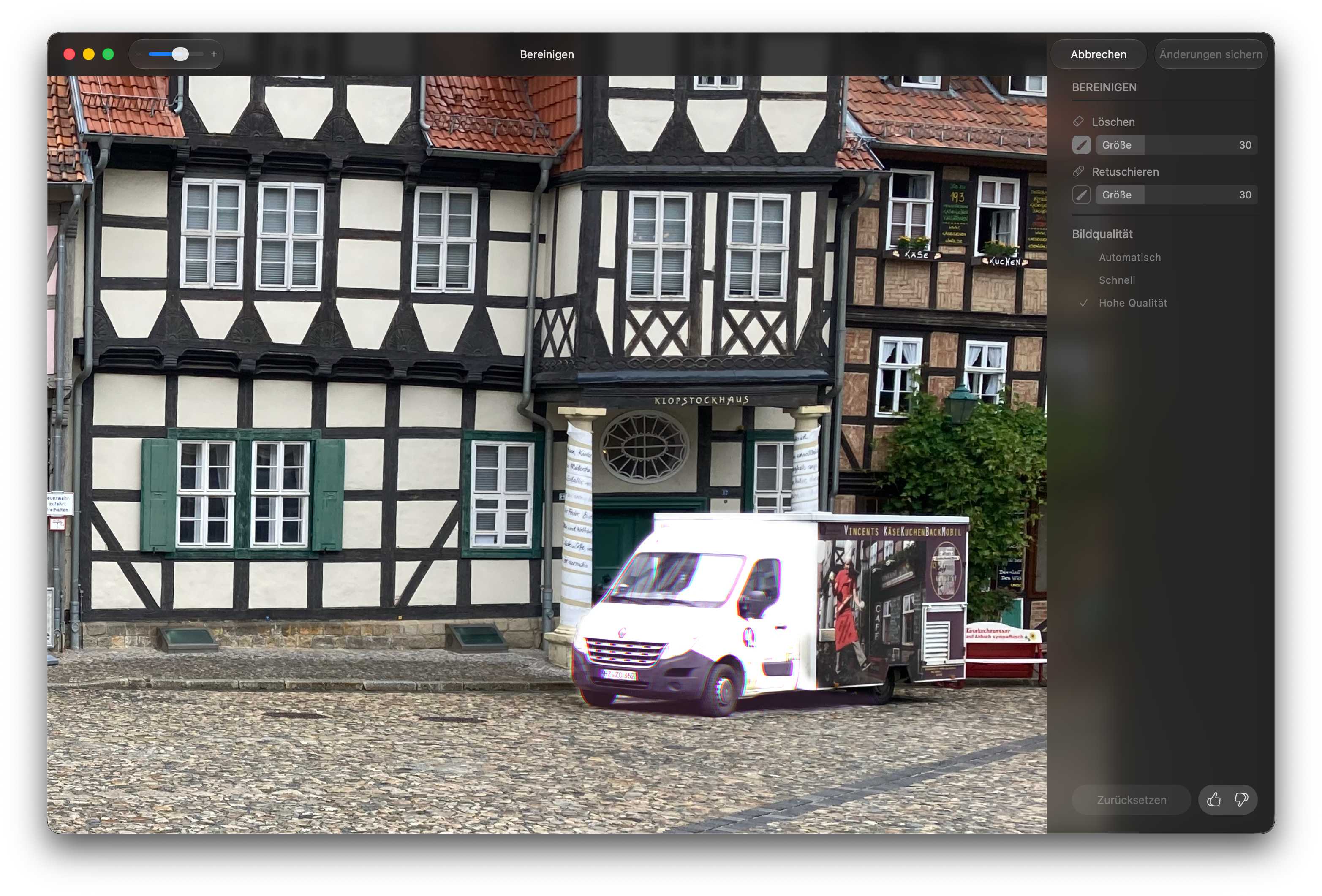
Wir haben in Fotos drei Bilder ausgewählt, und diese mit der neuen Funktion „Bereinigen“ bearbeitet. Dabei haben Sie die Wahl zwischen drei Einstellungen: „Hohe Qualität“, „Schnell“ und „Automatisch“. Bei „Automatisch“ entscheidet Fotos selbst, welches Verfahren angewendet werden soll. Zudem haben wir dieselben Bilder auch nochmals mit Fotos unter macOS 26 mit der Funktion „Bereinigen“ bearbeitet.

macOS Golden Gate Fotos Bereinigen
Für das Bereinigen haben Sie die Wahl zwischen zwei Qualitätsstufen und einer Automatik.

Thomas Armbrüster

Wählen wir die Option „Schnell“, entsprechen die Ergebnisse weitgehend denjenigen, die wir auch unter macOS 26 Tahoe bekommen. Bei zwei unserer Testbilder ist diese Option nicht brauchbar. Nur beim dritten Bild, bei dem wir ein Auto vor einer Kirche entfernen lassen, kann man mit dem Ergebnis leben.

macOS 27 Fotos BereinigenmacOS 27 Fotos Bereinigen hohe Qualität
Das Bereinigen mit hoher Qualität gelingt mit einer ausgezeichneten Qualität

Beim Bereinigen mit hoher Qualität braucht es einige Zeit, bis sich das Ergebnis einstellt. Ein Fortschrittsbalken zeigt jeweils an, wie weit die Bearbeitung fortgeschritten ist.

macOS 27 Fotos BereinigenmacOS 27 Fotos Bereinigen hohe Qualität
Auch diese Aufgabe erledigt Fotos mit Apple Intelligence mit hervorragendem Ergebnis.

Bildausschnitt erweitern

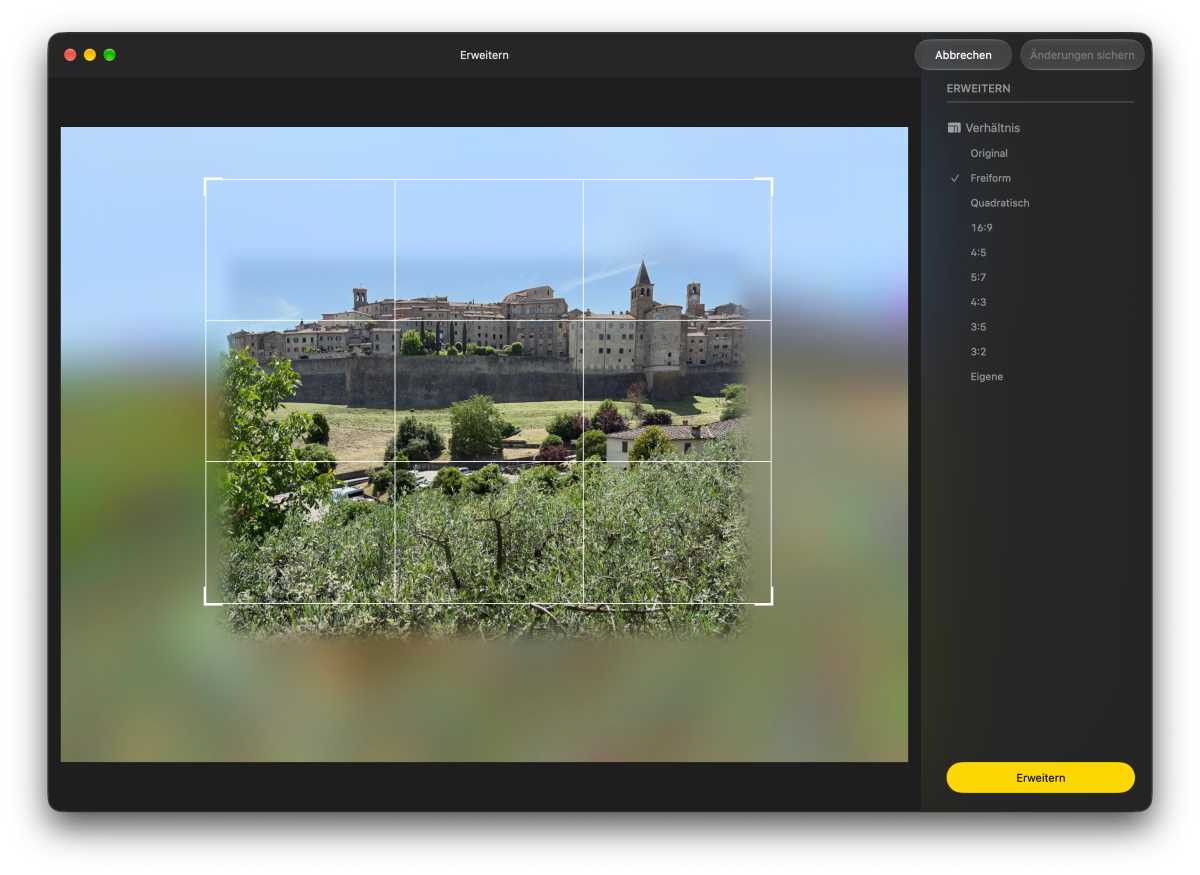
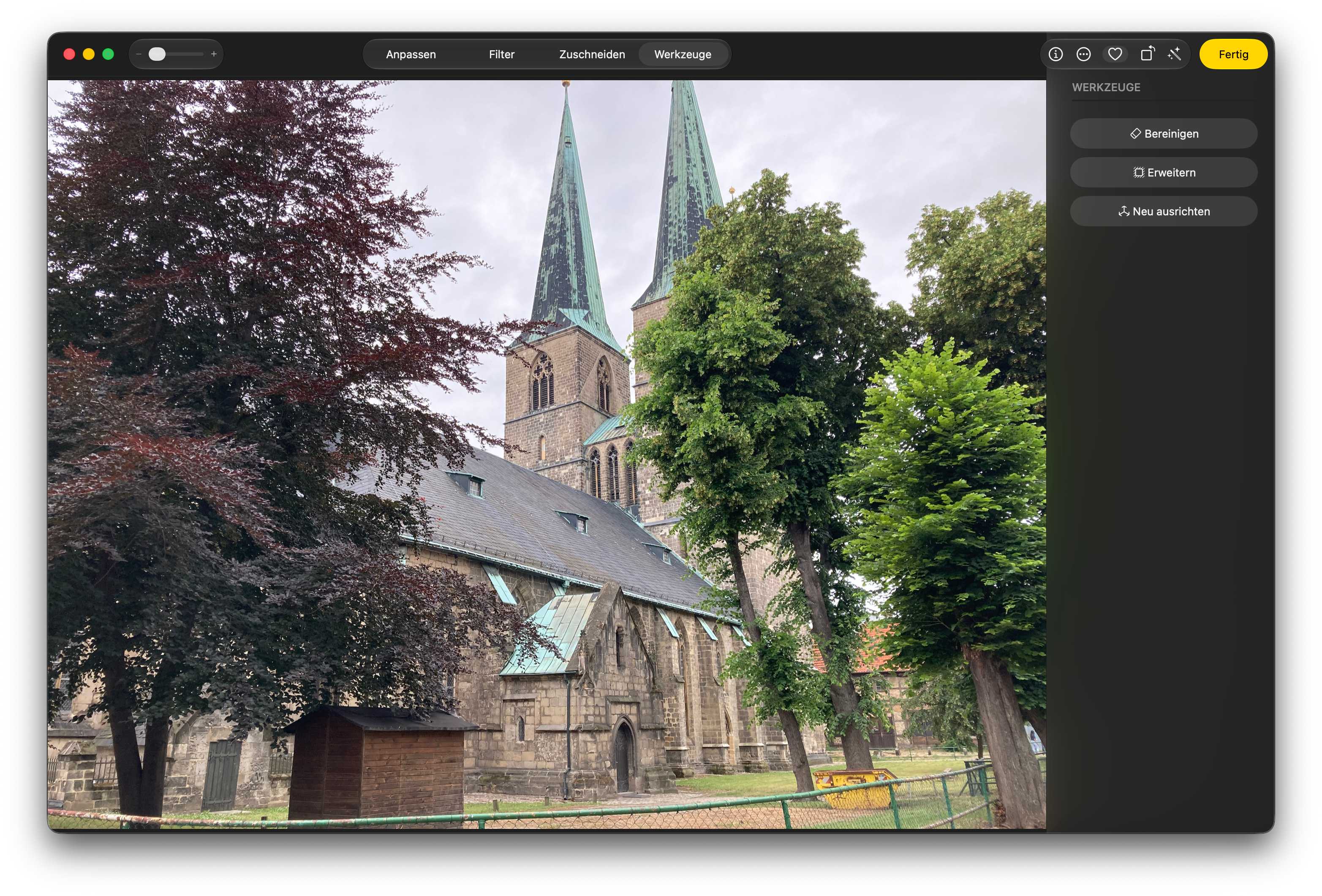
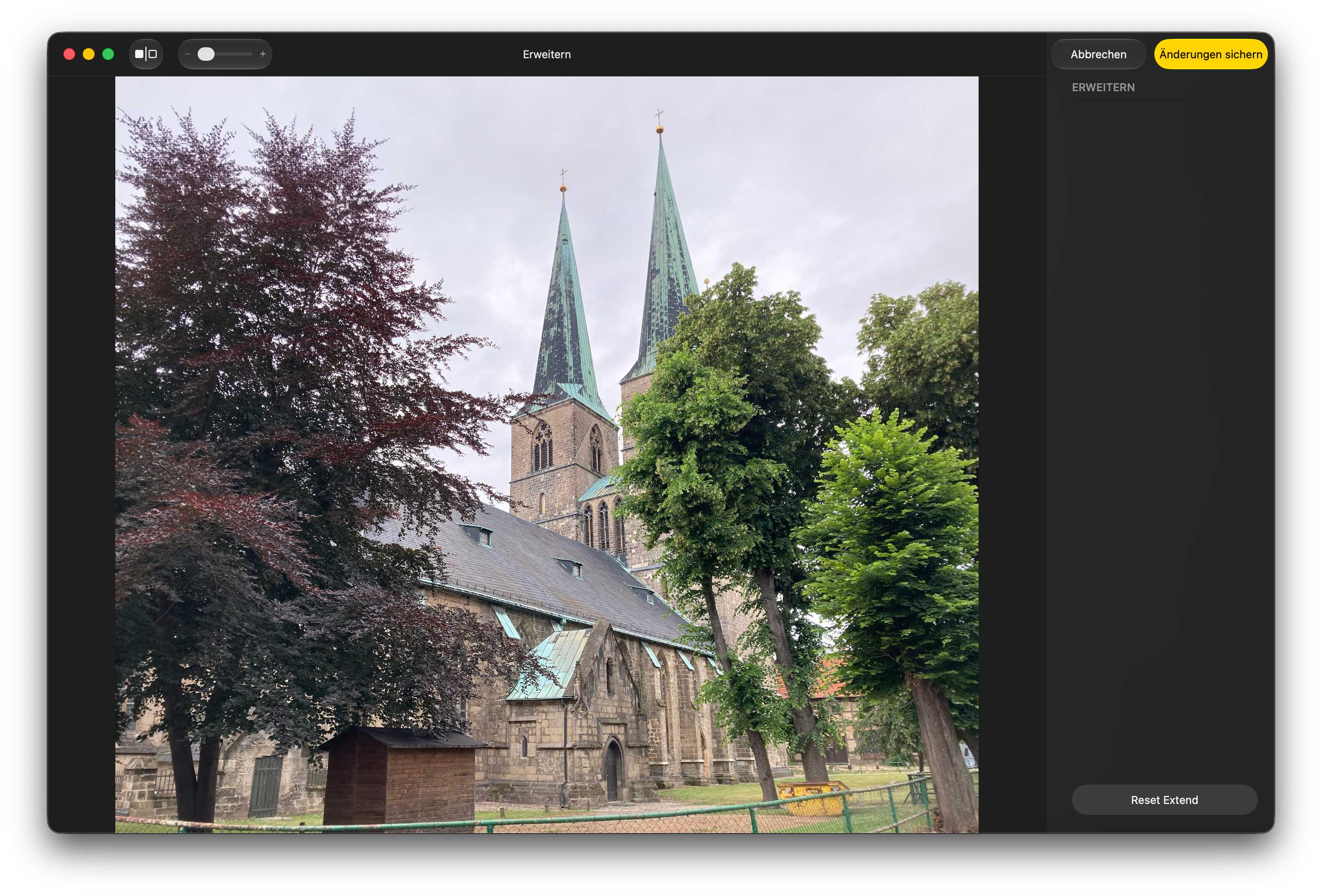
Es passiert bisweilen, dass man beim Aufnehmen eines Fotos den Bildausschnitt nicht gut genug gewählt hat und dann an den Bildrändern etwas abgeschnitten ist, etwa eine Kirchturmspitze oder eine Baumkrone. In Fotos können Sie nun mit der Funktion „Erweitern“ den Bildern an den Seiten neuen Inhalt hinzufügen. Dazu ziehen Sie an dem sich einblendenden Rahmen in die gewünschte Richtung. Das ist aber nicht endlos möglich, sondern nur in einem begrenzten Umfang.

macOS Golden Gate Fotos Erweitern

Um ein Bild zu erweitern, bewegen Sie den sich einblendenden Rahmen in die gewünschte Richtung.

Thomas Armbrüster

Das Erweitern ist zudem sinnvoll, wenn Sie einen Horizont begradigen möchten, dabei das Bild dann aber an einer Stelle beschnitten wird. Der neue Bildinhalt wird von Apple Intelligence anhand der vorhandenen Bildinhalte berechnet und hinzugefügt. Das Bild ist dann aber teilweise von KI generiert, entspricht also nicht mehr ganz dem fotografierten Objekt. So kann insbesondere eine hinzugefügte Kirchturmspitze etwas anders aussehen als in der Realität.

macOS 27 Fotos erweiternmacOS 27 Fotos Bild erweitern
Eine fehlende Kirchturmspitze lässt sich mit Apple Intelligence dem Bild hinzufügen.

Perspektive ändern

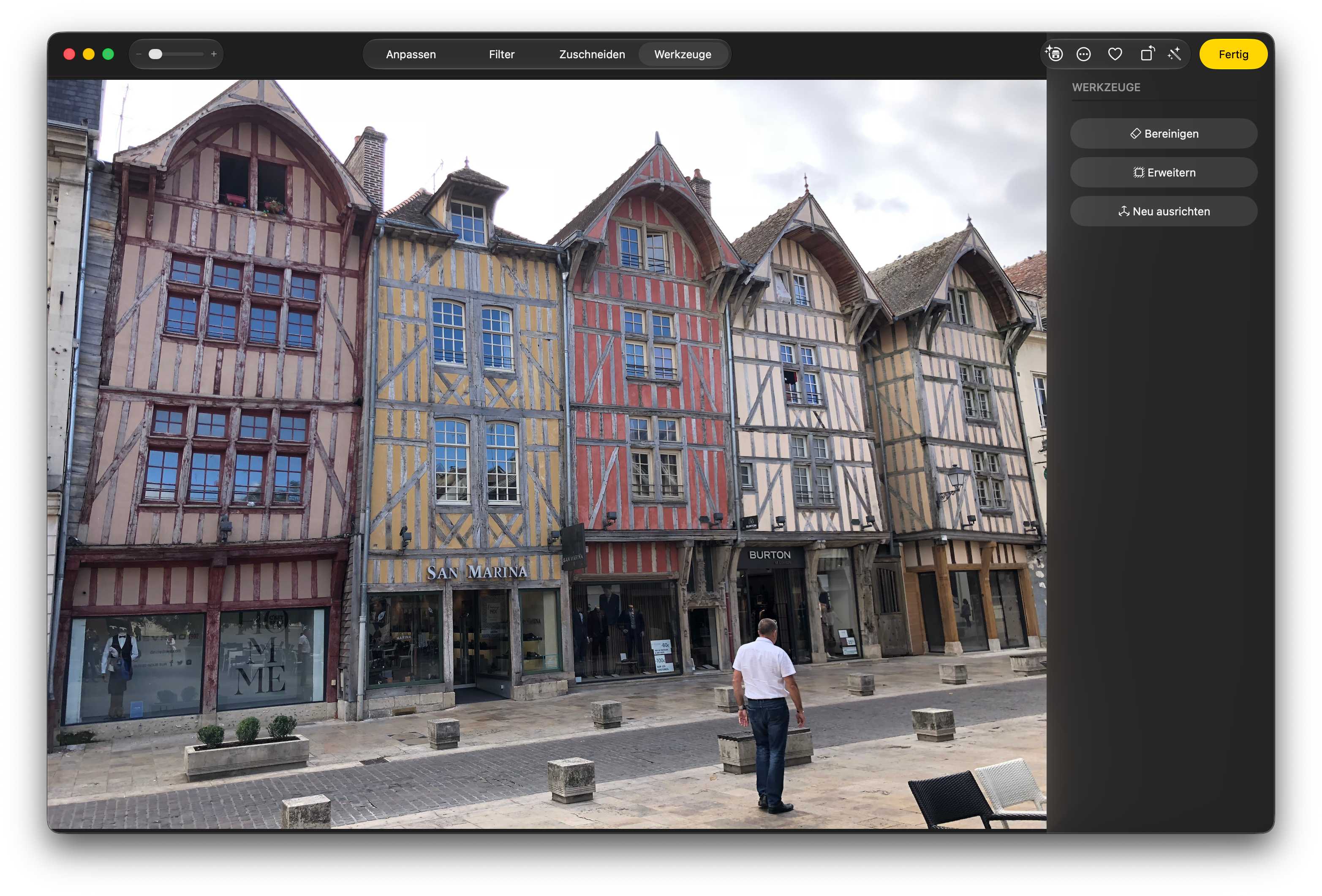
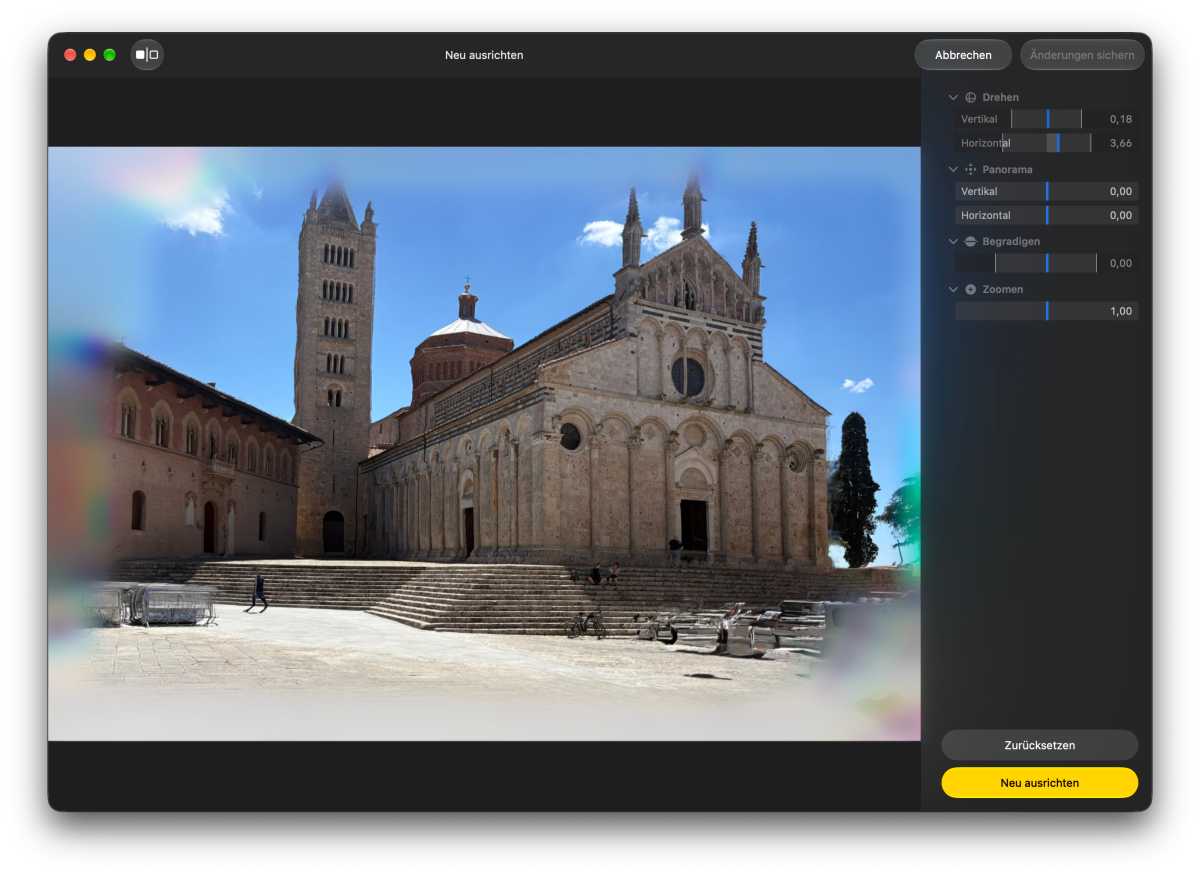
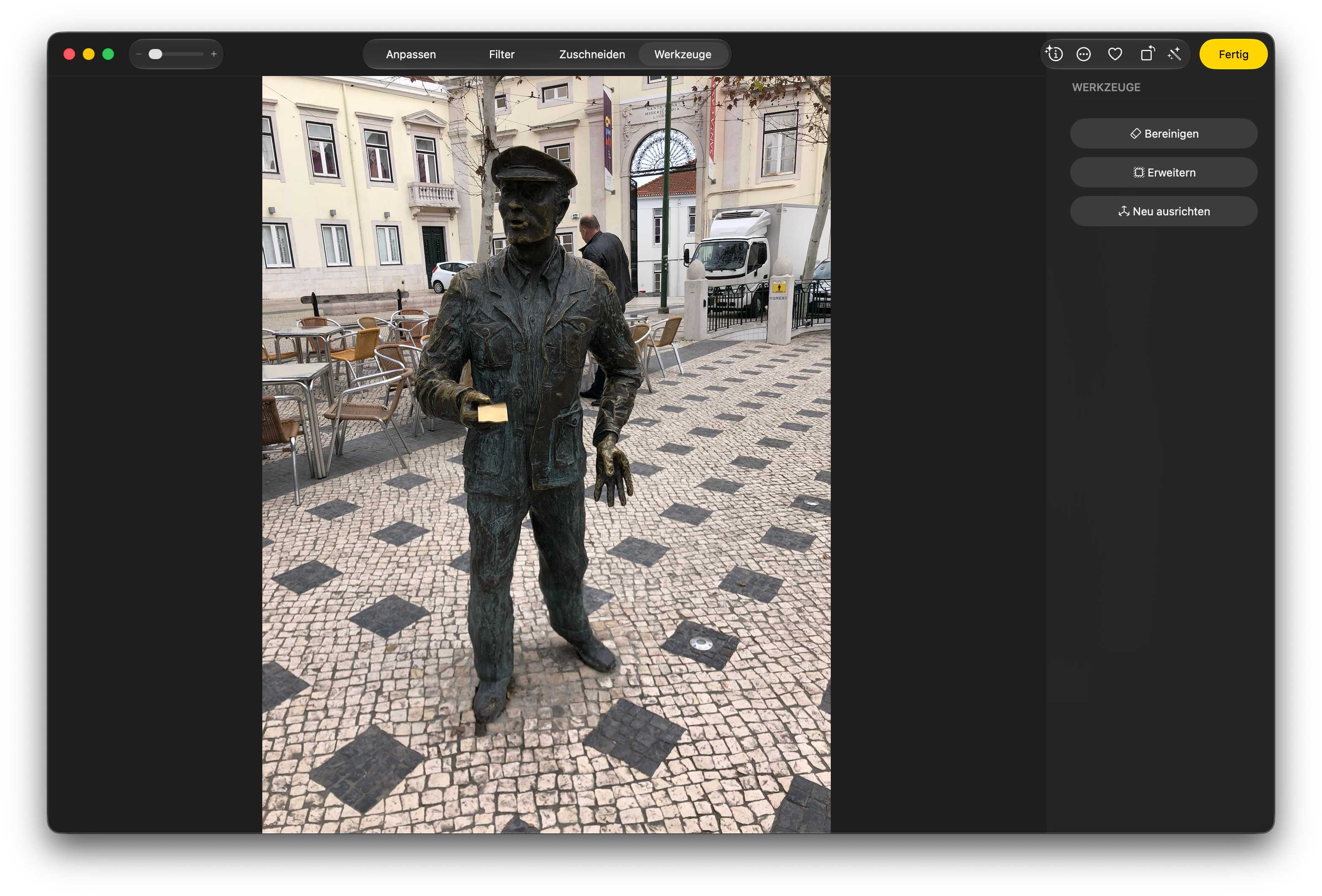
Die dritte Funktion „Neu ausrichten“ ermöglicht es, die Perspektive eines Bildes zu ändern. Sobald Sie diese Funktion gewählt haben, blenden sich in der Werkzeugleiste mehrere Schieberegler ein, über die Sie einzelne Aspekte der Perspektive ändern können. Oder Sie bewegen den Mauszeiger über das Bild und bewegen den Bildinhalt, bis dieser ihren Vorstellungen entspricht.

macOS Golden Gate Fotos neu ausrichten
Um die Perspektive zu ändern, bwegen Sie entweder den Mauszeiger im Bild oder verwenden die Regler.

Thomas Armbrüster

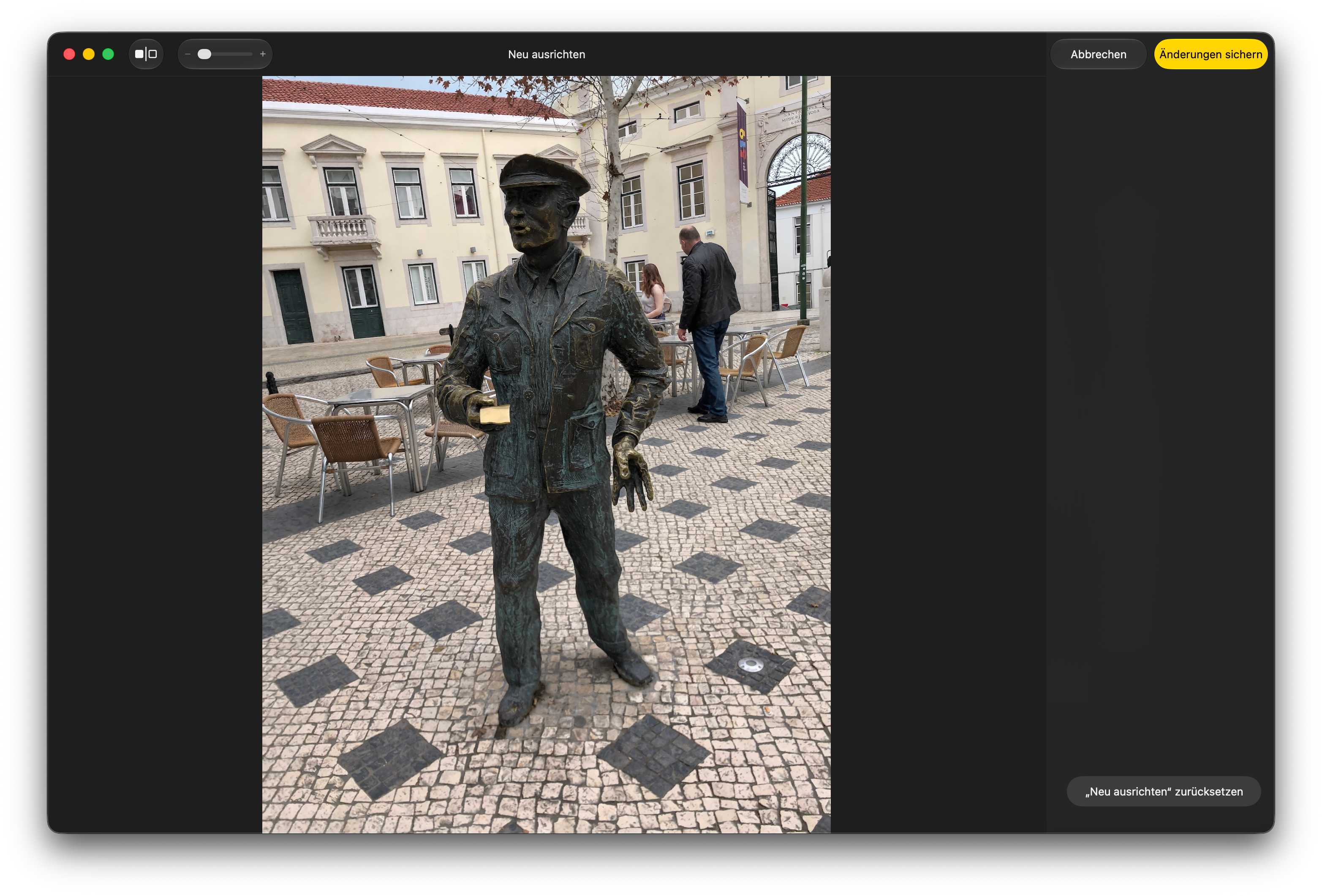
Auch beim Perspektivenwechsel generiert die KI neue Bildinhalte. Das Bild entspricht dann ebenfalls nicht mehr der Realität, sondern ist in Teilen von der KI generiert.

macOS 27 Fotos Neu aurichtenmacOS 27 Fotos neu ausrichten
Beim Wechseln der Perspektive (das Original ist links) wird auch neuer Bildinhalt generiert.

Fazit

Die neuen Bildbearbeitungsfunktionen mithilfe von Apple Intelligence ermöglichen nicht unerhebliche Eingriffe in das Originalbild. Erkennbar ist das für einen Betrachter aber nicht. In diese Bilder wird ein unsichtbares Wasserzeichen eingebettet, das dann mit entsprechenden Werkzeugen erkannt werden kann.

Auf dieser Webseite von Apple steht dazu: „In Fotos, die mit Apple Intelligence bearbeitet worden sind, erscheint ein unsichtbares SynthID-Wasserzeichen. Daran lässt sich erkennen, welche Fotos mit KI bearbeitet worden sind.“ 

SynthID wurde von Google entwickelt und ist Open Source. Wir haben drei der von uns generierten Bilder an Gemini übergeben und gefragt, ob sie ein Wasserzeichen enthalten. Aber obwohl SynthID von Google stammt, wird kein Wasserzeichen erkannt. Vielleicht erkennt Gemini nur das Wasserzeichen in einem von Gemini selbst erstellten oder manipulierten Bild.

Google Gemini Wasserzeichen
Google Gemini erkennt in den von uns mit Apple Intelligence bearbeiteten Bildern keine Wasserzeichen.

Thomas Armbrüster

  •  

Meta pondera lançar óculos inteligentes sem câmara para reconquistar a confiança dos utilizadores

Segundo as mais recentes fugas de informação, a Meta deverá lançar quatro novos modelos de óculos inteligentes, incluindo um sem câmara focado em privacidade, numa altura em que a empresa continua a lidar com as consequências da polémica em torno de gravações feitas sem consentimento.

The post Meta pondera lançar óculos inteligentes sem câmara para reconquistar a confiança dos utilizadores appeared first on Tek Notícias.

  •  

NASA’s Pandora Mission Begins Separating Planet Light From Star Light

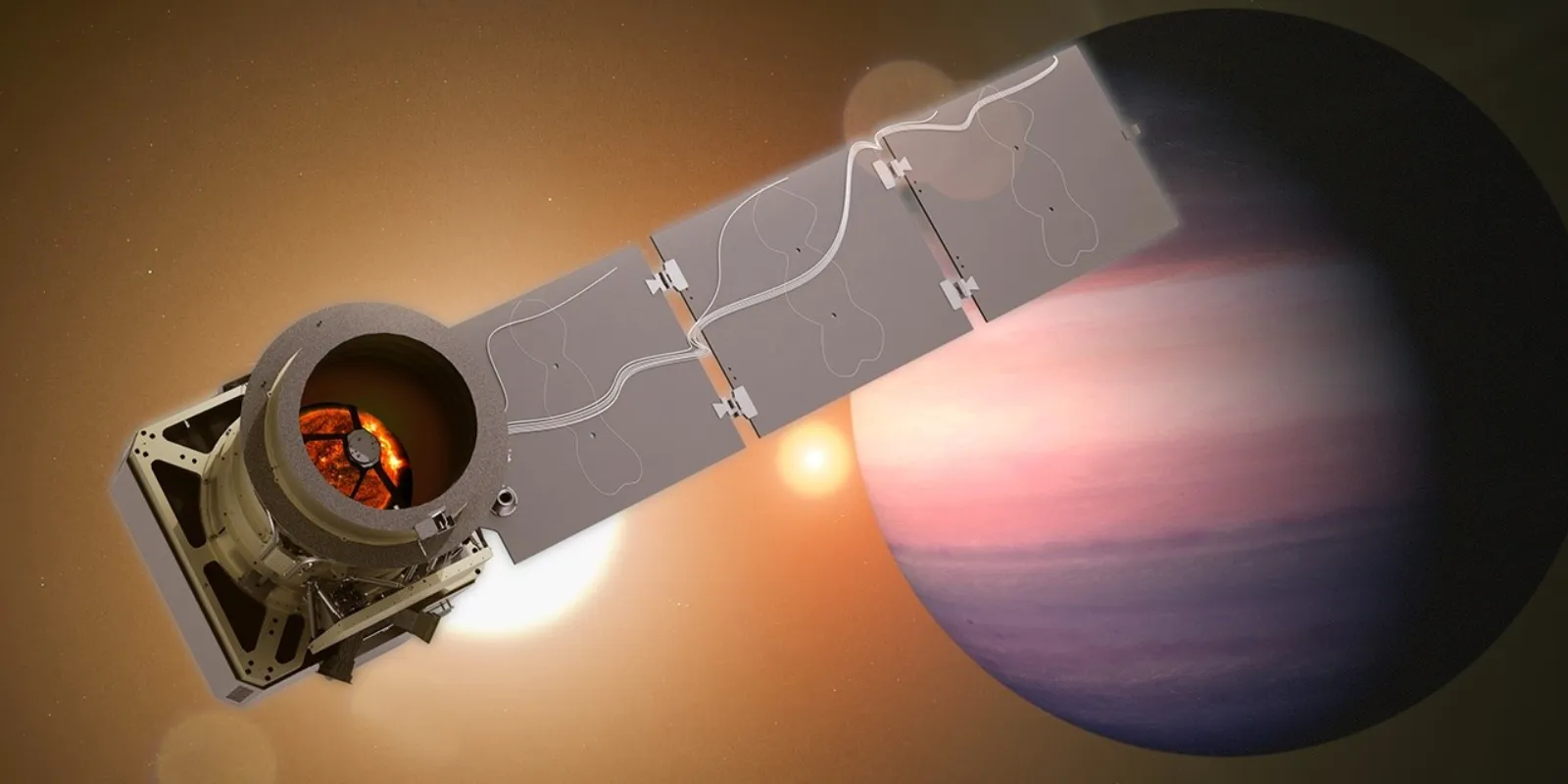
NASA’s Pandora satellite has started science observations of at least 20 exoplanets, measuring their host stars so Webb’s atmospheric results can be read more reliably.

The post NASA’s Pandora Mission Begins Separating Planet Light From Star Light appeared first on Curiosmos.
  •  

Como impedir que o Mac entre em repouso ao usar o Gemini

O Mac se tornou um importante aliado de quem usa a máquina para rodar modelos de inteligência artificial locais — não é à toa que os Macs mini estão sendo muito visados nesse período de boom no mercado.

Caso use o Gemini (um dos principais nomes de chatbots, ao lado do ChatGPT e do Claude), é possível habilitar um ajuste que mantém o computador ativo enquanto o app do Gemini estiver aberto, impedindo que ele entre em repouso.

Veja como fazer isso! 👨‍💻

  1. Comece abrindo o app do Gemini na sua máquina. Em seguida, acesse as configurações dele. É possível fazer isso usando um dos seguintes métodos:
  • Vá até Gemini » Configurações…, na barra de menus;
  • Use o atalho de teclado ⌘ command ,;
  • Clique na sua foto (no canto inferior esquerdo) e em “Configurações”.
  1. Na barra lateral esquerda, clique em “Atalhos”.
  1. Por fim, marque a chave ao lado de “Manter este Mac ativo para executar tarefas”.

  •  

iOS 27 is driving my fingers insane

Macworld

iOS 27 is Apple’s best update in years. It fixes nearly every issue we had with iOS 26: It’s faster, cleaner, and more responsive, and the new Siri AI is actually useful. But there’s one new feature that’s driving me crazy.

For as long as I can remember, two things have been constant on my iPhone: Swiping down from the middle of the screen brings up Spotlight search, and swiping down from the middle of the top edge of the phone reveals the Notification Center. I use both regularly, as I’m sure many iPhone users do.

I’ve developed such muscle memory that I don’t think about either gesture. When I want to read or clear a notification, my finger goes to the top of the screen just above the Dynamic Island and swipes down. When I want to search for an app, I swipe from the middle of the Home Screen. It’s simple, smart, and intuitive.

Except now it’s changed. In iOS 27, swiping down on the Home Screen still brings up Search, except instead of a simple Spotlight search field, it now shows a “Search or Ask” card as part of Siri AI. It’s just a bit slower than the previous Spotlight search, a bit cluttered, and overly animated.

I don’t love it, and I’ve taken to swiping left to use the App Library more to get to apps that aren’t on my main Home Screen. It’s annoying but not a big deal. Most people will get used to it pretty quickly.

Siri’s new home at the top of the screen is far more aggravating. Ever since Apple moved the Control Center to the top of the screen in iOS 11, my fingers have instinctively known to go to the middle of the screen to access the Notification Center. In iOS 27, that now brings up the Siri search bar. Dozens of times a week.

I’ve been using iOS 27 for a couple of months throughout the public beta process, and my fingers still haven’t adjusted. I’ve lost count of how many times I’ve accidentally ended up in Siri’s search bar instead of my notifications. Apple even added a little line under the clock to show where to swipe, and I still miss it most of the time.

I don’t know why Apple changed it to begin with. Users already know that you can swipe down anywhere on the Home screen to search, so why does it need to live at the top of the screen too?

  •  

iOS 27: So fügen Sie eigene Karten der Wallet hinzu

Wollte man bisher mit einem Klick auf das Plus-Symbol in der Wallet-App selbst eine Karte hinzufügen, gab es nur die Optionen „Debit- oder Kreditkarte“ und „ÖPNV-Karte“. Letztere gibt es in Europa nur für den Großraum Paris mit der Navigo-Karte. Das Deutschland-Ticket in die Wallet zu bekommen, war ungleich schwieriger. Das ändert sich mit iOS 27.

Für das manuelle Hinzufügen von Karten gibt es jetzt eine dritte Option: „Karte erstellen“. Und so geht’s:

  1. Öffnen Sie auf Ihrem iPhone die App „Wallet“ und tippen Sie auf das Plus-Symbol oben, rechts von der Mitte.
  2. Anschließend wählen Sie die neue Option „Karte erstellen“ mit einem Tipp darauf aus und tippen anschließend auf „Fortfahren“.
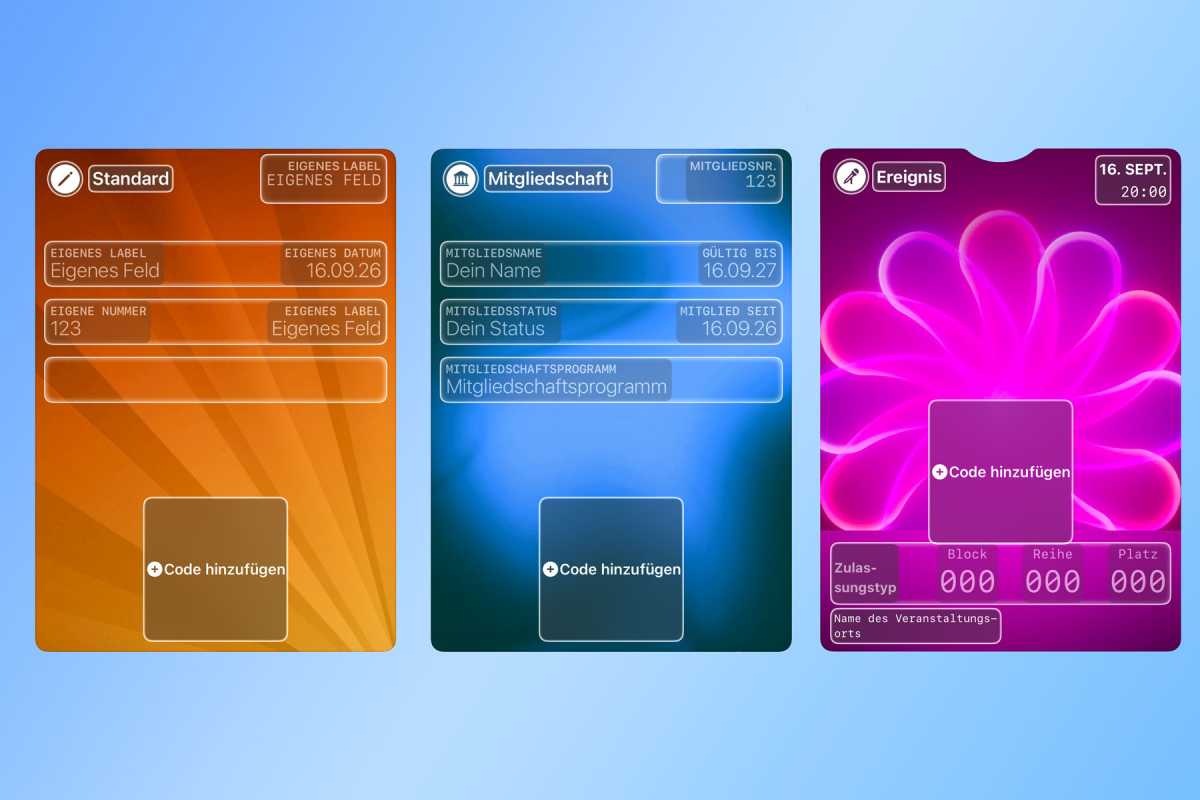
  3. Sie haben drei weitere Auswahlmöglichkeiten: „Standard“, „Mitgliedschaft“ und „Ereignis“. Wir entscheiden uns für „Standard“.
  4. Dort können Sie sechs Felder konfigurieren mit eigenen Texten oder einem bestimmten Datum. Bei der „Mitgliedschaft“ ist es ein Feld mehr, während es für „Ereignis“ dedizierte Felder für den Sitzplatz gibt.
  5. Anschließend müssen Sie noch einen Code hinzufügen. Dabei öffnet sich die Kamera-App und Sie können den auf der Konzertkarte oder dem Mitgliedsausweis gedruckten QR‑Code fotografieren. Alternativ geben Sie den Code in Ziffern ein, wenn vorhanden.
  6. Die Karte erscheint nun in der Wallet auf dem iPhone und der Apple Watch, sofern die Geräte auf dem aktuellen Stand sind.
Drei neue Arten von Karten für die Wallet von iOS 27

Macwelt

  •  

UVSQ-SAT NG : un laboratoire du New Space académique à la française

Mis en orbite en mars 2025, UVSQ-SAT NG a été développé au Latmos (Laboratoire Atmosphères et Observations spatiales – CNRS, Sorbonne Université, UVSQ), avec de nombreux partenaires académiques et industriels. Ce nanosatellite poursuit une démarche engagée avec les missions qui l’ont précédé :...

  •  

Quartz é uma fintech criada por dois portugueses em Londres com “raízes” de engenharia em Portugal

A startup de gestão de património foi criada por dois portugueses que trabalharam na Revolut e na N26 e já conseguiu financiamento de 3,2 milhões de euros. Hoje a plataforma da Quartz começa a admitir os primeiros utilizadores, ainda por convite.

The post Quartz é uma fintech criada por dois portugueses em Londres com “raízes” de engenharia em Portugal appeared first on Tek Notícias.

  •  

CANreduce 3.0: una nueva herramienta digital para reducir el consumo de cannabis

CANreduce 3.0 es una plataforma digital diseñada para ayudar a personas que desean reducir o abandonar el consumo de cannabis. La herramienta combina el registro del consumo, contenidos terapéuticos basados en la evidencia y un asistente conversacional con inteligencia artificial. Además, facilita el seguimiento clínico mediante informes automáticos para profesionales. Su desarrollo muestra cómo las tecnologías digitales pueden mejorar el acceso y la continuidad de la atención en adicciones.
  •  

EOS R8 Mark II é nova full frame leve da Canon pensada para viajar, agora também com imagens 3D

A nova câmara full frame da Canon aposta na portabilidade sem abrir mão da velocidade e estabilização avançada. Com sensor de 24,2MP e disparo a 40fps, a EOS R8 Mark II chega ainda como a primeira câmara a suportar nativamente a nova tecnologia Dual Pixel 3D da marca.

The post EOS R8 Mark II é nova full frame leve da Canon pensada para viajar, agora também com imagens 3D appeared first on Tek Notícias.

  •  
❌