2026 has been a trying year for router manufacturers, as the Federal Communications Commission (FCC) has subjected leading companies to strict oversight and outright bans. As an olive branch of sorts, the FCC has handed out "conditional approvals" to be included on the Covered List to companies that have jumped through all the necessary hoops to satisfy the commission's concerns. Asus is the latest company to secure that approval, which was confirmed in an FCC notice issued this week.
According to the FCC, the following Asus networking products have been granted conditional approval:
RT Series
ROG GT Series
OG Strix GS Series
TUF Gaming Series
ExpertWiFi Series
ZenWiFi Mesh Series
5G MiFi Series
Wireless repeaters
Wireless access points
In other words, Asus' entire wireless networking portfolio is cleared for sale in the U.S., with the conditional approval granted until March 6, 2028 (18 months from the date of issuance). The FCC explains, "We find that each of the Conditional Approvals constitutes 'a specific determination' by [Department of War] that such devices do not pose risks to U.S. national security."
This latest move by the FCC is a welcome sigh of relief for Asus, a Taiwanese company with an extensive networking portfolio and some of the best Wi-Fi routers. More importantly, Asus is ready to unleash a whole new generation of Wi-Fi 8 products over the next year. Wi-Fi 8 promises significant reliability and quality-of-life improvements across a wide range of wireless devices, so having a front-row seat to the transition from Wi-Fi 7 to Wi-Fi 8 is pivotal for Asus.
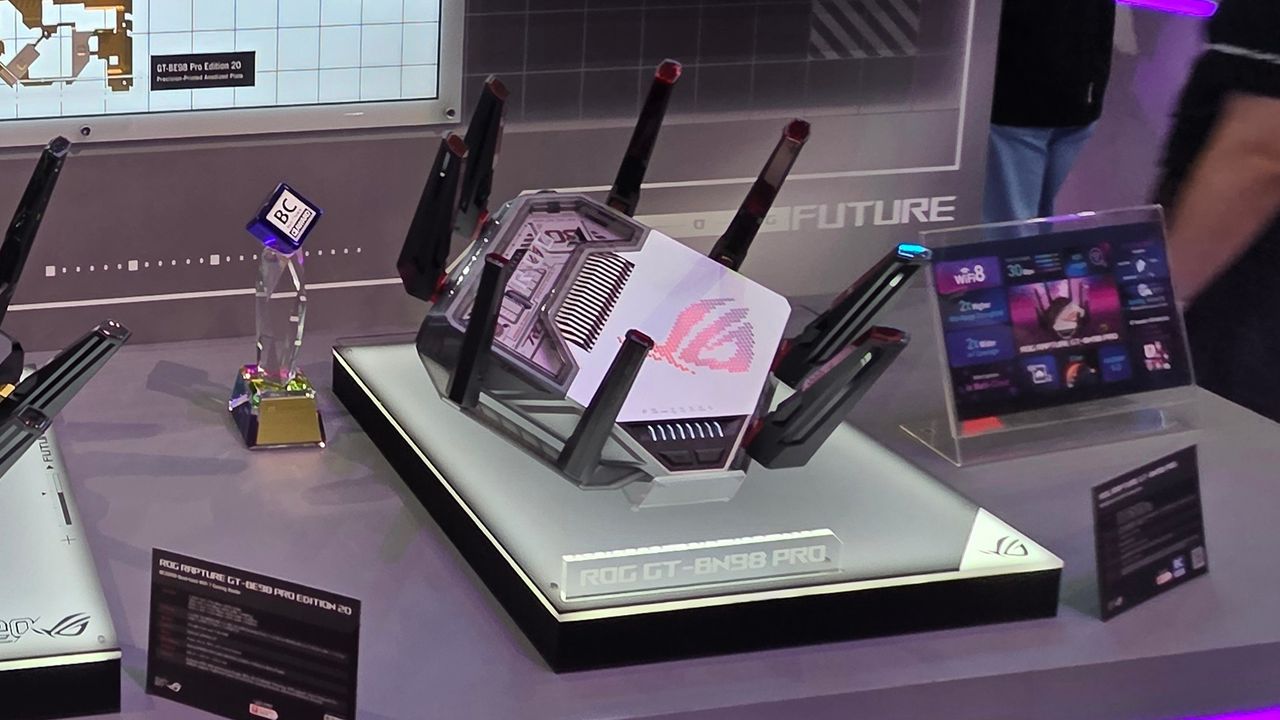
We've already seen a concept ROG NeoCore Wi-Fi 8 router from Asus at CES this year, and the company announced its first consumer Wi-Fi 8 router, the ROG Rapture GT-BN98 Pro, in June. The ROG Rapture GT-BN98 Pro is promising a 2x uplift in real-world throughput compared to its current-generation Wi-Fi 7 products.
Asus joins Netgear and Amazon Eero/Leo on the conditional approval list. The largest player in the U.S. wireless router market is TP-Link, and it still hasn't gained FCC approval. The U.S. government's reluctance to approve TP-Link stems from uncertainty about its claims that it has no ties to the Chinese government or military. As a result, the company has not confirmed a release date for its newly announced Wi-Fi 8 "Ultra" routers in the U.S.
If you’re looking for the absolute best performance in a gaming laptop, then you’ll likely want to consider a desktop replacement. If you’re in the market, the HyperX Omen Max 16 makes a strong case with a 16-inch form factor and a thick chassis that accommodates some beefy hardware.
Our review unit carries a sticker price of $4,699, packs a Core Ultra 9 290HX Plus processor, and includes an RTX 5090 GPU. It also tips the scales at 6.56 pounds, making it a more suitable companion for your desk than for lugging around while traveling.
Despite its imposing dimensions and beefy hardware, the Omen Max 16 doesn’t quite pass muster in performance against its slimmer competitors among the best gaming laptops.
Design of the HyperX Omen Max 16
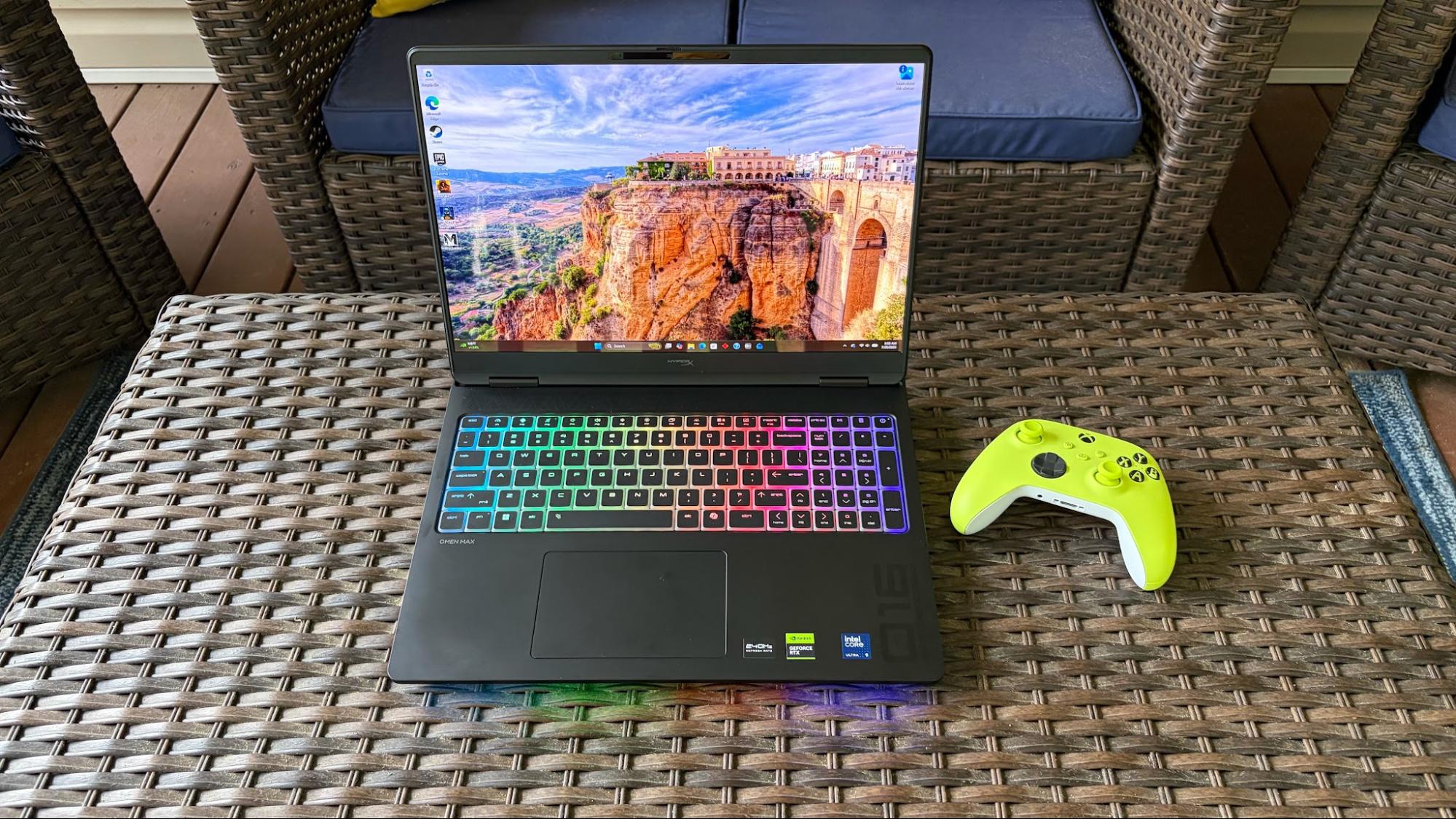
“Solid, solid as a rock,” is the phrase that comes to mind when describing the Omen Max 16. The laptop feels like it was forged from a solid piece of granite, but in actuality, it’s aluminum. It’s also thick, measuring 1.13 inches at its thickest point (at the rear).
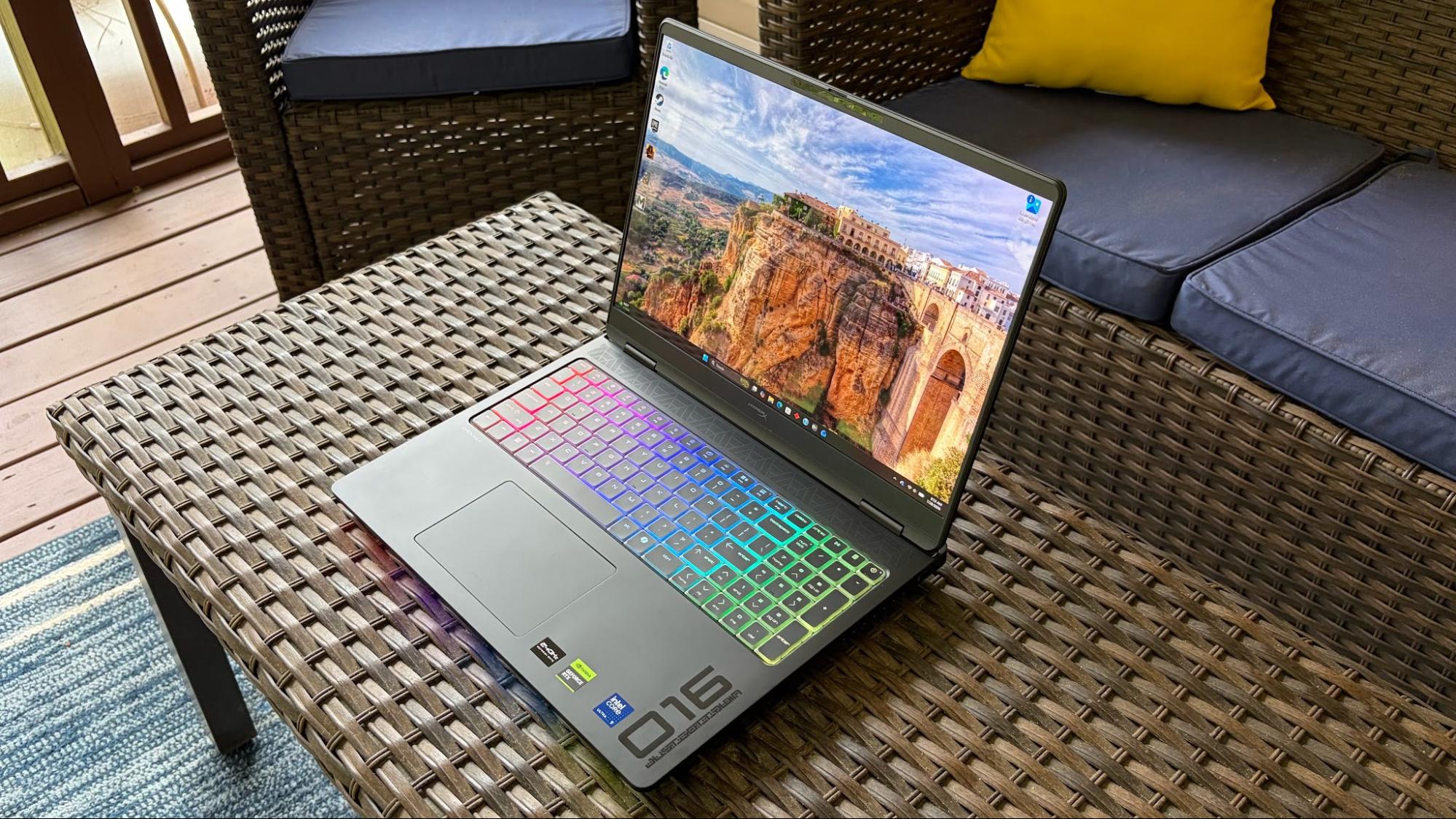
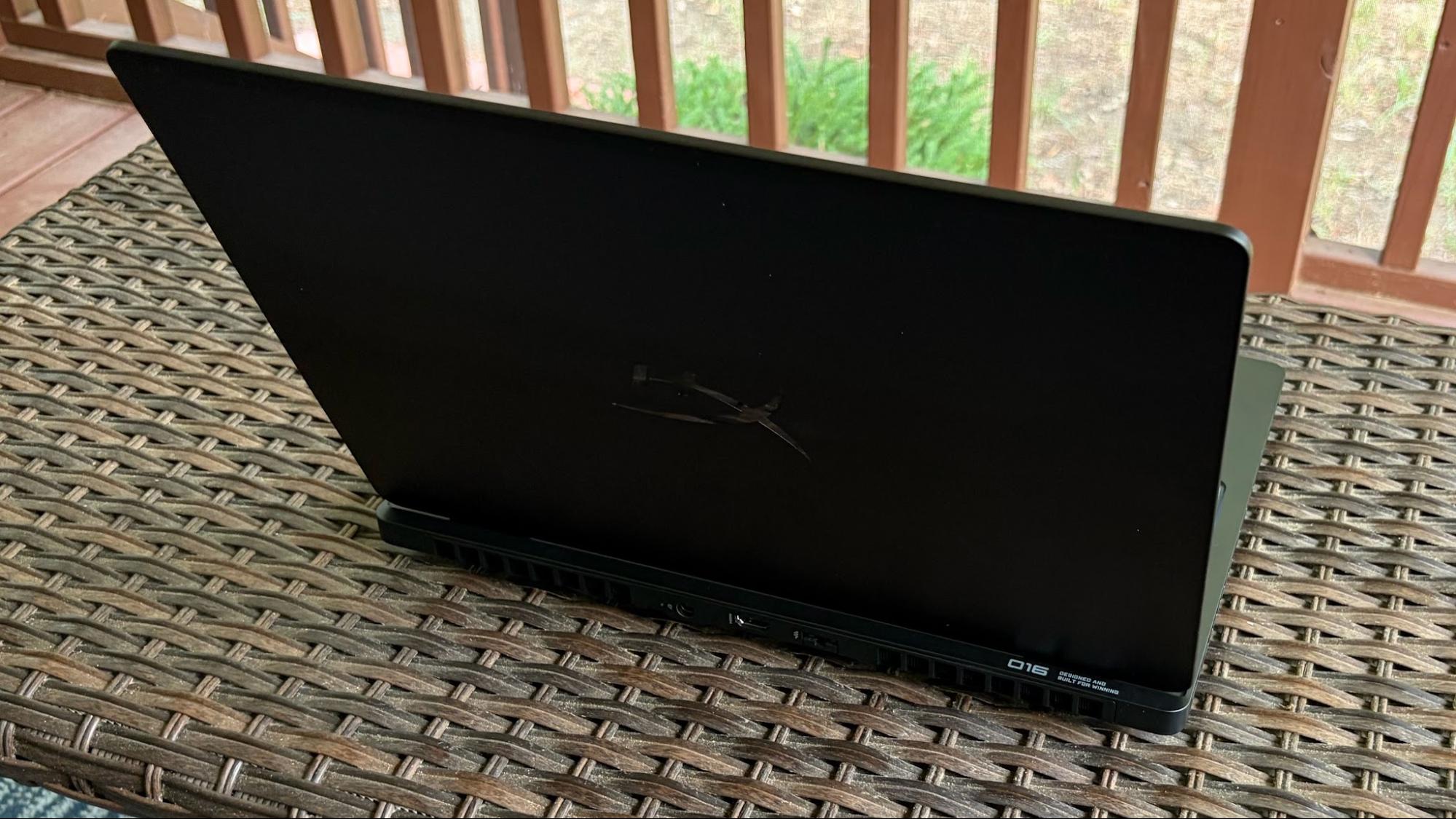
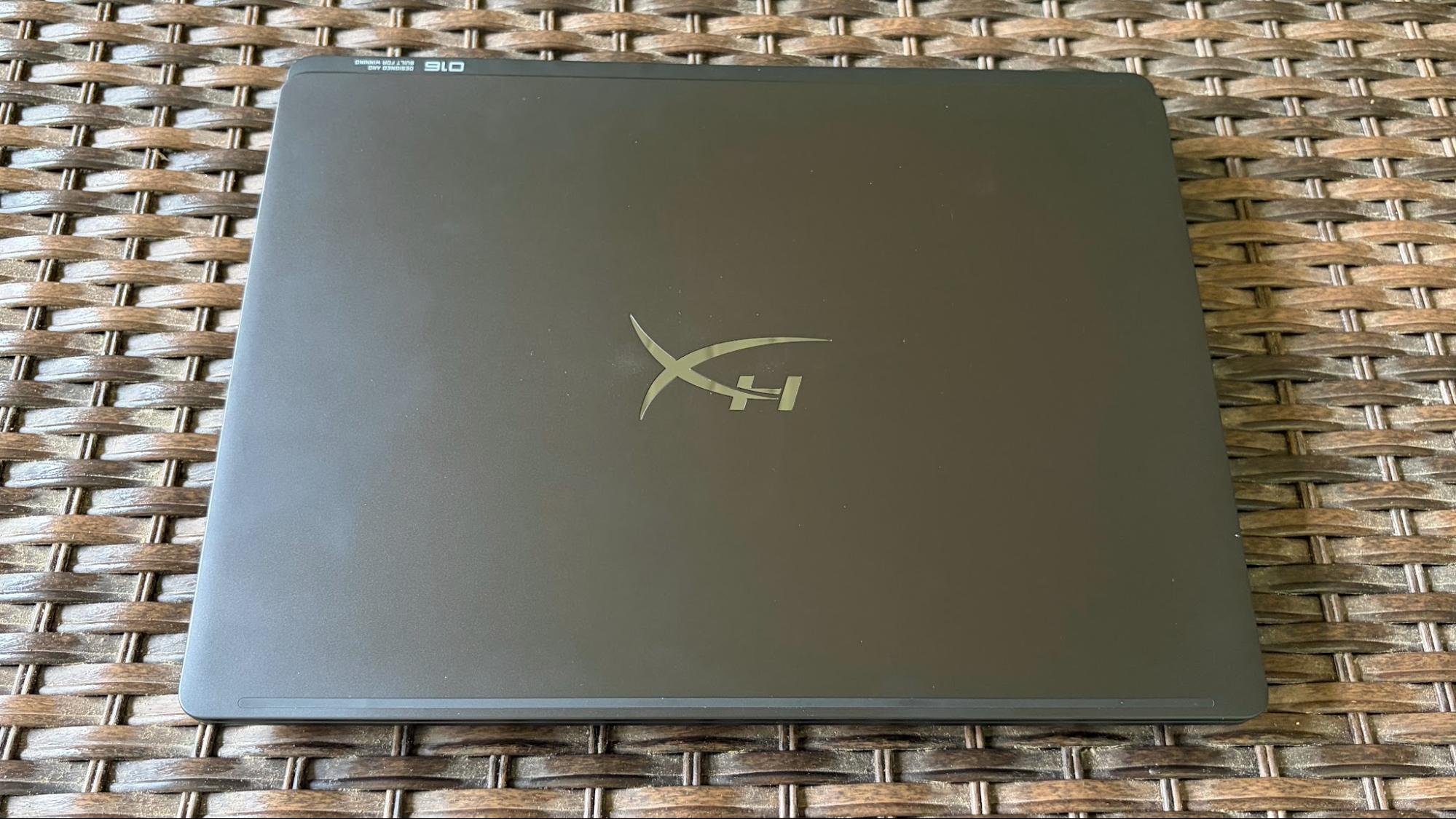
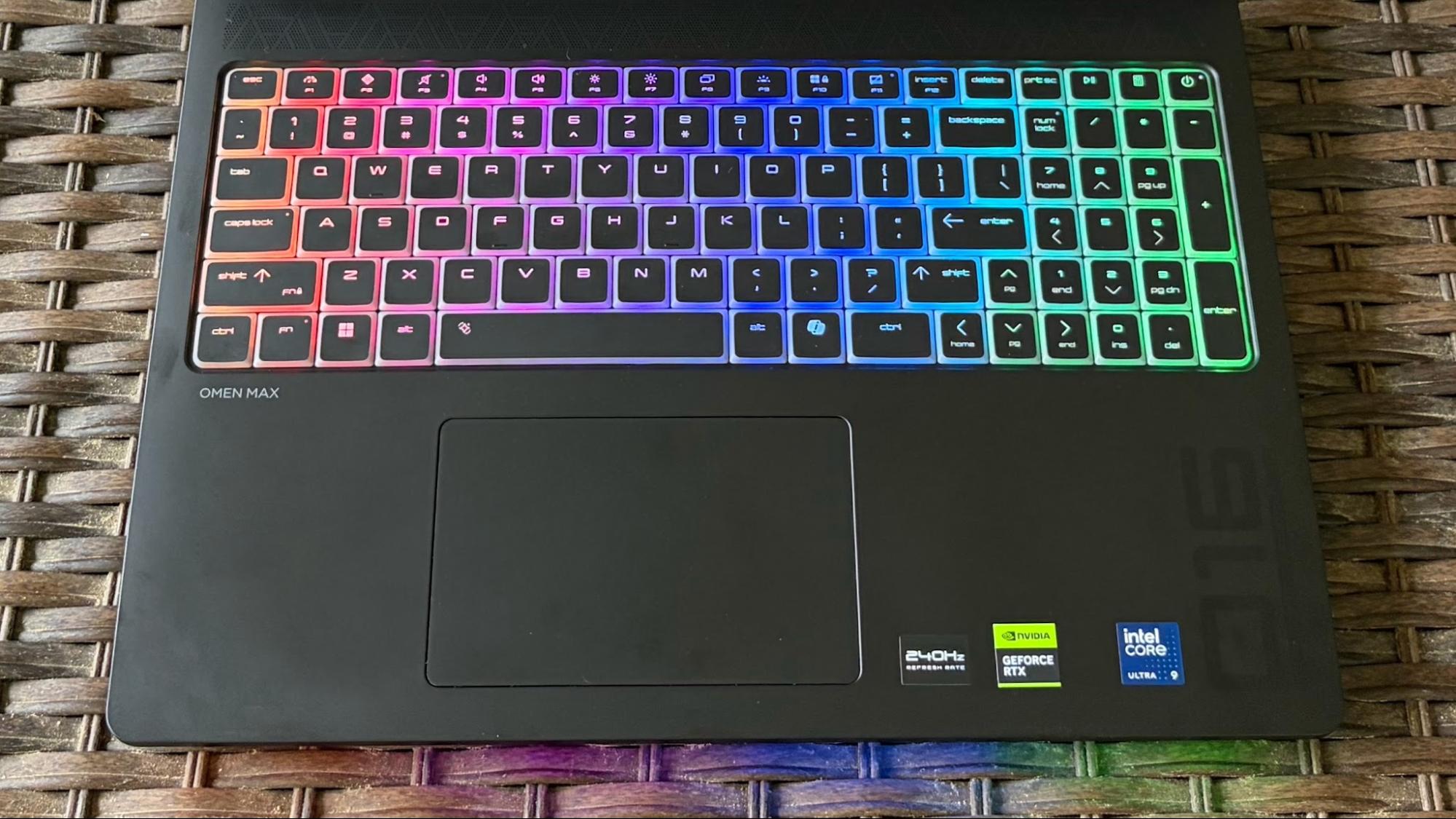
To my eyes, the Omen Max 16 is attractively designed with no outrageous styling gimmicks. The aluminum is coated in a matte black finish, and design flourishes (like the O16 printed vertically along the deck and the HyperX logo on the lid) are subdued and don't draw significant attention. There’s also a laser-etched grille that runs nearly the width of the chassis that sits above the keyboard.
Tom's HardwareTom's HardwareTom's Hardware
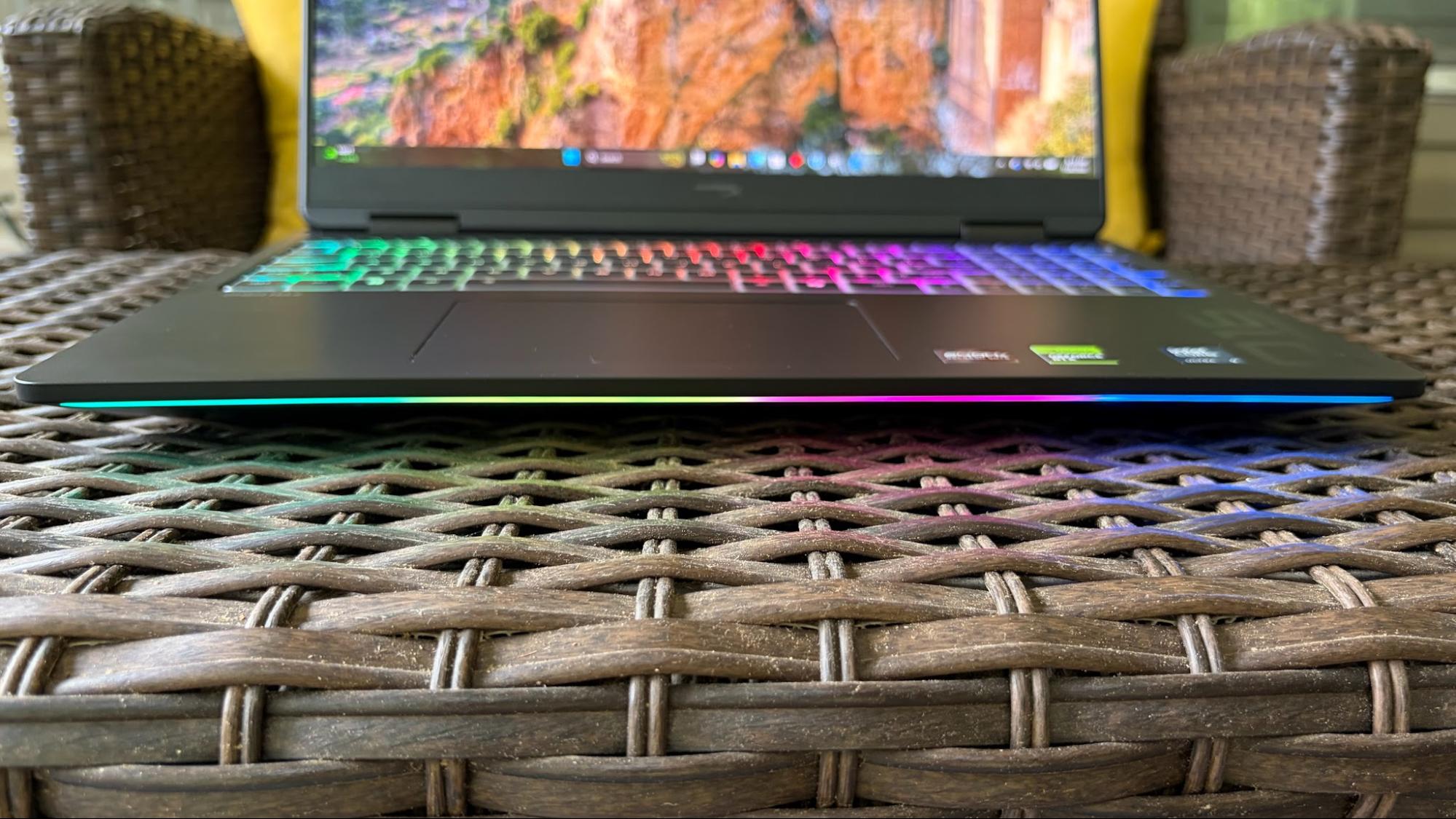
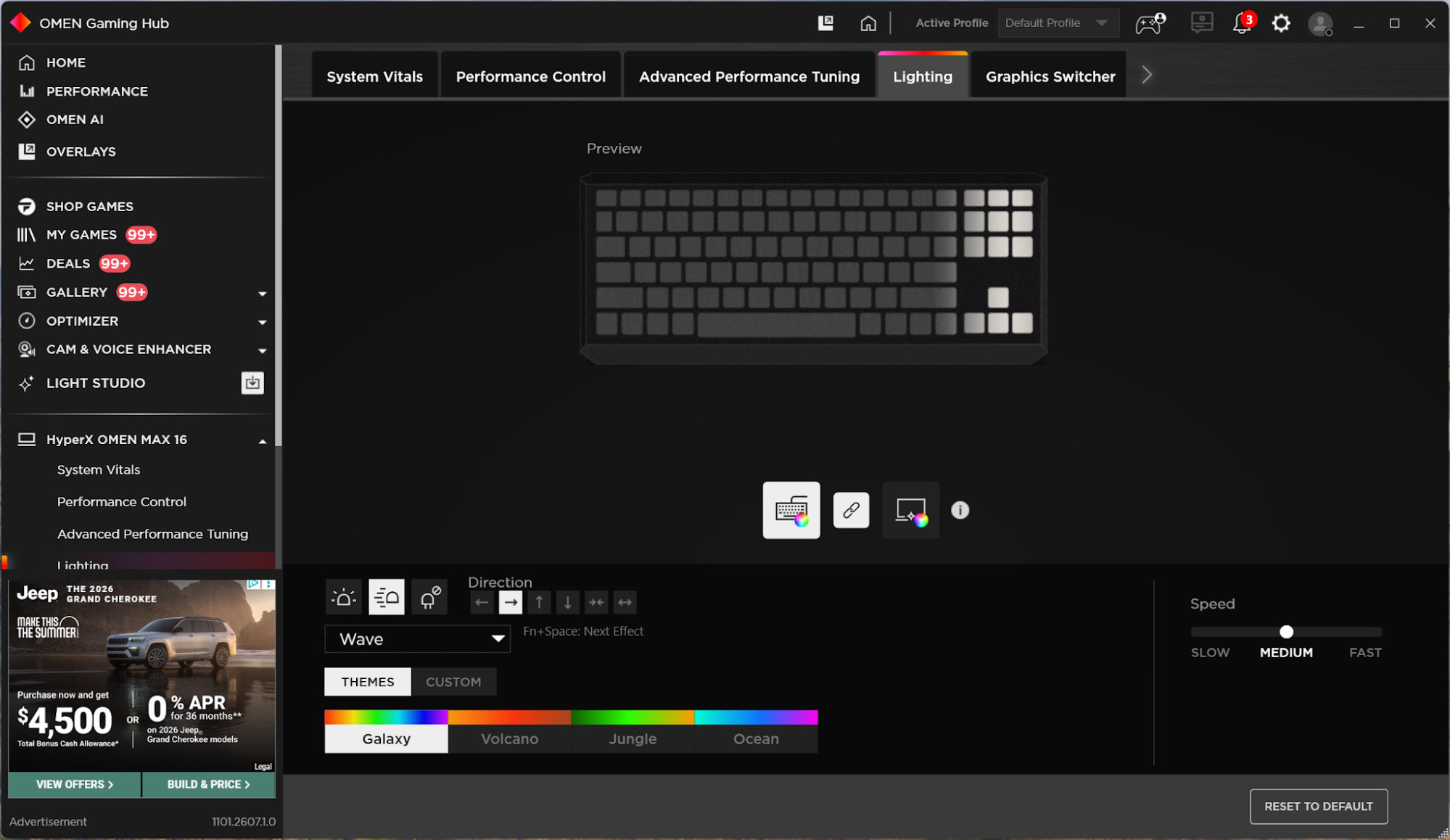
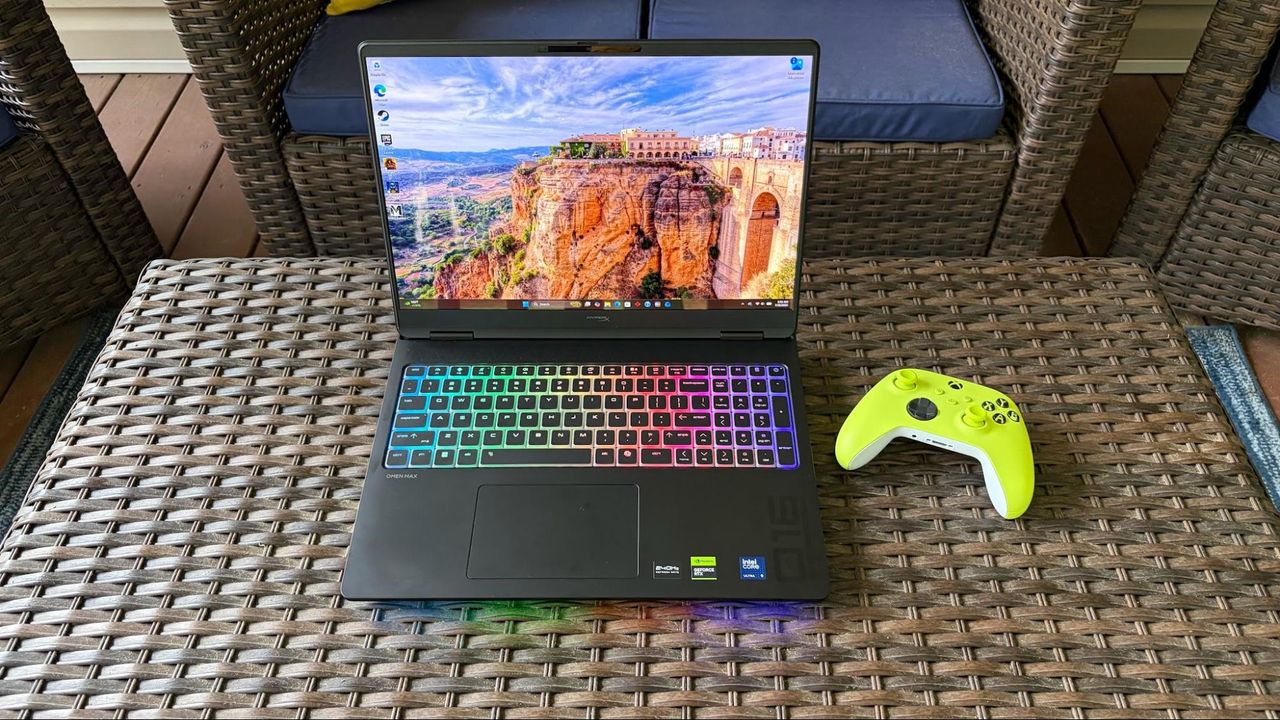
The only thing that really clues you into the gaming nature of the laptop (other than its sheer size) is the per-key RGB lighting for the keyboard, and a single LED strip on the bottom front edge of the chassis that you can configure with the Omen software.
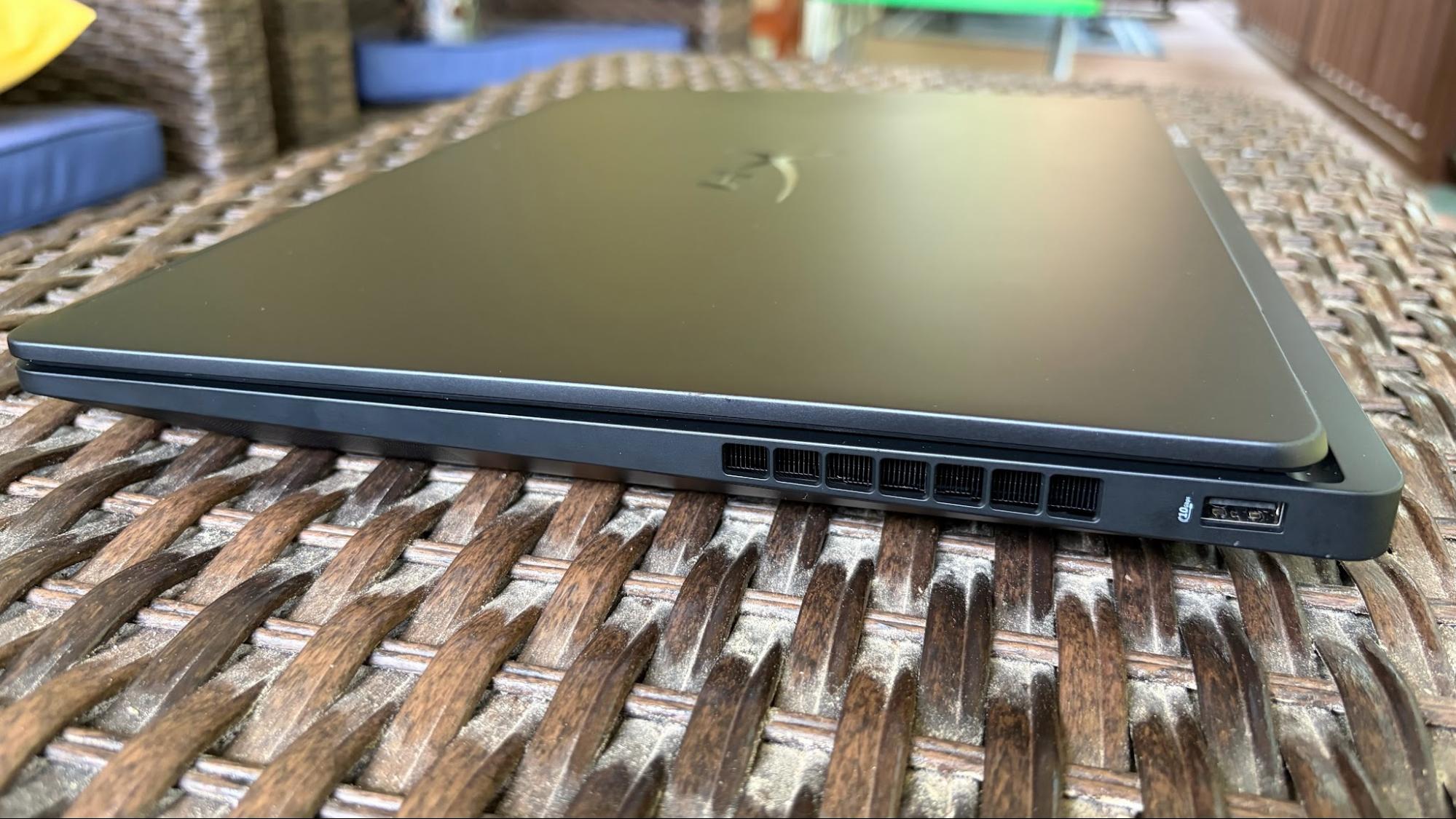
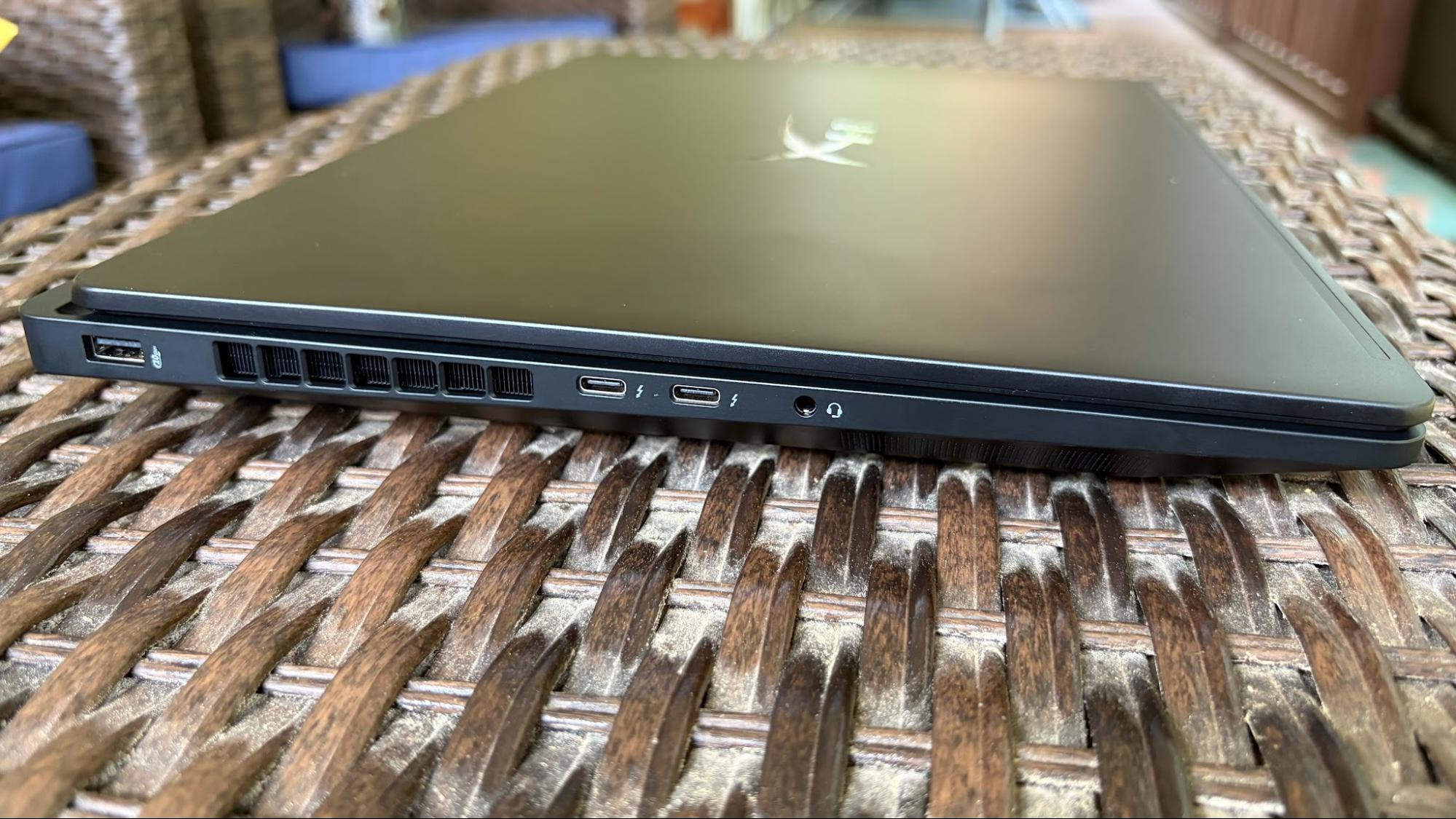
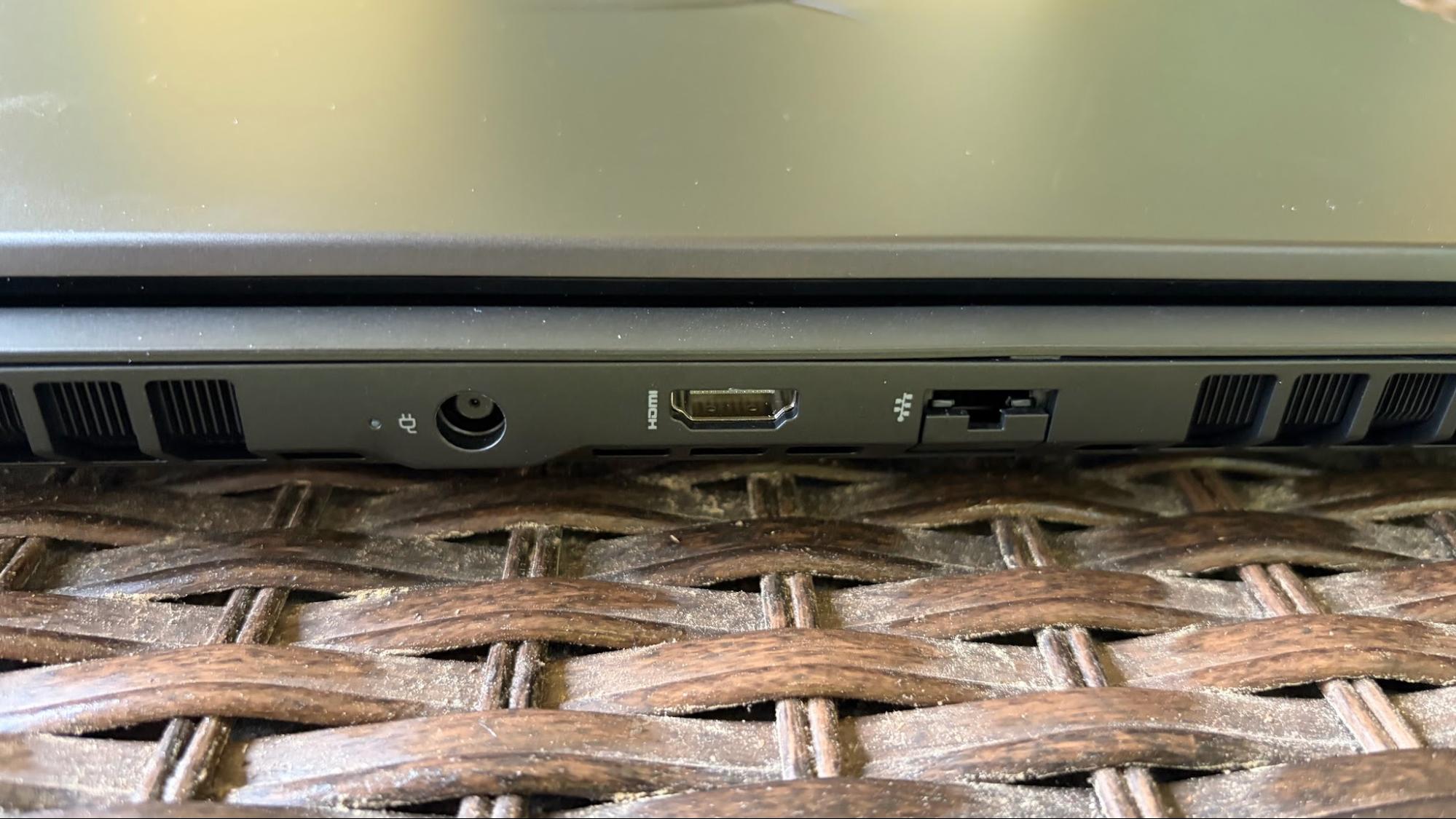
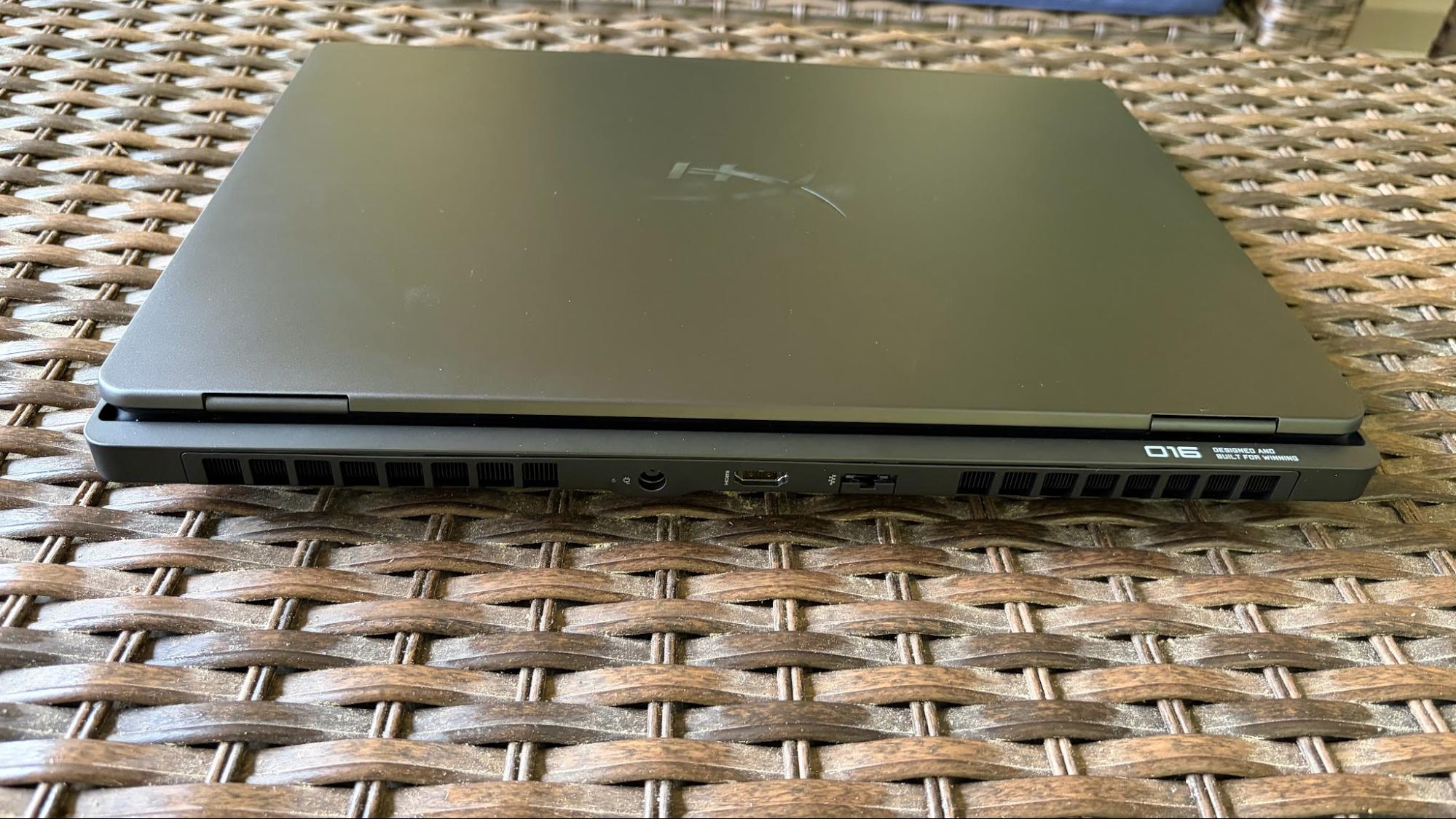
When it comes to external ports, the Omen Max 16 has a USB-A (10 Gbps) port, two Thunderbolt 4 ports, and a 3.5 mm audio jack on the left. On the right side of the chassis, you'll find another USB-A port. The back panel of the laptop is home to an HDMI 2.1 port, a 2.5 GbE port, and a proprietary power port (a 460W GaN power adapter is included).
The Omen Max 16 measures 14.04 x 10.59 x 1.03 inches and weighs 6.56 pounds. For comparison's sake, the Razer Blade 16 is 13.98 x 9.86 x 0.69 inches and weighs 4.71 pounds. The MSI Raider 16 HX comes in at 14.29 x 10.62 x 1.14 inches and weighs 5.73 pounds. The Alienware 16 Area-51 weighs 7.49 pounds and measures 14.37 x 11.41 x 1.12 inches.
HyperX Omen Max 16 Specifications
CPU
Intel Core Ultra 9 290HX Plus
Graphics
Nvidia GeForce RTX 5090 Laptop GPU (24GB GDDR7, 1,597 MHz Boost Clock, 175 W Max TGP)
Memory
32GB DDR5-6400 (2x 16GB)
Storage
2TB PCIe 5.0 NVMe M.2 SSD
Display
16-inch, 2560x1600, 240 Hz, 16:10, OLED
Networking
Wi-Fi 7, Bluetooth 5.4
Ports
2x Thunderbolt 4, 2x USB 3.2 Type-A Gen 2, 1x HDMI 2.1, 3.5 mm headphone jack, 2.5 GbE
Camera
1080p IR webcam
Battery
83 Whr
Power Adapter
460 W
Operating System
Windows 11 Home
Dimensions (WxDxH)
14.04 x 10.59 x 1.03 inches
Weight
6.56 pounds
Price (as configured)
$4,699.99
Gaming and Graphics on the HyperX Omen Max 16
The Omen Max 16 is equipped with an Intel Core Ultra 9 290HX Plus processor, 32GB of RAM, and an RTX 5090 GPU (175W TGP). Given these specs and a sizable chassis to aid cooling (300W total system power), I was expecting strong numbers from the Omen 16 Max. Instead, the laptop was relegated to the back of the pack, except for one game benchmark: Far Cry 6.
My game of choice these days is Battlefield 6, running at native resolution in Overkill detail mode, with DLSS Quality and frame generation enabled. Using these settings, I was able to average between 100 and 110 frames per second.
For the competitive set, we have the Blade 16 (Core Ultra 9 386H at 25W, RTX 5090 at 175W TGP), MSI Raider 16 Max HX (Core Ultra 9 290HX Plus at 55W, RTX 5090 at 175W TGP), and the Alienware 16 Area-51 (Core Ultra 9 290HX Plus at 55W, RTX 5080 at 175W TGP). It should be noted that the Omen Max 16 uses slower DDR5-6400, whereas systems like the Blade 16 use faster LPDDR5X-9600.
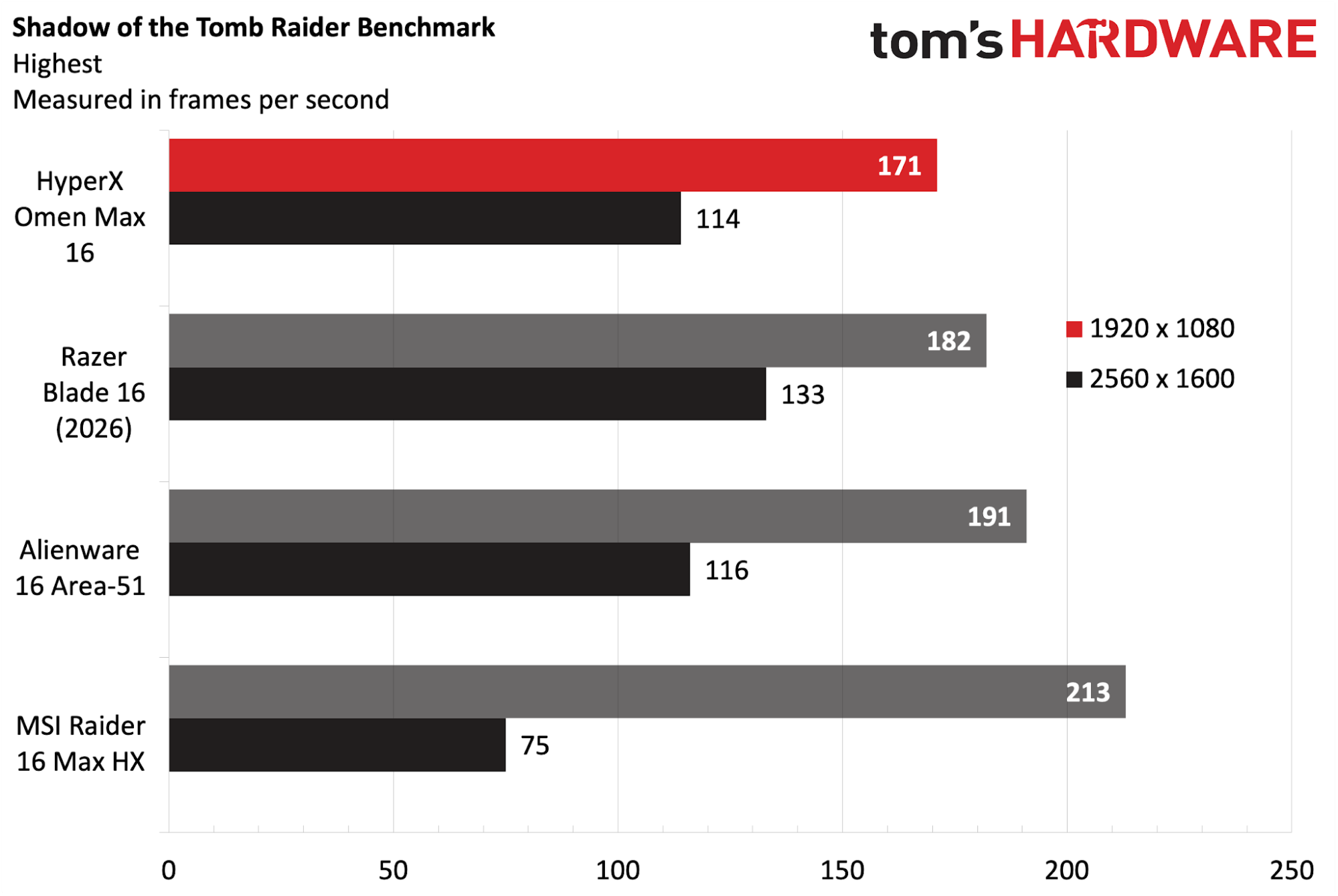
We started our benchmarking spree with Shadow of the Tomb Raider (Highest setting), and here the Omen Max 16 achieved 171 FPS at 1080p, putting it in last place behind the Razer Blade 16 (182 FPS). At 1600p, it landed in a comfortable third place (114 FPS) behind the Alienware 16 Area-51.
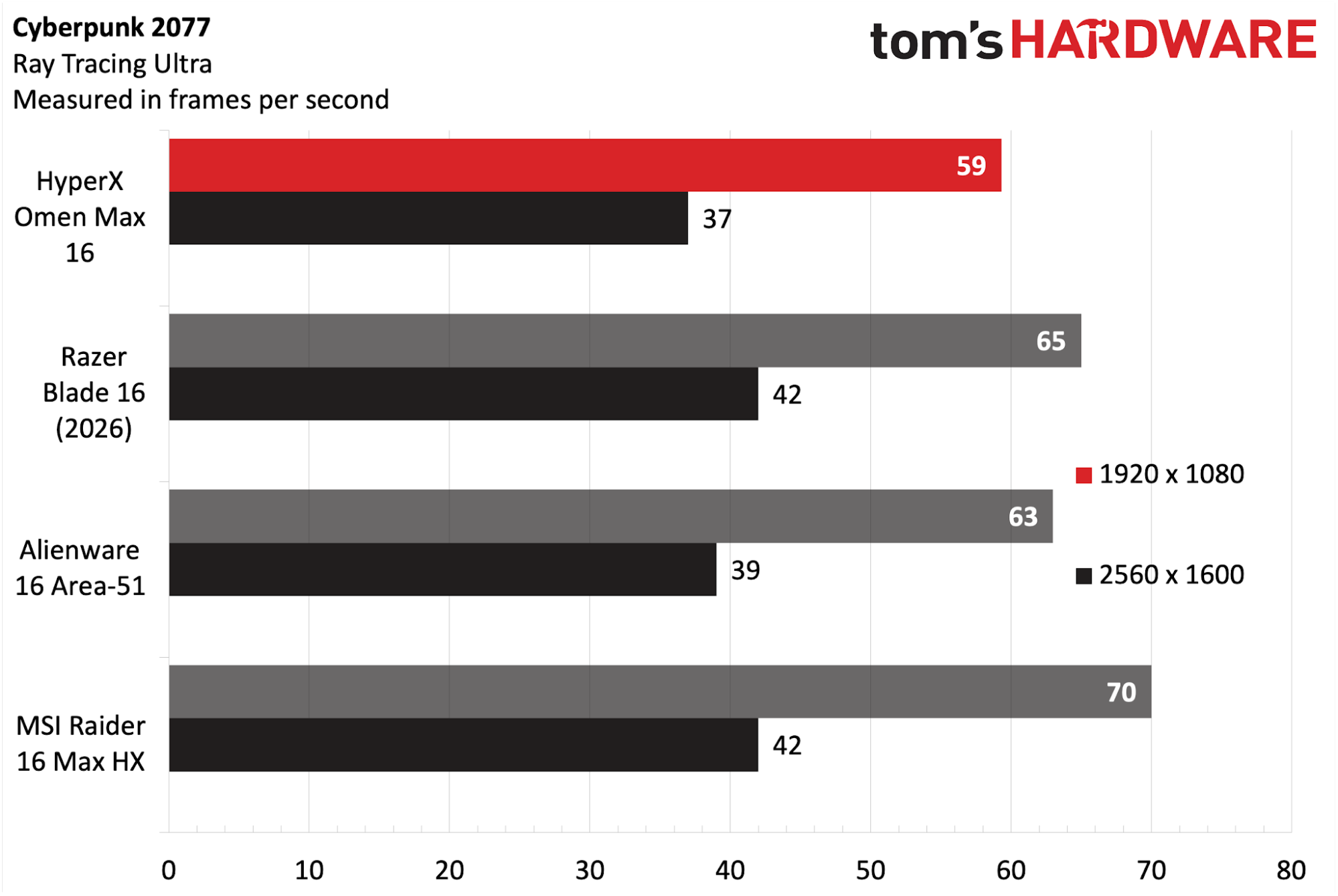
Cyberpunk 2077 (Ray Tracing Ultra settings) wasn't a strong showing for the Omen Max 16, either. It brought up last place at 1080p (59 FPS) and 1600p (37 FPS).
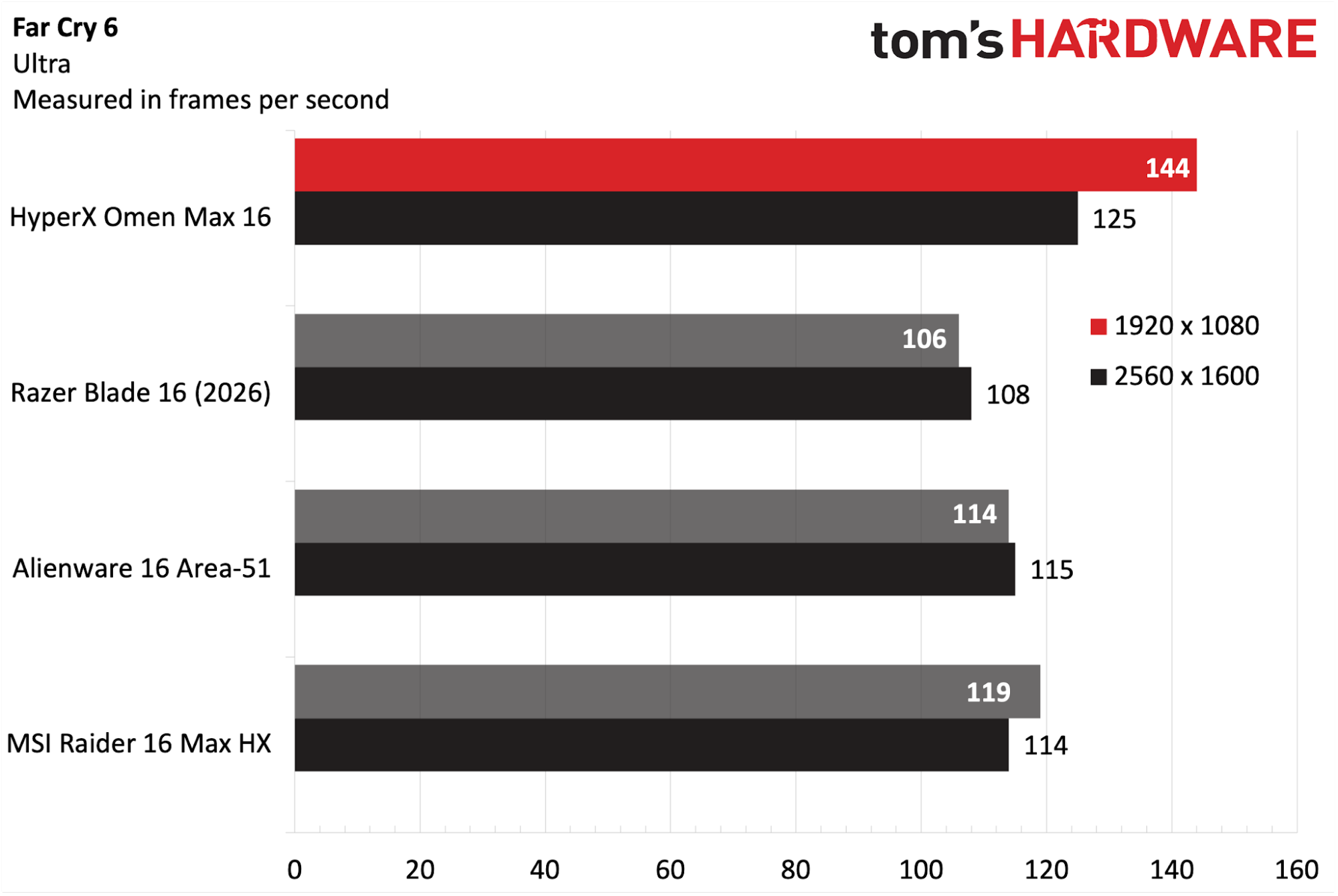
Far Cry 6 (Ultra settings) was the lone bright spot for the Omen Max 16, as it garnered 144 FPS at 1080p and 125 FPS at 1600p, easily putting it in first place. Both of these results far outpaced the rest of the field, with the next closest competitor being the MSI Raider 16 Max HX at 119 FPS and 114 FPS, respectively.
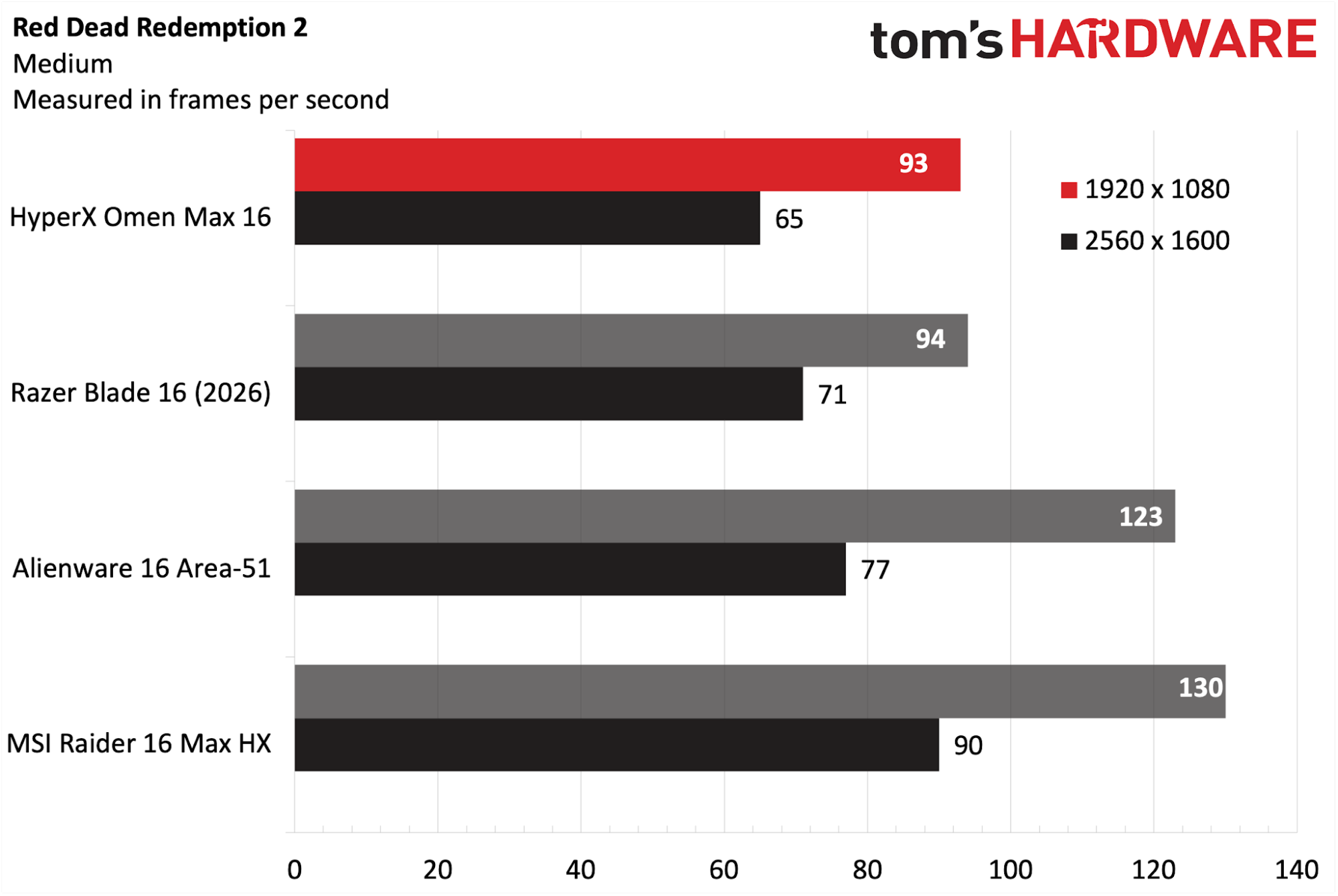
Moving to the Red Dead Redemption 2 (Medium settings) benchmark, the Omen Max 16 again wound up in last place, hitting 93 FPS at 1080p and 65 FPS at 1600p. However, in this instance, the margin between the Omen Max 16 and The Blade 16 at 1080p was just 1 FPS.
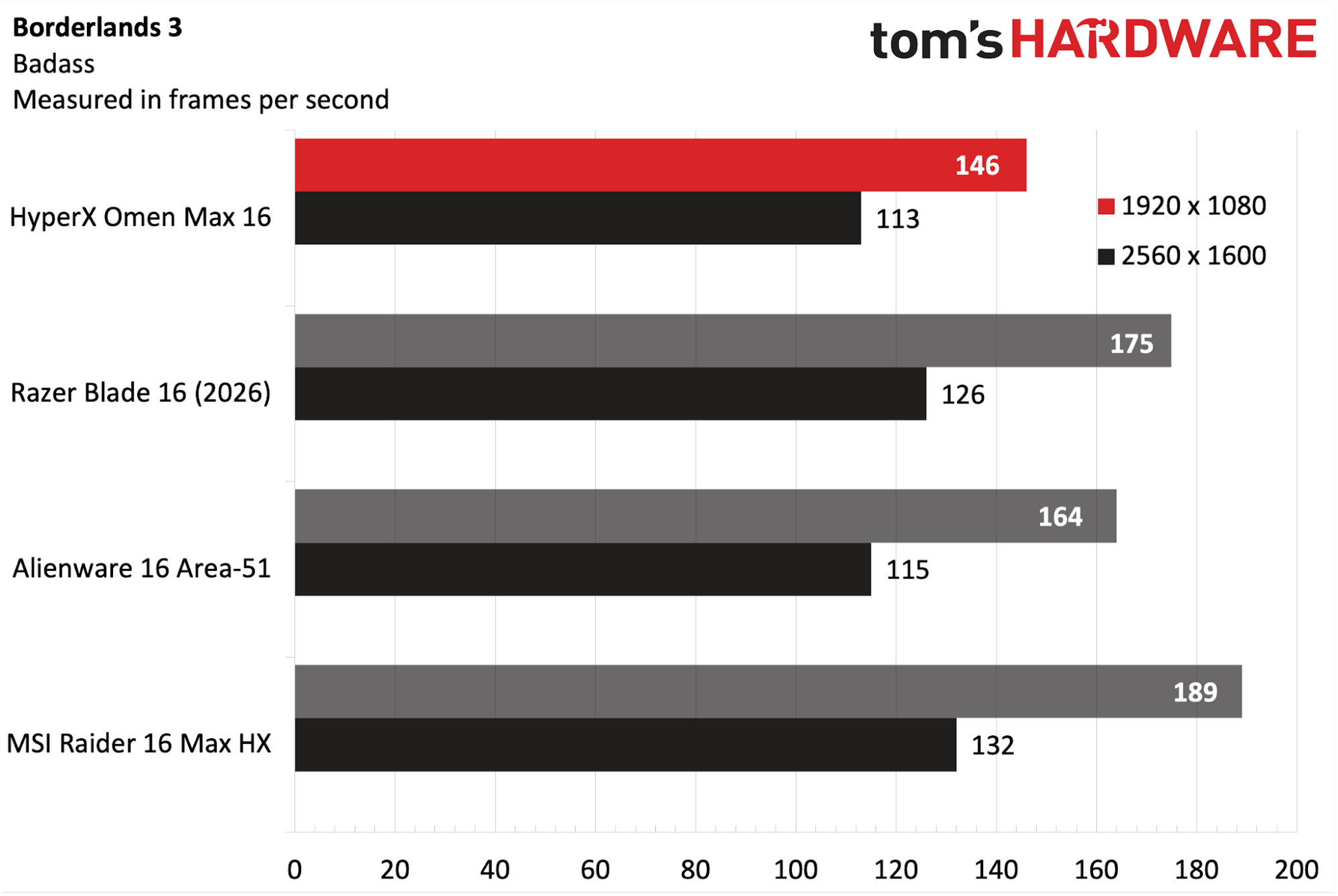
The Omen Max 16 again had trouble during the Borderlands 3 (Badass settings) benchmark, falling well off the pace set by its three competitors. The laptop hit 146 FPS at 1080p, nearly 20 FPS off the pace of the third-place Alienware 16 Area-51. At 1600p, it mustered just 113 FPS.
Metro Exodus is our go-to benchmark for laptop stress testing. Our review unit averaged 141.62 FPS at 1080p across 15 loops using the RTX benchmark preset. The CPU performance cores averaged 4.91 GHz, and the efficiency cores averaged 3.95 GHz. The RTX 5090 GPU ran at 1.81 GHz.
Productivity Performance on HyperX Omen Max 16
With its Core Ultra 9 290HX Plus processor, 32GB of RAM, and 2TB PCIe 5.0 SSD, the Omen Max 16 fared better in the productivity tests than it did with gaming.
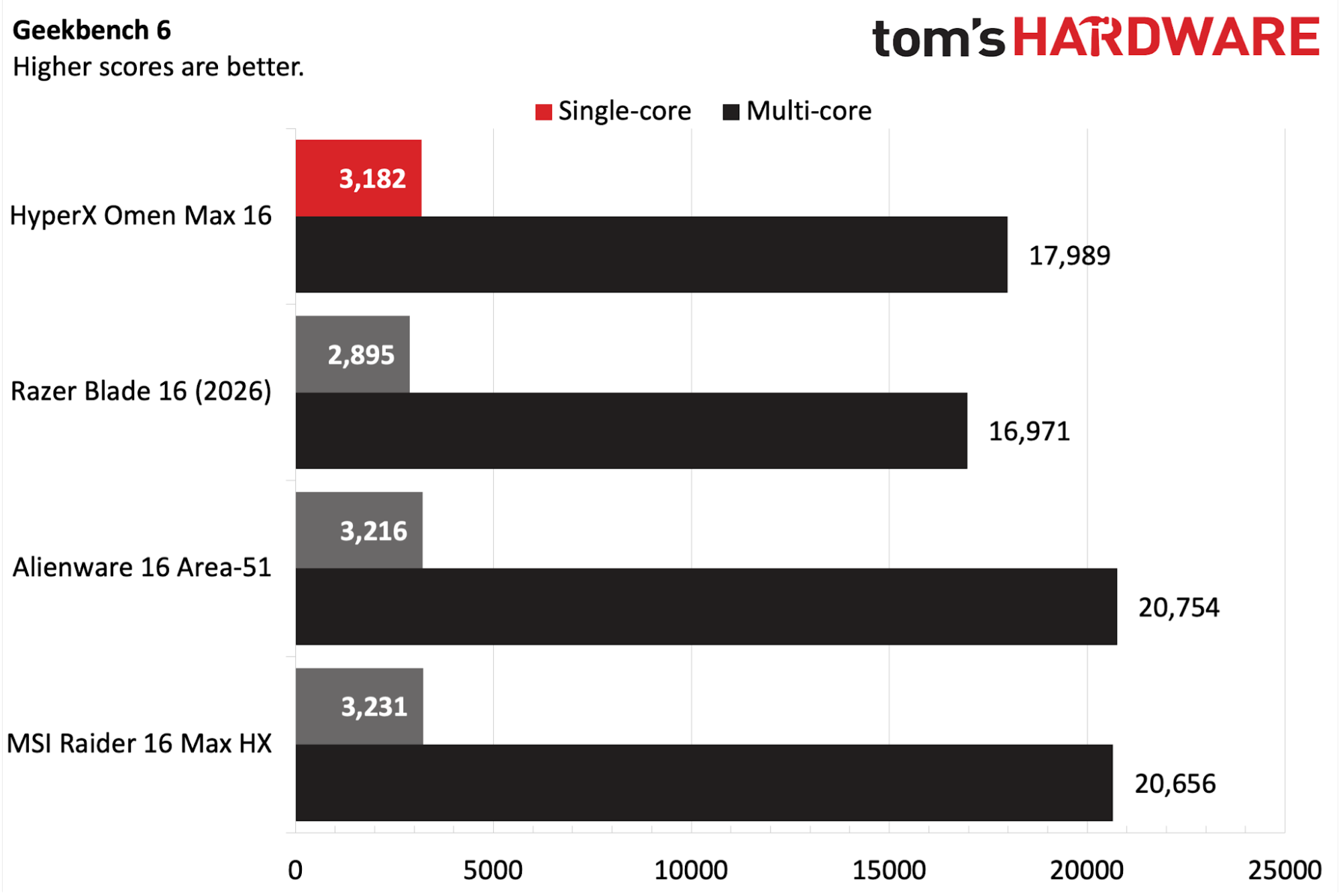
On Geekbench 6, the Omen Max 16 with the Core Ultra 9 290HX was able to muscle past the Blade 16 with its Core Ultra 9 386H on both the single-core (3,182) and multi-core (17,989) benchmarks. However, the Alienware 16 Area-51 and Raider 16 Max HX, which use the same Core Ultra 9 290HX processor, achieved much higher multi-core numbers (each surpassed 20,000).
Tom's HardwareTom's HardwareTom's Hardware
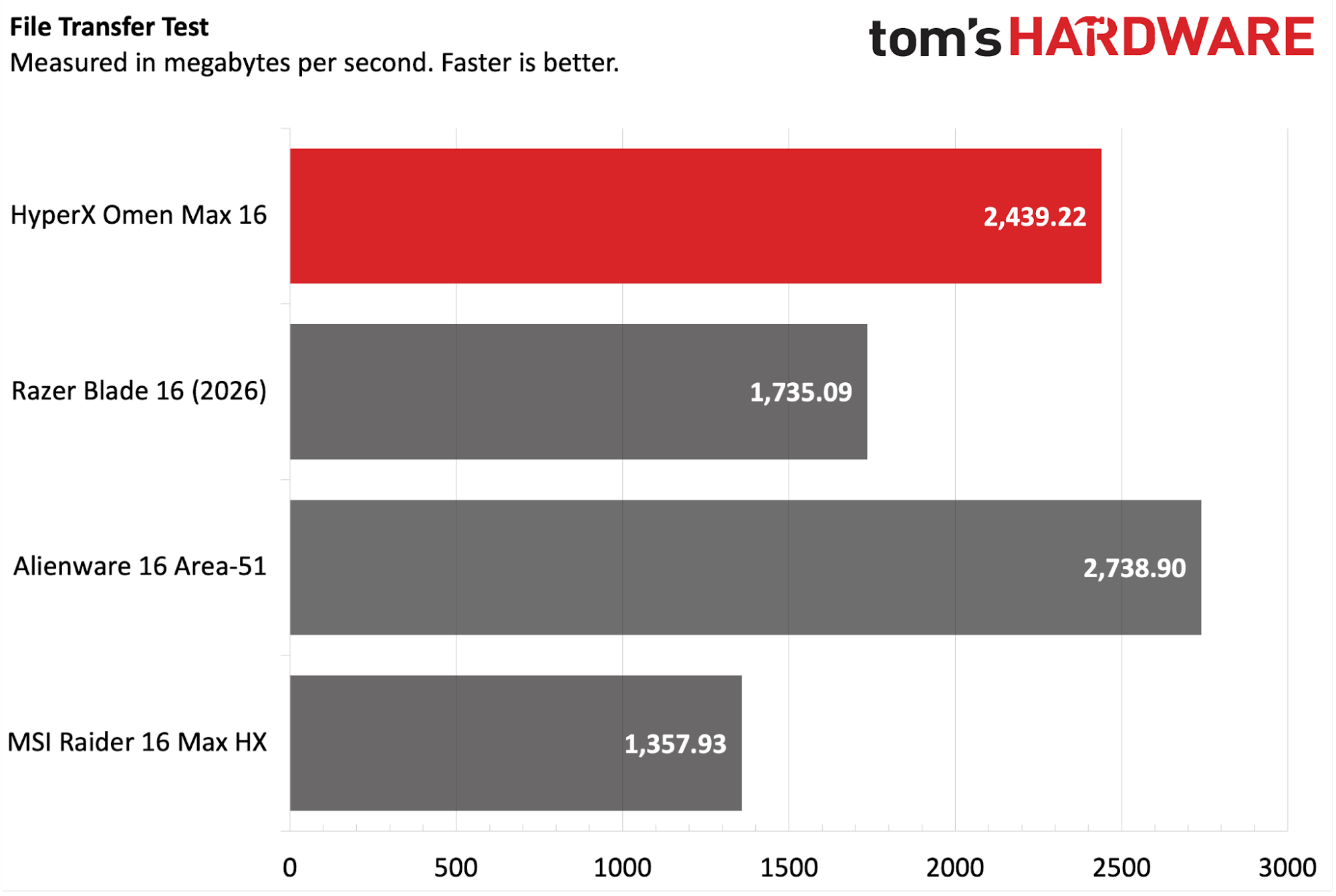
The PCIe 5.0 SSD used in the Omen Max 16 performed quite well in our 25GB file transfer test, coming in second place at 2,439.22 MBps. The Alienware 16 Area-51 was a few ticks ahead at 2,738.90 MBps.
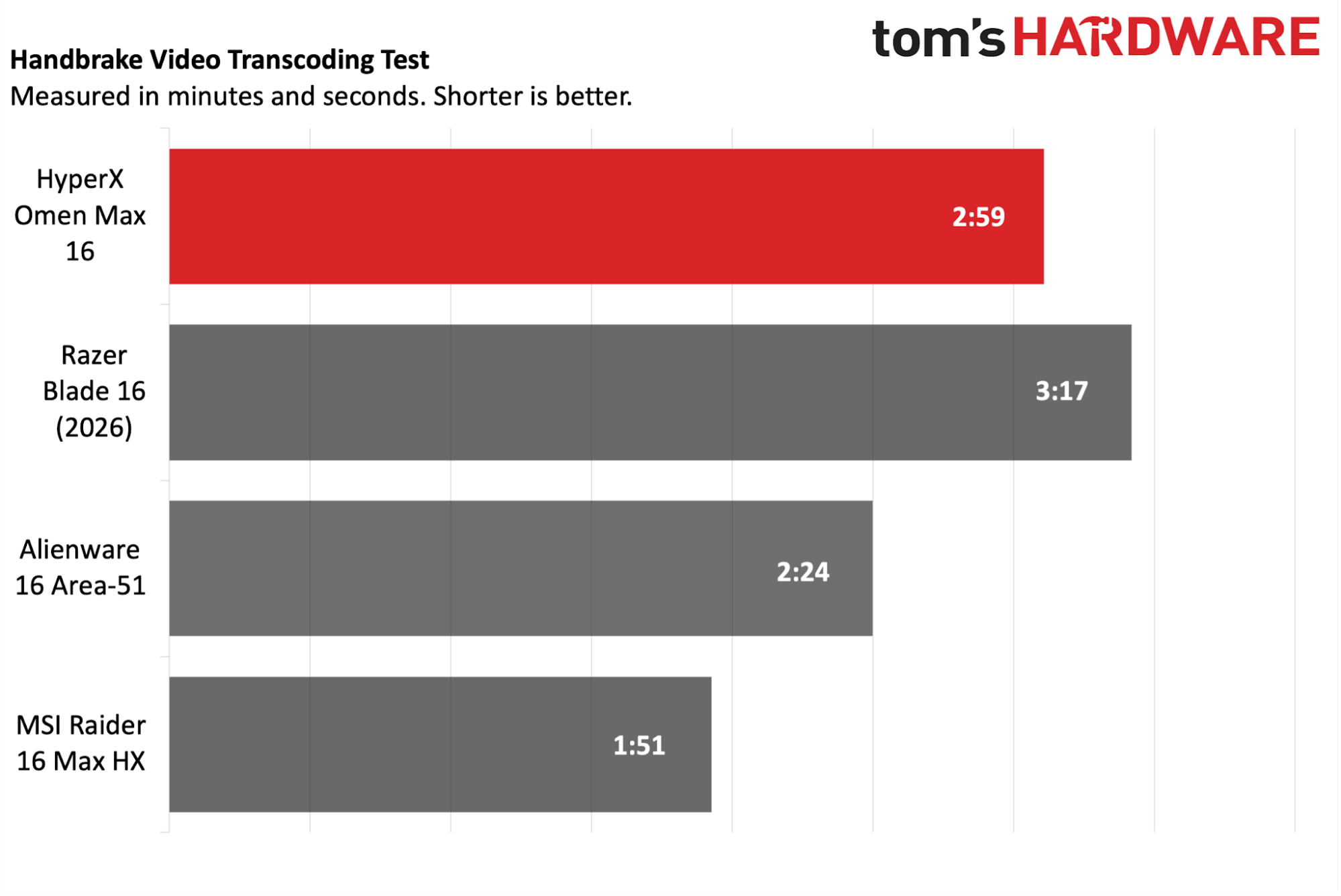
The soft performance of the Omen Max 16 continued with our Handbrake test, which involves transcoding a 4K video file to 1080p. Here the laptop performed the task in 2 minutes and 59 seconds. However, at least one other laptop with the same Core Ultra 9 290HX did the deed in less than two minutes.
Display on the HyperX Omen Max 16
The Omen Max 16 uses a 16-inch 2560 x 1600 OLED panel with a 240 Hz refresh rate. As is the case with most OLED displays that we test, this one had a glossy finish.
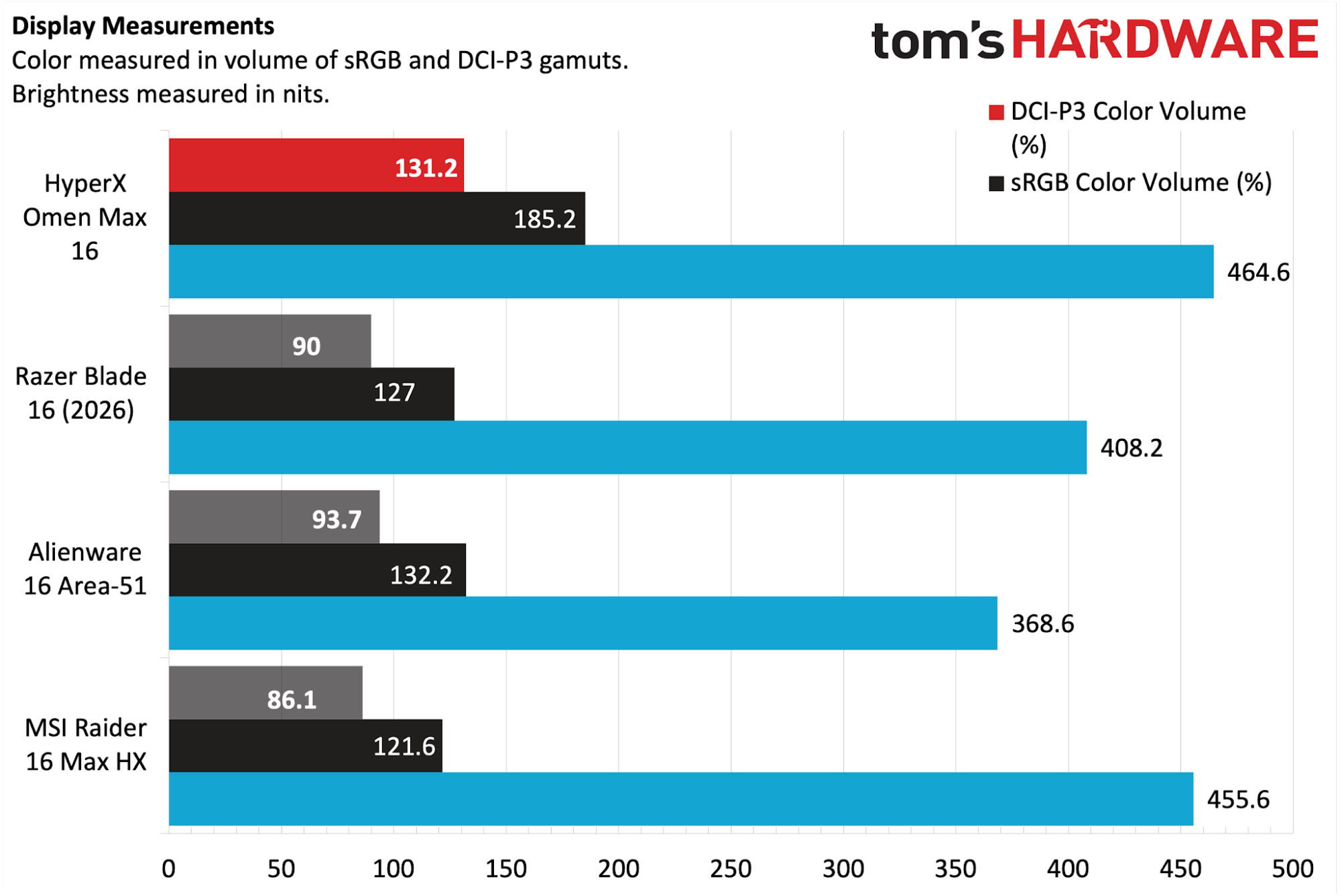
Instrumented testing on the OLED panel showed it excelling against the competition, covering 131.2 percent of the DCI-P3 color space and 185.2 percent of sRGB. Even better, the Omen Max 16 nudged past the Raider 16 Max HX to also take the crown for panel brightness (464.6 nits versus 455.6 nits).
(Image credit: Tom's Hardware)
OLED panels rarely disappoint, and I was more than impressed with the overall quality and brightness. The brightness was high enough that I was able to game while on my back porch during a partly cloudy day with minimal interference from reflections on the glossy panel.
I also viewed the first Avengers: Doomsday trailer using the display, and besides getting a tiny bit emotional while watching it, was delighted with the color reproduction, particularly in the short battle between Gambit and Shang-Chi, with flashes of purple playing cards and orange rings.
Keyboard and Touchpad on the HyperX Omen Max 16
The Omen Max 16 features a full-size RGB backlit keyboard (with per-key lighting) and NKRO anti-ghosting technology. RGB effects are customizable using HP's Omen app or directly from within Windows 11.
The keys felt quite springy when typing, and I found it incredibly comfortable to rest my fingers and click away. And while some keyboards audibly make their presence known as you type at a furious pace, the key actuation on the Omen Max 16 was whisper-quiet.
(Image credit: Tom's Hardware)
Turning my attention to the Keyhero.com typing test, I plugged away at 95 words per minute with 97% accuracy, which is definitely on the high side for me (I’m usually in the mid-80s realm).
Given the Omen Max 16 price tag of over $4,500, I was disappointed that HP didn’t go with a haptic touchpad. Instead, we get a top-hinged trackpad that is just OK. It gets the job done, but for this much money, I’d prefer to be able to click anywhere on the touchpad surface without hitting a dead zone. At least while gaming, you probably use a mouse or controller.
Audio on the HyperX Omen Max 16
Audio quality is another area where I think HP missed the mark. To beat a dead horse, but this is a laptop that retails for $4,699, and it only comes with stereo speakers. Would it have killed HP to add another pair of speakers in this tank of a chassis?
While the speakers had good overall volume levels, I felt the sound lacked some depth compared to similarly priced laptops with four (Raider 16 Max HX) or even six speakers (Blade 16). While I was more than happy listening to Keane’s “Fly to Me” from the album Hopes and Fears, I was disappointed in the sound while playing Battlefield 6.
When it came to gunfire, vehicle sounds, and background explosions while gaming, I wasn't impressed. I prefer throwing on a pair of the best gaming headsets, but there’s still no excuse to drop the ball at this price point.
Upgradeability of the HyperX Omen Max 16
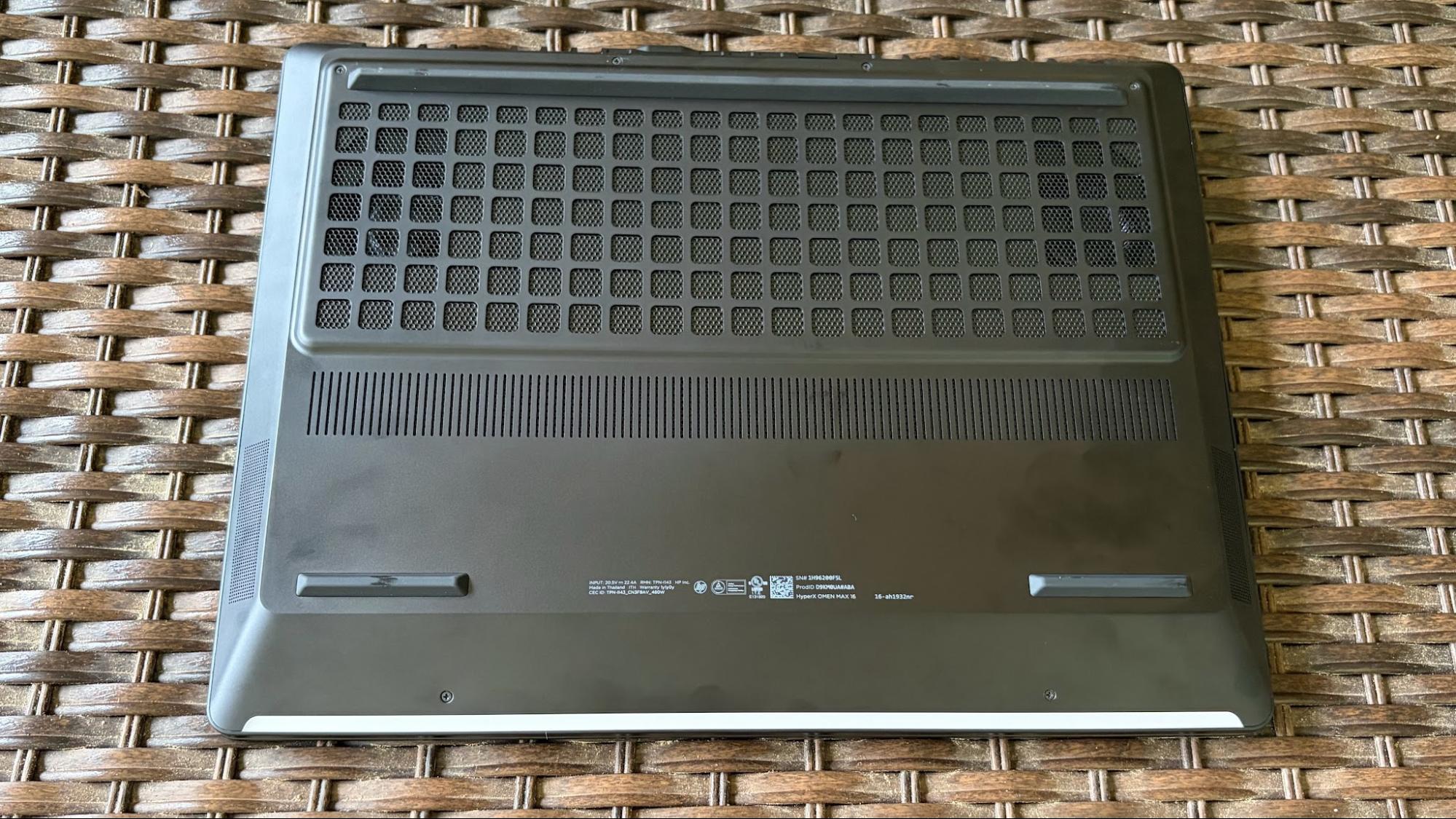
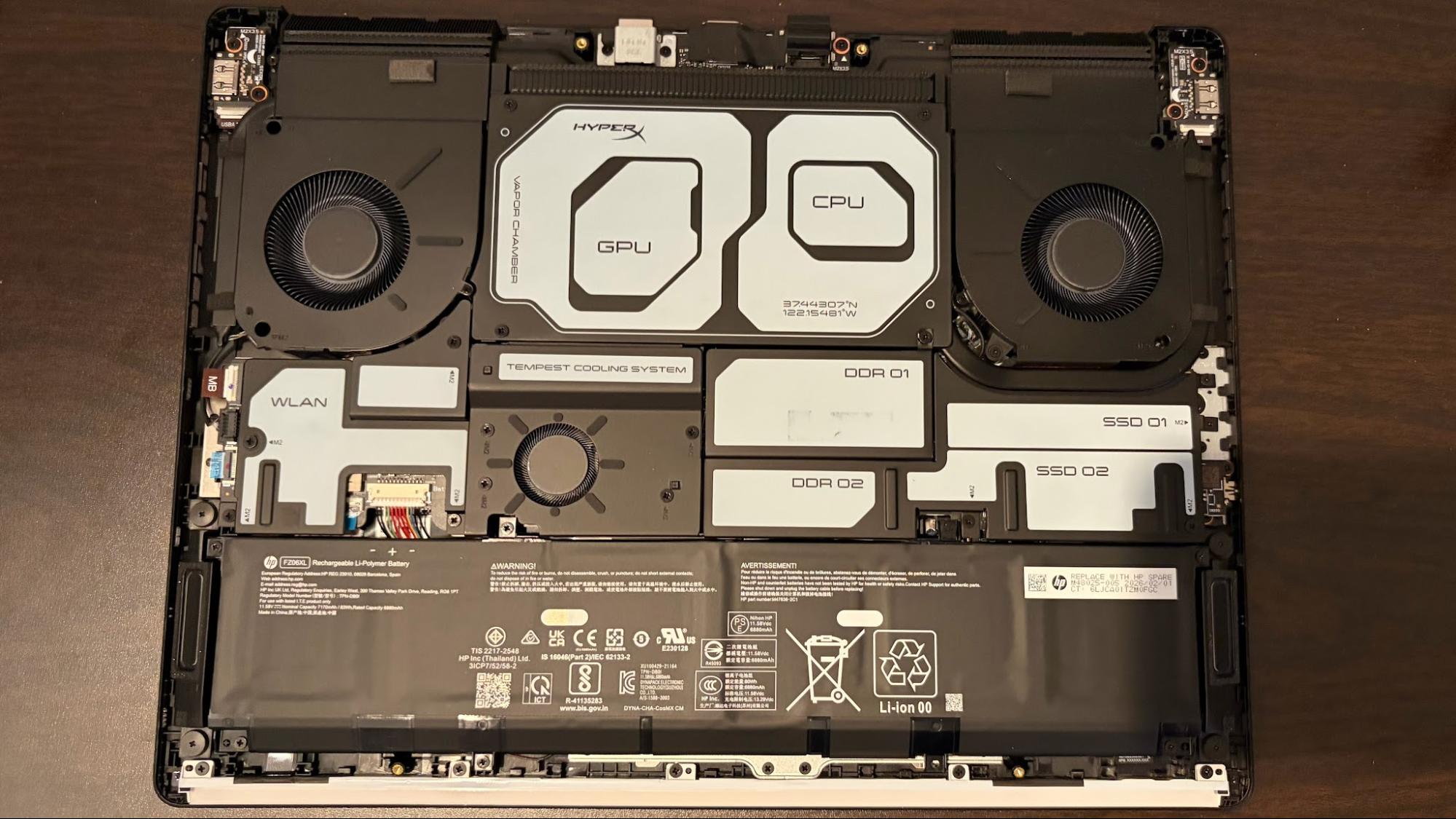
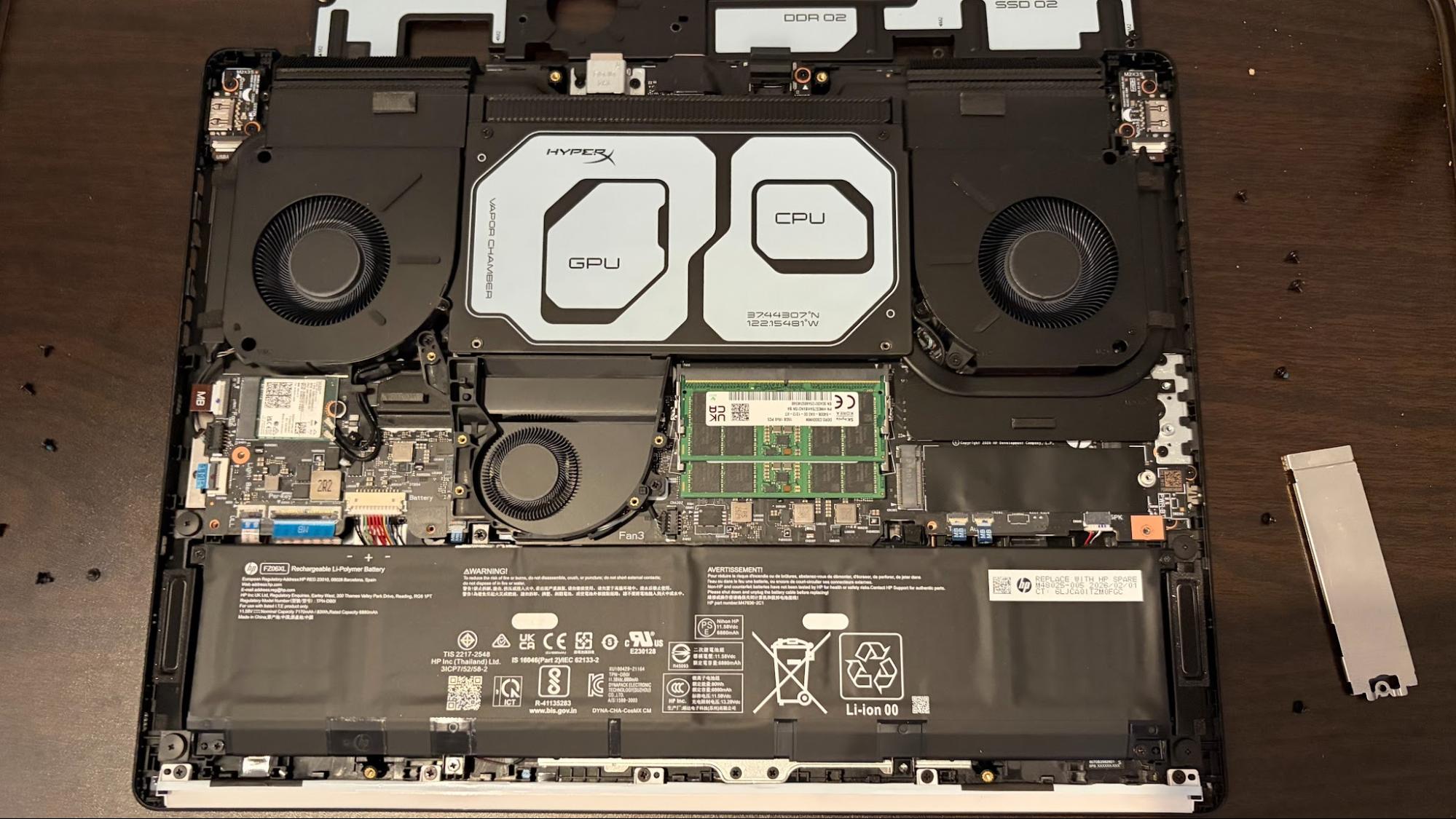
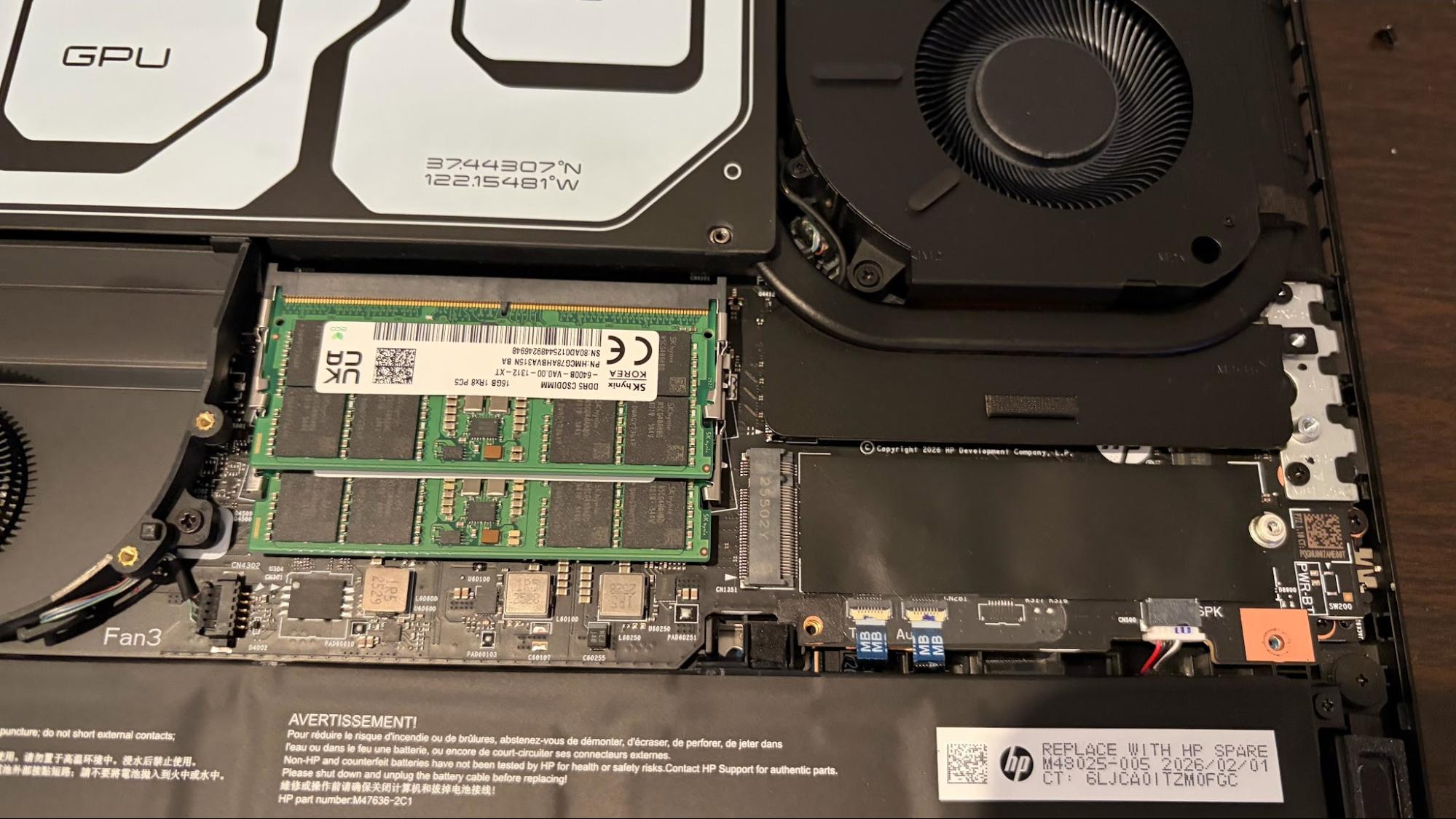
Six screws need to be extracted to remove the bottom aluminum panel. While that was easy enough, it’s only half the battle. All of the serviceable components (save for the readily accessible battery) are underneath an extensive metal shield. That shield is held in place by roughly a dozen screws, making upgrades a bit tedious.
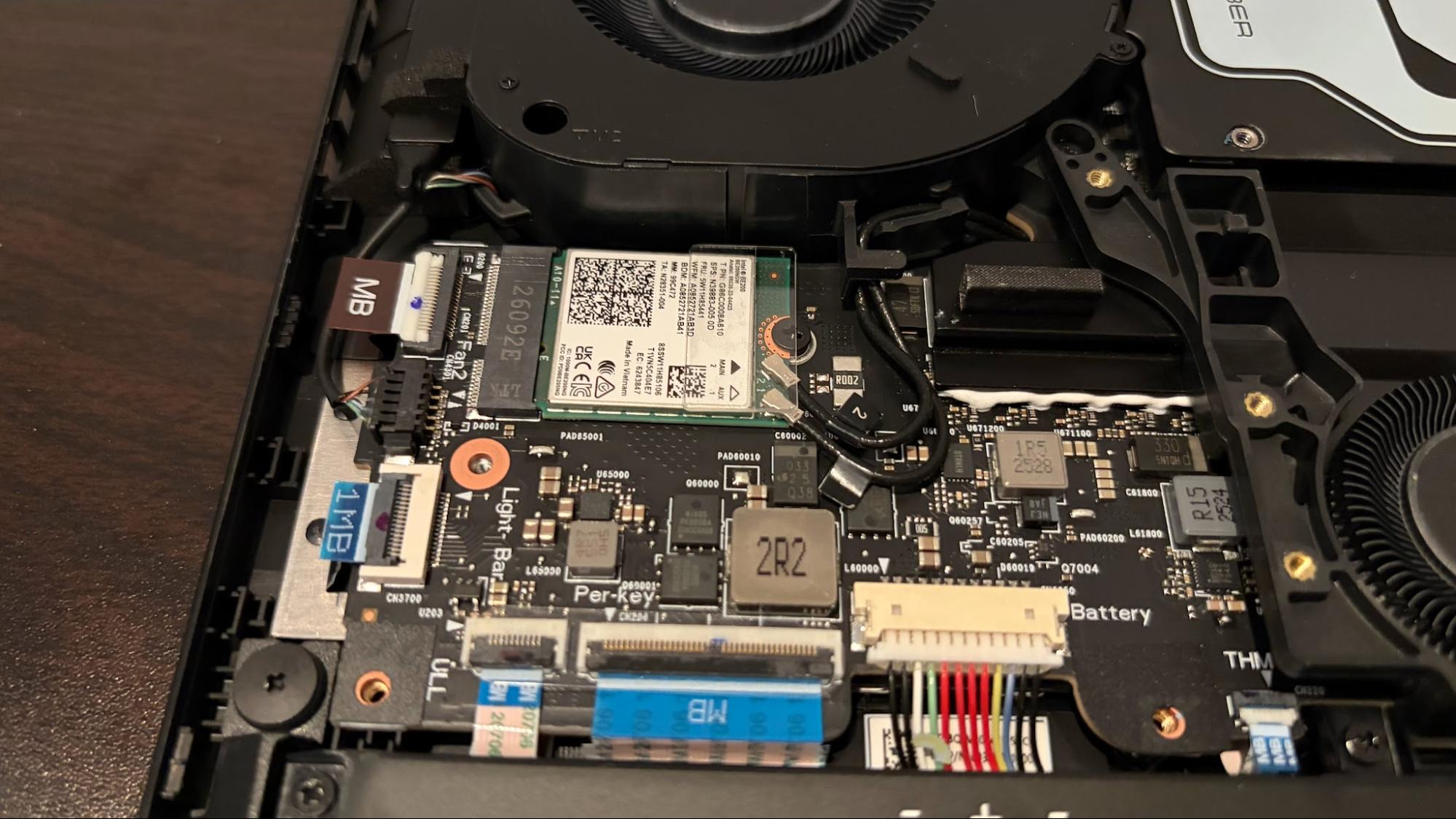
Once the shield is removed, you’ll find access to the M.2 slot for the Wi-Fi/Bluetooth module, two SO-DIMM slots (both of which were filled on our review unit), and an additional M.2 slot for a second SSD. Yet another metal shield covers the first M.2 SSD slot, although I didn’t go through the process of removing another dozen screws to uncover it.
Battery Life on the HyperX Omen Max 16
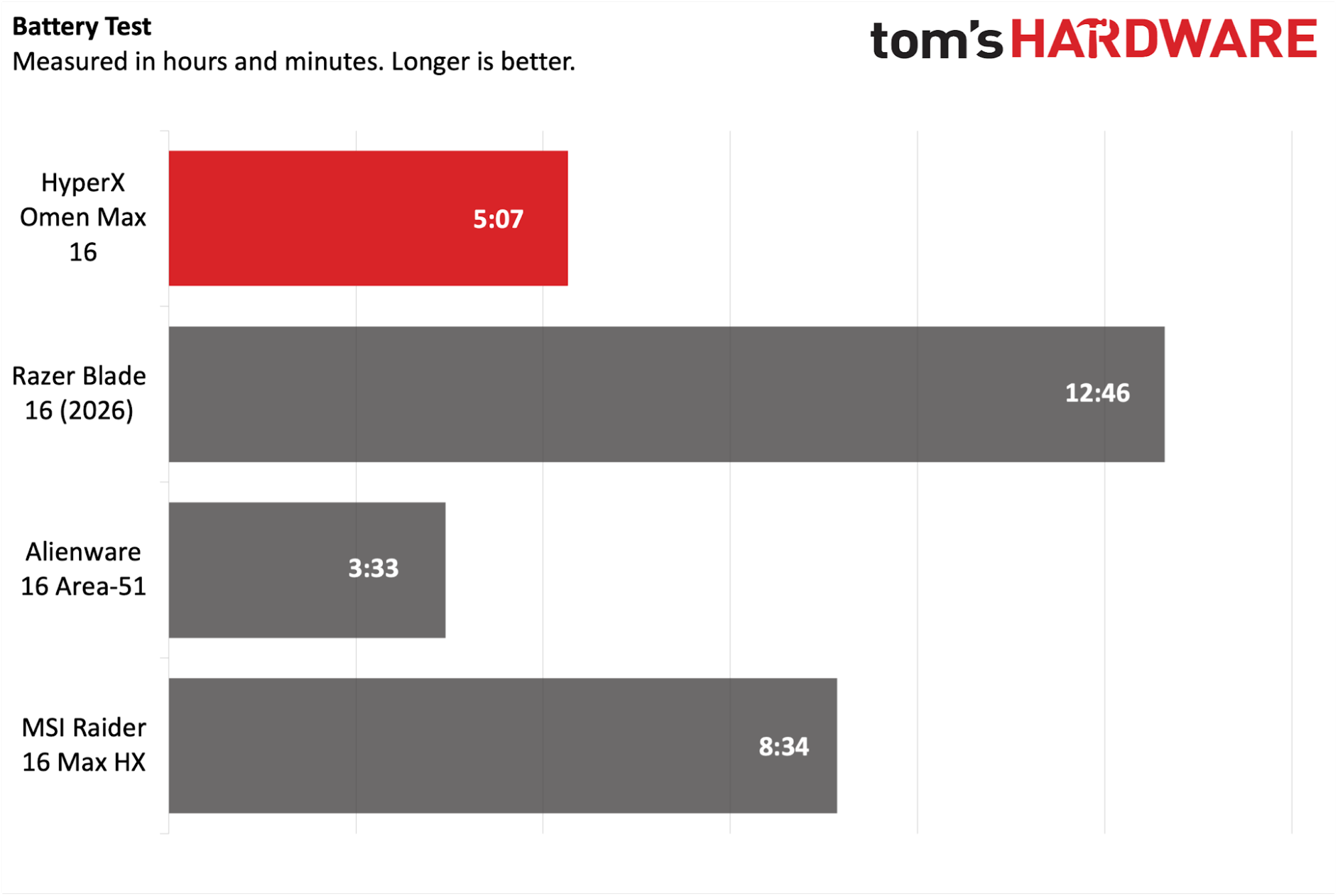
Despite its considerable girth, the Omen Max 16 is equipped with just an 83 WHr battery. For comparison, the thinner and lighter Blade 16 manages to squeeze in a 90 WHr battery.
(Image credit: Tom's Hardware)
The Omen Max 16 lasted 5 hours and 7 minutes on our battery test, which consists of web browsing, video streaming over Wi-Fi, and OpenGL testing with the screen brightness set at 150 nits. This was over three hours shorter than the Raider 16 Max HX, while the Blade 16 lasted over twice as long on a charge (12:46).
Heat on the HyperX Omen Max 16
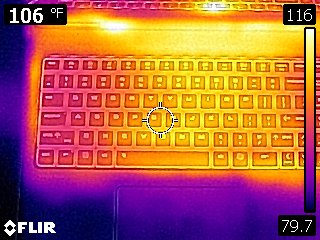
During the Metro Exodus stress test, we measured the Omen Max 16's keyboard at 106 degrees Fahrenheit (F) between the G and H keys, while the touchpad was 84.9 F.
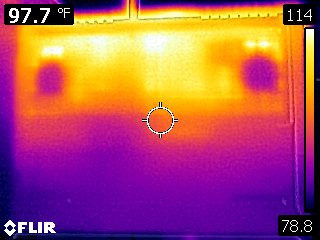
The hottest part of the laptop was near the rear center of the bottom of the chassis, which measured 114 F.
Tom's HardwareTom's Hardware
While running the Metro Exodus stress test, the CPU measured 87 degrees Celsius (C). Meanwhile, the RTX 5090 was cooler at 75 C.
Webcam on the HyperX Omen Max 16
Another area where it feels like HP skimped is with the webcam. Rather than going with a higher resolution unit, the Omen Max 16 features a bog-standard 1080p unit that looks about as good as one you’d find in a $1,000 entry-level gaming laptop.
The camera didn’t do particularly well with a nearby window where light was shining through, and there were a lot of noise artifacts in less-than-ideal light conditions. In addition, the camera didn’t really pick up fine details well, which is disappointing considering the price.
Software and Warranty on the HyperX Omen Max 16
Like many HP laptops, the HyperX Omen Max 16 comes loaded with additional software bloat that you can mostly ignore or simply delete. Scrolling down the list of “H” apps in the Start Menu, HP basically set up camp with no less than eight apps/shortcuts—everything from HP Documentation to HP Privacy Settings to HP TV+. In addition, you’ll find the usual third-party add-ons like McAfee and promotional links for Dropbox, Adobe, and Booking.com.
Tom's HardwareTom's HardwareTom's Hardware
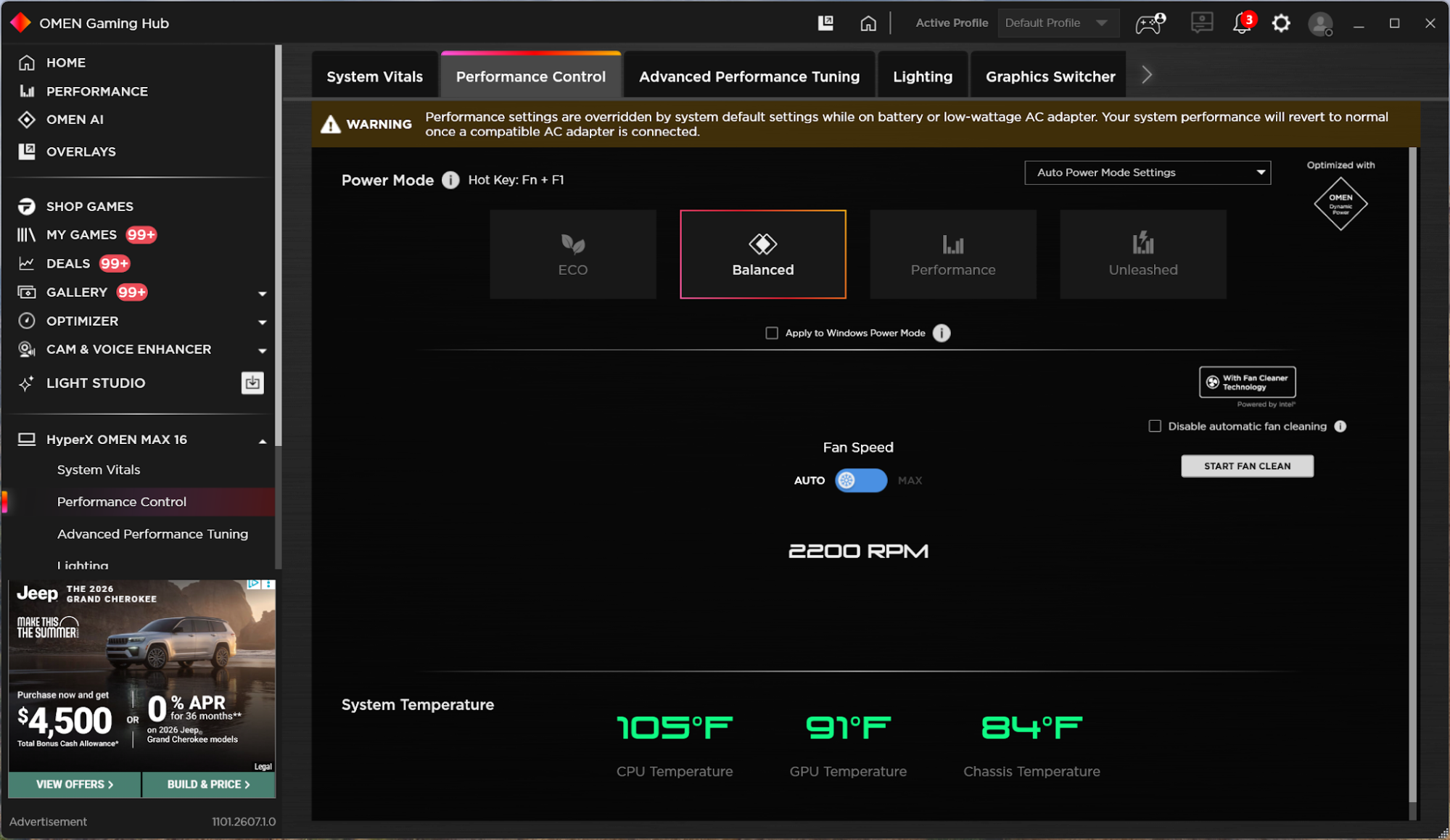
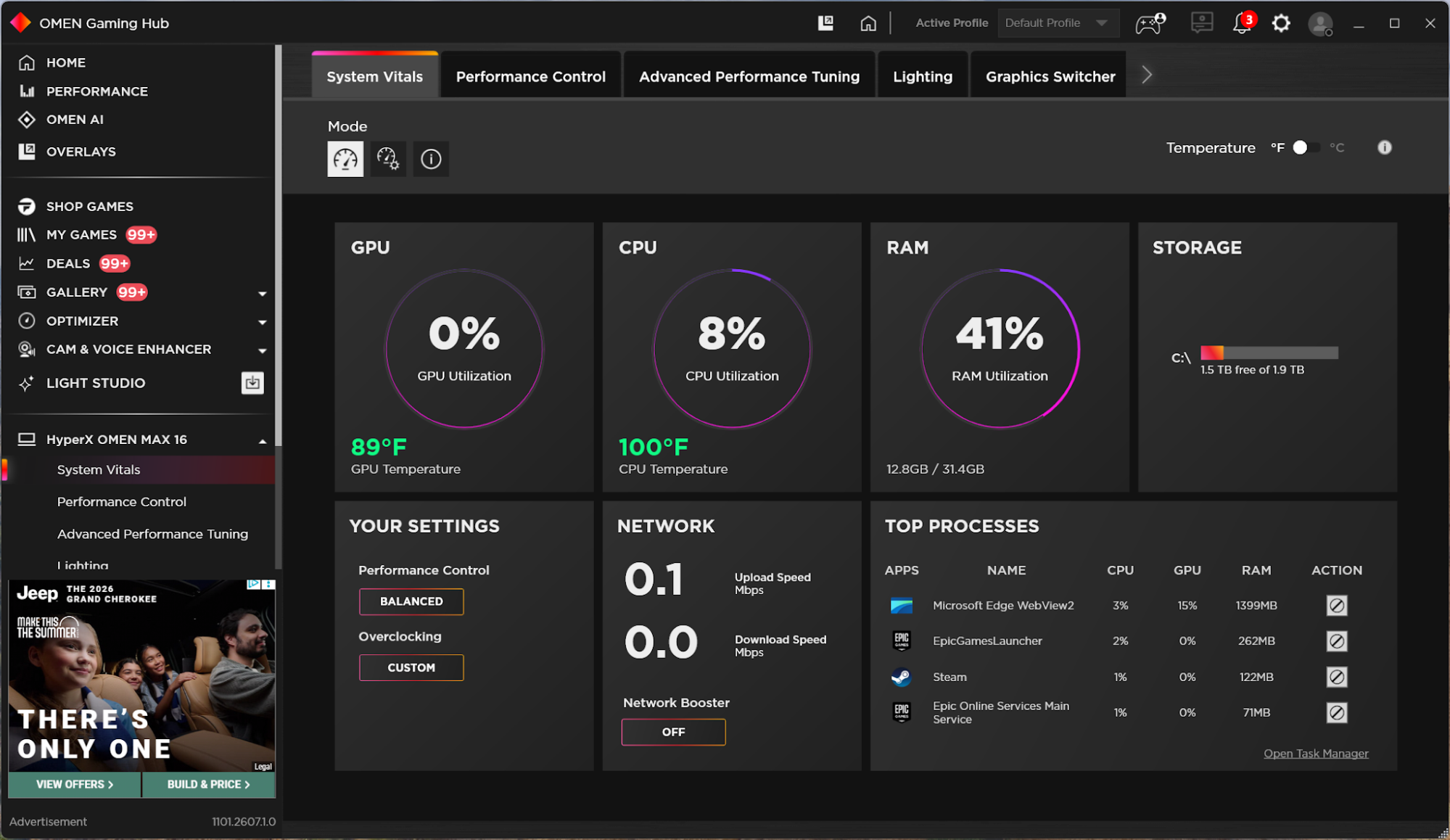
The only really useful preinstalled app is the Omen Gaming Hub. It gives you control over power modes, lets you see CPU/GPU/RAM utilization, and provides plenty of configuration options for the onboard RGB lighting.
The Omen Max 16 comes with a one-year manufacturer warranty.
HyperX Omen Max 16 Configurations
Our Omen Max 16 came configured with an Intel Core Ultra 9 290HX Plus processor, 32GB of DDR5-6400 memory, a 2TB PCIe 5.0 SSD, RTX 5090 GPU, and a 16-inch 1600p 240 Hz OLED display. The MSRP on our review unit was a staggering $4,699.99.
There are also several less expensive options, with the cheapest being a $2,699 SKU with a Core Ultra 7 270HX processor, 32GB of RAM, a 1TB SSD, and an RTX 5080. For $3,099, you can swap the Core Ultra 7 270HX for an AMD Ryzen AI 9 HX 475 and double the SSD capacity to 2TB.
Bottom Line
The HyperX Omen Max 16 represents a swing and a miss. When I first saw the enormity of the chassis, I was looking forward to some impressive gaming performance given the 55W processor and 175W RTX 5090 onboard. Instead, what I was left with was a $4,699 gaming laptop that lingered in last place for most of the gaming benchmarks, and often by a large margin. Even the Razer Blade 16 with its 25W processor managed to get the upper hand in most benchmarks.
But the gaming wasn’t the only disappointment. Given the price tag, I would have expected a better-equipped machine. Where’s the haptic trackpad, and why do we only get two speakers? And on a minor annoyance angle, while I appreciate the two M.2 slots for storage and replaceable memory, why do I need to remove another dozen screws just to access those components?
In the end, the Omen Max 16 could have been so much more. Quite frankly, it would make sense to spend the extra $200 and grab a Razer Blade 16. Not only is it thinner and lighter (by two pounds), but it offers double the battery life.
Thunderbolt docks are an easy way to expand the number of available external ports for a laptop and have become quite popular in recent years. They are particularly beneficial with the best ultrabooks, which can sometimes be equipped with as few as just two Thunderbolt ports and no additional external ports for connectivity.
We’ve previously taken a look at some popular Thunderbolt 5 docks, with some costing as much as $650. This time around, we’re looking at some more affordable solutions, with all three of these units carrying a street price of less than $400. The UGREEN Revodok Maxidok has a street price of $389.99 after coupon, while the Plugable TBT-UDH2 and Keychron TB5D-1 are both available for around $350.
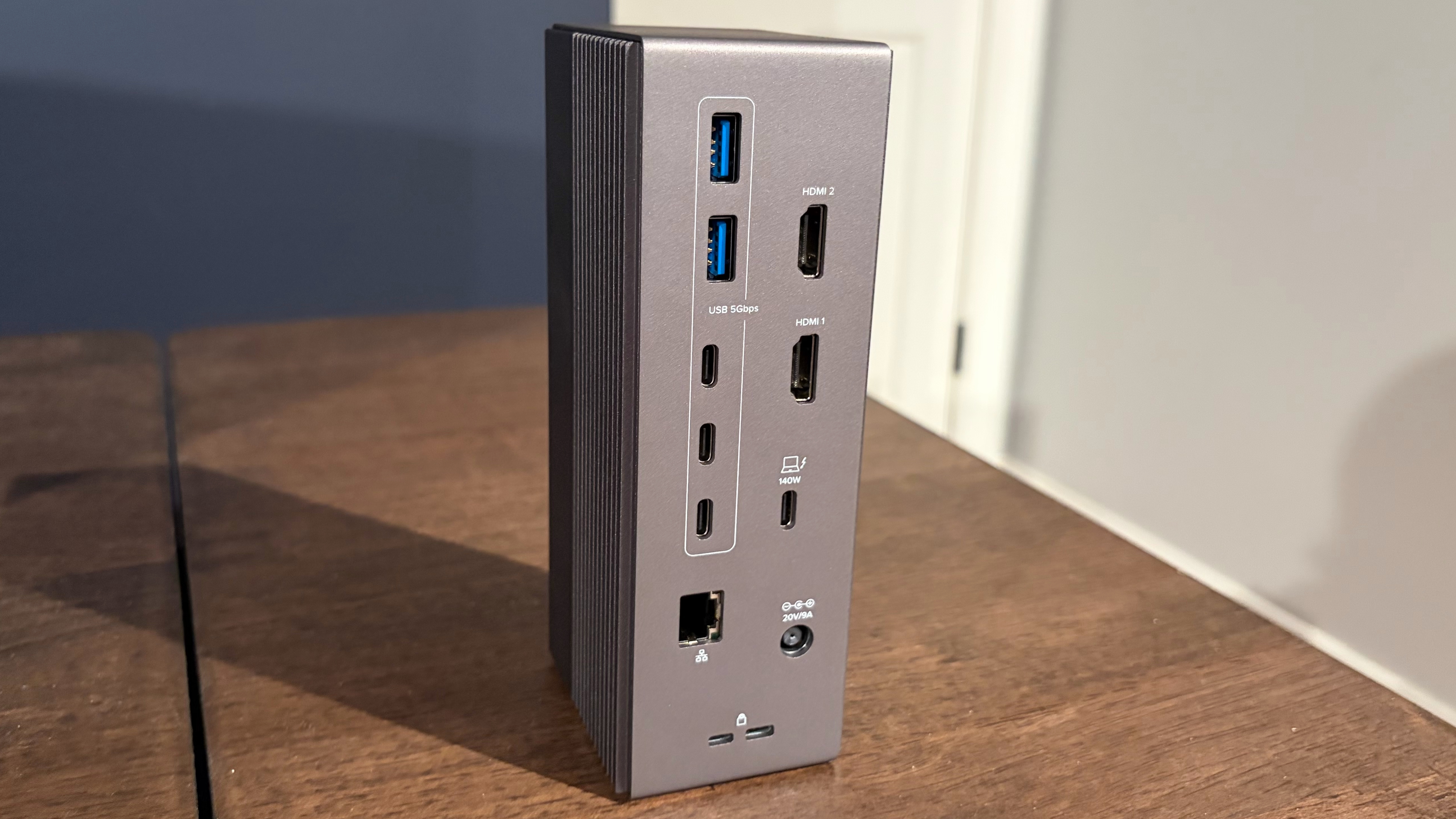
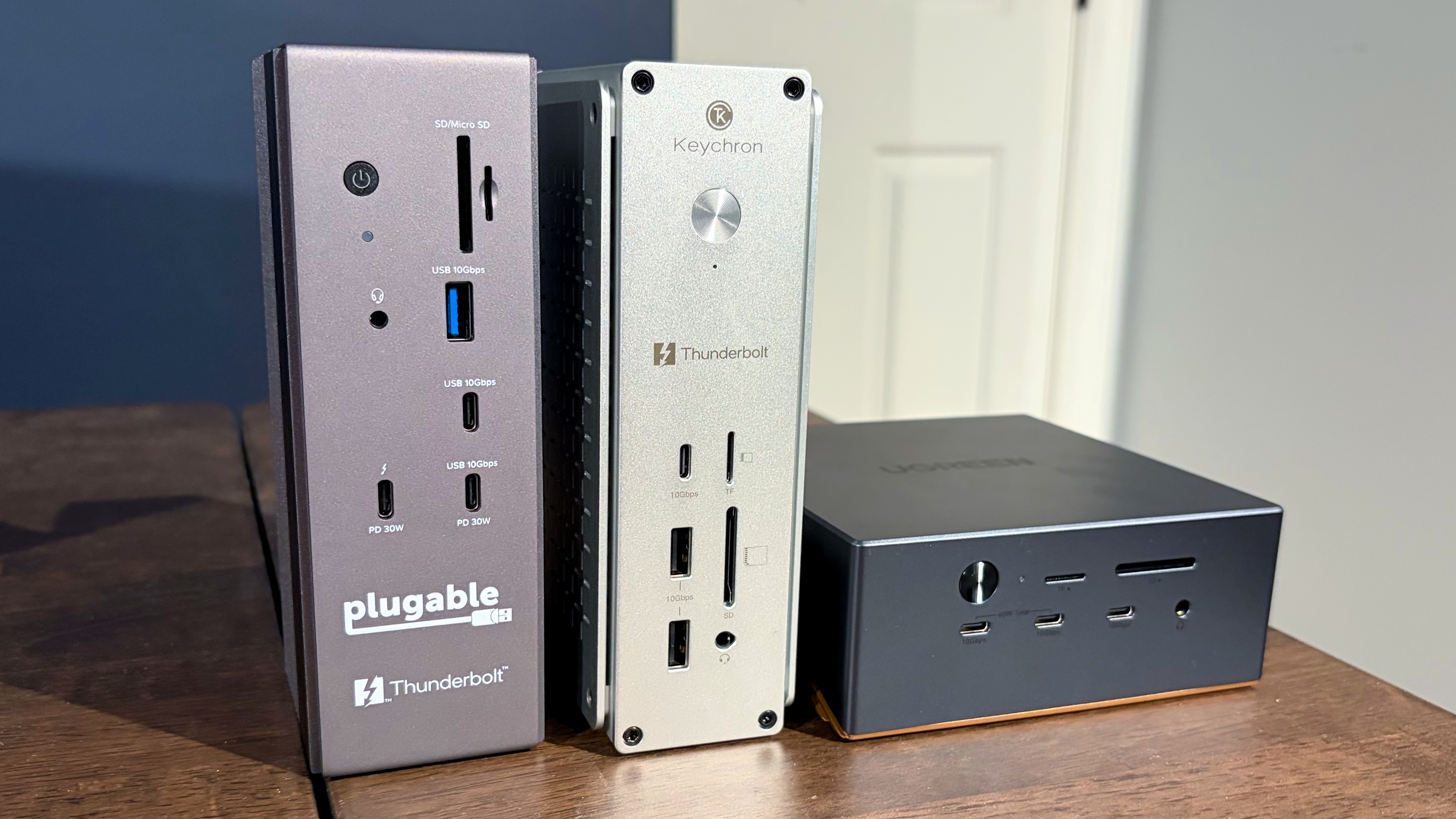
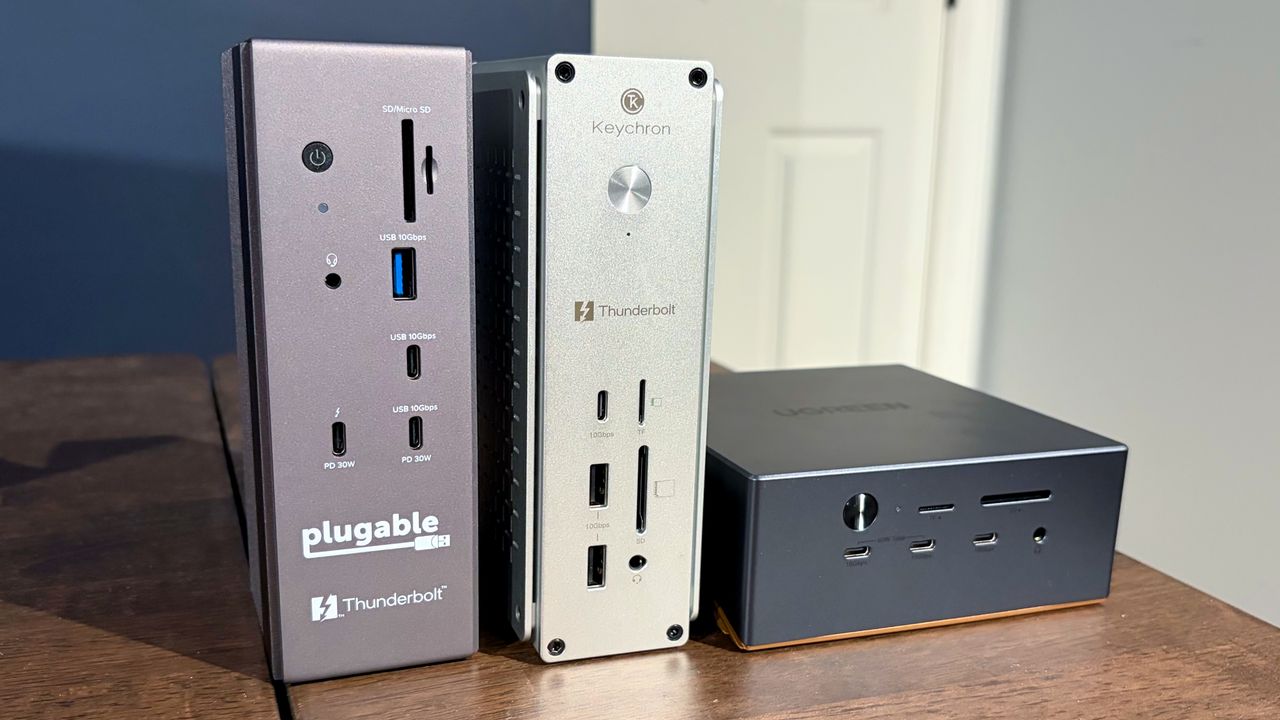
The Plugable TBT-UDH2 is a relatively compact Thunderbolt 5 dock that feels absolutely solid with its weighty aluminum chassis. The BT-UDH2 is designed to stand vertically (confirmed by the rubber feet at the base of the unit). However, there’s no reason why you wouldn’t be able to lay the unit on its side if you wanted to.
(Image credit: Tom's Hardware)
As for actual ports, the TBT-UDH2 has two USB-C ports up front (one of which supports 30W PD), a single USB-A port, microSD and SD card slots, a 3.5 mm headphone jack, and a single downstream Thunderbolt 5 port (30W PD).
Moving to the rear of the unit, there are two more USB-A ports, three additional USB-C ports, two HDMI 2.1 ports, a 2.5 GbE port, and a Thunderbolt 5 upstream port for your laptop. And here lies my main complaint with the TBT-UDH2: it only has one downstream Thunderbolt 5 port, and it’s on the front. I would have liked to have seen at least two, with one on the front and one on the back. At this price point, having just one downstream Thunderbolt 5 port seems like a big miss.
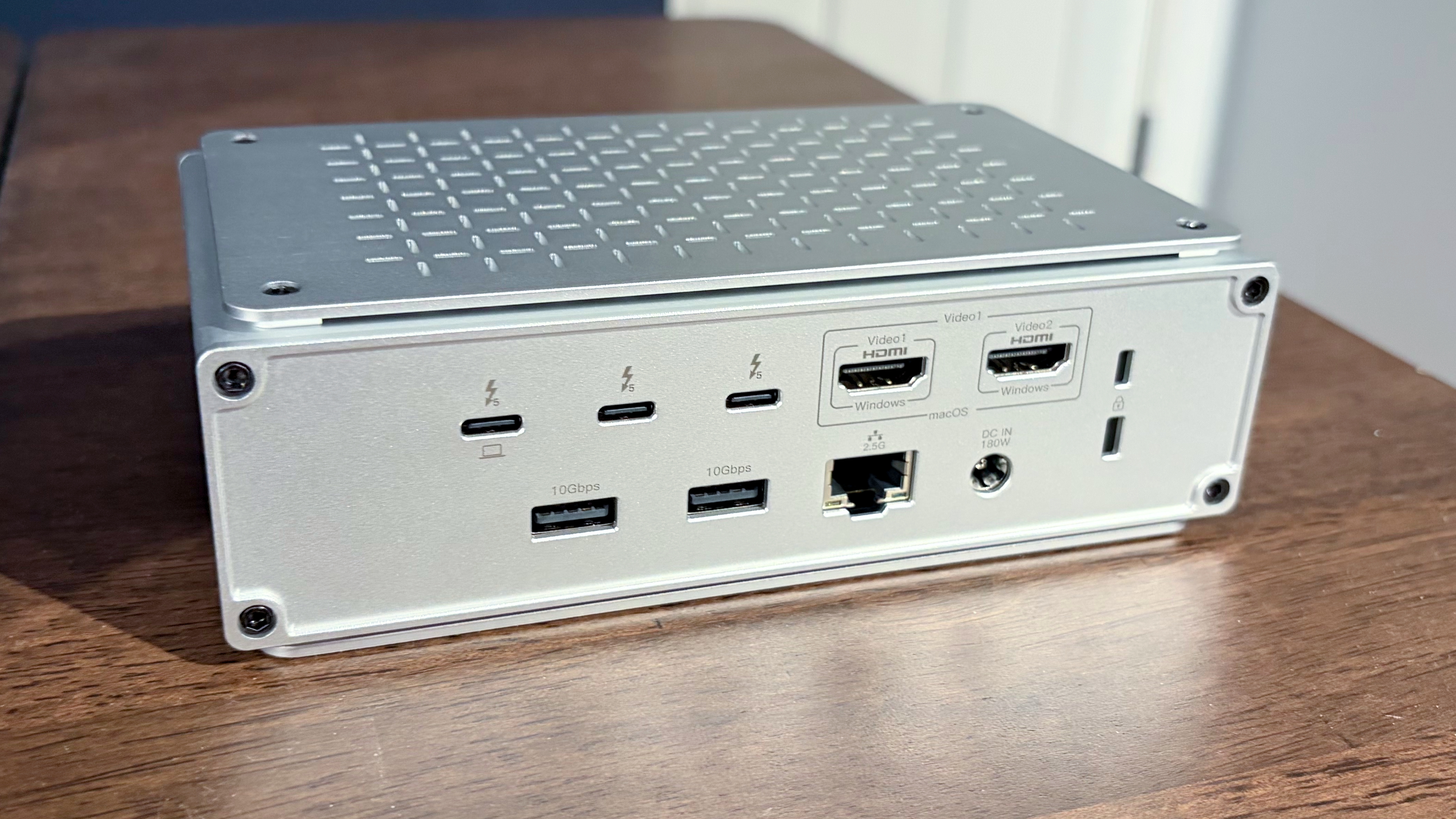
The Keychron TB5D-1 is the other $350 Thunderbolt 5 dock assembled here today. It is similar in size to the Plugable dock, but is finished in natural aluminum. Keychron includes rubber feet on the bottom and one side of the dock, encouraging you to operate in either a vertical or horizontal orientation.
(Image credit: Tom's Hardware)
You’ll find two USB-A and one USB-C port on the front, along with microSD/SD slots and a 3.5 mm headphone jack. Moving to the back, you’ll find two additional USB-A ports, two HDMI 2.1 ports, two downstream Thunderbolt 5 ports, and a Thunderbolt 5 upstream port for the host PC. For networking, there’s also a 2.5 GbE port.
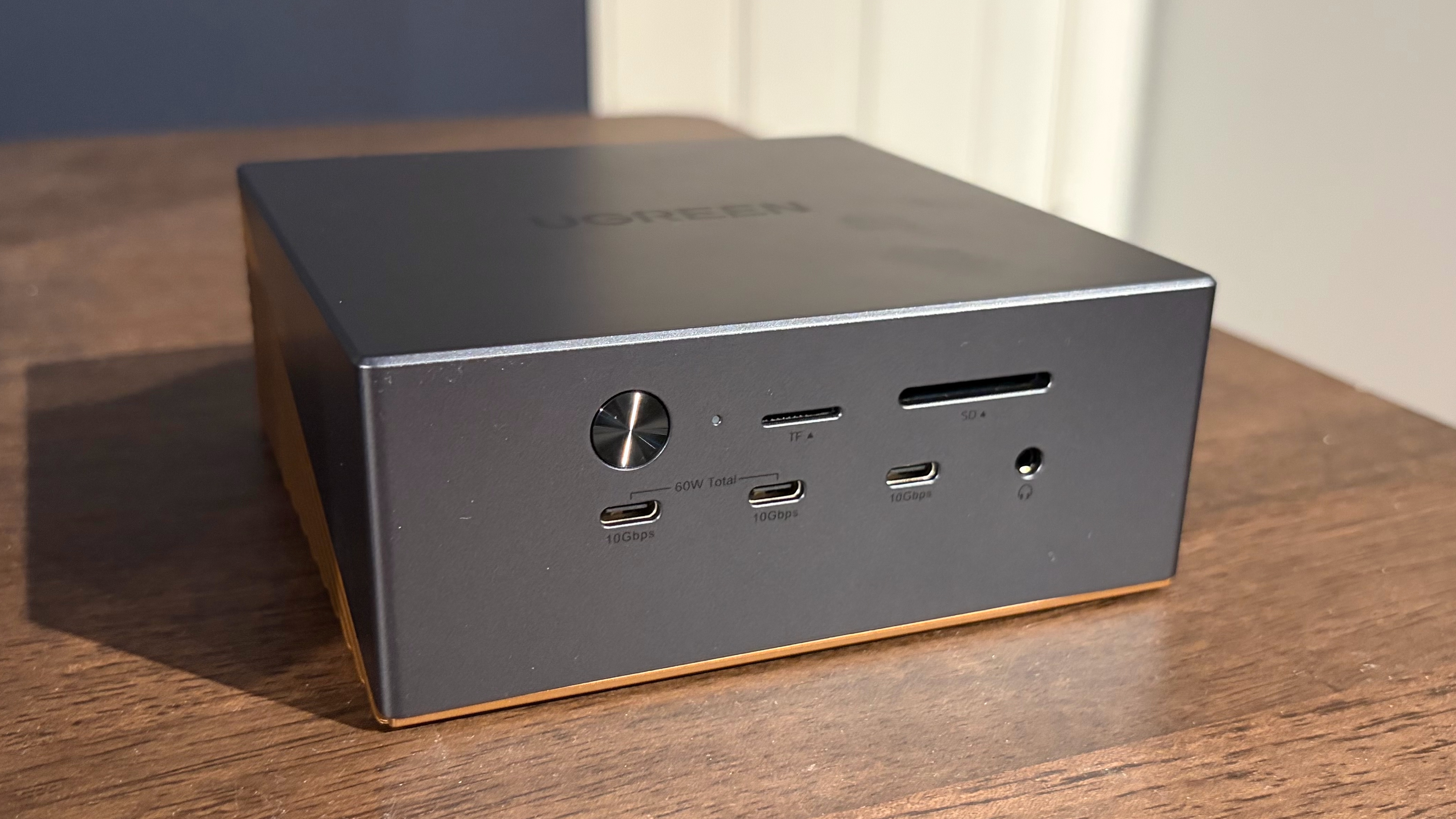
The UGREEN Revodok Maxidok is the most expensive Thunderbolt 5 dock here, with a street price of around $390. However, you do get some added functionality for the $40 price difference. At first glance, the Revodok Maxidok looks like a Mini PC with its square-ish form factor. The aluminum body is finished in a combination of dark grey (upper half) and copper (bottom half).
(Image credit: Tom's Hardware)
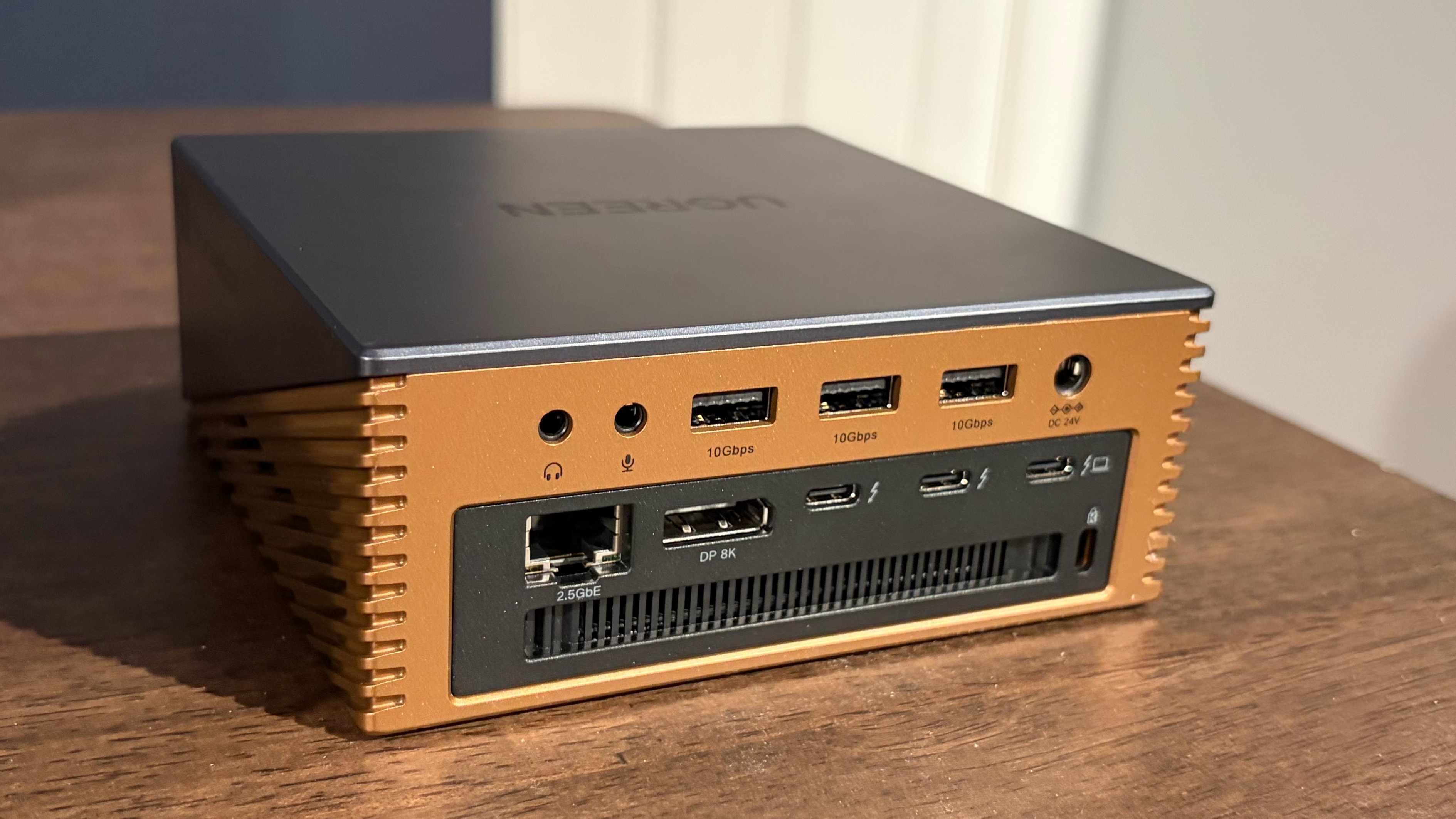
Unlike the other two docks, the Revodok Maxidok has an internal cooling fan mounted inside to help keep the electronics cool (Thunderbolt docks are notorious for their heat output). During normal operation, I couldn’t hear the fan running. I could only just barely hear it if I stuck my ear to the side of the docking station (which is, of course, not a typical usage scenario).
The front of the docking station houses microSD/SD slots, three USB-C ports (two of which support a total of 60W PD), and a 3.5 mm headphone jack. On the back, you'll find three USB-A ports, two more 3.5 mm audio ports, a DisplayPort 2.1 connector, two Thunderbolt 5 downstream ports, and one Thunderbolt 5 upstream port.
(Image credit: Tom's Hardware)
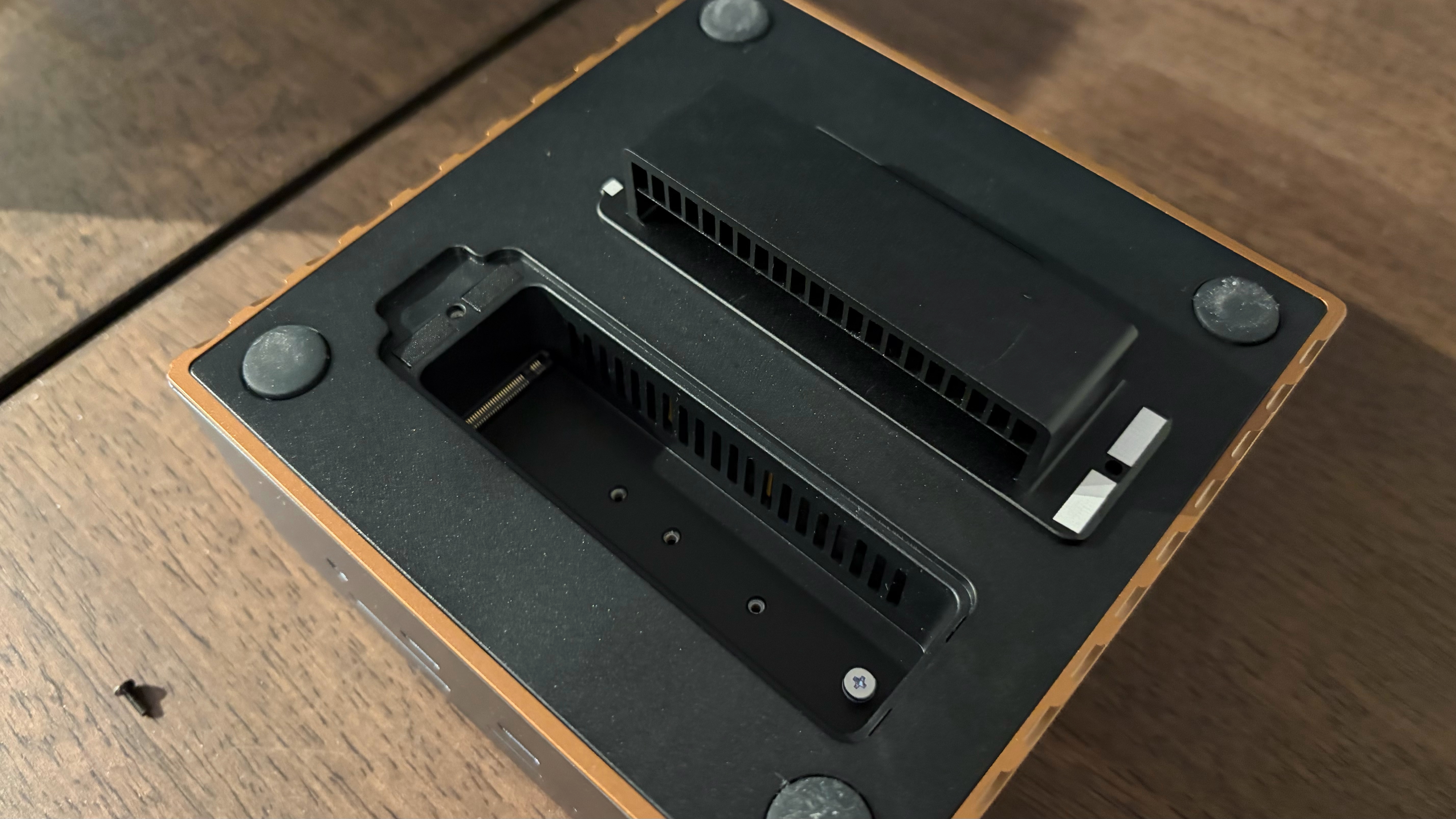
The Revodok Maxidok also has one hidden feature. If you flip the dock over, it has a cover that's held in with one screw. Remove the screw, and you'll find an M.2 slot for adding an internal SSD (up to 8TB in capacity).
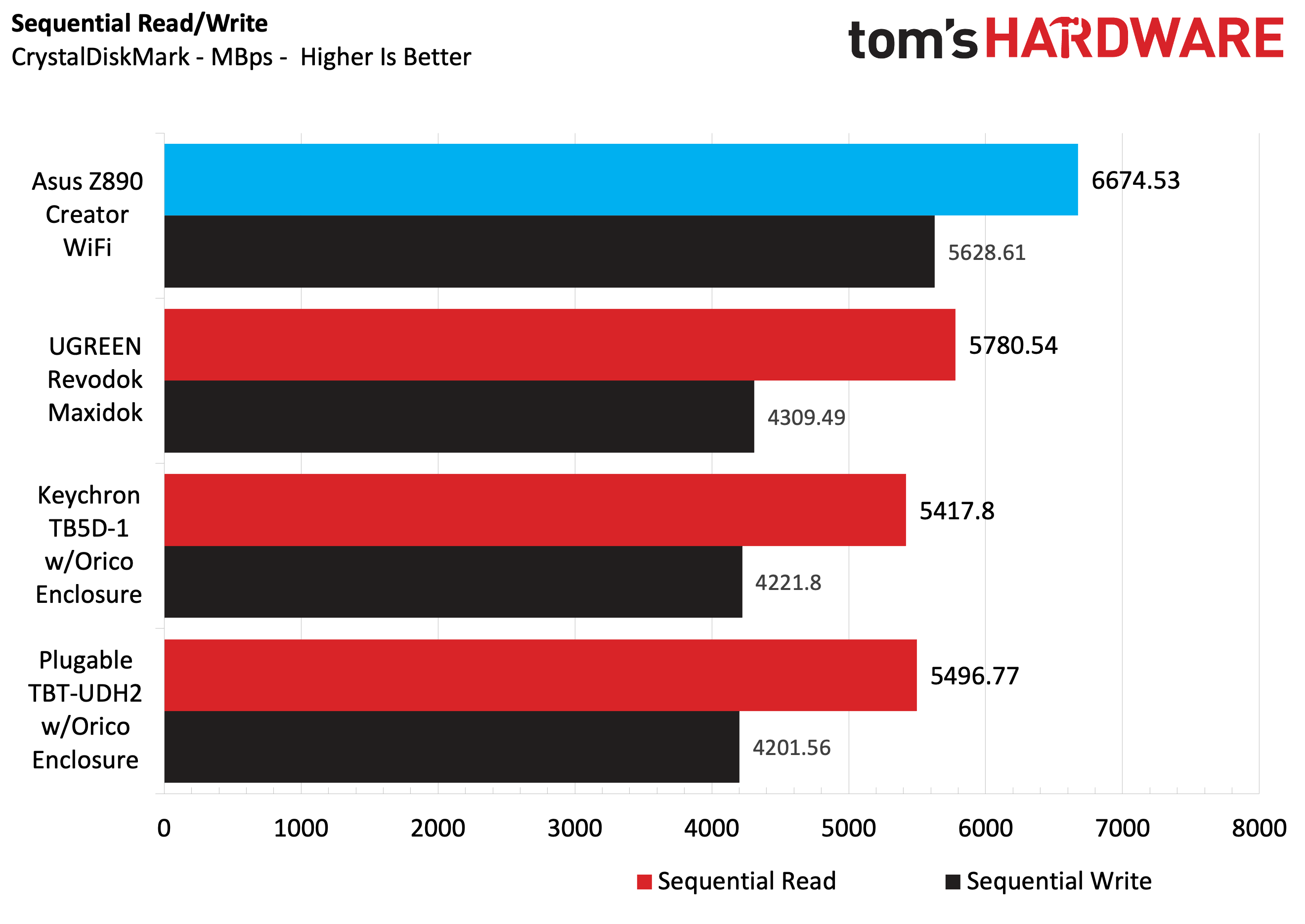
We tested SSD performance of the three docks using a 1TB Micron 2500 Series PCIe 4.0 SSD (MTFDKBA1T0QGN-1BN1AABYY). The SSD is rated for sequential read speeds up to 7,100 MBps and sequential writes up to 5,800 MBps.
For baseline performance numbers, I tested the Micron 2500 using the onboard PCIe 5.0 M.2 slot on an Asus Z890 Creator WiFi motherboard. For testing with the Keychron TB5D-1 and the Plugable TBT-UDH2, I used an Orico Thunderbolt80G enclosure with the Micron 2500 – it supports up to M.2 (PCIe Gen4x4) SSDs. The enclosure was plugged into one of the Z890 Creator WiFi’s two Thunderbolt 5 ports. For the UGREEN Revodok Maxidok, I used the native M.2 PCIe 4.0 slot with the Micron 2400.
(Image credit: Tom's Hardware)
Using the Micron 2500 SSD and Asus Z890 Creator WiFi motherboard as a baseline, we saw 6,674.53 MBps reads and 5,628.61 MBps writes. Of the three docks we tested with the Micron 2500, the Revodok Maxidok was the fastest with its native M.2 PCIe 4.0 slot. It achieved 5,780.54 MBps reads, roughly 300 MBps ahead of the other two.
The Keychron TB5D-1 and the Plugable TBT-UDH2 put up nearly identical numbers using the Orico Thunderbolt80G enclosure, with around 5,400 MBps reads and 4,200 MBps writes.
All three docks had no trouble maxing out the 2.5 GbE port using iPerf3, and I didn't run into any compatibility problems running my 49-inch 240 Hz DQHD monitor using the docks via HDMI or DisplayPort connections.
While all of the docks were warm to the touch, the Revodok Maxidok was noticeably cooler thanks to its internal cooling fan.
Bottom Line
Of the three docks that we tested, the one that I felt was the most versatile and worthy of a place on my desk is the UGREEN Revodok Maxidok. It’s the only one of the docks with a native DisplayPort 2.1 connector and the only one with an internal M.2 SSD slot. In addition, it offered ever so slightly faster storage performance than using an SSD with a Thunderbolt 5 enclosure. And with a street price of $390, you’re only paying a $40 premium over the other two docks.
(Image credit: Tom's Hardware)
If you prefer having two additional HDMI 2.1 ports at your disposal, the Keychron TB5D-1 is a good option as well. All of the Keychron’s USB-A and USB-C ports are 10 Gbps, while the Plugable TBT-UDH2 gives you a mix of 10 Gbps and 5 Gbps USB ports. In addition, the Keychron dock features two downstream Thunderbolt 5 ports, while the Plugable only has one.
Additional Thunderbolt 5 Docks to Consider
Although we plan to keep this guide updated as we test additional Thunderbolt 5 docks, here are some additional units to consider:

 Login
Login