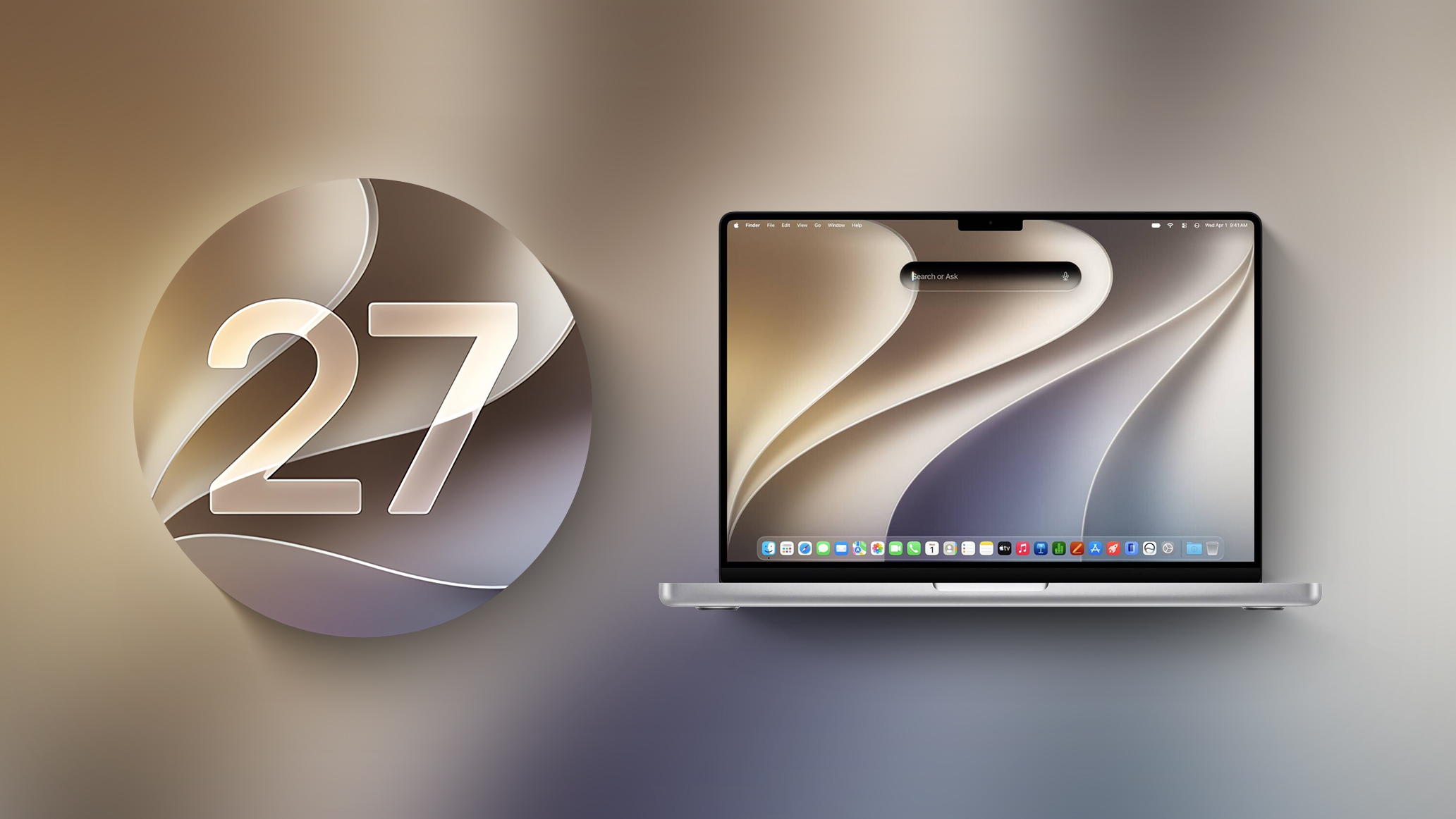
NSTrackingSeparatorToolbarItem adds a white band over the top of the leading split view panes when in full screen mode on macOS 27 [beta 3]. That white band appears to have the height of the toolbar.
macOS 27 developer beta 5 (26A5406e) introduces a bug that causes a white bar to appear over window content if the window’s toolbar has an NSTrackingSeparatorToolbarItem. I filed FB24266969 with Apple describing this.
Also screwed up in AppKit, with the macOS 27 beta 5 release.
Also, the titlebarSeparatorStyle setting seems to be ignored. Toolbars in beta 5 always have a separator line and a blurred slightly lighter background.
Weirdly enough Apple’s own apps don’t have these issues.
In macOS 27 developer beta 5, search fields in toolbars (NSSearchToolbarItem instances) have their placeholder text, search strings, and magnifying glass icons vertically off-center. I reported this as FB24286690.
Beta 6 also fixes the UI issues with NSSearchToolbarItem. Elements are now re-aligned again, the recents menu is in a good position, and the focus ring is perfectly outlining the entire bounds. :D
The toolbar id creates a stable customization domain, and each item id gives the framework something stable to persist when the user adds, removes, or reorders controls. This identifiability of toolbar items is a requirement for customization. Under the hood, when SwiftUI inevitably bridges your toolbar contents to NSToolbar, these identifiers will be directly translated to the NSToolbarItem’s itemIdentifiers.
As we continue the migration to a customizable toolbar, we are likely to encounter a few surprises related to this model.
[…]
After a closer inspection, and perhaps a few minutes of digging through the documentation, we come to the bleak realization: there is no customizable ToolbarItemGroup API.
[…]
The regular toolbar model and the customizable toolbar model overlap, but they are not interchangeable. You cannot give a ToolbarItemGroup an id, and you cannot place one directly inside toolbar(id:content:).
Let’s take a look at another example. This one is a bit tricky, because on macOS, you will get Action 1 in the top trailing position and the whole group of actions centered in the navigation bar. On iOS, you will get Action 1 pinned to trailing and all other items collapsed.
[…]
The final addition to the Toolbar API is the toolbarMinimizeBehavior view modifier allowing us to minimize toolbars while scrolling up or down. You can minimize tab, bottom, window and navigation bars with it.
With new modifiers SwiftUI gives us a much better balance between system-driven adaptation and explicit control. We can now decide which actions are more important, which items should always stay visible, which groups should intentionally live in the overflow menu, and how toolbars should react to scrolling.
As those new models start shipping on 22 September, the window for the first public release of Golden Gate has narrowed to 15-22 September, with greatest likelihood on the same day as the arrival of those new Macs.
[…]
At the same time as the release of Golden Gate, we should get Tahoe 26.7 and Sequoia 15.8, but it looks increasingly likely that the final version of Sonoma has been 14.8.9, released on 6 August.
As we prepare to flee from the visual horrors of macOS Tahoe at last, this article is a reminder that it wasn’t the first major release of macOS that has had blatant bugs in its interface, although I suspect it may be unique in that those were intentional. While progress in Golden Gate has been limited, I hope you’ll find it rectifies some of the worst errors of Liquid Glass.
Many Macs will be left behind, as Golden Gate drops support for Intel.
Normally, I update around January. With Tahoe I waited until July. This time, I’m considering updating to Golden Gate soon after its release. The downside is that Xcode 26 doesn’t run on Golden Gate, so I would have to drop support for many older macOS versions (about 3% of my customers’ Macs). But it seems like Apple’s going to force that soon, anyway, as one of the next Xcode 27 updates will likely drop support for Tahoe. I want to get off Xcode 26, both to use the newer SDK and because there are various debugging/testing things that don’t work properly.
I am working on a new app. Right now, I am targeting back to macOS Sequoia. I think that would be a good OS to target but becoming quite old with Golden Gate just around the corner. […] I wonder if I should just target macOS Golden Gate and focus testing on that.
i’m in the exact same boat. i’d really like to stay on macOS 15 and whatever Xcode works there. it means i can still build things in the old UI and mostly Tahoe and GG respect it.
but recent bug reports from beta testers and the inability to see these bugs on my VM has made me feel very stuck here — like apple has purposefully made it difficult to move forward and support older versions too.
I don’t appreciate being forced by Xcode 27 to drop support for macOS 10.13-11.0. It’s my decision which OSes I want to support, not Apple’s. Yes, I can keep Xcode 26 around until submissions require Xcode 27, but what then?
Originally, Xcode 27 was documented as supporting Big Sur on Intel Macs, but now the earliest is Monterey.
I’m frustrated, too, but it’s more honest than the recent releases that claimed to support deployment on older macOS versions when Apple clearly hadn’t tested that it actually worked. I filed bugs, and Apple kept responding that they’d fixed it, when they hadn’t.
Using old versions of Xcode isn’t a great solution because they aren’t supported on Golden Gate. Swift also makes it more difficult to call newer APIs when using an older SDK. You can’t just copy/paste a method prototype or constant value and conditionally use it when running on a newer OS.
I eventually found a hidden workaround that changes the errors back into warnings. That is good news, but it does not make the concern disappear. The setting is undocumented, absent from the normal Xcode interface, and currently being tested only in a beta toolchain. The larger question is what Apple intends to enforce when Xcode 27 is final and, later, when App Store submission requirements move to its SDKs.
[…]
Apple’s current Xcode system requirements list Xcode 26 with deployment targets beginning at iOS 15 and macOS 11. Yet developers have been able to enter older targets manually. In an Apple Developer Forums discussion about Xcode 26, an Apple product manager explained that the published deployment target range is aligned with simulator support and on-device debugging. The accepted answer confirms that an iOS 13 target can still build even though it falls below the range in Apple’s table.
My own tests went further. Xcode 26.5 compiled a project targeting iOS 9.0. It warned that the target was older than the supported range, but the build succeeded. On macOS, I have compiled current apps with deployment targets as old as macOS 10.9. Xcode warned me, but it still produced working applications.
[…]
For iOS and iPadOS, staying on Xcode 26 is not a lasting option. Apple has repeatedly made a current Xcode and SDK mandatory for new App Store submissions. […] If any one of those conditions fails, iOS and iPadOS developers will have no normal App Store path for publishing new updates that still support versions older than 15.
Just want to remind you guys that if you move to Xcode 27, the only “officially” supported and sanction Xcode for GG, UIDesignRequiresCompatibility is no longer respected across the 27 OSes (apps built with older Xcodes still are). So you might suddenly find out you have a lot of work ahead of you, adding support for the dreaded Glass. And 27 Glass is not the same as 26 Glass. That can be an issue if you skipped 26 altogether but still want to support it.
I mostly ignored the Xcode 27 betas (mainly due to the barely-usable Device Hub) so I didn’t realize the passive-aggressive prompts to drop support for iOS < 15 that you get when submitting apps is being backed up by Xcode 27 refusing to compile apps at all unless you bump the deployment target 😧
Apple has issued the 8th beta version of MacOS 27 Golden Gate to users participating in the developer beta testing program. Typically the matching build arrives as a public beta soon after, so if you’re on that beta track keep an eye out for an update soon too. MacOS 27 Golden Gate is nearing completion, ... Read More
Apple has released the seventh beta version of macOS 27 Golden Gate to users who are running the developer beta. A matching build typically arrives for public beta testers soon after. Any user can install MacOS 27 Golden Gate beta onto a compatible Mac, though beta system software is generally only recommended for advanced users ... Read More
Exchange Web Services (EWS) is approaching end of service in Exchange Online. We first announced this change was coming in 2018, when we announced that Exchange Web Services (EWS) will no longer receive functionality updates. In 2023, we announced that EWS will be disabled in Exchange Online in October 2026.
Today we’re announcing we will use a phased, admin controllable disablement plan that starts in October 2026 and concludes with a complete shutdown of EWS in 2027.
Microsoft announced the upcoming end of service for Exchange Web Services (EWS) in Exchange Online. Apple is actively working with Microsoft to update Mail, Calendar, Contacts, Notes, and Reminders to use the Graph API in a future update to macOS 27, including a declarative configuration for device management services.
I’ve been eagerly awaiting Apple’s migration to Microsoft’s newer Graph API because EWS support in Apple Mail has long been buggy. It seems to have gotten worse in recent months, presumably due to server side changes as Microsoft prepares to shut it all down. Unfortunately, Apple is not as far along in the transition as I’d expected.
What made a Mac feel like a Mac at work was the software that came with it. Mail that you could actually scan. A Calendar that was a separate application, so it could live permanently on a second screen instead of hiding behind a tab. Quick Look. Smart mailboxes. Spotlight that found things. Share sheets that worked everywhere. The system behaving as one coherent thing rather than a collection of vendor silos.
[…]
iOS and iPadOS Mail no longer depend on EWS. macOS Mail still does. Same company, same deadline, same protocol, and only one of the two platforms got the work done in time. Microsoft ended up writing the guidance Apple should have written, telling administrators in February that Apple Mail for Mac users would have to switch to Outlook until the applications were updated. […] Apple had years. It had a public deadline. It had, by Microsoft’s own account, one of the most widely used EWS applications in existence. And it let the clock run out.
[…]
Somewhere in every one of these migrations is a line in a change log that reads “users to move to Outlook”, as though a mail client were a fungible commodity, like swapping a stapler. […] This is not the death of the Mac at work. […] It is the death of the Mac experience at work.
Outlook for Mac feels very different from Apple Mail, and users are being squeezed from the Microsoft side, too. Microsoft will be ending the transition to New Outlook in October, but the new version is still missing many features that were present in Legacy Outlook (as well as Apple Mail). Microsoft had long promised that it would implement AppleScript in New Outlook before dropping support for the old version, but last week it changed course:
AppleScript workflows vary widely across organizations and often depend on behaviors from the classic app that don’t exist in the New Outlook. Because these patterns can’t be standardized, full compatibility isn’t feasible. We have decided not to move forward with this feature. We apologize for the inconvenience.
Access only ratchets one way. Mail was allowed because it worked, quietly, for years, over a protocol nobody was auditing. It has now been formally removed under a named cybersecurity policy. Getting it back would require someone in a security function to write a positive case for re-admitting a broad-permission third-party client to the corporate mail estate, and then put their name on it. Nobody’s career improves by doing that. Saying no costs nothing and is never wrong in hindsight.
So if Apple ships Graph support in Mail next year, the people who lost it will not get it back. The door didn’t swing shut. It was bolted, and the reason it was bolted is now written down in a policy document that will outlive the protocol that prompted it.
Apple has no leverage to change that, either. The organisations deploying Macs by the tens of thousands are not Apple partners in any meaningful sense. They are customers who buy boxes. There is no relationship to call on, no joint roadmap, no account team, nobody at Apple whose job it is to notice that a hundred thousand people just lost Mail.
October is when administrators will have to opt back into allowing EWS for a few more months, but some (like Harbourne’s) will be switching off support sooner.
Apple Mail and Outlook aren’t the only options, though. MailMaven supports both Graph and AppleScript.
macOS Golden Gate Beta 27.0 Beta 6 (26A5416b) is now Available!
UPDATED: 08/17/26
This article is being updated as new changes are discovered.
Today, Apple released macOS Golden Gate Beta 6 to developers. The update arrives now only a week after the last one. As we get closer to the public release date of macOS Golden gate, we will start seeing weekly beta releases. macOS Golden Gate Beta 6 is available for download through Software Update in System Settings for users enrolled in the Apple Developer Beta program.
Apple has not provided a complete public list of changes included in this beta beyond its developer release notes. As with previous macOS beta releases, many changes are discovered through testing, system analysis, and comparing files between builds.
This article provides a detailed technical breakdown of macOS Golden Gate Beta 5. Along with covering user-facing changes and new features, this guide will examine system changes, update details, firmware updates, developer changes, and other discoveries found while analyzing the latest beta.
The macOS Golden Gate Public Beta is expected to become available shortly after the developer release.
System Settings > Software Update:
Table of Contents
OCLP for Unsupported Macs Warning
Should You Install macOS Golden Gate Beta?
Full Apple Beta OS Update Release List
Apple macOS Golden Gate Links
What’s New in macOS Golden Gate?
macOS Golden Gate Beta Release History
macOS Golden Gate Full Installer.app
Apple Silicon macOS Golden Gate IPSW Restore File
macOS Golden Gate Update Sizes
Apple Silicon Firmware & iBoot Versions
Safari Version
macOS Recovery Version
Security Content of macOS Golden Gate
macOS Golden Gate Release Notes
Final Notes
NOTE: I hate website ads, but this one small Google ad below helps me with the cost of running Mr. Macintosh.com. Thank you!
1. OCLP for Unsupported Macs Warning
OpenCore Legacy Patcher is not compatible with macOS Golden Gate and macOS Tahoe. Make sure you go into System Settings > Software Update and TURN OFF Download Updates&Install macOS Updates.
If you use OCLP on an unsupported Mac, wait for official OpenCore Legacy Patcher 3.0.0 testing and compatibility information before attempting to install.
2. Should You Install macOS Golden Gate Beta?
Most users should not install macOS Golden Gate Beta on their main Mac. This is early beta software, which means apps may crash, battery life may be reduced, accessories may not work correctly, and some features may be unfinished.
Install it only if you have a test Mac, a full backup, and a reason to test the new release early. I recommend two types of backups: Time Machine & A direct copy of your important files and apps
This might seem like a lot, but TRUST ME, it will be worth it if something goes wrong!
MacAdmins, developers, and advanced users can begin testing app compatibility, MDM enrollment, security tools, VPN clients, printers, FileVault workflows, software update behavior, and deployment processes.
3. Full Apple Beta OS Update Release List
Beta 5 & RC 1
Golden Gate 27.0 (26A5406e) Beta 5 *NEW
Tahoe 26.6.2 (25G82) RC *NEW
iOS & iPadOS 27.0 Beta 5
iOS & iPadOS 26.6 Beta 5
tvOS 27.0 Beta 5
homePodOS 27.0 Beta 5
Safari
Safari 27.0
Developer Tools
Xcode 27 beta *NEW
Command Line Tools for Xcode 27 Beta 5 *NEW
4. Apple macOS Golden Gate Links
Official links will be added as Apple publishes more macOS Golden Gate documentation.
Apple has released the 5th developer beta of macOS Golden Gate 27.
New Features & Changes
Liquid Glass Design Updates
macOS Golden Gate brings a more polished Liquid Glass design with better readability, improved contrast, more consistent toolbars, edge-to-edge sidebars, updated window shapes, and refreshed menu bar icons. Apple has also added a new slider that lets you adjust the Liquid Glass look from very clear to fully tinted.
Performance Improvements
Apple says the system should feel faster overall, with quicker AirDrop transfers, faster network file browsing, faster Safari start page loading, improved Mail search ranking, and better Spotlight search suggestions.
Siri AI on Mac
The biggest new feature is Siri AI on Mac. Siri can now answer more natural questions, understand personal context, take actions inside apps, work from Spotlight, and live inside a new dedicated Siri app for longer conversations.
Visual Intelligence
Visual Intelligence is also coming to the Mac, letting you ask questions about what’s on your screen and get help based on the content you’re looking at.
Writing Tools & Apple Intelligence
Golden Gate expands Writing Tools with Siri, adds better AI photo editing, improves Image Playground, and lets you create Shortcuts from plain-language descriptions.
Safari & Passwords
Safari gets smarter tab grouping, page-change alerts, and faster start page loading. Apple is also adding one-click password fixes to help update weak or reused passwords more easily.
Family, Safety & Accessibility
Golden Gate includes stronger child safety controls, improved Screen Time features, and new accessibility improvements across the system.
Other Notable Changes
Other smaller changes include ultrawide display upgrades, better iCloud Shared Albums, Call Context, enhanced Flyover in Maps, swipe-to-refresh in more apps, and a refreshed video podcasts experience.
8. Apple Silicon macOS Golden Gate IPSW Restore File
An IPSW restore file is mainly used to restore or revive Apple Silicon Macs with Apple Configurator, Finder, or another Mac.
Most users do not need the IPSW file for normal macOS updates. IPSW files are intended for restores, revives, troubleshooting, clean installs, and testing workflows.
Use this link to download the full Mac IPSW restore file directly from Apple:
The delta update & upgrade size will automatically change in size for exactly what your macOS version needs. For example the smallest update size will be from Beta 3 to Beta 4. But if you are upgrading from Beta 1 to Beta 4, the upgrade size will need to include all the fixes in Beta 2 and 3.
Apple Silicon Updates
Delta from macOS Golden Gate Beta 4 with size = 14.26GB
Upgrade from macOS Tahoe 26.6.1 with size = 19.52GB
10. Apple Silicon Firmware & iBoot Versions
The Apple Silicon firmware and iBoot versions included with macOS Golden Gate Beta are listed below.
6. macOS Golden Gate 27 Developer Beta 5 = 20457.1.27
5. macOS Golden Gate 27 Developer Beta 4 = 20457.0.125.0.2
4. macOS Golden Gate 27 Public Beta 1 = 20457.0.77.0.2
3. macOS Golden Gate 27 Developer Beta 3 = 20457.0.77.0.2
2. macOS Golden Gate 27 Developer Beta 2 = 20457.0.13.0.11
1. macOS Golden Gate 27 Developer Beta 1 = 20356.0.0.0.15
If you install macOS Golden Gate Beta, make sure you have a full backup before proceeding. Beta software can cause app compatibility issues, performance problems, and data loss. Do not install this beta on your main Mac unless you are comfortable troubleshooting and restoring macOS.
Apple has released MacOS 27 Golden Gate beta 5 for Mac users who are currently running the beta operating system. For those in the public beta testing program, the same build typically arrives for them soon after. MacOS 27 Golden Gate emphasizes performance improvements to the general system as well as features like Spotlight and ... Read More
macOS Golden Gate Beta 27.0 Beta 5 (26A5406e) is now Available!
UPDATED: 08/10/26
This article is being updated as new changes are discovered.
Today, Apple released macOS Golden Gate Beta 5 to developers. The update arrives after the longest stretch between beta updates so far (over three weeks). macOS Golden Gate Beta 5 is available for download through Software Update in System Settings for users enrolled in the Apple Developer Beta program.
Apple has not provided a complete public list of changes included in this beta beyond its developer release notes. As with previous macOS beta releases, many changes are discovered through testing, system analysis, and comparing files between builds.
This article provides a detailed technical breakdown of macOS Golden Gate Beta 5. Along with covering user-facing changes and new features, this guide will examine system changes, update details, firmware updates, developer changes, and other discoveries found while analyzing the latest beta.
The macOS Golden Gate Public Beta is expected to become available shortly after the developer release.
System Settings > Software Update:
Table of Contents
OCLP for Unsupported Macs Warning
Should You Install macOS Golden Gate Beta?
Full Apple Beta OS Update Release List
Apple macOS Golden Gate Links
What’s New in macOS Golden Gate?
macOS Golden Gate Beta Release History
macOS Golden Gate Full Installer.app
Apple Silicon macOS Golden Gate IPSW Restore File
macOS Golden Gate Update Sizes
Apple Silicon Firmware & iBoot Versions
Safari Version
macOS Recovery Version
Security Content of macOS Golden Gate
macOS Golden Gate Release Notes
Final Notes
NOTE: I hate website ads, but this one small Google ad below helps me with the cost of running Mr. Macintosh.com. Thank you!
1. OCLP for Unsupported Macs Warning
OpenCore Legacy Patcher is not compatible with macOS Golden Gate and macOS Tahoe. Make sure you go into System Settings > Software Update and TURN OFF Download Updates&Install macOS Updates.
If you use OCLP on an unsupported Mac, wait for official OpenCore Legacy Patcher 3.0.0 testing and compatibility information before attempting to install.
2. Should You Install macOS Golden Gate Beta?
Most users should not install macOS Golden Gate Beta on their main Mac. This is early beta software, which means apps may crash, battery life may be reduced, accessories may not work correctly, and some features may be unfinished.
Install it only if you have a test Mac, a full backup, and a reason to test the new release early. I recommend two types of backups: Time Machine & A direct copy of your important files and apps
This might seem like a lot, but TRUST ME, it will be worth it if something goes wrong!
MacAdmins, developers, and advanced users can begin testing app compatibility, MDM enrollment, security tools, VPN clients, printers, FileVault workflows, software update behavior, and deployment processes.
3. Full Apple Beta OS Update Release List
Beta 5 & RC 1
Golden Gate 27.0 (26A5406e) Beta 5 *NEW
Tahoe 26.6.2 (25G82) RC *NEW
iOS & iPadOS 27.0 Beta 5
iOS & iPadOS 26.6 Beta 5
tvOS 27.0 Beta 5
homePodOS 27.0 Beta 5
Safari
Safari 27.0
Developer Tools
Xcode 27 beta *NEW
Command Line Tools for Xcode 27 Beta 5 *NEW
4. Apple macOS Golden Gate Links
Official links will be added as Apple publishes more macOS Golden Gate documentation.
Apple has released the 5th developer beta of macOS Golden Gate 27.
New Features & Changes
Liquid Glass Design Updates
macOS Golden Gate brings a more polished Liquid Glass design with better readability, improved contrast, more consistent toolbars, edge-to-edge sidebars, updated window shapes, and refreshed menu bar icons. Apple has also added a new slider that lets you adjust the Liquid Glass look from very clear to fully tinted.
Performance Improvements
Apple says the system should feel faster overall, with quicker AirDrop transfers, faster network file browsing, faster Safari start page loading, improved Mail search ranking, and better Spotlight search suggestions.
Siri AI on Mac
The biggest new feature is Siri AI on Mac. Siri can now answer more natural questions, understand personal context, take actions inside apps, work from Spotlight, and live inside a new dedicated Siri app for longer conversations.
Visual Intelligence
Visual Intelligence is also coming to the Mac, letting you ask questions about what’s on your screen and get help based on the content you’re looking at.
Writing Tools & Apple Intelligence
Golden Gate expands Writing Tools with Siri, adds better AI photo editing, improves Image Playground, and lets you create Shortcuts from plain-language descriptions.
Safari & Passwords
Safari gets smarter tab grouping, page-change alerts, and faster start page loading. Apple is also adding one-click password fixes to help update weak or reused passwords more easily.
Family, Safety & Accessibility
Golden Gate includes stronger child safety controls, improved Screen Time features, and new accessibility improvements across the system.
Other Notable Changes
Other smaller changes include ultrawide display upgrades, better iCloud Shared Albums, Call Context, enhanced Flyover in Maps, swipe-to-refresh in more apps, and a refreshed video podcasts experience.
8. Apple Silicon macOS Golden Gate IPSW Restore File
An IPSW restore file is mainly used to restore or revive Apple Silicon Macs with Apple Configurator, Finder, or another Mac.
Most users do not need the IPSW file for normal macOS updates. IPSW files are intended for restores, revives, troubleshooting, clean installs, and testing workflows.
Use this link to download the full Mac IPSW restore file directly from Apple:
The delta update & upgrade size will automatically change in size for exactly what your macOS version needs. For example the smallest update size will be from Beta 3 to Beta 4. But if you are upgrading from Beta 1 to Beta 4, the upgrade size will need to include all the fixes in Beta 2 and 3.
Apple Silicon Updates
Delta from macOS Golden Gate Beta 4 with size = 14.26GB
Upgrade from macOS Tahoe 26.6.1 with size = 19.52GB
10. Apple Silicon Firmware & iBoot Versions
The Apple Silicon firmware and iBoot versions included with macOS Golden Gate Beta are listed below.
6. macOS Golden Gate 27 Developer Beta 5 = 20457.1.27
5. macOS Golden Gate 27 Developer Beta 4 = 20457.0.125.0.2
4. macOS Golden Gate 27 Public Beta 1 = 20457.0.77.0.2
3. macOS Golden Gate 27 Developer Beta 3 = 20457.0.77.0.2
2. macOS Golden Gate 27 Developer Beta 2 = 20457.0.13.0.11
1. macOS Golden Gate 27 Developer Beta 1 = 20356.0.0.0.15
If you install macOS Golden Gate Beta, make sure you have a full backup before proceeding. Beta software can cause app compatibility issues, performance problems, and data loss. Do not install this beta on your main Mac unless you are comfortable troubleshooting and restoring macOS.
Apple today provided developers with the fifth beta of macOS Golden Gate, with the update coming two weeks after Apple seeded the fourth beta.
Developers can download macOS Golden Gate by going to System Settings > General > Software Update. Beta Updates will need to be enabled, and a free developer account is required.
macOS Golden Gate includes multiple design improvements. Liquid Glass opacity has been improved to increase readability, there's a slider for controlling the level of transparency, and changes to shadowing make it easier to tell when a window is active. Apps now have uniform toolbars, edge-to-edge sidebars, and less rounded corners, plus there are fewer icons in menu bars.
Siri has been transformed into Siri AI, a chatbot-style assistant that combines general world knowledge, your personal data, and onscreen awareness to answer questions about anything and find information for you. Siri lives in Spotlight, and you can ask questions with the new Search or Ask interface.
There's also a Siri app where you can chat with Siri and view past conversations, and on newer Macs, you can set a custom voice for Siri with personalized pace and expressivity. Visual Intelligence is now on the Mac so Siri can answer questions about what's on your screen, and a Write with Siri feature lets Siri generate text or give feedback on your writing.
There are AI photo editing tools in the Photos app, AI tab organization in Safari, an option to use AI to automatically update weak passwords in the Passwords app, and a revamped Image Playground app that can generate photorealistic images.
If you’re curious about testing out MacOS 27 Golden Gate beta but you aren’t ready for the full commitment of installing it as your primary operating system, the simplest and safest way to run MacOS 27 Golden Gate beta is within a virtual machine. While one of our authors dove right into MacOS 27 Golden ... Read More
A cada atualização anual do macOS, uma escolha da Apple em particular gera quase tanta curiosidade quanto as mudanças e os novos recursos do seu sistema operacional: o nome que acompanhará o update.
Hoje, faremos uma breve recapitulação das principais escolhas da Maçã sobre os nomes de cada versão do sistema operacional dos seus computadores, passando por décadas de codinomes felinos e, mais recentemente, paisagens californianas.
As (várias) mudanças do passado
Antes disso — no período do Mac OS Classic, que abrange os sistemas dos Macintoshes lançados entre 1984 e 2001 —, os nomes dos sistemas da Apple eram usados quase exclusivamente de forma interna. Publicamente, as versões recebiam denominações bastante protocolares, mas, nos bastidores, praticamente todas carregavam codinomes.
O System 6, por exemplo, teve versões conhecidas internamente como Antares (6.04), Big Deal (6.05), SixPack (6.06) e Terminator (6.08). Já o System 7 passou por uma verdadeira coleção de nomes, incluindo Blue, Beta Cheese, Cube-E, I Tripoli, Jirocho, Mozart, Capone, Danook, Thag e Marconi, entre outros. Também houve casos específicos, como Road Warrior, utilizado nos primeiros PowerBooks, além de Unity, Buster, Son of Buster, Harmony e Ides of Buster, empregados em versões posteriores do sistema.
A partir do Mac OS 8, os nomes foram predominantemente relacionados à teoria musical — é o caso do codinome Tempo no Mac OS 8, Allegro no Mac OS 8.5 e Sonata no Mac OS 8.7 (versão de desenvolvimento do que viria a ser o Mac OS 9). As exceções são o Mac OS 8.1 (intitulado Bride of Buster) e o Mac OS 8.6 (Veronica).
Essa só se tornou uma tradição marqueteira a partir do Mac OS X 10.2, quando Steve Jobs apresentou a nova versão do sistema operacional como Mac OS X Jaguar, levando um codinome ao público pela primeira vez — antes do Jaguar, a Apple utilizou os codinomes Kodiak para a versão beta, Cheetah para a 10.0 e Puma para a 10.1 —, inaugurando a era de nomes de grandes felinos.
Os animais ditaram os sistemas dos Macs por cerca de dez anos (de 2002 até 2012): foi o caso do Mac OS X 10.3 Panther, Mac OS X 10.4 Tiger, Mac OS X 10.5 Leopard, Mac OS X 10.6 Snow Leopard, Mac OS X 10.7 Lion e, por fim, OS X Mountain Lion 10.8 — que abandonou (temporariamente) o prefixo “Mac”.
OS X Mavericks 10.9: a alteração de rota rumo à Califórnia
A partir da décima versão do macOS (então OS X), a Apple adotou publicamente nomes com as regiões da Califórnia, tendência que segue em vigor até os dias de hoje.
A troca, aliás, andou em paralelo a uma mudança paradigmática do sistema: foi somente com o OS X Mavericks 10.9 que a Maçã deixou de cobrar pela atualização dos seus sistemas operacionais, permitindo que os seus usuários, a partir do Snow Leopard (na compilação 10.6.8), atualizassem as suas máquinas sem custos adicionais — uma realidade que permanece até os dias de hoje.
O primeiro destino geográfico escolhido pela Apple remete a uma região litorânea conhecida pelas altas ondas, propícias para a cena local do surfe. O papel de parede do OS X 10.9 dava destaque à curvatura de uma grande onda em tons de azul e turquesa, com clara inspiração na localização que deu nome ao update.
Em matéria de software, o OS X Mavericks ficou marcado pelo aprimoramento na gestão de performance, bateria e memória, aproveitando melhor o hardware dos computadores da Apple. Quanto aos recursos, o sistema trouxe os links compartilhados no Safari, respostas embutidas em notificações, abas e tags no Finder, melhor suporte ao uso de múltiplos monitores, além da introdução de novos aplicativos, como o Mapas e iBooks.
OS X Yosemite 10.10
Pouco mais de quatro horas adiante (ou 314km, para ser mais exato), encontramos o Parque Nacional de Yosemite. A área já era considerada tão importante para a preservação ambiental que Abraham Lincoln autorizou sua proteção e uso público em 1864, anos antes da criação de Yellowstone, reconhecido como o primeiro parque nacional do mundo. Outro grande entusiasta de Yosemite foi Theodore Roosevelt, que ajudou a consolidar a sua importância dentro do sistema de parques americanos.
Um dos maiores símbolos do parque — e também o destaque do wallpaper oficial do sistema — é o Half Dome, um monólito de granito com impressionantes 2.696 metros de altitude. Localizada no coração de Yosemite, a formação foi considerada inescalável por alguns geólogos do século XIX, até que George G. Anderson realizou a façanha em 1875, escalando-a descalço. Muito possivelmente, a foto usada pela Apple foi registrada com uma lente teleobjetiva nas proximidades da Ahwahnee Meadow.
O OS X Yosemite 10.10 foi um marco importante na trajetória do macOS. Muito lembrado pelas mudanças de design na interface — com elementos translúcidos e ícones de formas planas que definiriam a identidade visual do sistema por várias gerações —, ele também deixou como legado a introdução dos recursos de Continuidade (Continuity) entre o OS X e o iOS.
Inicialmente, a novidade englobava apenas o AirDrop, as chamadas telefônicas, o app Mensagens, o Handoff e o Instant Hotspot. Ainda assim, ela inaugurou um nível de interoperabilidade que ajudou a redefinir a forma como o mercado de tecnologia passou a enxergar ecossistemas compostos por diferentes produtos de uma mesma marca.
OS X El Capitan 10.11
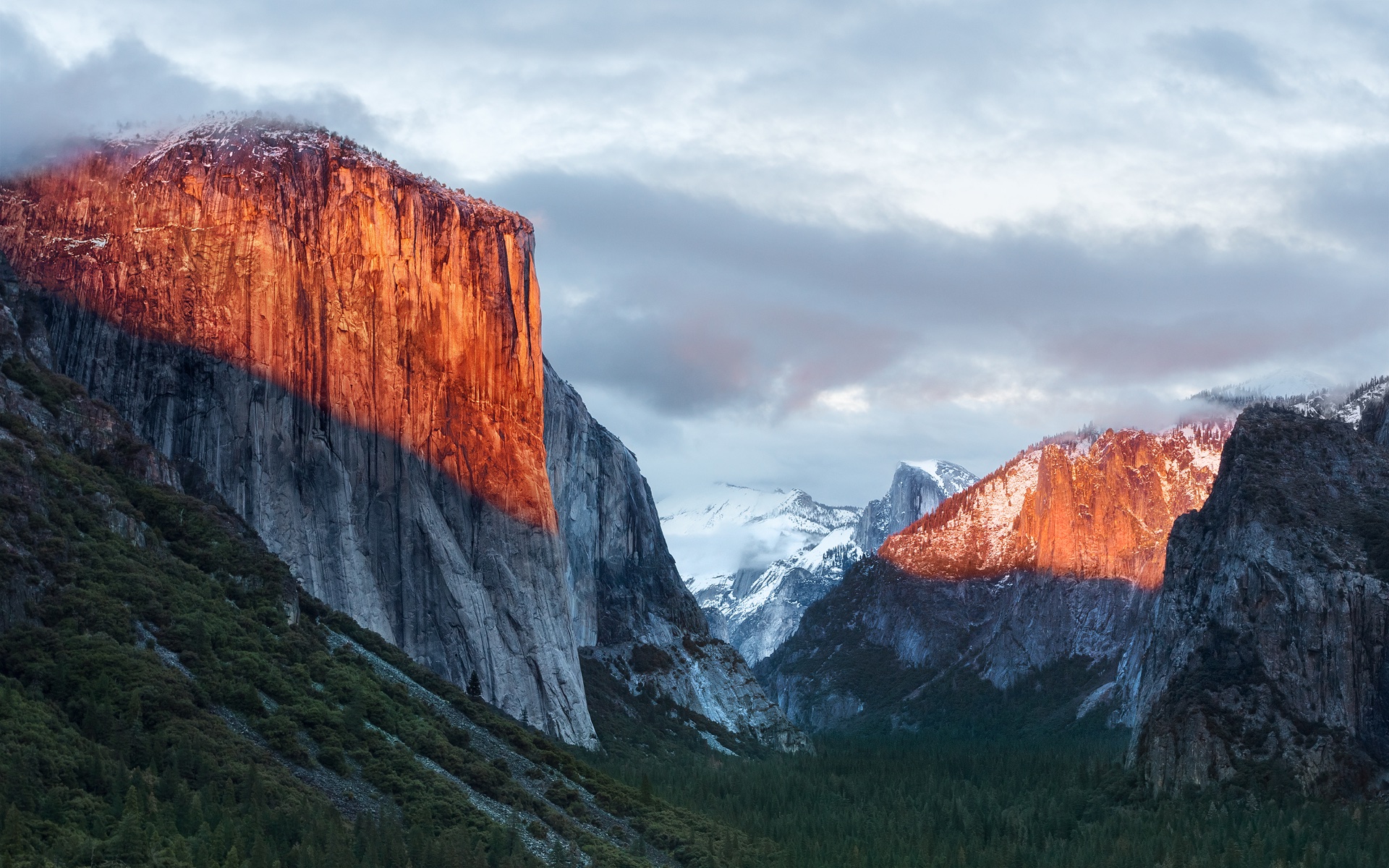
A apenas 20 minutos de distância do Ahwahnee Meadow, a próxima parada do Mac é outra atração turística presente dentro do Parque Nacional de Yosemite: o El Capitan é um monólito de granito de quase 900 metros que se ergue acima do vale do parque.
O papel de parede provavelmente foi fotografado a partir do mirante Tunnel View, de onde é possível avistar o El Capitan à esquerda do vale. Ao fundo, surge o Half Dome — um enquadramento que parece refletir o espírito da atualização. Diferentemente de Yosemite, o OS X El Capitan 10.11 deu menos ênfase à introdução de novos recursos e concentrou seus esforços em correções de bugs, otimizações de desempenho e refinamentos da experiência de uso. Entre as principais novidades, estavam um Spotlight aprimorado, a adição do Split View e diversas melhorias nos aplicativos nativos da Apple.
macOS Sierra 10.12
Cerca de 338km depois (aproximadamente quatro horas e meia) de Yosemite, passando pela cordilheira de Sierra Nevada (situada no leste da Califórnia, a oeste do Mount Whitney), temos o Lone Pine Peak, cenário da montanha que aparece no wallpaper do sistema.
Além da mudança de nomenclatura de OS X para macOS (colado e com o “m” minúsculo, como segue até os dias de hoje), a atualização é particularmente lembrada pela inclusão da Siri no Mac, o Desbloqueio Automático (Auto Unlock) com o Apple Watch e a Área de Transferência Universal (Universal Clipboard) entre Macs, iPhones e iPads.
macOS High Sierra 10.13
Uma rápida viagem de 80 minutos (129km) é capaz de nos levar ao próximo destino fotografado pela Apple: North Lake, localizada na pequena cidade de Bishop, entre as montanhas da cordilheira de Sierra Nevada. Ali, muito possivelmente em meio ao outono, o registro eternizado no papel de parede do sistema foi feito.
Quando falamos do sistema, aos moldes do próprio El Capitan e do Snow Leopard, o macOS High Sierra 10.13 focou muito mais no aprimoramento interno do macOS do que em novos recursos, mas vale mencionar a inclusão do novo sistema de arquivos da Maçã (o Apple File System, ou APFS), do suporte aos formatos audiovisuais HEVC e HEIF, bem como a chegada da segunda geração da tecnologia de desempenho gráfico Metal.
macOS Mojave 10.14
Depois das montanhas, que peculiarmente ficam na margem do wallpaper, vieram as dunas. Com uma distância de 253km (ou três horas de carro), o próximo destino é o Parque Nacional do Vale da Morte, o ponto mais quente do continente americano — onde se registrou a maior temperatura da história (56,7°C) em julho de 1913, e onde a foto do papel de parede do macOS Mojave 10.14 foi feita.
Já sobre as novidades do sistema, essa versão do macOS é particularmente conhecida pela introdução do Modo Escuro, a inclusão dos Conjuntos (Stacks) na Mesa (Desktop), além da estreia de apps já conhecidos dos usuários de iOS, como o Apple News, o Bolsa (Stocks), o Gravador de Voz (Voice Memo) e o Casa (Home).
macOS Catalina 10.15
A 428km adiante do Deserto de Mojave (cerca de cinco horas e meia de carro), nós temos a Ilha de Santa Catalina, destino paradisíaco — e remoto — da costa sul da Califórnia que deu nome à versão do macOS lançada em 2019. Pela posição da foto, o que se especula é que o registro oficial da Apple tenha sido feito com o auxílio de um drone ou helicóptero, sobrevoando as águas para capturar Catalina sob diferentes períodos e iluminações para fornecer o tema dinâmico disponível no sistema.
Essa atualização marcou o fim do iTunes, que foi segmentado em um catálogo de aplicativos separados (Apple TV, Música, Apple Podcasts), mas sua adição mais relevante muito possivelmente foi o recurso Sidecar, que possibilita o uso do iPad como um monitor externo do Mac.
macOS Big Sur 11
Com uma distância de 524km da Ilha de Catalina, a próxima parada é na Ponte Bixby Creek (inaugurada em 1932 e particularmente conhecida por suas estradas com curvas), localizada na costa central de Big Sur, que dá nome a essa versão do macOS — o papel de parede retrata também a parte litorânea do local.
Sobre o sistema, a versão marcou a transição dos processadores da Intel para o Apple Silicon com o lançamento do M1, trazendo novos ícones, materiais translúcidos, um novo Dock, Central de Controle e de Notificações.
Esta versão também foi um marco para o sistema operacional, pois, pela primeira vez em muitos anos, a Apple abandonou as sub-versões 10.x e passou para o número 11 — o que se manteve nos anos subsequentes.
macOS Monterey 12
Ainda na costa de Big Sur, o macOS Monterey 12 marcou a quebra de uma tradição: pela primeira vez em anos, a Apple optou por não incluir um registro fotográfico como possível papel de parede ou tela de descanso, mantendo apenas temas dinâmicos para ilustrar o sistema dos Macs naquela ocasião.
O Condado de Monterey, que inspirou o nome do sistema, é particularmente lembrado por ter abrigado a primeira capital da Califórnia, quando a região ainda era de domínio dos governos da Espanha e do México.
Em relação ao sistema, o grande destaque foi a introdução do Controle Universal (Universal Control), permitindo que um único conjunto de periféricos (como teclados e mouses) seja utilizado simultaneamente no Mac e no iPad.
macOS Ventura 13
Por volta de 450km de distância (quatro horas e meia de trajeto) depois, temos o Condado de Ventura, que inspirou essa versão do macOS. Emancipado do Condado de Santa Bárbara em 1873, ele abriga o píer mais antigo do estado da Califórnia. Mais uma vez, a Apple optou por não incluir um papel de parede fotográfico.
Quanto aos seus recursos, o macOS Ventura 13 se destacou pela adição do recurso Organizador Visual (Stage Manager) e melhorias no Spotlight, Safari, entre outros aplicativos nativos do sistema que ganharam reformulações.
macOS Sonoma 14
Do Condado de Ventura até Sonoma, são 748km (pouco mais de sete horas de trajeto) até a região norte de San Francisco, conhecida por abrigar centenas de vinícolas. O registro da Apple foi feito na vinícola Mazzocco Sonoma, no rancho de Warm Springs.
Depois de dois anos, a Apple enfim retornou com os papéis de parede fotográficos no macOS, funcionando também como protetores de tela (screensavers) dinâmicos que lentamente se tornam um wallpaper estático após o login.
A maior novidade do sistema foi a implementação dos widgets interativos na Mesa (Desktop), além de reformulações no modo Jogo, na relação do sistema com acessos remotos e no compartilhamento de conteúdos em videochamadas, com novidades também no Safari, na Siri e nos recursos de acessibilidade.
macOS Sequoia 15
Saindo de Sonoma, nosso próximo destino está localizado a quase sete horas de distância (mais ao sul da Califórnia, a exatos 547km de distância); trata-se do Parque Nacional da Sequoia, que abriga algumas das maiores árvores do planeta em termos de volume.
O registro do papel de parede é remoto o suficiente para não termos uma dimensão exata da sua localização geográfica (até porque a Apple nunca divulgou essa informação), mas é seguro afirmar que as imagens foram capturadas em algum dos bosques de sequoias da Sierra Nevada.
Além da estreia controversa dos recursos da Apple Intelligence devido à discrepância entre o que foi apresentado e as funcionalidades entregues, o macOS Sequoia 15 introduziu o Espelhamento do iPhone (iPhone Mirroring), a organização de janelas em mosaico e o aplicativo Senhas (Passwords).
macOS Tahoe 26
Do Parque Nacional de Sequoia, partimos rumo ao norte, até a fronteira entre a Califórnia e o estado do Nevada (uma distância de 330km, ou três horas e meia de trajeto). O próximo destino é o Lago Tahoe, também presente na cordilheira de Sierra Nevada. Ele é particularmente conhecido por ser o maior lago alpino da América do Norte em termos de altitude.
Conhecido por suas águas cristalinas, o lago é um destino frequente para esqui. O papel de parede do macOS Tahoe 26 exibe um ângulo baixo sobre o lago, com as rochas em primeiro plano, enquanto os pinheiros e as montanhas de Sierra Nevada aparecem ao fundo.
Quanto ao sistema, além da unificação da numeração com todo o ecossistema (iOS, iPadOS, watchOS, tvOS e visionOS) da Apple, essa versão foi especialmente marcada pelo redesign de interface com a estreia do Liquid Glass. Outras novidades incluem a adição das Atividades Ao Vivo (Live Activities) ao recurso Continuidade, além de revisões do Spotlight, Central de Controle e os recursos da Apple Intelligence.
macOS Golden Gate 27
E, enfim, chegamos à versão mais recente do macOS! Com uma distância de 330km (trajeto com cerca de três horas e meia), nosso próximo destino é o cartão postal da cidade de San Francisco: a Ponte Golden Gate.
Ela foi, até 1964, a maior ponte suspensa do mundo — caso seus cabos de sustentação fossem esticados, teriam tamanho o suficiente para dar três voltas no planeta.
Enquanto sistema, assim como o Snow Leopard ou o High Sierra, o macOS Golden Gate 27 é marcado por sua abordagem de priorização dos refinamentos, tanto relacionados ao visual Liquid Glass quanto aos recursos da Apple Intelligence e da Siri, que agora se torna Siri AI.
E você aí, usa o macOS desde que versão? Alguma, em especial, lhe marcou? Ou você (ainda) não é usuário de Mac, mas gostou de todas essas curiosidades? 😊
A nova versão foi compartilhada pelo usuário mactracker na versão beta do macOS 27 e, como apontado por ele, permite exibir sugestões contextuais de respostas inteligentes geradas pela Siri sem a necessidade de inserir automaticamente no rascunho, semelhante ao funcionamento de outras inteligências artificiais (IA) em apps de email.
As opções da nova barra incluem alternativas de edição, reescrita, correções gramaticais e/ou de escrita e uma opção intitulada “How does this sound?”, além das ferramentas tradicionais de formatação, escanteadas na lateral direita do novo layout.
Na versão atual, essas opções de formatação de texto também estão recolhidas na lateral direita da janela do aplicativo, desaparecendo por completo assim que se seleciona a opção de escrever com a Siri.
O novo layout está oculto por trás de uma feature flag interna, de forma que a maioria dos usuários da versão beta não consegue habilitá-lo. A beta 4 apresenta ainda algumas inconsistências no funcionamento do recurso, como a ausência da barra na escrita de novas mensagens, restringindo o seu funcionamento às réplicas de email.
Não se sabe ao certo se o recurso chegará à versão final do macOS 27 (prevista para aterrissar em setembro), mas ele parece acompanhar as reformulações propostas sobre a integração das ferramentas de IA no cotidiano do ecossistema da Apple nos sistemas 27.
Looks like moving the user’s TCC db to /private/var/containers/Data/ProtectedSystem/[UUID]/Data/Library/Application Support/com.apple.TCC/ was not the only change in the whole privacy castle of macOS 27. (What btw was a great move as now attackers with full disk access permissions can’t modify your privacy settings)
macOS 27 quietly ships a new privacy mechanism I hadn’t seen documented anywhere: it extends the com.apple.macl protection that has always guarded sandboxed apps’ ~/Library/Containers/<bundle-id>/Data folders to a hand-picked set of non-sandboxed apps’ ~/Library/Application Support/<name> folders too. I noticed it by accident — Firefox’s profile folder was suddenly inaccessible from Terminal, while MacPass, a password manager sitting right next to it, was wide open. That asymmetry didn’t sit well with me, so I pulled the thread. It ends in a hardcoded app allowlist baked into /usr/libexec/sandboxd (thx @ciphwall for the hint), meant to be updated live via XProtect.
With the launch of the MacOS 27 Golden Gate public beta program, now even more users can experience MacOS 27 as it’s actively being worked on by Apple. MacOS 27 Golden Gate has a heavy focus on performance improvements, but there’s also refinements other than the Liquid Glass interface look, improvements to Spotlight and Mail ... Read More
Ready for a glimpse into our future as Apple users? Public betas for macOS 27 Golden Gate, iOS 27, iPadOS 27, and other major Apple operating systems are now available—but beware of bugs and be sure to back up your devices first.
Apple has finally completed its silicon transition: macOS 27 drops all Intel-based Macs, and iPadOS 27 and watchOS 27 each leave five models by the wayside, whereas the iPhone compatibility list remains unchanged.
For Mac users who are currently running MacOS 27 Golden Gate beta, Apple has released the 4th beta version of MacOS 27 developer beta. The latest beta build is available to download now through Software Update, as an IPSW file, or as the full installer. MacOS 27 Golden Gate has a heavy focus on performance ... Read More
Apple on Monday released the fourth developer betas of iOS 27, iPadOS 27, and macOS Golden Gate (macOS 27), continuing the rapid beta cycle following the company’s announcements at WWDC 2026. The new builds arrive exactly two weeks after the third betas, signaling steady progress toward the expected public releases this fall.
How to Download
Registered developers can obtain the updates directly on their devices:
• iOS 27 / iPadOS 27: Go to Settings > General > Software Update.
• macOS Golden Gate: Go to System Settings > General > Software Update (with Beta Updates enabled and a developer account linked).
Major Features in This Cycle
Both platforms continue to emphasize Apple Intelligence and a refined user interface centered around the new Liquid Glass design language.
Siri AI takes center stage as a more capable, chatbot-style assistant. It combines general world knowledge, personal context from apps like Messages and Mail, and on-screen awareness to deliver smarter responses. A dedicated Siri app now stores conversation history, and system-wide Write with Siri helps generate or refine text. On the Mac, users can also create custom voices with personalized pace and expressivity. Visual Intelligence has been enhanced and relocated (to the Camera app on iOS and integrated into the desktop on macOS) for better contextual understanding of what’s on screen.
Design and Performance Improvements include:
• Enhanced Liquid Glass with better opacity, readability, and a new transparency slider.
• Refined window shadows, uniform toolbars, edge-to-edge sidebars, and subtler rounded corners on macOS.
• Faster app launching, quicker keyboard appearance, improved AirDrop speeds, and smoother Wi-Fi-to-cellular handoffs across iOS devices.
• Overall performance optimizations that make the system feel snappier, even on older hardware.
Apple Intelligence Expansions add new capabilities in Photos, Safari (AI tab organization), Wallet, Passwords (automatic weak password updates), Shortcuts, and the revamped Image Playground app, which now supports photorealistic image generation.
MacDailyNews Take: With beta 4 now available, Apple is expected to continue refining stability, battery life, and features in the coming weeks. A public beta is likely to follow soon, ahead of the official launch of iOS 27, iPadOS 27, and macOS Golden Gate in September.
Please help support MacDailyNews — and enjoy subscriber-only articles, comments, chat, and more — by subscribing to our Substack: macdailynews.substack.com. Thank you!

 Login
Login