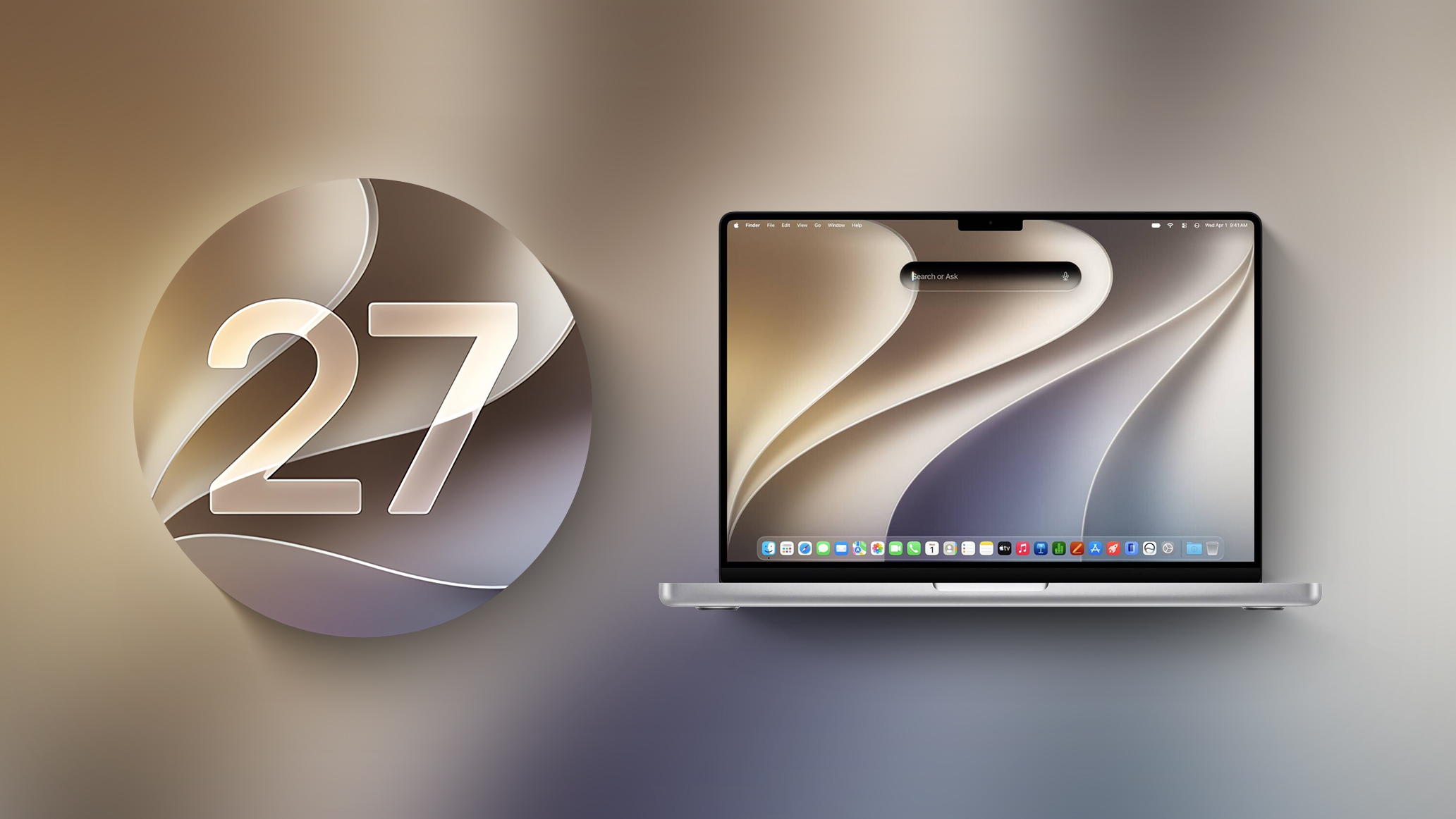
Apple has released MacOS 27 Golden Gate beta 5 for Mac users who are currently running the beta operating system. For those in the public beta testing program, the same build typically arrives for them soon after. MacOS 27 Golden Gate emphasizes performance improvements to the general system as well as features like Spotlight and ... Read More
macOS Golden Gate Beta 27.0 Beta 5 (26A5406e) is now Available!
UPDATED: 08/10/26
This article is being updated as new changes are discovered.
Today, Apple released macOS Golden Gate Beta 5 to developers. The update arrives after the longest stretch between beta updates so far (over three weeks). macOS Golden Gate Beta 5 is available for download through Software Update in System Settings for users enrolled in the Apple Developer Beta program.
Apple has not provided a complete public list of changes included in this beta beyond its developer release notes. As with previous macOS beta releases, many changes are discovered through testing, system analysis, and comparing files between builds.
This article provides a detailed technical breakdown of macOS Golden Gate Beta 5. Along with covering user-facing changes and new features, this guide will examine system changes, update details, firmware updates, developer changes, and other discoveries found while analyzing the latest beta.
The macOS Golden Gate Public Beta is expected to become available shortly after the developer release.
System Settings > Software Update:
Table of Contents
OCLP for Unsupported Macs Warning
Should You Install macOS Golden Gate Beta?
Full Apple Beta OS Update Release List
Apple macOS Golden Gate Links
What’s New in macOS Golden Gate?
macOS Golden Gate Beta Release History
macOS Golden Gate Full Installer.app
Apple Silicon macOS Golden Gate IPSW Restore File
macOS Golden Gate Update Sizes
Apple Silicon Firmware & iBoot Versions
Safari Version
macOS Recovery Version
Security Content of macOS Golden Gate
macOS Golden Gate Release Notes
Final Notes
NOTE: I hate website ads, but this one small Google ad below helps me with the cost of running Mr. Macintosh.com. Thank you!
1. OCLP for Unsupported Macs Warning
OpenCore Legacy Patcher is not compatible with macOS Golden Gate and macOS Tahoe. Make sure you go into System Settings > Software Update and TURN OFF Download Updates&Install macOS Updates.
If you use OCLP on an unsupported Mac, wait for official OpenCore Legacy Patcher 3.0.0 testing and compatibility information before attempting to install.
2. Should You Install macOS Golden Gate Beta?
Most users should not install macOS Golden Gate Beta on their main Mac. This is early beta software, which means apps may crash, battery life may be reduced, accessories may not work correctly, and some features may be unfinished.
Install it only if you have a test Mac, a full backup, and a reason to test the new release early. I recommend two types of backups: Time Machine & A direct copy of your important files and apps
This might seem like a lot, but TRUST ME, it will be worth it if something goes wrong!
MacAdmins, developers, and advanced users can begin testing app compatibility, MDM enrollment, security tools, VPN clients, printers, FileVault workflows, software update behavior, and deployment processes.
3. Full Apple Beta OS Update Release List
Beta 5 & RC 1
Golden Gate 27.0 (26A5406e) Beta 5 *NEW
Tahoe 26.6.2 (25G82) RC *NEW
iOS & iPadOS 27.0 Beta 5
iOS & iPadOS 26.6 Beta 5
tvOS 27.0 Beta 5
homePodOS 27.0 Beta 5
Safari
Safari 27.0
Developer Tools
Xcode 27 beta *NEW
Command Line Tools for Xcode 27 Beta 5 *NEW
4. Apple macOS Golden Gate Links
Official links will be added as Apple publishes more macOS Golden Gate documentation.
Apple has released the 5th developer beta of macOS Golden Gate 27.
New Features & Changes
Liquid Glass Design Updates
macOS Golden Gate brings a more polished Liquid Glass design with better readability, improved contrast, more consistent toolbars, edge-to-edge sidebars, updated window shapes, and refreshed menu bar icons. Apple has also added a new slider that lets you adjust the Liquid Glass look from very clear to fully tinted.
Performance Improvements
Apple says the system should feel faster overall, with quicker AirDrop transfers, faster network file browsing, faster Safari start page loading, improved Mail search ranking, and better Spotlight search suggestions.
Siri AI on Mac
The biggest new feature is Siri AI on Mac. Siri can now answer more natural questions, understand personal context, take actions inside apps, work from Spotlight, and live inside a new dedicated Siri app for longer conversations.
Visual Intelligence
Visual Intelligence is also coming to the Mac, letting you ask questions about what’s on your screen and get help based on the content you’re looking at.
Writing Tools & Apple Intelligence
Golden Gate expands Writing Tools with Siri, adds better AI photo editing, improves Image Playground, and lets you create Shortcuts from plain-language descriptions.
Safari & Passwords
Safari gets smarter tab grouping, page-change alerts, and faster start page loading. Apple is also adding one-click password fixes to help update weak or reused passwords more easily.
Family, Safety & Accessibility
Golden Gate includes stronger child safety controls, improved Screen Time features, and new accessibility improvements across the system.
Other Notable Changes
Other smaller changes include ultrawide display upgrades, better iCloud Shared Albums, Call Context, enhanced Flyover in Maps, swipe-to-refresh in more apps, and a refreshed video podcasts experience.
8. Apple Silicon macOS Golden Gate IPSW Restore File
An IPSW restore file is mainly used to restore or revive Apple Silicon Macs with Apple Configurator, Finder, or another Mac.
Most users do not need the IPSW file for normal macOS updates. IPSW files are intended for restores, revives, troubleshooting, clean installs, and testing workflows.
Use this link to download the full Mac IPSW restore file directly from Apple:
The delta update & upgrade size will automatically change in size for exactly what your macOS version needs. For example the smallest update size will be from Beta 3 to Beta 4. But if you are upgrading from Beta 1 to Beta 4, the upgrade size will need to include all the fixes in Beta 2 and 3.
Apple Silicon Updates
Delta from macOS Golden Gate Beta 4 with size = 14.26GB
Upgrade from macOS Tahoe 26.6.1 with size = 19.52GB
10. Apple Silicon Firmware & iBoot Versions
The Apple Silicon firmware and iBoot versions included with macOS Golden Gate Beta are listed below.
6. macOS Golden Gate 27 Developer Beta 5 = 20457.1.27
5. macOS Golden Gate 27 Developer Beta 4 = 20457.0.125.0.2
4. macOS Golden Gate 27 Public Beta 1 = 20457.0.77.0.2
3. macOS Golden Gate 27 Developer Beta 3 = 20457.0.77.0.2
2. macOS Golden Gate 27 Developer Beta 2 = 20457.0.13.0.11
1. macOS Golden Gate 27 Developer Beta 1 = 20356.0.0.0.15
If you install macOS Golden Gate Beta, make sure you have a full backup before proceeding. Beta software can cause app compatibility issues, performance problems, and data loss. Do not install this beta on your main Mac unless you are comfortable troubleshooting and restoring macOS.
Apple today provided developers with the fifth beta of macOS Golden Gate, with the update coming two weeks after Apple seeded the fourth beta.
Developers can download macOS Golden Gate by going to System Settings > General > Software Update. Beta Updates will need to be enabled, and a free developer account is required.
macOS Golden Gate includes multiple design improvements. Liquid Glass opacity has been improved to increase readability, there's a slider for controlling the level of transparency, and changes to shadowing make it easier to tell when a window is active. Apps now have uniform toolbars, edge-to-edge sidebars, and less rounded corners, plus there are fewer icons in menu bars.
Siri has been transformed into Siri AI, a chatbot-style assistant that combines general world knowledge, your personal data, and onscreen awareness to answer questions about anything and find information for you. Siri lives in Spotlight, and you can ask questions with the new Search or Ask interface.
There's also a Siri app where you can chat with Siri and view past conversations, and on newer Macs, you can set a custom voice for Siri with personalized pace and expressivity. Visual Intelligence is now on the Mac so Siri can answer questions about what's on your screen, and a Write with Siri feature lets Siri generate text or give feedback on your writing.
There are AI photo editing tools in the Photos app, AI tab organization in Safari, an option to use AI to automatically update weak passwords in the Passwords app, and a revamped Image Playground app that can generate photorealistic images.
If you’re curious about testing out MacOS 27 Golden Gate beta but you aren’t ready for the full commitment of installing it as your primary operating system, the simplest and safest way to run MacOS 27 Golden Gate beta is within a virtual machine. While one of our authors dove right into MacOS 27 Golden ... Read More
A cada atualização anual do macOS, uma escolha da Apple em particular gera quase tanta curiosidade quanto as mudanças e os novos recursos do seu sistema operacional: o nome que acompanhará o update.
Hoje, faremos uma breve recapitulação das principais escolhas da Maçã sobre os nomes de cada versão do sistema operacional dos seus computadores, passando por décadas de codinomes felinos e, mais recentemente, paisagens californianas.
As (várias) mudanças do passado
Antes disso — no período do Mac OS Classic, que abrange os sistemas dos Macintoshes lançados entre 1984 e 2001 —, os nomes dos sistemas da Apple eram usados quase exclusivamente de forma interna. Publicamente, as versões recebiam denominações bastante protocolares, mas, nos bastidores, praticamente todas carregavam codinomes.
O System 6, por exemplo, teve versões conhecidas internamente como Antares (6.04), Big Deal (6.05), SixPack (6.06) e Terminator (6.08). Já o System 7 passou por uma verdadeira coleção de nomes, incluindo Blue, Beta Cheese, Cube-E, I Tripoli, Jirocho, Mozart, Capone, Danook, Thag e Marconi, entre outros. Também houve casos específicos, como Road Warrior, utilizado nos primeiros PowerBooks, além de Unity, Buster, Son of Buster, Harmony e Ides of Buster, empregados em versões posteriores do sistema.
A partir do Mac OS 8, os nomes foram predominantemente relacionados à teoria musical — é o caso do codinome Tempo no Mac OS 8, Allegro no Mac OS 8.5 e Sonata no Mac OS 8.7 (versão de desenvolvimento do que viria a ser o Mac OS 9). As exceções são o Mac OS 8.1 (intitulado Bride of Buster) e o Mac OS 8.6 (Veronica).
Essa só se tornou uma tradição marqueteira a partir do Mac OS X 10.2, quando Steve Jobs apresentou a nova versão do sistema operacional como Mac OS X Jaguar, levando um codinome ao público pela primeira vez — antes do Jaguar, a Apple utilizou os codinomes Kodiak para a versão beta, Cheetah para a 10.0 e Puma para a 10.1 —, inaugurando a era de nomes de grandes felinos.
Os animais ditaram os sistemas dos Macs por cerca de dez anos (de 2002 até 2012): foi o caso do Mac OS X 10.3 Panther, Mac OS X 10.4 Tiger, Mac OS X 10.5 Leopard, Mac OS X 10.6 Snow Leopard, Mac OS X 10.7 Lion e, por fim, OS X Mountain Lion 10.8 — que abandonou (temporariamente) o prefixo “Mac”.
OS X Mavericks 10.9: a alteração de rota rumo à Califórnia
A partir da décima versão do macOS (então OS X), a Apple adotou publicamente nomes com as regiões da Califórnia, tendência que segue em vigor até os dias de hoje.
A troca, aliás, andou em paralelo a uma mudança paradigmática do sistema: foi somente com o OS X Mavericks 10.9 que a Maçã deixou de cobrar pela atualização dos seus sistemas operacionais, permitindo que os seus usuários, a partir do Snow Leopard (na compilação 10.6.8), atualizassem as suas máquinas sem custos adicionais — uma realidade que permanece até os dias de hoje.
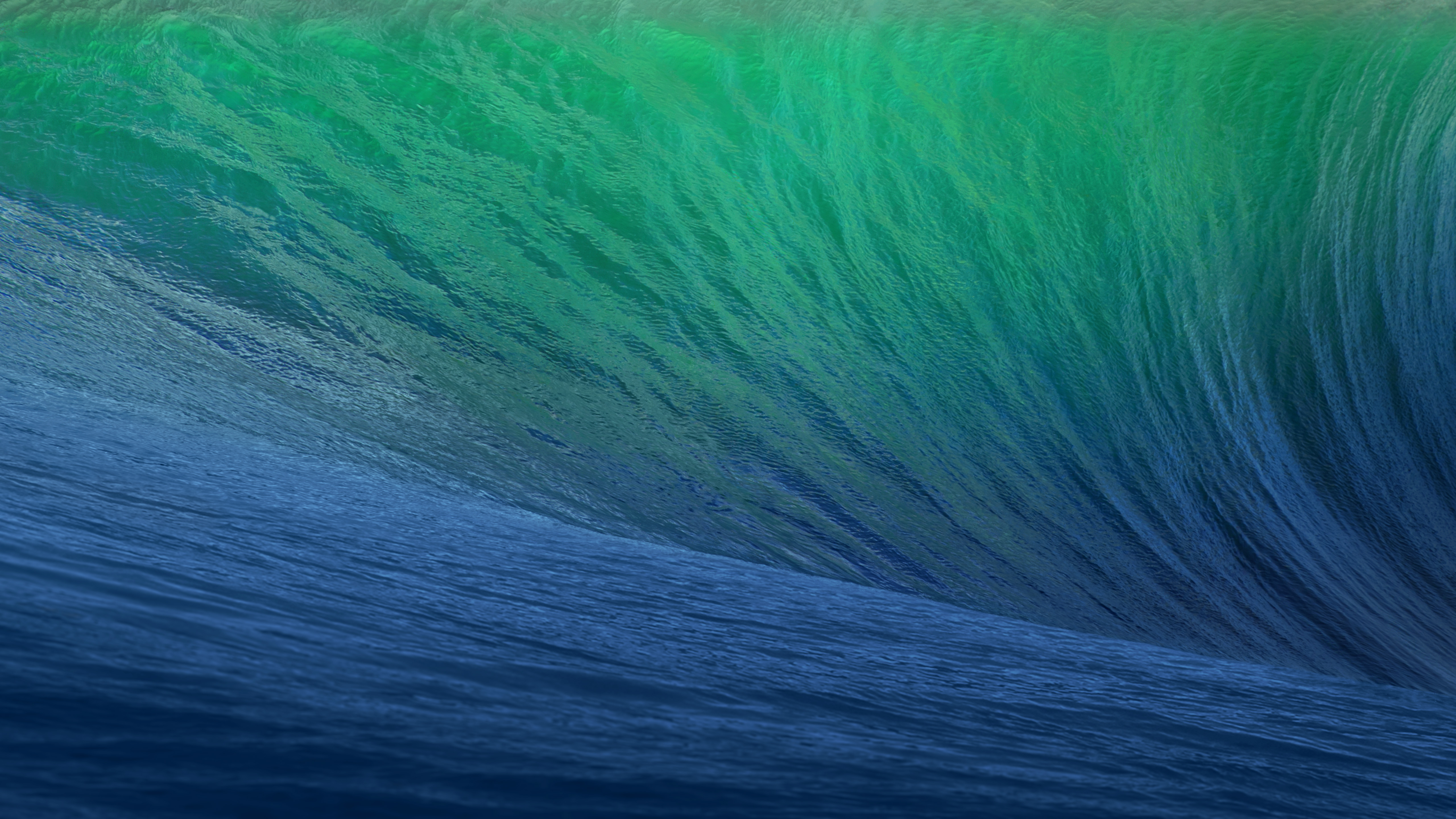
O primeiro destino geográfico escolhido pela Apple remete a uma região litorânea conhecida pelas altas ondas, propícias para a cena local do surfe. O papel de parede do OS X 10.9 dava destaque à curvatura de uma grande onda em tons de azul e turquesa, com clara inspiração na localização que deu nome ao update.
Em matéria de software, o OS X Mavericks ficou marcado pelo aprimoramento na gestão de performance, bateria e memória, aproveitando melhor o hardware dos computadores da Apple. Quanto aos recursos, o sistema trouxe os links compartilhados no Safari, respostas embutidas em notificações, abas e tags no Finder, melhor suporte ao uso de múltiplos monitores, além da introdução de novos aplicativos, como o Mapas e iBooks.
OS X Yosemite 10.10
Pouco mais de quatro horas adiante (ou 314km, para ser mais exato), encontramos o Parque Nacional de Yosemite. A área já era considerada tão importante para a preservação ambiental que Abraham Lincoln autorizou sua proteção e uso público em 1864, anos antes da criação de Yellowstone, reconhecido como o primeiro parque nacional do mundo. Outro grande entusiasta de Yosemite foi Theodore Roosevelt, que ajudou a consolidar a sua importância dentro do sistema de parques americanos.
Um dos maiores símbolos do parque — e também o destaque do wallpaper oficial do sistema — é o Half Dome, um monólito de granito com impressionantes 2.696 metros de altitude. Localizada no coração de Yosemite, a formação foi considerada inescalável por alguns geólogos do século XIX, até que George G. Anderson realizou a façanha em 1875, escalando-a descalço. Muito possivelmente, a foto usada pela Apple foi registrada com uma lente teleobjetiva nas proximidades da Ahwahnee Meadow.
O OS X Yosemite 10.10 foi um marco importante na trajetória do macOS. Muito lembrado pelas mudanças de design na interface — com elementos translúcidos e ícones de formas planas que definiriam a identidade visual do sistema por várias gerações —, ele também deixou como legado a introdução dos recursos de Continuidade (Continuity) entre o OS X e o iOS.
Inicialmente, a novidade englobava apenas o AirDrop, as chamadas telefônicas, o app Mensagens, o Handoff e o Instant Hotspot. Ainda assim, ela inaugurou um nível de interoperabilidade que ajudou a redefinir a forma como o mercado de tecnologia passou a enxergar ecossistemas compostos por diferentes produtos de uma mesma marca.
OS X El Capitan 10.11
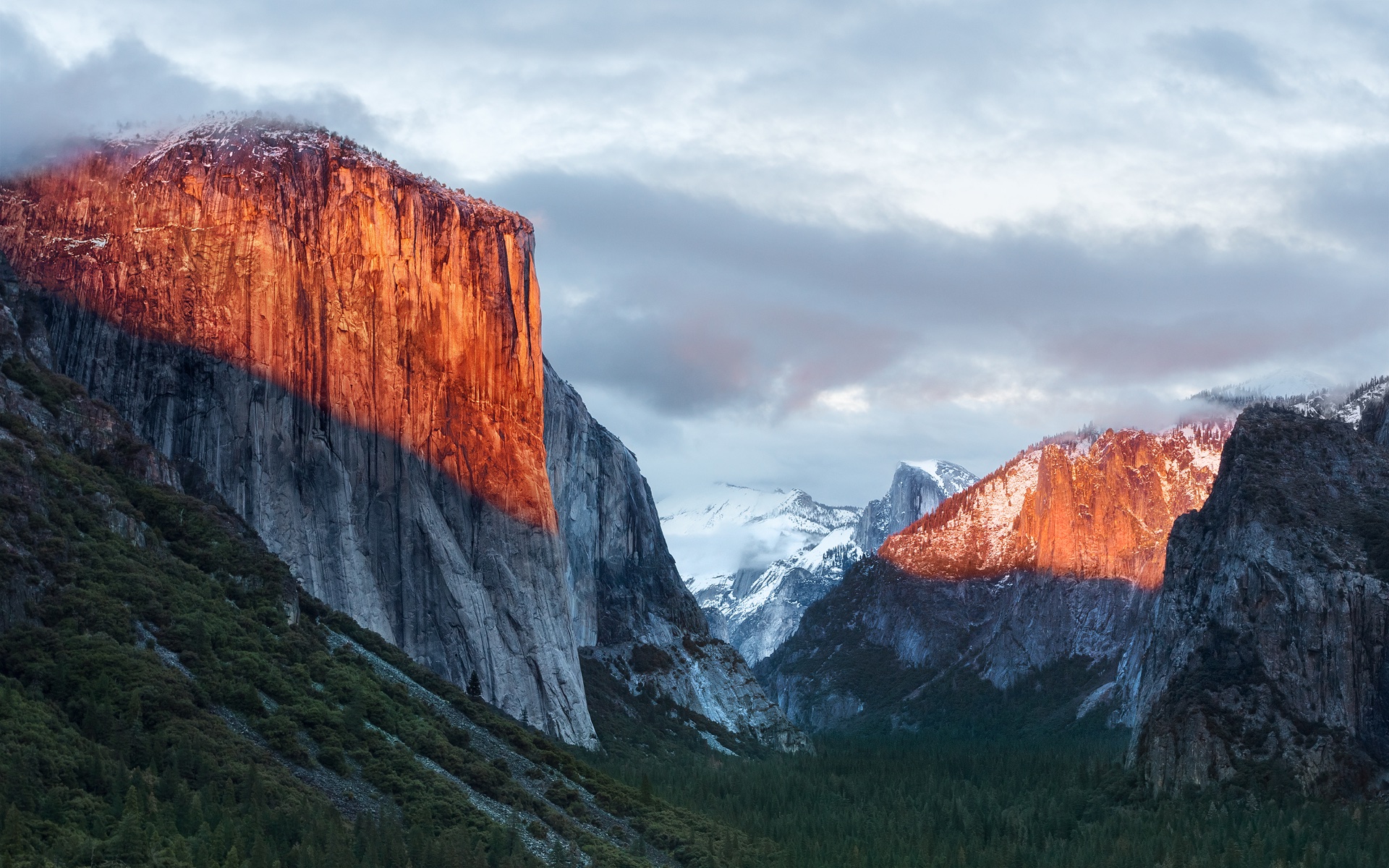
A apenas 20 minutos de distância do Ahwahnee Meadow, a próxima parada do Mac é outra atração turística presente dentro do Parque Nacional de Yosemite: o El Capitan é um monólito de granito de quase 900 metros que se ergue acima do vale do parque.
O papel de parede provavelmente foi fotografado a partir do mirante Tunnel View, de onde é possível avistar o El Capitan à esquerda do vale. Ao fundo, surge o Half Dome — um enquadramento que parece refletir o espírito da atualização. Diferentemente de Yosemite, o OS X El Capitan 10.11 deu menos ênfase à introdução de novos recursos e concentrou seus esforços em correções de bugs, otimizações de desempenho e refinamentos da experiência de uso. Entre as principais novidades, estavam um Spotlight aprimorado, a adição do Split View e diversas melhorias nos aplicativos nativos da Apple.
macOS Sierra 10.12
Cerca de 338km depois (aproximadamente quatro horas e meia) de Yosemite, passando pela cordilheira de Sierra Nevada (situada no leste da Califórnia, a oeste do Mount Whitney), temos o Lone Pine Peak, cenário da montanha que aparece no wallpaper do sistema.
Além da mudança de nomenclatura de OS X para macOS (colado e com o “m” minúsculo, como segue até os dias de hoje), a atualização é particularmente lembrada pela inclusão da Siri no Mac, o Desbloqueio Automático (Auto Unlock) com o Apple Watch e a Área de Transferência Universal (Universal Clipboard) entre Macs, iPhones e iPads.
macOS High Sierra 10.13
Uma rápida viagem de 80 minutos (129km) é capaz de nos levar ao próximo destino fotografado pela Apple: North Lake, localizada na pequena cidade de Bishop, entre as montanhas da cordilheira de Sierra Nevada. Ali, muito possivelmente em meio ao outono, o registro eternizado no papel de parede do sistema foi feito.
Quando falamos do sistema, aos moldes do próprio El Capitan e do Snow Leopard, o macOS High Sierra 10.13 focou muito mais no aprimoramento interno do macOS do que em novos recursos, mas vale mencionar a inclusão do novo sistema de arquivos da Maçã (o Apple File System, ou APFS), do suporte aos formatos audiovisuais HEVC e HEIF, bem como a chegada da segunda geração da tecnologia de desempenho gráfico Metal.
macOS Mojave 10.14
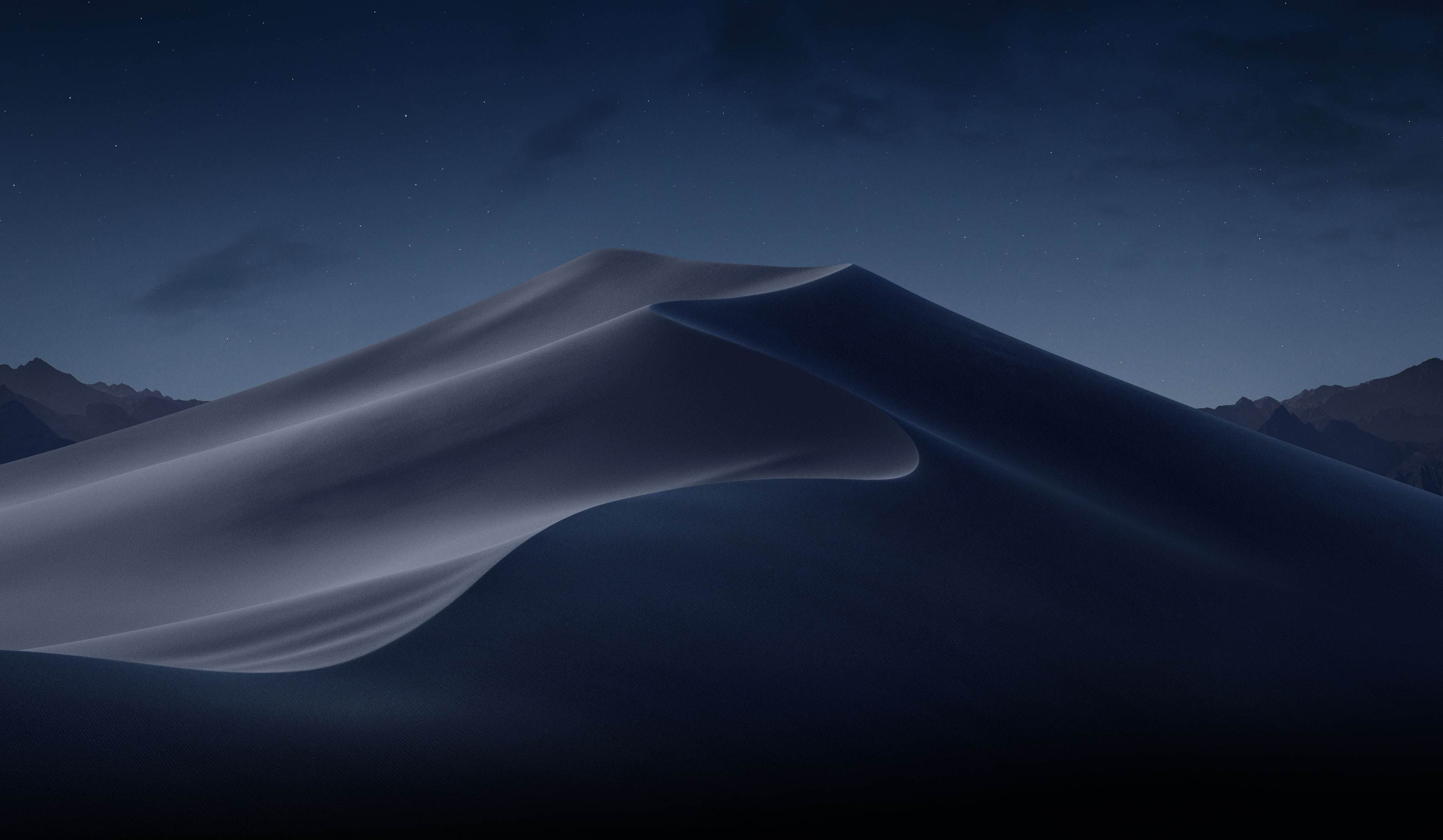
Depois das montanhas, que peculiarmente ficam na margem do wallpaper, vieram as dunas. Com uma distância de 253km (ou três horas de carro), o próximo destino é o Parque Nacional do Vale da Morte, o ponto mais quente do continente americano — onde se registrou a maior temperatura da história (56,7°C) em julho de 1913, e onde a foto do papel de parede do macOS Mojave 10.14 foi feita.
Já sobre as novidades do sistema, essa versão do macOS é particularmente conhecida pela introdução do Modo Escuro, a inclusão dos Conjuntos (Stacks) na Mesa (Desktop), além da estreia de apps já conhecidos dos usuários de iOS, como o Apple News, o Bolsa (Stocks), o Gravador de Voz (Voice Memo) e o Casa (Home).
macOS Catalina 10.15
A 428km adiante do Deserto de Mojave (cerca de cinco horas e meia de carro), nós temos a Ilha de Santa Catalina, destino paradisíaco — e remoto — da costa sul da Califórnia que deu nome à versão do macOS lançada em 2019. Pela posição da foto, o que se especula é que o registro oficial da Apple tenha sido feito com o auxílio de um drone ou helicóptero, sobrevoando as águas para capturar Catalina sob diferentes períodos e iluminações para fornecer o tema dinâmico disponível no sistema.
Essa atualização marcou o fim do iTunes, que foi segmentado em um catálogo de aplicativos separados (Apple TV, Música, Apple Podcasts), mas sua adição mais relevante muito possivelmente foi o recurso Sidecar, que possibilita o uso do iPad como um monitor externo do Mac.
macOS Big Sur 11
Com uma distância de 524km da Ilha de Catalina, a próxima parada é na Ponte Bixby Creek (inaugurada em 1932 e particularmente conhecida por suas estradas com curvas), localizada na costa central de Big Sur, que dá nome a essa versão do macOS — o papel de parede retrata também a parte litorânea do local.
Sobre o sistema, a versão marcou a transição dos processadores da Intel para o Apple Silicon com o lançamento do M1, trazendo novos ícones, materiais translúcidos, um novo Dock, Central de Controle e de Notificações.
Esta versão também foi um marco para o sistema operacional, pois, pela primeira vez em muitos anos, a Apple abandonou as sub-versões 10.x e passou para o número 11 — o que se manteve nos anos subsequentes.
macOS Monterey 12
Ainda na costa de Big Sur, o macOS Monterey 12 marcou a quebra de uma tradição: pela primeira vez em anos, a Apple optou por não incluir um registro fotográfico como possível papel de parede ou tela de descanso, mantendo apenas temas dinâmicos para ilustrar o sistema dos Macs naquela ocasião.
O Condado de Monterey, que inspirou o nome do sistema, é particularmente lembrado por ter abrigado a primeira capital da Califórnia, quando a região ainda era de domínio dos governos da Espanha e do México.
Em relação ao sistema, o grande destaque foi a introdução do Controle Universal (Universal Control), permitindo que um único conjunto de periféricos (como teclados e mouses) seja utilizado simultaneamente no Mac e no iPad.
macOS Ventura 13
Por volta de 450km de distância (quatro horas e meia de trajeto) depois, temos o Condado de Ventura, que inspirou essa versão do macOS. Emancipado do Condado de Santa Bárbara em 1873, ele abriga o píer mais antigo do estado da Califórnia. Mais uma vez, a Apple optou por não incluir um papel de parede fotográfico.
Quanto aos seus recursos, o macOS Ventura 13 se destacou pela adição do recurso Organizador Visual (Stage Manager) e melhorias no Spotlight, Safari, entre outros aplicativos nativos do sistema que ganharam reformulações.
macOS Sonoma 14
Do Condado de Ventura até Sonoma, são 748km (pouco mais de sete horas de trajeto) até a região norte de San Francisco, conhecida por abrigar centenas de vinícolas. O registro da Apple foi feito na vinícola Mazzocco Sonoma, no rancho de Warm Springs.
Depois de dois anos, a Apple enfim retornou com os papéis de parede fotográficos no macOS, funcionando também como protetores de tela (screensavers) dinâmicos que lentamente se tornam um wallpaper estático após o login.
A maior novidade do sistema foi a implementação dos widgets interativos na Mesa (Desktop), além de reformulações no modo Jogo, na relação do sistema com acessos remotos e no compartilhamento de conteúdos em videochamadas, com novidades também no Safari, na Siri e nos recursos de acessibilidade.
macOS Sequoia 15
Saindo de Sonoma, nosso próximo destino está localizado a quase sete horas de distância (mais ao sul da Califórnia, a exatos 547km de distância); trata-se do Parque Nacional da Sequoia, que abriga algumas das maiores árvores do planeta em termos de volume.
O registro do papel de parede é remoto o suficiente para não termos uma dimensão exata da sua localização geográfica (até porque a Apple nunca divulgou essa informação), mas é seguro afirmar que as imagens foram capturadas em algum dos bosques de sequoias da Sierra Nevada.
Além da estreia controversa dos recursos da Apple Intelligence devido à discrepância entre o que foi apresentado e as funcionalidades entregues, o macOS Sequoia 15 introduziu o Espelhamento do iPhone (iPhone Mirroring), a organização de janelas em mosaico e o aplicativo Senhas (Passwords).
macOS Tahoe 26
Do Parque Nacional de Sequoia, partimos rumo ao norte, até a fronteira entre a Califórnia e o estado do Nevada (uma distância de 330km, ou três horas e meia de trajeto). O próximo destino é o Lago Tahoe, também presente na cordilheira de Sierra Nevada. Ele é particularmente conhecido por ser o maior lago alpino da América do Norte em termos de altitude.
Conhecido por suas águas cristalinas, o lago é um destino frequente para esqui. O papel de parede do macOS Tahoe 26 exibe um ângulo baixo sobre o lago, com as rochas em primeiro plano, enquanto os pinheiros e as montanhas de Sierra Nevada aparecem ao fundo.
Quanto ao sistema, além da unificação da numeração com todo o ecossistema (iOS, iPadOS, watchOS, tvOS e visionOS) da Apple, essa versão foi especialmente marcada pelo redesign de interface com a estreia do Liquid Glass. Outras novidades incluem a adição das Atividades Ao Vivo (Live Activities) ao recurso Continuidade, além de revisões do Spotlight, Central de Controle e os recursos da Apple Intelligence.
macOS Golden Gate 27
E, enfim, chegamos à versão mais recente do macOS! Com uma distância de 330km (trajeto com cerca de três horas e meia), nosso próximo destino é o cartão postal da cidade de San Francisco: a Ponte Golden Gate.
Ela foi, até 1964, a maior ponte suspensa do mundo — caso seus cabos de sustentação fossem esticados, teriam tamanho o suficiente para dar três voltas no planeta.
Enquanto sistema, assim como o Snow Leopard ou o High Sierra, o macOS Golden Gate 27 é marcado por sua abordagem de priorização dos refinamentos, tanto relacionados ao visual Liquid Glass quanto aos recursos da Apple Intelligence e da Siri, que agora se torna Siri AI.
E você aí, usa o macOS desde que versão? Alguma, em especial, lhe marcou? Ou você (ainda) não é usuário de Mac, mas gostou de todas essas curiosidades? 😊
A nova versão foi compartilhada pelo usuário mactracker na versão beta do macOS 27 e, como apontado por ele, permite exibir sugestões contextuais de respostas inteligentes geradas pela Siri sem a necessidade de inserir automaticamente no rascunho, semelhante ao funcionamento de outras inteligências artificiais (IA) em apps de email.
As opções da nova barra incluem alternativas de edição, reescrita, correções gramaticais e/ou de escrita e uma opção intitulada “How does this sound?”, além das ferramentas tradicionais de formatação, escanteadas na lateral direita do novo layout.
Na versão atual, essas opções de formatação de texto também estão recolhidas na lateral direita da janela do aplicativo, desaparecendo por completo assim que se seleciona a opção de escrever com a Siri.
O novo layout está oculto por trás de uma feature flag interna, de forma que a maioria dos usuários da versão beta não consegue habilitá-lo. A beta 4 apresenta ainda algumas inconsistências no funcionamento do recurso, como a ausência da barra na escrita de novas mensagens, restringindo o seu funcionamento às réplicas de email.
Não se sabe ao certo se o recurso chegará à versão final do macOS 27 (prevista para aterrissar em setembro), mas ele parece acompanhar as reformulações propostas sobre a integração das ferramentas de IA no cotidiano do ecossistema da Apple nos sistemas 27.
Looks like moving the user’s TCC db to /private/var/containers/Data/ProtectedSystem/[UUID]/Data/Library/Application Support/com.apple.TCC/ was not the only change in the whole privacy castle of macOS 27. (What btw was a great move as now attackers with full disk access permissions can’t modify your privacy settings)
macOS 27 quietly ships a new privacy mechanism I hadn’t seen documented anywhere: it extends the com.apple.macl protection that has always guarded sandboxed apps’ ~/Library/Containers/<bundle-id>/Data folders to a hand-picked set of non-sandboxed apps’ ~/Library/Application Support/<name> folders too. I noticed it by accident — Firefox’s profile folder was suddenly inaccessible from Terminal, while MacPass, a password manager sitting right next to it, was wide open. That asymmetry didn’t sit well with me, so I pulled the thread. It ends in a hardcoded app allowlist baked into /usr/libexec/sandboxd (thx @ciphwall for the hint), meant to be updated live via XProtect.
With the launch of the MacOS 27 Golden Gate public beta program, now even more users can experience MacOS 27 as it’s actively being worked on by Apple. MacOS 27 Golden Gate has a heavy focus on performance improvements, but there’s also refinements other than the Liquid Glass interface look, improvements to Spotlight and Mail ... Read More
Ready for a glimpse into our future as Apple users? Public betas for macOS 27 Golden Gate, iOS 27, iPadOS 27, and other major Apple operating systems are now available—but beware of bugs and be sure to back up your devices first.
Apple has finally completed its silicon transition: macOS 27 drops all Intel-based Macs, and iPadOS 27 and watchOS 27 each leave five models by the wayside, whereas the iPhone compatibility list remains unchanged.
For Mac users who are currently running MacOS 27 Golden Gate beta, Apple has released the 4th beta version of MacOS 27 developer beta. The latest beta build is available to download now through Software Update, as an IPSW file, or as the full installer. MacOS 27 Golden Gate has a heavy focus on performance ... Read More
Apple on Monday released the fourth developer betas of iOS 27, iPadOS 27, and macOS Golden Gate (macOS 27), continuing the rapid beta cycle following the company’s announcements at WWDC 2026. The new builds arrive exactly two weeks after the third betas, signaling steady progress toward the expected public releases this fall.
How to Download
Registered developers can obtain the updates directly on their devices:
• iOS 27 / iPadOS 27: Go to Settings > General > Software Update.
• macOS Golden Gate: Go to System Settings > General > Software Update (with Beta Updates enabled and a developer account linked).
Major Features in This Cycle
Both platforms continue to emphasize Apple Intelligence and a refined user interface centered around the new Liquid Glass design language.
Siri AI takes center stage as a more capable, chatbot-style assistant. It combines general world knowledge, personal context from apps like Messages and Mail, and on-screen awareness to deliver smarter responses. A dedicated Siri app now stores conversation history, and system-wide Write with Siri helps generate or refine text. On the Mac, users can also create custom voices with personalized pace and expressivity. Visual Intelligence has been enhanced and relocated (to the Camera app on iOS and integrated into the desktop on macOS) for better contextual understanding of what’s on screen.
Design and Performance Improvements include:
• Enhanced Liquid Glass with better opacity, readability, and a new transparency slider.
• Refined window shadows, uniform toolbars, edge-to-edge sidebars, and subtler rounded corners on macOS.
• Faster app launching, quicker keyboard appearance, improved AirDrop speeds, and smoother Wi-Fi-to-cellular handoffs across iOS devices.
• Overall performance optimizations that make the system feel snappier, even on older hardware.
Apple Intelligence Expansions add new capabilities in Photos, Safari (AI tab organization), Wallet, Passwords (automatic weak password updates), Shortcuts, and the revamped Image Playground app, which now supports photorealistic image generation.
MacDailyNews Take: With beta 4 now available, Apple is expected to continue refining stability, battery life, and features in the coming weeks. A public beta is likely to follow soon, ahead of the official launch of iOS 27, iPadOS 27, and macOS Golden Gate in September.
Please help support MacDailyNews — and enjoy subscriber-only articles, comments, chat, and more — by subscribing to our Substack: macdailynews.substack.com. Thank you!
macOS Golden Gate Beta 27.0 Beta 4 (26A5388g) is now Available!
UPDATED: 07/21/26
This article is being updated as new changes are discovered.
Today, Apple released macOS Golden Gate Beta 4 (26A5388g) to developers. The update arrives two weeks after macOS Golden Gate Beta 3 and is available for download through Software Update in System Settings for users enrolled in the Apple Developer Beta program.
Apple has not provided a complete public list of changes included in this beta beyond its developer release notes. As with previous macOS beta releases, many changes are discovered through testing, system analysis, and comparing files between builds.
This article provides a detailed technical breakdown of macOS Golden Gate Beta 4. Along with covering user-facing changes and new features, this guide will examine system changes, update details, firmware updates, developer changes, and other discoveries found while analyzing the latest beta.
This article will track everything new in macOS Golden Gate Beta 4, including confirmed features, UI changes, bug fixes, update sizes, firmware updates, security changes, and additional developer changes identified during analysis.
The macOS Golden Gate Public Beta 2 is expected to become available shortly after the developer release.
System Settings > Software Update:
Table of Contents
OCLP for Unsupported Macs Warning
Should You Install macOS Golden Gate Beta?
Full Apple Beta OS Update Release List
Apple macOS Golden Gate Links
What’s New in macOS Golden Gate?
macOS Golden Gate Beta Release History
macOS Golden Gate Full Installer.app
Apple Silicon macOS Golden Gate IPSW Restore File
macOS Golden Gate Update Sizes
Apple Silicon Firmware & iBoot Versions
Safari Version
macOS Recovery Version
Security Content of macOS Golden Gate
macOS Golden Gate Release Notes
Final Notes
NOTE: I hate website ads, but this one small Google ad below helps me with the cost of running Mr. Macintosh.com. Thank you!
1. OCLP for Unsupported Macs Warning
OpenCore Legacy Patcher is not compatible with macOS Golden Gate and macOS Tahoe. Make sure you go into System Settings > Software Update and TURN OFF Download Updates&Install macOS Updates.
If you use OCLP on an unsupported Mac, wait for official OpenCore Legacy Patcher 3.0.0 testing and compatibility information before attempting to install.
2. Should You Install macOS Golden Gate Beta?
Most users should not install macOS Golden Gate Beta on their main Mac. This is early beta software, which means apps may crash, battery life may be reduced, accessories may not work correctly, and some features may be unfinished.
Install it only if you have a test Mac, a full backup, and a reason to test the new release early. I recommend two types of backups: Time Machine & A direct copy of your important files and apps
This might seem like a lot, but TRUST ME, it will be worth it if something goes wrong!
MacAdmins, developers, and advanced users can begin testing app compatibility, MDM enrollment, security tools, VPN clients, printers, FileVault workflows, software update behavior, and deployment processes.
3. Full Apple Beta OS Update Release List
Beta 4 & RC 6
Golden Gate 27.0 (26A5388g) Beta 4
Tahoe 26.6 (25G70)
Sequoia 15.7.8 (24G822)
Sonoma 14.8.8 (23J619)
iOS & iPadOS 27.0 (24A5390f) Beta 4
iOS & iPadOS 26.6 (23G71)
tvOS 27.0 (24J5325d) Beta 4
homePodOS 27.0 (24J5325d) Beta 4
tvOS 26.6 (23L772)
watchOS 26.6 (23U67)
visionOS 26.6 (23O770)
Safari
Safari 27.0
Developer Tools
Xcode 27 beta 4
Command Line Tools for Xcode 27 Beta4
4. Apple macOS Golden Gate Links
Official links will be added as Apple publishes more macOS Golden Gate documentation.
Apple has released the 4th developer beta of macOS Golden Gate 27.
New Features & Changes
Liquid Glass Design Updates
macOS Golden Gate brings a more polished Liquid Glass design with better readability, improved contrast, more consistent toolbars, edge-to-edge sidebars, updated window shapes, and refreshed menu bar icons. Apple has also added a new slider that lets you adjust the Liquid Glass look from very clear to fully tinted.
Performance Improvements
Apple says the system should feel faster overall, with quicker AirDrop transfers, faster network file browsing, faster Safari start page loading, improved Mail search ranking, and better Spotlight search suggestions.
Siri AI on Mac
The biggest new feature is Siri AI on Mac. Siri can now answer more natural questions, understand personal context, take actions inside apps, work from Spotlight, and live inside a new dedicated Siri app for longer conversations.
Visual Intelligence
Visual Intelligence is also coming to the Mac, letting you ask questions about what’s on your screen and get help based on the content you’re looking at.
Writing Tools & Apple Intelligence
Golden Gate expands Writing Tools with Siri, adds better AI photo editing, improves Image Playground, and lets you create Shortcuts from plain-language descriptions.
Safari & Passwords
Safari gets smarter tab grouping, page-change alerts, and faster start page loading. Apple is also adding one-click password fixes to help update weak or reused passwords more easily.
Family, Safety & Accessibility
Golden Gate includes stronger child safety controls, improved Screen Time features, and new accessibility improvements across the system.
Other Notable Changes
Other smaller changes include ultrawide display upgrades, better iCloud Shared Albums, Call Context, enhanced Flyover in Maps, swipe-to-refresh in more apps, and a refreshed video podcasts experience.
8. Apple Silicon macOS Golden Gate IPSW Restore File
An IPSW restore file is mainly used to restore or revive Apple Silicon Macs with Apple Configurator, Finder, or another Mac.
Most users do not need the IPSW file for normal macOS updates. IPSW files are intended for restores, revives, troubleshooting, clean installs, and testing workflows.
Use this link to download the full Mac IPSW restore file directly from Apple:
The delta update & upgrade size will automatically change in size for exactly what your macOS version needs. For example the smallest update size will be from Beta 3 to Beta 4. But if you are upgrading from Beta 1 to Beta 4, the upgrade size will need to include all the fixes in Beta 2 and 3.
Apple Silicon Updates
Delta from macOS Golden Gate Beta 3 with size = 6.93GB
Upgrade from macOS Tahoe 26.5.2 with size = 20.24GB
10. Apple Silicon Firmware & iBoot Versions
The Apple Silicon firmware and iBoot versions included with macOS Golden Gate Beta are listed below.
5. macOS Golden Gate 27 Developer Beta 4 = 20457.0.125.0.2
4. macOS Golden Gate 27 Public Beta 1 = 20457.0.77.0.2
3. macOS Golden Gate 27 Developer Beta 3 = 20457.0.77.0.2
2. macOS Golden Gate 27 Developer Beta 2 = 20457.0.13.0.11
1. macOS Golden Gate 27 Developer Beta 1 = 20356.0.0.0.15
If you install macOS Golden Gate Beta, make sure you have a full backup before proceeding. Beta software can cause app compatibility issues, performance problems, and data loss. Do not install this beta on your main Mac unless you are comfortable troubleshooting and restoring macOS.
The AI frontier from the two big labs (and – we have to be honest with the numbers here – probably SpaceXAI and Meta now, too) is in a completely different league at the moment. I spent my first couple of weeks with Siri AI trying to convince myself that I could replace Codex with Siri AI, and that was the wrong approach. There is a potential future in which Siri AI can become a more proactive and capable agent, but that’s not what Apple is shipping this year.
[…]
Siri AI is a dramatically better Siri for typical Siri stuff. The new Siri understands your commands and nuanced requests better because of the LLMs behind it; it can often perform multiple requests in one go (such as setting multiple timers with one command); the new expressive (and customizable!) voices sound great, and they’re terrific at reading and summarizing notifications. Apple’s first advantage compared to other chatbots is right here: only Siri can integrate with the iPhone and iPad to this extent, so even if the Foundation models aren’t as smart as the competition, Siri can do a lot more for most people on their devices because neither OpenAI nor Anthropic have OSes they can control.
[…]
The biggest issue I’ve encountered is the inconsistency of it all. Very often, the new Siri AI still replies with a generic “Uh oh, something went wrong“ error that doesn’t explain what the error was or why it happened. Sometimes, I ask a question via voice, and it errors out, but then a few seconds later, I type the same question in the app, and it’s fine.
[…]
My problem is that, right now with Apple’s own apps, both the index and Siri’s ability to perform actions are very inconsistent. The assistant hallucinates abilities it doesn’t have, and it frequently just doesn’t work.
The good news is that Siri AI is capable: impressively so, at times. In the lowest of low bars, it certainly beats the pants off the previous incarnation of Siri, but its access to your own personal data and all of the app on your phone also unlocks a host of new possibilities.
But it’s also not without the pitfalls that underlie all LLM-powered chatbots: errors in understanding, hallucinations, and so on.
[…]
The app itself is pretty barebones, letting you view those conversations in List or Grid layouts, select multiple conversations to delete them, and pin or rename any single conversation. In Settings : Siri, you can choose to either open to the overview or to a new conversation and decide whether old conversations are kept for 30 days, 1 year, or forever. It’s a little strange that one-off queries (“What’s the average height of the Norwegian World Cup team?”) are stored alongside more involved conversations (“Can you help me build a specific RSS feed for this site?”); I also ended up with a few orphan blank “New conversations” which I deleted, but it’d be nice if you could filter to find those. Conversations are fully searchable and sync between devices via iCloud.
Despite the current limitations, if you use chatbots as a replacement for Google Search, you’ll probably have a good experience with the new Siri app. That’s because even in these early betas, if you ask Siri something like, “Give me a day trip itinerary for a trip to Chicago this Saturday,” you’re likely to get good but pretty middle-of-the-road recommendations. From there, though, you can drill down with follow-up queries to get something more in line with your tastes. The results include source links you can follow, too. Given the ad-strewn mess that web search has become, using Siri for this sort of thing is a meaningfully better experience.
The one caveat on Siri’s world knowledge is that it’s roughly 2-3 weeks stale in some places.
[…]
A good example is Music. You can prompt Siri to play a song, but most of the rich metadata in the app isn’t exposed to Siri, which is a shame because it is exposed elsewhere, for example to AppleScript.
Thanks to the top-to-bottom revamp that is Siri AI, Siri is reliably intelligent. Finally. We are still in the midst of beta season, and Apple is yet to confirm whether Siri AI will formally launch with iOS 27 in September or sometime later in the year, but the feature is up to scratch. There are bugs and glitches and edge-case quirks, but on the whole, it wipes the floor with old Siri and is competent enough to supplant my everyday usage of other chatbots too.
[…]
Siri AI can get a snapshot of what’s on screen, but it cannot control the UI for you autonomously. As such, if you ask it to do something outside of its library of available app actions, it will say it can’t do that. Often, it can quote the relevant steps for you to do it yourself, but obviously that falls short of the ideal experience. This feels a bit lacklustre to people already embracing AI agents en masse. Claude and Codex on Mac do not hit these walls; they are all too keen to move your mouse for you and run terminal commands until the job is done.
Reuters reports that China’s Cyberspace Administration registered Apple’s on-device generative AI service this week, putting it on a list of newly cleared providers that also includes homegrown systems from Chinese phone makers.
An unnamed source told the outlet that Apple’s AI features in the country will draw on models from both Baidu and Alibaba.
This isn’t about Siri AI, announced last month at WWDC for iOS 27 — this is the initial approval for Apple Intelligence, which was announced two years ago and rolled out in iOS 18.
With last year’s release of MacOS 26 (Tahoe), Apple made a mess of app icons. In the first betas of MacOS 27 (Golden Gate), however, there are signs of a turnaround. We’re urging Apple to continue making improvements, by restoring the ability for MacOS app icons to have distinct shapes.
[…]
After decades of beautiful, memorable Mac icons in varying shapes, Tahoe flattened personality to obtain bland uniformity. The platform is worse for it.
Past icons weren’t just more expressive. They were also more usable. Having distinct shapes provided a useful way to tell icons apart. Tahoe eliminates that cue by forcing everything into the same squircle, leaving color as the primary way to tell icons apart at a glance.
Kafasis makes the important point that uniform shapes make it more difficult for users, especially those with vision issues including color deficiency, to differentiate between icons.
Squircle Jail is the worst design-related thing Apple has ever done to Mac developers, and probably the worst icon-related thing it has ever done, period. Incredibly developer-hostile.
If squircled icons are actually better, then let that design win in the market. That’s how we transitioned from the classic Mac OS icon style to the more photorealistic Mac OS X icon style. Developers adopted it because they wanted to, and because users desired it.
The squircles, I will point out, are not in and of themselves the problem. The problem would be the same with any mandated shape, like, e.g., VisionOS’s circles.
[…]
I can’t think of any other design crime Apple has ever foisted on Mac developers that I’d argue (with Siracusa) was worse.
[…]
It’s like Apple decided every single one of its own apps must wear a stupid-looking hat, and they put those stupid-looking hats on third-party apps too, whether the developers of those apps want them or not. Scratch that. Not hats but helmets.
[…]
Just the mere silhouette of the old Keynote icon is more recognizable, and thus more iconic, than any icon on any platform from Apple today.
The traffic sign analogy hits me personally, because the StopTheMadness icon used to be shaped like a stop sign, but I was practically forced into making it a generic road sign.
On his blog, Jim Nielsen writes how Apple filed away so much expression by forcing rigid icon bureaucracy in macOS. Nielsen focuses mostly on distinctiveness; previously, you could make the icon unique by its general shape or the shape of its contents, but one of these two levers has now been taken away[…]
[…]
However, one also can’t help but notice how ugly and amateurish the Creator Studio icons are, so it all feels absolutely like a net negative – the new system took something away and the proposed replacement feels low quality[…]
I, too, find the squircles aesthetically offensive and utterly pointless.
[…]
The part that genuinely breaks my brain, though, is that I now find icons on Linux more distinctive than on macOS, which would be impossible for my ten-year-ago self to believe. The platform that built its reputation on craft and visual identity has spent a year sanding it off, while the one everyone used to mock for its inconsistency is where individuality survives.
The subliminal, Orwellian message of the squircle jail is that all software is subservient to Apple, merely accessories to Apple devices, interchangeable cogs in the machine.
I agree, but Apple’s 50th anniversary has gotten me thinking a lot lately about the early days of the Mac, so it’s only natural that my mind shifted to the highly constrained icons Mac applications had back then.
[…]
Many of the complaints about squircle jail are about the loss of icon elements that “stick out” from the rest of the design. As you can see, this idea was there from the very start; the hands stick out from the tilted rectangles.
I never loved the hand on these icons. It felt too uniform. It functioned like a “this is an application” badge, but such a badge never felt necessary to me.
[…]
I think it’s less that Apple gave up on them and more that it came into focus that the “hand holding a pen over a diamond-shaped document” convention was intended for document-based apps. It signified “This is a creative tool that you use to create documents”. Apps that weren’t about creating document files — like Disk First Aid and Font/DA Mover — got different icons. Font/DA Mover’s truck icon in System 2 signified that you use this tool to move things. Disk First Aid’s ambulance was an obvious metaphor for repairing something unwell.
[…]
But the main thing about the “hand holding pen over diamond” convention was that it was only ever a convention.
(a) I don’t think this is a good mandate for iOS either;
(b) it was always so for iOS, though, so it’s not like Apple has ever taken away rich creative icon shapes on the platform;
(c) MacOS is a far richer and more precise environment than iOS.
[…]
App icons on the iOS home screen are effectively simple buttons. I think it’s rather obvious that’s why they have had that squircle/roundsquare shape ever since the iPhone was announced in January 2007 (source). They’re one-tap launchers. App icons in MacOS are not mere buttons. You can drag them, move them, and drop things on them. You click them to select, and double-click to launch. They are richer objects that deserve a richer visual vocabulary. iOS is a world meant for fat-tipped Magic Markers and blunt safety scissors. MacOS is a world meant to support fine-tipped drafting pens and precision razor-sharp X-ACTO knives.
While developers have submitted full-bleed square images for iOS app icons since 2008, for these new squircle icons in macOS 11, Apple provided a template to compose app icons in an image editing tool like Photoshop, with full control over the canvas beyond the suggested—but not required—squircle. This template made it easy-ish for designers to compose macOS app icons that were identical to or synonymous with an iOS app icon, while leaving the door open to continue using arbitrarily-shaped app icons on macOS.
[…]
The second type of Squircle Jail is more controversial, because these app icons were specifically drawn with the intention of fitting in. Overriding that intention feels like punishment for having done the right thing. App icons in a style that was recently encouraged by the system are now scaled down and put inside the squircle as if it were a container. Every icon that was utilizing the previous squircle shape suddenly looks much worse than before.
[…]
Instead of taking care to design and develop solutions specifically for Mac and iPhone, newer and bigger companies that don’t only make apps often ship apps with logo icons, rather than app icons. We’ve all seen it.
[…]
I would love if Apple provided a way for designers to poke outside that squircle boundary. Some of my favorite app icons did that. But also some of my least-favorite app icons ignored this shape entirely, when it was used for every system icon in the last five years. Whenever those apps showed up in my Dock, it was like a stain on my shirt I couldn’t get out.
Ultimately this is what I object to with the squircle mandate. It favors the bottom of the heap by restricting the top. It makes bad icons mediocre but pushes great icons toward mediocrity too. That’s not The Macintosh Way.
Mantia touches on all the pragmatic reasons to unify the shape of icons in an operating system, all of which I have considered, and then drops the above paragraphs — and things started to make more sense to me. This is a different way to think about it. This is not a situation where a cleaner looks like a zesty beverage with toxic consequences. The shared general function of these icons does help communicate something and makes them less ambiguous in that sense.
But a broad category of functionality is only part of the story of an icon and — with respect to Mantia’s long and illustrious history of work in this area, and that of co-Parakeeter Luka Grafera — taking away a difference of shape also limits what an icon can communicate. It may not be a cleaning product that looks and is packaged like juice, but imagine if every consumable liquid was in identical bottles with only a different label.
Louie’s squircle jail post just underscores that the squircle jail benefits 99% of apps, and is better for the platform overall. There is only ever a handful of apps that make great Mac app icons, and a withering number of ‘great Mac app icon designers’ — you can probably only name one or two left in the scene.
Mantia talks as if it were more important for apps to “belong to the Dock” than to allow Dock users to quickly select the right app in the list. That’s choosing form over functionality.
“The shape of apps is a squircle.” But Mac users already knew those were apps in the Dock!
If you’re lucky enough to distribute an app outside the Mac App Store, you can break free of squircle jail using NSDockTilePlugIn. It’s not strictly the intended use-case of that API. And it’s not allowed in the Mac App Store, either. But it can solve the problem.
But my perspective right now is to be very pragmatic. The decision to mask all icons with squircles is a long-time coming. It was perhaps the most predictable thing to happen in Apple’s history. For 20 years, it’s been leading up to this.
I want to make nice things for macOS, whatever macOS is. And this is what it is.
Some of my favorite icons over the years have had interesting shapes, like the truck for Transmit, the vise for Compressor, or the cute bird for Twitteriffic.
[…]
But I also recall clicking some icons and not being able to select them. Why? Because I was inaccurate in my click and instead my cursor landed in the empty space just outside the shape.
[…]
If I recall correctly, developers could use a different mask for the click target to help users out. But I don’t think many did all the time, including Apple, which you can obviously see in the video above.
I don’t want to step on toes regarding your new [StopTheMadness] icon which has great color— but I don’t understand why you elected to abandon the octagon as the outer shape. That’s a choice. You are not forced to abandon it. Why not do something like this?
Losing some of the artistry in an icon makes it more difficult to distinguish between legitimate and well-crafted Mac apps, and everything else. It is not a perfect proxy, to be sure, and there are some very nice squircle icons. But it is nevertheless a unfortunate change that makes apps of varying levels of quality look more similar.
SpamSieve 3.3.1 is an update of my Mac e-mail spam filter that improves the filtering accuracy and includes various optimizations, fixes, and updates for macOS 27. Some interesting engineering issues were:
I’m still supporting macOS 10.13, but the app can now build with the macOS 12 deployment target in preparation for Xcode 27. The way Swift handles calling deprecated APIs remains annoying. You need workarounds like protocols to suppress a warning in a particular region of code. Often, I am updating to a newer API, but I want to continue using the old one on earlier versions of macOS. Right now I am heavily testing on macOS 26, so I would like to only deploy the new code there. Sometimes the initial versions of APIs are buggy, and I don’t want to have to retest every feature on every version. But Swift doesn’t like me to gate the calls to macOS 26 and later if the new API was actually introduced in, say, macOS 11.
The most risky update was probably switching to the Swift API for Scanner. This is tricky because the current scan position changes from being based on UTF-16 indexes to String.Index. And in some cases my code was intentionally scanning into the middle of a combining character. I was really glad to have extensive tests here.
Recent versions of Tahoe introduced a Core Data bug that broke save recovery (when invalid Unicode can’t be written to the database and we have to fix it up first). When the error comes in, SpamSieve looks under the NSDetailedErrorsKey key, but the value of this key is "NSDetailedErrorsKey" while the actual error info is under the key "NSDetailedErrors".
Database corruption combined with a Core Data bug and two Swift behaviors were causing crashes. The root problem, I think, is that in this situation Core Data neglects to set the error pointer for -[NSManagedObjectContext countForFetchRequest:error:]. Normally, Swift would detect this and throw a generic nilError. However, this method signals errors by returning NSNotFound instead of nil. It’s annotated as swift_error(nonnull_error), which I think means that Swift doesn’t even look at the return value, only the (unset) error. So my code was receiving NSNotFound on the non-error path, treating it as a real count, and doing some math with it, which (by default in Swift) leads to a crash if there’s overflow. Now my code checks for NSNotFound and uses Int.addingReportingOverflow().
I reimplemented Core Data batch fetching because of two problems with the fetchBatchSize option. First, it logs spurious errors when fetching from multiple stores at once. Second, it leads to high memory use. It will load objects in batches, but it never releases the earlier batches. You can manually refault objects that you no longer need, but it will still hold onto the full object shells, which can add up. My implementation only holds onto IDs, and it can fetch the IDs using a different context than the objects to push more work to background threads.
I’m now using String.makeContiguousUTF8() in various places to avoid slow iteration of bridged strings.
There was a regression where some menu code could crash on macOS 10.13. -[NSMenu setItemArray:] is only available on macOS 10.14 and later, whereas the getter is always available. With old Objective-C, the two methods could be annotated with separate availabilities. The Objective-C property syntax doesn’t allow this, so there’s no way for the compiler to flag calls where the setter is missing.
The AppleScript support works much better with large data sets. The key, I think, is to never return an array to Cocoa for a scripting property/element. First, if you give it a lazy array it will sometimes try to access all the elements even if it only needs a few. And, second, AppleScript will run out of memory if the array is too large. By using indexed accessors, you can maintain laziness and only convert one object to a descriptor at a time. By caching a batch-fetching collection, you can limit the number of fetches and respond quickly when AppleScript requests individual objects.
Apple today released the first public beta of macOS Golden Gate, expanding the macOS 27 beta test to non-developers. You can sign up to test the update on Apple’s beta website, and then download it by going to System Settings > General > Software Update and toggling on the macOS 27 beta.
The fact that there are more design changes in macOS than any of Apple’s other 27 updates speaks volumes about how broken many of the Tahoe design decisions were. Apple describes the design as “even more refined,” because in Apple marketing-speak, broken features are never remedied or fixed—past features are just improved. The truth is, Apple has rolled back numerous missteps and made changes to others to mitigate the issues they caused.
The Golden Gate developer beta has proven stable in my everyday use on an M5 MacBook Air and M5 Max MacBook Pro, which is notable since dev betas often have side effects like tanking battery life or causing hardware to run hotter than normal.
[…]
Would I still prefer to go back to the flatter design of macOS Sequoia? Yes, unequivocally. But at least Liquid Glass is more tolerable and less distracting now.
Nowhere is the Snow Leopard of it all more apparent than in the hundreds of little changes made to improve the day-to-day use of your Mac. I’m not going to catalog them all here, but I’ve used Golden Gate on two different Macs at this point, and based on my experiences so far, the changes are meaningful.
In macOS 28 and later, the Mac OS Extended file system format will be supported only for volumes (disks and other storage devices) that aren’t encrypted. For future macOS compatibility, either decrypt or reformat any encrypted Mac OS Extended volumes.
I think Apple removed the user interface for creating such volumes way back in Big Sur. It’s not really surprising that they’re going away, although only offering a year of warnings seems rather aggressive. Many people delay updating to major OS versions or wait until they get a new Mac. There will be users that switch to a Mac that can only run macOS 28 and get rid of their old one before realizing that some drive they haven’t connected in a while won’t mount.
The other surprising part is that Apple’s options—reformat or decrypt—are not great. During the initial transition to APFS, macOS would transparently convert an encrypted HFS+ boot volume to encrypted APFS without rewriting any data. This functionality is nominally still available via the diskutil apfs convert command, but Apple hasn’t mentioned this or built an automatic upgrader GUI.
[Decrypting] doesn’t apply to encrypted Time Machine backup disks.
It’s obvious why. The old Time Machine format with hard links is totally different from the new one based on APFS snapshots. But this means that you’ll either need to buy a new Time Machine drive for use with macOS 28 or delete your backup history. Even if you keep the old drive, you’ll need an older boot drive or an old Mac in order to be able to access it.
Apple has now revised the page to add a third option, allowing users to convert an encrypted HFS+ volume directly to encrypted APFS without decrypting it first.
[…]
The company has also removed its previous instructions for decrypting the volume first, converting it to APFS without erasing it, and then optionally re-encrypting it.
Ignore Apple’s guidance and do not use Convert to APFS in Disk Utility for disk images.
The first encrypted HFS+ disk image I tried to convert that way failed and left me with an unusable disk image. If I didn’t have backups I’d have lost its contents.
It didn’t corrupt the disk images that I tried, but it didn’t work, either, instead failing with an error about expecting a GPT partitioning scheme.
As encrypted disk images have never used CoreStorage, withdrawal of support for that has no impact on the continued use of any form of encrypted disk image, including those using HFS+ as their virtual file system.
This is a good point. Apple’s support page refers to “encrypted Mac OS Extended disks,” but the developer release notes refer to CoreStorage specifically. So this shouldn’t affect most encrypted disk images, which show up in Finder as unencrypted after mounting. The encryption is at the disk image level rather than at the file system level. However, I’m not sure that all encrypted disk images are safe. Presumably, a device image, which directly copies the blocks rather than the files, would still use CoreStorage.
The iPhone maker alleges that this misconduct, which it says reveals a pattern of theft from OpenAI employees who previously worked at Apple, was directed by OpenAI’s senior leadership, including Chief Hardware OfficerTang Tan.
The lawsuit, which was filed in the U.S. District Court for the Northern District of California, accuses Tan of using Apple’s confidential project code names during OpenAI’s recruiting process, asking job candidates to bring in Apple hardware components to their interviews, coaching departing Apple employees on how to evade the company’s security procedures, and asking for details about the company’s unannounced products.
Apple’s allegations are detailed and shocking, and it sounds like they have a lot of evidence.
The lawsuit names Chang Liu and Tang Tan as two of the defendants. Tang Tan served as VP of product design at Apple, leading iPhone and Apple Watch product design. He departed the company in February 2024 to work with Jony Ive. Chang Liu, meanwhile, worked at Apple for eight years and was a senior system electrical engineer before departing to join OpenAI in January 2026.
Apple’s lawsuit also names OpenAI and io Products as defendants.
OpenAI’s hardware efforts are being led by Jony Ive, Apple’s former chief design officer.
[…]
Ive, Hankey, and Cannon are not personally mentioned anywhere in Apple’s initial filing today.
OpenAI’s Director of Strategic Communications, Drew Pusateri, took to X to comment on the company’s behalf.
In his post, he claims OpenAI has “no interest in other companies’ trade secrets,” adding that OpenAI remains “focused on building innovative technology that empowers people everywhere.”
This seems like a weak response, given that Apple says it reported its findings to OpenAI in February and never heard back. Presumably, they’ve already investigated but see the situation as serious enough that they need to say as little as possible.
It’s not clear to me the extent to which Apple believes the behavior was limited to the named defendants. It’s hard to believe that the rest of OpenAI’s leadership—including Altman and Ive—were unaware, given the scale of their recruiting from Apple. It’s equally hard to believe that they were aware and thought they could get away with it. I guess little from Altman would surprise me at this point. I’d like to believe that Ive wasn’t part of it, but then are we to believe that his former coworkers all kept him in the dark?
What is immediately notable about this whole thing is the myriad conflicts of interest. Apple, of course, has a current partnership with OpenAI to power Apple Intelligence features, something repeatedly mentioned on the previous version of its marketing webpage, and conspicuously absent on the current one.
But the history runs far deeper. Among the defendants in the suit is io Products — do not blame me for that capitalization choice — founded by Jony Ive and acquired by OpenAI last May. Total mentions of “Ive” in the body of this lawsuit? Zero. Also, one of the investors in Ive’s company was Emerson Collective, founded by Laurene Powell Jobs, and which now has equity in OpenAI. Neither Emerson nor Powell Jobs are defendants.
It all reads a bit as if Apple has been building up evidence of these allegations for some time and recently got their smoking gun. It’s not just nebulous “trade secrets” either, there are specific mentions down to “metal finishing techniques” that Apple apparently invented and protected.
It also comes a little less than a month after OpenAI was rumored to be threatening Apple with a lawsuit over the perceived failure of their deal to bake ChatGPT into the iPhone. As I wrote at the time, even just that threat was clearly not going to go over well in Cupertino.
Apple and OpenAI have a commercial relationship involving the
integration of OpenAI’s ChatGPT into Apple Intelligence. The
companies have entered into a written agreement governing that
integration. That agreement is not at issue here. OpenAI’s acts of
trade secret misappropriation alleged herein do not arise from and
have no connection to that agreement.
Be that as it may legally speaking, in practical terms it seems untenable for that Apple Intelligence partnership to continue after this.
Namely, while Apple frames OpenAI – or at least its fledgling hardware division – as “rotten to its core” (interesting terminology!), they really only have a case against two and maybe three individuals. But they also clearly believe that if this case goes to trial, they will have a case against a lot more.
[…]
The parallels to the Anthony Levandowski situation after he left Google for Uber have been drawn.
[…]
It is interesting that Apple is not suing Yu-Ting “Alyssa” Peng, who is named in the suit as a co-conspirator with Liu while she was still employed at Apple, before she also subsequently went to work at OpenAI. Is it possible she’s cooperating or has cooperated with Apple in this investigation?
[…]
Even if these allegations are found to be untrue or embellished, can he reasonably stay at OpenAI now? And perhaps that’s the real outcome Apple is looking for here, as they clearly frame him as the ringleader of the 400-plus people who have come over to OpenAI from Apple.
OpenAI’s ambitions to build a hardware rival to the iPhone are already running into trouble because of Apple’s trade secret lawsuit, according to Bloomberg’s Mark Gurman, who argues the damage is showing up well before any court ruling.
[…]
The scale of the talent drain is a major part of why this matters to Apple. More than 400 former Apple employees now work at OpenAI, including former Apple design chief Jony Ive, and Gurman says the company poached so heavily from Apple’s iPhone product design group specifically that Apple had to rebuild parts of the team. Apple has responded with bigger retention bonuses and executives personally working to keep engineers from leaving.
I can’t believe this awful company solicited confidential information and stolen trade secrets, hiring from this other company while pretending to partner with them. ‘Rotten to the core’ indeed
Apple has reportedly sent legal letters to dozens of former Apple employees now working at OpenAI, telling them to preserve potentially relevant documents and communications as it continues to pursue its trade secret lawsuit against the AI company.

 Login
Login