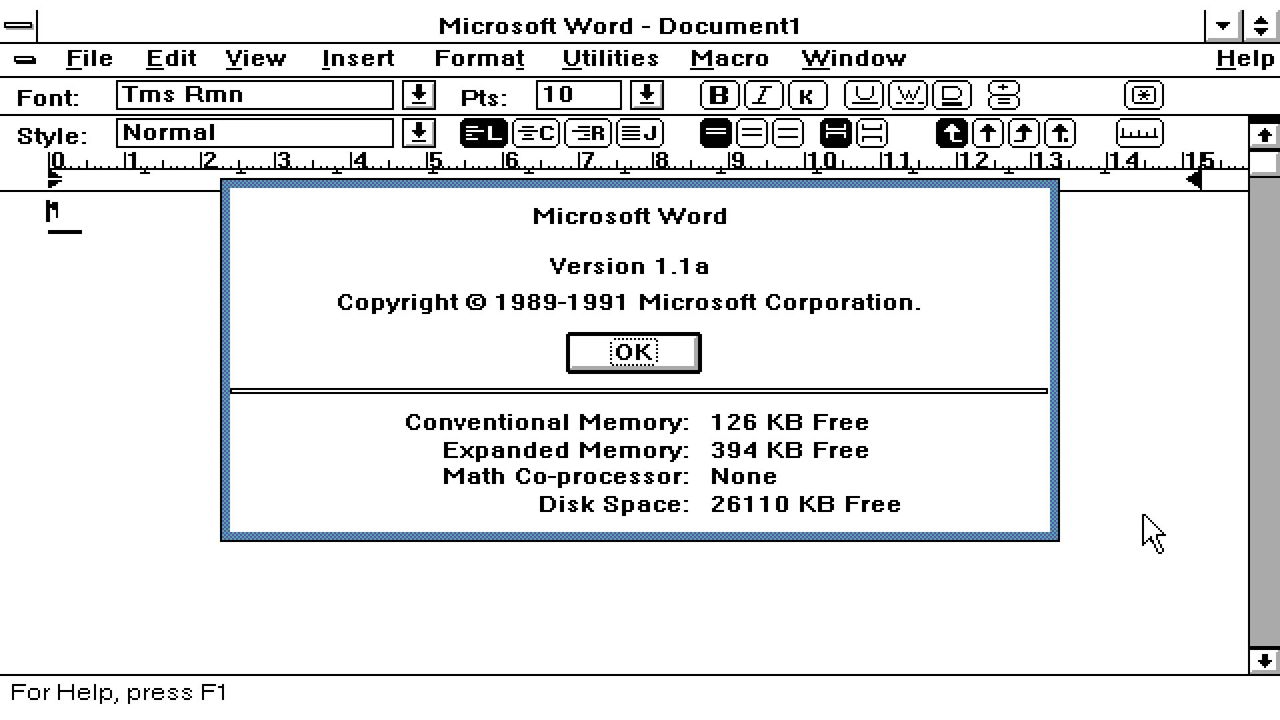
A developer has ported Microsoft Word for Windows 1.1a to x64 so it can now run natively on Windows 11 PC systems. JMarshall23 on GitHub stresses that this is a fully working native Windows x64 port using “original Word source and resources together with modern replacements for the 16-bit assembly, segmented-memory, and Win16 platform boundaries.” It also includes some extra features for “research purposes.” Microsoft Word for Windows 1.1a was originally released over a quarter of a century ago.
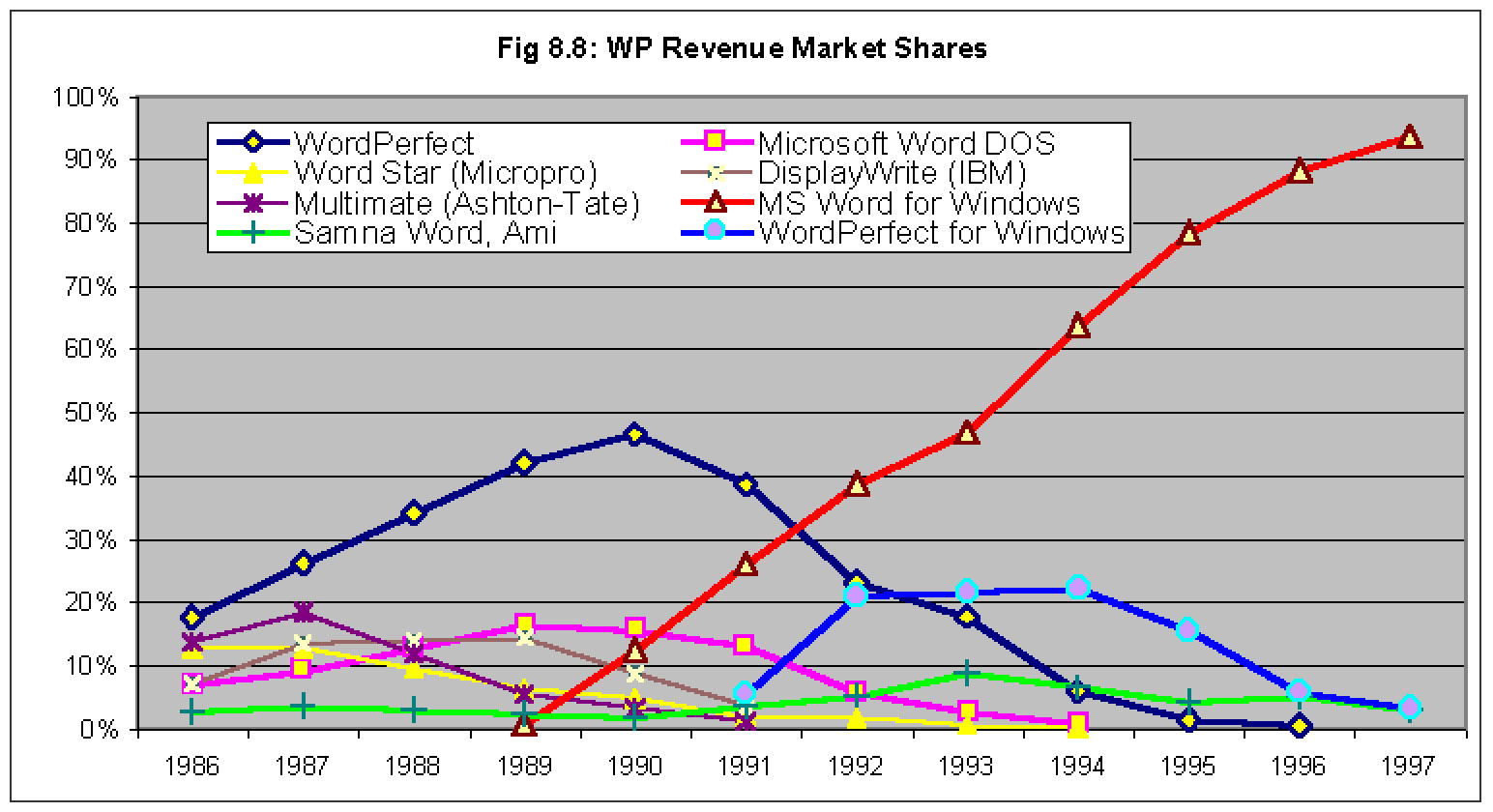
This release of Word marked a milestone in the word processing market, as it pioneered genuinely useful feature additions like WYSIWYG editing, graphics, and table insertion on Windows. It would spearhead the momentum in shifting users from DOS productivity monsters like WordPerfect to complete dominance in Windows-land. Word for Windows 1.1a added all its frills while remaining very efficient, running on systems with CPUs that ran in single-figure MHz speeds, and with as little as 1MB of RAM.
Another notable feature of this version of Word for Windows is that Microsoft permitted its source code to be released in full. You can still grab that code via the Computer History Museum (CHM). There you will find a 7MB bundle of C source, x86 assembly, build tools, and documentation. These 1,021 files in 33 folders are what JMarshall23 started with.
GitHub doesn’t have Windows x64 binaries ready for the casually curious on the lookout for a free, lightweight word processor to download and use. Instead, you’ll need access to Visual Studio 2022 with Desktop development with C++, a Windows 10 or Windows 11 SDK installed through Visual Studio, CMake 3.25 or newer, and PowerShell, notes Marshall. Then simply follow the GitHub instructions to build and run Word1.
It will be interesting to see if more comes from this x64 port, but Microsoft’s Word for Windows 1.1a code release carries a license that “permits only non-commercial use and does not give you the right to license it to third parties by posting copies elsewhere on the web,” says the CHM.
The Met Office has confirmed that its June temperature 'record' of 37.7°C came from a junk site. But rather than dropping it, it has upped it to 38°C! This not a serious scientific organisation, says Paul Homewood.
ⓘWe may earn a commission when you buy through our links. This helps support MacSources and keeps our content free. Thank you!
Discover how the UPLIFT Standing Desk V3 4-Leg transformed a traditional home office with exceptional stability, premium craftsmanship, and ergonomic sit-stand functionality.
For many people, a desk is simply a place to put a computer. As long as it holds a monitor, keyboard, and mouse, it gets the job done. That’s exactly how my fiancé’s mother’s husband (Ron) approached his home office for years. Like countless others, he used a traditional manufactured particleboard computer desk that provided a dedicated workspace but little else. It was functional, affordable, and met his needs for everyday productivity.
Over time, however, those hours at the desk began to add up. Whether checking email, browsing the web, managing finances, or simply spending time on the computer, he often remained seated for extended periods. The desk itself wasn’t uncomfortable, but it also wasn’t designed to adapt to the person using it. Sitting in the same position day after day can contribute to stiffness, fatigue, and poor posture, especially when there are few opportunities to change positions throughout the day.
When we had the opportunity to review the UPLIFT Standing Desk V3 4-Leg, we immediately saw it as more than just another piece of office furniture. It was a chance to completely rethink his workspace and replace a traditional fixed-height desk with one designed to promote comfort, flexibility, and long-term ergonomics. The goal wasn’t simply a nicer desk. It was to create a workspace that could better support the amount of time he spends at his computer each day.
The UPLIFT Standing Desk V3 4-Leg is designed for users who want exceptional stability, premium materials, and the freedom to alternate between sitting and standing throughout the day. In this review, we’ll take a closer look at the assembly process, build quality, daily use, and whether upgrading from a conventional computer desk to a premium standing desk is a worthwhile investment.
About the UPLIFT Standing Desk V3 4-Leg
The UPLIFT Standing Desk V3 4-Leg is designed for users who need a spacious, highly stable workstation that can support demanding office or creative setups. As the most robust model in UPLIFT’s standing desk lineup, it features four synchronized lifting columns that provide enhanced stability and a lifting capacity of up to 535 pounds. Whether you’re using multiple monitors, heavy desktop equipment, or a large work surface, the V3 4-Leg is engineered to maintain a solid foundation throughout its height range.
Like the rest of the V3 family, the desk includes UPLIFT’s updated frame design, anti-collision technology, an extensive selection of desktop materials and sizes, and compatibility with the company’s wide range of accessories. Buyers can customize nearly every aspect of the desk, from the desktop finish and frame color to storage options, cable management, and ergonomic add-ons, making it easy to tailor the workstation to individual needs.
Backed by a 15-year warranty, the UPLIFT Standing Desk V3 4-Leg is aimed at professionals, content creators, gamers, and anyone looking for a premium sit-stand desk that combines durability, customization, and long-term reliability.
Features
Four-leg design for exceptional stability
Smooth electric sit-to-stand adjustment
Anti-collision detection system
Programmable memory presets (depending on the selected keypad)
Optional Bluetooth connectivity through the UPLIFT Desk App
FlexMount Cable Management System
Patented 40-point accessory mounting system
Extensive desktop material and finish options
Multiple frame color choices
Wide range of compatible accessories and organizational add-ons
Simplified assembly with pre-installed hardware
Backed by a 15-year warranty
Specifications
Specification
Details
Frame Type
Electric four-leg standing desk
Lift System
Four synchronized motors
Lift Capacity
Up to 535 lb (243 kg)
Height Range
22.6” to 48.7” (with a 1” desktop)
Leg Design
Three-stage telescoping columns
Height Adjustment Travel
26.1 inches
Ergonomic Standard
ANSI/BIFMA G1-2013 compliant
Safety Certification
ANSI/BIFMA X5.5-2021 tested
Included Cable Management
FlexMount Cable Manager and 10 reusable cable wraps
Desktop Sizes
Multiple options ranging from 48” to 80”+ (varies by desktop material)
Desktop Materials
Laminate, bamboo, rubberwood, solid wood, reclaimed wood, and more
Frame Colors
Black, White, Gray, Industrial Gray
Unboxing and Assembly
Having assembled several UPLIFT desks in the past, including the V3 Standing Desk, the assembly process felt immediately familiar. The desk arrived in multiple well-protected boxes, with the solid walnut butcher block desktop and steel frame packaged securely to prevent damage during shipping.
Because of the desk’s weight, I needed assistance bringing the boxes into the house. Once everything was unpacked, however, I completed nearly the entire assembly by myself. The instructions were easy to follow, the hardware was clearly labeled, and many of the components arrived partially assembled to simplify the process.
From start to finish, assembly took approximately one hour and 42 minutes. The only point where I needed another person was flipping the completed desk upright. Between the 1.5-inch solid walnut desktop and the substantial four-leg frame, this is definitely a two-person task.
To make the desk easier to reposition in the future, I also installed the optional Soft Roll Casters. Given the overall weight of the completed desk, this proved to be a worthwhile addition.
Creating a Better Workspace
Once assembled, we moved everything from his previous desk to the new workspace. His setup is relatively straightforward, consisting of a 32-inch monitor, keyboard, mouse, fiber gateway modem, and various everyday office supplies. His desktop tower remains on a stand beside the desk, while the printer sits on a nearby file cabinet.
Although his workstation isn’t particularly elaborate, the larger work surface immediately made the space feel more organized. There was plenty of room for his computer equipment while still leaving open workspace for paperwork and other daily tasks.
To complete the setup, we added several UPLIFT accessories, including the DuoMount monitor arm, Cup Holder & Tumbler, Writing Desk Pad, FlexMount Cable Manager, and a six-outlet mountable surge protector. Together, these accessories created a cleaner and more organized workspace without adding unnecessary clutter.
Everyday Use
The biggest improvement that Ron has seen wasn’t any single feature. It was how much more substantial the entire workstation felt. He thinks it’s extremely well-built and thanks to the casters, it’s very easy to move. He also really likes the cup holder and the extra outlet box. They are both easy to relocate, which Ron appreciates.
The electric motors were equally impressive. Despite the desk’s size and weight, transitions between sitting and standing were smooth and surprisingly quiet. The Advanced Keypad makes it easy to adjust heights with the press of a button.
The desk is remarkably stable. Whether typing, using the mouse, or raising and lowering the desktop, the four-leg frame remained exceptionally solid. Compared to the manufactured desk it replaced, there was very little movement, giving the entire workspace a premium feel.
The solid walnut butcher block desktop also made a noticeable difference. Beyond its attractive appearance, the thicker work surface adds to the desk’s overall feeling of quality and durability.
Cable Management
One area that often gets overlooked during a desk upgrade is cable management. Using the FlexMount Cable Manager together with the mountable surge protector made organizing the various power and monitor cables surprisingly easy. Once everything was connected, the underside of the desk remained neat and organized, helping the finished workspace look much cleaner than the previous setup.
Standing Throughout the Day
Perhaps the biggest change wasn’t the desk itself but the flexibility it introduced into the daily routine. Instead of remaining seated for hours at a time, he now has the option to alternate between sitting and standing whenever he chooses. Because the desk adjusts quickly and quietly, changing positions takes only a few seconds. That convenience encourages movement throughout the day without interrupting whatever task is at hand.
Overall Impressions
Replacing a traditional manufactured desk with the UPLIFT Standing Desk V3 4-Leg transformed the workspace in ways that extend beyond aesthetics. The desk feels exceptionally well built, provides outstanding stability, and offers a level of flexibility that simply wasn’t possible with a fixed-height desk.
It is certainly a premium product, and its weight reflects the quality of its construction. Adding the Soft Roll Casters was a practical decision that makes repositioning the desk much easier whenever necessary.
While the investment is considerably higher than that of a typical computer desk, the combination of premium materials, thoughtful engineering, and the ability to support healthier working habits makes it a meaningful upgrade for anyone who spends long hours at a desk, even if their daily computer use consists primarily of routine productivity tasks.
Conclusion
Upgrading from a traditional manufactured computer desk to the UPLIFT Standing Desk V3 4-Leg proved to be much more than a cosmetic improvement. While the old desk provided a functional place to work, the UPLIFT transformed the workspace into one that is more comfortable, organized, and adaptable to long hours at the computer.
Throughout our time with the desk, its exceptional stability stood out as its defining characteristic. The four-leg frame remained remarkably solid whether typing, adjusting the monitor, or transitioning between sitting and standing. Combined with the premium solid walnut butcher block desktop, quiet motors, and thoughtful accessory ecosystem, the desk consistently delivered a polished user experience.
The UPLIFT Standing Desk V3 4-Leg is undoubtedly a premium investment, but its build quality, customization options, and long-term durability help justify the price. For anyone who spends several hours a day at a desk, whether working remotely, managing a home office, or handling everyday productivity tasks, it offers meaningful improvements that extend well beyond aesthetics.
ⓘWe may earn a commission when you buy through our links. This helps support MacSources and keeps our content free. Thank you!
With a four-leg design, four powerful motors, a 660-pound weight capacity, and outstanding customization options, the FlexiSpot E7 Plus Max delivers one of the most stable and capable standing desk experiences available.
FlexiSpot is a company that has been focused on ergonomic furniture since 2016. While they’re best known for their standing desks, they also make office chairs, desk converters, beds, recliners, and other products designed to create more comfortable workspaces. Their goal is to help people stay healthier and more productive by making it easy to switch between sitting and standing throughout the day. Over the years, FlexiSpot has grown into a well-known brand with products sold in more than 80 countries, making it one of the more recognizable names in the ergonomic furniture market.
For this review, I have the E7 Plus Max Standing Desk with the 71″ x 30″ Rubberwood Espresso desktop, and it definitely makes a strong first impression. The 1.57-inch thick solid rubberwood top gives the desk a premium feel, while the dark Espresso finish adds a clean, modern look that fits well in just about any office or gaming setup. If Espresso isn’t your style, FlexiSpot also offers the Rubberwood top in Natural, Walnut, and Black finishes. Beyond Rubberwood, you can also choose from Laminate, Bamboo, Black Walnut Veneer, Black Walnut Wood, White Oak (Made in the EU), Solid Wood (Made in the USA), and even specialty options like Laminate Tabletops with Drawers, Ergo Series, and Gaming Series desktops.
The E7 Plus Max is designed for larger workstations and features a heavy-duty four-leg steel frame with a powerful four-motor lifting system and three-stage lifting columns. Together, they provide exceptional stability throughout the entire height range while also supporting heavier setups. The desk adjusts from 25.8 inches to 51.6 inches, making it suitable for a wide variety of sitting and standing positions. The frame is also adjustable in width from 43.3 to 74.8 inches and supports desktops ranging from 47.2 to 94.5 inches long and 24 to 35.4 inches wide, making it easy to build anything from a simple home office to a large workstation with multiple displays.
FlexiSpot also includes programmable height presets and anti-collision technology for added convenience and safety. The frame supports up to 660 pounds, making it one of the strongest standing desks currently available. Whether you’re running multiple monitors, studio speakers, a desktop PC, or other heavy equipment, this desk is built to handle it all while remaining impressively stable, even at its maximum height. One of the things I like is how customizable the desk is. Between the different desktop materials, finishes, and size options, it’s easy to configure a setup that fits your workspace and personal style.
Unboxing and Setup
The E7 Plus Max ships in three separate boxes. One contains the desktop itself, while the other two contain the frame, legs, motors, and other hardware. One thing I didn’t really appreciate until it arrived was just how substantial this desk is. The frame alone ships in two boxes weighing over 70 pounds each, so before you even add the desktop, you’re already dealing with a lot of weight. Because I chose the largest 71″ x 30″ desktop, everything was pretty heavy and a bit awkward to move around by myself. I definitely recommend having at least one other person help carry everything where it needs to go. Fortunately, my mom was able to help me move everything inside and get it into my office.
From start to finish, assembly took us around two hours. Overall, the instructions were mostly clear and easy to follow, although there were a few areas that could definitely be improved. One thing to note is that FlexiSpot doesn’t include every tool you’ll need. You’ll need to provide your own Phillips screwdriver, and the directions say to a drill on hand as well. While most of the holes are pre-drilled, many of the screws require a good amount of force to install.
For my setup, I used a Milwaukee hex bit drill with both Phillips and Allen bit attachments, and it made the installation process much faster. There are quite a few screws throughout the assembly, and several need to be installed, removed, and reinstalled as you progress through the instructions. Doing everything by hand would have taken considerably longer.
There were also a couple of spots in the instructions that caused some confusion. In Step 3, there’s a triangle icon next to the hardware that we initially thought meant installing additional screws. It actually refers to screws that were already pre-installed on the frame. It took us a while to figure that out, and I think that section could be explained much more clearly.
The other issue I ran into was during Step 7 when installing the control box. My desktop didn’t have the pre-drilled holes shown in the instructions, so I wasn’t comfortable drilling directly into the underside of the desktop myself, even though the top is fairly thick. Instead, I used some heavy-duty double-sided mounting tape that I already had. Once the magnetic cover was installed over everything, it felt very secure, and I haven’t had any concerns about it moving around.
Speaking of the magnetic cover, that was another area where the instructions could use some improvement. It took us a few minutes to figure out the correct orientation because the guide doesn’t clearly show how it should be positioned. We eventually figured it out, but I think adding a couple of arrows or orientation stickers would make installation much easier for first-time users.
Once everything was assembled, keep in mind that the desk becomes significantly heavier. Moving it into its final position is almost certainly going to be a two-person job, especially if you choose one of the larger solid wood desktops like I did.
Overall Use
After getting everything assembled and dialed in, here’s a look at my workspace before and after installing the FlexiSpot E7 Plus Max. The larger desktop, improved stability, and clean design completely transformed my office. It gave me more room for both work and gaming while also making the entire setup feel much more organized. Going from my old desk to the E7 Plus Max has been one of the biggest upgrades I’ve made to my workspace.
Before installing the FlexiSpot E7 Plus Max (left) and my completed setup after the upgrade (right).
I’ve now been using the FlexiSpot E7 Plus Max every night for both work and gaming, and it’s quickly become the centerpiece of my office. My setup consists of two 32-inch curved monitors mounted on monitor arms, my MacBook Air, desktop speakers, a REDMAGIC ASTRA, and all of my other everyday accessories. Even with all of that weight on the desk, it never feels unstable. Whether I’m typing, gaming, adjusting my monitors, or docking my MacBook Air to get some work done, there is very little movement, which is impressive considering how much equipment I have sitting on it.
One of my favorite features is the programmable height presets. I have one preset saved for sitting and another for standing, so switching between the two only takes a single button press. The four motors are smooth, surprisingly quiet, and move the desk at a comfortable speed without feeling jerky. It’s one of those features that you don’t think much about until you start using it every day, and now I couldn’t imagine going back to manually adjusting a desk.
Another thing I really like is the amount of clearance underneath the desk. When it’s in my standing preset, my entire office chair slides completely underneath the desk without hitting the frame or getting in the way. It keeps my office looking much cleaner and gives me plenty of room to move around when I’m standing.
Cable management was another project I wanted to tackle during my setup. FlexiSpot does offer its own cable management accessories, but I didn’t have any for this review. Instead, I used a cable management basket from Amazon along with several zip ties to route everything neatly underneath the desk. With two monitors, monitor arms, speakers, my MacBook Air dock, and several other devices, there are a lot of cables to deal with. Taking the time to organize them made a huge difference and kept everything from looking like a mess of spaghetti wires hanging below the desk. I still think FlexiSpot’s cable management accessories would make a great addition for anyone buying this desk.
If I had one complaint, it would be the USB port built into the control panel. While it’s convenient to have a charging port there, it’s still a USB-A port. In 2026, I would have preferred to see FlexiSpot upgrade it to USB-C since that’s what most modern phones, tablets, and accessories use today. It’s a small complaint and certainly not a dealbreaker, but it would make the desk feel a little more future-proof.
Overall, I’ve been extremely happy with the E7 Plus Max. Between the exceptional stability, smooth lifting system, generous desktop space, and highly customizable design, it’s been a fantastic upgrade to my workspace. Whether I’m writing reviews for MacSources on my MacBook Air, working from my Mac Studio, or spending the evening playing Call of Duty: Mobile, this desk has handled everything I’ve thrown at it without any issues. It has easily become one of my favorite additions to my office.
Conclusion
After spending time with the FlexiSpot E7 Plus Max, it’s easy to see why it has become one of the company’s flagship standing desks. The combination of outstanding stability, premium desktop options, a massive weight capacity, and smooth four-motor lifting system makes it feel like a desk that’s built to last for years. Once assembled, it inspires confidence whether you’re using it for work, gaming, or a combination of both.
While I do think the instructions could be improved in a few areas, and I would have liked to see the USB-A charging port replaced with a more modern USB-C port, neither issue takes away from the overall experience. Assembly is something you’ll only do once, and after that, you’re left with an incredibly solid desk that performs exactly as you’d expect.
If you’re looking for a standing desk that can easily support multiple monitors, heavier equipment, and a large desktop while remaining rock solid at any height, the E7 Plus Max is an excellent choice. It isn’t the cheapest standing desk on the market, but the build quality, customization options, and everyday usability help justify the premium price. After using it every day for both work and gaming, I can confidently say it’s one of the best standing desks I’ve had the opportunity to use.
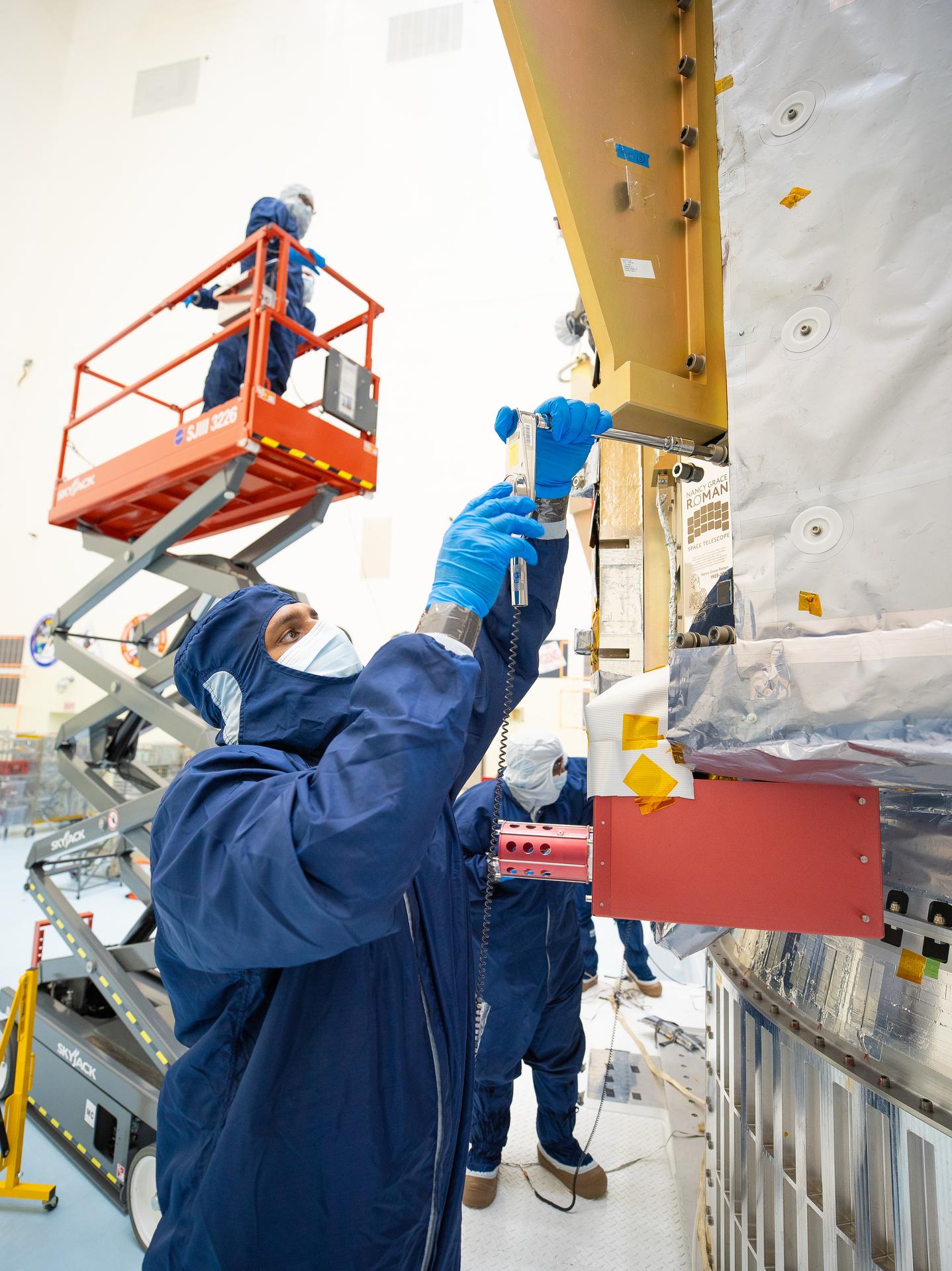
On July 27, technicians at NASA’s Kennedy Space Center in Florida installed a memory card containing 1,350,144 names as part of a commemorative plaque on the Nancy Grace Roman Space Telescope. The names were submitted by people globally, including astronauts from Artemis II and Artemis III. The memory card will travel with the Roman observatory to the Sun-Earth Lagrange point 2, or L2, about one million miles from Earth, where the Sun’s and Earth’s gravity balance out.
Roman is named after Dr. Nancy Grace Roman, NASA’s first chief astronomer and one of the architects of the agency’s modern science program. Roman championed space-based observatories that could study the universe from above Earth’s hazy atmosphere while making their data broadly available to the scientific community.
NASA and SpaceX are targeting launch for no earlier than 7:26 a.m. EDT Sunday, Aug. 30 aboard a SpaceX Falcon Heavy from Launch Complex 39A at Kennedy.
An “AI worm” can spread through Microsoft Word documents using Copilot as a vector, a prominent Norwegian AI researcher reported on Tuesday.
The report from Håkon Måløy, later confirmed by Microsoft, said that an attacker can conceal instructions in a document that is later used as source material for Copilot-generated or Copilot-edited Word documents, for example, as input to a financial report. Those malicious instructions could potentially alter figures in the document being created. They then copy themselves into the new document, causing it to become a carrier of the attack when used in another Copilot-assisted workflow.
Måløy noted: “To my knowledge, this is among the first public demonstrations of document-borne AI-worm self-propagation through normal workflows in a mainstream commercial productivity suite.”
Microsoft on Thursday emailed a statement to CSOonline discussing the report’s revelations.
“We have addressed the findings reported by the researcher and thank them for working with us through coordinated vulnerability disclosure. To address this class of risk, we use a defense-in-depth strategy with safeguards that block malicious instructions at multiple points and help keep tasks aligned with users’ requests,” Microsoft said.
“We are continuously strengthening these safeguards as the technology and threat landscape evolve,” it added. “We encourage customers to install the latest updates, use multiple layers of security protection, treat content from unknown sources with caution, and review AI-generated content before using or sharing it.”
Sidesteps defenses
Aman Mahapatra, chief strategy officer for Tribeca Softtech, a New York City-based technology consulting firm, has reviewed the mechanisms used in this vulnerability and says that it is much worse than it might seem, because it will sidestep just about every defensive mechanism enterprises have in place today.
“This is a worm, a self-propagating malware pattern that uses Copilot as the transmission mechanism and legitimate corporate collaboration as the delivery channel. It bypasses every traditional email security control because the document is not malicious on delivery and it becomes malicious when Copilot processes it. That means that it bypasses DLP because the exfiltration happens through the user’s own authenticated Copilot session,” Mahapatra said. “It then bypasses endpoint protection because no code executes, only instructions get followed by an AI service the enterprise has explicitly authorized.”
He also noted that researchers have been warning about this class of attack for two years.
Microsoft’s involvement
Måløy said that he has been working with the Microsoft Security Response Center (MSRC) since March 3 and Microsoft subsequently implemented and distributed multiple small focused mitigations, but the core vulnerability has yet to be fixed.
He said he was hesitant to disclose an active vulnerability, but felt that it was now time to publish.
“My reasoning is that defenders cannot reduce exposure to a risk they are unaware of,” Måløy wrote, “and the propagation mechanism described here affects ordinary document workflows that many organizations already rely on.”
In an email interview, Måløy noted that the tweaks Microsoft has implemented were helpful, nonetheless.
“The coordinated disclosure process showed that mitigations can meaningfully reduce the demonstrated attack surface, making attacks less reliable and limiting their reach, even without completely eliminating the underlying problem,” he said.
Måløy also addressed the resolution that many analysts and consultants suggested, which is to change the nature of LLMs to fully isolate instructions from the data they operate on.
“Separating instructions from data may be part of the solution, but I think the distinction between data and instructions is not always clear in real-world workflows. For example, a user may ask an agent to arrange a business trip, requiring the agent to retrieve an email specifying the approved itinerary and a document containing the booking procedure,” Måløy said.
“My view is that the broader challenge is therefore not simply to prevent systems from interpreting external content as instructions, but to evaluate whether those instructions align with the user’s goals and the context in which the system is operating,” he added.
Problem hard to overstate
Mike Wilkes, enterprise CISO at Aikido Security, said it would be difficult to overstate the potential problems from this situation.
“This is a significant issue because it moves prompt injection from a single compromised interaction into a potentially self-propagating document integrity attack,” he said, noting that it is not a conventional worm that spreads automatically. A user or Copilot workflow must still bring an infected document into the model’s context. “But once that happens, the malicious instructions can reportedly alter business information, conceal themselves inside the resulting Word document and turn a legitimate internal file into the next carrier,” he said.
That, he pointed out, creates “a dangerous enterprise supply chain in which financial reports, contracts, policies and partner documents may inherit malicious behavior while retaining the trust associated with their legitimate authors and Microsoft 365 accounts.”
Not a new issue
The key issue behind this flaw is the fact that genAI tends to struggle with telling the difference between data that a user offers as input and the instructions the AI is to execute.
Flavio Villanustre, CISO for the LexisNexis Risk Solutions Group, observed that the same problem with mixed data and instructions occurred in databases decades ago, and turned into what we know as SQL injection attacks today. But, he noted, a few years later, parametrized binding for the database access layers was developed, which separates instructions, which are handled internally and safely, from data, which can come from untrusted sources. “The same needs to happen with LLMs and other AI,” he said.
Mike Leone, a VP/principal analyst at Moor Insights & Strategy, agreed.
“It’s hard not to chuckle a bit with this one. People have been asking whether data can give orders since SQL injections. We fixed that one by giving the database a way to tell an instruction from a value,” Leone said. “Thirty years later, we’ve built an entire category of software that can’t tell the difference at all.”
Tom Findling, CEO at Conifers.ai, also said he sees the data-vs-instructions issue as the biggest problem.
“Separating data from instructions is still unsolved at the model layer. The labs are making real progress, but not enough to be your only control,” he said, and stressed, “Microsoft doesn’t need to wait for that. It can slow propagation inside Copilot: stop hidden content from being written into new documents, surface hidden text before it’s used, preserve the trust level of what Copilot read and show all AI-generated changes.”
Fix needs industry agreement
However, Frank Dickson, group VP for security at IDC, argued that a fix needs industry agreement.
“A fundamental fix requires the industry to converge on the same architectural change, which isn’t happening anytime soon given the incentives and the fact that the major players are far from besties,” he said, pointing out that Instruction-data separation would need to be baked in at the model or platform level across every major vendor. “None of them are rewarding that work commercially right now, so treat that as a multi-year research problem, not something a CISO should wait on.”
Leone disagreed, arguing that a single vendor can do quite a bit, at least for its own customers.
“Microsoft has said publicly since last year that indirect prompt injection can’t be fully prevented, and I give them credit for saying it out loud rather than pretending otherwise,” Leone said, noting that the industry doesn’t have to move in lockstep. “This attack lives inside one product,” he said. “If Microsoft hardens the Copilot document path, Copilot customers get safer whether or not anyone else moves.”
Dickson added that another critical problem with this vulnerability is that the carrier documents are created by legitimate employees using legitimate tools, “so there’s no obvious point of origin once the payload starts moving; an organization could be laundering corrupted financial figures through its own workflow for weeks before anyone notices.”
Tactics that might help
That said, experts had some specific suggestions for CISOs trying to negate this problem.
IDC’s Dickson said, “the most useful lever right now sits outside the model entirely, in how much untrusted content Copilot is allowed to pull into a session without a human choosing it.” He noted that enterprises can turn Copilot’s auto-discovery behavior off or restrict it, and require humans to explicitly select the documents they feed it. “That alone closes off one of the two ways the attack gets a foothold,” he said.
IDC also suggested a visible diff or redline of anything Copilot changes in a financial or otherwise consequential document, and the requirement for a human to approve the changes. “That’s not a technical fix, it’s a workflow one, and it’s available today,” Dickson said.
He said that IT should also track where content came from and what was touched by an AI system, in metadata that travels with the document. “It doesn’t stop the injection, but it means when something does get through, an organization can actually trace how far it spread instead of discovering a corrupted number three reports later with no way to reconstruct the chain,” he said.
However, one expert, Tyler Reguly, Fortra’s associate director of security R&D, said that he didn’t see this vulnerability having a meaningful impact because it feels like what he called a “laboratory vulnerability.”
Normal enterprise workflows don’t encompass a number of the necessary steps for compromise, he said, pointing out that, if anything, people are trained not to download Word documents. Plus, he noted, looking at the blurred example in the report, the malicious document contained an additional apparently blank page which held the concealed prompts in white text.
“That page is going to send up warning signs for me if someone even managed to convince me to download an external Word document,” he said. So, overall, “this feels like it requires a perfect storm.”
Building a presentation can take lots of time. There are design choices to figure out: the slide layouts, fonts, theme colors, and so on. You can use a template to skip this hassle, but you still have to paste your text and other content into the slides and edit it all so that the results are visually appealing.
In PowerPoint, Microsoft’s Copilot AI assistant can now automate the heavy lifting of presentation creation. It can generate a first-draft presentation in minutes, then help you edit it. You can also prompt Copilot to help you quickly understand the contents of a presentation and glean insights from it. Use the tips in this guide to save oodles of time as you create and work with presentations.
For business users, it’s more complicated. Organizations with more than 2,000 users must pay for Microsoft 365 Copilot licenses for their users in addition to their regular Microsoft 365 licenses. Users at organizations with fewer than 2,000 users can use Copilot within M365 apps even without the M365 Copilot add-on licenses, but there are limitations in usage, speed, and feature availability.
To see what kind of access you have, log in to Microsoft’s Copilot Chat web hub and look for your name in the lower left corner. If you see “M365 Copilot (Premium)” under your name, you can use Copilot in M365 apps with priority access and advanced features. “M365 Copilot (Basic)” means you can use Copilot in M365 apps with lower-priority access and limited features. If you see “Copilot Chat (Basic)” or nothing below your name, you can’t use Copilot in M365 apps.
(Copilot Chat Basic users do get some Copilot functionality, including the ability to generate presentations, via the Copilot Chat hub. See our Copilot Chat tutorial for details.)
First, let’s quickly go over the notable settings of the Copilot sidebar.
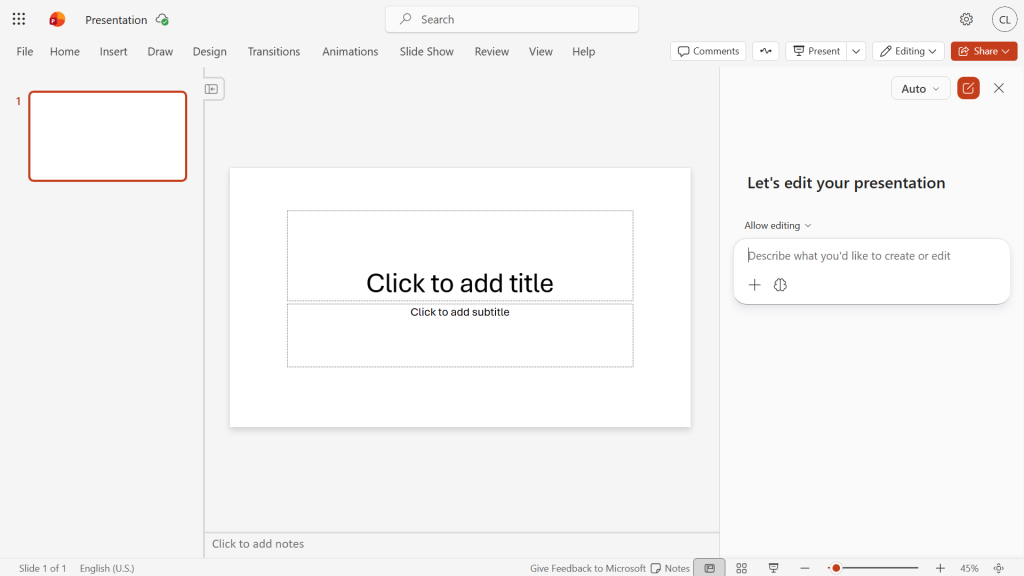
When you have a presentation open in PowerPoint, click the Copilot icon; it may be floating at the lower-right corner of your PowerPoint window or parked at the right end of the Ribbon toolbar. The Copilot sidebar will open along the right of the page. You’ll type your prompts to Copilot inside the chat window in this pane.
The sidebar on the right is where you interact with Copilot in PowerPOint.
Howard Wen / Foundry
Agent mode: By default, Copilot can build a new presentation or make changes to an existing one in the main PowerPoint window. This is known as “agent mode.” To change this so that Copilot can’t take direct action on a presentation (all its responses appear in the sidebar), click the Allow editing button above the chat window and change it to Chat only.
The tips in this guide require that Copilot be in agent mode, so make sure you see Allow editing above the chat window.
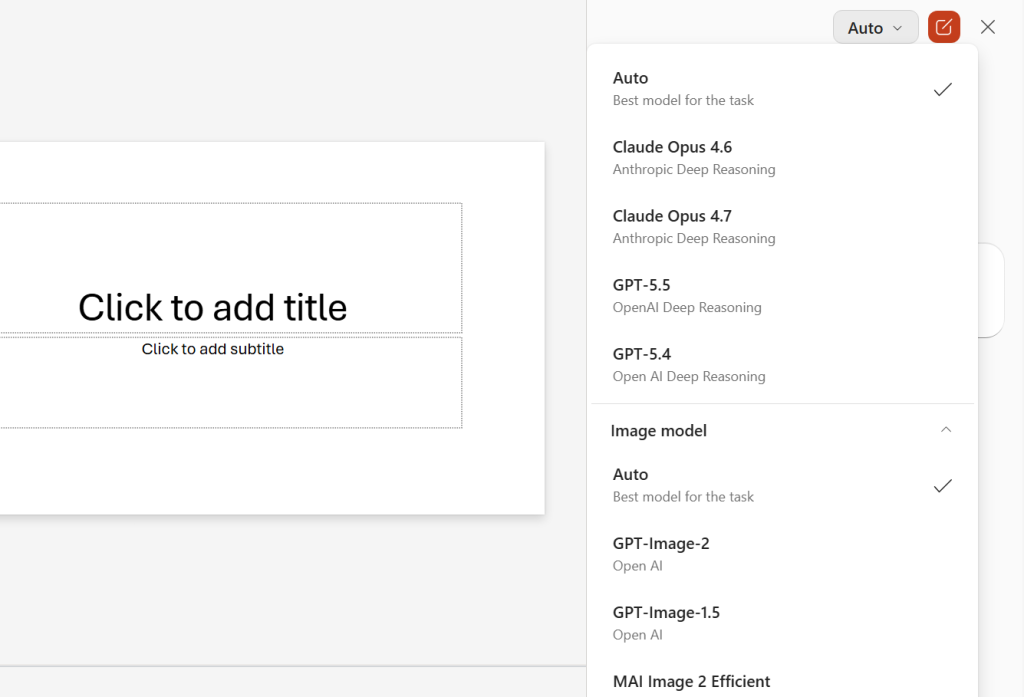
Choice of AI model: Behind the scenes, Copilot has access to various genAI models, including different versions of Anthropic Claude and OpenAI GPT. By default, it decides which model to use based on your prompt. You can set it to use a particular model: click Auto at the upper right of the Copilot pane and select a model from the dropdown that opens.
You can choose which AI model you want Copilot to use for a request.
Howard Wen / Foundry
The tips in this guide should work fine on the default Auto setting. But feel free to experiment switching to specific models to see which give you the best results for particular tasks.
For many people, the hardest part of creating a presentation is getting started. What types of information should be included on the slides, and in what order? Copilot can give you a leg up by creating the type of presentation you need, with placeholder data that you can later replace with your own.
Start a new presentation, open the Copilot sidebar, and type your prompt into the chat window. It’s best to provide very specific details in your prompt. The more context or details you provide, the more likely Copilot will generate a presentation template that suits your needs.
A good prompt should contain the slide count, subject, audience, and tone. Example:
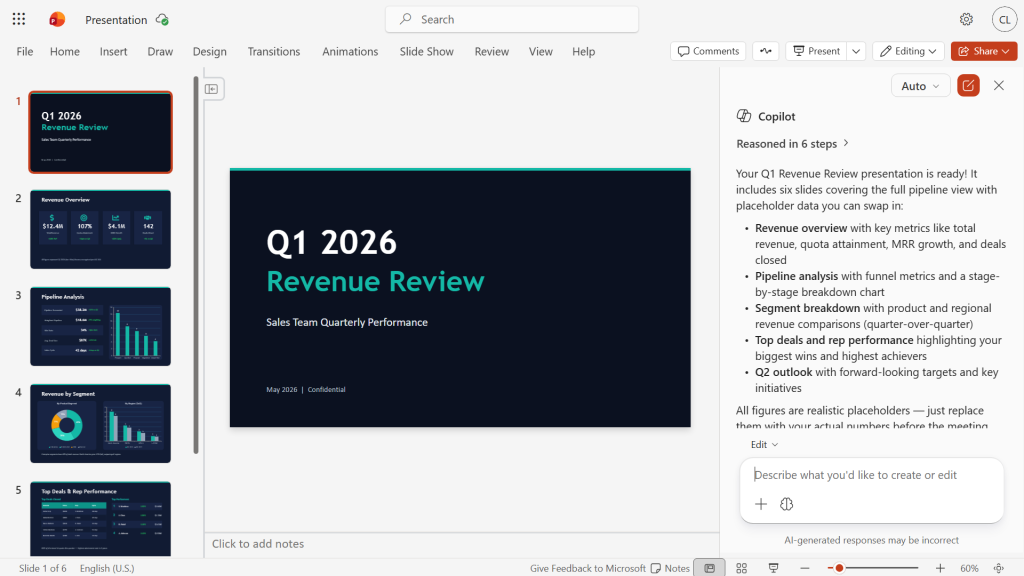
Create a 6-slide presentation for a sales meeting focusing on Q1 revenue. The audience is the sales team, so keep the tone professional and focused on the sales data.
Copilot may ask a series of follow-up questions, such as your preferred visual style and desired level of detail. Then it will generate a presentation template.
Copilot generates a presentation with placeholder data and explains its elements.
Howard Wen / Foundry
You can optionally prompt Copilot for revisions, and when you’re happy with the template, swap in your own data.
2. Create a presentation from a document
You can attach a document (such as a Word document, Excel spreadsheet, or PDF) and prompt Copilot to generate a presentation based on its contents. This works best with a structured-format document (such as a business plan, project proposal, or summary report) that contains sections with headings.
Copilot can extract the document’s text and structure to generate the slide content for the new presentation. This can especially be useful for quickly turning a long report into a visually appealing presentation.
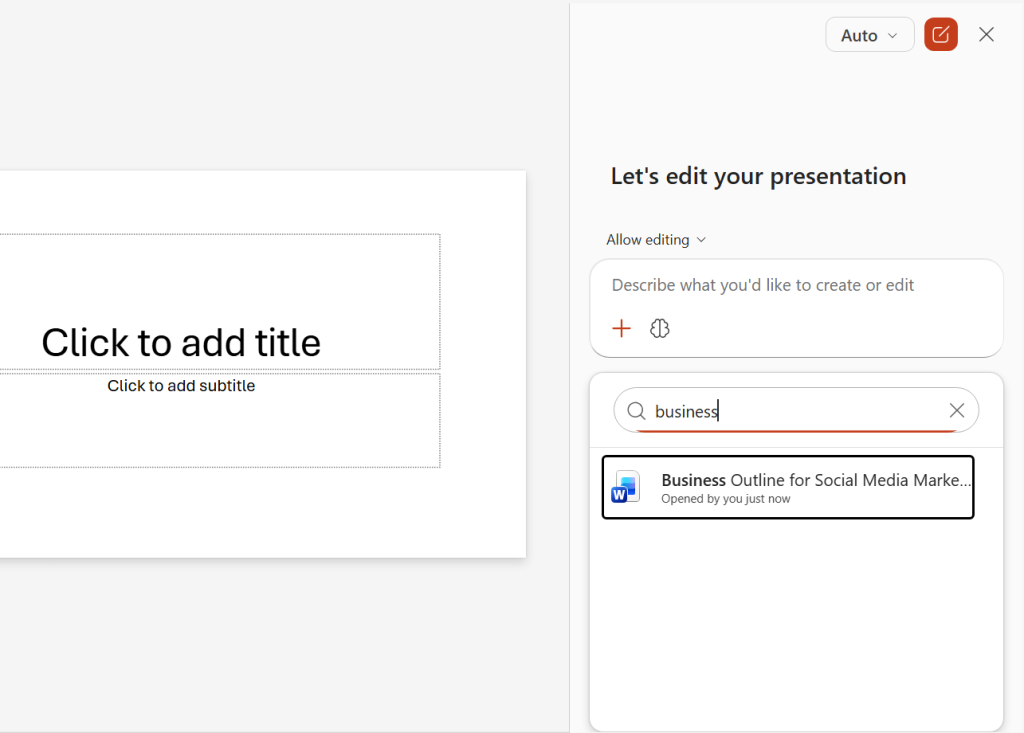
In the Copilot pane, click the + icon at the bottom of the chat window. A list of documents that you’ve recently accessed appears. Select the one that you want Copilot to use. Alternatively, click the magnifying glass icon and inside its search box, type a few letters of the filename for the document you want. (Business users with an M365 Copilot license can select up to five files for Copilot to pull from when creating a presentation.)
Attaching a document for Copilot to base a presentation on.
Howard Wen / Foundry
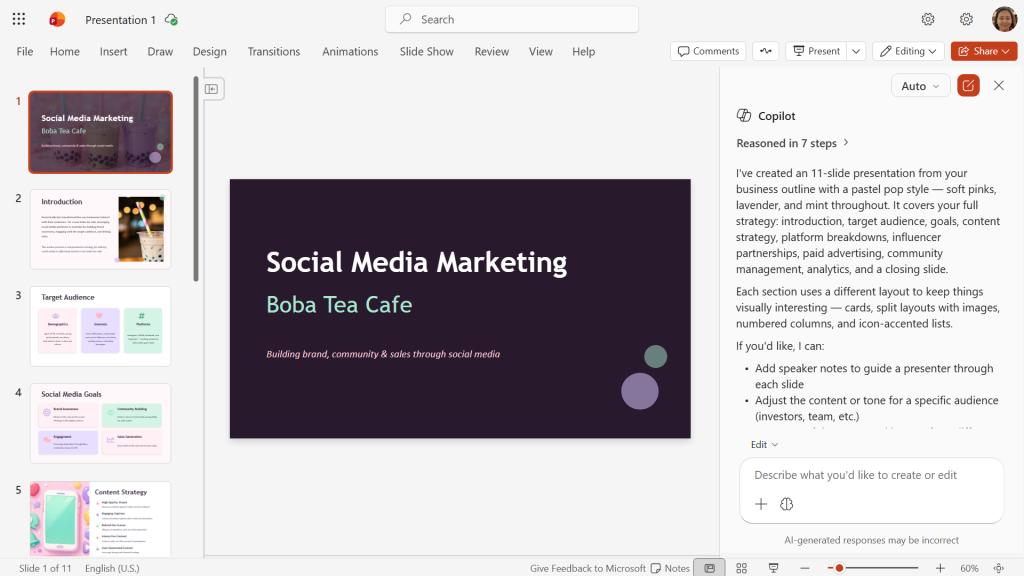
Then in the chat window, you can enter a prompt that’s as simple as “Create a presentation,” although as always, providing more details and context is better. This is especially important for corporate users who reference multiple source files. It’s useful to tell Copilot what data to pull from each document.
Answer any follow-up questions that Copilot asks, and it will then generate the presentation.
Copilot has generated a professional presentation from a social media marketing campaign document.
Howard Wen / Foundry
Note: Your marketing department may have created one or more branded company templates for Copilot to work from. If that’s the case at your organization, simply open the appropriate company template as your first step. Then you can upload docs and type a prompt as described above. Copilot will create a presentation using the branded template.
3. Add content from a document to a slide
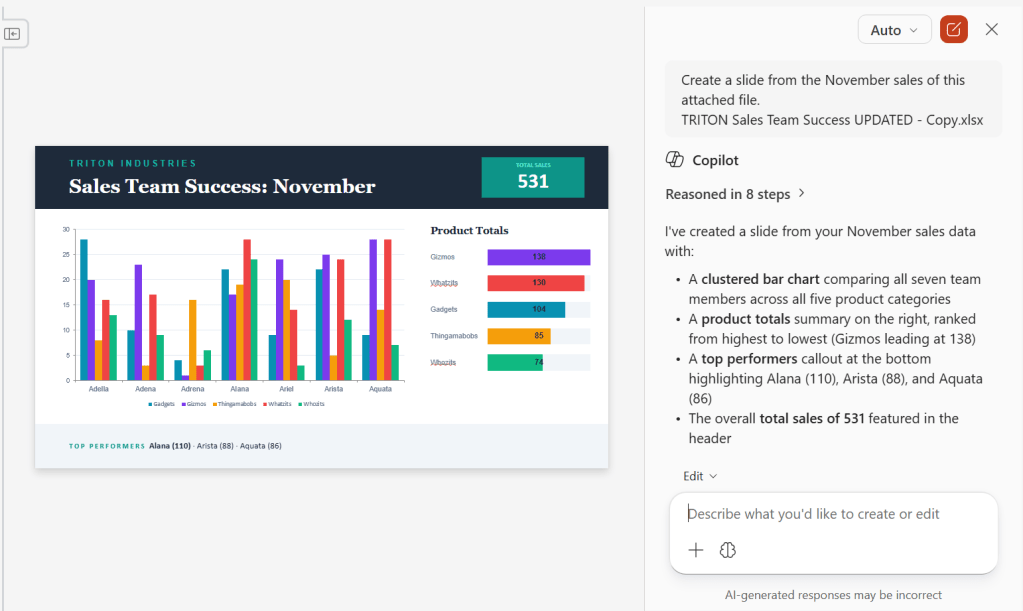
Manually copying text or other content from a document and pasting it into a new slide is a chore. Instead, you can prompt Copilot to extract information directly from a Word document, Excel spreadsheet, or PDF to create new slides.
In the Copilot pane, attach the document using the same steps described in tip 2, then tell Copilot to create a slide from the document. As always, it helps to provide details such as the new slide’s focus or what data to include:
Add a slide based on the attached document.
Use the attached file to add a slide about the project budget that focuses on Q1 projections.
Summarize only the financial section of the attached document as a slide.
A new Copilot-generated slide based on data from an Excel spreadsheet.
Howard Wen / Foundry
4. Refine your slide text
A presentation should be visual and display only the core message. Conciseness and proper writing tone are essential for your slides, so that they don’t lose the attention of your audience.
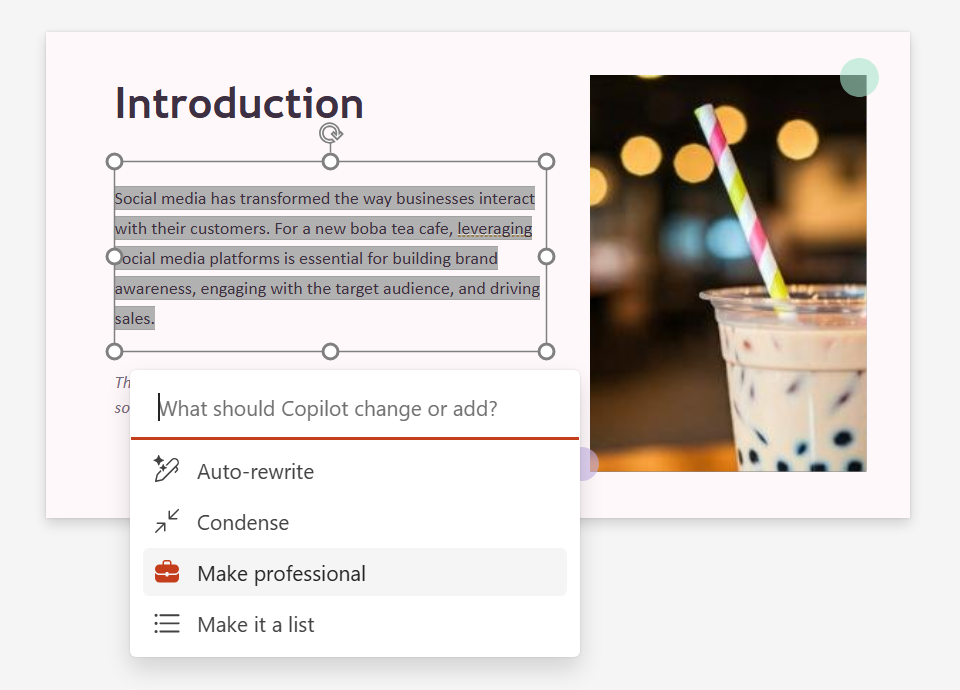
You can prompt Copilot to refine text on an individual slide in various ways, such as rewriting it in a more professional tone or making it more concise. Highlight the text inside a text box on the slide. On the toolbar that appears over the highlighted text, click Edit with Copilot.
On the menu that opens, you can select a preset prompt to refine the text, such as Condense or Make professional. Or, at the top of this menu, you can type a prompt to rewrite the highlighted text.
Choose a preset prompt for refining text on a slide or type in your own prompt.
Howard Wen / Foundry
Note that this feature affects all the text inside the text box. To rewrite only a portion of text inside a text box, you must split that portion out into a separate text box.
Alternatively, you can prompt Copilot to analyze your entire presentation and tighten up the wording throughout all of its slides. For example:
Make these slides more visual and use less text.
5. Find or create an image
If you have Copilot generate a presentation from an existing Word document that contains images, it will incorporate those images into the presentation. If there are no images in the source document, you can ask Copilot to find or create one and add it to a slide.
To add a stock image or an image from your organization’s brand library, tell Copilot what you’re looking for:
Add a stock photo of young adults in a cafe drinking boba tea.
Add a photo from our asset library of young adults in a cafe drinking boba tea.
To have Copilot create an image using Microsoft’s Designer image generation tool, describe your desired image. As always, specificity is helpful:
Create a photorealistic image of a diverse group of 5 or 6 fashionable young adults sitting in a cafe drinking boba tea. They’re smiling or laughing, and some are looking at their phones.
Copilot in PowerPoint hooks into Microsoft’s Designer tool for image generation.
Howard Wen / Foundry
Just as you need to review any text output from Copilot, take a close look at generated images to be sure nothing looks off.
Also note that Copilot image generation isn’t always reliable in PowerPoint. For some time during our testing for this story, Copilot said it couldn’t create an image because “the image generation service is returning a server error on every attempt.” After about a day and a half, the service began working again.
6. Expand your presentation with relevant slides
As you’re building your presentation, you may find that it’s become text heavy. Or perhaps it could use more visually oriented slides to break things up and make its progression flow better. Copilot can generate and insert new slides that are based on the content of the slides already in the presentation.
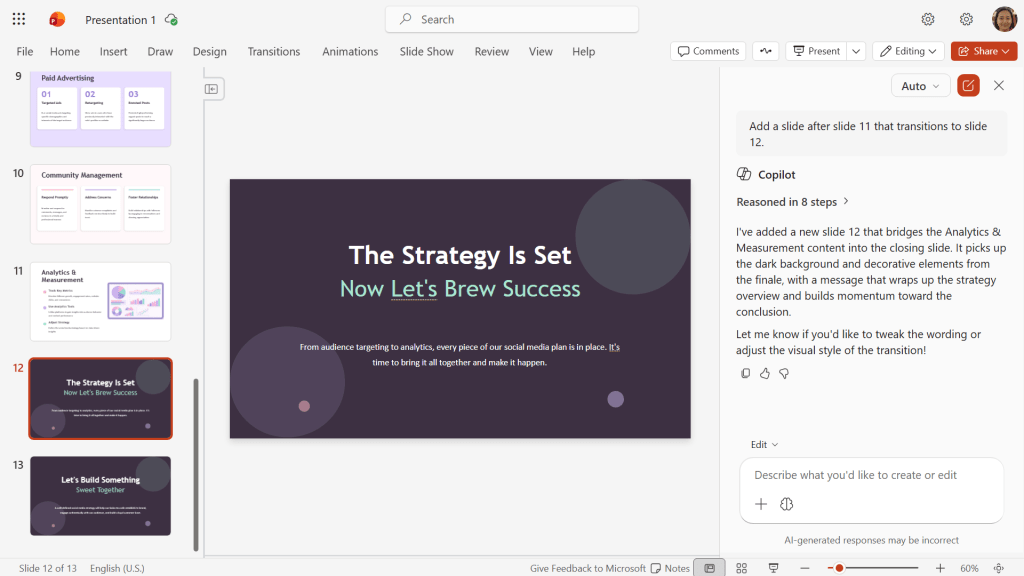
In the Copilot pane, specify exactly where you want the new slide to go. This helps Copilot to analyze the content of the slides before and after where you want the new slide. Then it can generate a slide to bridge between the two slides. Examples:
Add a slide after slide 3 about our competitive advantages.
Add a slide after slide 11 that transitions to slide 12.
Need a transition slide? Just ask!
Howard Wen / Foundry
7. Summarize a presentation
Maybe you need a quick refresh of your presentation before an important meeting. Or maybe a co-worker has sent you a presentation that’s packed with lots of slides. You can prompt Copilot to generate a summary of the presentation’s overall messaging.
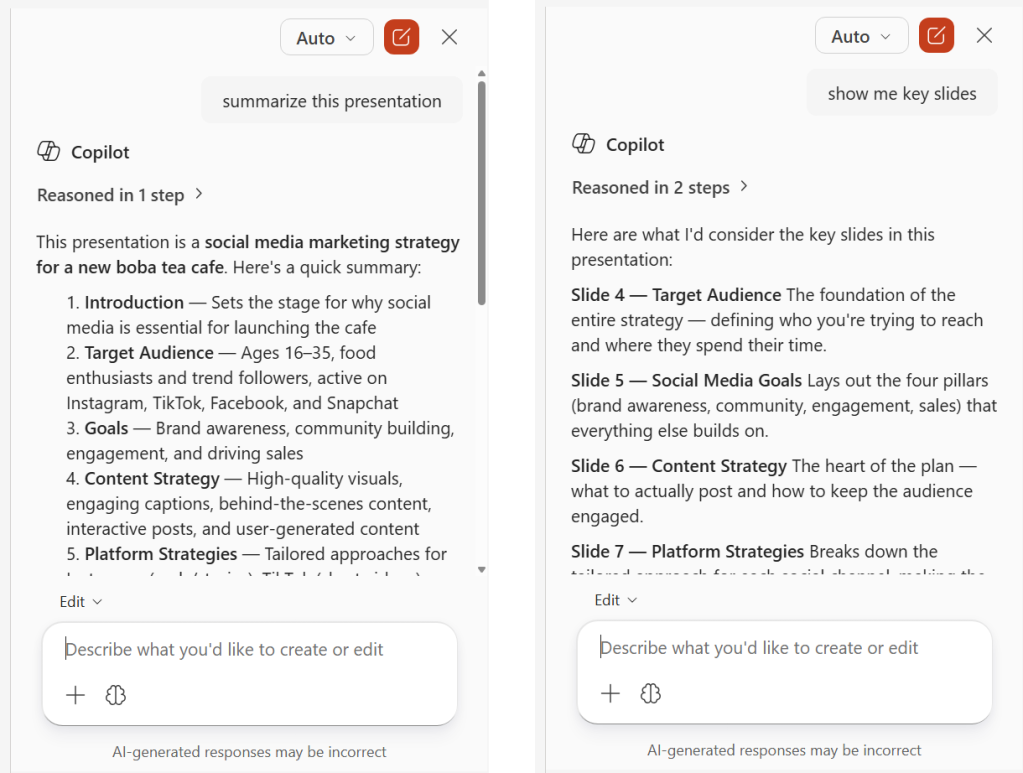
In the Copilot pane, just type “summarize this presentation.” You can also have Copilot flag key slides that contain important information: “show me key slides.”
Ask Copilot to summarize a presentation or flag key slides.
Howard Wen / Foundry
8. Answer questions about a presentation
As you’re reviewing a presentation, especially one that you didn’t create and are not familiar with, you can get Copilot to pull key data points from its slides.
In the Copilot pane, type specific informational questions. Examples:
What are the action items in this deck?
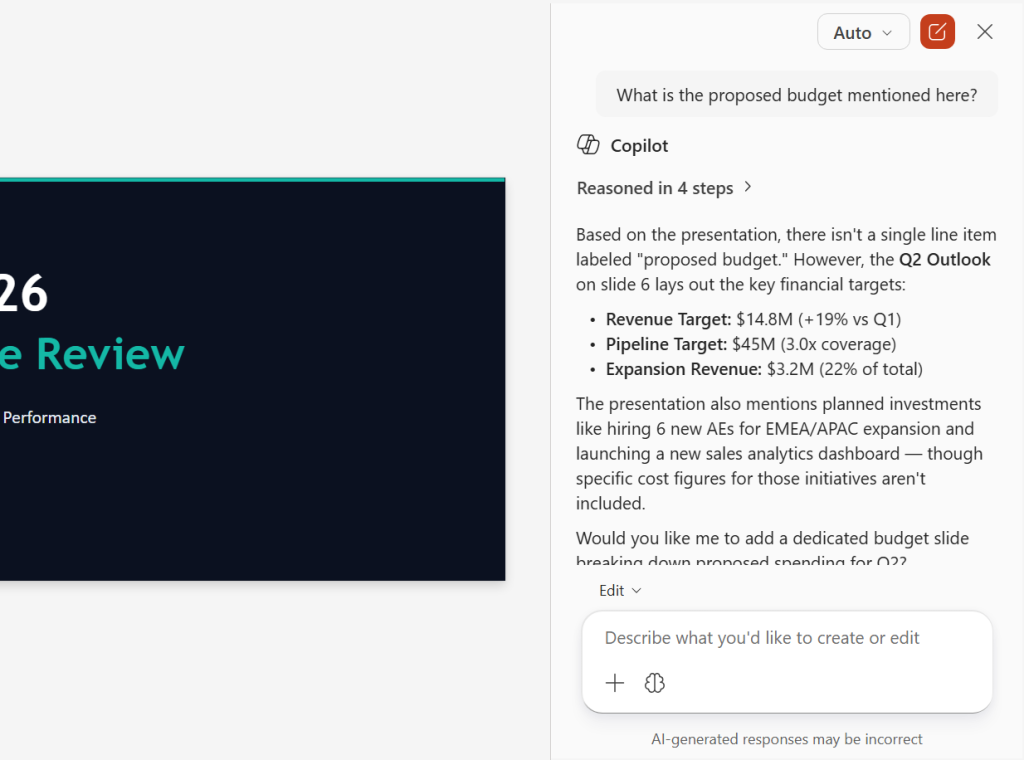
What is the proposed budget mentioned here?
If Copilot can’t find the exact answer to the question you ask, it will provide related information from the presentation.
Ask Copilot specific questions about the contents of a presentation.
Howard Wen / Foundry
This method can also help you validate that your presentation includes everything you want it to. If you ask Copilot about the action items in a presentation and it can’t find any, you know you need to add them. (Copilot will likely offer to generate them for you based on the rest of the slides.)
You can even take this tactic a step further and ask Copilot if the presentation is missing any important data, if any slides are weak or confusing, if there are any awkward transitions, if there are key points that should be better emphasized, and so on.
9. Help you navigate a large presentation
In the business world, presentations with dozens of slides are not uncommon, such as for financial reports or project documentation. Trying to find a specific slide or multiple slides can be tough. Copilot can help you navigate such a presentation.
In the Copilot pane, prompt Copilot to find slides based on specific topics. Example:
Show me the slides about the project timeline.
Copilot will analyze the presentation and reply with a list of links to the relevant slides. Click one of these to jump directly to that slide.
Copilot can help you zoom directly to a slide that covers a particular topic or shows specific data.
Howard Wen / Foundry
10. Generate speaker notes and/or an FAQ
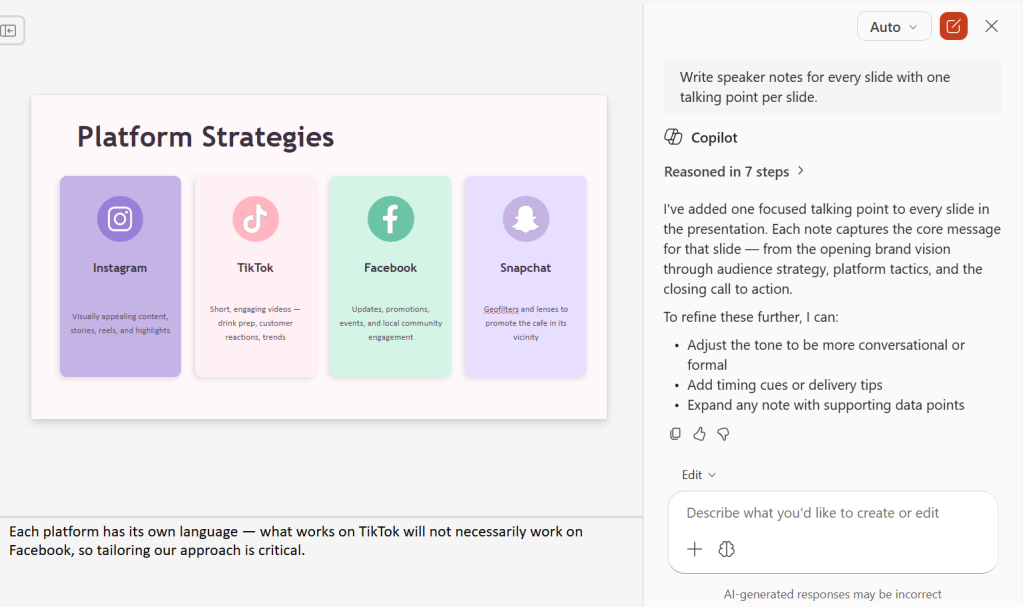
Here’s a great timesaver when you’re preparing to show your presentation to an audience: Copilot can automatically generate suggested speaker notes for you, based on the content of your slides. Example prompt:
Write speaker notes for every slide with one talking point per slide.
Copilot can create speaker notes in seconds.
Howard Wen / Foundry
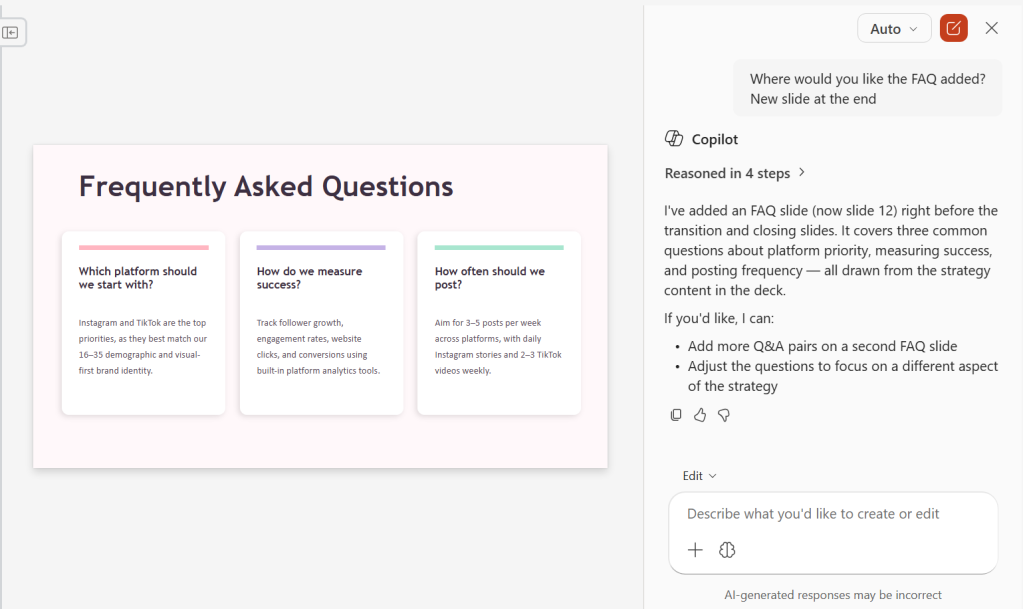
In a related feature, Copilot can create a frequently asked questions list (FAQ) for you to consult in your speaker notes or to present as a slide:
Write an FAQ for these slides.
Copilot will ask where you want the questions and answers added — as a new slide at the end, integrated into the speaker notes of relevant slides, or somewhere else that you designate. Make a selection, and Copilot will generate the FAQ based on the content of your presentation.
Our remote team clocked serious hours walking, working, and sometimes jogging to find the best under-desk treadmills for home offices and small spaces.
Our remote team clocked serious hours walking, working, and sometimes jogging to find the best under-desk treadmills for home offices and small spaces.
Long before Taco Tuesday became part of the pop-culture vernacular, Tuesdays were synonymous with security — and for anyone in the tech world, they still are. Patch Tuesday, as you most likely know, refers to the day each month when Microsoft releases security updates and patches for its software products — everything from Windows to Office to SQL Server, developer tools to browsers.
The practice, which happens on the second Tuesday of the month, was initiated to streamline the patch distribution process and make it easier for users and IT system administrators to manage updates. Like tacos, Patch Tuesday is here to stay.
In a blog post celebrating the 20th anniversary of Patch Tuesday, the Microsoft Security Response Center wrote: “The concept of Patch Tuesday was conceived and implemented in 2003. Before this unified approach, our security updates were sporadic, posing significant challenges for IT professionals and organizations in deploying critical patches in a timely manner.”
Patch Tuesday will continue to be an “important part of our strategy to keep users secure,” Microsoft said, adding that it’s now an important part of the cybersecurity industry. As a case in point, Adobe, among others, follows a similar patch cadence.
Patch Tuesday coverage has also long been a staple of Computerworld’s commitment to provide critical information to the IT industry. That’s why we’ve gathered together this collection of recent patches, a rolling list we’ll keep updated each month.
In case you missed a recent Patch Tuesday announcement, here are the latest six months of updates.
July’s Patch Tuesday sees an end-of-support collision amidst a massive, record-setting patch wave
Microsoft addressed 722 CVEs this month once the 427 Chromium upstream relays are set aside — roughly three times a normal cycle and one of the largest single months in recent memory. Two vulnerabilities arrive under active exploitation: an elevation of privilege in Active Directory Federation Services (CVE-2026-56155), and an elevation of privilege in SharePoint Server (CVE-2026-56164). A third, a BitLocker security feature bypass (CVE-2026-50661) is publicly disclosed but not yet exploited.
The July 2026 Patch Tuesday earns Patch Now recommendations for Windows, Office, Exchange, and SQL Server. SharePoint has two critical RCEs on top of its exploited zero-day, and Exchange Server returns with a critical on-premises spoofing flaw. Adding to our (dear) administrator’s efforts, SharePoint Server 2016/2019 and SQL Server 2016 all reach end of support today. The Readiness team has provided a handy infographic of the expected risk profile of this month’s Patch Tuesday updates.
Microsoft this month released 206 updates affecting Windows, Office, Exchange Server, and its developer tools — including three Windows vulnerabilities already publicly disclosed. That trio includes an elevation of privilege in the Collaborative Translation Framework (CVE-2026-45586), a denial of service in HTTP.sys (CVE-2026-49160), and a BitLocker security feature bypass (CVE-2026-50507). At the moment, none appear to be under active exploitation, but all three are rated “Exploitation More Likely.”
Even without an exploited zero-day, the June 2026 Patch Tuesday release requires Patch Now recommendations for Windows, Office, and Exchange. The latter is back in the patch picture with a consolidated security update that Microsoft recommends installing “as soon as possible.”
For May, Patch Tuesday means 139 updates — but no zero-days
Microsoft this month released 139 updates affecting Windows, Office, .NET, and SQL Server (though there were no updates for Microsoft Exchange Server). Despite the absence of zero-days, the May Patch Tuesday update still requires Patch Now recommendations for Windows and Office.
The combination of three unauthenticated network RCEs (Netlogon, DNS Client, and SSO Plugin for Jira and Confluence), four Word Preview Pane RCEs, the large TCP/IP vulnerability cluster, and the carry-over BitLocker recovery condition (still active on Windows 10 and Windows Server) warrants an accelerated deployment release schedule.
Microsoft’s Patch Tuesday release for April is a whopper
Windows admins are going to be busy this month, dealing with the largest Patch Tuesday cycle in memory. The April release involves 165 updates and roughly 340 unique CVEs from Microsoft — including two zero-days, one of which is already being actively exploited in the wild.
The Readiness team recommends “Patch Now” schedules for nearly every major product family: Windows, Office (with a zero-day), Microsoft Edge (Chromium), SQL Server, and Microsoft Developer Tools (.NET). April also brings Phase 2 of Microsoft’s Kerberos RC4 hardening with full enforcement set for July. There is a lot to cover, so here’s a useful infographic mapping the deployment risk for each platform.
For March, Patch Tuesday delivers fixes for 83 vulnerabilities
Microsoft’s March Patch Tuesday release addresses 83 vulnerabilities across Windows, Office, SQL Server, Azure, and .NET — with two publicly disclosed zero-days affecting SQL Server and .NET (though neither is being actively exploited in the wild.) Six additional vulnerabilities spanning the Windows Kernel, Graphics Component, SMB Server, Accessibility Infrastructure, and Winlogon are flagged as “Exploitation More Likely.”
February’s Patch Tuesday release fixes 59 flaws, including 6 being exploited
The company’s Patch Tuesday release for February addresses 59 CVEs across the company’s product family — roughly half the volume of January’s 159 patches. Six vulnerabilities, affecting Windows Shell, MSHTML, Desktop Window Manager, Remote Desktop, Remote Access, and Microsoft Word, are already being actively exploited. (All five Critical-rated CVEs target Azureservices rather than Windows, however.)
No, there weren't "2,700 heatwave deaths due to climate change", says Ben Pile – a figure conjured by Met Office and Imperial College modelling. But nobody must be allowed to remember the warm days of 2026 fondly.
Asylum accommodation costs have more than trebled to over £15 billion and made a billionaire out of Clearsprings owner Graham King. This scandalous racket needs to end, says Madeleine Gillies.

 Login
Login