Civil servants face being sanctioned if they fail to use the preferred name or gender of a transgender colleague, leaked Whitehall guidance has revealed.
After criticism from a federal judge, the Department of Justice yesterday withdrew demands for phone records and grand jury testimony from New York Times reporters who wrote about security concerns related to the Air Force One jet donated to Trump by Qatar.
It was a setback in the Trump administration's attempts to unmask journalists' confidential sources. US District Judge Arun Subramanian "grilled Justice Department lawyers for nearly an hour over their handling of the subpoenas" during a hearing on Thursday, The New York Times wrote.
“Either we can quash the subpoenas, or you could withdraw the subpoenas,” Subramanian reportedly told Sean Buckley, chief counsel for the US attorney in New York's southern district.
Advances in A.I. are making it possible to create all kinds of music from scratch, but they also raise questions about what is legal and who will actually listen.
What happens to Reform if, for one reason or another, Nigel Farage exits stage right? In his latest Political Betting column, Mark Littlewood looks at who's waiting in the wings to replace him.
The underlying cause of real price inflation is linked to the expansion of the US Federal Reserve's M2 money supply, rather than conventional measures like the CPI. Gold and silver remain more reliable investments compared to fiat currencies, which inevitably devalue to zero over time.
Le café fait vivre environ 125 millions de personnes dans le monde. Pourtant, près d'un producteur sur deux vit encore sous le seuil de pauvreté, alors que jusqu'à la moitié des terres adaptées à la culture du café arabica pourrait disparaître d'ici 2050 sous l'effet du changement climatique.
Building a presentation can take lots of time. There are design choices to figure out: the slide layouts, fonts, theme colors, and so on. You can use a template to skip this hassle, but you still have to paste your text and other content into the slides and edit it all so that the results are visually appealing.
In PowerPoint, Microsoft’s Copilot AI assistant can now automate the heavy lifting of presentation creation. It can generate a first-draft presentation in minutes, then help you edit it. You can also prompt Copilot to help you quickly understand the contents of a presentation and glean insights from it. Use the tips in this guide to save oodles of time as you create and work with presentations.
For business users, it’s more complicated. Organizations with more than 2,000 users must pay for Microsoft 365 Copilot licenses for their users in addition to their regular Microsoft 365 licenses. Users at organizations with fewer than 2,000 users can use Copilot within M365 apps even without the M365 Copilot add-on licenses, but there are limitations in usage, speed, and feature availability.
To see what kind of access you have, log in to Microsoft’s Copilot Chat web hub and look for your name in the lower left corner. If you see “M365 Copilot (Premium)” under your name, you can use Copilot in M365 apps with priority access and advanced features. “M365 Copilot (Basic)” means you can use Copilot in M365 apps with lower-priority access and limited features. If you see “Copilot Chat (Basic)” or nothing below your name, you can’t use Copilot in M365 apps.
(Copilot Chat Basic users do get some Copilot functionality, including the ability to generate presentations, via the Copilot Chat hub. See our Copilot Chat tutorial for details.)
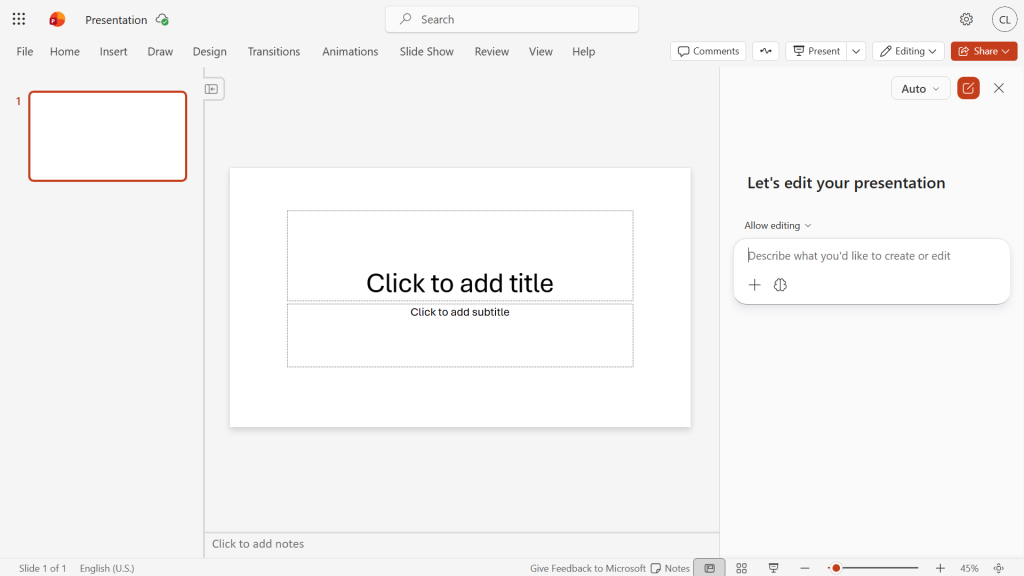
First, let’s quickly go over the notable settings of the Copilot sidebar.
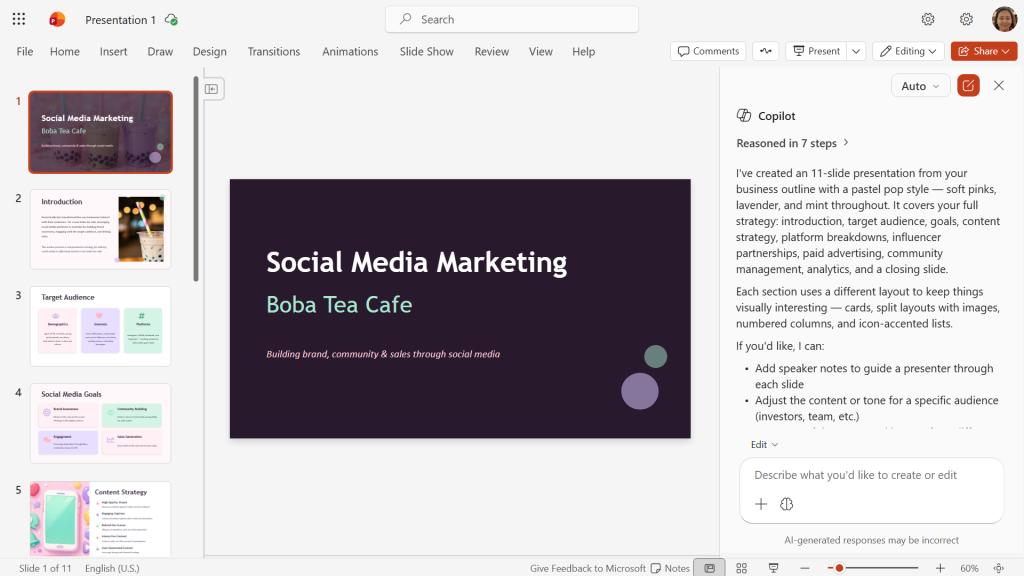
When you have a presentation open in PowerPoint, click the Copilot icon; it may be floating at the lower-right corner of your PowerPoint window or parked at the right end of the Ribbon toolbar. The Copilot sidebar will open along the right of the page. You’ll type your prompts to Copilot inside the chat window in this pane.
The sidebar on the right is where you interact with Copilot in PowerPOint.
Howard Wen / Foundry
Agent mode: By default, Copilot can build a new presentation or make changes to an existing one in the main PowerPoint window. This is known as “agent mode.” To change this so that Copilot can’t take direct action on a presentation (all its responses appear in the sidebar), click the Allow editing button above the chat window and change it to Chat only.
The tips in this guide require that Copilot be in agent mode, so make sure you see Allow editing above the chat window.
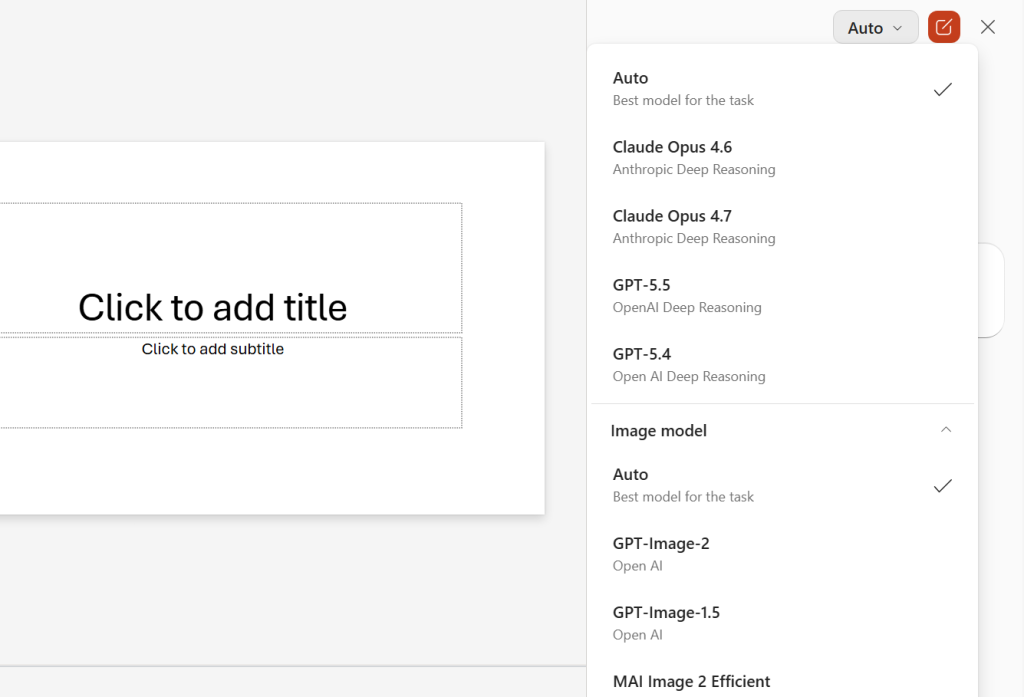
Choice of AI model: Behind the scenes, Copilot has access to various genAI models, including different versions of Anthropic Claude and OpenAI GPT. By default, it decides which model to use based on your prompt. You can set it to use a particular model: click Auto at the upper right of the Copilot pane and select a model from the dropdown that opens.
You can choose which AI model you want Copilot to use for a request.
Howard Wen / Foundry
The tips in this guide should work fine on the default Auto setting. But feel free to experiment switching to specific models to see which give you the best results for particular tasks.
For many people, the hardest part of creating a presentation is getting started. What types of information should be included on the slides, and in what order? Copilot can give you a leg up by creating the type of presentation you need, with placeholder data that you can later replace with your own.
Start a new presentation, open the Copilot sidebar, and type your prompt into the chat window. It’s best to provide very specific details in your prompt. The more context or details you provide, the more likely Copilot will generate a presentation template that suits your needs.
A good prompt should contain the slide count, subject, audience, and tone. Example:
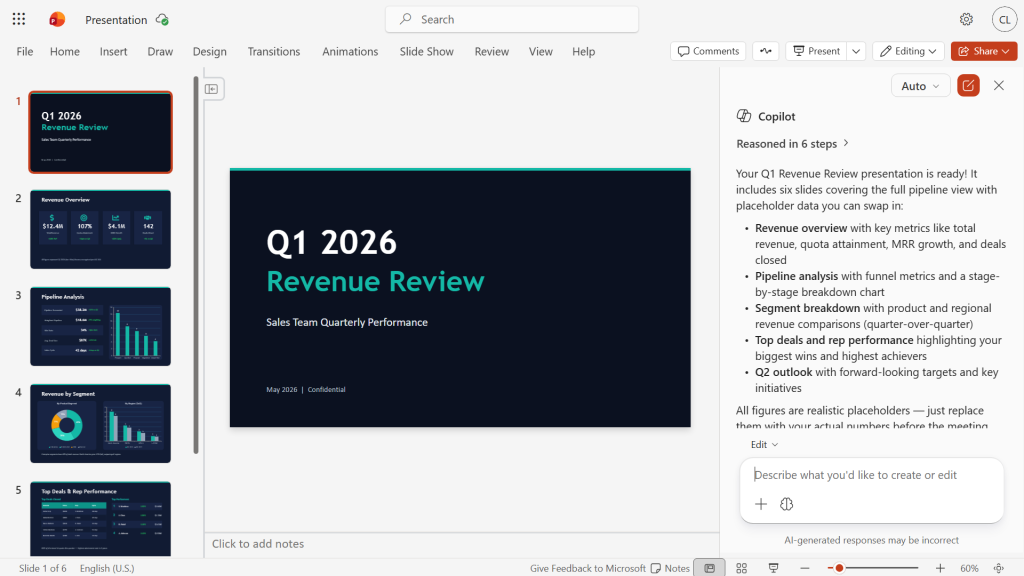
Create a 6-slide presentation for a sales meeting focusing on Q1 revenue. The audience is the sales team, so keep the tone professional and focused on the sales data.
Copilot may ask a series of follow-up questions, such as your preferred visual style and desired level of detail. Then it will generate a presentation template.
Copilot generates a presentation with placeholder data and explains its elements.
Howard Wen / Foundry
You can optionally prompt Copilot for revisions, and when you’re happy with the template, swap in your own data.
2. Create a presentation from a document
You can attach a document (such as a Word document, Excel spreadsheet, or PDF) and prompt Copilot to generate a presentation based on its contents. This works best with a structured-format document (such as a business plan, project proposal, or summary report) that contains sections with headings.
Copilot can extract the document’s text and structure to generate the slide content for the new presentation. This can especially be useful for quickly turning a long report into a visually appealing presentation.
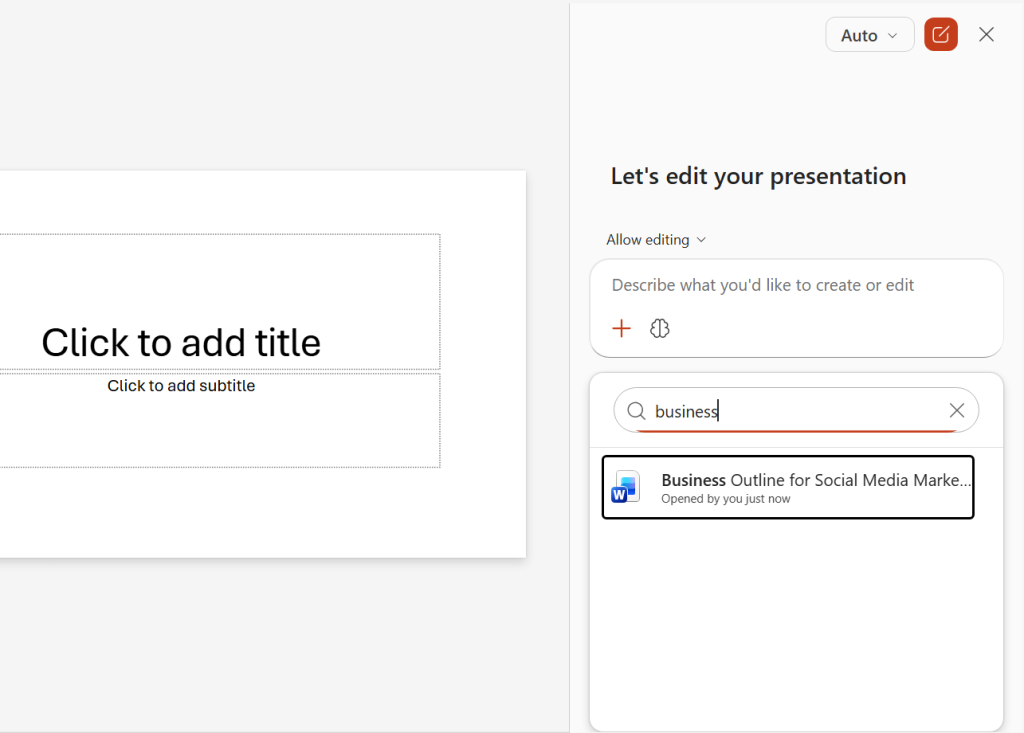
In the Copilot pane, click the + icon at the bottom of the chat window. A list of documents that you’ve recently accessed appears. Select the one that you want Copilot to use. Alternatively, click the magnifying glass icon and inside its search box, type a few letters of the filename for the document you want. (Business users with an M365 Copilot license can select up to five files for Copilot to pull from when creating a presentation.)
Attaching a document for Copilot to base a presentation on.
Howard Wen / Foundry
Then in the chat window, you can enter a prompt that’s as simple as “Create a presentation,” although as always, providing more details and context is better. This is especially important for corporate users who reference multiple source files. It’s useful to tell Copilot what data to pull from each document.
Answer any follow-up questions that Copilot asks, and it will then generate the presentation.
Copilot has generated a professional presentation from a social media marketing campaign document.
Howard Wen / Foundry
Note: Your marketing department may have created one or more branded company templates for Copilot to work from. If that’s the case at your organization, simply open the appropriate company template as your first step. Then you can upload docs and type a prompt as described above. Copilot will create a presentation using the branded template.
3. Add content from a document to a slide
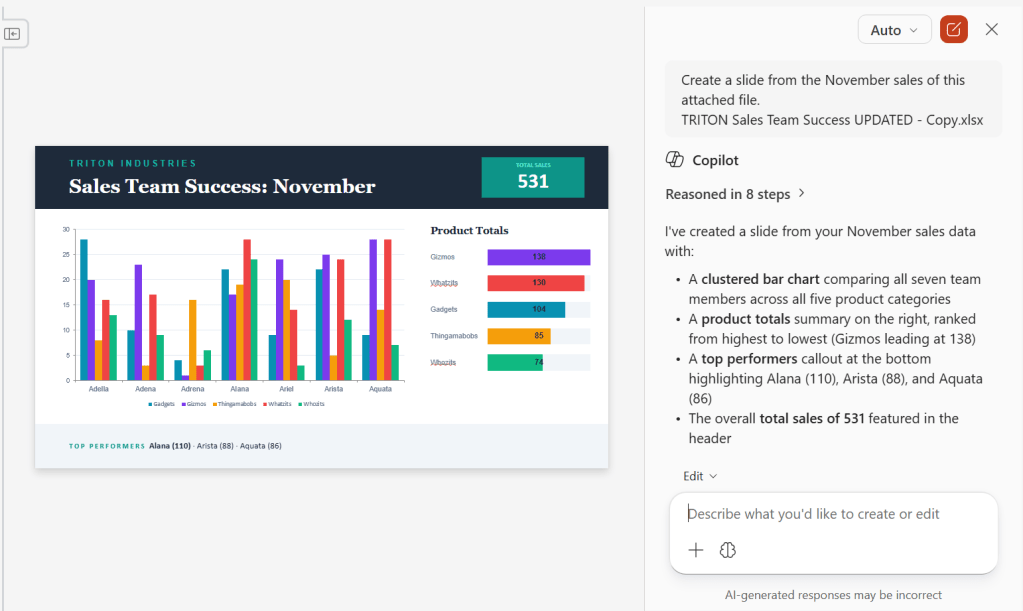
Manually copying text or other content from a document and pasting it into a new slide is a chore. Instead, you can prompt Copilot to extract information directly from a Word document, Excel spreadsheet, or PDF to create new slides.
In the Copilot pane, attach the document using the same steps described in tip 2, then tell Copilot to create a slide from the document. As always, it helps to provide details such as the new slide’s focus or what data to include:
Add a slide based on the attached document.
Use the attached file to add a slide about the project budget that focuses on Q1 projections.
Summarize only the financial section of the attached document as a slide.
A new Copilot-generated slide based on data from an Excel spreadsheet.
Howard Wen / Foundry
4. Refine your slide text
A presentation should be visual and display only the core message. Conciseness and proper writing tone are essential for your slides, so that they don’t lose the attention of your audience.
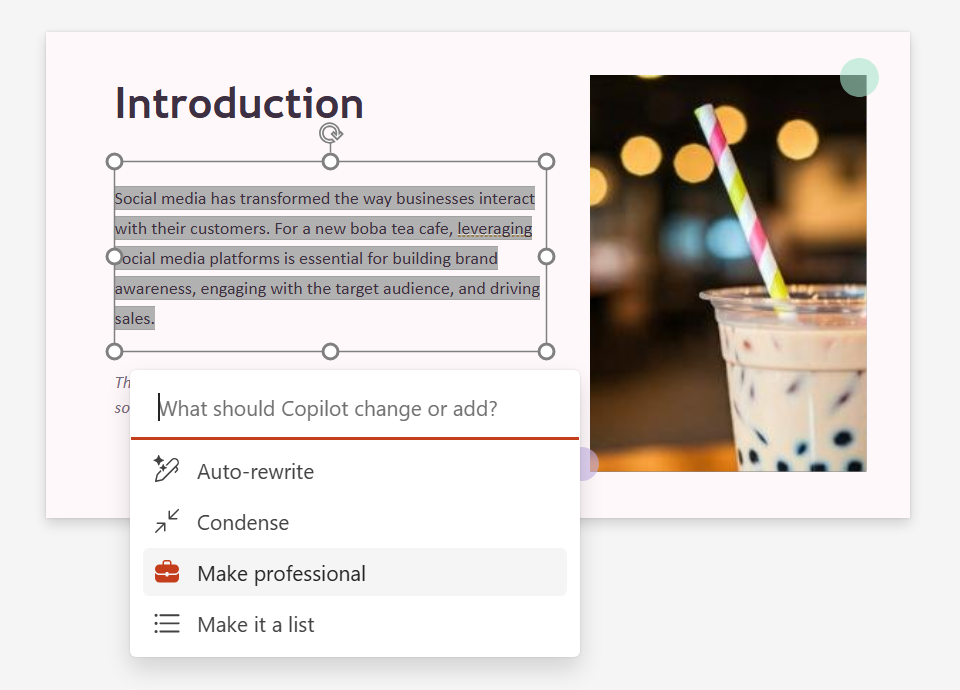
You can prompt Copilot to refine text on an individual slide in various ways, such as rewriting it in a more professional tone or making it more concise. Highlight the text inside a text box on the slide. On the toolbar that appears over the highlighted text, click Edit with Copilot.
On the menu that opens, you can select a preset prompt to refine the text, such as Condense or Make professional. Or, at the top of this menu, you can type a prompt to rewrite the highlighted text.
Choose a preset prompt for refining text on a slide or type in your own prompt.
Howard Wen / Foundry
Note that this feature affects all the text inside the text box. To rewrite only a portion of text inside a text box, you must split that portion out into a separate text box.
Alternatively, you can prompt Copilot to analyze your entire presentation and tighten up the wording throughout all of its slides. For example:
Make these slides more visual and use less text.
5. Find or create an image
If you have Copilot generate a presentation from an existing Word document that contains images, it will incorporate those images into the presentation. If there are no images in the source document, you can ask Copilot to find or create one and add it to a slide.
To add a stock image or an image from your organization’s brand library, tell Copilot what you’re looking for:
Add a stock photo of young adults in a cafe drinking boba tea.
Add a photo from our asset library of young adults in a cafe drinking boba tea.
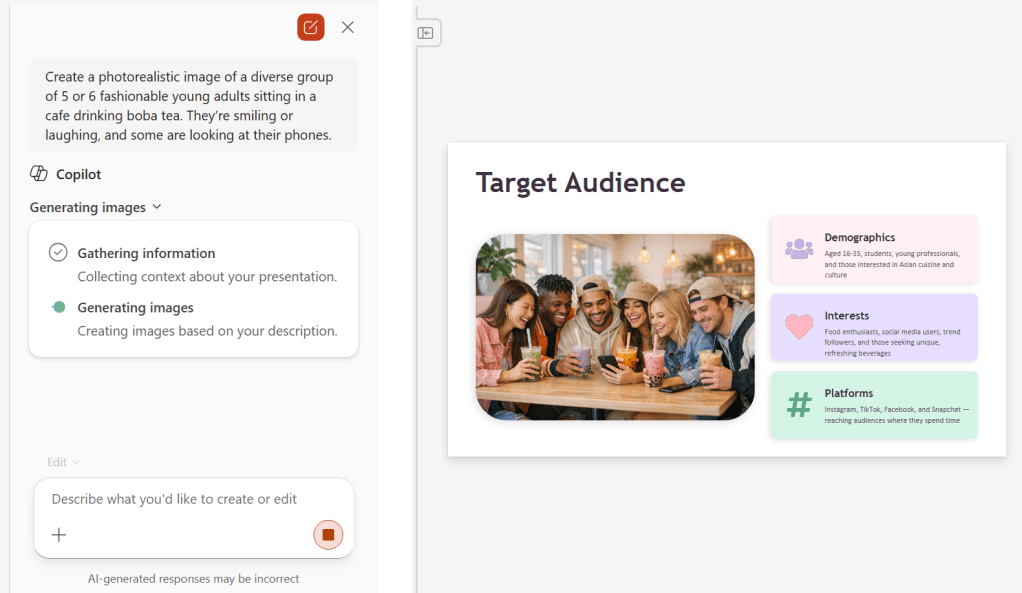
To have Copilot create an image using Microsoft’s Designer image generation tool, describe your desired image. As always, specificity is helpful:
Create a photorealistic image of a diverse group of 5 or 6 fashionable young adults sitting in a cafe drinking boba tea. They’re smiling or laughing, and some are looking at their phones.
Copilot in PowerPoint hooks into Microsoft’s Designer tool for image generation.
Howard Wen / Foundry
Just as you need to review any text output from Copilot, take a close look at generated images to be sure nothing looks off.
Also note that Copilot image generation isn’t always reliable in PowerPoint. For some time during our testing for this story, Copilot said it couldn’t create an image because “the image generation service is returning a server error on every attempt.” After about a day and a half, the service began working again.
6. Expand your presentation with relevant slides
As you’re building your presentation, you may find that it’s become text heavy. Or perhaps it could use more visually oriented slides to break things up and make its progression flow better. Copilot can generate and insert new slides that are based on the content of the slides already in the presentation.
In the Copilot pane, specify exactly where you want the new slide to go. This helps Copilot to analyze the content of the slides before and after where you want the new slide. Then it can generate a slide to bridge between the two slides. Examples:
Add a slide after slide 3 about our competitive advantages.
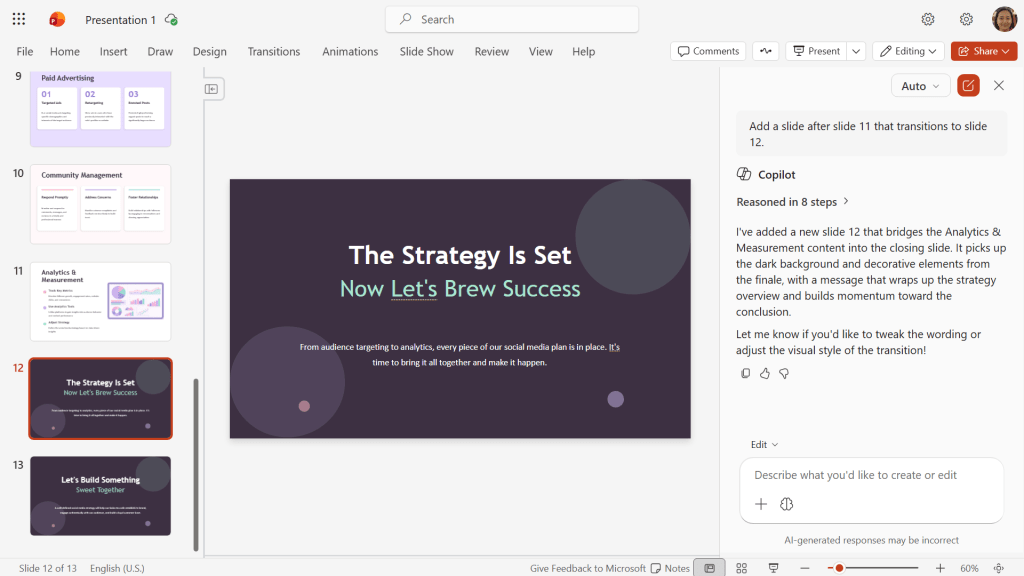
Add a slide after slide 11 that transitions to slide 12.
Need a transition slide? Just ask!
Howard Wen / Foundry
7. Summarize a presentation
Maybe you need a quick refresh of your presentation before an important meeting. Or maybe a co-worker has sent you a presentation that’s packed with lots of slides. You can prompt Copilot to generate a summary of the presentation’s overall messaging.
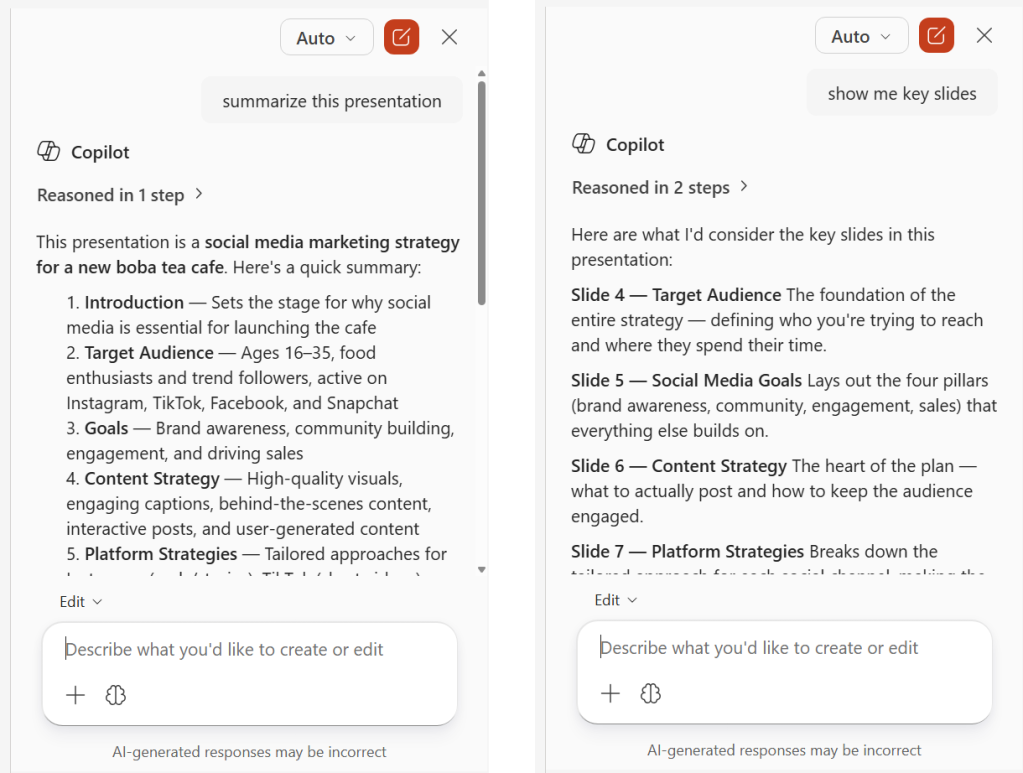
In the Copilot pane, just type “summarize this presentation.” You can also have Copilot flag key slides that contain important information: “show me key slides.”
Ask Copilot to summarize a presentation or flag key slides.
Howard Wen / Foundry
8. Answer questions about a presentation
As you’re reviewing a presentation, especially one that you didn’t create and are not familiar with, you can get Copilot to pull key data points from its slides.
In the Copilot pane, type specific informational questions. Examples:
What are the action items in this deck?
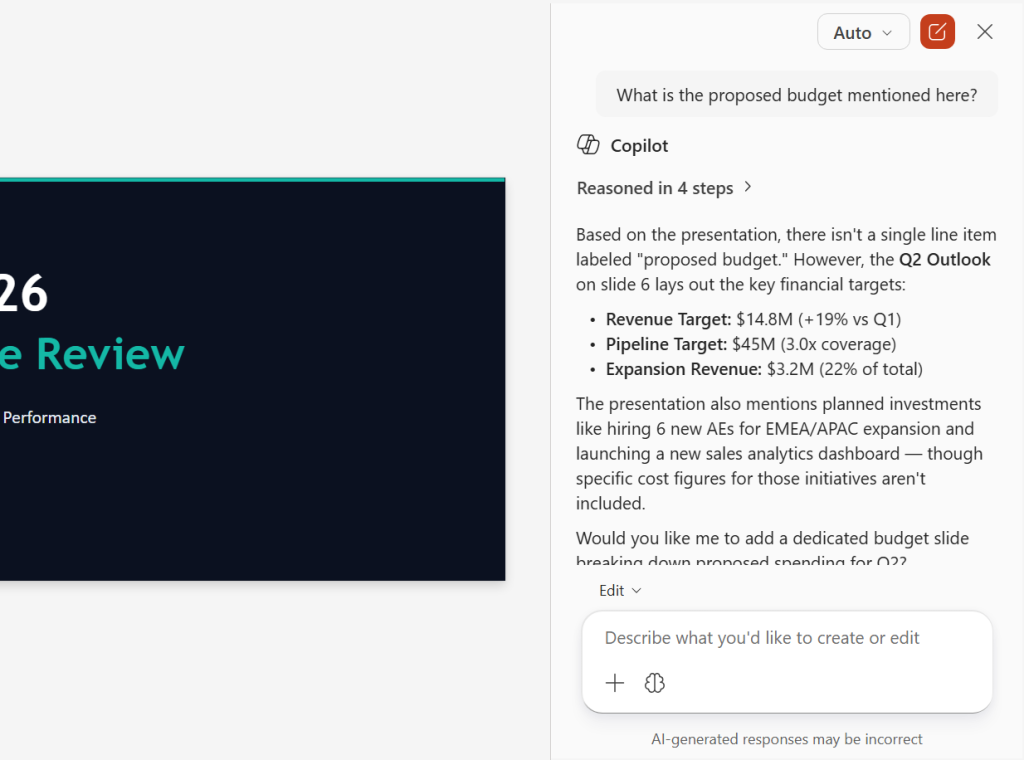
What is the proposed budget mentioned here?
If Copilot can’t find the exact answer to the question you ask, it will provide related information from the presentation.
Ask Copilot specific questions about the contents of a presentation.
Howard Wen / Foundry
This method can also help you validate that your presentation includes everything you want it to. If you ask Copilot about the action items in a presentation and it can’t find any, you know you need to add them. (Copilot will likely offer to generate them for you based on the rest of the slides.)
You can even take this tactic a step further and ask Copilot if the presentation is missing any important data, if any slides are weak or confusing, if there are any awkward transitions, if there are key points that should be better emphasized, and so on.
9. Help you navigate a large presentation
In the business world, presentations with dozens of slides are not uncommon, such as for financial reports or project documentation. Trying to find a specific slide or multiple slides can be tough. Copilot can help you navigate such a presentation.
In the Copilot pane, prompt Copilot to find slides based on specific topics. Example:
Show me the slides about the project timeline.
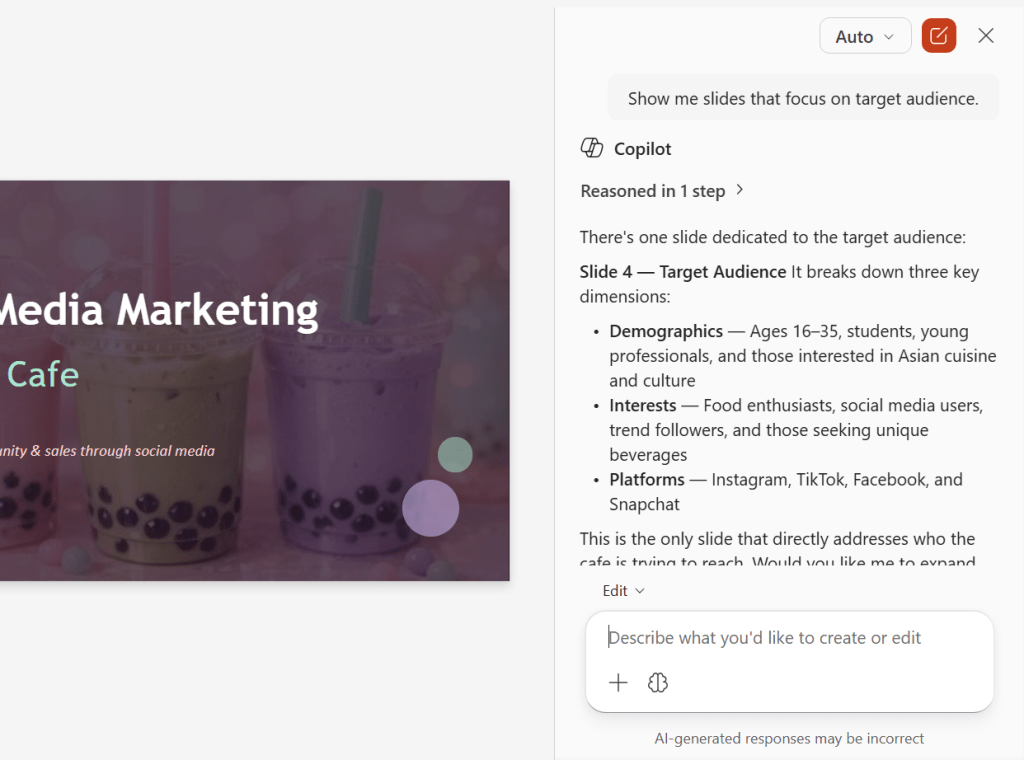
Copilot will analyze the presentation and reply with a list of links to the relevant slides. Click one of these to jump directly to that slide.
Copilot can help you zoom directly to a slide that covers a particular topic or shows specific data.
Howard Wen / Foundry
10. Generate speaker notes and/or an FAQ
Here’s a great timesaver when you’re preparing to show your presentation to an audience: Copilot can automatically generate suggested speaker notes for you, based on the content of your slides. Example prompt:
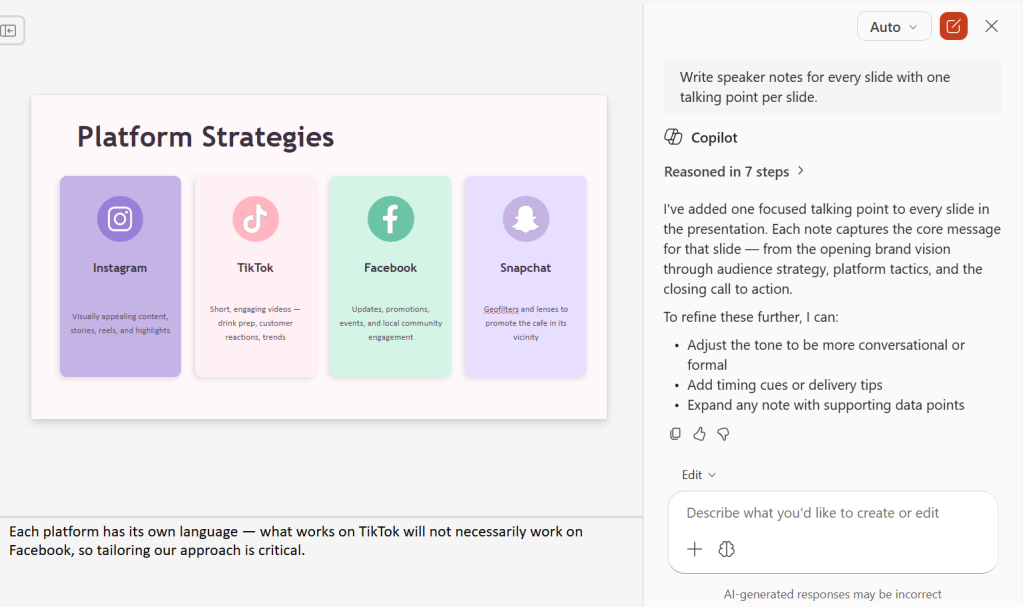
Write speaker notes for every slide with one talking point per slide.
Copilot can create speaker notes in seconds.
Howard Wen / Foundry
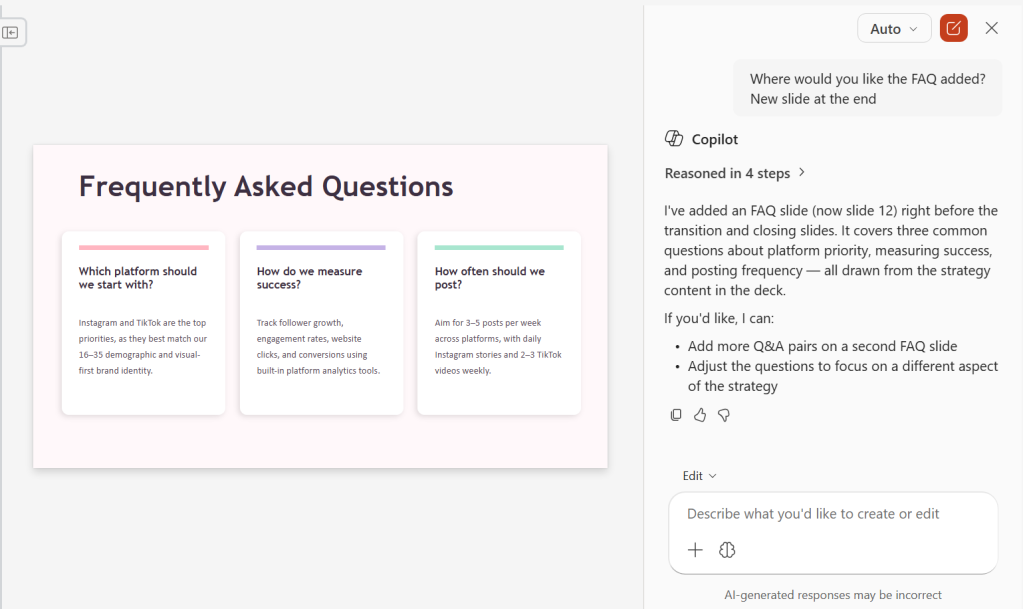
In a related feature, Copilot can create a frequently asked questions list (FAQ) for you to consult in your speaker notes or to present as a slide:
Write an FAQ for these slides.
Copilot will ask where you want the questions and answers added — as a new slide at the end, integrated into the speaker notes of relevant slides, or somewhere else that you designate. Make a selection, and Copilot will generate the FAQ based on the content of your presentation.
I update my charts illustrating the price performance of gold and silver relative to inflation based on M2 money supply and CPI. Gold prices are notably above expected values, while silver, previously undervalued, has recently aligned with its fair market price but currently appears cheap for buyers.
Graças a essa versatilidade, o novo modo de voz pode fazer bem mais que apenas conversar. Além de poder ser usado em chats, ele também está integrado ao Work e ao Codex — o que significa que você pode usá-lo para coordenar e acompanhar tarefas, sem usar texto.
ChatGPT Voice is now in the desktop app.
Control your computer and direct multiple agents running in ChatGPT Work or Codex, using just your voice.
It's powered by GPT-Live, so it can speak, listen, and coordinate work in the app at the same time.
Para usar a novidade, é necessário abrir um novo chat ou uma nova tarefa vazia no app e selecionar a opção “Iniciar nova conversa por voz”. As conversas ou tarefas precisam necessariamente ser iniciadas nesse modo — caso contrário, apenas o ditado por voz estará disponível.
O ChatGPT Voice oferece suporte a uma alternância natural entre as falas. Você pode interromper o ChatGPT durante uma resposta, fazer uma pergunta complementar ou mudar de direção. Se o ChatGPT começar a executar uma tarefa, continue falando para verificar o progresso ou orientar o trabalho.
Além disso, a OpenAI destaca que é possível iniciar conversas separadas para conversas mais longas, enviar ao app uma screenshot para apresentar o contexto do que está na tela, bem como usar o recurso pelo Remote do iOS com o iPhone emparelhado ao computador.
O ChatGPT Voice no desktop está sendo disponibilizado gradualmente para os planos Plus, Pro, Business, Edu e Enterprise. Nos dois últimos, há um período inicial de duas semanas com acesso antecipado antes de o recurso ser ativado por padrão.
É possível baixar o novo app do ChatGPT para macOS nessa página.
Apple Intelligence on-device processing remains Apple’s most convincing argument in artificial intelligence. Rivals may lead in public model rankings, chatbot adoption and the speed of releasing experimental features, but Apple is building AI inside devices people already use for their most personal work.
That distinction changes the definition of winning.
Apple does not need every iPhone owner to open a separate chatbot app. It can place intelligence inside Messages, Mail, Photos, Notes, Shortcuts, Siri and third-party apps. Local models can operate on private information without automatically transferring that information to an external server.
The strategy appeared slow while the AI market measured progress through chatbot launches and model size. It looks more competitive as the industry confronts cloud costs, privacy concerns, unreliable connectivity and the difficulty of turning general-purpose AI into useful daily actions.
In his video “Apple Lost the AI Race,” Marques Brownlee captures the contradiction in one concise line:
“Apple lost the AI race. Actually, Apple won the AI race.”
The apparent reversal describes Apple’s current position well. Apple may have lost the first race for public perception. It is increasingly prepared for the longer contest over where AI runs, how it reaches users and who controls the personal data required to make it useful.
Apple Intelligence On-Device Changes the AI Relationship
Most popular generative AI products began as cloud services. A user sends a request to a remote model, the provider processes it in a data center and the answer returns through an app or browser.
That structure supports enormous models but creates dependence on internet access, server capacity and continuing infrastructure expense. It also means personal prompts leave the device, even when the provider uses strong security and privacy policies.
Apple Intelligence on-device begins from the opposite direction. The iPhone, iPad or Mac first attempts to handle the request locally using Apple Foundation Models optimized for Apple silicon.
That local model does not need to know everything available on the internet. It needs to understand the user’s request, work with relevant personal context and complete common tasks efficiently.
The difference is similar to owning a capable computer rather than renting every calculation from a distant server. Cloud systems remain useful for difficult workloads, but they no longer need to participate in every interaction.
For Apple, local processing is also a product advantage. The company controls the chip, operating system, model architecture, memory system and apps. Each layer can be designed around the others rather than assembled from unrelated services.
Image Credit: Apple Inc.
Privacy Becomes a Technical Feature
Technology companies frequently describe privacy as a policy. Apple is trying to make it part of the AI architecture.
When a request runs entirely on an iPhone, the associated data does not need to leave the device. A model can work with messages, appointments, photos or app content without uploading that personal context to a conventional cloud account.
That structure is especially relevant to Siri AI. A truly personal assistant needs access to information that users may never place willingly inside an ordinary chatbot: private conversations, travel plans, health-related details, work documents and relationships between people.
An assistant becomes more useful as it gains context. It also becomes more invasive when the same context is stored, analyzed or used for model training outside the device.
Apple Intelligence on-device allows Apple to expand personal context while maintaining a stronger boundary around it. The assistant can understand information locally, perform an action and discard temporary processing data without building a permanent advertising or training profile.
This is difficult for competitors whose businesses depend on cloud services, large-scale data collection or engagement inside separate AI products. Apple’s hardware business gives it different incentives.
Private Cloud Compute Extends the Model
Not every AI task can fit within the power and memory limits of an iPhone. Apple uses Private Cloud Compute when a request requires a larger model.
Private Cloud Compute is designed to extend the privacy architecture of Apple devices into the cloud. User information is processed only for the request, is not stored and is not made available to Apple for unrelated purposes.
Independent researchers can inspect software images used by the system, creating an unusual level of outside visibility into the cloud environment. Apple has also expanded the architecture while maintaining control over the software and privacy protections used for processing.
This creates a layered system rather than a simple choice between local and cloud AI.
Apple Intelligence first determines whether the device can handle the request. More complex work can move to Private Cloud Compute. External models may be offered separately when the user chooses to involve them.
The user does not need to understand the technical path behind every answer. The system chooses the smallest and most private environment capable of completing the task.
Apple Silicon Was an AI Investment
Apple’s control of its processors has become one of its largest advantages in the AI era.
The Neural Engine first appeared years before generative AI became a consumer obsession. It supported Face ID, photography, speech recognition and other machine-learning tasks. Apple continued expanding that hardware across the iPhone, iPad and Mac.
Those investments now provide a large installed base of devices designed to run machine-learning workloads locally. Recent Apple chips combine CPU, GPU, Neural Engine and unified memory in one architecture that can move information efficiently between different types of processing.
The same design helps foundation models run without requiring the power consumption or separate memory systems associated with conventional data-center hardware.
Apple also controls the operating systems that schedule those workloads. A model can be optimized for the exact processors, memory limits and energy behavior of supported devices.
Competitors can build excellent models, but they often need to support hardware from several manufacturers with inconsistent capabilities. Apple can decide that an AI feature requires a specific generation of silicon and design the complete experience around it.
Developers Gain a Local Model
The Foundation Models framework extends Apple Intelligence on-device beyond Apple’s own apps. Developers can use the system model through native Swift tools rather than shipping a separate large model or paying for every cloud request.
An app can generate structured content, interpret natural language or use tool calling while keeping supported processing on the device. Apple handles model delivery and system integration.
This can reduce operating costs for developers. A cloud-based AI feature creates an ongoing expense each time a user submits a request. Local inference uses hardware the customer already owns.
It can also improve reliability. Features may remain available without an internet connection and respond without waiting for a remote service.
The framework encourages a quieter form of AI adoption. Apps do not need to add a prominent chatbot tab or redesign themselves around a conversational interface. Intelligence can appear inside existing workflows as a useful capability.
That is where Apple’s strategy may reach scale. Millions of apps can incorporate small AI functions that users experience as normal software behavior rather than as visits to an AI destination.
Image Credit: Apple Inc.
The Installed Base Is Apple’s Distribution Advantage
The AI race is often discussed as a contest between models. Consumer adoption also depends on distribution.
Apple can deliver new intelligence features through operating-system updates across the iPhone, iPad, Mac and Vision Pro. Users do not need to create another account, choose a provider or transfer their personal information into a new service.
Siri already occupies the system interface. Apple Intelligence can work across first-party apps. Developers can connect their own features through Apple frameworks.
The scale is difficult to reproduce. A model provider may have stronger benchmark scores but still need users to download an app and consciously open it. Apple can introduce AI during actions people already perform: replying to a message, locating a photo, organizing a note or completing a shortcut.
This does not guarantee success. Apple must make Siri AI reliable, keep feature availability consistent and prove that local models can deliver enough capability to satisfy users accustomed to powerful cloud assistants.
The distribution advantage only becomes meaningful when the experience works.
Winning Without Building the Loudest Chatbot
Apple has made mistakes during its AI transition. Siri improvements arrived later than promised, regional regulations delayed features and competitors established powerful consumer brands before Apple completed its new system.
Those setbacks explain why the claim that Apple lost the AI race became persuasive.
They do not settle the outcome.
The first stage rewarded companies that released chatbots quickly and demonstrated increasingly large models. The next stage may reward systems that can integrate AI into ordinary life without demanding constant cloud access, high subscription costs or broad collection of personal information.
Apple Intelligence on-device is built for that stage. It uses hardware already in the user’s hand, protects more personal context locally and gives developers access to intelligence without requiring every interaction to become a server transaction.
Apple does not need to win every benchmark or release the most talkative assistant. It needs AI to become a reliable part of the devices people already trust.
Brownlee’s title works because both statements can be true. Apple lost the visible sprint that defined the early generative AI market. By concentrating on local processing, silicon, privacy and operating-system integration, it may already be positioning itself to win the race that follows.
Simply put, polling rate is the frequency at which data is sent between your mouse and keyboard to your computer. For many years, the standard polling rate of most gaming mice and keyboards was 1,000Hz, and that's still a setting that's available by default.
However, with the rise of competitive shooters, particularly tactical ones such as CS2, VALORANT, and Rainbow Six Siege, the pro scene needed a shift, and we saw the advancement towards 4,000Hz and 8,000Hz for "esports tech".
But does anyone really need an 8,000Hz polling rate when gaming? Do the best FPS players in the world even take advantage of it? I'm going through everything you need to know about how 8K works, the latency you can expect, impact on battery life, and all other things you need to consider when properly getting your setup ready for success.
How does polling rate affect latency?
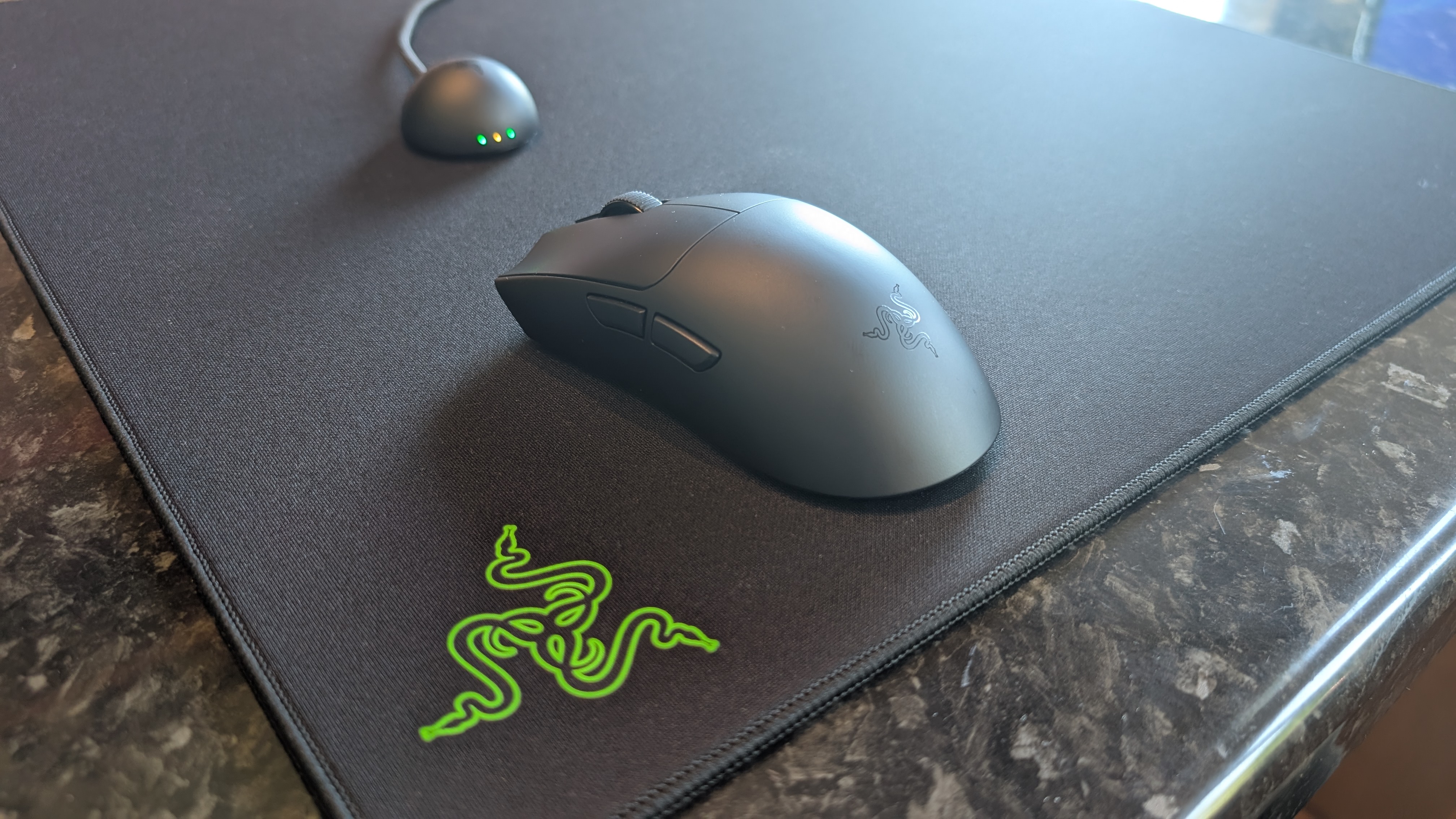
The Razer Viper V4 Pro is among the best gaming mice, and it supports 8K polling (Image credit: Future)
True to its namesake, an 8K polling rate will report its position to your PC a total of 8,000 times, instead of 4,000 times or a thousand times as with 4,000Hz and 1,000Hz, respectively. An 8,000Hz polling rate responds with far lower latency than either of these two previous standards; specifically, updates are sent between a mouse or a keyboard to your computer's processor every 0.125ms, eliminating a theoretical maximum of 0.875 ms input delay, meaning a smoother cursor or movement.
The difference in response time of 0.125ms (8K), 0.25ms (4K), and 1ms (1K) can be huge when it comes to polling rate, provided you have the right hardware to properly take advantage of this. That's because an 8,000Hz polling rate can be incredibly demanding on the battery life of wireless mice and keyboards, and it's one of the main considerations as to why you may want to drop the response time down in your settings.
The drawbacks of an 8,000Hz polling rate
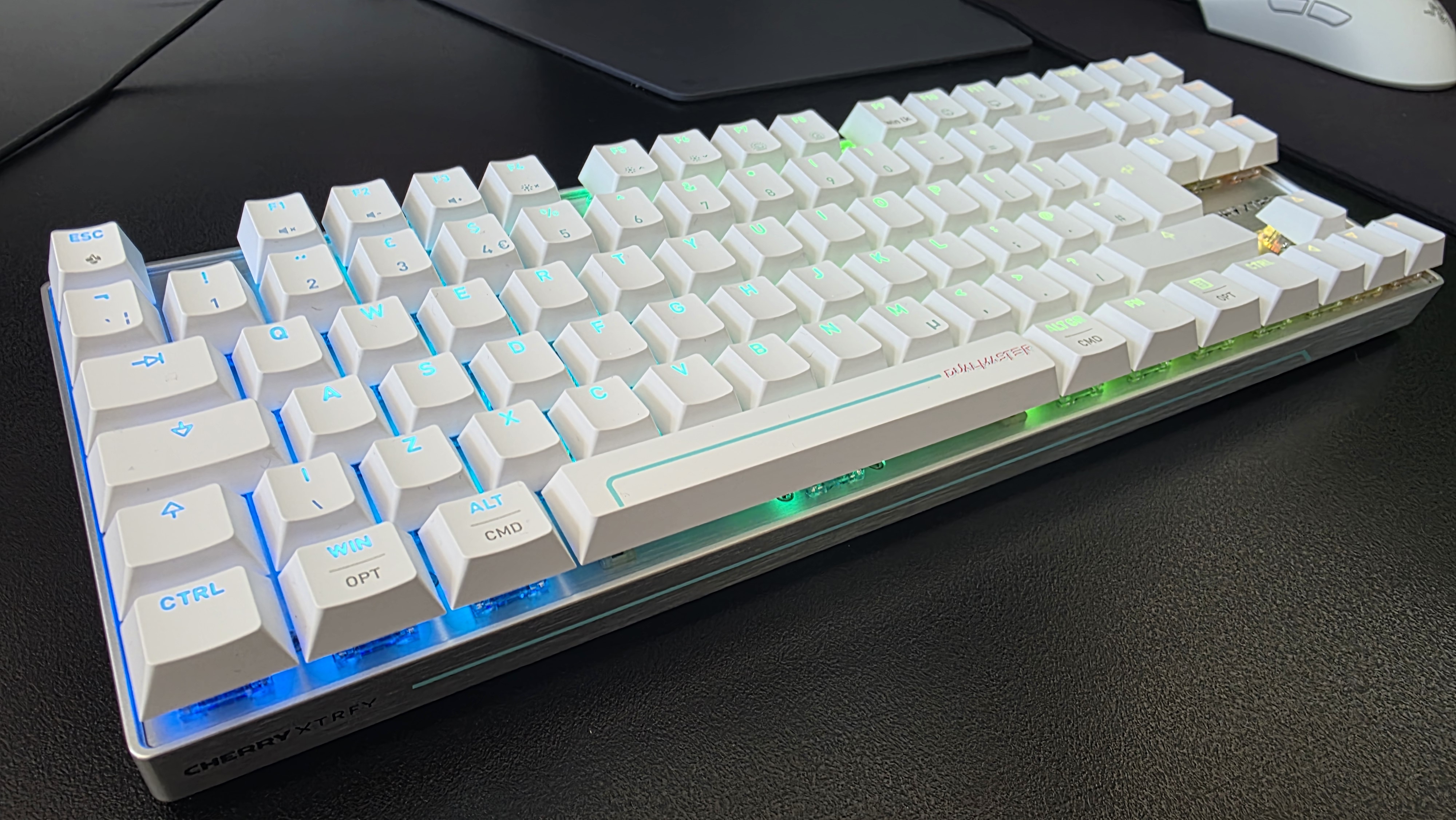
The Corsair Sabre V2 MG, like many top-end mice, have the option of 8K polling wirelessly, even if it comes at 1K out of the box (Image credit: Future)
In brief, an 8,000Hz polling rate for your mouse and keyboard can be incredibly demanding on your computer. That includes heavy strain on even the best processors, the aforementioned heavily reduced battery life on a mouse and keyboard, and even the potential risk of micro-stuttering. As a lifelong PC gamer and a competitive shooter enthusiast who is hopelessly obsessed with VALORANT, I've seen the battery life debate happen in real-time.
I've tested and reviewed hundreds of mice and keyboards throughout my career, and one of the biggest points of contention when it comes to enabling the polling rate comes down to battery life. As an example, my favorite gaming mouse of all time is the Corsair Sabre V2 MG, an 8K-enabled gaming mouse that's built with a Magnesium Alloy frame. It weighs just 56g and features excellent skates, making it ideal for a precision heavy shooter.
As standard, via the Corsair Web Hub, this gaming mouse will run out of the box at 1,000Hz (1K), with battery life prioritized. With the pointer used as the stock, you can expect around 100 to 120 hours of play between charges. In my experience, I am charging this mouse every two weeks or so, depending on how much I'm working day-to-day, etc. However, in my many months with this mouse, I've noticed that things fall off incredibly hard with 8K enabled; my battery life tends to last only around two to three days (or one or two nights of VALORANT Competitive) before I'm reaching for the USB-C lead.
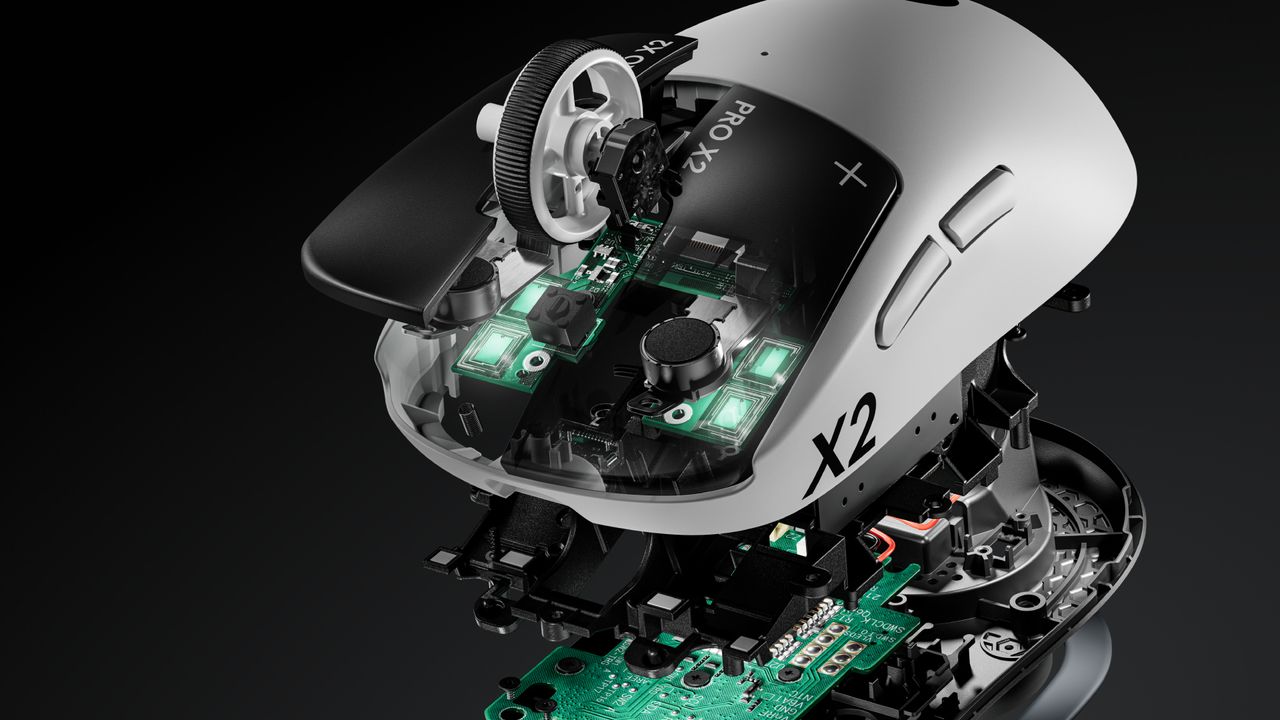
If we take 18 hours as the average battery life from the Corsair Sabre V2 MG when used in 8K mode, that's a reduction of around 85%, which is staggering. We can see a similar drop off from the most well-used new esports mice currently on the market, with the Razer Viper V4 Pro (an excellent mouse), touting up to 180 hours of playback in 1K but only 45 hours when maxed out at 8K. Similarly, while the Logitech G Pro X2 Superstrike has around a 90-hour playback at 1K, that drops down dramatically to between 20 and 35 hours at 8K. With Logitech's pointer, though, you have to factor in the strength of the haptics here, hence the rough range rather than a more exact figure.
What about the human limitations of an 8,000Hz polling rate?
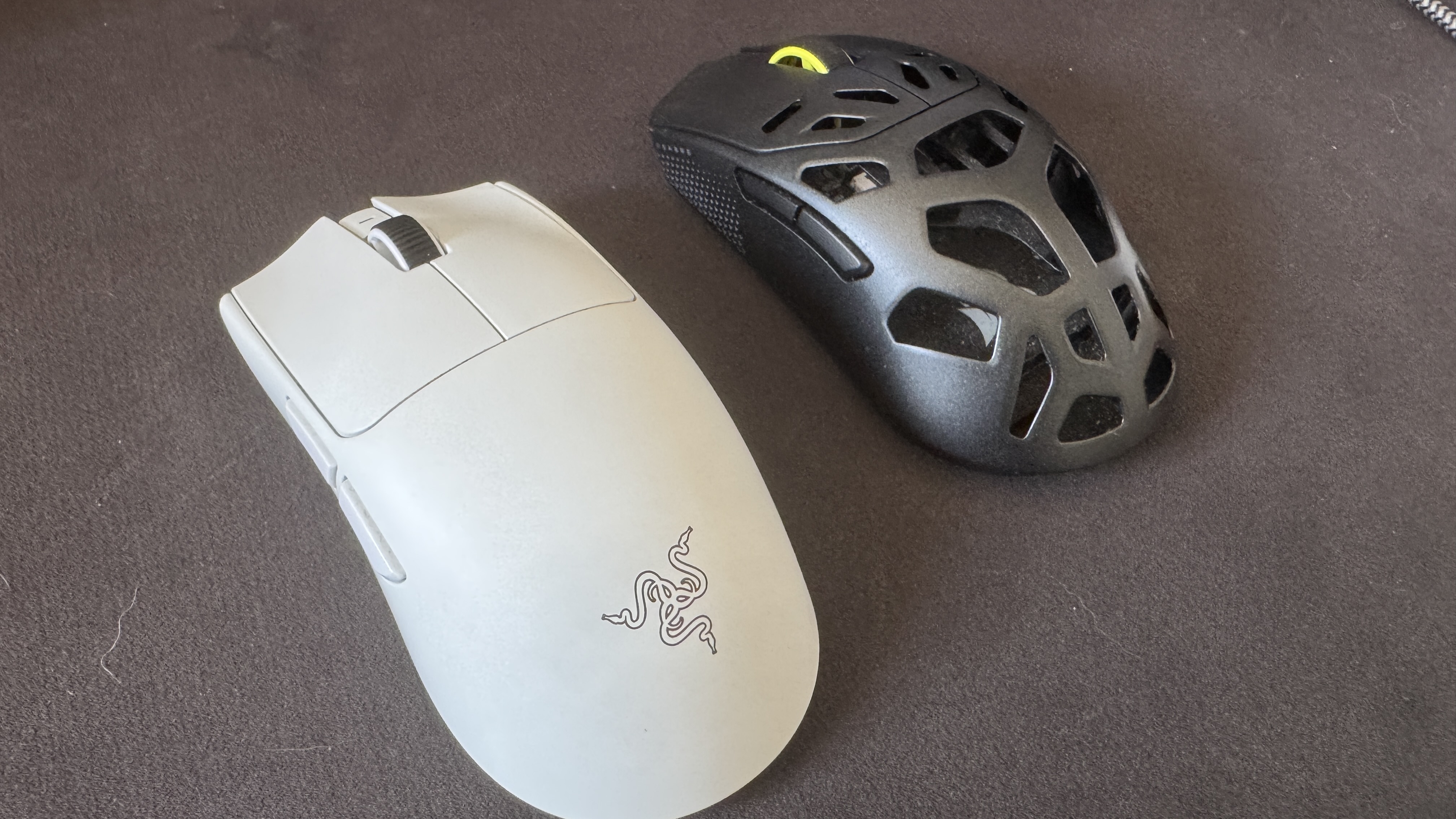
(Image credit: Future)
Now that we've covered what an 8,000Hz polling rate is, how it works, how it compares against 1K and 4K, and the technical drawbacks, we now need to go over the human limitations with 8K. As previously mentioned, 1K means a 1ms response time, and that gets cut down to just 0.125ms with 8K, but what does that mean for a human being, and not a machine?
The average human response time is around 250-280ms; that's the time it takes to see something and physically react. I am not a pro player, but I do play video games at a high level, with a response time average of around 175ms, though I've been faster. The best esports players can eclipse this effortlessly: you only need to look as far as VALORANT and CS2 players, such as TenZ (widely considered to be among the best VALORANT players), with an average reaction time of 135ms. 100ms is even possible, even though the average tends to hover around the 150ms mark.
If we take 1K as a baseline for polling rate, that means there's an average of 150 reports between the mouse/keyboard and the processor, as you tap a key or click what you see. Taking 8K, then, sees 1,200 instances. With this information in mind, is there really much of an advantage here, even at this granular level, with the best players in the world and, conversely, the only people who would even notice a proper difference between 1K, 4K, and 8K?
Do pro players use 8,000Hz polling rates?
The best gamers in the world aren't interested in using an 8,000Hz polling rate for their keyboards or mice. (Image credit: Secretlab)
Considering the far lower latency, you would expect that professional esports gamers would all dial their settings to an 8,000Hz polling rate by default when playing demanding games, but that's simply not the case. If we look back at TenZ's mouse and keyboard settings when playing VALORANT, he last used the Pulsar TenZ Signature Edition mouse at 1,600 DPI, 0.24 sensitivity, and (most crucially) a 1,000Hz polling rate as standard; no 4K, and certainly no 8K enforced here.
What about a VALORANT player from the most aggressive team in the game? Then we must look at f0rsakeN from the legendary Paper Rex. He was last using the Pulsar Sustanto-X with an 800 DPI, a 0.71 sensitivity, and a 4,000Hz polling rate. Let's move away from Riot Games' shooter and instead turn our attention to Valve, then. As far as CS2 players go, few are as well-regarded in 2026 as Team Spirit's donk.
The young Russian is widely regarded as the best player in the world. Is he using an 8K polling rate for his mouse and keyboard to do this? No, while he previously used the industry standard Logitech G PRO X Superlight 2, he's now switched to a bespoke, and as of yet unreleased/prototype Zowie X Donk mouse at 800 DPI, 1.25 sensitivity, and a 1,000Hz polling rate. What about Niko? He recently had his own Razer collaboration drop, and currently uses a Razer Deathadder V4 Pro Niko Edition with an 800 DPI, 0.9 sensitivity, and a 2,000Hz polling rate.
Let's briefly look at two games for the sake of argument, and two of their respective top players. Peterbot is widely considered the best Fortnite player in the world, and he uses a Logitech G Pro X Superlight 2 at 800 DPI with a 1,000Hz polling rate. ImperialHal is among the best Apex Legends players, and the CEO (as he's known) currently uses a Finalmouse Starlight Pro with an 800 DPI, a 1.1 sensitivity, and a 1,000Hz polling rate. So, pro players simply are not using an 8,000Hz polling rate when playing, and they're simply better than the other 99.9% of players who play these games.
Is using an 8,000Hz polling rate worth it?
Based on everything I've gone through here, it becomes challenging to wholesale recommend (or actively condemn) 8K. An 8,000Hz polling rate is mechanically and technically better for how it responds between the peripheral and the machine, even if the human who presses that key or clicks the mouse ends up being the limiting factor, or bottleneck. It's the simple, undeniable truth that the saved milliseconds are (really) indistinguishable to basically everyone on the planet.
Then we get into the debate of battery life. Do you want your gaming mouse to last over 100 hours on a single charge, or just 10? That's a tough sell, considering it undercuts the primary reason to cut the cord in the first place. Then there's the massive CPU overload, game engine incompatibility (and developers and publishers are not yet gearing their software for the tech), and the variables of the hardware itself. Hardware makes the difference: TMR and Hall Effect switches and sensors will have far more of an impact than the simple reporting time between the processor and peripheral.
So why am I not fully discouraging you from using an 8,000Hz polling rate in its entirety? Because it ultimately comes down to personal preference, and to feel. If you're running one of the best gaming PCs or best gaming laptops with a high-end processor, a 4K graphics card, and a high refresh rate monitor, then, battery life aside, it doesn't really hurt to have everything cranked up and forgotten about. Are you likely to really notice it? No, but fractional optimization is still (ever so slightly) better than none in the first place.
I'm not quite cynical enough to claim that an 8,000Hz polling rate is just a marketing gimmick; however, I will say that hardware companies have gleefully exploited the ignorance of the end consumer, the simple reductionist view that a bigger number automatically means better, without looking into the nuances of the conversation. Now that's something you will be fully clued up on when considering your next keyboard or mouse.
Our remote team clocked serious hours walking, working, and sometimes jogging to find the best under-desk treadmills for home offices and small spaces.
Our remote team clocked serious hours walking, working, and sometimes jogging to find the best under-desk treadmills for home offices and small spaces.

 Login
Login