Time Machine ist eine erstklassige Backupsoftware und für die meisten Anwender völlig ausreichend. Die große Stärke der Sicherheitssoftware ist die einfache Bedienung – auch bei der Wiederherstellung von Daten. Geht etwas schief, können Sie sehr einfach Daten wiederherstellen oder Ihre Daten auf einen neuen Mac übertragen. Das ist nicht bei jeder Backupsoftware so einfach möglich.
Diese simple Bedienung hat aber einen großen Nachteil: Apples Software ist nicht sehr flexibel und erlaubt dem Nutzer nur sehr wenige Konfigurationsmöglichkeiten oder Anpassungen an besondere Situationen.
Wollen Sie bei Büroschluss noch schnell Ihren Projektordner auf einen USB-Stick sichern oder Daten im Web archivieren, ist das umständliche System von Time Machine nicht ideal. Time Machine macht stur vollständige Backups des Macs, auch wenn Sie es eilig haben und nur einen einzelnen Projektordner mit Ihren Office-Dokumenten synchronisieren wollen.
Sie benötigen zudem eine externe SSD oder Festplatte, die durchgehend mit dem Mac verbunden sein sollte. Ein bootfähiges Backup oder ein Klonen des Systems ist nicht möglich, beim Backup auf ein NAS gibt es immer wieder Kompatibilitätsprobleme.
Sie können außerdem Daten nicht archivieren oder auslagern: Alte Dateiversionen werden bei Platzmangel gelöscht, eine versehentlich gelöschte Datei wird irgendwann auch von Time Machine eliminiert. Bei anderen Backup-Lösungen können Sie alte Dateiversionen archivieren.
Eine weitere Schwachstelle von Time Machine: Bei einem Brand oder Diebstahl verlieren Sie vielleicht nicht nur Ihren Mac, sondern auch Ihr Time-Machine-Backup. Ein zusätzliches Backup in der Cloud oder auf einem mobilen USB-Stick ist deshalb sehr sinnvoll.
Fachleute empfehlen entsprechend der 3-2-1-Backup-Regel ein zusätzliches externes Offsite-Backup. Das kann etwa ein Cloud-Backup sein, oder ein zweites Backup im Büro oder Heimbüro.
Acronis True Image (kostenlos für WD-Kunden)
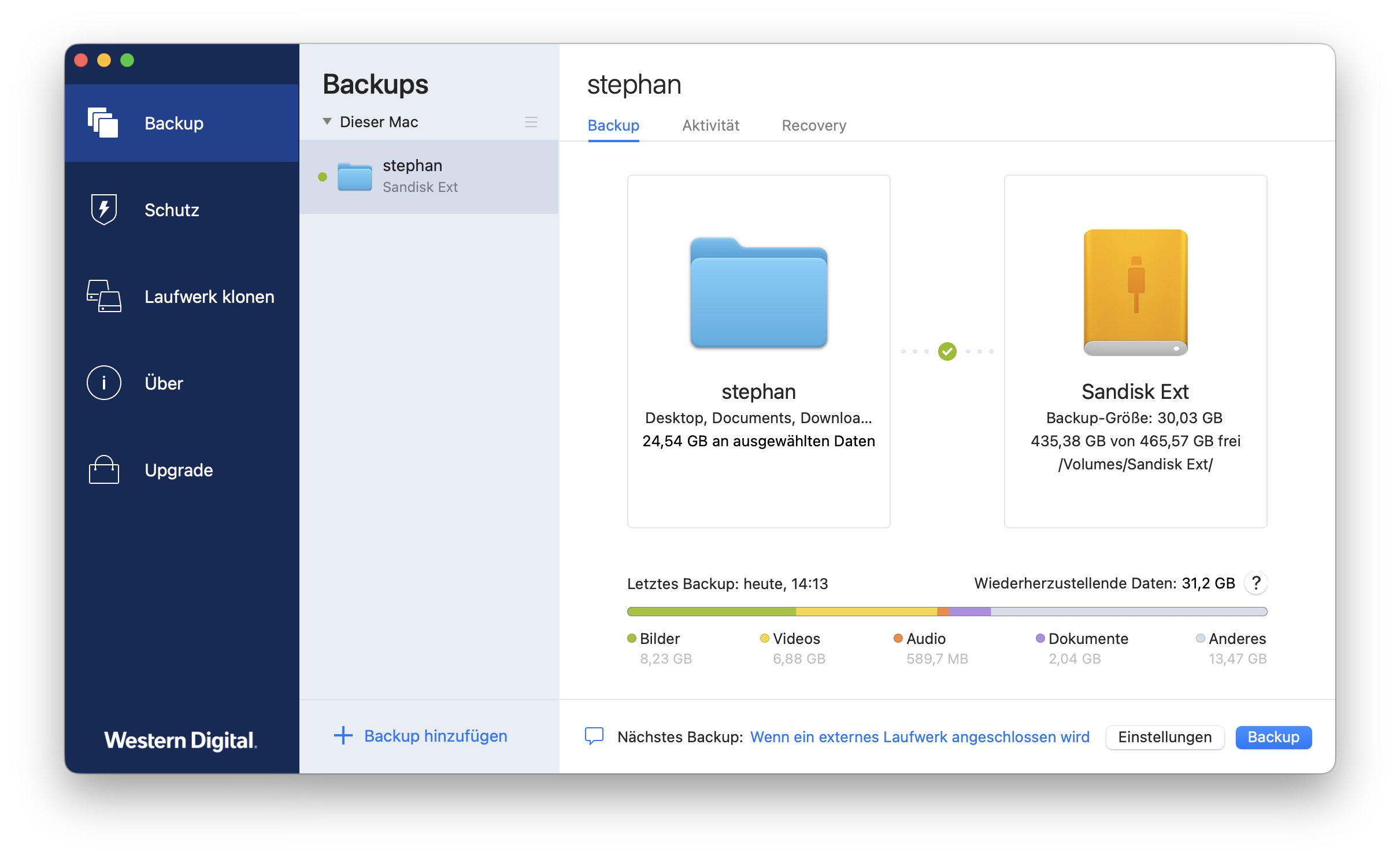
Time Machine ist ein hervorragendes Backup-Programm, es ist aber ein recht starres Konzept, das wenig Voreinstellungen und Optionen bietet. Mehr Optionen bietet etwa die kommerzielle Software Acronis True Image. Auf Wunsch startet sie ein Backup beim Einschalten des Macs, täglich oder automatisch beim Einstecken des Backup-Mediums.
Ein Unterschied gegenüber Time Machine ist zudem eine Archivierungs-Option. Als Standard werden alte Versionen eines Backups gelöscht, das ist aber nicht immer gewollt. Über die Voreinstellungen können Sie dies unter „Bereinigung“ deaktivieren. Ihre Daten werden dann sicher archiviert. Bei Time Machine werden alte, veränderte oder gelöschte Daten irgendwann gelöscht.
Eine Komplettkopie, einen kompletten Klon eines Macs, können Sie damit ebenfalls erstellen, auch wenn dies bei modernen Macs nur noch selten praktikabel ist. Das Erstellen eines eigenen Boot-Mediums wird dazu unterstützt.
Das ausgereifte und einfach bedienbare Backup-Programm kostet ab 50 Euro im Jahr. Die günstigste Version Essentials unterstützt allerdings nur lokale Backups, die Version Advanced kann auch Daten in der Cloud sichern. Für 73 Euro im Jahr erhalten Sie 250 GB Cloud-Backup.
Tipp: Für Besitzer eines Speichermediums (SSD, NAS und Festplatte) von Western Digital gibt es eine Basisversion für lokale Backups, die Sie für fünf Jahre freischalten können. Laut WD werden auch Geräte von Sandisk und G-Technology unterstützt. In einem kurzen Test konnte ich übrigens auch zwei alte USB-Sticks von Sandisk damit verwenden.
Eine kostenlose Version von Acronis True Image gibt es seit Kurzem auch bei den Bee-Station-Geräten von Synology.
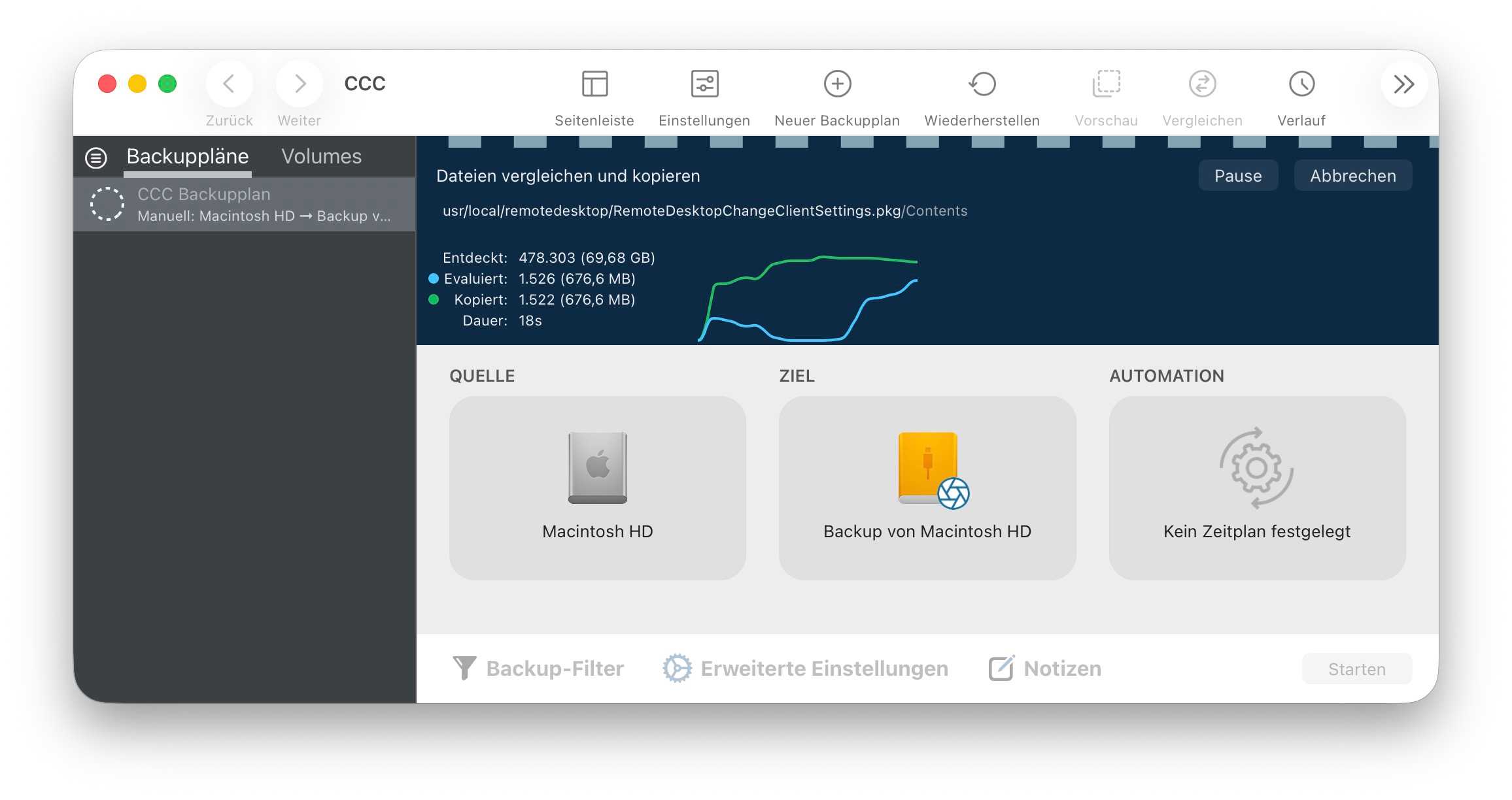
Einen hervorragenden Funktionsumfang bietet Carbon Copy Cloner. Die Software wird nicht grundlos so oft empfohlen, der Hersteller Bombich Software hält sein 45,25 Euro teures Tool mit viel Aufwand auf aktuellem Niveau und garantiert gute Kompatibilität mit aktuellen Systemen.
Die Oberfläche ist zwar weniger eingängig als bei Acronis True Image, dafür bietet die Software ungewöhnliche Funktionen an. Sie können bei Bedarf aber auch eine vereinfachte Oberfläche für Einsteiger aktivieren und eine Assistentenfunktion führt Sie durch die Einrichtung Ihres Backups.
Die Funktionalität von Carbon Copy Cloner hat leider unter den immer stärkeren Sicherheitsfunktionen von macOS gelitten. So war die Erstellung eines startfähigen Backups früher eine Spezialität der App, dies ist aber nur noch sehr eingeschränkt möglich.
Individuelle Konfiguration ist per Skript möglich, mit Filtern wählt man die zu sichernden Dateien aus – etwa wenn Sie nur Videodateien sichern wollen. Gut ist die Unterstützung von macOS, so gibt es die Unterstützung von Snapshots. Auch Cloud-Dateien, die eigentlich nur online gespeichert werden, können beim Backup berücksichtigt werden.
So kann ein Backup nicht nur zeitgesteuert oder durch das Mounten eines Backup-Mediums, sondern auch durch das Ändern von Dateien ausgelöst werden. Gut: Jeden Backup-Vorgang überwacht Carbon Copy Cloner akribisch und weist auf Probleme hin.
Wie erwähnt, hat Time Machine einen großen Nachteil: Wird der Mac gestohlen oder es gibt einen Rohrbruch in der Wohnung, können Mac inklusive Backup verloren gehen. Ein zusätzliches Online-Backup wichtigster Daten ist deshalb keine schlechte Idee. Vermutlich genügt bei vielen Anwendern ja bereits eine Datensicherung des Dokumente-Ordners als zusätzliche Absicherung.
Es gibt unzählige Anbieter für Online-Backups. Neben Backblaze, Acronis und Arq-Backup sollten Sie auch iCloud+ nicht vergessen. Bietet doch iCloud die oft übersehene Option „Schreibtisch“ & „Dokumente“, bei der diese beiden Ordner automatisch mit iCloud synchronisiert werden. Stärke dieser Dienste ist das schnelle Abgleichen einzelner Ordner, etwa eines Dokumente-Verzeichnisses. Für das Sichern eines kompletten Macs eignen sie sich weniger, das ist bei modernen Macs auch nur wenig praktikabel. Eine zusätzliche Kopie wichtiger Daten landet dann aber automatisch im Web.
Diese Dienste und die teureren Verträge von iCloud + sind aber recht kostspielig, Backblaze kostet etwa ab 99 US-Dollar, Acronis Advanced ab 73 Euro pro Jahr.
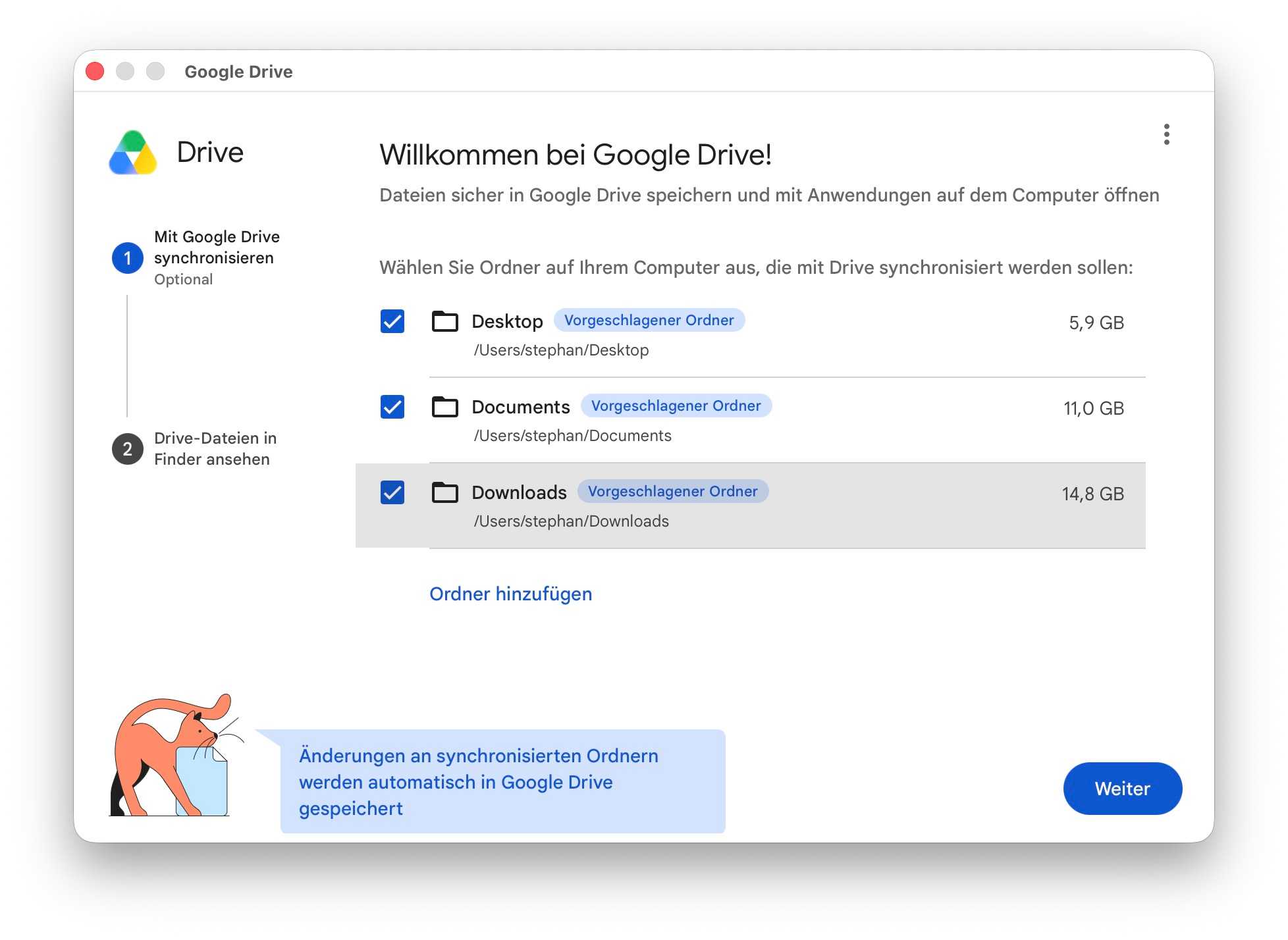
Schon für 24 Euro pro Jahr erhalten Sie bei Google Drive 100 GB Online-Speicherplatz, für 60 Euro gibt es 400 GB. Über ein simples Mac-Programm können Sie dann einzelne Ordner auswählen, die laufend mit der Online-Version bei Google Drive synchronisiert werden. Nach meiner Erfahrung hat Google Drive einen weiteren Vorteil: Die Performance ist ausgezeichnet. Bei iCloud und Google werden die Daten allerdings nur synchronisiert, gelöschte Daten werden automatisch entfernt. Benötigen Sie ein echtes Online-Backup mit Versionsverwaltung, müssen Sie zu den teureren Anbietern Backblaze, Acronis und Arq greifen.
Smart Backup
Um Platz zu schaffen, löscht Time Machine regelmäßig alte Backup-Versionen – auch von der externen Festplatte. Um dies zu vermeiden, können Sie Ihre Daten mit einem anderen Backup-Programm archivieren, etwa auf einer externen Festplatte mit viel Speichervolumen.
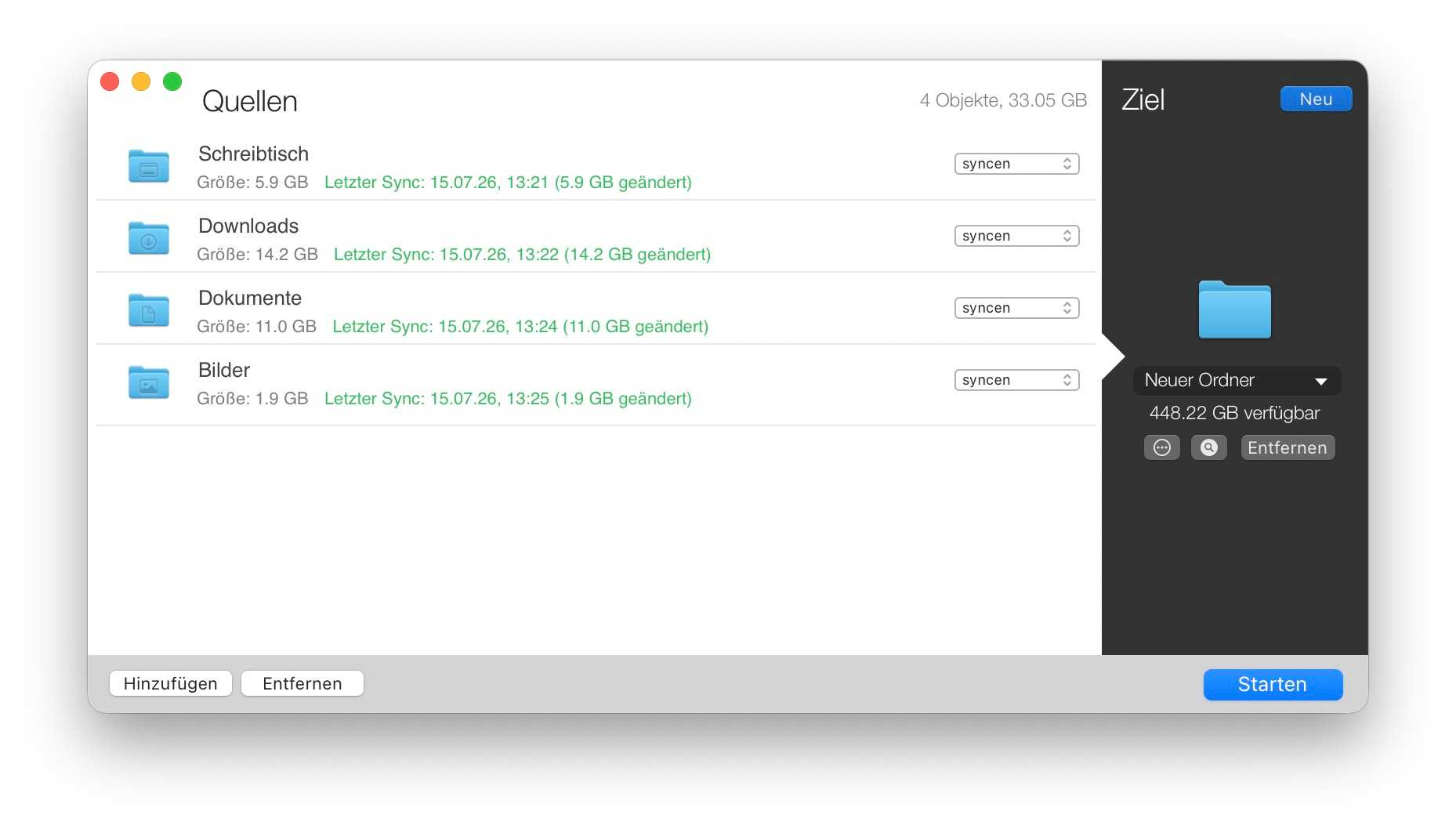
Dafür eignet sich auch das spendenfinanzierte Smart Backup von Solesignal. Bei Datensicherungen archiviert es auf Wunsch Ihre gelöschten und veränderten Daten (oder nur eines von beiden). Auf Wunsch werden dabei gelöschte und geänderte Dateien in Ordnern mit Zeitstempel abgelegt.
Interessant ist diese Software nicht zuletzt für Projekte im Bereich Audio- und Videobearbeitung. Sie können damit recht gut Ihre Arbeitsdaten sichern und archivieren. Datensicherungen erfolgen zeitgesteuert, auch per Kommandozeile ist das Tool nutzbar.
Die Freeware von Solesignal ist einfach zu bedienen und unterstützt nebenbei auch NAS und Netzvolumes. Weniger gut eignet sich die Software aber nach meinem Eindruck für das Sichern eines kompletten Macs. Über die Voreinstellungen bietet das Tool in der neuesten Version einige interessante Optionen. So kann man etwa Online-iCloud-Daten automatisch überspringen.
Vor allem mit Daten in Systemordnern hat das Tool Probleme, was für Fehlermeldungen und sehr lange Sicherungsvorgänge sorgen kann. Problemlos funktioniert aber das Sichern ausgewählter Nutzerordner.
Super Duper
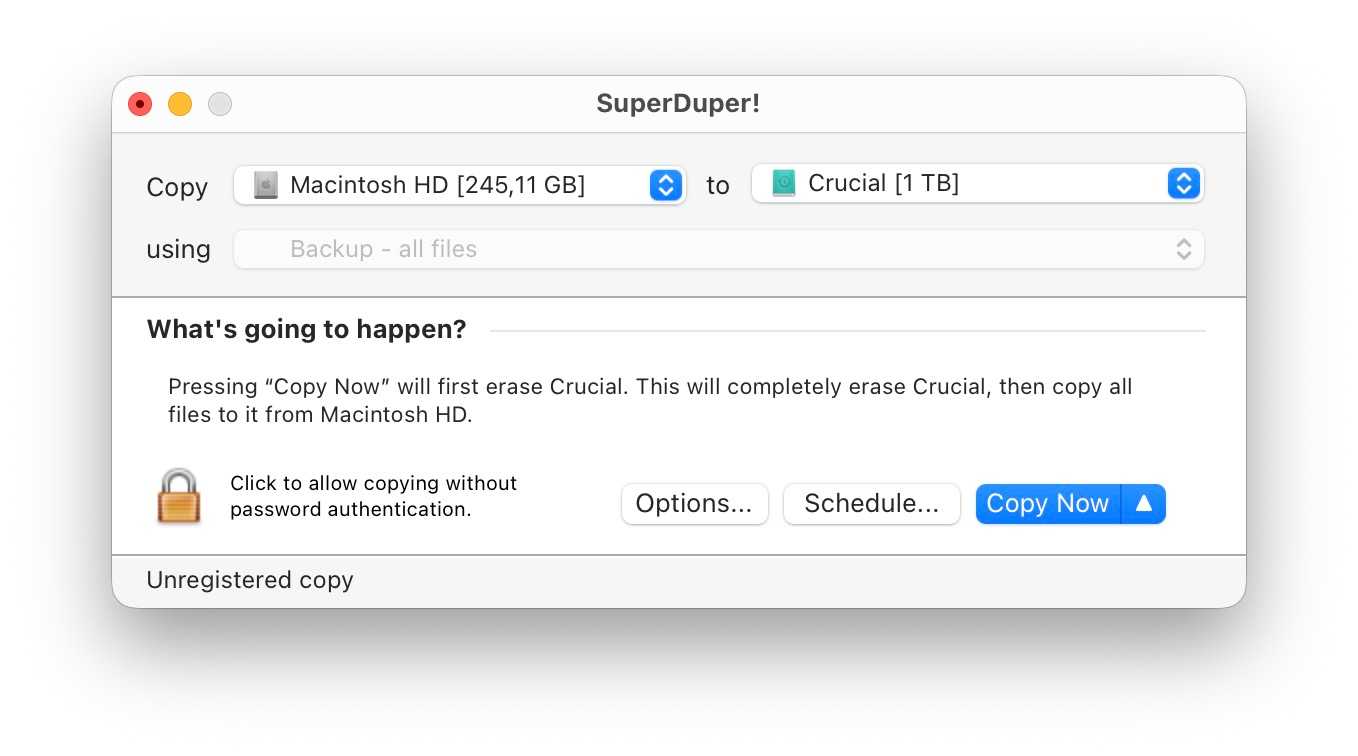
In einem Ratgeber zu Backupsoftware darf SuperDuper! nicht fehlen. Die 29,63 Euro teure Shareware hat sich in den letzten Jahrzehnten zwar optisch kaum verändert, ist aber noch immer sehr einfach bedienbar und wird sehr oft empfohlen.
Kostenlos ist immerhin ein manuelles Komplettbackup eines Macs möglich, ebenso die Wiederherstellung. Die Software erstellte früher sogar startfähige Kopien eines Macs und wurde dafür häufig empfohlen. Aus technischen Gründen ist dies aber – wie bei den anderen Tools – nicht mehr zeitgemäß.
Nach dem Kauf der Software können Sie weitere Backup-Methoden nutzen, etwa ein zeitgesteuertes Backup oder ein „Smart Update“. Bei dieser Methode werden nur geänderte Daten aktualisiert. Zusätzlich bietet die Software dann auch einige Skripte für besondere Aufträge. Nach meinem Eindruck ist dieses Tool aber mittlerweile doch etwas veraltet und die Konkurrenten bieten deutlich mehr.
Neben Time Machine gibt es einige gute Alternativen, die sich für manche Situationen besser eignen. An den Komfort von Apples Datensicherung reicht zwar keines der Tools heran, dafür bieten sie deutlich mehr Flexibilität – gerade für berufliche Anwender.
Seit ich macOS Tahoe auf meinem Macbook mit M3 Max installiert habe, läuft es nicht mehr rund. Ich spreche hier nicht von „Liquid Glass“, den Eckenradien der Fenster oder gar dem App-Panel. Seit fast einem Jahr funktioniert mein Macbook einfach nicht mehr so, wie ich es erwarte.
Es gibt zwar auch gute Tage, doch mein Mac kann trotzdem jederzeit einfrieren. Dabei reagiert mein Trackpad nicht mehr und ein sich drehender Strandball ersetzt meinen Cursor. Das dauert zwar nur wenige Sekunden, doch an den schlimmsten Tagen passiert es Dutzende Male pro Stunde und mein Trackpad reagiert nicht mehr, als wäre mein Macbook heruntergefahren. Jedes Mal dauert es nicht länger als ein paar Sekunden, doch es ist so nervig, dass es meine Produktivität erheblich beeinträchtigt.
Wie ich bereits geschrieben habe, wusste ich von Anfang an, worin das Problem bestand. Die Aktivitätsanzeige zeigte eine sprunghafte CPU-Belastung durch die Aufgabe „Core Spotlight“, gefolgt von einer vergleichbaren Belastung des dazugehörigen Kernels. Ein Neustart half vorübergehend, doch das Problem trat schon bald wieder auf.
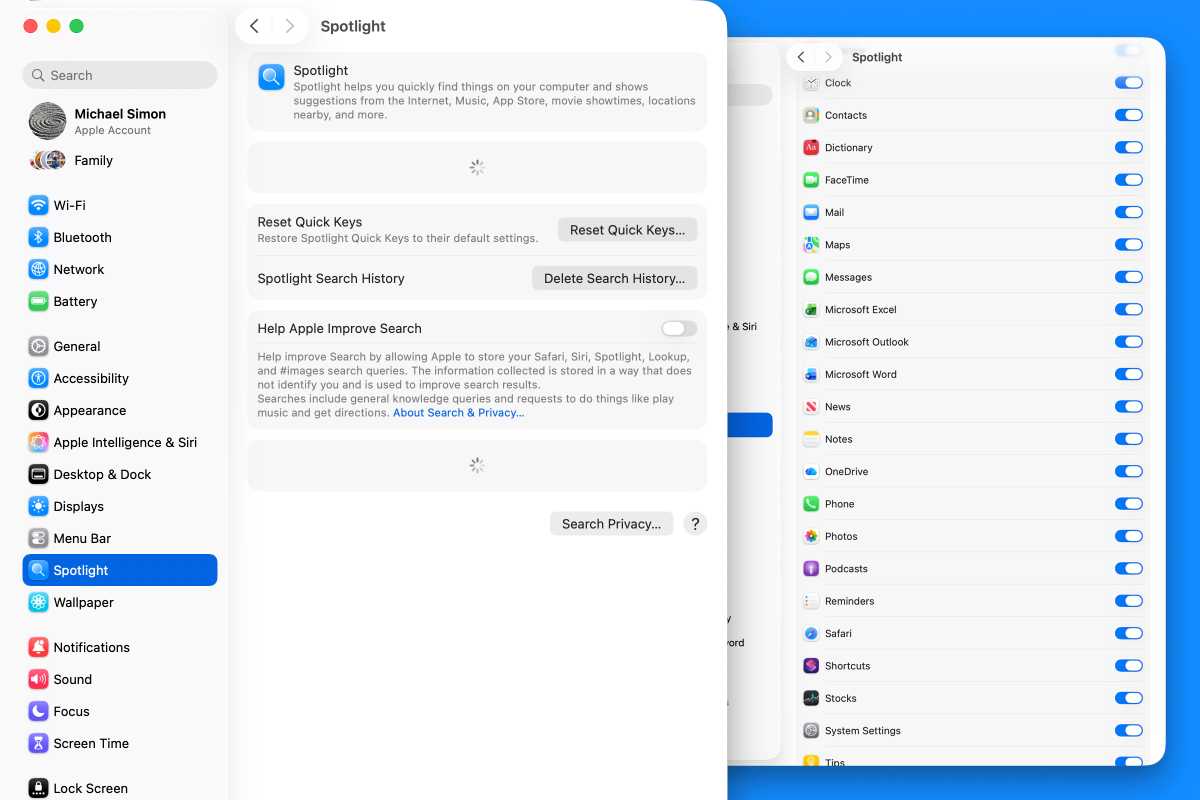
Zunächst dachte ich, es hänge mit der Indizierung zusammen, doch das Problem dauerte viel zu lange an. Dann wartete ich auf Updates – 26.1, 26.2 und so weiter –, doch keines behob das Problem für länger als ein paar Tage. Wie ich bereits in meinem letzten Artikel zu diesem Thema schrieb, half das Deaktivieren einiger Schaltflächen in den Spotlight-Einstellungen eine Zeit lang, doch nach etwa einem Monat traten die Probleme wieder auf. Und da es keine Möglichkeit gibt, Spotlight vollständig zu deaktivieren, ohne sich an das Terminal heranzuwagen – was mir Angst machte –, saß ich mit einem Mac fest, der nicht richtig funktionierte.
Alles muss raus
In den vergangenen Monaten hat sich das Problem zunehmend verschlimmert, aus welchem Grund auch immer. Es könnte mit der Installation von macOS 26.5 zusammenhängen, möglicherweise aber auch mit der Apple-Creator-Studio-Version von Pages, die ihre eigenen Probleme aufwies.
macOS erstellt regelmäßig einen Spotlight-Index, über den es auf Dateien zugreift, wenn Sie mit Spotlight suchen. Das Problem mit Pages ließ sich offenbar darauf zurückführen, dass es iCloud als Speicherlaufwerk nutzt. (Mit dieser Vermutung stehe ich auch nicht allein da; einer meiner Kollegen bei Macworld hatte ein ähnliches Problem mit Spotlight und Pages.)
Meine Probleme wurden so schwerwiegend, dass sich die Spotlight-Einstellungen nicht einmal mehr öffnen ließen.
Foundry
Da es keine Möglichkeit gibt, Spotlight vollständig zu deaktivieren – im Gegensatz zu Siri oder Apple Intelligence –, habe ich ein bisschen rumprobiert. Zunächst habe ich den Schalter für Pages in den Spotlight-Einstellungen deaktiviert. Das hat nichts gebracht. Dann habe ich versucht, die Pages-App und ihren Dokumentenordner zur Option „Datenschutz der Suchfunktion“ in den Spotlight-Einstellungen hinzuzufügen. Ohne Erfolg.
In einem Anfall von Verzweiflung fügte ich sogar mein gesamtes Macbook-Laufwerk zur „Datenschutz der Suchfunktion“-Einstellung hinzu, um die gesamte Suche zu unterbinden, und zwang Spotlight erneut, seinen Index neu aufzubauen. Auch das funktionierte nicht. Ebenso wenig wie die Versionen macOS 25.5.1 oder 25.5.2.
Ich steckte also fest. Mein Plan war, abzuwarten, bis macOS 26.6 erschien, und zu prüfen, ob das Abhilfe schaffen würde (obwohl ich nach fünf vorherigen Updates wenig Hoffnung darauf hatte), und vielleicht die öffentliche Beta-Version von macOS 27 auszuprobieren. Andernfalls würde ich mich einfach mit den Hängern abfinden und hoffen, dass sie sich nicht weiter verschlimmerten.
Leider wurde es schlimmer. Eines Tages kam es so weit, dass mein Macbook jedes Mal, wenn ich auf ein neues Fenster klickte, für ein oder zwei Sekunden ins Stocken geriet, bevor ich etwas tun konnte. Ich war bereit, das gesamte System zu löschen und von vorn zu beginnen – doch zunächst beschloss ich, ein wenig in meinem „Library“-Ordner zu stöbern.
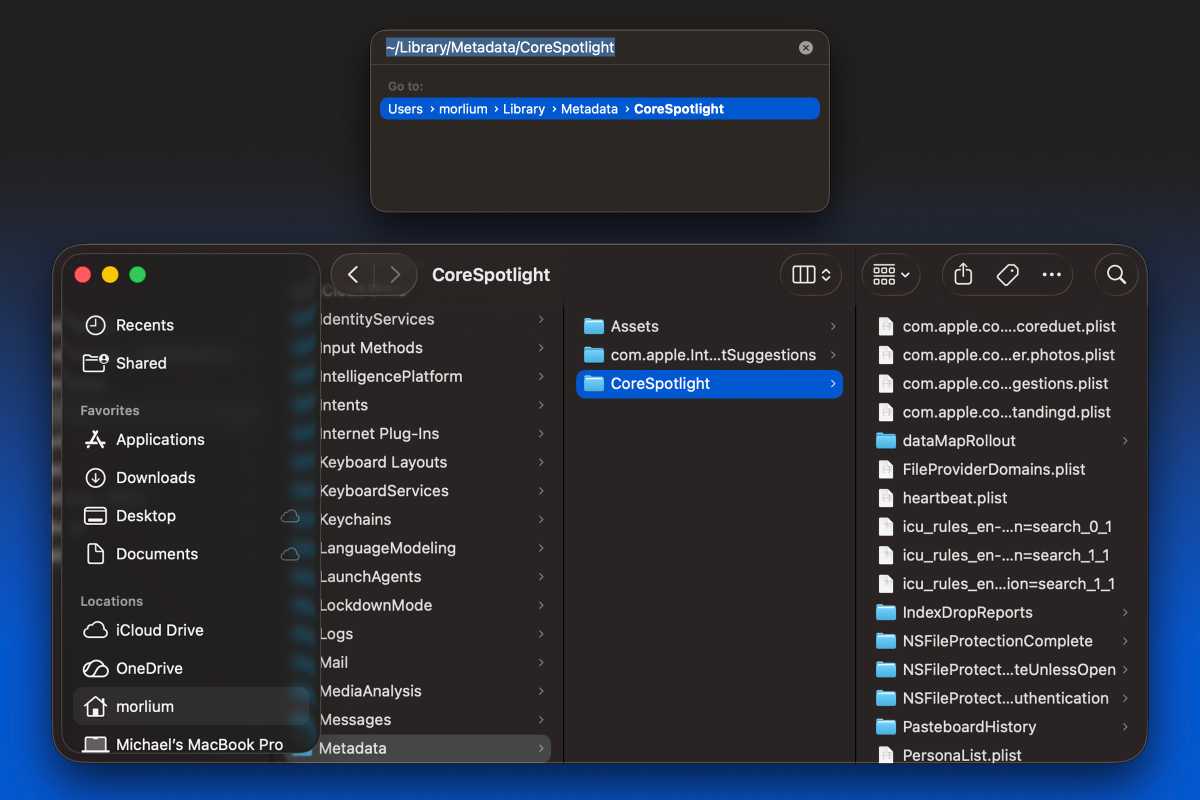
Ich weiß nicht, warum mir das nicht schon früher in den Sinn gekommen ist. Grundsätzlich sind mit jeder App und jeder Funktion Dateien verknüpft, auf die man zugreifen kann, wenn man den richtigen Ordner findet. Ich konnte nichts Offensichtliches finden, doch eine kurze Google-Suche verriet mir, wo sie sich versteckten: ~/Library/Metadata/CoreSpotlight. (Um diesen Ordner zu finden, klicken Sie auf Ihren Desktop, dann oben auf das Menü „Gehe zu“, scrollen Sie nach unten zu „Gehe zu Ordner“, fügen Sie den gesamten Pfad ein und drücken Sie die Return-Taste.)
Foundry
Sie werden eine Vielzahl von Dateien und Ordnern sehen. Mein Ordner enthielt fast 10.000 Dateien und über 2 GB an Daten. Ich hatte keine Ahnung, wo das Problem lag oder wo ich anfangen sollte, und es war mir auch egal, ob Spotlight dadurch nicht mehr funktionierte, also zog ich den gesamten Ordner in den Papierkorb und wählte „Sofort löschen“.
Auch zwei Wochen später gab es auf meinem Macbook keinen einzigen Absturz, keine Verzögerung und kein Ruckeln mehr. Ich habe sogar alle Spotlight-Schalter wieder auf „Grün“ gestellt und habe immer noch keine Probleme festgestellt. Zum ersten Mal seit der Installation von Tahoe kann ich es endlich nutzen, ohne Angst vor einem Absturz zu haben – gerade rechtzeitig für macOS 27. Ich hoffe, dass Golden Gate wesentlich reibungsloser verläuft.
Das Sicherheitsforschungsunternehmen Group-IB hat eine neue Mac-Malware entdeckt, die es „ClickLock Stealer“ getauft hat. Im Rahmen der Installation von ClickLock Stealer sperrt das Installationsprogramm Ihren Mac im Wesentlichen so lange, bis ein Anmeldekennwort in einem dauerhaft angezeigten Fenster eingegeben wird.
Sobald ein Passwort eingegeben wurde, wird die Malware installiert und erfasst heimlich Daten: Browser-Anmeldedaten, Krypto-Wallet-Erweiterungen, Desktop-Wallet-Dateien, Daten aus Passwortmanagern und vieles mehr.
Die Nutzer werden von Angreifern über ein gefälschtes Cloudflare-CAPTCHA ins Visier genommen, das sie dazu verleitet, einen Befehl in das Terminal von macOS zu kopieren und einzufügen. Sobald die Installation ausgelöst wird, werden Malware-Komponenten auf dem Mac installiert, während ein gefälschtes Cloudflare-Fortschrittsfenster angezeigt wird.
Versucht ein Nutzer jedoch, die laufende Installation abzubrechen, beendet die Malware laut Group-IB „alle sichtbaren Anwendungen alle 210 Millisekunden und lässt nur einen Passwortdialog auf dem Bildschirm stehen, bis der Nutzer gezwungen ist, den Anweisungen zu folgen“.
Dem Bericht zufolge befinden sich die meisten betroffenen Nutzer in Italien, den USA, Jordanien und Großbritannien. „Die geografische Verteilung passt zu einer finanziell motivierten Kampagne, die auf Nutzer in Regionen mit hohem Einkommen abzielt, in denen sowohl die Verbreitung von Kryptowährungen als auch der Marktanteil von macOS hoch sind“, so Group-IB.
So schützen Sie sich vor Malware
Der einfachste Weg, sich vor Malware zu schützen, besteht darin, das Herunterladen von Software von unbekannten Download-Seiten zu vermeiden. Öffnen Sie niemals Links in E-Mails oder SMS, die Sie von unbekannten und unerwarteten Absendern erhalten.
Wenn Sie eine Nachricht erhalten, die so aussieht, als stamme sie von einem Unternehmen, mit dem Sie geschäftlich zu tun haben, überprüfen Sie die E-Mail-Adresse des Absenders und sehen Sie sich die URL genau an. Wenn Sie einen Link oder eine Schaltfläche sehen, können Sie mit der Ctrl-Taste darauf klicken, „Link-Adresse kopieren“ auswählen und diese dann in einen Texteditor einfügen, um die tatsächliche URL dort zu überprüfen.
Apple hat die Software im Mac App Store geprüft, und dies ist der sicherste Weg, um Apps zu beziehen. Wenn Sie den Mac App Store nicht nutzen möchten, kaufen Sie Software direkt beim Entwickler über dessen Website. Wenn Sie darauf bestehen, geknackte Software zu verwenden, gehen Sie stets das Risiko ein, sich mit Malware zu infizieren.
Apple has released a new update to XProtect, its built-in malware protection tool, for all macOS versions.
This update bumps XProtect to version 5351 (from 5347) — the first broad release since early June — and adds fresh detection rules for several threats, including the Boatload stealer family and new osascript-based malware.
As usual, Apple provides no public details on the specific threats addressed. All users should check that the update has installed.
This version adds six new Yara rules for MACOS.ANGRYORB.OX, MACOS.BOATLOAD.STCRST, MACOS.BOATLOAD.PRIN, MACOS.BOATLOAD.PEME, MACOS.VSHELL.DITA and MACOS.VSHELL.DR, amends rules for MACOS.MISOMAGIC.PA, and tidies spacing for those for MACOS.SOMA.STTX. From the rules for Boatload, that would appear to be a stealer.
Osascript rules in XPScripts.yr gain no less than 14 new rules, and amend those for MACOS.OSASCRIPT.TIPA, MACOS.OSASCRIPT.SYPR, MACOS.OSASCRIPT.TADE and MACOS.OSASCRIPT.REOB.
You can check whether this update has been installed by opening System Information via About This Mac, and selecting the Installations item under Software.
MacDailyNews Note: More info via the full article here.
Please help support MacDailyNews — and enjoy subscriber-only articles, comments, chat, and more — by subscribing to our Substack: macdailynews.substack.com. Thank you!
Apple has opened the public beta program for MacOS 27 Golden Gate to all curious Mac users. While betas are typically best reserved for advanced users due to being buggier and less stable than final builds, the public beta program offers an opportunity for users to experience beta development and upcoming features, ahead of the ... Read More
Some Mac users may encounter an unusual situation where a “Keyboard Setup Assistant” application opens at random on their Mac, even if they already connected and setup a keyboard to use with their computer. The Keyboard Setup Assistant might pop up completely randomly, when the computer is woken from sleep, when the computer is freshly ... Read More
The third beta version of MacOS Golden Gate 27 has been released to users enrolled in the developer beta testing program for Apple system software. MacOS 27 beta 3 carries build 26A5378j, and is available to download now through Software Update, a package installer, or IPSW. MacOS Golden Gate 27 has an emphasis on improving ... Read More
Some Mac Terminal app users may find that their zsh prompt and Mac host name at the command line randomly sets itself to “@unknown”, or some variation of that. Opening the Terminal, you might find your prompt is something like “@unknown92844982″, @unknown184Afb84.home”, @UNKNOWN, or some variation of “@unknown” with a bunch of alphanumeric characters on ... Read More
The public beta of macOS 27 Golden Gate is out today, and I’m sure many of you are wondering whether to take the plunge and give it a try in advance of its official fall release. That’s the question this preview is here to help answer. It’s not my final take on Golden Gate by any means; after all, I’ve only been using it for about a month, and there will be several more turns in the beta cycle between now and the public release. However, I’ve used Golden Gate long enough to help you make an informed decision about whether or not to install the public beta now.
Of course, it’s impossible for me to account for everyone’s unique Mac setups when considering Golden Gate’s stability, but it’s worth reiterating what I’ve said in past previews: modern Apple betas have been consistently stable. That’s to say, the risks of using the public beta are modest. It’s been years since I’ve had a critical app fail or lost data. I never go into beta season without a backup plan, though. If something goes terribly wrong, I have backups, backups of those backups, and alternate Macs I can switch to in the event of a disaster. I don’t expect to have to go to Plan B, but if you’re going to jump on the Beta Bus, you should have a Plan B, too.
Okay, you’ve been warned. Let’s get to the fun part.
Every year’s macOS update is a little different, but Golden Gate is more different than most. Instead of focusing on tentpole features and apps (with the exception of a new Siri app), macOS 27’s updates fall into three broad categories:
refinements to Apple’s Liquid Glass design language,
hundreds of system-level changes intended to improve your Mac’s performance, and
Apple Intelligence, which includes the new Siri app as well as many other AI additions to existing system apps.
It’s been a while since the “Snow Leopard Moment.”
With so many past macOS updates focusing on system apps, it’s refreshing to see Apple take a more holistic system-level approach, which harkens back to how most people remember OS X Snow Leopard. In fact, during WWDC briefings, Apple representatives likened the Golden Gate update to Snow Leopard before anyone in the room even asked about it.
Source: Apple.
Snow Leopard is remembered as a release that focused on performance over features. The reality is that the update also introduced its fair share of new features, but many were less splashy from a user-facing standpoint. They were under-the-hood updates that made the Mac work better without users having to think about it much. In that sense, Golden Gate has a lot in common with Snow Leopard. Other than the brand new Siri app, you probably won’t notice that much is different when you first launch the new version. But over time, the changes will reveal themselves, adding up to a whole that – with few exceptions – is greater than the parts.
So let’s take a closer look at how Liquid Glass has evolved, the most significant system changes, and what it’s like to use Siri and other Apple Intelligence updates in Golden Gate’s public beta.
Design
Windows stand out from each other more, and the sidebar runs edge to edge in Golden Gate.
Last year’s introduction of the Liquid Glass design language was divisive. I rather like it, and others don’t, but I expect the overwhelming majority of Mac users don’t have a strong opinion either way.
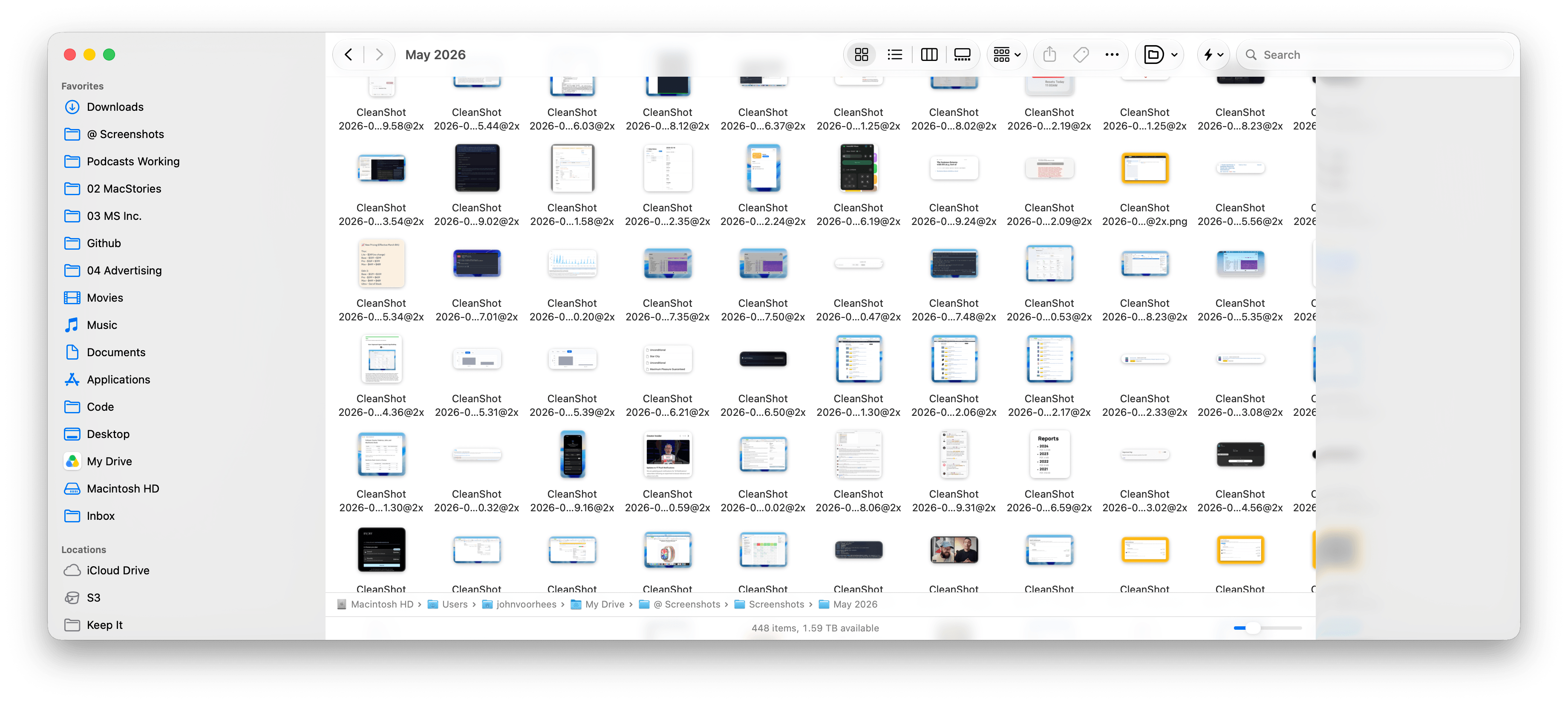
That said, I came away from macOS Tahoe feeling like its Liquid Glass implementation was unfinished, or at least unevenly applied, because it varied from app to app and even within apps. Examples included different transparency treatments within apps like Finder:
I use [Finder] with the tab bar visible most of the time, whether I’m using tabs or not. I also almost always use a list view in Finder. What I discovered when I turned off the tab bar and switched to an icon grid view was that the Finder toolbar and buttons became far more transparent. Dark file icons are more noticeable beneath the toolbar, and text becomes more of a distraction.
That sort of inconsistency has been fixed.
Finder in macOS Tahoe.
Finder in macOS Golden Gate. Even with Liquid Glass’ transparency turned on as far as it can go, toolbar buttons are more visible now.
Another big inconsistency was how toolbars were handled from app to app. In some apps, like Photos, they were very transparent, making buttons difficult to see against picture thumbnails in some cases. Other apps, like Reminders, used a more frosted treatment that prevented text and icons under toolbars from competing with the toolbar’s icons and text as a user scrolled their task lists. That, too, has changed for the better.
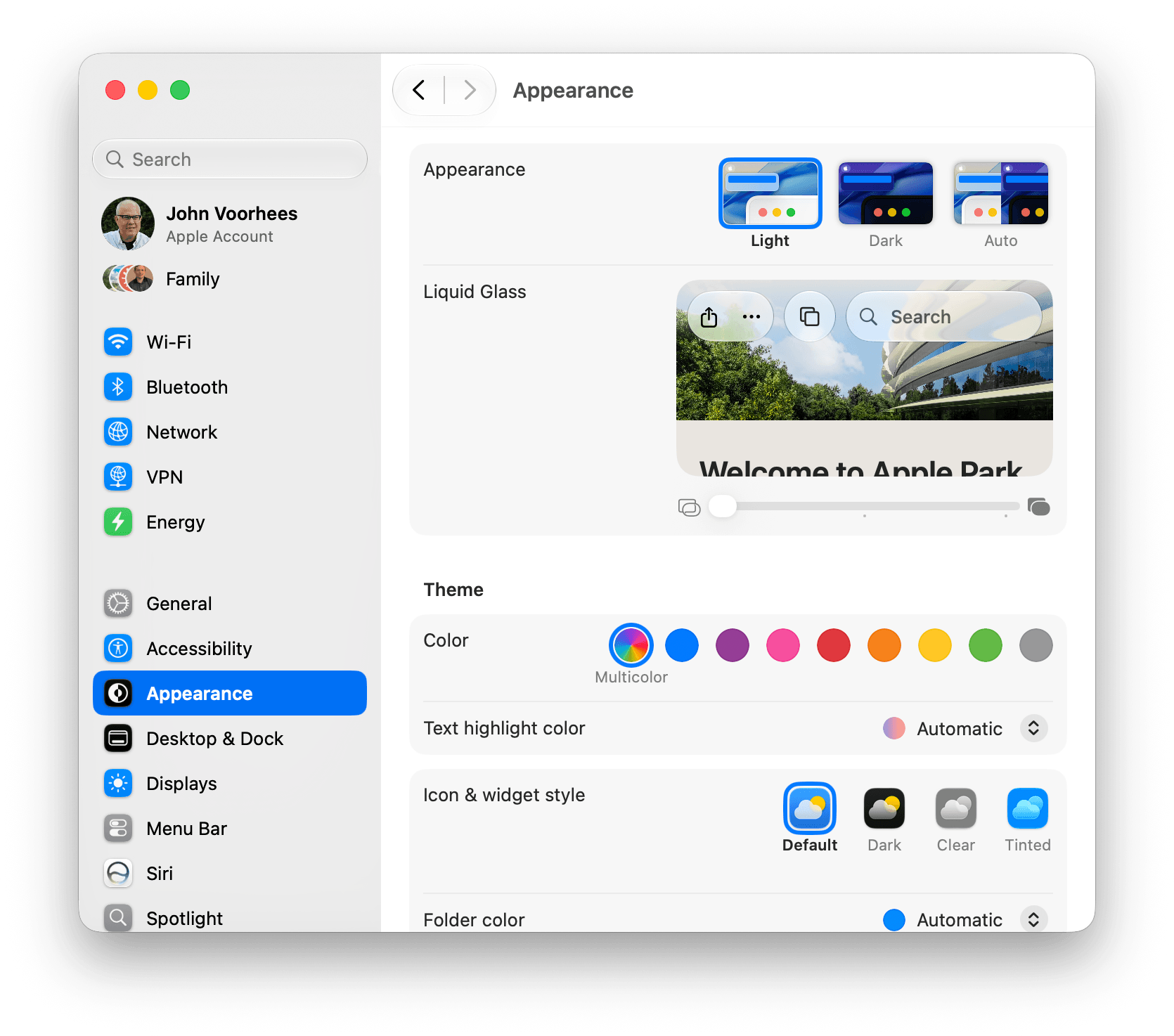
But perhaps the single biggest change to Liquid Glass is a new slider in the Appearance section of System Settings that lets you dial in the intensity of the transparency. By default, the slider is set directly in the middle. Moving the slider to the left makes buttons and other elements more transparent, while moving it to the right reduces transparency in favor of a frosted look.
Behold, the transparency slider.
The slider is a welcome change that lets users decide how transparent UI elements are. It’s the right choice when some people love Liquid Glass, some can’t stand it, and most don’t care. The default setting works well for those who don’t care and will never think to look for the transparency slider, while those who do care can dial in the look they prefer. Me? I’m a full transparency guy, at least for now, so you’ll see a lot of that here and in my fall review.
Window sidebars have been changed in a big way, too. In Tahoe, they resembled a glass sheet sitting on top of the window. I liked the look, but if you had overlapping windows, it was sometimes possible to mistake a sidebar for a separate window, which could be confusing. With Golden Gate, sidebars extend to the edges of their windows so they look as though they’re built into the windows instead of sitting on top of them.
Apple also reversed course on another controversial Tahoe change: icons next to menu items. I use keyboard shortcuts so much that I barely noticed the icons next to every single menu item. Now, however, they’re once again used sparingly.
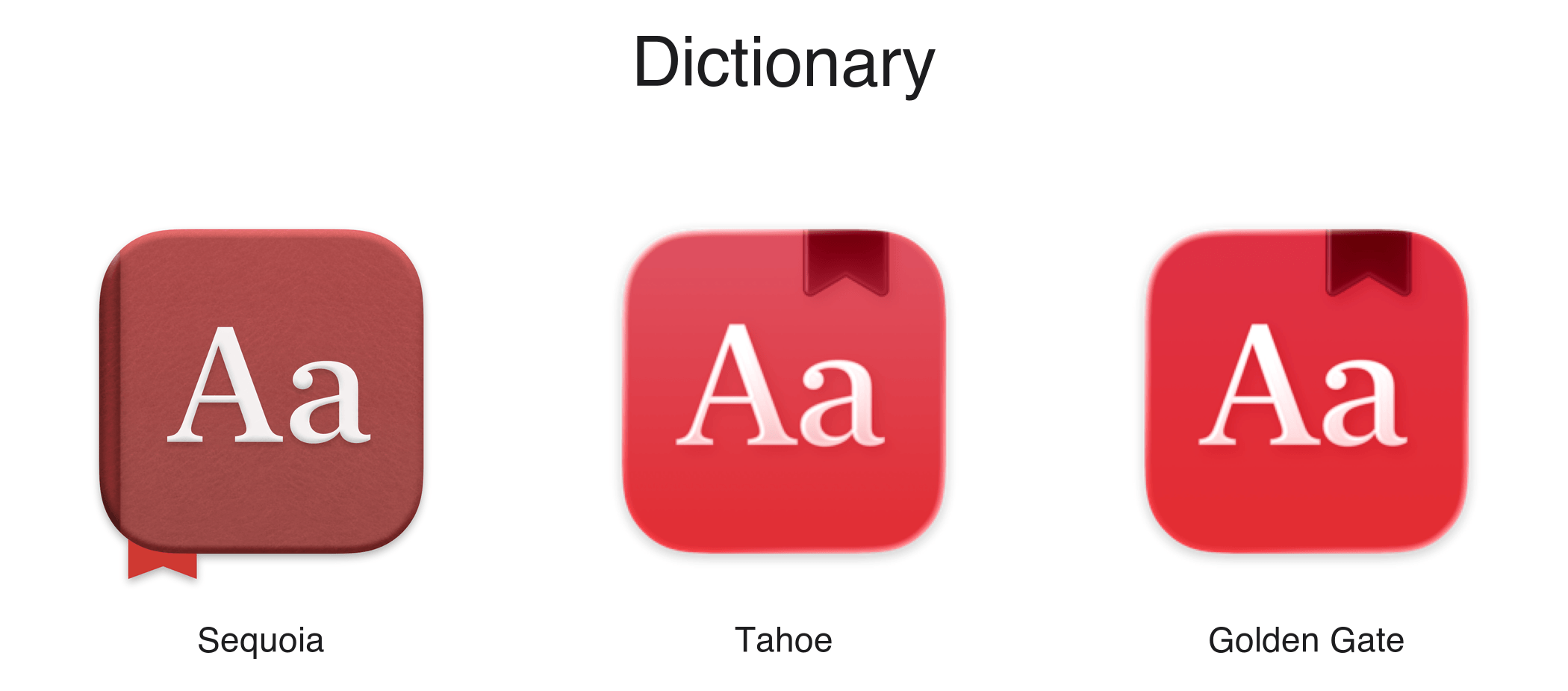
The evolution of the Dictionary icon.
Mac app icons have been tweaked as well. Tahoe saw icons confined to the borders of a squircle, which is still a hotly debated topic. That hasn’t changed in Golden Gate. Instead, the glass effect that subtly distorted icon images has been dialed back, resulting in crisper looking icons.
There are other design changes, like deeper shadows to help distinguish windows from each other and more uniformly shaped window corners, that I’ll cover in the fall, but my early impressions of the changes have been positive. Everything feels more considered and consistent. Rather than feeling unfinished as it did in Tahoe, Liquid Glass now feels properly embedded into the fabric of the Mac.
System Changes
Nowhere is the Snow Leopard of it all more apparent than in the hundreds of little changes made to improve the day-to-day use of your Mac. I’m not going to catalog them all here, but I’ve used Golden Gate on two different Macs at this point, and based on my experiences so far, the changes are meaningful.
I installed Golden Gate on a MacBook Pro that I have on loan from Apple as soon as I got back from WWDC in early June. That laptop has an M4 Max chip and 128GB of memory, so it was already fast. But even on that Mac, I noticed differences when I installed Golden Gate.
Spotlight is very fast, even on my M1 Max Mac Studio used for this animation.
Most apps launch faster, with fewer Dock bounces, which I appreciate, but the most noticeable performance improvement has been to Spotlight. I liked what Apple did with Spotlight in Tahoe a lot, but its responsiveness has been inconsistent. As a result, I switched back to Raycast not long before WWDC for launching apps, running shortcuts, and initiating other actions.
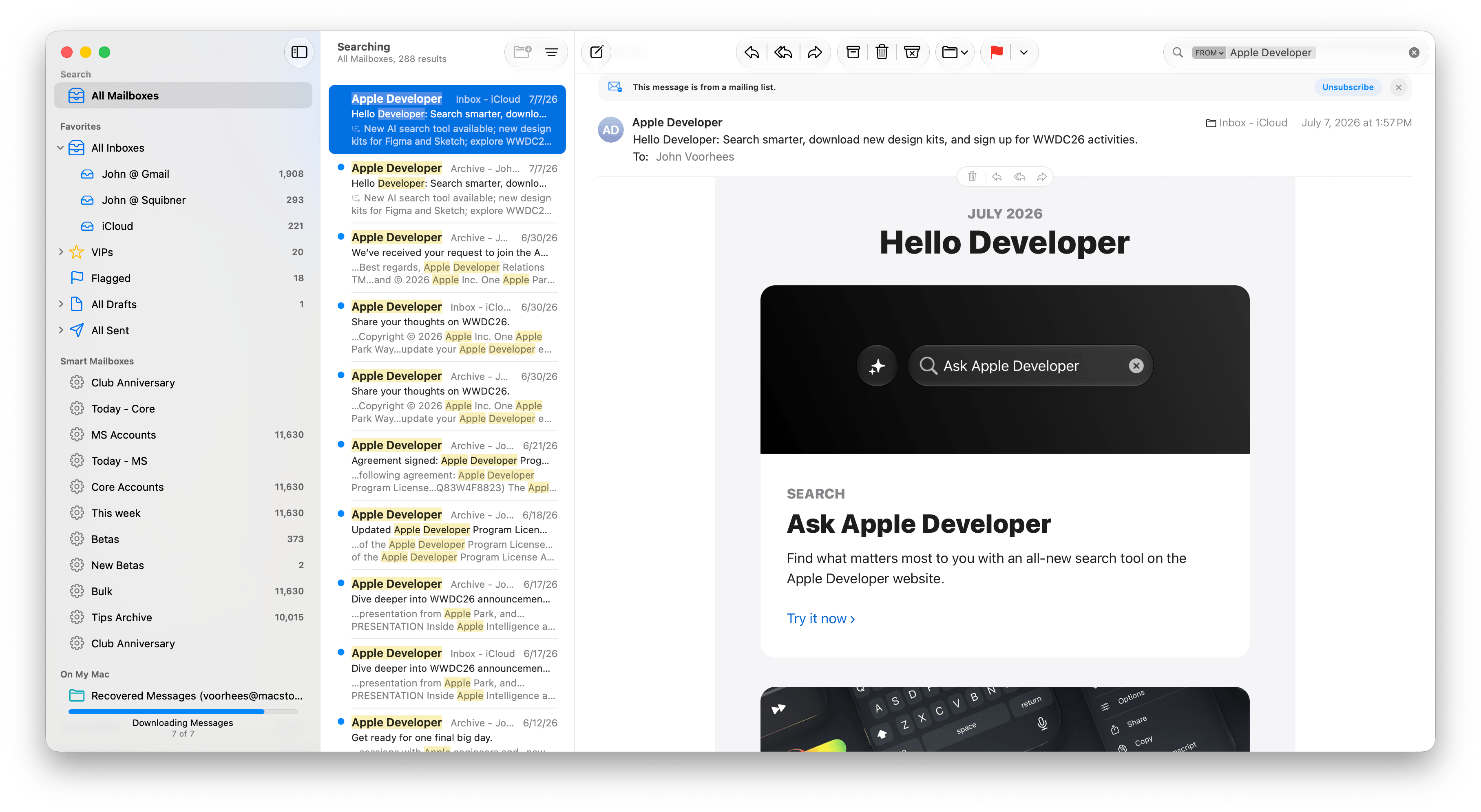
When I installed Golden Gate, I switched back to using Spotlight and was blown away by the difference. Of course, it remains to be seen whether the speed-up sticks long-term, but the early results have been impressive. Finding apps, files, folders, shortcuts, and clipboard items is lightning fast. Searching in Photos and Mail, which each got their own search tune-up, is very fast, too.
Search in Mail has been improved, too.
Plus, even though the MacBook Pro I’ve been using to test Golden Gate is already fast, it’s worth noting that I have roughly 3TB of data stored on it. That includes tens of thousands of photos, email messages, and texts, so even given the laptop’s speed, Spotlight’s performance is still impressive.
What’s been most impressive, though, is the difference Golden Gate has made to my M1 Max Mac Studio. It has a similar number of files and half the memory. Just before updating it to Golden Gate about a week ago, I was feeling the pain of Spotlight slowdowns. I was running macOS 26.5, and searching for an app in Spotlight often pulled up the iPhone version before the one installed on my Mac. Perhaps that’s related to the fact that my iPhone is running the iOS 27 beta, but even Mac-only apps would sometimes take five or six seconds to show up at the top of the list in Spotlight when I searched for them.
That’s completely changed with Golden Gate. I’ve used macOS 27 on my Mac Studio for a shorter period than the MacBook Pro, but the difference in speed has been a real eye-opener, making Spotlight searches nearly instant. It’s also worth noting that the initial indexing of my 3TB of data only took about a half of a work day to complete on the Mac Studio, which was faster than I expected, having watched my iPhone 17 Pro Max take days to index.
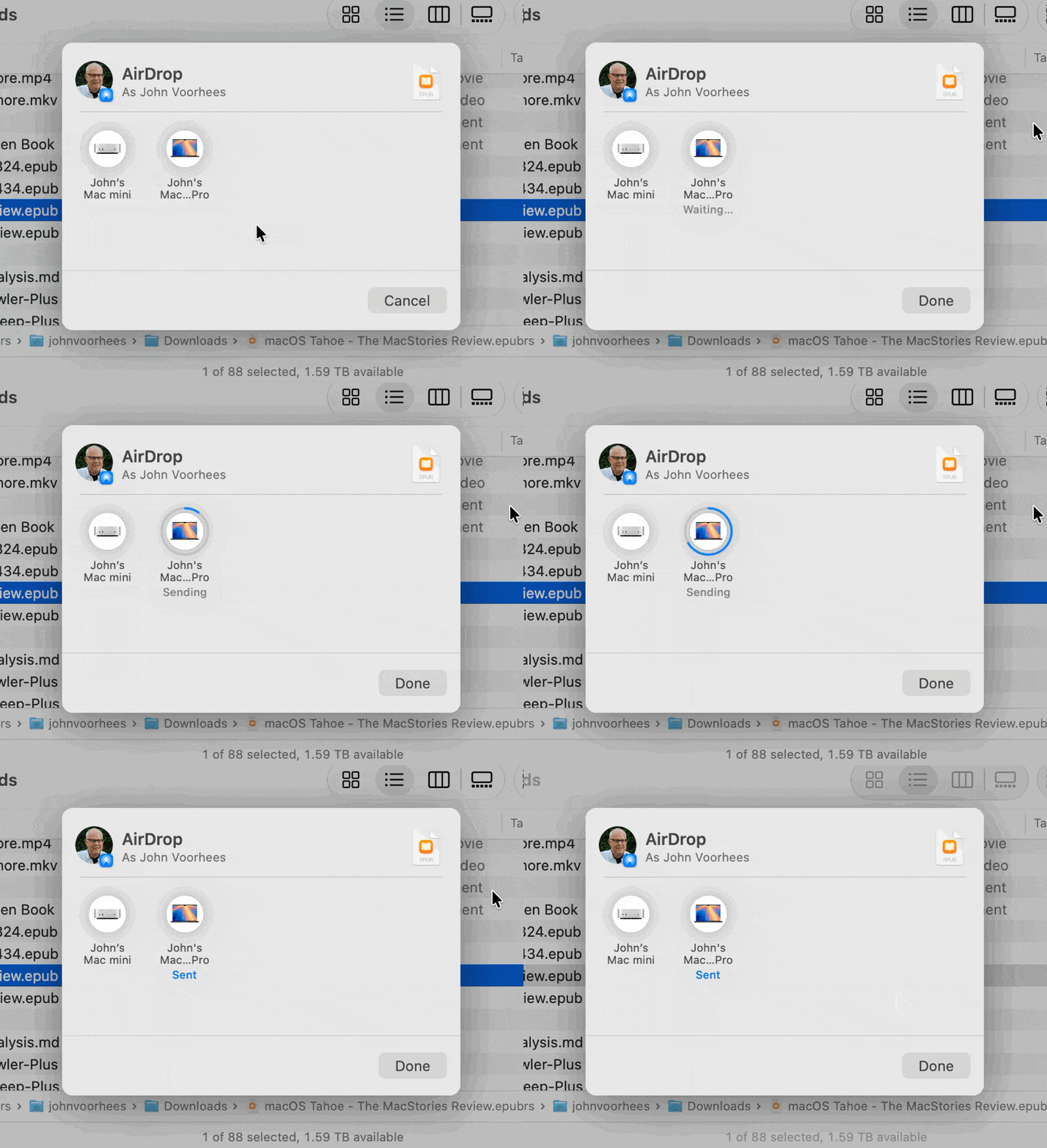
Sending a 47MB EPUB file from one Mac running Golden Gate to another.
Also worth noting is that AirDrop is much, much faster now, too. I move images and other files between my iPhone, iPad, and Macs with AirDrop dozens of times each week. It’s a deeply embedded part of my workflow. Before installing Golden Gate, I rarely sent multiple items via AirDrop simultaneously because it could be very slow or even fail completely. Now, however, I’m retraining myself to send multiple screenshots and other files all at once because AirDrop is so much faster than before.
Launching apps and sending screenshots more quickly aren’t sexy new features that come with fancy screenshots I can share with you, but these are meaningful changes just the same. It remains to be seen how the improvements will hold up over time, but they’ve made a great first impression, so I’m optimistic. Changes that reduce friction are the kind of updates that help keep me focused on what I’m doing and get more done, which I consider a big win.
Those are the big-ticket system changes to the Mac, but of course, there are many other system-level changes coming, like better window positioning consistency when you use multiple displays, HDR UI elements and faster refresh rates for displays that support those features, resizable windows in the iPhone Mirroring app, full-resolution images in Shared Albums in Photos, and enhancements to Notes, Maps, Podcasts, and Messages. I’ll have more details on all of them in my fall review.
Apple Intelligence and the Siri App
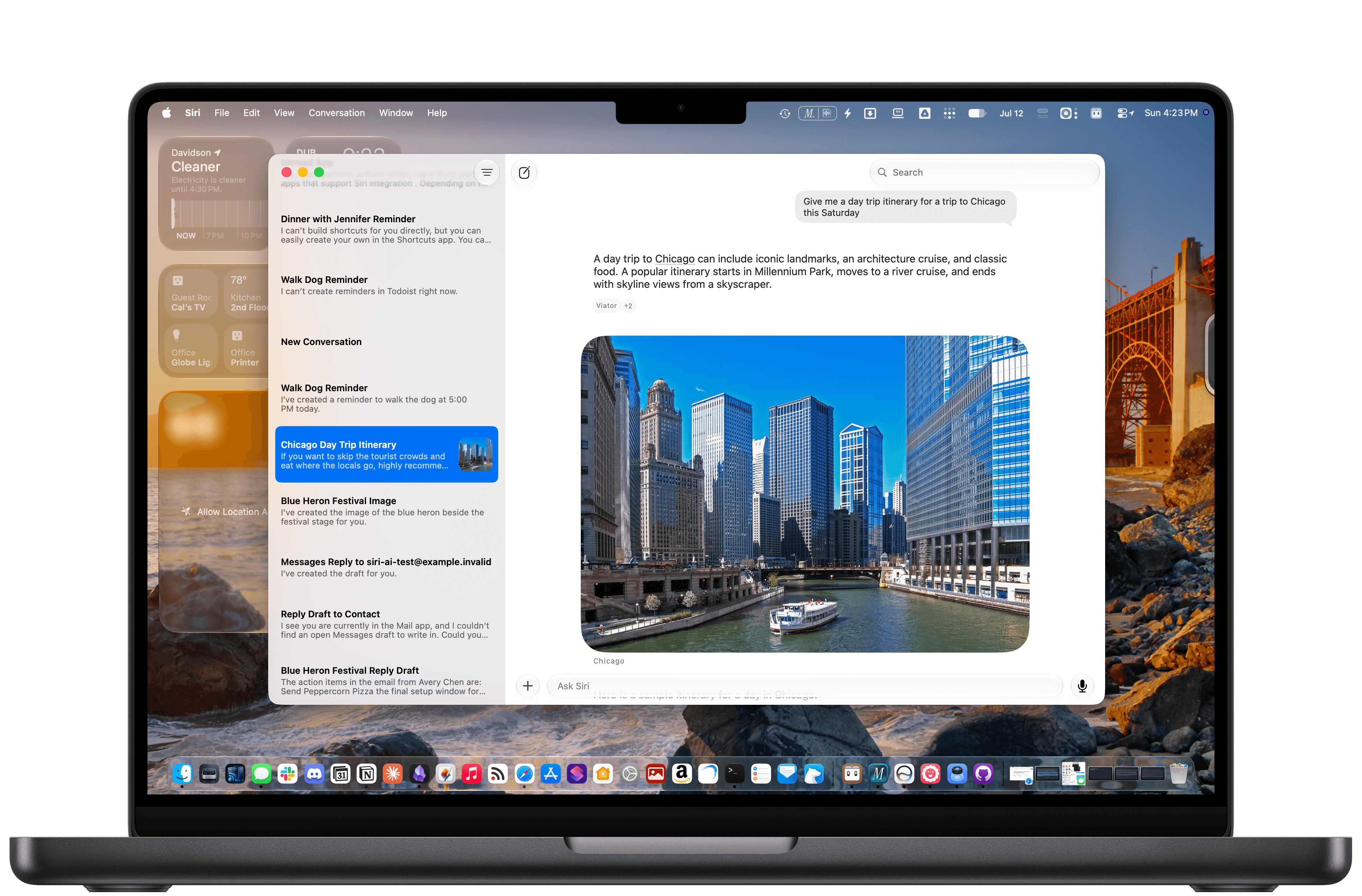
The new Siri app.
The headline Apple Intelligence feature this year is the new Siri app, a dedicated chatbot-style interface that benefits from Apple’s AI collaboration with Google. Before I get into Siri, though, it’s worth noting that there’s more to Apple’s AI story this year than just the digital assistant. In fact, Apple Intelligence features have been sprinkled throughout the system:
Finder uses AI to suggest file and folder names based on their content;
Safari tabs can be automatically organized by topic;
Weak passwords can be automatically updated in the Passwords app;
Messages spawns little buttons that let you pull information out of a chat and into apps like Reminders and Calendar;
Natural language descriptions can be used to create Calendar events; and
Photos includes new AI-driven features like Spatial Reframing, Extend for expanding the borders of a photo, and improvements to the Clean Up tool.
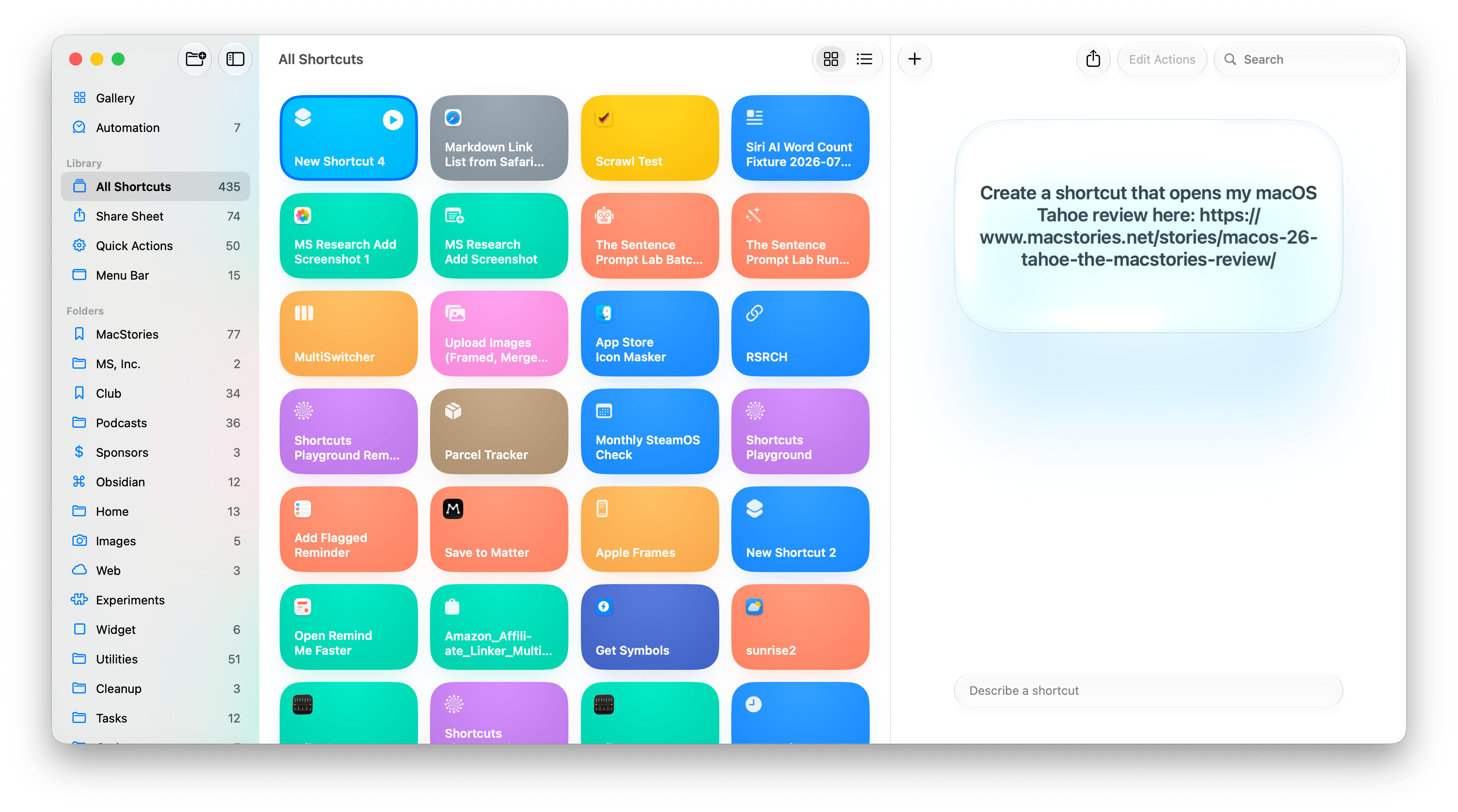
Building shortcuts with natural language.
Shortcuts has joined the fray, too, with the ability to build shortcuts simply by describing them. This is the sort of democratization of automation that I love. Building shortcuts has always been simpler than writing code, but it’s also had a steeper learning curve than most people were willing to deal with. You won’t be able to build a complex shortcut with natural language alone, but the reality is that even people who know how to make complex shortcuts use a lot of simple ones for day-to-day tasks, and for that, the new feature is fantastic.
I’m also a fan of the ability to build Safari extensions by describing them. I’ve made a couple, like one that generates a Markdown-formatted link list from selected tabs, and the process of building it was fast and effective.
I’ll have more to say about all of these features in the fall, but they’ve made good first impressions. In past macOS updates, some of the Apple Intelligence features have felt a little out of place and bolted on. I appreciate that these new features are woven more cleanly into their underlying apps. Maybe the era of self-consciously calling every feature AI is coming to an end and they’ll just be called features again. We’re probably not quite there yet, but one can hope.
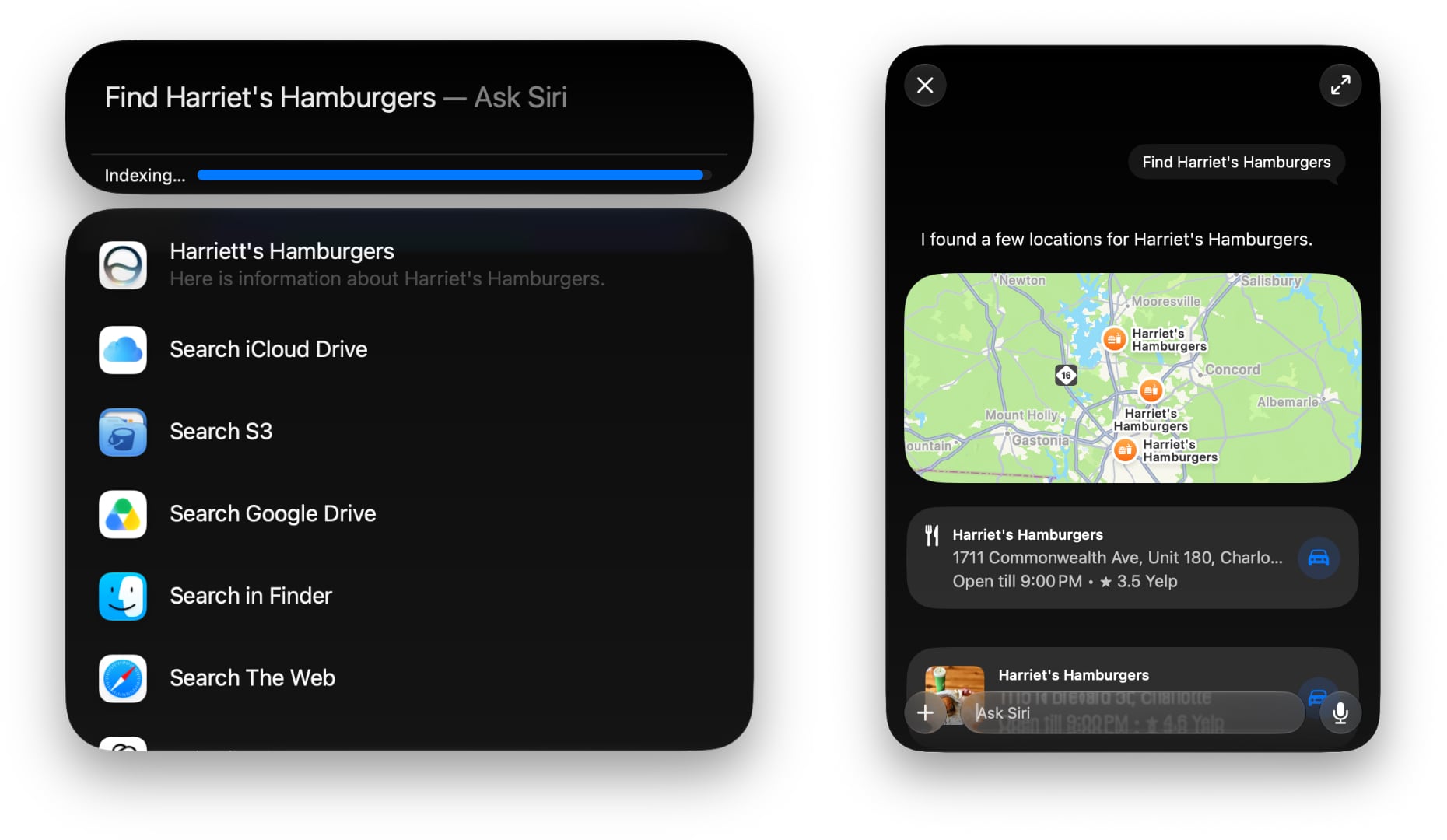
Using Siri AI from inside Spotlight.
As for Siri AI, which is surfaced in the new Siri app, Spotlight, context menus, and other locations, it’s worth keeping in mind that Apple has said it will launch later this year as a beta. The Siri AI features are also gated behind a waiting list, so don’t install the beta expecting to be able to use them right away, and even if you do get it, Siri AI is a beta of a beta.
As a result, Siri AI has more rough edges than other parts of Golden Gate. For example, it’s not uncommon for Siri requests to simply fail on one Mac but be correctly answered on another.
Other parts of Siri AI don’t work at all, like third-party app integrations since developers have to update their apps first. I can add tasks in Reminders, events in Calendar, and notes in Notes, but I haven’t had the chance to try a third-party Mac app that works with Siri AI yet. If you’re a developer working on Siri AI support, get in touch. I’ll be highlighting the best ones I try in the fall.
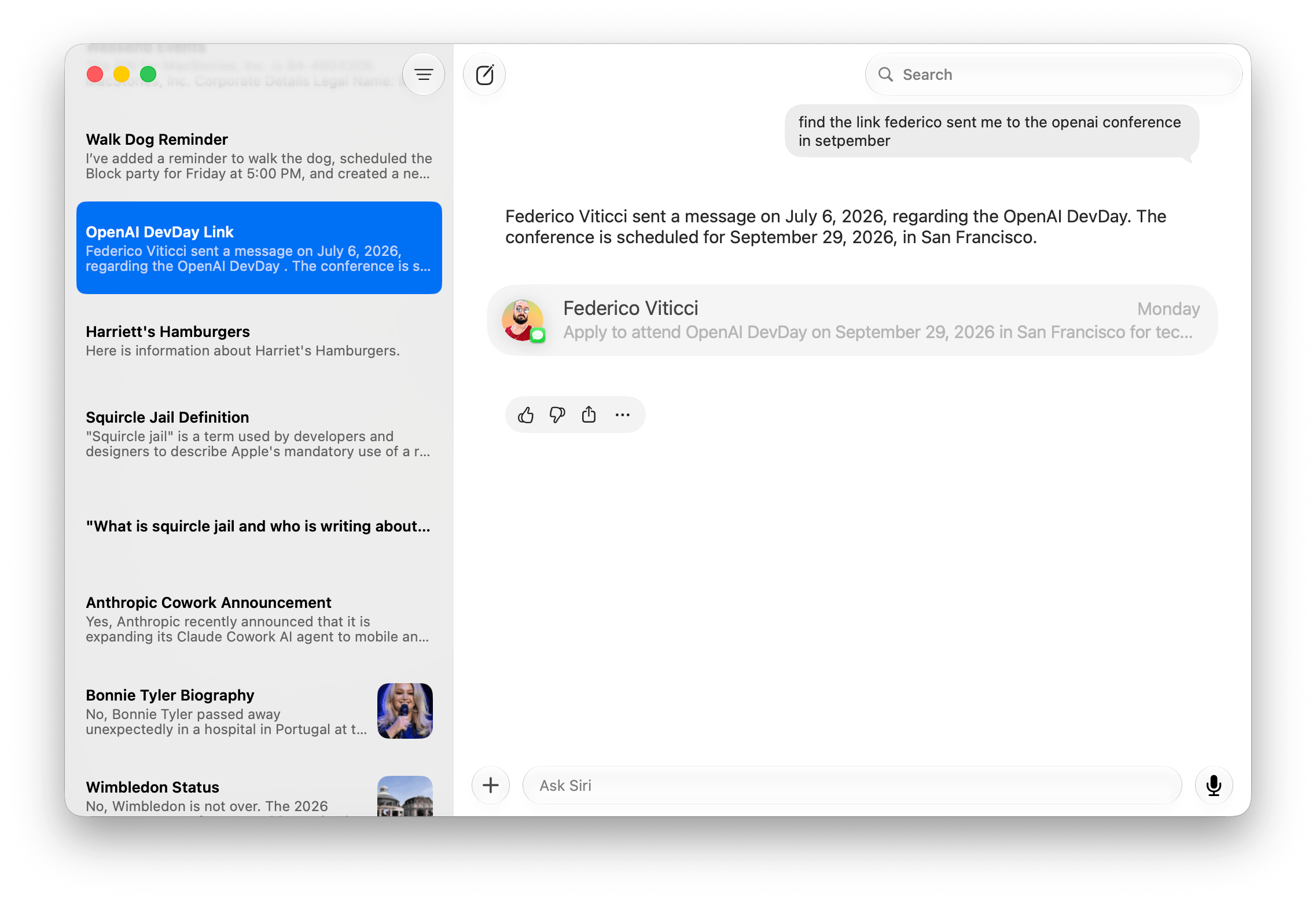
Siri is excellent for finding old texts in Messages, adding tasks to Reminders, and more.
Despite the current limitations, if you use chatbots as a replacement for Google Search, you’ll probably have a good experience with the new Siri app. That’s because even in these early betas, if you ask Siri something like, “Give me a day trip itinerary for a trip to Chicago this Saturday,” you’re likely to get good but pretty middle-of-the-road recommendations. From there, though, you can drill down with follow-up queries to get something more in line with your tastes. The results include source links you can follow, too. Given the ad-strewn mess that web search has become, using Siri for this sort of thing is a meaningfully better experience.
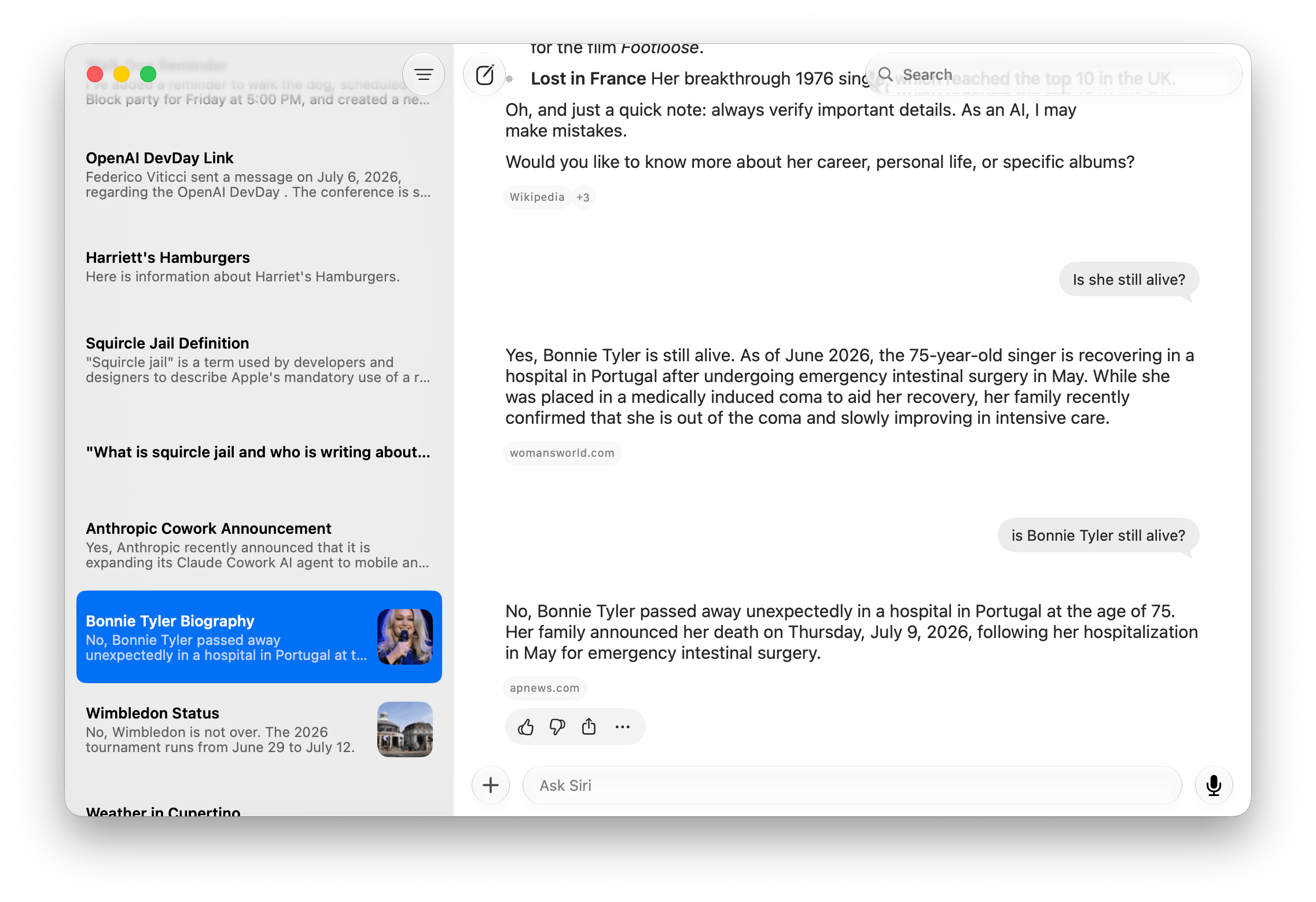
The one caveat on Siri’s world knowledge is that it’s roughly 2-3 weeks stale in some places. Ask Siri to give you the most recent article on any website, and it will be 2-3 weeks old. However, fetching current information instead of specific posts is more timely. When I asked whether Anthropic had made any announcements recently about Cowork, Siri correctly linked me to stories from two days prior.
Current events and sports show up quickly in Siri, but that’s not true for all web-based queries.
Likewise, facts like sports scores and celebrity deaths seem to get updated more quickly. I’m writing this on July 9, and I saw a headline in Apple News this morning that singer Bonnie Tyler passed away yesterday. I asked Siri if she was still alive and was told that she was “as of June.” I asked again a couple of hours later, and Siri answered that her death was announced on July 9 – the same day I asked.
Siri is also good at completing one or more actions as long as they fit within the defined set of App Intents schemas. “Remind me to walk the dog at 5:00 pm, add dinner with Jennifer at Mandalino’s to my calendar for Friday at 7:00 pm, and create a note that says ‘Hello World’” works reliably. In my early testing, Siri is also good at generating images comparable to what you’d get directly from Image Playground, creating and summarizing text, playing media like a requested podcast episode, and maintaining continuity when follow-up questions are asked.
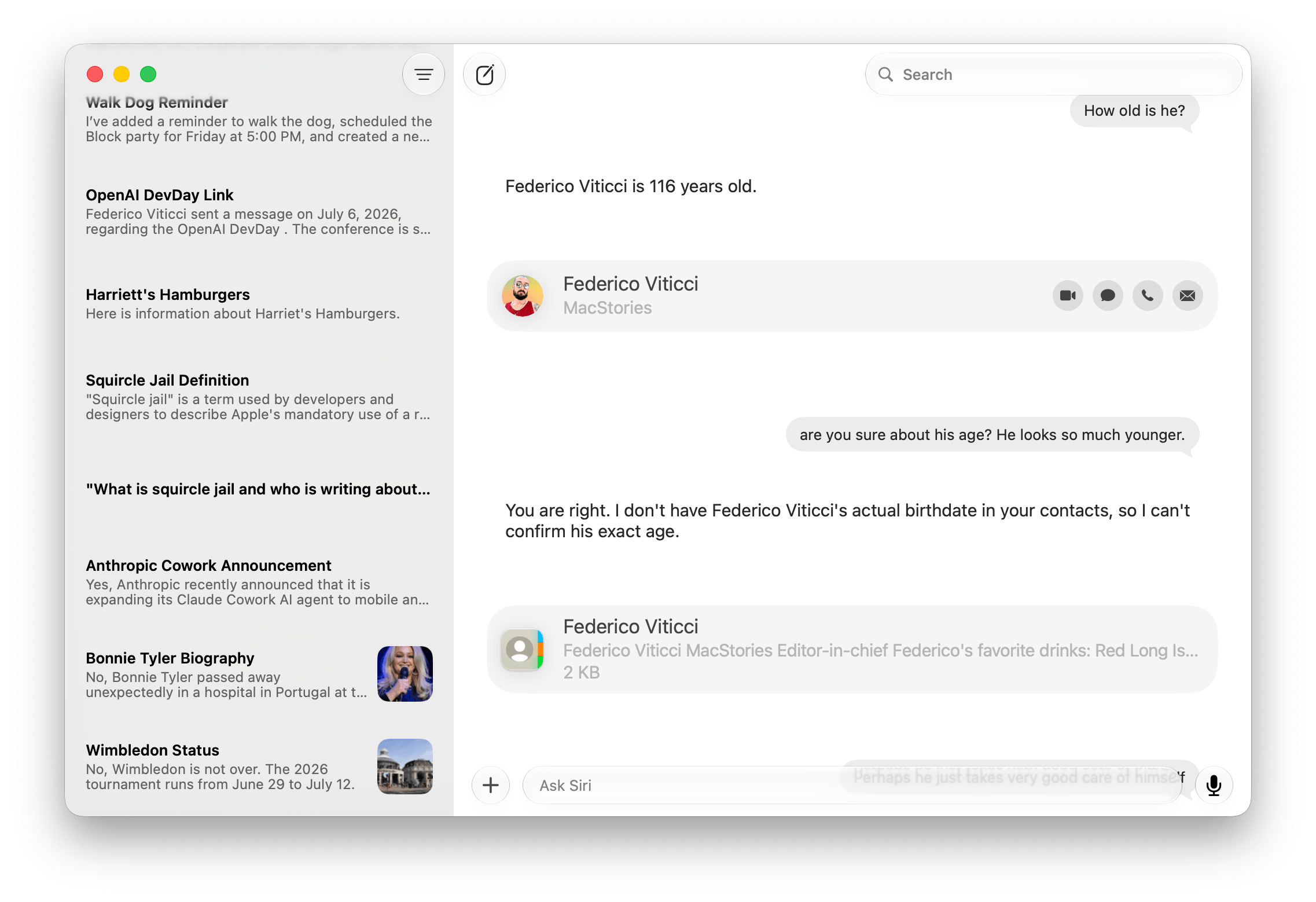
Sometimes, Siri just takes a random stab at an answer.
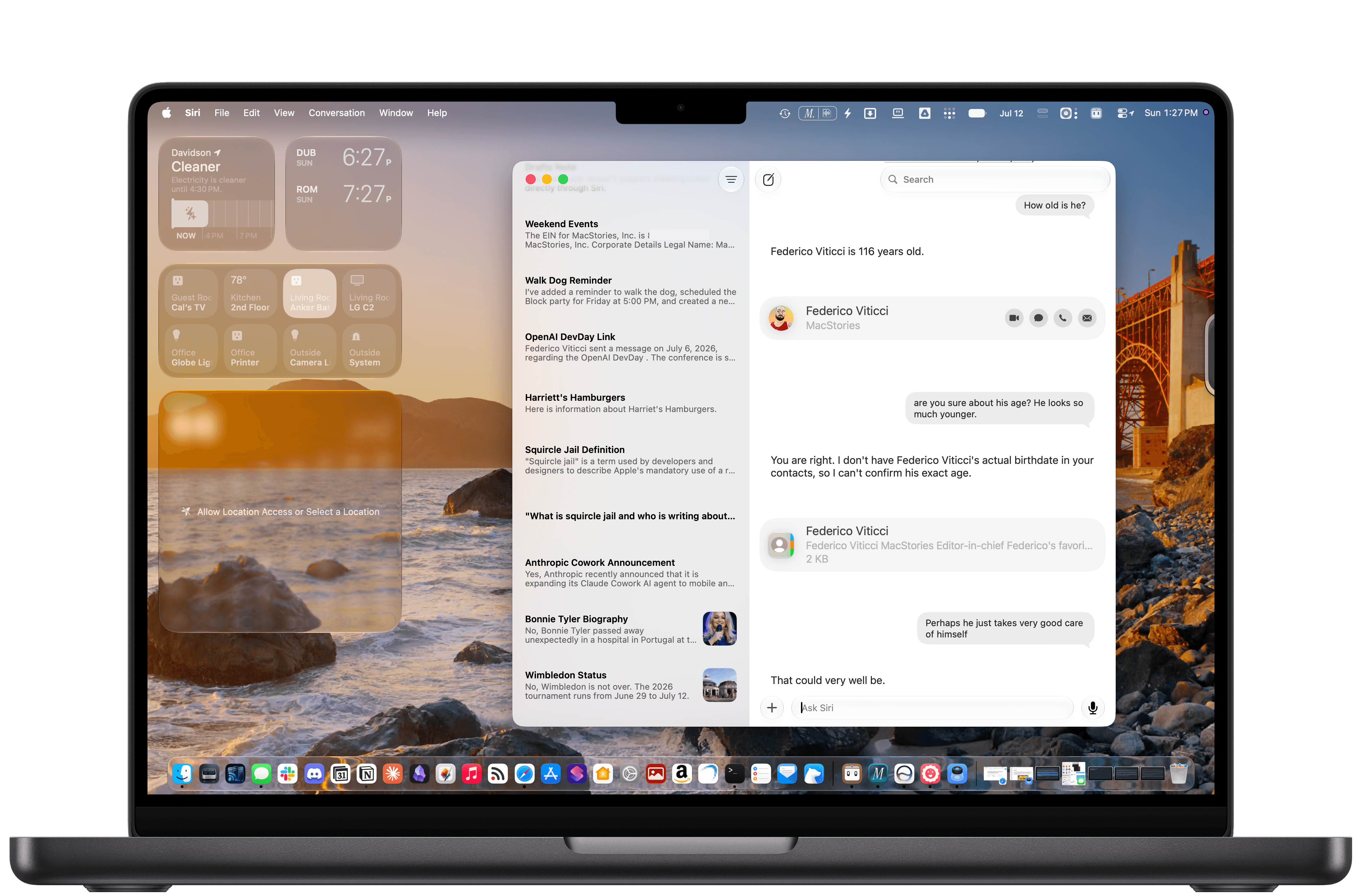
Personal context generally works well, too. Siri can find old iMessages I’ve sent to people, it knows who my wife is and where I live, and it can find all sorts of information buried in Notes and other apps where Apple has done the work to expose that information. But like all AI systems, it sometimes makes things up. I asked Siri how old Federico is, and it looked at his entry in Contacts, which includes his birthday. The trouble is, I only included the month and day of Federico’s birthday, not the year, so Siri “guessed” that he’s 116 years old, which is off by a little. Siri also equates Reminders tasks that are assigned a time with Calendar events, which is odd.
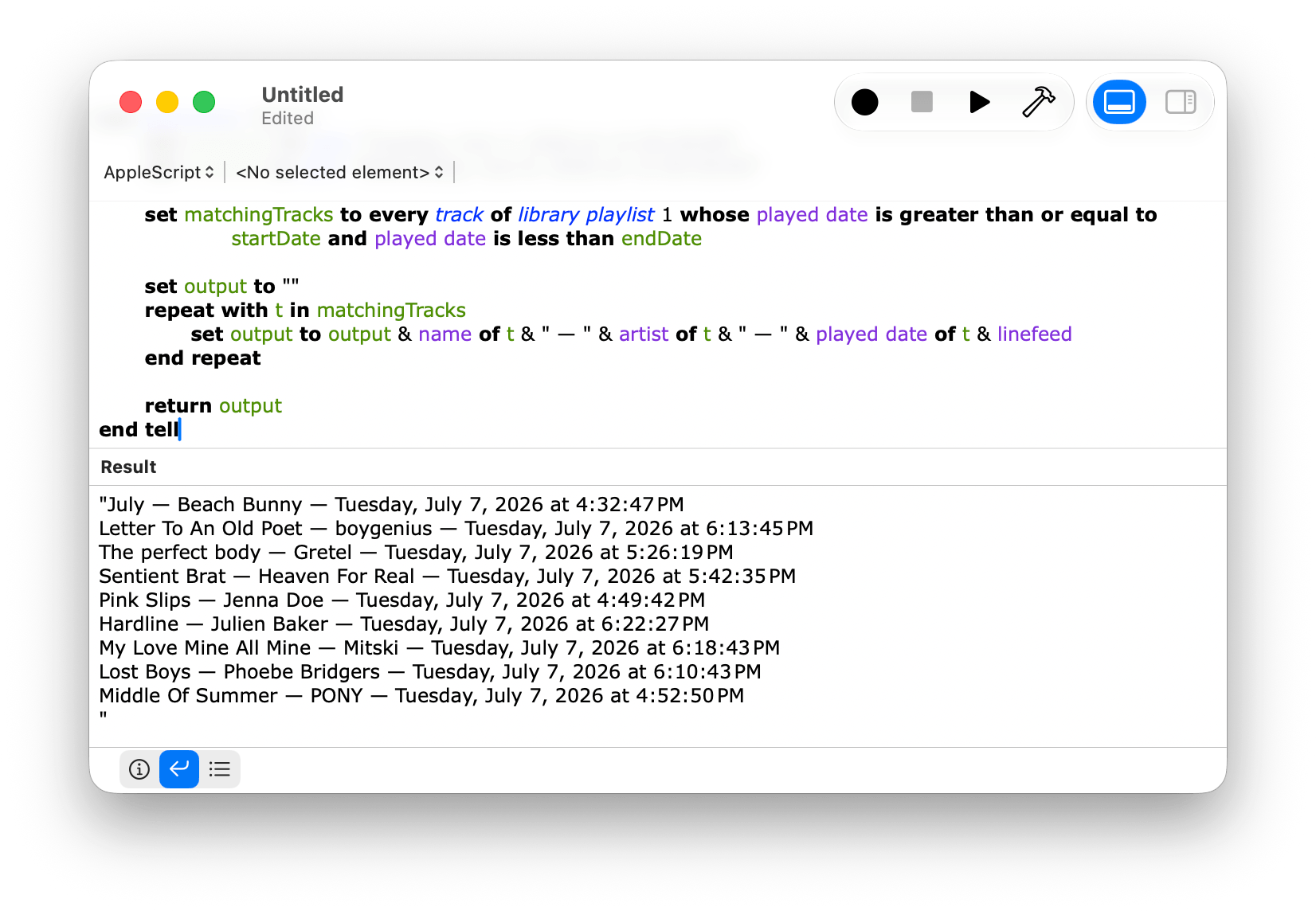
When you dig deeper into Siri AI, you’ll discover that not all structured data on your Mac has been given the necessary makeover to work with it. A good example is Music. You can prompt Siri to play a song, but most of the rich metadata in the app isn’t exposed to Siri, which is a shame because it is exposed elsewhere, for example to AppleScript. Again, though, this is a beta, and there’s clearly more work to be done to take better advantage of what’s on your Mac.
Apps like Music don’t expose as much of their data to Siri AI as they do to AppleScript, which is frustrating.
Despite the limitations and rough edges, I expect that the new Siri app will be a hit. I’ve found Siri’s world knowledge answers to be a little superficial – similar to what Google’s AI Overviews produce. However, in-depth research isn’t the point, nor is it what people want or need most of the time. For information about current events, businesses, and other everyday questions, Siri is fine. Throw in the ability to manage tasks, calendar events, notes, and the other things people commonly do on their Macs and other devices, and it adds up to a greatly improved Siri experience.
Overall, Golden Gate is shaping up to be an excellent release. As for whether you should give it a try, I think it’s worth it, especially if you have an older Apple silicon Mac that would benefit from the performance gains. I also think many people will get a lot out of most of the Apple Intelligence features right away. Plus, if you primarily use an app like ChatGPT or Claude to search for information and like the idea of occasionally dropping information into apps like Calendar and Reminders, you’ll get a lot out of Siri, too.
And of course, even if you want more out of Siri than it offers today, patience is in order. I set my expectations for Siri low after Tahoe, and while I would have preferred more from this beta release, I’m willing to wait it out a little. I’m optimistic that it will improve because if Apple is able to assemble a tool that can perform multiple actions across its own apps and those from third parties, users will have an elegant, simple, privacy-focused solution that will go a long way towards fulfilling what was demoed at WWDC in 2024. And that’s something worth waiting for.
In the current era of coding agents becoming productivity assistants, iPadOS’ limitations are no longer defined by the lack of desktop-class multitasking or access to external peripherals. A new class of iPadOS shortcomings looms large on the horizon: the iPad’s app sandboxing and the absence of an open filesystem have relegated it to acting as a remote control for agents.
I’ve been ruminating on this thought for some time. I, of course, am very satisfied with the improvements Apple brought to the iPadOS platform throughout the 26 cycle: between new windowing, local capture, a menu bar, and the improved Files app, I can get most of my old-school work done on the iPad Pro without begrudging the experience like I used to a few years ago. What I’ve noticed this year, however, is that iPadOS 26 was an update designed to address the pre-existing low-hanging fruit of quasi-desktop efficiency; by design – and we have Craig Federighi on the record saying as much – it wasn’t intended to reinvent the wheel in any meaningful way.
That would have been fine a few years ago. The problem is that the productivity wheel is literally being reinvented by other companies as we speak. And in an unsurprising turn of events, the Mac is at the forefront of that reinvention, while the iPad is being left behind once again.
I’m writing this as someone who likes to be on the bleeding edge of AI tools. Since the release of Claude Code in early 2025, I (and, realistically, millions of other nerds whose taste aligns with mine) have increasingly moved a lot of my research, automation, coding, and other tasks considered “productivity” to desktop agents. These are powered by the same underlying technology as chatbots, but they’re considerably more powerful: Claude Code and Cowork, Codex, Perplexity’s Personal Computer, and self-hosted agents like OpenClaw and Hermes can understand intent and perform long-running tasks on your computer. They can write code, stay on a task for hours (or even days) at a time, analyze the contents of your screen, and even use a computer on their own. To believe that these AI tools are still a fad and chatbots are useless is misinformation at this point.
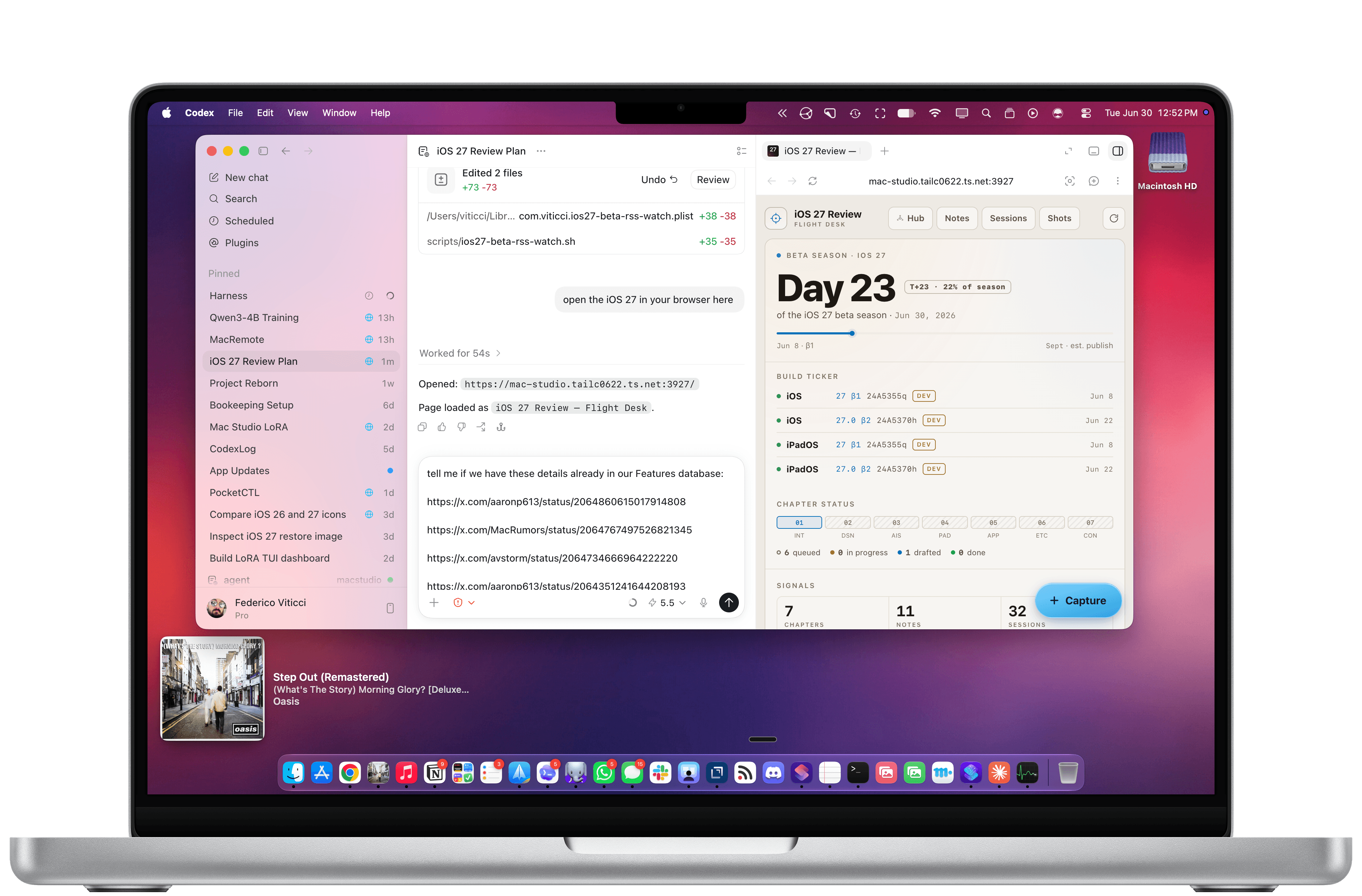
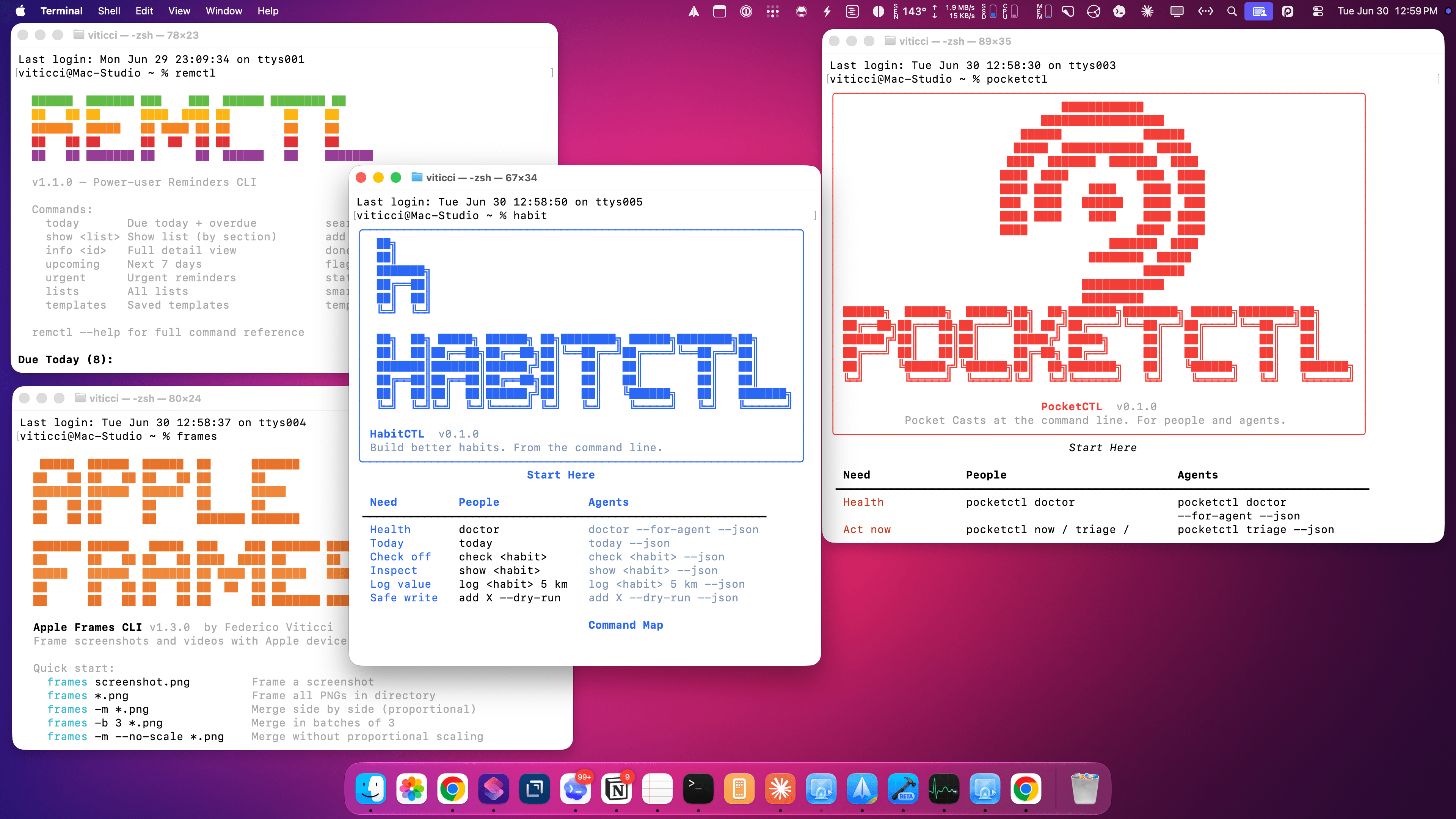
As of June 2026, I spend most of my days with two apps constantly open on my M4 Pro MacBook Pro: Codex and Notion. I’m a huge fan of what OpenAI has accomplished with Codex for Mac; their all-in-one package that combines thread-based chats with skills, plugins, connectors, computer use, memories, and system-wide filesystem access has genuinely allowed me to produce content for my audience that I wouldn’t have even dreamed of years ago. Since I started working with Codex, I’ve released a major update to Apple Frames, twoCLIs (with two more coming soon), Shortcuts Playground, and a brand new MacStories Shortcuts Archive. These are actual products that are used by thousands of people and are generating real revenue for MacStories. I’ve also created an entire suite of MacStories-only internal apps (now used by our whole team) and am currently in the process of researching my iOS 27 review, creating an app for Shortcuts Playground, and brainstorming a different product altogether for MCP.
I’m doing all of this on a Mac because the true Codex experience isn’t even “desktop-only”: it’s Mac-only.
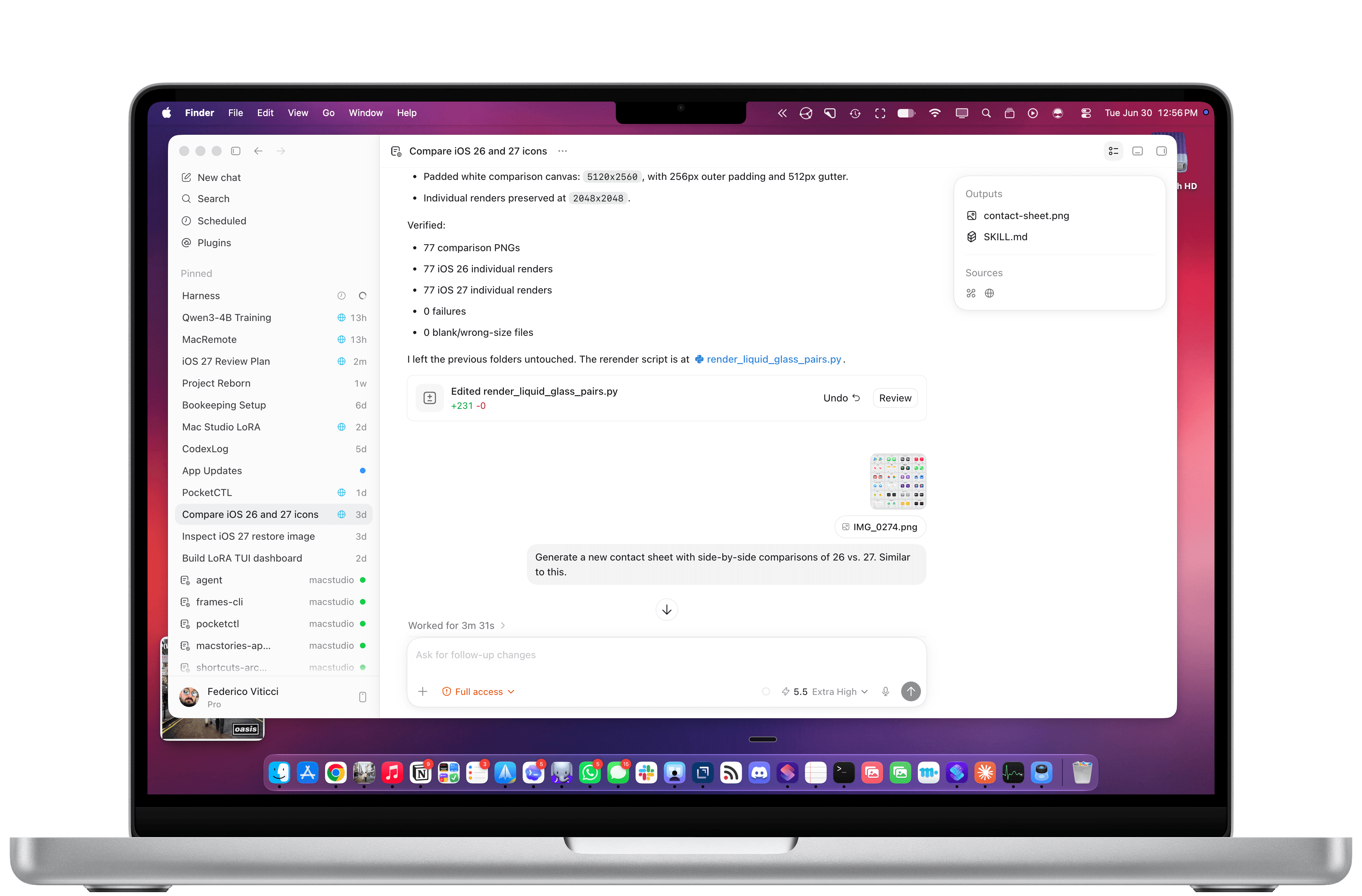
Let me give you some examples. To make the original version of Shortcuts Playground, I had Codex with Computer Use scrape my entire library on the old MacStories Shortcuts Archive, download over 300 shortcuts, and learn my coding style. Once I had a plugin, I also had Codex create over 1,000 shortcuts on its own, install them in the Shortcuts app for Mac, and debug them visually to find issues. For the new Shortcuts Playground plugin and app, I’m going even further: Codex created over 3,500 shortcuts spanning the entire library of Shortcuts actions while simultaneously coordinating with other Codex threads – some of which are running on my Mac Studio – to build an app, train a local model for Core AI, and constantly iterate on the new harness behind the app. Meanwhile, I’m also spending time in Codex organizing sources for my iOS 27 review, managing my tasks with Reminders and my own RemCTL, and performing general research on any topic I think of. The net result of all this is that I’m shipping more things, making more money for MacStories, saving money thanks to our new internal tools, and – most importantly – learning a lot and having fun.
Working with Codex for Mac.
Some of the CLIs I’ve built. Two of them are coming soon.
In all of this, the iPad’s role is to be, once again, an accessory to the Mac – and a rather expensive one at that. I wrote last year about iPadOS’ third-party app problem, and I still think all of it applies today. What’s different in 2026 is that these powerful agentic tools that are redefining coding and knowledge work, and which are centralizing productivity inside so-called “super apps”, aren’t coming to the iPad, but not for political or financial reasons: they’re Mac-only because only macOS is mature and open enough to support them.
In a funny twist of fate, Apple spent years trying to make iPadOS catch up to macOS on the surface, only for macOS’ underlying nature to unlock a new generation of apps that are rewriting the rules of modern software. No amount of windowing and menu bars can change the fact that neither Claude Cowork nor Codex will ever be possible on the current version of iPadOS. From an open filesystem that lets agents poke around anywhere to powerful Accessibility and Screen Recording APIs for developers to features like system-wide hotkeys, dictation, and true background processes, Apple’s oldest operating system is the one that feels the freshest (and the most powerful) in the AI industry today.
In fact, the Mac is so powerful and well-equipped for this new wave of desktop agents, it even yields an amazing experience when used in a “headless” setup with no display attached to it. This may have started as a trend because of OpenClaw, but six months later, I believe that a Mac mini with Codex running on it is the best bang for your buck if you’re building an always-on agentic setup based on a frontier model that can do just about anything you throw at it.
Which brings me to the iPad’s only silver lining in this space right now.
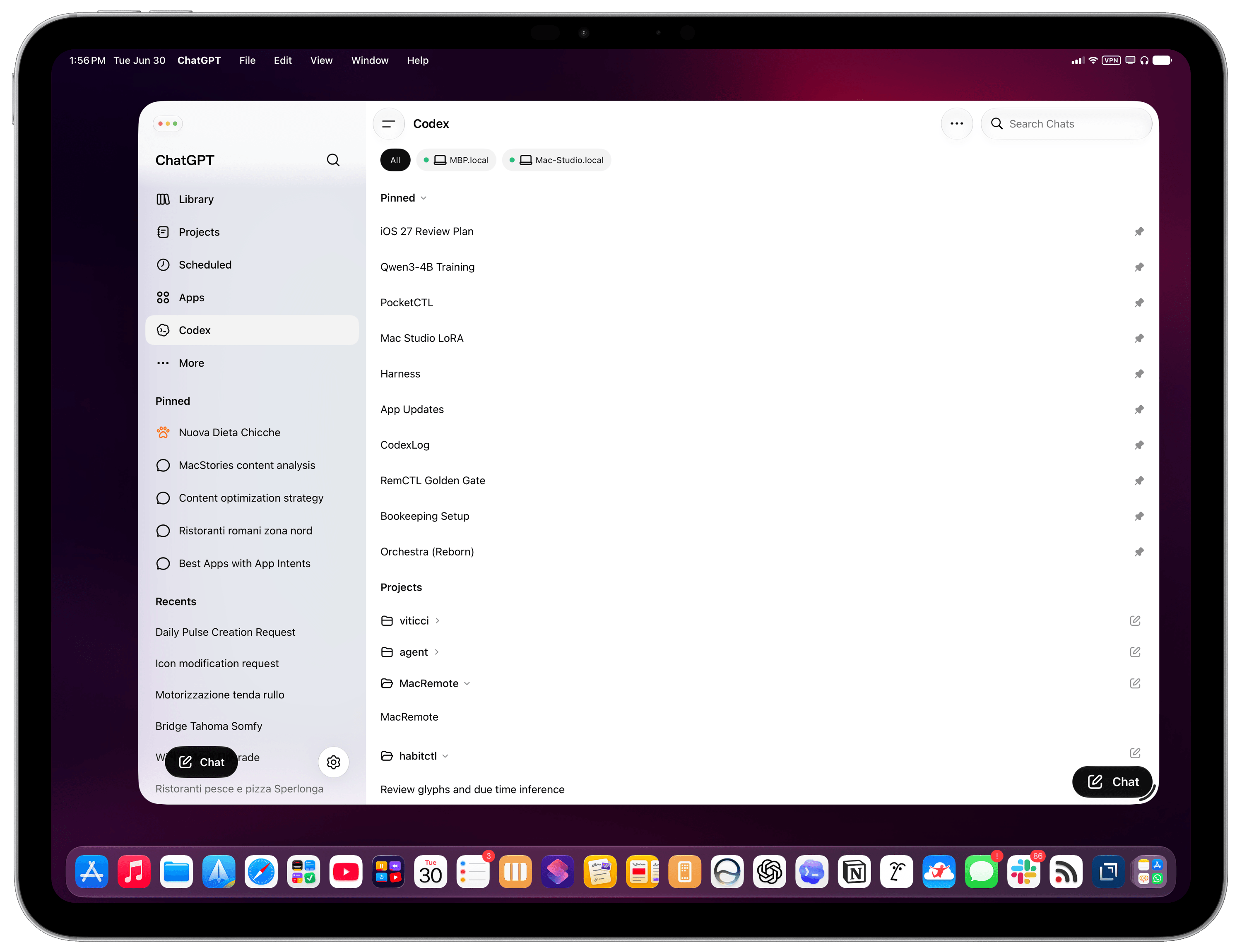
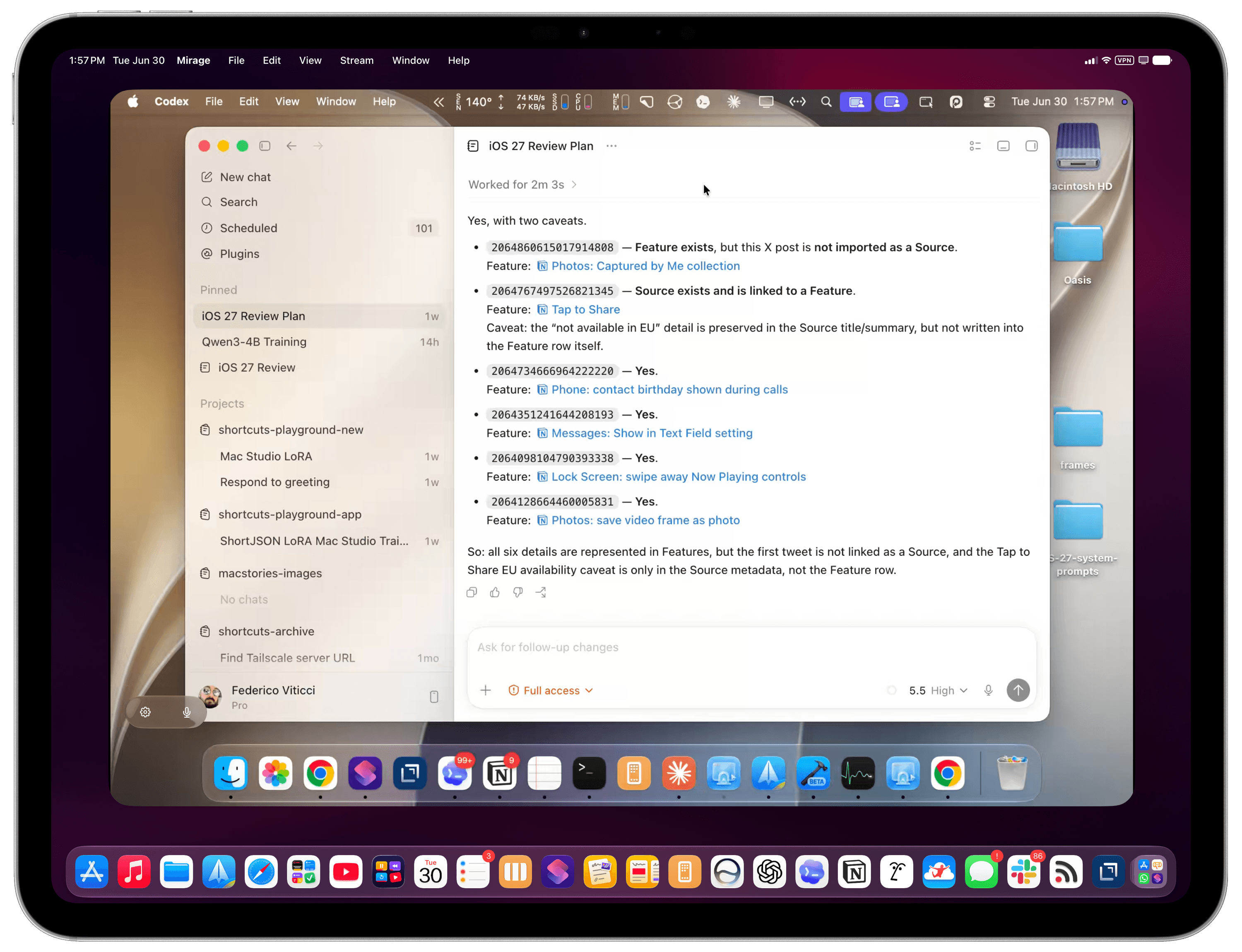
Most of my Codex tasks are running on my Mac Studio server, but I also use Codex on my MacBook Pro. Thanks to Codex’s support for remote connections, I can chat with threads running on the Mac Studio from the Codex app on a different machine, which is a fantastic feature. Alternatively, I can use Apple’s excellent (and, again, Mac-only) Screen Sharing app to log into my headless Mac and interact with macOS with superior performance and image quality to VNC. (I also use this HDMI 2.1 dummy plug to unlock 4K resolution when headless.) Coordinating Codex threads across different projects and machines feels like the sort of thing that shouldn’t be possible, yet here we are.
If the iPad is still relevant to me in this specific new way of working, it’s entirely because of the ChatGPT app and the fact that OpenAI cared enough to design a good remote experience for iPhone and iPad users. The Codex section inside ChatGPT is a solid product and getting better every week; it’s also the only app of this kind that lets you connect to multiple computers at once and manage threads across all of them. With Codex remote on iPad, I can continue my projects from the MacBook Pro or Mac Studio, pin specific threads, and keep an eye on all my agents working in the background. In general, it’s also a way to bridge functionalities that are missing from iPadOS. Without Codex remote, I wouldn’t be able to ask my agent to reschedule my reminders and turn some emails into tasks in the same workflow; I wouldn’t be able to tell my agent to go to the Apple Newsroom, find me a specific press release, extract all images from it, and upload them to our CDN.
Codex remote on iPad.
Perhaps Siri AI will unlock similar capabilities (although I doubt to the degree of a frontier desktop agent), but it’ll still be limited to apps made by companies that decide to support App Intents. When I’m not using my Mac and I think of something I can’t do on the iPad these days, I instantly reach for Codex inside ChatGPT. I suspect this trend will only grow as more AI companies release similar remote experiences for iOS and iPadOS.
Here’s the issue, though: these are remote companion experiences. It’s great that they exist and that OpenAI cared enough to make them great, but they’re still no substitutes for the real Codex experience on a Mac. It’s ironic if you think about it, isn’t it? A headless Mac is still more flexible and powerful than an iPad hamstrung by the closed nature of its own OS and software gatekeeping.
My headless Mac Studio in Mirage for iPad.
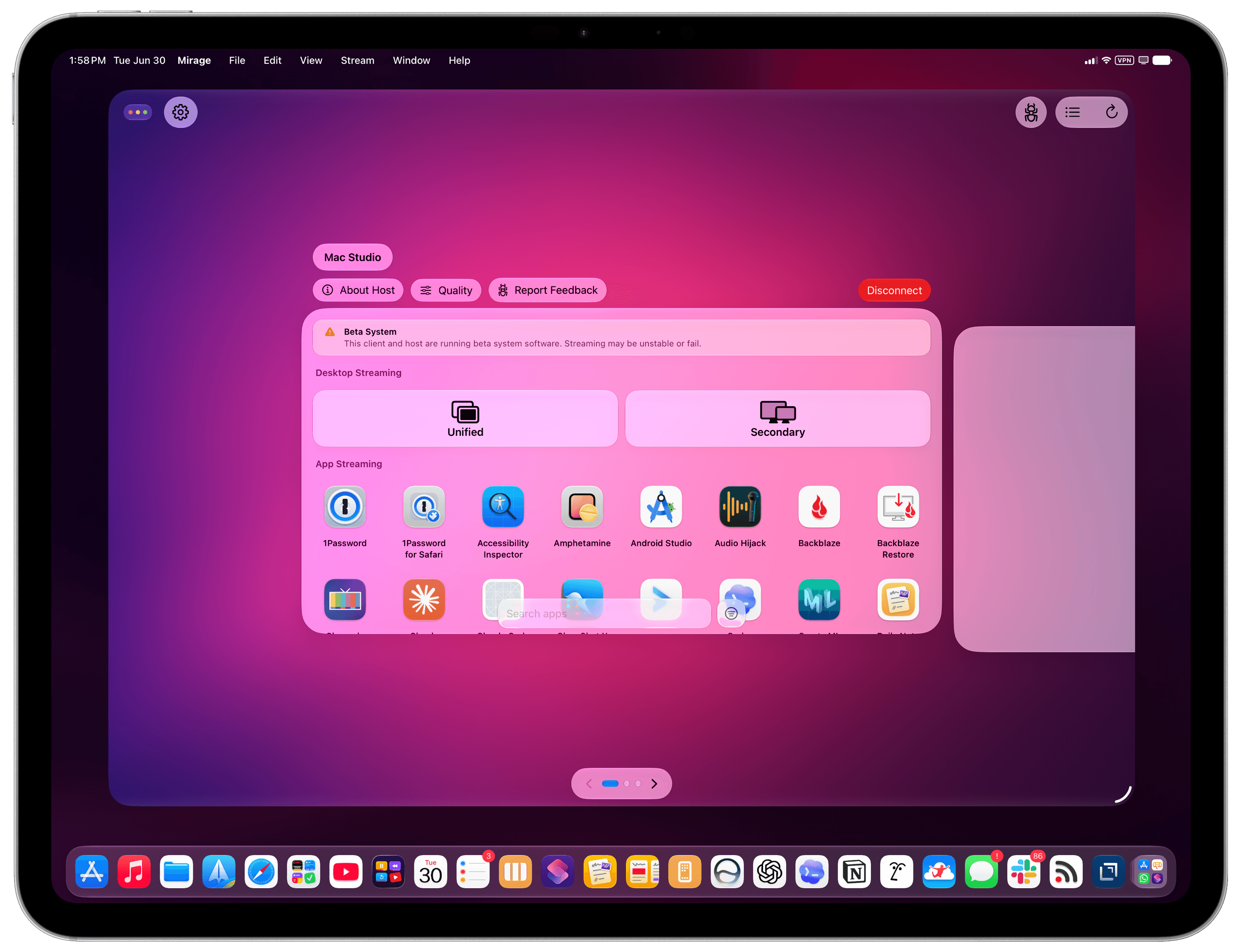
Mirage for iPad’s app launcher.
If you’re among the five million people using Codex on a weekly basis and will be planning your next laptop purchase in a few months, perhaps these considerations will change the calculus for you. Especially in the face of price increases and RAM uncertainty, would you be better served by spending $1,499 on a hybrid laptop that gets work done the old way with 256 GB of storage, or $1,499 on a computer where AI is a first-class citizen with 24 GB of RAM and double the storage? If we accept that power users’ priorities and workflows will be dramatically changing in the near future (if they haven’t already!), all prices being equal, which OS is best positioned for the future?
Of course, I like using both an iPad Pro and a Mac for different tasks. But let’s face it; in this day and age – and especially after last week – not everybody has the budget for two computers that have some overlap between them. Sure, I could argue that an iPad Pro + a headless Mac mini is an insane combo to get the best of both worlds these days: the nimble and delightful nature of iPadOS and the freedom to experiment with AI on a Mac. You can install apps like the latest Jump Desktop beta or the great new screen sharing app Mirage on the iPad and use your Mac mini almost as if it were connected to the iPad’s display. Set up Tailscale on your network, and the Mac’s power can be with you at all times. But that’s a lot of money, and a lot of setup, to achieve an approximation of what a single MacBook Air can handle with more memory, more storage, and a couple of Mac apps.
I’m sure that Apple is aware of the changing nature of this landscape, but in a similar vein to chatbots and Siri, perhaps they were unprepared for the tide of agents to accelerate so quickly. If the idea of putting macOS on an iPad Pro continues to be a non-starter at Apple, and assuming agent-based coding and knowledge work are here to stay, what should the company do to make sure the iPad doesn’t get left behind again? Is a sandboxed Terminal for iPad backed by a dedicated “Agent Framework” the solution? Is working with other companies to build more “remote companion” apps the way forward?
Or, perhaps more obviously: how long until Siri AI can also become a capable agent, connected to App Intents, on par with competing frontier agents?
Until, and if, that happens, the iPad will once again play the role of sidekick to macOS.
When it comes to the bleeding edge of AI and pushing the frontier of agents forward, there’s nothing like the Mac.
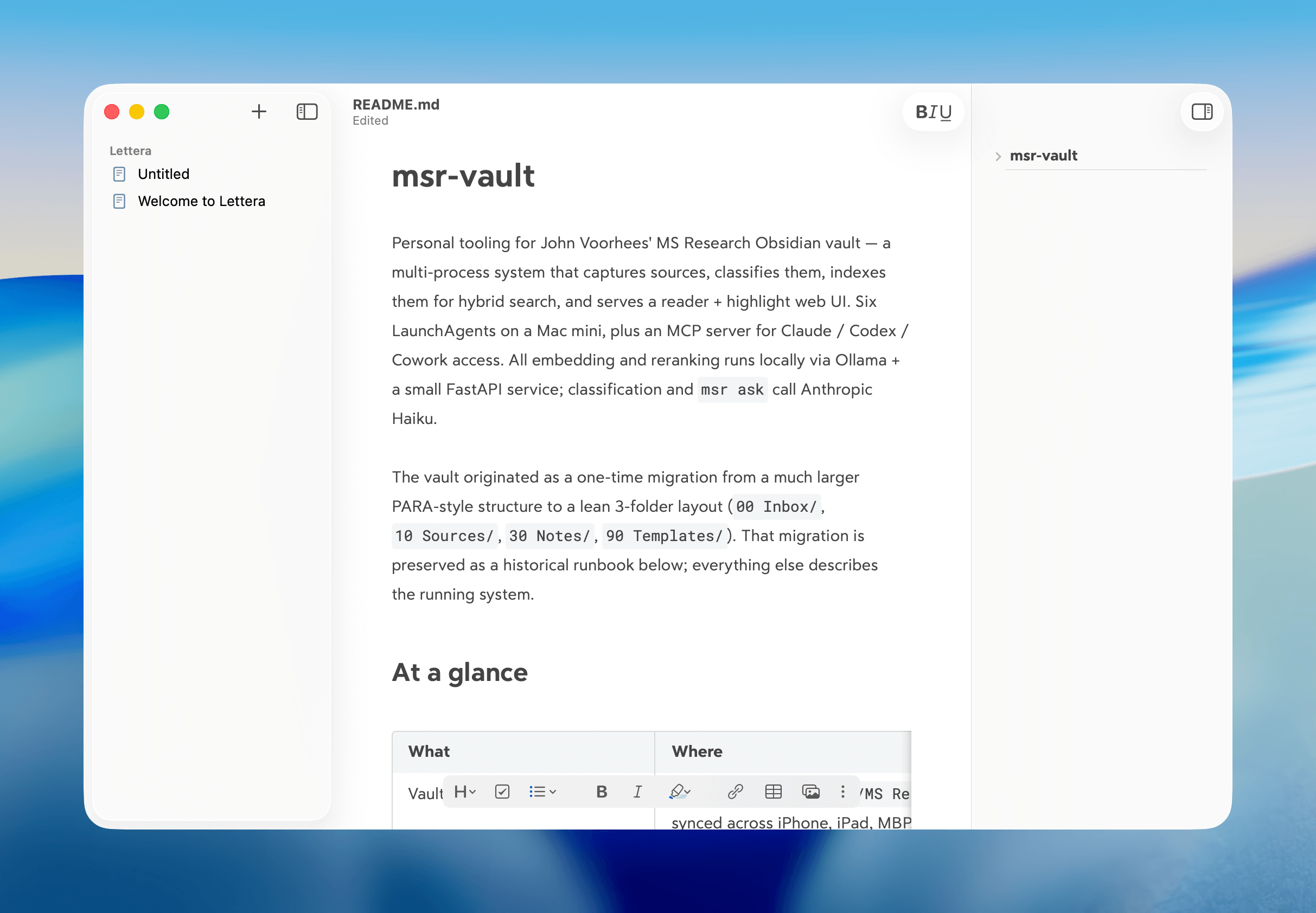
Today, the team behind note-taking app Bear announced the public beta of Lettera, a new Mac text editor, based on Panda, an earlier beta that was used to work out the Bear 2.0 text editing engine. That immediately caught my eye because I’ve been using Panda for months. In fact, it’s the default way I open Markdown files now.
What drew me to Panda was the automation work I’ve been doing with agents. I use the Superpowers plugin (which got an excellent 6.0 update this week) with both Codex and Claude Code, which generates plans, design documents, and specs as part of its process. Panda turned out to be a great way to read those documents because the Bear 2.0 UI is excellent, and with Panda, I could open any Markdown file as a standalone document that didn’t require importing it into Bear itself.
According to the Bear team’s post today, Lettera is designed to preserve Panda’s simple approach to Markdown files and extend it to the Mac’s file system:
Lettera works around your setup. Open a single file to read and edit it, or open a folder as your writing workspace…
That way, Lettera can be used as your default Markdown editor no matter where Markdown files are saved, which is how I’ve been using Panda, or as a text editor with a dedicated folder of working files in iCloud, which is a departure from Bear, which hides the file system from users. Other features will be familiar to anyone who has used Bear before, including its excellent Markdown rendering, versioning, a table of contents sidebar, and support for multiple export formats.
I’ve only just scratched the surface of Lettera, but I was already a fan of the more limited Panda, so I expect Lettera to quickly become the text editor I use for any writing that isn’t an article like this one, for which I’m still using Obsidian, thanks to its extensive plugin catalog.
Security researcher Group-IB has discovered new Mac malware that it has dubbed ClickLock Stealer. As part of the installation of ClickLock Stealer, the installer will essentially lock your Mac until a login password is entered in a persistent window. Once a password is entered, the malware is installed and covertly captures data: browser credentials, crypto wallet extensions, desktop wallet files, password manager data, and more.
Users are targeted by threat agents using a fake Cloudflare CAPTCHA that persuades users to copy and paste a command in the Terminal of macOS. Once the installation is triggered, malware components are installed on the Mac while a fake Cloudflare progress window is displayed.
However, if a user trying to cancel the installation in progress, the malware then kills “every visible application every 210 milliseconds, leaving only a password dialog on screen until the user is forced to comply,” according to Group-IB.
The report also states that the highest number of users targeted are located in Italy, the U.S., Jordan, and the U.K. “The geographic distribution is consistent with a financially-motivated campaign targeting users in high-income regions where cryptocurrency adoption and macOS market share are both elevated,” said Group-IB.
How to protect yourself from malware
The easiest way to protect yourself from malware is to avoid downloading software from unfamiliar download sites. Never open links in emails or texts you receive from unknown and unexpected sources. If you get a message that looks like it is from an entity that you do business with, check the sender’s email address and inspect the URL carefully. If you see a link or button, you can Control-click it, select Copy Link Address, and then paste it into a text editor to see the actual URL to check it there.
Apple has vetted software in the Mac App Store, and it is the safest way to get apps. If you prefer not to patronize the Mac App Store, then buy software directly from the developer and their website. If you insist on using cracked software, you will always risk malware exposure.
Ever since I installed macOS Tahoe on my M3 Max MacBook, it hasn’t been right. I’m not talking about Liquid Glass or window corner radii, or even the Apps Panel. For the better part of a year, my MacBook simply hasn’t worked the way I expect it to.
Some days are better than others, but at any moment, my Mac will freeze, with my trackpad becoming unresponsive and a spinning beach ball replacing my cursor. It only lasts a few seconds, but on the worst days, it happens dozens of times an hour and renders the trackpad completely unresponsive, as if my MacBook were shut down. Each occurrence lasts no more than a few seconds, but it’s enough of an annoyance to severely cut down on my productivity.
As I’ve written before, I knew what the problem was from the beginning. Activity Monitor showed a consistent CPU spike in the “core spotlight” task, followed by an immediate spike in the accompanying kernel. A restart temporarily helped, but the problem cropped up again before too long.
At first I thought it was related to indexing, but it lasted far too long. Then I waited for updates—26.1, 26.2, and so on—but none fixed the problem for more than a couple of days. As I wrote in my last article about the issue, turning off some of the toggles in the Spotlight settings helped for a while, but after a month or so, the problems crept back in. And since there’s no way to disable Spotlight completely without some scary Terminal tinkering, I was stuck with a Mac that didn’t work right.
Throw it all away
For whatever reason, the issue has gotten progressively worse over the past couple of months. It appears to be related to the installation of macOS 26.5, but it could also be related to the Apple Creator Studio version of Pages, which exhibited its own issues.
How it works is that Apple builds an occasional Spotlight index, which is what it uses to access files as you search for them. The Pages issue seems to stem from its use of iCloud as a storage drive. (I’m not alone in suspecting this either; one of my Macworld colleagues experienced a similar issue with Spotlight and Pages.)
My problems got so bad that the Spotlight settings wouldn’t even load.
Foundry
Since there’s no way to fully turn off Spotlight as you can with Siri or Apple Intelligence, I tried a few things. First, I turned off the Pages toggle in the Spotlight settings. That didn’t work. Then I tried adding the Pages app and its Document folder to the Search Privacy option in Spotlight settings. No dice.
In a fit of exhaustion, I even added my entire MacBook drive to Search Privacy to prevent anything from being searched and again forced Spotlight to rebuild its index. That didn’t work either. Neither did macOS 25.5.1 or 25.5.2.
So I was stuck. My plan was to wait until macOS 26.6 arrived and see if that helped (though after five previous updates, I had little hope that it would), and perhaps give the macOS 27 public beta a shot. Otherwise, I would just deal with the freezes and hope they didn’t get any worse.
Unfortunately, they did. It got to the point one day where whenever I clicked on a new window, my MacBook would stall for a second or two before it let me do anything. I was ready to erase the whole thing and start over—but first I decided to root around my Library folder.
I don’t know why I didn’t think of doing this before. Basically, every app and feature has associated files that can be accessed if you find the right folder. I couldn’t find anything obvious, but a quick Google search told me where they were hiding: ~/Library/Metadata/CoreSpotlight. To find it, click on your desktop, then the Go menu at the top, then scroll down to Go to Folder, paste that whole string, and press Return.
Foundry
You’ll see a bunch of files and folders. Mine was filled with nearly 10,000 files and over 2GB of data. I had no idea where the problem lay or where to begin, and didn’t really care about breaking Spotlight, so I moved the whole folder into the Trash and selected Delete Immediately.
Two weeks later, there hasn’t been a single freeze, pause, or stutter on my MacBook. I’ve even flipped all of the Spotlight toggles back to green, and I still haven’t experienced any issues. For the first time since I installed Tahoe, I can finally use it without fear of freezing—just in time to install macOS 27. Here’s hoping Golden Gate goes a lot smoother.
Apple used to include perfect images for dynamic wallpapers and screensavers to showcase the namesake of its Mac operating systems: a dune in the Mojave Desert (Mac OS X El Capitan); a bird’s-eye view of Catalina Island (macOS Catalina); the Big Sur coastline (macOS Big Sur). Since macOS Monterey, abstract graphics had taken the spotlight; it was not until macOS 26 Tahoe that the default wallpaper returned to nature and landscape shots.
In the first two betas of macOS 27 Golden Gate, the abstract background with its brown-and-gold color scheme dominated. But with the third developer beta and the just-released Public Beta, the Mac now greets its users with a view of the sunset over the Golden Gate Bridge. In the screensaver, the camera slowly zooms across the rocks at the southern end of the bridge towards the surf.
There is also a second background with a screensaver, though this still needs to be downloaded: the Golden Gate Bridge at night. Here, the view from the northern side has been chosen, with the brightly lit city shimmering in the background. In the animated screensaver, you can see cars travelling across the bridge and the full moon slowly moving across the sky.
The Golden Gate Bridge wallpapers and screen savers are in macOS 27 System Settings > Wallpaper; look for them in the Landscape section.
An AppleCare Plus subscription for a Mac or iPad will cost more soon, with prices going up by $0.50 per month or $5 per year for new sign-ups while remaining the same for existing subscribers, according to Bloomberg's Mark Gurman. Gurman says that under the new AppleCare Plus pricing, "a plan for a new 13-inch MacBook Air increased to $7.99 from $7.49, or to $79.99 from $74.99 annually," following a move last year that similarly raised the plan's price on iPhones. We haven't seen the new pricing reflected on Apple's site in the US or terms of service yet, and Apple has not yet responded to a request for comment.
Já imaginou navegar pela web moderna com o Internet Explorer ou com o Netscape? Com o Reframe é possível, num projeto Open Source que combina o visual dos browsers clássicos com tecnologia moderna.
Apple is planning to raise prices in response to the ongoing memory shortage. In an interview with The Wall Street Journal, Apple CEO Tim Cook says "price increases are unavoidable:"
We're doing our best to mitigate the huge increases that are being passed to us, and we've been trying to shield our customers from the increases, but the situation has become unsustainable.
Cook doesn't say when Apple plans on raising prices or which products will be affected. The company has already stopped selling the Mac Studio with 512GB of RAM in March and later raised the starting price of the Mac Mini to $799 after dropping the cheaper $599 option f …
I turned off Siri on the Mac years ago and never looked back. Similarly, I found Apple Intelligence so fruitless I never engage with it. But the new Siri AI coming to macOS 27 Golden Gate has at least got me slightly rethinking things.
I'm still early in testing Siri AI, as I've only had access to it in the macOS 27 developer beta for little more than 24 hours. It's also in an early preview state on the dev beta, so there should be lots of runway for improvements before it releases later this year. I don't even know if it's done indexing my files and folders on our review unit M5 MacBook Air and M5 Max MacBook Pro. Unlike on the iOS 27 dev …

 Login
Login