❌

Normal view

Microsoft gives XBOX mode a more handheld-friendly Gaming Task View

Windows 11 has a new Gaming Task View for XBOX mode that helps users hop back to the desktop or adjust power options for a device. That feature is now in testing among Windows Insiders.

Microsoft released builds in every Windows Insider channel to wrap up the week. I've listed all the changes below except those exclusive to the Release Preview channel since those features have largely been in testing before today.

While the update to XBOX mode is the headline feature of these builds, there are several other welcome changes. For example, Windows Hello can now temporarily brighten your screen to help you sign in when in a dark room.

Gaming (Beta, Experimental)

The gaming task view in XBOX mode on Windows 11 displays Forza Horizon 5 in the foreground, recent apps across the top, system status indicators, and controls for closing the current app.

Gaming Task View has a new navigation bar that makes it easier to exit to desktop and edit power options. (Image credit: Microsoft)
  • We're introducing a refreshed Gaming Task View experience in XBOX mode, featuring a new navigation bar that provides quick access to Exit to Desktop and Power Options. This update makes key system actions easier to access while gaming.

Magnifier (Beta)

Magnifier now understands each of your displays

  • More and more of the work people do happens across more than one screen. You draft on one display and keep source material open on another. You fill in a form while a reference document sits beside it. Those extra displays can be more helpful when each one can do its own job, and now Magnifier supports exactly that.
  • To use this update, set your monitors to Extend in System > Display, not Duplicate, so Windows treats each screen as its own space.
  • Every screen keeps its own view at its own zoom. In earlier versions of Magnifier, zooming in stretched a single magnified view across all of your displays, so one screen's zoom followed you everywhere and screen edges blurred together. With this update, each monitor's boundary is respected, and each monitor can have its own zoom percentage. Your writing screen can be at 300% while your reference screen stays at 150%, and the magnified view no longer spills from one display into the next. This behavior matters because different tasks and screen resolutions often require different levels of magnification to remain comfortable to read.

Setting the zoom on each screen is easy. Choose whichever method feels natural:

  • Move your mouse pointer onto the screen you want to adjust, then press Windows key + Plus (+) or Windows key + Minus (-), or hold Ctrl + Alt and rotate your mouse wheel.
  • Set the percentages directly in Accessibility > Magnifier.
  • Drag the Magnifier toolbar onto a specific screen to adjust that screen from its on-screen controls.
  • Per-monitor zoom is turned on by default. If you prefer the classic behavior where a single zoom spans all of your displays, you can turn per-monitor zoom off at any time from either the Magnifier toolbar or Accessibility > Magnifier. You can turn it back on whenever you like.

Keep the view that matters, right where you need it

  • As you move your mouse from screen to screen, the magnified view naturally follows your pointer. Sometimes this might cause you to lose sight of the content that you're actively working on.
  • Viewport locking keeps that view in place. For example, you might be drafting an email based on a section of a document open on another display. Position that display so the paragraph you need is in view, press Ctrl + Windows key + K, and the screen holds its view steady while you move your cursor over to write. The locked screen stays fully live and interactive, so you can glance back, click, or copy from it whenever you need to, and its view stays put until you release it.
  • A message appears on the screen when it's locked, so you always know what's being held. To lock or unlock a screen, point your mouse at that screen and press Ctrl + Windows key + K again. To release everything at once, press Windows key + Esc to dismiss all locks. You can change the lock shortcut to Ctrl + Alt + P in Accessibility > Magnifier.

Settings - Home (Beta)

  • We're beginning to expand the new Device Info Card experience for Settings Home to additional markets globally. Available for Windows Insiders signed in with their Microsoft account, the Device Info Card provides a quick snapshot of your PC's key specifications and usage. From the card, you can go directly to Settings > System > About to see more detailed information about your PC.

Settings - Privacy & security (Experimental (26H1))

  • The improved Privacy & security page in Windows Settings helps you find the Camera, Microphone, and Location privacy controls more easily. It groups similar controls across the page and brings usage information from deeper linked pages onto this page.

File Explorer (Beta)

  • Key file information, such as name, location, and date, now appears in a consistent layout on the File Explorer search results page, making search results easier to scan.

File Explorer (Experimental)

  • Improved responsiveness of folder views so they update and sort correctly when files and folders are added or renamed.

Family Safety (Beta, Beta (26H1), Experimental (26H1))

  • Improved family safety messaging when applications are blocked because of age-restricted parental controls.

Other (Beta, Experimental)

  • Improved shutdown reliability, reducing the chance of a hang on shutdown in certain cases.
  • The dialog for certain system messages, like low battery and permissions, should use the expected modern design again.

Other (Beta (26H1), Experimental (26H1))

  • Fixed an issue with msmpeg2ac3dec.dll which was leading to some apps and games crashing recently.

Web sign-in (Experimental)

  • Web sign-in now works on Microsoft Entra hybrid joined devices. Before this update, it was only available on Microsoft Entra joined devices. You can sign in to Windows at the lock screen with a passwordless credential: a FIDO2 security key, a passkey on your phone, or a Temporary Access Pass (TAP). You don't need a password. Once you're signed in, Windows gets a Kerberos ticket, so on-premises file shares and internal sites keep working. For more information, see Use web sign-in to enable passwordless sign-in in Windows.

Windows Hello (Experimental)

  • Windows Hello facial recognition can temporarily brighten your screen to help you sign in when you're in a dark or dimly lit room.
  • To turn on this feature, go to Settings > Accounts > Sign-in options > Facial recognition (Windows Hello) and turn on Automatically adjust screen brightness during face recognition.

Windows Search (Experimental)

  • Addressed underlying issues that could cause search to appear missing or stop working after the previous update, including if you rapidly clicked the search icon repeatedly.

Search (Experimental (26H1))

  • Search home has been simplified to reduce visual clutter and make it easier to get back to recent searches quickly.
  • Search does a better job showing where a result comes from, whether it's an app, setting, file, web result, or Store suggestion, so it's easier to tell what you're looking at and where you'll go before you click.
  • A new setting in Settings > Privacy & security > Search lets you choose whether web and Microsoft Store suggestions appear alongside local results.

Run (Experimental)

  • Improved the window position when using an Arabic or Hebrew display language.
  • Improved performance of the Run dialog when navigating to very large folders.
  • Fixed an issue where your text might unexpectedly disappear if you started typing too quickly after opening Run.
  • Made a few other small visual fixes and refinements.

Pointer Indicator (Experimental (26H1))

  • We're introducing the Pointer Indicator accessibility setting. This feature enables Windows users with low vision to easily locate and use their cursor to increase productivity and efficiency when using a Windows device.
  • To enable this experience, go to Settings > Accessibility > Mouse pointer and touch, and enable the Pointer indicator setting. You can also search for the setting by name. When the setting is enabled, you can toggle it on or off with the keyboard shortcut, Windows logo key + Ctrl + Shift + X.

Live Captions (Experimental (26H1))

  • We're improving Live Captions with a new Include Screen Reader audio setting, which is off by default. With the setting off, Live Captions won't transcribe audio from screen readers such as Narrator, JAWS, and NVDA, keeping captions focused on microphone and system audio.

Taskbar

  • New! This update improves animations of app window previews when you move the mouse across app icons in the taskbar.
  • This update improves the underlying state persistence of taskbar settings related to multiple monitors across monitor connections and disconnections.

Since revamping the Windows Insider Program earlier this year, Microsoft has sped up its release schedule for builds. As a result, we often end the week with a batch of five or six new builds to check out.

Click to join us on r/WindowsCentral

Join us on Reddit at r/WindowsCentral to share your insights and discuss our latest news, reviews, and more.

Windows 11 is getting these 9 useful improvements in October 2026

As part of the Windows Insider Program, Microsoft released several preview builds of Windows 11 in early October, some of which rolled out new features and improvements, while others played catch-up by bringing already announced changes to other channels.

During the first two weeks of October, the software giant made available the first preview of the new Windows Search experience. We also saw the new Battery widgets and more.

Microsoft also revealed a new option to sanitize the hard drive when using the Cloud Rebuild feature, plus improvements to File Explorer, Share, and more.

In the Experimental channel, we've seen builds 28120.3181, 26340.9616, 26340.9596, 28120.3151, 29683, and 29680. In the Beta channel, the company released builds 26220.9606, 28020.3172, 26220.9587, and 28020.3142.

In this recap, I'll highlight the latest and most noteworthy changes available through the Windows Insider Program.

Biggest improvements from the Windows Insider Program in October 2026

In this recap, I'll highlight the latest and most noteworthy changes available through the Windows Insider Program.

Windows Search overhaul

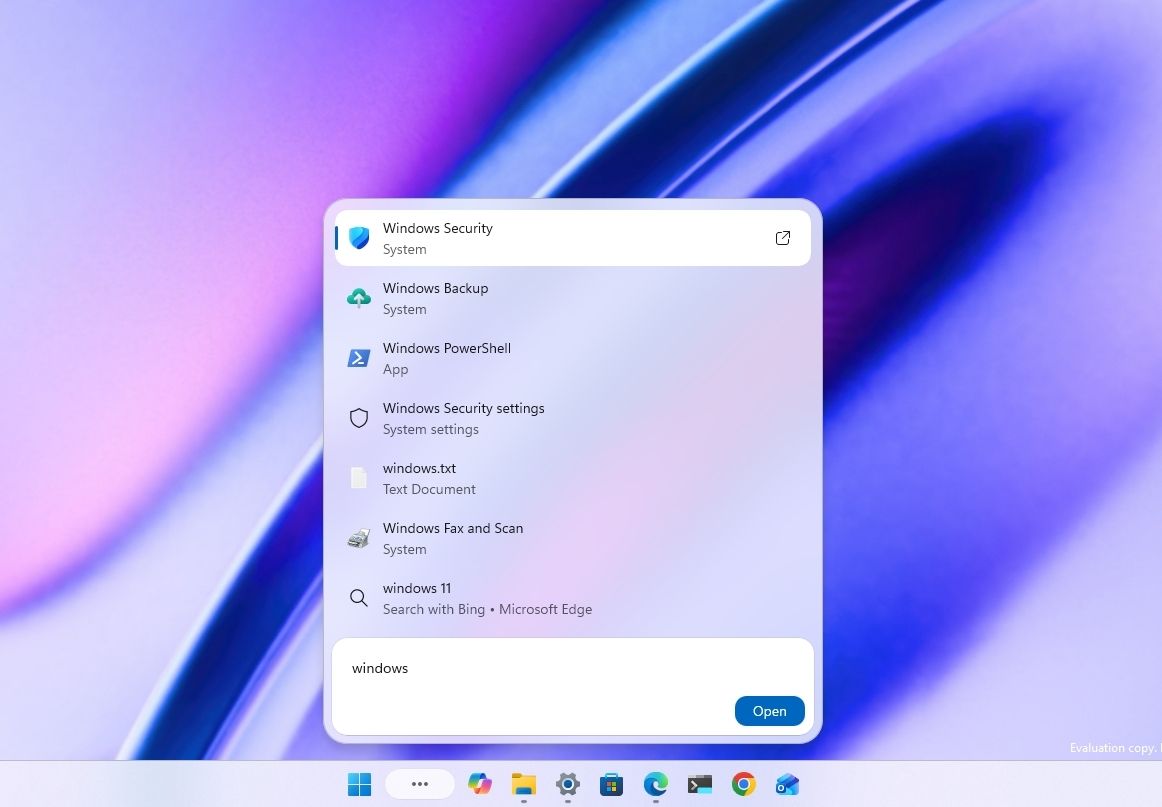
Starting with the release of build 26340.9616 for version 26H2, Microsoft began the gradual rollout of the new Windows Search experience.

New Windows Search showing search results.

(Image credit: Mauro Huculak)

The new experience features an entirely new interface using WinUI 3, designed to make search faster and more efficient while using less memory.

Perhaps the most notable change is the new inline actions that let you perform tasks directly from the Search box. For example, you can switch between the light and dark mode, enable Bluetooth, adjust brightness, arrange windows, and more.

In addition, the company is adding improvements to help Windows Search understand you better, including better handling of typos and synonyms.

The new Search experience is currently available in versions 26H2 and 26H1 as a preview through the Experimental channel.

Battery new widget

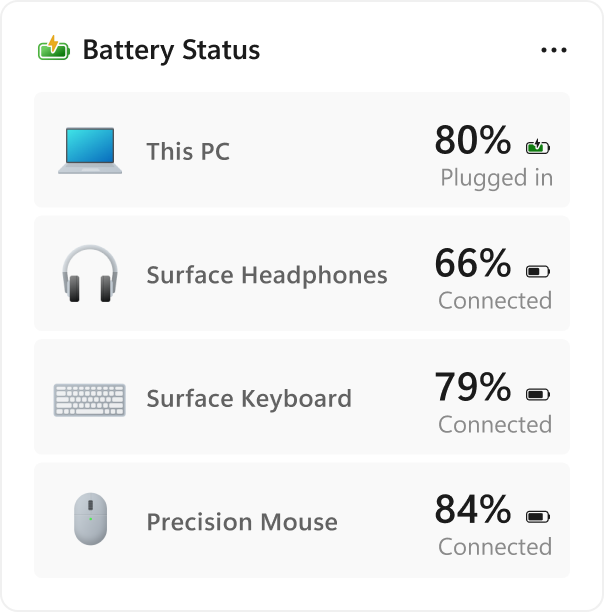
Also, Windows 11 build 26340.9616 ships with the new Battery Status widget, which tracks your computer and peripherals' battery levels without having to resort to third-party tools.

New Battery widget for Windows 11.

(Image credit: Microsoft)

The widget is available from the Widgets dashboard> Add widgets > Battery Status.

Once the widget is enabled, you'll see the battery level of your laptop as well as your mouse, keyboard, headphones, and more.

Task Manager new processes group

Although Task Manager isn't getting another makeover, an updated version improves how it handles process groups, letting apps combine separate background processes into a single category instead of relying on traditional parent-child process trees.

Microsoft says that this should make it easier to view how an app uses system resources. Currently, this works only in Microsoft Defender.

File Explorer faster navigation

The company has also made small but welcome improvements to File Explorer with the release.

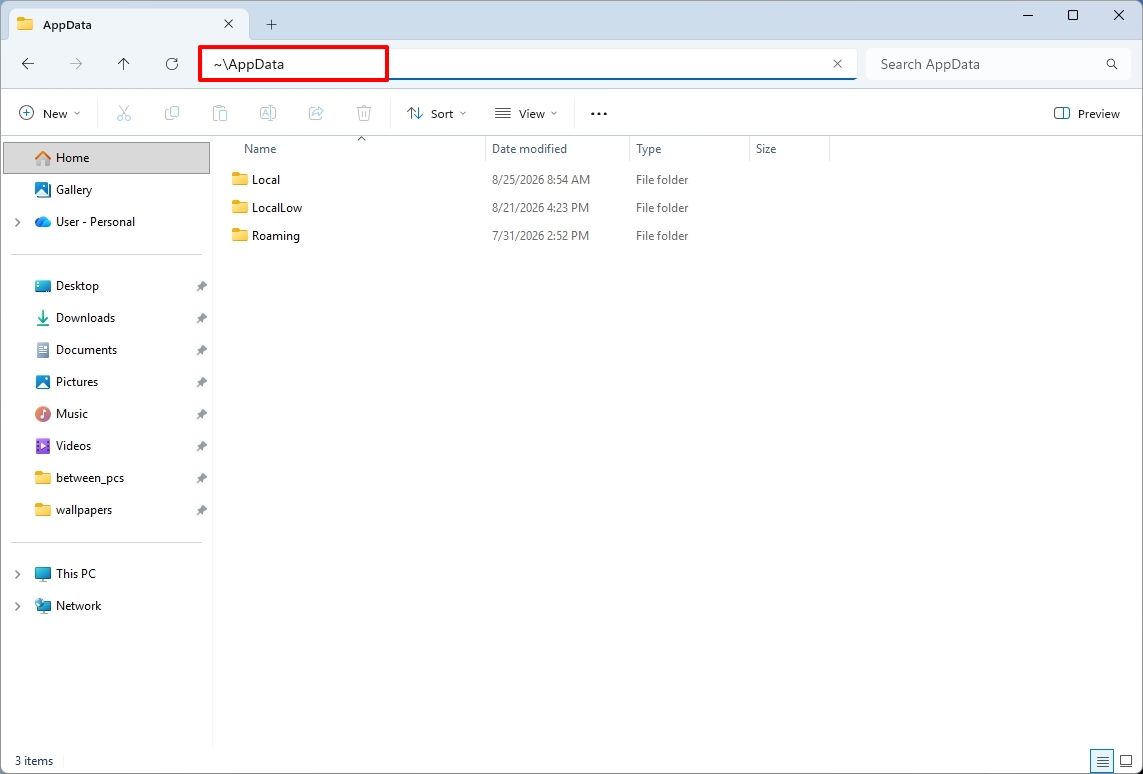
For instance, on build 26340.9596 for version 26H2, you can now use the "~" character to quickly open your profile folder or subfolder, for example, "~\AppData".

File Explorer showing ~ character to open profile folder.

(Image credit: Mauro Huculak)

As part of the File Explorer changes, on builds 28120.3151 and 28020.3142 for version 26H1, Microsoft rolled out improvements to keep folder view customizations, such as sorting and icon size preferences, consistent across different access paths and apps.

The update also improves address bar support for paths with double backslashes and quotation marks.

Finally, in this wave of updates, build 29680 for the Future Platforms version, you'll find an updated version of the file manager that now handles previews for downloaded files from the internet.

When using the preview pane, HTML files will show a preview after you acknowledge the warning, while non-HTML files, such as PDFs, will show previews automatically.

Cloud Rebuild improvements

Cloud Rebuild is a new recovery feature that helps you reinstall the operating system when your computer has problems or won't boot.

Unlike other recovery options, this feature uses Windows Update to download installation files and drivers without needing bootable USB media.

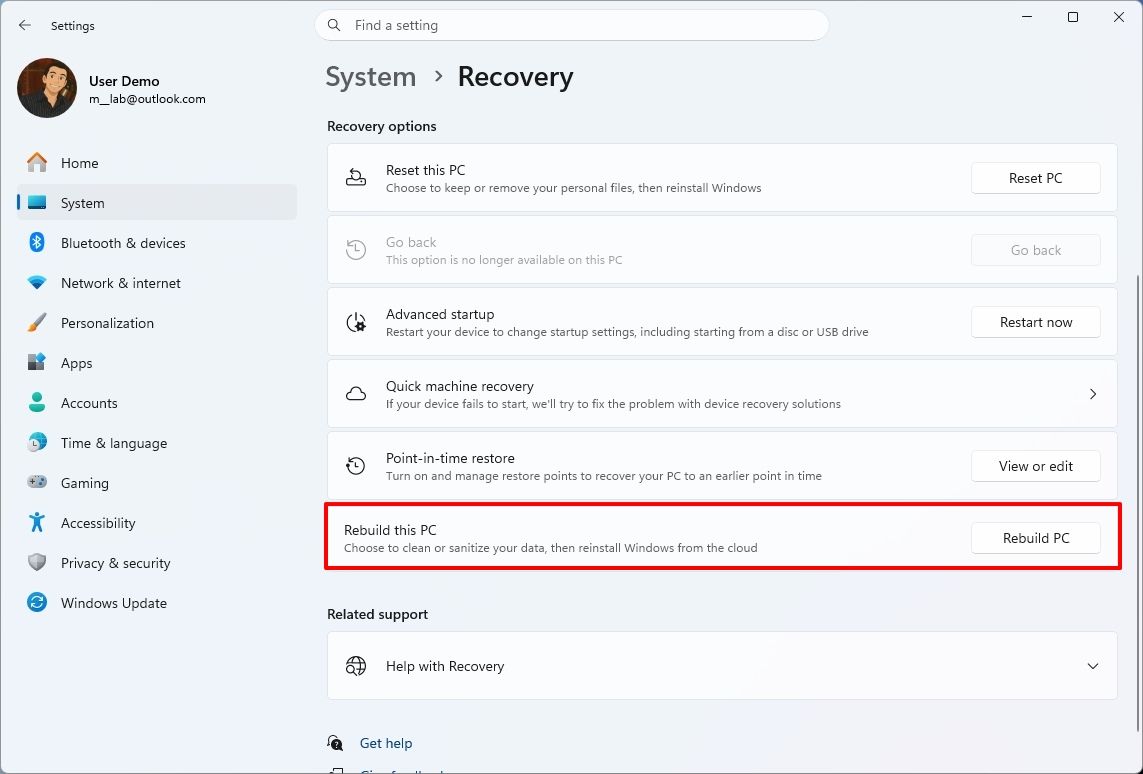
This recovery feature is still in preview, but in build 26340.9596 for version 26H2 and build 26220.9587 for version 25H2, you'll now find a new "Rebuild this PC" option on the Recovery page in Settings, making it easier to access.

Windows 11 Settings showing the Rebuild this PC option.

(Image credit: Mauro Huculak)

Also, in builds 28120.3151 and 28020.3142 for version 26H1, the Cloud Rebuild feature added a new "Remove & sanitize files" option to securely erase data before reinstalling the operating system, which is useful when recycling or reassigning a computer.

This update also lets admins configure and start a Cloud Rebuild remotely using Recovery CSP.

Narrator's new math reading

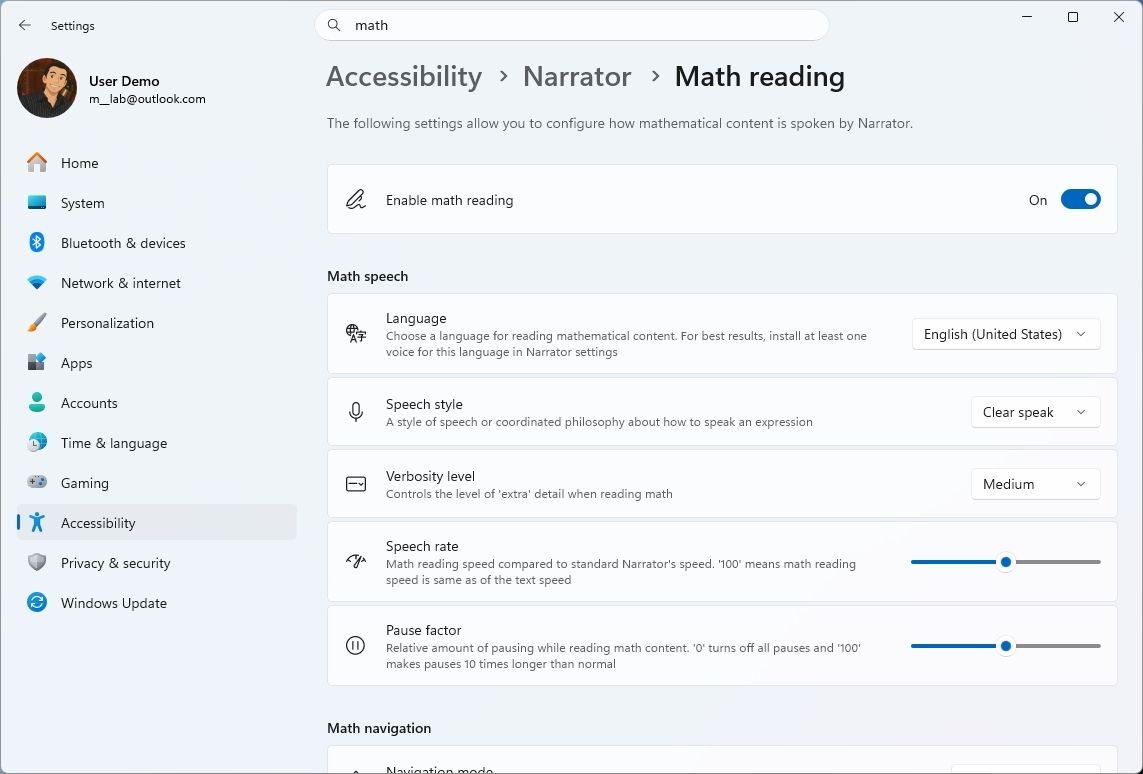
As part of the updates for version 26H1 (builds 28120.3151 and 28020.3142), Microsoft also updated the Windows Narrator feature with a more natural way to read and explore math equations.

According to the company, on supported apps from the Microsoft 365 suite, such as PowerPoint and Word, Windows Narrator can now read equations as structured expressions.

In addition, a new math navigation mode allows you to explore an equation one part at a time.

Windows 11 Settings showing the Narrator math reading settings.

(Image credit: Mauro Huculak)

You can use the "Narrator key + Alt + N," and then use the arrows to move through fractions, exponents, and roots. You can also use "Esc" to exit the mode.

The new math capability also works on supported web content in Microsoft Edge and Google Chrome.

Magnifier with updated controls

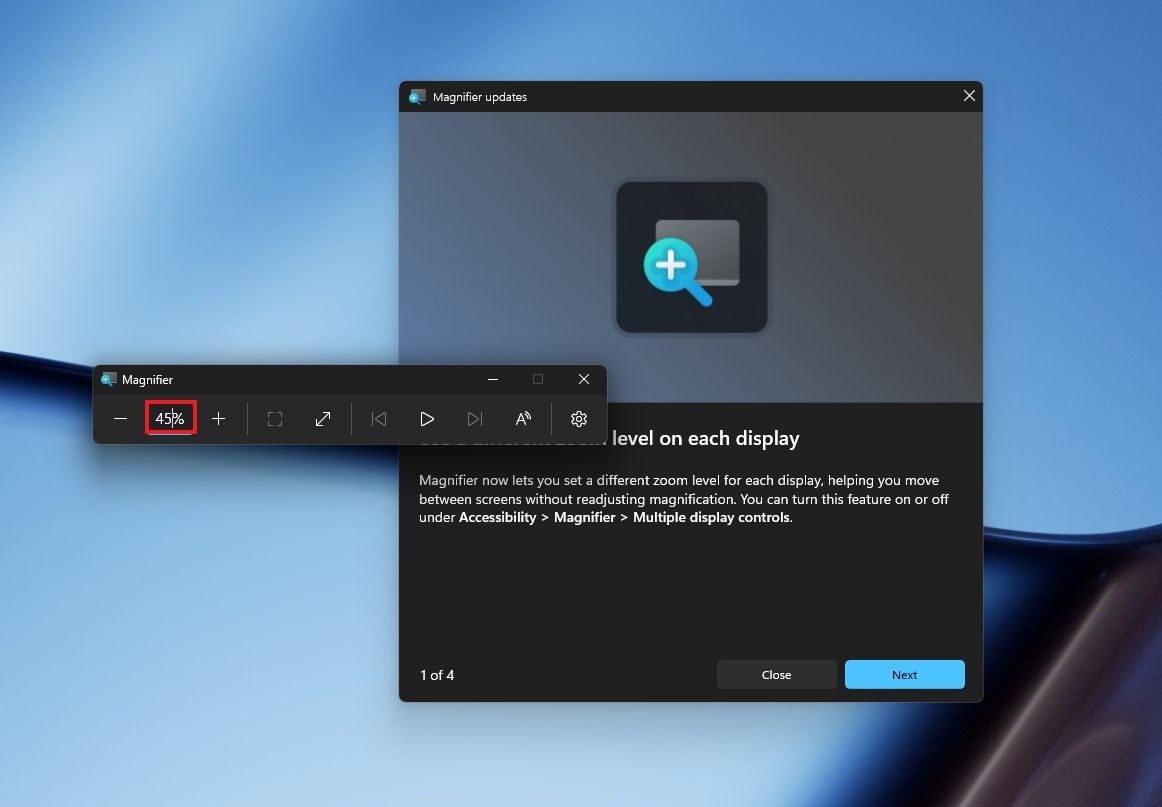
In this wave of updates, the Magnifier lets you enter the exact zoom percentage directly in the toolbar instead of relying on the presets.

Windows 11 desktop with Magnifier new zoom controls.

(Image credit: Mauro Huculak)

In addition, in the settings, the preset option now includes more increments up to 400 percent.

Windows Share customization

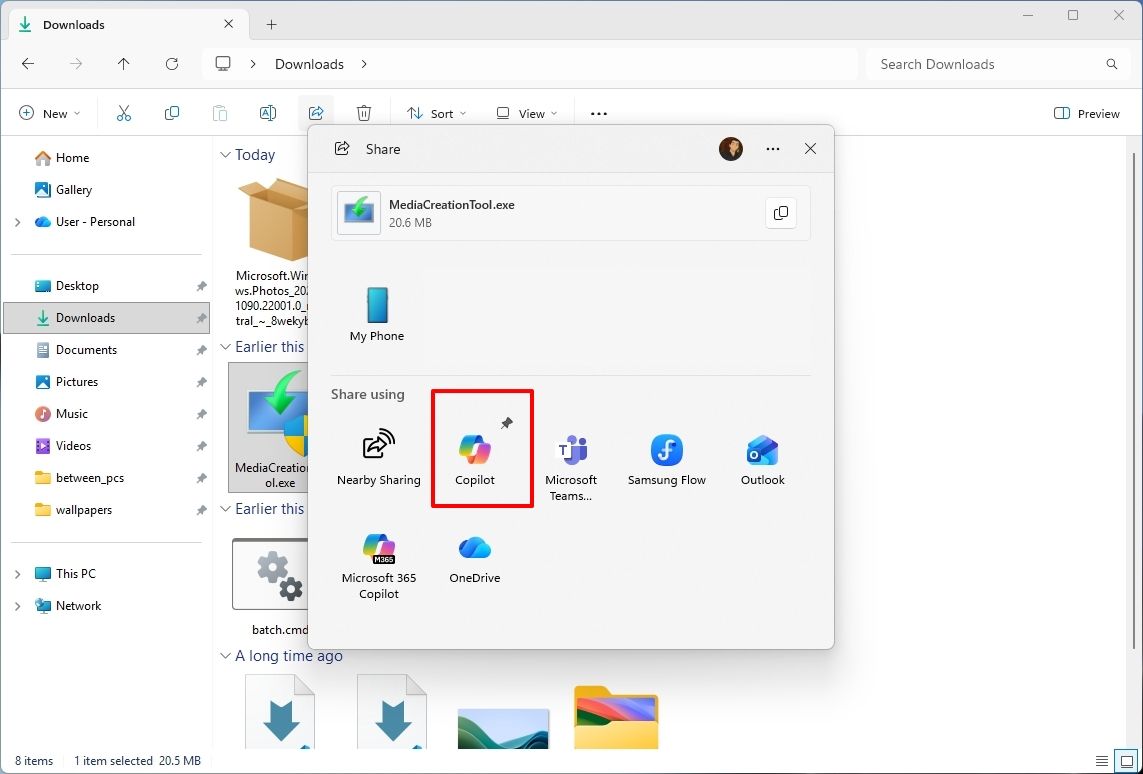
Although the Windows Share experience remains largely the same, Microsoft has added the ability to pin your favorite apps directly in the Share interface in the Experimental channel for Future Platforms.

File Explorer with Windows Share showing the pin option.

(Image credit: Mauro Huculak)

This change makes it easier to find your favorite apps that you use often when sharing.

Installed apps page tweak

Finally, starting with build 29680, the "Installed apps" page now shows the version number at the top level under the Apps settings section for package apps.

Windows Central's Take

I'd put the new Windows Search, Cloud Rebuild, and File Explorer improvements at the top of this list. Search is becoming more useful for everyday tasks, Cloud Rebuild is getting better options for recovering a computer and securely erasing its data, and File Explorer is addressing small annoyances that can make file management frustrating.

These changes can make Windows 11 more practical without requiring users to learn an entirely new way of doing things.

I hope Microsoft continues to improve these core features instead of leaving them behind in favor of bigger, flashier additions.

Which of these three improvements would you most like to see arrive on your PC? Let me know in the comments.

More resources

Explore more in-depth how-to guides, troubleshooting advice, and essential tips to get the most out of Windows 11 and 10. Start browsing here:

Click to join us on r/WindowsCentral

Join us on Reddit at r/WindowsCentral to share your insights and discuss our latest news, reviews, and more.
Microsoft will reward new Windows 11 PC buyers with 25 Xbox games worth $500+

16 October 2026 at 09:50

Microsoft recently shared a lengthy roadmap detailing massive changes coming to Windows 11 over the course of November 2026. They include new Photos app features, improvements to the Search app, expanded phone integration, and enhanced performance for gaming.

Plus, Microsoft is also offering a special surprise for PC players during this time in honor of Xbox's 25th anniversary as part of these updates. Starting in November, customers who buy eligible Windows 11 PCs will be able to claim PC versions of 25 Xbox games with a total value of over $500.

This collection includes classics like The Elder Scrolls V: Skyrim Special Edition, Halo: Combat Evolved Anniversary, Age of Empires II: Definitive Edition, Minecraft Dungeons, and Gears of War: Reloaded, to name a few.

Who is eligible for the free Xbox PC games?

This free collection of games (all digital, no discs) will only be valid with the purchase of select Windows devices sold from participating U.S. retailers from November 2, 2026, to December 31, 2026. Microsoft describes in its small print that offers to 'claim this collection' for your eligible device in the Microsoft Store app will be available until November 30, 2026.

You must activate your PC and claim the digital game bundle for your Microsoft account by December 2, 2027. You'll be able to check aka.ms/XBOXbundle on November 2, 2026, for game compatibility, system requirements, ratings, and full offer terms.

When you claim these titles, their PC versions will be linked to your Microsoft account and will become playable on any compatible Windows PC. Plus, some select titles will also be playable on Xbox Series X|S consoles with Xbox Play Anywhere support.

Note that some devices eligible for this giveaway will not be able to play all the games within this collection.

Christmas is coming early for Xbox fans in November

This free Xbox giveaway list is already stacked with some incredible titles from the few confirmed titles alone. We have Gears of War: Reloaded, the HD remaster of the iconic third-person shooter that still holds up today with its brutal gunplay, gritty story, and addictive multiplayer.

There's also Halo: Combat Evolved Anniversary, the first HD remaster of the first Halo that completely retains the gameplay of the original game while improving its graphics. Plus, unlike Halo: Campaign Evolved, Halo: Combat Evolved Anniversary comes with PvP multiplayer modes to keep players busy long after beating the campaign.

Then there's The Elder Scrolls V: Skyrim Special Edition, Bethesda Softworks' magnum opus of an open-world RPG that people still play to this day for its immersive world and lore, engaging gameplay, and near-infinite modding compatibility.

We also have the cutesy Minecraft Dungeons, which is a fun, beginner-friendly ARPG that combines the hack-and-slash and looting gameplay of Diablo with the universe of Minecraft. Finally, we have Age of Empires 2: Definitive Edition, a full-blown remaster of the genre-revolutionizing real-time strategy game that features co-op, competitive multiplayer, mods, and full crossplay.

With such high-profile games, I can't wait to see what the rest of the free Xbox games being given away by Microsoft are as we inch closer to Xbox's 25th anniversary. Needless to say, it's going to be one heck of a birthday party.

Click to join us on r/WindowsCentral

Join us on Reddit at r/WindowsCentral to share your insights and discuss our latest news, reviews, and more.
Microsoft's new Windows 11 pitch isn't AI. It's a faster, less annoying PC

Microsoft just shared a massive blog post recapping major Windows 11 changes, including new Photos app features, an improved Search experience, expanded phone integration, and gaming improvements.

Many of the changes highlighted by Microsoft have already been announced, or even fully detailed elsewhere. But with Windows 11 in the middle of a significant refresh, gathering them all in one place is useful.

While much of the post focuses on previously known improvements, Microsoft also used it to introduce a few genuinely new additions, including the redesigned Photos app and an Xbox anniversary game bundle for eligible PC buyers.

Here's a quick rundown of the features Microsoft highlighted:

  • New Photos app
  • Advanced Shader Delivery (ASD)
  • Windows 11 performance improvements
    • Faster Start menu
    • Faster File Explorer
    • Faster Search
    • Faster Snipping Tool
    • Faster Settings
    • Memory optimizations
    • Reduced Widgets memory usage
    • Reduced update times
  • Bluetooth and AirPods improvements
  • Windows Hello improvements
  • A push to improve driver quality
  • Expanded Phone Link features
  • Microsoft Ink Canvas
  • Advanced Haptics
  • Improved accessibility

One of the biggest changes is the new Search experience that allows you to perform actions from the taskbar. The new Search is faster, supports inline actions, and lets you perform tasks without opening related apps or settings menus. The new Search is already in testing among Windows Insiders.

Microsoft explains that improvements to Windows 11 results in an experience that feels up to 20 percent more responsive. That improvement comes as the result of several efforts from Microsoft, such as optimizing memory management and streamlining in-box apps.

The company also highlights that Windows 11 is more reliable and customizable than before. Over the past year the Widgets Panel has been cleaned, the taskbar has gained the option to be placed on other parts of your screen, and Windows Update has been improved.

Microsoft specifically highlighted Bluetooth improvements, including AirPods pairing that it says is up to 15 seconds faster.

Windows 11 desktop showing Microsoft's new Search experience with recent files, apps, settings controls, and quick actions available from a Taskbar search panel.

The new Windows Search is faster, more efficient, and supports inline actions. (Image credit: Microsoft)

On the gaming side of things, Advanced Shader Delivery (ASD) reduces the initial load time of games by delivering precompiled shaders. Forza Horizon 6 and Gears of War: E-Day are supported now and more titles should gain support in the future.

The improvements to Windows 11 will help anyone with an up-to-date PC, but it's clear Microsoft is taking the opportunity to suggest people buy a new PC. As part of that effort, the company has an Xbox 25th Anniversary bundle that includes over $500 worth of games. The collection includes several major titles, including Skyrim Special Edition, Halo: Combat Evolved Anniversary, Age of Empires II Definitive Edition, Minecraft Dungeons, and Gears of War: Reloaded.

"A new PC is a meaningful purchase, and the value should show up in more than a spec sheet," says Microsoft. "The reason to upgrade is not just one feature; it is how [experiences] work together to make more of your day feel effortless."

Another Microsoft blog post highlights deals as we head into the holidays.

Microsoft shared a commitment to listen to feedback earlier this year. The company followed up with several improvements as part of its Windows K2 initiative. It's taken time for those promises to move from feedback and Insider testing to broader availability, but Windows 11 is now seeing some of its most significant changes in years.

The real question is whether these improvements change buying behavior. Microsoft clearly believes a faster, more reliable Windows experience can help convince people to upgrade.

Click to join us on r/WindowsCentral

Join us on Reddit at r/WindowsCentral to share your insights and discuss our latest news, reviews, and more.
❌