Com tantos modelos de iPhones e iPads lançados pela Apple desde 2007 e 2010, respectivamente, fica difícil pra muita gente saber qual aparelho de fato possui — principalmente quem não é muito ligado em tecnologia.
A boa notícia é que você pode conferir essa informação de uma maneira supersimples, nas configurações dos próprios dispositivos. Veja como identificar o seu modelo! 📱
NOTA DE TRANSPARÊNCIA: O MacMagazine recebe uma pequena comissão sobre vendas concluídas por meio de links deste post, mas você, como consumidor, não paga nada mais pelos produtos/serviços usando os nossos links de afiliado.
O visionOS é o sistema operacional do Apple Vision Pro, headset de realidade virtual/aumentada da Maçã.
Caso queira utilizar algum recurso específico desse dispositivo — e que exija minimamente uma versão de software —, você pode conferir qual delas está rodando atualmente no aparelho.
Em seguida, selecione “About” para conferir qual versão do visionOS seu Apple Vision Pro está rodando.
ComprarApple Vision Prode Apple 🇺🇸Preço: a partir de US$3.699 Armazenamento: 256GB, 512GB ou 1TB
NOTA DE TRANSPARÊNCIA: O MacMagazine recebe uma pequena comissão sobre vendas concluídas por meio de links deste post, mas você, como consumidor, não paga nada mais pelos produtos/serviços usando os nossos links de afiliado.
Para que os AirPods, AirPods Pro e AirPods Max recebam novos recursos e correções de segurança, é necessário atualizar a versão de firmware dos fones de ouvido da Apple.
Isso é feito de forma completamente automática e você não precisa se preocupar com nada. Porém, você pode querer saber exatamente qual versão está rodando (para ver se está na última disponível, por exemplo).
NOTA DE TRANSPARÊNCIA: O MacMagazine recebe uma pequena comissão sobre vendas concluídas por meio de links deste post, mas você, como consumidor, não paga nada mais pelos produtos/serviços usando os nossos links de afiliado.
A Apple TV 4K é a melhor opção de set-top box para quem quer aproveitar ao máximo todos os serviços e recursos disponibilizados pela empresa.
O que torna essa experiência tão mágica é o sistema operacional tvOS, feito especialmente para esse produto. Para garantir todos os recursos mais recentes e também as correções de erros, é imprescindível manter o OS sempre atualizado.
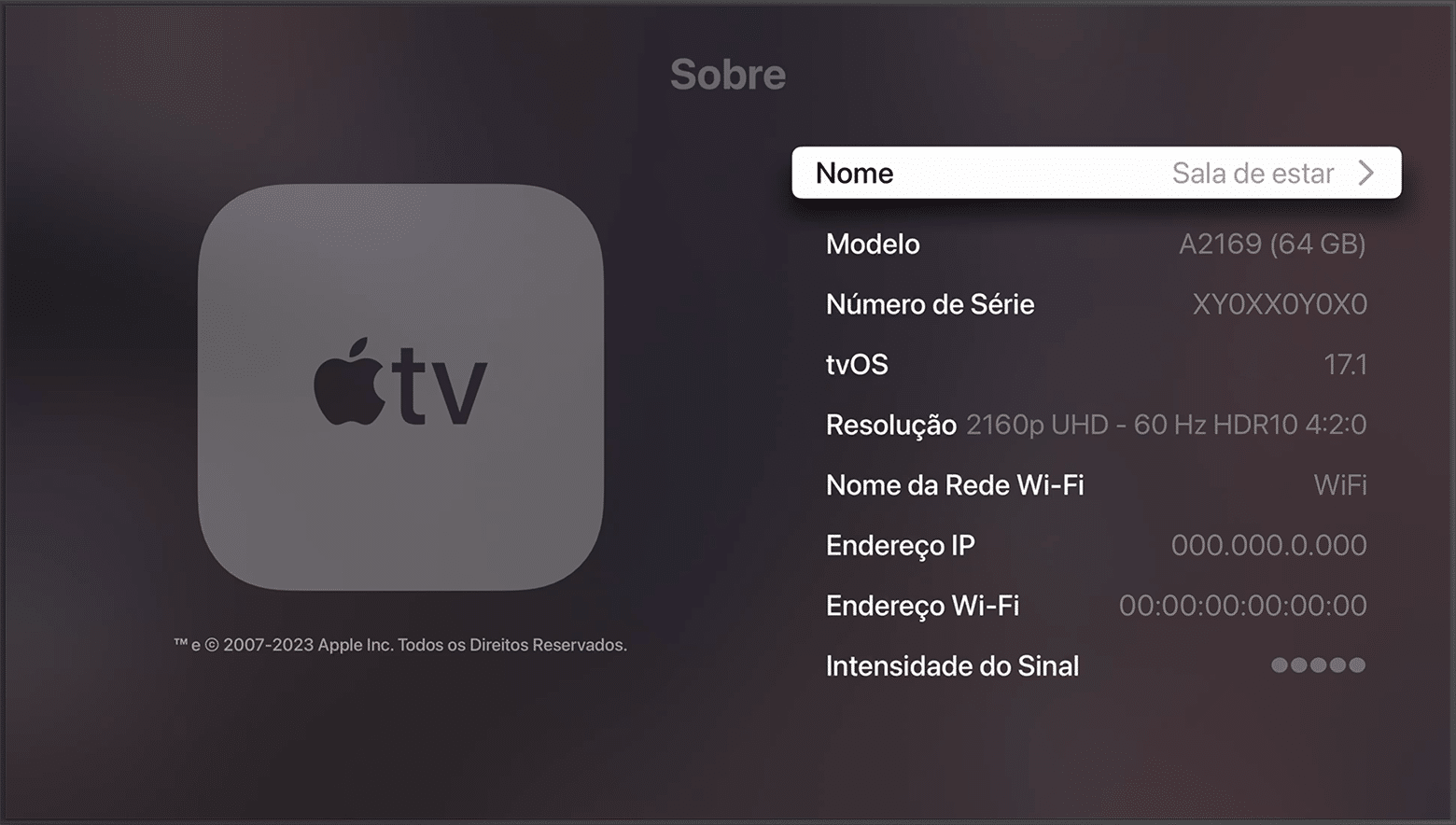
Veja como conferir qual versão do tvOS sua Apple TV está rodando!
NOTA DE TRANSPARÊNCIA: O MacMagazine recebe uma pequena comissão sobre vendas concluídas por meio de links deste post, mas você, como consumidor, não paga nada mais pelos produtos/serviços usando os nossos links de afiliado.
Como ocorre com os outros sistemas operacionais da Apple, o watchOS é frequentemente atualizado. Com isso, o seu Apple Watch recebe não só novos recursos, como também correções de segurança importantes.
Neste artigo, mostraremos como é possível conferir qual versão do sistema o seu smartwatch está rodando no momento, veja só! ⌚️
Material: alumínio ou titânio Cores: cinza-espacial, prateado, ouro rosa, preto brilhante, natural, dourado ou ardósia Tamanho: 42mm ou 46mm Conectividade: GPS ou GPS + Cellular Pulseiras: esportiva ou estilo milanês
NOTA DE TRANSPARÊNCIA: O MacMagazine recebe uma pequena comissão sobre vendas concluídas por meio de links deste post, mas você, como consumidor, não paga nada mais pelos produtos/serviços usando os nossos links de afiliado.
O macOS é o sistema operacional que equipa os computadores da Apple, os Macs.
Para receber os novos recursos e estar sempre protegido contra ataques ou brechas de segurança, é recomendável manter o seu dispositivo atualizado para a última versão disponível.
Veja como conferir qual versão do sistema seu Mac está usando! 👨💻
Cores: preto-espacial ou prateado Tela: padrão ou nano-texture Chips: M5 Pro ou M5 Max Memória: 24GB, 36GB, 48GB, 64GB ou 128GB Armazenamento: 1TB, 2TB, 4TB ou 8TB
Cores: preto-espacial ou prateado Tela: padrão ou nano-texture Chips: M5, M5 Pro ou M5 Max Memória: 24GB, 36GB, 48GB, 64GB ou 128GB Armazenamento: 1TB, 2TB, 4TB ou 8TB Adaptador de energia: USB-C de 70W ou 96W
Cores: azul-céu, prateado, estelar ou meia-noite Chip: M5 Memória: 16GB, 24GB ou 32GB Armazenamento: 512GB, 1TB, 2TB ou 4TB Adaptador de energia: USB‑C de 30W, 35W com duas portas ou 70W
Cores: azul-céu, prateado, estelar ou meia-noite Chip: M5 Memória: 16GB, 24GB ou 32GB Armazenamento: 512GB, 1TB, 2TB ou 4TB Adaptador de energia: USB‑C de 30W, 35W com duas portas ou 70W
NOTA DE TRANSPARÊNCIA: O MacMagazine recebe uma pequena comissão sobre vendas concluídas por meio de links deste post, mas você, como consumidor, não paga nada mais pelos produtos/serviços usando os nossos links de afiliado.
Saber a versão do sistema operacional que o seu dispositivo da Apple está rodando atualmente é muito importante — seja para buscar alguma ajuda com o suporte ou para saber se é a mais recente disponibilizada pela empresa.
Esse processo pode ser feito de um jeito supersimples no seu iPhone ou iPad, como mostraremos em detalhes nos parágrafos a seguir. Veja só! 🙂
NOTA DE TRANSPARÊNCIA: O MacMagazine recebe uma pequena comissão sobre vendas concluídas por meio de links deste post, mas você, como consumidor, não paga nada mais pelos produtos/serviços usando os nossos links de afiliado.
Apple Health data can now move between the Health app and Google Health on an iPhone. The connection lets Google Health import supported information recorded by an iPhone, Apple Watch, and compatible apps. The latest Google Health update can also send supported Fitbit information to Apple Health.
This two-way connection is useful for people who wear a Fitbit but prefer Apple’s Health app as the central place for viewing activity, sleep, steps, and other wellness information. It also reduces the need for third-party synchronization apps.
The feature requires a recent version of Google Health. Google began introducing support for sending data back to Apple Health with Google Health version 5.05. Because app updates can roll out gradually, the new sharing options may not appear until the latest version reaches your account.
Update Google Health Before Starting
The Fitbit app became Google Health in 2026. Existing Fitbit users should find that the installed app has changed its name and design after updating. Fitbit accounts must also be moved to an adult Google Account to use the redesigned service.
Google says the Apple Health connection requires iOS 16.4 or later. The iPhone must have internet access while the connection is being created.
To check the iOS version installed on your iPhone:
Settings > General > About > iOS Version
Install the latest compatible iOS update if the phone is running an older release.
To look for an available iPhone software update:
Settings > General > Software Update
Next, confirm that Google Health is current. Version 5.05 or later is required for the newer option that sends supported Google Health and Fitbit information to Apple Health.
To update Google Health from the App Store:
App Store > Profile Picture > Available Updates > Google Health > Update
If Google Health does not appear under Available Updates, search for the app manually. The App Store page may show an Update button if a newer release is available.
To find the app directly:
App Store > Search > Enter Google Health > Google Health (Fitbit)
People who previously used Fitbit should sign in with the Google Account connected to their Fitbit information. Creating a different account may produce an empty Google Health profile.
Image Credit: Google
Connect Apple Health Data to Google Health
Connecting the apps allows Google Health to read supported information from Apple Health. This can include data collected by the iPhone, Apple Watch, and other apps that already share information with Apple Health.
To start the Apple Health connection:
Google Health > Connections > Apps and Services > Apple Health > Get Started
Depending on the Google Health version and interface shown on the iPhone, Connections may appear behind the profile icon.
To find Apple Health through the alternative menu:
Google Health > Profile Icon > Partner Apps > Apple Health
Google Health will display a consent screen explaining the connection. Read the information before continuing.
To approve the initial connection:
Sync Google Health With Apple Health > Agree
The iPhone will then display Apple’s health permission screen. This screen lets you decide which information Google Health can read.
To give Google Health access to every supported category:
Apple Health Permission Screen > Turn All Categories On > Allow
You do not have to share every available category. Selecting individual permissions provides more control over sensitive health information.
To share only selected categories:
Apple Health Permission Screen > Select Each Health Category > Allow
Google Health can import supported information such as steps, distance, active energy, exercise records, routes, sleep sessions, sleep stages, heart rate, resting heart rate, heart rate variability, blood oxygen, respiratory rate, body temperature, weight, body fat percentage, water, nutrition information, and some cycle-tracking data.
Available categories depend on the devices and apps connected to Apple Health. An iPhone may provide steps and walking information, while an Apple Watch can contribute heart rate, workouts, sleep, and other measurements supported by the model.
After the permissions are approved, Google Health should confirm that the connection is complete.
To finish the connection:
Google Health Confirmation Screen > Done
New Apple Health information should begin appearing automatically in Google Health. Google has said that imported data can be used across relevant Google Health metrics, although not every external data type is used for every calculation.
To find imported health information:
Google Health > Health > Select a Metric
Google Health may display information from several connected sources together. Its value for a metric can differ slightly from the number shown by Apple Health because the apps may process available data differently.
Send Fitbit Data to Apple Health
Google Health version 5.05 adds the reverse direction that many iPhone and Fitbit users previously lacked. Supported information recorded through Fitbit can now be written into Apple Health.
Before enabling this option, make sure the Fitbit is properly connected to Google Health. Fitbit devices normally synchronize automatically throughout the day when Bluetooth is available and the wearable is near the iPhone.
To check the connected Fitbit:
Google Health > Profile Icon > Devices > Select Your Fitbit
The device page should show the wearable, its battery level, and its most recent synchronization time. Opening Google Health can also prompt a nearby Fitbit to transfer recently collected information.
Once the wearable is updating Google Health correctly, open the Apple Health connection settings.
To open the sharing controls for Apple Health:
Google Health > Profile Icon > Partner Apps > Apple Health
The interface may use Apps and Services instead of Partner Apps on some versions.
To reach the same connection through Apps and Services:
Google Health > Connections > Apps and Services > Apple Health
Follow the prompts for sharing Google Health information with Apple Health. The iPhone may display separate permissions for data that Google Health can read and data that it can write.
To allow supported Fitbit information to appear in Apple Health:
Apple Health Permission Screen > Allow Google Health to Write > Select Health Categories > Allow
Google says supported information can include exercise records, steps, sleep, vitals, and other health data. The exact selection can vary according to the Fitbit model, region, Google Health version, and information stored in the account.
Selecting every category is convenient, but it can create overlapping sources when an iPhone, Apple Watch, and Fitbit record the same type of activity. Choose only the categories you want Google Health to add.
A person who uses a Fitbit mainly for sleep, for example, can allow sleep information while leaving steps disabled. Someone who wears a Fitbit instead of an Apple Watch may prefer to enable steps, workouts, heart rate, sleep, and other supported categories.
Image Credit: AppleMagazine
Check Google Health Permissions
Apple Health keeps permission controls on the iPhone. You can change them after the first connection without deleting either app.
To review Google Health access from Apple Health:
Health > Profile Picture > Privacy > Apps > Google Health
The page shows the categories Google Health is permitted to read or update. Turn off any category you no longer want to share.
Some iOS versions provide the same controls through the Sharing tab.
To find Google Health through the Sharing tab:
Health > Sharing > Apps and Services > Google Health
Turning off a permission stops future sharing for that category. It does not necessarily remove information that has already been written to Google Health or Apple Health.
The Google Health app also provides controls for the connection.
To review Apple Health inside Google Health:
Google Health > Connections > Apps and Services > Connected > Apple Health
If Google Health displays a message that new data types are available, open the connection and approve the additional categories you want to use. Newly supported information is not automatically shared without permission.
Manage Duplicate Health Information
An iPhone, Apple Watch, and Fitbit can record similar information at the same time. Apple Health keeps each source attached to its data and uses a priority order when presenting combined measurements.
You can inspect the sources contributing to a category and choose which one Apple Health should prefer.
To review the sources used for step information:
Health > Search > Activity > Steps > Data Sources and Access
The screen shows the apps and devices that provide step records. If Google Health, an Apple Watch, and the iPhone all appear, you can adjust their priority.
To change the order of step sources:
Health > Search > Activity > Steps > Data Sources and Access > Edit > Drag Sources Into the Preferred Order > Done
Move the source you trust most toward the top. Apple Health generally gives higher priority to sources placed above others when similar records overlap.
Repeat the same process for other categories if their totals do not look right. Exercise, sleep, active energy, and distance can each have their own sources and permissions.
Image Credit: Google
Fix Missing or Delayed Data
Synchronization is not always immediate. A Fitbit first sends its information to Google Health, and Google Health then writes supported records to Apple Health. Bluetooth availability, Background App Refresh, internet access, and battery-saving behavior can affect this process.
Begin by opening Google Health with the Fitbit close to the iPhone. Wait for the device to complete its normal synchronization before checking Apple Health.
If Apple Health information is missing from Google Health, confirm that the connection remains active.
To check the connection status:
Google Health > Connections > Apps and Services > Apple Health
If Google Health displays an error or a request for new permissions, follow the message shown on the screen.
Background App Refresh can help Google Health update when the app is not open.
To allow Google Health to refresh in the background:
Settings > General > Background App Refresh > Google Health > On
Bluetooth must remain available for a Fitbit to communicate with the iPhone.
To confirm that Bluetooth is enabled:
Settings > Bluetooth > Bluetooth On
If the connection continues to fail, disconnecting and reconnecting Apple Health may restore the permission request.
To disconnect Apple Health from Google Health:
Google Health > Connections > Apps and Services > Apple Health > Disconnect > Confirm Disconnect
Disconnecting the service does not automatically remove every permission already stored by Apple Health. Review the Google Health entry in the Health app if you want to remove those permissions as well.
To remove the remaining Apple Health permissions:
Health > Profile Picture > Privacy > Apps > Google Health > Turn Off All
After reconnecting the apps, allow time for new records to appear. Previously stored information may not transfer in exactly the same way as activity recorded after the connection was enabled.
You can inspect an individual entry to confirm whether it came from Google Health, a Fitbit, an Apple Watch, or the iPhone.
To check the source and time of a synced record:
Health > Search > Select a Health Category > Show All Data > Select the Latest Entry
You can show hidden files on Mac with a simple keyboard shortcut. You do not need Terminal, an administrator password, or advanced technical knowledge for the most common method.
macOS hides some files because they contain settings, app information, or system resources that people do not normally need to open. These items remain on the Mac, but Finder does not display them during regular use.
You may need to see them when following troubleshooting instructions, opening the hidden Library folder, managing website files, checking app settings, or finding data left behind by an uninstalled application. Once the files are visible, you should avoid deleting anything unless you understand its purpose.
Show Hidden Files Without Terminal
Finder has a built-in shortcut that reveals hidden files and folders instantly. It is the fastest method when you only need temporary access.
To show hidden files in the current Finder folder:
Finder > Open Any Folder > Command + Shift + Period (.)
The period is the regular full-stop key on the keyboard. You must press Command, Shift, and Period at the same time.
The folder will update immediately. Hidden items normally appear lighter or more transparent than regular files. This visual difference helps you recognize files that macOS does not usually display.
The shortcut works in most Finder locations, including the user’s Home folder and some folders on external drives. It can also work inside the Open and Save windows presented by Mac applications.
If you do not see any changes, try the shortcut inside your Home folder. The available hidden items depend on the apps and services used on the Mac.
To open your Home folder:
Finder > Go > Home
After the Home folder opens, use the hidden-file shortcut again. You may see items with names that begin with a period, including configuration folders created by applications.
Files beginning with a period are commonly called dot files. macOS and Unix-based applications use them to store settings and other information without filling normal folders with technical data.
The Finder shortcut acts as a visibility switch. Using it a second time conceals the files again.
To hide the files after you finish:
Finder > Open Any Folder > Command + Shift + Period (.)
Hiding the files does not delete them. Finder simply returns to its normal view.
Image Credit: AppleMagazine
Open the Hidden Library Folder
The user Library is one of the most frequently accessed hidden folders on a Mac. It stores app preferences, browser information, caches, containers, saved states, Mail resources, and other data connected to the signed-in account.
You can open the Library directly without making every hidden file visible.
To open your personal Library folder:
Finder > Go > Press and Hold Option > Library
The Library option appears in the Go menu while you hold the Option key. Select Library before releasing the key.
This method opens the Library belonging to the current user. Its path is ~/Library, where the tilde represents the user’s Home folder.
The user Library is different from the Library folder located at the top level of the startup disk. The top-level folder contains resources that can be shared by different accounts, while ~/Library primarily contains information for the current account.
Deleting content from the Library can reset an app or remove locally stored information. If troubleshooting instructions tell you to remove a file, confirm its name and location before making any changes.
Open a Specific Hidden Folder
Finder includes a Go to Folder feature for opening locations that are difficult to find manually. It is useful when you know the folder’s exact path and do not want to reveal every hidden item.
To open the Go to Folder field:
Finder > Go > Go to Folder
You can also reach the same field with a keyboard shortcut.
To open Go to Folder from the keyboard:
Finder > Shift + Command + G
A small field will appear. Type or paste the path of the location you want to open, then press Return.
To open your personal Library:
Go to Folder > Enter ~/Library > Press Return
To open the hidden SSH folder in your Home folder:
Go to Folder > Enter ~/.ssh > Press Return
The .ssh folder stores information used by Secure Shell tools. It may not exist if SSH software has never created it on the Mac. Finder displaying an error for this path does not necessarily indicate a problem.
To open the Library shared by all users:
Go to Folder > Enter /Library > Press Return
Pay attention to the beginning of each path. ~/Library opens the Library inside the current user’s Home folder. /Library opens the shared Library at the top level of the startup disk.
You can also paste a longer path supplied by an app developer or support technician. Check the spelling carefully because similarly named folders may contain completely different data.
Image Credit: AppleMagazine
Show Hidden Files With Terminal
Terminal can change Finder’s hidden-file preference so concealed items remain visible until you change the setting again. This option is helpful during longer troubleshooting or development sessions.
Terminal is included with macOS and can be opened from the Utilities folder.
To open Terminal:
Finder > Applications > Utilities > Terminal
A Terminal window will appear with a text prompt. Enter the command exactly as presented and press Return.
To keep hidden files visible in Finder:
defaults write com.apple.finder AppleShowAllFiles -bool true && killall Finder
Finder will close briefly and reopen. This restart allows the new visibility preference to take effect.
The command does not change the files themselves. It tells Finder to display items that macOS normally conceals.
You can reverse the change at any time.
To hide the files in Finder again:
defaults write com.apple.finder AppleShowAllFiles -bool false && killall Finder
Finder will restart once more and return to its regular view.
If Finder does not behave as expected after changing the preference, you can remove the custom value. macOS will then use its default behavior.
To remove the custom hidden-file preference:
defaults delete com.apple.finder AppleShowAllFiles && killall Finder
Terminal may say that the preference does not exist if no custom value is stored. That message simply means there is no setting to remove.
See Hidden Files Only in Terminal
Terminal can list hidden files without making them appear in Finder. This can be helpful when checking whether a file exists while leaving Finder unchanged.
The ls command displays the contents of a folder. Adding -a includes hidden items, while -l displays details such as permissions, ownership, file size, and modification date.
To list visible and hidden items in your Home folder:
ls -la ~
The results appear inside Terminal. Names beginning with a period are hidden during normal Finder use.
To list the contents of the folder currently open in Terminal:
ls -la
These commands only display information. They do not delete or modify the files shown in the results.
Work Safely With Hidden Mac Files
A hidden file is not automatically unnecessary, suspicious, or safe to delete. macOS and installed applications conceal many items to protect settings and reduce clutter.
The .DS_Store file, for example, can store Finder display information for a folder. External drives may include folders such as .Trashes and .Spotlight-V100, which macOS uses for Trash and Spotlight features.
Removing the wrong item can reset an application, delete local information, interrupt syncing, or cause macOS to rebuild a database. Copy an item to a safe location before changing it when troubleshooting instructions require manual file work.
Some system folders remain protected even when Finder displays them. Showing hidden files does not bypass administrator permissions or System Integrity Protection. There is no need to disable Mac security features simply to view a hidden folder.
Applications can also contain internal resources. These files are stored inside an app bundle and are different from standard hidden files.
To view the internal contents of an application:
Finder > Applications > Control-click the App > Show Package Contents
Changing files inside an app bundle can prevent the application from opening. If you need one of its resources, copy that file elsewhere instead of editing the original.
When you finish working, return Finder to its regular view to reduce the chance of accidentally moving or deleting a configuration file.
To hide all revealed files with the Finder shortcut:
Finder > Open Any Folder > Command + Shift + Period (.)
You can delete stickers on iPhone without removing your entire collection, but the correct procedure depends on whether you want to erase a custom sticker, remove a Genmoji, hide keyboard stickers, or detach a sticker from a conversation.
For custom photo stickers and Live Stickers, iOS provides an individual Remove command. This lets you clean the sticker drawer while leaving every other saved sticker untouched.
Apple does not provide a protected Favorites folder inside the system sticker drawer. The Frequently Used section is created automatically from your activity and should not be treated as a permanent collection. If you have stickers you cannot afford to lose, save recoverable copies before beginning the cleanup.
Save Your Favorite Stickers First
The safest backup is to send your favorite stickers to a conversation with yourself. The sent copies remain inside the conversation even if you later remove the reusable versions from your sticker collection.
Adding Stickers:
Messages > New Message > Your Contact > Add > Stickers
Select each favorite sticker and send it as a separate message. You can also create a private conversation with a trusted contact, but messaging yourself keeps the backup separate from ordinary conversations.
If you accidentally delete one of these stickers from the drawer, return to the self-conversation and restore it.
Messages > Your Self-Conversation > Touch and Hold Sticker > Save to Stickers
For a sticker attached to the corner of a message bubble, open its details before saving it.
Messages > Your Self-Conversation > Touch and Hold Sticker > Sticker Details > Save
This procedure is especially useful for stickers received from other people. A photo sticker you created yourself can usually be recreated from the original image, but a saved sticker from another person may be difficult to replace if the original conversation is deleted.
Image Credit: AppleMagazine
How to Delete Stickers on iPhone
The easiest way to remove an individual custom sticker is through the Messages app. You can open any existing conversation because you do not need to send a message.
Removing individual stickers:
Messages > Conversation > Add > Stickers > Live Stickers
The Live Stickers tab uses an icon resembling a sticker being peeled from a surface. It contains stickers created from your photos, animated Live Stickers, and compatible stickers saved from conversations.
Touch and hold the unwanted sticker until the contextual menu appears, then release your finger and select Remove. Do not drag the sticker toward the conversation because that action may attach it to a message instead of opening the menu.
Touch and Hold Sticker > Remove
Only the selected sticker is deleted. Other photo stickers, saved designs, and favorite items remain in the collection.
Some iOS versions also display a Rearrange command after you touch and hold a sticker. This mode allows you to move the stickers you use most often toward the beginning of the collection.
Messages > Conversation > Add > Stickers > Live Stickers > Touch and Hold > Rearrange
Drag the stickers you want to preserve toward the first positions. You may also see a removal control beside each sticker while rearranging. Use it carefully because iOS may remove the sticker immediately without presenting a second confirmation.
A selective cleanup is safer than trying to reset the complete keyboard or sticker database. Removing and reinstalling the Emoji keyboard is unnecessary and may alter frequently used emoji without providing better sticker controls.
Delete Stickers Through the Emoji Keyboard
The same sticker collection is accessible from the system keyboard in Messages, Notes, Mail, and other supported apps.
Using system keyboard in Messages:
Any Text Field > Emoji Keyboard > Stickers > Live Stickers
Touch and hold the sticker you want to erase, then tap Remove. If the menu does not appear, confirm that you are viewing the Live Stickers collection rather than Frequently Used.
Frequently Used combines recently selected emoji, Memoji, Genmoji, and stickers. Items shown there are shortcuts to content stored in another section. Opening the Live Stickers tab gives iOS the correct context for managing your custom collection.
If the keyboard is compressed or several categories are hidden, swipe across the sticker controls until the Live Stickers icon becomes visible. The exact position can change as Apple adjusts the keyboard, but the touch-and-hold removal gesture remains the same.
Image Credit: Apple Inc.
Use Photos When the Sticker Menu Does Not Respond
You can also access the system sticker drawer through the Markup tools in Photos. This is useful when Messages tries to drag a sticker rather than displaying its menu.
Touch and hold the unwanted sticker, then tap Remove. You are managing the same synchronized collection, so a sticker deleted through Photos also disappears from Messages and the system keyboard.
Removing a sticker does not delete the source photograph. If you created the sticker by lifting a person, pet, or object from an image, the original photo remains in your library unless you delete it separately.
To recreate the sticker later, open the original image and lift its subject again.
Photos > Open Photo > Touch and Hold Subject > Add Sticker
You can then apply an effect such as Outline, Comic, Puffy, or Shiny. Live Photos can produce animated Live Stickers when the isolated subject contains usable motion.
Delete a Genmoji Without Removing Other Stickers
Genmoji created with Apple Intelligence are stored with the stickers accessible through the emoji keyboard. They can be removed individually without affecting your photo stickers or other generated designs.
Any Text Field > Emoji Keyboard > Stickers > Genmoji
Touch and hold the Genmoji you no longer want, then tap Remove. You can perform the same procedure from Messages.
Messages > Conversation > Add > Stickers > Genmoji > Touch and Hold > Remove
Removing one Genmoji does not disable Apple Intelligence or erase the other Genmoji you created. If you later want a similar design, open the Genmoji creator and enter the description again, although the generated image may not be identical.
Image Credit: AppleMagazine
Be More Careful With Memoji Stickers
Memoji stickers operate differently because iOS automatically creates a complete sticker pack from each custom Memoji character. You cannot normally delete one expression while keeping the remaining expressions from the same character.
Deleting the underlying Memoji removes its generated sticker pack. Before selecting Delete, confirm that you do not want any of that character’s poses or expressions.
Any Text Field > Emoji Keyboard > Memoji > More > Delete
If you only want Memoji and other stickers to stop appearing in the keyboard, use the keyboard setting instead of deleting the character.
Settings > General > Keyboard > Stickers
Turning off Stickers hides sticker content from the emoji keyboard. It does not provide a selective cleanup and should not be used as a substitute for removing individual items. Your saved stickers remain available when the setting is enabled again.
Remove a Sticker From a Message Without Deleting It
A sticker attached to a message bubble is separate from the reusable copy stored in your collection. Deleting it from the conversation does not erase the sticker from your drawer.
Messages > Conversation > Touch and Hold Message Bubble > Sticker Details
Find the sticker you want to detach, swipe left across it, and tap Delete. This removes that placement from the conversation on your iPhone.
Use this procedure when a sticker covers text, was attached accidentally, or no longer belongs in the conversation. If you instead open the sticker drawer and select Remove, you erase the reusable sticker while leaving previously sent copies in their conversations.
Understand What Happens Through iCloud
Custom stickers sync through iCloud to supported Apple devices using the same Apple Account. Removing a sticker from the iPhone can therefore remove it from the sticker drawers on an iPad, Mac, or Apple Vision Pro.
There is no Recently Deleted album for the system sticker collection. Keep the original source photo or send valuable stickers to yourself before removing anything.
After a deletion, another Apple device may continue displaying the sticker briefly while synchronization completes. Closing and reopening the sticker drawer usually refreshes the collection. A favorite preserved in your self-conversation can be restored at any time through Touch and Hold Sticker > Save to Stickers.
Apple Intelligence files can occupy several gigabytes of Mac storage because locally downloaded models power text generation, summaries, image creation, Siri requests, and other on-device features. Removing these files can recover valuable space when Apple Intelligence is no longer needed.
Apple lists 7GB of available device storage among the requirements for Apple Intelligence, but the amount displayed on a Mac can be higher. Additional languages, image-generation resources, updated models, and temporary assets can increase the total over time.
The files are managed by macOS and do not appear as ordinary documents that can be moved to the Trash. Apple provides a supported removal method through System Settings: turning off Apple Intelligence causes macOS to remove the downloaded on-device models.
This also disables features that depend on Apple Intelligence. Writing Tools, summaries, Image Playground, Genmoji, intelligent Shortcuts actions, and Apple Intelligence functions inside Siri may become unavailable. Regular Mac applications and the rest of macOS continue working normally.
Check Apple Intelligence Files on Your Mac
Recording the available storage before removing the files makes it easier to confirm how much space macOS recovered afterward.
To see the current storage allocation:
Apple menu > System Settings > General > Storage
Allow the Storage page to finish calculating its categories. The process may take a moment when the Mac contains many applications, local files, connected volumes, or several user accounts.
Apple Intelligence may appear as a separate item within the macOS storage category. Depending on the installed macOS version, some related assets may instead be counted under macOS or System Data.
Note the amount of available storage displayed near the storage graph. Comparing the total free space before and after the procedure is usually more reliable than watching one category because macOS can reclassify system-managed files while deleting them.
To inspect the complete internal storage container:
Apple menu > System Settings > General > Storage > All Volumes
This view is useful when the internal drive contains several APFS volumes sharing the same physical storage. The available capacity belongs to the shared container rather than remaining permanently assigned to one volume.
The storage used by Apple Intelligence is different from the memory, or RAM, used while features are running. Closing applications may reduce RAM consumption, but it does not delete the models stored on the internal SSD.
Image Credit: AppleMagazine
Remove Local Apple Intelligence Files
Apple Intelligence is available on compatible Macs with Apple silicon. Intel-based Macs do not support the complete Apple Intelligence system and should not contain the same downloadable model collection.
To turn off Apple Intelligence and request the removal of its on-device models:
Apple menu > System Settings > Apple Intelligence & Siri > Turn off Apple Intelligence > Turn Off Apple Intelligence
The second Turn Off Apple Intelligence command confirms the change. The exact appearance may vary between macOS versions, with the first control presented as either a switch or a button.
Apple says that turning off Apple Intelligence removes the on-device models. There is no separate model manager, Delete Models button, or supported Finder location from which users must remove the files manually.
Keep the Mac connected to power while macOS completes its background storage work. The Apple Intelligence setting changes immediately, but the Storage page may not display the recovered capacity at once.
macOS manages these models through its system asset service. The operating system must identify the associated packages, release them, and recalculate the storage categories. The process can therefore continue after the Apple Intelligence switch has already moved to the off position.
Turning off only individual features does not remove the complete model collection. Disabling notification summaries, Writing Tools, ChatGPT access, or Siri suggestions leaves Apple Intelligence itself active.
A Screen Time restriction also serves a different purpose. It can prevent access to image generation, Writing Tools, and other functions without turning off the underlying intelligence system. Use the Apple Intelligence control inside Apple Intelligence & Siri when the objective is recovering storage.
Confirm That the Space Was Recovered
After macOS has had time to process the removal, return to the Storage page.
To check the available capacity again:
Apple menu > System Settings > General > Storage
Wait for the storage graph and categories to finish updating. Compare the new amount of available space with the figure recorded before Apple Intelligence was turned off.
The Apple Intelligence entry may disappear completely, display a smaller amount, or become part of an adjusted macOS or System Data category. The increase in total available storage provides the better indication that the local models were removed.
If the figures have not changed, restart the Mac to refresh its system services and storage calculation.
To restart macOS:
Apple menu > Restart > Restart
Sign back in, allow the Mac to remain idle for a while, and open the Storage page again.
Apple menu > System Settings > General > Storage
Restarting does not delete the models by itself. Apple Intelligence must remain disabled while macOS completes the removal.
Emptying the Trash is not part of this procedure because macOS does not place Apple Intelligence models there. The Trash affects only files that a user or application has already marked for deletion.
Image Credit: Apple Inc.
What to Do When the Files Remain
First, verify that the complete Apple Intelligence system is off rather than one related feature.
To confirm its status:
Apple menu > System Settings > Apple Intelligence & Siri > Apple Intelligence
The control should display Apple Intelligence as disabled. If macOS presents another confirmation request, complete it and leave the feature off.
Storage information can take time to settle because macOS also manages caches, local snapshots, temporary update packages, and purgeable files. These categories can change while the Mac is idle, making an immediate before-and-after comparison misleading.
Installing the latest stable macOS update can correct storage reporting or asset-management problems.
To check for an available update:
Apple menu > System Settings > General > Software Update
Save current work before installing an update. The Mac may need to restart, and the installation temporarily requires additional free storage.
Beta versions of macOS require extra caution. Development releases may download experimental models, retain previous model revisions, or temporarily change the Apple Intelligence controls. A procedure confirmed for the public version of macOS may not produce the same storage behavior in a beta.
Avoid following online instructions that require starting in macOS Recovery, disabling System Integrity Protection, mounting protected volumes, and deleting folders with names referring to MobileAsset or generative models.
System Integrity Protection prevents applications and administrator accounts from modifying protected parts of macOS. Disabling it weakens that protection and creates the possibility of deleting the wrong asset, leaving macOS with an incomplete model installation, or causing the system database to disagree with the files present on the drive.
A storage utility can help identify how much space system files occupy, but it should not require disabling macOS security to remove Apple Intelligence. If the documented switch leaves a large allocation after a restart and sufficient processing time, Apple Support can investigate the asset database without exposing the Mac to an unsupported system modification.
Turning Apple Intelligence on again reverses the storage saving.
To restore its features:
Apple menu > System Settings > Apple Intelligence & Siri > Turn On Apple Intelligence
The Mac will download the required local models again. Apple recommends leaving the device connected to Wi-Fi and power while the model download completes.

 Login
Login