❌

Normal view

Windows 11 is getting these 9 useful improvements in October 2026

As part of the Windows Insider Program, Microsoft released several preview builds of Windows 11 in early October, some of which rolled out new features and improvements, while others played catch-up by bringing already announced changes to other channels.

During the first two weeks of October, the software giant made available the first preview of the new Windows Search experience. We also saw the new Battery widgets and more.

Microsoft also revealed a new option to sanitize the hard drive when using the Cloud Rebuild feature, plus improvements to File Explorer, Share, and more.

In the Experimental channel, we've seen builds 28120.3181, 26340.9616, 26340.9596, 28120.3151, 29683, and 29680. In the Beta channel, the company released builds 26220.9606, 28020.3172, 26220.9587, and 28020.3142.

In this recap, I'll highlight the latest and most noteworthy changes available through the Windows Insider Program.

Biggest improvements from the Windows Insider Program in October 2026

In this recap, I'll highlight the latest and most noteworthy changes available through the Windows Insider Program.

Windows Search overhaul

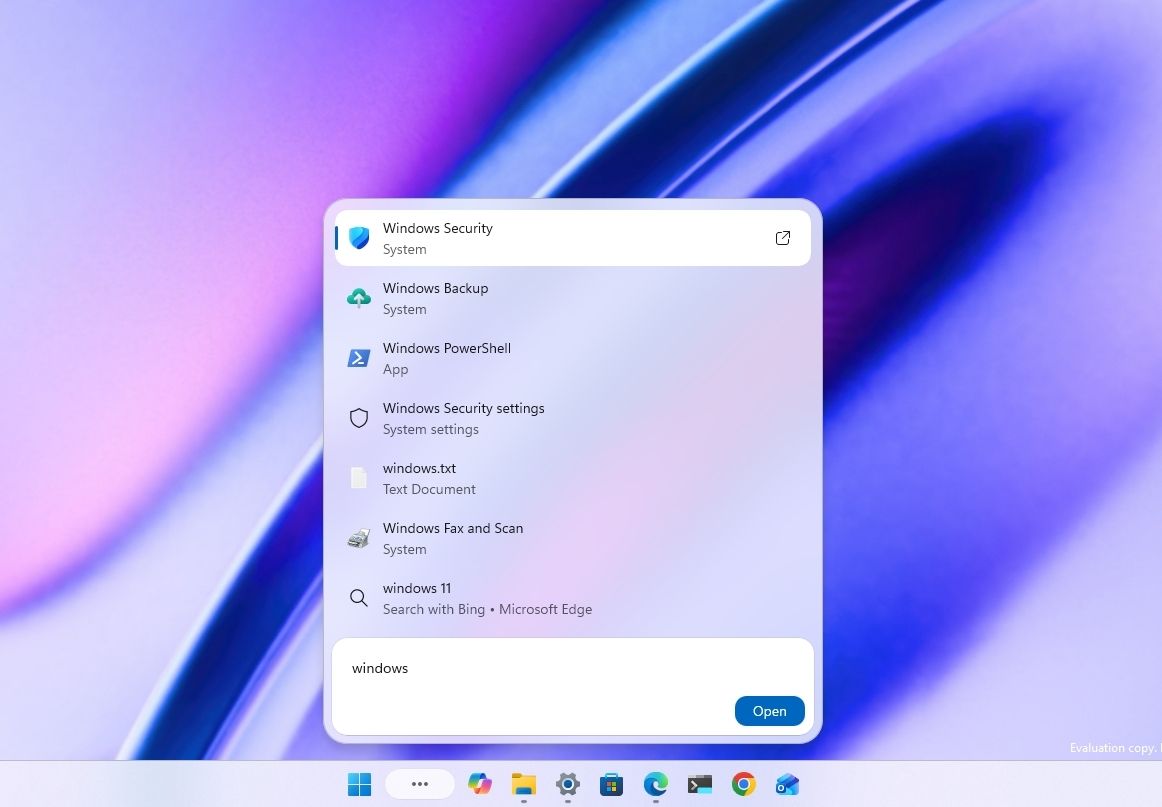
Starting with the release of build 26340.9616 for version 26H2, Microsoft began the gradual rollout of the new Windows Search experience.

New Windows Search showing search results.

(Image credit: Mauro Huculak)

The new experience features an entirely new interface using WinUI 3, designed to make search faster and more efficient while using less memory.

Perhaps the most notable change is the new inline actions that let you perform tasks directly from the Search box. For example, you can switch between the light and dark mode, enable Bluetooth, adjust brightness, arrange windows, and more.

In addition, the company is adding improvements to help Windows Search understand you better, including better handling of typos and synonyms.

The new Search experience is currently available in versions 26H2 and 26H1 as a preview through the Experimental channel.

Battery new widget

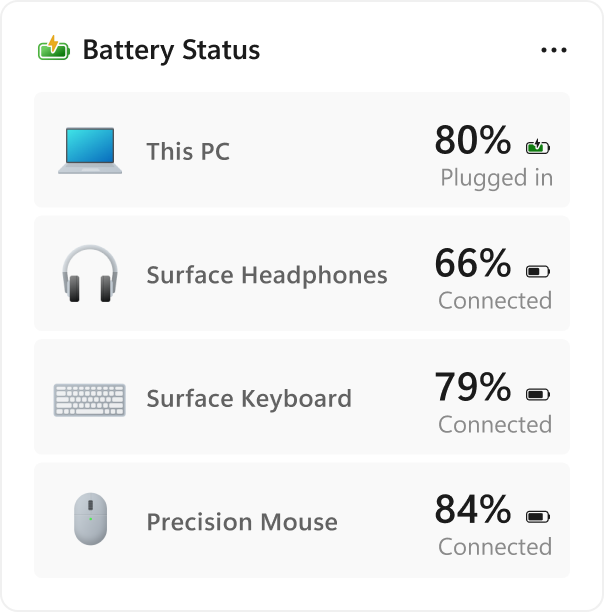
Also, Windows 11 build 26340.9616 ships with the new Battery Status widget, which tracks your computer and peripherals' battery levels without having to resort to third-party tools.

New Battery widget for Windows 11.

(Image credit: Microsoft)

The widget is available from the Widgets dashboard> Add widgets > Battery Status.

Once the widget is enabled, you'll see the battery level of your laptop as well as your mouse, keyboard, headphones, and more.

Task Manager new processes group

Although Task Manager isn't getting another makeover, an updated version improves how it handles process groups, letting apps combine separate background processes into a single category instead of relying on traditional parent-child process trees.

Microsoft says that this should make it easier to view how an app uses system resources. Currently, this works only in Microsoft Defender.

File Explorer faster navigation

The company has also made small but welcome improvements to File Explorer with the release.

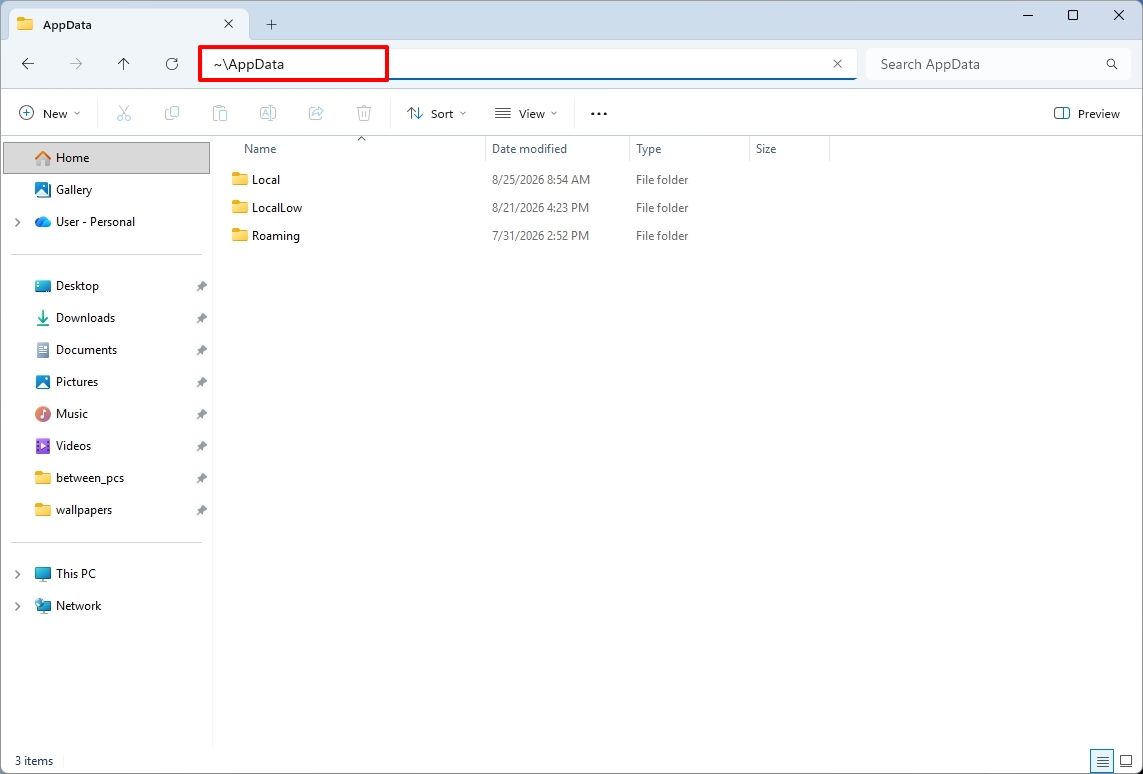
For instance, on build 26340.9596 for version 26H2, you can now use the "~" character to quickly open your profile folder or subfolder, for example, "~\AppData".

File Explorer showing ~ character to open profile folder.

(Image credit: Mauro Huculak)

As part of the File Explorer changes, on builds 28120.3151 and 28020.3142 for version 26H1, Microsoft rolled out improvements to keep folder view customizations, such as sorting and icon size preferences, consistent across different access paths and apps.

The update also improves address bar support for paths with double backslashes and quotation marks.

Finally, in this wave of updates, build 29680 for the Future Platforms version, you'll find an updated version of the file manager that now handles previews for downloaded files from the internet.

When using the preview pane, HTML files will show a preview after you acknowledge the warning, while non-HTML files, such as PDFs, will show previews automatically.

Cloud Rebuild improvements

Cloud Rebuild is a new recovery feature that helps you reinstall the operating system when your computer has problems or won't boot.

Unlike other recovery options, this feature uses Windows Update to download installation files and drivers without needing bootable USB media.

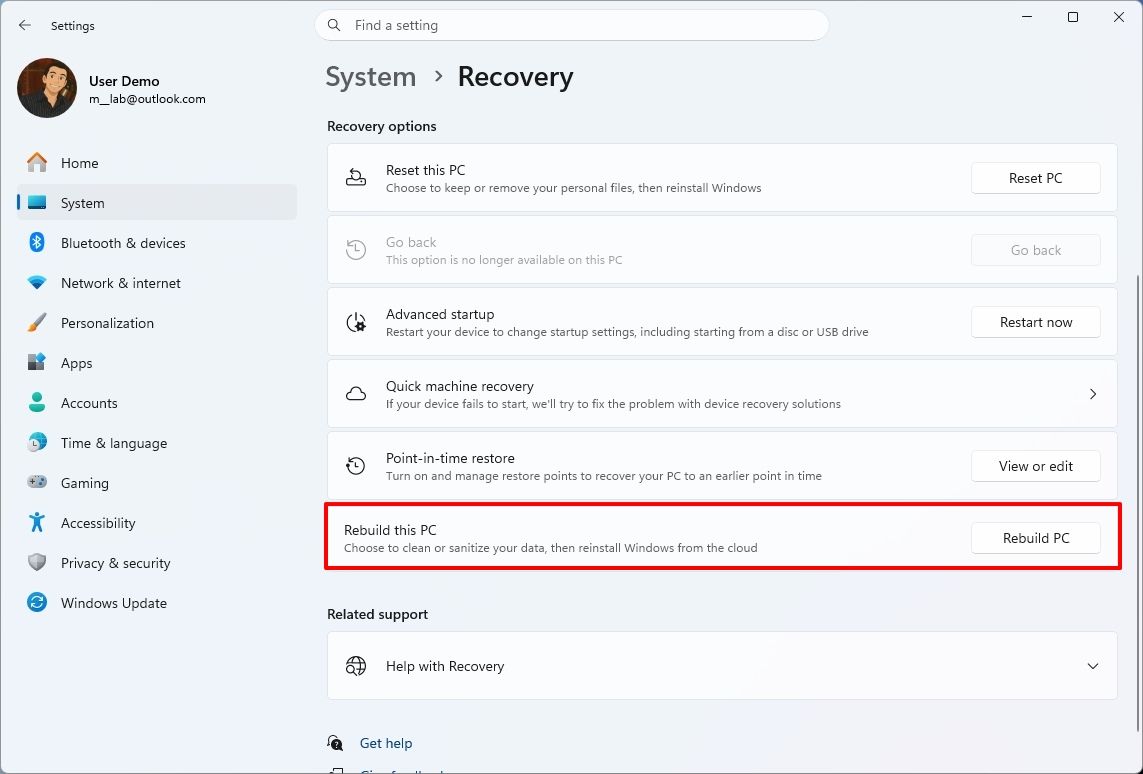
This recovery feature is still in preview, but in build 26340.9596 for version 26H2 and build 26220.9587 for version 25H2, you'll now find a new "Rebuild this PC" option on the Recovery page in Settings, making it easier to access.

Windows 11 Settings showing the Rebuild this PC option.

(Image credit: Mauro Huculak)

Also, in builds 28120.3151 and 28020.3142 for version 26H1, the Cloud Rebuild feature added a new "Remove & sanitize files" option to securely erase data before reinstalling the operating system, which is useful when recycling or reassigning a computer.

This update also lets admins configure and start a Cloud Rebuild remotely using Recovery CSP.

Narrator's new math reading

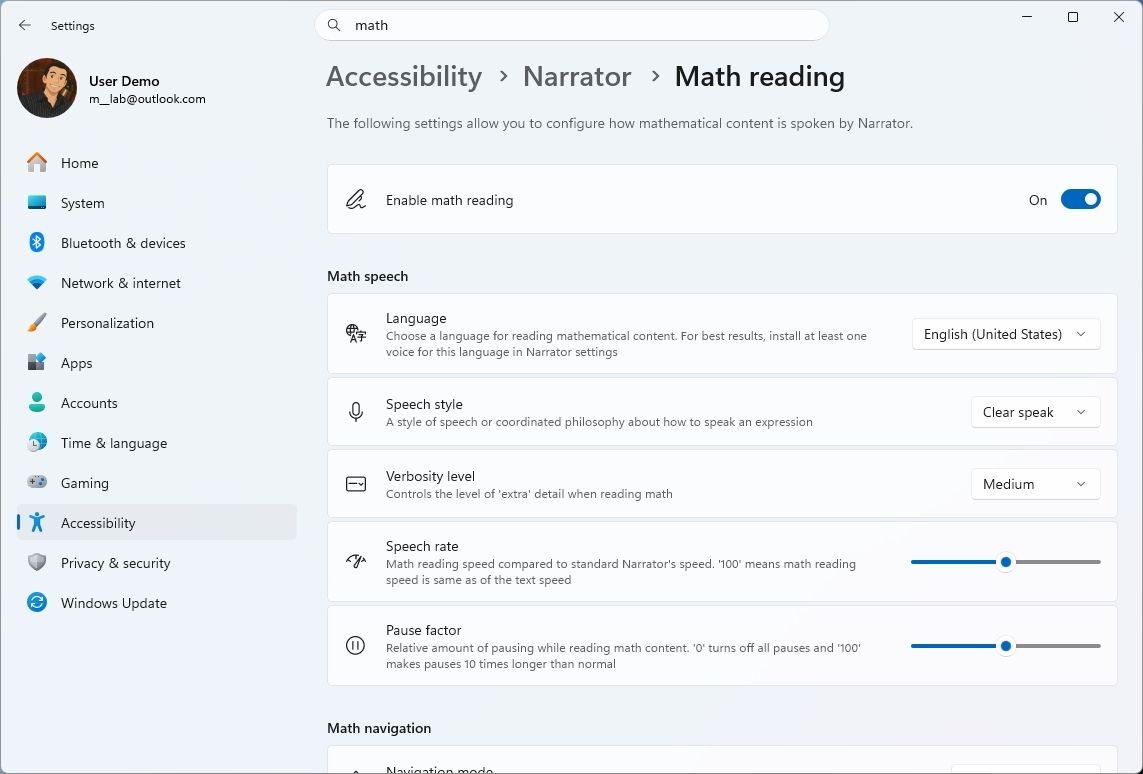
As part of the updates for version 26H1 (builds 28120.3151 and 28020.3142), Microsoft also updated the Windows Narrator feature with a more natural way to read and explore math equations.

According to the company, on supported apps from the Microsoft 365 suite, such as PowerPoint and Word, Windows Narrator can now read equations as structured expressions.

In addition, a new math navigation mode allows you to explore an equation one part at a time.

Windows 11 Settings showing the Narrator math reading settings.

(Image credit: Mauro Huculak)

You can use the "Narrator key + Alt + N," and then use the arrows to move through fractions, exponents, and roots. You can also use "Esc" to exit the mode.

The new math capability also works on supported web content in Microsoft Edge and Google Chrome.

Magnifier with updated controls

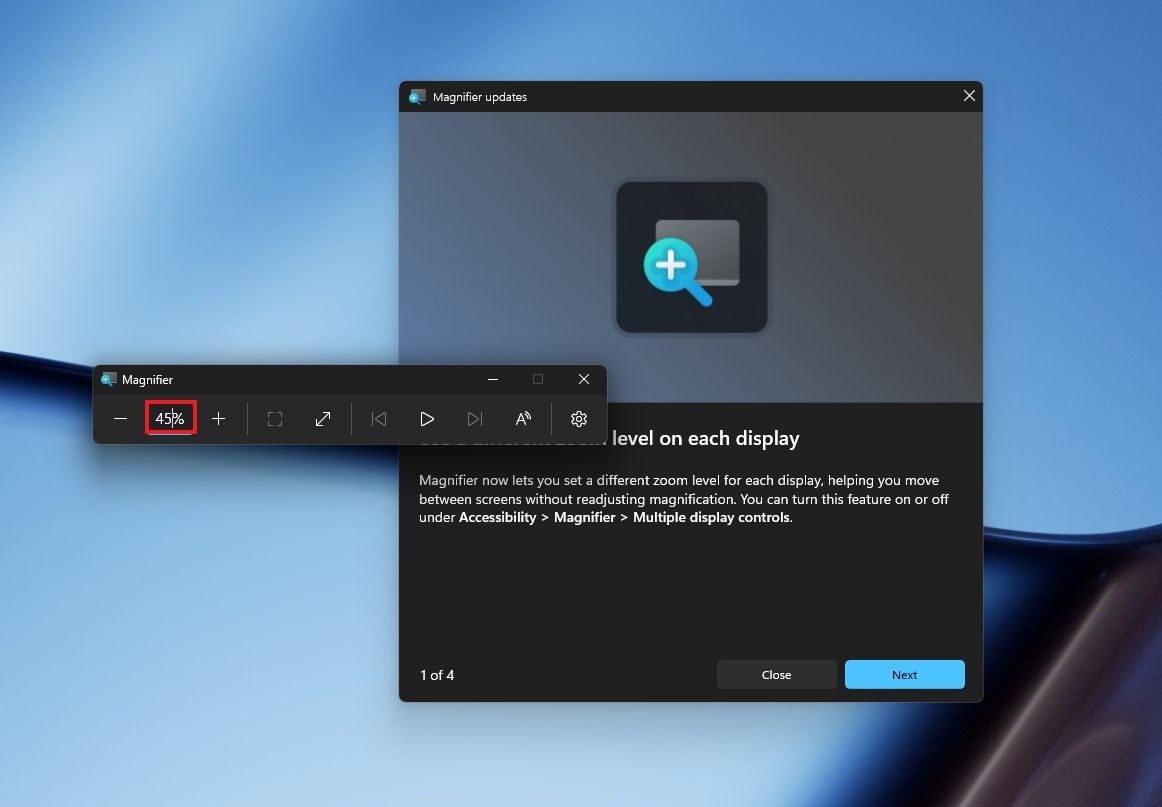
In this wave of updates, the Magnifier lets you enter the exact zoom percentage directly in the toolbar instead of relying on the presets.

Windows 11 desktop with Magnifier new zoom controls.

(Image credit: Mauro Huculak)

In addition, in the settings, the preset option now includes more increments up to 400 percent.

Windows Share customization

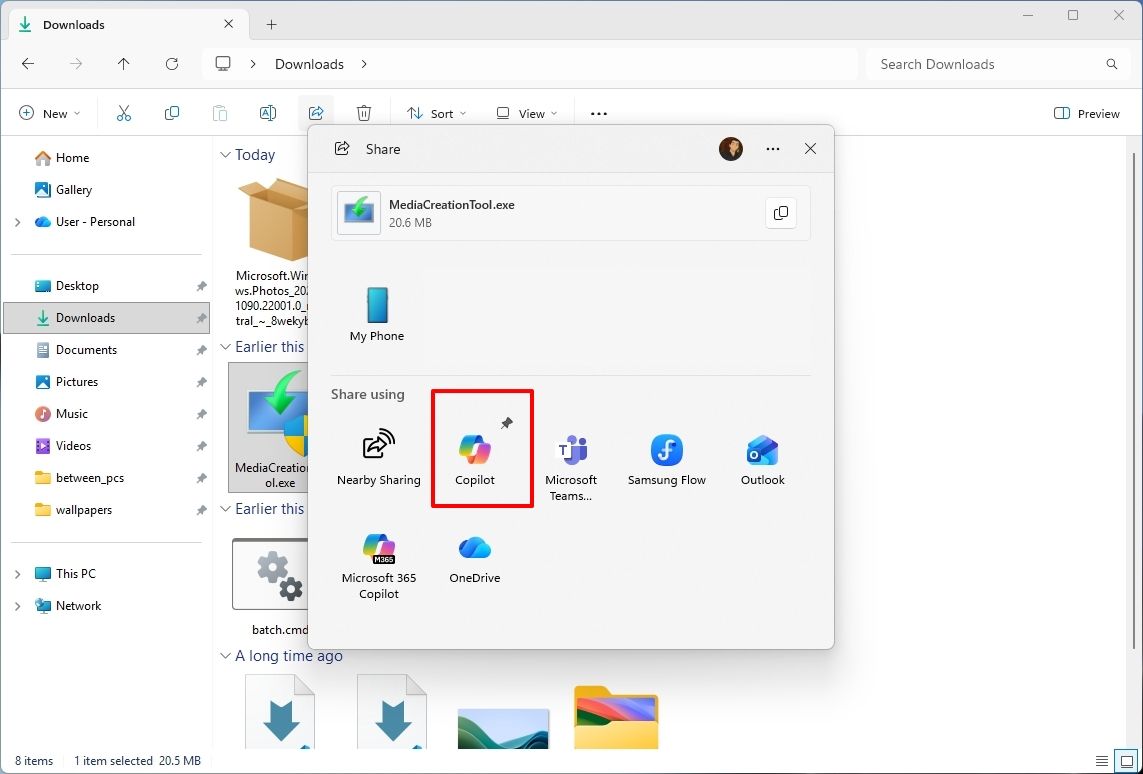
Although the Windows Share experience remains largely the same, Microsoft has added the ability to pin your favorite apps directly in the Share interface in the Experimental channel for Future Platforms.

File Explorer with Windows Share showing the pin option.

(Image credit: Mauro Huculak)

This change makes it easier to find your favorite apps that you use often when sharing.

Installed apps page tweak

Finally, starting with build 29680, the "Installed apps" page now shows the version number at the top level under the Apps settings section for package apps.

Windows Central's Take

I'd put the new Windows Search, Cloud Rebuild, and File Explorer improvements at the top of this list. Search is becoming more useful for everyday tasks, Cloud Rebuild is getting better options for recovering a computer and securely erasing its data, and File Explorer is addressing small annoyances that can make file management frustrating.

These changes can make Windows 11 more practical without requiring users to learn an entirely new way of doing things.

I hope Microsoft continues to improve these core features instead of leaving them behind in favor of bigger, flashier additions.

Which of these three improvements would you most like to see arrive on your PC? Let me know in the comments.

More resources

Explore more in-depth how-to guides, troubleshooting advice, and essential tips to get the most out of Windows 11 and 10. Start browsing here:

Click to join us on r/WindowsCentral

Join us on Reddit at r/WindowsCentral to share your insights and discuss our latest news, reviews, and more.

Windows 11 can feel loud and distracting out of the box β€” here are the features I disable immediately to make the OS calmer and easier to use

Every time I install Windows 11, I turn off the same handful of features before I do anything else. They're not necessarily bad features, but I don't need widgets, recommendations, badges, and constant notifications competing for my attention while I'm working.

Over the years, I've found that making a few small changes creates a desktop that feels cleaner, quieter, and easier to focus on. I prefer Windows 11 to stay in the background and only get my attention when something truly matters. If you feel the same way, you're not alone.

In this how-to guide, I'll show you the Windows 11 features I always disable and explain why I think each change is worth making.

7 features worth turning off for a calmer desktop

None of these features are inherently bad, and I know many people enjoy using them. The problem, at least for me, is that they all compete for the same thing, which is my attention. One widget or notification isn't a big deal. However, once you combine recommendations, badges, alerts, and promotional content across the operating system, Windows 11 starts to feel busier than it needs to be. That's why these are the first settings I change.

1. Widgets in the Lock screen

I like my Lock screen only to let me know it's time to sign in, and nothing more. I don't need sports scores, market updates, or suggested content before I've even reached the desktop. It's one more thing competing for my attention before I start working.

I also switch from Windows Spotlight to a static image because I don't want tips or promotional overlays appearing before I've even signed in.

For these reasons, I always try to disable the desktop widgets and use a static image, and here's how:

  1. Open Settings.
  2. Click on Personalization.
  3. Click the Lock screen page on the right side.
  4. Turn off the Widgets toggle switch.

Windows 11  Settings on the Lock screen page highlighting the Widgets option.

(Image credit: Mauro Huculak)
  1. Turn off the "Suggest widgets for your lock screen" toggle switch.
  2. Select the Picture (or Slideshow) option in the "Personalize your lock screen" setting.

Windows 11 Lock Screen highlighting the Picture option for the background image.

(Image credit: Mauro Huculak)
  1. Choose the image you want to show on the Lock screen.

Once you complete the steps, the Lock screen becomes a simple place to check the time and sign in instead of another surface competing for your attention.

2. Widgets icon in Taskbar

I don't mind having quick access to Widgets, but I don't need live updates constantly trying to pull my attention away from whatever I'm doing. Removing the Taskbar button keeps the interface quieter while still letting me open Widgets with the keyboard shortcut whenever I actually want it.

If you don't want the unnecessary distraction, you can hide the icon from the Taskbar. Here's how:

  1. Open Settings.
  2. Click on Personalization.
  3. Click the Taskbar page on the right side.
  4. Turn off the Widgets toggle switch under the "Taskbar items" section.

Windows 11 Settings on the Taskbar page showing the Widgets option.

(Image credit: Mauro Huculak)

After you complete the steps, the Taskbar stays free from live updates while still letting you open Widgets anytime with the "Windows key + W" keyboard shortcut if you need it.

3. Do not disturb to stop toast notifications

Another feature I always turn on is "Do Not Disturb" to prevent distractions from toast notifications.

If you want to, you can also turn off notifications altogether, but I do this because I can still access the notifications from Notification Center.

To enable Do Not Disturb on Windows 11, use these steps:

  1. Open Settings.
  2. Click on System.
  3. Click the Notifications page on the right side.
  4. Turn off the "Do Not Disturb" toggle switch.

Windows 11 Settings on the Notifications page showing the Do not disturb option.

(Image credit: Mauro Huculak)
  1. (Optional) Turn off the Notifications toggle switch.

Once you complete the steps, Windows 11 stops interrupting your workflow, but your notifications are still waiting in Notification Center whenever you're ready to review them.

If you decide to turn off the notification feature, the system and services won't be able to show or collect notifications.

4. Start menu content recommendations

The Start menu has become much cleaner over the years, but I still don't like seeing recent files, app suggestions, and recommendations every time I open it. I prefer using the space for the apps I've pinned instead of content the system thinks I might want.

I personally like to have the "Pinned" and "All" sections in the Start menu, and I always turn off the "Recommended" section, but these steps aren't obvious to everyone.

To disable the Recommended section, use these steps:

  1. Open Settings.
  2. Click on Personalization.
  3. Click the Start page on the right side.
  4. Turn off the "Show recently added apps" toggle switch.
  5. Turn off the "Show recommended files in Start, recent files in File Explorer, and items in Jump Lists" toggle switch.
  6. Turn off the "Show recommendations for tips, shortcuts, new apps, and more" toggle switch.

Windows 11 Settings on the Start page showing the Recommended settings disabled.

(Image credit: Mauro Huculak)
  1. (Optional) Turn off the "Show account-related notifications" toggle switch to prevent alerts from the Account Control menu in the Start menu.

After completing the steps, the Start menu feels cleaner and focuses on the apps you've chosen to pin instead of recent files and recommendations.

5. Search highlights from the web

When you open the Windows Search home from the Taskbar, the first thing you'll notice is web highlights with daily quizzes, image of the day, trending searches, games, news, and more, when the search experience should be about finding local and cloud files, settings, and applications installed on your computer.

Search is one of the features I use dozens of times a day, so I want it to open directly into search, not news stories, trending topics, or games. The less visual clutter between me and what I'm looking for, the better. Fortunately, you can turn off the web highlights for a simpler experience using Windows Search, and here's how:

  1. Open Settings.
  2. Click on Privacy & security.
  3. Click the Search page on the right side.
  4. Turn off the "Show search highlights" toggle switch.

Windows 11 Settings on the Search page showing the Show search highlights option disabled.

(Image credit: Mauro Huculak)

Once you complete the steps, Windows Search opens with fewer distractions, making it easier to get straight to finding your apps, files, and settings.

6. Taskbar app badges for unseen content

Taskbar badges are another feature I disable on every new installation. These are the small counters or dots that appear on app icons to let you know something needs your attention. While they can be useful, I find they encourage me to check apps that aren't important at the moment.

I prefer opening apps when I decide to, not because a badge is telling me to. If I want to check for updates or unread messages, I'll do it on my own schedule.

To turn off Taskbar badges on Windows 11, use these steps:

  1. Open Settings.
  2. Click on Personalization.
  3. Click the Taskbar page on the right side.
  4. Click the Taskbar behaviors section.
  5. Clear the "Show badges on taskbar apps" option.

Windows 11 Settings on the Taskbar settings showing the Show badges on taskbar apps option disabled.

(Image credit: Mauro Huculak)

After you complete the steps, app icons will no longer display unread message counters, helping keep the Taskbar cleaner and reducing another small source of distraction throughout the day.

7. Desktop icons and files

Like pretty much everyone else, I usually place shortcuts and files on the desktop, but I don't like a crowded desktop either, so one thing I usually do is to hide the desktop icons.

You can easily do this by right-clicking the desktop, selecting "View," and clicking on the "Show desktop icons" option to clear the setting and hide everything on the desktop for a clear view of the background image.

Windows 11 desktop with context menu highlighting the Show desktop icons option.

(Image credit: Mauro Huculak)

If I want to access the content of the folder, I usually just open the "Desktop" folder within File Explorer.

I know this one isn't for everyone, but hiding my desktop icons makes the entire workspace feel less cluttered. Everything is still there when I need it, but I don't have to look at it every time I minimize a window.

Windows Central's Take

I've been customizing this operating system for years, and this is still one of the first things I do on a new installation. Windows 11 includes plenty of features that many people enjoy, but I don't need constant reminders, recommendations, or badges pulling my attention away from my work. Spending a few minutes changing these settings makes the desktop feel much calmer without taking away the features I actually use.

Out of everything on this list, Do Not Disturb is the setting I'd tell most people to try first. I don't want notifications interrupting me throughout the day, but I also don't want to miss them completely. It gives me the best of both worlds.

Microsoft has been adding more customization options recently, but I still think the default Windows 11 experience tries a little too hard to keep people engaged. Fortunately, almost everything I mentioned here can be changed in just a few minutes, making the system feel much more personal without removing features you might want later.

Which Windows 11 feature do you turn off first to create a calmer desktop experience? Let me know in the comments below.

More resources

Explore more in-depth how-to guides, troubleshooting advice, and essential tips to get the most out of Windows 11 and 10. Start browsing here:

Click to join us on r/WindowsCentral

Join us on Reddit at r/WindowsCentral to share your insights and discuss our latest news, reviews, and more.
❌