Windows 11 25H2 has been publicly released, but behind the scenes, Microsoft is constantly working to improve the newest version of Windows. The company frequently rolls out preview builds to members of its Windows Insider Program, allowing them to test out — and help shape — upcoming features.
Skip to the latest builds
Our story “How to preview and deploy Windows 10 and 11 updates” details how the Insider program has worked until now. However, Microsoft recently announced sweeping changes to the program that will include the ability to select which new features to test. As the first step, the company is introducing a new channel system and transitioning Insiders like so:
- Beta Channel > Beta
- Dev Channel > Experimental
- Canary Channel (28000 series) > Experimental (26H1)
- Canary Channel (29500 series) > Experimental (Future Platforms)
- Release Preview Channel (for devices on Windows 11 versions 24H2 and 25H2 > Release Preview 24H2/25H2
- Release Preview Channel (for devices on Windows 11 version 26H1 > Release Preview 26H1
This transition is happening over time, starting with the Dev Channel. See Microsoft’s blog post for more information about the transition.
Below you’ll find information about the Windows 11 preview builds that have been announced by Microsoft in the past six months. For each build, we’ve included the date of its release, which Insider channel it was released to, a summary of what’s in the build, and a link to Microsoft’s announcement about it.
Note: If you’re looking for information about updates being rolled out to all Windows 11 users, not preview builds for Windows Insiders, see “Windows 11: A guide to the updates.”
The latest Windows 11 Insider preview builds
Windows 11 Insider Preview Build 26220.8544
Release date: May 29, 2026
Released to: Beta Channel
Several minor new improvements and fixes are being rolled out in this build, including consistent solid (donut) spinners across key Windows scenarios including Boot, Logon, Restart, Shutdown, and Update. This update replaces legacy spinner visuals to deliver a more cohesive experience aligned with Windows design standards. Users will now see a unified spinner behavior with corresponding status text (e.g., “Restarting”, “Working on updates”, “Welcome”).
(Get more info about Windows 11 Insider Preview Build 26220.8544.)
Windows 11 Insider Preview Build 26300.8553
Release date: May 29, 2026
Released to: Experimental Channel (formerly Dev)
Several minor new features are being rolled out gradually in this build, including a number of changes to the Start menu. These were first outlined in the May 15 Insider blog post Making Taskbar and Start more personal. They include:
- “Recommended” section renamed to “Recent” in Start and Settings page
- Section-level toggles to independently show or hide Pinned, Recommended, and All
- Choose between a small and large Start menu, in addition to already available “Automatic (default)” setting
- Option to hide your name and profile picture in Start
- Redesigned Start menu settings page
One known issue, in which resetting your PC may have gotten stuck when using “Reset this PC,” has been fixed.
(Get more info about Windows 11 Insider Preview Build 26300.8553.)
Windows 11 Insider Preview Build 28020.2207
Release date: May 29, 2026
Released to: Experimental 26H1 Channel (formerly Canary)
This update, in Microsoft’s words, “includes a small number of minor bug fixes and improvements.”
(Get more info about Windows 11 Insider Preview Build 28020.2207.)
Windows 11 Insider Preview Build 29599.1000
Release date: May 29, 2026
Released to: Experimental Future Platforms Channel (formerly Canary optional 29500)
This build gradually rolls out several minor changes and improvements that, in the words of Microsoft, include “platform changes in moving to a new active development build.” The update also gradually rolls out a fix for a bug in which some Insiders unexpectedly saw an erroneous message saying they weren’t connected to internet (when they actually were) when signing into their Microsoft account in certain apps. It also improves CPU speed display on the Performance page of Task Manager for VMs, so it doesn’t show higher than unexpected numbers after resuming from hibernate.
There is one known issue that causes crashes with AMD machines supporting System Guard, so these devices in Windows Information Protection will not be offered the build.
(Get more info about Windows 11 Insider Preview Build 29599.1000.)
Windows 11 Insider Preview Build 26220.8491
Release date: May 22, 2026
Released to: Beta Channel
This update, in Microsoft’s words, “includes a small number of minor bug fixes and improvements.” It introduces Voice Isolation, a new option in Voice Access that helps the tool focus on your voice, even when others are speaking nearby, by filtering out other voices and background noise.
Microsoft says the single known issue with this release, in which your PC could have gotten stuck when using “Reset this PC,” has been fixed.
(Get more info about Windows 11 Insider Preview Build 26220.8491.)
Windows 11 Insider Preview Build 26300.8497
Release date: May 22, 2026
Released to: Experimental Channel (formerly Dev)
A variety of new features are being rolled out gradually in this build, including several to improve accessibility. Among them are making it easier to connect the Braille display to Narrator by using the HID open industry standard for Braille displays. If your display supports HID, connect it via USB, with no additional setup required. For Bluetooth, pair your HID Braille display in Settings > Bluetooth & devices just like any other accessory. Another new feature is Voice Isolation in Voice Access, as detailed for Beta Channel Build 26220.8491 above.
The build has one known issue, in which your PC may get stuck when using “Reset this PC.” To complete the reset successfully, choose the cloud download option (Cloud PBR) instead of local.
(Get more info about Windows 11 Insider Preview Build 26300.8497.)
Windows 11 Insider Preview Build 28020.2149
Released to: Experimental 26H1 Channel (formerly Canary)
Release date: May 22, 2026
This build, for Insiders using Windows 11 26H1, gradually rolls out a wide variety of new features, including one that improves the reliability of explorer.exe when closing the input switcher, and when switching between multiple desktops.
Microsoft says the single known issue with this release, in which your PC could have gotten stuck when using “Reset this PC,” has been fixed.
(Get more info about Windows 11 Insider Preview Build 28020.2149.)
Windows 11 Insider Preview Build 29595.1000
Release date: May 22, 2026
Released to: Experimental Future Platforms Channel (formerly Canary optional 29500)
This build, in the words of Microsoft, “includes platform changes in moving to a new active development build.”
(Get more info about Windows 11 Insider Preview Build 29595.1000.)
Windows 11 Insider Preview Build 26220.8474
Release date: May 15, 2026
Released to: Beta Channel
Several minor new improvements are being rolled out in this build, including one that improves the reliability of Simple Service Discovery Protocol (SSDP) notifications to help prevent the service from becoming unresponsive.
It has one known issue in which your PC may get stuck when using “Reset this PC.” To complete the reset successfully, choose the cloud download option (Cloud PBR) instead of local.
(Get more info about Windows 11 Insider Preview Build 26220.8474.)
Windows 11 Insider Preview Build 26300.8493
Release date: May 15, 2026
Released to: Experimental Channel (formerly Dev)
A variety of new features are being rolled out gradually in this build, including the ability to change the position of taskbar on your screen. In Settings > Personalization > Taskbar > Taskbar Behaviors, you can select the side of the screen you want your taskbar on: bottom, top, left, or right. In these other positions, tooltips, flyouts, and animations will still come from the taskbar, and most customization settings like “small taskbar” and “never combine taskbar icons” will work with all locations.
It has one known issue in which your PC may get stuck when using “Reset this PC.” To complete the reset successfully, choose the cloud download option (Cloud PBR) instead of local.
(Get more info about Windows 11 Insider Preview Build 26300.8493.)
Windows 11 Insider Preview Build 28020.2134
Release date: May 15, 2026
Released to: Experimental 26H1 Channel (formerly Canary)
This build gradually rolls out an improvement in the reliability of Simple Service Discovery Protocol (SSDP) notifications to help prevent the service from becoming unresponsive. It also rolls out gradual changes to updating Windows, including the ability to skip updates immediately during the out of box experience (OOBE) and to extend update pauses as many times as you need.
It has one known issue in which your PC may get stuck when using “Reset this PC.” To complete the reset successfully, choose the cloud download option (Cloud PBR) instead of local.
(Get more info about Windows 11 Insider Preview Build 28020.2134.)
Windows 11 Insider Preview Build 29591.1000
Release date: May 15, 2026
Released to: Experimental Future Platforms Channel (formerly Canary optional 29500)
This build introduces new features for Windows Update, including the ability to skip updates immediately during the out of box experience (OOBE) and to extend update pauses as many times as you need. New Windows update features also include having always available options to shut down and restart with updating, and additional insight about available updates to make more informed installation decisions.
(Get more info about Windows 11 Insider Preview Build 29591.1000.)
Windows 11 Insider Preview Builds 26200.8514/26200.8514
Release date: May 14, 2026
Released to: Release Preview 24H2/25H2 Channel
A wide variety of features and enhancements are being gradually rolled out in this build, including a new shared audio feature that allows two people to listen to the same audio from a single Windows 11 PC at the same time. In addition, Task Manager now offers improved visibility into NPU usage on PCs with an NPU. New optional NPU and NPU Engine columns are available on the Processes, Users, and Details pages, along with NPU Dedicated Memory and NPU Shared Memory optional columns on the Details page.
One new feature is being rolled out immediately, in which Windows quality updates now include additional high-confidence device targeting data, increasing coverage of devices eligible to automatically receive new Secure Boot certificates. Devices receive the new certificates only after demonstrating sufficient successful update signals, maintaining a controlled and phased rollout.
(Get more info about Windows 11 Insider Preview Builds 26200.8514/26220.8514.)
Windows 11 Insider Preview Build 28000.2173
Released to: Release Preview 26H1 Channel
Release date: May 14, 2026
This build, for Insiders using Windows 11 26H1, gradually rolls out a wide variety of new features, including one that expands the list of archive formats that can be used in File Explorer to include uu, cpio, xar, and NuGet Packages (nupkg). Also being gradually rolled out is a new way to monitor your agents from the taskbar. It supports agents across first- and third-party apps, with Researcher in the Microsoft 365 Copilot app as the first adopter.
One new feature is being rolled out immediately, in which Windows quality updates now include additional high-confidence device targeting data, increasing coverage of devices eligible to automatically receive new Secure Boot certificates. Devices receive the new certificates only after demonstrating sufficient successful update signals, maintaining a controlled and phased rollout.
(Get more info about Windows 11 Insider Preview Build 28000.2173.)
Windows 11 Insider Preview Build 26220.8370
Release date: May 8, 2026
Released to: Beta Channel
Several minor new improvements are being gradually rolled out in this build, including improved reliability of Japanese IME usage when Administrator Protection is enabled. In addition, the build fixes a single bug, in which there were notification issues and certain apps hung on launch.
(Get more info about Windows 11 Insider Preview Build 26220.8370.)
Windows 11 Insider Preview Build 26300.8376
Release date: May 8, 2026
Released to: Experimental Channel (formerly Dev)
A variety of new features are being rolled out gradually in this build, including new File Explorer address bar support for paths containing double backslashes and quotation marks (for example, C:\Users\user or “C:\Users\user”), improving compatibility with a wider range of inputs.
(Get more info about Windows 11 Insider Preview Build 26300.8376.)
Windows 11 Insider Preview Build 28020.2075
Release date: May 8, 2026
Released to: Experimental 26H1 Channel (formerly Canary)
This build gradually rolls out, in Microsoft’s words, “a small set of general improvements and fixes that improve the overall experience” of running Windows 26H1. It also improves performance when opening clipboard history.
(Get more info about Windows 11 Insider Preview Build 28020.2075.)
Windows 11 Insider Preview Build 29585.1000
Release date: May 6, 2026
Released to: Experimental Future Platforms Channel (formerly Canary optional 29500)
This build gradually rolls out, in Microsoft’s words, “platform changes in moving to a new active development build.”
It also updates the experience when you use voice typing with the touch keyboard. To reduce distractions, the new design removes the previous full‑screen overlay and instead shows voice typing animations directly on the dictation key.
(Get more info about Windows 11 Insider Preview Build 29585.1000.)
Windows 11 Insider Preview Build 26220.8340
Release date: May 1, 2026
Released to: Beta Channel
Several minor new improvements are being gradually rolled out in this build, including making Windows ShareSheet more intelligent for Azure Active Directory (AAD) users, with a simple setting to turn promotional app recommendations on or off. Previously, that capability was only available to Windows users with Managed Service Accounts (MSA).
(Get more info about Windows 11 Insider Preview Build 26220.8340.)
Windows 11 Insider Preview Build 26300.8346
Release date: May 1, 2026
Released to: Experimental Channel (formerly Dev)
A variety of new features are being rolled out gradually in this build, including making Windows ShareSheet more intelligent for Azure Active Directory (AAD) users, with a simple setting to turn promotional app recommendations on or off. Previously, that capability was only available to Windows users with Managed Service Accounts (MSA). Another change “quiets” the default behavior for Widgets, with the goal of making them feel less distracting and overwhelming.
There are several known issues in this build, including one in which Insiders who use Feature flags to enable the new WIP experience may see the feature state incorrectly marked as current; however, changing state and applying changes will work as expected.
(Get more info about Windows 11 Insider Preview Build 26300.8346.)
Windows 11 Insider Preview Build 28020.1921
Release date: May 1, 2026
Released to: Experimental 26H1 Channel (formerly Canary)
This build gradually rolls out several improvements to Task Manager, including one that provides better insight into NPU usage for PCs that include an NPU. Optional NPU and NPU Engine columns are now available on the Processes, Users, and Details pages, with optional NPU Dedicated Memory and NPU Shared Memory columns on the Details page to give you deeper visibility into how workloads are using NPU resources. Additionally, if there are neural engines that are part of a GPU, they will now appear on the Performance page, providing a more complete view of AI‑related system activity.
(Get more info about Windows 11 Insider Preview Build 28020.1921.)
Windows 11 Insider Preview Build 29580.1000
Release date: May 1, 2026
Released to: Experimental Future Platforms Channel (formerly Canary optional 29500)
This build gradually rolls out, in Microsoft’s words, “a small set of general improvements and fixes that improve the overall experience for Insiders running this build on their PCs.”
(Get more info about Windows 11 Insider Preview Build 29580.1000.)
Windows 11 Insider Preview Build 26220.8283
Release date: April 24, 2026
Released to: Beta Channel
Several minor new improvements and fixes are being gradually rolled out in this build, including improved detection of clicks at the leftmost edge of the taskbar to invoke the Start menu when the taskbar icons are left-aligned.
(Get more info about Windows 11 Insider Preview Build 26220.8283.)
Windows 11 Insider Preview Build 26300.8289
Release date: April 24, 2026
Released to: Experimental Channel (formerly Dev)
In a phased rollout, Insiders in the Dev Channel are being moved to the new Experimental channel. Insiders who do not see the new experience on their device can enable it under Settings > Windows Update > Windows Insider Program > Feature flags.
Several minor new features are also being rolled out gradually in this build, including improved detection of clicks at the leftmost edge of the taskbar to invoke the Start menu when the taskbar icons are left-aligned.
There is one known issue in this build: Insiders who use Feature flags to enable the new Insider experience may see the feature state incorrectly marked as current; however, changing the state and applying changes should work as expected.
(Get more info about Windows 11 Insider Preview Build 26300.8289.)
Windows 11 Insider Preview Build 28200.1873
Release date: April 24, 2026
Released to: Experimental 26H1 Channel (formerly Canary)
This build is gradually rolling out a variety of small improvements, including an updated voice typing experience for the touch keyboard. To reduce distractions, the new design shows voice typing animations directly on the dictation key rather than on a full-screen overlay.
It also fixes a bug in which Settings > Network & Internet > Data Usage showed large, unrealistic values.
(Get more info about Windows 11 Insider Preview Build 28200.1873.)
Windows 11 Insider Preview Build 29576.1000
Release date: April 24, 2026
Released to: Experimental Future Platforms Channel (formerly Canary optional 29500)
This build is gradually rolling out a variety of changes, including Point-in-time restore for Windows, which can quickly roll your device back to a previous state, potentially helping minimize downtime and simplify troubleshooting when disruptions strike.
(Get more info about Windows 11 Insider Preview Build 29576.1000.)
Windows 11 Builds 26100.8313 and 26200.8313 (KB5083631)
Release date: April 17, 2026
Released to: Release Preview Channel
This build introduces a wide variety of new features rolled out gradually, including a new way to monitor your agents from the taskbar. It supports agents across first- and third-party apps, with Researcher in the Microsoft 365 Copilot app as the first adopter. When Researcher works on a report, Windows shows progress on the taskbar so you can check updates at a glance.
For IT administrators, the update gradually rolls out support for a dynamic app removal list to the “Remove Default Microsoft Store packages” policy for Windows Enterprise and Education. It also removes default trust for cross‑signed third-party drivers, while drivers from the Windows Hardware Compatibility Program (WHCP) and an allow list of trusted legacy drivers remain allowed. Enterprise State Roaming can now be managed through Windows Backup for Organizations policies.
The update also immediately introduces two minor improvements for everyone. Windows quality updates now include additional high-confidence device targeting data, which increases coverage of devices eligible to automatically receive new Secure Boot certificates. In Windows Security, the name of the affected application is now included in event logging related to CVE‑2024‑30098. This change makes it easier to identify applications that rely on smart card certificates and may need updates following recent security changes.
(Get more info about Windows 11 Builds 26100.8313 and 26200.8313.)
Windows 11 Insider Preview Build 26220.8271
Release date: April 17, 2026
Released to: Beta Channel
Several minor new features were made available in this build for those who have turned the toggle on to receive the latest updates, including improved reliability and performance of Windows Hello fingerprint after your PC wakes from sleep.
(Get more info about Windows 11 Insider Preview Build 26220.8271.)
Windows 11 Insider Preview Build 26300.8276
Release date: April 17, 2026
Released to: Dev Channel
In this build, several minor new features are being gradually rolled for those who have turned the toggle on to receive the latest updates, including improved reliability and performance of Windows Hello fingerprint after your PC wakes from sleep.
(Get more info about Windows 11 Insider Preview Build 26300.8276.)
Windows 11 Insider Preview Build 28020.1863
Release date: April 17, 2026
Released to: Canary Channel
For those who have turned the toggle on to receive the latest updates, this build fixes a bug that prevented some apps from signing in due to a false report of no internet connectivity. The fix is rolling out gradually.
(Get more info about Windows 11 Insider Preview Build 28020.1863.)
Windows 11 Insider Preview Build 29570.1000
Release date: April 17, 2026
Released to: Canary Channel (29500 build series)
For those who have turned the toggle on to receive the latest updates in the Canary Channel on the optional 29500 build series, this build has a variety of minor changes rolling out gradually, including more widget options and support for lock screen widget personalization, a new setting in Settings > Bluetooth & Devices > Touchpad that lets you can choose how large the right-click zone is, and support for a dynamic app removal list to the “Remove Default Microsoft Store packages” policy for Windows Enterprise and Education.
(Get more info about Windows 11 Insider Preview Build 29570.1000.)
Windows 11 Insider Preview Build 26220.8165
Release date: April 10, 2026
Released to: Beta Channel
For those who have turned the toggle on to receive the latest updates, this build gradually rolls out several minor features, including one in which the size limit for formatting FAT32 volumes via the command line has increased from 32GB to 2TB, and another in which the Windows Security app gets new badges and text that reflect your device’s Secure Boot state and certificate status.
It also gradually rolls out a fix for a bug that caused Settings > Network & Internet > Data Usage to show large, unrealistic values.
(Get more info about Windows 11 Insider Preview Build 26220.8165.)
Windows 11 Insider Preview Build 26300.8170
Release date: April 10, 2026
Released to: Dev Channel
For those who have turned the toggle on to receive the latest updates, this build gradually rolls out several minor features, including one in which the size limit for formatting FAT32 volumes via the command line has increased from 32GB to 2TB, and another in which the Windows Security app gets new badges and text that reflect your device’s Secure Boot state and certificate status.
It also gradually rolls out a fix for a bug that caused Settings > Network & Internet > Data Usage to show large, unrealistic values.
(Get more info about Windows 11 Insider Preview Build 26300.8170.)
Windows 11 Insider Preview Build 28020.1812
Release date: April 10, 2026
Released to: Canary Channel
For those who have turned the toggle on to receive the latest updates, this build gradually rolls out general improvements and fixes, including a new setting that lets users choose the size of their touchpad’s right-click zone, as well as new badges and text in the Windows Security app that reflect your device’s Secure Boot state and certificate status.
(Get more info about Windows 11 Insider Preview Build 28020.1812.)
Windows 11 Insider Preview Build 29565.1000
Release date: April 10, 2026
Released to: Canary Channel (29500 build series)
For those who have turned the toggle on to receive the latest updates in the Canary Channel on the optional 29500 build series, this build includes “platform changes in moving to a new active development build,” as well as new badges and text in the Windows Security app that reflect your device’s Secure Boot state and certificate status
(Get more info about Windows 11 Insider Preview Build 29565.1000.)
Windows 11 Insider Preview Build 26220.8148
Release date: April 3, 2026
Released to: Beta Channel
For those who have turned the toggle on to receive the latest updates, this build gradually rolls out several minor features, including a new icon in print settings to indicate when a printer supports Windows Protected Print Mode.
Several bugs are also being fixed, including one in which some apps weren’t able to sign in, citing an internal connection issue when internet was actually connected.
(Get more info about Windows 11 Insider Preview Build 26220.8148.)
Windows 11 Insider Preview Build 26300.8155
Release date: April 3, 2026
Released to: Dev Channel
For those who have turned the toggle on to receive the latest updates, this build gradually rolls out several minor features, including one in which users will be able to feel haptic feedback effects on compatible input devices while performing certain actions, such as aligning objects in PowerPoint, window snapping, resizing, or hovering over the Close button. These haptic effects can be configured in Settings under Bluetooth & devices > Mouse > Haptic signals.
Several bugs have also been fixed, including one in which some apps weren’t able to sign in, citing an internal connection issue when internet was actually connected.
(Get more info about Windows 11 Insider Preview Build 26300.8155.)
Windows 11 Insider Preview Build 28020.1803
Release date: April 3, 2026
Released to: Canary Channel
For those who have turned the toggle on to receive the latest updates in the Canary Channel, this build includes a small set of general improvements and fixes, including improved reliability for configuring the fluid dictation option in voice typing settings.
(Get more info about Windows 11 Insider Preview Build 28020.1803.)
Windows 11 Insider Preview Build 29560.1000
Release date: April 3, 2026
Released to: Canary Channel (29500 build series)
For those who have turned the toggle on to receive the latest updates in the Canary Channel on the optional 29500 build series, this build “includes platform changes in moving to a new active development build,” in the words of Microsoft. Several bugs have also been fixed, including one in which attached USB devices weren’t working for some Insiders.
(Get more info about Windows 11 Insider Preview Build 29560.1000.)
Windows 11 Insider Preview Build 26220.8138
Release date: March 30, 2026
Released to: Beta Channel
For those who have turned the toggle on to receive the latest updates, this build gradually rolls out several new features, including one in which you can enable Administrator Protection in Settings under Privacy & security > Windows Security > Account protection and switching the toggle to on. A restart will be required.
(Get more info about Windows 11 Insider Preview Build 26220.8138.)
Windows 11 Insider Preview Build 26300.8142
Release date: March 30, 2026
Released to: Dev Channel
For those who have turned the toggle on to receive the latest updates, this build gradually rolls out several new features, including one in which you can enable Administrator Protection in Settings under Privacy & security > Windows Security > Account protection and switching the toggle to on. A restart will be required.
(Get more info about Windows 11 Insider Preview Build 26300.8142.)
Windows 11 Insider Preview Build 28020.1797
Release date: March 30, 2026
Released to: Canary Channel
This update, in the words of Microsoft, “includes a small set of general improvements and fixes that improve the overall experience” of running Windows 11.
(Get more info about Windows 11 Insider Preview Build 28020.1797.)
Windows 11 Insider Preview Build 29558.1000
Release date: March 30, 2026
Released to: Canary Channel (29500 build series)
For those who have turned the toggle on to receive the latest updates in the Windows 11 Insider Canary Channel on the optional 29500 build series, this build introduces several new features, including a variety of improvements to the Windows Console, many of which were created by open-source contributors. Several bugs have also been fixed, including an authentication error people received when trying to connect to Azure Virtual Desktop.
(Get more info about Windows 11 Insider Preview Build 29558.1000.)
Windows 11 Insider Preview Build 26220.8079
Release date: March 20, 2026
Released to: Beta Channel
For those who have turned the toggle on to receive the latest updates, this build gradually rolls out several bug fixes, including for one in which the Network and Sharing Center incorrectly displayed two active Wi-Fi connections after switching from one Wi-Fi network to another. The Network and Sharing Center now correctly shows a single active Wi-Fi connection when you connect to a new network.
(Get more info about Windows 11 Insider Preview Build 26220.8079.)
Windows 11 Insider Preview Build 26300.8085
Release date: March 20, 2026
Released to: Dev Channel
For those who have turned the toggle on to receive the latest updates, this build resumes rollout of the Point Indicator Accessibility setting, which enables low-vision users to easily locate and use their cursor. The build also introduces the new Feedback Hub, which offers Insiders simpler navigation and feedback submission flows.
In addition, several bugs were fixed, including one in which the Network and Sharing Center incorrectly displayed two active Wi-Fi connections after switching from one Wi-Fi network to another. The Network and Sharing Center now correctly shows a single active Wi-Fi connection when you connect to a new network.
(Get more info about Windows 11 Insider Preview Build 26300.8085.)
Windows 11 Insider Preview Build 28020.1743
Release date: March 20, 2026
Released to: Canary Channel
For those who have turned the toggle on to receive the latest updates, this build includes several new features being rolled out gradually, including one in which shared audio now provides individual sliders for each listener which adjusts their volume without affecting the other. You can continue to adjust volume for both listeners at the same time through the main volume controls available through Quick Settings or on-device and keyboard controls.
The build also introduces the new Feedback Hub, which offers Insiders simpler navigation and feedback submission flows.
(Get more info about Windows 11 Insider Preview Build 28020.1743.)
Windows 11 Insider Preview Build 29553.1000
Release date: March 20, 2026
Released to: Canary Channel (29500 build series)
For those who have turned the toggle on to receive the latest updates in the Canary Channel’s optional 29500 build series, this build introduces the new Feedback Hub, which offers Insiders simpler navigation and feedback submission flows.
(Get more info about Windows 11 Insider Preview Build 29553.1000.)
Windows 11 Insider Preview Build 26220.8062
Release date: March 13, 2026
Released to: Beta Channel
For those who have turned the toggle on to receive the latest updates, this build includes numerous changes and refinements, including an update to the “Remove Default Microsoft Store packages” policy for Windows Enterprise and Education SKUs that allows IT administrators to remove MSIX/APPX apps by adding their app package family name (PFNs) to a dynamic list.
Starting with this update, the Windows kernel will enforce a new policy removing default trust for cross-signed drivers. The policy allows third-party drivers from the WHCP program by default, with an allow list of trustworthy publishers and drivers from the cross-signing program.
(Get more info about Windows 11 Insider Preview Build 26220.8062.)
Windows 11 Insider Preview Build 26300.8068
Release date: March 13, 2026
Released to: Dev Channel
For those who have turned the toggle on to receive the latest updates, this build includes numerous changes and refinements, including an update to the “Remove Default Microsoft Store packages” policy for Windows Enterprise and Education SKUs that allows IT administrators to remove MSIX/APPX apps by adding their app package family name (PFNs) to a dynamic list.
Starting with this update, the Windows kernel will enforce a new policy removing default trust for cross-signed drivers. The policy allows third-party drivers from the WHCP program by default, with an allow list of trustworthy publishers and drivers from the cross-signing program.
(Get more info about Windows 11 Insider Preview Build 26300.8068.)
Windows 11 Insider Preview Build 28020.1737
Release date: March 13, 2026
Released to: Canary Channel
For those who have turned the toggle on to receive the latest updates, this build makes refinements to the Pen settings page, including small changes to the options for the pen tail button. A new option, “Same as Copilot key,” enables the pen tail button to launch the same app as the Copilot key.
(Get more info about Windows 11 Insider Preview Build 28020.1737.)
Windows 11 Insider Preview Build 29550.1000
Release date: March 13, 2026
Released to: Canary Channel (29500 build series)
For those who have turned the toggle on to receive the latest updates in the Canary Channel’s optional 29500 build series, this build has a variety of minor changes, including one in which changes to global power settings (for example, Display, Sleep, Hibernate timeouts, Power/Sleep button, and lid close actions) from Settings are now applied to all power plans. This should help improve persistence of chosen settings.
(Get more info about Windows 11 Insider Preview Build 29550.1000.)
Windows 11 Insider Preview Builds 26100.8106 and 26200.8106
Release date: March 12, 2026
Released to: Release Preview Channel
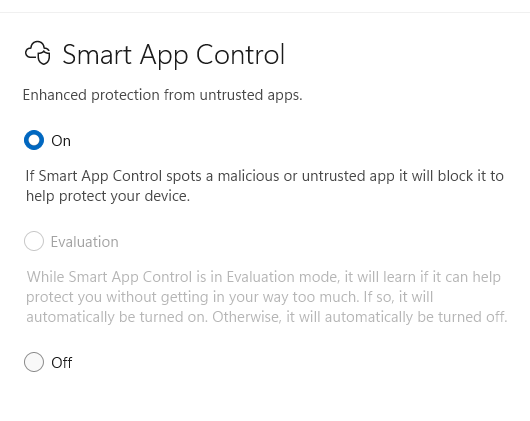
This build introduces a wide range of minor features being rolled out gradually, including the ability to turn Smart App Control (SAC) on or off without needing a clean install. To make changes, go to Settings > Windows Security > App & Browser Control > Smart App Control settings. When turned on, SAC helps block untrusted or potentially harmful apps.
The update also improves stability in Windows Recovery Environment (Windows RE) when you run x64 apps on ARM64 devices. These apps run more smoothly and respond as expected.
(Get more info about Windows 11 Insider Preview Builds 26100.8106 and 26200.8106.)
Windows 11 Insider Preview Build 26220.7961
Release date: March 6, 2026
Released to: Beta Channel
For those who have turned the toggle on to receive the latest updates, this build re-enables Administrator protection, which aims to protect free-floating admin rights for administrator users, allowing them to still perform all admin functions with just-in-time admin privileges. This feature is off by default and can be enabled via OMA-URI in Intune or via group policy.
Other changes and improvements being gradually rolled out to the same group include the ability to use voice typing (Windows key + H) when renaming files in File Explorer, as well as a smaller peek view in the drag tray.
(Get more info about Windows 11 Insider Build 26220.7961.)
Windows 11 Insider Preview Build 26300.7965
Release date: March 6, 2026
Released to: Dev Channel
For those who have turned the toggle on to receive the latest updates, this build re-enables Administrator protection, which aims to protect free-floating admin rights for administrator users, allowing them to still perform all admin functions with just-in-time admin privileges. This feature is off by default and can be enabled via OMA-URI in Intune or via group policy.
Other changes and improvements being gradually rolled out to the same group include the ability to use voice typing when renaming files in File Explorer, as well as a smaller peek view in the drag tray.
(Get more info about Windows 11 Insider Preview Build 26300.7965.)
Windows 11 Insider Preview Build 28020.1685
Release date: March 6, 2026
Released to: Canary Channel
For those who have turned the toggle on to receive the latest updates, this build lets you use voice typing (Windows key + H) when renaming files in File Explorer. The build also improves the reliability of removing Windows Update files and windows.old files via Settings > System > Storage.
(Get more info about Windows 11 Insider Preview Build 28020.1685.)
Windows 11 Insider Preview Build 26220.7934
Release date: Feb. 27, 2026
Released to: Beta Channel
For those who have turned the toggle on to receive the latest updates, this build gives administrators and Application Control for Business policy authors additional controls over the processing of batch files and CMD scripts. Starting with this release, admins can enable a more secure mode for processing batch files that ensures they do not change during execution by adding a value to the registry key HKEY_LOCAL_MACHINE\Software\Microsoft\Command Processor named LockBatchFilesWhenInUse (DWORD, value 0 or 1). Policy authors can also use the LockBatchFilesWhenInUse application manifest control documented here to enable this mode.
There are a variety of other improvements being rolled out gradually, including one in which a new taskbar indicator displays while you’re sharing, giving a quick reminder that audio is still being shared. Clicking the indicator is a fast path to open sharing settings to change volume or stop sharing.
(Get more info about Windows 11 Insider Preview Build 26220.7934.)
Windows 11 Insider Preview Build 26300.7939
Release date: Feb. 27, 2026
Released to: Dev Channel
For those who opted to receive the latest updates, this build gives administrators and Application Control for Business policy authors additional controls over the processing of batch files and CMD scripts. Starting with this release, admins can enable a more secure mode for processing batch files that ensures they do not change during execution by adding a value to the registry key HKEY_LOCAL_MACHINE\Software\Microsoft\Command Processor named LockBatchFilesWhenInUse (DWORD, value 0 or 1). Policy authors can also use the LockBatchFilesWhenInUse application manifest control documented here to enable this mode.
There are a variety of other improvements being rolled out gradually, including one in which a new taskbar indicator displays while you’re sharing, offering a quick reminder that audio is still being shared. Clicking the indicator is a fast path to open sharing settings to change volume or stop sharing.
(Get more info about Windows 11 Insider Preview Build 26300.7939.)
Windows 11 Insider Preview Build 28020.1673
Release date: Feb. 27, 2026
Released to: Canary Channel
For those who have opted to receive the latest updates, this build gets a variety of new features being rolled out gradually, including one in which Quick Machine Recovery (QMR) now turns on automatically for enterprise managed Windows Professional devices, as well as Windows Professional devices that are not domain-joined. These devices receive the same recovery features available to Windows Home users. For domain-joined devices, QMR stays off unless it is enabled by the organization.
(Get more info about Windows 11 Insider Preview Build 28020.1673.)
Windows 11 Insider Preview Build 26220.7872
Release date: February 20, 2026
Released to: Beta Channel
For those who have turned the toggle on to receive the latest updates, this build offers a variety of new features, including simplified specifications on the ‘Device info’ Card on the Settings Home page and improved mouseover animations for app groups on the taskbar.
(Get more info about Windows 11 Insider Preview Build 26220.7872.)
Windows 11 Insider Preview Build 26300.7877
Release date: February 20, 2026
Released to: Dev Channel
For those who have turned the toggle on to receive the latest updates, this build offers a variety of new features, including simplified specifications on the ‘Device info’ Card on the Settings Home page and improved mouseover animations for app groups on the taskbar.
Several bugs have also been fixed, including one in which all File Explorer open windows and tabs unexpectedly jumped to Desktop or Home.
Get more info about Windows 11 Insider Preview Build 26300.7877.)
Windows 11 Insider Preview Build 28020.1619
Release date: February 20, 2026
Released to: Canary Channel
For those who have turned the toggle on to receive the latest updates, this build offers a variety of new features, including one in which Windows Hello Enhanced Sign-in Security (ESS) supports peripheral fingerprint sensors. Previously, ESS was only available on PCs with built-in biometric sensors, but now it can be used when you plug in a supported ESS fingerprint reader.
(Get more info about Windows 11 Insider Preview Build 28020.1619.)
Optional Windows 11 Insider Preview Build 29531.1000
Release date: February 18, 2026
Released to: Canary Channel
This build is the first in a new Canary Channel optional path with a focus on platform development, which will introduce new features before the existing 28000 Canary Channel series. Microsoft recommends that most people remain on the 28000 build path, but adds that those who want to get the newest platform changes as early as possible may want to switch to this new 29500 path. Note, though, that if you switch to the 29500 path by installing this build, you won’t be able to go back to the 28000 Canary Channel series.
The build itself, in Microsoft’s words, “includes platform changes in moving to a new active development build.”
Microsoft warns, “because of the focus on platform development for this path, you may notice a temporary loss in some features that you have today. These features will return to this new active development build.”
(Get more info about Windows 11 Insider Preview Build 29531.1000.)
Windows 11 Insider Preview Build 26220.7859
Release date: February 17, 2026
Released to: Beta Channel
For those who have turned the toggle on to receive the latest updates, this build displays an option to upgrade to a different Microsoft 365 plan on the Accounts page within the Settings app. It also rolls out fixes for several bugs, including one in which all File Explorer open windows and tabs unexpectedly jumped to Desktop or Home.
(Get more info about Windows 11 Preview Build 26220.7859.)
Windows 11 Insider Preview Builds 26100.7918 and 26200.7918
Release date: February 17, 2026
Released to: Release Preview Channel
This build gradually rolls out a variety of new features, including one in which Quick Machine Recovery (QMR) now turns on automatically for Windows Professional devices that are not domain‑joined and not enrolled in enterprise endpoint management. These devices receive the same recovery features available to Windows Home users. For domain‑joined or enterprise managed devices, QMR stays off unless it is enabled by the organization. The build also improves login screen reliability.
(Get more info about Windows 11 Insider Preview Builds 26100.7918 and 26200.7918.)
Windows 11 Insider Preview Build 28020.1611
Release date: February 12, 2026
Released to: Canary Channel
This build brings Sysmon functionality natively to Windows. Sysmon functionality allows you to capture system events that can help with threat detection, and you can use custom configuration files to filter the events you want to monitor. The captured events are written on the Windows event log, enabling them to be used with security applications and in a wide range of use cases.
(Get more info about Windows 11 Insider Preview Build 28020.1611.)
Windows 11 Insider Preview Build 26220.7755
Release date: February 9, 2026
Released to: Beta Channel
For those who have turned the toggle on to receive the latest updates, this build gradually rolls out several new features, including Emoji 16.0, which contains a new set of emojis, and the ability to directly control pan and tilt for supported cameras in the Settings app.
(Get more info about Windows 11 Insider Preview Build 226220.7755.)
Windows 11 Insider Preview Build 26300.7760
Release date: February 9, 2026
Released to: Dev Channel
For those who have turned the toggle on to receive the latest updates, this build gradually rolls out several new features, including Emoji 16.0, which contains a new set of emojis, and the ability to directly control pan and tilt for supported cameras in the Settings app.
(Get more info about Windows 11 Insider Preview Build 26300.7760.)
Windows 11 Insider Preview Build 28020.1546
Release date: February 4, 2026
Released to: Canary Channel
This update, in the words of Microsoft, “includes a small set of general improvements and fixes that improve the overall experience for Insiders” running Windows.
It also fixes one bug that affected apps working with files stored on OneDrive or Dropbox.
(Get more info about Windows 11 Insider Preview Build 28020.1546.)
Windows 11 Insider Preview Build 26220.7752
Release date: February 3, 2026
Released to: Beta Channel
Those who have turned the toggle on to receive the latest updates get Sysmon functionality natively in Windows. Sysmon functionality allows you to capture system events that can help with threat detection, and you can use custom configuration files to filter the events you want to monitor. The captured events are written on the Windows event log, enabling them to be used with security applications and a wide range of use cases. (This feature is being gradually rolled out.)
The same group also gets a number of bug fixes being gradually rolled out, including for a File Explorer bug in which icons/tooltips for “Add to favorites” were missing.
(Get more info about Insider Preview Build 26220.7752.)
Windows 11 Insider Preview Build 26300.7733
Release date: February 3, 2026
Released to: Dev Channel
Those who have turned the toggle on to receive the latest updates get Sysmon functionality natively in Windows. Sysmon functionality allows you to capture system events that can help with threat detection, and you can use custom configuration files to filter the events you want to monitor. The captured events are written on the Windows event log, enabling them to be used with security applications and a wide range of use cases. (This feature is being gradually rolled out.)
The same group also gets a number of bug fixes being gradually rolled out, including for a File Explorer bug in which icons/tooltips for “Add to favorites” were missing.
(Get more info about Insider Preview Build 26300.7733.)
Windows 11 Insider Preview Build 28020.1495
Release date: January 28, 2025
Released to: Canary Channel
This build, in Microsoft’s words, “includes a small set of general improvements and fixes that improve the overall experience [of Windows 11].” It also fixes a variety of bugs, including one that led to the Windows Update settings page hanging when loading.
The build has two known issues, one that sometimes causes all open File Explorer windows and tabs to unexpectedly jump to Desktop or Home in File Explorer, and another in which the desktop watermark is showing the wrong build number.
(Get more info about Insider Preview Build 28020.1495.)
Windows 11 Insider Preview Builds 26100.7701 and 26200.7701
Release date: January 27, 2026
Released to: Release Preview Channel
This build gradually rolls out a variety of new features for Copilot+ PCs, including one in which Narrator gives you more control over how it announces on‑screen controls. You can choose which details are spoken and adjust their order to match how you navigate apps. These settings apply throughout the app to help reduce extra speech and make Narrator easier to follow.
The build also immediately rolls out a variety of new features for all PCs, including one in Data Protection Application Programming Interface (DPAPI) domain backup key management. Administrators can now set how often keys rotate automatically. This strengthens cryptographic security and reduces reliance on older encryption algorithms.
(Get more info about Insider Preview Builds 26100.7701 and 26200.7701.)
Windows 11 Insider Preview Build 26220.7670
Release date: January 27, 2026
Released to: Beta Channel
For those who have turned the toggle on to receive the latest updates, this build gradually rolls out several bug fixes, including for an issue in which the Search process was showing an icon with an X instead of a magnifying glass.
The build has five known issues, including one in which some Insiders’ apps aren’t showing in the system tray when they should be.
(Get more info about Insider Preview Build 26220.7670.)
Windows 11 Insider Preview Build 26300.7674
Release date: January 27, 2026
Released to: Dev Channel
In this build, the Dev Channel jumps ahead to receive 26300 series builds. This means that the window to switch from the Dev Channel to the Beta Channel is closed once Build 26300.7674is installed on your PC. This build for the Dev Channel is identical to the Windows 11 Build 26220.7653 release (see below).
(Get more info about Insider Preview Build 26300.7674.)
Windows 11 Insider Preview Build 26220.7653
Release date: January 21, 2026
Released to: Dev Channel
This build for the Dev Channel is identical to the January 16th Windows 11 Insider Preview Build 26220.7653 released to the Beta Channel. See the writeup below for details.
(Get more info about Windows 11 Insider Preview Build 26220.7653.)
Windows 11 Insider Preview Build 26220.7653
Release date: January 16, 2026
Released to: Beta Channel
For those who have turned the toggle on to receive the latest updates, this build gradually rolls out several changes, including one in which you can now set .webp images for your desktop background in Settings > Personalization > Desktop Background.
The same group also gets a number of bug fixes being gradually rolled out, including for a bug in which Settings crashed when interacting with audio devices.
The build has four known issues, including one in which some Insiders’ apps aren’t showing in the system tray when they should be.
(Get more info about Windows 11 Insider Preview Build 26220.7653.)
Windows 11 Insider Preview Build 28020.1371
Release date: January 14, 2026
Released to: Canary Channel
This build gradually rolls out a variety of bug fixes for those who have turned the toggle on to receive the latest updates, including a bug in which File Explorer showed a white flash when navigating between pages.
There is one known issue in this build: The desktop watermark shows the wrong build number.
(Get more info about Windows 11 Insider Preview Build 28020.1371.)
Windows 11 Insider Preview Build 26220.7535
Release date: January 9, 2026
Released to: Dev & Beta Channels
For those who have turned the toggle on to receive the latest updates, this build gradually rolls out Copilot-powered image descriptions to Narrator on Copilot+ PCs, making it possible for blind and low-vision users to hear detailed, AI-generated descriptions of images, charts, and graphs.
The same group also gets a number of bug fixes being gradually rolled out, including for an issue in which File Explorer was causing explorer.exe to crash for some Insiders when invoking the context menu on the desktop.
The build has seven known issues, including one in which Settings crashes when interacting with audio devices.
(Get more info about Windows 11 Insider Preview Build 26220.7535.)
Windows 11 Insider Preview Build 26220.7523
Release date: December 19, 2025
Released to: Dev & Beta Channels
For those who have turned the toggle on to receive the latest updates, this build gradually rolls out a version of Copilot on the taskbar tailored for commercial customers. It uses Work IQ as contextual information that they can reference in their Copilot chats and with Microsoft 365 AI agents. In addition, the build introduces Agent Launchers, a new framework that enables Windows apps to register AI agents and make them discoverable across the system.
The same group also gets a number of bug fixes being gradually rolled out, including one that addresses an issue in which File Explorer showed a white flash when navigating between pages.
The build has nine known issues, including one in which opening the context menu is causing explorer.exe to crash for some Insiders.
(Get more info about Windows 11 Insider Preview Build 26220.7523.)
Windows 11 Insider Preview Build 28020.1362
Release date: December 15, 2025
Released to: Canary Channel
This build gradually rolls out several new features for Copilot+ PCs, including a streamlined design for the Click to Do context menu that makes frequently used actions like Copy, Save, Share, and Open easier to access. It also rolls out new features for all PCs, including improvements to the dark mode experience in File Explorer.
A variety of bug fixes are being gradually rolled out, including one for an issue in which Settings became unresponsive when attempting to navigate to the Network & Internet section.
(Get more info about Windows 11 Insider Preview Build 28020.1362.)
Windows 11 Insider Preview Build 28000.1340
Release date: December 9, 2025
Released to: Canary Channel
This build has, in Microsoft’s words, a “small set of general improvements and fixes” that improve Windows. It also enables more of the new features and improvements originally released with the October non-security preview update for Windows 11.
In addition, the build fixes a bug that caused some Storage Spaces to become inaccessible or Storage Spaces Direct to fail when creating a storage cluster.
(Get more info about Windows 11 Insider Preview Build 28000.1340.)
Windows 11 Insider Preview Build 26220.7344
Release date: December 5, 2025
Released to: Dev & Beta Channels
For those who have turned the toggle on to receive the latest updates, this build offers native support for the Model Context Protocol (MCP), an open standard that gives AI agents a universal way to connect with apps, tools, and services. Agents can discover and connect to these tools and other agents via a secure, manageable Windows on-device registry (ODR). By default, all agent connectors in the Windows ODR will be contained in a secure environment with their own identity and audit trail.
In addition, Quick machine recovery (QMR) will now be turned on automatically for Windows Professional devices that are not domain joined. These devices will get the same recovery features as Windows Home users. For enterprise computers that are domain joined, nothing changes — QMR will stay off unless your organization turns it on.
Those who have turned the toggle on to receive the latest updates also get a number of bug fixes, including addressing a bug in which the search window to unexpectedly started floating above the taskbar.
The build has seven known issues, including one in which File Explorer shows a white flash when navigating between pages.
(Get more info about Windows 11 Insider Preview Build 26220.7344.)
Windows 11 Insider Preview Build 26220.7271
Release date: November 21, 2025
Released to: Dev & Beta Channels
This build introduces several features being rolled out gradually for those who have turned the toggle on to receive the latest updates. These include point-in-time restore for Windows, which lets you to quickly roll your device back to a previous state to minimize downtime and simplify troubleshooting, and (on NPU devices) fluid dictation in voice typing, which automatically corrects grammar, punctuation, and filler words as you speak.
The build also expands the availability of the Xbox full-screen experience to additional Windows 11 PCs. You can add a controller to your PC for task switching and streamlined gaming on your desktop, laptop, or tablet.
Those who have turned the toggle on to receive the latest updates also get several bug fixes, including one that resolves a hung taskbar after receiving certain notifications.
The build has seven known issues, including one in which File Explorer shows a white flash when navigating between pages.
(Get more info about Windows 11 Insider Preview Build 26220.7271.)
Windows 11 Insider Preview Build 28000.1199
Release date: November 18, 2025
Released to: Canary Channel
This build has, in Microsoft’s words, a “small set of general improvements and fixes” that improve Windows.
(Get more info about Windows 11 Insider Preview Build 28000.1199.)
Windows 11 Insider Preview Builds 26100.7296 and 26200.7296
Release date: November 17, 2025
Released to: Release Preview Channel
This update introduces a wide range of features being rolled out gradually, including several for Copilot+ PCs, such as Windows Studio Effects, which provide AI-powered camera enhancements on an additional, alternative camera such as a USB webcam or your laptop’s built-in rear camera.
All Windows 11 PCs get a variety of new features being gradually rolled out, including Windows Hello Enhanced Sign-in Security (ESS), now supporting peripheral fingerprint sensors. Also, on PCs with the settings “quick machine recovery” and “automatically check for solutions” both enabled, Quick Machine Recovery now runs a one‑time scan by default instead of repeating scans in a loop. If a fix isn’t available right away, QMR will quickly point you to the most appropriate recovery options to get you back up and running.
A bug fix is being immediately rolled out to all PCs to address an issue that affects Local Security Authority Subsystem Service (LSASS), when LSASS could become unstable due to an access violation.
(Get more info about Windows 11 Insider Preview Builds 26100.7296 and 26200.7296.)
Windows 11 Insider Preview Build 26220.7262
Release date: November 17, 2025
Released to: Beta and Dev Channels
In this build, those who have turned the toggle on to receive the latest updates get a variety of features being gradually rolled out, including using high-definition voices for English (US) in Narrator and Magnifier that use generative AI to adjust tone and pacing for more natural, expressive speech. Also rolling out is a new “Experimental agentic features” toggle in the Settings app that enables the creation of AI agent accounts and an agent workspace, and grants agentic apps access to your Documents, Downloads, Desktop, Music, Pictures, and Videos folders. (Find out more about experimental agentic features.)
The same group also gets a variety of bug fixes rolled out gradually, including for a bug in which the Task Manager process wasn’t stopping correctly after Task Manager was closed. As a result, Task Manager might have been unexpectedly open on boot.
There are four known issues in this build, including one in which the scrollbar and footer are missing in File Explorer and when text is scaled in the dark mode version of the copy dialog.
(Get more info about Windows 11 Insider Preview Build 26220.7262.)
Windows 11 Insider Preview Build 26220.7070
Release date: November 7, 2025
Released to: Beta and Dev Channels
In this build, those who have turned the toggle on to receive the latest updates get a variety of features being gradually rolled out, including the ability to choose your default dashboard in an updated Widget Board Settings.
Everyone gets an updated Quick Machine Recovery in Windows, which makes it easier and quicker to get back to a working PC. The experience in both Windows Settings and the Windows Recovery Environment (WinRE) has been streamlined.
A variety of bug fixes are being rolled out gradually to those who have opted to receive the latest updates, including one that fixes a bug in which the “Automatically hide the taskbar” setting unexpectedly turned off after displaying a message saying, “a toolbar is already hidden on this side of your screen.”
There are five known issues in this build, including one in which the scrollbar and footer are missing in File Explorer when text is scaled in the dark mode version of the copy dialog.
(Get more info about Windows 11 Insider Preview Build 26220.7070.)
Windows 11 Insider Preview Build 28000
Release date: November 7, 2025
Released to: Canary Channel
This build has, in Microsoft’s words, a “small set of general improvements and fixes.” There are also a variety of bug fixes, including for a bug in which the credentials window was not accessible when trying to log in to Outlook.
There are two known issues in this build, one in which sleep and shutdown aren’t working correctly for some Insiders, and the other in which the new Start menu unexpectedly scrolls to the top.
(Get more info about Windows 11 Insider Preview Build 28000.)
Windows 11 Insider Preview Build 27982
Release date: November 4, 2025
Released to: Canary Channel
This build gradually rolls out several new features, including one in which you can add, remove, and rearrange lock screen widgets such as Weather, Watchlist, and Sports on the lock screen. Windows also provides suggested widgets on the lock screen. To customize your lock screen widgets, go to Settings > Personalization > Lock screen.
Also new is a “drag tray” that appears at the top of your screen when you drag a local file from File Explorer or your desktop. You can drop the file into one of the displayed apps or select More to open the Windows share window.
A variety of bugs have been fixed, including one in which if you used your PC for a while without rebooting, explorer.exe might start crashing repeatedly.
There are two known issues in this build, one in which sleep and shutdown aren’t working correctly for some Insiders, and the other in which the new Start menu unexpectedly scrolls to the top.
(Get more info about Windows 11 Insider Preview Build 27982.)
Windows 11 Insider Preview Build 26220.7051
Release date: October 31, 2025
Released to: Beta and Dev Channels
In this build, those have turned the toggle on to receive the latest updates get a variety of features being gradually rolled out, including Ask Copilot in the taskbar, which gives you one-click access to Copilot Vision and Voice, so you can search via Copilot using text, voice, or guided support with Copilot Vision. As you type, results appear and update instantly. Turn it on by going to Settings > Personalization > Taskbar > Ask Copilot. You can also manage whether the Copilot app launches automatically at sign-in using the “Auto start on log in” toggle in the Copilot app settings.
The same group gets a variety of bug fixes being rolled out gradually, including one to address an issue in which interacting with a folder or its contents in Start menu could result in the folder becoming invisible.
There are four known issues in this build, including one in which the scrollbar and footer are missing in File Explorer when text is scaled in the dark mode version of the copy dialog.
(Get more info about Windows 11 Insider Preview Build 26220.7051.)
Windows 11 Insider Preview Build 26220.6982
Release date: October 24, 2025
Released to: Dev Channel
In this build, those have turned the toggle on to receive the latest updates get a variety of changes being gradually rolled out, including Copy & Search, which allows you to search the text in your clipboard with a single click. When you copy text anywhere in Windows, a paste gleam will appear in your search box. Click on this gleam and your copied text will appear in the search field, allowing you to search instantly.
The same group gets a variety of bug fixes, including one for a bug in which the search icon in File Explorer sometimes infinitely looped in an animation.
There are five known issues in this build, including one in which the scrollbar and footer are missing in File Explorer when text is scaled in dark mode version of the copy dialog.
(Get more info about Windows 11 Insider Preview Build 26220.6982.)
Windows 11 Insider Preview Build 27975
Release date: October 23, 2025
Released to: Canary Channel
This build has, in Microsoft’s words, a “small set of general improvements and fixes” that improve Windows.
A variety of bugs have also been fixed, including one in which Settings crashed when accessing drive information under Settings > System > Storage. This also impacted accessing the drive information from the properties when you right-clicked a drive in File Explorer.
There are two known issues in this build, one in which sleep and shutdown aren’t working correctly for some Insiders, and the other in which the new Start menu unexpectedly scrolled to the top.
(Get more info about Windows 11 Insider Preview Build 27975.)
Windows 11 Builds 26100.7015 and 26200.7015
Release date: October 21, 2025
Released to: Release Preview Channel
This update includes a wide variety of new features being rolled out gradually, including a redesigned Start menu that includes a scrollable All section, has new category and grid views, and which adapts to your screen size. The build also includes new features for Click to Do, which can now translate text into other languages. File Explorer now has a recommended files feature that shows content such as files you frequently use, have recently downloaded, or have added to your File Explorer Gallery.
Two bugs are fixed in this build: one that caused an ACCESS_DENIED error when users attempted to change passwords remotely on member servers or workgroup devices, even when they had the required permissions, and another in which protected content playback failed on some machines after installing KB506408.
(Get more info about Windows 11 Insider Preview Builds 26100.7015 and 26200.7015.)
Windows 11 Insider Preview Build 26220.6972
Release date: October 17, 2025
Released to: Dev Channel
In this build, those who have turned the toggle on to receive the latest updates get a new feature being rolled out slowly, which lets you add and manage your mobile devices from Settings by navigating to “Mobile Devices” under the Bluetooth & Devices section. The page allows you to view your mobile devices, add new mobile devices, and manage features such as using your device as a connected camera or accessing your device’s files in File Explorer.
Those who have turned the toggle on to receive the latest updates get two bug fixes being rolled out slowly, one for a bug that caused File Explorer to show a Catastrophic Error (0x8000FFFF) when extracting large (1.5GB+) archive files, and another that sometimes caused an old white toolbar to randomly appear in File Explorer.
There are five known issues in this build, including one in which the scrollbar and footer are missing in File Explorer when text is scaled in the copy dialog in dark mode.
(Get more info about Windows 11 Insider Preview Build 26220.6972.)
Windows 11 Insider Preview Build 27971
Release date: October 16, 2025
Released to: Canary Channel
In this build, the Notification Center can be used on secondary monitors. You’ll be able to see your calendar on any of your monitors and open Notification Center on any of them by clicking the date and time in the system tray of your taskbar. Note that this functionality will be rolled out gradually.
A variety of bugs have been fixed, including one in which File Explorer crashed when transferring files to a network drive.
There are three known issues in this build, including one in which sleep and shutdown aren’t working correctly for some Insiders.
(Get more info about Windows 11 Insider Preview Build 27971.)
Windows 11 Insider Preview Build 26120.6780
Release date: October 10, 2025
Released to: Beta Channel
In this build, those with Copilot+ PCs who have turned the toggle on to receive the latest updates get a handful of changes and new features, including one in Settings in which more results appear in the search flyout and let you quickly modify the settings you’re searching for.
Those with any PCs who have turned the toggle on get several changes, including a new OneDrive icon in Accounts and Homepages in Settings, and the return of the ability to enable Administrator Protection via Windows Security under Account protection.
The same group gets a variety of bug fixes, including one for an issue in the previous flight in which File Explorer frequently crashed, and another that was causing the Start menu to unexpectedly scroll to the top when interacting with it.
There are four known issues in this build, including one in which the scrollbar and footer are missing in File Explorer when text is scaled in the copy dialog in dark mode.
(Get more info about Windows 11 Insider Preview Build 26120.6780.)
Windows 11 Insider Preview Build 26220.6780
Release date: October 10, 2025
Released to: Dev Channel
This update is identical to Build 26120.6780 for the Beta Channel, detailed above.
(Get more info about Windows 11 Insider Preview Build 26220.6780.)
Windows 11 Insider Preview Build 27965
Release date: October 8, 2025
Released to: Canary Channel
This update introduces a new scrollable Start menu, with “All” on the top level, so apps are accessible without having to navigate to a secondary page. There are also new category and grid views to browse and launch your installed apps in the “All” section. The new menu adapts its size based on your device’s screen size.
There are also several bug fixes, including one in which the taskbar was not autohiding correctly.
There are four known issues in this build, including one in which Settings may crash when accessing drive information under Settings > System > Storage. This also impacts accessing the drive information from the properties when you right-click a drive in File Explorer.
(Get more info about Windows 11 Insider Preview Build 27965.)
Windows 11 Insider Preview Build 27959
Release date: October 6, 2025
Released to: Canary Channel
This update introduces the option to move the hardware indicators for brightness, volume, airplane mode, and virtual desktops to different positions on your screen, including the current bottom position and new top-left and top-center positions.
There are also a variety of bug fixes, including for one in which icons and text sometimes overlapped on the desktop when using increased text scaling.
There is one known issue in this build, in which sleep and shutdown aren’t working correctly for some Insiders.
(Get more info about Windows 11 Insider Preview Build 27959.)
Windows 11 Insider Preview Build 26120.6772
Release date: October 6, 2025
Released to: Beta Channel
In this build, those who have turned the toggle on to receive the latest updates get a variety of new features, including Image Object select for Click to Do in Copilot+ PCs, in which you can hover over your image to preview selectable areas. Once selected, you can copy and paste your object into other apps or use it to kick off a chat with Copilot. Also included are improvements to dark mode for File Explorer for all PCs and the ability to use peripheral fingerprint sensors with Windows Hello. These changes are rolling out gradually.
The same group gets a variety of bugs fixed, including one in which Encrypted File System (EFS) related dialogs in File Explorer weren’t responding to increased text scaling. The bug fixes are rolling out gradually.
There are five known issues in this build, including one in which some searches may show unexpected text instead of the expected results and images.
(Get more info about Windows 11 Insider Preview Build 26120.6772.)
Windows 11 Insider Preview Build 26120.6772
Release date: October 6, 2025
Released to: Dev Channel
This update is identical to Build 26120.6772, detailed above.
(Get more info about Windows 11 Insider Preview Build 26120.6772.)
Windows 11 Insider Preview Build 26120.6760
Release date: September 29, 2025
Released to: Beta Channel
In this build, those who have turned the toggle on to receive the latest updates get a variety of new features, including the ability to do a network speed test straight from the taskbar. You can launch it via the Wi-Fi and Cellular Quick Settings pages or by right-clicking the network icon in the system tray. The tool opens in your default browser and supports testing Ethernet, Wi-Fi, and cellular connections. It helps in assessing network performance and troubleshooting.
The same group gets a variety of bug fixes, including for an issue in which the battery icon got out of sync with the actual charging state — for example, it would show that you weren’t plugged in when you were.
Everyone in the Beta Channel gets a variety of bug fixes, including one for developers that addresses an issue in which PIX on Windows was unable to play back GPU captures.
There are six known issues in this build, including one in which some searches may show unexpected text instead of the expected results and images.
(Get more info about Windows 11 Insider Preview Build 26120.6760.)
Windows 11 Insider Preview Build 26220.6760
Release date: September 29, 2025
Released to: Dev Channel
This build is for those who have already upgraded to Windows 11 version 25H2.
In this build, those who have turned the toggle on to receive the latest updates get a variety of new features, including the ability to do a network speed test straight from the taskbar. You can launch it via the Wi-Fi and Cellular Quick Settings pages or by right-clicking the network icon in the system tray. The tool opens in your default browser and supports testing Ethernet, Wi-Fi, and cellular connections. It helps in assessing network performance and troubleshooting.
The same group gets a variety of bug fixes, including for an issue in which the battery icon got out of sync with the actual charging state — for example, it would show that you weren’t plugged in when you were.
Everyone in the Dev Channel gets a variety of bug fixes, including one for developers that addresses an issue in which PIX on Windows was unable to play back GPU captures.
There are six known issues in this build, including one in which some searches may show unexpected text instead of the expected results and images.
(Get more info about Windows 11 Insider Preview Build 26220.6760.)
Windows 11 Insider Preview Build 27954
Release date: September 25, 2025
Released to: Canary Channel
This build includes, in Microsoft’s words, “a small set of general improvements and fixes that improve the overall experience for Insiders running” Windows. It also includes fixes one bug in which you might not be able to connect to shared files and folders if you were using the Server Message Block (SMB) v1 protocol on NetBIOS over TCP/IP NetBIOS (NetBT) after the latest updates.
There is one known issue in this build, in which PIX on Windows is unable to play back GPU captures on this OS version. This will be addressed by a new PIX release, estimated to arrive by the end of September. In the meantime, if you are affected, you can use the “Send Feedback” button in PIX or contact Microsoft on the DirectX Discord server and get help via private builds.
(Get more info about Windows 11 Insider Preview Build 27954.)
Windows 11 Insider Preview Build 26120.6690
Release date: September 19, 2025
Released to: Beta Channel
For those who have Copilot+ PCs and have turned on a toggle to receive the latest update, this build gradually rolls out several new features, including one in which Click to Do can let users translate on-screen text with just a few clicks.
All PCs that have turned a toggle on to receive the latest updates get a variety of bug fixes rolled out gradually, including one in which File Explorer became unresponsive if a UNC server name was directly typed into address bar. There are 10 known issues in this build, including one in which the placeholder text in the Settings search box may appear vertically misaligned.
(Get more info about Windows 11 Insider Preview Build 26120.6690.)
Windows 11 Insider Preview Build 26220.6690
Release date: September 19, 2025
Released to: Dev Channel
This build is for those who have already upgraded to Windows 11 version 25H2.
For those who have Copilot+ PCs and have turned on a toggle to receive the latest update, this build gradually rolls out several new features, including one in which Click to Do can let you translate on-screen text with just a few clicks.
All PCs which have turned a toggle on to receive the latest updates get a variety of bug fixes rolled out gradually, including one in which File Explorer became unresponsive if a UNC server name was directly typed into address bar. There are 10 known issues in this build, including one in which the placeholder text in the Settings search box may appear vertically misaligned.
(Get more info about Windows 11 Insider Preview Build 26220.6690.)
Windows 11 Insider Preview Build 27950
Release date: September 19, 2025
Released to: Canary Channel
This build includes, in Microsoft’s words, “a small set of general improvements and fixes that improve the overall experience for Insiders running” Windows. In addition, Advanced Settings will revert to the previous “For Developers” experience after updating to this build.
There are also a number of bug fixes, including one in which the app preview windows in the taskbar became misaligned (away from the app icon you’d clicked / hovered over) after a display resolution change.
There are two known issues in this build, including one for developers in which PIX on Windows is unable to play back GPU captures. This will be addressed by a new PIX release, estimated to arrive by the end of September. In the meantime, anyone impacted can use the “Send Feedback” button in PIX or contact Microsoft on the DirectX Discord server and Microsoft can help provide private builds.
(Get more info about Windows 11 Insider Preview Build 27950.)
Windows 11 Insider Preview Builds 26100.6713 and 26200.6713
Release date: September 12, 2025
Released to: Release Preview Channel
Build 26100.6713 is for those on Windows 11 24H2, and 26200.6713 is for those on Windows 25H2.
These builds gradually roll out a large number of new features, including AI actions in File Explorer for editing images or summarizing documents, and the ability to pin favorite apps in the Windows share window to quickly access them when you need them.
The builds fix several bugs immediately, including one that disrupted Windows Update for those using Windows Server Update Services (WSUS). Additionally, several bug fixes are being gradually rolled out, including for a bug in which when Windows Sandbox was enabled, the VmmemCmFirstBoot process may have consumed large amounts of CPU after login, causing your PC to become unresponsive.
(Get more info about Windows 11 Insider Preview Builds 26100.6713 and 26200.6713.)
Windows 11 Insider Preview Build 26120.6682
Release date: September 12, 2025
Released to: Beta Channel
For those who have Copilot+ PCs and have turned the toggle on to receive the latest update, this build gradually rolls out a new Copilot prompt box in Click to Do designed to streamline interaction with Microsoft Copilot.
New emoji from Emoji 16.0 are being gradually rolled out in the emoji panel for those who have turned the toggle on to receive the latest updates.
The same group also gets a variety of bug fixes rolled out gradually, including for one that caused some PCs to bug check (green screen) while hibernating, and another in which the Shared section in File Explorer Home was visible even if there was no content to display.
There are seven known issues in this build, including one in which the placeholder text in the Settings search box may appear vertically misaligned.
(Get more info about Windows 11 Insider Preview Build 26120.6682.)
Windows 11 Insider Preview Build 26220.6682
Release date: September 12, 2025
Released to: Dev Channel
This build is for those who have already upgraded to Windows 11 version 25H2.
For those who have Copilot+ PCs and have turned the toggle on to receive the latest updates, this build gradually rolls out a new Copilot prompt box in Click to Do designed to streamline interaction with Microsoft Copilot. New emoji from Emoji 16.0 are also being gradually rolled out to the same group.
The same group also gets a variety of bug fixes rolled out gradually, including for one that caused some PCs to bug check (green screen) while hibernating, and another in which the Shared section in File Explorer Home was visible even if there was no content to display.
There are seven known issues in this build, including one in which the placeholder text in the Settings search box may appear vertically misaligned.
(Get more info about Windows 11 Insider Preview Build 26220.6682.)
Windows 11 Insider Preview Build 27943
Release date: September 11, 2025
Released to: Canary Channel
This build includes, in Microsoft’s words, “a small set of general improvements and fixes that improve the overall experience for Insiders running” Windows.
There are also a number of bug fixes, including for a bug that caused Settings > System > Storage > Temporary files to get stuck when scanning files. This issue also caused the entry to clean up previous Windows Installations to not show in Storage Settings.
There are five known issues in this build, including one in which audio stops working and Device Manager shows one or more devices with a yellow exclamation mark, including “ACPI Audio Compositor” and others. Selecting Properties on these devices will show “Windows cannot load the device driver for this hardware. The driver may be corrupted or missing.”
(Get more info about Windows 11 Insider Preview Build 27943.)
Windows 11 Insider Preview Build 27938
Release date: September 8, 2025
Released to: Canary Channel
This build introduces AI actions into File Explorer. These offer new capabilities when you right-click a file, such as editing a graphic or summarizing a Word document. For now, there are four of them, all related to image files. You can perform a Bing search based on an image file, blur the background in an image, erase objects in an image, and remove the background in an image.
A number of bugs have been fixed, including one that caused Task Manager to freeze when going to the performance section, and another in which the red color used for a low space drive in This PC was unexpectedly light colored.
The build has five known issues, including one in which audio stops working and Device Manager shows one or more devices with a yellow exclamation mark.
(Get more info about Windows 11 Insider Preview Build 27938.)
Windows 11 Insider Preview Build 26120.5790
Release date: September 5, 2025
Released to: Beta Channel
For those who have Copilot+ PCs, this build introduces fluid dictation, which makes voice-based dictation easier. It automatically corrects grammar, punctuation, and filler words as you speak, reducing the need for manual editing. In addition, being rolled out on supported Copilot+ PCs is the ability to use Studio Effect’s AI-powered camera enhancements with an additional, alternative camera — such as a USB webcam or your laptop’s built-in rear camera.
Those in the Beta Channel who have turned the toggle on to receive the latest updates get new on-hover actions in File Manager Home for faster file management.
The same group also gets a variety of bug fixes rolled out gradually, including one for a bug in which the right-click context menu in File Explorer sometimes unexpectedly switched back and forth between the normal initial view and “Show more options” with each right-click when certain apps were installed.
There are five known issues in this build, including one in which for some users, the Shared section in File Explorer Home may be visible even if there is no content to display.
(Get more info about Windows 11 Insider Preview Build 26120.5790.)
Windows 11 Insider Preview Build 26220.5790
Release date: September 5, 2025
Released to: Dev Channel
This build appears to be identical to Build 26120.5790 for the Beta Channel, detailed above.
(Get more info about Windows 11 Insider Preview Build 26220.5790.)

 Login
Login