Reset PRAM on Mac is one of those troubleshooting steps that has survived decades of Apple hardware, old support forums and emergency calls to the family member who “knows computers.” The name sounds far more technical than the procedure, which involves restarting an Intel-based Mac while holding four keys.
The reset can help when a Mac remembers the wrong basic settings. It may select an unexpected startup disk, return to an incorrect display resolution, use an unusual sound level or keep other hardware-related preferences that refuse to behave normally.
It is not a speed boost, a deep system repair or a magical cure for every Mac problem. Resetting PRAM will not clear storage, repair a damaged app or make an aging MacBook suddenly feel new. It is a focused fix for a small collection of settings stored outside the usual macOS preferences.
There is also one major limitation: the familiar keyboard shortcut applies only to Intel-based Macs. Apple silicon models handle this memory differently and do not require the same manual reset.
What PRAM Actually Is
PRAM stands for Parameter Random-Access Memory. It was the small amount of memory older Macs used to preserve certain settings while the computer was turned off.
Apple later moved to NVRAM, or nonvolatile random-access memory, but the two names remain closely connected in Mac troubleshooting. Users still search for PRAM reset, while Apple’s current documentation usually calls the procedure an NVRAM or PRAM reset.
The stored information can include the selected startup disk, speaker volume, screen resolution and other low-level settings. When that information becomes incorrect or behaves unpredictably, resetting it allows the Mac to rebuild the relevant preferences.
Nothing dramatic happens to personal data. Documents, photos, apps, emails and user accounts remain untouched. Some settings may return to their defaults, which is the point of the reset.
Reset PRAM on Mac Only When the Symptoms Fit
Reset PRAM on Mac when the problem appears connected to startup or hardware preferences rather than normal app use.
A Mac that repeatedly chooses the wrong startup disk is a good candidate. So is an Intel Mac that starts with an unexpected sound level or returns to a strange display resolution after every restart.
The procedure may also help when the date, time zone or other basic startup settings act strangely, although modern macOS versions usually manage those automatically.
It is less useful when Safari is slow, an app keeps crashing or the Mac is nearly out of storage. Those problems have different causes. Closing apps, installing updates or freeing storage will usually do more than resetting a small bank of startup memory.
The distinction keeps the old troubleshooting step useful without turning it into Mac folklore prescribed for every symptom.
Check Which Mac You Own
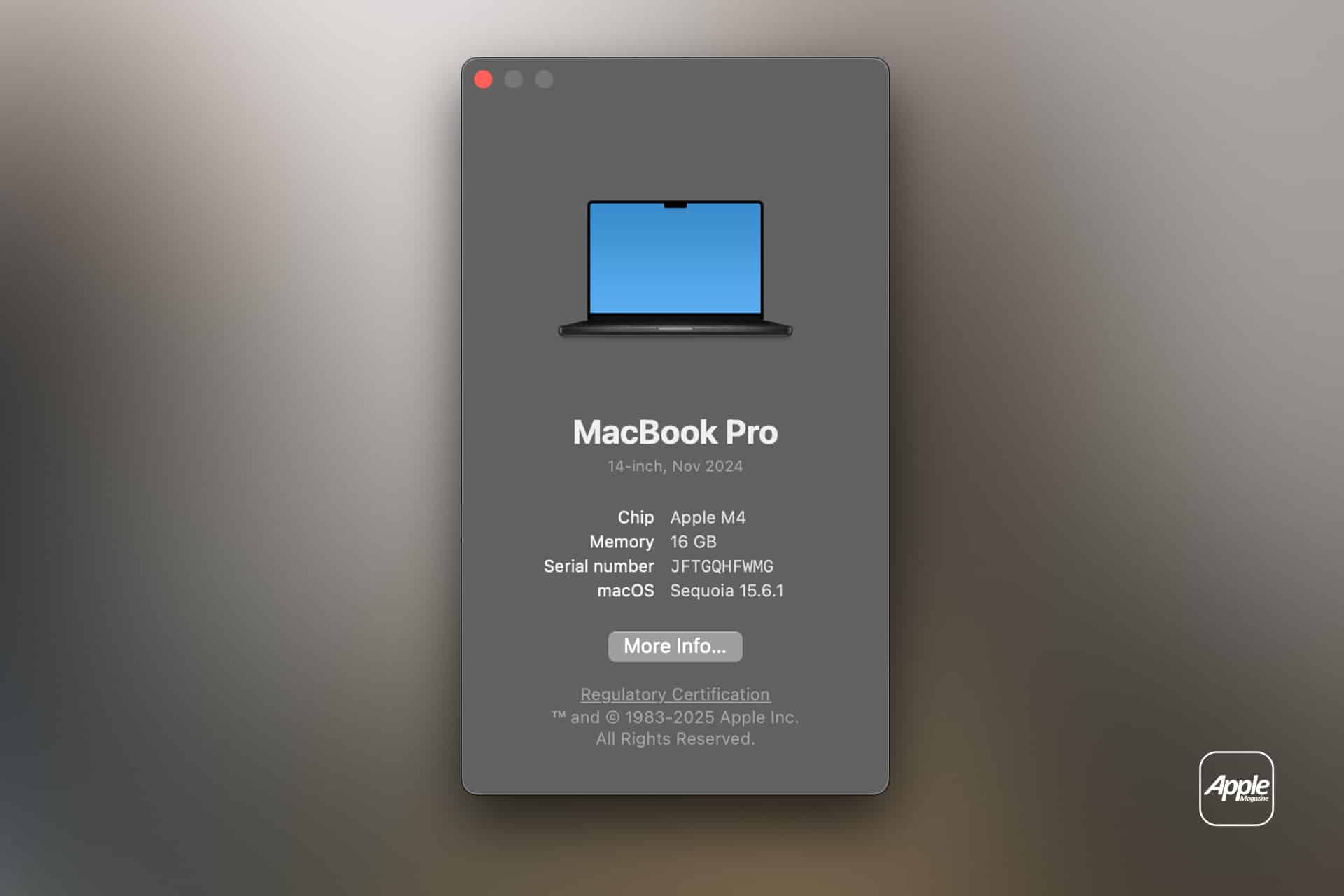
Before using the shortcut, confirm whether the Mac has an Intel processor or Apple silicon.
To check:
Apple menu > About This Mac
Look for a line labeled Chip or Processor. An M-series chip identifies Apple silicon. A processor name containing Intel means the traditional reset applies.
This check prevents a common misunderstanding. Holding Option, Command, P and R during startup on an Apple silicon Mac does not perform the old PRAM reset. The shortcut belongs to Intel startup behavior. Apple’s current startup-key guide lists it specifically among key combinations for Intel-based Macs.
Apple silicon Macs check and manage stored startup information through their newer boot system. A normal shutdown and restart is usually the first step when one develops unusual basic behavior.
Image Credit: AppleMagazine
How to Reset PRAM on an Intel Mac
The useful guidance is brief:
Shut down the Mac completely.
Press the power button, then immediately hold:
Option + Command + P + R
Keep the four keys pressed for approximately 20 seconds, then release them and allow the Mac to start normally.
Older Macs may play the startup sound more than once. On some newer Intel models, the Apple logo may appear and disappear during the process.
The timing is the only slightly awkward part. The keys need to be pressed immediately after the Mac begins starting. Waiting until the login window appears is too late.
After the Mac starts, check the setting that caused the problem. The startup disk, volume or display configuration may need to be selected again because the reset cleared the previous preference.
What Changes After the Reset
Most users will notice nothing beyond the original problem hopefully disappearing. The Mac does not present a dramatic confirmation screen or announce that PRAM has been purified.
Instead, a few stored settings may return to their defaults. The speaker volume may change. The preferred startup disk may need to be chosen again. A display may return to its standard resolution. Time-zone information may need a moment to update.
That understated behavior is normal. A successful reset is less like reinstalling macOS and more like asking the Mac to forget a handful of stubborn instructions.
Apple also uses an NVRAM reset as one of the preparation steps for certain Intel Macs before they are sold or transferred, since the procedure clears stored user settings from memory.
Image Credit: Apple Inc.
Why Apple Silicon Macs Do Not Need the Shortcut
Apple silicon changed the Mac startup process along with performance, power efficiency and system security. The older Intel keyboard combination no longer controls the same reset behavior.
For an M-series Mac showing unusual startup settings, begin with a full shutdown rather than repeatedly trying the old shortcut.
Use:
Apple menu > Shut Down
Wait briefly after the screen turns completely black, then turn the Mac back on.
If the problem involves selecting a startup disk or reaching recovery tools, hold the power button while the Mac starts until startup options appear. Apple documents this power-button process as the route into startup options on Apple silicon models. (Apple Support)
That is usually enough guidance for a light troubleshooting article. Recovery, diagnostics and deeper repair steps belong to more serious startup problems, not every incorrect volume level or display setting.
When the Reset Does Nothing
A PRAM reset can fail to change anything because the problem was never stored in PRAM or NVRAM.
A slow Mac may be running too many apps. A browser may have dozens of heavy tabs. A startup disk may be almost full. A damaged cable may cause display problems. A weak battery may cause shutdowns. A broken speaker will not repair itself because four keys were held during startup.
If the symptom continues, return to the problem itself rather than repeating the reset indefinitely.
Check the related setting in System Settings. Install macOS updates. Restart the affected app. Disconnect unnecessary accessories. Confirm that enough storage is available. Persistent hardware behavior may require Apple Diagnostics or professional support.
The reset should be treated as one useful step, not an annual Mac ritual.
Image Credit: AppleMagazine
An Old Mac Fix With a Narrow Purpose
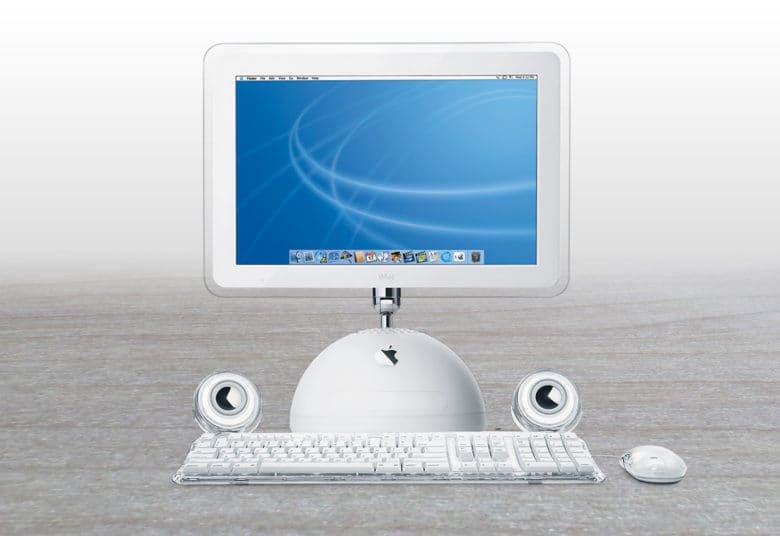
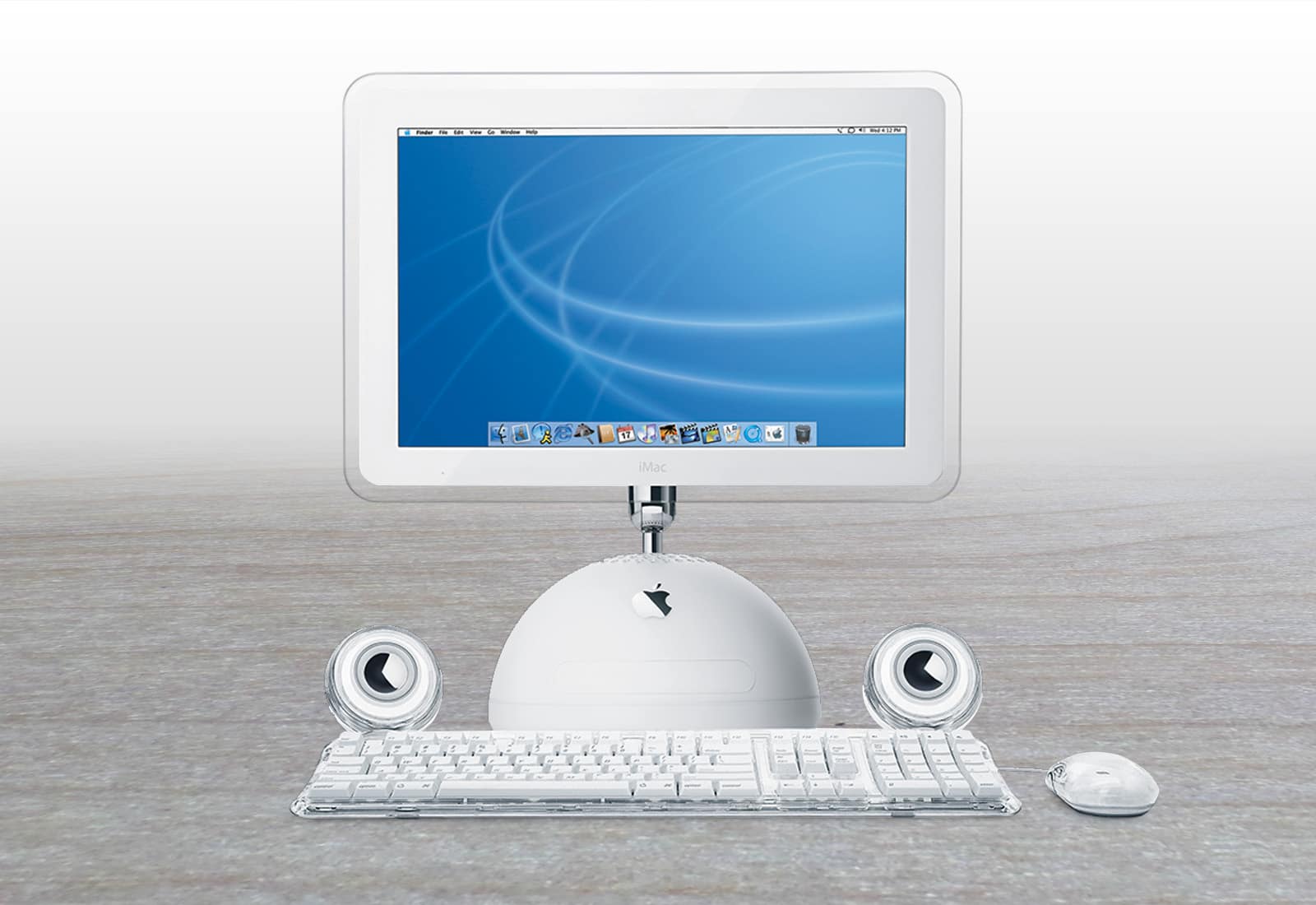
Reset PRAM on Mac remains relevant because Intel models are still in use across homes, schools and businesses. Many continue to work well, and their owners may eventually encounter the sort of odd startup preference that this procedure was designed to clear.
The method is simple, safe for personal files and quick enough to try when the symptoms fit. Its usefulness comes from being specific.
An Intel Mac remembering the wrong startup disk or display setting may benefit. A Mac with an unrelated software or hardware problem will need another answer.
The four-key shortcut has survived because it occasionally solves a strange problem in about 20 seconds. That is a good troubleshooting tool. It just should not be asked to perform miracles.
Over at Snazzy Labs, Quinn Nelson has a great in-depth look at the changes coming to Apple’s Game Porting Toolkit with macOS 27 this fall. Paired with Metal 4, it’s a real leap over what’s possible today, and Nelson showcases the difference well.
Thanks to the upcoming update, Nelson was able to use CrossOver, a Windows-to-Mac compatibility layer that allows PC games to be played on a Mac, to spotlight some impressive numbers on games ranging from Red Dead Redemption to the recently released 007 First Light.
Not all games Nelson tried showed the same leap in performance, but that’s true on compatibility layers like Proton on the Steam Deck, too. What’s remarkable is that it’s all done in software and as Nelson points out, the advent of coding agents like Codex and Claude may help bring more PC games to Mac using the Game Porting Toolkit by reducing the porting costs.
Nelson also makes a pitch for an Apple gaming device. I agree with him that more than ever, the pieces, right down to a hardware-focused incoming CEO, are all there for such a device, and I remain optimistic. However, I’ve made the case for such a device for years now to no avail. Still, whether or not Apple builds gaming hardware itself, watch the full video above. It’s a fantastic view of how far the Mac has come as a potential gaming platform since the advent of Apple silicon.
In the current era of coding agents becoming productivity assistants, iPadOS’ limitations are no longer defined by the lack of desktop-class multitasking or access to external peripherals. A new class of iPadOS shortcomings looms large on the horizon: the iPad’s app sandboxing and the absence of an open filesystem have relegated it to acting as a remote control for agents.
I’ve been ruminating on this thought for some time. I, of course, am very satisfied with the improvements Apple brought to the iPadOS platform throughout the 26 cycle: between new windowing, local capture, a menu bar, and the improved Files app, I can get most of my old-school work done on the iPad Pro without begrudging the experience like I used to a few years ago. What I’ve noticed this year, however, is that iPadOS 26 was an update designed to address the pre-existing low-hanging fruit of quasi-desktop efficiency; by design – and we have Craig Federighi on the record saying as much – it wasn’t intended to reinvent the wheel in any meaningful way.
That would have been fine a few years ago. The problem is that the productivity wheel is literally being reinvented by other companies as we speak. And in an unsurprising turn of events, the Mac is at the forefront of that reinvention, while the iPad is being left behind once again.
I’m writing this as someone who likes to be on the bleeding edge of AI tools. Since the release of Claude Code in early 2025, I (and, realistically, millions of other nerds whose taste aligns with mine) have increasingly moved a lot of my research, automation, coding, and other tasks considered “productivity” to desktop agents. These are powered by the same underlying technology as chatbots, but they’re considerably more powerful: Claude Code and Cowork, Codex, Perplexity’s Personal Computer, and self-hosted agents like OpenClaw and Hermes can understand intent and perform long-running tasks on your computer. They can write code, stay on a task for hours (or even days) at a time, analyze the contents of your screen, and even use a computer on their own. To believe that these AI tools are still a fad and chatbots are useless is misinformation at this point.
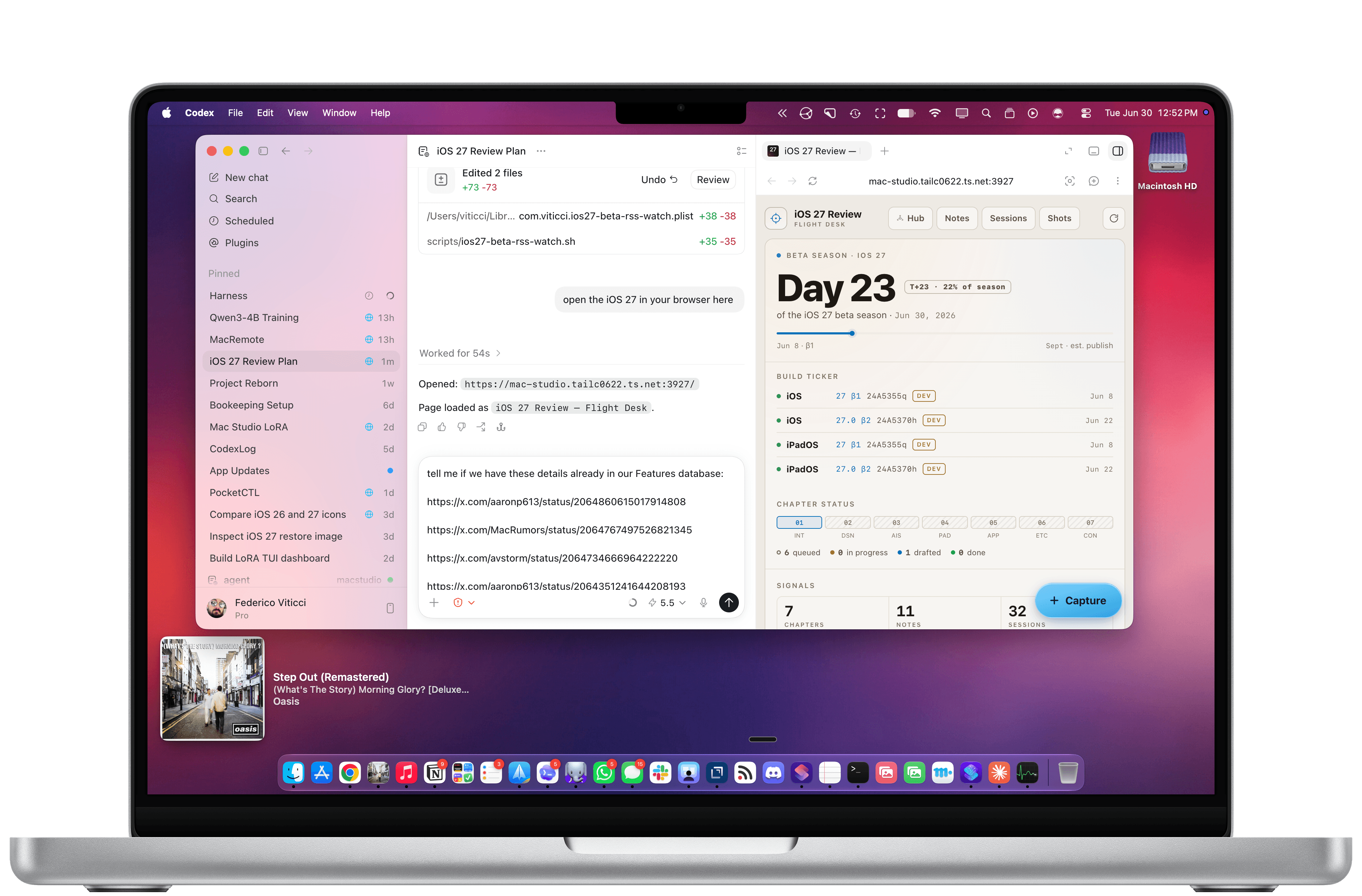
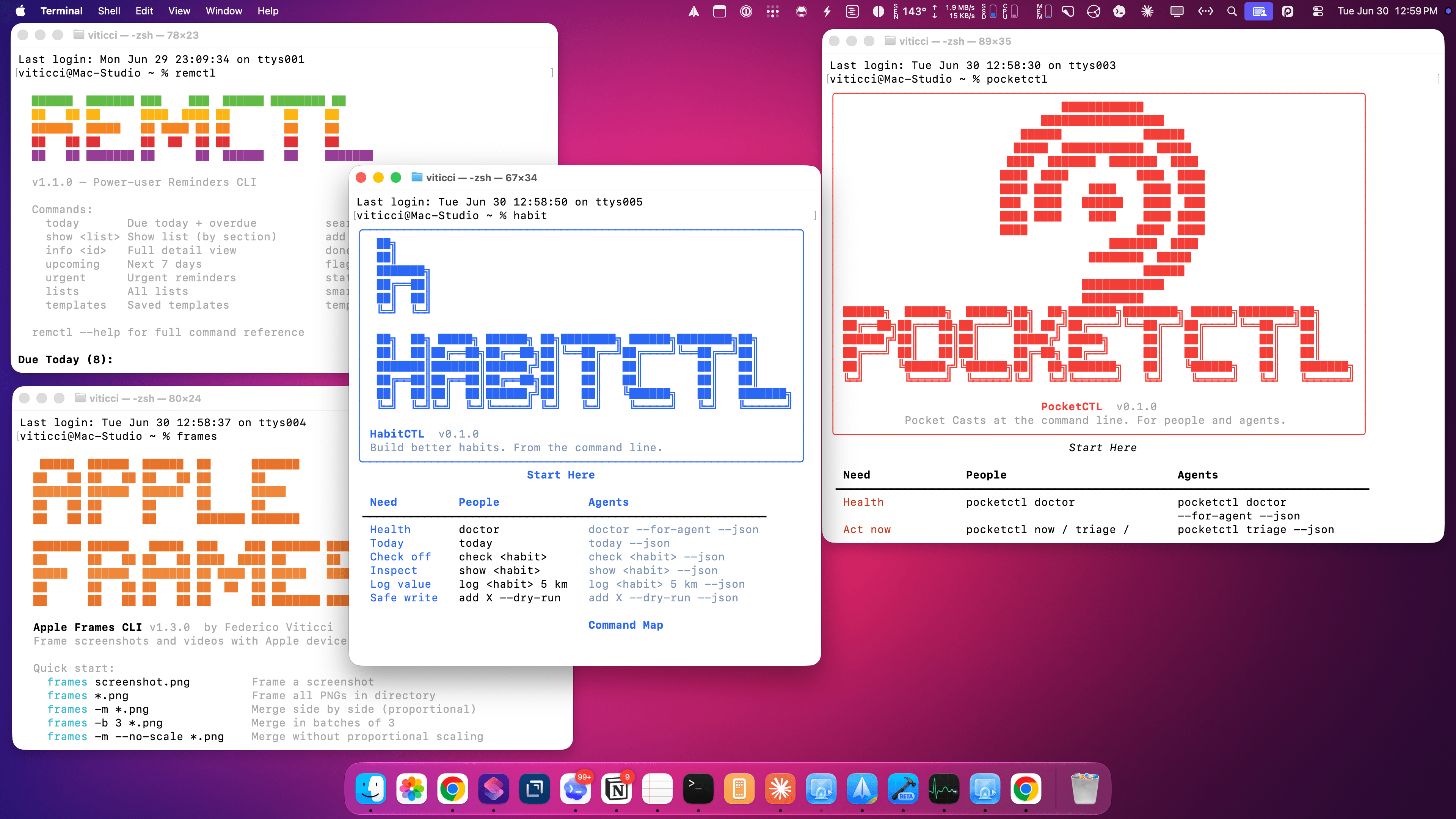
As of June 2026, I spend most of my days with two apps constantly open on my M4 Pro MacBook Pro: Codex and Notion. I’m a huge fan of what OpenAI has accomplished with Codex for Mac; their all-in-one package that combines thread-based chats with skills, plugins, connectors, computer use, memories, and system-wide filesystem access has genuinely allowed me to produce content for my audience that I wouldn’t have even dreamed of years ago. Since I started working with Codex, I’ve released a major update to Apple Frames, twoCLIs (with two more coming soon), Shortcuts Playground, and a brand new MacStories Shortcuts Archive. These are actual products that are used by thousands of people and are generating real revenue for MacStories. I’ve also created an entire suite of MacStories-only internal apps (now used by our whole team) and am currently in the process of researching my iOS 27 review, creating an app for Shortcuts Playground, and brainstorming a different product altogether for MCP.
I’m doing all of this on a Mac because the true Codex experience isn’t even “desktop-only”: it’s Mac-only.
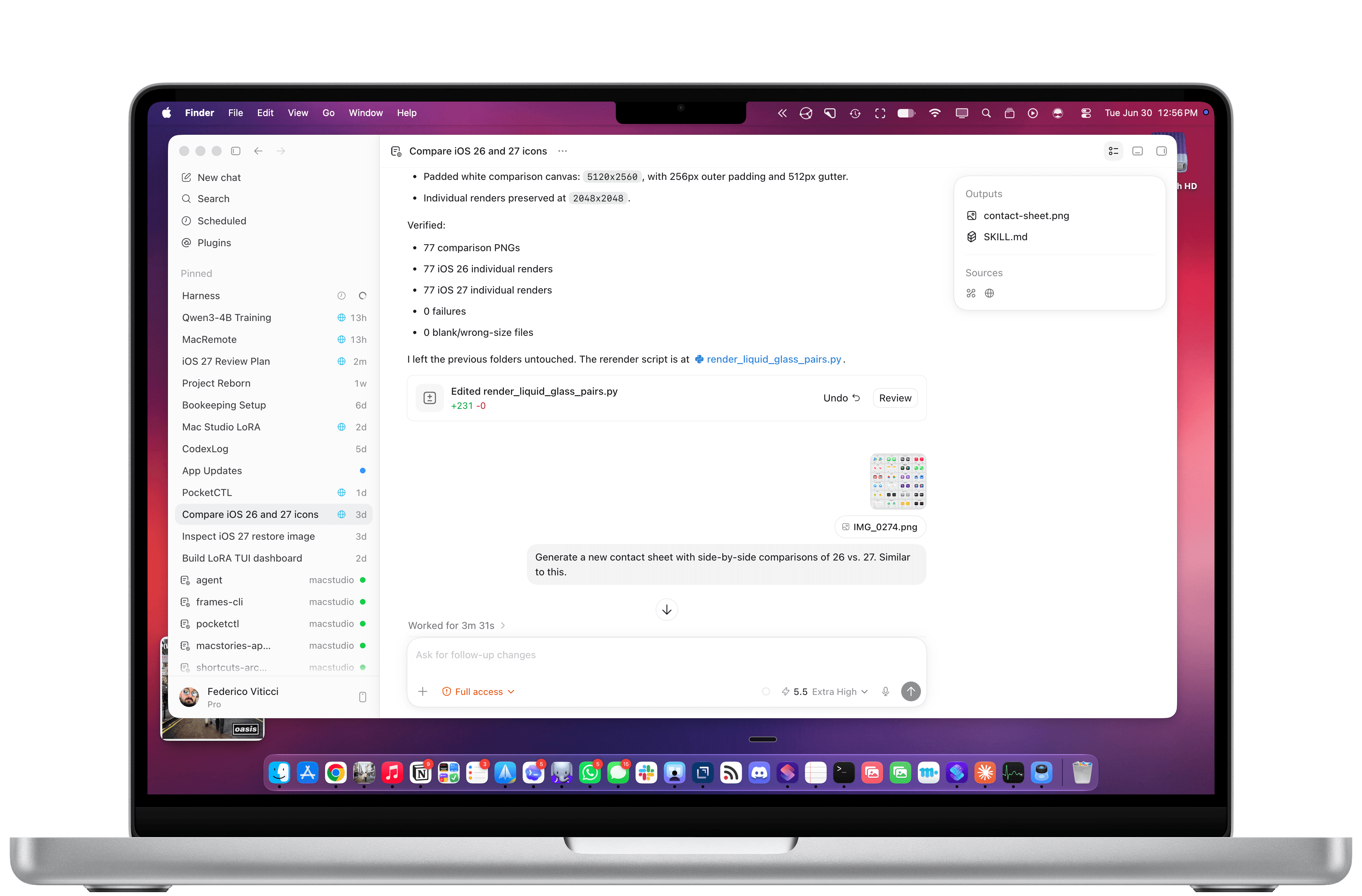
Let me give you some examples. To make the original version of Shortcuts Playground, I had Codex with Computer Use scrape my entire library on the old MacStories Shortcuts Archive, download over 300 shortcuts, and learn my coding style. Once I had a plugin, I also had Codex create over 1,000 shortcuts on its own, install them in the Shortcuts app for Mac, and debug them visually to find issues. For the new Shortcuts Playground plugin and app, I’m going even further: Codex created over 3,500 shortcuts spanning the entire library of Shortcuts actions while simultaneously coordinating with other Codex threads – some of which are running on my Mac Studio – to build an app, train a local model for Core AI, and constantly iterate on the new harness behind the app. Meanwhile, I’m also spending time in Codex organizing sources for my iOS 27 review, managing my tasks with Reminders and my own RemCTL, and performing general research on any topic I think of. The net result of all this is that I’m shipping more things, making more money for MacStories, saving money thanks to our new internal tools, and – most importantly – learning a lot and having fun.
Working with Codex for Mac.
Some of the CLIs I’ve built. Two of them are coming soon.
In all of this, the iPad’s role is to be, once again, an accessory to the Mac – and a rather expensive one at that. I wrote last year about iPadOS’ third-party app problem, and I still think all of it applies today. What’s different in 2026 is that these powerful agentic tools that are redefining coding and knowledge work, and which are centralizing productivity inside so-called “super apps”, aren’t coming to the iPad, but not for political or financial reasons: they’re Mac-only because only macOS is mature and open enough to support them.
In a funny twist of fate, Apple spent years trying to make iPadOS catch up to macOS on the surface, only for macOS’ underlying nature to unlock a new generation of apps that are rewriting the rules of modern software. No amount of windowing and menu bars can change the fact that neither Claude Cowork nor Codex will ever be possible on the current version of iPadOS. From an open filesystem that lets agents poke around anywhere to powerful Accessibility and Screen Recording APIs for developers to features like system-wide hotkeys, dictation, and true background processes, Apple’s oldest operating system is the one that feels the freshest (and the most powerful) in the AI industry today.
In fact, the Mac is so powerful and well-equipped for this new wave of desktop agents, it even yields an amazing experience when used in a “headless” setup with no display attached to it. This may have started as a trend because of OpenClaw, but six months later, I believe that a Mac mini with Codex running on it is the best bang for your buck if you’re building an always-on agentic setup based on a frontier model that can do just about anything you throw at it.
Which brings me to the iPad’s only silver lining in this space right now.
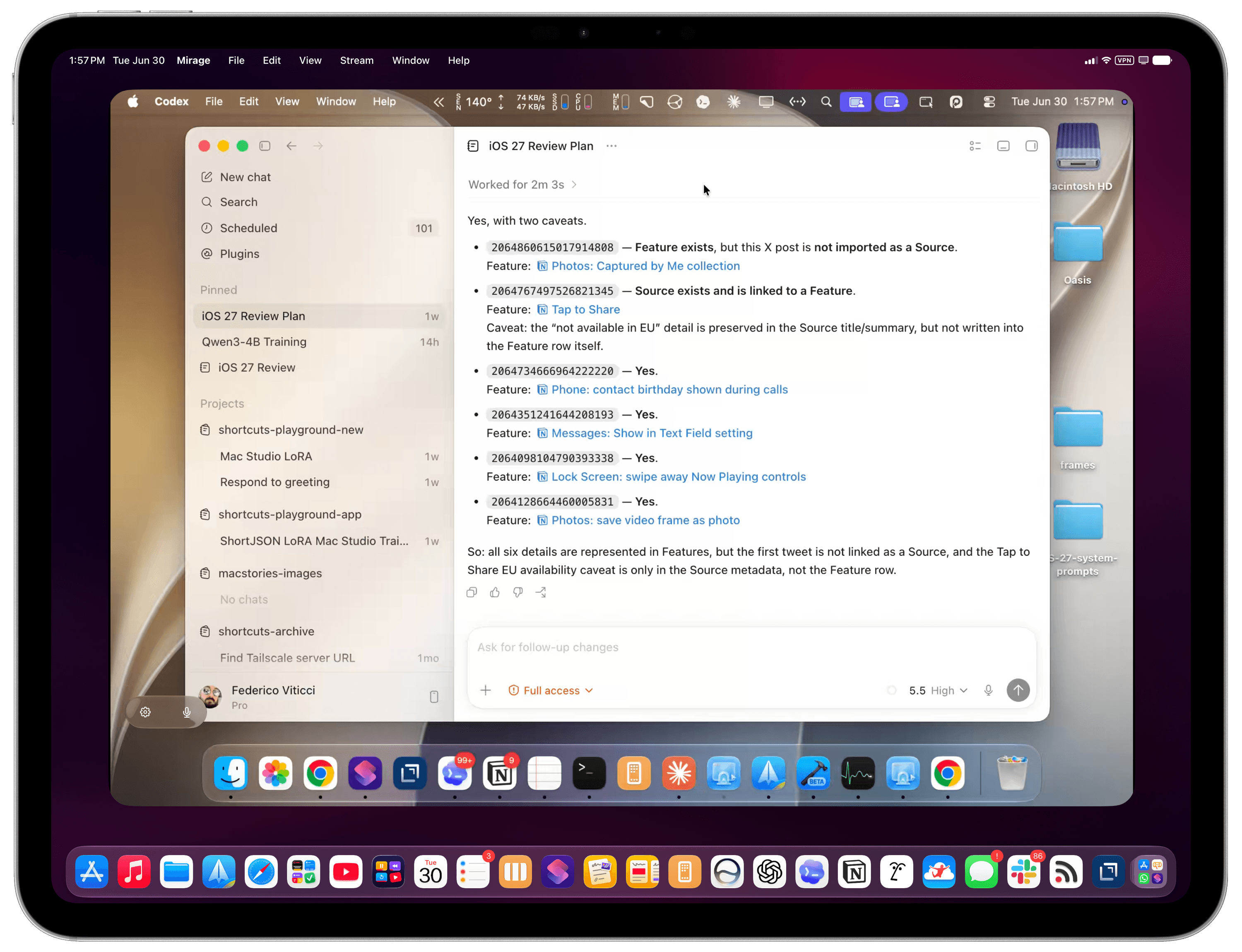
Most of my Codex tasks are running on my Mac Studio server, but I also use Codex on my MacBook Pro. Thanks to Codex’s support for remote connections, I can chat with threads running on the Mac Studio from the Codex app on a different machine, which is a fantastic feature. Alternatively, I can use Apple’s excellent (and, again, Mac-only) Screen Sharing app to log into my headless Mac and interact with macOS with superior performance and image quality to VNC. (I also use this HDMI 2.1 dummy plug to unlock 4K resolution when headless.) Coordinating Codex threads across different projects and machines feels like the sort of thing that shouldn’t be possible, yet here we are.
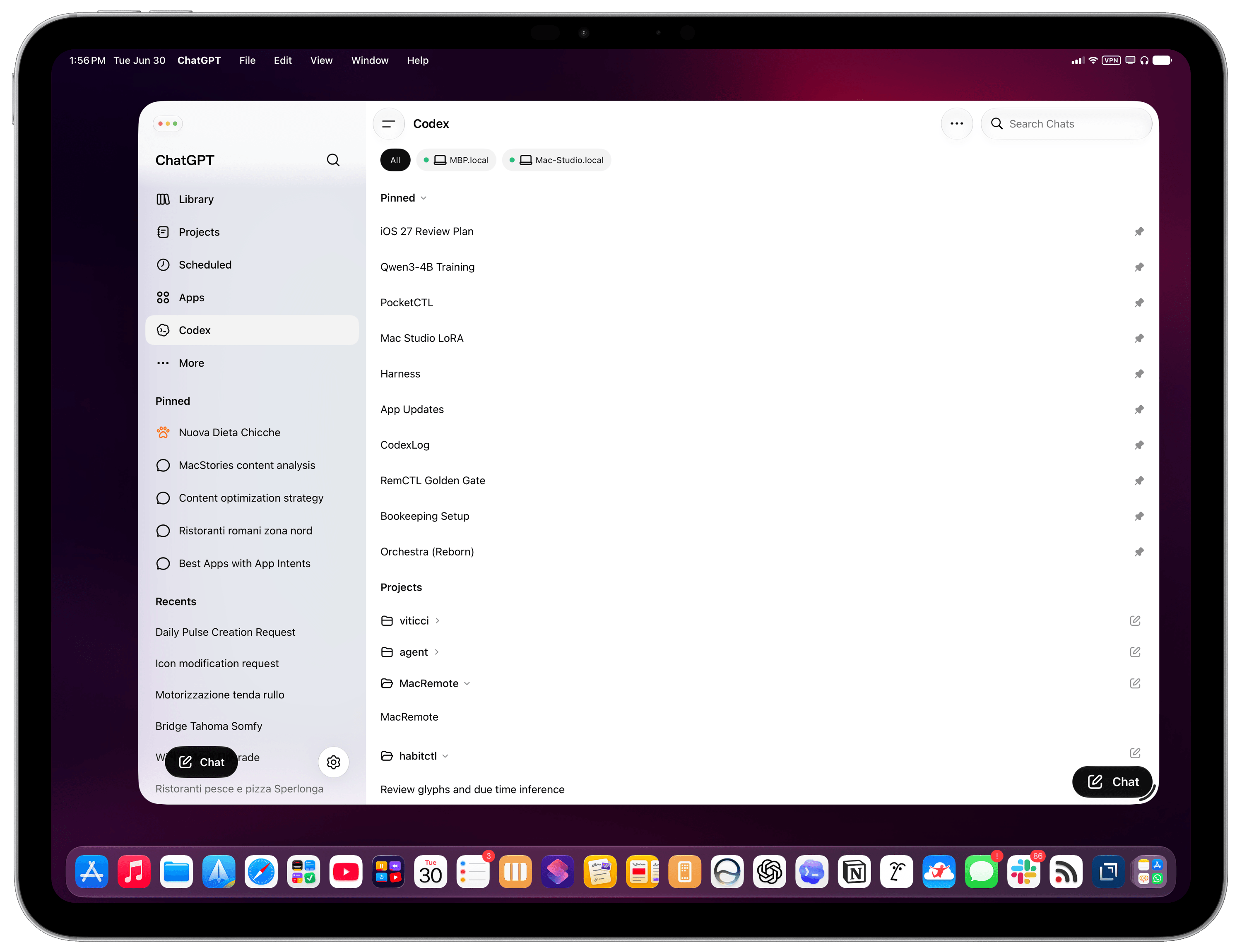
If the iPad is still relevant to me in this specific new way of working, it’s entirely because of the ChatGPT app and the fact that OpenAI cared enough to design a good remote experience for iPhone and iPad users. The Codex section inside ChatGPT is a solid product and getting better every week; it’s also the only app of this kind that lets you connect to multiple computers at once and manage threads across all of them. With Codex remote on iPad, I can continue my projects from the MacBook Pro or Mac Studio, pin specific threads, and keep an eye on all my agents working in the background. In general, it’s also a way to bridge functionalities that are missing from iPadOS. Without Codex remote, I wouldn’t be able to ask my agent to reschedule my reminders and turn some emails into tasks in the same workflow; I wouldn’t be able to tell my agent to go to the Apple Newsroom, find me a specific press release, extract all images from it, and upload them to our CDN.
Codex remote on iPad.
Perhaps Siri AI will unlock similar capabilities (although I doubt to the degree of a frontier desktop agent), but it’ll still be limited to apps made by companies that decide to support App Intents. When I’m not using my Mac and I think of something I can’t do on the iPad these days, I instantly reach for Codex inside ChatGPT. I suspect this trend will only grow as more AI companies release similar remote experiences for iOS and iPadOS.
Here’s the issue, though: these are remote companion experiences. It’s great that they exist and that OpenAI cared enough to make them great, but they’re still no substitutes for the real Codex experience on a Mac. It’s ironic if you think about it, isn’t it? A headless Mac is still more flexible and powerful than an iPad hamstrung by the closed nature of its own OS and software gatekeeping.
My headless Mac Studio in Mirage for iPad.
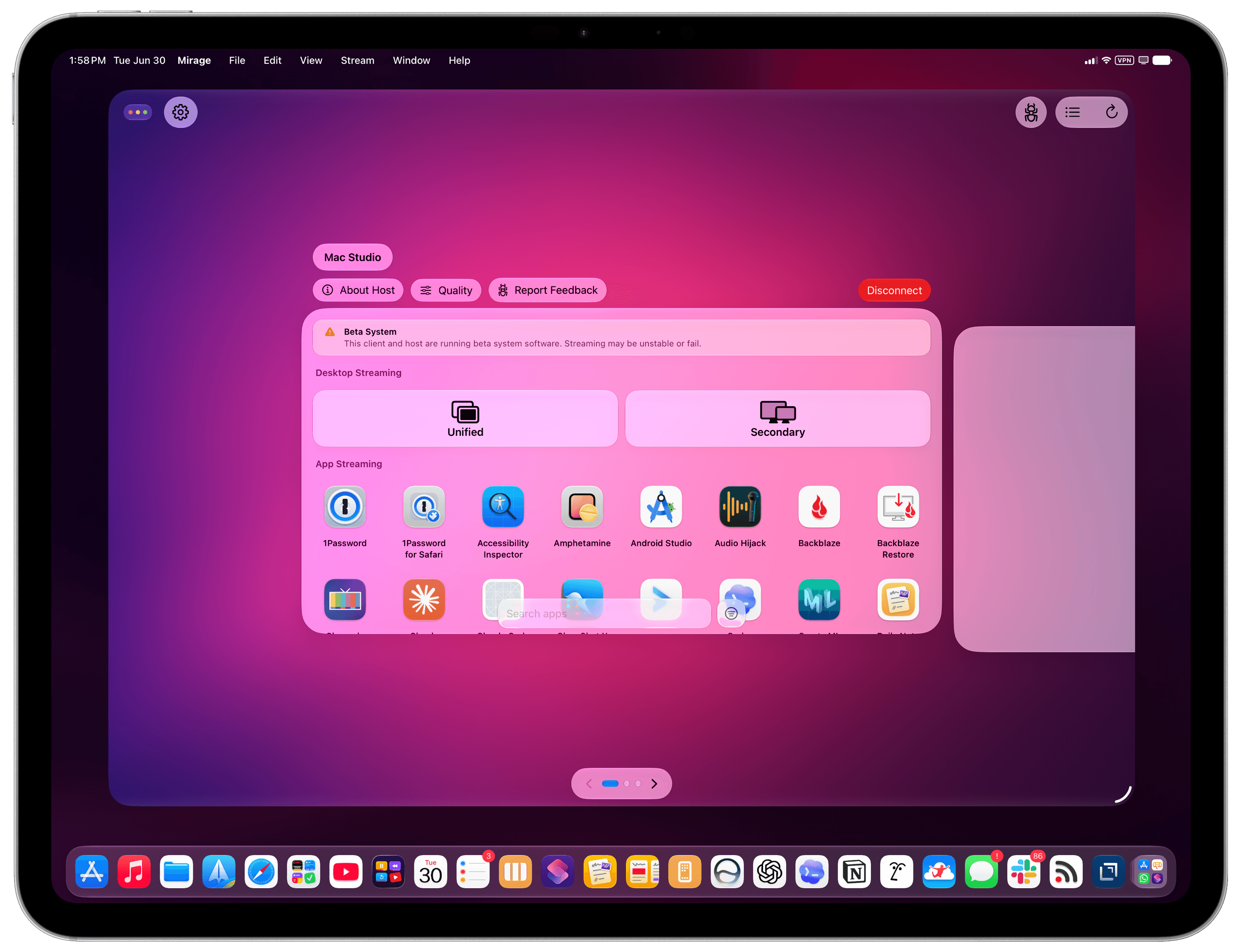
Mirage for iPad’s app launcher.
If you’re among the five million people using Codex on a weekly basis and will be planning your next laptop purchase in a few months, perhaps these considerations will change the calculus for you. Especially in the face of price increases and RAM uncertainty, would you be better served by spending $1,499 on a hybrid laptop that gets work done the old way with 256 GB of storage, or $1,499 on a computer where AI is a first-class citizen with 24 GB of RAM and double the storage? If we accept that power users’ priorities and workflows will be dramatically changing in the near future (if they haven’t already!), all prices being equal, which OS is best positioned for the future?
Of course, I like using both an iPad Pro and a Mac for different tasks. But let’s face it; in this day and age – and especially after last week – not everybody has the budget for two computers that have some overlap between them. Sure, I could argue that an iPad Pro + a headless Mac mini is an insane combo to get the best of both worlds these days: the nimble and delightful nature of iPadOS and the freedom to experiment with AI on a Mac. You can install apps like the latest Jump Desktop beta or the great new screen sharing app Mirage on the iPad and use your Mac mini almost as if it were connected to the iPad’s display. Set up Tailscale on your network, and the Mac’s power can be with you at all times. But that’s a lot of money, and a lot of setup, to achieve an approximation of what a single MacBook Air can handle with more memory, more storage, and a couple of Mac apps.
I’m sure that Apple is aware of the changing nature of this landscape, but in a similar vein to chatbots and Siri, perhaps they were unprepared for the tide of agents to accelerate so quickly. If the idea of putting macOS on an iPad Pro continues to be a non-starter at Apple, and assuming agent-based coding and knowledge work are here to stay, what should the company do to make sure the iPad doesn’t get left behind again? Is a sandboxed Terminal for iPad backed by a dedicated “Agent Framework” the solution? Is working with other companies to build more “remote companion” apps the way forward?
Or, perhaps more obviously: how long until Siri AI can also become a capable agent, connected to App Intents, on par with competing frontier agents?
Until, and if, that happens, the iPad will once again play the role of sidekick to macOS.
When it comes to the bleeding edge of AI and pushing the frontier of agents forward, there’s nothing like the Mac.
Apple raised the prices of Macs and other products across the board today. For entry-level Macs, the increases are mostly $100–$200. However, if you want a MacBook Pro or Mac Studio with lots of memory and storage, it’s going to cost you dearly. Prices were also raised on the iPad, Vision Pro, Apple TV, HomePods, and many items sold through Apple’s refurbished store.
This should come as no surprise to anyone, but it’s painful just the same. Last week, Tim Cook told The Wall Street Journal that price increases were coming without getting into specifics. Apple was able to hold the line on prices for several months, even while smaller gadget and computer makers raised their prices or canceled products altogether.
What’s happening is simple macroeconomics. Demand for memory and storage is vastly outstripping supply, largely due to the insatiable appetite of data centers that power AI services. That demand shows no signs of waning, and supply isn’t as simple as turning a knob to 11. There just aren’t that many makers of memory chips and SSDs, and bringing new plants online to manufacture takes years and billions of dollars.
For now, the price of iPhones has been left alone. Some may see that as a silver lining, but I suspect all it means is that Apple has enough prebuilt inventory to get to September, when new iPhones are announced. Apple Watch and AirPods prices remain the same, too.
Could Apple have avoided this? I doubt it. The magnitude and speed of the price increases and the projected duration are beyond what any reasonable company could or would plan for.
That said, I do think the situation will get better with time, again because of macroeconomics. The increases may preserve Apple’s margins, but it’s going to reduce the number of customers who can afford its products. Margins only equate to profits if you have customers willing to pay for your product. So with time, if the data center demand slackens or new chip capacity comes online, prices will improve. Just don’t expect that anytime before 2027 or 2028 if current projections are to be believed.
Ever since I installed macOS Tahoe on my M3 Max MacBook, it hasn’t been right. I’m not talking about Liquid Glass or window corner radii, or even the Apps Panel. For the better part of a year, my MacBook simply hasn’t worked the way I expect it to.
Some days are better than others, but at any moment, my Mac will freeze, with my trackpad becoming unresponsive and a spinning beach ball replacing my cursor. It only lasts a few seconds, but on the worst days, it happens dozens of times an hour and renders the trackpad completely unresponsive, as if my MacBook were shut down. Each occurrence lasts no more than a few seconds, but it’s enough of an annoyance to severely cut down on my productivity.
As I’ve written before, I knew what the problem was from the beginning. Activity Monitor showed a consistent CPU spike in the “core spotlight” task, followed by an immediate spike in the accompanying kernel. A restart temporarily helped, but the problem cropped up again before too long.
At first I thought it was related to indexing, but it lasted far too long. Then I waited for updates—26.1, 26.2, and so on—but none fixed the problem for more than a couple of days. As I wrote in my last article about the issue, turning off some of the toggles in the Spotlight settings helped for a while, but after a month or so, the problems crept back in. And since there’s no way to disable Spotlight completely without some scary Terminal tinkering, I was stuck with a Mac that didn’t work right.
Throw it all away
For whatever reason, the issue has gotten progressively worse over the past couple of months. It appears to be related to the installation of macOS 26.5, but it could also be related to the Apple Creator Studio version of Pages, which exhibited its own issues.
How it works is that Apple builds an occasional Spotlight index, which is what it uses to access files as you search for them. The Pages issue seems to stem from its use of iCloud as a storage drive. (I’m not alone in suspecting this either; one of my Macworld colleagues experienced a similar issue with Spotlight and Pages.)
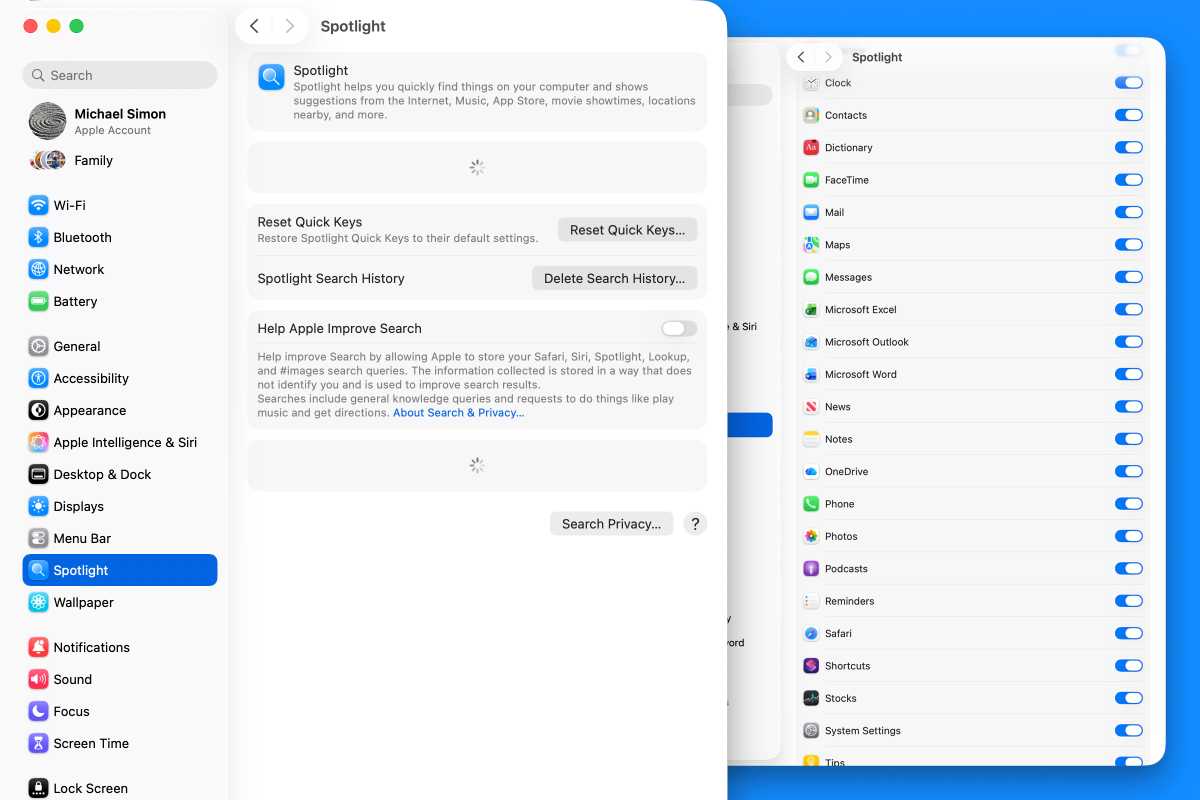
My problems got so bad that the Spotlight settings wouldn’t even load.
Foundry
Since there’s no way to fully turn off Spotlight as you can with Siri or Apple Intelligence, I tried a few things. First, I turned off the Pages toggle in the Spotlight settings. That didn’t work. Then I tried adding the Pages app and its Document folder to the Search Privacy option in Spotlight settings. No dice.
In a fit of exhaustion, I even added my entire MacBook drive to Search Privacy to prevent anything from being searched and again forced Spotlight to rebuild its index. That didn’t work either. Neither did macOS 25.5.1 or 25.5.2.
So I was stuck. My plan was to wait until macOS 26.6 arrived and see if that helped (though after five previous updates, I had little hope that it would), and perhaps give the macOS 27 public beta a shot. Otherwise, I would just deal with the freezes and hope they didn’t get any worse.
Unfortunately, they did. It got to the point one day where whenever I clicked on a new window, my MacBook would stall for a second or two before it let me do anything. I was ready to erase the whole thing and start over—but first I decided to root around my Library folder.
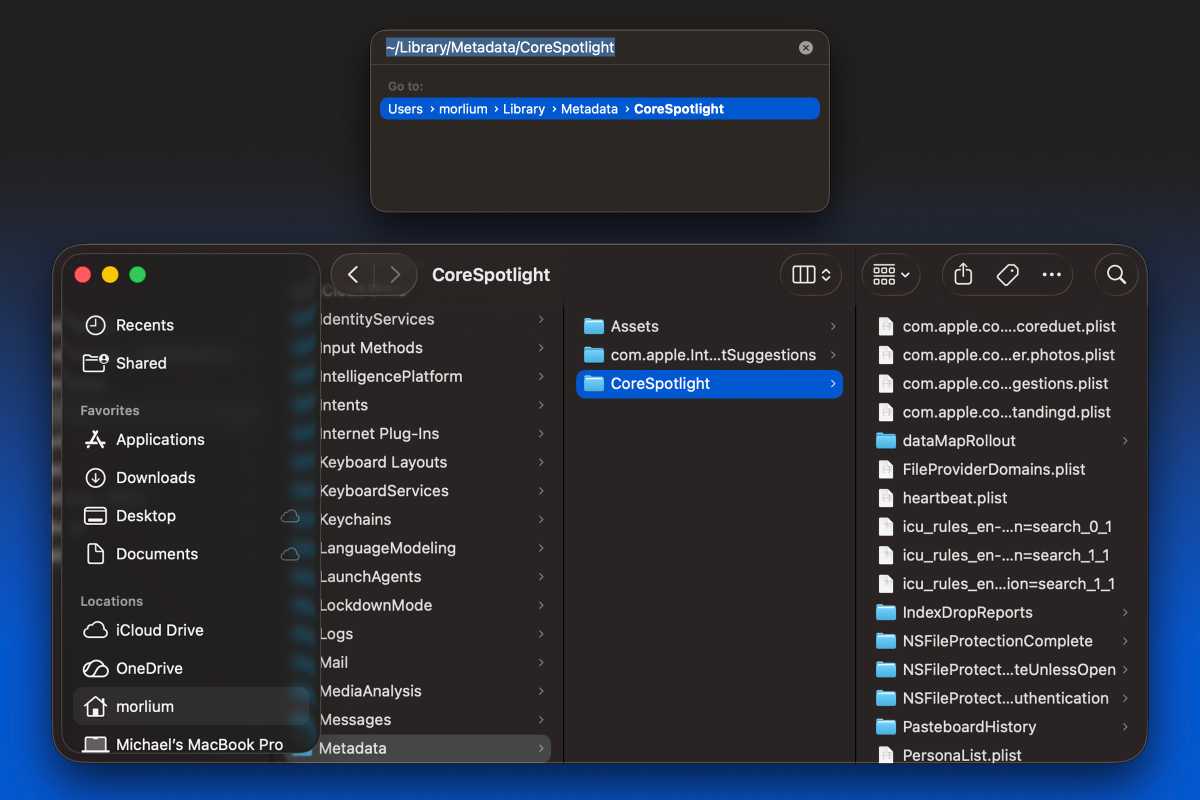
I don’t know why I didn’t think of doing this before. Basically, every app and feature has associated files that can be accessed if you find the right folder. I couldn’t find anything obvious, but a quick Google search told me where they were hiding: ~/Library/Metadata/CoreSpotlight. To find it, click on your desktop, then the Go menu at the top, then scroll down to Go to Folder, paste that whole string, and press Return.
Foundry
You’ll see a bunch of files and folders. Mine was filled with nearly 10,000 files and over 2GB of data. I had no idea where the problem lay or where to begin, and didn’t really care about breaking Spotlight, so I moved the whole folder into the Trash and selected Delete Immediately.
Two weeks later, there hasn’t been a single freeze, pause, or stutter on my MacBook. I’ve even flipped all of the Spotlight toggles back to green, and I still haven’t experienced any issues. For the first time since I installed Tahoe, I can finally use it without fear of freezing—just in time to install macOS 27. Here’s hoping Golden Gate goes a lot smoother.
Your Apple gear wasn’t cheap. And if you drop your iPhone, your iPad stops turning on, or you smack your Apple Watch into something and shatter it, getting it repaired probably won’t be cheap either.
Apple includes a one-year limited warranty with all hardware so if there’s a manufacturing defect, you’ll be covered. To also protect against accidental damage, get priority tech support, and in many cases replace your product if it is lost or stolen, you can opt to purchase AppleCare+. Here’s what it is, what it covers, and what you can expect to pay.
Is AppleCare+ worth it? Only you can decide for your own situation, but this should be everything you need to know to make a smart choice.
Updated July 16 ,2026: Apple has slightly increased the cost of AppleCare+ on iPads and Macs, by $0.50 per month or $5.00 per year.
What is AppleCare+?
If you’ve never even heard of AppleCare, start here! Otherwise, feel free to skip to the sections that cover your particular devices.
How AppleCare+ is different from the standard Apple warranty
AppleCare is Apple’s term for its warranty programs. Every Apple device comes with a certain stretch of AppleCare warranty service and phone/chat support for free, typically one year for the warranty and 90 days of phone support. You can pay to extend that protection for longer, get discounted repairs on accidental damage, and in some cases replace your device if it is lost or stolen. That’s called AppleCare+.
Do I have to buy AppleCare+ at the same time as the product?
No. If you already know you want it, buying AppleCare+ with the product is a good idea, just so you don’t forget. When you’re shopping at the Apple store and Apple.com, you’ll be offered AppleCare+ at checkout, and authorized Apple resellers can offer AppleCare+ too.
But you have some time to decide. Generally you get 60 days from the purchase date to buy AppleCare+ (only 30 days if you’re in Japan), and Apple has a page where you can check your exact device’s eligibility.
The latest iPhones and iPads will show you an AppleCare+ signup prompt right there near the top of Settings, if you’re still eligible. You can tap on it to see how many days remain, and purchase AppleCare+ (with or without Loss and Theft protection) right on your device.
If your new iPhone or iPad is eligible for AppleCare+, you’ll see a signup prompt near the top of the Settings app.
Still, to buy AppleCare+ after the fact you generally have to run a diagnostic test on the device in question, so Apple knows it’s in good working order. And no matter when you buy your AppleCare+ plan, the coverage starts from the day you bought your device. So you don’t get an “extra” two months of coverage if you wait two months to buy the plan.
If you want to buy an AppleCare+ plan after the 60-day period has ended, you can bring your device into an Apple Store for an inspection up to a year after purchase. If the technician allows it, you’ll be able to sign up in person.
How do I buy AppleCare+ for products I didn’t buy directly from Apple?
The easiest way is online. Apple’s site has a page to Check Your Service and Support Coverage. Enter your device’s serial number and it’ll tell you if you can still buy AppleCare+ and walk you through the process of purchasing and registering your plan.
Keep in mind that buying an AppleCare+ plan after the fact often means you have to complete a diagnostic test on the device. After all, Apple has to make sure you’re not trying to buy coverage on a device that’s already broken. So do it right away, just in case.
Can you buy AppleCare+ for refurbished products?
You can! Apple offers a range of refurbished items on its website, and they’re all backed by the same one-year warranty as new products. Plus, you can buy AppleCare+ for a refurbished item just as you can with a new one.
How do I check how much time is left on my AppleCare plan?
Head to Apple’s Check Your Service and Support Coverage page and enter your device’s serial number. You’ll find out how much time you have left on your AppleCare plan, and if you can still buy AppleCare+ for this device.
If there’s no Apple store near me, is AppleCare+ a bad idea?
No, you can still use AppleCare+ if you can’t make it to the Apple store. You have several options, actually.
Apple retail stores. If you can get to an Apple store, you can even make a reservation for AppleCare+ service.
Drop off at the UPS Store. Apple can provide you with a Repair ID number for an iPhone, iPad, or iPod needing service, and you can take it to any UPS Store in the U.S., which will ship the device to Apple at no cost to you. When Apple finishes the repair, you get the device back in the mail, again with no shipping fee.
Direct mail. Alternatively, Apple will send you a box and shipping labels for you to ship any Apple product back to them for repair. Apple pays the shipping both ways.
Onsite service. If the problem is with a desktop Mac, Apple can sometimes even send an authorized repair technician to you.
DIY. If the problem is relatively small, Apple can sometimes just send you a part, like a new iPhone charger or Apple TV remote.
Do I have to pay for AppleCare+ up front?
AppleCare+ used to be a single purchase that extended warranty services for a set span of time (usually two years). It has since changed to an ongoing discounted repair and replacement service, which you can pay for monthly or yearly. You are covered for as long as you continue to pay for AppleCare+.
How am I supposed to survive without my device while Apple is repairing it?
Apple offers an Express Replacement Service for the iPhone, iPad, and Apple Watch. When you use Express Replacement, Apple sends you a new device right away, and you don’t have to mail in your broken device until you receive it. Conditions apply, but ask Apple about it when you contact them and they can let you know if you qualify.
What if I sell the product before AppleCare+ runs out?
Most AppleCare+ plans, which are paid montly or annually, are linked to your Apple Account and do not transfer with the product. Older AppleCare+ plans, which were one-time fees for a set period of coverage, can be transfered to the new owner. See this support document for more information.
Does AppleCare cover loss or theft?
There used to be a second tier of AppleCare+ that included coverage for loss or theft, but Apple now only offers this tier. So yes, it covers loss and theft (on applicable products) and there is no longer an option to get AppleCare+ without that.
Is AppleCare+ only for U.S. customers?
No, Apple provides global coverage for most Apple devices (iPhone, iPad, Apple Watch, Mac, iPod, Apple TV, and Apple displays). Service options do vary between countries, but any AppleCare service is always performed by authorized techs with genuine Apple parts.
Obviously, you should always read the full agreement before you purchase any warranty or insurance.
Can I cancel an AppleCare+ plan?
Yes, you can. If it’s within 30 days of purchasing the plan, you’ll get a full refund minus any service you received. Outside of 30 days, you’ll get a prorated refund, minus any service, minus a fee of $25 or 10 percent of the prorated refund, whichever is less. Call Apple at 1–800-MY-APPLE to ask how.
Can I extend AppleCare+ after a policy runs out?
Yes, though some devices have a limit as to how many times you can extend coverage. Apple has a 45-day window where a policy can be extended 24 or 36 months, paid monthly or annually. In China, the window is 30 days.
The iPhone is covered in glass, easy to drop, and goes everywhere with you. No wonder iPhones break so frequently! Here’s the skinny on buying some extra protection.
How much does AppleCare+ cost for iPhone?
It varies by the device. Here’s the price for both monthly and annual coverage.
I bought my iPhone with the iPhone Upgrade Program. Doesn’t that have AppleCare+ included for free?
It’s included, but it’s not free. The cost of the two-year AppleCare+ plan is included among the 24 loan payments you agree to pay. (But at least you aren’t charged interest.)
If you upgrade your phone after a year, your two-year loan starts over again, but you still get the second year of AppleCare+ on the new phone. Read the iPhone Upgrade Program terms for more detail. The iPhone Upgrade Program is a loan, so again, be sure to read all the fine print before you sign up.
For the iPhone, AppleCare+ extends your warranty coverage from one year to two, and extends phone and chat support from 90 days to the full two years as well.
You also get up to two incidents of accidental damage coverage per year for a relatively low service fee. If you’ve only damaged the screen, a screen replacement is only $29/£25. But if the iPhone has other damage, the fee is $99/£79. iPhones are eligible for the Express Replacement Service, letting you request a replacement device in the mail before you send your original damaged device in for repair.
So let’s say you drop your iPhone on the corner, which breaks the screen but also dents the enclosure enough that Apple can’t fix just the screen—that’s a $99/£79 repair. If the screen shatters but the rest of the phone is relatively unscathed, $29/£25.
The warranty against defects covers the phone as well as the battery and the included headphones and accessories. Accidental damage can include almost anything, such as water damage, drops, running the thing over, your kid pours paint into the Lightning port—as long as you only have two incidents (or less) in the two-year coverage period.
The plan also covers two incidents of theft or loss per year.
You might also want to check your homeowner’s and renter’s insurance policies to see if they cover stolen electronics. Some cell phone service providers’ own insurance plans cover loss and theft, but it’s relatively rare.
Should I get it AppleCare+ for my iPhone?
If you’re going to buy AppleCare+ on anything, it’s probably going to be your iPhone. But it’s not always a slam dunk. Depending on the age of your iPhone and how expensive some future repair might be, you may end up spending more for AppleCare+ and a repair than just a straight repair cost.
Really it depends on how careful you are with your iPhone. Do you use a case? Avoid action sports? Rarely drop your phone? Or are you a total klutz who’s broken every phone you’ve ever owned? Be honest with yourself and proceed accordingly.
An Apple Watch is another prime candidate for AppleCare+, if for no other reason than because it’s on the outside of your wrist where it can constantly bump and scrape on things.
AppleCare+ for iPad
Whether you agree that an iPad can replace a laptop, its AppleCare+ plan certainly is cheaper than AppleCare+ for a Mac—and iPads are eligible for Apple’s speedy Express Replacement Service too.
Apple recently raised the price of AppleCare+ for iPad by $0.50 per month or $5.00 per year.
Pad, iPad mini
$5.49
$54.99
iPad Air 11-inch (M4)
$6.49
$64.99
iPad Air 13-inch (M4)
$7.49
$74.99
iPad Pro 11-inch (M5)
$10.49
$104.99
iPad Pro 13-inch (M5)
$11.49
$114.99
What does AppleCare+ for iPad cover?
You are covered for unlimited damage from accidents like drops or spills.
You also get two incidents of accidental damage coverage per year, with a service fee of $49/£39 for most damage, plus tax. AppleCare+ covers the iPad as well as its battery and included accessories like the power brick. You are covered for up to two incidents of loss or theft in 12 months.
Should I get it AppleCare+ for my iPad?
This answer might hinge on how you use your iPad. My iPad, for example, almost never leaves my house—but I also share it with a 6-year-old who doesn’t always treat it like an expensive and fragile device. Still, our iPad is mostly for entertainment, so I’m living (dangerously?) without AppleCare+.
On the other hand, if I was a road warrior with an iPad Pro that I relied on every day to make my living, I’d be more likely to shell out the $129/£129 for AppleCare+.
AppleCare+ for Macs and Apple displays
Apple doesn’t sell its own Apple-branded displays anymore, and AppleCare+ for Macs might seem like a bargain if you’ve ever paid hundreds to get a laptop serviced—or overkill if you’re an iMac user who’s never run into a problem.
For Macs, AppleCare+ does not include coverage for loss and theft. Apple recently increased the price for Mac coverage by $0.50 per month or $5.00 per year.
Mac mini
$3.99
$39.99
Mac Studio
$6.49
$64.99
iMac
$6.49
$64.99
MacBook Neo
$5.49
$54.99
MacBook Air 13-inch
$7.49
$74.99
MacBook Air 15-inch
$8.49
$84.99
MacBook Pro 14-inch
$10.49
$104.99
MacBook Pro 16-inch
$15.49
$154.99
Mac Pro
$17.99
$179.99
AppleCare+ for the Apple Studio Display costs $4.99/$49.99, and for the Studio Display XDR it costs $9.99/$99.99.
What does AppleCare+ for Macs cover?
AppleCare+ for Macs covers unlimited accidental damage for a lower service fee than you would pay for an out-of-warranty repair. If you damage just the screen or Mac’s enclosure, it’s $49-99 and all other damage is $149-299, plus tax. You get unlimited battery replacements for no extra charge (Apple requires your battery hold less than 80% of its original charge before replacing it).
For Macs, your computer is covered, plus the battery, power adapter, and other included accessories.
What doesn’t AppleCare+ for Macs cover?
It doesn’t cover loss or theft. Your homeowner’s or renter’s insurance might, depending on your policy.
Should I get it AppleCare+ for my Mac?
For Macs, AppleCare+ makes more sense if you’re buying a laptop and you’re worried about the screen, or you just tend to be rough on your computers. Desktop Macs probably aren’t as important to cover, since the likelihood of, say, dropping one is a lot less. Still, Macs have a long life, so you may decide three years of (transferable) protection is worth the extra cost.
AppleCare+ for Apple Watch
For Apple Watch, your AppleCare+ subscription now covers loss and theft—it didn’t originally do so.
Fancier editions like the Hermes, Titanium, or Ceramic watches may have different AppleCare+ pricing, however.
What does AppleCare+ for Apple Watch cover?
You get unlimited repairs for accidental damage, and up to two instances of loss or theft in 12 months.
Should I get it AppleCare+ for my Apple Watch?
It’s pretty difficult to get an Apple Watch repaired anywhere but the Apple store, as we found out. The Apple Watch is designed to be tough, so most users hopefully shouldn’t have problems. But if you’re paranoid or accident-prone, or you just love the idea of Express Replacement Service so you never miss a step, AppleCare+ is there.
AppleCare+ for Apple TV
Your Apple TV is probably the last thing you’d buy an extended warranty for, but Apple is happy to sell you one!
It’s only $29/£25, both for the regular Apple TV and the 4K edition. That gets you two years of warranty coverage and tech support.
What does the AppleCare+ Apple TV cover?
The Apple TV itself, the Siri Remote, and even the Apple AirPort router you use with it, if you bought it within two years of the Apple TV. Tech support by phone or chat includes help with setup, connecting to Wi-Fi, iCloud, renting or buying from iTunes, AirPlay, and even connecting to third-party streaming services. You also get coverage for accidental damage (spills, drops, earthquakes, fires) or cosmetic damage. But since it just sits there that’s unlikely to be used. Each incident has a service fee of $15.
What doesn’t it cover?
Loss and theft, including losing the remote. (But if the remote stops working, that’s covered.)
Should I get it AppleCare+ for my Apple TV?
Nah. I mean, you could. But you probably don’t need to, because it’s a box that sits under your TV and doesn’t go anywhere.
At long last, Apple finally announced its Back to School promotion, and at first glance, it seems similar to previous years. You can get a gift card valued at up to $150 for buying a new MacBook Pro, or $100 for buying a MacBook Air, iPad Pro, or iPad Air. But when you dive into the details, you’ll see just how limiting this limited-time offer really is.
First off, it’s shorter than ever. While previous sales have lasted more than three months, this year’s offer ends on August 27, just six weeks from now. So not only did it start about a month later than usual, it’s ending more than a month sooner than recent years:
2026: July 16 to August 27
2025: June 17 to September 30
2024: June 20 to September 30
2023: June 5 to October 2
2022: June 24 to September 26
So students will need to make their decisions on what to buy sooner than ever, many of them before the school year begins. And they’ll also have fewer products to choose from. As expected, the MacBook Neo isn’t part of the promotion, but you also won’t find any desktop Macs. In previous years, Apple has offered iMacs and Mac minis alongside MacBooks, but not this year.
And then there’s the offer itself. After offering buyers a choice of accessories valued at up to $199, including AirPods, an Apple Pencil Pro, or a Magic Keyboard, Apple has returned to giving away gift cards this year: $150 with the purchase of a MacBook Pro, and $100 when you buy a MacBook Air, iPad Air, or iPad Pro. Not only is that less than in 2024, when buyers got $150 when purchasing a MacBook Air, but it also doesn’t take any of the recent price hikes into consideration.
That $100 gift card you’re getting on the iPad Air doesn’t even bring it down to the price it used to be before Apple raised prices by $150. MacBook Pros still cost $150 more than they did just last month, and if you’re planning to use that gift card on a HomePod or Apple TV, well, you might as well just throw your money in the trash.
Unfortunately, this promotion is still among the best “deals” you’re going to find on a MacBook or iPad. Prices on Amazon and other stores have all been adjusted to match Apple’s new prices, and we’ve yet to see much in the way of major Apple discounts yet (although we do recommend looking at the Apple Certified Refurbished Store where prices are more favorable). But remember you’re need to act fast—the clock runs out on the Back to School deal a lot earlier this year.

 Login
Login