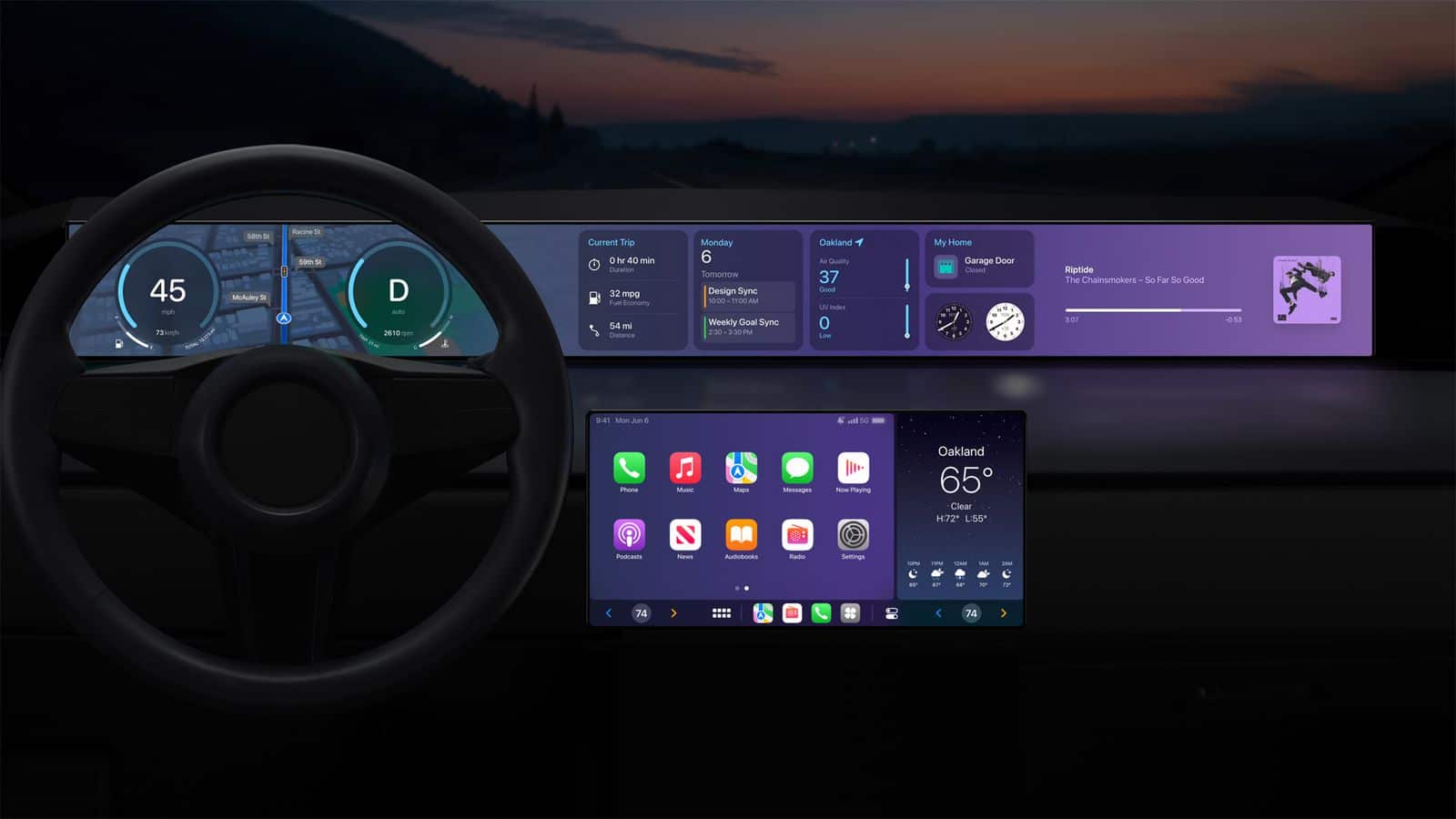
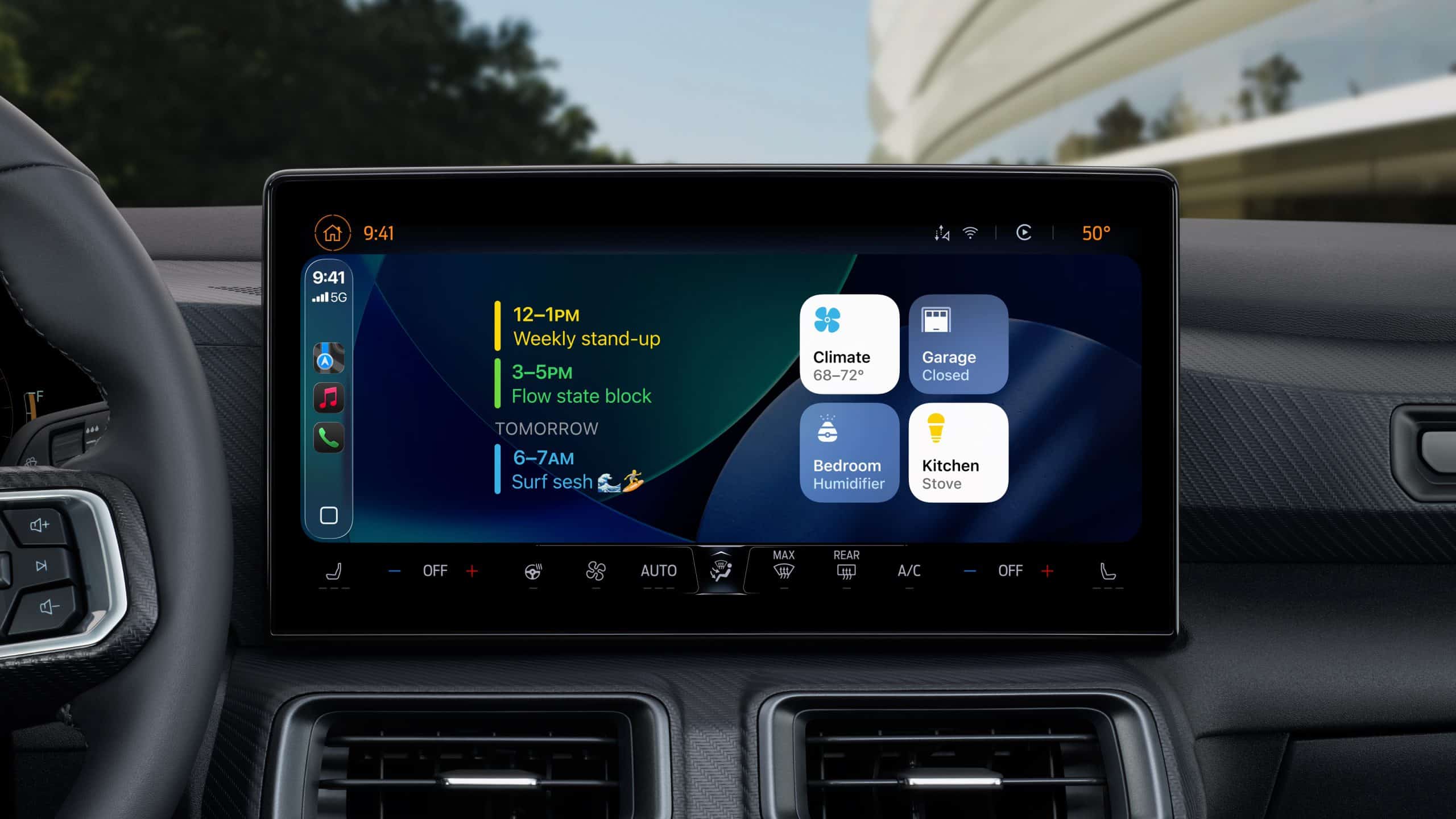
CarPlay apps have grown far beyond maps, music and basic messaging. More than 120 popular iPhone apps now offer some form of support for Apple’s in-car platform, giving drivers access to navigation, podcasts, audiobooks, sports, communication, electric vehicle charging, parking, food ordering and newer AI assistants.
Not every compatible app places its full iPhone interface on the dashboard. CarPlay uses simplified layouts, voice controls and restricted features designed to reduce distractions. Some apps show lists and buttons, while others operate mainly through Siri or audio playback.
The larger catalog nevertheless changes what CarPlay can do. It is becoming a controlled extension of the iPhone rather than a small collection of driving utilities.
CarPlay Apps Cover More of the Journey
The first generations of CarPlay concentrated on a small set of familiar activities: choosing a route, making a call, sending a message and playing audio. Those functions remain central, but Apple has gradually opened additional categories to developers.
CarPlay apps can now help drivers find parking, locate fuel, identify EV charging stations, order food for collection and complete certain driving-related tasks. Automakers can also build apps that control supported vehicle features without forcing the driver to leave the CarPlay interface.
Apple continues to limit which app categories qualify. A social network, game or ordinary shopping app cannot simply reproduce its iPhone screen on the dashboard. Developers must use Apple’s CarPlay frameworks and present only functions considered suitable for the car.
The approach explains why the available catalog can feel both extensive and restrained. More than 120 apps may be compatible, but the dashboard does not become a crowded copy of the App Store.
Image Credit: Apple Inc.
Navigation Remains the Starting Point
Apple Maps is built directly into CarPlay and provides turn-by-turn guidance, traffic information, estimated arrival times and destination suggestions based on information from the iPhone.
Drivers can also choose popular alternatives including Google Maps and Waze. Each service brings a different combination of traffic data, route preferences, incident reporting and familiar saved locations.
Other navigation and travel options include HERE WeGo, TomTom GO Navigation, Sygic GPS Navigation, Gaia GPS and specialist apps designed for trucks, motorcycles or outdoor routes.
The strongest choice usually comes down to habit and regional coverage. A driver already using Google Maps or Waze on iPhone can continue using saved destinations and preferences inside the car. Apple Maps benefits from tighter system integration, including Siri requests, Calendar suggestions and Apple Watch directions.
CarPlay allows several navigation apps to appear in the Dashboard layout, where mapping can share the screen with media controls and other useful information.
Music, Radio and Podcasts Dominate the Catalog
Audio remains the largest CarPlay app category because it suits an environment where users should spend as little time as possible looking at the screen.
Apple Music, Spotify, YouTube Music, Amazon Music, Deezer, Tidal and Pandora provide access to large music libraries. Radio services such as TuneIn, iHeartRadio and SiriusXM add live stations, news, sports and talk programming.
Podcast listeners can use Apple Podcasts, Overcast, Pocket Casts, Castro and Spotify. Audiobook options include Apple Books, Audible, Audiobooks.com and Bookmate.
The CarPlay versions usually emphasize large buttons, recent listening, saved libraries and voice search. More detailed account management remains on the iPhone.
Siri can start playback without requiring users to browse through several menus. The experience is safer and often faster when the request includes the service and content, such as asking Siri to play a specific playlist through Apple Music or Spotify.
Messaging Is Becoming More Visual
Messages has long allowed CarPlay users to hear incoming texts and dictate replies through Siri. Third-party messaging services have expanded the same general idea.
WhatsApp now offers a fuller CarPlay experience that can display recent chats, calls and favorite contacts while keeping message composition centered on voice. Other supported communication apps include Telegram and selected business messaging services, depending on region and app version.
CarPlay does not display long text conversations like an iPhone. Siri reads messages aloud, and users can dictate a response. Visual elements remain limited so the dashboard does not become a scrolling chat screen.
Phone and supported calling apps also provide simplified access to contacts, recent calls and favorites. Meeting services can support audio participation, but video remains unavailable while driving.
AI Assistants Enter CarPlay
AI assistants represent one of the newest CarPlay app categories. ChatGPT, Perplexity and Grok have introduced CarPlay support, allowing drivers to interact through voice without handling the iPhone.
These apps can answer general questions, explain subjects, brainstorm ideas or continue voice conversations. Their usefulness in a car is different from navigation or music. They provide a hands-free knowledge interface during a commute or long trip.
Google Meet and other communication apps have also expanded their in-car presence, emphasizing audio conversations rather than video.
AI responses should not replace directions, emergency information or vehicle warnings. They can also produce inaccurate answers, particularly when asked about rapidly changing road conditions. Apple Maps, official traffic services and the vehicle’s own systems remain the appropriate sources for driving decisions.
The arrival of AI assistants still marks a meaningful expansion. CarPlay is no longer limited to commands with predefined outcomes. Drivers can now hold longer spoken interactions through supported services.
Parking, Fuel and EV Charging Become Easier
Practical travel apps can reduce the need to handle an iPhone after arriving near a destination.
Parking services can help locate garages, compare availability or start a parking session. Availability varies by city, but apps from services such as SpotHero, EasyPark and ParkWhiz may offer CarPlay functions in supported markets.
Fueling apps can guide drivers to compatible stations and, in some cases, prepare or authorize payments. EV charging apps can locate chargers, show connector availability and begin navigation to a selected station.
ChargePoint, PlugShare, Electrify America and other charging networks provide different levels of CarPlay integration. Drivers should confirm that their preferred service supports the platform in their country and app version.
Food-ordering support is more restricted. Compatible apps are designed around quick pickup tasks rather than browsing complete menus while the vehicle is moving.
Sports and Driving Information Join the Dashboard
Sports apps are also finding a place in the car. Apple Sports and selected third-party services can provide scores or spoken updates without requiring drivers to follow a live visual feed.
Audio broadcasters already make sports a major part of CarPlay through radio and podcast services. Dedicated sports support makes it easier to reach a favorite team or competition directly.
Driving-task apps can handle functions such as recording mileage, managing road trips or communicating with fleet systems. These experiences are generally built for narrow purposes and use simplified controls.
Automaker apps form another category. Depending on the vehicle, they can expose controls for radio stations, climate functions, drive modes or other systems through CarPlay. Support is determined by the manufacturer and may differ between models.
How to Find CarPlay Apps on an iPhone
Compatible apps installed on the iPhone normally appear in CarPlay automatically. Users can decide which ones remain visible and change their order.
To organize CarPlay apps:
Settings > General > CarPlay > select the vehicle > Customize
Apps can be added, removed or rearranged from this screen. Removing an app from the CarPlay layout does not uninstall it from the iPhone.
An app may not appear when its developer has not enabled CarPlay support, the feature is unavailable in the region or the app needs to be updated. Some services also require an active subscription or account.
The safest layout keeps frequently used navigation and audio apps near the first page. Less essential services can remain farther back or be removed to reduce dashboard clutter.
More Apps Do Not Mean More Screen Time
The value of 120 CarPlay apps is not having 120 icons inside the car. It is having a useful service available when a particular trip requires it.
A daily commute may involve only Maps, Music and Messages. A road trip may add charging, parking, audiobooks and weather information. A workday could involve audio meetings and mileage tracking.
CarPlay’s restrictions remain part of its appeal. Apps are expected to simplify their interfaces, support voice interaction and limit detailed visual tasks. The system should reduce the temptation to use the iPhone rather than reproduce every distraction on a larger screen.
As iOS 27 expands capabilities for audio, communication, navigation and driving-task apps, the catalog is likely to keep growing. The more useful evolution will be deeper integration with the Dashboard, Siri and vehicle controls—not simply another row of icons.
Siri Wolfram helped define the original promise of Apple’s voice assistant. When Siri debuted on the iPhone 4S in 2011, it could answer factual and computational questions without sending users through a list of search results. Ask about a mathematical calculation, scientific quantity, historical statistic or unit conversion, and Wolfram Alpha could provide a structured answer.
That partnership gave early Siri something many modern AI assistants still struggle to guarantee: a source designed to compute answers rather than produce plausible sentences. Wolfram Alpha was not a chatbot. It was a computational knowledge engine built around curated data, symbolic mathematics and algorithms.
Siri AI enters a far more ambitious era. Apple now wants its assistant to hold natural conversations, understand personal context, interpret images, find information across apps and complete actions. Yet the old Siri Wolfram relationship remains useful for understanding what Apple gained, what was lost as assistants became more conversational and why verified computation may become even more valuable in the generative AI age.
Siri Wolfram Was Built Around Answers
The original Siri Wolfram integration reflected a straightforward idea: users wanted direct answers without manually searching, opening websites and comparing sources.
Wolfram Alpha was particularly effective for questions with a computable result. It could solve equations, compare financial data, convert measurements, retrieve astronomical information, calculate dates and present structured scientific facts. Siri provided the voice interface, while Wolfram supplied the knowledge engine behind selected responses.
A user could ask how many days remained until a date, calculate a percentage, compare populations or request information about a mathematical concept. Siri translated the spoken request and delivered the result in a format suitable for the iPhone.
The experience was narrow compared with modern generative AI, but it had a valuable discipline. Wolfram Alpha attempted to determine an answer from structured information. It did not need to improvise an explanation every time.
That made Siri Wolfram especially useful for mathematics, science, education and quick factual calculations. The assistant could sound intelligent because it was connected to a system built to compute.
Image Source: Google
What Siri Wolfram Alpha Could Do Well
Siri Wolfram Alpha worked best when the request had a definable structure. Arithmetic, percentages, conversions, equations and statistics were natural categories. The system could also retrieve information about weather history, geography, nutrition, astronomy, transportation and other data-rich subjects.
The integration helped make Siri feel different from ordinary web search. Instead of showing several links, the assistant could present one answer with supporting figures or charts.
That approach had limitations. Wolfram Alpha could only respond effectively when it understood the request and had the relevant data or computational method. It was not designed for open-ended conversation, personal writing, emotional nuance or the countless informal questions users ask assistants.
Siri also relied on several external services, with Wolfram Alpha handling only certain knowledge categories. The experience could therefore feel inconsistent. One request produced a polished computational response, while another returned a web search or a limited canned answer.
Still, the partnership demonstrated a principle Apple has never fully abandoned: the best assistant does not need to create every answer itself. It needs to route each request to the system most qualified to handle it.
Generative AI Changed the Definition of an Assistant
Modern AI assistants are expected to do far more than retrieve facts. Users want them to explain ideas, write messages, summarize documents, analyze images, brainstorm projects and remember the direction of a conversation.
Siri AI is Apple’s response to that expanded expectation. Powered by Apple Intelligence and Apple Foundation Models, the new assistant can handle open-ended requests and continue natural conversations. It can use personal context from supported apps, understand onscreen content and connect requests with app actions.
This is a dramatic expansion from the Siri Wolfram era. The old model was largely transactional: ask a question, receive an answer. Siri AI is intended to interpret intent, understand relationships between information and help complete a larger task.
A user may ask Siri AI to find a restaurant recommendation buried in Messages, locate a hotel confirmation in Mail and add the details to a travel note. That request involves personal context and several system services rather than one public factual answer.
The assistant becomes less like a talking search box and more like an operating-system layer.
Image Credit: Apple Inc.
Conversation Creates a Reliability Problem
Generative AI makes assistants more flexible, but it also introduces uncertainty. A language model can produce an elegant response even when the underlying information is incomplete or wrong. The same fluency that makes the assistant enjoyable can make an inaccurate answer sound convincing.
The old Siri Wolfram model avoided much of that risk within its strongest categories. A mathematical calculation came from a computational engine. A unit conversion followed a defined relationship. A data query could be tied to structured information.
Siri AI needs both capabilities. It needs conversational intelligence for requests that cannot be reduced to a formula, while retaining access to reliable tools for tasks that demand precision.
Apple can use specialized systems for calculations, calendars, maps, weather, app actions and personal information rather than asking one generative model to invent every result. Foundation models can understand the request, then direct the work to an appropriate source.
That structure would preserve the strongest lesson from Siri Wolfram: intelligence also means knowing when not to guess.
Personal Context Is the New Knowledge Engine
Wolfram Alpha gave Siri access to public computational knowledge. Siri AI adds a second knowledge source: the user’s own information.
Apple says Siri AI can understand personal context across messages, emails, photos, notes and other supported content. It can help retrieve a detail without requiring the user to remember which app contains it.
This changes the assistant’s value. Wolfram Alpha could explain the distance between two cities. Siri AI could find the hotel reservation, identify the arrival time and retrieve the message where a friend recommended a nearby restaurant.
That personal layer also requires stricter privacy. Apple uses on-device processing for many requests and Private Cloud Compute when more processing power is required. The company has designed the system so personal data does not become part of an ordinary cloud AI profile.
Siri Wolfram answered questions about the world. Siri AI is being designed to answer questions about the user’s place within it.
Image Credit: Apple Inc.
Apps Complete the Transition
Siri AI also moves beyond knowledge by connecting directly with apps through App Intents. Developers can expose content and actions so the assistant can help users complete tasks instead of only describing how to do them.
That could include editing a photo, retrieving a document, starting a workout, updating a task or sending information through a supported app. Onscreen awareness adds another route, allowing users to ask about content already visible without explaining every detail again.
Wolfram Alpha remains valuable because some questions require specialized computation. App Intents extend the same routing philosophy into actions. Siri does not need to contain every capability internally. It needs to understand the request and connect it with the correct tool.
This may become the defining structure of Siri AI: one conversational interface backed by models, apps, services, personal context and specialized knowledge engines.
The Old Siri Still Has a Lesson for the New One
Siri Wolfram belonged to a more limited assistant era, but its underlying approach was disciplined. The system used a specialized source for questions that demanded structured knowledge and computation.
Siri AI has a wider assignment. It must converse naturally, interpret images, understand personal information and complete actions across Apple devices. That breadth can make Siri far more useful, but only if Apple preserves dependable pathways for calculations and factual tasks.
The future assistant should not choose between Wolfram-style precision and generative flexibility. It should combine them. A conversational model can understand what the user wants. A computational engine can provide the numerical answer. Personal context can supply relevant details. App Intents can complete the task.
The old Siri Wolfram integration showed that a voice assistant could make expert knowledge accessible through one spoken request. Siri AI now aims to place conversation, personal context and action around that foundation.
The assistant has become larger, more personal and more capable. Its credibility will still depend on something the 2011 version understood well: when a question has a correct answer, intelligence should calculate before it speaks
By now you’ve probably heard the promise of iOS 27: it’s a Snow Leopard-like year where Apple spent a lot of time not on big marquee features, but on smaller fixes and enhancements throughout the operating system. And that’s largely true—and largely to the benefit of the platform—but it’s also not the whole story. Because there is, of course, at least one major feature that comes to iOS 27 (and Apple’s other platforms) this year, and it’s a doozy: Siri AI.
The result is an OS that feels like a marked improvement over its predecessor, in everything from design to performance to capabilities. That’s not to say there isn’t still room for improvement, but this is the beta period, and improvements may be forthcoming.
Still, the promise of iOS 27 is that it’ll not only unlock new possibilities but also make your existing workflows smoother and quicker. That’s not a bad proposition for the device that many of us carry more than any other—as long as it can deliver.
As of today, iOS 27 is available to any and all who want to try it as a public beta. Some features are buggy, others aren’t yet finished, and every once in a while something may go haywire. But it’s all in the name of getting everything working for the final release in the fall.
Siri & AI: Two okay tastes that taste great together?
The call for Apple to do a major overhaul of Siri has existed almost as long as Siri as existed. Heck, I wrote a story about it back in 2015, more than a decade ago and only four years after the first version of Siri debuted. But even as competitors emerged and Siri moved to more Apple platforms, the voice assistant improved only in relatively small, targeted ways—a testament, perhaps, to the limitations of its underlying technology. With the recent rise of chatbots backed by large language models, it quickly became apparent how much Siri had fallen behind, and so drastic measures were necessary to bring it up to speed.
Siri AI’s capabilities go far beyond what the old voice assistant was capable of.
The good news is that Siri AI is capable: impressively so, at times. In the lowest of low bars, it certainly beats the pants off the previous incarnation of Siri, but its access to your own personal data and all of the app on your phone also unlocks a host of new possibilities.
But it’s also not without the pitfalls that underlie all LLM-powered chatbots: errors in understanding, hallucinations, and so on. Perhaps the biggest challenge of Siri AI will be getting people who have written Siri off as a limited feature, only to be used for trusted tasks—setting timers, checking the weather, playing music—to be more ambitious about what they ask the assistant.
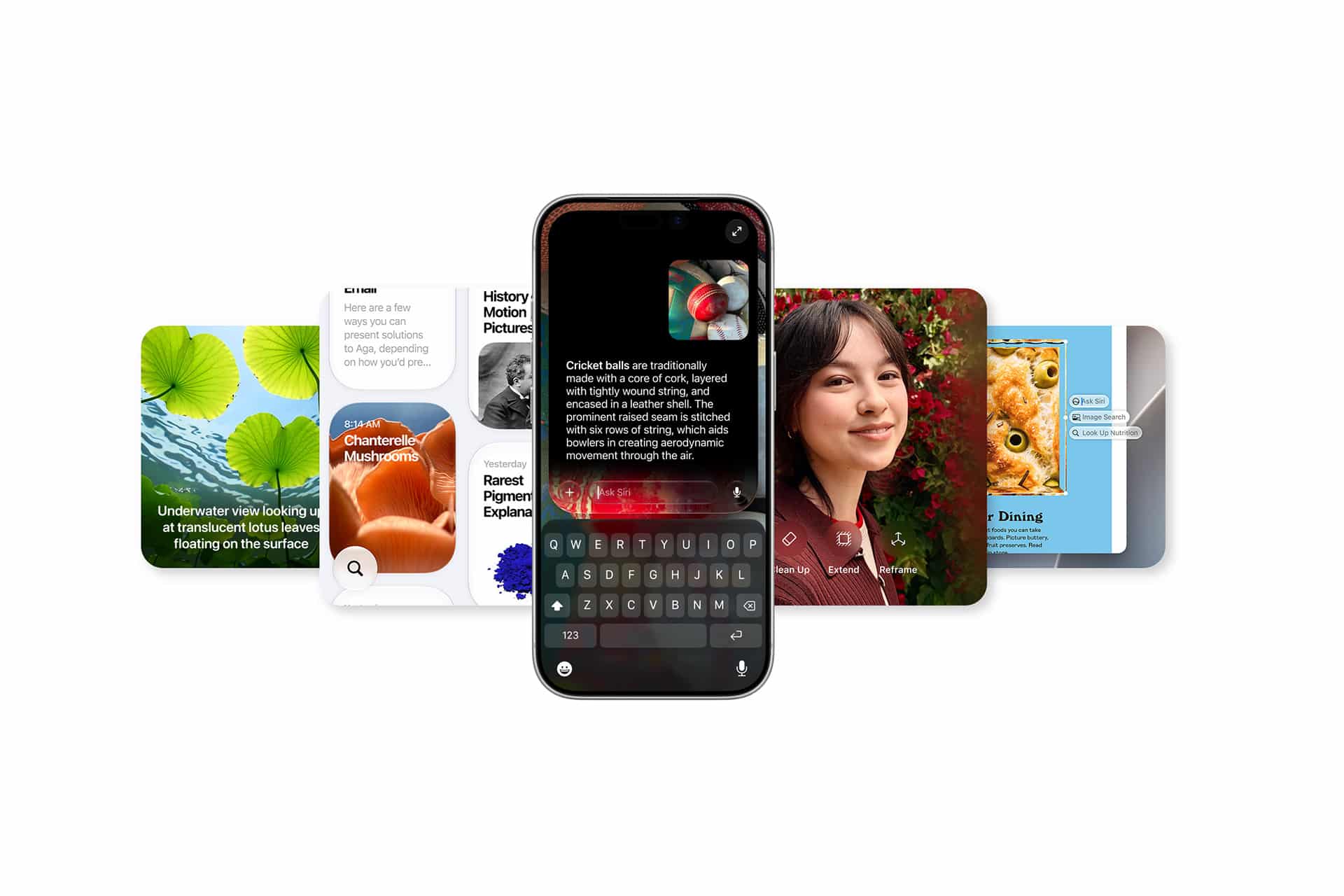
New Siri is integrated throughout iOS, whether you access it via the traditional press-and-hold of the side button or by saying the wake word, or in its new home integrated with the Spotlight search when you swipe down from the middle of the top edge of the screen, a gesture that’s now available not just on the home screen but in any app. It’s got a new look too: a black liquid glass bubble with silver overtones. You can ask Siri questions by voice, or by simply typing to it.
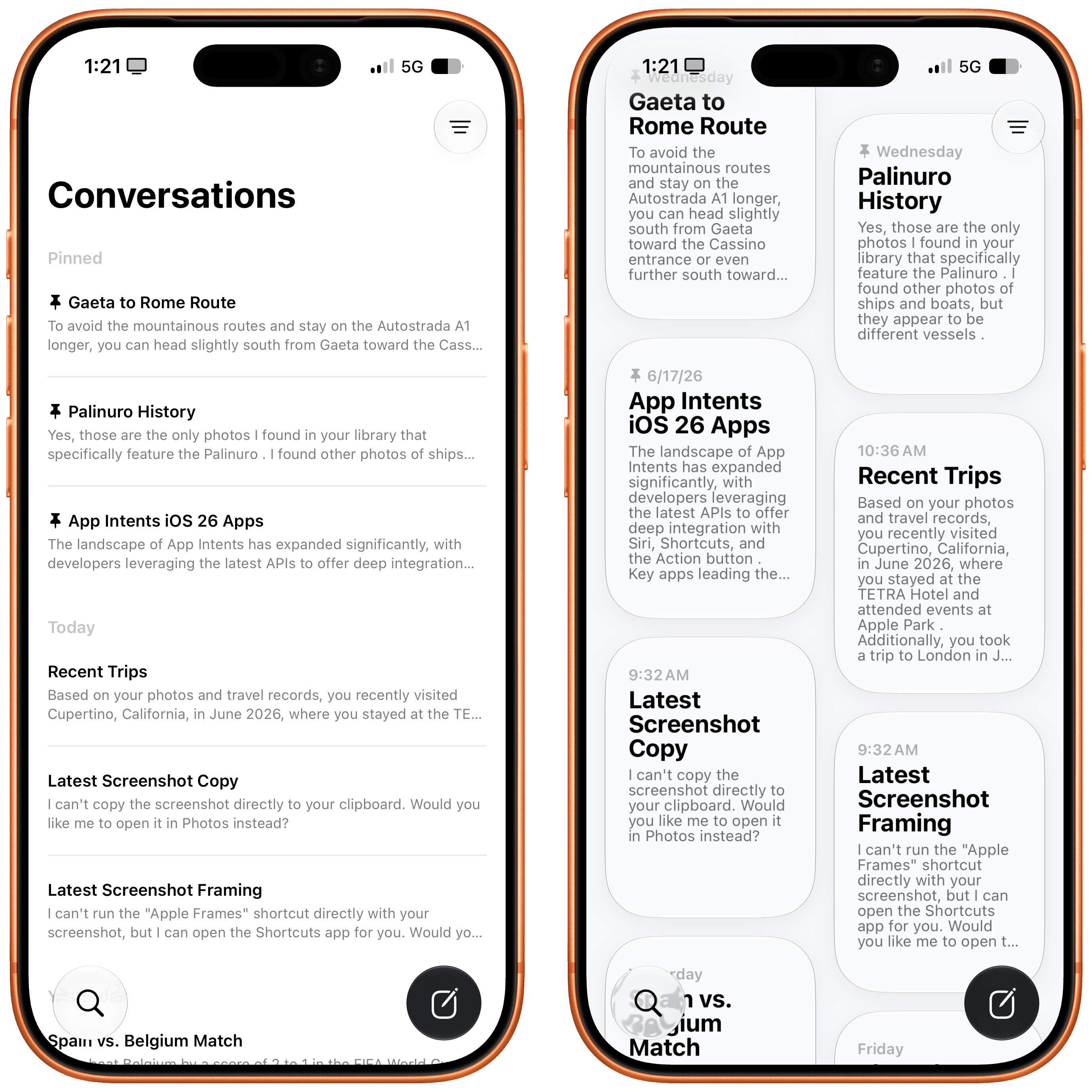
There’s also a new standalone Siri app that stores all your conversations (with some exceptions). The app itself is pretty barebones, letting you view those conversations in List or Grid layouts, select multiple conversations to delete them, and pin or rename any single conversation. In Settings : Siri, you can choose to either open to the overview or to a new conversation and decide whether old conversations are kept for 30 days, 1 year, or forever. It’s a little strange that one-off queries (“What’s the average height of the Norwegian World Cup team?”) are stored alongside more involved conversations (“Can you help me build a specific RSS feed for this site?”); I also ended up with a few orphan blank “New conversations” which I deleted, but it’d be nice if you could filter to find those. Conversations are fully searchable and sync between devices via iCloud.
Play it, Siri. Play As Time Goes By The Rest is History.
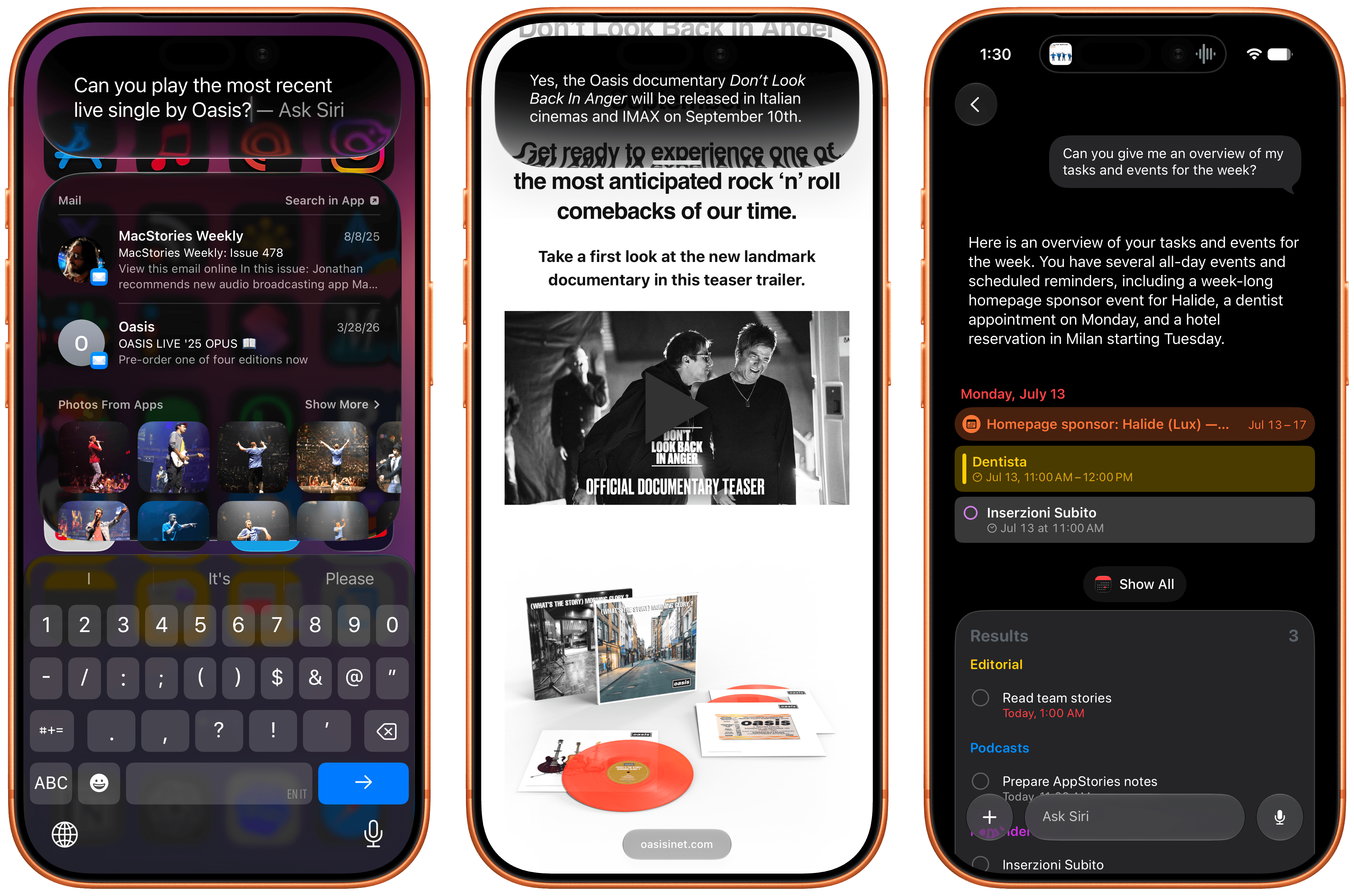
I’ve had a couple of real “wow” moments with the feature in the month-plus that I’ve spent with the beta. For example, a couple of weeks ago I was on a rare long solo car trip when I realized that I wanted to listen to a specific episode of a podcast. This wasn’t a podcast that I listen to regularly or even subscribe to, and to make matters more challenging, it was an older episode. Hard enough to find in the Podcasts app when you’re not driving down the highway, but something I would never have even attempted with old Siri. But hey, now’s the time to give it a shot, so I asked Siri AI, via CarPlay, to play the episode of “The Rest is History” about the American Revolution.
After a moment of chugging—like most of those AIs, the process isn’t exactly fast—Siri came back to report that it had found one episode of the podcast about the American Revolution. “Play that,” I said…and it did. No need to specify the precise title of the episode, which I would not have remembered from earlier in our conversation.
Moments like that make me feel like a Star-Trek-computer-like voice interface is here now. In large part because it does leverage the great strength of Apple’s AI implementation (and I’m not going to spend the time dithering about models and distillation and all that jazz, because the question to me is how do people use it and how does it work). But that strength is that the AI isn’t siloed off in its own website or app, but on your device with all the information that includes.
The same went for when I asked it about the date for a pool party my wife had texted me about, and who would be there. (It even correctly identified an attendee with an ambiguous name based on proximity to their partner’s name.) And when I was viewing a webpage with an upcoming flight that I asked it to add to my calendar. It was also able to identify a movie still in a brochure for a local movie theater, give me the performance of the Red Sox over their last ten games1, and help me figure out which model of IKEA curtain rods I was dealing with. None of them things that I would have even thought about using Siri for prior to this incarnation.
Unfortunately, not every moment is like that. Like any LLM-based chatbot, Siri AI sometimes misunderstands or gives confidently wrong answers. For example, when I asked it about when my neighbor said they’d be back from vacation, it found the relevant text message but said that no return date had been mentioned, despite the fact that it was right there in the message.
Of course, some of this is easily ascribable to this being beta software. But some of it also the new normal for dealing with computers in 2026. Is that better or worse than having old Siri’s frequent habit of shrugging at things it simply couldn’t do? I’m not sure that’s an easy qualitative call. In the end, it’s a mode shift: a different experience of how we interact with our voice assistants and chatbots, and we’ll have to see how people adapt.
All of that said, one thing I do appreciate about Siri AI’s implementation is that Apple has done a good job of, for the most part, making sure that the traditional things that Siri has always been good at—setting timers, playing media, adding reminders, controlling smart home accessories, and so on—are no worse than under old Siri. From what I can tell, Siri is mediating these requests and handling those things locally rather than handing them off to the cloud. That also means not every request to turn on lights or play your podcast gets logged into the Siri app as a separate conversation, which is I think the right approach: I certainly don’t need a dozen conversations where I’m setting my five-minute tea timer.
In general, I’m bullish on the future of AI, and fascinated to see what happens as it rolls out to more and more users. Will it be able to sway the habits of those who’ve been using Claude and ChatGPT? Perhaps not for advanced uses like coding, but for your run of the mill world knowledge queries? That seems eminently plausible. Especially because it’s already there, built into your phone.
One caveat, however. As always, the future is not evenly distributed: on the iPhone side, Siri AI’s only available on the iPhone 15 Pro and Pro Max, as well as the iPhone 16 or later. And, of course, due to Apple’s ongoing disagreement with the European Union, it won’t be available on that continent either.
All roads lead to Siri
iOS 27 would really, really like you to write with Siri.
While Apple Intelligence is still apparently a going concern, much of that brand has been subsumed by the “Siri” identity in iOS 27. For example, any time you put a blank cursor in a text field, you’re prompted with a Write with Siri button hovering aboard the keyboard. (Once you start typing, you get the usual word suggestions, and Siri is reduced to just an icon.) As someone who is perfectly happy writing their own text messages and emails, this prompt sometimes feels a little bit aggressive, and I wish you could disable it without turning off all of Siri.
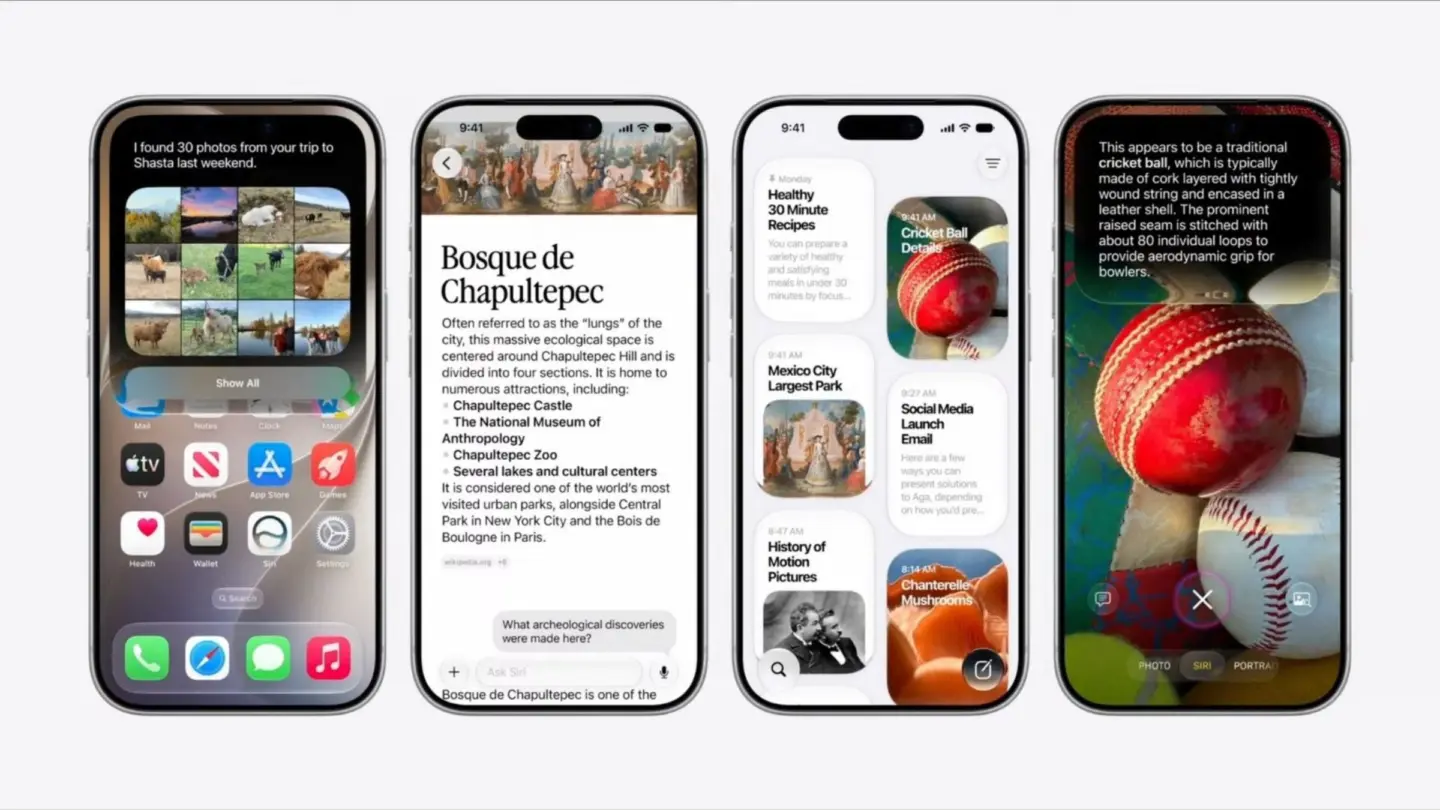
There’s also a Siri mode in Camera, which replaces the previous Visual Intelligence interface. Now it’s just something you swipe to, like Video or Photos. In this mode, the Siri icon replaces the shutter button; snap a picture with that and it’ll attempt to tell you what you’re looking at; there are also image search and ask buttons which, respectively, query a search engine for image results and attach an image of what you’re looking at to a more targeted Siri query. But this mode essentially is just a front end for the Siri app—you can attach an image in a new conversation there too, including snapping one with the camera.
Liquid Glass half full
To call iOS 26’s Liquid Glass redesign contentious is an understatement on the proportion of saying that Lionel Messi is good at kicking a ball. In iOS 27, Apple has made two major moves: first, tweaking the overall look and feel of Liquid Glass, and second, providing a way to further fine-tune that look yourself.
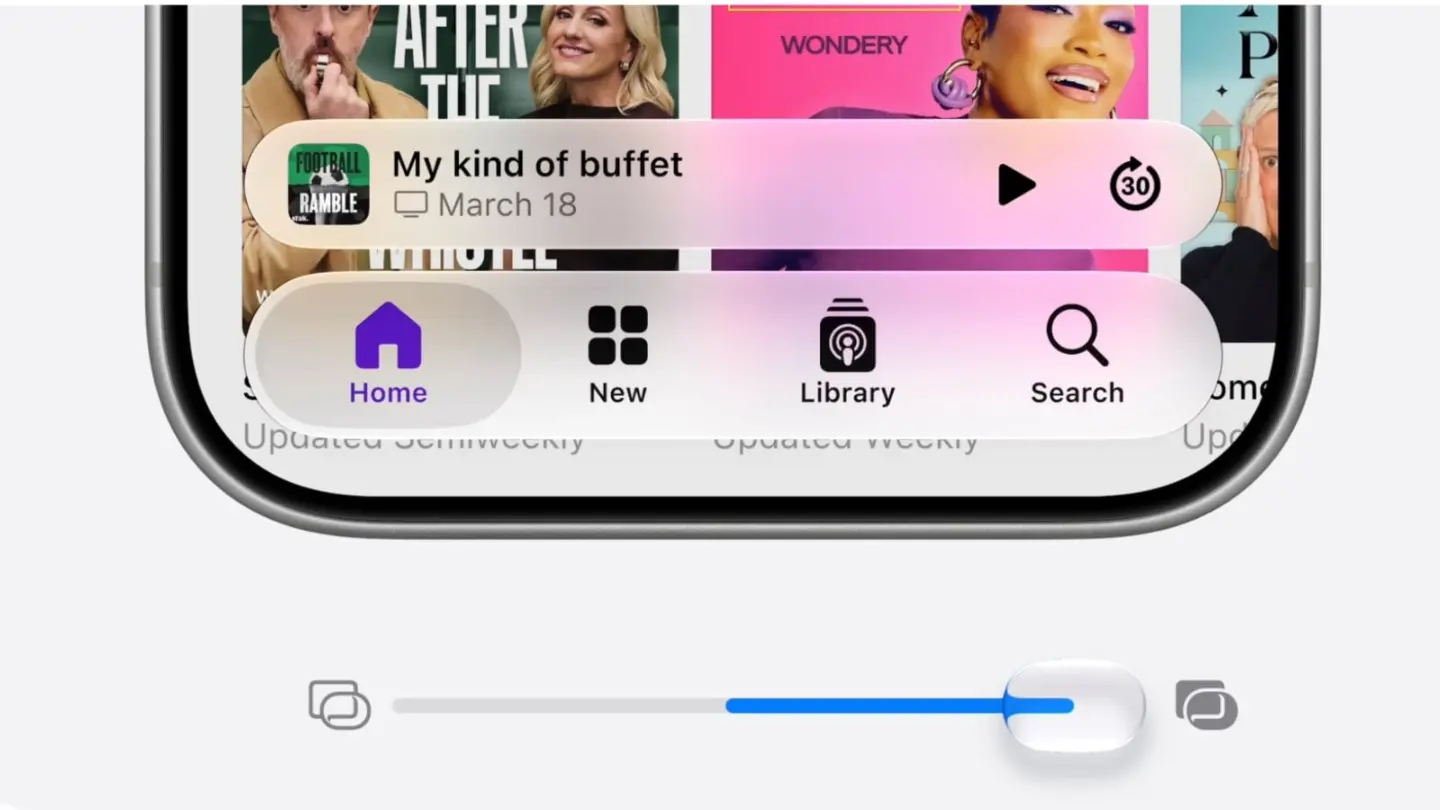
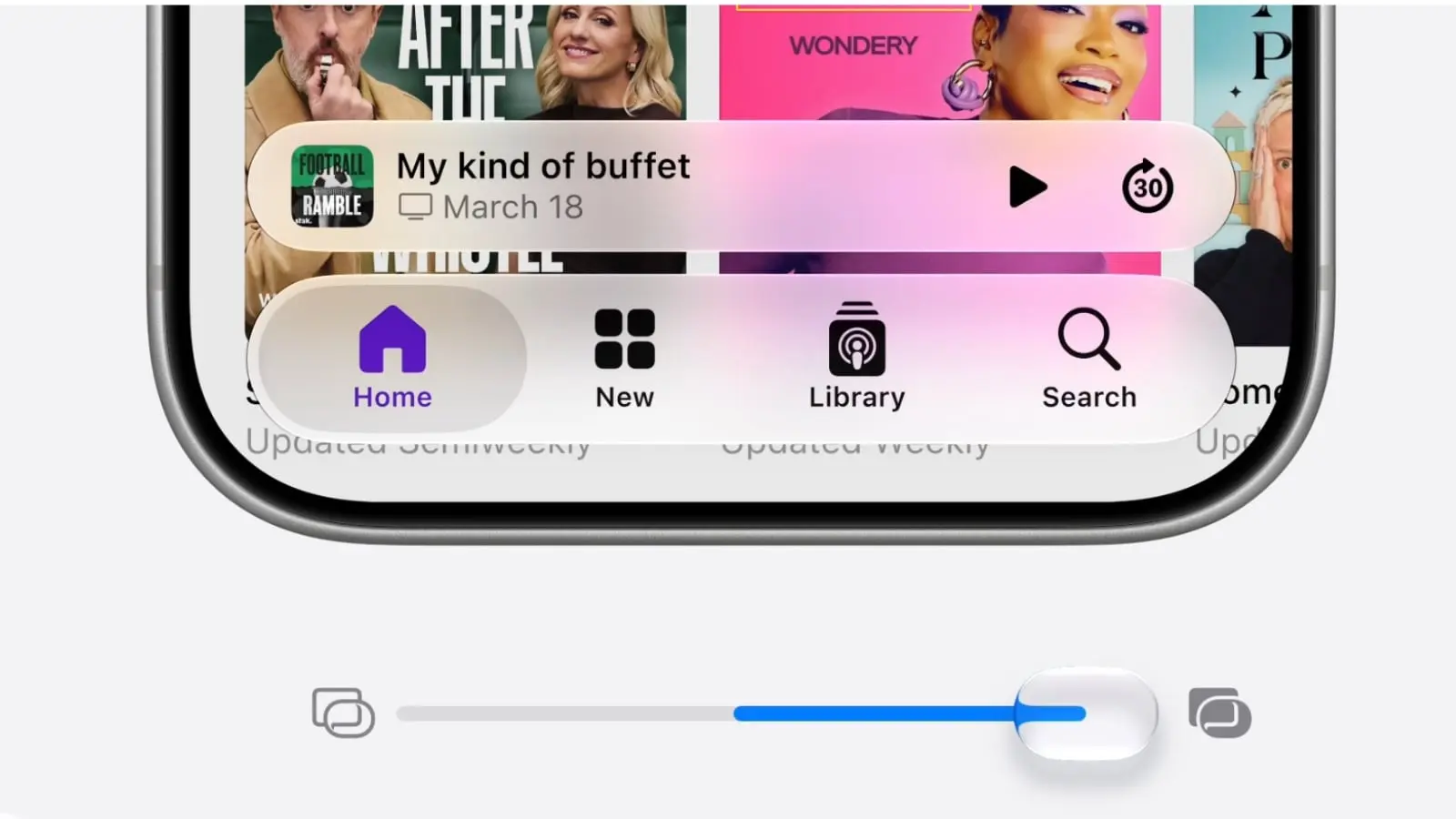
The Liquid Glass slider can be set to More Clear (left), the default (middle), and More Tinted (right).
In general, the iOS 27 incarnation of Liquid Glass is far easier on the eyes, dialing down the transparency in favor of legibility. Apple’s also imposed some distinction between user interface elements and content. For example, in list views like in Messages and Mail there are now much clearer “toolbar” areas at the top when you start scrolling, even if they still have some degree of translucency. App icons have also gotten a face lift; they’re sharper, and feel more vibrant.
In case you still aren’t happy with the default look, Apple also offers an option for adjusting the glass effect without resorting to the classic accessibility tweaks that can often have unintended design consequences. Settings: Appearance: Liquid Glass offers a slider that goes from More Clear to More Tinted, with a stop at the Default or anywhere in between. You can see right in the scrollable pane above the slider how your choice will look in a live interface, which is a nice touch.
Even just the addition of a more delineated toolbar in iOS 27 (left) vastly improves the feel over iOS 26 (right).
It’s a rare concession from Apple that there is no one true way that the UI should appear, but given that the company has in recent years allowed far more interface choices (for example, Mail, Safari, and Phone all offering toggles between older styles and newer interfaces), this feels like par for the course. While the most stringent Liquid Glass detractors will likely never be satisfied, the improvements and ability to tweak further thus far feel as though they will satisfy most users.
Performance, no anxiety
Tempting as it might be to spend this entire preview piece talking about Siri AI, there are indeed other things in iOS 27 that are worth your time. Exactly which improvements they are depends on how you use your phone.
That’s because one of the odd things about looking at iOS 27 is that there’s just a ton of small stuff—those “quality of life” improvements that chip away at little frustrations and annoyances. Being able to send a text message while a photo or video attachment is still sending. Faster switching from Wi-Fi to cellular when you walk out of range of your house. The ability to change volume on your alarms independently from system volume.
Otherwise If? Where’s my fainting couch?!
All of these are just nice enhancements, sanding off rough edges and just generally making things work better. But because they’re so niche, lots of people are going to have different experiences with iOS 27, because it depends on what’s important to them. For example, is anybody going to be as excited as I am that Shortcuts now offers an “else if” option? No, probably not! But that’s okay, because I’m happy enough for all of us.
The good news is there are some places where things are just better across the board. In general, iOS 27 feels peppy. I know, we always talk about snappiness, but given the time Apple has spent on improving performance and removing bugs with this release, it’s reassuring to see that it’s borne out by my experience. Apps launch quickly, photos sync faster via iCloud, browsing my NAS via the Files app was downright speedy compared to earlier versions.
AirDrop transfers were also notably rapid, though I say was because in recent beta builds my iPhone has stopped sending files via that method, though it still receives them. (That’s betas, folks!)
Apple also touted improvements to search, particularly in Mail, an app that I use daily, which has always been a bit lackluster in that regard, especially when compared with Gmail. I do find it improved in iOS 27, even though I do have an inbox of more than 144,000 messages going back nearly 25 years. I have mostly been able to locate emails, even obscure and old ones, within a relatively short amount of time, which is definitely a nice improvement.
I’m most intrigued to see how this affects the experience of those using older iPhone models. Apple says that it’s brought its optimized CPU scheduler to devices all the way back to the iPhone 11, which ought to noticeably improve performance even for those who don’t have one of the latest and greatest iPhones, but the public beta experience will certainly bear out the truth of that claim.
Photo fit and finish
If there’s one app that always seems to get some love from Apple in its yearly updates, it’s Photos. No surprise there: our cameras document everything about our lives and we take pictures constantly.
The filter menu now lets you choose between sorting by when photos were added versus when photos were captured, as well as providing quick access to photos that were captured by you (as opposed to photos taken by others that you imported). I’m not exactly sure what the rubric there is—when I used that filter, it only showed me images back to 2017, when I have surely been capturing photos—and even just iPhone photos—for a decade before that.
There are some big improvements, particularly in Shared Albums, which now let you share pictures as full resolution, quickly download all photos from an album, and even respond with emoji other than just thumbs up. Keep in mind, though, that all members of a Shared Album will need to be upgraded to iOS/iPadOS/macOS 27 in order for anyone to use the new features.
Ad hoc slideshows have gotten improvements too. When you select a bunch of photos and play them as a slideshow, you can adjust timing and duration as well choose the transition.
A five-star photo if I’ve ever seen one.
For those who missed being able to assign star ratings and keywords to their pictures (shades of iPhoto!), good news, they’re both back. Keywords are accessible by swiping down in the detail view, whereas star ratings need to be specifically turned on in Settings: Photos: View Options, where you’ll find a Show Rating Controls options. To assign a rating, you’ll need to look for a tiny star icon at the top right while looking at a photo (if you have the spatialize feature on, it’s next to that).
There are some smaller niceties too. For example, you can now save out a frame of a video as an image, rather than jumping through hoops of screenshotting or exporting it to a Mac. And you can adjust the metadata on photos both individually and in bulk, if you need to correct the date, time, or location.
And, although Apple has touted that photos will upload to iCloud faster, there’s a new option for those of us for whom that still might not be fast enough. In Settings: Photos: Sync Immediately, you can tell Photos to prioritize syncing new photos over conserving battery life—for the day. Not unlike the AirDrop “Everyone for 10 minutes” option, it’ll turn the feature back off after the day is over. (In a nice touch, when you turn it on, it shows a counter of how many hours are left before it deactivates.)
But of course, Photos isn’t immune to the expansion of AI, either. Previously we got Clean Up, the tool that lets you remove unwanted elements from your photos. Apple says it’s improved that in iOS 27: you can now choose between Fast and High Quality modes, the latter slower but more powerful.
There are also a pair of new AI features: Extend and Reframe. The former is easier to understand: if you want to zoom out of a photo, whether because you’re trying to fit in a particular shape or simply to tweak the framing of a shot, Extend can generate a little more background, extrapolating from what’s already there. It works best on smaller adjustments with backgrounds that are uniform or predictable. Go too far and you’ll end up with totally invented elements, which can look strange or out of place.
Reframe seems to work better with small tweaks, as in this photo where I lowered the angle at which I shot it.
Reframe is a bit harder to grok. Think of it as being able to move the camera after the picture’s been taken. Using the same features the company leverages for creating spatial scenes, it tries to separate out the foreground subjects and the background, and then adjust the perspective. Some pictures work better than others; it seems to help if there’s a clear delineation between foreground and background. Like Extend, it tends to work best for smaller adjustments; go too far and you can end up with some odd-looking artifacts. As tools, they have their utility, though it’s perhaps best used sparingly.
Other features
Apple’s made a big push on child safety across its product lines for the 27 updates. Some small improvements ought to really make the process more usable, such as the ability to convert an Apple account to a child account, default settings for time limits developed in conjunction with the American Academy of Pediatrics, and a much-requested option to lock the Screen Time section of Settings on a device. Taking advantage of some of these features will require you to update all the compatible devices in your family, but you can still use the on-device improvements.
Image Playground now has improved image generation and the ability to generate photo realistic images. While some of those results are better, many of them are…unsettling. Even after a couple years, I personally find this feature misguided and off-putting.
Passwords has an agentic AI feature that will scan your list of compromised passwords and then present you with a list of the ones it believes it can update for you. Even on that subset though, my experience was uneven, with just 5 of 18 updated. It’s a very cool idea, and should hopefully see improvements as the technology progresses, but right now it’s hit or miss.
If you’ve ever been on a customer service phone call and needed to look up salient details like a flight confirmation number, the Phone app will now surface relevant info during the call. I haven’t been able to test this yet, but it seems to be a real potential timesaver. And fun fact: if you call someone on their birthday (assuming you have it in Calendar or Contacts), you’ll get a little animation and note about it.
In a “better late than never” improvement, Calendar now has natural language input when creating new events. Third party apps like Fantastical and Google Calendar have done this for years. Unfortunately, my experience with this was a little disappointing, with it not correctly assigning the event to the right day and ignoring my attempt to provide timezone information; nor did modifying the event with natural language after the fact seem to work. I hope that gets ironed out before the end of the beta period.
Maps’s improved Flyover in iOS 27 (right) improves some 3D imagery over iOS 26 (left).
For those who love endlessly looking at 3D imagery of cities, Maps gets an improved flyover view with better 3D modeling of buildings and landmarks. In my testing, this isn’t fully rolled out everywhere yet: Boston’s satellite maps were actually two-dimensional compared to iOS 26’s, but if I flew down to New York, I could see far more detail on a building like One World Trade Center.
FaceTime now lets you show the person you’re talking to your front and back cameras simultaneously. No more endlessly flipping back and forth!
Apple’s improved Shortcuts with a bunch of new actions and streamlined automations by including them as part of the shortcut itself. There’s also an impressive new AI “describe your shortcut” mode. It works pretty well for simpler shortcuts, but can start to get a little off the rails the more complex you get. Unfortunately, Shortcuts has been among the buggiest features during the beta period; I’ve had a lot of them stop working, and run into some perplexing issues.
Safari likewise has a few new features, including being notified when a page content changes (as frequently as on the hour, if you’re watching for price changes, for example), as well as a “describe your extension” feature not unlike the Shortcuts functionality. I haven’t had as much of a chance to put this through its paces, but it’s a fascinating addition and will be interesting to see if lots of people who never would have tried their hand at this kind of thing will end up making extensions.
You can also now put an extra large widget—i.e. one that takes up an entire screen—on your home screen. I tried this with Weather for a while and it was…interesting, but ultimately not for me. Still, it feels like the age of the home screen that’s just app icons is slowly dying off.
Conclusion
Despite being put forth as a year of small updates, there’s quite a lot in iOS 27, even without including the massive overhaul that is Siri AI. Apple had found itself on its back foot after its first attempt to integrate Apple Intelligence, but my experience is that Siri AI largely delivers on what the company promised—albeit a couple of years later than intended.
But I’m also very bullish on the enhancements and quality of life updates throughout the operating system. The improvements may be small, but they add up. Every time you don’t have to go searching for an email while you’re on a call or a photo shows up faster in your library or you find exactly what you’re looking for in search, well, I’m not going to say an angel gets its wings, but you get less frustrated. And that’s not nothing. In fact, that’s everything. The goal of technology should be to work for us and make our lives easier.
As for the shortcomings, it’s worth reminding ourselves that this is a beta period. Proceed with caution. Sometimes things just don’t work, and you may have to live with it until the next build comes along. But sometimes things also improve build-to-build, and that’s the fun of being at the cutting edge. For the next couple months you get your chance to live in the future.
Okay, I did think it was lying here for a minute. ↩
In the month that I’ve been using iOS 27 (launching in public beta today) and the new Siri AI, I’ve come to a few conclusions: Siri AI is a much better Siri and will (probably) be a massive success; the newfound chatbot capabilities of Siri will pose a serious threat to OpenAI and the vast majority of free ChatGPT users they have; and the new Siri is (again, probably) not for me at the moment. At the very least, it can’t be right now given its lack of support for third-party apps and technical issues I’ve encountered during beta testing.
It took me a while to accept the fact that Siri AI can’t be the kind of AI assistant I’d spend hours working with every day. But after testing iOS 27’s new Siri experience every day (and breaking it often in the process), I think that’s okay – and, arguably, what Apple is shooting for at the moment.
The new Siri AI is not designed for people who have grown accustomed to working with frontier models and agents such as Claude Code and Codex. The first version of Siri AI can’t be considered an “agent”, nor can it be compared to products from Anthropic, OpenAI, or Google that are targeting power users living at the bleeding edge of AI. If you go into Siri AI thinking that it’s Apple’s answer to ChatGPT Work or Claude Cowork for long-running tasks or deep research queries, you’re going to be disappointed – like I initially was.
Instead, Siri AI carries all the typical traits of a new Apple product: it’s a user-friendly experience designed for the masses, without any of the complexities that define a power-user tool, for better or worse. This is how Apple rolls: they don’t start from a high power-user ceiling and let products trickle down to consumers; they always start from the consumer level and refine, iterate, and extend until products trickle up to power users. This perspective isn’t meant to excuse the (many) current flaws of Siri AI. (More on them below.) It’s just the necessary lens for understanding how Apple is addressing their AI shortcomings in a way that doesn’t betray the company’s soul and design ethos.
There will be plenty more to say about iOS 27, the improved Shortcuts app, Liquid Glass tweaks, and other system enhancements later this year. After all, I have a review to write. Today’s column is merely an opportunity for me to reason through the obstacles I’ve faced with Siri AI and the way I’ve had to re-learn how to think about Siri.
Siri AI: The Good Stuff
You see, I believe my issue is that I’m too agent-pilled and accustomed to products like Claude Code and Codex at the moment. Desktop agents have fundamentally changed what I do as a creator who writes and talks on podcasts but also releases softwareproducts for my team and audience. There is no denying that Apple’s new Foundation models powering Siri are a far cry from Fable and Sol, or that they feel like models from two years ago. The AI frontier from the two big labs (and – we have to be honest with the numbers here – probably SpaceXAI and Meta now, too) is in a completely different league at the moment. I spent my first couple of weeks with Siri AI trying to convince myself that I could replace Codex with Siri AI, and that was the wrong approach. There is a potential future in which Siri AI can become a more proactive and capable agent, but that’s not what Apple is shipping this year.
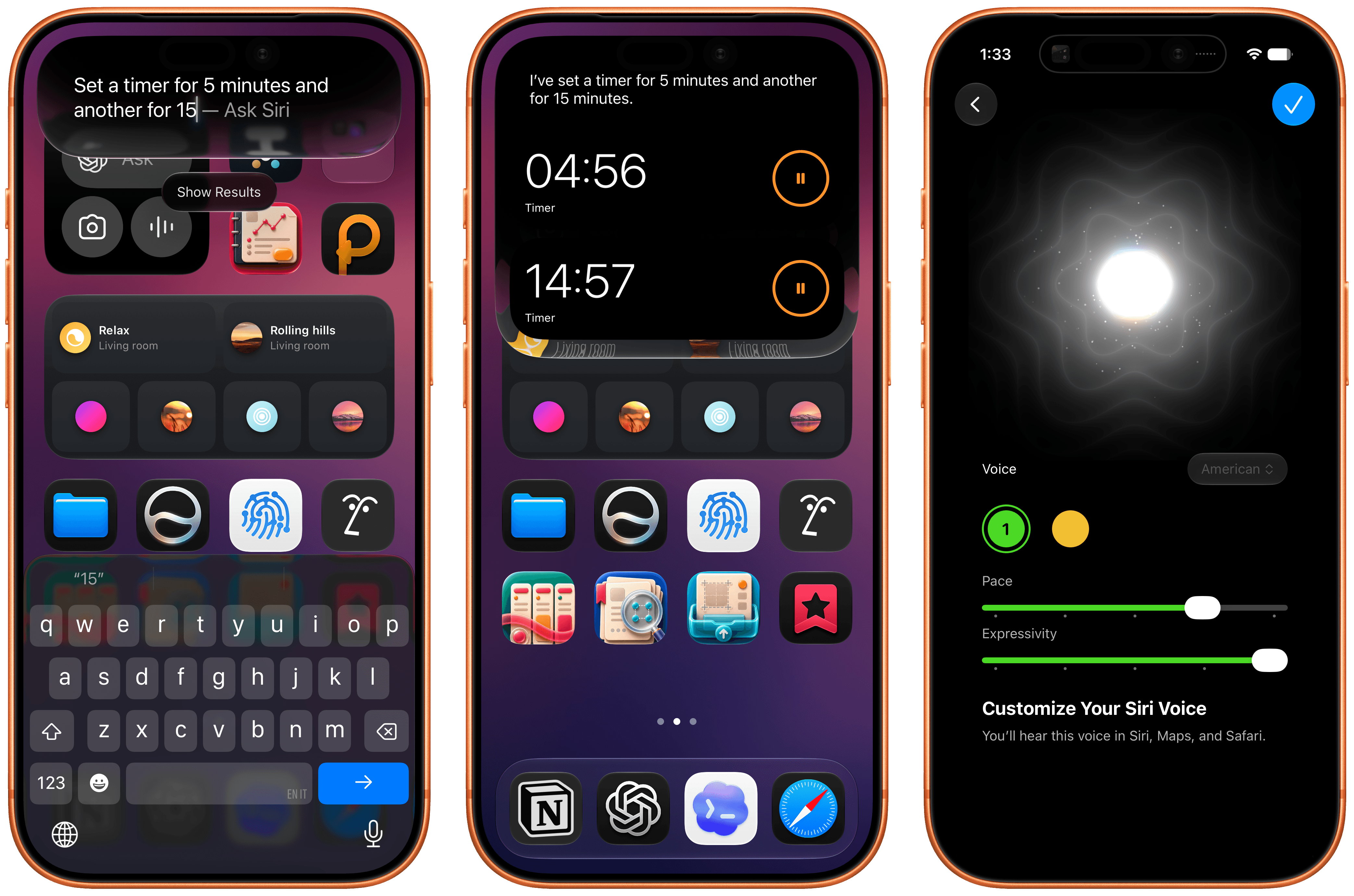
If you, like me, are a heavy Claude or ChatGPT user but are curious about Siri AI, you need to reset your expectations and understand that Apple is going after something else entirely. For starters, the new Siri AI is a dramatically better Siri for typical Siri stuff. The new Siri understands your commands and nuanced requests better because of the LLMs behind it; it can often perform multiple requests in one go (such as setting multiple timers with one command); the new expressive (and customizable!) voices sound great, and they’re terrific at reading and summarizing notifications. Apple’s first advantage compared to other chatbots is right here: only Siri can integrate with the iPhone and iPad to this extent, so even if the Foundation models aren’t as smart as the competition, Siri can do a lot more for most people on their devices because neither OpenAI nor Anthropic have OSes they can control. Claude and ChatGPT are extremely intelligent inside their own apps; Siri AI is intelligent enough for routine tasks that can span an entire operating system.
The new expressive voices (right) sound great.
The other key advantage of Siri AI is its system-wide persistence. In addition to voice mode, there’s now a full-blown Siri app that behaves like a traditional chatbot app, allowing you to revisit threads and pin specific ones at the top; but most importantly, you can now finally invoke the new hybrid Spotlight/Siri AI search UI from anywhere on iOS by swiping down on the Dynamic Island.
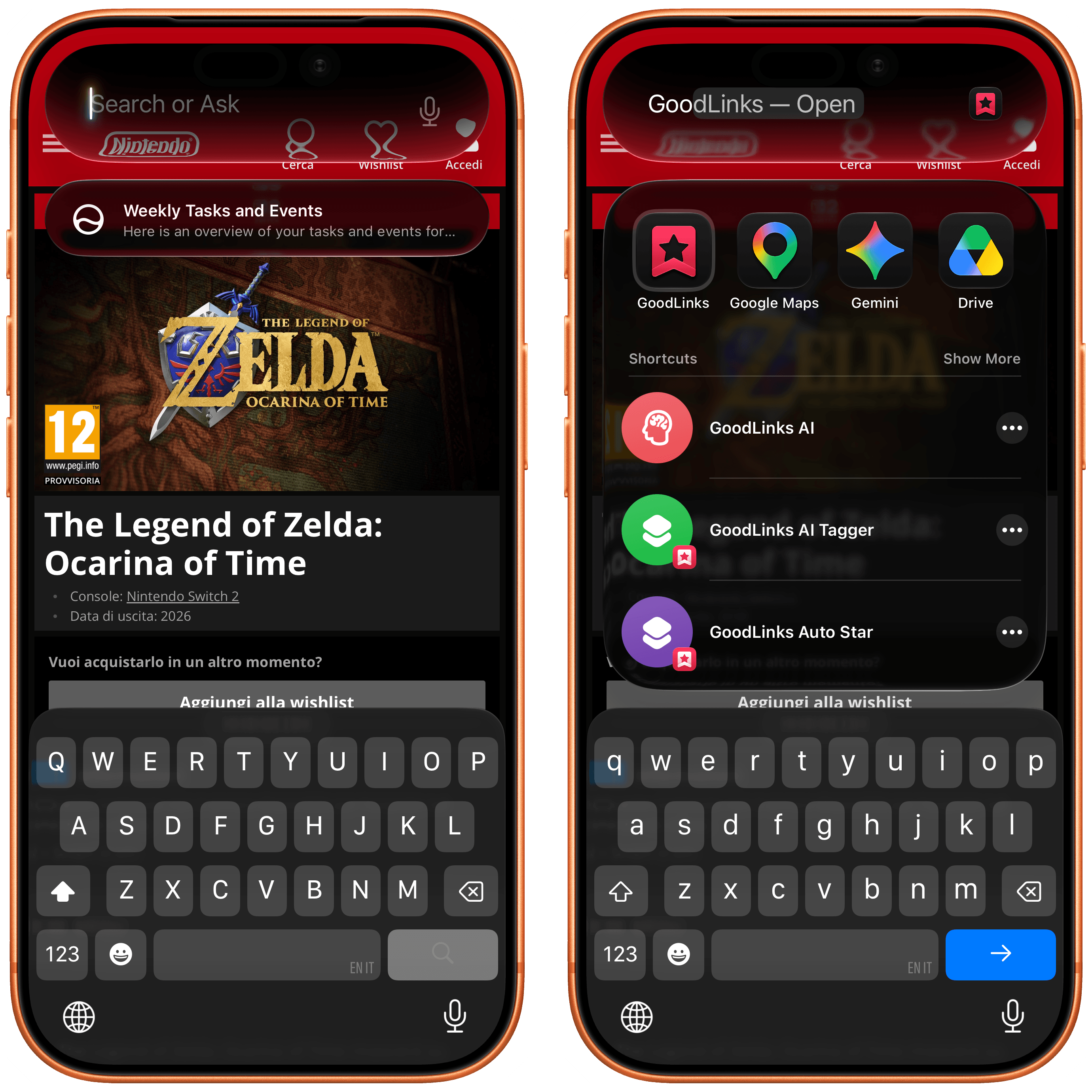
Spotlight and Siri have been unified in the same UI, so you can still quickly launch apps and documents via search in addition to asking questions.
The lack of system-wide access to Spotlight on iOS bothered me for years, ever since I started reviewing iOS on an annual basis. Now, search is only a swipe away no matter the app I’m using, and the search box itself is smart enough to understand whether I’m looking for an app to launch or formulating a longer request for Siri AI.
It’s been challenging for me to “undo” advanced habits I’ve developed with agents like OpenClaw and assistants like Codex; I think MacStories readers who fall on the power-user end of the AI spectrum will probably face the same hurdles with Siri AI. However, I’ve been able to identify a variety of areas where Siri AI was faster, nicer, and more comfortable than ChatGPT or Codex Remote for practical, everyday questions.
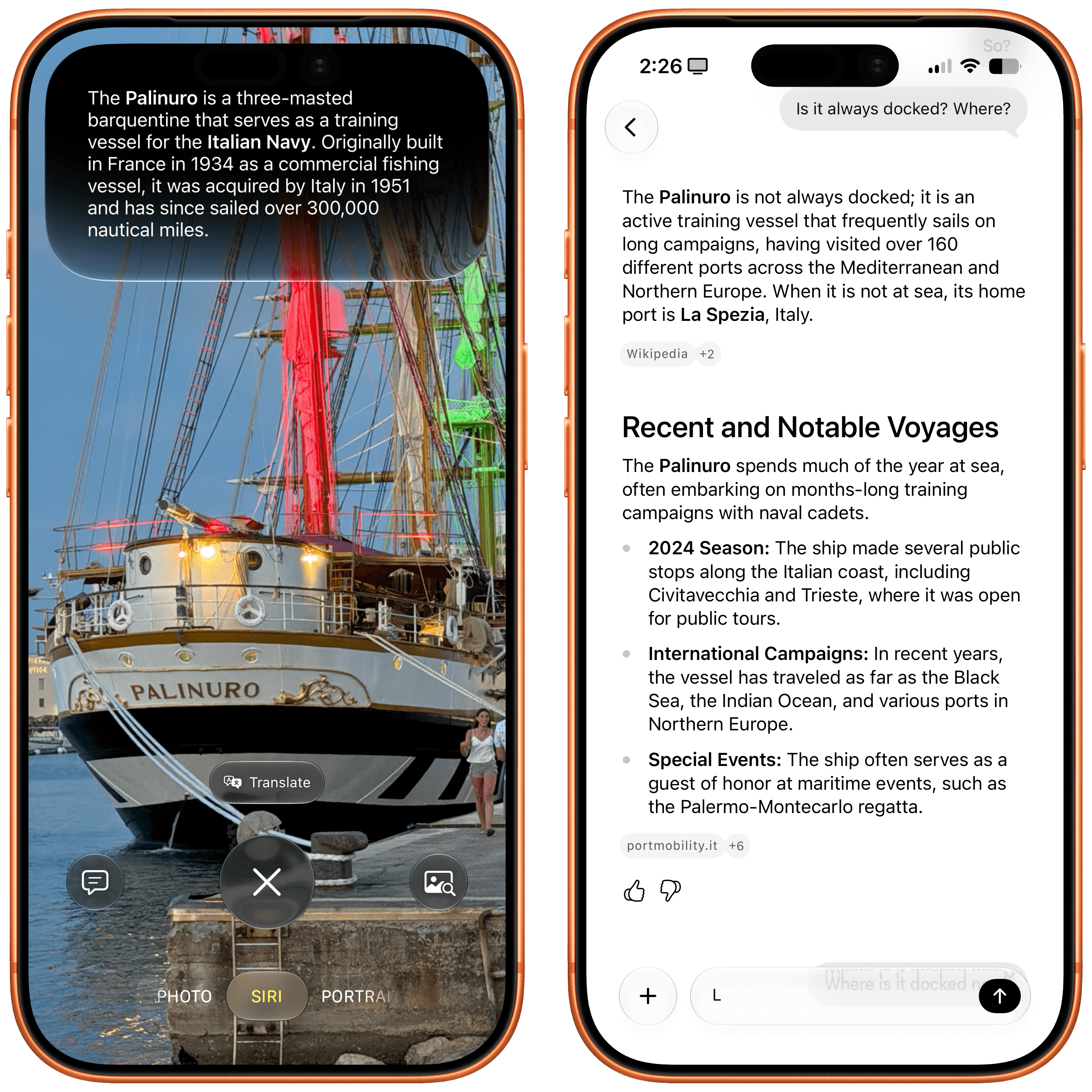
I recently spent a few days in Gaeta, and as we were walking to dinner one night, we spotted this huge vessel docked in front of the restaurant. Typically, I would have taken a picture, started a new ChatGPT thread, uploaded the image, and asked a question about it. This time, I simply held down the Camera Control button (which now defaults to Siri AI mode in the Camera app) and captured a photo. A few seconds later, Siri AI told me I was looking at the Palinuro, a three-masted barquentine that serves as a training vessel for the Italian Navy – which was spot-on. An interaction that would have taken 20-30 seconds with ChatGPT was reduced to a five-second affair with Siri AI. Even nicer, I was able to ask follow-up questions from Siri AI’s floating overlay as well as find the chat in the Siri app later, where I continued asking questions about the ship’s history and usual locations.
The ability to go from Siri in the Camera to a longer conversation in the dedicated Siri app is one of my favorite aspects of Siri AI.
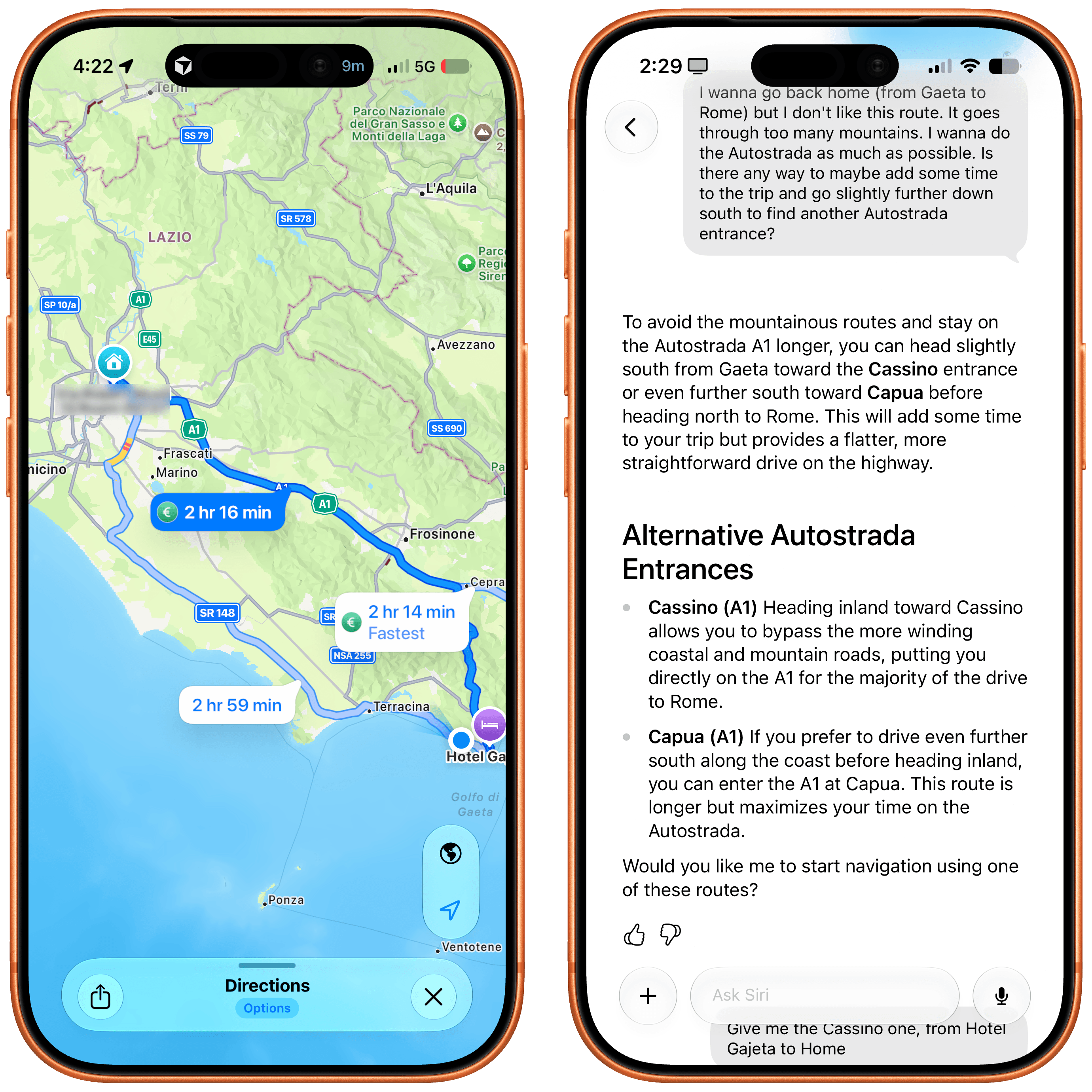
Improved on-screen awareness and integration with Apple Maps has been another highlight. On our way to Gaeta, Google Maps had us drive through narrow mountain roads that we really didn’t like, even though they arguably saved us some time. For the return trip, I decided to use Apple Maps, but I noticed that it also recommended the same mountain roads. So without leaving the Maps app, I swiped down to invoke Siri and typed:
I wanna go back home (from Gaeta to Rome) but I don’t like this route. It goes through too many mountains. I wanna do the Autostrada as much as possible. Is there any way to maybe add some time to the trip and go slightly further down south to find another Autostrada entrance?
To which Siri responded:
To avoid the mountainous routes and stay on the Autostrada A1 longer, you can head slightly south from Gaeta toward the Cassino entrance or even further south toward Capua before heading north to Rome. This will add some time to your trip but provides a flatter, more straightforward drive on the highway.
Again, spot-on: the Cassino toll booth proved to be the way to go for a more comfortable trip.
These Maps-related suggestions were perfect.
A couple more things worth noting here:
Siri AI didn’t mind my mix of Italian and English in the same request. Even though it’s only officially launching with English support, Siri AI is backed by a large language model – and LLMs are inherently good at multiple languages.
Siri AI assembled a multi-step route for me, which I opened in Maps, and it was perfect.
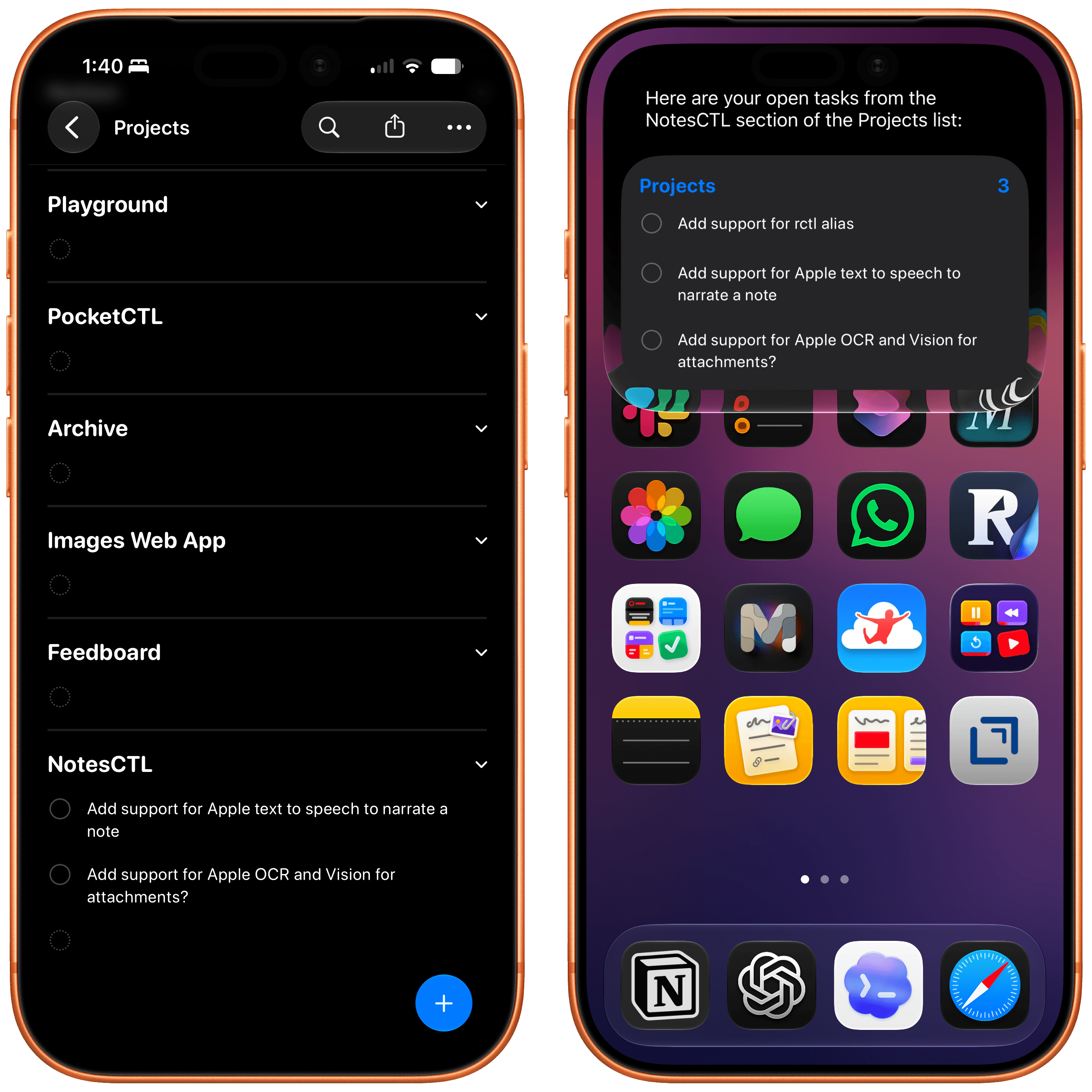
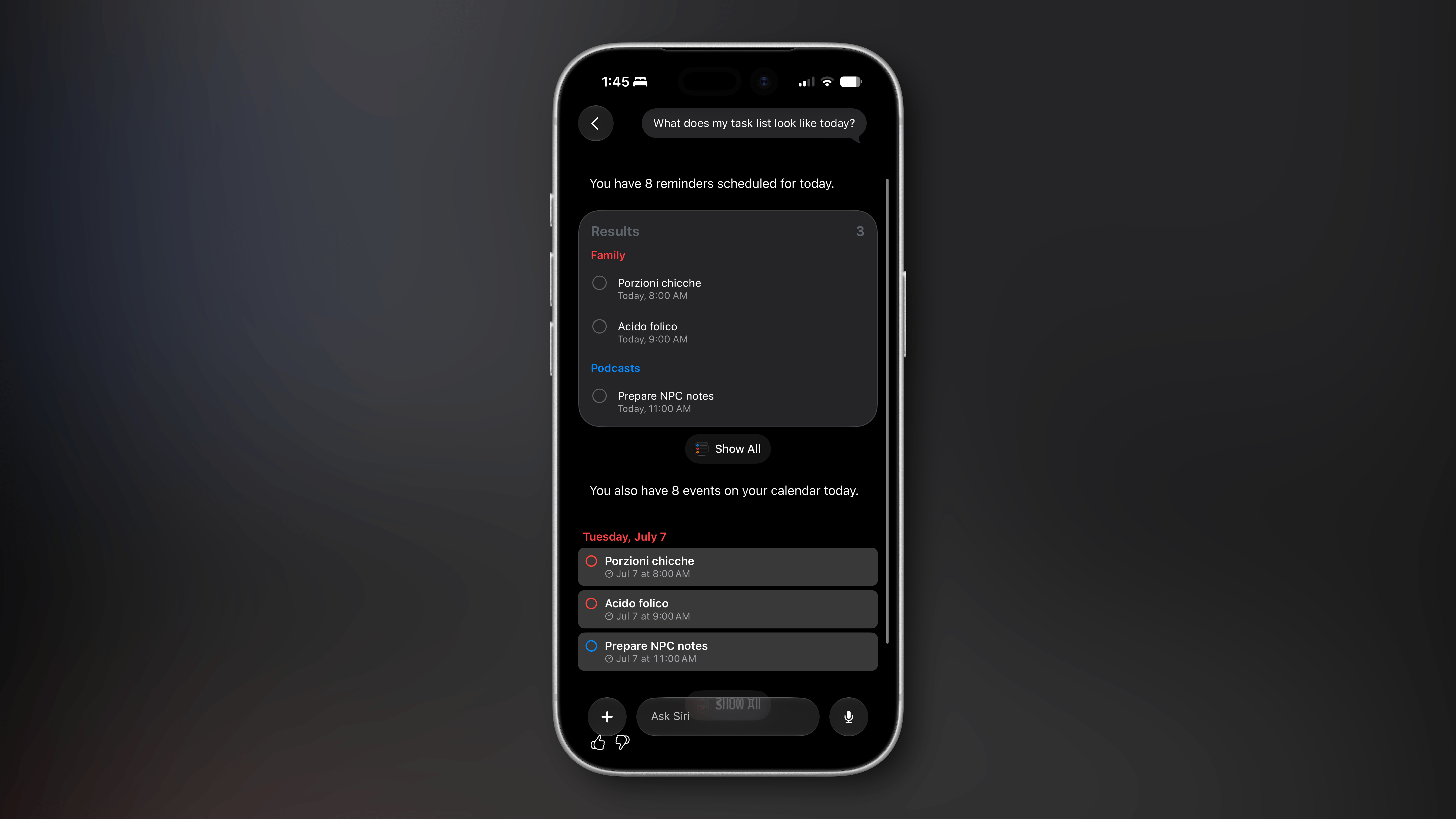
After some hiccups in the first two developer betas of iOS 27, Siri AI has also become an efficient way to work with the Reminders app, which I started using as my primary task manager several months ago when I began working on my RemCTL CLI for it. In addition to the usual stuff that Siri could already do in Reminders before, such as creating tasks and fetching items due on the current day, Siri AI – thanks to the new and improved App Intents Apple added to Reminders – can now handle more advanced questions. For instance, I can ask Siri to get tasks belonging to two specific sections of a list in Reminders, and it’ll do it. Claude can also integrate with Reminders on iOS, but since its integration is powered by the old and limited EventKit framework, it can’t be as flexible as the exclusive App Intents integration now available for all apps in Siri AI.
Siri AI can finally show me tasks from sections of lists…too bad it also included a task from another section.
I’ll have plenty more examples to share and analyze in my review of iOS and iPadOS 27 later this year. As things stand right now, my thoughts on Siri AI are converging around this idea: with system-wide access, an exclusive app ecosystem, and good enough performance, Siri AI doesn’t need to be a frontier-level model to be useful to millions of people.
Siri AI: The Bad Stuff
All of this, however, is not to say that Siri AI is perfect. Far from it.
This is beta software, of course, and Apple has time to improve the experience. But I’m afraid that some design choices and intrinsic limitations of Siri AI will remain in place for the next year, leaving us with a product that, despite a two-year delay, still feels very early compared to the likes of ChatGPT, Claude, or Gemini, even in their plain “chatbot” modes.
The biggest issue I’ve encountered is the inconsistency of it all. Very often, the new Siri AI still replies with a generic “Uh oh, something went wrong” error that doesn’t explain what the error was or why it happened. Sometimes, I ask a question via voice, and it errors out, but then a few seconds later, I type the same question in the app, and it’s fine.
Anecdotally speaking, these issues seem to occur more frequently when Siri “thinks” longer for a request, which perhaps suggests Apple needs to optimize the performance of their larger model on Private Cloud Compute. However, the fact that Apple wants to keep things simple compared to their competition isn’t doing them any favors here: in ChatGPT or Gemini, I can know when the model is reasoning for longer, but Siri AI’s interface is a black box. There are no reasoning selectors or hints in the UI at all. That is a fine, Apple-y approach when everything works well; but as soon as something breaks (as often happens with chatbots), the lack of clarity and controls stings.
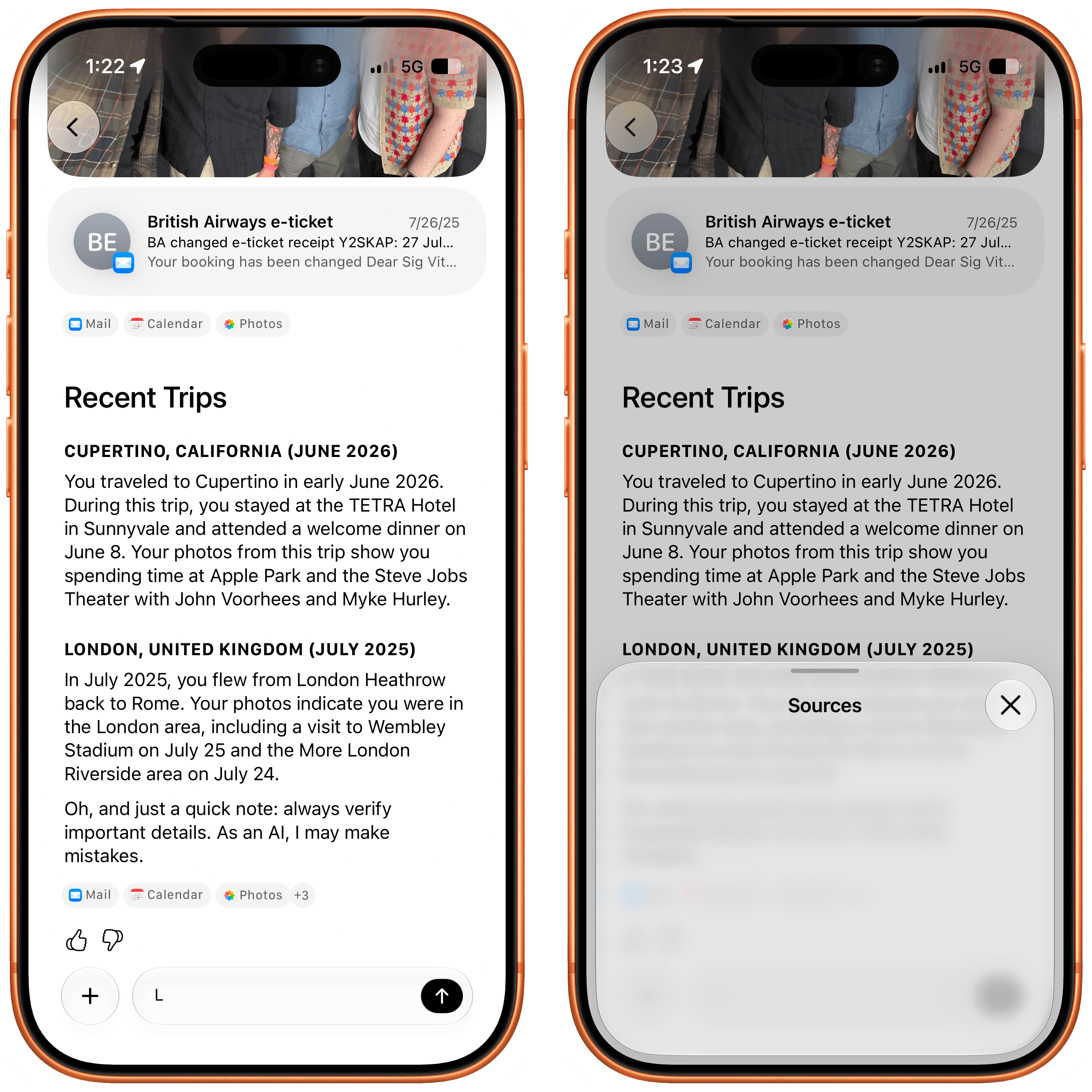
The entire Siri app is, in fact, a bit of a mess. Its performance is subpar: I’ve noticed frequent stutters when scrolling threads, delays when typing (letters wouldn’t appear on-screen and autocorrect wouldn’t work), and broken ‘Sources’ popups displaying no actual sources for a query.
The results of this query were stale (I was on a trip last week), and the Sources panel for linked emails came up empty.
The app lets you rename and pin threads, which is nice, but it doesn’t offer basic controls such as the ability to select text in a Siri response or create folders for chats. Although the grid view looks good in marketing screenshots, in practice, I had to disable it immediately because I couldn’t quickly parse my threads and find what I was looking for.
I really don’t like Siri’s grid layout.
Which brings me to indexing. As I noted above, Apple’s advantage compared to other chatbots will be Siri’s access to an on-device index that draws from the user’s apps and personal context. The problem is that I’ve yet to see an example of personal context “enhancing” any of Siri’s answers, and performing actions in or retrieving data from apps has been half broken for me since the very first beta of iOS 27.
I can’t speak about personal context because it has literally never worked in my examples. For apps, my understanding is that third-party ones will need to be specifically updated for iOS 27 in order to work with Siri AI – although some of them seem to work already, but others don’t? Apple requires developers to implement new features of the App Intents framework for Siri AI, and I’m optimistic that those who do will have their apps appear in Siri AI by September. Greg Pierce, the developer of Drafts, has added early support for Siri AI in his app, and I’ve been able to successfully create a note within the app from Siri, which presented a custom UI snippet for Drafts and completed the request in seconds. That was neat.
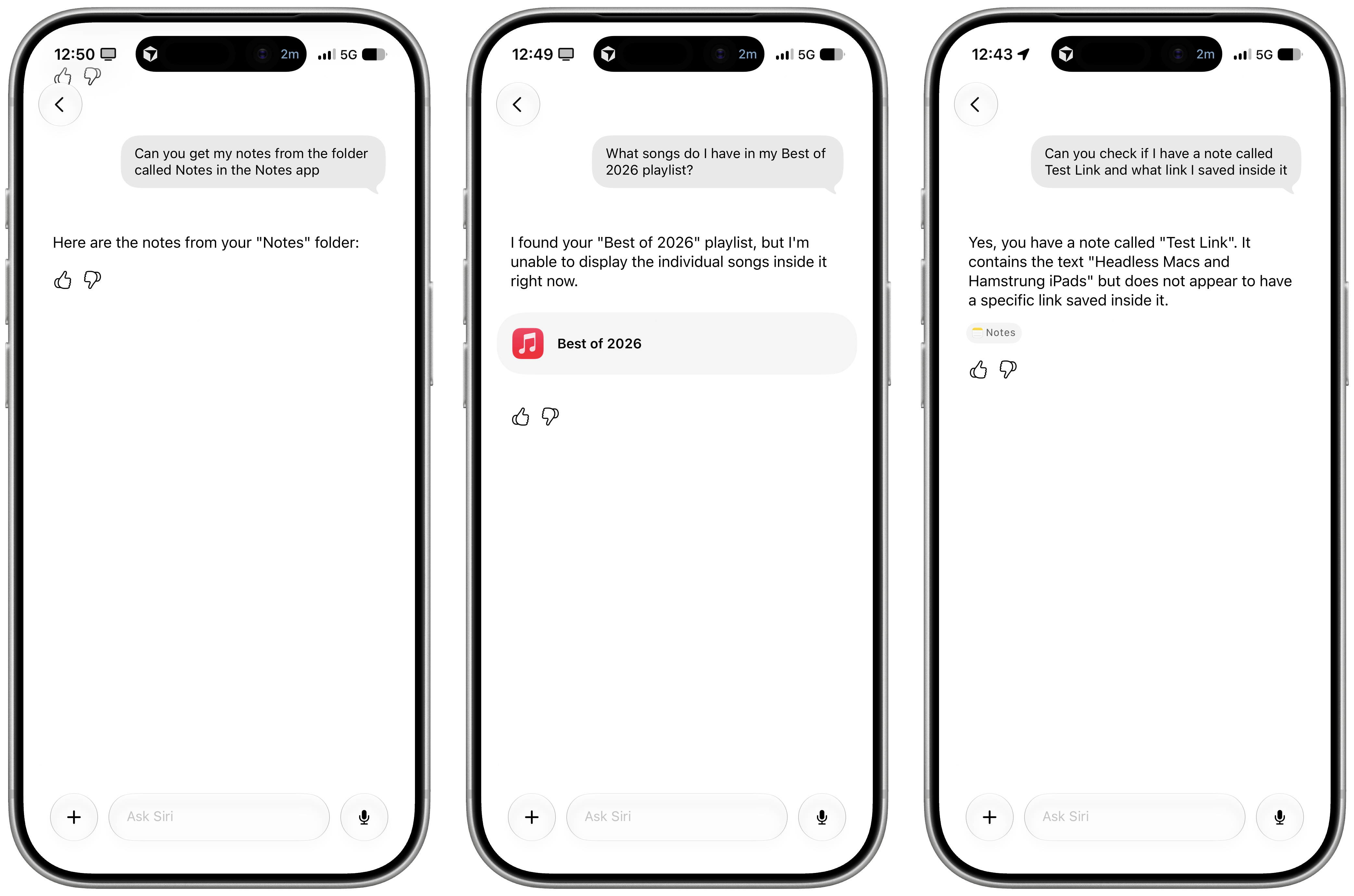
My problem is that, right now with Apple’s own apps, both the index and Siri’s ability to perform actions are very inconsistent. The assistant hallucinates abilities it doesn’t have, and it frequently just doesn’t work. In the examples below, I wanted to get notes from a specific folder, songs from a playlist, and a link from a note. Siri AI responded with an empty list of notes, said it couldn’t get songs from a playlist, and told me that my note didn’t have any links, respectively. (It did.)
Reminders integration started working for me in iOS 27 beta 3, but it still isn’t perfect. When I ask for tasks due today, Siri AI insists on presenting the same tasks twice, my only fault being that I enabled the integration between Reminders and Calendar:
At one point, I asked Siri to show me my overdue reminders. Siri AI struggled with that: it cut the list of overdue items short, apologized when I pushed back, then did it again anyways. I know that Siri AI is not based on a Gemini model but is rather a Gemini distillation, but I think that if you’ve ever used a Gemini model before, this kind of behavior with tool-calling should be awfully familiar.
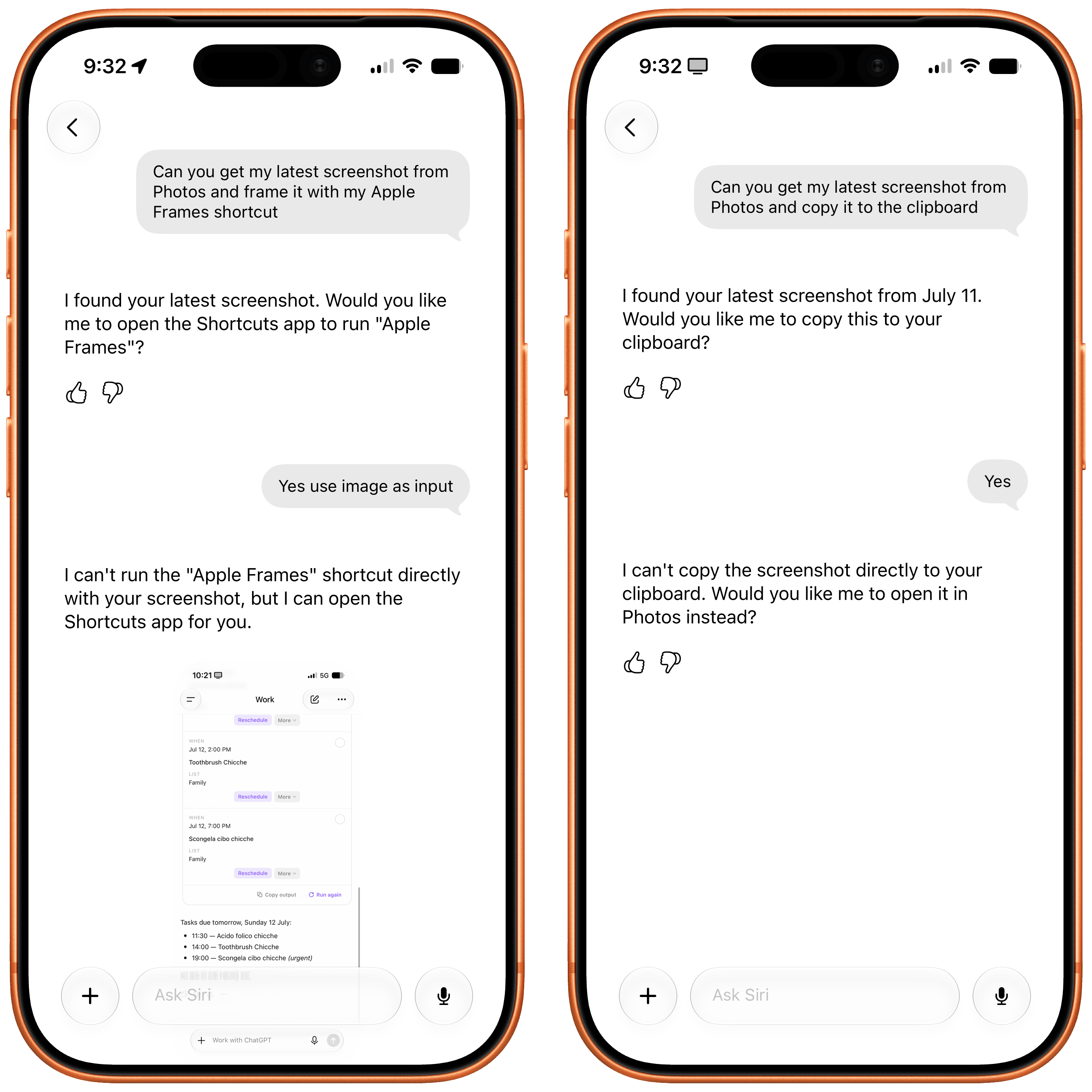
Siri AI isn’t a replacement for agentic workflows with other LLMs that can perform multiple actions in one chain of events. Here, for instance, I asked Siri to get my latest screenshot from the Photos app and frame it with my Apple Frames shortcut. Not only did Siri AI not get the most recent screenshot from my library, but the assistant couldn’t perform two actions sequentially. At least, however, it told me; when I repeated a similar question but asked to copy the screenshot to the clipboard instead, Siri first asked me to confirm my action and then changed its mind and said it couldn’t do it.
Why ask for clipboard confirmation if you can’t do it?
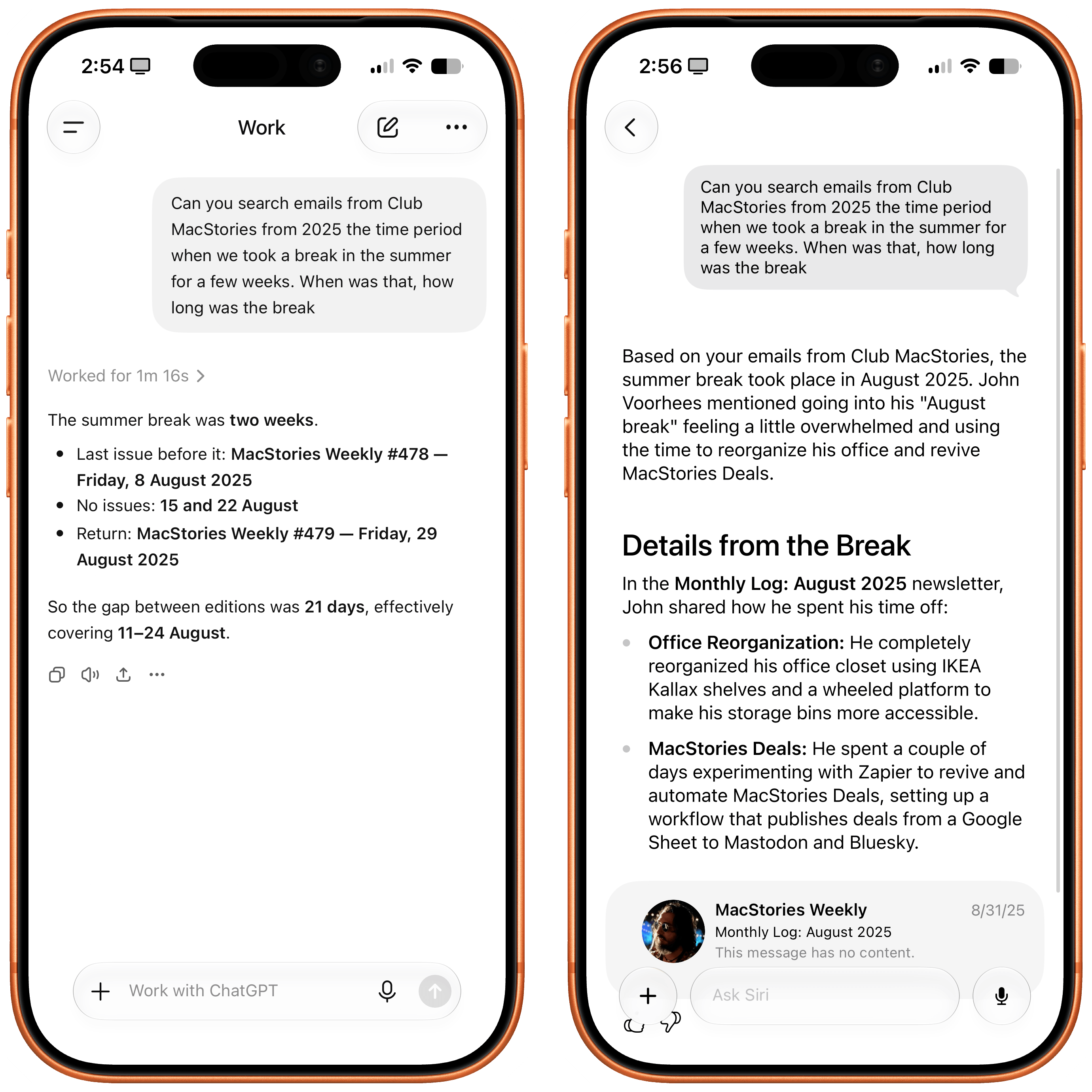
Searching for content hasn’t been ideal on my end, either. When I asked Siri to find me the latest single by Phoebe Bridgers, its default text response was an EP from two years ago; when I asked via voice, the response was correct. (…Why?) I similarly haven’t been impressed with Siri’s ability to search for messages and emails. Siri AI can reliably find recent texts from the Messages app, but the moment I start going a little further back in time, the system seems to struggle. I wanted to know when we took some time off at MacStories last summer, which I know was mentioned in a MacStories Weekly email that I have in the Mail app. Siri AI could only find a generic mention of John recharging after some time off, but it couldn’t give me an exact date because it did not find the correct email. ChatGPT Work did it in one minute and gave me a full breakdown of the weeks we took off.
Left: ChatGPT Work. Right: Siri AI.
All of this begs the question:
Is Apple’s on-device index a solid technological foundation or not? Is this system actually going to work at scale, for users with dozens of apps installed, each donating their data to the index, perhaps spanning multiple years of content? And can the cloud models – which are not using MCP but appear to be based on a plain JSON schema for structured data – make sense of it all?
My early tests haven’t been encouraging, but we have until September to find out.
The Trickle-Up
A trickle-up strategy cuts both ways: it gives Apple an opportunity to start simple and refine over time, but it also means that you, the user, are never given any more control than what the product allows for. As a result, Siri AI can be magical when it works; when it doesn’t, it feels like a mystery.
I can’t say whether I’m optimistic that Apple will get all of this to work in time for the fall or not because they don’t have the greatest track record in AI. I’m willing to give them the benefit of the doubt since the product itself is genuinely interesting and different from any other chatbot on the market. I want Siri AI to work, and if Apple can deliver on their vision, I’m convinced that it’ll spell trouble for OpenAI and ChatGPT. (Let’s face it: it’s the product to beat here, both in and outside of court.)
Siri AI permeates iOS 27, and that’s a threat to OpenAI and the hundreds of millions of users they have using ChatGPT for free with GPT-5.5 Instant. I don’t think Apple Foundation Models are as good as GPT-5.5 Instant, but Siri AI is the more ergonomic and integrated product. When the underlying chatbot and its world knowledge capabilities are good enough, and they can also be invoked via voice, text, the Camera app, context menus, or keyboard shortcuts, why would I open a siloed chatbot when I can use Siri AI and get a comparable answer more comfortably? If you’re a casual user of ChatGPT and do not pay for it, I think Siri AI can be a very compelling product that provides similar answers and, unlike OpenAI’s chatbot, integrates with the iPhone apps you already use. I don’t think it’s a coincidence that OpenAI is now following in Anthropic’s footsteps to monetize the business and enterprise markets rather than the consumer one.
At the same time, my concern is that we may be collectively assuming that “normal people” won’t see the differences between the capabilities of ChatGPT and Siri AI. In this industry, we have a tendency to sell “normal people” short and paint them as some perplexed bunch of occasional smartphone users who somehow passively accept any technology that is thrown at them. I strongly disagree with that. Maybe those people don’t care about ChatGPT Work, Codex, or Fable (yet?), but they can tell when an AI assistant is useful and when it’s not. People will compare the utility of ChatGPT to Siri AI, and I’m concerned that Apple’s 1.0 product will feel like it’s too little, too late – especially since Siri AI will be launching in select regions and in English only.
In the AI scene, companies move fast and break things. Apple needs to move fast without breaking anything, anymore. That’s a tough challenge, but here we are.
One of Apple’s tentpole features at WWDC was a ground-up makeover to Screen Time that’s designed to give parents more granular and reliable control over their kids’ device use. I got a demo of the changes while I was at Apple Park, and they’re extensive. That’s good because Screen Time has been broken in a variety of ways for a while and isn’t very flexible.
My first impressions of the changes have been positive, but it’s worth noting that I don’t use Screen Time myself and my kids are grown. Screen Time wasn’t even available when it would have been useful to my family.
However, I do remember well the days when my kids were little, and so I sympathize with Patrick Klepek who wants more. Klepek gives Apple credit for improvements in Screen Time’s UI, but wants more:
But to crystalize my requests to Apple for the future:
- A dedicated Screen Time app
- The ability to invoke Siri or other shortcut-like features to lock devices
- Granular control over extending screen time to accommodate specific requests
I’d add another request that one of the journalists made during our demo that made a lot of sense. Like me, he has three kids and wondered if he could set up a baseline set of Screen Time rules and then copy them to his other kids, making age-appropriate tweaks for each kid. Apple said that isn’t currently possible, but it’s the sort of practical, reality-based suggestion that the company should prioritize. Being a parent means a lot of things, but it shouldn’t mean being an IT manager too. For tools like Screen Time to be adopted, they need to be easy, flexible, and powerful. That’s a tough combination, but I hope it’s been made a priority internally at Apple that will result in ongoing improvements to Screen Time during this OS cycle and beyond.
Since iOS 26, a malfunctioning iPhone has been able to boot itself into Recovery Assistant, with no Mac or PC required. However, you could only get there if your device failed to start up and dropped into recovery on its own.
In iOS 27, currently in beta, Apple has removed that limitation, and you can now manually boot into a Mac-style recovery screen whenever you like.
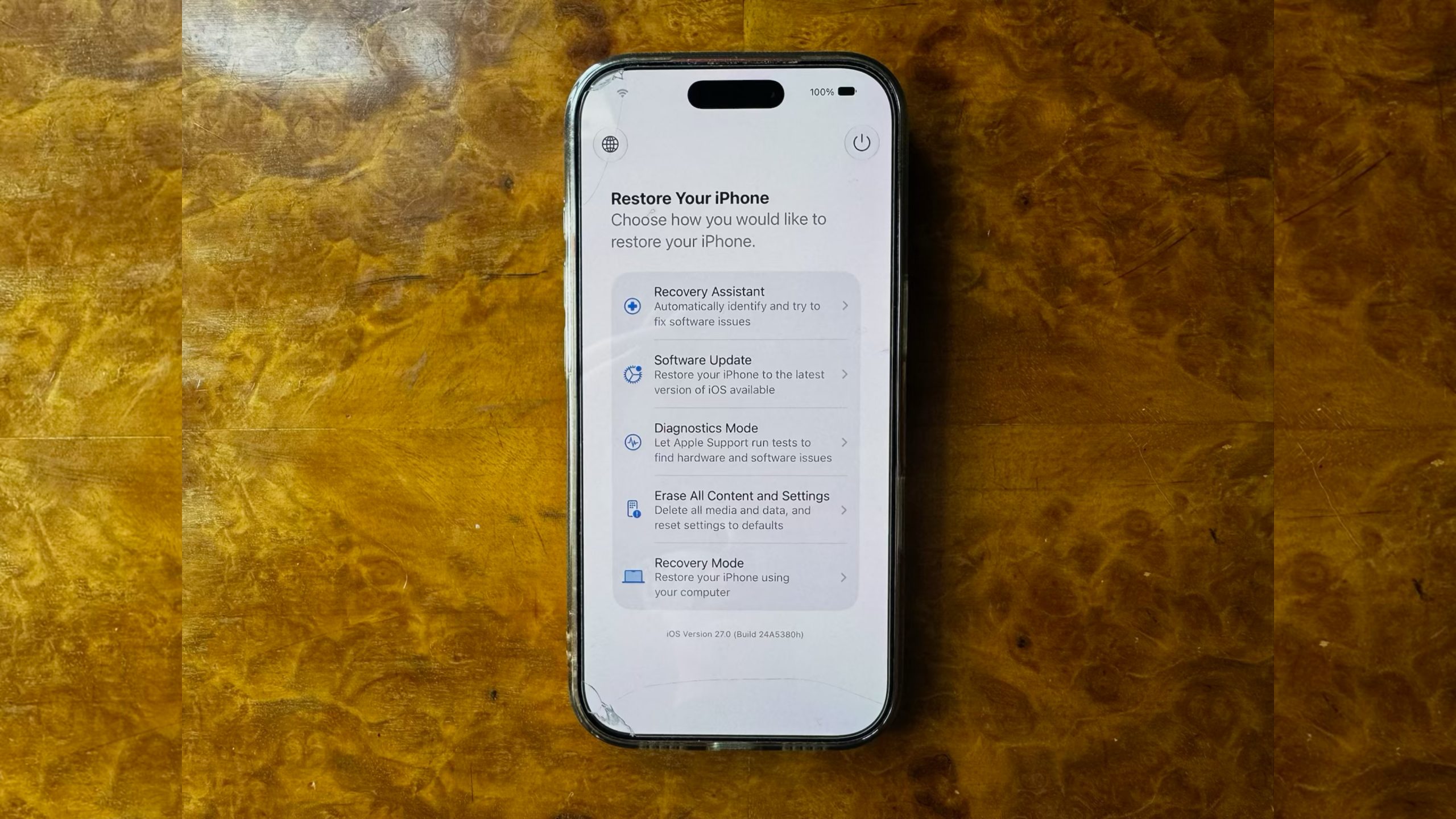
The new recovery mode lets you troubleshoot, update, or erase your device without necessarily plugging it into anything. It can connect automatically to a known Wi-Fi network, and it shows your battery percentage in the corner of the screen. Here's how to access it.
Turn off your iPhone, then wait about a minute to ensure it has fully shut down.
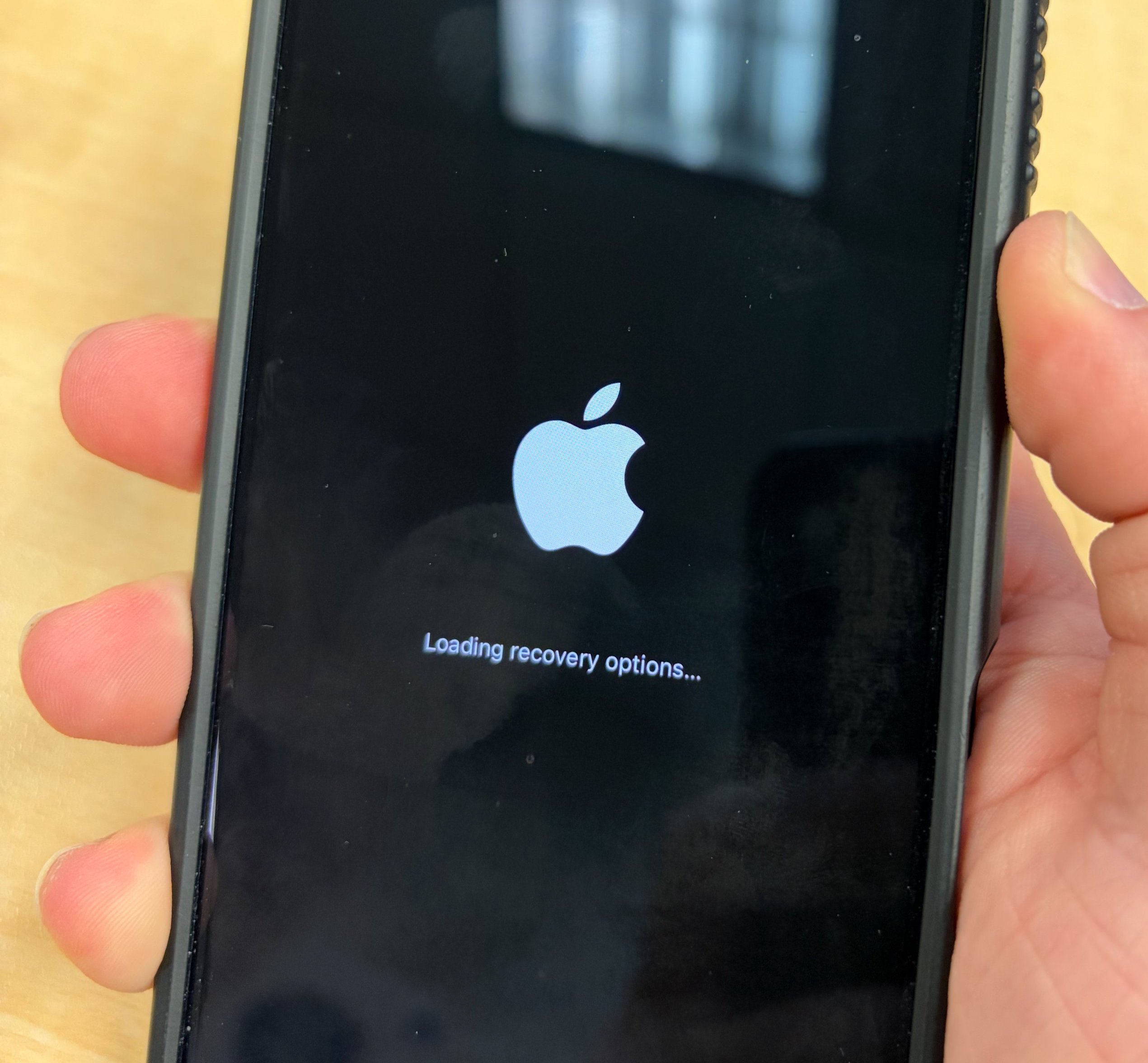
Press and hold the Side button. The Apple logo will appear as it normally does during startup – continue holding the button and you'll see "Continue holding for recovery...".
Release the button when "Loading recovery options..." appears.
Your iPhone will then boot into the new recovery screen instead of loading iOS.
What the Recovery Options Do
The recovery screen offers five options:
Recovery Assistant: Automatically scans for software issues and attempts to fix them without requiring further input.
Software Update: Installs the latest version of iOS available for your device, which can help if a failed update has left your iPhone stuck in a boot loop.
Diagnostics Mode: Runs diagnostics to check for hardware and software issues, and can recommend repairs if needed.
Erase All Content and Settings: Completely wipes your iPhone, just like the equivalent option in the Settings app.
Recovery Mode: Puts your iPhone into the traditional recovery mode for restoring it with a Mac or PC, without requiring the usual button-press sequence.
On newer iPhone models, there's also a sixth hidden option. While on the recovery screen, if you press and hold the Side button again, a popup menu will appear showing the option Nearby Device Recovery. This lets you restore your iPhone using another Apple device close by, similar to an existing recovery feature that debuted on iPhone 16 models.
Exiting the Recovery Screen
To leave recovery mode, tap the power button in the top-right corner of the screen and confirm that you want to restart. Alternatively, press and hold the physical Side button and choose Restart or Shut Down.
You shouldn't need the new recovery screen often, but it's worth knowing the button sequence now in case a beta goes wrong or a failed update bricks your iPhone. iOS 27 is currently in public beta, so you can download and try it out now before it's released in the fall.

 Login
Login