Sul Galaxy Store è stato individuato un servizio Samsung chiamatoGallery Cloud Sync. La descrizione parla della possibilità di effettuare il backup di foto e video su 'Google Cloud' e di ritrovarli sugli altri dispositivi. Il riferimento sembra essere proprio a Google Foto, che verrebbe quindi integrato direttamente nella Galleria Samsung
La funzione non è ancora disponibile pubblicamente, ma è già stato possibile attivarla in anteprima. Nelle impostazioni della Galleria compare una voce per collegare l'account Google, con l'indicazione dello spazio di archiviazione disponibile, la possibilità di scegliere quali album sincronizzare e alcune opzioni relative all'uso del Wi-Fi e del roaming.
Per chi utilizza oggi OneDrive il funzionamento dovrebbe quindi cambiare poco: foto e video continuerebbero a essere gestiti dalla Galleria Samsung, mentre il backup passerebbe dai server Microsoft a quelli Google. I contenuti sincronizzati risulterebbero poi accessibili anche tramite Google Foto.
Samsung ha già iniziato a rimuovere l'opzione OneDrive dalla Galleria per alcuni utenti. Chi ha già utilizzato il servizio Microsoft non perderà comunque le foto salvate nel cloud: semplicemente, una volta terminata l'integrazione, non saranno più visibili direttamente dalla Galleria Samsung e resteranno accessibili tramite OneDrive.
Al momento Samsung non ha ancora annunciato ufficialmente il debutto di Gallery Cloud Sync con Google Foto. Considerando però l'imminente fine dell'integrazione con OneDrive, il lancio potrebbe arrivare tra la fine di settembre e l'inizio di ottobre.
Una delle funzionalità più interessanti dei nuovi smartphone di Google, i Pixel 11, è probabilmente Rambler, un modello AI di speech-to-text molto avanzato in grado di eliminare le parole riempitive, migliorare automaticamente formattazione e punteggiatura, e molto altro ancora. La brutta notizia è che, almeno per ora, è un’esclusiva dei Pixel 11; la buona notizia è che Microsoft sta implementando una funzione che a suo dire è del tutto analoga in SwiftKey, la sua tastiera virtuale per dispositivi Android.
Il nome cambia: da Rambler si passa a un più generico “AI Voice”, ed è per ora disponibile solo nel canale Beta della tastiera, per la precisione dalla versione 9.13.16.4. Il funzionamento è semplice: basta premere l’icona del microfono e parlare. Al termine della registrazione interviene l’AI, che elabora il testo per renderlo più pulito e leggibile. A differenza di Rambler, non viene mostrata un’anteprima in tempo reale durante la dettatura.
AI Voice funziona completamente offline: è necessario scaricare un modello linguistico in locale da qualche decina di MB (163, per la precisione, su un Galaxy Z Fold 8, stando ai test dei ragazzi di Android Central), ma dopodiché si riesce a usare anche in modalità aereo, per dire. Rispetto a Rambler, però, ci sono alcune limitazioni: tanto per cominciare, non è possibile usare i comandi vocali per modificare il testo. Del resto, la feature è ancora in Beta e le possibilità di crescita sono ancora enormi. Ancora da capire anche l’accuratezza del modello e la qualità del testo prodotto.
Shopping for a phone can be an ordeal. That’s why we’ve tested almost every Android phone, from the smartest to the cheapest—even phones that fold—to find the ones worth your money.
Shopping for a phone can be an ordeal. That’s why we’ve tested almost every Android phone, from the smartest to the cheapest—even phones that fold—to find the ones worth your money.
Nubia ha presentato in Cina il suo secondo “AI Phone”: si chiama NaviX Ultra, ed è tutto sviluppato attorno all’assistente AI Doubao di ByteDance. È l’erede di quell’M153 mostrato internazionalmente per la prima volta al MWC 2026, ed è descritto come il primo smartphone al mondo basato su un agente AI. Le specifiche tecniche e l’aspetto sono tutto sommato standard per uno smartphone di fascia alta / top:
display:
tecnologia: OLED LTPO 2.0
diagonale: 6,78 pollici
refresh rate: variabile da 1 a 144 Hz
colore: copertura completa (100%) dello spazio DCI-P3
luminosità: picco fino a 4.500 nit
DC dimming e PWM dimming a 2.160 Hz
piattaforma hardware:
SoC: Qualcomm Snapdragon 8 Elite Gen 5
RAM: 12 o 16 GB
Storage: 512 GB o 1 TB
Sistema di raffreddamento: camera di vapore da 7.100 mm².
Fotocamere:
principale: 200 MP
ultra-grandangolo: 50 MP
tele: 64 MP, obiettivo periscopico
Alimentazione:
batteria: 7.100 mAh
tecnologia: Si-C
ricarica cablata: 90 W
ricarica wireless: 50 W
Lo smartphone è spesso 7,62 mm, ed esteticamente ricorda in modo piuttosto evidente i Pixel di Google. L’elemento distintivo è il pulsante arancione sul lato che serve a richiamare l’assistente AI e fa anche da scanner di impronte digitali. L’agente è l’evoluzione della versione dimostrativa di Doubao presentata da ByteDance lo scorso dicembre e introduce miglioramenti nell’interazione, nella memoria personale, nell’esecuzione delle attività e nei controlli della privacy. L’assistente può inoltre comprendere ciò che viene mostrato sul display, analizzare immagini catturate dalla fotocamera e interpretare contenuti durante una videochiamata.
Brace yourself: The way you get around the web on Android is about to get a whole lot better.
This week, the excellent Vivaldi Android browser is rolling out an update that adds in support for the entire collection of Chrome Web Store browser extensions. That means you can enhance and adjust your mobile web experience with all sorts of interesting — and potentially shape-shifting — new improvements.
Now, with complete Chrome extension support added into the mix on Android, the advantage is growing even greater.
I’ll be honest, though: When I first saw that Vivaldi was adding in Chrome extension support for Android, I wasn’t sure what to make of it. Most of the extensions I use in my desktop browser just wouldn’t make sense on the mobile front and wouldn’t add much of meaningful value in that environment.
But then I put on my thinking cap. I did some deep digging and careful considering. And I found some Chrome extensions that actually work incredibly well in the Android arena and add a lot of interesting value into the mobile web adventure.
This is the first of a two-part collection. Today, we’ll look at five Chrome extensions that you can add into Vivaldi to save yourself steps and bring a welcome efficiency boost to your Android web work. Later this week, we’ll round out the list with another set of extensions that’ll improve the internet itself in some truly intriguing ways.
Ready to reinvent how you experience the web on your phone?
A quick primer on Android Chrome extension installation
Real quick, before we get into the good stuff: When you’re ready to try out an extension, you’ll need to have the latest version of the Vivaldi Android app on your device (obviously, right?) — then either tap the puzzle-shaped extensions icon in the toolbar at the top of the screen, if you see it, or tap the “V”-shaped main menu icon in the upper-right corner and select “Extensions” from there.
Either way you go, you’ll see an option to “Discover more extensions.” That’ll take you to the Chrome Web Store, where you can search or browse through all the available extensions and install anything with a couple quick taps.
I’ll also provide direct links to each extension I’m recommending below, so you can tap it to open it in Vivaldi on your phone and then install it directly from there.
Note, too, that that same Vivaldi Extensions menu is where you can access and manage any installed extensions moving forward. You’ll see every extension you’ve installed there, and you can deactivate or uninstall anything as well as opt to have its icon pinned into your browser toolbar for easy ongoing access.
Chrome Android extension #1: The cookie request crumbler
Our first Android Chrome extension worth considering is one that you won’t ever open or actively think about once you install it and set it up. It’s a tool that works silently in the background to automatically handle those irksome cookie preference prompts that pop up around the web — so they’ll always get answered in the way you prefer, but you’ll never actually have to see or deal with ’em (and have ’em blocking half your view, in a mobile web scenario!) again.
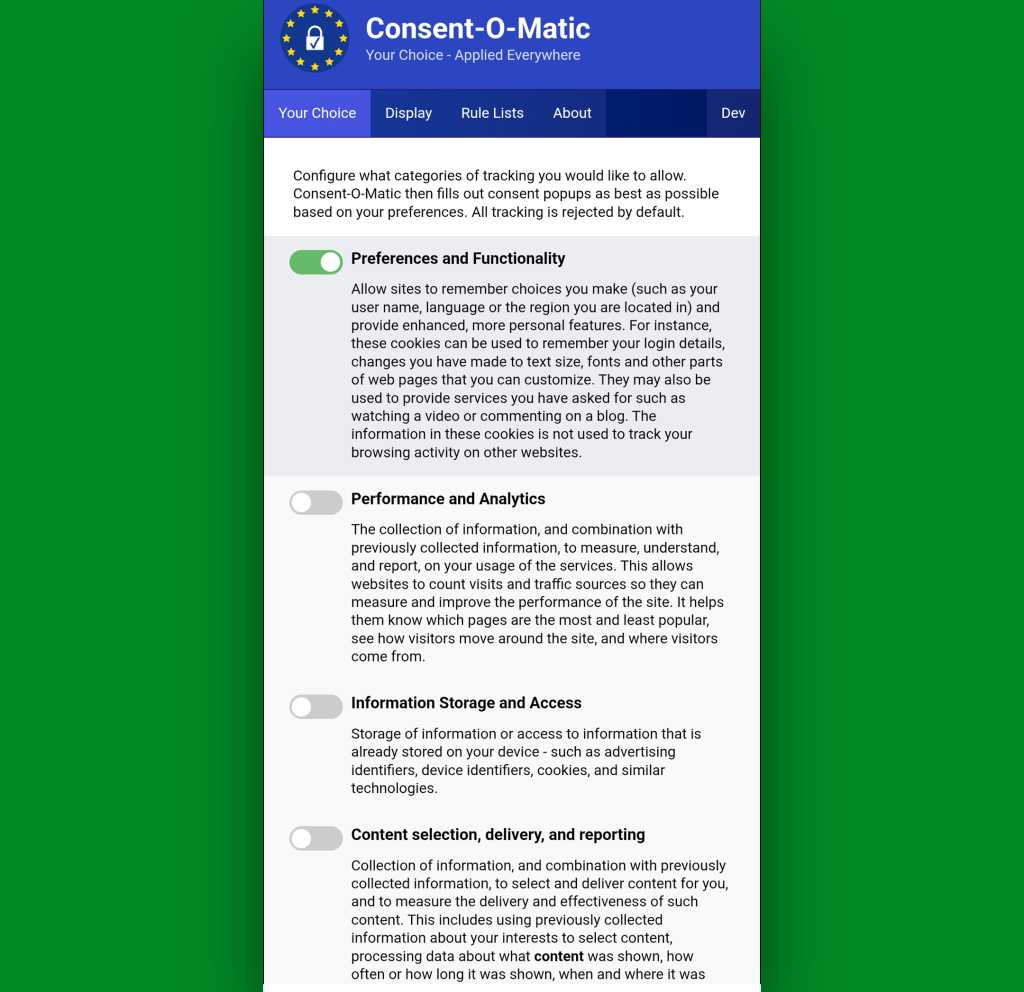
It’s called Consent-o-Matic, and the way it works is simple: You install it, open its options page once to tell it which cookies you do and don’t want to allow around the web — and that’s pretty much it. From there on out, it’ll just click on all those prompts that pop up for you, based on your preferences, and they won’t interfere with your work or irritate you anymore.
Consent-o-Matic remembers your cookie preferences and then applies them for you automatically all over the web.
JR Raphael, Foundry
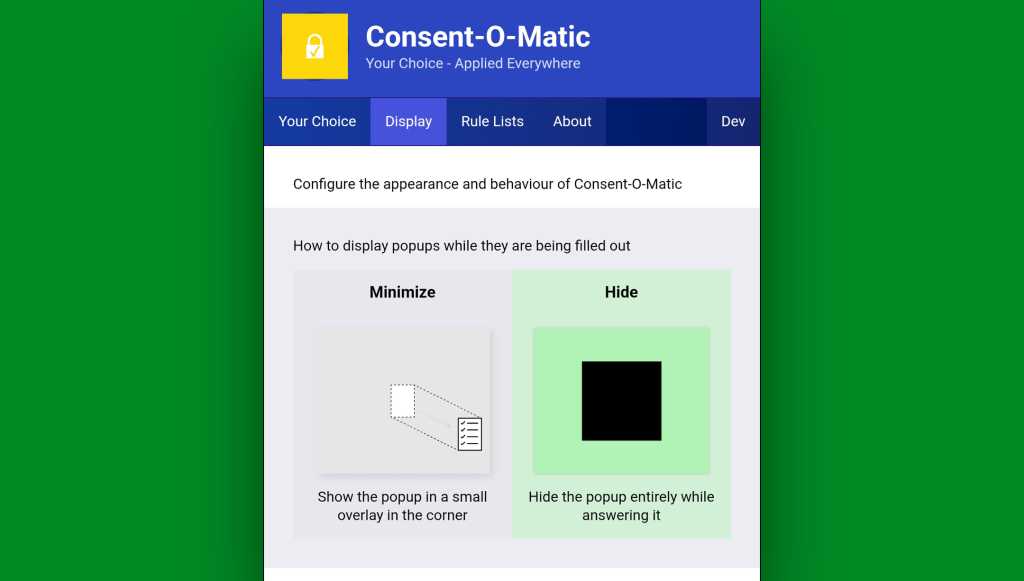
One option to look at while you’re in that initial setup area is in the “Display” tab at the top of the screen. By default, Consent-O-Matic will show any pop-ups it’s handling in a small overlay in the corner of the screen — but you can eliminate that entirely and make the process completely out of sight and invisible, if you want.
You can make Consent-o-Matic completely invisible so you never so much as see another cookie prompt again.
JR Raphael, Foundry
Yes, please — and thank you.
Chrome Android extension #2: 404 no more
Next is another quietly useful addition, and that’s the official Chrome extension for the Wayback Machineat the Internet Archive.
With the Wayback Machine extension active in your Android web browser, anytime you land on a page that for whatever reason isn’t online anymore or just isn’t available at that particular moment, you’ll see an offer to go to the page’s most recent cached version.
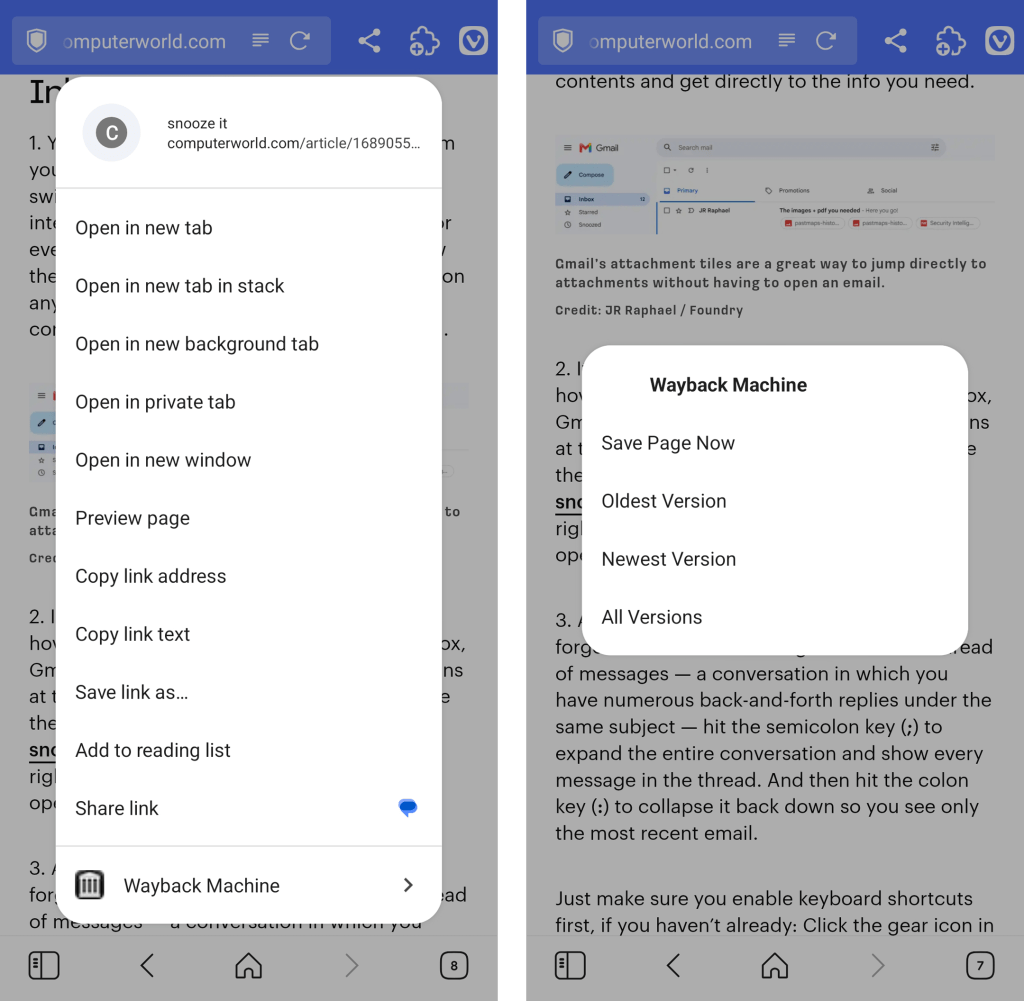
You can also call the extension up on demand to search for older saved versions of any pages by either pinning its icon to your Vivaldi toolbar or long-pressing a link within any page you’re viewing to reveal its menu of options.
The Wayback Machine Chrome extension integrates seamlessly into Vivaldi’s long-press link menu.
JR Raphael, Foundry
Chrome Android extension #3: A background open shortcut
I don’t know about you, but when I’m wading my way around the web, I find myself opening links a lot — often with the intent to look at ’em later.
Typically, that requires long-pressing on the link and then finding the option to open it in a background tab. But with a handy extension called DoubleClicker, that same action can be easier than ever.
Install DoubleClicker into your Android Vivaldi browser, and that’s it: From that moment forward, you can simply double-tap your finger on any link within any page, and it’ll open instantly as a background tab — waiting and ready for when you want it and without any waiting, poking around, or other interruptions to your workflow.
This might just be my favorite addition of all.
Chrome Android extension #4: Hands-free scrolling
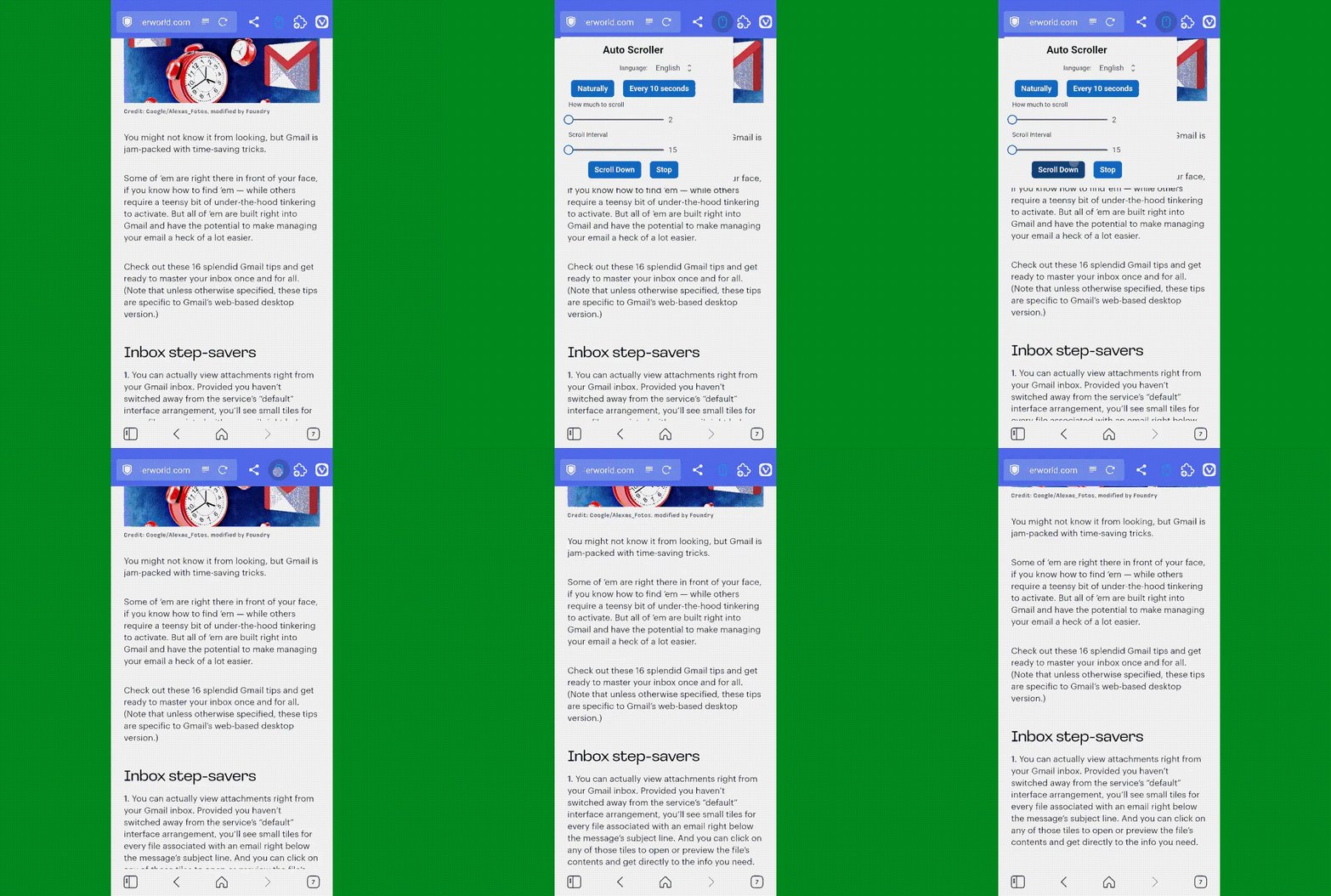
The next time you’re reading something on your phone, keep a little somethin’ called Auto Scroll Extension in mind.
As its name suggests, the extension lets you set any speed you like and then simply tap its icon (which works best if you pin it to your toolbar) to automatically scroll the page for you — so you can keep reading without having to do a thing.
Look, ma: No hands! Auto Scroll in action in Vivaldi on Android.
Yes, it’s redundant with having the standalone app installed and set as your system-wide password management service. But it often ends up being faster and easier to have a sign-in handled directly within the browser instead of having to rely on the system-level integration.
And having the browser-based option present doesn’t prevent you from using the other route, either. You’ve just got options, and you can pick whichever feels fastest and easiest to you at any given moment.
Try it out for yourself and see whatcha think. And stay tuned for the second set of worthwhile Android Chrome extensions soon!
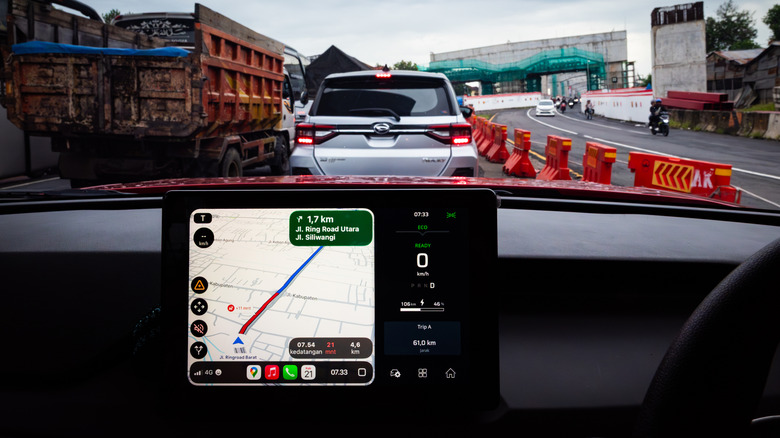
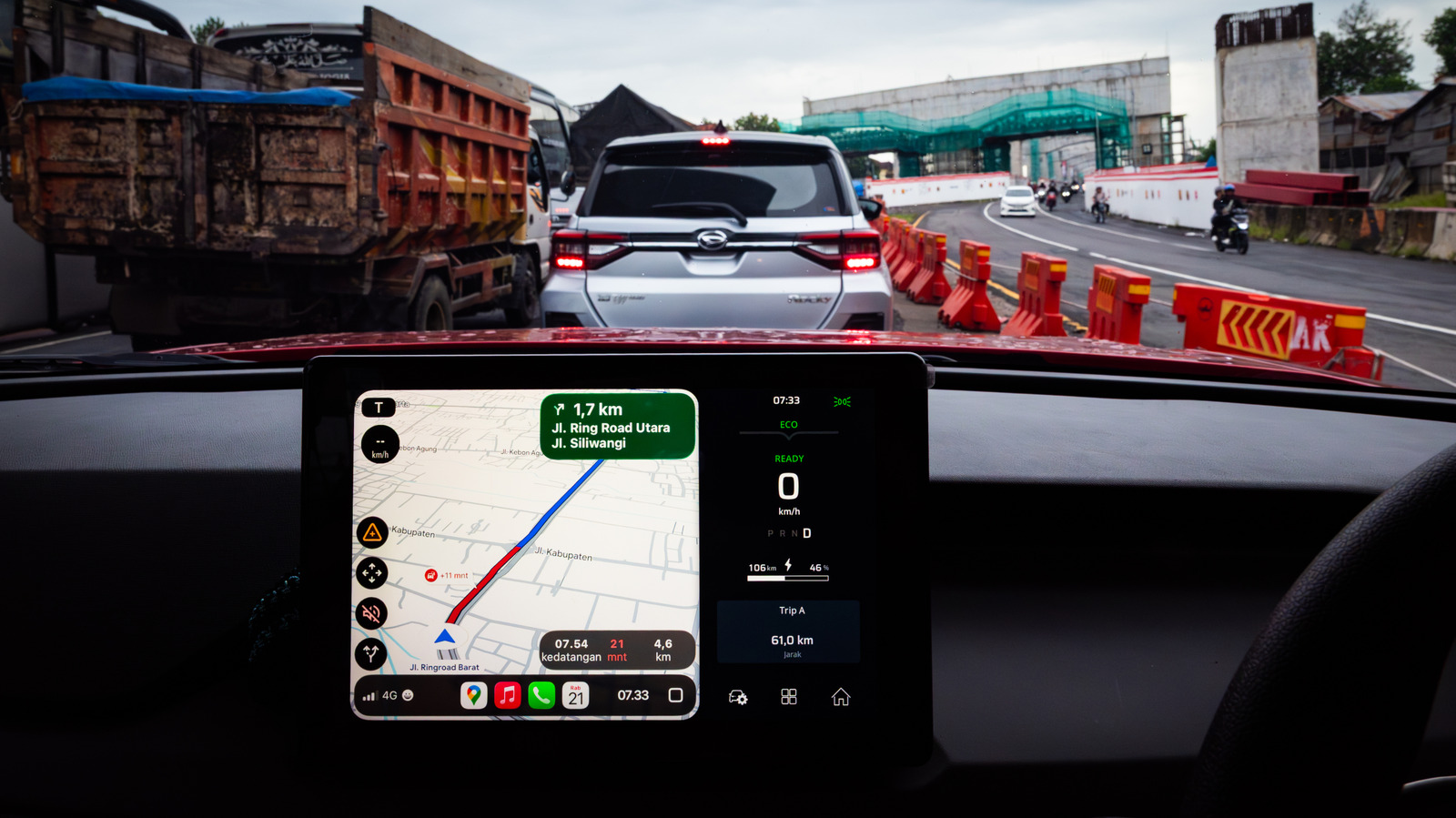
A Google está a atualizar o Maps no Android Auto para mostrar a velocidade, o limite da via e avisos de sinais, mesmo quando o condutor não define um destino.
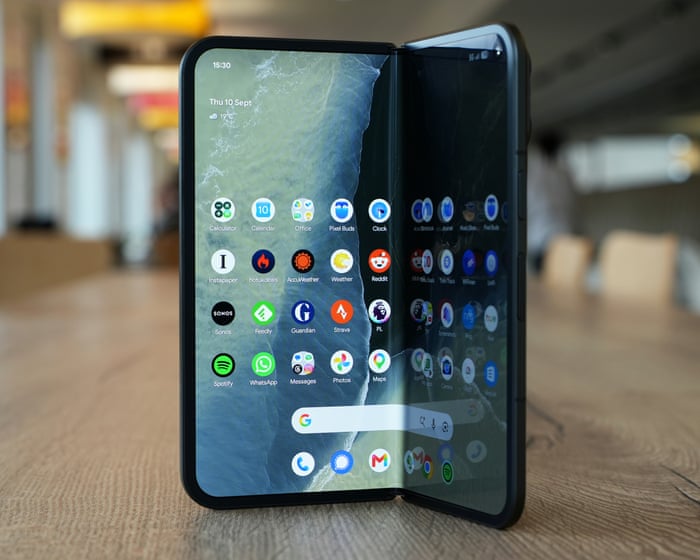
Big screen folder with slick software and advanced AI is just like a regular Android when closed
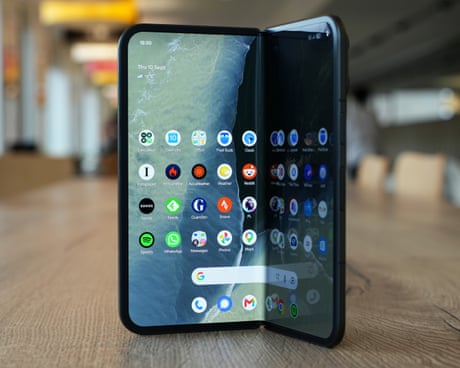
Google’s latest folding phone sticks with its tried and tested design of a traditional phone shape when closed and almost square when open, in the face of new competition from Apple’s squat iPhone fold.
The Pixel 11 Pro Fold is Google’s fourth-generation folder and is still one of the only models with a full water and dust resistance rating similar to standard slab phones. It costs from £1,799 (€1,999/$1,899/A$2,799), which is £50 (€100/$100/A$100) more than last year as the pressure of RAMageddon continues to push up prices.
Lo si sospettava già nelle scorse settimane, e ora arriva la conferma: i nuovi pieghevoli di Samsung hanno venduto decisamente bene. Tramite un breve comunicato sul proprio sito ufficiale (pubblicato, guarda caso, a distanza di appena qualche ora dalla presentazione di iPhone Duo...), la società ha detto che in Europa Galaxy Z Fold8 e Galaxy Z Fold8 Ultra hanno registrato vendite complessive superiori del 50% rispetto a Galaxy Z Fold7.
Chiaramente è facile argomentare che il confronto è un po’ impari, visto che Z Fold7 era “da solo” mentre quest’anno i pieghevoli a libro sono due, ma in generale il punto è: l’interesse nei confronti dei pieghevoli sta crescendo molto anche dalle nostre parti. Tra l’altro, Samsung osserva che i Galaxy Z stanno diventando uno strumento per acquisire nuovi utenti: nel caso di Galaxy Z Flip8, il 20% degli acquirenti arriva da dispositivi di altri produttori, e per buona parte di essi è stata la prima esperienza con uno smartphone pieghevole.
Il pieghevole a conchiglia sta diventando sempre di più anche una “rampa di lancio” per gli utenti, che una volta provato sono incuriositi dal form factor a libro. Gli utenti che hanno fatto questo passaggio con la generazione attuale (quindi Flip7 -> Fold8) sono più o meno triplicati rispetto all’anno scorso (Flip6 - Fold7). È tuttavia interessante osservare come la società non si addentri nel dettaglio di quale dei due pieghevoli a libro abbia venduto di più o sia risultato più interessante: in molti sospettano che la star della nuova generazione sia stato proprio il modello con form factor inedito, al debutto assoluto e con le stesse proporzioni di iPhone Duo.
Samsung lavora sui pieghevoli a libro da sette anni, ma il debutto di iPhone Duo mostra come Apple abbia scelto di affrontare fin dalla prima generazione alcune limitazioni ancora presenti su Galaxy Z Fold8. Occhio, meglio esser chiari: non significa che il pieghevole Apple sia automaticamente migliore, ma osservare le differenze nell’approccio è interessante e per certi versi doveroso, considerando che nessuno dei due costa poco.
Un esempio apparentemente secondario riguarda gli altoparlanti. Galaxy Z Fold8 ne utilizza due, entrambi collocati nella metà che ospita il display esterno. Quando si guarda un video in orizzontale sullo schermo esterno la disposizione è efficace, ma una volta aperto lo smartphone entrambi finiscono sullo stesso lato. L’audio resta chiaramente stereo, ma la separazione tra canale destro e sinistro viene inevitabilmente compromessa quando il grande display interno è aperto.
Apple ha scelto un layout differente. Su iPhone Duo i due speaker sono posizionati su metà opposte e in diagonale, non sono cioè allineati: uno è nella parte superiore del lato con lo schermo esterno e l’altro nella parte inferiore di quella che ospita le fotocamere. Quando il dispositivo viene aperto in orizzontale, il suono arriva quindi da angoli opposti, con una maggiore separazione rispetto al Samsung dei canali destro e sinistro. La sola disposizione degli altoparlanti non permette naturalmente di stabilire quale dei due telefoni abbia nel complesso una qualità audio migliore, ma sulla carta dovrebbe favorire una separazione stereo più convincente durante film e giochi.
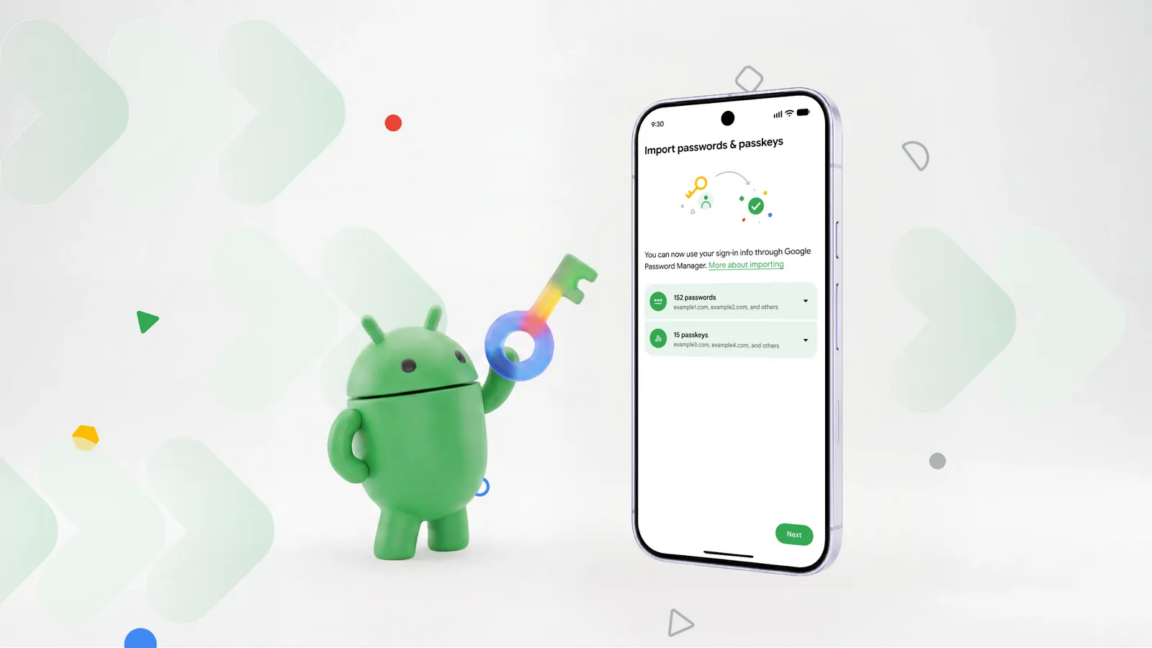
Nelle scorse ore Google ha annunciato una novità piuttosto importante in Android che permetterà di passare più agevolmente da un password manager all’altro, trasferendo il database di credenziali (sia password sia passkey) direttamente, senza bisogno di esportarlo e importarlo manualmente, con tutti i rischi derivati dalla generazione di file contenenti dati così sensibili (spesso nemmeno crittografati).
Fino a oggi, cambiare password manager significava spesso esportare l’intero archivio delle credenziali in un file locale, salvarlo sul dispositivo e successivamente importarlo nel nuovo servizio. In molti casi questi file possono essere archiviati senza crittografia; e poi bisogna ricordarsi di eliminare il file una volta completata la procedura, per evitare che rimanga accessibile sul dispositivo. Con il nuovo sistema, invece, l’utente deve semplicemente avviare la procedura di importazione dal nuovo password manager scelto. A quel punto Android rileva automaticamente i gestori di password compatibili installati sullo smartphone e consente di selezionare quello da cui trasferire i dati.
Il sistema si occupa di gestire il collegamento tra i due servizi, richiedendo l’autorizzazione necessaria per il trasferimento. Dopo la conferma dell’utente, password e passkey verranno spostate senza la creazione di file intermedi e senza ulteriori passaggi manuali. Certo, non è un’operazione che si fa una volta a settimana, ma vista la criticità dei dati salvati fa comodo avere una procedura ad hoc che minimizzi i pericoli per l’utente.
Da tempo è possibile creare gli eventi nelle chat individuali di WhatsApp, grazie a una funzionalità lanciata lo scorso anno. Prima era consentito farlo solo all'interno dei gruppi e nelle community. È un aspetto su cui il team di Meta è tornato a lavorare, con l'obiettivo di introdurre un vero e proprio hub dedicato alla gestione degli appuntamenti.
UN HUB PER GLI EVENTI TRA LE IMPOSTAZIONI DI WHATSAPP
La novità in fase di test è stata scovata dalla solita redazione del sito WABetaInfo, analizzando la versione beta 2.26.36.5 appena distribuita su Google Play per i dispositivi Android. Si tratta a tutti gli effetti di una sezione inedita, inclusa direttamente nella pagina delle impostazioni. La voce Eventi trova posto tra Aspetto e Notifiche, come testimonia lo screenshot qui sotto. Una volta aperta, mostra cosa si può fare. Lì trovano posto tutti quelli già creati e quelli ai quali si è stati invitati.
Per pianificare un evento si devono specificare il nome, una descrizione (opzionale), data e ora di inizio e di conclusione, una location ed eventualmente inserire un promemoria e il collegamento a una call. C'è inoltre il campo per aggiungere un'immagine personalizzata. Una volta terminato, si ottiene un link condivisibile che è possibile inviare anche a chi non ha un account WhatsApp, in modo del tutto simile a quanto avverrà con chiamate e videochiamate. L'ultima opzione è quella che consente agli ospiti di portare con loro un'altra persona.
Entre monitor de humor, testes de bem-estar e uma companheira de IA sempre disponível para conversar, a Liven quer ser o seu companheiro digital de autodescoberta.
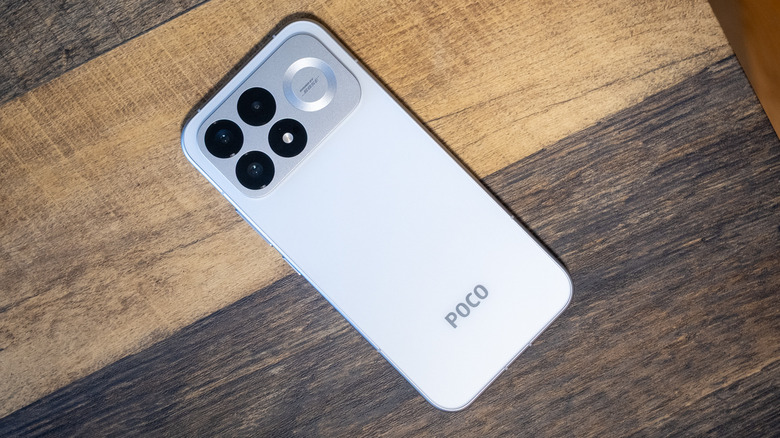
While smartphones from other major brands continue to creep up in price year after year, the value proposition of the Poco F9 Pro is even more impressive.
As longer, more complex passwords have become a necessity, remembering all those strings of numbers, letters, and special characters has become nearly impossible. Password managers can solve that problem, but what happens when you want to move to a different login organizer? Sure, you could manually type all your logins into a new app, but now Android can do that for you without the tedium.
Google designed the new login transfer process to happen entirely on your phone, so you need the corresponding apps installed with your credentials synced. To start the move, you'll have to find the import option in the app you want to use. The location of that feature will vary, but in Google Password Manager (built into Android), it's near the top under the settings tab.
The import option in Google Password Manager will plug in to the new migration system, while export still just creates an unencrypted CSV with your passwords that can be dumped into any app. It will be similar in other apps, so make sure to start the process in the app you want to use. Currently, this works in Google's app, 1Password, Bitwarden, and Dashlane.
As longer, more complex passwords have become a necessity, remembering all those strings of numbers, letters, and special characters has become nearly impossible. Password managers can solve that problem, but what happens when you want to move to a different login organizer? Sure, you could manually type all your logins into a new app, but now Android can do that for you without the tedium.
Google designed the new login transfer process to happen entirely on your phone, so you need the corresponding apps installed with your credentials synced. To start the move, you'll have to find the import option in the app you want to use. The location of that feature will vary, but in Google Password Manager (built into Android), it's near the top under the settings tab.
The import option in Google Password Manager will plug in to the new migration system, while export still just creates an unencrypted CSV with your passwords that can be dumped into any app. It will be similar in other apps, so make sure to start the process in the app you want to use. Currently, this works in Google's app, 1Password, Bitwarden, and Dashlane.
It's not much of an upgrade, but the Pixel 11 continues Google's tradition of offering phones with clean software and impressive cameras at a reasonable price.

 Login
Login



 :
:  :
:  a 1,299 euro
 a 1,329 euro