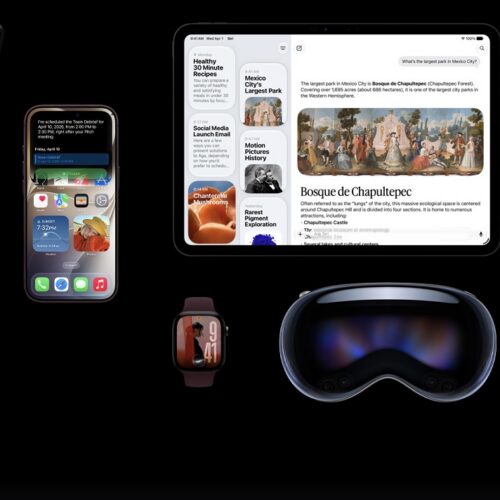
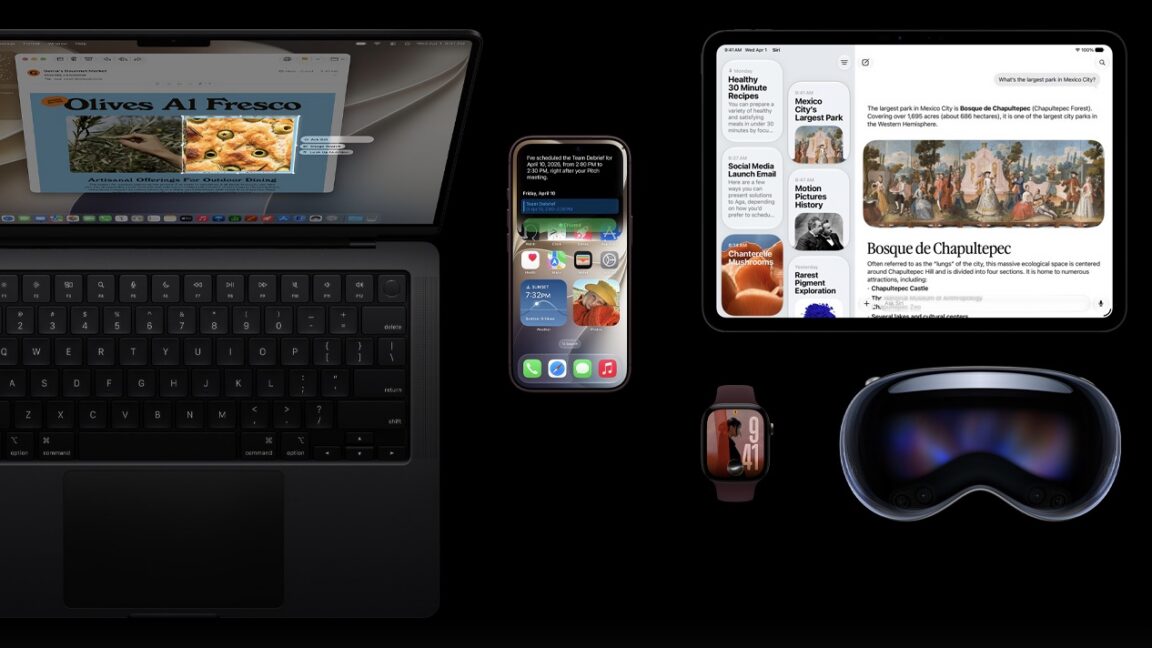
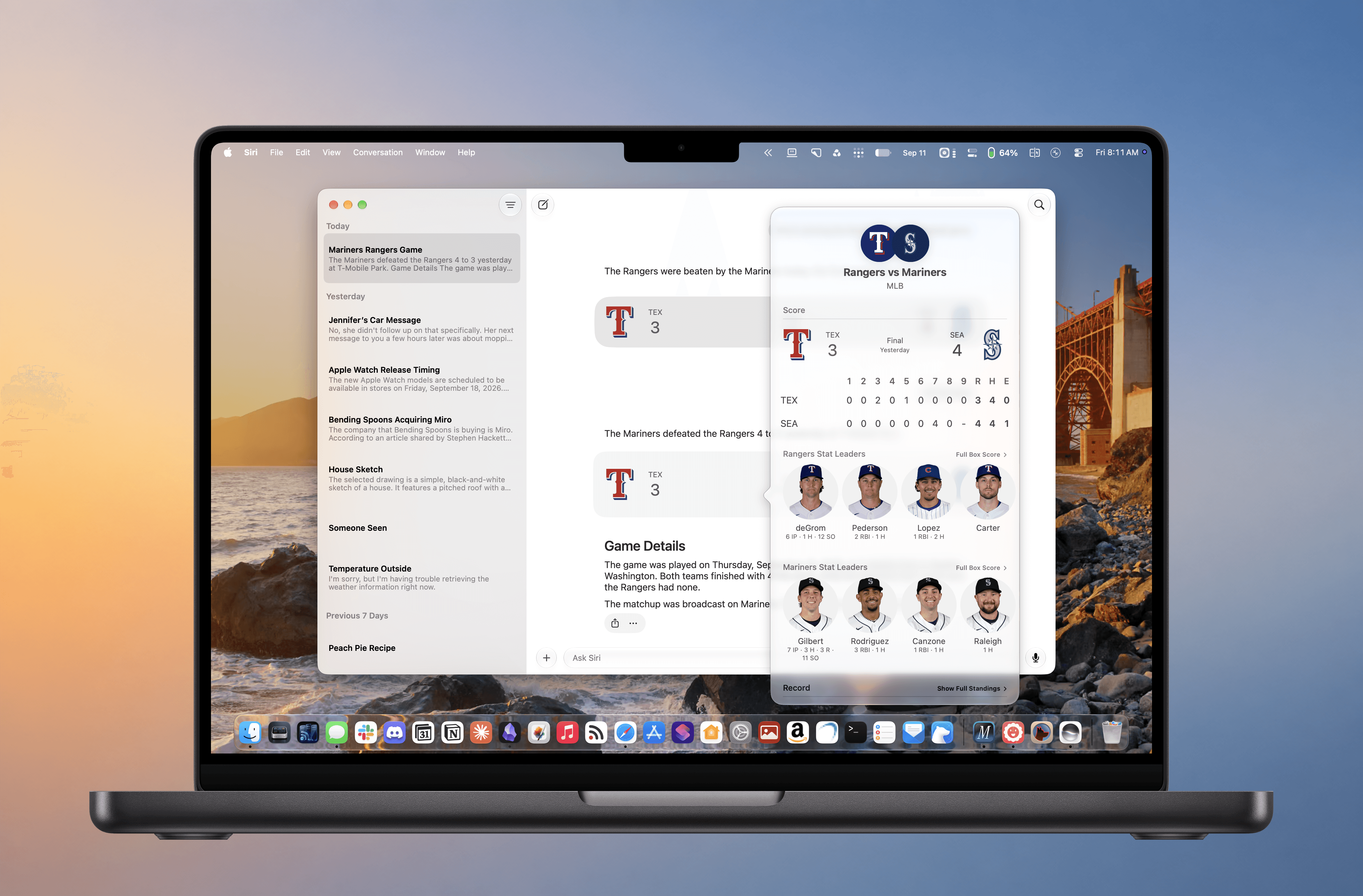
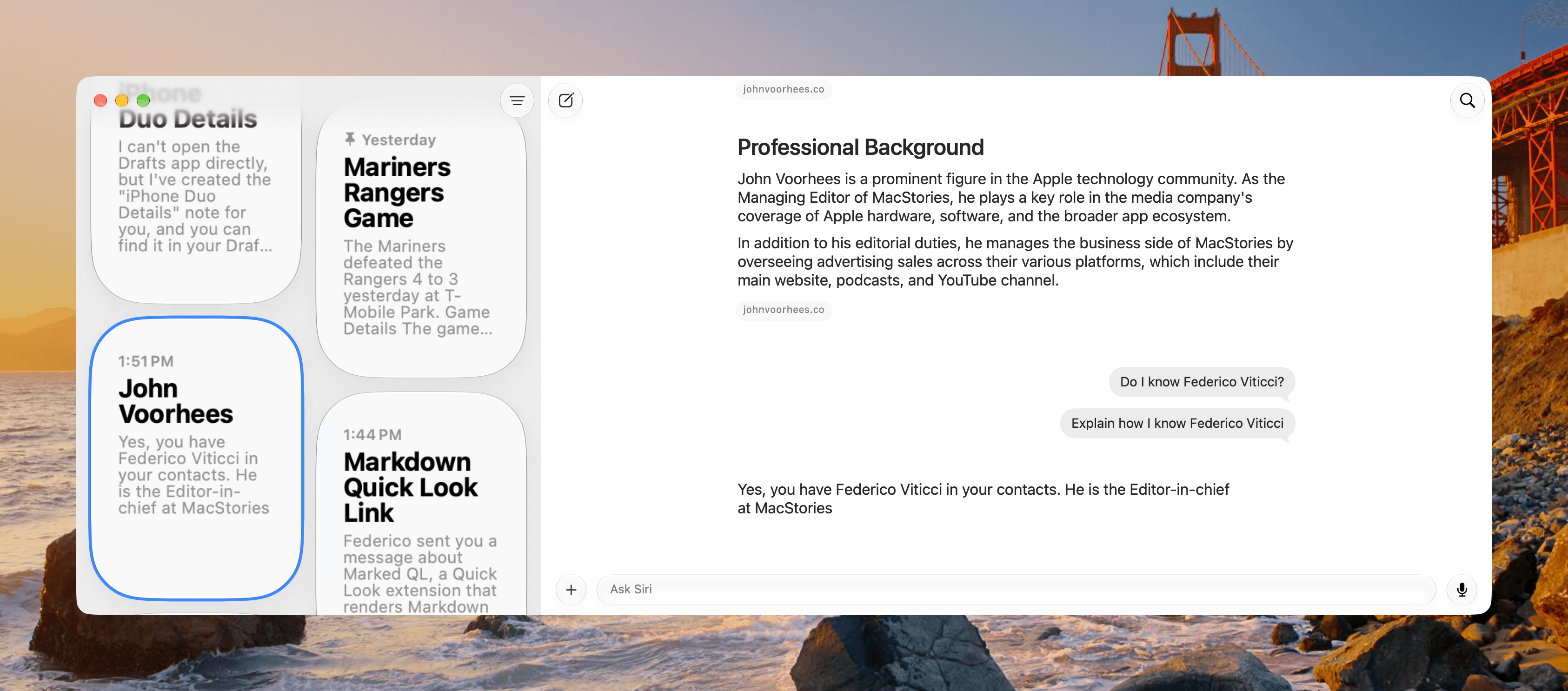
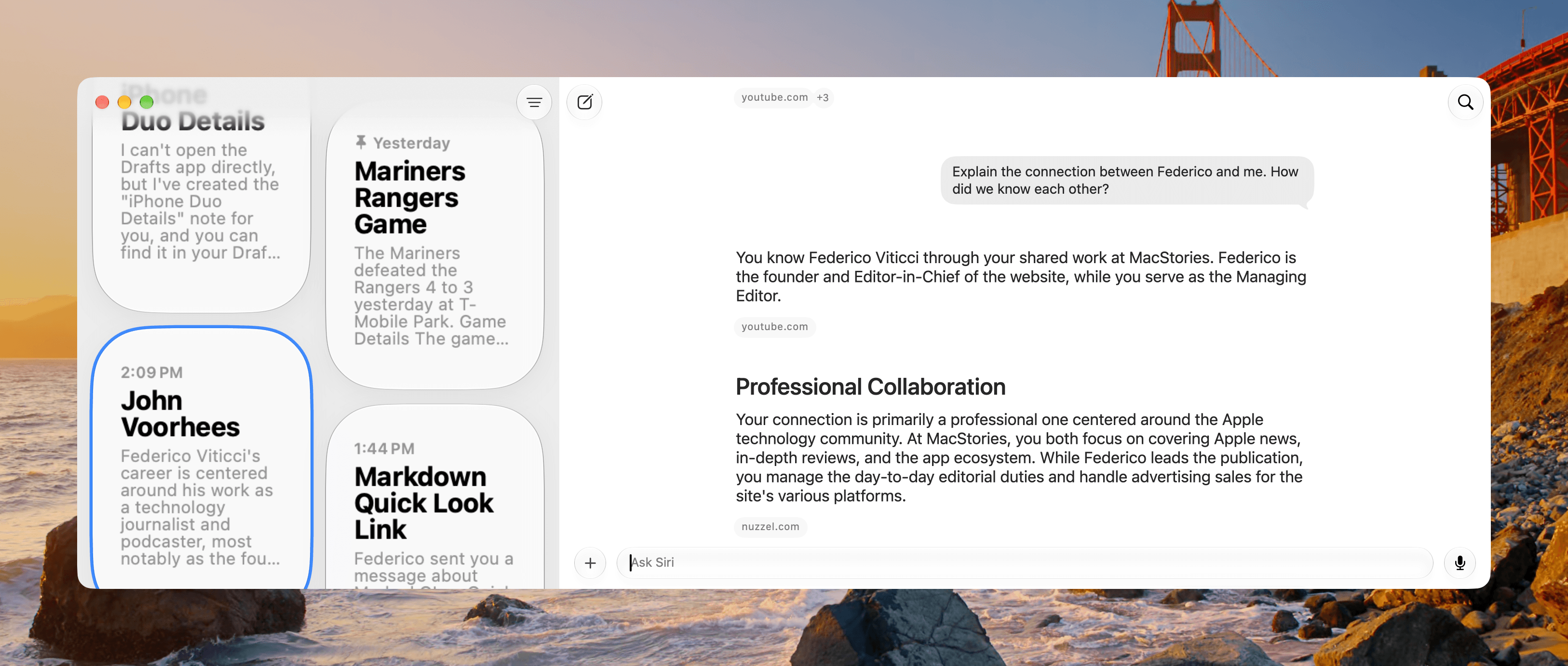
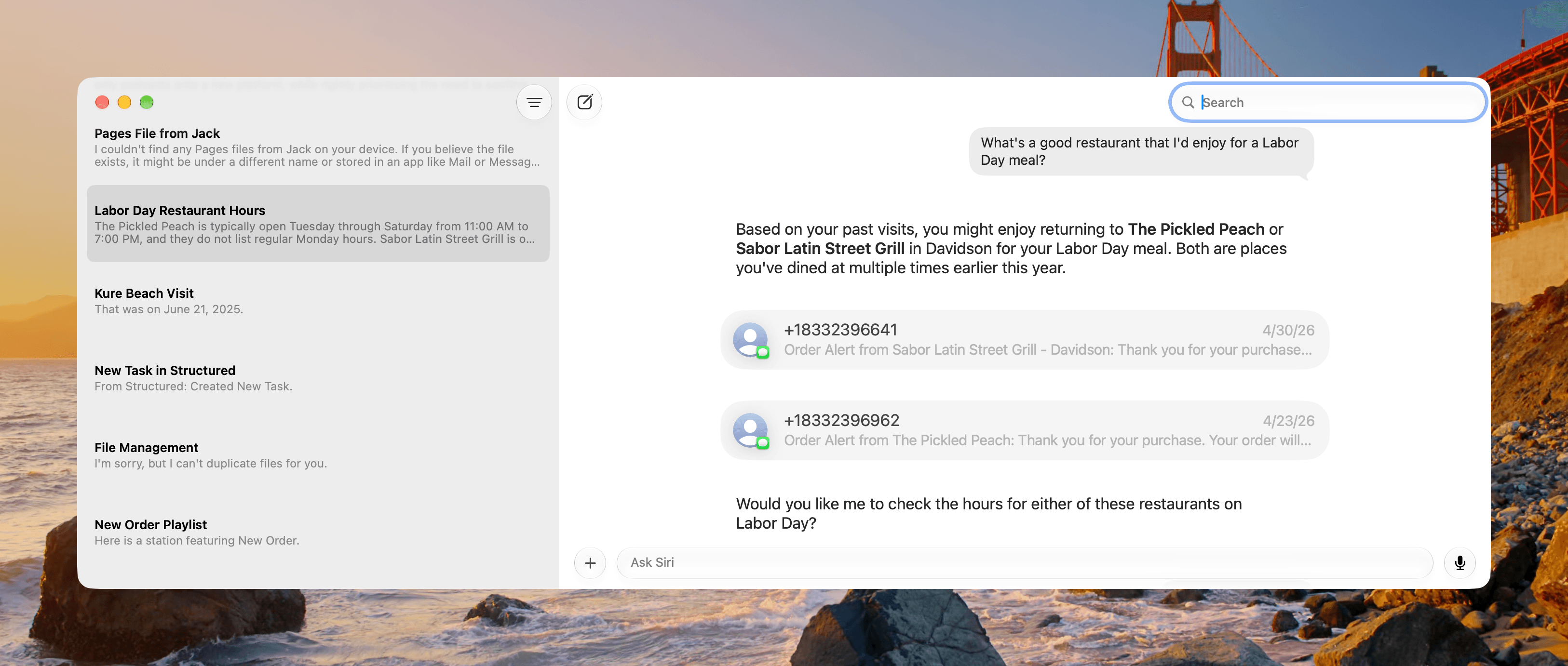
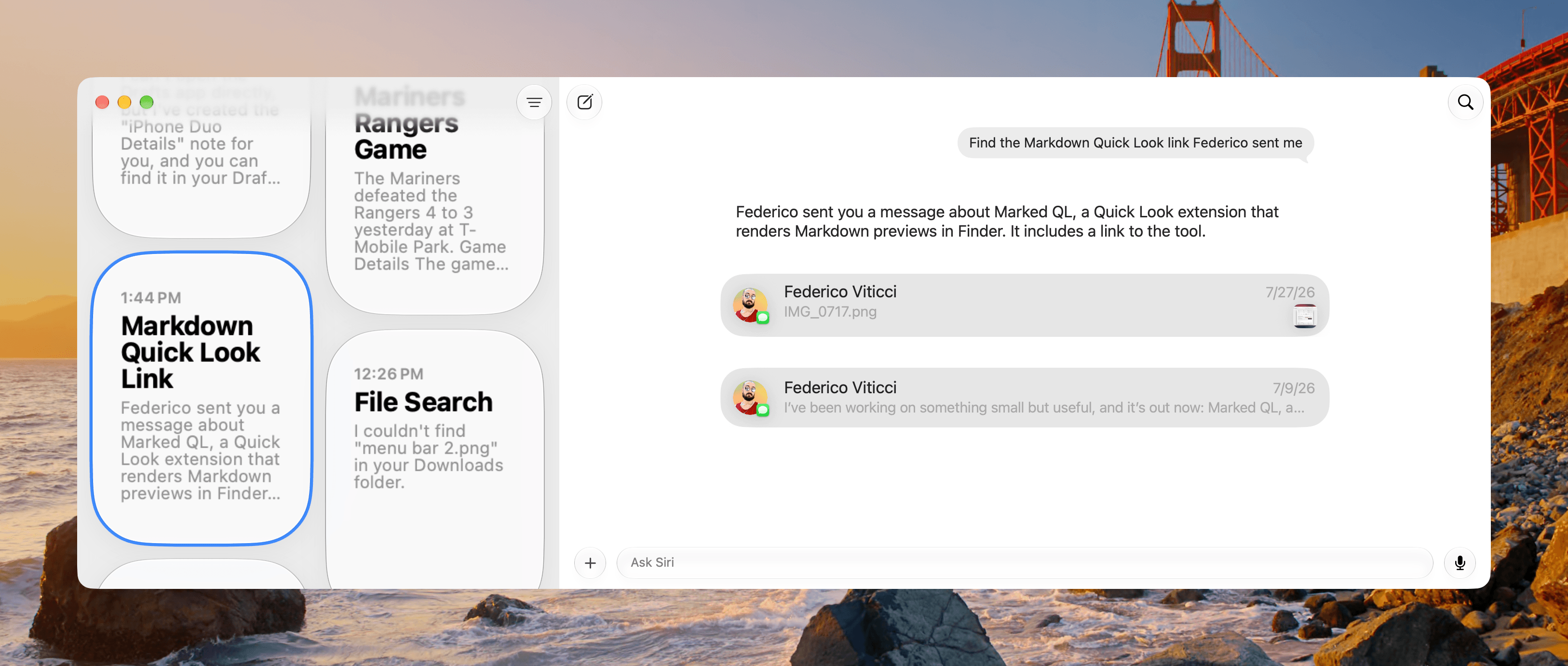
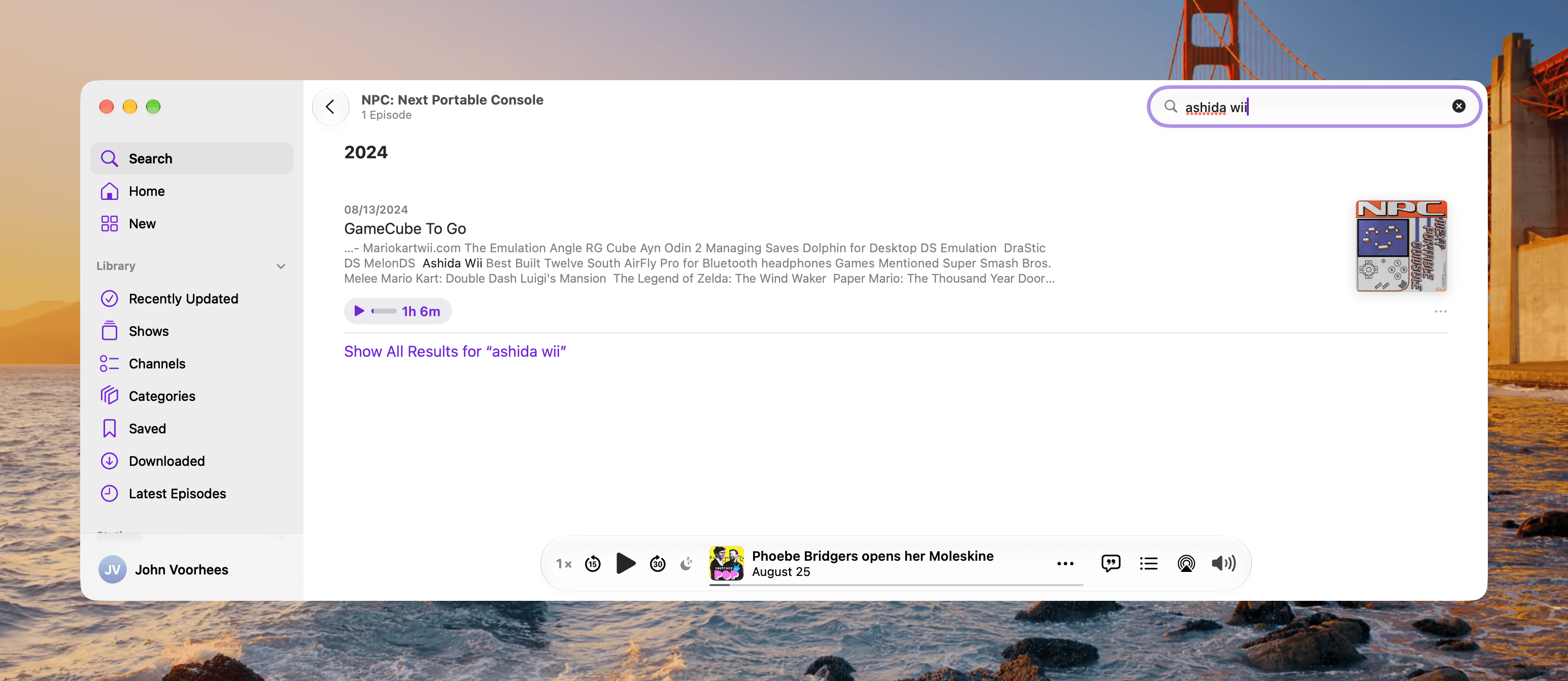
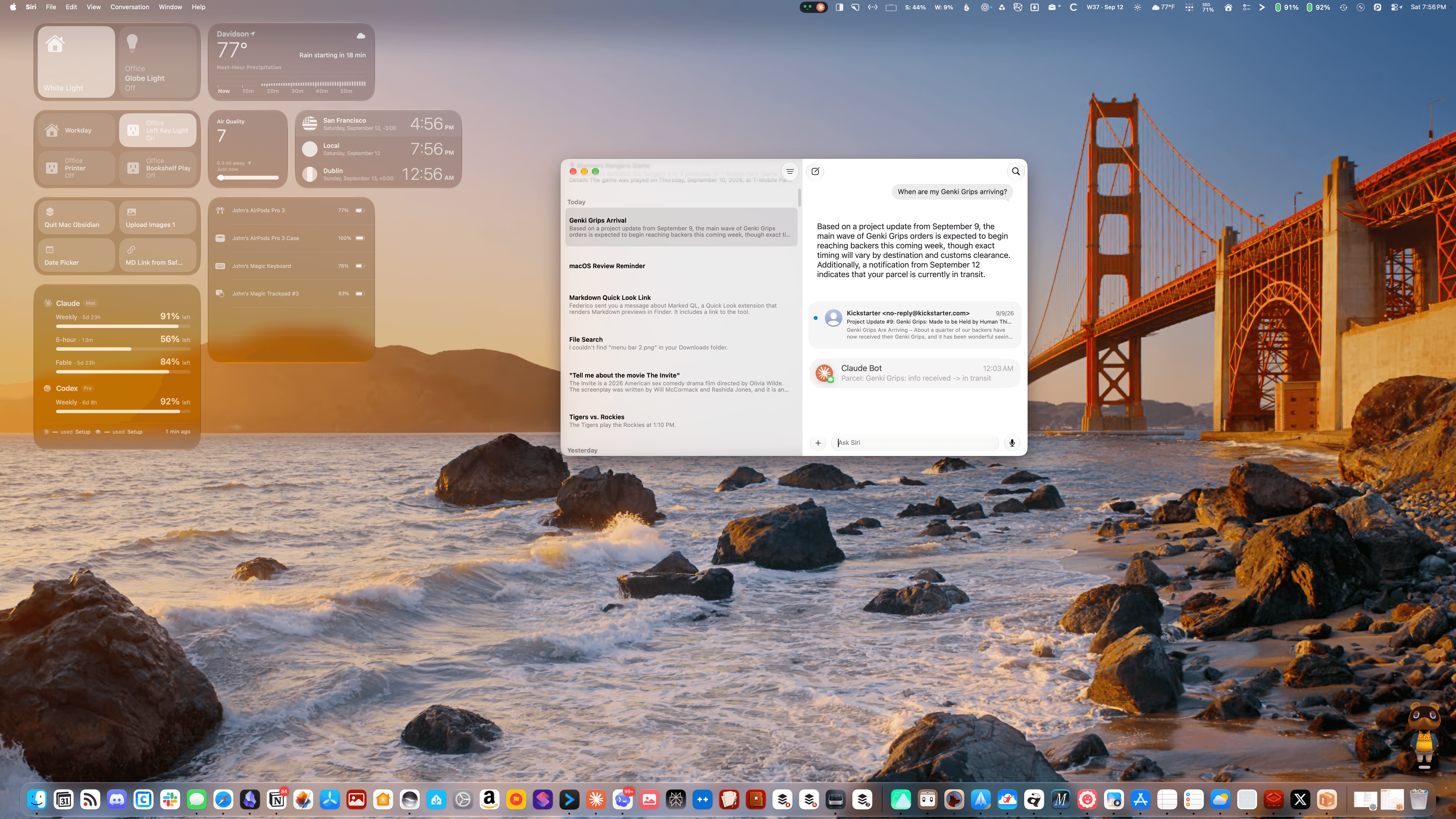
To ask Siri AI a question on a Mac running macOS 27, press Command-Space bar to open Spotlight, type your question or request, and press Return. Once Siri AI (Beta) is turned on, Apple’s Mac User Guide says Spotlight “becomes the place where you start a conversation with Siri.” From that one window, Apple says, […]
In Safari on macOS 27, go to the website you want to change, click the Page menu button in the Smart Search field, and choose Describe Extension. Type what you want, and Safari either points you to a matching extension in the App Store or builds one you can try before you save it. Safari […]
Fato é que alguns outros apps também receberam atualizações com essa mesma proposta — além, é claro, de incluir outras novidades. Vamos conferi-los a seguir.
Tripsy
Além de suporte ao iOS 27, o Tripsy — que apareceu na keynote da Apple, diga-se — foi atualizado com algumas outras novidades e melhorias que estão disponíveis como parte dos recursos do Tripsy Pro, entre elas:
Smart Import: importe atividades, locais e reservas de qualquer URL ou documento usando o analisador baseado em IA.
Smart Insights: utilizando os Apple Foundation Models, o aplicativo analisa e compreende o conteúdo de documentos, anexos e emails relacionados às atividades, extraindo apenas as informações relevantes e úteis para apresentá-las aos usuários.
Falando de melhorias, agora é possível encontrar todos os hotéis da sua viagem nas sugestões de localização e dispensar sugestões de partida de aeroportos de que não precisa mais. Ademais, foram aprimoradas as estatísticas de viagem, a estabilidade do mapa e os layouts de importação no Mac.
Por fim, também foi adicionado suporte ao widget extragrande no iPhone para uma melhor visualização do itinerário.
Loop
O player de podcasts Loop ganhou, na sua atualização mais recente, suporte à Siri e aos Atalhos, bem como ao recurso gestos de cabeça dos AirPods compatíveis para pular capítulos de episódios mesmo com o app em segundo plano.
Personalidades do Loop: nas configurações (em “Sobre mim”), agora é possível definir as personalidades que o Loop usará ao gerar o texto da seção “Para você”.
Métricas e estatísticas de escuta: três anéis para você acompanhar seus objetivos de escuta diários e mensais, acompanhando quantos episódios foram finalizados no mês, tempo de escuta diário e variedade de podcasts escutados.
Novos widgets: agora é possível ver o texto da seção “Para você” na Tela de Início em dois tamanhos de widgets (pequeno e médio) além de também ser possível ver seus anéis das métricas de escuta nas Telas de Início e Bloqueada.
O que ouvir em seguida: seção onde novos episódios dos podcasts que você marcou como favoritos e fixados são mostrados para fácil acesso.
O app também recebeu diversas melhorias em áreas como reprodutor de podcasts, busca e episódios baixados, além de uma melhor performance com o app em segundo plano, consumindo muito menos processamento e bateria.
FitWoody
Mais do que o suporte à Siri AI, que possibilita registrar dados por voz com ajuda da assistente, o app de saúde FitWoody agora também permite encontrar informações facilmente com o Spotlight e conta com suporte ampliado ao Handoff. O app também ganhou uma versão nativa para o macOS.
Divulgação/FitWoody
Quanto às melhorias, agora o FitWoody abre diretamente na própria tela, bem como sua pontuação do sono responde a cada noite à medida que ela acontece, de modo que a tela inicial já está completa logo pela manhã.
Steady
O aplicativo de treino Steady chegou à versão 3.0, que tem como destaque o recurso Importação Mágica — de modo que uma foto da ficha da academia, um PDF ou uma mensagem vira um programa de treino editável. Esse recurso usa os novos modelos de IA da Apple em iPhones compatíveis com Apple Intelligence e iOS 27, sem exigir o Steady Pro.
Além disso, o app ganhou planejamento de programas mais inteligente, navegador de programas, recuperação do treino, entre outros recursos.
Divulgação/Steady
A atualização também traz drop sets e deixa o app do Apple Watch mais completo, com lista de exercícios, registro de esforço pela Digital Crown e resumo do treino, reduzindo a necessidade de pegar o iPhone enquanto ele permanece por perto.
Ulysses
Já o popular aplicativo de escrita Ulysses ganhou, graças às capacidades da Siri AI, reconhecimento de contexto na tela e um botão dedicado na barra de ferramentas do macOS que abre a nova interface da assistente para escrever, reescrever, revisar e realizar outras tarefas com texto.
Ainda com relação à barra de ferramentas do aplicativo, agora é possível que os usuários a personalizem totalmente com botões de navegação, blocos, espaços, sugestões e muito mais.
We just released a very nice update across all platforms. The new version is ready for OS 27, features support for Siri AI, and introduces a fully customizable toolbar on macOS.
The update is available now. You can find the release notes on our website.https://t.co/TO7PFbVjGt
A atualização também inclui novos ícones de grupo com pictogramas e aprimora o suporte à acessibilidade “ao editar condições de filtro e ícones de grupo”. Por fim, o app recebeu ajustes visuais para melhor alinhar ao visual do iOS 27 e do macOS Golden Gate 27.
If you recently installed iOS 27 on iPhone, iPadOS 27 on iPad, or MacOS 27 Golden Gate, you might be wondering where the widely hyped new Siri AI set of features are on your device; a dedicated Siri app, a much smarter Siri AI with chatbot like experience, custom voices, and more. These are all ... Read More
Siri AI is beginning its public rollout as Apple transforms its familiar assistant into a substantially more conversational system built around personal context, onscreen awareness, web knowledge, and the ability to perform actions across apps.
The beta is available first in English on compatible devices running iOS 27, iPadOS 27, macOS 27, watchOS 27, and visionOS 27. French, Japanese, Korean, Portuguese, and Spanish support is scheduled for October. Availability remains more limited in some regions, with Siri AI initially unavailable on iPhone, iPad, and Apple Watch in the European Union and unavailable in China while Apple addresses regulatory requirements.
The release follows several years of gradual Apple Intelligence expansion, but Siri AI represents a more fundamental change. Instead of handling each request largely as an isolated command, the assistant can maintain conversations, find relevant personal information, understand what is displayed on a device, and combine those capabilities to complete multistep tasks.
Image Credit: Apple Inc.
Siri AI can connect personal context with app actions
The system can search across a user’s messages, email, photos, notes, and other information when responding to a request. Apple offers an example in which someone asks what a family member suggested doing during an upcoming visit. Siri can locate the relevant conversation, find a recipe previously sent by email, and then place the ingredients into a Reminders grocery list.
That combination of retrieval and action is central to the new design. Siri AI can draft an email, edit and share photos, create calendar events, manage reminders, control media, and perform other supported actions without requiring users to manually move information between applications.
Third-party apps can participate through Apple’s App Intents architecture. Existing integrations include tasks such as messaging through WhatsApp or playing an audiobook in Audible, with Apple also previewing deeper capabilities in applications including Microsoft Outlook, Notability, and Tripsy.
Onscreen awareness adds another layer. Siri can identify information currently visible on a device and act on it. Someone viewing a sports website, for example, can ask Siri to identify upcoming home games and add them to Calendar without manually copying dates.
Apple has also expanded Siri beyond voice. On iPhone, users can invoke the assistant with the side button, voice command, or by swiping down from Dynamic Island. On iPad and Mac, Siri AI is integrated into Spotlight, while systemwide context menus can send selected files, images, or text directly to the assistant.
Image Credit: Apple Inc.
Siri AI gets its own app and conversation history
Siri AI is no longer confined to a temporary interface that disappears once a request is complete.
Apple has introduced a dedicated Siri app where users can begin new conversations or revisit previous ones. Conversation history can sync privately through iCloud across iPhone, iPad, Mac, Apple Watch, and Apple Vision Pro, allowing a discussion started on one device to continue on another.
Follow-up questions can retain the context of an earlier answer, giving Siri a more conventional conversational interface for longer exchanges.
The assistant also has access to broad web knowledge for questions that cannot be answered through personal information or local device data. Apple says Siri can retrieve current information for topics ranging from sports results to travel planning and nearby businesses.
Visual Intelligence expands alongside the assistant. On iPhone, a dedicated Siri mode inside Camera can identify and respond to objects or information in front of the user. A concert poster, for example, can become the starting point for questions about performance times followed by the creation of Calendar events.
On iPad, Visual Intelligence is integrated with screenshots. Mac users can select content on their displays through a keyboard shortcut, while Vision Pro users can ask Siri about app windows or physical objects simply by looking at them.
Writing Tools are similarly integrated across the system. Siri can generate drafts, revise existing text from natural-language instructions, and provide writing suggestions. In Mail and Messages, Apple says it can take a user’s typical communication style with a particular recipient into account, including tone and punctuation patterns.
Image Credit: Apple Inc.
Siri AI runs across on-device and private cloud models
Siri AI is powered by a new generation of Apple Foundation Models developed in collaboration with Google using Gemini technology, marking a notable shift in Apple’s AI infrastructure.
The architecture divides processing between models running directly on the device and larger models operating through Private Cloud Compute. Apple says requests sent to Private Cloud Compute are processed without personal data being stored or made accessible to the company.
Core resources such as the Spotlight index and Apple’s App Toolbox can remain on-device, allowing Siri to retrieve local information and perform supported actions without sending every request to a remote server.
More capable devices can also use AFM Core Advanced, Apple’s highest-performance on-device model. It powers improvements including more expressive Siri voices and advanced systemwide dictation that automatically handles capitalization, punctuation, and formatting.
Compatibility varies by feature. Apple Intelligence supports iPhone 16 models and later, iPhone 15 Pro and Pro Max, M1 or later iPads and Macs, iPad mini with A17 Pro, Apple Vision Pro, and supported Apple Watch models when paired with a nearby Apple Intelligence-enabled iPhone.
AFM Core Advanced requires newer hardware, including iPhone Duo, the iPhone 18 Pro line, iPhone Air, iPhone 17 Pro models, qualifying M4 or later iPads with at least 12GB of unified memory, M3 or later Macs with at least 12GB, and Apple Vision Pro with M5.
Image Credit: Apple Inc.
Siri AI arrives with limits as Apple expands access
The initial Siri AI release remains explicitly labeled beta, and some of the surrounding Apple Intelligence features are scheduled for later updates.
Apple also confirms that features relying on server-side models can be subject to daily usage limits. That includes Siri AI, cloud-based photo editing, Image Playground, and AFM 3 Cloud models used through Shortcuts. Limits can vary depending on the feature, request complexity, system demand, and other factors.
Apple says expanded access to server-dependent features will eventually be available for a fee, introducing a future paid layer to parts of Apple Intelligence even as the core system remains integrated into supported devices.
Apple will also expand its intelligence capabilities on Apple Watch later in 2026. Planned Audio Intelligence features on Apple Watch Series 12 and Ultra 4 include Live Rewind, which can display text representing the previous 15 seconds of a conversation, and Siri Recap, which generates high-level summaries that can be reviewed later in the Siri app.
Those functions are designed around a hardware-isolated Secure Exclave on the S11 chip, with Apple saying raw audio is processed in isolation and immediately deleted rather than stored as recordings. Live Rewind and Siri Recap are scheduled to enter beta later in 2026, making the current Siri AI launch the beginning of a staged expansion rather than the final form of Apple’s new assistant.
Apple’s all-new Siri AI. An even more capable AI assistant with expanded intelligence to be more helpful every day.
Apple on Monday released the next generation of Apple Intelligence, powering Siri AI, an entirely new version of Siri, and capabilities that make the apps and experiences users rely on every day more personal and helpful than ever. Siri AI is a profoundly more capable and conversational assistant with personal context understanding, broad world knowledge, onscreen awareness, and even more systemwide app actions. Siri AI can help users find what they need in the moment, from answering questions on virtually any topic to surfacing relevant information from a user’s messages, emails, photos, and more. And Apple Intelligence makes everyday experiences across Apple products more personal and helpful with new editing capabilities in Photos, intelligent browsing tools in Safari, an all-new Image Playground that can create photorealistic imagery, and more.
With Apple’s 2027 software releases, users can now access new Apple Intelligence capabilities across apps. Siri AI begins rolling out today in beta in English, and will expand to French, Japanese, Korean, Portuguese, and Spanish next month.
An Entirely New Siri
Siri AI is a completely reimagined version of Siri that is more personal and powerful. With detailed responses and rich, natural conversations, Siri AI helps users get more done than ever before.
Built on Apple Intelligence, this new version of Siri draws on personal context understanding to help users find what they need in the moment across messages, emails, photos, and more. And with even more systemwide app actions, Siri AI can help users with tasks such as drafting an email from scratch or editing and sharing a set of photos.
With even more systemwide app actions, Siri AI can help users with tasks such as drafting an email from scratch.
For example, if a user asks Siri what a family member suggested as an activity during an upcoming visit, Siri can search the user’s messages and find that they mentioned wanting to bake a family recipe together. It can then pull up the cooking instructions from an email the relative sent previously and add the ingredients to their grocery list in the Reminders app.
Siri AI already works seamlessly with apps from Apple’s vast ecosystem of developers. Users can continue to take action in the apps they already use with Siri, like texting a friend in WhatsApp or playing a book on Audible. And soon, users will be able to ask Siri AI to draft an email in Microsoft Outlook, search for a homework assignment in Notability, or add a restaurant recommendation to Tripsy.
With onscreen awareness, Siri AI can answer questions or take actions related to the content on a user’s screen. For example, while viewing their favorite sports team’s website, a user can ask Siri to find all the upcoming home games and add them directly to their calendar. And Siri AI can also use broad world knowledge to get up-to-date information on virtually any topic. Whether a user is looking for the score of a football game, tips for planning a vacation, or the best local coffee spot in a new city, Siri AI will leverage information from across the web to deliver helpful, accurate answers.
With onscreen awareness, Siri AI can answer questions or take actions related to the content on a user’s screen.
Users can extend almost any response from Siri into a rich conversation and ask follow-up questions. And users can take advantage of Siri AI anywhere across the system. In addition to saying “Hey Siri,” iPhone users can invoke Siri with the side button, or swipe down from the Dynamic Island to start a conversation and get an in-depth answer. On iPad and Mac, Siri AI is integrated into Spotlight so users can search for answers to almost any question. It is also integrated into systemwide context menus, allowing users to Control-click to ask about images, files, or text on their screen. On Apple Vision Pro, Siri AI leverages spatial computing with a 3D visualization that users can place anywhere in their space, and they can invoke Siri by looking at it and starting to speak.
To revisit a past conversation or start a new one, users can open the all-new dedicated Siri app. The Siri app uses iCloud to privately sync conversational history across a user’s products, so they can start chatting with Siri on iPhone, and pick up the conversation on Mac, iPad, Apple Watch, or Apple Vision Pro, bringing together rich conversations in one place.
When users want to revisit a past conversation or kick off a new one, they can open the all-new dedicated Siri app.
Expressive Voices and Improved Dictation Powered by the Most Advanced On-Device Model
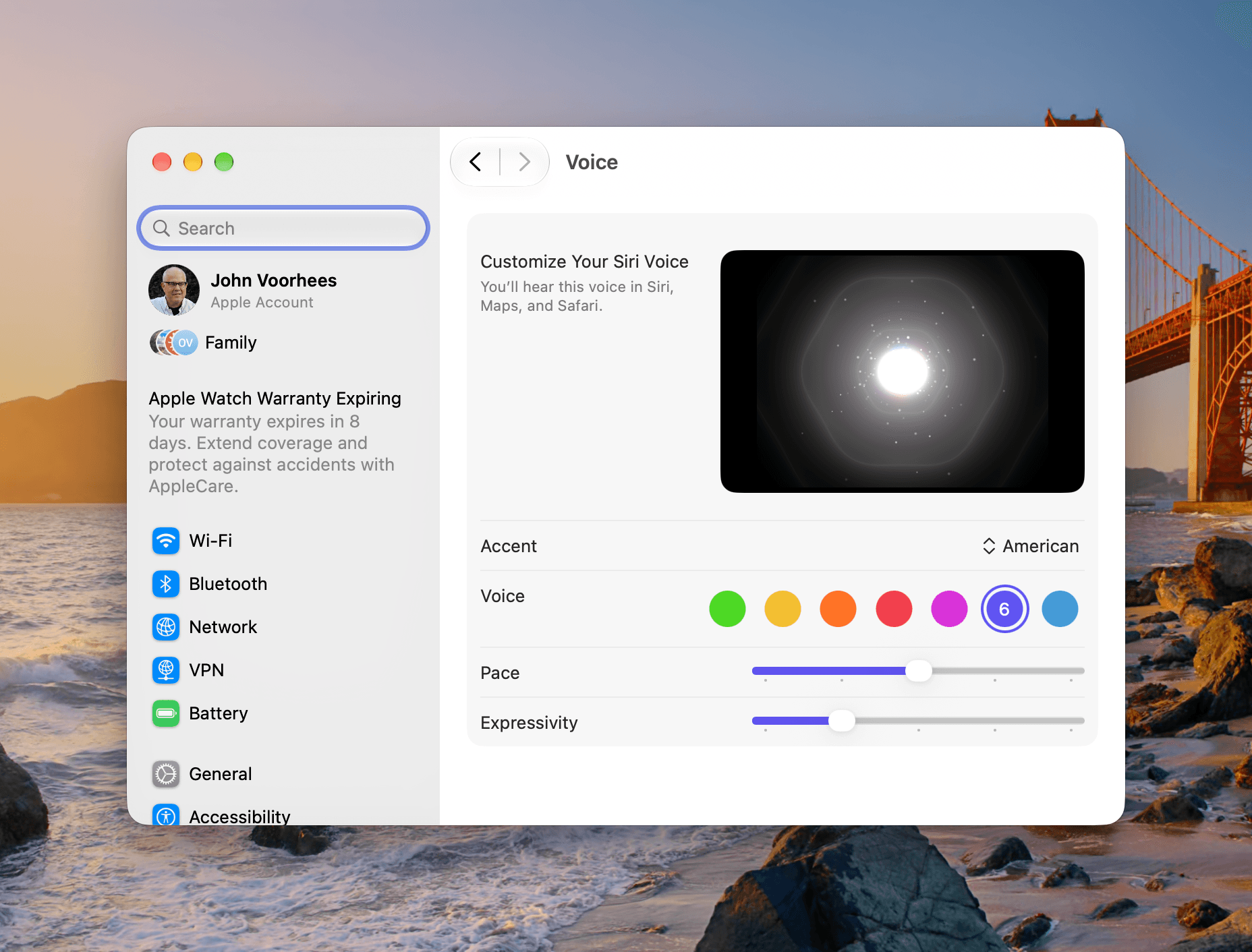
Siri AI offers even more expressive voices, as well as a major boost in accuracy, with systemwide dictation for products that support Apple’s most advanced on-device model ever, AFM Core Advanced. Users have the ability to customize the expressiveness and pace of Siri’s voice so it’s just right for them. Dictation now captures what users say as polished text with greater precision, automatically handling capitalization, punctuation, and formatting as they speak. And with improved speech understanding, users can speak naturally and trust that their words will appear clearly, accurately, and as intended.
Visual Intelligence Is Now on iPad, Mac, and Apple Vision Pro
With Visual Intelligence, Siri AI offers powerful image understanding and multimodal capabilities, so users can ask questions about visual content across iPhone, iPad, Mac, and Apple Vision Pro.
On iPhone, Siri’s multimodal capabilities are integrated right into the Camera app with a brand-new Siri mode, allowing users to get information and take action on what’s in front of them. For example, while looking at a poster for a music festival, a user can ask Siri what the set times are for their favorite artists, and then have Siri automatically create multiple calendar events for the weekend. On iPad, Visual Intelligence is integrated right into the screenshot experience. And on Mac, users can tap into it with a dedicated keyboard shortcut, allowing them to select something on their Mac display and type directly to Siri to get a helpful answer. Visual Intelligence also expands to Apple Vision Pro, allowing users to ask Siri about things just by looking at them, from the content inside app windows to physical objects around them.
The Ability to Write and Edit Virtually Anywhere with Siri AI
Siri now offers integrated Writing Tools that are more powerful than ever, allowing users to write with Siri AI virtually anywhere they type. Users can describe what they need and Siri can generate a draft from scratch to get the ball rolling. If a user wants to refine what they’ve written, they can describe the change they want to make and Siri can quickly update it.
Integrated Writing Tools are more powerful than ever, allowing users to write with Siri AI virtually anywhere they type.
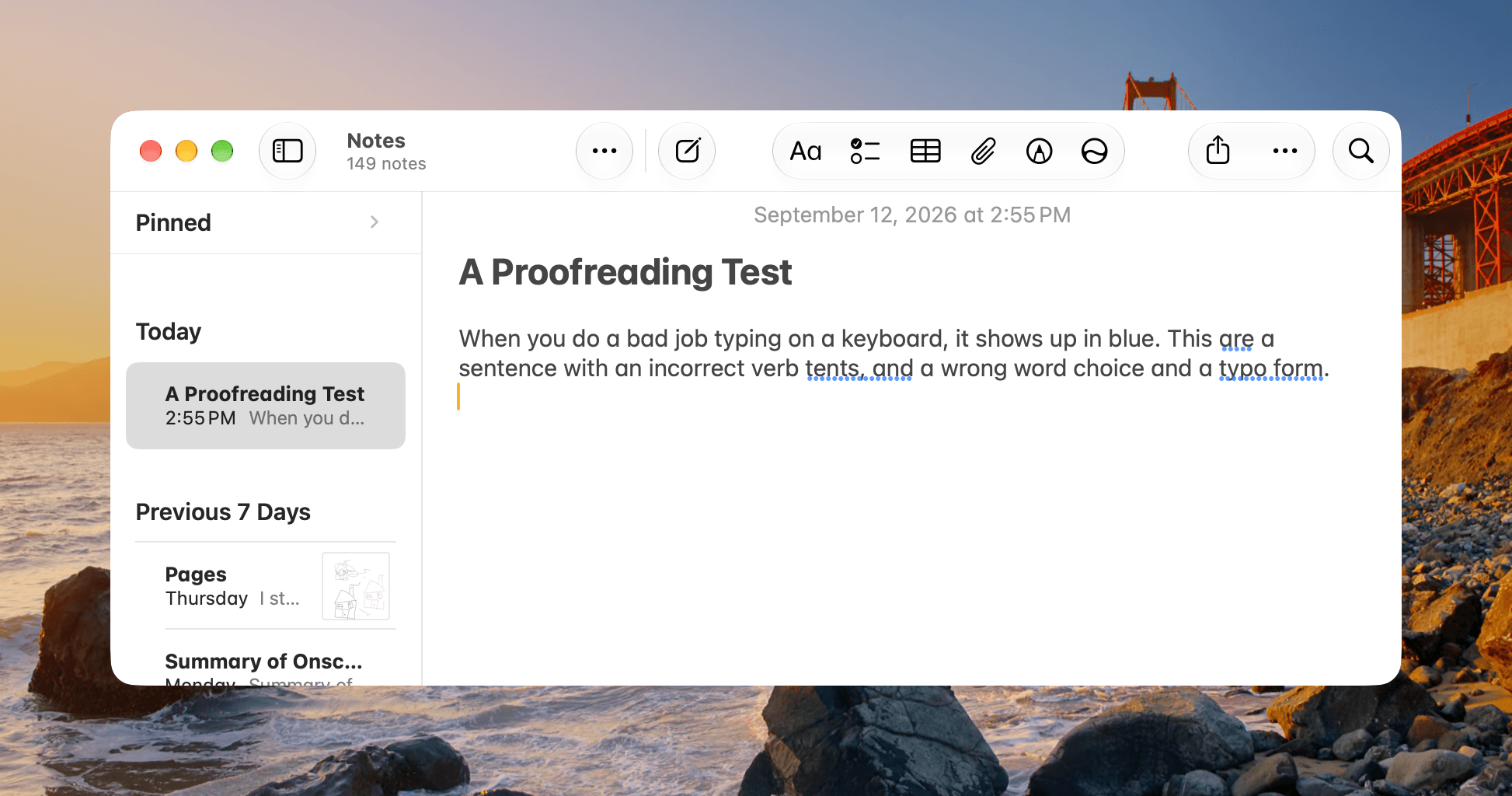
When writing in Mail and Messages, Siri can reflect how users usually communicate with each recipient, including the punctuation and tone they typically use. Users can ask Siri for tips and suggestions to improve their written work. Plus, Apple Intelligence now automatically proofreads for users as they type across the system, including within most third-party apps.
Apple Intelligence now automatically proofreads for users as they type across the system, including within most third-party apps.
Powerful AI Capabilities Integrated into Everyday Experiences
In addition to Siri AI, Apple Intelligence powers many more new capabilities in the apps users rely on every day:
• The Photos app taps into more powerful image models to provide new ways to edit photos, while still respecting the original moment as it was captured. With Spatial Reframing, users can improve the composition of a photo by adjusting the camera perspective after the photo was taken. Users can also expand their shots with the Extend tool to give their subjects more breathing room, and the popular Clean Up tool is more powerful than ever, allowing users to remove distractions from their photos with even better quality and more realistic infill.
• Powered by a new generative model that runs on Private Cloud Compute, Image Playground is more powerful and useful than ever, giving users the ability to create high-quality images in virtually any style — now including photorealistic — and simply describe any changes they want to make. This capability extends to the new Siri, allowing users to generate images just by describing them in the Siri AI app, powered by Image Playground. And with upcoming support for the SynthID standard, users can identify images generated or edited with AI using Apple Intelligence-powered tools.
• Safari adds new tools that transform how users can browse the web. Now, Safari can simplify the browsing experience by automatically organizing a user’s tabs into topics. It can also notify users of website changes, like product restocks or price drops, with Notify Me, and create custom extensions based on a user’s description.
• In Mail and Messages, Smart Reply can draw on a user’s personalized writing style, and Suggestions in Mail are even more capable with the ability to take actions with third-party apps.
• With Call Context in Phone, users can proactively receive relevant information, like a confirmation code or reservation number, when they’re calling a business.
• In Calendar, users can now add or modify events with simple descriptions.
• Shortcuts is more approachable than ever. With the ability to describe a shortcut, users can create complex automations simply by describing what they want.
• The Home app adds the ability to understand related notifications as a single activity, view what’s happening across a sequence of video clips with generated video descriptions, search for clips across multiple cameras, and access noteworthy ones at the top of the Search page.
Coming Later This Year: New Audio Intelligence and Health Capabilities
Since Apple Watch is always on a user’s wrist, it is the perfect device to help users stay alert to important sounds and stay present and engaged in conversations throughout the day. With the built-in microphone, the power of the S11 chip, the latest Apple
Intelligence models on iPhone, and Private Cloud Compute, Apple Watch Series 12 and Apple Watch Ultra 4 offer a brand-new class of Apple Intelligence features. Audio Intelligence helps users stay aware of the world around them, catch what they missed, and remember key moments — with user control, privacy, security, and accessibility at the center of its design.
Audio Intelligence features include:
• Sound Recognition, which comes to Apple Watch to alert users who are deaf or hard of hearing of important sounds, even when their iPhone isn’t with them. This feature listens for sounds like sirens, alarms, doorbells, or a baby crying, and uses on-device intelligence to notify users when they’re detected.
• Live Rewind, which can help users recall what was just said in conversation. A double press of the Digital Crown shows the previous 15 seconds of a conversation as a text snippet, so users can catch something they may have missed or are less familiar with. Users can ask Siri about the content of the text or save it to the Siri app to revisit later.
• Siri Recap, which can create high-level summaries of conversations that users can review later to jog their memory. When Siri Recap is turned on, after a conversation, Apple Intelligence automatically generates a title and key points in the new Siri app, allowing users to be more present and engaged in the moment.
• Shazam, which instantly detects the music playing around the user and automatically displays the song title and artist’s name on the Music Recognition widget in the Smart Stack, easily glanceable on the wrist.
Sound Recognition can alert Apple Watch users who are deaf or hard of hearing of important sounds, even when their iPhone isn’t with them.Live Rewind can help Apple Watch users recall what was just said in conversation.Siri Recap can create high-level summaries of conversations that users can review later to jog their memory.Shazam can now instantly detect the music playing around the user and automatically display the song title and artist’s name on the Music Recognition widget on Apple Watch.
Audio Intelligence features are private by design, combining hardware, software, and services to protect user privacy in a way that only Apple can. These features do not create or store audio recordings, and the raw audio used for processing is completely inaccessible to the operating systems, apps, the user, or Apple. This is because the S11 chip on Apple Watch Series 12 and Apple Watch Ultra 4 includes Secure Exclave, a dedicated hardware-isolated compartment that processes audio in complete isolation from the rest of the system, then immediately deletes it.
Users are in control and can choose whether to opt in to each Audio Intelligence feature. They can decide exactly where and when Siri Recap takes notes, and can turn Siri Recap on or off at any time, right from Control Center.
By design, Audio Intelligence features do not identify and attribute speakers, to protect the privacy of both the user and those around them. Siri Recap produces a brief, high-level summary of conversations — not a transcript — and is designed to exclude sensitive information like financial information or government-assigned identifiers. Live Rewind plays an audible chime when it is being used, even if Apple Watch is on silent, and shows a full-display animation and microphone indicator so people nearby can hear and see that the feature has been activated.
Live Rewind text snippets and Siri Recap summaries are end-to-end encrypted in the Siri app with iCloud syncing, and are not accessible even by Apple. Learn more about how Audio Intelligence protects privacy. Siri Recap and Live Rewind arrive in beta later this year.
In addition, the Health app gets a new design, turning a user’s metrics into personalized guidance with Apple Intelligence at its core. The new Insights tab has a summary generated by Apple Intelligence that highlights a user’s most timely information, surfacing details like the latest on their sleep or peak VO2 max. Users will also get personalized guidance from the Health app. For example, if they are working to improve their cardiovascular health, they may see suggestions to incorporate intervals in their regular morning run — recommendations that dynamically adapt to the user and their data.
The new health capabilities will be available later this year.
The redesigned Health app on iPhone features a new Longevity tab that analyzes a user’s longitudinal health data for deeper insights, including Health Age, an Apple Watch feature showing users how certain metrics are tracking relative to their age. Arriving later this year, the updated Health app will also feature a new Insights tab that surfaces timely health information with a summary that updates throughout the day across heart, sleep, readiness, fitness, vitals, and cycle tracking data.
A Bold Architecture, Built Privacy-First
These new capabilities are powered by the next generation of Apple Foundation Models, custom-built in collaboration with Google and its Gemini models for deeply integrated Apple Intelligence experiences. These latest models run on device and on servers using Private Cloud Compute. Every facet of new Apple Intelligence architecture is built privacy-first, from the latest Apple Foundation Models to the core operating system technologies that integrate these models deep into Apple’s platforms.
Apple Intelligence uses on-device processing and Private Cloud Compute to help protect users’ privacy. Private Cloud Compute gives users access to frontier-level intelligence while extending the privacy and security of iPhone into the cloud. When Private Cloud Compute is handling users’ requests, their personal data is not stored nor made accessible to Apple or anyone else. Outside experts can continue to verify this privacy promise at any time.
Siri has been rebuilt from the ground up with powerful AI, taking full advantage of the bold new architecture for Apple Intelligence. Additionally, Siri AI uses the system orchestrator to tap into core capabilities like the Spotlight index and App Toolbox, which work entirely on device to keep users in control of their data.
With powerful new features and unrivaled privacy protections, Siri remains the world’s most private digital assistant, backed by a bold architecture that allows Apple to deliver innovative new features with privacy and security at their core.
Pricing and Availability
• Apple Intelligence in iOS 27, iPadOS 27, macOS 27, watchOS 27, and visionOS 27 is available on iPhone 16 models or later, iPhone 15 Pro, iPhone 15 Pro Max, iPad mini (A17 Pro), iPad models with M1 or later, MacBook Neo (A18 Pro), Mac models with M1 or later, Apple Vision Pro, Apple Watch Series 9 or later, Apple Watch Ultra 2 or later, and Apple Watch SE 3 when paired with an Apple Intelligence-enabled iPhone nearby.
• Apple Intelligence is available with Siri settings and device language set to Chinese (simplified), Chinese (traditional), Danish, Dutch, English, French, German, Italian, Japanese, Korean, Norwegian, Portuguese, Spanish, Swedish, Turkish, or Vietnamese. Some features may not be available in all regions or languages. Some devices may not be available in all regions.
• Siri AI is rolling out in beta in English in iOS 27, iPadOS 27, macOS 27, watchOS 27, and visionOS 27, and requires an Apple Intelligence-enabled device set to a supported language. Support for French, Japanese, Korean, Portuguese, and Spanish is coming next month.
• Siri AI will not be available initially in the EU on iOS, iPadOS, and watchOS. Features that rely on Siri AI will also not be available in the EU on iOS, iPadOS, and watchOS. Apple is working hard to find a path forward that preserves its users’ privacy and security.
• Siri AI and the other new Apple Intelligence features will not be available in China while Apple works through regulatory requirements.
• Certain Apple Intelligence features that rely on server-side models are subject to daily usage limits, including but not limited to Siri AI, intelligent photo editing tools, Image Playground, and AFM 3 Cloud models in Shortcuts. Daily limits may vary by feature, request complexity, system demand, system policies, and other factors. Expanded access to such features will be available for a fee in the future. Use of these features is subject to Apple Intelligence terms and conditions. Learn more at apple.com/apple-intelligence.
MacDailyNews Note: Siri AI is not available for users under 13.
Apple’s most powerful on-device model and the features it enables, like expressive voices and more advanced dictation, are available on iPhone Duo, iPhone 18 Pro, iPhone 18 Pro Max, iPhone Air, iPhone 17 Pro, iPhone 17 Pro Max, iPad (M4) or later with at least 12GB of unified memory, and Mac (M3) or later with at least 12GB of unified memory. The model and expressive voices are also available on Apple Vision Pro (M5).
SynthID will be available in a software update later this year, and will be included for most edited images, depending on the edits applied.
Home app’s ability to understand related notifications as a single activity, view what’s happening across a sequence of video clips with generated video descriptions, search for clips across multiple cameras, and access noteworthy ones at the top of the Search page requires a home hub such as HomePod (2nd generation), HomePod mini, or Apple TV 4K with the latest operating system software. The owner of the home must have an Apple Intelligence-enabled iPhone, have Apple Intelligence enabled in the Home app, and subscribe to an eligible iCloud+ plan.
Audio Intelligence includes Live Rewind, Siri Recap, Sound Recognition, and faster Shazam, and requires Apple Watch Series 12 or Apple Watch Ultra 4. Live Rewind and Siri Recap will be available in beta in late 2026, and require an Apple Intelligence-enabled iPhone 16 or later (excluding iPhone 16e). They will be available in English to start and will not initially be available in the EU. Certain Audio Intelligence features that rely on server-side models are subject to daily usage limits, including but not limited to Live Rewind and Siri Recap. For more information, visit support.apple.com/148354.
Sound Recognition requires Apple Watch Series 12 or Apple Watch Ultra 4.
Live Rewind will be available in beta in late 2026, and requires Apple Watch Series 12 or Apple Watch Ultra 4, paired with an Apple Intelligence-enabled iPhone 16 or later (excluding iPhone 16e). It will be available in English to start and will not initially be available in the EU. Certain Audio Intelligence features that rely on server-side models are subject to daily usage limits, including but not limited to Live Rewind and Siri Recap. For more information, visit support.apple.com/148354.
Siri Recap will be available in beta in late 2026 and requires Apple Watch Series 12 or Apple Watch Ultra 4, paired with an Apple Intelligence-enabled iPhone 16 or later (excluding iPhone 16e). Available in English to start. Siri Recap will not initially be available in the EU. Certain Audio Intelligence features that rely on server-side models are subject to daily usage limits, including but not limited to Live Rewind and Siri Recap. For more information, visit support.apple.com/148354.
Faster Shazam requires Apple Watch Series 12 or Apple Watch Ultra 4.
The redesigned Health app is available on Apple Intelligence-enabled iPhone and iPad models with the latest software, with select features available only on iPhone. Some features may not be available in all regions or languages. Health Age requires Apple Watch. The test to estimate VO2 max requires Apple Watch, AirPods Pro 3, or a third-party heart rate sensing device. Some features require users to be 18 or older. For information on Apple Intelligence availability, visit support.apple.com/en-us/121115.
Please help support MacDailyNews — and enjoy subscriber-only articles, comments, chat, and more — by subscribing to our Substack: macdailynews.substack.com. Thank you!
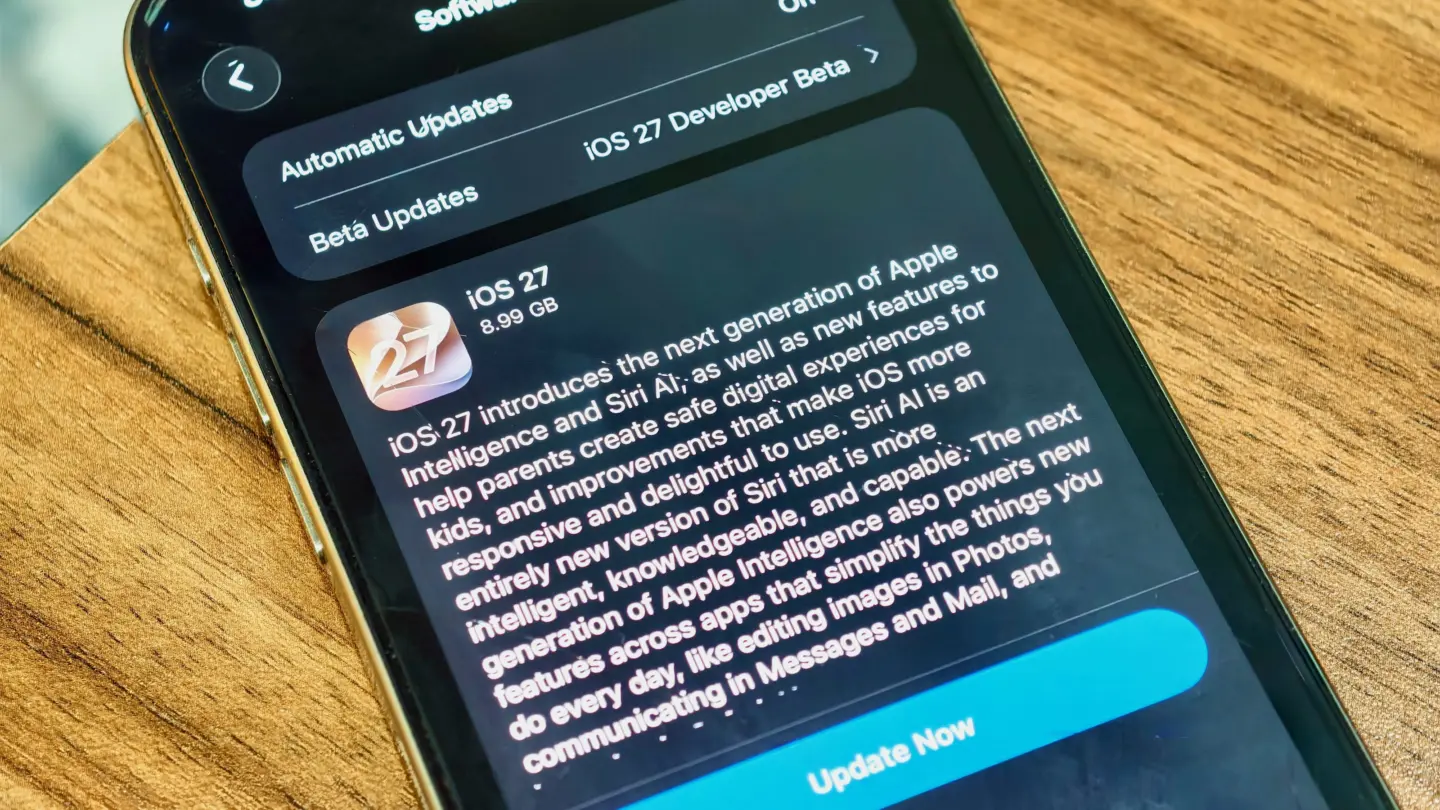
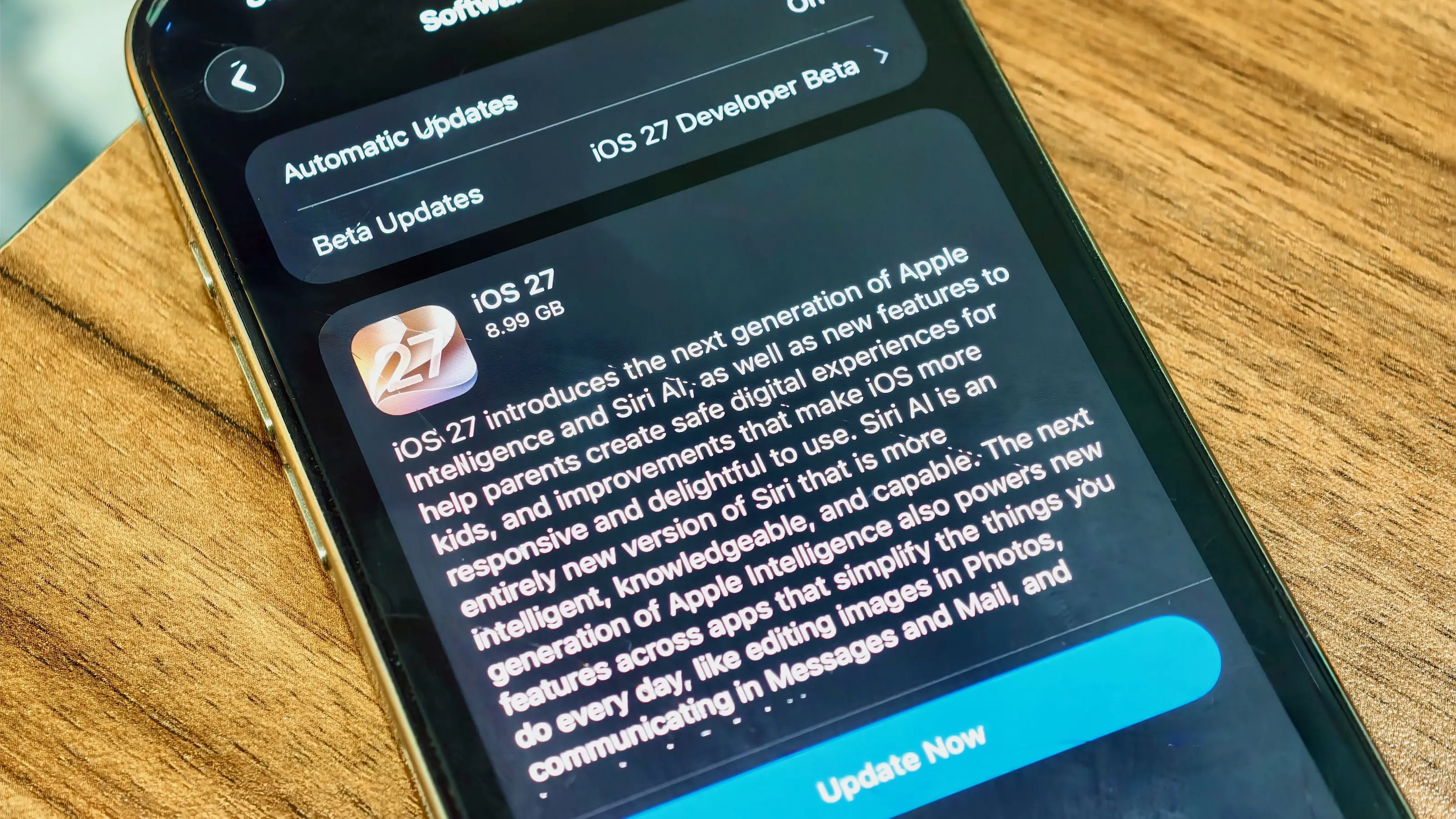
Apple software updates for 2026 are now reaching supported devices, bringing iOS 27, iPadOS 27, macOS 27, watchOS 27, visionOS 27, and tvOS 27 out of preview and into everyday use. The releases place Siri AI and the next generation of Apple Intelligence at the center, but many of the changes extend well beyond generative AI.
The updates began rolling out September 14. Alongside new intelligence features, Apple has made measurable performance changes to iPhone and iPad, overhauled several parental controls, refined the Liquid Glass interface introduced across its platforms, improved search, and added smaller changes to services including iCloud Shared Albums, Maps, AirPods, and Health.
Siri AI is initially rolling out as a beta in English. Apple says French, Japanese, Korean, Portuguese, and Spanish support is scheduled for October, making some of the headline functionality a staggered release rather than something every user receives immediately after installing the new operating systems.
Apple software updates make Siri AI a cross-device feature
Siri AI is built around personal context, onscreen awareness, expanded app actions, and access to current information from the web. The assistant can draw on material stored in areas such as Messages, Mail, and Photos when responding to requests, while Visual Intelligence allows users to ask about content currently displayed on their screen.
On iPhone, Siri mode is integrated directly into the Camera app. A user can point the camera at something and ask questions or perform supported actions based on what appears in front of them.
The assistant also gains a dedicated Siri app that synchronizes conversation history privately through iCloud. A conversation started on an iPhone can therefore be continued on an iPad, Mac, Apple Watch, or Apple Vision Pro.
Write with Siri expands the assistant into text creation and editing. Users can describe the material they need drafted or ask Siri to refine existing writing without moving to a separate application.
Apple Intelligence is also adding more specialized features outside Siri. Photos receives Spatial Reframing, Extend, and an updated Clean Up tool. Image Playground can generate images in a wider selection of styles, including photorealistic output, with metadata designed to identify AI-created material and planned support for the SynthID standard.
Safari can automatically organize tabs by topic and monitor webpages for changes, such as a product returning to stock or a price dropping. Apple is also introducing tools that can create custom extensions from a description.
Image Credit: Apple Inc.
iOS 27 and iPadOS 27 put more emphasis on speed
Some of the less visible changes could be among the most frequently experienced.
Apple says apps can launch up to 30% faster on iPhone and iPad after installing the new software. Photos can load an image up to 70% faster immediately after it is taken, while AirDrop transfers can be up to 80% faster.
iPadOS 27 receives additional work around file handling and multitasking. Apple says browsing files and transferring them to an external USB drive can be as much as five times faster, accompanied by smoother window closing, switching, and dragging.
Connectivity behavior has also been adjusted. Transitions between cellular connections and Wi-Fi are designed to happen more seamlessly, while Messages no longer needs to hold subsequent texts behind a large photo or video being uploaded over a slow connection.
Search across Spotlight, Photos, and Mail has been revised on iPhone, iPad, and Mac. Mail gains a new ranking system for Top Hits, while Apple describes search across the three platforms as more stable and comprehensive.
Liquid Glass has received another round of refinements after becoming the common visual language across Apple’s software. A new Settings slider allows users to adjust the interface from an ultraclear appearance toward a more heavily tinted version, and app icons have been sharpened.
Screen Time and child safety controls get a substantial redesign
Apple has also expanded the controls available to families rather than limiting this software cycle to interface and AI work.
The setup process for child accounts now allows parents to specify which apps a child can access from the beginning, with additional apps added later if appropriate. Ask to Browse extends approval controls to Safari, letting parents require permission before a child opens a new website.
Communication Safety has been expanded beyond sexually explicit material to detect and intervene when gore or violent content appears in shared images and videos.
Screen Time presents average device usage and frequently used apps more prominently. Parents can establish daily time allowances across categories such as Entertainment, Games, and Social Media, while Schedules can change which apps remain available at different points during a weekday or weekend.
These changes are particularly notable because they work at the account and platform level rather than requiring parents to configure separate controls inside every individual app.
Image Credit: Apple Inc.
watchOS 27, visionOS 27, and tvOS 27 add targeted upgrades
The smaller platforms receive their own additions rather than simply inheriting features from iPhone and Mac.
watchOS 27 introduces a dedicated Siri app, a dynamic app grid, expanded Smart Stack suggestions, and a new single-handed tap gesture for opening widgets. Workout Buddy can now operate without the paired iPhone nearby, while Cycle Tracking in Health adds support related to perimenopause and menopause.
visionOS 27 brings Siri AI and Visual Intelligence into Apple Vision Pro, where the assistant can respond to objects a user is physically looking at. Panoramas can be converted into spatial scenes and used as personal Environments, while Mac users can bring compatible 3D models into their physical space to preview and edit them.
Apple says Vision Pro can now start up and connect to Wi-Fi up to three times faster. New curved windows, Control Center changes, eye-controlled notification expansion, and improvements to Dwell Control further adjust the spatial interface.
tvOS 27 takes a narrower approach. Apple Music gains high-resolution lossless audio support, Apple Podcasts has been redesigned, and additional text-size accessibility options have been introduced. Apple TV 4K owners can install the release on supported second- and third-generation models.
Other changes stretch across device categories. iCloud Shared Albums can now retain full-resolution photos and videos while making participation easier from Android and Windows devices. AirPods gain custom EQ settings, Maps expands Flyover with AI-assisted aerial detail, and Missed-message notifications and unread counts now synchronize more quickly and reliably across Apple devices.
With the September 14 releases now public, the software cycle shifts from preview demonstrations to staggered feature delivery. Siri AI language expansion begins in October, while some Apple Intelligence capabilities and individual app features will continue arriving through later updates rather than being tied exclusively to the initial 27.0 releases.
Available today, Apple’s latest software updates introduce Siri AI and deliver helpful new Apple Intelligence features that make the apps users interact with every day smarter and more useful.
Apple’s latest software updates introduce Siri AI, a more intelligent, knowledgeable, and capable version of Siri, and deliver helpful new Apple Intelligence features that make the apps users interact with day to day smarter and more useful. The updates also bring powerful and intuitive new features to help parents create safer, more enriching digital experiences for kids and introduce an expansive set of improvements that make Apple products more responsive, more delightful, and easier to use.
Making Apple Products More Personal and Useful Than Ever
Siri AI is an entirely new version of Siri powered by the next generation of Apple Intelligence and deeply integrated into iPhone, iPad, Mac, Apple Watch, and Apple Vision Pro. A more capable and conversational assistant with personal context understanding, broad world knowledge, onscreen awareness, and even more systemwide app actions, Siri AI is now rolling out as a beta in English, with support for French, Japanese, Korean, Portuguese, and Spanish coming in October.
Siri AI can understand personal context across messages, emails, photos, and more, to help users find what they need in the moment. It can also answer questions related to the content on a user’s screen or go out to the web to get up-to-date information to generate a helpful answer. Siri is integrated into the Camera app on iPhone with Siri mode, allowing users to get information and take action on what’s in front of them, like splitting a bill and paying friends with Apple Cash, or adding a custom pass to Wallet. With Visual Intelligence, users on iPhone, iPad, or Mac can now ask Siri about what they’re looking at on the screen, and Vision Pro users can search, ask questions, and take action simply by looking at their surroundings and asking Siri.
With Write with Siri, users can simply describe what they need to generate a draft or help refine what they’ve written. A dedicated Siri app uses iCloud to privately sync conversational history across a user’s products, so they can start chatting with Siri on iPhone and continue the conversation on Mac, iPad, Apple Watch, or Apple Vision Pro.
The next generation of Apple Intelligence also brings helpful new features to apps that users rely on every day. In Photos, Spatial Reframing, Extend, and an upgraded Clean Up tool provide more ways to edit photos while respecting the original moment as it was captured. Image Playground gives users the ability to create high-quality images in virtually any style, including photorealistic, and with image metadata and upcoming support for the SynthID standard, users can identify images generated or edited with AI. In Safari, Apple Intelligence powers new tools that automatically organize a user’s tabs into topics; notify them of website changes, like product restocks or price drops; and enable the creation of custom extensions based on a description. Call Context surfaces relevant information, like a confirmation code or reservation number, when calling a business.
New Expert-Informed Child Safety Features and a Redesigned Screen Time Experience
Easy-to-use new features help parents manage what their kids can see, who they can talk to, and when they have access to apps. A new setup flow for child accounts makes it easier to enable age-based safeguards across the system. From the beginning, parents can choose the exact apps their kids have access to on their device, and gradually add more over time. Ask to Browse allows parents to require approval before their kids access a new website in Safari. In addition to being able to approve each new contact their kids connect with, parents can lean on Communication Safety, which now also detects and intervenes to block gore or violent content when detected in shared images or videos.
Redesigned to be more intuitive for parents, Screen Time offers an at-a-glance view of their kids’ average device usage and top apps. New tools make it easy to set daily total time allowances across Entertainment, Games, and Social Media apps, with guidance from leading clinical and child development experts, and Schedules let parents manage which apps their children have access to at different points in the day.
For parents and families looking for more information on how to help create safer, more enriching digital experiences for their kids, Apple has a dedicated website, which includes details on the latest tools and how to get started using them.
A More Refined Experience Across Platforms
The 2027 software releases deliver platform improvements that span performance, connectivity, search, and more, making Apple products even more responsive, reliable, and delightful to use.
• Performance: Users will experience faster performance on iPhone, iPad, and Mac. On iPhone and iPad, apps launch up to 30 percent faster, photos load up to 70 percent faster after being taken, and AirDrop transfers are up to 80 percent faster. On iPad, browsing files and transferring them to an external USB drive is now up to 5x faster, and there are additional improvements to closing, switching, and dragging windows while multitasking. On Mac, things users do every day feel extra snappy and responsive. AirDrop transfers are quicker, iCloud Photos uploads begin faster, swiping between spaces and Mission Control is smoother, and more. On Apple Watch, music playback is even faster.
• Connectivity: On iPhone and iPad, transitions between cellular and Wi-Fi networks are more seamless than ever. In Messages, sending large photos and videos in low-bandwidth situations no longer prevents subsequent texts from going through, so users can continue replying while media is being delivered. On Mac, users will experience faster network file browsing. Apple Vision Pro starts and connects to Wi-Fi up to 3x faster.
• Search: On iPhone, iPad, and Mac, search across Spotlight, Photos, and Mail is more stable, efficient, and comprehensive, so it can better help users find exactly what they are looking for. Additionally, a completely new ranking system in Mail surfaces even more relevant results in Top Hits.
• Design: Refinements to the software design with Liquid Glass deliver an even more focused and approachable experience. For example, a new slider in Settings gives users the option to personalize Liquid Glass, adjusting it anywhere from ultraclear to fully tinted to match their preference, and app icons have been updated to be sharper and more defined.
Additional features across platforms:
• iCloud Shared Albums support full-resolution sharing for photos and videos, and make it easier for Android and Windows users to join and contribute.
• The Health app brings support for perimenopause and menopause in Cycle Tracking, including notifications about cycle deviations inclusive of perimenopause.
• AirPods users can now enjoy custom EQ to further personalize how their AirPods sound. And with expanded Apple GymKit functionality, users with AirPods Pro 3 can sync their heart rate data through iPhone while enjoying incredible audio quality.
• Apple Maps brings an enhanced Flyover experience, which combines aerial imagery with AI, allowing users to enjoy even more detailed visuals.
• On Apple Watch, new Smart Stack widget suggestions surface when they are relevant, and users can conveniently open a widget with a new single-handed tap gesture. Workout Buddy is supported even when users don’t have their iPhone nearby, and it’s now available in Spanish in addition to English.
• Apple Vision Pro users can now turn panoramas into spatial scenes with rich depth and use them as a personal Environment, or transform their space entirely with the new Thórsmörk Environment featuring a dynamic Icelandic aurora.
• On Apple TV, users get high-resolution lossless audio support for Apple Music, a redesigned Apple Podcasts app, and broader text-size accessibility options.
The new features start rolling out today across iOS 27, iPadOS 27, macOS 27, watchOS 27, visionOS 27, and tvOS 27.
Availability
Features are subject to change. Some features may not be available in all languages or regions, and availability may vary due to local laws and regulations. For more information about availability, visit apple.com.
New Apple Intelligence capabilities across apps are available for users with supported products set to a supported language. Siri AI begins rolling out as a beta in English, with French, Japanese, Korean, Portuguese, and Spanish coming in October.
Mac and Apple Vision Pro users in the EU will be able to access Siri AI when set to a supported language. Siri AI will not be available initially in the EU in iOS, iPadOS, and watchOS.
Siri AI and the other new Apple Intelligence features will not be available in China while Apple works through regulatory requirements.
Users who enable Apple Intelligence on supported products set to a supported language will have access with iOS 27, iPadOS 27, macOS 27, watchOS 27, and visionOS 27.
Apple Intelligence is available with support for these languages: English, Danish, Dutch, French, German, Italian, Norwegian, Portuguese, Spanish, Swedish, Turkish, Vietnamese, Chinese (simplified), Chinese (traditional), Japanese, and Korean. Some features may not be available in all regions or languages. For feature and language availability and system requirements, see apple.com/apple-intelligence.
Apple Intelligence and Siri AI in iOS 27, iPadOS 27, macOS 27, watchOS 27, and visionOS 27 are available on iPhone Duo, iPhone Air, iPhone 16 models or later, iPhone 15 Pro, iPhone 15 Pro Max, iPad mini (A17 Pro), iPad models with M1 or later, MacBook Neo (A18 Pro), Mac with M1 or later, Apple Vision Pro, Apple Watch Series 9 or later, Apple Watch Ultra 2 or later, and Apple Watch SE 3 when paired with an Apple Intelligence-enabled iPhone. Some features on Apple Watch require iPhone nearby.
Certain Apple Intelligence features that rely on server-side models are subject to daily usage limits, including but not limited to Siri AI, intelligent photo editing tools, Image Playground, and AFM 3 Cloud models in Shortcuts. Daily limits may vary by feature, request complexity, system demand, system policies, and other factors. Expanded access to such features will be available for a fee in the future. Use of these features is subject to Apple Intelligence terms and conditions. Learn more at apple.com/apple-intelligence. Siri AI is not available for users under 13.
MacDailyNews Take: Hello, Siri AI! Happy updating!
Please help support MacDailyNews — and enjoy subscriber-only articles, comments, chat, and more — by subscribing to our Substack: macdailynews.substack.com. Thank you!
As previously announced, Apple has today released 2026's major annual updates for its operating systems, including iOS 27, macOS 27 Golden Gate, watchOS 27, visionOS 27, and tvOS 27.
Siri AI—a large language model-based and context-aware overhaul of the company's Siri voice and text assistant—is the flagship feature across all these releases except one (tvOS).
MacOS 27 Golden Gate has been released by Apple and is now available to download and update for the general public. MacOS 27 went through several months of beta testing, and the finalized version can be installed on any compatible Mac. MacOS 27 Golden Gate includes performance improvements for MacOS itself including improved system responsiveness ... Read More
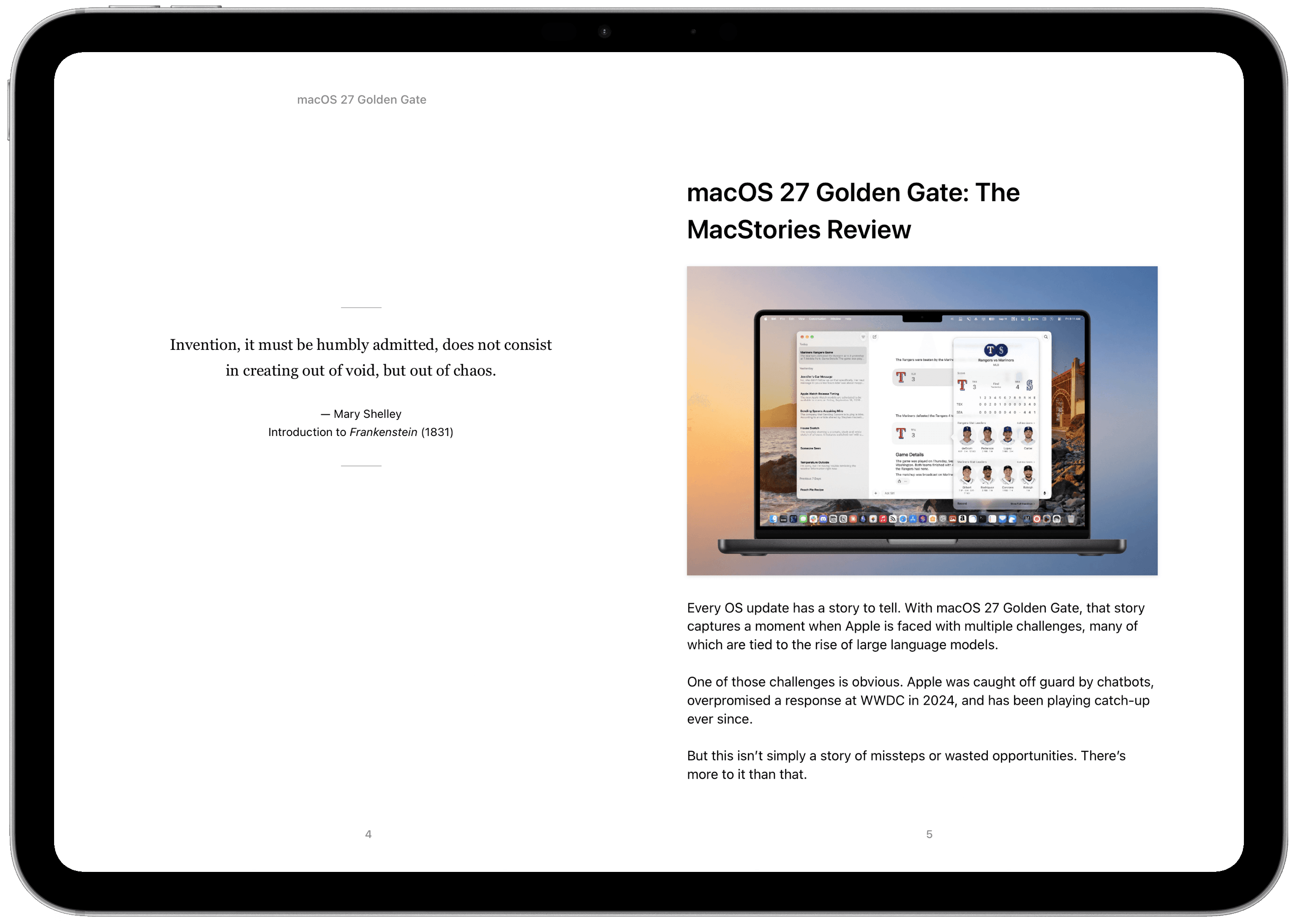
Every OS update has a story to tell. With macOS 27 Golden Gate, that story captures a moment when Apple is faced with multiple challenges, many of which are tied to the rise of large language models.
One of those challenges is obvious. Apple was caught off guard by chatbots, overpromised a response at WWDC in 2024, and has been playing catch-up ever since.
But this isn’t simply a story of missteps or wasted opportunities. There’s more to it than that.
macOS’ UNIX roots make it a great fit for AI development, too. From working with Python to coding with agents in Terminal, the Mac offers a familiar command-line environment for developers working with AI.
Claude Code at work on a Mac app.
Apple’s strength in these areas represents a huge opportunity for it and the Mac in the AI era. However, it’s that very industry that’s also fueling the challenges Apple faces.
Developers in the AI industry and power users setting up OpenClaw servers may have juiced demand for MacBook Pros and Mac minis, but data centers have made it hard for Apple to meet the demand for Macs and hold prices steady. Wait times for some Macs stretched into weeks and months this summer, and prices have risen. Still, Apple has continued to barrel ahead with new models, most recently updating the Mac Studio and Mac mini.
The AI industry has also been a drain on Apple’s talent pool, attracting hundreds of employees from across the company. Those departures are the backdrop to Apple’s high-profile trade secrets lawsuit against OpenAI, which involves former employees now working on AI-focused hardware. The result is a messy, turbulent era for Apple and the entire tech industry.
Against that unsettled backdrop, macOS 27 Golden Gate has a job to do. It needs to finish the transitions Apple has already begun by:
cleaning up loose ends from the transition to Apple silicon,
making good on Apple Intelligence promises of 2024, and
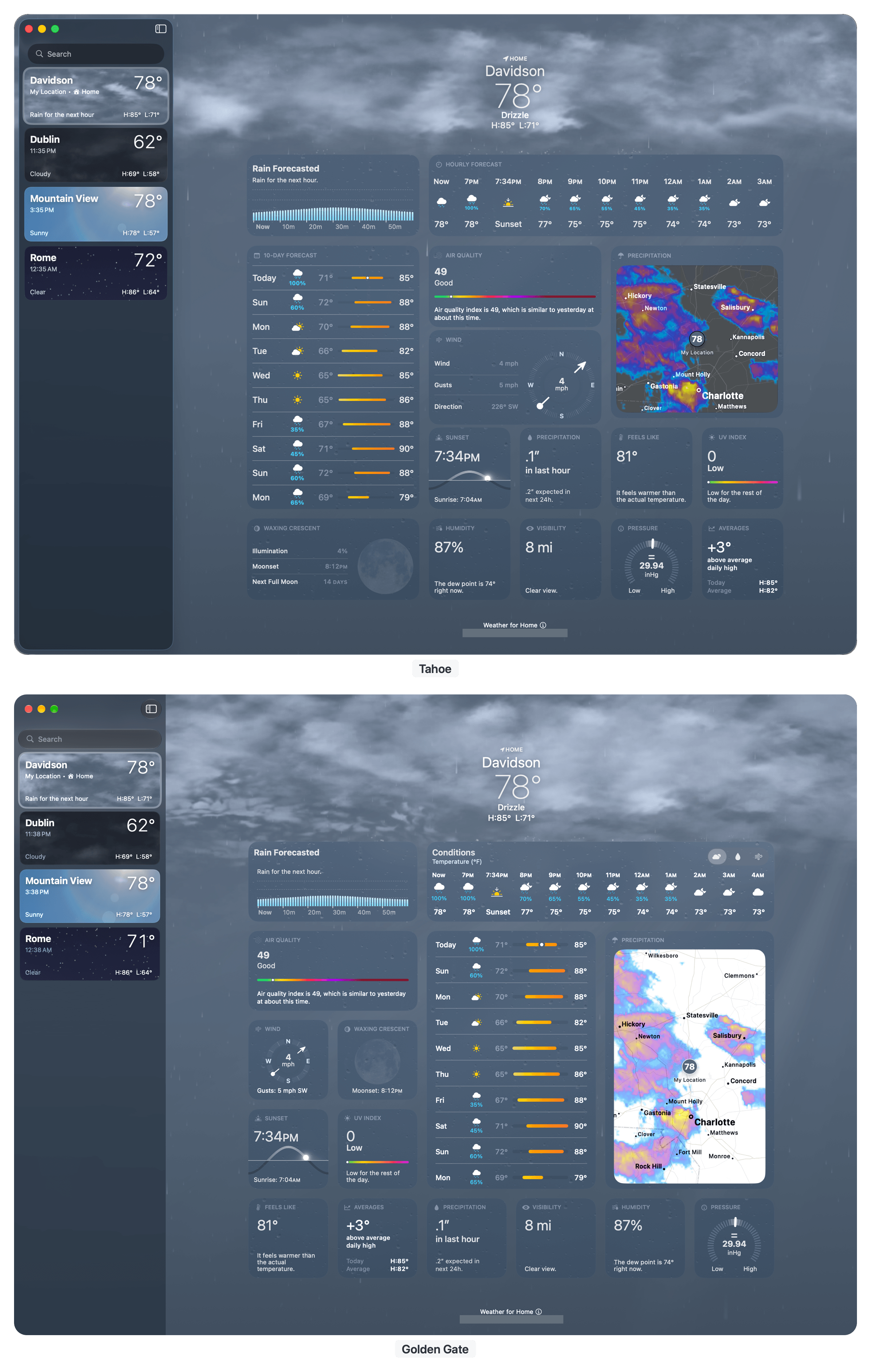
tightening up the Liquid Glass design refresh that began with macOS Tahoe.
There are many other changes to system apps and other parts of macOS that I’ll explore in this review, too. But these three pillars invite us to evaluate how well Golden Gate builds on Apple silicon’s already solid foundation, delivers on Apple’s 2024 AI promises, and improves the everyday experience of using a Mac.
Of the three transitions that shape macOS 27, the Liquid Glass design language is the most recent. Announced at WWDC in 2025, the change drew strong reactions from early users and beta testers. Despite continued criticism in some quarters and vows not to upgrade until Tahoe’s design was “fixed,” I like Liquid Glass, as do most people I’ve talked to about it in my day-to-day life.
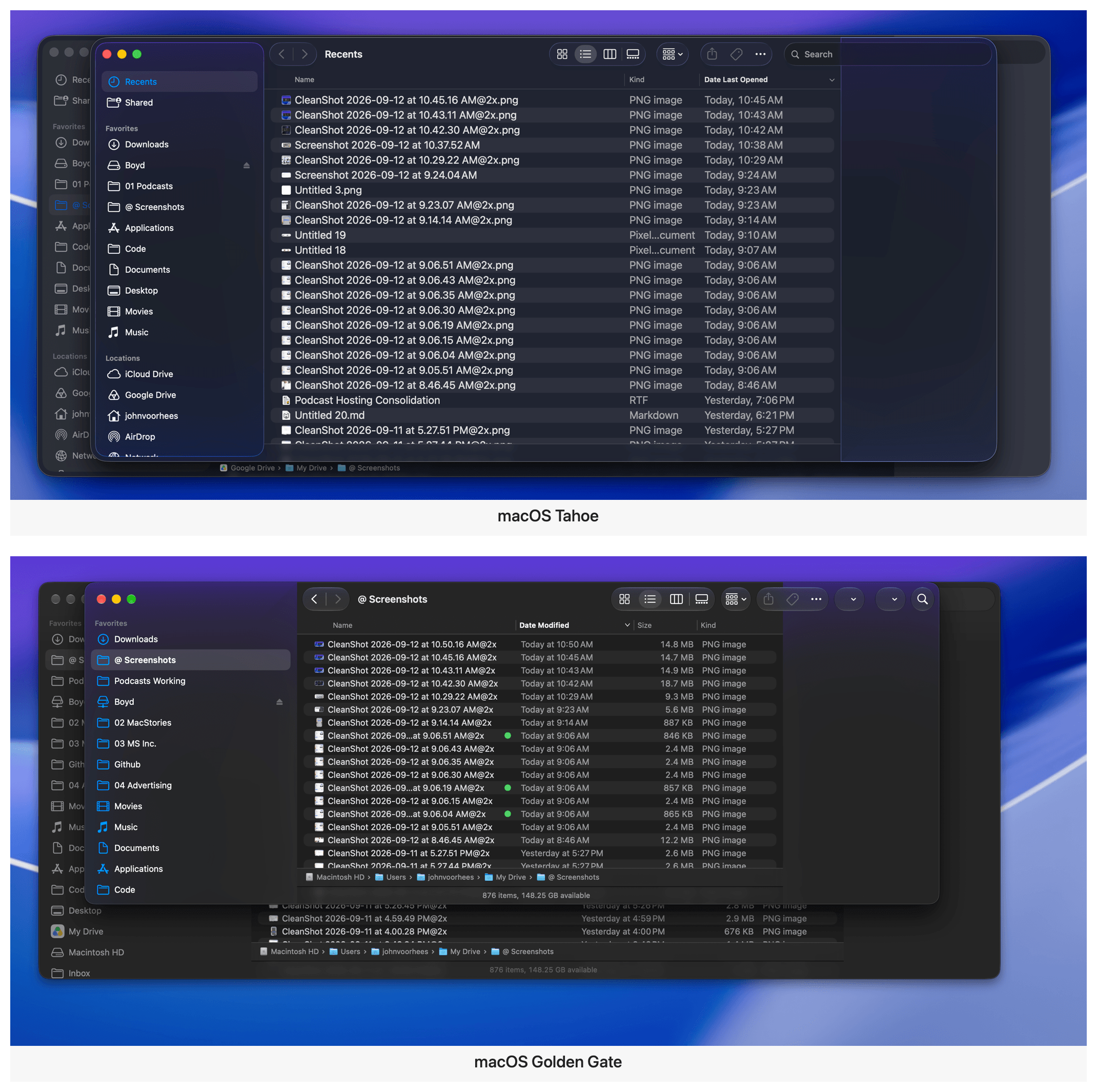
However, liking Liquid Glass is not the same as feeling that Apple nailed it with Tahoe. It didn’t. Tahoe’s design felt incomplete. It was as though there had been an all-hands meeting of Apple’s software designers who were given a detailed briefing on how to implement Liquid Glass but then they never talked again. Some apps took an aggressive Liquid Glass approach similar to iOS 26, while other apps felt like they’d barely been touched. In fact, there were even inconsistencies between how Liquid Glass was applied to different view modes in Finder.
Golden Gate addresses those issues with a more cohesive, readable experience. It also gives users control over transparency, addressing one of the core criticisms of Liquid Glass.
Icons
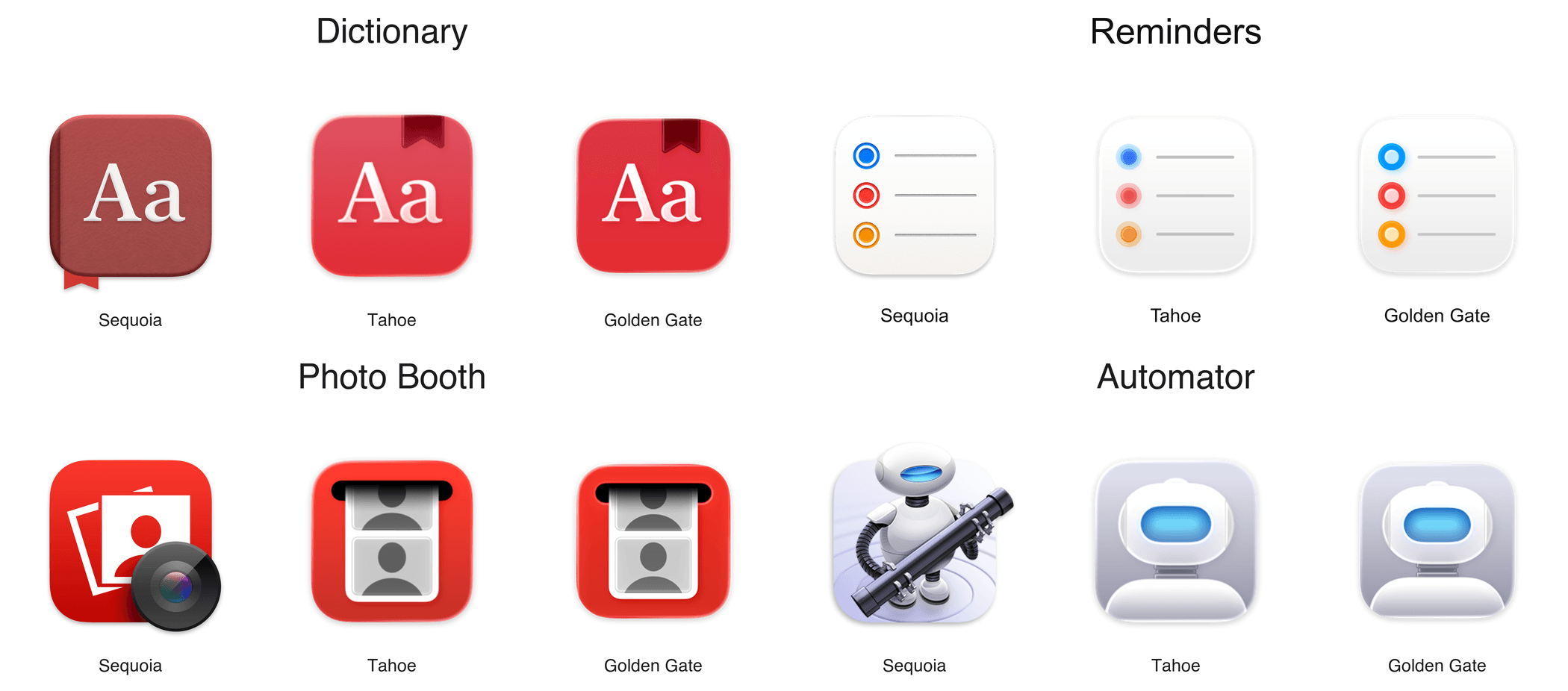
One of the most subtle changes to Liquid Glass is the way it diffuses light. The best place to inspect the difference is by looking at the icons side by side. The edges are darker, and the highlights are brighter, adding a greater sense of depth, while avoiding the softness and blurriness of Tahoe icons. The result is that UI elements are sharper and more readable, which is an accessibility and usability win.
Liquid Glass’ light diffusion update isn’t limited to icons, but because it’s one of the best ways to visualize the change, I’ve collected a few examples that show the change off especially well.
Examples of the evolution of Mac system app icons from Sequoia through two Liquid Glass iterations.
I like the refinement to Apple’s system app icons. What once made my screen look unnaturally soft and mushy is now crisp.
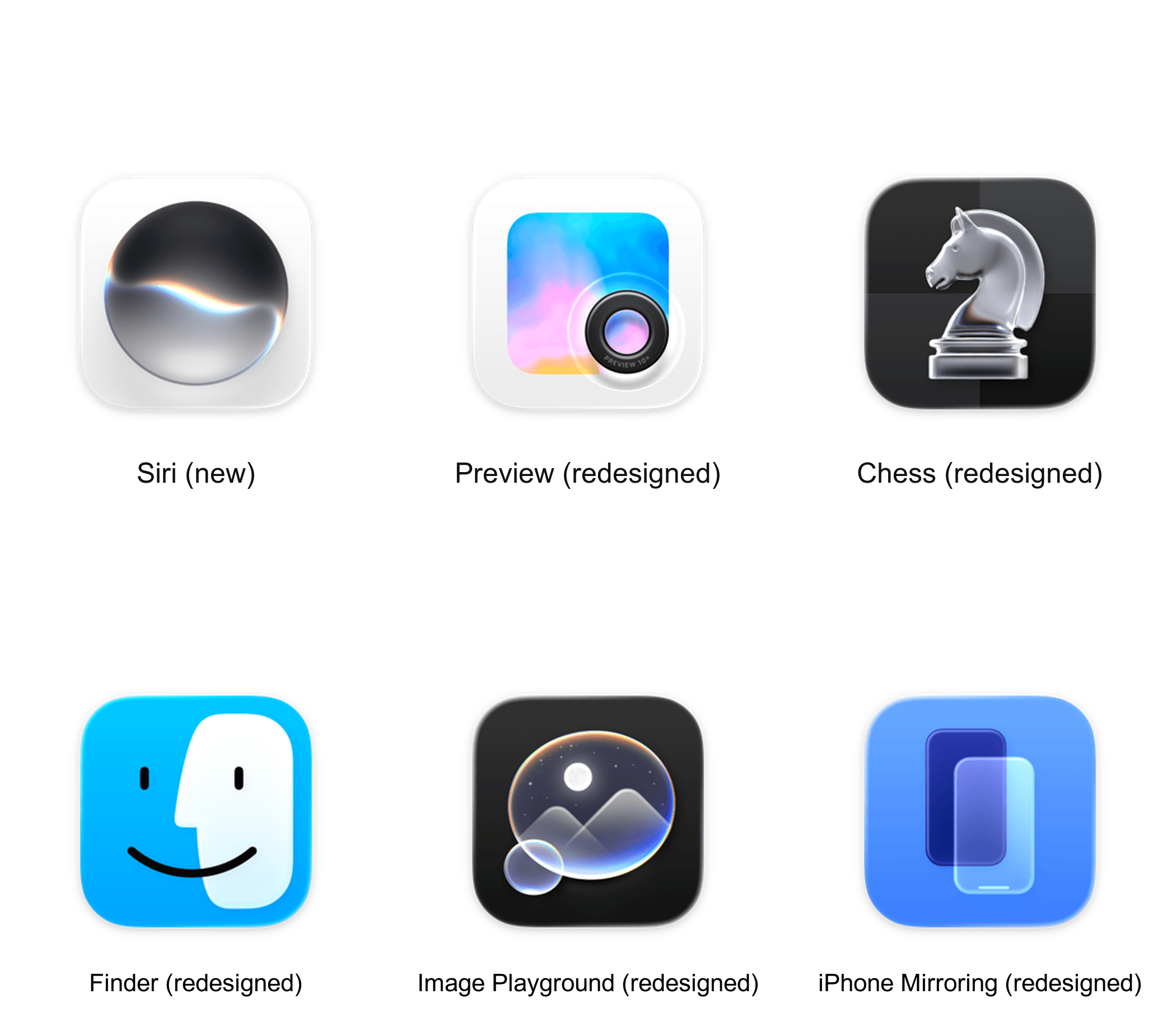
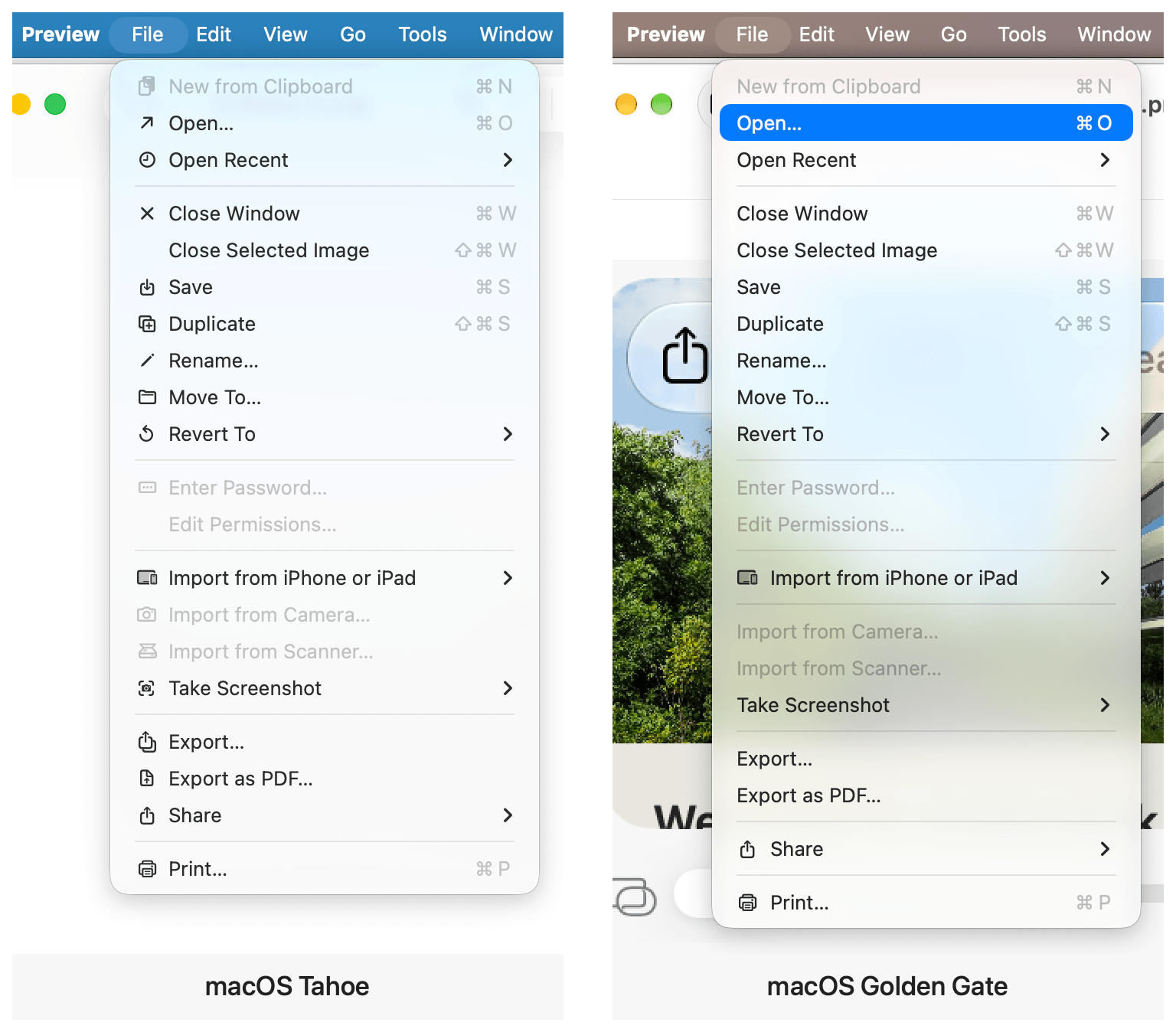
Alongside these changes, many icons have received small tweaks, such as Finder’s rounder nose. There’s also one wholly new icon and several material redesigns.
The new Siri icon alongside redesigned icons for Preview, Chess, Finder, Image Playground, and iPhone Mirroring.
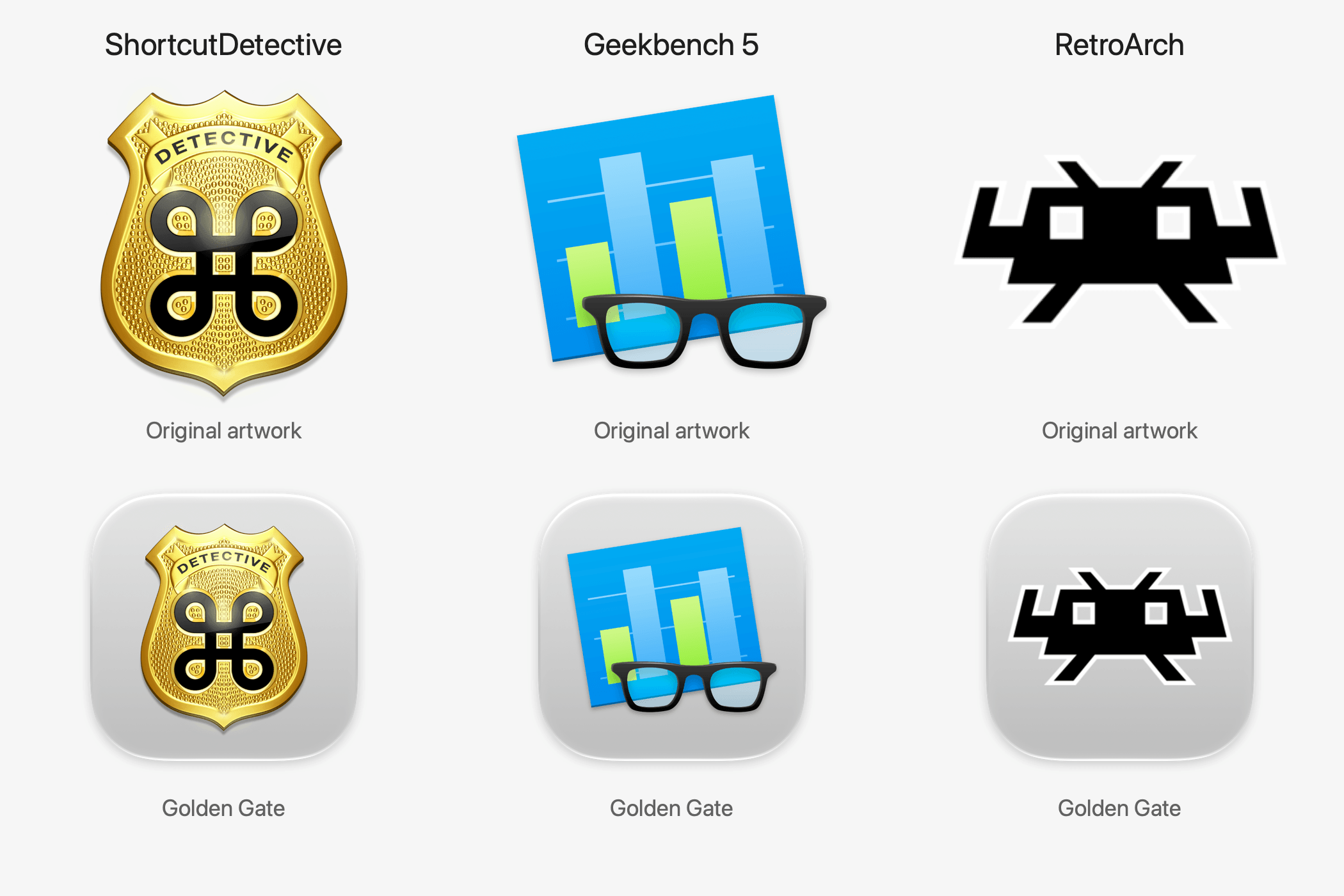
What Golden Gate does not resolve is the so-called “Squircle Jail” controversy introduced by macOS 26. Starting with Tahoe, Apple mandated that all icon glyphs appear within the bounds of their background tile. Icons that violate the new restriction usually end up shrunken inside a generic “squircle jail” tile, which doesn’t look good.
Examples of “squircle jail.”
During the macOS 27 beta period, Paul Kafasis and John Gruber called for Apple to eliminate its icon rule, while Tyler Hall demonstrated a workaround. Nevertheless, “squircle jail” endures.
I can see both sides of this debate. On the one hand, as Kafasis argues, the uniform shapes Apple has imposed make it harder for people with color vision deficiencies to distinguish one icon from another. Former Apple designer Roger Wong takes a different tack, arguing, based on older Mac icons, that gaps in irregularly shaped icons can cause users to miss their click targets. Both arguments go to icon functionality and both have their merits.
On balance, I’m fine with the direction Apple has taken its icons. They mirror the design of icons on the iPhone and iPad, and there’s value in consistency for users who don’t think as deeply about icons as some Apple nerds. We’ve been trained through habit to expect that a squircle is an app. I also think Wong’s argument takes on even greater significance if the rumors that Apple is working on a touchscreen Mac are true.
Golden Gate takes a more restrained approach to icons in menus.
Finally, the proliferation of SF Symbols in app menus has been reversed, too. You’ll see fewer in system apps, and Apple’s Human Interface Guidelines have been revised to advise third-party developers to use the icons “sparingly and with purpose.” Also appearing in the menu bar is a new Ethernet icon that replaces the Wi-Fi icon when your Mac is wired to a network.
Transparency and Toolbars
Alright, enough about icons. It’s time to think about transparency. Apple’s designers have significantly improved the readability of Liquid Glass elements throughout the system and given users a tool to tweak transparency to suit their own tastes.
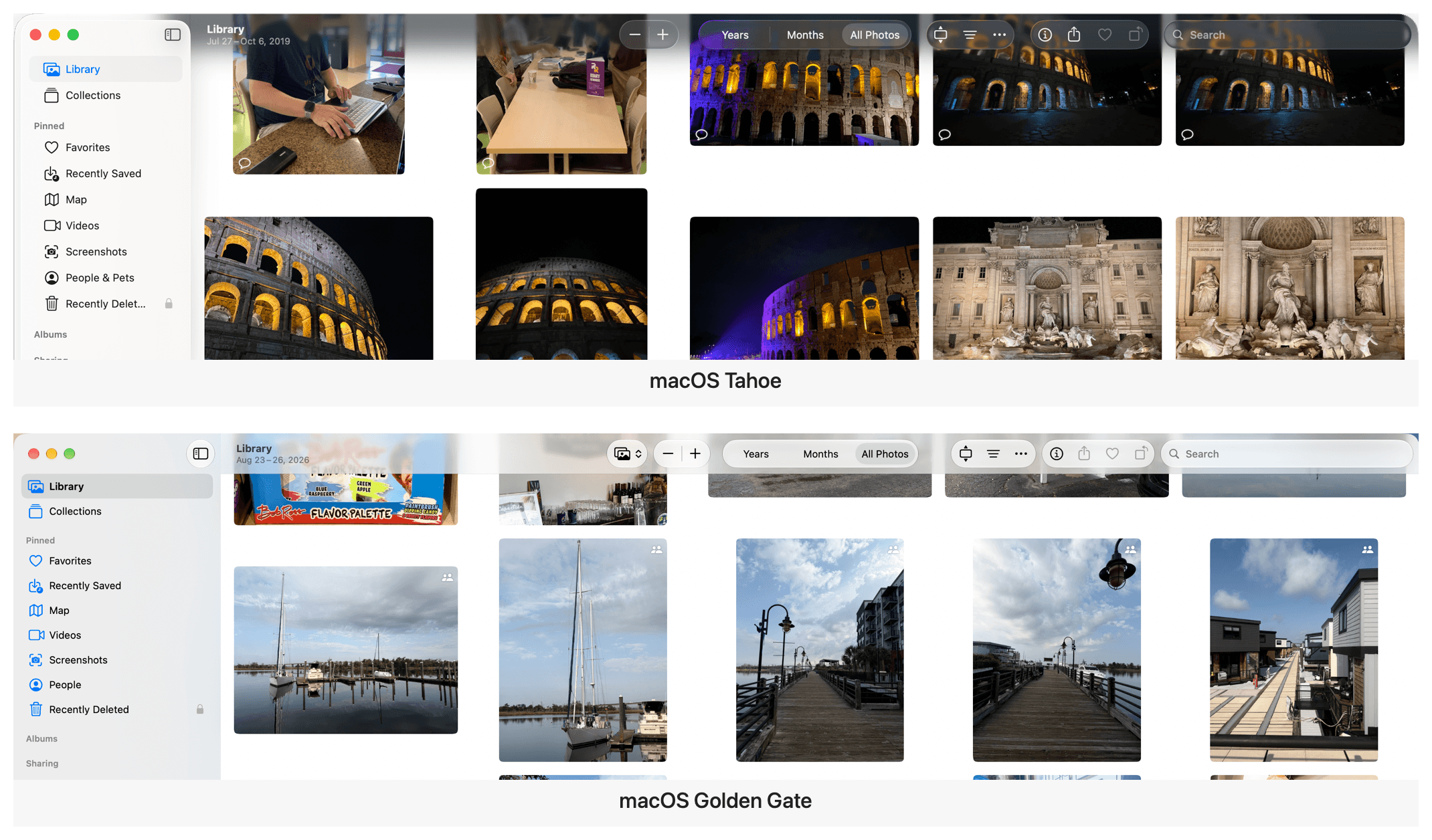
I don’t envy Apple’s designers who have to design a UI that works with any app whether it exists today or someday in the future. The first iteration of Liquid Glass worked well with some apps, but fell down in spots, such as when the background of an app was busy and unpredictable. Music with its colorful album art and Photos with its views of photos of literally anything someone might take a picture of are both great examples. As you scrolled through music or photos, both apps’ toolbars often seemed to disappear or become unreadable as colors passed beneath the toolbars. Text-heavy apps like Finder presented a similar problem, sometimes causing the text of scrolling lists of files and icons to compete with the toolbar’s content.
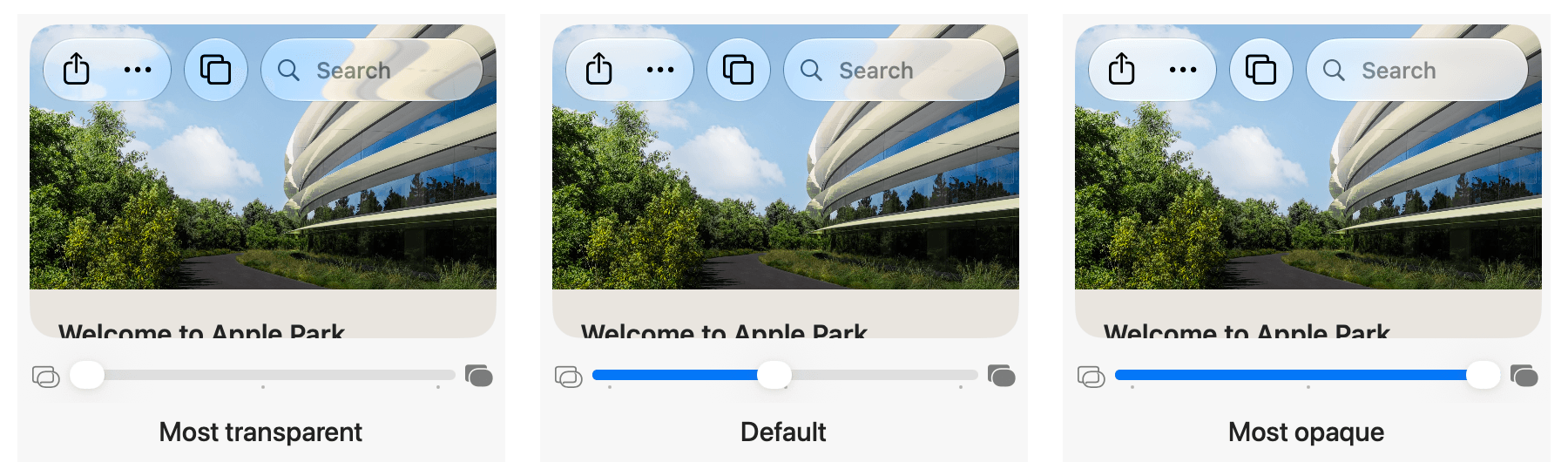
Appearance settings now include a transparency slider and a preview of its effect.
macOS Golden Gate solves this with toolbars that diffuse the content beneath them better at the OS’s default setting. That default is squarely at the midpoint of a slider found near the top of the Appearance section of System Settings. Move the slider’s indicator to the left and more of the background will bleed through toolbars, and move it to the right and the background frosts over to a nearly solid color. The setting is accompanied by a handy preview that shows the effect that each point along the spectrum has.
A great example of the change is Photos, which has regained a toolbar structure that separates buttons from the content scrolling behind them. It’s a welcome change to an app that struggled with a more transparent Liquid Glass approach.
Photos’ updated toolbar gives its controls a clearer separation from the images that scroll underneath it.
Apple’s solution is a good one. It would have been simple enough to give users a slider and be done with the transparency controversy, but instead its designers took the time to improve the default, too. The new default strikes a good balance between transparency and opacity that I expect most users will never feel the need to change. In contrast, I’ve always liked Liquid Glass’ transparency, so I set it all the way to the left where things are most transparent and never looked back.
Interestingly, I did the same thing on the iPhone and eventually dialed the Liquid Glass back a little. It may be the smaller screen or the fact that I use my iPhone in the bright North Carolina sun so often, but on the Mac, full transparency looks less extreme to me.
Toolbars also benefit from a more unified treatment. With Golden Gate, a continuous bar appears beneath controls automatically when content scrolls under them.
Sidebars, Corner Radii, and Drop Shadows
macOS Tahoe turned sidebars into glass-like slabs that sat on top of a window. I liked the layered look, but many others didn’t. Plus, when one window was obscured by others, it was too hard to tell if what you saw poking out was two windows sitting on top of each other and slightly offset or a sidebar.
Sidebars extend to the edges of windows, and deeper shadows make overlapping windows easier to pick out.
The fix is to extend sidebars to the top, bottom, and side to which they’re anchored. The sidebars retain their glassy look and icons have regained their color, but the layering effect is gone. I can’t help but feel like something was lost in the update, but from a practical standpoint, it’s a usability win.
Golden Gate also brings more consistent corner radii to system windows. I honestly never noticed the difference between window corners, but it bothered some users who will no longer be bothered, which is a plus.
Finally, there was something about Liquid Glass that could make it hard to distinguish one window from another. I experienced this with Tahoe myself, especially in Dark Mode. macOS Golden Gate has more pronounced drop shadows, which become the new normal very quickly, but do a better job of defining the separation between windows.
Wallpapers
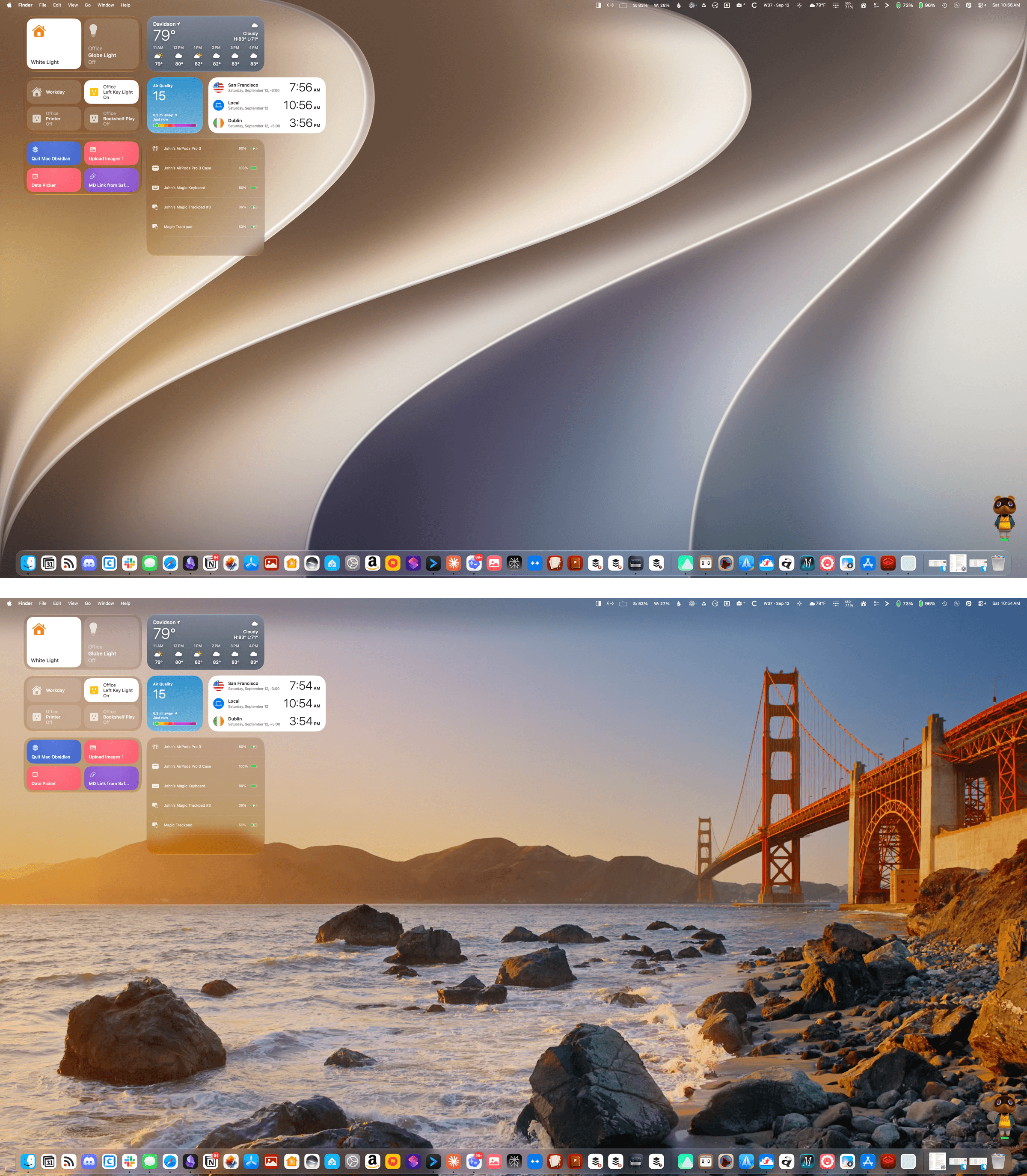
Golden Gate’s abstract curves (top) and the Golden Gate Sunset wallpapers (bottom).
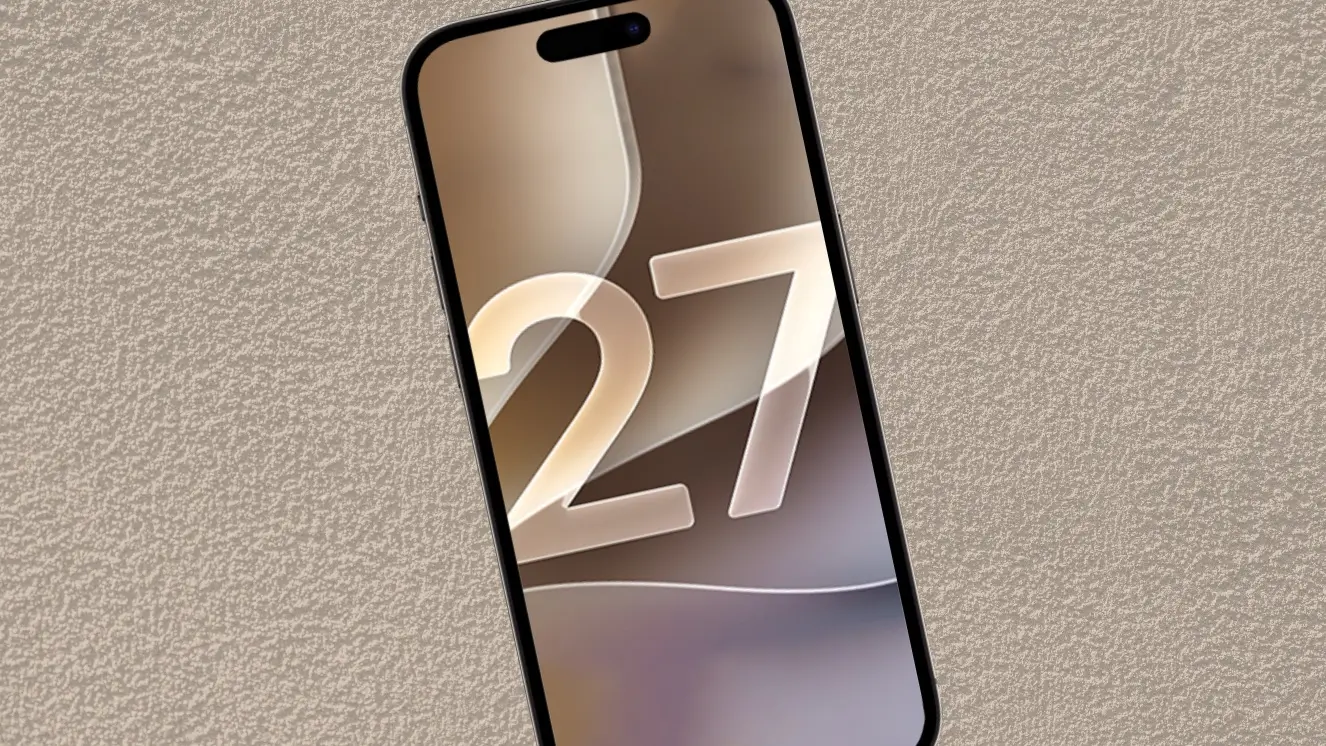
As always, this year’s macOS update comes with a beautiful set of wallpapers including Golden Gate, a dynamic golden wallpaper with sweeping curves that vaguely resemble the number “27,” and Golden Gate Sunset, a shot of the Golden Gate Bridge with an animated screen saver that’s mesmerizing to watch.
We’re living through a menu bar app explosion thanks to AI coding agents, making it harder than ever to manage your menu bar. That’s especially true on Mac laptops with a notch. It really doesn’t take much to fill up the available space and end up with icons hidden by the notch or the tail end of an app’s menus.
There are third-party apps like Ice that will manage your menu bar for you, but new macOS releases can break them. That’s why on my MacBook Pro, I’ve historically aggressively managed my menu bar instead. But even then, it can be hard to avoid hitting the notch.
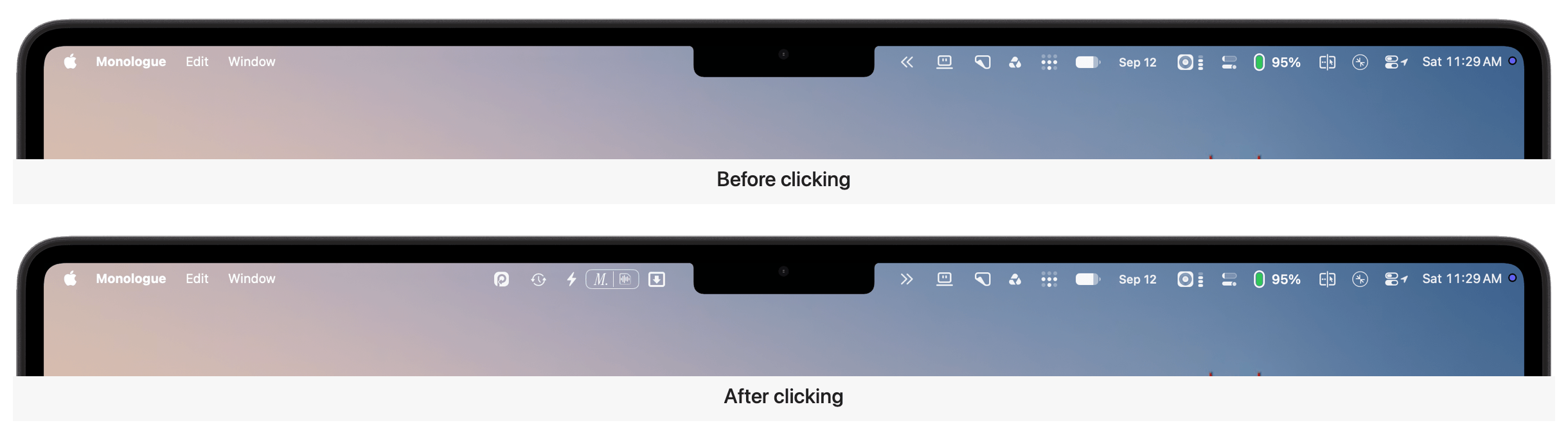
The double-arrow icon reveals menu bar icons hidden by the notch or an app’s menu system.
With macOS Golden Gate, Apple has added an overflow control in the form of a double arrow that appears when the notch or menu system is covering menu bar items. Click it and the hidden menu bar items appear to the left of the notch temporarily, so you can interact with them. This is especially helpful if you use all of the available space up to the notch and a new app installs a menu bar item that you want to move where you can see it, but it’s been hidden.
I like what Apple has done with Liquid Glass in Golden Gate a lot. My main reservations last year were the inconsistent implementation and poor legibility in apps like Photos and Music. The result is more coherent and usable, though whether the update is enough to satisfy Liquid Glass’ harshest critics remains to be seen.
The shape of icons matters, but it isn’t the design change that affects my use of the Mac the most. Clearer toolbars, windows that are easier to distinguish, and consistent controls have had a much more substantial impact.
More importantly, though, I appreciate seeing macOS’ design evolve alongside its hardware and the new tasks they’re called on to do. The Mac isn’t a static hardware platform, and its OS shouldn’t be either. I’ll miss the flourish of icons that escape their bounds, but if it makes it easier for more people to move from the iPhone, which is a far larger platform, to the Mac, that’s great. Software is never finished. macOS Tahoe’s design pointed the Mac in the right direction, but was a big enough departure from the past that it had some rough edges. Golden Gate addresses my biggest complaints with Tahoe and has been a pleasure to use all summer.
Siri AI and Apple Intelligence
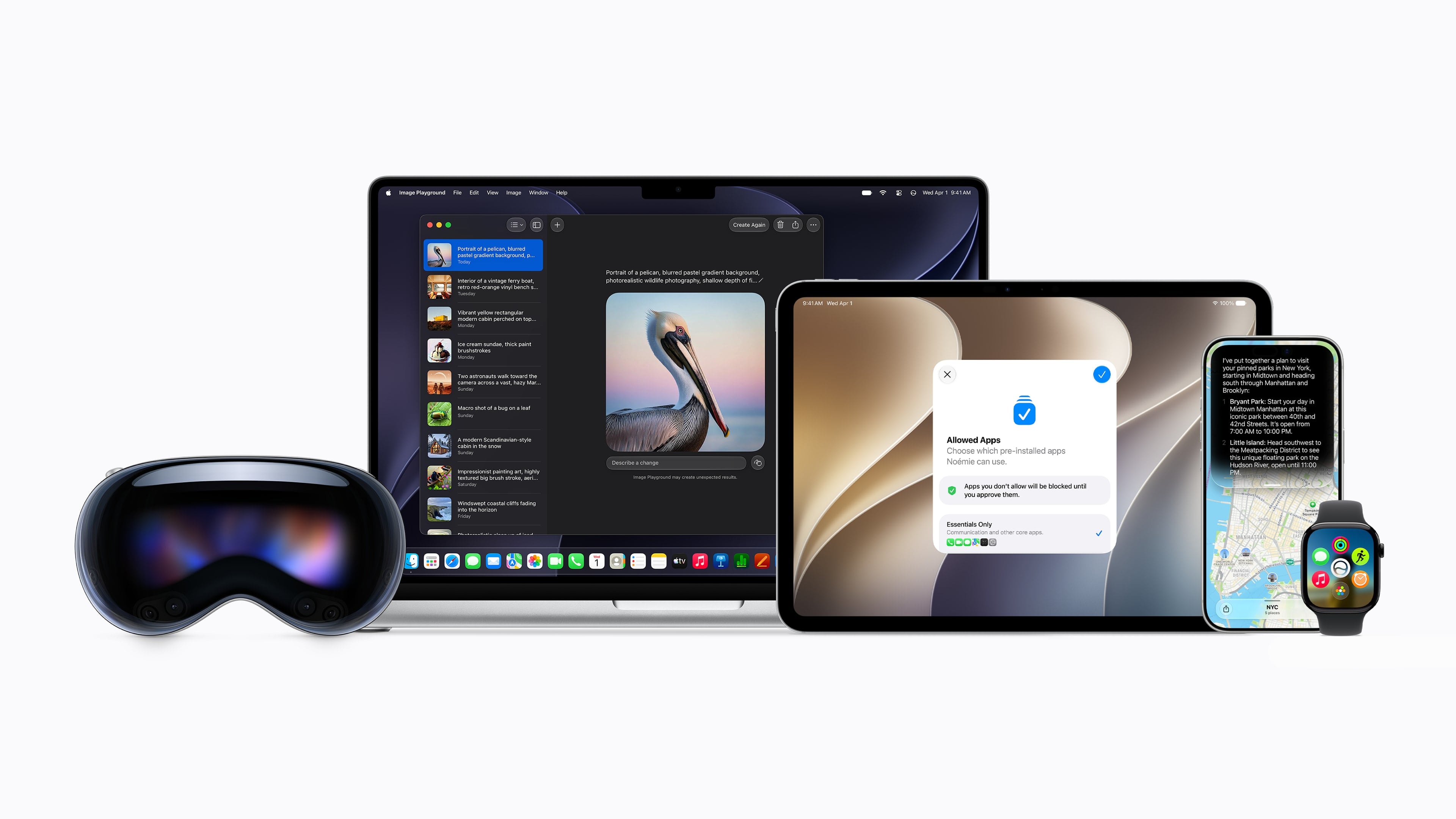
Apple Intelligence spans all of Apple’s platforms. Source: Apple.
The Siri app may be the marquee update of Golden Gate, but Apple Intelligence touches nearly every surface of the OS this year. In fact, I wouldn’t be surprised if, as soon as next year, features that integrate some sort of AI are still categorized under the umbrella term “Apple Intelligence” but are no longer treated as the standalone category that they have been for the past few years.
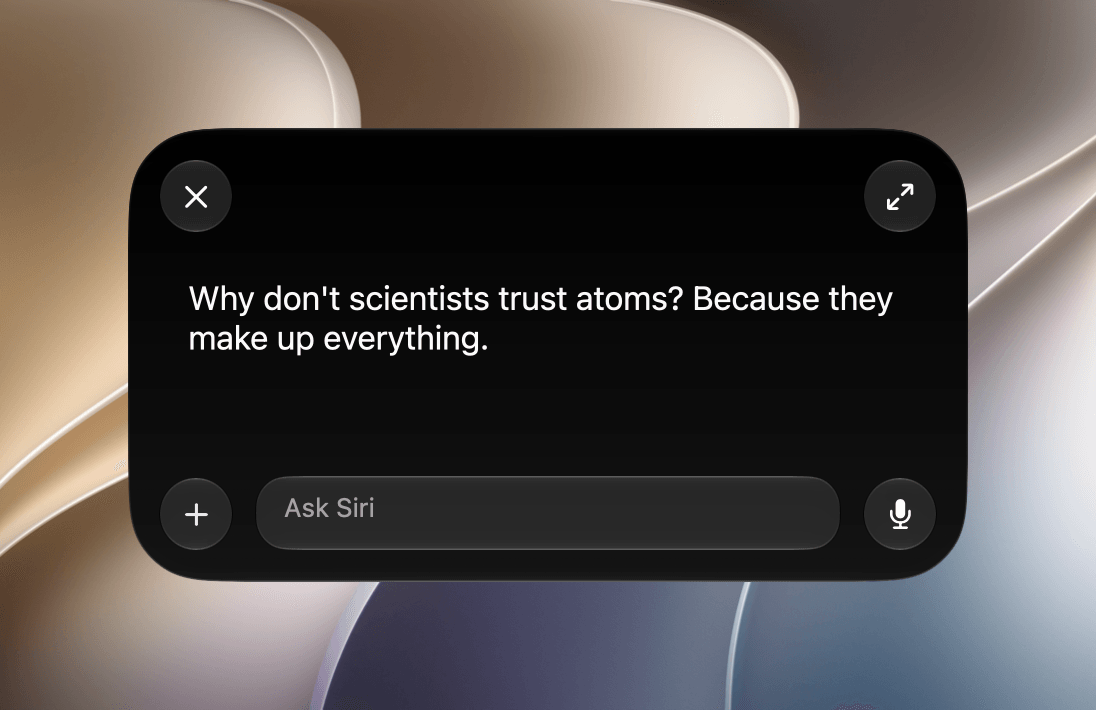
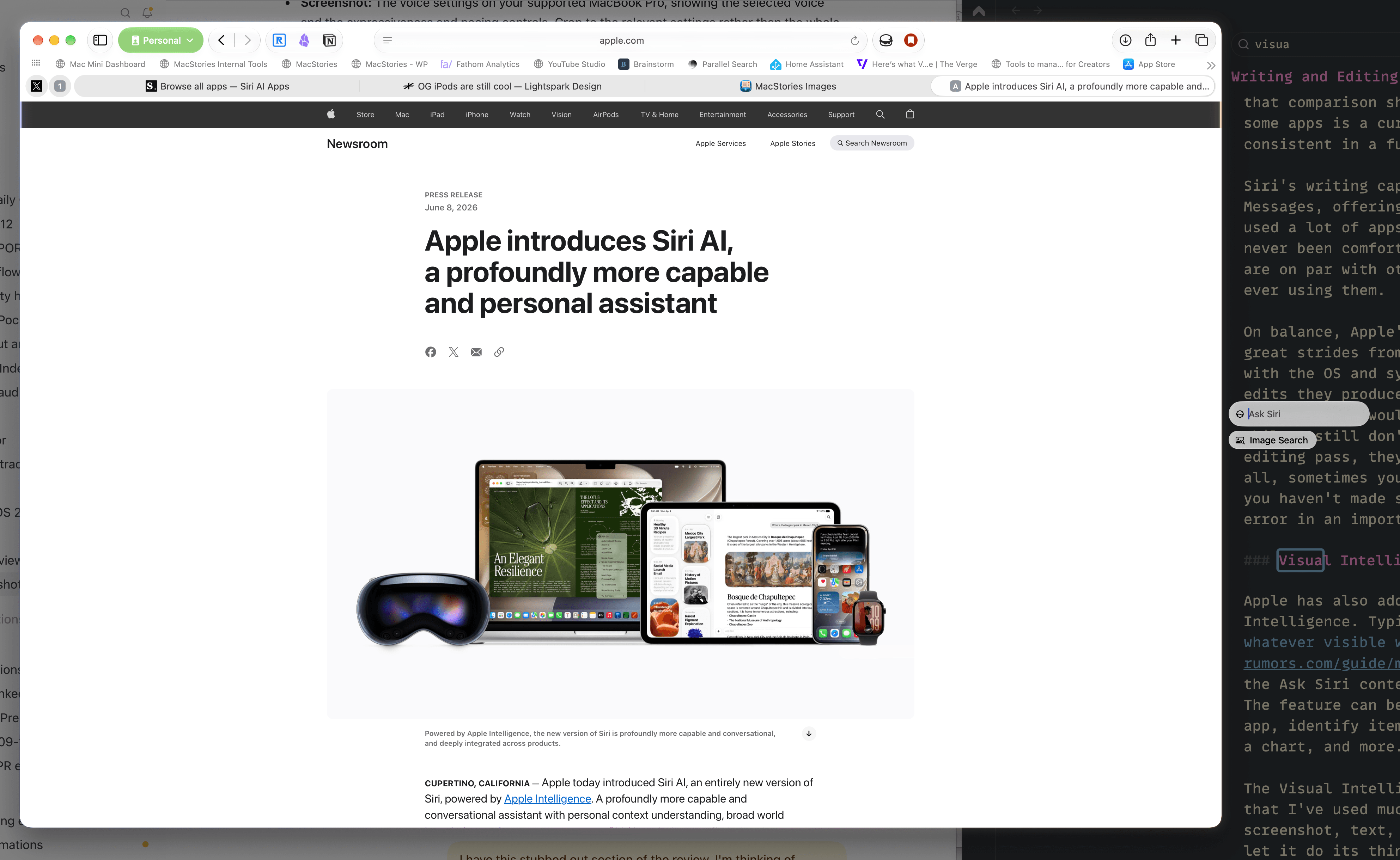
I say that because what’s striking this year is that everything about Apple Intelligence feels better integrated into macOS. Siri is perhaps the best example of all. What was once a voice assistant remains a voice assistant, but it has its own app now, too. Plus, Siri can be invoked from Spotlight, the Services menu, or simply by highlighting text and querying it with the “Ask Siri” contextual popup. It’s the sort of tight integration that Apple is known for, and its absence made some past iterations of Apple Intelligence feel bolted on.
Siri is embedded throughout macOS 27, including in Spotlight.
Before diving into the new Siri app, it’s worth keeping in mind that Siri AI is launching as a beta on Apple’s platforms and is only available in English. Apple has also restricted Siri AI’s use, prohibiting kids under 13 from using it, and it’s not available in the EU on the iPhone, iPad, and Apple Watch, but is available on the Mac. The new AI features won’t be available in China initially either.
What’s less clear is what limits Apple will put on Siri AI usage. Apple is offering enhanced access for now, but says cloud-based features are subject to usage limits and expanded access will eventually be a paid feature. The practical impact of these limits is currently unclear. That’s an important thing to keep in mind because my evaluation of Siri AI is as it exists today. Whether it’s worth paying for more than whatever the base usage winds up being will have to be evaluated another day.
I’ll get to all of the Apple Intelligence features you need to know about here and elsewhere in this review, but the best place to start is with the new Siri app because it’s undeniably the epicenter not just of Apple Intelligence, but all of macOS Golden Gate.
The Siri App
The new Siri app.
What goes around comes around. Siri started life as a standalone app all the way back in 2010. With the release of macOS 27 and Apple’s other OS updates, Siri is once again a separate app, while also remaining deeply integrated in other parts of macOS.
However, the new Siri app isn’t users’ only alternative. Siri’s new smarts have been baked into Spotlight, the Services menu, and individual system apps. That makes Siri more accessible than ever, lowering the friction of getting answers considerably, which is a big improvement over past Siri implementations.
But having Siri answer questions and having it take actions on your behalf are very different things. So, while you can ask Siri just about anything from anywhere, the results you’ll get will depend considerably on the information or actions you’re seeking. Siri’s world knowledge and ability to take actions at your direction are a big leap from the past. If asking world knowledge questions is your primary use case, I expect you’ll like the Siri update. However, if you’re already deep into tools like ChatGPT Work, Codex, Claude Cowork, or Claude Code for automation or assisting you with typical office work, you’re going to hit friction points quickly. That’s why it’s worth exploring what Siri can and can’t do as you think about how it might fit into your everyday work.
There’s a lot of ground to cover with Siri, so let’s get started with the Siri app itself.
The App and How It Works
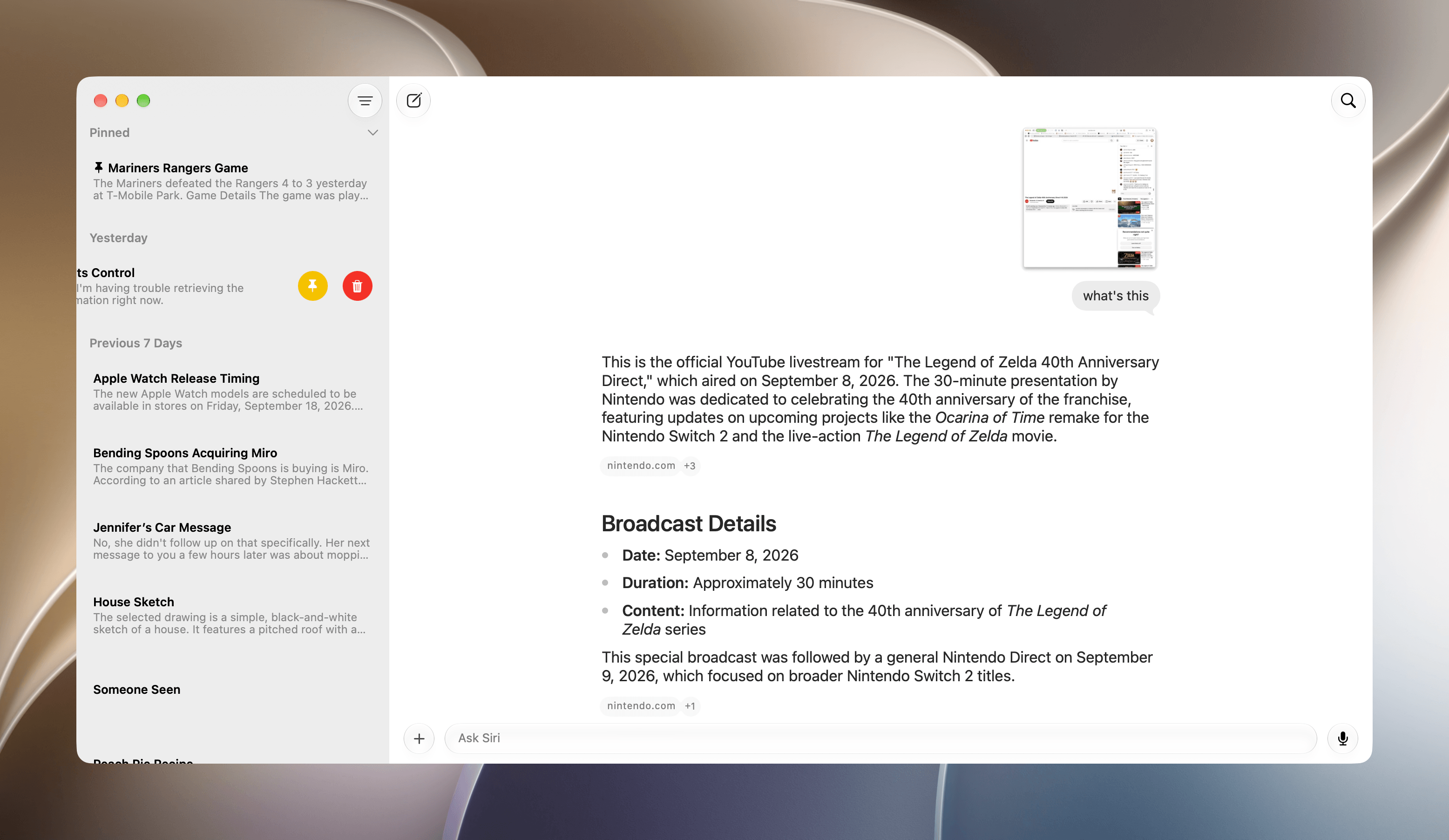
Asking Siri about a video in Safari.
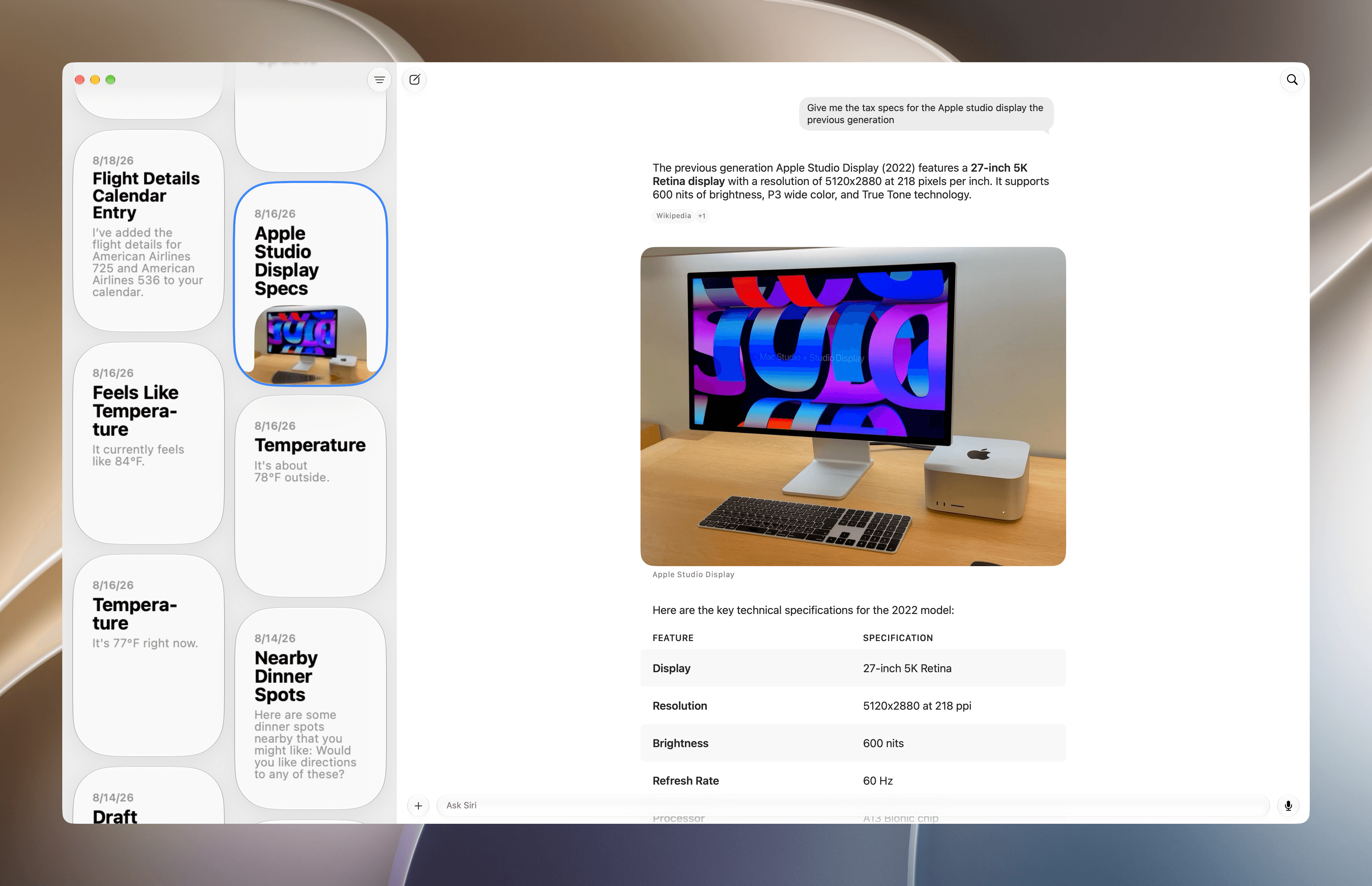
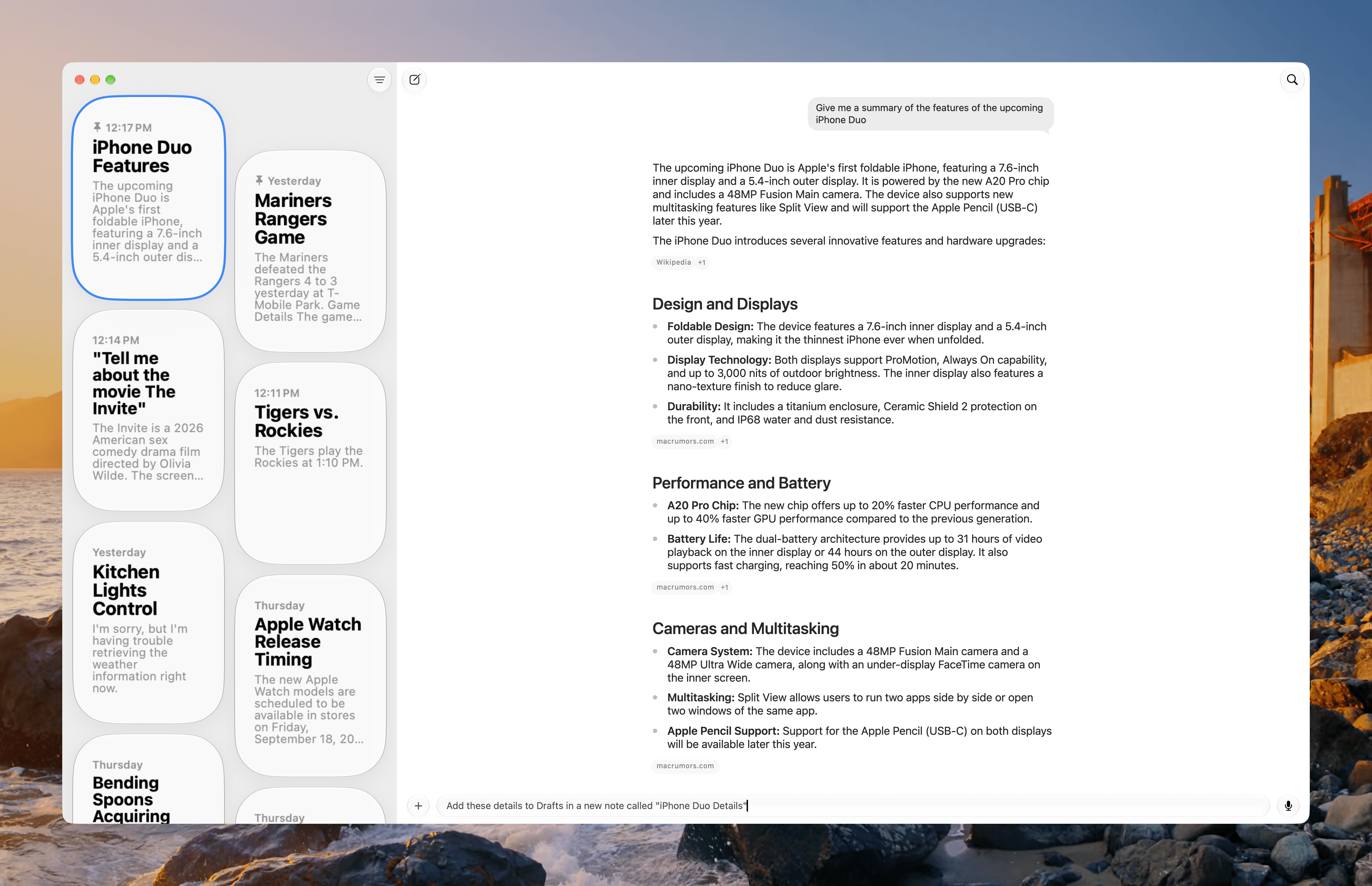
If you’ve used an app like ChatGPT, Claude, Gemini, or Perplexity before, you’ll know how to use the Siri app. In fact, it’s far simpler than those apps. The Siri app has a sidebar on the left that displays your past chat threads in reverse chronological order, syncing them among your devices via iCloud Sync. Threads can be displayed as a list or a grid, which shows off images and other rich media in a thread. You can also pin conversations, which then sit at the top of the list or grid regardless of how many other chats you begin, and delete past conversations individually or in batches by selecting multiple chats.
The main part of the Siri app’s window is where you chat with Siri AI, Apple’s updated assistant. From here you can type queries or speak them using Apple’s built-in dictation feature. You can also add files and images to a conversation, start a new conversation or search past conversations. There’s really not anything more to it than that. In fact, the Siri app doesn’t even have its own in-app settings. You’ll find those in System Settings, instead.
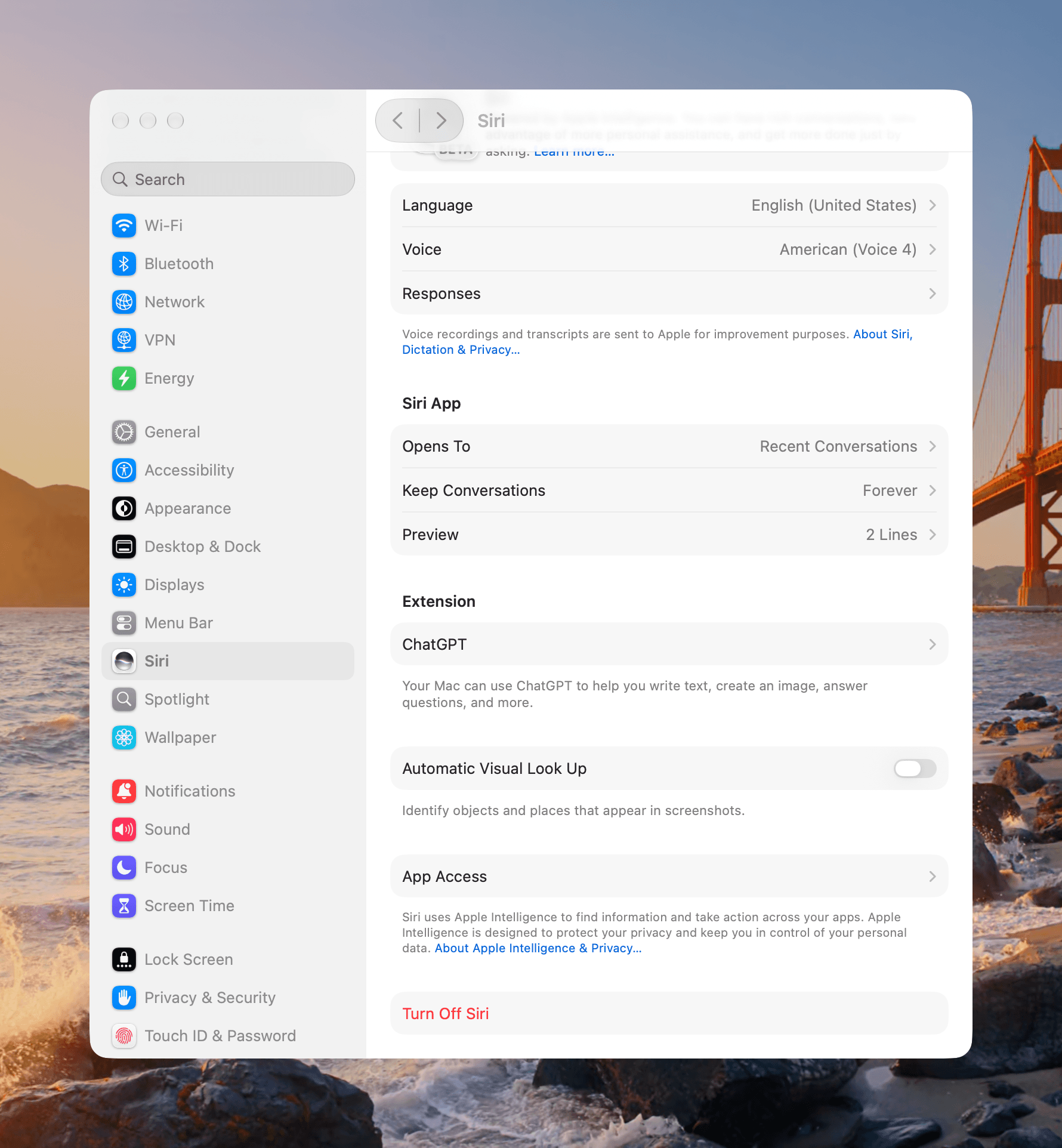
The Siri app’s settings are part of System Settings’ broader set of Siri settings.
System Settings brings together settings for Siri the voice assistant and app. For the app, you’ll find options to:
open the app to a recent or new conversation,
keep conversations for 30 days, a year, or forever, and
show in-app conversation previews of 1–5 lines.
As for Siri’s answers, they’re generated by a combination of on-device and Private Cloud Compute models. The on-device model runs locally on your Mac and Private Cloud Compute (PCC) runs in the cloud. As Apple has explained, only the data necessary to satisfy a request is sent to Private Cloud Compute, where it is inaccessible to Apple:
PCC deletes the user’s data after fulfilling the request, and no user data is retained in any form after the response is returned.
Whether any particular answer is generated by an on-device model or PCC is not highlighted by Apple. That said, I’ve been happy with the speed of the Siri app’s responses. I’ve also tested PCC and tried the Foundation Models framework in a couple of apps I worked on over the summer and have been impressed with PCC’s speed in that context, too.
World Knowledge
Most of the people I know primarily use chatbots the way they used to use Google. They look up facts about the world around them from the hours that the local diner is open to the actor in a movie they’re watching on TV. It says a lot about what’s become of Google Search that a chatbot that sometimes gets facts wrong is preferable to searching the web, but that’s where we are in 2026, and I can’t really blame anyone who just wants an answer without a lot of ads and other nonsense.
If that’s how you’ve used chatbots like the free version of ChatGPT, I expect you’ll like the Siri app. It’s not perfect, but it’s good, and in my experience, Siri’s gotten better over the course of the summer.
In my macOS 27 beta preview story, I likened Siri to Google’s AI Overviews. Since then, Siri has improved, although the differences between services often come down to presentation and personal preference as much as the results themselves.
For instance, while I still find its suggestions for a vacation to Chicago a little uninspired, the results from Google AI Overviews and the free version of ChatGPT are about the same. The results of each service overlapped in places, and each set of results differed in certain ways, but all offered typical tourist destinations. Adding more detail about the kinds of things you’d want to do on a trip helped.
Your experience with Siri will depend a lot on what you want out of it too. I asked Siri for movies starring The Rock and got a list of four notable films and four additional bullet points expanding on the list. ChatGPT’s free service and Google AI Overviews both resulted in much longer lists of movies, but Google’s results were messy and OpenAI showed me an ad suggesting I book a hotel in Chicago based on my previous query. So, on balance, the Siri experience was the best of the three.
Historically, AI models have struggled to answer questions about events occurring after their training cutoff. Web search is used to help models answer questions beyond their training cutoff. Apple says Siri supplements its world knowledge with the web, too, but in my experience, the results aren’t as good as those from other chatbots. For example, Siri sometimes missed recent articles that Google AI Overviews and ChatGPT found.
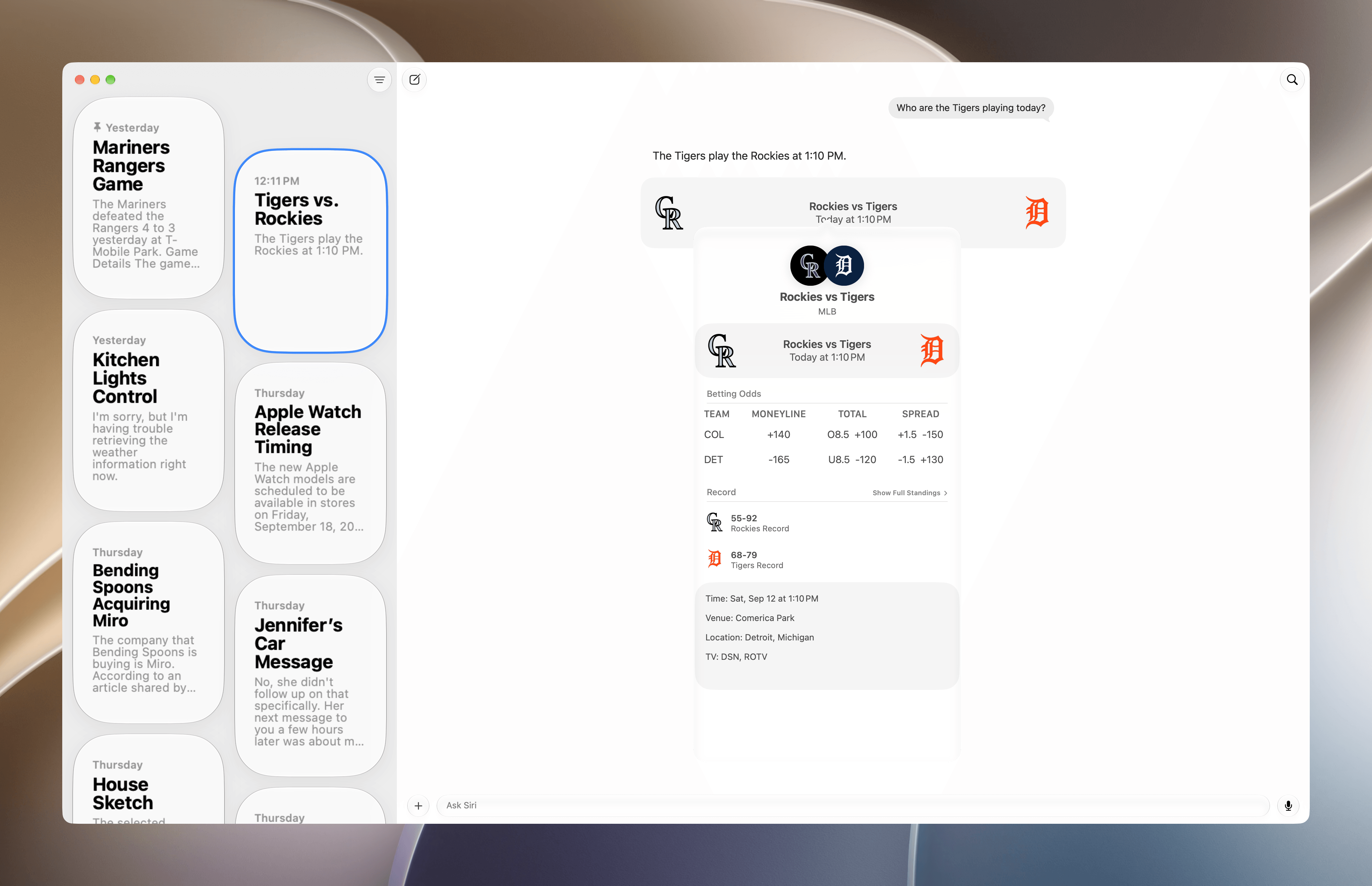
Upcoming sports events expand to reveal more detail.
One nice touch of the Siri app is that some results include rich content. For example, sports scores show the teams’ logos, and clicking a result expands it to reveal additional statistics. The presentation of scores and other information like biographies of musicians and images of landmarks seems pulled straight from rich results introduced in Spotlight with macOS Ventura in 2022. However, unlike those results, which were ephemeral, disappearing when Spotlight was dismissed, these results become part of your conversation history in the Siri app, where they can be retrieved later with search. This goes to show the benefits of a dedicated Siri app instead of just relying on a voice assistant.
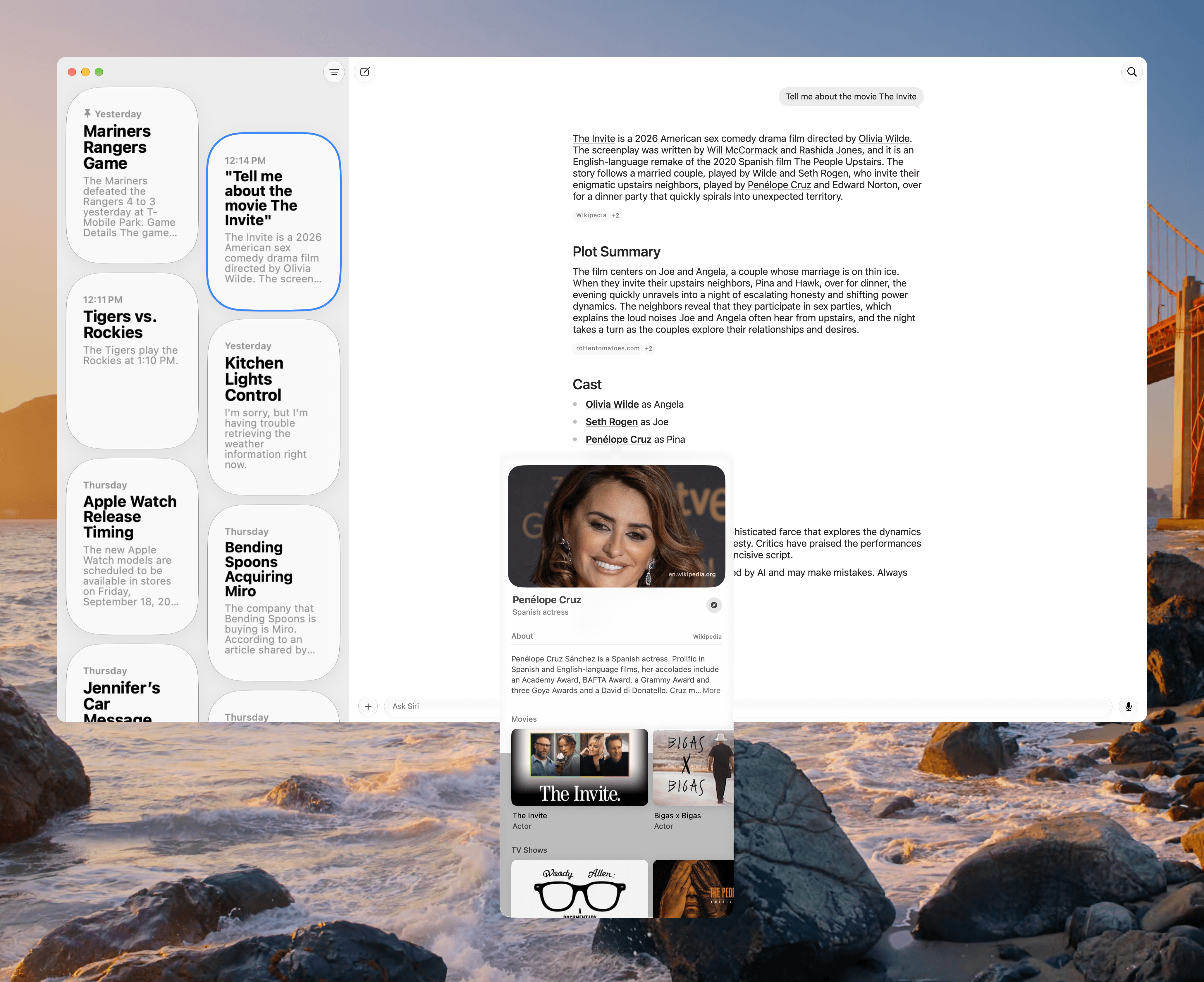
Rich content in Siri results extends to other categories like movies and actors.
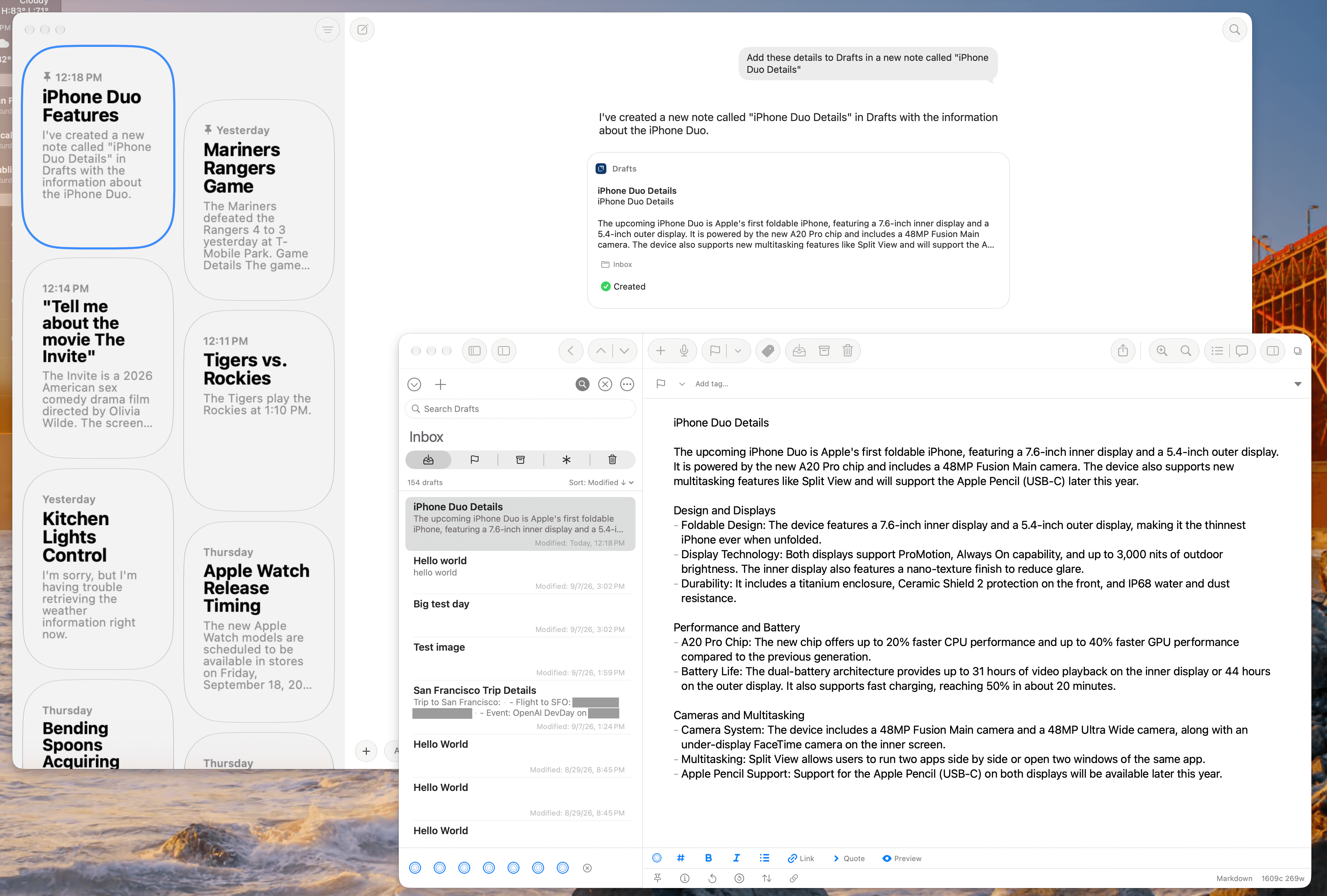
Siri’s ability to perform actions on documents and other data in an app relies on App Intents, the framework that supports features across Apple’s OSes, from Shortcuts to interactive widgets. In its simplest terms, App Intents lets developers describe their apps’ content and actions, which are like the nouns and verbs of a sentence. The nouns are things like a PDF document, photo, text message, or event, while the verbs are actions like send, edit, or open. Siri interprets a natural language request and connects it to the relevant content and available actions.
That makes it sound simple, but it’s not. There’s a lot that can go wrong from request to action, and for a lot of the summer it did. Siri often failed, and few actions were available besides ones for built-in system apps, but that’s changed.
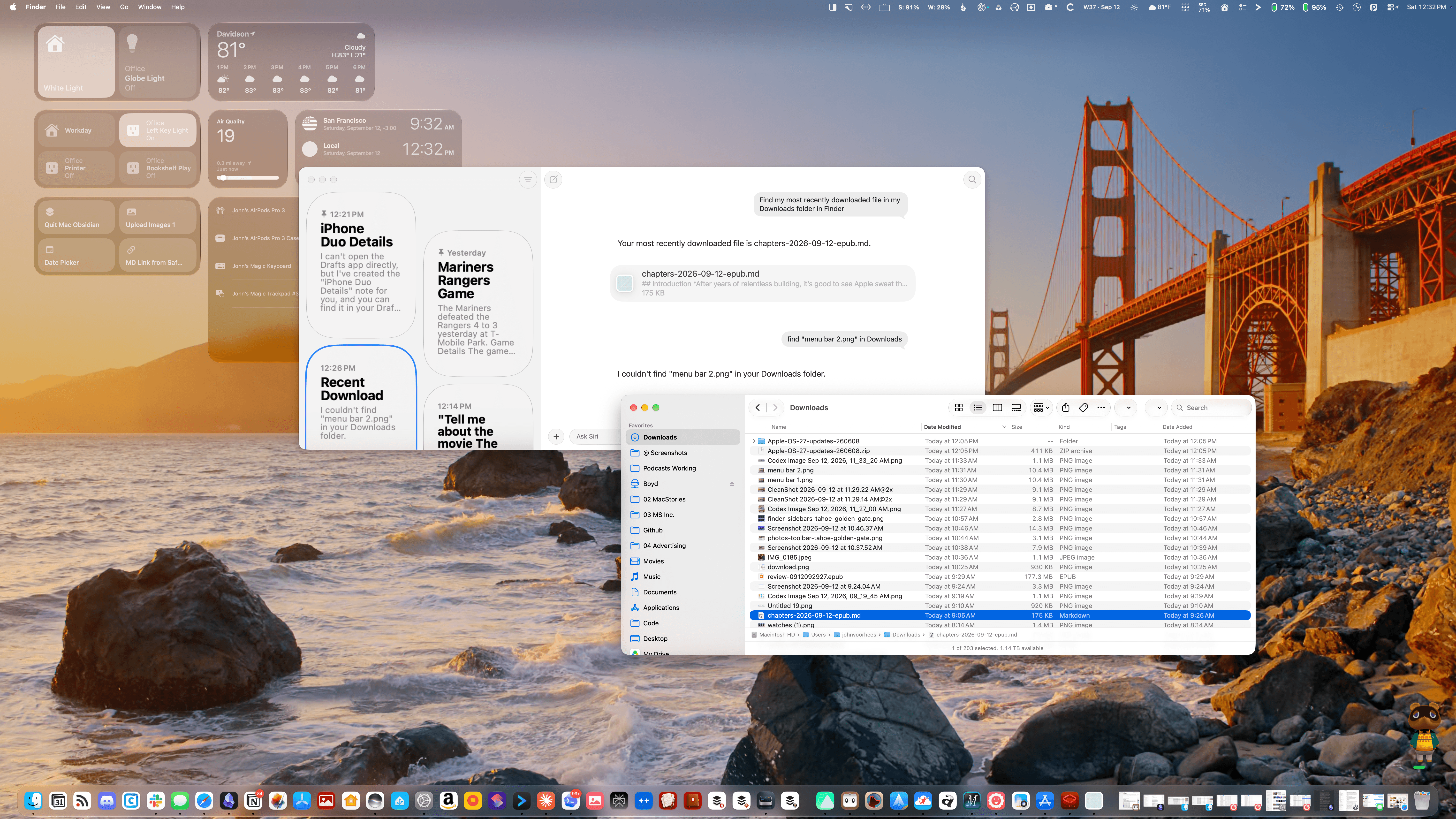
In the closing weeks of the summer beta season, Siri’s ability to take actions consistently and in apps other than system apps has really come together. That’s not to say it’s perfect or that every app I’d like to see adopt App Intents has, but I’m far more optimistic about Siri taking actions in apps than I was in June.
For example, I have a trip coming up at the end of the month. I asked Siri to remind me what day I’m leaving. It found the email confirming my flight and gave me the date and relevant flight information. Then I asked Siri if I had any plans while I was away and it found a different email confirming that I’m attending OpenAI’s DevDay. Finally, I asked it how long it would take to drive from where I’ll be staying to the DevDay event, and once again, Siri nailed it.
To bring the conversation with Siri together, I asked Siri to summarize the details in a note, assuming it would pick Apple Notes. I was pleasantly surprised to get a menu of options, including Apple Notes, Drafts, Parchment, Finalist, and Cheatsheet, none of which were open on my Mac. I picked Drafts and Siri created a note. The only disappointment was that I asked Siri to open the note and it said it couldn’t, even though it could and did when I asked a second time.
That last failure is instructive because Siri isn’t perfect. You’ll hit roadblocks, even when it comes to things that it has done for you before. How much of that is just the nature of LLMs and how much is attributable to Siri’s integration with apps is impossible to tell, but as with any chatbot, it’s important to recognize that Siri AI makes mistakes, too, so proceed with caution and verify what you’re told.
Siri can be used for research.
In another test, Siri summarized iPhone information and saved the result in Drafts.
Another useful tool is Siri’s ability to pull information from whatever is onscreen. That can be an app like Safari that’s built into Golden Gate or a third-party app. In my testing, onscreen awareness works far better from Spotlight than it does from the standalone Siri app. For example, I’ve been able to gather information from multiple apps and summarize them in Apple Notes with no problem. However, when I tried the same thing with the Siri app, it was often confused by floating panels from apps like Dropover.
Your experience with asking Siri to perform actions in apps will vary depending on the apps you use. Siri integrates well with Calendar, Notes, Reminders, Mail, Messages, Maps, and Photos, although not perfectly. Venture beyond those apps and the experience depends largely on how their developers expose content to Spotlight and actions to Siri through App Intents.
Other apps, both from Apple and third-party developers, generally don’t work or only work in limited ways. As I edit this review in Obsidian, Siri is unable to tell me what my most recently edited document is, for example. And, if I ask Siri for the last email I received in Spark, it cheats a little, looking the information up in Apple Mail instead. That’s a useful workaround, but it’s still a workaround. If my MacStories email address wasn’t set up in both places, Siri would have been stuck.
That points out an important caveat about Siri that Apple can’t resolve alone. The ability for it to take actions in apps is limited by the developers who implement it. If you use apps that aren’t supportedf for messaging, email, and calendaring, you’ll miss out on a big part of what Siri can do until they ship support for modern App Intents.
However, what is in Apple’s control and merits more attention is the breadth and depth of Siri AI support for its own apps. For instance, I just asked Siri to name the most recent file in my Downloads folder, and it picked one from three hours and 18 files and folders ago. In my testing, the Siri app couldn’t rename files, move them, or duplicate them, although Apple Intelligence can suggest names in Finder.
The most recent file Siri could find in my Downloads folder was from more than three hours and 18 files ago.
The same is true of Apple Music, which needs a lot of work. I asked how many songs I have in my Music library and was told “26.” I have thousands. I asked Siri to play Phoebe Bridgers’ latest album and instead of playing the album in Apple Music, an episode of Switched on Pop began playing, but the Podcasts app didn’t open and the Siri app didn’t show that it was playing something from Apple Podcasts. Once I realized I was listening to a podcast, I opened Apple Podcasts and saw that it was playing an episode about Phoebe Bridgers’ new album. Then I understood what was happening and could stop playback.
As I explained in my Golden Gate preview, this is frustrating because apps like Finder and Music include lots of useful metadata and work with a variety of automation tools. Some support seems to be available via existing Shortcuts actions, but not all of it, and unlike Shortcuts, the Siri app can’t use the command line or AppleScript as a way to extend what the app can do.
That said, I’m encouraged by what I’ve seen so far and optimistic about where App Intents is heading. Where Apple supports App Intents in Golden Gate, the experience has improved rapidly as the beta season comes to a close. It’s not perfect, but it’s reliable enough to make it a good solution for many people. Just as encouraging is the growing adoption by third-party developers, especially the indie developers we cover regularly.
As some of my examples demonstrate, there’s still plenty of room for improvement and expansion for Siri, but what’s out today is worth trying. I think you’ll find that in many cases, Siri will help you work more quickly and efficiently, which I love.
Personal Context
The final pillar of Siri AI that I need to cover is personal context, which is Apple’s way of describing the information Siri can access about you when responding to your queries. As with actions, personal context has improved a lot over the summer. For example, just weeks ago, Siri couldn’t identify my immediate family or find the Illinois address I lived at for over 20 years, but now it can.
However, while it can provide me with a bio of myself and Federico, it often struggles to explain how we know each other. That’s not a problem for other chatbots. After asking Siri how I know Federico in multiple ways across multiple separate conversations, I suspect the problem stems from Siri’s reliance on Contacts to answer questions about people. Coax Siri to investigate more deeply, and you’ll get a more satisfying answer.
At times, Siri struggles with making connections between people that should be obvious.
Eventually, Siri will get there, but it can take some coaxing.
Personal context draws from sources like your email, text messages, calendar, photos, and notes. In my testing, personal context is best at finding information about me in supported apps. It’s not as strong at combining that information with the context of my request. That doesn’t make personal context any less useful as a search tool, but to me “personal context” connotes a deeper understanding of who you are and your circumstances.
Here’s what I mean. On Labor Day, I asked Siri to suggest a restaurant I’d like, specifically mentioning that it was Labor Day as a hint that some places would be closed. Siri came up with two spots I like because I had threads in Messages confirming past online orders. It then asked whether I would like to check their hours.
Siri used past order confirmation texts to suggest restaurants.
I’m probably expecting too much, but there’s a lot wrong with that response. First, multiple order confirmations in Messages may be a good indicator of places I like, but the scope of the search is too narrow. There are lots of restaurants nearby that I like from which I’ve never placed an online order. However, Siri doesn’t have access to my credit card charges, so it doesn’t know about those places, although it could probably be inferred from driving direction requests and the time I spend at certain places based on Maps data.
Another issue is that I specifically asked about eating out on Labor Day. Most places near me were closed for the holiday, which was the case for one of the two places Siri suggested. Given my specific mention of Labor Day, that should have been taken into account in the first instance. What I’m getting at is that the personal context I’d like Siri to have (and use securely and privately) is much broader and deeper than a search of Messages, Apple Mail, or other apps.
Siri feels like magic when you ask for something like a URL from months ago.
That said, personal context feels like magic when you ask it for a URL or address you know is somewhere in Messages, Mail, or Notes, but you don’t know where. It just finds those things without you having to remember where the data lives. That’s genuinely useful and a great addition to Siri. Still, it’s closer to search than what I consider the kind of context where it would feel like Siri “knows” you. Maybe that’s too creepy for a lot of people, but if done privately and securely, that’s where I hope Siri is heading because it would take Siri to an altogether different level.
A month ago, I wouldn’t have recommended Siri. Today, I would. It’s good for finding personal information, answering everyday questions, and performing tasks in supported apps. Its limitations still appear somewhat unpredictably, but it has become useful enough to earn a place in my day.
System-Level Apple Intelligence Features
Siri’s New Expressive Voices and Improved Dictation
Siri’s new expressive voices are accessible from the Siri section of System Settings.
You can pick one of multiple expressive voices. For American English there are a total of seven voices, two of which are brand new. Other voices include Australian, British, Indian, Irish, and South African English, and both expressiveness and pace can be adjusted with a slider. The UI for this is in the Siri section of System Settings (which replaces Tahoe’s Apple Intelligence and Siri section) and is nearly identical to what you’ll find on the iPhone or iPad.
The new voices are excellent, and I appreciate the ability to dial in the pacing and expressiveness. I’ve found that with my iPhone, I prefer less expressiveness since I hear Siri far more via turn-by-turn directions while driving, but I’ve turned it up a little on my Mac. Likewise, I have increased the pacing a little on my Mac, but kept the default on my iPhone. Apple’s defaults are good, but it’s worth playing with the settings to see if a different configuration suits your tastes for different contexts like it did for me.
That said, I don’t use Siri’s voice features nearly as much with my Mac as I do my iPhone or Apple Watch. That’s because my older M1 Max Mac Studio doesn’t support the voices, and with the MacBook Pro I’ve been using, I’m more likely to be somewhere where I wouldn’t want to speak aloud to my laptop. Perhaps that will change when I update my desktop Mac, but for now, I’m content without the feature.
Apple has improved dictation accuracy, too. You won’t see any difference in System Settings or anywhere else. The changes are all under the hood. On supported Macs, dictation will work better automatically. I’ve tried this with my M1 Max Mac Studio, which doesn’t support the new dictation, and an M4 Max MacBook Pro, which does, and the difference is noticeable. Speaking quickly or quietly leads to frequent dictation errors on the M1 Max Mac Studio, but the M4 Max MacBook Pro reproduced my words exactly, making it a good choice for on-device dictation if you have a newer Mac.
Finder File Naming and Actions
A spot-on suggestion for an image of a game controller.
One of the low-key best Siri features of Golden Gate is its ability to suggest file names. If you’ve ever downloaded a PDF of a bill from a website, you probably have a collection of incomprehensible file names filled with seemingly random strings of numbers and letters. With the macOS 27 update, simply highlight the file name and Siri will suggest a couple of names using the content of the file. The feature also works inside document saving dialogs and with folders.
My experience with this feature has been good, but not perfect. Siri generally picks meaningful short titles similar to what I’d come up with myself, but once in a while it has suggested a calendar event instead if my file has a date in its name, which my screenshots often do. That said, this is a terrific feature I know I’ll use a lot.
You can also complete a handful of actions on files from Finder, including sending them via Mail or Messages, using either the contextual Ask Siri popup or Services menu. This is effectively the same limitation I covered above in the Siri app section, which is disappointing if you spend a lot of time wrangling files.
Writing and Editing
Apple Intelligence underlines spelling and grammar mistakes in blue.
Apple’s writing and editing tools have been improved in a variety of ways. Automatic proofreading works well, although I have less use for the drafting and rewriting features. As you type, blue underlining will appear beneath misspellings and grammatical errors, letting you make corrections one at a time.
On my M1 Max Mac Studio, it can take a few seconds for the blue underlining to appear, but in practice, that delay isn’t problematic. I don’t typically go back to make corrections until I’m at a break point in the writing process.
What I like most about the proofreading suggestions is that they’re automatic. The blue lines simply appear, allowing me to quickly identify problem areas and step through them one at a time.
Siri has become a drafter and editor with Golden Gate, too. You can ask it to write something from scratch, adjust its tone, or rewrite something you wrote. While I don’t use AI-generated rewrites in my published work, I do have models create checklists, how-tos, and document workflows for me regularly. Having tried Golden Gate’s new tools to ask about the tone of my writing and do stylistic rewrites, I can report that they work as advertised, but I personally don’t like them. I’ve not seen a rewrite that I think is better than my own writing. However, I have found editing something like how-to instructions for conciseness is helpful.
Curiously, if you use Siri to change the style of your writing, you’ll get the side-by-side comparison of the original and edited version that Pages offers for proofreading, even if you’re using TextEdit or Notes. Why that comparison shows up for editing and not proofreading in some apps is a curious choice, and something I hope is made consistent in a future update.
Siri’s writing capabilities go a little further in Mail and Messages, offering suggested replies in your own voice. I’ve used a lot of apps that offer something similar and have never been comfortable with using them. Apple’s suggestions are on par with other apps I’ve used, but I don’t see myself ever using them.
On balance, Apple’s Siri writing and editing tools have made great strides from their origins. They are better integrated with the OS and system apps, and the quality of the text and edits they produce is better, too. When the tools were first introduced, I wouldn’t have recommended them to anyone. While I wouldn’t substitute them for a careful human editing pass, they’re useful for catching spelling and grammatical errors before you send an email.
Visual Intelligence
Inspecting a Safari page using Visual Intelligence and “Ask Siri.”
Apple has also added a keyboard shortcut for Visual Intelligence. Typing ⌘-⇧-Space invokes Siri, highlighting whatever visible window is under your pointer along with the Ask Siri contextual popup and a suggested action or two. The feature can be used to summarize or copy the text in an app, identify items in a photo, translate something, explain a chart, and more.
The Visual Intelligence shortcut is a cool trick but not one that I’ve used much in practice. More often, I grab a URL, screenshot, text, and other data, dump them into Codex and let it do its thing. The Siri app accepts text, images, and files, but it couldn’t retrieve contents webpages I gave it. So if you want to compare two iPhone models, for example, you’re either going to have to rely on Siri’s world knowledge (which is stronger on iPhones than on particular models of running shoes), extract the website content another way, or rely on something like Visual Intelligence.
Apple Intelligence for Automation
Apple has also brought its on-device and PCC models to the command line via the new fm tool, along with a Python library for accessing its on-device model. That makes it easy to incorporate the models into scripts run from Terminal.
These additions are great to see. There are a lot of automation use cases for Apple’s models, especially when you can process private data entirely on your Mac, so I’m glad Apple has made it easy to build them into your own workflows.
Apple Intelligence has made great strides this year on the Mac. The difficulty with assessing its capabilities lies in the fact that everyone uses these tools a little differently and any one person’s use case may not work as well as another’s. But having spent the summer with Siri and Apple’s other Intelligence features, I feel like they finally have some momentum. The AI models are capable enough to support the OS features, and they fit more naturally into the fabric of the OS and its apps.
There’s no denying that Siri is light years ahead of where it was just a year ago. It really is a useful tool that you should try. I think you’ll find that there are myriad little interactions throughout your day that it makes better. That’s quite an achievement by itself, but that’s not the only stick by which Siri should be measured.
Apple doesn’t need to match every capability of ChatGPT Work or Claude Cowork any more than Notes needs to match Notion. There’s room for products with different ambitions and audiences. But for everyday questions and tasks, Siri still competes directly with those companies’ free chatbots, and its reliability needs to measure up.
That’s why I hope Apple continues improving Siri AI as quickly as it did over the summer beta season. The AI world doesn’t wait for point releases, and Apple can’t afford to either. My hope is that PCC continues to improve through server-side updates and that on-device models are updated frequently, too.
Apple has built a much more stable foundation for its AI features with macOS 27 and its other OSes. That’s an important first step because it will set the stage for years to come. I’m a fan of Apple’s privacy and security approach and the way it has integrated Apple Intelligence more deeply into its OSes. With Golden Gate, Apple has turned a new page on Apple Intelligence, transitioning from a story of missed opportunities to one about everyday utility. What counts now is whether Apple builds on its progress quickly enough for Apple Intelligence to be relevant.
Performance Improvements
Golden Gate’s performance gains were a big part of Apple’s pitch at WWDC this year. A “Snow Leopard” release had been rumored leading up to Apple’s developer conference, which turned out to be correct. When Federico and I sat down with Apple representatives for a briefing on the improvements along with other press people, it was Apple who mentioned Snow Leopard first. I was surprised, but when I got my hands on Golden Gate for the first time, I immediately understood why Apple leaned into the Snow Leopard vibes. The release really is faster.
This is going to be the shortest section of this review. Not because Golden Gate’s performance improvements aren’t important, but because my assessment is based on everyday use rather than benchmarks. Over the summer, I’ve noticed improvements across both my M1 Max Mac Studio and the M4 Max MacBook Pro Apple loaned me for testing.
Faster speeds have a tendency to start feeling like the new normal very quickly. You get used to them, and before long, it’s hard to tell whether you simply imagined the increases in the first place.
That’s not been entirely true with macOS 27. In fact, AirDrop still feels like magic compared to prior versions. I AirDrop screenshots to my Mac almost daily, and a multi-image send was often painfully slow, taking me out of the flow of putting my screenshots together for a story. Now, it’s so fast that it may as well be instantaneous in most instances, whether I’m sending images from my iPhone, iPad, or another Mac, all of which were on the betas this summer.
Browsing folders on my Mac mini server over Ethernet feels nearly as fast as browsing local folders.
Another area that is much faster is browsing networked storage. I’ve hung SSDs and hard drives off of an Ethernet-connected Mac mini in another part of my house. Regardless of the speed of the drive, listing the contents of a large folder across the network can be slow. That’s not been the case with Golden Gate. Accessing the files on my Mac mini server over Ethernet has been smooth and fast all summer long.
Apps launch faster under Golden Gate, too. Not every app launches instantly, especially those built on web technologies, but with native apps, the difference is real and noticeable.
Spotlight brings together relevant results from across my Mac.
Other noticeable improvements include Spotlight indexing. After installing new betas throughout the summer, I often saw Spotlight indexing the next time I opened it, but it always finished quickly. Just as important, searching that index is much faster, too, with results displaying as quickly as I can type. That was not the case at all with some point releases of Tahoe where Spotlight got so badly bogged down that I went back to third-party launchers for a while.
In addition to speedier searches, Apple rebuilt the search foundation used by Spotlight, Photos, and Mail to ensure it’s more up to date and complete. Mail also adds a new ranking system that surfaces relevant emails in “Top Results,” while Spotlight offers more relevant search suggestions.
The same sort of search speed is found in Messages and Mail. Federico is handling the other new features of those apps in his iOS and iPadOS 27 review, but their search capabilities are worth reiterating here. There’s more to good search than speed, but it goes a long way, and with Golden Gate, I’ve had no trouble finding past messages and emails when searching in Messages and Apple Mail. Both apps have been quick and reliable, although I’m currently using Spark Mail more often than Apple Mail.
Scrolling and animations have felt smoother, too, although I notice the difference less now than when I first installed Golden Gate.
And that leads me to something that I think is important about these performance improvements to macOS 27. We’re living through dramatic price increases in memory and storage fueled by the AI data center boom. That makes improvements that help us get more out of the Macs we already own especially valuable. If an update makes an older Mac feel faster, it makes keeping it another year more appealing. With Golden Gate, Apple has breathed new life into your Mac, making it work more smoothly whether it’s a first-generation Apple silicon machine or a brand-new model. The company’s timing couldn’t be better, and it should be commended for helping users squeeze more out of every Mac it sells.
I also have a bit of advice for everyone who updates to Golden Gate. Bask in the glory of faster app launches, AirDrop transfers, and all the rest. As pronounced as the initial speedups felt when I first installed macOS Golden Gate, most became the new normal very fast, so appreciate them while you can.
Apps
Many of this year’s app updates span Apple’s platforms, so Federico and I have divided the coverage between our reviews. His iOS and iPadOS 27 review covers:
Calendar
Camera
Clock
Files
Find My
Journal
Mail
Messages
Music
Notes
Phone
Photos
Reminders
Safari
Shortcuts
For my part, I’m covering:
iPhone Mirroring
Sidecar
Preview
Image Playground
Weather
Maps
Podcasts
Home
the Mac-only features of Notes and Freeform
FaceTime
Before getting into the apps, two features announced at WWDC won’t be available at launch: automatic upgrades for weak or compromised passwords and suggested actions in Messages conversations.
iPhone Mirroring
Reminders running wide in iPhone Mirroring.
I’m a big fan of iPhone Mirroring. Until Nintendo released a web app, I used iPhone Mirroring almost weekly to listen to Nintendo Music on my Mac. But it’s become more than that. With iPhone notifications turned on so they appear on my Mac, it’s become an old habit to click on a notification, which opens iPhone Mirroring directly to the app that sent the message. I give it a quick check and then move on.
With macOS 27, iPhone Mirroring now supports adaptive layouts. That means you can resize the iPhone Mirroring window to many more sizes than were possible before. The connection to the iPhone Duo announced just last week is difficult to miss. Also, resizing apps like Weather and Reminders gives developers something of a preview of how Apple’s apps adapt to the iPhone Duo’s wider screen.
That said, it’s not a one-to-one comparison. Resizing a mirrored app doesn’t reproduce the Duo’s interface. At the Surprise and Shine Event, Apple also showed controls positioned along the sides of the Duo’s screen for easier thumb access.
Still, seeing widescreen versions of Apple’s iPhone apps over the summer was a fun exercise in imagining what apps on a folding iPhone would look like. Now, with the hardware revealed, it’s merely a more convenient way to experience your iPhone apps on a Mac. And why not? You have a big screen at your disposal, and adaptive layouts let iPhone apps that support them make better use of that display. I plan to use iPhone Mirroring even more as a result.
You can also play DRM-protected video via iPhone Mirroring. It’s not likely to work with every video service, but it’s a step in the right direction. Pretty nifty.
Sidecar
Interacting with Safari using touch via Sidecar.
If ever there were an app that screamed “we’re working on a touchscreen Mac!” it’s Sidecar. Sidecar has been a great way to use an iPad as a second screen for your Mac for years now, but it hasn’t seen updates very often since its Catalina introduction.
This year is different because Sidecar now supports touch, letting you interact with your Mac’s interface with your fingers. And you know what? It’s not hard to do. The Mac has smaller UI targets than an iPhone or iPad, but those targets have been getting bigger and the UI more spread out for years. It started with Big Sur, as I noted in my review:
Whitespace is used by Big Sur to make information more glanceable, and windows feel more expansive too.
Tahoe had multiple examples of the trend, too, including taller buttons. macOS 26 also made buttons easier to identify without hovering, which also benefits touch, as I pointed out in that review:
Button groupings are always visible in Tahoe, whereas they only appear on hover in Sequoia.
Sidecar also gives users a chance to discover which Mac interactions work well with touch. And while I wouldn’t use touch for everything in Sidecar, scrolling and poking at buttons and menus is a lot easier than has been imagined in the past. I love that I can scroll a webpage with one finger, tap a Finder sidebar item, and choose toolbar commands without using my trackpad or mouse. So whether Sidecar portends touchscreen Macs or merely makes it easier to interact via a device that was designed for touch from the get-go, I’m here for it.
Preview
Editing a USDZ file of the iPhone Duo in Preview.
I didn’t go into WWDC with “Preview becomes a 3D editing tool” on my bingo card, but here we are. On the surface, it may seem curious, but Preview’s never been about just PDFs. It’s always been capable of editing a wide variety of images. Viewing 3D content isn’t new either, but this year macOS Golden Gate adds 3D editing.
The app allows users to manipulate objects, edit properties and lighting, explore scene hierarchies, and convert or compress assets. Rendering options include Apple’s own RealityKit, Storm, and a new raytracer, all with support for OpenPBR, a standard for describing how materials look and respond to light.
I’m so used to using Preview to do simple things like resize or crop an image or delete a page from a PDF that I was blown away by the depth of what Preview can do with 3D assets. This isn’t the sort of functionality that I expect to have a use for anytime soon, but I’m glad it’s there. It’s part of macOS and gives tinkerers a way to experiment with 3D assets without first learning a dedicated editing app. Making 3D tools more accessible could also encourage more people to experiment with assets for Apple Vision Pro. That’s pretty cool.
Image Playground
Images generated by Image Playground in Tahoe using ChatGPT (left) and Golden Gate using Apple’s Foundation Models (right).
I’m not a fan of generative image tools for a host of reasons, and even if I were, Apple’s haven’t been very good to date. Image Playground is substantially better than before, but even its new photorealistic images still look off to me. Generated images of people in my life have an uncanny valley feeling. I can tell who the image is meant to depict, but it’s only a rough approximation of them.
macOS 27’s update is about more than people, though. Image generation now runs on Private Cloud Compute, and the app offers more control over the results. You can preserve the parts of an image you like while replacing individual elements or choosing a different aspect ratio, for example.
In the name of science, I took Image Playground’s new generation and editing tools for a spin. While I’m still not a fan of the images it makes, they are undeniably more realistic. I’ve also been able to remove objects and change their colors reliably, which makes natural language editing more useful than before. I don’t see myself using Image Playground, but it’s there if you want it.
Weather has been redesigned for Golden Gate with a more orderly presentation. In Tahoe, the app featured an hourly forecast that stretched across the entire window (unless there was precipitation) just beneath the current conditions. Much of the more detailed weather data was confined to square tiles. Together it all formed an even rectangle, but the large number of square tiles made the design look a little messy, which also made it harder to scan quickly.
With macOS 27, the details below the current conditions are broken into two columns. The left column features a series of square and rectangular tiles, while the right column is bigger, allowing for more expansive layouts for hourly and daily forecasts and radar, which need the additional space. The bottom of both columns is anchored by a single row of square tiles. The underlying weather data hasn’t noticeably changed, but the new layout makes it easier to scan.
Two other changes are worth noting. There is now a segmented control near the top of the window to switch between current conditions, forecast precipitation, and wind. When each is selected, the hourly and daily forecasts change, as does the radar map. It’s an excellent addition that works equally well on every platform. Apple has also added a new Highlights section to Weather that appears at the top of the app’s weather data and summarizes notable upcoming weather events. Highlights is currently available only in U.S. English.
Maps
Enhanced Flyover.
Maps’ two marquee features are enhanced Flyover mode and Local Lists. With Flyover, certain cities, including Boston, New York, London, and Chicago, include more detailed 3D renderings of their skylines. Turn on 3D mode and zoom in, and you’ll see what I mean. Apple has enhanced the 3D models for these cities with the help of AI to compose more detailed and realistic cityscapes.
A Local List of Manhattan attractions.
Available in the U.S., Local Lists are a little like Guides, except instead of being hand-curated, they’re generated based on spots that are trending with Apple Maps users, like the list of Manhattan landmarks in my screenshot. The lists update periodically, too.
Other App Changes
Searching from See All Episodes makes finding classic podcast episodes easier than ever.
Podcasts: Apple Podcasts on the Mac is catching up with the video features available on iOS, iPadOS, and visionOS. You can switch between watching and listening to a podcast on your Mac when a show supports HLS video streaming. Mac users can view the same video using Picture in Picture and can download it for offline viewing, which is great when traveling, too. Also, every Apple platform gains the ability to search from a podcast’s See All Episodes view, making finding back catalog episodes of a show easier.
Home: Home adds tools for finding and understanding HomeKit Secure Video recordings to all compatible Apple platforms, including the Mac. The new features require an iCloud+ plan with at least 2TB of storage, a compatible home hub such as an Apple TV 4K or second-generation HomePod, and an Apple Intelligence-capable iPhone, with Apple Intelligence enabled in Home.
Apple uses on-device processing and Private Cloud Compute to describe recorded footage and collect recordings of the same event from multiple cameras. You can also search for clips by the video’s description.
The vast majority of my clips are simply described as “Someone is seen,” which isn’t very helpful as a description or for searching later. Admittedly, those recordings are an unexciting collection of trips in and out of our garage and taking out the trash. However, when it comes to security cameras, mundane footage is exactly what I hope to capture. The question is whether Home can provide useful detail when something out of the ordinary happens, which my testing hasn’t yet answered.
Notes and Freeform
Drawing on the Magic Trackpad in Notes.
Federico covered Notes in his iOS and iPadOS 27 review, but there’s one small addition to Notes on the Mac worth highlighting: drawing with your finger on a Magic Trackpad or using a mouse. Just select the drawing tool and start scribbling by clicking and dragging on the trackpad or holding down the mouse button and dragging. Drawing with your finger isn’t easy, but Notes does a nice job of smoothing out your squiggles, and I can see this coming in handy as a way to quickly create a diagram or sign your name and paste it into a PDF. The same drawing feature has been brought to Freeform, too.
It’s worth noting that this feature works with touch and the mouse only. You can’t draw on the Magic Trackpad using an Apple Pencil or third-party iPad stylus like the Logitech Crayon.
FaceTime
This year, Apple is expanding Communication Safety to help protect children from images and videos depicting gore and violence. The protection extends to FaceTime on the Mac and iPhone. Apple also says users will enjoy improved FaceTime call quality on poor connections, although I haven’t been able to verify whether those improvements extend to the Mac. Mac users can also select Mandarin Chinese (Taiwan) for Live Captions.
Everything Else
There are a bunch of other little updates sprinkled throughout macOS 27 Golden Gate.
Accessibility
As I wrote in May, Apple is expanding accessibility in macOS 27, including several features powered by Apple Intelligence. Among the features I covered then are:
VoiceOver image descriptions that allow Image Explorer to describe photos, scanned documents, and onscreen images in greater detail than ever.
Accessibility Reader, which better handles complex documents, including multi-column layouts with images and tables, and enables summaries and translation.
Generated video subtitles for everything from video taken with your iPhone to streaming services.
Better pairing reliability for MFi hearing aids with handoff between devices and a better macOS setup experience.
For those who use multiple displays and non-Apple displays, there’s good news in Golden Gate. macOS now restores window positions and Spaces and remembers which screen they belong to better than before. This is especially handy when connecting and disconnecting a laptop. I’m a one-display-at-a-time kind of guy, so I haven’t used this feature a lot, but in my limited testing it worked as described.
macOS now supports more resolutions and refresh rates than before. I can now run my 32-inch ASUS display at 4K and 120Hz. HDR can be turned on for photos, video, and Golden Gate’s UI, too.
Everyday Conveniences
There’s a new keyboard shortcut (⌘⇧F) to access Recents in Open and Save dialogs. In addition, Move and Resize controls now work with Open and Save dialogs that are independent windows.
Also, pull to refresh has been added to Safari, Mail, News, and Calendar and is triggered with a downward swipe on your trackpad. It’s another interaction that would feel right at home on a touchscreen Mac.
User Control
An open Claude and backgrounded ChatGPT.
The Dock gets a change in macOS 27, too. If you quit an app and it is still running a background process, the indicator beneath its Dock icon turns to light gray. You can stop that activity by right-clicking on the app’s icon and picking “Stop Running in Background.” If you repeatedly stop an app’s background activity, Golden Gate will offer to prevent it from running in the background in the future.
I’m a little torn over this feature. On the one hand, I appreciate knowing which apps may still be using resources after I quit them and like the control this offers. Yet keeping those apps’ icons in the Dock adds clutter, and I don’t think most people will understand what the light gray indicator means. I know I didn’t at first, and I expect that some users might think something nefarious is happening in the background, which isn’t necessarily the case.
macOS 27 adds extensive new Screen Time controls for parents, including Time Allowances for app categories and Schedules for app access during certain times of the day. Ask to Browse lets kids ask permission to visit websites, and there are expanded protections against gore and violence, alongside existing nudity protections. If you have young children, these features are worth a closer look. My kids are all grown, so I haven’t had real-world experience with these controls myself. It’s also worth noting that the new Screen Time features require all devices in your Family Sharing group to be on Apple’s latest series of OSes.
Moving On
Listing what’s left of my Intel-based apps.
macOS 27 Golden Gate can’t run on Intel-based Macs. However, Intel apps can still run through Rosetta. With Golden Gate, you can visit System Settings → General → About → Intel-based Apps → Details to view the list of your Intel-based apps. I had a few old Intel-based apps that I have since removed from my Mac. Apple has also retired AirPort Utility. If you already have it installed, the app won’t disappear, but it’s no longer bundled with clean installs of macOS. Finally, if you want to get ready for next year, encrypted HFS+ volumes will no longer be supported starting with macOS 28.
One Story Ends and Another Begins
When I wrote my macOS 26 Tahoe review last year, I felt like I’d just left the beach for the summer with a book that was promising but that I hadn’t had time to finish. Tahoe added a bunch of great productivity features, but Apple Intelligence was barely out of the gate, and Liquid Glass felt unfinished.
Fast forward one summer, and the vibe is different. This summer, macOS 27 Golden Gate gave Apple the chance to tie up loose ends, delivering a satisfying conclusion to the book I’d started the year before by refining Liquid Glass, improving OS performance, and making Apple Intelligence feel more at home on the Mac. But Golden Gate also feels like the beginning of another story, arriving alongside a change in Apple’s leadership.
John Ternus is often described as a hardware guy, and that tracks with his career at Apple. But during the Surprise and Shine event, what stood out to me was his emphasis on what hardware enables. Introducing iPhone Duo, he explained that Apple started with the experience it wanted to deliver and worked toward the hardware that could make it possible. That’s an encouraging perspective for someone overseeing the future of the Mac.
Apple’s leadership transition comes at a chaotic moment in tech that will shape how people use the Mac. Golden Gate’s priorities are clear. The update makes existing hardware more useful, gives users more control over background activity, and integrates AI in a way that honors the company’s privacy philosophy.
What encourages me is that Apple has begun translating its approach to AI into useful everyday features. Keeping control of my data matters, but so does having useful tools. Golden Gate brings both closer together.
Make no mistake, Apple has a long way to go. It’s not clear at all that this story will have a happy ending for Apple or any other tech company. Apple’s emphasis on privacy and security should be celebrated, but it doesn’t resolve the broader questions AI raises about society, the environment, and our culture.
Siri still needs to be more reliable, and I’d like the Siri app to do more, but I’m rooting for Apple on this one. As much as I get out of tools like Codex and Claude Code for building automations and apps and ChatGPT Work and Claude Cowork for running MacStories with Federico, there’s still a lot of data I’d prefer to process on my Mac or through Private Cloud Compute.
As an opening chapter, Golden Gate is a good one. I’m hooked. I want to see what comes next. There are hints of good things to come, from a more capable Siri to touchscreen Macs and other gadgets. It’s going to be messy and chaotic, and I’m eager to see what comes of it.
2027 is going to be a page-turner.
Credits
No project the size and scope of my macOS reviews are created alone. Thanks to:
My wife Jennifer and my kids, who put up with my end-of-summer crunch every year.
Federico whose boundless curiosity, contagious enthusiasm for everything “new,” and willingness to question everything and change his mind are rare gifts.
Silvia for the many things she does for MacStories, not the least of which is the cover of this year’s eBooks.
The engineers and designers at Apple who made Golden Gate possible.
Every Club MacStories member for joining us on our chaotic journey through the tech world.
And, of course, everyone who reads MacStories and listens to our podcasts. It’s a pleasure to write and record for you every day and share what gets us up in the morning with you.
The reviews cover design, new app features and more, which kicks off a big week here at MacStories that includes extra special perks for Club MacStories members. Here’s what we have planned.
For Club MacStories members, we’ve got some exciting perks to help you get more out of the reviews:
An eBook edition of Federico’s iOS and iPadOS 27: The MacStories Review that you can download and read on your favorite device or app
20 additional ready-made shortcuts for iOS 27
An eBook edition of John’s macOS 27 Golden Gate review
An eBook edition of John’s watchOS 27 review.
If you’re not already a member, you can join Club MacStories for $5/month or $50/year using the buttons below:
And Club MacStories Plus and Premier members get even more. In addition to the Club perks listed above, Club Plus and Premier members will receive the following:
Both will get an in-depth Making of the iOS 27 review with a detailed look at Federico’s Notion setup, his MLX local AI workflow, and more.
Both will also get the custom web app that Federico built, integrating his review research system with Notion.
Premier members and AppStories+ subscribers will get a special behind-the-scenes look at the role agents played in this year’s review process.
To unlock all of these additional perks, use the buttons below to join Club MacStories Plus:
These extras are our way of saying thank you to our Club MacStories members who support us throughout the year. It’s our goal to give members the best experience and most value we can, and we look forward to offering these perks alongside each fall’s reviews.
If you haven’t joined Club MacStories, now’s a great time to give it a try because it comes with a bunch of fun bonuses alongside all the regular benefits. Read on to learn more about the Club and this year’s special extras.
Club MacStories Perks
The eBook version of the macOS 27 review
.
All Club members will receive eBook editions of iOS and iPadOS 27: The MacStories Review, macOS Golden Gate: The MacStories Review, and watchOS 27: The MacStories Review that are fully interactive and complete with all the images and videos. This eBooks are DRM-free and yours to read any way you like, on your preferred eReader or eBook app. While the web version is a great way to read the review, we know a lot of Club members value the flexibility of reading it as an eBook, where you can jot down notes, highlight passages, and take a closer look at images.
As an EPUB file, the review can be imported into Readwise Reader as well.
Club MacStories Plus and Premier members will also get the custom web app that Federico built, integrating his review research system with Notion. And Premier members and AppStories+ subscribers can listen to a special behind-the-scenes look at the role agents played in this year’s review process during the AppStories+ post-show segment.
You can join Club MacStories for $5/month or $50/year using the buttons below:
Club MacStories includes year-round perks too. In addition to the special review season perks, Club MacStories features:
MacStories Weekly, a weekly newsletter with our favorite iOS and Mac apps, tips and in-depth automation tutorials, exclusive stories, interviews, and more.
The Monthly Log, a monthly newsletter with behind-the-scenes stories from the MacStories team delivered at the end of each month.
An ad-free, high-bitrate audio version of MacStories Unwind, the podcast that Federico and John record weekly. MacStories Unwind is a fun exploration of the differences between American and Italian culture and features recommendations for media we enjoy, including books, movies, TV shows, music, and videogames.
Club MacStories Plus and Premier Perks
We’ve got even more benefits in store for Club Plus and Premier members.
Federico is also working hard on a “Making of” story that explains how he used LLMs running locally via MLX combined with Notion to create this year’s iOS and iPadOS 27 review. It was a significant change to the research process that accelerated his writing significantly and can be adapted to other research and writing workflows.
If you enjoy the review and want to learn more about how it came together, this is the way to do it. It’s a peek behind the curtain of MacStories’ biggest project of the year.
Club Plus and Premier members will be able to access the eBook versions of all of this year’s reviews via their personal Downloads page later this week.
As a Club Plus or Premier member, you’ll also receive access to our vibrant Discord community, bonus columns from Federico and John, an advanced version of the Club website that includes advanced search and filtering controls, custom RSS feeds of Club articles, and more. And, for just $2/month or $20/year more, Premier members get AppStories+ too, the extended, ad-free, high-bitrate audio version of our flagship podcast, which is released early most weeks.
In case you can’t tell, we love this time of year here at MacStories. After spending the summer putting Apple’s latest OS updates to the test, it’s a thrill to get to share our findings with you and make these software releases a special event for the MacStories community. As much as we appreciate what the new features and enhancements have to offer, it’s conversing about them with you, our readers, that makes this season the joy that it is.
We hope you’re enjoying the week thus far, and we hope you’re looking forward to what’s in store as much as we are. Thank you for reading, and a special thanks to our Club MacStories members who help make all of this possible. Happy reading!
MacOS 27 Golden Gate has an emphasis on improving performance, with significant enhancements to Spotlight search, mail search, and more. There are also some really nice visual refinements to the Liquid Glass interface and system icons, and there’s even a slider for adjusting the intensity of Liquid Glass. Plus, macOS 27 Golden Gate brings with ... Read More
Durante a WWDC26, em junho, a Apple informou que alguns recursos de inteligência artificial baseados em servidor teriam limites diários — e, às vésperas do lançamento do iOS 27 e demais sistemas, a empresa tratou de confirmar isso.
A partir dos lançamentos de software de 2027, os usuários poderão experimentar a próxima geração da Apple Intelligence, com acesso aprimorado a recursos que dependem de modelos baseados em servidor.
Alguns recursos da Apple Intelligence dependem de modelos potentes baseados em servidor e têm limites de uso para garantir uma experiência confiável e de alta qualidade para todos.
Conforme detalhado pela empresa, esses recursos incluem:
Siri AI;
Ferramentas Inteligentes de edição de fotos, incluindo Limpar, Estender e Reenquadramento Espacial;
Image Playground;
Modelos AFM 3 Cloud e AFM 3 Cloud Pro em Atalhos;
Apps de desenvolvedores que usam os Modelos de Base da Apple no Private Cloud Compute.
Os limites não serão necessariamente iguais para todos os recursos; fatores como a complexidade da solicitação e a demanda do sistema influenciarão a definição de cada um. Caso o limite seja atingido, o recurso ficará indisponível por um período, sendo o acesso restabelecido posteriormente.
De acordo com os termos de uso específicos da Apple Intelligence, usos considerados excessivos, abusivos, automatizados, fraudulentos, ilegais ou desarrazoados também podem sofrer restrições, limitação de velocidade ou suspensão.
A Apple não explicou como a cobrança será feita nem como o acesso expandido variará entre os planos do iCloud+. Em relação aos resumos de vídeo do app Casa (Home), o artigo de suporte indica que o plano de 2TB cobrirá até uma câmera, enquanto o plano de 6TB abrangerá até duas câmeras e o plano de 12TB, até cinco câmeras.
Apple has released MacOS 27 Golden Gate as a Release Candidate (RC) build #26A428 for all users enrolled in the beta testing programs for Apple system software. A Release Candidate build typically signals the end of the beta testing process, absent any significant last minute issues, and can sometimes match the final Golden Master (GM) ... Read More
Em beta desde junho, os sistemas 27 reúnem uma série de novos recursos para a Apple Intelligence, além da nova Siri AI — vale lembrar, essas funcionalidades podem não ser compatíveis com todos os dispositivos em que os sistemas 27 estão disponíveis.
Em matéria de iPhone, um diferencial relevante para as gerações mais antigas é a implementação de um novo scheduler de CPU 1Central processing unit, ou unidade central de processamento. para gerenciar melhor as demandas de cargas de trabalho em iPhones a partir do 11, algo já visto anteriormente nos modelos mais recentes — além, claro, de melhorias mais amplas, como na velocidade de envio de arquivos no AirDrop.
No caso do macOS, o maior destaque — além da otimização de desempenho — é o fim do suporte aos Macs com processadores Intel.
NOTA DE TRANSPARÊNCIA: O MacMagazine recebe uma pequena comissão sobre vendas concluídas por meio de links deste post, mas você, como consumidor, não paga nada mais pelos produtos/serviços usando os nossos links de afiliado.
Notas de rodapé
1
Central processing unit, ou unidade central de processamento.

 Login
Login