By default, on a Mac, the initial delay is 500ms, and the key repeat rate 1000ms.
[…]
My suggestion is to make them both as short as possible for testing.
[…]
First, it’s good to test whether your keystrokes behave well when repeated. Occasionally you might want your interface to suppress repeating, or do something special if the key is held longer.
Second, it’s a good test not just of repeating, but just the user pressing keys really fast.
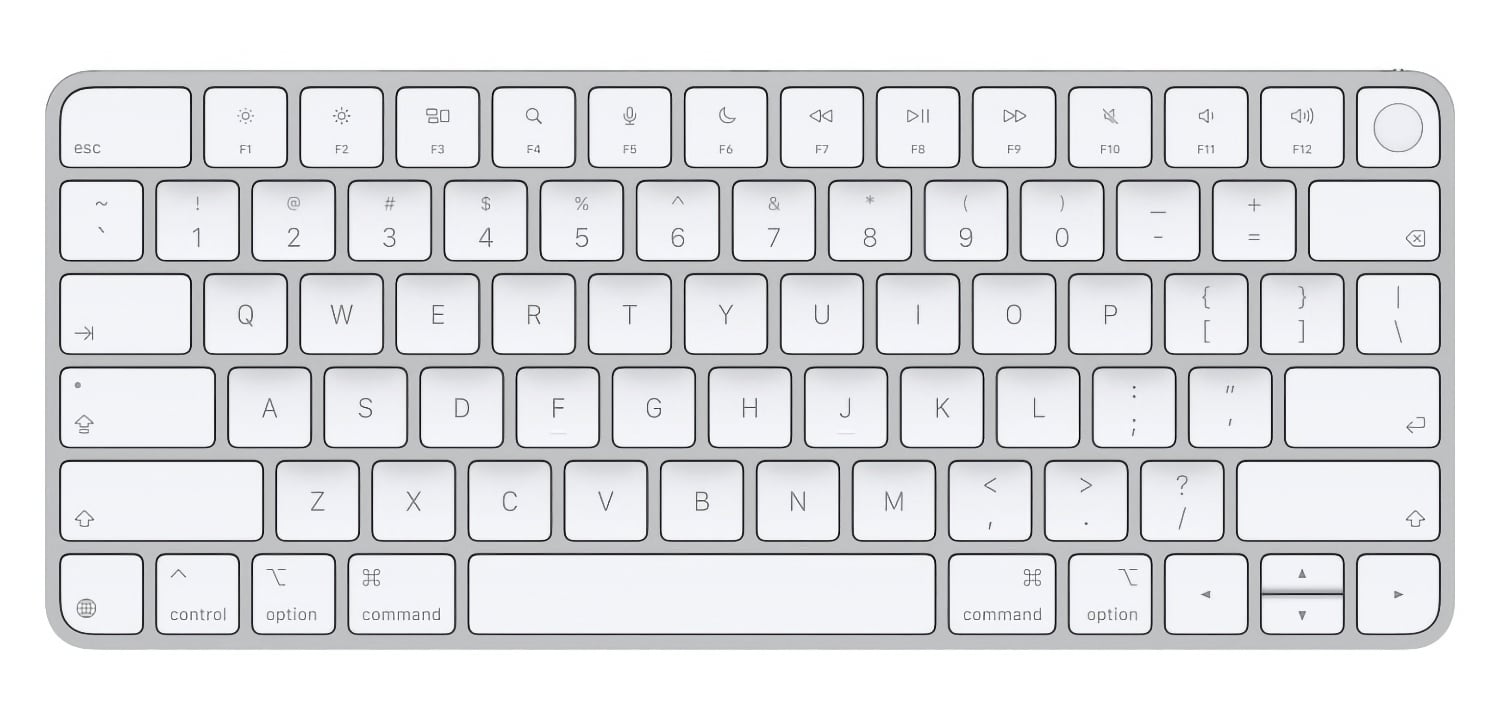
On the new keyboards, the tab, caps lock, shift, return, and delete keycaps are labeled with glyphs rather than edge text. On the full-size models with a numeric keypad, the change goes further, with the home, page up, page down, end, clear, and enter keys also swapping their text labels for symbols.
Why, why, WHY won’t they fix the arrow keys? I use the version without numpad (for RSI reasons) and the L/R keys are full height, with half-height up/down keys. This is TERRIBLE and it causes me problems on a daily basis.
[…]
They fixed this problem with the laptops years ago. But refresh after refresh, they refuse to fix it with the external. WHY?
The left and right arrow keys should be half-height when there’s no numeric keypad, so that you can find them by feeling for the inverted T.
My impression is that they’re limited by the self-imposed problem of making the corners so rounded that they can no longer fit a half-height right arrow key.
This is literally the only reason I haven’t bought one! Just return to the previous radius, dammit.
Earlier this year, Apple swapped the text on some of its laptop keyboard keys for glyphs. MacRumors reports that the trend has now spread to four of the company’s Magic Keyboard models:
On the new keyboards, the tab, caps lock, shift, return, and delete keycaps are labeled with glyphs rather than edge text.
The keyboards with numeric pads get even more glyphs than the more compact models.
It’s a small change, but I like it. I burn through keyboards pretty fast with the amount of typing I do, and these come just in time to replace the Magic Keyboard on I use with my Mac Studio that has a slowly disappearing “A” key.
At Macstock 2026, Max Mellman showed off his his iPhone app, I Love a Piano. Max explains how the app stands out through realistic haptic feedback, intuitive navigation, portrait and landscape support, and a design that encourages exploration instead of intimidation. Chuck and Max also discuss his inspiration, teaching carrer, future iPad support, and broader […]
In a catch-up interview after a lost CES interview, Jeff Gadway, SVP for Clicks discusses the Power Keyboard, a universal MagSafe-style Bluetooth keyboard and power bank for iPhone, Android, tablets, TVs, and more. He also details the Clicks Communicator, a smartphone built around physical keys, purposeful communication, productivity, security, and the idea of a task-focused […]
At NAB in Las Vegas, Chris McNamara, Senior Technical Marketing Specialist for Elgato gave us a tour of their latest tools for creators and broadcasters. That tour included new variations on the super-popular Stream, a new mic and XLR interface, a new touchscreen display, and more. If you’re doing production, you need to be aware of these products.
You can delete stickers on iPhone without removing your entire collection, but the correct procedure depends on whether you want to erase a custom sticker, remove a Genmoji, hide keyboard stickers, or detach a sticker from a conversation.
For custom photo stickers and Live Stickers, iOS provides an individual Remove command. This lets you clean the sticker drawer while leaving every other saved sticker untouched.
Apple does not provide a protected Favorites folder inside the system sticker drawer. The Frequently Used section is created automatically from your activity and should not be treated as a permanent collection. If you have stickers you cannot afford to lose, save recoverable copies before beginning the cleanup.
Save Your Favorite Stickers First
The safest backup is to send your favorite stickers to a conversation with yourself. The sent copies remain inside the conversation even if you later remove the reusable versions from your sticker collection.
Adding Stickers:
Messages > New Message > Your Contact > Add > Stickers
Select each favorite sticker and send it as a separate message. You can also create a private conversation with a trusted contact, but messaging yourself keeps the backup separate from ordinary conversations.
If you accidentally delete one of these stickers from the drawer, return to the self-conversation and restore it.
Messages > Your Self-Conversation > Touch and Hold Sticker > Save to Stickers
For a sticker attached to the corner of a message bubble, open its details before saving it.
Messages > Your Self-Conversation > Touch and Hold Sticker > Sticker Details > Save
This procedure is especially useful for stickers received from other people. A photo sticker you created yourself can usually be recreated from the original image, but a saved sticker from another person may be difficult to replace if the original conversation is deleted.
Image Credit: AppleMagazine
How to Delete Stickers on iPhone
The easiest way to remove an individual custom sticker is through the Messages app. You can open any existing conversation because you do not need to send a message.
Removing individual stickers:
Messages > Conversation > Add > Stickers > Live Stickers
The Live Stickers tab uses an icon resembling a sticker being peeled from a surface. It contains stickers created from your photos, animated Live Stickers, and compatible stickers saved from conversations.
Touch and hold the unwanted sticker until the contextual menu appears, then release your finger and select Remove. Do not drag the sticker toward the conversation because that action may attach it to a message instead of opening the menu.
Touch and Hold Sticker > Remove
Only the selected sticker is deleted. Other photo stickers, saved designs, and favorite items remain in the collection.
Some iOS versions also display a Rearrange command after you touch and hold a sticker. This mode allows you to move the stickers you use most often toward the beginning of the collection.
Messages > Conversation > Add > Stickers > Live Stickers > Touch and Hold > Rearrange
Drag the stickers you want to preserve toward the first positions. You may also see a removal control beside each sticker while rearranging. Use it carefully because iOS may remove the sticker immediately without presenting a second confirmation.
A selective cleanup is safer than trying to reset the complete keyboard or sticker database. Removing and reinstalling the Emoji keyboard is unnecessary and may alter frequently used emoji without providing better sticker controls.
Delete Stickers Through the Emoji Keyboard
The same sticker collection is accessible from the system keyboard in Messages, Notes, Mail, and other supported apps.
Using system keyboard in Messages:
Any Text Field > Emoji Keyboard > Stickers > Live Stickers
Touch and hold the sticker you want to erase, then tap Remove. If the menu does not appear, confirm that you are viewing the Live Stickers collection rather than Frequently Used.
Frequently Used combines recently selected emoji, Memoji, Genmoji, and stickers. Items shown there are shortcuts to content stored in another section. Opening the Live Stickers tab gives iOS the correct context for managing your custom collection.
If the keyboard is compressed or several categories are hidden, swipe across the sticker controls until the Live Stickers icon becomes visible. The exact position can change as Apple adjusts the keyboard, but the touch-and-hold removal gesture remains the same.
Image Credit: Apple Inc.
Use Photos When the Sticker Menu Does Not Respond
You can also access the system sticker drawer through the Markup tools in Photos. This is useful when Messages tries to drag a sticker rather than displaying its menu.
Touch and hold the unwanted sticker, then tap Remove. You are managing the same synchronized collection, so a sticker deleted through Photos also disappears from Messages and the system keyboard.
Removing a sticker does not delete the source photograph. If you created the sticker by lifting a person, pet, or object from an image, the original photo remains in your library unless you delete it separately.
To recreate the sticker later, open the original image and lift its subject again.
Photos > Open Photo > Touch and Hold Subject > Add Sticker
You can then apply an effect such as Outline, Comic, Puffy, or Shiny. Live Photos can produce animated Live Stickers when the isolated subject contains usable motion.
Delete a Genmoji Without Removing Other Stickers
Genmoji created with Apple Intelligence are stored with the stickers accessible through the emoji keyboard. They can be removed individually without affecting your photo stickers or other generated designs.
Any Text Field > Emoji Keyboard > Stickers > Genmoji
Touch and hold the Genmoji you no longer want, then tap Remove. You can perform the same procedure from Messages.
Messages > Conversation > Add > Stickers > Genmoji > Touch and Hold > Remove
Removing one Genmoji does not disable Apple Intelligence or erase the other Genmoji you created. If you later want a similar design, open the Genmoji creator and enter the description again, although the generated image may not be identical.
Image Credit: AppleMagazine
Be More Careful With Memoji Stickers
Memoji stickers operate differently because iOS automatically creates a complete sticker pack from each custom Memoji character. You cannot normally delete one expression while keeping the remaining expressions from the same character.
Deleting the underlying Memoji removes its generated sticker pack. Before selecting Delete, confirm that you do not want any of that character’s poses or expressions.
Any Text Field > Emoji Keyboard > Memoji > More > Delete
If you only want Memoji and other stickers to stop appearing in the keyboard, use the keyboard setting instead of deleting the character.
Settings > General > Keyboard > Stickers
Turning off Stickers hides sticker content from the emoji keyboard. It does not provide a selective cleanup and should not be used as a substitute for removing individual items. Your saved stickers remain available when the setting is enabled again.
Remove a Sticker From a Message Without Deleting It
A sticker attached to a message bubble is separate from the reusable copy stored in your collection. Deleting it from the conversation does not erase the sticker from your drawer.
Messages > Conversation > Touch and Hold Message Bubble > Sticker Details
Find the sticker you want to detach, swipe left across it, and tap Delete. This removes that placement from the conversation on your iPhone.
Use this procedure when a sticker covers text, was attached accidentally, or no longer belongs in the conversation. If you instead open the sticker drawer and select Remove, you erase the reusable sticker while leaving previously sent copies in their conversations.
Understand What Happens Through iCloud
Custom stickers sync through iCloud to supported Apple devices using the same Apple Account. Removing a sticker from the iPhone can therefore remove it from the sticker drawers on an iPad, Mac, or Apple Vision Pro.
There is no Recently Deleted album for the system sticker collection. Keep the original source photo or send valuable stickers to yourself before removing anything.
After a deletion, another Apple device may continue displaying the sticker briefly while synchronization completes. Closing and reopening the sticker drawer usually refreshes the collection. A favorite preserved in your self-conversation can be restored at any time through Touch and Hold Sticker > Save to Stickers.
Some Mac users may encounter an unusual situation where a “Keyboard Setup Assistant” application opens at random on their Mac, even if they already connected and setup a keyboard to use with their computer. The Keyboard Setup Assistant might pop up completely randomly, when the computer is woken from sleep, when the computer is freshly ... Read More
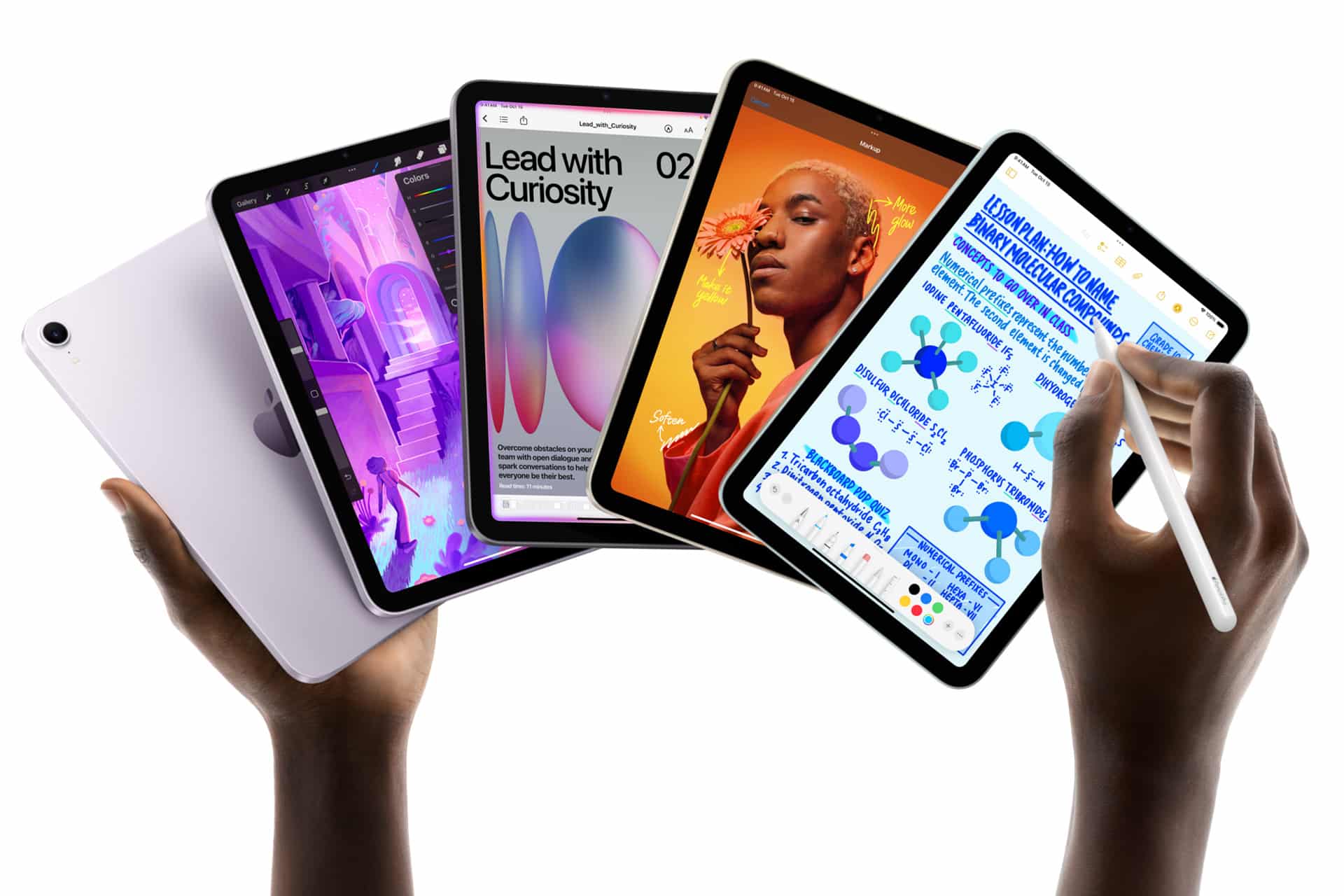
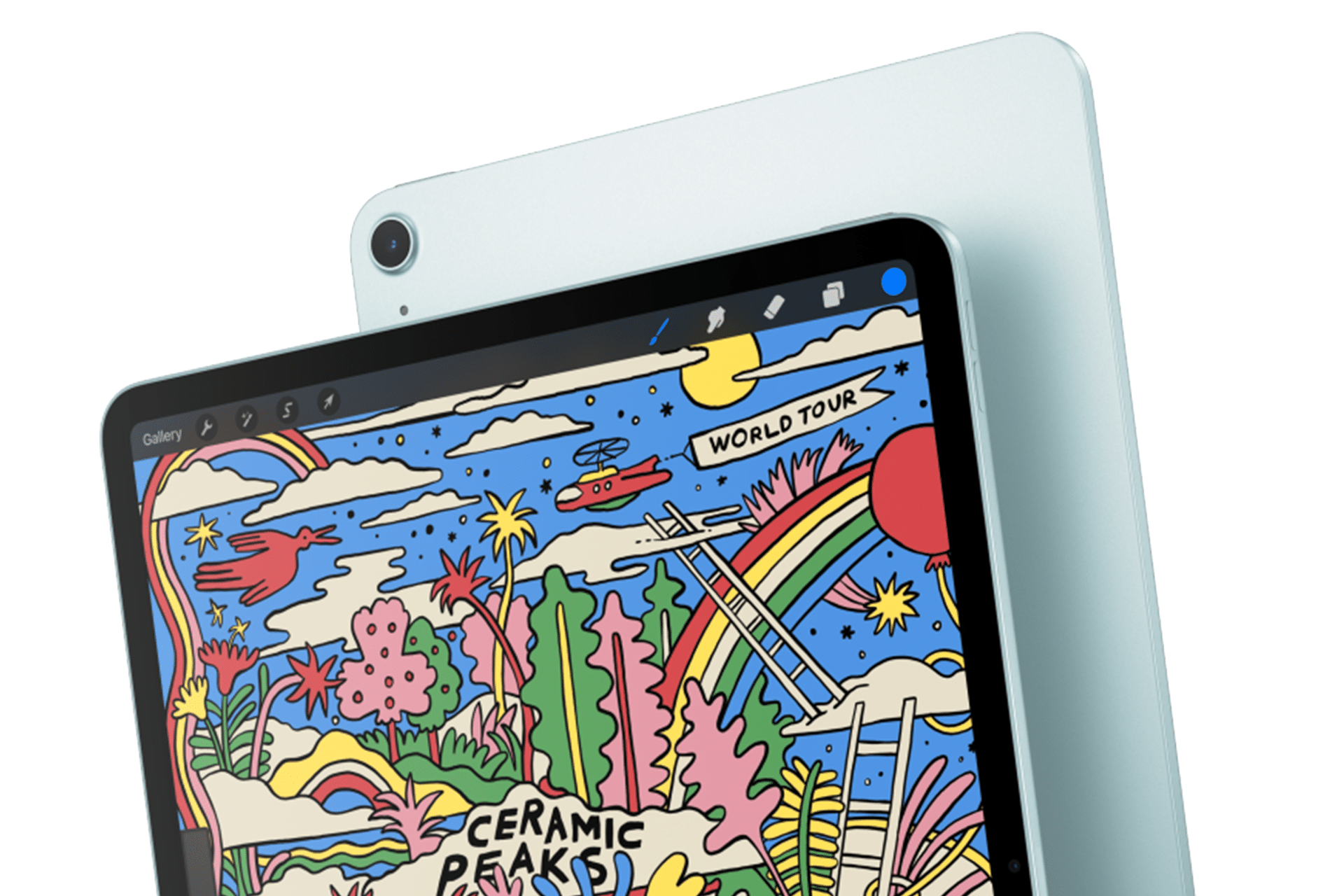
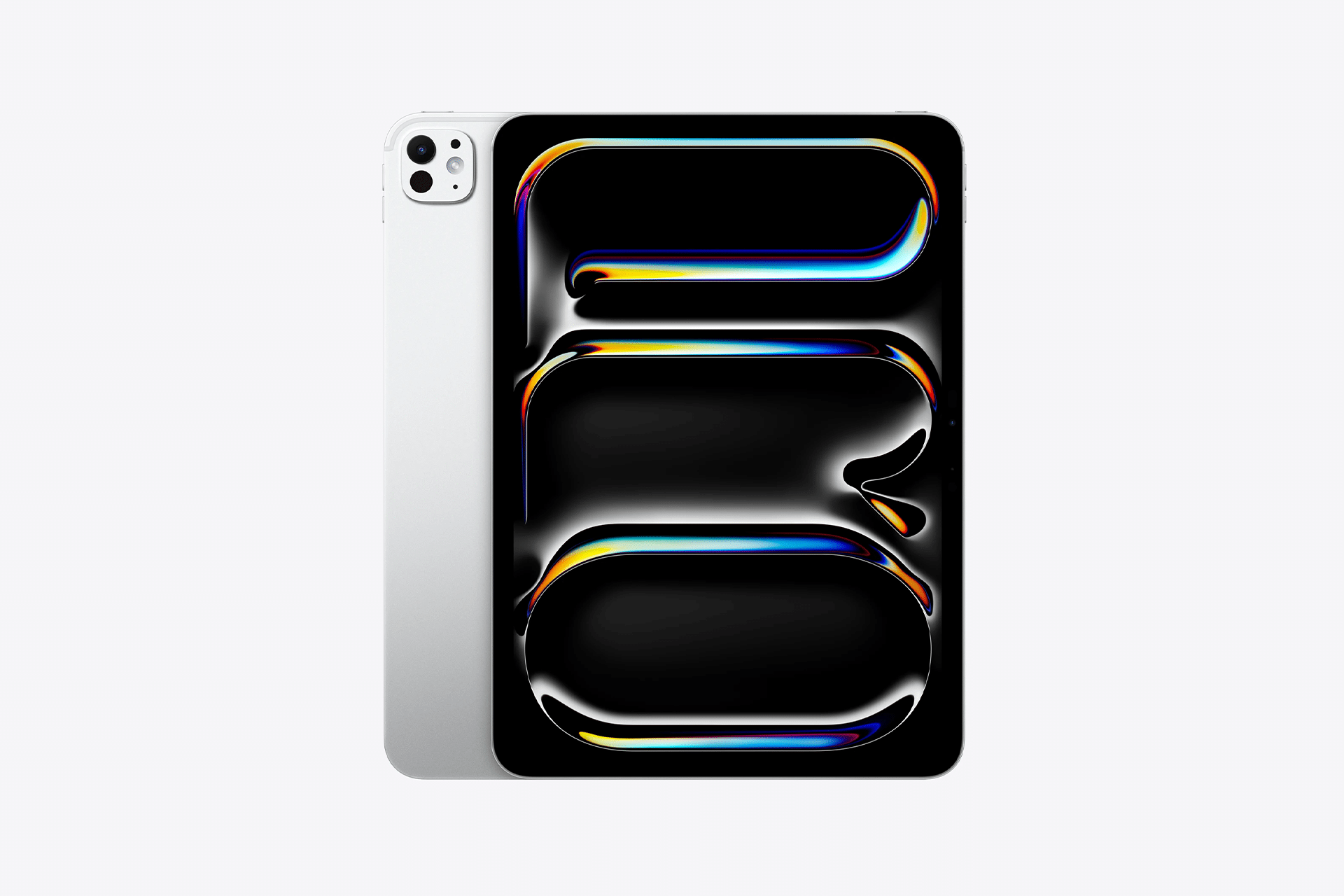
Apple’s next iPad lineup refresh could begin this fall with a new iPad mini, followed by updates across the rest of the tablet family during 2027. The reported schedule would give Apple a rolling series of launches rather than one event covering every iPad at once.
Bloomberg’s Mark Gurman reports that Apple is preparing replacements for the iPad mini, entry-level iPad, iPad Air and iPad Pro. The compact model is expected to arrive first, potentially as early as October, while the remaining tablets would follow over the next several months.
Apple has not announced any of the devices, and release timing can change. The report nevertheless gives prospective buyers a clearer picture of where each current model sits in its cycle. The first update could also bring one of the most requested display improvements to Apple’s smallest tablet.
iPad Lineup Refresh Starts With the Mini
The iPad lineup refresh is expected to begin with the iPad mini, which has received fewer updates than Apple’s larger tablets. The current design remains popular because it offers an 8.3-inch screen in a device small enough to hold comfortably with one hand, place in a small bag or use as a portable reading and note-taking tool.
The next model is reportedly moving to an OLED display. That would give the iPad mini deeper black levels, stronger contrast and more vivid color than its current LCD panel. OLED would be particularly noticeable when reading in dark environments, watching video or working with images.
The new display is expected to measure approximately 8.4 inches without producing a major change to the overall design. Apple may retain a 60Hz refresh rate rather than bringing the 120Hz ProMotion technology used by the iPad Pro. That could disappoint buyers hoping the mini would become a compact Pro model, but OLED alone would represent a visible upgrade.
Reports have also pointed to an A19 Pro chip. That would give the smaller tablet more performance for games, creative apps, Apple Intelligence and longer-term software support. The current iPad mini already occupies an unusual position between a reading device and a compact professional tool. A stronger chip and OLED screen would push it further toward the second category.
Price may become the less attractive part of the update. Apple could raise the starting cost as display and memory expenses increase. Buyers interested mainly in portability may accept a higher price, but the iPad mini would need to avoid moving too close to the iPad Air.
The Entry-Level iPad May Stay Familiar
Apple’s least expensive iPad is expected to receive a more modest update in early 2027. The company reportedly plans to preserve the current design while replacing the processor with a newer chip.
That would fit the role of the entry-level model. Apple uses it for education, families, basic productivity, streaming, games and first-time tablet buyers. A dramatic redesign could increase the cost without improving the tasks most customers use it for.
The processor update could bring Apple Intelligence compatibility, depending on the chip and memory configuration Apple chooses. The current model’s position outside some advanced AI features creates an increasingly visible separation from the rest of the lineup.
A newer chip would also extend the useful life of the device. Entry-level iPads are often kept for several years, passed between family members or deployed in schools and businesses. Long software support can be more valuable in that segment than a thinner body or new camera arrangement.
Anyone considering the current base iPad should decide whether price or longevity has greater value. The current model remains suitable for ordinary use, particularly when discounted. Buyers who want the longest possible support window may prefer to wait.
iPad Air Could Receive the Larger Display Upgrade
The iPad Air is also expected to receive an update in 2027, with OLED display technology reportedly planned for the range. That would narrow one of the most obvious visual differences between the Air and the iPad Pro.
Apple currently positions the Air as the balanced choice: stronger than the entry model, less expensive than the Pro and available in 11-inch and 13-inch sizes. It supports Apple Pencil Pro and Magic Keyboard while offering M-series performance for demanding apps.
An OLED display would make that value proposition more aggressive. The Air could offer improved contrast and image quality without requiring buyers to move to the Pro tier. Apple would still have several ways to distinguish the Pro, including ProMotion, brighter displays, thinner hardware, advanced cameras and newer processors.
The processor is likely to receive another M-series upgrade as well, though the exact chip remains uncertain. For most users, the Air already has far more processing power than routine tablet work demands. The screen may provide the stronger reason to wait.
The risk for Apple is pricing. OLED panels could push the Air upward, especially in the 13-inch configuration. If the gap between Air and Pro becomes too narrow, buyers may move directly to the flagship. Apple will need to preserve a convincing middle tier.
iPad Pro May Focus on Power and Accessories
The next iPad Pro is reportedly planned for spring 2027. Apple may use a new M-series processor while leaving the current thin design largely intact.
That would make the Pro refresh more evolutionary than transformative. The current generation already includes OLED displays, high-end performance, Face ID, ProMotion and support for Apple Pencil Pro and Magic Keyboard.
Apple is also reportedly preparing two updated Apple Pencil models. Those accessories could arrive alongside the next iPad Pro, with changes potentially related to battery design and regulatory requirements.
The larger question is what additional processor power will do for the tablet. iPadOS 27 has expanded multitasking and window management, but buyers continue to evaluate the Pro against MacBook models at similar prices. A faster chip alone will not settle that comparison.
Apple may rely more heavily on AI, professional applications and accessory integration to justify the update. The Pro has become a platform for illustration, video editing, music production, 3D work and specialized enterprise apps. New hardware needs to strengthen those uses rather than simply win another benchmark.
Should Buyers Wait?
The answer depends on the model. Prospective iPad mini buyers have the strongest reason to pause because the reported fall update could introduce a substantially better display within months.
Entry-level buyers can still consider the current iPad when pricing is attractive. Its expected replacement appears focused on performance rather than design. Waiting becomes more sensible for anyone who wants Apple Intelligence support or maximum longevity.
The current iPad Air remains a capable option, particularly for users who need a tablet now. OLED would improve the experience, but a 2027 release leaves a longer wait. The same logic applies to the iPad Pro. Its successor may be faster, though the existing model already covers demanding work comfortably.
Apple’s gradual schedule could keep the iPad in the hardware conversation from fall through spring. It also means there will be no single perfect moment when every model is equally new.
The iPad mini may open the cycle because it has the most obvious opportunity for visible improvement. After that, Apple can use the base iPad for reach, the Air for broader OLED adoption and the Pro for its latest silicon and accessories.
The tablet lineup is not expected to change all at once. It may instead evolve model by model, giving buyers repeated reasons to reconsider which iPad fits their needs.
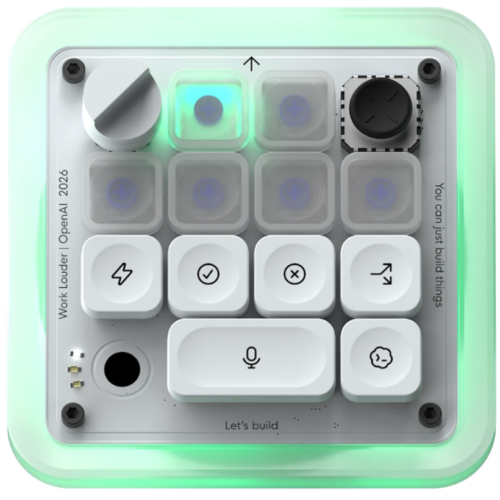
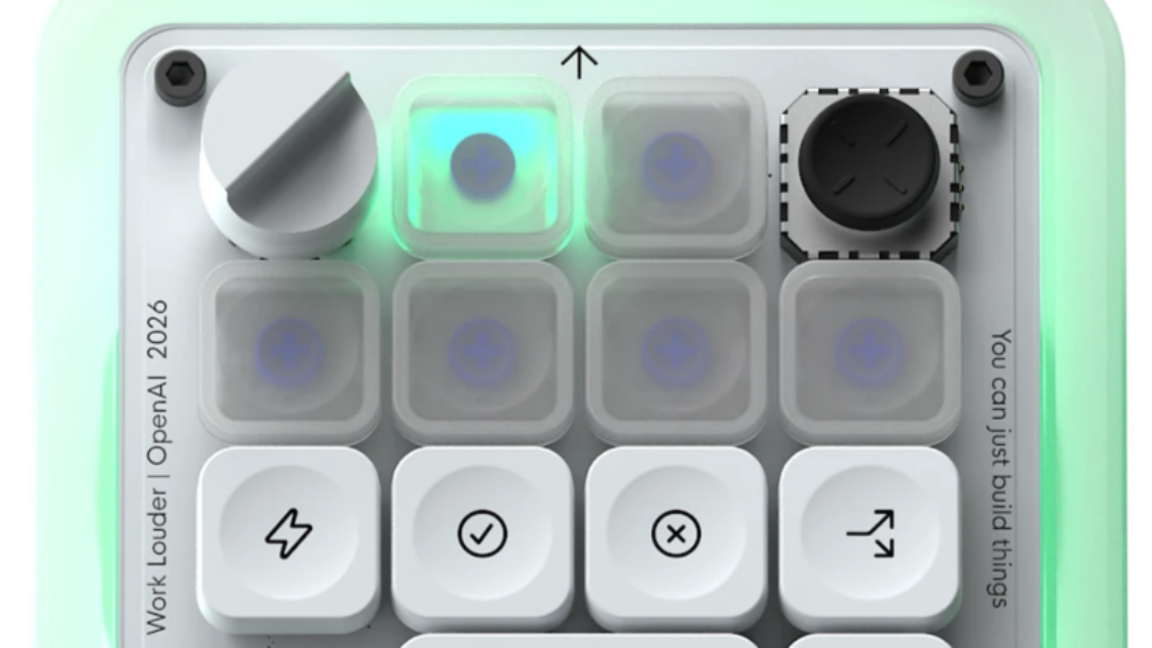
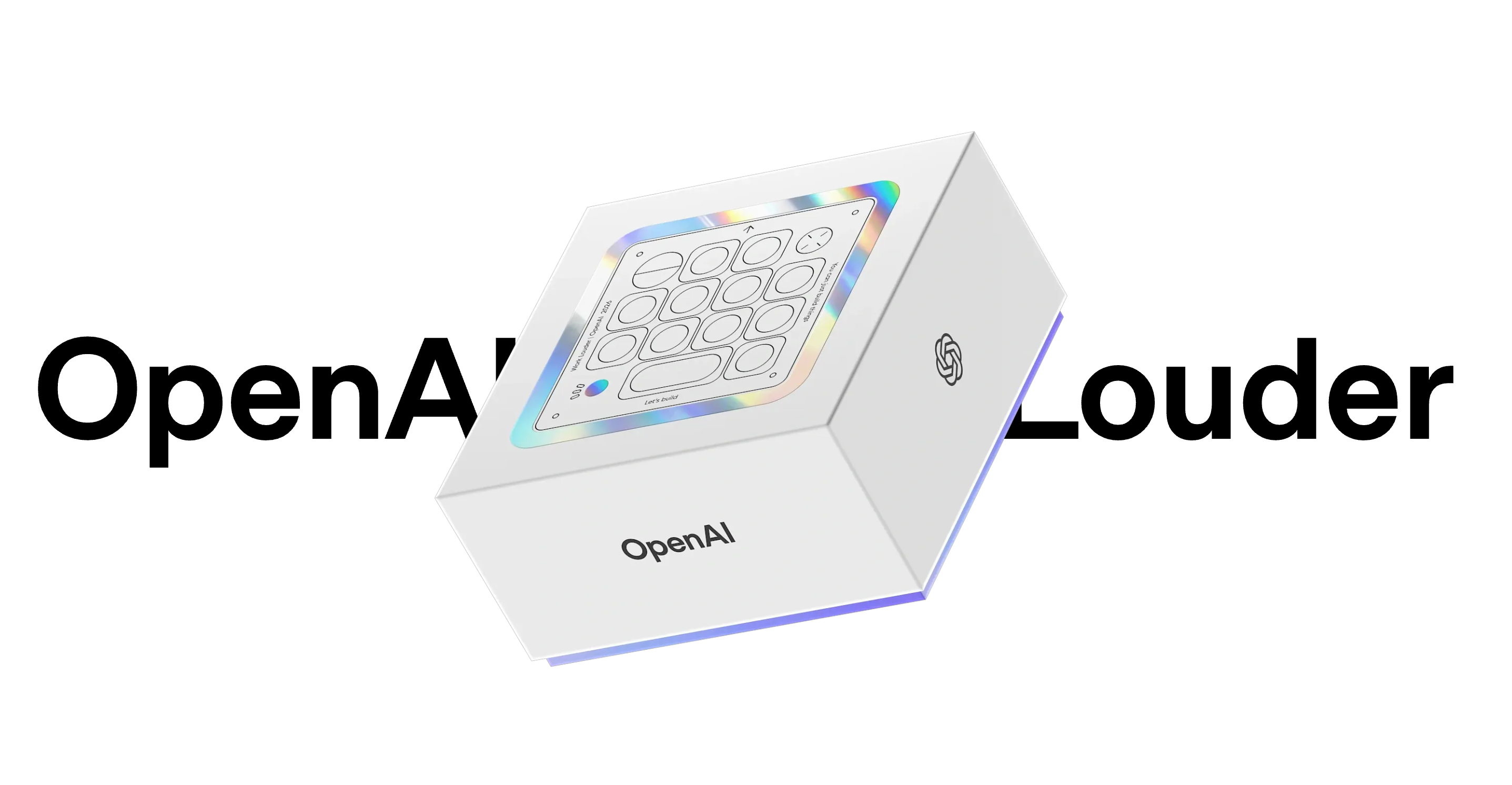
As rumors continue to swirl about OpenAI's work on a personalized smart speaker and other hardware, the company is today rolling out its first branded device. The $230 Codex Micro is a specialized, RGB-lit mini-keyboard designed to let users monitor and quickly interact with multiple Codex agents with a glance and a few clicks.
The device is described as a "limited-run collaboration" with Work Louder, which already sells a very similar-looking Creator Micro line of customizable square keyboards targeted at creative professionals. The Codex Micro differentiates itself from those mainly through six frosted keys in the top two rows, which offer color-coded live feedback on up to six Codex threads, even when they are not in focus on-screen.
Open the OpenAI box for AI assistance.
Credit:
OpenAI / Work Louder
Ideally, those colored keys will cycle from white when a thread is idle to blue when Codex is thinking to green when a task is complete. But the keys can also flash amber when Codex requires feedback or a decision from a human operator and red when a thread encounters an error, letting users know at a glance which of their Codex tasks needs immediate attention. A quick tap on the lit-up button brings up the applicable Codex window on-screen.

 Login
Login


 Open the OpenAI box for AI assistance.
Credit:
OpenAI / Work Louder
Open the OpenAI box for AI assistance.
Credit:
OpenAI / Work Louder