At Macstock 2026, Max Mellman showed off his his iPhone app, I Love a Piano. Max explains how the app stands out through realistic haptic feedback, intuitive navigation, portrait and landscape support, and a design that encourages exploration instead of intimidation. Chuck and Max also discuss his inspiration, teaching carrer, future iPad support, and broader […]
Pat Fauquet is the next stop onThe Road to Macstock is a conversation about her session, “Pills, Processes, and Procedures,” explaining how Apple devices can help manage medications, appointments, research, and communication with doctors. Drawing from years of health challenges and tech experience, she highlights the Apple Watch, iPhone, iPad, and Mac as practical tools for personal advocacy, caregiving, and preparedness. This might be the most important session this year.
Jeff Gamet is the latest stop on the The Road to Macstock, revealing his workshop session focused on helping everyone create digital art from simple paper sketches. Jeff explains how attendees can use iPhone, iPad, Mac, Linea Sketch, Affinity, or other tools, while emphasizing creativity, play, low-pressure participation, and overcoming the belief that “I’m not an artist.”
On the Road to Macstock, Jill McKinley previews her third year’s presentation, focused on making Apple devices support daily habits through Focus modes, shortcuts, customized screens, and intentional setup. She explains how iPhone, iPad, Mac, and Apple Watch can work together to reduce distractions, surface useful tools, and help users shape technology around real life instead of default settings.
L’iPad mini 7 voit petit côté format, mais pas côté performances. À l’approche de la rentrée, la tablette Apple avec puce A17 Pro profite d’une remise chez Rakuten, une bonne occasion de l’emporter partout sans alourdir son sac.
Pratique à transporter et agréable à utiliser au quotidien, la tablette gagne du terrain sur les bancs des universités. Le choix du bon modèle passe avant tout par les besoins de la formation, les applications utilisées et le budget prévu.
Le code de macOS Tahoe 26.7 révèle une impressionnante liste de produits Apple encore inédits : iPhone 18, iPhone pliant Ultra, AirPods équipés de caméras, MacBook Pro M6, iPad mini OLED et nouveaux appareils pour la maison. Futura fait le point sur les modèles les plus innovants qui dévoilent...
Para esta quinta-feira, aproveite a nossa seleção de promoções na App Store!
O ConoP – Timestamp every copy é o nosso destaque do dia: um utilitário minimalista, criado para quem precisa registrar rapidamente o momento exato em que copia um texto.
A ideia é simples: sempre que o usuário copia qualquer conteúdo, o app automaticamente adiciona a informação da data/hora, facilitando o rastreamento de informações, anotações ou registros que dependem de ordem cronológica. Essa automação elimina a necessidade de inserir manualmente essas informações, tornando o fluxo mais ágil e mais assertivo.
A interface segue com uma pegada direta, limpa e sem distrações. O foco está totalmente na função principal, o que torna o ConoP especialmente útil para profissionais que lidam com logs, pesquisadores, jornalistas ou qualquer pessoa que precise documentar eventos com precisão.
Embora seja um app simples, sua utilidade é clara: ele transforma uma ação cotidiana em um registro organizado e temporalmente estruturado. Se você procurava uma solução assim, aproveite agora mesmo essa oferta!
Abaixo outros jogos/apps que, juntos, somam quase R$90 em descontos:
Jogos
Acabe com bolhas.
Jogo educacional.
Jogo de estratégia.
Aplicativos
Utilitário para remédios.
Utilitário para códigos de porta.
Aproveite as ofertas e até amanhã! Vale lembrar que elas são sempre por tempo limitado, então é bom correr. 🛸
Nesta terça-feira, confira e economize com a nossa seleção de promoções na App Store!
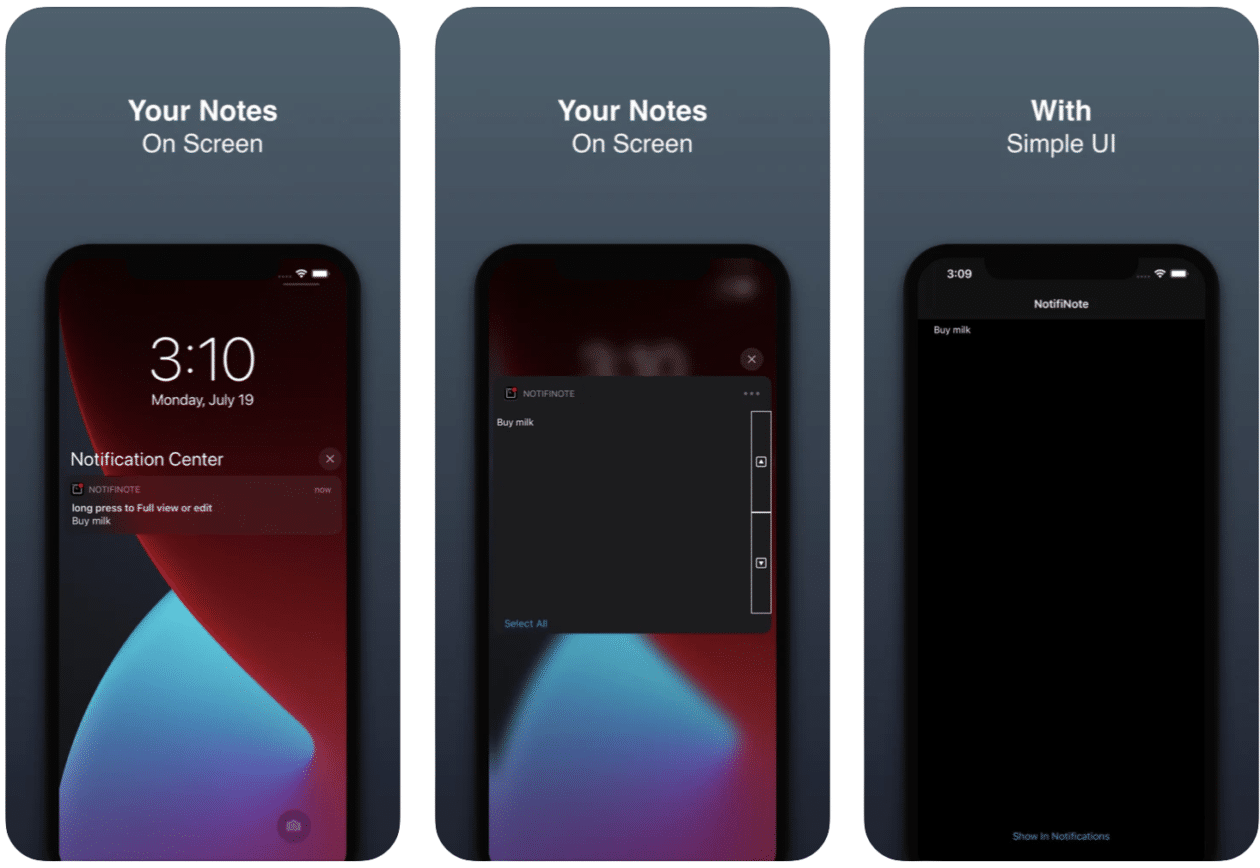
O NotifiNote, desenvolvido por Mert Can Kus, é uma forma diferente de lidar com anotações.
A proposta é simples: apresentar notas na Central de Notificações. Seja para uma lista de tarefas, ideias rápidas ou simplesmente um lembrete, o app é uma ótima opção para você que precisa ter alguma informação de forma rápida.
Procurando uma solução assim? Aproveite a oferta! 😬
Abaixo outros jogos/apps que, juntos, somam quase R$80 em descontos:
Jogos
Jogo de corrida.
Crie e se divirta.
Jogo de aventura.
Aplicativos
Notas e listas.
Atividades físicas.
Aproveite as ofertas e até amanhã! Vale lembrar que elas são sempre por tempo limitado, então é bom correr. 🚀
Pesquisadores da A Securityrevelaram vulnerabilidades na plataforma de videoconferência Zoom que poderiam ter sido exploradas para assumir o controle dos dispositivos dos usuários — em um ataque denominado “Zoomsday”.
Qualquer pessoa em uma chamada que envolvesse compartilhamento de tela — fosse participante ou anfitrião — estaria vulnerável a um ataque executável sem qualquer indicação ou interação por parte da vítima.
Os especialistas afirmam que a falha foi descoberta no início de junho, utilizando modelos de IA disponíveis publicamente, e que foram necessários menos de 20 comandos para identificar as vulnerabilidades e criar um ataque funcional.
O que nos interessa — e o que consideramos perigoso — é a democratização dessas capacidades; a barreira de entrada está caindo rapidamente. Antigamente, seria necessária uma equipe de cinco pessoas trabalhando talvez seis meses, com muitos ajustes e iterações, para descobrir isso. Agora, é possível obter os mesmos resultados com menos de 20 comandos. Além disso, o Zoom é um alvo importante porque as pessoas confiam na plataforma ao utilizá-la; elas não a veem como uma ameaça.
—Omer Gull, cofundador da A Security.
Ainda segundo os pesquisadores, as vulnerabilidades estavam localizadas especificamente no protocolo usado para permitir anotações em tempo real durante o compartilhamento de tela.
De acordo com informações do WIRED, o Zoom emitiu um comunicado de segurança nesta semana detalhando as correções das brechas, as quais afetavam dispositivos com todos os sistemas operacionais suportados pela plataforma — Windows, macOS, Linux, iOS e Android.
If your iPhone or iPad is misbehaving and initial solutions are not working, a full reset may be necessary. Taking your device back to how it was out of the box can often help resolve issues like constant crashing, freezing or other serious problems.
It’s something of a nuclear option, though, so before you take this route we’d recommend restarting or force-restarting your iPhone or iPad, as that will leave your data and settings intact. Another option is to ensure that the version of iOS or iPadOS on your device is up to date, as the problem might be caused by an issue that has since been patched by Apple. We explain how to do this in our how to update iOS guide.
Of course, if you’re selling your iPhone (or passing it down to a family member or friend) it’s absolutely vital that you delete all the sensitive data stored on it. If not, an unscrupulous buyer could gain access to your social media profiles, financial information and even your personal photos and videos.
As with any activity that deletes data, we’d recommend that you back up your iPhone or iPad before you attempt resetting the device. After your device has been wiped you will be able to download your data from your backup.
How to wipe an iPhone or iPad
We’ll concentrate on iPhone for this tutorial, but the steps will be more or less the same for iPad. There are two ways to erase your iPhone or iPad, one is useful if you just want to erase everything and then recover the data from a backup, the other is useful if you are moving to a new device and selling or passing on the one you are erasing. There’s also a basic Reset option that might be all you need to do in order to fix a troublesome issue.
Foundry
To factory-reset an iPhone follow these steps (after backing up your device).
You may need to remove your device from Find My before you begin. You will also need to be connected to Wi-Fi or cellular for this process to work.
Go to Settings.
Tap on General.
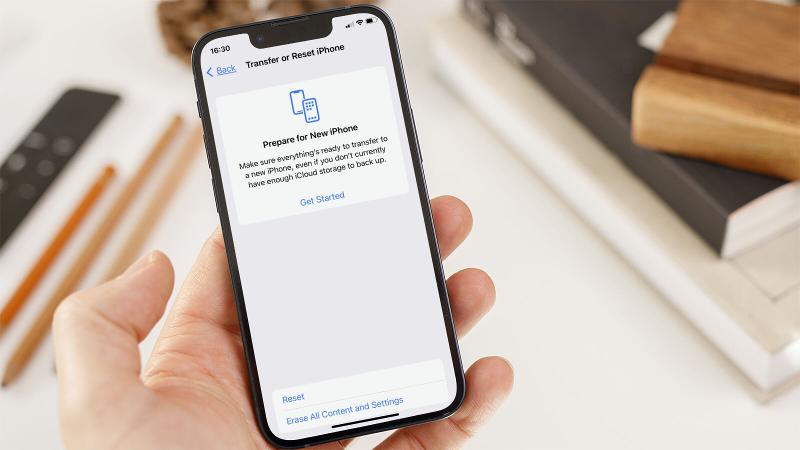
Choose Transfer or Reset iPhone.
You now have the options Prepare for New iPhone, Reset, and Erase All Content and Settings:
Choose Reset if you just want to reset your settings. There are also options to reset network settings, reset the keyboard dictionary, reset the home screen layout, and reset location and privacy. These options may be enough to fix a problem with your iPhone without wiping it.
Choose Prepare for New iPhone to backup and wipe your iPhone for sale, or so you can pass it on to someone else.
Choose Erase All Content and Settings to completely wipe your iPhone and reinstall the operating system and everything else.
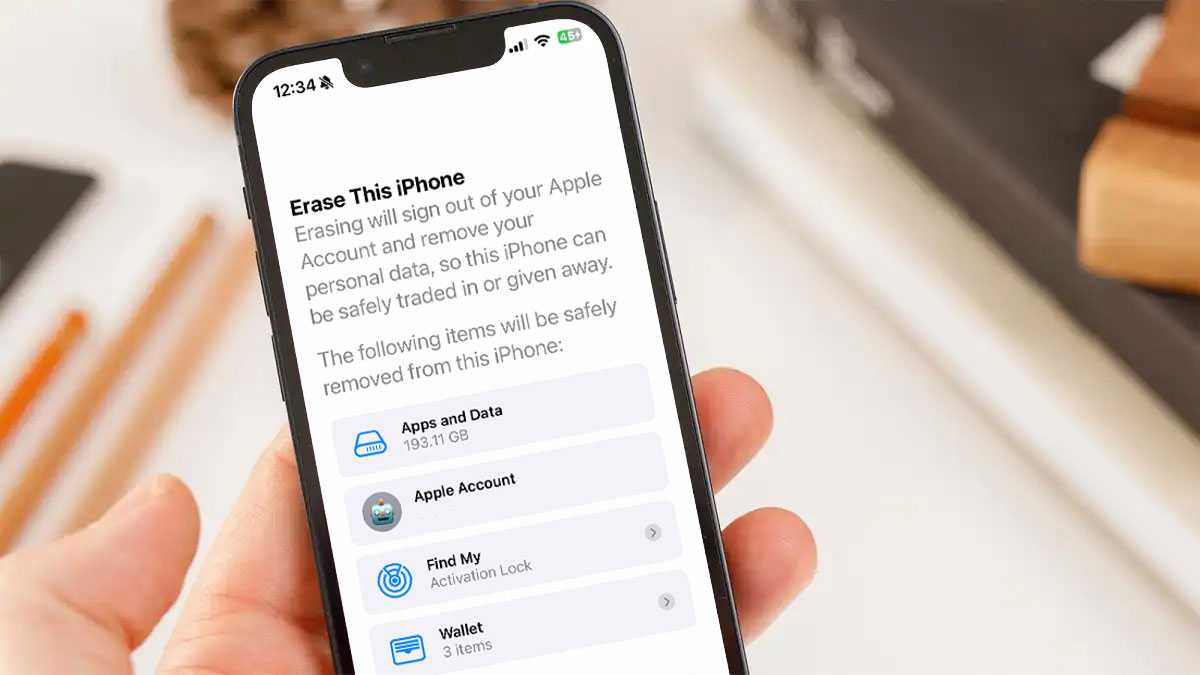
The iPhone will alert you to what will be deleted, including Apps and Data and your Apple ID. Find My will no longer be connected to the device, and all your Apple Wallet details will be removed. This is your cue to back up any of this data (if you don’t have a backup we run through how to do that here: How to back up an iPhone or iPad.) You will also find options for backing up this information if you follow the Prepare for New iPhone steps below.
If you are happy that you have a backup, or don’t need the data being referred to, either select Erase All Content and Settings or the Prepare for New iPhone option.
Tap Continue.
Enter the Passcode for the iPhone and the process will begin.
If you want help backing your data up to iCloud and want to make sure you cover all the important steps that you should make when selling your old device, you can make use of the Prepare for New iPhone instructions, which will walk you through the process.
How to reset an iPhone if you’ve forgotten the password or passcode
During the process for resetting you iPhone your passcode will be requested, you may also need to use the password associated with your Apple ID. This is a problem if you have forgotten it.
There is a workaround if you have forgotten your passcode but remember your Apple ID password:
On the Lock Screen, enter a passcode several times until you get a Security Lockout with a warning to try again later.
You’ll see Erase iPhone (or iPad) at the bottom of the screen. Tap on that.
Tap Erase iPhone/iPad and then tap it again to confirm.
You’ll be prompted to enter your Apple ID password to sign out of your Apple ID on this device. This will allow you to reset the device and turn off Activation Lock.
Tap Erase iPhone/iPad when prompted again to permanently delete all your apps and data and reset the device.
After a few minutes, your iPhone or iPad will restart and you’ll be at the setup screen, as if it was a new device you just took out of the box. For obvious security reasons, there’s no way to reset your iPhone after a lost passcode without erasing all your apps and data. It would provide an exploitable loop for bad actors to get around the passcode timeouts and such. But as long as you back up your iPhone regularly (either via iCloud or with a connection to your computer) it shouldn’t be too onerous to start over.
Resetting without a password used to require plugging into a computer via USB, entering iPhone recovery mode…it was a whole process. The good news is, Apple made this a lot easier as of iOS 15.2 (and iPadOS 15.2). So, if your device is running that version or later you can follow the steps below (otherwise click on the link above to reset via a computer). If you have forgotten your Apple ID password read this for help: How to reset Apple ID if you forgot the password.
How to restore an iPhone
If, having erased the content of the phone, you intend to keep using it, you can restore the content to your phone from your backup – assuming you have one, if not check out the section below. Here’s to recover your iPhone or iPad data:
From an iCloud backup
With the factory reset completed you’ll need to go through the setup of your iPhone again from the beginning:
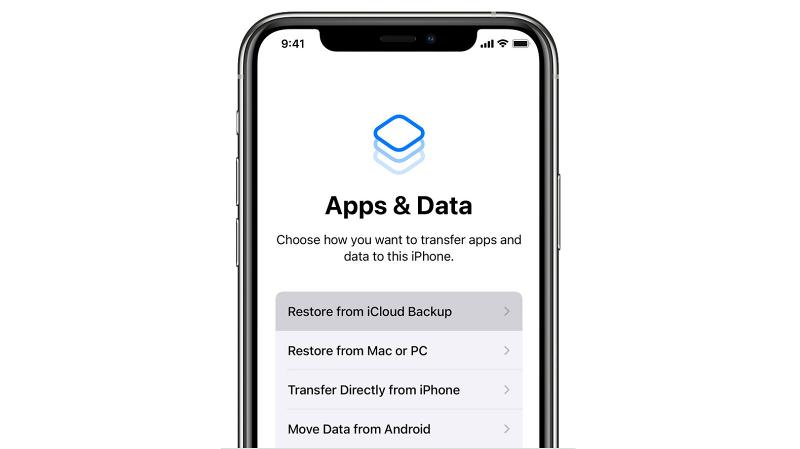
Follow the onscreen instructions until you reach the page with the headings ‘Apps & Data’.
Here you’ll see four different options from which you should select Restore from iCloud Backup.Sign into your iCloud account then select the backup you want to restore.
You may be prompted to sign into various apps that you’ve already purchased, but other than that the process should now be pretty much automatic.
Obviously, this could take a while if you have large backups or a slow internet connection, so don’t attempt this if you’re in a hurry. When the backup is completed your iPhone will reboot, and then it will start the larger job of downloading all of your apps.
From a Finder or iTunes backup
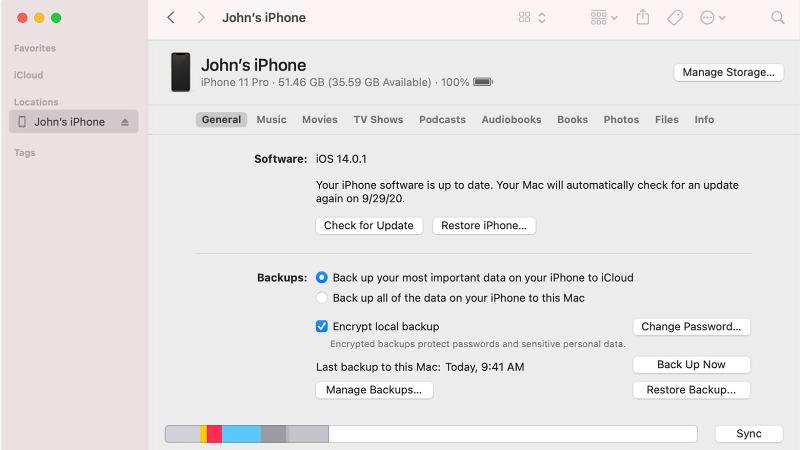
Depending on the version of macOS you’re running, you’ll either be able to use Finder (macOS Mojave and later) or iTunes (macOS Catalina or earlier) to restore a backup.
Connect your iPhone to the Mac or PC.
In the Finder window (or iTunes) you should see your device listed in the left column. Select it, then click on Restore Backup.
Choose the backup you want to use, then click Restore.
The process should now automatically install the backup on your device.
What to do if you didn’t back up your iPhone before you wiped it
If you didn’t backup your iPhone or iPad first, it’s likely that you won’t be able to retrieve data once you have deleted it.
The data on an iOS device is automatically encrypted, and wiping the device destroys the encryption key, making it more or less impossible to get anything back when it’s been fully erased and reset without access to a backup.
In an emergency you could try speaking to someone at an Apple Genius Bar, but it’s a long shot to say the least. (This applies to a full erase/reset, mind you – in other circumstances, such as data corruption, a malfunctioning device and so on, the experts may be able to help.) This also reinforces our frequent advice to back up regularly.
If you’re worried that your iPhone or iPad wasn’t backed up, don’t give up hope: there’s a chance there may be a backup of which you’re unaware.
To find out if you’re backing up to iCloud follow these steps:
Open Settings.
Tap on your name at the top of the screen.
Choose iCloud.
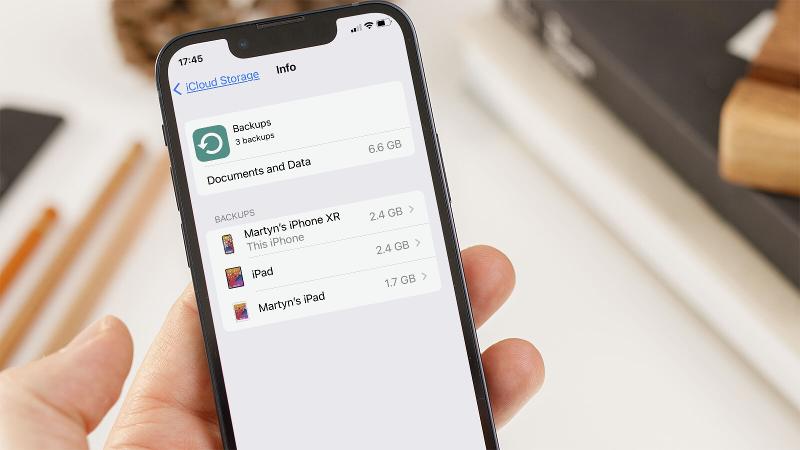
Now tap on Manage Storage or just Storage, depending on the version of iOS. Here you should see an entry called Backups with the amount of data it’s taking up displayed to the right of the name.
Tap this and you’ll see all of the various backups for your iOS/iPadOS devices.
Find the most recent backup you have and tap on it.
One of the backups should say that it is This iPhone or This iPad. Tap on that and you can see what is, and isn’t being backed up. You can basically turn things on and off so that they don’t take up your full free 5GB iCloud allocation, or you can pay a few dollars/pounds a month for more storage.
If you don’t see a backup from the device you were hoping to recover, but you do have backups of other devices (perhaps you have an iPad backup, but not an iPhone backup) you should be able to recover some of your data simply because once you link your iPhone to your iCloud account the shared data should be available on your iPhone.
If you weren’t backing you iPhone up to iCloud we suggest you do! Read How to back up an iPhone or iPad or follow the steps below.
Open Settings.
Tap on iCloud.
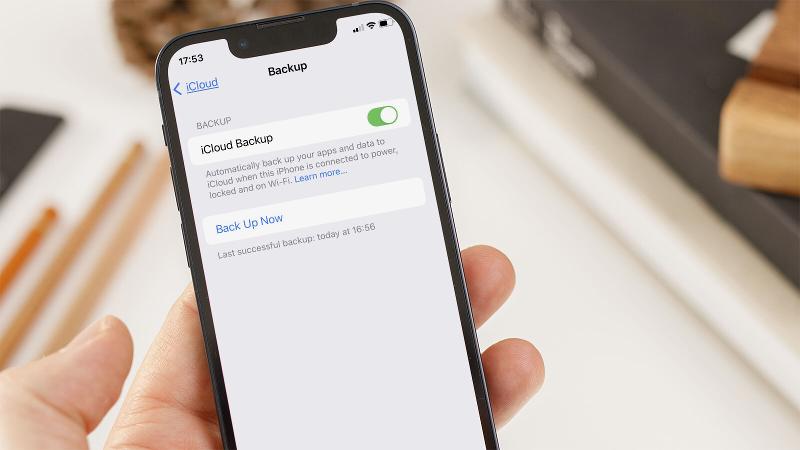
Find iCloud Backup and tap on it.
Now switch the slider beside iCloud Backup to on (green).
Tap Back Up Now. It may take a while, so bear in mind that your iPhone needs to be plugged in for the whole time.
If the backup is going to take ages you can reduce the amount of data being backed up. For example, you may think that some of the apps don’t need to be backed up; after all, you will be able to download them again from the App Store as you already own them. But note that the data may include saved data for games, and other settings and preferences you would prefer not to lose.
There you have it. A quick guide on resetting your iPhone and then restoring it once more. Of course, if you’re moving on from that older device and fancy something newer, be sure to read our best iPhone deals roundup to see if you can save some money in the process.
Recovery mode can be used to return your iPhone to factory settings. During the process your iPhone will be wiped and the newest version of iOS will be installed on it.
You might want to do this because you are experiencing problems with your iPhone and want to wipe it and start again, you might need to wipe an iPhone that you don’t have the password for, or you could use Recovery Mode to remove an iOS beta. Note that this is not quite the same as wiping your iPhone so that you can prepare it for sale, in that case, you need to follow a different process that will remove all your data and unlink the iPhone from your Apple ID.
Once you have restored your iPhone using Recovery mode your iPhone will be running the newest full version of iOS (i.e. not a beta). You will then be able to restore your iPhone settings and apps from an iCloud backup from before the time the troubles started, or before the time you installed the beta.
Note that if you are turning to this option because you have been unable to erase an iPhone using the Erase all content and settings option in Settings > General on an iPhone check that your iPhone is connected to a WiFi network before giving up on that method.
You will need to be connected to a network, either Wi-Fi or via a Sim.
How to put your iPhone into Recovery mode
You will need the Finder on the Mac or iTunes on a PC to enter Recovery mode.
Follow these steps to put your iPhone into recovery mode:
Plug your iPhone into your computer using a cable that supports data.
Open the Finder (if you are on a PC it’s iTunes you need).
Locate the iPhone in the column on the left-hand side of the Finder or in iTunes and click on it.
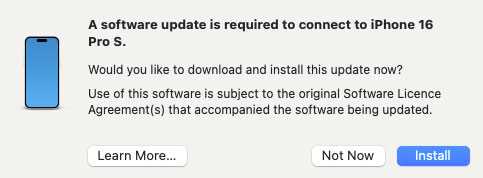
You may see a message that indicates you need to download an update to access the iPhone. Sometimes the said software is unavailable from the software update server, so don’t worry about this. But if you can, install the update.
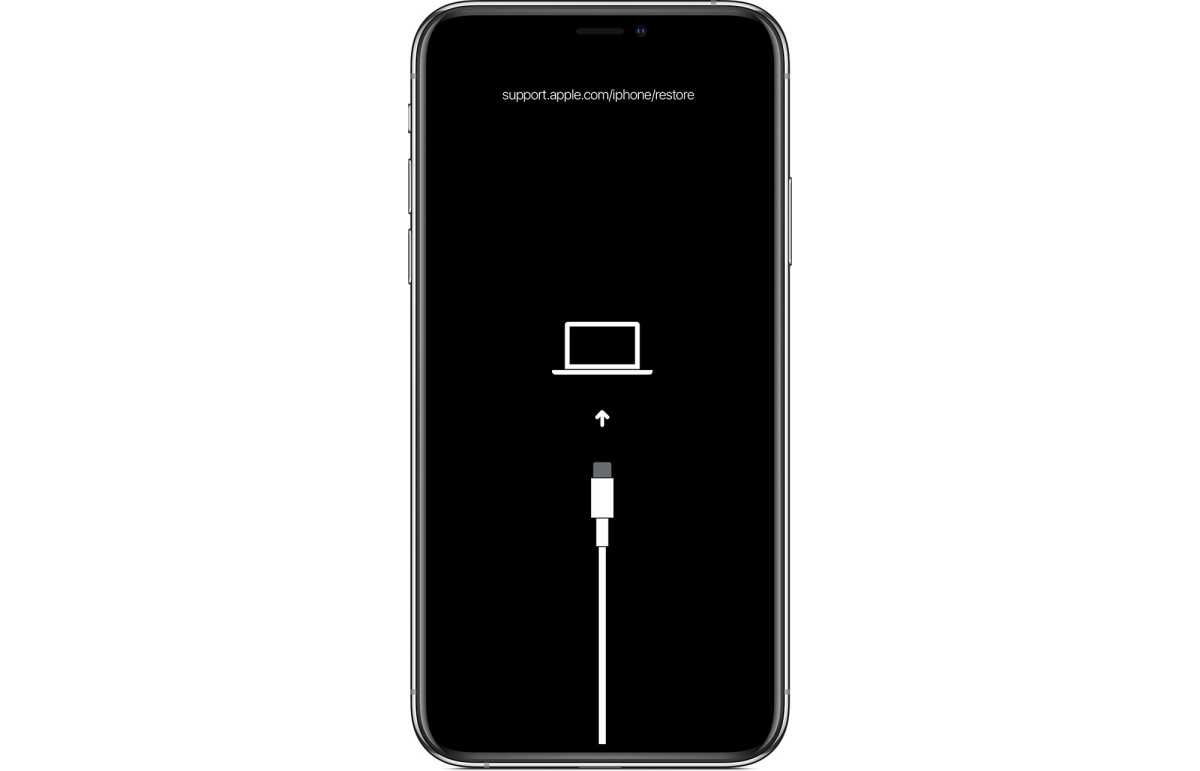
Shut down your iPhone by pressing volume up, volume down, and then press and hold the side button. Unlike a usual restart keep pressing and holding the side button while the phone shuts down and starts up again—this means you must keep holding the side button even when it gives you the option to turn the phone off and even when the Apple logo appears. Wait till the Recovery Mode screen is in place before releasing the side button. The image of a Mac and a connector on your iPhone that indicates it is in recovery mode.
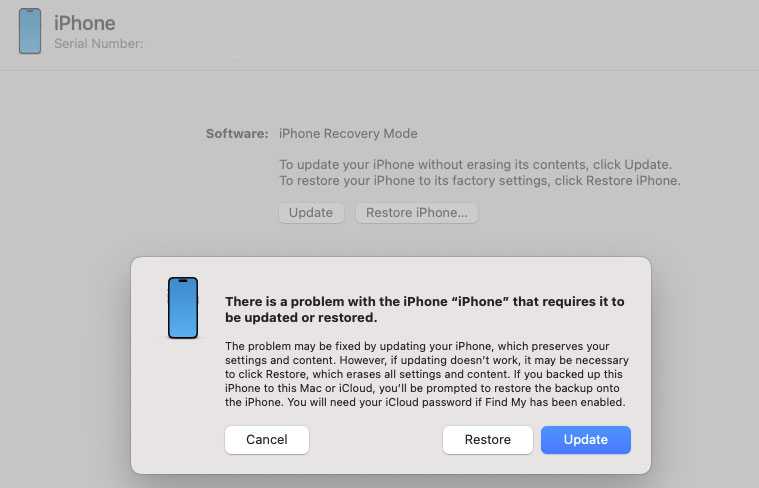
On your Mac you should now see a message indicating that there is a problem with the iPhone that requires it to be updated or restored. You need to click on Restore.
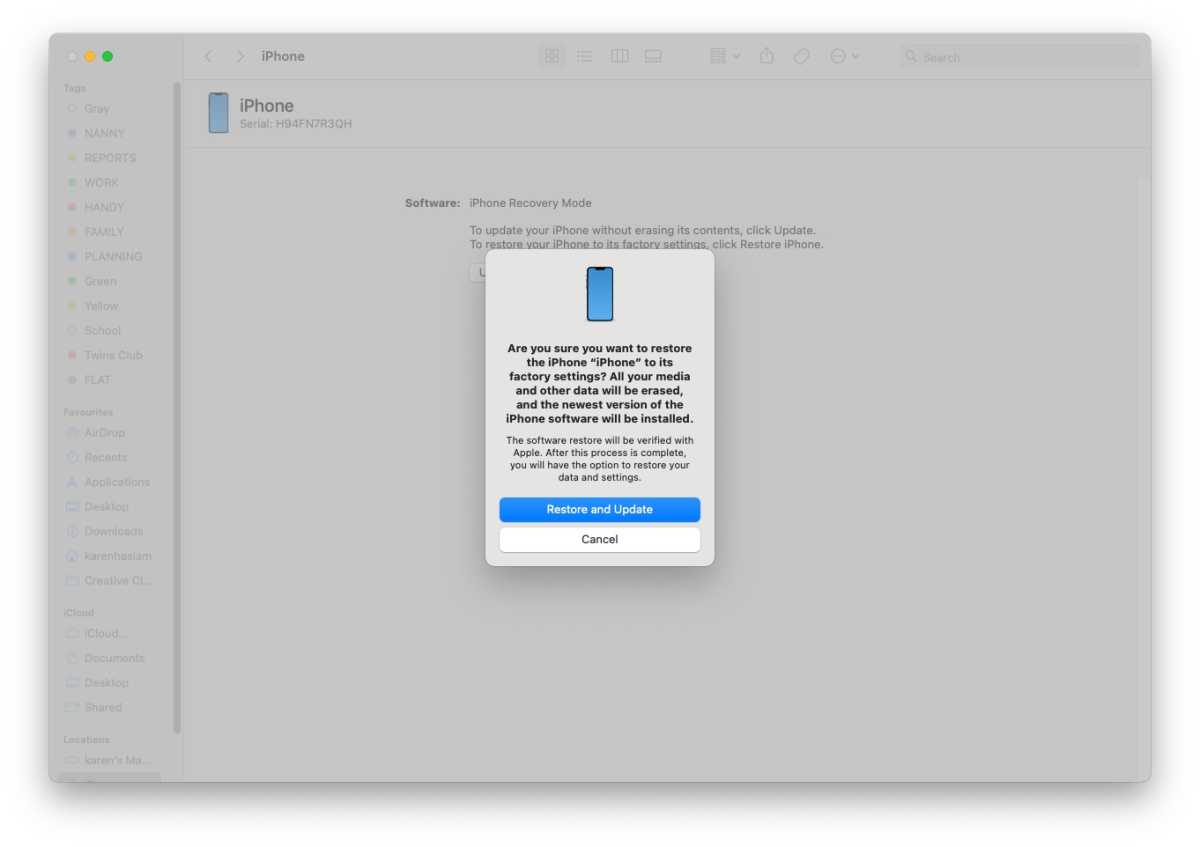
You will see a warning: “Are you sure you want to restore the iPhone…” Click on Restore and Update.
Click Agree on the next screen that details the license agreement.
Just note that there’s only about 15 minutes before your iPhone will exit recovery mode, at which point you will have to enter recovery mode again.
Your iPhone should restart with the Welcome screen if this process has worked.
Now you can either set up your iPhone as new, or restore it from an iCloud backup from before you started to experience problems.
Sometimes the Mac will require a software update to connect to your iPhone. It’s pretty painless to download and install as you are walked through the process.
Simon Jary
Keeping holding the side button until you see this screen on your iPhone.
Simon Jary
Simon Jary
Foundry
Another option is DFU mode, which is more drastic and used for tinkering with firmware and the like.
Apple has released iOS 27 beta 5 for iPhone, along with iPadOS 27 beta 5 for iPad. If you’re currently running the developer beta you will find the latest update available right away, and typically public beta testers find the same build version available soon after as well. The emphasis of iOS 27 and iPadOS ... Read More
Apple has been testing memory chips from China’s ChangXin Memory Technologies (CXMT) for use across product lines that include iPhones and MacBooks, according to a Wall Street Journal report citing people familiar with the matter. The move comes as the company grapples with a severe memory-chip shortage intensified by surging demand from the artificial-intelligence boom.
The iPhone maker has held early talks with CXMT about potential supply of components, with the aim of incorporating them into some devices sold in China. Apple is seeking approval from the Trump administration to proceed with any business involving the Chinese chipmaker. Any such deal would be politically sensitive. Some U.S. policymakers worry that collaboration could give CXMT access to American intellectual property.
CXMT ranks as China’s largest chipmaker by market value. The testing reflects broader industry pressure: AI data-center demand has redirected substantial DRAM production capacity toward high-bandwidth memory used in AI accelerators, tightening supplies and driving up prices for the conventional memory chips needed in smartphones, PCs, and other consumer electronics.
Other device makers have already begun limited use of CXMT chips. Laptop producers HP and Acer have started incorporating the Chinese company’s memory into some devices sold outside the United States to ease shortages, the Journal reported.
Apple and CXMT did not immediately respond to requests for comment on the report. The development builds on earlier indications that Apple has been exploring options with Chinese memory suppliers and lobbying U.S. officials for flexibility amid the supply constraints. CXMT has faced scrutiny in Washington, including designation on a Pentagon list of companies with alleged ties to the Chinese military, adding layers of regulatory and political complexity to any potential partnership.
MacDailyNews Take: The situation underscores the tension between immediate commercial needs (securing enough memory to maintain production volumes and manage costs) and longer-term national-security and technology-transfer concerns. It’s a tightrope walk for sure.
Please help support MacDailyNews — and enjoy subscriber-only articles, comments, chat, and more — by subscribing to our Substack: macdailynews.substack.com. Thank you!
Every September brings the same headache: a school or university supply list that suddenly includes a laptop, tablet, or smartphone, and a household budget that hasn’t grown to match. Between rising hardware costs, global memory shortages, and kids lobbying hard for the newest device to fit in with friends, “Back to School tech” has quietly become one of the biggest line items of the season.
The good news is there’s a smarter and more affordable way to buy—refurbished—and it doesn’t mean settling for less.
Back Market
Why Back to School tech costs so much
Three pressures are colliding at once. Schools increasingly require students to bring their own laptop or tablet for coursework, turning what used to be optional into a mandatory expense. At the same time, a global shortage in memory chips has pushed up the base price of new devices across the board. Layer on peer pressure—plenty of kids push for the latest brand-name gadget even when a perfectly good device is already sitting in a drawer—and parents are left stretched thin, weighing tech costs against groceries and heating bills.
Back Market
Refurbished doesn’t mean second-hand
This is where the mindset shift matters. A refurbished device isn’t the same as a used one picked up second-hand with no guarantees. On Back Market, every product goes through professional inspection, testing, repair, and restoration before it’s resold—closer to buying a certified pre-owned car than rolling the dice on a stranger’s old phone. Devices are typically up to 50% cheaper than buying new, while still delivering full functionality for schoolwork, streaming, gaming, and everyday use.
It’s also a category with real breadth. Back Market isn’t just phones—you’ll find laptops, tablets, 2-in-1 computers, desktops, headphones, speakers, and more, all refurbished and inspected to the same standard. Whatever’s on the school supply list, there’s likely a refurbished option worth checking first.
Back Market
The numbers back it up
Demand is climbing fast: searches for iPhones are up over 60% month over month, with mid-generation models like the iPhone 13 and SE converting best—proof that shoppers want reliable performance without paying flagship prices. Every purchase—be it MacBook, iPhone, or iPad— also comes with the Back Market Promise: after its up to 100-point quality inspection, a 1-year warranty, 30-day returns, and free shipping, so the savings don’t come at the cost of peace of mind.
Stack the savings: student and teacher discounts
Parents, students, and educators can save even further with Back Market’s student and teacher discount.
Receive a £20-off code to use on eligible electronics
That discount applies across the board—smartphones, laptops, tablets, and more—stacking on top of the already-reduced refurbished pricing.
Back to School with the best
Back to School shopping doesn’t have to mean choosing between a stretched budget and a disappointed kid. Buying refurbished gets premium brands like Apple into students’ hands at a fraction of the price, backed by real quality checks and warranties—and it keeps devices out of landfill in the process. For families feeling the pinch this September, it’s one of the easiest wins on the list.
Abrindo a semana com a nossa seleção de promoções na App Store para esta segunda-feira!
Reigns transporta você para o trono de um monarca na era medieval, e a cada decisão tomada o sucesso ou o fracasso de seu povo será posto à prova.
A proposta desse jogo de cartas é bem simples: os pedidos serão apresentados e você deverá deferir ou negar; a cada decisão, as consequências serão apresentadas em quatro aspectos diferentes (religião, população, exército e finanças).
Confira um vídeo:
Aproveite a oferta e boa diversão! 🦁
Abaixo outros jogos/apps que, juntos, somam mais de R$110 em descontos:
Jogos
Puzzles.
Um mundo aquático a ser explorado.
Jogo de aventura.
Aplicativos
Redimensionador.
Gerenciador de aeronaves.
Aproveite as ofertas e até amanhã! Vale lembrar que elas são sempre por tempo limitado, então é bom correr. 🛸
Um dia desses, falamos sobre o CloudGear, uma plataforma cuja proposta é funcionar como uma alternativa mais poderosa que o Safari para jogos na nuvem — basicamente um navegador mais otimizado para esse tipo de atividade em relação ao browser nativo da Apple.
Falaremos hoje sobre um app ainda mais completo, o Portal: Remote Play. Além de uma plataforma para cloud gaming, ele suporta também o streaming de jogos remoto — que é quando o game é executado no próprio console do usuário, o qual funciona como um servidor.
Outro diferencial importante é o suporte a mais plataformas para além do GeForce NOW e do Xbox Cloud Gaming, já que usuários também podem jogar títulos elegíveis do PlayStation — e nas duas modalidades oferecidas pelo app: remotamente e via nuvem (Cloud Streaming).
O Portal também suporta HDMI e UVC — o que o permite receber e exibir no iPhone, iPad, Vision Pro ou Apple TV o sinal de jogos executados em outros dispositivos por meio de uma placa de captura compatível, sem depender de transmissão de streaming pela internet.
O Portal: Remote Play é gratuito para baixar na App Store e experimentar, mas para desfrutar do conjunto completo de recursos oferecidos por ele é necessário aderir a um dos planos de assinatura premium (semanais, mensais, trimestrais e anuais) ou adquirir um pacote por uma compra vitalícia.
Algumas semanas após a liberação das quartas versões de testes, a Apple enfim disponibilizou hoje as quintas betas do iOS 27 (compilação 24A5408d), iPadOS 27 (idem), macOS Golden Gate 27 (26A5406e), watchOS 27 (24R5347a), tvOS 27 (24J5346a) e visionOS 27 (24M5348b) para desenvolvedores.
Também já está disponível para desenvolvedores a quinta versão beta do Xcode 27 (compilação 27A5237l).
Os novos sistemas, anunciados na WWDC26, trarão novidades e diversas melhorias para iPhones, iPads, Macs, Apple Watches, Apple TVs e Vision Pros — conforme temos acompanhado e detalhado no apanhado de matérias abaixo.
Como de costume, nós estamos acompanhando as possíveis novidades incluídas com as novas betas e detalharemos tudo sobre elas por aqui. Continuem de olho!
Conforme visto pela agência Reuters, a Apple publicou uma documentação oficial de suporte ensinando usuários do macOS na China a conectar o Qwen, plataforma de inteligência artificial (IA) proprietária da Alibaba, como uma extensão da Apple Intelligence no país.
Embora ensinasse efetivamente a fazer essa integração (o que indica que não era apenas algo preparatório), a documentação foi retirada do ar pouco tempo depois — o que nos leva a entender que ela foi, no mínimo, lançada em cima da hora ou antes do período previsto pela empresa.
O guia atualizado em chinês da Apple diz que os usuários que optam por participar podem usar o Qwen via Siri para obter respostas mais detalhadas a algumas solicitações, incluindo análise de fotos e documentos. As Ferramentas de Escrita também podem se basear no serviço para criar texto ou imagens a partir de uma descrição.
A possibilidade de usar o Qwen estaria disponível para usuários elegíveis com o macOS Tahoe 26.6 ou posterior. Eles devem se sujeitar a condições específicas para o mercado chinês e fazer login na plataforma — que não pode usar os materiais gerados para treinar seus modelos.
Segundo a Alibaba, que poderá usar a integração com os softwares da Apple para aumentar o alcance do Qwen, a plataforma será incorporada à Apple Intelligence também em iPhones, iPads e Vision Pros — embora ainda não se saiba qual modelo alimentará essa integração.
De acordo com o jornalista da Bloomberg, Mark Gurman, a Apple teria cogitado (e posteriormente descartado) um recurso bastante interessante para o Apple Upgrade: a transferência dos dados do iCloud do usuário para o novo aparelho antes mesmo de ele ser enviado para o assinante.
Revelada na última edição da sua newsletter “Power On”, a ideia — descrita como um recurso premium — seria especialmente bem-vinda para as trocas anuais de iPhones realizadas durante o período do serviço adquirido, livrando o usuário de ter que configurar seu aparelho ao ligá-lo pela primeira vez.
The Apple Upgrade feature that never made it past the drawing board: a so-called white-glove component, where your new device each year would arrive at home ready to go, preloaded with all of your data via your iCloud backup. Here’s what happened. https://t.co/PZ4r8jEgvG
O recurso de atualização da Apple que nunca saiu do papel: um componente supostamente premium, em que seu novo dispositivo chegaria à sua casa a cada ano, pronto para uso, com todos os seus dados pré-carregados por meio do backup do iCloud. Veja o que aconteceu.
Essa ideia, no entanto, esbarrou em um obstáculo importantíssimo: a privacidade do usuário, já que dados do iCloud só poderiam ser acessados pela Apple nos casos em que a Proteção Avançada de Dados (Advanced Data Protection) com criptografia de ponta a ponta não foi ativada. Isso, é claro, não inclui o Reino Unido, onde o recurso não pode ser mais acessado.
Como lembrou o 9to5Mac, o acesso remoto às definições de sistema de um iPhone obtido por meio do Apple Upgrade poderia ser associado ao Presto, um sistema proprietário de gerenciamento de atualizações baseado em hardware (empurrado especificamente por um Mac mini com um sistema customizado) para realizar o update de iPhones lacrados.
Anunciado no mês passado, o Apple Upgrade oferece o leasing de Apple Watches, iPhones, iPads e Macs para clientes dos Estados Unidos, com planos de até 36 meses dependendo do dispositivo escolhido.

 Login
Login