Our conversation with Kirk McElhearn about his new Take Control of AirPods continues, exploring the advanced capabilities of AirPods beyond simple audio playback, explaining listening modes, Conversation Awareness, head gestures, and how the Apple ecosystem enhances the experience. He also discusses why AirPods perform poorly as phone microphones, examines rumors of camera-equipped AirPods, and reflects […]
Foundation models are promising to become the “universal translators” of biomedical data—but a new perspective argues that medicine should resist treating them as all-knowing digital doctors. In a review published in Nature Biomedical Engineering, researchers describe how large, adaptable artificial intelligence systems are reshaping biomedical imaging while warning that impressive benchmark scores can conceal serious weaknesses in clinical environments. Their central message is direct: foundation models are most likely to improve healthcare by augmenting specialists, not replacing them.
Foundation models are designed to learn broad representations from enormous and diverse datasets before being adapted to specific tasks. In biomedical imaging, those data may include magnetic resonance imaging, computed tomography, X-rays, ultrasound, digital pathology slides and ophthalmic images. The same underlying model could theoretically identify tumors, segment organs, estimate disease risk, retrieve similar cases and generate clinical reports. The vision becomes even broader when imaging is combined with pathology, electronic health records and genomic information, creating a composite system intended to analyze a patient across multiple biological scales.
That ambition reflects a major change from traditional medical AI. Earlier systems were generally built for one narrowly defined task, such as detecting pneumonia on chest radiographs or outlining a brain lesion on MRI scans. Foundation models instead attempt to create a reusable backbone that can be transferred across diseases, hospitals and imaging technologies. Technically, they learn statistical patterns in high-dimensional data, often through self-supervised training in which the system predicts missing, transformed or associated information. Afterward, developers fine-tune or prompt the model for particular clinical applications.
But biomedical imaging is not a single, uniform world. Images differ according to scanner manufacturer, acquisition protocol, patient population, disease prevalence and local clinical practice. A model trained primarily on data from large academic hospitals may perform very differently in community clinics, rural settings or countries with limited equipment. This problem, known as domain shift, can occur even when images appear visually similar. Small changes in image quality, contrast, hardware or patient demographics may alter the statistical distribution learned by the model and undermine its predictions.
The authors introduce a framework called real-world evaluation and assessment of foundation models, or REAL-FM, to examine whether these systems are ready for practical use. Rather than focusing only on accuracy scores, REAL-FM considers several dimensions at once, including the quality and representativeness of training data, technical readiness, clinical value, integration into existing workflows and responsible artificial intelligence. The framework is intended to help clinicians interpret claims about new models and to push developers toward evaluations that resemble actual medical practice.
One of the sharpest distinctions in the perspective is between pattern recognition and causal reasoning. Foundation models can become extraordinarily skilled at recognizing visual associations—for example, linking a particular texture or anatomical feature with a diagnosis present in their training data. Yet association is not the same as understanding why a disease occurs, how it will progress or whether a treatment will benefit an individual patient. A model may identify a correlation that is valid in one hospital but reflects a hidden confounder, such as a scanner type, reporting convention or patient-selection pattern, rather than a biological signal.
This limitation becomes especially dangerous when models are moved beyond simplified benchmarks. Many benchmark datasets provide carefully curated images, clear labels and narrowly defined tasks. Clinical care is messier: scans can be incomplete, diagnoses can be uncertain, records may contain contradictory information and several conditions may coexist. The perspective highlights a lack of verified generalization across such conditions, along with a shortage of prospective, outcome-based validation. In a prospective study, an AI system would be evaluated while care is actually being delivered, with researchers measuring whether it improves diagnostic accuracy, treatment decisions, patient outcomes or workflow efficiency.
Data scarcity is another obstacle. The largest foundation models require vast quantities of data, but medical information is difficult to collect, standardize and share. Patient records are fragmented across institutions, imaging data may lack reliable annotations and rare diseases are inherently underrepresented. Privacy regulations and governance requirements further complicate the creation of centralized datasets. As a result, a model may appear broadly capable while remaining poorly tested in the populations and clinical circumstances where errors could have the greatest consequences.
The researchers argue that human oversight therefore remains indispensable. In practical terms, foundation models may be most useful as clinical assistants that prioritize images for review, highlight suspicious regions, summarize longitudinal records or offer a second opinion that specialists can interrogate. Safe deployment will require transparent reporting of uncertainty, monitoring for performance drift, mechanisms for correcting errors and clear accountability when recommendations influence care. The future envisioned by the authors is not a single monolithic medical oracle, but a coordinated ecosystem of specialized AI systems, each evaluated for a defined clinical role and connected to expert-led workflows.
The perspective arrives as the biomedical AI field races toward increasingly general-purpose systems. Its warning is not that foundation models lack value, but that technical scale alone cannot establish clinical reliability. Before these models can be trusted with consequential decisions, they must demonstrate robustness across domains, usefulness in real workflows, safety under unexpected conditions and measurable benefits for patients. The proposed REAL-FM framework offers a way to separate viral demonstrations from durable medical progress—by asking not only what a model can recognize, but where it works, why it works and whether it makes care better.
Subject of Research: Foundation models and their real-world evaluation in biomedical imaging and clinical medicine.
Article Title: Foundation models in biomedical imaging: turning hype into reality
Article References: Muneer, A., Zhang, K., Hamdi, I. et al. Foundation models in biomedical imaging: turning hype into reality. Nature Biomedical Engineering10, 1557–1575 (2026). https://doi.org/10.1038/s41551-026-01762-z
Samsung smartphones are known for their excellent camera performance, but the camera shutter sound can sometimes be inconvenient, especially when taking photos in quiet environments such as libraries, meetings, museums, or during personal moments.
Depending on your Samsung phone model, region, and software version, the method for disabling the camera sound may vary. This guide explains the common ways to turn off or reduce the camera shutter sound on Samsung Galaxy devices.
Why Does a Samsung Phone Make a Camera Shutter Sound?
The camera shutter sound is designed to provide an audible confirmation that a photo has been captured.
However, in some countries and regions, smartphone manufacturers are required by law to keep the shutter sound enabled to protect privacy and prevent unauthorized photography.
Because of these regional regulations:
Some Samsung phones allow the shutter sound to be disabled
Some models only allow it to be muted through system sound settings
Some versions permanently keep the shutter sound enabled
If you cannot find the option, it may be restricted by your device’s region settings.
Method 1: Disable Camera Shutter Sound Through Camera Settings
On many Samsung Galaxy phones, you can turn off the shutter sound directly from the Camera app.
Follow these steps:
Step 1: Open the Camera App
Launch the built-in Camera application on your Samsung phone.
Step 2: Enter Camera Settings
Tap the gear icon (Settings) in the top-left or top-right corner.
Step 3: Find Shutter Sound Option
Look for:
Shutter sound
or
Camera sounds
Step 4: Turn It Off
Toggle the option off.
After disabling it, taking photos will no longer produce the camera shutter sound.
Note: This option is not available on every Samsung model.
Method 2: Turn Off Camera Sound by Using Silent Mode
If your Samsung phone does not provide a shutter sound option, you can try muting system sounds.
Steps:
Swipe down from the top of the screen to open the Quick Settings panel.
Tap the Sound icon.
Change the phone mode to:
Silent
Vibrate
Open the Camera app and take a photo.
On many Galaxy devices, the shutter sound follows the system volume settings.
Method 3: Lower System Volume Settings
Another simple method is reducing the system sound volume.
Steps:
Open:
Settings → Sounds and vibration
Select:
Volume
Reduce:
System volume
to the lowest level.
Then test the camera again.
Depending on your Samsung model, the shutter sound may disappear.
Method 4: Use Samsung Modes and Routines
Samsung’s Modes and Routines feature allows automatic sound control.
You can create a routine that switches your phone to silent mode when entering specific locations or situations.
For example:
Library
Office
Meeting room
Setup Steps:
Open:
Settings → Modes and Routines
Tap:
Routines
Create a new routine.
Set a condition:
Location
Time
App opened
Add an action:
Sound mode → Silent
This can automatically disable camera sounds when needed.
Method 5: Use Third-Party Camera Apps
If the Samsung Camera app does not allow shutter sound control, some third-party camera applications may offer additional options.
Examples include:
Open Camera
Other professional camera apps
These apps may provide settings such as:
Disable camera sound
Custom shutter options
Manual controls
However, availability depends on your phone model and Android version.
Method 6: Change the Phone Region (Advanced Option)
Some Samsung phones sold in regions where shutter sounds are mandatory cannot disable the sound.
Advanced users sometimes change the device region or firmware version to another market where disabling the shutter sound is allowed.
However, this method is not recommended for most users because it may:
Affect warranty service
Cause software issues
Require firmware flashing knowledge
Always check your local laws before changing regional settings.
How to Turn Off Camera Sound on Popular Samsung Galaxy Models
Samsung Galaxy S Series
For Galaxy S models:
Open Camera
Tap Settings
Disable Shutter sound if available
If the option is missing:
Use Silent mode
Lower system volume
Samsung Galaxy Z Fold and Z Flip Series
Foldable Galaxy phones usually follow the same camera settings:
Camera → Settings → Shutter sound
If unavailable:
Enable Silent mode before taking photos
Samsung Galaxy A Series
Budget and mid-range Galaxy A phones may have different software versions.
Try:
Camera settings
Sound settings
Silent mode
Why Can’t I Disable the Camera Sound on My Samsung Phone?
If the shutter sound cannot be turned off, possible reasons include:
1. Regional Restrictions
Some countries require phones to make a camera sound.
2. Carrier Firmware
Carrier-specific software may remove the option.
3. Android Version Differences
New One UI versions may change camera settings locations.
4. Device Model Limitations
Not all Samsung Galaxy models support shutter sound control.
Frequently Asked Questions
Can I completely remove the Samsung camera shutter sound?
It depends on your phone model and region. Some devices allow it through Camera settings, while others only allow muting through sound modes.
Does silent mode always disable the camera sound?
Not always. Some Samsung phones still keep the shutter sound active due to regional restrictions.
Can I turn off the screenshot sound too?
Screenshot sounds are controlled separately and may also depend on your region settings.
Will disabling camera sound affect photo quality?
No. Turning off the shutter sound only changes audio feedback and does not affect camera performance or image quality.
Final Thoughts
Turning off the camera shutter sound on a Samsung phone is usually simple if your device supports the option. Start by checking:
Camera App → Settings → Shutter Sound
If that option is unavailable, try:
Silent mode
Reducing system volume
Using Samsung Modes and Routines
Trying a compatible third-party camera app
Keep in mind that some Samsung phones sold in certain regions are required to keep the shutter sound enabled, so the available options may depend on your device model and location.
Com tantos modelos de iPhones e iPads lançados pela Apple desde 2007 e 2010, respectivamente, fica difícil pra muita gente saber qual aparelho de fato possui — principalmente quem não é muito ligado em tecnologia.
A boa notícia é que você pode conferir essa informação de uma maneira supersimples, nas configurações dos próprios dispositivos. Veja como identificar o seu modelo! 📱
NOTA DE TRANSPARÊNCIA: O MacMagazine recebe uma pequena comissão sobre vendas concluídas por meio de links deste post, mas você, como consumidor, não paga nada mais pelos produtos/serviços usando os nossos links de afiliado.
Saber a versão do sistema operacional que o seu dispositivo da Apple está rodando atualmente é muito importante — seja para buscar alguma ajuda com o suporte ou para saber se é a mais recente disponibilizada pela empresa.
Esse processo pode ser feito de um jeito supersimples no seu iPhone ou iPad, como mostraremos em detalhes nos parágrafos a seguir. Veja só! 🙂
NOTA DE TRANSPARÊNCIA: O MacMagazine recebe uma pequena comissão sobre vendas concluídas por meio de links deste post, mas você, como consumidor, não paga nada mais pelos produtos/serviços usando os nossos links de afiliado.
You can show hidden files on Mac with a simple keyboard shortcut. You do not need Terminal, an administrator password, or advanced technical knowledge for the most common method.
macOS hides some files because they contain settings, app information, or system resources that people do not normally need to open. These items remain on the Mac, but Finder does not display them during regular use.
You may need to see them when following troubleshooting instructions, opening the hidden Library folder, managing website files, checking app settings, or finding data left behind by an uninstalled application. Once the files are visible, you should avoid deleting anything unless you understand its purpose.
Show Hidden Files Without Terminal
Finder has a built-in shortcut that reveals hidden files and folders instantly. It is the fastest method when you only need temporary access.
To show hidden files in the current Finder folder:
Finder > Open Any Folder > Command + Shift + Period (.)
The period is the regular full-stop key on the keyboard. You must press Command, Shift, and Period at the same time.
The folder will update immediately. Hidden items normally appear lighter or more transparent than regular files. This visual difference helps you recognize files that macOS does not usually display.
The shortcut works in most Finder locations, including the user’s Home folder and some folders on external drives. It can also work inside the Open and Save windows presented by Mac applications.
If you do not see any changes, try the shortcut inside your Home folder. The available hidden items depend on the apps and services used on the Mac.
To open your Home folder:
Finder > Go > Home
After the Home folder opens, use the hidden-file shortcut again. You may see items with names that begin with a period, including configuration folders created by applications.
Files beginning with a period are commonly called dot files. macOS and Unix-based applications use them to store settings and other information without filling normal folders with technical data.
The Finder shortcut acts as a visibility switch. Using it a second time conceals the files again.
To hide the files after you finish:
Finder > Open Any Folder > Command + Shift + Period (.)
Hiding the files does not delete them. Finder simply returns to its normal view.
Image Credit: AppleMagazine
Open the Hidden Library Folder
The user Library is one of the most frequently accessed hidden folders on a Mac. It stores app preferences, browser information, caches, containers, saved states, Mail resources, and other data connected to the signed-in account.
You can open the Library directly without making every hidden file visible.
To open your personal Library folder:
Finder > Go > Press and Hold Option > Library
The Library option appears in the Go menu while you hold the Option key. Select Library before releasing the key.
This method opens the Library belonging to the current user. Its path is ~/Library, where the tilde represents the user’s Home folder.
The user Library is different from the Library folder located at the top level of the startup disk. The top-level folder contains resources that can be shared by different accounts, while ~/Library primarily contains information for the current account.
Deleting content from the Library can reset an app or remove locally stored information. If troubleshooting instructions tell you to remove a file, confirm its name and location before making any changes.
Open a Specific Hidden Folder
Finder includes a Go to Folder feature for opening locations that are difficult to find manually. It is useful when you know the folder’s exact path and do not want to reveal every hidden item.
To open the Go to Folder field:
Finder > Go > Go to Folder
You can also reach the same field with a keyboard shortcut.
To open Go to Folder from the keyboard:
Finder > Shift + Command + G
A small field will appear. Type or paste the path of the location you want to open, then press Return.
To open your personal Library:
Go to Folder > Enter ~/Library > Press Return
To open the hidden SSH folder in your Home folder:
Go to Folder > Enter ~/.ssh > Press Return
The .ssh folder stores information used by Secure Shell tools. It may not exist if SSH software has never created it on the Mac. Finder displaying an error for this path does not necessarily indicate a problem.
To open the Library shared by all users:
Go to Folder > Enter /Library > Press Return
Pay attention to the beginning of each path. ~/Library opens the Library inside the current user’s Home folder. /Library opens the shared Library at the top level of the startup disk.
You can also paste a longer path supplied by an app developer or support technician. Check the spelling carefully because similarly named folders may contain completely different data.
Image Credit: AppleMagazine
Show Hidden Files With Terminal
Terminal can change Finder’s hidden-file preference so concealed items remain visible until you change the setting again. This option is helpful during longer troubleshooting or development sessions.
Terminal is included with macOS and can be opened from the Utilities folder.
To open Terminal:
Finder > Applications > Utilities > Terminal
A Terminal window will appear with a text prompt. Enter the command exactly as presented and press Return.
To keep hidden files visible in Finder:
defaults write com.apple.finder AppleShowAllFiles -bool true && killall Finder
Finder will close briefly and reopen. This restart allows the new visibility preference to take effect.
The command does not change the files themselves. It tells Finder to display items that macOS normally conceals.
You can reverse the change at any time.
To hide the files in Finder again:
defaults write com.apple.finder AppleShowAllFiles -bool false && killall Finder
Finder will restart once more and return to its regular view.
If Finder does not behave as expected after changing the preference, you can remove the custom value. macOS will then use its default behavior.
To remove the custom hidden-file preference:
defaults delete com.apple.finder AppleShowAllFiles && killall Finder
Terminal may say that the preference does not exist if no custom value is stored. That message simply means there is no setting to remove.
See Hidden Files Only in Terminal
Terminal can list hidden files without making them appear in Finder. This can be helpful when checking whether a file exists while leaving Finder unchanged.
The ls command displays the contents of a folder. Adding -a includes hidden items, while -l displays details such as permissions, ownership, file size, and modification date.
To list visible and hidden items in your Home folder:
ls -la ~
The results appear inside Terminal. Names beginning with a period are hidden during normal Finder use.
To list the contents of the folder currently open in Terminal:
ls -la
These commands only display information. They do not delete or modify the files shown in the results.
Work Safely With Hidden Mac Files
A hidden file is not automatically unnecessary, suspicious, or safe to delete. macOS and installed applications conceal many items to protect settings and reduce clutter.
The .DS_Store file, for example, can store Finder display information for a folder. External drives may include folders such as .Trashes and .Spotlight-V100, which macOS uses for Trash and Spotlight features.
Removing the wrong item can reset an application, delete local information, interrupt syncing, or cause macOS to rebuild a database. Copy an item to a safe location before changing it when troubleshooting instructions require manual file work.
Some system folders remain protected even when Finder displays them. Showing hidden files does not bypass administrator permissions or System Integrity Protection. There is no need to disable Mac security features simply to view a hidden folder.
Applications can also contain internal resources. These files are stored inside an app bundle and are different from standard hidden files.
To view the internal contents of an application:
Finder > Applications > Control-click the App > Show Package Contents
Changing files inside an app bundle can prevent the application from opening. If you need one of its resources, copy that file elsewhere instead of editing the original.
When you finish working, return Finder to its regular view to reduce the chance of accidentally moving or deleting a configuration file.
To hide all revealed files with the Finder shortcut:
Finder > Open Any Folder > Command + Shift + Period (.)
You can delete stickers on iPhone without removing your entire collection, but the correct procedure depends on whether you want to erase a custom sticker, remove a Genmoji, hide keyboard stickers, or detach a sticker from a conversation.
For custom photo stickers and Live Stickers, iOS provides an individual Remove command. This lets you clean the sticker drawer while leaving every other saved sticker untouched.
Apple does not provide a protected Favorites folder inside the system sticker drawer. The Frequently Used section is created automatically from your activity and should not be treated as a permanent collection. If you have stickers you cannot afford to lose, save recoverable copies before beginning the cleanup.
Save Your Favorite Stickers First
The safest backup is to send your favorite stickers to a conversation with yourself. The sent copies remain inside the conversation even if you later remove the reusable versions from your sticker collection.
Adding Stickers:
Messages > New Message > Your Contact > Add > Stickers
Select each favorite sticker and send it as a separate message. You can also create a private conversation with a trusted contact, but messaging yourself keeps the backup separate from ordinary conversations.
If you accidentally delete one of these stickers from the drawer, return to the self-conversation and restore it.
Messages > Your Self-Conversation > Touch and Hold Sticker > Save to Stickers
For a sticker attached to the corner of a message bubble, open its details before saving it.
Messages > Your Self-Conversation > Touch and Hold Sticker > Sticker Details > Save
This procedure is especially useful for stickers received from other people. A photo sticker you created yourself can usually be recreated from the original image, but a saved sticker from another person may be difficult to replace if the original conversation is deleted.
Image Credit: AppleMagazine
How to Delete Stickers on iPhone
The easiest way to remove an individual custom sticker is through the Messages app. You can open any existing conversation because you do not need to send a message.
Removing individual stickers:
Messages > Conversation > Add > Stickers > Live Stickers
The Live Stickers tab uses an icon resembling a sticker being peeled from a surface. It contains stickers created from your photos, animated Live Stickers, and compatible stickers saved from conversations.
Touch and hold the unwanted sticker until the contextual menu appears, then release your finger and select Remove. Do not drag the sticker toward the conversation because that action may attach it to a message instead of opening the menu.
Touch and Hold Sticker > Remove
Only the selected sticker is deleted. Other photo stickers, saved designs, and favorite items remain in the collection.
Some iOS versions also display a Rearrange command after you touch and hold a sticker. This mode allows you to move the stickers you use most often toward the beginning of the collection.
Messages > Conversation > Add > Stickers > Live Stickers > Touch and Hold > Rearrange
Drag the stickers you want to preserve toward the first positions. You may also see a removal control beside each sticker while rearranging. Use it carefully because iOS may remove the sticker immediately without presenting a second confirmation.
A selective cleanup is safer than trying to reset the complete keyboard or sticker database. Removing and reinstalling the Emoji keyboard is unnecessary and may alter frequently used emoji without providing better sticker controls.
Delete Stickers Through the Emoji Keyboard
The same sticker collection is accessible from the system keyboard in Messages, Notes, Mail, and other supported apps.
Using system keyboard in Messages:
Any Text Field > Emoji Keyboard > Stickers > Live Stickers
Touch and hold the sticker you want to erase, then tap Remove. If the menu does not appear, confirm that you are viewing the Live Stickers collection rather than Frequently Used.
Frequently Used combines recently selected emoji, Memoji, Genmoji, and stickers. Items shown there are shortcuts to content stored in another section. Opening the Live Stickers tab gives iOS the correct context for managing your custom collection.
If the keyboard is compressed or several categories are hidden, swipe across the sticker controls until the Live Stickers icon becomes visible. The exact position can change as Apple adjusts the keyboard, but the touch-and-hold removal gesture remains the same.
Image Credit: Apple Inc.
Use Photos When the Sticker Menu Does Not Respond
You can also access the system sticker drawer through the Markup tools in Photos. This is useful when Messages tries to drag a sticker rather than displaying its menu.
Touch and hold the unwanted sticker, then tap Remove. You are managing the same synchronized collection, so a sticker deleted through Photos also disappears from Messages and the system keyboard.
Removing a sticker does not delete the source photograph. If you created the sticker by lifting a person, pet, or object from an image, the original photo remains in your library unless you delete it separately.
To recreate the sticker later, open the original image and lift its subject again.
Photos > Open Photo > Touch and Hold Subject > Add Sticker
You can then apply an effect such as Outline, Comic, Puffy, or Shiny. Live Photos can produce animated Live Stickers when the isolated subject contains usable motion.
Delete a Genmoji Without Removing Other Stickers
Genmoji created with Apple Intelligence are stored with the stickers accessible through the emoji keyboard. They can be removed individually without affecting your photo stickers or other generated designs.
Any Text Field > Emoji Keyboard > Stickers > Genmoji
Touch and hold the Genmoji you no longer want, then tap Remove. You can perform the same procedure from Messages.
Messages > Conversation > Add > Stickers > Genmoji > Touch and Hold > Remove
Removing one Genmoji does not disable Apple Intelligence or erase the other Genmoji you created. If you later want a similar design, open the Genmoji creator and enter the description again, although the generated image may not be identical.
Image Credit: AppleMagazine
Be More Careful With Memoji Stickers
Memoji stickers operate differently because iOS automatically creates a complete sticker pack from each custom Memoji character. You cannot normally delete one expression while keeping the remaining expressions from the same character.
Deleting the underlying Memoji removes its generated sticker pack. Before selecting Delete, confirm that you do not want any of that character’s poses or expressions.
Any Text Field > Emoji Keyboard > Memoji > More > Delete
If you only want Memoji and other stickers to stop appearing in the keyboard, use the keyboard setting instead of deleting the character.
Settings > General > Keyboard > Stickers
Turning off Stickers hides sticker content from the emoji keyboard. It does not provide a selective cleanup and should not be used as a substitute for removing individual items. Your saved stickers remain available when the setting is enabled again.
Remove a Sticker From a Message Without Deleting It
A sticker attached to a message bubble is separate from the reusable copy stored in your collection. Deleting it from the conversation does not erase the sticker from your drawer.
Messages > Conversation > Touch and Hold Message Bubble > Sticker Details
Find the sticker you want to detach, swipe left across it, and tap Delete. This removes that placement from the conversation on your iPhone.
Use this procedure when a sticker covers text, was attached accidentally, or no longer belongs in the conversation. If you instead open the sticker drawer and select Remove, you erase the reusable sticker while leaving previously sent copies in their conversations.
Understand What Happens Through iCloud
Custom stickers sync through iCloud to supported Apple devices using the same Apple Account. Removing a sticker from the iPhone can therefore remove it from the sticker drawers on an iPad, Mac, or Apple Vision Pro.
There is no Recently Deleted album for the system sticker collection. Keep the original source photo or send valuable stickers to yourself before removing anything.
After a deletion, another Apple device may continue displaying the sticker briefly while synchronization completes. Closing and reopening the sticker drawer usually refreshes the collection. A favorite preserved in your self-conversation can be restored at any time through Touch and Hold Sticker > Save to Stickers.
Apple Intelligence files can occupy several gigabytes of Mac storage because locally downloaded models power text generation, summaries, image creation, Siri requests, and other on-device features. Removing these files can recover valuable space when Apple Intelligence is no longer needed.
Apple lists 7GB of available device storage among the requirements for Apple Intelligence, but the amount displayed on a Mac can be higher. Additional languages, image-generation resources, updated models, and temporary assets can increase the total over time.
The files are managed by macOS and do not appear as ordinary documents that can be moved to the Trash. Apple provides a supported removal method through System Settings: turning off Apple Intelligence causes macOS to remove the downloaded on-device models.
This also disables features that depend on Apple Intelligence. Writing Tools, summaries, Image Playground, Genmoji, intelligent Shortcuts actions, and Apple Intelligence functions inside Siri may become unavailable. Regular Mac applications and the rest of macOS continue working normally.
Check Apple Intelligence Files on Your Mac
Recording the available storage before removing the files makes it easier to confirm how much space macOS recovered afterward.
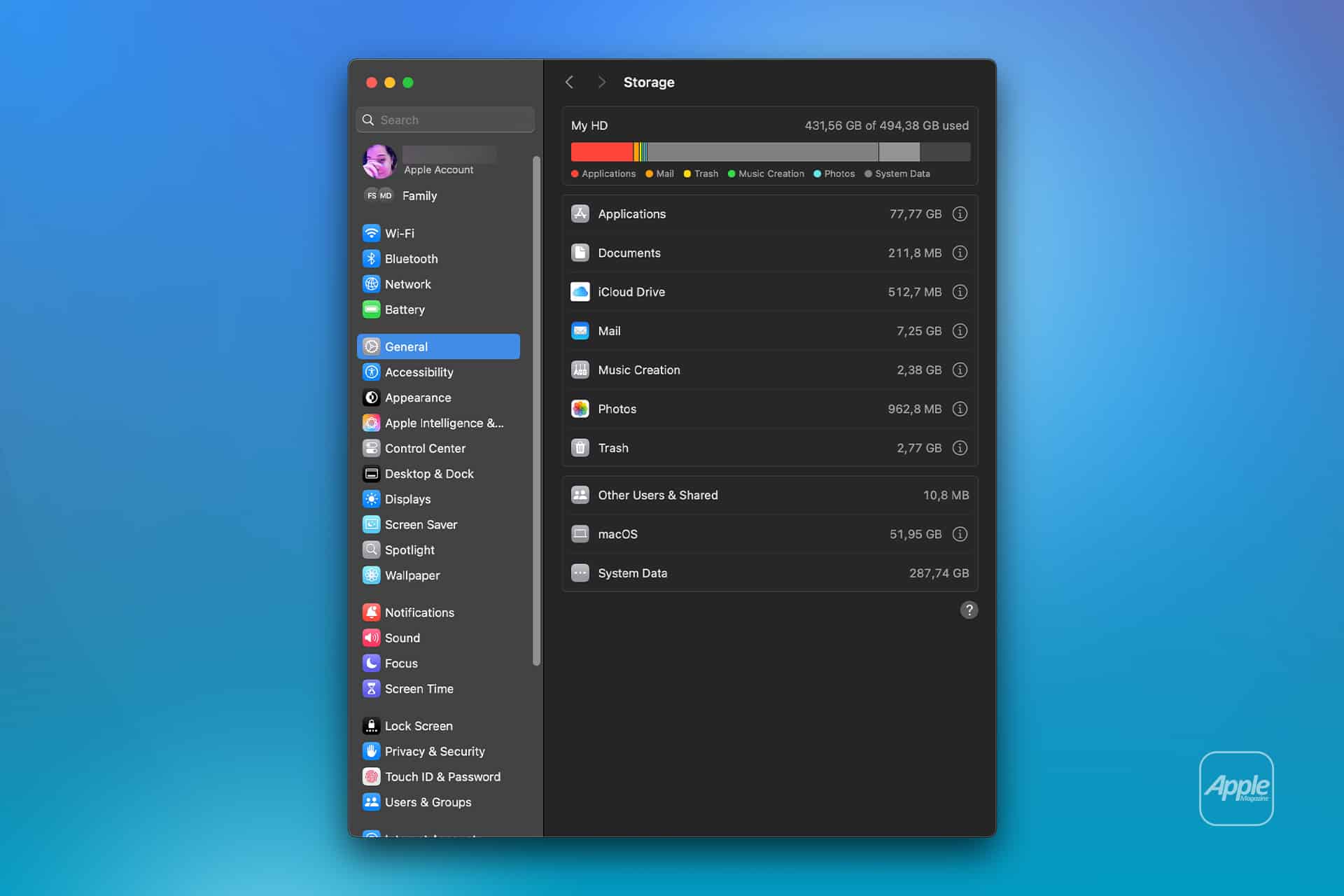
To see the current storage allocation:
Apple menu > System Settings > General > Storage
Allow the Storage page to finish calculating its categories. The process may take a moment when the Mac contains many applications, local files, connected volumes, or several user accounts.
Apple Intelligence may appear as a separate item within the macOS storage category. Depending on the installed macOS version, some related assets may instead be counted under macOS or System Data.
Note the amount of available storage displayed near the storage graph. Comparing the total free space before and after the procedure is usually more reliable than watching one category because macOS can reclassify system-managed files while deleting them.
To inspect the complete internal storage container:
Apple menu > System Settings > General > Storage > All Volumes
This view is useful when the internal drive contains several APFS volumes sharing the same physical storage. The available capacity belongs to the shared container rather than remaining permanently assigned to one volume.
The storage used by Apple Intelligence is different from the memory, or RAM, used while features are running. Closing applications may reduce RAM consumption, but it does not delete the models stored on the internal SSD.
Image Credit: AppleMagazine
Remove Local Apple Intelligence Files
Apple Intelligence is available on compatible Macs with Apple silicon. Intel-based Macs do not support the complete Apple Intelligence system and should not contain the same downloadable model collection.
To turn off Apple Intelligence and request the removal of its on-device models:
Apple menu > System Settings > Apple Intelligence & Siri > Turn off Apple Intelligence > Turn Off Apple Intelligence
The second Turn Off Apple Intelligence command confirms the change. The exact appearance may vary between macOS versions, with the first control presented as either a switch or a button.
Apple says that turning off Apple Intelligence removes the on-device models. There is no separate model manager, Delete Models button, or supported Finder location from which users must remove the files manually.
Keep the Mac connected to power while macOS completes its background storage work. The Apple Intelligence setting changes immediately, but the Storage page may not display the recovered capacity at once.
macOS manages these models through its system asset service. The operating system must identify the associated packages, release them, and recalculate the storage categories. The process can therefore continue after the Apple Intelligence switch has already moved to the off position.
Turning off only individual features does not remove the complete model collection. Disabling notification summaries, Writing Tools, ChatGPT access, or Siri suggestions leaves Apple Intelligence itself active.
A Screen Time restriction also serves a different purpose. It can prevent access to image generation, Writing Tools, and other functions without turning off the underlying intelligence system. Use the Apple Intelligence control inside Apple Intelligence & Siri when the objective is recovering storage.
Confirm That the Space Was Recovered
After macOS has had time to process the removal, return to the Storage page.
To check the available capacity again:
Apple menu > System Settings > General > Storage
Wait for the storage graph and categories to finish updating. Compare the new amount of available space with the figure recorded before Apple Intelligence was turned off.
The Apple Intelligence entry may disappear completely, display a smaller amount, or become part of an adjusted macOS or System Data category. The increase in total available storage provides the better indication that the local models were removed.
If the figures have not changed, restart the Mac to refresh its system services and storage calculation.
To restart macOS:
Apple menu > Restart > Restart
Sign back in, allow the Mac to remain idle for a while, and open the Storage page again.
Apple menu > System Settings > General > Storage
Restarting does not delete the models by itself. Apple Intelligence must remain disabled while macOS completes the removal.
Emptying the Trash is not part of this procedure because macOS does not place Apple Intelligence models there. The Trash affects only files that a user or application has already marked for deletion.
Image Credit: Apple Inc.
What to Do When the Files Remain
First, verify that the complete Apple Intelligence system is off rather than one related feature.
To confirm its status:
Apple menu > System Settings > Apple Intelligence & Siri > Apple Intelligence
The control should display Apple Intelligence as disabled. If macOS presents another confirmation request, complete it and leave the feature off.
Storage information can take time to settle because macOS also manages caches, local snapshots, temporary update packages, and purgeable files. These categories can change while the Mac is idle, making an immediate before-and-after comparison misleading.
Installing the latest stable macOS update can correct storage reporting or asset-management problems.
To check for an available update:
Apple menu > System Settings > General > Software Update
Save current work before installing an update. The Mac may need to restart, and the installation temporarily requires additional free storage.
Beta versions of macOS require extra caution. Development releases may download experimental models, retain previous model revisions, or temporarily change the Apple Intelligence controls. A procedure confirmed for the public version of macOS may not produce the same storage behavior in a beta.
Avoid following online instructions that require starting in macOS Recovery, disabling System Integrity Protection, mounting protected volumes, and deleting folders with names referring to MobileAsset or generative models.
System Integrity Protection prevents applications and administrator accounts from modifying protected parts of macOS. Disabling it weakens that protection and creates the possibility of deleting the wrong asset, leaving macOS with an incomplete model installation, or causing the system database to disagree with the files present on the drive.
A storage utility can help identify how much space system files occupy, but it should not require disabling macOS security to remove Apple Intelligence. If the documented switch leaves a large allocation after a restart and sufficient processing time, Apple Support can investigate the asset database without exposing the Mac to an unsupported system modification.
Turning Apple Intelligence on again reverses the storage saving.
To restore its features:
Apple menu > System Settings > Apple Intelligence & Siri > Turn On Apple Intelligence
The Mac will download the required local models again. Apple recommends leaving the device connected to Wi-Fi and power while the model download completes.
Reset PRAM on Mac is one of those troubleshooting steps that has survived decades of Apple hardware, old support forums and emergency calls to the family member who “knows computers.” The name sounds far more technical than the procedure, which involves restarting an Intel-based Mac while holding four keys.
The reset can help when a Mac remembers the wrong basic settings. It may select an unexpected startup disk, return to an incorrect display resolution, use an unusual sound level or keep other hardware-related preferences that refuse to behave normally.
It is not a speed boost, a deep system repair or a magical cure for every Mac problem. Resetting PRAM will not clear storage, repair a damaged app or make an aging MacBook suddenly feel new. It is a focused fix for a small collection of settings stored outside the usual macOS preferences.
There is also one major limitation: the familiar keyboard shortcut applies only to Intel-based Macs. Apple silicon models handle this memory differently and do not require the same manual reset.
What PRAM Actually Is
PRAM stands for Parameter Random-Access Memory. It was the small amount of memory older Macs used to preserve certain settings while the computer was turned off.
Apple later moved to NVRAM, or nonvolatile random-access memory, but the two names remain closely connected in Mac troubleshooting. Users still search for PRAM reset, while Apple’s current documentation usually calls the procedure an NVRAM or PRAM reset.
The stored information can include the selected startup disk, speaker volume, screen resolution and other low-level settings. When that information becomes incorrect or behaves unpredictably, resetting it allows the Mac to rebuild the relevant preferences.
Nothing dramatic happens to personal data. Documents, photos, apps, emails and user accounts remain untouched. Some settings may return to their defaults, which is the point of the reset.
Reset PRAM on Mac Only When the Symptoms Fit
Reset PRAM on Mac when the problem appears connected to startup or hardware preferences rather than normal app use.
A Mac that repeatedly chooses the wrong startup disk is a good candidate. So is an Intel Mac that starts with an unexpected sound level or returns to a strange display resolution after every restart.
The procedure may also help when the date, time zone or other basic startup settings act strangely, although modern macOS versions usually manage those automatically.
It is less useful when Safari is slow, an app keeps crashing or the Mac is nearly out of storage. Those problems have different causes. Closing apps, installing updates or freeing storage will usually do more than resetting a small bank of startup memory.
The distinction keeps the old troubleshooting step useful without turning it into Mac folklore prescribed for every symptom.
Check Which Mac You Own
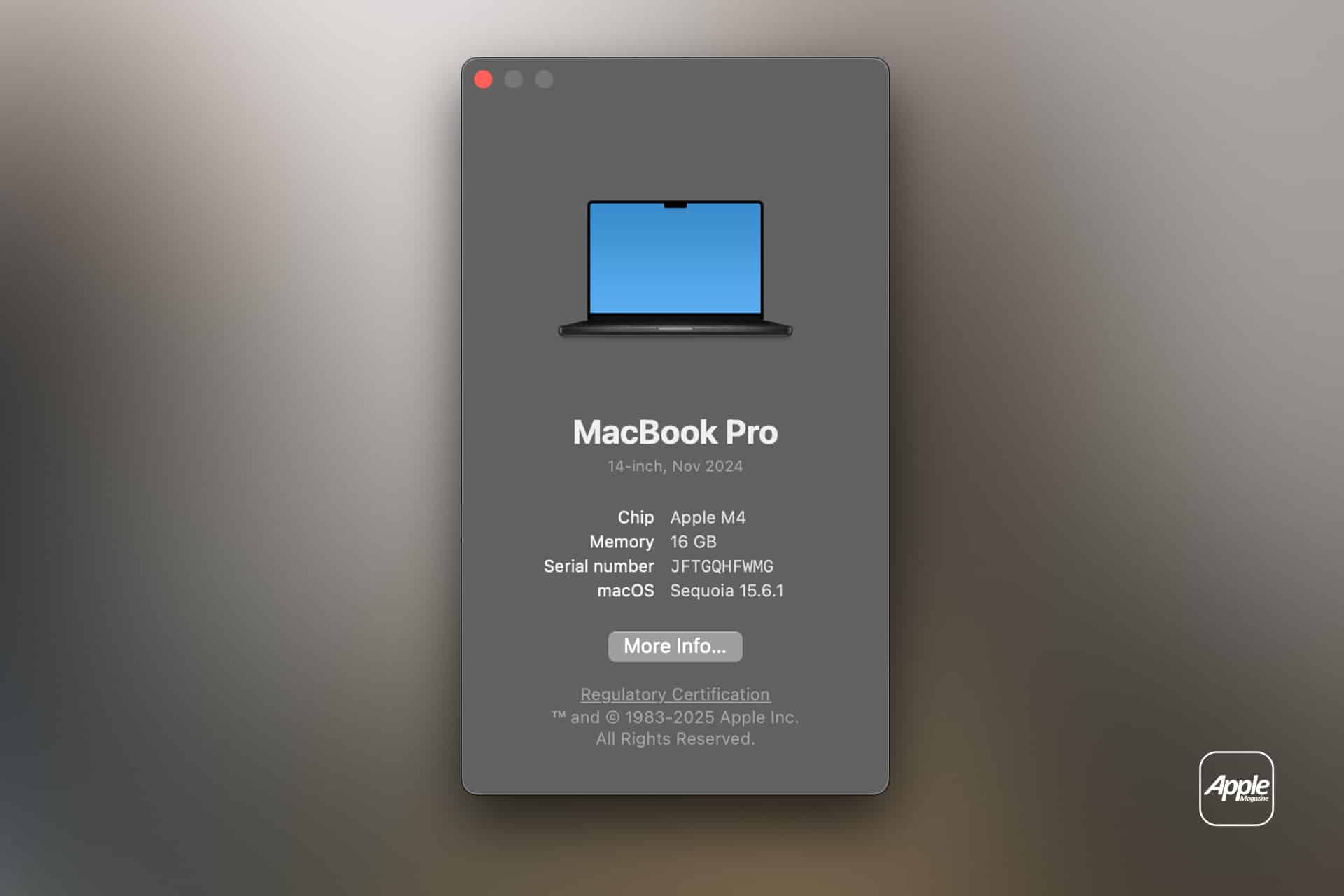
Before using the shortcut, confirm whether the Mac has an Intel processor or Apple silicon.
To check:
Apple menu > About This Mac
Look for a line labeled Chip or Processor. An M-series chip identifies Apple silicon. A processor name containing Intel means the traditional reset applies.
This check prevents a common misunderstanding. Holding Option, Command, P and R during startup on an Apple silicon Mac does not perform the old PRAM reset. The shortcut belongs to Intel startup behavior. Apple’s current startup-key guide lists it specifically among key combinations for Intel-based Macs.
Apple silicon Macs check and manage stored startup information through their newer boot system. A normal shutdown and restart is usually the first step when one develops unusual basic behavior.
Image Credit: AppleMagazine
How to Reset PRAM on an Intel Mac
The useful guidance is brief:
Shut down the Mac completely.
Press the power button, then immediately hold:
Option + Command + P + R
Keep the four keys pressed for approximately 20 seconds, then release them and allow the Mac to start normally.
Older Macs may play the startup sound more than once. On some newer Intel models, the Apple logo may appear and disappear during the process.
The timing is the only slightly awkward part. The keys need to be pressed immediately after the Mac begins starting. Waiting until the login window appears is too late.
After the Mac starts, check the setting that caused the problem. The startup disk, volume or display configuration may need to be selected again because the reset cleared the previous preference.
What Changes After the Reset
Most users will notice nothing beyond the original problem hopefully disappearing. The Mac does not present a dramatic confirmation screen or announce that PRAM has been purified.
Instead, a few stored settings may return to their defaults. The speaker volume may change. The preferred startup disk may need to be chosen again. A display may return to its standard resolution. Time-zone information may need a moment to update.
That understated behavior is normal. A successful reset is less like reinstalling macOS and more like asking the Mac to forget a handful of stubborn instructions.
Apple also uses an NVRAM reset as one of the preparation steps for certain Intel Macs before they are sold or transferred, since the procedure clears stored user settings from memory.
Image Credit: Apple Inc.
Why Apple Silicon Macs Do Not Need the Shortcut
Apple silicon changed the Mac startup process along with performance, power efficiency and system security. The older Intel keyboard combination no longer controls the same reset behavior.
For an M-series Mac showing unusual startup settings, begin with a full shutdown rather than repeatedly trying the old shortcut.
Use:
Apple menu > Shut Down
Wait briefly after the screen turns completely black, then turn the Mac back on.
If the problem involves selecting a startup disk or reaching recovery tools, hold the power button while the Mac starts until startup options appear. Apple documents this power-button process as the route into startup options on Apple silicon models. (Apple Support)
That is usually enough guidance for a light troubleshooting article. Recovery, diagnostics and deeper repair steps belong to more serious startup problems, not every incorrect volume level or display setting.
When the Reset Does Nothing
A PRAM reset can fail to change anything because the problem was never stored in PRAM or NVRAM.
A slow Mac may be running too many apps. A browser may have dozens of heavy tabs. A startup disk may be almost full. A damaged cable may cause display problems. A weak battery may cause shutdowns. A broken speaker will not repair itself because four keys were held during startup.
If the symptom continues, return to the problem itself rather than repeating the reset indefinitely.
Check the related setting in System Settings. Install macOS updates. Restart the affected app. Disconnect unnecessary accessories. Confirm that enough storage is available. Persistent hardware behavior may require Apple Diagnostics or professional support.
The reset should be treated as one useful step, not an annual Mac ritual.
Image Credit: AppleMagazine
An Old Mac Fix With a Narrow Purpose
Reset PRAM on Mac remains relevant because Intel models are still in use across homes, schools and businesses. Many continue to work well, and their owners may eventually encounter the sort of odd startup preference that this procedure was designed to clear.
The method is simple, safe for personal files and quick enough to try when the symptoms fit. Its usefulness comes from being specific.
An Intel Mac remembering the wrong startup disk or display setting may benefit. A Mac with an unrelated software or hardware problem will need another answer.
The four-key shortcut has survived because it occasionally solves a strange problem in about 20 seconds. That is a good troubleshooting tool. It just should not be asked to perform miracles.
A white spot on iPad screen can appear as a bright patch that remains visible while browsing, watching videos or using apps. It may be small and easy to ignore at first, then become distracting whenever the screen shows a white, gray or lightly colored background.
The spot may come from a temporary software problem, but a fixed bright area is more commonly connected to the display hardware. Pressure inside the iPad, a damaged backlight layer, display separation or an impact can create uneven illumination that no setting can remove.
Before arranging a repair, a few simple checks can reveal whether the spot belongs to the image being displayed or to the physical screen itself.
What Causes a White Spot on iPad Screen?
A white spot on iPad screen is often described as a bright spot, pressure mark or backlight patch. On iPads with LCD displays, light passes through several internal layers before reaching the glass. When one of those layers becomes damaged, separated or compressed, light can concentrate in one area.
The mark may be more visible against pale backgrounds and almost disappear when the screen displays black or dark content. This is different from a dead pixel, which usually appears as a tiny fixed dot rather than a larger cloudy patch.
Pressure is one possible cause. Carrying an iPad in an overloaded bag, placing heavy objects on it or using a tight case can place stress on the display. A drop may also disturb the internal screen layers without cracking the front glass.
Battery swelling can create similar pressure from inside the device. If the screen is lifting from the frame, the iPad feels unusually warm or the body appears bent, stop using it and seek service. A swollen battery should not be pressed back into place or handled as an ordinary screen defect.
The problem can also appear after a display replacement involving a poorly fitted or lower-quality part. Apple notes that nongenuine displays may produce inconsistent brightness, color or touch behavior.
Image Credit:
Check Whether the Spot Is Really on the Display
Begin by opening several different apps. Look at the spot over a white webpage, a gray Settings screen, a dark photo and a full-screen video. A hardware-related mark normally stays in the same physical location regardless of what appears underneath it.
Rotate the iPad. If the content changes orientation but the bright patch remains in the same part of the glass, the display is the likely cause.
Taking a screenshot provides another useful test. A physical screen defect will not normally become part of the screenshot file.
To take a screenshot on an iPad without a Home button:
Top button + either volume button
To take a screenshot on an iPad with a Home button:
Top button + Home button
Open the screenshot on another device or send it to a trusted computer. If the white spot does not appear there, the image generated by iPadOS is normal and the problem is probably inside the display assembly.
If the mark appears in the screenshot, it may belong to an app, image, accessibility setting or software effect rather than the panel.
Restart Before Assuming Hardware Failure
A restart is worth trying because it clears temporary display and system behavior without affecting personal files. It is unlikely to repair physical backlight damage, but it can eliminate a short-lived graphical problem.
To restart an iPad without a Home button:
Press and hold the top button and either volume button > Drag the power slider > Wait approximately 30 seconds > Hold the top button until the Apple logo appears
To restart an iPad with a Home button:
Press and hold the top button > Drag the power slider > Wait approximately 30 seconds > Hold the top button until the Apple logo appears
After restarting, return to the same pale background and check the area again. A spot that remains fixed is unlikely to be caused by a temporary iPadOS issue.
Image Credit: AppleMagazine
Brightness Can Make the Problem More Visible
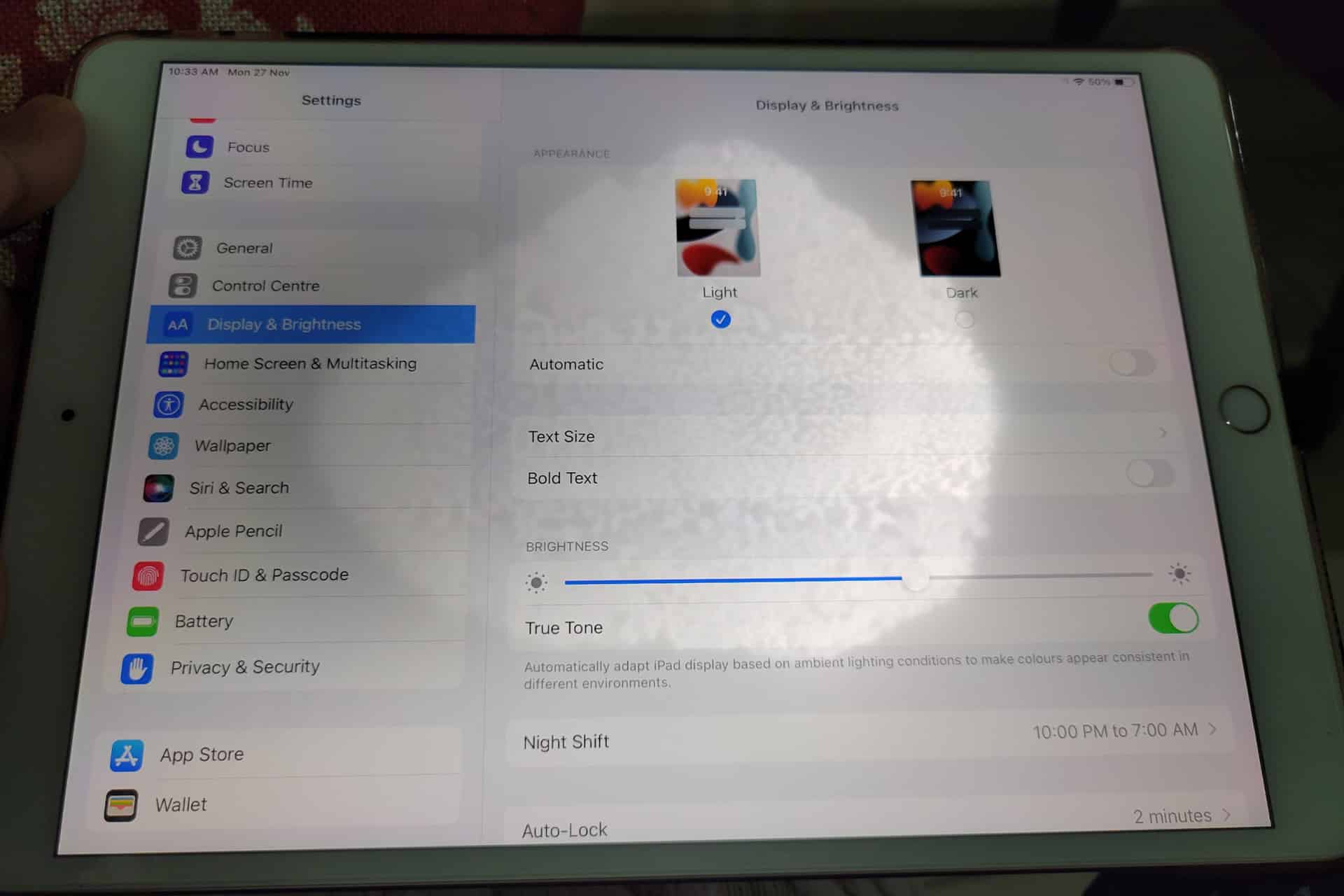
Lowering brightness may make a bright patch less distracting, but it does not repair the underlying display. The same applies to Dark Mode, Night Shift and Reduce White Point. These settings can change how noticeable the mark becomes without removing it.
To adjust screen brightness:
Settings > Display & Brightness > Brightness
Test the iPad at several brightness levels. A backlight-related spot may become easier to see as brightness increases. Photographing the screen against a plain background at medium and high brightness can also help document the defect before requesting service.
Avoid pressing or rubbing the affected area. Pressure may temporarily change the appearance, but it can damage the display further. Internet advice suggesting that users massage bright spots out of a panel should be ignored.
Check the Case and Screen Protector
Remove any rigid case that appears unusually tight or has been damaged. A poorly fitted case can place uneven pressure around the frame, particularly if the iPad has been dropped while inside it.
A screen protector normally cannot create a true illuminated patch beneath the display. It can, however, produce bubbles, trapped moisture or reflective marks that resemble a screen defect. Examine the iPad with the display turned off. If the mark is visible on the surface even when the screen is black, the protector or glass may be involved.
Do not remove a properly installed protector solely as an experiment unless the mark clearly appears close to its surface. A bright patch visible only while the display is illuminated usually comes from deeper inside the screen.
When the iPad Needs Repair
A persistent white spot generally requires display service when it remains after restarting and does not appear in screenshots. There is no iPadOS setting that can realign a damaged diffuser, remove internal pressure or repair separated display layers.
Back up the iPad before service so photos, documents and app data remain protected.
To create an iCloud backup:
Settings > your name > iCloud > iCloud Backup > Back Up Now
Apple can inspect the device and determine whether the defect qualifies for warranty coverage, AppleCare service or paid repair. Coverage depends on the device, purchase date, condition and whether the problem resulted from accidental damage.
To check coverage:
Settings > General > AppleCare & Warranty
Apple or an Apple Authorized Service Provider may replace the display assembly or the iPad, depending on the model and available service process. The final repair estimate normally requires inspection.
Image Credit: AppleMagazine
Do Not Ignore Physical Changes
A stable white spot that has not changed for months may remain only a visual annoyance. A spot that is expanding, accompanied by screen lifting or followed by unusual heat needs faster attention.
Stop using the device if the display separates from the enclosure, the iPad becomes visibly swollen or pressure marks spread across the panel. Do not puncture the device, force the display closed or continue charging it unattended.
For an ordinary fixed bright patch, the practical path is simpler: confirm it does not appear in screenshots, restart the iPad, remove any case applying pressure and arrange display service if the mark remains.
A white spot on iPad screen rarely affects the information stored on the device, but it can indicate physical damage that software cannot correct. A brief check can rule out the easy causes. After that, repair is usually more effective than repeatedly changing display settings and hoping the light disappears.
Call forwarding on iPhone is a simple feature with a specific job: it sends incoming calls from your iPhone number to another phone number. That can be useful when you are traveling, using a temporary phone, separating work and personal calls, covering a business line or making sure important calls reach someone else when you cannot answer.
The feature is built into iOS, but it depends on carrier support. Apple notes that call forwarding can be set up on iPhone if cellular service is through a GSM network. If the service uses a CDMA network, users may need to contact the carrier for setup details. That means the option may not appear for every user, every carrier or every plan.
For most supported iPhones, the path is quick:
Settings > Apps > Phone > Call Forwarding
Turn on Call Forwarding, then enter the phone number where calls should be sent. When call forwarding is active, an icon appears in the status bar so the user can see that incoming calls are being routed elsewhere.
Image Credit: AppleMagazine
Call Forwarding on iPhone Sends Calls Elsewhere
Call forwarding on iPhone does not move messages, FaceTime calls, app notifications or voicemail settings by itself. It only redirects standard cellular phone calls. If someone calls your iPhone number, the carrier routes that call to the number you entered.
That distinction is important. If you forward calls to another phone, text messages still arrive on the original iPhone unless other settings or services are involved. FaceTime calls may still ring on Apple devices signed into the same Apple Account. Messaging apps such as WhatsApp, Signal, Telegram or Messenger are unaffected.
Call forwarding is also different from Silence Unknown Callers, Focus modes or Do Not Disturb. Those features control how calls appear or interrupt you. Call forwarding changes where the call goes.
This makes the feature useful in a few common situations. A business owner can send calls to an office line. A traveler can forward calls to a local number. Someone with a damaged iPhone can temporarily send calls to another device. A freelancer can route calls to a partner during time off. A parent can forward calls to a spouse for a short period.
How to Turn On Call Forwarding
To turn on call forwarding:
Settings > Apps > Phone > Call Forwarding
Turn on Call Forwarding
Tap Forward To
Enter the phone number
Go back to save the setting
Use the full phone number, including area code. If forwarding to an international number, include the correct country code. After setting it up, test the feature from another phone. Do not assume it works until a test call rings at the forwarded number.
To turn call forwarding off:
Settings > Apps > Phone > Call Forwarding >Turn off
After turning it off, test again. A quick call from another phone confirms whether incoming calls are back to normal.
If the Call Forwarding menu spins, fails to load or does not save the number, restart the iPhone and check cellular service. If the problem continues, contact the carrier because the setting depends on the carrier network.
Why the Setting May Be Missing
Some users look for call forwarding and cannot find it. That usually means one of three things: the carrier does not expose the feature in iPhone settings, the plan does not support it, or the network requires carrier codes or account-level setup.
Apple’s guide says CDMA users should contact their carrier for call forwarding information. Some carriers also use special dialing codes for forwarding all calls, forwarding when busy, forwarding when unanswered or forwarding when unreachable. Those codes vary by carrier and country, so guessing is not a good idea.
The best path is to check the carrier’s support page or app. Many carriers let users manage forwarding from the account dashboard, especially for business lines or multi-line plans.
If the option is missing, the iPhone is not necessarily broken. The carrier may simply handle forwarding differently.
What Happens to Voicemail
Call forwarding can affect voicemail behavior depending on the carrier and destination number. If the forwarded phone does not answer, the call may go to the voicemail of the forwarded number instead of the original iPhone voicemail. In some cases, carrier rules may still send it back to the original mailbox, but users should not assume that.
This is another reason to test. Call the iPhone from another number, let it ring, and see where the missed call lands. If the goal is to preserve the original iPhone voicemail, carrier support may be needed.
For work numbers, this can be especially important. A forwarded business call going to a personal voicemail greeting can look unprofessional. A personal call going to a shared office voicemail can create privacy problems. Check before relying on it.
Image Credit: Apple Inc.
Call Forwarding and Dual SIM
iPhone users with Dual SIM or eSIM setups should pay attention to which line is being forwarded. A personal line and business line can have separate carrier settings. Forwarding one does not automatically forward the other.
To check lines:
Settings > Cellular >Select the line you want to manage
Then return to:
Settings > Apps > Phone > Call Forwarding
The available settings may vary by carrier and line. If one line supports call forwarding and the other does not, that is usually a carrier difference, not an iPhone problem.
Dual SIM users should also test both numbers separately. Call the personal number, then call the business number, and confirm each behaves as expected.
When Call Forwarding Is Useful
Call forwarding works best when the goal is temporary coverage. It is useful during travel, device repairs, vacations, business handoffs, office moves, event coverage or times when another person needs to answer calls.
It can also help people who use a landline or desk phone during work hours. Calls can be forwarded from the iPhone to the office line, then turned off at the end of the day. The reverse can also work if the carrier supports it.
For small businesses, call forwarding can help avoid missed calls without adding a full phone system. A company can route calls to whoever is available. For individuals, it can be a quick fix when an iPhone battery is failing, a device is being repaired, or cellular reception is better on another phone.
The feature is less ideal as a permanent business phone solution. If multiple people need to answer calls, if calls need menus, if calls need recordings, or if voicemail needs to stay organized, a dedicated phone service may be better.
Privacy and Cost Considerations
Call forwarding may create charges depending on the carrier, plan and destination number. Forwarding calls to an international number can be expensive. Forwarding to another domestic mobile number is usually simpler, but users should still check the plan.
Privacy also deserves attention. Once calls are forwarded, the person or device receiving them may hear personal, business or sensitive conversations meant for the original number. Do not forward calls to a shared phone unless that is intentional.
Before forwarding a work line to a personal number, check company policy. Some organizations do not allow business calls to be routed to unmanaged personal devices.
Image Credit: Freepik
How to Troubleshoot Call Forwarding
If call forwarding does not work, start with the basics. Confirm the iPhone has cellular service. Restart the device. Check that the forwarding number is entered correctly. Turn call forwarding off, wait a few seconds, then turn it on again.
Then test from another phone. A test call is the fastest way to know whether the carrier accepted the setting.
If calls still do not forward, check whether the carrier supports call forwarding through iPhone settings. Some carriers require account-level activation, carrier codes or a business calling feature. If the iPhone setting is missing or stuck, carrier support is usually the right next step.
Also check Focus modes and blocked numbers if the issue is not forwarding but missed calls. A call may fail to ring because of Focus, Silence Unknown Callers, a blocked contact, poor signal or voicemail settings rather than call forwarding.
A Simple Feature Worth Testing
Call forwarding on iPhone is easy to use when the carrier supports it. Open iPhone settings, turn on Call Forwarding, enter the destination number and test it. Turn it off when the temporary need is over.
The feature is most useful when it is deliberate and short-term. It can keep calls moving during travel, repairs, work coverage or busy periods, but it should be checked carefully because voicemail, costs and privacy can change once calls are routed to another number.
The iPhone makes the setting simple. The carrier decides how far that simplicity goes.
In the evolving landscape of geriatric health research, the intricate relationships among physical frailty, depression, and multimorbidity have surfaced as critical domains needing deeper understanding. An illuminating new study from Lima, Peru, conducted by Flores-Flores, Zevallos-Morales, Pollard, and colleagues, dives into these complex intersections, providing fresh insights into how these conditions coalesce and impact older adults in urban settings. This comprehensive cross-sectional investigation sheds light on the multifaceted vulnerabilities faced by the elderly, emphasizing the necessity for integrated care strategies tailored to their unique needs.
Physical frailty, a clinical condition marked by diminished strength, endurance, and physiological function, often predicts adverse health outcomes among older populations. Impaired mobility, increased risk of falls, and functional dependence are common sequelae, culminating in escalated healthcare utilization and mortality. The Peruvian study meticulously quantifies the prevalence of frailty within its cohort, uncovering how it interacts with psychological states and multiple chronic diseases, known collectively as multimorbidity.
Multimorbidity, the coexistence of two or more chronic conditions, poses an amplified threat to health resilience in aging individuals. Its management remains a formidable challenge for clinicians, as standard treatment protocols designed for singular diseases may overlook the cumulative burden posed by concurrent illnesses. By focusing on a sample representative of Lima’s elderly urban demographic, the researchers provide a culturally pertinent lens on multimorbidity’s role as a harbinger of frailty and mental health decline.
Depression, widely recognized as a common yet underdiagnosed affliction among older adults, further complicates the clinical picture. The emotional and cognitive burdens of depressive disorders compound the physiological vulnerabilities imposed by frailty and multimorbidity, often resulting in a downward spiral of functional capacity and quality of life. The study’s exploration of depression’s prevalence and its interplay with physical health outcomes underscores the bidirectional nexus between mind and body in geriatric well-being.
Utilizing a robust cross-sectional design, the research deploys validated instruments to assess frailty phenotypes, depressive symptomatology, and comprehensive comorbidity profiles. Such methodological rigor facilitates an accurate snapshot of health status within the sampled population, generating data of high relevance for both clinical application and public health policymaking. The results illuminate not only the individual prevalence rates but also the synergistic patterns that exacerbate vulnerability.
One of the startling revelations is the extent to which multimorbidity compounds the risk of physical frailty, emphasizing a cumulative pathophysiological burden. Chronic diseases such as diabetes, hypertension, and cardiovascular disorders—pervasive in aging populations—create systemic inflammation and metabolic disruptions. These processes accelerate sarcopenia and other degenerative changes, thereby eroding physical robustness and functional independence.
Depression emerges as both an independent and interconnected factor intricately woven into the frailty narrative. Beyond mood disturbances, depressive symptoms influence appetite, motivation for physical activity, and adherence to medical regimens. The study’s findings elucidate how depression can act as a catalyst, accelerating the progression from robust health to frailty, especially within the context of multimorbidity.
These intertwined conditions not only affect individual trajectories but also impose significant burdens on healthcare systems, particularly in middle-income countries like Peru. Limited resources, fragmented care models, and disparities in healthcare access amplify the challenges posed by these geriatric syndromes. This research punctuates the urgent need for integrated care frameworks that holistically address physical, psychological, and chronic disease dimensions.
The importance of early identification and intervention cannot be overstated. Screening programs capable of detecting frailty, depressive symptoms, and multimorbidity in primary care settings could enable timely mitigation strategies. Personalized interventions involving nutritional support, physical rehabilitation, mental health counseling, and optimized chronic disease management may collectively forestall the decline and improve outcomes.
Furthermore, socio-cultural factors uniquely shape the experience and management of these conditions. In the Peruvian context, family dynamics, community support structures, and traditional beliefs influence health behaviors and treatment engagement. Understanding these cultural nuances is paramount for developing culturally sensitive interventions and health promotion campaigns that resonate deeply with the target populations.
On a scientific level, the research opens avenues for mechanistic explorations into the biological underpinnings linking multimorbidity, frailty, and depression. Pathways involving neuroendocrine dysregulation, chronic systemic inflammation, and mitochondrial dysfunction are promising targets for future investigations. Disentangling these mechanisms will enhance the precision of diagnostic criteria and therapeutic innovations.
Public health ramifications extend beyond clinical settings. Urbanization, socioeconomic inequalities, and environmental exposures contribute to the health status of older adults, influencing the prevalence and interplay of frailty, depression, and multimorbidity. Urban planning and social policy reforms aimed at age-friendly environments are crucial adjuncts to medical interventions in fostering healthy aging.
The study also underscores the value of multidisciplinary collaboration in geriatric care. Incorporating geriatricians, psychiatrists, primary care providers, social workers, and rehabilitation specialists into cohesive teams can optimize management strategies. Training and resources must evolve to equip healthcare workers with skills necessary for navigating the complexities of multimorbidity and mental health amidst frailty.
Limitations inherent to the cross-sectional study design, such as the inability to establish causality, are acknowledged by the authors. Nevertheless, the rich associations outlined provide a foundation for longitudinal studies that track health trajectories and intervention impacts over time. Such prospective research is vital for developing evidence-based guidelines that adapt dynamically to aging populations’ needs.
Importantly, this investigation elevates the discourse on healthy aging within Latin America, a region undergoing rapid demographic shifts. The projected increase in the elderly proportion demands proactive strategies grounded in region-specific data, rather than extrapolated models from high-income countries. The Lima cohort study represents a significant stride toward localized understanding and responsive healthcare policy formation.
In conclusion, the intertwining phenomena of physical frailty, depression, and multimorbidity in the elderly represent a triad that shapes health outcomes profoundly. The Lima-based research elucidates critical interdependencies, advocating for integrative approaches that transcend siloed healthcare paradigms. As the global population ages, such nuanced perspectives are indispensable for crafting interventions that enhance longevity with quality, dignity, and resilience.
Subject of Research: Physical frailty, depression, and multimorbidity among older adults in Lima, Peru
Article Title: Physical frailty, depression and multimorbidity among older adults in Lima, Peru: a cross-sectional study
Article References:
Flores-Flores, O., Zevallos-Morales, A., Pollard, S.L. et al. Physical frailty, depression and multimorbidity among older adults in Lima, Peru: a cross-sectional study. BMC Geriatr (2026). https://doi.org/10.1186/s12877-026-07850-8
In a groundbreaking stride toward enhancing robotic cognition, scientists at MIT have unveiled an innovative memory framework that equips robots with the capacity to create, retain, and retrieve extensive, richly annotated spatial memories over extended periods. This advancement marks a significant leap beyond traditional robotic mapping techniques, enabling robots to comprehend and interact with complex environments in ways that closely mirror human spatiotemporal reasoning. The development promises transformative impacts on robotic collaboration with humans, particularly in dynamic and large-scale settings such as industrial facilities and urban landscapes.
Traditional robots, while adept at constructing geometric maps and executing predefined tasks, lack the nuanced memory capabilities that humans effortlessly employ. Consider a factory worker recalling the exact location of a partially assembled component from the previous day—a routine yet intricate cognitive task. Robots confronted with this scenario traditionally falter because their mapping systems fail to integrate detailed object descriptions and temporal context seamlessly. MIT’s new framework addresses this critical deficiency by embedding rich semantic information directly into the spatial maps robots generate as they navigate, thus producing a coherent, language-accessible mental model of their environment.
At the core of this system is a method termed Describe Anything, Anywhere, Anytime, at Any Moment (DAAAM), which synergizes advanced computer vision with robust spatial mapping. DAAAM endows robots with the ability to tag objects with descriptive annotations as they explore. For instance, a robot might label a building as the “Stata Center,” noting its architectural style, or observe a collection of bicycles and recall specifics such as a red bike sporting a flat tire. Crucially, these annotations are spatially organized within a three-dimensional map, allowing the robot to group objects logically by their locations and create a persistent, queryable memory that supports efficient retrieval.
One of the distinguishing challenges in realizing such a system lies in balancing the richness of data with the constraints of real-time operation. Existing approaches to detailed environmental annotation are computationally intensive, often taking precious seconds to process a handful of objects, thereby rendering them impractical for dynamic robotic applications. To solve this bottleneck, the MIT team engineered an optimization technique for keyframe selection, enabling the robot to identify and annotate images that offer the clearest and most comprehensive view of multiple objects simultaneously. This selective strategy accelerates the annotation process by an order of magnitude, permitting the robot to construct and update its semantic map as it moves without latency.
Beyond data acquisition, the ability to efficiently query and extract relevant information from the amassed database of spatial and semantic knowledge is vital. The researchers integrated a sophisticated large language model (LLM) enhanced with tailored toolsets designed to mitigate common issues such as hallucinations and to refine the relevance of retrieved data. This framework allows for rapid, accurate responses to complex spatial-language queries like, “Where did I leave my wallet?” or inquiries about specific landmarks within an indoor or outdoor environment. By leveraging semantic search capabilities that consider both linguistic cues and geographical context, the robot can pinpoint targets with remarkable precision and speed.
The practical implications of this technology are profound. In manufacturing settings, a robotic assistant could be dispatched to retrieve components based on natural language queries referencing past events and locations, thus augmenting human productivity and safety. Similarly, augmented reality systems could harness this structured long-term memory to guide maintenance personnel through complex infrastructure, flag anomalies based on historical data, or assist commuters in navigating public transportation hubs with personalized, context-aware directions.
MIT’s approach signifies a departure from conventional 3D mapping systems that either sacrifice descriptive depth for computational efficiency or rely on rich annotations that are prohibitively slow to generate at scale. By fusing high-level semantic perception with spatial cognition underpinned by real-time processing capabilities, DAAAM lays the foundation for a new class of robots that can engage in sophisticated spatial-temporal reasoning analogous to human common sense.
Ongoing research aims to extend this framework’s scope to encompass temporally dynamic events, enabling robots not only to remember object locations but also to encode significant occurrences within their environment. Integrating confidence metrics into the system’s responses is also a priority, enhancing the reliability and interpretability of information supplied to human users in collaborative scenarios. The vision is to cultivate a versatile, generalist robotic agent capable of executing diverse tasks on demand through naturalistic human-robot interaction grounded in shared language and understanding.
The robustness of the DAAAM system was empirically validated through comparative experiments, demonstrating superior accuracy over leading existing methodologies by margins ranging from 21 to 53 percent, contingent on the nature of the queries. The project’s intersection of computer vision, robotics, and natural language processing underscores a multidisciplinary approach vital for advancing intelligent autonomous systems that are primed for real-world deployment.
With the proliferation of autonomous machines across myriad domains, the advent of this long-term spatiotemporal memory framework addresses a pivotal gap in robotic intelligence. Robots equipped with such memory capabilities can transcend static, pre-programmed functions, adapting fluidly to evolving tasks and environments while fostering seamless collaboration with humans through shared understanding. As such, MIT’s contribution is poised to accelerate the integration of robots as capable and context-aware partners in everyday human endeavors.
This research, funded partly by the U.S. Army Research Laboratory and the Office of Naval Research, was publicly disclosed in a paper authored by Nicolas Gorlo, Lukas Schmid, and Luca Carlone and presented at the Conference on Computer Vision and Pattern Recognition (CVPR). Luca Carlone, the principal investigator and a professor at MIT’s Department of Aeronautics and Astronautics, emphasizes that the technology was developed with the goal of endowing robots with human-like language-based spatial reasoning, a foundational step toward more intelligent and helpful machines.
Subject of Research: Robotics, Artificial Intelligence, Long-Term Spatial Memory for Robots
Article Title: MIT Develops Real-Time Long-Term Memory Framework for Robots Combining Semantic Understanding with 3D Mapping
News Publication Date: Not explicitly stated; presented at CVPR 2024
In the evolving landscape of colorectal cancer screening, the American Gastroenterological Association (AGA) provides clarifying guidance that underscores the critical importance of the screening method chosen by both patients and clinicians. Cancer screening is a vital public health tool that can dramatically reduce mortality rates, and colorectal cancer, one of the leading causes of cancer-related deaths worldwide, stands to benefit immensely from advancements and wider adoption of effective screening technologies.
Colonoscopy remains the gold standard in colorectal cancer screening due to its unparalleled ability to detect cancerous lesions in their earliest stages. Unlike other methods, colonoscopy offers a dual function: it not only allows for direct visualization of the entire colon and rectum but also enables immediate intervention. During the procedure, physicians can identify and excise precancerous polyps, effectively halting the progression to malignancy. This combined diagnostic and therapeutic capacity is unmatched by any other existing screening modality.
Despite the effectiveness of colonoscopy, its availability and patient acceptance can be limited due to factors such as cost, invasiveness, preparation requirements, and resource limitations, particularly in low-resource settings. Therefore, stool-based tests emerge as valuable alternatives. These non-invasive methods detect the presence of blood or abnormal DNA markers shed into the stool by cancerous or precancerous cells. While stool tests provide convenience and accessibility, patients must be diligent in adhering to testing schedules and follow-up protocols.
It is imperative to recognize that an abnormal finding in stool-based screenings necessitates a confirmatory colonoscopy. A positive test result cannot be considered diagnostic in isolation, as false positives may occur. The confirmation step ensures that any detected abnormalities are appropriately evaluated and managed to prevent cancer development.
In recent years, blood-based screening tests have entered the colorectal cancer detection arena, promising an easier and less invasive option. However, these tests currently face significant limitations in sensitivity and specificity. The AGA cautions clinicians and patients alike to approach blood tests with prudence, given their lower efficacy in detecting early-stage cancers or identifying precancerous lesions.
Technologically, blood-based biomarkers for colorectal cancer screening often rely on detecting circulating tumor DNA or specific proteins. While research advances are promising, these biomarkers have yet to achieve sufficient reliability to replace established screening approaches. False negatives could lead to missed diagnoses, while false positives may result in unnecessary procedures and anxiety.
From a population health perspective, optimizing screening strategies is critical to addressing disparities in colorectal cancer outcomes. Colonoscopy requires specialized infrastructure and trained personnel, often limiting its reach. Stool tests and emerging non-invasive methods can broaden access, but their effectiveness hinges on patient compliance with repeated testing and follow-up procedures.
In clinical practice, personalized risk assessment incorporating age, family history, and other risk factors should guide the selection of the most appropriate screening modality. While colonoscopy is recommended as the primary screening tool, individual patient circumstances might favor stool tests as an initial approach when colonoscopy is contraindicated or impractical.
Research continues to explore new screening technologies, including refinement of molecular assays and artificial intelligence-enhanced imaging techniques. These innovations hold the potential to enhance early detection rates and reduce the burden of colorectal cancer globally, but their integration into clinical guidelines requires robust evidence from longitudinal studies.
For health care providers, staying informed on evolving clinical updates, such as the AGA’s recent review on the role of blood tests in screening, is essential. This knowledge ensures informed discussions with patients regarding benefits, risks, and logistics of different screening options, ultimately promoting adherence and improved outcomes.
Patients contemplating screening options should engage in shared decision-making with their physicians, weighing convenience, accuracy, risks, and follow-up demands. Educational resources from reputable organizations like the AGA can support patients in understanding their choices and the importance of regular screening.
In conclusion, colorectal cancer screening remains a critical element in reducing cancer mortality, with colonoscopy standing as the most comprehensive and preventive choice. Stool-based tests offer a viable alternative when colonoscopy is not accessible, but require cautious follow-up. Blood-based tests represent an emerging technology still under evaluation for clinical utility. AGA’s guidance reflects a commitment to evidence-based practice and patient-centered care in the fight against colorectal cancer.
Subject of Research: Colorectal cancer screening methods and their comparative effectiveness
Article Title: AGA Updates on Colorectal Cancer Screening: Evaluating Colonoscopy, Stool Tests, and Emerging Blood Markers
Keywords: colorectal cancer, colonoscopy, stool tests, blood-based cancer screening, cancer prevention, cancer detection, gastrointestinal oncology, cancer biomarkers

 Login
Login