Apple has released updates to macOS 26.6.1, 15.7.9, and 14.8.9 to fix a Screen Sharing vulnerability that could let an attacker “on the network” connect without valid credentials. Update soon.
Apple has released security updates for MacOS Tahoe 26.6.1, MacOS Sequoia 15.7.9, and MacOS Sonoma 14.8.9, each addressing the same security flaw relating to the Screen Sharing service where an attacker could authenticate without valid credentials. Download links for IPSW and full installers for these new versions of MacOS are available further below. Due to ... Read More
Apple Intelligence files can occupy several gigabytes of Mac storage because locally downloaded models power text generation, summaries, image creation, Siri requests, and other on-device features. Removing these files can recover valuable space when Apple Intelligence is no longer needed.
Apple lists 7GB of available device storage among the requirements for Apple Intelligence, but the amount displayed on a Mac can be higher. Additional languages, image-generation resources, updated models, and temporary assets can increase the total over time.
The files are managed by macOS and do not appear as ordinary documents that can be moved to the Trash. Apple provides a supported removal method through System Settings: turning off Apple Intelligence causes macOS to remove the downloaded on-device models.
This also disables features that depend on Apple Intelligence. Writing Tools, summaries, Image Playground, Genmoji, intelligent Shortcuts actions, and Apple Intelligence functions inside Siri may become unavailable. Regular Mac applications and the rest of macOS continue working normally.
Check Apple Intelligence Files on Your Mac
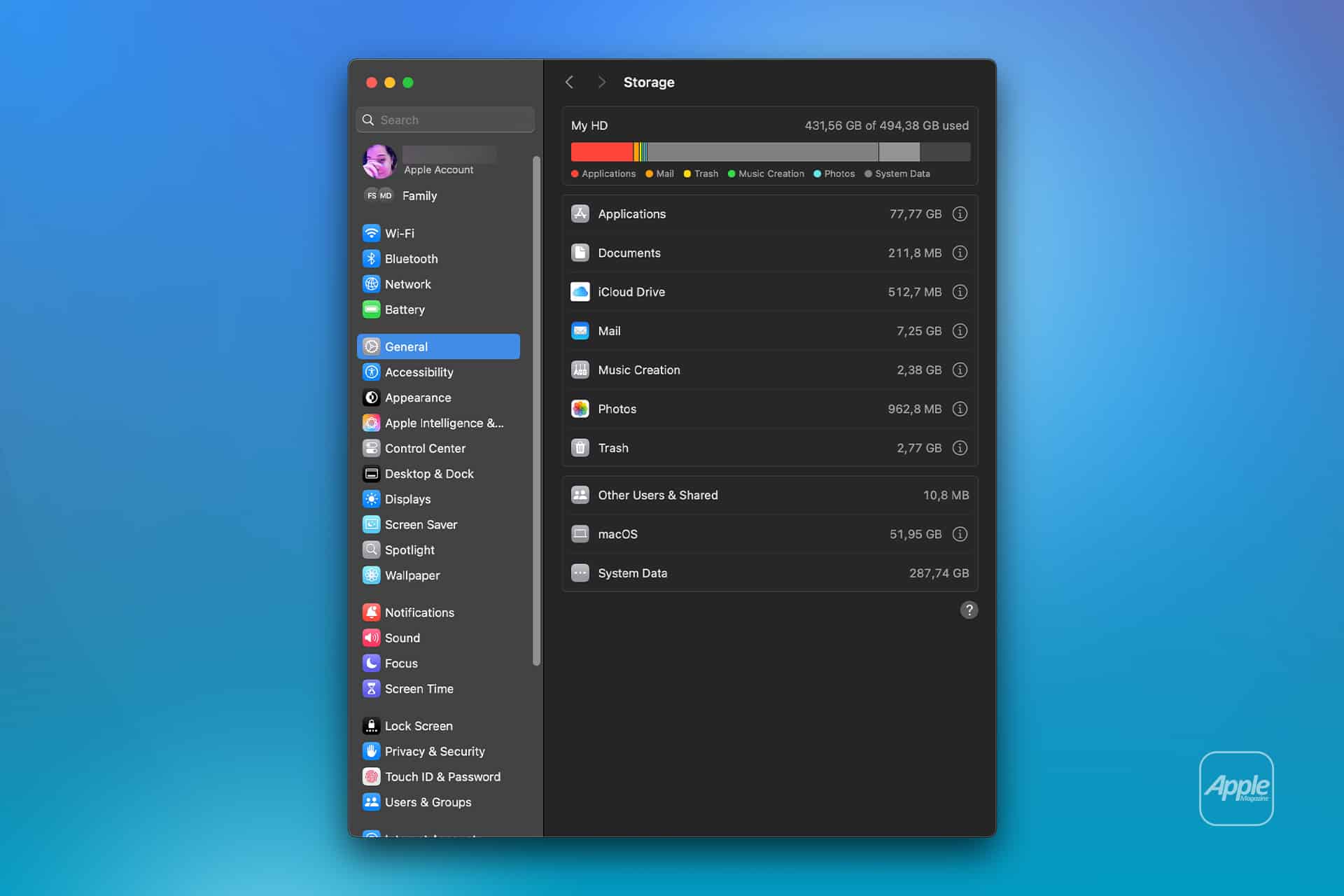
Recording the available storage before removing the files makes it easier to confirm how much space macOS recovered afterward.
To see the current storage allocation:
Apple menu > System Settings > General > Storage
Allow the Storage page to finish calculating its categories. The process may take a moment when the Mac contains many applications, local files, connected volumes, or several user accounts.
Apple Intelligence may appear as a separate item within the macOS storage category. Depending on the installed macOS version, some related assets may instead be counted under macOS or System Data.
Note the amount of available storage displayed near the storage graph. Comparing the total free space before and after the procedure is usually more reliable than watching one category because macOS can reclassify system-managed files while deleting them.
To inspect the complete internal storage container:
Apple menu > System Settings > General > Storage > All Volumes
This view is useful when the internal drive contains several APFS volumes sharing the same physical storage. The available capacity belongs to the shared container rather than remaining permanently assigned to one volume.
The storage used by Apple Intelligence is different from the memory, or RAM, used while features are running. Closing applications may reduce RAM consumption, but it does not delete the models stored on the internal SSD.
Image Credit: AppleMagazine
Remove Local Apple Intelligence Files
Apple Intelligence is available on compatible Macs with Apple silicon. Intel-based Macs do not support the complete Apple Intelligence system and should not contain the same downloadable model collection.
To turn off Apple Intelligence and request the removal of its on-device models:
Apple menu > System Settings > Apple Intelligence & Siri > Turn off Apple Intelligence > Turn Off Apple Intelligence
The second Turn Off Apple Intelligence command confirms the change. The exact appearance may vary between macOS versions, with the first control presented as either a switch or a button.
Apple says that turning off Apple Intelligence removes the on-device models. There is no separate model manager, Delete Models button, or supported Finder location from which users must remove the files manually.
Keep the Mac connected to power while macOS completes its background storage work. The Apple Intelligence setting changes immediately, but the Storage page may not display the recovered capacity at once.
macOS manages these models through its system asset service. The operating system must identify the associated packages, release them, and recalculate the storage categories. The process can therefore continue after the Apple Intelligence switch has already moved to the off position.
Turning off only individual features does not remove the complete model collection. Disabling notification summaries, Writing Tools, ChatGPT access, or Siri suggestions leaves Apple Intelligence itself active.
A Screen Time restriction also serves a different purpose. It can prevent access to image generation, Writing Tools, and other functions without turning off the underlying intelligence system. Use the Apple Intelligence control inside Apple Intelligence & Siri when the objective is recovering storage.
Confirm That the Space Was Recovered
After macOS has had time to process the removal, return to the Storage page.
To check the available capacity again:
Apple menu > System Settings > General > Storage
Wait for the storage graph and categories to finish updating. Compare the new amount of available space with the figure recorded before Apple Intelligence was turned off.
The Apple Intelligence entry may disappear completely, display a smaller amount, or become part of an adjusted macOS or System Data category. The increase in total available storage provides the better indication that the local models were removed.
If the figures have not changed, restart the Mac to refresh its system services and storage calculation.
To restart macOS:
Apple menu > Restart > Restart
Sign back in, allow the Mac to remain idle for a while, and open the Storage page again.
Apple menu > System Settings > General > Storage
Restarting does not delete the models by itself. Apple Intelligence must remain disabled while macOS completes the removal.
Emptying the Trash is not part of this procedure because macOS does not place Apple Intelligence models there. The Trash affects only files that a user or application has already marked for deletion.
Image Credit: Apple Inc.
What to Do When the Files Remain
First, verify that the complete Apple Intelligence system is off rather than one related feature.
To confirm its status:
Apple menu > System Settings > Apple Intelligence & Siri > Apple Intelligence
The control should display Apple Intelligence as disabled. If macOS presents another confirmation request, complete it and leave the feature off.
Storage information can take time to settle because macOS also manages caches, local snapshots, temporary update packages, and purgeable files. These categories can change while the Mac is idle, making an immediate before-and-after comparison misleading.
Installing the latest stable macOS update can correct storage reporting or asset-management problems.
To check for an available update:
Apple menu > System Settings > General > Software Update
Save current work before installing an update. The Mac may need to restart, and the installation temporarily requires additional free storage.
Beta versions of macOS require extra caution. Development releases may download experimental models, retain previous model revisions, or temporarily change the Apple Intelligence controls. A procedure confirmed for the public version of macOS may not produce the same storage behavior in a beta.
Avoid following online instructions that require starting in macOS Recovery, disabling System Integrity Protection, mounting protected volumes, and deleting folders with names referring to MobileAsset or generative models.
System Integrity Protection prevents applications and administrator accounts from modifying protected parts of macOS. Disabling it weakens that protection and creates the possibility of deleting the wrong asset, leaving macOS with an incomplete model installation, or causing the system database to disagree with the files present on the drive.
A storage utility can help identify how much space system files occupy, but it should not require disabling macOS security to remove Apple Intelligence. If the documented switch leaves a large allocation after a restart and sufficient processing time, Apple Support can investigate the asset database without exposing the Mac to an unsupported system modification.
Turning Apple Intelligence on again reverses the storage saving.
To restore its features:
Apple menu > System Settings > Apple Intelligence & Siri > Turn On Apple Intelligence
The Mac will download the required local models again. Apple recommends leaving the device connected to Wi-Fi and power while the model download completes.
Nonetheless, when I send an email in Mail app, from a non-iCloud account to an non-iCloud account, Mail immediately triggers an iCloud connection, as revealed by Little Snitch.
[…]
What could Mail be querying and saving in CloudKit when I’ve disabled Mail in iCloud?
[…]
As you can see in my screenshot at the beginning of this blog post, I have Contacts turned off in iCloud settings, so my Previous Recipients list should not be synced to iCloud. Nonetheless, I followed the commenter’s suggestion of logging in Terminal. I saw log messages that referred to com.apple.mail.recents, which might indicate Previous Recipients and would certainly explain why this happens when I send an email.
[…]
I do object to notifying Apple that I’ve just sent an email. That in itself seems like a violation of my privacy.
The settings are confusing, even more so than with System Preferences. If you go to System Settings ‣ Apple Account, it shows a round rect that says Mail and shows the Mail icon. If you click this, it lets you uncheck Sync this Mac for iCloud Mail. This mirrors the iCloud Mail checkbox that you get when you click See All to see the full list of apps. I don’t like how the top-level name and icon suggest that you’re going to a settings sheet for the Mail app, but then it actually gives you iCloud settings.
Importantly, there’s also anotherMail checkbox in that list. It’s easy to miss because, first, why would you expect to see twoMail checkboxes?
And, second, it’s not obvious that there are actually three lists: a bunch of “favorite” system apps, in non-alphabetical order, for some reason including lesser ones like Freeform and Image Playground; followed by a second list of system apps in alphabetical order; and then a third list of alphabetical third-party apps.
Mail is in the second list, along with (to me) other top-tier apps like Books and Maps. Anyway, this second Mail checkbox controls the syncing of non-mail Mail data such as rules and smart mailboxes. But not, apparently, according to Apple, the previous recipients.
When you are shell scripting or working in Terminal, sometimes you want a quicker way to enter the path to a file or folder, particularly if you have already navigated to it in the Finder. One way that works in Terminal is to drag the file or folder from the Finder onto the Terminal window, which then types the path into the current command. However, another method was introduced in El Capitan (OS X 10.11) that allows you to copy the full path onto the clipboard.
In Finder, you can hold down Option and choose Edit ‣ Copy Pathname.
Starting in macOS Sequoia, copying the path to the clipboard using the method described generates a path that can be directly pasted into the Terminal or a script and be interpreted as that path without further manipulation.
It adds single quotes and or escapes characters, but only if necessary.
Graham Pugh pointed out that if you have text on the clipboard, you have the option of pasting that text “escaped” in Terminal. Simply copy the text from whatever source you choose (e.g., the output of an AutoPkg run, where paths are not escaped), then in Terminal choose Edit > Pasted Escaped Text or use the shortcut Command-Control-V.
[…]
As a bonus, this concept can be applied to a tip I learned from Armin Briegel a few years ago, namely that if you select something in Terminal that you want to then paste into the current shell command, you can skip the copy-paste dance and instead just press Command-Shift-V to do it in one step (or if you prefer menus, Edit > Paste Selection). If you add the Control key to that sequence, the text pasted is escaped (Edit > Paste Escaped Selection or Command-Control-Shift-V).
A cada atualização anual do macOS, uma escolha da Apple em particular gera quase tanta curiosidade quanto as mudanças e os novos recursos do seu sistema operacional: o nome que acompanhará o update.
Hoje, faremos uma breve recapitulação das principais escolhas da Maçã sobre os nomes de cada versão do sistema operacional dos seus computadores, passando por décadas de codinomes felinos e, mais recentemente, paisagens californianas.
As (várias) mudanças do passado
Antes disso — no período do Mac OS Classic, que abrange os sistemas dos Macintoshes lançados entre 1984 e 2001 —, os nomes dos sistemas da Apple eram usados quase exclusivamente de forma interna. Publicamente, as versões recebiam denominações bastante protocolares, mas, nos bastidores, praticamente todas carregavam codinomes.
O System 6, por exemplo, teve versões conhecidas internamente como Antares (6.04), Big Deal (6.05), SixPack (6.06) e Terminator (6.08). Já o System 7 passou por uma verdadeira coleção de nomes, incluindo Blue, Beta Cheese, Cube-E, I Tripoli, Jirocho, Mozart, Capone, Danook, Thag e Marconi, entre outros. Também houve casos específicos, como Road Warrior, utilizado nos primeiros PowerBooks, além de Unity, Buster, Son of Buster, Harmony e Ides of Buster, empregados em versões posteriores do sistema.
A partir do Mac OS 8, os nomes foram predominantemente relacionados à teoria musical — é o caso do codinome Tempo no Mac OS 8, Allegro no Mac OS 8.5 e Sonata no Mac OS 8.7 (versão de desenvolvimento do que viria a ser o Mac OS 9). As exceções são o Mac OS 8.1 (intitulado Bride of Buster) e o Mac OS 8.6 (Veronica).
Essa só se tornou uma tradição marqueteira a partir do Mac OS X 10.2, quando Steve Jobs apresentou a nova versão do sistema operacional como Mac OS X Jaguar, levando um codinome ao público pela primeira vez — antes do Jaguar, a Apple utilizou os codinomes Kodiak para a versão beta, Cheetah para a 10.0 e Puma para a 10.1 —, inaugurando a era de nomes de grandes felinos.
Os animais ditaram os sistemas dos Macs por cerca de dez anos (de 2002 até 2012): foi o caso do Mac OS X 10.3 Panther, Mac OS X 10.4 Tiger, Mac OS X 10.5 Leopard, Mac OS X 10.6 Snow Leopard, Mac OS X 10.7 Lion e, por fim, OS X Mountain Lion 10.8 — que abandonou (temporariamente) o prefixo “Mac”.
OS X Mavericks 10.9: a alteração de rota rumo à Califórnia
A partir da décima versão do macOS (então OS X), a Apple adotou publicamente nomes com as regiões da Califórnia, tendência que segue em vigor até os dias de hoje.
A troca, aliás, andou em paralelo a uma mudança paradigmática do sistema: foi somente com o OS X Mavericks 10.9 que a Maçã deixou de cobrar pela atualização dos seus sistemas operacionais, permitindo que os seus usuários, a partir do Snow Leopard (na compilação 10.6.8), atualizassem as suas máquinas sem custos adicionais — uma realidade que permanece até os dias de hoje.
O primeiro destino geográfico escolhido pela Apple remete a uma região litorânea conhecida pelas altas ondas, propícias para a cena local do surfe. O papel de parede do OS X 10.9 dava destaque à curvatura de uma grande onda em tons de azul e turquesa, com clara inspiração na localização que deu nome ao update.
Em matéria de software, o OS X Mavericks ficou marcado pelo aprimoramento na gestão de performance, bateria e memória, aproveitando melhor o hardware dos computadores da Apple. Quanto aos recursos, o sistema trouxe os links compartilhados no Safari, respostas embutidas em notificações, abas e tags no Finder, melhor suporte ao uso de múltiplos monitores, além da introdução de novos aplicativos, como o Mapas e iBooks.
OS X Yosemite 10.10
Pouco mais de quatro horas adiante (ou 314km, para ser mais exato), encontramos o Parque Nacional de Yosemite. A área já era considerada tão importante para a preservação ambiental que Abraham Lincoln autorizou sua proteção e uso público em 1864, anos antes da criação de Yellowstone, reconhecido como o primeiro parque nacional do mundo. Outro grande entusiasta de Yosemite foi Theodore Roosevelt, que ajudou a consolidar a sua importância dentro do sistema de parques americanos.
Um dos maiores símbolos do parque — e também o destaque do wallpaper oficial do sistema — é o Half Dome, um monólito de granito com impressionantes 2.696 metros de altitude. Localizada no coração de Yosemite, a formação foi considerada inescalável por alguns geólogos do século XIX, até que George G. Anderson realizou a façanha em 1875, escalando-a descalço. Muito possivelmente, a foto usada pela Apple foi registrada com uma lente teleobjetiva nas proximidades da Ahwahnee Meadow.
O OS X Yosemite 10.10 foi um marco importante na trajetória do macOS. Muito lembrado pelas mudanças de design na interface — com elementos translúcidos e ícones de formas planas que definiriam a identidade visual do sistema por várias gerações —, ele também deixou como legado a introdução dos recursos de Continuidade (Continuity) entre o OS X e o iOS.
Inicialmente, a novidade englobava apenas o AirDrop, as chamadas telefônicas, o app Mensagens, o Handoff e o Instant Hotspot. Ainda assim, ela inaugurou um nível de interoperabilidade que ajudou a redefinir a forma como o mercado de tecnologia passou a enxergar ecossistemas compostos por diferentes produtos de uma mesma marca.
OS X El Capitan 10.11
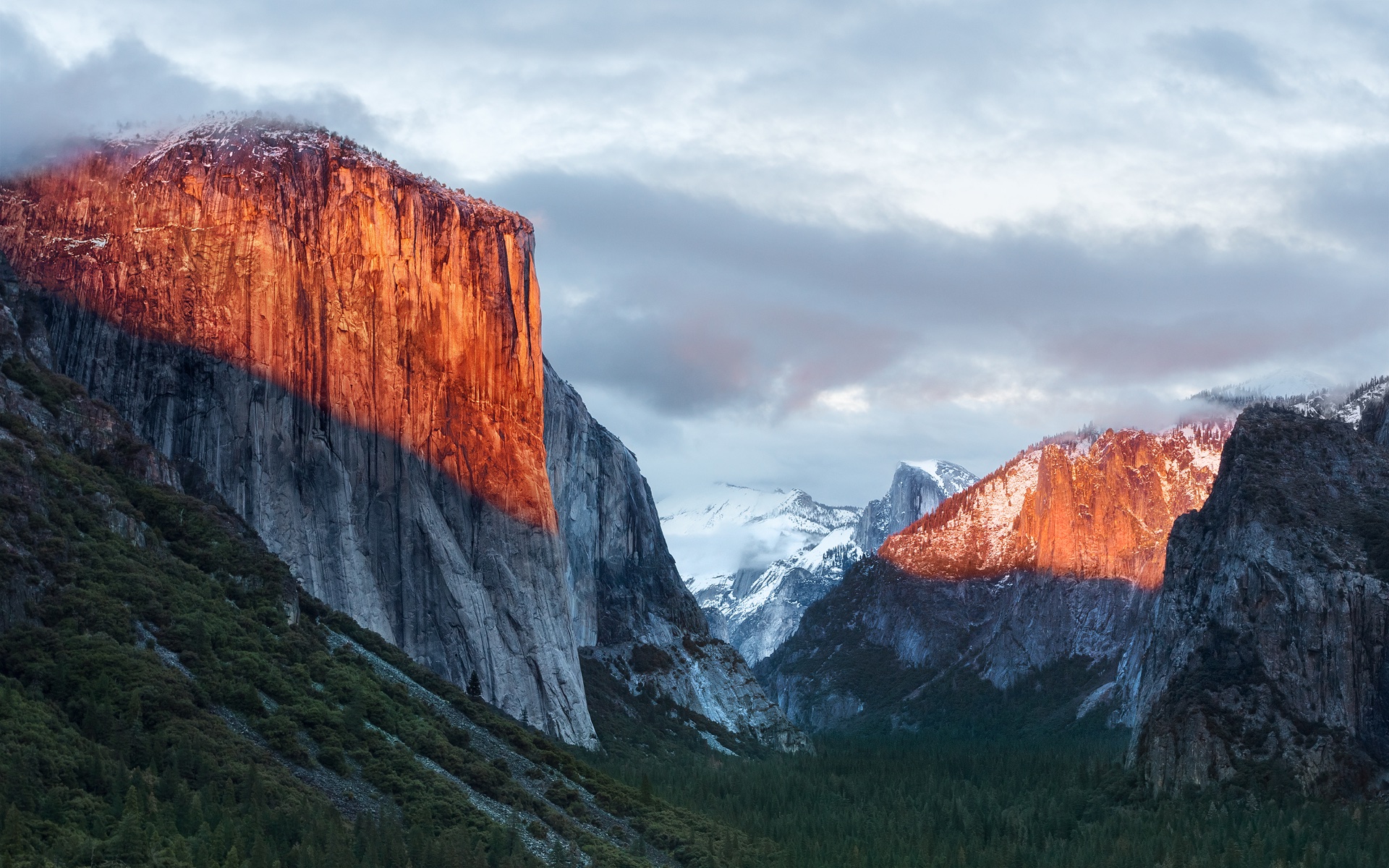
A apenas 20 minutos de distância do Ahwahnee Meadow, a próxima parada do Mac é outra atração turística presente dentro do Parque Nacional de Yosemite: o El Capitan é um monólito de granito de quase 900 metros que se ergue acima do vale do parque.
O papel de parede provavelmente foi fotografado a partir do mirante Tunnel View, de onde é possível avistar o El Capitan à esquerda do vale. Ao fundo, surge o Half Dome — um enquadramento que parece refletir o espírito da atualização. Diferentemente de Yosemite, o OS X El Capitan 10.11 deu menos ênfase à introdução de novos recursos e concentrou seus esforços em correções de bugs, otimizações de desempenho e refinamentos da experiência de uso. Entre as principais novidades, estavam um Spotlight aprimorado, a adição do Split View e diversas melhorias nos aplicativos nativos da Apple.
macOS Sierra 10.12
Cerca de 338km depois (aproximadamente quatro horas e meia) de Yosemite, passando pela cordilheira de Sierra Nevada (situada no leste da Califórnia, a oeste do Mount Whitney), temos o Lone Pine Peak, cenário da montanha que aparece no wallpaper do sistema.
Além da mudança de nomenclatura de OS X para macOS (colado e com o “m” minúsculo, como segue até os dias de hoje), a atualização é particularmente lembrada pela inclusão da Siri no Mac, o Desbloqueio Automático (Auto Unlock) com o Apple Watch e a Área de Transferência Universal (Universal Clipboard) entre Macs, iPhones e iPads.
macOS High Sierra 10.13
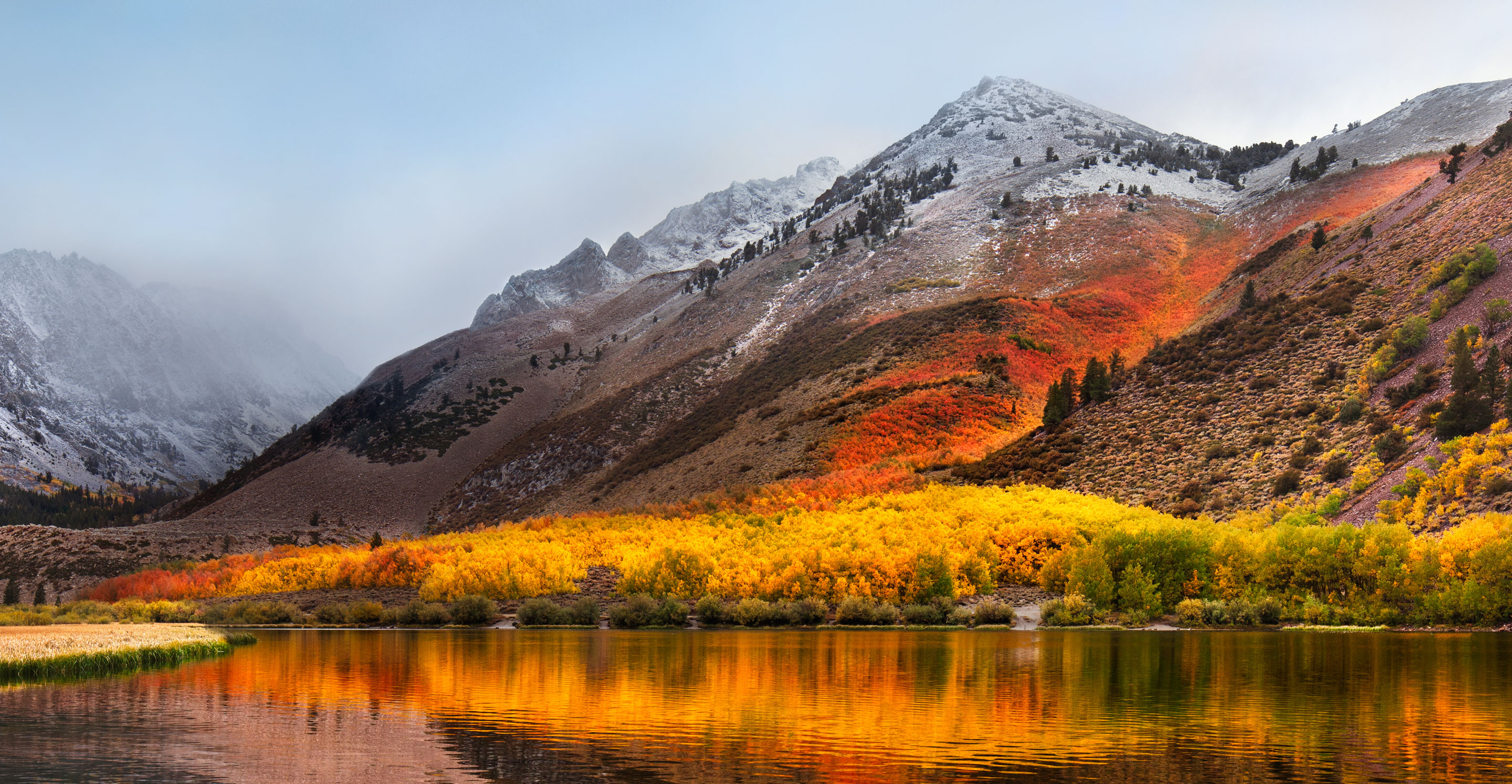
Uma rápida viagem de 80 minutos (129km) é capaz de nos levar ao próximo destino fotografado pela Apple: North Lake, localizada na pequena cidade de Bishop, entre as montanhas da cordilheira de Sierra Nevada. Ali, muito possivelmente em meio ao outono, o registro eternizado no papel de parede do sistema foi feito.
Quando falamos do sistema, aos moldes do próprio El Capitan e do Snow Leopard, o macOS High Sierra 10.13 focou muito mais no aprimoramento interno do macOS do que em novos recursos, mas vale mencionar a inclusão do novo sistema de arquivos da Maçã (o Apple File System, ou APFS), do suporte aos formatos audiovisuais HEVC e HEIF, bem como a chegada da segunda geração da tecnologia de desempenho gráfico Metal.
macOS Mojave 10.14
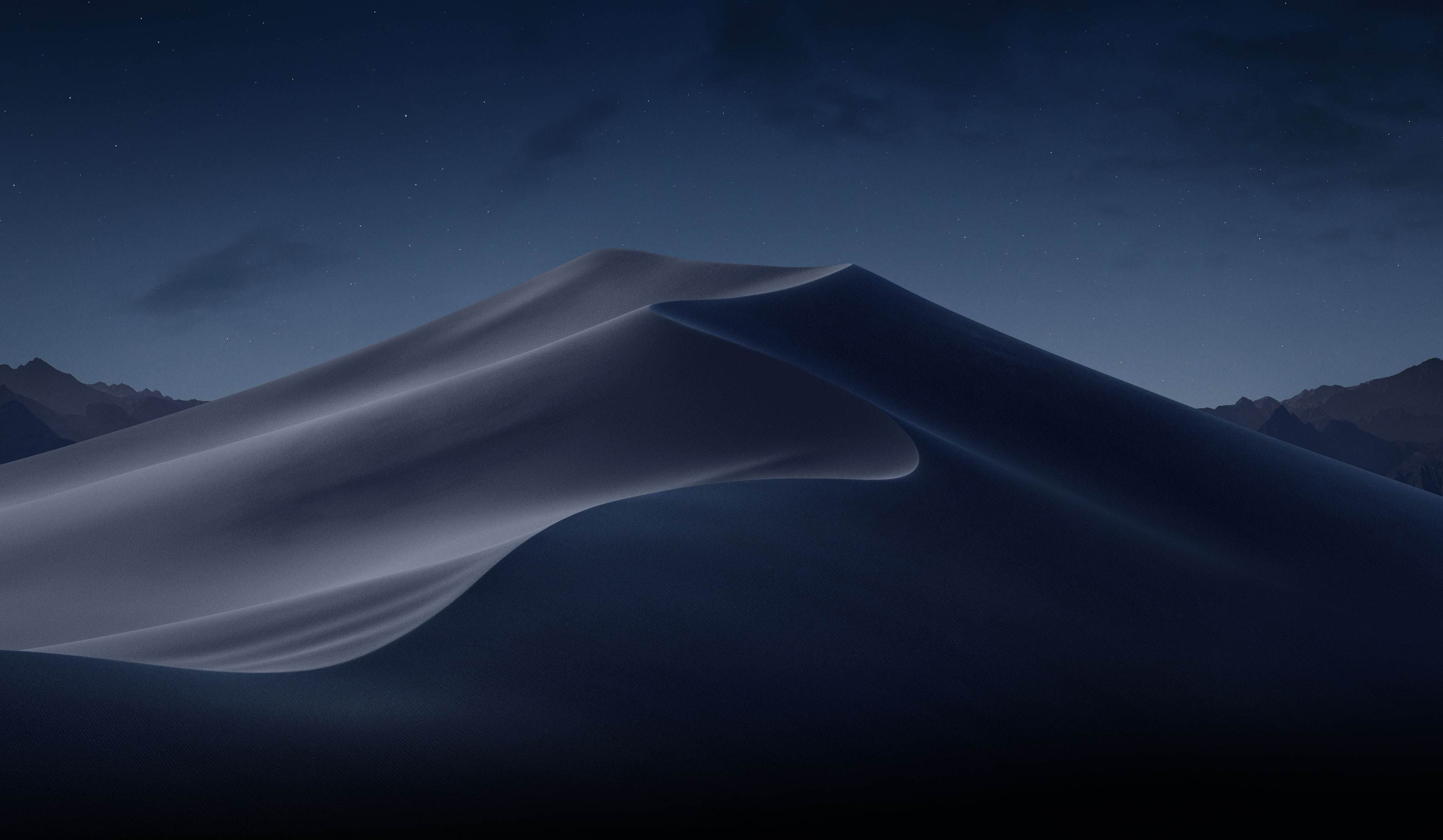
Depois das montanhas, que peculiarmente ficam na margem do wallpaper, vieram as dunas. Com uma distância de 253km (ou três horas de carro), o próximo destino é o Parque Nacional do Vale da Morte, o ponto mais quente do continente americano — onde se registrou a maior temperatura da história (56,7°C) em julho de 1913, e onde a foto do papel de parede do macOS Mojave 10.14 foi feita.
Já sobre as novidades do sistema, essa versão do macOS é particularmente conhecida pela introdução do Modo Escuro, a inclusão dos Conjuntos (Stacks) na Mesa (Desktop), além da estreia de apps já conhecidos dos usuários de iOS, como o Apple News, o Bolsa (Stocks), o Gravador de Voz (Voice Memo) e o Casa (Home).
macOS Catalina 10.15
A 428km adiante do Deserto de Mojave (cerca de cinco horas e meia de carro), nós temos a Ilha de Santa Catalina, destino paradisíaco — e remoto — da costa sul da Califórnia que deu nome à versão do macOS lançada em 2019. Pela posição da foto, o que se especula é que o registro oficial da Apple tenha sido feito com o auxílio de um drone ou helicóptero, sobrevoando as águas para capturar Catalina sob diferentes períodos e iluminações para fornecer o tema dinâmico disponível no sistema.
Essa atualização marcou o fim do iTunes, que foi segmentado em um catálogo de aplicativos separados (Apple TV, Música, Apple Podcasts), mas sua adição mais relevante muito possivelmente foi o recurso Sidecar, que possibilita o uso do iPad como um monitor externo do Mac.
macOS Big Sur 11
Com uma distância de 524km da Ilha de Catalina, a próxima parada é na Ponte Bixby Creek (inaugurada em 1932 e particularmente conhecida por suas estradas com curvas), localizada na costa central de Big Sur, que dá nome a essa versão do macOS — o papel de parede retrata também a parte litorânea do local.
Sobre o sistema, a versão marcou a transição dos processadores da Intel para o Apple Silicon com o lançamento do M1, trazendo novos ícones, materiais translúcidos, um novo Dock, Central de Controle e de Notificações.
Esta versão também foi um marco para o sistema operacional, pois, pela primeira vez em muitos anos, a Apple abandonou as sub-versões 10.x e passou para o número 11 — o que se manteve nos anos subsequentes.
macOS Monterey 12
Ainda na costa de Big Sur, o macOS Monterey 12 marcou a quebra de uma tradição: pela primeira vez em anos, a Apple optou por não incluir um registro fotográfico como possível papel de parede ou tela de descanso, mantendo apenas temas dinâmicos para ilustrar o sistema dos Macs naquela ocasião.
O Condado de Monterey, que inspirou o nome do sistema, é particularmente lembrado por ter abrigado a primeira capital da Califórnia, quando a região ainda era de domínio dos governos da Espanha e do México.
Em relação ao sistema, o grande destaque foi a introdução do Controle Universal (Universal Control), permitindo que um único conjunto de periféricos (como teclados e mouses) seja utilizado simultaneamente no Mac e no iPad.
macOS Ventura 13
Por volta de 450km de distância (quatro horas e meia de trajeto) depois, temos o Condado de Ventura, que inspirou essa versão do macOS. Emancipado do Condado de Santa Bárbara em 1873, ele abriga o píer mais antigo do estado da Califórnia. Mais uma vez, a Apple optou por não incluir um papel de parede fotográfico.
Quanto aos seus recursos, o macOS Ventura 13 se destacou pela adição do recurso Organizador Visual (Stage Manager) e melhorias no Spotlight, Safari, entre outros aplicativos nativos do sistema que ganharam reformulações.
macOS Sonoma 14
Do Condado de Ventura até Sonoma, são 748km (pouco mais de sete horas de trajeto) até a região norte de San Francisco, conhecida por abrigar centenas de vinícolas. O registro da Apple foi feito na vinícola Mazzocco Sonoma, no rancho de Warm Springs.
Depois de dois anos, a Apple enfim retornou com os papéis de parede fotográficos no macOS, funcionando também como protetores de tela (screensavers) dinâmicos que lentamente se tornam um wallpaper estático após o login.
A maior novidade do sistema foi a implementação dos widgets interativos na Mesa (Desktop), além de reformulações no modo Jogo, na relação do sistema com acessos remotos e no compartilhamento de conteúdos em videochamadas, com novidades também no Safari, na Siri e nos recursos de acessibilidade.
macOS Sequoia 15
Saindo de Sonoma, nosso próximo destino está localizado a quase sete horas de distância (mais ao sul da Califórnia, a exatos 547km de distância); trata-se do Parque Nacional da Sequoia, que abriga algumas das maiores árvores do planeta em termos de volume.
O registro do papel de parede é remoto o suficiente para não termos uma dimensão exata da sua localização geográfica (até porque a Apple nunca divulgou essa informação), mas é seguro afirmar que as imagens foram capturadas em algum dos bosques de sequoias da Sierra Nevada.
Além da estreia controversa dos recursos da Apple Intelligence devido à discrepância entre o que foi apresentado e as funcionalidades entregues, o macOS Sequoia 15 introduziu o Espelhamento do iPhone (iPhone Mirroring), a organização de janelas em mosaico e o aplicativo Senhas (Passwords).
macOS Tahoe 26
Do Parque Nacional de Sequoia, partimos rumo ao norte, até a fronteira entre a Califórnia e o estado do Nevada (uma distância de 330km, ou três horas e meia de trajeto). O próximo destino é o Lago Tahoe, também presente na cordilheira de Sierra Nevada. Ele é particularmente conhecido por ser o maior lago alpino da América do Norte em termos de altitude.
Conhecido por suas águas cristalinas, o lago é um destino frequente para esqui. O papel de parede do macOS Tahoe 26 exibe um ângulo baixo sobre o lago, com as rochas em primeiro plano, enquanto os pinheiros e as montanhas de Sierra Nevada aparecem ao fundo.
Quanto ao sistema, além da unificação da numeração com todo o ecossistema (iOS, iPadOS, watchOS, tvOS e visionOS) da Apple, essa versão foi especialmente marcada pelo redesign de interface com a estreia do Liquid Glass. Outras novidades incluem a adição das Atividades Ao Vivo (Live Activities) ao recurso Continuidade, além de revisões do Spotlight, Central de Controle e os recursos da Apple Intelligence.
macOS Golden Gate 27
E, enfim, chegamos à versão mais recente do macOS! Com uma distância de 330km (trajeto com cerca de três horas e meia), nosso próximo destino é o cartão postal da cidade de San Francisco: a Ponte Golden Gate.
Ela foi, até 1964, a maior ponte suspensa do mundo — caso seus cabos de sustentação fossem esticados, teriam tamanho o suficiente para dar três voltas no planeta.
Enquanto sistema, assim como o Snow Leopard ou o High Sierra, o macOS Golden Gate 27 é marcado por sua abordagem de priorização dos refinamentos, tanto relacionados ao visual Liquid Glass quanto aos recursos da Apple Intelligence e da Siri, que agora se torna Siri AI.
E você aí, usa o macOS desde que versão? Alguma, em especial, lhe marcou? Ou você (ainda) não é usuário de Mac, mas gostou de todas essas curiosidades? 😊
MacOS Sequoia 15.7.8 and MacOS Sonoma 14.8.7 are available for Mac users who are not running the Tahoe operating system. Both MacOS Sequoia 15.7.8 and MacOS Sonoma 14.8.7 include a myriad of security patches, making them recommended updates for all Mac users who are running those operating systems. No new features are included. Separately, Apple ... Read More
Following the rollout of no less than seven Release Candidates, Apple has now finally released macOS Sonoma 14.8.8 and macOS Sequoia 15.7.8 officially.
Spotlight doesn’t currently appear able to search Time Machine backups reliably, at least not in Sequoia or Tahoe, although this may not be universal.
[…]
If I now step back through my backups to reach one that I know contains that file, I can restore it. But if I type anything into the search field, nothing is found. If I change the scope of the search to that backup, the window title changes but its contents remain blank, and there isn’t even a busy spinner to indicate a search is in progress.
[…]
As I can’t disable Spotlight indexing on that volume without macOS telling me that it’s required to be indexed by Spotlight, neither can I force that volume to be reindexed.
[…]
My conclusion is that using Spotlight to search Time Machine backups no longer works, and the instructions given by Apple are also broken.
That has been my experience, too. As I see it, there are four separate problems:
I want to be able to search all my backup snapshots, because I don’t know which one might contain the file I want to restore. Time Machine only lets you search one at a time.
Searching an individual snapshot doesn’t actually work.
Spotlight indexing is invasive, using lots of CPU time, and with spinning hard drives causes wear and tear and creates lots of noise. If search doesn’t work anyway, I’d like to turn it off, but macOS won’t let me.
If the problem is with the index, there’s no way to reset it without deleting your backup.
Unfortunately, all those saved versions in the version database fall outside the scope of Spotlight indexing, and Spotlight search can’t look inside any of the old versions saved in a volume’s version database. Surprisingly, the version browser doesn’t offer any search facilities either, as that’s presumably another feature intended for a future that never came.
[…]
One way around this is to save each document version as a separate file, allow Spotlight to extract their contents and add those to its indexes for that volume, then to search those files. This is quick and simple using my free utility Versatility.
A vulnerability in Apple’s “Hide My Email” tool lets almost anyone discover a person’s real email address that is supposed to be hidden by the feature, and Apple has failed to fix it for more than a year, according to a security researcher and 404 Media’s own tests.
[…]
“Apple Hide My Email is leaking email addresses that are supposed to be hidden. We reported the issue and replication instructions to Apple over a year ago. We don’t know why it hasn’t been fixed, but we don’t feel comfortable waiting any longer. Hide My Email users deserve to know that it may be possible for attackers to discover their hidden email addresses,” Tyler Murphy, the co-founder of EasyOptOuts, which discovered and reported the issue to Apple, told 404 Media.
“Free, publicly accessible people-search sites make it easy to link an email address to other personal details, so people relying on Hide My Email for safety may be at risk,” Murphy added.
[…]
To test the issue I generated a new Hide My Email address and provided it to Murphy. Around five minutes later, he replied with my real email address linked to my Apple account which was supposed to be hidden.
Murphy said that he reported the issue to Apple in June of last year, and the company told him it was looking into it. Apple said it had been fixed in March of this year, but Murphy found that wasn’t the case. He again contacted Apple, with the company saying that it would appreciate him not revealing the existence of the flaw until it had been resolved.
Apple then said it planned to address the issue in June, but since it still hasn’t been fixed[…]
March 19, 2026: Using the reproduction instructions from our initial report, we determined that the vulnerabilities hadn’t been fixed.
May 22, 2026: We realized that the vulnerabilities may have greater severity and scope than we thought initially and reported this to Apple. Apple never acknowledged the report of increased severity.
June 30, 2026: Apple again reported that the vulnerabilities were fixed and asked us to verify. We determined that the vulnerabilities hadn’t been fixed.
Very few details are available right now. I have seen speculation that the original email address is revealed when someone replies using their hidden email address, but the impression I get from Cox’s reporting is that no user interaction is necessary[…]
[…]
I am also unclear about how, as of May, the EasyOptOuts guys found the “vulnerability may have greater severity and scope” than initially reported. Ominous, though.
I don’t know whether I’ve accidentally stumbled upon that vulnerability, or perhaps in this case the Hide My Email user just messed up in some way, but I’ve definitely discovered a bizarre and troubling Hide My Email bug in Mail app (on macOS Sequoia 15.7.7).
[…]
Bizarrely, however, Mail app displayed an alert that I’ve never seen before, “This message was forwarded to you by Hide My Email,” despite the fact that I have previously received many emails from people using Hide My Email.
[…]
Why I am seeing two different @icloud.com email addresses, one of which appears to be the sender’s unhidden address?
Why are the To: and From: fields in my reply disabled?
Why is my reply not from my @underpassapp.com email address but rather displayed falsely as from the sender’s @icloud.com address and really from my unrelated Apple Account address?
Apple this week was sued over a reported “Hide My Email” flaw that could expose a user’s real email address. The proposed class action lawsuit alleges that Apple violated California’s false advertising law and other consumer protection statutes by knowingly offering a feature that does not work as advertised.
This is interesting in that the June 2025 bug report is the evidence that Apple “knew” the feature didn’t work, while “Apple continued to represent to consumers that Hide My Email
would actually hide users’ email.” How long are they supposed to get to fix a bug?
The misleading user interface elements in Mail app are a bug, but by themselves they’re not a vulnerability. The vulnerability is that when I send a reply to my maliciously crafted email, my Apple account email address is disclosed in the “From” field of the sent reply! In other words, the Mail app interface lies, fails to show the true sent value of the “From” field.
There are a couple of crazy aspects to this information disclosure vulnerability:
It does not require that the victim actually use Hide My Email! I never use it. As I mentioned in my previous blog post, I don’t even have an icloud.com email account.
It does not matter which of the victim’s email accounts receives the email from the attacker. If your Apple account email address is a@foo.com, but you receive a maliciously crafted email addressed to b@bar.com, Mail app will still send your reply from a@foo.com, thereby disclosing your Apple account address.
Apple addressed a vulnerability in Hide My Email that exposed a user's real email address, reports 404 Media. Apple told the site the issue was fully fixed in a patch released on July 3.
[…]
While the bug has now been addressed, email logs that pre-date the fix could still expose user email addresses.

 Login
Login