TL;DR: Grab an iScanner Lifetime Subscription for just $39.99 (reg. $199.90) and turn your phone into an all-in-one document scanner, PDF editor, and file manager.
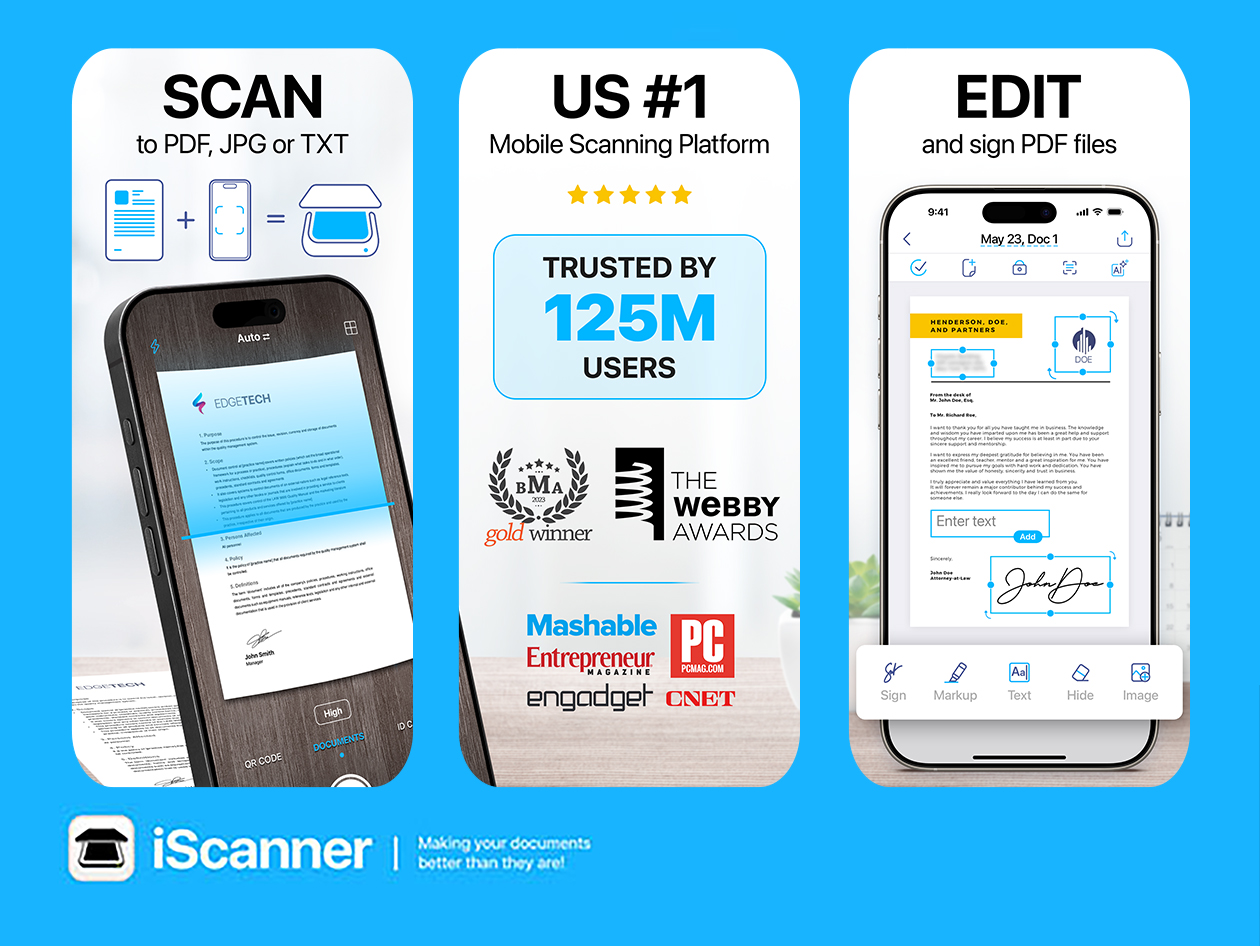
The days of searching for a scanner every time you need to send a document are officially over. With an iScanner Lifetime Subscription for $39.99 (reg. $199.90), your iPhone, iPad, or Android device becomes a portable scanner, PDF editor, and document organizer — all without another subscription fee.
Need to scan a receipt, contract, tax form, handwritten note, ID card, or even a passport? Simply point your camera, and iScanner automatically detects document edges, straightens pages, improves image quality, and recognizes text in more than 20 languages. You can export files as PDFs, Word documents, Excel spreadsheets, PowerPoint presentations, JPGs, and more.
The app goes beyond scanning, too. You can sign documents, merge or split PDFs, blur sensitive information, organize files into folders, and protect important documents with PIN-locked storage.
If your phone is already your everyday productivity tool, adding a scanner you’ll actually use feels like an easy win.
There’s something satisfying about buying software once and knowing it’s yours. No monthly charges hitting your credit card. That’s exactly what makes this Microsoft Office Home & Business 2021 for Mac deal so appealing.
For just $49.97 (reg. $219), you’ll get a lifetime license that includes Word, Excel, PowerPoint, Outlook, Teams (Basic), and OneNote. Instead of paying an ongoing Microsoft 365 subscription, you’ll make one purchase and keep using these classic Office apps for years to come.
Better yet, your license is tied to your Microsoft account, making it easy to reinstall if you replace your Mac down the road, rather than being locked to a single device.
If you’re looking for a straightforward way to equip your Mac with Microsoft’s most popular productivity apps, this lifetime license is an easy decision.
Vor anderhalb Woche hat auf einem Flug der China Eastern Airlines eine Powerbank Feuer gefangen. Wegen solcher Vorfälle haben Behörden und einzelne Fluggesellschaften die Regeln zur Mitnahme der Powerbanks verschärft. Diese sind seit Ende März in Kraft und betreffen die herkömmlichen Lithium-Ionen-Powerbanks sowie Ersatzbatterien für bestimmte Geräte.
Diese Regeln gelten für Powerbanks im Flugzeug:
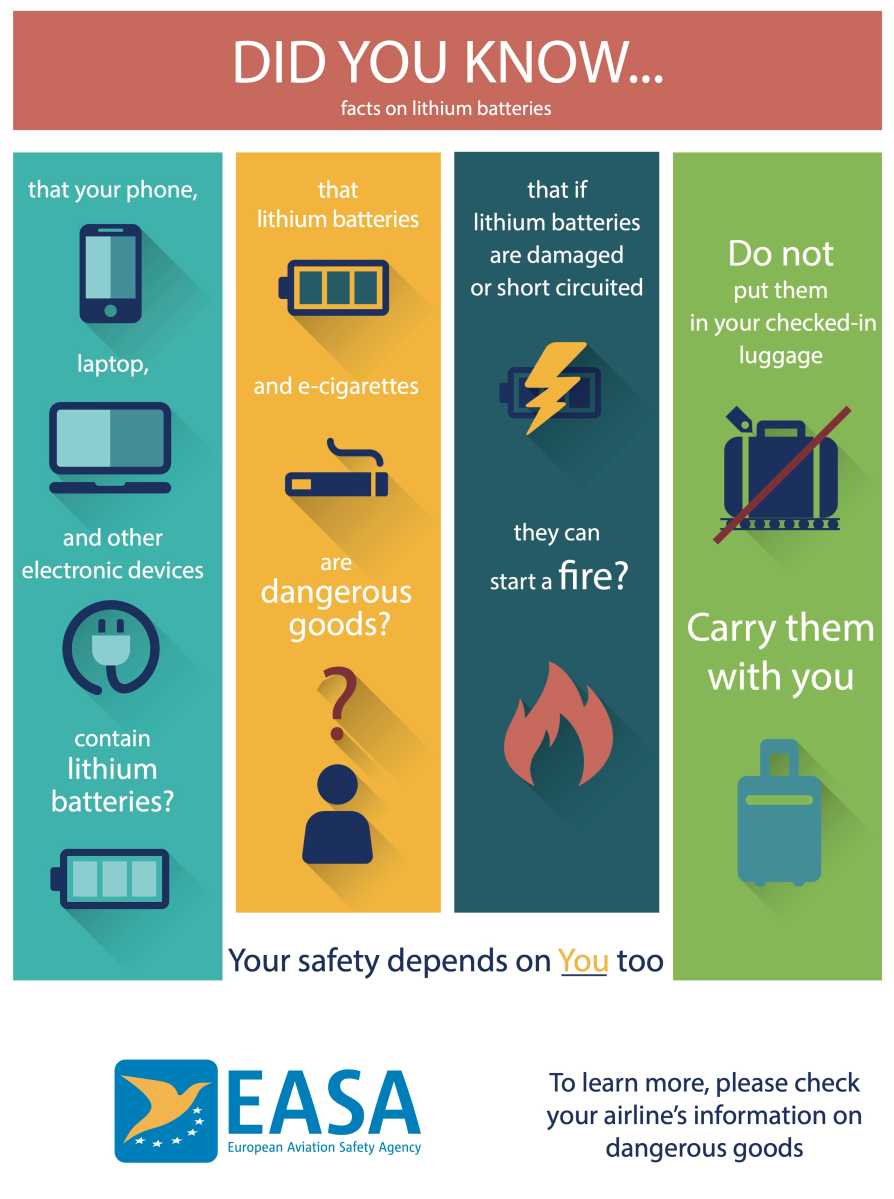
Powerbanks bis 100 Wattstunden kann man mitnehmen, Powerbanks von 100 bis 160 Wattstunden bedürfen der Erlaubnis der Fluggesellschaft, Powerbanks ab 160 Wattstunden gelten als Gefahrgut und sind verboten (diese Grenzen wurden 2009 festgelegt).
Es sind zwei Powerbanks oder Ersatzbatterien pro Person erlaubt.
Powerbanks oder Ersatzbatterien dürfen nicht mehr im Aufgabegepäck transportiert werden.
Wenn Sie eine Powerbank im Handgepäck mitnehmen, darf sie nicht im Gepäckfach über dem Sitz aufbewahrt werden, nur in der Sitztasche, am Körper oder im Gepäck, das unter dem Sitz platziert ist.
Während des Fluges ist die Nutzung der Powerbank verboten: Sie dürfen damit also weder Ihre Peripheriegeräte aufladen noch dürfen Sie die Powerbank über die Stromanschlüsse im Flugzeug laden.
Jede Powerbank muss separat und sicher aufbewahrt werden – entweder in der originalen Verkaufsverpackung, in einer Plastiktüte oder in einem speziellen Beutel.
Viele Fluggesellschaften haben die Regelungen der ICAO fast buchstäblich übernommen. Die Lufthansa hat folgende Einschränkung bereits vor der offiziellen März-Ankündigung im Januar 2026 eingeführt:
Ab dem 15. Januar 2026 dürfen Powerbanks an Bord von Flügen der Lufthansa Group Airlines weder genutzt noch geladen werden. Pro Passagier dürfen maximal zwei Powerbanks ausschließlich im Handgepäck mitgeführt werden. Die Geräte dürfen nur in der Sitztasche des Vordersitzes, am eigenen Körper oder im Handgepäck unter dem Sitz verstaut werden.
Ryanair beschränkt Powerbanks auf 100 Wattstunden Kapazität. Alle Geräte, die diese Grenze überschreiten, sind verboten. Die Fluggesellschaft verbietet das Aufladen der Powerbank an Bord, erlaubt jedoch das Aufladen der Geräte damit während des Fluges, außer beim Rollen zur Startbahn, beim Abheben und beim Landen. Ansonsten sind die Regelungen vergleichbar mit den Richtlinien der ICAO.
Auch Air France hat die ICAO-Richtlinien übernommen: In einem Rundschreiben erlaubt die Fluggesellschaft Powerbanks mit bis zu 160 Wattstunden im Handgepäck, schreibt jedoch weiter in der Erklärung, dass für Batterien mit einer Kapazität von 100 bis 160 Wattstunden eine Transportgenehmigung bei Air France oder Ihrem Reisebüro eingeholt werden soll.
Die Gründe für die Beschränkungen
Die Gründe für diese Beschränkungen in den Flugzeugen sind laut Dr. Gerald Wissel von Airborn Consulting GmbH eine rasche Verbreitung dieser Peripheriegeräte im Alltag. Eine Folge davon ist, dass besonders Billighersteller nicht immer den Teststandards der UN-Richtlinie 38.3 entsprechen, die Fluggesellschaften können das Risiko beim Transport der Powerbanks nicht einschätzen. Gleichzeitig steigt von Jahr zu Jahr die Anzahl der berichteten Vorfälle mit Rauch, Feuer oder extremer Hitze auf Passagier- und Frachtflugzeugen. Laut dem Experten hat die US-Amerikanische Flugsicherheitsbehörde Federal Aviation Administration (FAA) im Jahr 2024 89 Vorfälle mit sich erhitzenden Lithium-Ionen-Batterien registriert, im Jahr 2025 stieg die Zahl auf 93. Die Powerbanks verantworten in dieser Kategorie rund 39 Prozent aller Vorfälle.
Ich persönlich halte die Bestimmungen für sinnvoll im Hinblick auf die Vorfälle und im Interesse der Sicherheit an Bord!
Dr. Gerald Wissel, Airborn Consulting GmbH
Wie viele Wattstunden hat meine Powerbank?
Die meisten Powerbank-Hersteller werben für ihre Produkte mit Milliamperestunden-Angaben (mAh). Diese messen die Ladungsmenge, also wie viel Energie über welche Zeit geliefert wird. Die Wattstunden sind die Energiemenge der Batterie. Milliamperestunden können Sie in Wattstunden umrechnen, wenn Sie die Spannung in Volt wissen. Bei den meisten modernen Lithium-Ionen-Powerbanks liegt die interne Spannung bei 3,6 bis 3,8 Volt. Haben Sie also eine Powerbank mit 20.000 mAh, sind das umgerechnet rund 74 Wattstunden (20.000 mAh × 3,7 V/1000 = 74 Wh). Auch eine Powerbank mit 25.000 mAh liegt knapp unter der erlaubten Grenze von 100 Wattstunden (25.000 mAh × 3,7 V / 1.000 = 92,5 Wh).
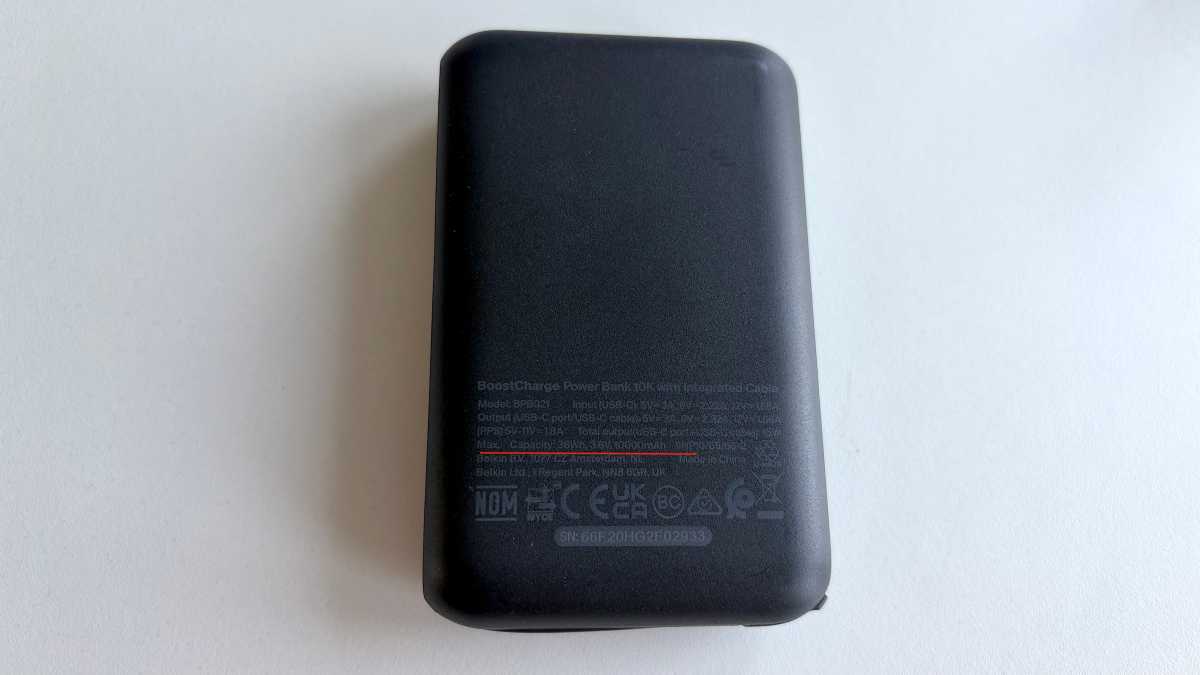
Die meisten Hersteller weisen diese Daten jedoch irgendwo auf der Powerbank direkt aus. Suchen Sie die Angaben mit den Zertifizierungszeichen der lokalen Behörden und viel Kleintext. Achten Sie am besten bereits beim Kauf der Powerbank darauf, dass die Angaben zur Energiemenge direkt auf dem Gerät aufgedruckt sind. So stehen Sie auf der sicheren Seite.
Beim Belkin Boost Charge stehen die relevanten Angaben auf der Rückseite: Maximum capacity: 38 Wh, 3,6 Volt, 10.000 mAh.
Halyna Kubiv
Grundsätzlich gilt: Sie dürfen kleinere Powerbanks bis 100 Wattstunden im Handgepäck mitnehmen, jedoch in den meisten Fällen nicht während des Fluges nutzen. Die Powerbank müssen Sie sicher verstauen – entweder im Handgepäck unter dem Sitz, in der Sitztasche oder nah am Körper. Eine Auswahl der besten Powerbanks, die wir getestet haben, finden Sie in unserem Ratgeber.
Zwei unterschiedliche Methoden zur Montage zur Auswahl
Rückfahrkamera inklusive
Carplay und Android Auto
Kurze Responsezeiten
Vorinstallierte Entertainment-Apps
Fairer Preis
Kontra
Findet nicht in jedem Cockpit ausreichend Platz
Kamerainstallation erfordert Basteleien
Vorinstallierte Entertainment-Apps könnten den Fahrer unnötig ablenken
Touchbedienung auch während der Fahrt möglich
Fazit
Wer ein älteres Fahrzeug mit Carplay nachrüsten will und ausreichend Platz im Cockpit hat, findet im Lamtto Car Infotainment System eine Lösung mit einem großen Bildschirm, flexibler Audioausgabe und als Bonus einer Rückfahrkamera. Entertainment im Auto ist aber immer mit Vorsicht zu genießen, ob es nun vom iPhone oder einem größeren Bildschirm kommt. Der Hersteller gibt auf seiner Website einen Rabatt von 20 Prozent mit dem Code vipcar.
Price When Reviewed
This value will show the geolocated pricing text for product undefined
Von Carplay war ich anfänglich nur wenig überzeugt, auch wegen der schlechten Verfügbarkeit, nur in neueren Autos hierzulande exotischer Marken. Wenigstens das hat sich geändert, kaum ein Neuwagen rollt noch ohne Carplay-Anschlussmöglichkeiten vom Band.
Ist nicht das Gleiche, dient aber der Orientierung in unbekanntem Gelände oder der Information, wie lange denn der Stau noch ist. Seitdem wir das Autoradio mit einem Bluetooth-Empfänger nachgerüstet haben, der die nicht benutzte Schnittstelle des CD-Wechslers nutzt (das Auto ist wirklich alt!), kann ich über die klanglich überzeugende Anlage im Auto auch Musik von meinem iPhone hören.
Und hier kommt nun das Lamtto-System zum Zuge: Denn anders als andere Nachrüstsysteme verbindet es sich mit der Autostereoanlage nicht nur über Aux oder UKW, sondern auch via Bluetooth. Einen 3,5-mm-Klinkeneingang hat mein Auto nicht und FM-Transmitter funktionieren allenfalls nur lokal, wo man an den Rändern der Bänder immer noch eine freie Frequenz findet. Unterwegs sind FM-Transmitter meist nutzlos, für jedes Sendegebiet müsste man die Frequenz nachjustieren, was man während der Fahrt tunlichst unterlassen soll.
Mehr als nur ein Carplay-Bildschirm
Drei weitere interessante Features bringt das Lamtto mit: Da sind zum einen eine Rückfahrkamera (von der mein altes Auto nicht einmal zu träumen wagte), der hochauflösende 11-Zoll-Bildschirm und die vorinstallierten Entertainment-Apps.
Letztere will ich hier nur erwähnen, ohne sie näher auszuprobieren. Denn während der Fahrt sind sie für den Fahrer tabu, und selbst wenn nur der Beifahrer oder die Beifahrerin sich durch Tiktok wischt, in Youtube vorbeischaut oder Netflix glotzt, stört das vorn ungemein und erhöht das Unfallrisiko.
Anders ist es natürlich auf dem Parkplatz, aber auch nur für die Kraftfahrer interessant, die länger pausieren wollen oder müssen und deren Autobatterie ausreichend Ladung zur Verfügung stellt. Für einen fast 20 Jahre alten Verbrenner der unteren Mittelklasse also nicht besonders nützlich, für Elektrofahrzeuge oder LKWs natürlich schon.
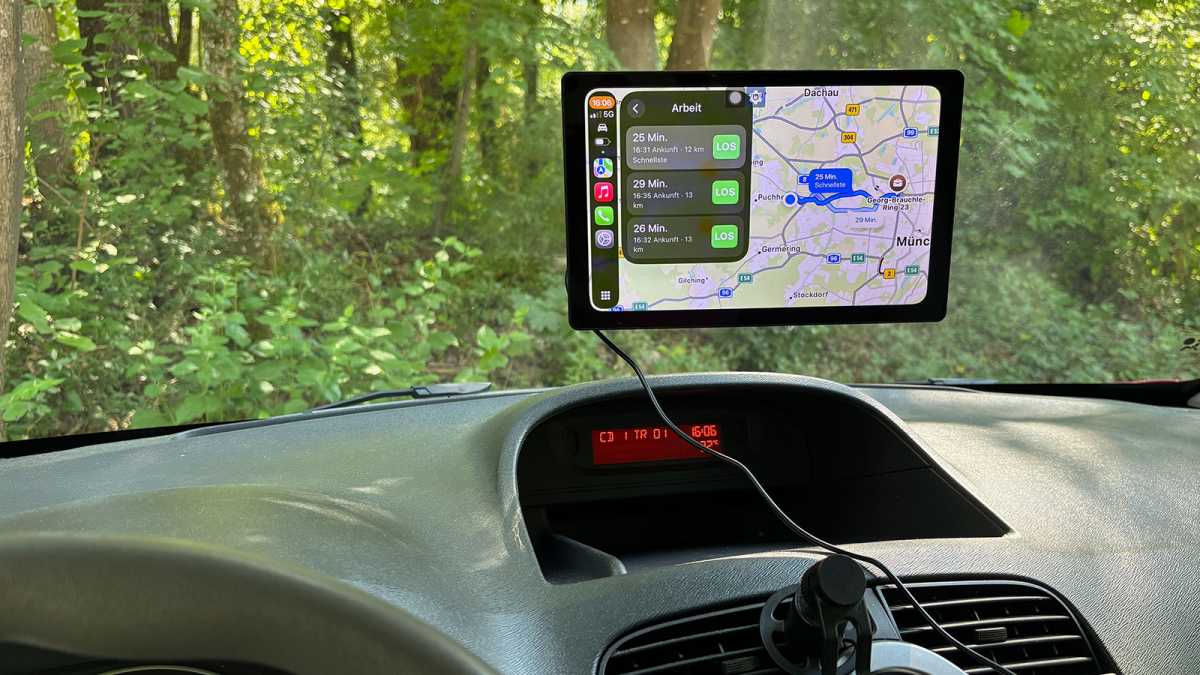
Lamtto lässt der Nutzerschaft die Wahl, ob sie das 11-Zoll-Display auf das Armaturenbrett kleben oder mit einem Saugnapf in die Windschutzscheibe hängen. Ich entscheide mich für den Saugnapf – was die Lösung zwar flexibler, weil wieder entfernbar macht, mir aber das Sichtfeld ein wenig einschränkt. Man könnte darüber streiten, ob die Sichtbehinderung hier relevant ist oder man im wahrsten Sinne des Wortes darüber hinwegsehen kann. Auf Dauer sollte ich mir aber einen besseren Platz suchen.
Schwenke ich den Bildschirm deutlich tiefer oder montiere ich ihn auf die Ablagefläche vor dem Radio, verliere ich den Blick darauf. Mit dem Standfuß auf die Beifahrerseite zu kleben, wäre wegen des Airbags eine eher schlechte Idee. Ich finde schon noch den richtigen Platz.
Der Bildschirm ist schön groß, kann aber im Sichtfeld ein wenig stören.
Macwelt
Die Einrichtung ist völlig unkompliziert: einschalten, mit dem iPhone verbinden, Carplay starten, fertig. Leichte Zweifel, ob die ledigliche drahtlose Verbindung wirklich eine so kluge Idee ist, weil das iPhone unterwegs ja nicht lädt, erstickt der in den Zigarettenanzünder passende Stecker des Car-Entertainment-Systems sofort. In diesen ist noch eine USB-A-Buchse eingelassen, über die auch das iPhone während der Fahrt Strom bekommt – zur Not hätte ich noch eine zweite Autosteckdose mittig vor der Rückbank gehabt.
Zum Vergleich: weniger Platz auf dem Bildschirm im Mazda 2, aber weniger Sichteinschränkungen.
Macwelt
Bei der Bedienung des Touchscreens – der auch während der Fahrt auf Eingaben reagiert, anders als integrierte Carplay-Systeme – stelle ich fest, dass die Befestigung per Saugnapf nur suboptimal ist, zu weit gibt der Bildschirm bei Berührung immer nach. Der Standfuß wäre die bessere Lösung, aber wohin damit? Das ist aber ein Problem des Fahrzeugs und nicht des Nachrüstkits. Immerhin ist dank der Bluetooth-Anbindung die Lautstärkenregelung vom Lenkrad aus möglich. Und natürlich hört das angeschlossene iPhone auf Siri.
Für freien Blick nach hinten Fummelei vonnöten
Kommen wir aber zu einem weiteren Vorteil neben der Bluetooth-Anbindung, die mein Fahrzeug auf ein neues Niveau heben würde: der Rückfahrkamera. Diese verbindet man vernünftigerweise nicht drahtlos, sondern per Kabel mit dem Lamtto-Display. Der Hersteller empfiehlt, die Kamera an oder besser über dem Nummernschild zu montieren, meint damit vor allem eine zentrale Ausrichtung am Heck, in Bodennähe. Die Verkabelung soll über die Regenrinne auf der Beifahrerseite geschehen. Das in das Display eingesteckte dreipolige Aux-Kabel verläuft dann durch das Seitenfenster, das man somit nicht wieder vollständig hochfahren könnte, ohne dass das Kabel auf Dauer Schaden nimmt.
Was ich mich hinsichtlich der Rückfahrkamera gefragt habe: Deren Clou ist bekanntlich, automatisch anzuspringen, wenn das Auto zurücksetzt. Das ist hier mit einem weiteren Kabel gelöst, das man mit dem Pluspol der Rückleuchte verbinden soll. Wenn diese aufleuchtet, bekommt das Display ein Signal und zeigt das Bild der Kamera.
Das ist mir für’s Erste ein wenig zu viel Fummelei, lasse ich lieber einen Profi erledigen – der wird mir dann auch bei der korrekten Platzierung des Displays im Auto helfen.
Die Rückfahrkamera probiere ich dennoch aus, sie bringt ihr Bild über eine vorinstallierte App auf den Schirm – funktioniert wunderbar.
Hier ist die Kamera natürlich falsch platziert und würde allenfalls den rückwärts fahrenden Fahrer abbilden. Das rote Kabel wird mit der Rückleuchte verbunden.
Macwelt
In unseren Zweitwagen, einen Mazda 2, Baujahr 2016, habe ich Carplay nachrüsten lassen. Vorteile: Ein 7-Zoll-Bildschirm war schon an der richtigen Stelle eingebaut und das per Kabel angeschlossene iPhone bekommt während der Fahrt Energie. Nachteil: In einigen Fällen klappte die Verbindung erst beim zweiten oder dritten Versuch, was manches Mal auch an den von mir gewählten Sicherheitseinstellungen lag: Ich muss auf meinem iPhone jedes Mal die Nutzung eines externen USB-C-Geräts explizit freigeben.
Das Problem habe ich beim Lamtto nicht: In nur sehr kurzer Zeit nach dem Starten der Zündung ist das Gerät betriebsbereit, hat Carplay gestartet, das iPhone gefunden und die Musik an der zuletzt gehörten Stelle wieder aufgenommen – so muss es sein.
Fazit
Das Lamtto Car Entertainment System rüstet ältere Fahrzeuge mit Carplay nach und bietet noch zusätzlich eine Rückfahrkamera an. Einer der großen Vorteile, das helle 11-Zoll-Display kann im Betrieb auch ein Nachteil sein, wenn man nicht die richtige Stelle zur Montage findet. Wenn Sie ein 11-Zoll-iPad haben, können Sie in Ihrem Auto (im Stehen!) damit herumexperimentieren, ob das Display passen würde und an welcher Stelle es nicht stört.
Die vorinstallierten Entertainment-Apps wie Youtube, Netflix, Tiktok und Youtube Music sind für diejenigen interessant, die längere Pausen (etwa über Nacht) auf dem Parkplatz einlegen. Selbst im Stau und nur auf den Beifahrer oder die Passagiere auf den Rücksitzen gerichtet, ist vom Videoschauen im Auto streng abzuraten.
Die Montage im Auto und die Einrichtung des Geräts sind gänzlich unproblematisch, wenn man den richtigen Platz auserkoren hat. Die Installation der Rückfahrkamera verlangt nach geschickten Händen, wie sie Kfz-Mechatroniker haben.
One of the things I enjoy doing most with my family is traveling. Annually, we go on two or three domestic trips (at least one of them to Hawaii to visit relatives). We try to go on an international trip every 18 months or so. Our most recent trip abroad was to South Africa in 2024, and we’re heading to Iceland this August. Then there are weekends away a few times a year.
Every great trip requires planning, whether it’s an overnight stay an hour away from home or a grand vacation in a country I’ve never visited before. Besides all the travel logistics (that my wife handles), there’s the tech you need to bring, which is my responsibility in my household.
Over the years, I’ve figured out what tech I absolutely need to take with me. There’s an art to figuring out what to bring. You don’t want to overdo it, because you’ll end up lugging around stuff you aren’t using. But you don’t want to be left without that thing you absolutely need and don’t really have a means of obtaining that item where you are.
While I now rely on my iPhone for all the photos and videos I shoot, I need other items to ensure a successful and enjoyable trip. Here’s a list of the gear I bring with me on my trips. This is the stuff I almost always bring no matter where I’m going. Hopefully, you can use this list to help you figure out what you need to bring on your next trip. If you have suggestions, drop me a line at rloyola@macworld.com. (Note: Prices stated here are MSRPs, but Amazon often runs sales and discounts on many of them.)
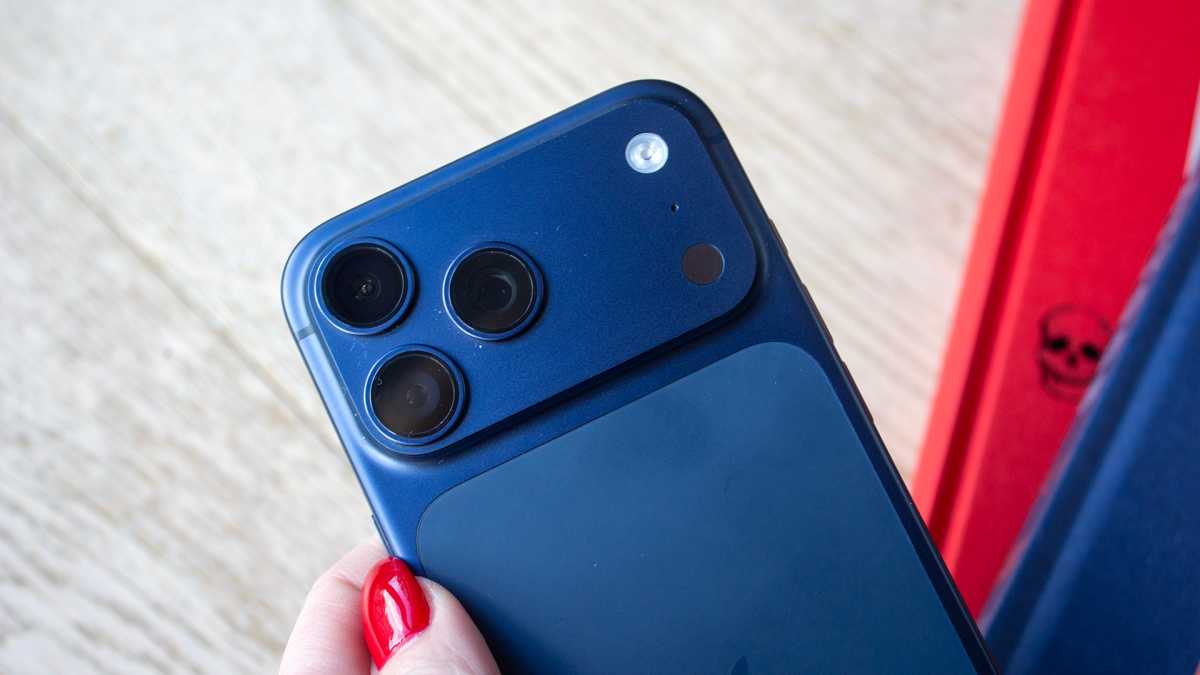
iPhone 17 Pro Max
Britta O’Boyle
There was a time when I would bring separate video and still cameras on every trip, but the iPhone has gotten so good, I don’t need any other camera. With some practice and knowledge of iOS’s features and settings, or with third-party camera apps, you can replicate the capabilities of cameras that cost hundreds more. Before the iPhone 17 Pro Max, I used an iPhone 16 Plus, but I really prefer to the Pro’s telephoto lens.
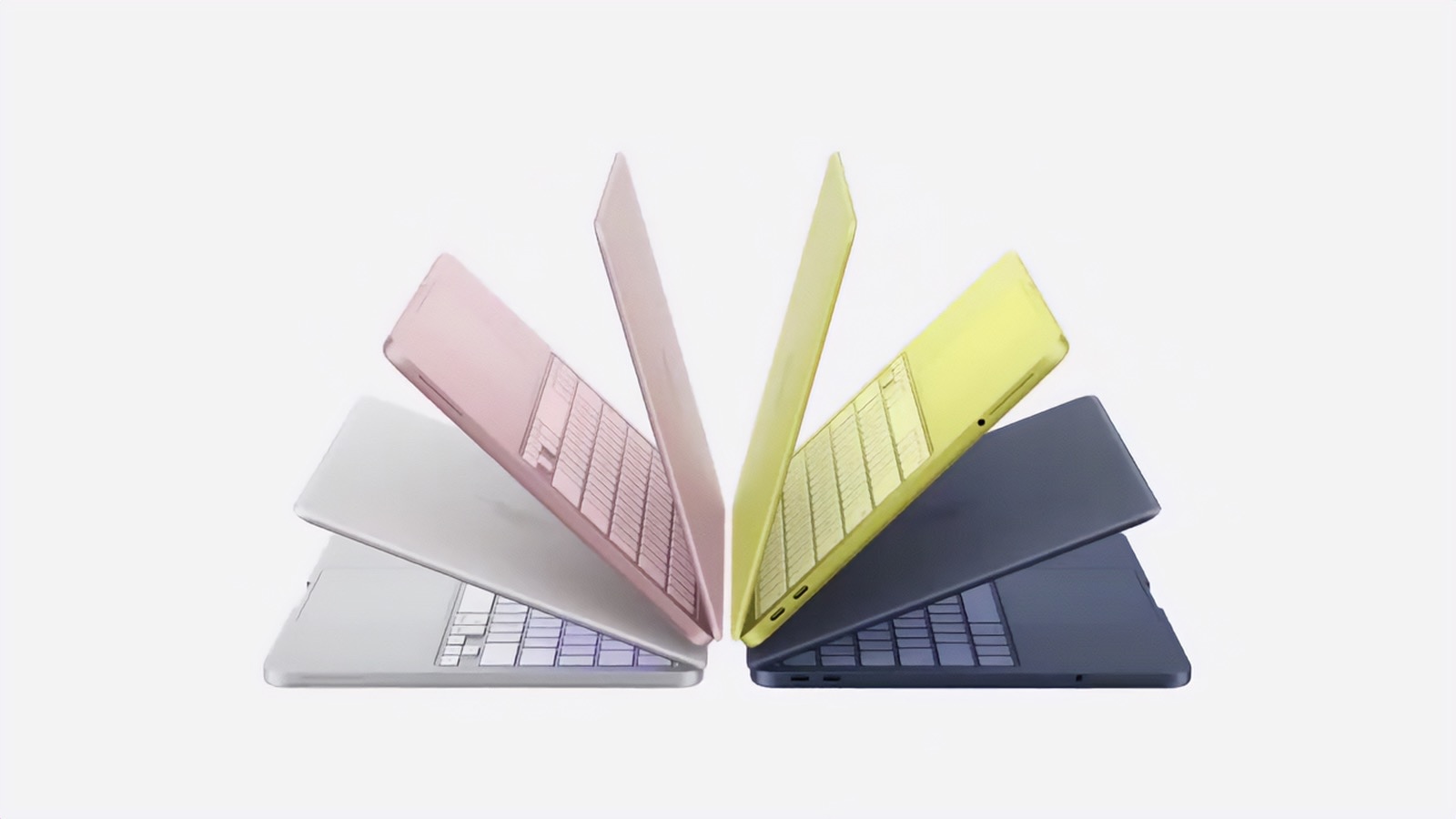
On longer trips where I’ll shoot a lot of photos and video, I bring a MacBook so I can browse and manage my shots after each day is done. I used to bring an extremely old MacBook Pro instead of the MacBook Pro that I use daily, so if it was lost, stolen, or damaged on the trip, I wouldn’t sweat it that much. But it’s also extremely slow and heavy. Even with a recent $100 price hike, the MacBook Neo is such a delight–lightweight, fast, and durable. And as I point out in my review, it doesn’t need to be a secondary machine—the Neo is extremely capable of being a daily-use Mac.
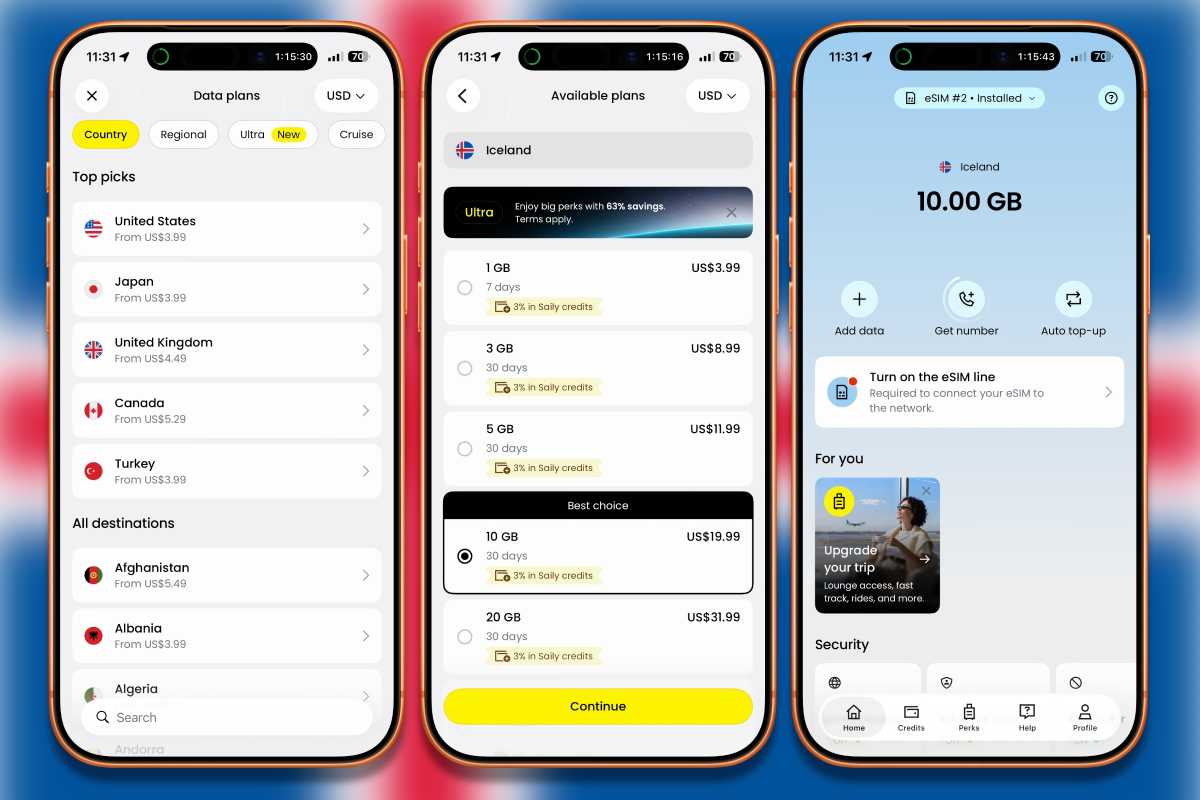
My carrier offers international connectivity by partnering with carriers in other countries. I’ve mostly had success with it, but sometimes there are gaps in coverage or the speeds are slow. On my last trip abroad, I tried a different approach: I took advantage of the iPhone’s dual eSIM and used Saily to get a second eSIM for the country I was visiting. With a second eSIM, I switched between it and my carrier’s offering to get the best possible connection. Overseas eSIMs are affordable–sometimes they’re really cheap, making it worth a try. Learn more about using an eSIM when traveling and about using two eSIMs in an iPhone.
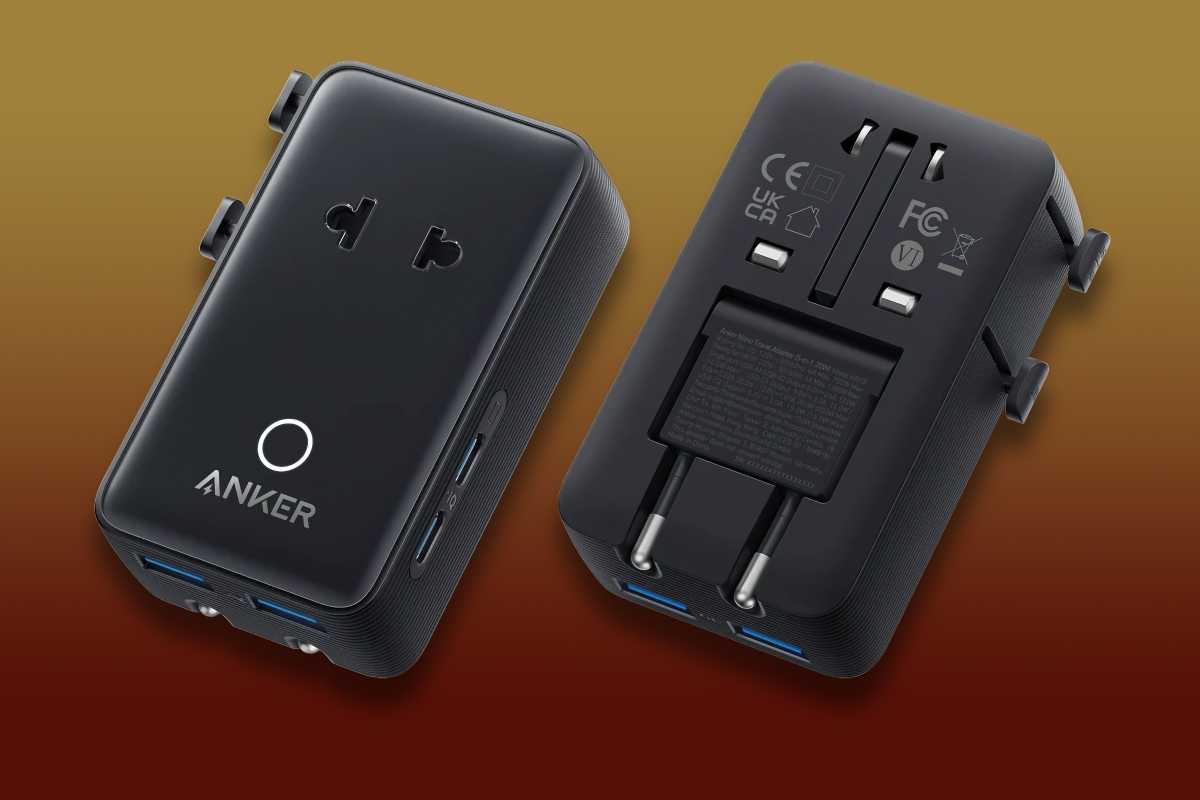
More and more hotels, especially those that cater to international clientele, are starting to install wall outlets that can be used with the different types of power plugs. Hotels are also starting to have USB charging ports next to those wall outlets. But they’re not everywhere, so when you travel outside of the country, it’s good to have a power outlet adapter. The $26 Anker Nano Travel Adapter works in over 200 countries (it is not a voltage converter), and it can charge five devices at once.
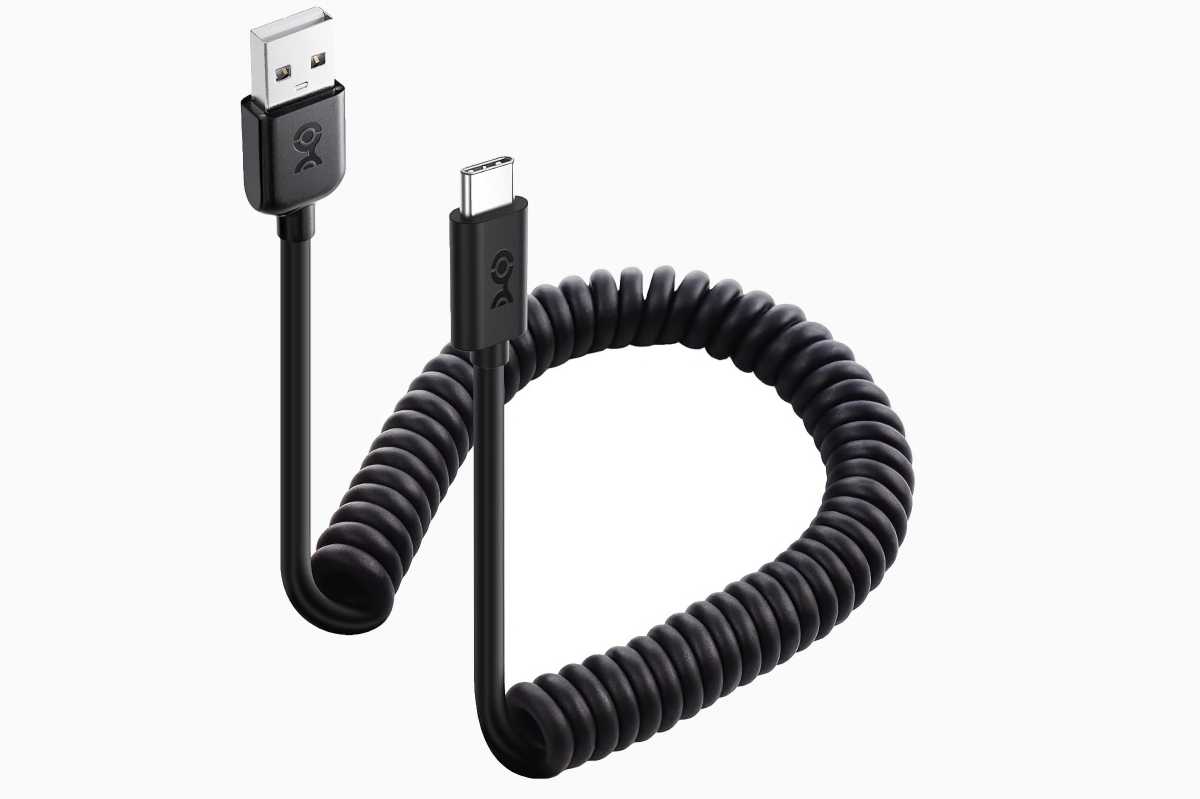
I try to rely on wireless connectivity/charging when I travel, but at some point, a cable is needed. I like bringing coiled cables because I find them easier to manage, especially when I have to connect a few phones for several people in my travel party who need to charge. I have a USB-C cable ($14.99 two-pack), but I also pack a USB-A to USB-C cable ($14.99 two-pack) because I’ve yet to be on a plane with USB-C ports. And I pack a USB-A to Lightning cable ($16 two-pack), because people I travel with have older iPhones.
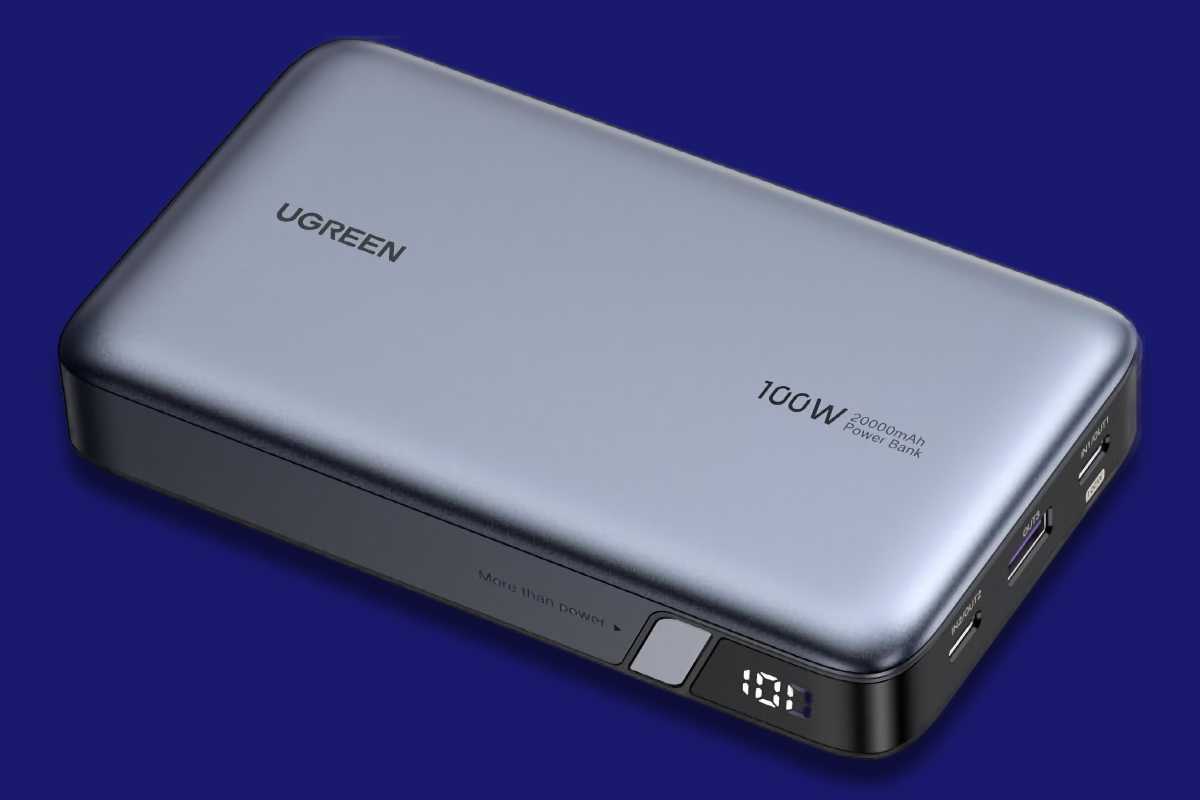
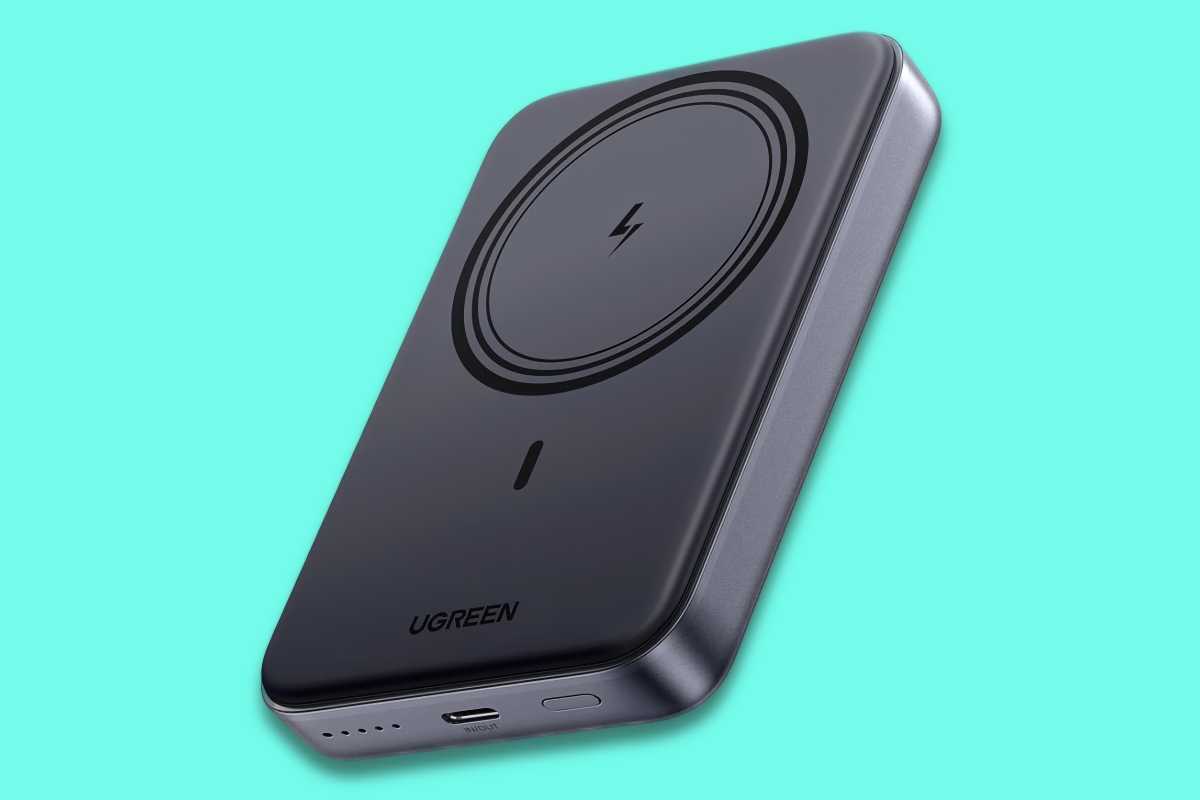
You know what sucks? When you’re on a transcontinental flight and the outlets near your seat don’t work. That’s one of the reasons why I got the UGreen Nexode Power Bank 20000mAh 100W power bank. I’ve used it countless times when I couldn’t find a working outlet. It has enough juice to charge a laptop, and its 72-watt-hour capacity falls under the airline limits, so you can take it on a plane. Check out Macworld’s best laptop power banks for MacBooks for more options.
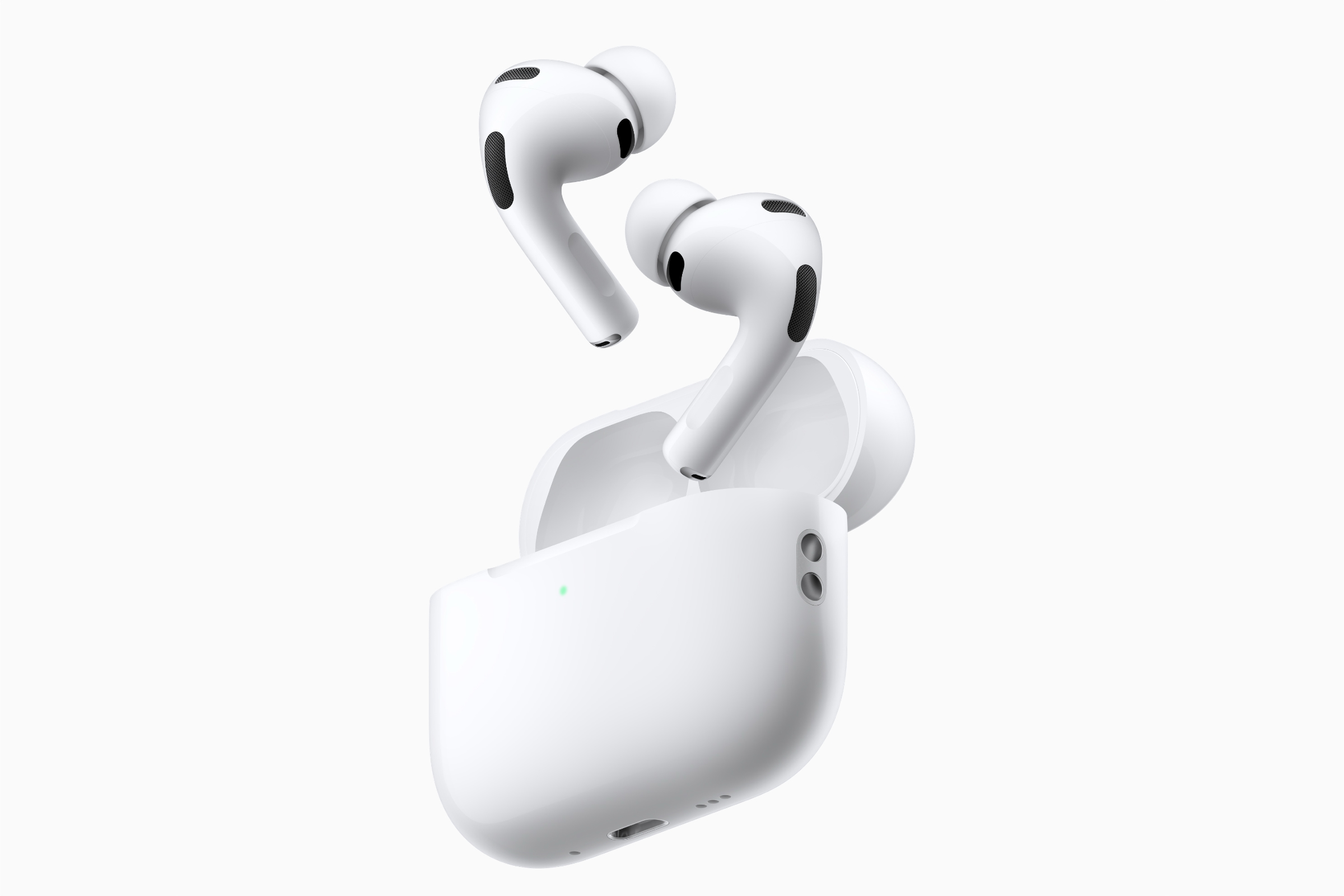
I prefer the $249 AirPods Pro 3 over the $179 AirPods 4 with ANC because the Pro’s in-ear fit seals out more noise and makes for a more comfortable trip on an airplane. AirPods go on sale often on Amazon, so look out for discounted prices. You can check out our AirPods Pro 3 review for in-depth testing, but you already know how great they are.
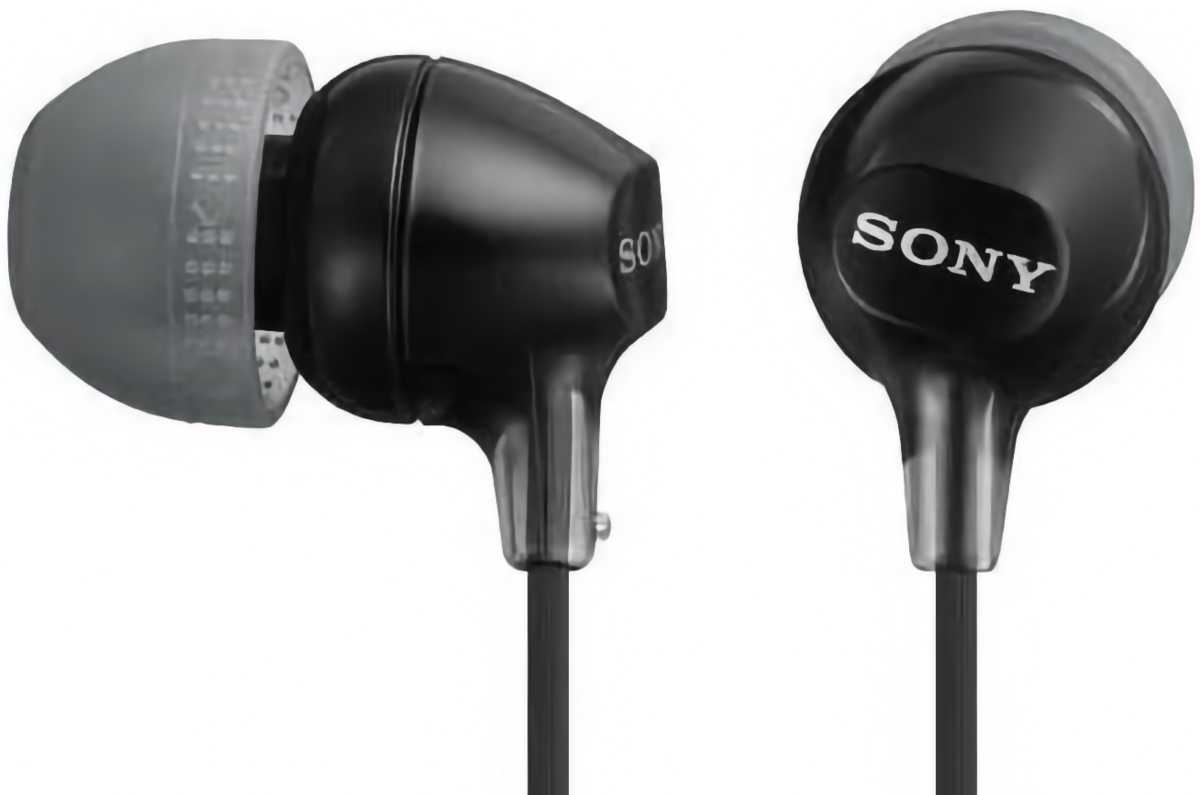
I usually watch something on my iPhone during long flights, but sometimes the in-flight entertainment has something good. When I can, I plug in my own wired earphones to the airplane’s jack–I only use the ones the airline provides if the plane uses a two-prong audio jack. These Sony earphones with a 3.5mm connector are decent for the price ($10 on Amazon), and if I lose them, it’s not a big deal.
Moft Trackable Snap-on Phone Stand & Wallet
Moft
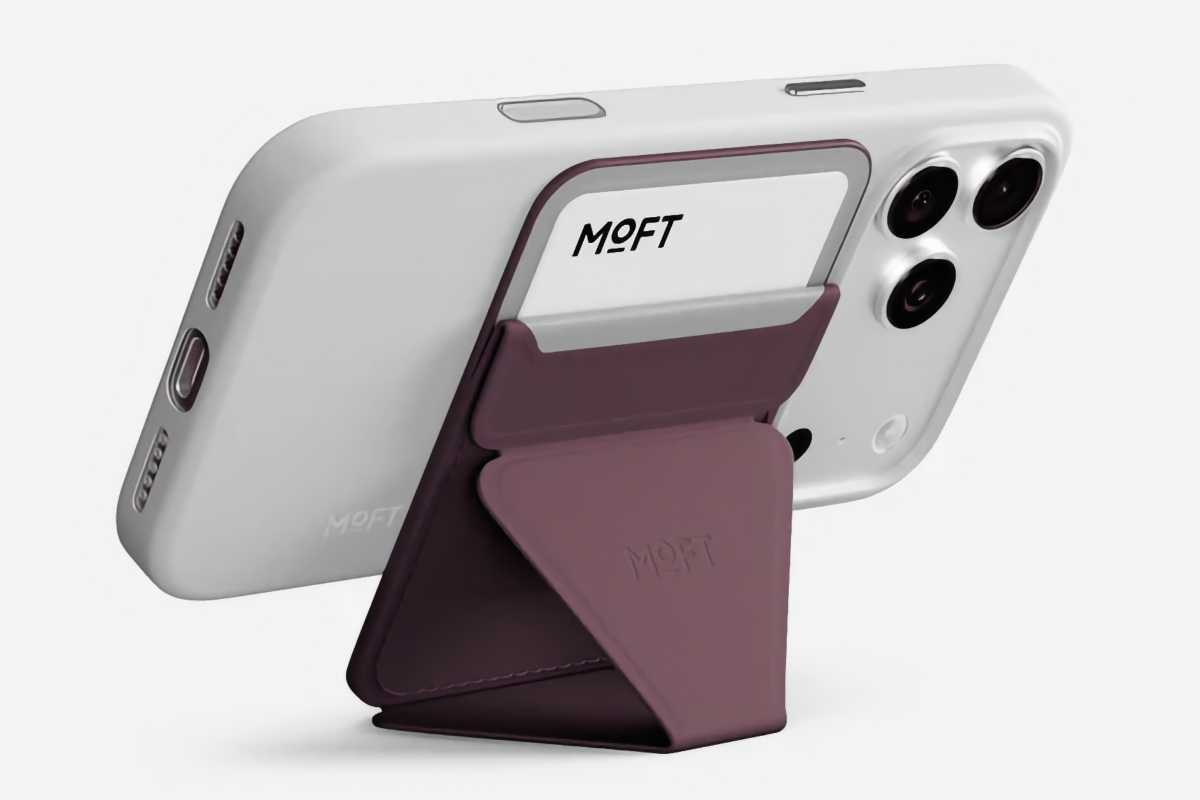
This $50 wallet doubles as a stand–one item to carry instead of two? Say less. It is also trackable with the Find My app, which I haven’t had to resort to, thankfully, but is very nice to have and props up the iPhone at a perfect angle for watching videos. Plus, this wallet holds two cards, just enough for an ID and a hotel room key.
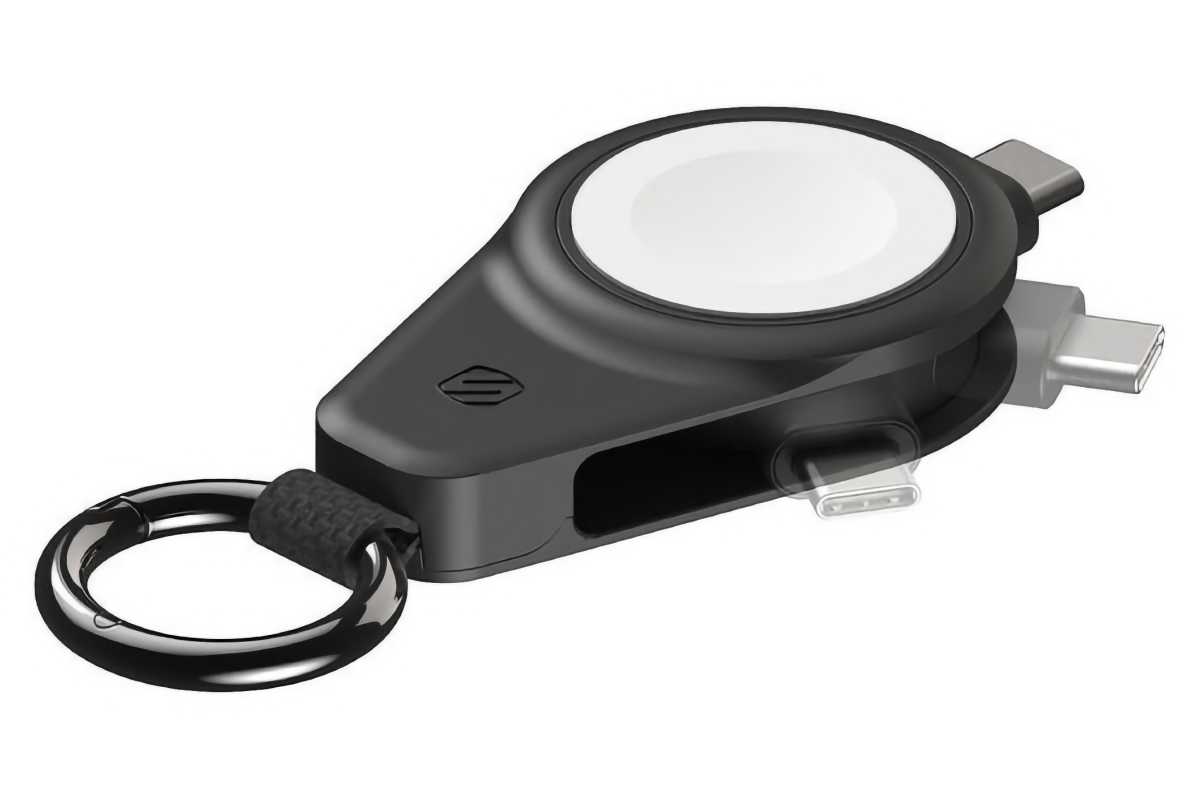
I’m not good about remembering to wear my Apple Watch every day, but I always take it when I travel, mostly because I use its remote trigger for the iPhone camera. I like this $35 Apple Watch charger because it’s small, even though the built-in USB-C port makes connecting it to a charger kind of tricky. But you can easily connect it to an iPhone or MacBook for a quick fill-up. See our other best Apple Watch Charger recommendations.
I actually use an older Pelican backpack–it’s been with me for over 10 years now, and it’s the most durable backpack I’ve ever owned. But Pelican no longer makes it, and I’m eyeing the $200 Aegis to eventually replace it (if it ever wears out). It’s also available in a bigger 25-liter model. See Macworld’s best picks for MacBook backpacks, bags, cases and sleeves.
Before you write to me that Macworld isn’t in a position to give fashion advice, let me be clear: These pants are practical, not fashionable. Cargo pants are ideal for carrying the things I need while seeing the sites. No, I’m not wearing them to a formal dinner. I’m not that gauche. These $42 Lee cargo pants are comfortable, and they don’t have the cargo pocket flaps that I find get in the way.
If you value your home décor and don’t want an out-of-place ugly charger sitting by your bed or on your minimalist desk, the Journey Nova offers style-magazine looks alongside the fastest wireless charging speeds.
Price When Reviewed
This value will show the geolocated pricing text for product undefined
Best Pricing Today
Best Prices Today: Journey NOVA 3-in-1 Wireless Charging Station
Price comparison from over 24,000 stores worldwide
Product
Price
Price comparison from Backmarket
We have reviewed a lot of MagSafe and compatible magnetic chargers ever since the first wireless iPhone 8 and later magnetic wireless iPhone 12. Check them out in our best MagSafe chargers roundup. Some have been useful as phone stands, some have folded into pocketable travel companions, while others have included built-in power banks to save you on the road.
But few have been able to grace a bedroom nightstand or designer desk without incongruously looking exactly like something there do charge your devices. That’s where the Journey Nova stands out, and a new black model adds a touch of sultry class.
Design
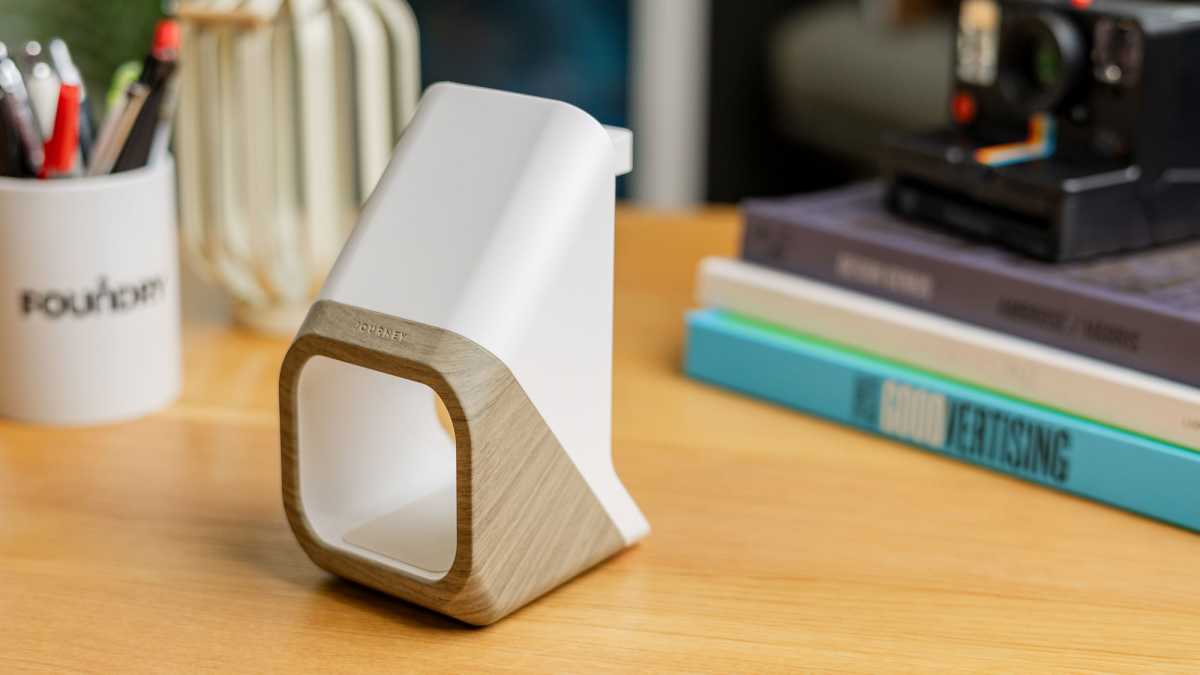
The Journey Nova looks like no other wireless charger and is sure to grace the pages of your favorite home-style magazine. Journey has directly tried to find an “anti-tech aesthetic” that it believes will complement decors “much like a vase, chair, or pot plant might”.
Dominik Tomaszewski / Foundry
Its 6-inch vertical hollow block gives it a feeling of both weight and lightness while taking up little space with its small footprint: 3.2 x 3.6 inches (8 x 9.2cm). The split-material—with either wood grain or what Journey calls “Sparkle Gray” below a matte Corian-like white and now black—look gives it a Skandi design identity. The look won’t be for everyone, but there’s no denying the striking pose it cuts on a desk or table.
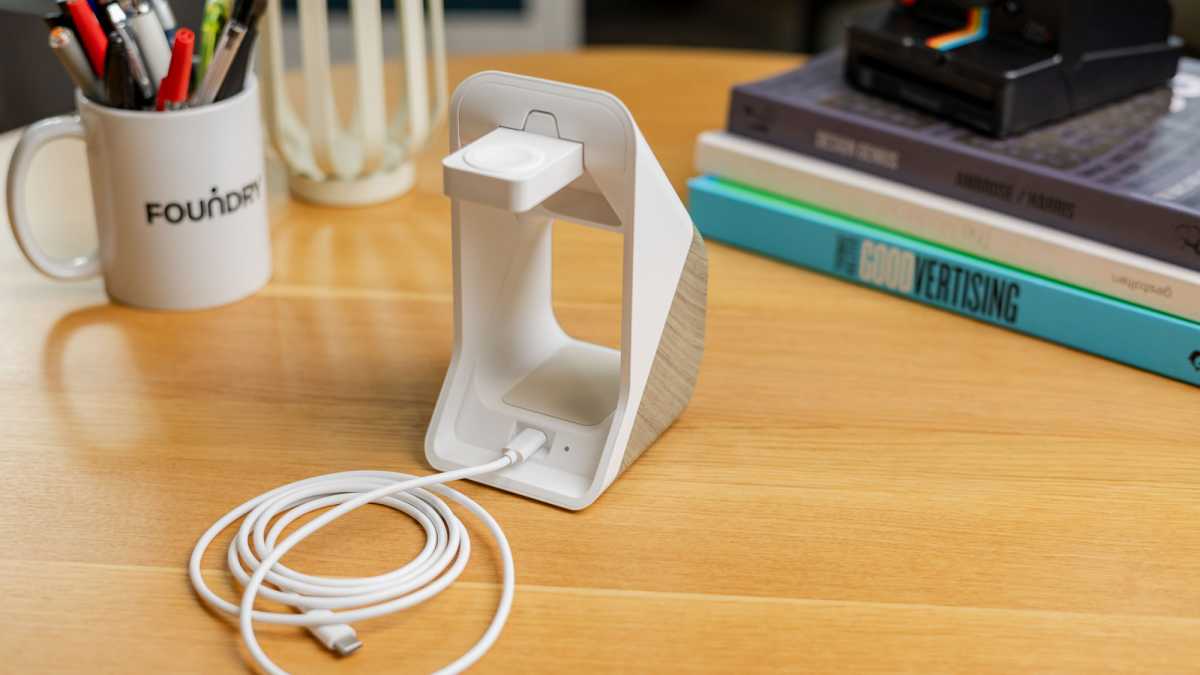
The iPhone magnetically connects to the 15W Qi2 wireless charging space above the hollow 5W Qi pad for AirPods charging. Inside that hollow is a guiding night light that can be switched on or off with a light touch under the roof.
Dominik Tomaszewski / Foundry
At the back you can flip out the 5W Apple Watch charger module, keeping it both hidden and protected when not in use. That means each device gets as fast a wireless charge as can be got outside of Apple’s unique (iPhone 16-only) 25W MagSafe Charger. Additionally, the Apple Watch module is certified by Apple for fast Watch charging, and 5W is plenty for a swift AirPods power-up.
A new black model has joined the white Nova.
Journey
If there anyone out there who owns an Apple Watch and AirPods but an Android phone (unlikely given the Watch doesn’t play well with Android and AirPods work best with an iPhone), Journey includes a magnetic ring to update non-MagSafe smartphones to work with Qi2.
Journey
Price
The Journey Nova costs $139.99 / £119.99 / AU$189.99. This is not a huge extra expense on some of our favorite 3-in-1 wireless chargers such as the Twelve South HiRise 3 Deluxe, which is more flexible but looks utilitarian in comparison to Nova.
The Mophie StealthCharge 4-in-1 Wireless Charge Stand (also available as a 3-in-1) is a speedier 25W charger with a spare retractable USB-C cable for your MacBook, but it doesn’t have the interior design chic of the Nova.
There are certainly cheaper 3-in-1 chargers but none would grace the style section of the Sunday newspapers with the possible exception of the squatter but still lovely Belkin BoostCharge Pro 2-in-1 Dock.
Journey
What you get is a bold, décor-friendly look allied with top-end charging tech that features just one cable to power all your mobile and wearable gadgets in a style sympathetic to the smartest homes.
Journey
Verdict
If you value your home décor and don’t want an out-of-place ugly charger sitting by your bed or on your minimalist desk, the Journey Nova offers style-magazine looks alongside the fastest wireless charging speeds, and now a new black model if you prefer your chargers dark and moody.
PDFs have a special talent for becoming uncooperative the second you need to change something. Suddenly you’re converting files, taking screenshots, or signing up for yet another subscription just to move a paragraph. AcePDF Converter & Editor fixes that problem with an all-in-one toolkit, and a lifetime license is on sale for just $23.97 through August 2 (MSRP $99.99).
Convert PDFs into Word, Excel, PowerPoint, images, and more without wrecking the formatting. Built-in OCR lets you pull editable text from scanned documents, while editing tools make it easy to merge, split, compress, annotate, password-protect, and organize files in just a few clicks. It now fully supports both Windows and Mac, including Apple Silicon.
It’s easy to see why it’s popular, with an average rating of 4.4 out of 5 stars on Trustpilot.
If PDFs are part of your daily workflow, this is one of those tools you’ll wonder how you managed without.
We’ve been reporting on the supposedly imminent launch of a foldable iPhone for years. There have been strong and reliable rumors of a foldable iPhone being just two years away, dating as far back as 2018, at least. Back then, reliable reports from the likes of CNBC said Apple was going to have a folding iPhone on the market in 2020.
That became 2021, 2022, 2024, 2025… and now it’s expected to land in 2026–yes, this year!
While the rumors and reports from parts suppliers and analysts are heating up and we have more specifics than ever before, we would advise even more caution and skepticism than usual with Apple speculation. With that said, here’s what current rumors suggest about the release of a folding iPhone.
Folding iPhone rumors at a glance
Expected launch date: September 2026, but limited supply possible
Likely name: iPhone Ultra
Form factor: Book-style, opening to a landscape view about the size of an iPad mini
Many fans and pundits have got into the habit of referring to the rumored device as the iPhone Fold, but this may not necessarily be the official name. The rumors and leaks from spring 2026 onwards suggest that Apple is looking to call it iPhone Ultra.
In March, Mark Gurman at Bloomberg claimed that the folding iPhone will be one of several “Ultra” products coming this year – though not all will use “Ultra” branding, it’s certainly a possibility for the folding iPhone.
Then, in April, the Weibo account Digital Chat Station (which is hit-and-miss) said Apple is looking to use the iPhone Ultra name, too.
When will the foldable iPhone launch?
September 2026 launch expected
It is expected that Apple will introduce this new style iPhone in September 2026, along with the iPhone 18 Pro and Pro Max (but not the regular iPhone 18 which is said to be delayed until 2027).
After a report from Nikkei Asia said that Apple is somewhat behind on the production timetable, Bloomberg’s Mark Gurman claimed it’s still on track, though supplies may be limited at first. Apple is aiming to put the device on sale at the same time or “soon after” the non-folding iPhone 18 Pro models, he claims.
There is evidence that the folding iPhone could be coming soon. Sam Henri Gold, a product designer and engineer with access to the iOS 27 beta, spottedreferences in the iOS 27 framework to variables labelled “foldState” and “angleDegrees.” These are internal status values apparently designed to tell apps whether a device is folded and at what angle.
Macworld was able to independently confirm the findings. It’s difficult to see how those terms would be applicable to any existing iPhone: arguably they could use their altimeters to determine the angle they’re being held at, but they aren’t foldable.
iOS 27 framework references “foldState” and “angleDegrees” but I’m sure that’s nothing pic.twitter.com/PcYNVvymms
There may still be a bit of a wait for the folding iPhone. Barclays analyst Tim Long said in a research note that the folding iPhone will likely ship in December, a couple months after the expected September launch of the iPhone 18 Pro and Pro Max, via MacRumors.
During Apple’s Q3 earnings call, Apple CEO Tim Cook warned that “the impact from the supply constraints (will) increase significantly.” That means supplies of new products such as the iPhone Ultra could be severely limited at release. It may take longer than usual for orders to be fulfilled.
What are the biggest trade-offs for the folding iPhone Ultra
Despite its “Ultra” branding, the foldable design introduces some compromises:
No unibody construction: Dummy models will require a more segmented build due to the hinge mechanism.
Wireless charging limitations: The device may lack a traditional glass back, which could impact MagSafe or wireless charging implementation.
iOS-based software: Rather than running iPadOS, the device is expected to use a customized version of iOS, offering some productivity features without fully replacing the iPad experience.
No Face ID: Due to the very thin nature of the foldable iPhone, and the need for different front-facing cameras when folded up or unfolded, it will reportedly lack Face ID. Instead, Touch ID will be incorporated into the side button much as it is on the iPad Air’s power button.
No telephoto camera: Due to space constraints in the foldable design this iPhone may drop the telephoto camera, used for optical magnification, which will feel like a huge compromise given the anticipated high price of this iPhone.
The folding iPhone will reportedly have a Touch ID-enabled power button rather than Face ID.
IDG
What will the folding iPhone look like? How will it fold?
Book-like design with a vertical fold rumored
Intended to be an iPhone/iPad hybrid
Apple’s rumored iPhone Ultra is reportedly nearing mass production, with its design largely finalized. Here’s what current leaks suggest about how the foldable iPhone will look and how the hinge and display may work.
Book-style, iPad hybrid, design
Multiple leaks point to a book-style foldable with a large, tablet-like internal display, rather than a compact flip-phone design. The device is expected to function as a hybrid between an iPhone and an iPad.
This “passport-style” design will appear noticeably squarer than a traditional iPhone when closed. When unfolded, it’s rumored to resemble an iPad mini-like screen with a 4:3 aspect ratio, offering a more expansive viewing experience.
Analyst Ming-Chi Kuo reported in 2025 that Apple’s foldable will adopt a dual-display setup, with a strong focus on achieving a near crease-free screen when opened.
Other 2025 leaks, including reports from Digital Chat Station on Weibo, also point to a vertical, book-style fold where the left and right sides close together – similar to devices like the Google Pixel 9 Pro Fold and Samsung Galaxy Z Fold.
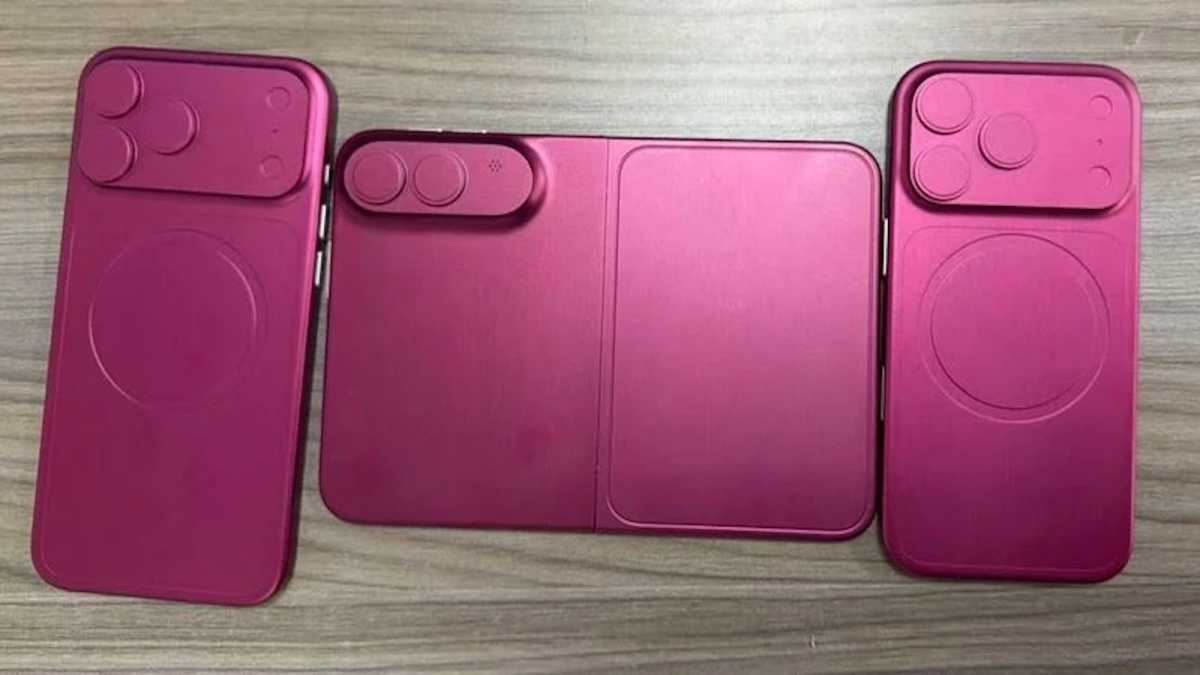
Dummy models shared by Sonny Dickson on X in April 2026, demonstrate this book-like form factor.
The latest leaks and dummy models show the wide “passport” design of the iPhone Ultra.
Sonny Dickson
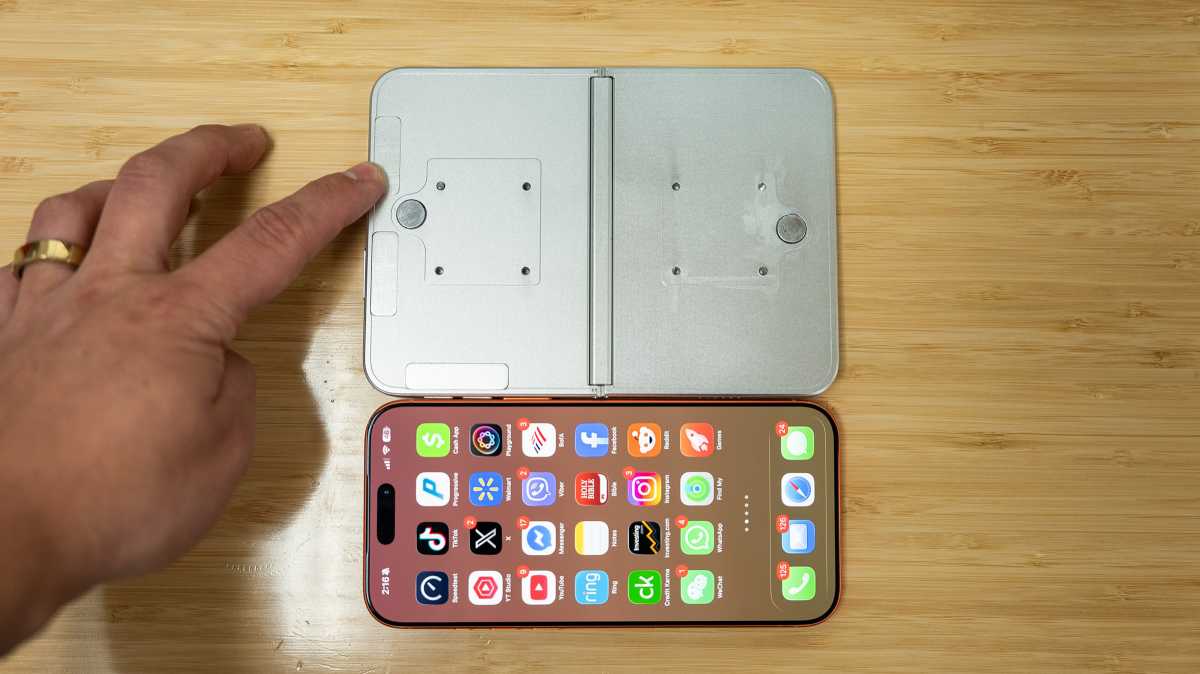
Additional dummy unit images from tech YouTuber Vadim Yuryev, further reinforce this wide, book-like “passport” design.
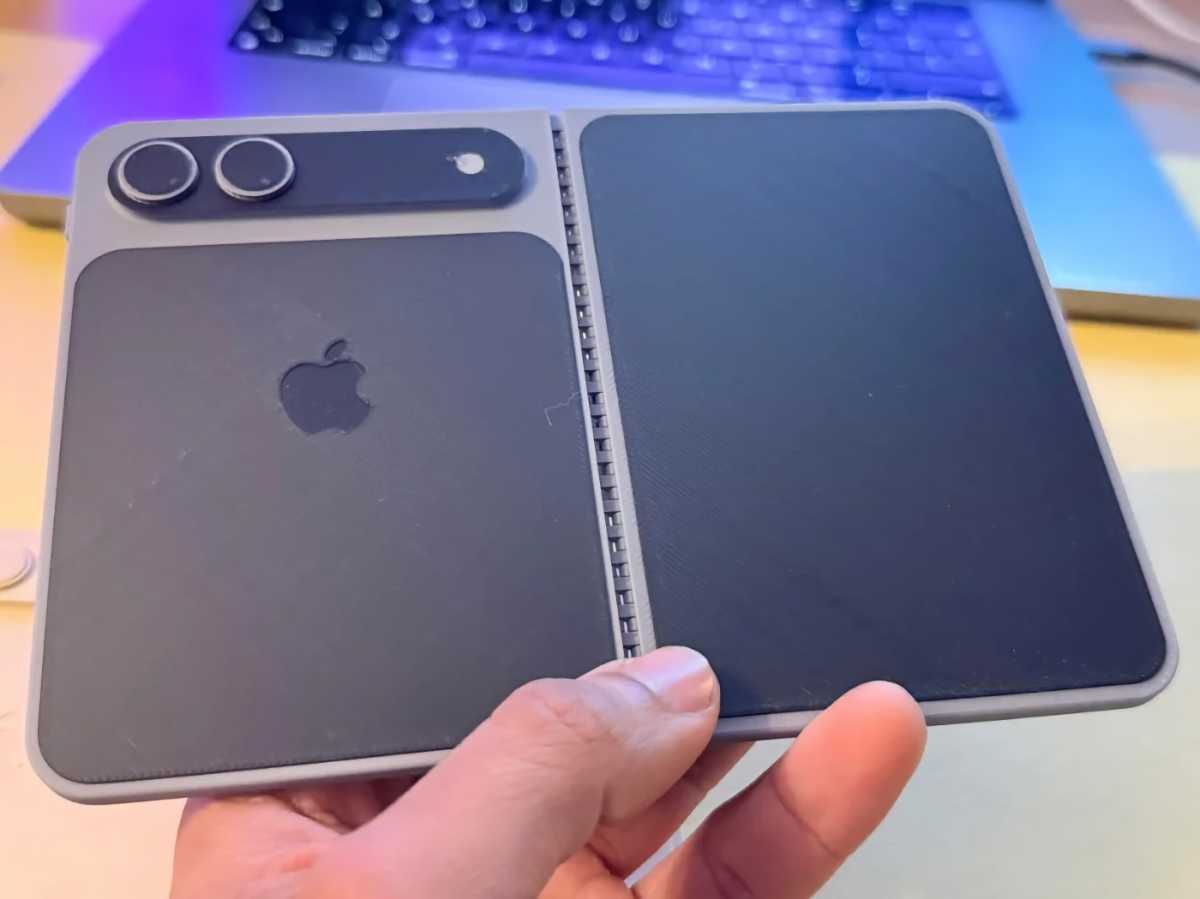
In December 2025, this 3D image of the iPhone Ultra, based on leaked CAD files, was created by a hobbyist and shared on MakerWorld (now removed), also aligning with these design expectations.
However, alternative concepts have existed. In 2024, The Information reported that Apple had explored clamshell-style prototypes, where the device folds top-to-bottom, similar to traditional flip phones.
This design direction may already be influencing competitors. Our colleagues on TechAdvisor report that Samsung is developing a “Galaxy Z Fold 8 Wide” with a similar 4:3 aspect ratio, potentially positioning it as a direct rival to Apple’s anticipated September 2026 launch.
How Apple is overcoming hinge design and crease reduction challenges
Adding a hinge to an iPhone introduces significant engineering challenges that Apple has spent years trying to resolve. While competitors have released multiple generations of foldables, Apple’s slower entry to the market is widely attributed to its focus on refining the hinge and delivering a more seamless user experience.
The biggest technical challenge is the visible and tactile crease where the screen folds. Apple has reportedly made this a priority, aiming to minimise it to the point of being nearly imperceptible.
Weibo leaker Instant Digital claims the iPhone Ultra’s internal design will make it the most repairable folding phone on the market, with elegant modular and stacked elements that minimize interconnects and ribbons.
As a result, the hinge is expected to be a defining feature of the iPhone Ultra, combining advanced materials and engineering to deliver a smoother, more durable folding experience.
To maintain both thinness and durability, Apple is reportedly testing high-end materials for the hinge:
Titanium alloy (rumored for structural strength)
LiquidMetal, according to Ming-Chi Kuo (March 2025), for improved durability, better screen flatness, and reduced creasing.
In July 2025, Kuo reported that Apple had developed a method to reduce crease visibility using metal support plates to better distribute and control bending stress. Apple may use this “laser-drilling metal plate technology” rather than conventional etching to create a more precise microstructure.
Apple also holds several patents for foldable mechanisms which, along with several rumored technologies, may be used:
Variable Thickness Glass: A key part of Apple’s approach is said to involve variable thickness display glass, which is thinner at the fold point to reduce stress during repeated use. This is expected to work alongside an optically clear adhesive layer, designed to further minimise strain and help prevent the visible crease that commonly develops in foldable devices over time.
Stress-Reducing Adhesive: An optically clear adhesive designed to reduce strain on the display during folding.
Ultra-Thin Profile: Expected thickness of around 4.5mm unfolded and 9.5mm folded.
Internal Support: Metal plates beneath the display to maintain a completely flat surface when opened.
In March 2026, reports suggested that Samsung Display – Apple’s primary screen supplier – has developed a near-creaseless OLED panel, showcased at CES 2026 specifically to meet Apple’s standards.
How big will the foldable iPhone Ultra be?
Approx. 9.5mm thick when folded
Approx. 4.5mm when unfolded
According to Jon Prosser in December 2025, Apple’s foldable iPhone Ultra could measure around 9.5mm when closed and just 4.5mm when open. For context, the iPhone 16 Pro Max is 8.5mm thick, while the iPhone Air measures 5.6mm.
If accurate, this would make the iPhone Ultra one of the slimmest foldables, highlighting Apple’s focus on minimising bulk despite the hinge.
However, when asked about the thickness of the iPhone Ultra in April 2026, YouTuber Vadim Yuryev said it would be “exactly 11mm”, which is larger than Prosser’s prediction. He also claimed it would be 0.36mm taller and 0.39mm wider than the iPhone 17 Pro.
Other design features
A leak from Weibo account Instant Digital in February 2026 indicates the volume buttons will be on the top edge, aligned right.
How big will the iPhone Ultra screens be?
The iPhone Ultra is widely expected to feature:
Approx. 7.7–7.8-inch internal display
Approx. 5.3–5.5-inch external display
Ming-Chi Kuo (2025) and TrendForce (July 2025) both pointed to a 7.8-inch inner and 5.5-inch outer display, while The Information later suggested slightly smaller sizes of 7.7 inches and 5.3 inches. This suggests Apple may still be refining final dimensions.
However, a December 2025 report from The Information slightly revised these figures to7.7 inches internally and 5.3 inches externally, indicating that Apple may still be fine-tuning the final dimensions.
When unfolded, the device is expected to feature a 4:3 aspect ratio, aligning it more closely with the iPad and reinforcing its positioning as a productivity-focused, hybrid device. This would be a notable departure from the tall, narrow displays seen in earlier foldables like the Samsung Galaxy Z Fold series.
This wider layout is said to:
Improve multitasking
Enhance document reading and web browsing
Deliver an experience closer to an iPad mini
What specs will iPhone Ultra offer?
A20 chip, 12GB RAM, C2 modem expected
We don’t know what processor the folding iPhone will contain, but based on the release timeline, it will probably feature an A20 or A20 Pro – some variant of the processor found in the iPhone 18 Pro.
We expect most iPhones to use Apple’s own cellular modem and Wi-Fi/Bluetooth chips by that time as well. This will probably be the new C2 modem and the N1 for Wi-Fi 7 and Bluetooth.
This iPhone is also said to have the largest battery ever, at 5,000-5,500mAh, according to Weibo leaker Fixed Focus Digital in February 2026.
The iOS 27 beta makes references to “batteries” (plural) where it used to refer to “battery” (singular), suggesting that Apple is preparing an iPhone with more than one battery. We would expect the iPhone Ultra to have a battery in each half, so this is more evidence that its release is coming soon.
What cameras will the foldable iPhone have?
The foldable iPhone is rumored to feature two 48MP rear cameras, likely a standard wide and an ultrawide, along with two front-facing cameras—one for use when the device is closed and another when it’s unfolded.
However, it may lack a dedicated telephoto lens. While this is likely due to space constraints in the foldable design, it could be seen as a notable drawback—especially for a premium “Ultra” model at a high price point.
On the back, the cameras are expected to sit on a long, thin “plateau,” similar to the iPhone Air, but in black rather than color-matched to the device.
On the front, leaks suggest a mix of one under-display camera and a second punch-hole camera. A November 2025 report from JP Morgan also claimed Apple could drop LiDAR and optical image stabilisation, though this remains uncertain.
Not all the rumors point to compromises: Tech YouTuber Vadim Yuryev claimed in April 2026 that the cameras could be physically larger than those on the iPhone 17 Pro.
How much will the folding iPhone Ultra cost?
Premium price expected: $2,000 or more
Expect the folding iPhone to be a very high-end, ultra-premium model. The very first release is said to cost $2,000 or more… maybe even as much as $2,399, more than twice the highest-end iPhone Pro Max. That’s the prediction from analyst Arthur Liao, who bases his eye-watering estimate on material costs (particularly the panel and hinge) and Apple’s high-margin business model.
The latest rumors from Weibo leakers suggest starting price of RMB 15,999 in China for the 256GB model, up to RMB 19,999 for the 1 TB model. When applying the same yuan-to-dollar ratio as other Apple products, this translates to a $1,999 starting price, up to $2,399 for the 1TB model.
FAQ
Why is Apple making a folding iPhone now?
If you’re wondering why Apple is only launching a folding iPhone now – years after Samsung introduced the Galaxy Fold in 2019 – the answer may lie in Apple’s long-standing approach to new product categories. Rather than being first to market, Apple often waits for a technology to mature before entering the space.
When Steve Jobs unveiled the original iPhone in 2007, he talked about how the rest of the market was constrained by physical keyboards and styluses, but the iPhone would instead have a multi-touch display that could change depending on the task. Apple may be taking a similar approach with foldables. The company appears to believe that display technology, durability, and consumer interest have finally reached a point where a folding iPhone could appeal to mainstream buyers rather than just early adopters.
In other words, Apple’s goal may not be to invent the foldable phone, but to make it a product that millions of people actually want to use every day.
Will the iPhone Ultra replace the iPhone Pro Max?
It is thought that rather than replace the Pro Max handsets, Apple will position the foldable as a new tier above it – similar to how the Apple Watch Ultra sits above the standard Watch lineup. That would allow Apple to maintain premium pricing without disrupting existing flagship models.
What are the tradeoffs likely to be for the iPhone Ultra
Apple may have to sacrifice some features to achieve thinness. Instead of Face ID the iPhone Ultra may revert to Touch ID on the power button.
The iPhone 18 Pro and Pro Max are expected to launch in September 2026 featuring several cutting-edge hardware advancements, including the debut of Apple’s C2 modem, and a shift to a 2nm manufacturing process for the A20 Pro chip.
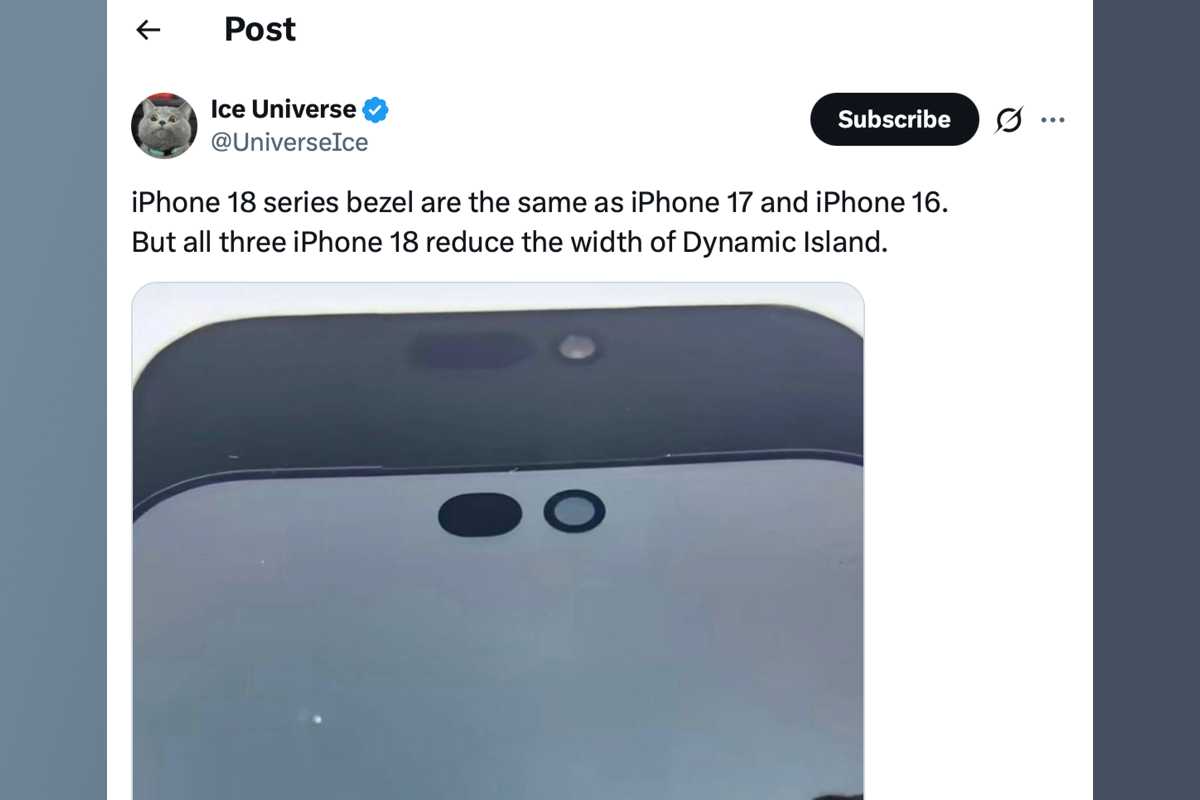
Other key rumored upgrades include a smaller Dynamic Island with under-display Face ID components and camera improvements that may include variable aperture on the Pro Max and enhanced sensors.
Alongside the iPhone 18 Pro and Pro Max Apple is said to be planning to launch the ultra-premium folding iPhone. However, in a change to the usual schedule, the company is expected to shift the launch of the iPhone 18 spring 2027 to keep the spotlight on the Pro series during its traditional September debut. Here’s a quick summary of what all the rumors and leaks say to expect from the iPhone 18 Pro and Pro Max in 2026.
What are the biggest upgrades for iPhone 18 Pro & Pro Max
Pro models launching first in September 2026, base models delayed to spring 2027
Smaller Dynamic Island likely, with some Face ID components under the display
Possible variable aperture camera (Pro Max only)
New A20 chip (2nm) for performance and efficiency gains
Apple’s own C2 modem expected across the lineup
Potential satellite internet support, for web browsing and so on, not just emergency use
How is iPhone 18 Pro/Max different from iPhone 17 Pro/Max?
Split release schedule (Pro first, base later)
Smaller or modified Dynamic Island
Possible under-display Face ID components
New modem (shift away from Qualcomm)
Camera experimentation (rumored variable aperture on Pro Max)
iPhone 18 Pro/Max vs iPhone 17 Pro/Max
Feature
iPhone 18 Pro/Max rumors
Likelihood
iPhone 17 Pro/Max
Launch date
September 2026
Very likely
September 2025
Dynamic Island
Smaller design
Credible rumor
No change since 2022 iPhone 14 Pro
Face ID
Under-display
Credible rumor
No change since 2022 iPhone 14 Pro
Modem
C2 modem
Credible rumor
Qualcomm modem
Camera
Improved aperture technology for rear. 24MP selfie cameras
Possible
All three rear cameras are 48MP, optical-quality 8x zoom. 18MP front camera.
Comparing iPhone 18 Pro rumors to current iPhone 17 Pro
When will the iPhone 18 Pro/Max launch?
Apple has not announced when the iPhone 18 lineup will launch, but based on its usual schedule, the company is expected to unveil new iPhones in September 2026.
However, multiple reports suggest Apple could significantly change its release strategy that year. Rather than launching the entire iPhone 18 lineup at once, Apple is reportedly planning to release only its premium models in September 2026: the iPhone 18 Pro, iPhone 18 Pro Max, a new foldable iPhone, and potentially an updated iPhone Air.
According to these reports, the standard iPhone 18 and iPhone 18e will follow in spring 2027. If accurate, this would mark the biggest change to Apple’s iPhone launch schedule since the lineup expanded beyond a single annual release.
A staggered rollout would allow Apple to focus attention on its highest-end devices during the holiday shopping season while giving the company a second major iPhone launch window in the first half of 2027. It would also mean that every new iPhone introduced in September 2026 would likely start at $999 or more.
As always, Apple has not confirmed these plans, and the release schedule could change before launch.
During Apple’s Q3 earnings call, Apple CEO Tim Cook warned that “the impact from the supply constraints (will) increase significantly.” That means supplies of new products, such as the iPhone 18 Pro, could be severely limited at launch. It may take longer than usual for orders to be fulfilled.
iPhone 18 Pro/Max
September 2026
iPhone Fold
September 2026
iPhone Air (2nd gen)
Spring 2027
iPhone 18
Spring 2027
iPhone 18e
Spring 2027
The anticipated launch dates for the 2026-2027 iPhones
What will the iPhone 18 Pro/Max look like and what are the color choices?
The design of the iPhone 18 Pro and Pro Max is said to resemble the iPhone 17 Pro and Pro Max, but some changes are predicted.
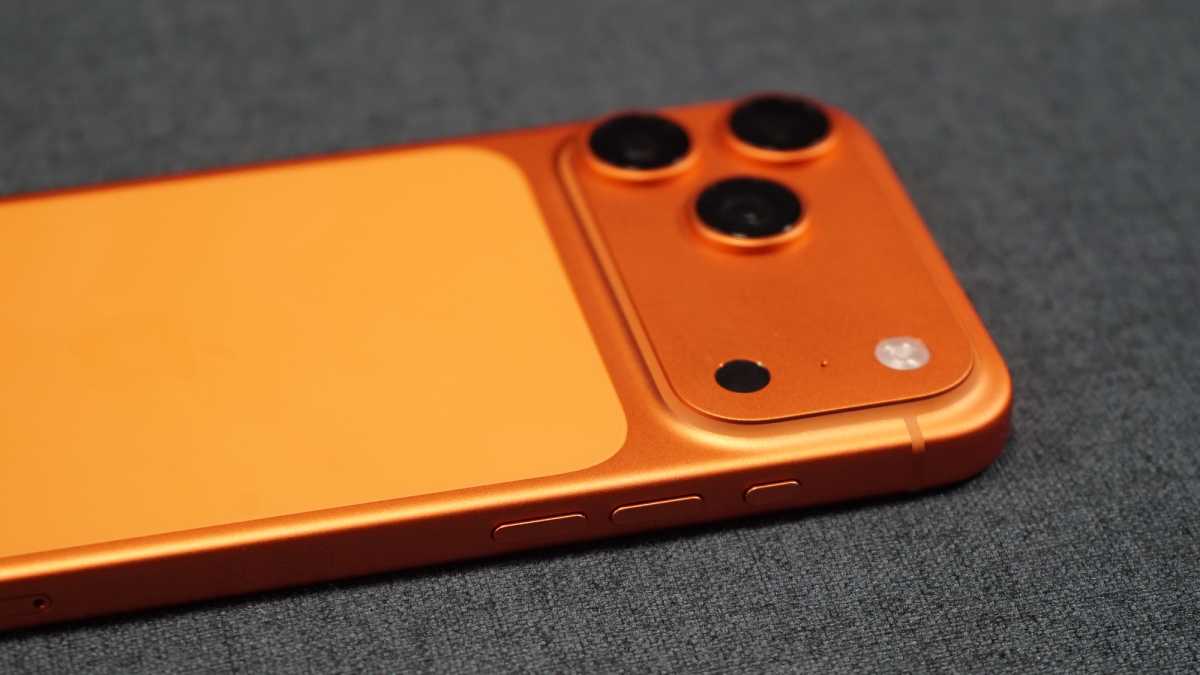
One possible change, shared by a Weibo leaker in September 2025, is a “slightly transparent” ceramic shield section on the back of Pro models, though details are unclear.
Macworld contributor Filipe Esposito reported that a trusted source had revealed one of the new colorways for the iPhone 18 Pro to be Dark Cherry, replacing the iPhone 17 Pro’s Cosmic Orange option.
Recent rumors claimed that the new phones will be significantly thicker than previous models, but all the evidence we have seen says that’s not the case. Instead, we expect the body to have about the same thickness as the iPhone 17 Pro/Max but with a thicker camera bump area.
A recent ransomware attack against an Apple parts supplier included images from an iPhone 18 Pro “drop test” and other parts, and they corroborate prior rumors about the overall shape and design of the phone, which is broadly the same as the iPhone 17 Pro.
Other shades are said to include: Light Blue, Dark Gray, and Silver. There was also a coffee shade rumored (via Digital Chat Station).
As with the iPhone 17 Pro, there will be no black option, according to Instant Digital.
Screen sizes are expected to remain at 6.3 and 6.9 inches. The Pro models will also retain the wider three-camera raised plateau.
Most likely: Design changes will be minimal, with the biggest visible differences limited to colors and subtle refinements.
What’s new with the iPhone 18 Pro/Max camera?
Eugen Wegmann
Apple may introduce variable aperture technology to the 48MP main camera on the iPhone 18 Pro and Pro Max (potentially only the Pro Max), allowing mechanical control over light intake and depth of field. This has long been a perk limited to high-end professional cameras.
If the rumor (from Digital Chat Station on Weibo) is true, iPhone users will be able to mechanically control how much light reaches the sensor for the first time, allowing more control over depth of field and sharpness. This could elevate portrait shots by improving the applied depth of field effect, as well as minimizing overexposure.
Wider telephoto apertures on the Pro models should also result in better low-light performance.
For some time (since January 2025) Samsung has been said to be working on a new three-layer stacked camera sensor called ‘PD-TR-Logic,’ and this could appear in the iPhone 18 series. This image sensor is expected to enhance the camera’s responsiveness, while also offering advantages such as reduced photo noise, improved dynamic range. The main Wide camera sensor is expected to be larger than usual, which offers many benefits.
The front-facing camera may also get an upgrade beyond the rumored changes to the housing (as discussed elsewhere the selfie camera may be housed in a smaller hole-punch cut out, reducing the size of the Dynamic Island). The iPhone 17 generation features 18MP sensors for the selfie camera, but this may increase to 24MP in the next generation, according to leaker WhyLab on Weibo.
More megapixels would lead to improved video calls and better low-light performance.
Most likely: Incremental improvements, with a new variable aperture feature on the Pro Max.
Will the iPhone 18 Pro/Max Dynamic Island or front camera change?
Britta O’Boyle
Apple hasn’t changed the Dynamic Island since the iPhone 14 Pro, but the iPhone 18 Pro may introduce some adjustments.
Some reports suggest Face ID components could move under the display, shrinking the Dynamic Island.
A report in December 2025 from Weibo account “Smart Pikachu” claimed that Apple is testing an under-display “micro-transparent glass panel” for some Face ID sensors. This should enable a smaller Dynamic Island for iPhone 18 Pro.
The ever-reliable Mark Gurman at Bloomberg also reported that Apple will “shrink” the Dynamic Island on the iPhone 18 models, so there’s strong evidence that some of the several sensors and emitters required for Face ID will be under the display or combined.
There have been conflicting claims that the position of the front-facing camera may also change:
In December 2025 The Information claimed Apple will put the Face ID sensors under the display, and move the front camera to the upper left corner in a punch-hole design. This would make the iPhone 18 Pro/ Max the first iPhones with a front camera in the corner.
Most likely: A smaller Dynamic Island with some components of Face ID under the glass. Smaller pill cut out for camera, remaining in central position.
Will the iPhone 18 Pro/Max display change?
Stephan Wiesend
Screen sizes should be consistent with the 6.3 and 6.9-inch displays on the current models, but reports suggest a massive jump in brightness from the current 1600 nits HDR and 3,000 nits peak.
According to Weibo leaker, Instant Digital, Chinese supplier BOE has revealed that Apple is targeting unprecedentedly high brightness requirements for the display. The Elec corroborated this, claiming BOE is struggling with iPhone OLED production so panel orders have been shifted to Samsung Display.
Most likely: An increase in brightness is expected, but there are no details yet on the extent of the improvement.
How powerful will the A20 chip in the iPhone 18 Pro/Max be?
The iPhone 18 series is expected to use a new A20 chip, built on TSMC’s N2 (2nm) process. This will represent a major architectural shift for Apple’s smartphone silicon, primarily due to the transition to a more advanced manufacturing process.
This move to a smaller process allows for more transistors in the same space, which is projected to deliver up to 15% faster performance and 30% better power efficiency compared to the A19 chip.
The iPhone 18 Pro and Pro Max models will utilize an A20 Pro variant to further differentiate their capabilities. This increased power is expected to support advanced features.
The A20 is rumored to use a new process called Wafer-Level Multi-Chip Module (WMCM) packaging to incorporate the RAM into the SoC’s package. It’s not clear what the benefit will be, but more tightly integrated RAM can mean more memory bandwidth and lower RAM latency, or better power efficiency.
Most likely: A typical Apple leap in efficiency and speed, with behind-the-scenes gains rather than dramatic user-visible changes.
Will iPhone 18 Pro/Max battery life improve?
Apple works to make battery life as long as possible every year, especially in the Pro model iPhones.
A recent report claims that the battery capacity of the iPhone 18 Pro Max will have a battery capacity of 5,235 mAh on the Nano SIM model and 5,425 mAh on the eSIM-only version. That’s about 6-8% more capacity than the current model.
The “Pro Max” variant of the iPhone gets a higher-capacity battery nearly every year, usually a couple hundred mAh more, thanks to better internal design and improving battery chemistry and manufacturing techniques. But battery life is a function of more than just battery capacity—the power use of the processor, display, and wireless radios all play an important point.
We think it’s likely the iPhone 18 Pro/Max will have higher-capacity batteries, and battery life at least as long as the iPhone 17 Pro/Max. But a significantly longer battery life is hard to predict.
Will connectivity improve (5G, Wi-Fi, satellite) with iPhone 18 Pro/Max?
iPhone 18 Pro models are rumored to feature the second generation of Apple’s in-house 5G modem, the C2 chip.
The C2 modem, which hasn’t yet launched, is expected to replace Qualcomm across Apple’s lineup. This should improve:
Efficiency
Performance
mmWave support
There are also reports that the new iPhone will gain full satellite internet support, expanding beyond emergency use. In October 2025, The Information claimed that Apple is gearing up to support 5G networks that are served from satellites.
While the iPhone has offered satellite connectivity for emergency situations for years, if this rumor is true it would allow the iPhone 18 models to have full internet access via satellite, not just emergency services.
As of April 2026, it looks like Apple is teaming up with Amazon to provide this service. Early in April, Amazon announced that it has acquired Globalstar, who was the provider of iPhone and Apple Watch satellite connectivity. So now iPhones and Apple Watches will now fall under Amazon Leo, Amazon’s satellite internet network.
The Wi-Fi/Bluetooth chip (N1) will likely remain unchanged. Apple debuted its local networking chip in the iPhone 17 line – the N1 supports Wi-Fi 7, Bluetooth 6, and Thread networking. We haven’t heard anything about an N2, and honestly, one probably isn’t needed so soon. Could Apple have an “N1X” surprise in store the way it did with the C1X? It’s possible, but so far the rumor mill expects Apple to build the iPhone 18 line with the same N1 chip as found in the iPhone 17.
Most likely: A meaningful upgrade in connectivity, especially if satellite internet expands.
How much will the iPhone 18 Pro/Max cost?
Pricing may remain the same as the current generation as no major pricing changes are currently rumored for the new iPhone 18 series.
However, the introduction of a folding iPhone could dramatically change the pricing structure, as it will reportedly have a starting price of $1,999 or more.
Current pricing is as follows:
iPhone
iPhone
Capacity
iPhone 17 Pro Max
From $1,199
256GB – 2TB
iPhone 17 Pro
From $1,099
256GB – 2TB
iPhone Air
From $999
256GB – 1TB
iPhone 17
From $799
256GB – 512GB
iPhone 17e
From $599
256GB – 512GB
FAQ
1.
When is the iPhone 18 Pro expected to launch?
September 2026.
2.
Will the iPhone 18 Pro have under-display Face ID?
It’s said that by putting some of the Face ID technology under the display Apple will be able to shrink the size of the Dynamic Island.
3.
What chip will power the iPhone 18 Pro?
Apple is expected to use the A20 chip in the iPhone 18 Pro.
4.
Is Apple changing its iPhone release schedule in 2026?
Apple is said to be planning to launch the Pro iPhone models, including a foldable iPhone in September 2026. The iPhone 18 and iPhone 18e may not arrive until spring 2027.
5.
What camera upgrades are rumored for the iPhone 18 Pro Max?
Apple is rumored to be focusing on advanced lens technology and sensor improvements for the iPhone 18 Pro and Pro Max. One prominent rumor is the introduction of a variable-aperture system in the Pro Max.
Es gibt viele Gründe, einen VPN-Dienst wie NordVPN oder Cyberghost zu nutzen – gerade auf einem iPhone oder iPad. Ein solcher Dienst sorgt für mehr Sicherheit, wenn Sie unterwegs das kostenlose WLAN in einem Café oder Airbnb benutzen wollen. Der Online-Schutzschirm schützt Sie außerdem vor Hackern, Datenspionen und neugierigen Behörden.
Viele nutzen VPN aber aus einem anderen Grund: Er ermöglicht es nämlich, für deutsche Anwender gesperrte Streaming-Dienste wie BBC oder das amerikanische Netflix zu nutzen. So konnte man etwa per VPN während der WM viele Spiele über die BBC sehen. Für jede dieser Aufgaben gibt es den passenden Anbieter, sogar einige kostenlose Dienste sind mit dabei. Wir stellen Ihnen in diesem Artikel die besten Dienste vor.
PROMOTION
CyberGhost VPN: Der beste Schutz für iPhone und iPad
Mit CyberGhost VPN erhalten Ihre iOS-Geräte den Schutz, den sie verdienen, für nur 2,19 € pro Monat! Nutzen Sie 125 VPN-Serverstandorte in 100 Ländern, um nach Herzenslust zu surfen, zu streamen und herunterzuladen. Mit einem Abonnement können Sie bis zu 7 Geräte verbinden. Mit 45-tägiger Geld-zurück-Garantie.
Ein Grund, VPN zu nutzen, ist die Sorge um die Sicherheit der eigenen WLAN-Verbindung. Das Wi-Fi in Ihrer Wohnung ist zwar ebenfalls angreifbar, aber Angriffe sind doch eher unwahrscheinlich. Besonders bei fremden Wi-Fi-Netzen, wie sie in Cafés oder Hotels genutzt werden, sollten Sie jedoch vorsichtig sein. Hier gibt es neben gefälschten Hotspots manchmal Sicherheitsmängel durch uralte Router. So haben manche alte D-Link-Router eine bekannte Sicherheitslücke. Ein VPN kann hier zu deutlich mehr Sicherheit verhelfen.
Der zweite Grund für die Nutzung eines VPN: Mit einem Dienst wie NordVPN können Sie einen anderen Standort vortäuschen in den USA vortäuschen, um etwa amerikanische Netflix-Inhalte wie „Charmed“ zu sehen – oder auch im Ausland Inhalte von ARD und ZDF. Mit einem VPN können Sie außerdem einen Cloud-Dienst wie die Creative Cloud oder Youtube günstiger nutzen. Nicht zuletzt ermöglicht es ein VPN einem Bürger eines restriktiven Staates, auf ausländische Nachrichtenseiten oder soziale Medien zuzugreifen.
Der dritte Grund: Ein solcher Dienst verschafft Ihnen mehr Privatsphäre. Wenn Sie zu Hause im Internet surfen, kann ein VPN das Risiko minimieren, dass Ihr Internet-Provider, ein Werbeunternehmen oder irgendjemand anders sieht, was Sie gerade tun.
Bei der Wahl des Anbieters sollten Sie aber den Einsatzzweck im Auge behalten: Manche Dienste wie Mullvad eignen sich besonders gut für den Schutz Ihrer Daten, manche Dienste wie NordVPN unterstützen Streaming-Dienste besonders gut. Wir stellen Ihnen hier die zehn besten VPN-Dienste für Mobilgeräte wie iPhone und iPad vor.
Jeden der Dienste haben wir und die Kollegen der Macworld ausführlich auf Mac und iPhone getestet. Sie können die Dienste sowohl über die Webseite des Herstellers als auch über den App Store abonnieren. Tipp: Bei Abschluss über die Webseite ist der Preis oft etwas niedriger, ein Vergleich der Preise ist deshalb sehr zu empfehlen.
NordVPN – schneller und funktionsreicher VPN-Dienst: Empfehlung der Redaktion
Unsere Empfehlung für Anwender, die beste Leistung beim Streaming, aber auch hohe Datensicherheit suchen.
NordVPN
Warum wir NordVPN mögen
NordVPN ist Ihnen vielleicht aus der Werbung bekannt, das Unternehmen ist in vielen Medien präsent. Der Dienst ist aber nicht ohne Grund oft auf dem ersten Platz der Bestenlisten zu finden. Das Unternehmen hat allein durch seine Größe einen Vorteil und bietet ein besonders breites Netz an schnellen VPN-Servern. In unseren Tests zeigte NordVPN die beste Leistung bei Up- und Downloads, auch die Latenz war hervorragend.
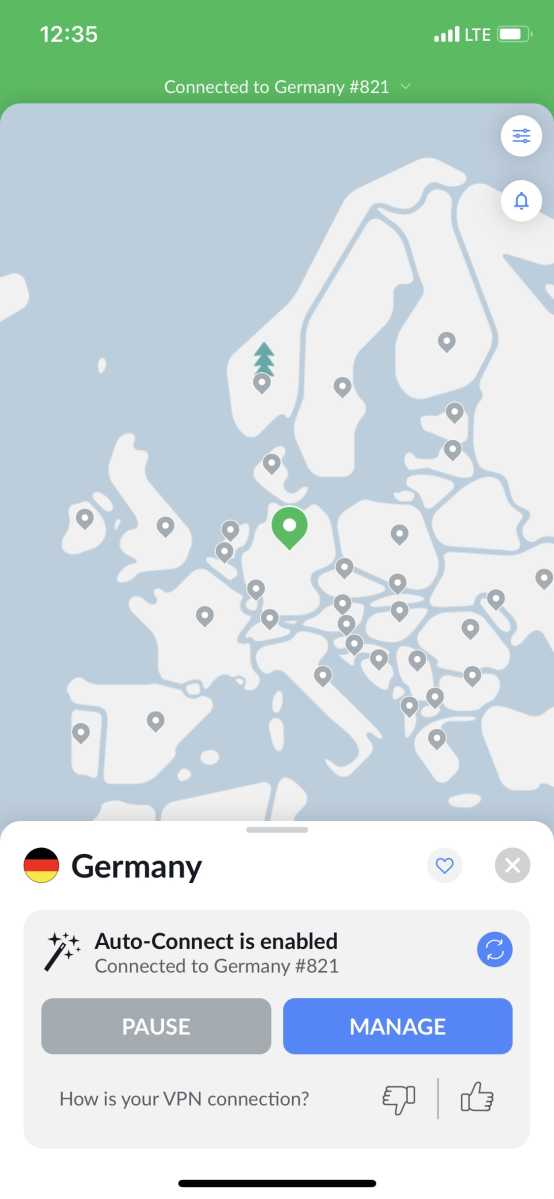
Die Bedienung gibt keine Rätsel auf: Beim Start der App erhalten Sie nach dem Kauf eine Liste an verfügbaren Ländern und können ein Ziel auswählen. Aktuell können Sie aus über 9.300 Servern in 211 Ländern auswählen. Das ermöglicht die Nutzung auch selten benötigter Standorte. Auf Wunsch können Sie den Standort auch über eine Kartenansicht auswählen. Laut unseren Tests werden zudem Streaming-Dienste wie Netflix optimal unterstützt.
Hervorragend sind auch die Sicherheitsfunktionen. Selbstverständlich ist ein Kill-Switch integriert, der für eine aktive VPN-Verbindung bürgt. Über die Voreinstellungen können Sie außerdem eine Post-Quanten-Verschlüsselung aktivieren, die eine Entschlüsselung durch Quantencomputer verhindern soll (diese Funktionen erklären wir im Laufe des Artikels näher). NordVPN verspricht Ihnen, keine Nutzerdaten zu speichern. So soll auch der Firmenstandort Panama Schutz vor staatlichen Eingriffen garantieren. Geboten werden auch einige ungewöhnliche Funktionen, etwa der Aufbau eines privaten Mesh-Netzes mit anderen Nutzern von NordVPN – ideal für Spiele. NordWhispe soll es außerdem möglich machen, Sperren gegen VPN zu umgehen. (Etwa VPN-Sperren an Flughäfen oder Firmen-WLANs, bei Ländersperren wohl nur begrenzt.)
Die Verbindungen sind schnell und zuverlässig und Sie können bis zu zehn Geräte gleichzeitig verbinden, einschließlich Ihres Apple TV. Das firmeneigene Protokoll NordLynx basiert auf dem Protokoll Wireguard, was es zu einem der schnellsten VPN-Dienste auf dem Markt macht.
Der Dienst ist nicht billig, vor allem der reguläre Preis ist sehr hoch. Es gibt aber häufig Rabattangebote und Preisnachlässe von NordVPN. Besonders günstig sind die 2-Jahres-Abos, was bei vielen VPN-Diensten üblich ist. Für zwei Jahre zahlen Sie (inklusive Mehrwertsteuer) 112,13 Euro oder 4,67 Euro pro Monat. Ein einzelnes Jahr kostete bei Redaktionsschluss dagegen 64,12 Euro.
Gute Leistung zum akzeptablen Preis, empfiehlt sich vorrangig für Streaming-Fans
Foundry
Warum wir Cyberghost mögen
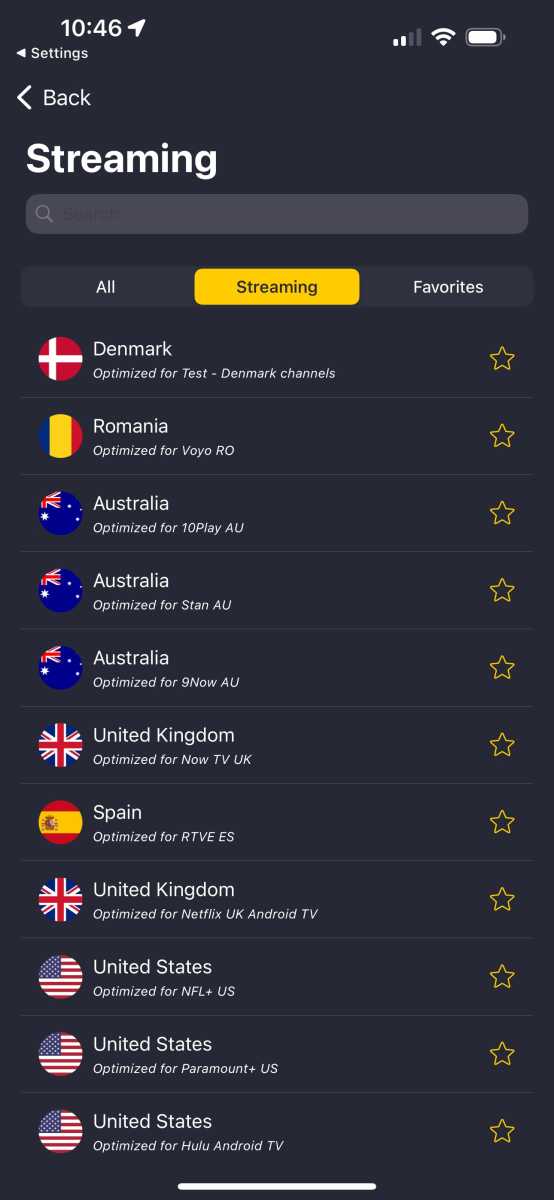
Der Dienst Cyberghost stammt ursprünglich aus Deutschland, ist aber mittlerweile in Rumänien ansässig. Vor allem auf Streaming-Dienste hat sich der Anbieter spezialisiert, so bietet der Dienst spezielle Server für Streaming-Dienste wie HBO, Disney und Netflix. Das ist sinnvoll, da diese Server für das problemlose Nutzen von Streaming-Sendern bestimmte Voraussetzungen erfüllen sollten.
In einem Test der Kollegen von der PC-Welt schnitt der Dienst bei der Nutzung von Streaming-Diensten wie Netflix und Disney besonders gut ab. Auch das Apple TV wird übrigens unterstützt.
Mit 12.000 Servern in über hundert Ländern hat Cyberghost ein größeres Angebot an Gegenstellen als NordVPN, allerdings bietet der Konkurrent dafür bessere Qualität und Performance. Bei Cyberghost sind nämlich auch einige sehr lahme Server mit dabei. Neben den auf Streaming optimierten Servern gibt es übrigens auch einige besonders leistungsfähige Gegenstellen, die am Firmensitz selbst betrieben werden – normalerweise werden Server nämlich von dem Anbieter nur gemietet.
Die Sicherheitsfunktionen sind für die meisten Anwender vollkommen ausreichend. Cyberghost bietet die wichtige Funktion Kill Switch, der bei einem Verbindungsabbruch automatisch die Verbindung stoppt. Eine No-Logs-Richtlinie wird versprochen und regelmäßig zertifiziert. Wie ExpressVPN gehört Cyberghost zum Unternehmen Kape.
Punkten kann Cyberghost mit relativ niedrigen Preisen und häufigen Sonderangeboten, ab 2,19 Euro pro Monat kostet der Dienst. Bei den teureren Abos ist auch eine feste IP-Adresse verfügbar. Einen Ein-Jahres-Vertrag gibt es bei Cyberghost übrigens nicht, nur Abos für zwei Jahre, einen Monat oder sechs Monate. Für zwei Jahre zahlen Sie 56,94 Euro, also 28,47 Euro pro Jahr. Hinzu kommt aber noch die Mehrwertsteuer am Ende des Bestellvorgangs.
Solide Leistung und gutes Preis-Leistungs-Verhältnis, gut für Streaming-Fans geeignet
Foundry
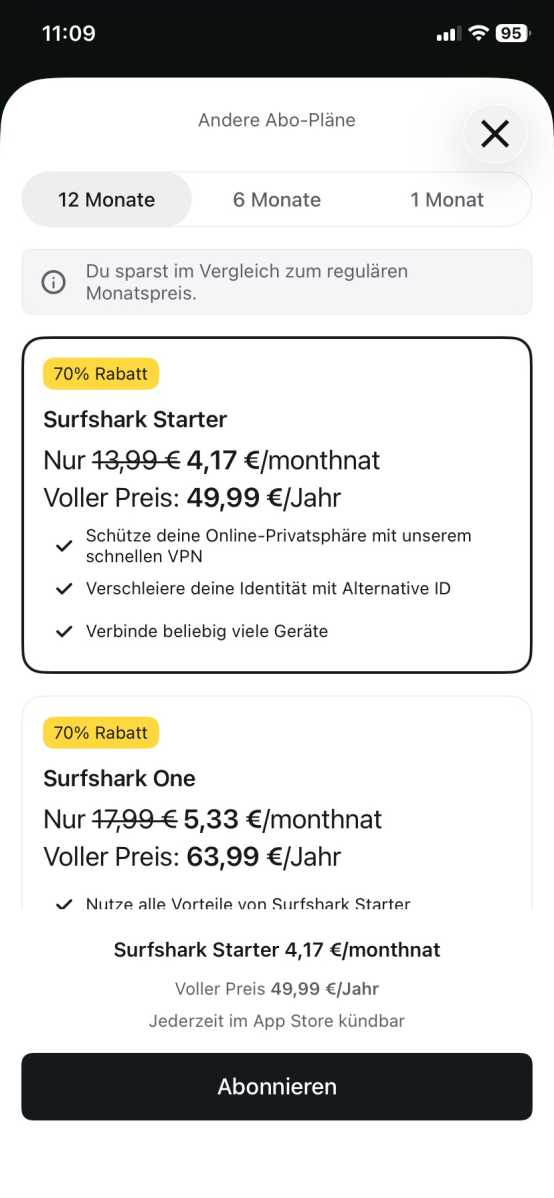
Warum wir Surfshark mögen
Bei einem VPN-Dienst sind wohl die Performance und die Anzahl der Standort-Angebote mit die wichtigsten Eigenschaften, sehr große Dienste haben hier einen Vorteil. Surfshark ist neben NordVPN und Cyberghost einer der größten VPN-Anbieter und kann gute Serverleistung und viele Auswahlmöglichkeiten bieten. Aus über 4500 Servern in 100 Ländern können Sie einen Server auswählen.
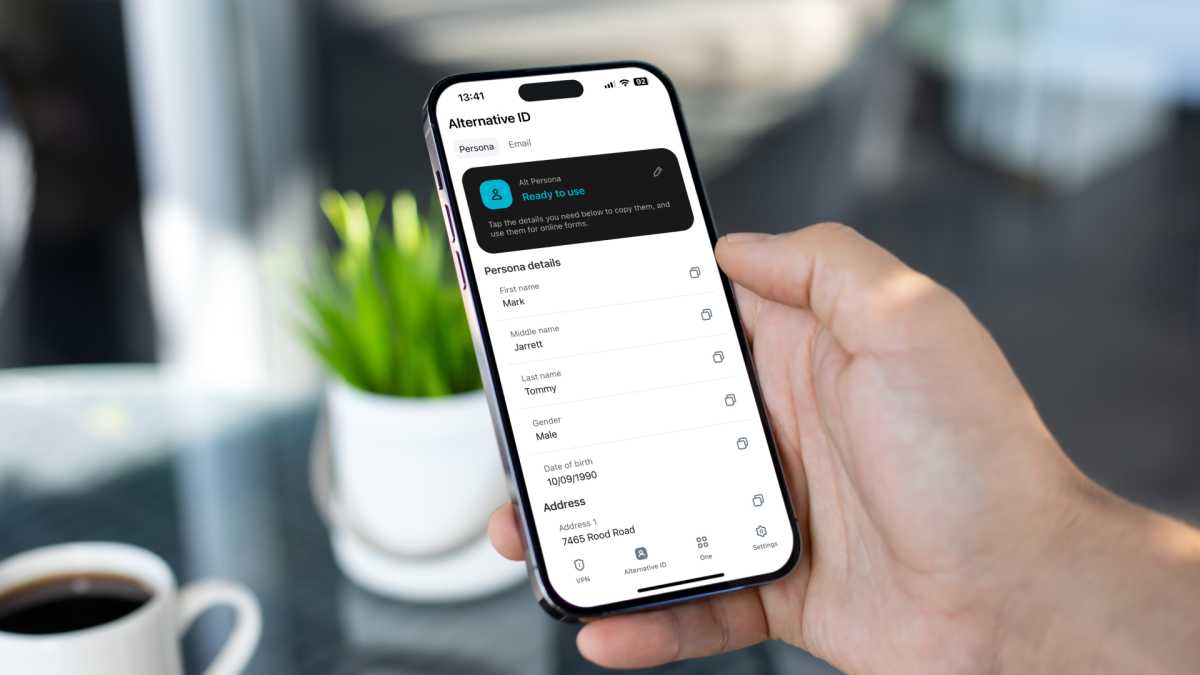
Die Datensicherheit ist gut, so gibt es einen Kill-Switch und eine No-Log-Politik wird versprochen. Auch sogenannte Multi-Hop-Verbindungen werden unterstützt (Double Hop), dabei wird man über einen zusätzlichen VPN-Server weitergeleitet. Das sorgt für höhere Sicherheit, vermindert aber die Leistung. Die Option „NoBorders“ sucht in eingeschränkten Netzwerken und Ländern gezielt nach Servern, die auch hier funktionieren können. Scam-Nachrichten können Sie mit der App ebenfalls blocken lassen und mit einer „Alternate ID“ (künstlichen Anmeldedaten) ihre Daten schützen. Mit Alternative ID und einer alternativen Telefonnummer gibt es die Möglichkeit, eine anonyme Online-Identität zu erstellen – die Telefonnummer kostet allerdings Aufpreis.
Surfshark ließ ihre No-Logs-Richtlinie 2023 und 2025 von Deloitte überprüfen, weitere Audits gab es durch Securing und die deutsche Firma Cure53. Einige neue Funktionen wie Fast Track, also besonders schnelle Server, stehen allerdings nur Desktop-Anwendern zur Verfügung.
Mit bei Redaktionsschluss 2,49 Euro pro Monat (ohne Mehrwertsteuer) ist der Dienst noch günstig, allerdings gilt der Preis nur für ein Zwei-Jahres-Abo. Ein Jahr inklusive Steuer kostet Sie 60,51 Euro, zwei Jahre 80 Euro. Gut: Eine Beschränkung der Gerätezahl existiert nicht, Sie können den Dienst also auch mit einer großen Familie nutzen.
ProtonVPN – kostenlos nutzbar und bietet hohe Datensicherheit
Kostenlos nutzbar – eignet sich dann aber nur für Anwender, die mehr Sicherheit und Privatsphäre wünschen
Screenshot
Foundry
Warum wir ProtonVPN mögen
Sie suchen einen kostenlosen VPN-Dienst? Das ist gar nicht so einfach und nicht ungefährlich: Viele „kostenlose“ Dienste finanzieren sich nämlich durch Werbung und/oder den Verkauf von Nutzerdaten – was viele Nutzer eines VPN eigentlich gerade vermeiden wollen.
Eine der wenigen empfehlenswerten kostenlosen Ausnahmen ist ProtonVPN. Sie müssen sich allerdings beim Anbieter registrieren und eine E-Mail-Adresse angeben. Der Hersteller Proton aus der Schweiz wirbt mit diesem Angebot offensichtlich sowohl für die kostenpflichtige Variante seines Dienstes als auch für andere Webdienste wie Proton Mail.
Für Netflix und Co. eignet sich dieser Dienst allerdings nicht: Sie sind auf zehn Standorte in den USA, Polen, Rumänien, Schweiz, Singapur, Kanada, Mexiko, Norwegen, Japan und den Niederlanden beschränkt, der Standort wird von der App automatisch ausgewählt! Auch die Performance und der Funktionsumfang sind bei dieser Version beschränkt, die Leistung ist aber für Surfen und Social Media vollkommen ausreichend.
Für zahlende Kunden gibt es zu Preisen ab 47,88 Euro im Jahr (inkl. MwSt.) 120 frei wählbare Server-Standorte und über 15.000 Server, hervorragende Performance und weitere Sicherheitsfunktionen. So erhalten Sie Zugriff auf firmeneigene Server namens Secure Core, die besonders hohe Sicherheitsstandards erfüllen. Unterstützung für Streaming, P2P und das Tor-Netzwerk gibt es ebenso. WireGuard, WireGuard (TCP), IKEv2 und Stealth werden angeboten. Gut: Laut Schweizer Gesetzen müssen keine Daten weitergegeben werden, Anfragen werden von Proton außerdem offengelegt.
Mullvad – sehr sicher und guter Schutz der Privatsphäre
Beste Sicherheit und Privatsphäre, kann auch ohne Registrierung genutzt werden
Foundry
Warum wir Mullvad mögen
Höchste Ansprüche an Sicherheit und Datenschutz erfüllt Mullvad. Streaming-Dienste wie Netflix sind dagegen weniger im Fokus des schwedischen Unternehmens. (Mullvad bedeutet auf Schwedisch übrigens Maulwurf.)
Eine Besonderheit: Bei der Bezahlung eines VPN-Abos müssen Sie bei den meisten Anbietern Ihre Identität offenlegen. Um dies zu umgehen, können Sie bei Amazon eine Guthabenkarte von Mullvad kaufen und so ihre Privatsphäre wahren. Alternativ sind aber auch die Bezahlung per Kreditkarte, Überweisung und sogar Bargeld in einem Briefumschlag möglich.
Neben einem fast schon obligatorischen Kill-Switch unterstützt das Tool sogar Schutz gegen Entschlüsselung durch Quanten-Computer, Multi-Hop, Split-Tunneling und regelmäßige Audits, die den sicheren Umgang mit Daten bestätigen. Schutz gegen Traffic-Analyse per AI soll zusätzlich die Technologie DAITA gewährleisten. QUIC & LWO Obfuskation sollen ermöglichen, dass der Dienst auch in Ländern funktioniert, wo VPN gesperrt wird.
Nur knapp 700 Server in 50 Ländern werden unterstützt, deutlich weniger als bei der Konkurrenz. Für sicherheitsbewusste Nutzer ist das Angebot aber vollkommen ausreichend. Für Streaming-Fans gibt es aber bessere Angebote.
Rabatte gibt es keine, nur Festpreise: Ein Monat Nutzung kostet 5 Euro, ein volles Jahr 60 Euro – und beides inklusive Steuer.
Zu den großen Anbietern gehört auch der Anbieter ExpressVPN, der neben NordVPN die beste Leistung und Serverauswahl bietet. Aus 105 Ländern können Sie auswählen, besonders hohe Performance und Sicherheit garantiert ein eigenes VPN-Protokoll namens Lightway. Interessant ist der Dienst wohl primär für Streaming-Fans. Laut Tests werden diese Dienste gut unterstützt und auch Netflix lässt sich gut nutzen.
Die Bedienung ist ebenfalls sehr komfortabel möglich, sogar Plattformen wie Apple TV und Chrome werden unterstützt. Schutz vor staatlichen Zugriffen soll der ungewöhnliche Standort garantieren: Der Firmensitz sind die Britischen Jungferninseln. Seit Kurzem wird außerdem eine Post-Quantum-Verschlüsselung geboten, um gegen Quantencomputer geschützt zu sein – auch unter iOS.
Aber auch die Sicherheitsfunktionen sind ohne Tadel, so ist ein Kill-Switch vorhanden und die No-Log-Politik wird regelmäßig überprüft. Mit ab 2,99 pro Monat bei einem Zwei-Jahres-Abo ist der Dienst noch recht günstig, allerdings fehlen bei diesem Angebot einige Zusatzangebote. Die teureren Pakete „Erweitert“ und „Pro“ bieten zusätzlich einen erweiterten Schutz und einige freie Tage eSIM-Nutzung über den Anbieter holiday.com. Ein Jahr kostet inklusive Mehrwertsteuer ab 80,15 Euro, zwei Jahre ab 99,63 Euro. Der niedrige Monatspreis entsteht auch durch viele Zusatzmonate: So gilt der Jahresvertrag für 15 Monate, der Zwei-Jahresvertrag für 28 Monate – hier gibt es gleich vier Zusatzmonate.
ClearVPN – einfach bedienbarer VPN-Dienst für Streaming-Fans
Einfach bedienbarer VPN, der sich besonders an Fans von Streaming-Diensten richtet
Screenshot
Foundry
Warum wir ClearVPN mögen
Offensichtlich richtet sich auch ClearVPN an Streaming-Fans: Statt einen Standort auszuwählen, können Sie nämlich hier direkt einen Anbieter wie Netflix USA oder Amazon UK aus einer Liste wählen. Der von den Entwicklern der Software Clean My Mac entwickelte VPN-Dienst legt größten Wert auf einfache Bedienung, so kann er mit einem Tastendruck aktiviert werden.
Bei einer manuellen Auswahl des Standortes standen bei Redaktionsschluss 45 Länder zur Wahl, das ist eher mager. Auch Split Tunneling wird nicht unterstützt.
Gut sind auch die Sicherheitsfunktionen, so stehen die obligatorischen Funktionen Kill-Switch und Malware-Filter zur Verfügung. Der Standort der Firma ist die Ukraine, laut Hersteller werden keinerlei Nutzungsdaten gespeichert.
Mit 45 Euro pro Jahr ist der Preis noch im unteren Bereich.
Der Dienst kann auch kostenlos verwendet werden, dann stehen Ihnen allerdings pro Tag nur 200 MB Datenvolumen zur Verfügung und einige der Sicherheitsfunktionen sind nicht nutzbar.
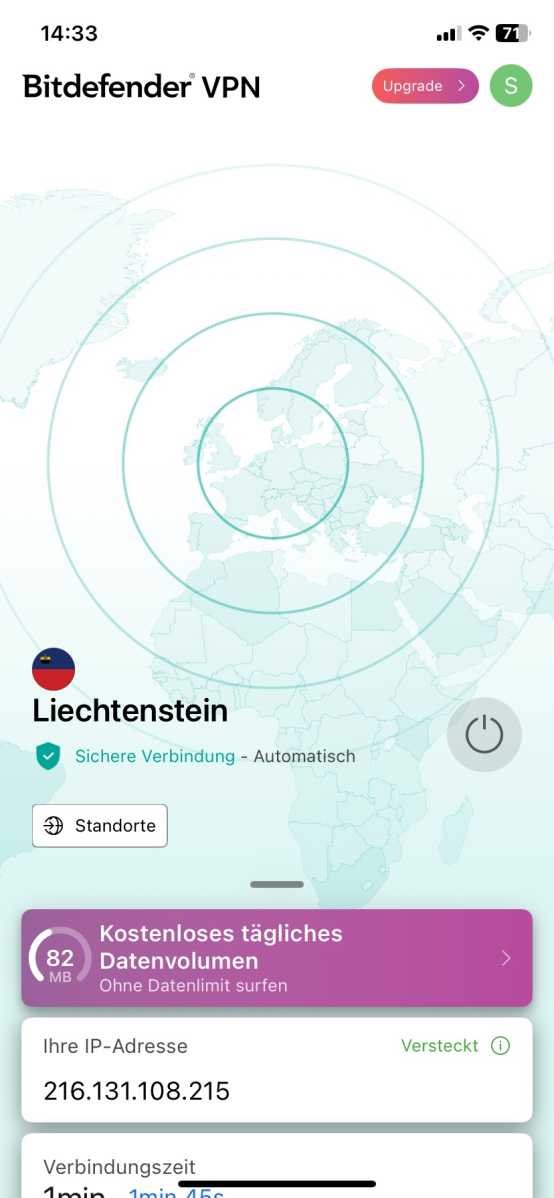
Geboten werden für ab 35 Euro im Jahr über 3000 Server in über hundert Ländern sowie gute Performance. Auch die Sicherheits-Features sind hervorragend: Neben Kill-Switch (der hier Internet-Not-Aus heißt) und Multihop (hier Double-Hop genannt) bietet das Tool verschiedene VPN-Protokolle und Malware-Filter.
Hinweis: Der VPN-Dienst gehört ebenfalls zum Lieferumfang, wenn Sie eine teurere Version des Antivirenscanners Bitdefenders abonniert haben. Bei der Basisversion des Scanners erhalten Sie aber nur 200 MB Datenvolumen. Erst bei den teureren Paketen ist dann eine Version mit unbeschränktem Datenvolumen mit dabei.
Günstiger VPN, der aber Schwächen beim Funktionsumfang hat.
Screenshot
Norton
Warum wir Norton VPN mögen
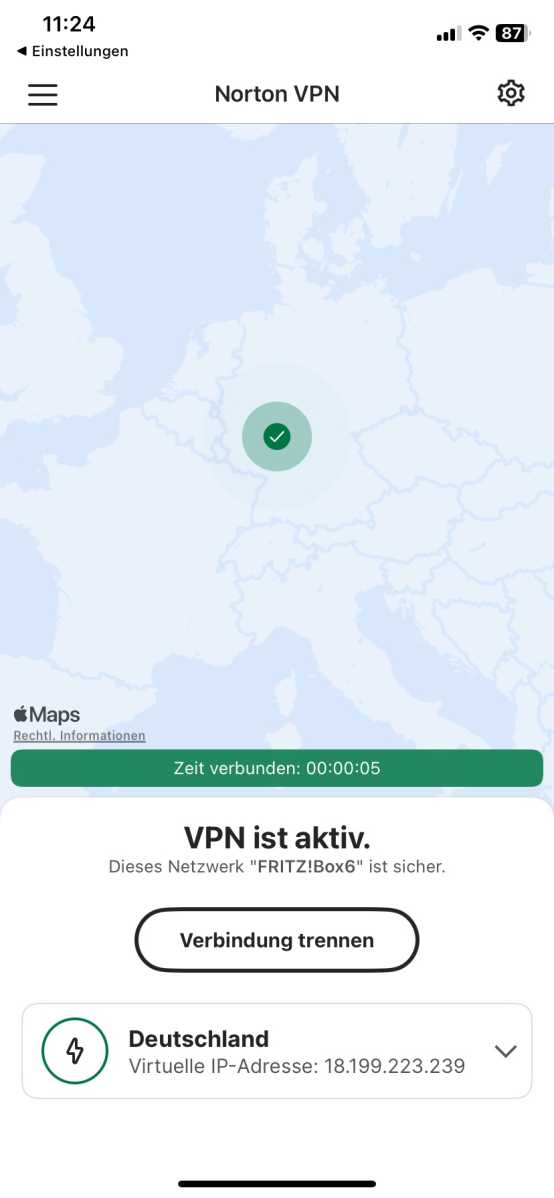
Der VPN-Dienst von Norton ist vor allem aus Kostengründen interessant: Nutzen Sie einen Virenscanner von Norton, können Sie ihn in den meisten Abos auch kostenlos auf dem iPhone oder iPad nutzen. Die Freischaltung der iOS-App ist dann über Ihren Norton-Account möglich.
Geboten werden in der iOS-Version immerhin 92 Länder, die Performance ist kaum schlechter als bei den Top-Anbietern. Leider kann Norton beim Thema Datenschutz nicht ganz mithalten. So ist der Firmenstandort ist die USA, die nicht gerade als Vorbild beim Datenschutz gilt.
Immerhin bietet die App auf Wunsch ein doppeltes VPN, bei dem Daten über zwei Server umgeleitet werden, und IP-Rotation. Bei dieser Einstellung stieg allerdings auch die Ping-Zeit deutlich – was sogar den Abruf von Webseiten stark ausbremst. Es gibt auch ein eigenes Protokoll namens Mimic, das gegen Blocken von VPNs schützt und sicher vor Quantenangriffen geschützt sein soll. Neben der Standard-Version gibt es die Plus- und Ultimate-Version mit zusätzlichen Diensten wie Dark-Web-Monitoring und Kindersicherung.
Seltsam: Ein Killswitch wird geboten, ist in der App aber erst zu sehen wenn Sie die Protokolle Wireguard oder Mimic auswählen.
Der VPN-Dienst ist ab der Version Standard mit dabei, für ab 20 Euro im ersten Jahr ist der Dienst auch einzeln verfügbar. Das ist ein niedriger Preis, oft gibt es zudem günstige Angebote für Norton Antivirus, etwa im Paket mit Microsoft Office. Beim Kauf über den App Store zahlen Sie deutlich höhere 33 Euro.
iCloud Private Relay – Mehr Sicherheit für iCloud-Plus-Nutzer
Screenshot
Foundry
iCloud-VPN von Apple, das für mehr Sicherheit und Privatsphäre sorgt – aber keinen Standortwechsel bietet
Warum wir iCloud Private Relay mögen
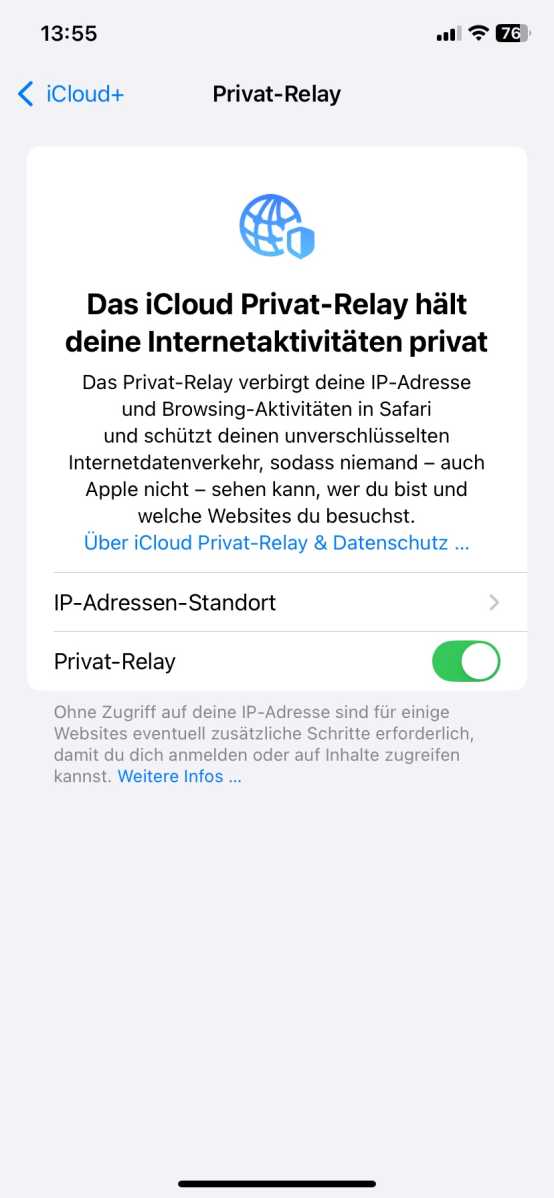
In unserer Übersicht darf auch Apples Dienst iCloud Private Relay nicht fehlen, der sehr stark an einen VPN-Dienst erinnert. Bei teureren Cloud-Verträgen kann dieser Dienst über die Systemeinstellungen aktiviert werden und sorgt dann für mehr Privatsphäre und Sicherheit beim Surfen mit Safari.
Jede Internetanfrage wird dann nämlich über Server von Apple umgeleitet und ihre IP und ihr Standort werden unterdrückt. Ist Ihnen das kostenlose WLAN in Ihrem Café oder Airbnb nicht ganz geheuer, kann Internet Relay sehr nützlich sein.
Der Dienst ist bei allen kostenpflichtigen iCloud+-Paketen mit dabei, kann aber nur auf iPad und iPhone aktiviert werden, nicht auf dem Mac. Auch die Beschränkung auf Safari ist ein echter Nachteil. Der Datenverkehr anderer Apps wird nämlich nicht geschützt.
Die Performance ist dafür hervorragend, so leidet etwa die Latenz nur wenig. Das liegt allerdings auch daran, dass immer ein Server im gleichen Land genutzt wird. Einen Standort in einem fremden Land können Sie damit nicht festlegen, für Streaming oder internationale Einkäufe ist der Dienst deshalb nicht geeignet.
Ein iCloud+-Abo kostet ab 0,99 Euro pro Monat, dafür erhalten Sie 50 GB Speicherplatz, für 2,99 Euro sind es 200 GB.
Übersicht der wichtigsten VPN-Dienste auf dem iPhone
Im App Store finden Sie unzählige VPN-Anbieter. Wir haben für Sie eine Liste der renommierten Anbieter zusammengestellt.
Tipp: Oft ist der Kauf über die Webseite günstiger als über den App Store – vergleichen Sie besser die Preise! Im App Store werden vor allem keine günstigen Zwei-Jahres-Abos angeboten und es gibt keine zusätzliche Laufzeit.
Im App-Store sind die Preise oft höher.
Stephan Wiesend
Kaufberatung und Übersicht der wichtigsten Anbieter
Im App Store finden Sie unzählige VPN-Anbieter. Wir haben für Sie eine Liste der renommierten Anbieter zusammengestellt.
Tipp: Oft ist der Kauf über die Webseite günstiger als über den App Store – vergleichen Sie besser die Preise! Im App Store werden auch keine günstigen 2-Jahres-Abos und zusätzliche kostenlose Monate angeboten.
Achten Sie auch auf den finalen Abo-Preis: Manche Anbieter nennen auf der Webseite einen Preis mit Mehrwertsteuer, andere ohne Mehrwertsteuer.
In den ersten ein oder zwei Jahren sind die Preise oft deutlich niedriger als in den Folgejahren – denn die Abos verlängern sich in der Regel automatisch, und es entfällt der anfängliche Rabatt.
VPN-Dienst
Kosten (niedrigster Angebotspreis über die Webseite inkl. MwSt.)
Ein Kill-Switch löst ein wichtiges Sicherheitsproblem: Während des Surfens kann sich eine VPN-Verbindung plötzlich beenden – etwa durch einen Verbindungsfehler. Sie sind dann plötzlich ohne Schutz. Hat die App einen Kill-Switch oder eine „Internet-Not-Aus“-Funktion, wird dann automatisch auch die Internetverbindung beendet. Das verhindert, dass Sie unwissentlich ohne VPN-Verschlüsselung im Netz sind. Dieser Kill-Switch kann auch vor Angriffsmethoden wie Tunnelvision schützen. Fast alle VPN-Dienste in unserer Übersicht bieten diese Funktion, bis auf den Dienst von Norton. NordVPN bietet sogar Schutz gegen Quanten-Computer
2.
Was passiert beim Multi-Hop?
Für mehr Anonymität soll die Funktion Multi-Hop sorgen, die bei Bitdefender etwa „Doppel-VPN“ heißt. Hier werden VPN-Verbindungen gleich über mehrere Server hergestellt, etwa von Deutschland erst nach Kanada und dann erst in die USA. Das soll es erschweren, eine VPN-Verbindung zu erkennen, und eine Rückverfolgung erschweren. Nachteil: Die Verbindungsgeschwindigkeit wird reduziert.
3.
Was bedeutet Latenz und welche Werte sind gut?
Beim Test einer Internetverbindung misst man üblicherweise nicht nur die Download- und Uploadgeschwindigkeit, sondern auch die Latenz. Diese auch als „Ping“ bezeichnete Performance sollte möglichst klein sein, da es sich hier um die Reaktionsgeschwindigkeit handelt. Bei hoher Latenz dauert es sehr lange, bis eine Gegenstelle reagiert. Das ist hauptsächlich für Gamer wichtig, bei sehr hoher Latenz wird sogar das Aufrufen von Webseiten stark verlangsamt.
4.
Was ist der VPN-Tunnel?
Ein VPN-Tunnel ist eine verschlüsselte Verbindung zwischen Ihrem Gerät und einem VPN-Server, durch die alle Daten sicher übertragen werden – „wie durch einen Tunnel“. Dadurch werden deine Online-Aktivitäten geschützt und eine IP-Adresse wird verschleiert. Dritte – etwa Netflix oder auch ein Hacker – können die Daten schwerer mitlesen und auch den Standort nicht erkennen.
5.
Was bedeutet Quantensicherheit?
Ein neues Schlagwort bei Verschlüsselungstechnologien ist Quantensicherheit. Dabei geht es darum, dass kommende Quantencomputer vermutlich heute noch sicher verschlüsselte Daten entschlüsseln können. Das Problem: Sammelt jemand heute sensible Daten, kann er sie heute noch nicht entschlüsseln. In wenigen Jahren könnte aber ein Quantencomputer sie vielleicht in wenigen Minuten entschlüsseln. Auch per VPN geschützte Daten sind davon betroffen.
Aus diesem Grunde führt man bereits heute Verschlüsselungsalgorithmen ein, die durch Quantencomputer nicht zu knacken sein sollen. Geboten wird dies etwa von NordVPN, ExpressVPN und Mullvad.
6.
Sind VPNs auf dem iPhone wirklich sicher?
In Fachkreisen wird die Sicherheit von VPN auf dem iPhone gelegentlich kritisiert. Eine Einschränkung von iOS lässt sich dabei nicht leugnen: Apple gibt App-Entwicklern nur eine begrenzte Kontrolle über Systemfunktionen. Gleichzeitig schränkt Apple damit aber auch die Schutzfunktionen von Sicherheits-Apps ein. Und das betrifft letztlich auch VPN-Apps wie NordVPN. Einige Apple-Dienste ignorieren eine VPN-Verschlüsselung sogar und verbinden sich direkt mit Apple-Servern.
Apple hat aber viele alte Kritikpunkte behoben: Vor iOS 14 wurden etwa nach der Aktivierung einer VPN-Verbindung unter iOS nur neue Netzwerkverbindungen per VPN verschlüsselt. Bestand vor der Aktivierung von VPN bereits eine Internetverbindung, war diese ungeschützt. Mit iOS 26, iPadOS 26 und macOS 26 wird zudem Quantensicherheit möglich (siehe oben), das Schlüsselwechsel mit ML-KEM unterstützt werden.
7.
Wie installiere ich einen VPN-Dienst?
Bei vielen VPN-Diensten ist die Nutzung auf Mac und iPhone im Abo enthalten, die jeweilige iOS-App gibt es im App Store. Ein VPN-Dienst wird unter iOS fast wie jede andere App installiert, seine eigentliche Aufgabe ist der Verbindungsaufbau mit einem VPN-Dienst und die Konfiguration der Verbindung.
Das Besondere daran: Beim ersten Start wird ein sogenanntes Profil installiert. Das sind Befehle, mit denen der VPN-Dienst eingerichtet wird. Deshalb fragt das System per Pop-up, ob Sie der Installation zustimmen. Später können Sie diesen Dienst über die App ein- und ausschalten – fast wie WLAN oder Mobilfunk. Eine aktive VPN-Verbindung erkennen Sie über ein VPN-Symbol neben dem WLAN‑ und Mobilfunk-Symbol. Es ist aus Platzgründen aber meist nur bei Aufruf des Kontrollzentrums zu sehen.
Ein VPN wie NordVPN oder das günstige Norton VPN ist für viele Anwender sinnvoll: Das kostenlose WLAN im Café wird per VPN deutlich sicherer und der Dienst kann für Sie neben Datendieben auch Werbung und Spam herausfiltern. Ein iPhone mit aktiviertem VPN ist in jedem Fall sicherer als ohne.
Auch Geoblocking ist dank virtuellem Standort kein Problem mehr. Es gibt ja nicht nur Netflix: Auch manche US-Zeitung oder TV-Sendung werden erst nach einem Standortwechsel zugänglich. Bei der Wahl des VPN-Dienstes sollten Sie aber lieber einen seriösen Anbieter wählen. Mit einem „kostenlosen“ VPN haben schon viele Anwender schlechte Erfahrungen gemacht.
Auf der WWDC 2026 hat Apple zwar iOS 27 und seine wesentlichen Funktionen vorgestellt, doch in der Gerüchteküche rumorte es bereits vor, aber auch nach der WWDC-Keynote. Insbesondere der gut vernetzte Bloomberg-Journalist Mark Gurman berichtete regelmäßig über iOS-Features, von denen Apple selbst nicht gesprochen hat und die auch in den Beta-Versionen noch nicht zu sehen sind.
Grundsätzlich ist das nicht ungewöhnlich: Manche Funktionen hält Apple bis zum Schluss zurück, um nicht zu viel zu verraten. Ein klares Beispiel ist dieses Jahr das faltbare iPhone Ultra, das Apple angeblich zusammen mit dem iPhone 18 Pro und Pro Max vorstellen soll: Das neue Format benötigt zweifelsohne Anpassungen an iOS, die bisher aber nicht an der Oberfläche zu sehen sind. Lediglich einige versteckte Textschnipsel deuten auf ein etwaiges faltbares iPhone hin.
Wir zeigen, über welche Features Apple noch nicht geredet hat, die mit iOS 27 im September oder vielleicht sogar noch später, mit iOS 27.1 oder 27.2 kommen könnten.
Foundry
Anpassbare Kameraoberfläche
Während sich die allermeisten iPhone-Besitzer mit der normalen Kamera-App zufrieden geben – auch nach der Überarbeitung in iOS 26 vergangenes Jahr –, wünschen sich Hobbyfotografen, die mehr aus der iPhone-Kamera herausholen möchten, schon lange mehr Anpassbarkeit. Im Mai berichtete Gurman, dass Apple genau das in iOS 27 einführen wolle: einen erweiterten Modus, in dem Sie die verschiedenen Bedienelemente selbst festlegen können.
Noch ist von den Neuerungen allerdings nichts zu sehen. Möglicherweise hebt sie sich Apple für die iPhone-Keynote auf, da es sich nicht um eine Funktion handelt, die in erster Linie Endverbraucher anspricht und nicht Entwickler auf der WWDC.
Erweiterung von Apple Health
Anfang Juni, kurz vor der WWDC 2026, schrieb Gurman, dass Apple Health eine Reihe von KI-Funktionen erhalten würde, die ursprünglich für das Projekt „Mulberry“ gedacht waren. Da nichts davon bei der WWDC angekündigt worden und auch in der Beta von iOS 27 zu sehen ist, geht Gurman davon aus, dass die Neuerungen erst in einem späteren Update erscheinen. Uns würde es nicht wundern, wenn Apple eine so wichtige Neuerung ganz auf iOS 28 verschiebt.
Split-Screen für iPhone Ultra
Die wohl offensichtlichste Lücke haben wir bereits eingangs erwähnt: Mit dem Erscheinen des iPhone Ultra im September – zumindest haben sich die Anzeichen inzwischen so sehr verdichtet, dass es unwahrscheinlich ist, dass es doch nicht kommt – benötigt iOS einen Split-Screen-Modus, um von dem zusätzlichen Bildschirmplatz Gebrauch machen zu können. Selbiges gilt für andere Funktionen, die von der neuen Hardware abhängen. Spätestens zur Veröffentlichung des iPhone Ultra müssen diese Funktionen da sein, also Mitte September.
Zusätzliche Chatbots für Siri
Und zu guter Letzt wäre da noch eine Funktion, die streng genommen existiert, allerdings ohne die entsprechenden Optionen: Ebenfalls Anfang Juni hat Gurman behauptet, dass Siri sich mit mehr Chatbots als nur ChatGPT verstehen würde. Apple habe angeblich schon mit Gemini und Claude experimentiert. Doch auch in der Beta von iOS 27 ist nichts davon zu sehen, obwohl es sich um eine Funktion handelt, die definitiv getestet werden sollte, bevor sie der Öffentlichkeit freigegeben wird.
Wir haben Zweifel daran, dass zusätzliche Chatbots für Siri bereits zur Erstveröffentlichung von iOS 27 im September erscheinen, geben die Hoffnung aber nicht auf. Wahrscheinlicher ist für uns eine Veröffentlichung später im Herbst.
We live and work in browsers. It’s where we spend most of our time — and it’s where we waste most of our time as well. Web browsing is slow, inefficient, and full of time-sapping annoyances.
But it needn’t be that way. You can turn your browser into a lean, mean productivity machine. To do it, just follow these tips for Microsoft Edge in Windows 10 or 11. You’ll learn how to switch between home and work profiles, put idle tabs to sleep to speed up your PC, tap into the power of Microsoft’s Copilot AI assistant, and more.
(Note that these tips are written for the most recently updated version of Edge in Windows 11 25H2 and Windows 10 22H2. Things may be slightly different if you use a different Windows version, and not all of these features are available for Edge on macOS or other platforms.)
So let’s get started — time’s a-wasting, and so is your productivity.
1. Switch between work and personal profiles
With remote and hybrid work models now common, many people use the same device for work and personal use. When it comes to using a web browser, that can quickly become problematic.
Mixing work and personal favorites makes it far more difficult to quickly get to important work websites or personal websites. When you’re working, you don’t want to wade through hundreds of links to family photos, vacation destinations, and YouTube videos of cats befriending parrots when you’re just looking for the OSHA website about mine safety regulations. And when you’re off working hours and want to watch a video of a Persian cat nuzzling a cockatiel, a website detailing the GDPs of every country in Europe and Asia is not your primary destination.
Different profiles let you completely segregate your browser use. That doesn’t just mean different favorites. It also means different Collections, different extensions, different passwords, and more.
Each Edge profile is tied to a different Microsoft account. So to use different profiles, you’ll need to create different Microsoft accounts. To create a new Microsoft account in Windows 10 or 11:
Scroll down to the button that says Create an account, click it, and follow the prompts to create a new account.
On the page that appears, click the Sign in button in the middle of the page. On the screen that appears, select the Create one! link, then follow the prompts to create a new account.
You’ve now got two different Microsoft accounts you can use for Edge. When you log into one of those accounts in Windows, that will be the default account that Edge will use when you browse the web.
To switch between the two accounts, you’ll need to add that second account to Edge. To do it:
Click the user profile icon at the top right of Edge. On the small pane that appears, select Set up a new profile, then select either Personal or Work or School.
You’ll be sent to a web page in a new instance of Edge. Click the Sign in button at the far right, then select Sign in to sync data.
On the screens that appear, sign in and confirm that you want to proceed.
Once you’ve done that, you don’t have to log out of your current account and then log into the second account to use it in Edge. Instead, when you want to use the second account, click the user profile icon at the top right of the Edge window. A small pane appears with your current profile at the top. To switch to your other profile, select it in the “Other profiles” section.
To minimize distractions, set up work and personal profiles in Edge.
Preston Gralla / Foundry
You’ll now be sent straight to that profile. When you do that, Edge will open in a new window. So you’ll have both your profiles running simultaneously, each with its own tabs, in two separate windows. (Note that you can set up multiple additional profiles.)
You can also tell Edge which profile to use when you visit certain websites. To do it:
Click the user profile icon in Edge and select Profile settings. (Alternatively, you can click the three-dot icon next to the user profile icon and select Settings > Profiles.)
In the “Profile settings” area, click Profile preferences.
At the bottom of the “Automatic profile switching” section on the page that appears, click Add site next to “Custom site switch.”
On the “Add site” popup, enter a website URL and select the profile you want to switch to for that site.
Should you decide you want to remove a profile, go to Settings > Profiles and scroll to the “More profiles” section. Click the trash can button next to any profile you want to delete. You can always add it again later using the steps above.
2. Get to your most-used sites quickly
Bookmarking and organizing favorites is a great way to manage a large collection of websites, but it’s not that useful if you simply want to get to a frequently used site quickly. Edge has some tricks up its sleeve if you want to get your most-used sites pronto.
Add a site to the new tab page
When you open a new tab in Edge, a page appears that shows you news and other items you might be interested in. It’s easy to pin a site to this page so it’s accessible whenever you open a new tab.
Look toward the top of the page, just underneath the search box. If you don’t see icons for pinned pages (such as for Yahoo, Amazon, your inbox, and so on), click the settings icon on the upper right of the page (it looks like a gear) and turn “Quick links” on.
A row of site icons appears, along with a + icon. Click the + icon and type or paste in the name and URL of the site you want to pin, then click Add. The site will now appear along with the other pinned pages.
Pinning a site keeps it handy on the new tab page.
Preston Gralla / Foundry
You can rename or remove any site pinned to the new tab page by clicking the three-dot icon next to the site icon and selecting Rename or Remove from the menu that appears.
The new tab page is tied to your current profile, so you can set up different pinned sites on the new tab page for each of your profiles.
Pin tabs to the top of Edge
For even faster access to frequently used sites, you can pin them as browser tabs so they appear at the far left of all your other tabs in Edge. When you’re on the site you want to pin as a tab in Edge, right-click its tab and select Pin tab from the menu that appears. The pinned tab will now appear to the left of all your open tabs.
The icon for the pinned tab looks smaller than all of your other tabs, and it will persist even after you shut down and restart Edge. If you have multiple pinned tabs, all of them will appear to the left of any non-pinned tabs.
Like pinned sites on new tab page, your pinned tabs are unique to each Edge profile; they won’t carry over from profile to profile.
Pin sites you often visit to the Windows taskbar
For Windows users, the fastest way to access a frequently used site is to pin it to the Windows taskbar. That means it’s always visible (even when Edge isn’t running), and you can launch it with a single click.
When you’re on the site you want to pin, select the three-dot icon at the top right of the browser window and select More tools > Pin to taskbar. A small screen appears with a text box in it with the name of the site. Use the name provided or type a new name into the text box and click Pin.
3. Create tab groups for more efficient browsing
If you’re like lots of people, you frequently browse with many tabs open, and find yourself wasting time switching to the tab you want because of all of the clutter.
There’s a simple fix: group tabs into categories so you can quickly switch to the tab group that has the tab you want. For example, you might group them into “News,” “Museums,” “Finance,” and so on. Or you could create a tab group for research related to a specific project.
To do it, right-click a tab, select Add tab to new group, and then name the tab group. You can then drag other tabs into the group. You can also assign each tab group a unique color so they’re easy to differentiate at a glance.
Creating tab groups makes it easier to find the tab you want quickly.
Preston Gralla / Foundry
If you’ve already created a group, when you right-click a tab, you’ll see “Add tab to group” rather than “Add tab to new group.” When you click the arrow next to it, you’ll see a list of all your existing groups, so you can easily add it to any of them. You’ll also see “New group,” which will let you create and customize a new group.
Once you’ve created a tab group, you can rename it, change its assigned color, add new tabs to it, ungroup the tabs from it, delete the group and all the tabs in it, and more. Just right-click the name of any group and select an option from the menu that appears.
4. Enlist a Copilot as you browse
Microsoft’s genAI chatbot, Copilot, has become increasingly integrated with Edge, so much so that Microsoft now calls Edge an “AI browser.” At the moment, that’s more hype than fact, but it is true that Edge gets new Copilot features added on a regular basis.
Edge provides a couple of ways to interact with Copilot, one of which is to open the Copilot sidebar to the right of the main browser window. (We’ll go over the other method later in the story.) Click the Copilot icon at the top right of Edge, and the Copilot pane appears. Here’s where you type in prompts for Copilot.
There’s a tremendous amount you can do with Copilot, most of which is beyond the scope of this article. To learn more about what it can do and how to use it, see our story “9 ways to use Copilot right.”
However, here’s one use designed specifically for web browsing: summarizing the contents of the page you’re currently visiting. Depending on the structure and content of the page, Copilot can give a high-level overview of the entire page, provide capsule descriptions of individual articles or sections, and more. You can also ask Copilot to extract specific information from a page, such as all the AI-related information on it, and organize the information into a bulleted digest.
To do all that, open a web page and open the Copilot sidebar. You’ll see a few suggested prompts, one of which should be related to summarizing the page, such as Summarize the main points on this page or Create a summary of this page. Click the prompt, or if you don’t see it, type it into the text box at the bottom of the Copilot pane.
Use Copilot to summarize the content on a web page.
Preston Gralla / Foundry
You can also ask it to summarize the last page you’ve visited. Click the down arrows towards the bottom of the Copilot pane, and you’ll see a listing for the previous page you’ve visited, such as Computerworld.com. Click the text summarize my recent activity on [page] and it will do that for you. Again, if you don’t see that text, type it into the Copilot text box.
The summarization feature, though, still has rough edges, or at least it did when I was writing this article. If you leave the web page you’re currently on and go to a new one, the summary of the old page remains, and there isn’t an immediate way to summarize the new one. To get a summary of the new page, you’ll have to scroll to the bottom of the Copilot pane, click the arrow (it will be facing either up or down, depending on whether you’ve previously clicked it) and click “Create a summary of this page.”
In that section, you can also click listings of your other open tabs and get summaries of any of them.
5. Remove clutter when you launch new tabs
When you create a new tab, the initial page is filled with pinned sites, suggested news stories, widgets, and more. If you find that page distracting, you can change it to a much cleaner, more stripped-down page.
If you haven’t pinned specific sites to the row of icons below the search box (see tip #2 above), you can make Edge’s default icons go away: Click the gear icon on the upper right of the page, and a “Page settings” panel pops up. In the “Quick links & search” section, click the dropdown next to “Quick links” and select Off. That gets rid of the icons for web sites just beneath the search box.
If you have pinned your own preferred sites there, you’ll want to leave quick links enabled, but you can turn the “Show sponsored links” toggle to Off to get rid of ads.
To get rid of the news articles that overwhelm the page, go to the “Show content” area of the panel and move the “Show feed” toggle to Off. Or, if you want to really strip down the page, move the “Show content” toggle to Off. That kills pretty much everything on the page except the weather. If you don’t want to see that either, scroll down a bit more and move the “Weather” toggle to Off.
Going with the stripped-down new tab look in Edge.
Preston Gralla / Foundry
You can also strip out the background graphic for the new tab page by turning off the “Background” toggle. I don’t recommend it, though, because when you do that, you’ll get a gray page with a big Microsoft logo dead center when you launch a new tab.
6. Launch Copilot-centered new tabs
If you’re a frequent Copilot user, you might want to take a different approach to the new tab page.
The Copilot you get in a side pane when you click the Copilot icon at the top right of Edge is a somewhat stripped-down version of Microsoft’s full-blown Copilot app. If you’re looking to use the full-fledged version, there’s a simple way to do it: Tell Edge to open Copilot every time you open a new tab.
To do it, click the three-dot icon to the left of the Copilot icon at the top right of Edge and navigate to Settings > Start, home, and new tab page. In the “New tab page” section, turn on the Copilot new tab page toggle. From then on, every time you open a new tab, you’ll launch a full Copilot screen that’s similar to the standalone Copilot app.
The Copilot new tab page puts Copilot chat front and center.
Preston Gralla / Foundry
You’ll see the usual Copilot prompt box front and center, and beneath that, several prompts Microsoft thinks you might want to use. (Note to Microsoft: I’ve never used one of those suggestions even once. I’d guess few other people have either.)
What’s really new here are the vertical icons running down the left side of the page. Here’s a brief rundown of what each one does:
Open sidebar: Widens the navigation bar and shows a list of your recent chats so you can revisit any of them.
New chat: Start a new chat with Copilot.
Library: Build a library of Copilot-created content such as images, reports, podcasts, documents, and more.
Tasks: Create a Copilot task that automates something you want done, such as sending you a weekly email about a company’s stock price.
Health: Open Copilot Health, a version of Copilot designed specifically for getting health information.
Shopping: Use Copilot as a shopping assistant.
Imagine: Create or edit an image using Copilot.
Experiments: Discover and use new Copilot features that Microsoft is testing but that may or may not be officially launched at some point.
Clicking the Copilot icon at the top of the list of vertical icons returns you to the main Copilot interface you get when you launch a new tab.
As you can see, many of these new Copilot functions are aimed at consumers and unlikely to be useful in a business setting. Still, if you frequently turn to Copilot for help, you might find the Copilot new tab page a good alternative to the standard new tab page.
And note that setting up the Copilot new tab page doesn’t prevent you from browsing or searching the web normally. Just enter the search term or website you want to visit in the address bar at the top of the screen.
7. Put tabs to sleep to conserve system resources and boost battery life
If you’re like most people, you keep multiple tabs open in Edge so you can easily switch among the sites, web apps, and information important to you. It’s a great time-saver.
But it can also be a big memory and processor hog, which can slow down both your browsing and your other computing tasks. It needn’t be that way, though. You can put inactive tabs to “sleep” until you need them, freeing up resources, which will make your PC speedier and make its battery last longer, even when you have multiple tabs open. Microsoft claims that putting inactive tabs to sleep reduces memory use by an average of 32% and CPU use by an average of 37%.
Here’s how to do it:
In Edge, click the three-dot icon on the upper right of the screen and select Settings > System and Performance > Performance.
In the “Memory” section, move the slider to On next to Automatically put tabs to sleep.
To change the length of time it takes to put an inactive tab to sleep, below “Automatically put tabs to sleep” click the drop-down arrow and select a time. Your choice is anywhere from 30 seconds to 12 hours.
Putting tabs to sleep can significantly reduce CPU and memory use.
Preston Gralla / Foundry
To reawaken any tab that’s been put to sleep, simply click on it, and it will resume normal activity.
There’s a chance that some sites might not work properly after they’ve been put to sleep. If that happens to you, you can tell Edge never to put that site to sleep again. To do it, scroll up to the “General” area on the “System and performance / Performance” page of Settings. Click the Add site button next to the “Always keep these sites active” item and paste in the URL of any site you don’t want to sleep.
8. Reduce power use with ‘energy saver’
Browsers can be power hogs, especially if you have multiple tabs open and are playing videos or music in them. That can be a particular problem if you’re using a laptop that isn’t plugged into a power source.
In Edge, the “energy saver” setting reduces the amount of system resources the browser uses, which extends your PC’s battery life. If you enable energy saver, it becomes active when your laptop is unplugged. Microsoft claims energy saver can give you on average an extra 25 minutes of battery life. To use it:
In Edge, click the three-dot icon on the upper right of the screen and select Settings > System and Performance > Performance.
In the “Power” section, make sure the toggle next to “Enable energy saver” is turned on. When you do that, you see two options: “Balanced” and “Maximum savings.”
Select Balanced if you want your laptop to go into a lower-power mode to save battery life when your laptop is unplugged or has a low battery. Select Maximum savings if you know you’re not going to be able to plug your laptop in for some time. Note that in this mode, your video quality may be affected.
There’s also a separate option to use energy saver even if your laptop is plugged in. Use this option if you want to consume less energy when you use your computer. Note that if you use it, you may experience slowdowns when browsing the web.
You can get an extra 25 minutes of battery life with the energy saver setting, Microsoft claims.
Preston Gralla / Foundry
9. View and mark up PDFs
With Edge, there’s no need to launch a separate application when you want to read or mark up a PDF; its built-in PDF app is quite good. With it, you can draw on and highlight sections of the PDF and erase the marks you made as well. So save yourself time and use Edge rather than third-party software.
You don’t need to do anything to read a PDF online. Simply click it, and by default it will launch in Edge’s reader. You’ll find the markup tools, including for drawing, highlighting, and erasing, in a toolbar towards the top of the screen. To open a PDF from your hard disk, when you’re in Edge, press Ctrl-O, then navigate to the PDF and click it.
Edge has a surprisingly useful PDF viewer with markup tools.
Preston Gralla / Foundry
If you prefer to use your own PDF reader, even for PDFs found online, you might be annoyed that every time you click a PDF, it opens in Edge’s PDF reader. You can change that, though, by changing your default PDF reader.
In Windows Settings, select Apps > Default Apps and in the search box at the top of the screen just below “Set a default for a file type or link type,” type in .pdf. After you do that, the listing “Microsoft Edge Microsoft Edge PDF document” appears. Click it, and a screen appears showing you all the applications on your PC that can read PDFs. Select the one you want to use instead of Edge.
10. Turn on Edge’s AI-powered ‘scareware’ blocker
The internet is filled with scammers using sophisticated attacks to steal your data or money. A common one is so-called “scareware,” in which when you visit a website, your PC is suddenly locked into full-screen mode filled with fake malware warnings that claim your computer has been infected and urge you to call a phony tech-support line or allow remote access to your device to supposedly fix the problem.
Once you do that, the scammers steal your data, get you to pay for phony solutions, or embed malware on your system.
To fight that, Edge includes an AI-powered scareware blocker that builds and constantly updates a machine-learning model that detects suspicious behavior and stops the scamware in its tracks.
Typically, the scamware detector is turned on, but there’s a possibility it’s been turned off at some point or was never turned on in the first place. For example, on PCs with only 2GB of RAM or fewer than 5 cores, it’s not turned on by default. Microsoft recommends enabling it on those machines. To do it, in Edge go to Settings >Privacy, search, and services > Security, and in the “Scareware blocker” setting, turn the slider from off to on.
When you do that, make sure that “Block sites detected as scams” and “Share detected scam sites with Microsoft Defender SmartScreen” are turned on as well.
Turn on Edge’s scareware blocker to protect yourself from scams and data theft.
Preston Gralla / Foundry
11. Use Edge’s one-click form filler
How many hours a week do you spend mindlessly filling out web forms — your office or home address, shipping address, email address, and phone number? Wouldn’t it be nice to get that time back?
With autofill, built into Edge, you can. To use it, in Edge go to Settings > Passwords and autofill > Addresses and more. Turn on the toggle next to “Save and autofill addresses.” You can also choose to have Copilot analyze web forms and decide which bits of your information belong in which part of the form.
Microsoft autofill saves information that can be used to fill out forms online.
Preston Gralla / Foundry
From now on, whenever you visit a web form, just click in a text box, and your information will appear in a popup. Select it and the form will fill in. You can go back to Passwords and autofill to change any information you want.
12. Save time with keyboard shortcuts
There’s a good chance you use keyboard shortcuts for some of your office applications, like Word and Excel — and you likely use some for Windows itself.
But when it comes to browsers, many people forgo the keyboard except when absolutely necessary. That’s too bad, because keyboard shortcuts are a big timesaver. So to improve your productivity, check out these keyboard shortcuts for Edge in Windows. (Mac users can generally substitute the Cmd key for Ctrl and the Opt key for Alt.)
If the rumors are true, Apple’s next few years are shaping up to be the most exciting in a long time. The company has been working on intriguing new devices, including its first foldable iPhone, a touchscreen MacBook Pro with an OLED display, and smart home devices powered by Siri AI and Apple Intelligence.
All of this sounds amazing, but there’s just one problem. All these innovations are likely to come at a high price, especially at a time when prices are already rising due to a global shortage of RAM and other components. In the end, most people probably wouldn’t buy all or possibly any of these innovations.
But Apple’s new Upgrade program changes the script and makes it possible for even more people to get their hands on Apple’s highest-end products, even if they don’t have thousands of dollars to spend on a new laptop or phone.
Apple already has niche premium products
Apple has never been afraid to build products that only a few people can justify buying. The Mac Pro was never a product for the masses. It was an expensive computer aimed at engineers and film directors. The same applies to the XDR Studio Display and Apple Vision Pro.
Those products serve an important purpose. They demonstrate what’s technically possible, even if they aren’t expected to become best sellers. They cater to a niche market that is willing to pay a high price for them. For these users, price isn’t important.
Apple Vision Pro and the Mac Pro are both high-priced devices with limited appeal.
Thiago Trevisan/Foundry
What’s changing over the coming months is that even products on the way aren’t niche high-end devices. The rumored iPhone and MacBook Ultra are designed to be mainstream devices with high price tags, and this could have a major impact on which devices the average consumer chooses.
The iPhone has always been Apple’s most popular product. Even the Pro models, while expensive, remain attainable for many customers through financing, trade-ins, or carrier promotions. Likewise, the MacBook Pro has become the default recommendation for professionals and enthusiasts alike.
However, the rumored iPhone Ultra and MacBook Ultra suggest that Apple may be about to introduce a new product tier positioned well above its Pro models. Not simply because they are faster or more powerful, but because they are much more ambitious to build.
Innovation comes with a price
New technologies always come at a higher price. Typically, building a device with a radical new design requires new manufacturing methods, which drives up production costs. This was the case in 2017 with the iPhone X, which raised the starting price of the high-end iPhone from $649 to $999.
At the time, people were shocked by the higher price. But quickly, $999 became the new normal for a premium smartphone. Now, the iPhone 17 Pro starts at $1,099, which is only 10 percent more than the starting price Apple set for its new iPhone in 2017.
But given the current rumors, Apple’s new “Ultra” devices won’t just be a few dollars more expensive. They could cost up to twice as much as the current Pro models.
Apple’s upcoming iPhone Ultra could cost twice as much as the iPhone 17 Pro Max.
Foundry
Let’s take the iPhone Ultra foldable as an example. Flexible OLED panels remain expensive. More durable hinges require intricate engineering. Thinner batteries, custom display technologies, and increasingly complex camera systems all push manufacturing costs higher.
Based on what multiple sources have been saying, Apple’s foldable iPhone could cost as much as $2,500 depending on the configuration. That would already be $1,300 more expensive than the iPhone 17 Pro Max costs today. By comparison, Samsung now charges $2,100 for the entry-level version of the new Galaxy Z Fold Ultra and $1900 for the shorter model that mimics the rumored iPhone Ultra.
The rumored MacBook Ultra follows a similar pattern. An OLED touchscreen display with a new design, along with even more RAM and SSD storage, would significantly increase the cost of this machine compared to current MacBook Pro models.
But with Apple Upgrade, those prices aren’t nearly as eye-watering. On a 24-month lease, the iPhone Ultra would likely cost around $70 a month, while a 36-month MacBook Ultra lease would run roughly the same for a 36-month lease. That’s still not as cheap as an iPhone 17 Pro, but it’s much more affordable—and you can bet Apple will advertise it as such.
The next MacBook Pro will reportedly have a touchscreen display and an eye-watering price tag.
Apple
The products most people buy won’t stop being good
Of course, having new, high-end products in the lineup doesn’t mean everyone will need them. The current iPhone Pro models are already more than enough for most users. The latest MacBook Pro is so powerful that many buyers have never even come close to using its full potential. Even the base model iPhone has become quite appealing.
In fact, Apple itself has, in a way, anticipated that premium products would become much more expensive and has also been investing in more affordable products that meet the needs of the vast majority of people. This includes devices such as the MacBook Neo and the iPhone 17e.
Ever since we began hearing about them, it seemed as though the new Ultra products would be just like the Vision Pro: cool, futuristic products, but priced way out of reach for most buyers. Ultra products will naturally be aimed at enthusiasts, those who are willing to pay thousands of dollars for an iPhone or a MacBook that looks completely different from current devices and employs the most cutting-edge technologies. And like Vision Pro, the rumored prices didn’t leave much hope for a trickle-down effect.
But with Apple Upgrade, the barrier to entry isn’t nearly as steep. Apple doesn’t offer Vision Pro in its Upgrade program, but a $3,699 Mac (the same price as Vision Pro after last month’s price hike) costs just $76.52 per month for 36 months. Apple would have probably sold quite a few more of them if those terms were available at launch.
Apple’s next era seems genuinely exciting. It just may be an era in which more people than ever don’t own Apple’s latest products—but they still use them around every day.
Price comparison from over 24,000 stores worldwide
Product
Price
Price comparison from Backmarket
OWC’s 80Gbps 4M2 Ultra is a four-slot RAID enclosure that lets you build your own high-capacity, super-fast external storage using NVMe SSDs.
Depending on the RAID mode you use, you can saturate the 80Gbps Thunderbolt 5/USB4 bus to the tune of 7GBps sequential transfers. You can also safeguard your data with mirroring or parity, which a single external SSD enclosure won’t allow.
What are the OWC 4M2 Ultra’s features?
The 4M2 Ultra is a black, mostly aluminum box measuring around 4.75-inches tall, 4.5.inches deep, by 2.35-inches wide. Unlike the 40Gbps 4M2, the sides are finned to create more heat-shedding surface area. Nice. On the back are two Thunderbolt 5 ports (one marked as the computer port), a Kensington lock port, and the AC adapter jack…
You didn’t think you could run four SSDs on bus power alone, did you? Well, being curious and considering that Thunderbolt 5 is required to deliver 140 watts (240 watts optionally) I pulled the power jack with the 4M2 Ultra attached to my M4 Max Studio. No blue power light. Sigh.
The rear of the 4M2 Ultra with the upstream and downstream Thunderbolt 5 ports, the Kensington lock port and the AC adapter jack.
I was a bit surprised to see the 4M2 Ultra open like a flower when I removed the screw-down backplate. The backplate holds the two side plates (keyed for reattachment) in place, so both fell to the side, revealing two 2280/2242 M.2 slots under each.
Thermal strips are pre-attached to the side plates, which is thoughtful, though mine didn’t have any protection on them. Before I realized that, I’d minimally damaged one by stacking one side plate on the other. Easily repairable, so no big deal.
The 4M2 Ultra’s dual PC board, chips and fan are sandwiched between the two dual-drive bays. The front of the 4M2 Ultra is perforated to allow air flow through the unit to the vents on back.
You can hear the fan when it kicks in. It’s not loud, but if such things bug you, you’ve been informed. I find the sound reassuring in that the 4M2 Ultra isn’t allowing your SSDs to fry.
All four major pieces of the 4M2 Ultra: two sides, the main body and the backplate.
The Intel JHL9480 (Barlow Ridge) controller allocates each of the 4M2 Ultra’s M.2 slots a single PCIe 4.0 lane, which amounts to around 2GBps of bandwidth per slot. Hence, while you could run the four SSDs singly, you’ll only get 80Gbps (or 40Gbps) performance with all four drives combined in RAID 0 (fastest) or RAID 10 (next fastest).
To operate the Express 4M2 Ultra in RAID, you need software. OWC provides a license for its handy cross-platform SoftRAID, though the inlcuded Pro license expires three years from the date of purchase. However, the core functions (operation and rebuilding arrays) remain eternally functional.
OWC’s SoftRAID array creation page.
If expiring software makes you nervous, there’s always macOS RAID or Windows Storage Spaces. Sadly, Windows Storage Spaces is pathetically slow, but macOS RAID 0 was competitive with SoftRAID
The 4M2 Ultra is warrantied for two years, however, given the quality of the construction it should last well beyond that.
How fast is the 4M2 Ultra?
When running four SSDs in RAID 0, the 80Gbps 4M2 Ultra is a very fast reader, up to 7GBps (Windows). It’s a considerably slower writing at a little over 2GBps according to most of our tests.
The 4M2 Ultra is also significantly faster in every RAID mode than the older 40Gbps 4M2 — hardly surprising given twice the older unit’s 40Gbps bandwidth. Note that all RAID tests were done while using OWC’s SoftRAID in RAID 0.
AmorphousDiskMark had the 4M2 Ultra at 6.35GBps reading, and 2.35GBps writing.
AmorphousDiskMark had the 4M2 Ultra at 6.35GBps reading, and 2.35GBps writing. This is in striped, RAID 0.
Disk Speed Test from Blackmagicdesign wasn’t quite as giddy as AmorphousDiskMark, and for some reason, likely a much smaller data set, showed 5GBps writing and only 2GBps reading.
For some reason Disk Speed Test wasn’t in alignment with either AmorphousDiskMark or ATTO when it came to write speeds.
I also ran the 4M2 Ultra through PCWorld’s battery of tests for comparison purposes. However, the other drives shown: the Satechi DotDisk, TerraMaster D1 SSD Pro, and OWC’s own 1M2 are 80Gbps single drive enclosures, which makes these comparisons a tad unfair. But the charts do show what you stand to gain or lose by going the RAID route.
The 4M2 Ultra did well in some CrystalDiskMark 8 (the code base for AmorphousDiskMark) tests, while in others, not so much. And with four SSDs to stripe writes across, the 4M2 Ultra’s write performance is a tad disappointing.
Though it’s very fast overall, with four SSDs to stripe writes across, we were expecting better write numbers from the 4M2 Ultra..
The 4M2 Ultra lagged a bit in CrystalDiskMark 8’s 4K tests, but it’s still fast in the grand scheme of external storage.
The 4M2 Ultra lagged a bit in CrystalDiskMark 8’s 4K tests, but it’s still fast in the grand scheme of external storage.
In PCWorld’s real life 48GB transfers, the 4M2 Ultra was quite close to the competition, and even tied for first in one test.
In PCWorld’s real life 48GB transfers, the 4M2 Ultra was quite close to the competition, and even tied for first in one test.
PCWorld’s 450GB write test proved the 4M2 Ultra to be a very fast solution when transferring very large files using Windows Explorer, but didn’t perk up, as is usually the case, with the fantastic FastCopy utility.
PCWorld’s 450GB write test proved the 4M2 Ultra to be a very fast solution when transferring very large files using Windows Explorer, but didn’t perk up as is usually the case with the FastCopy utility.
All told, the 4M2 Ultra is fast, and a great improvement over the older 40Gbps 4M2. However, it’s not as fast as single enclosures, so its most salient strength is combining smaller SSDs into a single large volume, up to 32TB with 8TB SSDs.
Note that while testing, it was discovered that Phison E26 controllers apparently require more power than my M4 Max Studio can provide under heavy loads at 80Gbps (10Gbps and 40Gbps are fine). Using these in the 4M2 Ultra was a rocky experience–they would disconnect under load. This did not occur with the 4M2 Ultra on PCWorld’s Wintel test beds. If you’re a Wintel user who has E26 SSDs, you’re safe. Have an 80Gbps Mac? Avoid them.
Should I buy the 4M2 Ultra?
If you want fast, super vast external storage, the 80Gbps 4M2 is a great way to create speedy large volumes from smaller SSDs. Just avoid E26-based SSDs.
Wo sind die Airpods (Pro) am besten aufgehoben, wenn nicht in den Ohren? Natürlich im Ladecase, das die Ohrhörer mit frischer Energie versorgt, wenn man es aufgeladen hatte. Wo ist das Ladecase am besten aufgehoben, wenn Airpods drinstecken? Überall dort, wo die Katze nicht hinkommt.
Ist mir vor einiger Zeit mal passiert: Die Airpods lagen in ihrer Ladeschachtel auf einem Sideboard, auf das der Kater mit einem Sprung leicht heraufkam. Und sich darüber freute, dass Herrchen etwas zum Spielen hingelegt hatte, was man mit der Pfote von der Kommode herunterfegen konnte und das sich auf dem Boden dann auch noch in drei Teile aufspaltete: zwei Ohrhörer und ein Case.
Nach ein wenig Herumgeschubse über den Holzboden verlor das Tier dann aber bald das Interesse – und ich die „Wo ist?“- Verbindung ausgerechnet zu dem Hörer, der außer Sichtweite geraten war. Anscheinend war er nicht ausreichend geladen, um sich mit einem Piepton bemerkbar zu machen. Gut, dann eben mit dem Besen unter dem Tisch und der Sitzbank gekehrt, da tauchte er wieder auf, der rechte Ohrhörer.
Das Problem mit der Ladeschachtel der Airpods: Sie geht beim Sturz auf den Boden immer auf, der Impuls schleudert die Ohrhörer auch ohne feline Mithilfe munter durch die Gegend. Was im Wohnzimmer nicht wirklich ein Problem sein sollte, ist natürlich eines im öffentlichen Raum. Nicht auszudenken, wenn der Airpod auf die Straße kullert oder in den Gully.
Das Flicklock-Case von ESR löst mir jetzt dieses Problem, für gerade einmal 22 Euro – weit günstiger, als ein Ersatzhörer kommen würde. Klingt erst einmal absurd, warum sollte man für eine Hülle noch eine weitere Schutzhülle benötigen? Eben exakt aus dem Grund: Die Flicklock von ESR bleibt beim Aufprall auf dem Boden geschlossen.
Möglich machen das Magnete, die sich mit dem Verschieben eines Riegels lösen und die in die Flicklock-Hülle eingepasste Airpods-Ladeschachtel aufschnappen lassen. Eine 100-prozentige Sicherheit bekommt man damit zwar nicht, aber wenn man die Überhülle gut zudrückt und darauf achtet, dass der Riegel eingerastet ist, hält sie den meisten Stürzen stand.
So ergibt auch das Zubehör Sinn: ein Karabinerhaken, den man etwa in eine Gürtelschlaufe einhängen könnte. Wenn dann beim Lösen des Hakens die Hülle aus Hüfte zu Boden fällt, passiert nicht viel. Und selbst in die Hülle gepackt, kann die Ladeschachtel der Airpods noch per Magsafe aufgeladen werden.
Die Flicklocks gibt es für alle Airpods und Airpods Pro, in bis zu acht verschiedenen Farben. Das ist noch so eine Einschränkung der Airpods-Schachtel, welche das Flicklock gewissermaßen im Vorbeigehen löst: Es muss ja nicht immer alles weiß sein.
Katzen können einer solchen versuchsanordnung nicht widerstehen. Ein gut verschlossenes Flicklock übersteht jedoch den Sturz.
TL;DR: Master Claude AI beyond simple chatting with four practical courses covering prompting, coding, automation, and integrations. Get lifetime access to the Claude AI Professional E-Degree for $13.99 (MSRP $159) with code COURSE30 through August 2.
If you’re only using Claude AI to answer questions, you’re missing the bigger picture. With the right setup, it can help automate workflows, speed up coding, and handle repetitive tasks — and the Claude AI Professional E-Degree shows you how. Right now, you can get lifetime access for just $13.99 with code COURSE30 through August 2 (MSRP $159).
This four-course bundle goes beyond basic prompting with hands-on lessons covering Claude best practices, agentic coding, automation, integrations, and plugins. You’ll learn how to build smarter workflows, connect Claude with everyday tools, generate and troubleshoot code, and apply AI to real-world projects.
Backed by Eduonix Learning Solutions, a training platform with more than 1.17 million students worldwide and 82,000+ reviews, the course delivers practical AI skills for beginners and experienced users alike.
All right, quiz time: In a single sentence, can you tell me exactly what Google Voice does?
It’s a question even the most giddy Google-appreciating geeks struggle to answer succinctly — and for normal, non-tech-obsessed Homo sapiens, the answer typically falls somewhere between “Huh?” and “Wait, is that the same thing as gChat?”
Really, it’s no surprise. Google Voice is one of Google’s most complex, confusing, and poorly promoted services. But it’s also one of its most powerful — if you take the time to figure out exactly what it does and how it can work for you.
And especially if you’re using your phone for any manner of business, it can make a night-and-day difference in your ability to stay as connected and productive as possible, no matter where you’re working or what type of device you’re using at any given moment. Without exaggeration, it’ll completely change the way you think about your modern mobile devices and what a phone number even is.
Consider this your unofficial guide to getting started with Google Voice and then getting the most out of the underappreciated but potential-packed service.
The Google Voice business basics
We’ll start with the basics — and go back to that question I posed at the beginning of this conversation: What exactly is Google Voice?
In its simplest form, Google Voice is a cloud-based service that manages your phone number for you. Instead of being connected to a SIM card (or eSIM) and tied specifically to a single physical smartphone, your number lives in a fluffy Google server and is controlled entirely by Google software.
That arrangement ultimately frees your digits from their traditional shackles and allows you to communicate in all sorts of convenient, efficiency-enhancing ways — without any complex carrier-switching or awkward add-ons required.
At its core, that empowers you to:
Make and receive calls using your standard number on any device — phone, tablet, or even desktop computer. No one you’re talking to will know the difference.
Send and receive regular text messages through the Voice website or apps on any device anytime — even with multiple devices being connected simultaneously.
Together, that means any phone, tablet, or computer where you sign into Google Voice effectively becomes “your phone” — regardless of what type of connection it relies on or if it even has active cellular service.
So, for instance, you could:
Install the Google Voice app on an old Android phone or iPhone and then have it ring whenever a call comes into your number, be able to make outgoing calls on it from your number, and be able to send and receive text messages on it with your regular number as long as it’s connected to Wi-Fi.
Install the Google Voice app onto a Chromebook, an Android tablet, or an iPad and communicate with customers and co-workers in all those same ways from there.
Sign into the Google Voice website on any laptop and handle calls and messages on it as if it were your phone — regardless of whether your actual current smartphone is nearby or even powered on.
And there’s more: Google Voice also automatically transcribes your voicemails and lets you listen to or read ’em from any device where you’re signed in. It brings Google-caliber spam filtering to your incoming calls, text messages, and voicemails, along with the option to have all of your calls screened for you. And it gives you a robust system of contextual call forwarding — almost like Gmail filters for your phone.
Like I said, this is one seriously powerful but also confoundingly complicated service. Let’s dive in and explore every last piece of the puzzle so you can make sure you’re taking full advantage of everything it has to offer.
Getting started with Google Voice
The first step to getting started with Google Voice is simply signing into the service and setting yourself up with a number. That part of the process is easiest if you begin on a computer.
For individual, non-company-connected Google accounts, Voice plans range from free to $20 a month for different sets of features. You can immediately choose a new Google Voice number in any available area code for free, or you can opt to pay $20 to transfer an existing number into the service. In either scenario, you’ll have to be in the US to be eligible. (Sorry, international pals!)
With company-connected Google Workspace accounts, Voice is available in the US as well as in Belgium, Canada, Denmark, France, Germany, Ireland, Italy, Netherlands, Portugal, Spain, Sweden, Switzerland, and the UK. Your Workspace administrator will have to activate the service for you, and it costs $10, $20, or $30 per user per month — billed to the company — depending on what tier of service is selected.
Either way, once you’ve got your number set, you’ll find yourself facing the main Google Voice dashboard. That’s where you’ll always be able to see your recent calls and messages, make new calls and messages, and read or listen to voicemails left on your number.
The Google Voice dashboard lets you manage everything related to your calls and messages from any device where you’re signed in.
JR Raphael / Foundry
And as long as you have the website open, any calls coming into your number will actually ring your computer — and you can answer ’em right then and there.
Incoming calls can be answered on any device where you’re signed into Google Voice — including a computer.
JR Raphael / Foundry
We’ll come back to explore some advanced settings in a second. First, we need to shift our focus for a moment and get Google Voice set up on any phones where you want to use it — including the primary phone you rely on for your day-to-day communication.
Setting up phones with Google Voice
Now that we’ve got the core Voice setup finished, this part’s pretty easy:
Either way, open the app up and follow the prompts to sign in using the same Google account you used in your initial setup on your computer.
On Android, you’ll be prompted to connect that device to Google Voice to allow the phone to make and receive calls using your Google Voice number. If your phone has active cellular service with a separate number that’s connected to your carrier, follow the steps to link the two and allow them to work together.
If you’re using an older or secondary phone that doesn’t have active cellular service, just skip that step. You’ll still be able to make and receive calls with your Google Voice number whenever the phone’s connected to Wi-Fi.
On both Android and iOS, you’ll then see the main Google Voice dashboard interface — with tabs for your recent calls, your contacts, your text messages, and your voicemails. The button in the lower-right corner of the screen will allow you to make a new call or start a new message, depending on which tab you’re viewing.
The Google Voice mobile apps effectively transform any smartphone into your Google Voice device.
JR Raphael / Foundry
And on both platforms, you’ll be able to tap the three-line menu icon in the app’s upper-left corner to find the main settings menu.
In a moment we’ll explore the main Voice settings thoroughly from the service’s website, where every last option is available, but for now, take a quick peek at the “Making and receiving calls” (or “Make and receive calls”) and “Incoming calls” areas of the apps’ settings. Those will control exactly how calls to and from your Voice number will be handled on that specific device — if they’ll rely on your carrier-provided cellular minutes, assuming those are available, or if they’ll rely primarily on Wi-Fi and/or mobile data.
If you have any other phones or any tablets you want to add into the mix and allow to access all of the same Google Voice functions, repeat this same process on any of them, using the appropriate Android or iOS app.
Just remember: If you set up all those devices to answer calls, you’re gonna have an awful lot of things ringing every time someone dials your digits. So if you don’t want a bunch of different devices simultaneously demanding your attention with every incoming call, be sure to go into the Google Voice app’s notification settings on each device and make the appropriate adjustments.
Otherwise, we’re ready to move back to your computer to dive in deep to all of the Google Voice settings.
Exploring the Google Voice settings
All right — ready to get into some of Google Voice’s greatest powers?
Back on the Voice desktop website, click the gear-shaped icon in the upper-right corner of the screen. That’ll take you to the full Google Voice settings menu, where you’ll find every available option.
And my goodness, are there a lot of ’em.
The first section of the screen, “Account,” has all of your basic number and device management settings, for anytime you need to make any foundational changes. The only item there you need to think about right now is “Linked numbers.” If you want to set your Google Voice number up to forward to any other existing numbers — an office line, a secondary cell phone, or even a colleague’s phone — click the “New linked number” button and follow the steps to add and confirm the number you need.
Linking a new number to your Google Voice account for forwarding is as simple as adding the number into the Voice website and then confirming it.
JR Raphael / Foundry
Moving on, the second section of the screen, “Messages,” contains a single switch to have any incoming messages forwarded to your email (in the same Google account’s inbox). It’s a simple touch but a useful one, especially if you live in your inbox and want to make sure you don’t miss anything during the day.
The third section, “Calls,” is where the real Google Voice power starts coming into play. Under “Call forwarding,” you’ll be able to flip a switch next to any linked number you added to have all incoming calls on your Google Voice number forward to it all the time.
And directly beneath that, the “Custom call forwarding” section will let you set up contextual filters to forward only specific sorts of calls to different linked numbers. Simply click “Create a rule,” and you’ll be able to choose individual contacts, groups of contacts, or broad categories of contacts like anonymous callers and then tell Google Voice exactly what to do when those people ring you.
Google Voice’s rules are like Gmail filters for your incoming calls.
JR Raphael / Foundry
Back on the main Google Voice settings screen, the “Calls” section has some other options worth your while to consider:
“Get email alerts for missed calls” will do exactly what you’d expect. It’s a fantastic way to make sure an important call never goes unnoticed.
“Screen calls” will prompt every incoming caller to state their name and then place them on hold while you hear the recording so you can decide if you want to answer.
“Incoming call options” will activate the abilities for you to record an incoming call by pressing the number 4.
Skip down from there to “Voicemail,” and you’ll find options to record your outgoing voicemail message and manage other voicemail-related preferences.
Under “Payments,” you can connect a payment method to apply credit for international calls, if you’re so inclined. In the US, calls made through Google Voice to other US numbers as well as Canadian numbers are completely free, while calls to other countries vary in their rates.
And last but not least, under “Security,” you’ll probably want to flip the switch next to “Filter spam calls and texts.” That’ll allow Google’s spam detection systems to stop suspected junk calls, messages, and voicemails from ever bothering you.
Whew! Told ya Google Voice had lots of fascinating layers, didn’t I? Hold the phone, though: We’ve got one more pair of powerful possibilities to explore before we call it a day.
Google Voice premium perks
Some of Google Voice’s most useful features are available only for higher-level individual and business accounts.
For accounts using either the Google Voice Standard individual plan ($20 per month) or the Google Voice Standard or Premier team plans ($20 or $30 per user per month), you can dial into a couple of advanced business-oriented phone management options:
You can set up a fully automated, professional-sounding phone menu system that answers calls on one of your Google Voice numbers and directs callers to different places depending on the time of the day and which options they select.
You can have Gemini, Google’s AI assistant, take notes on your calls and then offer a recording, transcription, and summary after.
Those same team plans (but notably not the individual plan) can also create ring groups that make it easy for multiple people to handle calls coming into the same number — like a single streamlined number for a sales team, for instance. The main number can either ring every associated team member’s phone at the same time so whoever answers first gets the call, or it can ring all of the associated numbers individually in a random order. Those plans include advanced Voice-associated data searching capabilities as well, and at the Premier level, there’s also the option to automatically record and transcribe calls without any manual action required.
All of those features can be configured by your Google Workspace administrator in the Google Voice section of the Google Admin console.
Oh, and one more thing: Any Google Voice number can connect directly to a variety of specialty boxes and handsets that effectively allow you to have subscription-free landline-style phones for your desk or home office. You can establish a standalone number through Google Voice for such a line and even have calls from your other Google Voice numbers automatically ring those phones in addition to ringing other devices, so you can easily answer any call anywhere you like.
And now you know, from start to finish, how Google Voice can transform your business and the very way you think about your phones. All that’s left is to create your account, get things set up the way you want, and then enjoy your newly enlightened approach to phone number management.
This article was originally published in June 2022 and updated in July 2026.
We’ve all done it. Some more than others (just ask Justin Bieber). That annoying microphone button on the text entry line in the Messages app that kicks off dictation. It could be a button to start recording an Audio Message, depending on context.
Either way, it’s not something you want to tap when you’re trying to type text. And for far too many people, that’s exactly what happens.
Good news! In iOS 27, Apple allows you to decide whether that button activates Dictation or Audio Messages, or turn it off entirely. Here’s how you do it.
Open Settings
Scroll down and tap Apps
Tap Messages
Scroll down and tap on the Show in Text Field setting
Select either Record Audio, Start Dictation, or None.
Foundry
If you turn off this button, you can still use Dictation by tapping the microphone button on the keyboard. If you want to send an Audio message, tap the (+) button on the left of the text entry field and select Audio. (And remember, you can tap-and-hold then drag to reorder that list!)
The Apple Upgrade purchase program was introduced earlier this week in the U.S. It’s a leasing program where you agree to a term, pay a monthly fee, and then have to decide what to do with the device you bought at the end of the term. If you are familiar with car leases, Apple Upgrade will make perfect sense.
When you’re in a situation where you need to buy a new Mac, it’s nice to have purchasing options that suit your finances. But regardless of how you buy a Mac, you should understand the implications of how you pay for your Mac. Sometimes, it’s pretty straightforward, but other times, it’s a little more involved.
Apple Upgrade is one of those times when it’s a little more involved. Let’s take a look at what you’re getting into if you enroll in Apple Upgrade. This can help you decide if it’s a plan that suits your needs, or if you should pay a different way.
Apple Upgrade: What I’m buying
In this examination, I’ll be looking at what’s involved with buying a 14-inch MacBook Pro. Apple Upgrade will appeal to customers in the market for pricier Mac models, so with that in mind, these are the specs of the MacBook Pro I’ll use for this article.
14-inch MacBook Pro
Specifications
CPU
15-core CPU/16-core GPU M5 Pro
RAM
24GB
SSD
1TB
Display
Nano-texture
Power adapter
70W
The price of this laptop as configured is $2,649 without AppleCare+. Apple Upgrade does not include AppleCare coverage, and I won’t be including it in the analysis. Sales tax and other fees are also not calculated here.
Apple Upgrade: Terms and cost
For this particular MacBook Pro, Apple offers two Apple Upgrade term options:
24-months: $74.34 per month. After 24 months, the total payment equals $1,784.16 (67 percent of the total $2,649).
36-months: $52.87 per month. After 36 months, the total payment equals $1,903.32 (72 percent of the total $2,649).
Apple Upgrade looks appealing: The monthly fees are a lot more manageable than paying full price for an outright purchase or even financing it through the Apple Card, which would cost $220.75 per month for a year. The total amount you have spent when the term ends seems attractive, too.
With leases such as Apple Upgrade, the true value–or lack of it–comes when the terms end, and you have to decide what you are going to do with the Mac. Apple Upgrade gives you three options; let’s take a look.
At the end of the Apple Upgrade lease, Apple offers three options for your next step.
Foundry
End of lease: Buy the Mac
You can decide to buy the Mac after you’ve made all 24 or 36 payments. The fees you’ve paid count towards the original purchase price; you then pay the remaining cost in one sum. In our example, the price would be:
$864.84 when the 24-month term ends
$745.68 when the 36-month term ends
This option is essentially an interest-free loan. You have the burden of making monthly payments and the payment at the end of the lease, but that setup might be more manageable than paying full price all at once at the original point of purchase
Is this a good deal? If you lack the funds to buy a new Mac upfront, this option is attractive. However, Apple products tend to hold a substantial amount of value over time. Leasing means you miss out on getting a good return when selling or trading in the Mac when you upgrade. You’d almost certainly get more for a two-year-old M5 Mac Pro on eBay or Facebook Marketplace than $865. A similarly specced M4 Pro MacBook, for example, sell for about twice that.
End of lease: Upgrade to a new Mac
Since this is the Apple Upgrade program, Apple expects most users to return the Mac and get a new one. In this case, you’re basically renewing the Apple Upgrade lease. How much you pay with the new lease depends on the new price of the new model. If it’s the same, then you’ll make the same payments.
Say you had a three-year term, so over those three years, you paid $1,903.32. If the upgrade you get has the same price, you’ll be paying another $1,903.32 over three years.
After six years, you will have paid $3,806.64. If you decide to buy the device after the end of the second term, your final payment would be $745.68. The total cost would be $4,552.32 (lease of first laptop + lease of upgrade + final payment). You’re still paying $750 less than you would have if you bought both laptops, but remember, you never actually owned the first one.
As I mentioned earlier, Macs hold their value better than PCs, so if you owned the old MacBook Pro and sold it before upgrading, you’d almost certainly recoup more than $750.
Is this a good deal? During the Q3 2026 financial announcement, Apple CEO Tim Cook stated that the Apple Upgrade program is ideal for users who have a regular upgrade schedule. A lease program is a good option for users who upgrade often and don’t want to deal with selling old Macs. It’s not the most cost-conscious, but that’s the price of avoiding the hassle of selling old stuff.
Whether the Apple Upgrade program works for you depends on your comfort with aspects of Mac ownership.
Foundry
End of lease: Return the Mac
When the term ends, you can simply return the Mac and walk away.
Of the three options, this is the least cost-effective. Using the three-year term as an example, your total cost is $1,903.32, which is $745.68 less than the full price.
Once again, Mac value plays a key role in this scenario. Based on what we’ve seen with other older Macs, if you buy the MacBook Pro and then three years later decide to sell it, there’s a pretty good chance you can get more than $750 and end up with a larger amount than the end-of-term payment.
Presumably, the reason you want to leave the Apple Upgrade program is that you want to buy a new Mac and pay for it in full. In this case, you’d take that $750 and use it towards that new Mac. Had you bought and sold that same MacBook Pro, you’d likely have more money towards the new purchase,
Another situation that can be compared to this Apple Upgrade option is Apple’s trade-in program. For a 2023 M3 Pro MacBook Pro, Apple offers $900 to $1,300 if the laptop is in excellent condition, and $700 to $1,000 if it’s in average condition (which is more likely). There’s a good chance you can get more than $750, the amount of your final Apple Upgrade payment that you are walking away from and presumably are pocketing.
Is this a good deal? The walk-away option is the least attractive one because you could be leaving money on the table. While you avoid the big purchase payment at the end, you could get more if you buy the Mac first, then sell it and use that money towards a new Mac.
One of the things most of us love best about being in the Apple ecosystem is how easily we can move between our devices with our data always available. No matter if we’re on our iPhone, iPad or Mac, the continuity of experience is one that makes us feel at home. This also means that it’s important that our digital security covers all formats and works on all of them at the same time. So, how can we be sure that connections to networks remain private and our identities are protected whichever device we’re using? Surfshark has the solution.
The internet with no one watching
With so much of our lives now being conducted online, there’s never been more need to ensure that no-one can see what you’re doing or the sites you’re visiting. Advertising trackers are constantly trying to follow you around the web, to build profiles which enable them to sell you more things. Hackers are always looking for ways to inject malware or viruses onto your system so they can steal your data, plus there’s the background threat of governments and authorities wanting to know who you’re talking to and what it’s about. One effective weapon against these invasions of privacy is Surfshark VPN.
Surfshark
Rather than leaving your communications with online servers open and easily readable, Surfshark VPN creates an encrypted ‘tunnel’ that protects any data passing through. This means that even if spying eyes manage to get hold of your communiques, they won’t be able to read them as the encryption will make them incoherent. It also has a MultiHop feature that acts as essentially a double-VPN for additional security, plus a rotating IP address to prevent profiling and Kill Switch that automatically ends your online session if the VPN becomes unavailable.
So, you can use your Mac at the coffee shop or your iPhone at the airport, connecting to public Wi-Fi networks without worrying about your data or identity being compromised.
Surfshark VPN uses industry-leading AES-256-GCM and ChaCha20 encryption, alongside the latest VPN protocols, such as WireGuard, OpenVPN and IKEv2 to keep your data secure. It also employs its own proprietary Dausos protocol, which uses AEGIS-256X2 encryption to defend against the growing threat of powerful Quantum-computer attacks, all while delivering speeds up to 15% faster than other industry-standard protocols.
Surfshark
Even Surfshark can’t see your data, thanks to its no-logs policy which is audited by the third-party company Deloitte. This means it doesn’t store or access your information or web activity, and its 4,500+ RAM-only servers (located in 100 countries across the world) wipe all data when they reboot. It’s how the internet should be: private and secure.
Best of all, Surfshark can be used simultaneously on an unlimited number of devices, rather than the 5 or 10 that other services offer, so you can stay safe no matter what you’re using and your family can even use the same subscription.
A cleaner and safer online experience
Surfshark offers more than a VPN, as its various plans (Starter, One, and One+) come with extra security features to improve the safety and quality of your online life. The Clean Web ad blocker does exactly that, stopping annoying pop-ups, banners and other intrusive messaging that get in your way and slows down your connection. There’s also antivirus protection that makes sure no-one can use your webcam without you knowing or load malware onto your system.
Surfshark
With so many data leaks being reported these days, Surfshark Alert monitors the web to see if your account or credit card details have been exposed, then warns you so you can prevent disaster. One way to stop this happening in the first place is to use Alternative ID, a feature in the Surfshark suite that allows you to create temporary online personas for signing up to services or sites, so your actual details are never given out and therefore can’t be stolen.
Such is the commitment to your privacy that Surfshark even offers up to $1milion in reimbursement for any expenses incurred should your identity be stolen. It also partners with data specialist Incogni to ensure you get your details removed from any data broker servers who would sell it on to interested parties.
Protect your data, identity and bank balance with Surfshark
As you can see, there are many reasons to sign up to Surfshark: privacy, security, and the freedom to use all your devices with the same levels of protection. But another compelling incentive is the current promotion that means you can get a two-year plan that starts at only $2.49 per month, plus Surfshark will throw in an extra 3-months for free! That’s 27 months of online safety and anonymity with up to 85% off the normal cost of the plan. In these times when prices everywhere else only seem to be going up, it’s good to know that someone has your back.

 Login
Login