❌

Reading view

Apple won the smartwatch war. Now what?

Macworld

It’s been almost 12 years since Apple unveiled its smartwatch to the world, and if you compare that first model to the newest Series 11, you’ll see that a lot has changed. Apple Watch has become slimmer, larger, and packed with more sensors. Even so, Apple continues to update its Watch every year with incremental improvements.

Now, when a new Apple Watch arrives, the reaction is more like, “Is anything new?” In fact, the latest models don’t differ much from one another, and some people are wondering when the next big change to the Apple Watch will come.

The thing is, it might be a long time before we see another radical change coming to the Apple Watch. That doesn’t mean Apple has stopped innovating, but rather that the Apple Watch has matured enough to establish itself as the leading smartwatch maker and one of the top wristwatch makers in the world. And while its Android competitors might think they’re keeping pace, they’re actually very far behind.

A mature platform

When the original Apple Watch launched in 2015, the entire category felt experimental. Apple’s early vision for the product wasn’t even entirely clear. The company talked about communication, fashion, fitness, productivity, apps, and luxury all at the same time during its introductory keynote.

Over time, the usage patterns of Apple Watch buyers revealed what people really wanted. Most users didn’t care about the luxury factor, nor did they want to replace their smartphones entirely. They simply wanted something to do basic things like check notifications and other quick updates without pulling out their phone.
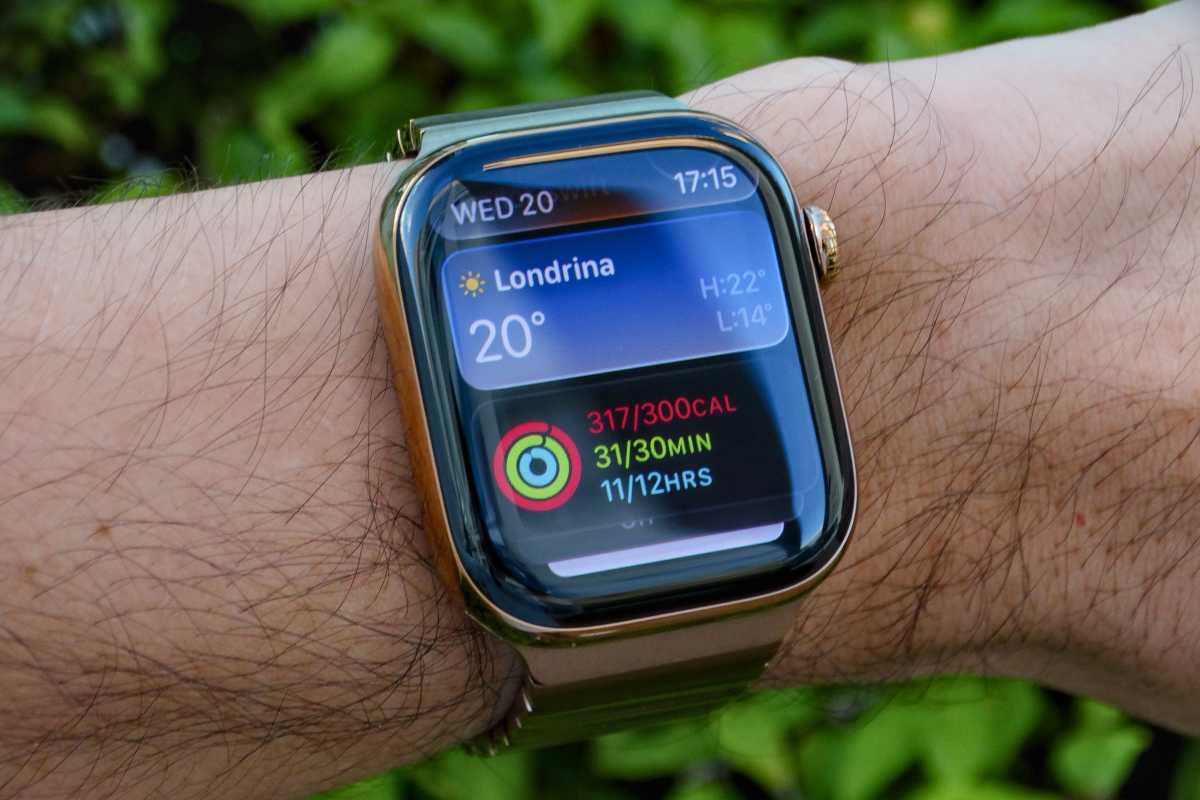
Apple Watch in gold aluminum on a wrist with widgets showing

The Apple Watch has a familiar, easy-to-use interface that’s been crafted over a decade of evolution.

Foundry

Apple also discovered that users were most interested in health and fitness features. By the time the Apple Watch Series 2 was released, Apple already had a clearer vision of what the future of the Apple Watch should look like.

The Apple Watch can now take ECGs (Series 4), track blood oxygen levels (Series 6), measure wrist temperature (Series 8), and much more. The interface has also been continuously updated to make it more practical and convenient, showing useful information at a glance. At the same time, the design now looks more modern, yet still quite familiar.

But the excitement between generations is largely gone. For instance, the Apple Watch Series 11 introduced 5G connectivity, slightly better battery life, and improved durability. These are nice-to-have improvements, but they certainly don’t sound exciting to many people.

When people complain that Apple Watch updates have become boring, they’re not entirely wrong. The differences between recent generations are smaller than they used to be. But that’s also true for many mature product categories.

Smartphones no longer evolve as dramatically as they did 10 years ago. The same applies to laptops. Once companies figure out the ideal balance between hardware and software, improvements become more focused on refinement rather than reinvention. The Apple Watch seems to have reached that point.
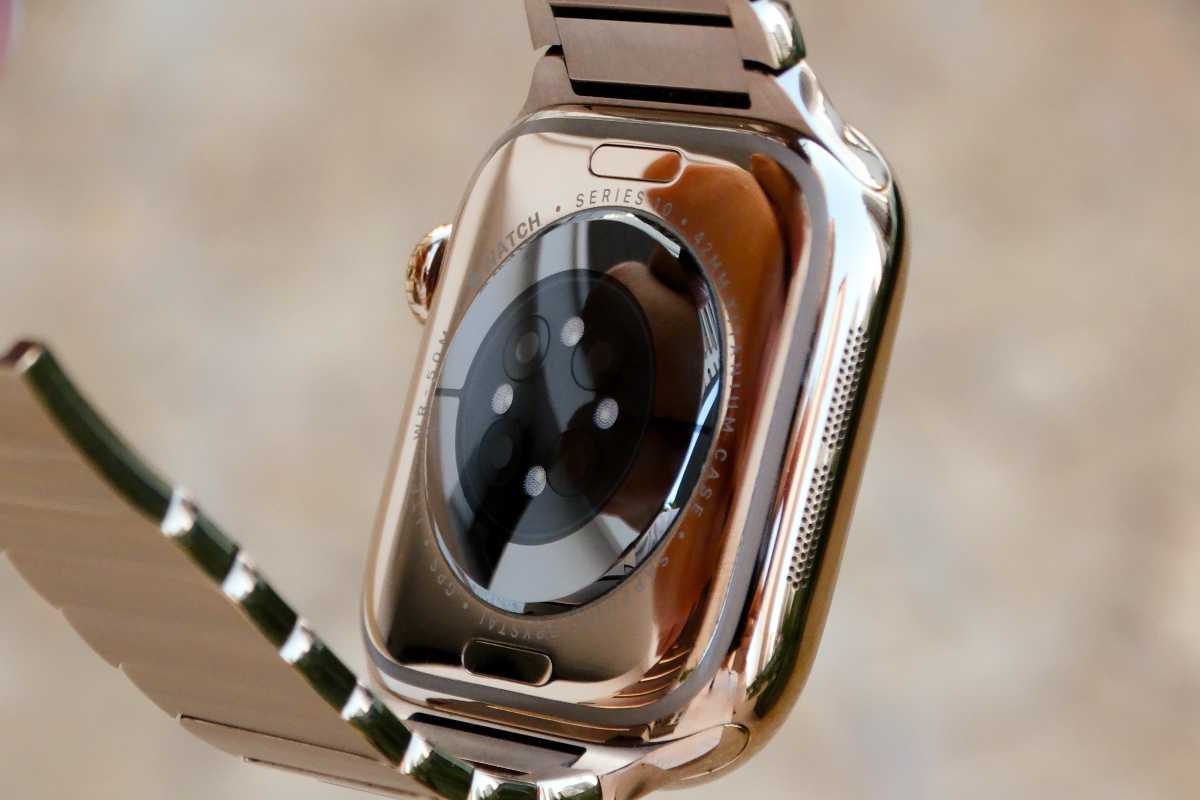
Apple Watch held to show heart-rate sensor

The Apple Watch design has evolved, but there are few notable changes between generations.

Foundry

For instance, the transition from the original Apple Watch to the Series 4 felt huge. Apple introduced a significantly larger display, a more modern design, and an ECG sensor. The evolution from Series 4 to Series 11, however, feels much smaller. And honestly, that’s fine.

The Apple Watch already does most things people expect from a smartwatch extremely well. Notifications are reliable, fitness tracking works great, health features have become incredibly advanced, and the integration with the iPhone remains unmatched.

Competition lagging behind

Looking at the smartwatch landscape, it’s clear that other smartwatches have also improved significantly. For Android users, there are great options such as Google’s Pixel Watch. Garmin remains unbeatable when it comes to battery life and advanced fitness metrics. And just this week, Samsung unveiled the Galaxy Watch 9 and Galaxy Watch Ultra 2 with AI fitness coaching and more accurate health tracking.

Even so, none of these products can beat the full Apple Watch experience on its own. The Apple Watch still feels like the default smartwatch for most people, especially for iPhone users. In fact, it’s hard to think of another wearable that integrates so seamlessly and simply with any other ecosystem.

This is due, in large part, to the advantages of Apple’s Continuity features. Users love features like unlocking their Mac with their Apple Watch, syncing health data across devices, or quickly pinging their iPhone with just a tap, not to mention the integration with Apple Fitness+. Competitors still struggle to fully replicate that experience.
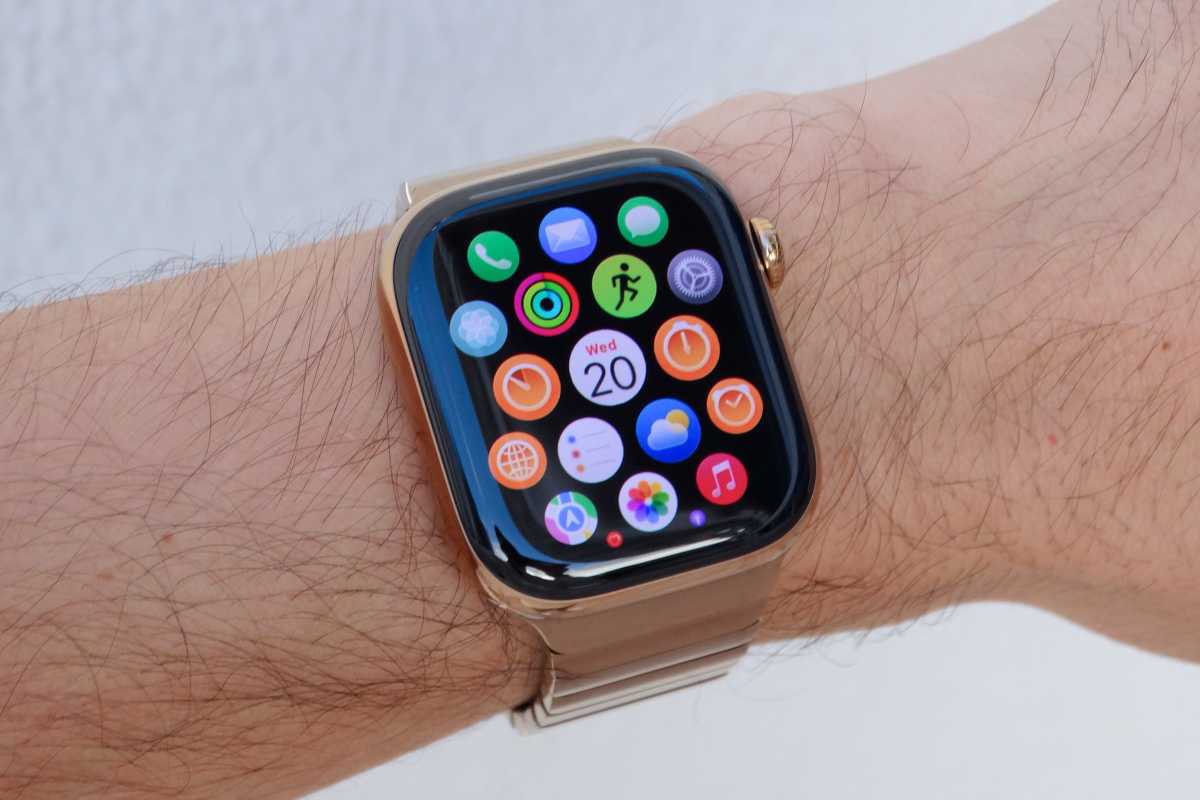
Apple Watch in gold aluminum on a wrist with app grid showing

None of Apple Watch’s competitors can compete with the smarts and simplcity of watchOS.

Foundry

That’s why the Apple Watch feels so mature today. It’s no longer trying to prove itself with experimental ideas or flashy concepts. It has already figured out what most people expect from a smartwatch, and now it simply does those things better than anyone else.

Plus, Apple just announced watchOS 27, which brings Apple Intelligence and the new Siri AI to the Apple Watch for the first time. Gemini support was one of the main advantages of buying a Pixel or Galaxy watch, and even though the new Siri will require a nearby iPhone, it takes away one of the few reasons to consider an Android watch.

Some companies are taking a very different approach, such as Samsung with the Galaxy Ring, Google with the screenless Fitbit Air, and Garmin’s new CIRQA Smart Band. Still, these products don’t have the same appeal as the Apple Watch. They just feel incomplete compared to a fully integrated communication device.

Room for improvement

At this point, Apple doesn’t need another major Apple Watch redesign. It doesn’t need a camera on your wrist or some other flashy feature that only looks impressive in advertisements.

What the Apple Watch really needs now is to continue gaining quality-of-life improvements. Specifically, better battery life.

The Apple Watch battery has improved over the years, with fast charging support arriving in 2021 and last year’s models getting a significant battery life boost to 24 hours. But after almost 12 years, it’s still a device that requires daily charging, forcing users to find charging windows during the day. And while most Apple Watch owners adapted to this routine, it’s still the biggest compromise of the product.
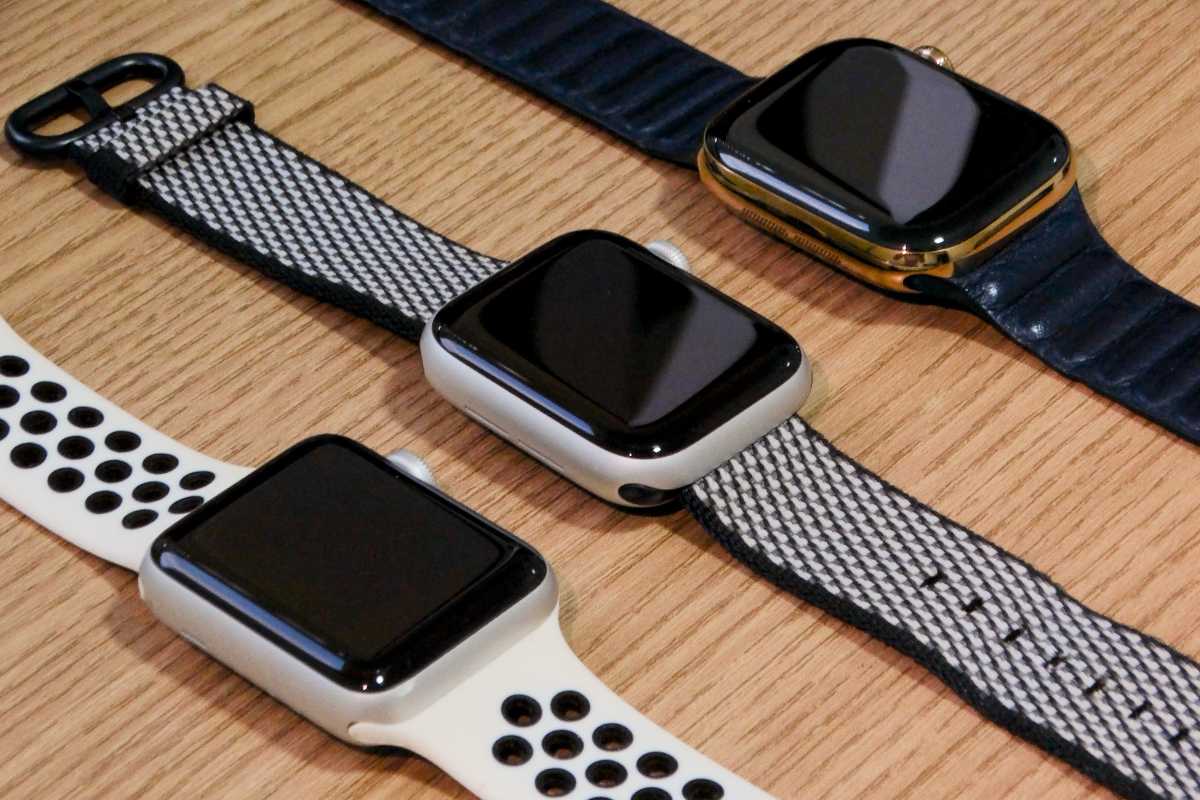
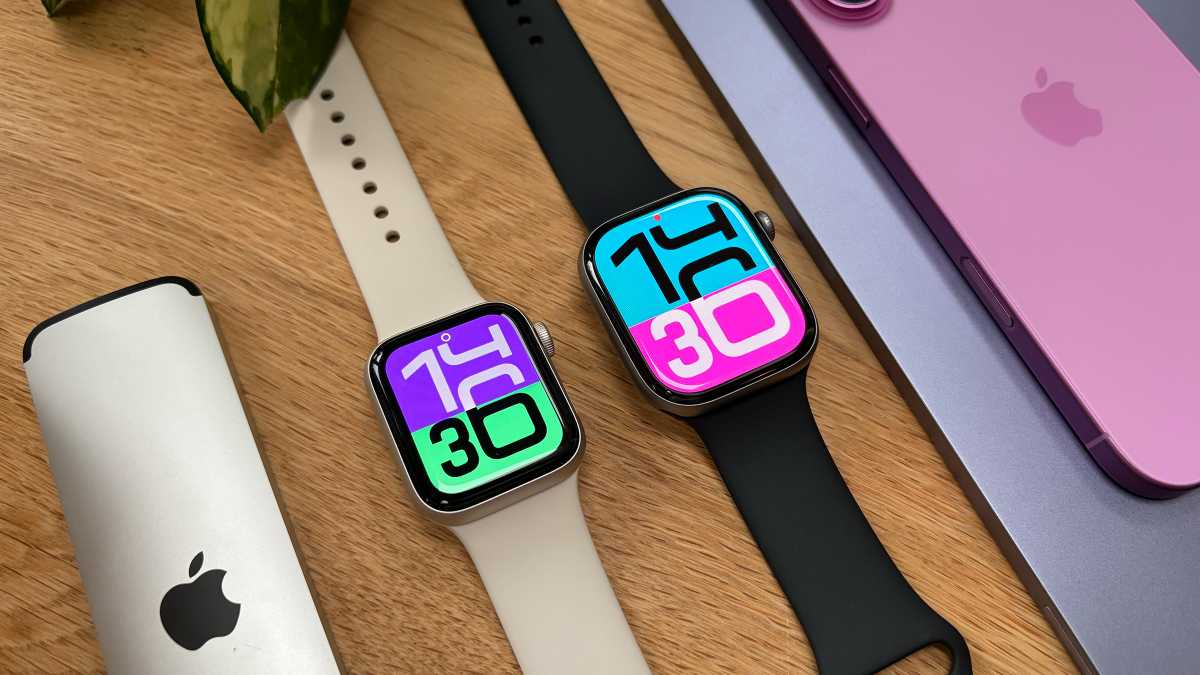
various models of Apple WAtch resting on a tablet

The Apple Watch is iconic in a way no other smartwatch is.

Foundry

Users are no longer asking Apple to reinvent what the smartwatch is supposed to do. Most users already seem satisfied with the overall experience. What they want now are improvements that make the device more practical.

These changes may not sound all that exciting, but they would improve the Apple Watch experience far more than a dramatic redesign or a radical hardware overhaul. This just highlights how mature the Apple Watch has become.

Apple doesn’t need to reinvent the Apple Watch because it already figured out what most people want from a smartwatch. At this point, the future of the Apple Watch isn’t about a dramatic change, but rather about refining what already works very well.


  •  

Keeprix saves streaming videos so your shows & movies can travel with you—on sale for just $96

Macworld

TL;DR: Get Keeprix All-in-One Streaming Video Downloader lifetime access for just $95.99 (reg. $159.99) and download videos from your streaming platforms in up to 4K for offline viewing.

There’s never a bad time to have a few favorite movies or shows ready to watch—especially when Wi-Fi is spotty, you’re traveling, or you simply don’t want to rely on an internet connection.

Keeprix All-in-One Streaming Video Downloader lets you have that forever for a one-time $95.99 (reg. $159.99); For a one-time payment, you get lifetime access to software that lets you download videos from many of today’s most popular streaming platforms and social media sites for offline playback.

Keeprix supports downloads from services including Netflix, Amazon Prime Video, Disney+, Hulu, Max, Paramount+, YouTube, and TikTok, saving videos in MP4 or MKV formats for easy playback on your own devices. It also supports resolutions up to 4K for compatible content, so your downloads can look just as good offline as they do online.

https://youtube.com/watch?v=eqQu98KB0QA%3Ffeature%3Doembed

Beyond downloading, Keeprix includes features that make building a personal media library easier. Queue up multiple videos with batch processing, manage downloads in one place, and enjoy ad-free offline playback whenever it’s convenient.

If you’d rather spend your next flight, commute, or hotel stay watching instead of waiting for a connection, this is how you do it.

Get the Keeprix All-in-One Streaming Video Downloader for life for just $95.99.

Keeprix All-in-One Streaming Video Downloader: Lifetime SubscriptionSee Deal

StackSocial prices subject to change.

  •  

A new PDF editor is only charging $40 for a lifetime license

Macworld

TL;DR: PDF Reader Pro turns your Mac into a full PDF editor with text editing, OCR, forms, and redaction, and a lifetime license is on sale for $40 (reg. $79.99).

Editing a PDF on a Mac usually means exporting to another format or paying monthly for Acrobat because the built-in Preview app really only handles annotation. PDF Reader Pro turns your Mac into a full editing suite, and a lifetime license is on sale for $39.99 (reg. $79.99).

PDF Reader Pro makes quick work of files that are usually deeply frustrating. It can rewrite the original text and swap out images right inside a PDF, close to how you’d edit a Word file. Page management is just as flexible, letting you merge, split, rotate, crop, and reorder pages as often as a document demands. Batch mode compresses, encrypts, and watermarks stacks of files at once instead of one at a time.

OCR reads scanned documents and turns them into searchable, editable text, so a pile of old paper stops being a dead end. You can build fillable forms, fill and sign existing ones, and add a legally binding digital signature when a contract calls for it. A redaction tool blacks out sensitive lines permanently, and password protection keeps private files locked down.

Pay once instead of renting a PDF editor by the month.

Get a PDF Reader Pro lifetime license on sale for $39.99.

PDF Reader Pro Premium License For Mac: Lifetime SubscriptionSee Deal

StackSocial prices subject to change.

  •  

Spät auf der Party, aber bei KI macht Apple alles richtig

Hat sich Apple in den vergangenen Jahren zu sehr auf KI konzentriert – oder nicht genug? Das hängt davon ab, wen man fragt. Einerseits ist das Thema ein Modetrend, allgegenwärtig und hat etwas leicht Apokalyptisches an sich, und ich werde regelrecht deprimiert, wenn ich mir bei Apple-Veranstaltungen die KI-Schlagworte anhören muss. Andererseits: Kann das Unternehmen es sich leisten, den Anschluss zu verpassen? Ja, ich weiß: Das Essen ist furchtbar, und die Portionen sind so klein.

Es stellt sich jedoch heraus, dass Apple in dieser Angelegenheit möglicherweise genau richtig gehandelt hat. Im Nachhinein betrachtet erscheint die merkwürdige Mischung aus enthusiastischen Lippenbekenntnissen und abwartender Zurückhaltung des Unternehmens als perfekt dosiert. Apple beteiligt sich an der KI-Debatte, bleibt dabei jedoch weitaus zurückhaltender als seine schneller agierenden, risikofreudigeren Konkurrenten. Das Unternehmen genießt die Vorteile, ohne die Konsequenzen tragen zu müssen.

Beginnen wir mit den Vorteilen: Nach Jahren unterdurchschnittlicher Leistung und Verzögerungen hat sich die neue, KI-gestützte Version von Siri als wirklich nützlicher Chatbot etabliert. Sie kann zwar noch nicht alles, was ChatGPT bietet, ist aber bei schnellen Fragen zuverlässig, kennt sich mit den iPhone-Daten wie kein anderer Chatbot aus und ist für eine Vielzahl von Aktionen ausgelegt. Sie ist datenschutzkonform, schnell und – ganz in Apple-Manier – gibt es noch Luft nach oben.

Für die überwiegende Mehrheit der iPhone-Besitzer hat sich das Warten auf Siri AI gelohnt. Die Sprachassistenz erfüllt alle erforderlichen Aufgaben und dürfte die negativen Stimmen zum Schweigen bringen, die lautstark über ihren Platz im KI-Ökosystem diskutieren. Der eigentliche Clou ist jedoch, dass Apple das erreicht hat, ohne sich den Schwierigkeiten auszusetzen, mit denen KI-orientiertere Konkurrenten derzeit zu kämpfen haben.

Nehmen wir OpenAI, den Entwickler von ChatGPT und wohl den größten Namen in diesem Bereich. Apple hat das Unternehmen kürzlich wegen Diebstahls von Geschäftsgeheimnissen verklagt, doch das war kaum ein Einzelfall. Allein im Jahr 2023 wurde das Unternehmen dreimal (eins, zwei, drei) wegen Urheberrechtsverletzung von insgesamt 21 Autoren und der „New York Times“ verklagt, während eine vierte Klage im selben Jahr, die 16 anonyme Kläger vertrat, „eine Reihe von Schäden, von Urheberrechtsverletzungen bis zu Abhörmaßnahmen“ geltend machte.

In den Jahren darauf folgten zahlreiche weitere Klagen. Diese betrafen (unter anderem) Stalking, Mord, Selbstmord und zwei separate Amokläufe (eins, zwei). Rechtliche Auseinandersetzungen werden auf absehbare Zeit wahrscheinlich anhalten, ebenso wie das große Interesse der Aufsichtsbehörden.

Was die öffentliche Wahrnehmung angeht, ist OpenAI, gelinde gesagt, umstritten. Das Unternehmen hat zwar einige leidenschaftliche Befürworter, wird jedoch in den Augen vieler mit geschmacklosen Videos und Bildern, Dürre, Arbeitslosigkeit und einer leichtfertigen Haltung gegenüber dem geistigen Eigentum anderer in Verbindung gebracht. Selbst Elon Musk, der selbst kein Unbekannter in Sachen weltweiter Unbeliebtheit ist, bezeichnet den CEO des Unternehmens als „Scam Altman“. Um fair zu sein: Dieser Herr tut sich damit keinen Gefallen.

Apple WWDC 2026 Siri AI Demo
Siri AI ist nicht der beste Chatbot auf dem Markt, aber er ist gut genug.

Apple

Es mag so aussehen, als würde ich OpenAI hart angehen, doch das ist wirklich nur ein Beispiel für die Gegenreaktion. Jedes Mal, wenn sich ein Unternehmen der KI widmet, riskiert es finanzielle Einbußen und Reputationsschäden. Wie Google mit seinen ethnisch vielfältigen Nazis, Samsung mit seinen verwirrenden Datenschutzbestimmungen und Microsoft mit seinen schädlichen Antworten. Wenn er nicht gerade seinen Besitzer auf urkomische Weise auf die Schippe nimmt, bringt Elon Musks Grok-Chatbot ihn in rechtliche Schwierigkeiten, weil er Deepfake-Pornografie erstellt und den Holocaust leugnet.

Im Gegensatz dazu ist Apple unglaublich glimpflich davongekommen: Die Kritik an seiner KI-Strategie drehte sich hauptsächlich darum, dass das Unternehmen nur langsam in die Gänge kommt. Der schlimmste Skandal war wahrscheinlich, dass die KI-Benachrichtigungen unter iOS manchmal verwirrend waren. Und doch ist es nun so weit: Ein funktionierender KI-Chatbot steht nur noch wenige Monate vor seinem Debüt auf Milliarden von Geräten. Und das ohne die erheblichen Investitionen in die KI-Infrastruktur, die es Konkurrenten erschweren, vom Gas zu gehen. Warum eigene, unpopuläre Rechenzentren errichten, wenn man die von Google nutzen kann?

Erfolg hängt nicht nur davon ab, was man gewinnt, sondern auch davon, was es einen kostet. Und unter diesen Gesichtspunkten sieht es so aus, als würde Apple im Bereich der KI die Oberhand gewinnen.

  •  

Warum Sie das iPhone 18 Pro überspringen sollten

Das iPhone 18 Pro wird das beste iPhone sein, das Apple je hergestellt hat. Ich meine, natürlich muss man kein Experte sein, um das vorherzusagen. Die Frage ist jedoch, ob es gegenüber den Modellen von 2025 eine so deutliche Verbesserung darstellen wird, dass es das Geld und das Warten wert ist.

Apples jährliche Hardware-Neuerungen sind oft inkrementell, die Unterschiede zwischen einer Generation und der nächsten relativ gering. Wenn Sie sich beispielsweise fragen, ob Sie sich jetzt ein iPhone 17 Pro zulegen oder auf das iPhone 18 Pro warten sollen, lautet die Antwort: Letzteres wird das Warten wahrscheinlich nicht wert sein. Die für das 18 Pro erwarteten Änderungen werden sich wohl nicht wesentlich auf die wichtigsten Funktionen oder die Art und Weise auswirken, wie Sie Ihr Gerät täglich nutzen.

Das ist jedoch nicht jedes Jahr der Fall. Hin und wieder bringt Apple ein bahnbrechendes iPhone-Modell mit grundlegenden Änderungen an Design und Funktionalität auf den Markt. Das haben wir beim iPhone X gesehen. Das komplett überarbeitete Smartphone stach sofort hervor und ließ das iPhone 8 derselben Generation sowie frühere Modelle im Vergleich dazu altmodisch wirken. Und ich glaube, dass 2027 etwas Ähnliches passieren wird.

Zum 20. Jubiläum des iPhones wird Apple Berichten zufolge sein iPhone dramatisch überarbeiten und eine neue Ära einläuten. Die folgenden sieben Gründe sind genug, um auf das iPhone 19 zu warten.

Tschüss, Bildschirmrahmen

Der ehemalige Apple-Designer Jony Ive stellte sich die ultimative Form des iPhones bekanntlich als eine einzige Glasplatte vor. Das iPhone zum 20. Jubiläum könnte einen wichtigen Meilenstein setzen, indem es dieses Konzept auf die nächste Stufe hebt und erstmals ein rahmenloses Display einführt.

Gerüchten zufolge werden alle vier Kanten des Displays gebogen sein, wodurch sichtbare Rahmen praktisch verschwinden. Das Liquid-Glass-Design für die nächste iOS-Version wird wahrscheinlich so optimiert, dass Software-Elemente mit der Hardware verschmelzen, was zu Realismus und visueller Harmonie führt. Das Smartphone wird natürlich nicht wirklich zu einer reinen Glasplatte, für seine Nutzer wird es sich aber so anfühlen.

Unsichtbare Tasten

Berichte darüber, dass das iPhone seine mechanischen Seitentasten zugunsten haptischer Tasten abschaffen könnte, kursieren bereits seit Jahren. Diese Gerüchte könnten sich dank des gebogenen Displays mit dem iPhone zum 20. Jubiläum endlich bewahrheiten.

Apple könnte Solid-State-Tasten in die Glaskanten integrieren und seine Taptic Engine so verbessern, dass sie beim Drücken sensorisches Feedback gibt – ähnlich wie der Home-Button des iPhone 7. Dies wird das futuristische Erscheinungsbild des iPhones weiter unterstreichen und Lücken beseitigen, in denen sich Fusseln ansammeln können.

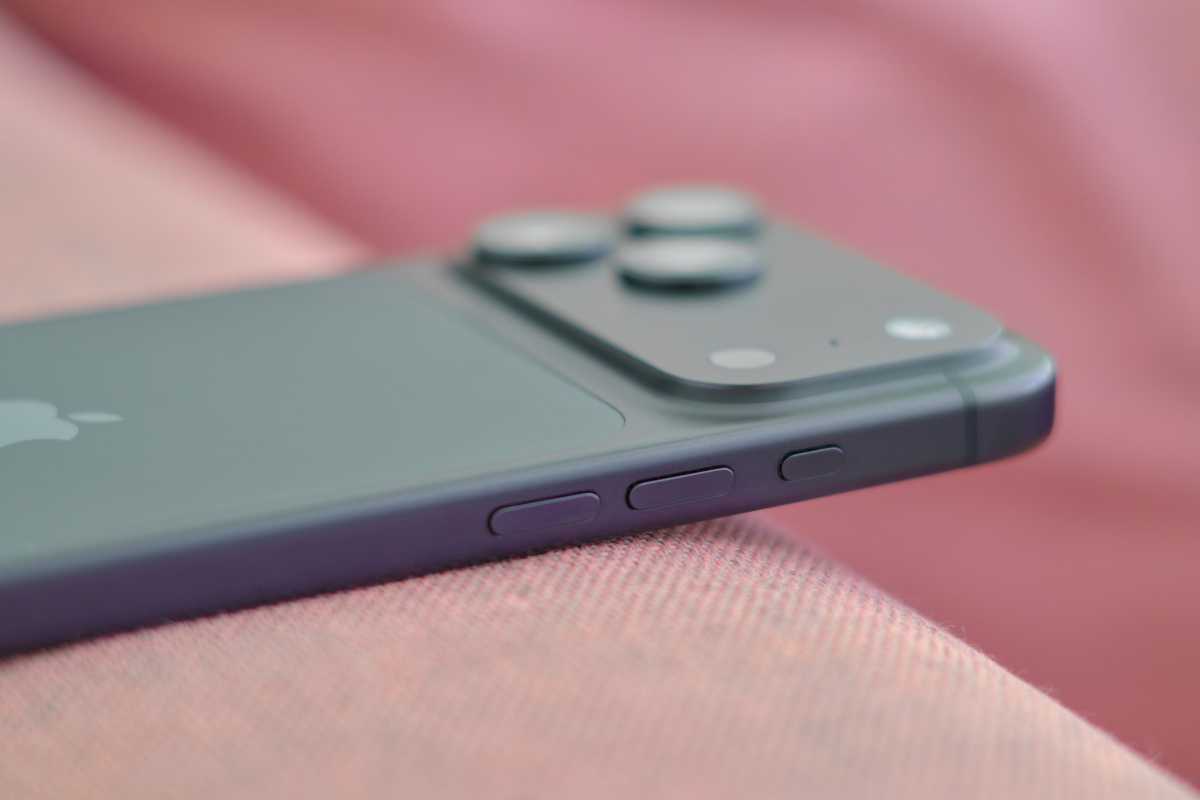
iPhone 17 Pro Max physical buttons
Physische Tasten, die aus Ihrem Smartphone herausragen, sind so 2025.

Mahmoud Itani / Foundry

Apples bisher beeindruckendstes Display

Die Designinnovationen des iPhone von 2027 werden sich wahrscheinlich nicht auf die gebogenen Kanten und haptischen Seitentasten beschränken. Das Gerät soll Berichten zufolge auch über ein dünneres OLED-Panel verfügen, das die Helligkeit erhöht und gleichzeitig den Stromverbrauch senkt.

Besser noch: Die Aussparung am oberen Rand könnte endlich entfallen, wenn die Face-ID-Sensoren und die Frontkamera unter das Display verlegt werden. Dies würde störende Elemente vollständig beseitigen und uns Jony Ives Vision einer „Glasplatte“ noch näher bringen. Sollte Apple die damit verbundenen technologischen Herausforderungen bis dahin nicht bewältigen können, könnte man sich stattdessen mit einem kleineren Dynamic Island begnügen.

Leistungsstarker Akku

Die Akkulaufzeit ist eines der häufigsten Anliegen von Smartphone-Käufern. Das ausschließlich mit eSIM ausgestattete iPhone 17 Pro Max verfügt derzeit mit 5.088 mAh über die größte iPhone-Akkukapazität. Das Modell zum 20. Jubiläum könnte diesen Wert auf bis zu 6.000 mAh steigern. Apple experimentiert zudem mit Silizium-Anodentechnologie, die die Akkulaufzeit verlängern würde, ohne die Größe des Akkus zu verändern.

Apropos Akkus: Das iPhone zum 20. Jubiläum könnte endlich die Unterstützung für umgekehrtes kabelloses Laden bieten, sodass Sie kompatibles Zubehör – wie Airpods – aufladen können, indem Sie es auf die Rückseite des Telefons legen.

Shooting Star

Apple investiert seit Langem in die Fototechnik des iPhones, seine Kamera wird auf diversen Social-Media-Plattformen oft als die beste angesehen. Für das iPhone zum 20. Jubiläum könnte das Unternehmen seinen eigens entwickelten LOFIC-Sensor (Lateral Overflow Integration Capacitor) einführen, der die HDR-Leistung deutlich verbessert.

Die Technologie minimiert Überbelichtung in hellen Bereichen und dunkle Schatten in schattigen Bereichen, indem sie es jedem Pixel ermöglicht, je nach Bedarf unterschiedliche Lichtmengen in einem einzigen Foto zu speichern. Dies würde die iPhone-Fotografie spürbar verbessern, indem mehr Details erhalten bleiben und ausgewogenere Aufnahmen entstehen.

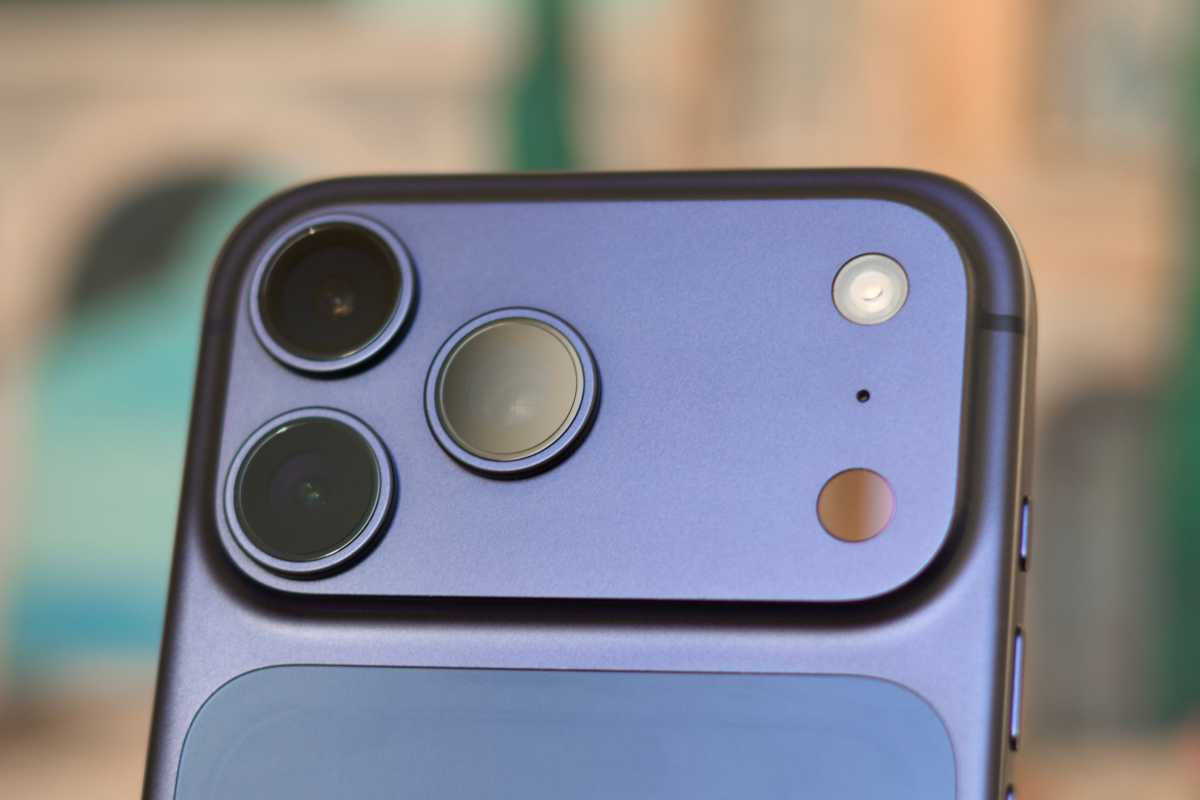
iPhone 17 Pro Max rear cameras
Wenn Sie glauben, die iPhone-Kamera könne nicht noch besser werden, warten Sie bis zum nächsten Jahr.

Mahmoud Itani / Foundry

Geschwindigkeit und Intelligenz

Es versteht sich von selbst, dass das iPhone zum 20. Jubiläum das übliche jährliche Chip-Upgrade und Leistungssteigerungen erhalten wird. Logischerweise bedeutet dies den noch nicht angekündigten A21 Pro, Apples zweiten 2-nm-iPhone-Chip. Er könnte über Mobile High Bandwidth Memory (HBM) verfügen, was die Datenübertragung zwischen RAM und CPU/GPU beschleunigen würde. HBM ist zudem besser für KI-Aufgaben auf dem Gerät optimiert, was die Verarbeitung beschleunigt und den Batterieverbrauch senkt.

Um die Akkulaufzeit weiter zu verlängern, könnte das iPhone-Flaggschiff von 2027 mit einem hauseigenen Apple-Modem ausgestattet sein. Das Unternehmen hat die Mobilfunkchips der C-Serie bereits in ausgewählten Geräten wie dem iPhone Air verbaut. Experten gehen davon aus, dass das Unternehmen diese Chips in allen seinen iPhones einführen wird, sobald sie im nächsten Jahr die Leistung ihrer Qualcomm-Pendants übertreffen.

Preis? Nicht so schmerzhaft, wie Sie vielleicht denken

Da das iPhone zum 20. Jubiläum voraussichtlich deutlich fortschrittlicher wird als seine Vorgänger, könnten sich einige Kunden verständlicherweise Sorgen über eine Preiserhöhung machen. Ein neues Gerücht deutet jedoch darauf hin, dass dieses Sondermodell in der iPhone-Generation 2027 tatsächlich der Pro-Klasse entsprechen wird, anstatt eine neue Produkt-Klasse zu bilden. Auch wenn Apple die Preise noch anheben könnte, wird der potenzielle Anstieg vermutlich nicht drastisch ausfallen. Da das kommende faltbare iPhone Ultra voraussichtlich rund 2.000 US-Dollar kosten wird, wird das Unternehmen wahrscheinlich einen deutlichen Preisabstand zwischen seinen verschiedenen iPhone-Modellen beibehalten wollen.

  •  

Best iPhone to buy in 2026: Which Apple iPhone is right for you?

Macworld

How to choose your iPhone in 2026

Before you jump into the specific iPhone models, think about what matters most to you: battery life for all-day use, camera quality for photos and video, screen size for media or gaming, and how much you’re willing to spend. These simple priorities will help narrow down whether you should choose a Pro model, a middle option like the standard iPhone 17, a lightweight iPhone Air, or a more budget-friendly choice.

Deciding which iPhone to buy has always been tricky and no doubt you have many questions. Which screen size is best for you, and how much storage do you need? Should you save money by selecting an older model, or should you splash out on the latest iPhone? Which iPhone is the best compromise between specs and value for money?

In this article, we talk you through each of the phones currently available from Apple, to help you decide which is best for you. We discuss iPhone prices, specs and features, paying particular attention to the cameras, screens and durability, and how the design of each handset differs, so you should leave feeling much more confident about which iPhone you should get.

For more help with your choice see our full reviews of the latest iPhones (linked below) and our Best iPhone comparison chart where we compare all the new iPhones with the iPhones still being sold by Apple.

Should I buy an iPhone now?

Summer is usually the worst time to buy an iPhone, but 2026 is an exception. Apple recently raised Mac and iPad prices but left iPhones unchanged, leading many analysts to expect the iPhone 18 Pro models to become significantly more expensive when they launch this September.

That makes the iPhone 17 Pro a strong buy right now. The rumored iPhone 18 Pro upgrades don’t appear substantial enough to justify an expected price increase of around $200 or more.

The standard iPhone 17 is an even easier recommendation. Its successor isn’t expected until spring 2027, so it should remain Apple’s current base flagship for almost another year. Starting at $799/£799 with 256GB of storage, it’s also one of the best values in the lineup.

The exceptions are the rumored foldable iPhone Ultra, if that’s the model you want, and the iPhone 18 Pro Max if you’re willing to pay more for its expected camera improvements.

If you need a new phone now, the iPhone 17 or iPhone 17 Pro are excellent buys that could save you money compared with waiting for the iPhone 18 and 18e, which aren’t expected until spring 2027.

ModelModelModel
iPhone 17YesNo successor until spring 2027; current price is stable
iPhone 17 ProYesAvoids expected $200+ price hike on 18 Pro; similar AI features
iPhone 17 Pro MaxConsiderBest battery/camera today, but 18 Pro Max may improve further
iPhone 17eYesBudget-friendly; successor not due until 2027
iPhone AirIf discountedAir 2 coming spring 2027, but current deals are strong
iPhone 18 Pro & MaxWaitExpected September with higher price and incremental upgrades
iPhone Ultra (foldable)WaitFirst-gen product; likely expensive and flawed

Best iPhone 2026

  • For most people, Apple’s standard iPhone 17 offers the best mix of performance, battery life, and price… but the 17 Pro and Max models make sense if you care about photography or video.

In terms of power and features, the ‘best’ iPhone is either the iPhone 17 Pro or 17 Pro Max, but these iPhoned aren’t necessarily the best for you due to their high price tag. Luckily there is a perfect iPhone for everyone, with each model offering the perfect compromise of features to price. For 2026 we think that the iPhone 17 is a good all-rounder thanks to the new features that bring it closer than ever to the pro models.

Here is a quick-at-a-glance comparison of all the iPhones Apple currently sells, from the ultimate iPhone to the cheapest iPhone you can buy right now. Below this section you can read more about how each iPhone compares in terms of camera, battery life, screen, cost, and other important factors.

1. Apple iPhone 17 Pro Max – Biggest display, longest battery life, best camera

Apple iPhone 17 Pro Max - Biggest display, longest battery life, best camera
Best Prices Today:
Retailer
Price
Price comparison from over 24,000 stores worldwide
Product
Price
Price comparison from Backmarket

What is the iPhone 17 Pro Max best for?
The iPhone 17 Pro Max is Apple’s ultimate iPhone for photography, videography and all-day battery life, making it the best choice for demanding users and content creators.

Why buy the iPhone 17 Pro Max?
The iPhone 17 Pro Max combines Apple’s most advanced camera system with the longest battery life ever in an iPhone, making it ideal for capturing photos and 4K video without compromise. It also delivers class-leading performance from the A19 Pro chip, fast USB 3 transfers and enough power for professional creative work as well as everyday use.

Who should buy the iPhone 17 Pro Max?
Anyone who wants the best iPhone cameras, the longest battery life and flagship performance, especially photographers, videographers and power users.

Who should avoid the iPhone 17 Pro Max?
Anyone who wants a lighter, more affordable iPhone or doesn’t need pro-level camera features should consider the standard iPhone 17 instead.

Key specs

  • Starts at: $1,199 / £1,199 (256GB)
  • Display: 6.9-inch Super Retina XDR OLED with ProMotion (120Hz)
  • Chip: A19 Pro
  • Storage: 256GB–2TB
  • Cameras: Triple 48MP system (Main, Ultra Wide and 4x Telephoto) with up to 8x optical-quality zoom
  • Battery: Up to 39 hours of video playback

Buy now or wait?
Buy the iPhone 17 Pro Max now if you want the best iPhone available today. However, if you always want Apple’s very best camera system and longest battery life, the iPhone 18 Pro Max is expected to introduce more meaningful camera improvements, although you’ll likely pay a substantial premium.

Read our full Apple iPhone 17 Pro Max review

2. Apple iPhone 17 Pro – Best balance of price and pro features

Apple iPhone 17 Pro - Best balance of price and pro features
Best Prices Today:
Retailer
Price
Price comparison from over 24,000 stores worldwide
Product
Price
Price comparison from Backmarket

What is the iPhone 17 Pro best for?
People who want the best compact iPhone, with flagship performance and an outstanding camera system.

Why buy the iPhone 17 Pro? It combines Apple’s A19 Pro chip with one of the best camera systems on any smartphone, including three 48MP rear cameras that deliver excellent photos and video. It also offers a 6.3-inch OLED display, strong all-day battery life and premium build quality in a size that’s easier to handle than the Pro Max.

Who should buy it?
Anyone who wants Apple’s best cameras and performance without stepping up to the larger Pro Max.

Who should avoid it?
Owners of an iPhone 16 Pro or anyone happy with the regular iPhone 17, as the upgrades may not justify the extra cost.

Key specs:

  • Starts at: $999 / £999
  • Display: 6.3-inch Super Retina XDR OLED with 120Hz ProMotion
  • Chip: Apple A19 Pro
  • Storage: 256GB–1TB
  • Cameras: 48MP main + 48MP ultrawide + 48MP telephoto, 18MP front camera
  • Battery: Up to 33 hours of video playback

Buy now or wait?
Buy now if you want a premium compact iPhone – the iPhone 17 Pro remains one of Apple’s best all-round phones, and the improvements expected in the iPhone 18 Pro are unlikely to justify waiting unless you specifically want the newest model.

Read our full Apple iPhone 17 Pro review

3. Apple iPhone 17 – Best value iPhone for most people

Apple iPhone 17 - Best value iPhone for most people
Best Prices Today:
Retailer
Price
Price comparison from over 24,000 stores worldwide
Product
Price
Price comparison from Backmarket

What is the iPhone 17 best for? The iPhone 17 is the best all-round iPhone for most people, offering flagship features and excellent value without the Pro price.

Why buy iPhone 17? The iPhone 17 brings several upgrades that were previously exclusive to Pro models, including a larger 6.3-inch 120Hz ProMotion display with always-on support, while doubling the base storage to 256GB without increasing the starting price. It also delivers superb battery life, excellent everyday performance from the A19 chip, and a significantly improved front camera, making it one of Apple’s best-value iPhones in years.

Who should buy it? Anyone who wants the best balance of price, performance and features without paying extra for the Pro models.

Who should avoid it? Mobile photographers, videographers and power users who need a telephoto camera, faster USB transfers or the most advanced camera system should choose the iPhone 17 Pro instead.

Key specs:

Starts at: $799 / £799 (256GB)
Display: 6.3-inch OLED ProMotion (120Hz)
Chip: A19
Storage: 256GB–512GB
Cameras: 48MP main + 48MP ultrawide, 24MP front camera
Battery: Up to 27 hours video playback

Buy now or wait? Buy now – the iPhone 17 delivers excellent value, and with the iPhone 18 unlikely to launch before the spring, and expected to bring higher prices rather than major upgrades, it’s a smart purchase today

Read our full Apple iPhone 17 review

4. Apple iPhone Air – Ultra-thin and lightweight iPhone

Apple iPhone Air - Ultra-thin and lightweight iPhone
Best Prices Today:
Retailer
Price
Price comparison from over 24,000 stores worldwide
Product
Price
Price comparison from Backmarket

What is the iPhone Air best for?
The iPhone Air is best for people who want the thinnest, lightest iPhone ever without giving up flagship performance.

Why buy the iPhone Air?
The iPhone Air’s standout feature is its incredibly thin 5.6mm titanium design, which makes it feel noticeably lighter and more comfortable than any other large-screen iPhone. Despite its slim profile, it still delivers flagship-level performance with the A19 Pro chip, a gorgeous 6.5-inch ProMotion OLED display, and a much-improved Center Stage front camera.

Who should buy iPhone Air?
Anyone who values an ultra-light, premium iPhone with a larger display and is willing to trade camera versatility and battery life for its unique design.

Who should avoid iPhone Air?
Photography enthusiasts and heavy users who want the best battery life, multiple rear cameras, or stereo speakers should choose an iPhone 17 Pro instead.

Key specs:

  • Starts at: $999 / £999 (256GB)
  • Display: 6.5-inch OLED ProMotion (120Hz)
  • Chip: A19 Pro (5-core GPU)
  • Storage: 256GB–1TB
  • Cameras: 48MP main + 18MP Center Stage front camera
  • Battery: Up to 23 hours video playback

Buy now or wait? Buy now if you love its unique thin-and-light design – it’s unlike any other iPhone – but if battery life and camera versatility matter more, the iPhone 17 Pro offers better value for the money. We often see a decent discount on this handset, especially in the U.K. where it’s sold off contract.

Read our full Apple iPhone Air (2025) review

5. Apple iPhone 17e – Best budget iPhone

Apple iPhone 17e - Best budget iPhone
Best Prices Today:
Retailer
Price
Price comparison from over 24,000 stores worldwide
Product
Price
Price comparison from Backmarket

What is the iPhone 17e best for? The iPhone 17e is the best-value entry point into the iPhone lineup, offering flagship-level performance and long-term software support at Apple’s lowest price.

Why buy iPhone 17e? The iPhone 17e delivers excellent everyday performance thanks to the A19 chip while adding meaningful upgrades over its predecessor, including MagSafe support and 256GB of base storage. Its attractive design, solid battery life and lower price make it an easy recommendation for anyone who doesn’t need the advanced cameras or display features of the Pro models.

Who should buy iPhone 17e? Anyone upgrading from an iPhone 12 or 13, switching from Android, or buying their first iPhone without paying flagship prices.

Who should avoid iPhone 17e? Photography enthusiasts and power users who want multiple rear cameras, an always-on display or a high-refresh-rate screen should look at the iPhone 17 or iPhone 17 Pro instead.

Key specs:

  • Starts at: $599 / £599 (256GB)
  • Display: 6.1-inch Super Retina XDR OLED
  • Chip: A19
  • Storage: 256GB–512GB
  • Cameras: 48MP Fusion main (with 2x optical-quality zoom) + 12MP TrueDepth front
  • Battery: Up to 26 hours of video playback

Buy now or wait? Buy now – the iPhone 17e is new for 2026, offers excellent value, and isn’t expected to be replaced until early 2027.

Read our full Apple iPhone 17e review

6. Apple iPhone 16 Plus – Budget big screen iPhone

Apple iPhone 16 Plus - Budget big screen iPhone
Best Prices Today:
Retailer
Price
Price comparison from over 24,000 stores worldwide
Product
Price
Price comparison from Backmarket

What is the iPhone 16 Plus best for? With no iPhone 17 Plus in Apple’s current lineup, the iPhone 16 Plus is the only affordable large-screen iPhone, pairing a spacious 6.7-inch display with a significantly lower price than the Pro Max.

Why buy iPhone 16 Plus? The iPhone 16 Plus remains a compelling choice because Apple didn’t release a successor, making it the only large-screen, non-Pro iPhone available. Its larger chassis also accommodates a bigger battery, delivering up to 27 hours of video playback.

Who should buy iPhone 16 Plus? Anyone who wants a large-screen iPhone without paying Pro Max prices, especially those who value long battery life and a display that’s easier to read.

Who should avoid iPhone 16 Plus? Buyers who want a 120Hz ProMotion display, an always-on display or a dedicated telephoto camera should consider an iPhone Pro model instead. The 128GB base storage may also be limiting for some users.

Key specs:

  • Starts at: $799 / £799 (128GB)
  • Display: 6.7-inch Super Retina XDR OLED
  • Chip: A18
  • Storage: 128GB–256GB
  • Cameras: 48MP main + 48MP ultrawide + 12MP TrueDepth front
  • Battery: Up to 27 hours of video playback

Buy now or wait? Buy now – with no iPhone 17 Plus available, the iPhone 16 Plus remains the best-value way to get a large-screen iPhone without paying Pro Max prices.

Read our full
iPhone 16 and 16 Plus review

7. Apple iPhone 16 – The iPhone to avoid

Apple iPhone 16 - The iPhone to avoid
Best Prices Today:
Retailer
Price
Price comparison from over 24,000 stores worldwide
Product
Price
Price comparison from Backmarket

What is the iPhone 16 best for? The iPhone 16 offer Apple Intelligence features and an excellent camera at a lower price.

Why buy the iPhone 16? The iPhone 16 still delivers fast everyday performance thanks to its A18 chip, supports Apple Intelligence, and has an excellent 48MP main camera. It’s a capable phone, but its biggest advantage is simply that it can often be found discounted below the newer models.

Who should buy the iPhone 16? Budget-conscious buyers who can find it at a significant discount and want a dual-camera iPhone.

Who should avoid it?
Most buyers should skip it, as the iPhone 17 and iPhone 17e offer better value, with newer hardware and improved specifications for little or no extra cost.

Key specs

  • Starts at: $699 / £699
  • Display: 6.1-inch Super Retina XDR OLED
  • Chip: A18
  • Storage: 128GB, 256GB or 512GB
  • Cameras: 48MP main + 12MP ultrawide
  • Battery: Up to 22 hours of video playback

Buy now or wait? Don’t buy at full price. Unless you find a substantial discount, the iPhone 17 and iPhone 17e are better-value purchases.

We discuss how the iPhone 16 compares to the iPhone 17 in a separate article.

Read our full Apple iPhone 16 review

How much do iPhones cost?

Each year, Apple reduces the price of the older iPhone models it continues to sell after introducing a new generation. The tables below show current pricing in the U.S., U.K., Canada and Australia (scroll across to see your region).

In the U.S., iPhone prices are often advertised with carrier subsidies, while unlocked models cost more. In the U.K. and many other countries, Apple sells iPhones unlocked, allowing you to use your existing SIM or switch networks whenever you like.

Will iPhone prices increase? There is a strong chance they will. Apple raised Mac and iPad prices in June because of a global RAM shortage but left iPhone prices unchanged. Many analysts believe that was only a temporary reprieve, with the iPhone 18 Pro models expected to receive a significant price increase when they launch in September 2026. If you’re planning to buy a Pro model, purchasing an iPhone 17 Pro now could help you avoid paying more for relatively modest upgrades.

ModelRelease dateStorage optionsU.S. Price U.K. PriceCanada PriceAustralia Price
iPhone 17 Pro MaxSeptember 2025256GB
512GB
1TB
2TB
$1,199
$1,399
$1,599
$1,999
£1,199
£1,399
£1,599
£1,999
$1,749
$2,049
$2,349
$2,949
$2,199
$2,549
$2,899
$3,799
iPhone 17 ProSeptember 2025256GB
512GB
1TB
$1,099
$1,299
$1,499
£1,099
£1,299
£1,499
$1,599
$1,899
$2,199
$2,049
$2,399
$2,749
iPhone AirSeptember 2025256GB
512GB
1TB
$999
$1,199
$1,399
£999
£1,199
£1,399
$999
$1,199
$1,399
$1,799
$2,199
$2,599
iPhone 17 September 2025256GB
512GB
$799
$999
£799
£999
$1,129
$1,429
$1,399
$1,799
iPhone 16 PlusSeptember 2024128GB
256GB
$799
$899
£799
£899
$1,149
$1,299
$1,399
$1,699
iPhone 16
September 2024
128GB$699£699$999$1,249
iPhone 17eMarch 2026256GB
512GB
$599
$799
£599
£799
$899
$1,199
$999
$1,399
iiPhone prices July 2026.

You don’t have to pay full price for a new iPhone. Read our iPhone deals roundup for more advice on getting the lowest possible price from various different resellers and the best contract deals.

Design: How do the iPhones compare?

Current iPhone Line Up 2026

The iPhone line up for most of 2026.


Apple

Camera Control button: The whole iPhone 17 line up, the iPhone Air, and the iPhones 16 and 16 Plus all feature the Camera Control button on the side of the iPhone. The iPhone 17e lacks this button. The Camera Control button opens the Camera app and you can press it again to take a photo or record a video. The button is actually touch sensitive so you can use various gestures, such as sliding your finger over it to adjust exposure, for example. On the iPhone 17e you can set the Action button to open the camera and take a photograph, but you can’t fine tune settings in the same way.

Action Button: The Action Button features on the whole of the iPhone 16 and 17 line up, and the iPhone Air. It is a customisable button that can perform certain actions, such as turning on the flashlight or silent mode. The Action Button is above the volume controls in the same position as the mute button on older iPhones.

Dynamic Island: From the front all the iPhones are visually similar. Each iPhone has an area at the top of the screen that conceals the front camera and Face ID technology. On the iPhone 16e this is referred to as the notch. On the iPhone 17 series, iPhone Air and the iPhone 16 and 16 Push this is a smaller pill shaped adaptive area called the Dynamic Island that can display Live Activities and other software elements in a way that makes the notch a little more useful.

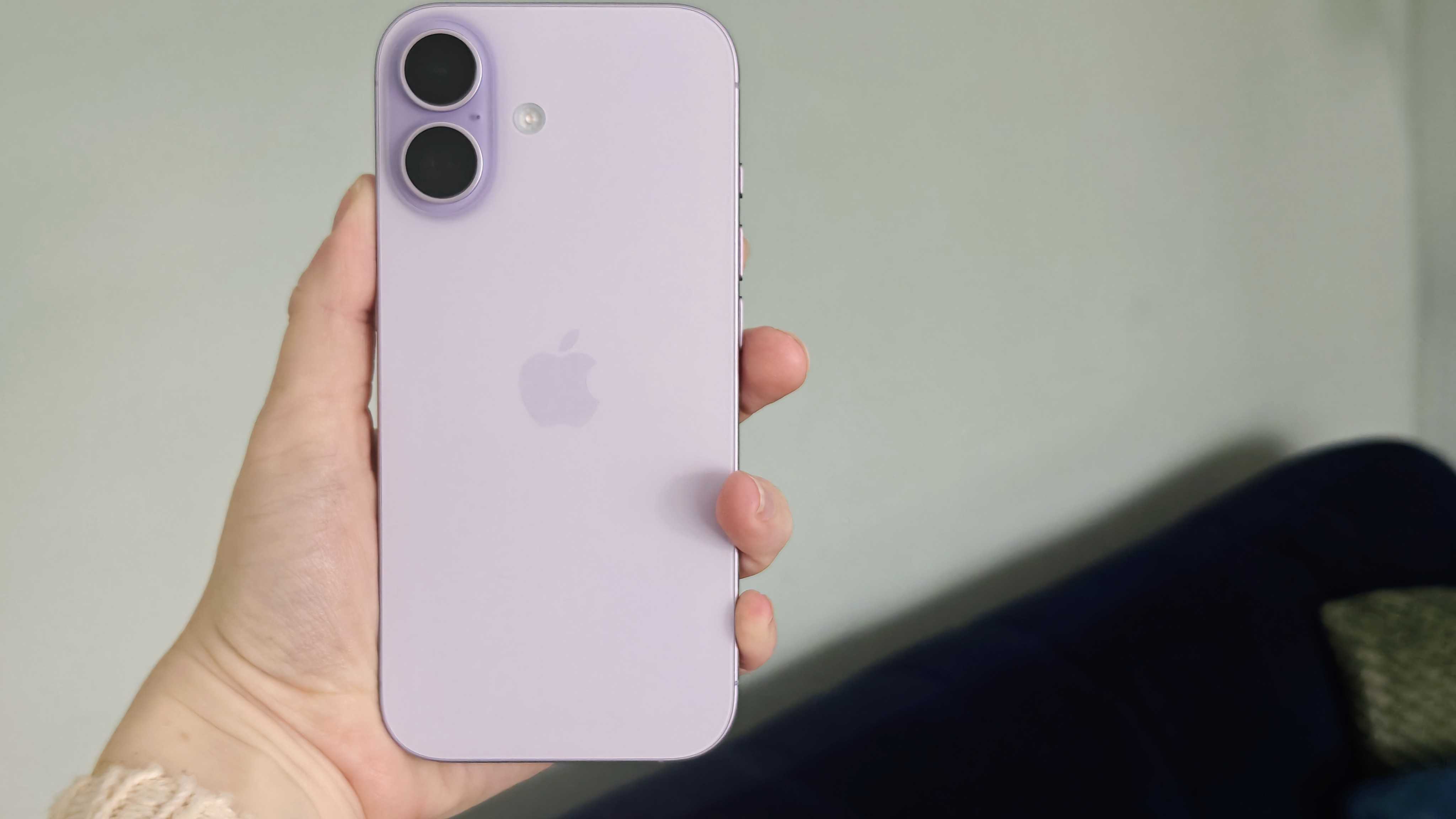
Camera layout: Turn the iPhones over and the differences become much clearer. As you can see from the image above, the iPhone 17 Pro and Pro Max have three lenses laid out in a triangle formation. For these models the flash and LiDAR scanner have been moved to the other side of what Apple is calling the Camera Plateau, where in older models they were closer to the lenses. The iPhone 16 has two lenses, one above the other, and the iPhone Air has a single lens on it’s own Camera Plateau that stretches the width of the iPhone, unlike the single lens of the iPhone 17e.

Dimensions The most obvious difference is the dimensions and weight of each phone. We’ve detailed these in the chart below.

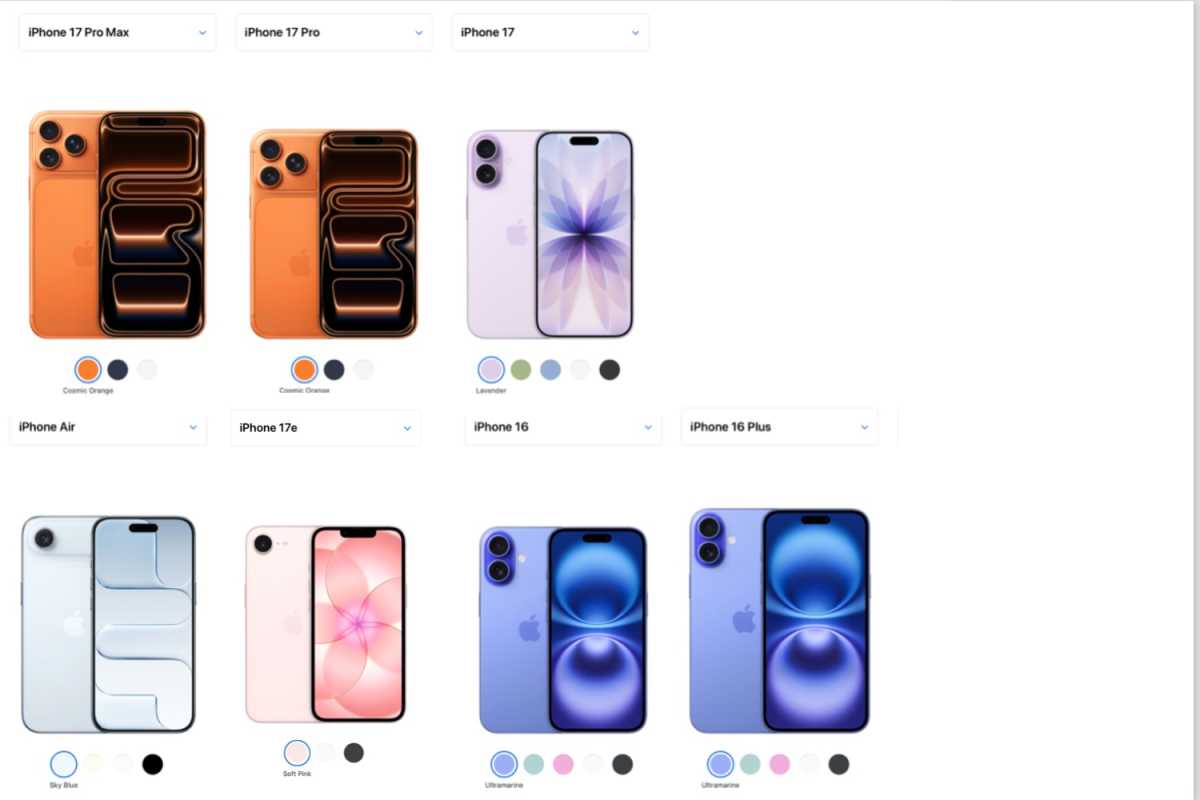
Colors: While it’s very likely that you will put your iPhone in a case and never look at the color on the back again, the color choices available for each iPhone model is another area where there is a lot of difference. You can see the different colors on offer in the chart below.

Here’s how the dimensions and colors compare:

iPhoneDimensionsWeightColors
iPhone 17 Pro Max6.43 inches (163.4 mm) x 3.07 inches (78 mm) x 0.34 inch (8.75 mm)8.15 ounces (231 grams)Cosmic Orange, Deep Blue, Silver
iPhone 17 Pro5.91 inches (150 mm) x 2.83 inches (71.9 mm) x 0.34 inches (8.75 mm)7.20 ounces (204 grams)Cosmic Orange, Deep Blue, Silver
iPhone 175.89 inches (149 mm) x 2.81 inches (71.5 mm) x 0.31 inches (7.95 mm)6.24 ounces (177 grams)Lavender, Sage, Mist Blue, White, Black
iPhone Air6.15 inches (156.2 mm) x 2.94 inches (74.7 mm) x 0.22 inches (5.82 mm)6.24 ounces (177 grams)Sky Blue, Light Gold, Cloud White, Space Black
iPhone 16 Plus6.33 inches (160.9 mm) x 3.06 inches (77.8 mm) x 0.31 inch (7.80 mm)7.03 ounces (199 grams)Ultramarine, Teal, Pink, White, Black
iPhone 165.81 inches (147.6 mm) x 2.82 inches (71.6 mm) x 0.31 inch (7.80 mm)6.00 ounces (170 grams)Ultramarine, Teal, Pink, White, Black
iPhone 17e5.78 inches (146.7 mm) x 2.82 inches (71.5 mm) x 0.31 inch (7.80 mm)5.88 ounces (167 grams)Black, White, Soft Pink
How Apple’s iPhone lineup compares, summer 2026.

Screen: How are the iPhone displays different?

The Pro and Pro Max iPhones used to be the only iPhones to offer ProMotion, which allows for an adaptive refresh rates, with the refresh rate going as high as 120Hz for really smooth scrolling and as low as 1Hz. This is no longer the case: the iPhone 17 and iPhone Air also feature ProMotion screens. And is doesn’t stop there: the iPhone 17 and iPhone Air also feature Always-On displays, which was another feature previously reserved for the Pro models. As a result the iPhone 17, 17 Pro, 17 Pro Max and iPhone Air all have identical screens.

The iPhone 16, 16 Plus and 16e lack the ProMotion and Always-On displays, the peak outdoor brightness is higher on the newer iPhones as well, with the 17-series offering 3,000 nits peak, compared to 2,000 on the iPhone 16 and 16 Plus. The peak brightness on the iPhone 16e is 1,200 nits. The ability for the screen to get very very dim (down to 1 nit) while still remaining usable is also key as it’s great for use in dark rooms. The iPhone 16e is the only iPhone in the current line up that lacks this dimming feature.

The Always-On screen, on all the iPhones except the 16e, means the iPhone can always display elements such as the time and date, notifications and Lock Screen widgets without it being necessary to wake the iPhone. The screen dims to minimize onscreen power usage to preserve battery life and it will turn off should you place it face down or walk away while wearing an Apple Watch.

The screen size may be the most important factor in your decision. If you prefer a larger screen, you’ll want the “Pro Max” version. The iPhone 17 Pro Max has a screen size of 6.9 inches diagonally. The next largest screen is on the iPhone 16 Plus at 6.7-inches, and then the iPhone Air at 6.5-inches. But even the iPhone 17 and 17 Pro have a 6.3-inch display which is by no means diminutive. The iPhone 16 and 17e have the smallest screens: both are 6.1-inches.

Camera: How do the iPhone cameras compare?

iPhone 17 Pro Max rear camera system
The iPhone 17 Pro and Pro Max have a new camera configuration on the rear side.

Foundry

Rear cameras

For many it’s the capabilities of the cameras that sell the iPhones, so it’s no wonder that every year Apple improves the camera on its iPhones, sometimes improving the tech, sometimes the software. The iPhone 17 still features a dual-camera array with wide and ultra-wide lenses, while only the Pro and Pro Max offer the additional telephoto lens.

In 2024 the iPhone 16 Pro and Pro Max gained a 48 megapixel Ultra Wide camera and the iPhone 16 and 16 Plus gained a 48MP Fusion Main camera, which is also a feature of the 16e.

This time all the rear cameras are upgraded to 48MP. In the case of the iPhone 17 Pro and Pro Max that’s three 48MP cameras, two for the iPhone 17. The iPhone Air has the same 48MP Fusion Main camera as the 16e. The 48MP upgrade across the board should mean more detail when you crop into images. On the iPhone 17 and iPhone Air the extra pixels mean you can shoot 12MP shots as if you had a 2x Telephoto lens. The 48MP images will take up a lot more space though, so it is possible to switch to shooting in a 24MP resolution.

The most impressive camera upgrade is reserved for the iPhone 17 Pro and Pro Max, of course, the telephoto zoom now achieves a 8x optical zoom, up from 5x. This extra lens is likely to be the reason why most people will opt for the 17 Pro over the standard iPhone 17. It offers a little more flexibility in terms of the kind of shots that can be taken, such as portraits and looming into the distance, and macro shots.

The pro models also offer pro video recording features, including ProRes video recording up to 4K at 120 fps, LOG video recording and Academy Color Encoding.

The iPhone 17e and iPhone Air feature a single-lens camera system, omitting certain advanced features found in higher-end models. However, they still delivers notable improvements over previous budget iPhones, with camera capabilities that are suitable for everyday photography needs.

Front ‘selfie’ camera

iPhone 17 Pro Max taking selfie

Foundry

The front camera on all the iPhones, aside from the iPhone 17e, is 18MP (the iPhone 17e retains the 12MP camera of its predecessor). The greater number of megapixels combined with a larger sensor results in more detailed images. The sensor isn’t only larger, it’s now square, which means that it is no longer necessary to turn the iPhone orientation to take portrait or landscape selfies, the image can be cropped for either orientation and can adjust on the fly to give a better framing, for example to include more people in a group shot.

This is also beneficial for FaceTime, because the Centre Stage feature can make sure that subjects are kept centred during a call.

Another feature for the late 2025 iPhones is the ability to record from the rear and front cameras at the same time, so you can capture your reaction.

Also read: Which iPhone has the best camera?

iPhoneCamerasVideoPhoto & video features
iPhone 17 Pro and Pro MaxThree rear cameras: 48MP Main (ƒ/1.78 aperture), 48MP Ultra Wide (ƒ/2.2 aperture) and 48MP Telephoto (ƒ/2.8 aperture), second-generation sensor-shift optical image stabilization, 8x, 4x, 1x, 2x, 0.5x optical zoom, Adaptive True Tone flash
Front camera: TrueDepth front camera, 18 MP (ƒ/1.9 aperture)

Video: ProRes video recording up to 4K at up to 120 fps (with external recording), 4K video recording at up to 120 fps; 1080p HD video recording at up to 120 fps; HDR video recording with Dolby Vision up to 4K at 120 fps; Sensor-shift optical image stabilization for video; Spatial video up to 1080p at 30 fps
LOG video recording, Academy Color Encoding System,
Photonic Engine, Night mode portraits, Night mode, new Photographic Styles, Macro photos, ProRaw, Smart HDR 5
Cinematic mode, Macro video recording, Action Mode, Audio zoom, wind noise reduction
iPhone 17Two rear cameras: 48MP Main (ƒ/1.6 aperture), 48MP Ultra Wide (ƒ/2.2 aperture), sensor-shift optical image stabilization, 2x, 1x, 0.5x zoom, True Tone flash
Front camera: TrueDepth front camera, 18MP (ƒ/1.9 aperture)
Video: 4K video recording at 24 fps, 25 fps, 30 fps or 60 fps; 1080p HD video recording at 25 fps, 30 fps or 60 fps; HDR video recording with Dolby Vision up to 4K at 30 fps; Sensor-shift optical image stabilization for video, Spatial video up to 1080p at 30 fpsPhotonic Engine, Action Mode, Night mode, new Photographic Styles, Smart HDR 5
Cinematic mode, Audio zoom, wind noise reduction
iPhone AirOne rear cameras: 48MP Main (ƒ/1.6 aperture), optical image stabilization, 1x, 2x, zoom, True Tone flash
Front camera: TrueDepth front camera, 18MP (ƒ/1.9 aperture)
Video: 4K video recording at 24 fps, 25 fps, 30 fps or 60 fps; 1080p HD video recording at 25 fps, 30 fps or 60 fps; HDR video recording with Dolby Vision up to 4K at 30 fps;Sensor-shift optical image stabilization for video, Spatial video up to 1080p at 30 fpsPhotonic Engine, Action Mode, Night mode, new Photographic Styles, Smart HDR 5
Cinematic mode, Audio zoom, wind noise reduction
iPhone 16 and 16 PlusTwo rear cameras: 48MP Main (ƒ/1.6 aperture), 12MP Ultra Wide (ƒ/2.2 aperture), sensor-shift optical image stabilization, 2x, 1x, 0.5x zoom, True Tone flash
Front camera: TrueDepth front camera, 12MP (ƒ/1.9 aperture)
Video: 4K video recording at 24 fps, 25 fps, 30 fps or 60 fps, 1080p HD video recording at 25 fps, 30 fps or 60 fps; HDR video recording with Dolby Vision up to 4K at 60 fps; Sensor-shift optical image stabilization for video, Spatial video up to 1080p at 30 fpsPhotonic Engine, Action Mode, Night mode, new Photographic Styles, Smart HDR 5
Cinematic mode, Audio zoom, wind noise reduction
iPhone 17eOne rear cameras: 48MP Fusion camera (26mm, ƒ/1.6 aperture), optical image stabilization, 2x optical-quality Telephoto, digital zoom up to 10x, True Tone flash.
Front camera: TrueDepth front camera, 12MP (ƒ/1.9 aperture)
Video: 4K Dolby Vision video recording at 24 fps, 25 fps, 30 fps or 60 fps; 1080p Dolby Vision video recording at 25 fps, 30 fps or 60 fps; 720p Dolby Vision at 30 fps; optical image stabilization for videoPhotonic Engine, Night mode, Photographic Styles, Smart HDR 5, Audio zoom, wind noise reduction
The camera features of the late 2025 iPhone lineup.

Safety features: Emergency protection

Apple introduced some safety features with the iPhone 14 series in 2022 and these are available on all iPhones since. These features include a Crash Detection feature and Satellite Connectivity for emergency phone calls.

Crash detection uses the gyroscope and accelerometer in the iPhones to recognize if the vehicle you are in has crashed. If the iPhone thinks you’ve been involved in a crash, it will call emergency services and notify your preferred contacts (unless you tell it not to).

All phones offer the ability to send an Emergency SOS, and the iPhone 14 and later can do so via satellite, which would be useful if you were in an area with no signal. You just need to be able to establish a clear view of the sky, and be in a country that supports the feature (many do now). Thanks to the feature your iPhone can alert the emergency services to your location in an emergency, the iPhone will also contact your emergency contact.

New for the 2025 iPhones are expanded emergency features, including the ability to text your location to emergency services via satellite.

Durability: Which iPhone is the toughest?

iphone 17 pro max air comparison 1
Which iPhone would be worse off if you dropped it?

Eugen Wegmann

Another factor in the choice of which iPhone to choose is how durable the model is. How likely are you to damage the iPhone?

All iPhones on sale right now offer a Ceramic Shield front, which should mean that the glass on the front is less likely to smash if you drop it. The iPhones 17 Pro Max, Pro, iPhone 17 and iPhone Air feature Ceramic Shield 2, which Apple says offers 3x better scratch resistance. The iPhone 17 Pro and Pro Max, and iPhone Air also have a Ceramic Shield back for extra protection.

Only the iPhone Air is constructed from Titanium. In 2024 the iPhone 16 Pro and Pro Max were Titanium, but for 2025 the Pro and Pro Max are aluminium, as is the iPhone 17, and the 16 and 16 Plus. Titanium is more durable than aluminum, however the construction of the iPhone 17 Pro from aerospace-grade 7000-series aluminium should mean that it is tough enough. The aluminum design is also beneficial for thermal management, for which the iPhone 17 Pro and Pro Max uses a vapour chamber for the first time.

Despite these design features for better durability, dropping an iPhone is likely to damage it, and scratches can still appear on surfaces, so we recommend using a case. For our recommendations see our round-up of the Best iPhone 17 cases and Best iPhone 16 cases.

The other way people damage their iPhones is by dropping them in water. All current iPhones are rated as water resistant to a depth of 6 meters for up to 30 minutes (IP68). That’s water resistant, not water proof, so we still wouldn’t recommend getting your iPhone wet though because Apple will know if it’s gotten wet and it could void your warranty should anything go wrong.

Specs: Storage and processor options

The A19 Pro in the iPhone 17 Pro and Pro Max is distinguished primarily by an extra GPU core (6-core GPU), though it also has super video hardware to support the Pro video features. The iPhone Air also shares the A19 Pro, but with one fewer GPU core (5-core GPU).

Our tests show that the A19 in the iPhone 17 is faster than the A18 found in the iPhone 16, 16 Plus. There is one fewer GPU core in the iPhone 17e (4-core GPU, compared to 5-core GPU in the 17, 16 and 16 Plus).

Missing from the newer iPhones is a 128GB storage configuration, with all models now starting with 256GB – including the 17e. The best news is that the iPhone 17 now starts with 256GB at the same price as the 128GB iPhone 16 used to be sold for. For this reason the 128GB iPhone 16 really looks like a poor deal in comparison, since it is only $100/£100 less and has half the storage.

Each iPhone is available in between three and four capacity options. It’s important to consider how much you need before buying because iPhones don’t have a microSD card slot that will allow you to add additional storage at a later date. For the typical iPhone user, 128GB might have proven too small, especially with 48MP images, but the 256GB starting point should be sufficient .

One reason you may not need more storage is if you choose to sync your data to the cloud. If you pay a monthly fee for iCloud storage all your data will be available on any of your devices, and crucially your photos will be stored in the cloud rather than on your device, freeing up many gigabytes of space. iCloud starts at $0.99/£0.99 for 50GB. See How much does iCloud cost for more information, including Australian and Canadian prices.

Before you decide how much storage you need have a look at your current phone’s usage (go to Settings > General > iPhone Storage) and think about how much space you really need. Read How much storage do you need on an iPhone? for more advice.

iPhoneProcessorStorageBattery life
iPhone 17 Pro MaxA19 Pro chip, 6-core CPU, 6-core GPU256GB
512GB
1TB
2TB
Up to 37 hours video playback, up to 50% charge in 20 minutes with 40W adapter
iPhone 17 ProA19 Pro chip, 6-core CPU, 6-core GPU256GB
512GB
1TB
Up to 31 hours video playback, up to 50% charge in 20 minutes with 30W adapter or higher
iPhone AirA19 Pro chip, 6-core CPU, 5-core GPU256GB
512GB
1TB
Up to 27 hours video playback, up to 50% charge in 30 minutes with 20W or 30W adapter
iPhone 17A19 chip, 6-core CPU, 5-core GPU256GB
512GB
Up to 30 hours video playback, up to 50% charge in 20 minutes with 40W adapter or higher
iPhone 16 PlusA18 chip, 6-core CPU, 5-core GPU128GB
256GB
Up to 27 hours video playback, up to 50% charge in 35 minutes with 20W adapter or higher
iPhone 16A18 chip, 6-core CPU, 5-core GPU128GBUp to 24 hours video playback, up to 50% charge in 30 minutes with 20W adapter or higher
iPhone 17eA18 chip, 6-core CPU, 4-core GPU256GB
512GB
Up to 26 hours video playback, up to 50% charge in 30 minutes with 20W adapter or higher

Battery: Battery life and charging

The iPhone 17 models offer a boost in battery life over the iPhone 16 series. Apple’s official battery life and charging times can be seen in the table above, but in our testing, the difference in battery life was even more pronounced—we saw battery life improvements across the range.

In the demanding Geekbench 4 battery test, the iPhone 17 lasted for 1,053 minutes, which is a 21 percent improvement on the iPhone 16’s 867 minutes. That’s ahead of the iPhone Air (880 minutes) and iPhone 17e (854 minutes). Unbeaten is the iPhone 17 Pro Max at 1,560 minutes. As a point of comparison, the iPhone 16 Pro in 2024 scored 988.

The current iPhones benefit from the efficiency of the A19-series chips and the new C1X cellular modem that uses 30% less energy.

Charging speeds are also improved with even new faster charging with a 40W charger.

We compare battery life, capacity, mah and watt hours for every iPhone separately.

Software: Which iPhones get Apple Intelligence

Apple Intelligence, the suite of AI features that include writing tools, image generation, image recognition, “Genmoji” emoji generation, and new capabilities for Siri is available on all the iPhones currently sold by Apple. The discontinued iPhone 15 and 15 Plus did not support Apple Intelligence features, even though the iPhone 15 Pro and Pro Max were Apple Intelligence ready.

While there is nothing drastically important that you might miss out on if you don’t have Apple Intelligence right now, it’s likely that in time not having Apple Intelligence will be more of a hinderance than it is currently. As more impressive AI features arrive, we anticipate that Apple Intelligence capable phones will become even more attractive, so if you don’t want to be suffering from FOMO then get on the AI bandwagon now with an Apple Intelligence-capable phone.

Find out about what Apple Intelligence is by reading our guide: Apple Intelligence: what is it and how to use it.

Should I buy an old iPhone?

As mentioned above, the iPhone 15 and 15 Plus do not support Apple Intelligence, so if you saw one on sale, most likely as a refurbished model, we wouldn’t recommend buying it. However there are some other discontinued iPhones that could be worth buying, at the right price.

Apple iPhone 16 Pro Max

Apple iPhone 16 Pro Max

We recommend the iPhone 16 Pro Max if you find one at a good price. It is a larger version of 2024’s iPhone 16 Pro. It boosts excellent battery life, thanks to its larger battery, and an even bigger screen than the previous generation, up from 6.7-inches to 6.9-inches.

Apple iPhone 16 Pro

Apple iPhone 16 Pro

The Pro version of the iPhone 16 is also a good buy. It comes in a super tough titanium shell (unlike it’s replacement) and offers better performance and battery life than the standard iPhone 16. The photo and video capabilities are where the Pro models stand out. They include a 5x telephoto camera, a sharper 48-megapixel Ultra Wide camera, and support for high-end formats like ProRAW, HLG video, and video recording at up to 4K and 120fps. And yes, it includes the new Camera Control button.

Which iPhone should I buy?

The best iPhone you can buy right now is the iPhone 17 Pro or iPhone 17 Pro Max, depending on whether you want a larger display or not.

The iPhone 17 is much better value, though. It includes many of the features that used to set the iPhone and iPhone Pro apart, such as the ProMotion display. If you choose that iPhone you are giving up is the 8x telephoto camera and some high-end video features.

You could save money and opt instead for an iPhone 17e, which might appeal if you are on a tight budget. We think that the iPhone 17e is a good option if you don’t mind forgoing the additional cameras, and a much better option than the iPhone 16, which we feel is overpriced now in comparison to the iPhone 17, and given its tiny 128GB SSD.

Once you have chosen your new iPhone be sure to read our iPhone setup guide.

How to buy an iPhone

There are several ways to buy an iPhone, each with its own advantages. The two main options are buying directly from Apple or through a mobile carrier. In the U.S., iPhones are typically purchased on a carrier contract and are often locked to that network. In the U.K., you can also buy an unlocked, SIM-free iPhone outright from Apple or other retailers, either at full price or with a discount.

Buy directly from Apple

Apple Store 5th Avenue with light prjections for the original iPhone

Jon Stoa

Pros: You can get an unlocked, SIM-free phone (in most regions), access to the iPhone Upgrade Program, and the ability to trade in your old device for credit (up to $650). It’s also the best place to pre-order a new model for the fastest delivery.

Cons: You almost always pay full retail price.

Buy from a Carrier

Pros: This is where you’ll find the biggest discounts, often in the form of bill credits over 24 or 36 months when you trade in a phone and sign up for a qualifying plan. For example, AT&T, T-Mobile, and Verizon frequently offer up to $830–$1,000 off new iPhones with a trade-in .

Cons: These deals come with significant strings attached, including long-term contracts and specific plan requirements. Always read the fine print

A contract usually starts with an upfront payment that will vary depending on the iPhone model you go for and also how much you’ll be paying each month. That upfront payment is followed by monthly payments, normally for a total of 24 months, after which you own the phone (in most cases). Those monthly payments also cover data, minutes and texts.

The following networks are worth checking for their contract offers:

U.K. readers can find iPhone contracts from the following networks:

Buy from a third-party reseller

Pros: In the U.K., resellers like Amazon, Currys, and John Lewis frequently sell unlocked iPhones at a discount, often offering the best upfront savings . For instance, Amazon has offered £200 off the iPhone Air.

Cons: Availability and deals change frequently.

You could try the following third-party resellers:

Buy via Apple’s iPhone Upgrade Program

Apple offers financing plans that let you spread the cost of a new iPhone over monthly payments while giving you the option to upgrade to a new eligible model after making a set number of payments.

In the U.S. Apple runs an iPhone Upgrade Program that combines the cost of the iPhone and AppleCare+ into a single monthly payment. After making 12 payments, you can trade in your current iPhone and start a new agreement for the latest eligible model, subject to Apple’s terms.

Monthly payments depend on the model you choose and currently start at $42.41:

  • iPhone 17 (256GB): from $42.41/month
  • iPhone Air (256GB): from $52.83/month
  • iPhone 17 Pro (256GB): from $57.00/month
  • iPhone 17 Pro Max (256GB): from $61.16/month

AppleCare+ is included in the U.S. program. It provides unlimited incidents of accidental damage protection (subject to an excess fee), battery service, and priority technical support.

In the U.K., Apple has discontinued the traditional iPhone Upgrade Programme and replaced it with the Flexible Finance Account with Upgrade Option. This offers 0% finance over 20 or 30 months, with the option to upgrade after 11 or 23 monthly payments. Plans start from £39.95 per month, but AppleCare+ is not included and must be purchased separately.

Whether Apple’s upgrade plans represent good value depends on how often you replace your iPhone. If you like having the latest model every year, they can be a convenient option. If you typically keep your iPhone for three or more years, buying outright or using 0% finance is usually the cheaper choice overall.

Apple is also rumored to be preparing a new subscription-style iPhone leasing service in the U.S., although the company has not officially announced any replacement for the current Upgrade Program.

Buy a refurbished iPhone

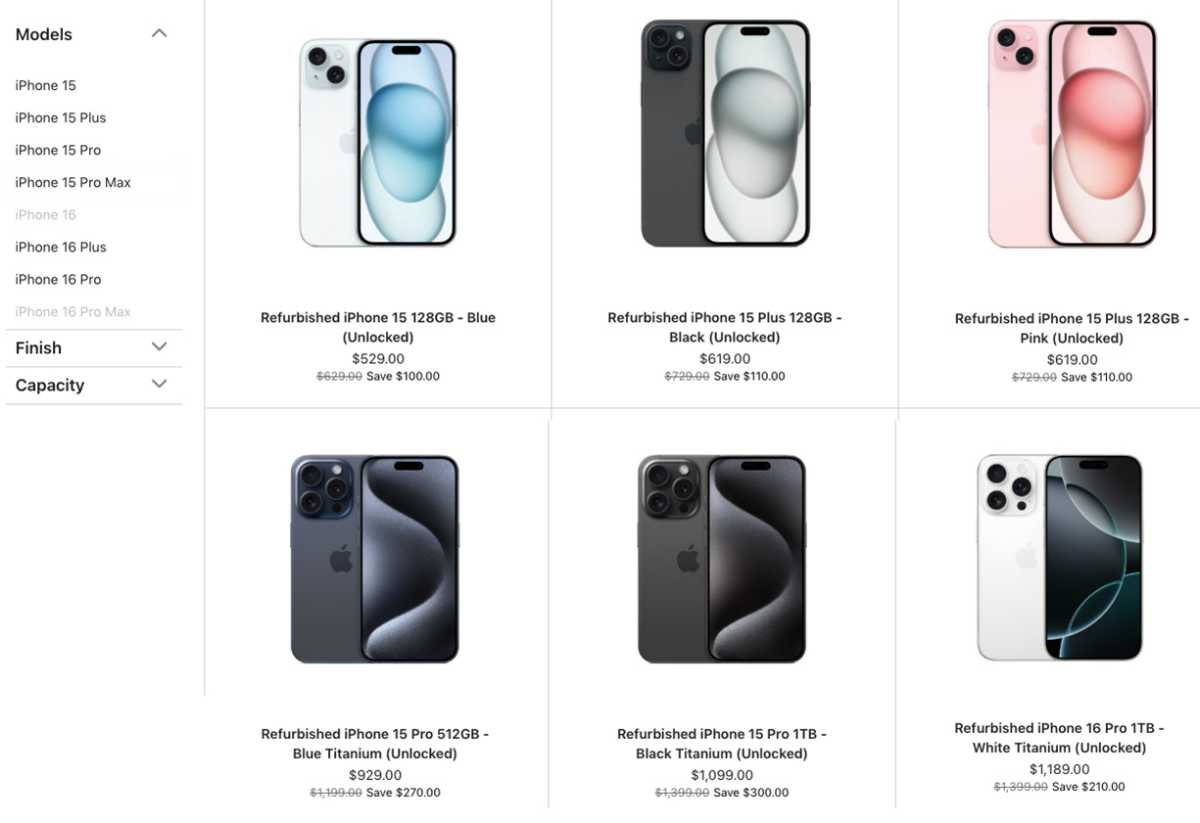
Apple Refurbished Store iPhone 2026

Apple

Buying an iPhone doesn’t come cheap. However, if you’re strapped for cash you don’t have to dismiss the idea of buying an iPhone completely. You may be able to get a good deal on a refurbished model.

Buying a refurbished iPhone is a smart way to save money while still getting a premium device, but the key is knowing where to shop and what to look for.

Understand the difference between refurbished vs used

  • Refurbished: Professionally inspected, tested and repaired where necessary. It should come with a warranty and may also have a replacement battery.
  • Used or second-hand: Usually sold by an individual in its current condition, often without a warranty or any guarantee that it is fully functional. There is also a greater risk of hidden faults or Activation Lock problems.

What to check before buying

  • Warranty: Choose a seller offering a meaningful warranty, ideally for at least 12 months.
  • Condition grade: Sellers use grades such as A, B and C, or Fair, Good and Excellent. Higher grades indicate less cosmetic wear but usually cost more.
  • Battery health: Check the seller’s minimum battery-capacity guarantee. Many refurbished sellers promise at least 80% of the battery’s original capacity, while Apple-furbished iPhones receive a new battery.
  • Unlocked or locked: Confirm that the iPhone is unlocked and can be used with your preferred mobile network. This is particularly important when buying in the U.S.
  • Model age: Avoid iPhones that are close to losing software support. As of mid-2026, the iPhone XS, XS Max and XR are no longer sensible long-term purchases, while the iPhone 11 should be approached with caution.

Shop at Apple’s Certified Refurbished Store

Apple’s Certified Refurbished Store is generally the safest place to start and sets the standard for refurbished quality.

Apple thoroughly tests each device, replaces the battery and outer shell, and supplies it in a new box with the appropriate accessories. Refurbished iPhones also come with Apple’s standard one-year warranty, 90 days of technical support and the option to add AppleCare+.

Prices are typically around 15% lower than the original retail price, although availability varies. Apple operates refurbished stores in both the U.S. and U.K.

Consider other trusted resellers

If you can’t find what you need at Apple’s Certified Refurbished Store, try one of these places to buy a refurbished iPhone.

U.S.:

  • Back Market: You get 30 days to change your mind and a 12-month warranty… or occasionally more. Take careful note of the phone’s quality rating as the cheapest will have more visible signs of wear (stratches and scuffs) than the more expensive Excellent and Premium buys. Premium-quality iPhones also have the highest-rated batteries and only Apple parts.
  • Amazon Renewed Store: This site’s greatest benefit is that purchases are all backed by Amazon’s standard returns policy and its “Renewed Guarantee” lets you get a refund or replacement within a year of receiving your product.
  • Best Buy: Best Buy doesn’t offer a great deal of information on pre-owned iPhones’ condition, but you can return within 14 days if the item is “unopened or defective in any way.”
  • Walmart: Walmart doesn’t sell refurbished iPhones directly; rather, they are sourced from other sellers. Return policies vary from seller to seller, but there are minimum requirements that apply universally.

U.K.:

  • Back Market: You get 30 days to change your mind and a 12-month warranty… or occasionally more. See above for more details on Back Market’s quality rankings.
  • Music Magpie: A good place to start looking for refurbished iPhones with a one-year warranty. You may find that sales reduce the price still further.
  • Hoxton Macs: Don’t let the Mac in the name fool you. Hoxton Macs has started selling refurbished iPhones, with a one-year Return to Base warranty.
  • Reboxed: Pledges that devices “are fully tested and in perfect working order.” All come with a 12-month no quibble warranty.
  • Amazon Renewed Store: While you can’t really sell on Amazon Renewed unless you’re a business, those looking to buy a refurbished iPhone Amazon Renewed have plenty of options to choose from. Its greatest benefit is that purchases are all backed by Amazon’s standard returns policy and its “Renewed Guarantee” lets you get a refund or replacement within 1 year of receiving your product.
  • Envirofone: Also allows you to trade in your old phone for credit towards purchasing a refurbished phone.

Considering alternatives to iPhone?

By now we hope we’ve helped you to find the perfect iPhone for you. Of course, there are alternatives outside Apple’s ecosystem. Our sister site Tech Advisor can help you find the best phone if you’re considering switching to Android (or maybe just want to laugh at the competition).

  •  

Can’t wait till September? Check out the new iPhone 18 Pro colors right now

Macworld

It’s iPhone leaks season again. In just a couple of months, Apple is expected to unveil three new phones: the iPhone 18 Pro and 18 Pro Max, and a new foldable iPhone now rumored to be called the iPhone Ultra. But as always, one of the most important questions for buyers will be, What colors will Apple release this time?

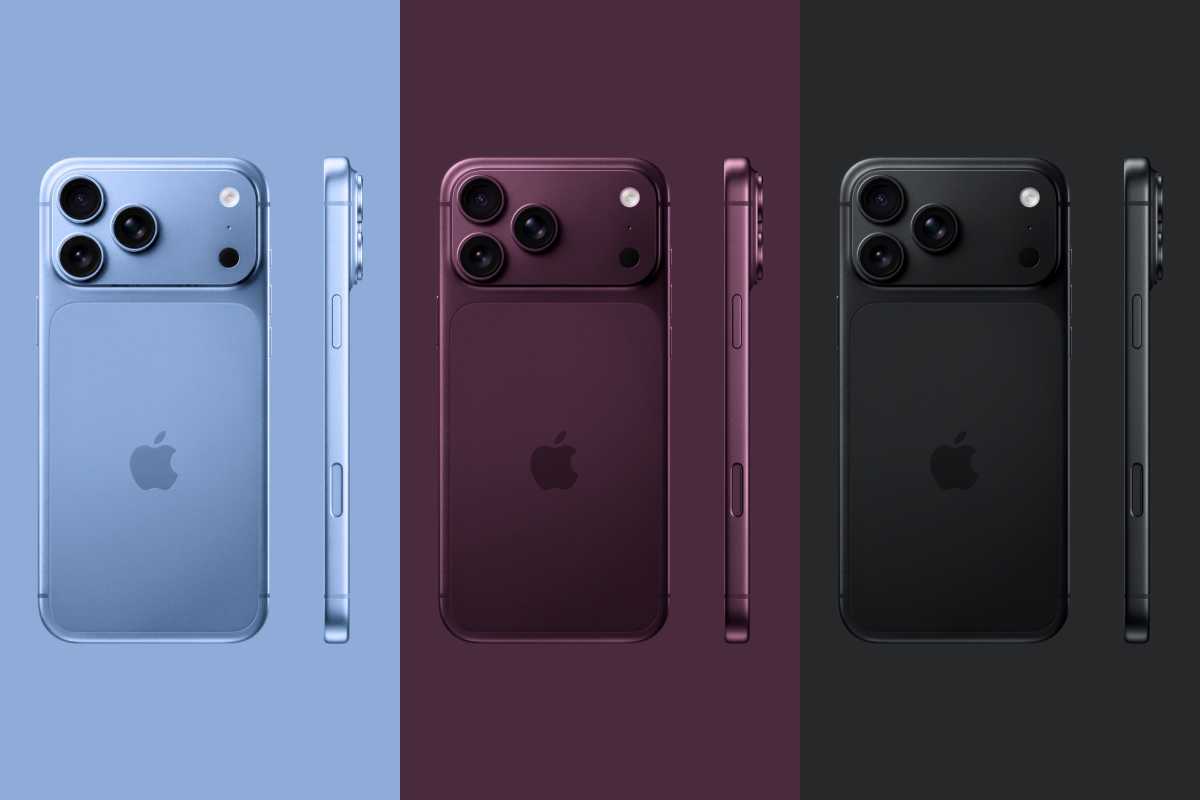
Like last year, Macworld has received information from a source familiar with Apple’s supply chain regarding the color options for the iPhone 18 lineup. We can now reveal an inside look at the colors Apple is planning to release in September, along with our own renders to show what to expect.

Dark Cherry is the hot new hue

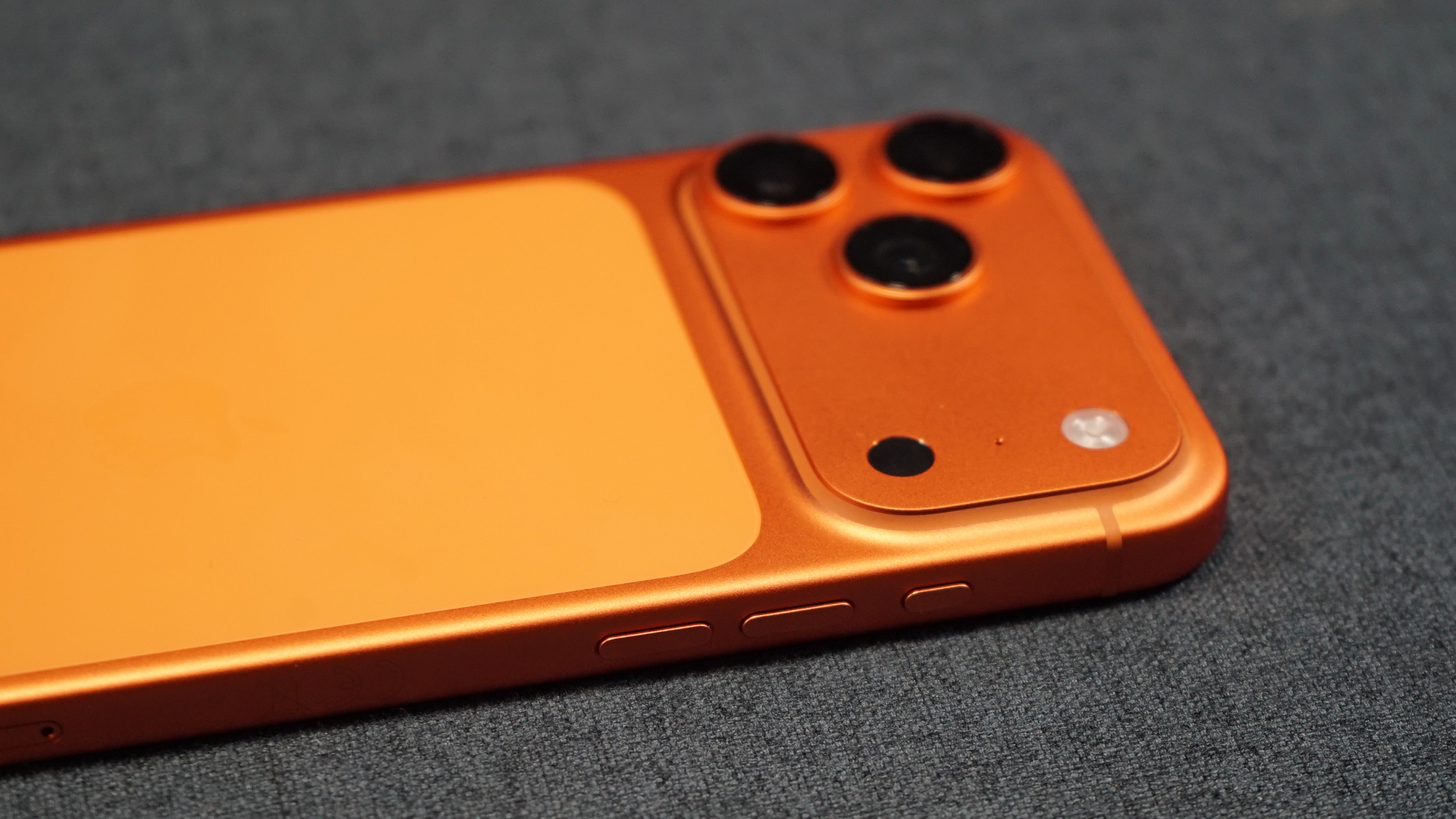
Every year, Apple introduces a new signature color for the iPhone Pro models. With the iPhone 17 Pro, the color that stood out the most was the vibrant Cosmic Orange. What about this year’s models?

While other sources have previously reported on a “Dark Red” color, the information we’ve heard suggests that Apple has been working on a Dark Cherry option to serve as the headline new color for the iPhone 18 Pro and iPhone 18 Pro Max. Previously, Bloomberg’s Mark Gurman and other leakers had suggested that Apple has been experimenting with a shade of red for this year’s phones, but we can reveal the hue will be much closer to wine than fruit punch.

While Dark Cherry color won’t be as bright and striking as Cosmic Orange in person, it will still be unique enough to distinguish it as the new iPhone 18 Pro. As always, Apple is expected to discontinue the current lineup of colors, including Cosmic Orange.

leaked iPhone 18 Pro color renders

The iPhone 18 Pro could come in three all-new colors.

Foundry

Apple has also been reportedly experimenting with two other new color options for this year’s Pro lineup. One of them is Light Blue, which would resemble the current Mist Blue color of the base iPhone 17. The other color in development is a dark shade of gray. Finally, our source also reports on the existence of a silver variant of the iPhone 18 Pro, similar to the current generation.

Once again, our source notes that the colors are all in development, but since the iPhone 18 Pro hasn’t gone into mass production yet, Apple still has time to change them. Also, bear in mind that Apple doesn’t always offer four color options for the Pro models, so one of these hues could be dropped.

Last year, both Macworld and the reliable leaker Sonny Dickson reported that Apple had also considered launching the iPhone 17 Pro in black or steel gray. However, those color options never saw the light of day. 

Here are the Pantone color codes our says are being used internally by Apple:

  • Light Blue (Pantone 2121)
  • Dark Cherry (Pantone 6076)
  • Dark Gray (Pantone 426C)
  • Silver (Pantone 427C)

We used these codes to generate the image above. Of course, colors may look a bit different in real life due to the material and lighting conditions. Since this report was published, we’ve seen real-world evidence of these colors, specifically the Dark Cherry hue, so we’re confident it will be among the options when the phone arrives in September.

A very familiar design with minor changes

Macworld’s sources also had access to the CAD drawings of the new iPhones. These documents support the rumors that the iPhone 18 Pro and iPhone 18 Pro Max will look very similar to their predecessors, with only minor changes.

Most notably, the renders show a smaller Dynamic Island on the screen, which has been rumored to be one of the changes for this year’s models. This means the display will have more screen space for content when the Dynamic Island isn’t showing Live Activities.

iPhone Dynamic Island

The Dynamic Island could be smaller on the iPhone 18 Pro.

Foundry

Another interesting change noted by our source is that, in one of the renders, the gap between the glass cutout on the back and the camera bump is a bit smaller. Our source was unable to verify whether this is an old render, or if Apple is moving forward with a design change.

Last year, a Weibo leaker known as Instant Digital reported that Apple would adopt a new process to minimize the color difference between the glass and the aluminum frame, so perhaps that change also involves reducing the gap between the glass and the camera bump at some point.

More neutral colors for the foldable iPhone

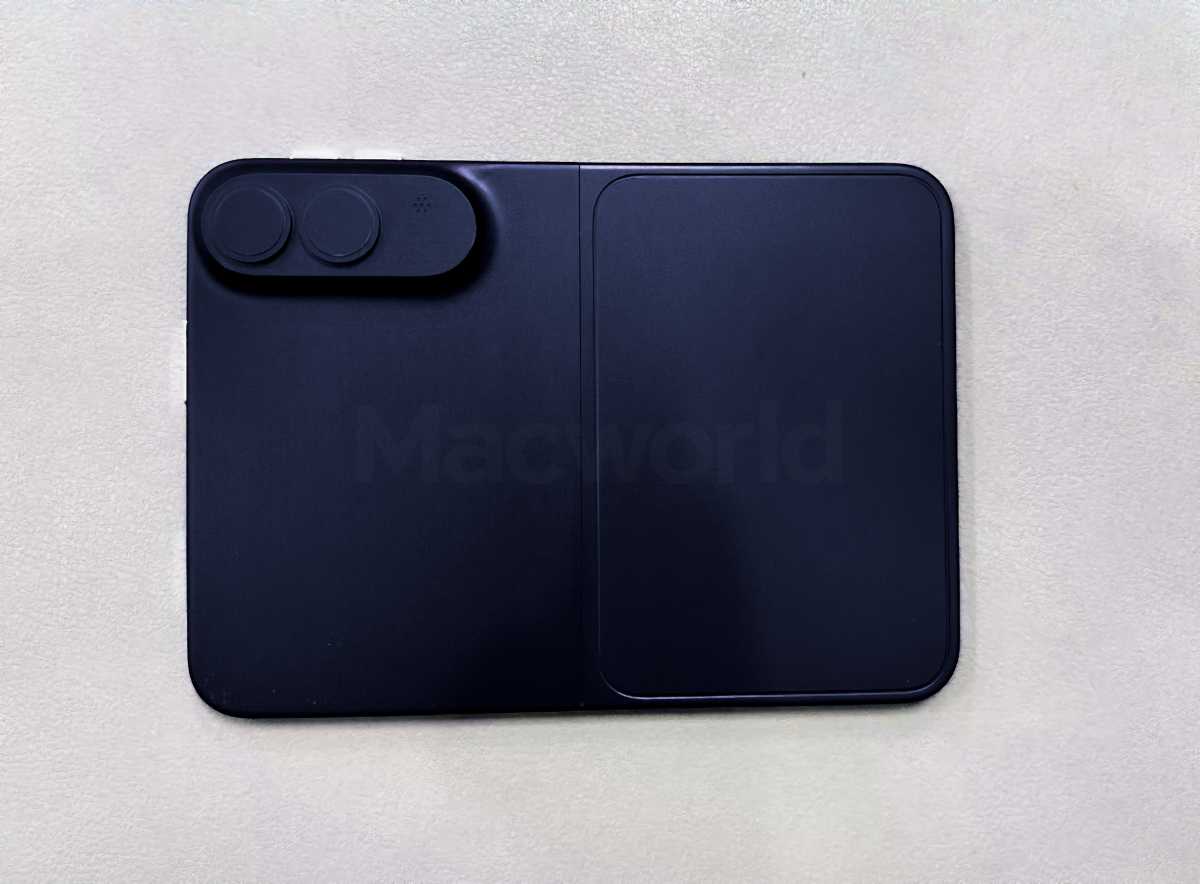
We’ve also received details about the color options for the rumored foldable iPhone. The device, which will reportedly look like an iPad mini when unfolded, won’t come in fun colors like the base iPhone and may have even fewer options than the iPhone Pro.

For the foldable iPhone, Apple has been working on a classic silver and white model, as well as an Indigo option similar to the iPhone 17 Pro’s Deep Blue.

leaked iPhone Fold render in indigo color

The iPhone Fold will reportedly come in a dark Indigo option.

Foundry

The source also corroborates leaked CADs and renders showing the potential design of the foldable iPhone, which is expected to feature two rear cameras, a selfie camera on the outer display, and another selfie camera in the upper-left corner of the inner display. The schematics seen by our source reveal that the foldable iPhone will be just 4.7 millimeters thick when unfolded, making it significantly thinner than the 5.6mm iPhone Air.

The iPhone 18 Pro, 18 Pro Max, and the foldable iPhone are all expected to launch in September, while our sources also report that the foldable model will hit stores at a later date. The base model of the iPhone 18, the iPhone 18e, and a new Air have been rumored to arrive in the first half of 2027, which has also been confirmed by our source.

  •  

Flexispot C7 Morpher im Test: So anpassbar wie wenige andere Bürostühle – aber viel günstiger

Editors' Choice

Auf einen Blick

Unsere Wertung

Pro

  • Sehr viele Anpassungsmöglichkeiten
  • Gute Verarbeitung
  • Gutes Preis-Leistungs-Verhältnis

Kontra

  • Klappert etwas wegen der vielen beweglichen Teile
  • Unintuitive Anpassung der Armlehnen
  • Kopfstütze sehr leichtgängig

Fazit

Der Flexispot C7 Morpher bietet ein großartiges Preis-Leistungs-Verhältnis, wenn Sie ihn in einem der unzähligen Sales des Herstellers ergattern können, da er viele Funktionen bietet, für die Sie bei anderen Herstellern deutlich mehr zahlen müssen. Dafür müssen Sie sich allerdings mit viel Plastik abfinden, was meiner Meinung nach aber ein sehr dankbarer Kompromiss ist.

Price When Reviewed

This value will show the geolocated pricing text for product undefined

Best Pricing Today

Aktuell bester Preis: FlexiSpot C7 Morpher

Shop
Preis
Preisvergleich (über 24.000 Shops weltweit)
Produkt
Preis
Preisvergleich von Backmarket

Flexispot ist im Segment der Büromöbel längst kein Unbekannter mehr, auch wenn der Hersteller mittlerweile sogar Sofas und Betten verkauft. Das Kerngeschäft bleibt aber Büromobiliar, allen voran höhenverstellbare Schreibtische und verschiedene Bürostühle, von denen wir in den vergangenen Jahren einige testen durften.

Der Flexispot C7 Morpher liegt im Flexispot-Sortiment im mittleren Preissegment und besticht mit vielfältigen Anpassungsmöglichkeiten. Auf dem gesamten Markt für Bürostühle macht ihn das allein deswegen ziemlich interessant, weil vergleichbare Stühle gut und gern in den vierstelligen Preisbereich rutschen.

Preis, Lieferumfang & Montage

Der Flexispot C7 Morpher kostet regulär 769,99 Euro, ist aber regelmäßig in einem der unzähligen Sales für rund 500 Euro zu haben. Sofern Ihr alter Stuhl nicht gerade spontan in mehrere Teile zerfallen ist und Sie sofort Ersatz brauchen, sollten Sie die nächste Aktion abwarten.

Soweit ich das beurteilen kann, ist der C7 Morpher im Shop von Flexispot erhältlich und bei Böttcher, wo er günstiger ist als die UVP, aber teurer als zu Sales bei Flexispot direkt. Zwar vertreibt Flexispot viele Produkte auch auf Amazon, dort heißen sie aber häufig anders, und den C7 Morpher finde ich unter den Angeboten bisher nicht.

Zwei große Versandkartons für einen FlexiSpot-Stuhl auf einem Holzboden.
Der Flexispot C7 Morpher wird in zwei großen, schweren Kartons geliefert. iPhone Air zum Größenvergleich.

Eugen Wegmann

Im Lieferumfang enthalten ist alles, was Sie für die Montage benötigen: natürlich der Stuhl selbst, verteilt auf zwei Pakete – für mich ein Novum – mit einem Gewicht von 18,2 bzw. 15,3 Kilogramm, zwei Sätze Schrauben mit je einer Ersatzschraube und gleicher Inbusgröße, und der passende Inbusschlüssel. Die Schrauben für die Kopfstütze stecken bereits im Stuhl und müssen zu ihrer Befestigung erst einmal gelöst werden.

Dazu kommen eine mehrsprachige Montageanleitung, die seit meinen ersten Flexispot-Tests wirklich große Fortschritte bei der Lesbarkeit gemacht hat, und eine zweiseitige, völlig überdimensionierte Bedienungsanleitung in der Größe der Grundfläche eines der beiden Kartons. Sie können sie als Poster an die Wand hängen, wenn Sie möchten, und wenn Sie sie in einer Schublade verstauen möchten, müssen Sie sie mehrfach falten.

Trotz zweier Pakete gibt es bei der Montage des Flexispot C7 Morpher wenig zu beachten. Wie immer weist Flexispot ausdrücklich darauf hin, den Stuhl zu zweit zu montieren; mit etwas Mühe geht es aber auch allein. Grundsätzlich wird der Stuhl nämlich genauso aufgebaut wie alle anderen: Rollen und Gasfeder ins Drehkreuz stecken, Arm- und Rückenlehne an die Sitzfläche montieren, die beiden Hälften miteinander verbinden, indem man das Loch unter der Sitzfläche auf die Gasfeder fummelt – fertig. Gut, am Ende noch die Kopfstütze. Dann aber.

Das Ganze wird in einer ordentlichen Montageanleitung erklärt, und wenn Ihnen bewegte Bilder lieber sind, dann gibt es von Flexispot auch eine Videoanleitung.

Poliertes Fünfstern-Fußkreuz eines Stuhls mit schwarzen Rollen auf einem Holzboden.
Das Drehkreuz des Flexispot C7 Morpher besteht aus Aluminium und ist entsprechend stabil, dafür aber auch schwer.

Eugen Wegmann

Erstmals bei einem Büro- oder Gamingstuhl muss ich aber eingestehen: Wahrscheinlich ist es wirklich sinnvoll, den Stuhl zu zweit zu montieren. Denn beim Befestigen der Armlehnen müssen Sie die Sitzfläche kopfüber auf eine Tischkante legen, und weil die Montagepunkte so merkwürdig liegen, droht der Stuhl ständig, von der Kante zu kippen.

Auch beim Zusammensetzen der beiden Hälften ist Hilfe sinnvoll, denn bei einem Gesamtgewicht von 26,5 Kilogramm wiegen die beiden Hälften (Drehkreuz mit Rollen und Gasfeder, Sitzfläche mit Rückenteil und Armlehnen) jeweils über 10 Kilogramm. Das müssen Sie nicht allein wuchten.

Design & Verarbeitung

Optisch gehört der Flexispot C7 Morpher zu der neueren Generation von Bürostühlen, die eher futuristisch aussehen: keine zusammenhängende Rückenlehne, sondern mehrere einzelne, zusammengesetzte Teile mit einem Netzbezug, der durch seine Transparenz eine gewisse Leichtigkeit vermittelt – trotz seines tatsächlichen Gewichts. Ob der Look Ihnen gefällt oder nicht, ist selbstverständlich Geschmackssache.

Nahaufnahme eines schwarzen Netzstoffs am Stuhl, durch den Sonnenlicht fällt.
Die Sitzfläche des Flexispot C7 Morph ist transparent, wenn Sie die Netzvariante wählen.

Eugen Wegmann

Der Morpher ist in nur einer Farbe erhältlich – Schwarz mit Metallakzenten –, dafür aber mit zwei Optionen bei der Sitzfläche: entweder einem klassischen Schaumstoffkissen oder, wie hier im Test, mit einem luftigen Netzgewebe, durch das der Unterbau durchscheint, das aber etwas mehr kostet. Für 30 Euro mehr können Sie außerdem eine Fußstütze bestellen, die Sie an der Unterseite montieren und nach vorn ausklappen können. Je nach Ausführung des Stuhls selbst kommt auch die Fußstütze entsprechend mit Schaumstoff oder Netz. Hier im Test fehlt sie allerdings.

Nahaufnahme der Seite eines FlexiSpot-Bürostuhls mit Rückenstütze, Logo und Einstellknöpfen.
Alles am Stuhl in diesem Bildausschnitt, das kein Netz ist, besteht aus Kunststoff.

Eugen Wegmann

Bei der Verarbeitung wird es dann etwas durchwachsen: Abgesehen von der zugrundeliegenden Metallkonstruktion kommt beim C7 Morpher viel Kunststoff zum Einsatz, vor allem bei der Verkleidung, und das fühlt sich leider etwas billig an, besonders die Metallakzente an den Armlehnen.

Dass Flexispot das aber auch anders kann, hat das Unternehmen mir bereits vor zwei Jahren mit dem Flexispot BS13 bewiesen. Dieser besteht zwar auch größtenteils aus Kunststoff, wirkt dabei aber deutlich wertiger. Gerade bei den Drehreglern, insbesondere dem für das Dyna-Follow-Element am Rücken, fühlt es sich immer so an, als würde der Kunststoff jeden Moment vom darunter liegenden Metallteil abreißen – nicht optimal.

Und obwohl das alles ein wenig nervig ist, kann ich offen gestanden darüber hinwegsehen, da das Preis-Leistungs-Verhältnis – gerade, wenn Sie den Stuhl mit Rabatt ergattern können – sich trotzdem sehen lassen kann.

Funktionen & Ergonomie

Es gibt wenig, was Sie am C7 Morpher nicht einstellen können. Und nur, damit wir das schon mal abgehakt haben: Verglichen mit den deutlich teureren Stühlen in unserem Büro können Sie bei diesem Modell von Flexispot lediglich den Neigungswinkel der Sitzfläche nicht ändern.

Unterseite eines Netzsitzes mit Bedienhebeln und Gasdruckfeder.
Auf der rechten Seite befinden sich die Regler zwei Hebel: zum Verstellen der Sitzhöhe und der Sitztiefe.

Eugen Wegmann

Neben den Standardfunktionen, die so gut wie jeder Bürostuhl hat – Höhenverstellung, Winkel und Federhärte der Rückenlehne –, hat der C7 Morpher noch ein paar andere Tricks auf Lager. Sie können die Kopf- bzw. Nackenstütze an drei Punkten verstellen, die Sitztiefe, die Höhe der Rückenlehne und den Winkel der oberen Hälfte der Rückenlehne. Die Armlehnen können Sie in der Höhe verstellen und die Oberfläche dank zweier Drehpunkte in jede beliebige Position drehen.

Eine Besonderheit ist die Lendenwirbelstütze: Die können Sie natürlich in der Tiefe bzw. Härte und Höhe verstellen, darüber hinaus können Sie sie auch feststellen und auch wieder lösen, damit sie sich beim Wippen der Rückenlehne mitbewegt – das oben erwähnte Dyna-Flow-System. Dadurch wird Ihr unterer Rücken auch dann gestützt, wenn Sie lieber mit dynamischer Rückenlehne arbeiten.

Nahaufnahme schwarzer Einstellregler an der Seite einer Netzrückenlehne.
Mit dem großen Knopf pumpen Sie die Lordosenstütze auf, mit dem kleinen lassen Sie die Luft wieder ab.

Eugen Wegmann

Für die Lordosenstütze selbst hat Flexispot eine interessante Lösung gewählt: In der Rückenlehne steckt ein Luftkissen, das Sie mit einer integrierten Pumpe aufblasen können. Mit einem zweiten Knopf lassen Sie die Luft wieder ab.

Trotz der vielfältigen Einstellungsmöglichkeiten gibt es einige Einschränkungen, die vielleicht auch erklären, warum der Flexispot C7 Morpher weniger kostet als vergleichbare Stühle anderer Hersteller. Die Mechanik der Tiefenverstellung der Nackenstütze kann nerven: Einerseits ist sie relativ leichtgängig und kann nicht festgestellt werden. So passiert es mir häufig, dass ich die Position unbeabsichtigt verändere, wenn ich den Stuhl aus dem Weg schieben will und intuitiv in dieser Höhe nach ihm greife.

Schwarze gepolsterte Kopfstütze an einem Bürostuhl vor weißen Schranktüren.
Die Nackenstütze des C7 Morpher steht relativ weit nach hinten ab.

Eugen Wegmann

Andererseits setzt Flexispot auf einen linearen Ratschenmechanismus: Sie können die Kopfstütze stufenweise von der Rückenlehne wegschieben, in die entgegengesetzte Richtung ist sie aber gesperrt, bis Sie sie bis zum Maximum geschoben haben. Eine Stufe zurückschieben geht nicht. Auch bei der Höhenverstellung der Rückenlehne kommt ein ähnlicher Mechanismus zum Einsatz, allerdings ist er längst nicht so leichtgängig wie der an der Nackenstütze und kann nicht einfach versehentlich verstellt werden.

Die Federhärte der Rückenlehne können Sie nicht flexibel einstellen, wie bei vielen anderen Stühlen. Stattdessen gibt es drei Stufen für verschiedene „Gewichtsklassen“, ähnlich wie beim oben genannten Flexispot BS13. Im Gegensatz zu diesem funktioniert jedoch mindestens eine dieser Stufen für mich persönlich aber deutlich besser, wobei ich natürlich nicht ausschließen kann, dass es auch hier Personen gibt, für die eine Zwischenstufe besser passen würde. Grundsätzlich ist der Flexispot C7 Morpher für bis zu 163 Kilogramm ausgelegt, was sich durchaus sehen lassen kann.

Funktionsdiagramm der Armlehnen des Flexispot C7 Morpher
Funktionsweise der Armlehnen des C7 Morpher.

Flexispot

Und zu guter Letzt wären da noch die Armlehnen: Während sich die Höhe tadellos in mehreren Stufen mithilfe eines Knopfs verstellen lässt, hat sich Flexispot für die Auflagen selbst eine Lösung ausgedacht, die zwar sehr flexibel ist, leider aber ziemlich unintuitiv: Sie sind auf zwei vertikalen, exzentrischen Achsen montiert. Der untere Teil lässt sich in einem Radius von 270 Grad drehen, die obere von 360 Grad.

Seitenansicht einer Netzrückenlehne mit verstellbarer schwarzer Armlehne.
Entlang der beiden Achsen können Sie die Armlehnen des C7 Morpher in der Horizontalen verstellen, mit dem Hebel legen Sie die Höhe fest.

Eugen Wegmann

Das gibt der gesamten Konstruktion einen unglaublichen Spielraum, bis Sie allerdings ihre gewünschte Position eingerichtet haben, vergeht deutlich mehr Zeit, als hätten Sie für jede Dimension – vor/zurück, rein/raus, Rotation – eine eigene Einstellung. Hinzu kommt, dass die Armlehnen, genau wie die Kopfstütze, ziemlich leicht zu verstellen sind, weshalb Sie auch die Armlehnen immer wieder in ihre gewünschte Position zurückbringen müssen. Flexispot verkauft das als Vorteil, weil die Armlehnen so „Ihrer Sitzhaltung flexibel folgen“, allerdings hätte ich mir doch die Möglichkeit gewünscht, sie arretieren zu können.

Was die Ergonomie und den Komfort insgesamt angeht, kann ich beim Flexispot C7 Morph wirklich nicht meckern; auf wenigen anderen Bürostühlen habe ich besser gesessen, auch über längere Zeit (wie es in meinem Metier nicht unüblich ist). Bei so vielen Anpassungsmöglichkeiten wundert es mich aber eigentlich auch überhaupt nicht. Hätte ich keine einzige Konfiguration gefunden, in der ich mich wohlfühle, hätte das merklichen Punktabzug gegeben.

Fazit

Im Großen und Ganzen handelt es sich beim Flexispot C7 Morpher um einen großartigen, vielseitigen Bürostuhl in moderner Optik. Er hat ein paar Schwächen – die Verarbeitung könnte etwas besser sein und einige der Funktionen besser durchdacht –, hat aber gerade zu Angebotsaktionen, von denen der Hersteller regelmäßig eine hat, trotzdem ein ziemlich gutes Preis-Leistungs-Verhältnis. Wenn Sie ihn für rund 500 Euro ergattern können, ist er eine gute Investition.

  •  

Summer is usually the worst time to buy a new iPhone. Not this year

Macworld

Every summer, many tech enthusiasts dissuade their friends from buying a new iPhone for two main reasons: price and hardware upgrades. Despite new iPhones introducing more advanced technology, they typically maintain the same price as their predecessors—or, at worst, raise it only slightly along with increasing storage capacity. So, buying a new iPhone just a couple months before the September launch of the new models would mean paying full price for year-old features.

That’s not the case this time around.

Unlike previous years, when this would be the worst time to upgrade, buying an iPhone 17 Pro before the upcoming September launch may secure you a better deal. While the iPhone 18 Pro will undoubtedly bring welcome changes, the overall package may not justify the price.

At what cost?

In case you’ve missed it, Apple just hiked the prices of iPads, Macs, and other products by up to $300 (for the base models). The substantial change, triggered by recent memory and storage supply constraints, curiously excluded the iPhone line. This omission all but confirms that the iPhone’s price increase is scheduled to arrive with the 18 Pro models in late September.

Typically, Apple raises base iPhone prices by $100 every few years and includes extra storage to soften the blow. Things are far from typical now. According to some forecasts, the iPhone 18 Pro may start at a whopping $1,299. For reference, the base iPhone 17 Pro offers 256GB of storage for $1,099. So, even if Apple pushes the base capacity to 512GB, those with minimal local storage needs will potentially have no choice but to pay $200 extra. And if you’re a Pro Max user, you may be looking at a $1,399 bill for the most affordable variant.

People may argue that the other hardware upgrades warrant the higher price tag. Let’s take a closer look at some of the device’s highlights, and you can decide for yourself.

Similar smarts

We’ll start with artificial intelligence due to the sheer number of consumers who deeply care about it. In Apple’s lineup, the RAM plays a major role in deciding what AI features are supported, as many of them function locally. We first saw it with Apple Intelligence’s initial debut—the iPhone 15 Pro with 8GB of RAM ran the smart suite beautifully, while the non-Pro 15 models with 6GB of RAM missed out on it completely. While the iPhone 15 Pro continues to support the latest introductions, including Siri AI on iOS 27, Apple is gatekeeping higher-end perks.

Siri AI on iPhone 17 Pro Max

Foundry

Certain AI features, like Siri’s Expressive Voices, are exclusive to Apple’s top-tier iPhones, iPads, and Macs. In fact, most devices that can run OS 27 won’t be compatible with these advanced additions. The iPhone Air, 17 Pro, and 17 Pro Max happen to be the only smartphone models to support them, as they pack the required 12GB of RAM. The iPhone 18 Pro will reportedly maintain the same memory, indicating it won’t feature any major exclusive AI tools. With an iPhone 17 Pro, it’s safe to assume that you’ll be getting the same set of artificial smarts as the 18 Pro for years to come.

Comparable cams

iPhone cameras, particularly the wide and ultra-wide, are known for their reliability, producing crisp stills and videos that often stand out. Still, a couple of years ago, the telephoto lens performed poorly in many instances, and the selfie camera felt too unsophisticated. The iPhone 17 Pro finally addressed the main camera shortcomings by refining the tetraprism lens and adding a higher-resolution, square-shaped Center Stage sensor to the front side for orientation switching. While there’s always room for improvement, most users would likely agree that the iPhone’s camera system finally feels whole.

iPhone 17 Pro Max rear camera system

Foundry

It goes without saying that the iPhone 18 Pro will upgrade the camera further, with the wide lens rumored to adopt a variable aperture for the first time. The front-facing camera’s resolution may also be bumped from 18MP to 24MP. While these enhancements will help produce sharper results, they’re arguably not as transformative as last year’s significant leap forward.

Durable displays

During product introductions, Apple often resorts to catchy marketing lingo when promoting its latest innovations. Many of these features end up going unnoticed soon after, as they don’t necessarily affect the way we use our devices every day. When the Ceramic Shield 2 display was announced with the iPhone 17 Pro, I initially rolled my eyes, not realizing the tripled scratch resistance claim would actually have a noticeable impact. Boy, was I wrong.

Dynamic Island on iPhone 17 Pro Max

Foundry

The iPhone 17 Pro Max is my first ever smartphone to not show a single micro-scratch after months of daily use without a screen protector—it literally looks pristine. The Ceramic Shield 2 is that good. Now that the iPhone’s display is as immersive and durable as most users expect, I see little reason why one would anticipate the 18 Pro’s newer display. Its most notable upgrade could be relatively expendable, shrinking the Dynamic Island to fit more on-screen elements. While a neat evolution, it won’t be as groundbreaking as the iPhone 14 Pro’s shift from a static notch to the original Dynamic Island.

Matching materials

Besides the disruptive RAM, camera, and display improvements, the iPhone 17 Pro was also the model to completely overhaul the exterior shell, retiring titanium in favor of aluminum. As such, disregarding the fresh finish options, the iPhone 18 Pro will offer a similar overall design and possibly even become bulkier. If you buy an iPhone 17 Pro today, it won’t look dated later this year. That’s a statement we wouldn’t have made one year ago and we won’t make next year (given the iPhone XX rumors).

iPhone 17 Pro Max aluminum build

Foundry

Whether paying around $200 more for a tweaked camera and smaller Dynamic Island is worth it totally depends on your priorities. The way I see it, the iPhone 18 Pro is set to act as an overpriced iPhone 17s Pro. Proceed accordingly.

  •  

Best laptop power banks for Apple MacBook 2026

Macworld

Many of us are quite used to carrying around a handy power bank to top up our iPhone batteries during a long day away from a power socket, but these pocketable battery packs are usually not powerful enough to keep an unplugged and energy-hungry MacBook going all day.

We’ve rounded up the best portable laptop power banks with battery capacities high enough to recharge a fading Apple MacBook if you won’t be able to plug it into an electrical outlet for some time.

Despite new laptops boasting improved battery life duration, it’s easy for your trusty MacBook to lose power after a day of intense meetings and PowerPoint presentations. No one wants to see the Mac’s “Your battery is running low” warning, especially when halfway through watching a downloaded Netflix series on a long-haul flight.

We looked at seven main factors for recommending laptop power banks: battery capacity, charging speed, total power output, power input, USB ports, portability and safety. For more details on each see below this list of the best MacBook power banks.

Power vs portability

As a rule, the higher the battery capacity, the larger and heavier the power bank. We have included size and weight so you can determine if each power bank suits your traveling needs. Some laptop power banks are built to last in the great outdoors so will feature more rugged IP-rated shells; read on for our reviews below.

There are much smaller, lighter and more portable power banks for phones—check out our recommendations of the best power banks for iPhone. You could use some of these to recharge a laptop but we recommend the power banks tested and reviewed here for the best results when powering up a laptop.

There are some giant power banks, usually called portable power stations, that can keep a family going all weekend, but they are way too large to carry with you on your travels. We have tested the most MacBook-friendly models in our roundup of the best portable power stations.

Macworld Test Score

We test each power bank’s real-world charging prowess by recharging a spent 14-inch MacBook Pro from 0% to 100% (or as far as it gets) and then repeat, adding the two percentages together to create a comparable Test Score.

Which power bank is best for your MacBook in 2026?

We have indicated which models of MacBook we think each power bank is best suited to, but that doesn’t mean you can’t pair any with different MacBooks. The 16-inch MacBook Pro can be fast-charged at 140W so owners of that model should look for a PD 3.1 power bank. But even a 13-inch MacBook Air will work well with the higher-capacity power banks. They might not charge any faster, but they will be recharged more times if you pick a high-capacity battery pack.

Anker Prime Power Bank (26K, 300W) – Best overall MacBook power bank

Anker Prime Power Bank (26K, 300W) – Best overall MacBook power bank

Pros

  • Large battery capacity
  • 140W (PD 3.1) charging power
  • 300W total output
  • Super-fast 250W input
  • Dedicated app

Cons

  • No built-in cable
Best Prices Today:
Retailer
Price
Price comparison from over 24,000 stores worldwide
Product
Price
Price comparison from Backmarket

Battery capacity: 26250mAh (99.75Wh)
Fastest Power Output: 140W
Total Power Output: 300W
Power Input: 250W
USB ports: 2x USB-C (140W PD 3.1); 1x USB-A (22.5W).
Dimensions: 6.3 x 2.5 x 1.5 inches (160 x 64 x 38mm)
Weight: 21.1oz (599g)
Airline compatible: Yes

Macworld Test Score: 125%

The Anker Prime 26K Power Bank (300W) is one of the most powerful laptop power banks that you can match with your MacBook. It is a great fit with the top-end 16-inch MacBook Pro, which has a battery rated at around the same watt hours (99.6WH) as this power bank (99.75Wh).

There are three USB ports. Each of the two USB-C ports can be used to power at 140W. Attach Apple’s USB-C to MagSafe 3 Cable or the included 240W USB-C cable to the power back and you can utilize one of the 140W PD 3.1 ports to fast-charge the 16-inch Pro. Indeed, with its 300W total output at your disposal you could fast-charge two of the top-end MacBooks at the same time and still have enough juice to fast-charge your iPhone!

Anker claims that you can fast-charge that top-end MacBook Pro up to 50% in 27 minutes. In our tests, we charged a 14-inch M2 MacBook Pro to full power with enough left over to power it back to 25% on the second recharge.

You can recharge the power bank itself to 50% in under 15 minutes using the two USB-C ports at the same time at an impressive 250W.

This is a sophisticated power bank with some tricks of its own. It can be controlled by an app, which gives real-time charging stats (Remaining Charging Time and Input and Output power indicators) and can be optimized to help extend the battery life of the devices being charged as well as its own. You can even use the app’s Find Device feature to activate a sound alert from the power bank when you need to locate it.

Anker also sells a 27K Prime Power Bank, available in either black or gold colors. We prefer the 26K model as it’s a little smaller, performed better in our tests, and out guns the 27K model in total output (300W vs 250W) and input (250W vs 170W).

Who should buy the Anker Prime 26K 300W Power Bank?

Powerful enough to charge two 16-inch MacBooks at the same time, this power bank is a great travelling companion for any of Apple’s laptops. Both its 300W total output and 250W input are top-end for a truly portable power bank.

Great for: 14/16-inch MacBook Pro, MacBook Air, MacBook Neo.

Read our full Anker Prime Power Bank (26K, 300W) review

Sharge HyperTower 170 Power Bank – Best value 100W PD MacBook power bank

Sharge HyperTower 170 Power Bank – Best value 100W PD MacBook power bank

Pros

  • Large battery capacity
  • 100W (PD 3.0) charging power
  • Two integrated charging cables
  • Great value
Best Prices Today:
Retailer
Price
Sharge
$79.90
Price comparison from over 24,000 stores worldwide
Product
Price
Price comparison from Backmarket

Battery capacity: 25000mAh (90Wh)
Fastest Power Output: 100W
Total Power Output: 170W
Power Input: 100W
USB ports: 2x USB-C cables (100W PD 3.0); 1x USB-C (100W PD 3.0); 1x USB-A (30W)
Dimensions: 6.3 × 2.1 × 2.1 inches (160 x 53 x 52mm)
Weight: 23.5oz (665g)
Airline compatible: Yes

Macworld Test Score: 128%

If your MacBook is not the top-end 16-inch Pro, a 100W PD 3.0 output on a laptop power bank is really all you need for fast charging. Buying a 140W PD 3.1 power bank isn’t silly—it might be that your next MacBook requires the higher power for the fastest charging—but 100W is all you need for the 14-inch MacBook Pro or Air models, and certainly enough for the MacBook Neo!

The very affordable Sharge HyperTower 170 Power Bank scored impressively in our MacBook recharging tests (128%) despite its 25K (90Wh) battery capacity being a little lower than seen in some others.

The 170W total power output is also lower than some (we’ve tested power banks with as much as 300W total output) but still offers a lot. Even with all three outputs in use it supports 100W+30W+20W+15W or 65W+65W+20W+15W, so can handle a two-laptop setup.

100W input is fine if you’re not in the biggest hurry to recharge the power bank—we’ve all been there—and it should be fully recharged in around 80 minutes. If power bank input is important to you, check out the Anker Prime 26K Power Bank reviewed above.

Especially useful are the two integrated USB-C cables (each 100W), one of which doubles up as a carry handle. The USB-C port is also 100W capable.

Who should buy the Sharge HyperTower 170 Power Bank?

Impressive in our MacBook recharging tests and with enough power to be shared by two laptops and a couple of phones plus two built-in cables, this power bank offers great value for owners of all but the 16-inch MacBook Pro that is better served by one of the 140W power banks reviewed here.

Great for: 14-inch MacBook Pro, MacBook Air, MacBook Neo.

INIU Cougar P64 140W Power Bank – Best value 140W PD MacBook power bank

INIU Cougar P64 140W Power Bank – Best value 140W PD MacBook power bank

Pros

  • Large battery capacity
  • 140W (PD 3.1) charging power
  • Great value

Cons

  • No built-in cable
  • Low total output
Best Prices Today:
Retailer
Price
Price comparison from over 24,000 stores worldwide
Product
Price
Price comparison from Backmarket

Battery capacity: 25000mAh (92.5Wh)
Fastest Power Output: 140W
Total Power Output: 145W
Power Input: 80W
USB ports: 1x USB-C cable (140W PD 3.1); 1x USB-C (45W PD 3.0); 1x USB-A (18W)
Dimensions: 6.3 x 3.2 x 1 inches (159 x 81 x 25mm)
Weight: 17.5oz (496g)
Airline compatible: Yes

Macworld Test Score: 119%

If, on the other hand, your MacBook is the 16-inch Pro, a 140W PD 3.0 output is what you need for fast charging. Even if you don’t own the top-end MacBook Pro, buying a 140W PD 3.1 power bank builds in some future proofing and ensures your laptop gets the fastest possible charge.

The Iniu P64 is available in regulation black but also a rather natty white, as shown above. It’s also lighter than some other laptop power banks reviewed here. The smart display features an active wattage monitor plus a remaining capacity indicator and battery endurance countdown.

Like the Sharge HyperTower 170 Power Bank, reviewed above, the Iniu P64 scored impressively in our MacBook recharging tests (119%) despite its 25K (92.5Wh) battery capacity rating as lower than some others.

The 145W total power output is low compared to others—if a 16-inch MacBook Pro is being charged at full speed, there’s not much power for anything else, but in a more even charging situation it’s enough for a couple of MacBooks to perk up from being drained. Often it’s just a laptop and phone being charged, and 145W can cope with that. If you need more, consider one of the other laptop power banks reviewed here that can pump out up to 300W at one time.

With all three outputs in use it supports 100W+24W shared between the second USB-C and USB-A, so really it’s a two-port power bank with options for different charging connectors. Two-port options include 100W+45W or 100W +18W depending on which of the two other ports is chosen.

80W input is a little slow compared to others but, again, if you’re not in a hurry to recharge the power bank, input speed is less of an issue, and it should be fully charged in around 90 minutes.

You’ll need to carry a USB-C cable with you as there is no cable built in as found on some laptop power banks reviewed here.

Who should buy the Iniu P64 Power Bank?

This great-looking MacBook power bank is affordable and scored well in our tests. It’s not one for people who need to charge two laptops at top speed, but it can handle one whatever its power demands.

Great for: 14/16-inch MacBook Pro, MacBook Air, MacBook Neo.

Read our full INIU Cougar P64 140W Power Bank review

Reelcharge ReelPro 200W Power Bank (27K) – Most readable smart display

Reelcharge ReelPro 200W Power Bank (27K) – Most readable smart display

Pros

  • Large battery capacity
  • 140W (PD 3.1) charging power
  • Large display

Cons

  • U.S. only
Best Prices Today:
Retailer
Price
ReelCharge
$119.99
Price comparison from over 24,000 stores worldwide
Product
Price
Price comparison from Backmarket

Battery capacity: 27000mAh (99.9Wh)
Fastest Power Output: 140W
Total Power Output: 200W
Power Input: 100W
USB ports: 1x USB-C cable (140W PD 3.1); 1x USB-C (100W PD 3.0); 1x USB-A (60W)
Dimensions: 6.4 x 2.1 x 2 inches (163 x 53 x 51mm)
Weight: 22.9oz (650g)
Airline compatible: Yes

Macworld Test Score: 124%

If you need to know the remaining battery capacity in your laptop power bank, you won’t find an easier-to-read display than on the ReelCharge ReelPro 27K. It’s big, bold and green. There’s something reassuring about it—as long as the number is a big one, of course!

The specs are high, with the 99.99Wh capacity getting awfully close to the airline maximum—check with your airline before packing this in your hand luggage.

The handy 11-inch built-in USB-C cable can output PD 3.1’s 140W, so no MacBook will be compalianing when being recharged at the fastest speed. You can charge two laptops at 100W+100W. As with the Iniu P64, the third port is really just an option as triple-port charging shares just 24W between the two ports.

100W input should mean you can recharge the power bank itself in around 80 minutes.

Who should buy the ReelCharge ReelPro 200W Power Bank?

We love the big, bold battery indicator display on this laptop power bank. It’s fairly standard sized, with a useful integrated USB-C cable that also acts as a carry handle.

Great for: 14/16-inch MacBook Pro, MacBook Air, MacBook Neo.

EcoFlow RAPID Pro Power Bank 27K (300W)

EcoFlow RAPID Pro Power Bank 27K (300W)

Pros

  • Large battery capacity
  • 140W (PD 3.1) charging power
  • Integrated charging cable
  • 300W total output
  • 280W input
  • Dedicated app

Cons

  • No USB-A port
Best Prices Today:
Retailer
Price
Price comparison from over 24,000 stores worldwide
Product
Price
Price comparison from Backmarket

Battery capacity: 27650mAh (99.54Wh)
Fastest Power Output: 140W
Total Power Output: 300W
Power Input: 280W
USB ports: 2x USB-C (140W PD 3.1); 2x USB-C (65W).
Dimensions: 6.5 x 2.2 x 2.3 inches (166 x 55 x 58mm)
Weight: 24.7oz (699g)
Airline compatible: Yes

Macworld Test Score: 120%

Although a little larger and heavier than the Anker Prime 26K 300W Power Bank, reviewed above, the EcoFlow RAPID Pro 27K Power Bank (300W) has a hidden weapon in its battle for the best MacBook power bank: a built-in retractable USB-C cable tucked away in its base—saving you from carrying a spare cable around with you and keeping your travel bag neat and tidy.

Like the Anker Prime 26K, this power bank can fast-charge two 16-inch MacBook Pros at full pelt. It boasts the same 200W total output, and has two more USB-C ports—both at a potential 65W—but no legacy USB-A port. If you need a USB-A port, look to the Anker Prime instead. USB-A aside, it can recharge up to four devices at the same time, although. With three devices it can output at 140W, 95W and 65W—enough for three MacBooks at the same time. And using all four charging points, still allows for two MacBooks at 140W. with the remaining two USB-C ports sharing 20W.

In our tests it scored 120%—a little lower than the Anker Prime’s 125% but nothing substantial in comparison. It can be recharged itself at 280W, which is a little faster than its Anker rival.

Who should buy the EcoFlow RAPID Pro 27K 300W Power Bank?

As powerful as the Anker Prime 26K Power Bank and boasting a built-in USB-C cable plus an extra port, the EcoFlow RAPID Pro is a real rival for the crown. If you can take the (minimal) extra weight and don’t need a USB-A port, it is highly recommended if only for the retractable cable.

Great for: 14/16-inch MacBook Pro, MacBook Air, MacBook Neo.

Read our full EcoFlow RAPID Pro Power Bank 27K (300W) review

Ugreen 48000mAh Portable Power Bank (300W) – Best high-capacity MacBook power bank

Ugreen 48000mAh Portable Power Bank (300W) – Best high-capacity MacBook power bank

Pros

  • Massive battery capacity
  • 140W (PD 3.1) charging power
  • 300W total output
  • Carry handle
  • 5 powerful ports

Cons

  • Larger and heavier than most
  • No built-in cable
Best Prices Today:
Retailer
Price
Price comparison from over 24,000 stores worldwide
Product
Price
Price comparison from Backmarket

Battery capacity: 48000mAh (153.6Wh)
Fastest Power Output: 140W
Total Power Output: 300W
Power Input: 140W
USB ports: 1x USB-C (140W PD 3.1), 2x USB-C (100W PD 3.0); 2x USB-A (22.5W).
Dimensions: 6.3 x 5.7 x 3 inches inches (160 x 145 x 76mm)
Weight: 3.6lb (1.65kg)
Airline compatible: Yes (with carrier approval)

Macworld Test Score: 180%

The Ugreen 48000mAh 300W Portable Power Bank is the missing link between a laptop power bank and a full-blown power station. It has a huge battery capacity but is still portable, although you wouldn’t want to carry it around in your backpack all day, and it’s too powerful to take on a commercial flight.

It has a handle so is carriable, but the bulk and weight mean it is one to move around inside or carry in a car. It would be the perfect power companion on a camping trip. It’s not super-heavy, but it is noticeably larger than the other laptop power banks tested here.

Keep it powered up in case of power outages and it should keep your laptop and phone going for days. In our tests we recharged a 14-inch M2 MacBook Pro 1.8 times, so you can expect to get maybe as many as two charges for a MacBook Air. The Pro charged from 5% to 90% in an hour, which impressed us.

There are five ports (three USB-C and two USB-A) with a maximum simultaneous power output of 300W. As it has a 140W PD 3.1 USB-C port, it can be used to fast charge a 16-inch MacBook Pro. At the same time, you could charge another top-end MacBook Pro at 100W, and use one of the USB-A ports at 22.5W.

The smart display shows the remaining battery, total input and output power.

Who should buy the Ugreen 48000mAh Portable Power Bank (300W)?

Portable but certainly not pocketable, this is the border between power banks and power stations and would be a great travel gadget if you have a vehicle to carry it in. It is also a mini-prepper’s safeguard against power outages at home.

Great for: 14/16-inch MacBook Pro, MacBook Air, MacBook Neo.

Read our full Ugreen 48000mAh 300W Portable Power Bank review

Ugreen Nexode 20K 165W with Retractable USB-C Cable – Best mid-range laptop power bank

Ugreen Nexode 20K 165W with Retractable USB-C Cable – Best mid-range laptop power bank

Pros

  • Mid-range battery capacity
  • Lightest 20K power bank
  • 100W (PD 3.0) charging power
  • Integrated charging cable
  • 100W input
  • 165W total output
Best Prices Today:
Retailer
Price
Price comparison from over 24,000 stores worldwide
Product
Price
Price comparison from Backmarket

Battery capacity: 20000mAh (72Wh)
Fastest Power Output: 100W
Total Power Output: 165W
Power Input: 100W
USB ports: 1x USB-C cable (100W PD 3.0); 1x USB-C port (100W PD 3.0); 1x USB-A (33W)
Dimensions: 5.7 x 2.1 x 2 inches (146 x 54 x 50mm)
Weight: 18.9oz (535g)
Airline compatible: Yes

Macworld Test Score: 78%

Retractable cables are very in right now—although nicely tucked away when not in use—for power banks and chargers. This 20K Ugreen Nexode Power Bank has one 2.1-foot retractable 100W USB-C cable nestled and ready for action right next to another 100W USB-C port and a 33W USB-A port.

At under 19oz it’s a little lighter than the cable-friendly Anker 25K 165W power bank, reviewed below, and is half an inch shorter, too. Although it matches the Anker on 165W maximum power output and 100W ports it does have a smaller battery capacity—although is therefore $20 cheaper. In our tests the 25K Anker recharged a 14-inch MacBook Pro to 92% while this 20K Ugreen power bank reached a respectable 78%.

In the battle for power and cable convenience, these two power banks must be chosen on capacity, portability and price.

Who should buy the Ugreen Nexode 20K 165W Power Bank?

This mid-range laptop power bank is compact and lightweight with a handy retractable cable, and will get your MacBook back up to about three-quarters power on a single recharge.

Ugreen 20K Laptop Power Bank 130W with Cable

Ugreen

Ugreen sells another 20K model with a built-in USB-C charging cable. The $79 Nexode Power Bank 20000mAh 130W (above) is shorter at 5.1 x 2.1 x 1.9 inches (129 x 53 x 48mm) and $20 cheaper with the same 20K capacity but a lower max power output of 130W vs 165W. It weighs fractionally less than the 165W Nexode. Buy the 130W model if all you need is to charge a MacBook at 100W and an iPhone at 30W—this stubbier cousin may be all you need. It’s integrated 5.4-inch USB-C cable—useful for MacBooks and later iPhones—is nowhere near as long as the 165W model’s 2.1ft retractable cable but it can double up as a carry handle.

Buy the 165W model if you regularly charge two laptops at the same time: one at 100W and the other at 65W. On both 20K models, the USB-A output can be handy for legacy devices.

Another great Ugreen option is the 25K/200W Ugreen Nexode Pro Laptop Power Bank, reviewed further down.

Great for: 14-inch MacBook Pro, MacBook Air, MacBook Neo.

Read our full Ugreen Nexode Power Bank 20000mAh 165W with Retractable USB-C Cable review

INIU Cougar P62-E1 20000mAh (65W) Power Bank – Lightest, most compact and fun 20K laptop power bank

INIU Cougar P62-E1 20000mAh (65W) Power Bank – Lightest, most compact and fun 20K laptop power bank

Pros

  • Compact size
  • Mid-range battery capacity
  • 3 ports
  • 200W total output
  • Color choices

Cons

  • 65W maximum power
  • 45W input
Best Prices Today:
Retailer
Price
Price comparison from over 24,000 stores worldwide
Product
Price
Price comparison from Backmarket

Battery capacity: 20000mAh (65Wh)
Fastest Power Output: 65W
Total Power Output: 65W
Power Input: 45W
USB ports: 1x USB-C (65W PD 3.0); 1x USB-C (35W); 1x USB-A (18W).
Dimensions: 4.3 x 2.8 x 1.1 inches (110 x 71 x 29mm)
Weight: 11.4oz (324g)
Airline compatible: Yes

Macworld Test Score: 87%

The INIU P62-E1 20000mAh (65W) Power Bank may have a dull name but it stands out a mile with its colorful looks—it’s available in six bold colors—and dare-to-be-different compact shape.

Not just fun to look at and easy to hold, it performed excellently in our tests, recharging a 14-inch MacBook Pro to 87% from a flat start, outperforming our recommended 20K power bank, the Ugreen Nexode 20000mAh Power Bank, reviewed higher up, by nearly 10%. That Ugreen power bank features an integrated retractable USB-C cable and is more powerful with 100W outputs and a maximum 165W power—beating the 65W INIU.

The INIU P62-E1 might not have a retractable cable but it does boast a removable USB-C cable that creates a handy carrying loop.

While 65W is a little lacking—but not unusable—for the Pro MacBooks it’s ample for the MacBook Air. This power bank is so lovely that MacBook Pro users will also be tempted to put up with a little slower recharging for its cool looks.

Who should buy the INIU Cougar 20K (65W) Power Bank?

Stand out from the crowd with this cute, compact and affordable laptop power bank that offers impressive performance for MacBooks that don’t require top-end power output to fast charge. That said, even MacBook Pro owners may desire something as lovely as the Cougar.

Great for: MacBook Air, MacBook Neo.

Read our full INIU Cougar P62-E1 20000mAh (65W) Power Bank review

Ugreen Nexode Pro Laptop Power Bank (25K) – Most convenient MacBook power bank

Ugreen Nexode Pro Laptop Power Bank (25K) – Most convenient MacBook power bank

Pros

  • Large battery capacity
  • 100W (PD 3.0) charging power
  • Two integrated charging cables
  • 100W input
  • 200W total output

Cons

  • Low 115W when sharing three or more ports
Best Prices Today:
Retailer
Price
Price comparison from over 24,000 stores worldwide
Product
Price
Price comparison from Backmarket

Battery capacity: 25000mAh (90Wh)
Fastest Power Output: 100W
Total Power Output: 200W
Power Input: 100W
USB ports: 1x USB-C (100W PD 3.0), 2x USB-C (100W PD 3.0) built-in cables; 1x USB-A (22.5W).
Dimensions: 6.2 x 2.1 x 1.9 inches (158 × 54 × 50mm)
Weight: 22.3oz (631g)
Airline compatible: Yes (with carrier approval)

Macworld Test Score: 124%

What’s better than an integrated USB-C cable? Two built-in cables. Ugreen hasn’t done away with ports entirely with these cables, as there are two at the top: one 100W USB-C and a 22.5W USB-A port.

The 25K Anker Power Bank with a similar two cables, is a close match but the Ugreen wins on a higher total power output of 200W compared to Anker’s 165W. Both have a 2.3-foot (0.7m) retractable USB-C cable and another that forms a carrying loop. Ugreen’s loop is slightly longer at 350mm vs 300mm. Otherwise, the two are so closely matched that you might just choose between them based on cost.

In our tests, however, the Ugreen Nexode Pro beat the Anker with a test score of 124% MacBook recharge, compared to Anker’s 92%, which puts it firmly ahead.

While each USB-C cable or port can output and provide input at 100W, the 200W maximum means you have to charge multiple devices with some consideration, and the more you use at the same time, the lower the shared power: for example, two ports offers 100W+100W, but using three drops your output to 100W+15W (shared between two others); add the fourth port and the 15W is shared between three. The Anker equivalent is a little more generous in sharing power between multiple ports (133W vs Ugreen’s 115W) but Ugreen wins on two ports being able to both output 100W.

With its integrated cables this is one of the the most travel friendly laptop power bank we’ve tested.

Who should buy the Ugreen Nexode Pro Laptop Power Bank (25K)?

If you frequently recharge multiple devices at the same time, maybe one integrated USB-C cable won’t be enough for you. This power bank boasts two cables (maybe one for your MacBook and one for your iPhone or iPad), and performed well in our tests.

Great for: 14-inch MacBook Pro, MacBook Air, MacBook Neo.

Anker Power Bank (25K, 165W) with Cables – Convenient MacBook power bank

Anker Power Bank (25K, 165W) with Cables – Convenient MacBook power bank

Pros

  • Large battery capacity
  • 100W (PD 3.0) charging power
  • Two integrated charging cables
  • 100W input
  • 165W total output
Best Prices Today:
Retailer
Price
Price comparison from over 24,000 stores worldwide
Product
Price
Price comparison from Backmarket

Battery capacity: 25000mAh (90Wh)
Fastest Power Output: 100W
Total Power Output: 165W
Power Input: 100W
USB ports: 1x USB-C (100W PD 3.0), 2x USB-C (100W PD 3.0) built-in cables; 1x USB-A (33W).
Dimensions: 6.2 x 2.1 x 1.9 inches (157 × 54 × 49mm)
Weight: 21oz (595g)
Airline compatible: Yes (with carrier approval)

Macworld Test Score: 92%

The performance is decent—we recharged a 14-inch M2 MacBook Pro to a respectable 92%, not far off the 100% from its slightly higher-capacity sibling Anker 27650mAh power bank—but what we love about this laptop battery pack is its handy 2.3-foot (0.7m) retractable USB-C cable that means you don’t have to carry one with you when you take the power bank walkies. There’s even a second built-in USB-C cable that doubles up as a carrying loop.

Like the Ugreen Nexode Pro, reviewed above, each USB-C port can output and provide input at 100W. Anker’s USB-A port is rated a little higher than Ugreen’s—33W vs 22.5W—but Ugreen wins on a higher total shated 200W vs Anker’s 165W.

The cable wraps neatly into a groove at the top of the power bank. There’s spare USB-C and USB-A ports on one side, so you can charge multiple devices simultaneously. Note that if you want to charge more than one device, they must share the maximum output of 165W between them. However, 165W can only be supplied by two devices; with three and four devices, the maximum output is limited to 133W (higher than Ugreen’s 115W), although that is likely enough for most needs.

It’s available in either Space Black or Silver.

Who should buy the Anker Power Bank (25K, 165W) with Cables?

Two cables might be just what you need, and while beaten by the Ugreen on a few factors such as total output, in practice the Anker is more able when using three or more ports.

Great for: 14-inch MacBook Pro, MacBook Air, MacBook Neo.

Read our full Anker Power Bank (25K, 165W) with Cables review

Anker Prime 20000mAh Power Bank (220W) – Compact mid-range laptop power bank

Anker Prime 20000mAh Power Bank (220W) – Compact mid-range laptop power bank

Pros

  • Compact size
  • Decent battery capacity
  • 140W (PD 3.1) charging power
  • 3 powerful ports
  • 200W total output

Cons

  • No built-in cable
  • Premium price
Best Prices Today:
Retailer
Price
Price comparison from over 24,000 stores worldwide
Product
Price
Price comparison from Backmarket

Battery capacity: 20000mAh (72.36Wh)
Fastest Power Output: 140W
Total Power Output: 220W
Power Input: 100W
USB ports: 2x USB-C (140W PD 3.1); 1x USB-A (22.5W).
Dimensions: 5.8 x 2 x 1.7 inches (44 x 50 x 147mm)
Weight: 18oz (529g)
Airline compatible: Yes

Macworld Test Score: 102%

The Anker Prime 20K Power Bank is a recommended laptop power bank that is lighter and smaller than the top-end Anker Prime 27650mAh Power Bank, but boasts the same number of USB ports.

Anker has a couple of 20K laptop power banks that are worth considering. The latest model is the 3-port Anker Prime 20K Power Bank (220W), which boasts two 140W PD 3.1 fast-charging USB-C ports and a 22.5W USB-A. When charging with all three ports at the same time, it offers two 100W outputs and a 20W. With two it can output two USB-C at 110W or one at 140W and the USB-A at 22.5W.

The older but slightly cheaper Anker Prime 20K Power Bank (200W) doesn’t feature the 140W PD 3.1 USB-C ports, instead packing two 100W USB-C ports and a generous 65W USB-A port. That doesn’t rule it out as a battery pack for the 16-inch MacBook Pro, but it can’t fast-charge Apple’s largest laptop. Its maximum output of 200W is a little below the 220W model.

Both feature a clear display but only the 220W model works with the Anker app. While the 27650mAh Anker Prime can be charged itself at 200W, the two Anker 20K Power Banks can be charged at a lower, but still reasonable, 100W using just one of its USB-C ports.

The 200W model is noticeably shorter than the 220W, measuring 4.9 x 2.1 x 2 inches (127 x 55 x 50mm) compared to the 220W’s 5.8 x 2 x 1.7 inches (44 x 50 x 147mm), although the 220W is a little lighter at 1.1lbs (510g) compared to the 200W’s 1.17lbs (529g).

The 200W model is cheaper at $139 compared to the 220W model’s $179 price tag, but both appear quite expensive when compared to some rival 20K power banks; see the Ugreen 20K Power Bank reviewed below. The 200W model fared impressively in our recharge test.

Who should buy the Anker Prime 20K Power Bank (220W or 200W)?

Although priced at a premium, these are great options for the smaller MacBooks unless you need as much power in the bank as you can carry. If you don’t need the 140W outputs, the 200W model will save you some cash, or consider the lower-output Ugreen Nexode 20K Power Bank below..

Great for: 14/16-inch MacBook Pro, MacBook Air, MacBook Neo.

Ugreen NexodePB20k130W 05

Thomas Bergbold

Ugreen’s equivalent to the Anker Prime 20K Power Banks is the much cheaper $89 Nexode Power Bank 20000mAh, pictured above. The battery capacities of both are identical, but the Ugreen is noticeably lighter (1lb or 480g) even though its dimensions are closely aligned: 5.1 x 2.1 x 2.0 inches (131 x 54 x 51mm). Each has a smart display that tells you more than enough about what’s going on between the power bank and the devices being charged.

The Ugreen Nexode is a more portable solution, but we still prefer the Anker Prime model for both its impressive USB ports. The Anker has two 100W USB-C ports, while the Ugreen’s USB-C ports are rated at 100W and 30W. As the Ugreen power bank has a maximum power output of 130W, this doesn’t matter, but the Anker can pump out up to 220W simultaneously, making its powerful ports more useful. Power input is also better on the Anker (100W) vs the Ugreen (65W).

However, we’ve seen the Nexode Power Bank 20000mAh priced a lot more competitively than the Anker Prime 20K, and that weight difference may be important to you. Also, for the lone traveller one port for the MacBook and another for fast-charging an iPhone or iPad might be all that’s required. Read our full Ugreen Nexode Power Bank 20000mAh 130W review.

Great for: 14-inch MacBook Pro, MacBook Air, MacBook Neo.

Cuktech 15 Air Power Bank – Compact mid-range laptop power bank

Cuktech 15 Air Power Bank – Compact mid-range laptop power bank

Pros

  • Compact size
  • Decent battery capacity
  • 3 ports
  • 100W total output

Cons

  • Lower recharge than 20K power banks
  • No built-in cable
Best Prices Today:
Retailer
Price
Price comparison from over 24,000 stores worldwide
Product
Price
Price comparison from Backmarket

Battery capacity: 15000mAh (58.32Wh)
Fastest Power Output: 65W
Total Power Output: 65W
Power Input: 100W
USB ports: 1x USB-C (65W PD 3.0); 1x USB-C (27W PD 3.0); 1x USB-A (18W).
Dimensions: 5.2 x 2.8 x 0.82 inches (132 x 72 x 21mm)
Weight: 10.8oz (306g)
Airline compatible: Yes

Macworld Test Score: 54%

The Cuktech 15 Air laptop power bank we tested might not perform to the same degree as more expensive and more capacious rivals but offers great value for money, and is hand-grip portable. Its color smart display has all the charging info you should require: battery level, input and output power, and estimated recharge time.

The 15K (15000mAh) battery managed to charge our test 14-inch M2 MacBook Pro to 54% power. That’s not as impressive as the 20K power banks reviewed here but it’s one of the cheapest MacBook battery packs that we trust.

You can use it as a multiple-charge iPhone power bank, too: it should charge an iPhone 17 Pro Max around 1.6 times. Using two of the ports at the same time you’ll get 45W from the first USB-C port and 20W (enough to fast-charge an iPhone) from the second,

Who should buy the Cuktech 15 Air Power Bank?

Offering great value for money, this mid-range laptop power bank might be all you need for shorter travel trips.

Great for: MacBook Air, MacBook Neo.

Cuktech 10 Mini – Super-compact laptop power bank

Cuktech 10 Mini – Super-compact laptop power bank

Pros

  • Super-compact size
  • Just enough juice
  • 3 ports

Cons

  • 45W fastest output
  • Not available in U.S.
Best Prices Today:
Retailer
Price
Price comparison from over 24,000 stores worldwide
Product
Price
Price comparison from Backmarket

Battery capacity: 10000mAh (36Wh)
Fastest Power Output: 45W
Total Power Output: 55W
Power Input: 55W
USB ports: 2x USB-C (45W PD 3.0); 1x USB-A (33W).
Dimensions: 3.5 x 2 x 1.3 inches (90 x 50 x 33mm)
Weight: 7.5oz (214g)
Airline compatible: Yes

Macworld Test Score: 40%

If size is really a key factor for you, consider this little power bank. It’s only 10000mAh but it’s pocketable and will pump your MacBook’s depleted battery to not too far off the halfway mark in refilled capacity.

Who should buy the Cuktech 10 Mini Power Bank?

Affordable and miniscule compared to some laptop power banks, this mini MacBook battery pack is a handy top up for short trips.

Great for: MacBook Air, MacBook Neo.

Statik SmartCharge Pro – 15K Power Bank and Wall Charger combo

Statik SmartCharge Pro – 15K Power Bank and Wall Charger combo

Pros

  • Compact size
  • Wireless charging pad for iPhone
  • Plugs into wall as 3-port charger

Cons

  • Smaller battery capacity
Best Prices Today:
Retailer
Price
Statik
$99.99
Price comparison from over 24,000 stores worldwide
Product
Price
Price comparison from Backmarket

Battery capacity: 15000mAh (54Wh)
Fastest Power Output: 60W
Total Power Output: 60W
Power Input: 45W
USB ports: 1x USB-C cable (60W PD 3.0); 1x USB-C (60W PD 3.0); 1x USB-A (18W)
Dimensions: 4.3 x 3.5 x 1.3 inches (110 x 90 x 33mm)
Weight: 13oz (370g)
Airline compatible: Yes

Macworld Test Score: 54%

Built for travel, this combo wall charger and 15K battery pack can charge a laptop at 60W as a power bank or when plugged directly into a wall power socket. It comes with international plug adapters for U.K., E.U. and AU/NZ that slip onto the built-in U.S. foldable prongs—great for travel or just use in your own region. It even has a fold-out rubber handle that you can use to attach it to your backpack while hiking.

Its 15000mAh battery capacity is certainly not the highest of the laptop power banks we have reviewed here, but it did recharge a completely faded 14-inch M2 MacBook Pro back up to 54%, which should get you several extra hours charge when on the move, depending on your laptop’s battery health.

It features a built-in USB-C plus a spare USB-C port and one USB-A port to make it a capable AC wall charger, and a magnetic side pad works as a 15W Qi2 wireless charger for the MagSafe-ready iPhone 12 to 17 families. That magnetic wireless charging pad can also be used for the Apple Watch.

A digital display shows the power bank’s remaining battery charge. As well as standard black, it’s also available in a great orange color to match Apple’s Cosmic Orange iPhone 17 Pro.

Who should buy the Statik SmartCharge Pro?

While its 15K battery capacity and 60W output are at the low end for recharging a MacBook, this portable power bank and capable wall charger is built for backpack travel around the world with its compact size and slip-on international plugs.

Great for: MacBook Air, MacBook Neo.

Read our full Statik SmartCharge Pro review

Cuktech 15SE 85W 20000mAh Power Bank – Best budget 20K laptop power bank

Cuktech 15SE 85W 20000mAh Power Bank – Best budget 20K laptop power bank

Pros

  • Compact size
  • Decent battery capacity
  • 3 ports
  • 200W total output

Cons

  • Lower recharge than rivals in tests
  • No built-in cable
Best Prices Today:
Retailer
Price
Price comparison from over 24,000 stores worldwide
Product
Price
Price comparison from Backmarket

Battery capacity: 20000mAh (73.44Wh)
Fastest Power Output: 65W
Total Power Output: 85W
Power Input: 65W
USB ports: 1x USB-C (65W PD 3.0); 1x USB-C (33W PD 3.0); 1x USB-A (33W).
Dimensions: 6 x 1.7 x 2 inches (152 x 52 x 44mm)
Weight: 17.4oz (492g)
Airline compatible: Yes

Macworld Test Score: 60%

The Cuktech 15 laptop power bank we tested might not perform to the same degree as more expensive rivals but offers great value for money.

Despite its somewhat confusing name, the Cuktech 15 has a 20K (20000mAh) battery that managed to charge our test 14-inch M2 MacBook Pro to 60% power. That’s not as impressive as other 20K power banks reviewed here but at under $50/£50 it’s one of the cheapest MacBook battery pack that we trust.

You can use it as a multiple-charge iPhone power bank, too: it should charge an iPhone 15 around 3.5 times. You double-click the power button to enter low-power mode for devices such as a smartwatch or headphones.

With the three USB ports all in action, you can charge the MacBook at 65W and share the remaining 20W between the other USB-C and USB-A ports.

Who should buy the Cuktech 85W 20K Power Bank?

Offering great value for money, this mid-range laptop power bank might be all you need for shorter travel trips.

Great for: MacBook Air, MacBook Neo.

Cuktech 15 Ultra Power Bank 20000mAh (165W) – Best budget 140W 20K laptop power bank

Cuktech 15 Ultra Power Bank 20000mAh (165W) – Best budget 140W 20K laptop power bank

Pros

  • Decent battery capacity
  • 140W (PD 3.1) charging power
  • 165W input
  • 165W total output

Cons

  • No built-in cable
Best Prices Today:
Retailer
Price
Price comparison from over 24,000 stores worldwide
Product
Price
Price comparison from Backmarket

Battery capacity: 25000mAh (76.56Wh)
Fastest Power Output: 140W
Total Power Output: 165W
Power Input: 165W
USB ports: 1x USB-C (140W PD 3.1); 1x USB-C (65W PD 3.0); 1x USB-A (18W).
Dimensions: 6 x 2.3 x 1.8 inches (152 x 57 x 44mm)
Weight: 20.8oz (590g)
Airline compatible: Yes

Macworld Test Score: 123%

A little cheaper than the higher-capacity Cuktech 20, reviewed below, this slim laptop power bank can also fast-charge even the 16-inch MacBook Pro with its 140W output. The 20 looks the better buy in terms of capacity and at a similar price, but the 15 Ultra has a special feature known as Beast Mode.

While the 25000mAh battery of the Cuktech 20 is certainly worth the small extra investment on this 15 Ultra in terms of capacity, this 20000mAh power bank impresses with its super-speedy 165W input, which means you can recharge itself faster than most using Beast Mode where you use both the USB-C ports to recharge the power bank up to 70% in around 20 minutes.

The smart display shows you what each of the ports is doing, battery status, connected devices, and when the unit is powering up in Beast Mode.

Who should buy the Cuktech 15 Ultra Power Bank 20K (165W)?

If you need as much power as you can get in a short time, look for this laptop power bank’s Beast Mode option.

Great for: 14/16-inch MacBook Pro, MacBook Air, MacBook Neo.

Sandberg Survivor Powerbank 27000 PD65W – Most robust power bank for MacBook

Sandberg Survivor Powerbank 27000 PD65W – Most robust power bank for MacBook

Pros

  • Large battery capacity
  • Super rugged IP66 shell
  • Flashlight

Cons

  • Chunky
  • More USB-A than USB-C
  • 60W power input
  • No built-in cable
Best Prices Today:
Retailer
Price
Price comparison from over 24,000 stores worldwide
Product
Price
Price comparison from Backmarket

Battery capacity: 27000mAh (99.9Wh)
Fastest Power Output: 65W
Total Power Output: 65W
Power Input: 60W
USB ports: 1x USB-C (65W PD 3.0); 2x USB-A (18W)
Dimensions: 6.6 x 3.3 x 1.7 inches (168 x 85 x 42mm)
Weight: 28.4oz (804g)
Airline compatible: Yes

Macworld Test Score: 100%

Outdoor adventurers and in-the-field professionals need devices that are stronger than softy office desk jockeys and occasional airport travelers, and the Sandberg Survivor boasts a tough !P66 shell that is impervious to water and dust. As such it is bigger than most power banks but it would survive outdoors much longer and has a big enough battery to keep a bunch of devices charged up before being introduced to a wall charger again.

Behind a protective rubber flap there are three USB ports: two old-school USB-A and one USB-C. We would have preferred more USB-C, which is used on most modern devices, and that singular USB-C port is also where you will charge the power bank itself. The USB-C port outputs at up to 65W and receives power at 60W. Each of the USB-A ports can output at 18W. Total simultaneous power output is 65W. Uniquely, there is also a 24W DC 5525 port if your devices can be powered using this connection.

As it charges at a maximum 65W, it’s better suited to the lower-end 14-inch MacBook Pro and 13 and 15-inch MacBook Air, rather than the more powerful versions of the 14- and 16-inch Pro MacBooks that prefer a 100W or higher charger. That said, if your 16-inch Pro is on an outdoors adventure, the Survivor will still charge it, just a little slower than a 100W or 140W power bank.

Who should buy the Sandberg Survivor Powerbank?

If the other laptop power banks reviewed here look too fragile for your next trip to the mountains or jungle, the Survivor is built to take some punishment—just look out for your MacBook!

Great for: MacBook Air, MacBook Neo. or any adventurer’s laptop

Read our full Sandberg Survivor Powerbank 27000 PD65W review

Ugreen Nexode Qi2 Power Bank 20000mAh 145W

Ugreen Nexode Qi2 Power Bank 20000mAh 145W

Pros

  • Compact size
  • 100W (PD 3.0) charging power
  • Decent battery capacity
  • Tilting wireless charging pad for iPhone

Cons

  • No built-in cable
Best Prices Today:
Retailer
Price
Price comparison from over 24,000 stores worldwide
Product
Price
Price comparison from Backmarket

Battery capacity: 20000mAh (72Wh)
Fastest Power Output: 100W
Total Power Output: 145W
Power Input: 65W
USB ports: 1x USB-C (100W PD 3.0); 1x USB-C (45W PD 3.0); 1x USB-A (22.5W Max)
Dimensions: 4.4 x 2.7 x 2.4 inches (112 x 68 x 60mm)
Weight: 19.6oz (555g)
Airline compatible: Yes

Both a 20K power bank and mini desktop charger (when connected to a USB-C wall charger). this stubbily compact battery pack features a 100W USB-C port at its rear and a 45W USB-C and 22.5W USB-A port at the front underneath a large color smart display.

While certainly portable it isn’t one to slip in your pocket or clamp to your phone on the move—the Nexode Qi2 is aimed at the iPhone using laptop owner. It’s a handy travel companion that should handle most of your power bank needs while out and about, and then sit on a desk as a smart-looking and informative charger that can charge four devices simultaneously.

Who should buy the Ugreen Nexode Qi2 Power Bank 20K 145W?

This semi-permanent desktop charger can be picked up and taken on your travels as a mid-range laptop power bank.

Great for: 14-inch MacBook Pro, MacBook Air, MacBook Neo.

Read our full Ugreen Nexode Qi2 Power Bank 20000mAh 145W review

Cuktech 20 Power Bank 25000mAh (210W) – Budget 140W 25K laptop power bank

Cuktech 20 Power Bank 25000mAh (210W) – Budget 140W 25K laptop power bank

Pros

  • Large battery capacity
  • 140W (PD 3.1) charging power
  • 110W input
  • 210W total output

Cons

  • No built-in cable
Best Prices Today:
Retailer
Price
Price comparison from over 24,000 stores worldwide
Product
Price
Price comparison from Backmarket

Battery capacity: 25000mAh (90Wh)
Fastest Power Output: 140W
Total Power Output: 210W
Power Input: 110W
USB ports: 1x USB-C (140W PD 3.1); 1x USB-C (45W PD 3.0); 1x USB-A (30W).
Dimensions: 6.3 x 2.2 x 2.2 inches (160 x 55 x 55mm)
Weight: 22.4oz (636g)
Airline compatible: Yes

The Cuktech 20 Power Bank 25000mAh 140W PD 3.1 power bank looks a lot like the Anker Prime 27650mAh, reviewed above, in a tall format with an informative smart display.

As with the Anker, there are three USB ports, with one at the required 140W for fast-charging a 16-inch MacBook Pro. The other two ports aren’t as powerful as the Anker’s though: 45W vs 140W, and 30W vs 65W.

An M2 MacBook Air should be fully charged with a little power left over for your iPhone, AirPods or Apple Watch.

Power input is also not as great, but at 110W it’s impressive enough compared to most. Maximum simultaneous power output is 210W—again not as high as the Anker but still respectable.

The Cuktech’s display gives more data than the Anker, which is informative for wattage junkies but probably overkill for most of us, who just need to know how much battery life remains in the power bank. Anker’s dedicated app is perhaps more useful. Again, this is a nice to have and the Cuktech power bank does the important stuff of recharging the laptop at a price point that is noticeably lower than Anker’s.

Who should buy the Cuktech 20 Power Bank?

This is an affordable 140W-capable power bank that lacks some of its rivals’ top-end specs but might be all you require at that price.

Great for: 14/16-inch MacBook Pro, MacBook Air, MacBook Neo.

Cuktech CP253L 20000mAh Power Bank – Budget 20K 45W Power Bank with cable

Cuktech CP253L 20000mAh Power Bank – Budget 20K 45W Power Bank with cable

Pros

  • Decent battery capacity
  • Integrated retractable USB-C cable
  • USB-C and USB-A ports
  • Affordable

Cons

  • USB-C cable quite short
  • 45W fastest output
  • 40W power input
Best Prices Today:
Retailer
Price
Price comparison from over 24,000 stores worldwide
Product
Price
Price comparison from Backmarket

Battery capacity: 20000mAh (74Wh)
Fastest Power Output: 45W
Total Power Output: 55W
Power Input: 40W
USB ports: 1x USB-C (45W PD 3.0) built-in cable; 1x USB-C (45W PD 3.0); 1x USB-A (QC 18W Max)
Dimensions: 6.4 x 2.8 x 1.2 inches (162 x 72 x 30mm)
Weight: 17.6oz (499g)
Airline compatible: Yes

The Cuktech CP253L is a budget rival to the Anker 165W Power Bank and Baseus Free2Pull Power Bank, and indeed any of the 20K laptop power banks reviewed here. It wins points for its built-in USB-C cable, although at 6 inches (150mm) the cable not as long or handy as the 2.3-foot (0.7m) retractable cable on the Baseus.

It is also a less powerful: 45W vs 60W via USB-C, and charges itself slower, too. It recharged our test MacBook Pro to 75%, again a little off the Baseus performance but probably enough for most users in need of a power boost. At 45W it’s fine for the MacBook Air but a little underpowered for the Pro MacBooks, which will charge a little slower.

(We’re only interested in Apple’s MacBook here but if you also own a Xiaomi laptop, its USB-C connectors can charge at 55W and the USB-A supports 33W UFCS charging for some Chinese phones.)

Who should buy the Cuktech CP253L 20K Power Bank?

The lower power input and output plus shorter cable, along with a slightly heavier weight, are compromises you may well overlook when you see the price. This is a great-looking—in either black or a cool white—and solidly performing portable battery pack for your laptop. It’s also available in the U.K. unlike the Baseus.

Great for: MacBook Air, MacBook Neo.

Alogic Ark 27000mAh Power Bank – Budget 140W laptop power bank

Alogic Ark 27000mAh Power Bank – Budget 140W laptop power bank

Pros

  • Large battery capacity
  • 140W (PD 3.1) charging power
  • 140W input

Cons

  • No built-in cable
Best Prices Today:
Retailer
Price
Price comparison from over 24,000 stores worldwide
Product
Price
Price comparison from Backmarket

Battery capacity: 27000mAh (97.2Wh)
Fastest Power Output: 140W
Total Power Output: 140W
Power Input: 140W
USB ports: 2x USB-C (140W PD 3.1); 1x USB-A (22.5W).
Dimensions: 6.1 x 2.1 x 2 inches (155 x 53 x 50mm)
Weight: 22.4oz (635g)
Airline compatible: Yes

This is another column-shaped laptop power bank with a high-capacity. The three top-mounted USB ports support PD 3.1 so it is particularly useful for owners of the 16-inch MacBook Pro, which can be fast-charged using one of this power bank’s 140W ports.

As total power output is also 140W, you can’t charge another device at the same time as fast-charging that top-end MacBook. If you want to simultaneously charge more devices, look for a power bank with a higher maximum power output. The similarly designed Anker Prime 27650mAh, reviewed above, can use all three of its ports up to 250W. The Ugreen 48000mAh Portable Power Bank, also reviewed previously, is a larger unit but can reach 300W total power output.

The Alogic Ark has a smart display screen that shows you how fast devices are charging, remaining battery capacity, and how long it will keep charging at the current speed.

Who should buy the Alogic Ark 27K Power Bank?

It’s a well-priced laptop power bank so you might be happy to choose the Ark over an alternative that can pump out more power at one time.

Great for: 14/16-inch MacBook Pro, MacBook Air, MacBook Neo.

Baseus Laptop Powerbank PD 100W 20000mAh – Slimmest power bank for MacBook Pro

Baseus Laptop Powerbank PD 100W 20000mAh – Slimmest power bank for MacBook Pro

Pros

  • Slim body
  • Decent battery capacity
  • 100W (PD 3.0) charging power

Cons

  • No display in watts
  • 65W power input
  • No built-in cable
Best Prices Today:
Retailer
Price
Price comparison from over 24,000 stores worldwide
Product
Price
Price comparison from Backmarket

Battery capacity: 20000mAh (74Wh)
Fastest Power Output: 100W
Total Power Output: 100W
Power Input: 65W
USB ports: 2x USB-C (100W PD 3.0); 2x USB-A (30W).
Dimensions: 5.3 x 5.3 x 0.7 inches (134 x 134 x 18mm)
Weight: 445g
Airline compatible: Yes

The Baseus Blade HD Laptop 20000mAh Power Bank is a different design to most other laptop power banks. It is slim (18mm) and almost square rather than a rectangular obelisk. This makes it easier to slip into the laptop compartment of a backpack or case.

There are four ports: two 100W USB-C, and two 30W USB-A.

The 20000mAh capacity is enough to charge a 13-inch MacBook Air from zero to 100% once, with about 5% remaining.

The Blade HD also recharges via either of the two USB-C ports—although at 65W it’s slower than others reviewed here. In our tests it reached 90% after just 90 minutes and is fully charged after just under two hours—batteries always take longer to fill the last part of the charge.

Like other laptop power banks, it features a smart display, but this one is harder to read than the others tested here. It provides information about the capacity percentage, voltage, and current, as well as the approximate time for the charging process, but the practical benefit of the display would be even greater if the power was displayed in watts and not in a combination of volts and amps.

Baseus makes good products but can be let down by a confused product lineup. As well as the “Blade HD“, there is also a “Blade” with very similar specs and price but slightly longer (6.4 vs 5.3 inches). As far as we can tell, only the Blade is available in the U.K. while the smaller Blade HD is available in the U.S. and E.U.

Who should buy the Baseus Laptop Powerbank 20K?

If slimness is key in carrying your laptop power bank, the Blade will slip into a backpack or briefcase with ease.

Great for: 14-inch MacBook Pro, MacBook Air, MacBook Neo.

Read our full Baseus Laptop Powerbank PD 100W 20000mAh review

Ugreen 25000mAh Power Bank (145W) – Power in a portable package

Ugreen 25000mAh Power Bank (145W) – Power in a portable package

Pros

  • Large battery capacity
  • 140W (PD 3.1) charging power
  • Portable shape

Cons

  • 65W power input
  • No built-in cable
Best Prices Today:
Retailer
Price
Price comparison from over 24,000 stores worldwide
Product
Price
Price comparison from Backmarket

Battery capacity: 25000mAh (90Wh)
Fastest Power Output: 140W
Total Power Output: 145W
Power Input: 65W
USB ports: 1x USB-C (140W PD 3.1); 1x USB-C (100W PD 3.0); 1x USB-A (22.5W).
Dimensions: 6.3 x 3.2 x 1.1 inches (160 x 81 x 28mm)
Weight: 17.7oz (503g)

As well as its oblong Nexode laptop power banks, Ugreen offers an alternative slab shape in the form of the Ugreen 25000mAh Power Bank. We think the slab shape works better for portability, while the more vertical Anker shape looks good when sitting on your desk.

Offering 140W PD 3.1 via one of its USB-C ports, it is ideal for fast-charging the 16-inch MacBook Pro. Maximum power output, however, is only a little over 140W so there’s not much power left if you want to charge another device at the same time.

There’s not enough battery to fully recharge Apple’s top-end MacBook Pro, but it gets very close when recharging our test 14-inch M2 MacBook Pro.

It is closest to the 27650mAh Anker Prime power bank, and while having a little lower battery capacity it is nearly a quarter of the weight so is easier to carry around with you. The Ugreen battery pack can charge the same number of devices (three) as the Anker, but the Anker can pump out 250W of power simultaneously while the Ugreen is limited to 145W. The Anker is also much faster to re-charge itself, with 170W power input compared to Ugreen’s 65W.

The display is not as smart as those on other laptop power banks reviewed here, showing just the remaining percentage. That said, this is the key statistic you’ll be interested in rather than more detail on power input and output wattages.

Who should buy the Ugreen 25K Power Bank (145W)?

The max power output means you’ll only charge one MacBook at a time, but this is a slim portable power bank that offers enough charge for short travels.

Great for: 14/16-inch MacBook Pro, MacBook Air, MacBook Neo.

Ugreen 100W 20000mAh Power Bank

Ugreen 100W 20000mAh Power Bank

Pros

  • Decent battery capacity
  • 100W (PD 3.0) charging power
  • Lightweight
  • Portable shape

Cons

  • 65W power input
  • No built-in cable
Best Prices Today:
Retailer
Price
Ugreen
$79.99
Price comparison from over 24,000 stores worldwide
Product
Price
Price comparison from Backmarket

Battery capacity: 20000mAh (72Wh)
Fastest Power Output: 100W
Total Power Output: 100W
Power Input: 65W
USB ports: 1x USB-C (100W PD 3.0); 1x USB-C (30W); 1x USB-A (22.5W).
Dimensions: 5.5 x 3.2 x 1.1 inches (140 x 82 x 28mm)
Weight: 14.8oz (419g)

As well as its 25000mAh laptop power bank, Ugreen the a smaller and lighter Ugreen 100W 20000mAh Power Bank that is well-suited to the MacBook Air. This power bank should have enough juice in it to fully recharge a 15-inch M2 MacBook Air.

This model has a 100W power output so is less able for the 16-inch MacBook Pro, although it would still offer enough recharge to give even that laptop a few more hours of usage on the road, although with a total 100W, it’s limited to also charging other devices at the same time as a larger laptop.

Who should buy the Ugreen 100W 20K Power Bank?

This one is a useful option when portability is the main aim, as at 419g it’s one of the lightest laptop power banks with a decent battery capacity.

Great for: 14-inch MacBook Pro, MacBook Air, MacBook Neo.

Laptop power bank at airport

Ugreen

Power bank battery capacity

The larger the laptop power bank’s capacity the more charges it will be able to give your MacBook. While nearly all laptop power banks give their battery capacity in milliamp hours (mAh) it’s more instructional to know the battery capacity in watt hours (Wh) as Wh provides a more accurate estimation of a battery’s energy capacity for devices with varying power requirements.

A 13-inch MacBook Air has a battery capacity of around 50Wh; a MacBook Neo’s is smaller at 36.5Wh. The 16-inch MacBook Pro’s battery is rated at nearly twice that—just under 100Wh. To find out the Wh rating of your MacBook, check our our list of all the MacBook battery capacities.

In theory, a 100Wh power bank could recharge the smaller laptop twice and the larger one once. While it’s not quite that simple—due to issues such as the laptop using some power during charging and environmental conditions such as temperature—you will certainly get more charge from a power bank with a higher Wh rating.

Watt hours is also the measure used by airlines to determine whether you can carry the power bank onto a plane with you: see below our list of the best MacBook power banks for national and international in-flight battery regulations.

Battery to laptop charging speed

The speed at which a power bank can charge your laptop is important, especially if you are charging the MacBook while using it.

Like any USB-C charger, look for the wattage at which the power bank can output power. A small laptop (especially the Neo) requires perhaps as little as 40W to keep it powered up. A larger MacBook might require 65W or 100W. A 16-inch MacBook Pro can be fast-charged at 140W.

In technical terms, chargers and power banks have a USB PD (Power Delivery) rating. PD 3.0 has a maximum power output of 100W. PD 3.1 (useful for the 16-inch MacBook Pro) can output at 140W. The PD rating is assigned to each USB port (see below).

That top-end MacBook can be charged at 100W, but it will take longer to charge. If you use a much lower wattage charger, or power bank, your MacBook battery might not fill up as fast because the laptop battery is being used by your applications.

As such we haven’t looked at any laptop power bank rated at under 65W and make recommendations for each power bank we have tested as to which MacBook model it is best suited for.

It is fine to use a 140W PD 3.1 charger or power bank on a smaller laptop—nothing untoward will happen as the power output is regulated by the laptop being powered. Indeed, you can safely charge your AirPods case with a 140W charger even though it won’t take more than 5W.

Total power output

A power bank with multiple ports will also have a maximum total output, which is how much power all the ports can give out together at one time when each is connected to a different device.

A power bank might have two ports each rated at 100W, but if the total power output is 100W then that power will be shared between the ports. Look for a total power output that means the power bank can handle charging multiple devices at the same time at full speed.

Power input

Power Input is the wattage at which the power bank itself can be charged via a USB-C charger. Again, the more watts, the faster the charge up to the power bank’s full capacity.

USB ports

A power bank needs at least one USB port to carry the power from itself to the device being charged. USB ports today come in two basic varieties: old-school rectangular USB-A and modern reversible USB-C.

You will get the fastest charge using USB-C at the power bank end. At the MacBook end, the USB-C end of the cable will connect with the MacBook’s Thunderbolt port, which is identical to USB-C in looks and basic operation. Thunderbolt is backward compatible with USB-C.

Look for power banks with multiple USB ports so you can charge more than one device at a time: more than one laptop, or a laptop plus a phone or two, or your AirPods case and Apple Watch. A USB-A port might be useful if you need to power-up a device whose charger uses the older standard; for example, a Fitbit.

Power bank safety

Batteries can present a fire risk in certain circumstances, such as rapid overheating (a process called thermal runaway), overcharging and exposure to high temperatures. As such we recommend only power banks from trusted, premium manufacturers with a long record of producing safe, high-quality products. You will find cheaper power banks, but we believe that the safety of the device you are charging, your home or office, plus your bag if carrying it around with you, are paramount.

If you want to take your power bank on a plane, there are also regulations to abide by—or you’ll be leaving it at the Security Desk. See below the chart of our favorite laptop power banks for international airline rules on permitted power banks and batteries.

Which spare batteries and power banks can you take on a plane?

When damaged, short-circuited or overheated, batteries can catch fire and explode, so there are regulations in place to ensure safety onboard commercial aircraft.

If you are lucky you’ll find a charging point at the airport, but we know these are usually already taken. Many plane seats also have a USB port, but it’s often old-school USB-A where most chargers these days use the more modern, powerful and reversible USB-C connector.

You’d be wise to carry your own USB-C wall charger, which you can use if your plane seat includes a regular AC power socket. Remember that you might need a travel adapter depending on the nationality of the airline.

Most national and international batteries in flight regulations allow for lithium-ion batteries up to 160Wh, if permitted by the individual airlines.

U.S. TSA and FAA battery and power bank regulations

The U.S. Transportation Security Administration (TSA) states that any “spare (uninstalled) lithium ion and lithium metal batteries, including power banks and cell phone battery charging cases, must be carried in carry-on baggage only”.

Both TSA and the Federal Aviation Administration (FFA) state that “with airline approval”, passengers may also carry up to two spare larger lithium-ion batteries (101–160Wh).

TSA requirements apply to both air carriers and airports, and the FAA requirements only apply to commercial airlines.

U.K. Civil Aviation Authority (CAA) battery and power bank regulations

Up to two “spare batteries for portable electronic devices containing lithium-ion batteries exceeding a Watt-hour rating of 100Wh but not exceeding 160Wh when carried for personal use are allowed for carry-on baggage and on one’s person. They are not permitted in checked (hold) baggage.”

Some airlines do not allow the power bank to be used during flight or be charged itself when in the air.

European Union Aviation Safety Agency (EASA) battery and power bank regulations

The European Union regulations are stricter: “If the Wh is higher than 100 but not higher than 160, you will need an approval from the operator to carry the item”.

EASA also states that “power banks should not be connected or providing power to a device while on board the aircraft”. So you can carry the power bank with you but not actually recharge your phone or laptop while on the plane.

How to find a battery’s Watt Hour (Wh) rating

Manufacturers are required to mark lithium-ion batteries with the watt-hour rating, but it’s often not clearly indicated on the packaging or on the power bank itself—look for some tiny writing on one side of the battery pack and you’ll eventually find the Wh rating. Don’t worry, we’ve done that for you in our recommendations below. You can calculate the number of watt-hours your battery provides if you know the battery’s nominal voltage (V) and capacity in ampere-hours (Ah), by using this calculation: Ah x V = Wh.

If you know only the battery’s milliampere hours (mAh), divide that number by 1,000 to get the ampere-hours (Ah). For example, 1200mAh divided by 1,000 = 1.2Ah. Then multiply that number by the power bank’s voltage.

  •  

Your Mac has secrets—and MacMagic helps you reveal them for just $29.99

Macworld

TL;DR: Get MacMagic Lifetime Upgrades for just $29.99 (reg. $99.99) and add dozens of useful macOS tools—from cache cleaning and PDF editing to file management and hidden system utilities.

Macs are known for being intuitive, but they don’t always expose every useful feature. Some of the most practical tools are buried deep in macOS—or simply aren’t there at all.

But MacMagic changes all of that. For a one-time $29.99, you’ll get lifetime access to an all-in-one utility packed with tools that make everyday Mac tasks faster, easier, and a lot less frustrating.

Need to free up storage? MacMagic can clear oversized caches and logs. Working with PDFs? Merge, compress, and organize documents without switching apps. Managing hundreds of files? Batch rename them in seconds. It even lets you reveal hidden files, force-delete stubborn documents, restart Finder, and access useful macOS utilities that normally take a bit of digging to find.

There’s more packed in, too, including an image converter that supports more than 100 formats, a lightweight text editor, a QR code generator, SQLite and JSON viewers, Wi-Fi management tools, and GPS mapping for compatible photos.

Instead of installing a collection of single-purpose utilities, MacMagic brings them together in one clean interface.

If you spend a lot of time on your Mac, MacMagic Lifetime Upgrades for $29.99 (reg. $99.99) is an easy way to add more functionality without adding more clutter.

MacMagic: Lifetime Upgrades LicenseSee Deal

StackSocial prices subject to change.

  •  

The travel hack frequent flyers should know— $150 in aloSIM mobile data credit for just $69.99

Macworld

TL;DR: Pay $69.99 and receive $150 in aloSIM travel data credit and use your credit on data packages in 200+ countries.

If international travel is on your calendar, your phone bill doesn’t have to come along for the ride.

For just $69.99, you’ll receive $150 in aloSIM travel data credit to use on local eSIM data packages in more than 200 countries and regions. Instead of paying the $10–$20 per day many carriers charge for international data, aloSIM lets you purchase local data packages that start at just $4.50 for seven days (prices may vary).

Here’s how it works: redeem your credit in the aloSIM app, choose a destination, and install your lifetime eSIM profile over Wi-Fi before you leave home. But you need to wait to activate your specific package until you’ve landed so your data package doesn’t begin until you’re actually ready to use it.

If you run low on data during a trip, you can top up directly from the aloSIM app. Traveling to another country? Simply install a new eSIM for that destination, for instance eSIM UK, and use the remaining balance from your $150 aloSIM credit to purchase another data package.

VMware

It’s all managed from the same account, so one credit balance can support multiple trips and destinations until it’s used up or expires. Your $150 credit is valid for 12 months after redemption, but you can pre-load packages for upcoming destinations before it runs out.

However, the individual country data packages expire at the end of their coverage window (e.g., 7 days after activation).

Before purchasing, be sure your phone or tablet supports eSIM technology.

Get $150 in aloSIM travel data credit for just $69.99 ahead of your next trip.

aloSIM Traveler’s Mobile Data Plan: $150 CreditSee Deal

StackSocial prices subject to change.

  •  

Apple could deactivate leased iPhones remotely for non-payment, report says

iphone 17 pro on display at apple park

The iPhone 18 is about to launch, along with the final version of its operating system, iOS 27, most likely in September. But a new report says it may arrive with a feature that lets Apple, and third-party lenders, remotely deactivate phones if customers fall behind on payments.

With the iOS 27 beta now widely available, 9to5Mac found code that would let Apple place delinquent iPhones in "Restricted Mode." This would limit users to a short list of widgets and apps, including the App Store, Clock, Settings, Wallet, and Passwords, according to the report.

In theory, 9to5Mac says the system could work like this: Authorized financing partners who lease iPhones to customers get to perform regular status checks to see if the contract is still valid. If a customer falls behind, Restricted Mode would be activated.

The feature is "unequivocally present" in the iOS 27 beta, according to 9to5Mac — and a future update to iOS 26 could bring this feature to older iPhones as well.

The era of internet-connected "smart" devices has had plenty of benefits for consumers, but as consumer advocates have long warned, it also allows brands to remotely turn off devices.

Why might Apple be testing a tool like this right now? Let's dive in.

the iphone 17e on display
Credit: Timothy Werth / Mashable

If you've bought any new tech products recently, you've probably noticed: New devices are getting really expensive. Just this month Apple raised prices on a variety of its products. iPhone prices haven't risen just yet, but Tim Cook has prepared the ground for an "unavoidable" iPhone price hike.

Thanks to the ongoing global memory chip crisis known as RAMageddon, new phones now require a serious investment. The new foldable phones released by Samsung this week were preceded by a new Galaxy credit card program.

Apple is believed to be readying a new leasing program of its own. Bloomberg's Apple oracle, Mark Gurman, says Apple will launch the "Apple Upgrade" leasing program later this month.

Gurman calls it "one of the biggest-ever changes to how the company sells" new devices — and says Apple Upgrade will be part of a partnership with the online lender Klarna, giving buyers a lease-to-buy option. iPhone customers who qualify could make monthly payments over two years.

The code discovered by 9to5Mac also reportedly includes another type of locking mechanism called "Partner Finance Lock," which would stop users from trying to resell a financed device.

Clearly, Apple and Klarna can't let customers who miss payments continue to use leased iPhones indefinitely. But it's also an uncomfortable reminder of how much control Big Tech has over our devices.

Mashable reached out to Apple for comment about Restricted Mode; we'll update this story if this famously taciturn tech giant provides new information.

  •  

AMD raises the AI stakes with Helios, Venice and robotics

AMD executives took to the stage at its Advancing AI 2026 event in San Francisco today to detail the company’s next generation of AI infrastructure solutions, from Instinct MI455X AI accelerator GPUs and 6th Gen EPYC “Venice” CPUs, to Pensando networking, ROCm.AI software and its Helios rack-scale platform that ties it all together.

AMD has been working towards rack-scale AI system solutions for years. Its ZT Systems acquisition last year added valuable engineering talent and intellectual property that is now finally bearing the real fruits. Its Helios AI platform is a major platform evolution for AMD, with shipments scheduled to begin in the second half of this year (which is here and now).

The announcements at Advancing AI show how the company has engineered its AI platform solutions for large reasoning models, sustained inference and agentic workflows. These workloads pressure memory capacity, data movement, networking and CPU orchestration. AMD’s approach is to keep as much data close to the compute engines as possible and move it more efficiently throughout the system, but there’s deeper nuance here that’s obvious versus AMD’s chief rival, NVIDIA.  

AMD’s MI455X targets the AI memory wall

The Instinct MI455X GPU is the compute engine that fuels the Helios rack, and the first GPU based on AMD’s new CDNA 5 architecture. Built with a modular mix of 2nm and 3nm chiplets, it carries 432GB of HBM4 and 23.3TB/s of peak memory bandwidth.

Compared to AMD’s current MI355X, the MI455X offers 1.5 times the memory capacity, up to 2.9 times the peak memory bandwidth and up to four times the peak matrix performance with MXFP4 and MXFP8 data types, which are lower-precision numerical formats designed to accelerate AI processing while reducing memory demands. With MXFP6 (6-bit floating point), performance is rated at up to twice that of MI355X.

AMD also shared some actual, measured internal results using production silicon. The company claims MI455X delivers 3.8 times higher FP8 decode performance, 3.5 times more measured FP4 compute performance and between 2.5 and 3.5 times more networking bandwidth than MI355X, depending on the transfer path tested. Those figures provide more context than just numerical specifications, though they remain AMD-provided comparisons that will need independent validation.

AMD Instinct chart showing generational leap in performance

AMD

The architectural choices behind the numbers are important. Reasoning models and long context windows require sizeable KV caches for maintaining AI attention states, while mixture-of-experts models frequently move large amounts of data across accelerators. MI455X should let more model data, activation states and cache remain local. New dedicated IP in hardware can transfer data while the GPU continues processing, and expanded cache and multicast capabilities are designed to reduce redundant data movement to further improve efficiency.

The aforementioned lower-precision formats can also raise throughput and reduce memory use, but model developers still have to determine where they can be applied without unacceptable accuracy loss.

AMD’s Helios rack takes aim at Vera Rubin

AMD Helios rack

Dave Altavilla

Helios is AMD’s primary rack-scale competitor to NVIDIA’s Vera Rubin platform. Each liquid-cooled rack combines 72 MI455X GPUs, 18 single-socket Venice host CPUs and Pensando networking technologies.

In its most complete, premium configuration, AMD rates Helios for 2.9 exaflops of low-precision AI compute, with 31TB of aggregate HBM4 capacity, 1.7PB/s of memory bandwidth, 260TB/s of bidirectional scale-up bandwidth and 43TB/s of scale-out bandwidth.

These are formidable figures, but they are technical specifications rather than actual application benchmarks. The more consequential development is AMD’s move from collections of eight-GPU servers to a 72-GPU shared-memory domain. Models too large for one node can operate across the rack without treating every exchange as a scale-out networking transaction, which benefits large-model inference as well as training.

AMD uses UALink over Ethernet, or UALoE, for an open standard scale-up fabric. Each MI455X provides 3.6TB/s of bidirectional scale-up bandwidth, while the complete rack delivers all-to-all connectivity through a single switch layer. AMD also claims six times more scale-out bandwidth per GPU than MI355X when MI455X is configured with three Pensando Vulcano 800 AI NICs.

While open standards give cloud providers more control over suppliers and system design, AMD and its partners now have to prove those components can deliver the predictable performance, reliability and deployment experience customers expect from a tightly controlled, more vertically integrated platform.

Finally, AMD designed Helios with automatic rerouting around failed links, virtual rack partitions, tray-level serviceability and rack-wide power, cooling and health monitoring. Major hyperscalers and potentially large-scale enterprise customers will likely key in on these capabilities, which can affect the availability, total cost and consistency of the AI services they consume.

Kind of like cowbell, AMD Venice gives agentic AI more CPU

Chart showing AMD EPYC CPU performance

AMD

AMD’s agentic CPU messaging regarding its upcoming Venice-based EPYC processors is mostly marketing speak, but the underlying requirement is very real. An AI agent can invoke retrieval, databases, security checks, code execution and other tools before a GPU generates a response. Running many agents concurrently increases the amount of conventional compute requirements surrounding the accelerators.

Venice scales to 256 Zen 6 cores with support for 512 threads, 16 memory channels, up to 1GB of L3 cache per socket, along with PCIe 6.0 and CXL 3.1 connectivity. AMD is also offering several Venice configurations for other applications, including general-purpose servers, high-frequency workloads, GPU hosts and high-density CPU sandbox systems used to execute agent tools.

Treating the CPU solely as a GPU host understates its role. Gateways, tokenization, vector search, databases and short-lived code execution stress different mixes of per-core performance, thread count, memory bandwidth and I/O. Specifically, AMD’s internal testing shows Venice significantly outperforming its current EPYC 9965 Turin CPU across five parts of the agentic AI pipeline, including gateway processing, context assembly, vector search, enterprise applications and short-lived tool execution. Individual gains vary by workload, but AMD details the overall generational improvement at up to a 1.7 times lift. As with the MI455X figures though, these comparisons come from AMD and will require independent validation.

Pensando networking and ROCm software advance

Keeping GPUs fed with data and coordinating traffic across racks directly affects utilization and operating costs. In fact, GPU utilization is a pretty sad state of affairs currently for some of the major frontier model providers.

As such, Pensando networking has become central to AMD’s roadmap. Helios can connect each MI455X to as many as three 800Gbps Vulcano AI NICs, while Salina DPUs handle front-end networking and infrastructure services.

On the software side, which is an equally critical component, AMD also introduced ROCm.AI, an AI-assisted development layer due to arrive in August. It includes reusable skills for coding agents, simplified management and Hyperloom, which can profile workloads, tune serving configurations, modify kernels and validate results.

These tools address two persistent AMD challenges: developer efficiency and ease of use, and software tuning. Automated optimization still has to produce repeatable gains without creating hard-to-maintain code, however. And while ROCm has progressed significantly over the last few years, NVIDIA’s CUDA retains an advantage in maturity, tooling and developer familiarity.

Customer commitments underscore rack-scale confidence

AMD now has commitments that give its MI450 generation and Helios considerably more weight. Meta and OpenAI have announced multi-generation agreements composed of up to 6GW of AMD compute capacity, with initial 1GW deployments planned for the second half of 2026.

Oracle plans a 50,000-GPU public cloud cluster beginning in the third quarter, while Microsoft will deploy Helios for Azure AI inference. Finally, just before the AMD event, Anthropic announced a strategic partnership for up to 2 Gigawatts of AMD-fueled AI compute, with its first gigawatt expected online in the first half of 2027.

Commitments of this scale reflect confidence in more than just MI455X performance. These customers are evaluating the complete architecture, including Venice CPUs, Pensando networking, ROCm software, rack integration, serviceability and AMD’s ability to deliver and execute across multiple product generations.

There is some financial alignment behind the agreements as well. AMD issued OpenAI performance-based warrants and committed to investing up to $5 billion in Anthropic. That context matters when evaluating these deals as market validation, but these planned deployments are substantial nonetheless and put Helios on a much stronger foundation as it begins shipping.

AMD expands its robotics and embedded foundation

AMD also expanded its physical AI portfolio, building on credible traction from its Xilinx-derived Kria adaptive system-on-modules and embedded technologies that are already powering robotics, machine vision and industrial automation applications.

The new Ryzen AI Embedded X100 combines up to 16 Zen 5 CPU cores, integrated Radeon graphics, a second-generation NPU and as much as 128GB of unified LPDDR5X memory shared across its compute engines. To me this looks a lot like a repackaging and optimization of the company’s Strix Halo platform, but with specific optimizations for the embedded space. Regardless, AMD is pairing X100 with the Kria AI Robotics Developer Platform, which includes a System Module or SOM, and a new Robotics Partner Network spanning hardware, software and platform providers.

Samples began shipping in June, with full production expected in the fourth quarter. This broader objective is to give developers a path across AMD x86 CPUs, GPUs, NPUs and FPGAs for real-time autonomous systems, rather than requiring them to assemble those hardware engines and software components independently.

Execution for AMD is now the test

AMD has assembled a credible platform for the burgeoning agentic AI market that’s blowing up currently with no signs of stopping. MI455X addresses memory and data movement, Venice handles dense agentic CPU workloads, Pensando networking connects global system resources, and ROCm.AI addresses software complexity. Finally, Helios assembles these components into a true competitive threat for NVIDIA’s latest Vera Rubin platform.

AMD’s open architecture may appeal to customers seeking supplier choice, but openness must also translate into reliable deployments, competitive total cost and software that does not require a significant rip-up. NVIDIA enters this cycle with a stronger ecosystem and far more rack-scale deployment experience. The true test will be how easily and reliably customers can integrate, operate and maintain these AMD solutions at scale.

As it stands, AMD now has major customers and a clearly defined architecture with systems engineering expertise behind it. Delivering Helios on schedule and showing that its performance claims translate into a real production workload throughput advantage and total cost of ownership gains will determine how much the competitive gap narrows. And of course, this is in a market that is clamoring for ever-more compute resources with a seemingly insatiable demand for AI services and capacity. That’s an environment for big iron success. Now AMD just has to deliver optimized, turnkey AI platforms. This is far easier said than done, but time will soon tell as deployments take shape this year.

This article is published as part of the Foundry Expert Contributor Network.
Want to join?

  •  

Top Apple Watch discounts & deals – Big savings on all models

Macworld

Best Apple Watch deals: Updated July, 2026

These recommendations are based on the best prices for Apple Watches we are seeing right now at top resellers in the U.S. and U.K.

Today’s best Apple Watch deals: U.S.

Today’s best Apple Watch deals: U.K.

Prices checked 23 July, 2026

The Apple Watch is the best smartwatch you can buy, but it’s not cheap. Luckily, you don’t have to pay full price for an Apple Watch. Resellers frequently offer fantastic deals on all models, and in this article we are tracking deals for the new Apple Watch 11, SE 3 and Ultra 3 which were introduced in September 2025, as well as the older Apple Watch 10, SE 2 and Ultra 2. We are expecting Apple to introduce the Apple Watch Series 12 in September, and the Apple Watch Ultra could also get an update. Read Should I buy an Apple Watch now or wait? for more advice about the best times to buy.

Best Apple Watch deals July 2026

U.S. deals

Apple WatchDealMSRPLowest
Apple Watch Series 11, 42mm, GPS$299 Get the deal at Amazon $100 off$399$279
Apple Watch Series 11, 46mm, GPS$329 Get the deal at Amazon $100 off$429$309
Apple Watch Ultra 3 $779 Get the deal at Amazon $30 off$799$649
Apple Watch SE 3, 40mm, GPS$219 Get the deal at Amazon $30 off$249$199
Apple Watch SE 3, 44mm, GPS$249 Get the deal at Amazon $30 off$279$229

U.K. deals

Apple WatchDealRRPLowest
Apple Watch Series 11, 42mm, GPS£299 Get the deal at Amazon £70 off £369£287
Apple Watch Series 11, 46mm, GPS£319 Get the deal at Amazon £80 off £399£317
Apple Watch Ultra 3 £729 Get the deal at Amazon £20 off£749£649
Apple Watch SE 3, 40mm, GPS£219 at Amazon£219£197
Apple Watch SE 3, 44mm, GPS£219 Get the deal at Amazon £30 off£249£189.05

How we find the best Apple Watch deals

Best Apple Watch Deals

Screenshot

Foundry

To find the best Apple Watch deals we continuously monitor the market to spot the most worthwhile bargains, but, ultimately, our recommendations are based on our own in-experience with the full range of Apple Watches, which we have reviewed and use daily. Our editors’ selections are guided by a simple principle: we won’t recommend buying something that we wouldn’t buy ourselves. We focus on products at prices we believe are fair, ensuring our recommendations steer you toward genuine savings.

Price is just one factor we consider. A significant part of our methodology is evaluating the overall value of a deal, especially when comparing different generations of the Apple Watch. When Apple launches new models, such as the Series 11, SE 3, and Ultra 3, we see resellers clear out stock of previous-generation models at lower prices. We highlight these opportunities, as older models like the Series 10 or Ultra 2 can become excellent alternatives to the latest releases.

It isn’t always the case that an older Watch is a good option though: we’ve previously advised readers to avoid what seemed like an all-time-low price on an older Apple Watch SE 2 because the newer Apple Watch SE 3, available for just $40 more, offered a vastly superior feature set, including an always-on display, a faster chip, and better battery life.

We also recommend checking the Apple Refurbished Store as a source for year-round discounts. Products from this store are revamped by Apple and include a one-year warranty, often providing substantial savings on recent models like the Apple Watch Series 10 or Ultra 2.

Is now a good time to buy a new Apple Watch?

Apple Watch SE 3 (40mm) and Apple Watch Series 11 (46mm)

David Price / Foundry

The latest Apple Watch models – the Series 11, SE 3, and Ultra 3 – launched in September 2025, so the Series 12 and Ultra 4 are widely expected in September 2026. Unless you specifically want the Apple Watch SE 3, which isn’t expected to be updated this year, we recommend waiting.

Another reason to buy now is that Apple could increase prices when the new models launch, as it has done with other products in 2026.

If you can wait beyond the September launch, the best time to buy is during major sales events such as Amazon Prime Day (October) and Black Friday, when both new and previous-generation Apple Watches are often discounted. The worst time to buy is late summer, just before Apple’s annual September event, when you’re most likely to pay full price for a model that’s about to be replaced.

For more advice, read our guide to the best time to buy an Apple Watch. You can also find the latest discounts in our roundup of the best Apple deals right now on all Apple products, including MacBook Air deals, MacBook Pro, iMac, Mac mini, iPhone and iPad.

Which Apple Watch to buy

Apple Watch SE 3 review: Workout

David Price / Foundry

When choosing which Apple Watch to buy you should consider various factors. If you need advanced health sensors, like ECG and blood oxygen monitoring, then you need to choose the Series 11 and Ultra 3 (or the Series 10 and Ultra 2) because the SE doesn’t offer those options. But if you are on a budget the Apple Watch SE 3 offers importtant features like Fall Detection and heart rate monitoring, and comes at an affordable price. The best battery life is offered by the Apple Watch Ultra 3, but the SEries 11 offers a solid 24 hours, and even the 18 hour SE 3 will be sufficient for most people, plus charging can be done in less than an hour.

Apple Watch Series 11: This model features a 24-hour battery life, 5G connectivity on cellular models, and a more scratch-resistant display. While it shares the same S10 chip and many health features with the Series 10, its improved battery is a key advantage. Deals have been spotted offering up to $100 off, bringing the price down to as low as $279/£287

Apple Watch SE 3: This Apple Watch is the best value option for most people. The SE 3 received a major upgrade, including an always-on display, a faster chip, temperature sensing, fast charging, and 5G on cellular models. It offers most of the essential features of the Series 11 at a much lower price, starting at $249. It has been on sale for as low as $199/£197.

Apple Watch Ultra 3: Designed for adventurers and sports enthusiasts, the Ultra 3 boasts a 42-hour battery life, a larger and brighter screen, satellite connectivity for emergencies, and a rugged design. It’s the most expensive model, price drops of up to $150, to $649/£649.

Apple Watch Series 10: You may be able to find clearance deals on last-generation models. The Series 10 is very similar to the 11, with the main difference being its 18-hour battery life. It has been seen for as low as $279, a $150 discount.

Apple Watch Ultra 2: This is also a great option, with deals dropping its price by as much as $200.

Apple Watch SE 2: If you find one on sale, we advise to avoid the Apple Watch SE 2 unless the price is exceptionally low (around $100), as the SE 3 is a far superior and more future-proof device.

Buying an older Apple Watch can be a great way to save money, but in 2026 it’s important to choose carefully. The biggest consideration is software support. Apple will drop support for several older models when watchOS 27 launches, meaning they no longer receive the latest features and may eventually miss out on security updates.

If you want an older Apple Watch that will continue to receive the latest version of watchOS, look for a model with at least an S9 chip.

Avoid buying these models and anything older, unless you’re getting them at a very low price and don’t mind running older software:

  • Apple Watch Series 6 (2020)
  • Apple Watch Series 7 (2021)
  • Apple Watch Series 8 (2022)
  • Apple Watch SE (2nd generation, 2022)
  • Apple Watch Ultra (1st generation, 2022)

If you’re still not sure which Apple Watch is right for your needs, take a look at our Best Apple Watch buying guide.

Best refurbished Apple Watch deals

One of the best places to look for Apple Watch deals all year round is the Apple Refurbished Store. There, you’ll find huge Apple Watch discounts, sometimes even on the latest models. These Apple Watches have been returned to Apple for various reasons, and then completely revamped for resale. One of the major benefits of buying a refurbished Watch from Apple is that it will come with a one-year warranty so Apple may fix or replace it for free should anything happen to it in that first year.

Apple’s U.S. Refurbished Store has Apple Watch Series 11, 10 and 9, SE 3, SE 2, Ultra 2 and Ultra 3.

Apple’s U.K. Refurbished Store has Apple Watch Series 11, 10 and 9, SE 2, SE 3 and Ultra 3.

For more information on this topic, read Should I buy a refurbished Apple Watch?

Best Apple Watch deals right now

Below you will find price comparison tables that show the best prices right now for each Apple Watch model from various stockists. You will also find deals on Apple Watch models that Apple has now discontinued, as long as stockists still have them available.

Best Apple Watch Series 11 deals

The Apple Watch 11 (2025 model) starts at $399/£369 (there was a price drop in the U.K.) for the aluminum 41mm version and $429/£399 for the 44mm model. It’s an extra $100/£100 for cellular. It costs the same as the Series 9 did.
Apple Watch Series 11, 42mm, from $399/£369

Retailer
Price
Price comparison from over 24,000 stores worldwide
Product
Price
Price comparison from Backmarket

Apple Watch Series 11, 46mm, from $429/£399

Retailer
Price
Price comparison from over 24,000 stores worldwide
Product
Price
Price comparison from Backmarket

Best Apple Watch Ultra 3 deals

The Apple Watch Ultra 3 (2025 model) starts at $799/£749. It comes with cellular. The original Ultra previously sold for $799/£849, so the U.K. then was reduced to $799 in 2025, and is now even cheaper at $749.

Apple Watch Ultra 3, from $799/£749

Retailer
Price
Price comparison from over 24,000 stores worldwide
Product
Price
Price comparison from Backmarket

Apple Watch SE 3, 40mm, from $249/£219

Retailer
Price
Price comparison from over 24,000 stores worldwide
Product
Price
Price comparison from Backmarket

Apple Watch SE 3, 44mm, from $279/£249

Retailer
Price
Price comparison from over 24,000 stores worldwide
Product
Price
Price comparison from Backmarket

Clearance Apple Watch discounts and deals – discontinued models

Apple Watch Series 10, 42mm, was $399/£399

Retailer
Price
Price comparison from over 24,000 stores worldwide
Product
Price
Price comparison from Backmarket

Apple Watch Series 10, 46mm, was $429/£429

Retailer
Price
Price comparison from over 24,000 stores worldwide
Product
Price
Price comparison from Backmarket

Apple Watch Ultra 2, was $799/£799

Retailer
Price
Price comparison from over 24,000 stores worldwide
Product
Price
Price comparison from Backmarket

Where to buy an Apple Watch

If you’re simply looking to pick up an Apple Watch regardless of price, there are plenty of stores that sell not only the latest Apple Watch Series, but older variants of the Apple Watch that aren’t available from Apple any more—some at significant savings, too.

Apple Watch buyers in the U.S. can check out the following stores:

If you’re based in the U.K., you can pick up an Apple Watch from the following retailers:

Where to buy an Apple Watch with Cellular

You’ve also got the option of picking up an Apple Watch with a cellular contract, allowing it to function as a standalone device that doesn’t need to be tethered to your phone to make calls and send texts. Amazon and other retailers sell the Apple Watch with cellular and you can usually find discounts on most models, though not as deep as the GPS versions. Here are the sales we’re tracking this month:

All of the major U.S. carriers sell the Apple Watch and offer trade-in deals:

Carriers in the UK that stock the Apple Watch include:

See our roundup of the best Apple Watch bands, as well as our roundup of the best stands and charging docks. Read: Which plug do I need for my Apple Watch? If this is your first time buying and using an Apple Watch, we’ve also got helpful tips on how to use the Apple Watch.

  •  

Mophie Roam 3-in-1 Travel Charger review: 25W Qi2.2 folding travel charger

Macworld

Editors' Choice

At a glance

Expert's Rating

Pros

  • iPhone/AirPods/ Watch charge simultaneously.
  • Compact when folded
  • 25W iPhone charging
  • StealthCharge wireless charging tech
  • Smart travel case
  • International plug adapters

Cons

  • Smaller rivals

Our Verdict

The Mophie Roam stands out not just because it supports 25W Qi2.2 wireless charging, but because its StealthCharge technology keeps heat away from the charging pad, helping maintain maximum charging speeds without throttling. Rather than chasing the smallest possible design, Mophie targets premium travellers with a beautifully finished package that includes a travel case, global plug adapters and matching accessories

Price When Reviewed

This value will show the geolocated pricing text for product undefined

Best Pricing Today

Best Prices Today: Mophie Roam 3-in-1 travel charger

Retailer
Price
Price comparison from over 24,000 stores worldwide
Product
Price
Price comparison from Backmarket

What is it? 25W foldable 3-in-1 travel charger for Apple iPhone, Watch and AirPods.

Who is it for? iPhone 16 or later owners who want the fastest wireless charging for all their Apple mobile devices.

Who shouldn’t buy it? People not planning to travel can save on buying this package with travel pouch and plug adapters, and should instead consider the more fixed Mophie 4-in-1 wireless desktop charger that employs the same StealthCharge technology.

Many Apple users rely on their iPhone, Apple Watch and AirPods every day — all of which need charging every day, too.

We’ve reviewed the best wireless iPhone chargers and best Apple Watch chargers, which include 3-in-1 Apple chargers that handle all of them with elan.

The number of 3-in-1 travel chargers for iPhone, Watch and AirPods is growing at the same rate that their size is shrinking. Some of our favorites include the Twelve South Butterfly SE, Anker MagGo Folding, Kuxiu X40, and Satechi OnTheGo.

Rather than competing in the race to be the smallest travel charger, Mophie has focused on creating a premium travel package. The Roam combines 25W Qi2.2 wireless charging with its clever StealthCharge technology, which keeps heat away from the charging pad to help sustain maximum charging speeds without throttling. It also includes a matching zipped travel case, global plug adapters, a 40W charger and coordinated accessories for frequent travellers.

Mophie Roam 3 in 1 Travel Charger above 3

Simon Jary

How compact is the Mophie Roam?

To be a bona fide “travel charger” the product must fold up to fit in a pocket and unfold to present three accessible wireless charging pads.

Like all the above travel chargers, the Mophie Roam does exactly that.

Mophie Roam 3 in 1 Travel Charger above 2

Simon Jary

It’s a bi-fold, meaning it consists of two hinged sections. Two becomes three because the iPhone Qi2.2 charging pad raises into a stand (allowing for Apple’s StandBy mode), exposing the AirPods Qi pad. The Watch charging module is on the other side of the fold, with it also rising into a stand so the Watch can be seen in Nightstand mode.

Folded it measures 3 x 2.8 x 1.3 inches (76 x 71 x 33mm); unfolded it’s 6.4 inches (162mm) wide. It weighs 233g.

3 in 1 Apple iPhone Watch AirPods travel chargers
From top left to right: Twelve South ButterFly SE, Kuxiu X40, Belkin UltraCharge Pro. From bottom left to right: Mophie 15W Travel Charger, Mophie 25W Roam Travel Charger, and Satechi OnTheGo Travel Charger.

Simon Jary

How does it compare with rival travel chargers?

There are smaller and lighter travel chargers available, but choosing between them will most likely come down to aesthetic preferences rather than cold dimensional comparisons. Even so, here are the facts:

Mophie Roam (3-in-1)

  • Charge: 25W/5W/5W
  • Size: 76 x 71 x 33mm
  • Weight: 233g
  • Colors: Black, Sail Cream
  • Extras: Case, 40W charger, cable, plug adapters
  • Price: $149.95 / £119.95

Kuxiu X40 (3-in-1)

  • Charge: 25W/5W/5W
  • Size: 64 x 64 x 18mm
  • Weight: 148g
  • Colors: Black, Gray, Wood Grain, Cosmic Orange, Dark Cherry
  • Extras: Case, 45W charger, cable
  • Price: $79.99 / £61

Anker MagGo (3-in-1)

  • Charge: 15W/5W/5W
  • Size: 60 x 60 x 36mm
  • Weight: 108g
  • Colors: Black, White, Pink, Teal
  • Extras: 40W charger, cable, plug adapters
  • Price: $89.99 / £89.99

Satechi OnTheGo (3-in-1)

  • Charge: 15W/5W/5W
  • Size: 83 x 67 x 34mm
  • Weight: 146g
  • Colors: Black, Sand, Desert Rose
  • Extras: Pouch, cable
  • Price: $99.99 / £99.99

Belkin UltraCharge Pro (2-in-1)

  • Charge: 25W/5W
  • Size: 67 x 67 x 38mm
  • Weight: 202g
  • Colors: Black, Sand
  • Extras: 45W charger, cable
  • Price: $129.95 / £129.95

Twelve South Butterfly SE (2-in-1)

  • Charge: 15W/5W
  • Size: 60 x 60 x 23mm
  • Weight: 105g
  • Colors: Black, White, Blue, Plum, Pink, Iridescent
  • Extras: Cable
  • Price: $99.99 / £79.99

Check out the individual reviews for more detail and pictures. The smallest and cheapest 3-in-1 is the Kuxiu X40, which can be raised to the tallest height. The Butterfly SE is dinkier but can simultaneously charge only two devices. The lightest is the Anker MagGo Foldable.

With its StealthCharge technology, the Roam is fastest—although not by a huge margin on the Kuxiu X40 or Belkin UltraCharge Pro.

The Roam comes with the nicest extras but is also markedly the priciest.

Mophie Roam 3 in 1 Travel Charger above

Simon Jary

How fast does it charge?

  • iPhone: 25W (Qi2.2)
  • Apple Watch: 5W
  • AirPods: 5W

These are the wireless fast-charging speeds for each device. Some Watch chargers reach 7.5W, but Apple classes 5W as fast-charging for the Watch. In our tests our Watch (Series 8) charged to 50% in 25 minutes.

Only the Kuxiu X40 and its cheaper but slightly larger X55 sibling match the Mophie Roam at 25W for iPhone wireless charging, with the others on the older 15W Qi2 standard.

Note that only iPhones 16 and later support wireless 25W charging; iPhones 12-15 can still be charged using Qi2.2 chargers such as the Roam but at 15W.

Where Mophie differs is its clever StealthCharge technology that moves the main components that generate heat away from the charging pad itself to keep it as cool as possible during charging as 25W can get hot enough to force the iPhone into throttling power to protect its battery from the heat.

If kept cool, a phone should charge uninterrupted at full speed. Some chargers include fans to keep the pad and phone cool, but StealthCharge removes the need for them and so goes about its business silently. Vents at the back no doubt help too.

Mophie Roam 3 in 1 Travel Charger front

Simon Jary

What’s included in the box?

The Mophie Roam ships with five interchangeable adapters—for North America, Europe, U.K., Australia and New Zealand, and Korea—in its rather lovely travel pouch with organizer pockets for everything including its 5ft (1.5m) USB-C cable, 40W charger and international plugs.

The pouch measures 10.9 x 3 inches (277 x 76mm).

There’s even a little weighted cable accessory to keep it all neat and tidy, which in black is the only thing in the Sail Cream-colored model that’s not matching.

Sail Cream is a lux off-white. Roam is also available in Black.

Mophie Roam Travel Charger Sail back black front

Mophie

Is the Mophie Roam worth $149?

The Mophie Roam is priced at $149.95 / £119.95, which is a decent chunk more than its rivals.

It ships with the nicest travel case and color-matched extras such as the 40W charger with international plug adapters.

Should you buy the Mophie Roam Travel Charger?

The whole package—pocketable 3-in-1 folding travel charger, travel case, charger, plug adapters, and cable—is beautifully put together, and more importantly the tech is not only the fastest possible but includes clever features that ensure that fast wireless charging speed is maintained from start to finish.

  •  

10 cool things Copilot can do in PowerPoint

Building a presentation can take lots of time. There are design choices to figure out: the slide layouts, fonts, theme colors, and so on. You can use a template to skip this hassle, but you still have to paste your text and other content into the slides and edit it all so that the results are visually appealing.

In PowerPoint, Microsoft’s Copilot AI assistant can now automate the heavy lifting of presentation creation. It can generate a first-draft presentation in minutes, then help you edit it. You can also prompt Copilot to help you quickly understand the contents of a presentation and glean insights from it. Use the tips in this guide to save oodles of time as you create and work with presentations.

Who can use Copilot in PowerPoint

Individuals with a Microsoft 365 Personal, Family, or Premium subscription have access to Copilot from within PowerPoint and other Microsoft 365 apps. Users with a Premium plan have higher Copilot usage allowances and access to advanced AI features.

For business users, it’s more complicated. Organizations with more than 2,000 users must pay for Microsoft 365 Copilot licenses for their users in addition to their regular Microsoft 365 licenses. Users at organizations with fewer than 2,000 users can use Copilot within M365 apps even without the M365 Copilot add-on licenses, but there are limitations in usage, speed, and feature availability.

To see what kind of access you have, log in to Microsoft’s Copilot Chat web hub and look for your name in the lower left corner. If you see “M365 Copilot (Premium)” under your name, you can use Copilot in M365 apps with priority access and advanced features. “M365 Copilot (Basic)” means you can use Copilot in M365 apps with lower-priority access and limited features. If you see “Copilot Chat (Basic)” or nothing below your name, you can’t use Copilot in M365 apps.

(Copilot Chat Basic users do get some Copilot functionality, including the ability to generate presentations, via the Copilot Chat hub. See our Copilot Chat tutorial for details.)

In this article:

Working with Copilot in PowerPoint

First, let’s quickly go over the notable settings of the Copilot sidebar.

When you have a presentation open in PowerPoint, click the Copilot icon; it may be floating at the lower-right corner of your PowerPoint window or parked at the right end of the Ribbon toolbar. The Copilot sidebar will open along the right of the page. You’ll type your prompts to Copilot inside the chat window in this pane.

powerpoint screen with copilot sidebar open on right

The sidebar on the right is where you interact with Copilot in PowerPOint.


Howard Wen / Foundry

Agent mode: By default, Copilot can build a new presentation or make changes to an existing one in the main PowerPoint window. This is known as “agent mode.” To change this so that Copilot can’t take direct action on a presentation (all its responses appear in the sidebar), click the Allow editing button above the chat window and change it to Chat only.

The tips in this guide require that Copilot be in agent mode, so make sure you see Allow editing above the chat window.

Choice of AI model: Behind the scenes, Copilot has access to various genAI models, including different versions of Anthropic Claude and OpenAI GPT.  By default, it decides which model to use based on your prompt. You can set it to use a particular model: click Auto at the upper right of the Copilot pane and select a model from the dropdown that opens.

screenshot of copilot sidebar in powerpoint with models dropdown menu open

You can choose which AI model you want Copilot to use for a request.

Howard Wen / Foundry

The tips in this guide should work fine on the default Auto setting. But feel free to experiment switching to specific models to see which give you the best results for particular tasks.

Important: Remember that generative AI output often includes errors, so always check Copilot’s output for accuracy. (Also see our tips for reducing hallucinations in Copilot.) You’ll likely want to rewrite it in your own voice as you’re reviewing it.

1. Create a presentation template

For many people, the hardest part of creating a presentation is getting started. What types of information should be included on the slides, and in what order? Copilot can give you a leg up by creating the type of presentation you need, with placeholder data that you can later replace with your own.

Start a new presentation, open the Copilot sidebar, and type your prompt into the chat window. It’s best to provide very specific details in your prompt. The more context or details you provide, the more likely Copilot will generate a presentation template that suits your needs.

A good prompt should contain the slide count, subject, audience, and tone. Example:

  • Create a 6-slide presentation for a sales meeting focusing on Q1 revenue. The audience is the sales team, so keep the tone professional and focused on the sales data.

Copilot may ask a series of follow-up questions, such as your preferred visual style and desired level of detail. Then it will generate a presentation template.
screenshot of powerpoint presentation generated by copilot with placeholder data

Copilot generates a presentation with placeholder data and explains its elements.

Howard Wen / Foundry

You can optionally prompt Copilot for revisions, and when you’re happy with the template, swap in your own data.

2. Create a presentation from a document

You can attach a document (such as a Word document, Excel spreadsheet, or PDF) and prompt Copilot to generate a presentation based on its contents. This works best with a structured-format document (such as a business plan, project proposal, or summary report) that contains sections with headings.

Copilot can extract the document’s text and structure to generate the slide content for the new presentation. This can especially be useful for quickly turning a long report into a visually appealing presentation.

In the Copilot pane, click the + icon at the bottom of the chat window. A list of documents that you’ve recently accessed appears. Select the one that you want Copilot to use. Alternatively, click the magnifying glass icon and inside its search box, type a few letters of the filename for the document you want. (Business users with an M365 Copilot license can select up to five files for Copilot to pull from when creating a presentation.)

screenshot of copilot sidebar in powerpoint with a document being attached for copilot to base a presentation on

Attaching a document for Copilot to base a presentation on.

Howard Wen / Foundry

Then in the chat window, you can enter a prompt that’s as simple as “Create a presentation,” although as always, providing more details and context is better. This is especially important for corporate users who reference multiple source files. It’s useful to tell Copilot what data to pull from each document.

Answer any follow-up questions that Copilot asks, and it will then generate the presentation.

screenshot of powerpoint with a presentation generated by copilot from a document

Copilot has generated a professional presentation from a social media marketing campaign document.

Howard Wen / Foundry

Note: Your marketing department may have created one or more branded company templates for Copilot to work from. If that’s the case at your organization, simply open the appropriate company template as your first step. Then you can upload docs and type a prompt as described above. Copilot will create a presentation using the branded template.

3. Add content from a document to a slide

Manually copying text or other content from a document and pasting it into a new slide is a chore. Instead, you can prompt Copilot to extract information directly from a Word document, Excel spreadsheet, or PDF to create new slides.

In the Copilot pane, attach the document using the same steps described in tip 2, then tell Copilot to create a slide from the document. As always, it helps to provide details such as the new slide’s focus or what data to include:

  • Add a slide based on the attached document.
  • Use the attached file to add a slide about the project budget that focuses on Q1 projections.
  • Summarize only the financial section of the attached document as a slide.
screenshot of a slide in powerpoint generated by copilot from spreadsheet data

A new Copilot-generated slide based on data from an Excel spreadsheet.

Howard Wen / Foundry

4. Refine your slide text

A presentation should be visual and display only the core message. Conciseness and proper writing tone are essential for your slides, so that they don’t lose the attention of your audience.

You can prompt Copilot to refine text on an individual slide in various ways, such as rewriting it in a more professional tone or making it more concise. Highlight the text inside a text box on the slide. On the toolbar that appears over the highlighted text, click Edit with Copilot.

On the menu that opens, you can select a preset prompt to refine the text, such as Condense or Make professional. Or, at the top of this menu, you can type a prompt to rewrite the highlighted text.

screenshot of text on a powerpoint slide with copilot dropdown menu includng condense and make professional options

Choose a preset prompt for refining text on a slide or type in your own prompt.

Howard Wen / Foundry

Note that this feature affects all the text inside the text box. To rewrite only a portion of text inside a text box, you must split that portion out into a separate text box.

Alternatively, you can prompt Copilot to analyze your entire presentation and tighten up the wording throughout all of its slides. For example:

  • Make these slides more visual and use less text.

5. Find or create an image

If you have Copilot generate a presentation from an existing Word document that contains images, it will incorporate those images into the presentation. If there are no images in the source document, you can ask Copilot to find or create one and add it to a slide.

To add a stock image or an image from your organization’s brand library, tell Copilot what you’re looking for:

  • Add a stock photo of young adults in a cafe drinking boba tea.
  • Add a photo from our asset library of young adults in a cafe drinking boba tea.

To have Copilot create an image using Microsoft’s Designer image generation tool, describe your desired image. As always, specificity is helpful:

  • Create a photorealistic image of a diverse group of 5 or 6 fashionable young adults sitting in a cafe drinking boba tea. They’re smiling or laughing, and some are looking at their phones.
screenshot of image generation prompt in copilot sidebar in powerpoint plus the resulting generated image on a slide

Copilot in PowerPoint hooks into Microsoft’s Designer tool for image generation.

Howard Wen / Foundry

Just as you need to review any text output from Copilot, take a close look at generated images to be sure nothing looks off.

Also note that Copilot image generation isn’t always reliable in PowerPoint. For some time during our testing for this story, Copilot said it couldn’t create an image because “the image generation service is returning a server error on every attempt.” After about a day and a half, the service began working again.

6. Expand your presentation with relevant slides

As you’re building your presentation, you may find that it’s become text heavy. Or perhaps it could use more visually oriented slides to break things up and make its progression flow better. Copilot can generate and insert new slides that are based on the content of the slides already in the presentation.

In the Copilot pane, specify exactly where you want the new slide to go. This helps Copilot to analyze the content of the slides before and after where you want the new slide. Then it can generate a slide to bridge between the two slides. Examples:

  • Add a slide after slide 3 about our competitive advantages.
  • Add a slide after slide 11 that transitions to slide 12.
screenshot of powerpoint screen with copilot sidebar and a transition slide generated by copilot

Need a transition slide? Just ask!

Howard Wen / Foundry

7. Summarize a presentation

Maybe you need a quick refresh of your presentation before an important meeting. Or maybe a co-worker has sent you a presentation that’s packed with lots of slides. You can prompt Copilot to generate a summary of the presentation’s overall messaging.

In the Copilot pane, just type “summarize this presentation.” You can also have Copilot flag key slides that contain important information: “show me key slides.”

screenshots of copilot sidebar in powerpoint - one with summarize results and one with key slides response

Ask Copilot to summarize a presentation or flag key slides.

Howard Wen / Foundry

8. Answer questions about a presentation

As you’re reviewing a presentation, especially one that you didn’t create and are not familiar with, you can get Copilot to pull key data points from its slides.

In the Copilot pane, type specific informational questions. Examples:

  • What are the action items in this deck?
  • What is the proposed budget mentioned here?

If Copilot can’t find the exact answer to the question you ask, it will provide related information from the presentation.

screenshot of copilot sidebar in powerpoint with response to query about proposed budget in the slide deck

Ask Copilot specific questions about the contents of a presentation.

Howard Wen / Foundry

This method can also help you validate that your presentation includes everything you want it to. If you ask Copilot about the action items in a presentation and it can’t find any, you know you need to add them. (Copilot will likely offer to generate them for you based on the rest of the slides.)

You can even take this tactic a step further and ask Copilot if the presentation is missing any important data, if any slides are weak or confusing, if there are any awkward transitions, if there are key points that should be better emphasized, and so on.

9. Help you navigate a large presentation

In the business world, presentations with dozens of slides are not uncommon, such as for financial reports or project documentation. Trying to find a specific slide or multiple slides can be tough. Copilot can help you navigate such a presentation.

In the Copilot pane, prompt Copilot to find slides based on specific topics. Example:

  • Show me the slides about the project timeline.

Copilot will analyze the presentation and reply with a list of links to the relevant slides. Click one of these to jump directly to that slide.

screenshot of copilot sidebar in powerpoint with response about the slide that talks about target audience

Copilot can help you zoom directly to a slide that covers a particular topic or shows specific data.

Howard Wen / Foundry

10. Generate speaker notes and/or an FAQ

Here’s a great timesaver when you’re preparing to show your presentation to an audience: Copilot can automatically generate suggested speaker notes for you, based on the content of your slides. Example prompt:

  • Write speaker notes for every slide with one talking point per slide.
screenshot of powerpoint presentation with speaker notes generated by copilot

Copilot can create speaker notes in seconds.

Howard Wen / Foundry

In a related feature, Copilot can create a frequently asked questions list (FAQ) for you to consult in your speaker notes or to present as a slide:

  • Write an FAQ for these slides.

Copilot will ask where you want the questions and answers added — as a new slide at the end, integrated into the speaker notes of relevant slides, or somewhere else that you designate. Make a selection, and Copilot will generate the FAQ based on the content of your presentation.

screenshot of frequently asked questions slide generated by copilot in powerpoint

A Copilot-generated FAQ slide.

Howard Wen / Foundry

Related reading:

  •  

Your instant Android backup upgrade

Here in this high-tech era of 2026, keeping important info backed up and synced should be effortless and something that just happens on its own, automatically, without any actual thought or ongoing human effort.

In many areas of our digital life, that mercifully does Just Work™ in exactly that way. Fire up an email in most modern mail services, and you can stop at any point and find your in-progress draft in that same app on any other device. The same applies to any file you’re finessing within Google Drive or other cloud storage services or document you’re dawdling over in Docs.

One area where seamless syncing somehow still doesn’t occur, though, is in the domain of downloaded documents on Android. If someone sends you a PDF or a Word file and you save it to your phone, that file exists in an archaic-seeming silo — only locally, on that one gadget. And that, of course, means (a) you can’t access it from any other device, and (b) if you misplace your phone or move into a new one at some point along the way, the file will be left behind in time and entirely unavailable.

Well, take a moment to join me in celebration: Amidst all the Gemini gobbledegook that no one asked for (and that often falls somewhere between “pointless” and “actively counterproductive”), Google’s giving us a major upgrade to Android’s backup capabilities right now. It’s a simple-seeming switch buried in your system settings, and it’s up to you to find and activate it.

Once you do, though, those once-orphaned documents on your Android device’s local storage will be perpetually synced and protected, automatically, without any ongoing thought or effort.

All you’ve gotta do is find and flip that one new switch.

[Don’t let yourself miss an ounce of Android Intelligence. Join my free weekly Android Intelligence newsletter and get one new thing to try in your inbox every Friday!]

The Android backup lowdown

So, for a quick bit of pertinent context on this: Android’s backup systems have actually come a really long way over the years.

‘Twas a time, y’see, when little to nothing about you would sync and carry over automatically from one Android device to another. Years ago — back in the ancient-seeming prehistoric era of the early 2010s — Android enthusiasts in the know would rely on community-created third-party apps for everything from remembering and resyncing downloaded apps to restoring data from within those apps and onward. And reconfiguring your system preferences would be a whole time-consuming song and dance every single time you reset a device or moved into a new one, as little to nothing would automatically carry over.

Most of that stuff is now effortless and automatic. And, thanks to apps like Google Messages, Calendar, Drive, and Docs, many other areas of important data are also synced on their own at the app level — outside of any system mechanisms.

Locally stored files, however, have remained an awkward omission. To this day, anything you download on any Android device exists only on that one device and isn’t synced or backed up anywhere. The only way that happens is — in a blast-from-the-past twist — if you go out of your way to find and set up a third-party app to handle the heavy lifting.

That brings us to today. Right now, as we speak, Google’s in the midst of sending out a quiet under-the-hood update that (brace yourself…) adds in the option to automatically sync and back up any documents on your device as a native part of Android’s backup setup.

See?

Android backup documents
The easily overlooked new option for backing up documents on Android.

JR Raphael, Foundry

The option is on its way to all devices running 2018’s Android 9 release and higher. (If you’re still using a phone with an Android version older than that, you’re now a whopping eight years out of date, and you have much bigger problems.)

Once the added option is present and available for you, you’re literally lookin’ at 10 seconds to find and activate it.

Lemme show ya how.

Android’s document backup addition

I promise: This couldn’t be much simpler.

No matter what kind of Android device is in front of you, just head into your system settings and open the section called “Accounts and backup,” “Back up or copy data,” or something along those same lines. (The exact wording can vary based on who made your device and when it was released or last updated.)

Either tap the line labeled “Google Backup” or look for an option to “Back up data” via Google Drive. You should then either see a series of options for different areas of available backup right then and there — or, depending on your device, you might have to tap a line labeled “Other device data” (or something similar) to find the full list of possibilities.

However you get there, once you’re lookin’ at that list, you’ll see a newly added line for “Documents” if this latest under-the-hood update has reached you.

Android backup options
Android’s expanded list of backup options — now including documents alongside other forms of on-device data.

JR Raphael, Foundry

And from there, all that’s left is to tap it and enable the switch to include that in your automated backups from that moment forward.

If you aren’t seeing the option yet, don’t panic. Google always sends these under-the-hood updates out bit by bit over time, so the change probably just hasn’t reached your device quite yet. As long as you’re running Android 9 or higher, it’ll get there. Set yourself a reminder to check back once a week or so. Odds are, you’ll see it pretty soon.

Notably, all documents synced in this way are always encrypted for security, and they’re kept in your personal (or, depending on the nature of your account, perhaps company-connected) Google Drive storage. That does mean they’ll count against your overall Google storage total, so keep an eye on your Drive storage total to make sure you’re in solid shape and look to the Google One storage hub if you ever want some simple suggestions for freeing up space.

Speaking of other Google services: If you ever want to keep other types of locally stored non-document files from an Android device synced and available elsewhere, you can easily rely on Google Photos for syncing screenshots and other images — after enabling sync in general, be sure to look in the app’s “Collections” areas to find the “On this device” folder and then flip the toggle to “Backup all device folders” (or get more nuanced and open specific individual on-device folders if you want to sync some but not all of those areas) — and you can still turn to those aforementioned third-party apps for broader syncing of anything else imaginable.

But with documents now being handled automatically and natively, that’s one big worry now out of your hair. Just note that the onus will fall on you to find and flip the switch and actively opt in to the feature on each and every Android device you’re using.

Take 10 seconds to do that, though, and you’ll have one less void in your Android data arena. And you don’t need Gemini to tell you that that can only be a good thing.

Get practical Android knowledge in your inbox every Friday with my free Android Intelligence newsletter — one new thing to try each week, straight from me to you.

  •  

Apple ändert Preise auch für Apple Care+

Apple Care+ ist eine Dienstleistung von Apple, die die gesetzliche Garantiefrist erweitert: Gegen eine geringe Selbstbeteiligung repariert der Hersteller eine kaputte Apple Watch ein iPhone oder andere Apple-Geräte. Sie können die Police auf einmal kaufen und die ganze Summe bezahlen oder wahlweise einmal pro Jahr (bei Macs) oder einmal pro Monat (bei allen anderen mobilen Geräten) einen Betrag wie bei einem Abo zahlen.

applecare juli 2026
Die neuen Preise von AppleCare+ für mobile Geräte ab Juli 2026 links, die alten rechts.

Apple

Am 15. Juli 2026 hat Apple die Preise für befristete und monatliche bzw. jährliche Policen für einige seiner Produkte geändert. Die Preise haben sich nicht quer durch die Bank erhöht. Die Police für Apples Kopfhörer mit Ausnahme der Airpods Max ist günstiger geworden. Die Airpods 4, die Airpods Pro 2 und Beats-Kopfhörer können Sie nun für 29 Euro statt 35 Euro über Apple Care+ versichern. Die Police für die Airpods Pro 3 kostet nun 39 statt 45 Euro.

Sehr erfreulich ist es, dass Apple die Police für die Apple Watch SE etwas reduziert hat: Die Geräte waren ursprünglich in derselben Kategorie wie die Apple Watch Series 3 eingeordnet, für die die Police 65 Euro beträgt. Seit dem 15. Juli 2026 können Sie für die Apple Watch SE eine Police für 59 Euro abschließen. Möchten Sie monatlich zahlen, bleibt der Betrag bei 2,99 Euro.

Dagegen hat Apple die Preise für Apple Care+ bei fast allen iPad-Modellen um 10 Euro beim Zweijahresvertrag und um 50 Cent bei der monatlichen Police erhöht. Kostete Apple Care+ für das iPad Mini noch vor einer Woche 79 Euro, müssen Sie inzwischen 89 Euro dafür zahlen. Nur das iPad Air der vierten Generation und älter ist von dieser Steigerung verschont geblieben. Beim iPhone hingegen hat sich nichts geändert.

Die neuen Preise für Apple Care+ finden Sie im Detail hier (pdf), die alten hier (pdf).

applecare mac preis juli2026
Die neuen Preise von AppleCare+ für Macs ab Juli 2026 links, die alten rechts.

Apple

Auch bei den Macs hat Apple die Preise für Apple Care+ erhöht. Die Erhöhungen betragen universell 16 Euro beim befristeten Vertrag und 5 Euro beim Jahresvertrag. Lediglich die ganz alten Intel-Macs und die Apple-Displays waren von der Preiserhöhung ausgenommen. Der Selbstbeteiligungsbetrag hat sich nicht geändert. Die neuen Preise finden Sie hier (pdf), die alten hier (pdf).

  •  
❌