❌

Reading view

Forg365 industrializes Microsoft 365 phishing with AI-generated lures

A newly documented phishing-as-a-service platform distributed through Telegram is lowering the technical barrier to Microsoft 365 account takeovers by giving less-skilled attackers automated tools to evade some authentication controls and retain access after compromise.

The platform, called Forg365, uses AI-assisted lure creation alongside device-code abuse and adversary-in-the-middle techniques, according to research published by security company ZeroBEC.

Forg365 was offered with a five-day free trial, followed by subscriptions priced at $400 per month or $3,800 per year, the researchers said.

Customers can build phishing lures and control email delivery through a single operator panel. They can also manage captured account data and monitor compromised Microsoft 365 mailboxes. The service includes templates that impersonate widely used business platforms such as DocuSign, Adobe Acrobat Sign, SharePoint, and OneDrive.

“Phishing-as-a-service has been around for quite a few years,” said Jonathan Ong, senior analyst for managed security services at Omdia. “But the degree to which AI is integrated into Forg365 and enables users is what makes it concerning.”

Forg365’s significance lies in the industrialization and productization of the operator workflow, according to Devashri Datta, a cybersecurity researcher. “It integrates AI-assisted lure creation, evasion, and post-compromise mailbox operations into a subscription service distributed through Telegram,” Datta said.

How Forg365 works

ZeroBEC said the campaign it investigated began with an email built around a business-document and remittance-approval pretext. The message relied on legitimate cloud and email services before sending the recipient through several redirects.

Forg365 classified visitors before deciding whether to display a device-code phishing page, an adversary-in-the-middle flow, or a harmless decoy.

In the device-code attack, the victim is directed to a legitimate Microsoft authentication process and persuaded to enter a code that authorizes a session controlled by the attacker. The involvement of genuine Microsoft infrastructure can make the request appear credible.

The platform can also relay authentication through an adversary-in-the-middle attack and capture session information. ZeroBEC said suspicious visitors were diverted to a benign page, helping the operators conceal the phishing flow from researchers and automated security tools.

Complicating incident response

A browser extension called ForgCookie allows attackers to generate and refresh Microsoft single sign-on cookies from their own browsers, ZeroBEC said.

Forg365 also advertises tools for keeping sessions active and monitoring a compromised inbox. Read-only access to the mailbox can then be shared through a password-protected link.

As a result, resetting a password may not remove the attacker. Stolen refresh-token material or an attacker-controlled session could remain usable after the password is changed. Any devices registered during the compromise must also be investigated.

“CISOs should treat two controls as co-equal priorities rather than sequential ones,” Datta said, referring to tightly restricting device-code authentication and deploying phishing-resistant MFA such as FIDO2 or WebAuthn passkeys.

Organizations that do not require device-code authentication should consider blocking it in Microsoft Entra ID, said Keith Prabhu, founder and CEO of Confidis. This can disrupt the device-code component of a Forg365 campaign, although it would not stop attacks that rely on adversary-in-the-middle techniques or stolen session cookies.

Companies that still depend on device-code authentication should identify legitimate uses before imposing a broader restriction. Exceptions may be needed for some command-line tools, conference-room systems or other devices with limited input capabilities.

Deploying phishing-resistant authentication may also require hardware security keys or managed smartphones and could increase support requests during the transition, Datta said.

After detecting a compromise, response teams should revoke active refresh tokens and terminate existing sessions. Prabhu also recommended reviewing and revoking unauthorized OAuth permissions. Because ForgCookie runs in the attacker’s browser, defenders should look for repeated silent sign-ins and non-interactive Microsoft Graph activity from unfamiliar addresses, according to ZeroBEC.

Mailbox forwarding rules and delegated access should be reviewed for unauthorized changes, Prabhu said. Such changes could allow attackers to monitor communications or retain access after a password reset.

“IR teams should audit newly registered devices and remove any that cannot be attributed to the user,” Datta said. Teams should also check whether an attacker enrolled an unauthorized authenticator application or passkey during the compromise, she added.

ZeroBEC found that some devices registered during its investigation had names beginning with “Forg365,” giving defenders a possible indicator of compromise.

The article originally appeared on CSO.

  •  

Microsoft 365: A guide to the updates

Microsoft 365 (and Office 365) subscribers get more frequent software updates than those who have purchased Office without a subscription, which means subscribers have access to the latest features, security patches, and bug fixes. But it can be hard to keep track of the changes in each update and know when they’re available. We’re doing this for you, so you don’t have to.

Following are summaries of the updates to Microsoft 365/Office 365 for Windows over the past year, with the latest releases shown first. We’ll add info about new updates as they’re rolled out.

Note: This story covers updates released to the Current Channel for Microsoft 365/Office 365 subscriptions. If you’re a member of Microsoft’s Office Insider preview program or want to get a sneak peek at upcoming features, see the Microsoft 365 Insider blog.

Version 2605 (Build 20026.20182)

Release date: June 16, 2026

This build includes, in the words of Microsoft, “various fixes to functionality and performance.”

Get more info about Version 2605 (Build 20026.20182).

Version 2605 (Build 20026.20168)

Release date: June 9, 2026

This build offers “various fixes to functionality and performance,” according to Microsoft.

Get more info about Version 2605 (Build 20026.20168).

Version 2605 (Build 20026.20140)

Release date: June 3, 2026

This build fixes a single bug, in which images didn’t display when using top and bottom text wrapping in classic Outlook.

Get more info about Version 2605 (Build 20026.20140).

Version 2605 (Build 20026.20112)

Release date: May 26, 2026

This build offers “various fixes to functionality and performance,” according to Microsoft.

Get more info about Version 2605 (Build 20026.20112).

Version 2605 (Build 20026.20076)

Release date: May 20, 2026

This build fixes several bugs, including one in which Excel or PowerPoint closed unexpectedly in rare cases while the user was actively co-authoring, particularly when opening a document for the first time.

Get more info about Version 2605 (Build 20026.20076).

Version 2604 (Build 19929.20172)

Release date: May 14, 2026

This build fixes a bug in Outlook in which sending mail failed when multiple Exchange accounts were configured.

Get more info about Version 2604 (Build 19929.20172).

Version 2604 (Build 19929.20164)

Release date: May 12, 2026

The build plugs a number of security holes. For details, see Release notes for Microsoft Office security updates.

What IT needs to know: Because this is a security update, it should be applied relatively soon. Over the next few weeks, check for reports about problematic issues, and if all seems well, apply the update.

Get more info about Version 2604 (Build 19929.20164).

Version 2604 (Build 19929.20136)

Release date: May 5, 2026

This build fixes a bug in which Outlook closed unexpectedly after replying to a mail item with labels.

Get more info about  Version 2604 (Build 19929.20136).

Version 2604 (Build 19929.20106)

Release date: April 29, 2026

This build includes “various fixes to functionality and performance,” according to Microsoft.

Get more info about Version 2604 (Build 19929.20106).

Version 2604 (Build 19929.20090)

Release date: April 21, 2026

This build includes “various fixes to functionality and performance,” according to Microsoft.

Get more info about Version 2604 (Build 19929.20090).

Version 2603 (Build 19822.20182)

Release date: April 14, 2026

In this build, Copilot can now edit your PowerPoint documents. Copilot can start a new presentation or build on an existing one, generate slides, update content, improve layouts, and polish design, while preserving formatting, structure, and branding. 

The build also plugs a number of security holes. For details, see Release notes for Microsoft Office security updates.

What IT needs to know: Because this is a security update, it should be applied relatively soon. Over the next few weeks, check for reports about problematic issues, and if all seems well, apply the update.

Get more info about Version 2603 (Build 19822.20182).

Version 2603 (Build 19822.20168)

Release date: April 9, 2026

This build fixes several bugs, including one in Outlook in which users could not close the Copilot chat pane using a keyboard. Users can now close the pane by navigating to the Close button using a keyboard or by using the assigned keyboard shortcut.

Get more info about Version 2603 (Build 19822.20168).

Version 2603 (Build 19822.20142)

Release date: March 31, 2026

This build includes “various fixes to functionality and performance,” according to Microsoft.

Get more info about Version 2603 (Build 19822.20142).

Version 2603 (Build 19822.20114)

Release date: March 24, 2026

This build fixes a single bug in which PowerPoint sometimes closed unexpectedly when opening a newly created empty file from the OneDrive folder.

Get more info about Version 2603 (Build 19822.20114).

Version 2602 (Build 19725.20190)

Release date: March 18, 2026

This build fixes an Outlook bug in which updating a single instance of a recurring meeting in a Microsoft 365 group calendar updated the entire series.

Get more info about Version 2602 (Build 19725.20190).

Version 2602 (Build 19725.20172)

Release date: March 10, 2026

This build introduces agent mode in Word, which adds a conversational chat experience that helps create, edit, and refine document content as you work. In addition, the build fixes a bug that impacted the rendering of extended characters in calendar items, causing certain characters to appear as question marks.

The build also plugs a number of security holes. For details, see Release notes for Microsoft Office security updates.

What IT needs to know: Because this is a security update, it should be applied relatively soon. Over the next few weeks, check for reports about problematic issues, and if all seems well, apply the update.

Get more info about Version 2602 (Build 19725.20172).

Version 2602 (Build 19725.20152)

Release date: March 3, 2026

This build fixes a bug in which closing a document sometimes remained in progress indefinitely after the Office app resumed from sleep or hibernation.

Get more info about Version 2602 (Build 19725.20152).

Version 2602 (Build 19725.20126)

Release date: February 24, 2025

This build fixes several bugs, including one that caused OneNote to close unexpectedly upon startup.

Get more info about Version 2602 (Build 19725.20126).

Version 2601 (Build 19628.20214)

Release date: February 17, 2025

This build includes, in Microsoft’s words, “various fixes to functionality and performance.”

Get more info about Version 2601 (Build 19628.20214).

Version 2601 (Build 19628.20204)

Release date: February 10, 2026

This build fixes a bug that sometimes prevented users from opening emails with the Encrypt Only label in Outlook.

It also plugs a number of security holes. For details, see Release notes for Microsoft Office security updates.

What IT needs to know: Because this is a security update, it should be applied relatively soon. Over the next few weeks, check for reports about problematic issues, and if all seems well, apply the update.

Get more info about Version 2601 (Build 19628.20204).

Version 2601 (Build 19628.20166)

Release date: February 3, 2026

This build includes, in Microsoft’s words, “various fixes to functionality and performance.”

Get more info about Version 2601 (Build 19628.20166).

Version 2601 (Build 19628.20150)

Release date: January 27, 2026

In this build, OneNote applies your chosen proofing language more consistently, so you don’t have to reset it for every paragraph when writing in multiple languages. In addition, the build fixes several bugs, including one that caused Office applications to become unresponsive when profile card-related activities were performed.

Get more info about Version 2601 (Build 19628.20150).

Version 2512 (Build 19530.20184)

Release date: January 21, 2026

This build includes, in Microsoft’s words, “Various fixes to functionality and performance.”

Get more info about Version 2512 (Build 19530.20184).

Version 2512 (Build 19530.20144)

Release date: January 13, 2026

This build fixes a number of bugs, including one that caused Excel, PowerPoint, and Word to become unresponsive when profile card-related activities were performed.

It also plugs a number of security holes. For details, see Release notes for Microsoft Office security updates.

What IT needs to know: Because this is a security update, it should be applied relatively soon. Over the next few weeks, check for reports about problematic issues, and if all seems well, apply the update.

Get more info about Version 2512 (Build 19530.20144).

Version 2512 (Build 19530.20138)

Release date: January 8, 2026

This build offers, in Microsoft’s words, “Various fixes to functionality and performance.”

Get more info about Version 2512 (Build 19530.20138).

Version 2511 (Build 19426.20218)

Release date: December 16, 2025

This build offers, in Microsoft’s words, “Various fixes to functionality and performance.”

Get more info about Version 2511 (Build 19426.20218).

Version 2511 (Build 19426.20186)

Release date: December 9, 2025

This Patch Tuesday build offers, in Microsoft’s words, “Various fixes to functionality and performance.” The build also has a variety of security updates (see details).

What IT needs to know: Because this is a security update, it should be applied relatively soon. Over the next few weeks, check for reports about problematic issues, and if all seems well, apply the update.

Get more info about Version 2511 (Build 19426.20186).

Version 2511 (Build 19426.20170)

Release date: December 3, 2025

This build includes, in Microsoft’s words, “Various fixes to functionality and performance.”

Get more info about Version 2511 (Build 19426.20170).

Version 2510 (Build 19328.20244)

Release date: November 20, 2025

This build fixes a bug in Outlook that caused users to see “Contacting the server for information” repeatedly when loading some emails.

Get more info about Version 2510 (Build 19328.20244).

Version 2510 (Build 19328.20232)

Release date: November 18, 2025

This build includes, in the words of Microsoft, “various fixes to functionality and performance.”

Get more info about Version 2510 (Build 19328.20232).

Version 2510 (Build 19328.20190)

Release date: November 11, 2025

This Patch Tuesday build fixes a bug in Outlook that caused some recipients to be unable to access OneDrive links shared with them via email. The build also has a variety of security updates (see details).

What IT needs to know: Because this is a security update, it should be applied relatively soon. Over the next few weeks, check for reports about problematic issues, and if all seems well, apply the update.

Get more info about Version 2510 (Build 19328.20190).

Version 2510 (Build 19328.20178)

Release date: November 4, 2025

This build fixes a single bug, in which @mention searches produced no results in Office apps.

Get more info about Version 2510 (Build 19328.20178).

Version 2510 (Build 19328.20158)

Release date: October 30, 2025

This build introduces a new Get Data dialog in Windows that simplifies finding and using external data, and adds Analyze Data to the Data tab.

The build also fixed an bug in Outlook that prevented users from downloading web add-ins in some virtualized environments.

Get more info about Version 2510 (Build 19328.20158).

Version 2509 (Build 19231.20216)

Release date: October 21, 2025

This build has, in Microsoft’s words, “various fixes to functionality and performance.”

Get more info about Version 2509 (Build 19231.20216).

Version 2509 (Build 19231.20194)

Release date: October 14, 2025

This build has a variety of security updates (see details), along with various fixes to functionality and performance.

What IT needs to know: Because this is a security update, it should be applied relatively soon. Over the next few weeks, check for reports about problematic issues, and if all seems well, apply the update.

Get more info about Version 2509 (Build 19231.20194).

Version 2509 (Build 19231.20172)

Release date: October 7, 2025

This build has, in Microsoft’s words, “various fixes to functionality and performance.”

Get more info about Version 2509 (Build 19231.20172).

Version 2509 (Build 19231.20156)

Release date: October 1, 2025

This build fixes two bugs, one in Excel in which ribbon controls were not rendered when rejoining Office sessions in a virtual machine, Azure Virtual Desktop, or remote desktop environment, and another that caused Outlook to terminate unexpectedly when starting.

Get more info about Version 2509 (Build 19231.20156).

Version 2508 (Build 19127.20264)

Release date: September 23, 2025

This build has, in Microsoft’s words, “various fixes to functionality and performance.”

Get more info about Version 2508 (Build 19127.20264).

Version 2508 (Build 19127.20240)

Release date: September 16, 2025

This build has, in Microsoft’s words, “various fixes to functionality and performance.”

Get more info about Version 2508 (Build 19127.20240).

Version 2508 (Build 19127.20222)

Release date: September 9, 2025

This build has multiple security updates (see details), along with various fixes to functionality and performance.

What IT needs to know: Because this is a security update, it should be applied relatively soon. Over the next few weeks, check for reports about problematic issues, and if all seems well, apply the update.

Get more info about Version 2508 (Build 19127.20222).

Version 2508 (Build 19127.20192)

Release date: September 3, 2025

This build fixes a bug in which some Outlook add-ins were getting “Office.auth.getAccessToken is not a function” errors.

Get more info about Version 2508 (Build 19127.20192).

Version 2508 (Build 19127.20154)

Release date: August 26, 2025

This build fixes a bug that caused Outlook to terminate unexpectedly when sending a meeting invite with an encryption label. It also adds support for pixelated rendering of embedded images in SVG assets for the entire Office suite.

Get more info about Version 2508 (Build 19127.20154).

Version 2507 (Build 19029.20208)

Release date: August 19, 2025

This build fixes a variety of bugs.

Get more info about Version 2507 (Build 19029.20208).

Version 2507 (Build 19029.20184)

Release date: August 12, 2025

This build fixes a bug which required users to restart Outlook to open a .msg file after initially accessing it once. The build also includes a variety of security updates (see details).

What IT needs to know: Because this is a security update, it should be applied relatively soon. Over the next few weeks, check for reports about problematic issues, and if all seems well, apply the update.

Get more info about Version 2507 (Build 19029.20184).

Version 2507 (Build 19029.20156)

Release date: August 5, 2025

This build fixes a single bug, in which users had to restart Outlook to open a .msg file after initially accessing it once.

Get more info about Version 2507 (Build 19029.20156).

Version 2507 (Build 19029.20136)

Release date: July 30, 2025

This build fixes a wide variety of bugs, including in which Outlook closed unexpectedly shortly after launch, and another in Word in which the word count sometimes displayed incorrectly.

Get more info about Version 2507 (Build 19029.20136).

Version 2506 (Build 18925.20184)

Release date: July 22, 2025

This build fixes two bugs, one that caused the Copilot Command Center to continue to be visible after disabling the Copilot user interface, and another in which when creating handouts in PowerPoint, certain characters (full-width numbers) couldn’t be properly transferred to the handout.

Get more info about Version 2506 (Build 18925.20184).

Version 2506 (Build 18925.20168)

Release date: July 15, 2025

This build fixes two bugs, one that caused Visio 32-bit to close unexpectedly when using the Drawing control, particularly in setups involving COM components or .NET integrations, and another in Word in which copying and pasting content between documents sometimes changed the applied style unexpectedly.

Get more info about Version 2506 (Build 18925.20168).

Version 2506 (Build 18925.20158)

Release date: July 8, 2025

This Patch Tuesday build fixes several bugs in Outlook, PowerPoint, Word, and the whole Office suite, including one that caused the Copilot icon to unexpectedly display in Outlook when Copilot had been disabled by the admin in government cloud.

The release also includes a variety of security updates (see details).

What IT needs to know: Because this is a security update, it should be applied relatively soon. Over the next few weeks, check for reports about problematic issues, and if all seems well, apply the update.

Get more info about Version 2506 (Build 18925.20158).

Version 2506 (Build 18827.20176)

Release date: July 1, 2025

This build fixes a wide variety of bugs, including one in Word in which print preview sometimes stopped working when printing long emails.

Get more info about Version 2506 (Build 18827.20176).

Version 2505 (Build 18827.20176)

Release date: June 26, 2025

This build introduces several new features, including one in Excel in which the PivotTables dialog box interface has been replaced by a redesigned panel, making it easier to view all of your options and simpler to change your data selection before inserting a recommended PivotTable.

Get more info about Version 2505 (Build 18827.20176).

Version 2505 (Build 18827.20164)

Release date: June 17, 2025

This build fixes a bug that caused the “Try the new Outlook” toggle to be enabled when working in Classic Outlook side by side with the new Outlook.

Get more info about Version 2505 (Build 18827.20164).

Version 2505 (Build 18827.20150)

Release date: June 10, 2025

This build fixes several bugs, including one for the entire Office suite in which a Save As attempt on an existing file didn’t complete successfully, and subsequent attempts continued to encounter issues when trying to save to a file that no longer existed.

This Patch Tuesday release also includes a variety of security updates: see details.

What IT needs to know: Because this is a security update, it should be applied relatively soon. Over the next few weeks, check for reports about problematic issues, and if all seems well, apply the update.

Get more info about  Version 2505 (Build 18827.20150).

Version 2505 (Build 18827.20140)

Release date: June 3, 2025

This build offers a variety of bug and performance fixes.

Read about Version 2505 (Build 18827.20140).

  •  

How to use Excel formulas and functions

One of the most commonly used Microsoft programs, Excel is highly useful for data collecting, processing, and analysis. To fully harness Excel’s powers, though, you need to make use of formulas.

Excel formulas allow you to perform calculations, analyze data, and return results quickly and accurately. The usefulness of formulas is even greater once you start dealing with large data sets. With the correct formula, Excel can process vast amounts of information in a matter of seconds.

In this article we’ll look at five useful types of formulas and functions that will get you started performing data analysis in Excel. Along the way, you’ll learn several different ways to enter formulas and functions in Excel.

We’ll demonstrate using Excel for Windows under a Microsoft 365 subscription. If you’re using a different version of Excel, you might not have exactly the same interface and options, but the formulas and functions work the same.

If you have the right kind of M365 subscription, you can have Microsoft’s generative AI assistant, Copilot, create formulas for you. This requires an M365 Personal, Family, or Premium plan for individuals or an M365 business or enterprise plan with a paid Copilot add-on subscription — which means not everybody has access to Copilot in Excel. Even if you do, it’s helpful to know what formulas can do and how to work with them so you can write better prompts for Copilot. We’ll cover using Copilot to create Excel formulas later in this story, but first we’ll give you a solid understanding of how to work with formulas and functions.

In this article:

What is a formula in Excel?

A formula is an expression that operates on values in a range of cells in Excel. Using formulas, you can perform calculations and data analysis on the contents of the cells. Formulas can be as simple as adding a column of numbers together or as complex as returning the kurtosis of a data set. They can be incredibly useful when you want to turn spreadsheet data into meaningful information for driving business decisions.

What is a function in Excel?

A function is a built-in formula in Excel — basically, a shortcut for performing a calculation or other operation on cell data. There are around 500 Excel functions, and the list continues to grow every year. Fortunately, most of the actions that a typical business user would want to perform can be done with just a handful of functions.

1. Basic mathematical formulas and functions

We’re going to group these formulas together since they are very simple and have similar syntax. All formulas in Excel start with the equal sign (=) and build from there.

Adding, subtracting, multiplying, and dividing

To add the numbers in two cells together, first click the on the target cell where you want the total to appear. Then type = in the cell to start the formula.

loading="lazy" width="400px">

Starting a formula in Excel.

Shimon Brathwaite / Foundry

Next, click on the cell that contains the first number you want to add, and its cell reference (such as A2) will appear next to the equal sign in the formula.

loading="lazy" width="400px">

When you select a cell when building a formula, its cell reference appears in the formula.

Shimon Brathwaite / Foundry

Type + next to the first cell reference. Then click the cell that contains the second number you want to add, and its cell reference (such as A3) will appear next to the + sign. The full syntax for the formula to add the values in cells A2 and A3 is:

=A2+A3

loading="lazy" width="400px">

The complete addition formula appears in both the target cell and the formula bar above.

Shimon Brathwaite / Foundry

Note that in addition to appearing in the target cell, the formula also appears in the formula bar directly above the worksheet. Once you’ve inserted the initial = sign in the target cell, you can type your formula in the formula bar. It’s sometimes easier to see the whole formula and work with it in the formula bar than down in the worksheet page.

If you wanted to add additional numbers to your total, you’d type another + sign, select another cell, and so on. Once your formula is complete, press Enter, and the result appears in the target cell.

loading="lazy" width="400px">

Press Enter, and the result appears in the target cell.

Shimon Brathwaite / Foundry

Subtraction, multiplication, and division calculations work the same way. You simply change the operator — the symbol that tells Excel what math operation you want to perform — from the + sign to the – sign for subtraction, the * sign for multiplication, or the / sign for division.

loading="lazy" width="400px">

Subtraction, multiplication, and division actions. The formula for each is shown in the formulas bar and the result in the target cell.

Shimon Brathwaite / Foundry

Adding numbers with the SUM function

There’s a quicker way to add together a group of numbers. This is where Excel’s built-in SUM function comes in.

First click on the target cell where you want the total to appear. Then type =SUM to start the function.  A list of options will come up. Click the first option, SUM. You’ll now see =SUM( in the target cell.

loading="lazy" width="400px">

Starting a SUM function.

Shimon Brathwaite / Foundry

Just underneath the cell with the SUM function is a tooltip showing the SUM syntax:

=SUM(number 1, [number2],…)

To add individual cells together, select a cell, type a comma, select another cell, and so on. (Alternatively, you can type a cell reference, type a comma, type another cell reference, and so on.)

If you want to add consecutive cells (such as in a row or column), select the first cell, then hold down the Shift key and select the final cell in the group. (Or you can type in the cell references for the first and last cells separated by a colon — for instance, A2:A7 selects A2, A7, and all the cells in between.)

loading="lazy" width="400px">

Select the range of cells you want to add together.

Shimon Brathwaite / Foundry

Once all the cells you want to add together are selected, hit Enter.

Now you should see the final result, which is the sum of the numbers you highlighted. If you highlight that target cell again, you’ll see the full formula in the formula bar — in our example, it’s:

=SUM(A2:A7)

loading="lazy" width="400px">

The SUM function is shown in the formulas bar; the result appears in the target cell.

Shimon Brathwaite / Foundry

One important thing to note for all Excel formulas is that they produce relative values. This simply means that if any of the values in the selected cells changes, then the final number will change to reflect that.

loading="lazy" width="400px">

If the value of a cell used in a formula changes, the result also changes.

Shimon Brathwaite / Foundry

If you want to make it an absolute value, a number that will not change even if the cells that were used to calculate it change, then you need to right-click the cell and select Copy from the pop-up menu. Then right-click the cell again and, under Paste Options, select the Values button (the icon of a clipboard with 123).

loading="lazy" width="400px">

Copy and paste the value into the cell to prevent the value from changing if one of the source cell’s values changes.

Shimon Brathwaite / Foundry

Now when you select that cell you’ll just see the plain number, not a formula, in the formula bar.

loading="lazy" width="400px">

The cell now contains an absolute value, not a formula.

Shimon Brathwaite / Foundry

Tip: Excel provides a SUM shortcut in certain circumstances. If you have a series of numbers in a row or a column, Excel assumes you want to add them together. So if you place your cursor in the cell to the right of a row of numbers and click the AutoSum (Σ) button toward the right end of the Ribbon’s Home tab, Excel automatically selects the numbers in the row, then adds them together when you press Enter. Likewise, if you place your cursor in the cell below a column of numbers, click AutoSum, and hit Enter, Excel totals up the numbers in the column.

loading="lazy" width="400px">

AutoSum is a shortcut for adding a row or column of numbers.

Shimon Brathwaite / Foundry

Calculating the average with the AVERAGE function

To calculate the average of a group of numbers, repeat the same steps but using the syntax =AVERAGE and highlighting the cells containing the numbers that you want to use in the calculation.

loading="lazy" width="400px">

To quickly calculate the average of a group of numbers, use the AVERAGE function.

Shimon Brathwaite / Foundry

Tip: As with SUM, there’s a shortcut for using the AVERAGE function if you have a series of numbers in a row or a column. Place your cursor in the cell to the right of a row of numbers or in the cell below a column of numbers. Click the tiny down arrow at the right side of the AutoSum button, select Average from the menu that appears, and hit Enter. Excel calculates the average of the values in that row or column.

loading="lazy" width="400px">

There’s an AutoSum shortcut for the AVERAGE function as well.

Shimon Brathwaite / Foundry

Find more details, examples, and best practices for these functions at Microsoft’s SUM function and AVERAGE function support pages.

2. The IF function

This function helps you automate the decision-making process by applying if-then logic to your data. Using this function, you can have Excel perform a calculation or display a certain value depending on the outcome of a logical test. For example, you can create a test that checks if the value of a cell is greater than or equal to the value of 18 and enter “Yes” or “No” accordingly.

While we’re learning this function, we’ll cover another way to enter functions in Excel: by using the Formulas tab on the Ribbon. Here you’ll find buttons that provide quick access to functions by category: AutoSum, Financial, Logical, Text, Date & Time, and so on. Being able to browse through functions by category can be helpful if you can’t remember the exact name of a function or aren’t sure how to spell it.

To enter the IF function, select the target cell, and on the Formulas tab, click the Logical button, then select IF from the list of functions that appears.

Alternatively, you can click the Insert Function button all the way to the left of the Formulas tab. An “Insert Function” pane appears, showing a list of commonly used functions.

loading="lazy" width="400px">

Instead of typing = to start a function, you can go to the Formulas tab and select Insert Function.

Shimon Brathwaite / Foundry

Select IF from the list and click OK. (If the function you want isn’t in the “Commonly Used” list, select a different category or All to see all available functions.)

The Function Arguments pane appears, and you’ll see =IF() in the target cell.

loading="lazy" width="400px">

You can use the Function Arguments dialog box to build a function.

Shimon Brathwaite / Foundry

The IF function syntax is as follows:

=IF(logical_test,”value_if_true”,”value_if_false”)

You’ll notice that the Function Arguments pane for the IF function has fields for Logical_test, Value_if_true, and Value_if_false. In our “greater than or equal to 18” example, the logical test is whether the number in the selected cell is greater than or equal to 18, the value if true is “Yes,” and the value if false is “No.” So we’d enter the following items in the pane’s fields like so:

Logical_test: B2>=18

Value_if_true: “Yes”

Value_if_false: “No”

or just type the full formula into the target cell:

=IF(B2>=18,”Yes”,”No”)

This tells Excel that if the value of cell B2 is greater than or equal to 18, it should enter “Yes” in the target cell. If the value of cell B2 is less than 18, it should enter “No.”

loading="lazy" width="400px">

The IF function in action.

Shimon Brathwaite / Foundry

Tip: When using functions like this, rather than entering the function repeatedly for each row, you can simply click and drag the tiny square on the bottom right of the cell that contains the function. Doing so will autofill each of the rows with the formula, and Excel will change your cell references to match. For example, when the formula we used in cell C2 that references cell B2 is autofilled into cell C3, it changes to reference cell B3 automatically.

loading="lazy" width="400px">

Autofilling a formula to subsequent rows in the column.

Shimon Brathwaite / Foundry

Find more details at Microsoft’s IF function support page.

3. The SUMIF and COUNTIF functions

SUMIF is a more advanced SUM function that allows you to add up only the values in a range that meet the criteria you specify. To use this function, you must specify the range of cells to apply the criteria to, the criteria for inclusion, and, optionally, the sum range, which is the range of cells to total if that’s different from the initial range. The syntax is as follows:

=SUMIF(range,criteria,[sum_range])

Note that any criteria with text or mathematical or logical symbols must be enclosed in double quotes.

In the sales spreadsheet shown below, for example, suppose you want to total up only the sales that are more than $100. The criteria range is C2 to C9, and the criteria is “greater than 100.” Since you’re adding up the values in that same cell range (C2 to C9), you don’t need to supply a separate sum range. So your formula is:

=SUMIF(C2:C9,”>100″)

loading="lazy" width="400px">

Using the SUMIF function.

Shimon Brathwaite / Foundry

What if instead you want to find the total for all sales in the East region only? To do that you’ll have to specify both the criteria range (cells B2 to B9) and the sum range (cells C2 to C9). This is the formula:

=SUMIF(B2:B9,B2,C2:C9)

Note that you don’t have to type out “East” for the criteria. You can simply type B2 or click the cell B2 to have Excel search for the text it contains.

loading="lazy" width="400px">

Using SUMIF with both a criteria range and a sum range.

Shimon Brathwaite / Foundry

There is a similar function called COUNTIF that lets you create a count of values that meet specified criteria. The syntax is as follows:

=COUNTIF(range,criteria)

So to count the total number of sales in the West region, for instance, you supply the range of cells to apply the criteria to (B2 to B9), followed by the criteria (“West” or cell B3). The formula is:

=COUNTIF(B2:B9,B3)

loading="lazy" width="400px">

The COUNTIF function can instantly count up items that meet your criteria.

Shimon Brathwaite / Foundry

What if you want to apply multiple criteria to your data, such as calculating total sales for books in the East region, or counting the number of sales over $100 in the West region? Excel can do that too, via functions called SUMIFS and COUNTIFS. These functions use more complex syntax than SUMIF and COUNTIF. For more details, use cases, and best practices for all four of these functions, see Microsoft’s SUMIF, SUMIFS, COUNTIF, and COUNTIFS support pages.

4. The CONCAT function

This function is useful for piecing together text from different cells into one complete string. For instance, maybe you have a worksheet with different columns for people’s first and last names, but you want to put first and last names together. Other common use cases are completing an address, reference number, file path, or URL. The syntax is as follows:

=CONCAT(text1,text2,text3,…)

In this example we will use CONCAT to combine a list of first names and last names into a full name with a space in between. To do so we simply place the cursor in cell C2, type =CON and select CONCAT from the list of options that appears. Next, select the cell that contains the first name (A2) and add a comma, a blank space surrounded by quotation marks, and another comma. Then add the last name by selecting the adjacent cell (B2) and hit Enter. Here’s the full formula:

=CONCAT(A2,” “,B2)

Next, click and drag the bottom right of cell C2 to autofill the formula in all the other rows.

loading="lazy" width="400px">

The CONCAT function combined the values from column A with those from column B.

Shimon Brathwaite / Foundry

For more details and examples, see Microsoft’s CONCAT function support page.

5. The VLOOKUP function

This is one of the most commonly used functions in Excel and a valuable data analysis tool. VLOOKUP lets you look up a value in a table and return information from other columns related to that value. It’s very useful for combining data from different lists or comparing two lists to find matching items. To use this function, you need to provide three to four pieces of information:

  1. The value you want to look for. This is known as the lookup value.
  2. The range of cells to look in. This is known as the table array.
  3. The column that contains the information you want to return, called the column index number.
  4. Optionally, the type of lookup you want to perform: TRUE or FALSE. This is known as the range lookup. FALSE means you want an exact match for the lookup value, while picking TRUE returns the best approximate match. If you don’t specify a range lookup, VLOOKUP defaults to TRUE.

The syntax is as follows:

=VLOOKUP(lookup_value,table_array,column_index_number,[range_lookup])

The lookup value must be in the first column of cells you specify in the table array. The leftmost column in the table array has a column index number of 1, with subsequent columns numbered 2, 3, and so on.

In this example, we’ll look up what region our employees work in. To do so, we first need to specify the value that we are going to search for: the employee name Mike (cell A2). Next, we need to highlight the entire cell range (table array) that we want to look in: cells F2:G8.

Then we specify which column holds the information that we want. Rather than picking the column itself, we count from left to right within the table array. Since the column that contains the region is the second from the left, type in 2.

Lastly, we enter the TRUE (best approximate match) or FALSE (exact match) option. TRUE is typically only used with numbers or when you aren’t sure if the value you want is in the table. Since we know the value we want is in the table, we will pick FALSE. Generally, FALSE is the better option, as it returns more accurate results.

This is the full formula:

=VLOOKUP(A2,F2:G8,2,FALSE)

loading="lazy" width="400px">

Use VLOOKUP to find values linked to other values in large data sets.

Shimon Brathwaite / Foundry

This is an oversimplified example using a small data set, but when you need to search through a spreadsheet with thousands (or tens of thousands) of cells, VLOOKUP is a huge time-saver and reduces the possibility of errors. For more details and examples, see Microsoft’s VLOOKUP function support page.

Using Copilot to create Excel formulas

Remembering all these different formulas and functions can be difficult, so another good approach for those who have access to Copilot in Excel (see details at the top of this story) is to use the AI tool to dynamically create formulas that meet your needs. Using Copilot, you can describe what you want the formula to do  and have the AI generate the syntax for you. In this section we’ll demonstrate with two sample data sets.

To access Copilot, click the Copilot icon on your ribbon toolbar or at the bottom right of your screen.

width="979" height="511" sizes="auto, (max-width: 979px) 100vw, 979px">

To invoke Copilot, click its icon, which you might find in the ribbon toolbar up top or floating at the bottom right of your Excel window.

Shimon Brathwaite / Foundry

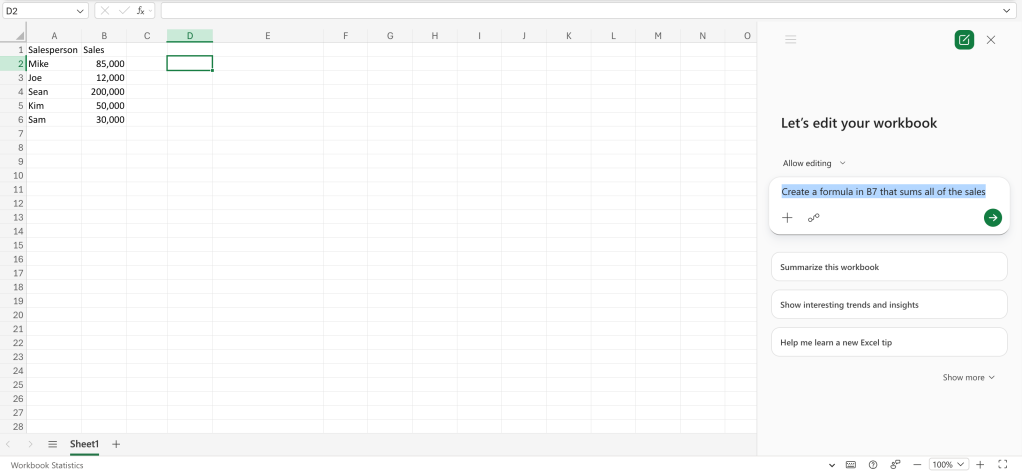
The Copilot sidebar opens along the right side of your spreadsheet. Type in a prompt describing the formula you want created — in this example, a simple formula that adds up all the sales values in the data set. Be sure to instruct Copilot where to place the formula:

Create a formula in B7 that sums all of the sales

screenshot of excel spreadsheet with sum prompt in copilot sidebar on right

Describe the formula you want Copilot to create.

Shimon Brathwaite / Foundry

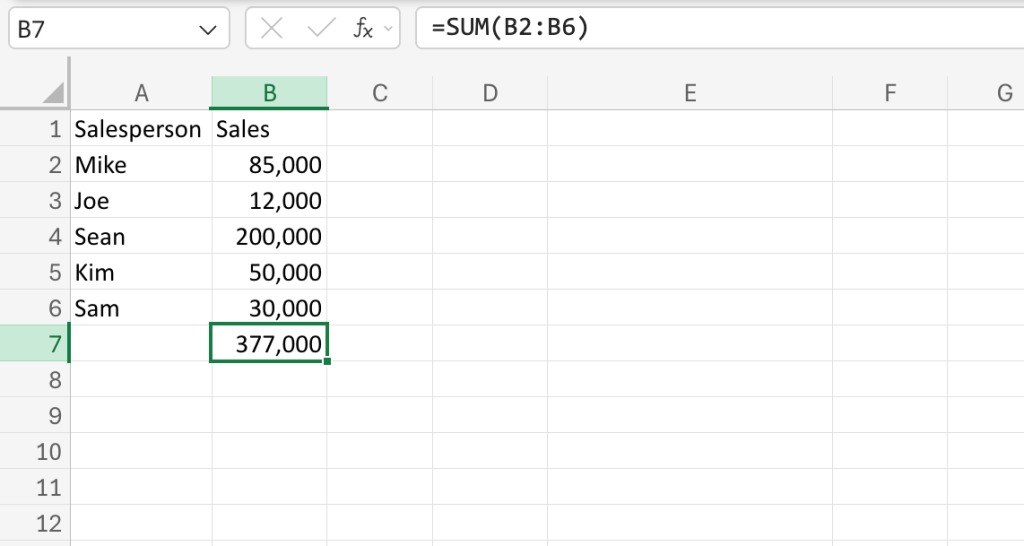
Click the submit arrow in the chat window, and Copilot will create and insert the formula to give you the result you want.

screenshot of excel spreadsheet with sum result at bottom of data column

Copilot has inserted the correct Excel formula for the sum operation, with the result appearing in cell B7.

Shimon Brathwaite / Foundry

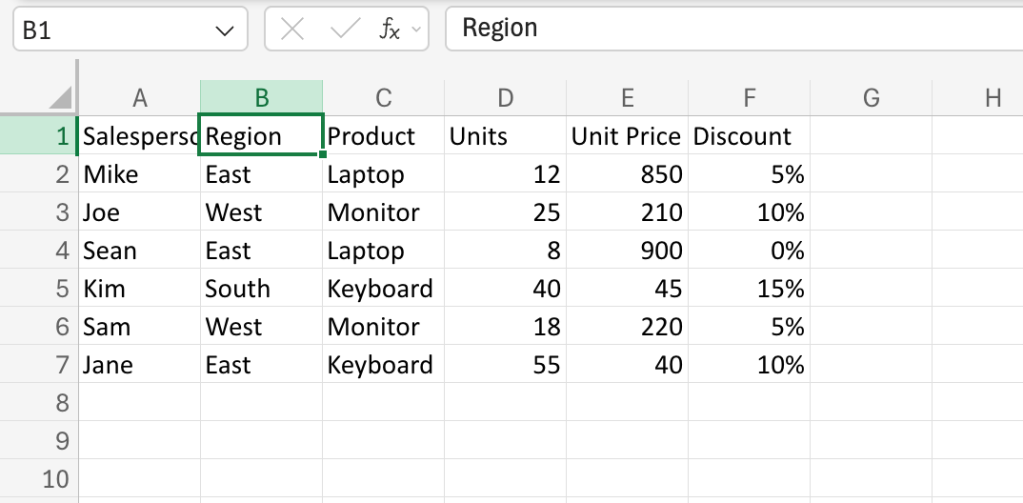
That was a simple one. Now try a more advanced example working from a more complex data set, as shown in the screenshot below.

screenshot of excel spreadsheet with 6 rows and 6 columns with disparate value types

A more complex data set for our second example.

Shimon Brathwaite / Foundry

Try the following prompt:

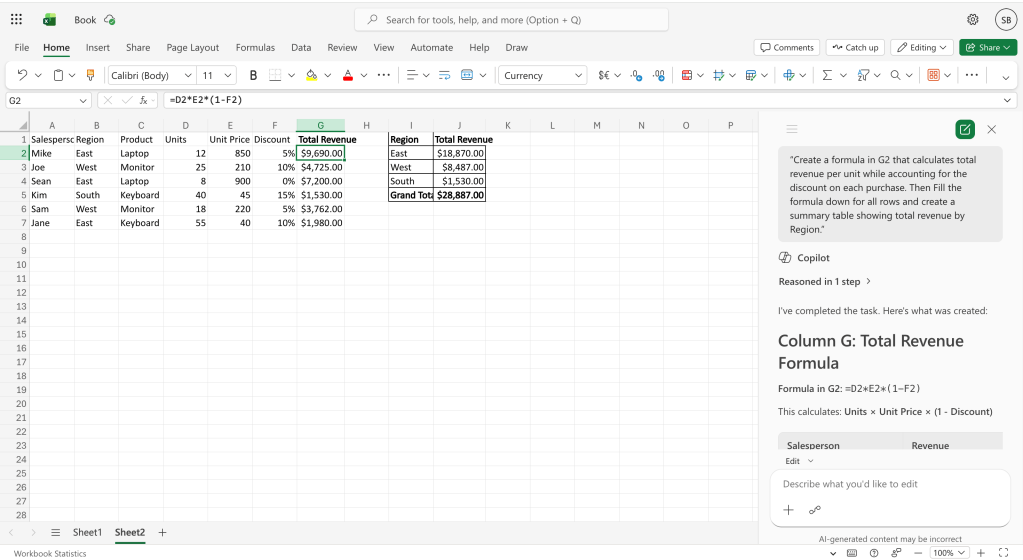
Create a formula in G2 that calculates total revenue per unit while accounting for the discount on each purchase. Then fill the formula down for all rows and create a summary table showing total revenue by Region.

Click the submit arrow, and it should create something like this:

screenshot of excel spreadsheet with new column of calculated values and a new summary table added - copilot prompt and explanation are in right sidebar

Copilot creates the requested formula and fills in the results.

Shimon Brathwaite / Foundry

(There’s a lot more you can have Copilot can do in Excel besides creating formulas. See our story “11 cool things Copilot can do in Excel.”)

Tip: It’s not required, but it can be helpful to format your spreadsheet as a table when working with Copilot. This helps define more clearly the exact cells for Copilot to use when it creates formulas or takes other actions on your data.

You’re just getting started

In this story you’ve seen how powerful formulas and functions can be in Excel — and we’ve only the scratched the surface of what they can do. Once you get comfortable using them, you can explore some of the myriad prebuilt functions Excel offers and learn how to build more complex formulas (including nesting functions). That’s all beyond the scope of this article, but a great place to start is Microsoft’s “Overview of formulas in Excel” support page, which includes links to several helpful tutorials.

For those who have access to it in Excel, experimenting with Copilot is another great way to learn. You can review the steps it took and the formulas it created to get a better understanding of how formulas work and what they’re capable of.

This story was originally published in May 2023 and updated in June 2026.

More Excel tips and how-tos:

  •  

Microsoft launches Copilot Cowork with usage-based pricing

Microsoft has introduced usage-based billing for Copilot Cowork, which is now generally available. 

Microsoft unveiled Copilot Cowork in March, pitching it as an AI agent that’s capable of independently performing long-running, multi-step tasks — even when a user’s computer is off. 

It’s built on the same technology that underpins Anthropic’s Claude Cowork. Unlike Claude Cowork, which can interact directly with files and applications on a user’s computer, Copilot Cowork runs in Microsoft’s cloud environment and acts on documents held in a customer’s Microsoft 365 tenant.

On Tuesday, Microsoft unveiled pricing details for Copilot Cowork, which involves usage-based billing in addition to a Microsoft 365 Copilot license ($30 per user each month for large enterprises before discounts, and $20 for Microsoft 365 Copilot for Business). 

The usage-based pricing is calculated from four components, according to Microsoft: “model use, context retrieval, tool calls, and runtime.” 

In practice, this means more intensive tasks that draw on multiple sources, use “deep reasoning” and generate two or more outputs will lead to higher costs — denoted in Copilot Credits. 

There are two payment options: pay as you go — priced at 1 cent per credit — and P3, where customers commit to usage volume in advance and receive a discount.

Cowork is turned off by default; IT admins can decide when to make it available and which employees get access. Admins can also impose spending limits at the tenant, group, and user level, and receive notifications when spending reaches a certain level.

Users will also be able to see how much each tasks costs in credits (available “soon after” the general availability launch, Microsoft said). 

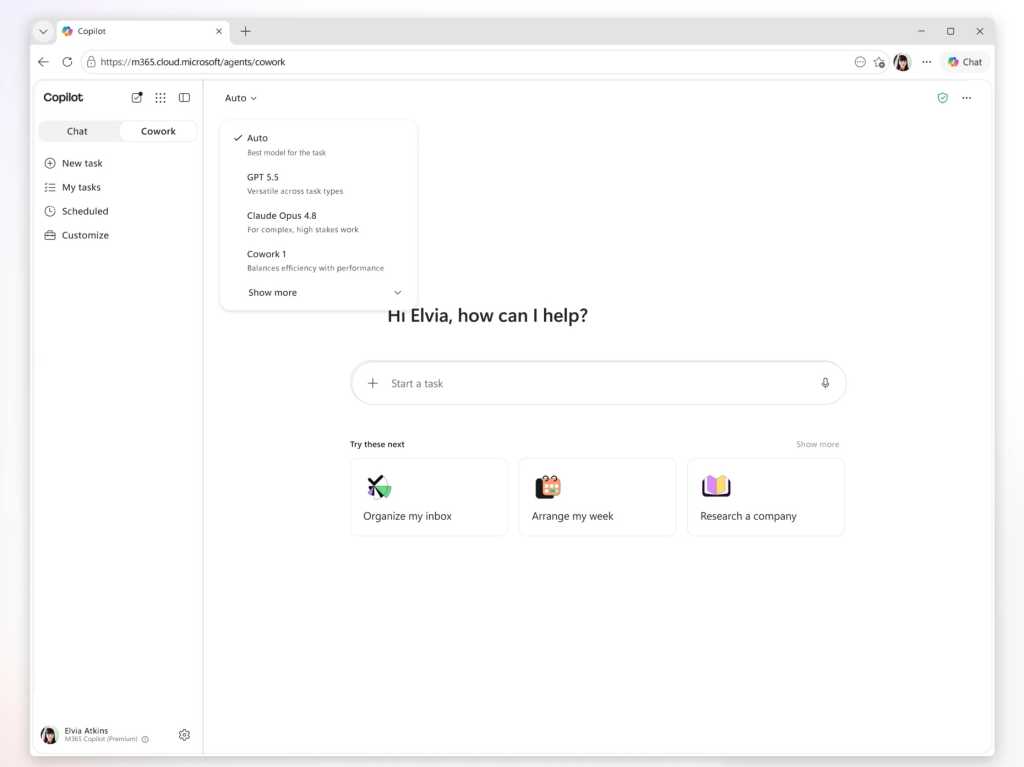
Copilot Cowork customers can select from multiple AI models, including Anthropic’s Opus 4.8 and Sonnet 4.6, while those enrolled on the Frontier program can access OpenAI’s GPT 5.5 and Microsoft’s own Cowork 1 model.

Microsoft is considering hosting a version of DeepSeek’s open source models. “We are actively exploring a range of options that meet those requirements, and DeepSeek is one of several models under consideration. We’ll share more specifics on the underlying model closer to release,” said a Microsoft spokesperson.

Microsoft also announced new integrations with third-party apps such as Miro and Monday.com, with more — such as Adobe, Box, and Canva — coming soon.

This article was updated on June 19 to add Microsoft’s comment on DeepSeek.

  •  

Microsoft 365: A guide to the updates

Microsoft 365 (and Office 365) subscribers get more frequent software updates than those who have purchased Office without a subscription, which means subscribers have access to the latest features, security patches, and bug fixes. But it can be hard to keep track of the changes in each update and know when they’re available. We’re doing this for you, so you don’t have to.

Following are summaries of the updates to Microsoft 365/Office 365 for Windows over the past year, with the latest releases shown first. We’ll add info about new updates as they’re rolled out.

Note: This story covers updates released to the Current Channel for Microsoft 365/Office 365 subscriptions. If you’re a member of Microsoft’s Office Insider preview program or want to get a sneak peek at upcoming features, see the Microsoft 365 Insider blog.

Version 2605 (Build 20026.20168)

Release date: June 9, 2026

This build offers “various fixes to functionality and performance,” according to Microsoft.

Get more info about Version 2605 (Build 20026.20168).

Version 2605 (Build 20026.20140)

Release date: June 3, 2026

This build fixes a single bug, in which images didn’t display when using top and bottom text wrapping in classic Outlook.

Get more info about Version 2605 (Build 20026.20140).

Version 2605 (Build 20026.20112)

Release date: May 26, 2026

This build offers “various fixes to functionality and performance,” according to Microsoft.

Get more info about Version 2605 (Build 20026.20112).

Version 2605 (Build 20026.20076)

Release date: May 20, 2026

This build fixes several bugs, including one in which Excel or PowerPoint closed unexpectedly in rare cases while the user was actively co-authoring, particularly when opening a document for the first time.

Get more info about Version 2605 (Build 20026.20076).

Version 2604 (Build 19929.20172)

Release date: May 14, 2026

This build fixes a bug in Outlook in which sending mail failed when multiple Exchange accounts were configured.

Get more info about Version 2604 (Build 19929.20172).

Version 2604 (Build 19929.20164)

Release date: May 12, 2026

The build plugs a number of security holes. For details, see Release notes for Microsoft Office security updates.

What IT needs to know: Because this is a security update, it should be applied relatively soon. Over the next few weeks, check for reports about problematic issues, and if all seems well, apply the update.

Get more info about Version 2604 (Build 19929.20164).

Version 2604 (Build 19929.20136)

Release date: May 5, 2026

This build fixes a bug in which Outlook closed unexpectedly after replying to a mail item with labels.

Get more info about  Version 2604 (Build 19929.20136).

Version 2604 (Build 19929.20106)

Release date: April 29, 2026

This build includes “various fixes to functionality and performance,” according to Microsoft.

Get more info about Version 2604 (Build 19929.20106).

Version 2604 (Build 19929.20090)

Release date: April 21, 2026

This build includes “various fixes to functionality and performance,” according to Microsoft.

Get more info about Version 2604 (Build 19929.20090).

Version 2603 (Build 19822.20182)

Release date: April 14, 2026

In this build, Copilot can now edit your PowerPoint documents. Copilot can start a new presentation or build on an existing one, generate slides, update content, improve layouts, and polish design, while preserving formatting, structure, and branding. 

The build also plugs a number of security holes. For details, see Release notes for Microsoft Office security updates.

What IT needs to know: Because this is a security update, it should be applied relatively soon. Over the next few weeks, check for reports about problematic issues, and if all seems well, apply the update.

Get more info about Version 2603 (Build 19822.20182).

Version 2603 (Build 19822.20168)

Release date: April 9, 2026

This build fixes several bugs, including one in Outlook in which users could not close the Copilot chat pane using a keyboard. Users can now close the pane by navigating to the Close button using a keyboard or by using the assigned keyboard shortcut.

Get more info about Version 2603 (Build 19822.20168).

Version 2603 (Build 19822.20142)

Release date: March 31, 2026

This build includes “various fixes to functionality and performance,” according to Microsoft.

Get more info about Version 2603 (Build 19822.20142).

Version 2603 (Build 19822.20114)

Release date: March 24, 2026

This build fixes a single bug in which PowerPoint sometimes closed unexpectedly when opening a newly created empty file from the OneDrive folder.

Get more info about Version 2603 (Build 19822.20114).

Version 2602 (Build 19725.20190)

Release date: March 18, 2026

This build fixes an Outlook bug in which updating a single instance of a recurring meeting in a Microsoft 365 group calendar updated the entire series.

Get more info about Version 2602 (Build 19725.20190).

Version 2602 (Build 19725.20172)

Release date: March 10, 2026

This build introduces agent mode in Word, which adds a conversational chat experience that helps create, edit, and refine document content as you work. In addition, the build fixes a bug that impacted the rendering of extended characters in calendar items, causing certain characters to appear as question marks.

The build also plugs a number of security holes. For details, see Release notes for Microsoft Office security updates.

What IT needs to know: Because this is a security update, it should be applied relatively soon. Over the next few weeks, check for reports about problematic issues, and if all seems well, apply the update.

Get more info about Version 2602 (Build 19725.20172).

Version 2602 (Build 19725.20152)

Release date: March 3, 2026

This build fixes a bug in which closing a document sometimes remained in progress indefinitely after the Office app resumed from sleep or hibernation.

Get more info about Version 2602 (Build 19725.20152).

Version 2602 (Build 19725.20126)

Release date: February 24, 2025

This build fixes several bugs, including one that caused OneNote to close unexpectedly upon startup.

Get more info about Version 2602 (Build 19725.20126).

Version 2601 (Build 19628.20214)

Release date: February 17, 2025

This build includes, in Microsoft’s words, “various fixes to functionality and performance.”

Get more info about Version 2601 (Build 19628.20214).

Version 2601 (Build 19628.20204)

Release date: February 10, 2026

This build fixes a bug that sometimes prevented users from opening emails with the Encrypt Only label in Outlook.

It also plugs a number of security holes. For details, see Release notes for Microsoft Office security updates.

What IT needs to know: Because this is a security update, it should be applied relatively soon. Over the next few weeks, check for reports about problematic issues, and if all seems well, apply the update.

Get more info about Version 2601 (Build 19628.20204).

Version 2601 (Build 19628.20166)

Release date: February 3, 2026

This build includes, in Microsoft’s words, “various fixes to functionality and performance.”

Get more info about Version 2601 (Build 19628.20166).

Version 2601 (Build 19628.20150)

Release date: January 27, 2025

In this build, OneNote applies your chosen proofing language more consistently, so you don’t have to reset it for every paragraph when writing in multiple languages. In addition, the build fixes several bugs, including one that caused Office applications to become unresponsive when profile card-related activities were performed.

Get more info about Version 2601 (Build 19628.20150).

Version 2512 (Build 19530.20184)

Release date: January 21, 2025

This build includes, in Microsoft’s words, “Various fixes to functionality and performance.”

Get more info about Version 2512 (Build 19530.20184).

Version 2512 (Build 19530.20144)

Release date: January 13, 2026

This build fixes a number of bugs, including one that caused Excel, PowerPoint, and Word to become unresponsive when profile card-related activities were performed.

It also plugs a number of security holes. For details, see Release notes for Microsoft Office security updates.

What IT needs to know: Because this is a security update, it should be applied relatively soon. Over the next few weeks, check for reports about problematic issues, and if all seems well, apply the update.

Get more info about Version 2512 (Build 19530.20144).

Version 2512 (Build 19530.20138)

Release date: January 8, 2025

This build offers, in Microsoft’s words, “Various fixes to functionality and performance.”

Get more info about Version 2512 (Build 19530.20138).

Version 2511 (Build 19426.20218)

Release date: December 16, 2025

This build offers, in Microsoft’s words, “Various fixes to functionality and performance.”

Get more info about Version 2511 (Build 19426.20218).

Version 2511 (Build 19426.20186)

Release date: December 9, 2025

This Patch Tuesday build offers, in Microsoft’s words, “Various fixes to functionality and performance.” The build also has a variety of security updates (see details).

What IT needs to know: Because this is a security update, it should be applied relatively soon. Over the next few weeks, check for reports about problematic issues, and if all seems well, apply the update.

Get more info about Version 2511 (Build 19426.20186).

Version 2511 (Build 19426.20170)

Release date: December 3, 2025

This build includes, in Microsoft’s words, “Various fixes to functionality and performance.”

Get more info about Version 2511 (Build 19426.20170).

Version 2510 (Build 19328.20244)

Release date: November 20, 2025

This build fixes a bug in Outlook that caused users to see “Contacting the server for information” repeatedly when loading some emails.

Get more info about Version 2510 (Build 19328.20244).

Version 2510 (Build 19328.20232)

Release date: November 18, 2025

This build includes, in the words of Microsoft, “various fixes to functionality and performance.”

Get more info about Version 2510 (Build 19328.20232).

Version 2510 (Build 19328.20190)

Release date: November 11, 2025

This Patch Tuesday build fixes a bug in Outlook that caused some recipients to be unable to access OneDrive links shared with them via email. The build also has a variety of security updates (see details).

What IT needs to know: Because this is a security update, it should be applied relatively soon. Over the next few weeks, check for reports about problematic issues, and if all seems well, apply the update.

Get more info about Version 2510 (Build 19328.20190).

Version 2510 (Build 19328.20178)

Release date: November 4, 2025

This build fixes a single bug, in which @mention searches produced no results in Office apps.

Get more info about Version 2510 (Build 19328.20178).

Version 2510 (Build 19328.20158)

Release date: October 30, 2025

This build introduces a new Get Data dialog in Windows that simplifies finding and using external data, and adds Analyze Data to the Data tab.

The build also fixed an bug in Outlook that prevented users from downloading web add-ins in some virtualized environments.

Get more info about Version 2510 (Build 19328.20158).

Version 2509 (Build 19231.20216)

Release date: October 21, 2025

This build has, in Microsoft’s words, “various fixes to functionality and performance.”

Get more info about Version 2509 (Build 19231.20216).

Version 2509 (Build 19231.20194)

Release date: October 14, 2025

This build has a variety of security updates (see details), along with various fixes to functionality and performance.

What IT needs to know: Because this is a security update, it should be applied relatively soon. Over the next few weeks, check for reports about problematic issues, and if all seems well, apply the update.

Get more info about Version 2509 (Build 19231.20194).

Version 2509 (Build 19231.20172)

Release date: October 7, 2025

This build has, in Microsoft’s words, “various fixes to functionality and performance.”

Get more info about Version 2509 (Build 19231.20172).

Version 2509 (Build 19231.20156)

Release date: October 1, 2025

This build fixes two bugs, one in Excel in which ribbon controls were not rendered when rejoining Office sessions in a virtual machine, Azure Virtual Desktop, or remote desktop environment, and another that caused Outlook to terminate unexpectedly when starting.

Get more info about Version 2509 (Build 19231.20156).

Version 2508 (Build 19127.20264)

Release date: September 23, 2025

This build has, in Microsoft’s words, “various fixes to functionality and performance.”

Get more info about Version 2508 (Build 19127.20264).

Version 2508 (Build 19127.20240)

Release date: September 16, 2025

This build has, in Microsoft’s words, “various fixes to functionality and performance.”

Get more info about Version 2508 (Build 19127.20240).

Version 2508 (Build 19127.20222)

Release date: September 9, 2025

This build has multiple security updates (see details), along with various fixes to functionality and performance.

What IT needs to know: Because this is a security update, it should be applied relatively soon. Over the next few weeks, check for reports about problematic issues, and if all seems well, apply the update.

Get more info about Version 2508 (Build 19127.20222).

Version 2508 (Build 19127.20192)

Release date: September 3, 2025

This build fixes a bug in which some Outlook add-ins were getting “Office.auth.getAccessToken is not a function” errors.

Get more info about Version 2508 (Build 19127.20192).

Version 2508 (Build 19127.20154)

Release date: August 26, 2025

This build fixes a bug that caused Outlook to terminate unexpectedly when sending a meeting invite with an encryption label. It also adds support for pixelated rendering of embedded images in SVG assets for the entire Office suite.

Get more info about Version 2508 (Build 19127.20154).

Version 2507 (Build 19029.20208)

Release date: August 19, 2025

This build fixes a variety of bugs.

Get more info about Version 2507 (Build 19029.20208).

Version 2507 (Build 19029.20184)

Release date: August 12, 2025

This build fixes a bug which required users to restart Outlook to open a .msg file after initially accessing it once. The build also includes a variety of security updates (see details).

What IT needs to know: Because this is a security update, it should be applied relatively soon. Over the next few weeks, check for reports about problematic issues, and if all seems well, apply the update.

Get more info about Version 2507 (Build 19029.20184).

Version 2507 (Build 19029.20156)

Release date: August 5, 2025

This build fixes a single bug, in which users had to restart Outlook to open a .msg file after initially accessing it once.

Get more info about Version 2507 (Build 19029.20156).

Version 2507 (Build 19029.20136)

Release date: July 30, 2025

This build fixes a wide variety of bugs, including in which Outlook closed unexpectedly shortly after launch, and another in Word in which the word count sometimes displayed incorrectly.

Get more info about Version 2507 (Build 19029.20136).

Version 2506 (Build 18925.20184)

Release date: July 22, 2025

This build fixes two bugs, one that caused the Copilot Command Center to continue to be visible after disabling the Copilot user interface, and another in which when creating handouts in PowerPoint, certain characters (full-width numbers) couldn’t be properly transferred to the handout.

Get more info about Version 2506 (Build 18925.20184).

Version 2506 (Build 18925.20168)

Release date: July 15, 2025

This build fixes two bugs, one that caused Visio 32-bit to close unexpectedly when using the Drawing control, particularly in setups involving COM components or .NET integrations, and another in Word in which copying and pasting content between documents sometimes changed the applied style unexpectedly.

Get more info about Version 2506 (Build 18925.20168).

Version 2506 (Build 18925.20158)

Release date: July 8, 2025

This Patch Tuesday build fixes several bugs in Outlook, PowerPoint, Word, and the whole Office suite, including one that caused the Copilot icon to unexpectedly display in Outlook when Copilot had been disabled by the admin in government cloud.

The release also includes a variety of security updates (see details).

What IT needs to know: Because this is a security update, it should be applied relatively soon. Over the next few weeks, check for reports about problematic issues, and if all seems well, apply the update.

Get more info about Version 2506 (Build 18925.20158).

Version 2506 (Build 18827.20176)

Release date: July 1, 2025

This build fixes a wide variety of bugs, including one in Word in which print preview sometimes stopped working when printing long emails.

Get more info about Version 2506 (Build 18827.20176).

Version 2505 (Build 18827.20176)

Release date: June 26, 2025

This build introduces several new features, including one in Excel in which the PivotTables dialog box interface has been replaced by a redesigned panel, making it easier to view all of your options and simpler to change your data selection before inserting a recommended PivotTable.

Get more info about Version 2505 (Build 18827.20176).

Version 2505 (Build 18827.20164)

Release date: June 17, 2025

This build fixes a bug that caused the “Try the new Outlook” toggle to be enabled when working in Classic Outlook side by side with the new Outlook.

Get more info about Version 2505 (Build 18827.20164).

Version 2505 (Build 18827.20150)

Release date: June 10, 2025

This build fixes several bugs, including one for the entire Office suite in which a Save As attempt on an existing file didn’t complete successfully, and subsequent attempts continued to encounter issues when trying to save to a file that no longer existed.

This Patch Tuesday release also includes a variety of security updates: see details.

What IT needs to know: Because this is a security update, it should be applied relatively soon. Over the next few weeks, check for reports about problematic issues, and if all seems well, apply the update.

Get more info about  Version 2505 (Build 18827.20150).

Version 2505 (Build 18827.20140)

Release date: June 3, 2025

This build offers a variety of bug and performance fixes.

Read about Version 2505 (Build 18827.20140).

Version 2504 (Build 18730.20186)

Release date: May 20, 2025

This build introduces a new PowerPoint feature: Notification emails for mentions, tasks, comments, and replies will now contain context previews even when the source document is encrypted, and the email will inherit the document’s security policies.

Get more info about Version 2504 (Build 18730.20186).

Version 2504 (Build 18730.20168)

Release date: May 13, 2025

This build fixes a bug in which users were seeing high CPU usage when typing in Outlook. It also includes a variety of security updates: see details.

What IT needs to know: Because this is a security update, it should be applied relatively soon. Over the next few weeks, check for reports about problematic issues, and if all seems well, apply the update.

Get more info about Version 2504 (Build 18730.20168).

Version 2504 (Build 18730.20142)

Release date: May 6, 2025

This build includes various bug and performance fixes.

Get more info about Version 2504 (Build 18730.20142).

Version 2504 (Build 18730.20122)

Release date: April 29, 2025

This build fixes a wide variety of bugs, including one in which PowerPoint was unable to open a file from a network mapped drive from File Explore, another in which Word closed unexpectedly when opening .doc files, and another for the entire Office suite in which large 3D files couldn’t be inserted.

Get more info about Version 2504 (Build 18730.20122).

Version 2503 (Build 18623.20208)

Release date: April 17, 2025

This build fixes a bug that could cause Excel to stop responding.

Get more info about Version 2503 (Build 18623.20208).

Version 2503 (Build 18623.20178)

Release date: April 8, 2025

This build fixes a single bug in Word in which users may have encountered an issue with saving, seeing the message “saving…” in the title bar. It  also includes a variety of security updates. Go here for details.

What IT needs to know: Because this is a security update, it should be applied relatively soon. Over the next few weeks, check for reports about problematic issues, and if all seems well, apply the update.

Get more info about Version 2503 (Build 18623.20178).

Version 2503 (Build 18623.20156)

Release date: April 2, 2025

This build lets you use Dark Mode in Excel, which darkens your entire sheet, including cells, and may reduce eye strain. It also fixes several bugs, including one in Word in which opening specific files that contain many tracked changes and comments resulted in poor performance, and one in PowerPoint in which the app was not displaying the icon for an inserted PDF object.

Get more info about Version 2503 (Build 18623.20156).

Version 2502 (Build 18526.20168)

Release date: March 11, 2025

This build fixes several bugs, including one in which some Word files with numerous tracked changes and comments were slow. It also includes a variety of security updates: see details.

What IT needs to know: Because this is a security update, it should be applied relatively soon. Over the next few weeks, check for reports about problematic issues, and if all seems well, apply the update.

Get more info about Version 2502 (Build 18526.20168).

Version 2502 (Build 18526.20144)

Release date: March 5, 2025

This build fixes a wide variety of bugs, including one in Word in which the default font size may not be 12pt as expected, and another in which PowerPoint automatically closed when the system went into hibernate or sleep mode.

Get more info about Version 2502 (Build 18526.20144).

Version 2501 (Build 18429.20158)

Release date: February 11, 2025

This build removes the option to display Track Changes balloons in left margin in Word. It also includes a variety of security updates. See “Release notes for Microsoft Office security updates” for details.

What IT needs to know: Because this is a security update, it should be applied relatively soon. Over the next few weeks, check for reports about problematic issues, and if all seems well, apply the update.

Get more info about Version 2501 (Build 18429.20158).

  •  

Microsoft 365: A guide to the updates

Microsoft 365 (and Office 365) subscribers get more frequent software updates than those who have purchased Office without a subscription, which means subscribers have access to the latest features, security patches, and bug fixes. But it can be hard to keep track of the changes in each update and know when they’re available. We’re doing this for you, so you don’t have to.

Following are summaries of the updates to Microsoft 365/Office 365 for Windows over the past year, with the latest releases shown first. We’ll add info about new updates as they’re rolled out.

Note: This story covers updates released to the Current Channel for Microsoft 365/Office 365 subscriptions. If you’re a member of Microsoft’s Office Insider preview program or want to get a sneak peek at upcoming features, see the Microsoft 365 Insider blog.

Version 2605 (Build 20026.20140)

Release date: June 3, 2026

This build fixes a single bug, in which images didn’t display when using top and bottom text wrapping in classic Outlook.

Get more info about Version 2605 (Build 20026.20140).

Version 2605 (Build 20026.20112)

Release date: May 26, 2026

This build offers “various fixes to functionality and performance,” according to Microsoft.

Get more info about Version 2605 (Build 20026.20112).

Version 2605 (Build 20026.20076)

Release date: May 20, 2026

This build fixes several bugs, including one in which Excel or PowerPoint closed unexpectedly in rare cases while the user was actively co-authoring, particularly when opening a document for the first time.

Get more info about Version 2605 (Build 20026.20076).

Version 2604 (Build 19929.20172)

Release date: May 14, 2026

This build fixes a bug in Outlook in which sending mail failed when multiple Exchange accounts were configured.

Get more info about Version 2604 (Build 19929.20172).

Version 2604 (Build 19929.20164)

Release date: May 12, 2026

The build plugs a number of security holes. For details, see Release notes for Microsoft Office security updates.

What IT needs to know: Because this is a security update, it should be applied relatively soon. Over the next few weeks, check for reports about problematic issues, and if all seems well, apply the update.

Get more info about Version 2604 (Build 19929.20164).

Version 2604 (Build 19929.20136)

Release date: May 5, 2026

This build fixes a bug in which Outlook closed unexpectedly after replying to a mail item with labels.

Get more info about  Version 2604 (Build 19929.20136).

Version 2604 (Build 19929.20106)

Release date: April 29, 2026

This build includes “various fixes to functionality and performance,” according to Microsoft.

Get more info about Version 2604 (Build 19929.20106).

Version 2604 (Build 19929.20090)

Release date: April 21, 2026

This build includes “various fixes to functionality and performance,” according to Microsoft.

Get more info about Version 2604 (Build 19929.20090).

Version 2603 (Build 19822.20182)

Release date: April 14, 2026

In this build, Copilot can now edit your PowerPoint documents. Copilot can start a new presentation or build on an existing one, generate slides, update content, improve layouts, and polish design, while preserving formatting, structure, and branding. 

The build also plugs a number of security holes. For details, see Release notes for Microsoft Office security updates.

What IT needs to know: Because this is a security update, it should be applied relatively soon. Over the next few weeks, check for reports about problematic issues, and if all seems well, apply the update.

Get more info about Version 2603 (Build 19822.20182).

Version 2603 (Build 19822.20168)

Release date: April 9, 2026

This build fixes several bugs, including one in Outlook in which users could not close the Copilot chat pane using a keyboard. Users can now close the pane by navigating to the Close button using a keyboard or by using the assigned keyboard shortcut.

Get more info about Version 2603 (Build 19822.20168).

Version 2603 (Build 19822.20142)

Release date: March 31, 2026

This build includes “various fixes to functionality and performance,” according to Microsoft.

Get more info about Version 2603 (Build 19822.20142).

Version 2603 (Build 19822.20114)

Release date: March 24, 2026

This build fixes a single bug in which PowerPoint sometimes closed unexpectedly when opening a newly created empty file from the OneDrive folder.

Get more info about Version 2603 (Build 19822.20114).

Version 2602 (Build 19725.20190)

Release date: March 18, 2026

This build fixes an Outlook bug in which updating a single instance of a recurring meeting in a Microsoft 365 group calendar updated the entire series.

Get more info about Version 2602 (Build 19725.20190).

Version 2602 (Build 19725.20172)

Release date: March 10, 2026

This build introduces agent mode in Word, which adds a conversational chat experience that helps create, edit, and refine document content as you work. In addition, the build fixes a bug that impacted the rendering of extended characters in calendar items, causing certain characters to appear as question marks.

The build also plugs a number of security holes. For details, see Release notes for Microsoft Office security updates.

What IT needs to know: Because this is a security update, it should be applied relatively soon. Over the next few weeks, check for reports about problematic issues, and if all seems well, apply the update.

Get more info about Version 2602 (Build 19725.20172).

Version 2602 (Build 19725.20152)

Release date: March 3, 2026

This build fixes a bug in which closing a document sometimes remained in progress indefinitely after the Office app resumed from sleep or hibernation.

Get more info about Version 2602 (Build 19725.20152).

Version 2602 (Build 19725.20126)

Release date: February 24, 2025

This build fixes several bugs, including one that caused OneNote to close unexpectedly upon startup.

Get more info about Version 2602 (Build 19725.20126).

Version 2601 (Build 19628.20214)

Release date: February 17, 2025

This build includes, in Microsoft’s words, “various fixes to functionality and performance.”

Get more info about Version 2601 (Build 19628.20214).

Version 2601 (Build 19628.20204)

Release date: February 10, 2026

This build fixes a bug that sometimes prevented users from opening emails with the Encrypt Only label in Outlook.

It also plugs a number of security holes. For details, see Release notes for Microsoft Office security updates.

What IT needs to know: Because this is a security update, it should be applied relatively soon. Over the next few weeks, check for reports about problematic issues, and if all seems well, apply the update.

Get more info about Version 2601 (Build 19628.20204).

Version 2601 (Build 19628.20166)

Release date: February 3, 2026

This build includes, in Microsoft’s words, “various fixes to functionality and performance.”

Get more info about Version 2601 (Build 19628.20166).

Version 2601 (Build 19628.20150)

Release date: January 27, 2025

In this build, OneNote applies your chosen proofing language more consistently, so you don’t have to reset it for every paragraph when writing in multiple languages. In addition, the build fixes several bugs, including one that caused Office applications to become unresponsive when profile card-related activities were performed.

Get more info about Version 2601 (Build 19628.20150).

Version 2512 (Build 19530.20184)

Release date: January 21, 2025

This build includes, in Microsoft’s words, “Various fixes to functionality and performance.”

Get more info about Version 2512 (Build 19530.20184).

Version 2512 (Build 19530.20144)

Release date: January 13, 2026

This build fixes a number of bugs, including one that caused Excel, PowerPoint, and Word to become unresponsive when profile card-related activities were performed.

It also plugs a number of security holes. For details, see Release notes for Microsoft Office security updates.

What IT needs to know: Because this is a security update, it should be applied relatively soon. Over the next few weeks, check for reports about problematic issues, and if all seems well, apply the update.

Get more info about Version 2512 (Build 19530.20144).

Version 2512 (Build 19530.20138)

Release date: January 8, 2025

This build offers, in Microsoft’s words, “Various fixes to functionality and performance.”

Get more info about Version 2512 (Build 19530.20138).

Version 2511 (Build 19426.20218)

Release date: December 16, 2025

This build offers, in Microsoft’s words, “Various fixes to functionality and performance.”

Get more info about Version 2511 (Build 19426.20218).

Version 2511 (Build 19426.20186)

Release date: December 9, 2025

This Patch Tuesday build offers, in Microsoft’s words, “Various fixes to functionality and performance.” The build also has a variety of security updates (see details).

What IT needs to know: Because this is a security update, it should be applied relatively soon. Over the next few weeks, check for reports about problematic issues, and if all seems well, apply the update.

Get more info about Version 2511 (Build 19426.20186).

Version 2511 (Build 19426.20170)

Release date: December 3, 2025

This build includes, in Microsoft’s words, “Various fixes to functionality and performance.”

Get more info about Version 2511 (Build 19426.20170).

Version 2510 (Build 19328.20244)

Release date: November 20, 2025

This build fixes a bug in Outlook that caused users to see “Contacting the server for information” repeatedly when loading some emails.

Get more info about Version 2510 (Build 19328.20244).

Version 2510 (Build 19328.20232)

Release date: November 18, 2025

This build includes, in the words of Microsoft, “various fixes to functionality and performance.”

Get more info about Version 2510 (Build 19328.20232).

Version 2510 (Build 19328.20190)

Release date: November 11, 2025

This Patch Tuesday build fixes a bug in Outlook that caused some recipients to be unable to access OneDrive links shared with them via email. The build also has a variety of security updates (see details).

What IT needs to know: Because this is a security update, it should be applied relatively soon. Over the next few weeks, check for reports about problematic issues, and if all seems well, apply the update.

Get more info about Version 2510 (Build 19328.20190).

Version 2510 (Build 19328.20178)

Release date: November 4, 2025

This build fixes a single bug, in which @mention searches produced no results in Office apps.

Get more info about Version 2510 (Build 19328.20178).

Version 2510 (Build 19328.20158)

Release date: October 30, 2025

This build introduces a new Get Data dialog in Windows that simplifies finding and using external data, and adds Analyze Data to the Data tab.

The build also fixed an bug in Outlook that prevented users from downloading web add-ins in some virtualized environments.

Get more info about Version 2510 (Build 19328.20158).

Version 2509 (Build 19231.20216)

Release date: October 21, 2025

This build has, in Microsoft’s words, “various fixes to functionality and performance.”

Get more info about Version 2509 (Build 19231.20216).

Version 2509 (Build 19231.20194)

Release date: October 14, 2025

This build has a variety of security updates (see details), along with various fixes to functionality and performance.

What IT needs to know: Because this is a security update, it should be applied relatively soon. Over the next few weeks, check for reports about problematic issues, and if all seems well, apply the update.

Get more info about Version 2509 (Build 19231.20194).

Version 2509 (Build 19231.20172)

Release date: October 7, 2025

This build has, in Microsoft’s words, “various fixes to functionality and performance.”

Get more info about Version 2509 (Build 19231.20172).

Version 2509 (Build 19231.20156)

Release date: October 1, 2025

This build fixes two bugs, one in Excel in which ribbon controls were not rendered when rejoining Office sessions in a virtual machine, Azure Virtual Desktop, or remote desktop environment, and another that caused Outlook to terminate unexpectedly when starting.

Get more info about Version 2509 (Build 19231.20156).

Version 2508 (Build 19127.20264)

Release date: September 23, 2025

This build has, in Microsoft’s words, “various fixes to functionality and performance.”

Get more info about Version 2508 (Build 19127.20264).

Version 2508 (Build 19127.20240)

Release date: September 16, 2025

This build has, in Microsoft’s words, “various fixes to functionality and performance.”

Get more info about Version 2508 (Build 19127.20240).

Version 2508 (Build 19127.20222)

Release date: September 9, 2025

This build has multiple security updates (see details), along with various fixes to functionality and performance.

What IT needs to know: Because this is a security update, it should be applied relatively soon. Over the next few weeks, check for reports about problematic issues, and if all seems well, apply the update.

Get more info about Version 2508 (Build 19127.20222).

Version 2508 (Build 19127.20192)

Release date: September 3, 2025

This build fixes a bug in which some Outlook add-ins were getting “Office.auth.getAccessToken is not a function” errors.

Get more info about Version 2508 (Build 19127.20192).

Version 2508 (Build 19127.20154)

Release date: August 26, 2025

This build fixes a bug that caused Outlook to terminate unexpectedly when sending a meeting invite with an encryption label. It also adds support for pixelated rendering of embedded images in SVG assets for the entire Office suite.

Get more info about Version 2508 (Build 19127.20154).

Version 2507 (Build 19029.20208)

Release date: August 19, 2025

This build fixes a variety of bugs.

Get more info about Version 2507 (Build 19029.20208).

Version 2507 (Build 19029.20184)

Release date: August 12, 2025

This build fixes a bug which required users to restart Outlook to open a .msg file after initially accessing it once. The build also includes a variety of security updates (see details).

What IT needs to know: Because this is a security update, it should be applied relatively soon. Over the next few weeks, check for reports about problematic issues, and if all seems well, apply the update.

Get more info about Version 2507 (Build 19029.20184).

Version 2507 (Build 19029.20156)

Release date: August 5, 2025

This build fixes a single bug, in which users had to restart Outlook to open a .msg file after initially accessing it once.

Get more info about Version 2507 (Build 19029.20156).

Version 2507 (Build 19029.20136)

Release date: July 30, 2025

This build fixes a wide variety of bugs, including in which Outlook closed unexpectedly shortly after launch, and another in Word in which the word count sometimes displayed incorrectly.

Get more info about Version 2507 (Build 19029.20136).

Version 2506 (Build 18925.20184)

Release date: July 22, 2025

This build fixes two bugs, one that caused the Copilot Command Center to continue to be visible after disabling the Copilot user interface, and another in which when creating handouts in PowerPoint, certain characters (full-width numbers) couldn’t be properly transferred to the handout.

Get more info about Version 2506 (Build 18925.20184).

Version 2506 (Build 18925.20168)

Release date: July 15, 2025

This build fixes two bugs, one that caused Visio 32-bit to close unexpectedly when using the Drawing control, particularly in setups involving COM components or .NET integrations, and another in Word in which copying and pasting content between documents sometimes changed the applied style unexpectedly.

Get more info about Version 2506 (Build 18925.20168).

Version 2506 (Build 18925.20158)

Release date: July 8, 2025

This Patch Tuesday build fixes several bugs in Outlook, PowerPoint, Word, and the whole Office suite, including one that caused the Copilot icon to unexpectedly display in Outlook when Copilot had been disabled by the admin in government cloud.

The release also includes a variety of security updates (see details).

What IT needs to know: Because this is a security update, it should be applied relatively soon. Over the next few weeks, check for reports about problematic issues, and if all seems well, apply the update.

Get more info about Version 2506 (Build 18925.20158).

Version 2506 (Build 18827.20176)

Release date: July 1, 2025

This build fixes a wide variety of bugs, including one in Word in which print preview sometimes stopped working when printing long emails.

Get more info about Version 2506 (Build 18827.20176).

Version 2505 (Build 18827.20176)

Release date: June 26, 2025

This build introduces several new features, including one in Excel in which the PivotTables dialog box interface has been replaced by a redesigned panel, making it easier to view all of your options and simpler to change your data selection before inserting a recommended PivotTable.

Get more info about Version 2505 (Build 18827.20176).

Version 2505 (Build 18827.20164)

Release date: June 17, 2025

This build fixes a bug that caused the “Try the new Outlook” toggle to be enabled when working in Classic Outlook side by side with the new Outlook.

Get more info about Version 2505 (Build 18827.20164).

Version 2505 (Build 18827.20150)

Release date: June 10, 2025

This build fixes several bugs, including one for the entire Office suite in which a Save As attempt on an existing file didn’t complete successfully, and subsequent attempts continued to encounter issues when trying to save to a file that no longer existed.

This Patch Tuesday release also includes a variety of security updates: see details.

What IT needs to know: Because this is a security update, it should be applied relatively soon. Over the next few weeks, check for reports about problematic issues, and if all seems well, apply the update.

Get more info about  Version 2505 (Build 18827.20150).

Version 2505 (Build 18827.20140)

Release date: June 3, 2025

This build offers a variety of bug and performance fixes.

Read about Version 2505 (Build 18827.20140).

Version 2504 (Build 18730.20186)

Release date: May 20, 2025

This build introduces a new PowerPoint feature: Notification emails for mentions, tasks, comments, and replies will now contain context previews even when the source document is encrypted, and the email will inherit the document’s security policies.

Get more info about Version 2504 (Build 18730.20186).

Version 2504 (Build 18730.20168)

Release date: May 13, 2025

This build fixes a bug in which users were seeing high CPU usage when typing in Outlook. It also includes a variety of security updates: see details.

What IT needs to know: Because this is a security update, it should be applied relatively soon. Over the next few weeks, check for reports about problematic issues, and if all seems well, apply the update.

Get more info about Version 2504 (Build 18730.20168).

Version 2504 (Build 18730.20142)

Release date: May 6, 2025

This build includes various bug and performance fixes.

Get more info about Version 2504 (Build 18730.20142).

Version 2504 (Build 18730.20122)

Release date: April 29, 2025

This build fixes a wide variety of bugs, including one in which PowerPoint was unable to open a file from a network mapped drive from File Explore, another in which Word closed unexpectedly when opening .doc files, and another for the entire Office suite in which large 3D files couldn’t be inserted.

Get more info about Version 2504 (Build 18730.20122).

Version 2503 (Build 18623.20208)

Release date: April 17, 2025

This build fixes a bug that could cause Excel to stop responding.

Get more info about Version 2503 (Build 18623.20208).

Version 2503 (Build 18623.20178)

Release date: April 8, 2025

This build fixes a single bug in Word in which users may have encountered an issue with saving, seeing the message “saving…” in the title bar. It  also includes a variety of security updates. Go here for details.

What IT needs to know: Because this is a security update, it should be applied relatively soon. Over the next few weeks, check for reports about problematic issues, and if all seems well, apply the update.

Get more info about Version 2503 (Build 18623.20178).

Version 2503 (Build 18623.20156)

Release date: April 2, 2025

This build lets you use Dark Mode in Excel, which darkens your entire sheet, including cells, and may reduce eye strain. It also fixes several bugs, including one in Word in which opening specific files that contain many tracked changes and comments resulted in poor performance, and one in PowerPoint in which the app was not displaying the icon for an inserted PDF object.

Get more info about Version 2503 (Build 18623.20156).

Version 2502 (Build 18526.20168)

Release date: March 11, 2025

This build fixes several bugs, including one in which some Word files with numerous tracked changes and comments were slow. It also includes a variety of security updates: see details.

What IT needs to know: Because this is a security update, it should be applied relatively soon. Over the next few weeks, check for reports about problematic issues, and if all seems well, apply the update.

Get more info about Version 2502 (Build 18526.20168).

Version 2502 (Build 18526.20144)

Release date: March 5, 2025

This build fixes a wide variety of bugs, including one in Word in which the default font size may not be 12pt as expected, and another in which PowerPoint automatically closed when the system went into hibernate or sleep mode.

Get more info about Version 2502 (Build 18526.20144).

Version 2501 (Build 18429.20158)

Release date: February 11, 2025

This build removes the option to display Track Changes balloons in left margin in Word. It also includes a variety of security updates. See “Release notes for Microsoft Office security updates” for details.

What IT needs to know: Because this is a security update, it should be applied relatively soon. Over the next few weeks, check for reports about problematic issues, and if all seems well, apply the update.

Get more info about Version 2501 (Build 18429.20158).

  •  

Microsoft unveils Scout, an autonomous AI agent built on OpenClaw

Microsoft has developed a new AI agent that can run autonomously around the clock to complete tasks across Microsoft 365 applications.

Microsoft Scout, unveiled at the company’s Build event Tuesday, is a new type of always-on agent based on the OpenClaw agent framework that Microsoft calls “autopilots.”

These act on a user’s behalf with their own governed Entra identity, Omar Shahine, corporate vice president at Microsoft, said in a blog post.

“Autopilots stay active in the background, understand how work gets done across your apps and systems, and take action without needing to be prompted each time,” said Shahine, a Microsoft veteran who recently announced he is leading a new team to bring OpenClaw-based personal assistants to Microsoft 365 apps.

Microsoft Scout connects to apps such as Teams, Outlook, OneDrive, and SharePoint, and accesses data from chat, email, calendar, and contacts. Accessed via Teams, it can also interact with a user’s browser and with external apps via model context protocol (MCP). The tool functions across cloud, desktop, and the web.

Shahine said Scout can reduce mundane tasks that office workers face, such as coordinating and scheduling meeting times with colleagues, or blocking times in a user’s calendar based on upcoming work commitments. “It can also spot risks, like stalled decisions, so you can address them before they become blockers,” he said.

It’s available as an “experimental release” to customers of the company’s Frontier program, Microsoft said, and will require Intune policy configuration and “opt-in attestation.”

Scout is the latest in a range of agentic tools available in Microsoft 365 apps, including Agent Mode, where users can interact with Microsoft 365 Copilot inside apps such as Word and Excel to create content, and Copilot Cowork — Microsoft’s version of Anthropic’s Claude Cowork agent that can complete tasks independently.

Despite the company’s big AI push, Microsoft has struggled to convince businesses that Microsoft 365 Copilot is worth the additional cost; it’s advertised at $30 per user each month for large businesses. Around 3% of Microsoft 365 customers pay for the add-on subscription, the company said in January, with 15 million paid users. (Microsoft announced last month that that figure has now risen to 20 million.)

It’s not clear whether Scout will be included in Microsoft 365 Copilot subscriptions or charged separately. Microsoft did not immediately provide additional details about pricing.

The launch follows Google’s recent announcement of Spark, an autonomous agent that runs within the Google Workspace application suite. Spark can also be considered a response to the launch of OpenClaw last year, initially under the name “Clawdbot.”

OpenClaw has drawn scrutiny due to apparent security flaws, but Microsoft promises Scout is built with “enterprise-grade security and controls, so it can be trusted in your organization from day one.”

For organizations that have already deployed Microsoft 365 Copilot, Scout doesn’t introduce entirely new data risks, said Jeff Pollard, vice president and principal analyst at Forrester. But it “amplifies whatever data governance problems already exist. The difference this time: instead of surfacing sensitive data to users, it can potentially act on it.

“That makes it an active risk in terms of day to day operations,” Pollard said.

Potential security concerns echo those for AI agents and are exacerbated with personal agents such as Scout: amplified data exposure (since agents can interact with data and use tools autonomously); agent manipulation or prompt injection; unexpected actions, such as using tools or acting in ways that aren’t supposed to be allowed; and observability gaps related to understanding user and agent intent and the explainability of actions.

“However, these tools exist because they make AI far more useful for individuals, so security leaders can’t draw a line in the sand and say “no.” They have to adapt and figure out how to secure them,” said Pollard.

As with most new workplace technologies, Pollard expects adoption to start with “power users” who design and develop the use cases for the agent that can then expand more widely across users.

He warned that the accuracy of tools such as Microsoft Scout can fall short of user expectations. “LLM agents still struggle with goal alignment, multi-step reasoning drifts, and tool misuse,” he said. “Users aren’t always great at explaining what they want and LLM agents aren’t always great at providing what was requested. That’s a continuing problem.”

  •  
❌