❌

Reading view

Dell Pro 5 Webcam 2K Review: So you can look good in office

Just because you're in the office doesn't mean you might not still need to be on camera β€” so I guess it's not too surprising that some of the best webcams are made specifically for the office. Or that Dell is the one to make them.

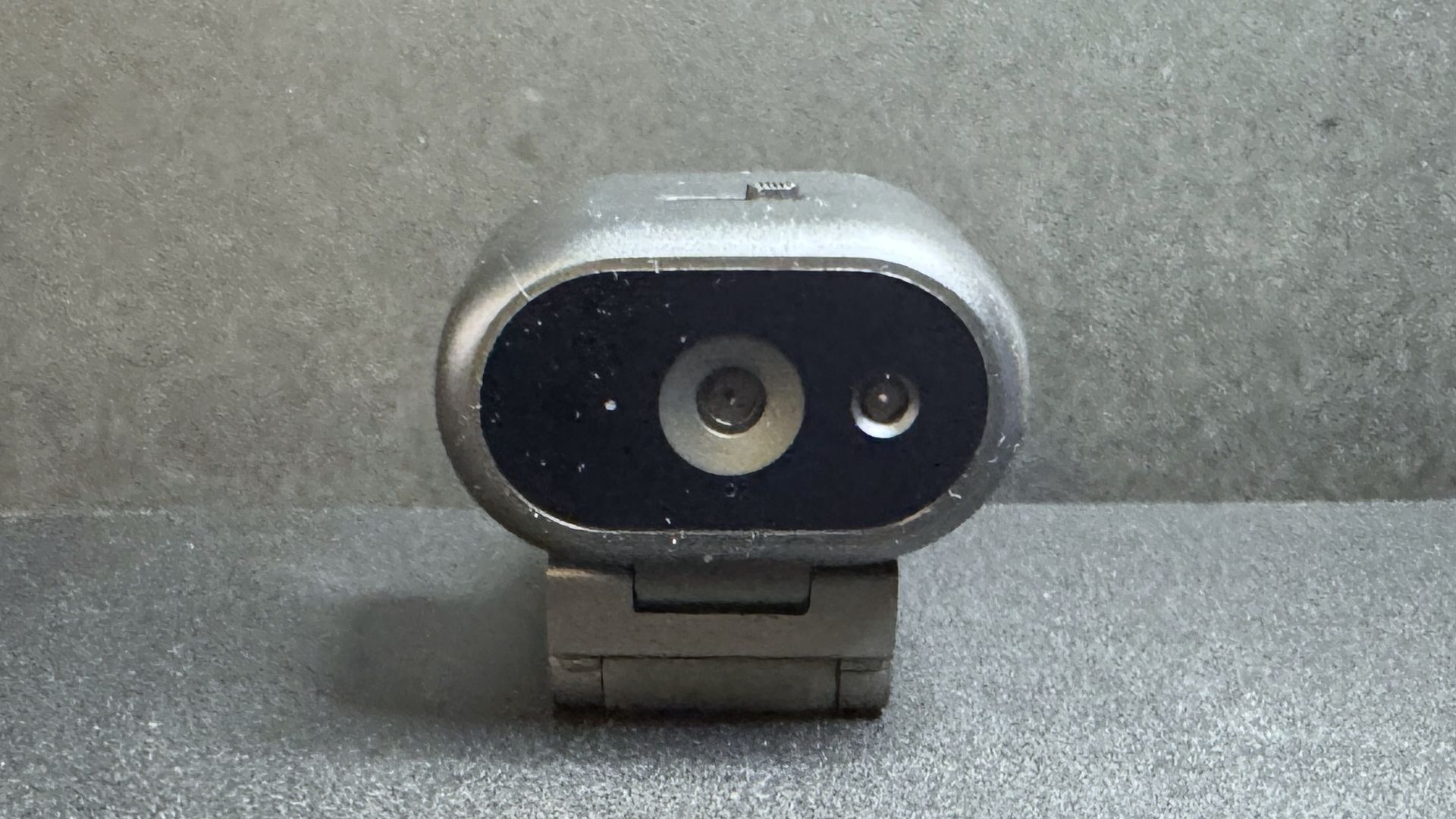
Dell's new office-oriented 2K webcam, the Dell Pro 5 (WB526), is a small, lightweight webcam that records video at 2K QHD / 30fps, 1080p / 30fps, and 720p / 60 and 30fps. It sports a Sony sensor and has a 78-degree field of view, 2x digital zoom, and an autofocus lens with a maximum aperture of f/2.0. As for its "office-friendly" features, it's compatible with Windows Hello, and it has an "anti-theft interface" and comes with a lockable cable that you can attach to a loop on the non-detachable USB-C cable. It also has some intelligent features, such as smart auto-exposure, AI auto-framing, and face tracking, as well as a built-in omnidirectional microphone that doesn't sound quite as terrible as most built-in webcam mics. It's available now for $119.99, though it's currently on sale for $114.99.

Design

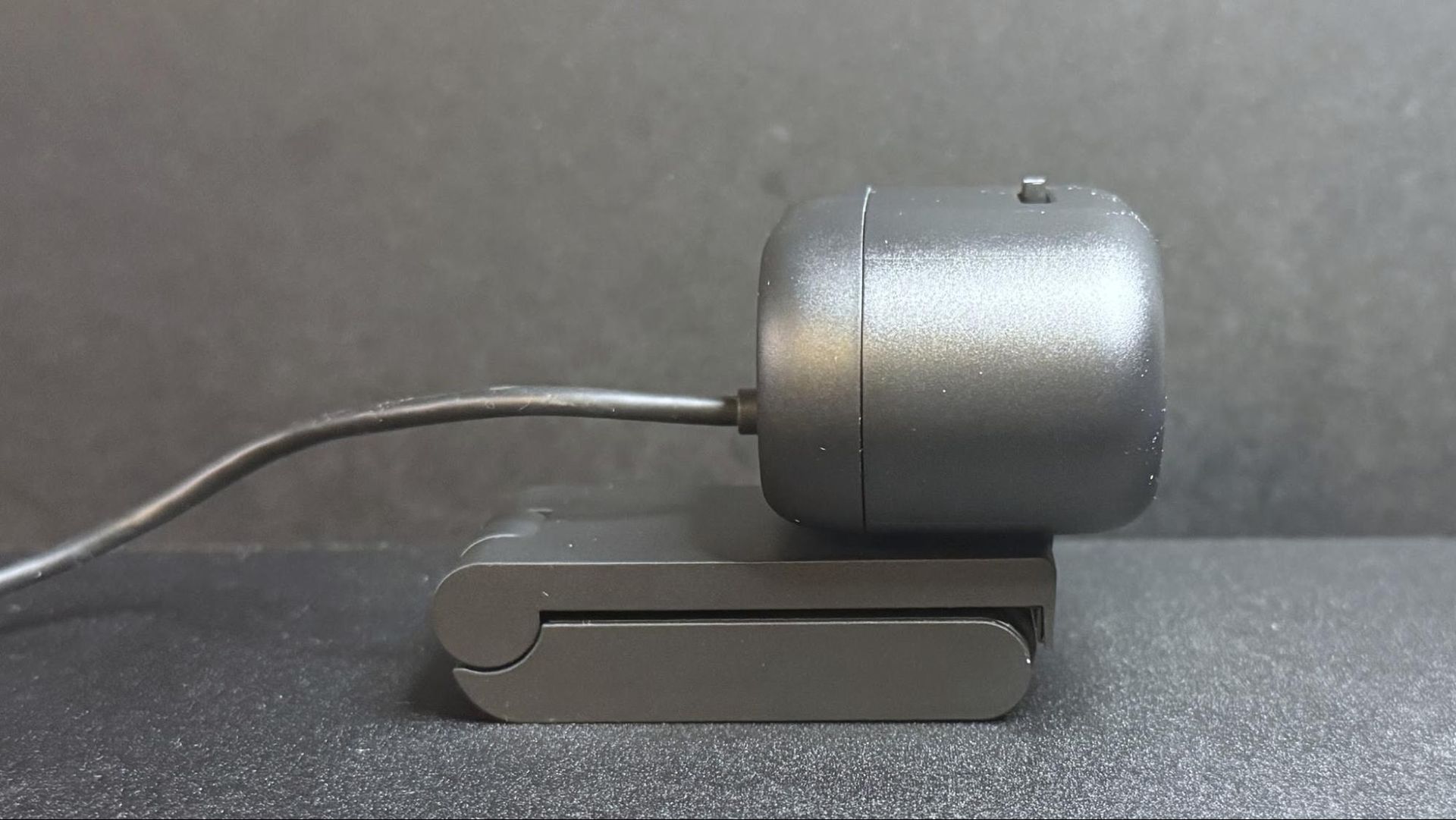
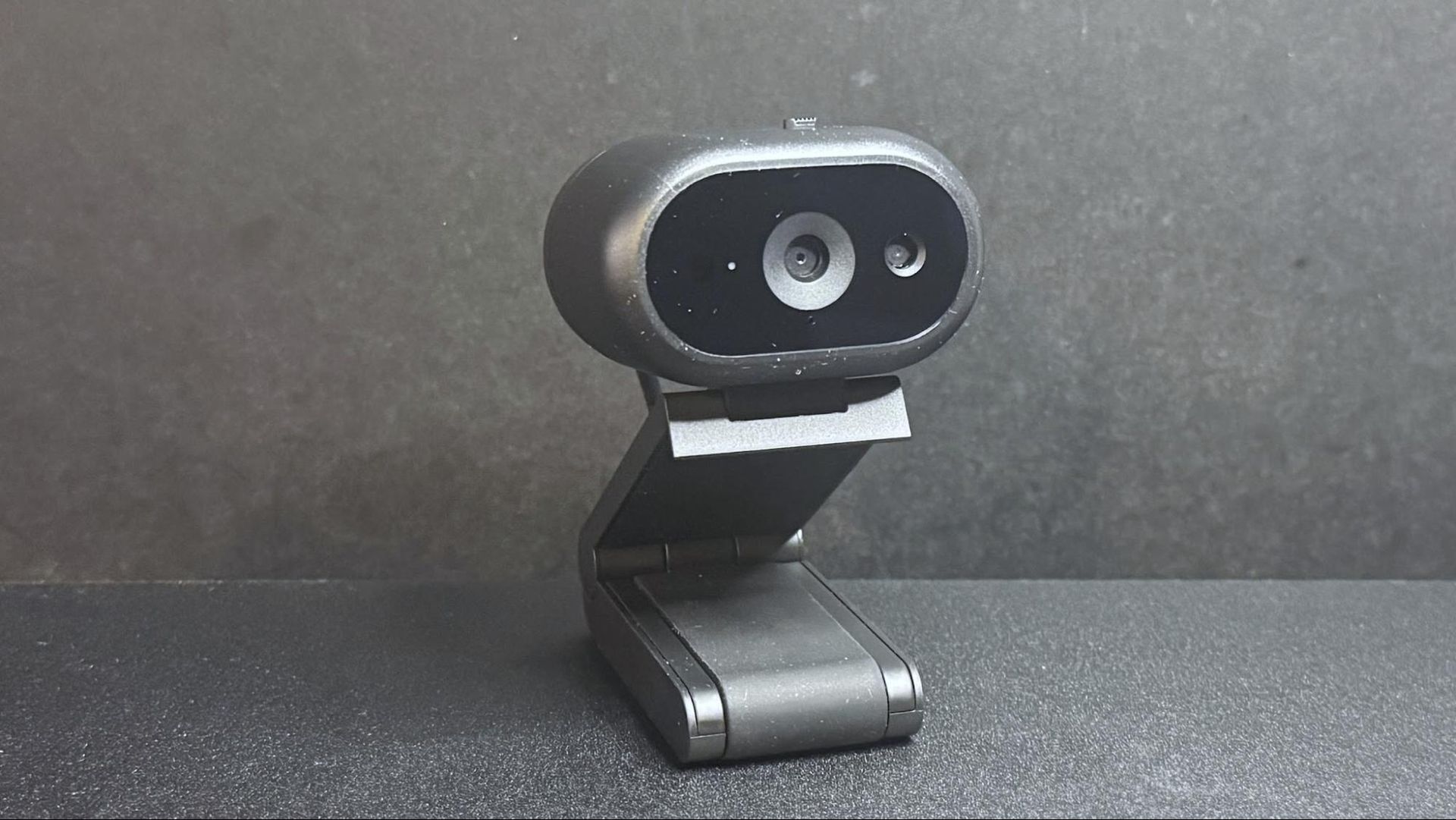
The Dell Pro 5 webcam is a small oval-shaped webcam with a non-detachable USB-C cable (which comes with a built-in USB-A adapter. It has a lightweight black plastic body, measuring about 2.28 inches (57.9mm) wide by 1.7 inches (43.18mm) deep, and is 1.4 inches (35.56mm) high. It's a fairly small webcam β€” not quite as small as the YoloLiv YoloCam S3, but close. It also has a physical lens shutter, which you can open and close via a small switch on top of the device. It's not the most elegantly implemented lens shutter we've ever seen, but it does the job perfectly well.
Dell Pro 5 Webcam 2K
Tom's Hardware
Dell Pro 5 Webcam 2K
Tom's Hardware
Dell Pro 5 Webcam 2K
Tom's Hardware
Dell Pro 5 Webcam 2K
Tom's Hardware

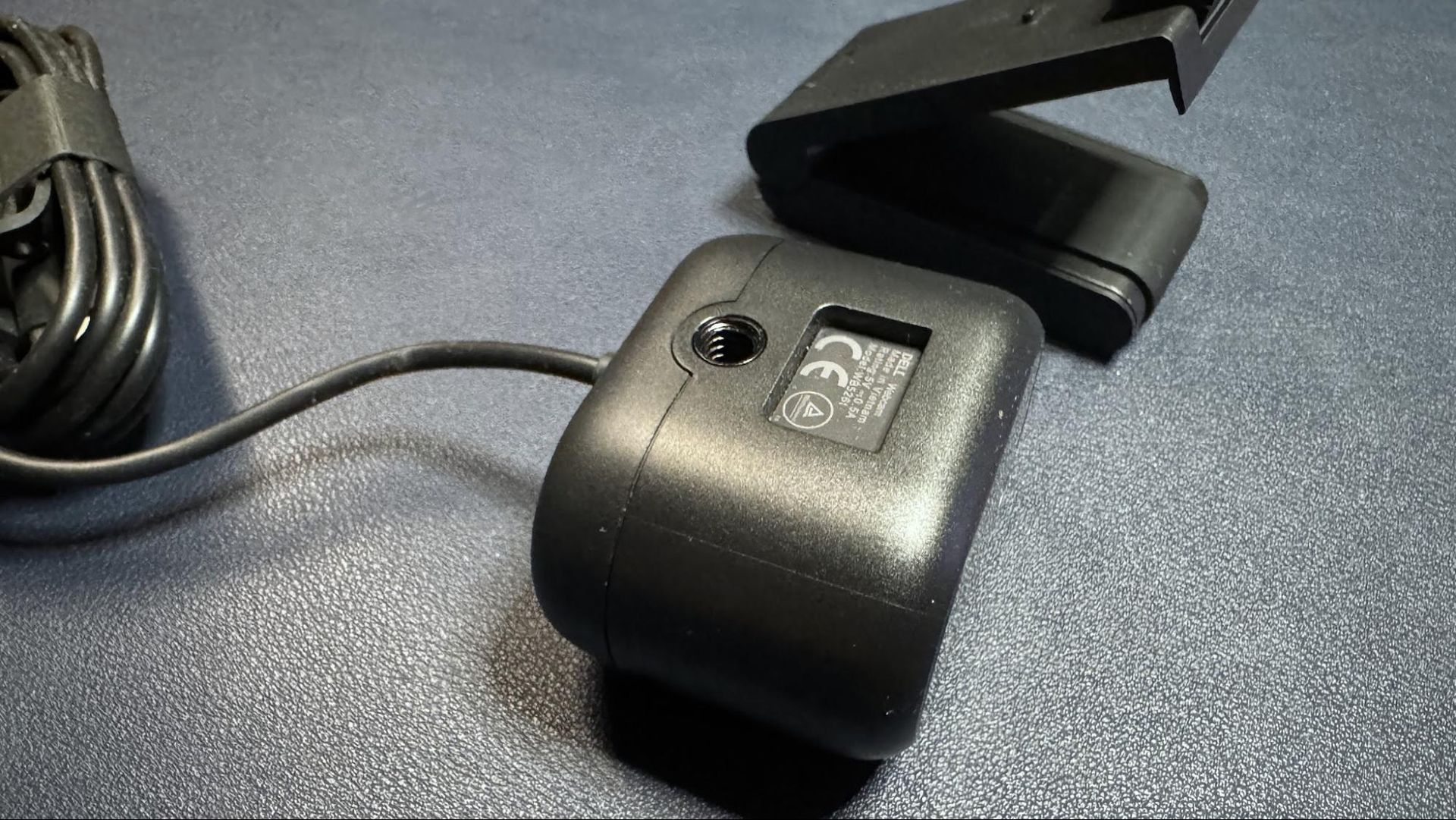
Like many lower-cost webcams, its cable is not detachable β€” it's a 5-foot (1.5m) rubber USB-C cable with a built-in USB-C to USB-A converter attached to one end. It's not a particularly thick cable, but it's stiff enough (and the webcam is lightweight enough) that it does influence the webcam's position, and bumping it can cause the webcam to accidentally move and mess up your framing.
Dell Pro 5 Webcam 2K
Tom's Hardware
Dell Pro 5 Webcam 2K
Tom's Hardware

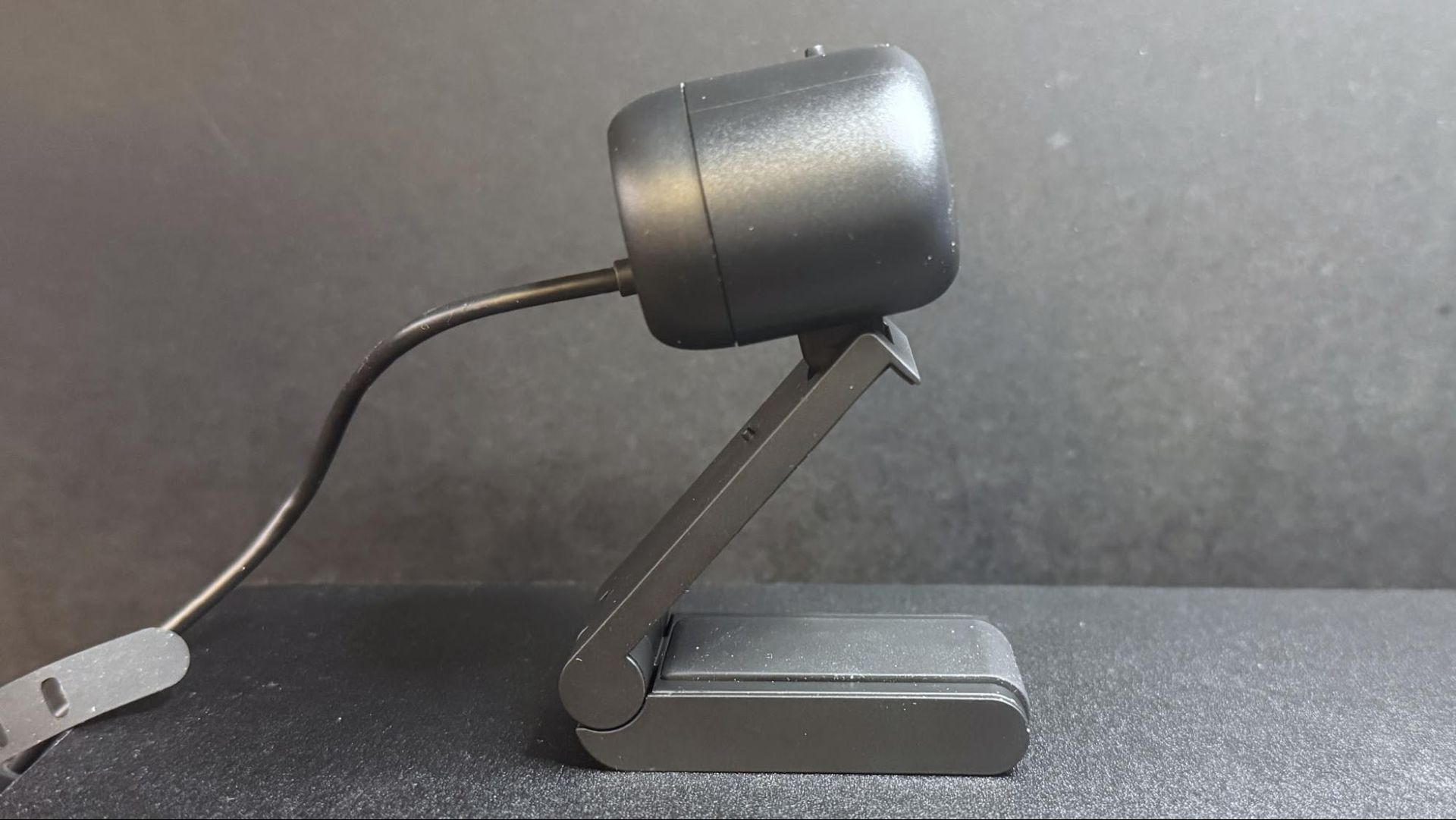
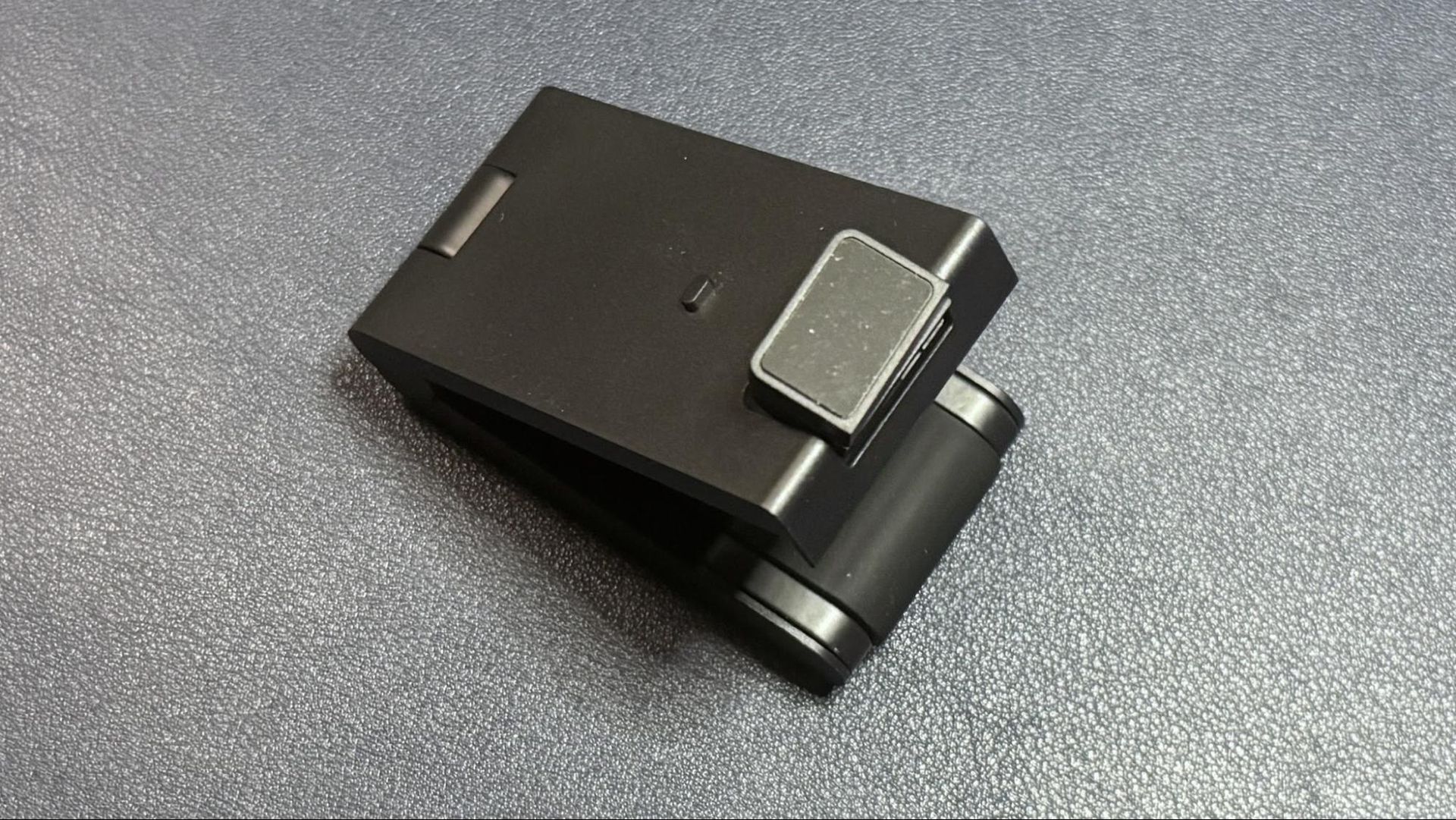
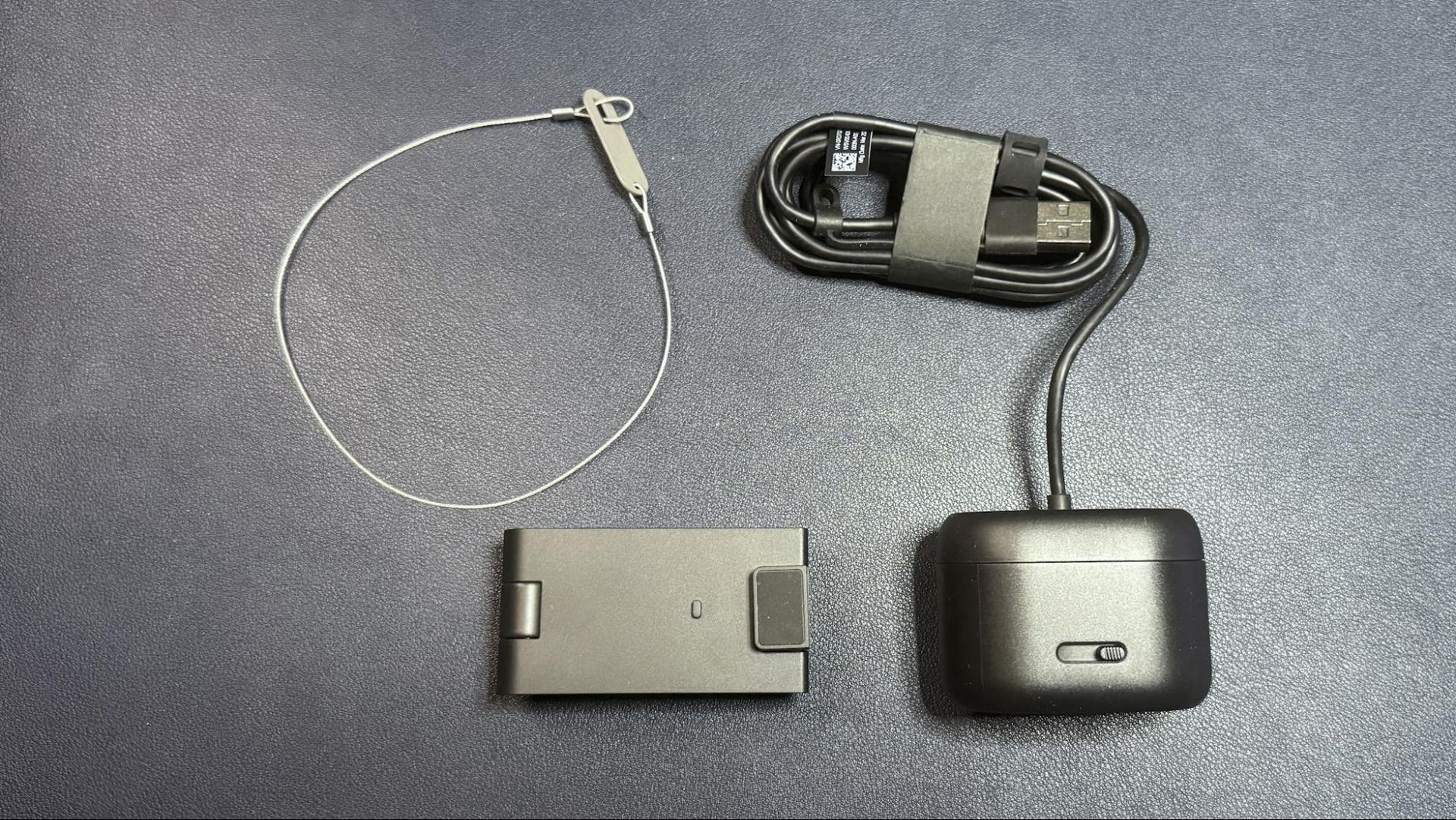
The Dell Pro 5 comes with a sturdy detachable monitor mount that attaches to the bottom of the webcam via a strong magnet. (The webcam also has a standard tripod mounting point, should you want to use it with a different camera mount.) The mount is surprisingly hefty β€” it weighs about 4.7 ounces (133g), which is nearly twice the weight of the webcam itself, which weighs around 2.57 ounces (73g). It's a pretty standard monitor clip mount, with a lip that goes over the edge of your monitor and an adjustable, rubber-coated "foot" that sits on the back of your monitor to hold the webcam in place.

The mount allows you to tilt the webcam forward up to 90 degrees, which will probably be useful for the webcam's document-reading feature. It also allows you to swivel the webcam almost 90 degrees in either direction, so it's actually pretty flexible for a mount included with a more budget-friendly webcam. It does not have a tripod mounting point on the bottom, however, so you won't be able to take advantage of this flexibility away from your PC.
Dell Pro 5 Webcam 2K

(Image credit: Tom's Hardware)

In the box, the Dell Pro 5 comes with its detachable monitor mount and a locking mechanism for those of you who work in insecure office environments (or, I suppose, for those who might travel and work from co-working spaces, I guess). The locking mechanism is designed to slide through a loop on the cable.

Specs

Resolution FPS

2K QHD / 30fps; 1080p / 30fps; 720p / 60fps, 30fps

Diagonal Field of View

78, 65

Zoom

2x digital

Autofocus

Yes

HDR

Yes

Microphone

Omni-directional

Connection

Wired (USB-C)

Mount

Universal clip

Dimensions

2.28 x 1.7 x 1.4" / 57.9 x 43.18 x 35.56mm

Weight

7.41oz / 210g (with mount)

Software

Dell Display and Peripheral Manager

Special Features

Lock

MSRP / Price at Time of Review

$119.99 / $114.99

Release Date

June 2026

Well-lit Performance

The Dell Pro 5 is a 2K webcam that outputs video in 2K UHD at 30fps β€” it's not 4K, but it should give you more detail and better image quality than a standard full HD 1080p webcam, even if most streaming and video conferencing services limit your outgoing stream to 1080p or lower.

For our well-lit performance test, I tested the Dell Pro 5 webcam in a fully-lit setting. From the front, I have two professional lights (a ring light on the right side and a key light on the left side), as well as four monitors (three 27-inch monitors and one 34-inch widescreen monitor), plus ambient lighting from various peripherals, including my desk. Behind me, there are two desk lamps, and overhead I have an arching floor lamp. There is no uncontrolled light in my home office, and it's a pretty bright scenario. (All of my test photos are taken with Windows' native camera app for consistency, but please note that test photos are mainly for illustrative purposes and the conclusions drawn are based on extensive testing.)


Dell Pro 5 Webcam 2K
Dell Pro 5Tom's Hardware
Dell Pro 5 Webcam 2K
Dell Pro (WB5023)Tom's Hardware
Dell Pro 5 Webcam 2K
Elgato NeoTom's Hardware

The Dell Pro 5 performed pretty well in our well-lit scenario, though the color balancing seemed to wash me out slightly and the picture wasn't quite as crisp as I would have liked. That said, this is exactly the kind of picture I look for in an office-oriented webcam β€” bright and evenly-lit, if a little flat, for a more "professional" appearance (and so it can do things like read text and scan documents). It's not the most cinematic, dramatic, or flattering image from a webcam, but it should work very well in a professional setting.

Low-Light Performance

For our low-light test, I turned off all of the lights in my home office except for one 27-inch monitor, on which I had a window open with Google's homepage (mostly white) filling half the screen and the Windows 11 Camera app filling the other half. This is basically a completely dark scenario with only my (admittedly, relatively large) monitor for lighting.


Dell Pro 5 Webcam 2K
Dell Pro 5Tom's Hardware
Dell Pro 5 Webcam 2K
Dell Pro Webcam (WB5023)Tom's Hardware
Dell Pro 5 Webcam 2K
Elgato NeoTom's Hardware

The Dell Pro 5 performed about as well as I expected in this scenario β€” it was able to pick up more detail in the dark than most 1080p webcams, though its low-light performance is far from what I'd call "good." This was more noticeable in moving video, however, as the video was extremely grainy with large artifacts (this photo actually makes it look much better than it was). The Dell Pro 5 does have HDR, but this didn't seem to make a significant difference in the low-light picture quality.

By comparison, the Dell Pro (WB5023) webcam did a better job with balancing light in the low-light scenario, though it picked up the same amount of detail. The Elgato Neo, which is a budget 1080p webcam, did a much better job of balancing light in this scenario, but its picture was also extremely grainy.

Overexposed Performance

For our overexposed performance test, I turned off most of the lights in front of me (save for one 27-inch monitor) and left the lights behind and above me turned on. This is actually one of the most likely scenarios for webcam users, as offices tend to be generally well-lit environments, but without dedicated camera-focused lighting aimed at the user.


Dell Pro 5 Webcam 2K
Dell Pro 5Tom's Hardware
Dell Pro 5 Webcam 2K
Dell Pro Webcam (WB5023)Tom's Hardware
Dell Pro 5 Webcam 2K
Elgato NeoTom's Hardware

The Dell Pro 5 performed adequately in our overexposed performance test: it managed to balance light fairly well (every webcam struggles with this), but its auto color balancing was definitely off. Both the Dell Pro (WB5023) and the Elgato Neo did a much better job with color balancing in the overexposed scenario, especially with the default settings.

Features and Software

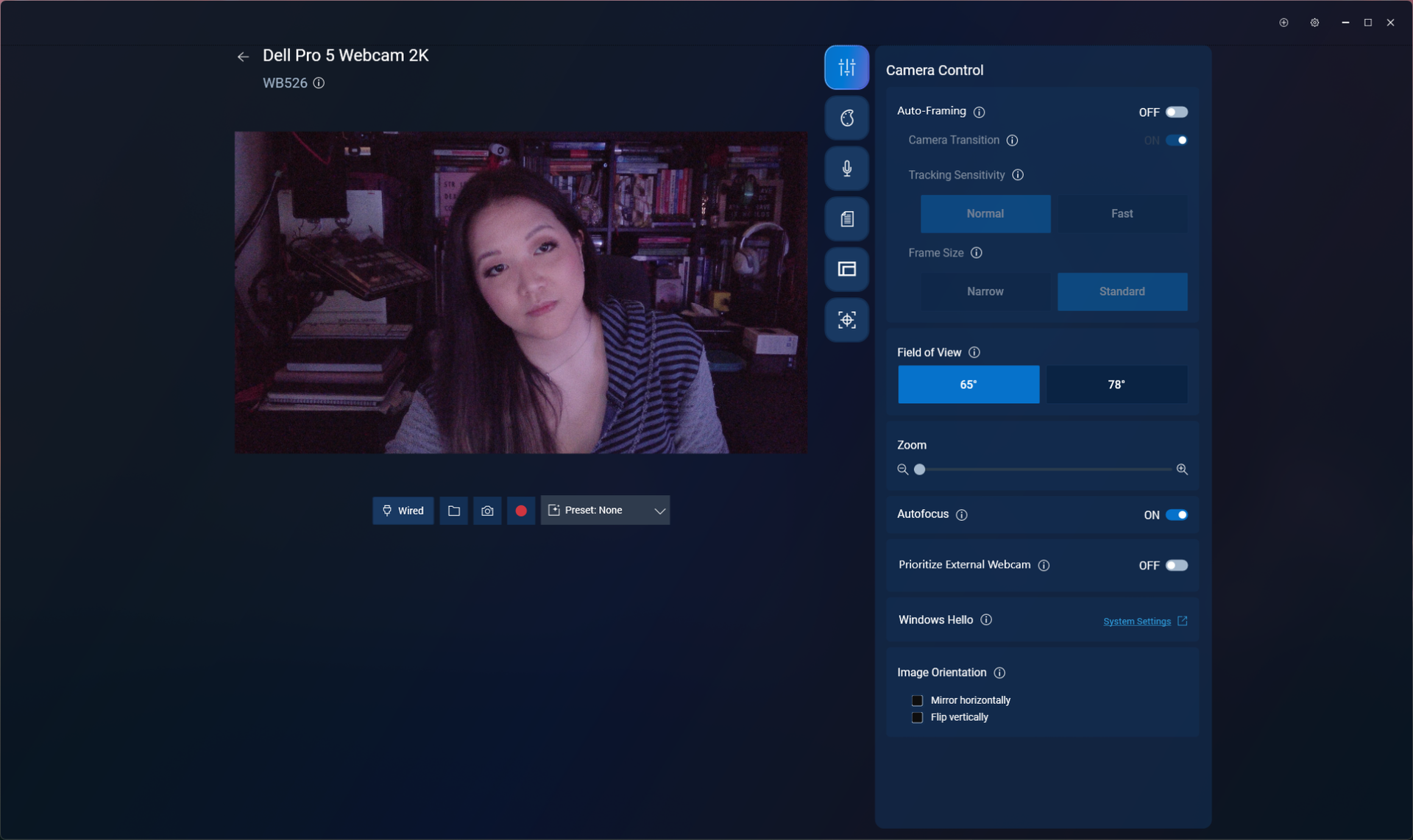
The Dell Pro 5 is configurable via Dell Display and Peripheral Manager, which lets you adjust the webcam's image settings and toggle on various features such as face tracking, HDR, and auto exposure. You can also set up features such as gesture control and Windows Hello from this app, as well as Document View, which can be configured to automatically turn on when you tilt the camera down at least 60 degrees and show a rectangular document.
Dell Pro 5 Webcam 2K

(Image credit: Tom's Hardware)

While the Dell Display and Peripheral Manager does have a lot of settings you can adjust, including brightness, sharpness, contrast, saturation, and vibrance, I found that adjusting the settings didn't actually seem to do much for the picture. Turning the saturation down to 0%, for example, gave me a slightly desaturated image β€” not a completely black-and-white one. I also found it frustrating that there was no way (at least as far as I could see) to minimize the app to your system tray.

The Dell Pro 5 has a built-in omni-directional microphone for when you have absolutely no choice other than to use your webcam's built-in mic. The mic wasn't the worst I've heard on a webcam β€” it managed to pick up my voice pretty clearly, and didn't make me sound like I was yelling through an underwater tunnel β€” but it wasn't great, either. It should work fine if you've got nothing else on hand to speak into, but it's not a microphone I'd recommend.

Bottom Line

The Dell Pro 5 webcam is definitely designed for office use β€” and for an office-oriented webcam, it's not bad. But if you're looking for something easy to use and cheap enough that your coworkers aren't going to try to steal it, I'd probably recommend the Elgato Neo over the Dell Pro 5 β€” after all, the Elgato Neo retails for $60 and can currently be found for about half that, which means the Dell Pro 5 is more than four times as expensive.

The Dell Pro 5's 2K resolution might come in handy if you're the type of person who's constantly showing documents over video calls, but Razer's Kiyo X also has a 2K resolution and retails for $100 (and can currently be found on sale for around $75). The Dell Pro 5 isn't a bad webcam, but you don't need to pay $120 for similar quality.
  •  

Libernovo Omni Pro Review: Cooler than you think

Libernovo is still basically brand new to the gaming chairs market β€” the company just released its first chair a little over a year ago. But the original Libernovo Omni was impressive: lightweight, dynamically ergonomic, and comfortable enough to supplant my ride-or-die Herman Miller Aeron for several months. Now Libernovo is branching out (sort of), with variations on its original Omni. There's a cheaper, less-techy version (the Omni SE), a fancier version with a built-in fan (the Omni Pro), and a sturdier version for people who are between 5 feet 10 inches and 6 feet 7 inches, weighing up to 399 pounds (181kg).

We're taking a look at the Libernovo Omni Pro, which is the more premium version of this already fairly pricey chair. It's got a few upgrades from the original Omni, including a reinforced aluminum alloy base and more durable fabric, as well as a built-in seat ventilation fan that works... surprisingly well, considering it doesn't blow air toward you but rather draws it away from you. As the fanciest Omni variation, the Omni Pro is, of course, pricier than the original Omni, but not by too much β€” its retail price is listed at $1,299, but that seems to be permanently discounted to $1,109. That's for just the chair itself; Libernovo also sells it bundled with a corresponding StepSync footrest for $1,183 (MSRP: $1,497), and with an extra battery for $1,247 (MSRP: $1,596).

Assembly

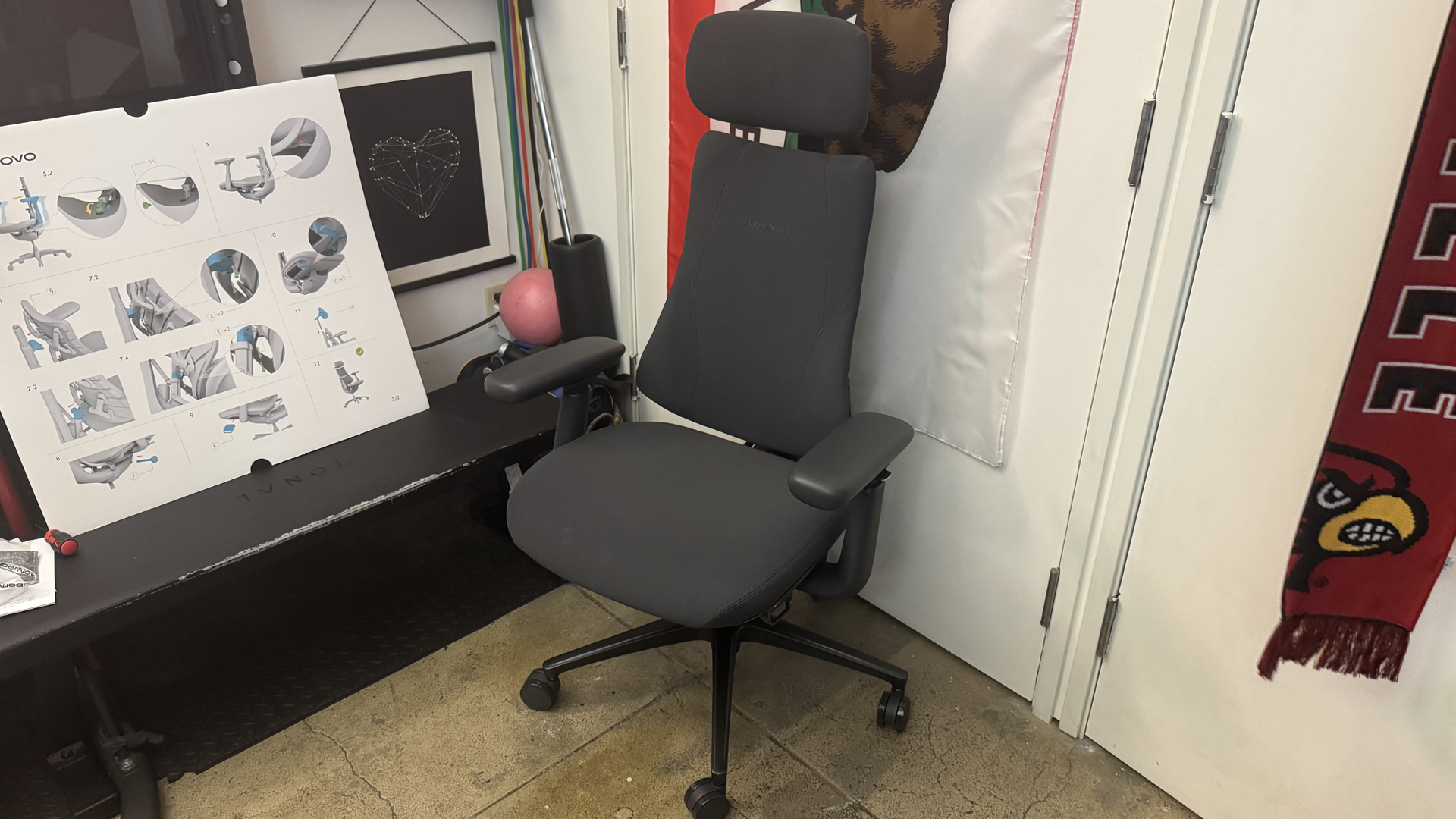
The Omni Pro does require some assembly: It's more complicated to assemble than most gaming chairs, as it has some electronics built-in. But it's also easier to assemble than most gaming chairs, as it's fairly lightweight and none of the pieces are oversized or unwieldy.

Libernovo Omni Pro
Tom's Hardware
Libernovo Omni Pro
Tom's Hardware
Libernovo Omni Pro
Tom's Hardware

The chair comes with everything you need to assemble it, including work gloves (not really necessary, but a nice touch, I suppose), a hex screwdriver, and hardware packaged in individually-labeled bags. The instructions are printed on a giant box insert, which is fairly easy to follow (though I still felt like the illustrations could have been explained slightly better). The chair also comes with a separate user manual and a setup manual to help you calibrate the chair for the first time.

Libernovo Omni Pro

(Image credit: Tom's Hardware)

The chair took me about 20 minutes to put together on my own.

Design and Construction

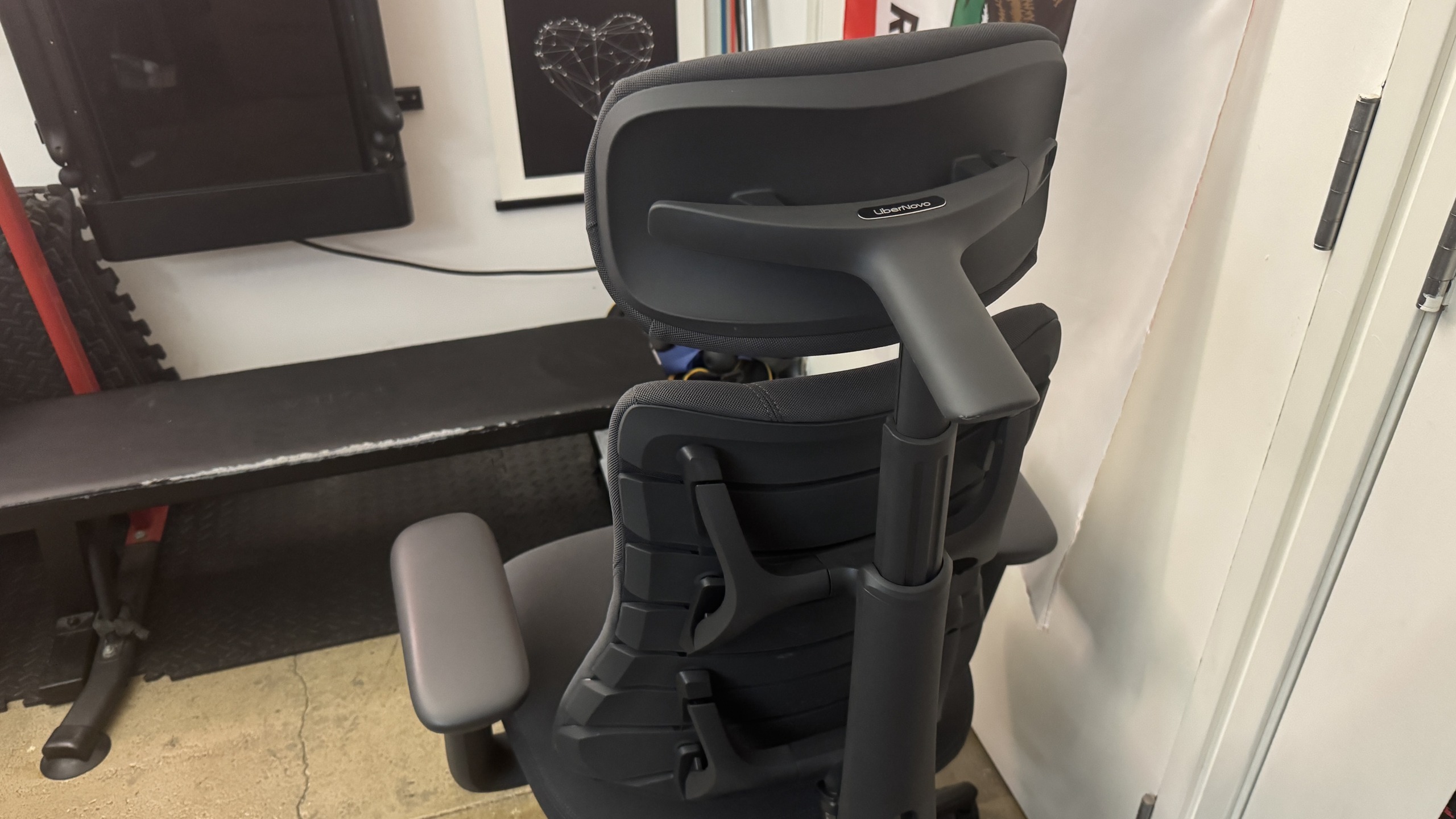
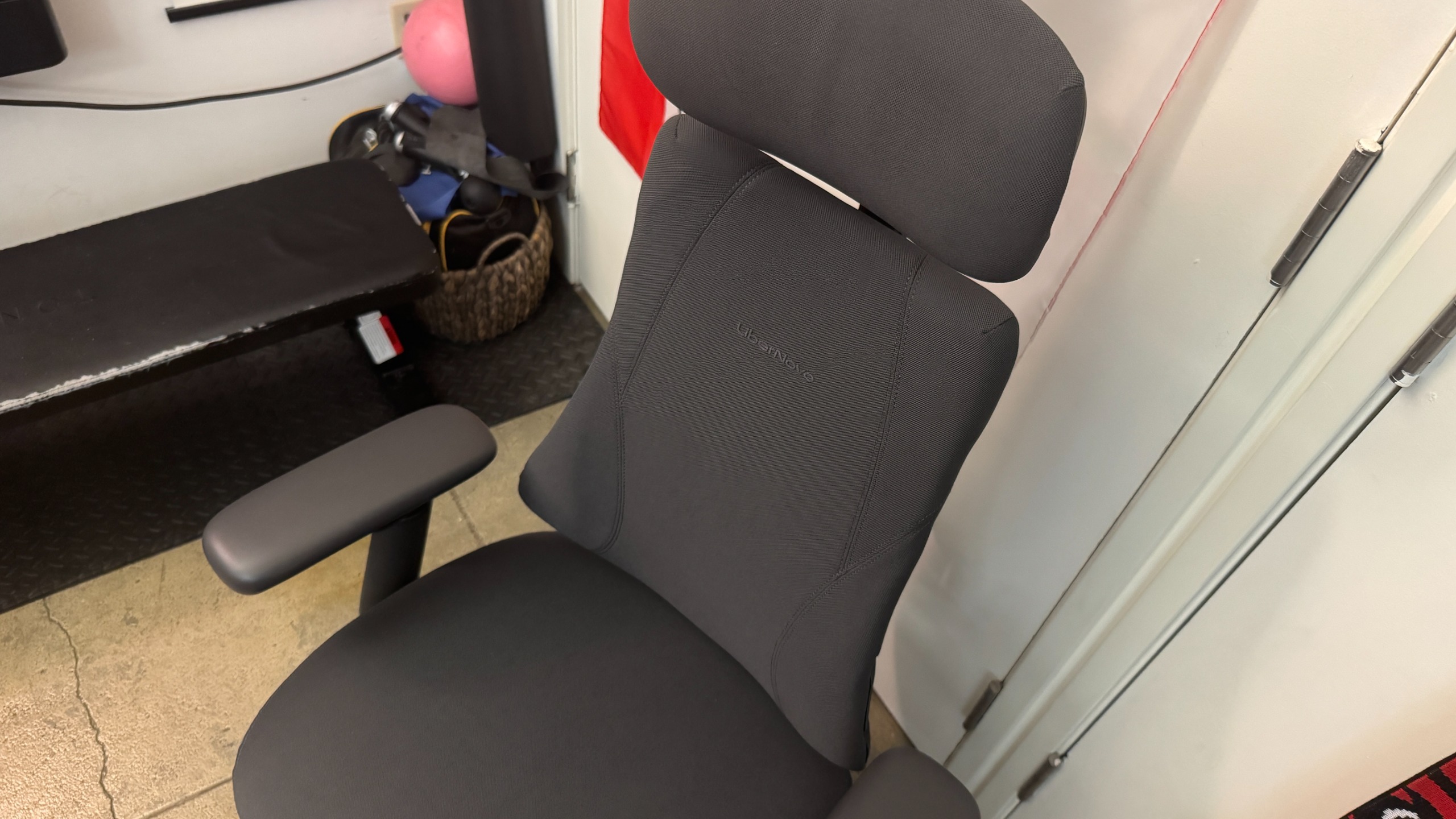
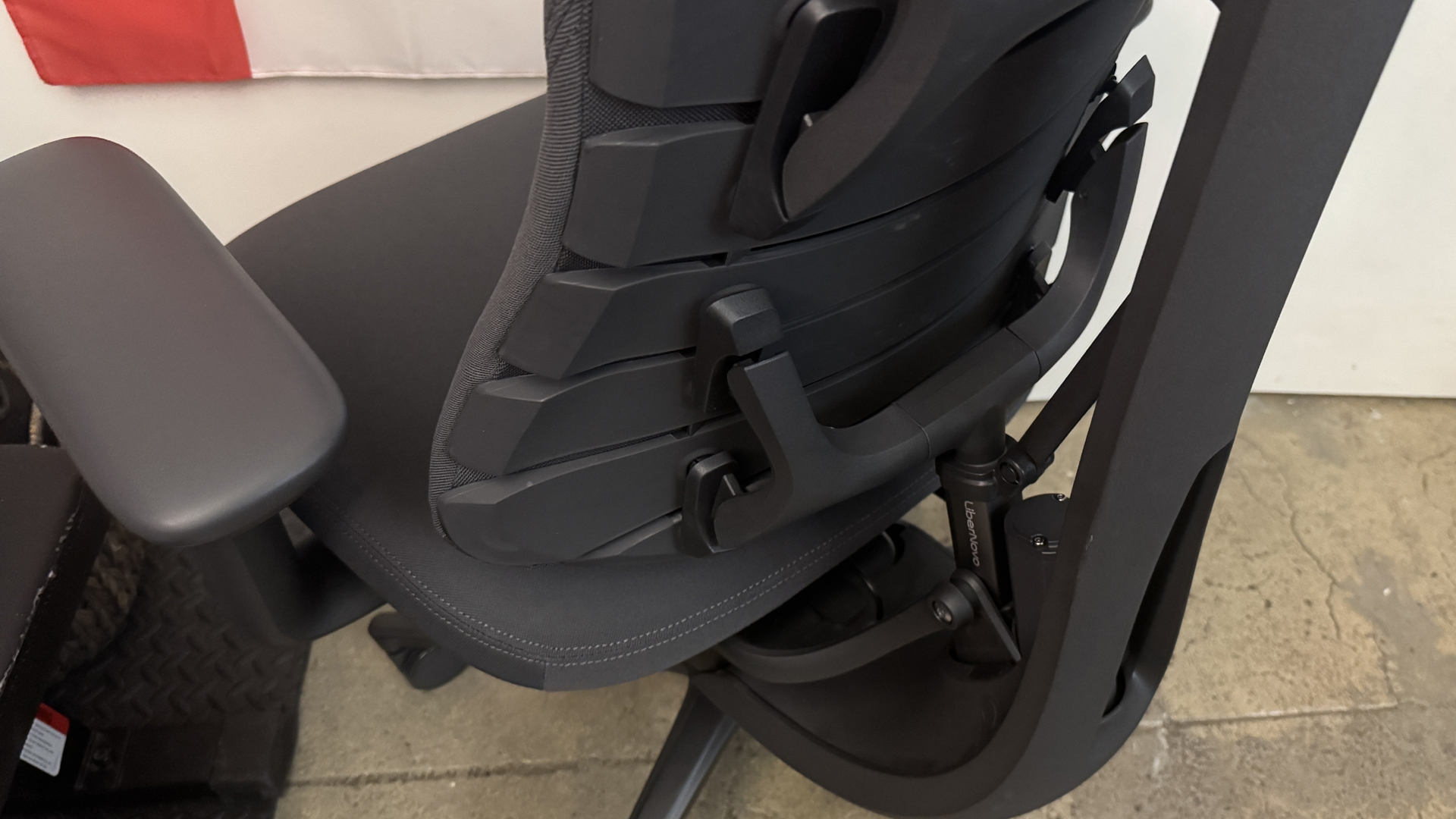
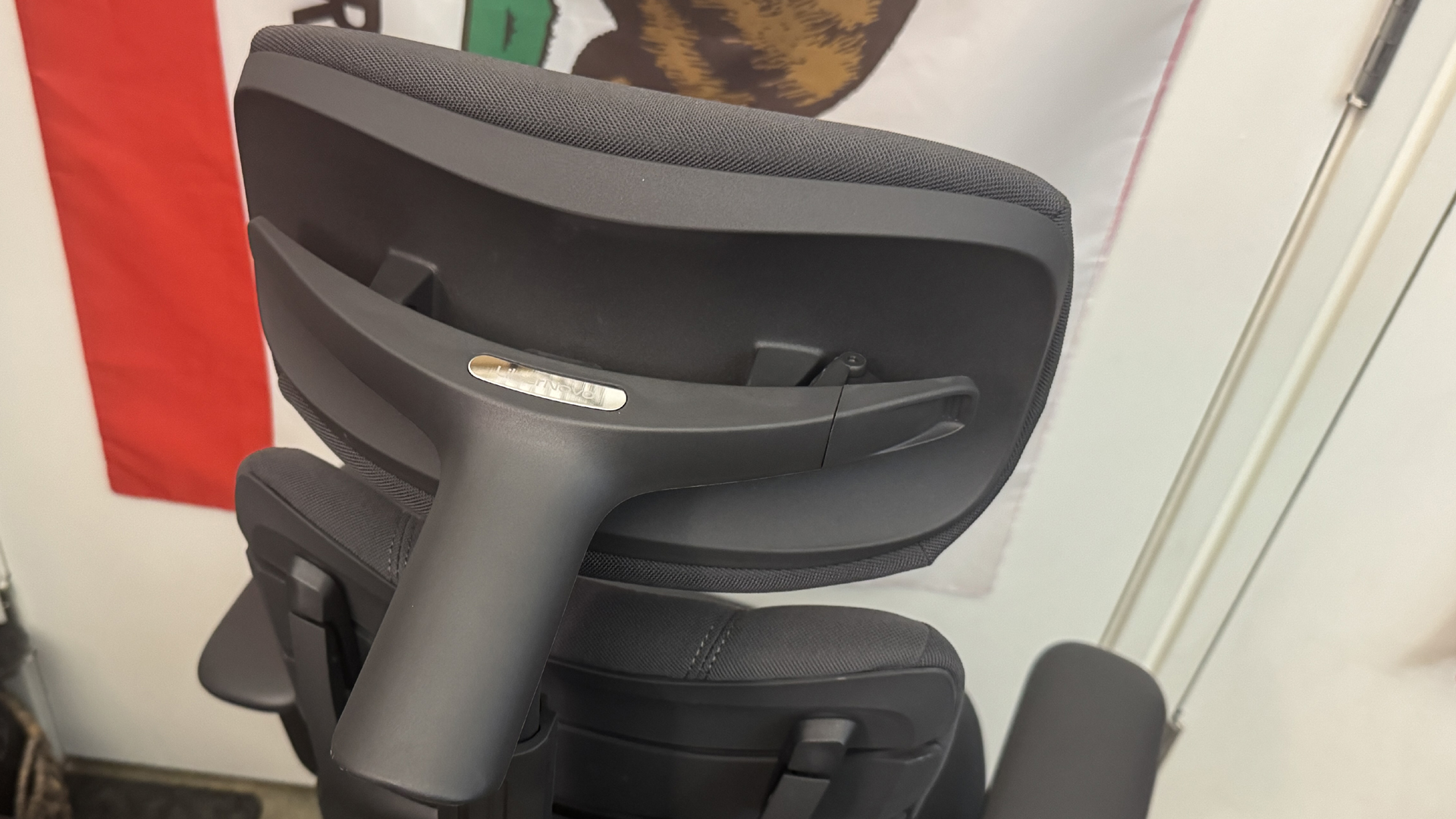
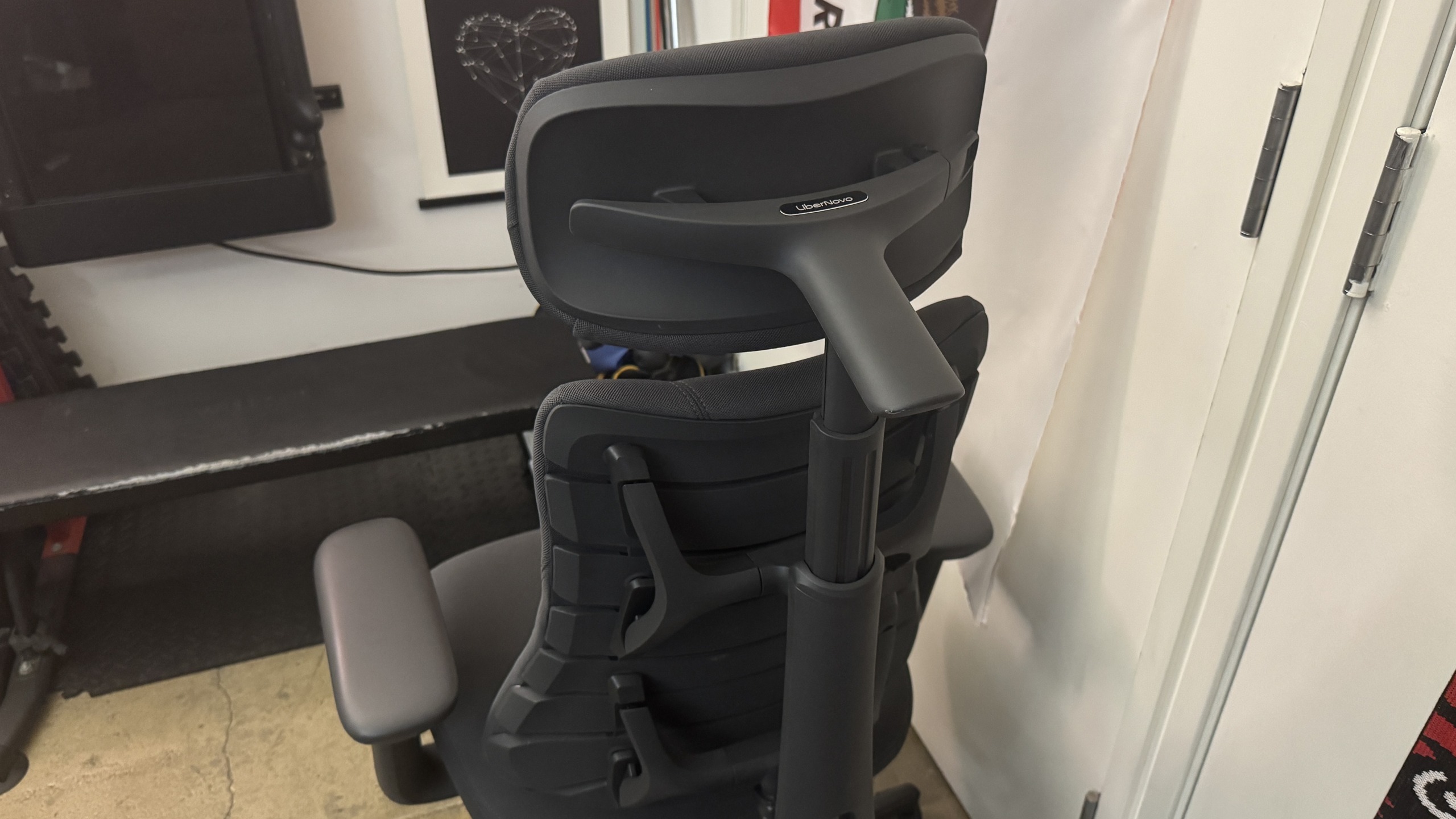
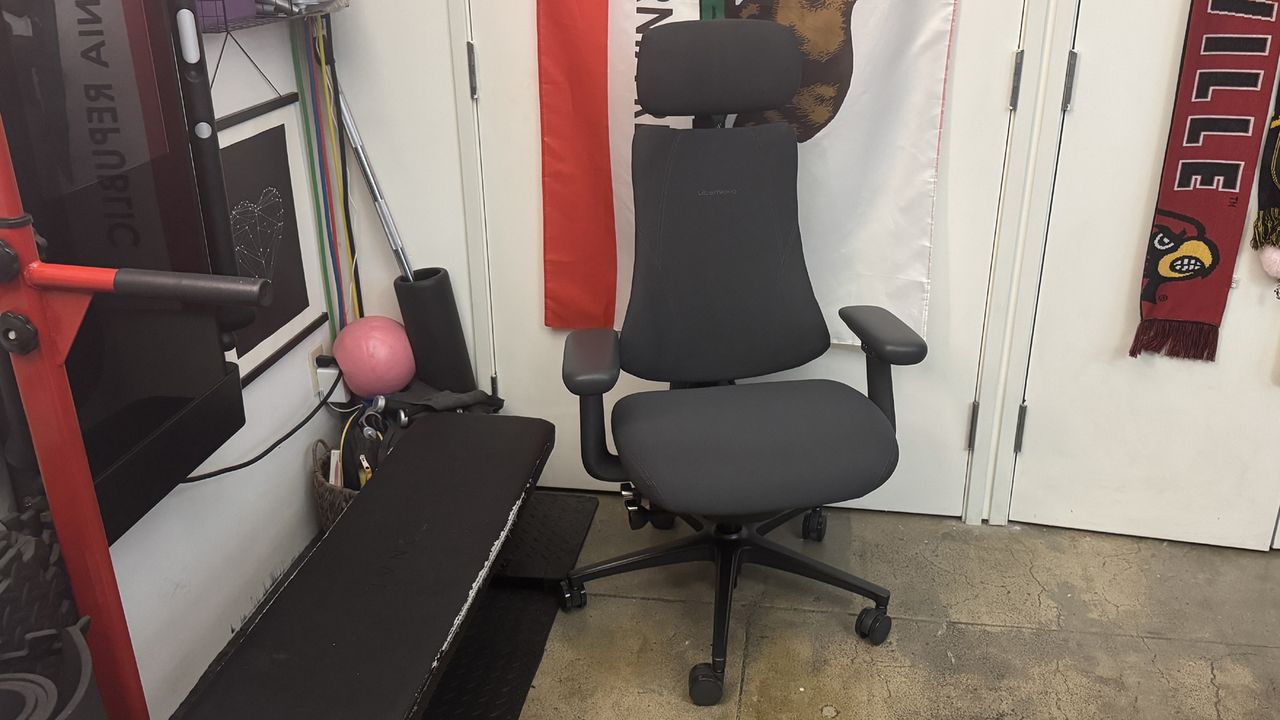
The Omni Pro looks very similar to the regular Libernovo Omni β€” it's a compact, lightweight office chair with an articulated backrest that's designed to move with your body as you move and shift your weight in the chair. It's a pretty compact chair, relatively speaking, but it does have a β€œspine” that holds the backrest together, as well as a headrest that can be moved forward/backward, and so it takes up more space (at least, behind you) than you initially expect.

Libernovo Omni Pro

(Image credit: Tom's Hardware)

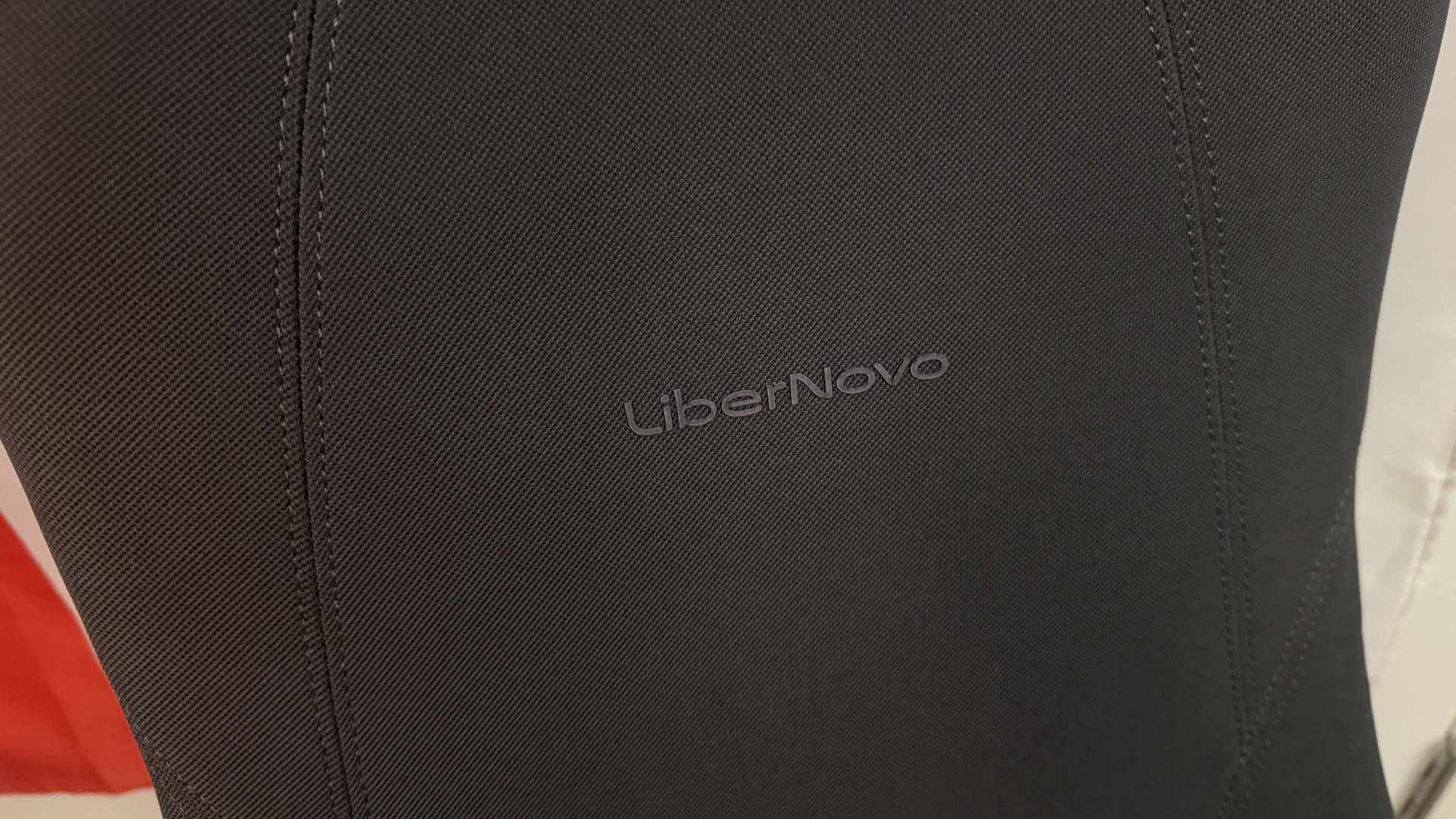
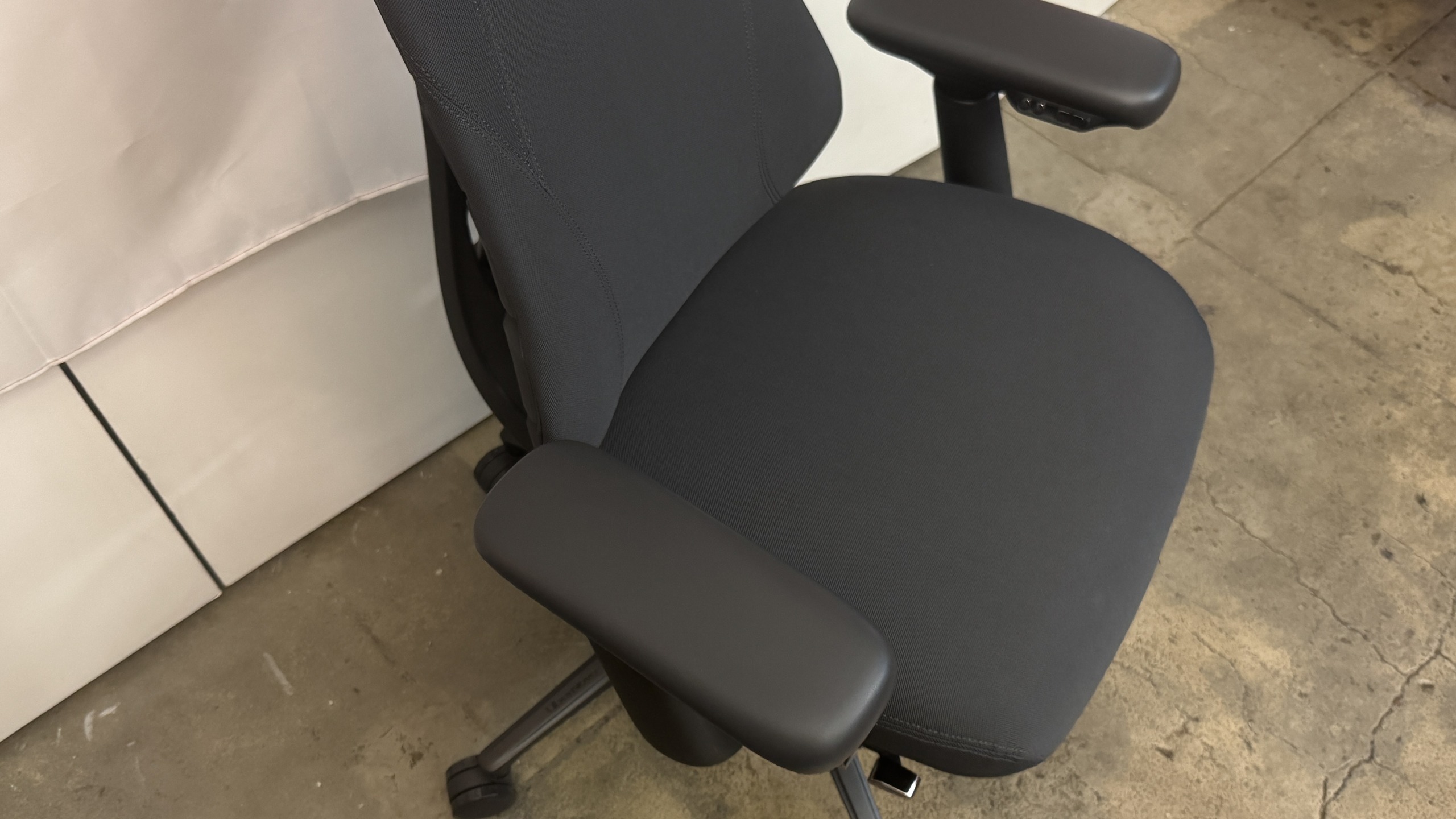
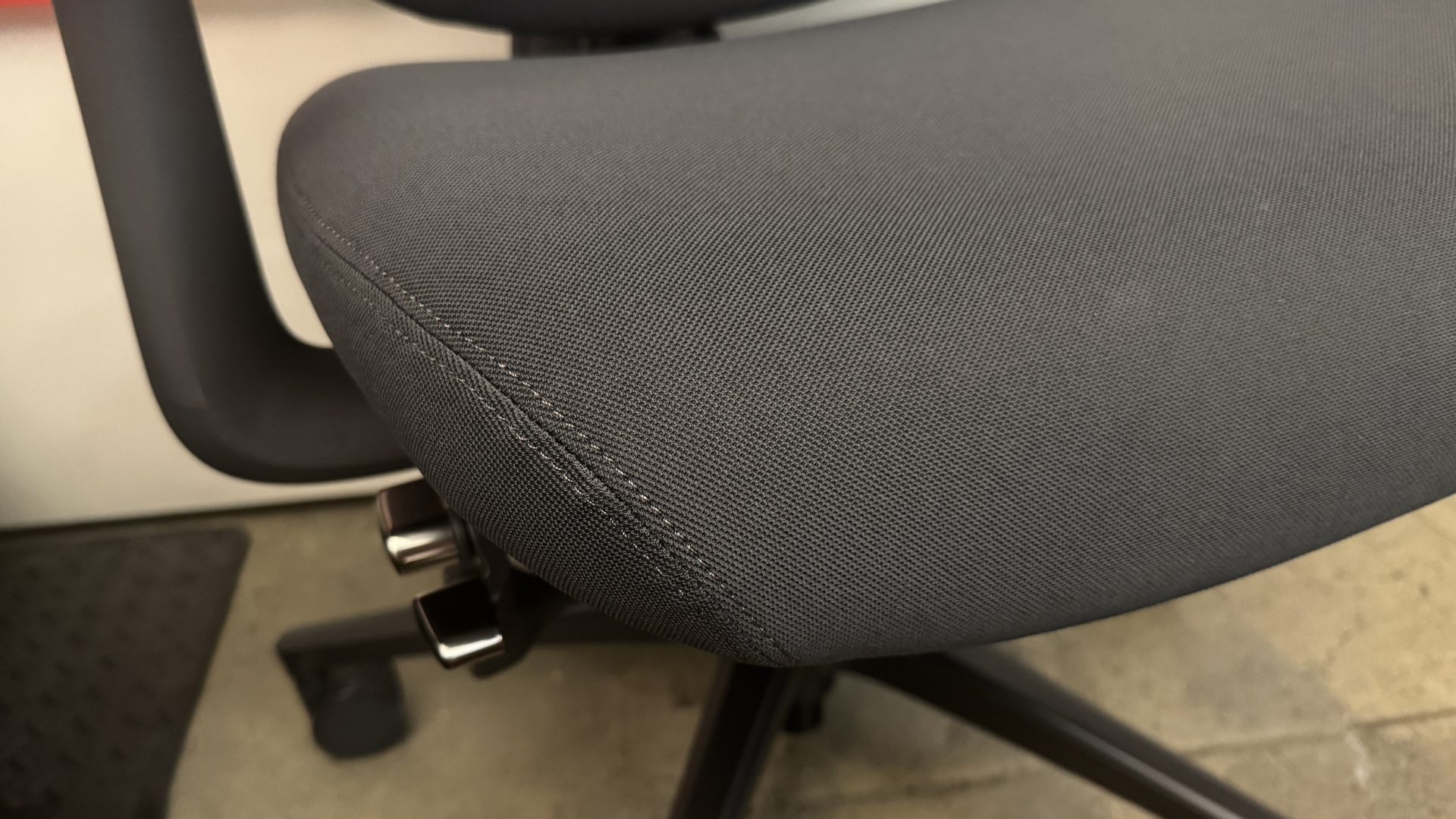
The Omni Pro comes in two colors, graphite (dark gray) and glacier (light gray, almost white). Our review unit came in graphite, with dark gray upholstery, a dark gray frame, a black wheelbase, and silver (plastic) accent buttons / knobs. The Omni Pro features new fabric upholstery β€” Gabriel Atlantic fabric, which is more durable and (I guess) breathable than that of the original Omni. The fabric does look and feel more durable and premium, but it's slightly more abrasive than the original fabric. It didn't cause me any real discomfort, but I also didn't sit on it for very long with bare skin.

Libernovo Omni Pro
Tom's Hardware
Libernovo Omni Pro
Tom's Hardware
Libernovo Omni Pro
Tom's Hardware

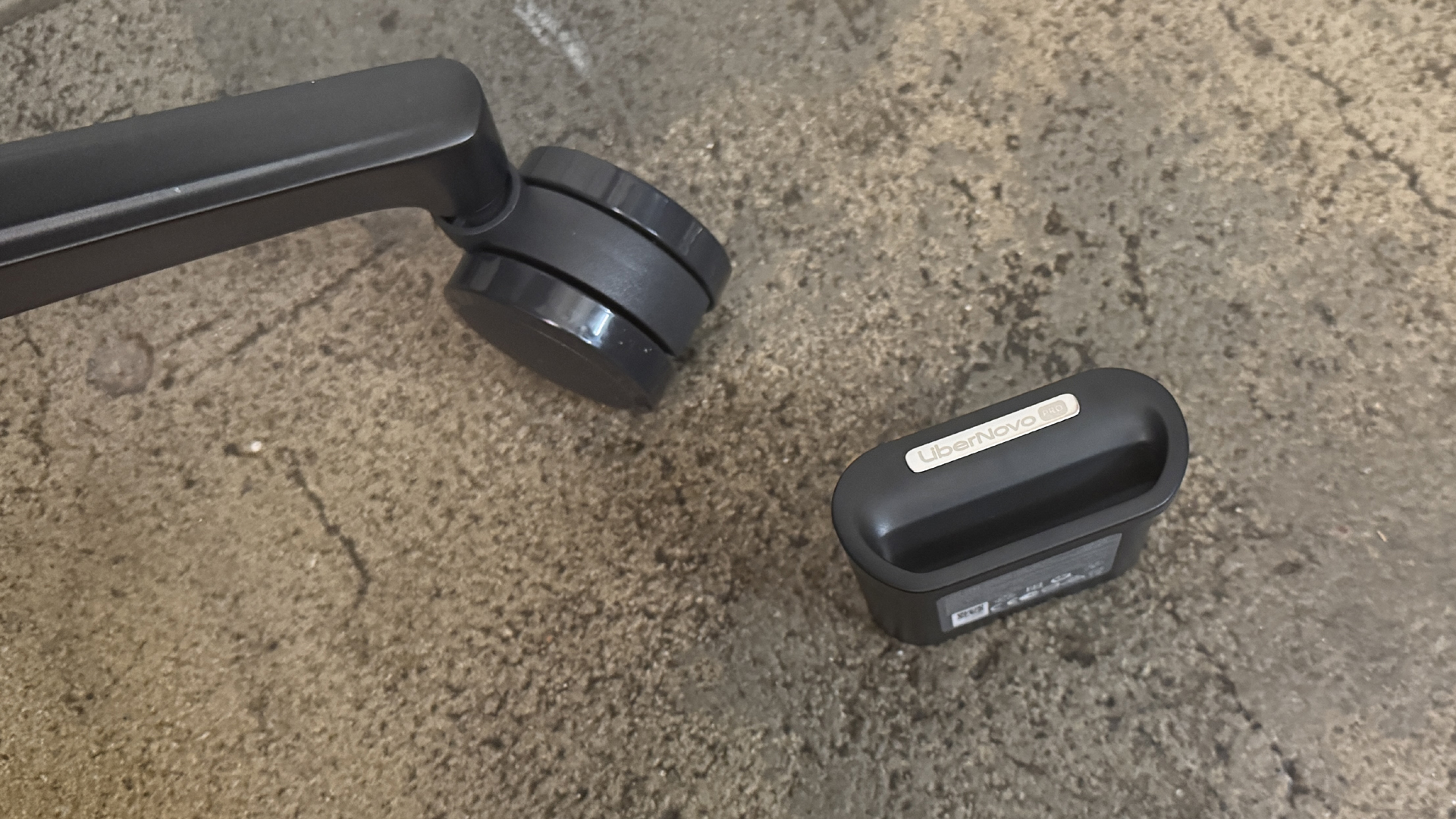
The upholstery and the wheelbase β€” which is made of hefty aluminum alloy β€” are the main noticeable design differences between the Omni Pro and the original Omni. The aluminum wheelbase does add some weight to the chair, bringing its total weight up to 55.8 pounds (25.31kg), which is heavier than the original Omni's weight of 48 pounds (21.77kg) β€” but still isn't particularly heavy for a chair, let alone a gaming chair.

The Omni Pro also has an extra button under its left armrest, to control the underseat ventilation fan (tapping the button toggles through the fan's settings β€” slow, fast, and off).

Specs

Upholstery

Gabriel Atlantic Fabric

Total Height (with base)

47.83 - 52.17 inches / 121.49 - 132.51 cm

Floor to Seat Height

19.09 - 23.43 inches / 48.49 - 59.51 cm

Armrest Adjustments

4D

Recline

105 - 160 degrees

Backrest Length

21.26 inches / 54 cm

Backrest Width (Shoulder Level)

13.5 inches / 34.29 cm

Seating Area Width (Point of Contact)

17.72 inches / 45 cm

Seating Area Width (total)

21.46 inches / 54.5 cm

Seating Area Depth

17.72 inches / 45 cm or 18.9 inches / 48 cm

Armrest Width

3.94 inches / 10 cm

Armrest Height

7 - 10.25 inches / 17.78 - 26.04 cm

Max Recommended Weight

300lbs / 136kg

Weight

55.8lbs / 25.31kg

Warranty

6 years (frame); 2 years (electronics)

MSRP / Price at Time of Review

$1,299 / $1,109

Release Date

June 2026

Comfort and Adjustments

The Libernovo Omni Pro is a surprisingly comfortable chair β€” just like the original Omni β€” thanks to its dynamic, ergonomic articulated backrest and various adjustments. It's more of an office chair than it is a gaming chair, but it does offer a full 160-degree recline β€” though it's an active recline, meaning you need to be sitting in the chair for it to happen (as opposed to many gaming chairs, which are similar to car seats).

Libernovo Omni Pro
Tom's Hardware
Libernovo Omni Pro
Tom's Hardware

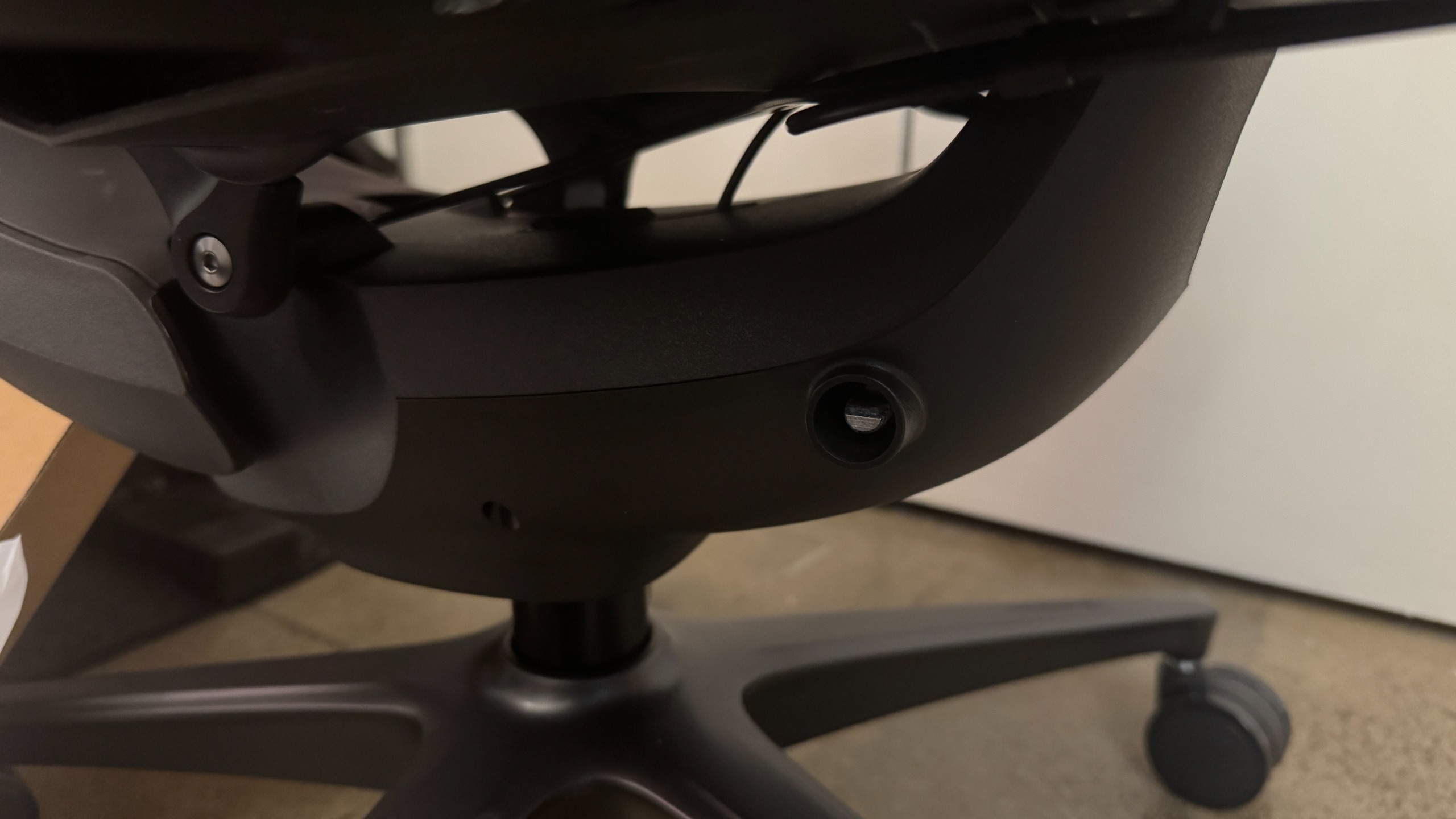
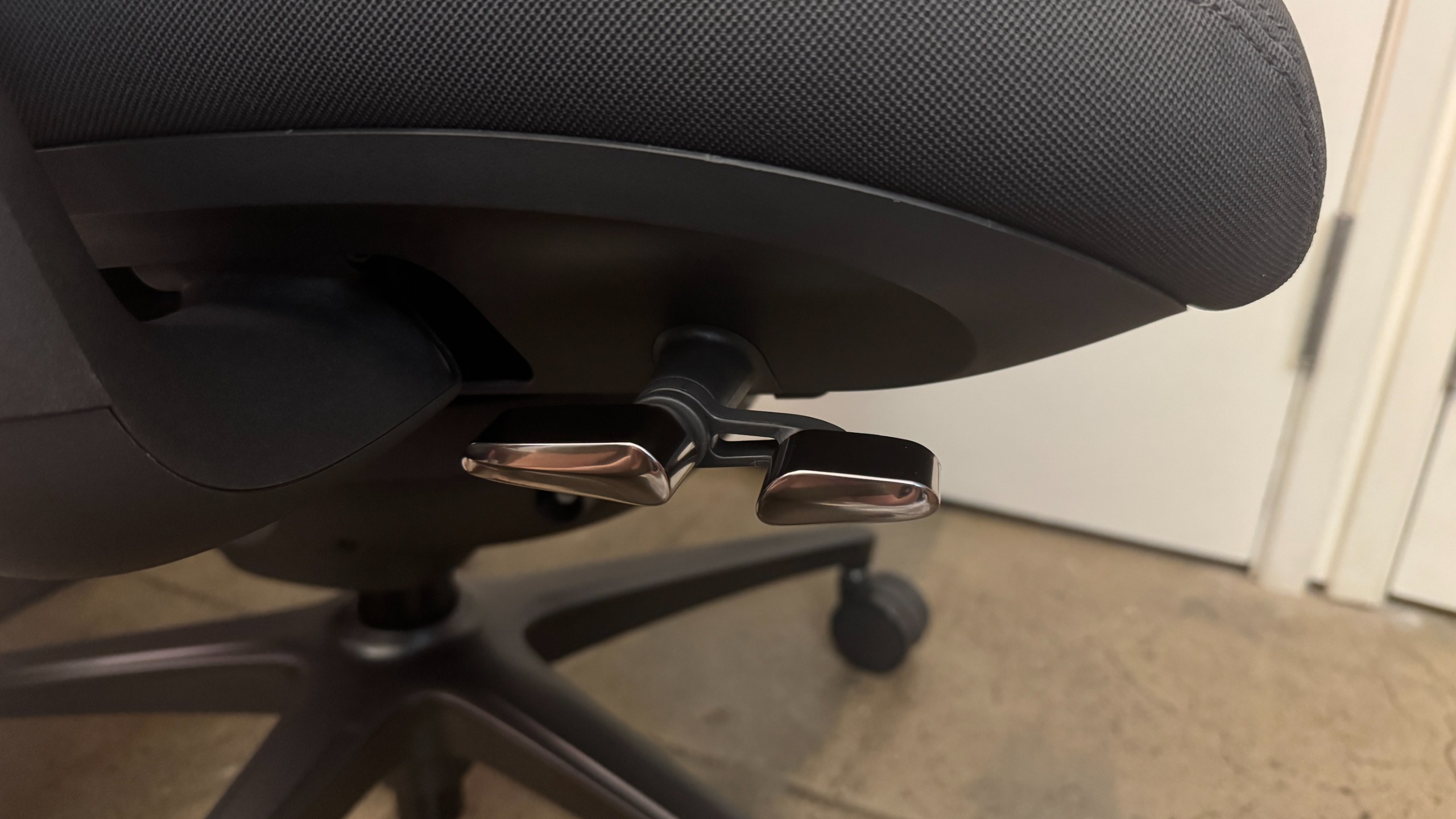
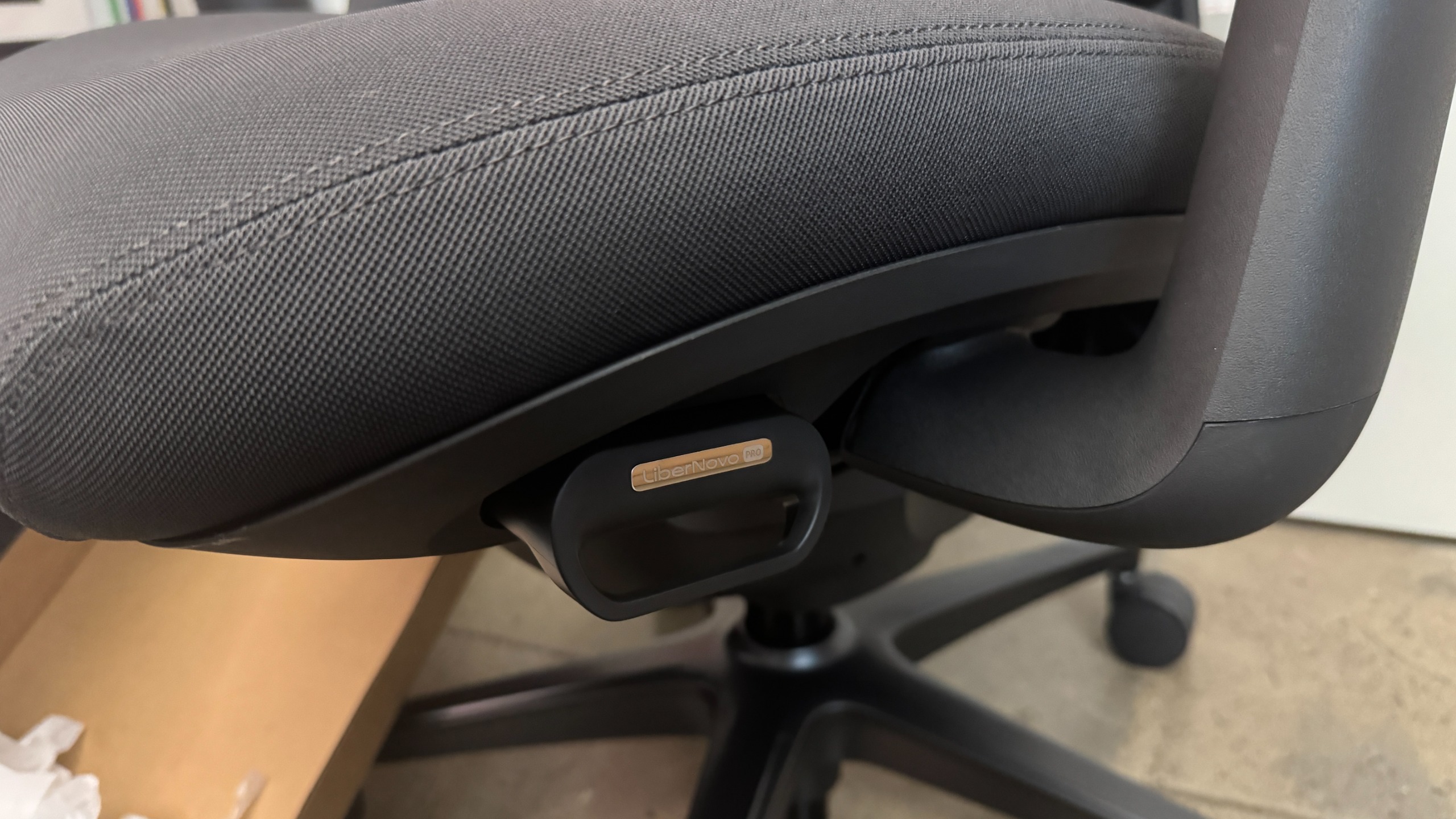
The Omni Pro's adjustment levers are mainly located under the seat on the right side. There's a dual lever / switch that controls chair height and recline position β€” pulling up on the front side of the lever lets you adjust height, while pulling up on the back side of the lever locks the maximum recline. While the original Omni had four recline positions, the Omni Pro has five β€” and believe it or not, this makes a big difference. Whatever fifth position they added is the position I wanted on the original Omni, I guess (the recline positions lock at 105, 115, 125, 135, and 160 degrees).

Libernovo Omni Pro

(Image credit: Tom's Hardware)

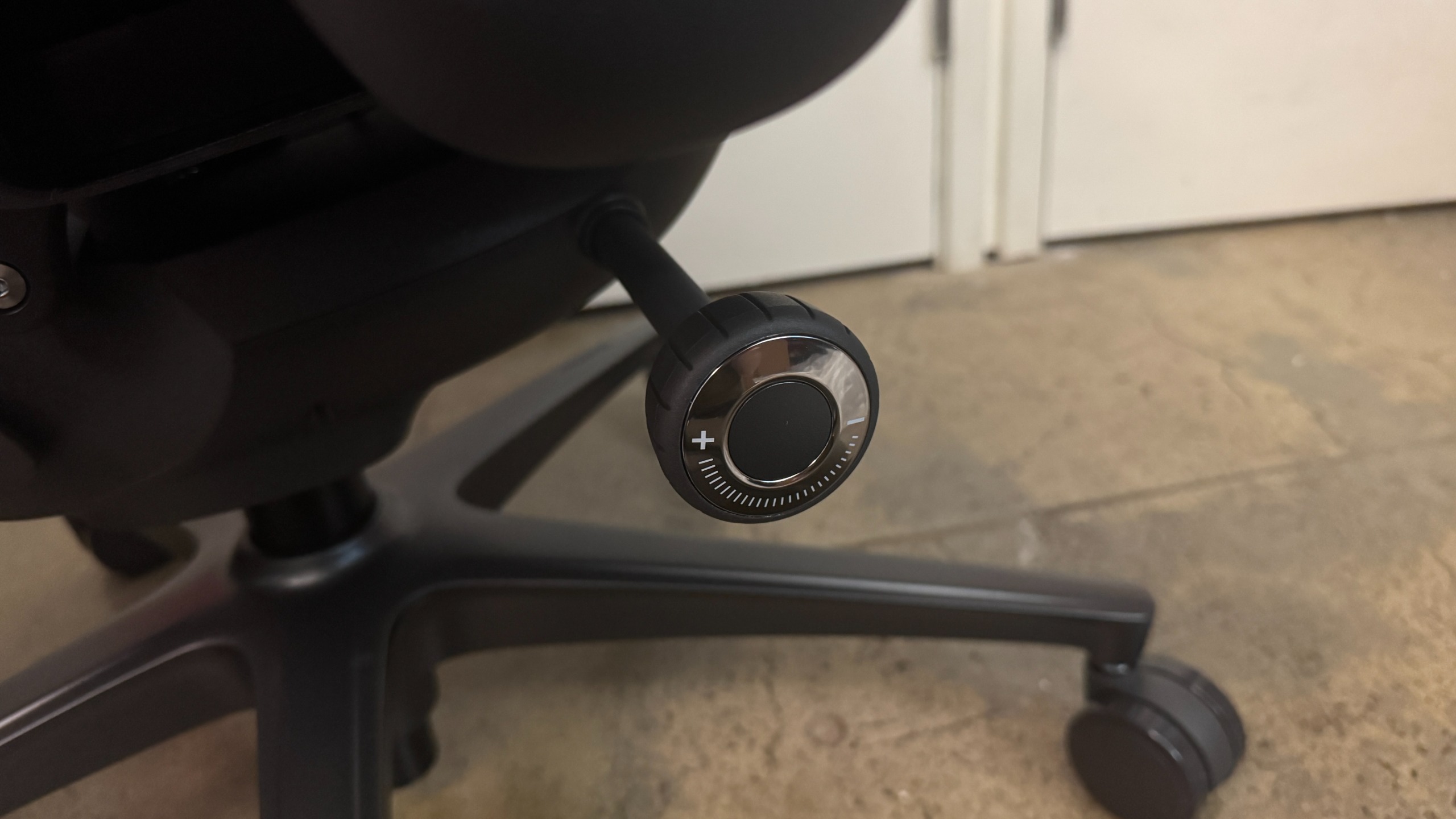
Under the dual lever / switch, there's a knob that controls tilt tension, which is how much tension you'll feel when you recline. Turning the knob clockwise increases tension and turning it counter-clockwise decreases it. There seems to be a pretty wide range of tilt for this chair, so you may need to turn it several times to get the tension to your liking.

Libernovo Omni Pro

(Image credit: Tom's Hardware)

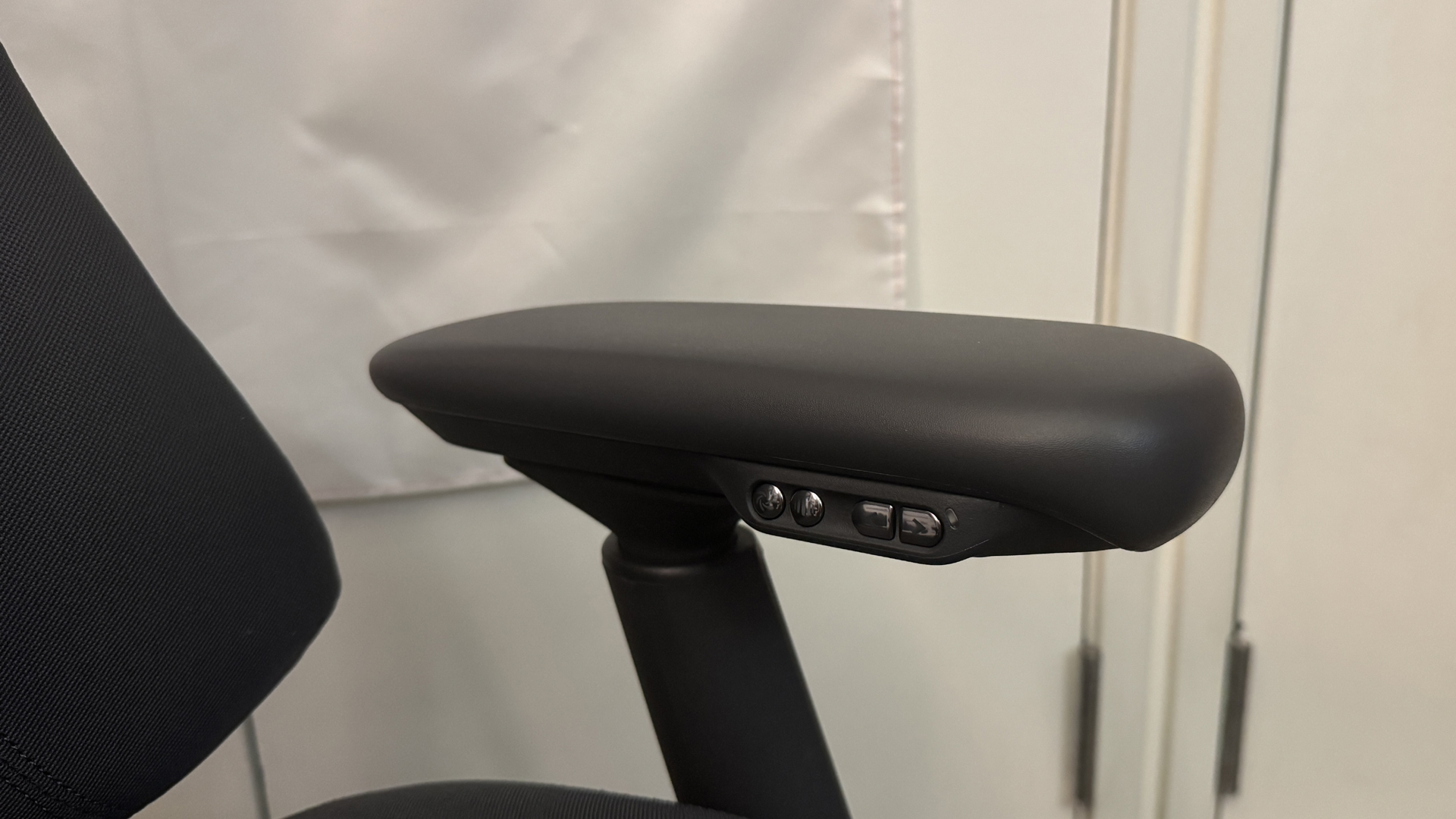
There's also dynamic, adjustable motorized lumbar support, which is controlled via the buttons on the inside of the left armrest. There are two arrow buttons for making the lumbar support firmer (forward) or... less firm (backward), and there's also a spinal massage button that triggers a five-minute spinal massage / stretch (using the chair's lumbar support) when pressed. While I like the Omni Pro's lumbar support, and found it very comfortable, it's worth noting that it's not vertically adjustable β€” so while it worked well for me, it may not work quite as well for someone with different body proportions.

Libernovo Omni Pro

(Image credit: Tom's Hardware)

Speaking of which, I'm about 5 feet 7 inches and 130 pounds, and the Omni Pro seemed perfect for me β€” not too big or heavy, and easy to adjust and move around in. The chair is rated for up to 300 pounds (136kg), and it seems sturdy enough β€” though I'm not sure how well the electronics will hold up if someone who weighs closer to that is using the spinal stretch feature regularly. My husband, who's 5 feet 11 inches and around 180 pounds definitely seemed a little too big for the chair (he has very long legs, though, and the chair's maximum depth of 18.9 inches (48cm) was still a little short for him).

In addition to the lumbar support, the Omni Pro has a ventilation fan under the seat. Unlike the other chairs we've seen with built-in fans, such as DXRacer's Martian Pro Red Triangle or Cougar's NxSys Aero Chair, this fan doesn't blow toward you to cool you off β€” instead, it removes hot air (I guess?) from around you by blowing away from you. I was skeptical, too, but it actually seems to work... pretty well. I guess there's a lot of heat trapped in the seat, because it instantly felt cooler even on the lower setting.

Libernovo Omni Pro
Tom's Hardware
Libernovo Omni Pro
Tom's Hardware

The fan runs on the same battery pack as the motorized lumbar support, and Libernovo says you'll get up to 9 hours of continuous fan usage on the higher setting, and up to 36 hours on the lower setting, and there's also a built-in sensor in the seat that automatically switches the fan off if you stand up (and switches it back on again when you sit back down). I could definitely hear the fan on both the high and low settings, but it faded pretty quickly to background noise on the lower setting. Also, the fan definitely seems to take up some space, because the seat on the Omni Pro is less padded than the seat on the Omni. I could feel the chair's frame through the seat, which wasn't a problem for me but may not be quite as comfortable for someone who's heavier.

Libernovo Omni Pro

(Image credit: Tom's Hardware)

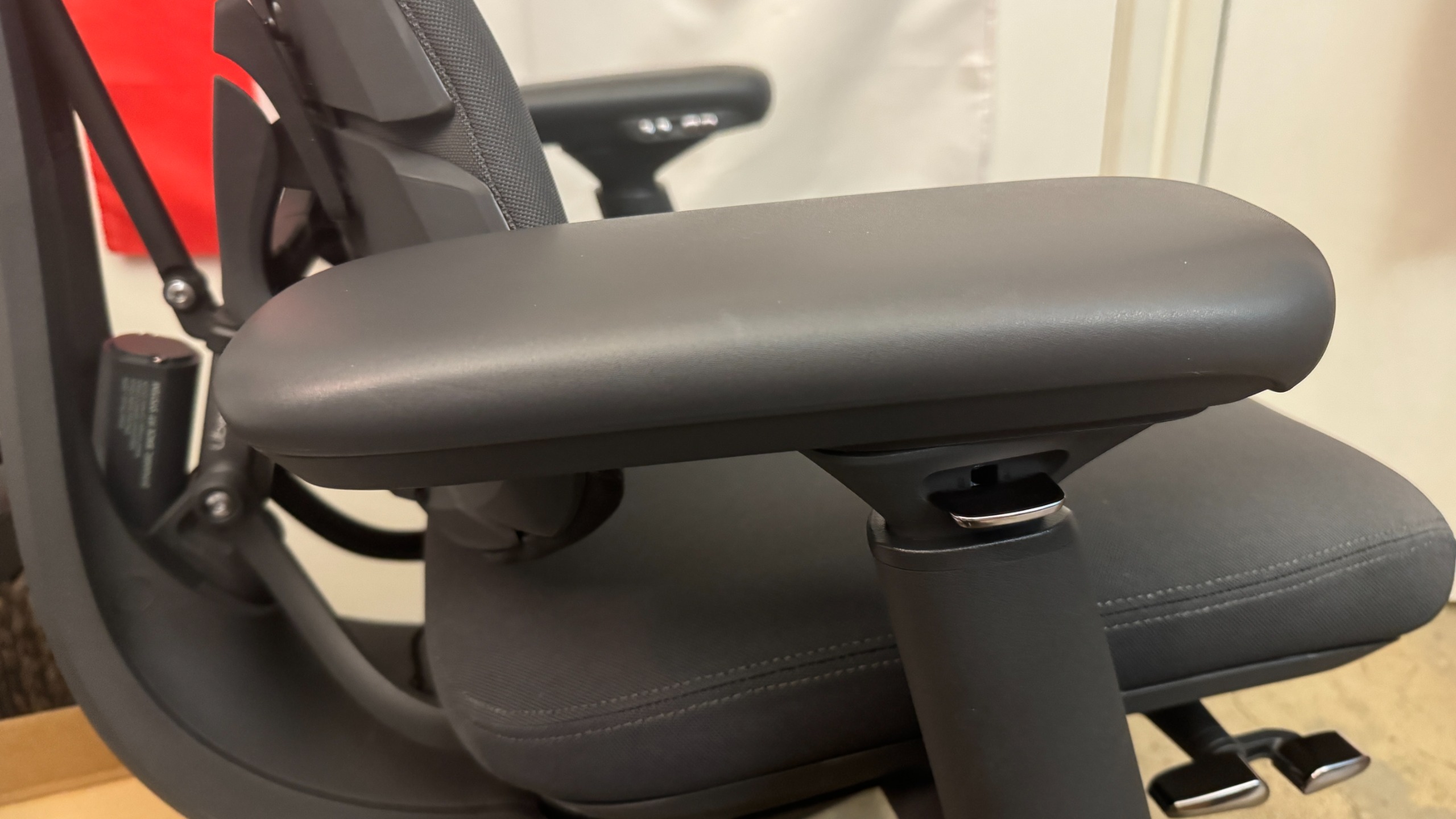
Like the original Omni, the Omni Pro has 4D armrests that adjust four directions: up/down, forward/back, left/right, and angle in/out. There's a lever under the outside of each armrest that you can press to adjust the armrests up/down. To adjust the armrests forward or backward, you just slide the tops (no button/lever necessary); same with adjusting the angle. Bringing the armrests closer to you involves pulling them inward, tilting them toward you. I don't love the way the armrests end up angled toward your body as a result of this, but I also don't ever find it necessary to adjust the width of my armrests so it wasn't an issue.

Libernovo Omni Pro
Tom's Hardware
Libernovo Omni Pro
Tom's Hardware

The Omni Pro also has an adjustable head/neck rest, which is curved to fit the curve of your neck/spine. The neck rest is height-adjustable and can be moved forward/back to suit your needs (or removed entirely).

Libernovo also sent us the corresponding StepSync Footrest, which is a dual height footrest with both a bottom shelf for resting your feet on when you're sitting upright and a padded upper shelf for when you want to recline. It's not a particularly high-tech footrest, but it's sturdy enough and it matches the chair, and it's a nice addition to the entire setup if you snag it in the bundle.

Bottom Line

Libernovo's Omni Pro managed to surprise me β€” I already liked the original Omni, and the Omni Pro's seemingly gimmicky seat ventilation fan worked better than I expected it to. The Omni Pro is a comfortable ergonomic chair that will fit pretty easily into most gaming setups (especially if you don't have the space for a giant racing-style behemoth), but the issue of longevity that we had with the original Omni carries over.

The Omni Pro has even more potentially breakable technology inside it, and the warranty on electronics is a mere two years β€” and remember, if the electronics in this chair stop working then you can no longer adjust the lumbar support. The chair itself has a six-year warranty (up from the original Omni's five years), which is on par with other gaming chair companies, but is still only half that of Herman Miller's 12-year warranty.

And while the Herman Miller x Logitech G Vantum has been fluctuating in price, it's still less than the Omni Pro.

  •  
❌