ⓘWe may earn a commission when you buy through our links. This helps support MacSources and keeps our content free. Thank you!
The HP HyperX OMEN MAX 16 combines an RTX 5090 Laptop GPU, Core Ultra 9 processor, 32GB of RAM, and a 240Hz 1600p display in a powerful desktop replacement.
I grew up in the 80’s and 90’s I knew the pain of a computer modem connecting to the internet back then. My first computer was an HP Pavilion and that little gray box was my gateway to a bigger world than my small town. I learned about design and “music downloading” on that machine. It was my first computer and it started my journey into the world of technology.
This review is from the perspective of a Mac user who enjoys gaming on a PC. I don’t live in the world of PC hardware but I do enjoy it and I wanted to share my experience with the HP HyperX OMEN MAX 16 with you.
My first computer was an HP Pavilion. That little gray box was my introduction to the world of technology, and I spent countless hours exploring what it could do. I learned about design, discovered the joys of “music downloading,” and started developing an interest in technology that has stuck with me ever since. Looking back, that first HP computer really was the beginning of my journey into the world of technology.
A few years ago, I found myself getting pulled into gaming again with Call of Duty: Mobile. Playing that title really made me enjoy competitive multiplayer games again, and I began looking at other gaming options. I eventually added a high-end gaming PC to my setup and started investigating gaming laptops that could provide a similar experience without giving up the performance I wanted.
That brings me to the HP HyperX OMEN MAX 16. With its high-end Intel processor, NVIDIA GeForce RTX 5090 Laptop GPU, 32GB of RAM, and 240Hz display, this is about as far removed from that little gray HP Pavilion as you can get. I was curious to see what HP could deliver in a gaming laptop with this much hardware packed into it.
About the HP HyperX OMEN MAX 16
The HP HyperX OMEN MAX 16 is a high-performance gaming laptop designed for users who want desktop-class performance in a portable form factor. It combines powerful Intel Core Ultra processors with NVIDIA GeForce RTX 50 Series Laptop GPUs, fast DDR5 memory, high-speed SSD storage, and a high-refresh-rate display.
The configuration I tested features an Intel Core Ultra 9 290HX Plus processor, NVIDIA GeForce RTX 5090 Laptop GPU with 24GB of dedicated memory, 32GB of DDR5 RAM, and a 2TB SSD. It also features a 16-inch 2500 x 1600 display with a 240Hz refresh rate, providing a combination of high resolution and fast motion that is well suited to gaming and other demanding applications.
Beyond its performance hardware, the OMEN MAX 16 includes a full-size keyboard with customizable RGB lighting, an illuminated light strip beneath the chassis, integrated speakers with Dolby Atmos support, a 1080p webcam, and connectivity designed to support a wide range of peripherals and accessories.
With its combination of high-end hardware and gaming-focused features, the OMEN MAX 16 is aimed at users who need substantial performance for gaming, content creation, demanding applications, and everyday productivity.
Keyboard: Full-size gaming keyboard with RGB backlighting
Lighting: Customizable RGB keyboard lighting and under-chassis lighting
Audio: Integrated speakers with Dolby Atmos support
Webcam: 1080p camera
Microphone: Integrated microphone
Wireless Connectivity: Wi-Fi
USB-C: USB-C connectivity with support for external storage and peripherals
Performance: Designed for high-performance gaming, content creation, multitasking, and demanding applications
Pricing & Availability
The MSRP for the HyperX OMEN MAX 16 is $4,699.99 but at the time of publishing it is being offered for $3,899.99 from hp.com or $4,399.00 on Amazon.
User Experience
My initial experience with the HP OMEN MAX 16 was very positive, particularly when it came to performance and responsiveness. However, there is one thing that became immediately apparent when I started handling the laptop: this is a very large and very heavy machine.
HP lists the OMEN MAX 16 at 6.56 pounds, and you can definitely feel that weight when carrying it. The laptop is also quite chunky compared with more conventional 16-inch laptops. This isn’t a machine that I would casually toss into a bag and carry around all day.
That said, the size makes considerably more sense when you consider what HP is trying to accomplish. The OMEN MAX 16 is essentially designed to serve as a desktop replacement for gaming. Rather than having to build a traditional gaming desktop, monitor, keyboard, and other peripherals, you can have a complete high-performance gaming system contained in a single device.
That portability is still useful, particularly if you need to take your gaming system with you when traveling. You get the computer, display, keyboard, speakers, and other essential components in one package. However, “portable” is probably a better description than “easy to carry.”
The power adapter adds to that consideration. It is also quite large, which isn’t surprising given the amount of power required by the OMEN MAX 16’s high-end hardware. When you’re packing the laptop for a trip, you’re not just accounting for a 6.56-pound computer. You also need to find room for a substantial power adapter.
For me, this is one of the most important things potential buyers should consider. If you’re looking for a laptop that you can easily carry between meetings, classes, coffee shops, or other locations throughout the day, the OMEN MAX 16 is probably not the ideal choice. If you’re looking for a desktop gaming replacement that can be moved when necessary, its size and weight are much easier to justify.
Setting up the laptop as a new Windows 11 PC was relatively straightforward. It took approximately one minute to reach the Windows update process, followed by about 11 minutes of updates and another 17 minutes and 37 seconds to finalize and complete those updates. Once setup was finished, I allowed approximately seven additional minutes for further updates.
I skipped Microsoft’s optional personalization, phone integration, and phone photo backup features and declined the Microsoft 365 and cloud storage offers. This gave me a relatively clean starting point for testing the laptop.
The OMEN MAX 16 remained quiet during basic productivity work, with the fans generally staying off. The fans became audible during intensive benchmarking, multitasking, and gaming, although I didn’t find them particularly loud. The rear of the laptop did become noticeably warm after extended benchmark testing.
The keyboard was responsive, and I had no issues with key recognition during normal typing. However, the compact layout took some adjustment. HP has fit a full-size keyboard into the 16-inch chassis, leaving relatively little space between some of the keys. I frequently found myself reaching for Backspace and accidentally pressing Num Lock instead. The trackpad is also positioned slightly off-center because of the keyboard layout.
The RGB lighting is one of my favorite design elements. The keyboard backlighting looks excellent, and the illuminated strip underneath the laptop adds another nice gaming-oriented touch.
The 16-inch 2500 x 1600 display also made a good first impression. I confirmed its 240Hz maximum refresh rate using the UFO Test, which reported four pixels per frame at 960 pixels per second. The high refresh rate makes movement and scrolling feel very smooth, while the high resolution provides plenty of detail for everyday work and entertainment.
The speakers were another pleasant surprise. I tested them with a Dolby Atmos sound test and 32-bit high-resolution music. Audio was clear, well balanced, and surprisingly loud. Even at approximately 50% volume, the speakers produced plenty of sound, with music, voices, and sound effects all remaining well balanced.
Finally, I tested out the built-in 1080p webcam. It performed adequately for video calls, while the microphone was better than average for a laptop. Both should be perfectly suitable for regular video conferencing.
Benchmark Performance
Benchmarking a laptop like the HP OMEN MAX 16 is a little different from testing a typical productivity machine. This is a system built around high-end hardware, so I wanted to see how the Core Ultra 9 290HX Plus, RTX 5090 Laptop GPU, 32GB of RAM, and 2TB SSD performed when put through a variety of workloads.
I used Geekbench 7 for general CPU and GPU performance, Geekbench AI for machine learning workloads, Cinebench to put the processor through a rendering workload, FurMark to stress the graphics hardware, and CrystalDiskMark to evaluate the SSD. The results were generally what I would expect from a laptop with this level of hardware, although they also highlighted just how much heat and power this system can generate when it’s pushed.
Geekbench 7
Geekbench 7 provides a useful look at both single-core and multi-core CPU performance, along with GPU compute performance. I find this combination particularly useful because it gives us an idea of how the laptop should handle everything from everyday applications to workloads that can take advantage of multiple CPU cores or the dedicated graphics processor.
The OMEN MAX 16 produced the following scores:
Single-Core: 2,709
Multi-Core: 18,921
OpenCL: 191,623
The single-core score of 2,709 is a strong result and reflects the performance available from Intel’s Core Ultra 9 290HX Plus. For everyday tasks, this means there is plenty of processing power available for things like launching applications, browsing the web, working with documents, and switching between applications.
The multi-core score is where the OMEN MAX 16 really starts to show what it was built for. Its score of 18,921 demonstrates that the processor has plenty of muscle for workloads that can use multiple cores at the same time. Video encoding, rendering, compiling software, and heavy multitasking are all areas where this kind of performance can be useful.
The OpenCL score of 191,623 is on another level compared with the integrated graphics found in most laptops. The RTX 5090 Laptop GPU is a dedicated graphics processor with 24GB of VRAM, and that makes a substantial difference when applications can take advantage of the GPU.
This isn’t a laptop where the graphics processor is simply there to handle the display and occasional light GPU workloads. There is enough graphics horsepower here for demanding creative applications, 3D workloads, GPU acceleration, and gaming. I’ll take a closer look at gaming performance later in the review.
Geekbench AI
I also ran Geekbench AI to see how the OMEN MAX 16 handled workloads specifically designed around artificial intelligence and machine learning. This is an increasingly relevant area for modern PCs, particularly systems equipped with processors and GPUs designed to accelerate AI workloads.
The results were:
Single Precision: 3,814
Half Precision: 1,607
Quantized: 7,016
The quantized result was the strongest of the three. Quantized workloads use lower-precision numerical formats, which can reduce the amount of data that needs to be processed and can be particularly useful for certain AI inference workloads.
These numbers are interesting, but I wouldn’t use Geekbench AI alone to determine how well the OMEN MAX 16 will perform with a particular AI application. AI performance can vary significantly depending on the software, framework, precision being used, and whether the workload is running on the CPU, GPU, or another accelerator.
What is more important here is the hardware available to the system. The Core Ultra 9 290HX Plus provides substantial CPU performance, while the RTX 5090 Laptop GPU has 24GB of dedicated VRAM. That combination gives the OMEN MAX 16 considerably more flexibility for local AI applications and other memory-intensive workloads than a typical laptop.
For someone experimenting with local AI tools, using AI-assisted applications, or working with workloads that can take advantage of NVIDIA GPU acceleration, there is a lot of hardware available here. The 24GB of VRAM is particularly noteworthy because memory capacity can become a limitation with larger AI models and other demanding GPU workloads.
Cinebench
Cinebench gives us another way to evaluate the processor by putting it through a rendering workload. I ran both the single-thread and multi-thread tests to see how the Core Ultra 9 290HX Plus handled workloads using one core versus multiple cores.
The results were:
Single Thread: 570
Multi Thread: 5,695
The single-thread score of 570 is consistent with the strong single-core performance seen in Geekbench 7. Applications that aren’t designed to spread work across many processor cores should still have plenty of CPU performance available.
The multi-thread score of 5,695 is more representative of what this processor can do when it’s allowed to use its available resources. Rendering, video production, compiling, and other heavily threaded workloads can put considerable demand on a CPU, and the OMEN MAX 16 handled the Cinebench workload with the kind of performance I would expect from a high-end gaming laptop.
There was a noticeable difference in how the laptop behaved during these heavier tests, though. As I mentioned, the fans kicked on when the system was under significant load, and the back of the laptop became particularly warm. That’s an important part of the experience with a system like this because the hardware is capable of generating considerably more heat when it is being pushed than it does during normal productivity use.
FurMark
Since the RTX 5090 Laptop GPU is one of the biggest reasons to buy the OMEN MAX 16, I wanted to put the graphics hardware through a dedicated stress test as well. FurMark is designed to place a heavy load on the GPU, making it useful for seeing how the system responds when the graphics hardware is pushed hard.
Here are the results:
1920 x 1080: 13,453 points
2560 x 1440: 10,055 points
As expected, the score decreased when moving to the higher resolution because the GPU has substantially more pixels to process. Even so, the results demonstrate the amount of graphics performance available from the RTX 5090 Laptop GPU.
The 24GB of dedicated VRAM is also worth mentioning. That’s an unusually large amount of graphics memory for a laptop and gives the OMEN MAX 16 plenty of room for high-resolution gaming and demanding GPU-accelerated applications.
FurMark also reinforced what I noticed during the CPU benchmarks. The cooling system becomes much more active under heavy workloads, and the rear portion of the laptop gets quite warm. I didn’t take actual temperature measurements during testing, so I don’t want to assign a specific temperature to it, but the heat was definitely noticeable.
CrystalDiskMark
The 2TB SK hynix PCB01 SSD was another component I wanted to test. Storage speed isn’t necessarily as exciting as CPU or GPU performance, but it has a noticeable effect on things like application launches, file transfers, game loading, and working with large files.
CrystalDiskMark produced the following results:
Test
Read
Write
SEQ 1MiB Q8T1
12,255.08 MB/s
12,131.65 MB/s
SEQ 1MiB Q1T1
5,547.83 MB/s
2,326.02 MB/s
RND 4KiB Q32T1
615.48 MB/s
745.66 MB/s
RND 4KiB Q1T1
79.72 MB/s
140.66 MB/s
The sequential Q8T1 results were particularly impressive, with read and write speeds both exceeding 12,000 MB/s in that particular test. The Q1T1 results were lower, especially on the write side, which is a good reminder that SSD performance can vary significantly depending on the type of workload being measured.
In everyday use, the important thing is that this is a very fast SSD. Windows feels responsive, applications launch quickly, and the system is well equipped to handle large files and other storage-intensive tasks. With 2TB of capacity, there’s also a reasonable amount of space for applications, games, and media without immediately having to add additional storage.
What Do the Results Tell Us?
The benchmark results reinforce what I noticed from the moment I started using the OMEN MAX 16. This is a laptop that has been built around performance first.
The Core Ultra 9 290HX Plus provides excellent CPU performance, while the RTX 5090 Laptop GPU is capable of handling workloads that would be completely out of reach for the integrated graphics found in most mainstream laptops. Add 32GB of DDR5 memory and a very fast 2TB SSD, and there isn’t much about the hardware configuration that feels compromised.
The results also help explain why the OMEN MAX 16 is such a large and heavy laptop. All of this hardware needs power and cooling. That’s the tradeoff with this particular design. The benchmarks show that the OMEN MAX 16 has the performance to justify that size. Whether that tradeoff makes sense for you will depend largely on how you plan to use it.
Gaming Performance
Of course, a gaming laptop can have impressive benchmark numbers, but what really matters is how it performs when you’re actually playing games. With the OMEN MAX 16, I spent time playing several different titles to get a better feel for how well its hardware translates into real-world gaming performance.
I tested Gears of War, Call of Duty, and The Finals, giving me a good mix of AAA games, competitive multiplayer, and graphics-intensive titles. I played the games on the OMEN MAX 16’s native 2560 x 1600 resolution and focused on how the system handled gameplay, graphics quality, frame rates, and overall responsiveness. The only thing I added was a gaming mouse rather than using the trackpad.
Gears of War
Gears of War was a good starting point because it gave me an opportunity to see how the OMEN MAX 16 handled a modern AAA title without immediately jumping into one of the most demanding games available.
The RTX 5090 Laptop GPU had no problem handling the game, and the combination of high-end graphics hardware and the Core Ultra 9 processor made for a very smooth experience. I was able to enjoy the game with high-quality graphics without feeling like I needed to make significant compromises to get good performance.
The 16-inch 2560 x 1600 display also worked particularly well here. I’ve found that games like Gears benefit from the additional detail provided by the higher resolution, and the 240Hz refresh rate kept movement looking smooth during both exploration and combat.
This was a good indication that the OMEN MAX 16 isn’t simply capable of running games. It has enough hardware to let you take advantage of the display’s resolution and refresh rate at the same time.
Call of Duty
The next title I tested was Call of Duty. It was probably the game I was most interested in testing because high frame rates are essential for me when I play a first-person shooter. The OMEN MAX 16’s combination of the RTX 5090 Laptop GPU and Core Ultra 9 290HX Plus is well suited to this type of workload.
Playing Call of Duty on the OMEN MAX 16 was extremely responsive. Movement was smooth, aiming felt precise, and I never felt like the system was struggling to keep up with what was happening on screen.
The Finals
The Finals gave me another opportunity to push the system with a fast-paced multiplayer game that can put considerable demands on both the CPU and GPU.
The OMEN MAX 16 handled the game very well. The combination of fast gameplay, detailed environments, effects, and destruction didn’t present a problem for the RTX 5090 Laptop GPU. Gameplay remained smooth, and I didn’t experience the type of performance issues that would make me want to significantly reduce the graphics settings.
I also appreciated the display here. The 2560 x 1600 resolution provides plenty of detail, while the 240Hz refresh rate is well suited to the quick movement and action that The Finals delivers.
The system’s cooling became more noticeable during extended gaming sessions, as I would expect from a laptop with this much hardware packed inside it. The fans were audible when the system was working hard, but I didn’t find them excessively loud. The rear of the laptop also became quite warm.
Gaming Performance Overall
After spending time with all three games, I came away with the impression that the OMEN MAX 16 delivers exactly what I would expect from a laptop built around an RTX 5090 Laptop GPU. The benchmark results suggested that it was going to be powerful, but actually playing games made the difference much more apparent.
Gears of War, Call of Duty, and The Finals all ran comfortably. HP essentially built a desktop gaming system that you can pick up and take somewhere else.
Conclusion
The HP HyperX OMEN MAX 16 is the kind of gaming laptop that makes it easy to understand why someone would choose a laptop over a traditional gaming desktop. It packs an impressive amount of hardware into a single machine. While it’s a heavy laptop, HP has designed the OMEN MAX 16 as a desktop replacement, and in that context, the size makes considerably more sense.
For me, the HP HyperX OMEN MAX 16 succeeds because it doesn’t try to disguise what it is. It’s big, heavy, expensive, and extremely powerful. If you want a gaming laptop that can genuinely serve as your primary gaming computer and still be moved when necessary, this is an impressive option. Just make sure you’re comfortable carrying all of that performance with you.
ⓘWe may earn a commission when you buy through our links. This helps support MacSources and keeps our content free. Thank you!
The RISION Magic brings detailed thermal imaging to your smartphone in a compact, affordable package, although its software still needs some refinement.
As a product tester, one of the biggest things I run into is people asking about how hot a device gets with standard use. Typically, I will use infrared thermometers to get temperature readings but I would much rather use a thermal imager so that the device can actually be seen and users can visualize where hot spots are. Some thermal imagers are too large to use conveniently, which is why I was excited about the RISION Magic being released.
About the RISION Magic
The RISION Magic is a compact USB-C thermal camera designed to turn a compatible smartphone, tablet, or Windows PC into a portable thermal imaging tool. At just 24 grams and without its own battery, the Magic draws power from the connected device, making it easy to carry and use without another device to charge. RISION offers support for iOS, Android, and Windows, along with free mobile and desktop versions of its RISION View app.
The Magic uses a native 160 × 120 thermal sensor and RISION’s QuadIR™ technology to produce a 320 × 240 super-resolved image. It also uses AI BiSpectrix™ to combine thermal and visible-light imagery in real time, helping users connect temperature differences with the physical objects or areas responsible for them.
RISION designed the Magic primarily for everyday troubleshooting and home maintenance. It can be used to look for energy loss around doors and windows, identify HVAC issues, find potential moisture problems, and spot overheating electrical connections without having to touch hot surfaces or exposed wiring. The RISION View app also provides temperature measurements, real-time waveform monitoring, customizable temperature thresholds, multiple measurement zones, thermal image and video capture, and automated PDF reporting.
Features & Specs
Thermal resolution: 160 × 120 native
Super resolution: 320 × 240 with QuadIR™ processing
Thermal sensitivity: ≤40 mK NETD
Refresh rate: 25 Hz
Temperature range: -4°F to 1,112°F (-20°C to 600°C)
Temperature accuracy: ±2% / ±2°C
Thermal/visible fusion: AI BiSpectrix™ dual-light fusion
Connection: USB-C
Power: Draws power directly from the connected device
Power consumption: 0.32W
Battery: No built-in battery
Continuous use: Approximately 5–8 hours, depending on the connected device
Compatibility: iOS, Android, and Windows PCs
App: RISION View mobile and desktop applications
Color palettes: 12, with adjustable text color and size
Temperature monitoring: Up to five points, five lines, and five areas simultaneously
Analysis: Real-time temperature waveform monitoring and customizable temperature thresholds
Image capture: Thermal photographs with temperature data
Video: Thermal video recording with temperature data
Reporting: Automated PDF reports
Documentation: Custom watermarks and GPS location information
Cloud: Cloud synchronization and multi-device access
Housing: Aerospace-grade alloy
Weight: 24 grams
Warranty: 24 months
Return period: 30 days
Thermal Image of Keyboard
Pricing & Availability
The RISION Magic has an MSRP of $139, although RISION is currently offering it for $119 through its website. The camera includes free shipping, a 24-month warranty, and a 30-day return period. It can be ordered through rision.com and Amazon.
User Experience
I tested the RISION Magic with my iPhone 16 Pro, and getting started was very easy. After downloading the RISION View app, I plugged the Magic into the phone’s USB-C port, and the app recognized it immediately. I was able to start taking thermal measurements very quickly.
The camera itself is a good size for carrying around. It is compact without being so small that I feel like I am going to lose it. The included carrying case works well for protecting the camera, although I think it could be smaller to better match the compact size of the Magic.
The RISION View app is generally easy to use, but I did run into some software issues during testing. A few settings also weren’t located where I expected them to be. For example, I had to go into my Profile to change the temperature unit from Celsius to Fahrenheit rather than finding that option under Settings. More importantly, the app locked up a few times. If my phone went to sleep while the camera was connected, I sometimes had to disconnect and reconnect the Magic before the app would work again.
Thermal Image of Me Standing in front of a sliding glass door.
The thermal images were the highlight of my testing. They looked very good, with enough detail that it was easy to identify the objects I was looking at. I used the Magic to check a variety of things around the house, including my coffee before and after adding fresh coffee, an air conditioning vent, my keyboard, and our dog. It was interesting to see the differences in temperature across these everyday objects.
I also compared the Magic’s temperature readings with a handheld infrared thermometer. The readings were reasonably close, although the infrared thermometer consistently measured approximately 4 degrees higher. For the type of general-purpose troubleshooting the Magic is designed for, I found the readings accurate enough to be useful.
Close Up of our Dog
I did run into another software issue when I tried the reporting feature. Creating a report requires signing up for a RISION account, but I couldn’t complete the registration. After entering the requested information and verification code, the Sign Up button remained disabled. That meant I wasn’t able to test the PDF reporting feature.
Overall, my experience with the Magic was a little mixed. The hardware is compact, easy to use, and produces surprisingly detailed thermal images, but the software still feels like it needs some refinement. I encountered several issues during testing, although none prevented me from using the camera after reconnecting it. Based on the image quality alone, I would recommend the RISION Magic at its $119 price, particularly for homeowners and DIY users who want an easy way to add thermal imaging to a smartphone.
Coffee before refilling it.Coffee as I refilled itCoffee after refill.
Conclusion
The RISION Magic is an interesting addition to my testing setup because it gives me something an infrared thermometer can’t: a visual representation of where heat is coming from. Being able to see hot spots across a device or identify temperature differences around the house makes thermal imaging much more useful than simply getting a single temperature reading.
The hardware does what I want it to do, and the thermal images are detailed enough to make the camera genuinely useful. If RISION can address some of the software bugs, the Magic would be an even stronger recommendation. For now, I think it is a good option for anyone looking to add thermal imaging to their smartphone without spending a lot of money.
ⓘWe may earn a commission when you buy through our links. This helps support MacSources and keeps our content free. Thank you!
The Razer Prio combines a compact foldable design, USB-C connectivity, responsive controls, and extensive customization in a mobile gaming controller that’s easy to take anywhere.
I’ve been an avid player of first-person shooter games since I was a kid. Call of Duty is one of my favorites, and a few years ago, I picked up Call of Duty: Mobile on my iPhone. At the time, I wasn’t a fan of on-screen controls, so I investigated mobile gaming controllers and ended up with the Razer Kishi. It was a great controller to use with the iPhone, and I did really well in-game with its help.
I did step away from mobile gaming for a short period of time, but I recently decided to pick it back up. Fortunately for me, Razer happened to release a brand new controller for mobile gaming called the Razer Prio. Given my previous experience with the Kishi, I was particularly interested to see how the Prio compared and whether its compact, foldable design could provide the same type of gaming experience in a more portable package.
About the Razer Prio
The Razer Prio is a mobile gaming controller designed to provide a more traditional console-style gaming experience without the bulk typically associated with mobile controllers. Its most notable feature is its foldable design, allowing the controller to collapse into a compact form that is easy to carry when you’re not gaming. At just 101 grams, the Prio is also considerably lighter than many traditional mobile gaming controllers.
When unfolded, the Prio provides a familiar controller layout with two analog sticks, a D-pad, four face buttons, shoulder buttons, and triggers. Razer also equipped the controller with contactless capacitive analog sticks, which are designed to provide precise input while eliminating the physical contact points found in traditional potentiometer-based sticks.
The Prio connects directly to compatible smartphones through USB-C, eliminating the need for Bluetooth pairing or a built-in controller battery. This means there’s no controller to charge before a gaming session, although the controller does draw power from the connected smartphone. Razer says the Prio supports iPhone and Android devices, including phones with cases, making it compatible with a wide range of mobile gaming setups.
The controller also includes a dedicated Razer Cortex button for accessing supported games and services, including cloud and remote-play options. With its combination of a compact folding design, direct USB-C connection, and full controller controls, the Prio is designed for mobile gamers who want a more portable alternative to larger controllers without giving up the physical controls needed for serious gaming.
Specs
Connectivity: USB-C
Charging: None
Battery Life: None
Thumbsticks: Capacitive Thumbsticks
Thumbstick Sensitivity Adjustment: None
Multi-Function Buttons: 4 Multi-Function Buttons
Action Buttons: Silent Tactile Face Buttons
Triggers: Dual Bumper Triggers
System Requirements: Android 14 or higher; iOS 18
Supported Phone Dimensions: Devices up to 7 inches
Size: 101 mm × 67 mm
Weight: 101 g
Mobile App: Razer Cortex Mobile
Pricing & Availability
The Razer Prio is available for $99.99 on razer.com and Amazon.
User Experience
The Razer Prio comes in a classic Razer-branded box. It’s primarily white with Razer green used as an accent color, and there’s a full-color image of the controller on the front. When you open the box, you’ll find the controller folded up into itself, different sizes of rubber inserts, a manual, and the usual Razer stickers.
When I first took a look at the folded-up Prio, I was a little confused about how to unfold it. I tried to figure it out without looking at the manual, and once I pulled the rubber band off to one side, the two halves of the controller split apart. At first, I thought I had broken something, but this is actually part of the Prio’s design. Rather than trying to game with it right away, I spent a little time figuring out how to put it back together. While the process does feel a little awkward at first, after a couple of attempts, opening and closing the controller became fairly easy.
As I mentioned, Razer includes replacement rubber inserts for different iPhone models. The different configurations are:
iPhone: A + A
iPhone Pro Max: E + A
iPhone Air: A + D
I tested the Prio with both an iPhone 17 Pro Max and an iPhone 16 Pro, and the inserts worked as expected. One important thing to note is that the controller is not designed to work with all cases. The iPhone 16 Pro had a slim Defender-style case on it, and the Prio was unable to connect properly with the case installed. Removing the case resolved the issue.
Gaming with the Razer Prio
With the iPhone 17 Pro Max, I tested the Prio with Call of Duty: Mobile. The controller connected immediately and worked as expected as a wired controller. Overall, I think the Prio does a good job when it comes to responsiveness and general gameplay, although there are a few personal preferences that hold it back for me.
First, the thumbsticks sit almost flush with the rest of the controls. I prefer thumbsticks that sit higher, as they give me a greater sense of control and range of movement. I’m accustomed to the feel of an Xbox controller, and the Prio’s low-profile sticks feel noticeably different. This isn’t necessarily a flaw, but it did take some adjustment.
I also wasn’t a big fan of the L2 and R2 triggers. They have a somewhat squishy feel and lack the definitive tactile bump I prefer from a gaming controller. They also seem to have more travel than necessary. As a result, the triggers don’t feel quite as responsive or precise as I’d like, particularly during fast-paced gameplay.
Razer Cortex Mobile
With the iPhone 16 Pro, I connected the Prio to Razer Cortex Mobile and used the app as recommended. While Cortex is optional, I wanted to see how it integrates with the Prio and whether it adds anything meaningful to the overall experience.
One of the most useful aspects of Cortex is the additional customization it provides. The app can be used to update the controller’s firmware and change various controller settings. Most notably, I was able to adjust the thumbstick dead zones and polling rate.
This was one of the more surprising features I encountered while testing the Prio. I haven’t encountered many controllers in this category that offer this level of customization, particularly when being used with iOS devices. Having the ability to adjust the dead zones and polling rate gives users considerably more control over how the controller responds to their inputs.
After making sure the firmware was up to date, I played a few rounds of Combat Master, which provides a very similar first-person shooter experience to Call of Duty: Mobile. This gave me an opportunity to see whether my initial impressions of the Prio’s controls carried over to another FPS rather than relying solely on my experience with COD: Mobile. Since the controls felt virtually the same, I found that my initial impressions of the Prio carried over to another FPS.
After playing Combat Master, I moved over to Asphalt Legends Unite and found the controls to be more than adequate for this type of game. It doesn’t use as much of the controller as an FPS, but the controls were responsive and felt natural on the Prio. The overall experience was a significant improvement over using the touchscreen controls.
Final Impressions
I think the Prio is a very capable mobile gaming controller. It’s clearly designed with portability in mind, and much of my testing actually took place during a very long road trip. The compact, foldable design makes it remarkably easy to travel with, although I do wish Razer had included a carrying case. While the controls are protected when the controller is folded up, I still think a small case or sleeve would have been a worthwhile addition for protecting the Prio while it’s being carried around.
Overall, I found the controls to be responsive, and if you’re familiar with a console-style controller, the Prio should feel comfortable for mobile gaming. That said, the biggest adjustment for me was the overall layout and feel. Rather than reminding me of an Xbox controller, the Prio actually feels much more like the original Nintendo gamepad. The low-profile thumbsticks and overall arrangement of the controls give it a distinctly different feel from the traditional Xbox-style controllers I’m accustomed to using.
Conclusion
The Razer Prio is an interesting take on the mobile gaming controller. Rather than trying to replicate the size and feel of a traditional console controller, Razer took a different approach by making portability one of its biggest priorities. The foldable design makes the Prio easy to take with you, and the fact that it doesn’t require a battery or Bluetooth connection makes it especially convenient for mobile gaming on the go. It may take some adjustment if you’re accustomed to an Xbox-style controller, but the combination of its compact design, responsive controls, USB-C connectivity, and Cortex customization makes the Prio a compelling option for mobile gaming.
ⓘWe may earn a commission when you buy through our links. This helps support MacSources and keeps our content free. Thank you!
The ViewSonic VG1457 puts two 14-inch WUXGA displays into a portable 2.6-pound package, giving mobile workers more screen space without carrying two separate monitors.
Traveling and staying productive has become much easier in recent years, largely thanks to portable devices like tablets and laptops. The only issue I end up having is a lack of screen real estate when I’m on-the-go since I’m used to working on a 34-inch wide screen monitor. This is where ViewSonic’s dual-screen portable monitor comes in handy.
About the ViewSonic VG1457
The ViewSonic VG1457 is a dual-screen portable monitor designed to give users additional screen space without requiring two separate displays. It features two 14-inch WUXGA IPS displays with a 1920 × 1200 resolution, connected by a flexible hinge that allows the screens to be positioned in multiple configurations.
The VG1457 supports several viewing modes, including Extend, Mirror, Full-Screen, Share, and Dual Source. It also features USB-C connectivity with up to 65W power delivery, allowing it to connect to compatible laptops and mobile devices while helping reduce the number of cables needed. At approximately 2.6 pounds, the VG1457 is designed for users who want a larger workspace while traveling or working away from their primary desk.
With its flexible design and dual-display functionality, the VG1457 is particularly suited to productivity tasks such as multitasking, presentations, document work, and working with multiple applications simultaneously.
Specs
Screen Size: 14″ (x2)
Viewable Area (in.): 14″ (x2)
Color Space Support: 8 bit (6 bit + FRC)
Viewing Angles: 170º horizontal, 170º vertical
Backlight Life (Hours): 15,000
Display Resolution: WUXGA (1920×1200)
Display Resolution: 1920 x 1200
Dynamic Contrast Ratio: 50,000,000:1
Aspect Ratio: 16:10
Panel Surface: Anti-glare, hard-coating (3H)
Light Source: LED
Brightness: 250 cd/m2
Static Contrast Ratio: 800:1
Panel Type: IPS
Refresh Rate: 60Hz
PC Resolution (max): 1920×1200
Mac® Resolution (max): 1920×1080
USB Type C: 65W x 3
Internal Speakers: 2W (x2)
Consumption (typical): 13W
Consumption (max): 18.5W
Voltage: AC 100-240V (universal), 50-60Hz
Stand-by: 0.5W
Power Supply: External
Cable Organization: No
Physical Controls: Up, Down, Enter, Power
On Screen Display: Input Select, Display Settings, Volume, Color Adjust, Information, All Recall
Temperature: 32-104º F (0 – 40º C)
Humidity (non-condensing): 20-90%
Frequency Horizontal: 15 ~ 82 KHz
Frequency Vertical: 50 ~ 170 Hz
Swivel: 340º
Pivot (Right/Left): Landscape Mode: 0~180 degrees, Portrait Mode: 0~180 degrees, Stand Hinge: up to 90 degrees
Tilt (Forward/Back): 15º / 45º
Regulations: cTUVus, FCC-B, ICES003, Energy Star 8.0, EPEAT Silver, CEC
Net (lbs): 2.6
Net Without Stand (lbs): 2.6
Gross (lbs): 4.4
Net (kg): 1.2
Net Without Stand (kg): 1.2
Gross (kg): 2.0
Packaging (in.): 15.4″ x 11.3″ x 3″
Physical (in.): 16.77″ x 12.35″ x 0.59″
Physical Without Stand (in.): 12.21″ x 8.37″ x 0.98″
Packaging (mm): 391mm x 287mm x 77mm
Physical (mm): 425.9mm x 313.8mm x 15mm
Physical Without Stand (mm): 312.8mm x 212.65mm x 22.5mm
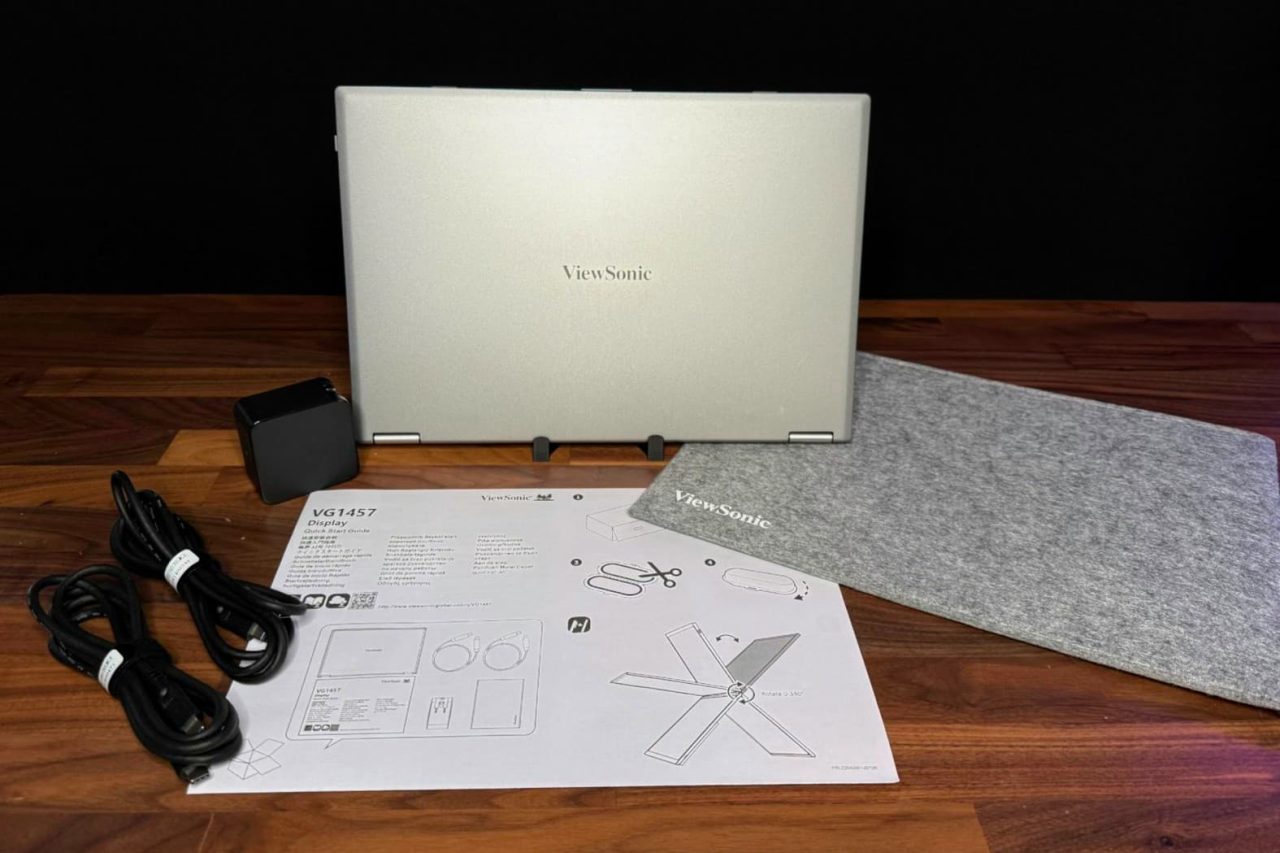
Package Contents: LCD Display, AC/DC Adapter, 2x USB Type C Cable, Protective Case, Quick Start Guide
Recycle/Disposal: Please dispose of in accordance with local, state or federal laws.
Warranty: Three-year limited warranty on parts, labor and backlight
Pricing & Availability
The ViewSonic VG1457 has a list price of $349.99 and is available on Amazon.
Setup & Connectivity
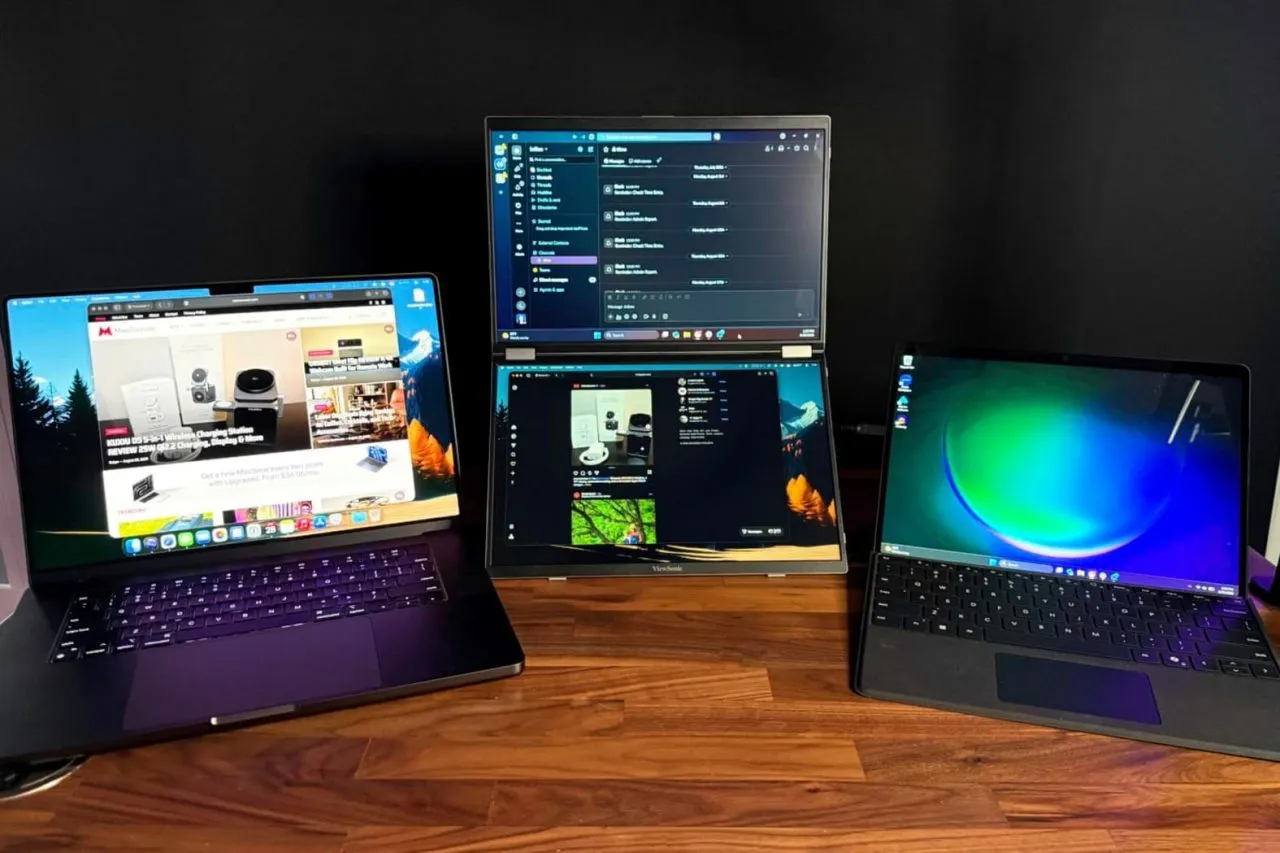
Getting the ViewSonic VG1457 up and running is remarkably simple. I connected both a Microsoft Surface Pro and a MacBook Pro directly to the monitor using USB-C, with each side of the VG1457 having its own USB-C port for controlling its respective display. No software or drivers were required, and both displays worked immediately when connected to their host systems.
One of the more convenient features is that the VG1457 does not necessarily need to be connected to external power. I initially had power connected, but disconnected it to see whether the laptops could power the displays themselves. Both the Surface Pro and MacBook Pro were able to power the VG1457 without issue. I also haven’t experienced any connection dropouts during my testing.
The experience does differ depending on the host computer. When using the MacBook Pro by itself, macOS recognizes the VG1457 as a single external display, with both panels showing the same content. The two panels are essentially mirrored rather than appearing as two independent external displays. I did adjust the resolution on the MacBook-connected display, although the monitor worked without making that adjustment. When I connected the Surface Pro by itself, only one of the VG1457’s displays was active. However, connecting the Surface Pro and MacBook Pro simultaneously allowed each display to operate independently, with one screen dedicated to each computer.
Display & Everyday Use
The VG1457’s displays have been impressive for everyday productivity. Brightness is more than adequate for indoor use and remains usable when positioned near a window. I haven’t tested it in direct sunlight, so I can’t say how well the panels would perform under those conditions, but typical indoor environments haven’t presented any issues.
Colors look good straight out of the box. They are slightly muted compared with the display on my MacBook Pro, but the difference is relatively minor, and I haven’t made any color adjustments. Text is particularly easy to read, which is important for a monitor designed primarily around productivity. I also haven’t noticed any significant glare or reflections during use.
For my testing, I used one display for Slack and the other for Messages. Having those applications visible simultaneously is a good example of where the VG1457 makes sense. Rather than constantly switching between windows, both applications remain visible and accessible. With its 60Hz maximum refresh rate, this isn’t a portable monitor I’d choose specifically for gaming, but that isn’t really where it excels. It is much better suited to expanding your workspace when you need additional screens for productivity.
Portability & Build Quality
Portability is one of the VG1457’s strongest attributes. Despite incorporating two displays into a single unit, it isn’t excessively heavy or cumbersome to carry. The system feels sturdy and robust when being handled, which gives me confidence that it can withstand normal wear and tear of traveling between home, office, and other locations.
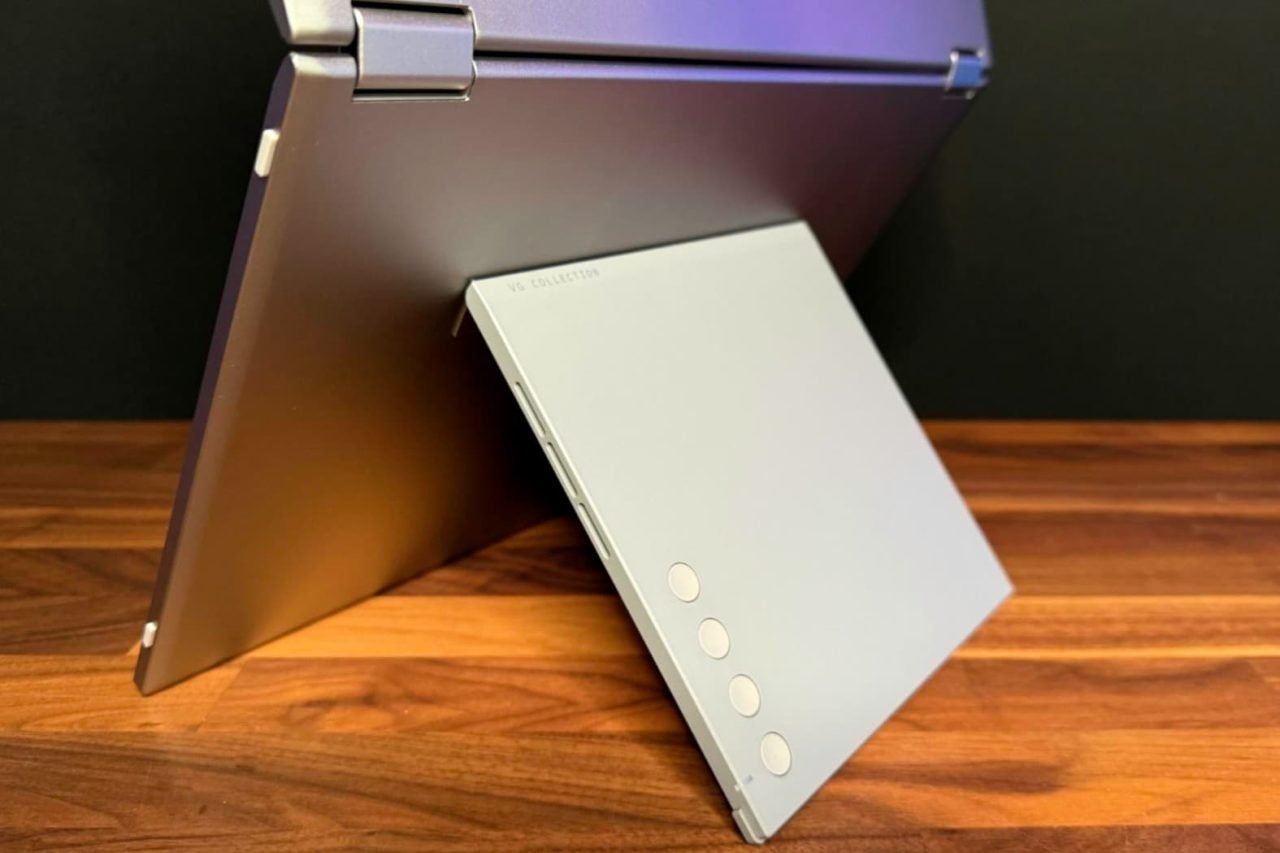
The hinge is tight enough to keep the displays securely positioned while still being easy to open and adjust. That balance is important for a portable dual-screen design because a hinge that is too loose would make positioning the displays frustrating, while one that is too stiff would make setup unnecessarily difficult.
ViewSonic also includes a travel pouch, which is a welcome addition and makes transporting the VG1457 easier. The pouch is made from felt, however, so I would have preferred something with a little more structure and protection. A more substantial travel case would provide greater peace of mind when carrying two displays in a laptop bag or backpack.
Overall, the VG1457 has been easy to set up, reliable in my testing, and surprisingly practical to carry. Its biggest limitation so far is not the hardware itself, but how the displays behave depending on the computer they’re connected to. For productivity, however, having two additional panels available in such a portable package can be extremely useful.
Conclusion
The ViewSonic VG1457 solves a problem that anyone who regularly works away from a desktop setup can appreciate: how do you get more screen space without carrying a collection of monitors and cables? By combining two 14-inch displays into a single portable unit, ViewSonic has created a convenient way to expand your workspace while traveling.
Despite its limitations, the VG1457 is an excellent option for people who prioritize productivity and portability. Having two displays available in a single 2.6-pound package is incredibly useful when working away from a traditional desk. If your primary goal is to have more room for applications, messages, documents, and other productivity tasks while traveling, the VG1457 is worth considering.
ⓘWe may earn a commission when you buy through our links. This helps support MacSources and keeps our content free. Thank you!
The SOUNDPEATS UU2 combine a comfortable open-ear design, strong bass, LDAC, Bluetooth 6.0, multipoint connectivity, and up to 42 hours of battery life in an affordable package.
I recently just started a new workout regimen, and while I love my AirPods Pro, they tend to work their way out of my ears when I’m active. There’s nothing quite as distracting as having to stop in the middle of a workout to push an earbud back into place, especially when I’m trying to stay focused on what I’m doing.
That got me looking at open-ear earbuds, particularly the clip-on style that doesn’t rely on an ear tip staying securely inside the ear canal. The SOUNDPEATSU@ UU2 caught my attention because they take that approach while still offering features I typically look for in a pair of wireless earbuds, including Bluetooth 6.0, LDAC support, multipoint connectivity, and a claimed 10 hours of battery life.
I’ve also been curious about how well this style of earbud actually performs in everyday use. Leaving the ear canal open sounds appealing for workouts and other situations where I want to remain aware of my surroundings, but that design also raises some questions. How do they sound? Is there enough bass? How secure are they during exercise? And how much sound actually reaches the people around you?
I’ve spent some time with the SOUNDPEATS UU2 to find out whether these clip-on earbuds can deliver the stability and convenience I’m looking for without sacrificing the audio experience that has kept me coming back to the AirPods Pro.
About the SOUNDPEATS UU2
The SOUNDPEATS UU2 are open-ear clip-on earbuds designed to sit around the ear rather than inside the ear canal. This allows users to listen to music while still hearing some of the sounds around them.
The UU2 feature 12mm dual-magnet dynamic drivers with DynamicEQ technology, Bluetooth 6.0, and support for SBC, AAC, and LDAC codecs. They also offer multipoint connectivity, physical button controls, IPX5 water resistance, and up to 10 hours of playback on a single charge. The included charging case extends total battery life to up to 42 hours.
With their lightweight clip-on design and open-ear construction, the UU2 offer an alternative to traditional in-ear earbuds. The rest of this review focuses on how that design performs in everyday use, including comfort, audio quality, fit, controls, and connectivity.
Specs
Core Specs
Bluetooth: v6.0
Bluetooth Profiles: HSP / HFP / A2DP / AVRCP
Chipset: BT8912F
Bluetooth Codecs: SBC / AAC / LDAC
Battery
Earbud Battery: 50mAh × 2
Charging Case Battery: 500mAh
Earbud Charging Time: 45 minutes
Case Charging Time: 1 hour 36 minutes
Fast Charging: 10 minutes provides up to 2 hours of playback
Getting started with the SOUNDPEATS UU2 is straightforward. Inside the box, you’ll find the earbuds, their charging case, a short USB-C charging cable, and a user guide. There’s also an app quick-start card and a SOUNDPEATS sticker sheet. The earbuds arrive stored in the charging case, so there isn’t much to do before getting started beyond charging them and connecting them to a device.
The first thing I noticed after taking the UU2 out of the case was just how different they feel compared with traditional earbuds. Rather than placing anything inside the ear canal, the UU2 use a clip that sits behind the ear with the speaker positioned just outside it. That design takes a little getting used to, but it also ended up being one of my favorite aspects of using them.
Comfort & Fit
The SOUNDPEATS UU2 took a little getting used to at first. Since the clip sits behind the ear, it feels noticeably different from traditional earbuds. Initially, I was very aware of the clip being there, but after wearing them for a while, that feeling became much less noticeable.
Once I got used to the design, I found the UU2 to be very comfortable. One of my favorite things about the open-ear design is that there isn’t a traditional earbud wedged into my ear canal. Instead, it feels almost like I have two small speakers sitting just outside my ears.
The earbuds have stayed securely in place during normal movement, and so far, I haven’t noticed any significant movement or shifting. They also work well with my glasses, and I haven’t experienced any pressure or irritation around my ears.
Putting them on and taking them off takes a little practice because of the clip design, but once I figured out the proper motion, it became easy to do. Overall, I have been very impressed with how comfortable the UU2 are, particularly for longer listening sessions.
Audio Quality
I was pleasantly surprised by the sound quality of the UU2. They sound great, and the bass response is particularly impressive for an open-ear design. I expected some compromise in the low end because the earbuds don’t create a seal inside the ear canal, but the bass is actually very strong.
Vocals are clear, and the mids and highs are well balanced. I’ve also been impressed with how the UU2 handle different volume levels. Whether I’m listening at a lower volume or turning things up, the audio remains clear and I haven’t noticed any significant distortion at higher volumes.
For an open-ear pair of earbuds, the overall listening experience has been better than I expected. They provide plenty of volume and bass without losing the clarity that I want when listening to music.
Everyday Use
The physical buttons are one area where I think the UU2 could be improved. The buttons themselves work well, but their location makes them a little awkward to press. It isn’t something that prevents me from using the earbuds, but it does take some getting used to.
The controls themselves are intuitive, and I especially like that they can be customized through the SOUNDPEATS app. Being able to change what the different button presses do gives me more control over how I use the earbuds and lets me configure them around my preferences.
Connection speeds have also been good. The UU2 connect to my devices within a few seconds, so I haven’t had to wait around for them to establish a connection.
One of the biggest advantages of an open-ear design is being able to remain aware of what’s happening around me while listening. With the UU2, I can still hear ambient sounds such as my keyboard while I’m typing or my dog barking. However, the music remains the dominant sound, so I wouldn’t describe them as providing complete awareness of my surroundings.
I also haven’t had anyone complain about sound leakage while I’ve been using them. That said, because the speakers sit outside the ear rather than creating a seal, I can see how someone nearby could hear the earbuds if the volume were turned up high enough.
Conclusion
The SOUNDPEATS UU2 have turned out to be a pleasant surprise. I went into this review primarily looking for a solution to a very specific problem: keeping earbuds securely in place while working out. What I found was a pair of earbuds that not only stay in place, but are also comfortable enough that I can see myself using them well beyond my workouts.
At $49.99, the SOUNDPEATS UU2 offer an impressive combination of comfort, sound quality, battery life, and features. For someone looking for an alternative to traditional in-ear earbuds, particularly for workouts or extended listening, the UU2 are easy to recommend.
ⓘWe may earn a commission when you buy through our links. This helps support MacSources and keeps our content free. Thank you!
The Galaxy Z Fold8 combines flagship performance, a versatile foldable display, and improved One UI 9, but its high price and ecosystem compromises make the decision more complicated.
The Galaxy Z Fold8 arrives at an interesting point in the evolution of foldable smartphones. Samsung has had several generations to refine the concept, and the Fold8 represents the company’s latest attempt to make a foldable feel less like an experimental alternative and more like a legitimate flagship. With a new generation of Snapdragon hardware, updated software, a redesigned chassis, and a growing collection of AI features, there is plenty here to evaluate beyond the novelty of having a phone that folds.
For this review, I wanted to look at the Fold8 as a smartphone I could actually live with rather than simply evaluating its specifications. That means looking at its performance, battery life, software, cameras, design, and everyday usability while also considering where it fits among the other flagship phones available today.
About the Samsung Galaxy Z Fold8
The Samsung Galaxy Z Fold8 is Samsung’s latest flagship foldable smartphone, combining the portability of a traditional smartphone with a 7.6-inch foldable display that provides a much larger workspace when opened. The Fold8 features a slimmer and lighter design than previous generations, a 120Hz Dynamic AMOLED 2X cover and inner display, and is powered by the Snapdragon 8 Elite Gen 5 for Galaxy processor. It also includes a 50MP wide camera, 50MP ultra-wide camera, and a range of Galaxy AI features designed to make multitasking, communication, photography, and everyday productivity easier.
With up to 1TB of storage and 16GB of RAM, the Galaxy Z Fold8 is positioned as both a premium smartphone and a compact productivity device. Its large inner display makes it particularly suited to multitasking, content consumption, document editing, and other tasks that benefit from additional screen space, while its redesigned hinge and thinner profile make it more practical to carry throughout the day.
Features & Specs
Weight & Size
Cover Display Dimension: 5.5”
Main Display Dimension: 7.6”
Weight: 201g
Camera
Wide: 50.0 MP
Ultra Wide: 50.0 MP
Front: 10.0 MP (Cover) + 10.0 MP HID (Main)
Zoom: Optical Quality Zoom 2x, Digital Zoom up to 10x
Specifications and benchmark numbers only tell part of the story with a device like the Galaxy Z Fold8. A foldable can have all the right hardware on paper, but what matters is how that hardware comes together when you actually use the phone every day. After spending time with the Fold8, there are several things about the experience that stood out to me.
First of all, the Galaxy Z Fold8 has a bright display that does an excellent job of hiding the crease in most lighting conditions. When the screen is on, the crease is almost impossible to see, which makes the display feel much more like a traditional smartphone screen than I expected.
The hinge also feels tight and well made. Samsung has put a significant amount of R&D into the hinge, including testing how many times it can be opened and closed, and that engineering is apparent in the way it feels during everyday use.
The glass on the front of the phone is nice, although it does not seem to be as scratch-resistant as the glass on the iPhone. If you take care of the phone or use a screen protector, I don’t expect this to be a major issue. The enter screen can potentially scratch, but this isn’t necessarily Samsung’s fault. It is simply where we are with current screen technology. We haven’t quite caught up with what we want to be able to do with glass while maintaining the durability we expect from it.
A Form Factor That Works
Using the wider form factor has been a joy for my eyes. I’ve been noticing that I have to squint when looking at text on my iPhone, but text renders comfortably on the Fold8’s larger display. Reading on this phone has been a joy.
The phone is smaller than an iPhone Pro Max when it is closed, yet the screen still feels like you’re reading from a much larger display. The combination of its compact closed form and large inner display is one of the things I have enjoyed most about using the Fold8.
If you’re an Apple fan, this form factor could be particularly interesting when Apple eventually releases its own foldable iPhone coming up in a month. The Fold8 provides a good example of what a larger foldable phone can offer without requiring you to carry a tablet-sized device.
Typing
Typing on the Fold8 has been a joy, both open and closed. The wider body when the phone is closed gives me a better grip while texting.
One of my concerns was that typing with the phone open would feel unwieldy, similar to typing on an iPad mini. Instead, the split design of the keyboard felt natural after just a few minutes of use and has been very comfortable.
That was one of the surprises of using the Fold8. I expected the larger screen to make typing more awkward, but Samsung’s approach to the keyboard makes good use of the additional screen real estate.
Setup and Connectivity
When setting up the phone, I wanted to test the transfer option between Android devices. Unfortunately, this is where I ran into a problem. The phone would get so far into the transfer process and then fail.
This may have been related to the Google Pixel I was transferring from, but I also ran into an issue when trying to transfer my eSIM. I was ultimately unable to complete the transfer and had to have a brand-new eSIM sent to me via email.
The setup experience wasn’t as seamless as I had hoped, although I don’t necessarily think the transfer issue can be attributed entirely to Samsung.
Samsung’s Magnetic Case
I’m currently using Samsung’s magnetic case with the Fold8. This case is designed only to fit on the back of the phone. It isn’t intended to protect the front or sides. Its primary purpose is to provide MagSafe-style charging and compatibility with magnetic accessories.
When using this case, the phone actually feels lighter than my iPhone Pro Max with a thin case attached to it. That’s an impressive difference considering how much more screen the Fold8 provides when opened.
The magnetic functionality also gives the Fold8 access to a range of charging options and MagSafe-style accessories, which adds another layer of flexibility to the phone.
Performance and Software
Overall, I am very excited about the hardware in this phone. The Snapdragon processor is extremely fast, and the phone comes with a 12GB of RAM. If you keep the phone for more than a year, I expect that combination to make it a relatively future-proof device.
The software experience has also surprised me.
The last time I used a Samsung device, I believe we were on One UI 6 or 7, and I wasn’t a huge fan of it. With One UI 9 and Android 17, the experience feels much more polished. The software feels stable and much more visually appealing than I remember.
I can see how casual iPhone and Pixel users could be tempted to switch to Samsung because of the Fold8. There is a lot to like here, particularly when you combine the hardware with the improved One UI experience.
That said, there are small things I miss from iOS.
For example, I frequently take screenshots, and copying text from a screenshot is incredibly simple on an iPhone. I also miss being able to tap text within an image and select it directly. If this functionality is available in Android 17, I haven’t been able to find the setting that enables it.
These may sound like small things, but when you use a particular operating system for years, those small conveniences add up.
Ecosystem Matters
Having my phone work seamlessly with my Mac, iPad, Apple TV, and the other devices in my Apple ecosystem is another factor that is difficult to overlook. Those little conveniences can turn an otherwise excellent hardware experience into more of a challenge when you move outside of that ecosystem.
For someone who is already heavily invested in Apple, the Fold8 would require giving up some of those conveniences. The hardware may be compelling enough to make that worthwhile, but it is something potential buyers should consider before making the switch.
The same is true for Google users. If you enjoy the Google ecosystem, it is worth remembering that Google has an event coming up on Wednesday where it is expected to introduce its next generation of foldable devices, while Apple is expected to make its own announcements the following month.
Pixel vs. Fold8
For me, the Google Pixel 10 Pro XL has been my secondary phone. It is a great flagship testing phone and has worked well for my second number.
However, as my primary device, as much as I enjoy the new form factor and the speed of the hardware in the Fold8, it can’t push my iPhone into the secondary position. What it has done is knock the Pixel down a spot and taken its place as my secondary phone.
That puts me at something of a crossroads.
I enjoy the bare-bones approach of Google Pixel phones, but that more stripped-down version of Android can sometimes feel a little plain. I previously strongly disliked Samsung’s One UI, but the current version feels much more stable and visually appealing.
Ultimately, both devices are running Android, and your data belongs to either Samsung, Google, or both depending on the services you use. With the Google Pixel, you have options such as GrapheneOS, while there are also Android debloating tools that can be used on the Fold8 to remove some of the software you don’t want.
For most people, the default experience will be perfectly fine. It’s simply nice to know that tools exist to give you more control if you need it.
Overall Feel
After spending time with the Fold8, I’m very impressed with the hardware. The display is bright, the crease is surprisingly easy to ignore, the hinge feels solid, and the phone is comfortable to hold and use.
The rounded corners are a nice touch, although I think a more pronounced curve could have made the phone slightly more comfortable to hold for long periods. This is a relatively minor complaint, but when you’re using a device this large for extended periods, small ergonomic details matter.
The biggest consideration for me isn’t whether the Fold8 is a good phone. It absolutely is. The question is whether its excellent hardware and improved software experience are enough to overcome the ecosystem conveniences I get from using an iPhone.
For me, the answer is no, at least as my primary phone. But the Fold8 has absolutely earned its place as my secondary device, replacing the Pixel 10 Pro XL in that role.
Benchmark Testing
To get a better understanding of how the Galaxy Z Fold8 performs beyond everyday use, I ran a series of industry-standard benchmarks covering CPU performance, GPU performance, artificial intelligence, everyday productivity, battery life, and sustained graphics performance. These tests provide a consistent way to measure the hardware and compare the results with Samsung’s published performance claims.
Benchmarks don’t necessarily represent how a phone will perform during every real-world task, but they can reveal the capabilities of the processor, GPU, NPU, memory subsystem, and battery. They can also help determine whether a device can maintain its performance under sustained workloads rather than simply delivering a high score during a short test.
Geekbench 7
Geekbench 7 provides a standardized way to measure CPU and GPU performance. The CPU tests are particularly useful for evaluating the Snapdragon 8 Elite Gen 5 for Galaxy’s ability to handle both single-threaded and multi-threaded workloads. Single-core performance is important for many everyday tasks, while multi-core performance becomes more important when several demanding processes are running simultaneously.
The Galaxy Z Fold8 produced a single-core score of 3,056 and a multi-core score of 9,629.
Geekbench 7 CPU
Single-Core: 3,056
Multi-Core: 9,629
These results provide a useful baseline for the Fold8’s overall processing capability and help demonstrate whether Samsung’s flagship hardware delivers the level of performance expected from the Snapdragon 8 Elite Gen 5 for Galaxy.
Geekbench 7 also includes a GPU compute test. Rather than measuring traditional gaming performance, this test evaluates how effectively the GPU handles compute workloads.
Geekbench 7 GPU
OpenCL: 17,377
The OpenCL result gives us another way to evaluate the Adreno GPU and provides a useful point of comparison with other flagship smartphones. While it shouldn’t be treated as a direct representation of gaming frame rates, it helps establish how much computational power is available for GPU-accelerated workloads.
Geekbench AI
The Fold8’s Snapdragon 8 Elite Gen 5 for Galaxy isn’t only designed to deliver high CPU and GPU performance. Samsung also places considerable emphasis on AI capabilities, making Geekbench AI an especially relevant benchmark for this phone.
Geekbench AI measures machine-learning performance across different hardware acceleration paths. Running the benchmark using the CPU, GPU, NNAPI, and Qualcomm’s QNN framework helps show how the phone handles AI workloads depending on which processing hardware is being used.
CPU
Geekbench AI CPU
Single Precision: 2,552
Half Precision: 4,109
Quantized: 6,153
The CPU results provide a baseline for AI workloads without relying on the phone’s dedicated AI acceleration hardware. These numbers are useful for understanding how the Snapdragon processor handles AI tasks when they are executed through the general-purpose CPU.
GPU
Geekbench AI GPU
Single Precision: 2,984
Half Precision: 4,576
Quantized: 4,082
The GPU results demonstrate how the Fold8 handles AI workloads using its graphics processor. This is particularly relevant for applications that can take advantage of GPU acceleration rather than relying entirely on the CPU or dedicated NPU.
NNAPI
Geekbench AI NNAPI
Single Precision: 670
Half Precision: 646
Quantized: 1,476
NNAPI, or Android’s Neural Networks API, provides a standardized way for Android applications to access available neural-network acceleration hardware. These results help show how AI workloads can perform through Android’s broader machine-learning framework.
QNN
Geekbench AI QNN
Single Precision: 659
Half Precision: 27,041
Quantized: 67,208
The QNN results are particularly interesting because QNN is Qualcomm’s neural-network framework and is designed to take advantage of Qualcomm’s AI hardware. The dramatic increase in the half-precision and quantized results compared with the CPU, GPU, and NNAPI results highlights the difference between general-purpose AI processing and the specialized acceleration available through Qualcomm’s QNN framework.
The 67,208 quantized QNN score is especially noteworthy. Quantized models use reduced numerical precision to make AI workloads more efficient, which is important for running AI features locally on a smartphone while minimizing power consumption and processing overhead.
These results don’t mean that every AI application will achieve anything close to the Geekbench AI scores. Applications use different models and APIs, and software optimization plays a significant role. However, they provide evidence that the Fold8 has the specialized hardware needed to support the local AI processing Samsung is promoting with this generation of Galaxy devices.
PCMark for Android
PCMark provides a different perspective than Geekbench because its Work benchmark is designed around common smartphone tasks rather than isolated processor workloads.
For this test, the Galaxy Z Fold8 achieved a PCMark Work 3.1 score of 20,546.
PCMark Work 3.1
Overall: 20,546
PCMark Work 3.1 evaluates tasks representative of everyday smartphone use, including web browsing, document and data manipulation, image editing, and other productivity-oriented workloads. This makes it useful for putting the synthetic CPU and GPU results into a more practical context.
A strong Geekbench score tells us that the processor is powerful. A strong PCMark score helps demonstrate how that hardware translates into everyday productivity.
3DMark
To evaluate the Galaxy Z Fold8’s sustained graphics performance, I ran 3DMark’s Wild Life Extreme Stress Test. Unlike a standard benchmark that measures peak performance during a relatively short workload, the Stress Test repeatedly runs the same demanding graphics workload to determine how well the phone maintains performance as it heats up.
The Galaxy Z Fold8 produced the following results:
3DMark Wild Life Extreme Stress Test
Best Loop Score: 5,949
Lowest Loop Score: 3,037
Stability: 51%
The most notable result here is the difference between the best and lowest loop scores. The Fold8 started with a score of 5,949 but dropped to 3,037 during the later loops. That’s a reduction of approximately 49% from its best performance.
The resulting 51% stability rating indicates that the phone was unable to maintain anywhere near its initial level of GPU performance throughout the extended workload. This is important because it demonstrates the difference between peak performance and sustained performance. The Snapdragon 8 Elite Gen 5 for Galaxy is capable of delivering very strong graphics performance, but when the GPU is pushed continuously, thermal limitations have a significant impact on how much of that performance can be sustained.
This doesn’t mean the Fold8 will constantly operate at half of its benchmark performance during normal use. Everyday tasks typically don’t place the same continuous load on the GPU that a stress test does. Gaming sessions, however, can create workloads that are much closer to this type of sustained testing, particularly with demanding 3D titles.
For Samsung’s performance claims, the result provides an important qualification. The Fold8 clearly has the hardware necessary to deliver flagship-level peak performance, but the Stress Test shows that sustained performance is considerably lower than peak performance under prolonged heavy workloads. That’s not unusual for a thin, powerful smartphone, but it is something potential buyers should keep in mind if they intend to use the Fold8 for extended gaming or other graphics-intensive tasks.
What the Results Tell Us
Taken together, these benchmarks show that the Galaxy Z Fold8 has the hardware to deliver a true flagship-level experience. The Snapdragon 8 Elite Gen 5 for Galaxy provides strong CPU and GPU performance, while the Geekbench AI results, particularly through QNN, demonstrate the potential of Qualcomm’s dedicated AI hardware. The PCMark Work 3.1 score of 20,546 also shows that this performance translates well to everyday productivity workloads.
The 3DMark Wild Life Extreme Stress Test provides an important look at what happens when that hardware is pushed for an extended period. While the Fold8 achieved a strong Best Loop Score of 5,949, its Lowest Loop Score fell to 3,037, resulting in 51% stability. This shows that sustained GPU performance is considerably lower than peak performance under a prolonged, demanding workload. While most users won’t place this kind of continuous load on the phone, it is worth considering for extended gaming sessions or other graphics-intensive tasks.
No benchmark can completely reproduce the way someone uses a smartphone. However, by combining CPU, GPU, AI, productivity, and sustained-performance testing, we get a much more complete picture of what the Galaxy Z Fold8’s hardware is capable of. The results largely support Samsung’s positioning of the Fold8 as a high-performance flagship, while also showing that peak performance and sustained performance are two very different things.
Conclusion
The Samsung Galaxy Z Fold8 has left me with a somewhat unexpected conclusion. I went into this review expecting to evaluate another generation of Samsung’s foldable hardware, but I came away genuinely impressed by how mature the overall experience has become. The hardware is excellent, the Snapdragon 8 Elite Gen 5 for Galaxy provides plenty of performance, the displays are impressive, and One UI 9 is considerably more polished than I remember from my previous experiences with Samsung.
The Fold8 also demonstrated why foldable smartphones continue to be interesting. The larger inner display isn’t simply a novelty. For reading, typing, multitasking, and working with content, it can fundamentally change how you use a smartphone. At the same time, the device remains relatively compact when closed, making the form factor surprisingly practical.
The biggest drawback is the price. The Fold8 is an expensive smartphone, and while the hardware helps justify some of that premium, buyers need to decide whether the foldable form factor provides enough additional value to warrant the cost. The 3DMark results also show that while the Fold8 delivers excellent peak performance, sustained GPU performance can drop considerably under prolonged workloads.
The Galaxy Z Fold8 isn’t perfect, and it doesn’t have to be. What matters is that Samsung has continued refining the concept rather than simply making a phone that folds. The Fold8 feels like a mature flagship with a different approach to what a smartphone can be. For users who want a larger screen without carrying a tablet, it is one of the most compelling options available. For those deeply invested in another ecosystem, however, the decision is more complicated.
For me, the Fold8 doesn’t replace my iPhone. It does something arguably more interesting: it made me enjoy using a Samsung phone.
 Login
Login




%20SOURCE%20Julian%20Chokkattu(2).jpg)