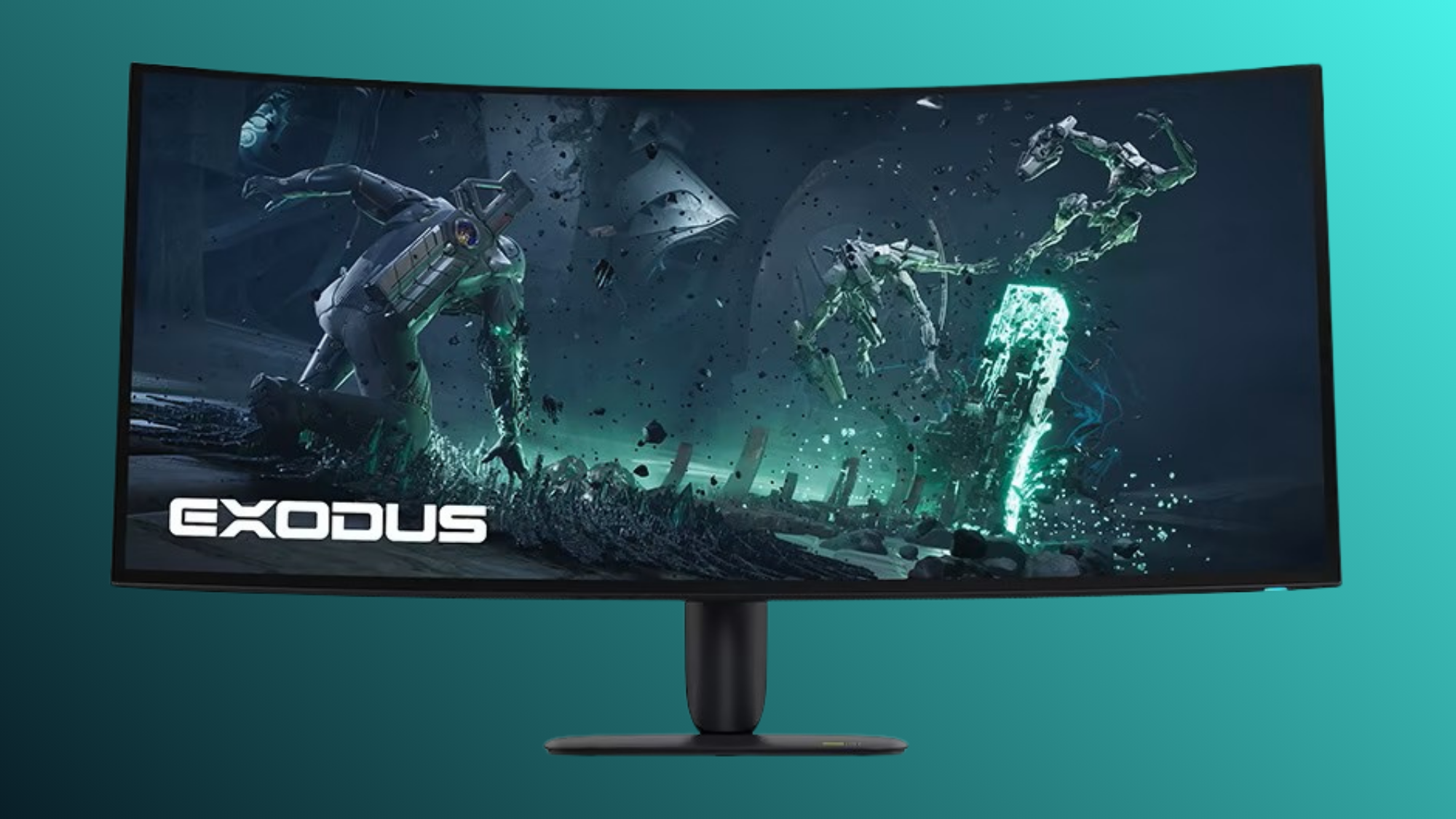
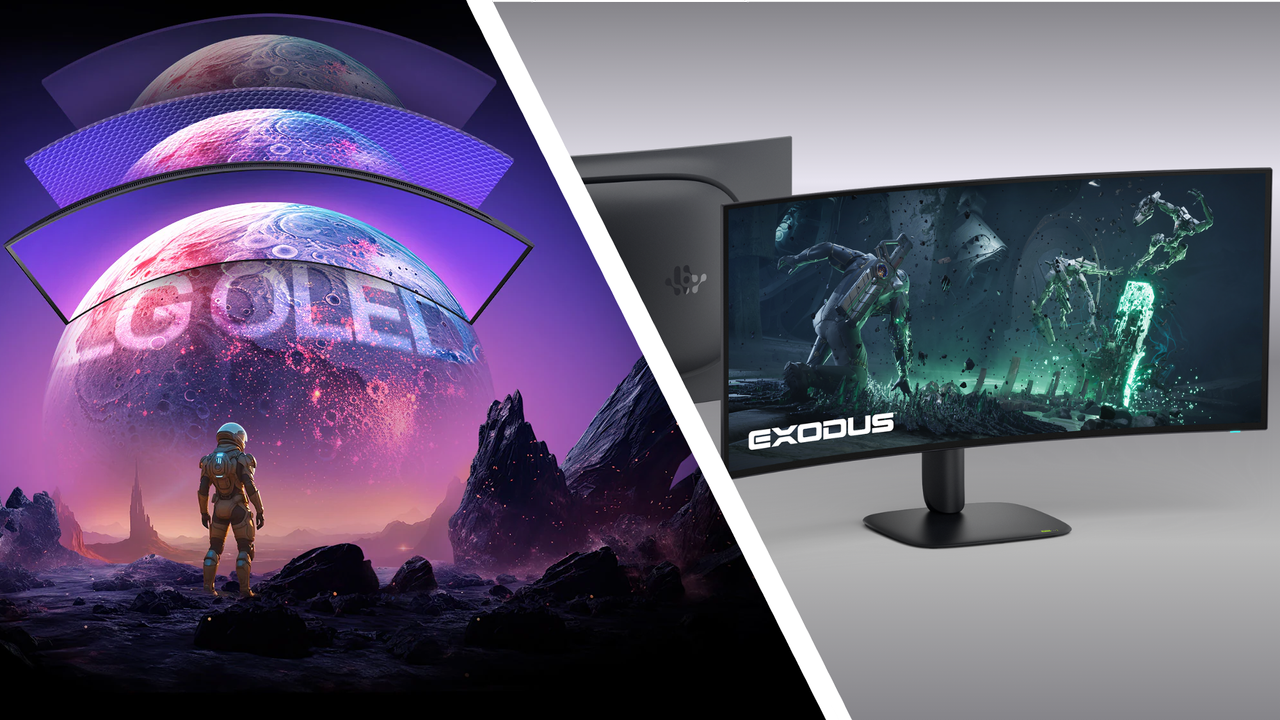
If you're wondering why your favorite PC games don't look their best despite running on a monstrously powerful PC, it's probably down to an outdated monitor that can't keep up with the graphical luxuries of modern games.
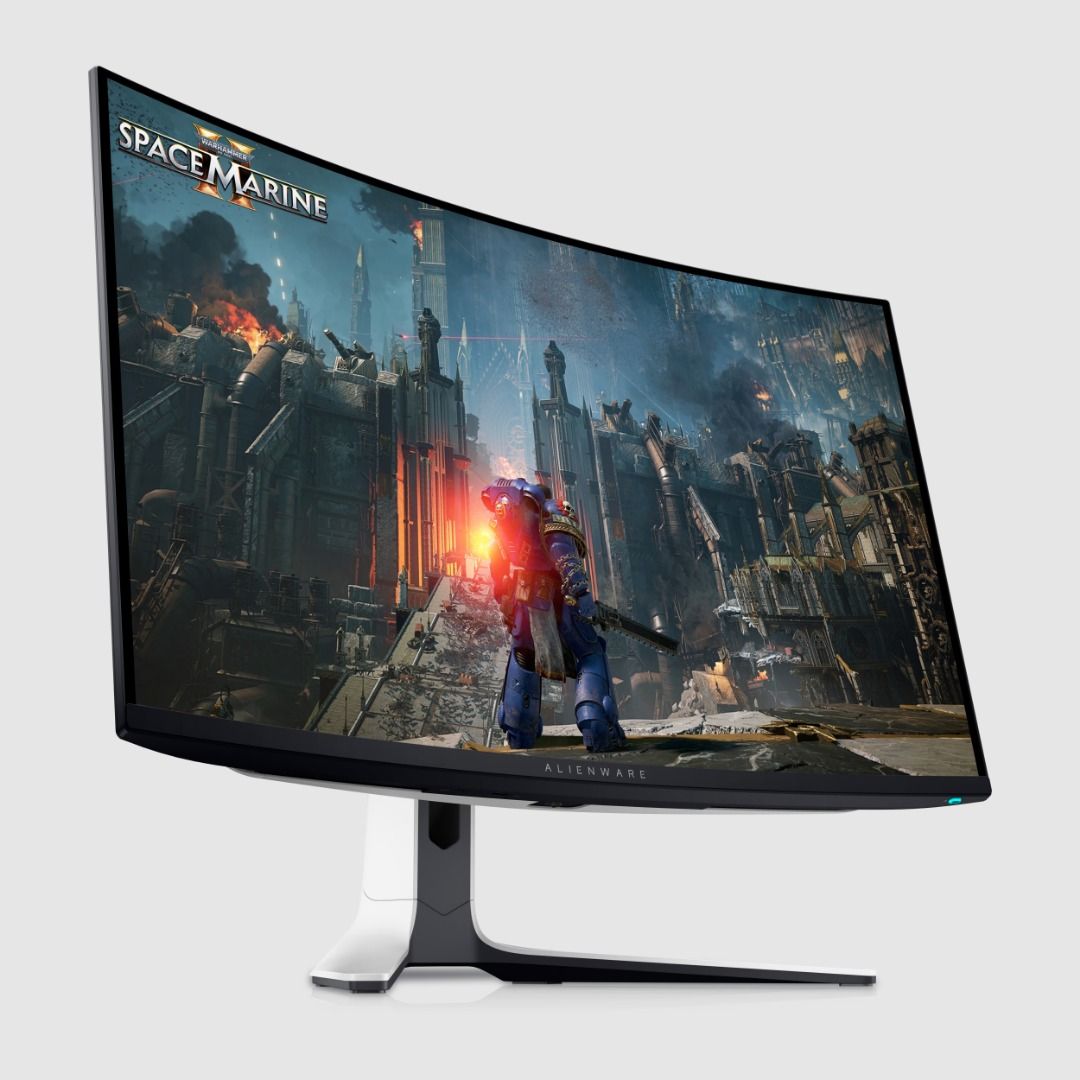
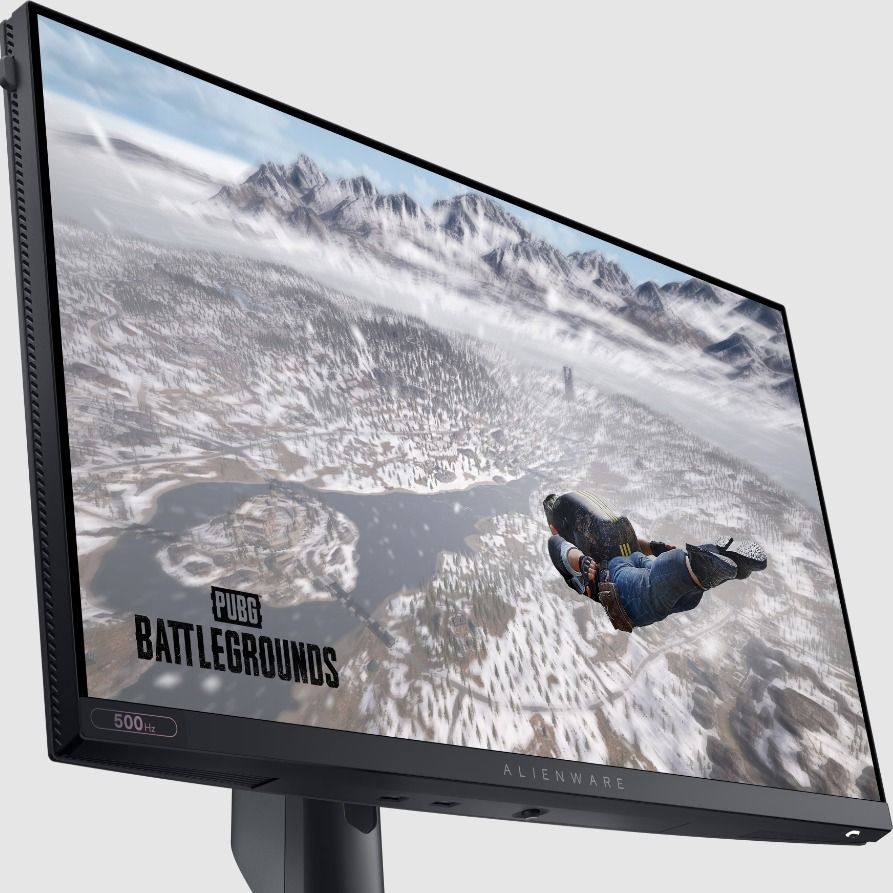
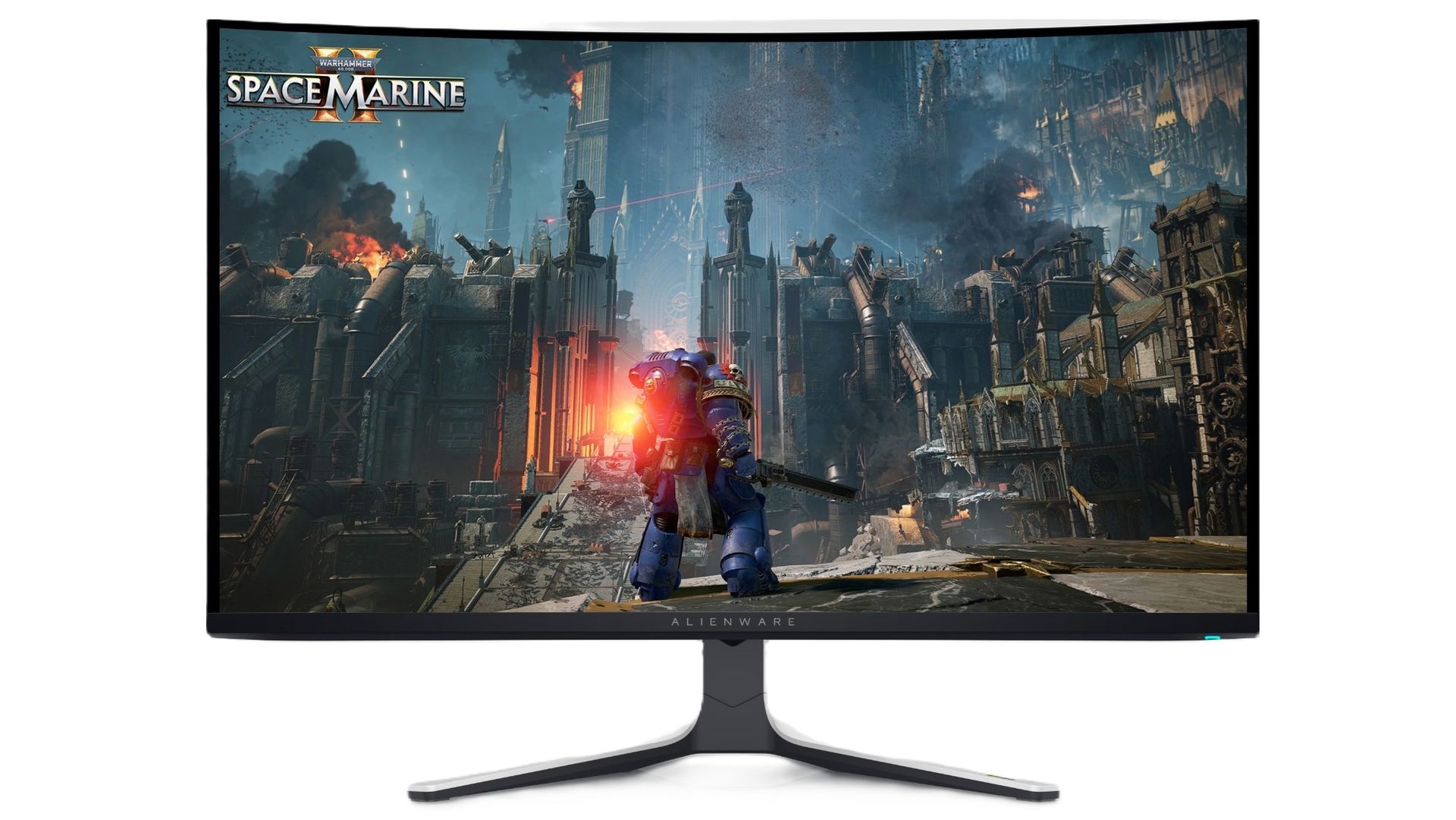
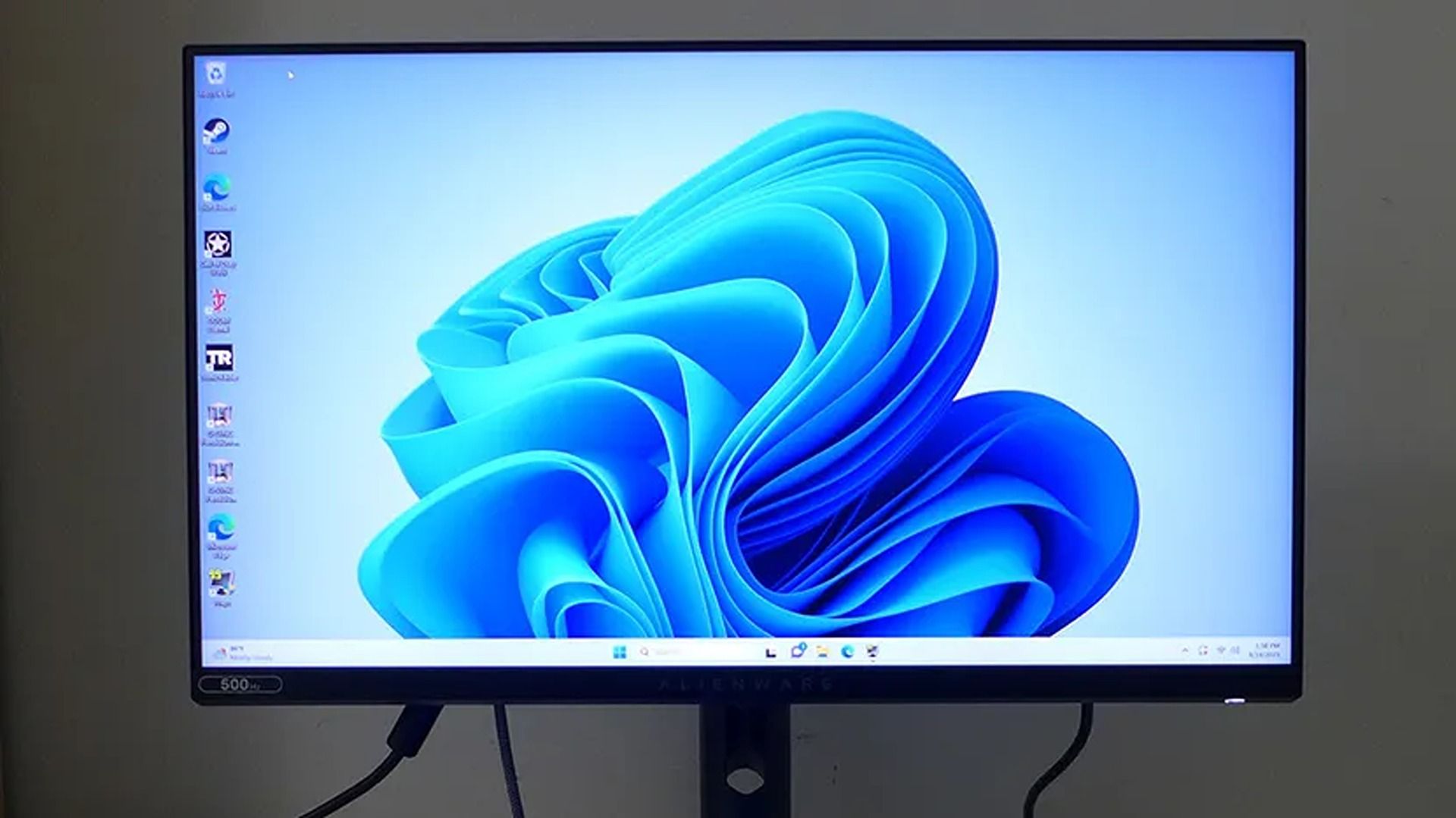
Fortunately, Dell is offering two of its high-quality Alienware gaming monitors to satisfy your gaming standards with limited-time discounts. They include the Alienware 32 4K QD-OLED (AW3225QF) at $749.99 at Dell (was $999.99) and the Alienware 500Hz IPS (AW2524HF) at $449.99 at Dell (was $549.99).
"It’s hard to imagine anyone complaining about any aspect of the Alienware AW3225QF. It delivers a supremely colorful image with incredible contrast, accuracy and fidelity. Its gaming performance is as good as it gets. Once you see it, you’ll want it." ~ Christian Eberle, Contributing Editor, Tom's Hardware
"If you’re willing to sacrifice the G-Sync module, Alienware’s AW2524HF can save you a bit of money in the 500 Hz monitor category. It still delivers the same incredible motion resolution and low input lag of its more expensive stablemate and boasts excellent image quality as well." ~ Christian Eberle, Contributing Editor, Tom's Hardware
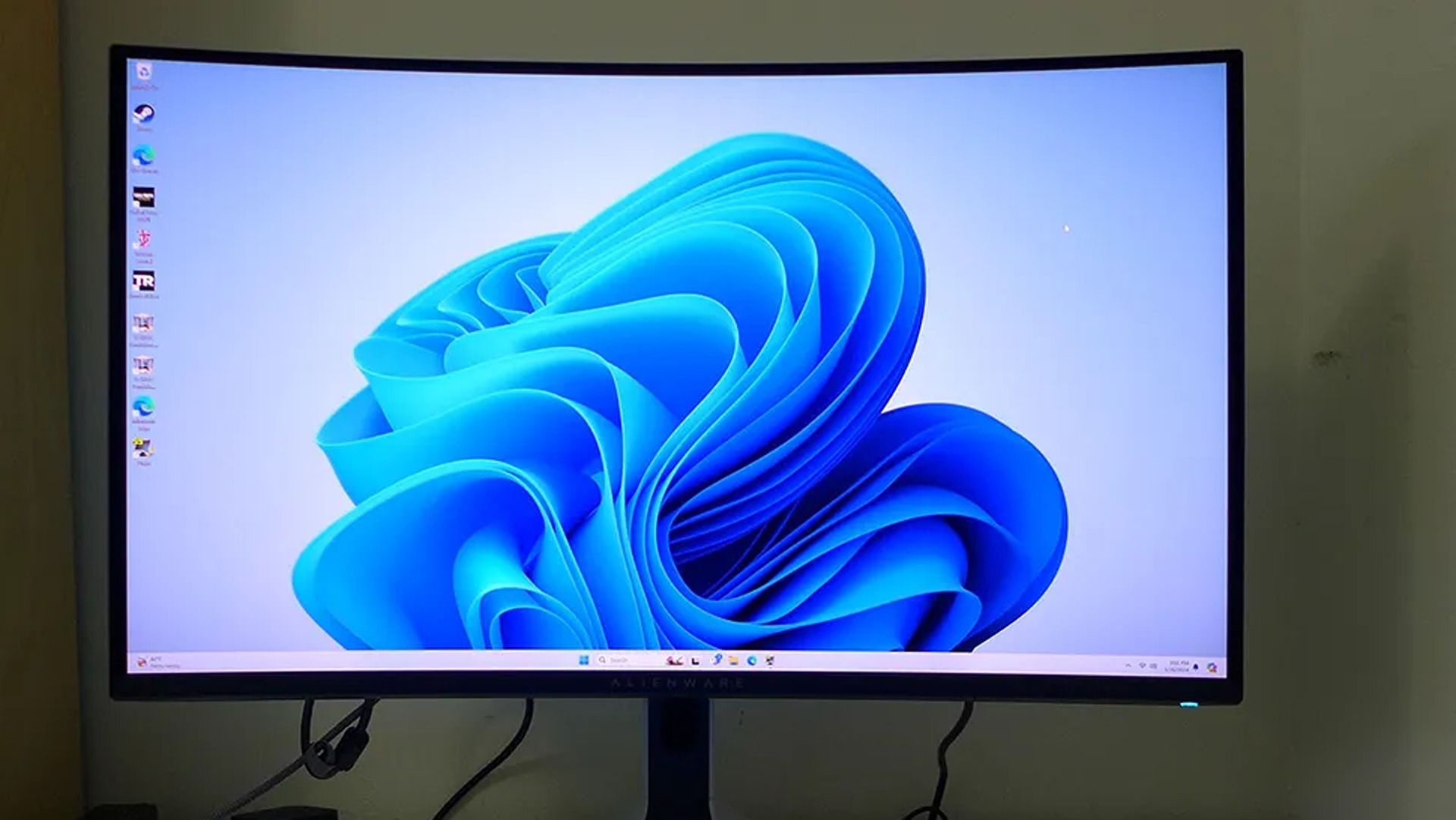
If you're the kind of gamer who wants to play at 4K for the most detailed graphics possible, the Alienware 32 4K QD-OLED (AW3225QF) that's now on sale for $749.99 at Dell is for you.
It can render images and videos with broad contrast and rich colors thanks to its OLED panel, and its Dolby Vision integration allows it to automatically optimize brightness and shadow details via HDR tone mapping when watching movies or streaming videos.
Plus, the Alienware AW3225QF supports a 240Hz refresh rate at full 4K resolution (as tested by our sister site Tom's Hardware), so it can achieve extremely detailed images and razor-sharp motion without compromising visual fidelity or inducing much input lag.
On top of that, it has a solid and attractively designed build, and its 1700R screen curve adds wrap-around immersion to games while keeping text and geometric layouts untouched to make them easier to read.
The Alienware 500Hz Gaming Monitor (AW2524HF) on display (Image credit: Tom's Hardware (Christian Eberle) | Dell)
However, if you're more interested in giving your games the smoothest performance rates possible for frame-perfect gameplay, then you're better off with the Alienware 500Hz (AW2524HF) that's now on sale for $449.99 at Dell.
This monitor features an overclockable refresh rate of 500Hz. This destroys any trace of standard motion blur and sample-and-hold limitations in a game to create perfect-motion resolution, as our friends at Tom's Hardware similarly found.
Add on top sub-millisecond response times, and you've got a gaming monitor that can ensure you suffer absolutely zero perceptible input lag while playing games. That way, you will be able to enjoy skill-based action games at their best and not have to worry about input lag costing you a match in esports competitions.
It's also no slouch in the visuals department, as the Alienware 500Hz Gaming Monitor (AW2524HF) offers excellent color saturation and contrast. Plus, it has solid build quality, so you won't have to worry about it falling to bits anytime soon.
How do I prevent Burn-in on the Alienware 32 4K QD-OLED Gaming Monitor (AW3225QF)?
The Alienware 32 4K QD-OLED Gaming Monitor (AW3225QF) uses Pixel Refresh and Panel Refresh features to clean up its pixels in order to prevent Image Burn-in (a nasty condition that permanently damages a screen's coloration).
Can the Alienware 500Hz Gaming Monitor (AW2524HF)'s screen flicker or revert to a lower refresh rate?
It can happen if your cable connection to the Alienware 500Hz Gaming Monitor (AW2524HF) is loose or if you're using cables that don't support DisplayPort 1.4 bandwitch. Also, forgetting to upgrade your computer's GPU drivers can also cause the Alienware 500Hz Gaming Monitor (AW2524HF)'s screen to flicker and revert to a lower refresh rates.
Join us on Reddit at r/WindowsCentral to share your insights and discuss our latest news, reviews, and more.
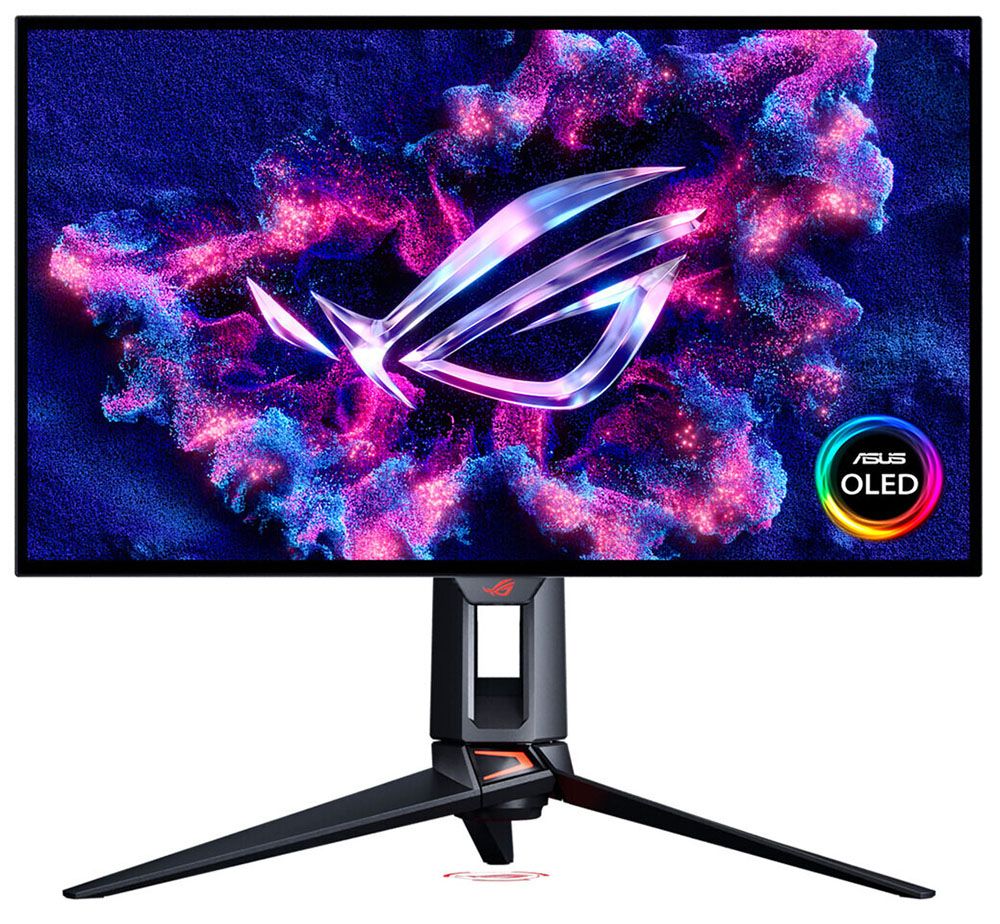
Asus has introduced some of the best OLED gaming monitors in recent years, and with each generation, it makes incremental improvements in performance, features, and technology. Its latest panel type is Tandem RGB Stripe, bringing higher brightness, a wide color gamut, sharper imagery, and lower power consumption.
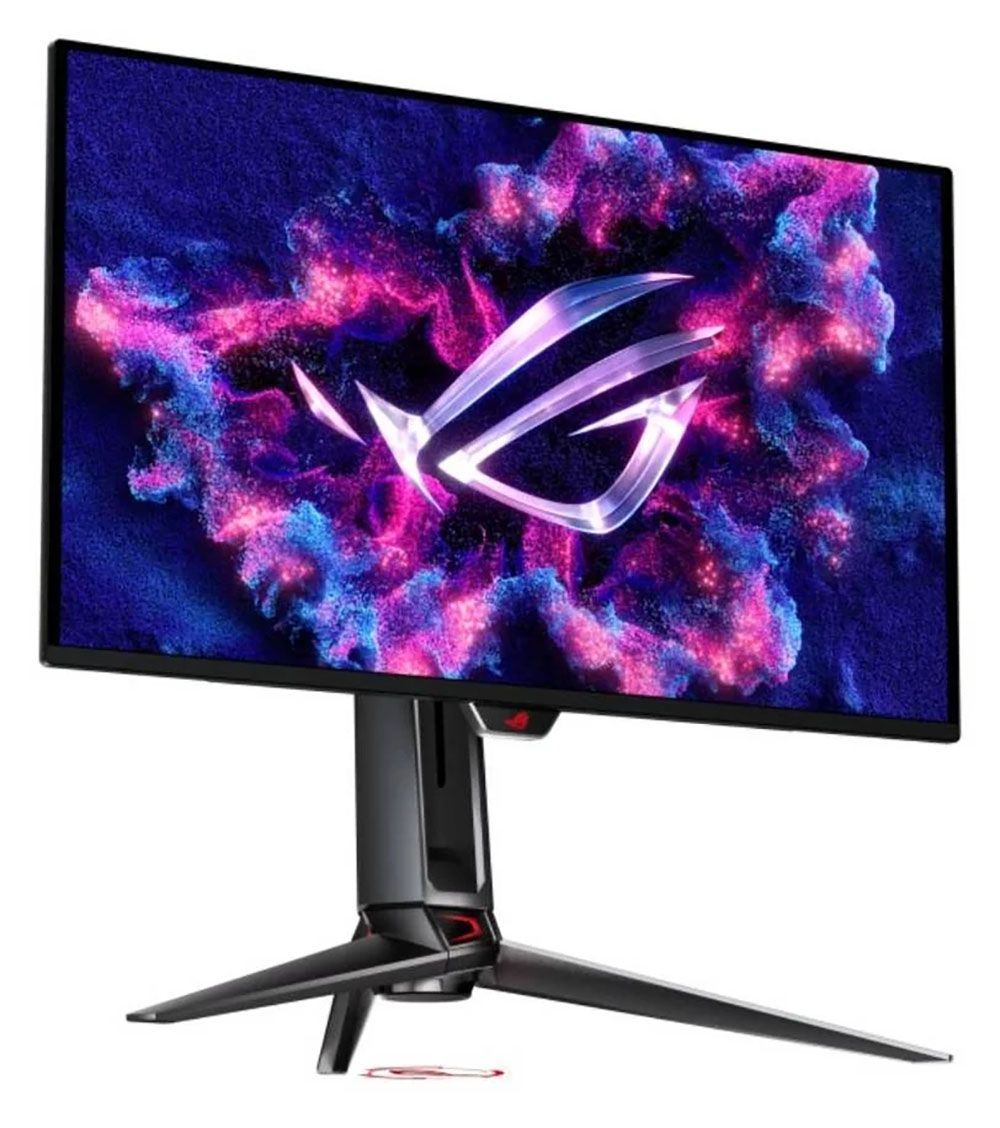
The latest ROG Swift display to hit my test bench is the PG27UCWM. It’s a 27-inch 4K panel with 240 Hz (480 Hz in FHD), HDR10, Dolby Vision, DisplayHDR 400, and Adaptive-Sync. Let’s take a look.
Asus ROG Swift PG27UCWM Specs
Panel Type / Backlight
Tandem RGB Stripe OLED
Screen Size / Aspect Ratio
27 inches / 16:9
Max Resolution and Refresh Rate
3840x2160 @ 240 Hz
1920x1080 @ 480 Hz
FreeSync and G-Sync Compatible
Native Color Depth and Gamut
10-bit / DCI-P3
DisplayHDR 400, HDR10
Dolby Vision
Response Time (GTG)
0.03ms
Brightness (mfr)
250 nits full screen
1,000 nits 3% window
Contrast
Unmeasurable
Speakers
None
Video Inputs
1x DisplayPort 2.1
2x HDMI 2.1, 1x USB-C
Audio
3.5mm headphone output
USB 3.2
1x up, 3x down
Power Consumption
48w, brightness @ 200 nits
Panel Dimensions
WxHxD w/base
23.9 x 17.1-21.5 x 10.1 inches
(607 x 434-546 x 257mm)
Panel Thickness
2.5 inches (64mm)
Bezel Width
Top/sides: 0.35 inch (9mm)
Bottom: 0.43 inch (11mm)
Weight
17.86 pounds (8.1kg)
Warranty
3 years
I’ve reviewed a few Tandem RGB Stripe OLEDs of late, most recently, Asus’ 32-inch version of this screen, the PG32UCWM. There’s no denying the extra sharpness that this tech brings. Though I never saw much color fringing around text as discussed online, these new panels are clearly sharper than single-layer OLEDs. By sandwiching two layers and making the pixels’ physical shape narrower, you get more clarity, more color, and more brightness at a given wattage. And by driving the panel less aggressively, its lifespan is extended.
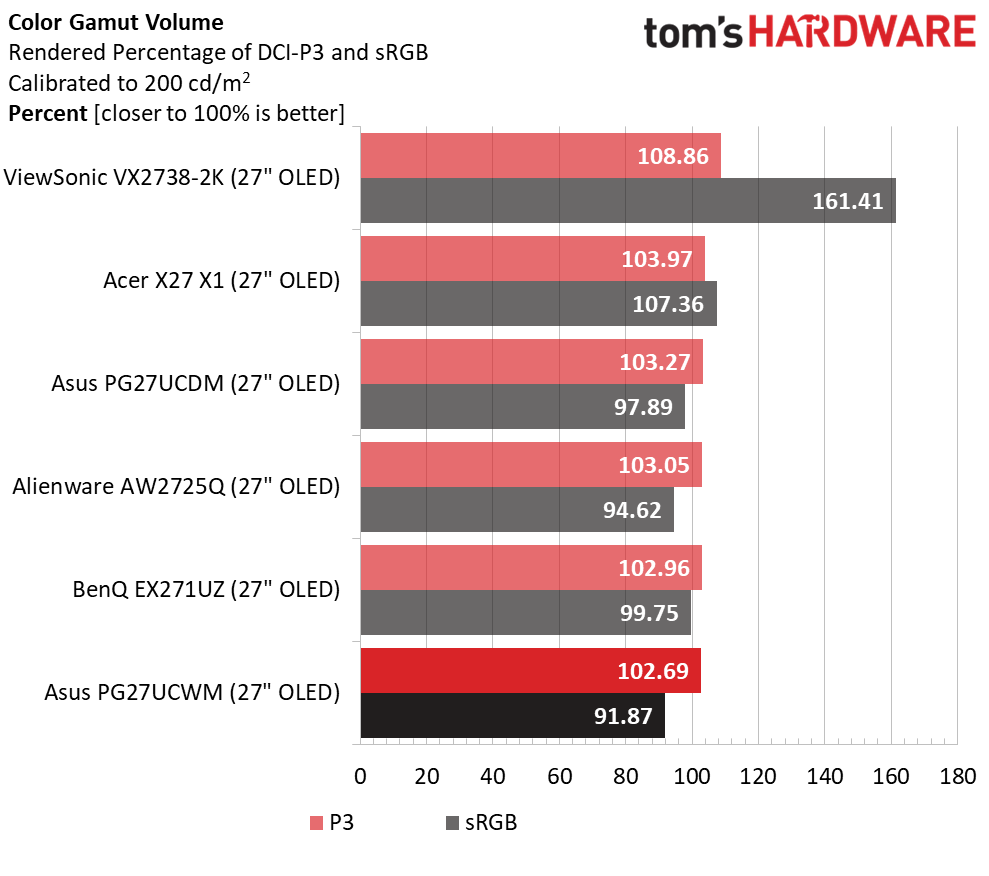
The PG27UCWM’s color volume is greater than that of single-layer OLEDs but not quite as large as that of Quantum Dot displays. I measured just over 102% coverage on my sample, whereas you’ll get closer to 110% with a QD monitor. Asus includes factory calibration with each monitor, and you can find that stored in firmware and accessed through the comprehensive OSD.
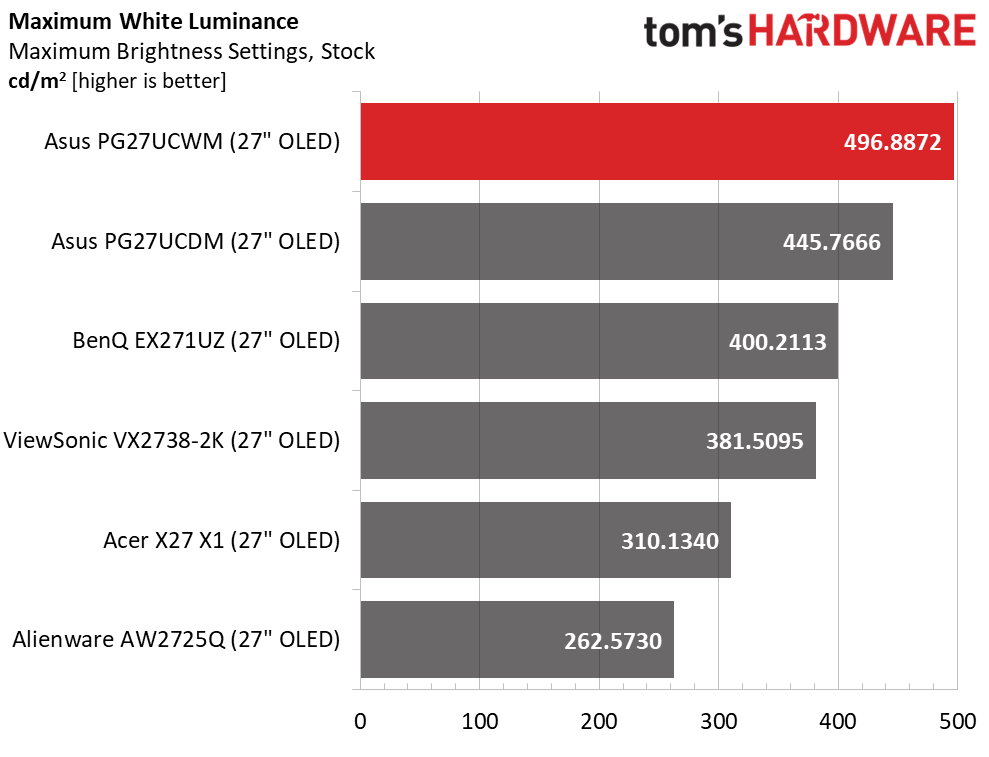
Peak brightness is just under 500 nits when measuring a 25% window pattern with uniform brightness turned off. That number holds for both SDR and HDR content. The PG27UCWM supports HDR10 and Dolby Vision, with VESA DisplayHDR 400 certification. Asus’ TrueBlack Glossy screen coating keeps reflected light from spoiling those deep black levels.
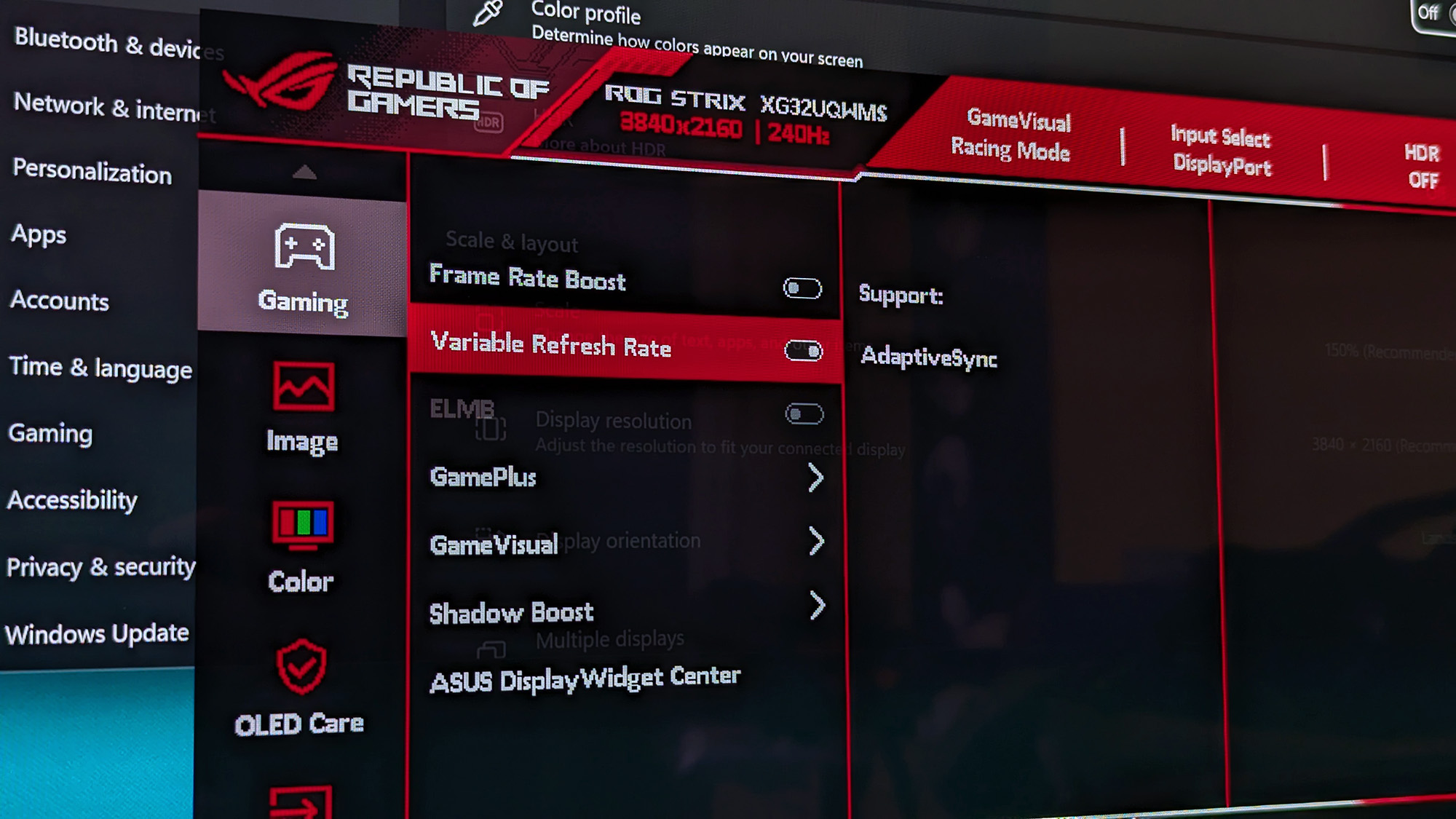
In the video processing department, Asus includes a dual-refresh feature called Frame Rate Boost that switches between 4K/240 Hz and Full HD/480 Hz. You can change modes with a single button press. Also in the mix is Adaptive-Sync, with certifications from both Nvidia (G-Sync) and AMD (FreeSync Premium Pro). And you can augment lower frame rate capable systems with ELMB (Extreme Low Motion Blur).
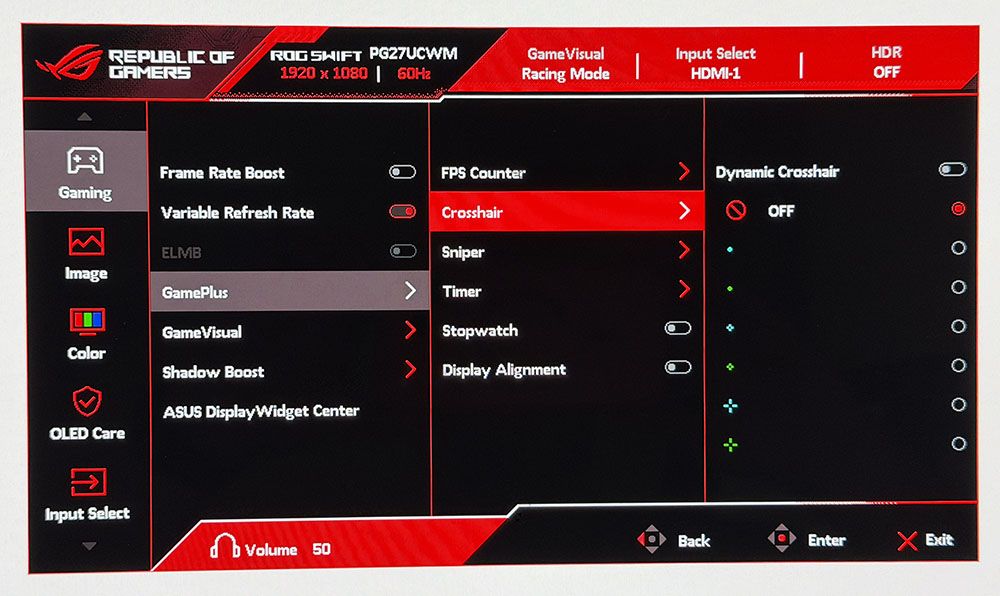
The PG27UCWM, like all ROG Swift products, is feature-rich. You get Asus’ GamePlus enhancements, including multiple aiming points, sniper modes, frame rate counters, timers, and alignment marks. The quick menu and joystick clicks are fully customizable for quick access to many functions. And you can download Asus’ DisplayWidget Center app for full control on Windows or Mac desktops. A full array of inputs includes DisplayPort 2.1 with 80 Gbps bandwidth, HDMI 2.1, USB-C, and a USB 3.2 hub with KVM options.
There are plenty of cables included, along with Asus’ signature LED lighting and graphics. The PG27UCWM is firmly in the premium segment at a starting price of $1,099. I would expect greatness for that sum, and if you read on, we’ll see if it delivers.
Assembly and Accessories
The PG27UCWM arrives in a well-adorned carton with colorful graphics and secure, recyclable packaging. The base, upright, and panel are separate, as is the lens for the ROG logo projector that shines symbols on your desk. It includes multiple lenses. The ROG pouch reveals cables for USB, HDMI, and DisplayPort, plus IEC for the internal power supply. There’s also a heavy stamped steel bracket that snaps onto the panel to create a 100mm VESA mount.
Product 360
AsusAsusAsusTom's Hardware
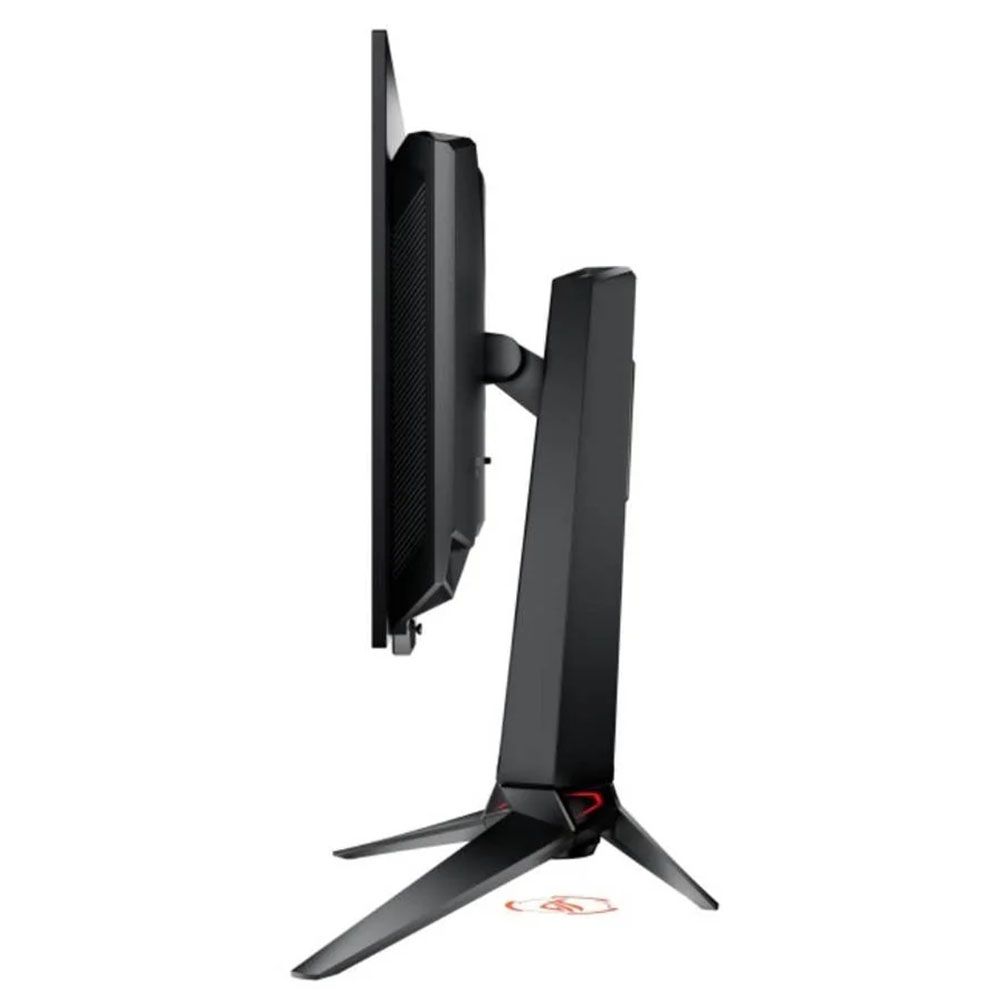
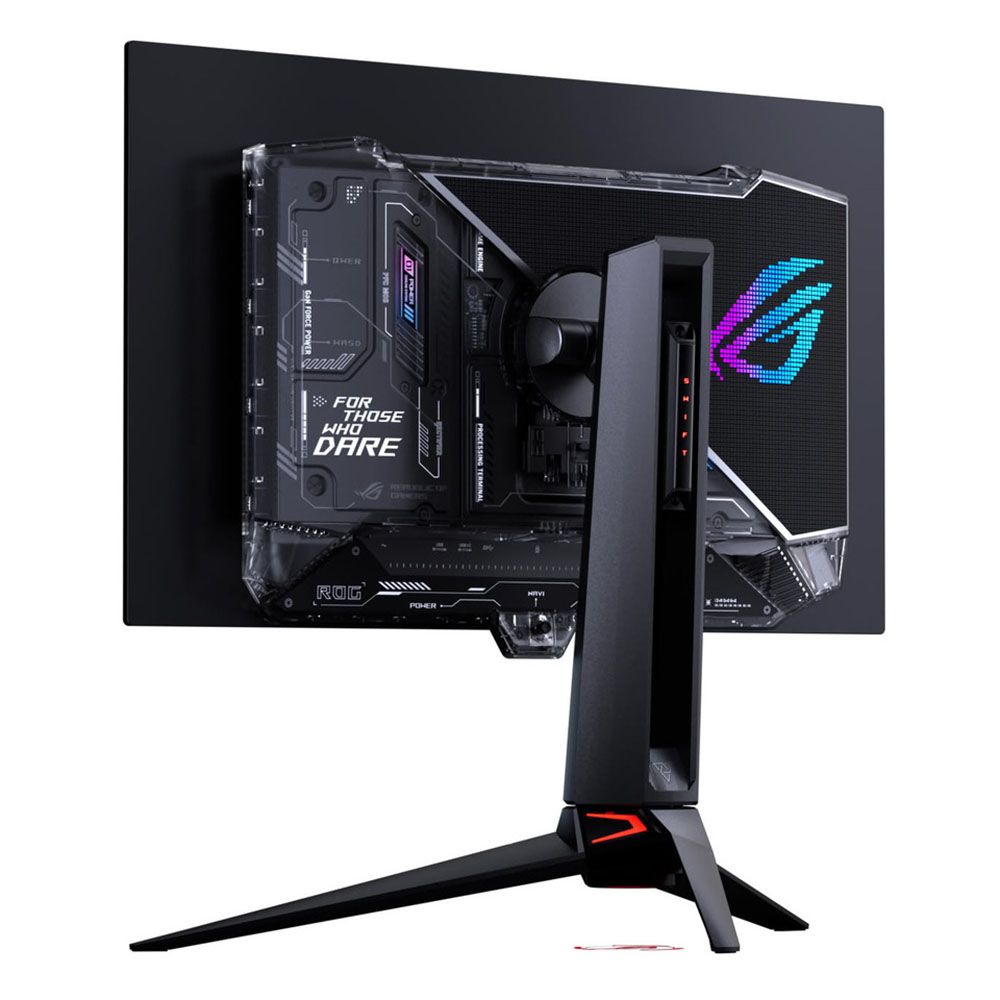
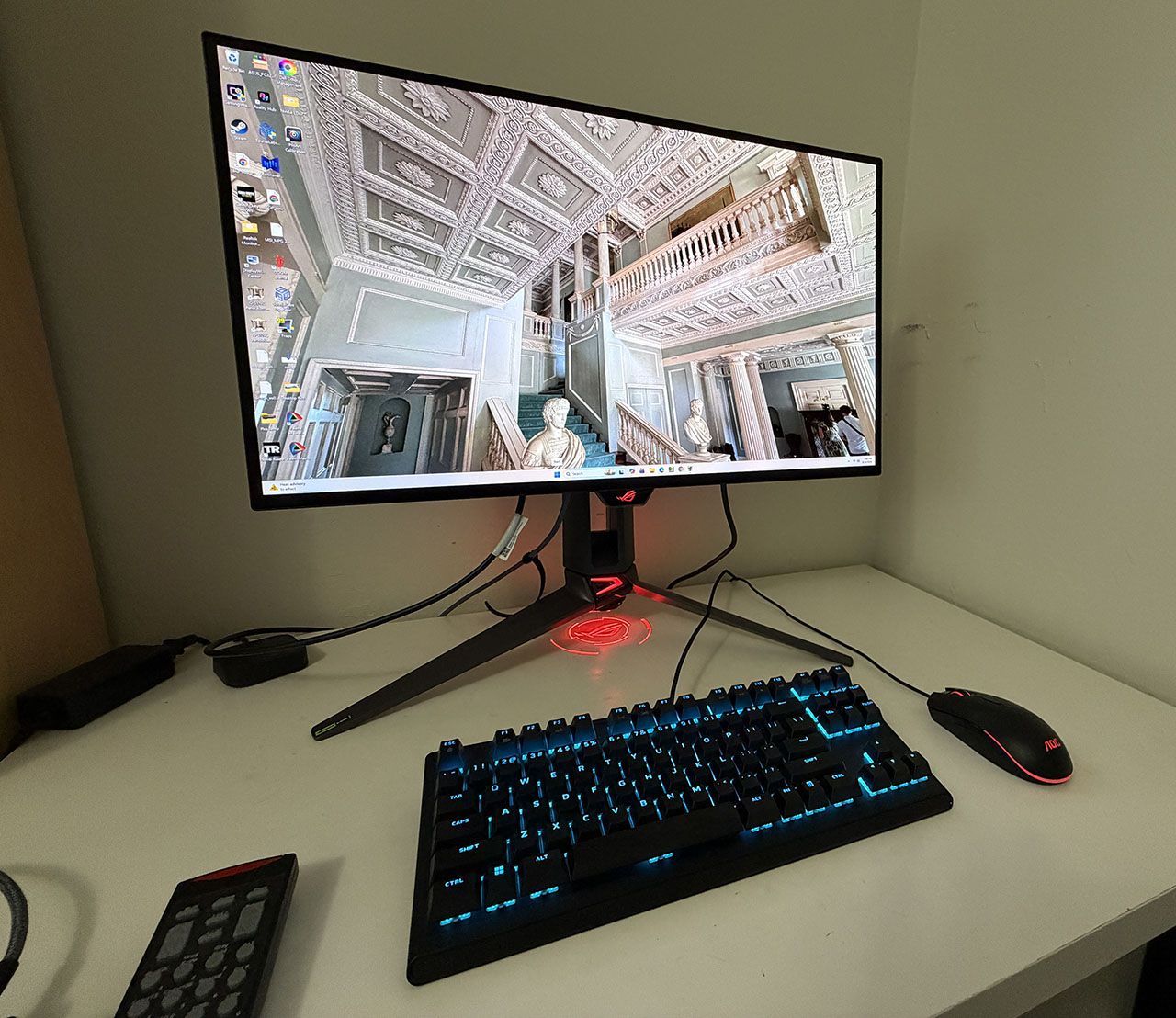
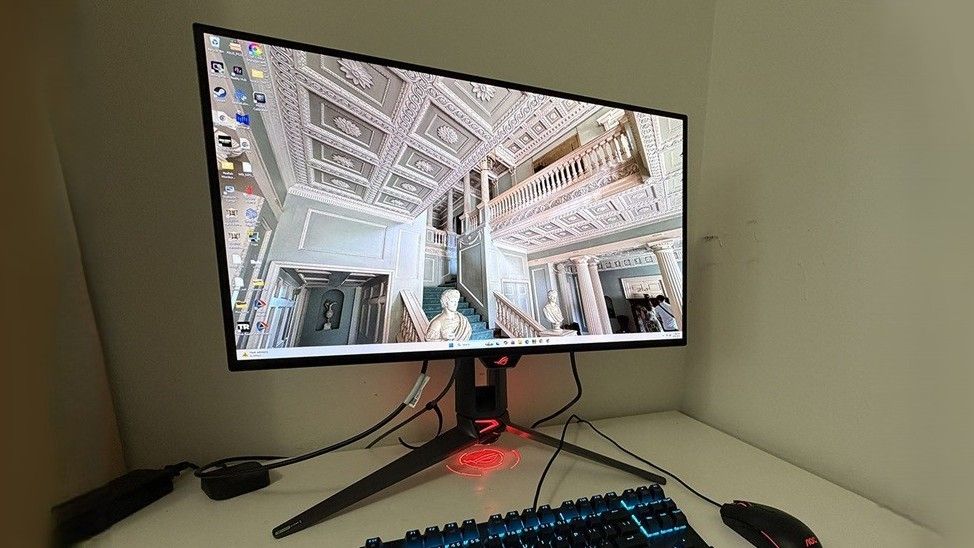
The PG27UCWM features Asus’ latest ROG Swift styling cues, with clear plastic on the back that reveals some of the monitor’s internal components. Opposite that is the Lite Brite ROG graphic that can light up in a multitude of colors and effects. More LEDs can be found on the front, on the small protrusion beneath the screen, as well as on the base and even the sliding bit on the stand’s upright. All this fun can be controlled in the OSD and by DisplayWidget Center.
In front, the bezel is very narrow on all sides, just 9-11 millimeters, with a small protrusion at the bottom center for the joystick and control buttons. It also contains a sensor that works with the OLED care features to shut off the panel when you leave your desk.
From the side, you can see the panel-on-box design that is common to many OLEDs. This not only looks nice but aids in cooling. The OLED is backed by a metal plate that helps dissipate heat, along with a graphene layer inside, heatsinks on the internal circuit boards, and a heat-efficient power module. The PG27UCWM is fanless and always ran cool during my time with it.
The stand is very solid with a cast aluminum base that is both wide and deep. The upright features full ergonomics with a 4.4-inch height range, 5/20-degree tilt, 30-degree swivel, and a 90-degree portrait mode. Movements are firm and smooth with no wobble or play. The stand also has a threaded tripod socket on top for things like webcams.
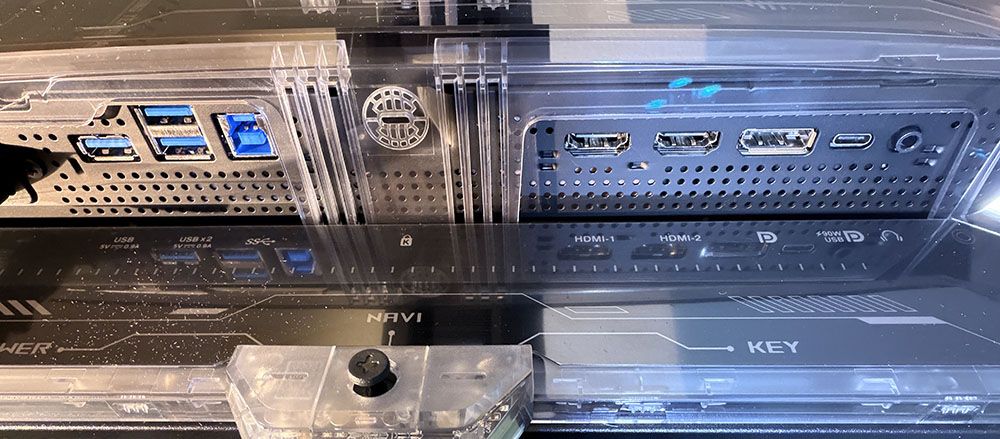
The I/O panel is well-appointed with a single DisplayPort 2.1 (UHBR20, 80 Gbps), two HDMI 2.1, a USB-C, and a USB hub with one upstream and three downstream. The hub has full KVM functionality, along with version control and power for the USB-C up to 90 watts. There are no internal speakers, but you do get a 3.5mm headphone jack.
OSD Features
The PG27UCWM has two buttons and a joystick to cover all monitor functions. Pressing the left button switches the refresh rate between 240 Hz and 480 Hz. The right button is a power toggle. Pressing the joystick brings up a quick menu which is fully programmable. A second press reveals the full OSD.
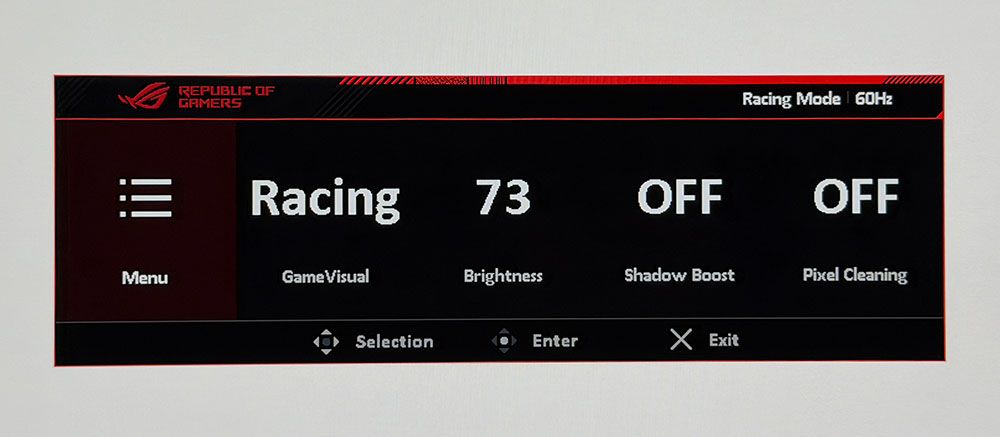
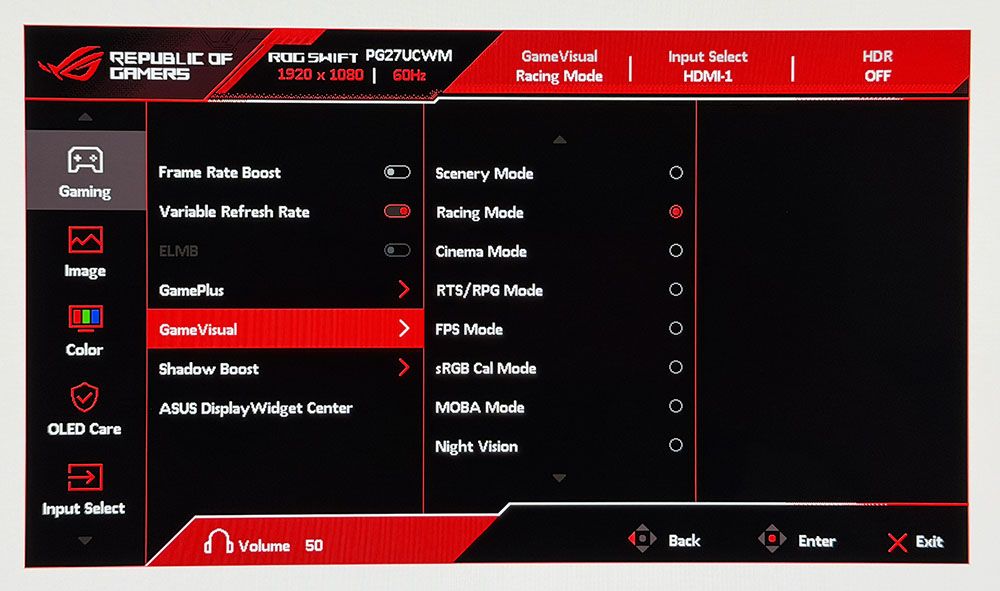
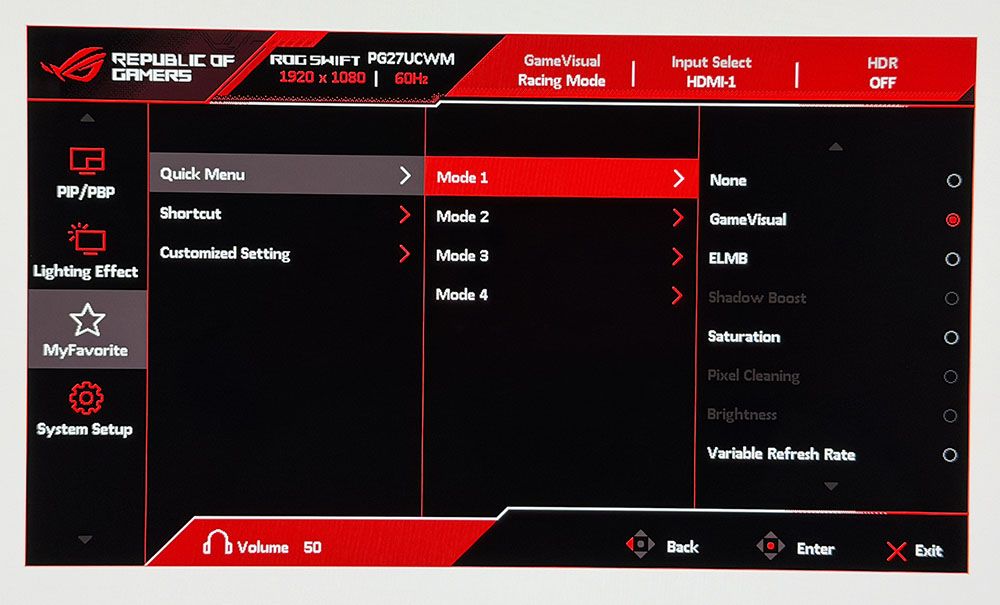
The quick menu has four slots for any function you might want quick access to, like picture mode, brightness, and the like. The full OSD starts with Gaming, and there, you’ll find the GamePlus suite with a large selection of aiming points, sniper modes, frame counters, timers, a stopwatch, and display alignment marks. GameVisual refers to the nine picture modes, each aimed at different game types or tasks. Racing is the default and best choice there.
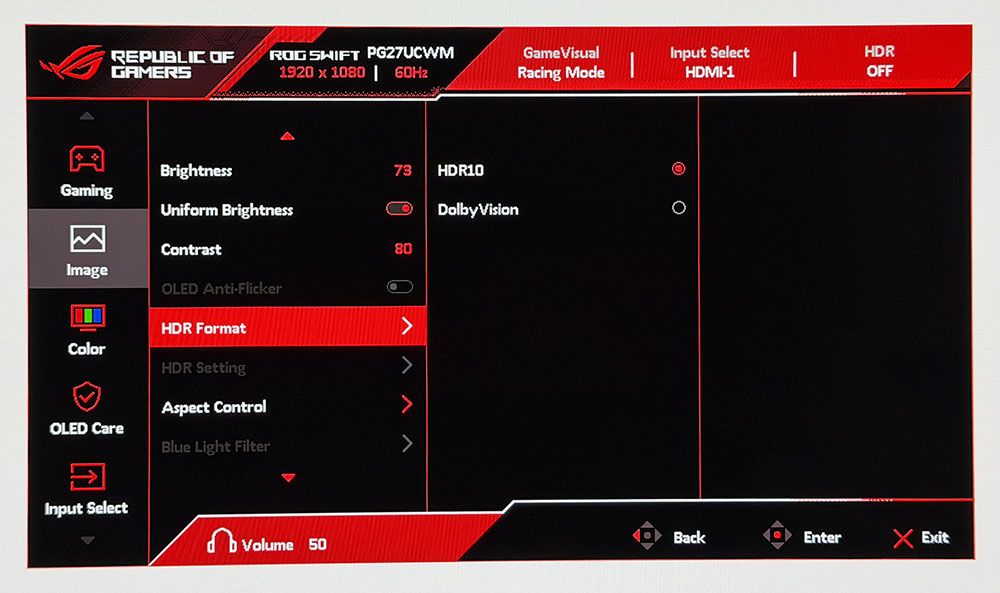
The PG27UCWM is one of the few monitors to support Dolby Vision in addition to HDR10. Dolby Vision uses dynamic tone mapping from the content metadata to tailor its luminance curve for each individual display. This renders the content more faithfully and with more impact than the fixed tone curve from HDR10 material. For that format, you get four more modes with the option to adjust brightness and other parameters.
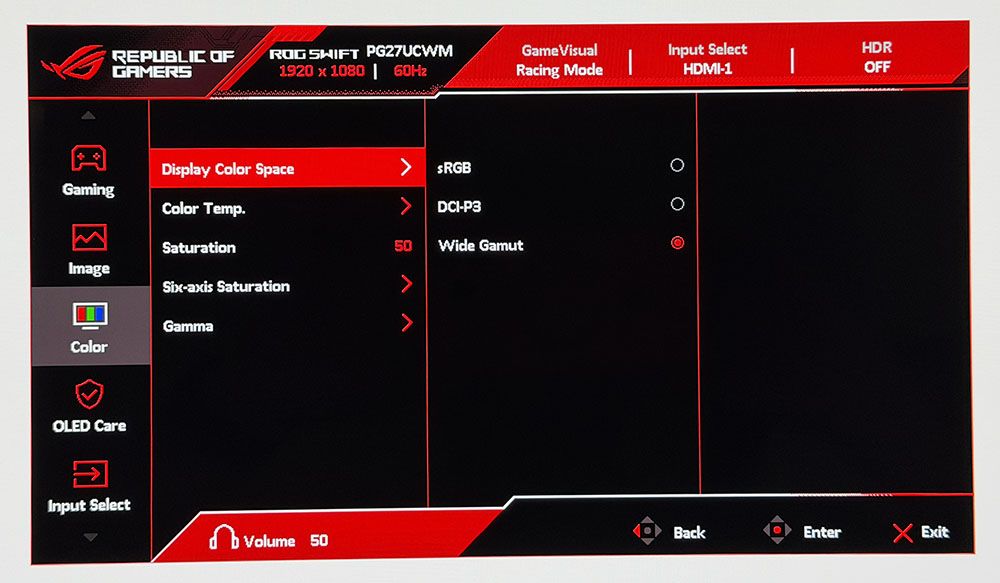
To adjust color, the PG27UCWM includes a gamut selector, gamma presets, and color temps arranged by Kelvin value. You can also adjust RGB sliders for finer control. My sample was nearly perfect out of the box, and I could only make a tiny difference with calibration.
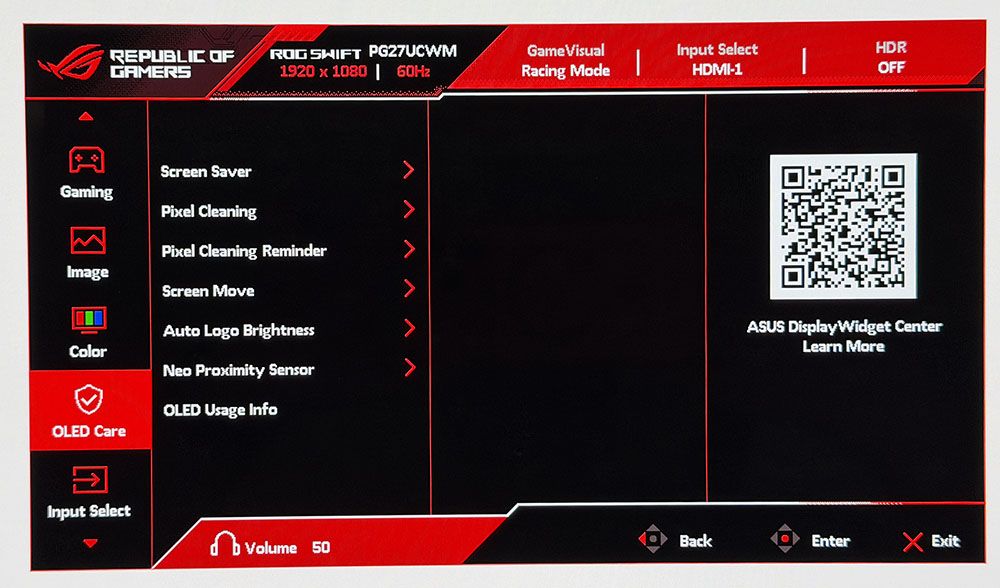
OLED Care includes many toggles for screen savers, logo detection, and more. Pixel Cleaning is a panel refresh feature that takes about six minutes to complete. When I first powered up the PG27UCWM, it prompted me to do this. I’ve found this to improve screen uniformity with brand-new panels, so I make it a habit for every review. A front-mounted sensor can be configured to shut off the monitor when you leave your desk.
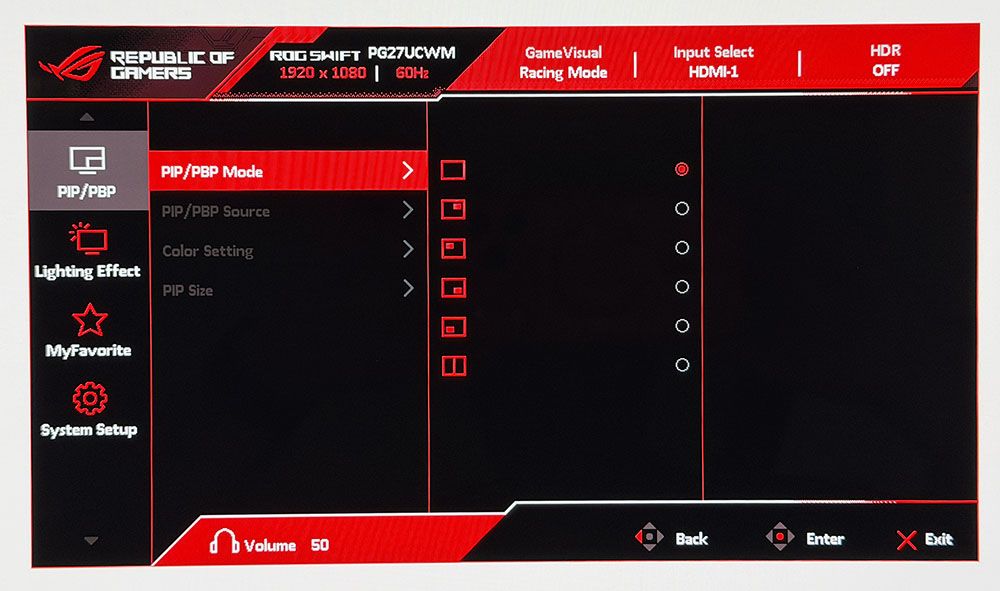
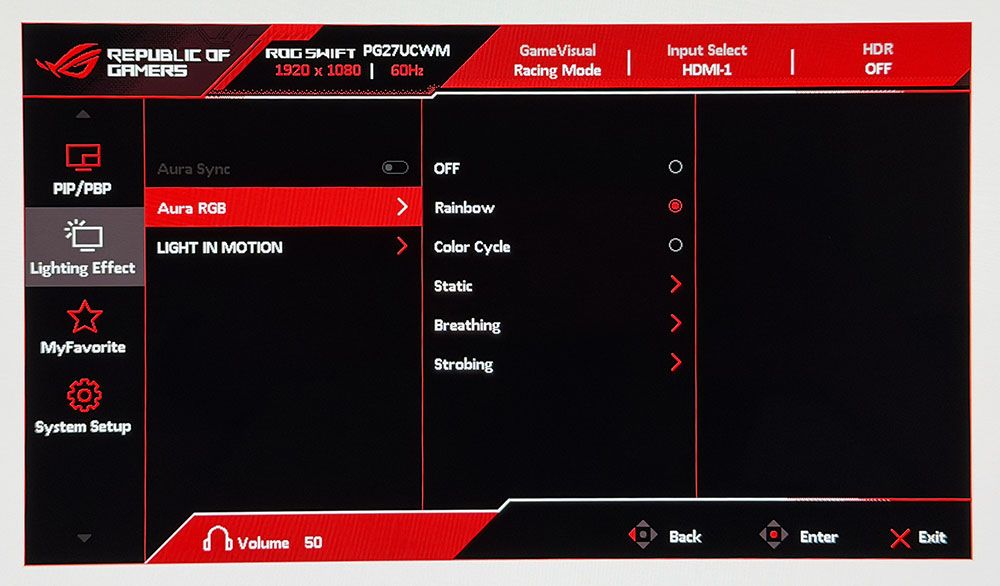
To view two video sources simultaneously, use the PIP and PBP options. Each can have its own color settings, and you can size the PIP window. Aura RGB is the lighting feature, and it offers a wide range of effects and colors. Light In Motion works with the DisplayWidget Center app to create light shows that mimic what’s happening on the screen.
The quick menu and joystick are fully programmable, so you can access up to 9 functions quickly. This is great for switching inputs, adjusting brightness, changing the refresh mode or what have you. Also included are two memory settings.
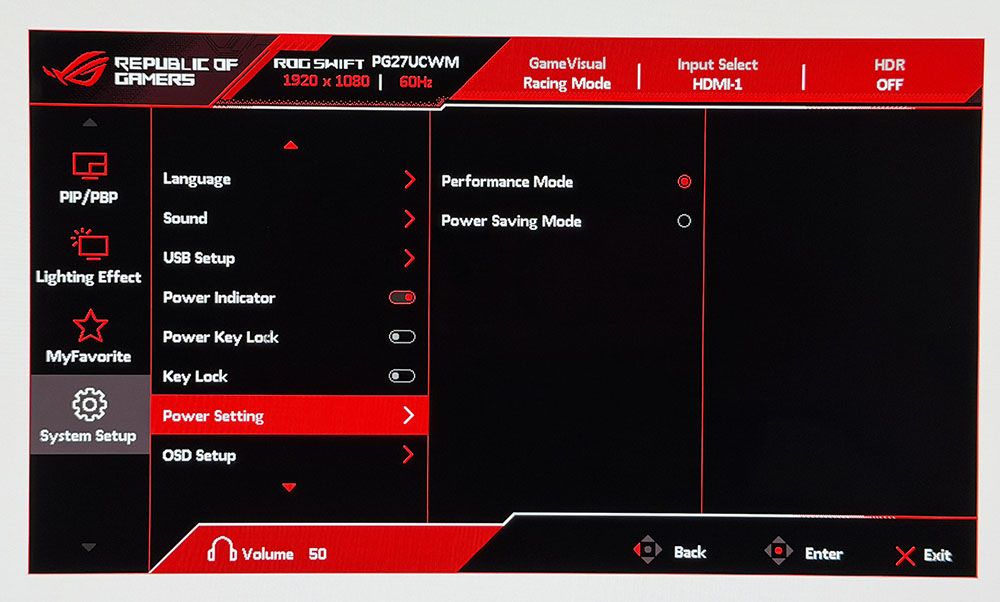
The System Setup menu can be left alone in most scenarios, but one option you must address is the Power Setting. It’s on Power Saving by default, and that limits brightness. Switch to Performance Mode to unlock the PG27UCWM’s full potential.
Asus ROG Swift PG27UCWM Calibration Settings
The PG27UCWM measured close to spec out of the box for grayscale and color, but I noted a slight gamma shift. To improve this metric, I selected the 2.4 preset, which made it a tad darker in a good way. I also adjusted the RGB sliders for a tiny gain in grayscale accuracy. For gaming, calibration is completely unnecessary. My suggested settings are below and include brightness values for Uniform Brightness on or off.
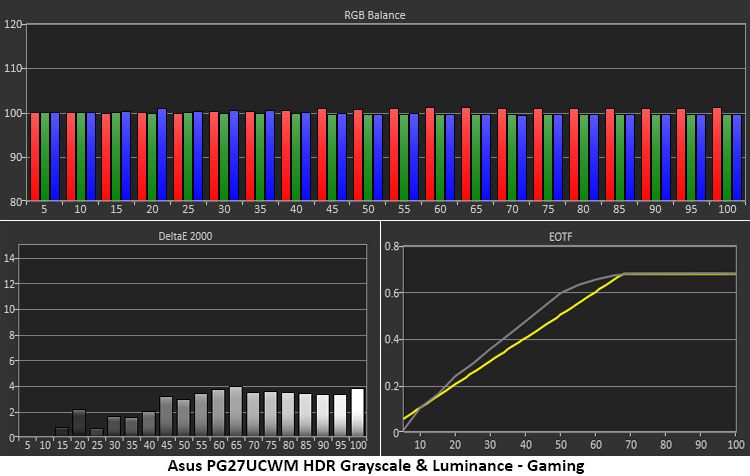
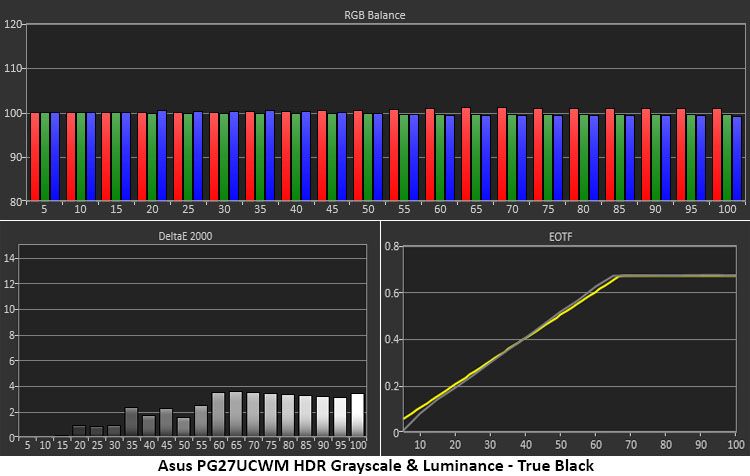
For HDR10 content, I recommend the Gaming HDR mode even though its EOTF tracking is lighter than spec. You can read more about this on page five. For spot-on HDR, True Black mode is the winner.
Picture Mode
Racing
Uniform Brightness
Off / On
Brightness 200 nits
73 / 56
Brightness 120 nits
39 / 38
Brightness 100 nits
31 / 30
Brightness 80 nits
23 / 22
Brightness 50 nits
11 / 10 (min. 25 / 25 nits)
Contrast
80
Gamma
2.4
Color Temp User
Red 100, Green 97, Blue 95
Gaming and Hands-on
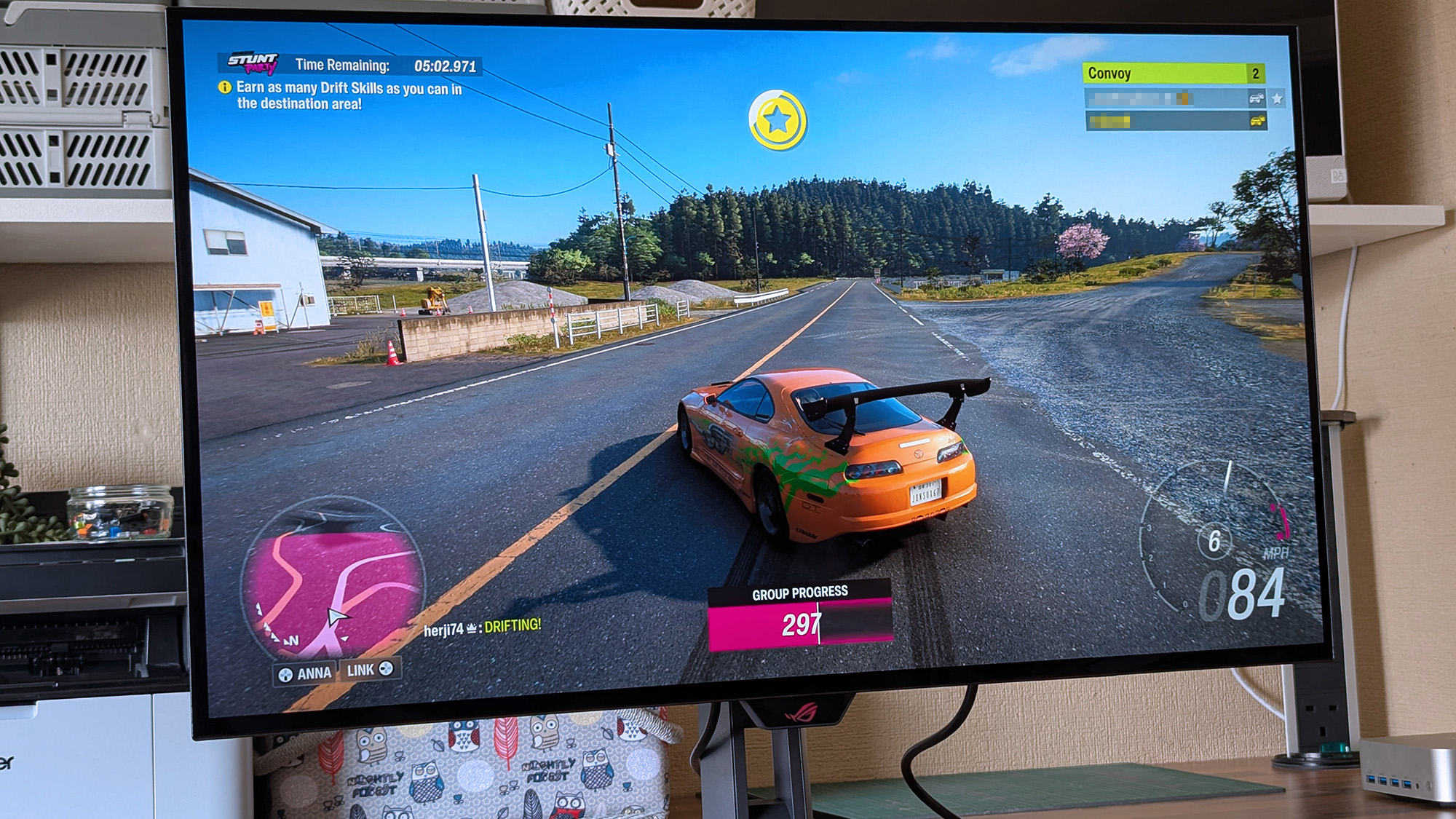
I have yet to game on an Asus OLED that wasn’t addictive in its imagery and responsiveness. The PG27UCWM was no exception. It’s super quick with no perceptible input lag and perfectly smooth motion resolution. For frame rates, I tried both modes, 240 and 480, and had excellent results. With a GeForce RTX 4090 in my test PC, I kept the action at 220-230fps in 4K with HDR enabled. This was awesome, to say the least, with every detail rendered sharply whether static or moving. I knew my system was working hard because the fans ran fast and there was a good bit of warm air circulating about my legs as I dispatched enemies in Doom Eternal.
To switch refresh modes, I had to exit to the Windows desktop to prevent the game from crashing. This is typical of the dual-refresh monitors I’ve reviewed and has nothing to do with their operation. At 480 Hz in FHD resolution, the picture was softer but not tremendously so. Games were just as playable and addictive. I kept the frame rate locked at 480 fps across all scenarios. It didn’t make play better for me, but I can see the advantage for users with slower PCs. Or if you just want to brag about frame rates.
HDR color and contrast were exemplary, and I toggled between two HDR picture modes: Gaming and True Black. You’ll see the technical differences between them on page five, but visually, Gaming provided a bit more brightness while True Black had better midtone contrast. It came down to game type for me. Bright outdoor scenery looked better in Gaming while dark imagery looked better in True Black. As with the frame rate boost feature, switching HDR modes should be done on the Windows desktop rather than in a game.
I noted light gamma during testing, which in SDR mode manifested as a slight flattening of the image. I fixed this by upping the gamma setting to 2.4 and raising the brightness value a few points. This added more texture to the picture, which was easy to see in a side-by-side comparison. For a more scientific explanation of the PG27UCWM’s gamma performance, see my test results on page four.
Like all Asus ROG Swift displays, the PG27UCWM is premium in every respect. It looks great just sitting on a desk with its clear back and extensive but not garish lighting. I turned on all the Aura RGB elements and enjoyed the show without distraction from games or work. The accents are well-balanced, even down to the logo projector, a feature unique to Asus ROG Swift monitors.
The Tandem RGB Stripe panel was visibly sharper than last year’s Quantum Dot-based PG27UCDM. The difference is small, but it is there. Text was rendered with perfect edges, free of artifacts such as fringing or jaggies. I could also see a difference in photos, especially when zooming in to the pixel level. This is a great monitor for content creation and writing. I also appreciated the inclusion of Dolby Vision for watching movies and TV shows. There is a lot of DV content on disc and through streaming services like Netflix, Disney+, and HBO Max.
The PG27UCWM has plenty of convenience features, such as USB ports with KVM and a tripod thread on the stand. But I missed internal speakers. Game sound had to come through headphones plugged into the provided 3.5mm jack.
Takeaway: The PG27UCWM is a supremely versatile monitor with lots of features, premium styling, excellent build quality, and top-level game performance. Competitive gamers will appreciate its advanced video processing, low input lag, and smooth response. Image quality is also top-shelf with accurate and saturated color, high luminance, and a variable brightness option. The Tandem RGB Stripe tech delivers a sharper picture than Quantum Dot or single-layer OLEDs.
Click here to read up on our pixel response and input lag testing procedures.
Tom's HardwareTom's Hardware
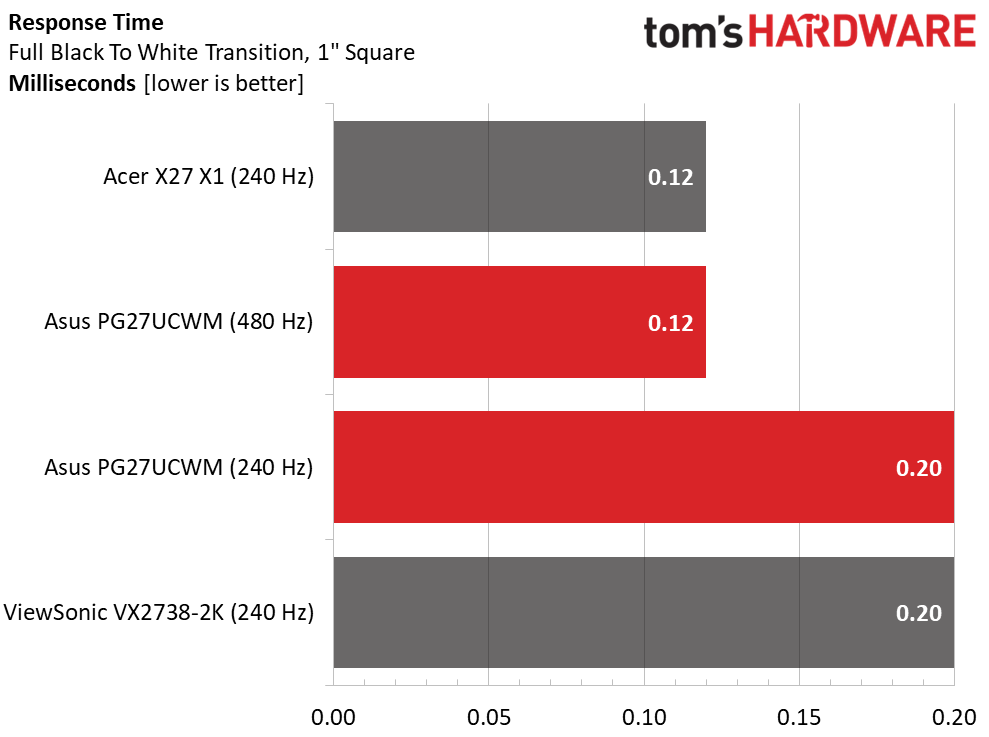
My data on the BenQ, Alienware, and Asus PG27UCDM predates my LDAT tests, so they are not included in the response results. Thus far, I haven’t seen much variation in OLED panel times. They range from 0.12 to 0.24ms, which is a tiny difference that can’t be seen with the naked eye. That’s why OLEDs all look smooth at 200fps or more. I noted that the PG27UCWM was quicker at 480 Hz than 240, but not by half: 0.12 versus 0.20ms.
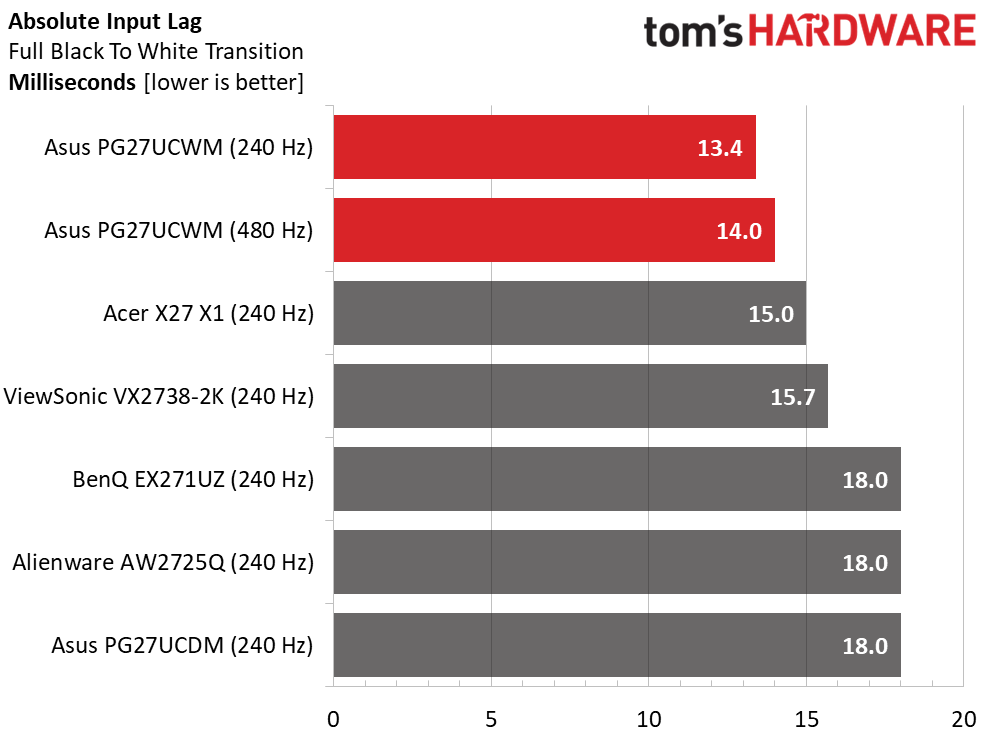
In the lag test, the frame rate boost doesn’t provide an advantage in input lag. Even a Jedi Knight won’t be able to tell a 0.6ms difference. Either way, the PG27UCWM has the lowest input lag of any 27-inch 4K OLED I’ve tested, by a small margin over the Acer and ViewSonic screens. Gamers will want to check one of these out for their competition kit.
Test Takeaway: The PG27UCWM is the quickest 27-inch 4K OLED panel I’ve tested to date. It has very low input lag, and panel response is smooth in either frame rate mode. 480 Hz provides a boost in frame rates and is useful for slower systems, but it does not provide lower input lag. If you have enough video card power, the 240 Hz mode is more than adequate for instant control response and smooth motion resolution.
Viewing Angles
(Image credit: Tom's Hardware)
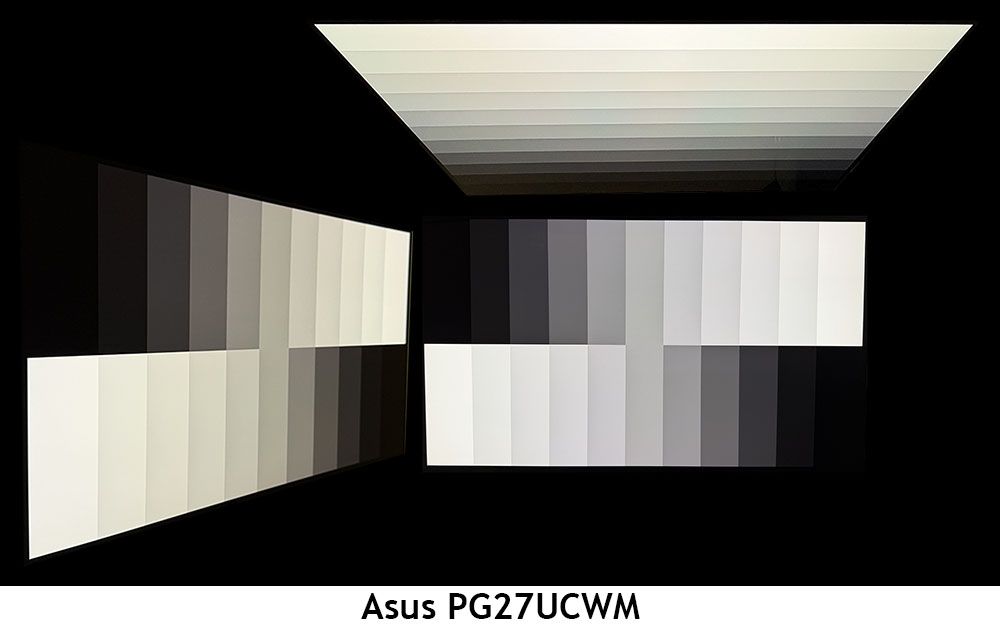
In my experience, the one weakness of Tandem RGB Stripe OLED panels is their slight color shift in the horizontal plane. There is no reduction in brightness or gamma, but there is a reddish-green (greenish-red?) tint, a bit like an IPS monitor. For a 27-inch panel like the PG27UCWM, this isn’t a big deal. Just don’t share it with another user who is picky. The vertical photo shows reduced gamma and the same color shift.
Screen Uniformity
To learn how we measure screen uniformity,click here.
(Image credit: Tom's Hardware)
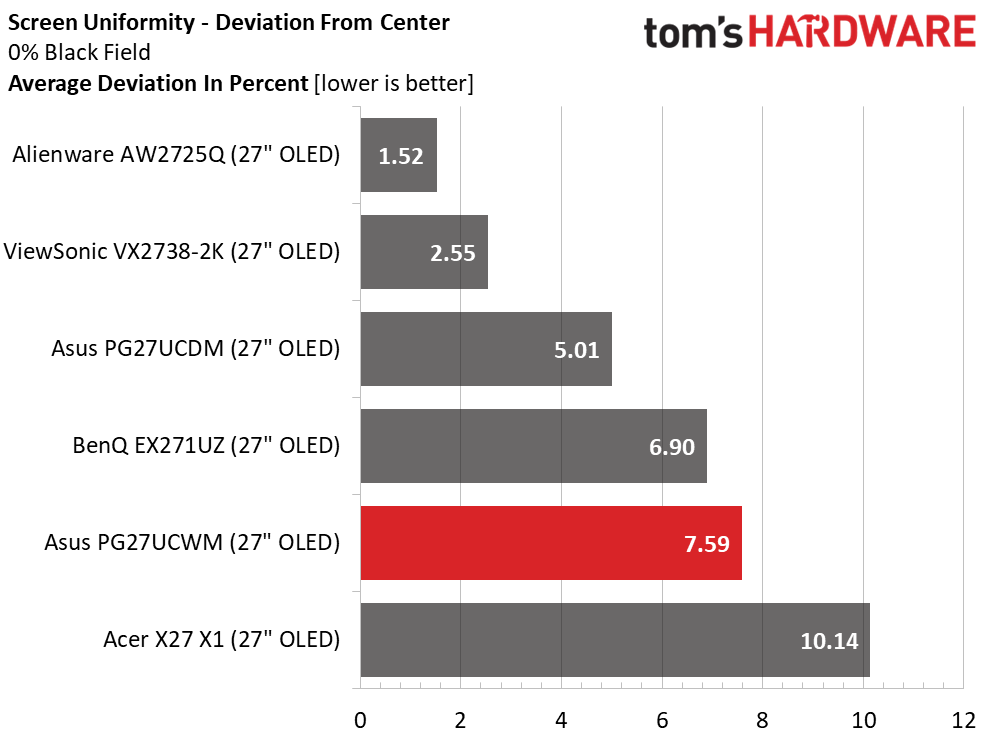
The PG27UCWM’s screen uniformity is in line with other OLEDs. I have yet to find a bad one. I recommend that anyone buying an OLED run the pixel refresh routine when you first unpack it. This often yields a 5-10% improvement in uniformity.
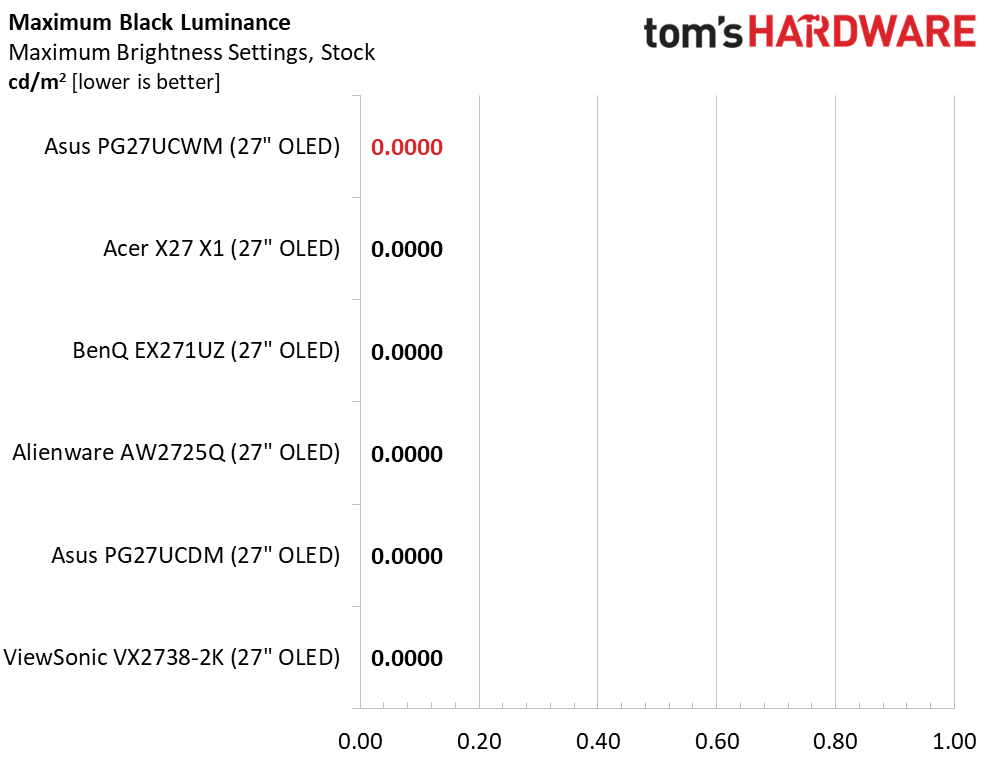
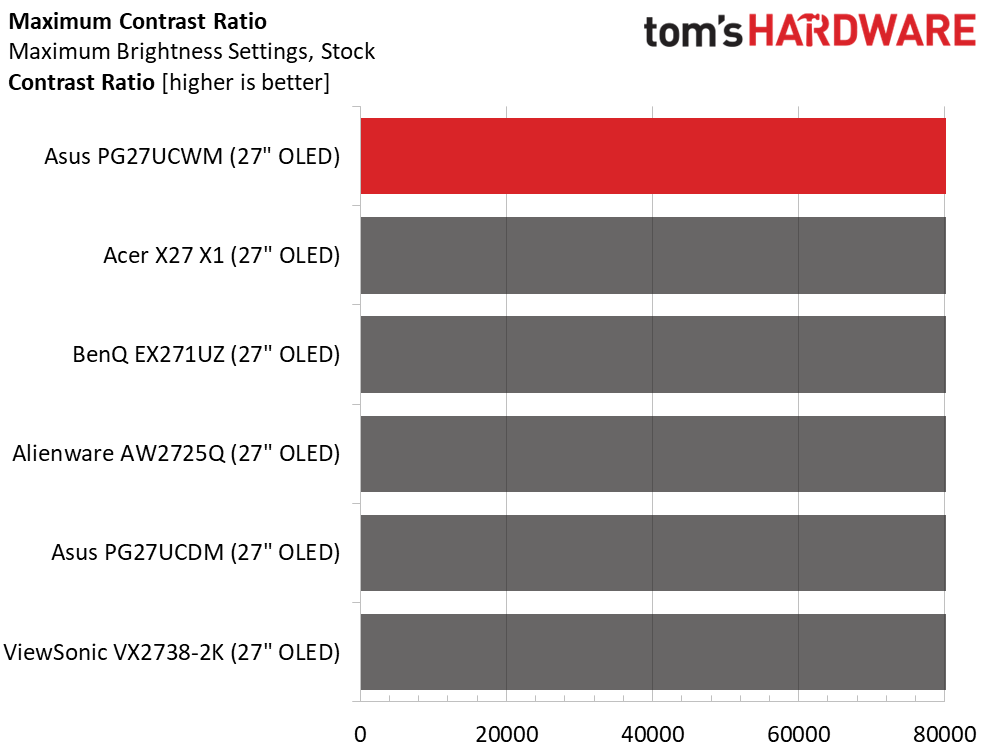
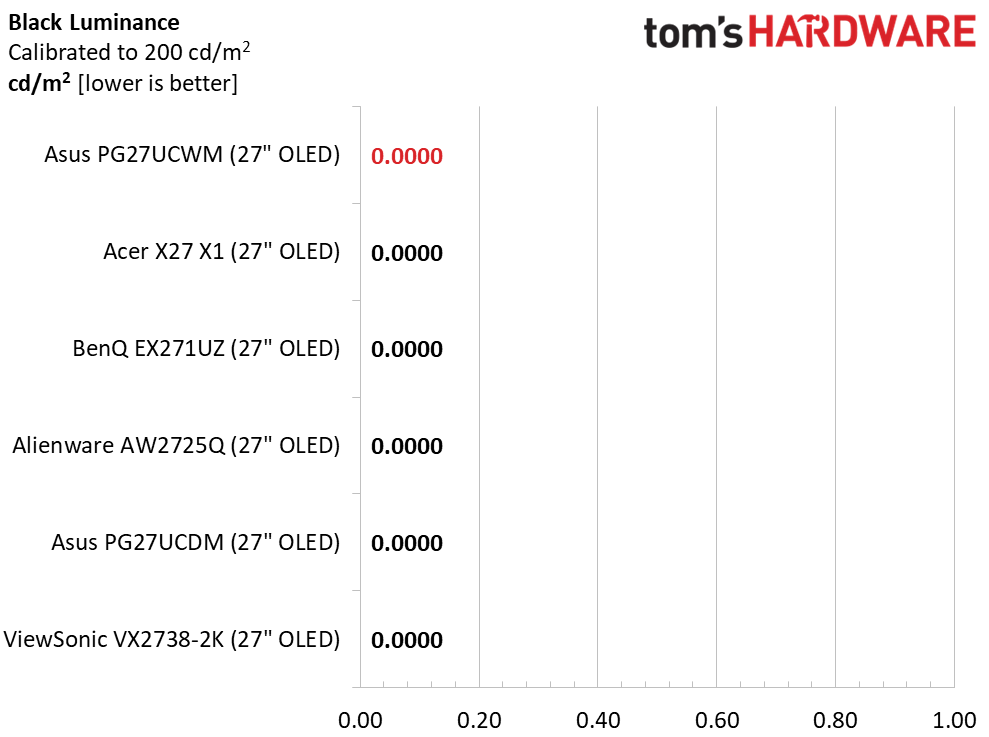
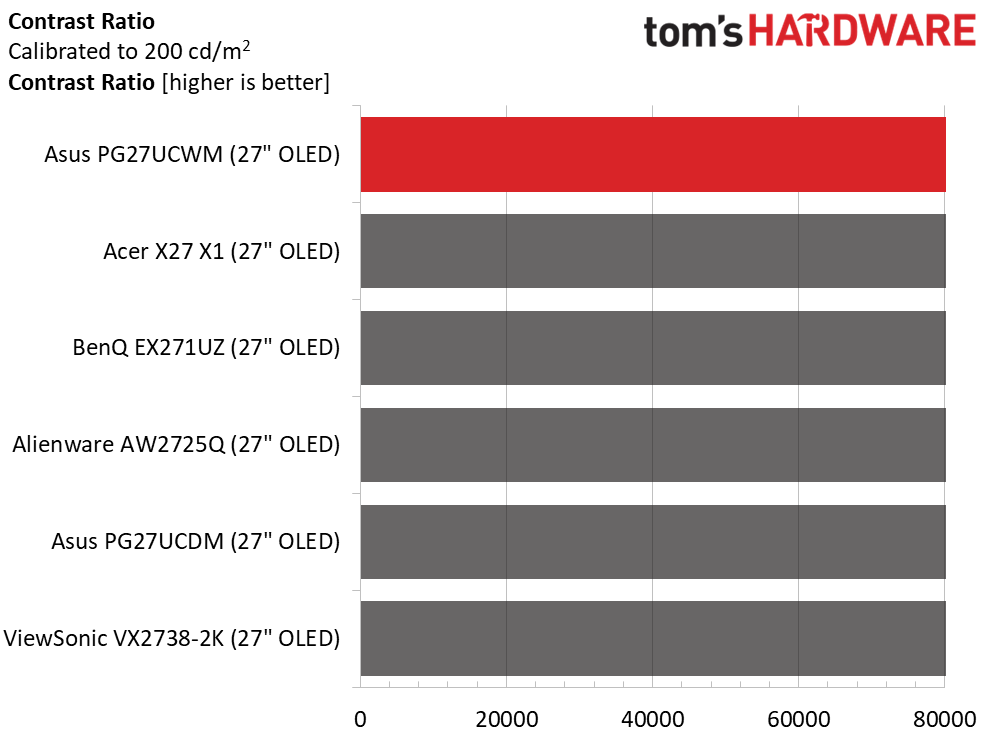
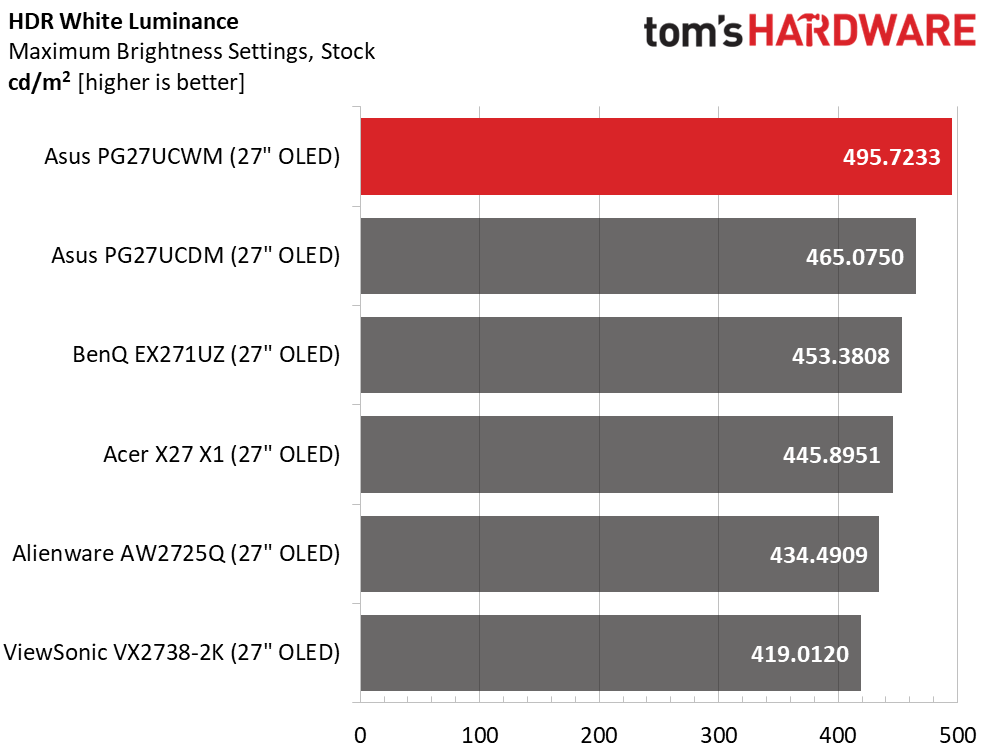
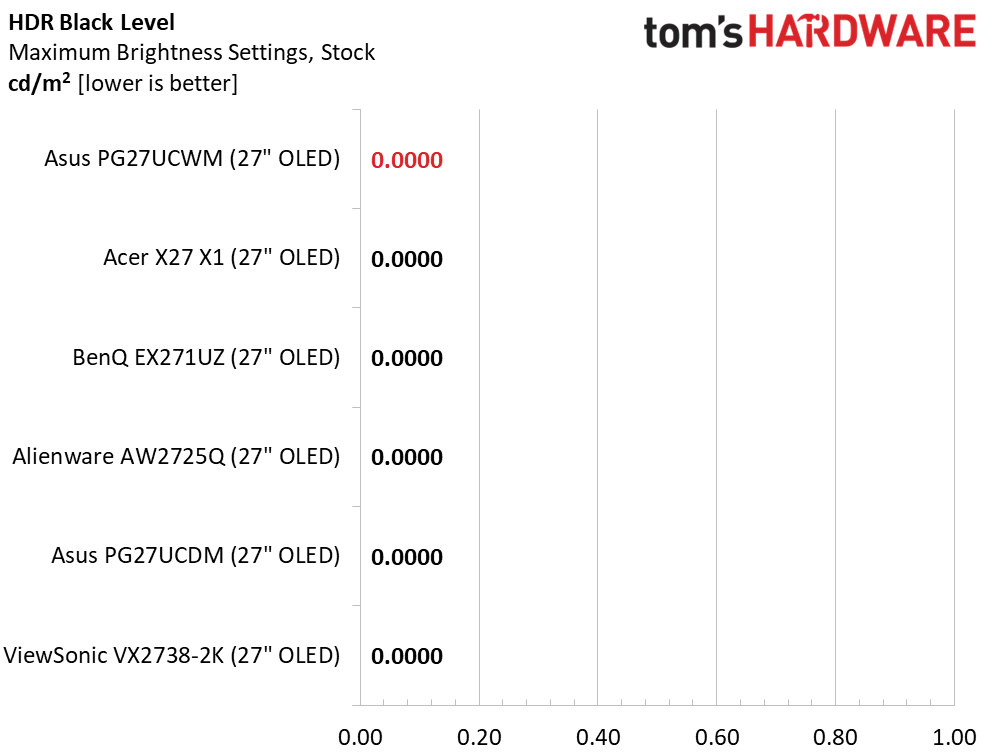
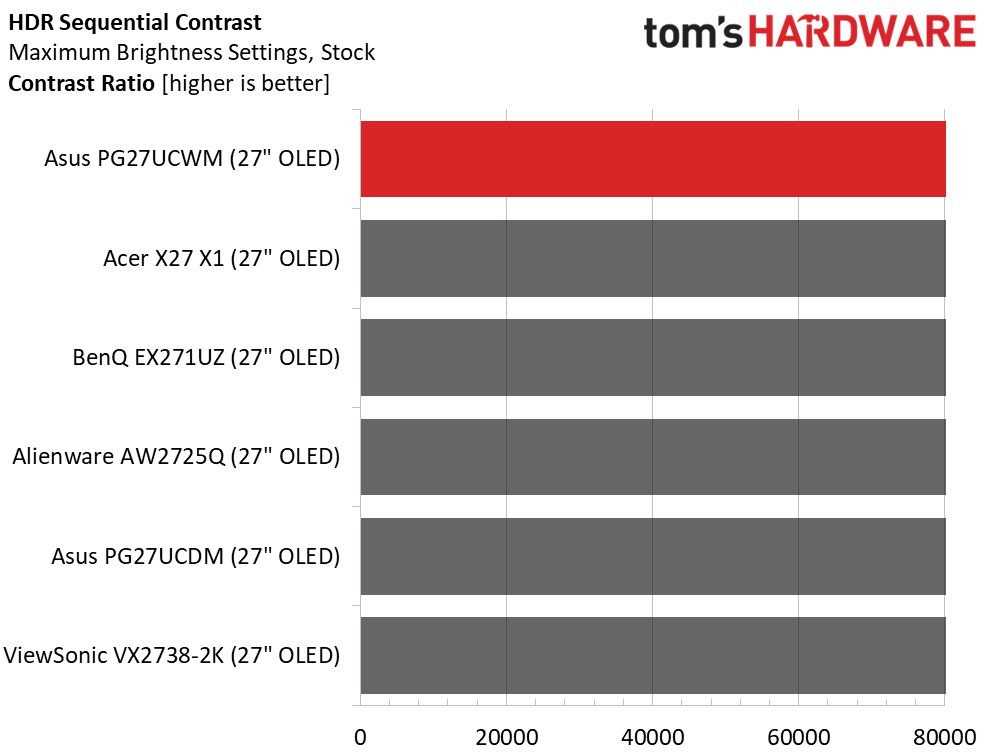
I measured the PG27UCWM in its Racing mode with the Power mode set to Performance and the brightness slider maxed. With Uniform Brightness (UB) off, a 25% window came up just short of 500 nits, and a full field was 278 nits. UB on kept that same 278 nit value for both window and field patterns. I noted that the PG27UCWM was a tad brighter than last year’s PG27UCDM, which had a Quantum Dot panel. Black levels and contrast could not be measured.
After Calibration to 200 nits
Tom's HardwareTom's HardwareTom's Hardware
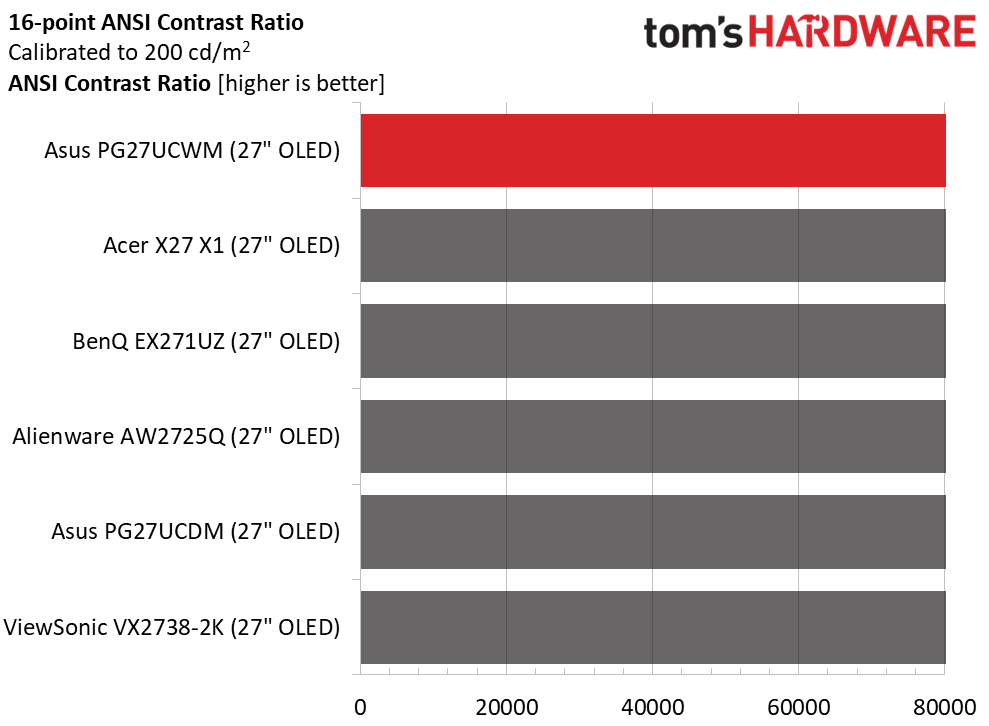
Calibration made no difference to contrast or black levels. When switching between UB modes, I noted that the PG27UCWM saved the brightness value for each mode. That means you can equalize brightness by using a full field for UB on and a 25% window for UB off. As is typical for OLEDs, I could not measure the intra-image (ANSI) contrast.
Test Takeaway: The PG27UCWM delivers contrast and black level performance identical to other OLED monitors. It nearly hits 500 nits for a 25% window pattern with Uniform Brightness switched off. Leaving it on delivers around 278 nits peak.
In the PG27UCWM’s Racing picture mode, there is no need for calibration, but you have the option to change color space, gamma, and white balance if you wish.
Grayscale and Gamma Tracking
Our grayscale and gamma tests use Calman calibration software fromPortrait Displays. We describe our grayscale and gamma tests in detail here.
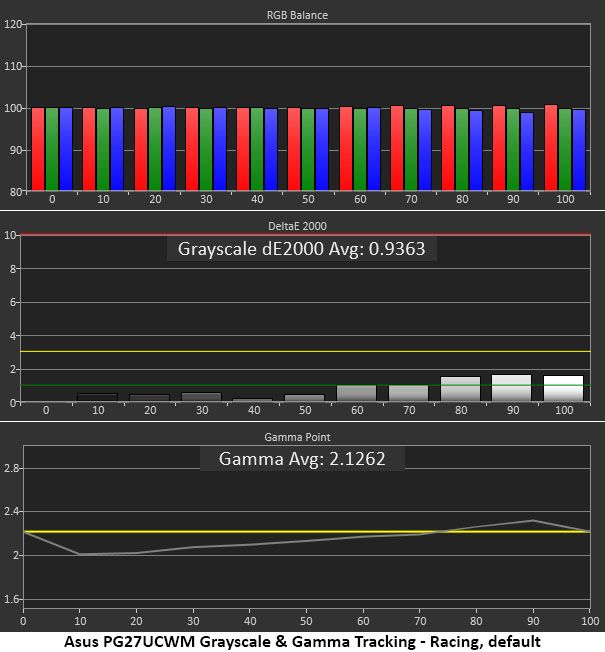
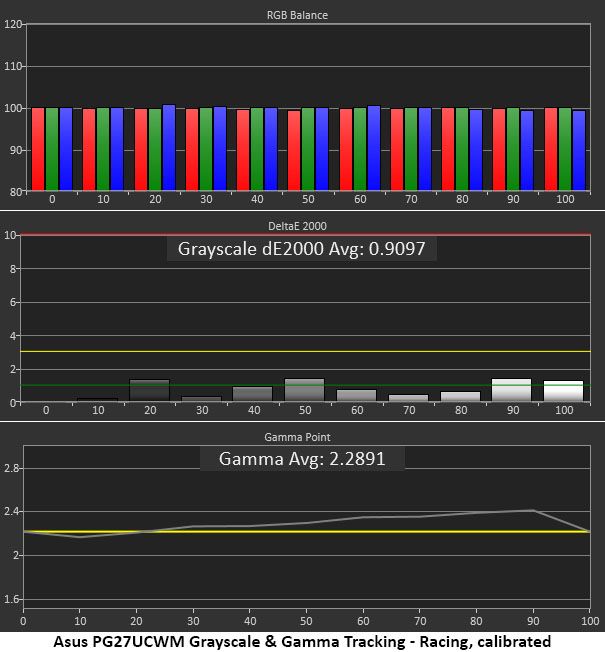
In the first chart, grayscale tracking is visually perfect with no error exceeding 2dE. The accepted visible threshold is 3dE. Gamma is a bit skewed, though. It’s too light in the darkest parts of the image, and midtones are also a little under. This flattens the image a little. At 90% brightness, it is slightly dark, which also lessens the picture’s impact.
I calibrated the RGB sliders for a tiny improvement in grayscale. For gamma, I could only pick a different preset, so I opted for 2.4, which was a good compromise. Since OLEDs have such high contrast, it’s easier to get away with dark gamma because you can just click up the brightness a bit to compensate. A perfect trace on the 2.2 reference would be better, but I don't expect anyone to complain about the PG27UCWM.
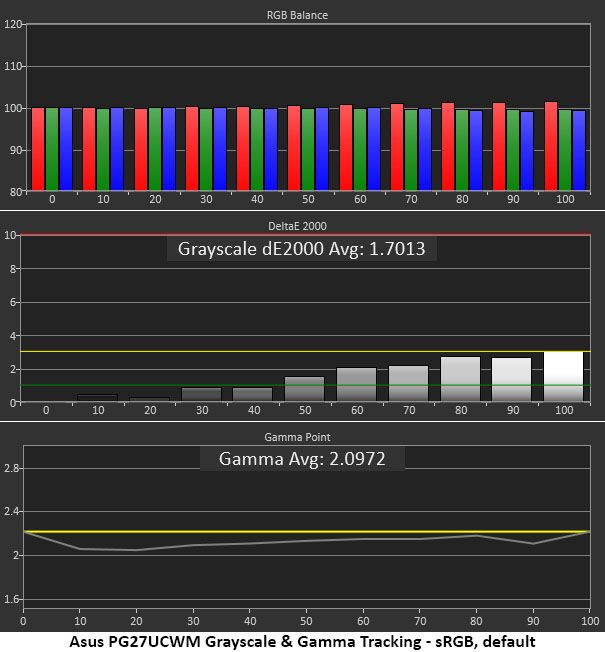
For sRGB, you can either pick the sRGB Cal mode or select sRGB from the color space options in the Color menu. I chose the latter because it leaves the RGB and gamma controls available. Gamma is still a bit light but also more consistent.
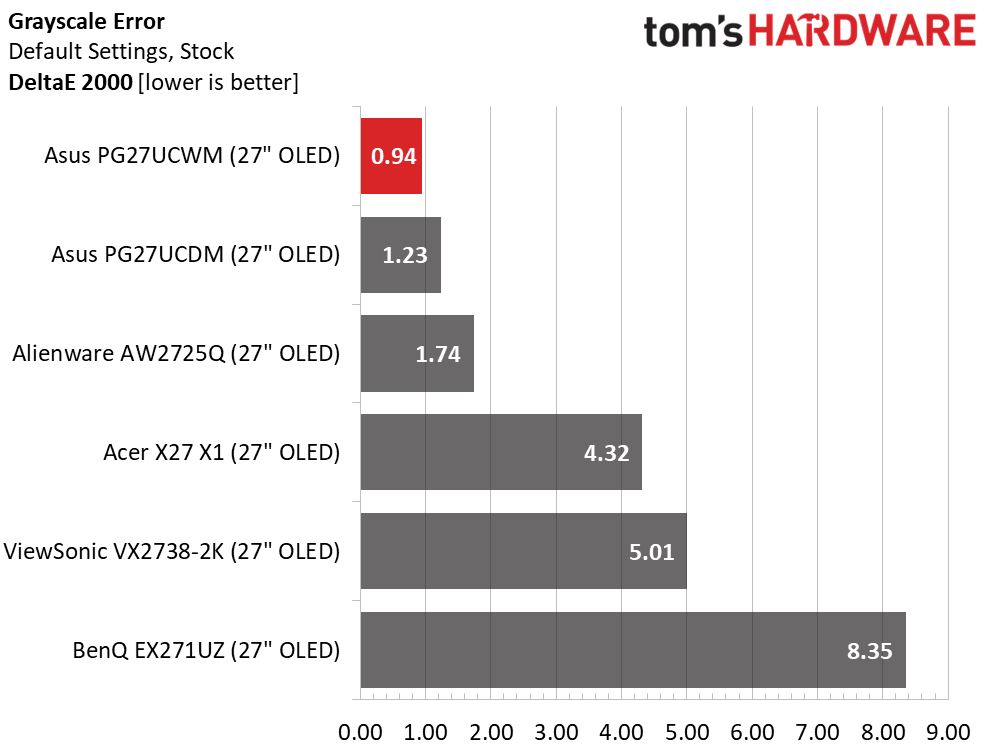
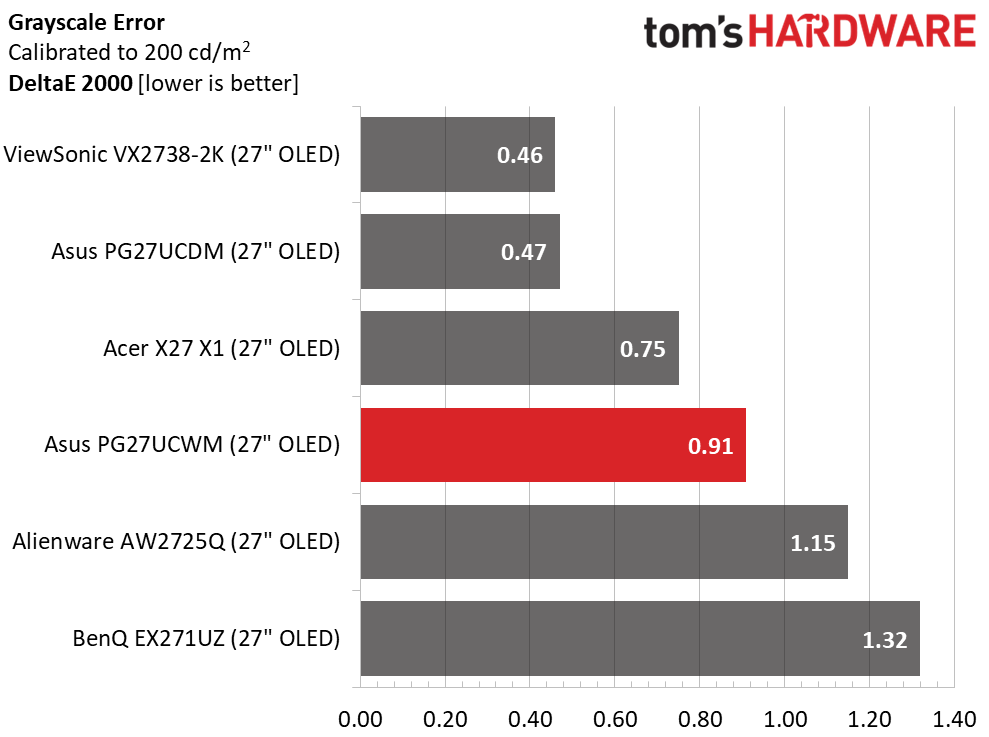
The PG27UCWM wins the out-of-box grayscale comparison with an excellent 0.94dE score. Calibration only improves that to 0.91dE. The two Asus and the Alienware screens can be used without calibration, but the Acer, ViewSonic, and BenQ should get some attention for top performance. Once adjusted, the six monitors are visually equal.
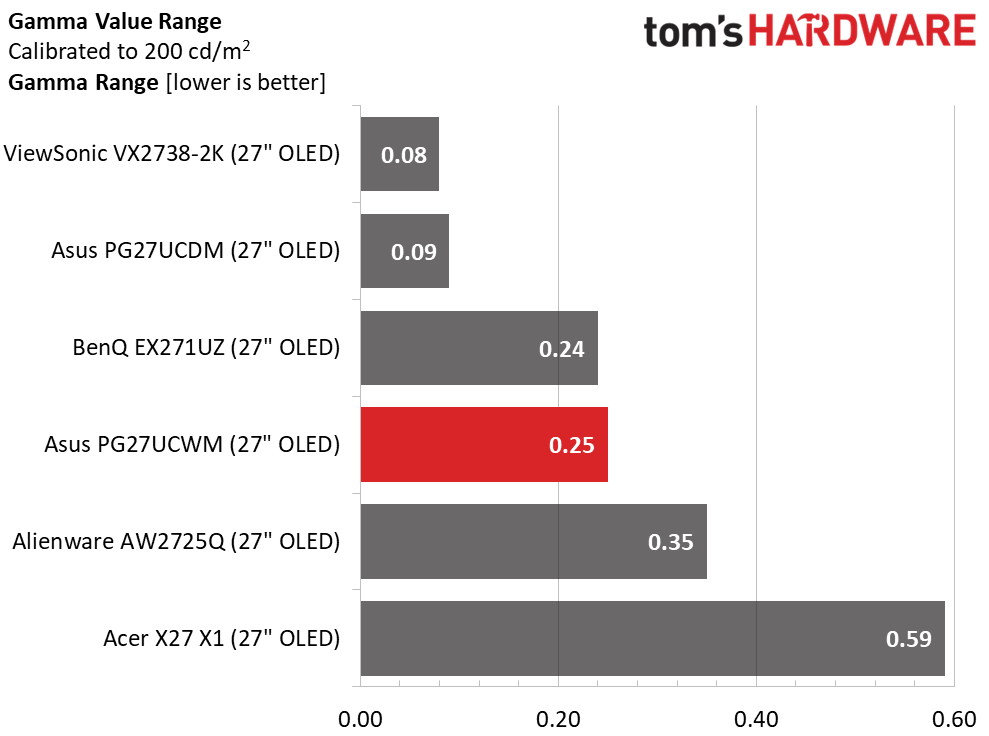
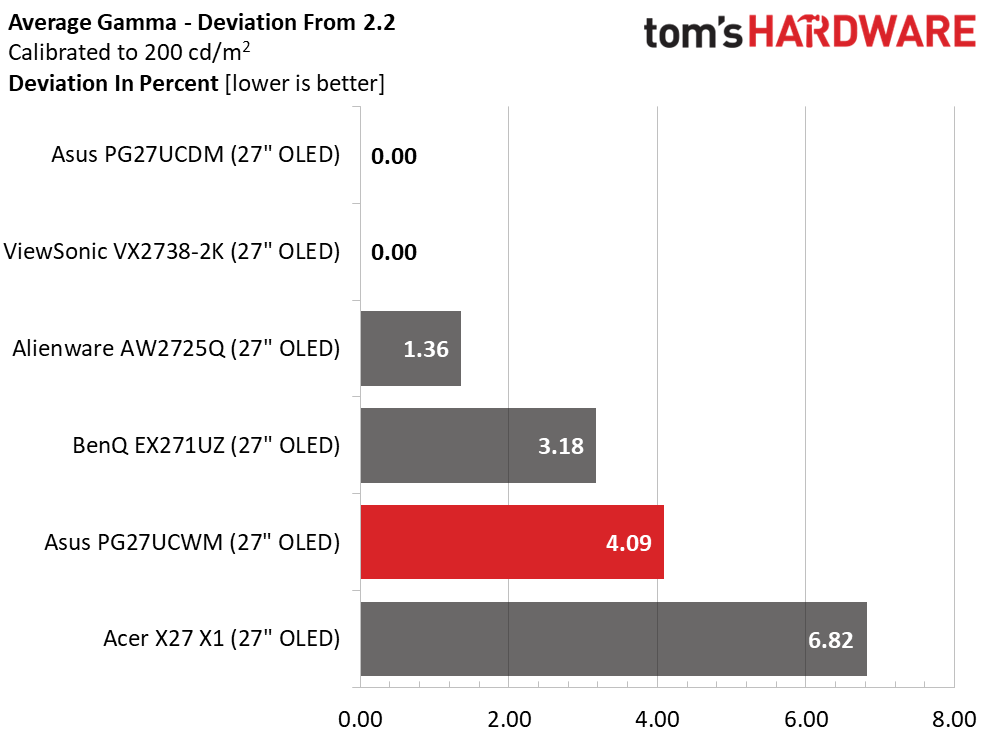
In the gamma test, the PG27UCWM runs mid-pack with a 0.25 range of values and a 4.09% deviation from 2.2. I made a compromise here, setting gamma to 2.4. If you leave it on 2.2, the value range is the same and the deviation is 3.18%. But I preferred the look of the darker gamma setting. Try both to see which works best for you.
Color Gamut Accuracy
Our color gamut and volume testing usePortrait Displays’ Calman software. For details on our color gamut testing and volume calculations,click here.
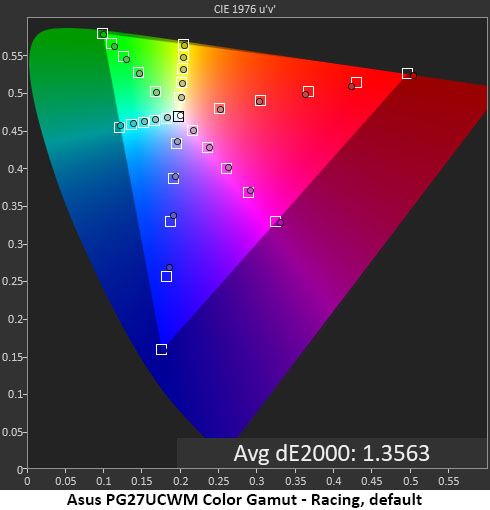
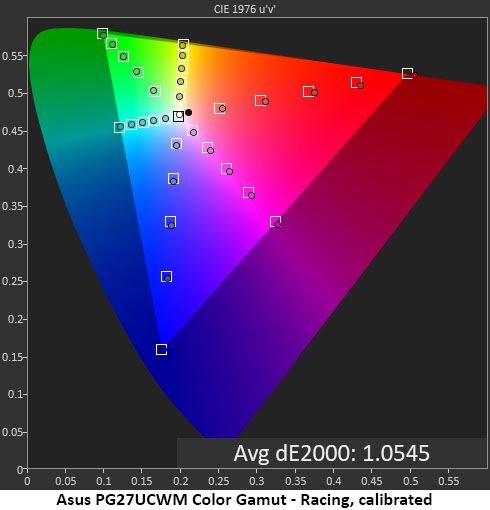
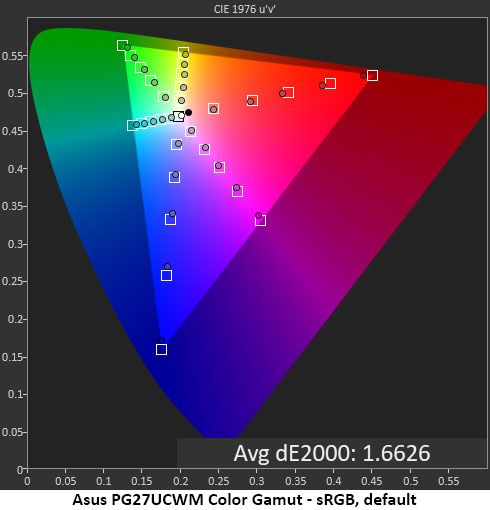
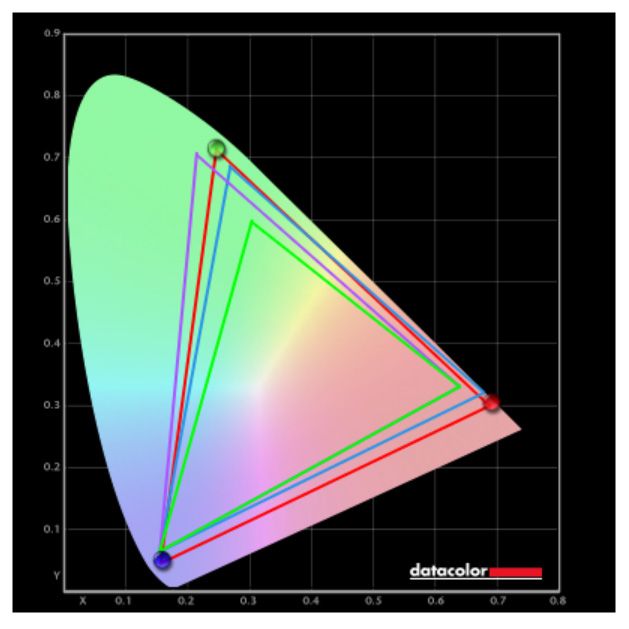
Asus’ latest crop of Tandem RGB Stripe OLEDs all come within a whisker of 100% coverage of DCI-P3 and display near-perfect accuracy. In the default chart, the PG27UCWM is a tad undersaturated in the primary colors, but not by a visible amount. My grayscale calibration adds just a little verve to the palette. You can barely see a difference, but it’s there when comparing screens side-by-side. This is excellent performance.
The sRGB gamut is also a bit undersaturated, coming up short in red, magenta and blue. This is a minor issue, but users needing the nth degree of accuracy might want to consider a color lookup table for their applications.
Comparisons
Tom's HardwareTom's Hardware
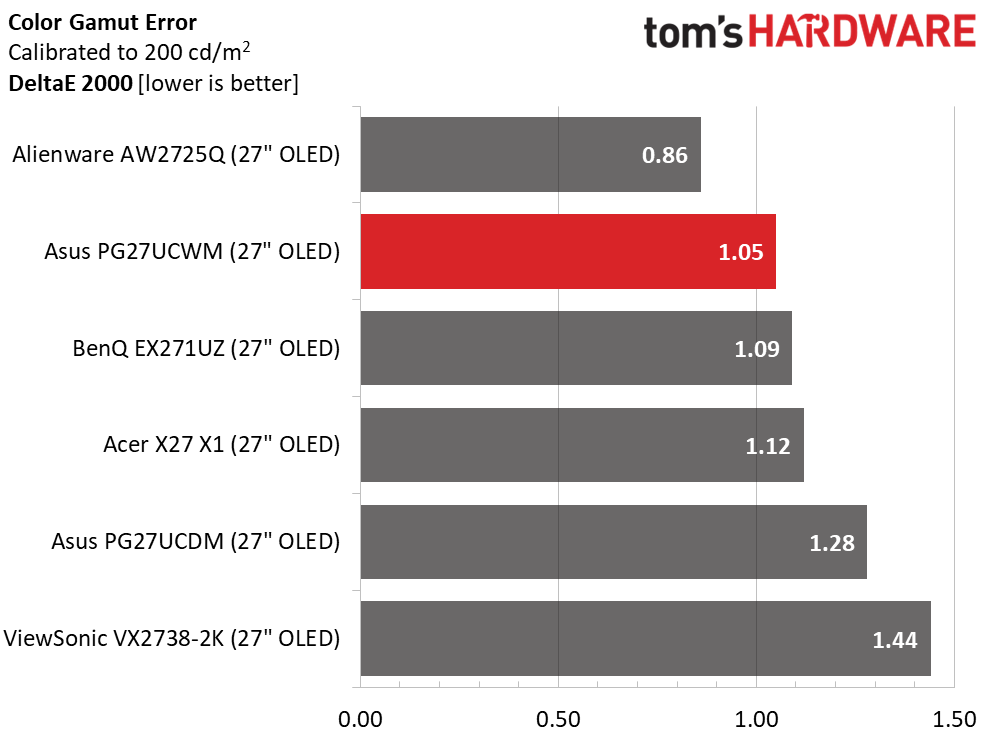
A 1.05dE color gamut error is impressive, but all the screens perform as well as the PG27UCWM in this test. OLED is an accurate monitor category, and you’ll be hard-pressed to find a bad one.
I’ve commented that Quantum Dot OLEDs have greater color volume than Tandem RGB Stripe panels, but in the 27-inch category, the differences are quite small. Asus’ own PG27UCDM has less than 1% more volume, an invisible amount. The ViewSonic will look a bit more colorful in a side-by-side comparison, but only slightly. The PG27UCWM delivers vivid and bold hues for both SDR and HDR. The sRGB mode is slightly undersaturated in red, magenta, and blue, hence the 91.87% score.
Test Takeaway: The PG27UCWM is very color-accurate out of the box but needs some attention in the gamma department. I had to compromise for the best picture because none of the presets are exactly on the 2.2 reference. The sRGB mode is slightly undersaturated and has light gamma. Color volume is high and nearly equals that of many Quantum Dot displays. The PG27UCWM is a very colorful monitor.
The PG27UCWM adds extra HDR brightness and Dolby Vision to its feature list over last year’s PG27UCDM. It switches automatically when an HDR10 signal is detected and offers four picture modes with an adjustable option.
HDR Brightness and Contrast
Tom's HardwareTom's HardwareTom's Hardware
To get the brightest HDR, I opted for the Gaming mode with the Adjustable toggle turned on. This delivered almost 500 nits from a 25% window pattern. Asus claims 1,000 nits for a 3% window, and there is no reason to doubt this. If you’re considering an upgrade from last year’s PG27UCDM, you can expect an extra 30 nits of peak brightness, about 6%. The Gaming HDR mode comes with a compromise, which I’ll tell you about below. If you choose the most accurate mode, True Black, it peaks at around 470 nits. Black levels and contrast could not be measured.
The first two charts illustrate the difference between Gaming and True Black modes. Gaming is a little brighter, not only because it peaks higher, but also because it rides above the EOTF reference. This gives the image a little more impact but also a little less texture. The difference is small and will come down to user preference. For games with bright scenery and color, I preferred Gaming HDR. But more subdued tones benefitted from True Black and its deeper shadows. Either way, you get excellent grayscale accuracy.
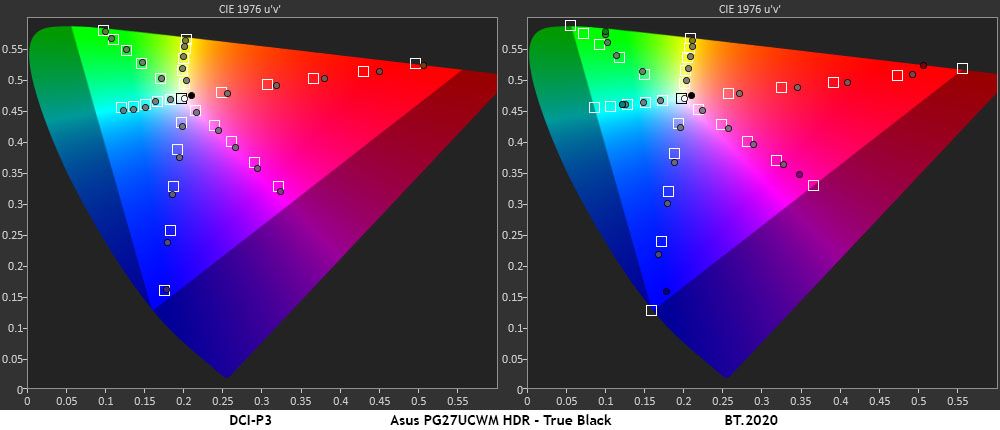
In the HDR color tests, the PG27UCWM makes full use of its large gamut in all content. The DCI-P3 is fully covered with a little extra verve in red, magenta, and blue. By emphasizing the warmer tones, it gives the picture more punch without becoming unnatural. This is an approach shared by many HDR monitors, LCD and OLED. In the BT.2020 test, the PG27UCWM runs out of color at 90% red, 75% green, and 95% blue, which is comparable to many Quantum Dot screens.
Test Takeaway: The PG27UCWM delivers a lot of HDR impact and is a little brighter than its predecessor and the other 27-inch 4K OLEDs I’ve tested. It has excellent grayscale and color accuracy in either Gaming or True Black modes. For the best luminance tracking choose True Black and for the brightest image, choose Gaming. Either way, it renders HDR content beautifully.
Though OLED prices in general have crept downwards, it is still a premium category. New panel variants keep the technology moving forward and create more choices for buyers. It’s also a product category that embodies the concept that you never regret buying the best. With stunning images, bold color, and lightning-fast reflexes, OLEDs are the go-to display for gamers of all skill levels.
(Image credit: Asus)
Asus has remained at the forefront of OLED technology by being early out of the gate with each new panel tech. It has fully embraced Tandem RGB Stripe with the ROG Swift PG27UCWM. Though relatively expensive for a 27-inch monitor, it is richly featured and capable of truly addictive gameplay. With 240 Hz in 4K and 480 Hz in Full HD, it can pair well with just about any gaming system from console to bleeding-edge PC. In my tests, it proved faster than all the other 27-inch 4K OLEDs I’ve reviewed.
(Image credit: Tom's Hardware)
Tandem RGB Stripe also delivers a visible improvement in sharpness. OLEDs were sharp already, but I could easily see the difference when comparing the PG27UCWM to a single-layer monitor. Color is also a highlight here. Though a Quantum Dot screen will get you a little more color volume, the PG27UCWM is still in the mix at over 102% DCI-P3 coverage. And its HDR prowess is substantial with the addition of Dolby Vision.
If you have the budget, currently $1,099, for a premium 27-inch OLED gaming monitor, the Asus ROG Swift PG27UCWM is sitting nicely atop the performance heap. Gamers looking for a premium experience should definitely check it out.
Ein großer 4K-Monitor kann am Schreibtisch deutlich mehr Platz für Anwendungen, Dokumente oder kreative Aufgaben schaffen als das Display Ihres Laptops. Besonders für Macbook-Nutzer sind dabei Funktionen interessant, die die Verbindung zum Rechner vereinfachen und die Darstellung an das Apple-Display anpassen.
Nur noch heute ist der BenQ MA320U bei Amazon für nur 549,99 Euro gelistet. Gegenüber der angegebenen UVP von 649 Euro entspricht das einer Ersparnis von 15 Prozent. Zuletzt lag der Preis meist zwischen 577 und 599 Euro. Ende November war der Monitor kurzzeitig für knapp 500 Euro erhältlich und damit noch günstiger. Beim aktuellen Angebot handelt es sich dennoch um den ersten deutlich stärkeren Preisrückgang seitdem, der wieder in diese Richtung geht.
Auch die Bewertungen fallen überwiegend positiv aus: Bei Amazon erreicht der Monitor derzeit 4,6 von 5 Sternen aus über 720 Bewertungen. Mehr als 50 Modelle wurden laut Amazon im vergangenen Monat gekauft.
Was der BenQ MA320U zu bieten hat
Der MA320U setzt auf ein 32 Zoll großes LED-Display mit 4K-UHD-Auflösung von 3.840 x 2.160 Pixeln. Das Panel arbeitet mit einem Seitenverhältnis von 16:9, einer Bildwiederholrate von 60 Hertz und einer Reaktionszeit von 5 Millisekunden. Das Kontrastverhältnis liegt bei 2.000:1, die Helligkeit bei 550 cd/m². Die matte Oberfläche soll Reflexionen reduzieren.
Eine Besonderheit ist die Ausrichtung auf Macbook-Nutzer. BenQ gibt an, den Monitor mit einer speziellen Mac-Farbanpassung auszustatten. Der Monitor unterstützt den P3-Farbraum und soll Farben eines Macbooks möglichst einheitlich darstellen.
Die Verbindung zum Macbook kann über USB-C mit einem einzigen Kabel erfolgen. Gleichzeitig stellt der Monitor bis zu 90 Watt Leistung zur Verfügung, sodass das angeschlossene Macbook darüber mit Strom versorgt wird. Zusätzlich stehen zwei USB-C-Anschlüsse zur Verfügung, wobei der Hub bis zu 15 Watt zum Laden eines iPads oder iPhones bereitstellt.
Auch die Bedienung ist auf Macs zugeschnitten. Helligkeit und Lautstärke lassen sich laut BenQ direkt über die Tastatur des Macbooks steuern. Dazu kommen Anschlüsse für HDMI, Displayport und USB-C. Insgesamt sind zwei HDMI-Ausgänge und vier USB-Ausgänge angegeben, darunter zwei USB-2.0-Anschlüsse.
Der Standfuß lässt sich vergleichsweise flexibel an den Arbeitsplatz anpassen. Er bietet 115 Millimeter Höhenverstellung, einen Drehbereich von 90 Grad in beide Richtungen, eine Schwenkbarkeit von 15 Grad sowie eine Neigungsverstellung von -5 bis 20 Grad. Zusätzlich ist eine Wandmontage nach VESA-Norm vorgesehen.
Der Monitor ist mit Desktop-PCs und Laptops kompatibel und wird unter anderem für Business, Desktop-Anwendungen sowie Foto- und Videobearbeitung angegeben. Die Abmessungen betragen 22 x 71,5 x 49,4 Zentimeter bei einem Gewicht von 9,1 Kilogramm.
Warum sich das Angebot lohnt
Das aktuelle Angebot ist vor allem deshalb interessant, weil der Preis nach längerer Zeit wieder deutlich gefallen ist. Mit 549,99 Euro liegt der BenQ MA320U zwar noch über seinem kurzfristigen Tiefstpreis von knapp 500 Euro Ende November, ist aber günstiger als die zuletzt üblichen 577 bis 599 Euro. Wer einen 32-Zoll-4K-Monitor speziell für die Kombination mit einem Macbook sucht, bekommt damit ein Modell mit USB-C, 90-Watt-Stromversorgung, Mac-Farbanpassung und Macbook-Steuerung.
Die Nutzerrezensionen bestätigen viele dieser Punkte. Sie loben insbesondere die Bildqualität, die 4K-Auflösung und die Farbdarstellung. Auch die Kompatibilität mit Mac Mini, Macbook Pro und Macbook Air wird mehrfach positiv hervorgehoben. Das Preis-Leistungs-Verhältnis wird von einigen Nutzern als besonders gut beziehungsweise wertig eingeschätzt. Gleichzeitig gibt es auch gemischtes Feedback zur Funktionalität, den Anschlüssen und den Einstellmöglichkeiten.
Das passt weitgehend zu unserem Test: Der MA320U punktet mit seinem 32-Zoll-4K-Display, guter Konnektivität sowie einem höhen- und drehbaren Standfuß. Für den professionellen Einsatz ist er dagegen nicht die erste Wahl. Im Test fielen außerdem die etwas fummelige Display-Pilot-App und das Kunststoffgehäuse negativ auf.
Der Monitor ist damit weniger als Ersatz für ein professionelles Apple-Display gedacht, sondern vielmehr als vergleichsweise günstiges und vielseitiges 4K-Display für zu Hause oder das Büro. Gerade für Macbook-Besitzer, die mehr Bildschirmfläche benötigen, ist das aktuelle Preisniveau daher interessant.
Is CarPlay really a key factor in car buyers choices? At least one statistic supports that position, raising questions about automakers ignoring customer preferences. The panel also examines Gmail’s upcoming changes, Apple’s evolving iPhone purchasing strategy, and a troubling article about advertising and tracking on computer monitors and smart displays.
The OWC USB-C Quad HDMI 4K Display Adapter with DisplayLink lets a Mac drive four 4K monitors through a single USB-C connection. Chuck explains how it simplified his multi-display setup and bypasses native Mac display limitations using DisplayLink software. The adapter supports individual monitor resolutions and offers a straightforward path to a multi-monitor setup.
Ads and tracking have turned TVs into privacy nightmares. Both are so widespread among smart TVs that I’ve written a guide for avoiding them. One recommendation in that guide is to use a computer monitor. But in recent years, monitors have become more capable of pushing ads and tracking users.
Without more straightforward approaches from vendors, such as easily comprehensible privacy policies and avoiding inappropriate ads, monitors are dangerously encroaching into smart-TV-like territory.
LG monitors’ McAfee ads
LG lost some trust after a recent report that some of its monitors installed McAfee pop-up ads onto connected computers. Since at least 2024, some of these displays installed an app, LG Monitor App Installer, onto connected computers under the cover of driver updates installed through Windows Update.
Portable travel monitors can transform productivity on the road by adding valuable screen space without much cost or bulk. Chuck’s Briefing compares 1080p and 4K options, discusses USB-C and HDMI connections, and power and battery considerations. Built-in audio, protective covers and stands, and why these minimalist monitors might not be just for travel are all part of why an inexpensive second display can make working with multiple apps far easier.
A resource for checking Mac external-display support, Comcast’s move away from NBCUniversal, Peacock’s streaming and sports strategy, and whether broadband offers a stronger business model than media all started off this MacVoices Live! conversation. Chuck Joiner, David Ginsburg, Brian Flanigan-Arthurs, Ben Roethig, Eric Bolden, Marty Jencius, Jeff Gamet, Norbert Frassa, Jim Rea, and Web Bixby examine Apple Invites and question why so many Apple features launch with fanfare but receive little sustained development.
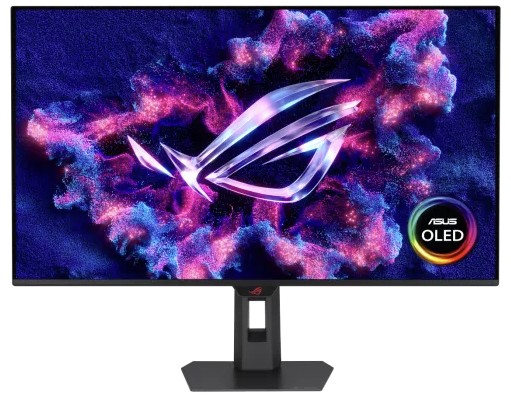
The ROG Strix OLED XG32UQWMS gaming monitor is planned for release in September 2026. ASUS provided a sample, but the company had no input on the article nor saw its contents before publishing.
OLED gaming monitors have been around for a while, but concerns about text clarity and burn-in left me less excited to buy something like the ASUS ROG Strix OLED XG32UQWMS. Given the chance to test an upcoming model from its range shown at Computex earlier this year, I couldn't resist, and my review could be the moment that helps me overcome my apprehension. Here's what I learned.
How much does the 32-inch Strix OLED cost?
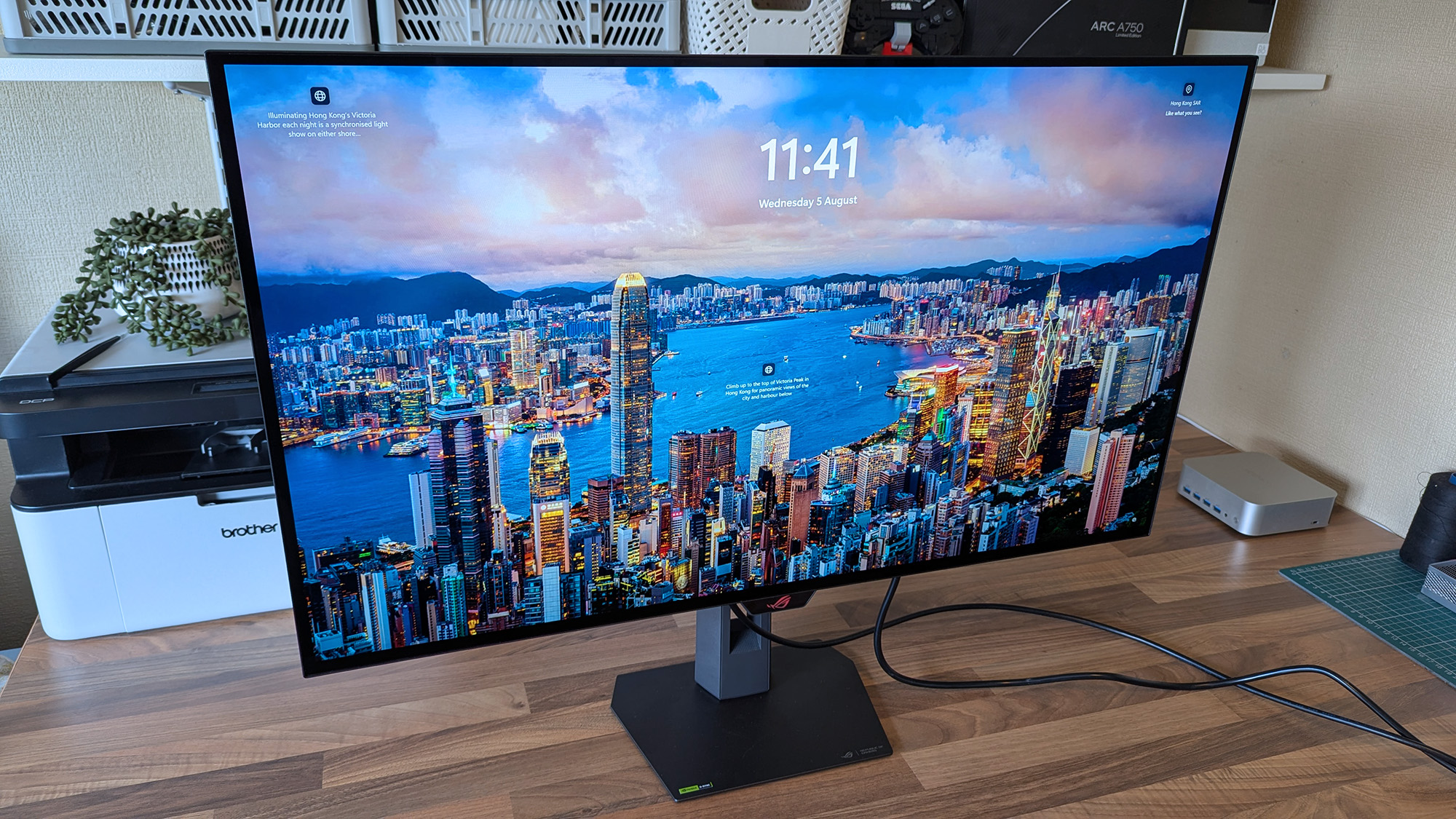
4K looks fantastic in Windows 11, and UHD is perhaps better suited to gaming if you don't want to stress your PC. (Image credit: Ben Wilson | Windows Central)
The ROG Strix XG32UQWMS is targeting a September launch for $899, with specific US retailers to be confirmed. In the United Kingdom, that converts to £819, with planned third-party resellers including Amazon UK, Currys, and Very. In the meantime, you can sign up for availability notifications on the monitor's official ASUS listing for your region.
ROG Strix XG32UQWMS sample specifications
Component
Spec
Display type
WOLED
Resolution
UHD (3840 x 2160) FHD (1920 x 1080)
Refresh rate
240 Hz (UHD) 480 Hz (FHD)
Brightness
330 cd/m² (typical) Up to 1,500 cd/m² (peak)
Viewing angle
178°/ 178° (vertical/horizontal)
Response
0.03 ms (Gray-to-Gray)
Dimensions
28.27" x 22.13" x 7.40" (71.8 x 56.2 x 18.8 cm)
Weight
10.64 – 14.46 lbs (4.83 – 6.56 kg)
Originally announced at Computex 2026, ASUS targets a September launch in the United States at $899, with sign-ups offered for availability notifications.View Deal
Is the 32-inch Strix OLED easy to set up?
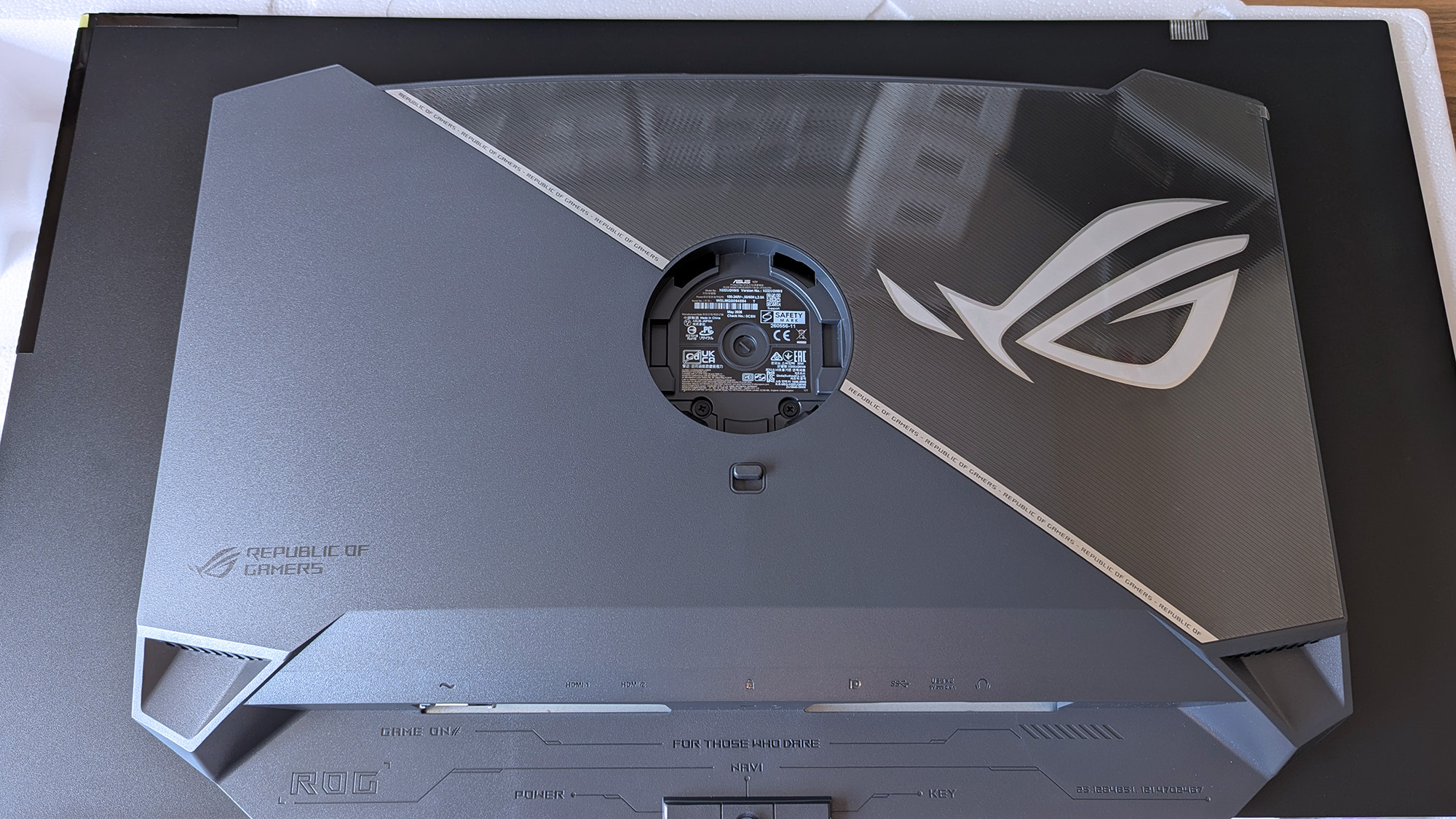
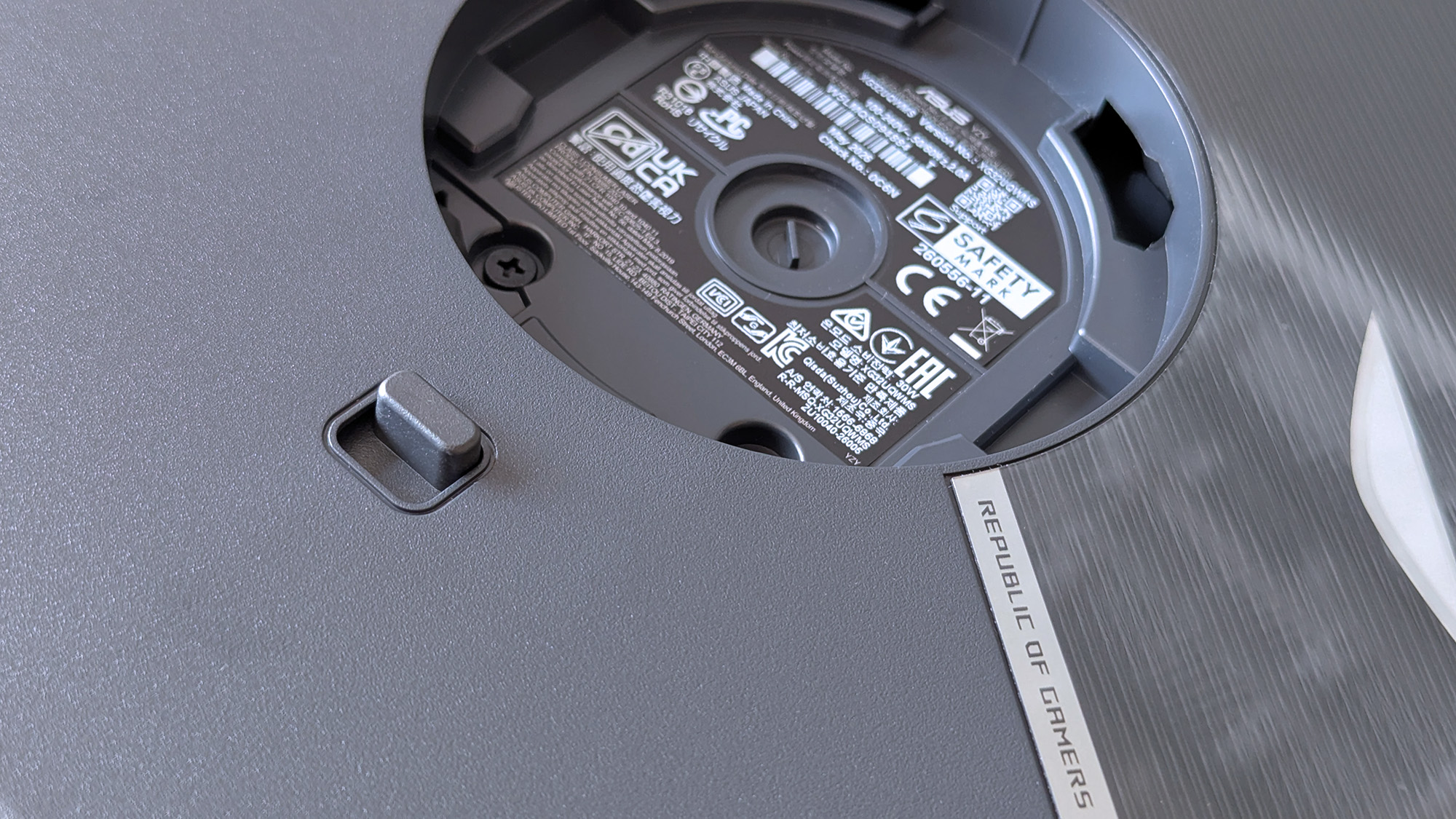
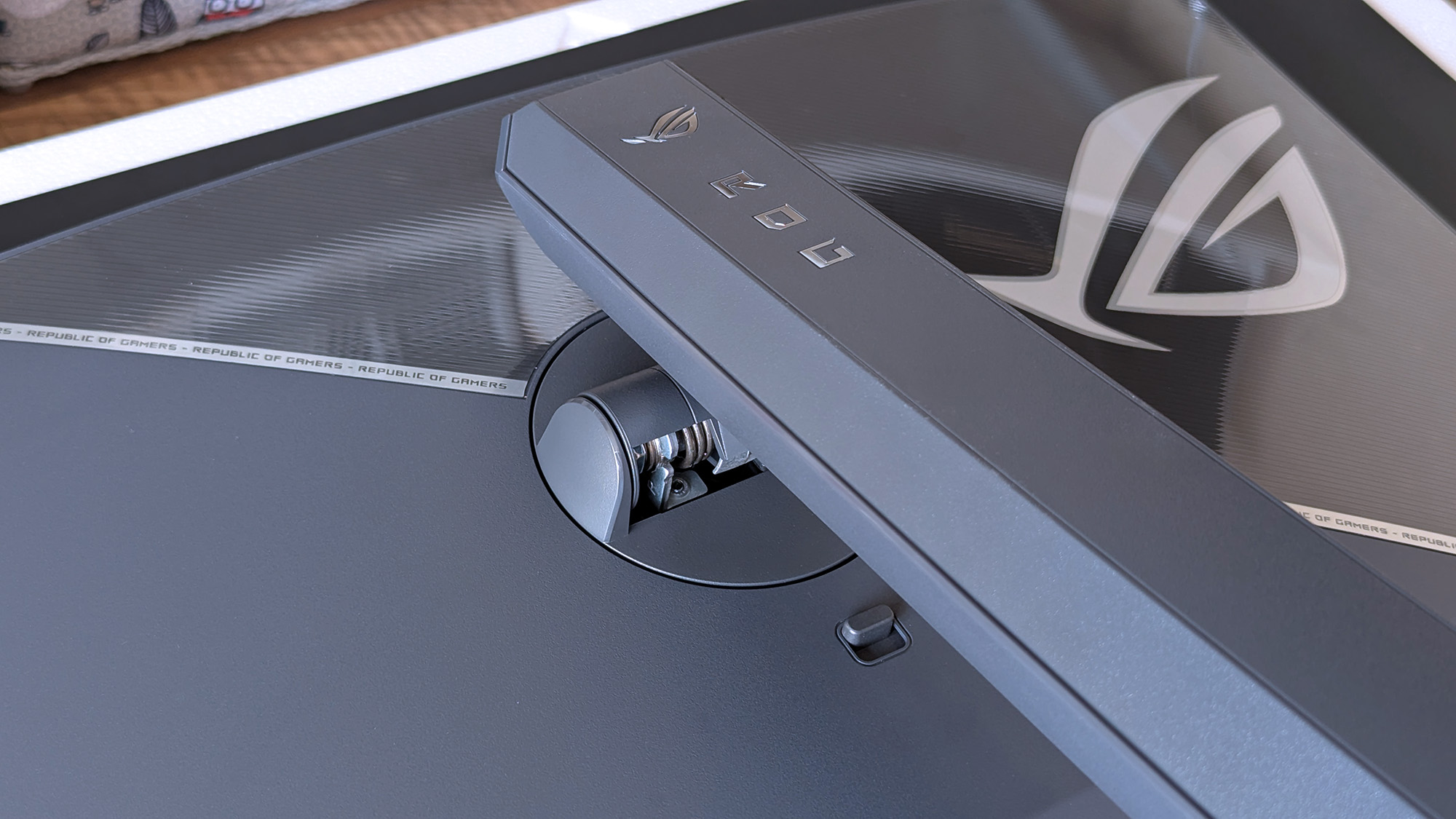
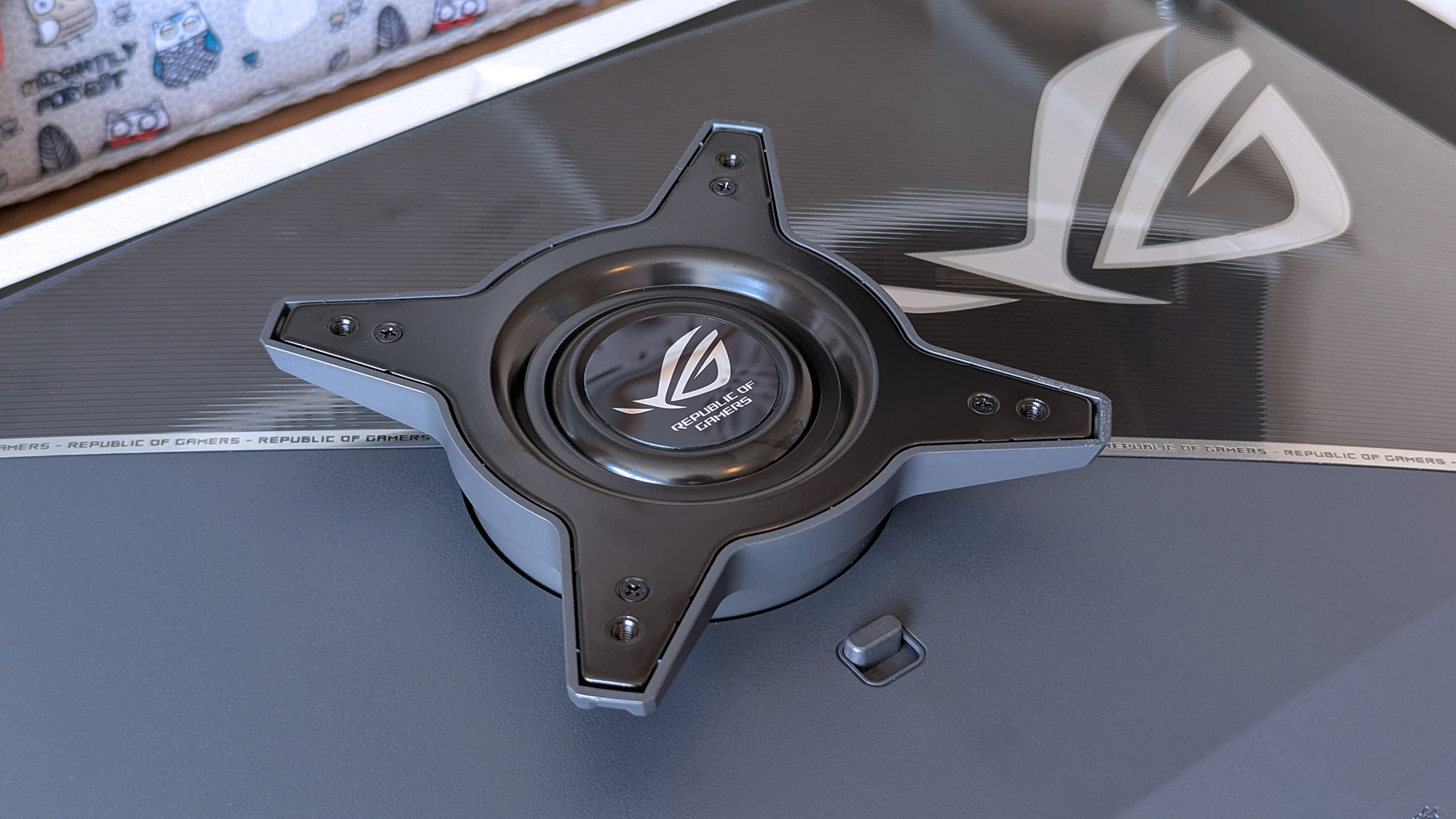
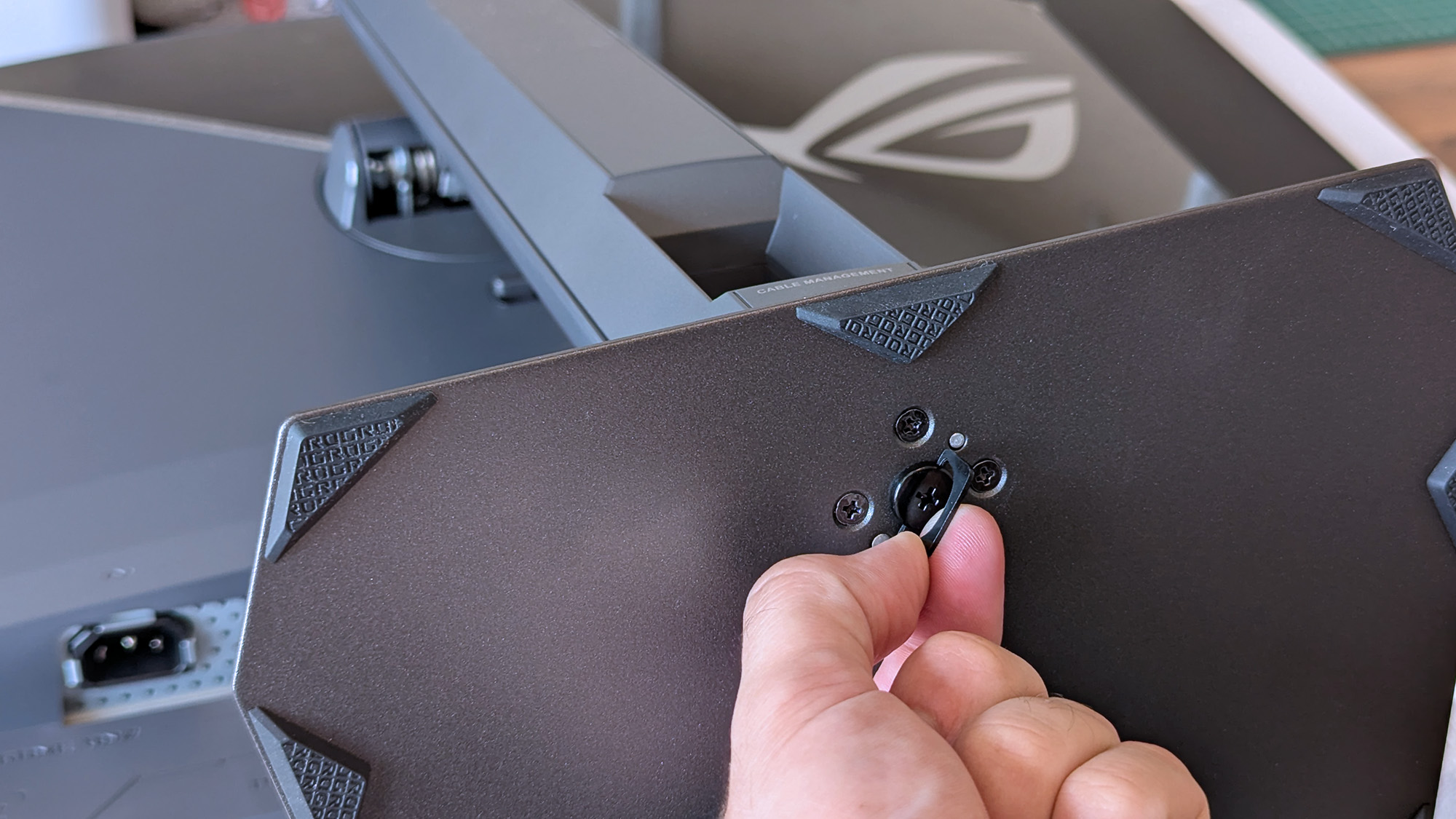
The chunky middle section makes it much easier to move this monitor around.Ben Wilson | Windows CentralThis push-button release system is inspired and makes the stand easy to attach.Ben Wilson | Windows CentralThe height-adjustable table stand is heavy, but it's definitely sturdy.Ben Wilson | Windows CentralIf you prefer a VESA mount, you'll have to provide your own screws.Ben Wilson | Windows CentralThe footplate fixes tight with a simple thumbscrew and feels secure.Ben Wilson | Windows Central
I'm a big fan of toolless setups wherever they appear, and ASUS ROG wins points for delivering a straightforward process here. Everything hinged on a push-button release mechanism that either gripped the stand or the VESA mount; I used the former and attached the footplate with a simple thumbscrew.
I'm a big fan of toolless setups wherever they appear, and ASUS ROG wins points for delivering a straightforward process here.
The display alone weighs 9.92 lbs (4.5 kg), and adding the VESA mount brings the total to 10.64 lbs (4.83 kg) in a mounted setup. Otherwise, the foot plate and strut together weigh 4.54 lbs (2.06 kg), controlling height with a sturdy but not overly stiff response. On my desk, the monitor is 14.46 lbs (6.56 kg) overall.
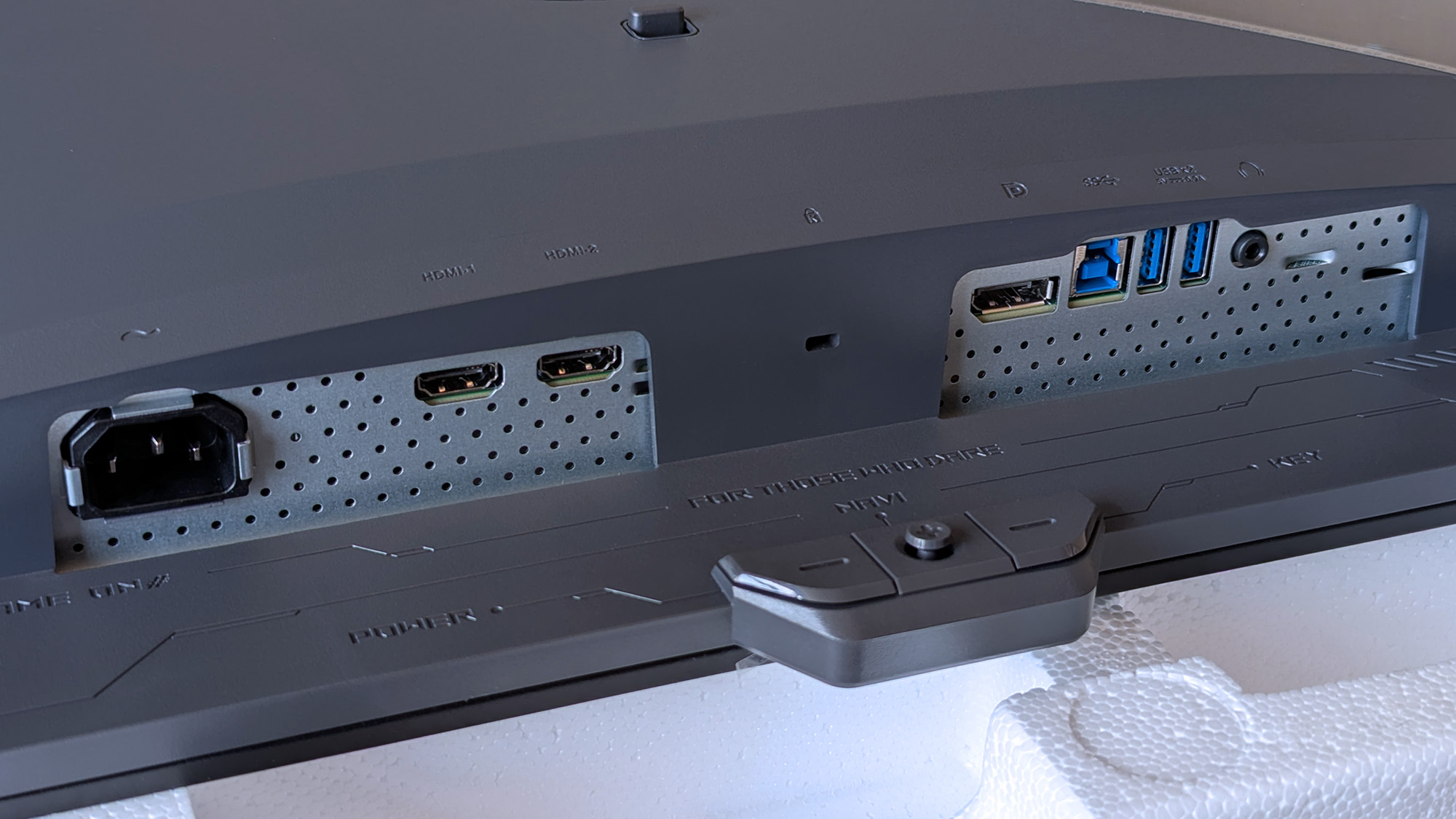
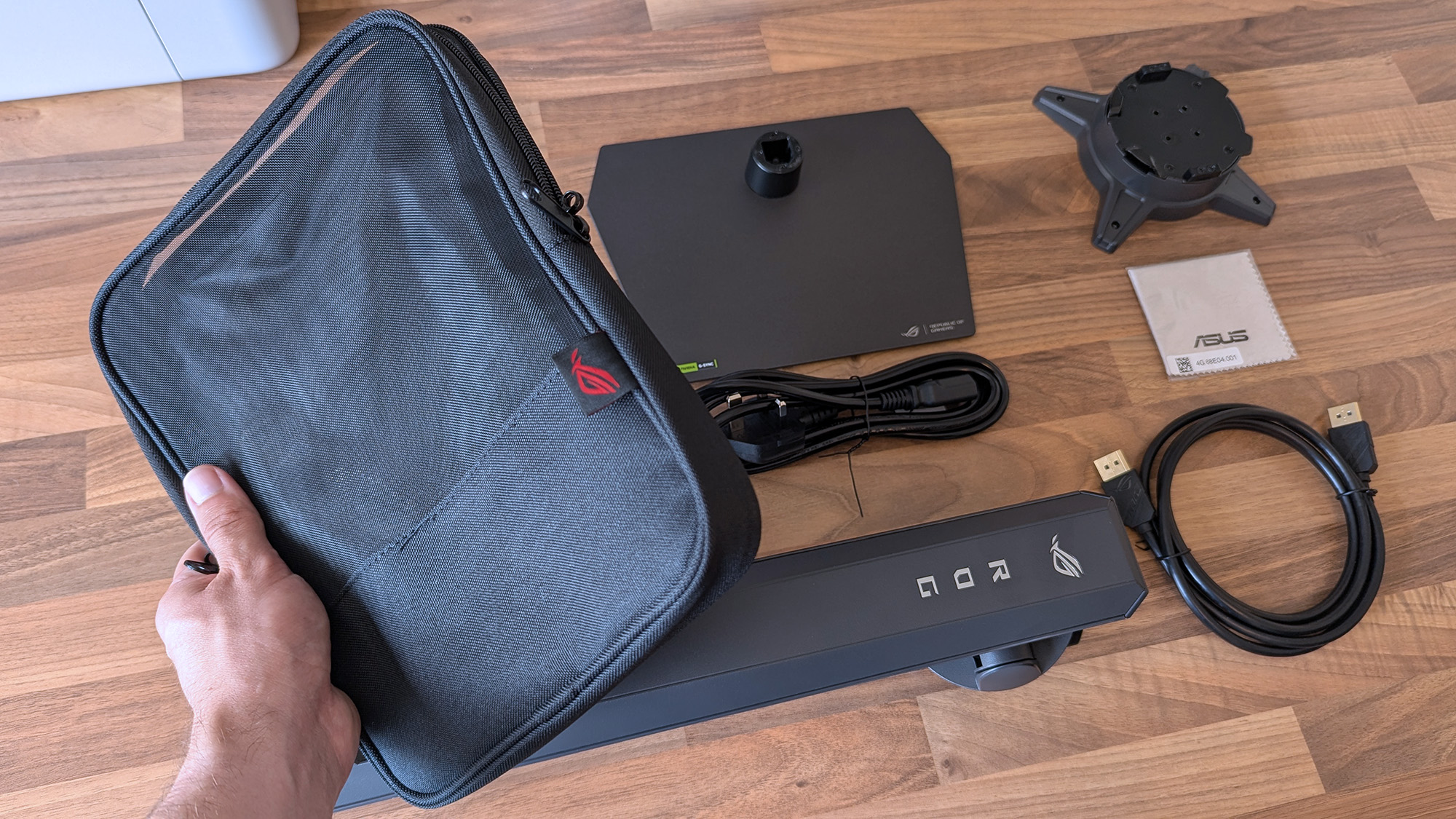
Ports aplenty, but you only get a DisplayPort cable and AC power in the box.Ben Wilson | Windows CentralThe proximity sensor helps the monitor automatically dim when I move away, preventing burn-in.Ben Wilson | Windows CentralASUS throws in a cute pouch for spare parts I won't use.Ben Wilson | Windows CentralA big, satisfying peel of a protective plastic film under the advertisements is all that remains.Ben Wilson | Windows Central
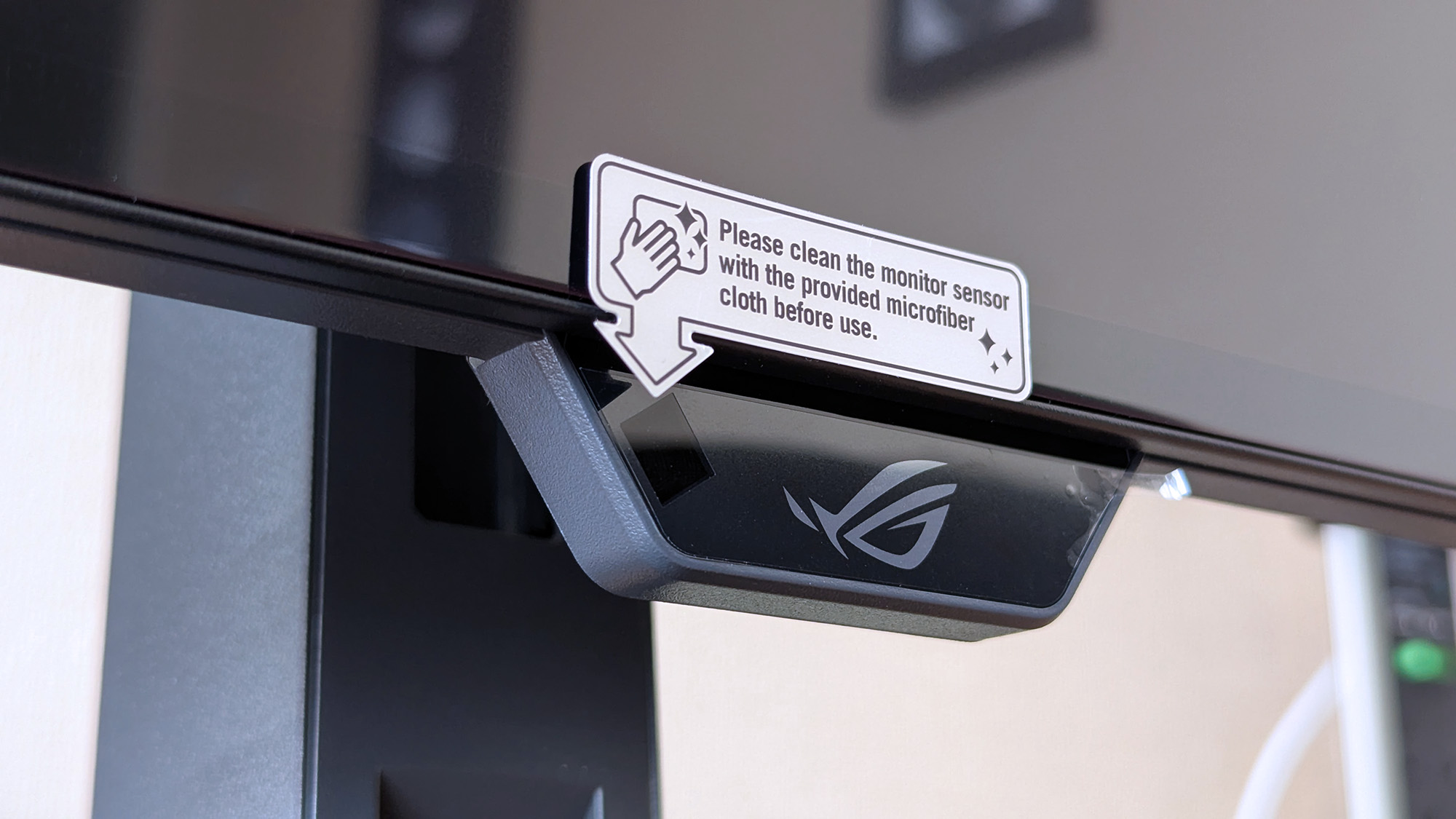
Attaching the stand gave me a clear view of the ports and navigation via the multi-function button (MFB) located behind the bottom-mounted ASUS ROG logo and its accompanying "Neo" proximity sensor. It's a pretty standard affair that matches rival brands, and its controls should feel familiar to most people.
While there are two HDMI 2.1 ports, a pair of USB-A 3.2 Gen 1 with a hub port, and a headphone jack, there's only a single DisplayPort cable in the box for its matching DP 1.4 port, along with the AC cord. Bundling a free USB-B cable shouldn't be too expensive, and I'm disappointed to see it missing here.
Does the 32-inch Strix OLED look good?
Now that I've played on an OLED monitor, it'll be hard to go back to my IPS screen. (Image credit: Ben Wilson | Windows Central)
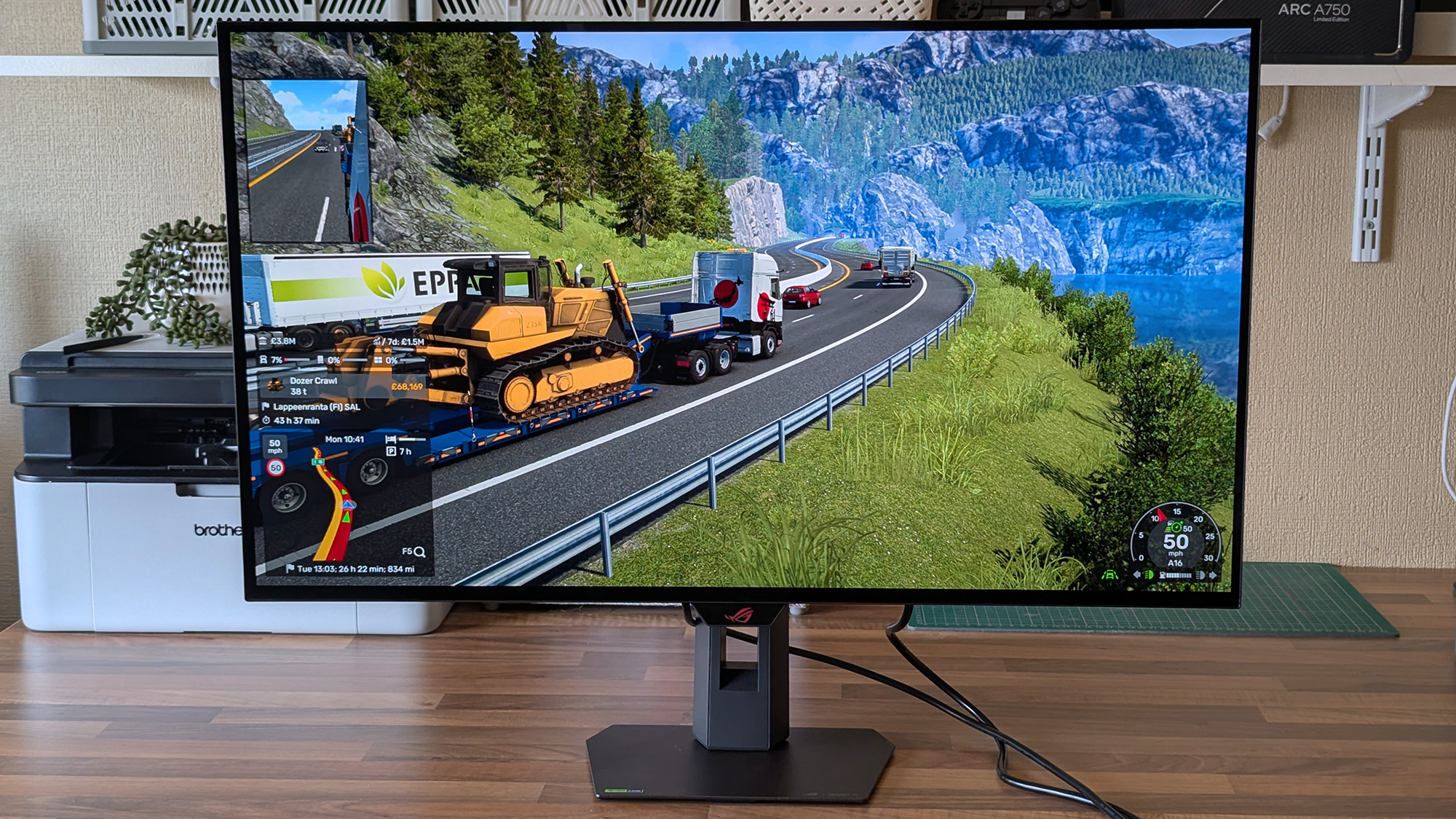
Moving from a 27-inch IPS Alienware monitor to an OLED panel made its benefits immediately obvious, with an experience similar to the one I get from my LG C2 TV in the living room. High contrast, deep blacks, and crisp visuals come with its 4K resolution and that smooth 240Hz refresh rate. Windows 11 adjusted my settings accordingly, and the monitor looks great out of the box.
The UHD @ 240Hz mode looks fantastic, and I'm left wondering who would ever want to switch to 1080p for the sake of 480Hz on a 32-inch display.
In motion, the UHD @ 240Hz mode looks fantastic, and I'm left wondering who would ever want to switch to 1080p for the sake of 480Hz on a 32-inch display. I know it has its place in ultra-competitive shooters like Counter-Strike 2 and its many rivals, but 240Hz still feels like plenty to me. If you're the target audience, I think you'll be happy, because FHD gameplay still looks quite good.
There are plenty of visual tweaks to make in the OSD, primarily balancing brightness, if you need them.Ben Wilson | Windows CentralText looks fine, aided mostly by the sheer clarity offered by 4K in the first place.Ben Wilson | Windows Central
Up close, the clarity of on-screen text looks fine; nothing particularly groundbreaking, but nothing looks noticeably fringed when I sit at a comfortable distance in UHD mode. Adjusting ClearType in Windows 11 might give results that better suit you, but I didn't feel like anything looked out of place during my usual daily work and gaming.
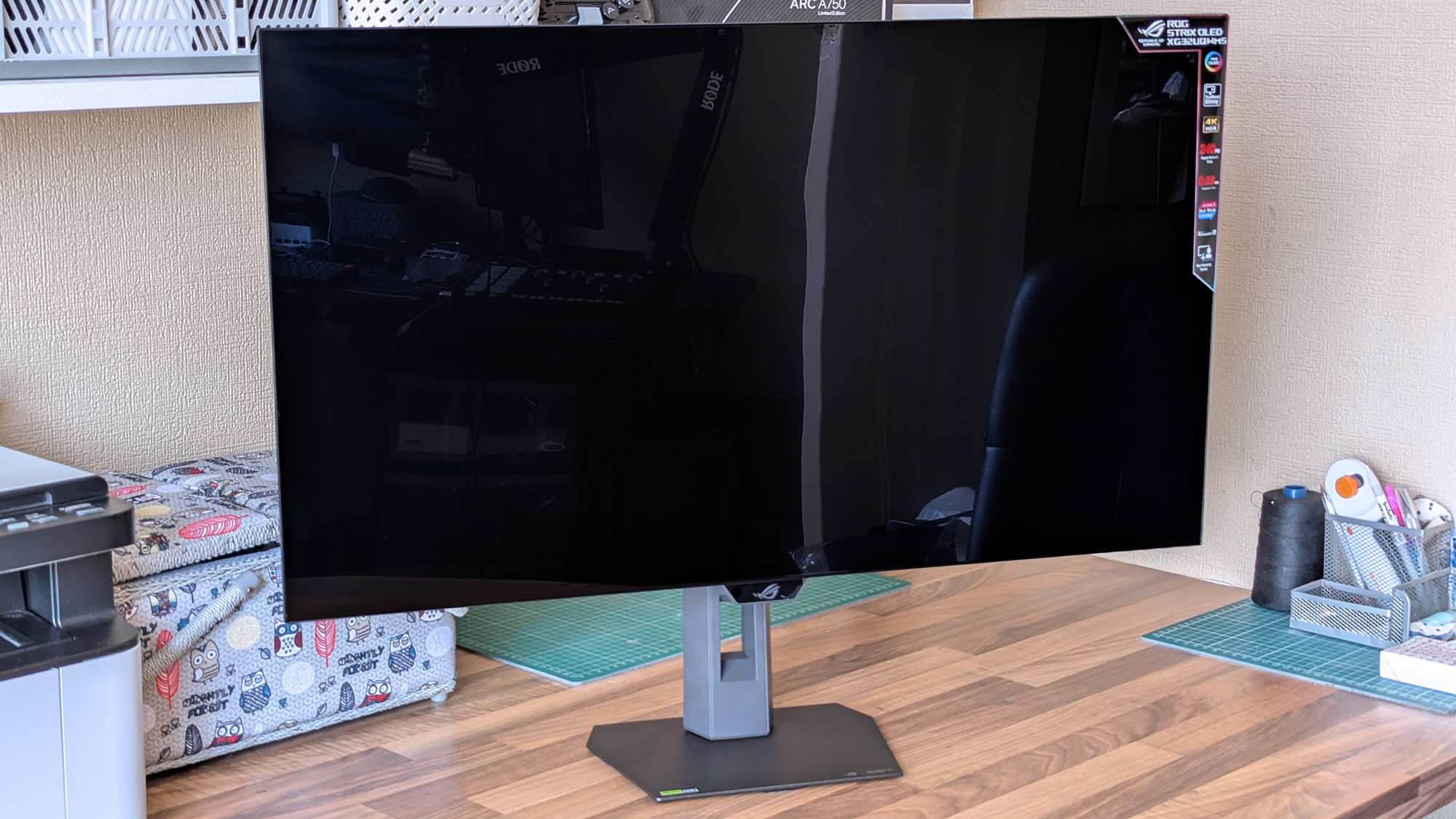
The OSD is at least easy to navigate, and I could install the DisplayWidget Center if I really wanted to use a mouse to tweak several settings at once. Otherwise, the "TrueBlack Glossy" panel looks significantly darker at a glance than the other screens in my office, which certainly helps with the deep blacks OLED is famous for, and I found the visible room reflections were tolerable.
Testing the display
Out of the box, the XG32UQWMS defaults to "Racing mode", hitting 99% of the DCI-P3 color gamut as advertised, and sRGB accuracy earns a perfect score, while Adobe RGB maxes out at 93%. Without changing settings, a 100% brightness level reached around 306 to 311 nits, so getting it to 330 nits will require a bit of tweaking. On the whole, I'm satisfied with its stock settings.
Should you buy the 32-inch Strix OLED?
At this price, it's certainly considered an investment, but burn-in prevention tools make it much easier to recommend. (Image credit: Ben Wilson | Windows Central)
You should buy this if ...
✅ You want an OLED monitor built for preventing burn-in
✅ You're a competitive gamer who thrives on high refresh rates
You should not buy this if ...
❌ You want an out-of-the-box USB hub monitor
A built-in presence sensor probably sets off alarm bells for some gamers, but the proximity detection is literally there to help protect this OLED panel by switching off when you walk away. That, along with adjustments to uniform brightness and pixel-cleaning settings, helps prevent burn-in, which was my biggest concern with monitors like these. ASUS definitely could have thrown in a free upstream USB cable for its hub, but the display itself is solid, so it still wins praise.
ASUS ROG
Strix OLED XG32UQWMS
Due for release in September 2026, this OLED gaming monitor should be at the top of your considerations if you're shopping around.
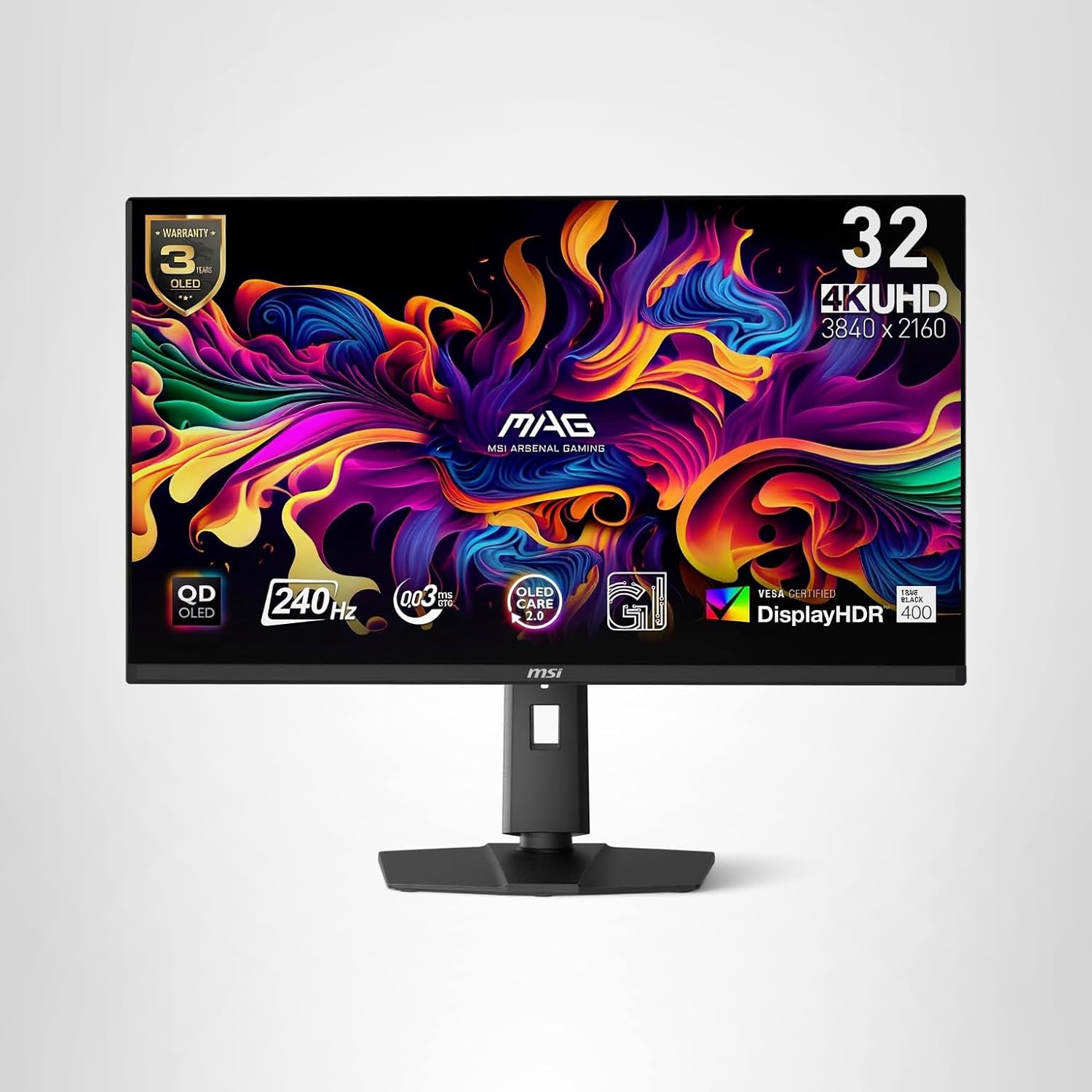
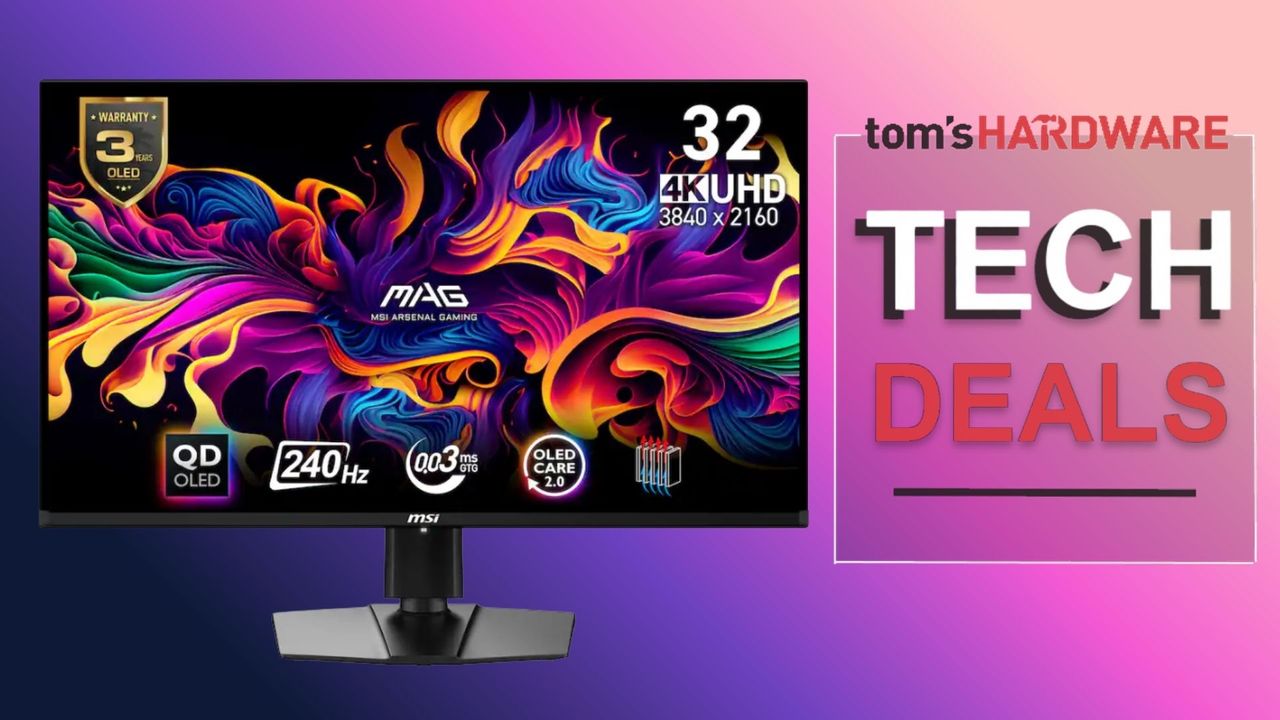
If you don't have the cash reserves to fund a new GPU, RAM, or SSD, then consider upgrading the visuals on your PC with a new monitor. Upgrading the size or the panel from IPS/VA to OLED can give your games a vivid visual boost. At Best Buy, you can currently grab the magnificent MSI MAG 321UPXB gaming monitor, returning to its lowest-ever price of $599.99. That's a saving of $130 from the original $729.99 list price on the Best Buy store page.
The MSI MAG 321UPXB is a premium gaming monitor with all the bells and whistles for producing stunning images. The monitor is a flat-panel with a 32-inch viewable area and a high-detail 4K (3,820 x 2,160) UHD resolution. The QD-OLED panel has a fast refresh rate up to 240Hz and a blisteringly fast 0.03ms gray-to-gray response time thanks to the OLED panel tech. The combination of fast refresh and response times produces very smooth motion in games and eliminates ghosting artifacts.
The display also has an anti-reflective treatment to avoid light sources disrupting your viewing experience, plus it is compatible with Nvidia's G-Sync technology to help eliminate screen tearing by matching the monitor's refresh rate to the output of the game you're playing. To hit the high refresh rates of this monitor, you will require a powerful graphics card or use frame-generation techniques to boost frame rates. So you don't need to worry about the refresh rate of this gaming monitor bottlenecking your gaming PC.
MSI's MAG 321UPXB is a great 32-inch QD-OLED 4K gaming display. Get up to a 240Hz refresh rate, 0.03ms response time, and support for HDR 400. Connectivity includes USB-C and HDMI. View Deal
The MSI's panel is DisplayHDR True Black 400-certified and supports VRR (variable refresh rate) for gaming consoles like the PlayStation 5 and Xbox Series X. Ports are also plentiful, with two HDMI 2.1, one DisplayPort 1.4a, and one USB-C (DisplayPort Alt Mode) to choose from. For peace of mind, there's also a 3-year manufacturer's warranty that includes coverage for the dreaded OLED burn-in.
The MAG 321UPXB has a list price of $729.99 at Best Buy, but is currently $599.99 for a limited time only.
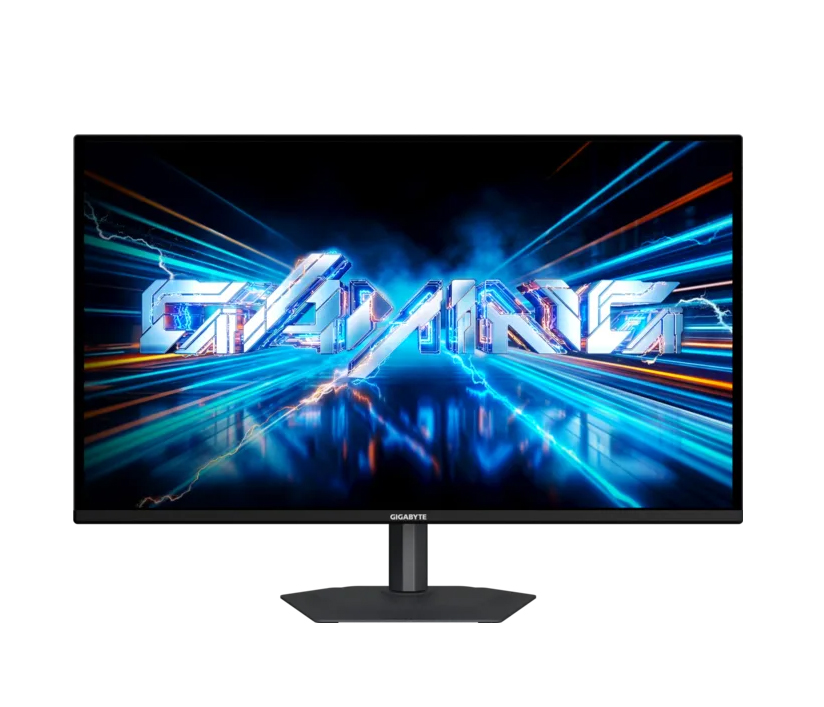
The ongoing global memory crisis has made upgrading an existing PC or building a new one a lot more expensive, with RAM, SSD, and graphics card prices all climbing in recent months. However, gaming monitors have become far more affordable than they were just a couple of years ago, especially when it comes to OLED. If you are looking for a new display for your setup, you could consider the Gigabyte GO27Q24A, a 27-inch QHD 240Hz QD-OLED monitor which is currently down to just $299.99 from its usual listed price of $449.99 on Newegg.
The monitor offers pretty decent specs for the asking price including a third-gen 27-inch QD-OLED panel with a 2560x1440 resolution, which is considered the sweet spot for most gaming setups. It also offers a fast refresh rate of 240 Hz and a response time of just 0.03ms GTG, which makes it perfect for fast-paced games without compromising on the visual fidelity. For esports lovers, the monitor comes with a feature to quickly switch display resolutions or swap to a specific aspect ratio (such as a 4:3 ratio or a dedicated 24-inch custom format size) with a single click using a dedicated physical button.
Gigabyte's 27-inch gaming monitor packs a third-gen QD-OLED panel with a 1440p resolution and support for up to 240 Hz refresh rate, 10-bit color, 99% DCI-P3 coverage, and fast response time of 0.03ms GTG. View Deal
In terms of color, Gigabyte claims up to 99% coverage of the DCI-P3 gamut with support for up to 10-bit color and a factory calibrated Delta E<2 rating. With a peak brightness of 400 nits in HDR, expect lower brightness levels at SDR, though it should be enough for most indoor use cases. Gigabyte has also added Black Equalizer 2.0 which essentially improves visibility in dark scenes by enhancing shadow detail without over-exposing the rest of the image.
As for connectivity, you get two HDMI 2.1 ports and a Displayport 1.4, meaning you can hook this up to your console alongside your PC or laptop. There’s even a standard 3.5mm earphone jack to plug in your headphones or speakers.
For $299.99, the Gigabyte GO27Q24A is one of the most affordable ways to step into OLED gaming without sacrificing key features like a high refresh rate, HDMI 2.1 connectivity, and a 1440p resolution. It may not be the brightest QD-OLED gaming monitor on the market, but at this price, it's hard to complain.
Große 4K-Monitore bieten ausreichend Arbeitsfläche für Bildbearbeitung, Videoschnitt, umfangreiche Tabellen oder mehrere gleichzeitig geöffnete Fenster. Besonders praktisch sind Modelle, die etwa ein Macbook über ein einzelnes Kabel mit Bild, Daten und Strom versorgen können.
Der BenQ PD3225U kostet bei Amazon aktuell nur 849 Euro statt der üblichen 912,99 Euro. Das entspricht einer Ersparnis von 7 Prozent. Zuletzt wurden mindestens 869 Euro verlangt, im Durchschnitt liegt der Preis ungefähr auf Höhe des Statt-Preises. Das aktuelle Angebot ist daher besonders attraktiv. Der Händler führt den Monitor zudem als “Amazons Tipp”.
Was der BenQ PD3225U zu bieten hat
Der 32 Zoll große LCD-Monitor löst mit 3.840 x 2.160 Pixeln im Seitenverhältnis 16:9 auf. Die Bildwiederholrate beträgt 60 Hertz, die Reaktionszeit 6 Millisekunden. Damit richtet sich das Modell vor allem an Foto- und Videobearbeiter sowie produktive Mac-Nutzer und weniger an Spieler, die eine besonders hohe Bildrate erwarten. Freesync wird dennoch unterstützt.
BenQ setzt auf IPS-Black-Technologie mit einem Kontrastverhältnis von 2.000:1. Der Betrachtungswinkel liegt bei 178 Grad. AQColor-Technologie, HDR sowie die Unterstützung von Display P3, DCI-P3, sRGB und Rec.709 sollen eine präzise Farbdarstellung ermöglichen. Der Monitor ist bereits ab Werk kalibriert und deckt laut Produktangaben 99 Prozent des angegebenen Farbraums ab.
Über Thunderbolt 3 können Sie Bild, Video, Daten und bis zu 85 Watt Ladeleistung über ein einziges Kabel übertragen. Die Bandbreite liegt bei bis zu 40 Gbit/s. Per Daisy-Chain können bis zu zwei 4K-UHD-Monitore miteinander verbunden werden.
Zur weiteren Ausstattung gehören zwei HDMI-Anschlüsse, ein Displayport, ein Thunderbolt-3-Anschluss sowie ein USB-Hub mit drei USB-3.0-Anschlüssen. Amazon nennt insgesamt vier USB-Ausgänge. Unterstützt werden außerdem USB-C, USB-B, USB 3.2 Gen 2, Kopfhörer, der mitgelieferte Hotkey Puck G2 und eine KVM-Funktion. Letztere erlaubt es, mehrere angeschlossene Computer mit derselben Tastatur und Maus zu bedienen.
Das Modell misst 27,3 x 71,5 x 47,8 Zentimeter und wiegt 14,2 Kilogramm. Der Standfuß lässt sich hoch positionieren, sodass der Bildschirm oberhalb eines aufgeklappten Notebooks stehen kann.
Kompatibel ist der Monitor mit Macs sowie Geräten, die Thunderbolt 3, Displayport, HDMI oder USB-C unterstützen.
Warum sich das Angebot lohnt
Mit durchschnittlich 4,3 von 5 Sternen aus knapp über 60 Bewertungen wird der BenQ PD3225U überwiegend positiv beurteilt. Nutzer loben vor allem die Bildqualität, die große Arbeitsfläche und die Zusammenarbeit mit Macbook Pro und Mac Mini. Besonders häufig wird das Modell für Videoschnitt, Farbkorrektur, Präsentationen, Designarbeiten und Programmierung empfohlen.
Kritik gibt es an den integrierten Lautsprechern, deren Klang ein Käufer als deutlich schlechter als bei einem 27-Zoll-iMac beschreibt. Ein anderer Kunde berichtet von einer ungewöhnlich langsamen Ladegeschwindigkeit seines Macs, vermutet jedoch einen Defekt.
Wer einen schnellen Gaming-Monitor, besonders gute Lautsprecher oder ein kompakteres Modell sucht, sollte Alternativen prüfen. Für Mac-Nutzer sowie Foto- und Videobearbeiter, die viel Arbeitsfläche, eine präzise Farbdarstellung und eine Ein-Kabel-Verbindung benötigen, ist der BenQ PD3225U zum aktuellen Preis von 849 Euro dagegen interessant.
A new option for the Copilot key has been spotted in testing
Windows 11 users are getting the ability to remap it to 'Do nothing'
This comes on top of work already underway to redefine the key to Right Ctrl or the context menu
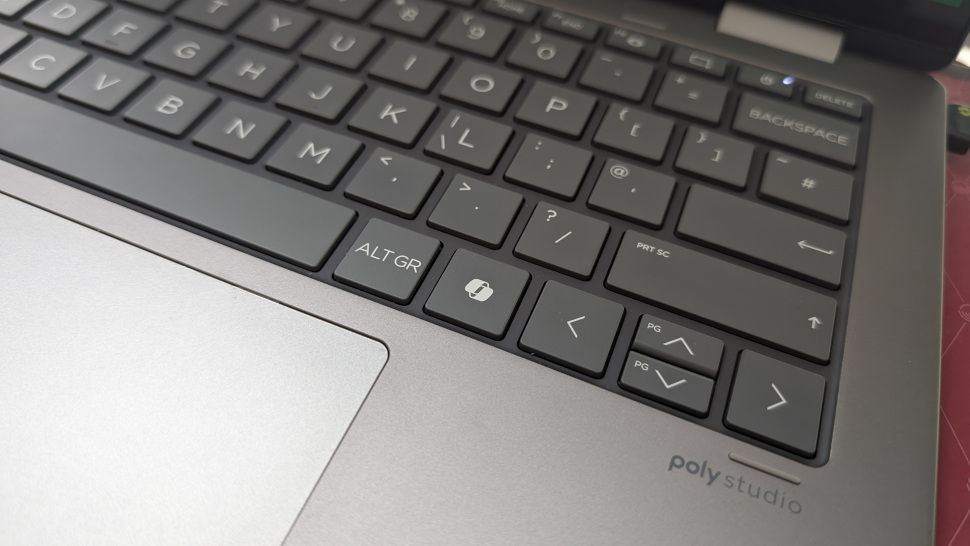
Microsoft's latest revolutionary idea for Windows 11 is to have a key on your keyboard which can be remapped to do absolutely nothing.
Windows Latest noticed the latest twist in the tale of the Copilot key, as highlighted by regular leaker PhantomOfEarth on X, who spotted the development hidden in a recent Windows 11 preview build.
In the choices to customize the Copilot key – which, by default, summons Windows 11's Copilot AI (of course) – there's a new option to simply 'Do nothing'.
Yes, that's correct – you can change the key to simply be a pointless piece of plastic that does precisely zip. (Or at least you'll be able to in testing, when this ability comes into play, that is, although some Windows 11 testers have reportedly seen it live in preview already).
As you may have seen earlier this year, Microsoft is working on bringing fresh options to the Copilot key that include customizing it to invoke the context (right-click) menu, and to turn it back into Right Ctrl (which was the key that the Copilot button replaced on Copilot+ laptops and some keyboards).
Analysis: do nothing, be happy
(Image credit: rui vale sousa / Shutterstock)
What's the point of a key that does nothing? Good question. Maybe it's the keyboard equivalent of a stress ball – you can hammer on that key as much as you want when you're really annoyed, and it won't splurge a load of characters into the document you're working on as you exorcise your frustrated demons.
Okay, so maybe not, but perhaps the idea is that this is aimed at people who really hate the Copilot key, but haven't decided what they might want to remap it to. So, they can go ahead and elect for the key to do nothing if it's accidentally hit, while they figure out what they might want to redefine in its place. That's stretching things, admittedly, but it's the best guess I have.
At any rate, it's a harmless enough option, although it feels inescapably odd to have a 'blank' key on your keyboard. How far we've fallen since the Copilot key was first revealed and trumpeted by Microsoft as the biggest thing to happen to keyboards in 30 years since the Windows key was introduced. And indeed more recently, Microsoft promoted the Copilot key as the "button you can press to fix everything", so there's some irony that it could soon (optionally) become the button you can press to fix 'nothing' in a very literal sense.
Don't forget that you don't have to wait for Microsoft's Copilot key remapping functions to arrive in the release version of Windows 11. You can use the Keyboard Manager in PowerToys to do this instead, although it'll be far neater to have these options in Windows 11's settings, of course.
The app, LG Monitor App Installer, installs itself through a Windows Update alongside monitor driver updates. LG Monitor App Installer then pushes ads for a 30-day free trial for McAfee, as well as other software, via a pop-up on affected systems, multiple users have reported.
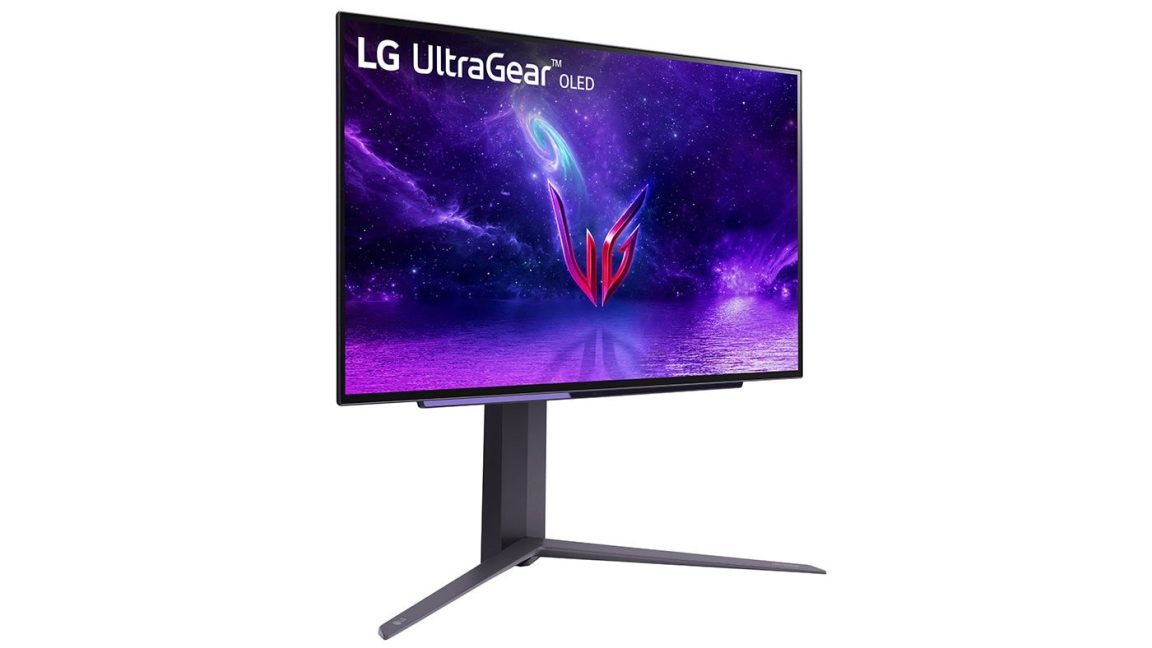
This has drawn negative attention recently, with complaints surfacing on Reddit and a subsequent video from YouTube channel Gamers Nexus. In the video, editor-in-chief Steve Burke said that the publication paid $1,200 for an LG UltraGear 3GX900A-B gaming monitor (the monitor’s price dropped to $600 two days later, Burke said) for testing and replicated the behavior “several times” across “multiple” Windows 11 systems.
The app, LG Monitor App Installer, installs itself through a Windows Update alongside monitor driver updates. LG Monitor App Installer then pushes ads for a 30-day free trial for McAfee, as well as other software, via a pop-up on affected systems, multiple users have reported.
This has drawn negative attention recently, with complaints surfacing on Reddit and a subsequent video from YouTube channel Gamers Nexus. In the video, editor-in-chief Steve Burke said that the publication paid $1,200 for an LG UltraGear 3GX900A-B gaming monitor (the monitor’s price dropped to $600 two days later, Burke said) for testing and replicated the behavior “several times” across “multiple” Windows 11 systems.
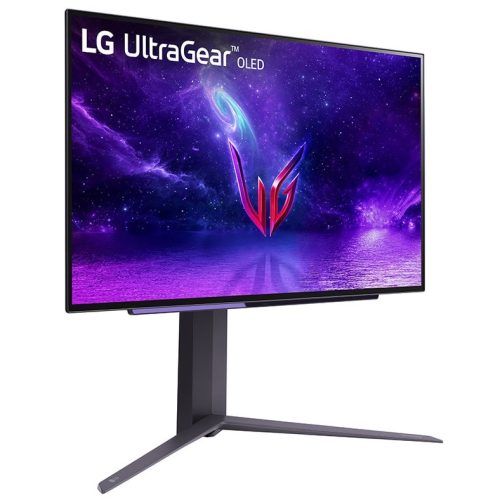
Users says they've observed LG gaming monitors automatically installing unwanted software on PCs
LG's terms of service warn that conversations may be "captured and processed" on TV with the latest version of webOS
The terms say you must now warn guests they may be recorded "in compliance with applicable wiretapping… laws"
How smart should a smart TV be? According to LG's latest TV terms and conditions, the answer is "not quite smart enough to comply with wiretapping laws", because that's now your responsibility if LG captures the voice of a guest in your house through its AI voice services. Though the situation with LG monitors appears to be even more dramatic.
As Gamers Nexus reports, some LG monitors appear to be installing adware on Windows PCs without asking for permission: in addition to the LG Monitor App Installer, they also install McAfee Scam Detector.
LG's own app requires full access to all system resources, which potentially includes all your online activity, logins, hardware, location and more — while McAfee has a long history of being installed on devices as 'bloatware', and people are not reacting positively to suddenly finding it on their PC.
There may be a perfectly innocent explanation for all of this, but when big tech firms keep getting caught doing bad things because they thought they could get away with it, it's no wonder people are assuming the worst.
The bit that's causing consternation regarding smart TVs is part 6(d) of the new LG Electronics terms of service, headed Voice Recognition and Privacy Compliance.
As Notebookcheck's Hannes Brecher notes, the section states that it's your responsibility "to obtain all necessary consents from any third parties whose voices may be captured by the Product and to notify household members and guests that their voices may be captured and processed, in compliance with applicable wiretapping, eavesdropping, and privacy laws."
There are three ways around that. One, you can turn off all microphone-based features. Some people won't mind that, but they can be useful — especially asking it for settings you don't know how to find.
Two, you can avoid installing the latest software — but that means you won't get any security updates, which are important (to protect your privacy, ironically, among other things).
Or you can disable your TV's connection to the internet so it can't send information back, but that obviously makes it less useful, and will also disable the voice controls anyway.
I think the terms and conditions are an attempt at corporate ass-covering rather than something sinister: the preceding paragraph talks specifically about when "a product with voice recognition functionality is used" and it's possible that "family members, guests, children, and bystanders" might be overheard; if you're choosing to activate AI-based voice features then of course voices are going to be captured and processed in order for those features to work.
At the same time, it does seem broad enough to let LG use people's voices as AI inputs, rather than just accidental capture. And in the context of what LG's doing with PC monitors (not to mention AI training's very, ahem, casual relationship with consent and copyright), that's a worry — and people online increasingly have no tolerance for anything like this, as the responses on Reddit and Gamers Nexus' original YouTube video have shown.
We've approached LG for comment on these claims, and will update the story when we hear back.
The gaming monitor market is filled with high-quality displays that offer enough features to provide the most immersive gaming experience. OLED monitors are right at the forefront of monitors in achieving the latter, with exceptional deep black levels thanks to their high contrast ratio.
It's not all just about the panel type, though. The display resolution, refresh rate, response times, and brightness levels all play a significant part in allowing monitors to blossom, and all of those aspects also determine pricing (outside of potential market condition changes).
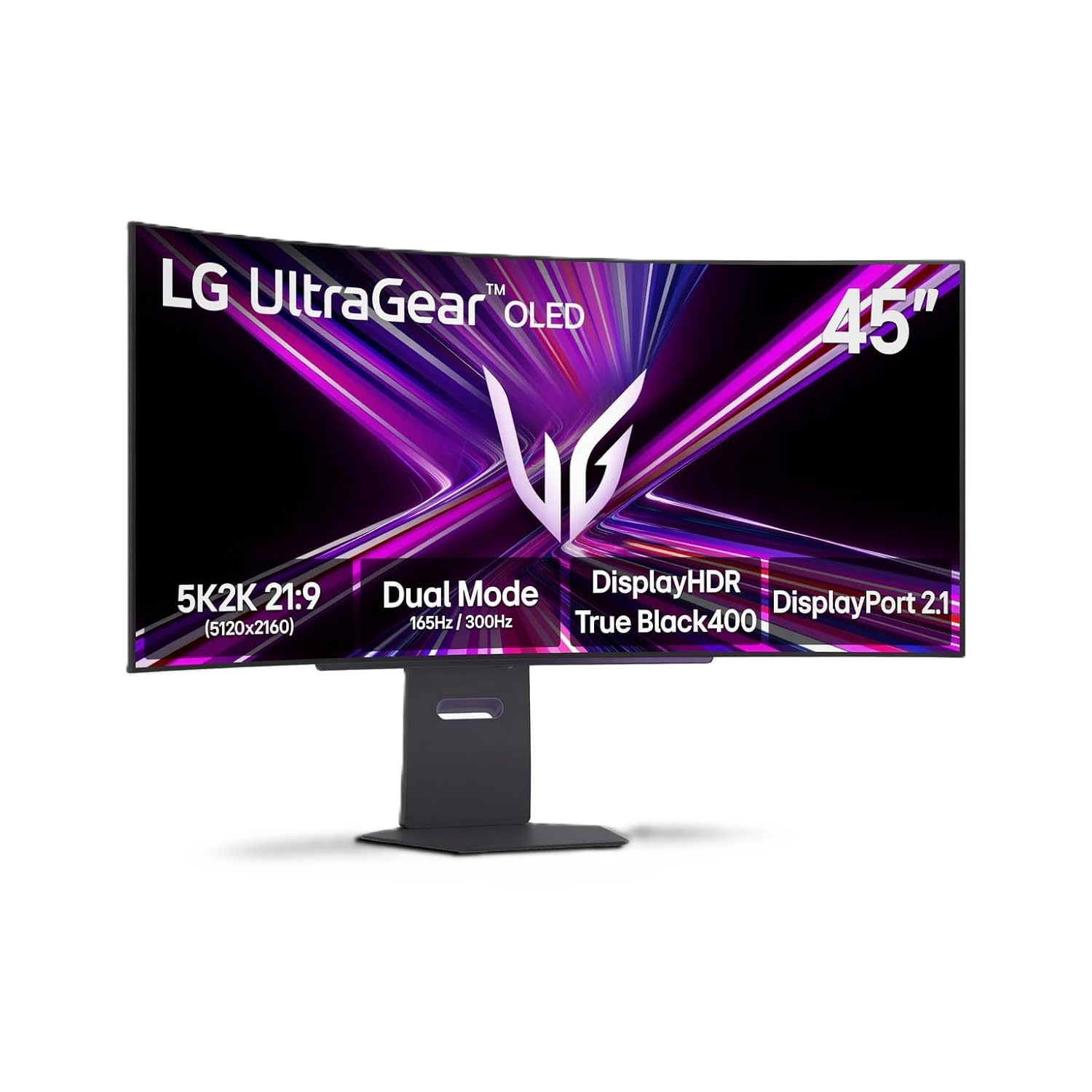
That's exactly where the LG UltraGear 45GX950A-B comes into play. It's a 5K2K ultrawide OLED monitor, which means its display resolution is 5120x2160, with even sharper image quality than a 4K display. It's easily one of the best gaming monitors in 2026, and is the kind of monitor that would define an 'ultimate endgame' gaming experience in terms of visuals.
Despite the obvious and eventual GPU upgrade I'll have to make when using a 5K monitor, it hasn't stopped me from keeping my eyes peeled for it, particularly whenever it receives a significant price drop.
The LG UltraGear 45GX950A-B is one of the most immersive gaming monitors on the market, and arguably the best OLED ultrawide money can buy, with an immersive 800R curvature and 5K2K resolution,View Deal
Expand your gaming immersion with the LG UltraGear 45GX950A-B 5K2K OLED ultrawide, ready to completely enhance gaming experiences across the board, thanks to its 800R curvature and 5K display resolution.View Deal
Having used the LG UltraGear 45GS95QE OLED ultrawide — which is very similar to the GX9, with the only difference being its 3440x1440 resolution — I can say that the step up in resolution would make LG's 5K2K display worth every cent, despite its high price.
(Image credit: Dell / Alienware)
With the new Alienware AW3926QW 5K2K OLED ultrawide slated for launch by the end of June, LG's top-of-the-line monitor might have its money's worth. Thanks to the AW3926QW's 39-inch display size, there's a higher pixel density at 5K2K, meaning image quality will be much sharper than what the LG GX9 has to offer.
It is an RGB stripe tandem OLED panel, which reduces text fringing and provides significantly higher and more consistent brightness compared to other OLED monitors.
Most importantly, the big takeaway is that the AW3926QW's price is rumored to be at $1,100 (around £824 / AU$1,572). That's a very generous and affordable price tag, since other monitors with the same specifications are far more expensive.
The great thing is that more details on pricing should be coming very soon, so there's a good reason to weigh the options between the two monstrous displays.

 Login
Login







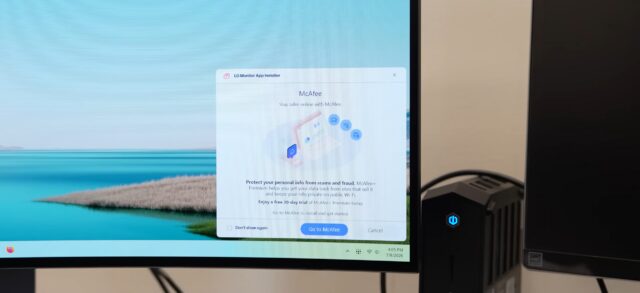 An example of the pop-up ad is seen in a still from Gamers Nexus' video.
Credit:
An example of the pop-up ad is seen in a still from Gamers Nexus' video.
Credit: