Apple has barely finished unveiling the iPhone Duo, iPhone 18 Pro lineup, AirPods 5, and new Apple Watches, but the company already has a much larger pipeline queued up for late 2026 and the first half of 2027, according to Bloomberg News‘ Mark Gurman.
The coming products are part of what new CEO John Ternus has internally described as Apple’s most ambitious product road map yet. Many of the devices are designed to spread Siri AI more widely across the lineup and close some of the gap with rivals in artificial intelligence. As always, dates can slip and products can be delayed or canceled.
Later this yearGurman reports that Apple is preparing several updates before year-end:
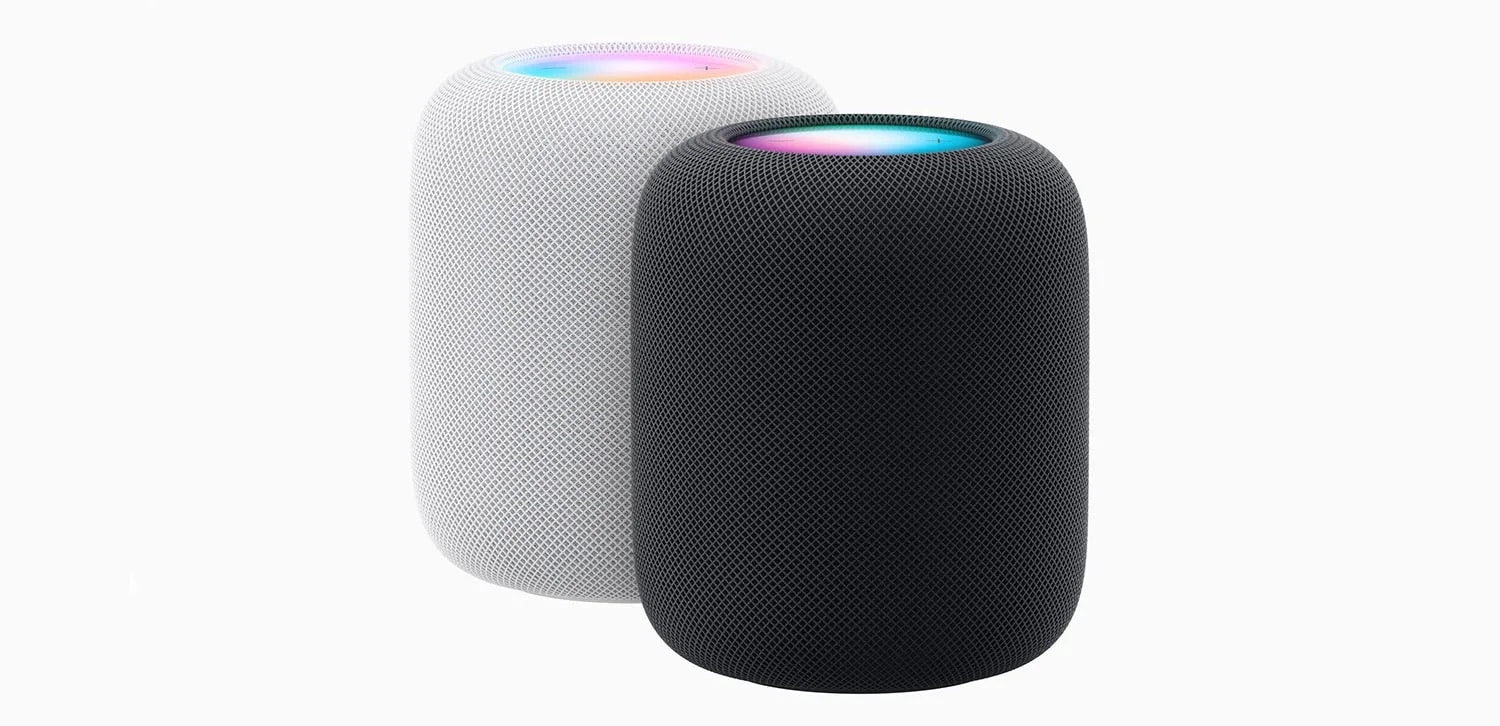
• HomePod mini with Siri AI — Same familiar design as the 2020 model, but with a new chip to power the overhauled assistant.
• Apple TV with Siri AI — Another look-alike refresh, this time with a faster chip for navigation and the new Siri experience.
• Smart-home hub — A square display that can sit on a speaker base or mount on a wall. It will run a new operating system, support video calls, and use facial recognition to personalize what it shows. Apple had considered showing it at last week’s event and is now aiming as early as October, though the timeline remains fluid after repeated delays.
• Touch-screen MacBooks — The biggest MacBook Pro change since 2021, adding OLED panels and touch screens for the first time, with M5 Pro and M5 Max chips.
• Entry-level 14-inch MacBook Pro — Current design, updated with the M6 chip.
• iMac — New colors and an M6 processor.
• iPad mini — One of the line’s biggest upgrades, adding an OLED display.
The HomePod mini and Apple TV are already being tested with iOS 27. The new Macs are running macOS 27.1 internally, and the iPad mini is on iPadOS 27.1. Both of those software updates are expected late next month.
First half of 2027
The spring and early summer slate is heavier on refresh cycles than radical redesigns:
• MacBook Air — Same 13-inch and 15-inch designs, moving to the M6 chip.
• MacBook Neo — Follow-up model with an A19 Pro chip and more memory.
• Entry-level iPad — Faster chip so the cheaper tablet can run Apple Intelligence and Siri AI.
• iPad Pro — Chip upgrade plus vapor-chamber cooling similar to the iPhone 18 Pro.
• iPad Air — First OLED screens in that line, plus a new chip.
• iPhone 18 — Largely an A20 chip upgrade, with the notable change that the standard model is shifting from fall to spring.
• iPhone 18e — Another chip-focused update; Apple will need to make clear how it differs from the regular iPhone 18.
• iPhone Air 2 — More substantial: a 2-nanometer A20 Pro chip, better battery life, and a second rear camera for ultrawide shots.
• Apple Pencils — New Pencil Pro and USB-C models timed with the iPads; the iPhone Duo will support the stylus as well.
Looking further ahead
The second half of 2027 is expected to get more ambitious still, Gurman writes, with M7 updates to MacBooks, smart glasses, camera-equipped AirPods, a home security system, a redesigned Apple Watch, Twentieth Anniversary iPhones, and a second-generation foldable iPhone Duo.
MacDailyNews Take: Taken together, the road map suggests Apple is trying to do two things at once: push Siri AI onto more affordable and living-room devices, and finally refresh categories that have languished for years. Whether October brings a full event or quieter waves of launches, the next 12 months look unusually crowded with product launces!
Please help support MacDailyNews — and enjoy subscriber-only articles, comments, chat, and more — by subscribing to our Substack: macdailynews.substack.com. Thank you!
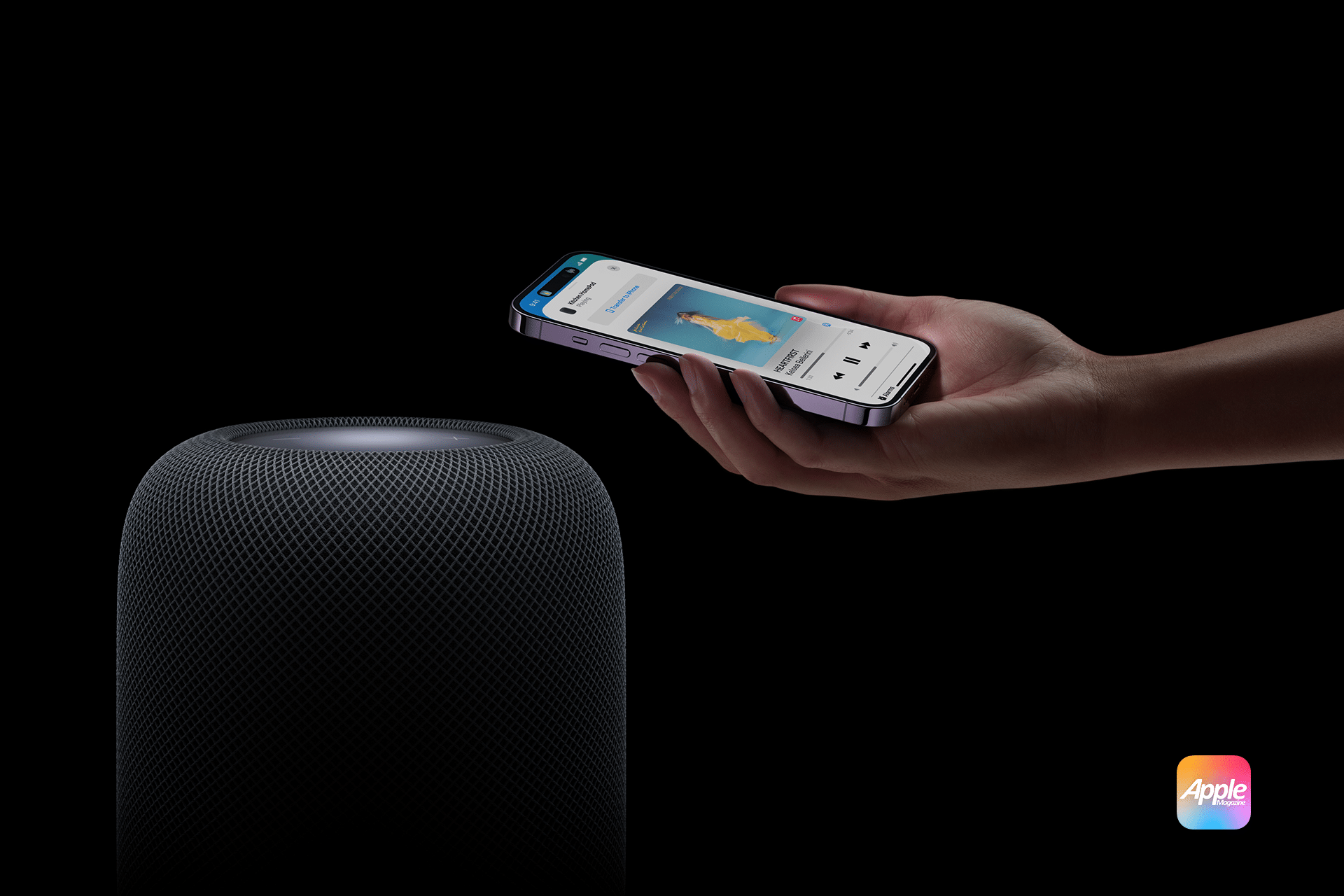
HomePod room temperature automations turn Apple’s smart speaker into more than a source of music and Siri responses. Its built-in climate sensor can trigger fans, thermostats, smart plugs, shades and other compatible accessories when a room becomes warmer or cooler than a selected temperature.
The automation runs through Apple’s Home app. Once configured, it does not require someone to ask Siri for the current reading or leave an iPhone inside the room. HomePod measures the local conditions while the home hub evaluates the rule and controls the selected accessories.
A bedroom fan could start when the room rises above 24°C, for example. A compatible thermostat could activate heating when an office falls below 18°C, while motorized shades could close before afternoon heat makes a living room uncomfortable.
The same system works with humidity. HomePod can trigger a compatible humidifier, dehumidifier or ventilation accessory when relative humidity crosses a chosen level.
Which HomePod Models Measure Room Temperature
Temperature and humidity sensing is available on HomePod mini and HomePod (2nd generation).
The original full-size HomePod does not contain the supported climate sensor. It can act as a home hub and participate in scenes, but it cannot supply the temperature reading used to start this type of automation.
HomePod mini is sometimes overlooked because Apple did not activate its temperature and humidity sensor when the speaker originally launched in 2020. A later software update enabled the component, allowing existing HomePod mini units to report climate information without a hardware upgrade.
Both supported models should run the latest available HomePod software. The iPhone or iPad used to configure the home should also be updated because older software may not display every sensor or automation option correctly.
HomePod normally updates automatically. Its version can be checked in the Home app by opening the HomePod, selecting its settings and scrolling to the software information.
Image Credit: AppleMagazine
The Speaker Must Be Assigned to the Correct Room
The room assigned to HomePod determines how its readings appear in the Home app and how Siri interprets questions about local conditions.
A HomePod physically located in the bedroom but assigned to Living Room will report its sensor as part of the living-room climate group. This becomes especially confusing when several HomePods are installed throughout the home.
To verify the room, open the Home app, touch and hold the HomePod tile, open Accessory Settings and check the Room field. Assign a descriptive name to the HomePod as well, particularly when two supported speakers occupy nearby spaces.
The sensor does not measure an entire home. It reports conditions near the HomePod, so the assigned room should correspond to its physical location.
How to Check the HomePod Temperature
The current reading is available through Siri or the Home app.
A person can ask Siri, “What is the temperature in here?” when speaking to the HomePod inside that room. Questions can also identify a different room, such as “What is the temperature in the bedroom?” or “What is the humidity in the basement?”
In the Home app, open the Home tab and select Climate near the top of the screen. Choose Temperature to see readings from available climate sensors. Opening an individual room can make it easier to identify the relevant HomePod when several sensors are installed.
The Home app may display a range rather than one number when multiple temperature sensors belong to the same room or home. Opening the temperature category reveals the individual readings behind that range.
A newly restarted or updated HomePod may not show a result immediately. Apple says the sensor requires time to calibrate after startup.
How to Create a HomePod Room Temperature Automation
The temperature sensor appears as an automation trigger rather than an accessory that can be turned on or off. The user defines a threshold and then selects what another compatible accessory should do when the reading crosses it.
To create the automation:
Open the Home app on an iPhone or iPad
Select the Automation tab or tap the Add button and choose Add Automation
Choose A Sensor Detects Something
Select the temperature sensor assigned to the appropriate HomePod and room
Choose Rises Above or Drops Below
Set the desired temperature threshold
Add optional time and occupancy conditions
Select the accessories or scene that should run
Configure the desired state of each accessory
Test the automation and tap Done
The selected action could turn on a fan, change a compatible thermostat, close shades or activate an existing scene containing several accessories.
HomePod does not produce cool or warm air itself. It supplies the measurement and functions as a home hub, while the automation controls other equipment connected to Apple Home.
Choosing Rises Above or Drops Below
The direction of the trigger is important.
Rises Above starts the automation when the measured temperature moves from below the selected value to above it. This is the usual option for starting a fan, lowering compatible shades or changing a thermostat to a cooler setting.
Drops Below works in the opposite direction. It can start heating, turn off a fan or activate another accessory when the room becomes colder than the selected level.
These are threshold-crossing events, not continuous questions asking whether the room is currently above or below a value. If the room is already warmer than 24°C when a new Rises Above 24°C automation is saved, the rule may not run immediately. The reading generally needs to fall below the threshold and then rise across it again.
This behavior also explains why an automation may not repeatedly react while the room remains on the same side of the threshold. Another transition must occur before the trigger fires again.
Use Time and Occupancy Conditions
The Home app can restrict a temperature automation to particular times or household conditions.
A bedroom fan may only need to run overnight. Heating in a home office could remain inactive on weekends. A cooling automation might operate only when someone is home, while another rule protects temperature-sensitive equipment regardless of occupancy.
The People condition can limit an automation to when somebody is home, when nobody is home or when selected household members are present or absent. These conditions depend on location access and the devices associated with members of the Apple Home.
Time restrictions should match the behavior of the controlled accessory. Closing shades during the hottest afternoon hours may be useful, but the same action would provide little benefit after sunset.
An automation can also activate a scene instead of controlling one product. A Hot Afternoon scene could close the west-facing shades, start a fan and turn off heat-producing decorative lights with one sensor trigger.
Useful HomePod Temperature Automations
A smart fan is one of the simplest accessories to control. When the temperature rises above a comfortable level, the Home app can turn on a HomeKit or Matter-compatible fan. A second automation can stop it after the room cools.
A thermostat offers more direct climate control, but the available actions depend on the thermostat manufacturer. Apple Home may expose power, heating, cooling and target-temperature controls, while more advanced scheduling remains inside the manufacturer’s app.
Motorized shades can reduce solar heating before an air conditioner needs to work harder. A temperature trigger can close selected shades when a sun-facing room becomes warm, particularly when the automation is limited to daytime hours.
A ceiling fan or portable fan connected through a smart switch or smart plug can also respond to the HomePod sensor. The connected controller must be rated for the appliance, and the appliance must safely resume operation when power is restored. Products with electronic controls may remain off after a smart plug turns them back on.
Portable heaters and air conditioners require greater caution. Many smart plugs are not designed for their electrical load, and some appliance manufacturers prohibit external switching. A compatible thermostat or manufacturer-supported controller is safer than treating high-power climate equipment like a lamp.
Image Credit: Apple Inc.
Humidity Can Use the Same Automation System
HomePod exposes temperature and relative humidity as separate sensors.
A bathroom or laundry-room HomePod could trigger ventilation when humidity rises above a chosen level. A dehumidifier with a compatible control could operate in a damp basement, while a humidifier could respond when heated winter air becomes too dry.
The setup process is almost identical to a temperature automation. Select A Sensor Detects Something, choose the HomePod’s humidity sensor, set Rises Above or Drops Below and assign the action.
Humidity automations also benefit from separate starting and stopping thresholds. Turning a dehumidifier on above 65 percent and off below 55 percent creates a useful operating range instead of responding repeatedly around one value.
HomePod Sensor Placement Affects the Reading
HomePod measures the conditions around the speaker, not at the center of the room or inside an air-conditioning return.
Placing it beside a sunny window, heater, fireplace, kitchen appliance or air vent can produce readings that do not represent the space where people spend time. An enclosed shelf may also trap warmer air around the device.
The speaker needs airflow and a stable surface. It should not be covered or placed where condensation, cooking steam or direct moisture can reach it.
Extended audio playback at high volume can reduce sensor accuracy because heat generated by the speaker may influence the local reading. This matters when an automation uses a narrow threshold and the HomePod frequently plays loud music.
Apple says temperature sensing is optimized for indoor domestic environments between approximately 15°C and 30°C. Humidity sensing is optimized between about 30 and 70 percent relative humidity. Readings outside those ranges may be less accurate.
HomePod is therefore useful for comfort-oriented home automation, but it should not replace specialized monitoring required for medicine, food storage, animals, greenhouses or other temperature-sensitive environments.
Why a Temperature Automation May Not Work
Begin by confirming that the temperature reading itself appears in the Home app. If it is missing, verify the HomePod model, install current software and allow time for calibration after restarting.
Check that the correct temperature sensor was selected. Homes containing multiple HomePods may present several sensors with similar names, particularly when the speakers were never given descriptive room assignments.
Open the automation and confirm that it is enabled. Review its time and People conditions, because a functioning temperature trigger will still do nothing when an additional condition is not satisfied.
Use the Test This Automation control to confirm that the destination accessory responds. If the test fails, the problem is more likely to involve the accessory, its network connection or the selected action than the HomePod sensor.
If the test succeeds but the rule does not run naturally, remember that the temperature must cross the threshold in the selected direction. Temporarily choosing a value closer to the current room temperature can make testing easier.
Home hubs and accessories should remain connected to the same Apple Home. Thread-based accessories also need a supported Thread-enabled home hub or border router, such as HomePod mini, HomePod (2nd generation) or a compatible Apple TV 4K.
Build Two Automations for Stable Climate Control
A single automation can start a device but may not provide the best way to stop it.
Using the same threshold in opposite directions can cause frequent switching when the measured temperature fluctuates around that value. A room hovering near 24°C, for example, could repeatedly move just above and below the boundary.
A more stable arrangement uses two thresholds. One automation turns the fan on when the temperature rises above 24°C. A separate automation turns it off when the temperature drops below 22°C.
The gap creates a controlled operating range. Once the fan starts, it can continue working until the room has cooled meaningfully rather than stopping after a minor change.
Heating can follow the reverse pattern. One automation activates heat below 18°C, while another stops it above 20°C. Humidifiers and dehumidifiers can use the same paired-rule structure.
This separation also makes troubleshooting easier because every automation performs one clear action in response to one specific sensor transition. Instead of asking one complicated rule to manage the complete climate cycle, HomePod supplies the measurements while two predictable Home app automations define when the connected equipment starts and stops.
Apple, long viewed as a laggard in the smart home market, is preparing a significant expansion into the category with a slate of new devices and software centered on an upgraded Siri AI assistant, according to Bloomberg News’ Mark Gurman.
The company plans to begin this wave soon with a dedicated smart home hub built around the new Siri AI capabilities, people familiar with the matter told Bloomberg. Apple is also readying a new Apple TV 4K set-top box and a refreshed HomePod mini, the sources said, speaking on condition of anonymity because the plans remain private.
The updated Apple TV and HomePod mini are expected to launch this fall, while the long-awaited smart home hub featuring a screen is targeted for release between the end of the year and early next year, Gurman reports.
The moves mark a notable acceleration in Apple’s home strategy after years of more limited offerings. The new hardware is designed to work with enhanced Siri AI features that promise improved conversational abilities and deeper integration across the Apple ecosystem.
MacDailyNews Take: We wish Apple would release some indoor and outdoor cameras, but, as we need them now, we’re going to have to go with some other company instead.
Please help support MacDailyNews — and enjoy subscriber-only articles, comments, chat, and more — by subscribing to our Substack: macdailynews.substack.com. Thank you!

 Login
Login