❌

Reading view

Apple realizará mais um evento para lançar novos produtos, agora em 28/10!

O que era esperado foi confirmado hoje! A Apple acaba de convidar a imprensa para o seu segundo evento especial do mês, que acontecerá na quarta-feira da semana que vem (28 de outubro), às 10h pelo horário de Cupertino (14h em Brasília; 17h em Lisboa).

A expectativa gira em torno do lançamento de novos Macs, especialmente um novo MacBook (até agora chamado de “MacBook Ultra”), que possivelmente contará com uma tela OLED 1Organic light-emitting diode, ou diodo emissor de luz orgânico. sensível ao toque e será bem mais leve que os Pros atuais. Além dele, porém, são aguardados um novo MacBook Pro de 14 polegadas e um iMac, ambos equipados com o chip M6, bem como um novo iPad mini (também com tela OLED).

Can’t wait to pro and tell next week. pic.twitter.com/3wUkxwq35i

— Greg Joswiak (@gregjoz) October 19, 2026

Como falamos, trata-se do segundo evento do mês da Apple, após o lançamento do HomeView, da nova Apple TV 4K e do HomePod mini 2 na semana passada.

O esquema deverá ser bem similar ao da semana passada, que ocorreu em Nova York, sem keynote transmitida ao vivo; o próximo, por sua vez, será em Los Angeles:

Apple event invite just hit for October 28th. I think this one's pretty clear. Macbook Pro update incoming pic.twitter.com/UfSpr2s7py

— Marques Brownlee (@MKBHD) October 19, 2026

Sobre os lançamentos do próximo evento, como noticiamos hoje mais cedo, é bem provável que eles cheguem ao mercado no dia 6 de novembro.

Fim de ano cheio de novidades da Maçã, hein! 😅

Notas de rodapé

  • 1
    Organic light-emitting diode, ou diodo emissor de luz orgânico.

  •  

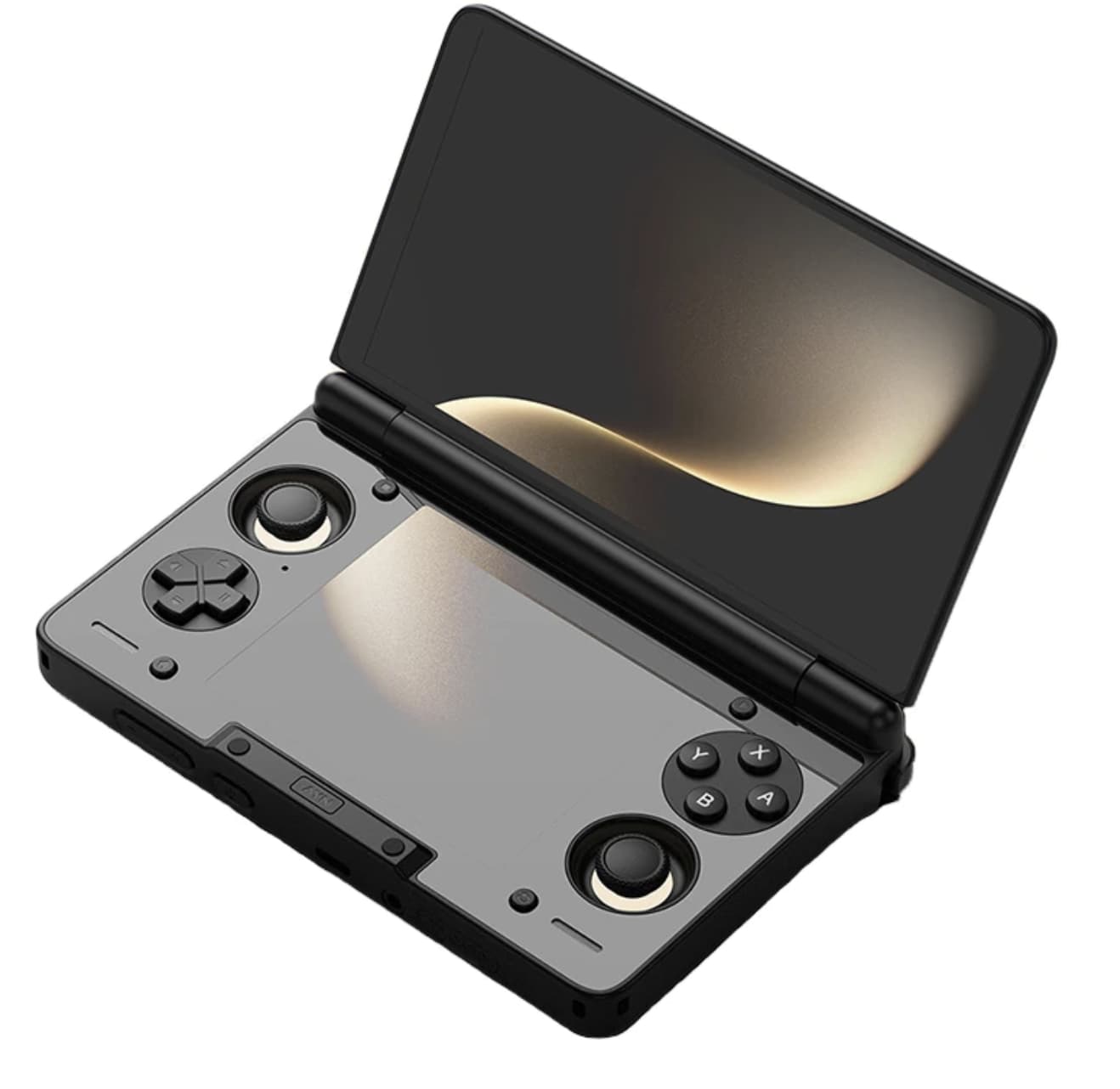
AYN Thor Review: Why Its Dual-Screen Design Makes This Android Handheld Different

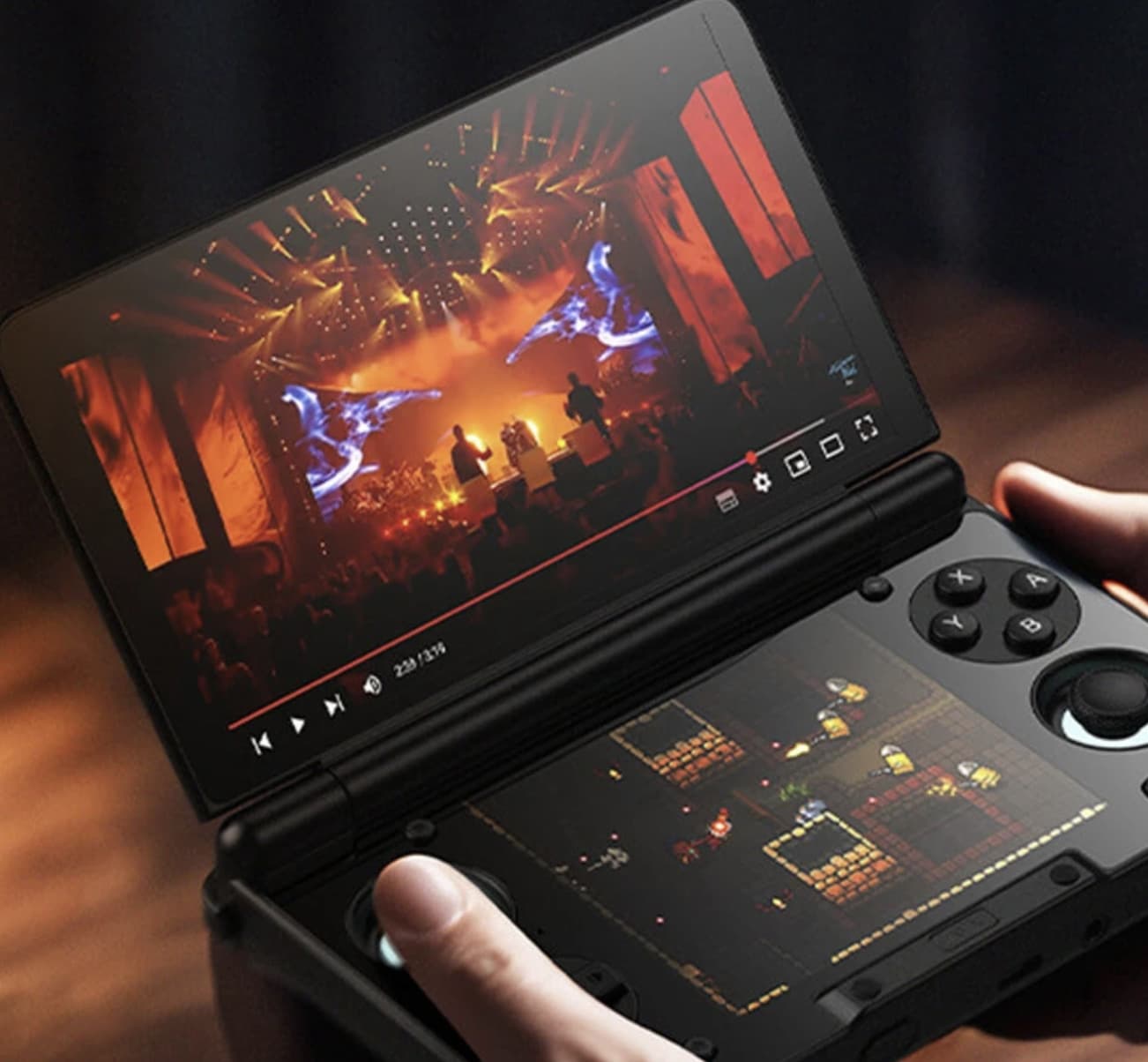
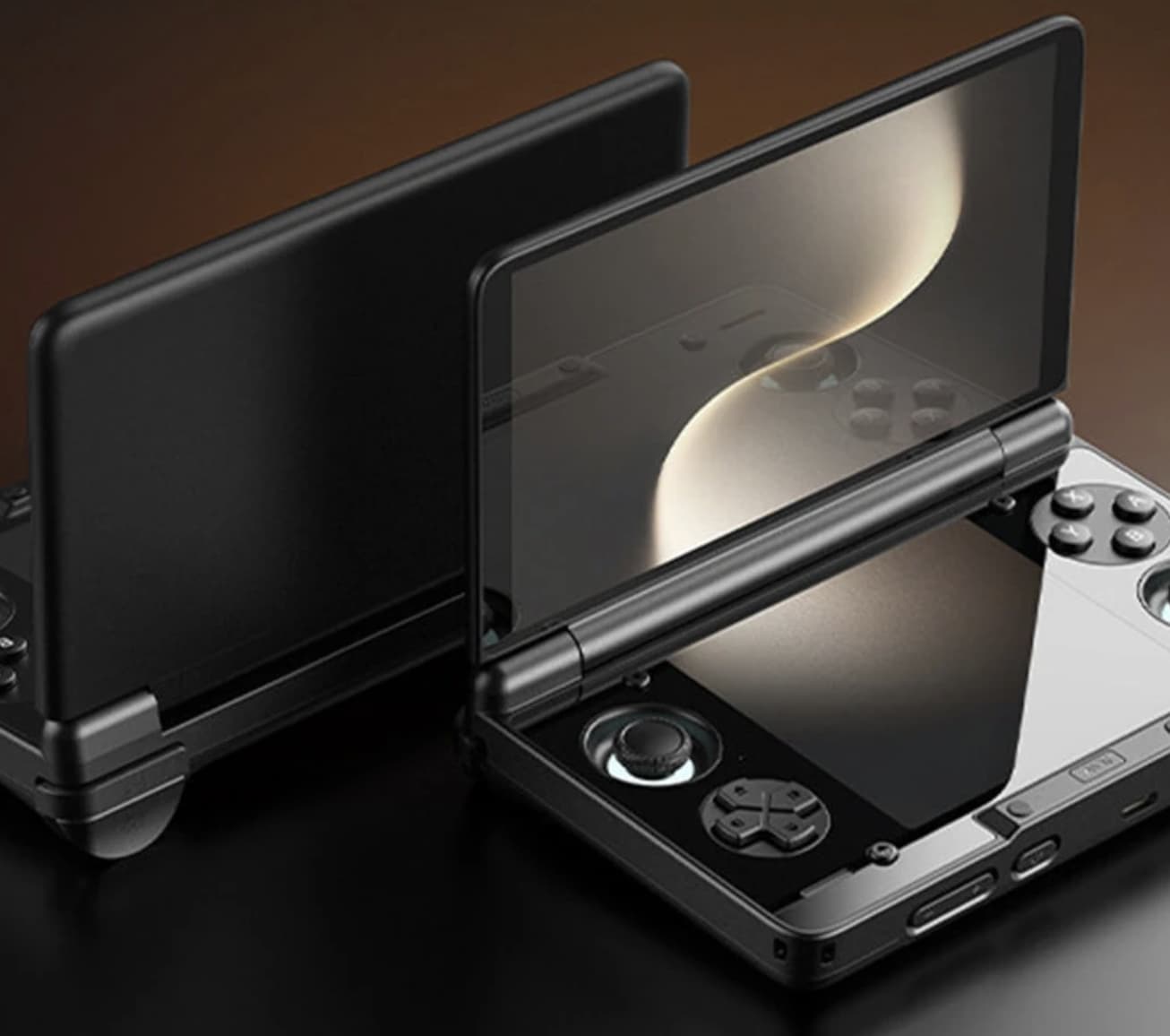
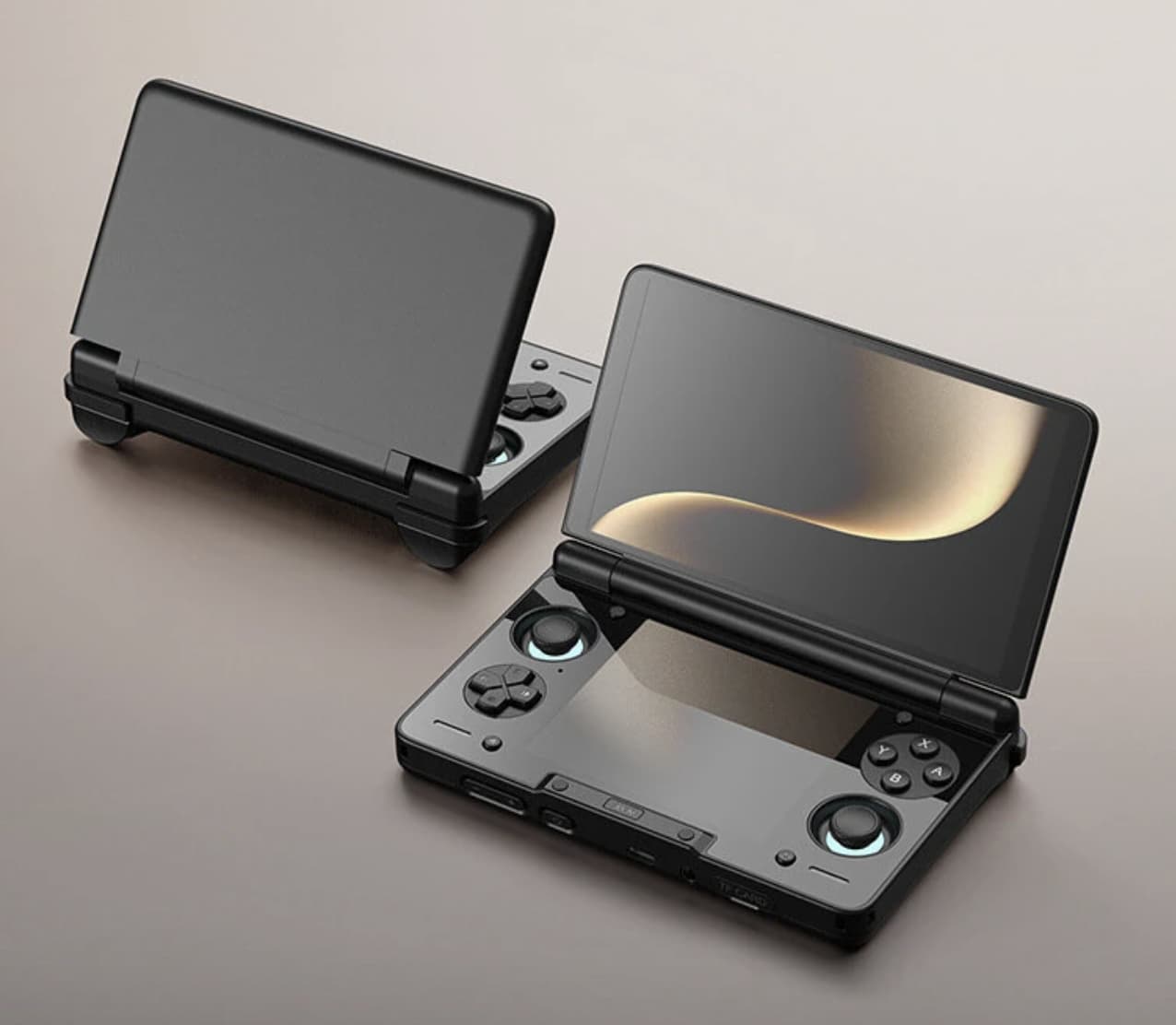
AYN Thor is not trying to win attention simply by putting a faster processor inside a conventional handheld. Its defining feature is the clamshell design: a large 6-inch AMOLED screen sits above a second display, giving the device a layout that is much closer to a portable dual-screen gaming system than a traditional Android game console.

The Banggood configuration covered here pairs the Snapdragon 8 Gen 2 platform with 8GB of RAM and 128GB of storage, while the wider Thor lineup also includes higher-memory versions. AYN’s own current product information lists the standard Snapdragon 8 Gen 2 configurations alongside a 6-inch AMOLED main display, a 3.92-inch secondary AMOLED screen, Android 13 and a 6000mAh battery.

That makes the Thor interesting for a very specific reason: the second screen can change how certain games and emulators are played, rather than merely adding another display to the specification sheet.

The Second Screen Is the Real Story

Most Android gaming handhelds use a single display and place all controls around it. The Thor takes a different route.

Its upper panel is a 6-inch AMOLED display with a 120Hz refresh rate, while the lower section provides a smaller 3.92-inch AMOLED touchscreen. The primary display runs at 1920 × 1080, while the secondary panel uses a 1080 × 1240 resolution and a 60Hz refresh rate.

The difference in refresh rate is actually useful to understand. The top screen is optimized for the main gaming experience, while the lower screen is better thought of as a companion interface.

That opens up several possibilities. In dual-screen emulation, one display can show the main game while the second handles maps, menus, touch controls or other information. For games designed around two screens, the physical arrangement can also feel considerably more natural than trying to reproduce the same layout on a single panel.

This is where the Thor has a clearer identity than another Android handheld with similar processing hardware.

Snapdragon 8 Gen 2 Gives the Thor Plenty of Headroom

The 8GB/128GB configuration uses Qualcomm’s Snapdragon 8 Gen 2, the same platform used by several other high-performance Android handhelds. AYN’s specifications identify the Snapdragon 8 Gen 2 versions as the Base, Pro and Max models, with RAM and storage increasing depending on configuration.

For the Thor, the processor is less interesting as a headline number than what it enables.

Android gaming, retro emulation and game streaming can all benefit from additional processing headroom, but the dual-screen design is where the hardware becomes more purposeful. The system has to manage two displays and the associated touch input while still maintaining a responsive gaming interface.

The 8GB configuration therefore makes sense as the entry point for users who want the Thor’s unusual hardware without necessarily moving to one of the larger storage variants.

Android 13 Keeps the Platform Flexible

The Thor runs Android 13, which gives it access to the broader Android gaming and emulation ecosystem rather than locking it into a proprietary game library. AYN’s product information also confirms that games are not preinstalled, meaning buyers should think of the device as an Android gaming platform rather than a ready-made retro library.

That distinction matters.

The real value of an Android handheld is often determined by how well its software environment fits the user’s preferred games and emulators. With the Thor, there is an additional consideration: configuring software to take advantage of two physical screens.

For example, a dual-screen setup can be particularly useful for systems and games that were originally designed around separate gameplay and information displays. Retro Game Corps’ setup guide specifically covers the additional considerations involved in configuring dual-screen Android handhelds such as the Thor.

Hall-Effect Sticks Are a Practical Hardware Choice

The Thor also uses Hall-effect joysticks, which detect stick movement magnetically rather than relying on traditional mechanical contact for position sensing. AYN lists Hall sticks among the device’s hardware features.

For an Android gaming handheld, this is more relevant than it might initially appear.

The controls are likely to see much more use than many of the device’s headline specifications. Precise analog input matters for action games, racing titles and 3D emulation, while the absence of conventional contact-based sensing can help reduce one common source of stick-position problems over long-term use.

It also reinforces the idea that the Thor is designed as a serious gaming device rather than simply an Android tablet folded into a portable shell.

A 6,000mAh Battery Balances the Dual-Screen Hardware

A 6,000mAh battery sits inside the Thor, according to AYN’s current specifications. The device also supports 27W charging.

Battery capacity alone does not tell the whole story, especially on a dual-screen handheld.

The actual runtime will depend heavily on brightness, refresh rate, emulator workload, wireless connectivity and how frequently the secondary display is active. More demanding games will naturally place a greater load on the Snapdragon platform than lightweight retro titles.

For this reason, the Thor’s battery should be viewed as part of a larger power-management equation rather than judged only by the 6000mAh figure.

The Flip Design Solves a Portability Problem

There is another advantage to the clamshell construction that has little to do with gaming performance: screen protection.

When the Thor is closed, the two displays face inward. That gives the handheld a natural protective position when it is placed inside a bag or carried between locations.

The closed form also makes the Thor visually distinct from the large number of slab-style Android gaming handhelds now available.

However, the hinge introduces its own design considerations. Users who want the device primarily for traditional single-screen Android gaming may not need a second display or a clamshell mechanism. The dual-screen architecture becomes much more valuable when the software can actually make use of it.

8GB + 128GB Is the More Straightforward Configuration

The Banggood listing specifically covers the 8GB RAM and 128GB storage version.

That capacity should be enough for a focused Android gaming setup, but storage requirements can grow quickly once users begin adding large game files, emulator libraries and multiple applications.

AYN’s wider lineup includes a 12GB/256GB model and higher-end 16GB configurations with substantially more storage.

This makes the 8GB/128GB model easier to understand as an entry configuration rather than the only version of the Thor. Buyers who plan to maintain a large local game library should pay particular attention to storage before choosing between variants.

Who Actually Benefits From Two Screens?

The Thor makes the most sense for users whose gaming habits can take advantage of its unusual layout.

Dual-screen emulation is an obvious example. Systems that originally used two displays can be represented more naturally when the handheld itself physically provides two panels.

The secondary display can also be useful for touch-based controls, menus or supplementary information while the main display remains dedicated to gameplay.

For ordinary Android games that only need one screen, however, the second panel becomes less important. In that situation, the Thor’s main advantage is its unusual form factor rather than a fundamental change in gameplay.

That distinction is worth keeping in mind when comparing it with conventional single-screen Android handhelds.

A Different Kind of Android Gaming Handheld

The AYN Thor gaming handheld ‘s most interesting feature is not the Snapdragon 8 Gen 2 by itself, nor is it simply the 120Hz AMOLED display.

It is the combination of a 6-inch 120Hz AMOLED main screen, a secondary AMOLED touchscreen, Hall-effect controls, Android 13 and a 6000mAh battery inside a foldable chassis.

That combination gives the Thor a specific purpose.

For users who mainly want a standard Android gaming handheld, its dual-screen construction may be more hardware than they need. But for players interested in DS/3DS-style emulation, dual-screen interfaces or experimenting with different Android gaming layouts, the second display provides a capability that conventional handhelds simply cannot reproduce in the same physical way.

The result is a device that stands apart not because it has the longest specification sheet, but because its hardware is built around a different idea of what a portable gaming console can be.

The post AYN Thor Review: Why Its Dual-Screen Design Makes This Android Handheld Different appeared first on IGeeKphone China Phone, Tablet PC, VR, RC Drone News, Reviews.

  •  

How to Arrange App Icons on iPhone 17: The Ultimate Home Screen Organization Guide

A new iPhone 17 can feel surprisingly messy after only a few days of downloading apps. Social media, shopping apps, games, work tools, streaming services and utilities can quickly turn the Home Screen into a collection of icons that takes longer to navigate than it should.

The good news is that you do not have to accept Apple’s default arrangement. You can move app icons, create folders, place apps on different Home Screen pages, hide pages you rarely use and decide where newly downloaded apps should appear.

More importantly, a well-organized iPhone 17 does not need to follow a complicated visual system. The best layout is the one that matches how you actually use your phone.

Start With the Apps You Use Every Day

Before moving anything, think about which apps you open without searching for them.

For many people, these might include Messages, Phone, Safari, Camera, Maps, Photos, Music, Mail or a frequently used social media app. These are the apps that deserve the easiest positions to reach.

Instead of arranging every icon alphabetically, consider giving your most-used apps the most convenient locations.

A simple approach is to keep essential apps on the first Home Screen and move less frequently used apps to later pages. This reduces visual clutter while keeping important functions immediately accessible.

Apple allows apps and widgets to be placed in different positions on a Home Screen, including along the top, bottom or sides of the display.

How to Move App Icons on iPhone 17

Moving an app is straightforward, but you can use the process to completely redesign your Home Screen.

Touch and hold an empty area of the Home Screen until the app icons begin to jiggle. You can then drag an app to a new position on the same page.

If you drag an app toward the edge of the display, you can move it to another Home Screen page. When you have finished arranging everything, tap the Home Screen background to exit editing mode.

A Better Way to Position Apps

Do not feel that every available space has to be filled.

You can deliberately leave areas open to make a wallpaper photo more visible or create a cleaner visual layout. Apple’s current Home Screen customization also allows users to change icon appearance, including light, dark, clear and tinted styles.

This means your iPhone 17 Home Screen can be both functional and visually organized.

Create Folders for Apps You Don’t Need Constantly

Folders are useful when you have several apps that belong to the same category.

To create one, enter Home Screen editing mode and drag one app directly onto another. iPhone will create a folder that can hold additional apps. You can then give the folder a name that makes sense to you.

Instead of creating dozens of folders, keep the categories broad.

For example:

  • Social — Instagram, Facebook, Threads and similar apps
  • Work — email, documents, cloud storage and meeting apps
  • Shopping — Amazon, eBay and other shopping services
  • Entertainment — Netflix, YouTube, Spotify and streaming apps
  • Travel — airline, hotel, maps and transportation apps
  • Games — games you play occasionally

The goal is not to create a perfect filing system. It is to make an app easier to find when you cannot remember exactly where you placed it.

Use the Dock for Your Most Important Apps

The Dock is valuable Home Screen space because it remains available while you move between Home Screen pages.

Think of it as your permanent quick-access area.

Rather than putting four apps there simply because they came with your previous phone, choose the apps you use repeatedly throughout the day.

For example, a practical setup could include:

Phone | Messages | Safari | Camera

Another user might prefer:

Messages | Maps | Music | Mail

There is no universal best Dock arrangement. Your usage habits should determine it.

Organize Home Screen Pages by Purpose

If you have a large number of apps, forcing everything onto one screen can make the iPhone 17 harder to use.

A better strategy is to give each page a purpose.

For example:

Page 1 — Daily use
Communication, browser, camera, maps and other essential apps.

Page 2 — Work and productivity
Email, notes, cloud storage, office apps, calendars and task managers.

Page 3 — Entertainment
Streaming, music, games and social media.

Page 4 — Occasional apps
Travel, shopping, finance, utilities and apps you rarely open.

Apple lets you reorder complete Home Screen pages, so you can put your most useful page first rather than rebuilding the entire layout from scratch.

Hide Home Screen Pages You Rarely Use

You may not need to delete apps simply because you do not want to see them every day.

If a page contains apps you rarely use, you can hide the entire Home Screen page while keeping the apps available through the App Library.

To manage your pages, touch and hold the Home Screen background, tap the page indicator near the bottom, and then select or deselect the pages you want visible.

Hidden pages can be brought back later.

This is particularly useful if you want a minimalist iPhone 17 Home Screen without removing apps you occasionally need.

Let the App Library Handle the Apps You Rarely Open

The App Library can take over some of the organizational work.

Swipe left past your Home Screen pages to reach it. iPhone automatically organizes installed apps into categories, while frequently used apps are positioned for easier access. You can also search for an app by name.

This creates an important distinction:

Home Screen = apps you want to see.

App Library = apps you want to keep.

Once you adopt this approach, you do not need to give every installed app a permanent position on the Home Screen.

Stop New Apps From Filling Your Home Screen

One of the easiest ways to keep your iPhone 17 organized is to control where new apps are installed.

Go to:

Settings → Home Screen & App Library

You can choose whether newly downloaded apps are added to the Home Screen or placed in the App Library only.

Choosing App Library Only can be useful if you regularly download apps but do not want every new installation to disturb your carefully arranged Home Screen.

You can still move an app from the App Library back to the Home Screen whenever you decide that it deserves a permanent place.

Build Your Layout Around How You Hold the iPhone

There is another detail that is easy to overlook: thumb reach.

If you usually operate your iPhone 17 with one hand, putting frequently used apps closer to the lower portion of the display can make them easier to reach.

You do not have to create a symmetrical Home Screen.

Place important apps where your thumb naturally lands. Put less important apps farther away or inside folders.

This approach is often more practical than copying a visually attractive Home Screen layout from someone else.

Use Widgets Without Letting Them Take Over

Widgets can provide useful information without opening an app, but adding too many can make the Home Screen harder to navigate.

Consider keeping only widgets that provide information you genuinely check.

Examples include:

  • Weather
  • Calendar
  • Reminders
  • Battery information
  • Music
  • Maps or travel information

Apple also allows Home Screen widgets and app icons to be customized together, including appearance and color options.

A useful rule is simple: if a widget does not save you time, remove it.

Try a Minimalist iPhone 17 Layout

If you want a cleaner Home Screen, you do not need dozens of folders.

One minimalist setup could look like this:

First page:
Your essential daily apps plus one or two useful widgets.

Second page:
Work, productivity and communication tools.

Third page:
Entertainment and social apps.

Everything else:
App Library.

This arrangement keeps the first screen useful without requiring you to constantly reorganize icons.

What If Your Home Screen Becomes a Mess?

You do not have to manually move hundreds of icons back into place.

iPhone includes an option to reset the Home Screen layout. According to Apple, resetting the Home Screen removes folders and places downloaded apps alphabetically after the apps that came with the iPhone.

You can find this option under:

Settings → General → Transfer or Reset iPhone → Reset → Reset Home Screen Layout

Use this carefully, because it is a reset rather than a temporary rearrangement.

The Best iPhone 17 Home Screen Is the One You Don’t Have to Think About

There is no single perfect app arrangement for the iPhone 17.

The most useful setup is usually based on three principles:

Keep frequently used apps close.

Move occasional apps into folders or the App Library.

Keep the first Home Screen simple enough to navigate instantly.

Once your apps are arranged around your actual habits rather than their download order, the iPhone 17 becomes easier to use. You spend less time searching through pages and more time getting directly to the feature or app you need.

If your Home Screen starts becoming crowded again, do not reorganize everything from scratch. Move the apps you use most often back to the front, hide unnecessary pages and let the App Library handle everything else.

That makes Home Screen organization an ongoing system rather than a one-time cleanup job.

The post How to Arrange App Icons on iPhone 17: The Ultimate Home Screen Organization Guide appeared first on IGeeKphone China Phone, Tablet PC, VR, RC Drone News, Reviews.

  •  

OpenAI Updates ChatGPT for iOS with Customizable Widgets for ChatGPT Work and Codex Remote

The new ChatGPT widget for iOS.

The new ChatGPT widget for iOS.

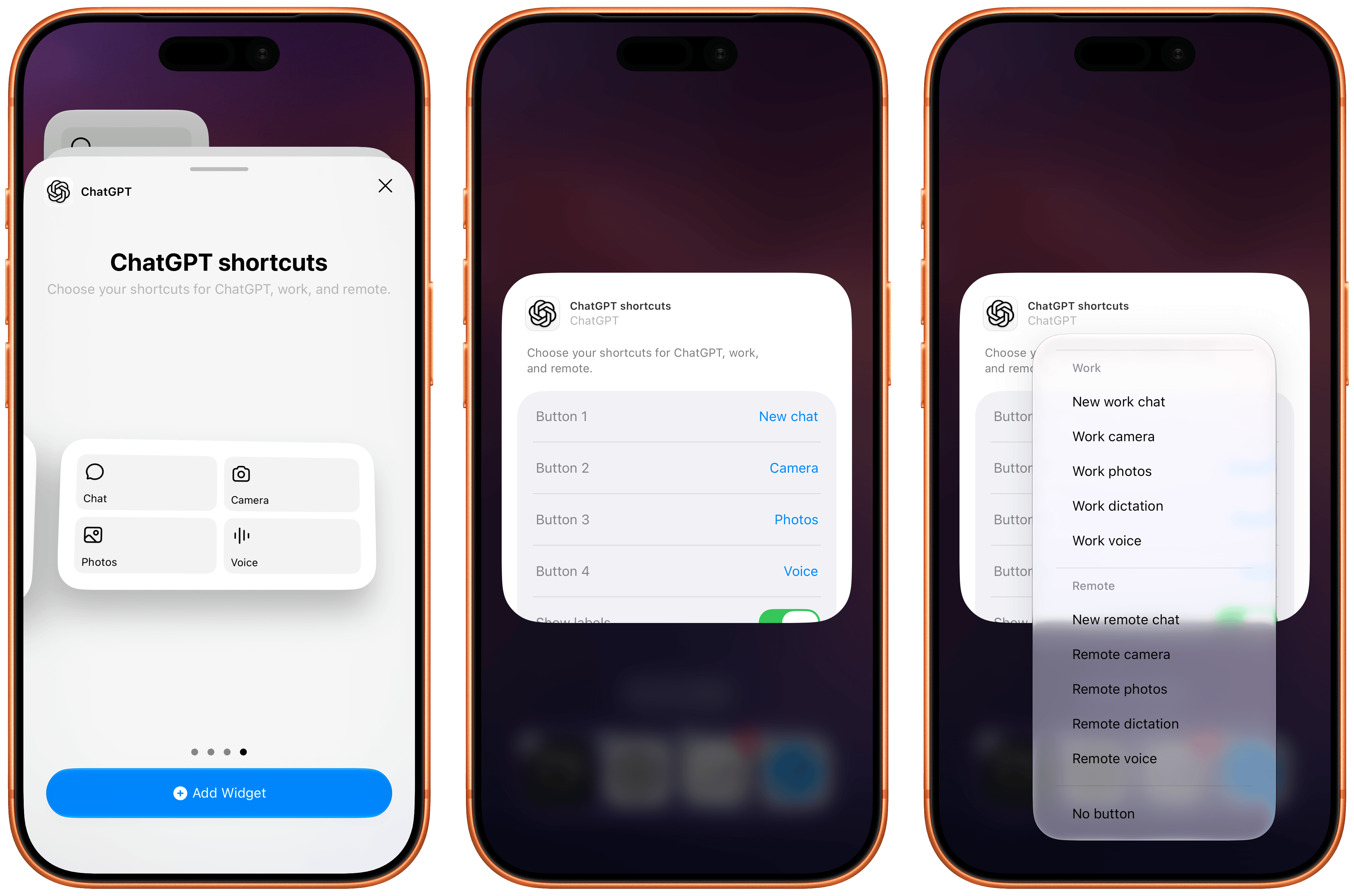
The most recent update to the ChatGPT app for iOS has introduced a new feature that will make those who rely on the company’s AI assistant for work-related tasks quite happy: a customizable widget that lets you control which shortcuts can be placed for convenient access on the Home Screen.

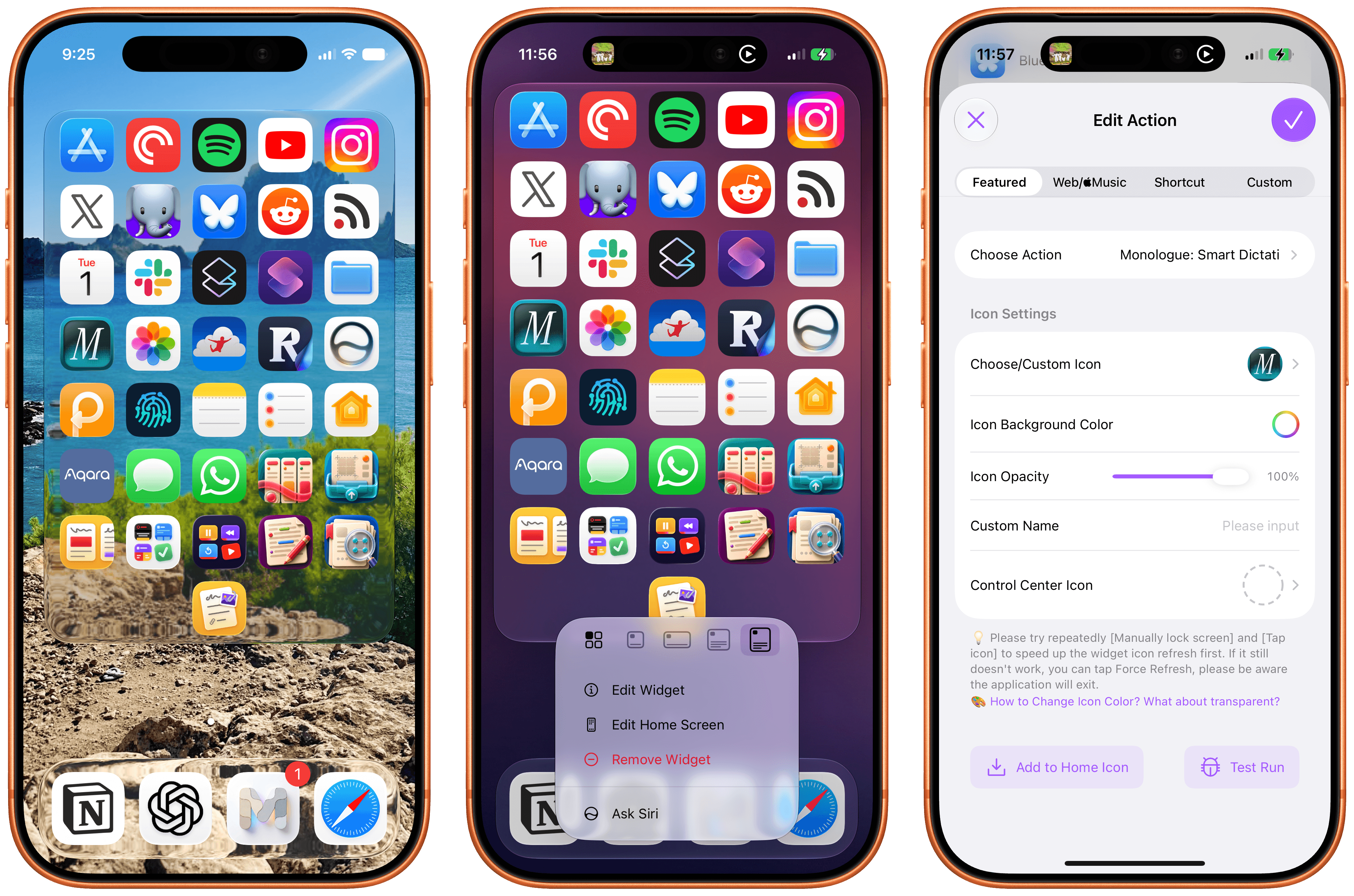
The new widget is called ‘ChatGPT shortcuts’, and it comes in two sizes – small and medium. Alas, the company didn’t add support for large widgets on iPhone yet, nor did they roll out an XL widget for iPad users. I hope more sizes will be coming soon. Unlike the existing ‘ChatGPT’ widget, the new one allows you to personalize which shortcuts are visible on the Home Screen. Once added, long-press the widget, select ‘Edit Widget’, and you’ll be presented with options to choose which buttons you want to show and whether labels should be displayed underneath them or not.

What’s especially nice about these widgets is that they cover the full spectrum of “ChatGPT surfaces” now offered by OpenAI: Chat, Work, and Codex Remote. For each, you can swap default buttons for the following ones:

  • Chat
    • New chat
    • Camera
    • Photos
    • Dictation
    • Voice
  • Work
    • New work chat
    • Work camera
    • Work photos
    • Work dictation
    • Work voice
  • Remote
    • New remote chat
    • Remote camera
    • Remote photos
    • Remote dictation
    • Remote voice

I’m a huge fan of Codex Remote for iOS and iPadOS: as things stand right now in the AI industry, OpenAI’s Remote “app inside an app” for iPhone and iPad is the only intuitive, full-featured solution to start new chats in a remote agent running on macOS directly from iOS and iPadOS. (I am as surprised as everyone else that Anthropic, who were first to the “remote control” space, haven’t shipped a comparable experience in Claude for iOS. Supposedly, that is coming “soon”.)

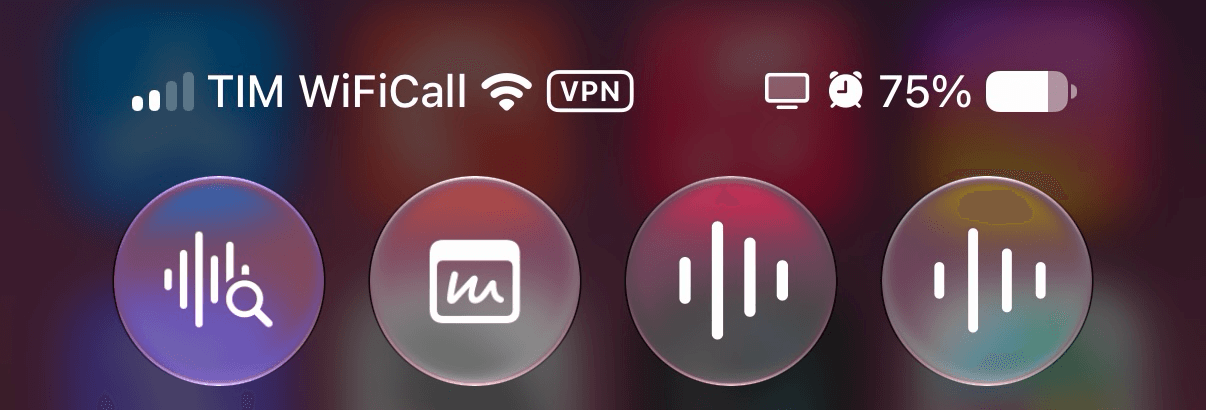
What do you want to open – Voice or Voice?

What do you want to open – Voice or Voice?

Even more impressively, Remote voice (a version of ChatGPT Voice that runs in Codex on the Mac and lets you have bidirectional conversations from the iPhone while the agent is running on the Mac and orchestrating threads there) can now also be accessed from Control Center and the Lock Screen via a dedicated control. Unfortunately, this control has the same icon as regular ChatGPT Voice (which runs in the cloud, not on your Mac). I know: it can all be very confusing, and I hope OpenAI brings some clarity to these icons soon. On a similar note, I wish OpenAI’s iOS team also offered the widgets’ new shortcuts as proper actions in the Shortcuts app. Right now, these launchers are only available from the Home Screen.

The new customizable widgets are the latest entries in a larger push by OpenAI to improve the performance of Codex Remote on iOS and other design changes for iPhone and iPad users. The ChatGPT app recently received a redesigned ‘latest photos’ picker in Chat and Work modes (long-press the + button in the text box, and you’ll see), a tweaked reasoning selector, and the cloud browser we covered earlier this week on MacStories.

  •  

MacVoices #26148: NAB – Elgato’s Latest Gear For Productions Large and Small

At NAB in Las Vegas, Chris McNamara, Senior Technical Marketing Specialist for Elgato gave us a tour of their latest tools for creators and broadcasters. That tour included new variations on the super-popular Stream, a new mic and XLR interface, a new touchscreen display, and more. If you’re doing production, you need to be aware of these products.

💾

  •  

Lock Launcher Introduces “No Redirect” Launchers, XL Widgets for iOS 27

My Home Screen setup with Liquid Glass widgets powered by Lock Launcher.

My Home Screen setup with Liquid Glass widgets powered by Lock Launcher.

I don’t think I ever mentioned it on MacStories (although I probably did at some point on AppStories or Unwind), but my favorite “launcher” app for iOS is a utility called Lock Launcher, which I’ve been using on and off for the last couple of years. Lock Launcher started as an app for adding URL schemes to the Lock Screen a few years back, and it gradually evolved into a comprehensive “widget studio” app to design launcher widgets of all kinds for the Home Screen, Lock Screen, Dynamic Island, Live Activities, and more.

Anyway, I’m covering the app on the site today because it was updated with two features that I didn’t think were possible or allowed on the App Store, and I want to highlight them for our readers. I’m not really sure how the developers were able to add these features to the app; you may want to download it from the App Store quickly, just in case.

For starters, Lock Launcher now lets you create launcher shortcuts that open apps directly and immediately, rather than redirecting you to the Lock Launcher app first.

For years now, launcher apps on the iPhone have had to employ this workaround: you’d tap on a shortcut that opened, say, Ivory, but you would see the launcher app flash onscreen briefly before redirecting you to the actual destination app you selected. Somehow, Lock Launcher is now circumventing this limitation with a ‘Direct Open’ mode that I haven’t seen in other launcher apps for iOS. That sequence of widget, host app, and destination app was, ultimately, the reason why I always stopped using third-party launcher apps, and I love that it’s been removed by Lock Launcher.

Launching apps without redirects via Lock Launcher.

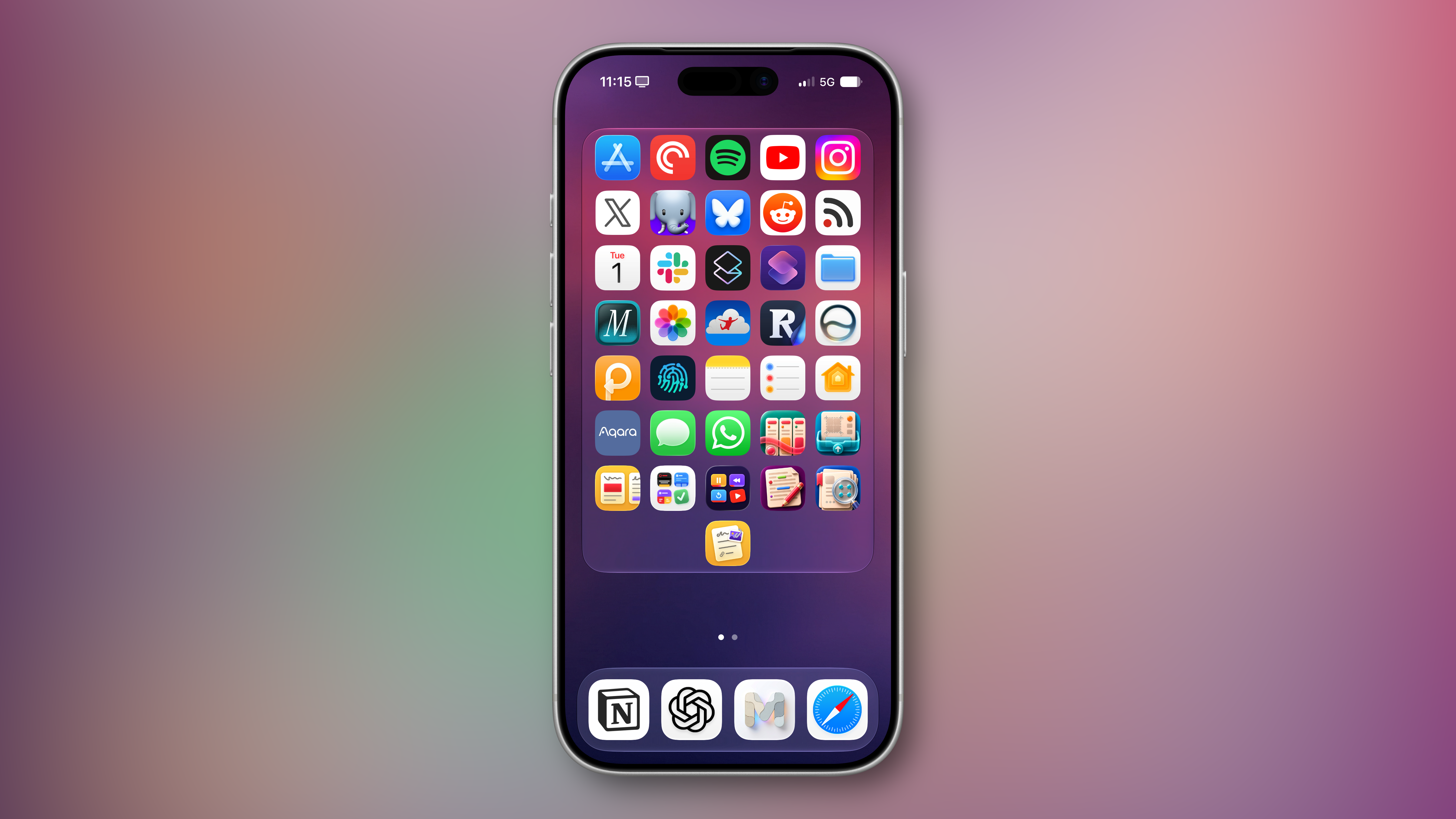
At long last, I’ve been able to create a dense Home Screen with 40 icons (36 in the widget plus 4 in the dock), and they all launch directly when tapped.

My new Home Screen powered by Lock Launcher.

My new Home Screen powered by Lock Launcher.

The screenshot above brings me to the second feature added in the version of Lock Launcher currently available on the App Store: XL widgets on iPhone in iOS 27.

Now, as far as I know, if an app wants to adopt an API exclusive to a future version of iOS, it typically needs to be built against that version’s SDK using the corresponding Xcode beta. However, the App Store isn’t currently accepting apps built with the iOS 27 SDK. And yet, the Lock Launcher developers must have figured out a way to support the new systemExtraLargePortrait widget size and make it work on devices running iOS 27 even though the app was built with the iOS 26 SDK. My best guess: they’re using a workaround that involves visionOS 26 APIs, since the Vision Pro received support for that family of widgets last year. (I’d love to know more about this.)

These two features, combined with the ability to apply the Liquid Glass material to widgets for beautiful refractions of the system wallpaper, make Lock Launcher the most powerful and customizable launcher utility on iOS to date. I hope writing about it doesn’t get the developers in trouble.

Lock Launcher is available for free on the App Store, with advanced features available through an optional Pro in-app purchase.

  •  

MacBook Air Flexgate Can Become a Costly Screen Failure

MacBook Air Flexgate is an unofficial name increasingly used for screen problems that appear when the laptop lid reaches a particular angle. The display may flicker, lose its backlight, show colored lines or turn completely black even though the computer continues running.

The term can be misleading. The original Flexgate controversy involved certain 13-inch MacBook Pro models from 2016, not MacBook Air. Apple later created a display backlight service program for eligible MacBook Pro units after determining that a small percentage could develop uneven lighting or lose the backlight entirely.

No equivalent MacBook Air repair program currently appears among Apple active service programs. Individual Air models can still experience failures involving display cables, connectors, backlight components or the LCD panel, but that does not establish one confirmed defect affecting every generation.

Owners therefore need to identify the symptom before assuming the screen has the same problem associated with the earlier MacBook Pro.

MacBook Air Flexgate Is Not the Original Flexgate

MacBook Air Flexgate usually refers to damage or wear affecting the thin cables carrying display information and power between the computer body and the screen.

These cables must flex every time the lid opens or closes. When a cable, connector or bonded section begins failing, the problem may initially appear only at certain screen angles. Moving the lid can restore the image temporarily, followed by another blackout when the display opens farther.

The original MacBook Pro issue became associated with a short backlight cable integrated into the display assembly. Repeated movement could place stress on the cable, producing a stage-light effect along the bottom of the screen before the backlight eventually stopped working.

MacBook Air designs also use compact display connections routed through the hinge area, but the internal construction differs across generations. A cable-related Air failure should not automatically be treated as evidence that Apple reused the exact defective MacBook Pro component.

The distinction matters during repair. A technician may use “Flexgate” as convenient shorthand, while the written diagnosis may identify a damaged display cable, backlight circuit, panel connection or complete display assembly.

Customers should ask which component has failed and how the conclusion was reached rather than accepting the nickname as the diagnosis.

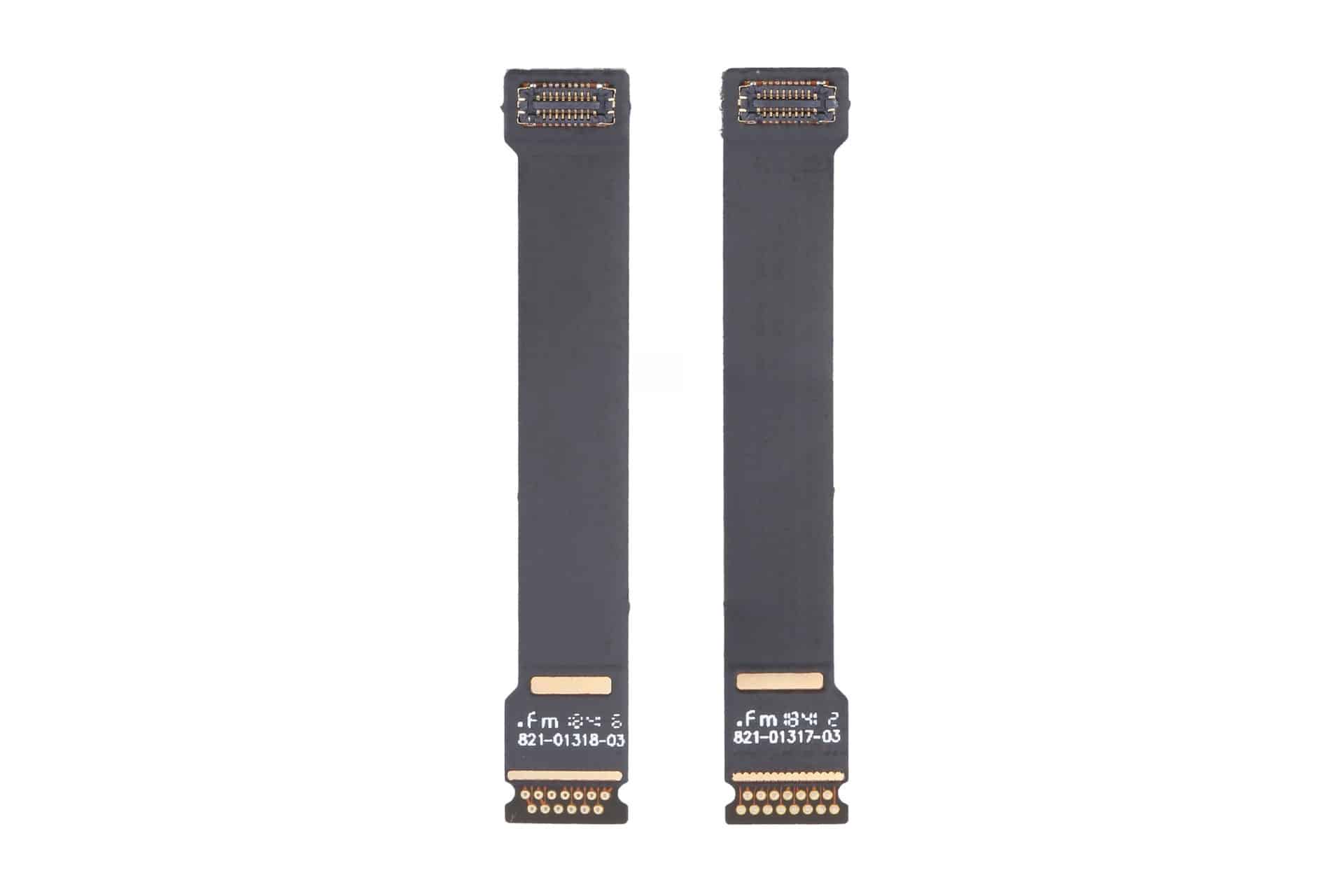
Two black ribbon cables with gold connectors on each end, positioned vertically side by side against a white background. Often associated with MacBook Air screen repairs and Flexgate issues, each cable has small white text and symbols near the bottom connectors.
Image Source: Google

Which MacBook Air Models Are Mentioned Most

Reports of angle-dependent MacBook Air display failures most commonly involve Retina models introduced from 2018 onward.

The 2018 and 2019 Intel MacBook Air share a thin Retina design with display connections running through the hinge area. The early 2020 Intel version and late 2020 M1 MacBook Air use closely related chassis designs, making symptoms across these machines look similar even when the failed component is not identical.

Owners describe displays that work when opened slightly but flicker, develop lines or turn black when moved toward a normal viewing position. Some units recover after the lid is partly closed, strongly suggesting a physical connection affected by movement.

The M1 MacBook Air receives particular attention because it sold in large numbers and remained available for several years. A greater number of public complaints does not necessarily mean it has a higher failure rate, but many of these computers are now old enough for wear, accidental pressure and repeated hinge movement to become relevant.

The redesigned M2 MacBook Air introduced in 2022 uses a different enclosure and display assembly. M3 and later versions continue that flatter design. Individual screen and cable failures can occur, but there is no established evidence of a single Flexgate defect covering those generations.

Older wedge-shaped MacBook Air models released before the 2018 Retina redesign can also develop display cable problems. They are not normally included in the Flexgate discussion because their screen architecture predates the MacBook Pro controversy and their failures follow different repair patterns.

The exact model can be checked through:

Apple menu > About This Mac

The model year and screen size are more useful than the date the Mac was purchased. Retailers may sell an earlier generation long after its original release.

How to Recognize a Display Cable Failure

A strong Flexgate-style symptom is a display that changes immediately when the lid moves.

The screen may operate normally below a particular angle, then flicker or disappear as it opens farther. Returning the lid to the previous position restores the picture without restarting the Mac.

Uneven illumination along the bottom edge can point toward a backlight connection. Several bright or dark patches resembling stage lights are especially associated with cable or backlight distribution problems.

A completely dark screen may still contain a faint image. Shining a flashlight toward the display in a dark room can sometimes reveal the desktop beneath the failed backlight. This test should be performed gently without pressing against the panel.

Colored vertical lines, black bands or duplicated images can involve the display data connection, but they may also indicate panel damage. Lines that remain unchanged at every lid angle are less characteristic of a flex-related failure.

Cracks do not always appear on the outer glass. Pressure from a webcam cover, keyboard protector, plug, pen or other object left between the keyboard and display can damage the internal LCD while leaving the surface relatively smooth.

Liquid exposure may create lines, discoloration or intermittent operation around the hinge and display connectors. In those cases, repeatedly opening the lid can spread contamination or worsen damaged connections.

An external monitor provides one of the most useful tests. When the external image remains normal while the built-in screen fails, the graphics processor is probably still generating the picture correctly. Attention then moves toward the internal display assembly, cable or connector.

A screenshot can provide another distinction. Capture the screen while the fault is visible, then inspect the file on another device or external monitor. When the screenshot looks normal, the problem is likely occurring after macOS generates the image.

MacBook Air M1

What Owners Should Do Before Paying for Repair

Back up the Mac as soon as an intermittent display problem begins. A screen that works at one angle today may become completely unusable after another cable movement.

Avoid repeatedly opening and closing the lid to demonstrate the fault. Each movement can place further stress on an already damaged connection.

Record a short video showing the display at different angles. Intermittent failures can disappear when a Mac reaches a repair counter, and clear documentation helps the technician reproduce the condition.

Apple Diagnostics may identify some hardware problems, although a clean result does not rule out a damaged display cable. Testing in macOS Recovery or during startup can help exclude an ordinary application problem.

Apple and authorized providers commonly replace the complete display assembly when the cable is integrated with the screen. That approach can make an out-of-warranty repair expensive even when the visible fault involves a small cable.

Independent repair specialists may offer component-level cable work for certain models. The quality and durability of those repairs vary considerably, and newer Air displays can require specialized equipment, adhesives and calibration.

Before authorizing work, request a written estimate identifying the model, suspected component, warranty on the repair and whether the replacement display is new, used, refurbished or genuine.

AppleCare+ may reduce the cost when coverage remains active, particularly if the screen shows accidental damage. Standard warranty coverage depends on the diagnosis and whether Apple determines that impact, liquid or external pressure caused the failure.

The current Apple service-program list should also be checked before paying. A MacBook Air display program could be introduced or changed later, while consumer-protection laws may provide additional rights in some countries even after the limited warranty ends.

Owners using the Mac with an external monitor can often continue working while evaluating repair options. FileVault credentials, backups and any essential recovery codes should be confirmed before service because a technician may need to erase, reset or retain the computer during inspection.

The post MacBook Air Flexgate Can Become a Costly Screen Failure appeared first on AppleMagazine.

  •  

Como ocultar os dados de exercícios enquanto o iPhone estiver bloqueado

Para evitar que as suas informações acabem sendo visualizadas por outras pessoas, a Apple permite escolher o que pode ou não ser mostrado no seu iPhone enquanto ele estiver bloqueado.

Dentre as opções, é possível ocultar os dados de saúde de exercícios físicos iniciados usando o seu iPhone ou Apple Watch. Assim, somente após você ter feito a autenticação via Face ID, Touch ID ou código, eles serão mostrados.

Veja como limitar isso! 🏃‍♂️

  1. No seu iPhone, abra os Ajustes (Settings) e toque em “Face ID e Código” ou “Touch ID e Código”, dependendo do seu aparelho.
  2. Autentique-se digitando a senha usada para desbloquear o iPhone.
  1. Na seção “Permitir Acesso Quando Bloqueado”, desmarque a opção “Dados de Saúde do Exercício”.

  •  

White Spot on iPad Screen: What to Do

A white spot on iPad screen can appear as a bright patch that remains visible while browsing, watching videos or using apps. It may be small and easy to ignore at first, then become distracting whenever the screen shows a white, gray or lightly colored background.

The spot may come from a temporary software problem, but a fixed bright area is more commonly connected to the display hardware. Pressure inside the iPad, a damaged backlight layer, display separation or an impact can create uneven illumination that no setting can remove.

Before arranging a repair, a few simple checks can reveal whether the spot belongs to the image being displayed or to the physical screen itself.

What Causes a White Spot on iPad Screen?

A white spot on iPad screen is often described as a bright spot, pressure mark or backlight patch. On iPads with LCD displays, light passes through several internal layers before reaching the glass. When one of those layers becomes damaged, separated or compressed, light can concentrate in one area.

The mark may be more visible against pale backgrounds and almost disappear when the screen displays black or dark content. This is different from a dead pixel, which usually appears as a tiny fixed dot rather than a larger cloudy patch.

Pressure is one possible cause. Carrying an iPad in an overloaded bag, placing heavy objects on it or using a tight case can place stress on the display. A drop may also disturb the internal screen layers without cracking the front glass.

Battery swelling can create similar pressure from inside the device. If the screen is lifting from the frame, the iPad feels unusually warm or the body appears bent, stop using it and seek service. A swollen battery should not be pressed back into place or handled as an ordinary screen defect.

The problem can also appear after a display replacement involving a poorly fitted or lower-quality part. Apple notes that nongenuine displays may produce inconsistent brightness, color or touch behavior.

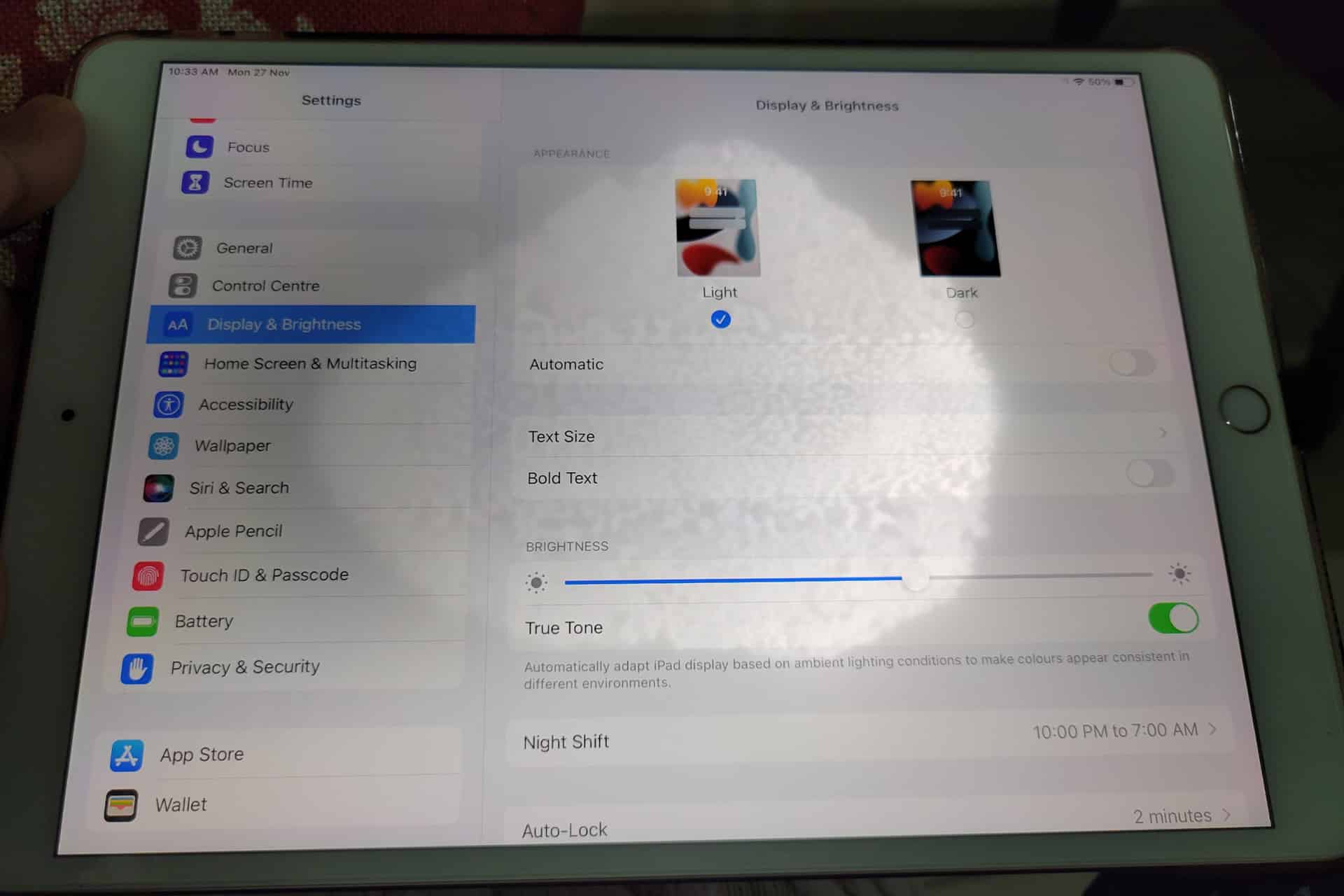
White spot on iPad screen - An iPad displays its "Display & Brightness" settings, showing options for Light and Dark modes, brightness adjustment, True Tone, Night Shift scheduling, and other appearance settings—features that can help users address common issues like an iPad screen problem or an uneven iPad backlight. A hand holds the device.
Image Credit:

Check Whether the Spot Is Really on the Display

Begin by opening several different apps. Look at the spot over a white webpage, a gray Settings screen, a dark photo and a full-screen video. A hardware-related mark normally stays in the same physical location regardless of what appears underneath it.

Rotate the iPad. If the content changes orientation but the bright patch remains in the same part of the glass, the display is the likely cause.

Taking a screenshot provides another useful test. A physical screen defect will not normally become part of the screenshot file.

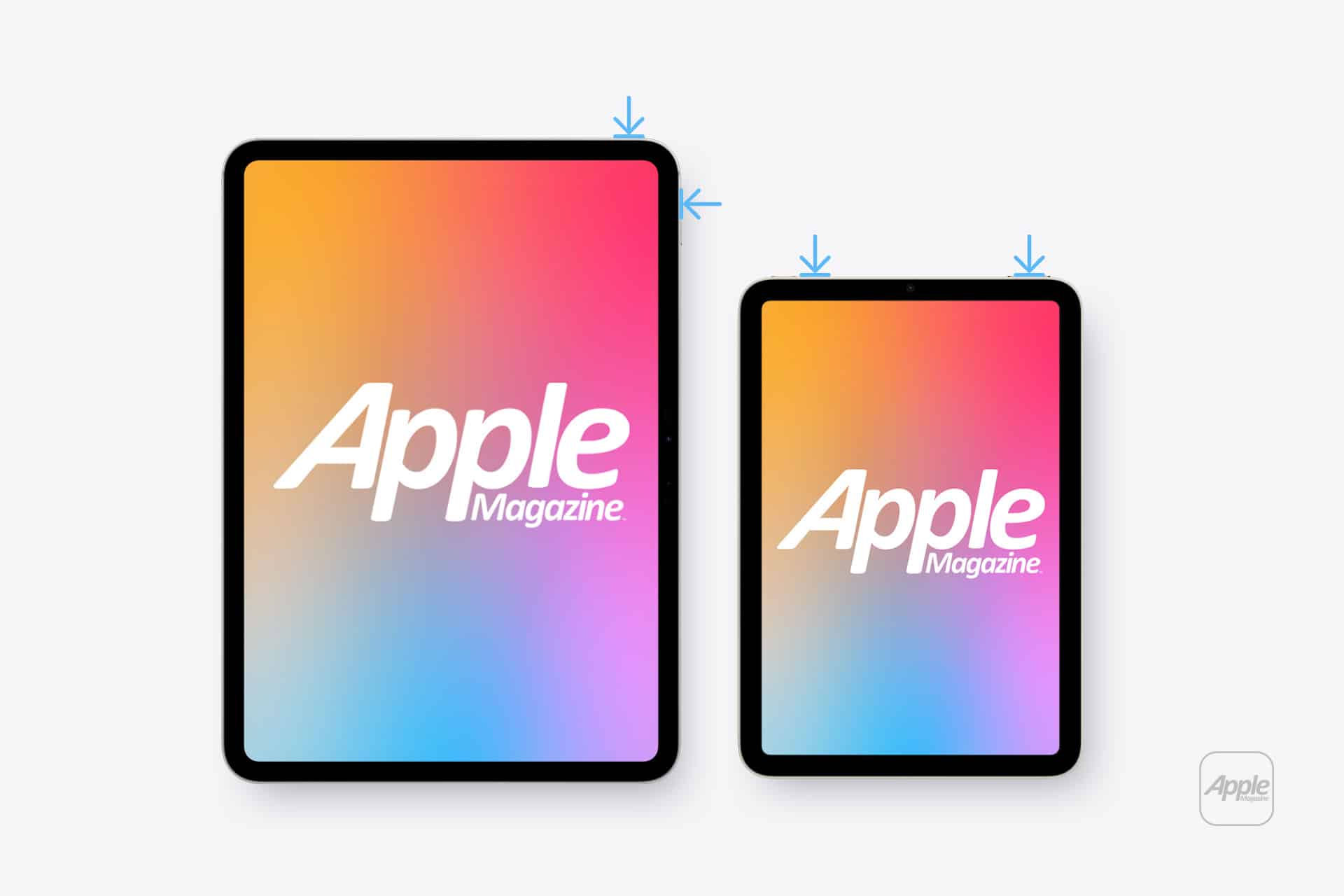
To take a screenshot on an iPad without a Home button:

Top button + either volume button

To take a screenshot on an iPad with a Home button:

Top button + Home button

Open the screenshot on another device or send it to a trusted computer. If the white spot does not appear there, the image generated by iPadOS is normal and the problem is probably inside the display assembly.

If the mark appears in the screenshot, it may belong to an app, image, accessibility setting or software effect rather than the panel.

Restart Before Assuming Hardware Failure

A restart is worth trying because it clears temporary display and system behavior without affecting personal files. It is unlikely to repair physical backlight damage, but it can eliminate a short-lived graphical problem.

To restart an iPad without a Home button:

Press and hold the top button and either volume button > Drag the power slider > Wait approximately 30 seconds > Hold the top button until the Apple logo appears

To restart an iPad with a Home button:

Press and hold the top button > Drag the power slider > Wait approximately 30 seconds > Hold the top button until the Apple logo appears

After restarting, return to the same pale background and check the area again. A spot that remains fixed is unlikely to be caused by a temporary iPadOS issue.

Two tablets displaying a colorful Apple Magazine cover are shown side by side. Blue arrows point to the corners of the tablet on the right, highlighting its narrower bezels compared to the left; it resembles an iPad Screenshot in vibrant detail.
Image Credit: AppleMagazine

Brightness Can Make the Problem More Visible

Lowering brightness may make a bright patch less distracting, but it does not repair the underlying display. The same applies to Dark Mode, Night Shift and Reduce White Point. These settings can change how noticeable the mark becomes without removing it.

To adjust screen brightness:

Settings > Display & Brightness > Brightness

Test the iPad at several brightness levels. A backlight-related spot may become easier to see as brightness increases. Photographing the screen against a plain background at medium and high brightness can also help document the defect before requesting service.

Avoid pressing or rubbing the affected area. Pressure may temporarily change the appearance, but it can damage the display further. Internet advice suggesting that users massage bright spots out of a panel should be ignored.

Check the Case and Screen Protector

Remove any rigid case that appears unusually tight or has been damaged. A poorly fitted case can place uneven pressure around the frame, particularly if the iPad has been dropped while inside it.

A screen protector normally cannot create a true illuminated patch beneath the display. It can, however, produce bubbles, trapped moisture or reflective marks that resemble a screen defect. Examine the iPad with the display turned off. If the mark is visible on the surface even when the screen is black, the protector or glass may be involved.

Do not remove a properly installed protector solely as an experiment unless the mark clearly appears close to its surface. A bright patch visible only while the display is illuminated usually comes from deeper inside the screen.

When the iPad Needs Repair

A persistent white spot generally requires display service when it remains after restarting and does not appear in screenshots. There is no iPadOS setting that can realign a damaged diffuser, remove internal pressure or repair separated display layers.

Back up the iPad before service so photos, documents and app data remain protected.

To create an iCloud backup:

Settings > your name > iCloud > iCloud Backup > Back Up Now

Apple can inspect the device and determine whether the defect qualifies for warranty coverage, AppleCare service or paid repair. Coverage depends on the device, purchase date, condition and whether the problem resulted from accidental damage.

To check coverage:

Settings > General > AppleCare & Warranty

Apple or an Apple Authorized Service Provider may replace the display assembly or the iPad, depending on the model and available service process. The final repair estimate normally requires inspection.

A white cloud icon centered on a blue gradient background symbolizes iCloud Drive offline, with a small Apple logo and the word "Apple" in the lower right corner.
Image Credit: AppleMagazine

Do Not Ignore Physical Changes

A stable white spot that has not changed for months may remain only a visual annoyance. A spot that is expanding, accompanied by screen lifting or followed by unusual heat needs faster attention.

Stop using the device if the display separates from the enclosure, the iPad becomes visibly swollen or pressure marks spread across the panel. Do not puncture the device, force the display closed or continue charging it unattended.

For an ordinary fixed bright patch, the practical path is simpler: confirm it does not appear in screenshots, restart the iPad, remove any case applying pressure and arrange display service if the mark remains.

A white spot on iPad screen rarely affects the information stored on the device, but it can indicate physical damage that software cannot correct. A brief check can rule out the easy causes. After that, repair is usually more effective than repeatedly changing display settings and hoping the light disappears.

The post White Spot on iPad Screen: What to Do appeared first on AppleMagazine.

  •  

Sunscreen Misinformation Attracts High Engagement on TikTok, Study Finds

New findings published in PLOS Digital Health highlight the challenges public health experts face in combating misleading health information on social media, particularly amid ongoing debates over whether sunscreen is truly beneficial.

To investigate how sunscreen is portrayed online, researchers at the University of Alberta analyzed 971 of the most-viewed TikTok videos associated with five popular sunscreen-related hashtags: #sunscreen, #sunscreenviral, #spf, #sunscreenreview, and #sunprotection.

The researchers examined how sunscreen was represented in the videos and measured audience engagement through views, likes, shares, and comments.

“Sunscreen misinformation may attract disproportionate attention,” says Alessandro Marcon of the University of Alberta, Canada, and colleagues in a statement.

The findings showed that most of the TikTok videos analyzed promoted sunscreen use, accounting for 86.8% of the content. Only 6% contained health-related criticism, including claims that sunscreen is harmful (1.5%) or that it interferes with the benefits of sun exposure, such as vitamin D production (1.2%). Despite representing only a small fraction of the content, these videos attracted disproportionately high levels of engagement, receiving more likes, shares, and comments on average than pro-sunscreen videos.

“Sunscreen misinformation on TikTok constitutes an area of concern not for the total sum of overarching influence in terms of content production but rather in how strongly some sunscreen misinformation ideas resonated among particular audiences,” adds Marcon.

The researchers suggest that the elevated engagement may be driven by the controversial and attention-grabbing nature of the content, which can help videos spread more widely on social media platforms.

They also found that even videos promoting sunscreen often omitted key public health messaging. Most focused on beauty and skincare benefits rather than health outcomes, with only 6% specifically mentioning sunscreen’s role in reducing skin cancer risk.

“Our analysis showed TikTok is not necessarily flooded with sunscreen misinformation, but TikToks that dangerously claim that sunscreen is harmful or unnecessary receive comparatively high levels of audience engagement. TikTok content creators commonly promoted sunscreen as part of skincare regimens where sunscreen benefits were more commonly related to beauty rather than health,” said Marcon.

“It was surprising to see so many TikToks promoting sunscreen use without specifically mentioning the important role it plays in cancer prevention. Only 6% of the TikToks analyzed explicitly mentioned the benefits of reducing the risk of skin cancer.”

The study suggests that misinformation can spread widely not because it is more common, but because it is often more controversial and attention-grabbing. It also highlights a broader communication gap, as many creators emphasize sunscreen’s cosmetic benefits while overlooking its well-established role in preventing skin cancer.

Chrissy Newton is a PR professional and the founder of VOCAB Communications. She currently appears on The Discovery Channel and Max and hosts the Rebelliously Curious podcast, which can be found on YouTube and on all audio podcast streaming platforms. Follow her on X: @ChrissyNewton, Instagram: @BeingChrissyNewton, and chrissynewton.com. To contact Chrissy with a story, please email chrissy @ thedebrief.org.

  •  
❌