Brace yourself: The way you get around the web on Android is about to get a whole lot better.
This week, the excellent Vivaldi Android browser is rolling out an update that adds in support for the entire collection of Chrome Web Store browser extensions. That means you can enhance and adjust your mobile web experience with all sorts of interesting — and potentially shape-shifting — new improvements.
Now, with complete Chrome extension support added into the mix on Android, the advantage is growing even greater.
I’ll be honest, though: When I first saw that Vivaldi was adding in Chrome extension support for Android, I wasn’t sure what to make of it. Most of the extensions I use in my desktop browser just wouldn’t make sense on the mobile front and wouldn’t add much of meaningful value in that environment.
But then I put on my thinking cap. I did some deep digging and careful considering. And I found some Chrome extensions that actually work incredibly well in the Android arena and add a lot of interesting value into the mobile web adventure.
This is the first of a two-part collection. Today, we’ll look at five Chrome extensions that you can add into Vivaldi to save yourself steps and bring a welcome efficiency boost to your Android web work. Later this week, we’ll round out the list with another set of extensions that’ll improve the internet itself in some truly intriguing ways.
Ready to reinvent how you experience the web on your phone?
A quick primer on Android Chrome extension installation
Real quick, before we get into the good stuff: When you’re ready to try out an extension, you’ll need to have the latest version of the Vivaldi Android app on your device (obviously, right?) — then either tap the puzzle-shaped extensions icon in the toolbar at the top of the screen, if you see it, or tap the “V”-shaped main menu icon in the upper-right corner and select “Extensions” from there.
Either way you go, you’ll see an option to “Discover more extensions.” That’ll take you to the Chrome Web Store, where you can search or browse through all the available extensions and install anything with a couple quick taps.
I’ll also provide direct links to each extension I’m recommending below, so you can tap it to open it in Vivaldi on your phone and then install it directly from there.
Note, too, that that same Vivaldi Extensions menu is where you can access and manage any installed extensions moving forward. You’ll see every extension you’ve installed there, and you can deactivate or uninstall anything as well as opt to have its icon pinned into your browser toolbar for easy ongoing access.
Chrome Android extension #1: The cookie request crumbler
Our first Android Chrome extension worth considering is one that you won’t ever open or actively think about once you install it and set it up. It’s a tool that works silently in the background to automatically handle those irksome cookie preference prompts that pop up around the web — so they’ll always get answered in the way you prefer, but you’ll never actually have to see or deal with ’em (and have ’em blocking half your view, in a mobile web scenario!) again.
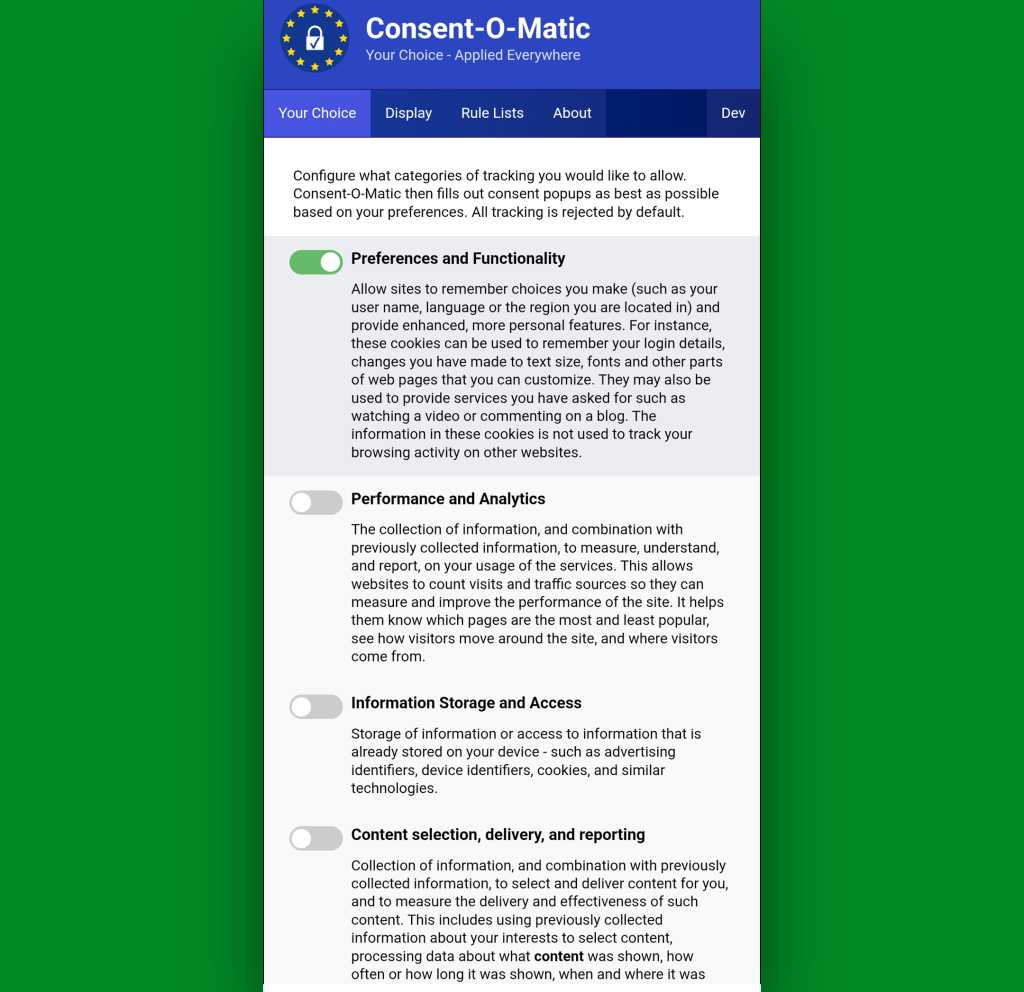
It’s called Consent-o-Matic, and the way it works is simple: You install it, open its options page once to tell it which cookies you do and don’t want to allow around the web — and that’s pretty much it. From there on out, it’ll just click on all those prompts that pop up for you, based on your preferences, and they won’t interfere with your work or irritate you anymore.
Consent-o-Matic remembers your cookie preferences and then applies them for you automatically all over the web.
JR Raphael, Foundry
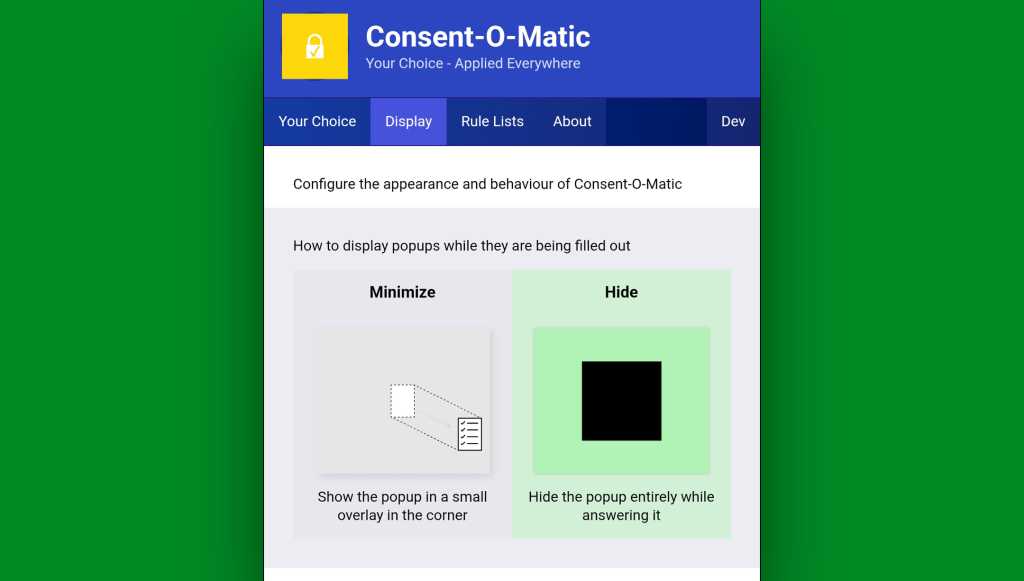
One option to look at while you’re in that initial setup area is in the “Display” tab at the top of the screen. By default, Consent-O-Matic will show any pop-ups it’s handling in a small overlay in the corner of the screen — but you can eliminate that entirely and make the process completely out of sight and invisible, if you want.
You can make Consent-o-Matic completely invisible so you never so much as see another cookie prompt again.
JR Raphael, Foundry
Yes, please — and thank you.
Chrome Android extension #2: 404 no more
Next is another quietly useful addition, and that’s the official Chrome extension for the Wayback Machineat the Internet Archive.
With the Wayback Machine extension active in your Android web browser, anytime you land on a page that for whatever reason isn’t online anymore or just isn’t available at that particular moment, you’ll see an offer to go to the page’s most recent cached version.
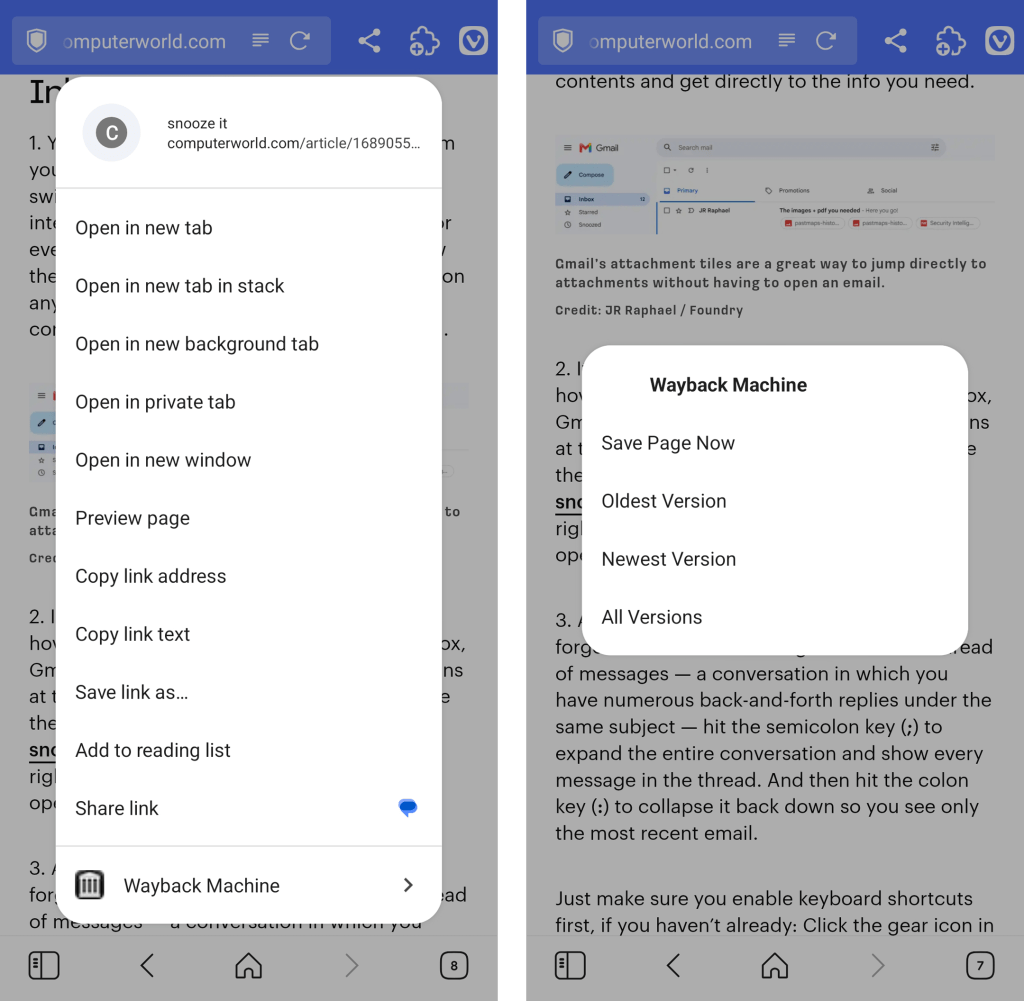
You can also call the extension up on demand to search for older saved versions of any pages by either pinning its icon to your Vivaldi toolbar or long-pressing a link within any page you’re viewing to reveal its menu of options.
The Wayback Machine Chrome extension integrates seamlessly into Vivaldi’s long-press link menu.
JR Raphael, Foundry
Chrome Android extension #3: A background open shortcut
I don’t know about you, but when I’m wading my way around the web, I find myself opening links a lot — often with the intent to look at ’em later.
Typically, that requires long-pressing on the link and then finding the option to open it in a background tab. But with a handy extension called DoubleClicker, that same action can be easier than ever.
Install DoubleClicker into your Android Vivaldi browser, and that’s it: From that moment forward, you can simply double-tap your finger on any link within any page, and it’ll open instantly as a background tab — waiting and ready for when you want it and without any waiting, poking around, or other interruptions to your workflow.
This might just be my favorite addition of all.
Chrome Android extension #4: Hands-free scrolling
The next time you’re reading something on your phone, keep a little somethin’ called Auto Scroll Extension in mind.
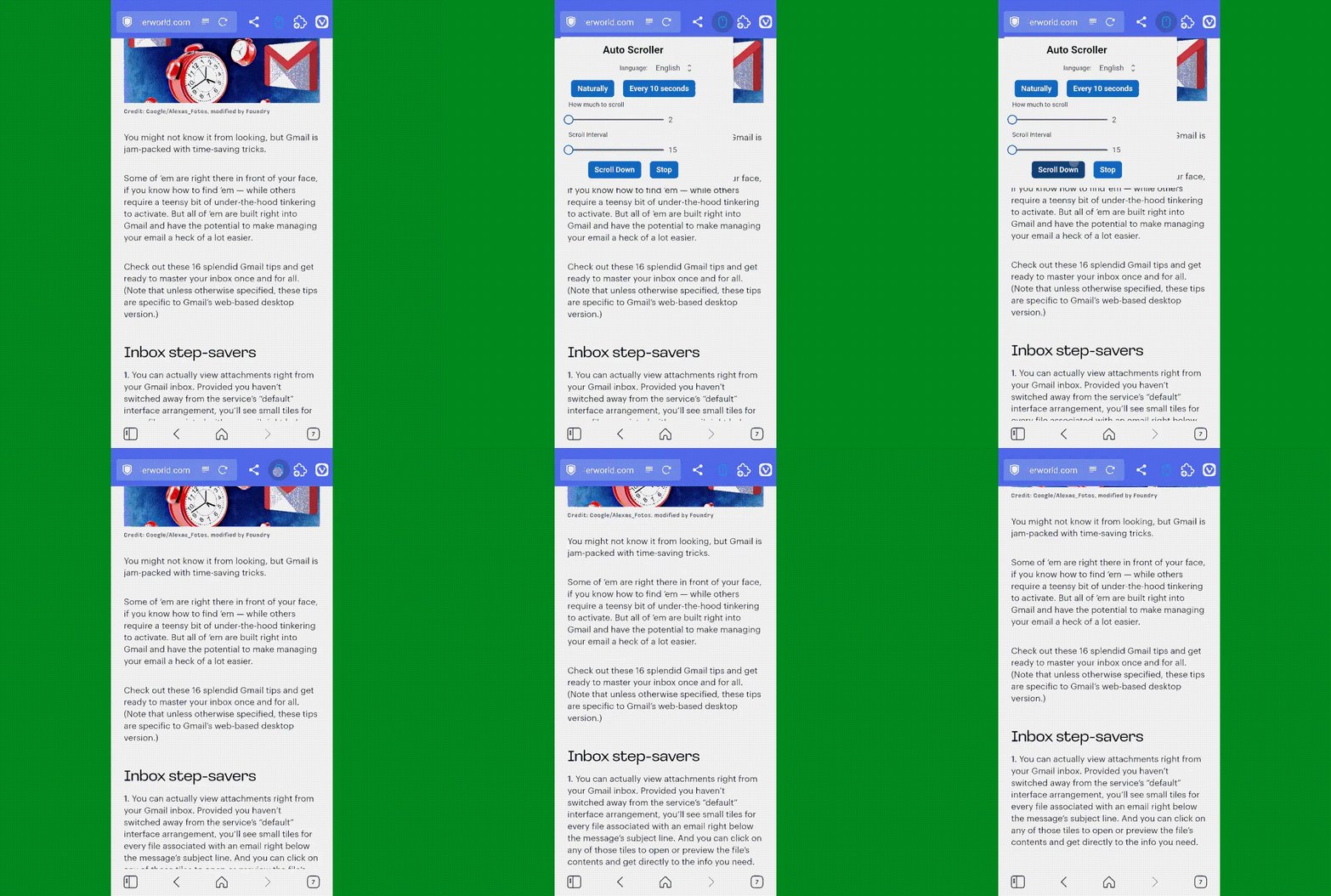
As its name suggests, the extension lets you set any speed you like and then simply tap its icon (which works best if you pin it to your toolbar) to automatically scroll the page for you — so you can keep reading without having to do a thing.
Look, ma: No hands! Auto Scroll in action in Vivaldi on Android.
Yes, it’s redundant with having the standalone app installed and set as your system-wide password management service. But it often ends up being faster and easier to have a sign-in handled directly within the browser instead of having to rely on the system-level integration.
And having the browser-based option present doesn’t prevent you from using the other route, either. You’ve just got options, and you can pick whichever feels fastest and easiest to you at any given moment.
Try it out for yourself and see whatcha think. And stay tuned for the second set of worthwhile Android Chrome extensions soon!
Microsoft’s September 2026 Patch Tuesday is the year’s largest release, with 963 CVEs requiring customer action, 106 rated critical. Two are already exploited: CVE-2026-81963 in the Windows Update Stack and CVE-2026-85880 in Advanced Local Procedure Call. Nothing in this release was publicly disclosed ahead of the patch. Readiness recommends a Patch Now scheduling for Windows, Office, SQL Server and the developer tooling, and standard patch release for Exchange. The Readiness team has published an infographic summarising deployment risk by product family.
Known issues
Three client issues are carried in from August close with this update, covering:
Microsoft Teams and the new Outlook failing to launch on ARM devices, such as the Surface Pro 11 and Surface Laptop 7, is resolved by KB5124008. The issue originated in August’s KB5121003 and was most likely on freshly imaged machines that had not yet taken Microsoft Store updates.
The same update resolved both desktop backgrounds reverting to solid black and mouse cursor customisation resetting on non-English installations. Both originated in the 27 August preview, KB5120998.
And Microsoft has left open a Microsoft Defender Antivirus notification defect, confirmed on 28 August, in which devices report that Defender is turned off while it is running correctly.
Major revisions and mitigations
The quietest revision window of recent months arrived alongside the largest release. Between the August and September Patch Tuesdays, from 12 August to 7 September, the MSRC Security Update Guide touched 324 CVEs. Of those, 307 were routine Microsoft Edge and Chromium republications requiring no customer action.
That leaves 17 entries affecting Microsoft’s own products, and only one of those is a genuine revision. CVE-2026-59133, an elevation of privilege in the High-Performance Computing Pack, moved to version 1.1, and its own revision note records the change as informational. For comparison, August’s window carried 76 revisions to Microsoft’s own products, 60 of them flagged as requiring customer action.
The Readiness team has reviewed all 963 published updates. Microsoft has published no mitigations and no workarounds anywhere in this release.
Windows lifecycle and enforcement updates
Microsoft has published no new service or enforcement deadlines for September. The lifecycle picture is different, with multiple end-of-support notices for this coming October:
The retail Office 2021 family retires in full, including Access, Excel, Outlook, PowerPoint, Project, Publisher, Visio and Word.
Office LTSC 2021 reaches end of support, and that includes Skype for Business LTSC 2021.
Windows 10 2016 LTSB and Windows 10 IoT Enterprise LTSB 2016 reach the end of extended support.
Windows Server 2012 and 2012 R2 reach the end of Extended Security Update Year 3. This is the final ESU year for both, not a step to a fourth.
Windows Server 2022 moves from mainstream to extended support, where it stays until 14 October 2031.
A second wave follows on 10 November 2026, and it is the one most likely to catch development teams rather than infrastructure teams. .NET 8 reaches the end of its long-term support branch, PowerShell 7.4 does the same, and Windows 11 Enterprise and Education 23H2 ends servicing alongside Windows 11 IoT Enterprise 23H2.
Microsoft’s test guidance for this release runs to 466 Windows entries, 55 of them flagged as high risk, against 109 and four in August. Given the large number of updates this month (who would have thought that we would be here at 963 CVEs), the Readiness team recommends the following testing priorities:
Printing. Print from 32-bit and 64-bit applications to physical and virtual printers, exercise XPS and PDF output, share a printer from a print server and print from a separate client, cancel a job mid-queue, and confirm the queue reflects every state change. This is 20 of the 55 high risk flags, and it is the single most likely source of a visible regression.
Fonts, graphics and imaging. Render varied fonts, sizes and styles across browsers, Office, PDF viewers and Notepad, confirm Print Preview matches the printed page, and open JPEG, TIFF, HEIF and raw images across Explorer, Photos and Office. Watch for clipping, distortion and missing glyphs.
USB Devices. Exercise device attachment and removal. Attach and remove USB audio, video and mass storage devices repeatedly, including through a hub, pair and unpair a wireless device, and confirm each enumerates and releases cleanly. Device Association carries seven high risk flags, and these drivers load whenever hardware is attached.
Remote Desktop. Open several concurrent sessions, enable printer, clipboard, audio, drive and smart card redirection together, disconnect and reconnect, and confirm redirected devices reattach.
Storage (ntfs.sys, spaceport.sys). This is a real hotspot for updates this month, but no high-risk changes. Test on hardware you can recover, because the storage changes reach the boot path, potentially resulting in a dead (test) machine.
Each month, we break down the update cycle into product families, as defined by Microsoft, with the following groupings.
Browsers
Microsoft has not released any updates for their browser products for the second month in a row. September’s Security Update Guide carries no Edge-specific CVEs at all, and the 307 Chromium republications in the revision window required no customer action. The nine Edge CVEs that did appear arrived mid-cycle on 28 August and were serviced through the browser’s own update channel rather than this release.
Estates on a managed Edge channel have nothing to do here beyond confirming the channel is current. It is the one quiet corner of an otherwise heavy month.
Microsoft Windows
Windows carries 726 CVEs, 77 of them critical, which is three-quarters of the entire release. Elevation of privilege dominates by volume at 406 entries, with remote code execution second at 156, information disclosure at 94 and denial of service at 47. The pattern is the reverse of the severity picture: the bulk is local elevation, while the critical-rated entries cluster in the network-facing roles.
Biometrics is a real focus this month as the Windows Biometric Service takes 64 fixes, the largest single-component count of the year. Most of the security issues are heap overflows that give a local attacker SYSTEM. Windows Hello adds nine, all critical. Patch it promptly on any estate using fingerprint or facial sign-in.
Windows DHCP Server leads at 36 entries and is topped by remote code execution at CVSS 9.8. Windows DNS Server takes 10 more, also reaching 9.8. Critical remote code execution also lands on Message Queuing, RRAS, Services for NFS, the HTTP Print Provider, Windows Shell, Netlogon, Internet Connection Sharing, SSTP and Failover Cluster, all at 9.8. Patch the resolvers, the DHCP servers and the domain controllers first.
Storage is the heaviest it has been this year. NTFS takes 29 fixes, Spaceport.sys behind Storage Spaces takes 17, and the Overlay Filter takes seven, with the Volume Manager, VHD miniport, iSCSI and Storage Port drivers behind them. These reach the boot path, so stage them on recoverable hardware.
The rest of the most-patched tally runs Win32k at 19, Microsoft Standard XPS at 18, Windows Error Reporting at 12, and the Windows Kernel, Windows Search, the Print Spooler and the Device Association Service at 11 each.
Add this Windows update to your Patch Now schedule, with DHCP and DNS servers first and the biometric stack close behind.
Microsoft Office
Microsoft released 137 Office CVEs this month, 24 of them critical, with remote code execution the through-line at 69 entries and information disclosure close behind at 52. September breaks the recent pattern in a way that matters for deployment: this wave is not MSI-only.
Click-to-Run estates are squarely in scope. Roughly 105 of the Office CVEs reach Click-to-Run, so Microsoft 365 Apps, Office 2019, LTSC 2021 and LTSC 2024 all update, on Windows and on Mac. Word takes 35 fixes, Excel 32, PowerPoint 10 and Outlook seven. The heaviest client entries are CVE-2026-78510 in Word and CVE-2026-78509 in Outlook, both critical remote code execution at CVSS 9.8, in document-rendering paths that fire on preview or open.
SharePoint Server Subscription Edition takes 16 entries and is the only SharePoint baseline with a package this month. Server updates cannot be uninstalled and always require a reboot, so validate in a maintenance window.
Skype for Business Server takes 10 entries, led by CVE-2026-66302, a critical remote code execution at CVSS 9.8. Patch it and note that the LTSC 2021 edition leaves support on 13 October 2026.
Nothing in Office is exploited this month. With 24 critical-rated entries and the Click-to-Run channel carrying most of the exposure, the September Office updates belong on the Patch Now schedule regardless.
Microsoft Exchange and SQL Server
Exchange is quiet and SQL Server is not, which inverts the usual relationship between the two.
Exchange Server takes nine CVEs across 2016 CU23, 2019 CU14 and CU15, and Subscription Edition. None is critical and none is exploited, though the highest reaches CVSS 9.3. The mix runs to two remote code execution entries, two elevations of privilege, two spoofing, and one each of tampering, denial of service and information disclosure. Apply the update from an elevated command prompt, because an un-elevated run leaves Exchange services partially patched and broken, then confirm mail flow, Autodiscover and any hybrid connection before returning the server to service.
SQL Server takes 62 CVEs, four of them critical, across the 2017, 2019, 2022 and 2025 branches. There is no 2016 package this month. Remote code execution leads at 24 entries, with information disclosure at 22. The critical entries are CVE-2026-67631 and CVE-2026-67643 at CVSS 8.8, and CVE-2026-67378 and CVE-2026-67636 at 8.5.
Eight SQL packages ship, a CU+GDR and an RTM+GDR for each branch: 2025 (KB5122769, KB5122770), 2022 (KB5122768, KB5122771), 2019 (KB5122772, KB5122773) and 2017 (KB5122774, KB5122775). Microsoft’s guidance is explicit that the baseline or RTM version must be installed first and the GDR patch applied on top; test the install and the removal on every servicing branch you run, then restart the service and confirm Always On availability groups stay healthy.
Exchange goes on the Schedule list, and SQL Server goes on the Patch Now list. That is an unusual split, and it is driven by the four critical remote code execution entries on the database estate.
Microsoft Developer Tools
Microsoft released 24 CVEs across its developer tooling this month, 23 rated important and one critical. Security feature bypasses are the main focus with eight CVE entries, with remote code execution and information disclosure at four each.
The single critical entry is CVE-2026-34182 at CVSS 9.1, a flaw in CMS AuthEnvelopedData processing that allows forged messages to be accepted. It reaches Visual Studio 2017 through 2022.
The highest-scoring entry in this family is not the critical one. CVE-2026-81376, a Visual Studio Code security feature bypass, reaches CVSS 9.6 while carrying an important rating. It is a useful reminder that severity labels and CVSS scores answer different questions.
Visual Studio Code and its Copilot extensions take 10 entries, mostly security feature bypasses. Update the editor and confirm workspace trust prompts, extension installation and remote sessions behave as configured.
.NET ships SDK updates on all three supported lines, x64 and x86: 8.0.131 and 8.0.425, 9.0.121 and 9.0.318, and 10.0.112 and 10.0.401. Install them, then build and run a representative project to check for regressions. Keep the 10 November date for .NET 8 in view while you are in there.
The .NET Framework ships monthly rollups per operating system: Windows Server 2012 (KB5126147), Server 2012 R2 (KB5126148), Windows 10 1809 (KB5126144), 21H2 (KB5126145), 22H2 (KB5126146) and Server 2022 (KB5126149). One gap worth noting: the 4.7.2 package for Windows 10 1607 is listed as pending and will follow, so estates still on 1607 will not complete their Framework patching this cycle.
Add these to your standard release schedule, behind this month’s Windows, Office and SQL Server priorities. Keep the 10 November date for .NET 8 and PowerShell 7.4 in view while you are in the developer estate, because a patch this month does not extend either branch.
Adobe (and third-party updates)
September is the largest release of the year, and this (crazy, super high) volume is the least interesting thing about it. The 963 CVEs matter less than the 55 entries Microsoft flags as high risk, and those sit in printing and fonts. Adobe shipped two Acrobat builds one digit apart and only the second is a security update (nothing to worry about here). Of the CVEs Microsoft republished, 25 are not Microsoft’s. A version number tells you very little about the work in front of you. So, given my (super-secret knowledge) of how Microsoft operates over the summer, here is my prediction for next month (October). It won’t be as big as this month – but just you wait – November is going to be big. Let’s up those numbers (or not).
Chrome will get new updates every two weeks to minimize real-world attacks
Smaller, incremental changes should also make it easier to track any issues
Other major browsers are also shifting to two-weekly release cycles
Google has confirmed that Chrome has officially moved from a four-week Stable release cycle to a two-week one, with effect from September 8 2026 with the launch of Chrome 153.
Besides adding new features, the main objective is for Google to give us performance and security fixes more promptly in an era of increased complexity and heightened vulnerabilities.
And it's exactly those security concerns that pushed Google to want to double Chrome's update frequency in the first lace, with the company now having to deal with a higher volume of patches than ever before.
Chrome will get updates every two weeks
Together with a higher volume of attacks in general, Google has also benefitted from AI-powered vulnerability discovery tools, giving developers more work to do than before. "With automated AI discovery tools and community bug reports generating higher patch volume, shorter release cycles make managing security fixes significantly simpler," the company wrote.
Crucially, the faster cycle reduces the time between a fix landing in Chrome's public codebase and it actually reaching end users, making it less likely for a bug to be exploited in the wild.
Chrome has been adhering to a four-week cycle since 2021, but the world is a very different place in the space of just half a decade.
With the higher pace of releases, Google also anticipates a smaller scope of changes, which could actually be a good thing because it could be easier for developers to identify what went wrong in the event of any issues.
Desktop, Android and iOS versions of Chrome will all be impacted by the change, with Chrome 154 already slated for a September 22 release.
More broadly, Google says Chrome isn't the only browser getting more frequent updates. Microsoft, Mozilla and Brave are also making similar changes, and they're all undergoing those changes right now.
Uma nova investigação revela que mais de um terço das infeções por infostealers tem origem na execução de ficheiros diretamente a partir de pastas temporárias dos navegadores. Comportamentos de risco, como descarregar software de fontes não seguras, continuam a ser explorados pelos cibercriminosos.
We live and work in browsers. It’s where we spend most of our time — and it’s where we waste most of our time as well. Web browsing is slow, inefficient, and full of time-sapping annoyances.
But it needn’t be that way. You can turn your browser into a lean, mean productivity machine. To do it, just follow these tips for Microsoft Edge in Windows 10 or 11. You’ll learn how to switch between home and work profiles, put idle tabs to sleep to speed up your PC, tap into the power of Microsoft’s Copilot AI assistant, and more.
(Note that these tips are written for the most recently updated version of Edge in Windows 11 25H2 and Windows 10 22H2. Things may be slightly different if you use a different Windows version, and not all of these features are available for Edge on macOS or other platforms.)
So let’s get started — time’s a-wasting, and so is your productivity.
1. Switch between work and personal profiles
With remote and hybrid work models now common, many people use the same device for work and personal use. When it comes to using a web browser, that can quickly become problematic.
Mixing work and personal favorites makes it far more difficult to quickly get to important work websites or personal websites. When you’re working, you don’t want to wade through hundreds of links to family photos, vacation destinations, and YouTube videos of cats befriending parrots when you’re just looking for the OSHA website about mine safety regulations. And when you’re off working hours and want to watch a video of a Persian cat nuzzling a cockatiel, a website detailing the GDPs of every country in Europe and Asia is not your primary destination.
Different profiles let you completely segregate your browser use. That doesn’t just mean different favorites. It also means different Collections, different extensions, different passwords, and more.
Each Edge profile is tied to a different Microsoft account. So to use different profiles, you’ll need to create different Microsoft accounts. To create a new Microsoft account in Windows 10 or 11:
Scroll down to the button that says Create an account, click it, and follow the prompts to create a new account.
On the page that appears, click the Sign in button in the middle of the page. On the screen that appears, select the Create one! link, then follow the prompts to create a new account.
You’ve now got two different Microsoft accounts you can use for Edge. When you log into one of those accounts in Windows, that will be the default account that Edge will use when you browse the web.
To switch between the two accounts, you’ll need to add that second account to Edge. To do it:
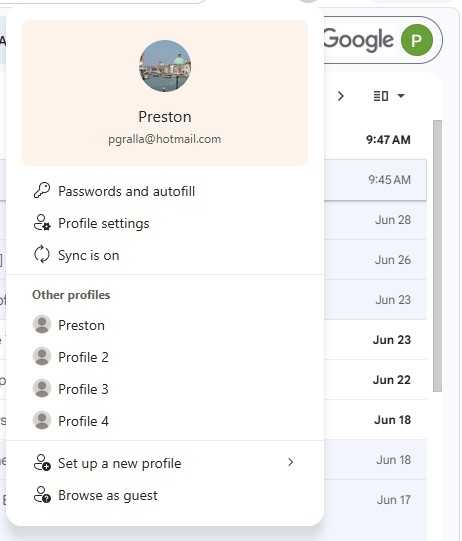
Click the user profile icon at the top right of Edge. On the small pane that appears, select Set up a new profile, then select either Personal or Work or School.
You’ll be sent to a web page in a new instance of Edge. Click the Sign in button at the far right, then select Sign in to sync data.
On the screens that appear, sign in and confirm that you want to proceed.
Once you’ve done that, you don’t have to log out of your current account and then log into the second account to use it in Edge. Instead, when you want to use the second account, click the user profile icon at the top right of the Edge window. A small pane appears with your current profile at the top. To switch to your other profile, select it in the “Other profiles” section.
To minimize distractions, set up work and personal profiles in Edge.
Preston Gralla / Foundry
You’ll now be sent straight to that profile. When you do that, Edge will open in a new window. So you’ll have both your profiles running simultaneously, each with its own tabs, in two separate windows. (Note that you can set up multiple additional profiles.)
You can also tell Edge which profile to use when you visit certain websites. To do it:
Click the user profile icon in Edge and select Profile settings. (Alternatively, you can click the three-dot icon next to the user profile icon and select Settings > Profiles.)
In the “Profile settings” area, click Profile preferences.
At the bottom of the “Automatic profile switching” section on the page that appears, click Add site next to “Custom site switch.”
On the “Add site” popup, enter a website URL and select the profile you want to switch to for that site.
Should you decide you want to remove a profile, go to Settings > Profiles and scroll to the “More profiles” section. Click the trash can button next to any profile you want to delete. You can always add it again later using the steps above.
2. Get to your most-used sites quickly
Bookmarking and organizing favorites is a great way to manage a large collection of websites, but it’s not that useful if you simply want to get to a frequently used site quickly. Edge has some tricks up its sleeve if you want to get your most-used sites pronto.
Add a site to the new tab page
When you open a new tab in Edge, a page appears that shows you news and other items you might be interested in. It’s easy to pin a site to this page so it’s accessible whenever you open a new tab.
Look toward the top of the page, just underneath the search box. If you don’t see icons for pinned pages (such as for Yahoo, Amazon, your inbox, and so on), click the settings icon on the upper right of the page (it looks like a gear) and turn “Quick links” on.
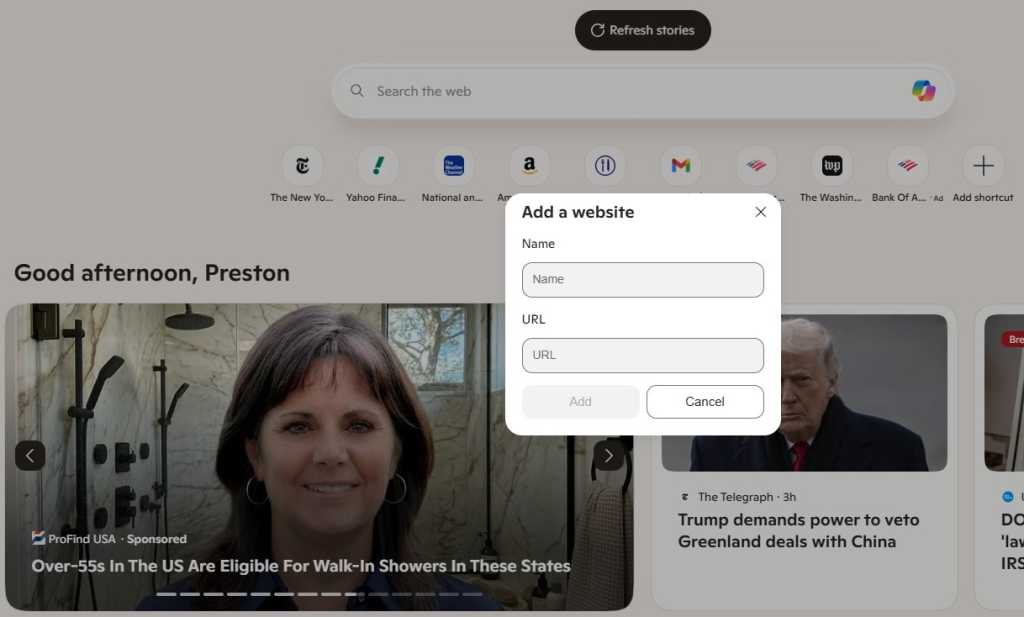
A row of site icons appears, along with a + icon. Click the + icon and type or paste in the name and URL of the site you want to pin, then click Add. The site will now appear along with the other pinned pages.
Pinning a site keeps it handy on the new tab page.
Preston Gralla / Foundry
You can rename or remove any site pinned to the new tab page by clicking the three-dot icon next to the site icon and selecting Rename or Remove from the menu that appears.
The new tab page is tied to your current profile, so you can set up different pinned sites on the new tab page for each of your profiles.
Pin tabs to the top of Edge
For even faster access to frequently used sites, you can pin them as browser tabs so they appear at the far left of all your other tabs in Edge. When you’re on the site you want to pin as a tab in Edge, right-click its tab and select Pin tab from the menu that appears. The pinned tab will now appear to the left of all your open tabs.
The icon for the pinned tab looks smaller than all of your other tabs, and it will persist even after you shut down and restart Edge. If you have multiple pinned tabs, all of them will appear to the left of any non-pinned tabs.
Like pinned sites on new tab page, your pinned tabs are unique to each Edge profile; they won’t carry over from profile to profile.
Pin sites you often visit to the Windows taskbar
For Windows users, the fastest way to access a frequently used site is to pin it to the Windows taskbar. That means it’s always visible (even when Edge isn’t running), and you can launch it with a single click.
When you’re on the site you want to pin, select the three-dot icon at the top right of the browser window and select More tools > Pin to taskbar. A small screen appears with a text box in it with the name of the site. Use the name provided or type a new name into the text box and click Pin.
3. Create tab groups for more efficient browsing
If you’re like lots of people, you frequently browse with many tabs open, and find yourself wasting time switching to the tab you want because of all of the clutter.
There’s a simple fix: group tabs into categories so you can quickly switch to the tab group that has the tab you want. For example, you might group them into “News,” “Museums,” “Finance,” and so on. Or you could create a tab group for research related to a specific project.
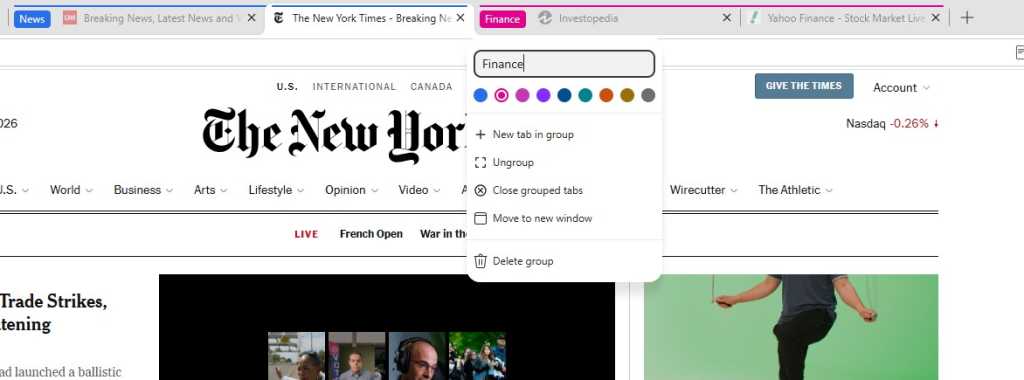
To do it, right-click a tab, select Add tab to new group, and then name the tab group. You can then drag other tabs into the group. You can also assign each tab group a unique color so they’re easy to differentiate at a glance.
Creating tab groups makes it easier to find the tab you want quickly.
Preston Gralla / Foundry
If you’ve already created a group, when you right-click a tab, you’ll see “Add tab to group” rather than “Add tab to new group.” When you click the arrow next to it, you’ll see a list of all your existing groups, so you can easily add it to any of them. You’ll also see “New group,” which will let you create and customize a new group.
Once you’ve created a tab group, you can rename it, change its assigned color, add new tabs to it, ungroup the tabs from it, delete the group and all the tabs in it, and more. Just right-click the name of any group and select an option from the menu that appears.
4. Enlist a Copilot as you browse
Microsoft’s genAI chatbot, Copilot, has become increasingly integrated with Edge, so much so that Microsoft now calls Edge an “AI browser.” At the moment, that’s more hype than fact, but it is true that Edge gets new Copilot features added on a regular basis.
Edge provides a couple of ways to interact with Copilot, one of which is to open the Copilot sidebar to the right of the main browser window. (We’ll go over the other method later in the story.) Click the Copilot icon at the top right of Edge, and the Copilot pane appears. Here’s where you type in prompts for Copilot.
There’s a tremendous amount you can do with Copilot, most of which is beyond the scope of this article. To learn more about what it can do and how to use it, see our story “9 ways to use Copilot right.”
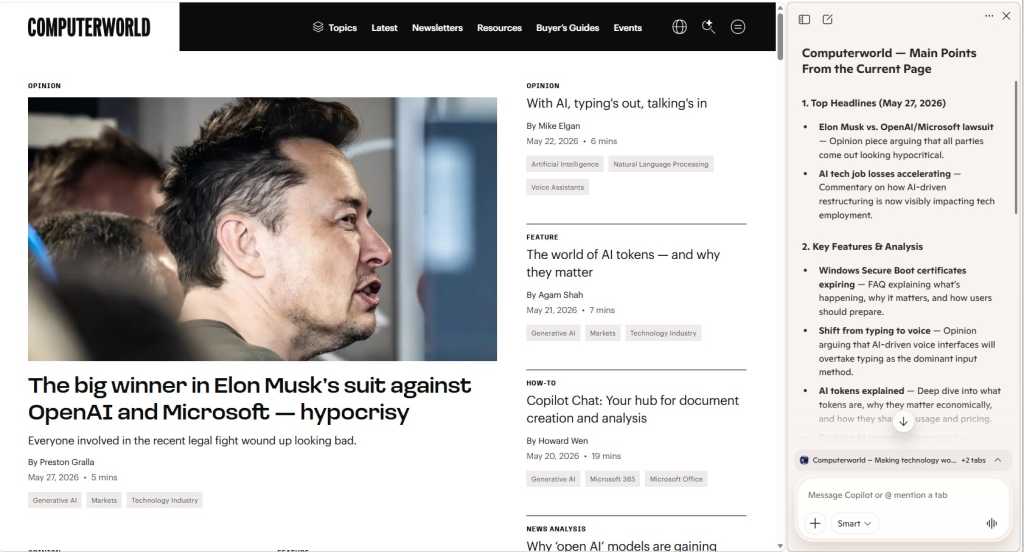
However, here’s one use designed specifically for web browsing: summarizing the contents of the page you’re currently visiting. Depending on the structure and content of the page, Copilot can give a high-level overview of the entire page, provide capsule descriptions of individual articles or sections, and more. You can also ask Copilot to extract specific information from a page, such as all the AI-related information on it, and organize the information into a bulleted digest.
To do all that, open a web page and open the Copilot sidebar. You’ll see a few suggested prompts, one of which should be related to summarizing the page, such as Summarize the main points on this page or Create a summary of this page. Click the prompt, or if you don’t see it, type it into the text box at the bottom of the Copilot pane.
Use Copilot to summarize the content on a web page.
Preston Gralla / Foundry
You can also ask it to summarize the last page you’ve visited. Click the down arrows towards the bottom of the Copilot pane, and you’ll see a listing for the previous page you’ve visited, such as Computerworld.com. Click the text summarize my recent activity on [page] and it will do that for you. Again, if you don’t see that text, type it into the Copilot text box.
The summarization feature, though, still has rough edges, or at least it did when I was writing this article. If you leave the web page you’re currently on and go to a new one, the summary of the old page remains, and there isn’t an immediate way to summarize the new one. To get a summary of the new page, you’ll have to scroll to the bottom of the Copilot pane, click the arrow (it will be facing either up or down, depending on whether you’ve previously clicked it) and click “Create a summary of this page.”
In that section, you can also click listings of your other open tabs and get summaries of any of them.
5. Remove clutter when you launch new tabs
When you create a new tab, the initial page is filled with pinned sites, suggested news stories, widgets, and more. If you find that page distracting, you can change it to a much cleaner, more stripped-down page.
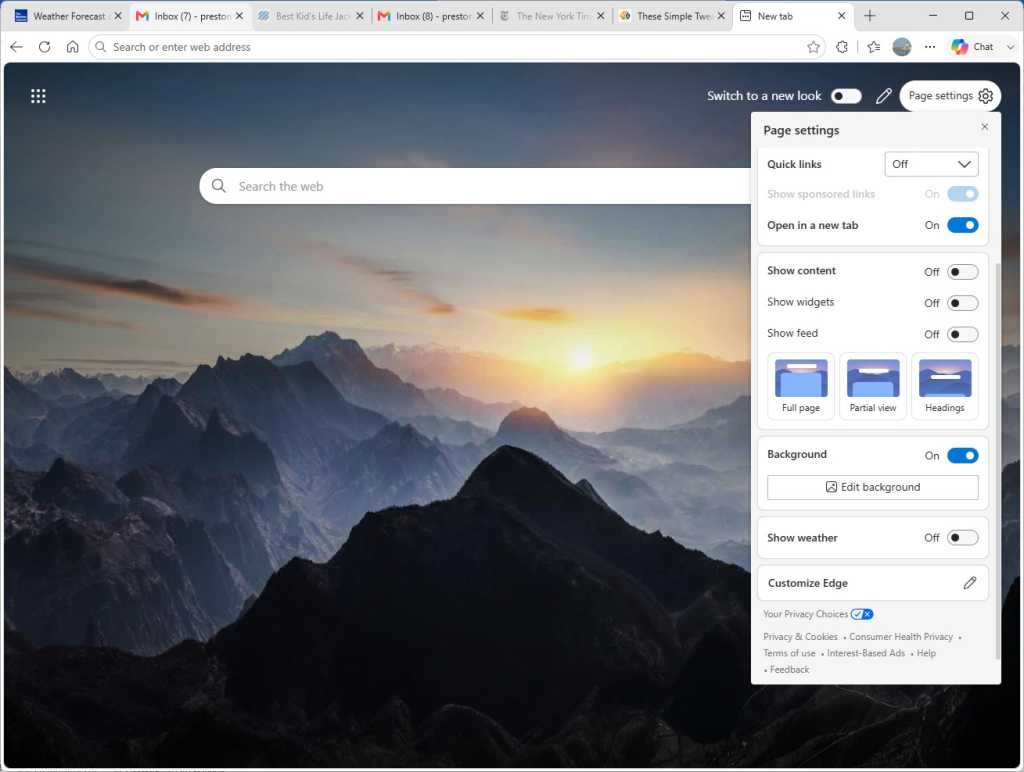
If you haven’t pinned specific sites to the row of icons below the search box (see tip #2 above), you can make Edge’s default icons go away: Click the gear icon on the upper right of the page, and a “Page settings” panel pops up. In the “Quick links & search” section, click the dropdown next to “Quick links” and select Off. That gets rid of the icons for web sites just beneath the search box.
If you have pinned your own preferred sites there, you’ll want to leave quick links enabled, but you can turn the “Show sponsored links” toggle to Off to get rid of ads.
To get rid of the news articles that overwhelm the page, go to the “Show content” area of the panel and move the “Show feed” toggle to Off. Or, if you want to really strip down the page, move the “Show content” toggle to Off. That kills pretty much everything on the page except the weather. If you don’t want to see that either, scroll down a bit more and move the “Weather” toggle to Off.
Going with the stripped-down new tab look in Edge.
Preston Gralla / Foundry
You can also strip out the background graphic for the new tab page by turning off the “Background” toggle. I don’t recommend it, though, because when you do that, you’ll get a gray page with a big Microsoft logo dead center when you launch a new tab.
6. Launch Copilot-centered new tabs
If you’re a frequent Copilot user, you might want to take a different approach to the new tab page.
The Copilot you get in a side pane when you click the Copilot icon at the top right of Edge is a somewhat stripped-down version of Microsoft’s full-blown Copilot app. If you’re looking to use the full-fledged version, there’s a simple way to do it: Tell Edge to open Copilot every time you open a new tab.
To do it, click the three-dot icon to the left of the Copilot icon at the top right of Edge and navigate to Settings > Start, home, and new tab page. In the “New tab page” section, turn on the Copilot new tab page toggle. From then on, every time you open a new tab, you’ll launch a full Copilot screen that’s similar to the standalone Copilot app.
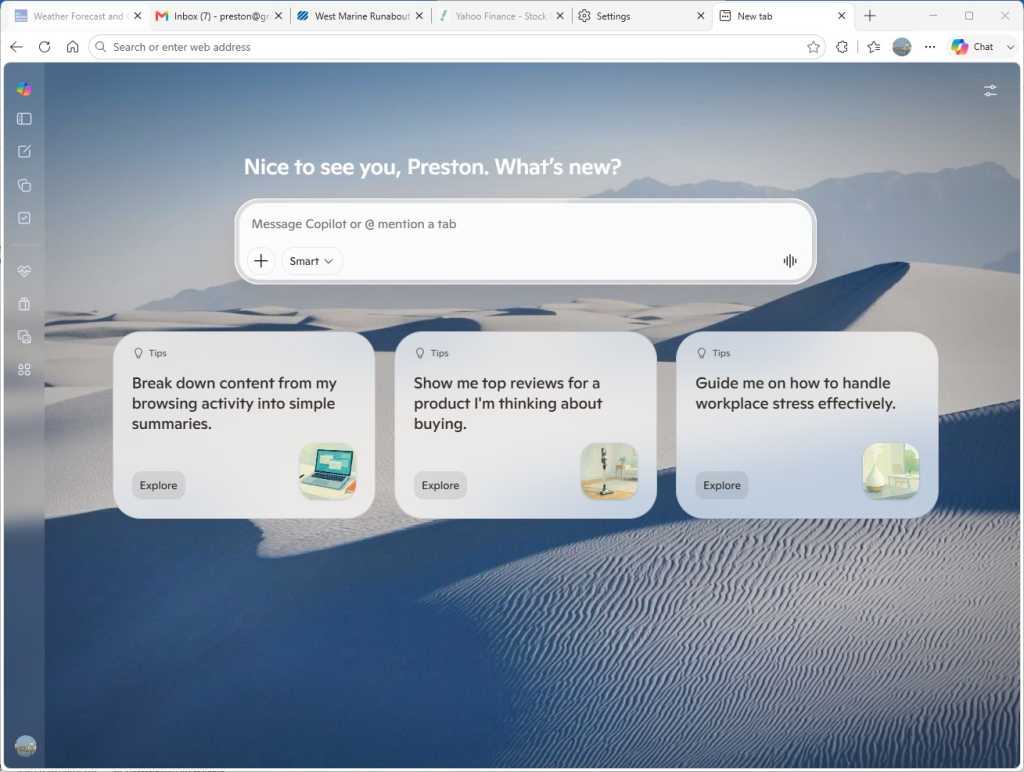
The Copilot new tab page puts Copilot chat front and center.
Preston Gralla / Foundry
You’ll see the usual Copilot prompt box front and center, and beneath that, several prompts Microsoft thinks you might want to use. (Note to Microsoft: I’ve never used one of those suggestions even once. I’d guess few other people have either.)
What’s really new here are the vertical icons running down the left side of the page. Here’s a brief rundown of what each one does:
Open sidebar: Widens the navigation bar and shows a list of your recent chats so you can revisit any of them.
New chat: Start a new chat with Copilot.
Library: Build a library of Copilot-created content such as images, reports, podcasts, documents, and more.
Tasks: Create a Copilot task that automates something you want done, such as sending you a weekly email about a company’s stock price.
Health: Open Copilot Health, a version of Copilot designed specifically for getting health information.
Shopping: Use Copilot as a shopping assistant.
Imagine: Create or edit an image using Copilot.
Experiments: Discover and use new Copilot features that Microsoft is testing but that may or may not be officially launched at some point.
Clicking the Copilot icon at the top of the list of vertical icons returns you to the main Copilot interface you get when you launch a new tab.
As you can see, many of these new Copilot functions are aimed at consumers and unlikely to be useful in a business setting. Still, if you frequently turn to Copilot for help, you might find the Copilot new tab page a good alternative to the standard new tab page.
And note that setting up the Copilot new tab page doesn’t prevent you from browsing or searching the web normally. Just enter the search term or website you want to visit in the address bar at the top of the screen.
7. Put tabs to sleep to conserve system resources and boost battery life
If you’re like most people, you keep multiple tabs open in Edge so you can easily switch among the sites, web apps, and information important to you. It’s a great time-saver.
But it can also be a big memory and processor hog, which can slow down both your browsing and your other computing tasks. It needn’t be that way, though. You can put inactive tabs to “sleep” until you need them, freeing up resources, which will make your PC speedier and make its battery last longer, even when you have multiple tabs open. Microsoft claims that putting inactive tabs to sleep reduces memory use by an average of 32% and CPU use by an average of 37%.
Here’s how to do it:
In Edge, click the three-dot icon on the upper right of the screen and select Settings > System and Performance > Performance.
In the “Memory” section, move the slider to On next to Automatically put tabs to sleep.
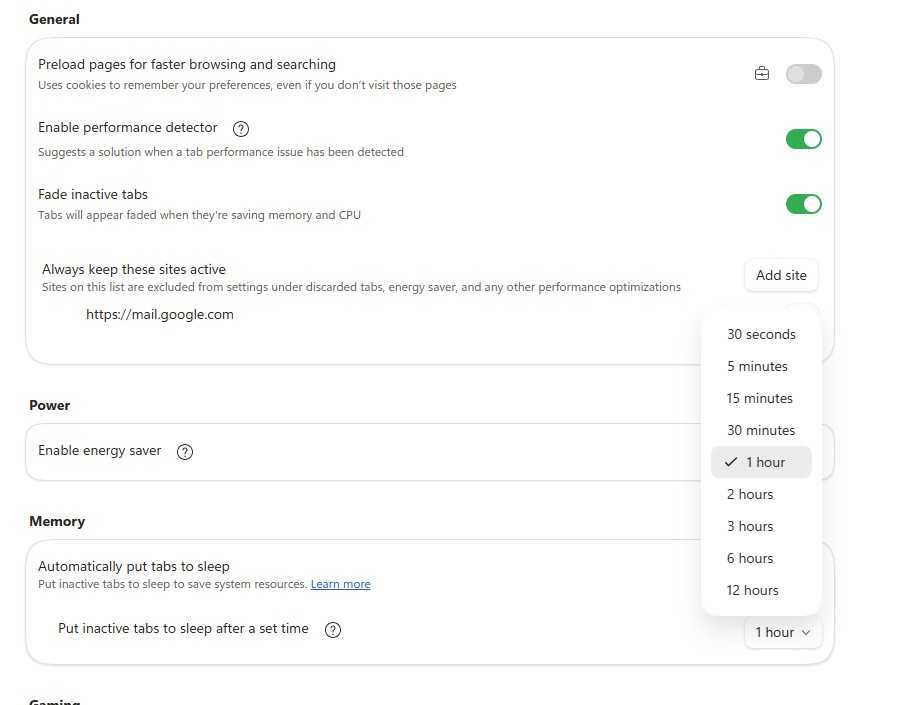
To change the length of time it takes to put an inactive tab to sleep, below “Automatically put tabs to sleep” click the drop-down arrow and select a time. Your choice is anywhere from 30 seconds to 12 hours.
Putting tabs to sleep can significantly reduce CPU and memory use.
Preston Gralla / Foundry
To reawaken any tab that’s been put to sleep, simply click on it, and it will resume normal activity.
There’s a chance that some sites might not work properly after they’ve been put to sleep. If that happens to you, you can tell Edge never to put that site to sleep again. To do it, scroll up to the “General” area on the “System and performance / Performance” page of Settings. Click the Add site button next to the “Always keep these sites active” item and paste in the URL of any site you don’t want to sleep.
8. Reduce power use with ‘energy saver’
Browsers can be power hogs, especially if you have multiple tabs open and are playing videos or music in them. That can be a particular problem if you’re using a laptop that isn’t plugged into a power source.
In Edge, the “energy saver” setting reduces the amount of system resources the browser uses, which extends your PC’s battery life. If you enable energy saver, it becomes active when your laptop is unplugged. Microsoft claims energy saver can give you on average an extra 25 minutes of battery life. To use it:
In Edge, click the three-dot icon on the upper right of the screen and select Settings > System and Performance > Performance.
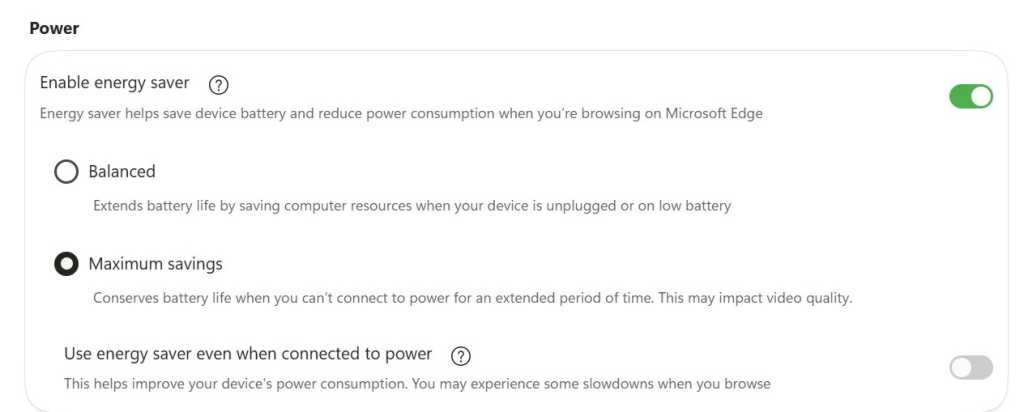
In the “Power” section, make sure the toggle next to “Enable energy saver” is turned on. When you do that, you see two options: “Balanced” and “Maximum savings.”
Select Balanced if you want your laptop to go into a lower-power mode to save battery life when your laptop is unplugged or has a low battery. Select Maximum savings if you know you’re not going to be able to plug your laptop in for some time. Note that in this mode, your video quality may be affected.
There’s also a separate option to use energy saver even if your laptop is plugged in. Use this option if you want to consume less energy when you use your computer. Note that if you use it, you may experience slowdowns when browsing the web.
You can get an extra 25 minutes of battery life with the energy saver setting, Microsoft claims.
Preston Gralla / Foundry
9. View and mark up PDFs
With Edge, there’s no need to launch a separate application when you want to read or mark up a PDF; its built-in PDF app is quite good. With it, you can draw on and highlight sections of the PDF and erase the marks you made as well. So save yourself time and use Edge rather than third-party software.
You don’t need to do anything to read a PDF online. Simply click it, and by default it will launch in Edge’s reader. You’ll find the markup tools, including for drawing, highlighting, and erasing, in a toolbar towards the top of the screen. To open a PDF from your hard disk, when you’re in Edge, press Ctrl-O, then navigate to the PDF and click it.
Edge has a surprisingly useful PDF viewer with markup tools.
Preston Gralla / Foundry
If you prefer to use your own PDF reader, even for PDFs found online, you might be annoyed that every time you click a PDF, it opens in Edge’s PDF reader. You can change that, though, by changing your default PDF reader.
In Windows Settings, select Apps > Default Apps and in the search box at the top of the screen just below “Set a default for a file type or link type,” type in .pdf. After you do that, the listing “Microsoft Edge Microsoft Edge PDF document” appears. Click it, and a screen appears showing you all the applications on your PC that can read PDFs. Select the one you want to use instead of Edge.
10. Turn on Edge’s AI-powered ‘scareware’ blocker
The internet is filled with scammers using sophisticated attacks to steal your data or money. A common one is so-called “scareware,” in which when you visit a website, your PC is suddenly locked into full-screen mode filled with fake malware warnings that claim your computer has been infected and urge you to call a phony tech-support line or allow remote access to your device to supposedly fix the problem.
Once you do that, the scammers steal your data, get you to pay for phony solutions, or embed malware on your system.
To fight that, Edge includes an AI-powered scareware blocker that builds and constantly updates a machine-learning model that detects suspicious behavior and stops the scamware in its tracks.
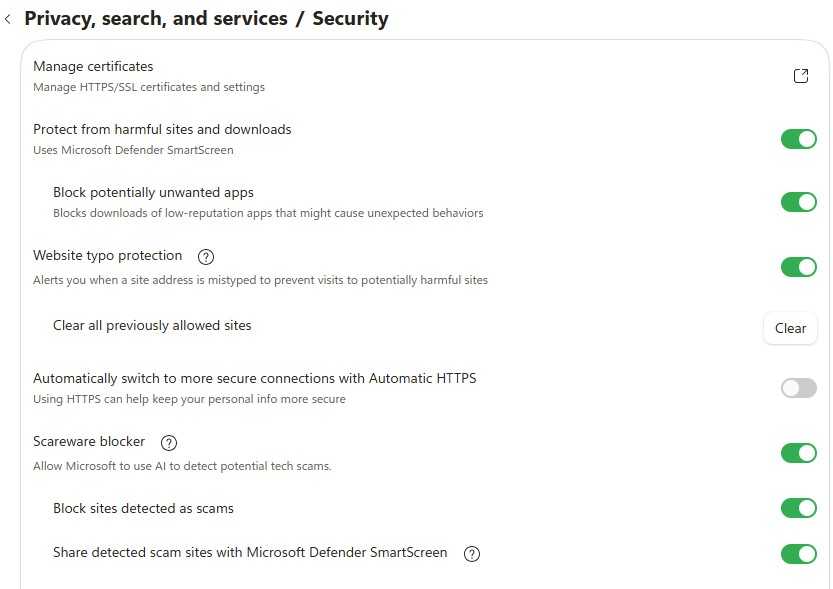
Typically, the scamware detector is turned on, but there’s a possibility it’s been turned off at some point or was never turned on in the first place. For example, on PCs with only 2GB of RAM or fewer than 5 cores, it’s not turned on by default. Microsoft recommends enabling it on those machines. To do it, in Edge go to Settings >Privacy, search, and services > Security, and in the “Scareware blocker” setting, turn the slider from off to on.
When you do that, make sure that “Block sites detected as scams” and “Share detected scam sites with Microsoft Defender SmartScreen” are turned on as well.
Turn on Edge’s scareware blocker to protect yourself from scams and data theft.
Preston Gralla / Foundry
11. Use Edge’s one-click form filler
How many hours a week do you spend mindlessly filling out web forms — your office or home address, shipping address, email address, and phone number? Wouldn’t it be nice to get that time back?
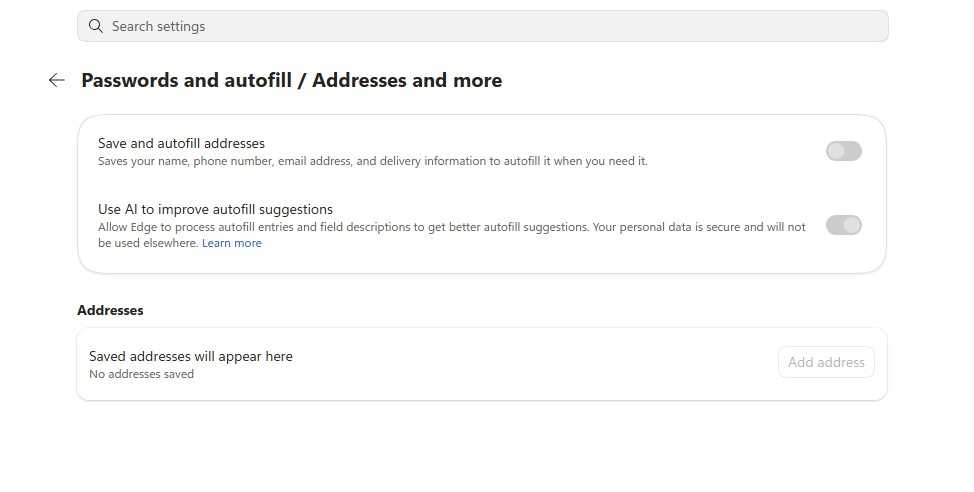
With autofill, built into Edge, you can. To use it, in Edge go to Settings > Passwords and autofill > Addresses and more. Turn on the toggle next to “Save and autofill addresses.” You can also choose to have Copilot analyze web forms and decide which bits of your information belong in which part of the form.
Microsoft autofill saves information that can be used to fill out forms online.
Preston Gralla / Foundry
From now on, whenever you visit a web form, just click in a text box, and your information will appear in a popup. Select it and the form will fill in. You can go back to Passwords and autofill to change any information you want.
12. Save time with keyboard shortcuts
There’s a good chance you use keyboard shortcuts for some of your office applications, like Word and Excel — and you likely use some for Windows itself.
But when it comes to browsers, many people forgo the keyboard except when absolutely necessary. That’s too bad, because keyboard shortcuts are a big timesaver. So to improve your productivity, check out these keyboard shortcuts for Edge in Windows. (Mac users can generally substitute the Cmd key for Ctrl and the Opt key for Alt.)
Makers of AI browsers make lofty promises. With a single prompt, users can ask one to find a restaurant in a particular part of town, reserve a table, invite a colleague to lunch, and email a confirmation. These makers are much more reticent about the risks of blurring the once fine line between browsing sites and asking a large language model a question or instructing it to take potentially sensitive actions.
LLM developers’ answer so far has been to build guardrails that make some requests off-limits. Developing software exploits, stealing credentials, or teaching how to build a pipe bomb are examples. The problem with this approach is that the guardrails are reactive and treat the symptoms rather than solve the root cause. It’s tantamount to the manufacturer of an unsafe vehicle advocating for new road designs rather than fixing the flaws that make it prone to accidents.
Lulling LLMs into an alternate reality
New research puts this predicament on sharp display. It demonstrates how a website can lull AI browsers into a false reality where the rules governing its behavior no longer apply. After that, an attacker has free rein to invoke all kinds of destructive actions, such as extracting code from a private repository or extracting credentials from the built-in password manager.
Já imaginou navegar pela web moderna com o Internet Explorer ou com o Netscape? Com o Reframe é possível, num projeto Open Source que combina o visual dos browsers clássicos com tecnologia moderna.

 Login
Login