❌

Reading view

How to downgrade macOS 27: Roll back Golden Gate to Tahoe

Macworld

Upgrading macOS doesn’t always go as planned. A new release might slow down your Mac, break essential apps, introduce bugs, or simply change features you rely on. If you’re wishing you could go back to the version you had before, the good news is that you can downgrade macOS.

While reverting a macOS update is generally easier than downgrading an iOS update, it’s not as simple as installing macOS. It is a multi-step process that typically requires wiping your Mac’s internal drive, as Apple does not allow installing an older version of the operating system directly over a newer one.

Because you need to erase your Mac’s internal drive before you can reinstall an older version of the operating system, your data must be backed up first. The exact process depends on whether you created a backup before upgrading macOS.

In this guide, we run through the safest way to revert to an earlier version of macOS, explain what works (and what doesn’t), and help you choose the best method for your situation.

Note: macOS 27 Golden Gate runs only on Macs with Apple silicon, so the main Golden Gate-to-Tahoe instructions in this article are for Apple-silicon Macs. We cover older Intel Macs separately below for readers using this guide to downgrade an earlier version of macOS.

Can I downgrade from macOS Golden Gate to Tahoe?

Yes, it is possible to downgrade from macOS Golden Gate (macOS 27) to macOS Tahoe (macOS 26), but the process is complex and requires you to completely wipe your Mac’s data and install the older version of macOS.

Before you begin, confirm that your Mac can run Tahoe. A Mac cannot install a version of macOS older than the version it originally shipped with. A Mac introduced with Golden Gate may therefore be unable to run Tahoe, even if another Mac with a similar processor can. Check Apple’s compatibility information before erasing anything.

You need the following:

  • A backup: You will have to wipe your Mac, so you need to have a backup of your data.
  • The correct macOS version: You need to download the full installer for the version of macOS you want to install.
  • An external drive: You need to create a bootable installer of macOS. Apple says a 32GB USB drive has more than enough space for any macOS installer; 16GB is sufficient for most older versions.
  • A reliable internet connection: The installer may need to download firmware and other information specific to your Mac.

Follow these steps, which we explain in more detail below:

  1. Back up your Mac.
  2. Check that your Mac can run macOS Tahoe.
  3. Get the Tahoe installer.
  4. Create a bootable installer.
  5. Shut down your Mac and start it from the bootable installer.
  6. Erase the internal startup volume using Disk Utility.
  7. Install macOS Tahoe.
  8. Set up the Mac and recover compatible files from your backup.

Can I downgrade macOS 27.1 to iOS 27.0 (or macOS 26.7 to 26.6)?
sad mac tahoe

Foundry

Apple issues multiple point updates throughout the year. If something breaks following an update, you may want to return to the previous release—for example, by downgrading from macOS 27.1 to macOS 27.0. The same principle applies to subsequent Golden Gate updates.

Rolling back a point update can be more difficult than downgrading from Golden Gate to Tahoe because you need the full installer for the exact earlier release. Apple generally offers only the latest installer for each major version of macOS, so the macOS 27.0 installer may no longer be available after macOS 27.1 has been released.

However, you may be able to obtain the required version of macOS using Terminal. We detail how to do this below (see step 2). As of September 2026 there were various version installers of Tahoe and Sequoia available using this method.

A Time Machine backup cannot provide the missing installer or reinstall the earlier operating system. If you have access to the appropriate full installer, you can create bootable installation media and follow the erase-and-install process described below. If Apple no longer offers that release and you did not retain its installer, an ordinary downgrade may not be possible.

Downgrading macOS to an earlier version: Step-by-step guide

The steps below will help you revert to macOS Tahoe. Before you start, remember that you must wipe your Mac and perform a clean installation of Tahoe.

Reminder: This will erase your Mac, so make sure you have a backup of important files before continuing.

Before you begin: Back up your Mac

Backing up your Mac is the most critical step before a downgrade because the process requires erasing your startup drive, which removes all locally stored data. If you don’t already have a backup, you will need to make one.

Time Machine is the standard backup method for most Mac users, but restoring data from a newer version of macOS to an older one can present problems. A Time Machine backup made under Golden Gate may contain Photos libraries, Mail databases, settings, application data, and versions of apps that are not compatible with Tahoe.

A backup made while the Mac was still running Tahoe is therefore the safest one to use. However, it won’t contain files created or changed after the upgrade to Golden Gate. If Golden Gate is still working, make a separate copy of every irreplaceable document you have created or modified since upgrading.

Before recovering data from a Time Machine backup, you must install Tahoe on the Mac. You can then use Setup Assistant or Migration Assistant to transfer compatible accounts, apps, settings, and files from the backup.

If you store documents in iCloud Drive or use iCloud Photos, fully synchronized items should become available again when you sign in to the same Apple Account after reinstalling macOS. Before erasing the Mac, check iCloud.com or another Apple device to confirm that important documents, photos, and videos have uploaded successfully. Remember that iCloud is a synchronization service rather than a separate backup, so keep an independent copy of irreplaceable files where possible.

To ensure your data remains accessible after you return to an older version of macOS, consider these backup strategies:

  • Manual file copying: Copy your most important files, folders, photos, and music to an external storage drive.
  • Third-party backup software: Tools for backing up a Mac, such as ChronoSync, Get Backup Pro, SuperDuper, or Carbon Copy Cloner can create a separate copy of your data. Do not assume that a clone created under Golden Gate will be bootable on your Mac or that it can replace the Tahoe installer.
  • Cloud synchronization: Make sure cloud storage services such as iCloud, Dropbox, OneDrive, or Google Drive have finished synchronizing. Do not assume that every app’s data is stored in the cloud, as some applications store data only locally.
  • Time Machine: If you have a Time Machine backup from before you upgraded to Golden Gate, you can use it to transfer compatible data after reinstalling Tahoe.

For more help read: How to back up a Mac.

1.

Check that your Mac can run Tahoe

Schreibtisch macOS Tahoe

Step back to Tahoe, if your Mac can run it.


Thomas Armbrüster

The version of macOS you install must be compatible with your Mac. A Mac that was upgraded to Golden Gate can be returned to Tahoe only if that model supports Tahoe. A model that first shipped with Golden Gate cannot be downgraded to Tahoe.

For example, Apple announced the M6 Mac mini before Golden Gate was released, but the Mac did not ship until afterward and requires macOS 27. Always check that your model supports the older operating system before erasing the Mac.

Check our lists of Macs compatible with Golden Gate and Tahoe.

2.

Get the macOS Tahoe installer

Using Terminal to get macOS versions

You can download old versions of macOS from Terminal, if they aren’t on the Mac App Store.


Foundry

The next stage is to get the full installer for the version of macOS you require. In most cases, the Mac used to download the installer must itself be compatible with the version of macOS you require.

For this downgrade you need the Tahoe installer, not the Golden Gate installer. For Tahoe and earlier installers, see our guide to downloading older versions of macOS.

Normally Apple makes older versions of macOS available to download from the Mac App Store. For example, you can get Sequoia, Sonoma and Ventura this way. However, as of September 2026, Apple’s hasn’t made Tahoe available from the Mac App Store. We expect that it eventually will do so, but in the meantime the best way to get the Tahoe installer it to use Terminal.

Terminal method

Open Terminal.

Type in the following:

softwareupdate --fetch-full-installer --full-installer-version [number]

You need to include the relevant version number. For example softwareupdate –fetch-full-installer –full-installer-version 26.6.2.

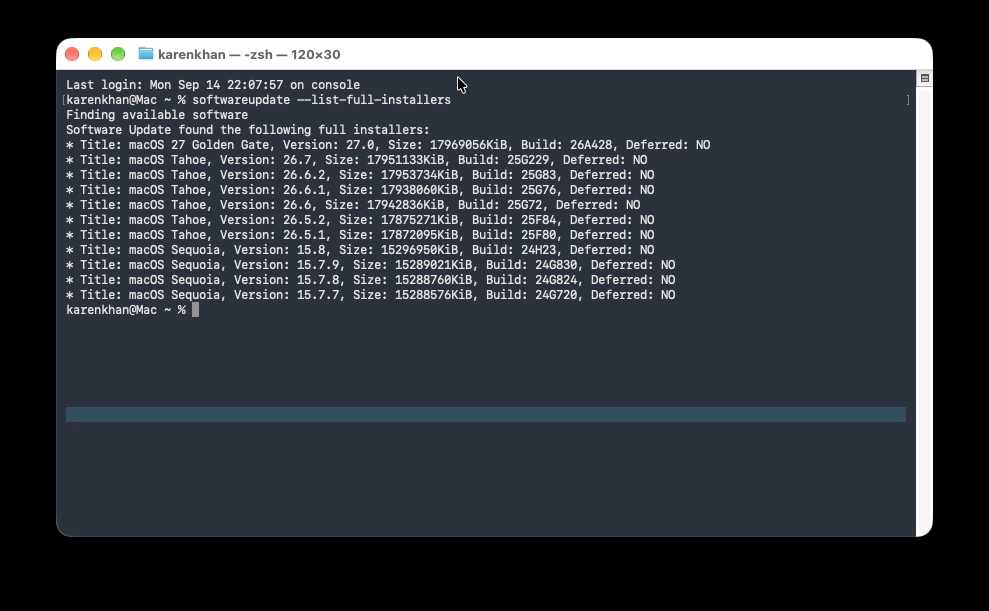
To see which installers Apple currently offers for that Mac, run:

softwareupdate --list-full-installers

If Terminal reports that the update was not found, Apple may no longer offer that exact release, or it may not be compatible with your Mac.

When the download finishes, the full installer will appear in the Applications folder. Quit it if it opens automatically—you need to retain it to create the bootable installer.

In each case of the above screenshot the macOS installer is listed as Deferred: No, which means the installer is still available.

Mac App Store method

  1. Open the Tahoe download link on a compatible Mac. If the Mac App Store does not open, close it if it is already running and try the link again in Safari.
  2. Click Get.
  3. Software Update should open and offer to download Tahoe. Click Download and confirm that you want to download the older operating system.
  4. If the installer opens automatically after downloading, quit it. You do not want to run it directly over Golden Gate.

The installer will appear as an app named Install macOS Tahoe in the Applications folder.

As noted above, downgrading from one Golden Gate point release to another requires the full installer for the exact earlier release. Because Apple generally offers only the latest installer for each major version of macOS, the version you need may no longer be available unless you previously downloaded and retained it. A Time Machine backup cannot provide the missing installer or reinstall the earlier operating system.

3.

Create a bootable Tahoe installer

Createinstallmedia

Once you have it, you can use the bootable installer of Tahoe to downgrade your Mac.


Foundry

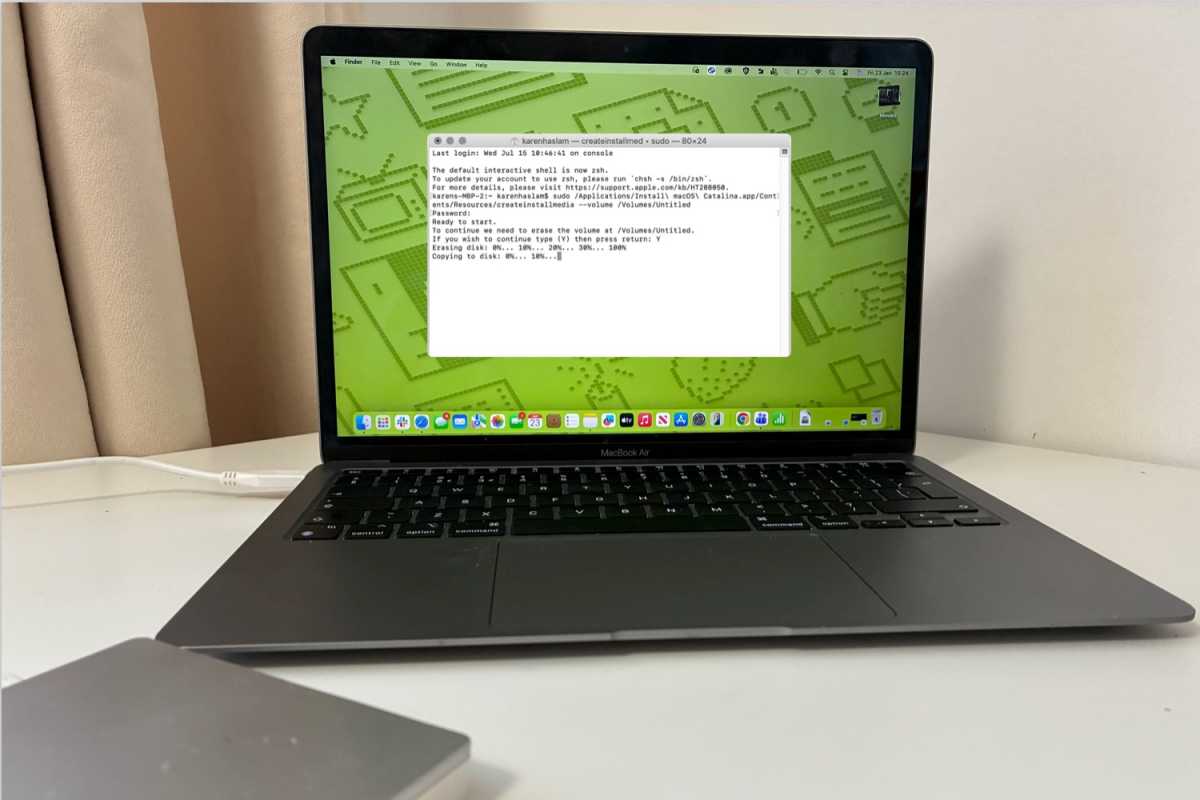
You cannot install Tahoe directly over Golden Gate. To install an older version of macOS, you need to create a bootable installer containing the Tahoe installation files.

You will need a USB flash drive or other external volume. A 32GB drive is recommended, although 16GB is sufficient for many older macOS installers. The drive will be erased during the process.

Follow our complete guide to creating a bootable macOS USB installer, selecting the instructions and
createinstallmedia Terminal command for macOS Tahoe.

The Tahoe command is:

sudo /Applications/Install\ macOS\ Tahoe.app/Contents/Resources/createinstallmedia --volume /Volumes/MyVolume

Replace MyVolume if your external drive has a different name. Make sure --volume contains two ordinary hyphens, not an en dash or em dash. The linked guide explains how to prepare the drive, run the command and troubleshoot the creation process.

4.

Start your Mac from the bootable installer
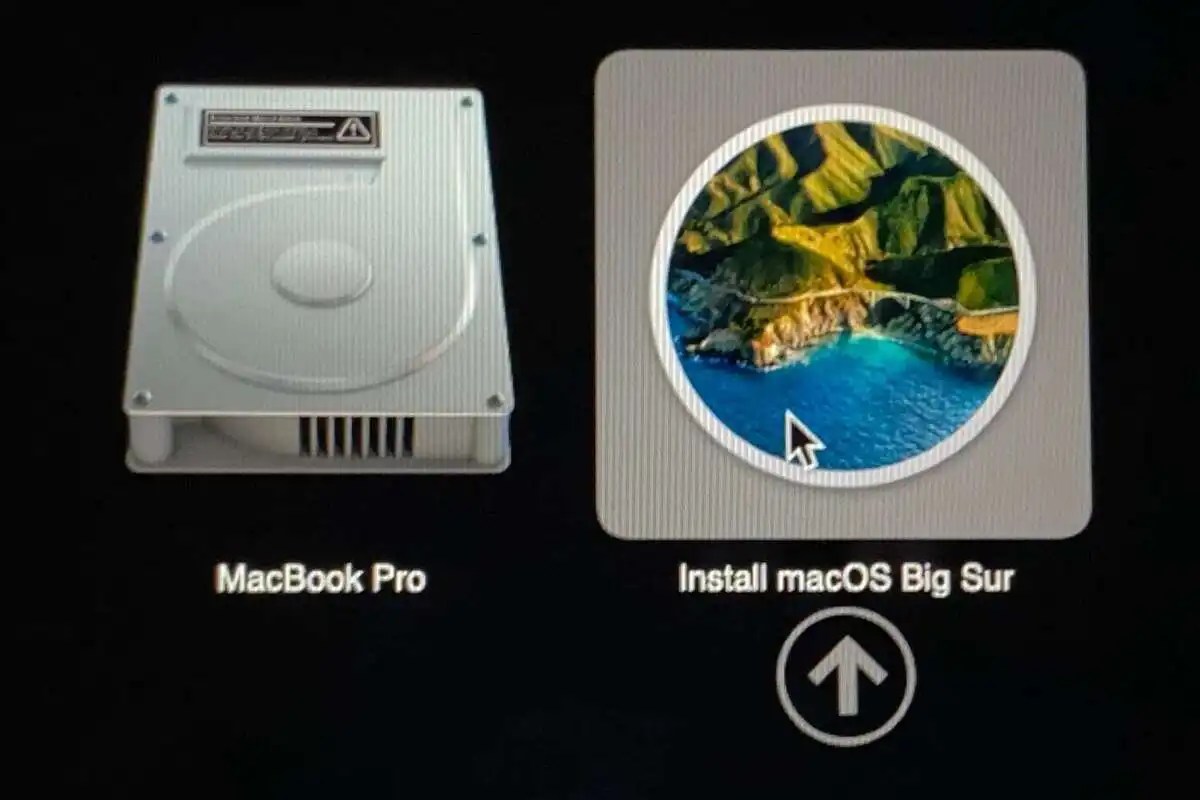
Install from your Bootable Drive
You want to choose the Install macOS Tahoe option, similar to what’s shown.

Foundry

With the bootable Tahoe installer ready, the next step is to start your Mac from it rather than from the internal drive currently running Golden Gate.

  1. Shut down the Mac.
  2. Connect the bootable Tahoe installer directly to the Mac.
  3. Press and hold the power button. Continue holding it until the startup options screen appears.
  4. Select the bootable installer, then click Continue.
  5. Connect to Wi-Fi if prompted.
5.

Erase the internal startup volume

Erasing a Mac

Foundry

Warning: This step will permanently remove the local accounts, applications, settings and files stored on the Mac.

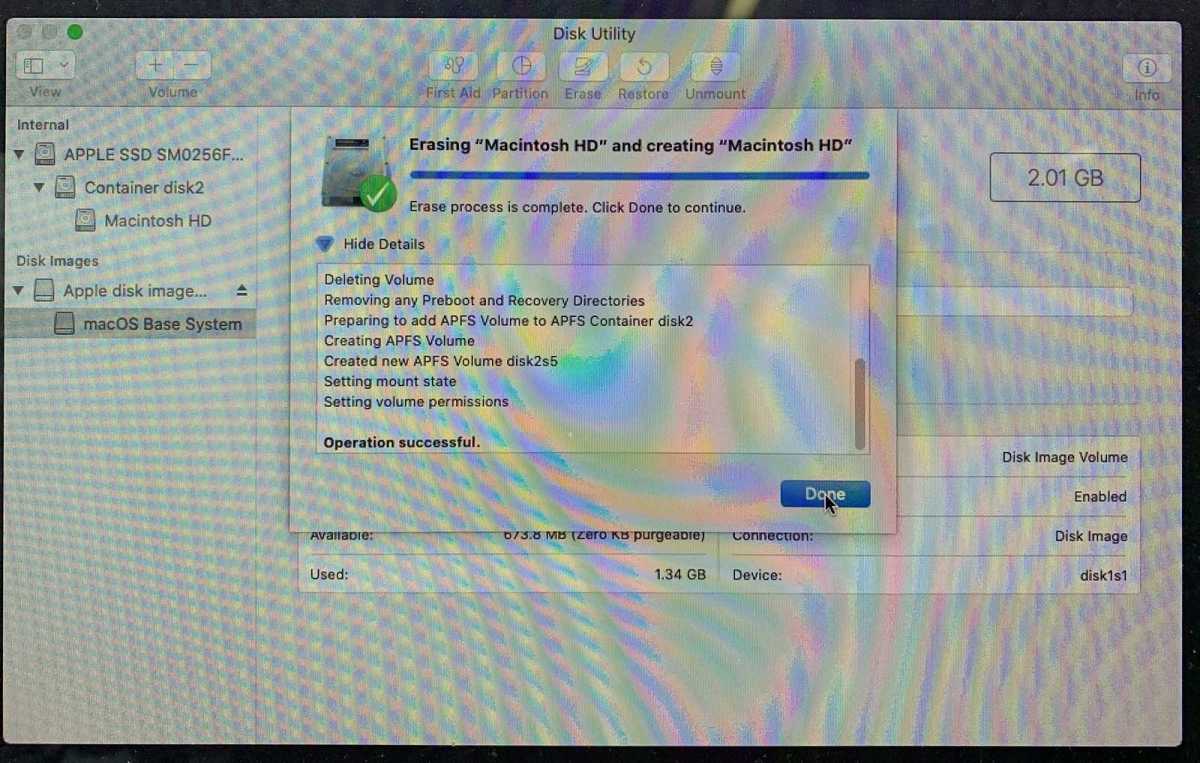
  1. When the Utilities window appears, select Disk Utility and click Continue.
  2. In Disk Utility, choose View > Show All Devices if the internal volumes are not visible.
  3. Select the internal macOS startup volume, usually named Macintosh HD.
  4. Click Erase or Erase Volume Group, as offered.
  5. Use Macintosh HD as the name and APFS as the format.
  6. Confirm the erase and wait for it to finish.
  7. Quit Disk Utility to return to the Utilities window.

Erase All Content and Settings is not, by itself, a downgrade tool. It removes data and settings while retaining the installed operating system. To replace Golden Gate with Tahoe, you need to erase the startup volume from the bootable installer environment and then install Tahoe.

6.

Install macOS Tahoe

macOS Tahoe on a Mac

Finally, you can get Tahoe back on your Mac.


Foundry

With the internal startup volume erased, you can now install Tahoe from the bootable installer.

  1. In the Utilities window, select Install macOS Tahoe and click Continue.
  2. Follow the onscreen instructions.
  3. When asked to choose a destination, select the newly erased internal volume, normally Macintosh HD.
  4. Keep the Mac connected to power and the internet while installation completes. It may restart several times.
7.

Set up your Mac

Setting up Mac

Foundry

After Tahoe is installed, the Mac will start in Setup Assistant.

If you have a Time Machine backup from before the Golden Gate upgrade, you can connect the backup disk and transfer your information during setup. Time Machine can transfer your accounts, apps, settings, and files after Tahoe has been installed, but it does not perform the operating-system downgrade, you need to do that first (as per the steps above).

If your only backup was made under Golden Gate, setting up the Mac as new and copying your documents back manually is the safest approach. This reduces the risk of importing an app, database, or setting that requires macOS 27. You can then reinstall Tahoe-compatible versions of your apps individually.

8.

Transfer data from your Time Machine backup
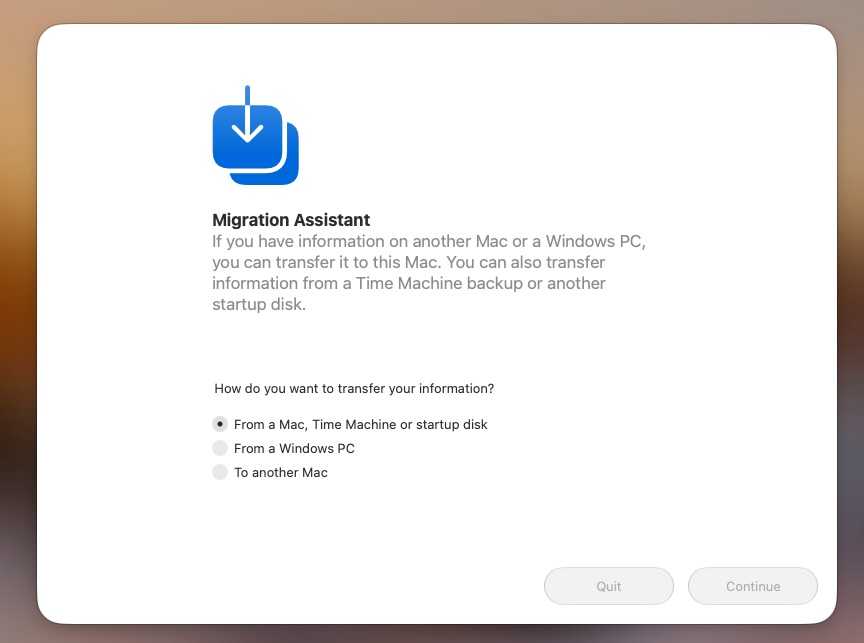
Use Migration Assistant to transfer your Time Machine Back Up

Once your Mac is set up you can copy your data from your backup.


Foundry

A backup made while the Mac was still running Tahoe is the best one to use. To transfer its contents during Setup Assistant, choose the option to transfer information From a Mac, Time Machine backup, or startup disk. Connect the backup disk, select the appropriate backup, and choose the accounts, apps, settings, and files you want to transfer.

If you have already completed setup:

  • Connect the Time Machine backup disk.
  • Open Migration Assistant from the Utilities folder in Applications.
  • Choose to transfer information From a Mac, Time Machine backup, or startup disk.
  • Select the Time Machine disk and then the appropriate backup.
  • Choose the categories you want to transfer and click Continue.

The selected backup will not contain anything created or changed after it was made. Copy those newer documents back from the separate backup you created before erasing the Mac.

What to do if the older macOS won’t install

Check the following:

  • Confirm that the Mac model supports the version you are installing.
  • Confirm that the full installer is in the Applications folder and is named correctly before creating the USB installer.
  • Connect the installer directly rather than through a hub or dock.
  • Make sure the Mac is connected to the internet.
  • Re-create the installer if Terminal says it is invalid or the installation fails repeatedly.
  • Confirm that the internal startup volume was erased as APFS.

Installing macOS 27 may also update the Mac’s firmware. Installing Tahoe later does not necessarily roll that firmware back; a macOS downgrade and a firmware downgrade are not the same operation.

Tips to avoid problems and data loss when you downgrade macOS

Reversing an upgrade carries a number of wrinkles and pitfalls. Many are caused by changes in file formats and settings between versions of the operating system. If you create a document or work on a file in a newer version of macOS and then try to open it in an older version, it may not work.

Where possible, export important documents in standard or widely compatible formats before erasing the Mac. For example, you could export a document as RTF or PDF in addition to retaining its native version.

Take screenshots of preferences and settings

Whenever you perform a clean installation of macOS, it’s a good idea to take screenshots of custom settings in apps and System Settings. That makes it easier to re-create them later.

Make a note of account details for anything you set up while running the newer operating system. Export bookmarks if they are not synchronized, and make sure you have access to application installers, subscriptions and license codes.

Synchronize cloud services

If you use Dropbox, OneDrive, Google Drive or another cloud storage service, make sure synchronization has completed before starting the downgrade. Files visible in a synchronized folder may not have finished uploading.

If you use Gmail, iCloud Mail or another IMAP service, make sure recent mail and drafts have synchronized. If you use a POP3 account, manually back up locally stored mail before erasing the Mac.

Finally, keep the Golden Gate backup intact until you have confirmed that Tahoe starts correctly and that all essential documents have been recovered. Do not erase or repurpose the backup drive merely because the downgrade appears to have completed.

Downgrading an older Intel Mac

Golden Gate does not support Intel Macs. These instructions are for if you want to downgrade an earlier macOS release on an Intel Mac.

Intel Macs start from a bootable installer by holding Option (Alt) at startup. Macs with the Apple T2 Security Chip may also need Startup Security Utility configured to allow booting from external or removable media. See our bootable macOS installer guide for the complete Apple-silicon, Intel and T2 instructions.

An Intel Mac may also be able to use Internet Recovery. Start it while holding:

  • Shift-Option-Command-R to offer the macOS that came with the Mac, or the closest version still available.
  • Option-Command-R to offer the latest macOS compatible with the Mac.
  • Command-R to reinstall the current version.

Internet Recovery cannot install a version older than the one the Mac supports, and the exact version offered can vary.

  •  

iOS 27 is driving my fingers insane

Macworld

iOS 27 is Apple’s best update in years. It fixes nearly every issue we had with iOS 26: It’s faster, cleaner, and more responsive, and the new Siri AI is actually useful. But there’s one new feature that’s driving me crazy.

For as long as I can remember, two things have been constant on my iPhone: Swiping down from the middle of the screen brings up Spotlight search, and swiping down from the middle of the top edge of the phone reveals the Notification Center. I use both regularly, as I’m sure many iPhone users do.

I’ve developed such muscle memory that I don’t think about either gesture. When I want to read or clear a notification, my finger goes to the top of the screen just above the Dynamic Island and swipes down. When I want to search for an app, I swipe from the middle of the Home Screen. It’s simple, smart, and intuitive.

Except now it’s changed. In iOS 27, swiping down on the Home Screen still brings up Search, except instead of a simple Spotlight search field, it now shows a “Search or Ask” card as part of Siri AI. It’s just a bit slower than the previous Spotlight search, a bit cluttered, and overly animated.

I don’t love it, and I’ve taken to swiping left to use the App Library more to get to apps that aren’t on my main Home Screen. It’s annoying but not a big deal. Most people will get used to it pretty quickly.

Siri’s new home at the top of the screen is far more aggravating. Ever since Apple moved the Control Center to the top of the screen in iOS 11, my fingers have instinctively known to go to the middle of the screen to access the Notification Center. In iOS 27, that now brings up the Siri search bar. Dozens of times a week.

I’ve been using iOS 27 for a couple of months throughout the public beta process, and my fingers still haven’t adjusted. I’ve lost count of how many times I’ve accidentally ended up in Siri’s search bar instead of my notifications. Apple even added a little line under the clock to show where to swipe, and I still miss it most of the time.

I don’t know why Apple changed it to begin with. Users already know that you can swipe down anywhere on the Home screen to search, so why does it need to live at the top of the screen too?

  •  

Your Parallels setup can run Microsoft Office 2024 for $54.99

Macworld

TL;DR: Microsoft Office 2024 Professional Plus for Windows runs inside Parallels Desktop, VMware Fusion, or Boot Camp on a Mac without a second Microsoft 365 subscription, and a lifetime license is on sale for $54.99 (reg. $249.99).

There’s a cheap way to get Microsoft Office running on the Windows side of a Mac, and it doesn’t involve paying for a second Microsoft 365 subscription on top of whatever the Mac already runs. Microsoft Office 2024 Professional Plus for Windows installs once inside Parallels Desktop, VMware Fusion, or a Boot Camp partition, and a lifetime license for one PC, virtual or physical, is on sale for $54.99 (reg. $249.99).

Running Windows through Parallels or Boot Camp already means keeping two operating systems working side by side, and adding a subscription-based Office on top of that turns one Mac into two ongoing software bills.

A one-time license keeps the cost fixed no matter how long the Windows partition stays in use, which matters for anyone who only opens Windows a few times a month for a specific app or workflow.

What’s included with the Windows license


  • Word, Excel, PowerPoint, Outlook, OneNote, and Access all activate with the license and run natively within the Windows installation, just as they would on a Windows-native machine.
  • Dark mode carries over from the subscription version of Office.
  • Excel and Access include the same data analysis and database management tools found in Microsoft 365, useful for budgets or spreadsheets built on the Windows side of the Mac.
  • Licensing is tied to the Windows PC or VM itself rather than to a Microsoft account, so the license stays in place after a macOS update, a Parallels upgrade, or a fresh Boot Camp partition.
  • Redemption happens within 7 days of purchase, with the license key and download link arriving by email.
  • Security patches continue for as long as Microsoft supports the release.

Get Microsoft Office 2024 Professional Plus for Windows on sale for $54.99.

Microsoft Office 2024 Professional Plus for Windows: Lifetime LicenseSee Deal

StackSocial prices subject to change.

  •  

iCloud+ gets an upgrade in 100 countries: Free Apple TV, Arcade, and new Music Select

Macworld

Apple has announced that paying iCloud+ subscribers now have access to Apple TV, Apple Arcade, and curated Apple Music stations as well as the cloud storage they originally signed up for. But this applies in certain countries only, and the list doesn’t include the U.S., U.K., Canada, Australia, or New Zealand.

The upgrade covers every paid tier, all the way down to 50GB, and Apple insists there’s no extra cost for the additional services. Wherever the new offer is available, the company will stop selling standalone subscriptions to Apple TV and Apple Arcade, and any existing standalone subscriptions will be cancelled and moved to iCloud+. It isn’t entirely clear how the transition will be handled but Apple says those affected “will continue to have uninterrupted access to Apple TV and Apple Arcade through their iCloud+ subscription.”

The TV and Arcade elements are straightforward: paying iCloud+ subscribers gain access to these exactly as if they had a standalone subscription. But the Apple Music feature requires a little more explanation:

“With an iCloud+ subscription, [users] will also have access to Apple Music Select, a collection of ad-free stations programmed by Apple Music for lean-back listening, offering a wide range of regionally relevant music to enjoy, as well as Top Songs, 80s, 90s, and more,” says Apple. “Apple Music Select stations are available in the Home tab of the Apple Music app.”

But it’s important to note that Apple Music itself is not included, although there is a discount for those who wish to add it to their portfolio.

A press release for the move can be found on individual Apple country pages. There are more than 100 such countries, but (without wishing to be too Euro-centric) the list may strike Macworld readers more for what’s not on it. Aside from the names above, the larger European nations all miss out: there’s no Germany, France, Italy, Spain, Russia, Denmark, Norway or Sweden.

But the new offer does include the most populous country in the world, and some Indian customers have been debating its merits as compared to the larger Apple One bundle, which is being phased out in countries which get the expanded iCloud+ offering. Apple One is still officially listed on Apple’s India site at 195 rupees per month for the individual package, which includes Apple Music as well as iCloud+, TV, and Arcade. The cheapest 50GB iCloud+ subscription, by contrast, costs 75 rupees per month, so customers can add a full Music subscription for the discounted price of 115 rupees (revealed on the Indian press release) and still come out slightly ahead.

iCloud+ is effectively replacing Apple One, in other words, at a fractionally better price and with the option of leaving out Apple Music (and replacing it with Apple Music Select). Of course, that doesn’t mean Apple can’t use the additional services to justify putting up the price further down the line.

Apple says the upgraded offering will roll out in the 100+ included countries “through the end of September.” It isn’t clear when the offer will appear in the U.S. and other excluded countries, or if it will at all.

  •  

Apple just made about a million Apple Watches obsolete

Macworld

Apple Watch owners hoping to upgrade to watchOS 27 could be in for disappointment.

Apple released watchOS 27 on September 14, bringing Siri AI, a new tap gesture for selecting widgets in the Smart Stack, a dynamic app grid and design refinements throughout the system. But a significant number of Apple Watches that could run watchOS 26 have been left behind.

watchOS 27 drops support for the Apple Watch SE 2, Series 6, Series 7, Series 8 and the original Apple Watch Ultra. That means the oldest supported models are now the Apple Watch Series 9 and Ultra 2, both released in 2023.

The limited support perhaps shouldn’t come as a complete surprise. During the WWDC keynote in June, Craig Federighi barely mentioned watchOS, with the first significant Apple Watch announcement arriving nearly an hour into the presentation.

According to Apple, watchOS 27 is compatible with the following models:

  • Apple Watch SE 3
  • Apple Watch Series 9
  • Apple Watch Series 10
  • Apple Watch Series 11
  • Apple Watch Series 12
  • Apple Watch Ultra 2
  • Apple Watch Ultra 3
  • Apple Watch Ultra 4

Initially, the Apple Watch Series 9 was absent from the compatibility list on Apple’s website, but we were later able to confirm that it is supported by watchOS 27.

The new cutoff leaves behind several watches that were supported by watchOS 26, including:

  • Apple Watch SE (2nd generation)
  • Apple Watch Series 6
  • Apple Watch Series 7
  • Apple Watch Series 8
  • Apple Watch Ultra

It’s not clear why Apple has made such a sharp cut, but the dividing line broadly corresponds with the S9 generation, introduced with the Apple Watch Series 9 and Apple Watch Ultra 2. The S9 brought a new 4-core Neural Engine capable of processing machine-learning tasks up to twice as fast as the S8, giving Apple considerably more headroom for features such as Siri AI.

The Apple Watch SE 3 is the exception to that simple S9 cutoff, however, so processor requirements may not be the whole story.

Either way, plenty of Apple Watch owners will be disappointed to find that relatively recent devices can’t install Apple’s latest software. And, naturally, Apple will be happy to sell them a new Apple Watch Series 12.

  •  

The M5 13-inch MacBook Air is $149 off

Macworld

Apple MacBook Air M5

If you’ve been waiting for a good moment to grab a MacBook Air, this is the sale you want. The 13-inch M5 MacBook Air is down to $1,449 at Amazon right now, a savings of $150 off its usual $1,599. It’s not the best price we’ve ever seen, but it’s the lowest we’ve seen since Apple raised prices in June.

The best part about this laptop is that it’s fast. The M5 chip is the best you can get at this price point, and the 16GB of memory will make everything run smoothly. From launching apps in a blink to switching between them with ease, this laptop can help you handle your daily projects without issue. For anyone juggling work, school, and hobbies on a single device, the MacBook’s responsiveness will keep you going. The M5 chip is also perfectly capable of handling Apple Intelligence tasks, so you can use that to write, summarize, and generally get things done faster. Whether you want to polish up an email or some other task for work, this can do that easily.
Battery life is also stellar because you get a super slim laptop that can survive for 18 hours on a single charge. It will comfortably cover a full day of work or classes without having to panic if you forgot the charger, and that’s amazing.

Of course, the screen is amazing, too. The 13.6-inch Liquid Retina display is vibrant and fast, so photos and videos look rich and lifelike, while text stays razor-sharp. For all the video calls that fill a normal week, the 12MP Center Stage camera keeps you centered in frame automatically, which is amazing if you tend to move around a lot.

For $1,449, this is an easy pick if you want a fast, gorgeous, all-day laptop that plays perfectly with the rest of your Apple gear.

  •  

iOS versions: Explore every iOS version from day one to today

Macworld

Since the launch of the original iPhone in 2007, Apple has released dozens of versions of iOS, introducing new features, design changes, performance improvements, security updates and more. From the early days of iPhone OS through landmark releases such as iOS 7, iOS 14 and the current iOS 27, each version has changed the way we use the iPhone.

Whether you’re trying to identify the version running on your iPhone, check compatibility before upgrading, or find out which releases are still supported, this guide covers every version of iPhone OS and iOS in chronological order – from the original iPhone OS 1 to iOS 27.

Discover the major features introduced with each release, from the App Store and copy and paste to widgets, Apple Intelligence and the new Siri AI introduced with iOS 27.

Below, you’ll find a complete list of iOS versions in order, along with release dates, key features, compatibility and support information.

Which iOS are we on?

The current version of the iPhone operating system is iOS 27. The next major update is likely to be iOS 27.1 in October. The biggest addition coming in iOS 27.1 is expected to be expanded language support for new Siri AI. For details of the latest iOS 27 release, new features, beta updates and compatibility, see our complete iOS 27 Guide.

Apple is also continuing to issue security updates for iOS 26: iOS 26.7 was released alongside iOS 27 on September 14, primarily providing security fixes for users who haven’t yet upgraded.

iOS version history: Every iOS and the features it brought

There are significant milestones scattered across the iOS timeline:

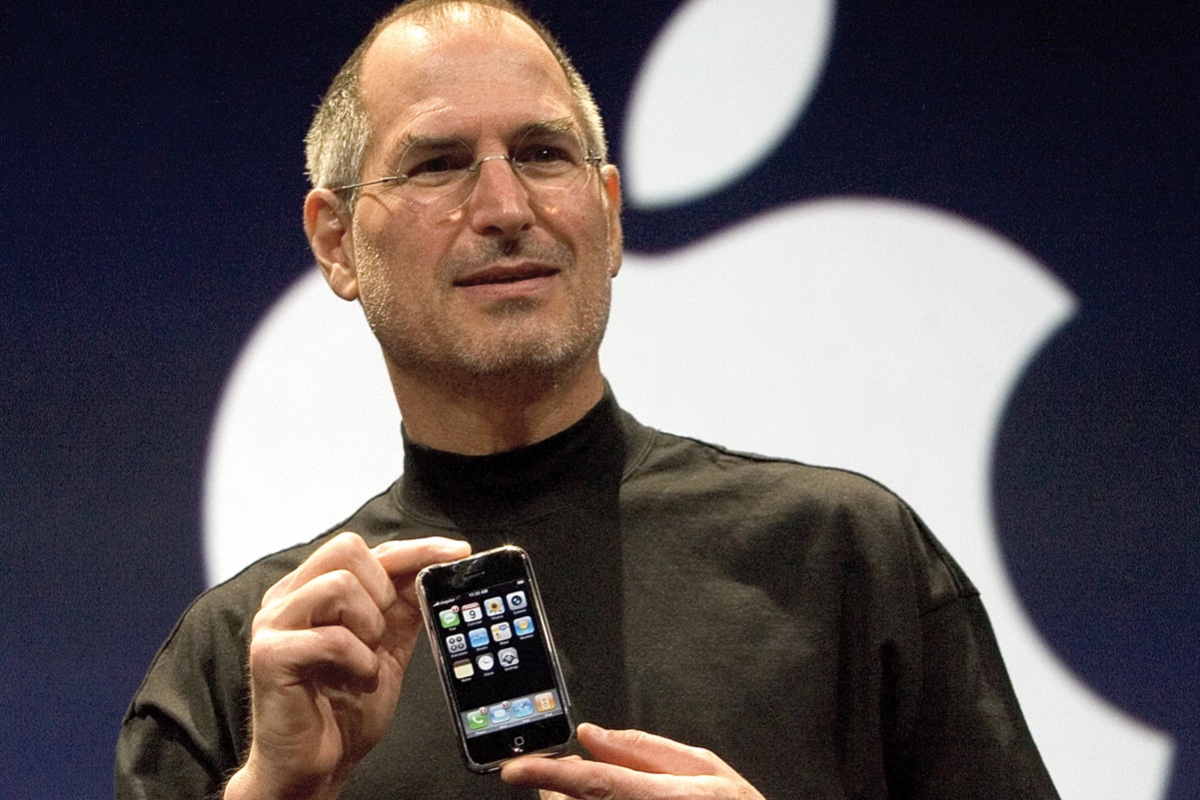
Steve Jobs with original iPhone
Steve Jobs holding the first iPhone at the launch in 2007.

Apple

iPhone OS (2007): iOS made its debut in 2007 with the first iPhone. However, when Steve Jobs held the little device aloft revealing it to the world for the first time, it wasn’t running iOS 1. Instead, it was reported by Apple to be powered by OS X, the software for the Mac. Over time it was called iPhone OS, until finally gaining its now legendary name in the fourth generation of the software when it was shortened to iOS in 2010.

iPhone OS 2 (2008): The second major release of the iPhone software was groundbreaking because it brought third party apps and introduced the App Store.

iPhone OS 3 (2009): This update was designed to make it easier to find things, while at the same time adding the ability to have up to 11 pages to the Home Screen. Messages could support MMS, Video recording became possible and it was possible to save voice notes with the Voice Memos app.

iOS 4 (2010): Apple changed the name to iOS and added the ability to put apps in folders for a better organised Home screen with iOS 4. The FaceTime, iBooks and Game Centre apps also arrived. The iPad also joined the scene, sharing the same operating system as the iPhone.

iOS 5 (2011): iOS 5 was introduced along with the iPhone 4S in 2011, which saw the debut of Siri as a built-in part of the operating system. The Notification Centre was introduced and iCloud arrived bringing syncronisation between devices. This was the first time iOS could be installed directly on the iPhone without requiring a computer.

iOS 6 (2012): This is where Apple Maps came onto the scene. Podcasts and Passbook (now Wallet) apps also arrived. iCloud Photo Stream made it easier to share photos with family and friends. iOS 6 was the last with a skeuomorphic design.

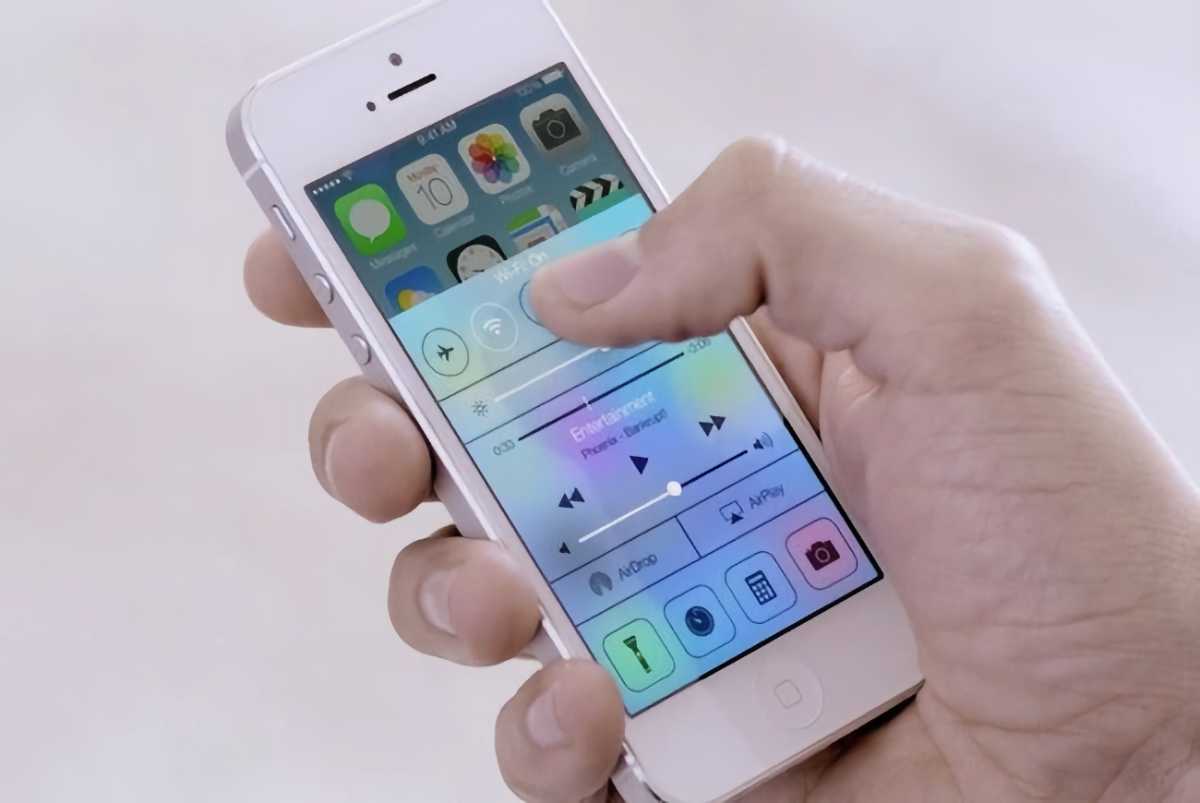
iOS 7 (2013): With iOS 7 iPhone users got a redesigned user interface, which looked a lot more modern with flatter icons. iOS 7 introduced AirDrop and CarPlay.

iOS 7
iOS 7 had a brand new look (at the time).

Apple

iOS 8 (2014): One of the features of iOS 8 was Continuity, which linked the iPhone, iPad and Mac together, so you could “handoff” tasks from one device to another. Family Sharing also arrived making it easier to manage a child’s iPhone.

iOS 9 (2015): iOS 9 improved the Notes app, added Apple News, and featured a new Night Shift mode that removed some of the blue light that can disturb circadian rhythms and stop someone sleeping.

iOS 10 (2016): There were updates to Messages and changes to the Photos app in iOS 10. A new Home app brought HomeKit control. Maps got a redesign. Universal Clipboard meant that users could copy something on a Mac and paste it on an iPhone, for example.

iOS 11 (2017): Things changed significantly in iOS 11 in 2017 as it brought the first touch and gesture interface, allowing the first iPhone without a Home button – the iPhone X. There was a new Files app making it easier to access content synced or saved in iCloud and the Control Centre got a redesign.

iOS 12 (2018): Screen Time, Memoji, Group FaceTime and Siri Shortcuts were new in iOS 12.

iOS 13 (2019): Another major shift came with iOS 13 in 2019, as Apple’s mobile operating system for the iPad split with the iPhone, with iPadOS powering new iPads. Updates to iOS included Dark Mode, new privacy features and the ability to Sign in with Apple and hide your email address. The Photos and Apple Maps apps got a redesign and a swipe-to-type keyboard was added.

iOS 14 (2020): One of the most notable additions was Back Tap, a feature that effectively turned the back of the iPhone into an extra button. Starting with iOS 14.2, music recognition was built directly into the operating system via a Shazam button.

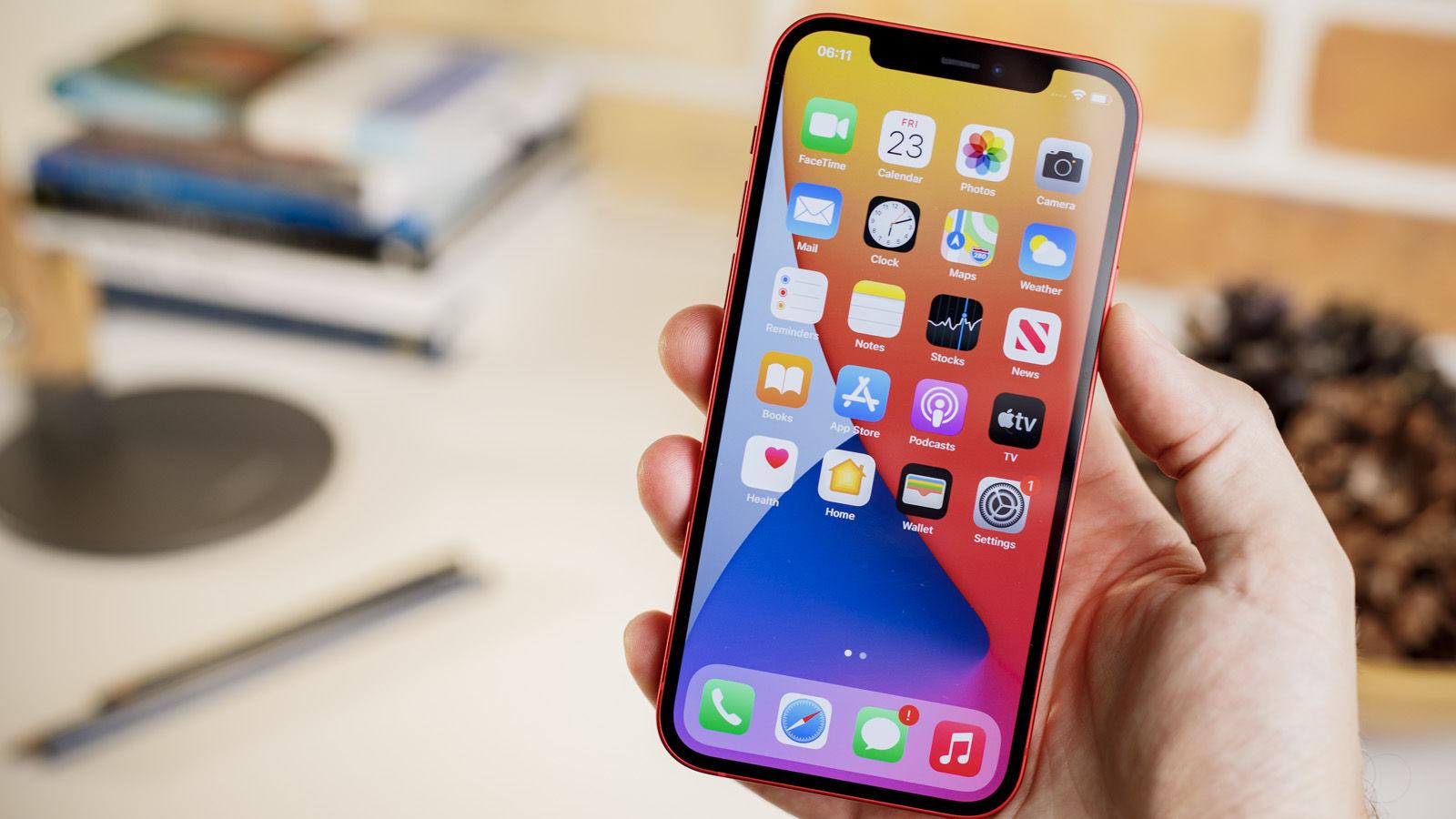
iOS 15 on iPhone 12
iOS 15 on iPhone 12.

Foundry

iOS 15 (2021): Focus Mode arrived in iOS 15 to help users manage the onslaught of notifications, Live Text and Visual Look up made it possible to interact with text within photos (Live Text) and use the camera to identify objects like plants and animals. The Safari browser received a major interface update as did Maps and the Weather app. Read: iOS 15 vs iOS 14.

iOS 16 (2022): One of the most visible changes in iOS 16 was the complete overhaul of the Lock screen, which allowed users to add widgets for the first time to view data at a glance without unlocking their devices. Apple added Rapid Security Responses so that it could deliver important security patches outside of an iOS update. Read: iOS 16 vs iOS 15.

iOS 17 (2023): NameDrop in iOS 17 made it possible to share information by bringing two iPhones together. Stolen Device Protection added a layer of security by requiring biometric authentication (Face ID or Touch ID) before an Apple ID password could be changed. Live Voicemail meant that iPhone users could get a live transaction of a message. Read: iOS 17 vs iOS 16.

iOS 18 (2024): The iOS 18 update laid the groundwork for Apple’s subsequent AI initiatives. There was also a complete redesign of the Photos app, a dedicated Passwords app, Control Center Customization and Live Activities (so you could see when your dinner delivery is arriving). Read: iOS 18 vs iOS 17.

iOS 26 (2025): Rather than progress to iOS 19, Apple aligned the numbering of all its operating systems according to the year with iOS 26. It wasn’t just a name change though, there was a significant visual and functional overhaul with a Liquid Glass design language. Big changes also came to the Phone app with Call Screening and Hold Assist. Live Translations make it easy to communicate with foreign friends and colleagues. The Camera app had a simplifying redesign and a Games app replaced Game Centre. Here’s how how iOS 26 and iOS 18 compare.

iOS 27 (2026): iOS 27 launch in September 2026, including a massive overhaul of Siri, better Apple Intelligence integration, improved photo and camera tools, and parental control enhancements. Here’s how iOS 26 and iOS 27 compare.

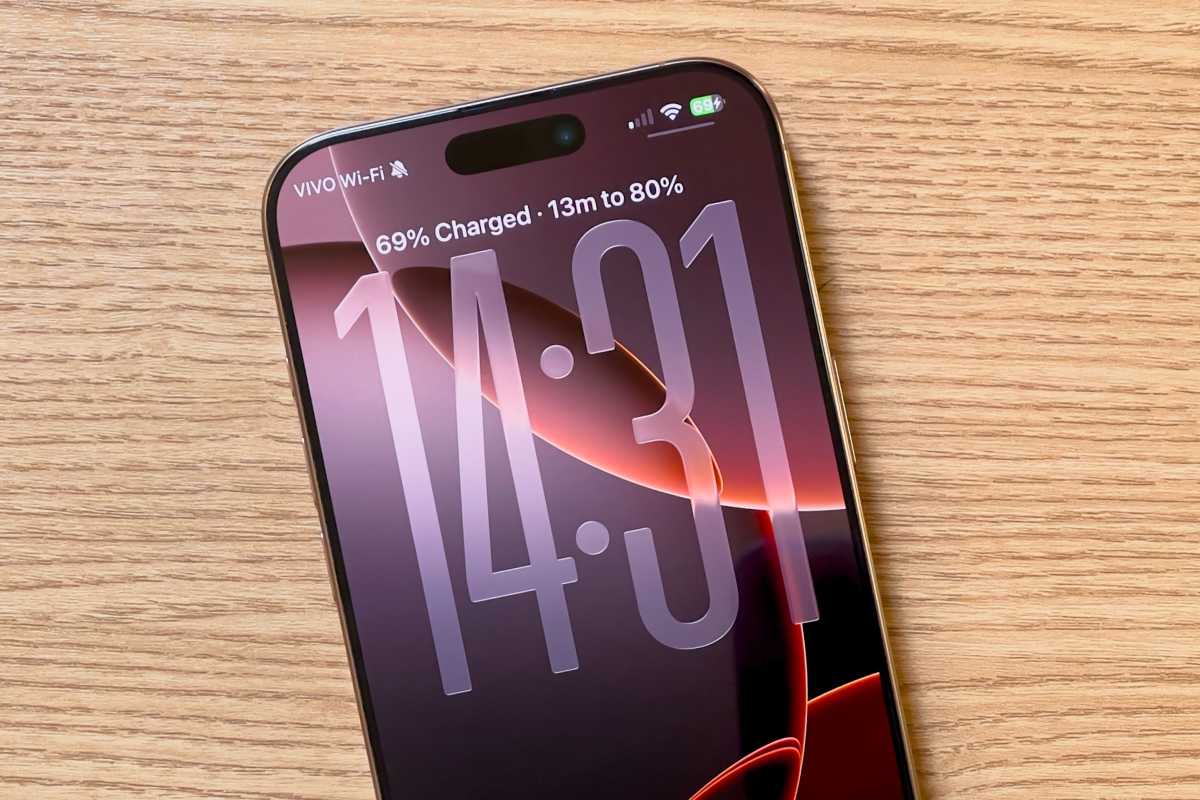
iOS 26 charging time

Foundry

List of iOS versions and latest versions

Here’s a breakdown of all the versions of iOS that have been released, when they were released, when they were last updated, and the latest iOS version.

OS versionRelease dateLatest versionLatest update date
iPhone OS 1June 29, 2007iOS 1.1.5July 15, 2008
iPhone OS 2July 11, 2008iOS 2.2.1January 27, 2009
iPhone OS 3June 17, 2009iOS 3.2.2August 11, 2010
iOS 4June 22, 2010iOS 4.3.5July 25, 2011
iOS 5October 12, 2011iOS 5.1.1May 7, 2012
iOS 6September 19, 2012iOS 6.1.6February 21, 2014
iOS 7September 18, 2013iOS 7.1.2June 30, 2014
iOS 8September 17, 2014iOS 8.4.1August 13, 2015
iOS 9September 16, 2015iOS 9.3.6July 22, 2019
iOS 10September 13, 2016iOS 10.3.4July 22, 2019
iOS 11September 19, 2017iOS 11.4.1July 9, 2018
iOS 12September 17, 2018iOS 12.5.8January 26, 2026
iOS 13September 19, 2019iOS 13.7September 1, 2020
iOS 14September 17, 2020iOS 14.8.1October 26, 2021
iOS 15September 24, 2021iOS 15.8.8May 11, 2026
iOS 16September 12, 2022iOS 16.7.16 May 11, 2026
iOS 17September 18, 2023iOS 17.7.11May 11, 2026
iOS 18September 16, 202418.7.10 August 17, 2026
iOS 26September 15, 2025iOS 26.7September 14, 2026
iOS 27September 14, 2026iOS 27September 14, 2026

Which iOS versions are supported by Apple?

As of September 2026, iOS 27 is Apple’s current iPhone operating system and the version receiving new features and functionality. It can run on the iPhone 11 and newer, as well as the iPhone SE (2nd generation) and later.

Every iPhone that supports iOS 26 also supports iOS 27, but Apple is continuing to maintain iOS 26 with security updates, at least for now. On September 14, Apple released iOS 26.7 alongside iOS 27, allowing users who haven’t yet upgraded to iOS 27 to continue receiving important security fixes.

Apple also periodically releases security updates for considerably older versions of iOS on devices that can no longer upgrade to a newer release.

Which iOS versions get security updates only?

Even after Apple stops developing new features for older versions of iOS, it continues to issue security updates for some time. As explained in How long does Apple support iPhones?, Apple often provides security patches for devices that can’t run the latest version of iOS.

For example, in August 2026, Apple released an iOS 18 security update that addressed several vulnerabilities. This update was only available for iPhone XS, iPhone XS Max, and iPhone XR (models that cannot upgrade to iOS 26) as Apple generally expects supported devices to move to the latest operating system for ongoing security updates. However, this demonstrates that older devices, such as the iPhone XR and XS series, continue to receive security support even though they are unable to run iOS 26.

Support extends even further back. Also in May 2026, Apple issued security updates for iOS 15 and iOS 16 (Apple doesn’t maintain support for iOS 17 as all compatible handsets can run iOS 18). Updates iOS 15.8.8 and iOS 16.7.16 patched critical vulnerabilities in older devices, including:

  • iPhone 6s (all models)
  • iPhone 7 (all models)
  • iPhone SE (1st gen)
  • iPhone 8 and 8 Plus
  • iPhone X

Many of those iPhones are included in Apple’s list of Obsolete and Vintage iPhones. iPhone 6s, iPhone SE, iPhone 8 and 8 Plus are all Obsolete, while the iPhone X and iPhone 7 are considered Vintage. Notably, the oldest: 2015’s iPhone 6s continues to receive security updates, marking over ten years of support.

Apple may cease support for iOS 15 and iOS 16 now that iOS 27 has launched, but we have not had confirmation of this beyond the absence of a security update in conjunction with iOS 27 and iOS 26.

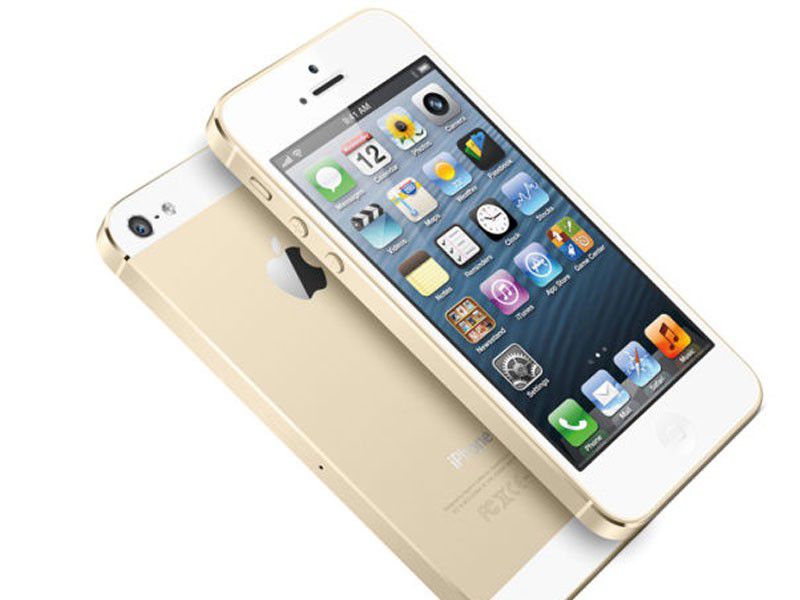
Earlier, in January 2026, Apple also released updates for iOS 12 to extend support for certificates required by services such as iMessage, FaceTime, and device activation, ensuring these features continue to work beyond January 2027. This means that even the aged iPhone 5s received some support in 2026.

Which iPhones support which iOS versions?

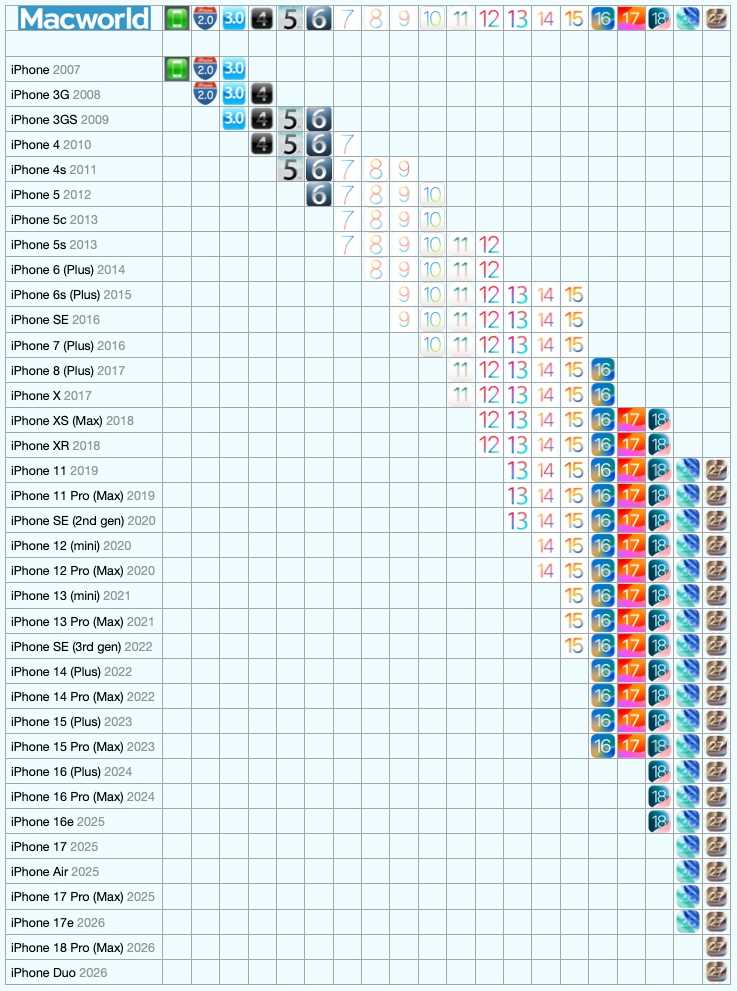
Luckily, many iPhones are able to run supported versions of iOS. We run through which iPhone supports which version of iOS in a separate article: iOS compatibility: Find out the latest version your iPhone can run. You may also find this at a glance chart useful:

iOS iPhone Compatibility

The version of iOS each iPhone can run.


Foundry

So, there it is. A potted history of iOS. Want to know about all the versions of macOS? Read: Mac OS X and macOS: Every version released so far. You can also find out what the latest version of macOS is.

  •  

macOS versions in order: Complete Mac OS X and macOS history

Macworld

Since the debut of Mac OS X in 2001, Apple has released dozens of versions of its Mac operating system, introducing new features, design updates, performance improvements, and more. From early big-cat releases such as Panther and Leopard to more recent California-inspired versions like Sonoma, Sequoia, Tahoe and Golden Gate, each release marked a new chapter in the Mac’s evolution.

Whether you’re trying to identify the version running on your Mac, check compatibility before upgrading, or find out which releases are still supported, this guide covers every Mac OS X and macOS version in chronological order – from the original Mac OS X Cheetah to macOS 27 Golden Gate.

Discover the major features introduced with each release, including Spotlight in Tiger, Time Machine in Leopard, Siri in Sierra and and the enhanced Spotlight search introduced in macOS 27 Golden Gate.

Below, you’ll find a complete list of macOS versions in order, along with release dates, codenames, key details and support information.

What is the latest macOS version?

The latest version of macOS is macOS 27 Golden Gate, released on September 14, 2026. Apple is expected to update Golden Gate throughout 2026 and 2027, beginning with macOS 27.1.

For details of the latest macOS 27 release, new features, beta updates and compatibility, see our complete macOS 27 Golden Gate Guide.

macOS version history: Every macOS and Mac OS X version and the features it brought

macOS is Apple’s operating system for the Mac, in the same way iOS runs on the iPhone and iPadOS runs on the iPad. It provides the user interface and acts as the link between a Mac’s hardware and its software.

All Macs have run macOS – formerly known as Mac OS X – since its debut in 2001. Before that, Apple computers used Mac OS 9. macOS is based on Unix technology developed at NeXT, the company Steve Jobs founded before returning to Apple.

Since its launch on March 24, 2001, macOS has evolved significantly, gaining tighter integration with iOS devices, cloud services, and productivity features such as Time Machine, Quick Look, Exposé, Spaces, and Desktop Stacks.

Below is a complete overview of macOS versions, showing how Apple’s desktop operating system has developed over time, along with the official names and internal codenames used for each release.

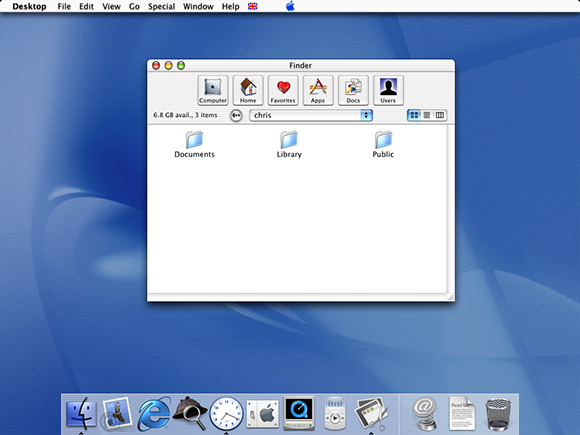
mac os x beta picture

Foundry

OS X 10 beta: Released in September 13, 2000, this preview version of OS X was codenamed Kodiak. It was based on technology from NeXT Computer, which was another company founded by Apple founder Steve Jobs and it introduced the Aqua user interface as well as protected memory and preemptive multitasking to stop crashes. This beta cost $29.95.

OS X 10.0: Code named Cheetah, this was the first major release of Mac OS X, arriving on March 14, 2001. It was Apple’s first OS built on a Unix-based foundation. Unfortunately it was slow and rough around the edges.

OS X 10.1: Just a few months ofter the first version of Mac OS X launched, Apple introduced the Puma update on September 15, 2001. This time is was stable and ready for everyday use, hardware support was better, and other issues with the fist version were addressed.

OS X 10.2: Jaguar arrived on August 14, 2002, significantly improving performance and usability, introducing Quartz Extreme for smoother graphics, a faster Finder, and better networking. iChat was one of the new features.

OS X 10.3: In October 2003 Apple introduced Panther which focused on speed, stability, and polish, delivering noticeably faster performance and a more responsive system. New features included: Exposé for managing windows, Fast User Switching, and FileVault disk encryption. Safari arrived as the default web browser.

OS X 10.4: Tiger arrived in April 2005 with new features like Spotlight search and Dashboard widgets.

OS X 10.5: In October 2007 Leopard arrived and added features like Time Machine for automated backups, Spaces for virtual desktops, and a redesigned Finder with Cover Flow. Time Machine also arrived as a simple way to back up a Mac.

OS X 10.6: Released in 2009, Snow Leopard focused on performance, stability, and efficiency rather than flashy new features.

OS X 10.7 Lion: Arriving in July 2011, Lion brought iPad-inspired features to the Mac, like Launchpad, full-screen apps, and multi-touch gestures. It also introduced system-wide Auto Save, Resume, and Versions so that users didn’t need to worry about manual saving.

OS X 10.8: A year later, in 2012 Mountain Lion brought more iOS features to the Mac including Messages, Reminders, Notes, Notification Center, and iCloud integration. Gatekeeper security was also emphasised.

Mavericks Notification Centre
The Notification Center made its debut in OS X Mavericks.

Foundry

OS X 10.9: In October 2013 Apple stopped naming Mac OS X versions after big cats and switched to Californian landmarks, starting with Mavericks. It introduced features like Finder Tabs, Tags, and memory compression, making Macs faster and more responsive. It was also the first time Apple offered the Max OS X update for free.

OS X 10.10: Introduced in October 2014, Yosemite brought a major visual redesign with a cleaner, flatter interface, translucent elements, and a more modern look inspired by iOS (iOS 7 with its big redesign had been introduced in 2013). Continuity features from the iPhone and iPad included Handoff, iCloud Drive, and the ability to make and receive calls and texts from a Mac.

OS X 10.11: El Capitan arrived in September 2015 and, like Snow Leopard in 2007, focused more on refinement and stability. It brought improvements like better window management (Split View), smoother graphics, and performance boosts.

macOS 10.12: In September 2016 macOS Sierra was the first version to be referred to as macOS rather than Mac OS X, better aligning it with iOS, watchOS and tvOS. It brought Siri to the Mac and improved integration with iPhone and iPad with features like Universal Clipboard.

macOS 10.13: This was another update where the focus was on performance rather than flashy new features. High Sierra in September 2017 brought updates to core apps like Photos and Safari but mostly focused on security and efficiency updates.

macOS 10.14: In September 2018, Mojave introduced a system-wide Dark Mode and introduced Desktop Stacks for better file organization.

Mojave Night Mode
Dark Mode debuted in Mojave.

Foundry

macOS 10.15: Arriving in October 2019, Catalina replaced iTunes with separate Music, TV, and Podcasts apps and introduced Sidecar so an iPad could be used as a second display for a Mac. It also ended support for 32-bit apps.

macOS 11: Big Sur was the first version to drop the ten, from Mac OS X, and start again at 11. Launched in November 2020 it was a major redesign of Apple’s Mac operating system, with a cleaner, more modern interface, updated icons, a refined Control Center, and closer visual alignment with iOS.

macOS 12: Arriving in October 2021, Monterey introduced Universal Control (one mouse/keyboard across Mac and iPad) and improved FaceTime.

macOS 13: macOS Ventura arrived in October 2022 and introduced Stage Manager for better multitasking, improved Continuity features (including using an iPhone as a webcam, and brought major updates to Mail, Safari, and Spotlight. Read: How Ventura and Monterey compare.

macOS 14: In September 2023 Sonoma made the desktop more immersive with animated wallpapers and desktop widgets you can interact with. There were game-focused improvements in Game Mode and video conferencing features like Presenter Overlay were added. Here’s how Sonoma compares to Ventura.

macOS 15: A year later in September 2024, Sequoia brought iPhone Mirroring and added Apple Intelligence features. Here’s how Sequoia compares to Sonoma.

macOS 26: Tahoe arrived in September 2025 with a bold new Liquid Glass design with transparent, customizable interface elements and tighter integration with iPhone and iPad. As with iPhone and iPad, Apple unified version numbering, so the macOS jumped from macOS 15 to 26. Apple also expanded Apple Intelligence, improved Spotlight, improved the Phone related features, and added a new Games app. This was the final macOS version to support Intel-based Macs. See how macOS 26 Tahoe compares to macOS 15 Sequoia.

macOS 27: macOS 27 Golden Gate was released on September 14, 2026, bringing Siri AI, Visual Intelligence, enhanced Spotlight search, performance improvements, and refinements to the Liquid Glass interface introduced with macOS Tahoe. Golden Gate is also the first major macOS release to require Apple silicon, ending support for Intel-powered Macs. See how macOS 27 Golden Gate compares to macOS 26 Tahoe.

List of macOS versions and latest versions

Here’s an overview of every version of macOS and Mac OS X Apple has released. You’ll find a complete list of each version of OS X and macOS, along version code names, internal code names (if available) and the most recent version and when it was released.

macOS Tahoe on a Mac

macOS Tahoe.


Foundry

Product versionCode nameDate of launchDate of launchLast update date
OS X 10 betaKodiakSeptember 13, 2000——
OS X 10.0CheetahMarch 14, 200110.0.4June 22, 2001
OS X 10.1PumaSeptember 15, 200110.1.5June 6, 2002
OS X 10.2JaguarAugust 14, 200210.2.8October 3, 2003
OS X 10.3Panther (Pinot)October 24, 200310.3.9April 15, 2005
OS X 10.4Tiger (Merlot)April 29, 200510.4.11November 14, 2007
OS X 10.5Leopard (Chablis)October 26, 200710.5.8August 13, 2009
OS X 10.6Snow LeopardAugust 28, 200910.6.8July 25, 2011
OS X 10.7Lion (Barolo)July 20, 201110.7.5October 4, 2012
OS X 10.8Mountain Lion (Zinfandel)July 25, 201210.8.5August 13, 2015
OS X 10.9Mavericks (Cabernet)October 22, 201310.9.5July 18, 2016
OS X 10.10Yosemite (Syrah)October 16, 201410.10.5July 19, 2017
OS X 10.11El Capitan (Gala)September 30, 201510.11.6July 9, 2018
macOS 10.12Sierra (Fuji)September 20, 201610.12.6September 26, 2019
macOS 10.13High Sierra (Lobo)September 25, 201710.13.6November 12, 2020
macOS 10.14Mojave (Liberty)September 24, 201810.14.6July 21, 2021
macOS 10.15Catalina (Jazz)October 7, 201910.15.8February 2, 2026
macOS 11Big Sur (GoldenGate)November 12, 202011.7.11February 2, 2026
macOS 12Monterey (Star)October 25, 202112.7.6July 29, 2024
macOS 13Ventura (Rome)October 24, 202213.7.8August 20, 2025
macOS 14Sonoma (Sunburst)September 26, 202314.8.9August 6, 2026
macOS 15Sequoia (Glow)September 18, 202415.8September 14, 2026
macOS 26Tahoe (Cheer)September 15, 202526.7September 14, 2026
macOS 27Golden Gate (Honeycrisp & Fizz)September 14, 202627September 14, 2026

FAQ


1.

Which macOS versions are still supported?

Apple provides regular feature and security updates for the current version of macOS and generally continues to issue security updates for the previous two major versions.

As of September 2026, macOS 27 Golden Gate is the current version. Apple also released security updates for macOS 26 Tahoe and macOS 15 Sequoia alongside Golden Gate on September 14, 2026.

With the arrival of Golden Gate, macOS Sonoma appears to have dropped out of Apple’s regular support cycle, with its most recent update released in August 2026.

Occasionally Apple releases updates for much older versions of macOS to address specific problems. For example, in February 2026 it issued updates for Big Sur and Catalina to address a certificate issue affecting FaceTime and Messages.

See: How long do Macs and MacBooks last? We also have a full list of which Macs run which versions of macOS here.

2.

How does Apple choose Mac OS X and macOS names?

As you can see from the list above, with the exception of the first OS X beta, all versions of the Mac operating system from 2001 to 2012 were named after big cats, from Cheetah to Panther to the final release, Mountain Lion. But while the public-facing builds were named after big cats, internally, they were named after wines (aside from OS X 10.6 which had no codename).

Even after Apple switched public-facing code names to places in California back in 2013, it carried on naming them after wines internally until 2014. In 2015, Apple decided to change the theme of internal code names from wines to types of apples.

In 2016, Apple took the plunge to unify the branding of its operating systems by rebranding Mac OS X to macOS, which sits nicely alongside iOS, tvOS, and watchOS and paved the way for macOS 11, the successor to Mac OS X, which arrived twenty years after the first beta of Mac OS X.

In 2025, Apple decided to sync up the numbering system between all its operating systems, moving from macOS 14 to macOS 26 to better reflect the year. macOS 26 Tahoe lived most its lifetime as the most recent version in the year 2026 before being replaced with macOS 27 in September 2026.

3.

How do I check my macOS version?

You can tell which version of macOS you are running by clicking on the Apple logo in the top left and choosing About This Mac.

It will clearly show which version of macOS you are running along with the most recent version that your Mac has installed.

If you are looking for help installing macOS read: How to update macOS and Fixes for Macs that won’t update. We can also help with How to install macOS on an unsupported Mac.

4.

Can I run the macOS beta?

You can install a beta version of macOS and test new features that haven’t yet launched. If you want to install the latest beta of macOS read about joining Apple’s beta program.

5.

How can I install the latest version of macOS?

Some Macs will be set to update macOS automatically. If you want your Mac to update automatically follow these steps:

  1. Open System Settings.
  2. Click on General.
  3. Click on Software Update.
  4. Click on the “i” beside Automatic Updates and make sure that Check for updates, Download new updates when available, and Install macOS updates are selected. This way your Mac will automatically update to the latest version. If you would prefer not to have your Mac do this automatically you can deselect these options.

Read all about how to update your Mac here.

We also have a list of every version of iOS where you can see the latest versions and how long Apple supports iPhones for.

  •  

iOS 27 is here and you shouldn’t wait to get it on your iPhone

Macworld

Even if you’re not getting a new iPhone 18 Pro this week, you can still make your old phone feel new again. iOS 27 is here, and the update brings a slew of new features, including the long-awaited Siri chatbot, along with a slew of AI tools across the system and first-party apps. Those averse to artificial intelligence will still appreciate the other unrelated features, design changes, and performance improvements across the board. Hesitant about updating your iPhone? Below are the top additions you’re missing out on.

Siri’s awakening

Siri AI is the signature feature of iOS 27, baking advanced smarts into the operating system. You get a dedicated app to initiate and store conversations with the chatbot, with support for extensions like ChatGPT. Unlike third-party AI chatbots, however, Siri AI’s responses aren’t limited to world knowledge and web results only.

Thanks to Apple’s deep implementation, Siri AI can access data stored on your iPhone and respond accordingly. So, it can dig through and reference old emails, iMessages, photos, calendar events, notes, and much more. It can also analyze what’s currently visible on your screen and take action inside apps. It’s truly an all-encompassing AI assistant that other providers can’t natively replicate on iOS.

Other Siri AI perks include assistance with composing text; the chatbot can proofread, rewrite, adjust the tone, and even write from scratch in any text box if you prompt it to do so. Apps like Apple Mail and Messages also offer smart replies that adapt to your typing style and the ongoing conversation.

It’s worth noting that you’ll need an iPhone 15 Pro or newer, and accessing Siri AI may require getting past a potentially lengthy waitlist in the Settings app. But it’ll be worth it.

Siri AI on iOS 27

Siri AI is a dramatc improvement over the version we know now.

Foundry

AI changes the image

iOS 27’s AI introductions extend beyond the revamped Siri. The built-in Photos app now offers a trio of AI-powered editing tools—two of which are completely new. The existing Clean Up feature now offers an advanced mode that consumes more time and energy, allowing you to conceal more complex objects. Meanwhile, the Extend perk is essentially the opposite of cropping, letting you generate relevant content outside the original photo’s frame. You also get the Reframe option, which tweaks the angle of the shot using AI.

I’ve stress tested all three of them, and they generally work reliably. Like most AI features, however, they may hallucinate and generate unpredictable results from time to time. Do note that using any of these tools will add an AI label to the photo’s metadata—regardless of how subtle your edits are—and platforms like Instagram will add an AI disclaimer accordingly. Like Siri AI, you’ll need at least an iPhone 15 Pro to take advantage of these new Photo features.

iOS 27 AI photo editing tools

iOS 27 includes several new photo editing tools that use AI to augment your images.

Foundry

Taming the wild web

Safari on iOS 27 similarly adds three new core AI functionalities for the iPhone 15 Pro and later. Notify Me is a simple web crawler that scans selected sites for described changes based on a frequency of your choosing. If you’re anticipating a certain update, for example, you can stop manually refreshing the relevant webpage and Safari will alert you whenever it detects it.

Secondly, Safari can now automatically categorize different tabs based on their topics. You can then save generated tab groups to revisit them later. Otherwise, you can create Safari web extensions on iOS 27 by prompting the AI—sparing you from hunting for niche tools on the App Store.

Shortcuts for the rest of us

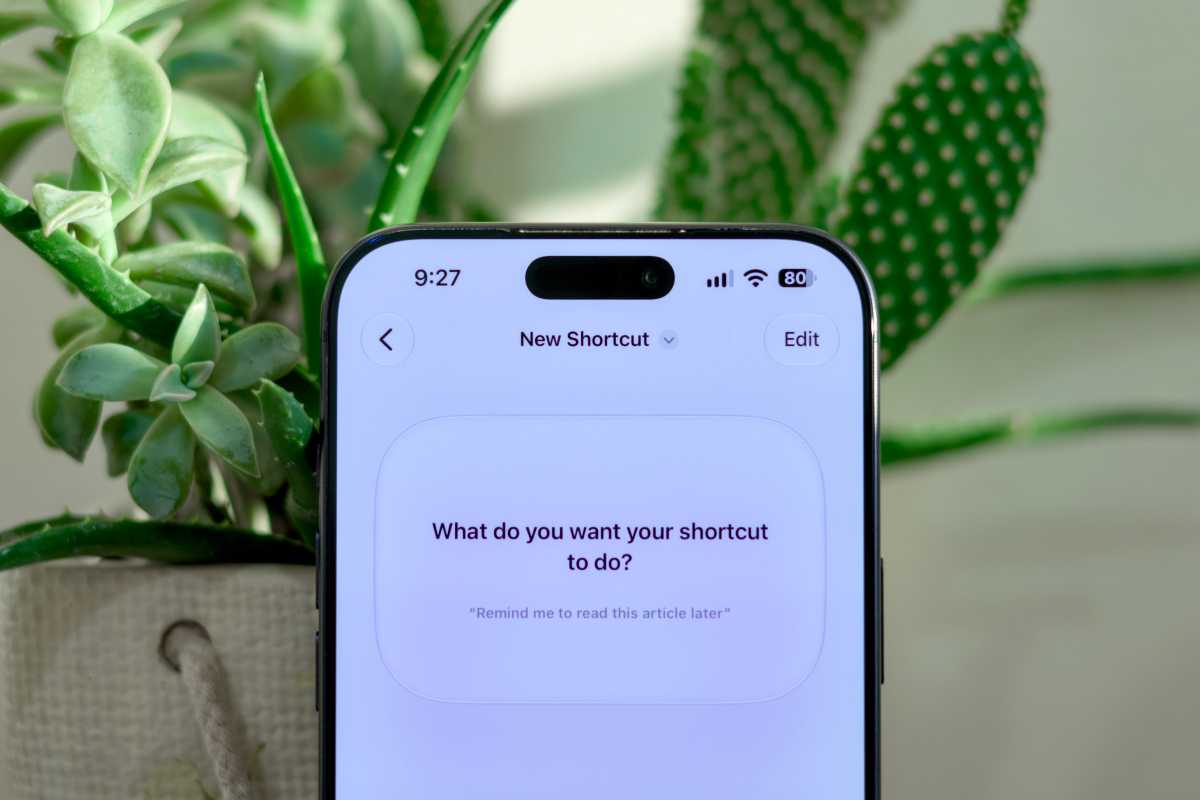
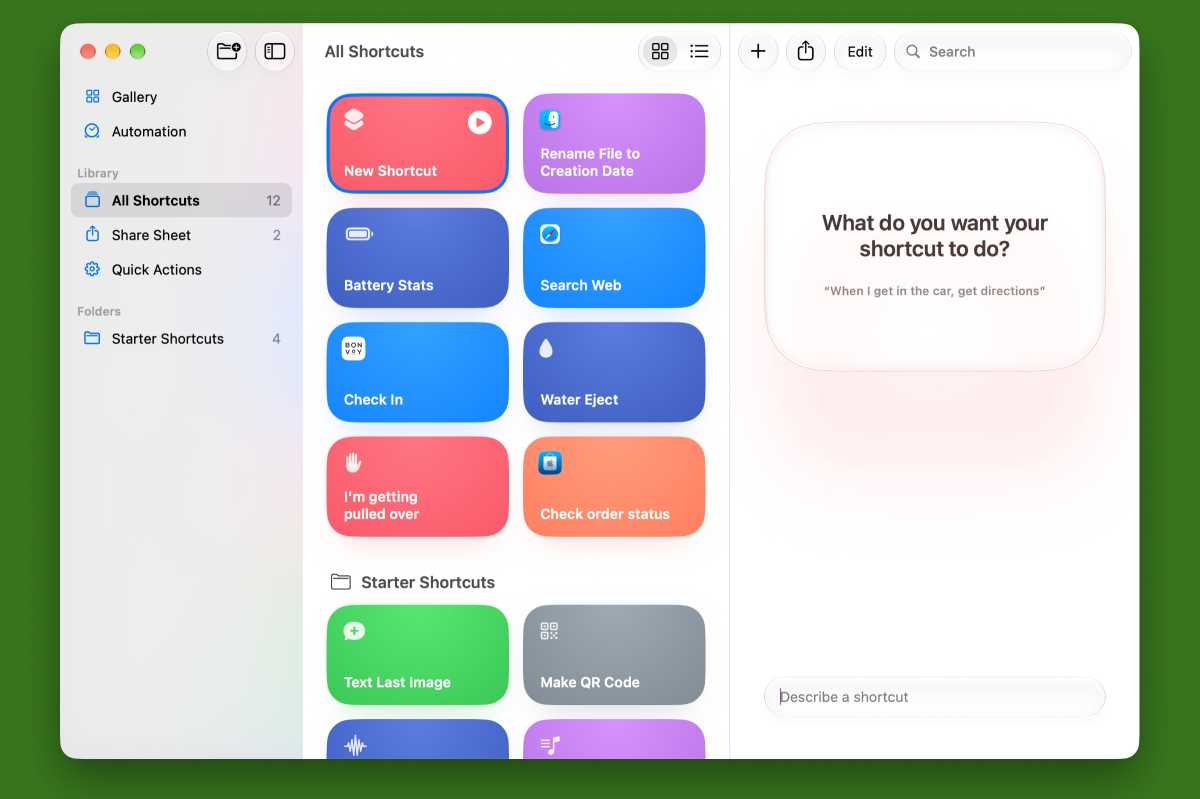
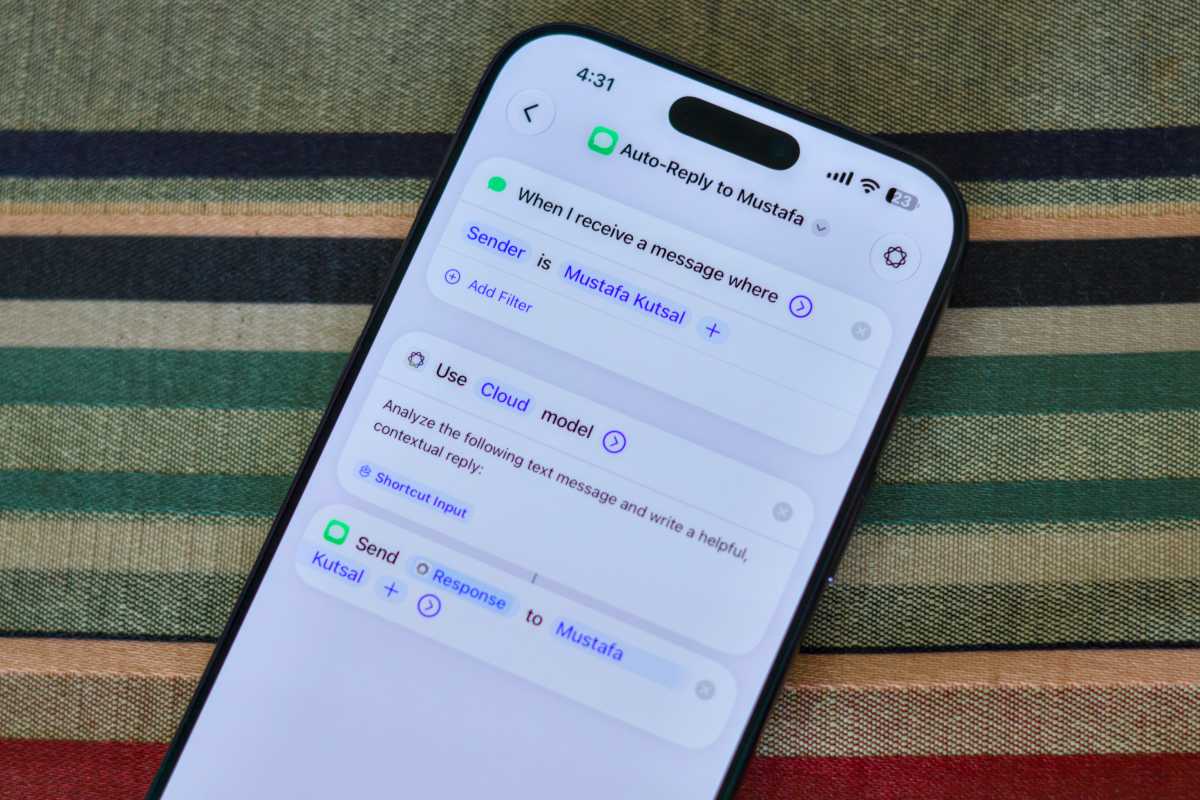
Similar to Safari extensions, iOS 27 lets you generate automations and workflows in the Shortcuts app using text prompts. For long, the app had required users to go through a sophisticated building process, barring tech newbies from creating complex shortcuts. Now, anyone can describe the needed tools using natural language, and the AI will pick the correct actions and sequence.

Using AI to build shortcuts on iOS 27

Shortcuts in iOS 27 is more powerful and much easier to use.

Foundry

Even more Intelligence

iOS 27’s AI features (again for iPhone 15 Pro and later) can also be encountered in more subtle parts of the system. For example, the Calendar app can now extract event details from a casual text description. Meanwhile, the Phone app will surface useful personal data when relevant calls are made, like reservations and ticket numbers. In Image Playground, you can now generate more realistic images, an upgrade from its predecessor’s ghastly cartoons.

Solid Glass

Finally something for all phones: iOS 27 addresses a common Liquid Glass complaint introduced with last year’s design overhaul. With the latest OS version, you can finally kill the translucency of Liquid Glass and opt for a more opaque look across the system and apps universally. All you have to do is tweak the dedicated slider found under Settings > Appearance > Liquid Glass.

Liquid Glass settings on iOS 27

Liquid Glass can be as clear or opaque as you want in iOS 27.

Foundry

And much more

Other welcome iOS 27 additions include custom pass creation in Wallet, a quick paste keyboard shortcut when copying items, the ability to save high-resolution video frames, redesigned workout summaries, independent alarm volumes, more landscape apps, extra-large widgets, and more. The update also speeds up app launching and AirDrop, extends battery life, fixes leftover bugs, and patches hundreds of security vulnerabilities.

To install it on an iPhone 11 or newer model, go to Settings > General > Software Update > and hit the Install Now button. Agree to the Terms of Service after reading them thoroughly, and keep your iPhone connected to a power source until the installation concludes.

  •  

‘Widow’s Bay’ sweeps as Apple TV cleans up on Emmy night

Macworld

Apple TV continued its triumphant awards season on Monday night, with the offbeat comedy-horror Widow’s Bay reaching a total of 14 Emmy wins for the year. Pluribus and Slow Horses also scored wins this week, adding to Emmy successes for other Apple TV properties such as Mr. Scorsese, Palm Royale, and Margo’s Got Money Troubles earlier in the month.

The Emmys are split into multiple ceremonies. The first section of the 2026 awards, Creative Arts, took place on September 5-6. Widow’s Bay was the most successful show across the two nights with eight wins (from 12 nominations) and added six more (from seven nominations) during the major Primetime awards this week, again making it the most successful entrant. Here are the show’s 14 wins:

Creative Arts awards

  • Outstanding Guest Actress in a Comedy Series (Betty Gilpin as Sarah Westcott Warren)
  • Outstanding Production Design for a Narrative Program
  • Outstanding Casting for a Comedy Series
  • Outstanding Cinematography for a Series
  • Outstanding Music Composition for a Series
  • Outstanding Music Supervision
  • Outstanding Sound Editing for a Comedy or Drama Series and Animation
  • Outstanding Sound Mixing for a Comedy or Drama Series and Animation

Primetime (or major) awards

  • Outstanding Comedy Series
  • Outstanding Lead Actor in a Comedy Series (Matthew Rhys as Tom Loftis)
  • Outstanding Supporting Actor in a Comedy Series (Stephen Root as Wyck Crawford)
  • Outstanding Supporting Actress in a Comedy Series (Kate O’Flynn as Patricia Moyer)
  • Outstanding Directing for a Comedy Series
  • Outstanding Writing for a Comedy Series

Everybody else was left in the dirt by Widow’s Bay‘s 14 wins. Its closest rivals were (the superb) DTF St. Louis, The Traitors, and the Super Bowl halftime show, which each scored seven; but none of these managed more than a single major award. Unlike Apple’s show, which collected six of these most prestigious wins.

Those 14 wins also beat any previous Apple TV entrant; The Studio previously held Cupertino’s record with 13 in 2025. And with a total of 29 Emmy wins altogether (if you include the company’s Outstanding Commercial award, which isn’t credited to its streaming arm), Apple as a whole had its most successful year to date, surpassing the 22 it managed last year thanks to the success of The Studio and Severance. Before then, the company never managed more than 10 wins in a single year.

It was also the first Emmy night for new CEO John Ternus, who proudly showed off his iPhone Duo on the red carpet.

  •  

How long do Macs last? How long Apple supports Macs and MacBooks

Macworld

Macs are expensive, so it’s understandable that many users want to put off replacing them for as long as possible. But just how long should you expect a Mac to last?

You may also be considering an older, used or refurbished Mac to save money. Is that 2018 MacBook Pro for $300/£300 a good deal, or would you be better off spending a little more on a newer model?

Whether a Mac is too old depends on two main factors: hardware durability and software support.

  • Hardware: Macs and MacBooks are built to last, with many users getting five to eight years of reliable performance. Beyond that, Apple classifies Macs that have been off sale for more than five years as “vintage” and, eventually “obsolete“, at which point opportunities for repairs become increasingly limited.
  • Software: Software support is just as important, because unsupported Macs can be more vulnerable to security issues. Apple typically provides macOS updates for Macs for around seven to eight years, but that window is changing as Apple has now ended major macOS upgrades for Intel Macs. macOS 27 Golden Gate requires Apple silicon or the A18 Pro-powered MacBook Neo.

With Apple’s transition to its own silicon now complete, Intel Macs are entering their final years of security support. Knowing how long your Mac will continue to receive updates, and when it’s time to upgrade, is therefore more important than ever.

Is your Mac too old?

We know that Macs cost a fair bit of money and not everyone has the luxury of upgrading every few years. But at what point is it time to consider upgrading your Mac?

Is the hardware to old? One factor to consider is the age at which most Macs start to experience issues, such as random shutdowns and degraded batteries that no longer hold their charge. Unfortunately, at one point repairing your Mac or MacBook will no longer be a viable option and you will need to look for a replacement. There is a point at which Apple stops providing the required parts for Macs, rating them either obsolete and vintage. Once a Mac is considered vintage (you can find a list of vintage and obsolete Macs below) we would recommend that you upgrade it.

Is the software to old? Another issue with aging Macs is that the software you need may not run on it. You may find that your Mac cannot update to the latest version of macOS (Apple’s Mac operating system software), but it’s even more concerning if Apple is no longer issuing security updates to the version of macOS you can run – because that make you open to malware and security vulnerabilities. We will explain which versions of macOS are supported – and for how much longer, below.

If the following apply, it is probably the case that your Mac has reached the end of its useful life:

  • Apple no longer supports the latest version of the software it runs (which could leave you vulnerable).
  • The apps you need to use no longer run on it.
  • The Mac struggles to perform the tasks you need it to – especially as you can’t update the RAM and other components.
  • Something breaks and is too expensive to fix, or the parts aren’t available.
  • The Mac is becoming unreliable. Unexpected shutdowns are becoming commonplace and you’ve tried everything to fix the problem to no avail.
Old MacBook Air

Apple

Software support: Which Macs are supported by macOS updates – and why it matters…

Only the most recent version of macOS gets feature updates, but Apple typically continues to support the previous two releases with bug fixes and critical security updates.

Following the release of macOS 27 Golden Gate on September 14, 2026, Apple is currently providing security updates for:

Apple released macOS Tahoe 26.7 and macOS Sequoia 15.8 alongside Golden Gate, while macOS Sonoma, last updated in August 2026, did not receive an equivalent update on September 14. This strongly suggests that regular security support for Sonoma has now ended.

For now, if your Mac can run macOS Golden Gate, Tahoe or Sequoia, you can be confident that Apple is still addressing security vulnerabilities and other significant issues in those operating systems.

If your Mac is running an older version of the Mac operating system, you will find yourself out in the cold when it comes to essential security updates to Apple’s software. Read: The latest version of macOS your Mac can run.

Another reason why you should run a supported macOS version is that if it is too old you may also find that your other Apple products aren’t compatible with your Mac. For example, without the latest security update, you may no longer be able to use Apple Pay or other means to pay for services online, for example. And if you want to sync your iPad or iPhone with your Mac (rather than using iCloud) you will need a recent version of macOS. Since Catalina, syncing is done via the Finder, rather than iTunes. If you can’t run macOS Catalina you will need at least iTunes 12.8.2.3 and at least Mac OS X 10.11.6 (El Capitan) or your Mac will not recognize your iPhone or iPad.

That said, there was a surprise update to macOS Big Sur and macOS Catalina in 2026: On February 2 Apple issued a update to fix a FaceTime and Messages Certificate in order to ensure that those communication tools remained operational on the older systems. This doesn’t mean that Apple is offering security updates to those versions of macOS, though.

Does Apple still support Intel Macs?

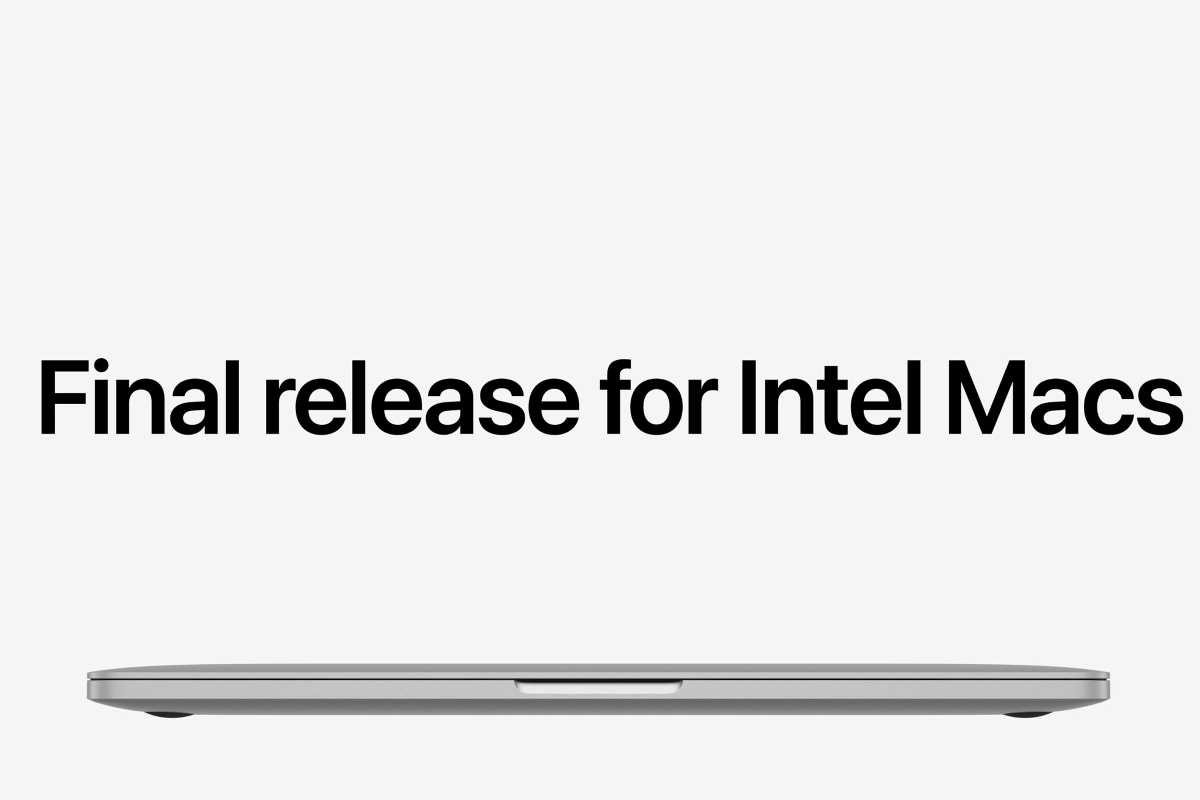
Final release for Intel Macs announcement on Apple.com

Apple

macOS 27 Golden Gate marks the end of major macOS upgrades for Intel Macs. Golden Gate supports no Intel-powered Macs, so Apple silicon is now required to run the latest version of macOS.

That doesn’t mean software support for Intel Macs has ended completely. Apple released security updates for macOS Tahoe and macOS Sequoia alongside Golden Gate in September 2026, and both versions support some Intel Macs. We expect Sequoia to continue receiving security updates until fall 2027 and Tahoe until fall 2028, which means a small number of Intel Macs could remain supported until then.

Despite this, we don’t recommend buying an Intel-powered Mac today. An M1 or newer Mac will have a considerably longer useful software life.

Which Macs are supported by Apple in 2026

With Apple now supporting macOS Golden Gate, Tahoe and Sequoia, security coverage extends back as far as the 2017 iMac Pro. It is likely that Macs that can only run macOS Sonoma, including the 2018 and 2019 MacBook Air, have now fallen out of Apple’s regular security-update cycle, although Apple has not confirmed this.

Macs supported by macOS 27 Golden Gate

macOS 27 Golden Gate supports Apple silicon Macs, including:

  • MacBook Neo (A18 Pro, 2026)
  • MacBook Air (M1, 2020 and later)
  • MacBook Pro (M1, 2020 and later)
  • iMac (M1, 2021 and later)
  • Mac mini (M1, 2020 and later)
  • Mac Studio (all models)
  • Mac Pro (Apple silicon, 2023 and later)

Macs only supported by macOS 26 Tahoe

The following Intel Macs can run macOS 26 Tahoe, but cannot be upgraded to macOS 27 Golden Gate:

  • MacBook Pro (16-inch, 2019)
  • MacBook Pro (13-inch, 2020, Four Thunderbolt 3 ports)
  • iMac (Retina 5K, 27-inch, 2020)
  • Mac Pro (2019)
  • Mac Studio (all models)

Macs only supported by macOS 15 Sequoia

The following Macs can run macOS Sequoia, but cannot be upgraded to Tahoe or Golden Gate:

  • MacBook Air (Retina, 13-inch, 2020, Intel)
  • MacBook Pro (13-inch, 2020, Two Thunderbolt 3 ports)
  • MacBook Pro (13-inch, 2019, Two Thunderbolt 3 ports)
  • MacBook Pro (13-inch, 2019, Four Thunderbolt 3 ports)
  • MacBook Pro (15-inch, 2019)
  • MacBook Pro (13-inch, 2018, Four Thunderbolt 3 ports)
  • MacBook Pro (15-inch, 2018)
  • Mac mini (2018)
  • iMac (Retina 5K, 27-inch, 2019)
  • iMac (Retina 4K, 21.5-inch, 2019)
  • iMac Pro (2017)

For clarity, macOS 15 was the predecessor of macOS 26.

Use the table below to find the newest version of macOS supported by older Macs.

YearMacBook AirMacBook ProiMacMac miniMac StudioMac Pro
2026macOS 27macOS 27—macOS 27macOS 27—
2025macOS 27macOS 27——macOS 27—
2024macOS 27macOS 27macOS 27macOS 27——
2023macOS 27macOS 27macOS 27macOS 27macOS 27macOS 27
2022macOS 27macOS 27——macOS 27—
2021—macOS 27macOS 27———
2020macOS 27 (M1) / macOS 15 (Intel)macOS 27 (M1) / macOS 26 (Intel, 4-port) / macOS 15 (Intel, 2-port)macOS 26macOS 27——
2019macOS 14macOS 26 (16-inch) / macOS 15 (13/15-inch)macOS 15——macOS 26
2018macOS 14macOS 15—macOS 15——
2017—macOS 13macOS 15 (iMac Pro) / macOS 13 (iMac)———

Note that Macs limited to macOS 14 Sonoma or earlier are no longer receiving regular macOS security updates.

What are the oldest Macs supported by Apple?

  • Oldest supported Mac: 2017 iMac Pro

As of September 2026, the oldest Mac still receiving regular Apple security updates is the 2017 iMac Pro, because it can run macOS Sequoia.

The 2018 and 2019 MacBook Air can only run macOS Sonoma and have now fallen out of Apple’s regular security-update cycle following the release of macOS 27 Golden Gate.

The 2018 MacBook Pro and Mac mini, and the 2019 iMac, can run macOS Sequoia and should therefore continue receiving security updates until around fall 2027, assuming Apple maintains its usual support pattern.

Which Macs aren’t supported by macOS?

We expect support for 2023’s macOS 14 Sonoma to have now ended, which means these Macs, which cannot be upgraded to macOS 15 Sequoia, are now unsupported:

  • MacBook Air (Retina, 13-inch, 2018)
  • MacBook Air (Retina, 13-inch, 2019)

The following Macs lost support when Apple stopped issuing security updates for 2022’s macOS Ventura following the release of macOS Tahoe in September 2025:

  • MacBook (Retina, 12-inch, 2017)
  • MacBook Pro (2017)
  • iMac (2017)

When Apple introduced Sequoia in 2024, it dropped support for macOS Monterey, meaning that Macs that couldn’t update beyond Monterey could no longer receive regular security updates:

  • iMac (2015)
  • MacBook Air (2017)
  • MacBook Pro (2016)
  • Mac mini (2014)
  • Mac Pro (2013)

All Macs older than those listed above are also no longer supported by Apple’s regular software updates.

If your Mac is around a decade old, you should assume that it is no longer receiving regular security updates. In fact, we’d recommend avoiding any Mac that doesn’t have Apple silicon inside: M1 or newer.

Does it matter if my Mac won’t run a supported macOS?

Once you cannot update your Mac to run a supported version of macOS you are vulnerable to security breaches, which should obviously be a concern. You may also find that you can’t carry out transactions on the internet if you want to pay for things on your out-of-date Mac.

It’s also probably that the software you need won’t run on your Mac. Apple and other companies stop supporting older versions of the applications they make, so there could be issues with the versions of the software you are running. If you are experiencing random shutdowns, for example, it could be due to problems with an app you are running – problems that will not be addressed by the developer because that version of the app is no longer supported.

If you want to run fully supported software then you will need to update to a newer version of macOS – and that may mean that you need to update your Mac. Although, there are workarounds to install a new version of macOS on an old Mac if you need to.

Once Apple no longer supports your Macs with operating system updates, it’s probably a good time to replace your Mac.

When do Macs become obsolete?

But it’s not just software updates that determine the lifespan of a Mac. It’s also a question of whether it will be possible to fix your Mac should something go wrong with the hardware. Apple has two standards that indicate hardware support is waining: Obsolete or Vintage. The first stage is Vintage: you might be lucky enough to get parts for this Mac, the second is Obsolete: you are out on your own when it comes to any attempt to mend the Mac if it goes wrong.

If you look at Apple’s list of Obsolete Macs – those being the Macs that Apple will no longer provide spare parts for – you will see that the company stops providing parts for Macs that it hasn’t sold for more than seven years. In fact, the company may not even provide parts for Macs that haven’t been sold for more than five years (considered Vintage by the company).

This could mean that you won’t be able to get a faulty Mac fixed because the parts aren’t available.

Obsolete Macs

Obsolete Macs are generally Macs that Apple stopped selling more than seven years ago. Once a Mac is in Apple’s obsolete list you have little chance of getting it repaired if something does go wrong. You might be able to find spare parts yourself, but Apple won’t provide them.

You’ll find more details about the exact models on Apple’s US page and the equivalent UK page, but the lists below will give you a general idea.

Apple considers the following Macs and older Obsolete, now including the 2017 MacBook Pro models:

  • 11-inch MacBook Air (early 2015 and older) 
  • 12-inch MacBook (2016 and older)
  • 13-inch MacBook Air (early 2015 and older)
  • 13-inch MacBook Pro (2017 and older)
  • 15-inch MacBook Pro (2017 and older)
  • 27-inch iMac (2015 and older)
  • 21.5-inch iMac (2015 and older)
  • Mac mini (2012 and older)
  • Mac mini Server (2012 and older)
  • Mac Pro (2010 and older)
  • Anything predating the Intel switch, obviously.
Old Macs

Petter Ahrnstedt

Vintage Macs

Apple also has a list of Vintage Macs. These are Macs that Apple stopped selling between five and seven years ago. (If you live in France where a law means you can get support for spare parts for up to seven years after Apple stops selling a Mac).

Apple Authorized Service Providers will repair vintage products, as long as parts are available.

Apple lists the following products as being vintage, now including the 2020 MacBook Air, 2019 MacBook Air, 2019 MacBook Pro and 2019 iMac, and the 2018 Mac mini:

  • 12-inch MacBook (2017)
  • 13-inch MacBook Air (2018, 2019 and 2020)
  • 13-inch MacBook Pro (2017, 2018 & 2019)
  • 15-inch MacBook Pro (2015, 2017, 2018, 2019)
  • 21.5-inch iMac (2013, 2017)
  • 27-inch iMac (2015, 2017 & 2019)
  • Mac Pro (2012 & 2014)
  • Mac mini (2014 & 2018)

Based on the above, we’d suggest that if your Mac is more than eight years old, it’s time to look for a new one. And, if you see a 2018 or earlier Mac on sale, it’s not wise to buy it. In fact you will note that there are even 2019 Macs on the vintage list. Read: Why you shouldn’t buy a second hand Mac.

See: Best Mac: Every Apple Mac and MacBook compared

How to extend the life of a MacBook

Macbook Pro M5 5377

Use your MacBook with the screen open for better thermal management. 


Petter Ahrnstedt

Extending the life of your MacBook involves a combination of optimizing software settings, maintaining battery health, and adopting hardware habits that protect the device’s physical integrity.

Battery health: One way to extend the life of a MacBook is to not leave it plugged in all the time. Apple added an Optimize Battery Charging feature in macOS Catalina that uses machine learning to limit charging to help extend battery lifespan by reducing wear from constant full charges. Since the arrival of this feature, users have been asking for the ability to manually set the charge limit below 100 percent. In response, Apple is adding the ability to stop charging between 80-100% in macOS 26.4.

Thermal Management: Avoid pushing the machine to the point of overheating. MacBook Pro models feature fans for better cooling during intensive tasks, whereas the fanless MacBook Air may throttle performance to maintain safe temperatures.

Using External Displays: If you frequently work at a desk, using your MacBook in “clamshell mode” (with the lid closed) can help organize your space and reduce the footprint on your desk. However, operating the laptop with the lid closed while connected to an external monitor may make it more likely to overheat. Because the MacBook’s chassis and keyboard area often assist in dissipating heat, closing the lid can trap thermal energy that would otherwise escape through the top of the device. This heat buildup is particularly concerning for fanless models like the MacBook Air. Without an internal fan to force air circulation, these models rely entirely on passive cooling, which is less effective when the lid is closed. We recommend using multiple external displays with your Mac, but with the MacBook open to allow for cooling.

Security: Ensure you update macOS often and only install applications from the “App Store & Known Developers” to prevent malicious software from compromising your system.

Should I fix or upgrade components in my Mac?

MacBook RAM replacement

You may be wondering if spending money to improve your Mac, or fix a hardware problem, might be more savvy than buying a brand new Mac.

If your Mac is in the Obsolete category above and something goes wrong with it then you are going to struggle to get the necessary parts if you wanted to attempt to get it fixed as Apple won’t provide the parts. You might be able to buy an old Mac on eBay or similar and scrap if for the parts, but we’d suggest that it really wouldn’t be worth the effort.

Even if your Mac is in the Vintage list then Apple might be able to provide the required parts, but there is no guarantee. If you are lucky enough to get the part an Apple service provider might even be able to fix the Mac for you – but the cost of the work is likely to be prohibitive.

Similarly, if you are considering adding more RAM, or doubling your storage by adding a new SSD, you will be similarly prohibited because with most modern Macs there is no way to update the hardware.

It’s been years since it was possible to upgrade the RAM in a Mac. Now Apple solders RAM in place and hides components away to make access impossible (or at least impossible if you don’t want to completely destroy your Mac attempting to get to them). With M-series Macs memory, GPU and CPU are all integrated onto the chip, so it is impossible to upgrade them. Nor can you update the SSD as it is soldered onto the motherboard.

There are other ways to upgrade your Mac, though. Read: How to upgrade your Mac mini for ideas.

Apple repair programs

If your Mac develops a known hardware fault, check whether it is covered by one of Apple’s repair or service programs. If it is, Apple may repair the problem free of charge. However, many programs only run for a limited period, so older Macs may no longer qualify even if they suffer from the same fault.

If the Mac you own, or are considering buying, is affected by one of the problems below, that’s another factor to take into account.

Apple’s current Mac repair and service programs include:

  • 15-inch MacBook Pro Battery Recall Program: Covers certain MacBook Pro (Retina, 15-inch, Mid 2015) models with batteries that may overheat and pose a fire risk. Affected units were sold primarily between September 2015 and February 2017. Eligibility depends on the serial number.
  • Mac mini Service Program for No Power Issue: Covers a small percentage of Mac mini (2023) models with the M2 chip that may fail to power on. Affected devices were manufactured between June 16 and November 23, 2024. The program covers eligible Macs for three years after their first retail sale.

A number of older Mac service programs have now ended, including:

  • The MacBook, MacBook Air and MacBook Pro keyboard service program.
  • The 13-inch MacBook Pro display backlight service program.
  • The 13-inch MacBook Pro SSD service program.
  • The 13-inch MacBook Pro battery replacement program.

Apple also limits how long it guarantees hardware service for older Macs. Generally, parts and service are available for at least five years after Apple stops selling a product, and sometimes for up to seven years, subject to parts availability. Mac laptops may be eligible for battery-only repairs for up to 10 years after Apple stopped selling them.

We have more information about Apple’s product recalls and repair programs here.

If your fault isn’t covered by one of Apple’s programs, you may be faced with an expensive repair bill. For an older Mac, it is worth comparing the cost of repair with the cost of replacing it, particularly if Apple no longer provides parts or service for the model. If you mainly need to retrieve important documents or photos, it may instead be worth looking at how to recover files from a damaged Mac or the best Mac data recovery software

MacBook Keyboard

How long do Macs last? Is a 7 year old Mac too old?

So, how long do Macs last? We’d say around five to eight years, although you may find it difficult to replace faulty parts once more than five years have passed since Apple last sold the model.

With macOS 27 dropping support for Intel-powered Macs entirely, we recommend avoiding an Intel Mac if you’re buying one today.

Our advice is to avoid buying a Mac that’s more than five years old, particularly if it has an Intel processor. If you’re still using an Intel Mac, it is time to start thinking about upgrading to an Apple silicon model.

You may also want to read our Best Mac Buying Guide for help deciding which Mac to buy. We also have a guide to the Best MacBook.

  •  

12 macOS 27 Golden Gate features you need to try right away

Macworld

Apple has released macOS 27 Golden Gate, the newest version of the Mac operating system. It includes several AI features, including Siri AI and Apple Intelligence. It also has new features in Safari, Image Playground, and Photos. And it has a ton of refinements, as well as optimized performance.

Before you install macOS 27 Golden Gate, you should back up the data on your Mac, just in case. You can use Time Machine or another method. Also, you should check if your Mac is compatible with macOS 27 as Intel Macs are completely out of the picture.

Once the installation is done, what should you do with your Mac? Here are 12 things you should try first in macOS 27. This list will get you going on the new features and refinements.

Adjust the transparency of Liquid Glass

Last year, Apple’s operating systems adopted the Liquid Glass design language. Liquid Glass wasn’t as well-received as the company would’ve liked, so in macOS 27, Liquid Glass customization options are available.

macOS Golden Gate Liquid Glass adjustment
The Liquid Glass effect can be adjusted here whilst setting up your Mac.

Foundry

You can now adjust the intensity of the Liquid Glass effect to your liking right from the setup stage. And if you’re not satisfied with your choice, you can change it later: this is easily done in the Appearance system settings, where you’ll find a nice easter egg.

Edit your favorite photos

For some time now, the Photos’ Clean Up tool can remove distracting elements from photos with varying degrees of success. Compared to professional software, Photos did have some significant drawbacks. But now, with the help of the improved Apple Intelligence, you can achieve almost professional results. Simply select an object you want to remove from the image and marvel at the result. You can also adjust the angle of a scene or extend the image. The latter, however, still falls significantly short of Photoshop’s generative filling; it simply extends the image with a blurred border.

Try Visual Intelligence

While Visual Intelligence is more prominent on an iPhone, it’s available in macOS 27. You can test what it’s capable of using your own photos, images from the web or screenshots. Right-click an image and select Ask Siri. The answer isn’t always correct, but Apple’s AI is constantly learning.

macOS 27 Golden Gate Visual Intelligence
You’ll need to double-check Apple’s Visual Intelligence, since it’s not always correct.

Macwelt

Play with Image Playground

Almost two years ago, Apple unveiled its image-generation tool, Image Playground, but it didn’t make much of an impression. You could turn people into superheroes using images from your own media library, or place them in fantasy landscapes with all sorts of accessories. But Apple decided not to let users create photorealistic images, so the illustrated results were not really convincing.

With the improved AI in macOS 27 Golden Gate, Image Playground is improved and capable of generating photorealistic images. You can use natural language or, as I did, several lines from my song “Cold Drink Heart.” The image below illustrates the first two verses from the song.

Image Playground example

I asked Image Playground to make an image from the following lyrics: Time by time I see her walking by / Can’t avoid it, I’m gonna cry / and then my heart misses a beat / and I got swept from my feet / my blood pressure is on the rise / like a rocket in disguise.

Foundry

Do have a go with Image Playgrounds yourself, but don’t be surprised if the software refuses to let celebrities appear in the scenes you sketch. I’d love to show you a picture here of Lionel Messi in a Bayern Munich kit, but the AI won’t have any of it.

Speak to Siri

Instead of poking around you Mac with your cursor, you can simply ask the new Siri what you’ve recently noted down about a particular topic. Or which specific person, landscape or object you’ve photographed. Siri AI searches your Mac and presents the results. You don’t need to switch to an app, find the search box, and type in a term. It can all be done in one go via a voice command.

Try Siri AI with Spotlight

Siri Spotlight Wurzel 3
A quick answer in Spotlight to the question of the square root of three. A few more decimal places would have been nice.

Macwelt

Spotlight and Siri have become fully integrated in macOS 27 Golden Gate. The Mac’s system-wide search is now semantic, which means it no longer just searches file names or for terms within content, but understands context in such a way that you can ask a question in natural language and get an answer directly in Spotlight. You don’t need to open a separate app to get an answer from the internet.

This requires a newly created index, which can take some time. Your Mac doesn’t simply create a flat index as before, but organizes your files and their contents into vectors, a numerical representation of a word, pixel or other data point. Apple already initiated the re-indexing process with the update to macOS 26.6. If you missed this update, you’ll now have to wait until the system has finished the job. You can speed up the process a little by leaving your Mac switched on overnight and plugged into the charger, if it’s a portable computer.

Siri app macOS 27

A new Siri app that works like an AI chatbot is included in macOS 27.

Apple

Use the Siri app

Chatbots such as OpenAI, Claude, and Gemini have become popular resources. Apple now has a Siri app that works a lot like those chatbots. What’s helpful is that it keeps a log of your queries, which you could refer back to at a later date. Bear in mind that if you resume a chat with Siri, the AI does not pick up where you left off, but instead reads through all the questions and answers again in full and evaluates them to formulate the next response.

Group tabs in Safari

Tabs are incredibly handy, especially in a browser. But it’s all too easy to lose track of things when you’ve got a dozen or two tabs open. The tab groups offered by Safari in macOS 12 Monterey haven’t always been much help. That’s changing with macOS 27 Golden Gate: Apple Intelligence automatically organizes tabs into thematic groups.

Test ‘Notify Me’ in Safari

You can be notified of every significant change on the websites that matter most to you, as often as every hour. If you want to track the price of a particular product on a shopping site, you could configure Safari to send you a daily update. You can also set it to track changes on a weekly or monthly basis.

To do this, go to the website in question and click on the icon with the three lines on the left of the address bar, then click Notify Me. You can even use natural language to tell Siri AI exactly what you want to keep an eye on.

Browser Alarm macOS 27 Golden Gate

Macwelt

Check your passwords and have them changed

Perhaps there an insecure password lurking somewhere in your Keychain or the Passwords app. Before, when a compromised passwords was flagged, you had to manage it all yourself. Now, Siri AI can change your passwords for you, replacing insecure ones with secure ones. This feature may not be available until a macOS 27 update.

Search your Mail boxes

Are you one of those users who never tidy up your inbox in Mail because you rely on the search function? You’ll no doubt have noticed time and again over the past few years that this strategy has its limitations and that you simply can’t find some emails anymore, even though you’re sure you didn’t delete them.

With macOS 27 Golden Gate, the new email search, promises a better overview when organizing the results. However, you may have to wait quite some time for Mail on macOS 27 Golden Gate to rebuild the search index before you can take advantage of the new search.

Share photo albums with non-Mac users

Go to the Photos app and share an album with someone who doesn’t have a Mac. This was already possible before, but macOS 27 Golden Gate makes it easier: the Photos app in iCloud has a new interface that users of Android smartphones or Windows PCs can access without having to compromise on image quality.

  •  

How to install macOS 27 Golden Gate on your Mac

Macworld

Apple releases a major update to macOS, the operating system that runs on Macs, every year, bringing new features and other improvements. The latest version, macOS 27 Golden Gate, was released on September 14, 2026.

In this article, we’ll explain how to download and install macOS 27 Golden Gate. We’ll also cover how to update an older version of macOS and what to do if you encounter problems installing an update. Also see: Fixes for Macs that won’t update macOS.

Updating your Mac is easy, free and generally straightforward, but there are a few things we recommend doing first. See our guide to how to get your Mac ready for a macOS update before you begin.

Not every Mac can run Golden Gate. macOS 27 no longer supports Intel-powered Macs, so if you have an older Mac you may need to install or continue using an earlier version of macOS instead. See: How to download old versions of macOS.

When did macOS Golden Gate come out? 

Apple released macOS 27 Golden Gate on September 14, 2026. It is available now as a free software update for compatible Macs.

Should I update my Mac to Golden Gate?

Wondering if you should update to macOS Golden Gate at all? Before you start, we recommend you do the following:

Check our macOS Golden Gate vs macOS Tahoe guide to see how the new version compares with its predecessor.

Confirm whether your Mac can run Golden Gate. Golden Gate supports Macs with Apple silicon, but unlike macOS Tahoe, macOS 27 no longer supports Intel-powered Macs. If you have an Intel Mac, Golden Gate will not appear as an available upgrade.

Wait if you rely on your Mac for work or use important apps and peripherals. Despite Apple’s extensive beta testing, major macOS releases can still introduce compatibility problems, bugs and other issues that only emerge after launch. You may therefore prefer to wait for the first macOS 27 update before upgrading.

Waiting can also make the download process easier, as Apple’s servers are often busiest immediately after a major macOS release. We’ll be tracking any problems we hear about in our macOS 27 Golden Gate guide.

How to install macOS Golden Gate on your Mac

We’ll run through all the steps to download and install Golden Gate on your Mac below.

Step 1: Find the macOS Golden Gate Update

You may see a notification on your Mac that an update is available, in which case you can click on the update, upgrade or restart now button, depending on what’s displayed.

  1. Click on the Apple logo in the menu at the top of your screen and choose System Settings.
  2. Now pick General and then Software Update.
  3. Your Mac will search for the update. 

You may also see a Software Update Available alert in the left column of System Settings.

Golden Gate Update

Screenshot

Foundry

Step 2: Download the macOS update

Assuming you see the macOS update, the process to download it works as follows:

  1. Click Upgrade Now, Update Now or the equivalent button shown in Software Update to download the installer for the new version of macOS.
  2. While the update is downloading you can continue to use your Mac. It may take a while to download, depending on the size of the update and the speed of your connection.
  3. Once the download has finished, you should see a window pop up on your Mac asking you to start the install process. If you are ready to install move to step 3 below. 
  4. If you don’t want to install the software yet, perhaps because you are making a bootable installer of macOS, you can find the installer file in the Applications folder via the Finder.

Step 3: Install the macOS update

If you are all set to install the update to macOS, and don’t mind your Mac being out of action for a while (particularly if it’s soon after release!) start the installation.

  1. Click to install the new version of macOS.
  2. Follow the onscreen instructions to finish installing the software update. 

What to do if your Mac won’t update macOS

While you shouldn’t encounter problems if you have made sure your Mac is prepared for the macOS update and read how to get your Mac ready for macOS, it is possible you will encounter issues. Here are some of the most common problems and what you can do about them. 

  1. Make sure you have plenty of free space on your SSD or hard drive. Your Mac needs enough space to download, unpack and install the update. If there isn’t enough space, the installation can fail. Read: How to make space on Mac.
  2. Make sure you have a reliable internet connection. If your Wi-Fi is unstable, move closer to the router or, if possible, use Ethernet. If you see a message such as “The network connection was lost,” your connection may be the problem. Read: How to fix Wi-Fi problems on a Mac.
  3. Apple’s servers can become overloaded when a major macOS update is released, which can cause downloads to slow down, time out or fail. If that happens, try again later.
  4. If the download or installation appears to freeze, see what to do if your Mac freezes during the installation process.
  5. Check Apple’s System Status page to see if there is a problem with Apple’s services.

For more advice about what to do if you encounter problems read Fixes for Macs that won’t update macOS.

How long will the macOS update take?

It can vary, based on your internet connection and how many people are also trying to get the update. Major macOS upgrades can be several gigabytes in size, so the download may take some time, particularly on a slower connection or immediately after a major macOS release.

You may want to leave your Mac downloading the operating system update overnight. And that’s before you even start the installation at which point you won’t even be able to use your Mac. Expect the actual installation to take up to an hour – it can go faster than that, but don’t expect it to be done in a few minutes.

How to revert to an older version of macOS

If you are unhappy with the new macOS, it is possible to downgrade, but doing so may involve wiping your Mac. If you have a backup from before the macOS update, you can use that to recover your data.

For help with this process, read How to downgrade macOS. We also cover How to install an older macOS over a new oneand How to download old versions of macOS.

If you want to try future macOS features before they are released to everyone, you can join Apple’s beta-testing program. We cover How to install the macOS beta separately.

You may also be interested in how to run a newer version of macOS on an unsupported Mac.

  •  

3 reasons why you’ll love macOS 27 Golden Gate as much as me

Macworld

Apple just released macOS 27 Golden Gate to the general public, but I’ve been using it since the first beta became available. Overall, I think it’s an excellent upgrade that users should install as soon as possible.

Golden Gate has a lot of cool features, but there are three in particular that I absolutely love and use a lot. I think you will, too.

Captions for personal videos

I’ve come to rely on video captions for a couple of reasons: My hearing isn’t as good as it once was, and I watch videos on mute at certain times. Captions are usually available on commercially released videos, but not on personal videos.

But with the OS 27 update, video captions can now be generated on-device, which is extremely helpful. The captions aren’t always accurate;  I lost count of how many times it translates “Macworld” into “Mackerel,” and hopefully it improves over time. But it’s good enough to be useful and valuable now.

macOS 27 captions

In macOS 27 Golden Gate, if a video doesn’t have captions, the Mac can make them.

Foundry

If captions are not provided, they are automatically generated. To make them appear in QuickTime Player or Photos, click the Caption icon in the playback bar and select On.

Photos Reframe

I’m by no means a photography expert, but whenever I hand my iPhone off to someone else to shoot a photo so I can be in the picture, I often find myself unsatisfied with the pic, mostly because I don’t like the framing. The new Reframe feature in the Photos app helps me improve those photos by allow you to adjust the angle from which the photo was taken.

Reframe beforeReframe after

Left: Original photo. Right: Adjusted with Reframe

It’s fairly limited; after all, there’s only so much that can be done with the available data, but I’ve been able to adjust many pics so that they’re better framed or more interesting.

To use Reframe in Photos, select a photo, then click Edit, and then under the Tools section, click Reframe. The Mac needs a moment to process the photo, and then you can move the photo around and tweak the settings to your desired angle.

Natural language Shortcuts

Shortcuts is a fantastic app, but I’ve often found myself spending too much time fine-tuning the aspects of the shortcuts I’ve created. But in macOS 27, Shortcuts supports natural language input, which has helped with that fine-tuning. For example, I made a shortcut by simply saying “Change the file names to the creation date,” and it worked. I was then able to fine-tune it by simply saying what I wanted.

I’ve only just started exploring what Shortcuts can do, but it’s already saving me time. So give it a shot.

macOS 27 Shortcuts

Foundry

  •  

How long does Apple support iPhones with updates?

Macworld

If you are thinking of buying an older generation or used/refurbished iPhone, or wondering whether it’s worth upgrading your current iPhone to a new one, one important factor to consider is how long Apple will continue to support it.

The good news is that Apple provides software support for iPhones for many years. In most cases, iPhones receive security-related software updates for seven to eight years. Battery replacements and other repair services are often available for devices that are five to seven years old.

Read on to find out which iPhones are supported with the latest version of iOS, and which are eligible for servicing and repairs.

Which iPhones should you avoid?

We recommend avoiding the iPhone XS, iPhone XR, and any older models – if you have one of them it’s time to upgrade. These devices cannot run iOS 27, couldn’t run iOS 26, and are likely nearing the end of Apple’s security update support.

We also hesitate to recommend the iPhone 11. Although it remains the oldest iPhone compatible with iOS 27, it launched in 2019 and is now approaching seven years old. Apple’s iPhone 11 Pro and iPhone 11 Pro Max have already been added to Apple’s Vintage Products list, suggesting the standard iPhone 11 may not be far behind.

How long does Apple support iPhones with iOS updates?

In general, Apple provides many years of software support for its iPhones. Major iOS upgrades typically continue for around five to seven years, while security-related updates can continue for considerably longer.

Apple does not promise the same fixed software-support lifespan for every iPhone, although in some countries it now publishes minimum security-support periods for newer models. In practice, Apple’s track record shows that some iPhones continue receiving at least occasional security-related updates for a decade or more.

It is important to distinguish between major iOS upgrades and security-only updates.

Major iOS Updates: These bring new features, interface changes and app updates. You can typically expect an iPhone to support the latest major version of iOS for around five to seven years. The iPhone 11, released in 2019, can run iOS 27, although not all new features are available on older hardware.

Security Updates: Older iPhones do not necessarily become unsupported as soon as they stop receiving major iOS upgrades. Apple can continue issuing security patches and other important updates for older versions of iOS, extending the useful life of those devices.

For example, the iPhone XR and iPhone XS, launched in 2018, cannot run iOS 26 or iOS 27, but Apple has continued to issue security updates for them through iOS 18. In August 2026, Apple released iOS 18.7.10 specifically for the iPhone XR, XS and XS Max.

Support extends even further back. In May 2026, Apple released security updates for devices limited to iOS 15 and iOS 16, including the iPhone X, iPhone 8 and 8 Plus, iPhone 7, iPhone 6s and 6s Plus, and first-generation iPhone SE. That means some iPhones released in 2015 were still receiving security fixes more than 10 years after launch.

It is not yet clear whether Apple will continue providing regular security updates for iOS 15 and iOS 16 now that iOS 27 has launched. Both received security updates during 2026, but support for these older versions is likely nearing its end.

Apple is continuing to support iOS 26 for now. It released iOS 26.7 alongside iOS 27 on September 14, 2026, providing security fixes for users who have not yet upgraded. Because every iPhone capable of running iOS 26 can also run iOS 27, this parallel support is likely to be temporary, although Apple has not said how long it will continue.

Device specific security updates: Apple has increasingly restricted some older iOS updates to devices that cannot install a newer major version. For example, recent iOS 18 security updates have been available for the iPhone XR, XS and XS Max, which cannot run iOS 26 or iOS 27. Owners of newer iPhones are instead expected to update to a newer version of iOS to receive the latest security fixes.

Similarly, Apple no longer issues iOS 17-specific updates. All iPhones capable of running iOS 17 can also run iOS 18, and the final iOS 17 update for iPhone was iOS 17.7.2 in November 2024.

Certificate coverage: Not every update for an old version of iOS is a conventional security patch. In January 2026, Apple released updates for several older versions of iOS to extend certificates required for services such as iMessage, FaceTime and device activation beyond January 2027. This included iOS 12.5.8 for the iPhone 5s, iPhone 6 and iPhone 6 Plus – devices dating back to 2013 and 2014. Apple withdrew some of those January updates after reports of connectivity problems affecting some older devices, before making corrected versions available.

You should be very cautious about continuing to use an iPhone that no longer receives security fixes. Unpatched vulnerabilities can leave the device and the data stored on it at greater risk.

Which iPhones can run the latest iOS?

Apple iPhone 17 Pro 11

Britta O’Boyle

  • The 2019 iPhone 11 is the oldest iPhone able to run iOS 26 and iOS 27.

iOS 27 supports the same older iPhone models as iOS 26, with the iPhone 11 from 2019 remaining the oldest compatible iPhone. This includes the following devices:

  • iPhone Duo (2026)
  • iPhone 18 Pro, iPhone 18 Pro Max (2026)
  • iPhone 17 Series, including iPhone Air and 17e (2025/2026)
  • iPhone 16 Series, including iPhone 16e (2024/2025)
  • iPhone 15 Series (2023)
  • iPhone 14 Series (2022)
  • iPhone SE (3rd gen, 2022)
  • iPhone 13 Series (2021)
  • iPhone 12 Series (2020)
  • iPhone SE iPhone SE (2nd gen, 2020)
  • iPhone 11 Series (2019)

Which iPhones run each version of iOS?

The chart below shows each version of iOS and the iPhones it ran on. As you can see, in recent years support for new iOS versions has stretched back for around six years, while, if you include the versions that Apple supports with security updates, the cover goes back a further year.

iOS support chart by model

iOS iPhone Compatibility

Use this chart to find out what version of iOS your iPhone can run.


Foundry

What is the oldest iPhone still supported by Apple?

  • iPhone XS, iPhone XS Max and iPhone XR – still receiving iOS 18 security updates
  • iPhone X and iPhone 8 – last received iOS 16 security updates in May 2026
  • iPhone 7, iPhone SE (1st generation) and iPhone 6s – last received iOS 15 security updates in May 2026

The oldest iPhones to have received security updates in 2026 are the iPhone 6s, iPhone 7 and first-generation iPhone SE, which received iOS 15.8.8 in May 2026. The iPhone 8 and iPhone X also received iOS 16.7.16 that month.

However, Apple has not released another security update for either iOS 15 or iOS 16 since May. With iOS 27 now available, it seems increasingly unlikely that Apple will continue maintaining those older operating systems. It is therefore possible that the May 2026 updates were the final security releases for iOS 15 and iOS 16, although Apple has not formally confirmed that support has ended.

That means we can no longer say with certainty that the iPhone 6s, iPhone 7, first-generation iPhone SE, iPhone 8 and iPhone X are still supported. They received security updates relatively recently, but ongoing protection against newly discovered vulnerabilities is no longer assured.

The iPhone XS, XS Max and XR are on firmer ground. Apple released iOS 18.7.10 for these models in August 2026, indicating that iOS 18 remains an actively maintained security-update branch.

Meanwhile, the iPhone 11 is the oldest standard iPhone able to run Apple’s latest operating system, iOS 27, although the second-generation iPhone SE is also compatible.

Apple’s hardware classifications tell a slightly different story. The first-generation iPhone SE and iPhone X are classified as obsolete, while several other older models are classed as vintage. Apple’s vintage and obsolete classifications relate primarily to hardware service and parts availability and do not necessarily coincide with the end of software security updates.

Which iPhones are too old

iPhone 5S: Der Nachfolger iPhone 6 soll im September 2014 auf den Markt kommen
The iPhone 5S. Remember? It’s been a while.

IDG

We don’t recommend using the following iPhone models because they no longer receive critical security updates, or are likely to stop receiving such updates soon. Using one of these iPhones could therefore put your security at risk:

  • iPhone XR (2018)
  • iPhone XS/XS Max (2018)
  • iPhone X (2017)
  • iPhone 8/8 Plus (2017)
  • iPhone 7/7 Plus (2016)
  • iPhone SE (2016)
  • iPhone 6s/6s Plus (2014)
  • iPhone 6/6 Plus (2014)
  • iPhone 5s (2013)
  • iPhone 5c (2013)
  • iPhone 5 (2012)
  • iPhone 4s (2011)
  • iPhone 4 (2010)
  • iPhone 3GS (2009)
  • iPhone 3G (2008)
  • iPhone (2007)

For more information, see which version of iOS can my iPhone run and our list of every version of iOS.

When will Apple stop supporting each iPhone?

Truth is we don’t know for sure, but on the basis that Apple supports phones for five to seven years after they are removed from sale:

  • iPhone XS (2018-2019) – Approx 2026
  • iPhone XR (2018-2021) – Approx 2026
  • iPhone 11 (2019-2022) – Approx 2027-2029
  • iPhone SE2 (2020-2022) – Approx 2027-2029
  • iPhone 12 (2020-2023) – Approx 2028-2030
  • iPhone 13 (2021) – Approx 2032
  • iPhone SE3 (2022) – Approx 2033
  • iPhone 14 (2022) – Approx 2034
  • iPhone 15 (2023) – Approx 2035
  • iPhone 16 (2024) – Approx 2036
  • iPhone 17 (2025) – Approx 2037
  • iPhone 18 (2025) – Approx 2038

Apple Intelligence: With the arrival of Apple Intelligence AI features and their more demanding hardware requirements, older iPhones are likely to become obsolete faster.

When does Apple stop repairing old iPhones?

iPhone repair mode

Foundry

When it comes to repairs, Apple supports iPhones (and all devices it makes) for seven years from the last time it sold that particular model. So as long as your iPhone was still being sold by Apple up to seven years ago, the company or a third-party service provider will still service it.

Apple distinguishes between iPhones (and other devices) that are obsolete and vintage.

  • Vintage Apple Products: These are products that Apple stopped selling between five and seven years ago. They are considered old, but there may be limited access to repairs depending on whether Apple has the parts available.
  • Obsolete Apple Products: These are products that Apple stopped selling between more than seven years ago. They are considered end-of-life and will no longer be repaired by Apple or an Apple Authorized Service Provider.

Obsolete iPhones

The following iPhones are now considered Obsolete, which means sales were discontinued more than seven years ago and Apple has now discontinued all hardware servicing.

  • iPhone
  • iPhone 3G
  • iPhone 3GS
  • iPhone 4 (all models now obsolete from 2026)
  • iPhone 4s
  • iPhone 5 (discontinued September 2013, obsolete in 2026)
  • iPhone 5c (discontinued September 2013, obsolete in 2021)
  • iPhone 5S (discontinued in 2016, vintage in 2021, obsolete in 2024)
  • iPhone 6 (discontinued in 2016, vintage in 2021, obsolete in 2025)
  • iPhone 6 Plus (discontinued in 2016, vintage in 2021, obsolete in 2024)
  • iPhone 6s (32GB) (discontinued in 2018, obsolete in 2024)
  • iPhone 6s Plus (32GB) (discontinued in 2018, obsolete in 2024)
  • iPhone 8 and 8 Plus (PRODUCT) Red (discontinued in 2018, obsolete in 2026)
  • iPhone SE, 2016 (discontinued in 2018, vintage in 2023, obsolete 2025)
  • iPhone X (discontinued in 2018, vintage in 2024, obsolete 2026)

Vintage iPhones

And the iPhones below are listed as Vintage, which means they have not been sold for more than five years (but less than seven years). Apple will still service these products as long as it has the required parts. So you could say that the oldest iPhone still supported by Apple is now the ten-year-old iPhone 6s, but we don’t expect that Apple will have the required parts.

  • iPhone 6s (16GB, 64GB, 128GB) (discontinued in India in 2019, vintage in 2022)
  • iPhone 6s Plus (discontinued in 2018, vintage in 2022)
  • iPhone 7 (discontinued in 2019, vintage in May 2025)
  • iPhone 7 Plus (discontinued in 2019, vintage in May 2025)
  • iPhone 7 (PRODUCT) Red (discontinued in 2017, March 2022)
  • iPhone 8 (discontinued in 2020, vintage in 2024)
  • iPhone 8 Plus (discontinued in 2020, vintage in 2024)
  • iPhone XS (discontinued in 2018, vintage in 2024
  • iPhone XS Max (discontinued in 2019, vintage in June 2025)
  • iPhone 11 Pro & Pro Max (discontinued in 2020, vintage in September 2025)

All iPhones that followed those handsets, so iPhone 12 onwards, should be fully supported by Apple – for now.

Why are some iPhones listed as vintage but some newer ones are already Obsolete?

This is because Apple’s vintage/obsolete status is based on the date Apple stopped distributing a particular model or configuration for sale.

In the case of the iPhone 6s and 6s Plus you may have noted that the 32GB models is already obsolete, while other 6s capacities remain vintage. This seems like an anomaly, however, Apple continued to sell the iPhone 6s in India after it was discontinued elsewhere. Those Indian sales continued until 2019, which may account for the extended support. PRODUCT Red iPhones also seem to reach obsolete status earlier, perhaps because of the availability of parts.

You may also be interested to learn how long Apple supports Macs and how long Apple supports iPads. We also have guides for getting a broken iPhone fixed and how much Apple product repairs cost.

Is your iPhone slipping into obscurity? Find a great deal on a new iPhone here or check the best prices below and take a look at our round-up to choose the Best iPhone for you.

  •  

iScreenBar, The First Monitor Light Bar Designed Exclusively for iMac

Macworld

Better Eye Comfort for iMac Users

iMac light bar saves desk space, illuminating your workspace

If you’ve ever worked at your iMac after dark, you know the frustration of a desk lamp that throws light in the wrong direction—glaring off your screen, leaving your keyboard in shadow, and eating up desk space you don’t have to spare. iMac users deserve better, and now they have it.

In 2017, BenQ created the world’s first monitor light bar with ScreenBar®, establishing an entirely new lighting category built on a simple idea: light your desk, not your screen. Since then, BenQ has led the category through science-backed optical innovation and award-winning design. iScreenBar brings that pedigree to iMac, in a form built specifically—and exclusively—for it.

BenQ iScreenBar iMac Desk Man

BenQ

Designed to match Your iMac

iScreenBar isn’t adapted to fit an iMac; it’s engineered around one. The body is precision-machined from a single block of aluminum and paired with a refined glass touch surface, giving it the same seamless, premium finish as the iMac it sits on.

A magnetic clip—compatible with 2021 and later iMac models—creates a secure, tool-free attachment, while integrated magnetic cable management routes the power cord neatly without ever covering the Apple logo.

The frontless structure keeps the FaceTime camera fully unobstructed, and oval acoustic openings are precisely positioned to preserve the built-in microphones and speakers, so nothing about your iMac’s design or performance is compromised.

The result is innovative design in in three colorways—silver, green, and blue—designed to complement different iMac setups.

BenQ iScreenBar Light Shine

BenQ

Lighting engineered for screens

At the core of iScreenBar is its 3rd-generation ASYM-Light™ optical system, which delivers over 1000 lx of balanced illumination while precisely directing light onto your desk rather than your screen or eyes.

A calibrated cutoff angle minimizes reflections and glare, so your display stays completely clean even at full brightness. Illumination spreads evenly across a generous 85×50 cm area at 500 lux—and up to 115×50 cm at 300 lux—eliminating the dark patches and hot spots typical of a standard lamp.

Color accuracy matters too: with Rf > 96 color fidelity and a spectrum close to natural daylight, iScreenBar reveals true-to-life color on everything from sketches to sticky notes, and stepless brightness control lets you dial in anything from a warm 2700K to a crisp 6500K depending on the task and time of day.

BenQ iScreenBar desk 1

BenQ

Smart features that work automatically

iScreenBar responds to you rather than just lighting your desk. Its 24GHz millimeter-wave radar motion sensor detects your presence with precision, automatically illuminating your workspace the moment you sit down, and switching off after a few minutes of inactivity to save power. A built-in ambient light sensor continuously reads your surroundings, auto-dimming to maintain a comfortable 500 lx no matter how the room’s lighting shifts throughout the day.

For video calls, a dedicated Video Call Mode intelligently dims the center light while softly brightening the sides, producing natural, flattering illumination without harsh lens flare—so you always look your best on camera.

Seamless macOS integration

A dedicated BenQ iScreenBar app puts full control directly on your iMac. Power Sync automatically turns the light on when your iMac wakes, so it’s ready before you are. It automatically switches to Video Call Lighting mode the instant your camera activates and lets you save personalized lighting profiles for different apps and activities—one setting for focused work, another for evening browsing, another for calls.

BenQ iScreenBar RedDot

BenQ

Built exclusively for the way you work

From its magnetic, cable-managed mount to its radar-sensing automation and daylight-accurate optics, iScreenBar represents a light bar built with a single purpose: to work in perfect harmony with your iMac. It’s not a general-purpose accessory—it’s the lighting solution iMac users have been missing, built by the company that invented the category.

The BenQ iScreenBar for iMac is priced at $189.

To celebrate the launch, BenQ is inviting you to share what you consider a Perfect Match in your life for a chance to win an iMac + iScreenBar. Enter now and share your ideas!

  •  

Give yourself more control over macOS without learning Terminal commands — just $39.99 for life

Macworld

TL;DR: MacPilot gives you access to macOS settings and system tweaks that Apple keeps tucked away, with lifetime access available for $39.99.

macOS is designed to keep things simple, but that simplicity can come at the expense of control. Plenty of useful settings and system-level options are hidden away or require digging through menus — or even opening Terminal. MacPilot puts more of those controls in one place, making it easier to customize and fine-tune your Mac without getting into command-line tinkering. Lifetime access is currently available for $39.99 (MSRP $99).

Access deeper Mac controls without the learning curve

MacPilot is like having a hacker mode for your Mac without needing a coding degree. With a few clicks, you can:

  • Reveal hidden system settings: Show hidden files in Finder, disable the startup chime, and tweak icon animations
  • Supercharge your Dock: Add spacers, smart stacks, and hidden menu options
  • Optimize performance: Run maintenance tools, clear cache, and repair system files
  • Get deep system insights: View detailed specs on hardware, RAM speeds, network ports, and more

Whether you’re a developer, creative pro, or just someone who wants their Mac running at peak efficiency, MacPilot puts advanced customization at your fingertips — without the headache of Terminal commands.

Squander your Mac’s potential no longer and get a lifetime license to MacPilot for just $39.99.

MacPilot Lifetime LicenseSee Deal

StackSocial prices subject to change.

  •  

Not ready for iOS 27? Grab iOS 26.7 to keep your iPhone secure

Macworld

We think iOS 27 is really very good. One of Apple’s best iPhone updates in years, honestly.

But if you’re for any reason unwilling or unable to update to iOS 27 and you still want all the dozens of security updates that come with it, Apple has you covered with iOS 26.7. It doesn’t include quite as many security updates as iOS 27 because there are lots of fundamental changes to the low-level code in the latest release, but there are still nearly 80 fixes in iOS 26.7.

Apple’s release notes for iOS 26.7 don’t mention anything other than the security updates; there are no other significant feautres in this release.

To install iOS 26.7 on your iPhone or iPadOS 26.7 on your iPad:

  • Open Settings
  • Tap General
  • Tap Software Updates
  • You’ll probably see an option to install iOS 26.7 and another option to install iOS 27. If you only wish to stay on the iOS 26 branch, choose iOS 26.7.

  •  

iOS 27: Major features, compatible iPhones, updates, and more

Macworld

Apple unveiled iOS 27 at WWDC on June 8, 2026. It immediately entered a beta-testing phase, and was widely released on September 14.

There are three main sets of features in this update: Siri AI, which is an entirely new Siri architecture with a dedicated Siri app, new features for parental safety, and a big emphasis on system improvements like faster performance and a lot of quality-of-life features users have been asking for.

iOS 27 supports every iPhone back to the iPhone 11 and iPhone SE (2nd generation), although some Apple Intelligence and Siri features will require newer hardware.

This hub covers everything Apple has confirmed for iOS 27, including new features, compatible iPhones, beta updates, Apple Intelligence improvements and what’s changing with Siri. We also cover notable discoveries from the beta and the latest updates following the launch.

What’s New in iOS 27 at a Glance

  • Siri AI: Apple’s new Siri AI combines personal context, onscreen awareness and web knowledge to deliver more natural conversations, richer answers, app actions and cross-device chat history.
  • Apple Intelligence across apps: Apple Intelligence expands across Safari, Photos, Messages, Mail, Calendar, Home and Shortcuts, adding smarter suggestions, automation, image generation and context-aware assistance.
  • Smarter Photos editing: Photos gains Spatial Reframing, Extend and an upgraded Clean Up tool, allowing users to improve composition, expand images and remove distractions more naturally.
  • Child safety and parental controls: New parental controls include Ask to Browse, Time Allowances, app schedules and enhanced Communication Safety tools designed to give parents more control.
  • System Improvements: Apple has made many system operations faster and more efficient, which will be especially noticeable on older phones. Battery life may be longer, and there are dozens of small quality-of-life improvements throughout the system and its apps.

iOS 27 release date: When did Apple release iOS 27?

  • September 14, 2026

Apple made iOS 27 widely available on September 14 at around 10am Pacific Time.

iOS 27 beta – What’s coming next?

  • Latest beta: None, but iOS 27.1 beta should be available soon

Apple hasn’t released the first iOS 27.1 beta yet, but it is expected soon. The update is likely to include some of the features Apple has already announced for later in 2026.

Among these are several new “Audio Intelligence” features for the Apple Watch Series 12 and Ultra 4, as well as a redesigned Health app with AI-powered insights at its core. iOS 27.1 could also include some of the software features needed to support the iPhone Duo.

Siri AI in iOS 27

Siri AI inside the Dynamic Island in iOS 27

Apple

By far the biggest upgrade in iOS 27 is Siri AI – an entirely new architecture for Siri. Apple says it is more personal, conversational, and capable than the current assistant, with support for natural follow-up questions, personal context, onscreen awareness and up-to-date information from the web.

Siri AI features

  • More natural conversations: Siri AI can understand open-ended questions, follow-up requests and more complex natural language, making interactions feel less like issuing simple voice commands.
  • Personal context: Siri can draw on information stored in Messages, Mail, Photos and Notes to find details and answer questions. For example, you could ask it to find information buried in an old email or message.
  • Onscreen awareness: Siri can understand what you’re viewing and act on it, such as saving an address from a message, adding an event to Calendar or answering questions about an article.
  • Camera intelligence: A new Siri Camera mode lets you show Siri something through the iPhone’s camera, then ask questions or perform actions based on what it sees.
  • More capable app actions: Siri can perform tasks within apps such as Messages, Music and Reminders. It can, for example, edit a recently sent message, add a song to a playlist or handle more complex Apple Music requests.
  • Better general knowledge and web answers: Siri can use information from the web to answer questions about recent events and tackle more specific or complicated queries than before.
  • Conversation history across devices: A dedicated Siri app lets users revisit previous conversations, pin important chats and continue conversations across Apple devices using iCloud syncing.
  • More natural Siri voices: Siri gains more expressive voices, with controls on compatible devices for adjusting speaking pace and expressiveness. Voice customization requires an iPhone 17 Pro, iPhone Air or newer.
  • Improved dictation: Better speech recognition, automatic punctuation, capitalization and formatting allow users to dictate more naturally when converting speech into text.
  • AI-assisted message replies: Siri can compose contextual replies in Messages using the conversation, personal information and web searches. Shortcuts can also automate replies to selected contacts, although manual Siri-assisted replies allow users to check and edit the response before it is sent.

Read about what happened when we made Siri AI Answer all our Messages.

How good is Siri AI?

Siri AI represents a significant improvement over the old Siri, particularly when handling conversational questions, current information, and personal context. It also has a dedicated app where you can see and continue previous conversations, upload images or documents, and more.

Even in our early tests during the beta, Siri AI proved to be much more helpful and useful.

It’s definitely one of the biggest reasons to upgrade to iOS 27, potentially changing Siri from a basic voice-command system into a more general way of interacting with the iPhone.

Apple’s approach to AI safety also appears more restrained than some rival chatbots, with Siri designed to avoid excessive flattery, pretending to be human, or responding inappropriately to potentially harmful requests.

However, Siri AI is launching as a “beta” feature and still requires a bit of polish. It’s also only available in English at first, with a handful of other languages/regions coming in October with iOS 27.1.

Regional Siri AI availability

Siri AI will not initially be available on iPhone or iPad in the EU. It will also remain unavailable in China while Apple works through regulatory issues. The first release only supports the English language, and initially has Expressive Voices for English (UK) and English (US). Several other languages are coming with the iOS 27.1 update in October.

Siri AI compatibility

Siri AI requires an iPhone 15 Pro or later, and the “new expressive voices” feature requires an iPhone 17 Pro or the new iPhone 18 Pro.

Apple Intelligence across apps

As well as Siri AI, the enhanced Apple Intelligence will power new features in Apple’s core apps throughout iOS 27. Safari can organize tabs into topics, monitor webpages for changes and even build extensions from natural-language descriptions. Photos gains a new Spatial Reframing edit tools including an upgraded Clean Up feature. Messages, Mail, and Calendar can now understand context, suggest actions and create events from simple descriptions.

New features coming to apps in iOS 27

iOS 27 brings a mix of major Apple Intelligence upgrades and smaller quality-of-life improvements across Safari, Photos, Messages, AirPods, Passwords, Wallet, and other core iPhone apps. Apple is also making iOS more adaptable to different screen sizes and orientations, which are changes necessary for the iPhone Duo.

Safari

Safari can automatically group open tabs into topics, making related pages easier to find. A new Notify Me feature will monitor webpages and alert you to changes such as price drops or products coming back into stock.
There’s also a new Describe an Extension feature which lets users create custom Safari extensions simply by explaining what they want the extension to do.

safari notify me logo

Apple

Photos

Photos gains significantly more powerful AI editing tools.

Reframe can alter the composition and perspective of an existing photo, while Extend generates new image content beyond the original frame when straightening a horizon or changing the aspect ratio.

iOS 27 Image Editing

Apple

Clean Up has also been improved, with Fast and High Quality modes for removing unwanted objects or details. High Quality mode can produce considerably more natural results, although more ambitious edits can still introduce distortions or invented details.

Photos also adds new categories and the ability to save a frame from a video as a full-resolution photo. The resulting HEIF or JPG retains the video’s original resolution, date, and location metadata rather than simply creating a screenshot.

Camera

iOS 27 features a new more customizable camera interface that lets you pin the controls you use most often. For the iPhone 18 Pro, there are also “pro controls” like white balance, shutter speed, and manual focus along with Apple Reference Image, an authentication system designed to prove that a photo or video was genuinely captured on an iPhone and has not subsequently been manipulated.

The new Siri mode in the Camera app is a more convenient and logical way to access the Visual Intelligence features that used to require either a long-press of the camera button or a Control Center button.

Messages

iPhone shortcut to auto reply to messages using AI

Foundry

Messages gets several useful improvements.

You can decide what the microphone button beside the text field does. Under Settings > Apps > Messages > Show in Text Field, it can be set to Record Audio, Start Dictation, or None. Disabling it does not remove either feature: dictation remains available from the keyboard and audio messages remain in the + menu.

Voice-message playback controls are easier to access, while Apple Intelligence can suggest actions based on a conversation, such as creating a reminder, making a note, or finding relevant photos.

Messages also gains smarter suggested replies that can better reflect the user’s writing style.

Drawing

Drawing app how to steps

Foundry

A new dedicated Drawing app replaces the old hidden handwriting interface. Accessible from the + menu, it uses the familiar pens, colours and drawing controls found in Notes and Markup, with finished drawings sent as images.

Mail

Mail gains more context-aware smart replies, including responses that can better match the user’s usual writing style.

Apple Intelligence can also surface information from Mail elsewhere in iOS. For example, the Phone app could retrieve a flight confirmation number from an email when you call an airline.

Phone

A new Call Context feature can surface information that may be useful when on a call. Apple says the information is selected according to who you are calling rather than by listening to the conversation. For example, calling an airline could cause iOS to surface the relevant flight confirmation from Mail.

Birthday reminders can also appear when calling contacts whose birthdays are stored on the iPhone.

FaceTime

FaceTime gains Dual Capture, allowing the front and rear cameras to be used at the same time during a call.

Passwords

passwords in ios 27 automatically fixing compromised passwords

Passwords in iOS 27 will fix things for you.


Apple

The Passwords app continues to warn about weak, reused and compromised credentials, but iOS 27 goes a step further by offering to fix some of them automatically.

Using Apple Intelligence, Passwords can visit supported websites, change a vulnerable password and save the replacement credentials. See: Apple got rid of my biggest password headache.

The usefulness of the feature will depend on how widely websites are supported and how well it handles obstacles such as two-factor authentication and unusual account-management interfaces.

Shortcuts

Shortcuts gains Describe a Shortcut, allowing users to create automations simply by explaining what they want to happen.

Apple Intelligence interprets the request and assemble the appropriate actions across supported apps, potentially making Shortcuts significantly easier to use for people unfamiliar with building automations manually.

Calendar

Calendar can create or modify events from natural-language instructions.

Apple says the app can recognize contacts, locations, dates and other event details as users type, reducing the amount of information that needs to be entered manually.

Siri can also create complete Calendar entries for information that is on your screen in that moment, or by taking a picture with the Siri mode in the Camera app.

Image Playground

Image Playground is considerably more powerful and realistic.

Apple says it can create photorealistic images and lets users modify generated pictures simply by describing the changes they want. Individual objects can also be selected, resized, or repositioned.

AI-generated images will include a SynthID watermark identifying them as synthetic content.

Wallet

Wallet can create custom passes from QR codes.

Users can add their own fields and information to the pass, and passes automatically sync to Apple Watch.

Weather

Weather gets a clearer, more detailed forecast interface, with rearranged information tiles and new 10-day views showing precipitation probability/amount and wind speed throughout each day.

Home app

Apple Intelligence comes to the Home app for compatible HomeKit Secure Video cameras. It can group related camera notifications, describe recorded video and highlight clips that appear particularly noteworthy.

Maps

Apple Maps improves Flyover using higher-quality aerial imagery and Visual Intelligence models.

Apple says this produces sharper architectural detail and more realistic rendering of elements such as individual trees.

Podcasts

Video podcasts become easier to use, with improved controls for switching between watching a podcast and simply listening to it.

Fitness

Workout summaries have been redesigned to make them easier to share.

Users can also hide completed Fitness+ workouts.

iOS 27 changes beyond the iPhone

CarPlay

CarPlay gains an audio scrubber, giving drivers and passengers more direct control when moving through audio tracks and other content.

AirPods

iOS 27 introduces several new AirPods features.

A new Custom EQ lets users independently adjust bass, mids and treble using a simple three-band equalizer under Settings > AirPods > Audio and Routing > Equalizer > Custom.

Compatible AirPods also gain improved Precision Finding through Find My, making individual earbuds easier to locate.

Some features require both iOS 27 and compatible AirPods firmware.

Read How to tune your AirPods with a custom EQ in iOS 27.

Other changes in iOS 27

It’s not only individual apps that are seeing changes.

Home Screen and landscape mode

Apple is making iOS significantly more flexible when dealing with different screen orientations and sizes.

More Apple apps now work properly in landscape, including Health, Home, Music, Weather, and Watch. Dynamic Island and Live Activities can also adapt to landscape orientation. The Home Screen supports extra-large widgets.

These changes could simply improve iPhone usability, but they’re also well suited to Apple’s folding iPhone Duo.

iPhone Mirroring in macOS 27 has similarly become freely resizable, with Apple apps dynamically rearranging their interfaces as the window changes shape.

Liquid Glass refinements

Apple OS

Apple

Apple says Liquid Glass has been refined for better readability, more uniform refraction and improved contrast. A new slider lets users adjust the look from ultraclear to fully tinted, while updated icons, toolbars, sidebars and window shapes add polish.

Ringtones, alarms and alert volume

iOS 27 finally separates several sound-volume controls.

Instead of one combined Ringtone and Alerts slider, users can independently adjust:

  • Ringtones
  • Alarms and timers
  • Alerts and system sounds

The change is optional. Under Settings > Sounds & Haptics, turning off Match Ringtone Volume reveals separate controls.

Media and call volume continue to work independently as before.

Keyboard

iOS 27 introduces a new quick-paste control above the keyboard.

It lets you paste recently copied text, images or screenshots without having to long-press inside a text field, making everyday copy-and-paste considerably faster.

Apple has also made the Liquid Glass keyboard design more consistent across apps.

Privacy and Find My

iOS 27 introduces the ability to temporarily pause Find My location sharing without notifying the person with whom the location is normally shared.

Recovery and troubleshooting

Apple is also expanding the iPhone’s recovery interface, giving users more options for diagnosing problems and recovering an iPhone without immediately connecting it to another device.

System changes and how iOS 27 makes your iPhone faster

Alongside the headline AI features, Apple says iOS 27 includes a wide range of under-the-hood improvements designed to make iPhones faster, smoother and more efficient.

Apps can launch up to 30% faster, newly taken photos can appear in the Photos library up to 70% faster, and AirDrop transfers can be up to 80% quicker. External drive transfers should also improve, while updates to network performance and the system-wide search index are designed to make connectivity and finding information faster.

The company has also reworked core technologies including CPU scheduling, display performance and processing efficiency. These changes should benefit older iPhones in particular, with Apple promising smoother performance and more efficient battery use on devices as old as the iPhone 11 and second-generation iPhone SE.

Our testing of the iOS 27 beta supports those claims. On an iPhone 11 Pro Max, Camera launch time fell from 0.98 seconds in iOS 26 to 0.65 seconds in iOS 27, while Maps improved from 3.01 seconds to 1.36 seconds.

Everyday use also feels smoother, with more fluid animations, unlocking, Control Center and app transitions. The phone ran cooler during testing too, which could point to improved system efficiency and potentially better battery performance.

More broadly, iOS 27 appears focused on refinement rather than simply adding new features. Apple says it has addressed dozens of common user frustrations, while changes such as more adjustable Liquid Glass effects are intended to improve readability and general usability.

That focus should make iOS 27 particularly worthwhile for owners of older iPhones, even on models that do not support Siri AI. Those devices still gain performance improvements alongside features such as clipboard tools for the keyboard, independent alarm and timer volume controls, custom Wallet passes, Photos changes, larger widgets, and Liquid Glass refinements.

Child safety and parental controls

Screentime

Apple

There are lots of improvements to parental controls, including new time allowances for entertainment, games, and social media, and new schedule tools for different times of day or days of the week.

This includes new features like an expansion of the existing “ask to buy” feature for apps to websites. Before a child can view a new website, they’ll have to ask for permission.

Ask to Browse: Ask to Browse will expand the current Ask to Buy feature to the web. Children will need to request permission before visiting new websites, and parents can review requests in Messages before approving.

Communication Safety: Communication Safety continues to help protect children from viewing or sharing nudity in Messages, FaceTime and other apps. Apple says it will also intervene before children see gore or violent content in shared images and videos.

Time Allowances and schedules: Parents can set Time Allowances across categories such as Entertainment, Games and Social Media. Recommendations are based on a child’s age combined with guidance from clinical and child development experts. Schedules let parents choose which apps are available at different times or on different days.

Redesigned Screen Time: Screen Time gets a redesigned interface with an at-a-glance view of average device usage and most-used apps. Apple says parents can quickly limit or extend access in the moment.

Child accounts and family safety: Apple says child accounts remain central to age-appropriate protections. Parents can manage app access, web access, communication permissions and Screen Time settings.

Apple says it is working with the American Academy of Pediatrics to adapt its Family Media Plan.

Accessibility changes in iOS 27

Accessibility features are smarter and more intuitive in iOS 27:

  • VoiceOver gives richer image descriptions and better understanding of onscreen content.
  • Live Recognition lets users press the Action button to ask questions about their surroundings and receive detailed responses.
  • Voice Control is more intuitive, allowing users to describe onscreen buttons and controls rather than remembering exact coordinate labels or numbers.
  • Accessibility Reader is able to handle more complex source material and provide summaries and translation.

iOS 27 compatibility

iPhone 11
iPhone 11 is supported by iOS 27.

Roman Loyola/IDG

According to Apple, iOS 27 supports iPhones back to the iPhone 11 and second-generation iPhone SE, although some Apple Intelligence and Siri AI features require newer hardware.

Support for iOS 27 does not mean every device gets every feature. Apple Intelligence and Siri AI require an iPhone 15 Pro or iPhone 16 or later, while the most advanced on-device AI models require an iPhone 17 Pro, iPhone Air, or iPhone 18 Pro. On iPad, Apple Intelligence requires an M1-class model or the A17 Pro iPad mini, while the newest on-device models require an M4 iPad with at least 12GB of RAM.

There had been speculation that the iPhone 11 series and iPhone SE 2 would miss out on iOS 27 after leaker Instant Digital claimed on Weibo that the 2019 iPhone 11, 11 Pro and 11 Pro Max, along with the 2020 iPhone SE 2, would no longer be supported. That prediction proved incorrect, giving those models at least one more year of software support.

However, the iPhone 11 generation is nearing the end of its support life. As we explain in our guide to how long Apple supports iPhones, the iPhone 11 Pro and 11 Pro Max have already been added to Apple’s Vintage iPhone list.

The iOS 27 compatibility list is:

The main dividing line for Apple Intelligence remains the iPhone 15 Pro generation: the standard iPhone 15 and all older models can run iOS 27, but they do not support Apple Intelligence.

FAQ


1.

When was iOS 27 released?

iOS 27 was released on September 14, 2026.

2.

Which iPhones get iOS 27?

The iPhone 11 and iPhone SE 2 and newer get iOS 27. However, Siri AI and other Apple Intelligence features require iPhone 15 Pro or newer, and the new more expressive Siri voices feature requires iPhone Air, iPhone 17 Pro, or newer.

3.

Which iPhones will get Siri AI and Apple Intelligence in iOS 27?

The only iPhones that can run Siri AI are the iPhone 15 Pro and Pro Max and any newer generation. If you have a standard iPhone 15 then you won’t get Siri AI and Apple Intelligence.

  •  

iOS 27 and macOS 27 are loaded with security fixes–here’s why

Macworld

It used to be that operating system “point releases”—the minor updates throughout the year—contained around a dozen security vulnerability fixes. But that number has been growing in the last couple of years and has exploded in the past few months.

There were 35 security vulnerabilities fixed in iOS 26.0. That was up to 43 in iOS 26.5. A 26.5.2 update solely for security fixes added another 29 and iOS 26.6.7 adds 79 more.

But that’s nothing compared to the latest round of updates. There are an unprecedented 122 security vulnerabilities fixed in iOS 27. Think that’s a lot? The macOS 27 update has 204 fixes listed on Apple’s Security Updates page. Even watchOS 27 adds about 90 fixes.

Thanks to AI coding agents, this is the new normal. You can expect dozens of security vulnerabilities to be fixed every couple of months, at least for a while.

Why is this happening?

You can thank, and blame, AI for this.

AI coding agents have gotten good. Very good. Not only has “vibe coding” become commonplace, but the best AI models can analyze and test very large code blocks and databases. And they find things that people miss.

A few months ago, we wrote about Project Glasswing, a collaboration between Anthropic and a handful of other companies (including Apple) to provide those companies’ security researchers with access to the company’s most advanced AI model, in the hopes of finding vulnerabilities before the models become public and all the bad actors get their hands on them.

The world we live in right now is one of security acceleration. Hackers and malicious groups can use advanced AI tools to find unique vulnerabilities that can, sometimes in combination with each other, compromise systems like never before. The sort of resources and research once only available to nation-states and the largest tech corporations are now broadly available.

But AI is having just as much of an impact on the positive side. Security researchers are using these tools to find more vulnerabilities than ever, reporting them to software companies, who now, thanks to AI coding tools, have the scope to address more of them more quickly.

For the time being, we’re in an AI-accelerated arms race between the hackers who use AI to find vulnerabilities and exploit them, and the researchers and developers who use AI to find vulnerabilities and fix or report them. And it’s resulting in increasingly large and important security update releases.

This may eventually wind down, as the AI coding tools get sophisticated and commonplace enough to more thoroughly test massive code databases and all their interactions with other code before its ever released. But for the time being, and likely for some time to come, expect operating system updates—including Apple’s—to fix a big list of security issues with every release.

  •  
❌