❌

Normal view

SuperDuper 4

13 August 2026 at 20:10

Dave Nanian:

The new version of SuperDuper is a ground-up rewrite, a tip-to-tail reinvention of what SuperDuper looks like, how it works, what it can do, and where I can take it in the future.

[…]

Documents have been retired and replaced with Copy Jobs, which are stored internally and organized by source. If you want to copy Macintosh HD, that’s where you start. Click, and you’re presented with one or more template copy operations, or you can start from scratch.

Configuration is done right inline by clicking bold, underlined link elements and selecting options from pop-ups. The effect of your choices is immediately reflected in What’s going to happen?, ensuring you know what to expect when you click Copy Now.

SuperDuper has been around for 22 years, and I’ve been using it since version 2 in 2006. Shirt Pocket had always been great about keeping the copy engine up-to-date with all the changes in macOS and its increasingly baroque file system structures. But the outward appearance of the app hadn’t changed much, aside from losing the brushed metal, and neither had the feature set. I know all too well how much work it can be as a solo developer just to keep an app working. Ironically, the better you are at adapting to the changing OS, hiding the complexity, and presenting a simple interface, the more it looks like you aren’t doing much. Actually, if you follow Nanian’s blog, you can see a fraction of all the stuff going on under the hood—tricky edge cases, macOS bugs, and undocumented behaviors that must be handled so that you can essentially just press a button and get a proper bootable backup.

Eventually, he found the time to rewrite the app, both the engine (which is faster and more robust) and the user interface (which is greatly expanded). My first reaction was: this is SwiftUI, isn’t it? And it is. You can just tell by the way the text reflows, all the different colored buttons and blobs, the hover effects, and how the design heavily emphasizes scrolling. (Like System Settings, it doesn’t remember scroll positions. Nor does it remember which disclosure triangles are expanded.) The keyboard navigation and focus behavior are off in places. For reasons I don’t understand, SwiftUI gets a lot of this wrong out of the box. In some cases, like the outline view for creating a copy rule, keyboard support was manually added and works as expected. But there are other places where arrow keys and type-selection don’t work. Sometimes I need extra clicks to get the proper focus. Sometimes the arrow keys scroll the window instead of changing the selection.

That said, this is one of the best SwiftUI interfaces I’ve seen. I think it successfully preserves the spirit of the app, making it really easy to configure things and see what’s going to happen, while streamlining the way documents/jobs are managed and expanding what you can do. It’s still essentially one window (plus a Settings with one checkbox), and you can still use it in the old way, but now you can also run multiple jobs at once and inspect their histories.

Click the Preview button and SuperDuper will run the copy without making changes and present you with a report that shows exactly what would have been updated, added, deleted, etc., had this been a real run.

This is great to have. If there are particular folders or files you want to check, you can browse the source tab of the preview to see what’s excluded or find them in the destination tab to see whether they would be added, updated, removed, or kept. The interface to browse this is a sort of columns view with only one column. It’s fast and easy enough to use, but keyboard navigation doesn’t work properly. I longed for it to be an outline view so that I could quickly expand an entire subtree and see at a glance which files would be changed. I also wished that it would show how much data would be copied.

SuperDuper 4 is much faster than before. And I’m not just talking 20% or 30% faster. Smart Updates are between 2x and, with the new Turbo feature, an order of magnitude faster.

It’s hard to benchmark such things, but my general impression is that this is true. The longstanding Smart Update feature copies only the files that have changed. This seems quite a bit faster than before and slightly faster than Carbon Copy Cloner. The new Turbo feature uses the FSEvents log to optimize finding such files. If macOS knows which folders might contain changes, SuperDuper can focus on those and not waste time scanning ones that are identical. When this works, it feels almost impossibly fast. SSD-to-SSD backups of my Mac’s boot drive will take 1–3 minutes instead of more like 20 minutes. This also seems to be faster than Carbon Copy Cloner’s similar Quick Update feature.

Unfortunately, for reasons seemingly out of the app’s control, sometimes Turbo isn’t possible. This can happen if you’ve modified the copy job or if there’s been a huge amount of file system activity since the last backup so that FSEvents doesn’t contain the necessary information. In such cases, SuperDuper will fall back on doing an old-school Smart Update. I found that excluding my destination drive from Spotlight made it much more likely that Turbo would work.

As much as I like Turbo, I don’t end up using it except for the daily scheduled backup of my boot drive to an always-connected SSD. For my other backups, I have multiple destination drives for each source, and I find that the user interface doesn’t scale so well to configuring a separate job for each. That leads to lots of scrolling. So, instead, I use just one job per source and select the destination I want before starting each backup. This counts as editing the job, so it won’t be able to Turbo, but I find that backups to slow spinning hard drives take a long time either way and are dominated by the copying speed rather than the scanning speed.

Successful and failed runs are shown at the bottom of the copy job, with color-coded dots that can be clicked to display details.

This is my favorite bit of interface design in the new version. It very compactly shows you the recent history for that copy job using the same format that’s used for showing the completion status of the most recent run. I can quickly see all the information I usually care about, and you can click a button to see more detailed information if necessary. The downside is that you can’t see as much information at once—or across multiple jobs—as if there were a dedicated log window, and it only shows the most recent 7 runs. But I think this tradeoff is well in keeping with the app’s spirit of making things simple and clear rather than offering every possible option.

The most baffling part of the interface is that after each backup completes or fails it shows an “Apple Intelligence Summary”. Much space is devoted to labeling this and to assuring you that none of your data went into the cloud. I just don’t see what the point of this is. 99+% of the time, my backup either succeeded or failed for a very predictable reason like running out of space. Why do we need AI for this? I trust the AI summary less than I would a hard-coded string from the developer. Perhaps in an obscure situation that the developer didn’t anticipate Apple Intelligence would be able to offer a useful interpretation, but I have yet to see that.

At a technical level, SuperDuper has been split into a “helper” or “server”, which runs the copy, and an interface, which is the part you interact with. That means that, once registered, you can quit the SuperDuper application and your backups will still run. They’ll even run if you log out!

It doesn’t much matter to me that it can back up without launching the app—I like to see its progress—but I appreciate the new architecture for scheduled copies. Schedules are now much better integrated into the app proper rather than being driven through AppleScript.

You can run any number of copies at the same time. If you have four backups you need to do, just click Copy Now for each, and they’ll all run simultaneously.

This is the most important new feature for me. I used to do all my clone backups with SuperDuper. But, over years, my backup needs grew. I now have five main source drives to back up. They are much larger than before, and APFS on spinning hard drives is really slow. Thus, the backups, even with Smart Update, can take a long time. That was a lot to manage with old versions of SuperDuper. Carbon Copy Cloner has long supported multiple simultaneous backups so that I could connect a bunch of destination drives, tell it to start, and when I came back they’d all be done. I didn’t have to be there to wait for each backup to finish and then start the next.

It was just so much easier, so I started using Carbon Copy Cloner for most of my backups. But I still liked SuperDuper and trusted its copy engine, so I continued to use it to do some of the backups of my most important drive (the internal SSD). I think it’s good backup practice to have redundancies, not just in terms of multiple physical drives and storage locations but also for the software creating the backups. Both are quality apps, but it’s possible that there’s a bug or a misconfiguration on my part that might prevent the copying of a file that I need. Why put all my eggs in one basket? Now that SuperDuper also supports multiple simultaneous backups, I’m using it for half the backups of all my drives. On one backup day I’ll do all SuperDuper backups, then the next time I’ll do all Carbon Copy Cloner backups. (I continue to use Time Machine and Arq for additional redundancy.)

If you try this, I strongly recommend writing down which app you used for each destination drive and then doing all future backups to that drive using that same app. And it works better to do the first SuperDuper backup with Erase and Copy rather than trying to Smart Update a Carbon Copy Cloner backup.

There are a variety of reasons for this, but the main one is the different ways that the apps deal with APFS snapshots. Both use snapshots on the source to ensure they’re copying from a consistent state. And both mark completed copies with snapshots on the destination. But the retention of the destination snapshots is very different.

Carbon Copy Cloner can keep them around essentially as long as you have enough free space. It can also prune them out of order, so that you have daily snapshots for the last month and weekly ones going back further. This is managed by the app, though you can also manually delete snapshots yourself using Disk Utility.

SuperDuper’s snapshots are automatically managed by the macOS. I’m personally less fond of this design because in practice the system will choose to clean up old snapshots almost right away. I can’t count on being able to restore from any backup but the most recent. To me, this is a shame because APFS supports multiple snapshots, and there’s plenty of space on the drive to store them, but I can’t use them. It’s just not a design goal of the app.

Again, this ties back to how SuperDuper values simplicity. If it made longer-lived snapshots that weren’t cleaned up automatically, you might get into a situation where you (or another app) wanted to add files to a drive and couldn’t because it seemed to be full. You’d have to understand snapshots or have an app that could delete the SuperDuper snapshots to free up space. Third-party apps aren’t supposed to delete snapshots belonging to other apps, which is why you don’t want to mix SuperDuper and Carbon Copy Cloner on the same destination. If the former needs more space to complete a backup, it won’t be able to purge snapshots created by the latter.

The status information for the backups that are in progress is shown right in the Sources section of the main window. You can see at a glance which drives are being copied and when they’re all estimated to finish. I haven’t found the estimates very accurate, so I’d prefer to see the start time and the percent complete. Flipping between multiple active jobs to check their detailed progress is kind of a chore, but if all you need is the summary information you can close the app and monitor it from the new menu bar icon.

SuperDuper 4 now supports copying to and from any file system the Mac supports. Using a “Photos” drive with both Windows and Mac that’s formatted as exFAT? No problem: you can copy it.

It can also copy individual folders rather than just entire volumes, if you drag them into the sidebar.

I’ve added Shortcuts support, so you can create a shortcut that runs before or after a copy, on success, or on error. Want to send an email on success or failure? Beep when copies are done?

[…]

Not only does SuperDuper let you call a shortcut from a copy—you can create, run, and check on a copy job from a shortcut!

There’s a lot of potential here, and the completion shortcut receives a bunch of JSON describing what happened so that it can make decisions about what to do. On the other hand, I would rather see AppleScript support, as I find Shortcuts confusing and inconvenient. I wish that common completion actions like sending e-mails were built into the app so that they were easier to set up. (You can choose to eject the drive, post a notification, or sleep the Mac without having to write a shortcut.)

In all the years SuperDuper has been on the market, we’ve never charged for updates and never even raised the price. That’s 22 years of free updates.

The Apple Silicon version was a paid upgrade, but you could run SuperDuper 3 in Rosetta with an old license and still get all the features.

Version 4 costs $43.95, with various upgrade discounts based on the purchase date. There’s no discount if you purchased before July 2020, but us old timers got so many years of free updates it was one of the best deals ever in Mac software. Regardless, it’s not a high price for peace of mind. The new version is, I think, a massive improvement, maintaining the spirit of the original while modernizing and expanding it.

I’ve already said that I use both SuperDuper and Carbon Copy Cloner. I think both are excellent—great apps with great customer support. With SuperDuper 4 they’re more similar than in the past, but they remain very different. If you must pick one, I would say that Carbon Copy Cloner is better if you want lots of options and control; if you want persistent snapshots, verification, copying of cloud-only files, or detailed logging; or if you have a very large number of backups. (It does have a Simple Mode, but it’s arguably too simple and limiting.)

SuperDuper is better if you care about bootable backups or want something simple but not too simple. There’s documentation, but you probably won’t need it because so much is explained within the app’s interface. It’s just really easy to set up a backup, see what it’s going to do, see what it’s currently doing, and see what it did before. Pretty much everything happens in a single window, without tabs or separate modes. SuperDuper is all about striking a good balance for most people, doing the right thing with a minimum of fuss.

See also: Adam Engst and Accidental Tech Podcast.

Previously:

Update (2026-08-14): The developer wrote in to say that SuperDuper does try to remember the scroll position in the main window, just not across launches. With the current version, 4.0.2, I find that this mostly works but that it gets thrown off if I’ve expanded any of the triangles to see more details about the currently running job. Then my carefully positioned view will be shifted a bit when I come back to it. It’s hard to get this exactly right.

He also had a great tip about a hidden feature that can relieve some of the scrolling issues I encountered: you can click multiple times on a drive in the list of sources to have it jump to the next active job for that drive, scrolling it to exactly the right spot. When the sidebar has keyboard focus, you can also do this by pressing the Spacebar.

See also: Dan Moren.

Update (2026-08-20): SuperDuper 4.0.3:

For those with a lot of volumes, there’s now a sort control for the source list: you can alphabetically by type, or purely alphabetically.

There’s now an option in the sort pop-up that adds a few sections to the source list.

I like being able to separate the source drives from the destination drives. The update also improves VoiceOver support.

Update (2026-09-09): See also: John Gruber.

Previously:

Update (2026-09-16): SuperDuper 4.0.6:

Click the n copies running pill to filter to just those jobs. If you have a lot of copy jobs for a given source, you can filter the list with a click.

[…]

SuperDuper now picks a band size that suits the image’s size, balancing the number of bands with their size.

[…]

There’s now a third-party application, Open Backup, that can notify mobile devices (iPhone and Android) when backups run.

The X, a Pro, and Air: 10 Years of iPhone design

8 August 2026 at 03:29

The iPhone X is a testament to device longevity, and durability. I gave mine to a family member when upgrading to an Xs Max in Late 2018, who held onto it all these years through a few different protective cases. Today I got it back where it’ll remain in my collection, after they upgraded to […]

The post The X, a Pro, and Air: 10 Years of iPhone design appeared first on Low End Mac.

Village Tronic VTBook: a whole GPU on a PCMCIA card

5 August 2026 at 12:36

You heard that right, an entire GPU crammed into a compact PCMCIA card. What looks like an unassuming adapter for PowerBooks and PCs to hook up an external monitor, turns out to have an entire Trident Cyberblade XP2 chip crammed in there.     Featuring many supported resolutions including up to 2048 x 1280 @60Hz […]

The post Village Tronic VTBook: a whole GPU on a PCMCIA card appeared first on Low End Mac.

Dos grandes felinos às paisagens californianas: os nomes do macOS

1 August 2026 at 14:30

A cada atualização anual do macOS, uma escolha da Apple em particular gera quase tanta curiosidade quanto as mudanças e os novos recursos do seu sistema operacional: o nome que acompanhará o update.

Hoje, faremos uma breve recapitulação das principais escolhas da Maçã sobre os nomes de cada versão do sistema operacional dos seus computadores, passando por décadas de codinomes felinos e, mais recentemente, paisagens californianas.

As (várias) mudanças do passado

Antes disso — no período do Mac OS Classic, que abrange os sistemas dos Macintoshes lançados entre 1984 e 2001 —, os nomes dos sistemas da Apple eram usados quase exclusivamente de forma interna. Publicamente, as versões recebiam denominações bastante protocolares, mas, nos bastidores, praticamente todas carregavam codinomes.

Mac OS X

O System 6, por exemplo, teve versões conhecidas internamente como Antares (6.04), Big Deal (6.05), SixPack (6.06) e Terminator (6.08). Já o System 7 passou por uma verdadeira coleção de nomes, incluindo Blue, Beta Cheese, Cube-E, I Tripoli, Jirocho, Mozart, Capone, Danook, Thag e Marconi, entre outros. Também houve casos específicos, como Road Warrior, utilizado nos primeiros PowerBooks, além de Unity, Buster, Son of Buster, Harmony e Ides of Buster, empregados em versões posteriores do sistema.

A partir do Mac OS 8, os nomes foram predominantemente relacionados à teoria musical — é o caso do codinome Tempo no Mac OS 8, Allegro no Mac OS 8.5 e Sonata no Mac OS 8.7 (versão de desenvolvimento do que viria a ser o Mac OS 9). As exceções são o Mac OS 8.1 (intitulado Bride of Buster) e o Mac OS 8.6 (Veronica).

Essa só se tornou uma tradição marqueteira a partir do Mac OS X 10.2, quando Steve Jobs apresentou a nova versão do sistema operacional como Mac OS X Jaguar, levando um codinome ao público pela primeira vez — antes do Jaguar, a Apple utilizou os codinomes Kodiak para a versão beta, Cheetah para a 10.0 e Puma para a 10.1 —, inaugurando a era de nomes de grandes felinos.

Os animais ditaram os sistemas dos Macs por cerca de dez anos (de 2002 até 2012): foi o caso do Mac OS X 10.3 Panther, Mac OS X 10.4 Tiger, Mac OS X 10.5 Leopard, Mac OS X 10.6 Snow Leopard, Mac OS X 10.7 Lion e, por fim, OS X Mountain Lion 10.8 — que abandonou (temporariamente) o prefixo “Mac”.

OS X Mavericks 10.9: a alteração de rota rumo à Califórnia

A partir da décima versão do macOS (então OS X), a Apple adotou publicamente nomes com as regiões da Califórnia, tendência que segue em vigor até os dias de hoje.

A troca, aliás, andou em paralelo a uma mudança paradigmática do sistema: foi somente com o OS X Mavericks 10.9 que a Maçã deixou de cobrar pela atualização dos seus sistemas operacionais, permitindo que os seus usuários, a partir do Snow Leopard (na compilação 10.6.8), atualizassem as suas máquinas sem custos adicionais — uma realidade que permanece até os dias de hoje.

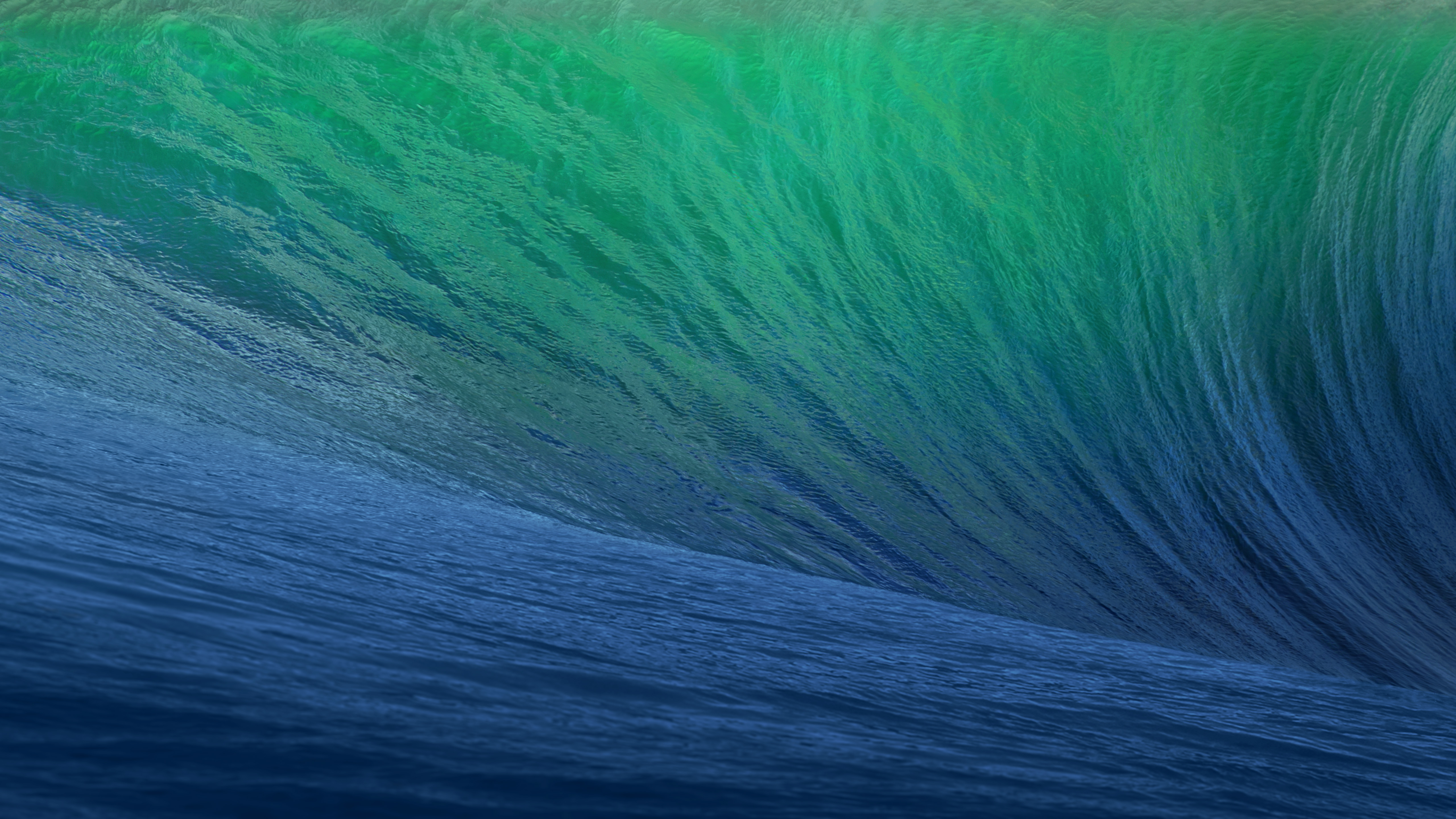
O primeiro destino geográfico escolhido pela Apple remete a uma região litorânea conhecida pelas altas ondas, propícias para a cena local do surfe. O papel de parede do OS X 10.9 dava destaque à curvatura de uma grande onda em tons de azul e turquesa, com clara inspiração na localização que deu nome ao update.

Wallpaper do OS X Mavericks Developer Preview

Em matéria de software, o OS X Mavericks ficou marcado pelo aprimoramento na gestão de performance, bateria e memória, aproveitando melhor o hardware dos computadores da Apple. Quanto aos recursos, o sistema trouxe os links compartilhados no Safari, respostas embutidas em notificações, abas e tags no Finder, melhor suporte ao uso de múltiplos monitores, além da introdução de novos aplicativos, como o Mapas e iBooks.

OS X Yosemite 10.10

Pouco mais de quatro horas adiante (ou 314km, para ser mais exato), encontramos o Parque Nacional de Yosemite. A área já era considerada tão importante para a preservação ambiental que Abraham Lincoln autorizou sua proteção e uso público em 1864, anos antes da criação de Yellowstone, reconhecido como o primeiro parque nacional do mundo. Outro grande entusiasta de Yosemite foi Theodore Roosevelt, que ajudou a consolidar a sua importância dentro do sistema de parques americanos.

Um dos maiores símbolos do parque — e também o destaque do wallpaper oficial do sistema — é o Half Dome, um monólito de granito com impressionantes 2.696 metros de altitude. Localizada no coração de Yosemite, a formação foi considerada inescalável por alguns geólogos do século XIX, até que George G. Anderson realizou a façanha em 1875, escalando-a descalço. Muito possivelmente, a foto usada pela Apple foi registrada com uma lente teleobjetiva nas proximidades da Ahwahnee Meadow.

BG do OS X Yosemite

O OS X Yosemite 10.10 foi um marco importante na trajetória do macOS. Muito lembrado pelas mudanças de design na interface — com elementos translúcidos e ícones de formas planas que definiriam a identidade visual do sistema por várias gerações —, ele também deixou como legado a introdução dos recursos de Continuidade (Continuity) entre o OS X e o iOS.

Inicialmente, a novidade englobava apenas o AirDrop, as chamadas telefônicas, o app Mensagens, o Handoff e o Instant Hotspot. Ainda assim, ela inaugurou um nível de interoperabilidade que ajudou a redefinir a forma como o mercado de tecnologia passou a enxergar ecossistemas compostos por diferentes produtos de uma mesma marca.

OS X El Capitan 10.11

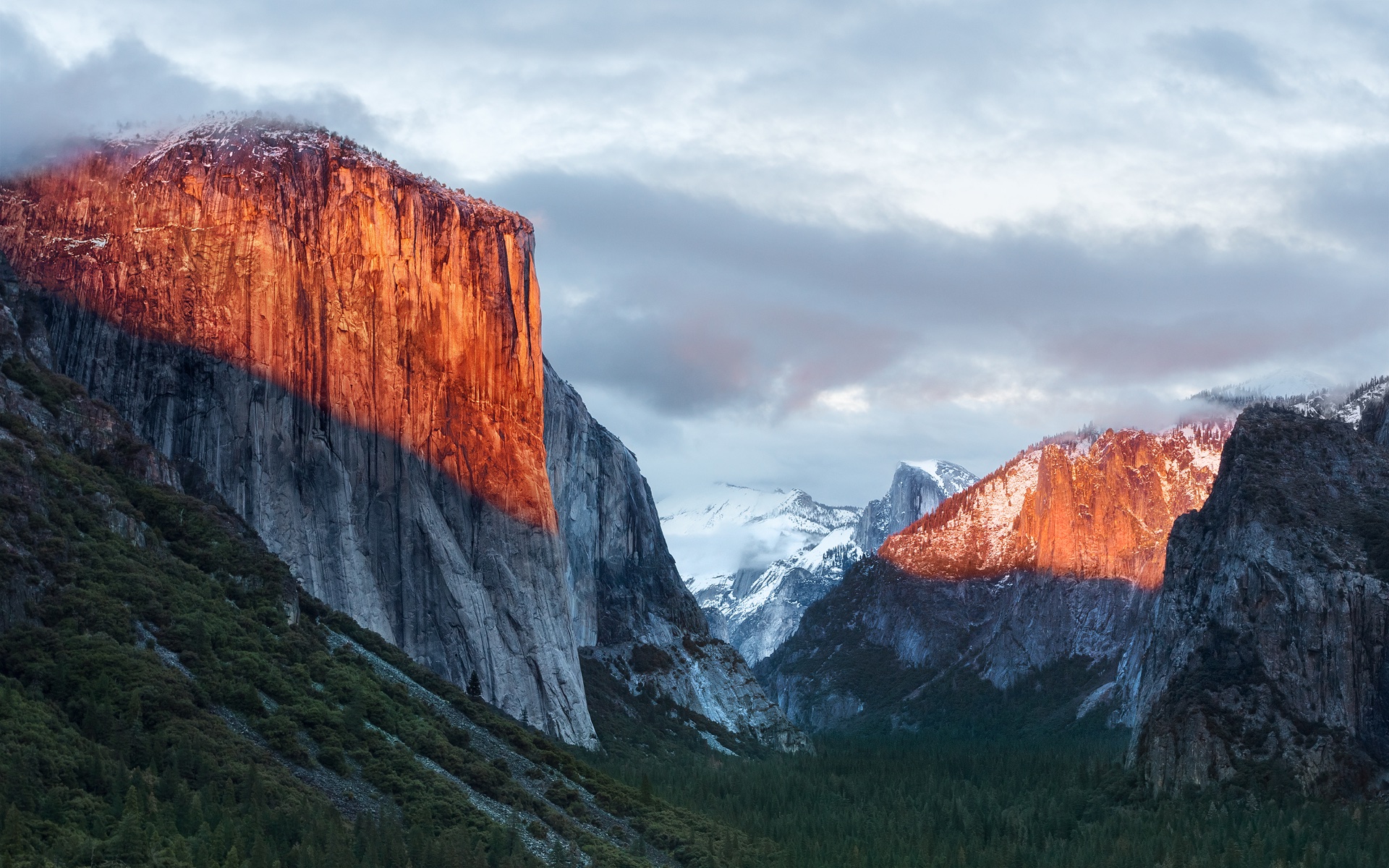
A apenas 20 minutos de distância do Ahwahnee Meadow, a próxima parada do Mac é outra atração turística presente dentro do Parque Nacional de Yosemite: o El Capitan é um monólito de granito de quase 900 metros que se ergue acima do vale do parque.

Fundo de tela do OS X 10.11 El Capitan

O papel de parede provavelmente foi fotografado a partir do mirante Tunnel View, de onde é possível avistar o El Capitan à esquerda do vale. Ao fundo, surge o Half Dome — um enquadramento que parece refletir o espírito da atualização. Diferentemente de Yosemite, o OS X El Capitan 10.11 deu menos ênfase à introdução de novos recursos e concentrou seus esforços em correções de bugs, otimizações de desempenho e refinamentos da experiência de uso. Entre as principais novidades, estavam um Spotlight aprimorado, a adição do Split View e diversas melhorias nos aplicativos nativos da Apple.

macOS Sierra 10.12

Cerca de 338km depois (aproximadamente quatro horas e meia) de Yosemite, passando pela cordilheira de Sierra Nevada (situada no leste da Califórnia, a oeste do Mount Whitney), temos o Lone Pine Peak, cenário da montanha que aparece no wallpaper do sistema.

Wallpaper do macOS Sierra

Além da mudança de nomenclatura de OS X para macOS (colado e com o “m” minúsculo, como segue até os dias de hoje), a atualização é particularmente lembrada pela inclusão da Siri no Mac, o Desbloqueio Automático (Auto Unlock) com o Apple Watch e a Área de Transferência Universal (Universal Clipboard) entre Macs, iPhones e iPads.

macOS High Sierra 10.13

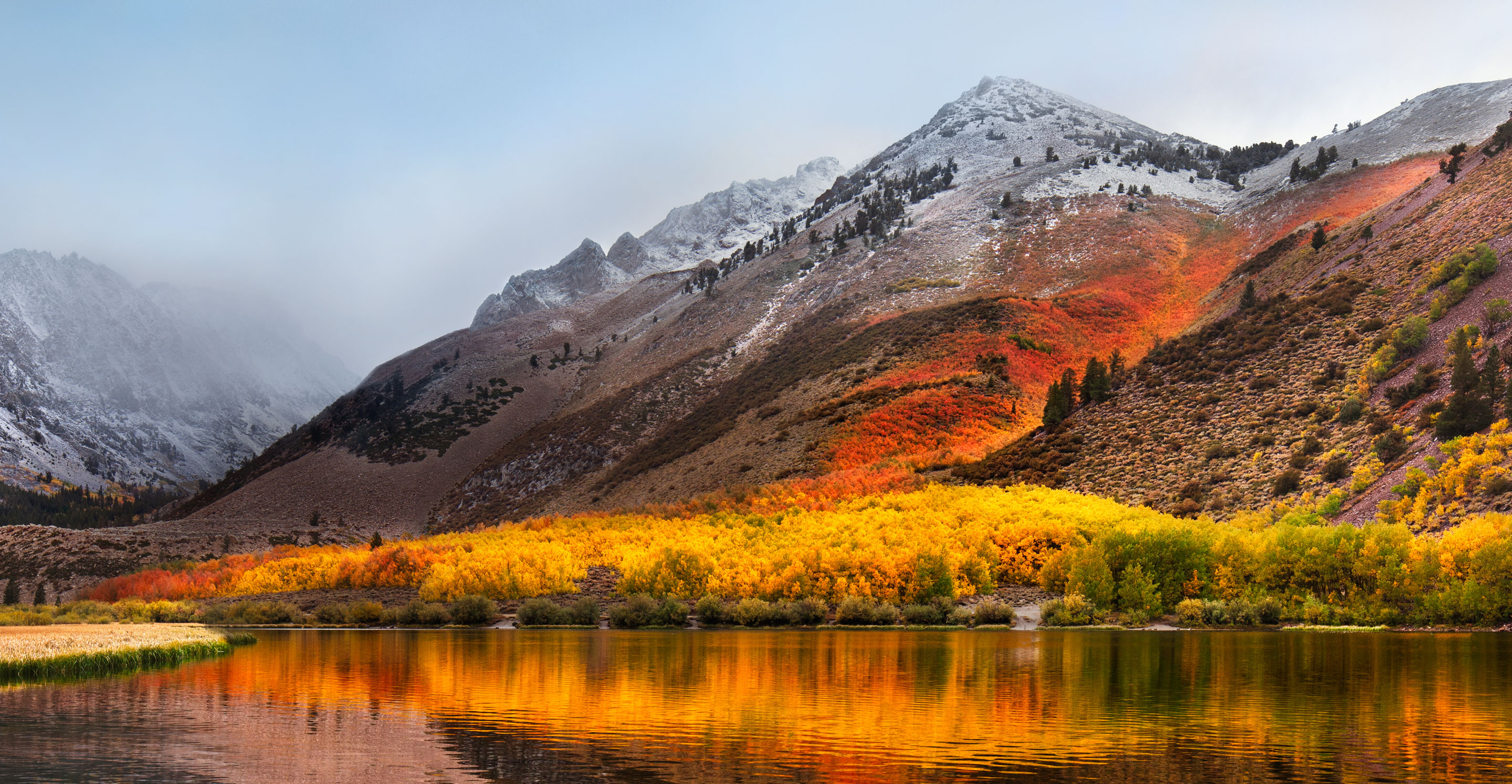
Uma rápida viagem de 80 minutos (129km) é capaz de nos levar ao próximo destino fotografado pela Apple: North Lake, localizada na pequena cidade de Bishop, entre as montanhas da cordilheira de Sierra Nevada. Ali, muito possivelmente em meio ao outono, o registro eternizado no papel de parede do sistema foi feito.

Wallpaper oficial do macOS High Sierra 10.13

Quando falamos do sistema, aos moldes do próprio El Capitan e do Snow Leopard, o macOS High Sierra 10.13 focou muito mais no aprimoramento interno do macOS do que em novos recursos, mas vale mencionar a inclusão do novo sistema de arquivos da Maçã (o Apple File System, ou APFS), do suporte aos formatos audiovisuais HEVC e HEIF, bem como a chegada da segunda geração da tecnologia de desempenho gráfico Metal.

macOS Mojave 10.14

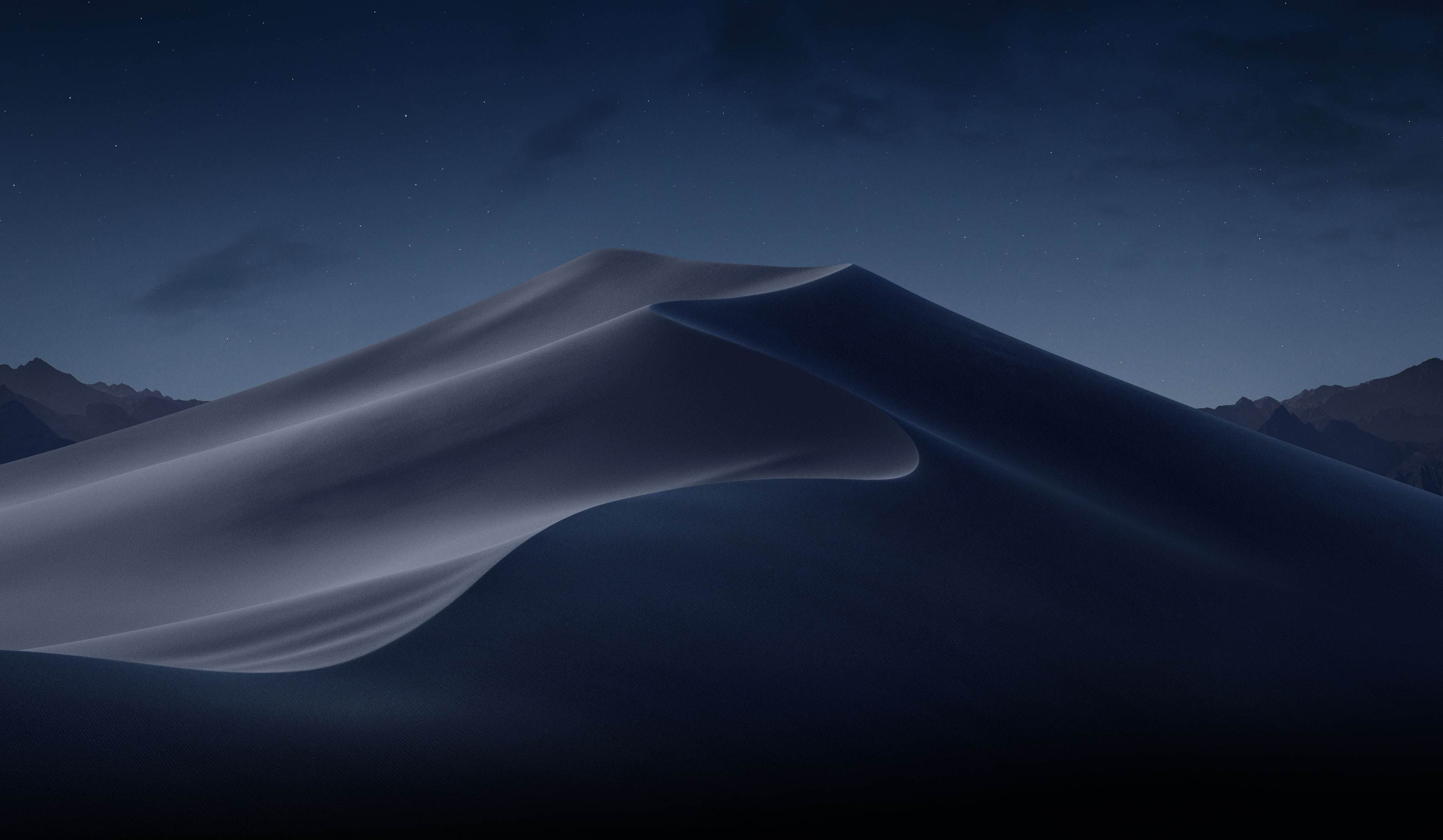
Depois das montanhas, que peculiarmente ficam na margem do wallpaper, vieram as dunas. Com uma distância de 253km (ou três horas de carro), o próximo destino é o Parque Nacional do Vale da Morte, o ponto mais quente do continente americano — onde se registrou a maior temperatura da história (56,7°C) em julho de 1913, e onde a foto do papel de parede do macOS Mojave 10.14 foi feita.

Wallpaper oficial do macOS Mojave

Já sobre as novidades do sistema, essa versão do macOS é particularmente conhecida pela introdução do Modo Escuro, a inclusão dos Conjuntos (Stacks) na Mesa (Desktop), além da estreia de apps já conhecidos dos usuários de iOS, como o Apple News, o Bolsa (Stocks), o Gravador de Voz (Voice Memo) e o Casa (Home).

macOS Catalina 10.15

A 428km adiante do Deserto de Mojave (cerca de cinco horas e meia de carro), nós temos a Ilha de Santa Catalina, destino paradisíaco — e remoto — da costa sul da Califórnia que deu nome à versão do macOS lançada em 2019. Pela posição da foto, o que se especula é que o registro oficial da Apple tenha sido feito com o auxílio de um drone ou helicóptero, sobrevoando as águas para capturar Catalina sob diferentes períodos e iluminações para fornecer o tema dinâmico disponível no sistema.

Wallpaper do macOS Catalina

Essa atualização marcou o fim do iTunes, que foi segmentado em um catálogo de aplicativos separados (Apple TV, Música, Apple Podcasts), mas sua adição mais relevante muito possivelmente foi o recurso Sidecar, que possibilita o uso do iPad como um monitor externo do Mac.

macOS Big Sur 11

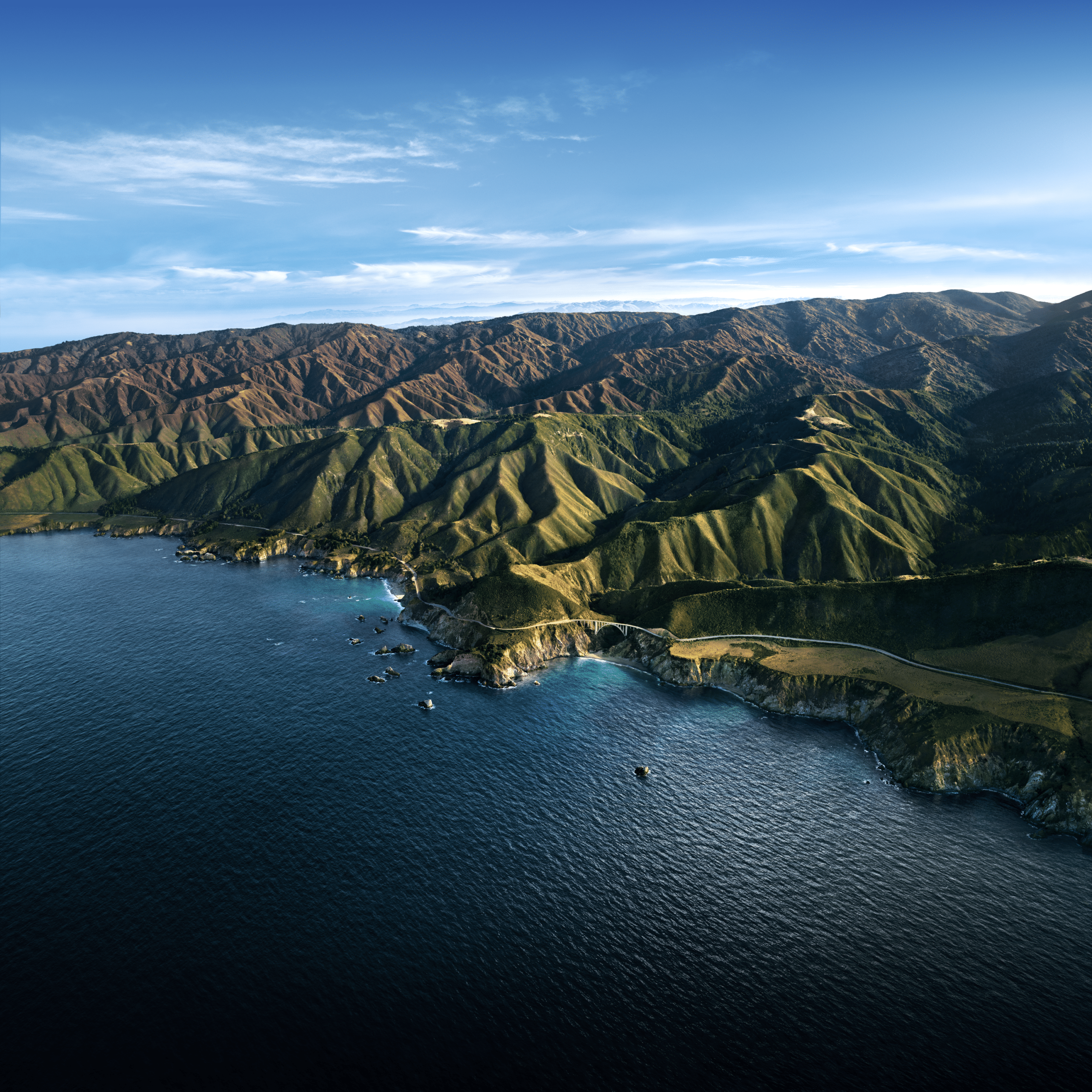
Com uma distância de 524km da Ilha de Catalina, a próxima parada é na Ponte Bixby Creek (inaugurada em 1932 e particularmente conhecida por suas estradas com curvas), localizada na costa central de Big Sur, que dá nome a essa versão do macOS — o papel de parede retrata também a parte litorânea do local.

Wallpaper do macOS Big Sur

Sobre o sistema, a versão marcou a transição dos processadores da Intel para o Apple Silicon com o lançamento do M1, trazendo novos ícones, materiais translúcidos, um novo Dock, Central de Controle e de Notificações.

Esta versão também foi um marco para o sistema operacional, pois, pela primeira vez em muitos anos, a Apple abandonou as sub-versões 10.x e passou para o número 11 — o que se manteve nos anos subsequentes.

macOS Monterey 12

Ainda na costa de Big Sur, o macOS Monterey 12 marcou a quebra de uma tradição: pela primeira vez em anos, a Apple optou por não incluir um registro fotográfico como possível papel de parede ou tela de descanso, mantendo apenas temas dinâmicos para ilustrar o sistema dos Macs naquela ocasião.

Wallpaper do macOS Monterey 12

O Condado de Monterey, que inspirou o nome do sistema, é particularmente lembrado por ter abrigado a primeira capital da Califórnia, quando a região ainda era de domínio dos governos da Espanha e do México.

Em relação ao sistema, o grande destaque foi a introdução do Controle Universal (Universal Control), permitindo que um único conjunto de periféricos (como teclados e mouses) seja utilizado simultaneamente no Mac e no iPad.

macOS Ventura 13

Por volta de 450km de distância (quatro horas e meia de trajeto) depois, temos o Condado de Ventura, que inspirou essa versão do macOS. Emancipado do Condado de Santa Bárbara em 1873, ele abriga o píer mais antigo do estado da Califórnia. Mais uma vez, a Apple optou por não incluir um papel de parede fotográfico.

Wallpaper do macOS Ventura

Quanto aos seus recursos, o macOS Ventura 13 se destacou pela adição do recurso Organizador Visual (Stage Manager) e melhorias no Spotlight, Safari, entre outros aplicativos nativos do sistema que ganharam reformulações.

macOS Sonoma 14

Do Condado de Ventura até Sonoma, são 748km (pouco mais de sete horas de trajeto) até a região norte de San Francisco, conhecida por abrigar centenas de vinícolas. O registro da Apple foi feito na vinícola Mazzocco Sonoma, no rancho de Warm Springs.

Depois de dois anos, a Apple enfim retornou com os papéis de parede fotográficos no macOS, funcionando também como protetores de tela (screensavers) dinâmicos que lentamente se tornam um wallpaper estático após o login.

A maior novidade do sistema foi a implementação dos widgets interativos na Mesa (Desktop), além de reformulações no modo Jogo, na relação do sistema com acessos remotos e no compartilhamento de conteúdos em videochamadas, com novidades também no Safari, na Siri e nos recursos de acessibilidade.

macOS Sequoia 15

Saindo de Sonoma, nosso próximo destino está localizado a quase sete horas de distância (mais ao sul da Califórnia, a exatos 547km de distância); trata-se do Parque Nacional da Sequoia, que abriga algumas das maiores árvores do planeta em termos de volume.

Novo wallpaper do macOS Sequoia 15

O registro do papel de parede é remoto o suficiente para não termos uma dimensão exata da sua localização geográfica (até porque a Apple nunca divulgou essa informação), mas é seguro afirmar que as imagens foram capturadas em algum dos bosques de sequoias da Sierra Nevada.

Além da estreia controversa dos recursos da Apple Intelligence devido à discrepância entre o que foi apresentado e as funcionalidades entregues, o macOS Sequoia 15 introduziu o Espelhamento do iPhone (iPhone Mirroring), a organização de janelas em mosaico e o aplicativo Senhas (Passwords).

macOS Tahoe 26

Do Parque Nacional de Sequoia, partimos rumo ao norte, até a fronteira entre a Califórnia e o estado do Nevada (uma distância de 330km, ou três horas e meia de trajeto). O próximo destino é o Lago Tahoe, também presente na cordilheira de Sierra Nevada. Ele é particularmente conhecido por ser o maior lago alpino da América do Norte em termos de altitude.

Tahoe Day

Conhecido por suas águas cristalinas, o lago é um destino frequente para esqui. O papel de parede do macOS Tahoe 26 exibe um ângulo baixo sobre o lago, com as rochas em primeiro plano, enquanto os pinheiros e as montanhas de Sierra Nevada aparecem ao fundo.

Quanto ao sistema, além da unificação da numeração com todo o ecossistema (iOS, iPadOS, watchOS, tvOS e visionOS) da Apple, essa versão foi especialmente marcada pelo redesign de interface com a estreia do Liquid Glass. Outras novidades incluem a adição das Atividades Ao Vivo (Live Activities) ao recurso Continuidade, além de revisões do Spotlight, Central de Controle e os recursos da Apple Intelligence.

macOS Golden Gate 27

E, enfim, chegamos à versão mais recente do macOS! Com uma distância de 330km (trajeto com cerca de três horas e meia), nosso próximo destino é o cartão postal da cidade de San Francisco: a Ponte Golden Gate.

Wallpaper oficial do macOS Golden Gate 27 (dia)

Ela foi, até 1964, a maior ponte suspensa do mundo — caso seus cabos de sustentação fossem esticados, teriam tamanho o suficiente para dar três voltas no planeta.

Enquanto sistema, assim como o Snow Leopard ou o High Sierra, o macOS Golden Gate 27 é marcado por sua abordagem de priorização dos refinamentos, tanto relacionados ao visual Liquid Glass quanto aos recursos da Apple Intelligence e da Siri, que agora se torna Siri AI.


E você aí, usa o macOS desde que versão? Alguma, em especial, lhe marcou? Ou você (ainda) não é usuário de Mac, mas gostou de todas essas curiosidades? 😊

via Basic Apple Guy

iOS 26.6 and iPadOS 26.6

28 July 2026 at 20:20

Juli Clover (iOS/iPadOS release notes, security, enterprise, developer):

iOS 26.6 and iPadOS 26.6 include security fixes for the iPhone and iPad. The updates also optimize the Spotlight index in preparation for iOS 27 and iPadOS 27.

There are a lot of security fixes.

Rosyna Keller:

Yay, iOS 26.6 is out. And it fixes a privacy leak I filed in April that allowed malicious apps/Ad SDKs to track a user across apps.

Previously:

Update (2026-07-29): Kirk McElhearn:

Yesterday’s iOS update fixed the battery problem that I’ve had for the past couple of months. My iPhone 16 Pro Max would not make it a full day on a single charge.

Searching Time Machine Backups and Versions

9 July 2026 at 19:38

Howard Oakley:

Spotlight doesn’t currently appear able to search Time Machine backups reliably, at least not in Sequoia or Tahoe, although this may not be universal.

[…]

If I now step back through my backups to reach one that I know contains that file, I can restore it. But if I type anything into the search field, nothing is found. If I change the scope of the search to that backup, the window title changes but its contents remain blank, and there isn’t even a busy spinner to indicate a search is in progress.

[…]

As I can’t disable Spotlight indexing on that volume without macOS telling me that it’s required to be indexed by Spotlight, neither can I force that volume to be reindexed.

[…]

My conclusion is that using Spotlight to search Time Machine backups no longer works, and the instructions given by Apple are also broken.

That has been my experience, too. As I see it, there are four separate problems:

  1. I want to be able to search all my backup snapshots, because I don’t know which one might contain the file I want to restore. Time Machine only lets you search one at a time.
  2. Searching an individual snapshot doesn’t actually work.
  3. Spotlight indexing is invasive, using lots of CPU time, and with spinning hard drives causes wear and tear and creates lots of noise. If search doesn’t work anyway, I’d like to turn it off, but macOS won’t let me.
  4. If the problem is with the index, there’s no way to reset it without deleting your backup.

Howard Oakley:

Unfortunately, all those saved versions in the version database fall outside the scope of Spotlight indexing, and Spotlight search can’t look inside any of the old versions saved in a volume’s version database. Surprisingly, the version browser doesn’t offer any search facilities either, as that’s presumably another feature intended for a future that never came.

[…]

One way around this is to save each document version as a separate file, allow Spotlight to extract their contents and add those to its indexes for that volume, then to search those files. This is quick and simple using my free utility Versatility.

Previously:

Golden Gate Spotlight

2 July 2026 at 20:39

Hartley Charlton:

Apple today announced that it has rebuilt the search infrastructure that powers key features like Spotlight, Photos, and Mail across all of its major next-generation software platforms.

LLM search using Core Spotlight:

Level up basic search into a retrieval-augmented system using SpotlightSearchTool and LanguageModelSession. Explore Core Spotlight integration, delegate-based hydration patterns, and how metadata quality impacts your search results. Learn how to use custom PipelineStages for tasks like sentiment analysis. Discover best practices for indexing and building flexible, context-rich search experiences in your app.

Corentin Cras-Méneur:

So from what I understand from the WWDC keynote, Spotlight is actually going to work?? When I search for simple files, it fails the VAST majority of the time!

Saagar Jha:

I feel like I am watching the Mac OS X Leopard intro again guys how did we mess up search so bad we have to present it again

Howard Oakley:

Semantic search is different, in that its matches aren’t as crisp and Boolean. Rather than working like a simple index, it’s more like a thesaurus in effect.

[…]

Rather than compiling more exhaustive sets of keywords, semantic search can broaden the scope to cope better. And because we can interact through Siri, we can fine-tune our search results by specifying the cattle should be black and white, perhaps, and combining conventional search criteria such as location.

To get this to work effectively, there are some limitations. Because semantics are so contextual and variable, this involves apps and Core Spotlight. That’s a big benefit to user privacy, as Core Spotlight’s indexes are separated by user and stored locally, although in places like ~/Library/Metadata rather than volume-based Spotlight indexes in the existing hidden .Spotlight-V100 folders. And unlike global Spotlight indexing and search, it requires apps to have code to support both tasks, as it can’t just happen by magic.

While I’m sure we’ll all be impressed with many of the results of semantic search, hits that we never expected to find, it’s going to prove harder to assess those that it misses.

Rhythmic Fistman:

Never has it been so inconvenient to find a file whose name you know exactly

Maybe rebuilding Spotlight’s infrastructure will fix this, or maybe adding the semantic stuff will make handling simple cases like this worse.

i3aychikov:

Personally, in my experience, I’ve noticed that the new Spotlight is much faster than the one in MacOS 26 Tahoe. It opens with less delay, and finds the right app or file instantly when Spotlight in Tahoe seems to have had a slight delay.

See also: TidBITS-Talk.

Previously:

Update (2026-07-13): Howard Oakley:

Already that has revealed the qualities of what would be offered as a Top Hit in its ranked search, with scores such as mrScore: 0.2516, mrScoreText: 0.6878, kMDItemDisplayName: 1.0000, mrScoreFreshness: 0.50000000, mrScoreResultType: 0.0700, freshnessDate: (null), pommesL1=0.0000, L2=-4999.0283 While most of those are opaque, it’s notable that ‘freshness’ is included in ranking. In contrast, searches made in the Finder’s Find window are unranked, and don’t calculate any of those scores, nor take into account freshness.

Howard Oakley:

Salient features of Spotlight’s AsYouTypeTopHit ranked search include:

  • inclusion of hits across multiple search domains;
  • a freshness_score as a measure of recency or topicality;
  • three opaque scores of mrScore, pommesL1 and pommesL2;
  • related search considering similar data sources and websites;
  • identification of Top Hits.

Mandatory Apple Intelligence

19 June 2026 at 20:42

Rodrigo Ghedin (Hacker News):

That show of respect for its customers may change with iOS/macOS 27. Reports suggest that, at least in the first beta, Apple Intelligence is mandatory[…]

[…]

“So what’s the problem?”, you might ask. Apple’s AI takes up several gigabytes of storage and leaves less headroom for RAM.

Brandon Vigliarolo:

Those are small inconveniences, however, compared to my biggest gripe with Siri AI: It’s completely ruined Spotlight.

[…]

The new Siri-first interface that presumes that if you’re searching for anything but an app or file, you must want Siri to feed you a few links of Apple Intelligence’s choosing.

Getting to a web search from a Spotlight query now requires multiple taps: Type your query, tap “Show Results” (careful: hitting enter will trigger Siri to craft a response, eliminating the possibility of seeing any actual Spotlight content), tap on “Show More” next to the list of Siri-surfaced web results, scroll down until you see Search Google (or whatever engine you have set as your default), then tap that.

Apple Intelligence used to be opt-in, but now it seems that you can’t even opt out. I had previously mentioned the removal of the switch in the context of hypocrisy, but it seems there are enough issues here for it to warrant its own post. Also, I had previously written that the switch was combined with Siri, meaning that you could turn off Apple Intelligence if you turned off Siri, too. I now doubt that’s the case.

John Gruber:

I’m thinking that asking for a switch to turn of “Apple Intelligence” systemwide is like asking for a switch to turn off Spotlight.

Indeed, we can turn off Spotlight, both the indexing (except, alas, for APFS Time Machine volumes) and the UI, and I think that’s a good thing.

Previously:

Vídeo: veja a Siri AI em ação no macOS Golden Gate 27!

18 July 2026 at 16:00

Depois de já termos publicado vários vídeos sobre as novidades do iOS 27, chegou a vez de começarmos a cobertura em vídeo do macOS Golden Gate 27 em nosso canal. E não tem jeito melhor de abrir essa série do que falando sobre a mudança mais aguardada do sistema: a Siri AI.

Neste primeiro vídeo, mostramos como funciona o novo app da Siri, os ajustes de voz disponíveis, as melhorias na busca do Spotlight, os recursos da Inteligência Visual a partir de screenshots e as ferramentas de escrita e revisão de texto integradas ao sistema.

Esse é só o primeiro de vários vídeos que estamos preparando sobre o macOS 27. Fique de olho no canal do MacMagazine para não perder os próximos! 😄


Apoio: UPDF

Este vídeo tem o apoio do UPDF, aplicativo equipado com inteligência artificial (IA) que já analisamos em detalhes aqui no site. Conheça mais esse belo editor de PDFs, obtenha-o com um desconto exclusivo e tenha acesso total ao UPDF Pro no Mac, no Windows, no iPad, no iOS e no Android pagando cerca de um quinto da suíte da Adobe!

Spotlight and iCloud Drive headbang in the CPU mosh pit

15 June 2026 at 17:00
Glenn Fleishman, art by Shafer Brown

I have a Mac Studio M2 Max with 32 GB of RAM and a 1 TB SSD in front of me. While not the most powerful personal computer you can purchase today, it is among the most computationally capable ever made—a vastly capable machine. So why do I have to wait for typing to catch up with me and see a rainbow spinner on the regular?

I’ll tell you why: iCloud Drive and Spotlight. Apple lacks any transparency about how iCloud Drive works or fails. The same is true of Spotlight. These big black boxes churn away, performing a million billion operations a day, and we don’t know exactly what they do. That’s not me being conspiratorial: I honestly don’t care what’s happening under the hood—until it breaks. Without diagnostic tools, even someone like me, ostensibly an expert, can be completely at a loss and waste many hours.

I wrote “Cloudy with a Chance of Insanity: Unsticking iCloud Drive” for TidBITS back in October 2023 about a multi-month odyssey with Apple technical support in trying to dislodge unsyncable files.1 That problem has barely surfaced since—an 80K file will sometimes get stuck for a while—and I thought Apple might have really solved syncing, at least as exhibited on my Mac. I receive dramatically fewer emails about iCloud Drive than I used to, which is another data point.

But Mr. Edge Case here can always find a way to break something.2 I’ve been working on a large manuscript for my upcoming book, Flong Time, No See, a revised and expanded collection of researched articles I’ve written about printing and type history over the last several years.3 I pasted in text that was typically copied from Web pages, and wound up with over 250 footnotes.

While putting together the files for this book, Apple released its Creator Studio system, and shipped Pages 15. After having no problems, I dutifully switched over. This was months ago, and as I continued to work on this reasonably large file—weighing it at about 60,000 words now—everything seemed fine.

A few weeks ago, however, I started to experience system slowdowns. Pages was taking up 12 GB of system memory! System load went through the roof! CPU consumption was outlandish! All signs pointed to corespotlightd, a long-time enemy of performance. That daemon handles background indexing for Spotlight, and the slightest thing wrong in a file or directory, or perhaps due to mild corruption in its underlying files, turns it into a rampaging beast that eats processor cycles like I consume potato chips.4

There’s a well-known procedure for killing this beast, though another is spawned from its remains: stop the index, delete the index files, restart, and re-enable indexing. From the Terminal, use these commands. Make a backup before proceeding. Take extreme care with rm -rf, as a misstep in entering or copying can wipe out files!

 sudo mdutil -a -i off
 rm -rf ~/Library/Metadata/CoreSpotlight

You can use Restart from the Apple Menu while holding down the Option key (to avoid being asked), or you can take a shortcut from Terminal, assuming you have ensured all files are saved:

 sudo reboot

After your Mac restarts, go back to the Terminal and re-enable indexing:

 sudo mdutil -a -i on

For many (perhaps most) people, this solves the problem. For me, it just delayed it. With some isolation using System Settings: Spotlight: Search Privacy, I added specific folders, such as mail archives, since that seemed like it might be part of the problem.

Screenshot of Search Privacy dialog inside System Settings: Spotlight in macOS 27 Tahoe.
Search Privacy lets you exclude volumes and directories from Spotlight indexing, which can remove unwanted results and sometimes (only sometimes!) reduce thrashing.

One piece of advice I found suggested that if I thought Pages was the problem, I should exclude the iCloud Drive path containing Pages files. Fine! I clicked the plus icon in Search Privacy, pressed Command-Shift-G to bring up the path dialog, entered ~/Library/Mobile Documents/com~apple~Pages/, and clicked Choose. This seemed to work for a while, then nothing availed.

Finally, after analyzing logs and caches, the culprit was clear. It was not that large a Pages file: every time I saved, Spotlight’s worker bee was performing excessive re-indexing that consumed gigabytes and one or more processor cores. Moving the file to a local directory (in my Documents folder) while editing eliminated the problem. It also freed up space, as the temporary Spotlight indexes and Time Machine snapshots had become absurdly large.

Screenshot of several high-numbered footnotes from a manuscript with excessive detail.
289 footnotes seem to be fine for Pages, but Spotlight and iCloud Drive find them hard to swallow.

What could Apple have done to help here? This is where I would hope machine learning, coupled with some interactive code- and system-expertise bots, could help:

  • Note that a system component is acting well outside known parameters.
  • Identify CPU usage that is tied to Apple-owned processes.
  • Provide a troubleshooting tool, even suggesting it in notifications.
  • Create human-readable logs that don’t require system administrator knowledge to interpret.

In the case I describe above, an Apple-created daemon was rampaging out of control due to a single identifiable file!—cascading into other problems. It should be solvable by Apple. The fact that we have more power under the hood by orders of magnitude in the past, coupled with neural cores in the CPU packages, just makes this even more embarrassing. Solve Siri, Apple, yes, but real transparency and troubleshooting in macOS would also make a big difference.

[Got a question for the column? You can email glenn@sixcolors.com or use /glenn in our subscriber-only Discord community.]


  1. I should have made an unsinkable/unsyncable pun in the title, but there is an esprit d’escalier moment for everything. ↩
  2. An “edge case” is something that is often considered unlikely to occur with a product, whether software, hardware, or mechanical. Yet, no matter how much I’m just trying to get something done, I apparently trigger edge cases all the time. Software companies “love” me for this. ↩
  3. Flong is a kind of paper-like mold that was extremely useful during the days of metal-based relief printing. Of course, you can pre-order a copy to get the full scoop! ↩
  4. Just ask my family. ↩
❌