O aplicativo Numbers permite criar planilhas, das mais básicas às mais avançadas, usando o seu iPhone, iPad ou Mac.
Se você for um assinante do Apple Creator Studio, é possível utilizar o Preenchimento Mágico (Magic Fill). Com ele, padrões são reconhecidos e colunas inteiras podem ser preenchidas instantaneamente.
Abra uma planilha que contenha uma tabela e adicione conteúdo a pelo menos duas células na coluna que deseja preencher. Em seguida, siga um dos dois procedimentos:
Selecione as células com um padrão estabelecido e as células que deseja preencher. Escolha “Célula” e “Preenchimento Mágico das Células”;
Caso o Numbers reconheça um padrão quando você estiver inserindo dados, um menu aparecerá com as sugestões. Toque/clique em “Preenchimento Mágico da Coluna” para preencher as células da coluna com os resultados sugeridos.
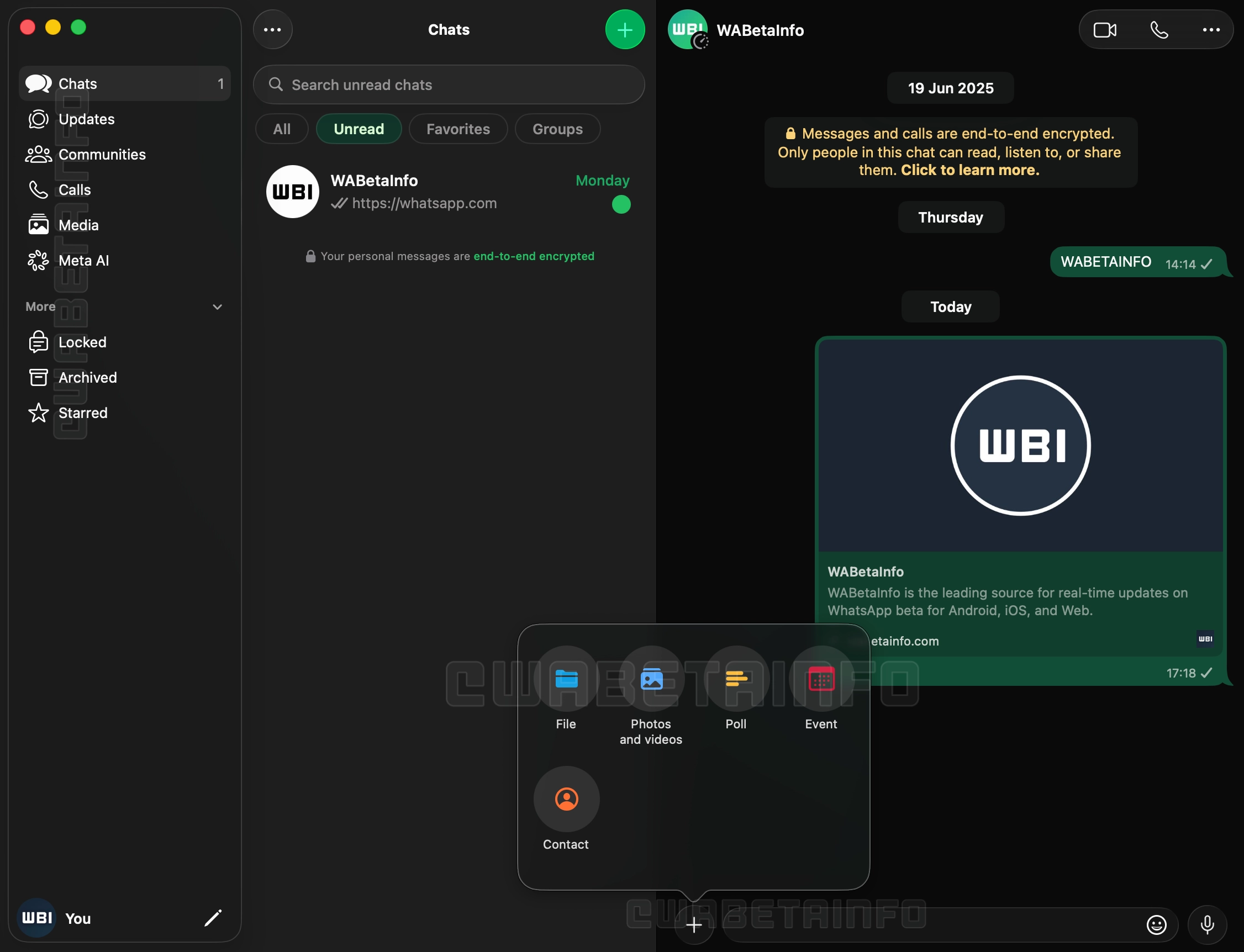
A nova versão, 26.27.73, além de contar com Liquid Glass, inclui uma nova barra lateral com textos que descrevem os ícones, abandonando a abordagem minimalista encontrada até então na versão de computador do mensageiro da Meta, e uma seção dedicada às Comunidades, que antes ficavam espalhadas pelo histórico de conversas do aplicativo.
Outra novidade é a adição do suporte às conversas trancadas, atualmente restritas aos iPhones e iPads. O acesso ao recurso no macOS, aos moldes da exigência do Face ID nos dispositivos móveis, também solicitará algum meio de autenticação para garantir a camada adicional de proteção, carro-chefe da funcionalidade.
Com essa atualização chegando para os usuários finais de maneira gradual nas próximas semanas, a disponibilização ampla da versão de Mac do WhatsApp (incluindo a versão da Mac App Store) conclui um trabalho de quase um ano unificando a linguagem visual do app no iOS, iPadOS e macOS.
Há um tempo, mostramos por aqui como é simples aumentar a resolução de uma imagem contida em um quadro do Freeform, graças à função Super-resolução (Super Resolution) do Apple Creator Studio.
O que muita gente não sabe é que ela também pode ser usada em imagens que tiverem sido anexadas em documentos do Pages, em planilhas do Numbers ou em apresentações do Keynote.
Além de adicionar imagens e vídeos, os aplicativos Pages, Numbers e Keynote também permitem que você coloque formas — das mais simples às mais complexas, como formas geométricas, objetos e animais, por exemplo.
Além delas, o Apple Creator Studio permite que você gere uma forma do zero, com base em uma descrição que tiver adicionado no campo dedicado.
Veja como escolher ou gerar uma forma nesses apps! 😄
Como adicionar uma forma em documentos pelo iPhone/iPad
Acesse o documento desejado, toque no botão roxo (na parte superior) e no quinto ícone, da esquerda para a direita, a fim de abrir a área de formas.
Navegue pelas categorias para encontrar exatamente a que quiser usar no arquivo ou, se for um assinante do Apple Creator Studio, selecione “Gerar Forma” e siga os passos seguintes.
Como adicionar uma forma em documentos pelo Mac
Clique no documento desejado e no quarto ícone (da esquerda para a direita), na parte superior.
Escolha uma das formas mostradas na aba dedicada ou selecione “Gerar Forma” para criar uma do zero, com base numa descrição.
Now that the public beta for iOS 27 is available, even more iPhone and iPad users are going to be interested in experiencing the new operating systems while they’re under active development. And there’s good reason for this, iOS 27 and iPadOS 27 are both shaping up to be notable improvements to the operating systems, ... Read More
Apple has launched the public beta program for iOS 27, making the upcoming iPhone operating system available as a beta to all interested users. Beta system software tends to be buggier and less refined than final versions, and is generally best reserved for advanced users, but the public beta is fairly stable, and made available ... Read More
Apple has released iOS 27 beta 3 for iPhone users who are participating in the beta testing program. iPadOS 27 beta 3 is also available for iPad based beta testers. iOS 27 and iPadOS have an emphasis on performance, with improvements to general system performance, a slider for adjusting Liquid Glass intensity to the appearance, ... Read More
O Apple Creator Studio desbloqueia vários recursos bacanas de aplicativos já conhecidos pelos usuários de dispositivos da Maçã.
Dentre os exemplos, estão os apps Pages, Numbers e Keynote. Com eles, assinantes do Creator Studio podem gerar imagens e adicioná-las aos seus documentos, planilhas e apresentações de slides.
Com uma assinatura ativa do Apple Creator Studio, usuários do aplicativo Keynote podem usufruir de benefícios especiais.
Um deles, por exemplo, é o Gerar Apresentação (Generate a Presentation). Como o nome sugere, é possível usar um esboço de texto para criar uma apresentação completa, com títulos, tópicos e um tema consistente.
Como gerar uma apresentação no Keynote pelo iPhone/iPad
Na tela inicial, selecione “Gerar Apresentação”.
Escolha um tema para os slides.
Adicione as informações desejadas no campo “Visão geral” e, no campo “Pontos principais”, insira uma lista ou parágrafos com os detalhes que você quer que apareçam na apresentação.
Toque na setinha do canto superior direito para gerar a apresentação.
Como gerar uma apresentação no Keynote pelo Mac
Com o app aberto, clique em “Novo Documento” e, no canto inferior direito, em “Gerar”.
Adicione as informações e selecione “Gerar” para que os slides sejam gerados com base nos dados fornecidos.
Com uma assinatura do Apple Creator Studio, é possível aproveitar diversos recursos extras em aplicativos já conhecidos da empresa, como é o caso do Keynote.
No app dedicado à criação de slides, é possível fazer com que as notas de apresentação sejam geradas de forma automática em um slide — eliminando a necessidade de fazer isso manualmente.
Como gerar notas de apresentação no Keynote pelo iPhone/iPad
Com a apresentação aberta, toque nos três pontinhos (na parte superior), em “Opções de Visualização” e “Mostrar Notas da Apresentação”. Depois, selecione o slide desejado, vá novamente até os três pontinhos e em “Gerar Notas”.
Após fazer isso, é possível alterar o tamanho da fonte ou aplicar formatação de texto às notas do apresentador. Selecione-as, vá até o botão com um pincel (na parte superior) e use os controles de texto.
Como gerar notas de apresentação no Keynote pelo Mac
Com a apresentação sendo mostrada, clique no ícone ao lado do semáforo (no canto superior esquerdo) e escolha “Mostrar Notas da Apresentação”.
Selecione o slide desejado e clique no quarto botão (da esquerda para a direita) na parte superior.
Com uma assinatura do Apple Creator Studio, usuários do aplicativo Keynote podem usufruir de recursos especiais para criar e gerenciar as suas apresentações de slides.
Um deles é o chamado Correção de Slide (Slide Clean Up), que pode corrigir automaticamente o alinhamento dos objetos e outras inconsistências em um slide.
Se for um assinante, veja como utilizar isso na prática no seu iPhone, iPad e Mac! 😉
Com uma apresentação aberta no Keynote, toque em um espaço vazio no slide, na seta “>” e vá em “Correção de Slide”.
Ou navegue até o slide que deseja editar, toque nos três pontinhos (na barra de ferramentas) e vá em “Correção de Slide”.
Como corrigir um slide pelo Mac
Assim como no iPhone e iPad, você pode seguir um dos vários métodos diferentes para corrigir o slide desejado.
O primeiro deles é clicando com o botão direito do mouse em um espaço vazio e escolhendo “Correção de Slide”
Se preferir, navegue até o slide que deseja editar e clique no botão roxo na barra de ferramentas, escolha o slide que deseja editar no navegador de slides e clique em “Correção de Slide”.
Ou, no slide desejado, vá até Slide » Correção de Slide (no menu Slide, na parte superior da tela).
Segundo a Apple, o número exato de imagens, slides e notas do apresentador que podem ser gerados varia com base na complexidade das consultas e na disponibilidade do servidor e da rede.
No mínimo, por mês — se usado de forma exclusiva —, você pode:
Gerar 50 imagens;
Gerar 250 formas;
Gerar 50 apresentações com 8 a 10 slides cada;
Gerar notas do apresentador para 700 slides.
Esses limites são redefinidos mensalmente e podem ser conferidos a qualquer momento.
Como visualizar o status de uso
Pelo iPhone/iPad
Abra o Pages, Numbers, Keynote ou Freeform e toque no botão com três pontinhos. Depois, vá até “Recursos de Inteligência” e “Mostrar Status de Uso”.
Pelo Mac
Dependendo do app que estiver usando, selecione “Pages”, “Numbers”, “Keynote” ou “Freeform” na barra de menus. Depois, selecione “Recursos de Inteligência” e “Mostrar Status de Uso”.
Nosso aplicativo — disponível para iPhone, iPad, Apple Watch e Mac — acaba de receber uma atualização significativa para a versão 5.0.2, repleta de melhorias e correções pedidas por muitos de vocês. 😉
Atendendo a muitos pedidos, implementamos de volta o gesto de deslizar a partir do canto da tela para sair de um post e retornar à tela inicial do app.
Também corrigimos um comportamento que incomodava bastante: ao tocar em links externos dentro de um post e depois voltar para o app, agora você retorna exatamente para a mesma posição de leitura em que estava — sem perder o lugar.
Os favoritos também passaram por uma revisão importante e agora são devidamente sincronizados entre iPhone, iPad e Mac.
Melhorias na marcação de posts como lidos/não lidos, incluindo o retorno de uma seção “Posts” nos ajustes do app;
A possibilidade de adicionar tíquetes ao Carteira (Wallet) diretamente pelo app;
Aprimoramentos gerais em acessibilidade.
Agradecimentos
Fica aqui um agradecimento especial ao Cassio Rossi e ao Mozzer pelas colaborações feitas em nosso projeto no GitHub para esta versão.
A atualização já está disponível na App Store — e, como sempre, vale a pena atualizar o quanto antes para aproveitar todas as novidades. Em breve, é claro, voltamos com mais! 😉
A white spot on iPad screen can appear as a bright patch that remains visible while browsing, watching videos or using apps. It may be small and easy to ignore at first, then become distracting whenever the screen shows a white, gray or lightly colored background.
The spot may come from a temporary software problem, but a fixed bright area is more commonly connected to the display hardware. Pressure inside the iPad, a damaged backlight layer, display separation or an impact can create uneven illumination that no setting can remove.
Before arranging a repair, a few simple checks can reveal whether the spot belongs to the image being displayed or to the physical screen itself.
What Causes a White Spot on iPad Screen?
A white spot on iPad screen is often described as a bright spot, pressure mark or backlight patch. On iPads with LCD displays, light passes through several internal layers before reaching the glass. When one of those layers becomes damaged, separated or compressed, light can concentrate in one area.
The mark may be more visible against pale backgrounds and almost disappear when the screen displays black or dark content. This is different from a dead pixel, which usually appears as a tiny fixed dot rather than a larger cloudy patch.
Pressure is one possible cause. Carrying an iPad in an overloaded bag, placing heavy objects on it or using a tight case can place stress on the display. A drop may also disturb the internal screen layers without cracking the front glass.
Battery swelling can create similar pressure from inside the device. If the screen is lifting from the frame, the iPad feels unusually warm or the body appears bent, stop using it and seek service. A swollen battery should not be pressed back into place or handled as an ordinary screen defect.
The problem can also appear after a display replacement involving a poorly fitted or lower-quality part. Apple notes that nongenuine displays may produce inconsistent brightness, color or touch behavior.
Image Credit:
Check Whether the Spot Is Really on the Display
Begin by opening several different apps. Look at the spot over a white webpage, a gray Settings screen, a dark photo and a full-screen video. A hardware-related mark normally stays in the same physical location regardless of what appears underneath it.
Rotate the iPad. If the content changes orientation but the bright patch remains in the same part of the glass, the display is the likely cause.
Taking a screenshot provides another useful test. A physical screen defect will not normally become part of the screenshot file.
To take a screenshot on an iPad without a Home button:
Top button + either volume button
To take a screenshot on an iPad with a Home button:
Top button + Home button
Open the screenshot on another device or send it to a trusted computer. If the white spot does not appear there, the image generated by iPadOS is normal and the problem is probably inside the display assembly.
If the mark appears in the screenshot, it may belong to an app, image, accessibility setting or software effect rather than the panel.
Restart Before Assuming Hardware Failure
A restart is worth trying because it clears temporary display and system behavior without affecting personal files. It is unlikely to repair physical backlight damage, but it can eliminate a short-lived graphical problem.
To restart an iPad without a Home button:
Press and hold the top button and either volume button > Drag the power slider > Wait approximately 30 seconds > Hold the top button until the Apple logo appears
To restart an iPad with a Home button:
Press and hold the top button > Drag the power slider > Wait approximately 30 seconds > Hold the top button until the Apple logo appears
After restarting, return to the same pale background and check the area again. A spot that remains fixed is unlikely to be caused by a temporary iPadOS issue.
Image Credit: AppleMagazine
Brightness Can Make the Problem More Visible
Lowering brightness may make a bright patch less distracting, but it does not repair the underlying display. The same applies to Dark Mode, Night Shift and Reduce White Point. These settings can change how noticeable the mark becomes without removing it.
To adjust screen brightness:
Settings > Display & Brightness > Brightness
Test the iPad at several brightness levels. A backlight-related spot may become easier to see as brightness increases. Photographing the screen against a plain background at medium and high brightness can also help document the defect before requesting service.
Avoid pressing or rubbing the affected area. Pressure may temporarily change the appearance, but it can damage the display further. Internet advice suggesting that users massage bright spots out of a panel should be ignored.
Check the Case and Screen Protector
Remove any rigid case that appears unusually tight or has been damaged. A poorly fitted case can place uneven pressure around the frame, particularly if the iPad has been dropped while inside it.
A screen protector normally cannot create a true illuminated patch beneath the display. It can, however, produce bubbles, trapped moisture or reflective marks that resemble a screen defect. Examine the iPad with the display turned off. If the mark is visible on the surface even when the screen is black, the protector or glass may be involved.
Do not remove a properly installed protector solely as an experiment unless the mark clearly appears close to its surface. A bright patch visible only while the display is illuminated usually comes from deeper inside the screen.
When the iPad Needs Repair
A persistent white spot generally requires display service when it remains after restarting and does not appear in screenshots. There is no iPadOS setting that can realign a damaged diffuser, remove internal pressure or repair separated display layers.
Back up the iPad before service so photos, documents and app data remain protected.
To create an iCloud backup:
Settings > your name > iCloud > iCloud Backup > Back Up Now
Apple can inspect the device and determine whether the defect qualifies for warranty coverage, AppleCare service or paid repair. Coverage depends on the device, purchase date, condition and whether the problem resulted from accidental damage.
To check coverage:
Settings > General > AppleCare & Warranty
Apple or an Apple Authorized Service Provider may replace the display assembly or the iPad, depending on the model and available service process. The final repair estimate normally requires inspection.
Image Credit: AppleMagazine
Do Not Ignore Physical Changes
A stable white spot that has not changed for months may remain only a visual annoyance. A spot that is expanding, accompanied by screen lifting or followed by unusual heat needs faster attention.
Stop using the device if the display separates from the enclosure, the iPad becomes visibly swollen or pressure marks spread across the panel. Do not puncture the device, force the display closed or continue charging it unattended.
For an ordinary fixed bright patch, the practical path is simpler: confirm it does not appear in screenshots, restart the iPad, remove any case applying pressure and arrange display service if the mark remains.
A white spot on iPad screen rarely affects the information stored on the device, but it can indicate physical damage that software cannot correct. A brief check can rule out the easy causes. After that, repair is usually more effective than repeatedly changing display settings and hoping the light disappears.
In the month that I’ve been using iOS 27 (launching in public beta today) and the new Siri AI, I’ve come to a few conclusions: Siri AI is a much better Siri and will (probably) be a massive success; the newfound chatbot capabilities of Siri will pose a serious threat to OpenAI and the vast majority of free ChatGPT users they have; and the new Siri is (again, probably) not for me at the moment. At the very least, it can’t be right now given its lack of support for third-party apps and technical issues I’ve encountered during beta testing.
It took me a while to accept the fact that Siri AI can’t be the kind of AI assistant I’d spend hours working with every day. But after testing iOS 27’s new Siri experience every day (and breaking it often in the process), I think that’s okay – and, arguably, what Apple is shooting for at the moment.
The new Siri AI is not designed for people who have grown accustomed to working with frontier models and agents such as Claude Code and Codex. The first version of Siri AI can’t be considered an “agent”, nor can it be compared to products from Anthropic, OpenAI, or Google that are targeting power users living at the bleeding edge of AI. If you go into Siri AI thinking that it’s Apple’s answer to ChatGPT Work or Claude Cowork for long-running tasks or deep research queries, you’re going to be disappointed – like I initially was.
Instead, Siri AI carries all the typical traits of a new Apple product: it’s a user-friendly experience designed for the masses, without any of the complexities that define a power-user tool, for better or worse. This is how Apple rolls: they don’t start from a high power-user ceiling and let products trickle down to consumers; they always start from the consumer level and refine, iterate, and extend until products trickle up to power users. This perspective isn’t meant to excuse the (many) current flaws of Siri AI. (More on them below.) It’s just the necessary lens for understanding how Apple is addressing their AI shortcomings in a way that doesn’t betray the company’s soul and design ethos.
There will be plenty more to say about iOS 27, the improved Shortcuts app, Liquid Glass tweaks, and other system enhancements later this year. After all, I have a review to write. Today’s column is merely an opportunity for me to reason through the obstacles I’ve faced with Siri AI and the way I’ve had to re-learn how to think about Siri.
Siri AI: The Good Stuff
You see, I believe my issue is that I’m too agent-pilled and accustomed to products like Claude Code and Codex at the moment. Desktop agents have fundamentally changed what I do as a creator who writes and talks on podcasts but also releases softwareproducts for my team and audience. There is no denying that Apple’s new Foundation models powering Siri are a far cry from Fable and Sol, or that they feel like models from two years ago. The AI frontier from the two big labs (and – we have to be honest with the numbers here – probably SpaceXAI and Meta now, too) is in a completely different league at the moment. I spent my first couple of weeks with Siri AI trying to convince myself that I could replace Codex with Siri AI, and that was the wrong approach. There is a potential future in which Siri AI can become a more proactive and capable agent, but that’s not what Apple is shipping this year.
If you, like me, are a heavy Claude or ChatGPT user but are curious about Siri AI, you need to reset your expectations and understand that Apple is going after something else entirely. For starters, the new Siri AI is a dramatically better Siri for typical Siri stuff. The new Siri understands your commands and nuanced requests better because of the LLMs behind it; it can often perform multiple requests in one go (such as setting multiple timers with one command); the new expressive (and customizable!) voices sound great, and they’re terrific at reading and summarizing notifications. Apple’s first advantage compared to other chatbots is right here: only Siri can integrate with the iPhone and iPad to this extent, so even if the Foundation models aren’t as smart as the competition, Siri can do a lot more for most people on their devices because neither OpenAI nor Anthropic have OSes they can control. Claude and ChatGPT are extremely intelligent inside their own apps; Siri AI is intelligent enough for routine tasks that can span an entire operating system.
The new expressive voices (right) sound great.
The other key advantage of Siri AI is its system-wide persistence. In addition to voice mode, there’s now a full-blown Siri app that behaves like a traditional chatbot app, allowing you to revisit threads and pin specific ones at the top; but most importantly, you can now finally invoke the new hybrid Spotlight/Siri AI search UI from anywhere on iOS by swiping down on the Dynamic Island.
Spotlight and Siri have been unified in the same UI, so you can still quickly launch apps and documents via search in addition to asking questions.
The lack of system-wide access to Spotlight on iOS bothered me for years, ever since I started reviewing iOS on an annual basis. Now, search is only a swipe away no matter the app I’m using, and the search box itself is smart enough to understand whether I’m looking for an app to launch or formulating a longer request for Siri AI.
It’s been challenging for me to “undo” advanced habits I’ve developed with agents like OpenClaw and assistants like Codex; I think MacStories readers who fall on the power-user end of the AI spectrum will probably face the same hurdles with Siri AI. However, I’ve been able to identify a variety of areas where Siri AI was faster, nicer, and more comfortable than ChatGPT or Codex Remote for practical, everyday questions.
I recently spent a few days in Gaeta, and as we were walking to dinner one night, we spotted this huge vessel docked in front of the restaurant. Typically, I would have taken a picture, started a new ChatGPT thread, uploaded the image, and asked a question about it. This time, I simply held down the Camera Control button (which now defaults to Siri AI mode in the Camera app) and captured a photo. A few seconds later, Siri AI told me I was looking at the Palinuro, a three-masted barquentine that serves as a training vessel for the Italian Navy – which was spot-on. An interaction that would have taken 20-30 seconds with ChatGPT was reduced to a five-second affair with Siri AI. Even nicer, I was able to ask follow-up questions from Siri AI’s floating overlay as well as find the chat in the Siri app later, where I continued asking questions about the ship’s history and usual locations.
The ability to go from Siri in the Camera to a longer conversation in the dedicated Siri app is one of my favorite aspects of Siri AI.
Improved on-screen awareness and integration with Apple Maps has been another highlight. On our way to Gaeta, Google Maps had us drive through narrow mountain roads that we really didn’t like, even though they arguably saved us some time. For the return trip, I decided to use Apple Maps, but I noticed that it also recommended the same mountain roads. So without leaving the Maps app, I swiped down to invoke Siri and typed:
I wanna go back home (from Gaeta to Rome) but I don’t like this route. It goes through too many mountains. I wanna do the Autostrada as much as possible. Is there any way to maybe add some time to the trip and go slightly further down south to find another Autostrada entrance?
To which Siri responded:
To avoid the mountainous routes and stay on the Autostrada A1 longer, you can head slightly south from Gaeta toward the Cassino entrance or even further south toward Capua before heading north to Rome. This will add some time to your trip but provides a flatter, more straightforward drive on the highway.
Again, spot-on: the Cassino toll booth proved to be the way to go for a more comfortable trip.
These Maps-related suggestions were perfect.
A couple more things worth noting here:
Siri AI didn’t mind my mix of Italian and English in the same request. Even though it’s only officially launching with English support, Siri AI is backed by a large language model – and LLMs are inherently good at multiple languages.
Siri AI assembled a multi-step route for me, which I opened in Maps, and it was perfect.
After some hiccups in the first two developer betas of iOS 27, Siri AI has also become an efficient way to work with the Reminders app, which I started using as my primary task manager several months ago when I began working on my RemCTL CLI for it. In addition to the usual stuff that Siri could already do in Reminders before, such as creating tasks and fetching items due on the current day, Siri AI – thanks to the new and improved App Intents Apple added to Reminders – can now handle more advanced questions. For instance, I can ask Siri to get tasks belonging to two specific sections of a list in Reminders, and it’ll do it. Claude can also integrate with Reminders on iOS, but since its integration is powered by the old and limited EventKit framework, it can’t be as flexible as the exclusive App Intents integration now available for all apps in Siri AI.
Siri AI can finally show me tasks from sections of lists…too bad it also included a task from another section.
I’ll have plenty more examples to share and analyze in my review of iOS and iPadOS 27 later this year. As things stand right now, my thoughts on Siri AI are converging around this idea: with system-wide access, an exclusive app ecosystem, and good enough performance, Siri AI doesn’t need to be a frontier-level model to be useful to millions of people.
Siri AI: The Bad Stuff
All of this, however, is not to say that Siri AI is perfect. Far from it.
This is beta software, of course, and Apple has time to improve the experience. But I’m afraid that some design choices and intrinsic limitations of Siri AI will remain in place for the next year, leaving us with a product that, despite a two-year delay, still feels very early compared to the likes of ChatGPT, Claude, or Gemini, even in their plain “chatbot” modes.
The biggest issue I’ve encountered is the inconsistency of it all. Very often, the new Siri AI still replies with a generic “Uh oh, something went wrong” error that doesn’t explain what the error was or why it happened. Sometimes, I ask a question via voice, and it errors out, but then a few seconds later, I type the same question in the app, and it’s fine.
Anecdotally speaking, these issues seem to occur more frequently when Siri “thinks” longer for a request, which perhaps suggests Apple needs to optimize the performance of their larger model on Private Cloud Compute. However, the fact that Apple wants to keep things simple compared to their competition isn’t doing them any favors here: in ChatGPT or Gemini, I can know when the model is reasoning for longer, but Siri AI’s interface is a black box. There are no reasoning selectors or hints in the UI at all. That is a fine, Apple-y approach when everything works well; but as soon as something breaks (as often happens with chatbots), the lack of clarity and controls stings.
The entire Siri app is, in fact, a bit of a mess. Its performance is subpar: I’ve noticed frequent stutters when scrolling threads, delays when typing (letters wouldn’t appear on-screen and autocorrect wouldn’t work), and broken ‘Sources’ popups displaying no actual sources for a query.
The results of this query were stale (I was on a trip last week), and the Sources panel for linked emails came up empty.
The app lets you rename and pin threads, which is nice, but it doesn’t offer basic controls such as the ability to select text in a Siri response or create folders for chats. Although the grid view looks good in marketing screenshots, in practice, I had to disable it immediately because I couldn’t quickly parse my threads and find what I was looking for.
I really don’t like Siri’s grid layout.
Which brings me to indexing. As I noted above, Apple’s advantage compared to other chatbots will be Siri’s access to an on-device index that draws from the user’s apps and personal context. The problem is that I’ve yet to see an example of personal context “enhancing” any of Siri’s answers, and performing actions in or retrieving data from apps has been half broken for me since the very first beta of iOS 27.
I can’t speak about personal context because it has literally never worked in my examples. For apps, my understanding is that third-party ones will need to be specifically updated for iOS 27 in order to work with Siri AI – although some of them seem to work already, but others don’t? Apple requires developers to implement new features of the App Intents framework for Siri AI, and I’m optimistic that those who do will have their apps appear in Siri AI by September. Greg Pierce, the developer of Drafts, has added early support for Siri AI in his app, and I’ve been able to successfully create a note within the app from Siri, which presented a custom UI snippet for Drafts and completed the request in seconds. That was neat.
My problem is that, right now with Apple’s own apps, both the index and Siri’s ability to perform actions are very inconsistent. The assistant hallucinates abilities it doesn’t have, and it frequently just doesn’t work. In the examples below, I wanted to get notes from a specific folder, songs from a playlist, and a link from a note. Siri AI responded with an empty list of notes, said it couldn’t get songs from a playlist, and told me that my note didn’t have any links, respectively. (It did.)
Reminders integration started working for me in iOS 27 beta 3, but it still isn’t perfect. When I ask for tasks due today, Siri AI insists on presenting the same tasks twice, my only fault being that I enabled the integration between Reminders and Calendar:
At one point, I asked Siri to show me my overdue reminders. Siri AI struggled with that: it cut the list of overdue items short, apologized when I pushed back, then did it again anyways. I know that Siri AI is not based on a Gemini model but is rather a Gemini distillation, but I think that if you’ve ever used a Gemini model before, this kind of behavior with tool-calling should be awfully familiar.
Siri AI isn’t a replacement for agentic workflows with other LLMs that can perform multiple actions in one chain of events. Here, for instance, I asked Siri to get my latest screenshot from the Photos app and frame it with my Apple Frames shortcut. Not only did Siri AI not get the most recent screenshot from my library, but the assistant couldn’t perform two actions sequentially. At least, however, it told me; when I repeated a similar question but asked to copy the screenshot to the clipboard instead, Siri first asked me to confirm my action and then changed its mind and said it couldn’t do it.
Why ask for clipboard confirmation if you can’t do it?
Searching for content hasn’t been ideal on my end, either. When I asked Siri to find me the latest single by Phoebe Bridgers, its default text response was an EP from two years ago; when I asked via voice, the response was correct. (…Why?) I similarly haven’t been impressed with Siri’s ability to search for messages and emails. Siri AI can reliably find recent texts from the Messages app, but the moment I start going a little further back in time, the system seems to struggle. I wanted to know when we took some time off at MacStories last summer, which I know was mentioned in a MacStories Weekly email that I have in the Mail app. Siri AI could only find a generic mention of John recharging after some time off, but it couldn’t give me an exact date because it did not find the correct email. ChatGPT Work did it in one minute and gave me a full breakdown of the weeks we took off.
Left: ChatGPT Work. Right: Siri AI.
All of this begs the question:
Is Apple’s on-device index a solid technological foundation or not? Is this system actually going to work at scale, for users with dozens of apps installed, each donating their data to the index, perhaps spanning multiple years of content? And can the cloud models – which are not using MCP but appear to be based on a plain JSON schema for structured data – make sense of it all?
My early tests haven’t been encouraging, but we have until September to find out.
The Trickle-Up
A trickle-up strategy cuts both ways: it gives Apple an opportunity to start simple and refine over time, but it also means that you, the user, are never given any more control than what the product allows for. As a result, Siri AI can be magical when it works; when it doesn’t, it feels like a mystery.
I can’t say whether I’m optimistic that Apple will get all of this to work in time for the fall or not because they don’t have the greatest track record in AI. I’m willing to give them the benefit of the doubt since the product itself is genuinely interesting and different from any other chatbot on the market. I want Siri AI to work, and if Apple can deliver on their vision, I’m convinced that it’ll spell trouble for OpenAI and ChatGPT. (Let’s face it: it’s the product to beat here, both in and outside of court.)
Siri AI permeates iOS 27, and that’s a threat to OpenAI and the hundreds of millions of users they have using ChatGPT for free with GPT-5.5 Instant. I don’t think Apple Foundation Models are as good as GPT-5.5 Instant, but Siri AI is the more ergonomic and integrated product. When the underlying chatbot and its world knowledge capabilities are good enough, and they can also be invoked via voice, text, the Camera app, context menus, or keyboard shortcuts, why would I open a siloed chatbot when I can use Siri AI and get a comparable answer more comfortably? If you’re a casual user of ChatGPT and do not pay for it, I think Siri AI can be a very compelling product that provides similar answers and, unlike OpenAI’s chatbot, integrates with the iPhone apps you already use. I don’t think it’s a coincidence that OpenAI is now following in Anthropic’s footsteps to monetize the business and enterprise markets rather than the consumer one.
At the same time, my concern is that we may be collectively assuming that “normal people” won’t see the differences between the capabilities of ChatGPT and Siri AI. In this industry, we have a tendency to sell “normal people” short and paint them as some perplexed bunch of occasional smartphone users who somehow passively accept any technology that is thrown at them. I strongly disagree with that. Maybe those people don’t care about ChatGPT Work, Codex, or Fable (yet?), but they can tell when an AI assistant is useful and when it’s not. People will compare the utility of ChatGPT to Siri AI, and I’m concerned that Apple’s 1.0 product will feel like it’s too little, too late – especially since Siri AI will be launching in select regions and in English only.
In the AI scene, companies move fast and break things. Apple needs to move fast without breaking anything, anymore. That’s a tough challenge, but here we are.
In the current era of coding agents becoming productivity assistants, iPadOS’ limitations are no longer defined by the lack of desktop-class multitasking or access to external peripherals. A new class of iPadOS shortcomings looms large on the horizon: the iPad’s app sandboxing and the absence of an open filesystem have relegated it to acting as a remote control for agents.
I’ve been ruminating on this thought for some time. I, of course, am very satisfied with the improvements Apple brought to the iPadOS platform throughout the 26 cycle: between new windowing, local capture, a menu bar, and the improved Files app, I can get most of my old-school work done on the iPad Pro without begrudging the experience like I used to a few years ago. What I’ve noticed this year, however, is that iPadOS 26 was an update designed to address the pre-existing low-hanging fruit of quasi-desktop efficiency; by design – and we have Craig Federighi on the record saying as much – it wasn’t intended to reinvent the wheel in any meaningful way.
That would have been fine a few years ago. The problem is that the productivity wheel is literally being reinvented by other companies as we speak. And in an unsurprising turn of events, the Mac is at the forefront of that reinvention, while the iPad is being left behind once again.
I’m writing this as someone who likes to be on the bleeding edge of AI tools. Since the release of Claude Code in early 2025, I (and, realistically, millions of other nerds whose taste aligns with mine) have increasingly moved a lot of my research, automation, coding, and other tasks considered “productivity” to desktop agents. These are powered by the same underlying technology as chatbots, but they’re considerably more powerful: Claude Code and Cowork, Codex, Perplexity’s Personal Computer, and self-hosted agents like OpenClaw and Hermes can understand intent and perform long-running tasks on your computer. They can write code, stay on a task for hours (or even days) at a time, analyze the contents of your screen, and even use a computer on their own. To believe that these AI tools are still a fad and chatbots are useless is misinformation at this point.
As of June 2026, I spend most of my days with two apps constantly open on my M4 Pro MacBook Pro: Codex and Notion. I’m a huge fan of what OpenAI has accomplished with Codex for Mac; their all-in-one package that combines thread-based chats with skills, plugins, connectors, computer use, memories, and system-wide filesystem access has genuinely allowed me to produce content for my audience that I wouldn’t have even dreamed of years ago. Since I started working with Codex, I’ve released a major update to Apple Frames, twoCLIs (with two more coming soon), Shortcuts Playground, and a brand new MacStories Shortcuts Archive. These are actual products that are used by thousands of people and are generating real revenue for MacStories. I’ve also created an entire suite of MacStories-only internal apps (now used by our whole team) and am currently in the process of researching my iOS 27 review, creating an app for Shortcuts Playground, and brainstorming a different product altogether for MCP.
I’m doing all of this on a Mac because the true Codex experience isn’t even “desktop-only”: it’s Mac-only.
Let me give you some examples. To make the original version of Shortcuts Playground, I had Codex with Computer Use scrape my entire library on the old MacStories Shortcuts Archive, download over 300 shortcuts, and learn my coding style. Once I had a plugin, I also had Codex create over 1,000 shortcuts on its own, install them in the Shortcuts app for Mac, and debug them visually to find issues. For the new Shortcuts Playground plugin and app, I’m going even further: Codex created over 3,500 shortcuts spanning the entire library of Shortcuts actions while simultaneously coordinating with other Codex threads – some of which are running on my Mac Studio – to build an app, train a local model for Core AI, and constantly iterate on the new harness behind the app. Meanwhile, I’m also spending time in Codex organizing sources for my iOS 27 review, managing my tasks with Reminders and my own RemCTL, and performing general research on any topic I think of. The net result of all this is that I’m shipping more things, making more money for MacStories, saving money thanks to our new internal tools, and – most importantly – learning a lot and having fun.
Working with Codex for Mac.
Some of the CLIs I’ve built. Two of them are coming soon.
In all of this, the iPad’s role is to be, once again, an accessory to the Mac – and a rather expensive one at that. I wrote last year about iPadOS’ third-party app problem, and I still think all of it applies today. What’s different in 2026 is that these powerful agentic tools that are redefining coding and knowledge work, and which are centralizing productivity inside so-called “super apps”, aren’t coming to the iPad, but not for political or financial reasons: they’re Mac-only because only macOS is mature and open enough to support them.
In a funny twist of fate, Apple spent years trying to make iPadOS catch up to macOS on the surface, only for macOS’ underlying nature to unlock a new generation of apps that are rewriting the rules of modern software. No amount of windowing and menu bars can change the fact that neither Claude Cowork nor Codex will ever be possible on the current version of iPadOS. From an open filesystem that lets agents poke around anywhere to powerful Accessibility and Screen Recording APIs for developers to features like system-wide hotkeys, dictation, and true background processes, Apple’s oldest operating system is the one that feels the freshest (and the most powerful) in the AI industry today.
In fact, the Mac is so powerful and well-equipped for this new wave of desktop agents, it even yields an amazing experience when used in a “headless” setup with no display attached to it. This may have started as a trend because of OpenClaw, but six months later, I believe that a Mac mini with Codex running on it is the best bang for your buck if you’re building an always-on agentic setup based on a frontier model that can do just about anything you throw at it.
Which brings me to the iPad’s only silver lining in this space right now.
Most of my Codex tasks are running on my Mac Studio server, but I also use Codex on my MacBook Pro. Thanks to Codex’s support for remote connections, I can chat with threads running on the Mac Studio from the Codex app on a different machine, which is a fantastic feature. Alternatively, I can use Apple’s excellent (and, again, Mac-only) Screen Sharing app to log into my headless Mac and interact with macOS with superior performance and image quality to VNC. (I also use this HDMI 2.1 dummy plug to unlock 4K resolution when headless.) Coordinating Codex threads across different projects and machines feels like the sort of thing that shouldn’t be possible, yet here we are.
If the iPad is still relevant to me in this specific new way of working, it’s entirely because of the ChatGPT app and the fact that OpenAI cared enough to design a good remote experience for iPhone and iPad users. The Codex section inside ChatGPT is a solid product and getting better every week; it’s also the only app of this kind that lets you connect to multiple computers at once and manage threads across all of them. With Codex remote on iPad, I can continue my projects from the MacBook Pro or Mac Studio, pin specific threads, and keep an eye on all my agents working in the background. In general, it’s also a way to bridge functionalities that are missing from iPadOS. Without Codex remote, I wouldn’t be able to ask my agent to reschedule my reminders and turn some emails into tasks in the same workflow; I wouldn’t be able to tell my agent to go to the Apple Newsroom, find me a specific press release, extract all images from it, and upload them to our CDN.
Codex remote on iPad.
Perhaps Siri AI will unlock similar capabilities (although I doubt to the degree of a frontier desktop agent), but it’ll still be limited to apps made by companies that decide to support App Intents. When I’m not using my Mac and I think of something I can’t do on the iPad these days, I instantly reach for Codex inside ChatGPT. I suspect this trend will only grow as more AI companies release similar remote experiences for iOS and iPadOS.
Here’s the issue, though: these are remote companion experiences. It’s great that they exist and that OpenAI cared enough to make them great, but they’re still no substitutes for the real Codex experience on a Mac. It’s ironic if you think about it, isn’t it? A headless Mac is still more flexible and powerful than an iPad hamstrung by the closed nature of its own OS and software gatekeeping.
My headless Mac Studio in Mirage for iPad.
Mirage for iPad’s app launcher.
If you’re among the five million people using Codex on a weekly basis and will be planning your next laptop purchase in a few months, perhaps these considerations will change the calculus for you. Especially in the face of price increases and RAM uncertainty, would you be better served by spending $1,499 on a hybrid laptop that gets work done the old way with 256 GB of storage, or $1,499 on a computer where AI is a first-class citizen with 24 GB of RAM and double the storage? If we accept that power users’ priorities and workflows will be dramatically changing in the near future (if they haven’t already!), all prices being equal, which OS is best positioned for the future?
Of course, I like using both an iPad Pro and a Mac for different tasks. But let’s face it; in this day and age – and especially after last week – not everybody has the budget for two computers that have some overlap between them. Sure, I could argue that an iPad Pro + a headless Mac mini is an insane combo to get the best of both worlds these days: the nimble and delightful nature of iPadOS and the freedom to experiment with AI on a Mac. You can install apps like the latest Jump Desktop beta or the great new screen sharing app Mirage on the iPad and use your Mac mini almost as if it were connected to the iPad’s display. Set up Tailscale on your network, and the Mac’s power can be with you at all times. But that’s a lot of money, and a lot of setup, to achieve an approximation of what a single MacBook Air can handle with more memory, more storage, and a couple of Mac apps.
I’m sure that Apple is aware of the changing nature of this landscape, but in a similar vein to chatbots and Siri, perhaps they were unprepared for the tide of agents to accelerate so quickly. If the idea of putting macOS on an iPad Pro continues to be a non-starter at Apple, and assuming agent-based coding and knowledge work are here to stay, what should the company do to make sure the iPad doesn’t get left behind again? Is a sandboxed Terminal for iPad backed by a dedicated “Agent Framework” the solution? Is working with other companies to build more “remote companion” apps the way forward?
Or, perhaps more obviously: how long until Siri AI can also become a capable agent, connected to App Intents, on par with competing frontier agents?
Until, and if, that happens, the iPad will once again play the role of sidekick to macOS.
When it comes to the bleeding edge of AI and pushing the frontier of agents forward, there’s nothing like the Mac.

 Login
Login