Para acessar os seus aplicativos prediletos do Mac com uma maior rapidez, é possível adicionar os ícones ao Dock — acessível por padrão na parte inferior da tela (mas que também pode ser colocado em uma das laterais, se você assim preferir).
Mas você já se perguntou por que esses ícones, em certos momentos, começam a pular?
Safari web apps give frequently used websites many of the qualities normally associated with installed software. A site can receive its own icon, open outside the regular Safari tab interface and appear alongside native apps on supported Apple devices.
The feature is useful for services that do not offer an App Store download, websites used throughout the workday and online tools that feel crowded when surrounded by unrelated browser tabs.
A Safari web app remains a website rather than becoming native Apple software. Its capabilities, interface and offline behavior depend on how the site was developed. Safari supplies the app-like container, while the website continues providing the actual service.
The experience also differs across Apple devices. iPhone and iPad place web apps on the Home Screen, while Mac saves them as separate applications that can open from the Dock, Spotlight or Applications folder.
Image Credit: AppleMagazine
Safari Web Apps Are More Than Bookmarks
A traditional bookmark saves an address inside Safari. Selecting it opens the page in a normal browser tab with the rest of the browsing session.
A Safari web app creates a more focused entry point. Its icon appears with installed apps, and opening it produces a separate app window or full-screen interface without the usual collection of Safari tabs.
This distinction is particularly valuable for communication tools, project dashboards, streaming services, publications and business systems. A user can switch to the website through the App Switcher, Dock or Spotlight instead of locating the correct Safari window and tab.
Web apps can also support notifications and icon badges when the website provides those features. On iPhone and iPad, supported notifications can appear on the Lock Screen, in Notification Center and on a paired Apple Watch.
The site still controls the quality of the experience. A website designed as a progressive web app may include responsive navigation, offline resources, custom icons and carefully defined window behavior. A basic website may simply open inside a cleaner Safari frame.
How to Create Safari Web Apps on iPhone
Current iPhone software includes an Open as Web App option when adding a website to the Home Screen.
To create one:
Open the website in Safari
Tap the More button and choose Share. Depending on the selected Safari layout, the Share button may already be visible beside the address field
Scroll down and select Add to Home Screen
Edit the displayed name if necessary
Turn on Open as Web App
Tap Add
The new icon appears on the iPhone Home Screen. Selecting it opens the site separately from the main Safari interface, and the web app can be closed through the App Switcher like other iPhone apps.
If Add to Home Screen is missing from the Share menu, scroll to the bottom, select Edit Actions and add it to the available actions.
The chosen name should be short enough to remain recognizable below the icon. Safari may use an icon supplied by the website. When a suitable image is unavailable, the generated icon may use a simplified site image or monogram.
How to Create Safari Web Apps on iPad
The iPad process is similar, although the Share menu reflects the larger Safari interface.
Open the desired website, select Share, choose More if required and tap Add to Home Screen. Turn on Open as Web App before selecting Add.
The resulting icon appears on the iPad where it was created. It can be organized into Home Screen folders and opened through iPad search like other applications.
An iPad web app can be especially useful for browser-based writing tools, office systems, inventory dashboards and educational platforms. Removing the tab bar gives the website more room and makes it easier to use beside another app.
Whether the web app supports multiple windows, external displays or advanced iPad multitasking depends on its design and the capabilities exposed through Safari. Installing a website does not automatically give it every feature available to a native iPad app.
Safari Web Apps Work Differently on Mac
Apple introduced its current Mac web app system with macOS Sonoma 14. Any webpage can be saved as a web app without requiring the website developer to distribute a Mac application.
To create one, open the page in Safari and choose File > Add to Dock. The same command is available through Safari’s Share button.
Safari displays the proposed name and icon before saving the app. After confirmation, the web app appears in the Dock and Spotlight Applications. Its application file is placed inside the Applications folder located in the user’s Home folder.
A Mac web app receives its own window and menu-bar identity. It uses a simplified toolbar containing navigation and sharing controls rather than Safari’s complete tab and bookmark interface.
The web app can remain in the Dock, run automatically as a login item and participate in normal macOS window management. It can also be opened through Spotlight without launching a visible Safari window first.
Image Credit: AppleMagazine
Mac Web Apps Keep Browsing Separate
A Mac web app operates independently from ordinary Safari browsing. Apple says it does not share ongoing browsing history, cookies, website data or settings with Safari.
When the web app is first created, Safari can preserve an existing website sign-in in many cases. Activity after that point remains inside the web app’s separate data container.
This separation resembles using a dedicated Safari profile, but the web app is even more focused. Searching, following links and changing accounts inside it do not add those pages to the normal Safari history.
The arrangement can be helpful when the same service is used for work and personal accounts. Separate web apps can create clearer boundaries, although account behavior still depends on the website.
Isolation can also explain an unexpected sign-in request. A person may already be authenticated in Safari but encounter a separate session after creating, resetting or reinstalling the web app.
Mac Settings Allow More Control
Mac web apps include settings that are unavailable to ordinary Home Screen bookmarks.
Open the web app, select its name in the menu bar and choose Settings. The application name, starting address and icon can be changed without recreating the app.
Navigation controls can be shown or hidden. Hiding them creates a cleaner appearance for a dashboard that rarely leaves its main page, while displaying them makes sense for sites with deeper navigation.
The title bar can adopt colors supplied by the website. This helps distinguish several installed services but can be disabled when a consistent Mac appearance is preferred.
The Privacy section controls access to the camera, microphone, screen and location. Website data can also be cleared from this area without deleting normal Safari data.
Compatible Safari extensions can be enabled separately for the web app. This prevents every active Safari extension from automatically affecting a focused work tool.
Notifications Make Websites Feel Like Apps
A supported website can request notification permission after it becomes a web app.
On iPhone and iPad, web push notifications use Apple’s notification system. They can appear on the Lock Screen, inside Notification Center and on a paired Apple Watch. They also respond to Focus settings.
Websites must request permission after a direct user action, such as selecting a notification or subscription button. Simply adding a site to the Home Screen does not automatically authorize alerts.
Supported sites can place a count on the Home Screen icon through web badging. This may represent unread messages, pending tasks or new articles, depending on the service.
Mac web apps can send notifications and display unread badges on their Dock icons. Permission should be granted from inside the web app rather than through the same site in Safari if the alerts are intended to belong to the installed app.
Each web app appears by its chosen name in Apple’s notification settings. Alerts, sounds, badges and preview behavior can then be controlled much like those of downloaded software.
Web Apps Do Not Automatically Work Offline
An installed icon does not mean the website has been downloaded completely.
Most web apps continue to require an internet connection because their pages, account data and services remain on remote servers. If the connection disappears, the app may show an error or only display information already stored temporarily.
Websites designed for offline use can cache interface elements and selected content through supported web technologies. The developer decides what remains available without a connection and how changes synchronize later.
This makes offline behavior inconsistent between sites. One writing service may continue editing disconnected documents, while another cannot move beyond its sign-in page.
Anyone depending on a web app during travel should test it in Airplane Mode before assuming that important information will remain accessible.
Links Can Return to Safari
Links belonging to the same website usually remain inside the web app when they fall within its intended navigation area.
External links may open in Safari because they lead beyond the web app’s domain or configured scope. Authentication systems, payment providers and support pages can also move temporarily into a browser window.
This behavior protects the focused identity of the web app. A project-management tool does not need to become a complete browser simply because a task contains a news link.
A poorly configured website may open more links externally than expected. That behavior is generally controlled by the site rather than by a Safari setting available to the user.
Safari Web Apps Do Not Sync Automatically
A web app icon appears only on the Apple device where it was created.
Adding a website to an iPhone Home Screen does not install the same web app on an iPad or Mac, even when every device uses the same Apple Account. Each installation must be created separately.
Safari bookmarks, Reading List items and open tabs can synchronize through iCloud, but web app installations remain local. Mac settings and custom icons also do not automatically transfer to another Mac.
This local behavior allows each device to maintain a different collection. A detailed analytics dashboard may belong on a Mac and iPad, while a compact travel service may only need an iPhone icon.
Removing a Web App Leaves the Website Available
On iPhone or iPad, touch and hold the web app icon and select the removal option. Deleting the icon does not cancel the website account or remove the service from the internet.
A Mac web app can be deleted by opening the Applications folder inside the user’s Home folder and moving the app to the Trash. Removing it from the Dock alone only removes the shortcut.
Website data may remain until it is cleared through the web app’s privacy settings or removed with the app, depending on the platform and current software behavior.
Saved documents stored exclusively by the online service remain subject to that service’s account and retention policies. Removing the web app should not be treated as deleting information held by the website.
Apple Vision Pro Uses a Different Safari Model
Safari on Apple Vision Pro can open multiple spatial windows, synchronize bookmarks and tabs through iCloud, save pages to Reading List and place separate browser windows around the user’s space.
Apple’s current Vision Pro guide does not provide the same Add to Home Screen or Add to Dock installation process documented for iPhone, iPad and Mac.
A website can still feel application-like inside its own Safari window, particularly when positioned as a persistent part of a workspace. That does not make it an installed Home View app.
Apple Watch also does not provide a general Safari web app installation system. It can, however, display supported notifications sent by an iPhone Home Screen web app.
Choose the Starting Page Carefully
A Safari web app opens from a defined starting address, making the selected page important.
Installing a service from its general homepage may produce an app that repeatedly opens promotional content or a sign-in screen. Creating it while viewing an inbox, dashboard, calendar or project page can provide a faster route to the area used every day.
Mac users can change the Application URL later through the web app settings or use Set to Current Page after navigating to a better starting location.
The most effective Safari web apps begin where the work actually happens. A publication can open directly to its latest articles, a company tool can start on its task board and a cloud service can lead to the folder used most often.
That small choice determines whether the icon functions as another website shortcut or becomes an app-like destination that removes several steps from a repeated Apple device workflow.
With last year’s release of MacOS 26 (Tahoe), Apple made a mess of app icons. In the first betas of MacOS 27 (Golden Gate), however, there are signs of a turnaround. We’re urging Apple to continue making improvements, by restoring the ability for MacOS app icons to have distinct shapes.
[…]
After decades of beautiful, memorable Mac icons in varying shapes, Tahoe flattened personality to obtain bland uniformity. The platform is worse for it.
Past icons weren’t just more expressive. They were also more usable. Having distinct shapes provided a useful way to tell icons apart. Tahoe eliminates that cue by forcing everything into the same squircle, leaving color as the primary way to tell icons apart at a glance.
Kafasis makes the important point that uniform shapes make it more difficult for users, especially those with vision issues including color deficiency, to differentiate between icons.
Squircle Jail is the worst design-related thing Apple has ever done to Mac developers, and probably the worst icon-related thing it has ever done, period. Incredibly developer-hostile.
If squircled icons are actually better, then let that design win in the market. That’s how we transitioned from the classic Mac OS icon style to the more photorealistic Mac OS X icon style. Developers adopted it because they wanted to, and because users desired it.
The squircles, I will point out, are not in and of themselves the problem. The problem would be the same with any mandated shape, like, e.g., VisionOS’s circles.
[…]
I can’t think of any other design crime Apple has ever foisted on Mac developers that I’d argue (with Siracusa) was worse.
[…]
It’s like Apple decided every single one of its own apps must wear a stupid-looking hat, and they put those stupid-looking hats on third-party apps too, whether the developers of those apps want them or not. Scratch that. Not hats but helmets.
[…]
Just the mere silhouette of the old Keynote icon is more recognizable, and thus more iconic, than any icon on any platform from Apple today.
The traffic sign analogy hits me personally, because the StopTheMadness icon used to be shaped like a stop sign, but I was practically forced into making it a generic road sign.
On his blog, Jim Nielsen writes how Apple filed away so much expression by forcing rigid icon bureaucracy in macOS. Nielsen focuses mostly on distinctiveness; previously, you could make the icon unique by its general shape or the shape of its contents, but one of these two levers has now been taken away[…]
[…]
However, one also can’t help but notice how ugly and amateurish the Creator Studio icons are, so it all feels absolutely like a net negative – the new system took something away and the proposed replacement feels low quality[…]
I, too, find the squircles aesthetically offensive and utterly pointless.
[…]
The part that genuinely breaks my brain, though, is that I now find icons on Linux more distinctive than on macOS, which would be impossible for my ten-year-ago self to believe. The platform that built its reputation on craft and visual identity has spent a year sanding it off, while the one everyone used to mock for its inconsistency is where individuality survives.
The subliminal, Orwellian message of the squircle jail is that all software is subservient to Apple, merely accessories to Apple devices, interchangeable cogs in the machine.
I agree, but Apple’s 50th anniversary has gotten me thinking a lot lately about the early days of the Mac, so it’s only natural that my mind shifted to the highly constrained icons Mac applications had back then.
[…]
Many of the complaints about squircle jail are about the loss of icon elements that “stick out” from the rest of the design. As you can see, this idea was there from the very start; the hands stick out from the tilted rectangles.
I never loved the hand on these icons. It felt too uniform. It functioned like a “this is an application” badge, but such a badge never felt necessary to me.
[…]
I think it’s less that Apple gave up on them and more that it came into focus that the “hand holding a pen over a diamond-shaped document” convention was intended for document-based apps. It signified “This is a creative tool that you use to create documents”. Apps that weren’t about creating document files — like Disk First Aid and Font/DA Mover — got different icons. Font/DA Mover’s truck icon in System 2 signified that you use this tool to move things. Disk First Aid’s ambulance was an obvious metaphor for repairing something unwell.
[…]
But the main thing about the “hand holding pen over diamond” convention was that it was only ever a convention.
(a) I don’t think this is a good mandate for iOS either;
(b) it was always so for iOS, though, so it’s not like Apple has ever taken away rich creative icon shapes on the platform;
(c) MacOS is a far richer and more precise environment than iOS.
[…]
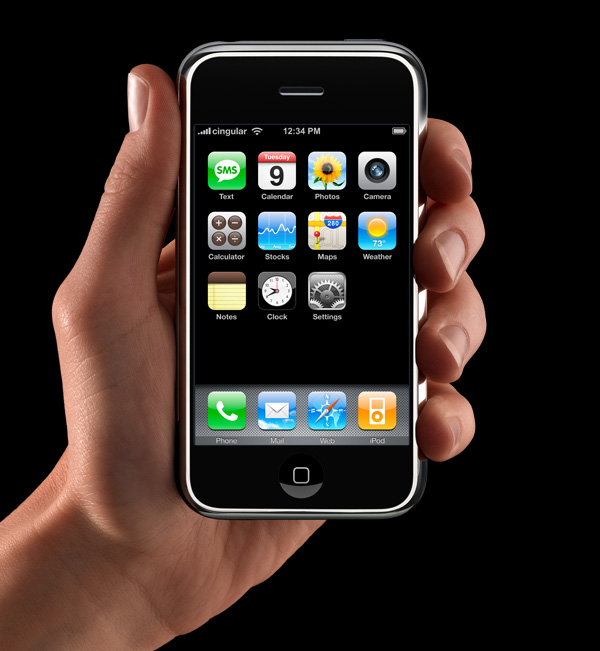
App icons on the iOS home screen are effectively simple buttons. I think it’s rather obvious that’s why they have had that squircle/roundsquare shape ever since the iPhone was announced in January 2007 (source). They’re one-tap launchers. App icons in MacOS are not mere buttons. You can drag them, move them, and drop things on them. You click them to select, and double-click to launch. They are richer objects that deserve a richer visual vocabulary. iOS is a world meant for fat-tipped Magic Markers and blunt safety scissors. MacOS is a world meant to support fine-tipped drafting pens and precision razor-sharp X-ACTO knives.
While developers have submitted full-bleed square images for iOS app icons since 2008, for these new squircle icons in macOS 11, Apple provided a template to compose app icons in an image editing tool like Photoshop, with full control over the canvas beyond the suggested—but not required—squircle. This template made it easy-ish for designers to compose macOS app icons that were identical to or synonymous with an iOS app icon, while leaving the door open to continue using arbitrarily-shaped app icons on macOS.
[…]
The second type of Squircle Jail is more controversial, because these app icons were specifically drawn with the intention of fitting in. Overriding that intention feels like punishment for having done the right thing. App icons in a style that was recently encouraged by the system are now scaled down and put inside the squircle as if it were a container. Every icon that was utilizing the previous squircle shape suddenly looks much worse than before.
[…]
Instead of taking care to design and develop solutions specifically for Mac and iPhone, newer and bigger companies that don’t only make apps often ship apps with logo icons, rather than app icons. We’ve all seen it.
[…]
I would love if Apple provided a way for designers to poke outside that squircle boundary. Some of my favorite app icons did that. But also some of my least-favorite app icons ignored this shape entirely, when it was used for every system icon in the last five years. Whenever those apps showed up in my Dock, it was like a stain on my shirt I couldn’t get out.
Ultimately this is what I object to with the squircle mandate. It favors the bottom of the heap by restricting the top. It makes bad icons mediocre but pushes great icons toward mediocrity too. That’s not The Macintosh Way.
Mantia touches on all the pragmatic reasons to unify the shape of icons in an operating system, all of which I have considered, and then drops the above paragraphs — and things started to make more sense to me. This is a different way to think about it. This is not a situation where a cleaner looks like a zesty beverage with toxic consequences. The shared general function of these icons does help communicate something and makes them less ambiguous in that sense.
But a broad category of functionality is only part of the story of an icon and — with respect to Mantia’s long and illustrious history of work in this area, and that of co-Parakeeter Luka Grafera — taking away a difference of shape also limits what an icon can communicate. It may not be a cleaning product that looks and is packaged like juice, but imagine if every consumable liquid was in identical bottles with only a different label.
Louie’s squircle jail post just underscores that the squircle jail benefits 99% of apps, and is better for the platform overall. There is only ever a handful of apps that make great Mac app icons, and a withering number of ‘great Mac app icon designers’ — you can probably only name one or two left in the scene.
Mantia talks as if it were more important for apps to “belong to the Dock” than to allow Dock users to quickly select the right app in the list. That’s choosing form over functionality.
“The shape of apps is a squircle.” But Mac users already knew those were apps in the Dock!
If you’re lucky enough to distribute an app outside the Mac App Store, you can break free of squircle jail using NSDockTilePlugIn. It’s not strictly the intended use-case of that API. And it’s not allowed in the Mac App Store, either. But it can solve the problem.
But my perspective right now is to be very pragmatic. The decision to mask all icons with squircles is a long-time coming. It was perhaps the most predictable thing to happen in Apple’s history. For 20 years, it’s been leading up to this.
I want to make nice things for macOS, whatever macOS is. And this is what it is.
Some of my favorite icons over the years have had interesting shapes, like the truck for Transmit, the vise for Compressor, or the cute bird for Twitteriffic.
[…]
But I also recall clicking some icons and not being able to select them. Why? Because I was inaccurate in my click and instead my cursor landed in the empty space just outside the shape.
[…]
If I recall correctly, developers could use a different mask for the click target to help users out. But I don’t think many did all the time, including Apple, which you can obviously see in the video above.
I don’t want to step on toes regarding your new [StopTheMadness] icon which has great color— but I don’t understand why you elected to abandon the octagon as the outer shape. That’s a choice. You are not forced to abandon it. Why not do something like this?
Losing some of the artistry in an icon makes it more difficult to distinguish between legitimate and well-crafted Mac apps, and everything else. It is not a perfect proxy, to be sure, and there are some very nice squircle icons. But it is nevertheless a unfortunate change that makes apps of varying levels of quality look more similar.

 Login
Login