❌

Reading view

Multitasking is the Galaxy Z Fold 8's superpower. Here's how to unleash its full potential

Whether you've just joined the foldable revolution or you've been a long-time foldable phone user, you're probably already aware of how amazing it is to have a mini tablet that folds and fits easily in your pocket. That feels more true than ever since the Galaxy Z Fold 8 came along.

But did you know that your Galaxy Z Fold 8 isn't just a massive canvas for one big app? Samsung makes it easy to run more than one app on your screen at once, and a handful of nifty new multitasking features on the Galaxy Z Fold 8 line further enhance what was already one of the best multitasking experiences in the business.

Whether you want to juggle two apps more efficiently, use a 3-way split screen, or run even more apps at once, the Galaxy Z Fold 8 is a great way to get things done without a laptop or another larger device.

The taskbar is the key

When you open your Galaxy Z Fold 8, you've probably seen that little floating taskbar appear at the bottom of the screen. By default, this taskbar isn't meant to stick around for long, but one setting changes that.

By pinning the taskbar, you can effortlessly open multiple apps at once, or quickly juggle between apps faster than you can by constantly going back to the home screen. Here's how to supercharge the taskbar:

1. Unfold the phone to use the larger inner display.

2. Open the Settings app.

3. Scroll down and tap Display.

4. Scroll down and tap Taskbar.

5. Tap Taskbar style.

6. Select Stay on screen.
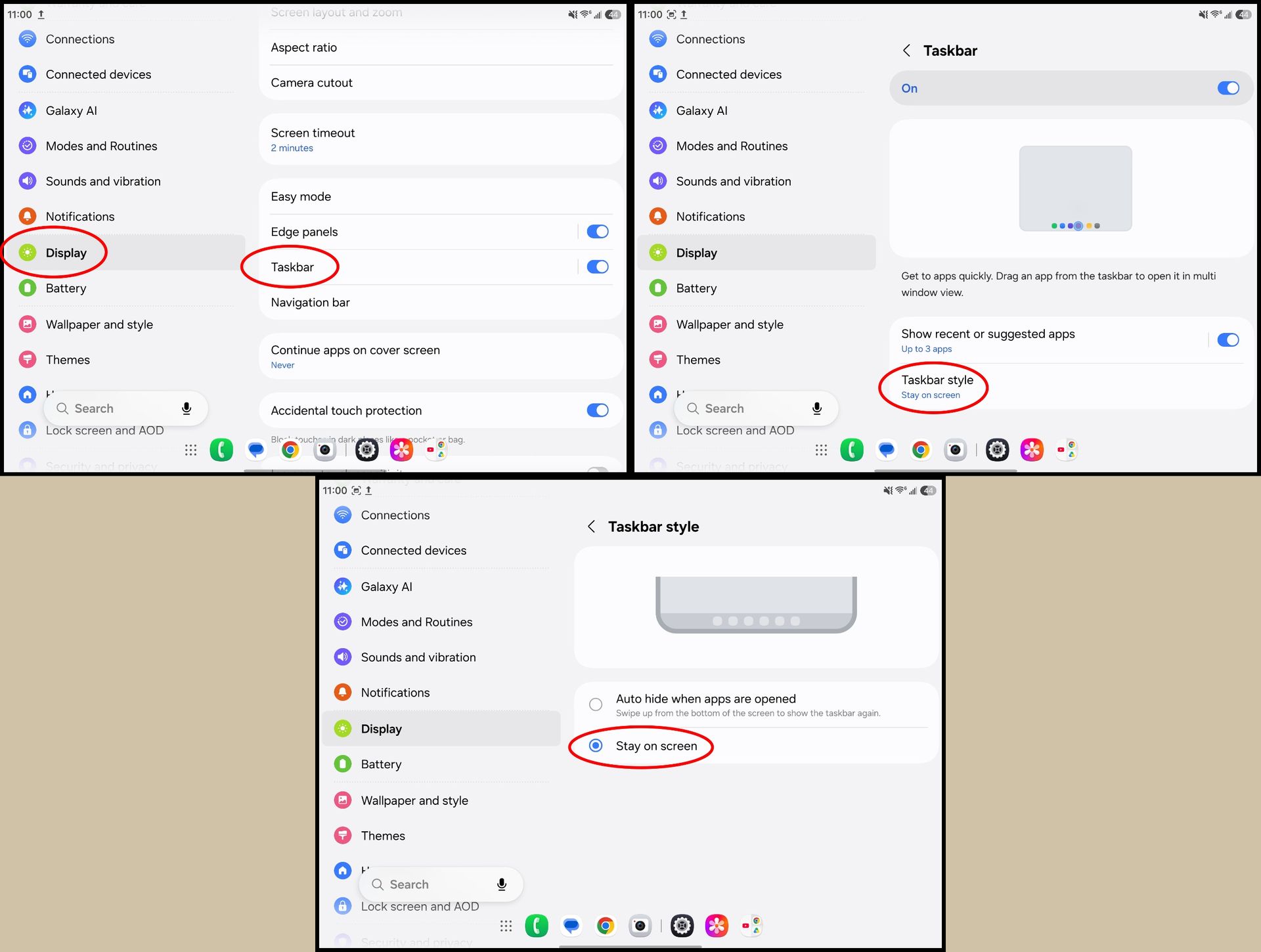
Making the taskbar on a Samsung Galaxy Z Fold 8 stay visible at all times

(Image credit: Android Central)

Now, the taskbar will always be visible on the inner display. You can tap any app icon to open that app, but the real magic happens when you press and hold an icon, then drag it around the screen. This lets you easily launch multiple apps at a time and split them any way you want.

Splitting the action
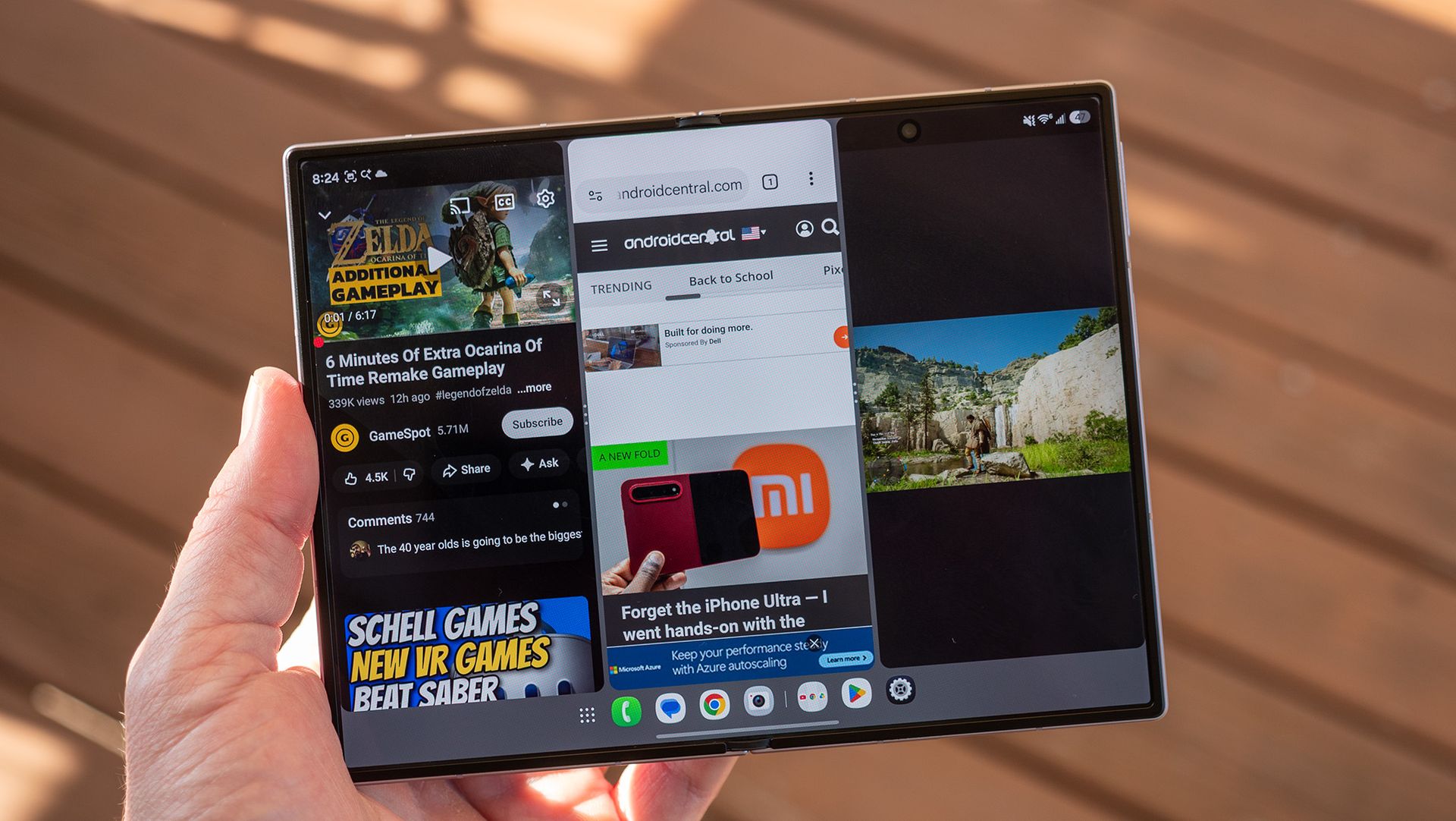
3-way multitasking on a Samsung Galaxy Z Fold 8

(Image credit: Nicholas Sutrich / Android Central)

Samsung launched two new multitasking features with the Galaxy Z Fold 8, including 3-way split screen and a new way to juggle between layouts. To get started, choose three apps you want to run side by side. For this example, I'm using YouTube, Chrome, and Google Docs.

1. Unfold the phone to use the larger inner display.

2. Open any app of your choosing. I started with Chrome.

3. Press and hold another app's icon, then drag it to any side of the screen. You'll see indicators to snap the app to a specific area on the screen.
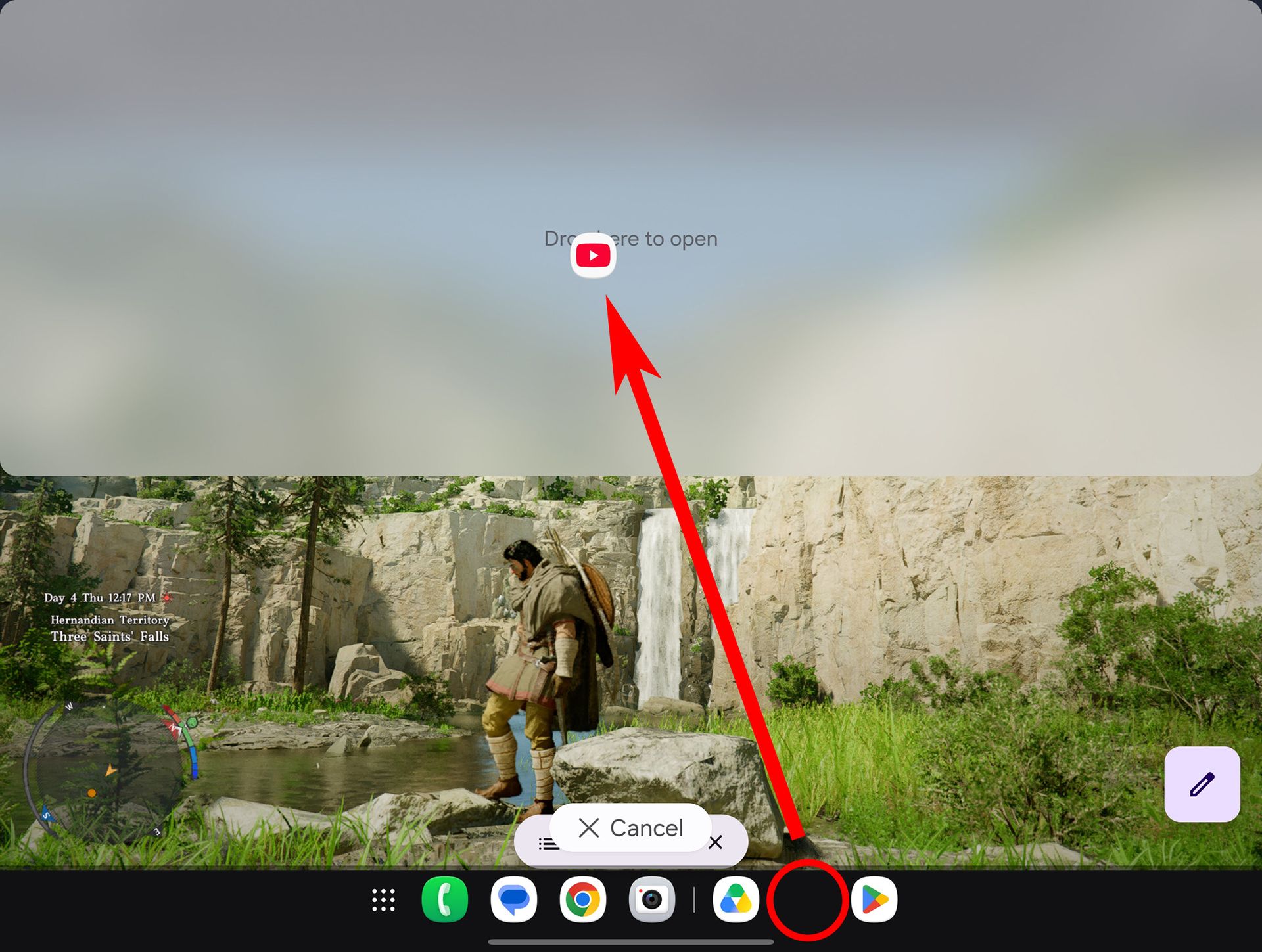
Using the taskbar to run 2 apps in split screen on a Samsung Galaxy Z Fold 8

(Image credit: Android Central)

4. Choose another app from the taskbar. If you don't see the app you want, tap the app drawer button on the left side and choose it from there.

5. Drag this new app to a third section of the screen. Your Galaxy Z Fold 8 will show indicators for where you can drop the app.
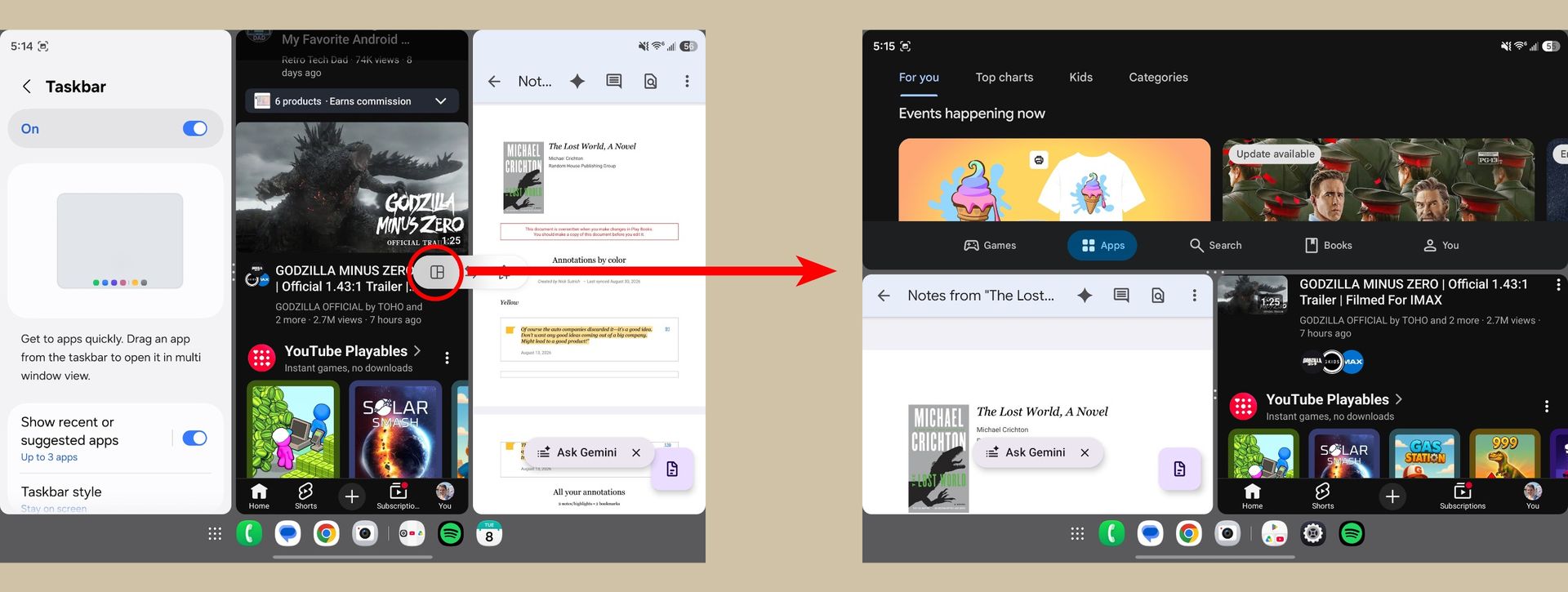
Selecting different three-way app split screen layouts on a Samsung Galaxy Z Fold 8

(Image credit: Android Central)

Now that you have three apps running at once, you can play around with the layout. Most commonly, this means three apps run side by side, but Samsung offers many layout options. Personally, I think three apps side-by-side makes them a bit too small to be useful, and that's where we'll start.

To enlarge an app, grab any separation bar by the "handle" β€” the part with the dots β€” and drag it outward. When running three apps at once, this will enlarge one app while leaving the others at the default size.
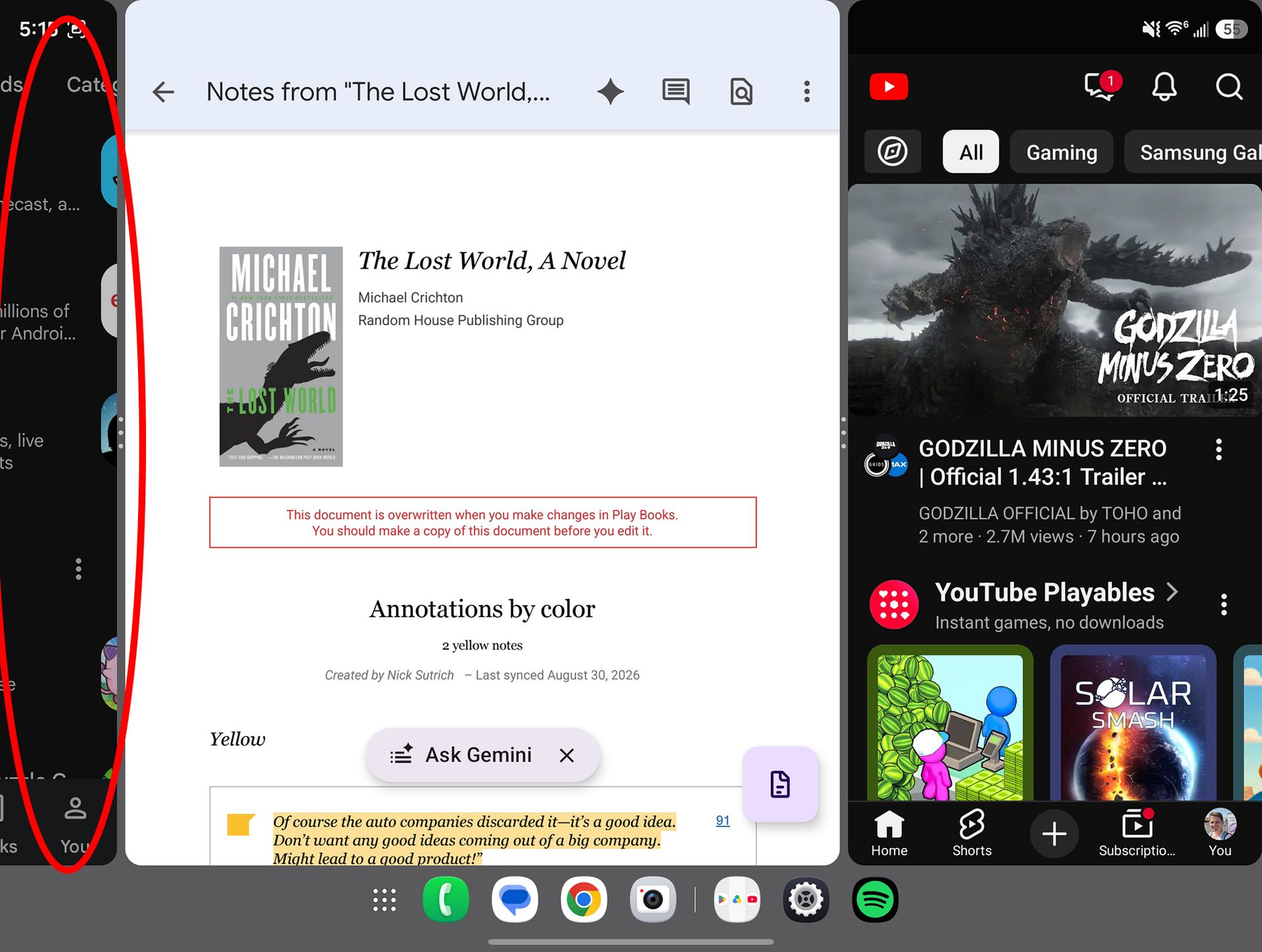
Multitasking with three big apps on a Samsung Galaxy Z Fold 8

(Image credit: Android Central)

Here's the coolest part about this setup: when you've got multiple larger apps running at once, the others will hang "off to the side." That lets you run nearly full-screen apps and quickly switch between them by just tapping the app that's off to the side.

But if you want all the apps on one screen and don't want them all vertical, tap any of the "handles" β€” remember, that's the part of the separator line with the dots β€” then tap the grid icon that appears. Your apps will now be separated into one half-sized app alongside two quarter-sized apps.
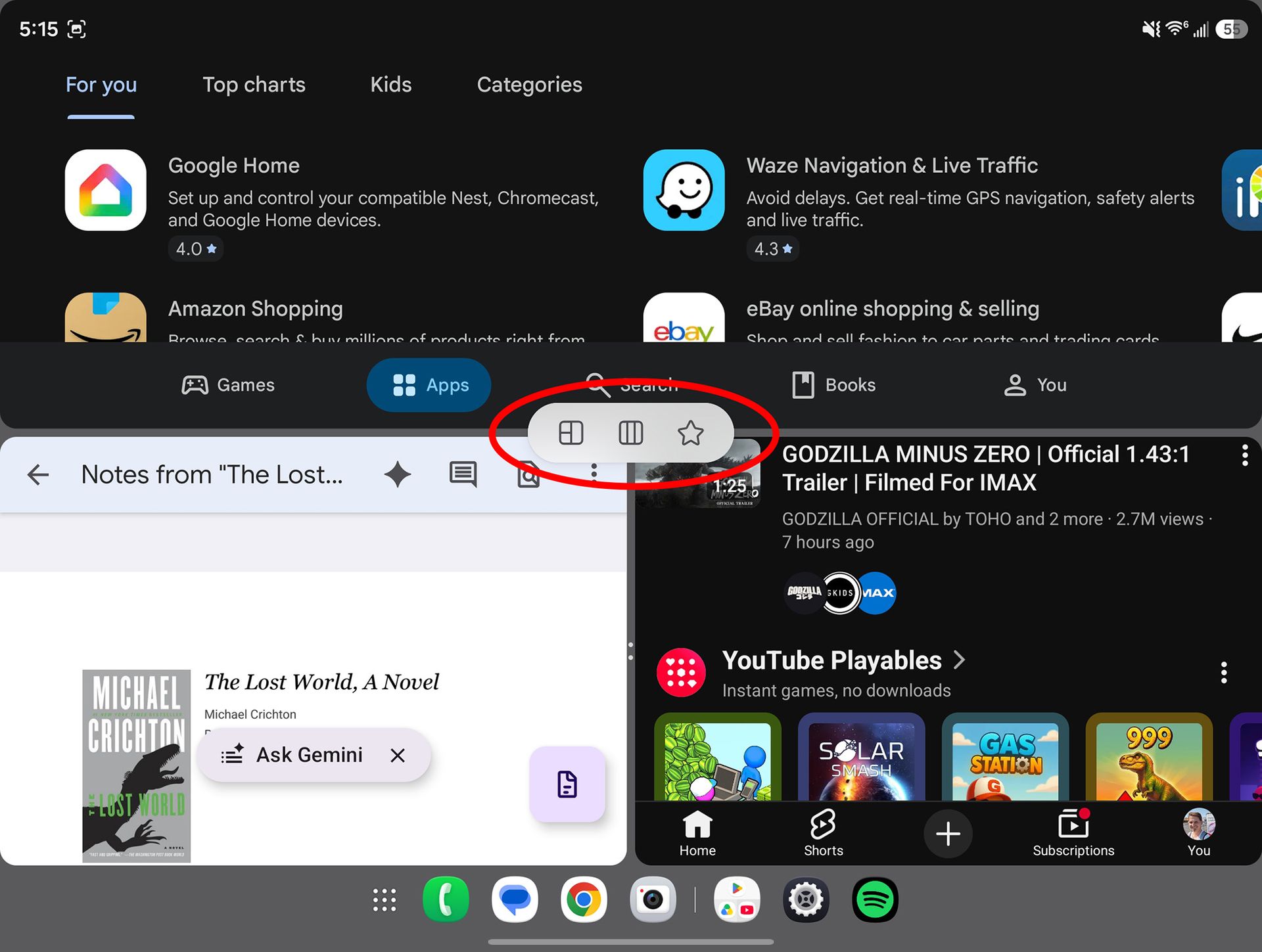
Selecting new layouts in three-app multitasking on a Samsung Galaxy Z Fold 8

(Image credit: Android Central)

Tapping the handle also brings up additional options. You can easily swap apps between frames by tapping the handle between those two apps, then tapping the "swap" arrow icon. Additionally, you can tap the other grid icon to swap the location of the grid. That lets you move quarter-sized apps from the left to the side half of the screen, and vice versa.

You can even hover an app by dragging the app icon to the center of the screen, letting you run four or more apps at once, similar to a desktop OS. Which layout is your favorite? Let us know in the comments!

  •  

Google Pixel Watch 5 vs. Pixel Watch 4: Spot the difference!

Official Google Pixel Watch 5

Google
Pixel Watch 5

The best for the future

The Pixel Watch 5 sports 50% more RAM, a faster processor, and proper on-device Gemini Nano models, so we fully expect to see Google roll out significant new features for this watch over the next 3 years while the device is supported. RAM is especially important for AI features, so this is the watch to get if you care about those.

Pros

  • Same battery life
  • Fast charging
  • Faster processor
  • Even more accurate GPS tracking
  • 50% more RAM and 2x storage
  • On-device Gemini Nano

Cons

  • Some features unavailable at launch
  • Same non-rugged design
  • Costly Fitbit Premium subscription after the free trial

Google Pixel Watch 4

Google
Pixel Watch 4

The best for your budget

The Pixel Watch 4 was an excellent 2025 release, and that means it's going to be easy to find one at a significant discount a year later. Even though it's got 50% less RAM (and will probably miss out on some future Gemini features because of it), this is a solid choice if you mainly care about workout tracking and messaging.

Pros

  • Same great OS
  • Identical charging
  • Striking domed design
  • Dual-frequency GPS tracking
  • Easily repairable

Cons

  • Design isn't rugged, with no sapphire glass
  • Costly Fitbit Premium subscription after the free trial
  • Gemini requires an internet connection

You've certainly heard this one before: on the surface, the Google Pixel Watch 4 and Pixel Watch 5 look identical. They've got the same beautiful domed glass design, use the same fast-charging solution, and sport the latest version of Google's Wear OS platform. But under the hood (or glass, I suppose), things are quite different.

The Pixel Watch 5 features 50% more RAM and 2x storage, a faster processor, more accurate GPS tracking, and on-device Gemini Nano. For just $30 more, it's a surprisingly good spec bump that's a worthwhile upgrade for anyone coming from an older Pixel Watch (or something else, entirely).

Of course, at this point, you could probably find a Pixel Watch 4 for much less, and that would be a great purchase, especially if we're talking something like $100 less than the Pixel Watch 5. Let's explore what these differences mean and if the newer Watch 5 is the best choice for you.

Google Pixel Watch 5 vs. Pixel Watch 4: Design, hardware, and specs

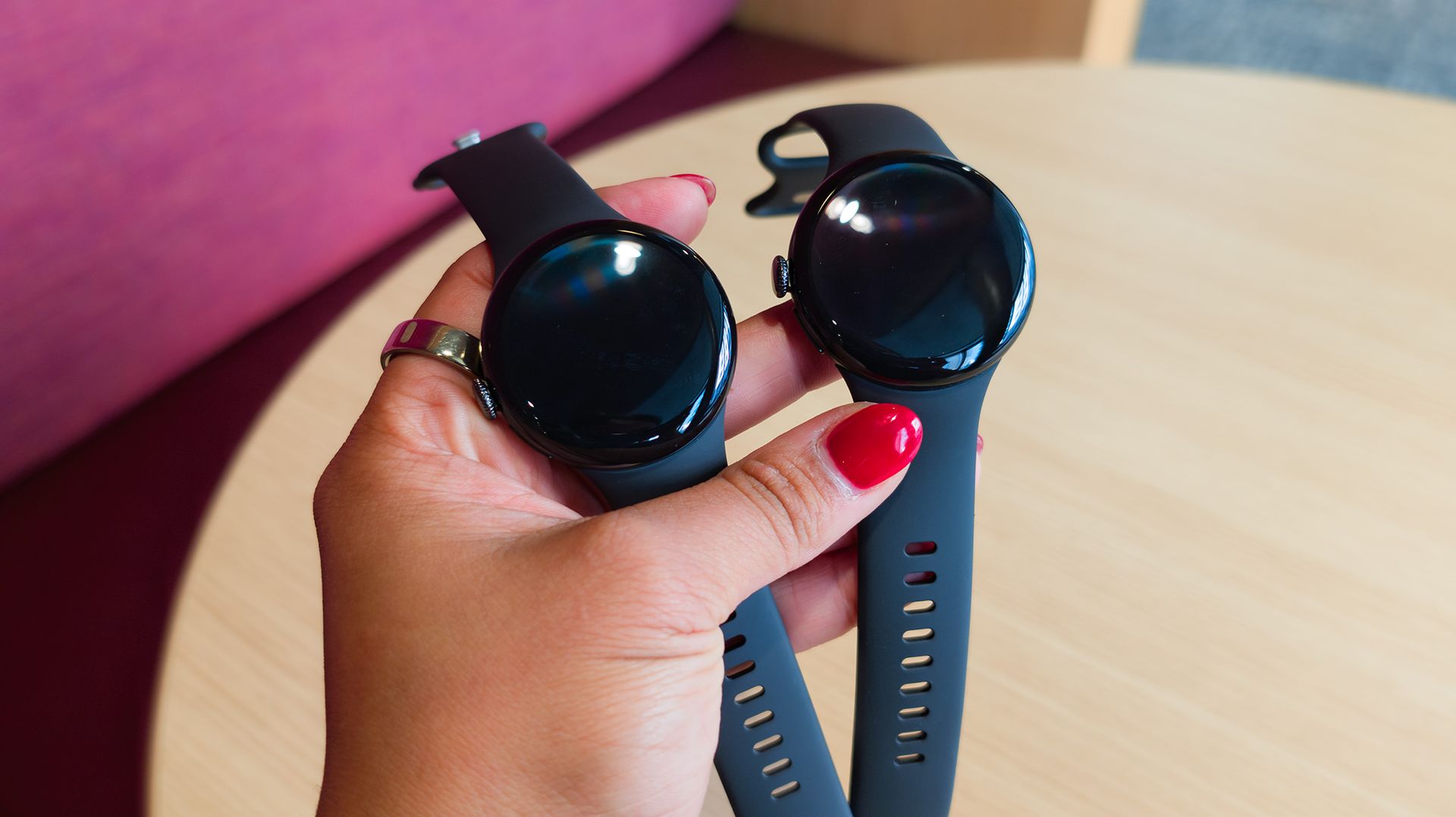
Comparing the Google Pixel Watch 4 (left) with the Google Pixel Watch 5 (right)

(Image credit: Shruti Shekar / Android Central)

As you can see from the image above, both watches look identical. They've got the exact same dimensions and weight, use the same glass dome, have the same water and dust resistance, diving specs, and even all the same sensors. It's even got the same 3,000-nit display.

Specs

Google Pixel Watch 5

Google Pixel Watch 4

OS

Wear OS 7

Wear OS 7

CPU

Snapdragon W5 Gen 2 Accelerated, Cortex M55 co-processor

Snapdragon W5 Gen 2, Cortex M55 co-processor

Display

Actua 360 AMOLED LTPO display, 320ppi

3,000 nits, 1-60Hz refresh rate

Actua 360 AMOLED LTPO display, 320ppi

3,000 nits, 1-60Hz refresh rate

RAM

3GB

2GB

Storage

64GB

32GB

Connectivity

Bluetooth 6, Wi-Fi 2.4/5GHz, NFC, UWB, LTE (optional), dual-frequency GPS, Galileo, Glonass, (ROW) Beidou, QZSS, Navic, Satellite SOS,

Bluetooth 6, Wi-Fi 2.4/5GHz, NFC, UWB, LTE (optional), dual-frequency GPS, Galileo, Glonass, (ROW) Beidou, QZSS, Navic, Satellite SOS,

Sensors

Compass, altimeter, barometer, magnetometer, 3-axis accelerometer, gyroscope, ambient light, multi-path optical heart rate sensor, cEDA, SpO2, ECG, far field skin temperature sensor

Compass, altimeter, barometer, magnetometer, 3-axis accelerometer, gyroscope, ambient light, multi-path optical heart rate sensor, cEDA, SpO2, ECG, far field skin temperature sensor

Battery

41mm: 332mAh, 30 hours with AOD, 48 hours with Battery Saver

45mm: 465mAh, 40 hours with AOD, 72 hours with Battery Saver

41mm: 325mAh, 30 hours with AOD, 48 hours with Battery Saver

45mm: 455mAh, 40 hours with AOD, 72 hours with Battery Saver

Charging

41mm: 15 minutes to 50%, 25 minutes to 80%, 45 minutes to 100%

45mm: 15 minutes to 50%, 30 minutes to 80%, 60 minutes to 100%

41mm: 15 minutes to 50%, 25 minutes to 80%, 45 minutes to 100%

45mm: 15 minutes to 50%, 30 minutes to 80%, 60 minutes to 100%

Materials

Recycled aluminum

Recycled aluminum

Protection

Custom Corning Gorilla Glass 5, 5ATM, IP68

Custom Corning Gorilla Glass 5, 5ATM, IP68

Band

Active (fluoroelastomer)

Active (fluoroelastomer)

Dimensions

41 x 41 x 12.3mm

45 x 45 x 12.3mm

41 x 41 x 12.3mm

45 x 45 x 12.3mm

Weight (w/out band)

41mm: 31g

45mm: 36.7g

41mm: 31g

45mm: 36.7g

Colors

Matte Black, Polished Silver, Satin Pyrite, Champagne Gold (41mm only)

Stephen Curry Special Edition (45mm only)

Matte Black Aluminum, Polished Silver Aluminum, Satin Moonstone Aluminum (45mm), Champagne Gold (41mm)

The Pixel Watch 5 has a 2% larger battery than the Pixel Watch 4, which helps give it the same battery life as the Pixel Watch 4, even though the Watch 5 has a chipset that's 20% faster. The Pixel Watch 5 also ships with 3GB of RAM and 64GB of storage, while the Watch 4 only has 2GB of RAM and 32GB of storage.

The extra 1GB doesn't sound like much, but it enables Gemini Nano to function properly, and the extra storage means you can download more music and podcasts for listening while you work out.

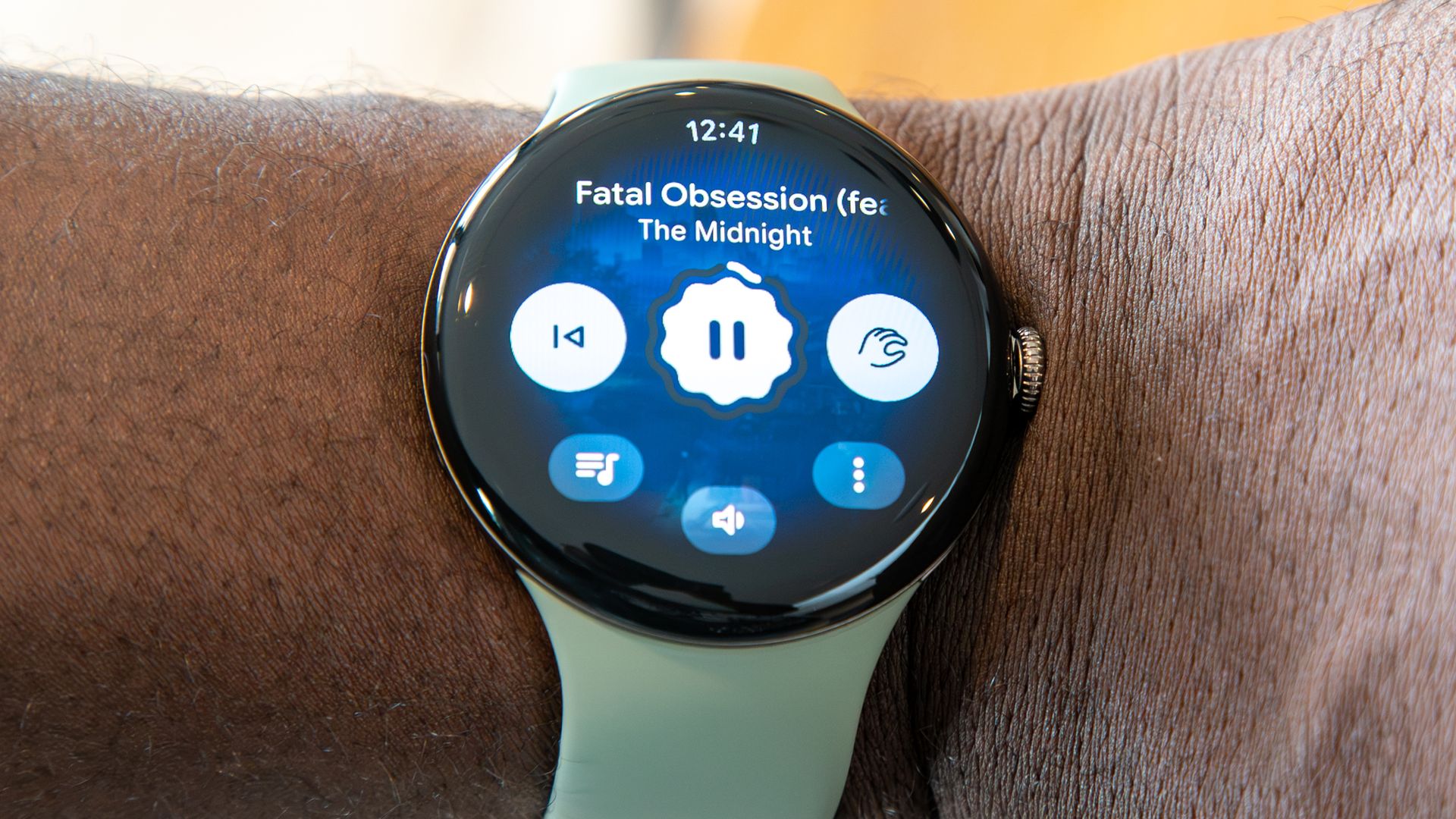
Media player and pinch gesture on the Pixel Watch 5

(Image credit: Derrek Lee / Android Central)

Both models feature Google's superb haptic engine, the lovely rotating crown, a super shiny, bubbly exterior, support for all the same wristbands, and the same great connection capabilities.

Google Pixel Watch 5 vs. Pixel Watch 4: Software and AI

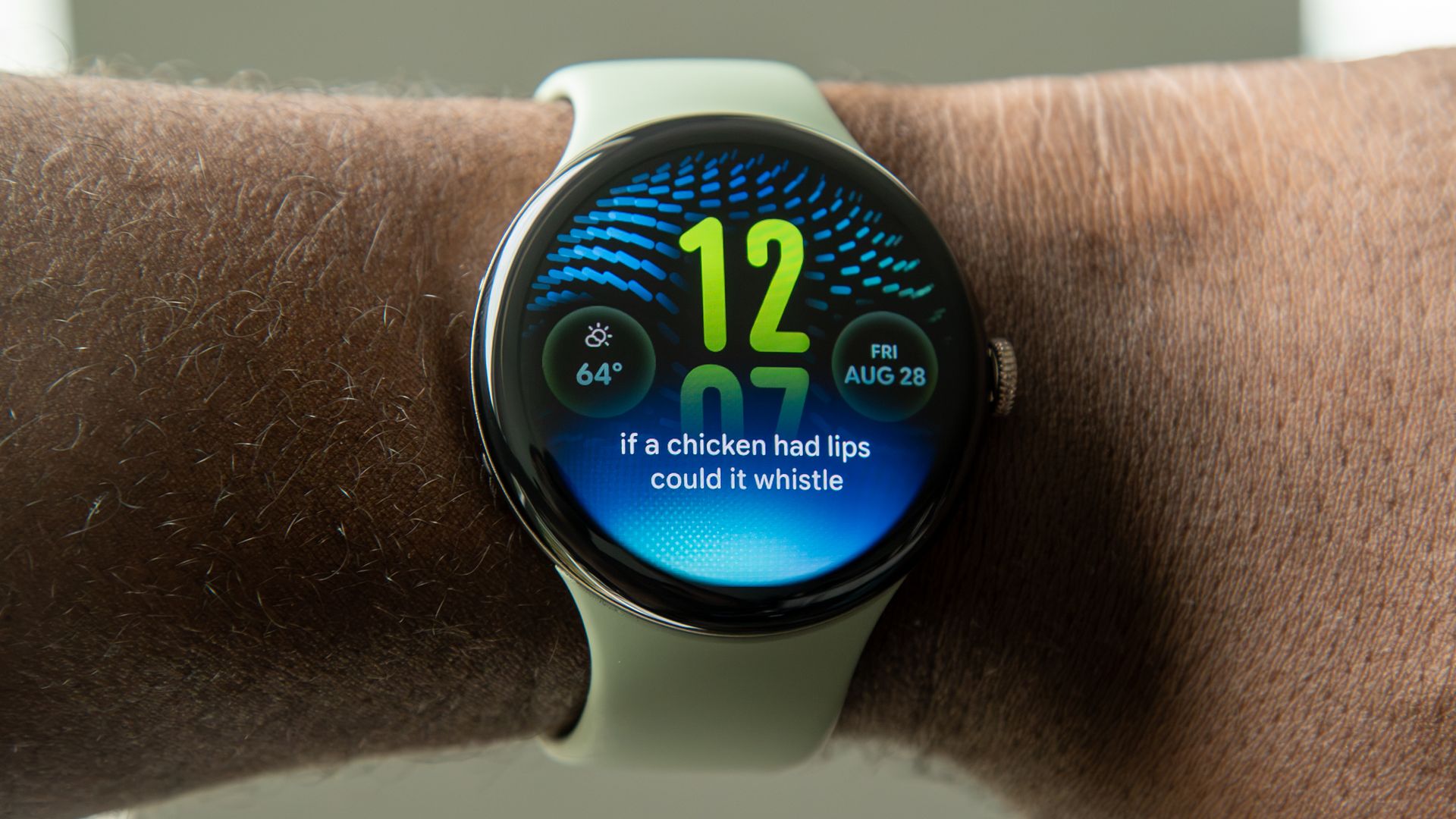
Gemini on the Pixel Watch 5

(Image credit: Derrek Lee / Android Central)

There's no meaningful difference between the features on these watches, but there are a few things to note. Google's new Health Guardian is supported back to the Pixel Watch 3, so you can buy an even older (and cheaper) Pixel Watch if insulin resistance and blood pressure trends are your main reason for looking at new hardware. You can even sideload Pixel Watch 5 watch faces onto a Pixel Watch 4, if you want.

The real difference lies in Gemini capability and software support. The Pixel Watch 4 will get OS updates through October 2028, while the Watch 5 is supported through October 2029. That extra year of support will likely include new Gemini-based features, too, since the Pixel Watch 5 has 50% more RAM.

And speaking of Gemini, the Watch 5 supports onboard Gemini Nano, so all those simple commands (like starting a timer, controlling workouts or music with your voice, toggling settings) are all instant, while the Pixel Watch 4 needs an internet connection to get the job done. That may not matter most of the time, but it will make a difference if you're out on a run and don't have your phone (or an LTE connection) with you.

Google Pixel Watch 5 vs. Pixel Watch 4: Health and workout tracking

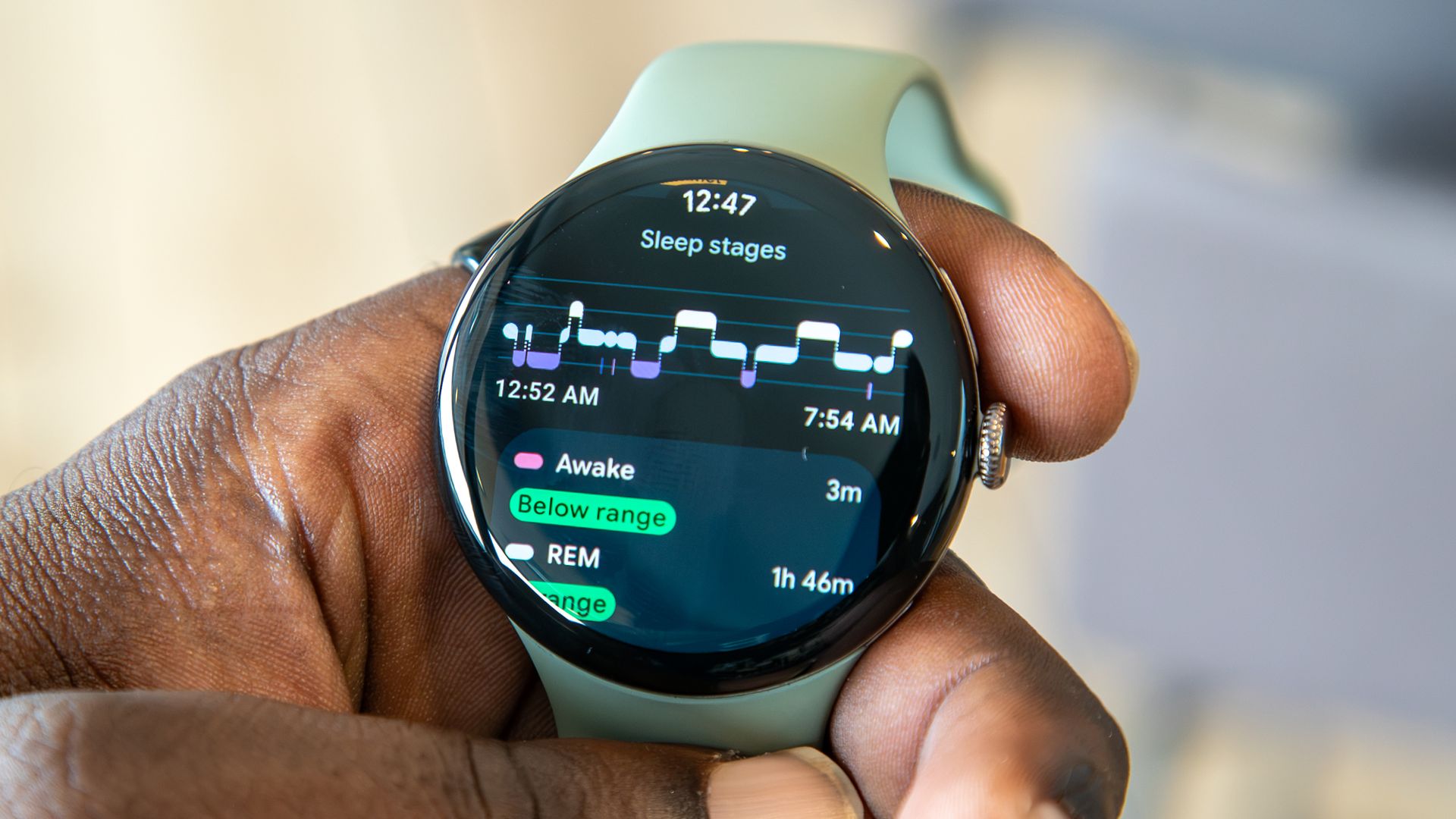
Sleep metrics on the Pixel Watch 5

(Image credit: Derrek Lee / Android Central)

Google announced a ton of great new health features alongside the Pixel Watch 5, and the good news is that all of those features are headed to the Pixel Watch 4. The new insulin resistance and blood pressure trends features are all here.

The only real difference lies in Google's new enhanced GPS tracking on the Pixel Watch 5, which further improves accuracy from the already excellent dual-band tracking on the Pixel Watch 4. This will come in handy if you navigate Google Maps a lot on your watch, especially in a city, but might not be a big deal otherwise.

Google Pixel Watch 5 vs. Pixel Watch 4: Which should you buy?

The Pixel Watch 5 charging next to the Pixel Buds 2 Pro

(Image credit: Derrek Lee / Android Central)

At retail price, it makes more sense to buy a Pixel Watch 5. For just $30 more, you're getting double the RAM, a faster processor, proper on-device Gemini capability, and an extra year of software support. That's a no-brainer choice.

If you can find the Pixel Watch 4 for at least $100 less, however, the tide changes a bit. It's still a less capable watch, but most people won't care about the fancy new features if they can save a ton of money in the process. Just remember that the Pixel Watch 4 only has two more years of software support left (ending in October 2028) if you're worried about that.

Official Google Pixel Watch 5

Google
Pixel Watch 5

The best Pixel Watch yet

Upgraded hardware and additional RAM and storage make this a more future-proof option than the Pixel Watch 4. The features might be the same for now, but we expect that to change in the future as Google continues to build out Gemini capabilities.

Google Pixel Watch 4

Google
Pixel Watch 4

A great budget pick

Don't care much about Gemini or slightly more accurate GPS tracking? The Pixel Watch 4 is the perfect way to experience Google's best smartwatch experience without the higher price of the Pixel Watch 5.

  •  
❌