Muse, Meta’s new A.I. agent, acts as a personal digital assistant that connects to Facebook and Instagram, as well as third-party apps such as Spotify and OpenTable.
Nearly twenty-five years ago I registered neil.fraser.name to provide a stable presence on the Internet. It has been the home of this website, my email address, and a server for APIs.
One of my original reasons for choosing ‘.name’ was that it was run by Global Name Registry -- more specifically, it was not run by Verisign. I had history with Verisign and did not trust them. Unfortunately, Verisign acquired Global Name Registry a few years later.
He’s going to lose his site and e-mail address, and someone else could potentially register the domain and hijack his accounts.
So, you’ve got email, you say? Lots of it? More than you can possibly manage without losing the few metaphorical marbles still sloshing around in that soggy ol’ brain of yours?
I hear ya. In fact, I think we all can relate (even those of us whose brains are, erm, slightly less soggy). And I’m here to tell you: It doesn’t have to be so difficult.
Gmail has a variety of built-in tools for making your messages more manageable. Some of ’em are a little bit different from what you might be accustomed to using in more traditional email clients (here’s lookin’ at you, Outlook) — but if you take the time to figure out how they work, you might just be surprised at how effective they can be.
There’s no better example than Gmail’s label system. It’s a strange concept to wrap your head around at first, especially if you’re used to the more typical folder-based method of inbox organization, but here’s a little secret: Labels actually are folders, in a sense. That, however, is just one small part of their inbox-organizing power.
Think through these nine label-centric possibilities and get ready to see Gmail’s labels in a whole new light.
1. Use Gmail labels like super-folders for categorizing your email
First, the most basic Gmail label mindset to master: You can think of a label like a folder — but with an important twist: Instead of a message being placed into a label, the label is placed onto the message.
That subtle-seeming distinction is actually quite significant. What it means is that a message doesn’t have to be associated with only one label, as is typically the case with folders; rather, you can apply as many labels as you want to any message, and each one ends up acting like a sticker — a label, one might even say! — that sits atop the email along with any other labels you’ve applied.
Any labels associated with an email will show up both in your inbox and when viewing the message in full.
JR Raphael / Foundry
So, for instance, if you keep tabs on stats for your company’s website, you might label all incoming emails from Google Analytics as “Web Reports.” But maybe you also have your own personal website for which you receive Analytics updates. You could label the reports from your personal website as “Web Reports,” too, and then add a second label of either “Work” or “Personal” onto every message to create a distinction between the two types.
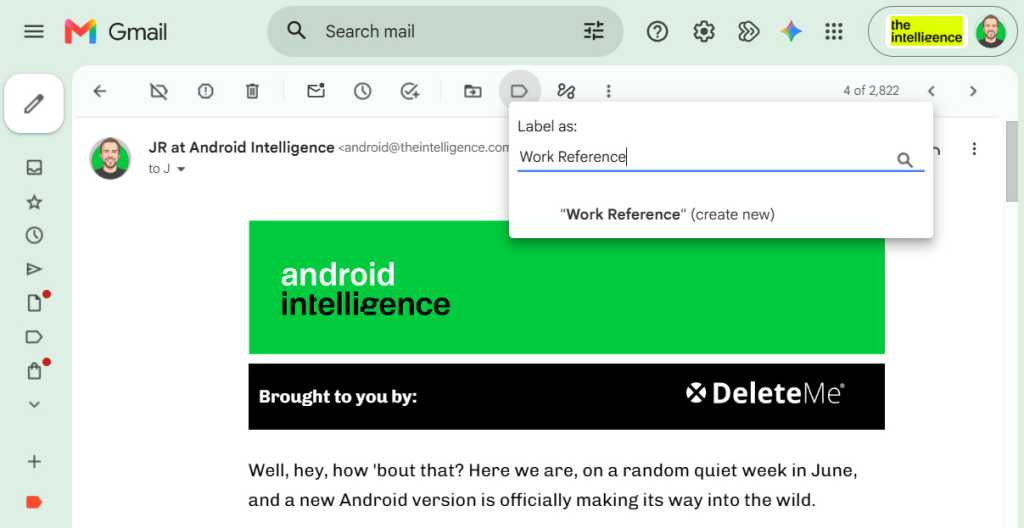
On the Gmail desktop website, the easiest way to create a label is to click the label icon in the toolbar at the top of the screen when you’re viewing a message or when you’ve selected something from a message list — then start typing whatever name you want to use for the label. Once you’re done, simply hit Enter, and Gmail will create the label for you and apply it to the message.
Once you create a new label within Gmail, it’ll always show up as an option in the future.
JR Raphael / Foundry
The next time you click the label command, you’ll see your newly created label as an option.
You can also perform the same action by using the keyboard shortcut L while an email is open or selected, provided you’ve enabled Gmail’s keyboard shortcuts system.
On the mobile front, you can create a new label within the Gmail app for Android or iOS by tapping the three-line menu icon in the upper-left corner of the screen and then looking for the “Create label” option before the list of existing labels (on Android) or the “Create new” option directly after that list. You can apply an existing label onto a message, meanwhile, by looking for the “Label” (on Android) or “Label as” (on iOS) option in the main three-dot menu anytime an email is open or selected.
2. Save yourself a step and label while archiving
Here’s a handy command to remember: If you want to add a label to a message and simultaneously dismiss the message from your inbox, use Gmail’s “Move to” option.
On the desktop website, that’s the icon showing an arrow inside a folder, directly to the left of the regular label icon. On both Android and iOS, you can find the same command within the three-dot menu icon while any email is open or selected. You’ll see a list of options that include your labels; just select the label you want to assign to the message.
Whatever platform you’re using, that’ll handle all the steps for you in one fell swoop. And if you’re a fan of shortcuts like this, by the way, I’ve got a whole story dedicated to time-saving Gmail tips just like ’em.
3. Apply labels while you’re composing an email
Gmail labels aren’t only for incoming messages; you can also proactively apply them to a new message you’re composing and then know that that email and any replies associated with it will remain properly organized and present in all the right places.
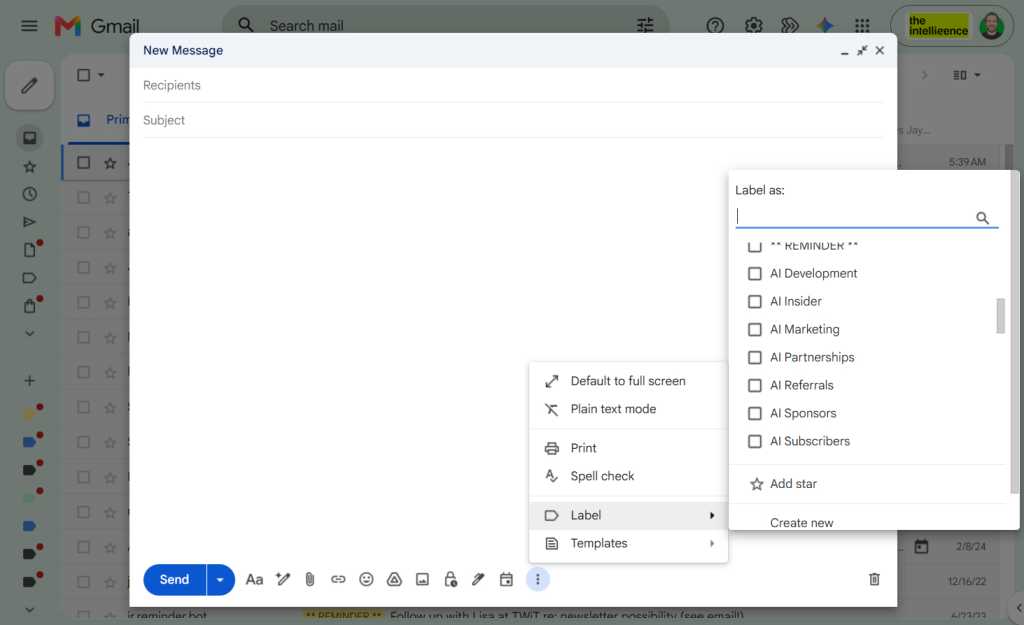
On the Gmail desktop website, all you’ve gotta do is hit the three-dot menu icon in the service’s compose window and look for the “Label” option in the list that appears — then create a new label right then and there or select any existing label to apply it.
You can proactively apply a label while composing a new message.
JR Raphael / Foundry
The mid-composing label-adding option isn’t present in the Gmail mobile apps, unfortunately, but you can accomplish the same thing in a roundabout way by heading into your Sent messages (from the app’s main three-line menu) and then selecting or opening an email to add a label onto it right after you’ve sent it.
4. Organize your label lists
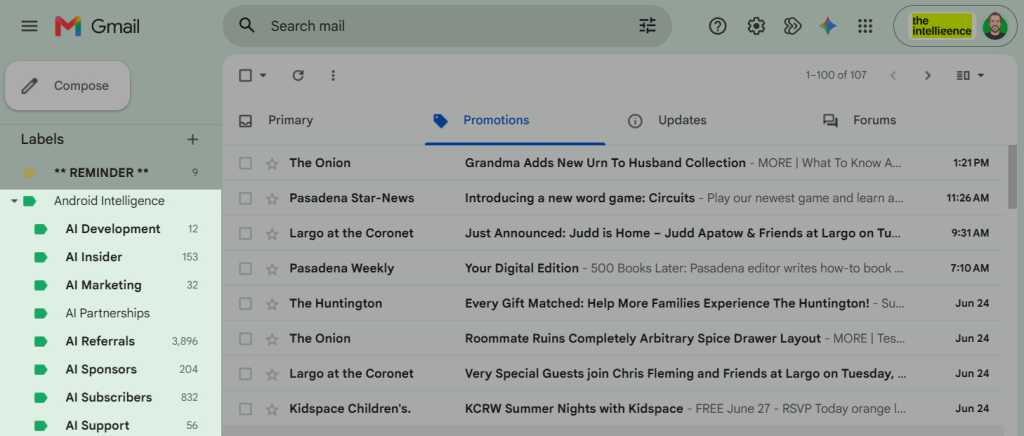
All right, so you’ve got your messages labeled — now what? Well, first, you can always browse through your labels to find something you need. Gmail keeps your list of labels (in alphabetical order) in its left sidebar, on the desktop website. You can collapse or expand that sidebar by clicking the three-line menu icon in the upper-left corner of the screen, and you can click on any label in the list to see all of the messages associated with it.
By default, though, that list is probably quite the unruly mess. So let’s get it organized:
First, if you see a line in the list of labels that says “More,” with a downward-facing arrow alongside it, click it to expand your full list of existing labels.
Now, click the three-dot menu icon next to each one of your labels. (The three-dot icon appears only when you hover over a label.) Assign each label a color, if you’d like; that’ll make it more visually distinctive and give it more or less emphasis (depending on the color you choose) when it appears in your inbox.
In that same three-dot menu, look at the “In label list” section and consider if you want the label to always appear in your label list, to remain permanently hidden beneath that “More” divider, or to appear in the list only when unread messages are present within it. The less unnecessary clutter you have visible, the easier it’ll be to find the labels you actually use often.
Next, look at the “In message list” section and think about whether you want the label to show up as an option when you’re adding a label onto a message. If it isn’t a label you ever actively apply to messages, you might consider hiding it to reduce clutter and increase your efficiency in that area.
On Android or iOS, you can find your labels and browse through any of ’em by looking inside the Gmail app’s main three-line menu. On Android, a third-party app called eLabels can also let you make more advanced label modifications from your phone or tablet — but in general, those sorts of adjustments are most easily managed from the Gmail desktop website.
5. Combine related labels into groups
While we’re getting your labels organized, take a moment to mull over whether any of your labels would make more sense as sublabels within a broader category. Maybe, for instance, you’d have one label called “Expense Reports” and then sublabels within it for “Staff,” “Freelancers,” and “Travel.”
This is an adjustment you’ll absolutely want to make on the Gmail desktop website, where the full selection of label customization commands is readily available. You can find the option to create a sublabel by clicking the three-dot menu icon next to any label name within the site and then selecting “Add sublabel” from the list that appears.
Grouped sublabels are a great way to keep your Gmail labels list tidy.
JR Raphael / Foundry
Just note: Somewhat confusingly, sublabels and parent labels are treated as separate but related entities — so if you were to add a message to “Staff” in our previous example, its label would show up as being “Expense Reports/Staff.” The message wouldn’t, however, show up when you click “Expense Reports” in the left-of-screen label list; it’d appear only when you clicked “Staff” in that same section. If you wanted it to appear within the results for both the parent label and the sublabel, you’d have to add both of them onto the message.
6. Use labels for smarter searches
Gmail’s labels aren’t just for browsing; you can also use them as variables to narrow down a search and make it faster to find a message you need. To include a label as a variable in a search, just click or tap the Gmail search box at the top of the website or mobile app, type label:work (using the name of your actual label name in place of “work,” of course), and then type in any other term or variable you want.
If you were trying to find a travel-related expense report from Tim Cook’s trip to Chicago, for instance, you could type label:travel from:tim@apple.com chicago into the search box. Including the label would narrow down your search considerably — skipping over messages from Tim Cook that might’ve just mentioned Chicago in some other context — and let you get to what you need more efficiently.
You can even narrow down your search further and search for messages that contain multiple specific labels — like label:travel label:work, which would show you a list of all messages that have both of those labels in place.
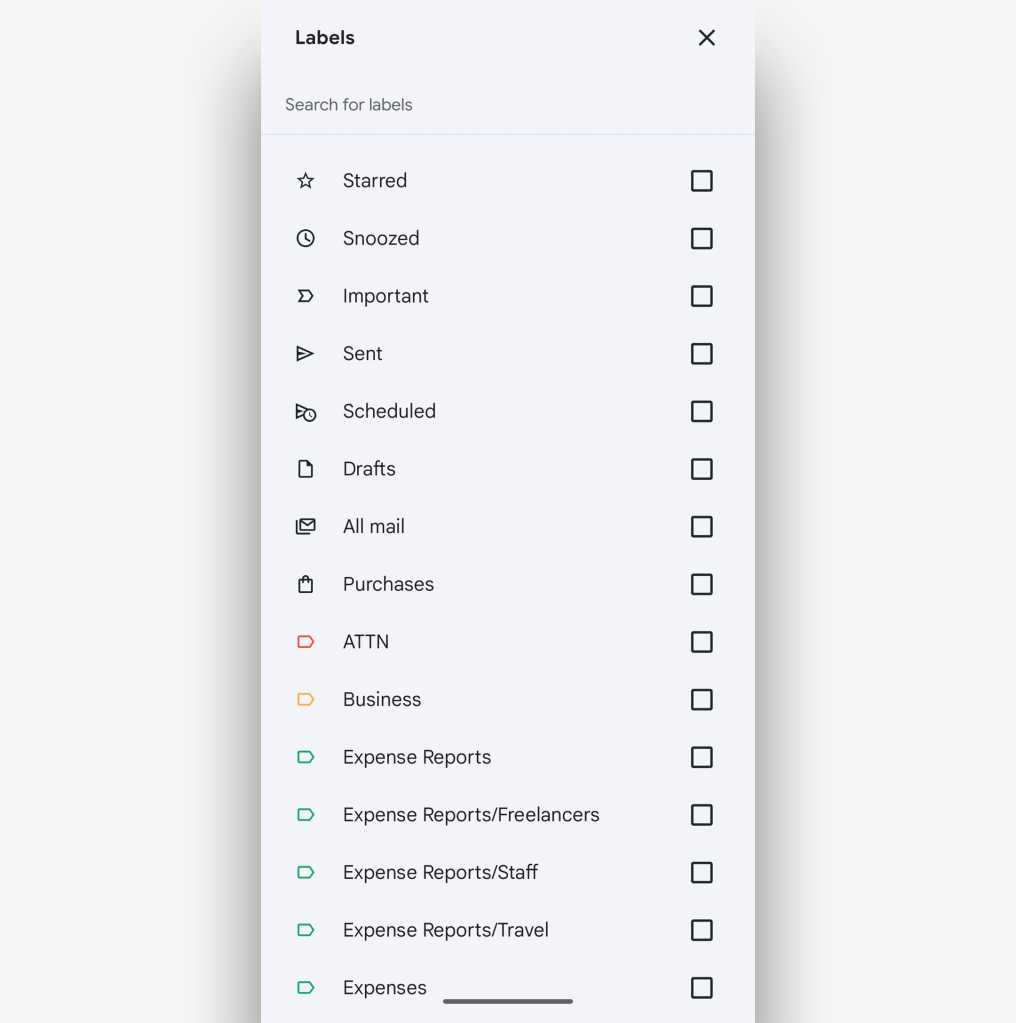
And on the mobile front, you can make your life easier yet by tapping the “Labels” dropdown within the app’s search area. That’ll let you simply select from a list of available options and save yourself the trouble of manually typing anything in.
In the Gmail mobile apps, you can select from a list of existing labels instead of typing in a search.
JR Raphael / Foundry
Gmail actually treats many of its own built-in message designations as labels, too — so in addition to searching for your own custom labels, you can search for (and in some cases also find within the mobile app dropdown menu) things like:
label:inbox
label:unread
label:promotions
label:social
label:starred
label:muted
Beyond that, you’d never know it, but Google also supports a hidden series of advanced Gmail labels for automatically identifying emails related to areas like travel, purchases, and finance.
And finally, any recent past searches you’ve conducted will show up as suggestions whenever you tap or click in the search box, which makes it especially convenient to revisit any frequently accessed label-related explorations in the future.
7. Let Gmail apply labels for you
Here’s where things really start to get interesting: In addition to manually applying labels to messages as you see fit, you can train Gmail to automatically categorize and process messages for you.
The first step is to think about what factors would make an incoming message fit into a particular label — whether it’s the sender’s email address or domain name, a specific word or phrase in the subject line, or maybe even the address to which the message was sent.
In my own inbox, for example, Gmail applies a red “VIP” label to emails that arrive from editors or other contacts whose messages tend to be timely and important. And it applies a green “Invoices” label to messages that come in from a specific address and with certain subject lines that my accounting software uses for carbon copies of new invoices.
In some cases, like with the “VIP” label, the messages remain in my primary inbox. But in others, they end up moving to less attention-demanding places — like the invoice copies, which skip over my inbox entirely (since I’m keeping them mostly as records and don’t need to be bothered dealing with them every time they come in).
Once you decide what factors should apply to what label — and what else should happen once the label is applied — a Gmail filter is the key to making the magic happen. I outlined the exact steps to setting one up in my separate Gmail filters guide. Go have at it!
8. Let your labels limit your notifications
Last but not least, instead of getting distracting alerts for every new message that lands in your inbox — or going to the opposite extreme and not getting any email notifications whatsoever — use your Gmail labels as a way to control which messages alert you.
You can pick any label that seems notification-worthy and then limit your notifications only to messages with that label attached. You can even set up label-driven notifications to function on your desktop computer and on your mobile device. (Provided you use Android, that is. Sorry, iPhone folks, but Apple’s garden doesn’t allow this level of customization to fly.)
That’s exactly what I do with my aforementioned “VIP” label, in fact. And it’s actually quite easy to set up. I put together a step-by-step guide here.
And with that, my inbox-dwelling comrade, your label education is complete. Go ahead: Label yourself organized. You’ve earned it.
This article was originally published in November 2019 and most recently updated in September 2026.
As one card recently sold for £12m, opportunistic thefts have surged – envelopes are being opened en route, costing small businesses thousands
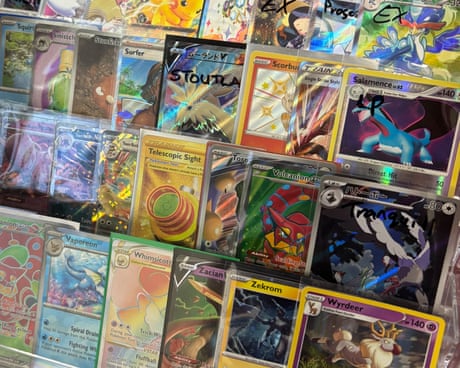
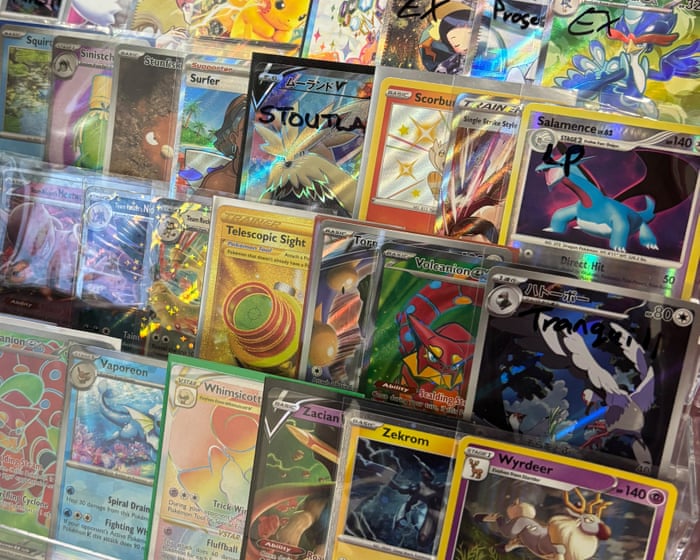
Pokémon’s success over the last 30 years has seen it grow from a much-loved Game Boy classic, to a world-dominating brand with TV shows, spin-off games, toys and even a theme park. The trading card game is a huge part of that, with more than 85bn cards printed over its lifetime, and the appetite for them shows no signs of slowing down. Packs get snapped up after release so quickly it’s now almost impossible to find them in shops, and a booming resale market is driving the hobby into murky waters.
One card recently sold for an eye-watering £12m, and an increasing number of people have gotten into the collecting business on the hunt for huge profits, leading to a rise in thefts targeting card shops. More recently though, some small businesses have reported that their sales have been hit by thieves targeting envelopes within Royal Mail, leading to thousands in lost revenue.
Datacentres should generate their own power and control their emissions, writes Richard Lamming, while Michael McClelland says we should reduce our digital communication. Plus a letter from Malcolm Fraser
One solution would be to make each datacentre responsible for generating all its own electricity and for reducing its CO2 emissions to zero. These installations will have vast areas of roofing and car parks that could be covered in solar panels, space for wind generation and battery storage, and for emissions scrubbers.
Is CarPlay really a key factor in car buyers choices? At least one statistic supports that position, raising questions about automakers ignoring customer preferences. The panel also examines Gmail’s upcoming changes, Apple’s evolving iPhone purchasing strategy, and a troubling article about advertising and tracking on computer monitors and smart displays.
Apple Mail is the first app open every day and the one I find hardest to defend, and I’ve been defending it for twenty years (longer if you remember the original NeXT mail client).
The broader story is one of abandonment.
[…]
Apple deprecated that API, replaced it with a (much more restrictive) MailKit surface in 2021, and proceeded to lock MailKit down so hard that barely anyone shipped an extension.
[…]
In particular, in this age of desktop AI agents, I come time and again across the fact that AppleScript support in Mail has been left to rot.
[…]
And searching for messages is such a mockery of a user experience that I’m not even sure how to describe it[…]
The last email program I truly loved was Bare Bones’ Mailsmith.
[…]
Now, I’ve tried a lot, like, a lot, of “modern” email clients. The built-in Apple email client is extremely straightforward, but underpowered. Thunderbird is too lumbering and heavyweight for what I want. Hipster ones like Spark are pretty, but focus on things I don’t care about. Mimestream is solid, but it’s Gmail-only. Microsoft Outlook is, unfortunately, Microsoft Outlook. MailMate is nerdy and, in some ways, the most obvious spiritual descendant of Mailsmith, but I find some of its UX inscrutable. Yes, I am aware of the irony of saying this just before describing an Emacs-based client.
And increasingly, commercial email clients are expensive and/or subscription-only.
I almost never use Mail on iOS 26. I just tried to insert an image from my photo library, and I could not figure out how to get back to seeing a keyboard. What a bizarre workflow. Still shocked some of this stuff shipped.
I haven’t been able to use Mail on macOS since macOS 15.4. It hangs on launch if any accounts are enabled. It feels like it’s been so many years since I filed feedback with sample logs and still Apple hasn’t fixed the hang.
I wonder whether I will ever see a time where Mail clients report accurate unread counts (spoiler: clicking on Inbox shows no new mall)
Well, I guess most other mail clients, Thunderbird or Outlook, get this right. But it never worked in any of the Apple mail clients. Like for decades now 🙃
Rishi Ó summarizes the promises for Mail later this year:
iOS 27 has an overhauled search system that extends to the Mail app. Instead of surfacing results based on keywords and recency, Mail app search ranks results by relevance and intent.
I never found the problem to be relevance ranking but rather that it simply didn’t find certain messages at all.
Long press on any email and you can ask Siri to summarize, find an item in the email, track a package, get a flight number, save a photo, and more.
I guess that’s fine, but as Carmo notes there’s just a whole list of basics that need attention in iOS Mail.
Messages in Mail load faster, search indexing is more reliable, and unread badges between platforms like iOS and macOS sync more reliably.
Exchange Web Services (EWS) is approaching end of service in Exchange Online. We first announced this change was coming in 2018, when we announced that Exchange Web Services (EWS) will no longer receive functionality updates. In 2023, we announced that EWS will be disabled in Exchange Online in October 2026.
Today we’re announcing we will use a phased, admin controllable disablement plan that starts in October 2026 and concludes with a complete shutdown of EWS in 2027.
Microsoft announced the upcoming end of service for Exchange Web Services (EWS) in Exchange Online. Apple is actively working with Microsoft to update Mail, Calendar, Contacts, Notes, and Reminders to use the Graph API in a future update to macOS 27, including a declarative configuration for device management services.
I’ve been eagerly awaiting Apple’s migration to Microsoft’s newer Graph API because EWS support in Apple Mail has long been buggy. It seems to have gotten worse in recent months, presumably due to server side changes as Microsoft prepares to shut it all down. Unfortunately, Apple is not as far along in the transition as I’d expected.
What made a Mac feel like a Mac at work was the software that came with it. Mail that you could actually scan. A Calendar that was a separate application, so it could live permanently on a second screen instead of hiding behind a tab. Quick Look. Smart mailboxes. Spotlight that found things. Share sheets that worked everywhere. The system behaving as one coherent thing rather than a collection of vendor silos.
[…]
iOS and iPadOS Mail no longer depend on EWS. macOS Mail still does. Same company, same deadline, same protocol, and only one of the two platforms got the work done in time. Microsoft ended up writing the guidance Apple should have written, telling administrators in February that Apple Mail for Mac users would have to switch to Outlook until the applications were updated. […] Apple had years. It had a public deadline. It had, by Microsoft’s own account, one of the most widely used EWS applications in existence. And it let the clock run out.
[…]
Somewhere in every one of these migrations is a line in a change log that reads “users to move to Outlook”, as though a mail client were a fungible commodity, like swapping a stapler. […] This is not the death of the Mac at work. […] It is the death of the Mac experience at work.
Outlook for Mac feels very different from Apple Mail, and users are being squeezed from the Microsoft side, too. Microsoft will be ending the transition to New Outlook in October, but the new version is still missing many features that were present in Legacy Outlook (as well as Apple Mail). Microsoft had long promised that it would implement AppleScript in New Outlook before dropping support for the old version, but last week it changed course:
AppleScript workflows vary widely across organizations and often depend on behaviors from the classic app that don’t exist in the New Outlook. Because these patterns can’t be standardized, full compatibility isn’t feasible. We have decided not to move forward with this feature. We apologize for the inconvenience.
Access only ratchets one way. Mail was allowed because it worked, quietly, for years, over a protocol nobody was auditing. It has now been formally removed under a named cybersecurity policy. Getting it back would require someone in a security function to write a positive case for re-admitting a broad-permission third-party client to the corporate mail estate, and then put their name on it. Nobody’s career improves by doing that. Saying no costs nothing and is never wrong in hindsight.
So if Apple ships Graph support in Mail next year, the people who lost it will not get it back. The door didn’t swing shut. It was bolted, and the reason it was bolted is now written down in a policy document that will outlive the protocol that prompted it.
Apple has no leverage to change that, either. The organisations deploying Macs by the tens of thousands are not Apple partners in any meaningful sense. They are customers who buy boxes. There is no relationship to call on, no joint roadmap, no account team, nobody at Apple whose job it is to notice that a hundred thousand people just lost Mail.
October is when administrators will have to opt back into allowing EWS for a few more months, but some (like Harbourne’s) will be switching off support sooner.
Apple Mail and Outlook aren’t the only options, though. MailMaven supports both Graph and AppleScript.

 Login
Login