❌

Reading view

Microsoft Edge’s new sign-in option is a quiet admission of defeat on mobile

Microsoft Edge may soon let you sign in with an Apple account. The latest Canary build of Edge includes flags that, if enabled, let you sign into the browser with your Apple account.

Using your Apple account within Edge will make it easier to keep your bookmarks, history, and other content synced across your phone and your PC. Many people, including myself, use a computer running Windows 11 and an iPhone.

The change was spotted by Leo Varela, who often leaks or highlights features in Edge and other browsers.

In Edge Canary for desktop there are a couple of new flags to enable support for signing in with an Apple account. Microsoft added support for Google accounts some time ago and has now added support for Apple accounts: https://t.co/34BBm0b3Wi pic.twitter.com/BNMrpB8pkOAugust 10, 2026

Microsoft did not initially plan to support non-Microsoft accounts within Edge. Google account support rolled out recently and now support for Apple accounts appears to be on the way.

Of course, you could use Edge without any account at all. The browser works without requiring signing in. But syncing data and some other features require using some sort of account to sign in.

Windows Central take
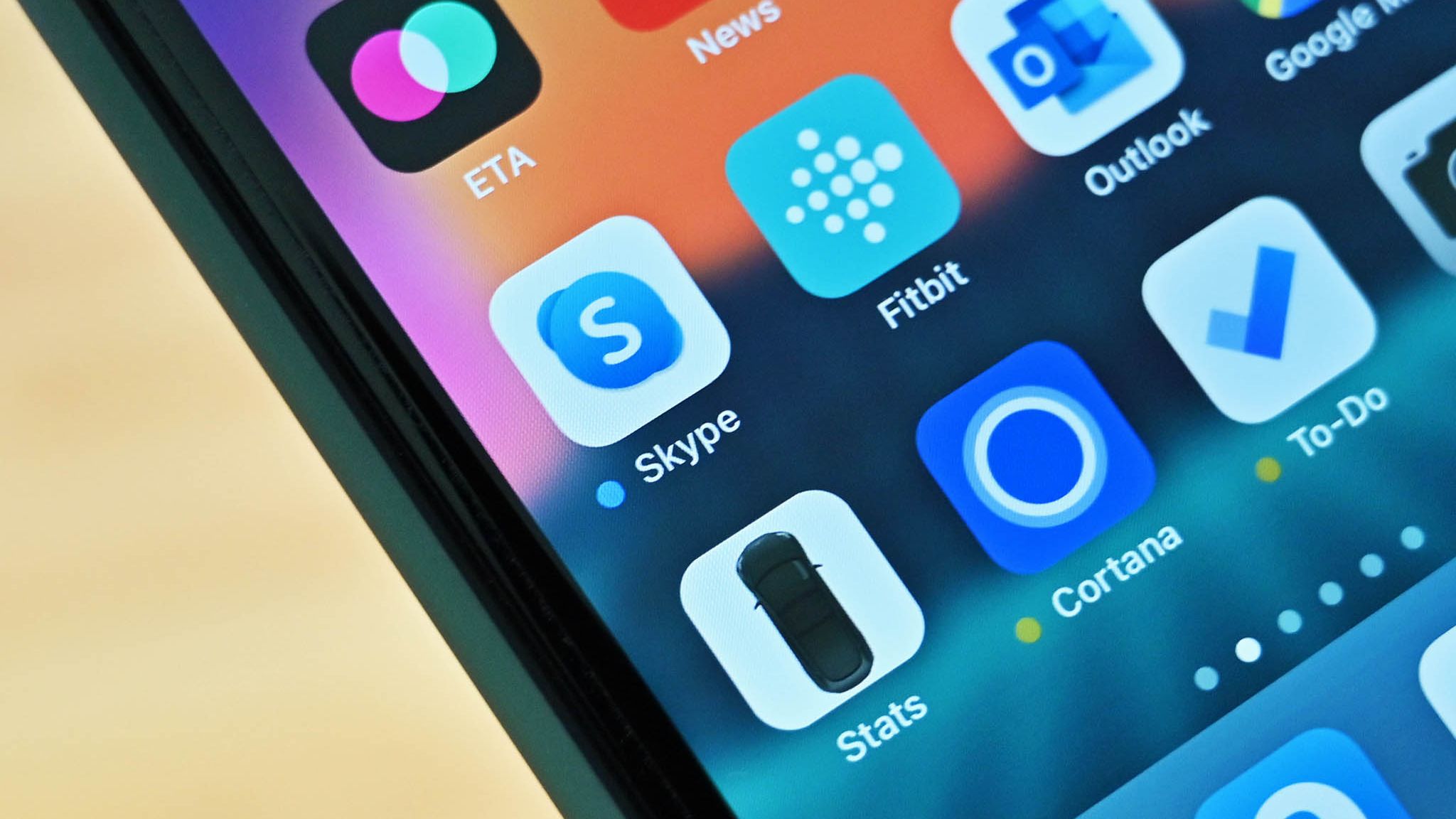
Skype on iOS

Microsoft once pushed its apps aggressively on iOS and Android. Since 2015, the company has shut down several apps and left others in maintenance mode. (Image credit: Windows Central)

It's interesting to see how Microsoft's cross-platform app strategy has shifted over the years. Some apps have been available on other platforms for over a decade, but Microsoft increased its efforts to have a presence on iOS and Android after shutting down Windows Phone.

With no phone operating system of its own, Microsoft aimed to provide a premier experience for its services on Android and iOS to meet people where they are. Microsoft bought up popular apps like Wunderlist and SwiftKey to make a Microsoft experience on mobile platforms made by Google and Apple.

Back in 2015, Microsoft CEO Satya Nadella talked about his "iPhone Pro," which was just a normal iPhone with a bunch of Microsoft apps on it.

These days, several Microsoft apps feel like abandonware and others lag behind the competition. The glory days of the "iPhone Pro" are over.

I do appreciate flexibility when it comes to signing in to Edge, but I can't help but wonder if adding support for Google and Apple accounts is an admission that Microsoft can't even get people to use a Microsoft account in Microsoft Edge.

Rather than trying to force users into the Microsoft umbrella, the company seems to be accepting its mobile reality. It is finally conceding that to keep PC users on Edge, it has to let them live inside Google and Apple's account ecosystems instead.

Click to join us on r/WindowsCentral

Join us on Reddit at r/WindowsCentral to share your insights and discuss our latest news, reviews, and more.
  •  

Microsoft PowerToys will soon take full advantage of the same AI that powers Copilot+ PCs

Microsoft PowerToys will soon add on-device support for Phi Silica. Microsoft called that small language model (SLM) "small but mighty" when announcing it in 2024. Now, that model is available for Advanced Paste in the latest PowerToys preview.

Advanced Paste is a utility in PowerToys that formats content from your clipboard. It supports several formats, including plain text, markdown, and JSON. You can also use it to extract text from images using OCR and transcode audio and video files.

When first launched, Advanced Paste required an OpenAI API key, but PowerToys later added support for other models. Azure OpenAI, OpenAI, Gemini, and Mistral are cloud services that work with Advanced Paste. Foundry Local and Ollama both work with the feature locally.

Phi Silica is now available as an option for local AI processing in the latest preview.

While you may not have heard of Phi Silica, you've likely heard of tools it powers if you have a Copilot+ PC. Click to Do and on-device rewriting in Word and Outlook are powered by Phi Silica.

Phi Silica uses the NPU of a device, which helps with efficiency.

The GitHub page for PowerToys lists all the changes in the latest preview. Here are the highlights from the same page:

View the changelog ↴

PowerToys v0.101.2211.0 Highlights

  • Advanced Paste: Added an on-device Phi Silica provider and more per-action AI customization options.
  • Command Palette: Improved dialog handling, icon loading, memory cleanup, theme behavior, and dock performance monitoring.
  • Window management: Improved shutdown behavior across FancyZones, Grab And Move, and Always On Top, and made Always On Top borders render solidly at full opacity.
  • Keyboard Manager: Fixed the elevated Run Program browse flow in the new editor.
  • Mouse Jump: Moved Mouse Jump to the newer WinUI app architecture and packaged its new binaries into signed release builds.
  • Settings: Added an update channel selector and a guided Bug Report flow with progress and a GitHub shortcut.
  • Quick Accent: Made press-and-hold activation cancel cleanly so the picker appears only when intended.
  • Preview releases: Added dedicated preview-release versioning and update-channel support so preview builds can be published and tested independently from stable releases.

PowerToys has a growing library of utilities, so there's a lot to look at in the latest preview even if you do not care about AI. Command Palette will perform better and Window management has been improved across FancyZones, Grab And Move, and Always On Top.

Mouse Jump being moved to WinUI modernizes the utility and gets it in line with Microsoft's push to use WinUI across Windows.

WinUI 3 is the native framework for Windows. Microsoft is moving several key components of the OS to WinUI 3 and rebuilding that framework.

The latest preview of PowerToys also makes it possible for preview builds to be published and tested independently.

PowerToys | Free at GitHub | Free at Microsoft Store

This collection of utilities includes a large library of features to enhance the Windows experience. PowerToys is designed with power users in mind, but it has handy features for people who just use their PC for everyday computing too.

Click to join us on r/WindowsCentral

Join us on Reddit at r/WindowsCentral to share your insights and discuss our latest news, reviews, and more.
  •  

Reddit helped me find not one, but two AirDrop alternatives for Windows 11

Like millions of other people, I have a Windows 11 PC and an iPhone. I'm envious of some of the ways Macs and iPhones connect, but I still rely on Windows 11 for everyday work and my hobbies.

AirDrop is one of the features I want the most when looking over the digital fence at my friends who are fully in the Apple ecosystem. While you cannot use AirDrop on a PC, there are some great alternatives.

"Does anyone actually have a good way to transfer files between an iPhone and a Windows PC?" asked Reddit user Palunath in the r/Windows11 subreddit. Users responded with several options, but two stood out: Blip and LocalSend.

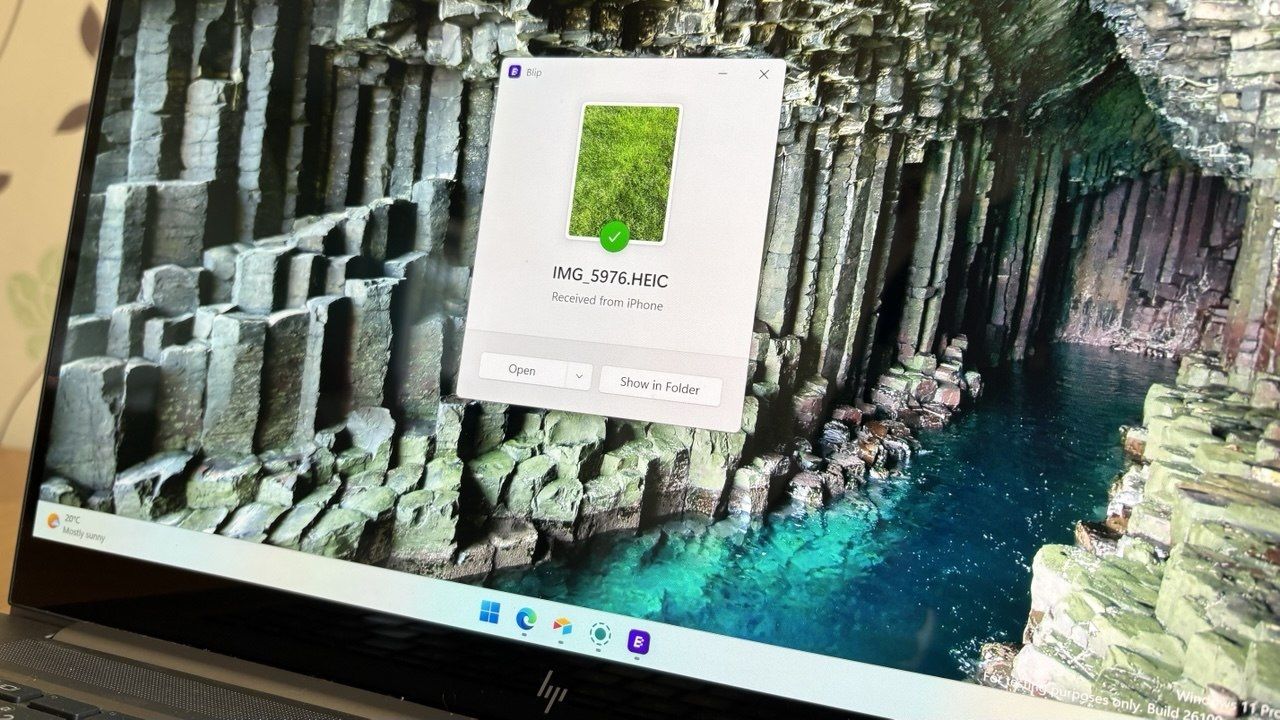
Reddit delivered with both those recommendations. I downloaded both and have used them over the last week. I'm hardly the first person to highlight these apps, but if people are asking for AirDrop alternatives on Windows 11, they likely haven't heard of Blip and LocalSend.

Top pick: Blip

Transferring files is quicker and easier if both of your devices are on the same network, but Blip works when on different networks as well.

Blip is my top pick. It's easy to use, has an interface that feels familiar, and it's extremely fast. It's similar to AirDrop but without the Apple exclusivity.

Blip supports sending files and folders without any size limits (Blip's website says "99TB? Game on").

Not having to zip folders is a big plus, as is being able to send large photo files.

Blip is free for non-commercial use. If you're a business user or want priority speed, you can subscribe for $25 per user per month.

Signing up for Blip is easy and just requires entering your email and confirming the code you're sent.

Blip's website has download links for all supported platforms, including Windows, macOS, Android, iOS, and Linux.

Secure second: LocalSend

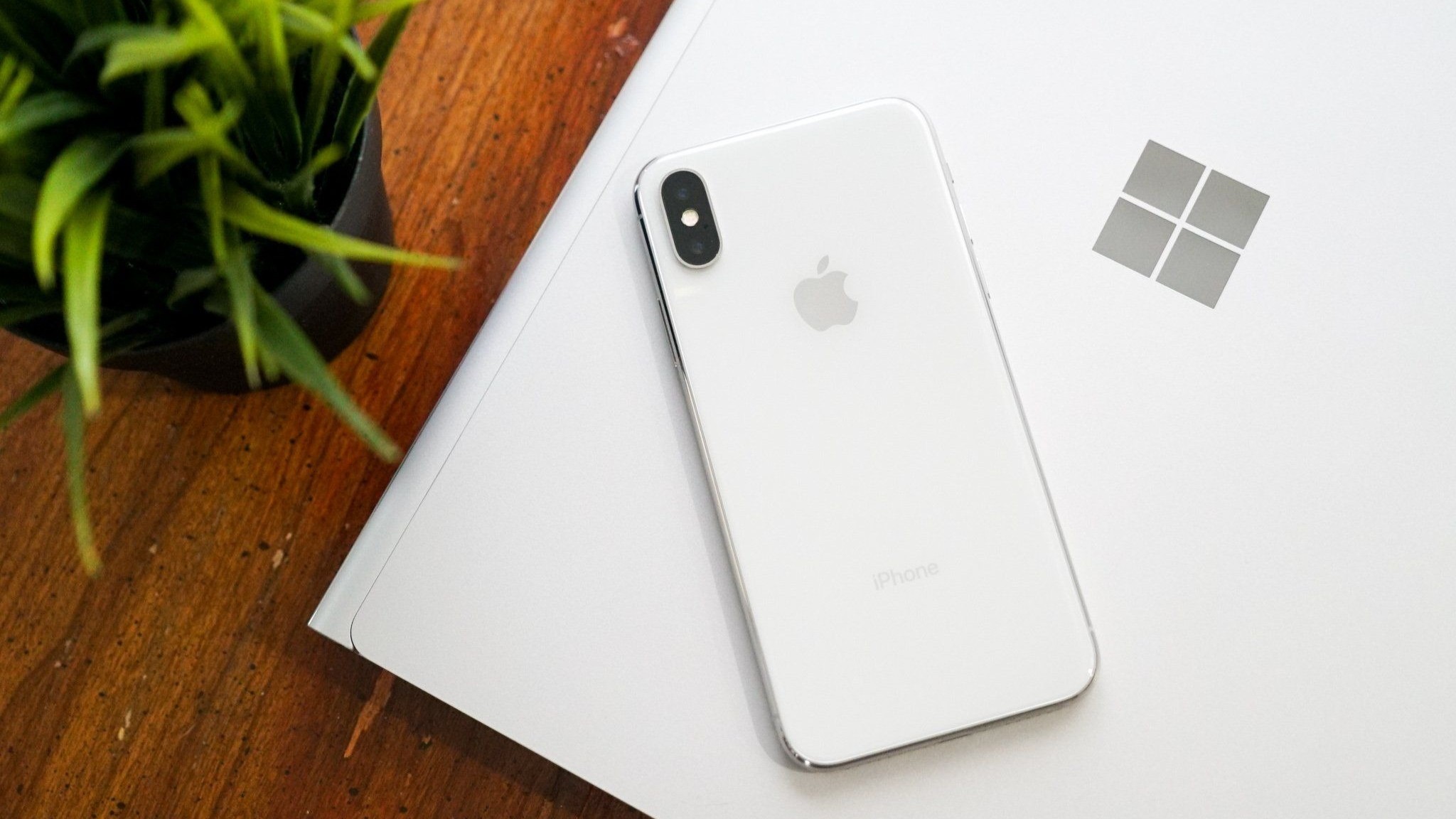
iPhone X resting on a Windows PC showing the Microsoft logo

Connecting an iPhone and a PC can be awkward unless you have the right apps. (Image credit: Future)

LocalSend works very well, but its structure has some pros and cons. Because it works through your network, it works without the internet. It's also incredibly fast, assuming your Wi-Fi network has quick speeds.

LocalSend doesn't require an account or logging in. Your devices from the network just appear within the app. You can mark devices as favorites to streamline sharing as well.

You can download LocalSend through its website (or just use the service through that site). LocalSend is free to use.

You can send files to a single recipient or multiple recipients as well, which makes LocalSend feel a bit more like AirDrop.

LocalSend is open-source, fully offline, and peer-to-peer, so it's a great choice for people who value privacy.

The obvious drawback is that LocalSend is for sending files locally. If you just need to send files at home or work when devices are on the same network, LocalSend provides a seamless experience.

OneDrive and iCloud

Blip and LocalSend are made for sharing files on demand. If you want to sync entire folders or all of your files, you can use apps like OneDrive or iCloud.

In my experience, these apps are much slower at syncing and sending files, but they're a great way to back up content.

Blank Pixel

Click to join us on r/WindowsCentral

Join us on Reddit at r/WindowsCentral to share your insights and discuss our latest news, reviews, and more.
  •  

Microsoft isn't scrapping its unwanted OneDrive Photos app; it's just giving you a way to get rid of it

Microsoft accidentally shipped the new OneDrive Photos app to millions of PCs recently. Microsoft EVP of Apps and Agents Jeff Teper explained that the app was shipped earlier than intended.

We now have more details about the OneDrive Photos app, courtesy of the Microsoft 365 Roadmap. While the app was rolled out to PCs accidentally, Microsoft plans to release it in the future. When the app does ship (on purpose), there will be options to manage it or uninstall it.

There are two entries on the Microsoft 365 Roadmap related to OneDrive Photos. The first is about greater control that will be given to admins:

"OneDrive is adding administrative controls for the Photos experience on Windows. Organizations can manage whether users sign in with personal Microsoft accounts. These controls help IT teams align OneDrive Photos with their access, data governance, and device-management requirements."

That feature should start rolling out this month. Considering that the OneDrive Photos app was accidentally installed on some managed PCs that were unable to use the app, these administrative controls should be a welcome addition.

The second entry is about all users and the option to remove the OneDrive Photos app:

"OneDrive is giving people more control over their Windows experience by allowing them to uninstall the OneDrive Photos experience independently. Removing the Photos experience does not uninstall the OneDrive app, interrupt file sync, or delete photos and files. This provides a clear removal option for people who prefer to manage their photos with another app."

That feature is expected to roll out next month. As always, roadmap dates are estimates and subject to shift.

Those entries, which were first spotted by Neowin, were only added to the Microsoft 365 Roadmap after the accidental rollout and following backlash. We may see more details on the roadmap about OneDrive Photos soon.

The main question surrounding the OneDrive Photos app is why it needs to exist at all. Microsoft's Photos app for Windows already integrates with OneDrive. The OneDrive Photos app is a web-based experience that is less native and seemingly against the current goals Microsoft has set to improve its first-party apps.

Blank Pixel

Click to join us on r/WindowsCentral

Join us on Reddit at r/WindowsCentral to share your insights and discuss our latest news, reviews, and more.

  •  

Notchify brings macOS-style “Dynamic Island” flair to Windows 11 — and it’s surprisingly useful if you can get by the ick factor

I’ll be honest: I’ve never liked Apple’s notch design. I find it intrusive, and the whole “Dynamic Island” thing always felt like a marketing trick to justify a hardware compromise.

So when I saw Notchify pop up on Reddit, my first thought was, why would anyone want that on Windows?

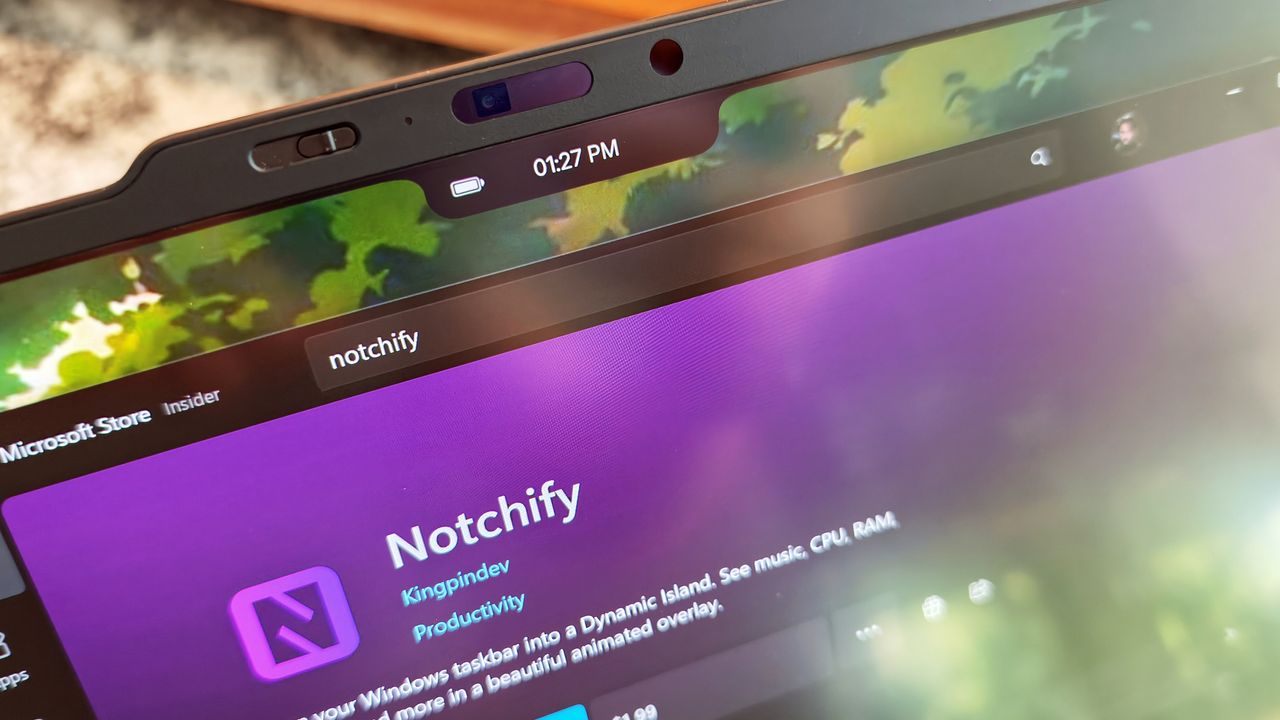
But curiosity won. I downloaded it from the Microsoft Store, tried the free trial, and within minutes I realized something—this indie app actually makes the concept work in a way that feels right on a PC.

That said, if you're a bit horrified at the idea, I mean, I totally get it. But hear me out.

What Notchify does

At its core, Notchify is pretty simple. The app creates a “fake” notch or “island” at the top of your screen. And yes, its functionality is what actually saves it. You can use it to display notifications, media playback controls, weather, battery, timers, microphone indicators, and more.

There's even a built-in clipboard for copied content and quick access.

You can see some of it in action in the above embedded video.

The settings are straightforward. You can toggle between Island (disconnected) and Notch (connected) modes, pick which monitor it appears on, and decide if it should launch at startup.

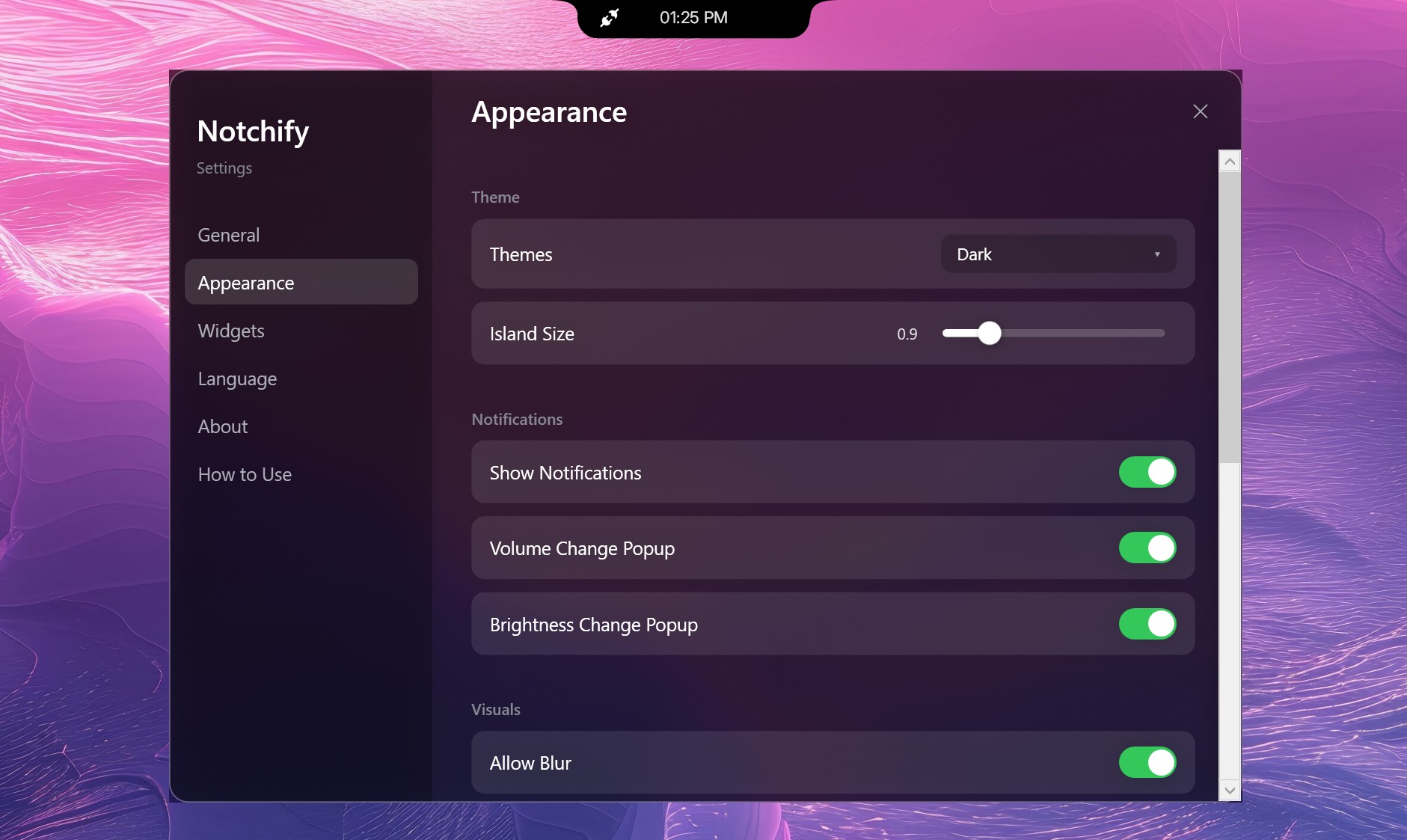
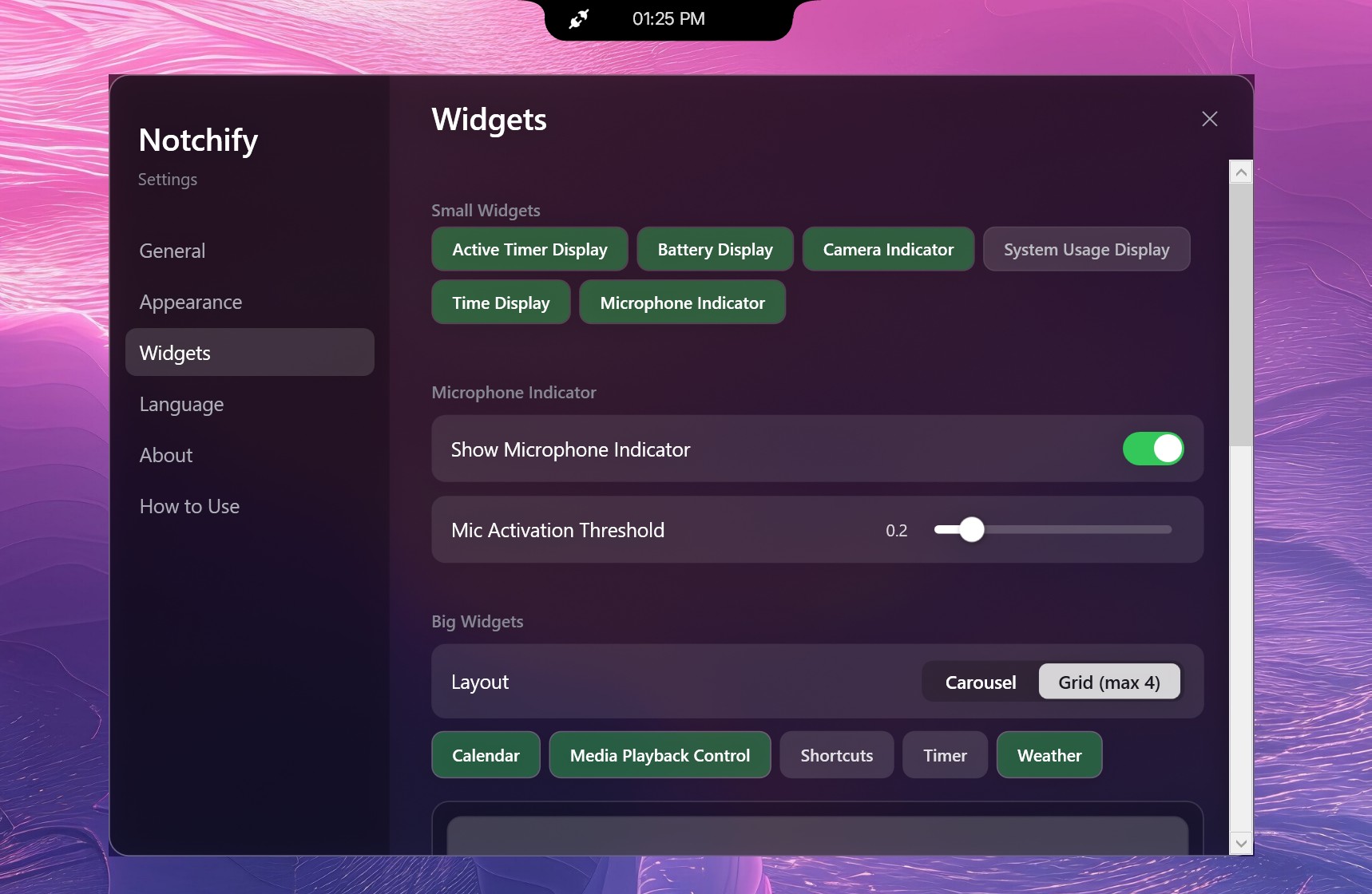
The Appearance tab lets you adjust the theme, blur, and popup behavior for volume or brightness changes. The Widgets section is where the fun begins, as you can mix and match small widgets like battery display, time, and microphone indicators, or go big with calendar, weather, and media playback.

The notch lives on your PC as "always on top," and when you mouse over it, it expands with whatever info you chose it to display. The animations are a bit janky, but it works.

It’s clean, modern, and surprisingly polished for an indie project. The dark theme looks great.

Why I ended up liking it (mostly)

The Notchify settings menu showing the Widgets page with options to customize small and big widgets like battery, microphone indicator, and media controls.

Some of the settings and options for Notchify. (Image credit: Daniel Rubino)

I use a massive 52-inch Dell Ultrasharp monitor, and one of the downsides of that much screen real estate is that my eyes are constantly darting around for notifications, time, or playback controls.

Notchify fixes that by putting everything in one place.

I still don’t love the idea of a notch (it’s not my aesthetic), but I can’t deny how practical it is. Having a small, centralized hub for quick info saves me from scanning the corners of my display. It’s one of those things that quietly improves workflow without demanding attention.

And if you've listened to me on our podcast, you know my big beef with Windows 11 is how I can't adjust where notifications appear from, which seems dumb in 2026.

For anyone switching from macOS to Windows 11, Notchify might even make the transition easier. It brings a familiar visual cue while adding more flexibility than Apple’s version ever offered, and that's kinda cool.

Probably the most obvious issue is that Windows 11 doesn't "wrap" around the app, so when running apps full screen (like your web browser), you may end up blocking access to some features. And no, you can't move it around, which was a bit surprising.

The best part of this story isn’t just the app; it’s the community that helped shape it. On Reddit, user GuppyFarmer posted a detailed breakdown of Notchify’s CPU usage, pointing out that it was higher than expected. Instead of brushing it off, the developer responded, thanked them, and used the data to fix the issue.

That kind of interaction is what makes indie development fun. Constructive feedback, not just complaints, helps these projects grow. GuppyFarmer’s analysis gave the dev exactly what they needed to optimize performance, and the result is a smoother, more efficient app for everyone.

Too often, feedback online turns into negativity. Here, it turned into progress.

My takeaway

The Notchify settings window open to the Appearance tab, featuring dark theme selection, an island size slider, and notification pop-up toggles.

More options for theme and design in Notchify. (Image credit: Daniel Rubino)

The app costs $1.99 after the free trial, which feels completely fair for what it offers. It’s not bloated, it’s not subscription-based, and it’s updated based on real user input. That’s the kind of indie pricing model I’ll always support.

I still don’t want a notch on my laptop or desktop, but Notchify convinced me that the idea can be useful when done right. It’s a small, clever utility that adds genuine functionality to Windows, and maybe it'll inspire some other creations to solve some problems.

And hey, it proves what many of us already know: good ideas don’t have to come from big companies. Sometimes, a single developer with a Reddit post can create something that feels fresh and helpful.

If you’re curious, give the free trial a spin. You might find yourself liking it more than you expect.

Click to join us on r/WindowsCentral

Join us on Reddit at r/WindowsCentral to share your insights and discuss our latest news, reviews, and more.
  •  

We now know exactly when uBlock Origin will stop working on Microsoft Edge

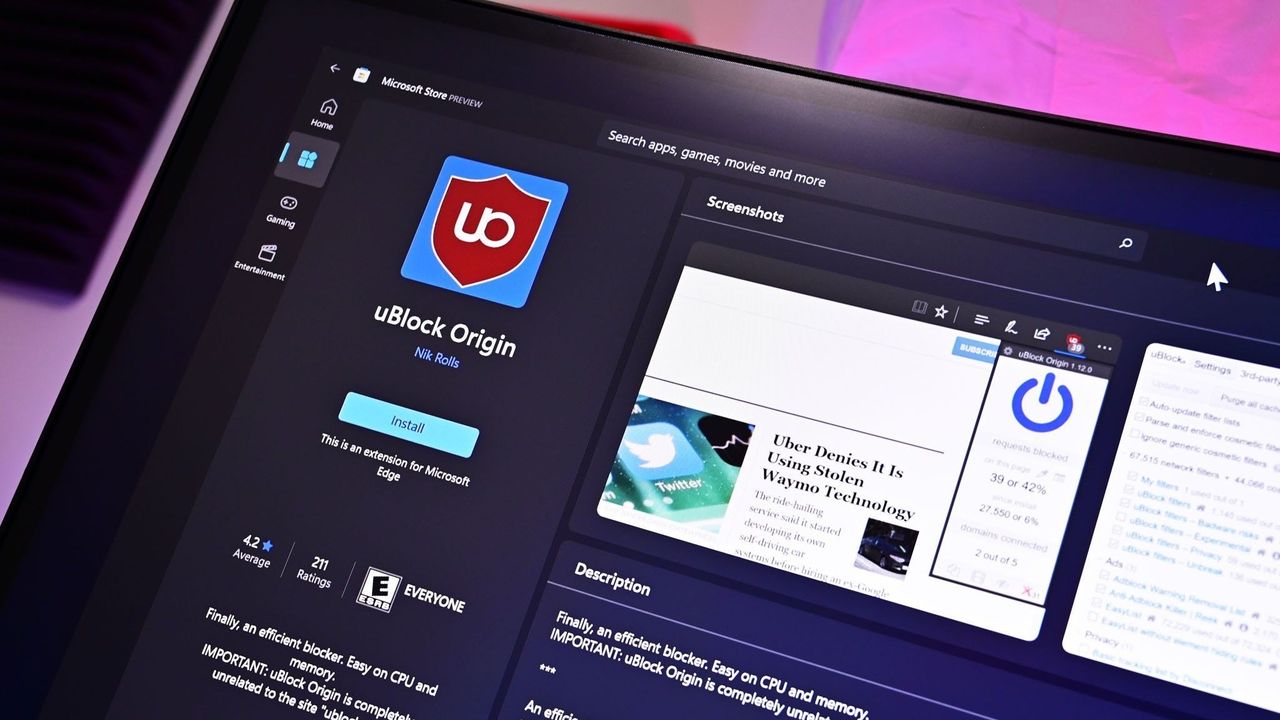
If you use uBlock Origin on Microsoft Edge, it's time to start looking at alternatives. Microsoft has shared a timeline for the transition away from Manifest Version 2 (MV2) extensions. That transition will end support for uBlock Origin on Edge, alongside a small group of other extensions.

Microsoft aims to fully transition consumers away from MV2 extensions by the end of 2026. Some users will start seeing notices about the change this month (August 2026). Microsoft will then gradually turn off MV2 extensions by default over the coming months.

Enterprise users will be transitioned away from MV2 extensions in 2027.

It's not a surprise that MV2 support is being discontinued. In fact, the surprise is that we finally have a confirmed date for the end of support. Microsoft has had MV2 support on the chopping block for ages but had not committed to a firm cutoff date.

Blank Pixel

MV2 and its replacement Manifest Version 3 (MV3) are extension platforms that developers can build upon. There are technical differences between the two, the most notable is that MV3 limits the WebRequest API, which allows ad blockers to dynamically intercept and block network requests before they load.

Since Edge is built on Chromium, which is Google's open-source engine, Google pushing MV3 affects Microsoft Edge.

This shift to MV3 is not arbitrary; there are practical benefits to the switch. MV3 is more secure and provides better performance than MV2. Some believe the transition to MV3 is being pushed to give Google more control over ads on the web, though that is up for debate.

The end of MV2 support will affect several extensions, but the biggest one is uBlock Origin. I suspect few would care about the end of MV2 support if uBlock Origin were unaffected.

Microsoft states that 95% of the top MV2 extensions in the Edge Add-ons store have been moved to MV3. There are only 58 MV2-based extensions in the Edge Add-on Store at all. Only three of those MV2-based extensions do not have MV3-based equivalents available.

There is a version of uBlock Origin that works with MV3, though it's uBlock Origin Lite. That extension lacks some of the granular controls of the full version. It also works differently in the background, hiding most content rather than preventing items from loading.

Many people could replace uBlock Origin with uBlock Origin Lite without issue, but power users could struggle with the change. Some people plan to switch browsers before changing ad blockers.

Mozilla Firefox still supports the tech needed for uBlock Origin to function. Brave committed to keeping MV2 extensions working as well.

Click to join us on r/WindowsCentral

Join us on Reddit at r/WindowsCentral to share your insights and discuss our latest news, reviews, and more.
  •  

I can't wait to use this new Outlook feature to rearrange my schedule

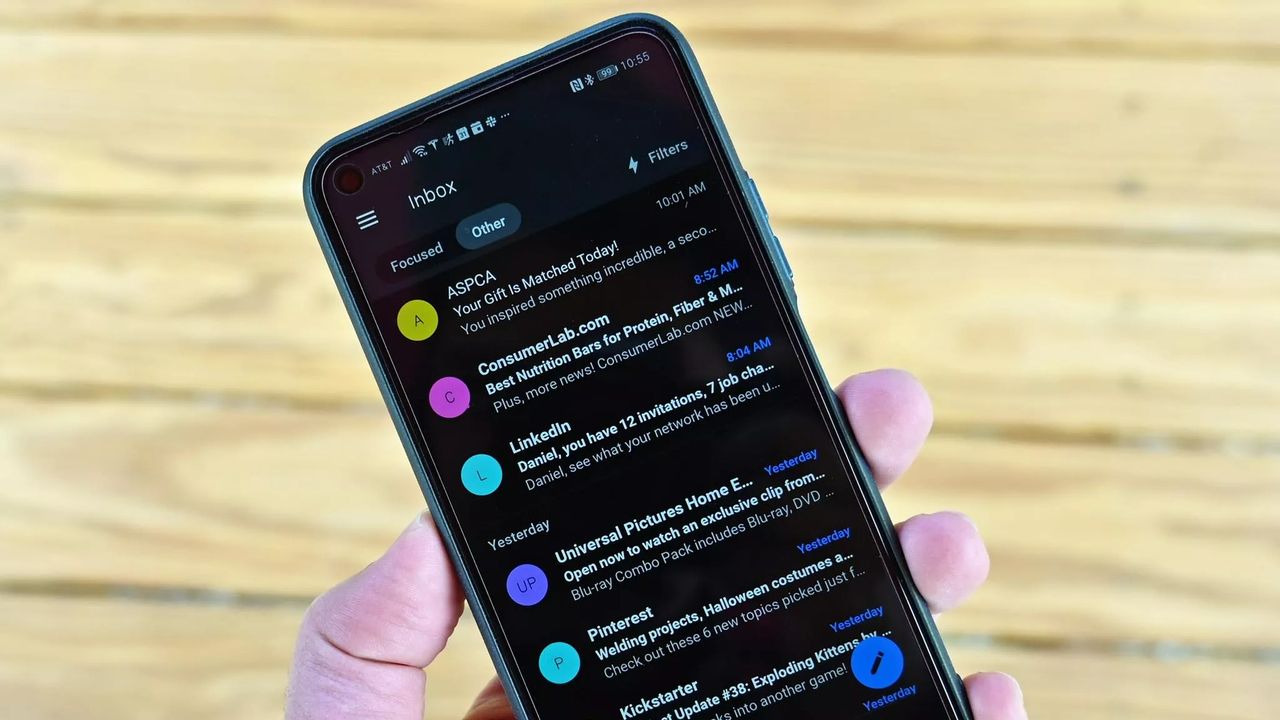
Microsoft Outlook has a handful of changes in the works that will make it easier to stay on top of emails and events. Some of the upgrades, such as drag and drop support for rescheduling events, will change how you interact with Outlook, while others are smaller upgrades.

All of the improvements are detailed on the Microsoft 365 Roadmap. I've taken five of the most exciting entries from that roadmap and gathered them in the chart below.

Feature

Description

Rollout Start

Platform

Filter messages by events

You can now filter your messages for calendar invitations. Simply go to the filter and select Events from the drop down.

August 2026

Android and iOS

Copilot Chat pop-out for Outlook for Mac and iPad

Copilot Chat remains accessible within an Outlook app window but now can also be popped out to float over the main Outlook app window. Popping out Copilot Chat allows people to switch contexts or have more space for what they are working on in Outlook and control the space and form that Copilot Chat takes on screen. When you open Copilot chat and click the pop-out button, Copilot will open separately over the main Outlook window.

August 2026

iPad and Mac

Drag and drop

You can now reschedule events by dragging them to a new time slot in your calendar. This feature is available in day and multi day views.

August 2026

Android and iOS

Insert signature image from OneDrive

Users can now insert images into their email signature directly from OneDrive, in addition to the device photo library.

August 2026

Android and iOS

All day events to show up more clearly in the Mail module calendar preview

We're making it easier to tell when receiving meeting invites that conflict with scheduled Out of Office time or Busy All Day events, on Outlook Web and Outlook for Windows.

August 2026

Desktop and web

Being able to filter messages to only show those with calendar invitations will save me a lot of time. I get a lot of calendar invites from my wife to coordinate our schedules, but I also get a lot of emails from my wife about other things.

After finding those events, I'll be able to move them around in Outlook by dragging and dropping them. Since we have a young child, we often need to move things to different times of the day to align with naptime. I wish drag and drop support was on the way to the web version of Outlook as well, but the roadmap entry only mentions iOS and Android.

Which features would you like to see added to Outlook? Are there any improvements on the way that you're especially excited about? Let us know in the comments!

Blank Pixel

Click to join us on r/WindowsCentral

Join us on Reddit at r/WindowsCentral to share your insights and discuss our latest news, reviews, and more.
  •  
❌