❌

Reading view

I wanted to love this weird foldable mouse from Logitech, but its underwhelming ergonomics and performance left me feeling disappointed

Logitech Mobi Fold review

The Logitech Mobi Fold is, without question, the weirdest mouse I have ever used in my life.

This tiny, foldable travel mouse is focused on one thing above all: portability. Just like a clamshell phone from the noughties, it can fold in half, allowing you to easily slip it into your pocket if you’re working on the go. But even though the Logitech Mobi Fold’s exceptional portability is its clear USP, I have to ask… is it actually that necessary?

After all, a lot of mice are already highly compact, and if you’re working on the go, you’ve probably got a bag to hold your laptop or tablet, right? I’d bet that your bag can fit a laptop and a mouse, so arguably, the thing that makes this mouse so special isn’t actually that game-changing.

Still, the Mobi Fold has a few interesting features to run through, and you’re surely curious as to how such a strange model feels in use. So, after using the Logitech Mobi Fold as my main mouse for a few days, here’s how I’d rate it — and whether I think it can compete with the best mice around.

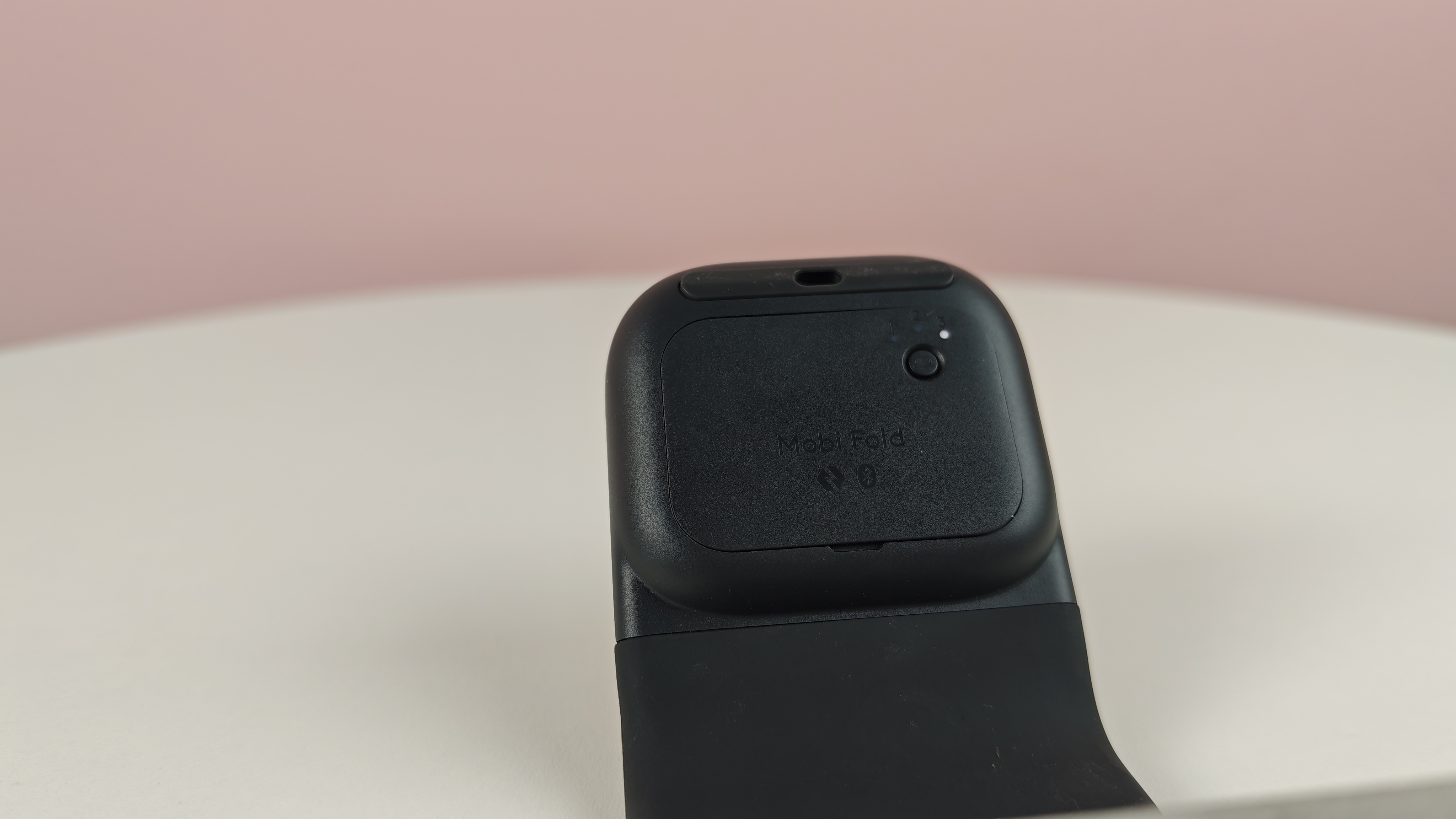
First things first, the Mobi Fold is incredibly easy to get set up. There’s a sync button on it that makes linking up to a windows laptop, Mac, or Android device incredibly seamless. There’s also an easy switch feature, making it incredibly speedy to flick between a range of devices.

But after I got set up with the Mobi Fold, and started using it to get some work done I have to say… it wasn’t amazing.

The Mobi Fold exhibits a few key issues that make it feel inferior to a standard compact or productivity mouse. First of all, it has a slightly bizarre build. Its V-shape form makes it feel awkward to grip, and when using it for extended periods, this caused me to feel some discomfort in my hand. It lacks the ergonomics of my everyday mouse, the Razer Viper V3 Pro, and even lacked its fluidity, meaning moving it across my desk felt clunky.

In addition, the touch-controlled scrolling is a bit inconsistent. It doesn’t provide the same tight control of a traditional mechanical scroll wheel, and again feels a bit lacking in terms of fluidity. Don’t get me wrong: it’s totally functional, but if you want the smooth, precise scrolling of a traditional mouse, the Mobi Fold may leave you wanting more.

My final critique is on the feel of the left and right buttons. While these are serviceable, they felt more stiff than I expected them to, especially towards the back and middle of the model. I did appreciate the muted sound of clicking the left and right buttons, but I wish they felt a bit more sensitive.
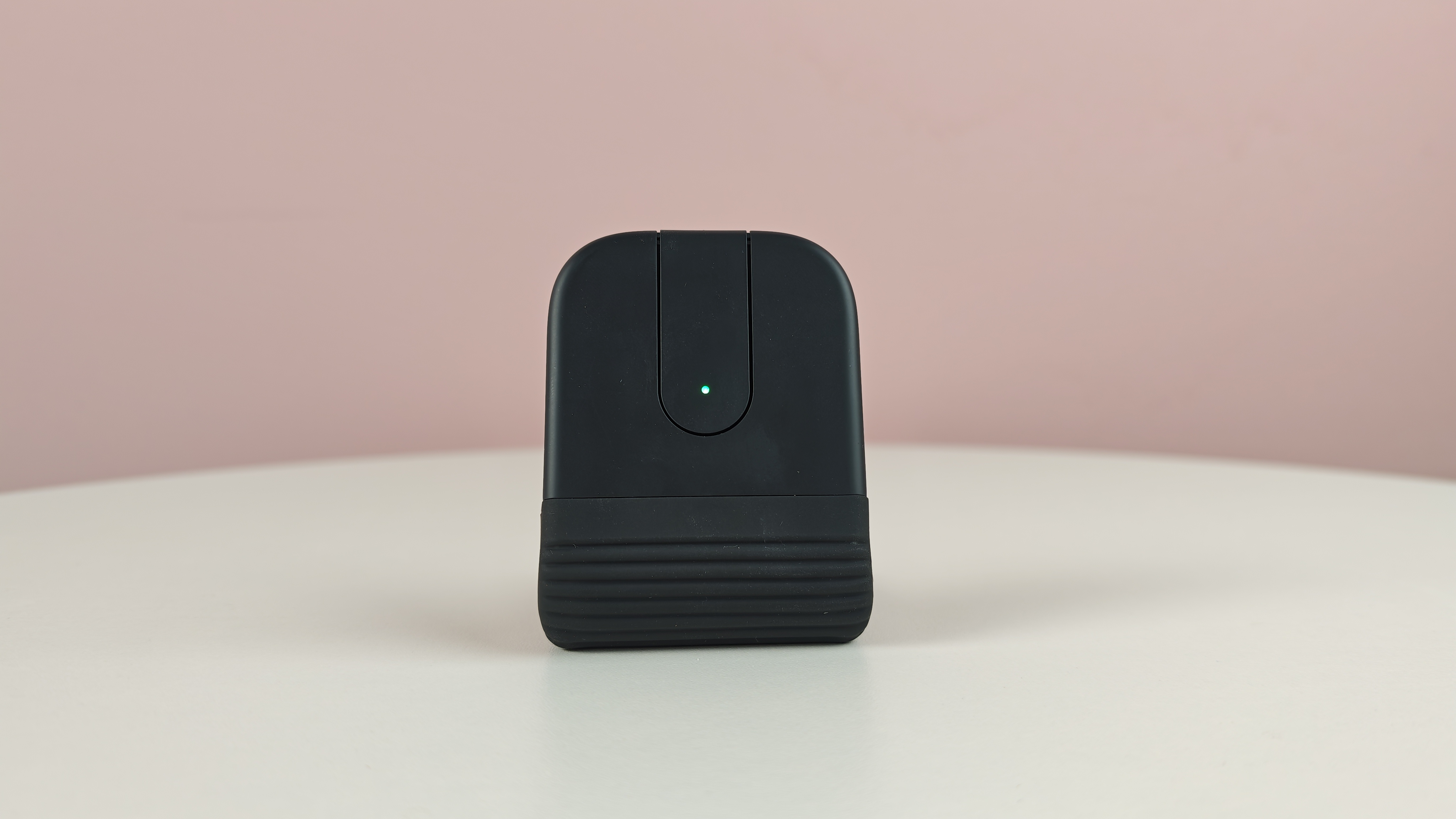
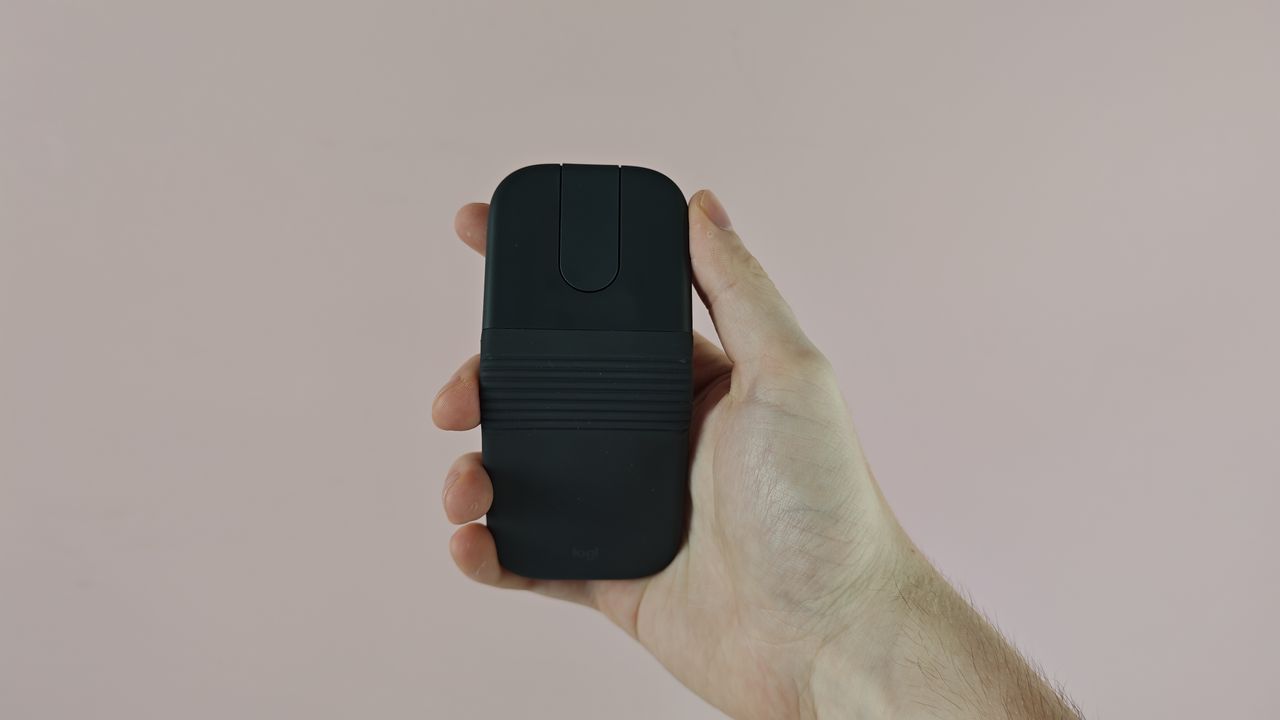
Logitech Mobi Fold half folded

(Image credit: Future)

Despite all of this, there are some clear positives worth pointing out. First of all, the mouse offers great battery life. It supplies about 22 hours of continuous use, which easily got me through the work week, meaning I didn’t need to charge it at all during the testing period. Having said that, Logitech says that you can get an extra three hours of use from just one minute of charging, making it exceptionally practical for someone like me who often forgets to juice up their devices.

In addition, the Mobi Fold features customizable button controls through the Logi Options+ app. This enables you to adapt pointer speed, set the central touch panel to different functions (like paste, volume controls, or a keyboard shortcut), and more.

In terms of design, I’m also a fan of the rubbery texture of the mouse, which is very pleasant to the touch. It’s also worth noting that 36% of the plastics used in the Graphite colorway of the mouse I used are made from recycled materials. It’s 29% for the Lilac and Off-White variants, which look pretty stylish in my opinion.

Look, the Logitech Mobi Fold does well to stand out from the crowd. Its lightweight and foldable design undoubtedly makes it easy to travel with — even though I’d argue that standard mice are probably portable enough as they are. In addition, the customizable buttons, long battery life, and satisfying feel of the mouse are clear positives.

But for $79.99 / £69.99 / AU$129.95, the Mobi Fold ends up feeling like a relatively poor value for money option. Really, that comes down to one thing: its lackluster performance. With underwhelming ergonomics, as well as slightly stiff scrolling and buttons, the Mobi Fold feels like an idea that’s far more impressive in concept than it is in practice.
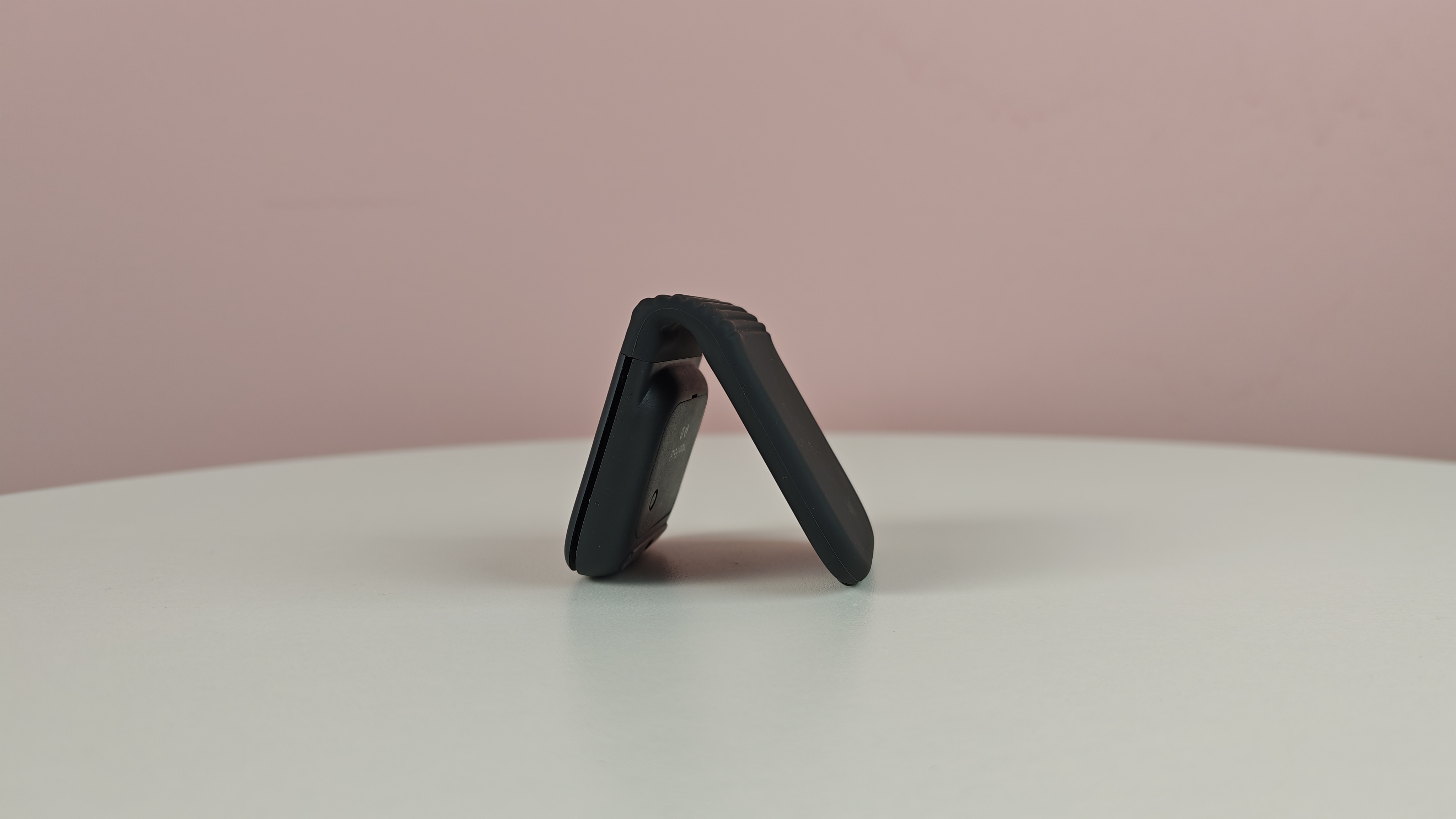
Logitech Mobi Fold half folded on table

(Image credit: Future)

Logitech Mobi Fold review: price & release date

  • $79.99 / £69.99 / AU$129.95
  • Released in June 2026
  • Available in four colors

The Logitech Mobi Fold released in June 2026, carrying a list price of $79.99 / £69.99 / AU$129.95. That price means it’s competing in the same price bracket as great models we’ve tested, such as the Keychron M6 8K, but a lot more than our favorite ultra-compact mouse, the Logitech Pop Mouse. It's available in four colors, including Graphite, Off-White, Lilac, and Sand.

Logitech Mobi Fold review: specs

Interface

Bluetooth 5.1 LE

Battery life

22 hours (continuous use)

Buttons

4

DPI

4,000

Switches

Not stated

Weight

2.8oz / 79g

Pairing button on the Logitech Mobi Fold

(Image credit: Future)

Should I buy the Logitech Mobi Fold?

Attribute

Notes

Score

Design

Lightweight and foldable for travel, nice material and color options, but poor ergonomics.

3/5

Performance

Functional, though clicking feels a bit stiff, touch scroll panel isn’t most precise, and uncomfortable for longer usage sessions.

2.5/5

Value

Simply too expensive for the quality on offer.

2.5/5

Buy it if…

You want something ultra-portable
Perhaps the main attraction of the Mobi Fold is its ultra-compact form factor. If you want something you can slide into your pocket for on-the-go use, it doesn’t get much more convenient than this.

You want a stylish mouse
One thing I won’t deny about the Mobi Fold is that it's pretty stylish. Its foldable design, its enticing color options, and its appealing silicone exterior all work in its favor.

Don’t buy it if…

You want top-tier ergonomics
The slightly odd shape of the Mobi Fold can make it a little awkward to grip and use for longer periods, meaning it's not the best option if you value great ergonomics and comfort.

You’re looking for precise performance
The Mobi Fold uses a touch sensor for scrolling, and it just doesn’t feel as precise as a typical mechanical scroll wheel. Pair that with slightly stiff left and right buttons and its unorthodox feel, and it falls short of some major competitors in its price range.

Logitech Mobi Fold review: also consider

Logitech Pop Mouse
Logitech knocked it out of the park with the Pop Mouse, which is one of our favorite compact models you can buy. With satisfying clicks, good customization options, and easy switching, it's a certified hit — especially when you consider its modest asking price.

Keychron M6 8K
This one’s a little different, but if you have the budget to grab the Mobi Fold, then you may want to consider a model like the Keychron M6 8K instead. It boasts a lightweight feel, 8K polling, fantastic ergonomics, and a feature-rich companion app, making it a brilliant all-rounder.

How I tested the Logitech Mobi Fold

  • Spent days using it as my main mouse
  • Tried out its various features
  • Took on the go to test its travel credentials

I spent multiple days testing the Logitech Mobi Fold, using it as my main mouse in the office and when working from home.

During my time with the Mobi Fold, I used it for general productivity, exhausted its various features, and even took it on the go to assess its on-the-go credentials. I typically had the mouse connected to my Windows PC, but I also tried it out with an Android phone.

More generally, I’ve spent years testing gadgets here at TechRadar, where I serve as an in-house Senior Reviews Writer. I’ve tried out a wide array of computing accessories, such as the Turtle Beach Command Series KB7 keyboard, as well as gaming gear, premium wireless headphones, power banks, and more.

  •  

How to choose your first mechanical keyboard — and why it's simpler than the internet wants you to think

Go onto any forum or mechanical keyboard subreddit these days, and it can be a minefield as to what people recommend. It's an essential wall of noise with regards to size, shape, switch type and even more that can be daunting if you're a first-timer or you're someone getting back into the hobby after years of being out of it.

I was speaking to a fellow tech journalist at Computex 2026 a few months ago, and he raised this exact point with me. After being out of the hobby for several years, he'd come back to find it being more confusing than ever before, which completely switched him off.

Likewise, I've often thought we've reached a state of choice paralysis compared to where the hobby was, say, a decade ago. Back then, you had only a handful of switch choices, and while we've since seen the democratisation of hot-swappable sockets, machined aluminium chassis and open-source software, it can be horribly overwhelming when it comes to the decisions that actually matter — layout, switch feel, and budget.

Before I go any further, let me give you my credentials – I've been a tech journalist for the best part of a decade, reviewing keyboards from brands big and small, and I've been involved in the mechanical keyboard hobby since before it hit the mainstream. I've seen this market go from a small niche to something that can feel genuinely impenetrable if you're coming to it fresh.

To be truthful, it doesn't have to be that complicated. Underneath all of that noise, choosing your first mechanical keyboard still comes down to a few simple decisions, which I'll guide you through below.

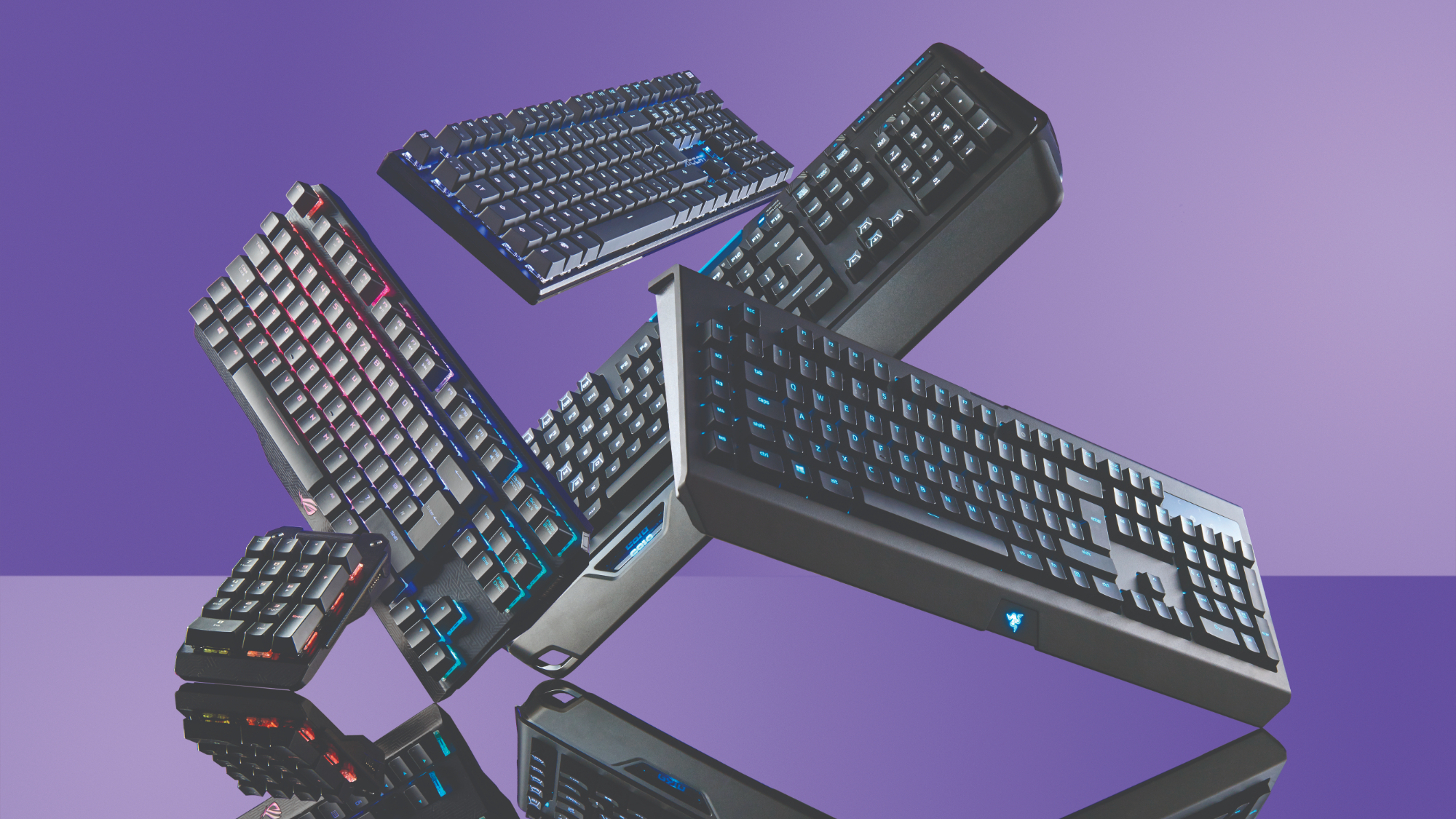
A range of gaming keyboards

(Image credit: Future)

1. Pick a size

It might seem a bit of a strange, but a good starting point is thinking about what size of keyboard you'd like. I don't mean the physical dimensions of the 'board, rather the layout and arrangement of the keys.

Keyboards can come in all shapes and sizes, ranging from the typical full-size 100% down to ridiculously tiny 40% keyboards. So, let's divide them into categories.

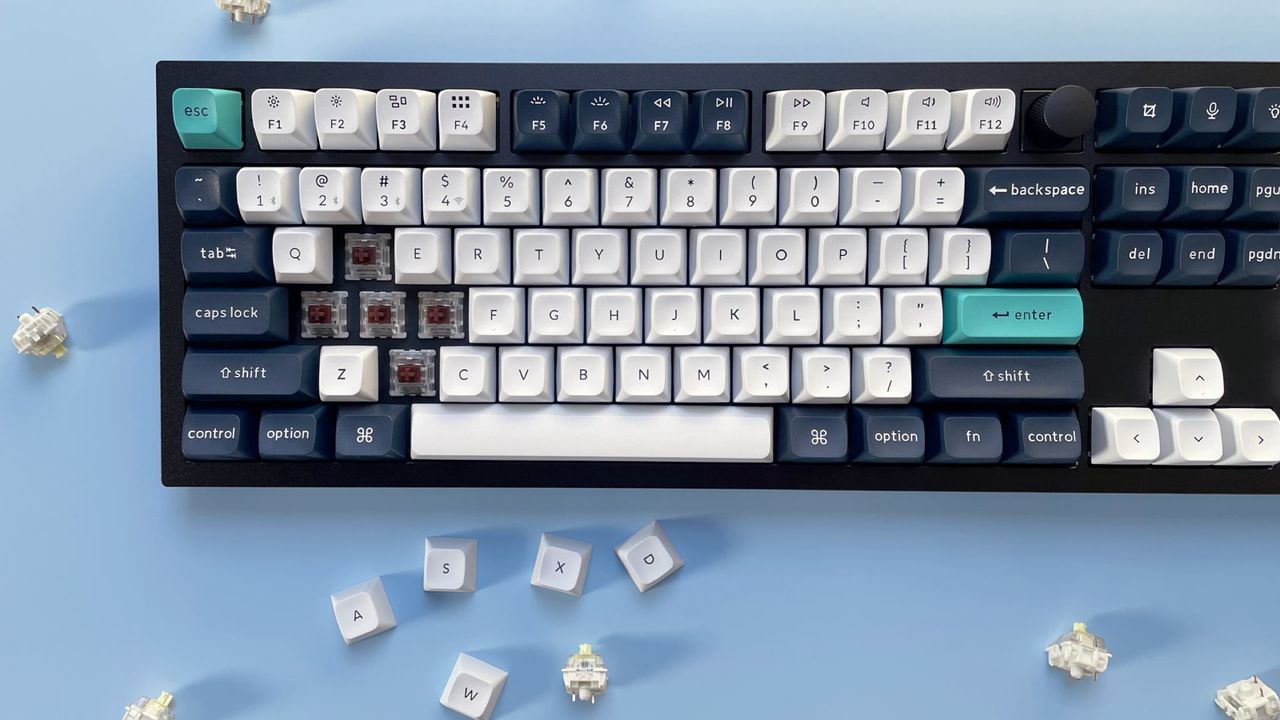
Firstly, we've got between 60% and 65% layouts, which eschew a lot of features, such as a function row, nav cluster and number pad in the name of saving as much desk space as possible. These layouts have been popularised by gamers who need desk space for sweeping mouse movements and find the elements mentioned above quite redundant. Between the two, a 65% layout adds arrow keys and some navigation keys, which I think are non-negotiable for productivity work, but your mileage may vary.

Moving up a tad, we go to between 75% and TKL, or tenkeyless, keyboards. These bring back the function row and navigation cluster, giving you a lot more functionality than smaller layouts, while still chopping off the number pad. Personally, this is my favourite option, and I think a strong middle ground if you want to save space without sacrificing too much. I use this kind of layout a lot of the time, for what it's worth.

Then, you can go bigger, up to 96% and full-size 100% options that give you everything and the kitchen sink, number pad and all. It's what you're most likely used to, and if the number pad has become non-negotiable, then it's one of your only options. Opting for a 96%, also known as a '1800 layout', keyboard can give you the number pad while moving some keys around to save a little bit of desk space, if you want a slight compromise.

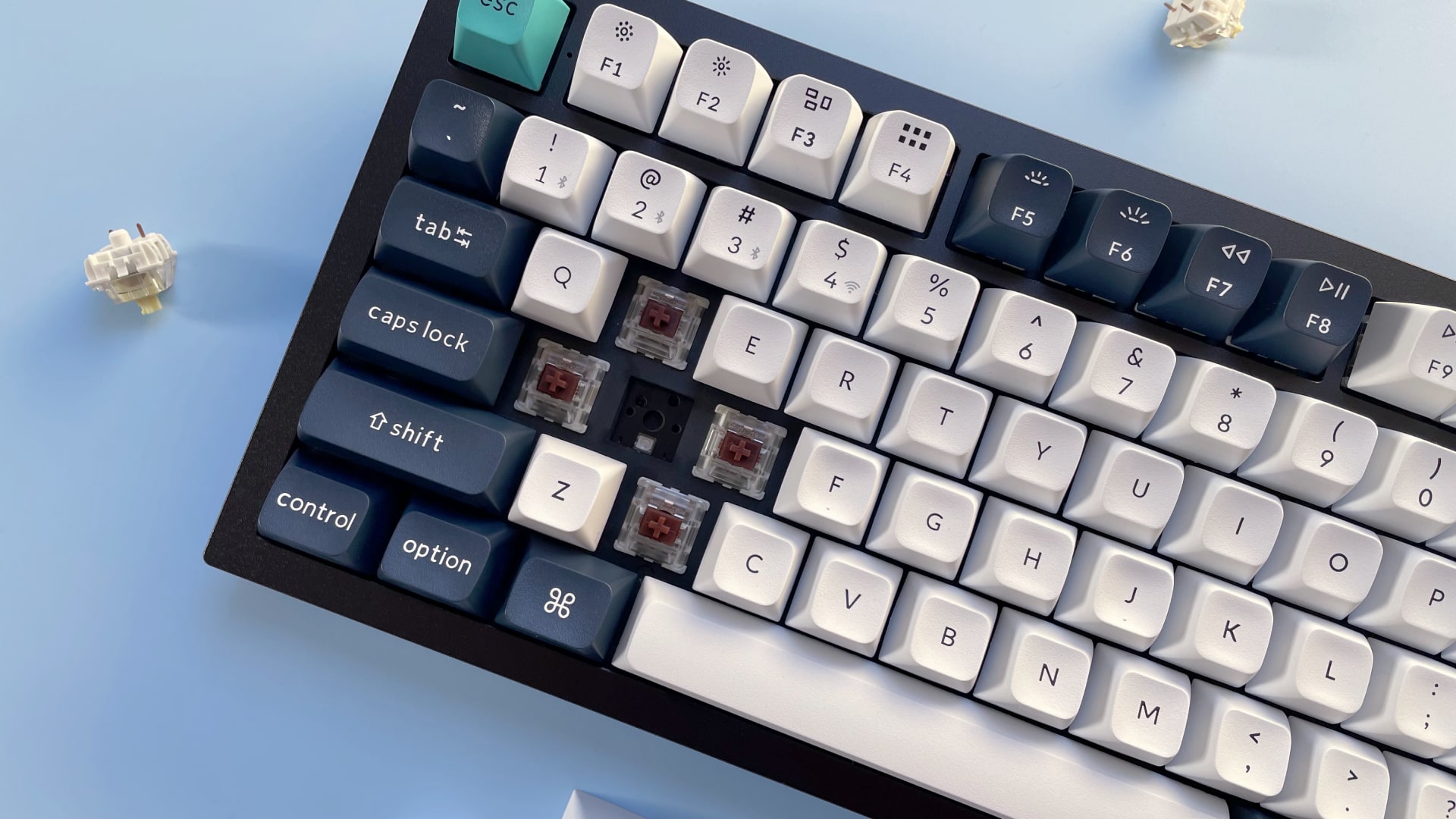
The Keychron Q6 Max mechanical keyboard against a blue background.

(Image credit: Future / Alex Blake)

2. Pick a switch

This is perhaps the most difficult section, as each switch feels different, and we've got so many options these days it can be hard to know what's best for you. Muddying the waters further, the old color categories aren't quite as clear cut as they used to be.

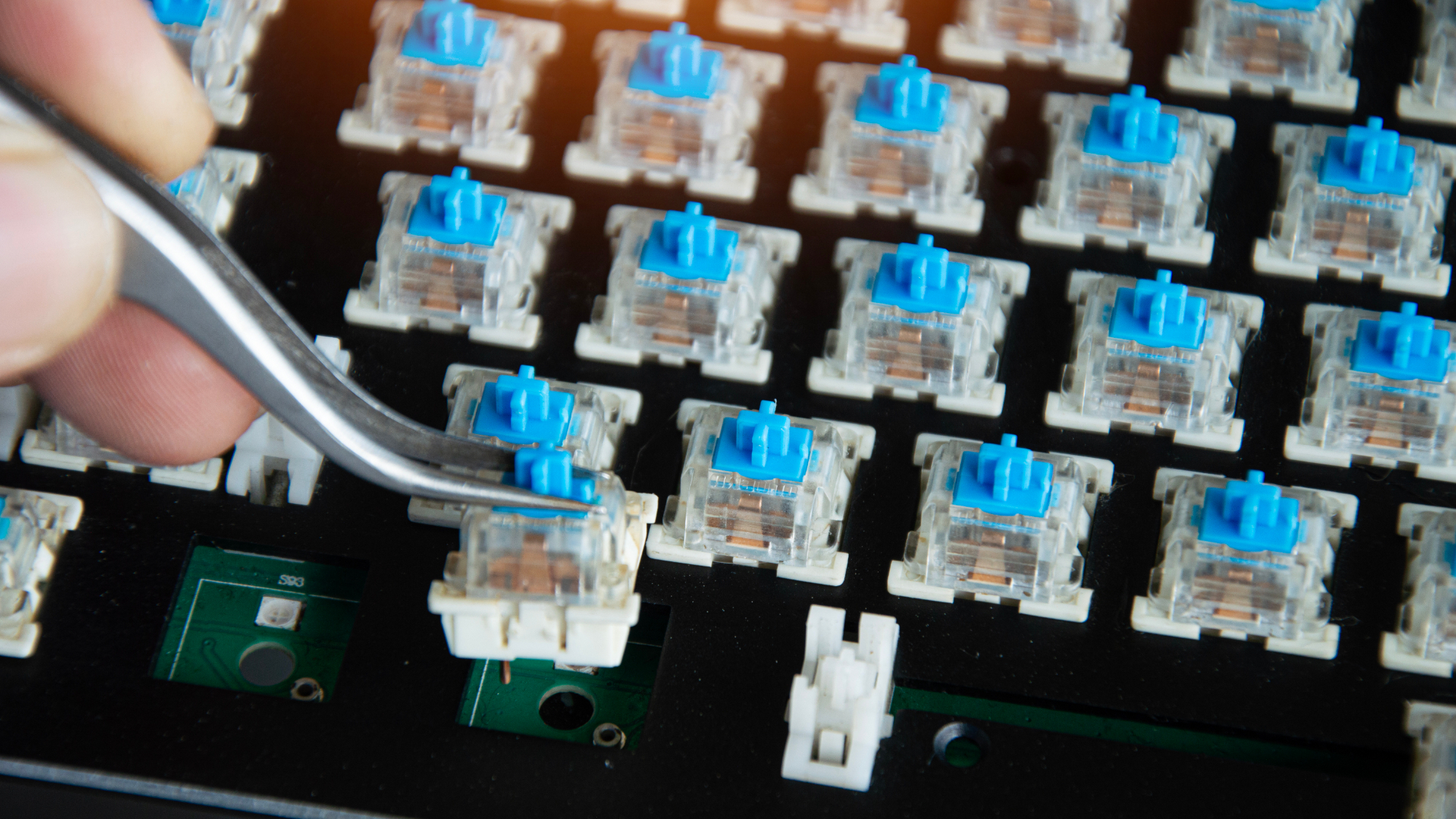
For instance, a Red switch would usually be light and linear, a Black switch a heavier linear switch, a Blue switch tactile and loud with an audible click and a Brown switch soft tactile, with a slight bump halfway down the keypress.

Now, however, we've got switches named after everything from all the colors of the rainbow to planets, birds and more besides, and it can be so difficult to understand the minutiae behind how each switch feels.

My genuine advice is to order a switch tester – there are lots of them floating about on the internet – which can give you a range of different types of switch in one convenient place, and help you decide what you like.

Macro photo of blue mechanical keyboard switches

(Image credit: Thedavidpen / Shutterstock)

When you've selected a tester, pay attention to how each switch feels – the worst thing you can do is bash each of them in turn with as much force as you can. Pay close attention to how it feels under finger with regard to consistency of the operating force as you go down the travel, and whether you like something that's linear with a smooth keypress or tactile, be it with a click or a bump.

Once you've honed in on a switch you like, then you can do some digging into which keyboard features those switches. Or, if you're up for a little bit of work, then you can pick up a bare-bones chassis with a hot-swappable PCB – this means it comes with no switches or keycaps, which you'll need to supply yourself.

Going for something hot-swappable is a key piece of advice I think – it saves the hassle of soldering, and gives you more freedom and choice. It's also dead easy to assemble a keyboard this way, even if you haven't done it before. Each switch will have little pins on the underside – line these up with holes in the PCB and push straight down until you hear it click into place. I recommend picking up more than enough switches to give you some spares in case you bend pins when putting them into the hot-swap sockets on the PCB.

The point here is that everybody has a different preference for switches and how they feel. There are other considerations, such as lubrication, which can make a switch feel smoother, and the acoustics of a case and how this plays into the sound signature you'd like, but that's getting into the weeds a little. It's important to make sure your case doesn't have any rattle or ping and has some form of sound dampening, but that's as far as I'd go at this point.

Top view of the replaceable keyboard keycaps

(Image credit: tanit boonruen / Getty)

3. Set your budget

Pricing is arguably as integral as any other point of consideration for choosing a keyboard, as your budget can decide what kind you end up getting. It's worth going in with a list of features you'd like; good things to look for include PBT keycaps, good wireless connectivity and a sturdy chassis.

It's possible to get some excellent affordable choices (i.e. around £50–£70 / $60–$80) that seem to pack in everything when it comes to features: hot-swappable switches, versatile wireless connectivity, addressable RGB lighting and all the rest of it, but outside of a few options, some seem to sacrifice build quality by being mostly plastic, which can feel quite cheap and scratchy. At this tier, I'd do your research carefully and lean towards boards with a reputation for punching above their weight rather than just grabbing whatever looks good on paper.

Spending a little more and going into the very low triple figures is likely to net you a strong choice from the likes of Keychron with advanced software support and a machined aluminum chassis. That aluminum build makes a tangible difference in practice — it adds rigidity, dampens unwanted noise and gives the keyboard a solidity that plastic boards rarely match. I'm a great lover of the likes of the Q1 Pro and others from its range, which are an excellent starting point in the mid-range.

Beyond that, you can go further into the hundreds with something fully custom or a pre-built choice from the array of boutique manufacturers you'll find online. This isn't what I'd recommend to someone just starting out in the hobby — rather, it's something to consider if you're already knee-deep and have some spare cash to put towards making something truly personal. But it's worth knowing that world exists, because once you've caught the bug, it's a very natural place to end up.

keyboard

(Image credit: Shutterstock / Roman Samborskyi)

Final thoughts

There are some elements here, such as even more niche layouts, that I haven't even touched on in this article, which proves how deep the mechanical keyboard hobby goes. However, that isn't the point of this article – it's just a (reasonably) quick explainer of key things to look for when you're picking up your first mechanical keyboard.

If you're ready to start shopping, I've looked at plenty of options at a range of prices I feel are worth your time over the years, while the wider TechRadar crew has reviewed hundreds of keyboards that are worth a mention. The Keychron Q1 Pro is a strong starting point (or there's the Q1 Ultra 8K if you want even more features at a premium price). Likewise, at a more affordable price point, the Gamakay TK75 V2 and Epomaker P65 are well-reviewed choices that tick the right boxes in my book. For a more comprehensive overview, our best keyboards guide is regularly updated and a good place to browse.

Ultimately, though, you can go in any direction you want to, and that's the beauty of this hobby. Just stick to some of the advice given here, and you should be in good stead to get a keyboard that's feature-rich, has the feel you're looking for, and at a price that isn't out of your budget.

  •  
❌