Enquanto Images 2 foi um update mais corpulento, o Images 2.5 chega com novidades incrementais (detalhes mais nítidos, geração de imagens até 50% mais rápida, edição mais precisa e ferramentas de criação/compartilhamento avançadas).
ChatGPT Images 2.5—faster, sharper, smarter, with better tools for creating whatever you can dream of.
– Faster image generation to keep your ideas flowing
– Improved fidelity for more natural, recognizable images
Em seu post de anúncio, a OpenAI explicou que o novo modelo produz “luz mais natural” e “texturas mais ricas”, além de seguir instruções de edição mais fielmente ao longo de várias tentativas. Ele também estaria melhor na hora de preservar o assunto principal de uma imagem de referência.
Além dessas melhorias, também foi introduzido o recurso “Sketch”, que permite ao usuário desenhar uma imagem de referência diretamente no ChatGPT, bem como predefinições (templates) de formatos populares de imagens, compartilhamento de prompts e mais.
Some ideas are easier to draw than describe.
Use Sketch to draw right in ChatGPT and show it exactly what you have in mind.
Por fim, a OpenAI anunciou duas versões do Images 2.5 voltada a desenvolvedores: o GPT-Image-2.5 Flare e o GPT-Image-2.5 Sunburst, os quais estarão disponíveis por meio da API 1Application programming interface, ou interface de programação de aplicações. do ChatGPT (com o Flare como opção padrão). Enquanto o primeiro traz uma oferta de recursos mais comum, o segundo é voltado para “workflows visuais premium” que demandam um maior nível de controle.
Use-o [GPT-Image-2.5 Sunburst] para fluxos de trabalho criativos e de edição, como campanhas publicitárias prontas para produção ou imagens de produtos com acabamento profissional.
O Images 2.5 já foi liberado para usuários de todos os planos do ChatGPT, do ChatGPT Work e do Codex em todas as plataformas suportadas.
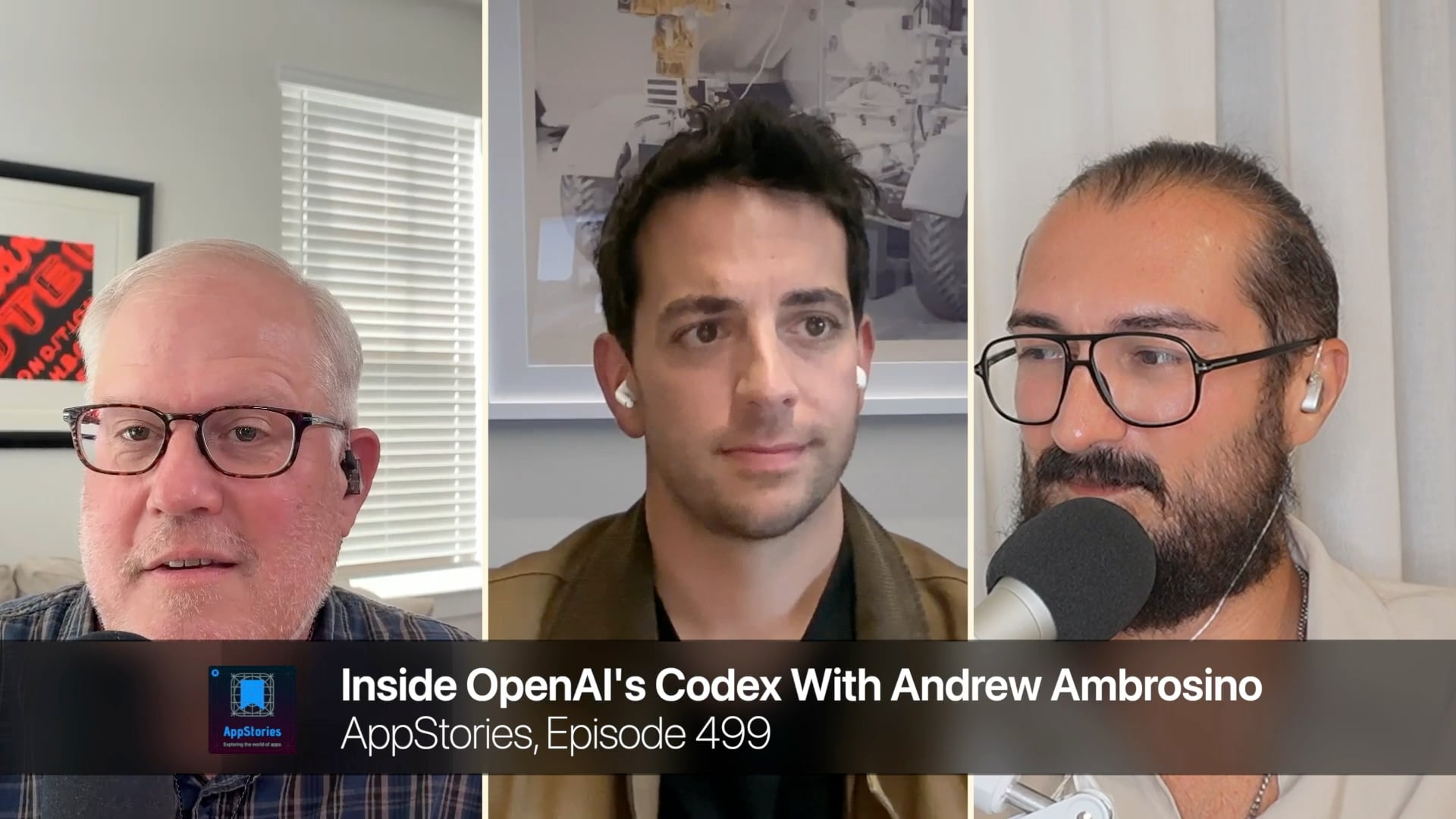
On today’s episode of AppStories, Federico and I interview Andrew Ambrosino, the project lead for Codex. It’s a great conversation that covers a lot of ground, including:
the long history and many iterations of Codex,
the merging of Codex into a new version of ChatGPT based on web technologies,
Computer Use and Computer History, which came along with OpenAI’s acquisition of Sky last year, and
AppStories is available on Apple Podcasts and all your favorite podcast players, as well as YouTube. AppStories+ is a special ad-free, extended version of AppStories that’s delivered a day early in high-bitrate audio for $5/month or $50/year by itself or as part of a Club MacStories Premier membership that adds our weekly and monthly newsletters, app discounts, and other perks for $12/month or $120/year.
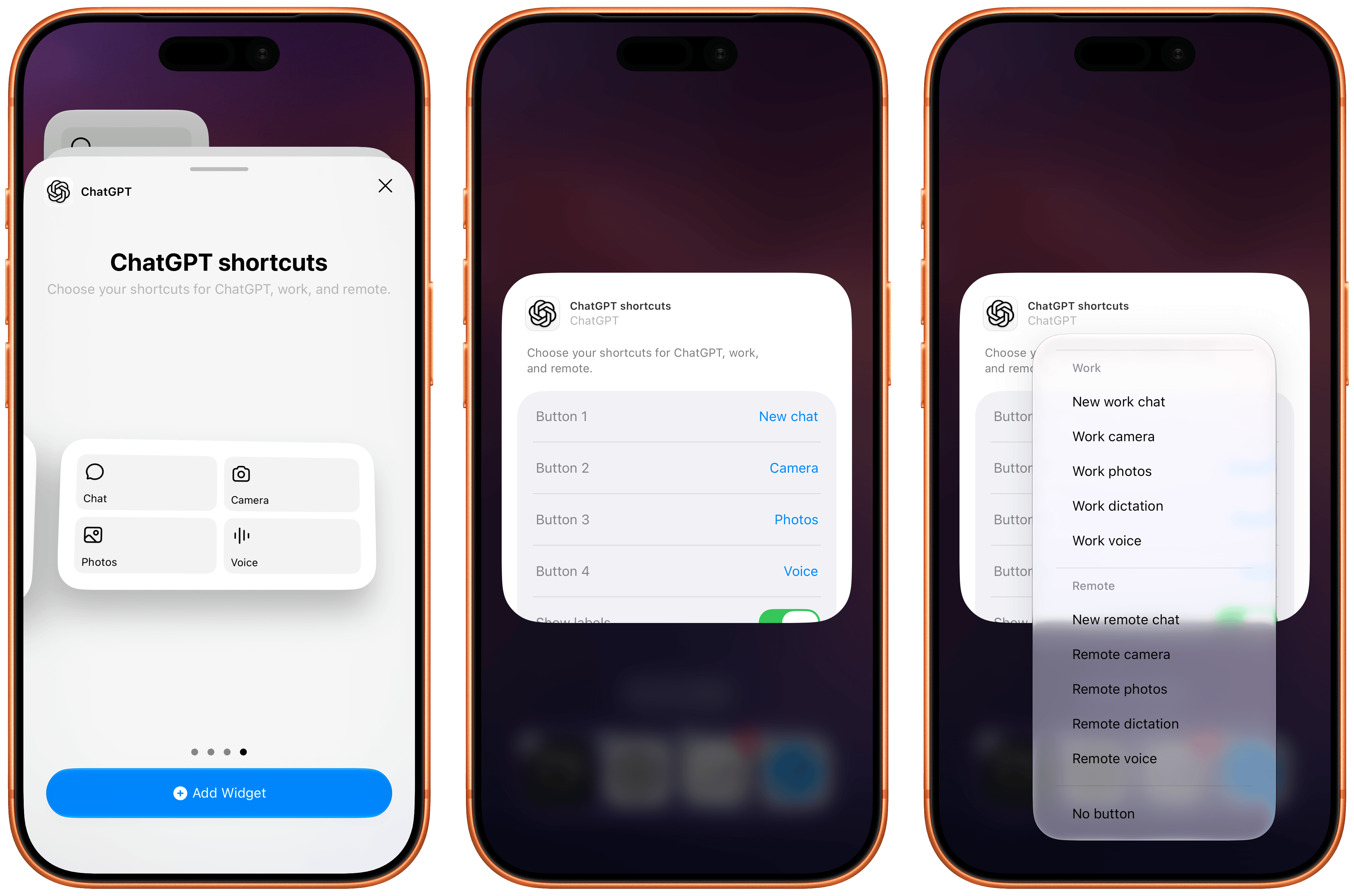
The most recent update to the ChatGPT app for iOS has introduced a new feature that will make those who rely on the company’s AI assistant for work-related tasks quite happy: a customizable widget that lets you control which shortcuts can be placed for convenient access on the Home Screen.
The new widget is called ‘ChatGPT shortcuts’, and it comes in two sizes – small and medium. Alas, the company didn’t add support for large widgets on iPhone yet, nor did they roll out an XL widget for iPad users. I hope more sizes will be coming soon. Unlike the existing ‘ChatGPT’ widget, the new one allows you to personalize which shortcuts are visible on the Home Screen. Once added, long-press the widget, select ‘Edit Widget’, and you’ll be presented with options to choose which buttons you want to show and whether labels should be displayed underneath them or not.
What’s especially nice about these widgets is that they cover the full spectrum of “ChatGPT surfaces” now offered by OpenAI: Chat, Work, and Codex Remote. For each, you can swap default buttons for the following ones:
Chat
New chat
Camera
Photos
Dictation
Voice
Work
New work chat
Work camera
Work photos
Work dictation
Work voice
Remote
New remote chat
Remote camera
Remote photos
Remote dictation
Remote voice
I’m a huge fan of Codex Remote for iOS and iPadOS: as things stand right now in the AI industry, OpenAI’s Remote “app inside an app” for iPhone and iPad is the only intuitive, full-featured solution to start new chats in a remote agent running on macOS directly from iOS and iPadOS. (I am as surprised as everyone else that Anthropic, who were first to the “remote control” space, haven’t shipped a comparable experience in Claude for iOS. Supposedly, that is coming “soon”.)
What do you want to open – Voice or Voice?
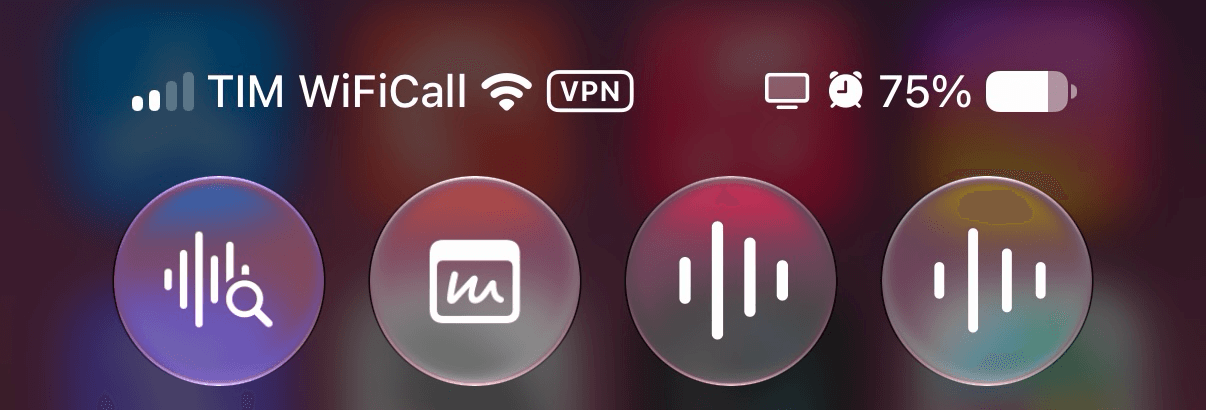
Even more impressively, Remote voice (a version of ChatGPT Voice that runs in Codex on the Mac and lets you have bidirectional conversations from the iPhone while the agent is running on the Mac and orchestrating threads there) can now also be accessed from Control Center and the Lock Screen via a dedicated control. Unfortunately, this control has the same icon as regular ChatGPT Voice (which runs in the cloud, not on your Mac). I know: it can all be very confusing, and I hope OpenAI brings some clarity to these icons soon. On a similar note, I wish OpenAI’s iOS team also offered the widgets’ new shortcuts as proper actions in the Shortcuts app. Right now, these launchers are only available from the Home Screen.
The new customizable widgets are the latest entries in a larger push by OpenAI to improve the performance of Codex Remote on iOS and other design changes for iPhone and iPad users. The ChatGPT app recently received a redesigned ‘latest photos’ picker in Chat and Work modes (long-press the + button in the text box, and you’ll see), a tweaked reasoning selector, and the cloud browser we covered earlier this week on MacStories.
Late yesterday, OpenAI revealed the sort of automation catnip I love: Computer History. It’s a new feature for Pro, Business, and Enterprise subscribers that creates continuity for ChatGPT and Codex by converting the actions you take on your Mac into Markdown memory files that serve as context for subsequent interactions. The idea is that with the additional context, ChatGPT and Codex will better understand your requests, requiring you to provide less detail up front while getting better results. Anyone familiar with OpenClaw, Hermes Agent, and similar projects will know where this is going.
Here’s how it works.
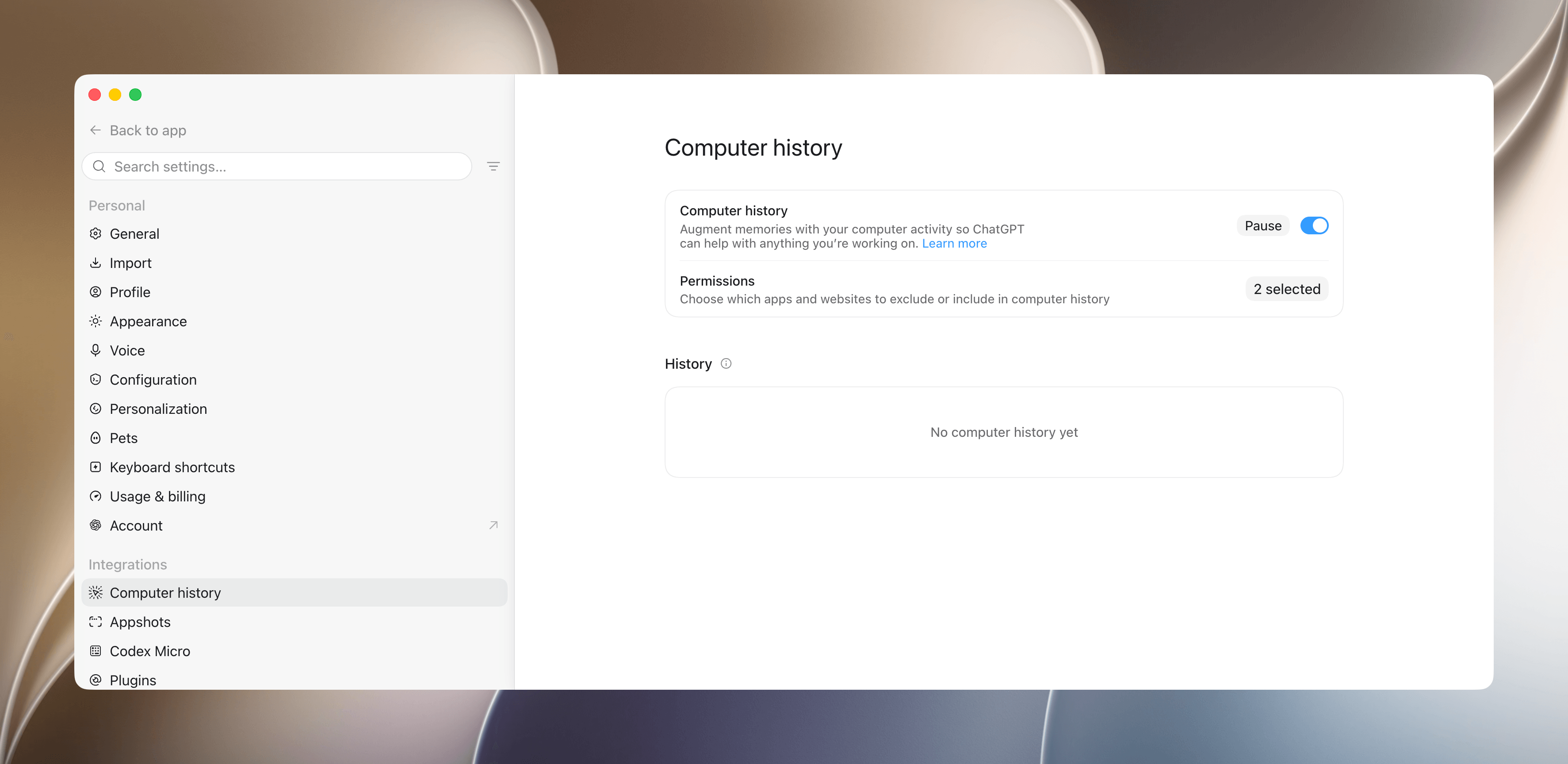
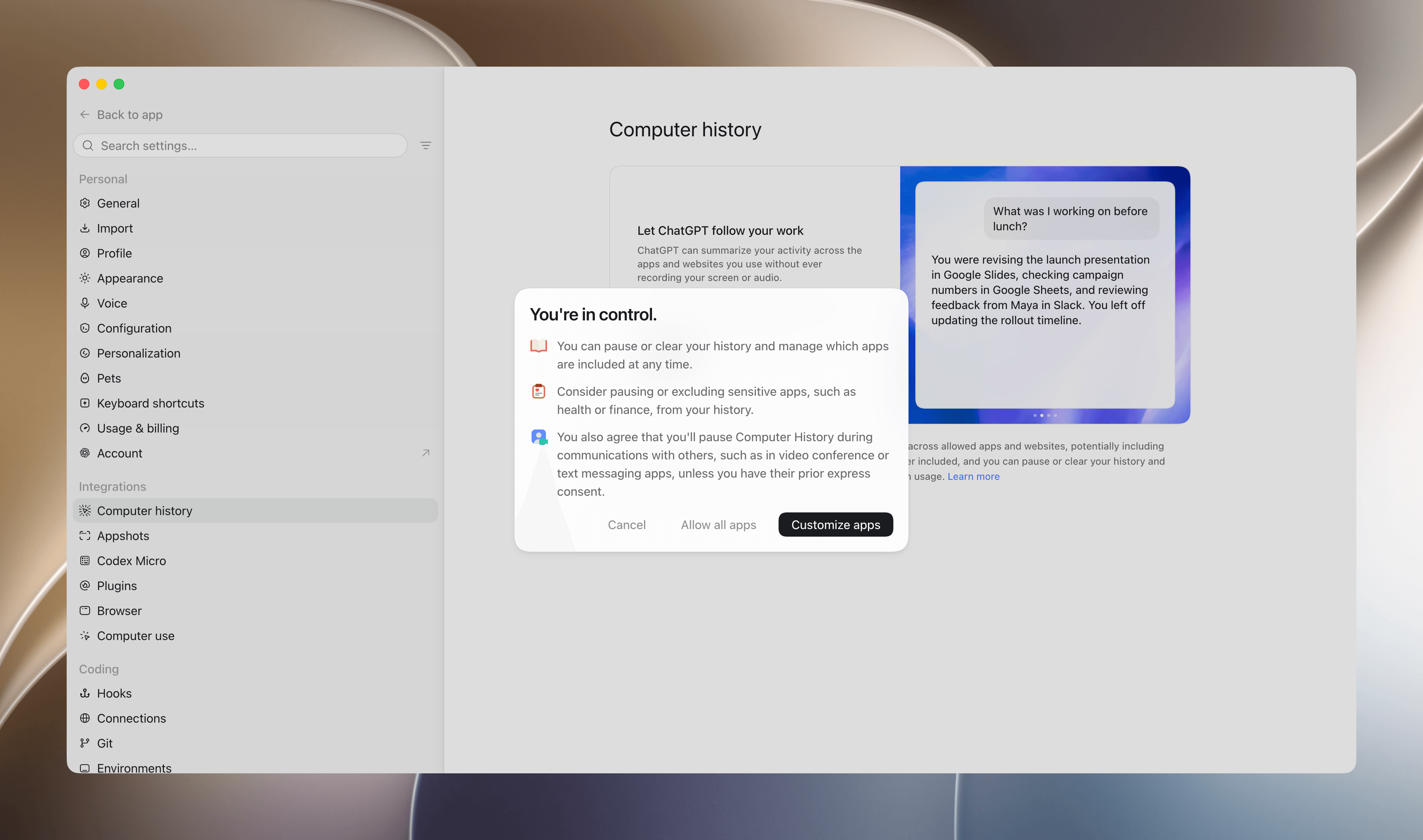
Computer History is currently a Mac-only feature that is turned off by default, so if you want to try it, head to the Integrations section of the desktop app’s settings and toggle it on. History entries can be cleared individually, too. Before you get started, ChatGPT explains that you can pause or clear your history and manage the apps and websites that Computer History accesses at any time. I excluded Passwords, 1Password, and Keychain Access to start and may add to that list as I use the feature more and get a better sense for the sort of information that it collects.
That opening alert also says you agree to pause Computer History during video and audio calls with others to avoid recording them without their consent. I appreciate the reminder that recording people without consent is something you shouldn’t do and is even illegal in some places, but as with the many meeting summarization tools on the market, I doubt that very many people will heed the warning and comply even though doing so is just a click of the menu bar away.
Still, I appreciate the alert up front, because turning Computer History on requires trust that the information won’t be misused by OpenAI. I’m sure that’s a bridge too far for some, but one of the most frustrating parts of using a tool like Codex is explaining yourself over and over. Every thread is like Groundhog Day for an agent, and while there are techniques that help provide continuity, making it automatic with Computer History is an exciting prospect.
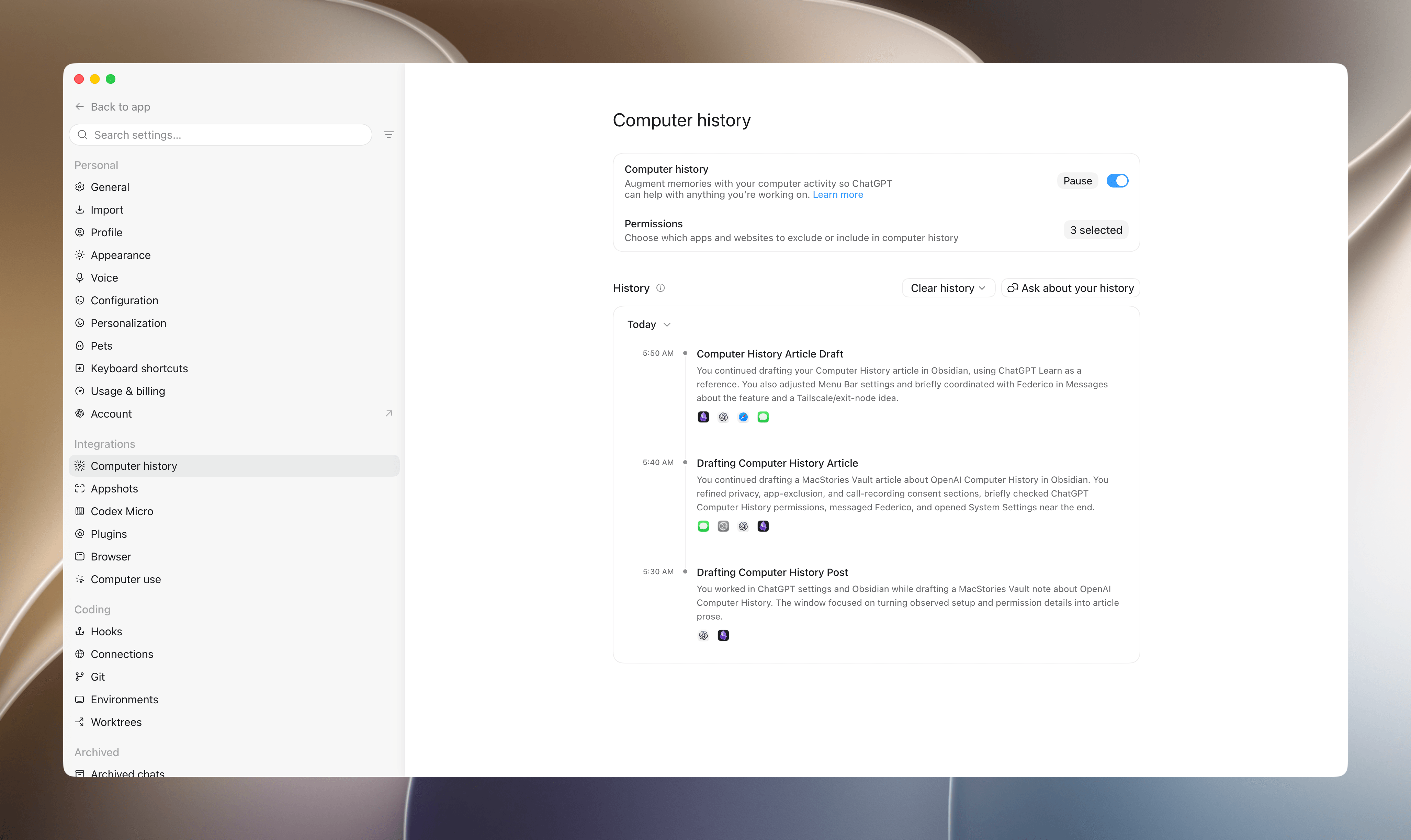
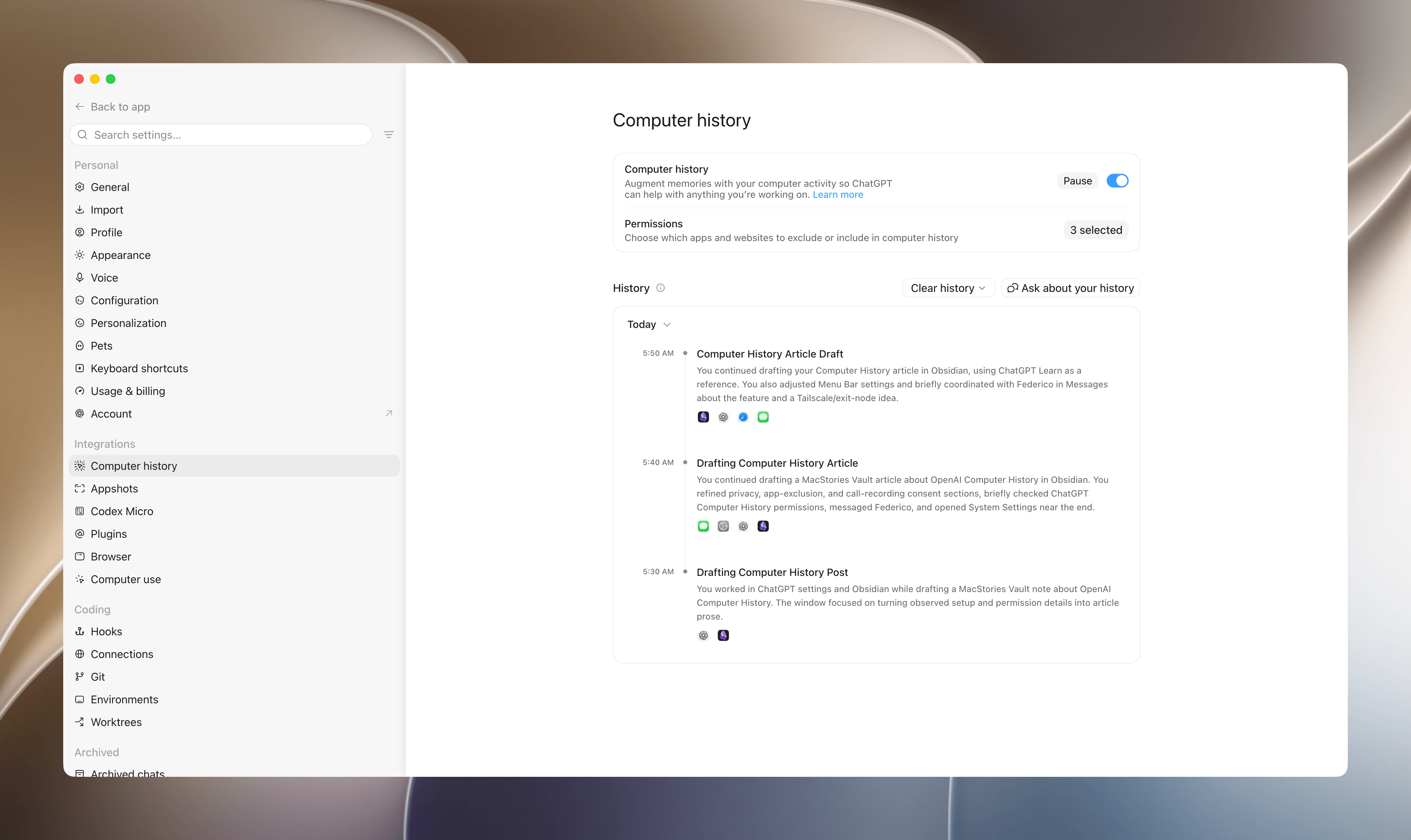
If you’re intrigued by the potential, it pays to read OpenAI’s documentation and understand how the feature works. First of all, Computer History is not the same as Chronicle, a retired research preview feature that relied on taking screenshots as you worked. In contrast, Computer History records interaction events but not screenshots, audio, or private web browsing sessions, according to OpenAI’s documentation. In practice, what that means is that as you work, ChatGPT will record your switches from app to app and what you’re doing in apps. Here’s what it’s captured as I started work on this story:
As you can see, every 10 minutes, ChatGPT creates a brief, timestamped summary of what I’ve been doing and lists the apps I’ve used by their icons. If I hover over an entry, I can immediately delete it or open the source file in the Finder for more detail on the information that ChatGPT is collecting.
Each entry in Computer History is a Markdown file with YAML front matter that includes a title, description, and list of the apps you’ve used followed by a structured memory document. Here, you’ll see a summary of what you’ve done:
The user continued writing computer history.md in Obsidian’s MacStories Vault, refining the section that explains how Computer History differs from the earlier Chronicle preview and adding a practical description of what the feature records while the user works. The user referenced the OpenAI Learn Computer History documentation in Safari, briefly exchanged messages with Federico Viticci, checked ChatGPT/Codex settings, and then opened MacStories Images to queue a screenshot named CleanShot 2026-08-14 at 06.08.44@2x.png for upload. The upload was queued by the end of the segment, but no completed upload or copied Markdown image link was observed.
You’ll also find details that ChatGPT deems important and non-obvious, such as the following:
Important non-obvious context about the user
MacStories Vault - Obsidian vault where the Computer History article draft was active.
computer history.md - active note being drafted for the Computer History article.
CleanShot 2026-08-14 at 06.08.44@2x.png - screenshot selected from @ Screenshots and queued in MacStories Images near the end of the window.
MacStories Images - internal Safari image uploader used for the screenshot; the page showed one queued item and an Upload 1 control.
Federico Viticci - Messages conversation briefly active during the writing session.
ChatGPT/Codex settings - ChatGPT app showed settings around 10:08Z, likely related to the same Computer History article context.
That’s followed by a more detailed blow-by-blow accounting of what I did over the course of the 10 minutes covered by the report. In all, it’s just shy of 700 words, which, by the end of the day, will be just one short journal entry among dozens tucked away in a folder on my Mac.
Codex.
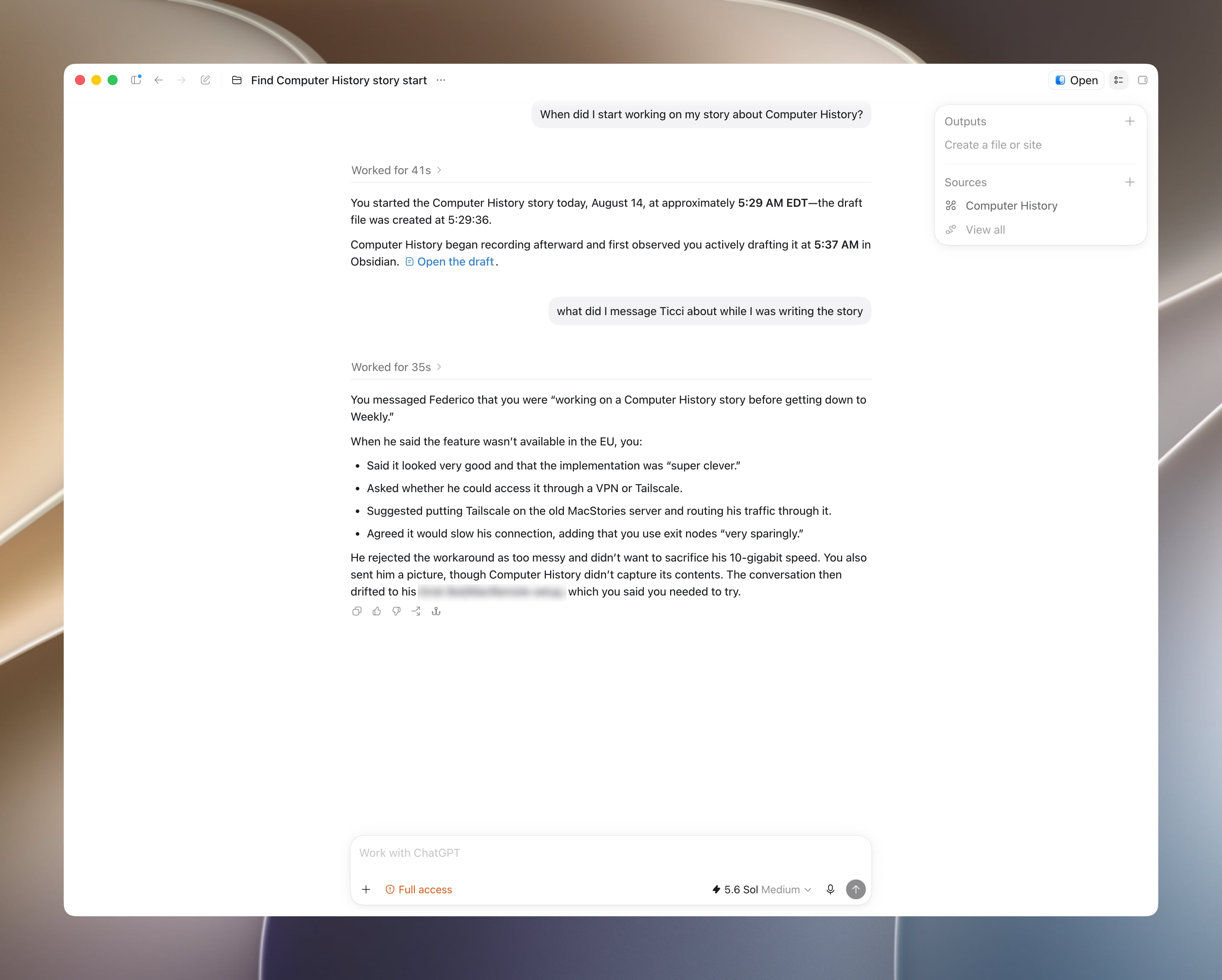
Those files are used as context for ChatGPT and Codex. I haven’t used the feature long enough to thoroughly test it, but as you can see from the screenshot above, it provided concise, correct answers when asked about what I’ve been working on today and my conversation with Federico.
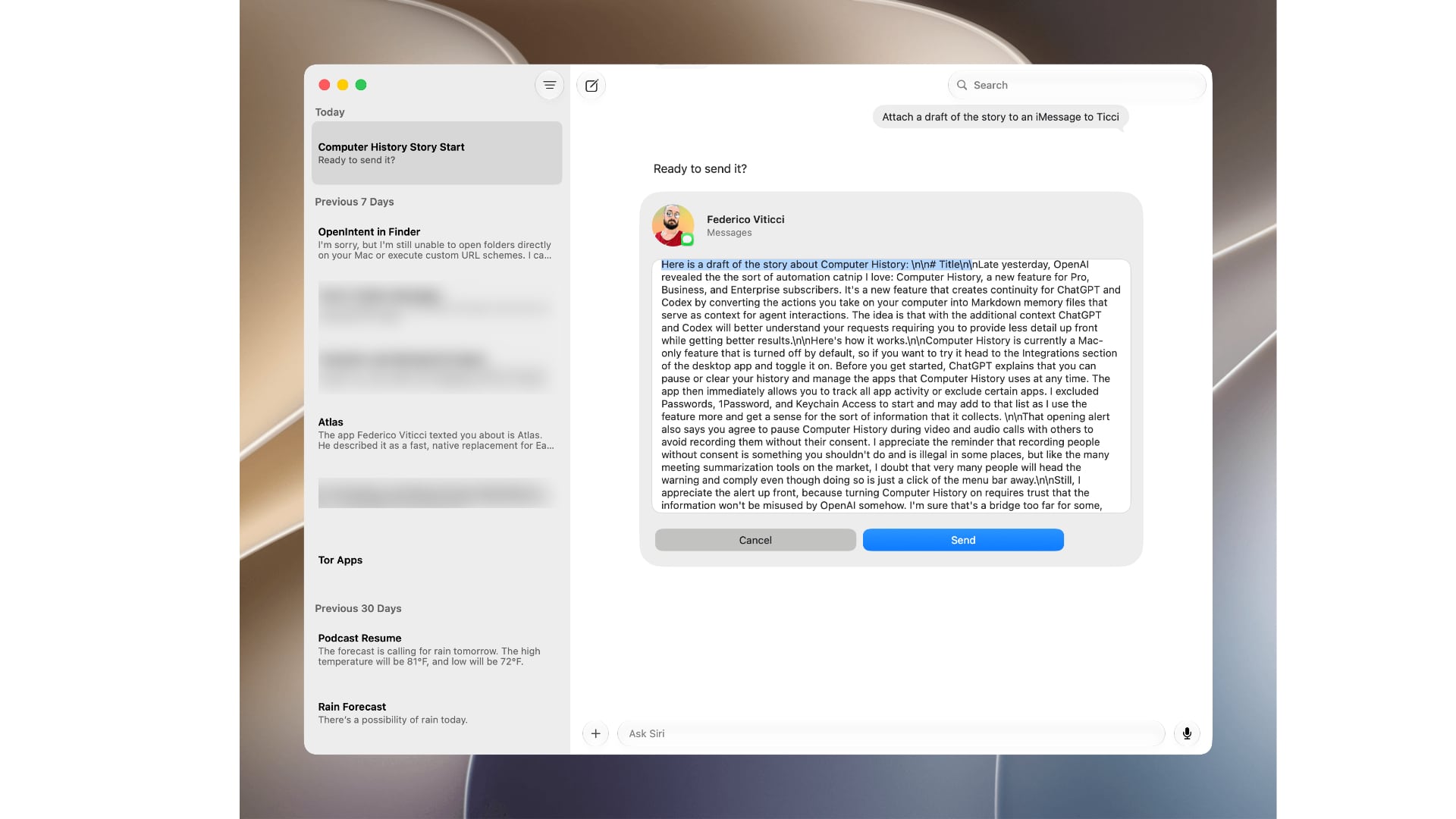
That’s not too different from what the new Siri app can do on macOS Golden Gate, but as I suspected, the seams start to show when you move beyond questions to tool use. When I asked Codex to send a draft of my story to Federico, it called on Computer Use to find the Markdown file and drop it in my Messages thread with him, which is exactly what I wanted. By contrast, the Siri app pasted the text of the draft into the message itself as a wall of raw Markdown text with \n characters for line breaks. Spoiler: that’s not what I wanted.
Siri.
Siri comparisons aside, Computer History is the sort of feature that deserves a check-in down the road because its true value and limitations aren’t going to reveal themselves from a few contrived examples. OpenAI’s documentation explains that it can be used to jog your memory when resuming a project, find things you recently worked on, and create workflows, which is the most interesting bit.
So many potential automations die before they’re ever created because we all have deadlines and too many things to get done. Stopping to build a skill or other automation for a task breaks your flow. Computer History promises to reduce that to a simple request like, “I just did X. Turn it into a skill.” Again, how well that works in practice remains to be seen, but it’s exactly what I want from an agent.
I’ve already touched on some of the privacy implications of Computer History, but it’s worth digging into how these memories are generated before you use the feature. The Markdown files I described are built from the interaction events that Computer History records locally as you use your Mac. OpenAI says the event files are deleted after 48 hours and are used by Codex in an ephemeral session to generate the Markdown memory files that are also stored locally. Then, when you ask a question in ChatGPT or Codex that calls on your local Markdown memory files, they are used as context for the prompt, transmitting the data as part of the request to OpenAI. So if you’re not comfortable with letting Codex use your Mac interactions to generate memories and then sending those memories to ChatGPT or Codex as context, you shouldn’t turn on Computer History.
Me, I’m excited by the prospect of Computer History. I work across a huge number of apps every day on multiple projects, and it’s too easy to lose track of it all. But most of all, I’m intrigued by the possibility of reducing the friction of creating repeatable skills to automate everyday tasks. I’m just a few hours into my Computer History experiment, and I will report back after I’ve had time to live with it for a while.
The App Store is evolving at a breakneck pace not seen since its earliest days. We saw the first glimmers of what was to come early in 2025, but it wasn’t until late last year that the tsunami of apps developed with the help of AI agents really took hold.
How these forces play out long-term is anyone’s guess, but it’s worth examining because, just as Federico’s link to Bryan Irace’s post about agentic coding tools foreshadowed the rise of tools like Codex and Claude Code, today’s trends are sparks that have the potential to become tomorrow’s App Store wildfires or simply fizzle out.
Utility apps are on the front lines of this change. The TechCrunch story I linked in April picked up on this trend:
Another interesting tidbit from Appfigures is that the Utilities app category moved up the top five chart.
If anything, the trend has accelerated in the months since.
It’s not surprising at all that utility apps have taken off. They’ve been a staple of new developers since long before agents came along. That’s because many are UI wrappers around command line tools. That isn’t a knock against the developers of those apps; most users don’t want to open Terminal to convert a video or audio file to another format using ffmpeg, for example. By building a great UI around command line tools, developers have made them far easier to use.
However, the relative simplicity and narrow scope of many utility apps have made them a natural fit for AI agents, too. That’s why the App Store (and my inbox) is deluged with Mac menu bar and single-screen iPhone and iPad utility apps.
On the one hand, the abundance of utilities has been great for users. More choice means you’re more likely to find the app that perfectly fits your needs.
On the other hand, though, I don’t think what’s happening in the category is sustainable and expect to see it dramatically shift again in the coming months. As we’ve seen from reporting by The New York Times, app supply is outstripping demand by orders of magnitude, which will drive down prices. That alone is likely to cause the utility app market to shrink. But there’s more to it than that.
Remember, the demand shifts that The New York Times reported, based on Sensor Tower numbers, are for the entire App Store, where download numbers have grown 2-3% this year and last. I expect utility downloads to actually shrink in the coming months – again, because of agents. Utilities, especially simple ones, are exactly the sorts of apps that are becoming trivially easy for power users – the very users these utilities are made for – to create themselves. From frontier labs‘ model improvements to a growing number of app-building tools from those same labs and third parties, it’s never been easier to build a web or native app yourself.
And although I agree with people, like Nilay Patel, who say the notion that everyone will build their own software is overblown, the utility market is different. Your average person is not downloading apps to adjust the frame rate and file format of a video or downloading YouTube videos to watch later. But those are exactly the sort of things that people who are using agents are doing with them, whether they’re having an agent do those things directly via a command line tool in an app like Codex or Claude Code or building an app to do the same thing. That’s going to put even more pressure on the category.
That said, I think there will always be a cohort of users who would rather pay for an app than build it themselves, so I’m not predicting the demise of utilities in general – just the end of today’s frothy market. I also think there remains a place for simple utilities that solve hard problems with clever solutions. Not every utility is a UI wrapper for a terminal command. Plenty of apps feature original solutions or thoughtful and unconventional remixes of disparate tools.
Utilities aren’t going away, but just like other App Store deluges, the trend will recede. It’s just that this time, it’s likely to flip faster than usual.
Graças a essa versatilidade, o novo modo de voz pode fazer bem mais que apenas conversar. Além de poder ser usado em chats, ele também está integrado ao Work e ao Codex — o que significa que você pode usá-lo para coordenar e acompanhar tarefas, sem usar texto.
ChatGPT Voice is now in the desktop app.
Control your computer and direct multiple agents running in ChatGPT Work or Codex, using just your voice.
It's powered by GPT-Live, so it can speak, listen, and coordinate work in the app at the same time.
Para usar a novidade, é necessário abrir um novo chat ou uma nova tarefa vazia no app e selecionar a opção “Iniciar nova conversa por voz”. As conversas ou tarefas precisam necessariamente ser iniciadas nesse modo — caso contrário, apenas o ditado por voz estará disponível.
O ChatGPT Voice oferece suporte a uma alternância natural entre as falas. Você pode interromper o ChatGPT durante uma resposta, fazer uma pergunta complementar ou mudar de direção. Se o ChatGPT começar a executar uma tarefa, continue falando para verificar o progresso ou orientar o trabalho.
Além disso, a OpenAI destaca que é possível iniciar conversas separadas para conversas mais longas, enviar ao app uma screenshot para apresentar o contexto do que está na tela, bem como usar o recurso pelo Remote do iOS com o iPhone emparelhado ao computador.
O ChatGPT Voice no desktop está sendo disponibilizado gradualmente para os planos Plus, Pro, Business, Edu e Enterprise. Nos dois últimos, há um período inicial de duas semanas com acesso antecipado antes de o recurso ser ativado por padrão.
É possível baixar o novo app do ChatGPT para macOS nessa página.
OpenAI, which is in the middle of a legal battle with Apple over hardware trade theft allegations, just released a light-up keyboard designed to be paired with its agentic coding app.
Ils ont prédit les cycles des planètes, construit des calendriers d’une grande complexité et observé le ciel avec une précision remarquable. Mais leurs noms avaient disparu. Jusqu’à ce qu’une inscription vieille de 1 200 ans révèle enfin l’identité d’un savant maya.

 Login
Login