We trust Apple with a lot of our data. In general, that hasn’t seemed like a bad idea; in particular, compared to its competitors, Apple seems to ensure that it can inspect or interact with very little of our data. The company has built its platform and its reputation on being an elegant, frictionless, hands-off conduit. While we can make many complaints about Liquid Glass, its increased focus on invasive (and poor) advertising, its software quality, and much else, Apple has kept its corporate nose cleaner than anybody else. Its transparency and documentation are, oddly, worse than its actions and clear intent.
The Apple Watch is the only wearable with end-to-end encryption for first-party health data. (Image: Apple)
I was thinking about this when I received an email from an anonymized iCloud Hide My Email account, asking for more detail about how Apple managed the transition from the old method of presenting or escrowing (in iCloud) your macOS FileVault Recovery Key to the new method, in which the key is stored in Passwords. This transition, which I’ve documented in a few places, was a step forward in privacy and security.
But not transparency! I’ll explain, but you can’t find an explanation on Apple’s site about the transition. The support documentation remains out of sync with Tahoe. That leaves it to yours truly to explicate.
Don’t trust and verify
The Electronic Frontier Foundation recently published a newsletter with a round-up of how fitness wearables, like rings, watches, and bands, preserve your privacy from government intrusion, as well as whether they protect you from unwanted security invasions by using end-to-end encryption (E2EE). (The former often requires the latter: governments typically can’t break through E2EE.)
I want to quote two full paragraphs to make this point:
In the end, we found that only four of these companies (Apple, Google, Whoop, and Oura) promise to notify users of law enforcement requests in publicly available documentation. And just two of those companies, Apple and Google (which also owns Fitbit), currently publish transparency reports on how often they hand users’ data to the government.
Support for end-to-end encryption—a method that ensures your personal data is only accessible by you, and not the company who makes the device and manages the cloud storage—is more rare than transparency reports among wearable device makers. The Apple Watch is the only popular fitness wearable that supports end-to-end encryption.1
Apple wasn’t an early player with E2EE. Really, it was seen as the kind of thing only true security geeks cared about, even while people like EFF and other digital privacy advocacy groups and individuals warned us that our data was only lightly protected. Over time, as the criminal, exploitative, and political monitoring and extraction of our secrets became clear, Apple kept stepping up.
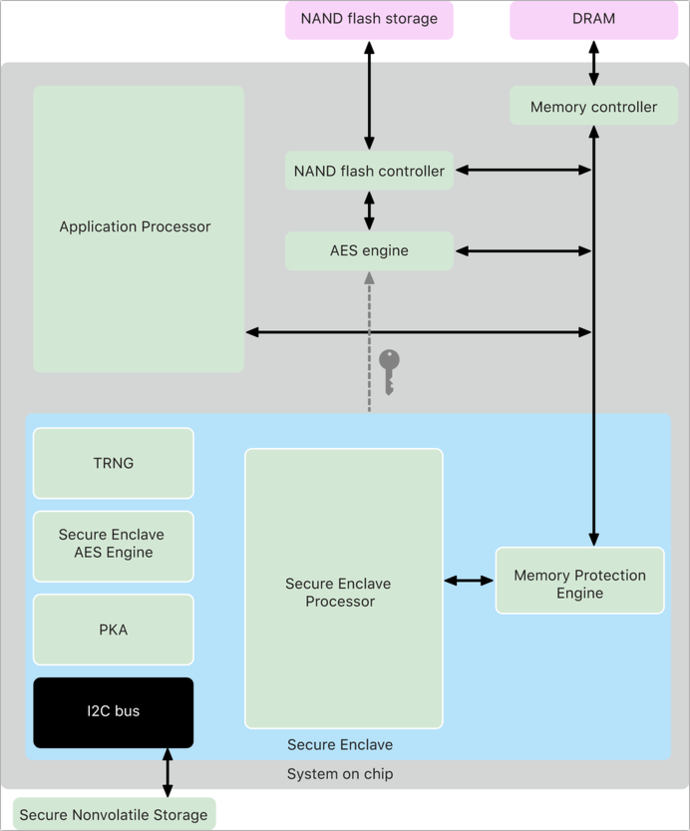
I don’t understand every part of this flowchart, but it shows how Apple uses the Secure Enclave to ensure the integrity of device-based end-to-end encryption. (Image: Apple)
The Secure Enclave is a keystone of those moves, as the tamper-resistant silicon subsystem allows devices to keep locally generated security keys entirely private. Most of these keys never leave the Secure Enclave! Rather, it’s the encryption hub.2
iCloud initially had a fairly cursory level of protection, with the then-Apple ID account password serving as the only real bar. Two-step verification in March 2013 provided better account protection, but didn’t cover iCloud backups, which could be retrieved without that second step. A rash of celebrity account leaks in late summer 2014 led Apple to extend two-step to iCloud data within a couple of weeks. The next year, it upgraded security to the more rigorous two-factor authentication, which later became mandatory.
As part of its response to the iCloud data hijacks, Apple began to beef up iCloud. It began rolling out E2EE for all the device-based services it could, leaving synced data still relatively lightly protected. (iCloud data is always encrypted with Apple’s at-rest keys, which only it ostensibly has access to, and in transit with HTTPS. However, a security breach at Apple or someone able to hijack one end of an in-progress HTTPS sync allows access to that unencrypted data.)
Then, suddenly, months after shipping major updates to its operating systems, Apple announced Advanced Data Protection in December 2022. Enabling this feature put the E2EE aegis over nearly all synced or stored data at iCloud; mail, contacts, and calendar entries remain an exception because of their interoperability with third-party apps and services. You can view Apple’s document that explains what level of protection applies to data, with and without ADP enabled.
With that in mind, let’s talk about the Recovery Key transition.
Recovery Key is not recovered? I think not
The particular reader question driving this was their concern about the FileVault Recovery Key that was in place when the Tahoe-driven transition occurred. Was the old key destroyed and a new one created and stashed in Passwords? Or was the old one just moved over? If the latter, isn’t that a security hole, if a tiny one?
My initial reply wasn’t entirely glib, but I said, having not documented the upgrade, I believed Apple explained the process when it occurred. But I couldn’t find any screen captures of how that occurred. Apple’s documentation remains in the past—it doesn’t mention the Passwords method at all. The Passwords User Guide perversely mentions the Recovery Key, but not how to interact with turning it off or on.
People who had FileVault disabled (whether they never turned it on, or turned it off at some point) did receive an alert during the upgrade:
Your Mac is Ready for FileVault: FileVault keeps your Mac safe by encrypting your data and protecting it with the password you use to log in. If you forget your password, you can use your Recovery Key to reset it.
Clicking Not Now bypassed the process; Turn On opted the user into the new Passwords-based storage for the Recovery Key.
I’ve explained in previous columns how FileVault provides an extra layer of protection. FileVault requires a Recovery Key, so you have recourse if your password stops working, you forget it, or corruption happens in the boot data. This shouldn’t happen, but it can. The Recovery Key and your password (transformed by a cryptographic formula—or hash—after you enter it) are both “key encryption keys,” delightfully named KEKs. Neither directly encrypts your data. Each instead unwraps the key that the Secure Enclave uses to unlock your drive for use in macOS.3 (You can find out a lot more about this topic in my Take Control of Securing Your Apple Devices, a revised version of which, including “27” betas, will be out shortly as a free update.)
The Recovery Key entry in Passwords identifies the Mac by its model, and provides a shortcut to FileVault settings.
Apple never knows your macOS passwords, and it shouldn’t know your Recovery Key. That was the flaw with iCloud escrow: your Recovery Key could be retrieved by someone with your Apple Account information who had access to your Mac.
With that said, how did Apple manage the transition from the old system to the new one that uses Passwords? Into this lacuna of details, jump I with inferential logic about what Apple must have done.
With a “show me once” Recovery Key: Apple would generate this key, show it to you, then destroy it. The company (and macOS) didn’t need a record of it, because its purpose was to be used to decrypt another key: don’t have the key, can’t decrypt that other key. If you opted for that method, Apple had to destroy the existing KEK to replace it with a new one derived from the newly created Recovery Key.
With an iCloud escrow key: The same scenario applies from a different angle. Apple can’t retrieve your escrowed key unless you use your Apple Account. That isn’t a per se security weakness, but Apple doesn’t need that escrowed key, and it doesn’t want to decrypt it at iCloud to send it to you. I would warrant that the company once again destroys the KEK, creates a new one, and that’s what’s stored in Passwords. Anything else leaves a potential gap in my explanation of why Apple made this change in the first place.
Now, you say, if macOS generated the key and it stored it in Passwords, doesn’t it “know” the key? Not exactly. The key is ostensibly generated in memory, added to Passwords, and destroyed. To have accessed the key, an attacker would need to be monitoring your screen or grab particular memory locations at an exact moment. If someone has undetected remote observation of your Mac display, the game is already over.
Passwords uses end-to-end encryption with device-based secrets. You can enter a device password or use biometrics to unlock Passwords (or chained biometrics with an Apple Watch linked to your Mac). That’s as secure as we can get to protect any password. If someone wanted to access your Recovery Key through Passwords, they need access to one of your devices; cracking your Apple Account and its second-factor or passkey authentication wouldn’t help—and that’s a big stretch to begin with. Nor does just having your macOS account name and password without the ability to have physical or remote screen access to your device.
I believe Apple handled this transition awkwardly. The company could have provided more clarity about the requirement to change how a FileVault Recovery Key was stored, and explain exactly what measures it took to ensure security across that transition. And it could update its support pages!
[Got a question for the column? You can email glenn@sixcolors.com or use/glennin our subscriber-only Discord community.]
Note that EFF is discussing the core Health app here, not third-party apps granted access to Health data by a user. ↩
The iPhone 5s in 2013 was the first Apple device with a Secure Enclave. It expanded to iPad starting with the 2013 iPad Air, and the Mac with the T1 chip in Touch Bar MacBook Pro models in 2016. ↩
Full-drive encryption is always on and can’t be disabled on M-series Macs and Intel Macs with the final-stage T2 security chip. ↩
This is turning out to be the year of immersive sports.
In January, Apple worked with Spectrum and the L.A. Lakers to debut a series of immersive NBA games. And beginning August 28, it’ll be airing a live immersive Major League Baseball game every Friday night for the rest of the Friday Night Baseball season.
Unlike the NBA games, which were limited to cable subscribers, these games are part of Apple’s own Friday Night Baseball package and will be available to all Apple TV subscribers with a Vision Pro. (In Australia, Canada, Germany, Hong Kong, Japan, South Korea, Taiwan, the UK, and the U.S., anyway.)
As with the NBA games, this will be an immersive-specific telecast with its own announcers (Paul Severino, Xavier Scruggs, Michelle Margaux), replays, and graphics. Apple says that during commercial breaks, viewers will “stay immersed in the in-stadium experience from all angles.”
As always, the details will be fascinating to see. While I thought that the immersive NBA games were pretty good, some viewers complained that there were too many changes in camera angle that broke immersion. Baseball is a very different sport, in terms of pace and in the size of the field, so it’ll be interesting to see how Apple chooses to approach its coverage.
The four immersive games on the schedule are: Red Sox at Yankees (August 28), Angels at Pirates (September 4), Padres at Giants (September 11), and Giants at Dodgers (September 18).
Your voice may be your passport, as a certain Robert Redford picture once asserted, but two macOS apps in our spotlight this week view your voice as a way to get more things done on your Mac. We’re talking transcription apps with two apps that take very different approaches to what you can do with vocal recognition and AI.
But that’s not all for this week. We also look at a tool to help you better enjoy email newsletters, an iPhone app for making your photos sound as good as ever and a multiplatform game that helps you fine-tune your puzzle-solving skills.
Got an app of your own that you’d like to see highlighted? Let us know at apps@sixcolors.com with a brief description of what it does, and we’ll take it from there.
Vox Dictum
I record a lot of interviews, which means I need to transcribe a lot of interviews, and so far, I’ve found the Apple Intelligence tools built into Apple’s various software platforms to be fairly wanting in this area. So when an app like Vox Dictum promises a better transcription experience, I’m all ears.
Vox Dictum is a macOS app that makes privacy its calling card — all the transcription happens directly on your Mac, as do the AI-powered summary features that you can access with the cost of a subscription. A Pro subscription costs $7.99/month and gets you features like large AI models to download to your Mac plus AI summaries while the $12.99/month Pro+ package adds a speaker recognition feature.
I do think it’s easier to label speakers in VoxDictum than with any of Apple’s built-in features, though transcripts — while fairly accurate — feature line breaks that aren’t necessarily suited to my purposes.
As for the summary feature, I found it to be hit-and-miss: Vox Dictum did a great job highlighting the main points of an interview I conducted for a freelance article, making the summary a good reference tool, but a recorded discussion between me and my wife produced a summary with conflicting dates on some action items. That said, I do like that Vox Dictum’s summary feature lets you designate if the recording is an interview, a meeting, a news bulletin or a podcast, which seems to help focus the summary.
Processing time can take a bit, but if you find yourself needing to transcribe a lot of interviews, Vox Dictum is definitely worth a download so you can see if its base features improve on your current approach.
Bonfiyah
Like Vox Dictum, Bonfiyah promises to turn recordings into transcripts, while also recognizing who’s saying what. But transcription is really just a sideshow in this case — the app’s real strength lies in its ability to track your conversations.
Available for the iPhone, iPad and Mac — I tried out the macOS version — Bonfiyah records conversations, meetings and brainstorming sessions. (You can also import audio files into the app.) Besides transcription and speaker identification features, the app also taps into AI to summarize action items that come up in your conversation and who’s responsible for taking care of them. A feature I particularly like is an analysis tool that analyzes how to communicate more effectively with the people you talk to on a regular basis.
Transcription does take place off-device via AssemblyAI, though Bonfiyah deletes that info from its servers after seven days. The app includes privacy features such as marking conversations as privileged.
Bonfiyah comes across as a pretty sophisticated tool that might be overkill for anyone who needs transcripts with more basic summary features. But you can try out all the features to start with for 14 days before you need to commit to either a $24.99/month Pro or $34.99/month Pro AI account for more advanced features.
Letterboxx
Letterboxx exists under the premise that an email inbox is no place to enjoy a newsletter and a traditional mail client is not a reader app. Inboxes are places for taking action like responding to timely messages, but newsletters are something that you want to spend time diving into — hence the Letterboxx interface, which is designed to use the ample space provided on your Mac.
With Letterboxx, you can redirect newsletters sent to supported email accounts to a dedicated reading space, complete with folders for organizing incoming missives by type. You also get ad-filtering tools, ways to highlight relevant text and even shortcuts for managing your many subscriptions.
You’ll know right away if this app is just right for your newsletter-heavy reading habits or if it’s more management features than you need, but you can confirm with a two-week free trial to Letterboxx before the regular $4.99/monthly subscription rate kicks in.
Echo Photo Album
I don’t really find much use for Live Photos, the built-in iPhone camera feature that adds a little bit of movement and audio to your images. But Echo Photo Album might cause me to reconsider augmenting my photos with its focus entirely on audio.
You can record up to 60 seconds of audio in Echo Photo Album, adding it to a shot you either take through the app or find in your photo library. In testing Echo Photo Album on my iPhone — it’s also compatible with iPads and Apple Watches — I found it worked best adding the sound of my cat purring to seem feline portraits or ocean waves crashing to a coastal landscape shot. I imagine it could also come in handy adding sounds to accompany road trips, baby photos and group get-togethers.
You can download Echo Photo Album for free, with a $4.99 purchases removing a 10-image limit.
Chess Peace
All work and no play makes for a dull app profiler, so here’s a game I’ve been playing lately that runs on the Mac as well as on iPhones and iPads. (I’ve been testing the macOS version.) Chess Peace is one of those games that you play to keep your mind active. Best of all, you don’t really need to be a grand master to get something out of the game.
The only thing you need to know about chess to thrive at Chess Peace is how each of the different pieces move around the board. That knowledge lets you position each piece on the board of a Chess Peace puzzle in such a way as to prevent any other piece from capturing them — keeping your rook out of the diagonal attacks of your bishop, for example.
The game serves up a new puzzle every day, with a library of older puzzles for you to play as well. An $8.99 in-app purchases unlocks 26,500 puzzles across five game modes plus custom themes to let you change the look of Chess Peace.
“Ted Lasso” is back on Apple TV, which was no sure thing after the series more or less wrapped up in May of 2023. But it’s back for a fourth season, in which—after an episode-long visit to Ted’s home of Kansas City—the football-turned-soccer coach returns to Richmond, where—as teased at the end of season 3—a new women’s team is launching and just might need a coach.
I’ve seen the first half of the season, and I’m happy to report that though the teams have changed, this is still “Ted Lasso” through and through. Thematically the first three seasons were about Ted’s journey in running away from a dissolving marriage. With season four, a whole new set of themes begin to emerge.
Yes, love ’em or hate ’em Ted’s homespun aphorisms still abound. The relationship between owner Rebecca and marketing genius Keely continues to be as strong as ever. Higgins is still doing his Higgins stuff. Mae is still tending bar. Those three fans in the pub are as random as ever. But in coaching a barely-formed women’s team that is in desperate need of players and fans, “Ted Lasso” returns to its roots as an underdog story, which helps make the whole thing feel more like the show’s first season. (There’s even a press conference scene that is disastrous for entirely different reasons from the original.)
It’s great to have series co-creator Brendan Hunt back as Coach Beard, but the addition of Tanya Reynolds (“Sex Education”) as Alice Chilton introduces a new dynamic. Chilton is the only coach who can go into the locker room without permission, she thinks she deserves the managerial job, and she’s got some serious anger control problems. Reynolds adds a lot of grit to the proceedings, preventing it from becoming too much of a sickeningly sweet reunion love-fest.
The character least served from the season, at least so far as I’ve seen, is breakout character Roy Kent (Brett Goldstein). He’s there and has some moments, but since he’s the manager of the men’s team, he’s often relegated being a gruff, bearded question mark attached to questions about his relationship status with Keeley. I appreciate the ironic turnabout of the men’s manager being an afterthought who’s only relevant in terms of his romantic storylines, but I do wonder if Roy is too strong of a character to be served in such limited doses.
Anyway, the best review I can give to season four of “Ted Lasso” is that each episode made me laugh out loud, a lot. Not only was it nice to see these familiar characters again, but the show did the most important job any comedy has—it’s funny. Welcome back, coach.
The almost-natural-language notepad calculator Soulver’s latest release adds better tools for calculating durations or intervals between dates and times, planning travel itineraries, tracking inflation, finding distances, performing bandwidth math, and splitting restaurant bills or other expenses. That’s not all, but a good starting list. Should it do all these things? A point we could argue about! But many of the features it offered in the past, and several of the new ones it provides, previously required one or more web searches to find a tool or to pull together disparate information. That’s welcome.
Soulver 4’s release comes at an interesting time, when many people have turned to chatbots and Google’s search dialog—and soon will turn to Siri AI—to answer questions that are better written out or spoken than described as just numbers or operators.
This significant update succeeds in bringing a sort of authoritative basis to stuff you need to calculate or convert. Behind the scenes, there’s no inference or autocompletion—it’s numbers, baby, all the way down. However, the developers aren’t unaware of the AI glow-up. They’ve addressed it in an interesting way, making it easy for agents to ask questions of Soulver!
Soulver 4 lets you perform a variety of calculations that transform units, days, distances, and vastly more than I can show.
How many bushels in a peck as I travel a furlong faster than a parsec?
Soulver has filled a gap for me in my calculating needs since I dug into the subject in 2015. While I love PCalc and use it for regular and advanced calculator needs, Soulver is where I go when I need to mix things up.1
PCalc and Soulver offer overlapping Venn diagrams of what’s possible in number space, but they are distinctly different beasts at heart. Where PCalc mostly calculates within a calculator-style interface, Soulver mostly offers a way to make sense of numbers, units, percentages, time, intervals, and much more. I think of it as a “take stuff in various units or other formulations and then produce an output in a way I want” tool.
I sometimes go days without using Soulver, and then find myself typing in an array of calculations. For instance, as a tiny print book publisher (it’s just me), I am often dealing with the weight of paper, the weight of books, the cost of shipping, and other variables. The number of sheets I have in some of my Numbers documents is alarming, but I often need conversion that sounds like a story problem: “The printer in Canada is giving me paper weight in gsm (grams per square meter). I know the book’s area per page (typically in inches). I need to calculate the weight of 1,000 copies in pounds.” I can type the query faster than I describe it. For instance, I need to estimate the weight of a new book based on the weight and page count of one I am holding:
(6 inches x 9 inches) / (5.875 inches × 8.25 inches) × (352 / 204) × 302g in lbs
Version 4 continues to offer all of what I consider its basics. You type out numbers and units with operators between them. You can set variables, add comments, and drag results into subsequent lines as part of further calculations. You can force-convert units, as above, telling it to use a metric unit instead of imperial, or to use a different unit scale. Say you want inches instead of feet, or kilograms instead of pounds.
Because it’s a notepad, your work is persistent. You can use Soulver to create the equivalent of tabs within sheets, collected into a “sheetbook.” This is somewhat like the Notes app, and it lets you organize calculations into projects and sub-projects. I have a monolithic sheet I use for essentially everything. Soulver can store files locally or sync via iCloud.
I use Soulver for a lot of different purposes, sometimes several times a day.
Where version 4 starts to diverge from previous releases is in what feels like a baroque set of options that aren’t stapled on, but most require a bit more effort to get the nuance and make them work for you.
How much did Minions & Monsters make in 1940 dollars?
It took me a few weeks to write this review, quite honestly, because every time I looked at the upgrade page, my eyes glazed over as I thought about how to best present this. I mean, the release notes page is broken into ten sections. The answer—which didn’t require Soulver 4—is that I need to cherry-pick more than usual for an app to give you the flavor.
Here are a few new elements that will keep me away from search engines and other resources more than any other:
Inflation calculation. As a historian, and as somebody who just wants to use his numeracy to interpret the world, I find myself jumping for an inflation calculator all the time.2 You need an online source, as it has to have a table of the historical values to provide the correct cumulative percentage between two years or dates. Because of the relatively high inflation in developed nations since the start of the pandemic, I find myself trying to understand why I’m staring at a jar of peanut butter and can’t comprehend what it costs now. (Soulver currently does annual inflation calculations, but will add monthly data in a future update.)
It’s a date: Date math is the hardest math, in my experience. Soulver previously let you perform the magic of subtracting one date from another or adding days to a date to figure out the right month, day, and year. In the update, you can do more tricks, like figuring out work hours (set by default, and you can change) in periods of time or differences, calculating relative to cultural and religious holidays, finding the number of daylight hours in a particular place, and (as should be obvious so far) much more. As a person of the Jewish faith, I honestly never know when Hanukkah starts, and Soulver doesn’t appear to know either. (Soulver says Hanukkah is coming in a future update.) However, it does include Christmas and Ramadan; there’s no list of this category, but you can look in Soulver: Settings: Dates & Times and click Public holidays to see that list, set by your region.
How far away? I don’t know about you, but I regularly want to know the distance between two places, sometimes nearby, sometimes far away. Soulver 4 lets you ask, distance between [place name] and [place name], and get the proper curvature-adjusted distance. (I have a proviso about this that you can read at the end.)
How long to upload? I’ve used Soulver for bandwidth and file-transfer time calculations since I first installed it. With the latest release, you don’t have to punch in nearly as many units or conversions to get an answer to a question like time to upload 1TB at 900Mbps. (Answer: 2.47 hours.)
Elements you’ll find added or improved that I haven’t found a particular use for yet but seem significant include:
Better formatting: You can highlight expression lines with one of eight preset colors, as well as add divider lines. This makes data in sheets easier to parse. In addition to the previously available export function, Soulver 4 lets you email sheets to yourself with full HTML formatting.
You can plan itineraries in Soulver 4, which will calculate hours or days and reveal when you haven’t left enough time.
Trip planning: I’ll be honest that this feature looks powerful, but requires breaking out of the Soulver mold, as it uses a multi-line approach by defining the top and bottom of the trip range as a “time point” via the contextual menu. However, because of how it calculates time intervals and provides warnings if the duration you’ve set doesn’t fit, you can use it for short itineraries (getting to the airport on time) or planning a long trip.
It’s a fair division, given how much I ate at this lunch.One of the many ways tags can be used in Soulver 4 for tracking line-based expenses without resorting to a spreadsheet.
Tags workflow: Coders are amazing people, and you can see that in the simplicity and complexity of this tagging feature. When you tag a line with a hashtag and a tag name, the associated value can be summed, and operations can be performed on it. For instance, you can tag everyone’s individual orders on a dinner bill, add in tax and tip, and then have it divvied out. But that’s just one example. A spreadsheet could be easier, but it can also be overkill.
A command-line interface: If you’re the kind of person who doesn’t like a GUI, a command-line approach to Soulver might fit you, but the developers created it mostly to allow a simple way for you to have various other things, whether scripts, editor plug-ins, or coding agents, use Soulver as a kind of engine of numerical accuracy.
Weather goest thou?
Soulver is a $59 one-time purchase and gives you access to Mac, iPhone, and iPad versions. (There’s a 60-day free trial to test it out.) While that might seem high, I think given inflation—wink, wink—that’s comparable to the $30–$40 we might pay for a single-platform great utility in 2010! The iPhone version can be purchased on its own for $15. Soulver 3 owners pay $29 to upgrade to version 4. You can also get Soulver 4 via the $15 a month Setapp subscription, and have full access to it and over 330 other apps.
But you might run into one not-quite-hidden subscription option if you make certain weather or stock queries. With the App Store version of Soulver, $26 a year gives you access to what the app labels Live Weather (a number of current metrics), Live & Historical Stocks (a deep trove of data and real-time), and Inline Knowledge Assistant (which lets you use Wolfram|Alpha). It’s included at no extra cost for Setapp subscribers.
An optional subscription provides access to more data, but most people won’t need it.
I ran afoul of an aspect of this in testing, as Soulver (as of 4.0.2) included about the top 700 most populous cities and leaned on Wolfram for more, but didn’t prompt me as to why it couldn’t identify a city I mentioned. Developer Zac Cohan said the next minor update will add dynamic place-name lookups as part of the base price to reduce confusion and better fit the user base.
This subscription is not at all necessary to use Soulver 4, and Zac says the vast majority of Soulver users don’t need it. However, the cost to provide the data and services is too high to include for all users, hence the subscription to defray those costs.
Disclosure: I wrote a version of the PCalc manual several years ago for a flat fee. ↩
Minions & Monsters reportedly grossed $450 million as of July 1, 2026, which is $18.7 million in January 1940 dollars.) ↩
The reckoning is coming. Apple has done it before, and it’s doing it again. After macOS 27 Golden Gate, you will no longer be able to run legacy Intel apps using Rosetta 2. After the 26.4 update in March, when running any affected app in macOS 26 Tahoe, you see a notification banner when you launch affected software or a background component launches that uses Intel code:
Support Ending for Intel-based Apps. This version of “[App Name Here]” will not open in a future release of macOS. Learn how to update to an Apple silicon version. [Learn More pop-up menu]
Whenever you launch an Intel-only app, macOS politely tells you the end is coming.
There is one carveout noted for “certain older, unmaintained games that rely on Intel-based frameworks,” so far unnamed.
With information in hand, you can plan how to deal with Intel-only apps that have been abandoned, or the developers have seemingly no interest in updating. Printer makers are, so far, the worst.
A history of looking backward
Apple has done this before—many times, in fact. I’ve argued in the past that one of Apple’s key strengths, and a key to the continuity of the Mac’s operating system, is how well it’s managed transitions across chip architectures, frameworks, and operating system changes.1
Look at what Apple has managed:
Motorola 680×0 to PowerPC (silent emulator)
Mac OS 9.1 (or later) to Mac OS X (Classic)
PowerPC to Intel (Rosetta, original flavor)
32-bit to 64-bit code (warnings)
Intel to Apple silicon M-series chips (Rosetta 2)
At each of those milestones, Apple offered either advance warnings about a future lack of compatibility, an emulator tool, or both. Does anyone have fond memories of running QuarkXPress using Classic in Mac OS X in its early days? When it crashed, which was often, it only took down the Classic “app” and didn’t require a Mac restart.
To be fair, Apple could have continued to let older software run for as long as it was willing to devote time to maintaining emulators or compatibility layers. We could be using apps written for Motorola 68030s on our M5 Macs right now! However, it makes increasingly less sense to support the past after a reasonable transition, particularly one that stretches years and sees the company discontinuing compatible hardware.
Apple released the last Intel-based model in August 2020, introduced its first M-series computer in November 2020, and halted sales of computers with Intel inside in 2023.
As part of this shift, you receive the Intel software warning, not just the first time you launch an affected app or an Intel-based component or even Terminal-accessed binary runs, but the next time you do it after a restart. Yes, it is trying to bug you to get a newer version of your software. Golden Gate also pulls an interesting trick: When you upgrade, it removes the Rosetta emulator. You’re prompted to install it the first time you need Intel code. I guess this is an extra spur to remind you.
Because Intel-only apps will continue to work under Rosetta until you install macOS 28 Dumbarton, these reminders will continue for at least another 16 months or so.2 Once you upgrade to macOS 28, those apps and components will simply stop working.
Sunsets can be beautiful
Use Golden Gate to review a list of Intel-only apps, although third-party apps can provide more information.
Apple includes a helpful tool in Golden Gate in System Settings: General: About. Click Details next to Intel-based Apps, and a dialog box appears that lists everything installed that requires Rosetta. As a nice touch, Apple shows you apps launched in the last year, along with when, so you know the most critical to upgrade or swap out.
Golden Gate will list all the apps (but not all components) that require Rosetta.
You can also examine any app in the Finder, choose Get Info from the File menu, and note the warning next to Kind. Apple allows apps to be compiled as universal binaries that include both Intel and Apple silicon code, and offers an Open using Rosetta checkbox that was useful in the early days of the swapover when some M-series versions of an app were missing features or were buggy compared to the Intel version. You sometimes checked that box to use the more stable Intel variety, and then surely forgot about it. (For instance, Adobe updated its primary apps faster than third parties did their plug-ins. To use some Photoshop plug-ins, you had to force Photoshop to run in emulation.)
The Get Info dialog is a way to check on the code status of an app.
Hover over the item, and you can click Visit Website if Apple has a link to one, or click the More … button and choose Show App in Finder or Move to Trash. Not every app or component has a Move to Trash item, and I’m not sure why. I also suggest installing AppCleaner, a free app that will root out all files associated with an app when it’s deleted. (Turn on SmartDelete to monitor the Trash, or you can drag apps onto it.) This ensures you’re not leaving cruft behind when you get rid of the app proper.
This is all fine for rooting out installed apps, but Apple may not catch every system component, command-line utility, or other software that lives in crevices and emerges in particular conditions. For that, you should take a look at:
Go64: The free app from St. Clair Software, the makers of our favorite app, Default Folder X, provides details in a list form.
Rosetta Check ($7): Turn to Rosetta Check for even more information about each unsupported app, which may be useful if you have a lot of software to work through updating.
HoudahSpot: If you use HoudahSpot, you can construct a search.
A few companies that have Intel-only apps or components have explained their migration path, with PaperCut being an excellent example. Others without any financial incentive—such as hardware makers, who sometimes barely care about compatibility for software required to support their products—may wait until after the 2027 transition to wake up and make changes. This has happened many times before!
[Got a question for the column? You can email glenn@sixcolors.com or use/glennin our subscriber-only Discord community.]

 Login
Login