
❌

Reading view

WebKit Always Enables the Copy Menu Item in Every App

John Gruber (Mastodon):

In most Mac apps, since the dawn of time, if there is nothing selected to be copied, the Edit → Copy (and Cut) commands are disabled. If you invoke the ⌘C shortcut while the Copy command is disabled, you hear an alert sound, letting you know that whatever you thought you were copying could not be copied because it wasn’t selected. That beep is useful context. This is proper behavior for all menu items — if they’re not available to do something, they should be disabled, and invoking a disabled menu item keyboard shortcut should beep. In any app that uses WebKit, since early in 2025, the Copy command is always enabled when a WebKit view has focus — but if nothing is selected, you get useless clipboard data that can’t actually be pasted anywhere. (And whatever was on your clipboard is now gone, or pushed back if you use a clipboard history utility.)

Jeff Johnson:

I decided to file a bug report on behalf of Gruber: Copy main menu item is enabled with no selection in the web page. I subsequently learned that the first appearance of the bug was January 2025 in the WebKit source code, February 2025 in Safari Technology Preview 213, and March 2025 in Safari 18.4, as a result of attempting to fix another bug, document.execCommand("copy") only triggers if there is a selection, reported in 2016, nine years prior!

[…]

Sadly, my bug report was closed with the resolution “won’t fix.” The refusal appears to be based on a misunderstanding[…]

Jeff Johnson:

LOL that was fast.

Sometimes Apple is hilarious.

Previously:

Update (2026-07-30): Saron Yitbarek (via Jeff Johnson):

Fixed the Edit menu’s Copy item being incorrectly enabled when there was no selection in the web page.
  •  

Safari 27 Announced

Tim Hardwick:

Apple’s new version of Safari browser in macOS 27 and iOS 27 can be tasked to monitor a webpage and notify you of any changes, thanks to a new built-in feature.

[…]

In other upcoming feature additions, using the power of AI, Safari tabs that you have open can automatically be organized into topics.

Saron Yitbarek et al.:

Don’t miss our WWDC26 sessions on web technology, including What’s new in WebKit for Safari 27, to go deeper on our work in this release. Now, let’s dig into this beta, packed with 58 new features, 525 fixes and 4 deprecations that will hopefully make your work as a web developer a little easier.

Saron Yitbarek:

This year, the WebKit team is here with six sessions covering new CSS layouts, customizable form controls, 3D models, immersive spatial experiences, and browser extensions.

See also: Safari 27 Beta Release Notes.

Previously:

Update (2026-06-17): Jeremy Keith:

But credit where credit is due. The upcoming version 27 of Safari is looking very good.

That’s not because it’s at the cutting edge of the latest web standards. Quite the opposite. Most of the changes listed for this release are bug fixes. That’s what I want to acknowledge and applaud.

Previously:

  •  

Safari’s New MCP Server Is Great for Agents

Saron Yitbarek, writing on the WebKit blog:

In Safari Technology Preview 247, we’re introducing the Safari MCP server — a Model Context Protocol server for web developers that makes your web development and debugging workflow faster and more powerful. We know agents are increasingly integral to the coding process and the Safari MCP server gives your agent the ability to know how your code actually renders in the browser by connecting it to a Safari browser window.

Any MCP-compatible client can connect to the Safari MCP server. By connecting your agent to a Safari browser window, your agent can emulate what your users experience, giving it the information it needs to debug more autonomously, like access to the DOM, network requests, screenshots, and console output.

Importantly:

The Safari MCP server runs entirely on your local machine and makes no network calls of its own. It also does not have access to your personal information in Safari (e.g. AutoFill or other browser activity). When it captures page content, screenshots, or console logs, that data goes directly to the agent you’re running — not to Apple. What happens to that data from there depends on the agent and model you’re using. As with any agent you give access to your browser, only use ones you trust.

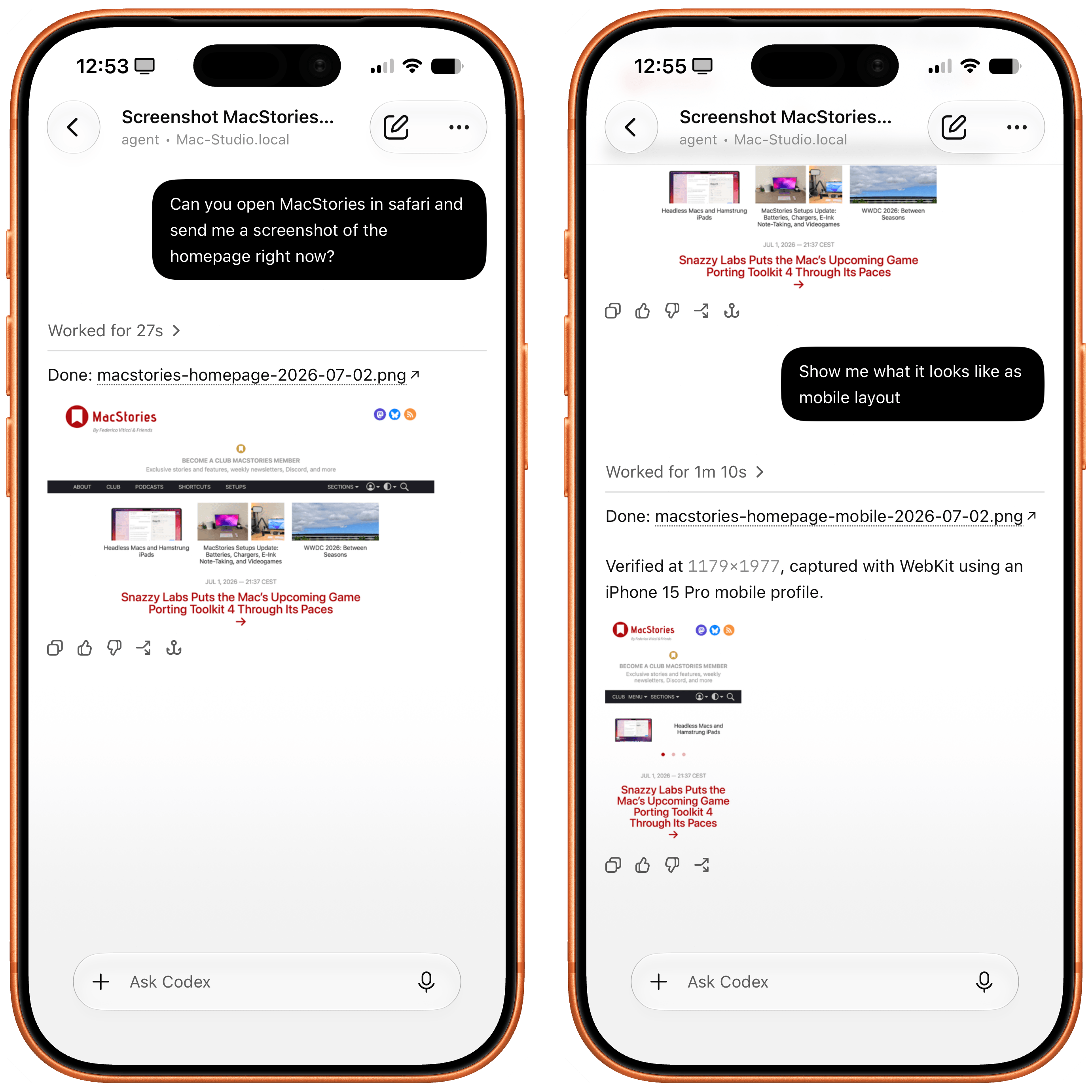
For the past few months, I’ve been using Google Chrome on my MacBook Pro and Mac Studio not because I like the browser (in fact, I really dislike Chrome’s text rendering and UI), but simply because it was the best option for agents. In Codex specifically, between Playwright, Chrome Dev Tools, and OpenAI’s own Chrome extension, I could kick off research tasks (such as vacation planning and booking a hotel) that involved a browser directly from my iPhone, letting Codex drive the research on my remote Mac.

Safari in Codex.

Safari in Codex.

Now, thanks to Safari’s new MCP server, I no longer have to use Chrome on desktop and can return to a unified browser setup across all my devices. Even better: it actually looks like Apple shipped the most ergonomic browser MCP for agents to date. The MCP server has dedicated tools for page extraction (including getting webpages as Markdown, based on WebKit’s own conversion pipeline), evaluating JavaScript, DOM interactions (clicking, scrolling, resizing the viewport for mobile screens, etc.), taking screenshots, and more. I set this up immediately in Codex, and I also asked Codex about comparing Safari’s MCP to its own Chrome extension and the older Playwright. The verdict: although Chrome has a richer API with Chrome Dev Tools when it comes to network requests, Codex actually preferred Apple’s leaner, more direct approach for letting an agent drive and debug a browser.

I’m really happy to see folks at Apple embrace agentic tools: between the new MCP capabilities of Xcode and now this, it looks like Apple’s software (on the Mac, of course) is becoming more and more approachable by people who are working in new ways thanks to agents. Whether you’re a web developer or tinkerer, I highly recommend checking out what Apple has released in Safari Technology Preview. More of this, please.

  •  
❌