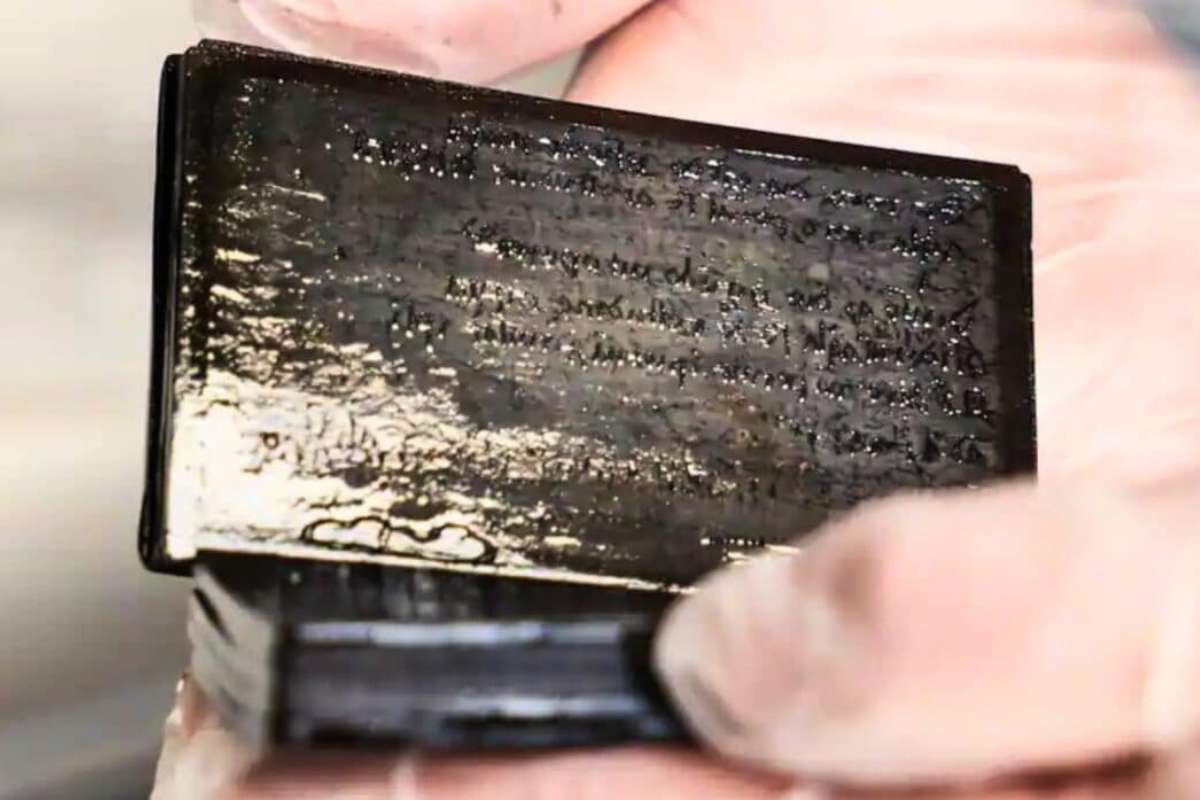
Un carnet de notes vieux de 700 ans, encore lisible, retrouvé au fond de latrines médiévales. À ses côtés, des lambeaux de soie fine ayant servi de papier toilette. Cette trouvaille insolite, préservée par la crasse elle-même, offre un aperçu intime du quotidien d'un marchand allemand du XIIIe...
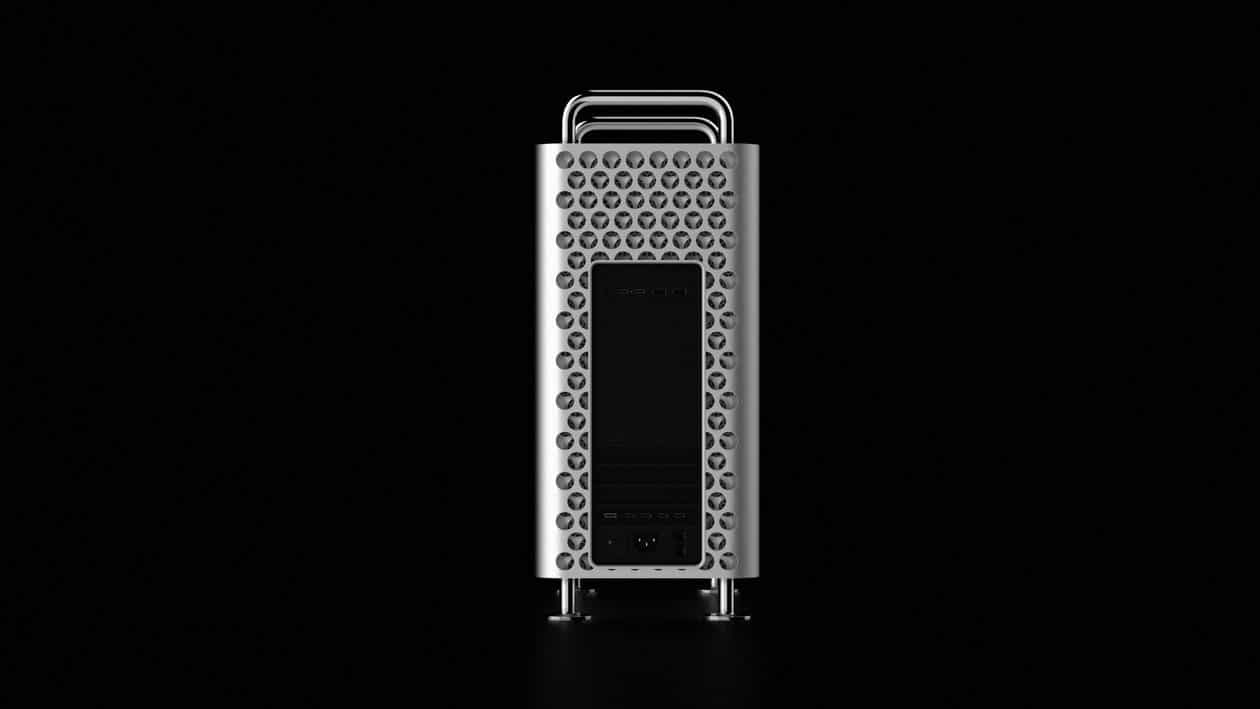
Segundo o Gurman, a Apple desenvolveu pelo menos dois modelos do Mac Pro que nunca viram a luz do dia: um com processador da Intel — mesmo depois do lançamento da linha M1, curiosamente —, de codinome J170, para atender casos específicos; e outro equipado com o M3 Ultra, chamado internamente de J190 e previsto para ser lançado junto da última leva do Mac Studio, que chegou ao mercado no começo do ano passado.
Um caminho possível para a linha seria um suposto chip superior aos do sufixo Ultra; citado pelo jornalista como a variante “Extreme”, ele teria como objetivo oferecer o dobro de núcleos de CPU 1Central processing unit, ou unidade central de processamento. e GPU 2Graphics processing unit, ou unidade de processamento gráfico. em relação aos do Ultra, e o desenvolvimento do projeto chegou até o M3 antes de ser encerrado devido à preocupação com custos e demanda.
Genius Bar com IA?
Na mesma edição, o jornalista comentou que a Apple passou a testar a implementação de um sistema que utiliza IA para registrar conversas entre clientes e funcionários do Genius Bar.
Divulgação/Apple
Intitulado Live Notes, o recurso opcional testado em algumas Apple Stores permitiria que os funcionários do Genius Bar registrassem transcrições dos seus atendimentos com uma ferramenta capaz ainda de resumir as interações com os clientes. Ambas as partes deverão consentir com a gravação e o resultado final é passível de ajustes, sendo adicionado ao iPad do funcionário como parte do registro do atendimento ou reparo.
Ainda assim, o teste gerou preocupações entre os empregados, os quais temem que esses registros poderão ser usados para metrificar avaliações de desempenho e o trabalho dos colegas. A Apple teria descartado essa possibilidade, afirmando que as gravações não serão armazenadas e que nem mesmo os gerentes possuirão acesso às transcrições.
Notas de rodapé
1
Central processing unit, ou unidade central de processamento.
2
Graphics processing unit, ou unidade de processamento gráfico.
In his latest Power On newsletter, Bloomberg News’ Mark Gurman highlights two notable Apple developments: a new AI tool being tested in retail stores and previously undisclosed plans for the now-defunct Mac Pro.
AI Recording and Transcription for Genius Bar Appointments
Apple is piloting an AI-powered system called Live Notes at select retail stores. The tool allows Genius Bar employees to record conversations with customers using an iPad. AI then transcribes and summarizes the discussion, automatically adding it to the employee’s notes and the official repair session record.
Key details of the pilot include:
• Opt-in only — Both the employee and customer must agree before recording begins.
• Goal — Reduce manual note-taking so staff can focus more on customer service and problem-solving rather than typing during appointments.
• Integration — Transcripts feed directly into Apple’s internal Genius Bar system for better documentation and follow-up.
This initiative reflects Apple’s broader push to integrate AI across its ecosystem, including retail operations, to improve efficiency while maintaining a personal touch in customer interactions. Privacy safeguards via the opt-in requirement appear designed to address potential concerns.
Apple Once had Bigger Plans for the Mac Pro
Apple discontinued the Mac Pro earlier in 2026, but new reporting reveals the company once had far more ambitious plans for the high-end desktop. Gurman notes that Apple developed — but ultimately shelved — “M2 Extreme” and “M3 Extreme” chip variants specifically intended for the Mac Pro.
These ultra-powerful chips were part of an effort to deliver even greater performance for professional users who rely on the modular, expandable workstation. The decision not to release them contributed to the product’s eventual discontinuation, as Apple shifted focus amid changing market demands and the rise of more portable high-performance options like Mac Studio and MacBook Pro configurations.
The revelations underscore the evolving nature of Apple’s Mac lineup, where even flagship products like the Mac Pro face tough strategic trade-offs in an AI-driven computing era.
MacDailyNews Take: Not everything makes it to market. Conditions change. As always, retail and pro desktop innovations continue to shape the company’s customer and professional user experiences.
For the vast majority of professional users (video editors, photographers, 3D artists, developers, and those running AI/ML workloads) the Mac Studio is the superior choice overall. It delivers an excellent balance of performance, price, compact size, and modern features. The Mac Studio covers 90% (or more) of what the Mac Pro once offered, but at a fraction of the cost and with newer silicon, and the promise of regular updates. The discontinued Mac Pro was only preferable, or truly necessary, in the rare cases that demand heavy internal PCIe expansion that cannot be adequately handled externally via Thunderbolt; a very niche market. – MacDailyNews, March 27, 2026
Apple’s Mac Pro is a dead end. Mac Studio is the high-end Mac future now. Bring on the M5 Ultra Mac Studio and rename it “Mac Pro.” – MacDailyNews, November 17, 2025
Please help support MacDailyNews — and enjoy subscriber-only articles, comments, chat, and more — by subscribing to our Substack: macdailynews.substack.com. Thank you!
The best digital planners for Mac and iPad are not necessarily the apps with the longest feature lists. A useful planner should help make the day easier to understand, keep commitments visible and reduce the number of places where tasks quietly disappear.
Mac and iPad also encourage two different planning styles. The Mac is better for typing, reviewing projects and arranging a full week across a larger screen. The iPad is more natural for handwritten notes, Apple Pencil planning and checking the day away from a desk. The strongest apps either work well across both devices or focus so successfully on one style that the compromise feels worthwhile.
Some people want a digital version of a paper agenda. Others want a visual timeline, a task manager, a calendar command center or a workspace that can hold an entire life. These are the strongest options for those different approaches.
Structured Is the Best Visual Daily Planner
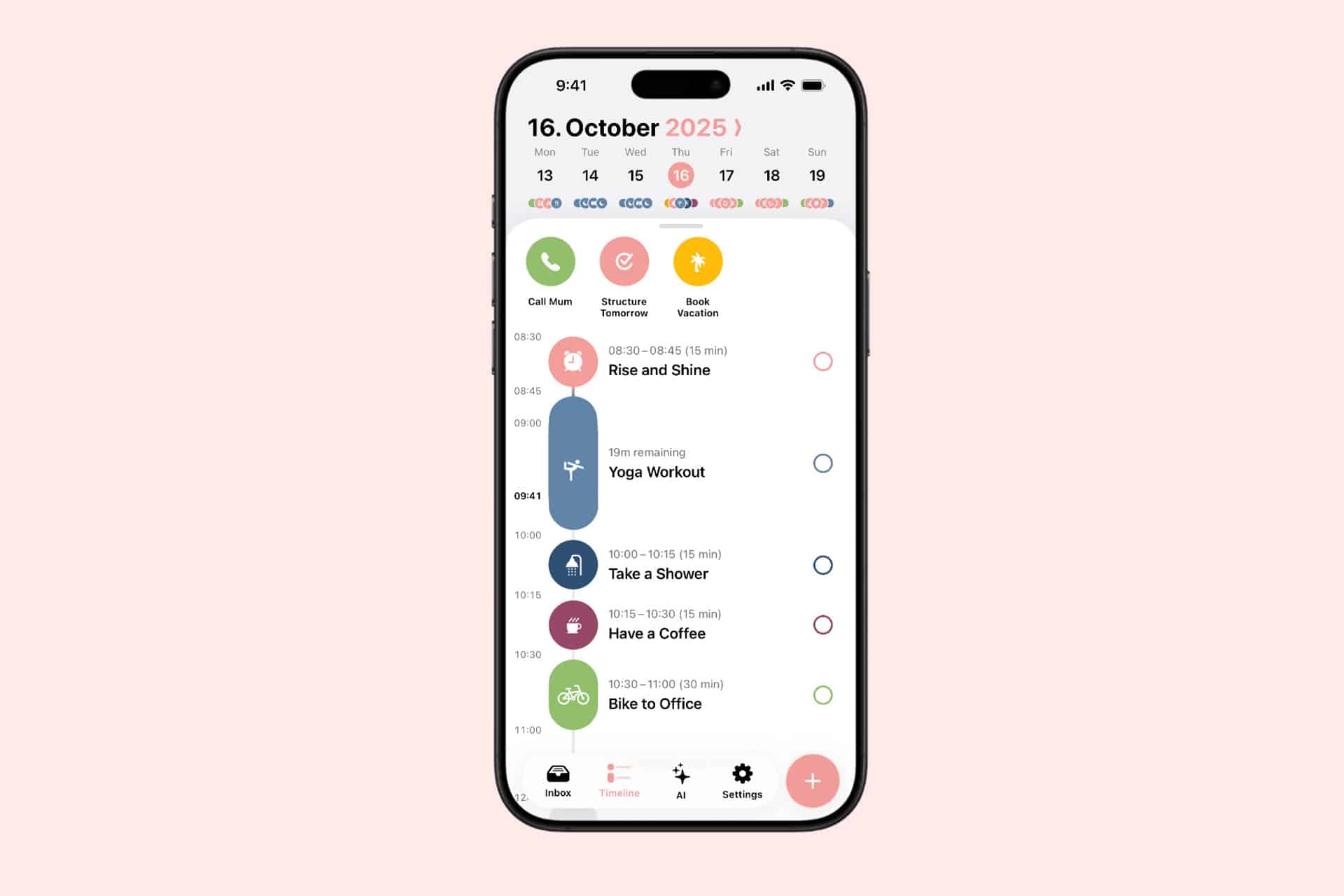
Structured is the easiest recommendation for users who want to see the day as one continuous timeline. Tasks, appointments and focus sessions appear in chronological order, making it immediately obvious when the schedule is overloaded or when a free hour actually exists.
The app feels particularly natural on iPad because tasks can be moved and adjusted visually. Its Mac version provides more space for planning the full day while preserving the same clean layout. Structured also offers apps for iPhone and Apple Watch, which helps keep the plan accessible without repeatedly opening the Mac.
This is a strong choice for students, busy families and anyone who struggles with traditional task lists. A list says what needs to happen. Structured shows where each task can fit.
Its limitation is scale. It handles daily planning beautifully, but users managing large professional projects may need a separate project-management system. Structured is best when the priority is today rather than the entire company roadmap.
Image Credit: Structured
Goodnotes Is Best for Handwritten Planning
Goodnotes remains one of the best digital planners for iPad users who want the experience of paper without carrying notebooks. It supports Apple Pencil handwriting, PDF planner templates, typed text, images, links, stickers and searchable handwritten notes.
The experience depends heavily on the planner template selected. Users can choose daily, weekly, monthly, academic, financial or wellness layouts and import them as PDF files. Hyperlinked tabs can make a digital planner behave like a physical binder with instant navigation between months and sections.
The Mac app is useful for reviewing pages, typing longer notes and accessing the same documents at a desk. The iPad remains the better creation device because handwriting is the central appeal.
Goodnotes does not automatically manage time like a calendar-based app. Writing “meeting at 3 p.m.” on a page does not necessarily create a calendar alert. It is best for people who enjoy manually planning and reflecting rather than expecting the software to rearrange the day automatically.
Things 3 Is Best for Focused Personal Planning
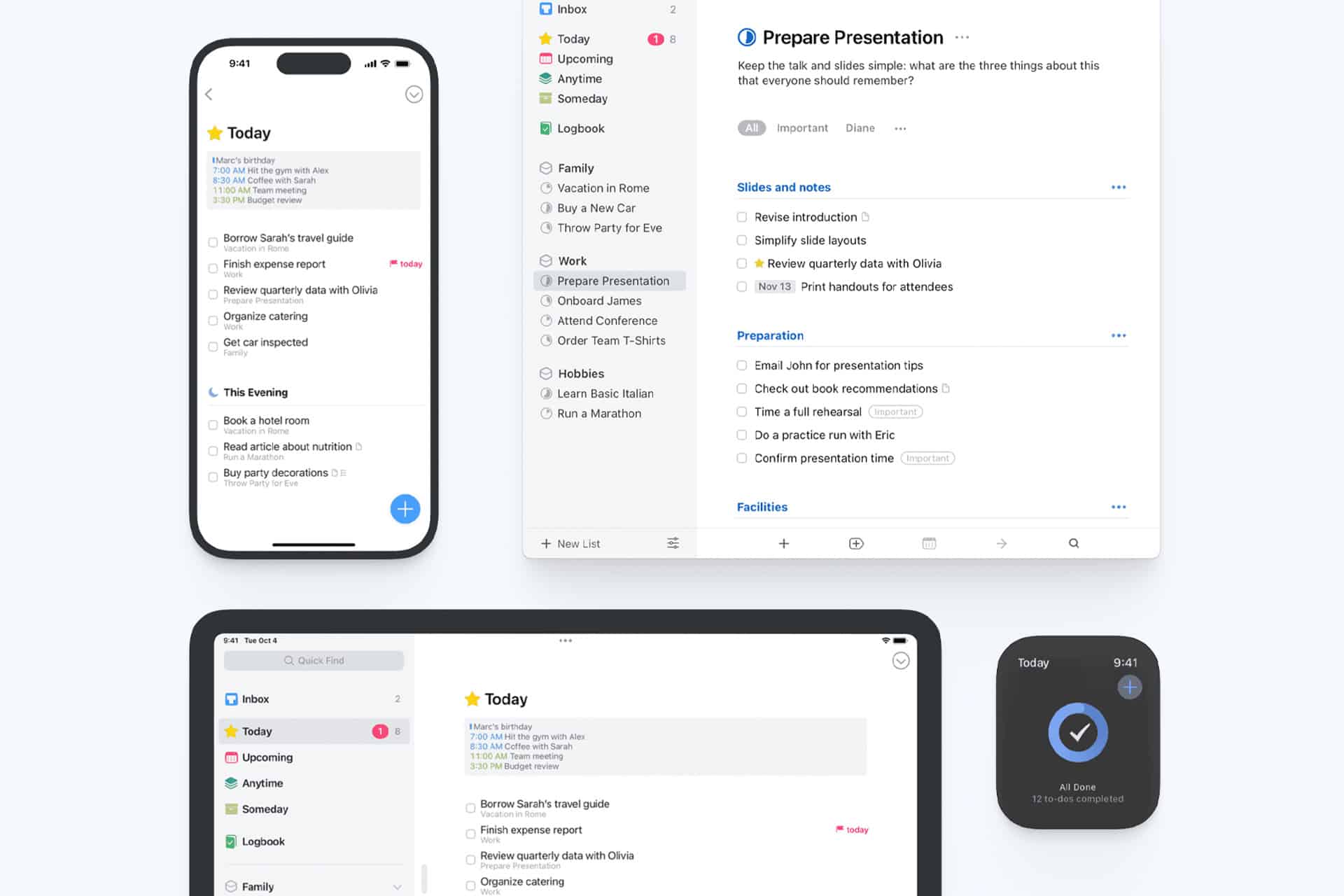
Things 3 is a task manager rather than a traditional calendar, but its Today and Upcoming views make it an excellent personal planner. The interface is calm, fast and unusually disciplined. Tasks can be collected quickly, organized into projects and areas, then scheduled without turning the app into a complicated database.
The Mac version is especially good for weekly reviews and larger project organization. On iPad, Things feels lighter and more direct, with excellent keyboard support and touch controls. Cloud sync keeps tasks aligned across Apple devices.
Things is ideal for users who want to separate tasks from appointments. Calendar events can appear beside the daily list, but the app remains focused on actions rather than becoming a full calendar replacement.
The main drawback is collaboration. Things is designed primarily for personal planning, not shared team projects or household lists. It is also sold separately for Mac, iPad and iPhone rather than through one universal purchase.
Image Credit: Things
Notion Is Best for Building a Custom Planner
Notion works for users who do not want to accept someone else’s idea of a planner. It can become a project tracker, editorial calendar, habit journal, reading list, weekly dashboard or all of those at once.
Templates make the starting process easier. A user can create daily pages connected to tasks, projects, goals and notes, then display the same information through calendar, table, board or timeline views. Notion Calendar adds a more conventional scheduling layer and works well on Mac.
The flexibility is both the attraction and the warning. Notion can become a beautifully organized personal operating system. It can also become a weekend-long design project that produces more templates than completed tasks.
The iPad app is useful for reviewing plans, adding notes and working with a keyboard. It is less satisfying for freehand Apple Pencil planning than Goodnotes. Notion is the better option for structured information, connected projects and users who enjoy building their own system.
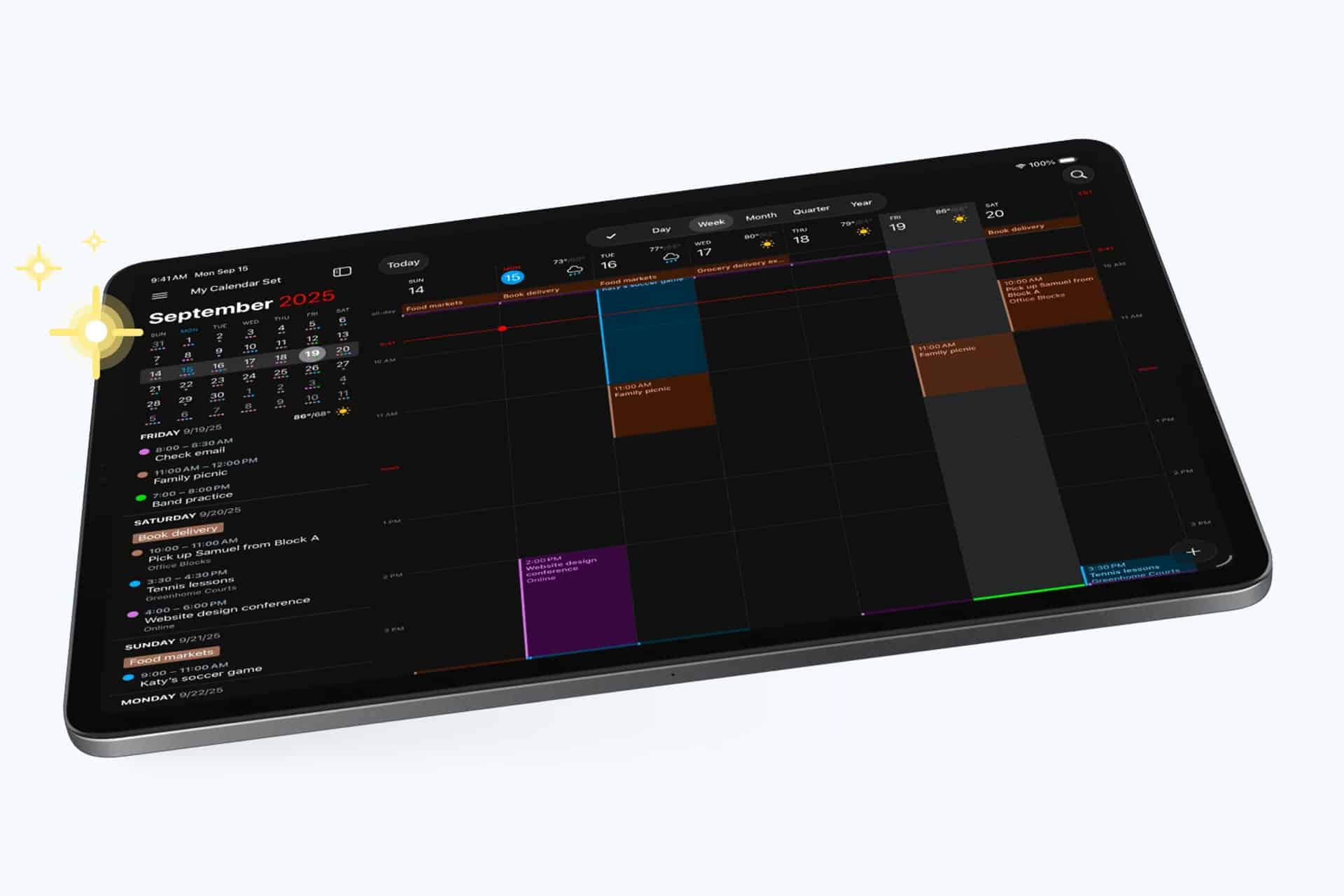
Fantastical Is Best for Calendar-First Planning
Fantastical is the strongest choice for users whose day is governed by appointments, meetings and scheduled commitments. It combines calendars and tasks in polished day, week, month, quarter and year views across Mac and iPad.
Natural-language input makes adding events fast. Typing a phrase such as “Lunch with Alex Friday at noon” can create the event without opening several fields. Fantastical also supports multiple calendar services, time zones, reminders, meeting links and scheduling tools.
The Mac app is a strong command center for professional calendars. The iPad version offers enough space to examine the week without feeling compressed. Users can also connect Apple Reminders, Todoist or Google Tasks so scheduled work appears beside events.
Fantastical is less suited to reflective journaling or handwritten planning. Its premium subscription may also be excessive for someone who only needs a basic calendar. It earns its place when the calendar itself is the planner.
Image Credit: Fantastical
Sunsama Is Best for Deliberate Work Planning
Sunsama approaches productivity as a daily planning ritual. Each morning, users review tasks, decide what belongs in the day and place that work onto the calendar through time blocking. At the end of the day, the app encourages a review rather than allowing unfinished tasks to become permanent background guilt.
It can collect work from services such as Notion, Trello, Asana and other professional tools, then combine those tasks with calendar events. This makes it useful for people whose work is scattered across several platforms.
Sunsama is more guided than most planners. That structure can help users stop planning an impossible day. The Mac experience is the main attraction, while the iPad app keeps the plan available away from the desk.
The subscription is relatively expensive, and the deliberate workflow may feel slow to users who only want a simple task list. Sunsama suits professionals who want planning to become a daily boundary around work rather than another place to collect everything.
Which Digital Planner Should You Choose?
The right planner depends on how the user naturally thinks.
Structured works best for seeing the day visually. Goodnotes is the closest replacement for a paper agenda. Things 3 provides the cleanest personal task system. Notion offers the most freedom. Fantastical serves users who live through their calendars. Sunsama brings the most deliberate approach to professional time blocking.
Using several planners at once usually defeats the purpose. A better strategy is choosing one primary system and allowing other apps to support it. Someone might use Fantastical for appointments and Things for tasks, or Goodnotes for weekly reflection while Structured runs the actual day.
The best digital planners do not create motivation by themselves. They create a reliable place to decide what deserves time. On Mac, that place can become a detailed planning desk. On iPad, it can feel closer to a notebook held in the hand. The right app should make those two experiences feel connected rather than duplicated.
Update: An earlier version of this article referred to this feature as having been introduced in iPadOS 27, but it was actually introduced in the iPadOS 26 cycle. I missed it. My apologies.
In iPadOS’ Shortcuts app, the existing ‘Open App’ action was recently updated with the ability to launch an app with a specific window placement parameter. This means you can now automate window positions on iPad by opening a bunch of apps and programmatically selecting where their windows be placed.
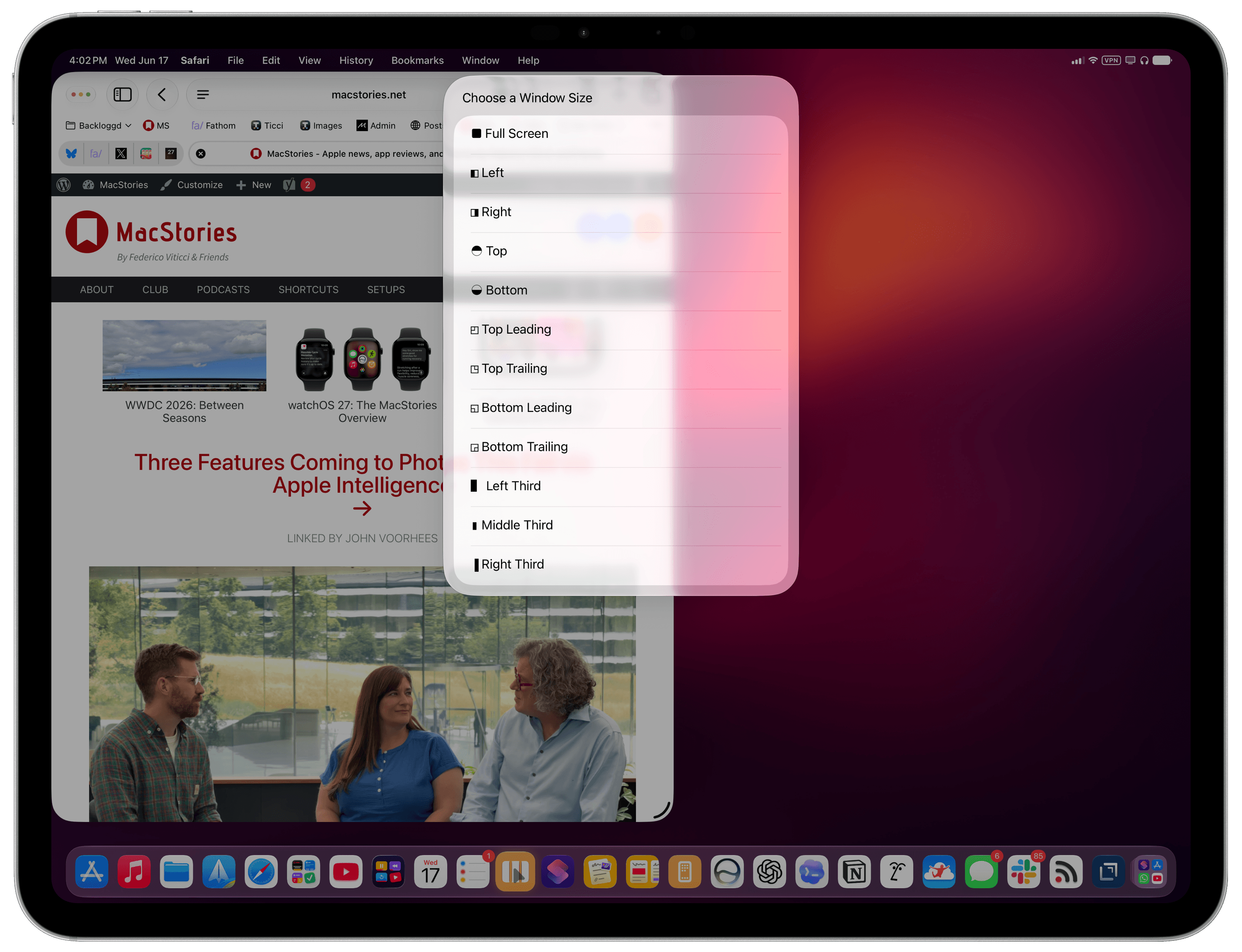
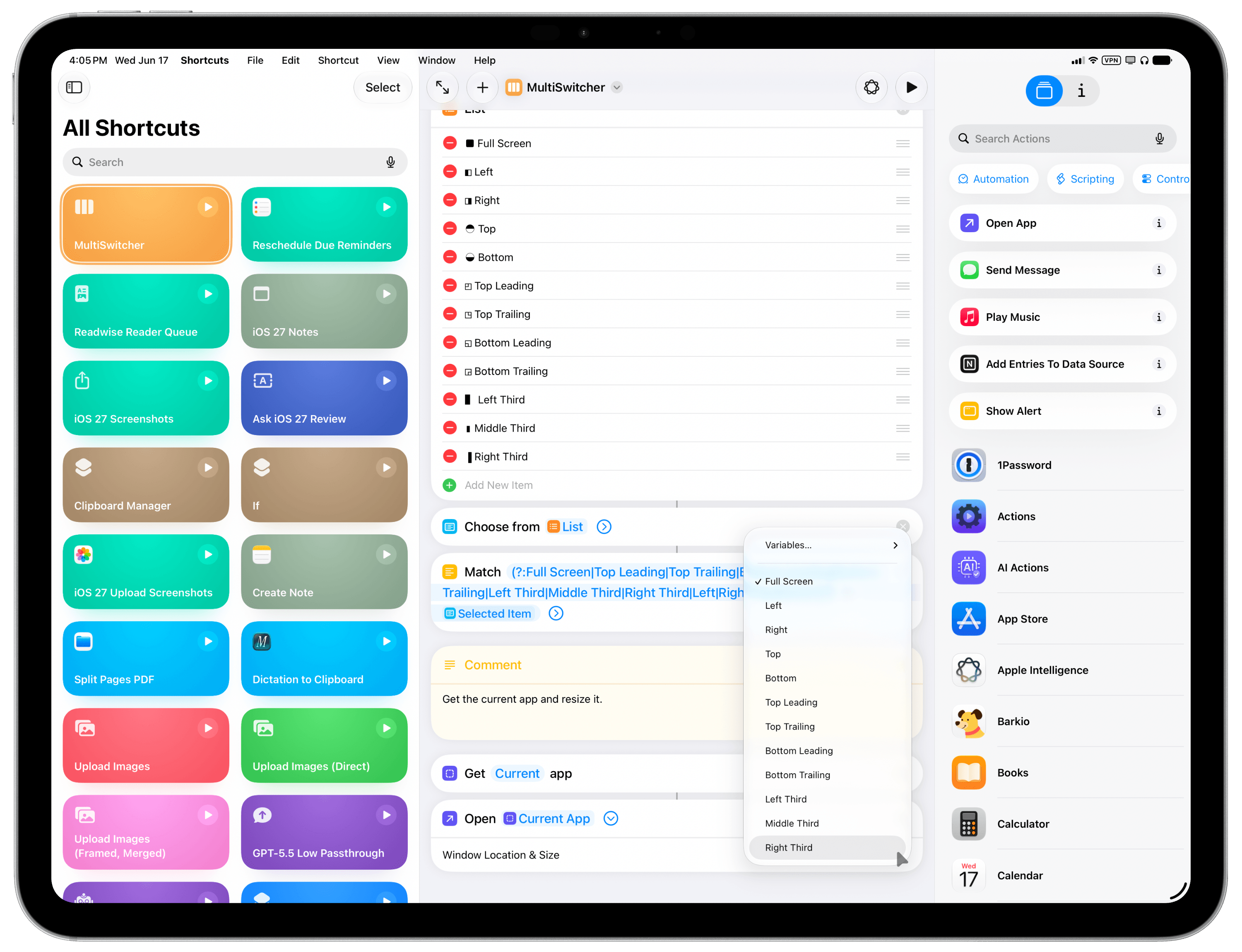
To find this feature, use the ‘Open App’ action in Shortcuts and expand it to reveal the new ‘Window Location & Size’ field. Here, you can click the default ‘Full Screen’ value to reveal a host of options:
Full Screen
Left
Right
Top Bottom
Top Leading
Top Trailing
Bottom Leading
Bottom Trailing
Left Third
Middle Third
Right Third
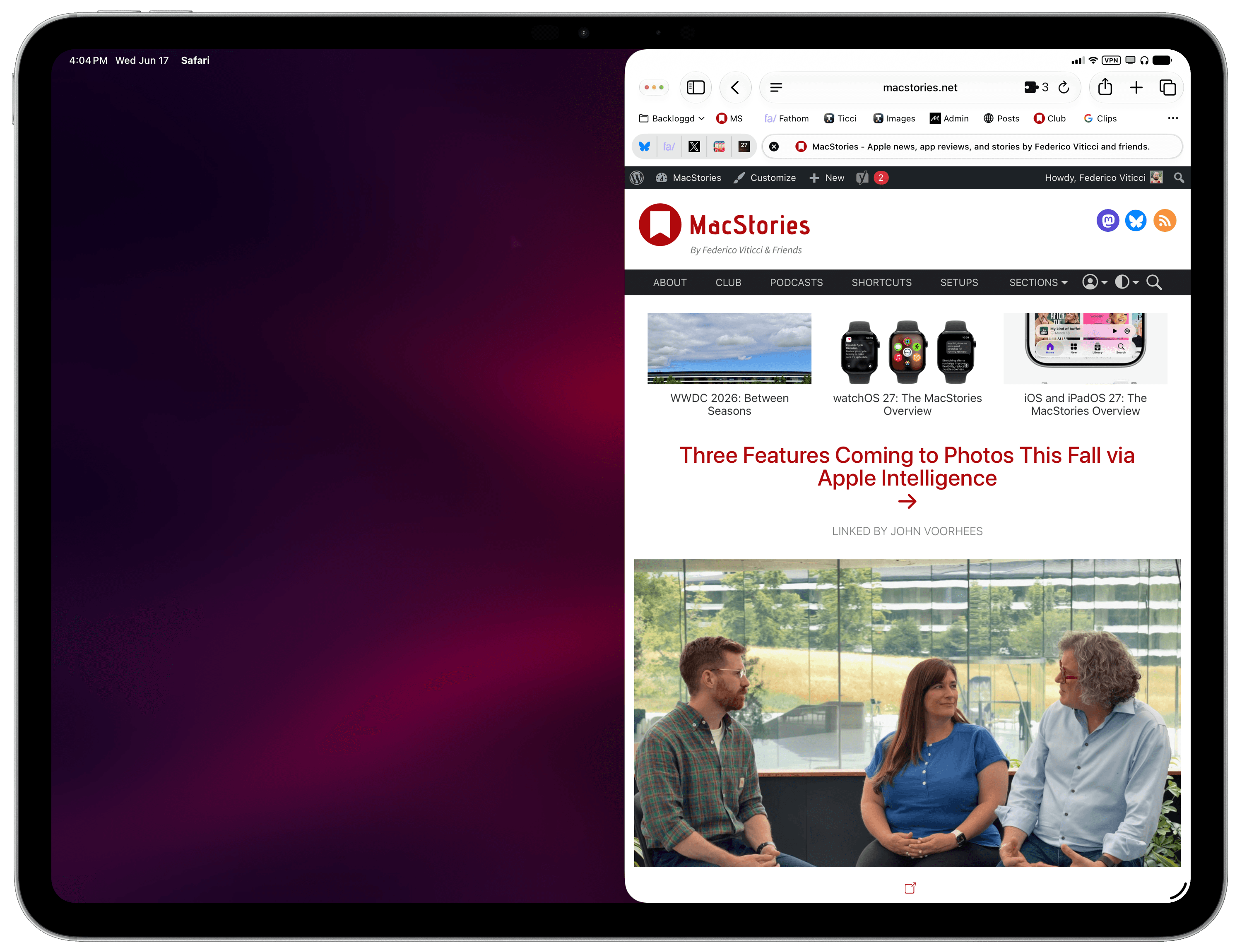
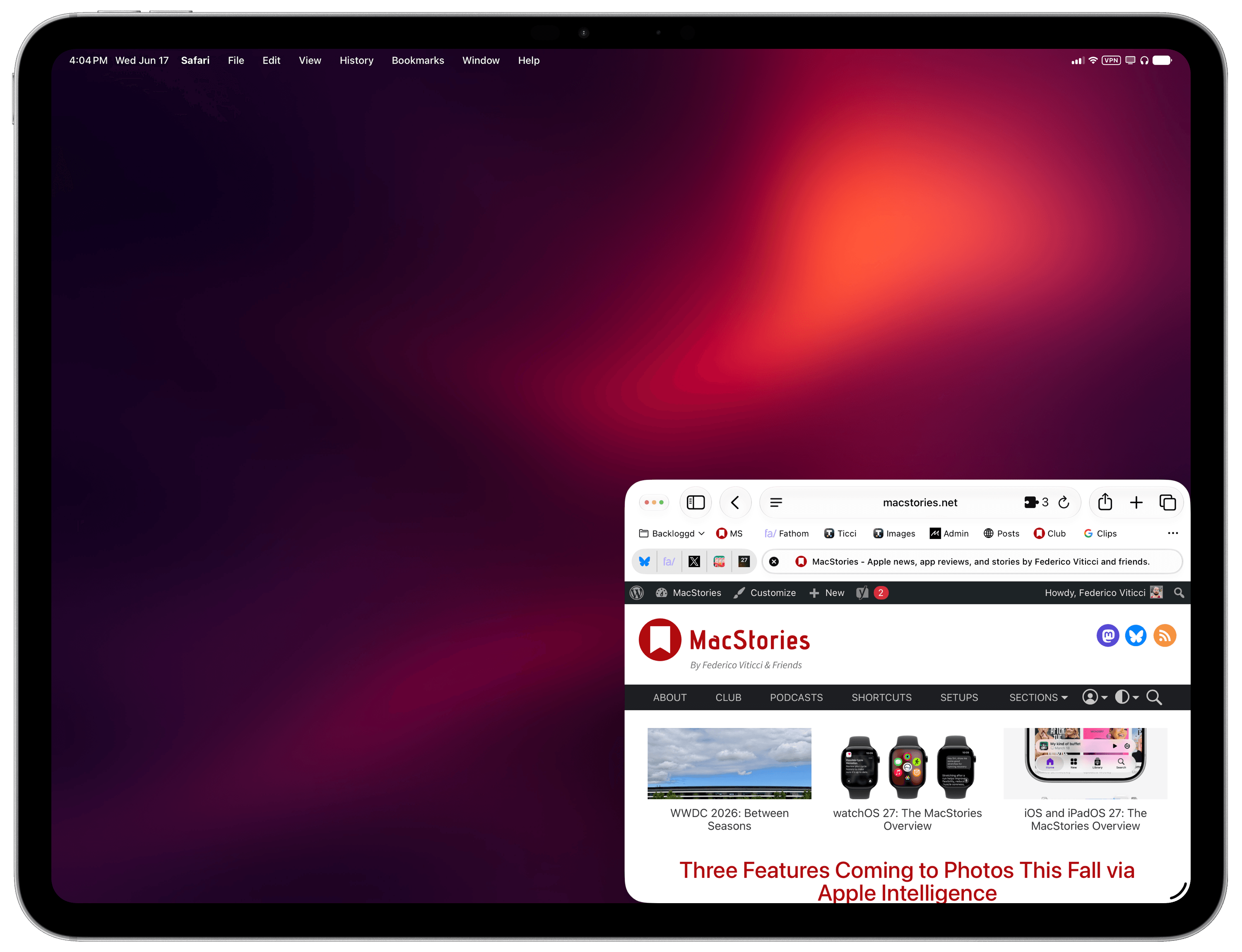
You can play around with these options to open any app and resize any window by choosing from the same presets that are otherwise shown by iPadOS when right-clicking the traffic light controls:
Some of the options supported by the ‘Open App’ action.
That was a neat discovery, but as I was playing around with the action, I realized that its practical utility would be impacted by the fact that you have to manually pre-select the app you want to open as well as its window layout. Wouldn’t it be better if you could turn this Shortcuts action into a reusable technique to programmatically get whichever app is in the foreground with no manual selection upfront, then also give it a pre-selected window preset? As it turns out, you absolutely can.
This is why I created MultiSwitcher, a simple proof-of-concept shortcut for iPadOS users that lets you resize any foreground window to a preset of your choice – no manual input necessary. The idea is fairly straightforward: you can use the ‘Get Current App’ action to get the name of the foreground app, pass it to the ‘Open App’ action, and also pre-configure that action to accept a layout variable.
This new parameter of the ‘Open App’ action supports configurable options.
MultiSwitcher is best used as a shortcut added to your iPad’s dock, so you can click it at any time and instantly resize the foreground window. For MultiSwitcher, I designed a visual menu (with some ASCII characters) that lets you preview window layouts, pick one, and resize the currently frontmost window. It doesn’t have to be this way, though: if you’d rather add multiple variations of MultiSwitcher to your dock, each with a specific window size already selected, you can also do that and skip the menu. The choice is up to you.
While these newfound window-control capabilities for iPadOS are still a far cry from the Mac’s breadth of window managers and multitasking tweaks, I find this implementation in Shortcuts to be quite elegant and intuitive for most users to grasp with no need for a third-party app.
You can download MultiSwitcher for iPadOS below.
MultiSwitcher
Control iPadOS window placement by selecting from a list of preset window sizes. The shortcut will resize the currently frontmost window.
Louis Christopher, an Australian businessman, received an alarming email from CBA demanding personal financial details under threats of account suspension, citing the regulatory body Austrac. He condemns this "authoritarian" measure as a move towards a cashless society and warns of the potential loss of freedoms, linking it to broader globalist agendas.

 Login
Login