Apple Care+ ist eine Dienstleistung von Apple, die die gesetzliche Garantiefrist erweitert: Gegen eine geringe Selbstbeteiligung repariert der Hersteller eine kaputte Apple Watch ein iPhone oder andere Apple-Geräte. Sie können die Police auf einmal kaufen und die ganze Summe bezahlen oder wahlweise einmal pro Jahr (bei Macs) oder einmal pro Monat (bei allen anderen mobilen Geräten) einen Betrag wie bei einem Abo zahlen.
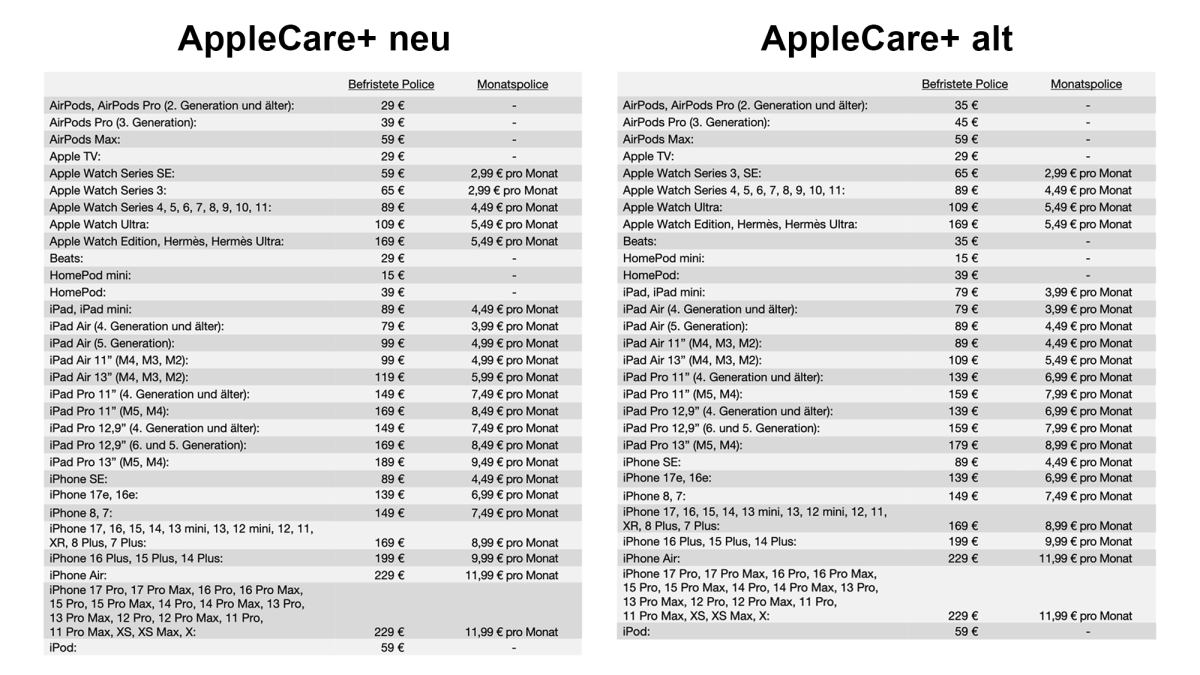
Die neuen Preise von AppleCare+ für mobile Geräte ab Juli 2026 links, die alten rechts.
Apple
Am 15. Juli 2026 hat Apple die Preise für befristete und monatliche bzw. jährliche Policen für einige seiner Produkte geändert. Die Preise haben sich nicht quer durch die Bank erhöht. Die Police für Apples Kopfhörer mit Ausnahme der Airpods Max ist günstiger geworden. Die Airpods 4, die Airpods Pro 2 und Beats-Kopfhörer können Sie nun für 29 Euro statt 35 Euro über Apple Care+ versichern. Die Police für die Airpods Pro 3 kostet nun 39 statt 45 Euro.
Sehr erfreulich ist es, dass Apple die Police für die Apple Watch SE etwas reduziert hat: Die Geräte waren ursprünglich in derselben Kategorie wie die Apple Watch Series 3 eingeordnet, für die die Police 65 Euro beträgt. Seit dem 15. Juli 2026 können Sie für die Apple Watch SE eine Police für 59 Euro abschließen. Möchten Sie monatlich zahlen, bleibt der Betrag bei 2,99 Euro.
Dagegen hat Apple die Preise für Apple Care+ bei fast allen iPad-Modellen um 10 Euro beim Zweijahresvertrag und um 50 Cent bei der monatlichen Police erhöht. Kostete Apple Care+ für das iPad Mini noch vor einer Woche 79 Euro, müssen Sie inzwischen 89 Euro dafür zahlen. Nur das iPad Air der vierten Generation und älter ist von dieser Steigerung verschont geblieben. Beim iPhone hingegen hat sich nichts geändert.
Die neuen Preise für Apple Care+ finden Sie im Detail hier (pdf), die alten hier (pdf).
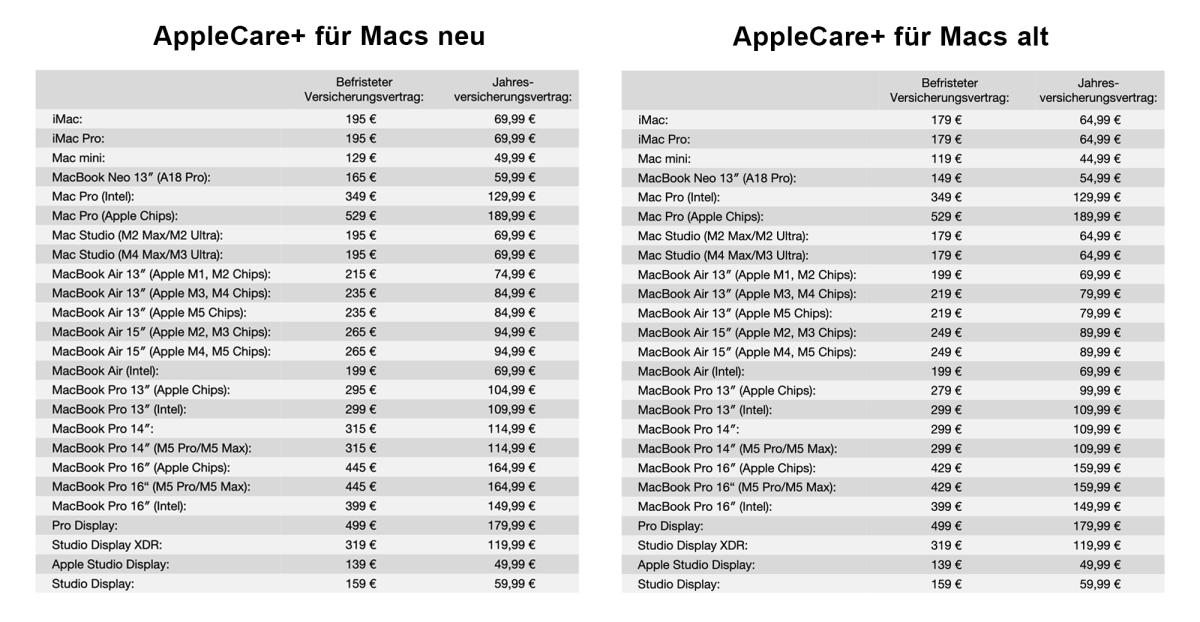
Die neuen Preise von AppleCare+ für Macs ab Juli 2026 links, die alten rechts.
Apple
Auch bei den Macs hat Apple die Preise für Apple Care+ erhöht. Die Erhöhungen betragen universell 16 Euro beim befristeten Vertrag und 5 Euro beim Jahresvertrag. Lediglich die ganz alten Intel-Macs und die Apple-Displays waren von der Preiserhöhung ausgenommen. Der Selbstbeteiligungsbetrag hat sich nicht geändert. Die neuen Preise finden Sie hier (pdf), die alten hier (pdf).
Seit ich macOS Tahoe auf meinem Macbook mit M3 Max installiert habe, läuft es nicht mehr rund. Ich spreche hier nicht von „Liquid Glass“, den Eckenradien der Fenster oder gar dem App-Panel. Seit fast einem Jahr funktioniert mein Macbook einfach nicht mehr so, wie ich es erwarte.
Es gibt zwar auch gute Tage, doch mein Mac kann trotzdem jederzeit einfrieren. Dabei reagiert mein Trackpad nicht mehr und ein sich drehender Strandball ersetzt meinen Cursor. Das dauert zwar nur wenige Sekunden, doch an den schlimmsten Tagen passiert es Dutzende Male pro Stunde und mein Trackpad reagiert nicht mehr, als wäre mein Macbook heruntergefahren. Jedes Mal dauert es nicht länger als ein paar Sekunden, doch es ist so nervig, dass es meine Produktivität erheblich beeinträchtigt.
Wie ich bereits geschrieben habe, wusste ich von Anfang an, worin das Problem bestand. Die Aktivitätsanzeige zeigte eine sprunghafte CPU-Belastung durch die Aufgabe „Core Spotlight“, gefolgt von einer vergleichbaren Belastung des dazugehörigen Kernels. Ein Neustart half vorübergehend, doch das Problem trat schon bald wieder auf.
Zunächst dachte ich, es hänge mit der Indizierung zusammen, doch das Problem dauerte viel zu lange an. Dann wartete ich auf Updates – 26.1, 26.2 und so weiter –, doch keines behob das Problem für länger als ein paar Tage. Wie ich bereits in meinem letzten Artikel zu diesem Thema schrieb, half das Deaktivieren einiger Schaltflächen in den Spotlight-Einstellungen eine Zeit lang, doch nach etwa einem Monat traten die Probleme wieder auf. Und da es keine Möglichkeit gibt, Spotlight vollständig zu deaktivieren, ohne sich an das Terminal heranzuwagen – was mir Angst machte –, saß ich mit einem Mac fest, der nicht richtig funktionierte.
Alles muss raus
In den vergangenen Monaten hat sich das Problem zunehmend verschlimmert, aus welchem Grund auch immer. Es könnte mit der Installation von macOS 26.5 zusammenhängen, möglicherweise aber auch mit der Apple-Creator-Studio-Version von Pages, die ihre eigenen Probleme aufwies.
macOS erstellt regelmäßig einen Spotlight-Index, über den es auf Dateien zugreift, wenn Sie mit Spotlight suchen. Das Problem mit Pages ließ sich offenbar darauf zurückführen, dass es iCloud als Speicherlaufwerk nutzt. (Mit dieser Vermutung stehe ich auch nicht allein da; einer meiner Kollegen bei Macworld hatte ein ähnliches Problem mit Spotlight und Pages.)
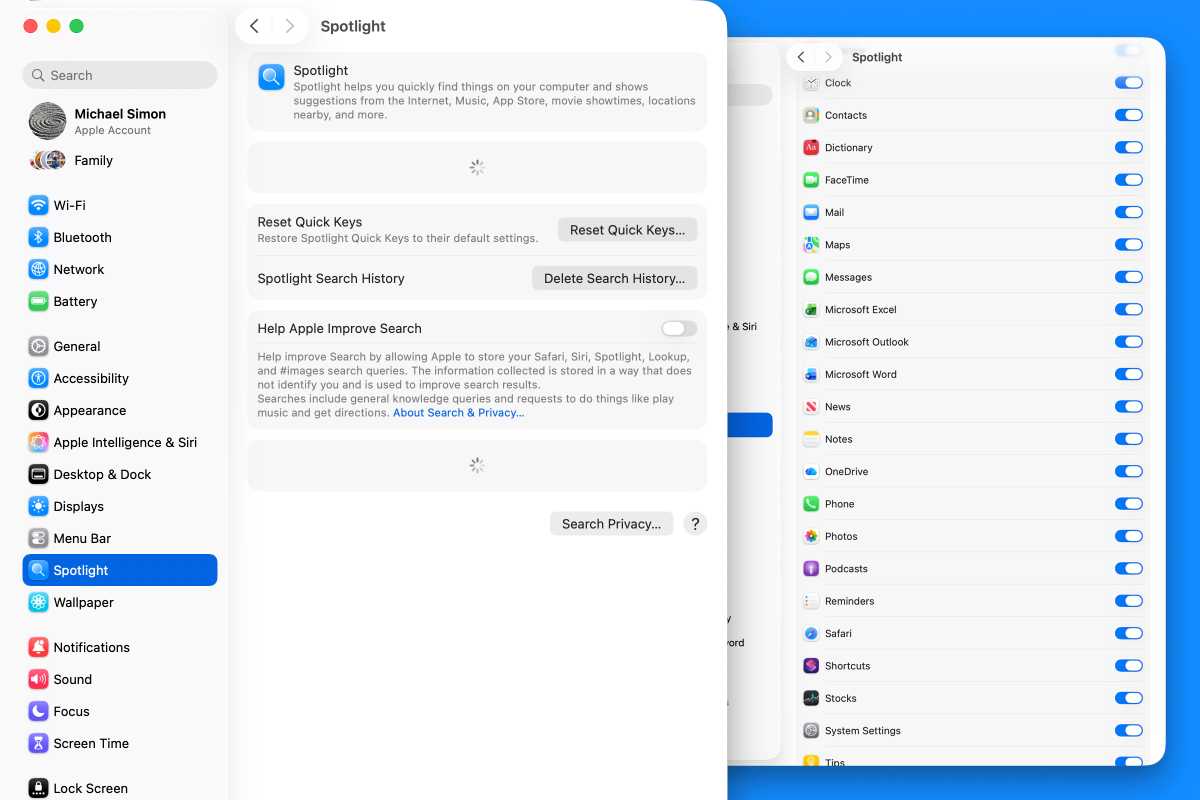
Meine Probleme wurden so schwerwiegend, dass sich die Spotlight-Einstellungen nicht einmal mehr öffnen ließen.
Foundry
Da es keine Möglichkeit gibt, Spotlight vollständig zu deaktivieren – im Gegensatz zu Siri oder Apple Intelligence –, habe ich ein bisschen rumprobiert. Zunächst habe ich den Schalter für Pages in den Spotlight-Einstellungen deaktiviert. Das hat nichts gebracht. Dann habe ich versucht, die Pages-App und ihren Dokumentenordner zur Option „Datenschutz der Suchfunktion“ in den Spotlight-Einstellungen hinzuzufügen. Ohne Erfolg.
In einem Anfall von Verzweiflung fügte ich sogar mein gesamtes Macbook-Laufwerk zur „Datenschutz der Suchfunktion“-Einstellung hinzu, um die gesamte Suche zu unterbinden, und zwang Spotlight erneut, seinen Index neu aufzubauen. Auch das funktionierte nicht. Ebenso wenig wie die Versionen macOS 25.5.1 oder 25.5.2.
Ich steckte also fest. Mein Plan war, abzuwarten, bis macOS 26.6 erschien, und zu prüfen, ob das Abhilfe schaffen würde (obwohl ich nach fünf vorherigen Updates wenig Hoffnung darauf hatte), und vielleicht die öffentliche Beta-Version von macOS 27 auszuprobieren. Andernfalls würde ich mich einfach mit den Hängern abfinden und hoffen, dass sie sich nicht weiter verschlimmerten.
Leider wurde es schlimmer. Eines Tages kam es so weit, dass mein Macbook jedes Mal, wenn ich auf ein neues Fenster klickte, für ein oder zwei Sekunden ins Stocken geriet, bevor ich etwas tun konnte. Ich war bereit, das gesamte System zu löschen und von vorn zu beginnen – doch zunächst beschloss ich, ein wenig in meinem „Library“-Ordner zu stöbern.
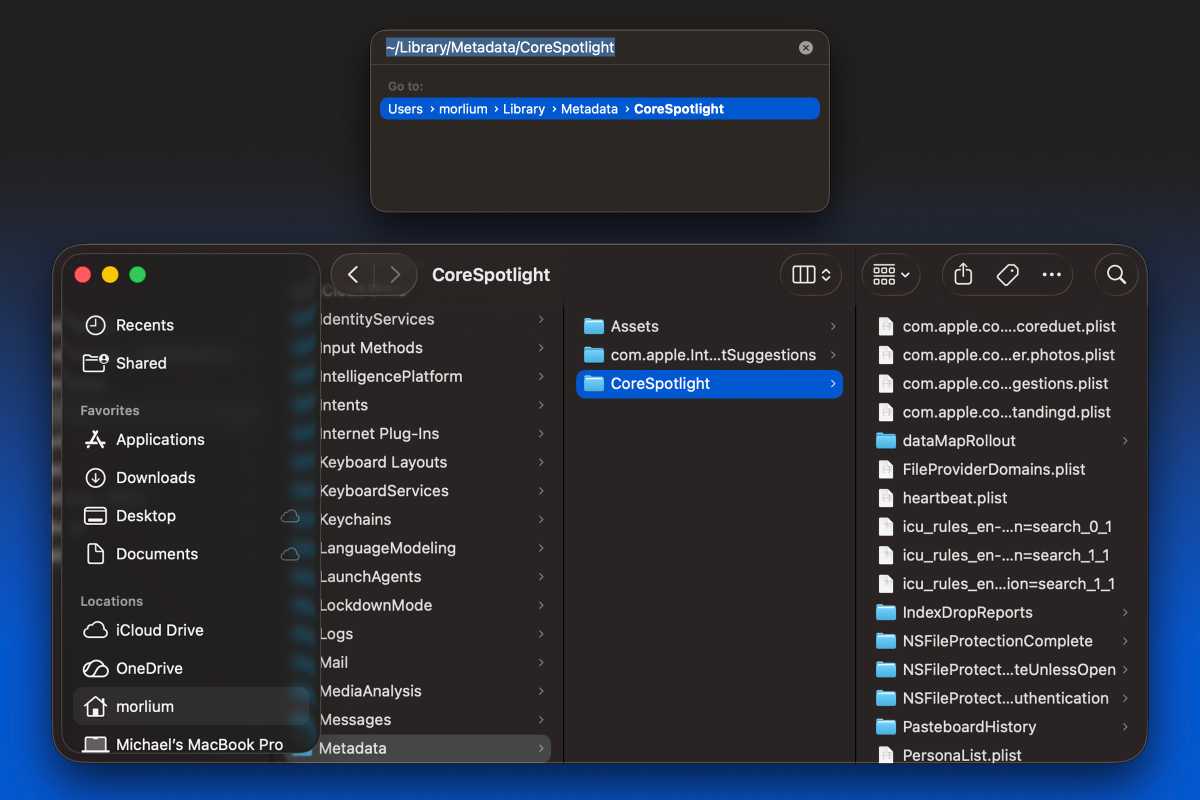
Ich weiß nicht, warum mir das nicht schon früher in den Sinn gekommen ist. Grundsätzlich sind mit jeder App und jeder Funktion Dateien verknüpft, auf die man zugreifen kann, wenn man den richtigen Ordner findet. Ich konnte nichts Offensichtliches finden, doch eine kurze Google-Suche verriet mir, wo sie sich versteckten: ~/Library/Metadata/CoreSpotlight. (Um diesen Ordner zu finden, klicken Sie auf Ihren Desktop, dann oben auf das Menü „Gehe zu“, scrollen Sie nach unten zu „Gehe zu Ordner“, fügen Sie den gesamten Pfad ein und drücken Sie die Return-Taste.)
Foundry
Sie werden eine Vielzahl von Dateien und Ordnern sehen. Mein Ordner enthielt fast 10.000 Dateien und über 2 GB an Daten. Ich hatte keine Ahnung, wo das Problem lag oder wo ich anfangen sollte, und es war mir auch egal, ob Spotlight dadurch nicht mehr funktionierte, also zog ich den gesamten Ordner in den Papierkorb und wählte „Sofort löschen“.
Auch zwei Wochen später gab es auf meinem Macbook keinen einzigen Absturz, keine Verzögerung und kein Ruckeln mehr. Ich habe sogar alle Spotlight-Schalter wieder auf „Grün“ gestellt und habe immer noch keine Probleme festgestellt. Zum ersten Mal seit der Installation von Tahoe kann ich es endlich nutzen, ohne Angst vor einem Absturz zu haben – gerade rechtzeitig für macOS 27. Ich hoffe, dass Golden Gate wesentlich reibungsloser verläuft.
Seit Jahren hält sich Apple an einen vorhersehbaren Zeitplan für die Einführung neuer iPhone-Modelle und bringt im September jeweils neue iPhones auf den Markt – das Standardmodell und das Pro-Modell. Im Frühjahr bringt Apple häufig ein preisgünstigeres Modell auf den Markt: Früher waren dies die „SE“-iPhones, die vor zwei Jahren von den „e“-iPhones abgelöst wurden.
Das könnte sich mit der iPhone-18-Generation ändern. Zuverlässigsten Gerüchten zufolge wird Apple in diesem Jahr im Herbst das iPhone 18 Pro und Pro Max sowie ein teureres faltbares iPhone Ultra vorstellen, doch das iPhone 18 könnte erst später folgen.
Was können wir also vom iPhone 18 und 18e erwarten? Derzeit gibt es nur wenige Gerüchte, was allen voran daran liegt, dass die meisten spannenden Neuerungen zunächst im Herbst 2026 mit den Pro- und Ultra-Modellen eingeführt werden.
Im Folgenden finden Sie eine Zusammenfassung dessen, was wir bisher über das normale iPhone 18 und das iPhone 18e gehört haben, basierend auf den neuesten und zuverlässigsten Gerüchten, Analystenberichten und durchgesickerten Informationen sowie historischen Präzedenzfällen.
Wann kommen das iPhone 18 und das iPhone 18e auf den Markt?
Das iPhone 18 wird auf das Frühjahr verschoben
Das iPhone 18e kommt im Frühjahr 2027 auf den Markt
Während Apple seine Standard- und High-End-iPhone-Modelle seit der Einführung des ersten Pro-Modells im Jahr 2019 stets gleichzeitig auf den Markt gebracht hat, hat es den Anschein, dass es dieses Jahr anders wird. Während die Pro-Modelle wie gehabt im Herbst auf den Markt kommen werden, soll Apple die Markteinführung des iPhone 18 voraussichtlich auf das Frühjahr 2027 verschieben, wodurch das iPhone 17 zum ersten Mal volle 18 Monate lang im Handel erhältlich sein wird.
Wenn Sie also ein iPhone 17 direkt bei Markteinführung gekauft haben und schon jetzt ein Upgrade in Betracht ziehen, müssen Sie sich entweder ein iPhone 18 Pro zulegen oder bis März oder April warten, wenn Apple voraussichtlich ein zweites iPhone-Event veranstalten wird.
Wir gehen zudem davon aus, dass Apple das iPhone 18e zum selben Zeitpunkt auf den Markt bringt.
Welche technischen Daten werden das iPhone 18 und das iPhone 18e haben?
A20-Prozessor
9 GB RAM
C2-Modem
Während das iPhone 18 Pro und das Ultra mit ziemlicher Sicherheit einen neuen A20-Pro-Chip verwenden werden, wird eine weniger leistungsstarke Version das Herzstück des iPhone 18 und des 18e bilden. Der A20-Prozessor dürfte – genau wie der A20 Pro – im 2-nm-Verfahren von TSMC gefertigt werden.
Wir erwarten eine 6-Kern-CPU, ähnlich der im A19, nur etwas schneller. Die GPU wird wahrscheinlich fünf Kerne umfassen, wobei beim iPhone 18e möglicherweise ein Kern deaktiviert ist. Wie beim A20 Pro gehen wir davon aus, dass eine der größten Leistungssteigerungen die Neural Engine sein könnte. Denn KI ist mittlerweile für die gesamte Technologiebranche, einschließlich Apple, so wichtig, dass man hier auf Leistungssteigerungen setzen wird.
Beim Arbeitsspeicher (RAM) wird es etwas knifflig. Der A20 Pro wird wahrscheinlich über 12 GB RAM verfügen, der A20 hingegen vermutlich über weniger. Sowohl die RAM-Kapazität als auch die Speicherbandbreite sind für die Ausführung fortschrittlicher KI-Modelle essenziell, weshalb es nachvollziehbar ist, dass Apple alle seine neuen Smartphones mit mehr RAM ausstatten möchte. Andererseits hat eine weltweite Verknappung, verursacht durch den Ausbau von KI-Rechenzentren, RAM extrem verteuert.
Der Analyst Ming-Chi Kuo geht davon aus, dass das iPhone 18 und das 18e über 9 GB RAM verfügen werden (6 Chips à 1,5 GB) – eine ungewöhnliche Konfiguration, die bedeuten könnte, dass einige KI-Funktionen auf diesen Geräten einfach nicht verfügbar sein werden. Dies wäre besonders hinderlich für die Unterstützung fortschrittlicher Funktionen in zukünftigen iOS-Versionen. Angesichts der aktuellen RAM-Preise könnte Apple jedoch gezwungen sein, sich für eine 9-GB-Konfiguration zu entscheiden.
Ansonsten gehen wir davon aus, dass das iPhone 18 und das iPhone 18e das kommende C2-Mobilfunkmodem von Apple verwenden werden. Während es in den USA ungewiss ist, ob das Modem mmWave unterstützen wird, ist diese Technologie in Europa für Privatkunden weitestgehend irrelevant. Wir rechnen jedoch zumindest mit besseren 5G-Verbindungen und einer höheren Energieeffizienz sowie möglicherweise 5G über Satellit. Was WLAN und Bluetooth angeht, besteht für Apple kaum Bedarf, über den N1-Chip hinauszugehen, der WLAN 7 und Bluetooth 6 unterstützt.
Werden die Kameras des iPhone 18 und 18e verbessert?
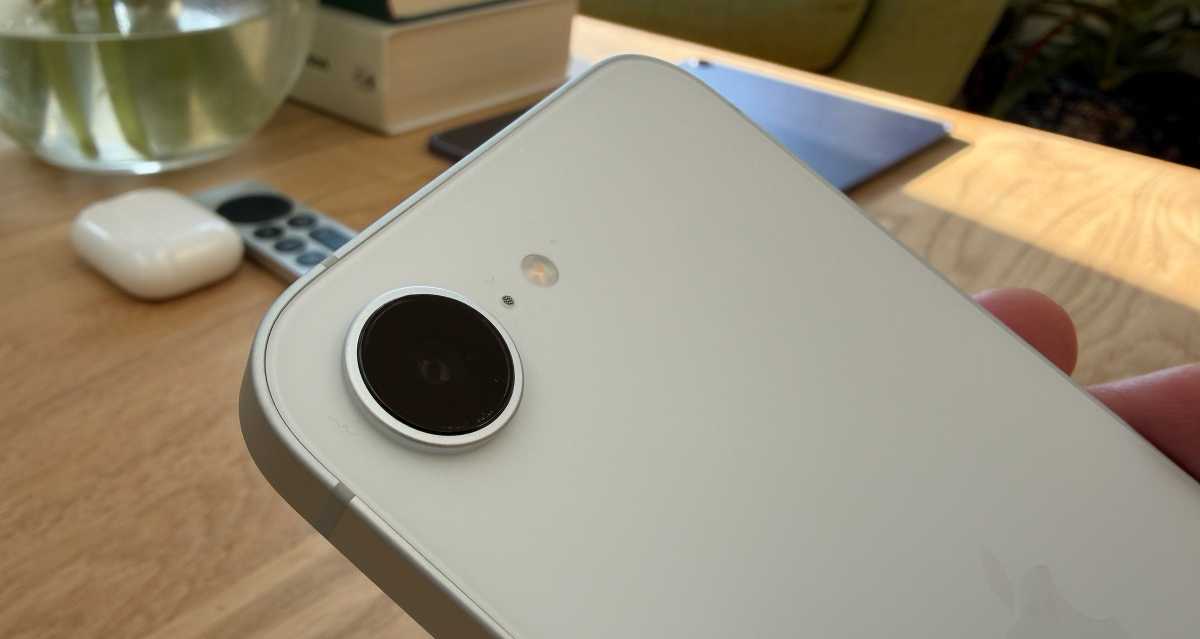
Kamera des iPhone 17e.
David Price / Foundry
24-MP-Selfie-Kameras
Einzelne Hauptkamera beim 18e
Überarbeitete Kamerasteuerungstaste
Vor der Markteinführung der iPhone-17-Generation gab es Gerüchte, dass die Frontkamera möglicherweise auf 24 Megapixel aufgestockt werden könnte. Auch wenn sich diese Gerüchte nicht bewahrheitet haben, sind sie dieses Jahr im Kontext der iPhone-18-Reihe wieder aufgekommen. Aktuellen Berichten auf Weibo und anderen Plattformen zufolge soll die gesamte iPhone-18-Reihe, einschließlich des Ultra und des Air 2, mit 24-Megapixel-Frontkameras ausgestattet sein.
Was die Hauptkameras betrifft, gibt es bislang nicht viele Informationen. Man kann mit ziemlicher Sicherheit davon ausgehen, dass beide Modelle über eine 48-MP-Weitwinkelkamera verfügen werden, wobei das iPhone 18 zusätzlich eine 48-MP-Ultraweitwinkelkamera besitzen dürfte.
Die Kamerasteuerungstaste des iPhone 18 soll laut dem Weibo-Account „Instant Digital“ einfacher gestaltet sein und lediglich über Druckempfindlichkeit verfügen, jedoch keine kapazitiven Sensoren. Das iPhone 18e wird voraussichtlich weiterhin keine Kamerasteuerungstaste haben.
Wird das iPhone 18e ein Display-Upgrade erhalten?
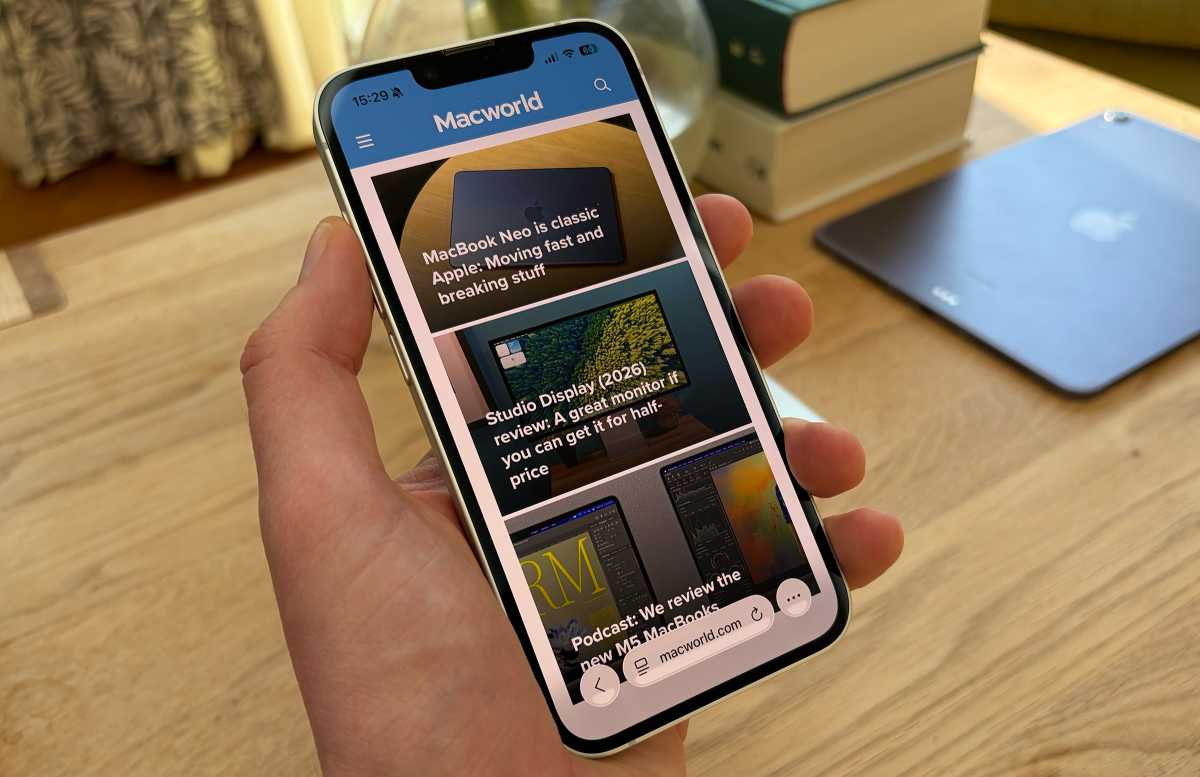
Display des iPhone 17e.
David Price / Foundry
„Dynamic Island“ beim iPhone 18e
Gleiches Display für das iPhone 18
Das iPhone 18 wird voraussichtlich über dasselbe Display wie das iPhone 17 verfügen, mit einer maximalen Helligkeit von 1.000 cd/m² (SDR), Spitzenwerten von bis zu 1.600 cd/m² (HDR) und einer Helligkeitssteigerung auf bis zu 3.000 cd/m² im Freien.
Wir gehen jedoch davon aus, dass das iPhone 18e ein verbessertes Display erhalten wird. Denn der Bildschirm des iPhone 17e ist relativ veraltet und nach heutigen Maßstäben nicht besonders hell; zudem verfügt es lediglich über die Notch-Aussparung, nicht jedoch über die Dynamic Island. Das iPhone 18e dürfte daher ein neueres Display mit Dynamic Island erhalten. Vermutlich auf dem Niveau des iPhone 15, das eine maximale Helligkeit im Freien von 2.000 cd/m² aufwies.
Wie viel werden das iPhone 18 und das 18e kosten?
In der Technikwelt ist alles teurer geworden – bedingt durch Speicherknappheit, die durch den endlosen Bedarf an immer mehr und immer größeren KI-Rechenzentren angeheizt wird. Apple hat kürzlich die Preise für fast alle Macs und iPads sowie sogar für ältere Geräte wie den Homepod und das Apple TV angehoben. Das iPhone blieb davon verschont, doch wir gehen davon aus, dass die neuen iPhones in diesem Herbst Preise haben werden, die mindestens 50 bis 100 Euro höher liegen als in der Vergangenheit. Und das dürfte sich auch auf die Neuerscheinungen im Frühjahr auswirken.
Das bedeutet, dass das iPhone 18 bei 999 Euro oder gar 1.049 Euro starten könnte und das iPhone 18e bei 749 oder 799 Euro. Da es sich hierbei jedoch um die preisgünstigeren Modelle von Apple handelt, ist es möglich, dass Apple die Preise für die Pro-Modelle erhöht, die für das iPhone 18 und 18e jedoch auf dem aktuellen Niveau belässt.
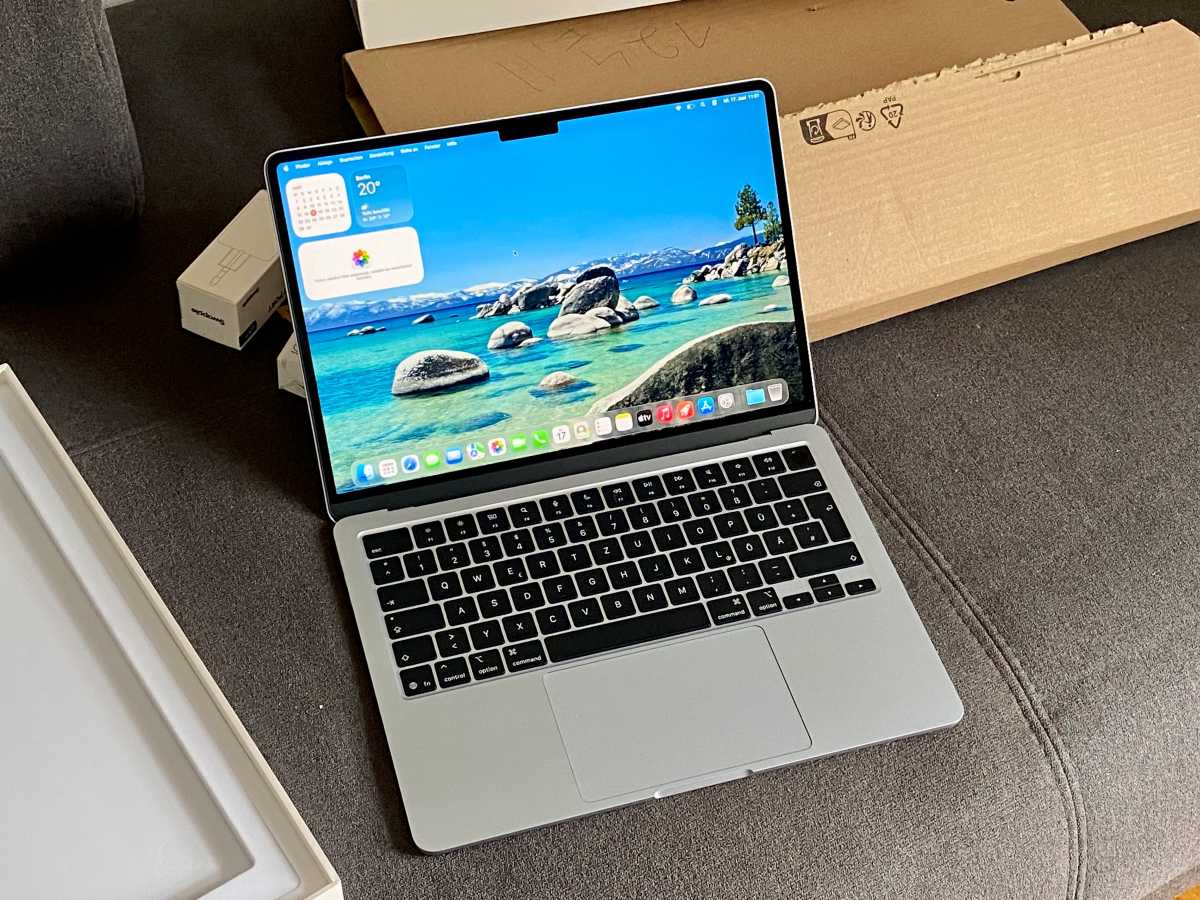
Bereits letztes Jahr habe ich ein himmelblaues Macbook Air M4 getestet. Nun wird es Zeit für einen neuen Test – allerdings eines gebrauchten Macbooks, das uns Swappie zur Verfügung gestellt hat. Und für das Swappie einige Besonderheiten bietet.
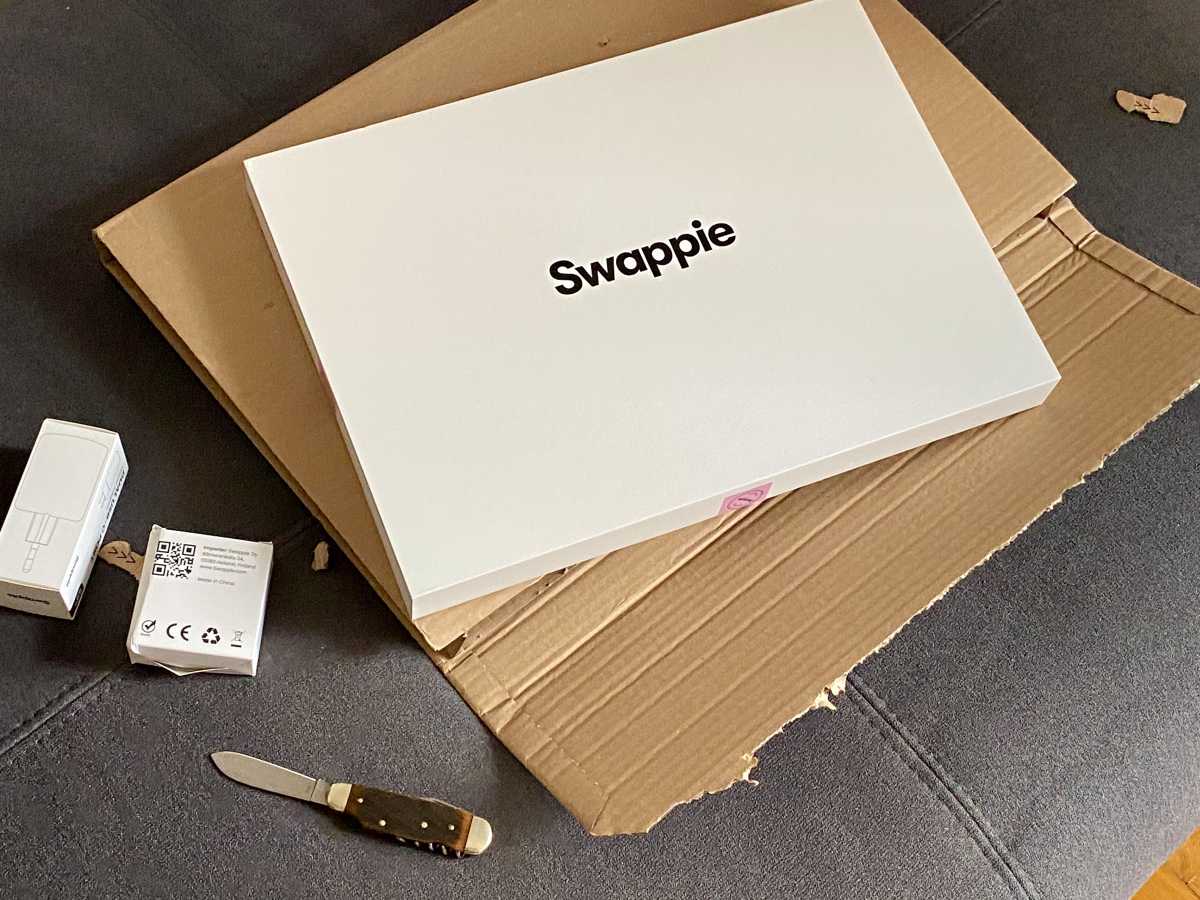
Die Geräte sind gut verpackt und kommen mit Zubehör.
Stephan Wiesend
Auf den ersten Blick ist ein Refurbished-Macbook nichts Ungewöhnliches, auf Ebay gibt es sogar eine eigene Rubrik für „Refurbished“-Geräte und Anbieter wie Backmarket und Refurbed sind hier bereits seit Jahren aktiv. Der finnische Gebrauchthändler Swappie, den wir schon ausführlich vorgestellt haben, macht nämlich einige Sachen anders als die Konkurrenz.
Swappie
Die finnische Firma Swappie hatte bisher nur gebrauchte iPhones, iPads und Airpods im Angebot, inzwischen wurden aber auch Macbooks ins Angebot aufgenommen. Bei gebrauchten iPhones ist Swappie nach eigenen Angaben Marktführer und bereits in 24 Ländern aktiv. Erst kürzlich haben wir einige der angebotenen iPhones näher überprüft – mit gutem Ergebnis.
Auf den ersten Blick sind die Macbooks bei Swappie etwas teuer: Bei Ebay finden Sie ähnliche Modelle oft noch günstiger. Swappie will aber mit seinen Angeboten auch höheren Ansprüchen genügen. So sind im Preis selbstbewusste 36 Monate Garantie und 30 Tage kostenlose Rückgabe enthalten.
Jedes Gerät wird laut Swappie außerdem von firmeneigenen Technikern ausführlich überprüft, der Akku muss außerdem eine Kapazität von mindestens 86 Prozent aufweisen. Dazu aber später mehr. Auf diese interne Überprüfung und Reparatur legt Swappie viel Wert und hat uns vor einigen Jahren sogar nach Finnland eingeladen. Soll doch die eigene Werkstatt besonders hohe Qualität garantieren, was nach unserem eigenen Eindruck durchaus gewährleistet wird.
Man darf nicht vergessen, dass Konkurrenten wie Backmarket und Refurbed im Unterschied zu Swappie rechtlich Marktplätze sind, also Mittler zwischen Käufern und vielen kleinen selbständigen Betrieben. Allein Refurbed stützt sich dabei auf offenbar knapp 300 eigenständige Händler. Nach meinem persönlichen Eindruck hat Swappie Vorteile in der Qualitätskontrolle und einen direkten Ansprechpartner, die Marktplätze oft die günstigeren Preise. Welches Konzept aber wirklich besser ist, wage ich nicht zu bewerten. Auch Kundenbewertungen sind da nicht immer aussagekräftig.
Erster Eindruck: Die Optik
Schon beim Auspacken wird klar, dass der Zustand offensichtlich einwandfrei ist – das Gerät kommt in einem flachen, aber gut gepolsterten Karton von Swappie. Hat jemand das Gerät schon einmal genutzt, ist dies mit bloßem Auge nicht erkennbar.
Das hellblaue Aluminium ist völlig frei von Kratzern, kein Staubkorn ist zu sehen: Erst nach sehr sorgfältiger Suche finde ich ein paar kleine Haare am Lautsprecher. Das ist aber wohl kaum zu vermeiden. Optisch gibt es ansonsten keinen Unterschied zu einem fabrikneuen Gerät, auch Bildschirm, Tasten und Gehäuse sind makellos. Laut Etikett wurde dieses Modell übrigens in Tallinn überarbeitet.
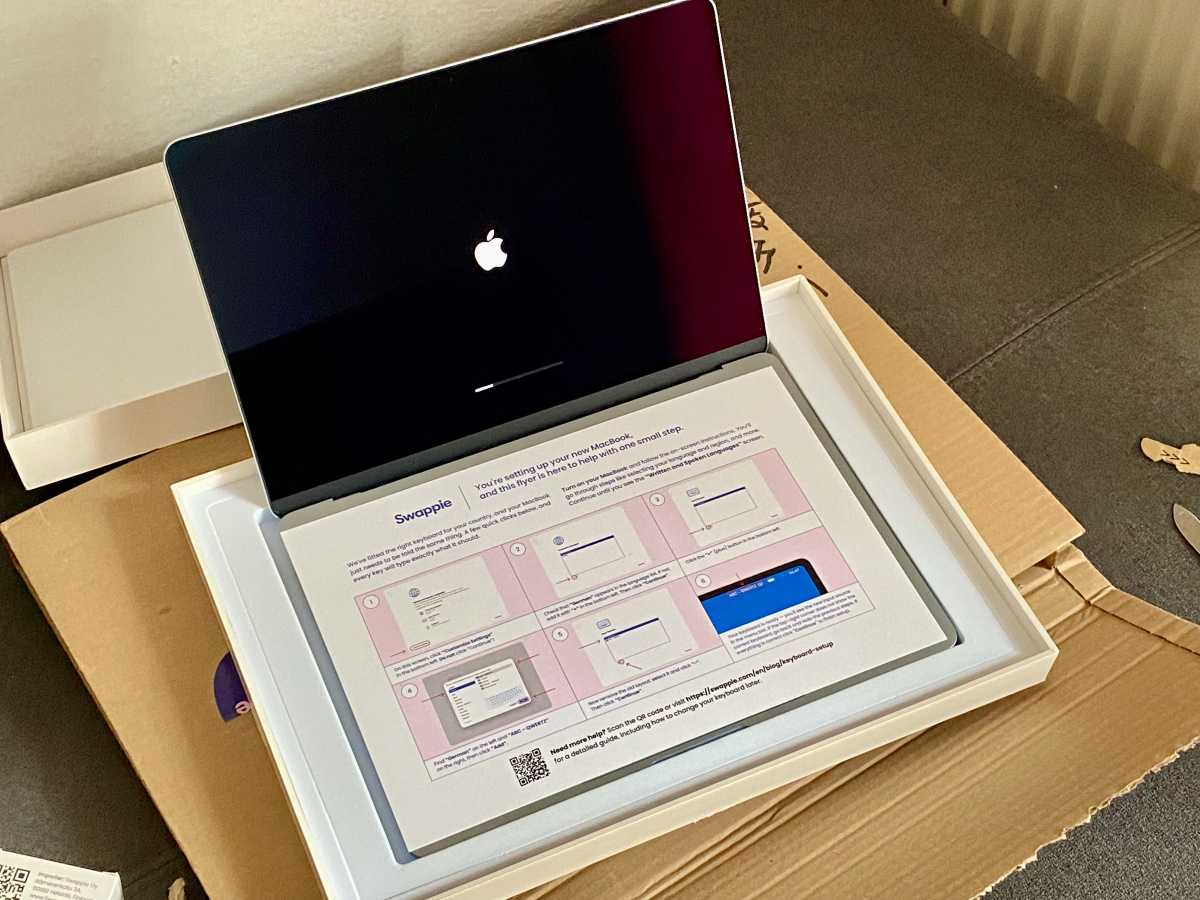
Das Display ist bei der Lieferung mit einem Blatt Papier geschützt, das zusätzlich einige Informationen für ein mögliches Konfigurationsproblem liefert. Einige Modelle haben nämlich von Swappie eine deutsche Austausch-Tastatur erhalten. Bei der ersten Konfiguration nach dem Einschalten macht dies einen zusätzlichen Konfigurationsschritt erforderlich. Bei meinem Testgerät ist dies aber gar nicht notwendig.
Ein beiliegendes Blatt informiert über eine Besonderheit bei der Tastaturauswahl.
Stephan Wiesend
Der Grund für diesen Austausch: Deutsche Kunden benötigen eine deutsche Tastatur, im europäischen Gebrauchtmarkt kursieren aber Geräte mit zahllosen Tastaturbelegungen. Das können Geräte für UK, die Schweiz oder auch die Türkei, Norwegen oder Litauen sein. Swappie baut für den deutschen Markt deshalb bei einigen dieser Geräte eine deutsche Tastatur ein. Das kann übrigens dazu führen, dass bei manchen Geräten die Enter-Taste etwas anders geformt ist, als bei einem original deutschen Gerät.
Positiv: Ein 65-Watt-Netzteil mit zwei USB-C-Schnittstellen liegt bei, ebenso ein 2-Meter-Ladekabel. Das ist nicht selbstverständlich, hat Apple doch bei seinen Macbooks das mitgelieferte Ladegerät gestrichen. Auch die gute Verpackung sollten Sie nicht unterschätzen, alles macht einen guten und professionellen Eindruck.
Technische Überprüfung: So gut wie neu
Leistung und Aussehen sind perfekt, für die Performance dieses Modells kann ich nur auf unseren Testbericht verweisen. Als Arbeitsgerät ist dieses Modell noch immer eine gute Wahl. Das Macbook Air M4 erschien schließlich erst im März 2025 und bietet noch immer hervorragende Leistung und ein elegantes Design ohne Schwachpunkte.
Das Macbook macht optisch einen hervorragenden Eindruck.
Stephan Wiesend
Für eine genauere Prüfung des Zustandes sehe ich mir die Systemdaten des Macbooks etwas näher an. Vor allem der Zustand des Akkus ist interessant: Laut Systemprofiler handelt es sich um ein Modell mit 100 Prozent Kapazität und gerade einmal 20 Zyklen – der Akku sollte also noch viele Jahre halten. Laut der App Coconut Battery (der man leider nicht ganz trauen kann) stammt der Akku vom Apple-Zulieferer Sunwoda und ist etwa anderthalb Jahre alt. In jedem Fall ist er in erstklassigem Zustand und zeigte im Test keine Schwächen.
Auch das Alter der SSD kann überprüft werden. Ich lese dazu die SMART-Daten mit dem SMART-Utility aus und erhalte eine Betriebsdauer von gerade einmal 15 Stunden angezeigt. Auch die SSD ist folglich nahezu neu. Da die Zahl der Ladezyklen nicht so recht zur Zahl der Betriebsstunden passt, sollte entweder der Akku oder die SSD neu sein.
Zusätzlich boote ich noch in den speziellen Modus Apple Diagnose und führe einen kompletten Hardware-Test des Gerätes durch. Hierbei werden so gut wie alle Komponenten inklusive Tastatur und Touchpad getestet. Auch diesen umfangreichen Test besteht das Macbook mit Bravour.
Einziges Manko, das auffällt: Anders als bei einem bei Apple gekauften Gerät erhalten Sie keine Herstellergarantie von Apple. Diese ist für dieses Modell vermutlich bereits abgelaufen.
Erstes Fazit: Swappie hat nicht zu viel versprochen, das Gerät ist in hervorragendem Zustand und kaum von einem Neugerät zu unterscheiden.
Die Preise: “Premium” oder “Fair”?
Wie gut ist dieses Angebot aber im Vergleich mit anderen Anbietern? Vergleicht man die Preise von Swappie mit Angeboten von privaten Käufern auf Ebay, erscheinen die Preise recht hoch. So kostete das von mir getestete Modell in diesem Zustand 919 Euro – dafür gab es noch vor wenigen Wochen im Fachhandel sogar ein nagelneues Macbook M4.
Mit Apples Preiserhöhung hat sich dies aber schon wieder geändert und Swappies-Preise sind plötzlich deutlich attraktiver geworden – vor allem, da bald die letzten Restbestände aus dem Fachhandel verschwunden sind. So kostete das aktuelle Macbook Air im Apple Store vor der Preiserhöhung 1.199 Euro, jetzt jedoch 1.399 Euro. Zumindest für Swappie sind Apples Preiserhöhungen wohl hochwillkommen!
Es gibt aber nicht nur diese Premium-Geräte: Neben den teuren „Premium“-Geräten bietet Swappie aber noch drei weitere „ästhetische Zustandsstufen“ (so Swappie) an. Vor allem in der untersten Qualitätsstufe sollten Sie dem Gerät seine Vorbesitzer dann doch ansehen. Jedes Gerät ist aber geprüft, bietet Garantie und ist uneingeschränkt nutzbar.
Niedrigste Qualitätsstufe ist „Fair“, dann folgen „Sehr Gut“, „Exzellent“ und „Premium“. Premium ist dabei die höchste Stufe, unser Testgerät hat diese Einstufung und ist so gut wie neuwertig.
Die unterste Qualitätsstufe nennt Swappie „Fair“. Hier müssen Sie „sichtbare Kratzer, kleine Dellen und etwas Abrieb auf den Tasten“ erwarten.
Deutliche Gebrauchsspuren gibt es auch noch in der zweiten Stufe „Sehr Gut“, dann müssen Sie „ein paar feine Stellen an Gehäuse oder Display, dazu etwas Glanz auf den Tasten“ akzeptieren. Vor der besten Stufe „Premium“ gibt es die Stufe „Exzellent“, hier sind „höchstens hauchfeine Mikrokratzer, und auch die nur bei direktem Licht“ zu sehen. So gut wie keine Gebrauchsspuren sehen Sie dann in der Stufe „Premium“.
Jedes der Geräte wurde aber komplett überprüft und bietet eine Akkukapazität von 86 Prozent.
Was bei den Preisen bei Swappie auffällt: Ein neuer Akku sorgt für einen kleinen Preissprung. Das ist auch kein Wunder: Ein echtes Problem bei gebrauchten Macbooks ist der gebrauchte Akku und ein gutes Ersatzteil ist kostspielig.
Auf Wunsch erhalten Sie bei Swappie ein Modell mit 100 Prozent Kapazität, müssen aber einen deutlichen Aufpreis zahlen. Je nach Modell sind dies knapp 80 Euro. So kostete ein Macbook Air M2 mit Standard-Akku bei Redaktionsschluss 749 Euro, mit neuem Akku gab es das Modell für 829 Euro.
Das hat übrigens den mich anfangs etwas verwirrenden Effekt, dass ein Macbook im Zustand „Fair“ mit neuem Akku teurer sein kann, als ein Gerät im Zustand „Sehr Gut“ mit Originalakku. Im Vergleich zu einem Akkutausch bei Apple ist der Aufpreis aber noch sehr gemäßigt, bei Apple kostet der Akkutausch beim Macbook Air M2 immerhin 185 Euro.
Wie bei einem iPhone sollten Sie bei einem gebrauchten Macbook auf eine Kapazität von über 80 Prozent achten, ein niedriger Wert ist oft auch ein Zeichen für schwindende Zuverlässigkeit. Swappie garantiert eine Kapazität von mindestens 86 Prozent. Wie auf der Webseite nachzulesen ist, testet Swappie bei jedem Gebrauchtgerät außerdem das thermische Verhalten jedes Akkus und die Stabilität des Stromverbrauchs unter realen Betriebsbedingungen.
Apples Originalakkus sind obendrein längst nicht mehr so anfällig wie bei alten Modellen und sollten knapp 1.000 Ladezyklen überstehen. Gerade bei einem neueren Macbook mit M2 oder M3 sollte ein guter Originalakku deshalb völlig ausreichen.
Garantieversprechen
Kaufen Sie ein altes, günstiges Macbook von einem Privatverkäufer, gehen Sie immer ein gewisses Risiko ein – ein privater Käufer haftet in der Praxis meist nicht für Schäden. Vornehmlich erhalten Sie von Privatkunden ein gut erhaltenes und gepflegtes Gerät. Gelegentlich gibt es aber doch ein Problem – vielleicht ist der Akku ein günstiges China-Modell und hält nur eine Stunde durch oder eine der Tasten funktioniert manchmal nicht.
Swappie bietet dagegen drei Jahre Garantie (neben 30 Tagen Umtauschrecht) und deckt dabei technische und mechanische Defekte ab – zusätzlich zur gesetzlichen Gewährleistung. Ein echter Vorteil gegenüber einem Privatkauf, der auch einen höheren Preis rechtfertigt. Allerdings werden bei einem Akku nur Defekte und Ladeprobleme abgedeckt, kein „üblicher“ Verschleiß.
Interessant für Firmen: iPhones bietet Swappie mittlerweile auch mit ausgewiesener Mehrwertsteuer an, was den Vorsteuerabzug ermöglicht. Bei Macs ist dies bisher nicht möglich. Auch Swappie Care – eine Zusatzgarantie – gibt es bisher nur für iPhones.
Fazit
Der Einstieg in das Geschäft mit Macs kommt für Swappie zum richtigen Zeitpunkt. Nach Apples Preiserhöhung sind gute gebrauchte Macbook noch interessanter geworden.
Wählen Sie ein Gerät der Kategorie „Premium“, erhalten Sie ein neuwertiges Gerät, das ausführlich getestet und sorgfältig gereinigt wurde. Das ist allerdings nicht billig und vor allem der Austausch des Akkus sorgt für einen Aufpreis. Günstigere Modelle hat Swappie aber ebenfalls im Angebot und auch für diese gilt eine lange Garantie und 30 Tage Umtauschrecht. Preislich ist Swappie am oberen Ende, das ist aber für das Gebotene noch in Ordnung.
Beachten sollten Sie nach meiner Meinung aber, dass die Zustandsbeschreibungen von Swappie recht beschönigend sind. So ist der Zustand „Sehr gut“ vielleicht doch eher, was man landläufig als „Gut“ bezeichnen würde …
Sie sollten niemals der Erste in der Schlange sein, wenn ein völlig neues Apple-Produkt auf den Markt kommt. Nicht im wörtlichen Sinne – obwohl sich diese Leute wirklich ohne triftigen Grund die Mühe machen –, sondern im Sinne der Produktgeneration. Es ist fast immer klüger, ein oder zwei Jahre zu warten.
Ein Original-iPhone zu besitzen, war ein Vergnügen, wenn man damit prahlen wollte. Ich erinnere mich gerne an die ungewohnte Aufmerksamkeit, die mir zuteilwurde, als ich es im Urlaub mit mir herumtrug. Als mittelfristiges Wertversprechen war es jedoch objektiv gesehen eine schlechte Idee: ein mutiger und wegweisender Anfang, der jedoch innerhalb weniger Jahre nach der Markteinführung durch die Hinzufügung von 3G und GPS (iPhone 3G), einer besseren Kamera und allgemeiner Leistungssteigerung (iPhone 3GS), Facetime und einem deutlich schärferen Bildschirm (iPhone 4) sowie zahlreicher weiterer Hardware- und Software-Upgrades im Laufe der Zeit entwertet wurde. Und das alles ohne nennenswerte Preiserhöhung. Dasselbe gilt für den iPod, das iPad und das Macbook Air – Sie verstehen, worauf ich hinauswill.
Wer die Einführung des iPhones im Jahr 2007 miterlebt hat, dürfte einige Ähnlichkeiten bemerkt haben, als das iPhone Air im vergangenen Jahr auf den Markt kam. Es herrschte ein ähnlich starkes Gefühl der Ehrfurcht, die Vorstellung, dass nichts mehr so sein würde wie zuvor: Normale Handys, so spekulierten Kritiker, könnten für jeden, der ein Air in der Hand gehalten und dessen wundersame Schlankheit bestaunt hat, für immer inakzeptabel sein.
Zugegebenermaßen gab es deutlich mehr Kritik an den Hardware-Einschränkungen (nämlich der Akku- und Kameraleistung), doch scharfsinnige Beobachter werden erkannt haben, dass das iPhone Air – genau wie sein gefeierter Ahn – in den nachfolgenden Generationen wahrscheinlich zahlreiche Möglichkeiten zur Verbesserung bieten würde.
Der allgemeine Konsens lautet, dass Apple in diesem Herbst kein neues Air auf den Markt bringen wird. Im September werden zwei Premium-iPhones (das 18 Pro und das 18 Pro Max) sowie ein Super-Premium-Modell in Form des faltbaren iPhone Ultra auf den Markt kommen. Angesichts der jüngsten Preiserhöhungen bei den iPad- und Mac-Produktreihen von Apple dürften dies kostspielige Geräte sein.
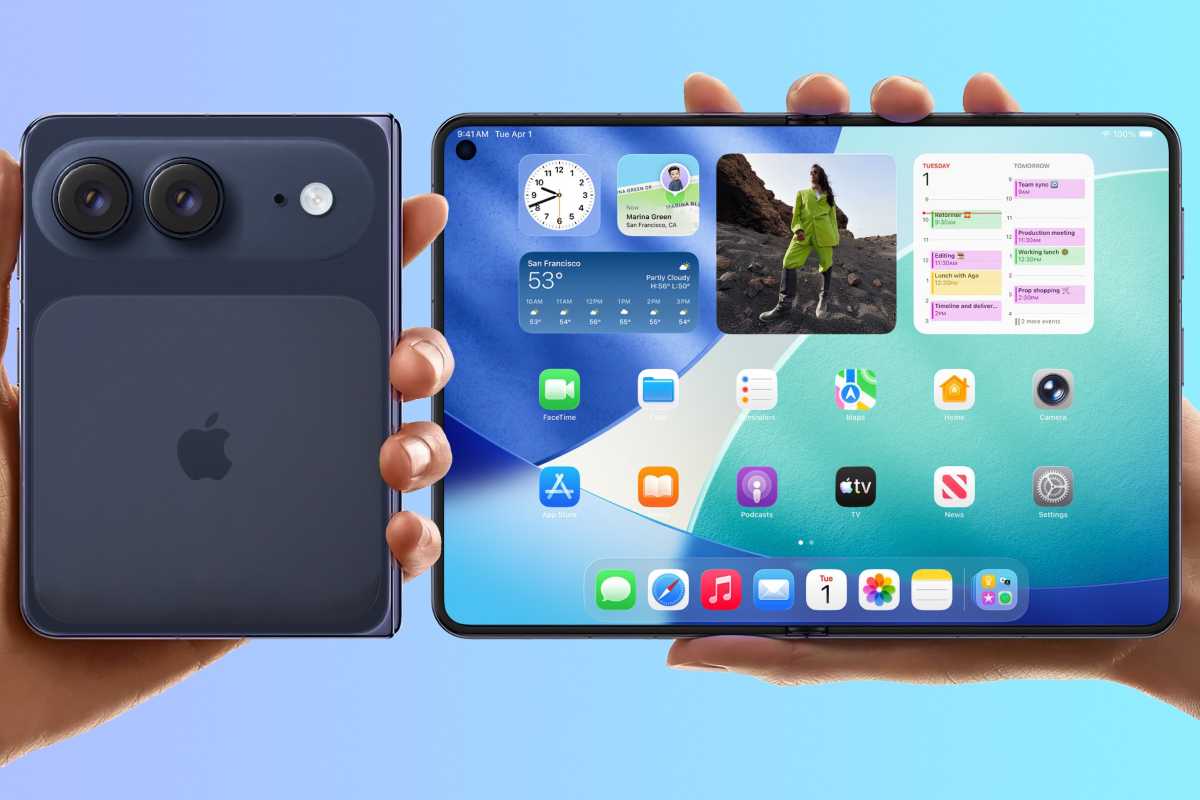
Rechnen Sie damit, dass das iPhone Ultra zwar beeindruckend, aber nicht frei von Mängeln sein wird.
Foundry
Das Air 2 wird zwar im Frühjahr 2027 das Premium-Modell seiner eigenen Mini-Generation sein und zweifellos mehr kosten als das iPhone 18 sowie deutlich mehr als das 18e, doch im Vergleich zu den Modellen von Ende 2026 dürfte es erschwinglich erscheinen: Apples Preis liegt derzeit 100 Euro unter dem des 17 Pro (jeweils die Basismodelle), und diese Differenz könnte sich vergrößern, sobald die Preiserhöhungen greifen. Gleichzeitig wird es dank seines futuristischen Designs und der – wie es zunehmend den Anschein hat – klassischen Verbesserungen der zweiten Generation weitaus attraktiver wirken als die normalgroßen Modelle, mit denen es auf den Markt kommen wird.
Falls Sie die Kameraleistung des Air als nicht optimal empfunden haben, haben Sie Glück: Fast alle Experten sind sich einig, dass das Air 2 auf der Rückseite ein zweites Kameraobjektiv erhalten wird, ein 48-MP-Ultraweitwinkelobjektiv. Falls Sie sich über die Akkulaufzeit beschwert haben, wird es Sie freuen, zu hören, dass deren Kapazität nun voraussichtlich um 11 Prozent steigen wird.
Apple hat die beiden größten Probleme des ursprünglichen Produkts erkannt und beide behoben, wodurch das Air 2 zum besten Nachfolger des Unternehmens seit der Apple Watch Series 2 wird, die die Mängel ihres Vorgängers in Bezug auf GPS, Wasserdichtigkeit, Geschwindigkeit und Akkulaufzeit in einem einzigen Generationssprung beseitigte.
Wo bleibt da das iPhone Ultra? Genau in derselben „Limbo“-Situation der ersten Generation, in der das iPhone Air seit 2025 steckt. Einerseits hat Apple keine Erfahrung mit der Herstellung und Markteinführung eines faltbaren Smartphones; andererseits weiß das Unternehmen, dass Prominente, Technik-Angeber und Early Adopters seinen ersten Versuch in dieser Kategorie ohnehin kaufen werden.
Rechnet man noch die Notwendigkeit hinzu, im folgenden Jahr eine verbesserte Version auf den Markt zu bringen, hat man die perfekte Formel für einen mangelhaften Proof of Concept. Es ist noch viel zu früh, um zu sagen, ob das Ultra ein gutes Smartphone sein wird oder nicht – es könnte durchaus ein kommerziell gefeierter Kassenschlager werden –, aber wir können mit einiger Sicherheit sagen, dass das schlechteste Ultra, das man kaufen kann, das erste sein wird.
Der Verkaufsschlager dieser Generation dürfte natürlich – aus offensichtlichen Gründen der Lebenshaltungskosten – entweder das iPhone 18 oder das 18e sein. Doch ich glaube, dass das unscheinbare Air 2 – das von den günstigeren Modellen preislich unterboten, vom Ultra in den Schatten gestellt und von der durchwachsenen Resonanz auf seinen Vorgänger verfolgt wird – der unterschätzte Star der iPhone-18-Generation sein könnte.
Lesen Sie sich die Testberichte zum Air 1 noch einmal durch. Die meisten sind sich einig, dass dies der Formfaktor der Zukunft ist; er war 2025 einfach noch nicht ausgereift. Zu jenem Zeitpunkt seiner Entwicklung wies das Air zu viele Mängel auf, um den Mainstream zu erreichen. Allem Anschein nach wird dies 2027 nicht mehr der Fall sein.
There was a time when scanning a document meant walking over to a giant office machine, waiting for it to warm up, and hoping it didn’t jam. These days, the scanner most people need is already sitting in their pocket.
That’s the idea behind iScanner, a document-scanning app that turns your iPhone, iPad, or Android device into a portable scanner, PDF editor, and document manager. For one more day, you can grab a lifetime subscription for $24.97 instead of $199.90.
Whether you’re scanning receipts, contracts, handwritten notes, ID cards, books, or tax documents, iScanner automatically detects document edges, straightens pages, removes shadows, and recognizes text in 20+ languages. You can export files as PDF, Word, Excel, PowerPoint, JPG, and more without ever touching a traditional scanner.
Need more than a quick scan? The built-in PDF editor lets you sign documents, merge files, add text, redact sensitive information, organize folders, and even protect files with a PIN.
It’s especially useful for remote workers, students, small business owners, and anyone who’d rather skip the office equipment altogether.
Don’t mess around with a bulky scanner. Just remember—this price disappears after July 19, so the clock is ticking.
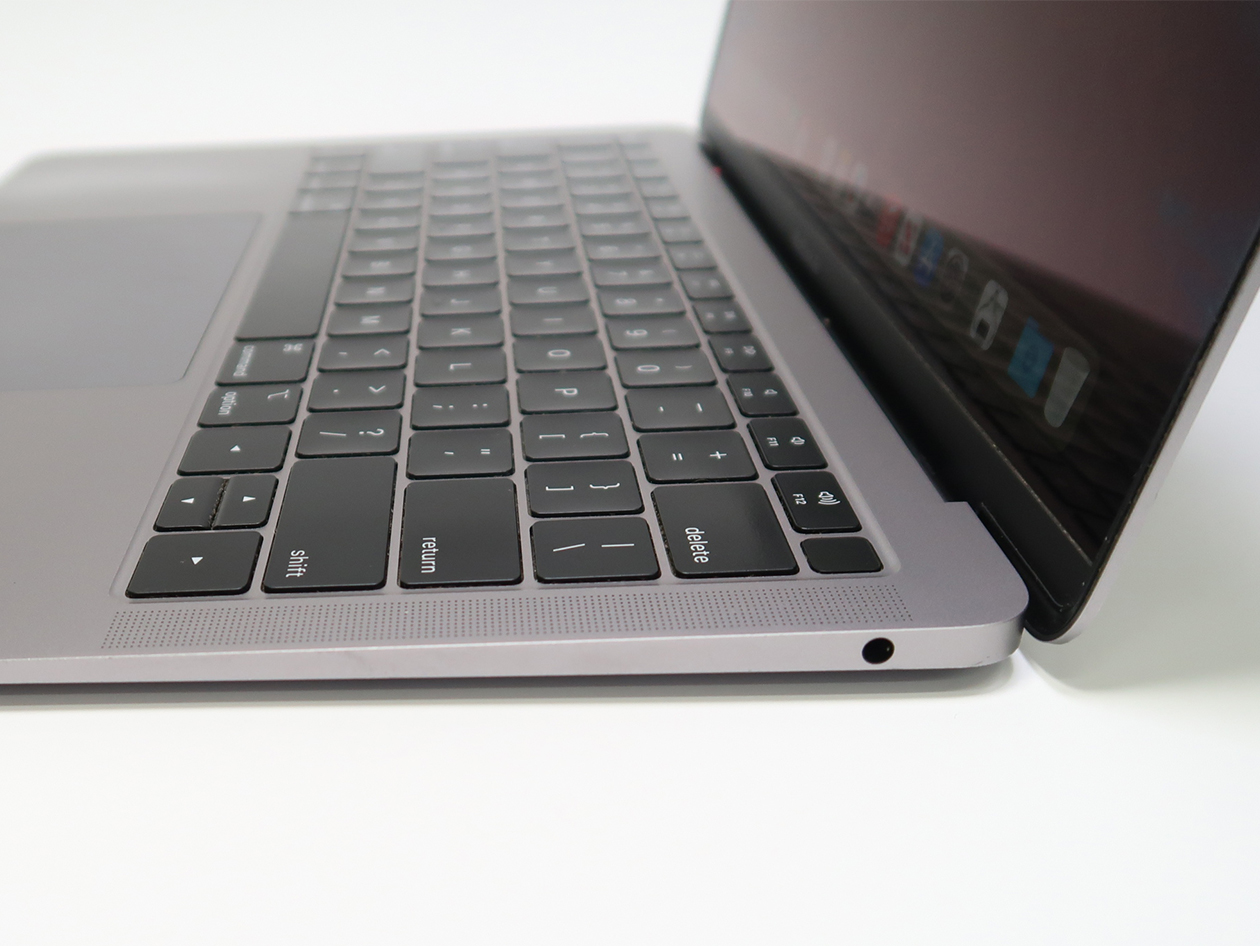
TL;DR: Get a near-mint 2018 MacBook Air for $199.97 (reg. $1,199)—this lightweight, everyday laptop is perfect for travel, families, or as a second Mac.
Not every MacBook has to be your primary computer. Sometimes the smartest buy is the one that’s always ready to travel, gets passed around the family, or lives in your backpack instead of your desk.
Powered by an Intel Core i5 processor, it has more than enough performance for everyday tasks like web browsing, email, streaming, online shopping, document editing, light photo editing, and video calls. The sharp 13-inch Retina display keeps everything looking crisp, while up to 12 hours of battery life means you can leave the charger at home for most of the day.
With a Grade A near-mint refurbishment rating, you get a laptop that looks great, performs reliably, and costs a fraction of what a brand-new MacBook would.
Ever since I installed macOS Tahoe on my M3 Max MacBook, it hasn’t been right. I’m not talking about Liquid Glass or window corner radii, or even the Apps Panel. For the better part of a year, my MacBook simply hasn’t worked the way I expect it to.
Some days are better than others, but at any moment, my Mac will freeze, with my trackpad becoming unresponsive and a spinning beach ball replacing my cursor. It only lasts a few seconds, but on the worst days, it happens dozens of times an hour and renders the trackpad completely unresponsive, as if my MacBook were shut down. Each occurrence lasts no more than a few seconds, but it’s enough of an annoyance to severely cut down on my productivity.
As I’ve written before, I knew what the problem was from the beginning. Activity Monitor showed a consistent CPU spike in the “core spotlight” task, followed by an immediate spike in the accompanying kernel. A restart temporarily helped, but the problem cropped up again before too long.
At first I thought it was related to indexing, but it lasted far too long. Then I waited for updates—26.1, 26.2, and so on—but none fixed the problem for more than a couple of days. As I wrote in my last article about the issue, turning off some of the toggles in the Spotlight settings helped for a while, but after a month or so, the problems crept back in. And since there’s no way to disable Spotlight completely without some scary Terminal tinkering, I was stuck with a Mac that didn’t work right.
Throw it all away
For whatever reason, the issue has gotten progressively worse over the past couple of months. It appears to be related to the installation of macOS 26.5, but it could also be related to the Apple Creator Studio version of Pages, which exhibited its own issues.
How it works is that Apple builds an occasional Spotlight index, which is what it uses to access files as you search for them. The Pages issue seems to stem from its use of iCloud as a storage drive. (I’m not alone in suspecting this either; one of my Macworld colleagues experienced a similar issue with Spotlight and Pages.)
My problems got so bad that the Spotlight settings wouldn’t even load.
Foundry
Since there’s no way to fully turn off Spotlight as you can with Siri or Apple Intelligence, I tried a few things. First, I turned off the Pages toggle in the Spotlight settings. That didn’t work. Then I tried adding the Pages app and its Document folder to the Search Privacy option in Spotlight settings. No dice.
In a fit of exhaustion, I even added my entire MacBook drive to Search Privacy to prevent anything from being searched and again forced Spotlight to rebuild its index. That didn’t work either. Neither did macOS 25.5.1 or 25.5.2.
So I was stuck. My plan was to wait until macOS 26.6 arrived and see if that helped (though after five previous updates, I had little hope that it would), and perhaps give the macOS 27 public beta a shot. Otherwise, I would just deal with the freezes and hope they didn’t get any worse.
Unfortunately, they did. It got to the point one day where whenever I clicked on a new window, my MacBook would stall for a second or two before it let me do anything. I was ready to erase the whole thing and start over—but first I decided to root around my Library folder.
I don’t know why I didn’t think of doing this before. Basically, every app and feature has associated files that can be accessed if you find the right folder. I couldn’t find anything obvious, but a quick Google search told me where they were hiding: ~/Library/Metadata/CoreSpotlight. To find it, click on your desktop, then the Go menu at the top, then scroll down to Go to Folder, paste that whole string, and press Return.
Foundry
You’ll see a bunch of files and folders. Mine was filled with nearly 10,000 files and over 2GB of data. I had no idea where the problem lay or where to begin, and didn’t really care about breaking Spotlight, so I moved the whole folder into the Trash and selected Delete Immediately.
Two weeks later, there hasn’t been a single freeze, pause, or stutter on my MacBook. I’ve even flipped all of the Spotlight toggles back to green, and I still haven’t experienced any issues. For the first time since I installed Tahoe, I can finally use it without fear of freezing—just in time to install macOS 27. Here’s hoping Golden Gate goes a lot smoother.
If you’re thinking about buying an iPad in 2026, timing matters. If you’re hoping for a bargain, July 2026 isn’t the ideal time. Apple raised iPad prices by $100–$200 in June, making today’s models more expensive than they were earlier this year. The next major opportunities to save are likely to come during sales events such as Amazon Prime Day and Black Friday.
If you can’t wait – for example, because your current iPad no longer receives software updates, feels slow, has poor battery life, or doesn’t support Apple Intelligence – upgrading now may be the right choice. In that case, the safest models to buy are the iPad Air (M4) and iPad Pro (M5), as neither is expected to be replaced until 2027. By contrast, the entry-level iPad (A16) and iPad mini (A17 Pro) are both expected to be refreshed before the end of 2026, so waiting is likely to pay off unless you find a substantial discount.
Before buying, consider whether you really need a Pro model, a cellular version, or even an iPad at all. If you’re looking for a laptop replacement, a MacBook Neo may offer better value. Buying refurbished is another smart way to save money, with Apple’s Certified Refurbished Store and reputable retailers offering lower prices while still providing a warranty and years of software support.
In this guide, we’ll explain the best and worst times to buy an iPad, which models are worth buying now, when the next updates are expected, and how to get the best value whether you’re buying new or refurbished. If you’re still deciding which iPad is right for you, see our complete iPad buying guide.
At a glance: iPad buying advice
Model
Buying advice
Starting Price (New MSRP)
Key Differentiator
Next Update
Last Updated
Previous update
iPad (A16)
Wait — overdue for update, likely late 2026
$449
Most affordable entry point; does not support Apple Intelligence
By end of 2026
March 2025
October 2022
iPad mini (A17 Pro)
Wait — new model expected late 2026
$599
Ultra-portable; supports Apple Intelligence
By end of 2026
October 2024
September 2021
iPad Air (M4)
Buy now — recently refreshed
$749 (11-inch) / $949 (13-inch)
Best balance of performance, features, and price for most users
2027
March 2026
March 2025
iPad Pro (M5)
Buy now — not due for update until 2027
$1,199 (11-inch) / $1,499 (13-inch)
Top-tier performance, Tandem OLED display, ProMotion, Face ID
2027
October 2025
May 2024
Should you buy an iPad now?
As of July 2026, two iPads are safe to buy without worrying about an imminent replacement: the iPad Air (M4) and iPad Pro (M5). Both were updated recently and aren’t expected to be refreshed until 2027.
The entry-level iPad (A16) and iPad mini (A17 Pro) are a different story. Both are widely expected to receive updates before the end of 2026, making them harder to recommend unless you find them at a significant discount.
Here’s our breakdown of the four types of iPad that Apple currently sells, and in each case whether you should buy now or wait.
Price comparison from over 24,000 stores worldwide
Product
Price
Price comparison from Backmarket
Should you buy? No
The entry-level iPad was last updated in March 2025 and is now the oldest model in Apple’s lineup. It remains the only current iPad that doesn’t support Apple Intelligence, making it a less future-proof purchase than the rest of the range.
A replacement is expected before the end of 2026, potentially bringing Apple Intelligence support and a faster processor. Unless you can find the current model at a substantial discount, it’s worth waiting.
Price comparison from over 24,000 stores worldwide
Product
Price
Price comparison from Backmarket
Should you buy? No
The current iPad mini launched in October 2024 and remains an excellent compact tablet with Apple Intelligence support. However, multiple reports suggest Apple will update it later in 2026, likely with a faster A19 Pro chip.
If you need a small tablet today, the current model is still a good buy – particularly if it’s discounted. Otherwise, waiting a few months should bring a worthwhile performance upgrade.
Price comparison from over 24,000 stores worldwide
Product
Price
Price comparison from Backmarket
Should you buy? Yes
The iPad Air (M4), introduced in March 2026, is the newest iPad in Apple’s lineup. Available in 11-inch and 13-inch sizes, it features the M4 chip, 12GB of RAM, Wi-Fi 7, and an excellent balance of performance, features, and price.
For most people, it’s the best iPad Apple sells and is unlikely to be replaced until 2027, making now an excellent time to buy.
Should I buy iPad Pro (M5, 2025)? – Buy now if you need the power
Price comparison from over 24,000 stores worldwide
Product
Price
Price comparison from Backmarket
Should you buy? Yes
The iPad Pro (M5), launched in October 2025, remains Apple’s most capable tablet. It combines the M5 chip with a stunning Tandem OLED ProMotion display, support for up to 2TB of storage, and class-leading performance. The next update isn’t expected until 2027.
That said, it’s the right choice only if you’ll benefit from its extra power. Creative professionals working with demanding apps, large media projects, or intensive multitasking will appreciate what it offers. Most other buyers will find the iPad Air delivers a very similar everyday experience for considerably less money. Likewise, children and casual users are generally better served by the standard iPad or iPad mini than by Apple’s most expensive tablet.
The best time to buy an iPad is during major shopping events, particularly Black Friday and Amazon Prime Day, when retailers such as Amazon, Best Buy, and Walmart typically offer their biggest discounts.
Black Friday and Cyber Monday (November/December)
Black Friday is usually the best time of the year to buy an iPad. In 2025, every current iPad model reached its lowest-ever price during the Black Friday sales, with discounts of up to $150. The entry-level iPad (A16), for example, fell to just $274.
If you can wait until November, Black Friday is your best opportunity to get the lowest prices on almost every iPad model. See Black Friday iPad deals.
Amazon Prime Day (June/July and October)
Amazon now holds two major Prime Day sales each year – one in June or July and another in October – and both regularly feature excellent iPad deals.
The June 2026 event was particularly significant because in the middle of the sale Apple increased iPad prices by $100 to $300, which made the discounts even larger.
The October Prime Day sale often matches or comes close to Black Friday discounts and is another excellent time to buy. It is also possible that the new iPads will have launched by then. See Prime Day iPad deals.
During Apple’s Back to School promotion
If you’re a student, teacher, or work in education, Apple’s Education Store offers year-round discounts on most iPads. During Apple’s annual Back to School promotion in the summer, eligible buyers also receive a free gift card, making it one of the best times to buy directly from Apple.
Note that the criteria are very strict for shopping in Apple’s Education Store. Customers need to verify their eligibility through UNiDAYS before accessing Education Store pricing.
When shouldn’t you buy an iPad?
The worst time to buy an iPad is just before Apple releases a new model. You’ll often end up paying full price for a device that’s about to be replaced, while retailers discount the outgoing model to clear stock.
As of July 2026, the entry-level iPad (A16) and iPad mini (A17 Pro) fall into that category, with both expected to be refreshed before the end of 2026.
There are a few other situations where it’s worth thinking twice before buying:
If a major sale is just around the corner: If Amazon Prime Day or Black Friday is only a few weeks away, it’s usually worth waiting. These sales consistently offer the biggest iPad discounts of the year, often saving you $100 or more compared with buying at full price.
If you want a laptop replacement: An iPad can replace a laptop for some people, but it becomes much less compelling once you add accessories. A Magic Keyboard or similar case can add hundreds of dollars to the cost, bringing the total close to – or even above – the price of a MacBook. With the arrival of the $699 MacBook Neo, the value equation has shifted further. A similarly equipped iPad and keyboard can cost more while still being limited to iPadOS and mobile apps rather than full desktop software.
If you’re buying an older iPad: Discounts on older or refurbished iPads can be tempting, but always check how long they’ll continue to receive software updates. iPadOS 27 drops support for several older models, including the 2018 iPad Pro (3rd generation), 2019 iPad mini (5th generation) and 2020 iPad (8th generation). Buying an unsupported model means you’ll miss future features, security updates and, eventually, app compatibility.
If you want Apple Intelligence: Apple Intelligence isn’t available on every iPad. It requires an M1 chip or later (iPad Air and iPad Pro) or the A17 Pro chip in the current iPad mini. The entry-level iPad (A16) does not support Apple’s AI features, making it a less future-proof purchase.
If you don’t need cellular: Think carefully before paying extra for a 5G cellular model. Cellular connectivity typically adds more than $100 to the purchase price, and you’ll usually need a separate data plan. If you already carry an iPhone, using Personal Hotspot is often a far cheaper alternative.
If fast wired transfers matter: Most people won’t notice USB speeds, but they matter if you regularly transfer large files via cable. The standard iPad is limited to USB 2.0 (480Mbps), the iPad mini supports 5Gbps, the iPad Air 10Gbps, while the iPad Pro offers Thunderbolt speeds of up to 40Gbps.
What is the best iPad price right now?
Apple rarely discounts iPads. In fact, in June 2026, Apple increased iPad prices by $100 to $200, citing unprecedented component cost increases. The price rise came in the middle of Amazon’s Prime Day sale, during which we saw record-low prices. Prices that low are unlikely to return until a major sales event such as October Prime Day or Black Friday.
If you’re flexible about where and when you buy, there are several ways to reduce the cost of a new iPad.
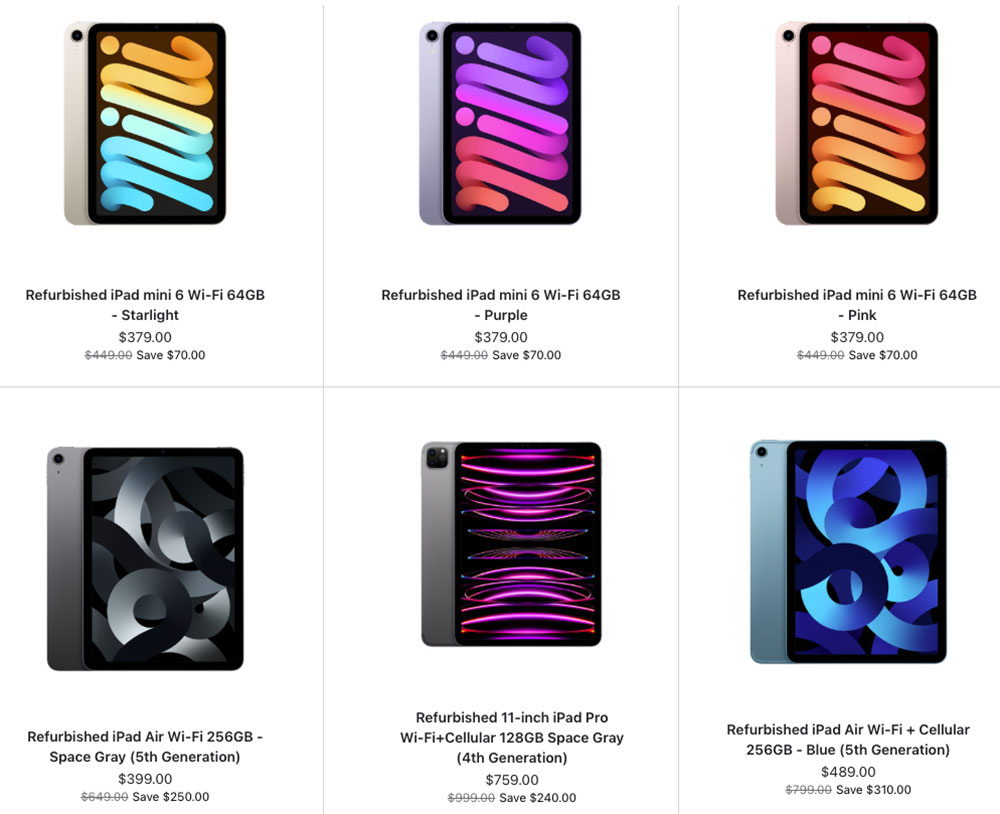
Buy a refurbished iPad: Apple’s Certified Refurbished Store is one of the best places to save money. Refurbished iPads undergo Apple’s full testing process, receive a new battery and outer shell where required, include the same one-year warranty as a new device, and are eligible for AppleCare+. Prices are typically around 15% lower than buying new, with savings of up to $450 on some iPad Pro models.
Use Apple’s Education Store: Students, teachers, and education staff can save 5–15% through Apple’s Education Store all year round. During Apple’s annual Back to School promotion, qualifying purchases also include a free gift, such as AirPods or an Apple Pencil. In the U.S., eligibility now needs to be verified through UNiDAYS before accessing Education Store pricing. . Read: How to shop at Apple’s Education Store.
Trade in your old iPad: Apple’s Trade In programme can significantly reduce the cost of a new iPad. For the highest trade-in value, upgrade before Apple announces a replacement model, as trade-in prices typically fall once new devices are released.
Shop during major sales: The biggest discounts usually come from retailers such as Amazon, Best Buy, and Walmart during Prime Day and Black Friday. Apple itself rarely discounts iPads, instead offering gift cards during promotions such as Black Friday and Back to School. While those offers can be worthwhile, third-party retailers almost always provide larger cash discounts.
Is buying a refurbished iPad a good idea?
Apple
Buying a refurbished iPad is one of the best ways to save money. You can often afford a model with more storage or even an iPad Pro for the price of a new entry-level iPad.
The key is to buy refurbished, not simply used. A properly refurbished iPad has been tested, repaired if necessary, and checked to ensure it works like new. A used iPad sold privately is typically sold “as is”, with no warranty, and could even be locked to the previous owner’s Apple ID.
Buy from Apple’s Certified Refurbished Store
The safest option is Apple’s Certified Refurbished Store. Every refurbished iPad is fully tested, fitted with a new battery and outer shell where required, cleaned, and repackaged with all original accessories. You also receive:
A one-year warranty, just like a new iPad.
The option to purchase AppleCare+.
Original accessories and packaging.
Prices are typically around 15% lower than buying new.
What to look for
If you’re buying from a third-party retailer, pay attention to a few key details:
Software support: Choose a model that will continue receiving iPadOS updates for several years. Older devices, such as the 2018 iPad Pro (3rd generation) and 2020 iPad (8th generation), no longer support iPadOS 27.
Storage: Aim for at least 128GB. Older 32GB and 64GB models can quickly run out of space with modern apps and games.
Condition: Check the retailer’s grading system so you know what cosmetic wear to expect.
Warranty: Buy from a seller that includes a warranty—ideally for at least one year.
Where to buy
Apple Certified Refurbished: The safest choice, with the same warranty and support as a new iPad.
Reputable refurbishers: Retailers such as Back Market, Best Buy, and Amazon Renewed often offer deeper discounts, but always check the condition grading and warranty before buying.
If you buy from a trusted retailer and choose a model that still has years of software support ahead of it, a refurbished iPad can offer excellent value while saving you a significant amount of money.
Do you need to upgrade your current iPad?
Whether it’s time to replace your iPad depends on four things: software support, performance, battery life, and whether you’re missing features you actually want.
Your iPad no longer receives updates
The most important reason to upgrade is when your iPad stops receiving software and security updates. Apple typically provides major iPadOS updates for around six to eight years, with security updates often continuing for a while afterwards. See: How long does Apple support iPads?
As long as your iPad still receives security updates, it’s generally safe to keep using. Once those updates end, however, you’ll eventually lose app compatibility and expose yourself to increasing security risks.
As of 2026, iPads with an A14 chip or newer, or any M-series iPad, support iPadOS 27. Older models, including the 2018 iPad Pro and 2019 iPad Air, have reached the end of major software support.
It feels slow or the battery no longer lasts
Performance and battery life naturally decline with age. If apps take a long time to open, crash frequently, or the interface feels sluggish even after restarting, your iPad may be struggling to keep up.
Similarly, if the battery no longer lasts through a typical day or the iPad shuts down unexpectedly, it may be time to replace the device – or at least the battery.
You want Apple Intelligence
One of the biggest reasons to upgrade today is Apple Intelligence. Apple’s AI features require an M-series chip or an A17 Pro processor. If you own the current entry-level iPad (A16) or an older model, you won’t be able to use features such as Writing Tools, Priority Notifications, or Clean Up in Photos.
When you probably don’t need to upgrade
If your iPad still runs the latest version of iPadOS, performs well, and meets your needs, there’s little reason to replace it.
Owners of the M1 iPad Air or newer, as well as recent iPad Pro models, are unlikely to notice a dramatic difference in everyday tasks by upgrading to the latest generation. Unless you need a specific new feature or substantially more performance, you’re usually better off keeping your current iPad for another year or two.
Which iPad to choose
User Type
Best iPad
Why
Budget buyers & casual users
iPad (A16)
The most affordable entry point at $449 (new MSRP). Great for web browsing, email, streaming, and light tasks. However, it’s the only current iPad that does not support Apple Intelligence.
Students (most)
iPad Air (M4)
This is (as of July 2026) the top pick for students because it strikes “an excellent balance between performance, portability, and price” and supports Apple Intelligence. When Apple introduces the new iPad this may change.
Students (budget)
iPad (A16)
A solid option for core tasks like note-taking and research, especially if you find it on sale below $300.
Students (art & design)
iPad Pro (M5)
Recommended for creative majors needing the OLED display, Apple Pencil Pro support, and maximum performance for demanding apps.
Commuters & travelers
iPad mini (A17 Pro)
The lightest iPad at just 293g. Its compact 8.3-inch screen is perfect for reading, note-taking, and slipping into a bag or large pocket.
Most people (all-rounder)
iPad Air (M4)
This is the best choice for the average user. It offers M4-level performance, a beautiful design, and a 13-inch option for those who want a large screen without paying Pro prices. When Apple introduces the new iPad this may change.
Professionals & creatives
iPad Pro (M5)
The ultimate iPad with an M5 chip, Thunderbolt speeds up to 40Gbps, and a stunning display. If you’re a creative professional, the Pro is the iPad to get.
Kids (under 10)
iPad (A16) or iPad mini
The standard iPad is the best value for younger children. The iPad mini’s smaller size might be easier for small hands to hold.
Teens & tweens
iPad Air (M4)
Offers more power for schoolwork and creative projects without the premium cost of the Pro. When Apple introduces the new iPad this recommendation may change.
Seniors
iPad mini (A17 Pro)
Its light weight makes it “easier to hold for extended periods”. The screen size of the standard iPad might suit those who require bigger text though.
Gamers
iPad Pro (M5)
The Pro’s 120Hz ProMotion display and M5 chip deliver the best gaming experience.
Whether you’re buying your first iPad, upgrading to a newer model, shopping for work, or looking for a gift, you’ll no doubt want to find the best deal.
Apple raised iPad prices in June 2026, making meaningful discounts harder to find than ever. That’s where we come in. At Macworld, we track iPad prices, comparing retailer offers with Apple’s current prices, previous pricing, and the lowest prices we’ve seen, so we can identify the iPad deals that are genuinely worth buying.
Apple rarely discounts iPads directly, apart from education pricing and its Certified Refurbished Store. However, retailers in the U.S., U.K., and elsewhere regularly offer savings throughout the year, with the biggest discounts often appearing during events such as Amazon Prime Day and Black Friday.
Our frequently updated deals tracker covers every current iPad, including the iPad mini, iPad Air, iPad Pro, and standard iPad. We monitor price changes and stock levels to help you spot genuine bargains before they disappear. Alongside the latest deals, you’ll also find buying advice explaining the differences between current and older models, potential pitfalls of buying previous-generation iPads, and whether today’s discounts are good enough or if you’re better off waiting. We also have a guide to the best Apple deals right now.
We identify the best iPad deals by combining our expert knowledge of Apple’s product lineup (which we have throughly review, and use daily) with specialized tools that monitor prices across a wide range of retailers. By tracking discounts over time, we understand what truly great deals look like and can quickly spot offers that deliver exceptional value.
In assessing deals, we look beyond the price tag to consider overall value. For example, while the M5 iPad Pro is a premium device, a substantial discount on a slightly older model may provide better value for many users. Likewise, we may highlight a strong deal on a basic iPad, pointing out that it can handle most everyday tasks for a fraction of the cost of a Pro model.
Because we understand Apple’s current iPad lineup, the features of previous generations, and what’s expected from future models, we’re well equipped to advise you on which iPad to buy and the best price to pay for it, especially in the wake of Apple’s price hikes.
Our process for identifying the top deals involves several key steps:
We use specialized tools: We have tools that allow us to see the best deals across multiple resellers at any given time.
Tracking historical prices: We track discounts and price drops throughout the year, so we know each model’s all-time low price. This helps us distinguish a genuine deal from a price that just looks good.
Leveraging product expertise: Our extensive knowledge of the entire iPad lineup, including past generations and future expectations, allows us to assess the true value of a deal. For example, we consider whether a discount on an older model is significant enough to justify missing out on features available in a newer version.
Monitoring key retailers: We constantly watch major retailers like Amazon and Walmart for bargains, especially during major sales events like Prime Day and Black Friday.
Is now a good time to buy a new iPad?
Prices are unlikely to come down significantly until Prime Day in October or Black Friday in November, but that’s not the only reason to wait. We also recommend reading the advice below to understand whether Apple is likely to update the iPad you’re considering. This can help you avoid purchasing an iPad shortly before a new model is released – a situation that often leads to regret, not only because a better version arrives, but also because retailers typically discount older models once an update occurs. However, if you’re hoping to get a deal on one of the newer models, be prepared to wait.
With that in mind, half of Apple’s iPad product line is due a refresh, with rumors indicating that a new iPad and iPad mini are coming before the end of 2026.
Brady Snyder / Foundry
Here’s a breakdown of the current iPad models to help you decide if now is the right time for you to buy:
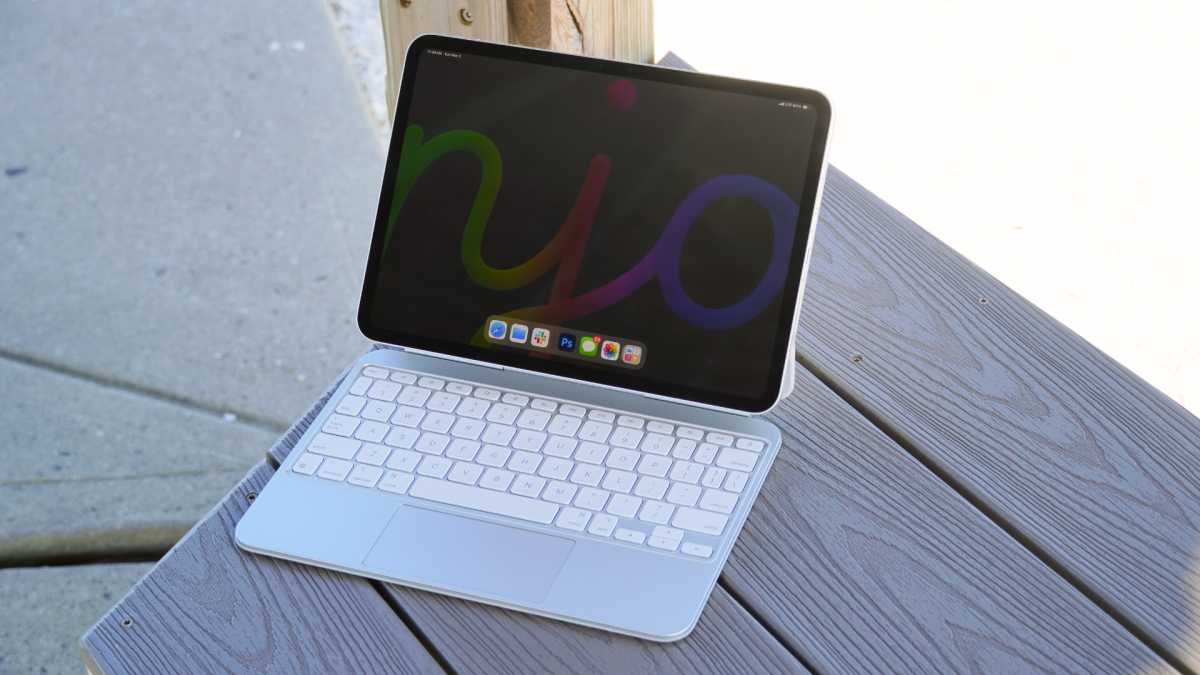
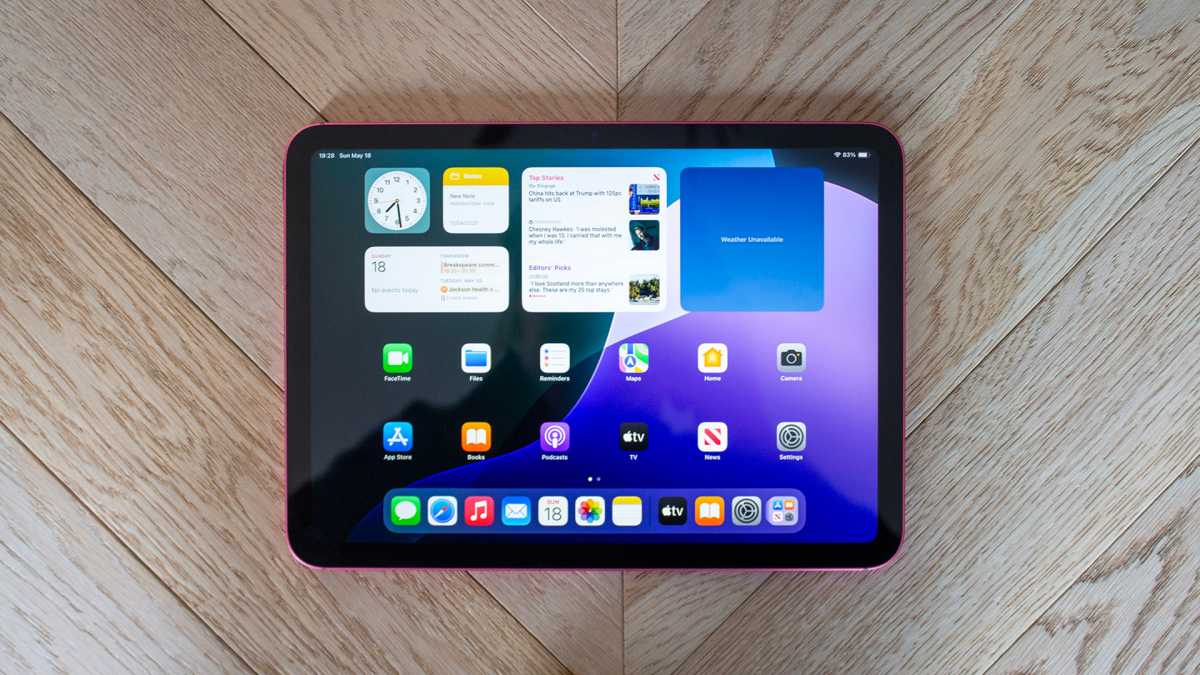
iPad (A16): This is the cheapest iPad you can buy new from Apple, starting at $449/£429 (up from $349/£329) for the 128GB model. It was updated in March 2025, at which point Apple doubled the storage at the entry level without reducing the price (at that time), making it even better value for money – obviously that’s changed now that Apple’s pushed prices up by $100. Before choosing this iPad., there are important factors to consider. While the A16 chip delivers solid performance for daily activities, such as web browsing, streaming, light gaming, it doesn’t support Apple Intelligence (the suite of AI-powered features available on other current Apple products), plus the screen isn’t as high quality as the other iPads. If you want to ensure that your iPad is future-proofed we’d recommend spending a little more to get an alternative iPad, or waiting – a successor is anticipated in late 2026.
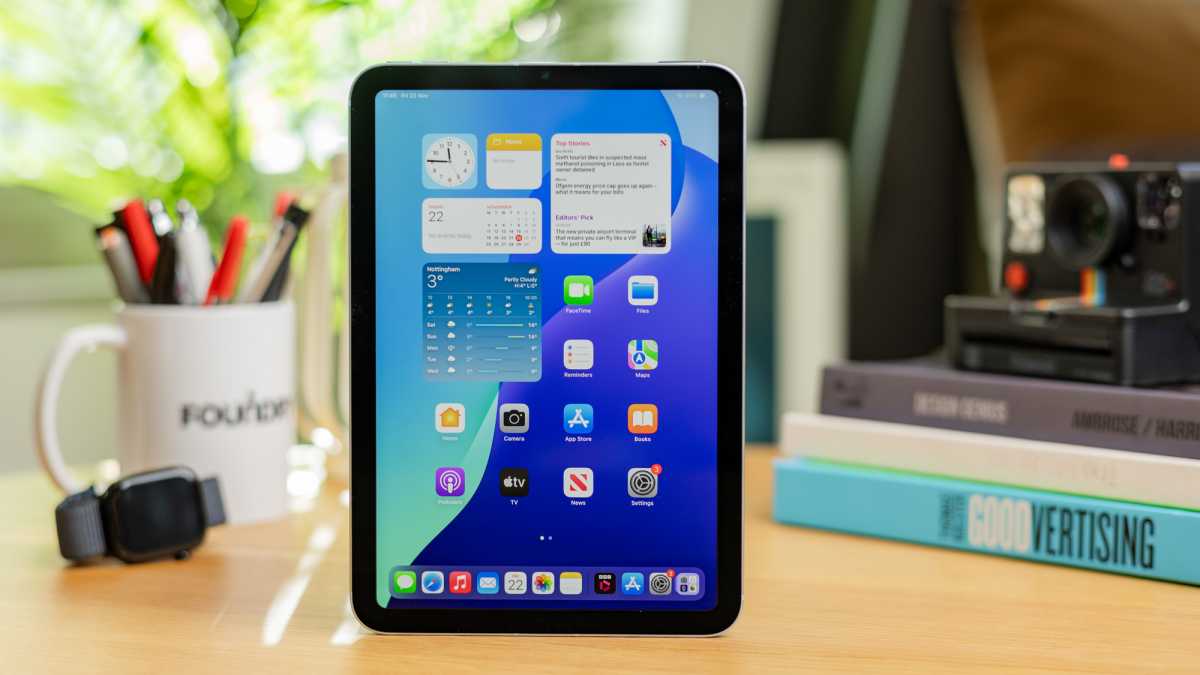
iPad mini (A17 Pro): The current model was released in October 2024 and was a significant upgrade, featuring Apple’s A17 Pro chip. This processor is powerful enough to support Apple Intelligence features, future-proofing the device for upcoming software innovations. The base model now starts with 128GB of storage, a welcome increase from the 64GB offered in previous generations. While the current iPad mini is a solid buy, there are rumors about a future model. Internal code leaks suggest a potential future update to an A19 Pro chip, which would offer a performance boost. We expect an update until later in 2026, but still recommend buying the current model at a good price.
iPad Air (M4): The current models, which feature the powerful M4 chip, were released in March 2026. We think the M4 iPad Air is the best choice for most people, striking a perfect balance between performance and price. It offers superb processing power, a premium lightweight design, and great battery life, making it a versatile device for everything from streaming and gaming to more demanding work. If you need a new iPad now we recommend the iPad Air as a great buy – if you can find it at a good price.
iPad Pro (M5): Now is an excellent time to buy a new iPad Pro; the current models with the M5 chip arrived in October 2025 and it is not expected to be updated again until 2027. The iPad Pro offers the most up-to-date technology on the ultimate iPad. Indeed, the M5 iPad Pro is considered the best tablet on the market, featuring a stunning Tandem OLED display, outstanding performance, and a super slim, lightweight design.
Release dates and expected refreshes aside, if you are wondering if there is a good time to shop for deals on a new iPad that’s a little more straightforward. The best time of year to get a deal is when the big sales happen, such as Black Friday in November or Amazon Prime Day sales in June or July and October. Some years there is also a Spring Big Deals event on Amazon. Those are when we see the biggest discounts, but if you can’t wait for one of those sales, don’t despair: we see price drops all year round and when we see a good deal we record it here.
Does Apple have sales?
The deals rarely come from Apple itself. While Apple will sometimes offer vouchers as an incentive to buy a new iPad (that’s Apple’s usual Black Friday giveaway), the company never discounts prices. Apple does sell refurbished iPads at a lower price though, so that might be something to consider.
If you are a student you can take advantage of Apple’s education discounts and save a little money on the full price of iPads (and Macs). And in the summer months Apple usually gives away Apple Pencils or AirPods with the sale of certain iPads (and Macs) to students in it’s Higher Education Sale.
Apple gives away vouchers for Black Friday and some times as part of a “Back To School” sale in the summer months.
Apple
Best refurbished iPad deals
The deals you will see above are generally from Apple resellers rather than Apple itself, which very rarely drops the prices. Apple does, however, sell reconditioned iPads in its Certified Refurbished store. So you might be able to grab a bargain.
The iPads in Apple’s refurbished store may be ex-display stock, or they may have been returned to Apple due to a fault, but they are fully reconditioned now and come with a full year’s warranty. It’s not like buying secondhand.
The U.S. refurbished store has a selection that includes:
10-inch iPad Air (5th generation), up to $200 off
11-inch iPad Air (M2, M3), up to $130 off
13-inch iPad Air (M2, M3), up to $210 off
11-inch iPad Pro (4th generation), up to $410 off
12.9-inch iPad Pro (6th generation), up to $450 off
Compared to the original price, you can save as much as $320 on a 12.9-inch iPad Pro.
Another place to look is BackMarket US and BackMarket UK, which sells refurbished Macs and other Apple products. Amazon also has a certified refurbished store for Apple products, but we would advise against buying any products that are older than five years. Most of the products we see on the Amazon refurbished store are unfortunately very old.
OUR NUMBER ONE TIP: If you are buying an old refurbished iPad our number one recommendation is that you don’t buy one with less than 64GB storage – ideally, get 128GB or more.
There is a large refurbished market for the iPad. We’d recommend taking a look at these refurbished resellers for iPad offers:
Macworld’s top 5 tips for finding the best iPad deal
When you are searching for a deal keep the following points in mind and you should be happy with your purchase.
Check the storage: Some older iPads only had 32GB or 64GB storage. We don’t think that’s enough. The good news is that Apple’s current iPad line up has 128GB storage or more, so, unless you are buying an older model, this won’t be an issue. Just make sure that if you see a deal on an old model with less storage it is priced accordingly. Some of the best deals are on higher capacity iPads.
You probably don’t need cellular: You might intend to use your iPad when you are out and about. In that case spending more to get a model with cellular might appeal. Our opinion is that you can just hotspot from your iPhone to get on the internet from your iPad. You won’t need to pay for a data contract and your’ll also save yourself money on the price of the iPad itself. Check the deal you are looking at isn’t for a cellular model because a non-cellular deal will be even better!
Consider refurbished: If you want a bargain and don’t mind that it’s not the latest model buying a refurbished iPad can be a great way to save money. We recommend using Apple’s refurbished store because every product is throughly tested before being sold, and you get a one year warranty with it. If you want to save more money, companies like BackMarket and Declutter. There’s more information about buying a refurbished iPad below.
Shop around: If you want a deal then don’t shop at Apple! The best deals come from the various resellers who often battle it our to undercut each others prices for Apple products. Amazon is usually the best, but make sure to check the likes of Walmart, B&H and Best Buy in the U.S., and AO, Argos, Currys in the U.K. We have a list of the best places to buy an iPad below.
Wait, if you can: If it’s not Black Friday or an Amazon Prime Sale keep in mind that there could be even better bargains coming. Also, if Apple is likely to be announcing new products soon, be aware that it may mean that the current range will soon be discounted even more.
Apple
Which iPad should you buy?
The answer to this question really depends on what you need your iPad for.
I want the cheapest iPad you can buy
Consider the standard iPad. The cheapest iPad is the 128GB A16 iPad, which costs from $349 / £329. It’s a good option if you are likely your iPad is destined for general use, such as emails, one taking, web browsing, social networks, watching movies and reading books. It’s got a great sized screen and is light enough to pop in a bag and not feel weighed down.
The iPad A16 is good, as long as you don’t mind the lack of Apple Intelligence
Britta O’Boyle
I’m for an iPad to use instead of a computer
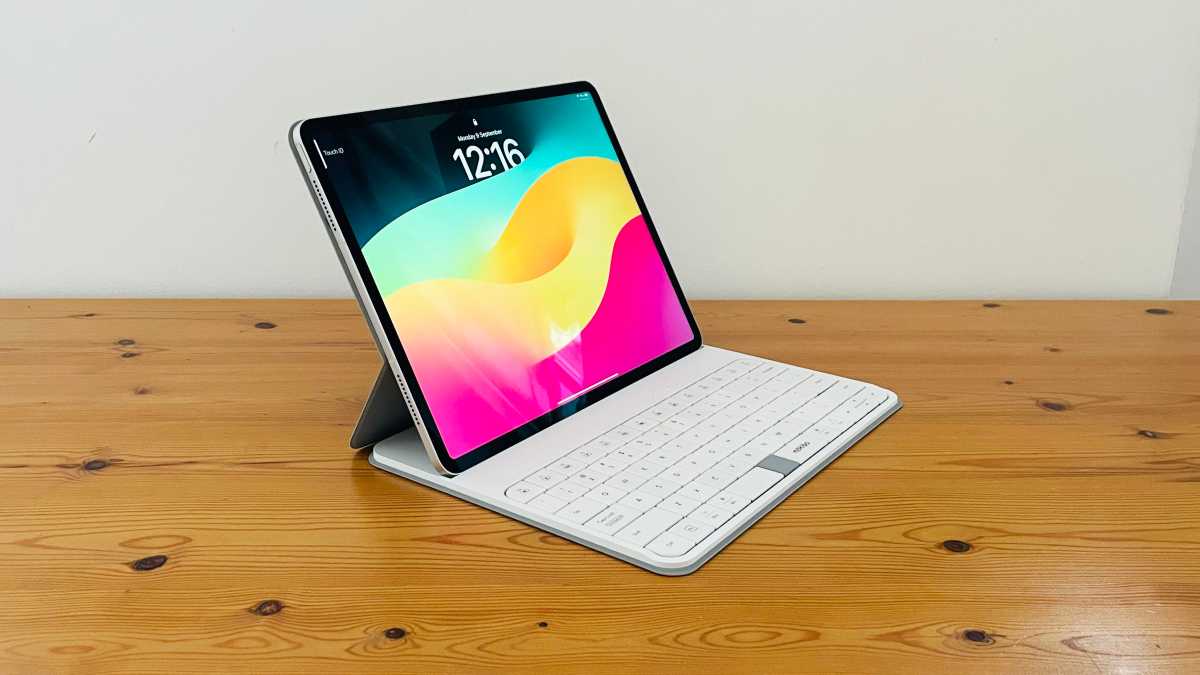
If you are just planning to edit documents and spreadsheets, any iPad can be a good supplement for a computer. If you need something with a little more power then the iPad Air or iPad Pro might be a better option. Apple and other companies sell iPad cases that come with built in keyboards, so you can turn your iPad into a laptop. Read our round up of the best iPad keyboards.
Foundry
I want an iPad that won’t weigh too much
The iPad mini is a great choice if you value portability and power. Its compact 8.3-inch screen and is the lightest iPad you can get (weighing around 0.65 pound or 293g). This makes it perfect for travelers, commuters, or anyone who values a device that can easily fit in a bag or even a large pocket.
If you need a bigger screen the iPad Air is a good choice. The 11-inch iPad Air weighs just over 1 pound or 462g and is 6.1mm thick, making it comfortable to hold for extended periods and easy to take anywhere. What may surprise you is that the newest 11-inch iPad Pro is actually lighter and thinner than the 11-inch Air, at 444g and 5.3mm thick.
Dominik Tomaszewski / Foundry
I want an iPad to use for gaming
If you are wanting to play the latest games on your iPad then the iPad Pro may be the one to choose. Other iPads will be able to play casual games, but to be sure of getting the power and graphics prowess necessary to play the latest games. The iPad Pro also offers a better screen with the 120Hz refresh rates that serious gamers will want.
However, even the A17 Pro chip in the iPad mini ensures that the latest games and apps run smoothly, making it a powerful portable console. The Liquid Retina display is sharp and vibrant, with the highest pixel density of any current iPad.
I want an iPad so I can draw
The iPad is a great device for artists. Any iPad, accompanied with an Apple Pencil or other iPad stylus, will allow you to draw using an app such as Adobe’s Sketchpad (now called Adobe Fresco) which can be used for free, but has in-app purchases.
For Kids: The iPad mini is great option for Kids because its small, lightweight frame is easy for small hands to hold, and its power makes it a capable device for entertainment and learning.
For Seniors: The iPad mini’s light weight makes it easier to hold for extended periods.
For Students and Note-Takers: The iPad mini screen size is perfect for reading and taking notes, especially when paired with an Apple Pencil Pro or Apple Pencil (USB-C).
You don’t have to buy directly from Apple. There are resellers that will sell you and iPad, and the best thing is that they frequently offer discounts, where Apple never does.
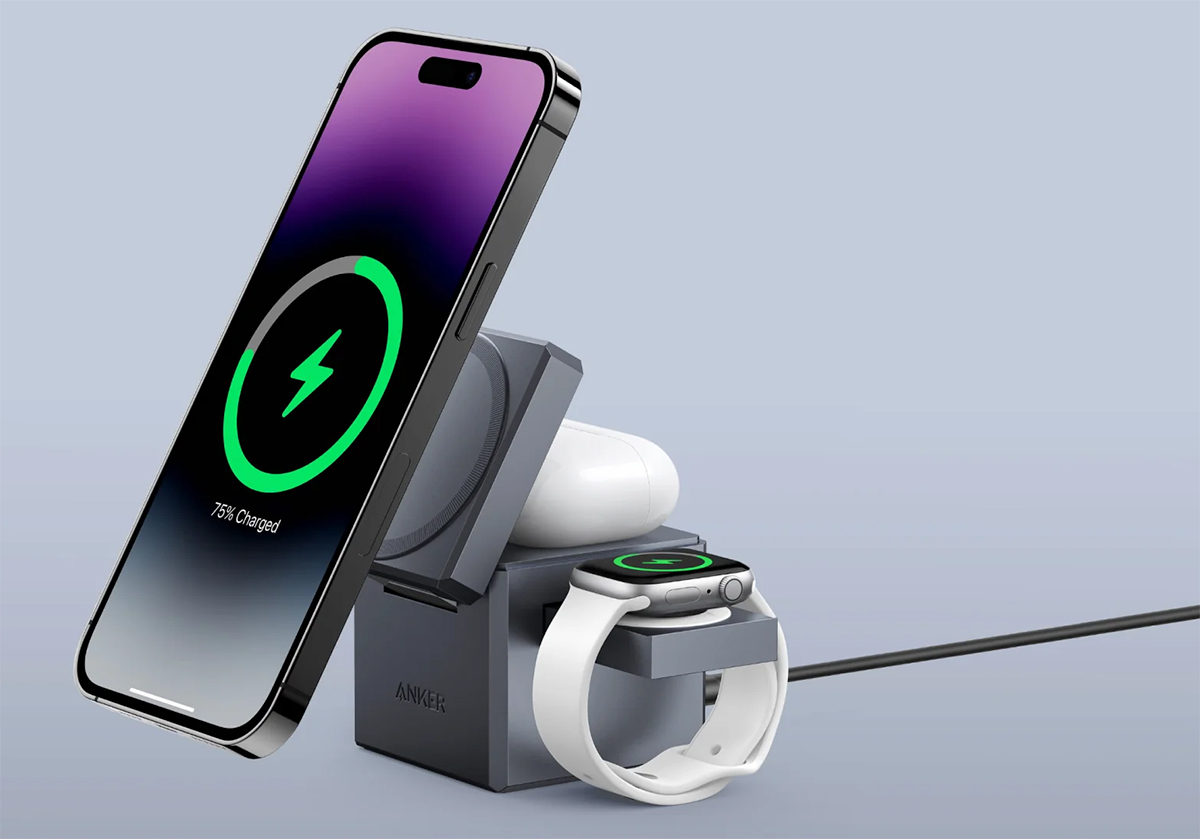
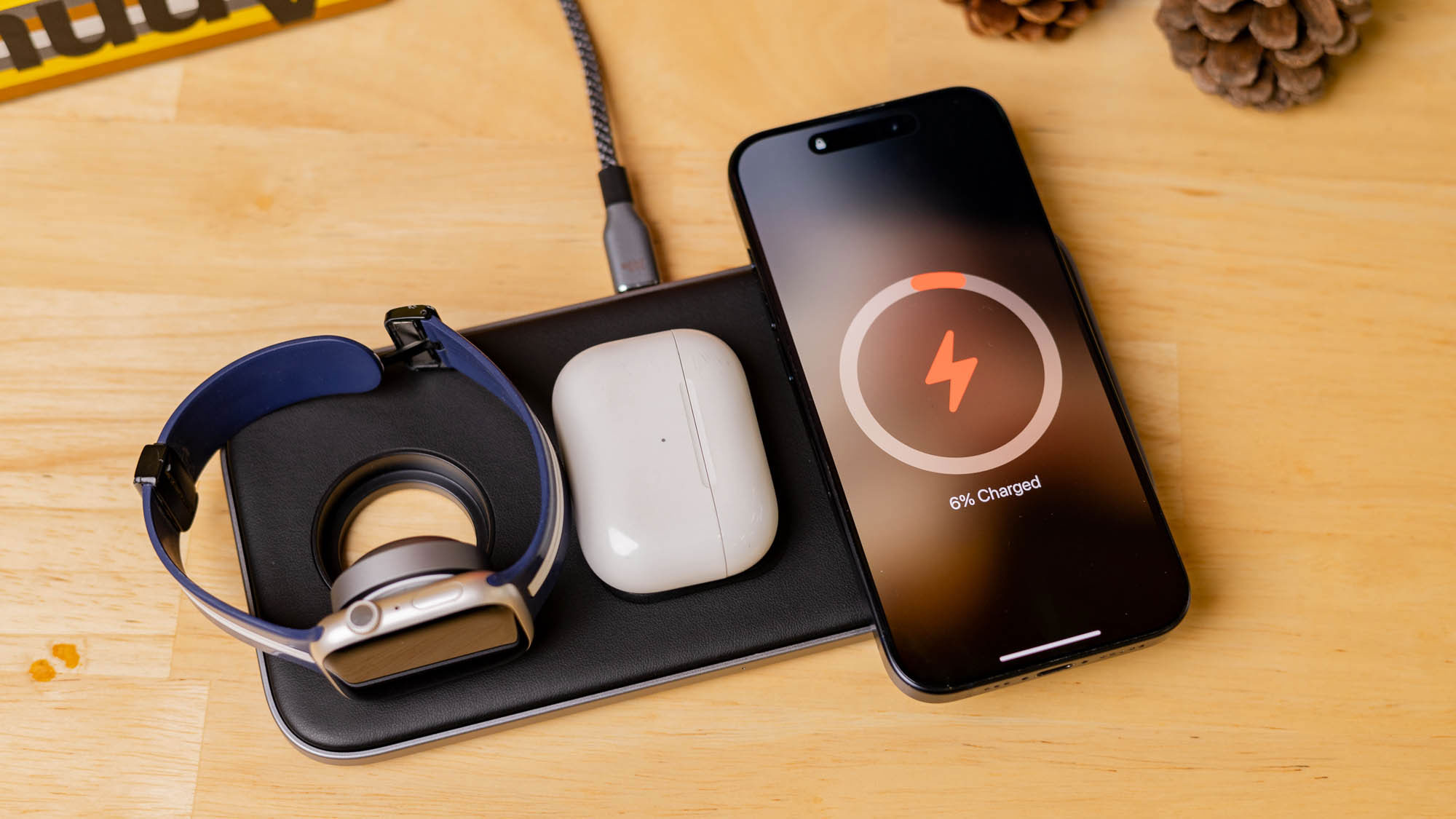
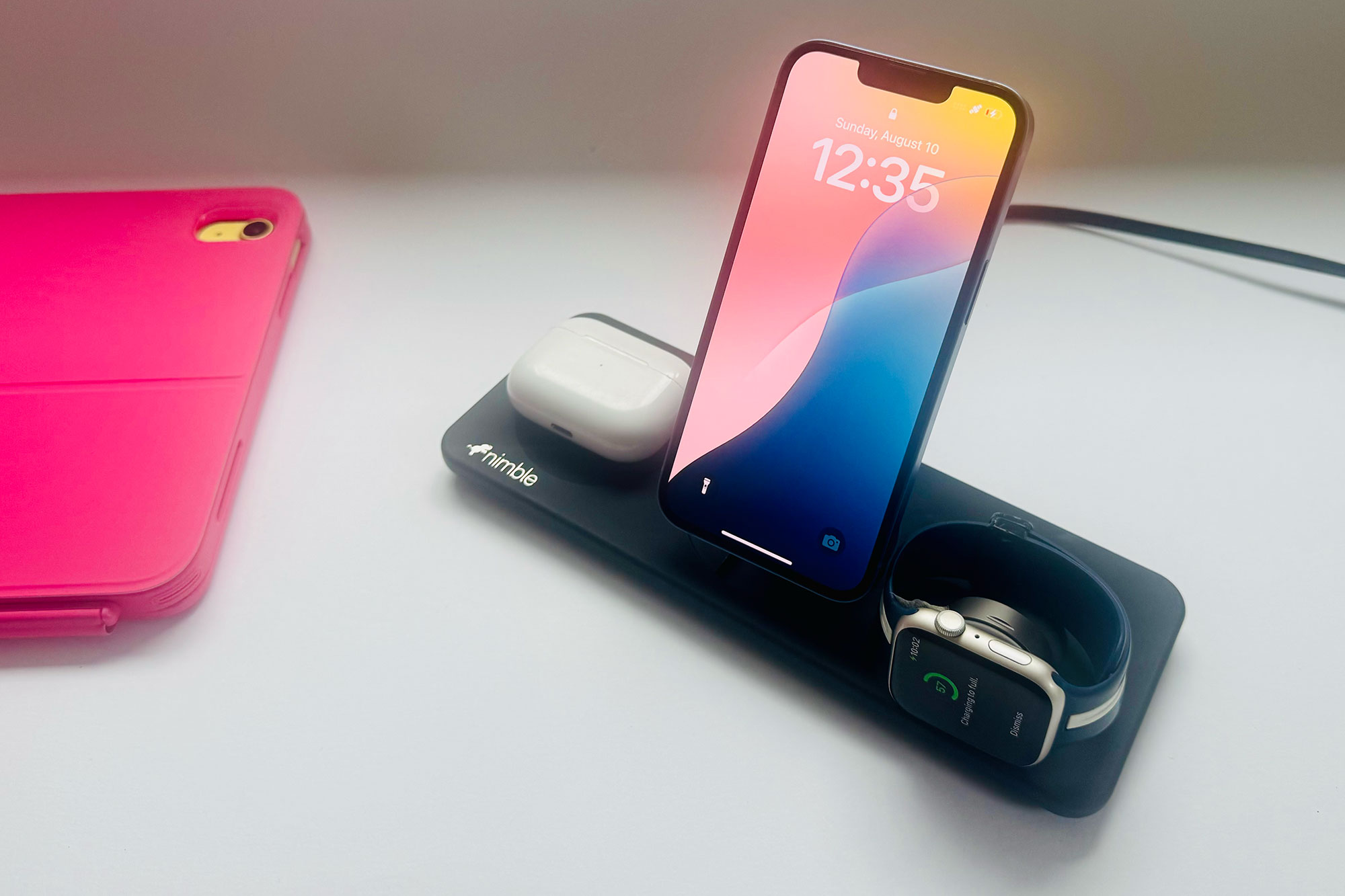
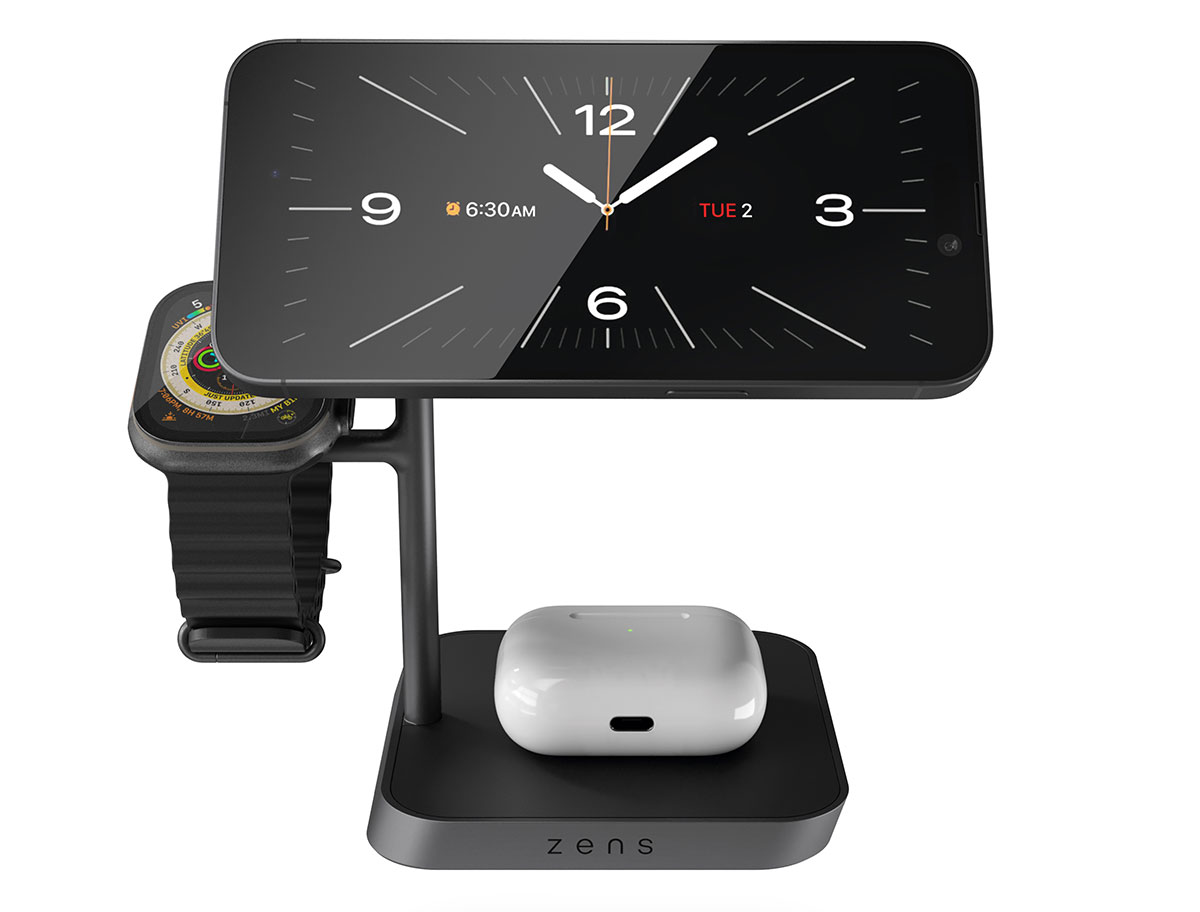
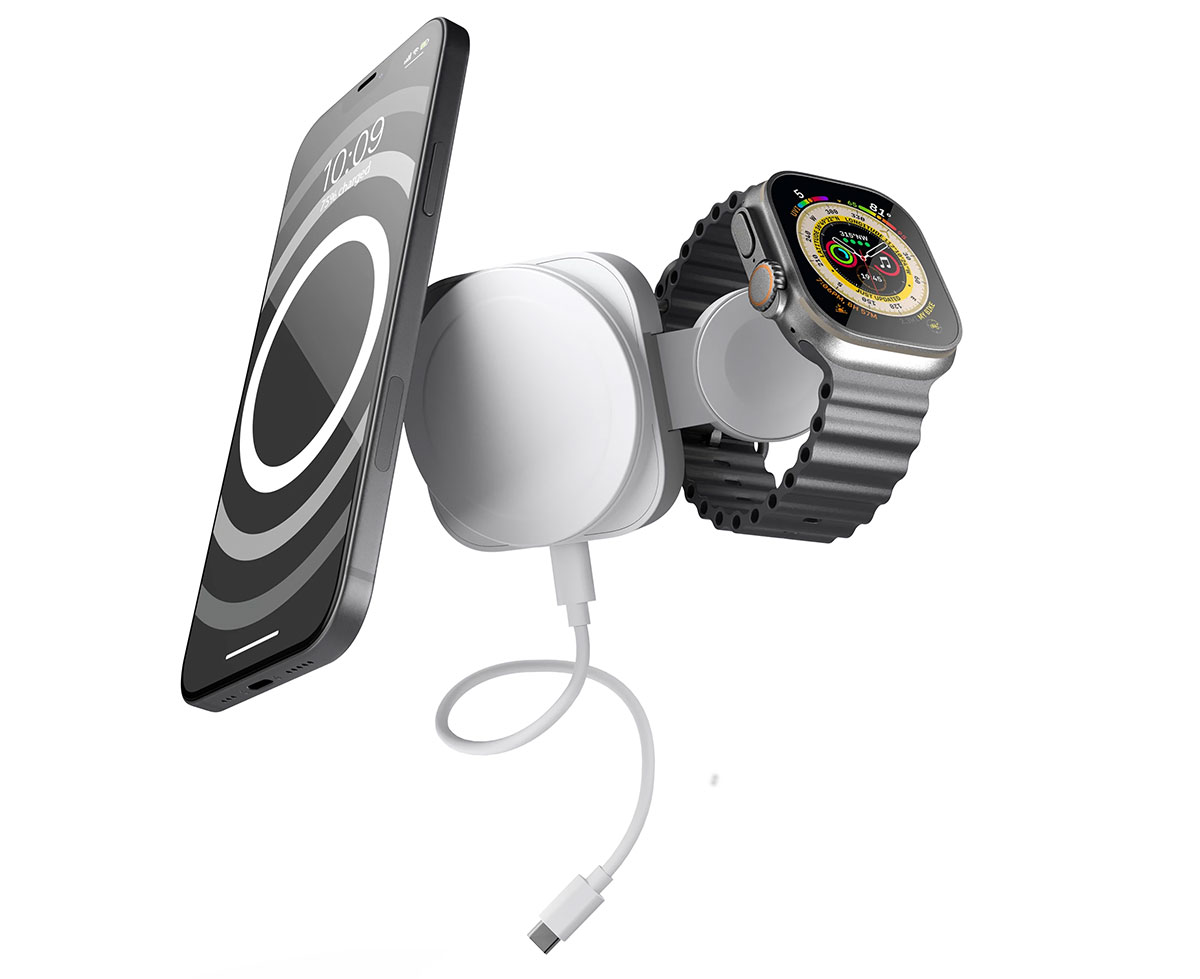
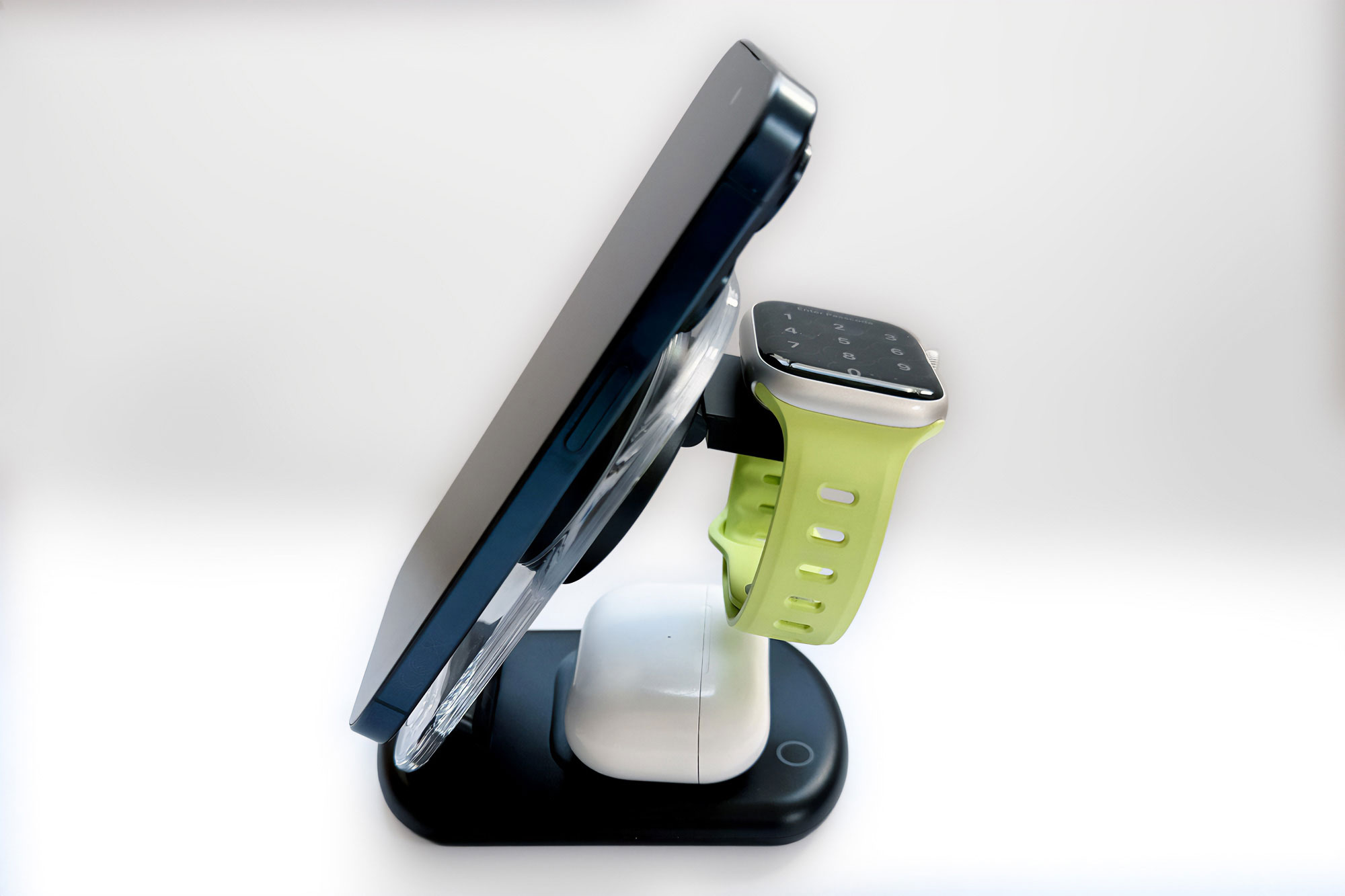
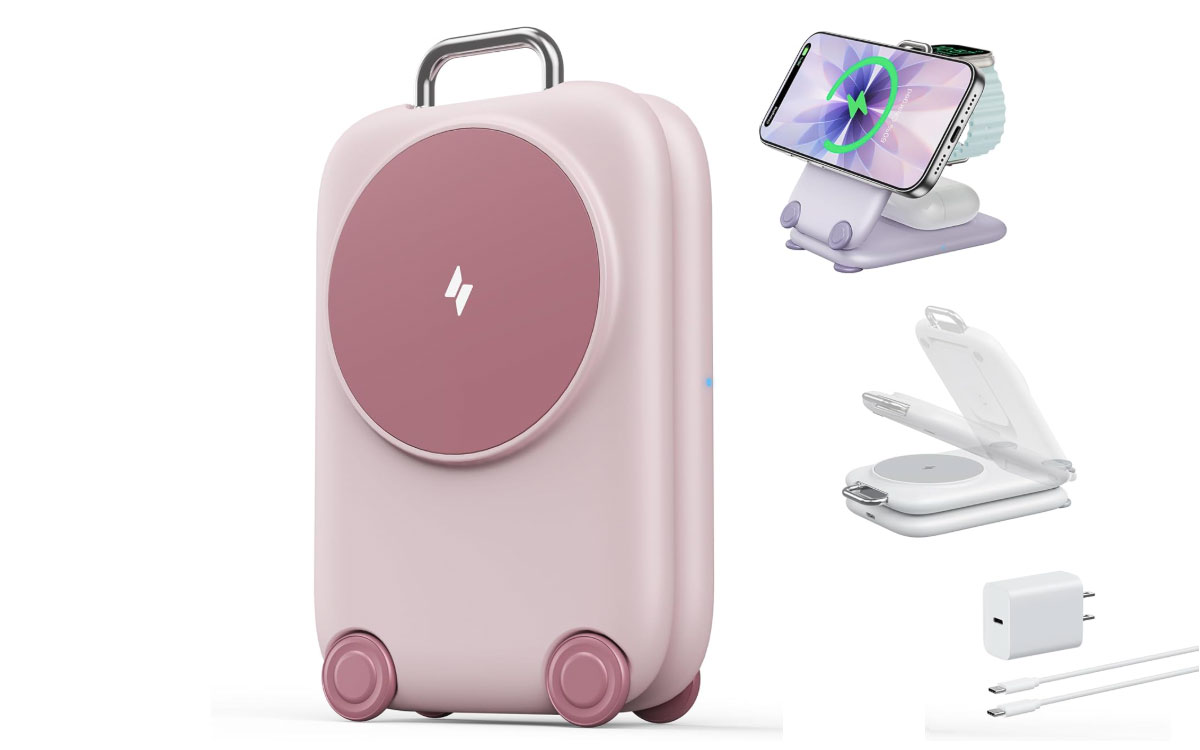
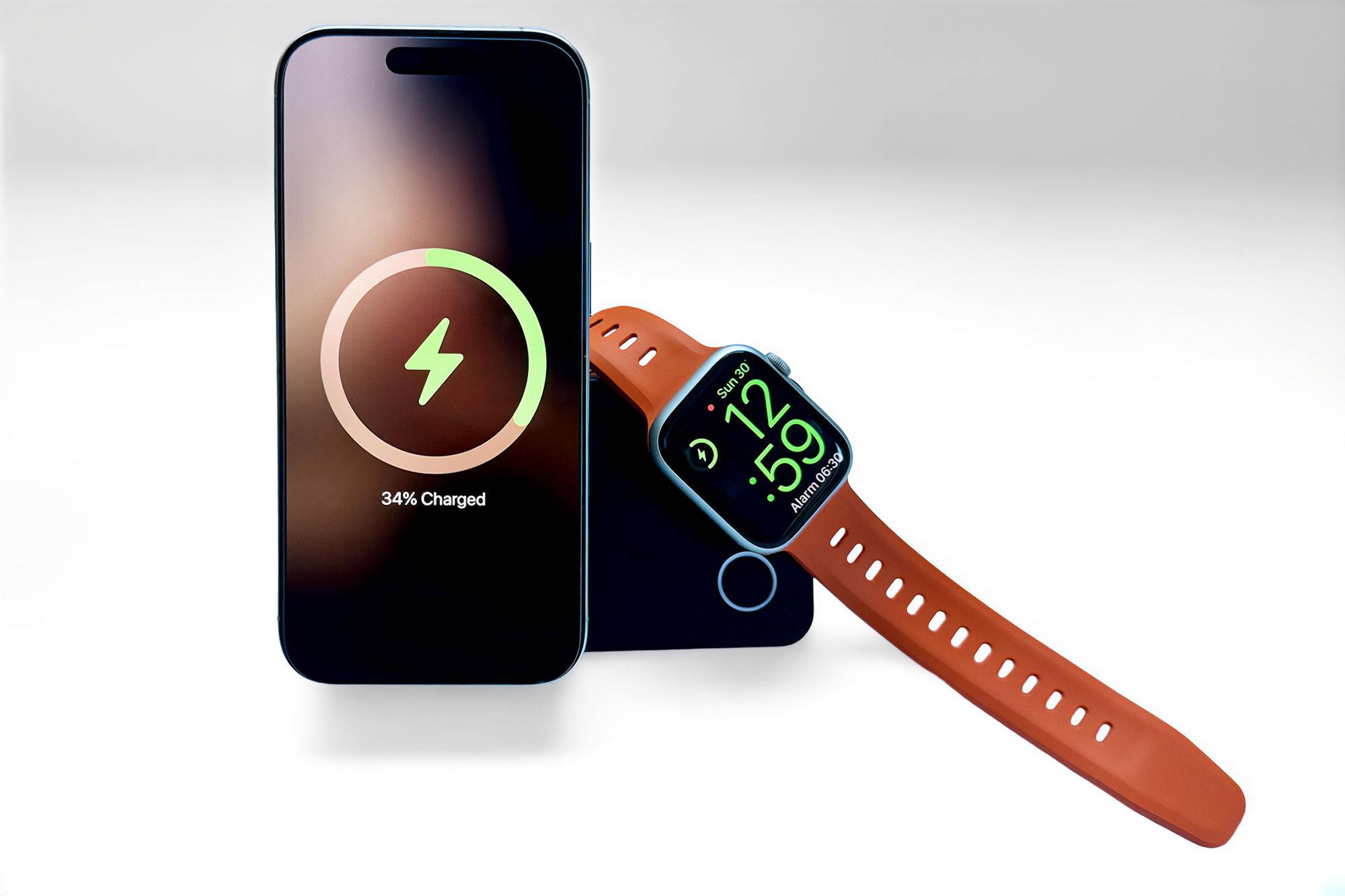
We’ve rounded up the best MagSafe, Qi2, Qi2.2 25W, and MagSafe-compatible magnetic chargers, from the plain pad to multi-functional stands (up to six devices charged), and even the most colorful—from snap-on chargers and modular stands to foldable power banks and full charging desk mats.
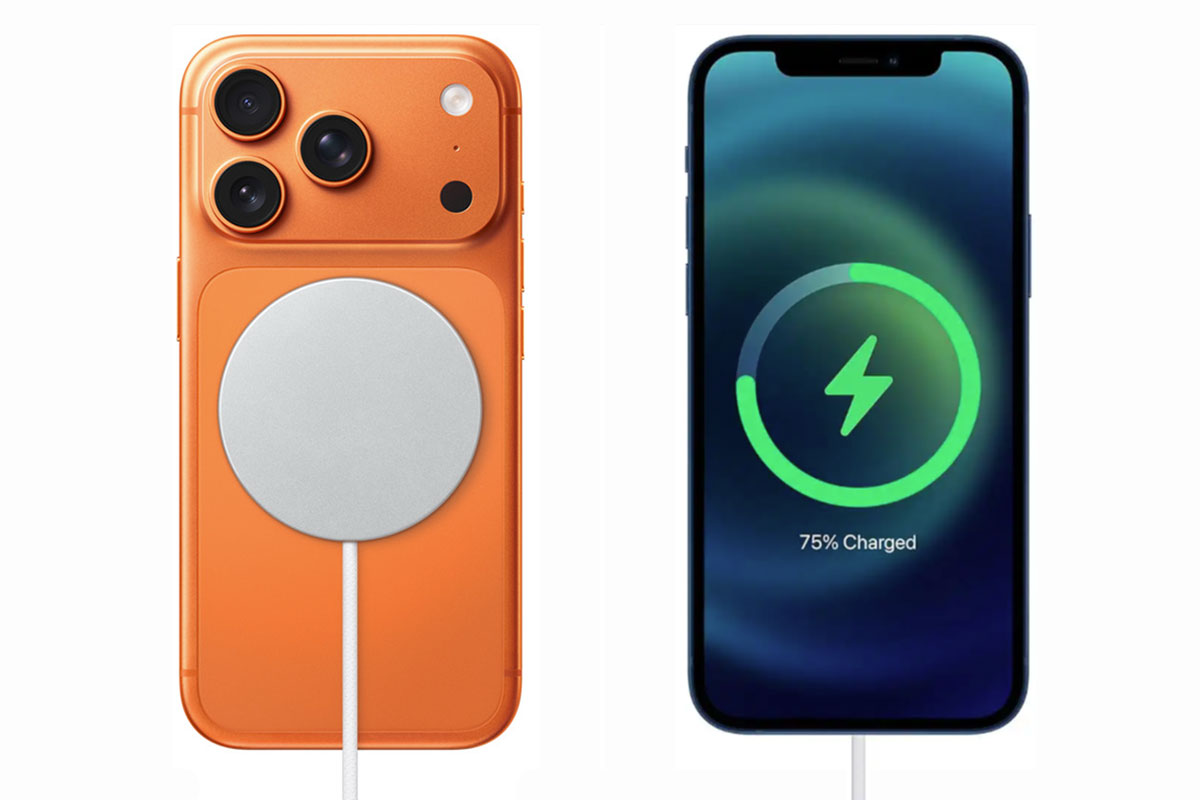
Apple’s MagSafe technology, supported by all models of iPhone since the iPhone 12 (except the iPhone SE and 16e), presents a more efficient way of wirelessly charging compatible iPhones. MagSafe is the ring of magnets around the iPhone’s internal charging coil that senses compatible accessories and magnetically snaps securely into the most efficient charging position with the right accessories. With MagSafe, you’re less likely to wake up to find your phone wasn’t correctly placed on the wireless charger so didn’t charge at all!
Testing the best for you
We have tested a lot of magnetic chargers—MagSafe, Qi2 and Compatible—and here inform you which one will work best for you. There are simple magnetic wireless chargers, multi-device chargers for iPhone, Apple Watch and AirPods, travel chargers, car chargers and more.
Offering up to 25W power output in the right configuration, MagSafe charging is much faster than basic 7.5W magnetic wireless charging. The similar magentic Qi2 standard, supported by the iPhone 13-17 families (and unofficially the iPhone 12 but strangely not the latest 16e) offers similar 15W speed charging. Qi 2.2, also known as Qi2 25W, meets MagSafe at 25W for iPhone 16/17 series.
MagSafe or Qi2 certification
Apple certifies MagSafe accessories to ensures that the output charging is 15W for most iPhones, and up to 25W for iPhone 16 and 17 (with Apple’s latest MagSafe charger or chargers certified for Qi2 25W). Non-certified magnetic but “MagSafe-compatible” chargers are usually just 7.5W with a ring of magnets to hold your phone in place. Certified MagSafe chargers also have a single-wire NFC antenna that allows the iPhone to identify the device and a built-in magnetometer to prevent compass interference while you are using your iPhone while it’s charging.
In our tests, 15W MagSafe and Qi2 chargers are evenly matched for charging speeds. 7.5W MagSafe compatible chargers, as you might expect, take around twice as long—certainly in the early stages of charging. But don’t rule out 7.5W chargers as they are often high quality, nearly always noticeably cheaper and just take a while longer to fully charge an iPhone. The king of the hill is Apple’s new MagSafe charger and chargers based on the new Qi2 25W technology that are definitely faster at 25W, but only with iPhone 16 or later.
Foundry
Simple vs multi-device magnetic chargers
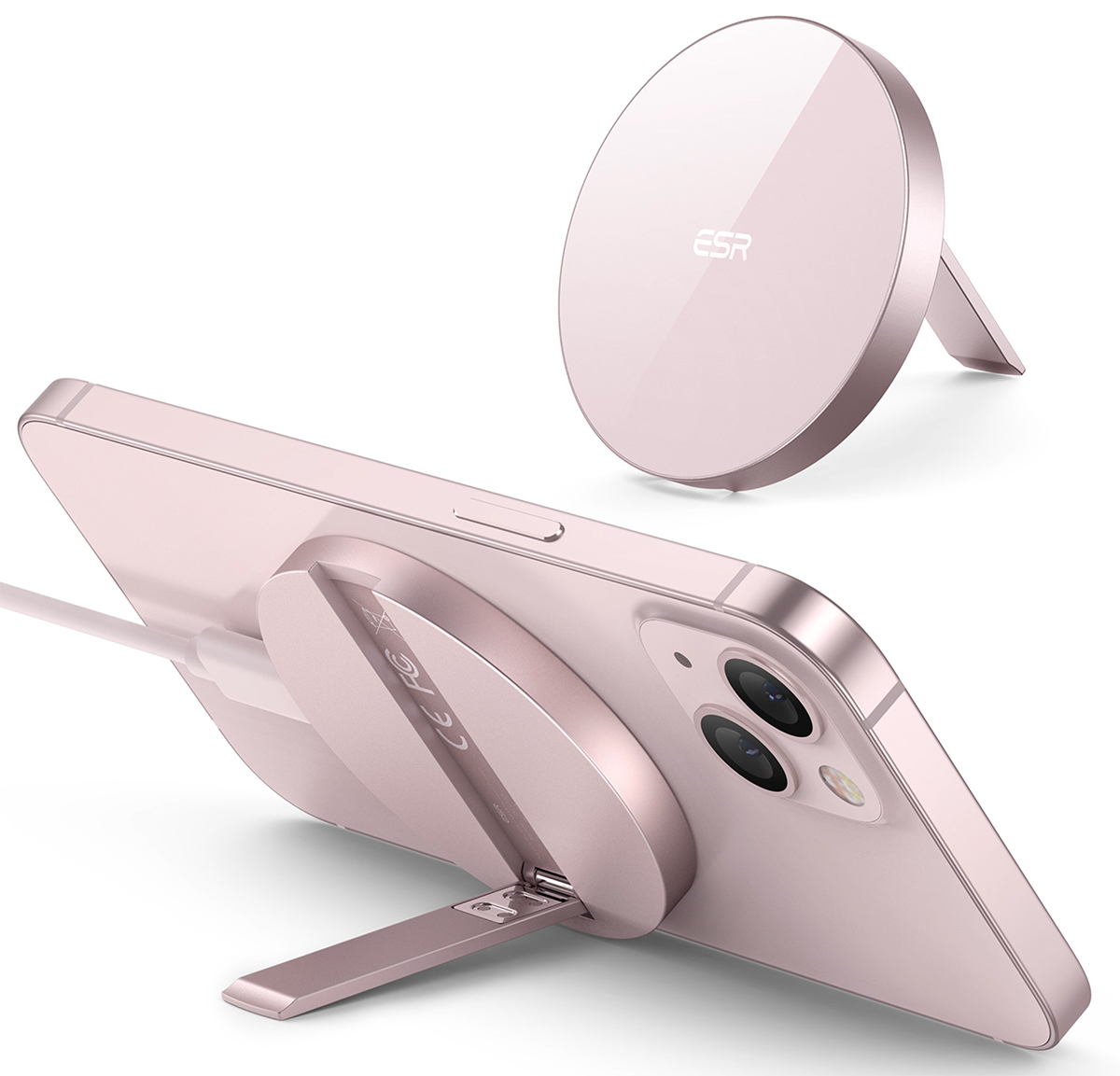
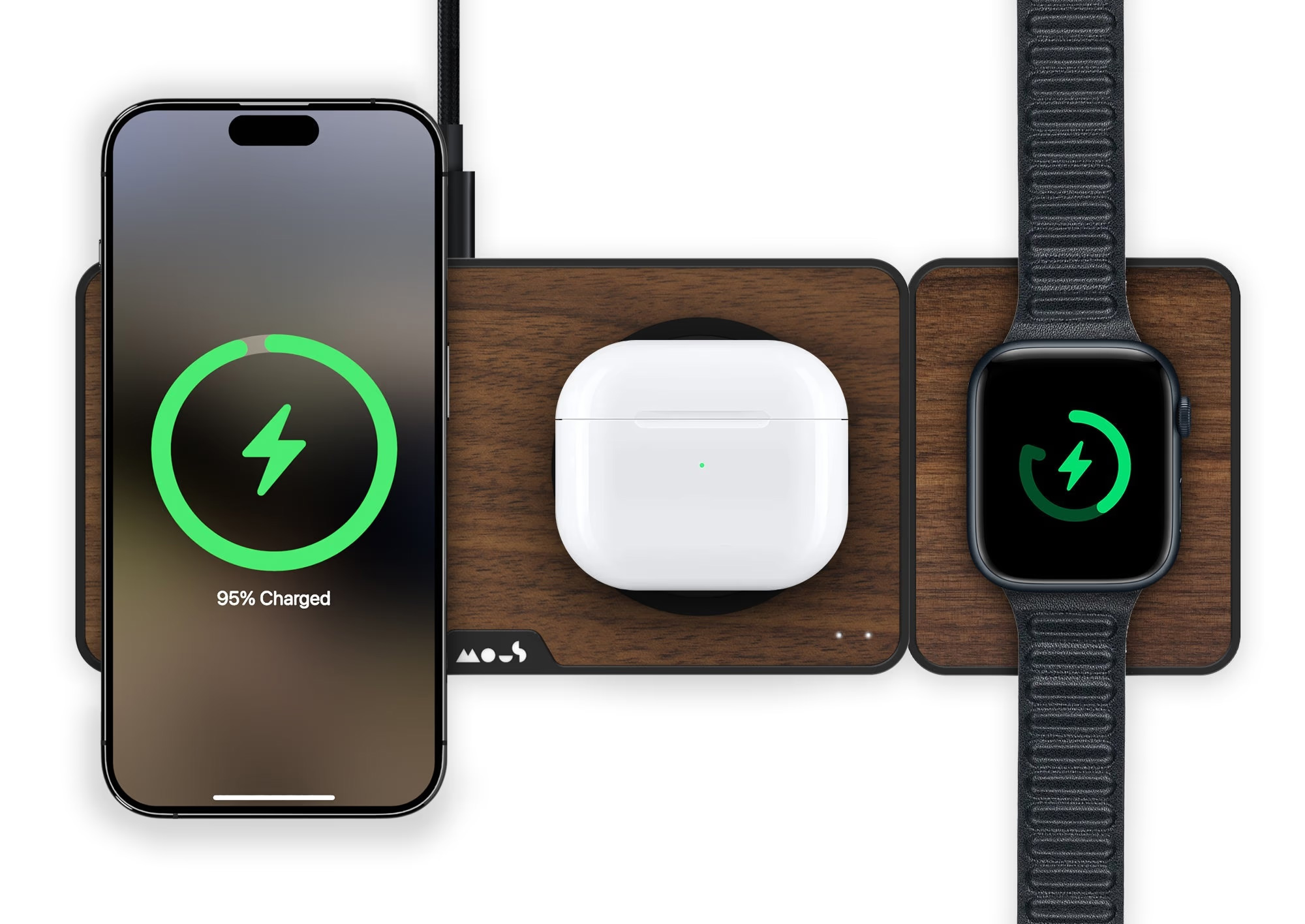
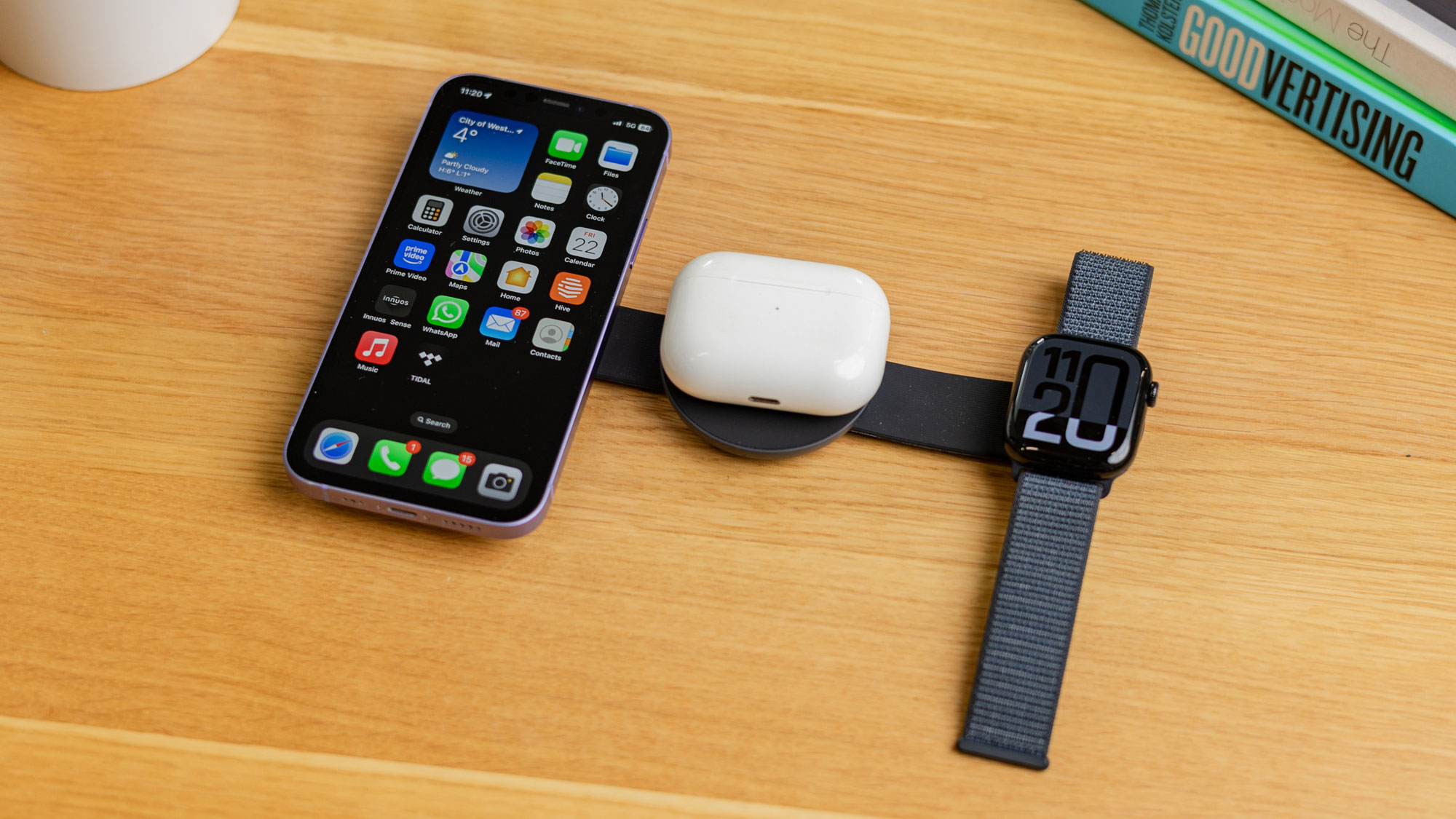
The most basic form of MagSafe or magnetic charger is the simple pad that latches on to the compatible iPhone. Some pads feature a pop-out arm so the iPhone can be propped up while charging. There are also products that can simultaneously charge an iPhone plus other Apple devices, such as an Apple Watch or wireless AirPods charging case. Note that the AirPods case must be of the wireless variety, and the original AirPods case lacked this functionality. The base of a multi-charger could also be used to charge a second iPhone but mostly not magnetically and at 5W rather than 7.5W, 15W, or 25W. Also see our round up of the Best Apple Watch chargers and stands.
Best simple MagSafe chargers
A simple MagSafe charging pad is the cheapest route to wireless iPhone charging. If you are going to the bother of connecting this product to a wall charger, why not just use a Lightning (iPhone 14 or earlier) or USB-C (iPhone 15 and up) cable direct to the iPhone? You can fast-charge an iPhone to 50% battery in under 30 minutes using a cable and just over that using a 25W charger, while it takes around 50 minutes to wirelessly charge iPhone from 0 to 50% using even 15W MagSafe.
That said, there are interesting options to choose from. After these we’ll look at more multi-functional MagSafe chargers.
Apple MagSafe Charger – Best simple MagSafe charger for fastest wireless
Price comparison from over 24,000 stores worldwide
Product
Price
Price comparison from Backmarket
Output charging: 25W (MagSafe), 15W (Qi2)
Cable: 1m (3.3ft), 2m (6.6ft)
Wall charger: Not included
Colors: White
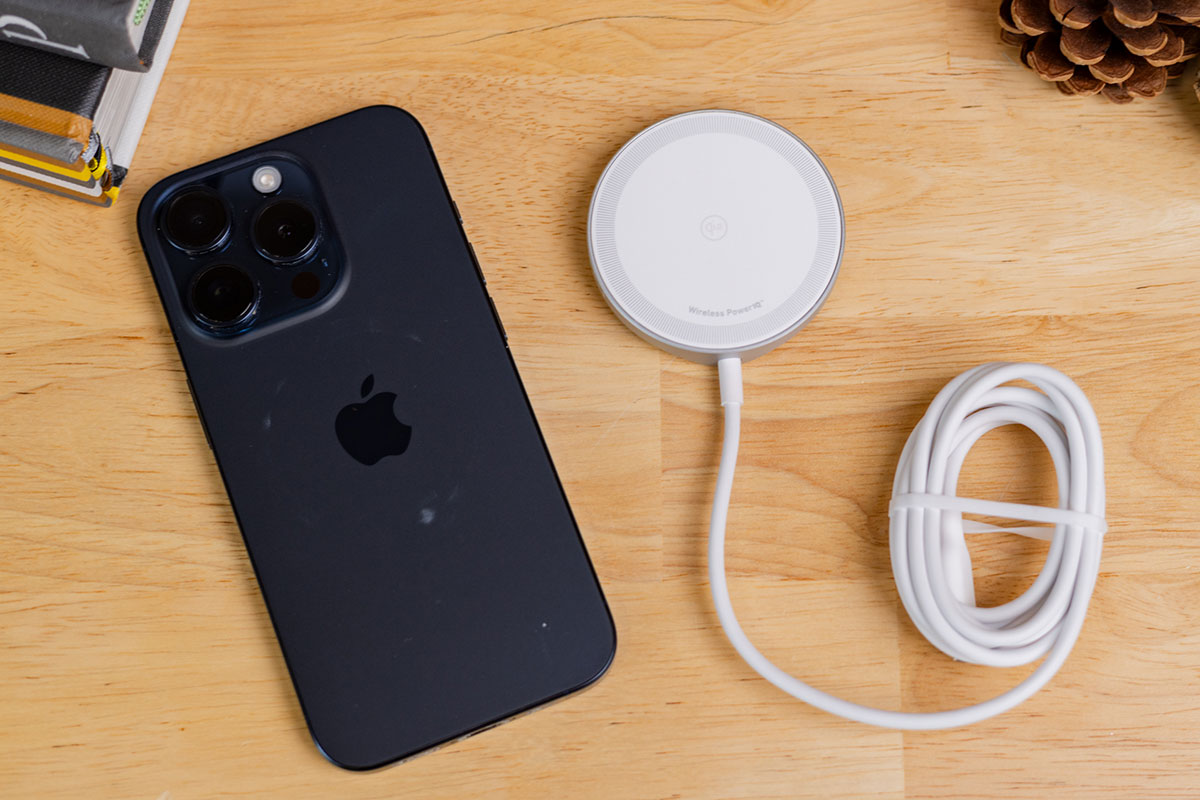
The most obvious MagSafe Charger to buy for your Apple iPhone is, of course, the Apple MagSafe Charger. It’s the charger that Apple would have shipped with the iPhone if it did such things anymore. It’s as minimalist a design as you’d expect from Apple–it looks a lot like a giant Apple Watch Charger. You can also use it to charge your AirPods.
Apple’s latest version of this charger offers 15W Qi2 support and, more importantly, a faster 25W charging speed with iPhone 16 and later. It also added a 2-meter length option for $10/£10 more, which is very welcome. At least a 30W USB-C power adapter is required for 25W charging.
In our tests using the Apple MagSafe Charger we wirelessly powered up an iPhone 16 Pro from 0% to 50% in just over 30 minutes.
It can also charge your AirPods case (AirPods 2 or AirPods Pro), although not at the same time as the iPhone—for that, you’ll need at least a 2-in-1 wireless charger.
The standard 1m cable is too short to comfortably charge and use your iPhone at the same time, or maybe stretch from a power socket to a nearby table, so we recommend the 2m upgrade. Don’t forget that this Apple charger still requires a USB-C power adapter—at least 20W if you want 15W charging and at least 30W to enable 25W charging.
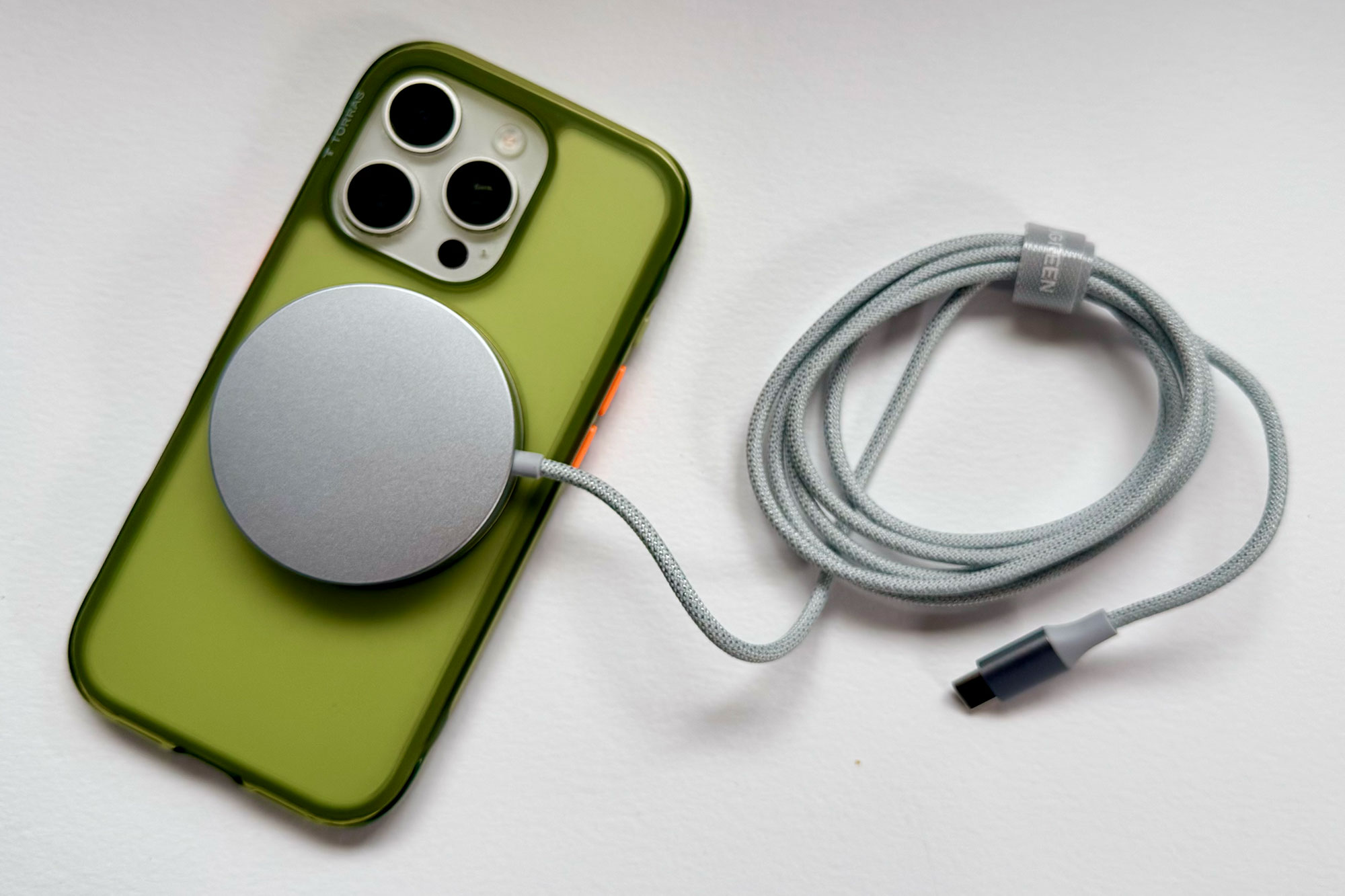
Ugreen MagFlow Magnetic Wireless Charging Pad 25W – Alternative simple 25W MagSafe charger
Price comparison from over 24,000 stores worldwide
Product
Price
Price comparison from Backmarket
Output charging: 25W (MagSafe), 15W (Qi2)
Cable: 1.5m (4.9ft)
Wall charger: Not included
Colors: Misty Blue
The Ugreen MagFlow Qi2 25W Magnetic Wireless Charging Pad isn’t too dissimilar to the 25W Apple MagSafe Charger except that it’s a fetching shade of what Apple would call Mist or Sky Blue. As such it would perfectly suit the iPhone 17 and iPhone Air of those shades.
Another difference is the length of cable and maybe 1.5m is a Goldilocks length for you if Apple’s 1m cable is too short and 2m cable too long.
Other than that, this simple charger matches the Apple pad for speed (25W for iPhone 16/17 and 15W for iPhone 12-15), and is more likely to be found discounted than the Apple either direct or on Amazon. It’s a solid alternative to Apple if any of these differences take your fancy.
Price comparison from over 24,000 stores worldwide
Product
Price
Price comparison from Backmarket
Output charging: 15W (Qi2)
Cable: 1.5m (5ft)
Wall charger: Not included
Colors: Black, White
Another basic magnetic charger, Anker’s Zolo Magnetic Wireless Charger Pad works just like the Apple pad, and also at a fast 15W—although it’s technology is Qi2 rather than Apple MagSafe. iPhone 16 and 17 owners should consider spending the extra on the Apple charger (reviewed above) for its special 25W charging speed. Owners of iPhone 15 or earlier can rest assured that this charger is as fast as the Apple one.
It works just as well, though, and is one of the cheaper premium magnetic chargers. The cable is a decent length at 1.5m—half again as long as that on the base model Apple MagSafe Charger pad, but not as long as on the top-end 2m Apple charger or the 2m Belkin MagSafe charger reviewed below.
Like Apple’s MagSafe Charger it can also charge your AirPods case (AirPods 2 or AirPods Pro) when the iPhone is removed.
In the U.S. Anker offers this charger only in a two-pack. A spare charger for downstairs, the office, bedroom, car and so on is always useful.
Belkin UltraCharge Magnetic Charger Pad 25W – Best simple MagSafe charger with stand
Price comparison from over 24,000 stores worldwide
Product
Price
Price comparison from Backmarket
Output charging: 25W (Qi2 25W)
Cable: 2m (6.6ft)
Wall charger: Optional
Colors: Black, White
The 25W Belkin UltraCharge Magnetic Charger Pad is now just as fast as Apple’s charger for the iPhone 16/17 families, and comes with a long cable and handy pop-up stand. The cable is twice as long as Apple’s basic model, which makes using the phone much easier when charging. It’s also thicker nylon-braided cable with a handy integrated silicone cable tie.
Belkin sells two versions, one with a squarer back shape and one rounder—the difference is minimal. There’s also an option to buy with a 36W power adapter (for a very reasonable extra $10) included or just on its own if you already have a wall charger to use.
Again, a straight cable connection will be faster but we like the kickstand, which you don’t get with a standard cable connection.
There are a few very similar Belkin Charger Pads so make sure you get what you’re after. For example, there is a slower but slightly more affordable 15W BoostCharge Pro Magnetic Charging Pad with stand (Amazon or Amazon UK) and 7.5W MagSafe-compatible BoostCharge Charger Pad (Amazon U.S. and Amazon U.K.) that lacks the stand. If you just want a cheap MagSafe-compatible charging pad, this is a decent option. Be warned: Belkin also sells a Qi Wireless Charging Pad that lacks the magnetic connection so is not recommended as it will be picky where the phone is placed and slower to charge as a result.
ESR HaloLock Kickstand Wireless Charger – Best budget magnetic charger with stand
Price comparison from over 24,000 stores worldwide
Product
Price
Price comparison from Backmarket
Output charging: 7.5W (Compatible)
Cable: 1.5m (5ft)
Wall charger: Not included
Colors: White, Black, Blue, Pink
This is a small, simple (but slow) magnetic charging pad that has a kickstand that lets you prop your attached iPhone 12/13/14/15/16/17 up either in landscape or portrait mode for video viewing or hands-free FaceTime calls. It’s a more affordable but slower alternative to the Belkin pad reviewed above.
The detachable cable length is reasonable at 1.5m and matches the four colors, so is wildly more flamboyant than the other magnetic wireless chargers tested here, except for…
Casetify Magnetic Wireless Charger – Widest choice of fun designs
Price comparison from over 24,000 stores worldwide
Product
Price
Price comparison from Backmarket
Output charging: 7.5W (Compatible)
Cable: 1m (3.3ft)
Wall charger: Not included
Colors: Many cool and/or odd patterns
We picked the English Breakfast pattern for its sheer wanton oddness but there are plenty of other patterns (Acid, Checks, Cherry Blossom) and pictures (Yeti, Harry Potter, Snoopy) to choose from.
Indeed, there are a sometimes baffling 759 different wireless charger designs to choose from. Most are quite random but there are themes such as Street Art and Anime, plus characters such as Doreamon and SpongeBob, and individual artists, with the option to customize a plain charger with text.
This 100% recyclable slim charger has eco sustainability points, too, as it’s made with recycled aluminum and printed with eco-friendly ink.
Anker MagGo Qi2 Wireless Charger Stand – Best budget magnetic charging stand
Price comparison from over 24,000 stores worldwide
Product
Price
Price comparison from Backmarket
Output charging: 15W (Qi2)
Cable: 1.5m (5ft)
Wall charger: Not included
Colors: White, Black
This simple magnetic charging stand has a rotating charging pad that means you can position your iPhone in landscape or portrait mode for hands-free FaceTime calls. It uses Qi2 so can charge wirelessly at 15W.
While it’s more affordable, if you own AirPods too, you might consider the not-much-pricier 2-in-1 MagGo version, reviewed lower down.
Zens Magnetic Nightstand Charger – Stunning magnetic charging nightstand
Price comparison from over 24,000 stores worldwide
Product
Price
Price comparison from Backmarket
Output charging: 15W (Qi2)
Cable: 1.5m (5ft)
Wall charger: 20W AC power adapter
Colors: White, Black, Dark Cherry
This magnetic charging nightstand uses Qi2 so can charge wirelessly at 15W. Even though it ships with additional U.K. and E.U. plug adapters that clip on the included mini 20W wall charger it’s probably too heavy for travel, but that heft makes it super stable when in landscape StandBy mode.
It is less of an easy fit in a portrait (vertical) orientation as the bottom of the iPhone pushes the stand up onto its edge. It’s still stable but looks a little odd from the side. On a nightstand landscape makes more sense anyway. It can be laid flat to wirelessly charge your AirPods case, too, at 7.5W.
What really stands out is the gorgeous Dark Cherry color that is available as an Apple Store exclusive.
Best 2-in-1 MagSafe chargers
Why restrict your charger to just one device? You can buy MagSafe chargers that tackle up to six different devices at the same time. Here, we start with basic 2-in-1 MagSafe chargers that can wirelessly charge your iPhone and AirPods case (the case must be wireless-charging enabled). Most multi-device chargers are stands but there are also folding travel chargers that work equally well full-time on your desk or nightstand or on the road with you at your hotel or office space.
Some 2-in-1 and 3-in-1 magnetic chargers are more portable than others so make sure to keep reading this feature for our list of Best travel MagSafe chargers, which may better suit your needs than these more static chargers.
Ugreen 2-in-1 MagFlow Qi2 25W Charger Stand – Fast and dinky 2-in-1 portable charging stand
Price comparison from over 24,000 stores worldwide
Product
Price
Price comparison from Backmarket
Output charging: 25W (Qi2 25W)
Cable: 1m (3.3ft)
Wall charger: Not included
Colors: Misty blue
While the Satechi 2-in-1 Foldable Qi2 and Belkin 2-in-1 25W wireless charging stands, reviewed above, can fold into a portable package, they are nowhere near as compact and lightweight (7.5oz / 212g) as Ugreen’s 2-in-1 MagFlow magnetic wireless charger, which folds down into a tiny pocketable cube (2.4 x 2.4 x 1.5 inches or 6 x 6 x 4cm).
It’s also as fast as you can get for wirelessly charging an iPhone 16 or 17; older iPhones charge at 15W.
Once open there’s a 5W Qi pad for AirPods and a 25W Qi2 pad for iPhone. A USB-C port on one side allows you to plug in your Apple Watch charging cable for 5W speedy charging, too—so you can almost call it a 3-in-1 except that you need a Watch charging cable to connect.
The iPhone-charging pad can be raised to about 3 inches (8cm), and can be angled to your preference.
Ugreen
Ugreen also sells a slightly cheaper aluminum gray $49 Qi2 2-in-1 Magnetic Charger that looks similar but charges the phone at a slower 15W, and a flatter 15W Qi2 MagFlow 2-in-1, both pictured above, that measures 4.6 x 2.2 x 0.9 inches (11.6 x 5.5 x 2.4cm) and will slip into a pocket easier than the cube shape. That model doesn’t have the side USB-C port, though.
Nomad Stand One – Sturdy but stylish 25W charging stand
Price comparison from over 24,000 stores worldwide
Product
Price
Price comparison from Backmarket
Output charging: 25W (Qi2 25W)
Cable: 2m (6.6ft)
Wall charger: Not included
Colors: Black, White, Stellar Orange
The Nomad Stand One uses Qi 2.2 wireless charging technology, so offers the super-fast 25W charging speed.
It’s a lovely looking stand that is the sturdiest wireless charging stand we’ve tested, with a real heft and an anti-slip rubber base. It measures 3.2 x 6.3 x 5 inches (8.2 x 16.1 x 12.8cm) and weighs nearly 2lbs (just under 1kg), so could be used as a paperweight if you have your desk fan turned up too high. It’s made of metal with a glass panel that gives it a glossy Apple-like look from the front.
The 21-degree viewing angle works well for comfortable viewing but if you want to customize the angle to your own liking you’ll need to choose one of the more adjustable 2-in-1 or 3-in-1 wireless chargers reviewed below.
Nomad does make a 3-in-1 version, the $159 Stand One Max, which can charge iPhone, Apple Watch and AirPods at the same time. This also looks great and also charges the iPhone at a rapid 25W.
Price comparison from over 24,000 stores worldwide
Product
Price
Price comparison from Backmarket
Output charging: 25W (Qi2 25W)
Cable: 1.5m (5ft)
Wall charger: 45W AC power adapter
Colors: Black, White, Blue
One of the new breed of Qi2 25W wireless chargers, the Belkin 2-in-1 Foldable Magnetic Charger with Qi2 25W folds up to a very pocketable 4.2 x 2.4 x 0.94 inches (10.6 x 6 x 2.4cm) and weighs 5.1oz (146g). It’s available in two forms: one with rounded edges (pictured) and one that’s straighter. Both are smooth but may be a little too plasticky for some tastes. The blue version is rather natty, though.
It passed our 25W charging test by getting an iPhone 16 Pro from 0% to 50% in 33 minutes. There’s a side 5W USB-C port that you can plug an Apple Watch charger into.
As a fold-up charger it’s suitably travel friendly. Alternatives include the Satechi 2-in-1 Foldable and the Ugreen MagFlow Foldable 2-in-1, both reviewed below. The 15W Satechi is slower and larger than the two 25W 2-in-1 chargers but we still like its more solid desktop looks. Choose between the Belkin and Ugreen on form factor and price. Note that the Ugreen doesn’t ship with a USB-C charger, while the Belkin does.
Satechi 2-in-1 Foldable Qi2 Wireless Charging Stand – Best-looking 2-in-1 magnetic charger
Price comparison from over 24,000 stores worldwide
Product
Price
Price comparison from Backmarket
Output charging: 15W (Qi2)
Cable: 1.2m (4ft)
Wall charger: Not included
Colors: Aluminum gray
With a remarkably small 3.5-inch square (9cm) footprint, this 2-in-1 charger uses the Qi2 wireless charging technology to match MagSafe on 15W speed. The AirPod charging pad charges at 5W and could be used to charge a second phone, although much slower than using the raised magnetic pad.
It even folds up flat to make it travel friendly, although you’ll need to supply your own USB-C wall charger. It’s pretty light at just 9.6oz (272g).
Anker MagGo 2-in-1 Qi2 Wireless Charger Stand – Budget 2-in-1 magnetic charging stand
Price comparison from over 24,000 stores worldwide
Product
Price
Price comparison from Backmarket
Output charging: 15W (Qi2)
Cable: 1.5m (5ft)
Wall charger: Not included
Colors: Black or White
The Anker MagGo range has a version for just about everyone, and this is a 2-in-1 version of the simpler iPhone-only magnetic wireless charger stand reviewed earlier. It is not portable like the Satechi and Ugreen 2-in-1 chargers, also reviewed above, but it is a good-looking stand for your desk or nightstand.
Built to charge both an iPhone 12/13/14/15/16/17 and wireless AirPod case charger, it is reaches the same 15W phone charging heights with its Qi2 technology. The AirPods are charged at 5W, which is standard for all such multi-device magnetic chargers.
You get angled landscape (up to 45 degrees) and portrait modes with this good-looking stand from one of our favorite premium accessory makers. The magnetic link is super strong so you don’t need to worry about the iPhone falling off even during re-angling.
If you’re not in a hurry, you can still find the Anker 7.5W PowerWave model a little cheaper but we like the faster charge on the 15W version. If you’re in a real hurry you’d be better off using a cable than using even a 15W or 25W certified MagSafe charger anyway.
Belkin BoostCharge Pro 2-in-1 Wireless Charging Dock with MagSafe 15W – Best designer magnetic charger
Price comparison from over 24,000 stores worldwide
Product
Price
Price comparison from Backmarket
Output charging: 15W (MagSafe)
Cable: 1.5m (5ft)
Wall charger: 30W AC power adapter
Colors: Charcoal, Sand
We’ve chosen this fast magnetic charger not because of its heroically long-winded name but for its designer good looks. It’s a minimalist 2-in-1 charging stand that can wirelessly charge an iPhone at 15W and fast-charge an Apple Watch. The top pad can angle at up to 70 degrees.
Steve Jobs and Jony Ive knew that tech should aspire to timeless design, and it’s no surprise that Apple has chosen to stock the Belkin BoostCharge Pro 2-in-1 Dock MagSafe charger in its stores. There are other magnetic wireless chargers reviewed here that can do more and at lower prices, but this is one we’d proudly place on our designer desk to show off rather than hide away.
The dock’s organic looks are complemented by the two available neutral yet naturalistic colors: Charcoal and Sand.
Price comparison from over 24,000 stores worldwide
Product
Price
Price comparison from Backmarket
Output charging: 25W (Qi2 25W)
Cable: 1.5m (5ft)
Wall charger: 45W AC power adapter
Colors: Charcoal, Sand
Although lacking the designer looks of the Belkin BoostCharge Pro 2-in-1, reviewed above, the UltraCharge Pro 2-in-1 uses the later Qi2.2 technology that means iPhones 16 and later can charge wirelessly at 25W rather than Qi2/MagSafe’s 15W.
It also folds up into an easily pocketable form measuring just 2.7 x 2.7 x 1.5 inches (6.7 x 6.7 x 3.8cm) and weighing 6.5oz (185g). We’ve reviewed more of our favorite portable magnetic chargers for travel lower down in this chart.
Zens USB-C to USB-C Charging Cable Pro 3 – 140W cable with magnetic chargers
Price comparison from over 24,000 stores worldwide
Product
Price
Price comparison from Backmarket
Output charging: 15W (Qi2)
Cable: 1.2m (3.3ft)
Wall charger: Not included (36W required)
Colors: White, Black, Dark Cherry
This is a smart MacBook or iPad charging USB-C cable that includes a 15W wireless pad for iPhone or AirPods case plus an adjustable 5W Apple Watch charger. Built of aluminum, it’s quite chunky but is probably all you need on your travels alongside at least a 65W USB-C charger, and it folds up on itself for easy transport.
It’s rated at 140W so is up to fast-charging even the 16-inch MacBook Pro, and just as adept at either wired or wirelessly charging Apple’s recent USB-C devices.
If you don’t own an Apple Watch—and have no intention of doing so—Zens has a version (the $49.95 Zens USB-C to USB-C Charging Cable Pro 2) without that module, and just the iPhone/AirPods wireless pad in the middle of the 140W cable.
Both are available from the Apple Store in an exclusive Dark Cherry color.
Belkin BoostCharge Pro 2-in-1 Charging Pad (Qi2) – Best 2-in-1 magnetic charging pad
Price comparison from over 24,000 stores worldwide
Product
Price
Price comparison from Backmarket
Output charging: 15W (Qi2)
Cable: 1.5m (5ft)
Wall charger: 30W AC power adapter
Colors: Black, White
Belkin’s expanding range of fast Qi2 wireless chargers includes a simple pad that can fit an iPhone plus an AirPods case. Although it doesn’t include an Apple Watch charging module, there is a 5W USB-C port that you can connect your Watch-charging cable into and charge all three devices simultaneously.
As a 2-in-1 solution it is cheaper and better suited for those who haven’t succumbed to the Apple Watch.
Being certified as Qi2 means that it can wirelessly charge at the same 15W as official MagSafe chargers but not 25W like the Apple MagSafe Charger or newer Qi2 25W chargers can for the iPhone 16 and later.
The pad is reassuringly heavy so you won’t pull it off your bedside table when you remove your iPhone from the magnetic pad. This makes it less obviously portable, but it’s small and flat enough to slip into a backpack.
As it’s a pad you can’t angle the phone into StandBy mode. If you want to more easily see the time on your nightstand, consider one of the charging stands reviewed above. It ships with a 30W USB-C wall charger and cable.
SwanScout 706M Dual Phone Charging Station – Best magnetic charging stand for two iPhones
Price comparison from over 24,000 stores worldwide
Product
Price
Price comparison from Backmarket
Output charging: 7.5W
Cable: 1.5m (5ft)
Wall charger: 30W AC power adapter
Colors: Black, White
Unless you own expensive burner iPhones, this charger is made for homes or offices where friends, family and colleagues can charge their iPhones at the same time and in the same place using just one power socket. We didn’t include it in our 3-in-1 roundup (see this immediately below) as it doesn’t charge the Apple Watch, although it can certainly power up three devices at the same time.
It’s the only magnetic wireless charging stand we’ve tested that charges two iPhones on a proper stand, and there’s a 3.5W Qi wireless charging pad underneath for one set of AirPods—your pal’s earbuds will have to wait their turn. The charging pads are not adjustable but the angle is perfect for screen viewing.
The SwanScout 706M is MagSafe Compatible rather than certified MagSafe or Qi2 so its wireless charging speed is limited to 7.5W or 10W shared across the two iPhone pads. That makes it a slow charge but this is fine for a nightstand where you have several hours for charging.
Best 3-in-1 MagSafe chargers
If you have brought full-in on the Apple product ecosystem, and have iPhone, AirPods and an Apple Watch, there are some great 3-in-1 magnetic chargers that will wirelessly charge all three devices simultaneously. 3-in-1 charging stands save you precious desk space or keep your nightstand or bedside table clear of clutter, while ensuring that you don’t run out of power during the day.
Mophie 3-in-1 Wireless Charge Stand – Fast and cool 25W 3-in-1 magnetic stand
Price comparison from over 24,000 stores worldwide
Product
Price
Price comparison from Backmarket
In a technology it’s called StealthCharge, Mophie has cleverly moved the the hottest components from the charging pad itself (in direct contact with the phone) to the product’s base. In effect, the base now serves as a heat sink to dissipate heat more efficiently. This means there’s no need for a noisy fan to keep the phone cool enough to receive a steady charge and maintain the fastest speeds.
It’s a small-footprint but tall charger, available in three colors, as well as a 4-in-1 version (reviewed here further down) that boasts a hidden 60W retractable USB-C cable that you can use to charge another USB-C device such as your MacBook.
Price comparison from over 24,000 stores worldwide
Product
Price
Price comparison from Backmarket
Output charging: 25W (Qi2 25W)
Apple Watch fast charge: Yes
Cable: 1.5m (5ft)
Wall charger: 45W AC power adapter
Colors: Black, Sand
The first Qi2 25W charger in the Macworld labs was Belkin’s UltraCharge Pro 3-in-1 Magnetic Charging Dock. Not only is this a super-speedy 3-in-1 charger, it’s a striking low-profile design with adjustable charging pad angling off a chrome-finished metal frame. The certified Apple Watch charger is fast, too.
Qi2 25W (sometimes known as Qi 2.2) takes wireless charging from its 15W maximum to a heady 25W. Previously only possible on the latest version of Apple’s own MagSafe Charger, 25W theoretically moves a 50% iPhone refill from 45 to just 25 minutes but environmental conditions such as temperature and the power used by the phone while being charged mean that 30-35 minutes is a more more realistic charging time for 25W. For wireless charging that’s still a big leap forward.
As 25W is achievable only with an iPhone 16 or 17 running at least iOS 26 it’s a new frontier for iPhone users. 25W chargers still work with earlier iPhones (12-15) but are pegged back at Qi2’s 15W maximum. All will feel the benefit of Belkin’s built-in active cooling ChillBoost fan.
Price comparison from over 24,000 stores worldwide
Product
Price
Price comparison from Backmarket
Output charging: 25W (Qi2 25W)
Apple Watch fast charge: Yes
Cable: 1.5m (5ft)
Wall charger: 65W AC power adapter
Colors: Black Stone, Shell White
This Anker Prime 3-in-1 iPhone stand takes speedy Qi2 25W charging to a traditionally elegant arm-based charging station design where the iPhone and Watch charging pads are suspended from the circular base. In our tests it came out fastest of all the 25W wireless chargers we have run through their paces—charging an iPhone 16 Pro to 50% in just 28 minutes.
The iPhone and Watch charging pads are held high on chrome arms that are angled for viewing angle and overall stand stability. We appreciate that the angle of the iPhone pad can be adjusted to your liking. The AirPods Qi pad is in the base beneath the arms and behind a neat and informative 1.65-inch HD smart display that is the first we’ve seen on such a stand. This is combined with app connectivity, so you can view power flow, charging temperature, and more. This where you can set the charging mode and also customize the clock face.
Price comparison from over 24,000 stores worldwide
Product
Price
Price comparison from Backmarket
Output charging: 15W (Qi2)
Apple Watch fast charge: Yes
Cable: 1.5m (5ft)
Wall charger: 36W AC power adapter
Colors: Black, White
More affordable than the Anker 3-in-1 but slower at 15W, Belkin’s wireless charging stand is similarly elegant and with an even more adjustable iPhone pad (90 degrees vs Anker’s 80). The arm placement is different but not functionally, so the design choice at least come down to personal preference.
While the iPhone charging is slower (15W vs 25W) the Watch and AirPods will power up in roughly the same time as you get with the Anker 3-in-1. If you are charging your iPhone overnight or have more time on your hand, the speed difference shouldn’t matter. It also lacks the Anker’s smart display if you like to keep up to date with exactly how fast your devices are charging.
ESR Qi2.2 25W HaloLock 3-in-1 Charger with CryoBoost – Versatile 3-in-1 magnetic stand
Price comparison from over 24,000 stores worldwide
Product
Price
Price comparison from Backmarket
Output charging: 25W (Qi2 25W)
Apple Watch fast charge: Yes
Cable: 1.5m (5ft)
Wall charger: 50W AC power adapter
Colors: Black
Another Qi2 25W solution, the ESR 3-in-1 25W Charging Station offers fast 25W iPhone wireless charging and 5W Apple Watch fast charging in a small-footprint design (3.4-inch square base) that tucks the Apple Watch charger at the back. The Watch charger is detachable, meaning you can remove it and take it with you to plug directly into any USB-C charging port. This is a useful option missing from most other 3-in-1 chargers, although the opportunity to later mislay it must be considered.
Where this charger excels is wireless charging speed. As with the Belkin UltraCharge Pro, reviewed above, it uses a fan-based cooling technology (ESR’s is called CryoBoost) with advanced heat-dissipation that makes the operation more battery friendly—resulting in significantly faster charging times.
The ESR’s Qi 2.2 pad is not adjustable, although you can position the iPhone in either landscape (StandBy) or portrait orientations. In this way it lacks the front-facing flexibility of the Twelve South HiRise 3 Deluxe, reviewed further down, but it is available at a significantly lower price and much faster. It comes with a decent-length cable and a 50W USB-C wall charger.
Remember that 25W is only possible for users of the iPhone 16 or 17. Owners of pre-iPhone 16 models can save money by buying the Qi2 15W model ESR 3-in-1 Charger with CryoBoost that’s a little taller but otherwise distinguished only by the 15W maximum speed and a 35W charger compared to the 50W wall charger that ships with the 25W model. In our tests this cheaper Qi2-based CryoBoost 3-in-1 Charger took only 10 minutes longer to charge an iPhone 16 Pro to 50% than the 25W charger. If you can handle waiting that long, you can save some serious money, but those seemingly few minutes do add up over the lifetime of the product.
Price comparison from over 24,000 stores worldwide
Product
Price
Price comparison from Backmarket
Output charging: 25W (Qi2.2)
Apple Watch fast charge: Yes
Cable: 1.2m (4ft)
Wall charger: 45W AC power adapter
Colors: Aluminum gray
As with the 2-in-1 model, we are big fans of the Satechi Qi2 Foldable 3-in-1 Wireless Charging Stand.
It has the same small 3.5-inch square (90mm) footprint, and Qi2.2 wireless charging technology to match MagSafe on 25W speed for iPhone 16 and later (older iPhones will charge at 15W). The AirPod charging pad charges at 5W and could instead charge a second phone, although much slower than with the MagSafe pad. Apple Watch charging is fast, with the back-mounted pad providing 5W of power.
It too folds up flat to make it travel friendly, and this time comes with a 45W USB-C chargers that is further boosted with U.K. and E.U. travel adapters. For a 3-in-1, it’s reasonably light at just 14.1oz (399g)—about the same as the cuter and more compact Anker 3-in-1 Cube, reviewed below. If you want a 3-in-1 that fits in your trouser pocket, look to the Kuxiu X40 Turbo, reviewed below in the travel charger section.
It’s not as affordable as ESR’s 15W 3-in-1 Charging Strand ($84.99) so misses our budget recommendation. However, with its foldability and travel plugs, this makes a great charging station choice for at base and on your travels—see lower down for more best MagSafe travel chargers. if you don’t mind the Watch at the back, this charger’s flexibility and fast speeds makes it an easy recommendation.
Price comparison from over 24,000 stores worldwide
Product
Price
Price comparison from Backmarket
Output charging: 15W (Qi2) or 25W (Qi2.2)
Apple Watch fast charge: Yes
Cable: 1.5 m (5ft)
Wall charger: 45W AC power adapter (Ultra only)
Colors: White (Summit), Black/gray (Summit Ultra)
Available in white 15W (Summit) or black 25W (Summit Ultra), this stylish desktop charger has a neat triangular aesthetic. Its nightlight gives out ambient lighting from the center AirPods-charging alcove, making it a great choice for nightstands.
Simon Jary
The iPhone charging module is height but not tilt adjustable, and the Apple Watch charger flips out from the rear when required. The ability to raise the iPhone higher than many stands is appreciated.
Price comparison from over 24,000 stores worldwide
Product
Price
Price comparison from Backmarket
Output charging: 25W (Qi2 25W)
Apple Watch fast charge: Yes
Cable: 1m (3.3ft)
Wall charger: 45W AC power adapter
Colors: Misty Blue
The most solid of Ugreen’s 25W MagFlow range of wireless chargers, is desktop model is lightweight but feels sturdy due to its grippy rubber feet.
The speedy 25W iPhone charging pad can be angled up to 70 degrees, as well as raising an iPhone in landscape/StandBy mode around 2.4 inches (6cm) from the desk.
The 5W Apple Watch charger pops out from the back so remains hidden when not in use, as does the phone’s face itself when charging.
Anker 3-in-1 Cube with MagSafe – Best compact 3-in-1 magnetic charger
Price comparison from over 24,000 stores worldwide
Product
Price
Price comparison from Backmarket
Output charging: 15W (MagSafe)
Apple Watch fast charge: Yes
Cable: 1.5 m (5ft)
Wall charger: 30W AC power adapter
Colors: Gray
The Anker 3-in-1 Cube MagSafe charger is certified by Apple, so offers 15W wireless charging plus 5W for AirPods and 5W for Apple Watch. Although on the heavy side, it’s super-compact and great for travel. The Watch charging part is hidden in the cube until you need it. It comes with a 30W USB-C wall charger with switchable UK and EU plug fittings that slide onto the US plug prongs.
Its tiny footprint means it takes up little space on your desk or bedside cable, too. If you don’t own an Apple Watch, consider the equally dinky Ugreen 2-in-1 Foldable Qi2 Wireless Charging Stand, reviewed in our 2-in-1 roundup above. The stand works in landscape and portrait orientations but isn’t high. It does have adjustable viewing angles up to 60°.
Satechi Qi2 Trio Wireless Charging Pad – 3-in-1 Qi2 charging pad
Price comparison from over 24,000 stores worldwide
Product
Price
Price comparison from Backmarket
Output charging: 15W (Qi2)
Apple Watch fast charge: Yes
Cable: 1m (3.3ft)
Wall charger: 45W AC power adapter
Colors: Black
The flatter Satechi Qi2 Trio Wireless Charging Pad is similar to Nimble’s Podium 3-in-1 Wireless Charger, reviewed below, in its looks and specs but is a little shorter and comes with a slightly more powerful 45W wall charger plus international travel plugs (US, UK, EU).
It has 15W iPhone Qi2 charging, 5W Apple Watch fast charge and 5W AirPods Qi charging pad. The iPhone pad can be raised to create a stand, just like the Nimble.
It measures 8.2-x-3.8-x-0.8 inches (20.9-x-9.7-x-2.1cm) and weighs 12.6oz (358g). Its light enough to be portable, and the international travel plugs cover lot of countries.
Nimble Podium 3-in-1 Wireless Charger – 3-in-1 Qi2 charging pad
Price comparison from over 24,000 stores worldwide
Product
Price
Price comparison from Backmarket
Output charging: 15W (Qi2)
Apple Watch fast charge: Yes
Cable: 1.5m (5ft)
Wall charger: 36W AC power adapter
Colors: Black, White
The Nimble Podium 3-in-1 Wireless Charger, like the shorter Satechi Qi2 Trio Wireless Charging Pad reviewed above, hosts an adjustable iPhone charging pad but its is placed in the center of the three charging points rather than to one side. It measures 9-x-3.4-x-0.8 inches (22.9-x-8.6-x-2cm) and weighs 15.6oz (443g).
The fact that it’s heavier than the Satechi 3-in-1 flat pads shouldn’t be a problem unless you are planning to carry it with you as a portable charger—and we think there are much dinkier and suitable travel chargers to choose from. Its extra weight makes this solid desktop stand a more stable base.
Both iPhone and Watch charging pad can be angled upward. The Podium is available in black direct or from Amazon, and also in white as an Apple Store exclusive.
Price comparison from over 24,000 stores worldwide
Product
Price
Price comparison from Backmarket
Output charging: 15W (Qi2)
Apple Watch fast charge: Yes
Cable: 1.5m (5ft)
Wall charger: 45W AC power adapter
Colors: Black
This 3-in-1 Apple device wireless charger is well made and has one of the smallest desktop footprints we have seen. It can fast charge the Apple Watch and has Qi2 wireless charging technology so hits the top 15W speed when charging an iPhone 12-17.
The charging modules are fixed, which doesn’t give you any flexibility for adjusting the phone position aside from choosing whether to place it in either landscape or portrait orientation.
The 45W charger is more powerful than some we’ve tested, and we like that it comes with plug heads for U.S., U.K. and E.U. sockets.
Mophie 3-in-1 Extendable Stand – Best height-adjustable MagSafe charger
Price comparison from over 24,000 stores worldwide
Product
Price
Price comparison from Backmarket
Output charging: 15W (MagSafe)
Apple Watch fast charge: Yes
Cable: None
Wall charger: Not included
Colors: Black
If you want to properly raise your iPhone in a stand, this Mophie 3-in-1 charging stand is height adjustable between 7.5 to 16 inches (19-40cm). The MagSafe mount is tilt adjustable, too, making this stand great for using FaceTime on the iPhone.
Fully Apple certified, it wirelessly charges an iPhone at 15W and can also fast-charge an Apple Watch. While it feels stable, we’d have preferred a less plasticky stand column.
What goes further than a 3-in-1 charger? A 4-in-1 MagSafe charger! These super-multi-device charging stations can tackle your iPhone, Apple Watch, AirPods and another iPhone or set of AirPods, or with some even an iPad, depending on your needs.
Mophie 4-in-1 Wireless Charge Stand – Fastest 4-in-1 MagSafe charging stand
Price comparison from over 24,000 stores worldwide
Product
Price
Price comparison from Backmarket
Output charging: 25W (Qi 2.2)
Cable: 1.5m (5ft)
Wall charger: 100W AC power adapter
Colors: White, Black, Gold
Using the same StealthCharge technology as its 3-in-1 wireless charger—where the the hottest components are moved from the charging pad itself to the product’s base—this multi-device charger does away with the need for a noisy fan but still keeps the phone cool enough to receive a steady super-fast charge.
To remove as many extra cables from your life as possible, the Mophie 4-in-1 includes a 2ft 60W retractable cable that you can use to charge even a MacBook Pro, or a second iPhone, iPad, or other USB-C device.
It’s clever and looks great, especially in its gold/champagne color model.
Price comparison from over 24,000 stores worldwide
Product
Price
Price comparison from Backmarket
Output charging: 15W (MagSafe)
Cable: 1.5m (5ft)
Wall charger: 65W AC power adapter
Colors: Black
The Zens 4-in-1 Modular Charging Station for iPhone, AirPods, Apple Watch and iPad is a MagSafe-certified charging stand made from recycled plastic that can handle not just four Apple devices but more if you buy extra charging modules (up to three at one time) to connect. Any MagSafe iPhone (12-17) can be wirelessly charged at up to 15W, faster than non-certified MagSafe-compatible chargers but not at the possible fastest 25W speed. AirPods and Apple Watch will each charge wirelessly at 5W.
The iPhone can be placed in either portrait or landscape mode. At the back is a stand where you can place an iPad, which can be wired charged via a side-mounted USB-C port at up to 30W. All devices can be charged simultaneously as the power supply has a 65W total output. The Watch module that ships with the 4-in-1 charger can handily be situated on either the right- or left-hand side depending on your preference. Modules attach magnetically. The Apple Watch extension can be disconnected from the main station and charged via a USB-C port to become a standalone wireless charger when traveling.
HyperJuice Next Qi2 4-in-1 Magnetic Charging Stand – Charge two iPhones at the same time
Price comparison from over 24,000 stores worldwide
Product
Price
Price comparison from Backmarket
Output charging: 15W (MagSafe)
Cable: 1.5m (5ft)
Wall charger: 45W AC power adapter
Colors: White
This 4-in-1 is the same size as most 3-in-1 charging pads but can wirelessly charge two iPhones at the same time: one via a fast and ultra-adjustable 15W Qi2 charging pad and another via a 10W non-magnetic Qi base that would also work with a second pair of AirPods. The 5W Watch charging pad is certified for fast-charge.
The Hyper Juice Next is the most portable 4-in-1 MagSafe charger we have tested as the iPhone and Watch stand folds down to a flatter, more travel-friendly shape. The 45W power supply also comes with international plug heads for U.S., U.K., E.U. and A.N.Z. There’s also a further USB-C port for input only, but useful if you’d rather not carry the power supply with you on your journey or just want to plug it into an existing multi-port charger at home.
The base is solid but the overall 664g weight might put you off travelling with it in your hand luggage.
Mous 4-in-1 Fast Charging Wireless Station – Charge two iPhones at the same time
Price comparison from over 24,000 stores worldwide
Product
Price
Price comparison from Backmarket
Output charging: 15W (MagSafe)
Cable: 1.5m (5ft)
Wall charger: 65W AC power adapter
Colors: Black, Aramid Fiber, Walnut
The fourth device is charged via an 18W USB-C port at the back of this otherwise wireless charging set—that could be another phone or your iPad. The 5W Apple Watch charging module is attached magnetically (via a pogo connection) and can be detached.
Mous also sells the modules separately. You can buy the iPhone and AirPods dual charging module (U.S. or U.K.), or just the Apple Watch module (U.S. or U.K.). All are available in Mous’s unique walnut color, pictured here, as well as in black and aramid fiber.
Best travel MagSafe wireless chargers
Many multi-device magnetic chargers take the form of elegant and frankly quite bulky stands that are designed to sit on a desk or bedside table/nightstand and stay there. Having a 3-in-1 MagSafe charger that can slip in a pocket, handbag or backpack would be even more useful when traveling between offices, homes or hotels.
Thankfully, there are some truly great 2-in-1 and 3-in-1 travel-friendly portable MagSafe chargers, and we have tested the best of them here.
Anker MagGo 3-in-1 Folding Wireless Charging Station – Best 3-in-1 travel MagSafe charger
Price comparison from over 24,000 stores worldwide
Product
Price
Price comparison from Backmarket
Output charging: 15W (Qi2)
Apple Watch fast charge: Yes
Cable: 1.5 m (5ft)
Wall charger: 40W AC power adapter
Colors: Black, White, Green, Pink
Power specialist Anker was one of the first companies to release Qi2-compatible chargers, and the foldable Anker MagGo 3-in-1 Wireless Charging Station is a great example of what the technology can offer.
It charges the iPhone (iPhone 13 and later) at 15W, and is also certified by Apple to fast-charge the Apple Watch, as well as Qi charge AirPods in a wireless charging case–all at the same time.
Dominik Tomaszewski / Foundry
It is super compact and folds up into a round pocketable shape that won’t take up much space in a bag or tidied away on your nightstand. It measures 2.36 x 2.36 x 1.4 inches (6 x 6 x 3.6cm) when folded and weighs just 3.8oz (108g). The 5W Watch-charging module folds on the top. The iPhone mostly lays flat, but it can be placed into a more useful StandBy mode as a stand with some folding wizardry.
There are other 3-in-1 foldable charger contenders—for example, the faster 25W Kuxiu X40 Turbo, reviewed below. Anker has a squarer model, the identically named Anker MagGo Wireless Charging Station (Foldable 3-in-1), also reviewed below, which folds more easily into a traditional stand.
Price comparison from over 24,000 stores worldwide
Product
Price
Price comparison from Backmarket
Output charging: 25W (Qi2 25W)
Apple Watch fast charge: Yes
Cable: 1m (3.3ft)
Wall charger: 45W AC power adapter
Colors: Black, Gray, Wood Grain, Cosmic Orange
The Kuxiu X40 Turbo 3-in-1 Foldable Magnetic Charging Stand is a neat, portable way to charge all your Apple mobile devices—Watch, iPhone, AirPods—at the same time and at 25W is as fast as wireless chargers can go.
Simon Jary
It’s special because it folds up into such a compact aluminum alloy package—measuring 2.5 x 2.5 x 0.7 inches (6.4 x 6.4 x 1.8cm). It weighs a mere 5.23oz (148g). It even comes with its own travel case and powerful 45W wall charger.
Kuxiu has another similar 25W foldable 3-in-1, the X55 Turbo, pictured below, which is a smidge larger in size (and much deeper when folded) but a little cheaper. Read our Kuxiu X55 Turbo review for a closer comparison.
Simon Jary
Owners of the iPhone 17 Pro and 17 Pro Max will love the Cosmic Orange models of the X40 Turbo and X55 Turbo.
Price comparison from over 24,000 stores worldwide
Product
Price
Price comparison from Backmarket
Output charging: 15W (Qi2)
Apple Watch fast charge: Yes
Cable: 1.5m (5ft)
Wall charger: Not included
Colors: Aluminum
With a similar but smaller form, the Twelve South ButterFly SE is an easily pocketable 2-in-1 charger that can handle iPhone and Apple Watch or iPhone and AirPods, charging two devices simultaneously.
It is Qi2 certified, so wirelessly charges the iPhone at 15W and the Watch at 5W. You can get faster 25W wireless charging, but the Butterfly is such a delightful design that we still love it.
It’s a really clever, compact foldable size and offers MacBook-like styling. Unfurl the charger and the two wireless charging pads are revealed. You can fold 180 degrees and place the Watch in Nighstand mode. Flip it round, and you can set the iPhone in landscape StandBy mode. If you want to charge an Apple Watch too, you should instead consider the Anker MagGo 3-in-1 Folding Wireless Charging Station, reviewed above.
It’s available in a range of colours at Amazon and is also on sale at the Apple Store in a more exclusive set of colors.
Price comparison from over 24,000 stores worldwide
Product
Price
Price comparison from Backmarket
Output charging: 25W (Qi2.2)
Apple Watch fast charge: Yes
Cable: 1m (3.3ft)
Wall charger: 45W AC power adapter
Colors: Misty Blue
Not as super-compact as the Kuxiu X40 Turbo, the foldable version of the Ugreen MagFlow 3-in-1 is still slight compared to most chargers. Folded it measures 4.7 x 2.4 x 0.8 inches (12 x 6 x 2cm) and weighs 7.5oz (211g)—that sounds heavy when compared to the numbers of the X40 (148g) but it’s a barely noticeable difference in hand.
It features the same super-fast Qi2 25W iPhone charging and also charges the Watch and AirPods at top speed.
Price comparison from over 24,000 stores worldwide
Product
Price
Price comparison from Backmarket
Output charging: 7.5W
Apple Watch fast charge: No
Cable: 1m (3.3ft)
Wall charger: Not included
Colors: Black
While it won’t win any prizes for its wireless charging speeds, this 3-in-1 iPhone/Watch/AirPods charger is almost unbelievably small and lightweight, making it a great traveling companion.
Folded, the Mous 3-In-1 Wireless Portable Charger measures just 3.5 x 2.4 x 0.5 inches (9 x 6.2 x 1.3cm). That’s about the length and width a standard playing card, and in depth around the size of half a pack. It should fit in your trouser or jacket pocket without you noticing.
It unfolds to a width of 5.4 inches (13.6cm), and less than a third of an inch (8mm) deep, with a faux leather folding hinge between.
Price comparison from over 24,000 stores worldwide
Product
Price
Price comparison from Backmarket
Output charging: 25W (Qi2 25W)
Apple Watch fast charge: Yes
Cable: 1.5m (5ft)
Wall charger: 50W AC power adapter
Colors: Misty Blue
Although it looks big next to the tiny Mouse 3-in-1 charger (reviewed above) ESR’s Foldable 3-in-1 is much faster at 25W and actually quite dinky itself at 4.3 x 2.4 x 0.63 inches (11 x 6.2 x 1.6cm).
It’s more plasticky than Ugreen’s equally speedy 25W MagFlow 3-in-1, reviewed above, which might sound unattractive but it means that it’s lighter and therefore much more portable for travel or commuting purposes: 148g compared to 210g for the more metallic Ugreen.
ESR is proud of its CryoBoost active-cooling system, and so it should be as the fan is whisper-quiet but keeps the wireless charging as close to maximum 25W as long as possible.
Price comparison from over 24,000 stores worldwide
Product
Price
Price comparison from Backmarket
Output charging: 15W (Qi2)
Apple Watch fast charge: Yes
Cable: 1.5m (5ft)
Wall charger: 40W AC power adapter
Colors: Black, White
We love Anker’s more circular folding Anker MagGo 3-in-1 Wireless Charging Station, reviewed above. The company also makes a squarer 3-in-1 15W Qi2 foldable charger with, as far as I can work out, exactly the same name and much the same charging features.
It measures about the length and width of a credit card (3.5×2.36 inches; 8.9×6cm) and an inch (2.5cm) deep, weighing 6.9oz (195g). The 5W Watch-charging module is tucked away on the underside and can lie flat or sit up at an angle for Nightstand mode.
The Qi2 pad raises to create a stand for your iPhone, in either portrait or landscape mode for StandBy mode. You can also charge an iPhone with the charger folded and the Qi2 pad on top. You need to unfold it only if you want to charge some AirPods or use the Qi2 pad as a stand.
Price comparison from over 24,000 stores worldwide
Product
Price
Price comparison from Backmarket
Output charging: 15W (Qi2)
Apple Watch fast charge: Yes
Cable: 1.5m (5ft)
Wall charger: Optional
Colors: Black, White, Brown
The ESR 3-in-1 Travel Wireless Charging Set is certified by Apple for Apple Watch and Qi2 for 15W iPhone charging. ESR sells a faster 25W model (the 25W CryoBoost Foldable 3-in-1 Magnetic Charging Station, see above) but we rather like this plush 15W Travel Set.
The Watch charging part is separate but plugs in once the stand is unfolded; make sure you don’t lose it, though. When folded the charger can be used as a wireless charging pad. The iPhone can be set in either landscape or portrait orientation when the charger is doubling up as a stand.
It’s lightweight and foldable, which makes it a great travel solution if you own iPhone, AirPods and Apple Watch. The faster Kuxiu X40 Turbo is a more compact package for Apple Watch and iPhone owners because their Watch-charging modules are built-in. The Journey SWIV is about the same weight as the ESR but without the detachable nature of the Watch charger.
It measures 4.5-x-2.6-x-0.63 inches (11.3-x-6.6-x-1.6cm). There’s an optional smart travel case included that fits the charger, cable, Watch attachment and folding charging stand.
Journey SWIV 3-in-1 Foldable Wireless Charging Station
Price comparison from over 24,000 stores worldwide
Product
Price
Price comparison from Backmarket
Output charging: 15W (MagSafe)
Apple Watch fast charge: Yes
Cable: 1.5m (5ft)
Wall charger: Not included
Colors: White
The stylish SWIV 3-in-1 iPhone/Watch/AirPods charger folds up extremely neatly into a compact and lightweight package that you wouldn’t really notice in a coat pocket. Of course, despite being wireless when charging your devices it still requires a wall charger (not included); it does comes with a USB-C cable.
The MagSafe charger has been updated to 15W Qi2 but is beaten is speed by the 25W chargers, although the Watch does offer 5W fast-charging for your wearable. The Watch module can lie flat or flip up for Nightstand mode—perfect for a bedside table. If you want a 3-in-1 travel charger with a stand, consider the Kuxiu X40 Turbo, reviewed above.
Price comparison from over 24,000 stores worldwide
Product
Price
Price comparison from Backmarket
Output charging: 15W (MagSafe)
Apple Watch fast charge: No
Cable: 1m (3.3ft)
Wall charger: Not included
Colors: White
Coming in its own hard-shell travel case, the Zens 2-in-1 MagSafe and Watch travel charger is a portable delight for owners of iPhone (12-17 series) and Apple Watch.
It is officially certified as Made for MagSafe, so charges at wireless 15W. Sadly the Watch doesn’t fast charge, too, but its arm folds out to create a kickstand for the iPhone in either portrait or landscape orientation.
Mukiya 3-in-1 Magnetic Wireless Charger – Budget 3-in-1 travel magnetic charger
Price comparison from over 24,000 stores worldwide
Product
Price
Price comparison from Backmarket
Output charging: 7.5W
Apple Watch fast charge: No
Cable: 1m (3.3ft)
Wall charger: 20W AC power adapter included (U.S. and E.U.)
Colors: White, black, pink, purple, blue and light blue
This fun charger has a light around its edge that glows a warm white when charging the Watch and/or AirPods and blue when charging the iPhone. It’s compact when folded and weighs 5.7oz (162g), so works well as an affordable travel accessory.
What it’s not is fast: while some of the chargers we’ve reviewed support iPhone charging at up to 25W, this 3-in-1 is merely MagSafe-Compatible, meaning it charges at a reduced 7.5W. The 3W Apple Watch charger isn’t the requisite 5W for fast Watch charging either.
Mukiya 3-in-1 PaktVault Wireless Charging Station – Budget 3-in-1 travel magnetic charger
Price comparison from over 24,000 stores worldwide
Product
Price
Price comparison from Backmarket
Output charging: 7.5W
Apple Watch fast charge: No
Cable: 1m (3.3ft)
Wall charger: 18W AC power adapter included
Colors: White, black, pink, purple
From the same company as the glowy 3-in-1 charger reviewed above, the PaktVault is an affordable and foldable charger that can handle your iPhone, AirPods and Watch, albeit quite slowly at 7.5W compared to some faster options reviewed here.
It might not glow when it charges but its suitcase looks make it a cute travel companion, and it comes in a range of colors too.
Best MagSafe charging stands with power banks
Elsewhere we have reviewed the best magnetic battery packs that work with the iPhone 12-17, but if you want something more substantial we’ve tested the best MagSafe charging stands that include a portable power bank but can work as a standard charging station when you’re not out and about.
Kuxiu K1 Ultra 25W Fast Charging 3-in-1 MagSafe 10K Power Bank – Best 3-in-1 power bank
The Kuxiu K1 is a power bank with a sturdy stand and so can double up as a desktop charger as well as a portable. It comes in two models, the 15W Kuxiu K1 and faster 25W K1 Ultra. Each folds up into a neat pack-of-card size that will fit in your pocket (a large pocket for the 10K models) and twists into a versatile and high-performance multi-Apple-device charger when you need it on your travels or act as a handy iPhone charging stand back at base or in the café.
If you can stretch to the K1 Ultra you’ll future-proof your purchase for iPhones that support 25W charging, although the Ultra is available with the larger 10K battery only.
Alogic Matrix Ultimate Fold 3-in-1 Stand with Power Bank
Price comparison from over 24,000 stores worldwide
Product
Price
Price comparison from Backmarket
Output charging: 15W (MagSafe)
Watch fast charge: Yes
Cable: 1.5m (5ft)
Wall charger: 36W AC power adapter
Colors: White
The Alogic Matrix Ultimate is multi-talented. It can charge an iPhone, Apple Watch and AirPods wireless charging case at the same time, plus you can detach the iPhone charging pad and take it with you as a power bank. You can also detach the Apple Watch charger and slot that into any charging USB-C port, including that on the power bank.
On top of all that, you can fold the whole thing up and pack it in its own carry case.
Fully certified, it boasts 15W wireless iPhone charging, and can fast-charge a Watch at the same time.
The power bank’s battery capacity is 5000mAh, which in our tests gave us nearly a three-quarter recharge. There are alternatives, such as the OneAdaptr OneGo, reviewed above, that feature a 10000mAh power bank with much higher recharge potential—but none are rated as fast at charging as the Matrix Ultimate, which also now comes with international plug adapters (U.S., U.K., E.U., AU/NZ).
In the old days cars had cigarette-lighter sockets, but today a power/charging port for your phone or other device is more common. A magnetic wireless charger in your car is the latest must-have gadget and we’ve tested a bunch to find the best on offer. For more options, read our roundup of the best magnetic wireless and USB car chargers and mounts for iPhone.
Anker Prime 25W Wireless Car Charger – Best MagSafe car charger
Price comparison from over 24,000 stores worldwide
Product
Price
Price comparison from Backmarket
Output charging: 25W (Qi2 25W)
Cable: Built-in
Car charger: 45W car charger included
Colors: Gray
This is a neat and tidy wireless car charger and vent mount that is the fastest we’ve tested at 25W (for iPhones 16 1nd 17) and charges older iPhones at a still-rapid 15W. 25W should in practice get your iPhone up to a 50% charge in just over half an hour, compared to 45 minutes for 15W, and well over an hour for the older and cheaper chargers at 7.5W.
A ball joint holder’s tail hook clips onto an air vent—you spin the body to determine how much of the clip you need protruding—that can be angled at a 32-degree adjustable tilt.
It has comes with a 3.3-foot (1m) cable, which itself is powered by the included 45W dual-port charger that plugs into the power outlet (aka cigarette lighter port) in the car. The other port is legacy USB-A that can output at 12W.
Price comparison from over 24,000 stores worldwide
Product
Price
Price comparison from Backmarket
Output charging: 25W (Qi2 25W)
Cable: 1m (3.3ft)
Car charger: 58W dual-port charger
Colors: Black
This fast 25W Qi 2.2-certified charger features CryoBoost active-cooling technology to ensure more reliable charging at that top speed. It is compatible with 10-32mm vents.
The charger itself feels robust and stable when its reinforced aluminum hook is securely locked into the car’s air vent blades with a shock-absorbing silicon pad between the charger and the vents, and the strong N52 magnets keep your phone securely in place. That means a less jumpy screen on bumpier roads.
The 360° rotating arm features a precision ball joint that allows for 60° of up-and-down movement, as well as side-to-side adjustability.
Belkin Boost Charge Pro Wireless Car Charger with MagSafe – Quality MagSafe car charger
Price comparison from over 24,000 stores worldwide
Product
Price
Price comparison from Backmarket
Output charging: 15W (MagSafe)
Cable: Built-in
Car charger: 12V car charger included
Colors: White
Use your iPhone for satnav directions or to have easy access to your playlists in the car with this MagSafe-certified wireless charger and car vent mount, which works in both landscape and portrait modes.
It has an integrated USB-C cable, and a 12V car charger adapter for cars that come with USB-A ports.
The magnetic link is strong, which should mean that it can cope with any big bumps in the road. It works best with straight, horizontal vent slats up to 3mm in thickness and 20mm in depth. It does work with vertical slats, but there might be slight movements if the mount is overloaded with weight, says Belkin.
As a dedicated MagSafe-certified 15W car mount, it is expensive compared to some. If you can handle a lower charger rate, the Belkin BoostCharge Magnetic Wireless Car Charger 10W does pretty much the same job for a lot less. Or you can buy Spigen’s Mag Fit Phone Holder Car Mount and add Apple’s MagSafe Charger (reviewed above) for pretty much the same 15W result. That product is also available in black, like most car vents.
Pitaka Magez Car Mount Pro 2 – Excellent MagSafe car charger
Price comparison from over 24,000 stores worldwide
Product
Price
Price comparison from Backmarket
Output charging: 15W (Qi2)
Cable: Built-in
Car charger: Not included
Colors: White
The MagEZ Car Mount Pro 2 impresses across the board: fast charging, strong hold, and integrated NFC function. No competitor offers a comparable range of functions.
What makes the MagEX Car Mount Pro 2 unique is its built-in NFC support and ability to work with iOS’s Shortcuts app. The NFC chips can trigger a short command when the iPhone is held over them. For example, when getting into the car, the NFC can trigger the iPhone to set the focus to “Do not disturb” and play your favorite music.
Pitaka also offers a version for Tesla Model 3 and Y cars.
Price comparison from over 24,000 stores worldwide
Product
Price
Price comparison from Backmarket
Output charging: 15W (Qi2)
Cable: 1m (3.3ft)
Wall charger: Not included
Colors: Black
While still able to charge at a fast 15W Qi2 chargers are mostly cheaper than the Apple-certified MagSafe—but as Qi2 is based on MagSafe you have nothing to fear choosing this cheaper option.
It comes with a 1m USB-C cable, with USB-A adapter if your car still has that older standard.
You can clip it into the slats on your car’s air vent (ESR says it is compatible with 99% of all cars, which we can’t verify) or you can use the included 3M adhesive mount for a semipermanent attachment to your car’s dashboard—don’t use this on a nice leather or fabric (or curved) dash.
Price comparison from over 24,000 stores worldwide
Product
Price
Price comparison from Backmarket
Output charging: 15W (Qi2)
Cable: 1.5m (5ft)
Wall charger: Not included
Colors: Black, Beige Gray
This smart desk mat includes a detachable side strip that includes an adjustable magnetic wireless charging arm for phone and a non-magnetic section to charge your AirPods. Not only is the mat reversible, with smooth, wipeable vegan leather on one side and warmer-feel felt on the other, but you can pull back the mat to stow paper and notes to help reduce clutter. It’s quite a large mat, measuring 28.7 x 14.6 inches (73 x 37cm). The Beige Gray color is actually more of a warm stone tone.
Journey has a range of ALTI charging desk mats but the 15W ALTI Lift is the first to feature a fully rotational flip-up phone stand. The non-Lift basic ALTI—available in four colors—can charge the iPhone only laid flat and at a slower 7.5W. Although costing a little more, we recommend the faster and more adjustable Lift model.
The charging panel connects to the mat with a light magnetic snap, and can be positioned on either side simply by flipping the mat round 180 degrees, depending on whether you are left or right handed. AirPods can be charged at up to 5W. The magnetic fit is strong so you can’t knock it off its charging position with a stray flick of an arm.
Journey
Journey also offers a faster and fancier version of the Alti. The Journey Alti Play offers 15W wireless iPhone charging and cool button-controlled ambient nine-color RGB lighting effects with that will attract gamers or anyone who wants to add some effects to their workspace.
As with the original Alti the magnetic charging panel can be attached to either the right or left side. It does differ in having just one non-reversible side but its fine-weave microfibre lycra cloth surface is designed for a more precise mouse action that will also please gamers. The rubber anti-slip underside keeps the mat firmly in place.
All Alti wireless charging desk mats come with a USB-C cable but require a charger; recommended 30W or higher.
Price comparison from over 24,000 stores worldwide
Product
Price
Price comparison from Backmarket
Output charging: 7.5W (Compatible)
Cable: 1.5m (5ft)
Wall charger: Not included
Colors: Black, Light Gray
The premium-quality, vegan leather Journey NEXA laptop sleeve bills itself as a “4-in-1”, and it certainly is multi-functional.
As well as protecting your laptop during travel, it includes two wireless chargers (one MagSafe compatible at 7.5W; one 5W for AirPods or a second phone) and can work as both a desk mat and mousepad to free your workspace of clutter.
The most recent NEXA Lift model features an iPhone charger that raises into an adjustable stand.
While it comes with a USB-C cable, you’ll need to add your own charger (check our roundup of the best iPhone chargers) to connect with the USB-C port in the sleeve. Alternatively you can charge the MacBook itself while it sits protected in the sleeve—for this you’ll need a more powerful MacBook charger.
Wireless charging is convenient and fine for situations when you don’t need a super-fast recharge, although the latest 25W wireless chargers are getting close to the power and therefore speed you’ll get from charging via a cable
If you’re leaving your home in 20 minutes and need as much juice as possible, plug in a cable (USB-C for iPhone 15 or later, or Lightning for earlier iPhones) into a USB-C charger (of at least 30W) to power up an iPhone faster than wireless. With 25W wireless chargers you can simply place your iPhone on and know you should be able to charge it to 50% in around 30 minutes.
Wireless charging is less wearing than constantly inserting a cable into your phone, and more reliable as that vulnerable cable port can fill with fluff and dust after all the time spent in your trouser pocket or bag and it’s one of the most common reasons that an iPhone refuses to charge even when connected with a cable. It’s easy to clean with a toothpick (but please do it softly!) but will affect most of us at some time. Read our tips about how to clear dirt and fluff from your iPhone’s charging port.
Wireless charging isn’t affected by the build-up of dust and fluff in the phone port and is also less vulnerable to oxidation and corrosion.
With wireless, you don’t have to remember to run around trying to find who’s taken your charging cable, and it’s certainly a lot neater.
Of course, wireless charging is not really wireless, unless you are using a portable magnetic power bank. The magnetic charger is still connected by a cable to your wall charger; it’s just the connection to the phone that is properly wireless.
What else you need
Some magnetic chargers come with their own wall charger, but most require you to add your own. Apple recommends at least a 20W USB-C power adapter (wall-socket charger) and we agree unless your charger supports 25W wireless charging, in which case go with at least a 30 USB-C charger or higher if it’s a 2-in-1 or 3-in-1 multi-device charger.
Today’s development workflows often span multiple platforms, frameworks, and environments. Even developers who primarily use Macs may need to work with cloud tools, backend systems, or Windows-based projects, making a flexible IDE more important than ever. Visual Studio Professional 2026 is designed to support those workflows, and lifetime access is available for just $32.97 (MSRP $499.99) through July 19.
For teams that include Mac users, Visual Studio often fits into a broader setup rather than replacing native tools — used alongside macOS environments for backend development, API work, or Azure-connected projects. Features like Live Share enable real-time collaboration across operating systems, while AI suggestions through IntelliCode help reduce repetitive coding and improve accuracy across larger codebases.
With cross-platform deployment and cloud integration becoming standard in modern engineering workflows, Visual Studio 2026 is positioned as a central hub for development teams.
TL;DR: Use code LEARN to get a Babbel lifetime subscription for $159 through 11:59 p.m. Pacific on July 31 — 14 languages, thousands of lessons, and no monthly fees. Valid for new users in the U.S. only.
Most language apps have leaned hard into AI-generated exercises and gamified drills. Babbel has stayed on a different path: its courses are built by a team of more than 150 linguists and language educators, with a focus on real conversations and cultural context rather than algorithm-written content, which is a big part of why it’s held onto a loyal following on Mac, iPhone, and iPad alike.
Unlimited lifetime access across all 14 languages, including Spanish, French, German, Italian, and more, for new U.S. users
Lessons built by expert linguists to help you build real-world conversation skills quickly, not just memorize word lists
Speech recognition technology to help pronunciation sound natural instead of textbook
Learn on desktop or mobile with synced progress and downloadable lessons for offline practice
Personalized review sessions using spaced repetition so new vocabulary actually sticks
Courses built around practical, everyday topics like dining, directions, shopping, and meeting new people
Multiple skill levels, so you can start from the basics or jump in at intermediate or advanced
One-time payment — no renewals, no subscriptions, no surprise charges later
Backed by more than 400 verified reviews and a 4.8/5 average, plus 4.5/5 on the Google Play Store and 4.6/5 on the App Store
A study conducted with researchers at Yale University found that after roughly 15 hours of Babbel lessons, 100% of participants improved their oral proficiency within three months, a notable result for a program built around short daily sessions rather than classroom study. Real users back that up too.
One verified buyer wrote: “Far better software for language learning than the others I’ve tried. Babbel makes an effort to explain why a language is set up the way it is rather than just throwing gamified exercises at you.”
For comparison, paying for Babbel’s standard monthly plan over three years would run $646.20, so the lifetime option is worth weighing if you’re planning to stick with it.
Your Apple gear wasn’t cheap. And if you drop your iPhone, your iPad stops turning on, or you smack your Apple Watch into something and shatter it, getting it repaired probably won’t be cheap either.
Apple includes a one-year limited warranty with all hardware so if there’s a manufacturing defect, you’ll be covered. To also protect against accidental damage, get priority tech support, and in many cases replace your product if it is lost or stolen, you can opt to purchase AppleCare+. Here’s what it is, what it covers, and what you can expect to pay.
Is AppleCare+ worth it? Only you can decide for your own situation, but this should be everything you need to know to make a smart choice.
Updated July 16 ,2026: Apple has slightly increased the cost of AppleCare+ on iPads and Macs, by $0.50 per month or $5.00 per year.
What is AppleCare+?
If you’ve never even heard of AppleCare, start here! Otherwise, feel free to skip to the sections that cover your particular devices.
How AppleCare+ is different from the standard Apple warranty
AppleCare is Apple’s term for its warranty programs. Every Apple device comes with a certain stretch of AppleCare warranty service and phone/chat support for free, typically one year for the warranty and 90 days of phone support. You can pay to extend that protection for longer, get discounted repairs on accidental damage, and in some cases replace your device if it is lost or stolen. That’s called AppleCare+.
Do I have to buy AppleCare+ at the same time as the product?
No. If you already know you want it, buying AppleCare+ with the product is a good idea, just so you don’t forget. When you’re shopping at the Apple store and Apple.com, you’ll be offered AppleCare+ at checkout, and authorized Apple resellers can offer AppleCare+ too.
But you have some time to decide. Generally you get 60 days from the purchase date to buy AppleCare+ (only 30 days if you’re in Japan), and Apple has a page where you can check your exact device’s eligibility.
The latest iPhones and iPads will show you an AppleCare+ signup prompt right there near the top of Settings, if you’re still eligible. You can tap on it to see how many days remain, and purchase AppleCare+ (with or without Loss and Theft protection) right on your device.
If your new iPhone or iPad is eligible for AppleCare+, you’ll see a signup prompt near the top of the Settings app.
Still, to buy AppleCare+ after the fact you generally have to run a diagnostic test on the device in question, so Apple knows it’s in good working order. And no matter when you buy your AppleCare+ plan, the coverage starts from the day you bought your device. So you don’t get an “extra” two months of coverage if you wait two months to buy the plan.
If you want to buy an AppleCare+ plan after the 60-day period has ended, you can bring your device into an Apple Store for an inspection up to a year after purchase. If the technician allows it, you’ll be able to sign up in person.
How do I buy AppleCare+ for products I didn’t buy directly from Apple?
The easiest way is online. Apple’s site has a page to Check Your Service and Support Coverage. Enter your device’s serial number and it’ll tell you if you can still buy AppleCare+ and walk you through the process of purchasing and registering your plan.
Keep in mind that buying an AppleCare+ plan after the fact often means you have to complete a diagnostic test on the device. After all, Apple has to make sure you’re not trying to buy coverage on a device that’s already broken. So do it right away, just in case.
Can you buy AppleCare+ for refurbished products?
You can! Apple offers a range of refurbished items on its website, and they’re all backed by the same one-year warranty as new products. Plus, you can buy AppleCare+ for a refurbished item just as you can with a new one.
How do I check how much time is left on my AppleCare plan?
Head to Apple’s Check Your Service and Support Coverage page and enter your device’s serial number. You’ll find out how much time you have left on your AppleCare plan, and if you can still buy AppleCare+ for this device.
If there’s no Apple store near me, is AppleCare+ a bad idea?
No, you can still use AppleCare+ if you can’t make it to the Apple store. You have several options, actually.
Apple retail stores. If you can get to an Apple store, you can even make a reservation for AppleCare+ service.
Drop off at the UPS Store. Apple can provide you with a Repair ID number for an iPhone, iPad, or iPod needing service, and you can take it to any UPS Store in the U.S., which will ship the device to Apple at no cost to you. When Apple finishes the repair, you get the device back in the mail, again with no shipping fee.
Direct mail. Alternatively, Apple will send you a box and shipping labels for you to ship any Apple product back to them for repair. Apple pays the shipping both ways.
Onsite service. If the problem is with a desktop Mac, Apple can sometimes even send an authorized repair technician to you.
DIY. If the problem is relatively small, Apple can sometimes just send you a part, like a new iPhone charger or Apple TV remote.
Do I have to pay for AppleCare+ up front?
AppleCare+ used to be a single purchase that extended warranty services for a set span of time (usually two years). It has since changed to an ongoing discounted repair and replacement service, which you can pay for monthly or yearly. You are covered for as long as you continue to pay for AppleCare+.
How am I supposed to survive without my device while Apple is repairing it?
Apple offers an Express Replacement Service for the iPhone, iPad, and Apple Watch. When you use Express Replacement, Apple sends you a new device right away, and you don’t have to mail in your broken device until you receive it. Conditions apply, but ask Apple about it when you contact them and they can let you know if you qualify.
What if I sell the product before AppleCare+ runs out?
Most AppleCare+ plans, which are paid montly or annually, are linked to your Apple Account and do not transfer with the product. Older AppleCare+ plans, which were one-time fees for a set period of coverage, can be transfered to the new owner. See this support document for more information.
Does AppleCare cover loss or theft?
There used to be a second tier of AppleCare+ that included coverage for loss or theft, but Apple now only offers this tier. So yes, it covers loss and theft (on applicable products) and there is no longer an option to get AppleCare+ without that.
Is AppleCare+ only for U.S. customers?
No, Apple provides global coverage for most Apple devices (iPhone, iPad, Apple Watch, Mac, iPod, Apple TV, and Apple displays). Service options do vary between countries, but any AppleCare service is always performed by authorized techs with genuine Apple parts.
Obviously, you should always read the full agreement before you purchase any warranty or insurance.
Can I cancel an AppleCare+ plan?
Yes, you can. If it’s within 30 days of purchasing the plan, you’ll get a full refund minus any service you received. Outside of 30 days, you’ll get a prorated refund, minus any service, minus a fee of $25 or 10 percent of the prorated refund, whichever is less. Call Apple at 1–800-MY-APPLE to ask how.
Can I extend AppleCare+ after a policy runs out?
Yes, though some devices have a limit as to how many times you can extend coverage. Apple has a 45-day window where a policy can be extended 24 or 36 months, paid monthly or annually. In China, the window is 30 days.
The iPhone is covered in glass, easy to drop, and goes everywhere with you. No wonder iPhones break so frequently! Here’s the skinny on buying some extra protection.
How much does AppleCare+ cost for iPhone?
It varies by the device. Here’s the price for both monthly and annual coverage.
I bought my iPhone with the iPhone Upgrade Program. Doesn’t that have AppleCare+ included for free?
It’s included, but it’s not free. The cost of the two-year AppleCare+ plan is included among the 24 loan payments you agree to pay. (But at least you aren’t charged interest.)
If you upgrade your phone after a year, your two-year loan starts over again, but you still get the second year of AppleCare+ on the new phone. Read the iPhone Upgrade Program terms for more detail. The iPhone Upgrade Program is a loan, so again, be sure to read all the fine print before you sign up.
For the iPhone, AppleCare+ extends your warranty coverage from one year to two, and extends phone and chat support from 90 days to the full two years as well.
You also get up to two incidents of accidental damage coverage per year for a relatively low service fee. If you’ve only damaged the screen, a screen replacement is only $29/£25. But if the iPhone has other damage, the fee is $99/£79. iPhones are eligible for the Express Replacement Service, letting you request a replacement device in the mail before you send your original damaged device in for repair.
So let’s say you drop your iPhone on the corner, which breaks the screen but also dents the enclosure enough that Apple can’t fix just the screen—that’s a $99/£79 repair. If the screen shatters but the rest of the phone is relatively unscathed, $29/£25.
The warranty against defects covers the phone as well as the battery and the included headphones and accessories. Accidental damage can include almost anything, such as water damage, drops, running the thing over, your kid pours paint into the Lightning port—as long as you only have two incidents (or less) in the two-year coverage period.
The plan also covers two incidents of theft or loss per year.
You might also want to check your homeowner’s and renter’s insurance policies to see if they cover stolen electronics. Some cell phone service providers’ own insurance plans cover loss and theft, but it’s relatively rare.
Should I get it AppleCare+ for my iPhone?
If you’re going to buy AppleCare+ on anything, it’s probably going to be your iPhone. But it’s not always a slam dunk. Depending on the age of your iPhone and how expensive some future repair might be, you may end up spending more for AppleCare+ and a repair than just a straight repair cost.
Really it depends on how careful you are with your iPhone. Do you use a case? Avoid action sports? Rarely drop your phone? Or are you a total klutz who’s broken every phone you’ve ever owned? Be honest with yourself and proceed accordingly.
An Apple Watch is another prime candidate for AppleCare+, if for no other reason than because it’s on the outside of your wrist where it can constantly bump and scrape on things.
AppleCare+ for iPad
Whether you agree that an iPad can replace a laptop, its AppleCare+ plan certainly is cheaper than AppleCare+ for a Mac—and iPads are eligible for Apple’s speedy Express Replacement Service too.
Apple recently raised the price of AppleCare+ for iPad by $0.50 per month or $5.00 per year.
Pad, iPad mini
$5.49
$54.99
iPad Air 11-inch (M4)
$6.49
$64.99
iPad Air 13-inch (M4)
$7.49
$74.99
iPad Pro 11-inch (M5)
$10.49
$104.99
iPad Pro 13-inch (M5)
$11.49
$114.99
What does AppleCare+ for iPad cover?
You are covered for unlimited damage from accidents like drops or spills.
You also get two incidents of accidental damage coverage per year, with a service fee of $49/£39 for most damage, plus tax. AppleCare+ covers the iPad as well as its battery and included accessories like the power brick. You are covered for up to two incidents of loss or theft in 12 months.
Should I get it AppleCare+ for my iPad?
This answer might hinge on how you use your iPad. My iPad, for example, almost never leaves my house—but I also share it with a 6-year-old who doesn’t always treat it like an expensive and fragile device. Still, our iPad is mostly for entertainment, so I’m living (dangerously?) without AppleCare+.
On the other hand, if I was a road warrior with an iPad Pro that I relied on every day to make my living, I’d be more likely to shell out the $129/£129 for AppleCare+.
AppleCare+ for Macs and Apple displays
Apple doesn’t sell its own Apple-branded displays anymore, and AppleCare+ for Macs might seem like a bargain if you’ve ever paid hundreds to get a laptop serviced—or overkill if you’re an iMac user who’s never run into a problem.
For Macs, AppleCare+ does not include coverage for loss and theft. Apple recently increased the price for Mac coverage by $0.50 per month or $5.00 per year.
Mac mini
$3.99
$39.99
Mac Studio
$6.49
$64.99
iMac
$6.49
$64.99
MacBook Neo
$5.49
$54.99
MacBook Air 13-inch
$7.49
$74.99
MacBook Air 15-inch
$8.49
$84.99
MacBook Pro 14-inch
$10.49
$104.99
MacBook Pro 16-inch
$15.49
$154.99
Mac Pro
$17.99
$179.99
AppleCare+ for the Apple Studio Display costs $4.99/$49.99, and for the Studio Display XDR it costs $9.99/$99.99.
What does AppleCare+ for Macs cover?
AppleCare+ for Macs covers unlimited accidental damage for a lower service fee than you would pay for an out-of-warranty repair. If you damage just the screen or Mac’s enclosure, it’s $49-99 and all other damage is $149-299, plus tax. You get unlimited battery replacements for no extra charge (Apple requires your battery hold less than 80% of its original charge before replacing it).
For Macs, your computer is covered, plus the battery, power adapter, and other included accessories.
What doesn’t AppleCare+ for Macs cover?
It doesn’t cover loss or theft. Your homeowner’s or renter’s insurance might, depending on your policy.
Should I get it AppleCare+ for my Mac?
For Macs, AppleCare+ makes more sense if you’re buying a laptop and you’re worried about the screen, or you just tend to be rough on your computers. Desktop Macs probably aren’t as important to cover, since the likelihood of, say, dropping one is a lot less. Still, Macs have a long life, so you may decide three years of (transferable) protection is worth the extra cost.
AppleCare+ for Apple Watch
For Apple Watch, your AppleCare+ subscription now covers loss and theft—it didn’t originally do so.
Fancier editions like the Hermes, Titanium, or Ceramic watches may have different AppleCare+ pricing, however.
What does AppleCare+ for Apple Watch cover?
You get unlimited repairs for accidental damage, and up to two instances of loss or theft in 12 months.
Should I get it AppleCare+ for my Apple Watch?
It’s pretty difficult to get an Apple Watch repaired anywhere but the Apple store, as we found out. The Apple Watch is designed to be tough, so most users hopefully shouldn’t have problems. But if you’re paranoid or accident-prone, or you just love the idea of Express Replacement Service so you never miss a step, AppleCare+ is there.
AppleCare+ for Apple TV
Your Apple TV is probably the last thing you’d buy an extended warranty for, but Apple is happy to sell you one!
It’s only $29/£25, both for the regular Apple TV and the 4K edition. That gets you two years of warranty coverage and tech support.
What does the AppleCare+ Apple TV cover?
The Apple TV itself, the Siri Remote, and even the Apple AirPort router you use with it, if you bought it within two years of the Apple TV. Tech support by phone or chat includes help with setup, connecting to Wi-Fi, iCloud, renting or buying from iTunes, AirPlay, and even connecting to third-party streaming services. You also get coverage for accidental damage (spills, drops, earthquakes, fires) or cosmetic damage. But since it just sits there that’s unlikely to be used. Each incident has a service fee of $15.
What doesn’t it cover?
Loss and theft, including losing the remote. (But if the remote stops working, that’s covered.)
Should I get it AppleCare+ for my Apple TV?
Nah. I mean, you could. But you probably don’t need to, because it’s a box that sits under your TV and doesn’t go anywhere.
Has Apple focused too much on AI over the past few years, or not enough? It depends on who you ask. On the one hand, the topic is faddish, inescapable, and faintly apocalyptic, and I get thoroughly depressed listening to AI buzzwords at Apple events. But on the other, can the company afford to be left behind? Yeah, I know: the food’s terrible, and such small portions.
It turns out, however, that Apple may have played this one exactly right. With the benefit of hindsight, the company’s curious mixture of enthusiastic lip service and wait-and-see standoffishness appears perfectly judged. Apple is part of the AI conversation, while remaining far less committed than its quicker-acting, more reckless rivals. It’s enjoying the benefits, without having to suffer the consequences.
Let’s start with the benefits. Following years of substandard performance and delays, the new AI-powered version of Siri has emerged as a genuinely useful chatbot. It can’t do everything ChatGPT offers quite yet, but it’s reliable for quick questions, is clued into the iPhone data like no other chatbot, and is set up for a wide range of actions. It’s private, fast, and, in typical Apple fashion, there’s still plenty of room for improvement.
For the vast majority of iPhone owners, Siri AI was worth the wait. It does everything it needs to, and it should calm the negative voices clamoring about its place in the AI ecosystem. The real trick, however, is that Apple has achieved this without exposing itself to the trials and tribulations currently afflicting more AI-forward rivals.
Take OpenAI, maker of ChatGPT and perhaps the biggest name in this field. Apple recently sued it for theft of trade secrets, but this was hardly unprecedented. In 2023 alone, the company was sued three times (one, two, three) for copyright infringement by a total of 21 authors and The New York Times, while a fourth suit that year representing 16 anonymous plaintiffs alleged “an array of harms from copyright violations to wiretapping.”
In subsequent years many more lawsuits followed. These related to (among other things) stalking, murder, suicide, and two separate mass shootings (one, two). Legal challenges will likely continue for the foreseeable future, as will the keen interest of regulatory bodies.
In terms of public perception, OpenAI is divisive, to say the least. It has some intense supporters, but the company is associated in many eyes with slop videos and images, drought, unemployment, and a cavalier approach to other people’s intellectual property. Even Elon Musk, no stranger to global unpopularity, calls the CEO of the company “Scam Altman.” That gentleman doesn’t do himself any favors, to be fair.
Siri AI isn’t the best chatbot on the market, but it’s good enough.
Apple
It might seem like I’m giving OpenAI a hard time, but it’s really only one example of the backlash. Each time a company commits itself to AI, it risks financial and reputational damage. Such as Google and its racially diverse Nazis, Samsung and its confusing data consent terms, and Microsoft and its harmful responses. When not dunking hilariously on its owner, Elon Musk’s Grok chatbot is getting him in legal hot water by creating deepfake pornography and denying the Holocaust.
By contrast, Apple has got off incredibly lightly. Criticism of its AI efforts has mostly revolved around the company being slow to market. The worst scandal has probably been iOS AI notifications sometimes getting confused. But here it is, with a working AI chatbot just a couple of months away from debuting on billions of devices.. And without the substantial investments in AI infrastructure, which make it harder for rivals to step back. Why build your own unpopular data centers when you can use Google’s?
Success isn’t just about what you gain, but what it costs you. And on those terms, Apple appears to be winning AI.
For those who need a premium small-screen tablet, the iPad mini is a popular choice. But should you buy one now, or should you wait to see what Apple has in store for the next model?
Most buyers should wait – the next model is expected to bring meaningful upgrades. However, Apple isn’t expected to update the iPad mini until late 2026, and that launch date could slip further due to chip demand and wider supply constraints.
Here’s what the latest rumors say about the release date, key upgrades, and whether it’s worth waiting.
2026 iPad mini: Rumored changes at a glance
A19 Pro (possibly A20 Pro)
Possible OLED display upgrade
Screen size could increase from 8.3-inch to 8.5- or 8.7-inches
More water-resistant design
Vibration-based speaker system
Price increase
Improved connectivity
2026 iPad mini release date: When will the new iPad mini launch?
October 2026 is the reported timeframe
Apple has not officially announced a specific launch date for a new iPad mini. However, industry analysis and leaks suggest that a refresh is likely to occur before the end of 2026. In October 2025, Bloomberg’s Mark Gurman reported that a new iPad mini featuring an OLED screen is among the devices Apple is expected to launch before the end of 2026. In July 2026, Gurman reported that the OLED iPad mini is scheduled for an October 2026 release.
Several factors could influence the timing of its release and cause delays, though, including:
Erratic release cycle: The iPad mini doesn’t follow a fixed update schedule and can go several years between refreshes. While some reports suggest Apple is aiming for a “sooner-than-later” update to bring it in line with newer chips, its history of two-year (or longer) gaps suggests another update isn’t imminent following the October 2024 model.
Component shortages: Apple’s plans may be affected by demand for the A18 Pro chip expected to power the device. This processor also powers the hugely popular MacBook Neo, which has led to reports that Apple could prioritise these chips for the Neo over the iPad mini. In addition, there are industry-wide supply pressures affecting RAM and other components which Apple CEO Tim Cook alluded to during the company’s first-quarter 2026 results announcement.
2026 iPad mini: Performance and specs
A19 Pro chip
C1X modem
N1 chip for Wi-Fi 7 and Bluetooth 6
Since it hasn’t been updated in over a year, the next iPad mini is expected to receive several silicon upgrades. The current model features an A17 Pro chip, 8GB of RAM, and Apple Intelligence support. Most rumors suggest Apple will upgrade the device to the A19 Pro.
In August 2025, MacRumors reported that Apple code inadvertently revealed an A19 Pro-powered iPad mini, although the publication noted that the chip could also have been intended for the iPhone Air. Additional evidence emerged in December 2025, when Macworld reported seeing internal Apple code indicating that the entry-level iPad would launch with an A19 chip. Because Apple has traditionally equipped the iPad mini with a more powerful processor than the standard iPad, this lends further support to the A19 Pro rumor.
An A19 Pro would represent a substantial upgrade over the current A17 Pro. Users could expect faster on-device AI processing, improved gaming performance, and quicker photo and video editing. The A18 Pro, which powers the MacBook Neo, is often compared to the M1 chip and can rival the M3 in some single-core workloads. An A19 Pro-powered iPad mini would push the device even closer to iPad Air-level performance.
There are also reports that Apple could use the A20 Pro in the iPad mini instead. The likely chip may depend on launch timing. If the new iPad mini arrives before the iPhone 18 Pro, which is expected to debut the A20 Pro, the A19 Pro remains the most likely option. However, if the launch slips into late 2026 or beyond, an A20 Pro-equipped iPad mini becomes increasingly plausible.
A less ambitious upgrade to the A18 Pro remains possible. While the performance gains would be smaller, the chip still offers meaningful improvements over the A17 Pro thanks to architectural enhancements and a more powerful GPU configuration. In benchmarks, it would outperform the current model, though the difference would be less dramatic than with an A19 Pro or A20 Pro.
The popularity of the MacBook Neo could also influence Apple’s chip strategy. Reports suggest demand for the Neo has been strong enough to create pressure on A18 Pro supply, which could affect the availability of chips for other products.
Alongside processor upgrades, Apple is expected to bring its latest wireless technologies to the iPad mini. With the iPhone 17 lineup, Apple introduced the N1 chip, which supports Wi-Fi 7, Bluetooth 6, and Thread. The company has already added the N1 to the M4 iPad Air and is expected to roll it out across the iPad lineup through 2026 and 2027, including the iPad mini. Cellular models are also expected to adopt Apple’s C1X modem.
2026 iPad mini: Display
OLED display upgrade
The M4 iPad Pro’s OLED Display could make its way to the iPad mini next.
Mahmoud Itani / Foundry
The biggest display upgrade rumored for the next iPad mini is the adoption of OLED technology. Following Apple’s transition of the iPad Pro to OLED in 2024, multiple reports have suggested that the iPad mini will be the next iPad to make the switch. Ross Young of DSCC was first to claim, in a tweet in October 2024, that the next iPad mini would have a OLED.
The current iPad mini, released in October 2024, still uses a Liquid Retina IPS LCD display, but industry sources, including Bloomberg’s Mark Gurman, indicate a move to OLED is increasingly likely.
The transition from LCD to OLED would represent one of the most significant upgrades in the iPad mini’s history. Unlike LCD panels, which rely on a backlight, OLED displays illuminate each pixel individually. This allows pixels to switch off completely when displaying black content, resulting in deeper blacks, higher contrast ratios, and improved HDR performance.
Key benefits of OLED include:
Superior contrast and true blacks: Individual pixel control delivers inky blacks and virtually infinite contrast.
More vibrant colours: OLED panels typically offer wider colour gamuts and greater colour accuracy, producing richer and more immersive images.
Faster response times: Reduced motion blur and ghosting improve the experience when gaming or watching fast-moving content.
Better viewing angles: Colours and brightness remain consistent even when viewed from the side.
Improved efficiency: OLED can be more power-efficient when displaying darker content and allows for thinner display assemblies.
An OLED panel could also enable Apple to reduce bezel sizes, potentially increasing the display area slightly without significantly changing the tablet’s overall dimensions. Some reports suggest the screen could grow from 8.3 inches to around 8.5 inches as a result – more on that below.
While the iPad mini is unlikely to inherit premium display technologies such as ProMotion or the tandem OLED architecture used in the iPad Pro, the move to OLED would still deliver a noticeable improvement in visual quality, with richer blacks, better contrast, improved colour reproduction, and stronger HDR performance.
For users who prioritise display quality, an OLED iPad mini would address one of the most frequently cited limitations of the current model and bring the compact tablet much closer to the viewing experience offered by Apple’s premium devices.
2026 iPad mini: Design
Same size, bigger screen possible
More water-resistant design rumored
Apple
The iPad mini has retained the same design since its major redesign in 2021, and the 2026 model is expected to keep that overall look. However, Apple could increase the display size slightly while maintaining the device’s current dimensions.
In December 2024, analysts at Display Supply Chain Consultants (DSCC) suggested in a supply chain analyst report that the next-generation iPad mini could feature an 8.5-inch display, up from the current model’s 8.3-inch panel. The reports indicated that the chassis size would remain unchanged, meaning Apple could achieve the larger screen through slimmer bezels rather than a larger body.
A larger display may also help the iPad mini maintain its place in Apple’s lineup as foldable devices arrive. Apple’s long-rumored foldable iPhone – often referred to as the iPhone Fold or iPhone Ultra – is expected to feature an inner display measuring between 7.6 and 7.8 inches with a 4:3 aspect ratio, putting it close to the iPad mini’s screen size. While still smaller than the iPad mini, such a device could appeal to some users who currently favour Apple’s smallest tablet.
Another rumor gaining traction is that the new iPad mini will be more water-resistant. That rumor comes from Bloomberg’s Mark Gurman, who in October 2025 claimed Apple was developing a next-generation iPad mini with a significantly more water-resistant chassis.
The design changes could include:
Redesigned casing with improved sealing around ports.
A new speaker system that uses vibration-based audio technology to eliminate traditional speaker holes.
There’s also a strong possibility of new colour options. Apple currently offers the iPad mini in Blue, Purple, Starlight, and Space Gray, while the previous generation was available in Pink, Purple, Starlight, and Space Gray.
2026 iPad mini: Cameras
Little or no camera upgrade expected
Apple is not expected to upgrade the cameras in the next iPad mini.
Foundry
Apple’s iPads currently feature a 12MP Center Stage front-facing camera and a 12MP wide rear camera, and there are no credible reports suggesting major camera system upgrades for the next iPad mini.
The most likely change concerns camera placement rather than camera hardware. Apple has moved the front-facing camera to the landscape edge on its latest iPad models, and the iPad mini could follow suit to improve the experience during video calls and FaceTime sessions when used with a keyboard or stand.
While the cameras themselves may remain unchanged, image quality could still benefit from improvements to the image signal processor and computational photography capabilities of a newer A-series chip.
2026 iPad mini: Price
The iPad mini has had the same $499 price tag since its 2021 redesign. In 2026 we could see a price increase as a result of the OLED display upgrade.
Component costs could also drive up the price. During Apple’s first quarter 2026 financial results announcement, CEO Tim Cook said that Apple is now “in a supply chase mode” due to industry-wide constraints. Thus, tariffs, the rising cost of RAM, and other increases in supply-chain costs could impact pricing for some higher-end storage options.
The price may remain the same though, with Apple wanting to keep the price of this niche product attractive.
Rumors about Apple’s 2027 iPads point to faster chips and potential display improvements across the range, from the iPad Air (updated in March 2026) to the Pro (last updated in October 2025). Yet for most buyers, the most important update may be coming to the most affordable model.
The entry-level iPad–Apple’s cheapest tablet and the one aimed at students and families–is reportedly set to receive a performance boost that will finally enable Apple Intelligence features in an update that could arrive in early 2027.
The current iPad was released in March 2025, and while it’s a perfectly good iPad for most people, it’s the only iPad that doesn’t support Apple Intelligence. Apple’s 2027 update should address that shortcoming.
Here’s everything you need to know about the new iPad.
What’s new vs 2025 iPad A16: At a glance
2027 iPad predictions
2025 iPad
Launch date
Early 2027
March 2025
Processor
A18 (maybe A19)
A16
RAM
8GB
6GB
Wi-Fi
Wi-Fi 7
Wi-Fi 6
Bluetooth
Bluetooth 6
Bluetooth 5.3
Apple Intelligence
Yes
No
Design
Unchanged
Unchanged
2027 iPad release date: When will Apple launch the next entry-level iPad?
Early 2027 launch predicted
In a July 2026 report, Bloomberg’s Mark Gurman said that Apple has scheduled the release of the entry-level iPad for “as early as the first calendar quarter next year.” Previously, Gurman reported that the new entry-level iPad is “on the roadmap for a release in the iOS 26.4 timeframe, which runs until May.” Apple released iOS 26.4 on March 24, and the iPad was not released.
Why the later ship date? It’s possible that Apple needs to ensure sufficient supply of whichever chip it chooses (A18, A19, or A20) and may also be waiting for its Apple Intelligence features to be fully ready. This includes ongoing work to improve next-generation Siri AI, which is part of the iPadOS 27 update that will be released in the fall.
A delay is more likely to be strategic than technical. Apple did not update the base iPad during its March 2026 launch event, despite releasing the M4 iPad Air. Holding back the entry-level iPad helps avoid cannibalising sales of more expensive models, and staggered releases like this are typical of Apple’s product strategy.
Should you wait?
We recommend waiting for the 2027 iPad if you’re considering an upgrade. The next-generation iPad is expected to deliver a meaningful upgrade with a faster chip, more RAM, and support for Apple Intelligence, making it a much more future-proof choice.
2027 iPad chip: Will the new iPad use the A18 or A19 chip?
A18 chip most likely
6-core CPU and 5-core GPU
N1 chip for Wi-Fi 6E/7 and Bluetooth 6
The biggest upgrade coming to the 2027 iPad will be a new processor, but reports are divided on exactly which chip Apple will use.
Most evidence points to the A18 chip, which debuted in the iPhone 16 and 16 Plus in 2024. In March 2026, Bloomberg’s Mark Gurman reported that the new iPad is “ready to go” with an A18, making it the most likely candidate. The A18 would also enable Apple Intelligence, something the current A16-powered iPad cannot support.
However, there is still a possibility that Apple could opt for the A19 chip instead. As we reported in December 2025, a code-leak suggested that Apple had been testing new iPad models (codenamed J581 and J582) equipped with the same A19 chip expected in the iPhone 17 lineup.
For now, the balance of evidence leans toward the A18 as the more realistic choice. Reports of A18 Pro shortages (linked to the popularity of the MacBook Neo) are unlikely to affect supply of the standard A18 chip if Apple chooses to use that in the new iPad.
What to expect
A18 chip: Expected to feature a 6-core CPU and a 5-core GPU, similar to its implementation in recent iPhones. Apple may use a “binned” version with one fewer CPU or GPU core, a common strategy to improve manufacturing yields and differentiate products. The A18 should deliver a 30–40 percent performance boost over the A16, along with 8GB of RAM (up from 6GB), enabling support for Apple Intelligence.
A19 chip: Expected to feature a 6-core CPU and a 5-core GPU in the iPhone 17. Apple could use the same configuration or a slightly reduced “binned” version for the iPad. The A19 would offer an even larger jump—around 50 percent faster than the A16—while also including 8GB of RAM, which is essential for Apple Intelligence features.
Other specs
Apple is also expected to bring its new N1 connectivity chip to the iPad. First introduced with the iPhone 17 lineup, the N1 handles Wi-Fi, Bluetooth, and Thread connectivity. Its inclusion could upgrade the iPad to Wi-Fi 6E or even Wi-Fi 7, along with Bluetooth 6.x, up from the current Wi-Fi 6 and Bluetooth 5.3.
For cellular models, Apple will likely use its in-house C1 modem (or a variant of it), continuing its shift away from third-party suppliers while improving efficiency and integration.
Why does Apple Intelligence matter for the iPad?
Apple Intelligence introduces a range of AI-powered features designed to enhance creativity, productivity, and real-time communication, including:
Image Generation: Tools like Image Playground and Genmoji allow users to create custom visuals and personalized emojis from text prompts.
Live Translation: Integrated into FaceTime and Messages, this feature provides real-time translated captions during calls, effectively giving every user a personal translator.
Photo Editing: The “Clean Up” tool uses AI to identify and remove unwanted background objects from photos, a task that previously required complex manual editing.
Writing Tools: System-wide rewriting, proofreading, and summarization in apps such as Mail and Notes.
Smart Shortcuts: Automation of repetitive tasks using intelligent actions and text summarization.
Priority Management: AI-driven Priority Notifications and Priority Inbox to surface time-sensitive information.
These features require at least 8GB of RAM and a more powerful Neural Engine, which means Apple Intelligence is currently limited to M-series iPads (Air and Pro) and the A17 Pro iPad mini.
By contrast, the standard iPad with the A16 chip (released in March 2025) does not support Apple Intelligence. This is a notable limitation for long-term value, especially as future versions of iPadOS are expected to rely increasingly on AI-driven features.
2027 iPad display: No OLED or ProMotion
Same 10.9-inch LCD
No OLED display
No ProMotion
While there are reports that the other iPads (mini, Air and Pro) could get new OLED panels with richer colors and deeper contrast in 2027, the base model is unlikely to evolve from its LCD panel.
We expect the upcoming iPad to have the same 11-inch Liquid Retina display 2360-by-1640 display with 500 nits of brightness and 60Hz refresh rate that it has had since 2022.
2027 iPad design: No new design
Apple currently offers the iPad in four colors.
Apple
The A19 iPad is also expected to have the same dimensions: 9.79 x 7.07 x 0.28 inches (248.6 x 179.5 x 7 millimeters) and weigh 1.05 pounds (477 grams).
We haven’t heard anything about new colors, but since Apple hasn’t changed the color palette (blue, pink, yellow, silver) since its original release, it’s possible we get a couple of new options.
2027 iPad cameras: Will Apple update the FaceTime camera?
Britta O’Boyle
12MP rear camera
12MP Center Stage front camera
The current iPad has two 12MP cameras, with the front ‘FaceTime’ camera having support for Center Stage. Apple isn’t expected to make changes to the camera for the upcoming iPad.
However, the company did change the Centre Stage camera with the arrival of the iPhone 17, and the new ‘square’ 18MP camera could be used on the front of the new iPad.
This front-facing camera has a larger, square sensor that supports automatic subject framing, orientation-agnostic capture, and advanced video features. On the iPad the 18MP camera could translate to improved video quality. However, current iPads already support smart framing during video calls so that aspect of the design may not be necessary.
2027 iPad price: Will Apple keep the entry-level iPad affordable?
After launching at $449 in 2022, Apple cut the price of the entry-level iPad to $349 in May 2024, and doubled the starting storage from 64GB to 128GB with the 11th-gen model. However, in June 2026, Apple raised the price back to the to $449 level due to supply-chain shortages. It’s possible that Apple could raise the price again.
OpenAI is building an AI-powered smart speaker nobody wants. That is, if you believe the Bloomberg report from Mark Gurman and you've read his description of said rumored device.
According to the report:
"OpenAI believes the product’s defining feature will be its personality and ability to connect on a humanlike level with users. The speaker incorporates mechanical elements that can move on their own, creating a sense that it is alive and not just an object responding to commands. The machine also will draw on personal information such as emails to better understand its owner."
The news sources, it appears, come from an insider who decided to spill all the juicy details mere hours after Apple dropped a blockbuster trade-secrets lawsuit on OpenAI's head. OpenAI claims it's done nothing of the sort, and recent reports say that Apple's claim that the AI giant has not even responded to Apple's earliest concerns was based on it potentially incorrectly identifying the former Apple employees who left to join OpenAI (allegedly with Apple trade secrets in tow).
Apple's concerns here are twofold: First, these former employees had access to many of Apple's secretive product development details and may even have asked recruits to share fresh details when they approached them to interview for jobs at OpenAI. The other concern is that Apple is already far behind in the AI race, and if Apple's plans for Siri, AI, and a potential robotic desktop home assistant were also leaked, it could harm its ability to catch up in multiple market sectors.
This latest news, which may or may not be accurate, should put Apple's fears to rest.
OpenAI is apparently not building something that could ably compete with any of Apple's key hardware or future hardware initiatives.
First of all, there's the smart-speaker-ness of the whole rumored OpenAI concept. There are already too many smart speakers on the market, many of them with their own smart assistants. Amazon, for instance, is smack in the middle of trying to convince millions of customers that not only do they need Echo devices throughout the home, but they need the AI-powered Alexa+ to guide them through their smart home experiences and, to some extent, their lives.
Apple has its own HomePod, Siri-infused speakers, which may get considerably more powerful with the Gemini foundation model-backed version arriving this Fall.
Put another way, smart speakers are a known quantity in the home consumer electronics space, and I think what most tech companies are realizing is that people like and use them, but mostly in limited ways: they want music, occasional answers to simple questions, and voice control of their smart home devices. That's it.
Why does my speaker think it's alive?
(Image credit: Future)
OpenAI appears to be prepared to offer something different: a personality-filled speaker that can watch you, move to engage, seem alive, and generally make you feel uncomfortable.
Obviously, that would not be the objective, but it could be the result. Who needs a speaker that quietly watches you as you walk from your kitchen to the den, waiting and hoping for you to say, "hey ChatGPT, what's up with the Strait of Hormuz today?"
In my home, we have a Psync smart security webcam with one oddball feature: it has a motorized body that can turn almost 360 degrees on its base and lift its thin, rectangular face and camera to keep track of people and alert me to intruders. However, most of the time, it's just watching us move around the house, and I can tell you that my family hates it. Sometimes I come home and find its face forced down so it can't pop up and track anything.
Now, imagine a larger and far smarter OpenAI AI smart speaker in your home, watching, waiting, chiming in when you don't want it to, and generally making people feel uncomfortable.
This will not be the breakout hardware hit OpenAI is hoping for.
Look, I was under the impression that OpenAI (really Jony Ive and Sam Altman) were working on an AI wearable. I didn't love that idea either, but it was a lot less creepy than this.
So, Apple, chill out. OpenAI's plans are no threat to you, even if they do allegedly have a bunch of insidery Apple information.
The best time for tech workers to unionize was 20 years ago, when they had plenty of leverage. The second-best time is now, when they don’t.
Mass layoffs, AI-driven displacement, corporate surveillance, workplace disillusionment have created conditions that have made organizing compelling for tech professionals. But the federal labor board that has historically protected workers’ right to organize has been weakened, and the companies that once feared it are openly defying it.
Here’s how organizers and labor experts describe the pros and cons to organizing — and how you can get started.
The single biggest benefit of a union contract for most tech workers isn’t pay — it’s protection against arbitrary termination, especially in the wake of recent mass layoffs in tech. In the United States, nonunion “at-will” workers can be fired at any time without a stated reason, while unionized workers negotiate protections written into their contracts.
“That fear of the company letting you go for anything at any time…with a union they just can’t do that,” says Zak Thompson, a senior software engineer at Kickstarter and union steward at Kickstarter United. Now that Kickstarter employees are unionized, people are less worried that saying something negative will result in termination.
“I’ve been shocked at the willingness of my co-workers to speak up against what they see as poor or controversial business decisions,” Thompson says.
Beyond job security, unions can deliver concrete material gains.Kickstarter United was formed in 2020, although getting there wasn’t easy: two employees were fired during the organizing campaign — which itself became a galvanizing event. And while the union hasn’t been able to prevent layoffs, it did negotiate better terms: four months of severance pay and four to six months of continued health insurance, versus the two to three weeks per year of work that management had initially proposed.
Other benefits include a four-day work week; AI protections; a minimum pay floor; and standards for raises, promotions, and time off for the company’s 59 employees.
Unions can give tech workers a voice in decisions that affect their daily work — including how AI tools are deployed. “Nobody I’ve spoken to is against new technology or getting trained in it,” says Max Belasco, a business systems analyst at the University of California Los Angeles School of Law and co-chair of the UCLA chapter of the University Professional and Technical Employees/Communications Workers of America (UPTE-CWA) Local 9119.
“But when new technology is being implemented, we want to know: what’s the five-year vision, the 10-year vision? Are we implementing this in a way that betters staffing, increases efficiency, or eases the lives of people already working? Or are we trying to take away jobs, automate people out of their pension or paycheck?” Belasco says.
The challenges are real. Tech professionals are less inclined to leave their jobs in the current market because wages haven’t been increasing as fast as they once were, and it can take longer to land another job.
“Tech moved from a very tight labor market in 2022 (1.85% unemployment rate) to a noticeably weaker one in 2024–2026 (3.49%),” although that’s still better than the national unemployment rate of 4.36% through May of this year, says Liya Palagashvili, senior research fellow and director of the Labor Policy Project at the Mercatus Center at George Mason University.
Liya Palagashvili of the Mercatus Center at George Mason University
Mercatus Center at George Mason University
Flexibility is a concern. The more substantive challenge, raised by economists including Palagashvili, is that traditional union contracts impose uniform terms across an entire bargaining unit, limiting the flexibility that many tech workers — and their employers —currently enjoy. Tech firms need to move fast, adjusting teams, products, and roles on the fly.
“Collective bargaining agreements can make those adjustments much more difficult, whether by making them slower, costlier, or inconsistent with the contract,” she says.
Workers skeptical of unions in a survey of 1,900 tech professionals conducted by the career site Blind cited specific concerns: that unions are “not meritocratic,” “prevent innovation,” and “hold back earnings of top performers.”
Thompson from Kickstarter United pushes back: “We have nothing in our contract about ‘you can’t bend down and pick up a piece of trash because that’s someone else’s job.’ The company is free to give bonuses and individual raises as much as they like. This is all just up to the people who are bargaining the contract from the union side.”
Organizing carries potentially serious personal risks. During negotiations for a second three-year contract in 2025, Kickstarter United went on strike for 42 days. A few months later, the company announced layoffs.
“They let go strong union leaders, including a person who had bargained our last contract,” Thompson says. The union appealed, and the issue is now going to arbitration.
If you form a union, don’t expect much support from the National Labor Relations Board, the agency that certifies US labor unions and protects workers’ right to organize, in terms of prosecuting complaints of unfair labor practices, Thompson warns. “We’re in a political moment in this country with a pretty weakened NLRB. You have to be ready to organize and withhold worker power without any guarantee of safety.”
Organizers are up against an enormous union avoidance industry. Organizers can expect fierce pushback as soon as the business discovers that organizing is underway.
“There’s a multi-billion-dollar industry in union avoidance,” says Alan McAvinney, a Google software engineer and organizing chair, Alphabet Workers Union-CWA, a 1,400-member minority union of Alphabet employees. (Google is a subsidiary of Alphabet.)
US employers spend roughly $1.7 billion a year on union avoidance consultants and law firms, according to a May 2026 report by the Economic Policy Institute and LaborLab.
Expect hardball tactics. Management may play hardball during the time between when organizers announce their intention to unionize and the actual vote. For example, management can threaten to fire foreign-born workers in the US on H-1B visas if they support the union. Those workers would then have just 60 days to find a new sponsoring employer or lose their H-1B status, according to a recent Tech Workers Coalition blog post.
And at venture capital-backed startups, investment agreements sometimes require management to attest there is no union activity — meaning a public organizing drive can trigger funding withdrawal. Or, if a unionized company is acquired, the new management can dissolve the union overnight by reclassifying unionized workers as new hires.
With these sobering facts in mind, here is how organizers who have done it describe the process of creating a union.
Step 1: Start a conversation with your co-workers
At the University of California, a two-tier system had evolved where some tech workers were unionized and some weren’t, Belasco says. Management created new titles that fell outside the union even though they had similar job descriptions and responsibilities to those in the union. Those nonunion employees received lower pay and benefits than their unionized peers, which created resentment and instability.
Belasco and other organizers wanted to eliminate that division by bringing everyone under the same contract. But when they began their unionization drive, “the biggest barrier we faced wasn’t management opposition — it was that people felt this was just the best-case scenario realistically available: ‘We have this job at the university, we have concerns about automation and layoffs, but what can we really do about it?'” he says.
The antidote to that fatalism, organizers say, is simple: “Just start talking to your immediate co-workers. Are they experiencing the same challenges you are experiencing?” says McAvinney. “There’s no need to start talking about a union at this point.”
Just get a consensus and start building a group of like-minded individuals, Thompson advises. “Always start with one-on-one conversations, and that’s what you should do the whole time. That’s the key to organizing,” he says.
Tech workers often think they’re a special case, says Thompson, and therefore that unionization isn’t a good fit. “You’re not special. You are a company of workers, you are organizing, and there is a playbook for that. Trust the process, because it tends to work pretty well,” he says.
Step 2: Who’s on board, and who’s not? Map your workplace, but keep it quiet
Once there’s a consensus, continue to grow your network. Keep a list of everyone you’ve spoken with and note their disposition: “Is this person union-friendly or anti-union? Would they be a strong organizer?” Thompson says.
Maintaining secrecy early on is essential, because anti-union tactics will start immediately, and that can stop union organizing before it can gain momentum.
“Generally, employers do not want to share power with their workforce,” McAvinney says. Employers will deploy every means at their disposal to stop organizing efforts and peel away potential yes votes.
“If you look at historical examples, having 70% approval before the employer finds out about you results in a high percentage of wins when you actually cast the vote. Historically, that’s an effective buffer,” he says.
There’s a real threat of firing and layoffs. The traditional tech worker belief that job mobility makes collective action unnecessary is now being tested by a tighter job market, McAvinney says, noting that workers who many believe were fired for speaking out back in 2019 were a galvanizing factor in his union’s formation.
“You generally don’t want to be in a situation where the employer feels comfortable firing everyone. Part of that is thinking from a cynical standpoint about what the consequences would be to the employer if they did fire everyone,” he says.
One-on-one conversations that include personally asking co-workers to keep conversations confidential are key to keeping things quiet, Belasco says. When 2,100 UC tech workers voted to unionize in May, 96% voted in favor. To stay out of earshot of managers, avoid employee surveillance tools, and sidestep conference calls that could be recorded, organizers met with workers in their homes.
“That tactic is probably what made the difference between winning the election and getting the majority we got,” he says.
Step 3: Find the right union affiliation or go it alone
“Running a campaign against major employers requires the resources and expertise of the larger labor movement, even if workers publicly present as independent,” says Kate Bronfenbrenner, director of labor education research and senior lecturer emeritus at Cornell University’s School of Industrial and Labor Relations.
The Alphabet Workers Union decided early on to affiliate with CWA. “They gave us a bunch of support early on in our campaign with no strings attached,” McAvinney says.
Kickstarter is organized through OPEIU, Thompson says. “They’ll usually have resources and staff that can help you through the next steps: collecting signatures in support of a union, bringing that to management, holding a vote — the more formalized things that interact with US labor law. They’ll also help with organizing along the way,” he says.
For workers at institutions where a union already exists, there may be a faster path. Organizers at UCLA did what’s called a “unit modification,” aligning with UPTE. By organizing under UPTE, the workers didn’t have to negotiate a new contract from scratch — they joined an already-negotiated contract covering existing UPTE tech members, which put them in “a much stronger position” than starting fresh, Belasco says.
Step 4: Choose your union model: majority vs. pre-majority or minority
Assess what’s practical for your organizing effort. In a majority union, more than 50% of all workers in a defined bargaining unit must vote to join the union through an NLRB-supervised election in the private sector, or a Public Employment Relations Board (PERB)-supervised election for public sector workers.
The NLRB must certify the union, which then operates under its legal protections. This means, for example, that the employer must bargain, negotiated contracts are enforceable, violations must go to the NLRB or arbitration, and workers can’t be dismissed without just cause.
A pre-majority or minority union is a minority labor organization operating without NLRB protections or collective bargaining agreements. “Pre-majority means that workers are able to demonstrate majority support — through signed cards, petitions, a walkout, or everyone wearing solidarity T-shirts — without going through a formal election,” Bronfenbrenner says.
Kate Bronfenbrenner from the School of Industrial and Labor Relations, Cornell University
ILR School/Cornell University
The Alphabet Workers Union-CWA (AWU-CWA) formed as a pre-majority union because achieving majority status across a globally distributed workforce of over 100,000 was not a realistic near-term goal. “An underground model where you try to reach 70% support across a workforce of over 100,000 people isn’t realistic,” McAvinney says.
A pre-majority union can still make a difference, he says. For example, the Alphabet Workers Union-CWA convinced management to offer voluntary exit packages — buyouts — prior to announcing layoffs.
For smaller organizations, a majority union may be the more practical option — it’s more attainable, McAvinney says. “I don’t think [the pre-majority union model] is the correct thing to do in all situations. I certainly would not recommend it to a 200-person shop.”
Kickstarter, which had fewer than 100 employees, was able to form a majority union, with 55% voting to organize.
Ultimately, says McAvinney, “there’s no inflection point where you go from being able to win nothing to winning everything, even with a contract and a supermajority. But the more people you have who are willing and able to fight for what they want, the more you’ll be able to get.”
Step 5: Who should — and should not — be in your union?
Belasco’s situation at UCLA illustrates a broader strategic choice that every organizing campaign must make. He had been in a union position in educational technology when he was told his role would be reclassified as a non-union position.
“I was given a choice: apply to the new non-union position to continue doing the work I’d trained for, or stay in my union position doing service desk work I wasn’t used to,” he says. “Essentially, it was a choice between job security and career progression.”
Belasco joined a “wall-to-wall” union, which represents a broad range of university professional and technical employees across the UC system rather than a single job category, such as engineers or tech professionals.
Kickstarter United is another example of a wall-to-wall union. “It’s not just the engineers who are unionized, but also customer support, designers — everyone,” Thompson says.
Wall-to-wall unions are more powerful, but they’re also more difficult to achieve. Under US labor law, “professionals have to vote separately on whether they want to be combined with other workers,” says Bronfenbrenner. “You can never have a wall-to-wall unit without giving professionals the chance to decide whether they want to be separate.”
The law’s “professional employees” category includes roles like software engineers and developers but not necessarily others. For example, customer support specialists and QA analysts would fall into the “non-professional workers” category.
“For decades, the pattern was either to organize everybody except the engineers, or manage to organize the engineers and fail to bring in everybody else — neither of which builds real worker power,” says Simone Robutti, an organizer with Tech Workers Coalition Global, an international branch of TWC based in Berlin.
Step 6: You won the vote. Get ready for what comes next
Winning a union vote means having a seat at the table, says Thompson. “Once the workers have come together and agreed they want that seat, you bring that to management, and they have a chance to voluntarily recognize a union,” he says.
But in most cases employers contest the results, which must be certified by the NLRB or PERB. That process, in which the employer uses various tactics to challenge the legitimacy of the outcome, can take weeks or months.
In the meantime, some companies may disregard negotiated contracts, which can lead to lengthy legal appeals or extended arbitration.
“The NLRB can still force an election, but it can’t force a contract, and companies are saying they simply won’t comply,” Bronfenbrenner says. This is where the expertise and resources of affiliation with a major union can help, she adds.
As a result, contract negotiations can take far longer than workers might expect. At Kickstarter, for example, two years and four months elapsed from the time of the union vote to the first contract, and that was at a 59-person company with a relatively cooperative employer. At larger companies with more aggressive legal teams, the timeline will be longer.
Forming a union is hard work, Robutti says. “It’s not a service you pay for and they protect you. It doesn’t happen spontaneously, and it doesn’t happen magically. It’s the choice to take responsibility for improving your workplace.”
Widgets, widgets, widgets. Has there ever been an Android feature so full of promise that went unloved by Google for so very long?
Okay, so maybe there has been — erm, lots of times, actually. But even so, Android’s widgets system is a perfect example of an exceptional advantage that Google basically buried, abandoned, and left on the brink of extinction up until its overdue revival in 2021’s Android 12 update. (And that revival, by the way, happened for no apparent reason whatsoever. Just a totally random, unprompted change of heart after a decade of indifference. Riiiiiiiiight.)
Google may have given up on widgets for a while, but the good news is that (a) they’re back, baby — still now, more than ever, even in our overly AI-obsessed 2026 timeline — and (b) the Android developer community keeps chuggin’ along and coming up with ever-more creative new ways to embrace widgets beyond what Google itself sees fit to give us. That means no matter what Android version your favorite phone is running, you can step up your own Android widget game and give yourself some fresh and fruitful paths to make the most of your phone’s framework.
Here, my dear, are some fantastic beyond-the-basics ways to put your favorite Android widgets to use and change the way you get stuff done on your phone.
Android widget enhancement #1: The on-demand home screen pop-up
Widgets are a wonderful way to interact with all sorts of info without ever having to open up apps, but having too many widgets can quickly lead to a cluttered and overwhelming home screen.
Well, here’s a neat way to give yourself the benefit of a widget while still maintaining a neat and minimal space for working: An excellent app called Popup Widget lets you create an on-demand pop-up widget (get it?!) that looks like a regular ol’ icon on your home screen but then loads any widget you want when tapped.
See?
Any widget, anytime — with Popup Widget on Android.
JR Raphael, Foundry
You can even get really wild and set up a single icon that opens multiple widgets at the same time — like your inbox and your calendar together:
Popup Widget can even let you summon two widgets together with a single tap.
JR Raphael, Foundry
Not bad, right?
Popup Widget costs two bucks and doesn’t require any special permissions or manners of access. And it’s pretty simple and self-explanatory to set up: Once you install and open the app, it’ll walk you through adding in whatever pop-up widgets you want. You can choose the name and even the icon associated with each one along with its precise placement on your screen and how much the screen behind it should dim when it’s loaded.
The app will offer to add the shortcut directly onto your home screen for you then, or you can also find all of your Popup Widget creations by pressing and holding the main Popup Widget icon in your app drawer.
Alternatively, if you’re already using a custom Android launcher like Smart Launcher or Niagara, you can find similar options for summoning widgets on demand within their settings — no separate apps even required.
And that, my widget-loving wallaby, is but our first winning widget possibility.
Android widget enhancement #2: The on-demand universal pop-up
If you like the idea of having a widget on demand but would rather have it be available to summon from anywhere instead of just from your home screen, this next wacky widget option is just the thing for you.
It comes from a spectacular app called Edge Gestures, which works in conjunction with Popup Widget to take that same concept and make it universally accessible. (I told ya it was wacky!)
When you first install Edge Gestures, the app will prompt you to enable it as a system accessibility service and to grant it the ability to display over other apps. These permissions sound scary — and they should! — but in the case of this specific utility, they’re absolutely appropriate and necessary in order for it to operate. The former is the only way an app is able to create a custom system-wide gesture, which we need for this setup to work its magic, and the latter is how your widget is able to be shown on top of whatever else you’re doing.
(If you’re at all worried, note that Edge Gestures doesn’t request any other significant system permissions. Beyond that, it’s reputable, it’s been around for quite a long while, and it has a large number of overwhelmingly positive reviews.)
Where were we? Oh, right: Once you’re inside the Edge Gestures configuration area, you’ll be able to select exactly what gesture you want to use for pulling up your widget. I’d think carefully about finding something that won’t interfere with anything else, like the system-level Android gestures, and that’ll be convenient to access without being a command you’re likely to trigger by mistake.
So, for instance, you might make the gesture a simple swipe downward along the left side of your screen. To do that, you’d find the “Swipe down” option within the app’s “Left” tab, and you’d set it to “Popup Widget” — and then create or select whatever Popup Widget item you want. And remember: You can select one widget or multiple widgets, too.
Prepare yourself for some serious oohing and ahhing:
Your favorite widgets are never more than a swipe away with Edge Gestures on Android.
JR Raphael, Foundry
As you can see, this opens up a whole new world of mobile multitasking potential. I mean, really: How could you not love that?!
The final thing worth doing is going into all the other gesture options in that same configuration area and tapping “Clear” for each of ’em to get rid of Edge Gestures’ default actions. I’d also go into whichever side of the screen you aren’t using — left or right — and tap the toggle to turn the gestures for that side off entirely. That way, you won’t inadvertently activate any gestures that you don’t actually want or need.
Edge Gestures costs $2 to use.
Android widget enhancement #3: The physical key call
Next, here’s an interesting twist on that same on-demand Android widget idea: You can make any widget especially easy to access from anywhere without even having to mess around with any on-screen swiping by setting one of your phone’s physical keys as a trigger for the widget’s appearance.
I’ll give you a second to catch your breath and process the sheer splendor of that sorcery.
Back? Cool. So, the key to this feat (har har) is the combination of the aforementioned Popup Widget and a handy Android contraption called Key Mapper — which makes it easy to map your phone’s physical keys to all kinds of crazy custom actions.
In this case, we’ll set it up so that pressing and holding one of your volume keys causes whatever widget you want to be summoned, like so:
Yes, your volume key can cause a widget to appear (whoa!).
JR Raphael, Foundry
Pretty nifty, no?
I’ve got step-by-step instructions for making this happen in this separate guide.
Android widget enhancement #4: The floating bubble
If you like the notion of having a widget always available but aren’t so keen on the hidden gesture concept, an app called Overlays will let you create a small floating bubble that you can position anywhere on your screen and then tap to pull any widget up when you want it — just like with Android’s recently revived Bubbles multitasking system, only compatible with any Android device and version and with the simplicity of a widget instead of the complexity of an entire app.
Check it out:
Overlays puts a floating icon on your screen for easy ongoing widget access.
JR Raphael, Foundry
By default, Overlays gives you a bunch of its own little widgets to choose from, but the real power comes from adding in widgets from the Android apps you actually rely on. To do that, tap the “Triggers” tab at the bottom of the Overlays configuration area, then tap the red plus button in the lower-right corner of the screen. Select “Manual,” then type in whatever name you want for your widget and tap the icon to pick any icon you like.
Tap “Save,” then select “Widget” and find the widget you want from the list. At that point, you’ll see a preview of the widget. Move or resize it if you like, then hit the arrow in the upper-left corner of the screen to exit out of that interface. Last but not least, tap the name of your newly made widget on the screen that comes up next to change its status to “Always on.”
As soon as you head out of the app and back to your home screen, your fancy new widget should pop right up. All you’ve gotta do is tap the little downward-facing arrow in its corner to minimize it down to a bubble, which you can then press and hold to move anywhere your widget-worshipping heart desires.
Overlays can also create widgets that automatically appear based on context — so you could have something show up every time you connect to a certain Bluetooth device or Wi-Fi network, for instance. To explore those options, just follow the same steps from above but pick “Event” instead of “Manual” when you reach the “Triggers” tab configuration.
Overlays is free with an optional $4 in-app upgrade that removes some ads from the configuration tool and unlocks a handful of advanced features.
Android widget enhancement #5: The widget stack
Last but not least in our collection of wacky Android widget possibilities is one of my favorite widget wonders — and that’s the ability to stack multiple widgets and then swipe between ’em on your home screen without having ’em take up any extra space.
Check it out:
The space-saving simplicity of stacked widgets, as seen in Smart Launcher.
JR Raphael, Foundry
This enhancement presents a bit of a choose-your-own-adventure-style path:
First, if you’re using a reasonably recent Samsung Galaxy gizmo, the option is should already be present and available in your standard Samsung home screen setup. Just press and hold any open space on your home screen and then select the option to add a widget — then, once the widget is added, press and hold it and look for the “Create stack” command.
Those launchers replace your phone’s entire home screen environment and give you all sorts of interesting new possibilities for optimizing your interface and making it especially well-suited for you. And the stacked widget feature is just one small sliver of what they offer and how they’ll transform your Android experience.
The setup interface for a widget stack within Smart Launcher.
JR Raphael, Foundry
So there ya have it: five wacky, wild, wonderful ways to make widgets even more wow-inducing. Some days, you’ve just gotta love Android and the endless customization, control, and power it provides.

 Login
Login